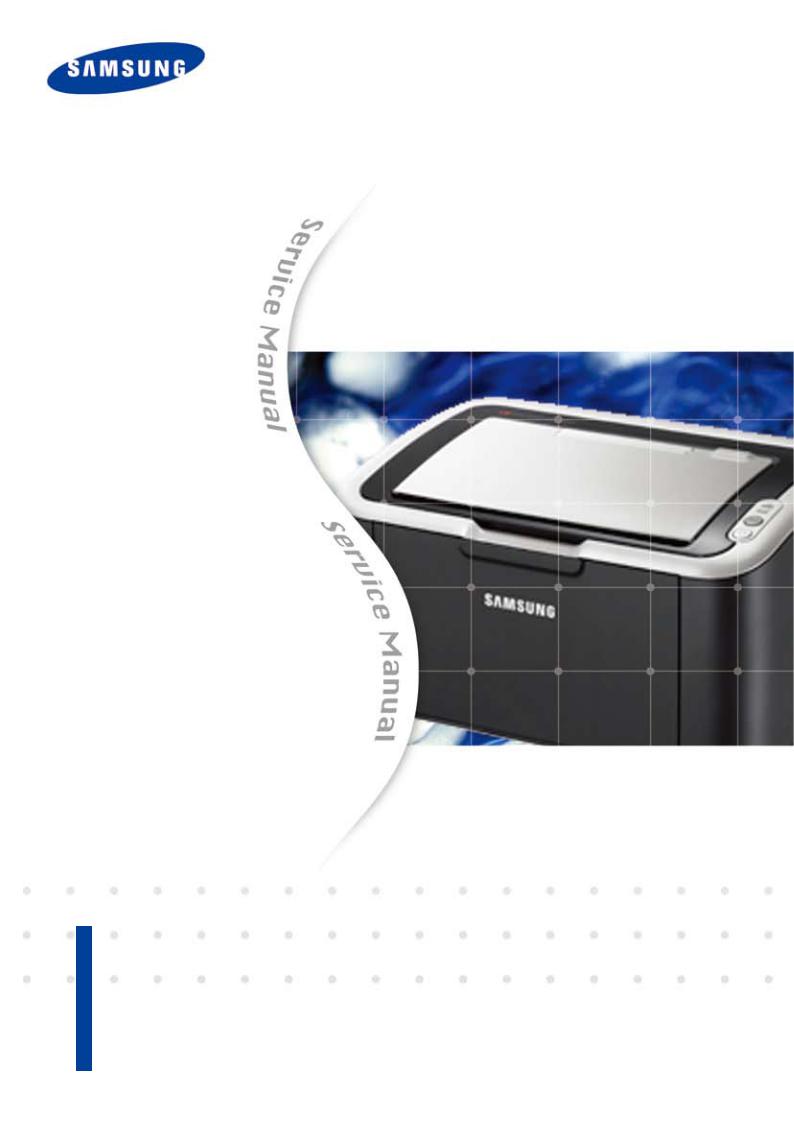
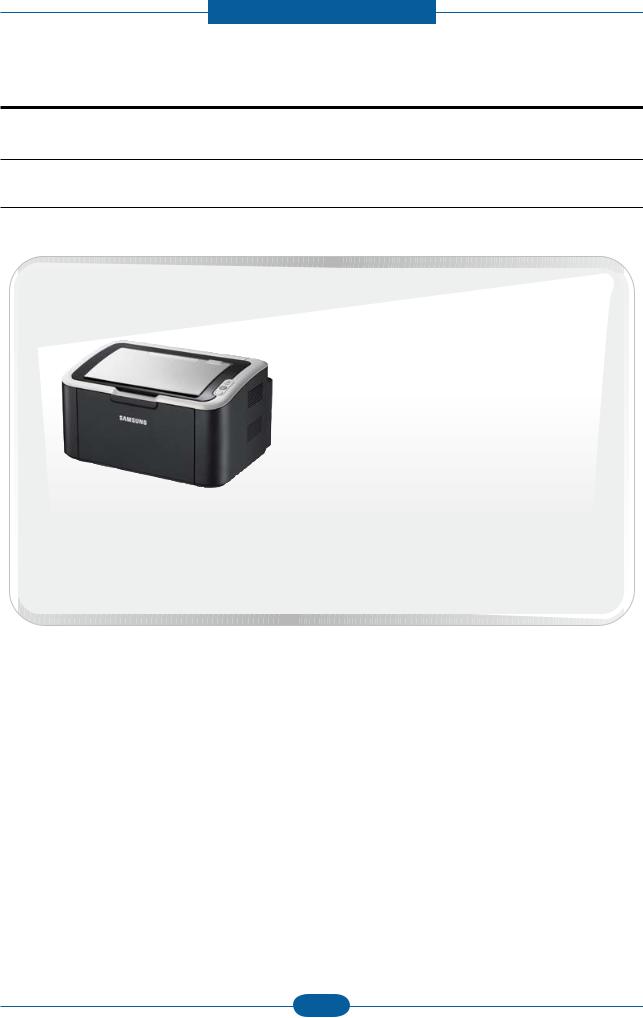
Samsung ML 1660, ML 1665 Service Manual

Page 1
Service Manual
1. Speed
• Up to 16 ppm in A4 (17 ppm in Letter)
2. Processor
• Jupiter4e 150 MHz
3. Printer Language
The keynote of Product
Laser Printer
ML-1660/1665
4. Memory
• 8 MB
5. Interfaces
• Compatible with USB 2.0
6. Toner cartridge
• Initial : 0.7K
• Sales : 1.5K
Page 2
Samsung Electronics Co.,Ltd. December. 2009
Printed in Korea.
VERSION NO. : 1.00 CODE : 1660-00000E

Page 3
chapter 1 Precautions
1.1 Safety Warning …………………………………………………… 1-1
1.2 Caution for safety ………………………………………………… 1-2
1.2.1 Toxic material ………………………………………………… 1-2
1.2.2 Electric Shock and Fire Safety Precautions ……………… 1-2
1.2.3 Handling Precautions ……………………………………… 1-3
1.2.4 Assembly / Disassembly Precautions ……………………… 1-3
1.2.5 Disregarding this warning may cause bodily injury ……… 1-4
1.3 ESD Precautions ………………………………………………… 1-5

Contents

chapter 2 Product Overview
2.1 Product Specications …………………………………………… 2-1
2.1.1 Product Overview …………………………………………… 2-1
2.1.2 Specications ………………………………………………… 2-2
2.1.3 Model Comparison Table …………………………………… 2-7
2.2 System Overview ………………………………………………… 2-8
2.2.1 Front View …………………………………………………… 2-8
2.2.2 Rear View …………………………………………………… 2-9
2.2.3 System Layout ……………………………………………… 2-10
2.2.4 Engine H/W Specications ………………………………… 2-17
2.2.5 Engine F/W Contol Algorithm ……………………………… 2-23
2.2.6 S/W Descriptions …………………………………………… 2-25
chapter 3 Maintenance and Disassembly
3.1 Precautions when replacing parts ……………………………… 3-1
3.1.1 Precautions when assembling and disassembling ……… 3-1
3.1.2 Preautions when handling PBA …………………………… 3-1
3.1.3 Releasing Plastic Latches ………………………………… 3-1
Page 4
Contents
3.2 Screws used in the printer ……………………………………… 3-2
3.3 Cover ……………………………………………………………… 3-3
3.3.1 Left/Right cover ……………………………………………… 3-3
3.3.2 Rear bracket ………………………………………………… 3-3
3.3.3 Cover-open ………………………………………………… 3-4
3.3.4 Top/Front cover ……………………………………………… 3-4
3.4 Main PBA ………………………………………………………… 3-5
3.5 SMPS/HVPS board ……………………………………………… 3-6
3.6 Fuser unit ………………………………………………………… 3-7
3.7 LSU ………………………………………………………………… 3-8
3.8 Drive unit ………………………………………………………… 3-9
3.9 Step motor ………………………………………………………… 3-10
3.10 Pick up roller …………………………………………………… 3-11
chapter 4 Alignment and Troubleshooting
4.1 Alignment and Adjustments ……………………………………… 4-1
4.1.1 Control Panel ………………………………………………… 4-1
4.1.2 Understanding the LEDs …………………………………… 4-2
4.1.3 JAM Removal ……………………………………………… 4-3
4.1.4 Printing a report ……………………………………………… 4-5
4.1.5 Periodic Defective Image …………………………………… 4-8
4.1.6 Firmware upgrade …………………………………………… 4-9
4.1.7 Using the smart panel program …………………………… 4-10
4.2 Troubleshooting…………………………………………………… 4-12
4.2.1 Procedure of Checking the Symptoms …………………… 4-12
4.2.2 Bad discharge ……………………………………………… 4-15
4.2.3 Malfunction …………………………………………………… 4-19
4.2.4 Bad image …………………………………………………… 4-24
Page 5
chapter 5 System Diagram
5.1 Block Diagram …………………………………………………… 5-1
5.2 Connection Diagram……………………………………………… 5-2
chapter 6 Reference Information
6.1 Tool for Troubleshooting ………………………………………… 6-1
6.2 Acronyms and Abbreviations …………………………………… 6-2
6.2.1 Acronyms …………………………………………………… 6-2
6.2.2 Service Parts ………………………………………………… 6-4
Contents
6.3 A4 ISO 19798 Standard Pattern ………………………………… 6-8
6.3.1 A4 ISO 19752 Standard Pattern …………………………… 6-8
6.4 Selecting a location ……………………………………………… 6-9
attached Exploded Views & Parts List
Page 6
Precautions

1. Precautions

In order to prevent accidents and damages to the equipment please read the precautions listed below carefully before servicing the product and follow them closely.
1.1 Safety warning
(1) Only to be serviced by a factory trained service technician.
High voltages and lasers inside this product are dangerous. This product should only be serviced by a factory trained service technician.
(2) Use only Samsung replacement parts.
There are no user serviceable parts inside the product. Do not make any unauthorized changes or additions to the product as these could cause the product to malfunctions and create an electric shocks
or re hazards.
(3) Laser Safety Statement
The product is certied in the U.S. to conform to the requirements of DHHS 21 CFR, chapter 1 Subchapter J for Class 1(1) laser products, and elsewhere, it is certied as a Class I laser product con­forming to the requirements of IEC 825. Class I laser products are not considered to be hazardous. The
laser system and product are designed so there is never any human access to laser radiation above a
Class I level during normal operation, user maintenance, or prescribed service condition.
Warning >> Never operate or service the product with the protective cover removed from Laser/Scanner
assembly. The reected beam, although invisible, can damage your eyes.
When using this product, these basic safety pre-cautions should always be followed to reduce risk of re, electric shock, and personal injury.
Service Manual
1-1
Samsung Electronics
Page 7
Precautions
Service Manual
1-2
Samsung Electronics
1.2 Caution for safety
1.2.1 Toxic material
This product contains toxic materials that could cause illness if ingested.
(1) If the LCD control panel is damaged, it is possible for the liquid inside to leak. This liquid is toxic.
Contact with the skin should be avoided. Wash any splashes from eyes or skin immediately and contact your doctor. If the liquid gets into the mouth or is swallowed, see a doctor immediately.
(2) Please keep imaging unit and toner cartridge away from children. The toner powder contained in the
imaging unit and toner cartridge may be harmful, and if swallowed, you should contact a doctor.
1.2.2 Electric shock and re safety precautions
Failure to follow the following instructions could cause electric shock or potentially cause a re.
(1) Use only the correct voltage, failure to do so could damage the product and potentially cause a re or
electric shock.
(2) Use only the power cable supplied with the product. Use of an incorrectly specied cable could cause the
cable to overheat and potentially cause a re.
(3) Do not overload the power socket, this could lead to overheating of the cables inside the wall and could
lead to a re.
(4) Do not allow water or other liquids to spill into the product, this can cause electric shock. Do not allow
paper clips, pins or other foreign objects to fall into the product, these could cause a short circuit leading to an electric shock or re hazard.
(5) Never touch the plugs on either end of the power cable with wet hands, this can cause electric shock.
When servicing the product, remove the power plug from the wall socket.
(6) Use caution when inserting or removing the power connector. When removing the power connector, grip it
rmly and pull. The power connector must be inserted completely, otherwise a poor contact could cause overheating possibly leading to a re.
(7) Take care of the power cable. Do not allow it to become twisted, bent sharply around corners or wise
damaged. Do not place objects on top of the power cable. If the power cable is damaged it could overheat and cause a re. Exposed cables could cause an electric shock. Replace the damaged power cable immediately, do not reuse or repair the damaged cable. Some chemicals can attack the coating on the power cable, weakening the cover or exposing cables causing re and shock risks.
(8) Ensure that the power sockets and plugs are not cracked or broken in any way. Any such defects should
be repaired immediately. Take care not to cut or damage the power cable or plugs when moving the machine.
(9) Use caution during thunder or lightning storms. Samsung recommends that this machine be disconnected
from the power source when such weather conditions are expected. Do not touch the machine or the power cord if it is still connected to the wall socket in these weather conditions.
(10) Avoid damp or dusty areas, install the product in a clean well ventilated location. Do not position the
machine near a humidier or in front of an air conditioner. Moisture and dust built up inside the machine can lead to overheating and cause a re or cause parts to rust.
(11) Do not position the product in direct sunlight. This will cause the temperature inside the product to rise
possibly leading to the product failing to work properly and in extreme conditions could lead to a re.
(12) Do not insert any metal objects into the machine through the ventilator fan or other part of the casing, it
could make contact with a high voltage conductor inside the machine and cause an electric shock.
Page 8
Precautions
Service Manual
1-3
Samsung Electronics
1.2.3 Handling precautions
The following instructions are for your own personal safety to avoid injury and so as not to damage the
product.
(1) Ensure the product is installed on a level surface, capable of supporting its weight. Failure to do so could
cause the product to tip or fall.
(2) The product contains many rollers, gears and fans. Take great care to ensure that you do not catch your
ngers, hair or clothing in any of these rotating devices.
(3) Do not place any small metal objects, containers of water, chemicals or other liquids close to the product
which if spilled could get into the machine and cause damage or a shock or re hazard.
(4) Do not install the machine in areas with high dust or moisture levels, beside on open window or close to a
humidier or heater. Damage could be caused to the product in such areas.
(5) Do not place candles, burning cigarettes, etc on the product, These could cause a re.
1.2.4 Assembly / Disassembly precautions
Replace parts carefully and always use Samsung parts. Take care to note the exact location of parts and also
cable routing before dismantling any part of the machine. Ensure all parts and cables are replaced correctly. Please carry out the following procedures before dismantling the product or replacing any parts.
(1) Check the contents of the machine memory and make a note of any user settings. These will be erased if
the main board or network card is replaced. (2) Ensure that power is disconnected before servicing or replacing any electrical parts. (3) Disconnect interface cables and power cables.
(4) Only use approved spare parts. Ensure that part number, product name, any voltage, current or
temperature rating are correct.
(5) When removing or re-tting any parts do not use excessive force, especially when tting screws into
plastic. (6) Take care not to drop any small parts into the machine.
(7) Handling of the OPC Drum
- The OPC Drum can be irreparably damaged if it exposed to light.
Take care not to expose the OPC Drum either to direct sunlight or to uorescent or incandescent room lighting. Exposure for as little as 5 minutes can damage the surface of the photoconductive properties and will result in print quality degradation. Take extra care when servicing the product. Remove the OPC Drum and store it in a black bag or other lightproof container. Take care when working with the Covers (especially the top cover) open as light is admitted to the OPC area and can damage the OPC Drum.
- Take care not to scratch the green surface of OPC Drum Unit.
If the green surface of the Drum Cartridge is scratched or touched the print quality will be compromised.
Page 9
Precautions
Service Manual
1-4
Samsung Electronics
1.2.5 Disregarding this warning may cause bodily injury
(1) Be careful with the high temperature part.
The fuser unit works at a high temperature. Use caution when working on the printer. Wait for the fuser to
cool down before disassembly.
(2) Do not put nger or hair into the rotating parts.
When operating a printer, do not put hand or hair into the rotating parts (Paper feeding entrance, motor,
fan, etc.). If do, you can get harm.
(3) When you move the printer.
This printer weighs 6kg including toner cartridge and cassette. Use safe lifting and handling techniques.
Use the lifting handles located on each side of the machine. Back injury could be caused if you do not lift
carefully. (4) Ensure the printer is installed safely.
The printer weighs 6kg, ensure the printer is installed on a level surface, capable of supporting its weight.
Failure to do so could cause the printer to tip or fall possibly causing personal injury or damaging the
printer.
(5) Do not install the printer on a sloping or unstable surface. After installation, double check that the printer
is stable.
Page 10
Precautions
Service Manual
1-5
Samsung Electronics
1.3 ESD precautions
Certain semiconductor devices can be easily damaged by static electricity. Such components are commonly
called “Electrostatically Sensitive (ES) Devices” or ESDs. Examples of typical ESDs are: integrated
circuits,some eld effect transistors, and semiconductor “chip” components.
The techniques outlined below should be followed to help reduce the incidence of component damage caused by static electricity.
Caution >>Be sure no power is applied to the chassis or circuit, and observe all other safety precautions.
1. Immediately before handling a semiconductor component or semiconductor-equipped assembly, drain
off any electrostatic charge on your body by touching a known earth ground. Alternatively, employ a commercially available wrist strap device, which should be removed for your personal safety reasons prior
to applying power to the unit under test.
2. After removing an electrical assembly equipped with ESDs, place the assembly on a conductive surface,
such as aluminum or copper foil, or conductive foam, to prevent electrostatic charge buildup in the vicinity
of the assembly.
3. Use only a grounded tip soldering iron to solder or desolder ESDs.
4. Use only an “anti-static” solder removal device. Some solder removal devices not classied as “anti-static”
can generate electrical charges sufcient to damage ESDs.
5. Do not use Freon-propelled chemicals. When sprayed, these can generate electrical charges sufcient to
damage ESDs.
6. Do not remove a replacement ESD from its protective packaging until immediately before installing it.
Most replacement ESDs are packaged with all leads shorted together by conductive foam, aluminum foil,
or a comparable conductive material.
7. Immediately before removing the protective shorting material from the leads of a replacement ESD, touch
the protective material to the chassis or circuit assembly into which the device will be installed.
8. Maintain continuous electrical contact between the ESD and the assembly into which it will be installed,
until completely plugged or soldered into the circuit.
9. Minimize bodily motions when handling unpackaged replacement ESDs. Normal motions, such as
the brushing together of clothing fabric and lifting one’s foot from a carpeted oor, can generate static electricity sufcient to damage an ESD.
Page 11
Product spec and feature

2. Product spec and feature

2.1 Product Specications

2.1.1 Product Overview

1. Speed
• Up to 16 ppm in A4 (17 ppm in Letter)
2. Processor
• Jupiter4e 150 MHz
3. Printer Language
• GDI
ML- 1660
4. Memory
• 8 MB
5. Interfaces
• Compatible with USB 2.0
6. Toner cartridge
• Initial : 0.7K
• Sales : 1.5K
Service Manual
2-1
Samsung Electronics
Page 12
Product spec and feature
Service Manual
2-2
Samsung Electronics
2.1.2 Specications
• Product Specications are subject to change without notice. See below for product specications.
2.1.2.1 General Print Engine
Items Specication
Engine Speed Simplex Up to 16 ppm in A4 (17 ppm in Letter)
Duplex Manual
Warmup time From Sleep ≤ 30 sec
FPOT From Ready ≤ 10 sec
From Sleep ≤ 30 sec
Resolution Up to 1200 x 600 dpi effective output
2.1.2.2 Controller & S/W
Items Specication
Processor Jupiter4e 150 MHz Memory Std. 8 MB
Option N/A
Printer Languages GDI GDI
Fonts - Windows Fonts
Driver Default Driver SPL
Install SPL
Supporting OS Windows 2000/XP(32/64bits)/Vista(32/64bits)/2003
Server(32/64bits)/2008 Server(32/64bits) / Win7 /2008 R2
Various Linux OS:
- Red Hat 8~9,
- Fedora Core 1~4
- Mandrake 9.2~10.1
- SuSE 8.2~9.2
Mac OS 10.3~10.6
WHQL Windows 2000/XP(32/64bits)/Vista(32/64bits)/2003
Server(32/64bits)/2008 Server(32/64bits) / Win7 /2008 R2
Compatibility Win 2000/XP(32/64bits)/2003 Server/Vista(32/64bits),2008
Wired Network Protocol N/A
Supporting OS N/A
Server(32/64bits)/ WIn7 /2008 R2
Page 13
Product spec and feature
Items Specifi cation
Wireless Network Protocol N/A
Supporting OS N/A
Application Smart Panel SmartPanel for Windows/ Macintosh/LINUX
Printer Setting N/A
Network Management N/A
IP Setting N/A
Interface Parallel N/A
USB Compatible with USB 2.0
Wired Network N/A
Wireless Network N/A
User Interface LCD N/A
LED 2 LED
Key 2 key
2.1.2.3 Paper Handling
Items Specifi cation
Standard Capacity 150-sheet Tray@80g/
Max. Capacity 150 sheets @ 80g/
Printing Max. Size 216 x 356 mm (8.5" x 14")
Min. Size 76 x 183 mm (3.0" x 7.2")
Standard Cassette Tray
Optional Cassette Tray
Capacity 150 sheets @ 80g/
Media sizes A4, A5, A6, ISO B5, JIS B5, Executive, Letter, O cio, Folio,
Legal,Custom
Media types Plain, Thin, Recycled, Thick, Archive
Media weight 16~32lb (60 to 120g/㎡)
Sensing Paper Empty
Capacity N/A
Media sizes N/A
Media types N/A
Media weight N/A
Sensing N/A
Output Stacking
Output Stacking Face-Down 100 sheets @ 75g/(Base Line Paper : Samsung Premium/
Xerox4200) NN Condition
Duplex Supporting N/A
Service Manual
2-3
Samsung Electronics
Page 14
Product spec and feature
Service Manual
2-4
Samsung Electronics
2.1.2.4 Consumables
Items Specication
Toner Cartridge Black Initial : Average Cartridge Yield 0.7K standard pages.
Sales : Average cartridge Yield 1.5K standard pages.
Declared cartridge yield in accordance with ISO/IEC 19752.
Key Electronic key(CRUM) Only
Life detect Toner gauge sensor by dot count
2.1.2.5 Maintenanace part
Items Life
Transfer roller 30K pages
Fuser unit 30K pages
Pick up roller 30K pages
2.1.2.6 Reliability & Service
Items Specication
Printing Volume (SET AMPV) 75 sheets/month
MPBF 10,000 sheets
MTTR 30 min.
SET Life Cycle 30,000 sheets or 5 years (whichever comes rst)
Page 15
2.1.2.7 Environment
Items Specifi cation
Product spec and feature
Operating Environment
Acoustic Noise Level(Sound Power/ Pressure)
Power Consumption Ready Less than 40W
Dimension (W x D x H)
Weight SET 4.12kg
Temperature 10C to 32C
Humidity 20% to 80%
Printing 49 dBA
Standby Back Ground Level
Sleep Back Ground Level
AVG. Less than 270W
Max/Peak Less than 300W
Sleep / Power Off Less than 2.8W / Less than 0.45W (Conformity to EPA)
SET 341 x 224 x 184 mm (13.42” x 8.81” x 7.24”)
SET Packing 394 x 278 x 241 mm (15.5” x 10.0” x 9.5”)
Toner 284 x 231.5 x 47.8mm
Toner Packing 361 x 270 x 113 mm
Toner 0.68kg
Gross 5.6kg
2.1.2.8 Packing & Accessory
Items Life
Driver & Network Install CD-ROM Power Cable
In-Box
USB Cable (CIS/China/Korea/India) Quick Install Guide Warranty Registration Card User’s Manual (PDF File)
Service Manual
2-5
Samsung Electronics
Page 16
Product spec and feature
Service Manual
2-6
Samsung Electronics
2.1.2.9 Options
Items Specication
Memory N/A
Second Cassette N/A
Wired Network N/A
Wireless Network N/A
Hard Disk N/A
Duplex Unit N/A
Page 17
Product spec and feature
Service Manual
2-7
Samsung Electronics

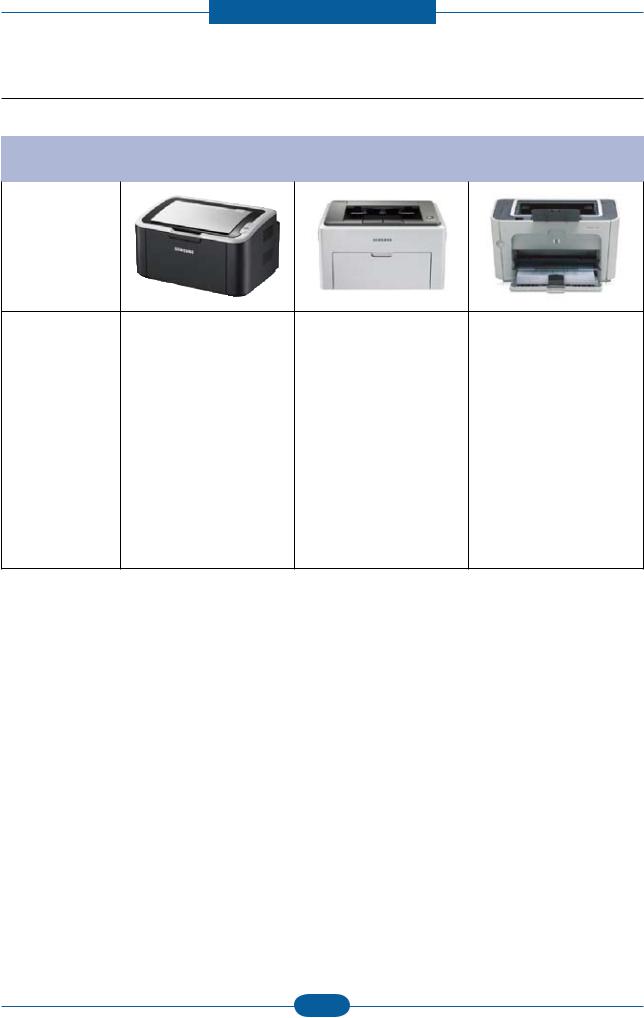
2.1.3 Model Comparison Table

Samsung
ML- 1660
Image
Speed 16 ppm (A4) 22 ppm (A4) 23 ppm (A4)
processor 150 MHz 150 MHz 266 MHz
Memory 8 MB 8 MB 32 MB
Print Language GDI GDI PCL5e
Input 150 sheets Bin 150 sheets Bin
Duplex Manual Manual Manual
Interface USB 2.0 USB 2.0 USB 2.0
Size (mm) 341 x 224 x 184 mm 353 x 298 x 213 mm 379 x 243 x 225 mm
Samsung
ML- 2240
HP
P1505n
250 sheets Bin,
10 Manual
Toner Standard 0.7K / 1K Standard 1.5K Standard 2K
Page 18
Product spec and feature
Service Manual
2-8
Samsung Electronics

2.2 System Overview

This chapter describes the functions and operating principal of the main component.

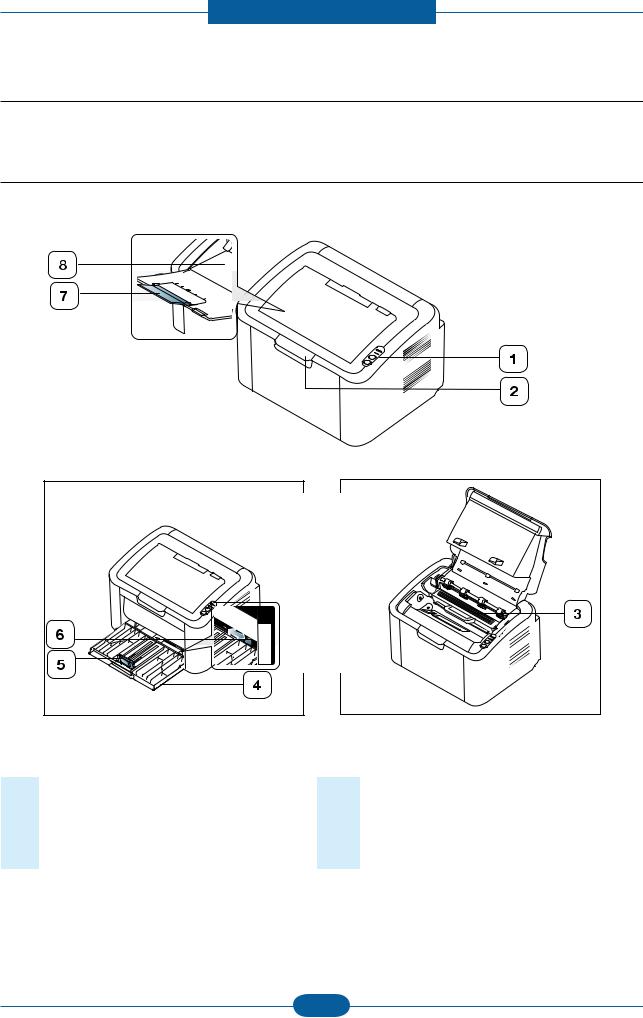
2.2.1 Front View

This illustration may differ from your machine depending on its model.
1 Control panel 5 Paper length guide 2 Top cover 6 Paper width guides 3 Toner cartridge 7 Output support 4 Tray 8 Output tray (face down)
Page 19
Product spec and feature
Service Manual
2-9
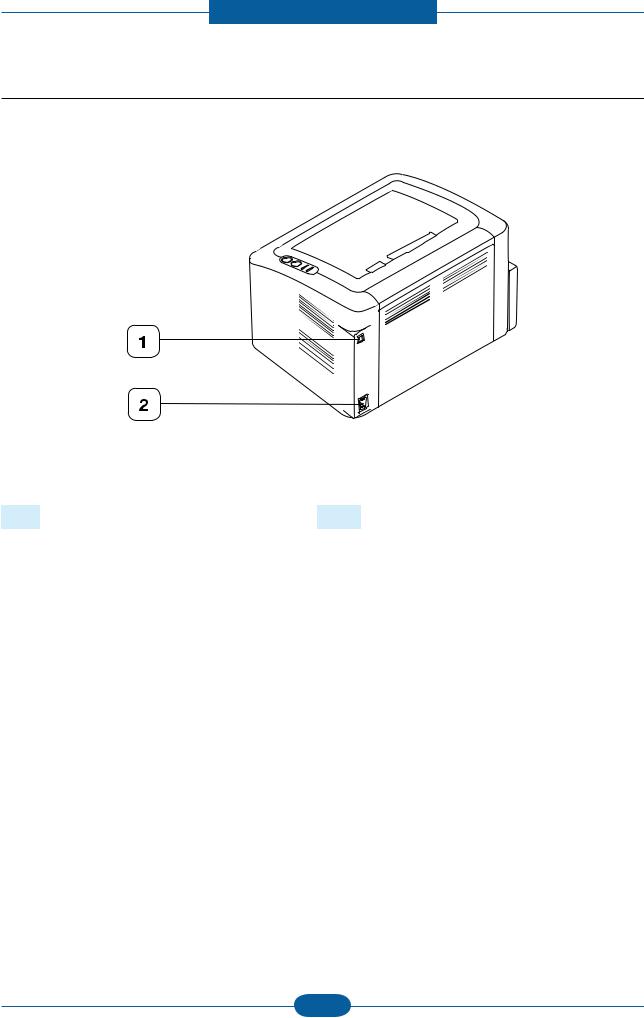
Samsung Electronics

2.2.2 Rear View

This illustration may differ from your machine depending on its model.
1 USB port 2 Power receptacle
Page 20
Product spec and feature
Service Manual
2-10
Samsung Electronics
13
5
12
11
7
1
2
9
14
10
3
6
4
8

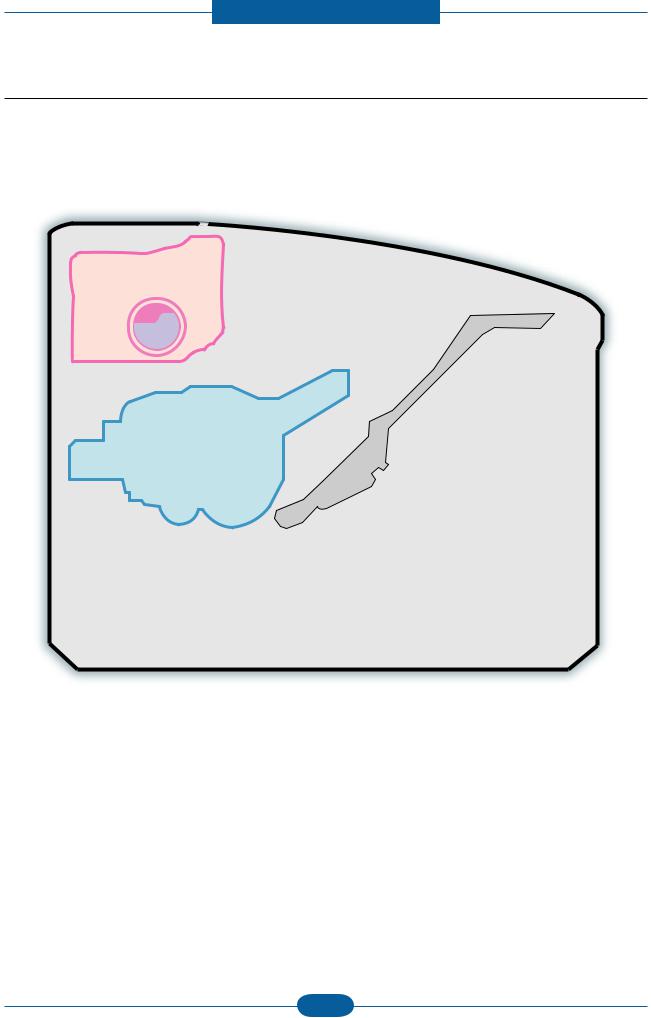
2.2.3 System Layout

This model is consisted of the Engine parts and F/W, and said engine parts is consisted of the mechanical parts comprising Frame, Feeding, Developing, Driving, Transferring, Fusing, Cabinet and H/W comprising the main control board, power board, operation panel, PC Interface.
NO. NAME
1 Pressure roller 2 Heat roller 3 Exit roller 4 Toner Cartridge 5 LSU 6 Charge roller 7 OPC
NO. NAME
8 Transfer roller 9 Deve roller
10 Supply roller 11 Feed roller 12 Friction pad 13 Pickup roller
Page 21
Product spec and feature
Service Manual
2-11
Samsung Electronics
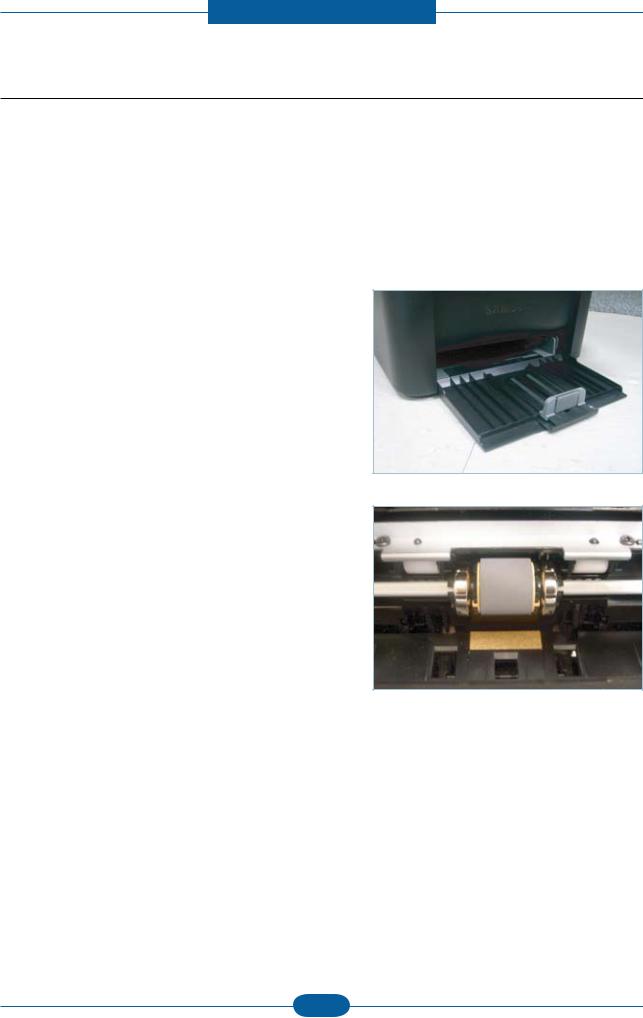
2.2.3.1 Feeding Part
It is consists of a basic cassette, an MP tray for supplying different types of media (envelope, label, special paper) and parts related to paper transferring.
1) Separation method
Paper is separated by the friction pad mounted to the center of the cassette.
2) Input tray
This model has a bin-type tray. It takes a center loading method and applies ‘friction pad separating method.’ Both the side guide and the rear guide can be adjusted for for various types of papers from A6 to legal size paper.
It has a paper existence sensing function
(Capacity: 150 sheets (80g/ paper standard), paper arranging function, various size papers accepting function. In the front side, there is a paper level indicator.
3) Pick- up roller
It has functions such as a paper pickup function, driving
control function, paper feeding function, and removing electronic static function. Pick up roller is drive by solenoid.
Page 22
Product spec and feature
Service Manual
2-12
Samsung Electronics
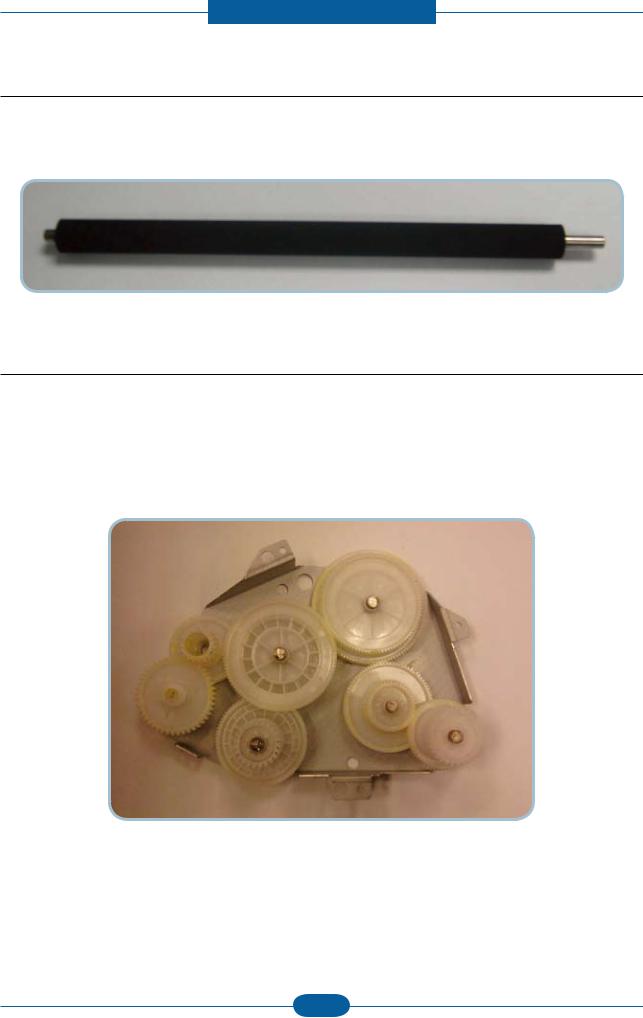
2.2.3.2 Transfer Roller
- The transfer roller delivers the toner of the OPC drum to the paper.
- There is no PTL Ass’y.
- Life Span : Print over 30,000 sheets (in15~30)
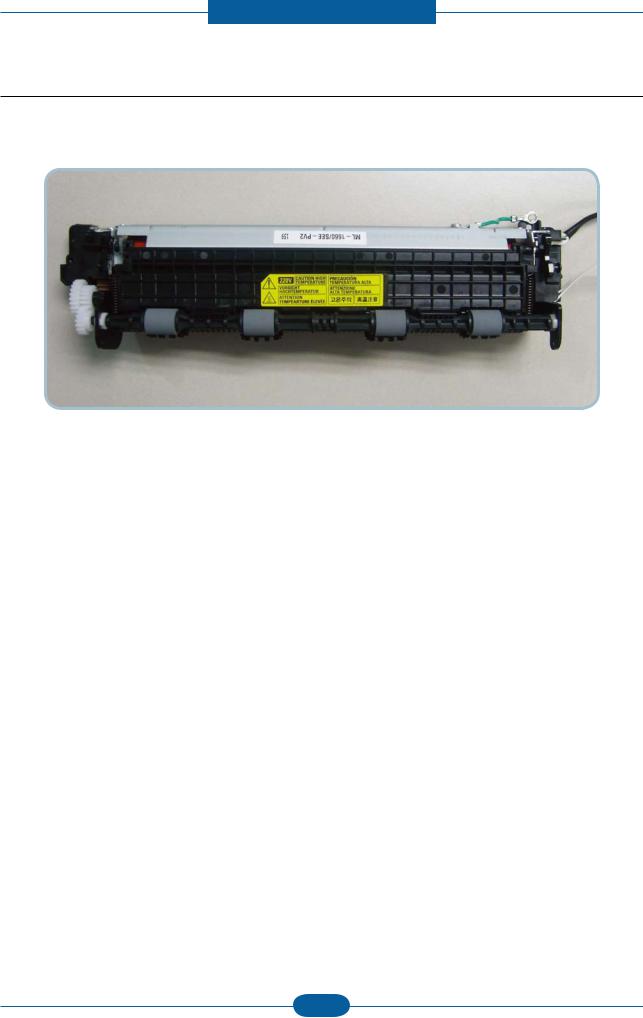
2.2.3.3 Driver Assy
- In ML-1660, the driving device is consisted of OPC, Pick- up, Feed, Fuser, Gear- Train connected with
Mounting member. A step motor for driving is assembled to the left frame.
• Driving Frequency: Step Motor 840 PPS (1050rpm)
• It is a power delivery unit by gearing: Step Motor Pick-up/Feeder/Transfer/Fuser/Exit
Page 23
Product spec and feature
Service Manual
2-13
Samsung Electronics
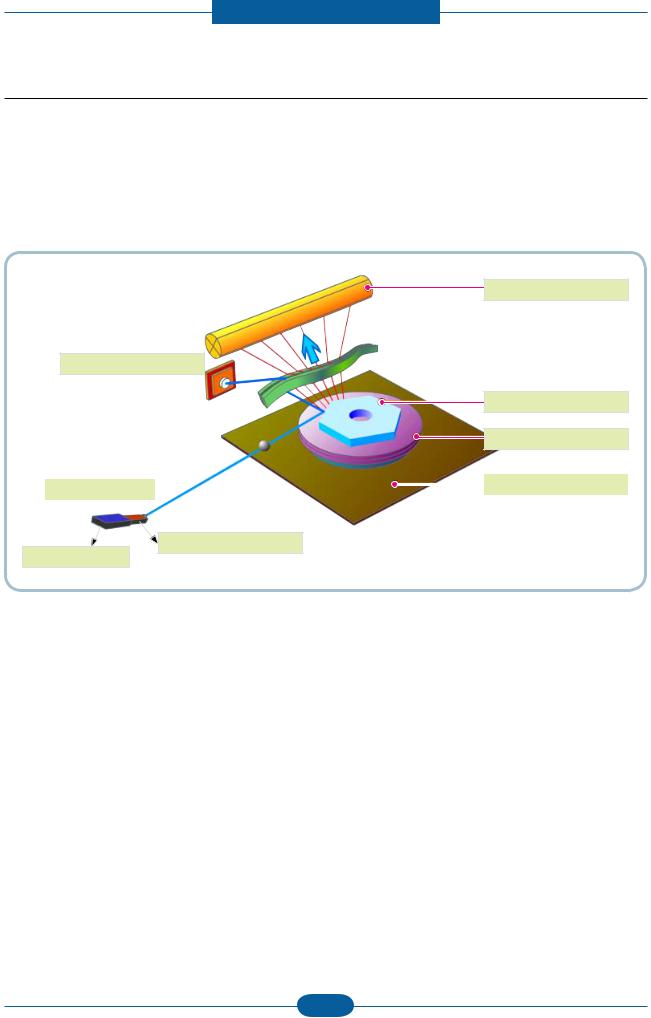
2.2.3.4 Fuser
It is consisted of a halogen lamp, heat roller, pressure roller, thermistor and thermostat. It sticks the toner on a paper by heat and pressure to complete the printing job.
1) Thermostat
When a heat lamp is overheated, a Thermostat cuts off the main power to prevent over- heating.
- Thermostat Type : Non- Contact type dual THERMOSTAT
- Control Temperature : 170 ± 5
2) Thermistor
It is a temperatrue detecting sensor.
- Temperature Resistance : 7 (180 )
3) Heat roller
The heat roller transfers the heat from the lamp to apply a heat on the paper.
The surface of a heat roller is coated with Teon, so toner does not stick to the surface.
4) Pressure roller
A pressure roller mounted under a heat roller is made of a silicon resin, and the surface also is coated with
Teon. When a paper passes between a heat roller and a pressure roller, toner adheres to the surface of a paper permanently.
5) Halogen Lamp
- Voltage 120 V : 115 ± 5 %
220 V : 230 ± 5 %
- Capacity : 600 Watt ± 25 W
Page 24
Product spec and feature
Service Manual
2-14
Samsung Electronics
6) Items for safety
Protecting device for overheating
- 1st protection device: Hardware cuts off when overheated
- 2nd protection device: Software cuts off when overheated
- 3rd protection device: Thermostat cuts off main power.
Safety device
- A fuser power is cut off when a front cover is opened
- Maintain a temperature of fuser cover’s surface under 80(C for user, and attach a caution label at
where customer can see easily when customer open a rear cover.
Page 25
Product spec and feature
Service Manual
2-15
Samsung Electronics
OPC Drum
Photo Diode
LD Driver circit
Protector panel
LD(Laser Diode)
Polygon Mirror
Polygon Motor
Motor Driver
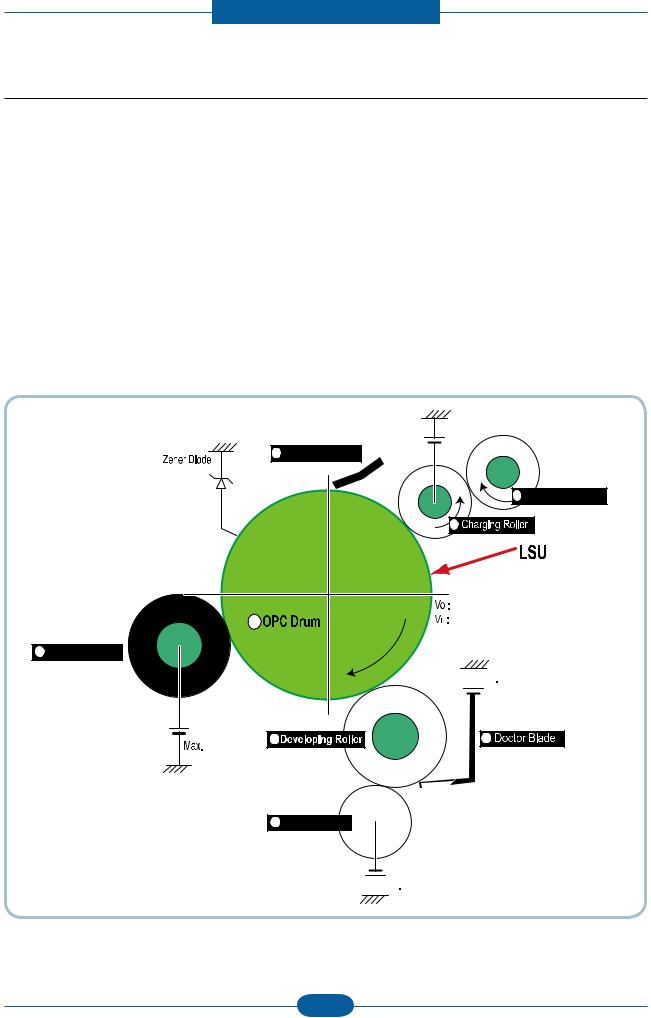
2.2.3.5 LSU (Laser Scanner Unit)
It is the core part of the LBP which switches from the video data received to the controller to the electrostatic latent image on the OPC drum by controlling laser beam, exposing OPC drum, and turning principle of polygon mirror. The OPC drum is turned with the paper feeding speed. The /HSYNC signal is created when the laser beam from LSU reaches the end of the polygon mirror, and the signal is sent to the controller. The controller detects the /HSYNC signal to adjust the vertical line of the image on paper. In other words, after the /HSYNC signal is detected, the image data is sent to the LSU to adjust the left margin on paper. The one side of the polygon mirror is one line for scanning.
Page 26
Product spec and feature
Service Manual
2-16
Samsung Electronics
Cleaning Roller
Cleaning Blade
-720V
-350V
-550V
0.20mW
Max -1.4KV
-100V
1
2
3
4
5
6
7
8
+3.5kV
-150V↓
2.2.3.6 Toner Cartridge
By using the electronic photo process, it creates a visual image. In the toner cartridge, the OPC unit and the developing unit are in a body. The OPC unit has OPC drum and charging roller, and the toner cartridge unit has toner, supply roller, developing roller, and blade (Doctor blade)
• Developing Method : Non magnetic 1 element contacting method
• Toner : Non magnetic 1 element shatter type toner
• Charging capacity : - 39.1 ± 3 μC/g
• Average OD : 8.0 ± 0.5 (Toner)
• The life span of toner (ISO 19752 pattern / A4 standard) → Initial toner : 0.7K → Sales toner : 1.5K
• Toner Residual Sensor : Dot count with CRUM(CRU Monitor)
• OPC Cleaning : Collect the toner by using cleaning blade
• Handling of wasted toner : Collect the wasted toner in the cleaning frame by using cleaning blade
• OPC Drum Protecting Shutter : None
• Classifying device for toner cartridge: ID is classied by CRUM.
Page 27
Product spec and feature
Service Manual
2-17
Samsung Electronics
CN4, LSU I/F CN8, Pick
up_clutch
CN2, Fuser
CN1, Hyper
CN5, Sensor
CN7, Main motor drive
CN6, Power I/F
2.2.4 Engine H/W Specications
2.2.4.1 Main PBA
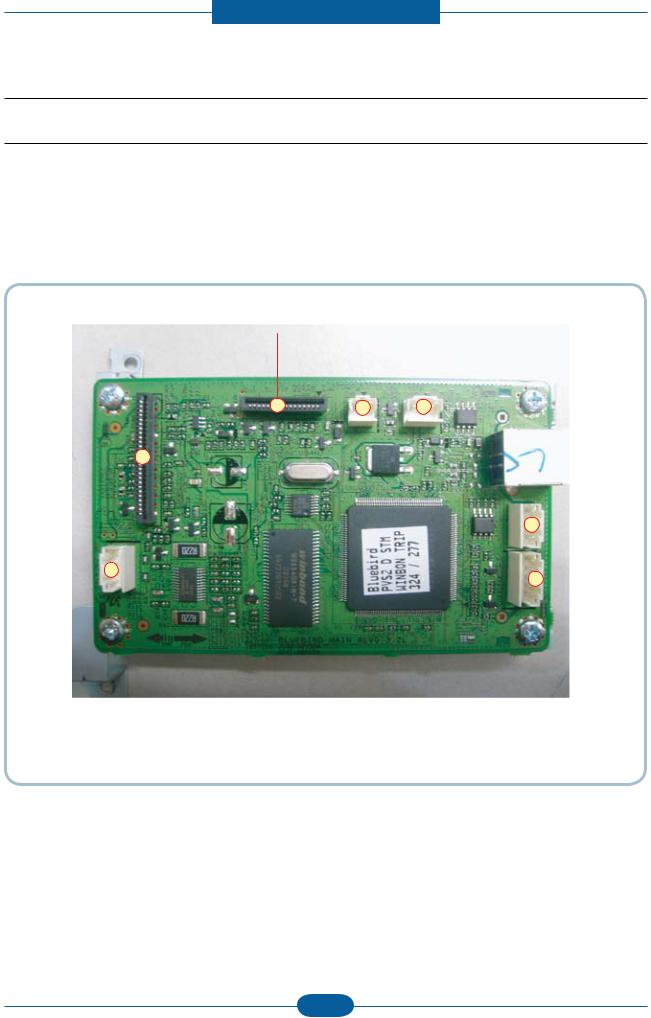
The Engine Board and the Controller Board are in one united board, and it is consisted of CPU part and print part in functional aspect. The CPU is functioned as the bus control, I/O handling, drivers, and PC interface. The main board sends the Current Image of Video data to the LSU and manages the conduct of Electrophotography for printing. It is consisted of the circuits of the motor (paper feed, pass) driving, clutch driving, pre- transfer lamp driving, current driving. The signals from the paper feed jam sensor and paper empty sensor are directly inputted to the main board.
Page 28
Product spec and feature
Service Manual
2-18
Samsung Electronics
(a) Asic(Jupiter4e)
• CPU Core : Use 32Bit RISC Processor of Jupiter4e, and control system by operating Operation Block of
the System Program inside Flash Memory.
- Main Function Block:
Completely Integrated System for Embedded Applications, 32 Bit Risc Architecture, Efcient and Powerful ARM9 CPU LSU Interface Module for Interfacing PVC with LSU 2 Channel General Purpose DMA Controller for High Speed I/O Dual Memory Bus Architecture
- Operation Frequency : 150MHz
- Operation Voltage : 3.3V
- POWER ON RESET TIME : 6.6ms below
(b) Memory
1) Flash Memory Store System Program and can be download System Program through PC Interface
- Capacity : 0.5M Byte
- Access Time : 70 nsec
2) SDRAM When Printing, use Band Buffer, System Working Memory Area .
- 8M capa : 8M Byte basic. 8M :Printing System Working Memory Area
- Access Time : 60 nsec
Page 29
Product spec and feature
Service Manual
2-19
Samsung Electronics
(c) Sensor Input Circuit
■ Paper Empty Sensing
The Paper empty sensor on the tray detects the state of paper empty and the state of paper width i.e. narrow paper width or not.
■ Regi Sensing
N/A
■ Paper Feeding
When paper passes the actuator (feed sensor part), it detects the signal of Photo interrupter, informs the paper feeding state to CPU, and then sprays the image data after certain time. If it doesn’t detect the feed sensor within 1sec. after paper is fed, paper Jam0 is occurred (LED will be display Orange color).
■ Paper Exit Sensing
N/A
■ Cover Open Sensing
The Cover open sensor is located on the HVPS. After the top cover is opened, +24VS (Solenoid, Main Motor, Polygon motor part of LSU and HVPS), which is supplied to the each unit, is cut off. In case, the red will be ON for informing the facts to user.
■ SOLENOID Driving
Clutches are driven by turning on TRs, which is controlled by CPU. The diode in the Clutch driving circuits protects TR driven from the noise pulse, which is occurred when the solenoid is de-energized.
■ Motor Driving
The main motor driving circuits is on the main board There is motor driver IC on the main board control the step motor.
Page 30
Product spec and feature
Service Manual
2-20
Samsung Electronics
Main board
Fuser
2.2.4.2 HVPS and SMPS Board
The HVPS Board and SMPS Board are in one united board.
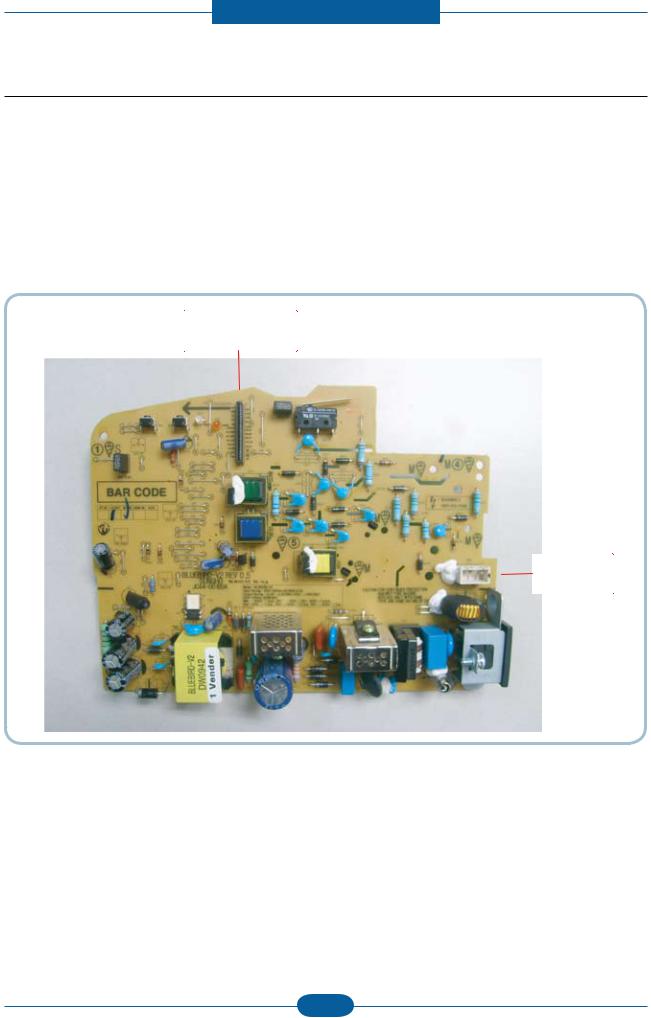
The HVPS board creates the high voltage of THV/MHV/Supply/Dev and supplies it to the developer part for making best condition to display the image. The HVPS part takes the 24V and outputs the high voltage for THV/MHV/BIAS, and the outputted high voltage is supplied to the toner, OPC cartridge, and transfer roller
It is the power source of entire system. It is assembled by an independent module, so it is possible to use for common use. It is mounted at the side of the set. It is consisted of the SMPS part, which supplies the DC power for driving the system, and the AC heater control part, which supplies the power to fuser. SMPS has two output channels. Which are +3.3V and +24V.
Page 31
Product spec and feature
Service Manual
2-21
Samsung Electronics
■ HVPS Board
• Transfer High Voltage (THV+)
- Input Voltage : 24 V DC ± 15%
- Output Voltage : THV+: max +3.5kV ± 10 %,(Duty Variable, no loading )
THV-: -1kV±20% (when cleaning,200 )
- Input contrast of the Voltage stability degree : under ± 3 % (uctuating input 21.6V~26.4V)
Loading contrast : ± 3 % or less
- Output Voltage Rising Time : 50 ms Max
- Output Voltage Falling Time : 100 ms Max
- Fluctuating transfer voltage with environmental various : 0~3.5kV
- Environment Recognition Control Method : The THV-PWM ACTIVE is transfer active signal. It detects the
resistance by recognizing the voltage value, F/B, while permits the environmental recognition voltage.
- Output Voltage Control Method : Transfer Output Voltage is outputted and controlled by changing Duty of
THVPWM Signal.
• Charge Voltage (MHV)
- Input Voltage : 24 V DC ± 15%
- Output Voltage : -1.0KV ~ -1.8KV DC ± 3%
- Output Voltage Rising Time : 50 ms Max
- Output Voltage Falling Time : 50 ms Max
- Output Loading range : 30 MΩ ~ 1000 MΩ
- Output Control Signal(MHV-PWM) : CPU is HV output when PWM is Low
• Cleaning Voltage (THV- )
- The (+) Transfer Voltage is not outputted because the THV PWM is controlled with low.
- The (-) Transfer Voltage is outputted because the THV-Enable Signal is controlled with low
- The output uctuation range is big because there is no Feedback control.
• Developing Voltage (DEV)
- Input Voltage : 24 V DC ± 15%
- Output Voltage: -200V ~ -500V DC ±3%
- Output Voltage Fluctuation range: PWM Control
- Input contrast of the output stability degree : ± 3 % or less
Loading contrast : ± 3 % or less
- Output Voltage Rising Time : 50 ms Max
- Output Voltage Falling Time : 50 ms Max
- Output Loading range : 10MΩ ~ 1000 MΩ
- Output Control Signal (BIAS-PWM) : the CPU output is HV output when PWM is low.
• Supply
- Output Voltage : -350 V ~ -650V DC ±50 V(ZENER using, DEV )
- Input contrast of the output stability degree : under ± 5 % Loading contrast : ± 5 % or less
- Output Voltage Rising Time : 50 ms Max
- Output Voltage Falling Time : 50 ms Max
- Output Loading range : 10 MΩ ~ 1000 MΩ
- Output Control Signal (BIAS-PWM) : the CPU is HV output when PWM is low.
Page 32
Product spec and feature
Service Manual
2-22
Samsung Electronics
■ SMPS Board
• AC Input
- Input Rated Voltage : AC 220V ~ 240V AC 110V ~ 127V
- Input Voltage uctuating range : AC 180V ~ 270V AC 90V ~ 135V
- Rated Frequency : 50/60 Hz
- Frequency Fluctuating range : 47 ~ 63 Hz
- Input Current : Under 4.0Arms / 2.0Arms (But, the status when Fuser is off or rated voltage is inputted/
outputted
• Rated Output Power
NO ITEM CH1 CH2 Remark
1 CHANNEL NAME +3.3V +24.0V
CON 3 24V PIN:1,2,3 GND PIN:8,9,25,26
+24V±10% -> -10%, +15%, (21.6~26.4V) -> 27.6V
2 CONNECTOR PIN
3 Rated Output
CON 3
3.3V PIN: 5,7 GND PIN: 8,9
+3.3V±5% (3.135~3.465V)
4 Max. Output Current 0.8A 1.35A
5 Peak Loading Current 1.0A 1.8A 100ms
6 RIPPLE NOISE Voltage 100mVp-p Under 500mVp-p
7 Maximum output 2.64W 32.4W
8 Peak output 3.3W 43.2W 100ms
Protection for loading shortage
9
and overowing current
Shut down or Fuse
Protection
Shut down or Output Voltage Drop
Page 33
Product spec and feature
Service Manual
2-23
Samsung Electronics

2.2.5 Engine F/W Contol Algorithm

2.2.5.1 Feeding
If feeding from a cassette, the drive of the pickup roller is controlled by controlling the solenoid. The on/off of the solenoid is controlled by controlling the general output port or the external output port. While paper moves, occurrence of Jam is judged as below.
Item Description
- After picking up, paper cannot be entered due to paper is not fed.
- After picking up, paper entered but it cannot reach to the feed sensor in certain time due to slip, etc.
JAM 0
JAM 1
- After picking up, if the feed sensor is not on, re-pick up. After re-picking up, if the feed sensor is not on after certain time, it is JAM 0.
* It is a status that the leading edge of the paper doesn’t pass the feed sensor.
- Even though the paper reaches to the feed sensor, the feed sensor doesn’t be ON.
* It is a status that the leading edge of the paper already passes the feed sensor.
- After the leading edge of the paper passes the feed sensor, the trailing edge of the paper cannot pass the feed sensor after a certain time. (The feed sensor cannot be OFF)
2.2.5.2 Transfer
The charging voltage, developing voltage and the transfer voltage are controlled by PWM (Pulse Width Modulation). The each output voltage is changeable due to the PWM duty. The transfer voltage admitted when the paper passes the transfer roller is decided by environment recognition. The resistance value of the transfer roller is changed due to the surrounding environment or the environment of the set, and the voltage value, which changes due to the environments, is changed through AD converter. The voltage value for impressing to the transfer roller is decided by the changed value.
Page 34
Product spec and feature
Service Manual
2-24
Samsung Electronics
2.2.5.3 Fusing
The temperature change of the heat roller’s surface is changed to the resistance value through the thermistor. By converting the voltage value, which impressed to the resistance, to the digital value through the AD converter, the temperature is decided. The AC power is controller by comparing the target temperature to the value from the thermistor. If the value from the thermistor is out of controlling range while controlling the fusing, the error stated in the below table occurs.
• Open Heat Error
When the engine operates the warm-up process, if the temperature of the xing unit is not higher than a specied temperature, the engine denes Open Heat Error. When this error is broken out, the engine stops all functions and keeps the error state. Also, the engine informs the error status of the main system. And then the error message is displayed at LCD window or LED informing the error status of the user.
• Low Heat Error
When the engine is at stand-by, printing or warm-up mode, if the temperature of the xing unit is lower than the specied temperature at each state and the lower temperature state is maintained during the specied time, the engine denes Low Heat Error. When this error is broken out, the engine stops all functions and keeps it at the error state. Also the engine informs the error status of the main system. And then the error message is displayed at LCD window or LED informing the error status of the user.
• Over Heat Error
For overall engine state, if the temperature of the xing unit is higher than the specied temperature and the temperature state is kept during the specied time, the engine denes Over Heat Error. When this error is broken out, the engine stops all functions and keeps it at the error state. Also, the engine informs the error status of the main system. And then the error message is displayed at LCD window or LED to inform the error status of the user.
2.2.5.4 LSU
LSU receives the image data from PVC or HPVC and make the latent image on OPC surface. It uses the single beam, LD. The errors related to LSU are as follows:
• By LReady : When the printing is started, the engine drives the polygon motor of LSU. After the specied time is elapsed, if the motor is not in a ready status, the engine detects the error that the polygon motor is not in a ready status. If this error happens, the engine stops all functions and keeps it at the error state. Also, the engine informs the error status of the main system and the error message is displayed at LCD window to inform the error status of the user.
• By Hsync : When the polygon motor is ready, the LSU sends out the signal called Hsync and used to
synchronize with each image line. So, if the engine does not detect consecutively the signal for a xed time, it denes the Hsync Error. If this error happens, the engine stops all functions and keeps it at the error state. Also, the engine informs the error status of the main system and then
the error message is displayed at LCD window to inform the error status of the user.
LSU Error Recovery: If the LReady or Hsync error happens, the paper exits out beforehand. The engine mode is changed to recovery mode and the engine informs the main system of the engine mode. And the engine checks the LSU error. If the error doesn’t happen, the printing job will be proceeding.
Page 35
Product spec and feature
Service Manual
2-25
Samsung Electronics

2.2.6 S/W Descriptions

2.2.6.1 Overview
The software of ML-1660 system is constructed with
1) Host Software part that the application software operated in Window and Web Environment, and
2) Firmware parts that is a Embedded software controls printing job.
2.2.6.2 Architecture
Host Software is made up of
1. Graphic User Interface that offers the various editing functions to user in Host,
2. Driver that translates the received document to a Printing Command language which printer can
understand and transfers data to spooler,
3. Stand-alone Application that offers the various printing application, PSU(Printer Settings Utility), Printer
Status Monitor, Network Management in Window system,
4. Web-based-Application that offers the same functions as Stand-alone Application and RDC(Remote
Diagnosis Control) in Web environment.
Firmware is made up of
1. Application (Emulation) that is a interpreter translate data received from Host to a printing language
(PCL, PS, GDI, etc.) to be able to make the user to take same output as originally one what composed in Host.
2. Kernel that control and management the whole procedure include of Control ow and Printing Job before
transfer to Engine system.
Page 36
Product spec and feature
Service Manual
2-26
Samsung Electronics
2.2.6.3 Data and Control Flow
. GDI(only SCX-4824FN) & PCL6 (PCL XL)
The above Block Diagram is explained that:
Host Side is made up of
1. Driver that is Windows application software translate printed data to one of printer language and create
spooler le.
2. Web-based Application that offer a various printer additional functions, management of printing job,
printer administration, Status monitor to monitoring the printer status by real time in Web, independent environment on OS.
3. Stand-alone Application that is a similar Window software as same as above 2,
4. Port Monitor that manages the network communication between spooler and Network Interface Card, or
various additional application and Network Interface Card,(this is, at rst, make communication logical port, manage the data, transfer them from spooler to network port, and offer the result of printing).
Page 37
Product spec and feature
Service Manual
2-27
Samsung Electronics
Firmware Side is made up of
1. Network Interface Card is that relay the communication between Host and kernel using various network
protocol.
2. Kernel is that manages the ow control of emulation procedure, receiving data from Host or Network card
and printing with engine & rendering job,
3. Emulation is that interprets the various output data from selected emulation,
4. Engine is that prints rendered bit-map data to paper with required size and type by Kernel.
And then, for Job Spooling function for Multi-User, Multi-Printing that is occurred in Network printing and various additional printing functions, this Kernel use max. 10 Queuing systems in a memory.
In Printing, the two procedures are
(1) Case of using USB Port
- After user start to print the wanted document to PCL string or compressed GDI bit-map data, Driver
translate the all graphic data of it and send data to host spooler. And then the spooler sends the data stream to the printer via USB port.
- Kernel receives this data from Host, and then select emulation t to data and start selected one. After
emulation job end, Kernel sends the output bit-map data to Engine using Printer Video Controller (by clock type for LSU).
- Engine print the received data to required paper with the sequential developing process.
(2) Case of using Network Interface Card
- After user start to print the wanted document to PCL string or compressed GDI bit-map data, Driver
translate the all graphic data of it and send data to host spooler.
- If so, Port monitor managing network port receives data from spooler and sends a data stream to the
Network Interface Card.
- Network interface card receives it and send to Kernel part.
- Kernel receives this data from Host, and then select emulation t to data and start selected one. After
emulation job end, Kernel sends the output bit-map data to Engine using Printer Video Controller (by clock type for LSU).
- Engine print the received data to required paper with the sequential developing process.
The additional printing function are realized in
(1) Web environment (2) Window environment.
On addition, Kernel informs a status of printing status and printer status to user made printing job with the Status Monitor.
Page 38
Disassembly and Reassembly

3. Disassembly and Reassembly

3.1 Precautions when replacing parts

3.1.1 Precautions when assembling and disassembling
* Use only approved Samsung spare parts. Ensure that part number, product name, any voltage, current or
temperature rating are correct. Failure to do so could result in damage to the machine, circuit overload, re
or electric shock.
* Do not make any unauthorized changes or additions to the printer, these could cause the printer to
malfunction and create electric shock or re hazards.
* Take care when dismantling the unit to note where each screw goes. There are 19 different screws. Use of
the wrong screw could lead to system failure, short circuit or electric shock.
* Do not disassemble the LSU unit. Once it is disassembled dust is admitted to the mirror chamber and will
seriously degrade print quality. There are no serviceable parts inside.
* Regularly check the condition of the power cord, plug and socket. Bad contacts could lead to overheating
and rfe. Damaged cables could lead to electric shock or unit malfunction.
3.1.2 Preautions when handling PBA
Static electricity can damage a PBA, always used approved anti-static precautions when handling or storing a PBA.
>> Precautions when moving and storing PBA
1. Please keep PBA in a conductive case, anti-static bag, or wrapped in aluminum foil.
2. Do not store a PBA where it is exposed to direct sunlight.
>> Precautions when replacing PBA
1. Disconnect power connectors rst, before disconnecting other cables
2. Do not touch any soldered connections, connector terminals or other electronic parts when handling
insulated parts.
>> Precautions when checking PBA
1. Before touching a PBA, please touch other grounded areas of the chassis to discharge any static electrical
charge on the body.
2. Take care not to touch the PBA with your bare hands or metal objects as you could create a short circuit
or get an electric shock. Take extra care when handling PBAs with moving parts tted such as sensors,
motors or lamps as they may get hot.
3. Take care when tting, or removing, screws. Look out for hidden screws. Always ensure that the correct
screw is used and always ensure that when toothed washers are removed they are retted in their original
positions.
3.1.3 Releasing Plastic Latches
Many of the parts are held in place with plastic latches. The latches break easily; release them carefully. To remove such parts, press the hook end of the latch away from the part to which it is latched.
Service Manual
3-1
Samsung Electronics
Page 39
Disassembly and Reassembly
Service Manual
3-2
Samsung Electronics

3.2 Screws used in the printer

The screws listed in the table below are used in this printer. Please ensure that, when you disassemble the printer, you keep a note of which screw is used for which part and that, when reassembling the printer, the correct screws are used in the appropriate places.
Part Code Location Description Qty
6003-000196
SCREW-TAPTYPE;PWH,+,B,M3,L10,NI PLT,SWRCH18A 8 6003-000269 SCREW-TAPTYPE;BH,+,-,S,M3,L6,ZPC(WHT),SWRCH18A,- 20 6003-000282 SCREW-TAPTYPE;BH,+,-,B,M3,L8,ZPC(BLK),SWRCH18A,- 5 6003-000282 6006-001078 SCREW-TAPTYPE;PH,+,WSP,B,M3,L10,ZPC(WHT),SWRCH18A 1 6003-000196 6003-000282 SCREW-TAPTYPE;BH,+,-,B,M3,L8,ZPC(BLK),SWRCH18A,- 4 6003-000269 FUSER -LOWER SCREW-TAPTYPE;BH,+,-,S,M3,L6,ZPC(WHT),SWRCH18A,- 3 6003-000196 FRAME-PAPER PATH SCREW-TAPTYPE;PWH,+,B,M3,L10,NI PLT,SWRCH18A 7 6003-000282 FRAME-FEED IDLE SCREW-TAPTYPE;BH,+,-,B,M3,L8,ZPC(BLK),SWRCH18A,- 2 6003-000269 6003-000282 SCREW-TAPTYPE;BH,+,-,B,M3,L8,ZPC(BLK),SWRCH18A,- 2 6003-000269 FRMAE MAIN-RIGHT SCREW-TAPTYPE;BH,+,-,S,M3,L6,ZPC(WHT),SWRCH18A,- 2 6003-000269 FRAME MAIN-MIDDLE SCREW-TAPTYPE;BH,+,-,S,M3,L6,ZPC(WHT),SWRCH18A,- 5 6003-000282 LSU SCREW-TAPTYPE;BH,+,-,B,M3,L8,ZPC(BLK),SWRCH18A,- 5 6003-000282 COVER-TOP SCREW-TAPTYPE;BH,+,-,B,M3,L8,ZPC(BLK),SWRCH18A,- 1 6003-000282 CARTRIDGE-TONER SCREW-TAPTYPE;BH,+,-,B,M3,L8,ZPC(BLK),SWRCH18A,- 4 6003-000269 6003-000282 SCREW-TAPTYPE;BH,+,-,B,M3,L8,ZPC(BLK),SWRCH18A,- 2
FRAME
SCREW-TAPTYPE;BH,+,-,B,M3,L8,ZPC(BLK),SWRCH18A,- 3
FUSER
SCREW-TAPTYPE;PWH,+,B,M3,L10,NI PLT,SWRCH18A 1
FUSER-UPPER
SCREW-TAPTYPE;BH,+,-,S,M3,L6,ZPC(WHT),SWRCH18A,- 6
FRMAE MAIN-LEFT
SCREW-TAPTYPE;BH,+,-,S,M3,L6,ZPC(WHT),SWRCH18A,- 8
MAIN LINE
Page 40
Disassembly and Reassembly
Service Manual
3-3
Samsung Electronics

3.3 Cover

3.3.1 Left/Right cover

1. Take off the left cover by removing hooks from its edge.
2. Take off the right cover by removing hooks from its edge.

3.3.2 Rear bracket

1. Remove 4 screws. Release the rear bracket.
Page 41
Disassembly and Reassembly
Service Manual
3-4
Samsung Electronics

3.3.3 Cover-open

1. Release the cover-open from the hook of both sides.

3.3.4 Top/Front cover

1. Remove 2 screws. Hold the top and front cover and pull both of them to the direction of arrow.
2. Separate the top and front cover.
Top cover
Front cover
Page 42
Disassembly and Reassembly
Service Manual
3-5
Samsung Electronics

3.4 Main PBA

1. To remove the main PBA, rst remove the right cover. (Refer to 3.3.1)
2. Remove 4 screws. Unplug all connectors. And release the Main PBA.
Page 43
Disassembly and Reassembly
Service Manual
3-6
Samsung Electronics

3.5 SMPS/HVPS board

1. To remove the SMPS/HVPS board, rst remove the right cover and rear bracket. (Refer to 3.3)
2. Remove 4 screws. Unplug all connectors. And release the main-PBA bracket.
3. Remove 8 screws. Unplug a connector. And release the SMPS/HVPS board.
Page 44
Disassembly and Reassembly
Service Manual
3-7
Samsung Electronics

3.6 Fuser unit

1. Remove the main PBA bracket. (Refer to 3.5)
2. Unplug the connector on SMPS/HVPS board.
3. Remove 3 screws.
4. Pull the fuser unit to the direction of arrow slightly and release it.
Page 45
Disassembly and Reassembly
Service Manual
3-8
Samsung Electronics
Top view
Front view
COVER-LSU
Top view
Front view
COVER-LSU
Front view

3.7 LSU

1. Remove the front/ top/ rear cover. (refer to 3.3 cover)
2. Remove 4 screw securing the COVER-LSU. Release the COVER-LSU.
3. Remove 3 screws. Release the LSU.
Page 46
Disassembly and Reassembly
Service Manual
3-9
Samsung Electronics

3.8 Drive unit

1. Remove the left cover.
2. Remove 4 screws. Release the drive unit.
Page 47
Disassembly and Reassembly
Service Manual
3-10
Samsung Electronics

3.9 Step motor

1. Remove the drive unit. (Refer to 3.8)
2. Remove 7 screws. Release the left-frame bracket.
3. Remove 2 screws. Release the step motor.
Caution When reassembling the drive unit, put down the
drive unit and assemble the left-frame bracket.
Page 48
Disassembly and Reassembly
Service Manual
3-11
Samsung Electronics

3.10 Pick up roller

1. Open the top cover.
2. Take out the toner cartridge.
3. Push the hinge to the direction of arrow.
Page 49
Alignment and Troubleshooting

4. Alignment and Troubleshooting

4.1 Alignment and Adjustments

This chapter describes the main functions for service, such as the product maintenance method, the test output related to maintenance and repair, Jam removing method, and so on. It includes the contents of manual.

4.1.1 Control Panel

The ML-1660 series printers have 2 keys and 2 LEDs. The ‘User Interface’ module handles the processing of the ‘Key Press’ and ‘LED control’ at different states of the machine.
1 Jam Shows the status of jam occurance of your machine.
2
3
4
Service Manual
Online/ Error Shows the status of your machine.
Print Screen Prints the displayed screen in the monitor.
Power You can turn the power on and off with this button.
4-1
Samsung Electronics
Page 50
Alignment and Troubleshooting
Service Manual
4-2
Samsung Electronics

4.1.2 Understanding The Control Panel

The color of the LEDs indicates the machine’s current status.
LED STATUS DESCRIPTION
Jam
Online/ Error
Orange On A paper jam has occurred.
Off • The machine is off-line. Green On • The machine is in power saver mode.
• The machine is on-line and can receive data from the computer.
Blinking • When the LED slowly bilnks, the machine is receiving data from the
computer.
• When the LED rapidly blinks, the machine is printing data.
Red On • The cover is opened. Close the cover.
• There is no paper in the tray. Load paper in the tray.
• The machine has stopped due to a major error.
• Your system has some problems. If this problem occurs, contact
your service representative.
• A toner cartridge has almost reached its estimated cartridge life
Blinking • A minor error has occurred and the machine is waiting for the error
to be cleared. When the problem is cleared, the machine resumes
printing.
• Small amount of toner is left in the cartridge. The estimated cartridge
lifea of toner is close. Prepare a new cartridge for replacement. You may temporarily increase the printing quality by redistributing the toner.
• The machine is printing in manual feed mode or in manual duplex
mode.
• The machine is canceling a print job.
a
.
Page 51
Alignment and Troubleshooting
Service Manual
4-3
Samsung Electronics

4.1.3 JAM Removal

4.1.3.1 Clearing Paper Jams
If a paper jam occurs, the LED on the control panel lights orange. Find and remove the jammed paper. To resume printing after clearing paper jams, you must open and close the top cover.
In tray
1. If the output tray is opened, close the output tray
rst.
2. Open and close the top cover. The jammed paper is automatically ejected from the machine. Make sure to open the output tray before paper ejects from the machine.
If the paper does not exit, go to the next step.
3. Remove the original jammed paper by gently pulling it straight out.
Inside the machine
1. If the output tray is opened, close the output tray
rst.
2. Open and close the top cover. The jammed paper is automatically ejected from the machine. Make sure to open the output tray before paper ejects from the machine.
If the paper does not exit, go to the next step.
3. Close the output tray and open the top cover.
4. Open the funser unit cover.
If the paper does not move when you pull, or if you do not see the paper in this area, check the fuser area around the toner cartridge.
If you do not see the jammed paper, go to next
step.
Page 52
Alignment and Troubleshooting
Service Manual
4-4
Samsung Electronics
5. Remove the original jammed paper by gently pulling it straight out.
If you do not see the jammed paper, go to next
step.
7. Remove the original jammed paper by gently pulling it straight out.
8. Replace the toner cartridge.
6. Pull the toner cartridge out.
9. Close the fuser unit cover.
10. Close the top cover and open the output tray.
Printing automatically resumes.
Page 53
Alignment and Troubleshooting
Service Manual
4-5
Samsung Electronics

4.1.4 Printing a report

This product provides several printable reports for maintenance purposes. These reports can be used to aid the diagnosis of print quality problems.
By pressing the Print screen button, you can print these reports.
Report How to print
Printing demo page & conguration
sheet Supplies info report In the ready mode, press and hold this button for about 10 seconds
In the ready mode, press and hold this button for about 6 seconds until the green LED blinks slowly, and release.
until the green LED blinks rapidly, and release.
Page 54
Alignment and Troubleshooting
Service Manual
4-6
Samsung Electronics
■ Demo Page
Page 55
Alignment and Troubleshooting
Service Manual
4-7
Samsung Electronics
■ Supplies Information Report
Page 56
Alignment and Troubleshooting
Service Manual
4-8
Samsung Electronics
4
1
2
6
7
3
5

4.1.5 Periodic Defective Image

If an image defects appears at regular intervals on the printed-paper, it is due to a faulty or damaged roller. Refer to the table below and check the condition of the appropriate roller.
Roller Period (mm) Phenomenon Defective part
OPC Drum 62.9mm White and Black Spots Developing Roller 35.1mm White spot, Horizontal black band Charging Roller 26.7mm Black Spot and line and periodic band Supply Roller 47mm Periodic Band by little difference of density Transfer Roller 39.2mm Ghost, Damaged image by abnormal transfer Transfer roller Pressure Roller 75.4mm Background Fusing Roller 77.5mm Black spot and image ghost
Toner Cartridge
Fuser
1 Pressure roller 5 Transfer roller 2 Heat roller 6 Deve roller 3 Charge roller 7 Supply roller 4 OPC
Page 57
Alignment and Troubleshooting
Service Manual
4-9
Samsung Electronics

4.1.6 Firmware upgrade

1) Connect PC and printer with USB cable.
2) Turn on the power of printer.(Ready Status)
3) Drag the f/w le and Drop down on the usblist2.exe. And then f/w update will be started automatically.
4) Please wait until end reboot.
Page 58
Alignment and Troubleshooting
Service Manual
4-10
Samsung Electronics

4.1.7 Using the smart panel program

Smart Panel is a program that monitors and informs you of the machine status, and allows you to customize
the machine’s settings. Smart Panel is installed automatically when you install the machine software. To use this program, you need the following system requirements:
• Windows. Check for windows operating system(s) compatible with your machine.
• Mac OS X 10.3 or higher
• Linux. Check for Linux systems that are compatible with your machine.
• Internet Explorer version 5.0 or higher for ash animation in HTML Help.
If you need to know the exact model name of your machine, you can check the supplied software CD.
4.1.7.1 Understanding Smart Panel
If an error occurs while printing, you can check the error from the Smart Panel.
You can also launch Smart Panel manually. Double-click the Smart Panel icon on the Windows task bar (in Windows), or Notication Area (in Linux). You can also click it on the status bar (in Mac OS X).
Windows Double-click this icon in Windows.
Macintosh Click this icon in Mac OS X.
Linux Click this icon in Linux.
Or, if you are a Windows user, you can launch it from the Start menu, select Programs or All Programs > Samsung Printers > your printer driver name > Smart Panel.
• If you have already installed more than one Samsung machine, rst select the correct machine model
you want in order to access the corresponding Smart Panel.
Right-click (in Windows or Linux) or click (in Mac OS X) the Smart Panel icon and select your machine.
• The Smart Panel window and its contents shown in this user’s guide may differ depending on the
machine or operating system in use.
The Smart Panel program displays the current status of the machine, the level of toner remaining in the toner cartridge(s), and various other types of information. You can also change settings.
Page 59
Alignment and Troubleshooting
Service Manual
4-11
Samsung Electronics
View the level of toner remaining in the toner cartridge(s). The machine and
1 Toner Level
2 Buy Now Order replacement toner cartridge(s) online.
3 User’s Guide
4 Printer Setting
5 Driver Setting
the number of toner cartridge(s) shown in the above window may differ depending on the machine in use. Some machines do not have this feature.
View User’s Guide. This button changes to Troubleshooting Guide when error occurs. You can directly open troubleshooting section in the user’s guide.
Congure various machine settings in the Printer Settings Utility window.
Some machines do not have this feature.
If you connect your machine to a network, the SyncThru™ Web Service
window appears instead of the Printer Settings Utility window. Set all of the machine options you need in the Printer Preferences window.
This feature is available only for Windows.
4.1.7.2 Opening the Troubleshooting Guide
Find solutions for problems by using the Troubleshooting Guide.
Right-click (in Windows or Linux) or click (in Mac OS X) the Smart Panel icon and select Troubleshooting
Guide.
4.1.7.3 Changing the Smart Panel Program Settings
Right-click (in Windows or Linux) or click (in Mac OS X) the Smart Panel icon and select Options. Select the
settings you want from the Options window.
Page 60
Alignment and Troubleshooting
Service Manual
4-12
Samsung Electronics
Power On
Red LED or Orange LED on?
- Red : Yes
- Orange : No
OPE LED
Green OK?
Print(test pattern)
printing
Quality is
Nomal?
Refer to "Solution
of Image Problem"
See the troubleshooting flow chart.
END
- No Power
- Power Module error
- Main PBA
OPE LED
ON?
Remove the
jammed paper.

4.2 Troubleshooting

4.2.1 Procedure of Checking the Symptoms

Before attempting to repair the printer rst obtain a detailed description of the problem from the customer.
Page 61
Alignment and Troubleshooting
Service Manual
4-13
Samsung Electronics
4.2.1.1 Basic Check List
1. Check the Power.
• Check that the power switch is turned on.
• Check that the power cable is plugged into the outlet and the printer.
• Check the voltage of the power outlet.
2. Check the LED of Panel.
• Is there OPE LED ON?
--> If not check power cable, switch SMPS or Main board.
• Is the abnormal Lamp?
--> Check the main PBA and cable harness.
3. Check the Paper Path
• Is there a Paper Jam?
--> Remove any paper fragments caught in the paper path.
• Paper Jam occurs repeatedly at a specic point in the Paper Path
--> Open the fuser cover, Jam clear.
--> Dismantle the machine and carefully inspect the region where the jam occurs.
(Especially, check if paper fragments are caught in the Fuser
4. Print the Information Page (Conguration).
• Try printing a test page from a computer.
--> If there is an error check cables and driver installation.
5. Check the Print Quality.
• Is there are a Print Quality Problem?
--> Refer to section 4.2.5
6. Check consumables (toner etc.).
• Using the keys print the Test Pattern.
--> Expected life of various consumable parts, compare this with the gures printed and replace as
required
Page 62
Alignment and Troubleshooting
Service Manual
4-14
Samsung Electronics
4.2.1.2 Initial Inspection
1. Check Power part
1. The printer does not work no matter how long you wait.
A. Is the Power Switch (printer and wall socket) turned on ? B. Is the Power Cord connected to the printer correctly ? C. Is the Power cord connected to the wall socket correctly ? D. Is wall socket working ? E. Is the unit rated at the same voltage as the supply ?
2. Does the Fan work when power is turned on? A. Check the connectors on the SMPS. B. Check the fuses in the SMPS.(F1)
2. Check the Installation Environment.
1. Ensure the installation surface is at, level and free from vibration.
If necessary move the printer.
2. Ensure that the temperature and humidity of the surroundings are within specication
If necessary move the printer.
3. Ensure that the printer is position away from any air conditioning or other heating or cooling equipment. Also ensure that is not positioned in a direct draft from any air conditioning, fan or open window.
If necessary move the printer.
4. Ensure the printer is not positioned in direct sunlight.
If it is unavoidable use a curtain to shade the printer.
5. Ensure the printer is installed in a clean dust free environment.
Move the printer to clean area if necessary.
6. Some industrial or cleaning processes give of fumes which can affect the printer.
Move the printer away from this type of air pollution
3. Check paper type.
1. Use only paper which is of a suitable quality, weight and size?
See the user guide.
4. Check the overall condition of the printer
1. Is the printer properly maintained ?
Clean the Paper Transport Passages.
Any rollers with dirt surfaces should be cleaned or replaced.
Page 63
Alignment and Troubleshooting
Service Manual
4-15
Samsung Electronics
1. Check the Solenoid.
2. Check if the separation pad in the cassette is worn away.
3. Check the surface of the
roller-pick up is contaminated.
Replace the solenoid.
Replace the separation pad.
Clean with soft cloth dampened with IPA(Isopropyl Alcohol) or replace the pick up roller.

4.2.2 Bad discharge

1) JAM 0
Description : 1. Paper is not exited from the cassette.
2. Jam-0 occurs if the paper feeds into the printer.
Page 64
Alignment and Troubleshooting
Service Manual
4-16
Samsung Electronics
1. If the paper is
jammed in front of or inside the fuser.
2. If the recording
paper is stuck in the discharge
roller and the fuser just after passing
through the Actuator-Feed, Feed
Actuator may be
defective.
Replace the fuser unit.
Reassemble the Actuator-Feed and Spring-Actuator if the returning is bad.
2) JAM 1
Description : 1. Recording paper is jammed in front of or inside the fuser.
2. Recording paper is stuck in the discharge roller and in the fuser just after passing through the Actuator-Feed.
Page 65
Alignment and Troubleshooting
Service Manual
4-17
Samsung Electronics
1. Solenoid malfunction
(the solenoid does not work properly)
2. Cassette holder pad is
contaminated with foreign
matter.(oil...)
Replace the solenoid if necessary.
Clean the pad friction with soft clothe dampened with IPA (Isopropyl Alcohol).
3) Multi-Feeding
Description : Multiple sheets of paper are fed at once.
Page 66
Alignment and Troubleshooting
Service Manual
4-18
Samsung Electronics
1. Paper is too much thin.
2. The face of paper is curled.
Recommend to use normal paper.
How to remove the rolled in the OPC Drum.
- Remove the paper while turning the OPC Drum against the ongoing direction.
4) Paper rolled on the OPC Drum
Description : Paper is rolled up in the OPC.
Page 67
Alignment and Troubleshooting
Service Manual
4-19
Samsung Electronics
1. Bending or deformation of
the actuator of the paper sensor.
2. Check if the
connector of the sensor PBA is
connected properly.
Replace the defective actuator.
Reconnect the connector. If the problem persist, replace the sensor PBA.

4.2.3 Malfunction

1) Paper Empty
Description : The paper lamp on the operator panel is on even when paper is loaded in the
cassette.
Page 68
Alignment and Troubleshooting
Service Manual
4-20
Samsung Electronics
1. Check the connector
and circuit of the cover switch
department in the SMPS board.
1. Check the insertion of the Cover Open S/W Connect.
2. Replace the SMPS/HVPS board.
2) No lamp on when the cover is open
Description : The ERROR lamp does not come on even when the printer cover is open
Page 69
Alignment and Troubleshooting
Service Manual
4-21
Samsung Electronics
1. Motor harness may be defective.
2. Check the motor operation.
Check the motor harness, replace it, if defective.
Replace the Motor or Drive unit, if necessary.
3) Defective motor operation
Description : Main motor is not driving when printing, and paper does not feed into the printer,
resulting ‘Jam 0’.
Page 70
Alignment and Troubleshooting
Service Manual
4-22
Samsung Electronics
1. Check if the flat cable
between the main board and
HVPS/SMPS board is connected
correctly.
2. Check if the HVPS/SMPS output is normal.
Reconnect the flat cable.
Replace the HVPS/SMPS board.
4) No Power
Description : When system power is turned on, all lamps on the operator panel do not come on.
Page 71
Alignment and Troubleshooting
Service Manual
4-23
Samsung Electronics
1. If the supply of +24v
is unstable in the Main board
linking with LSU.
1. Replace LSU.
2. Replace the Main board.
5) Vertical Line Getting Curved
Description : When printing, vertical line gets curved.
Page 72
Alignment and Troubleshooting
Service Manual
4-24
Samsung Electronics
3. Partly depression or
deformation on the surface of
the transfer roller.
2. Scratched surface of
the charge roller in the toner cartridge.
1. Damaged develop roller in
the Toner cartridge. Deformed Doctor-blade
or cleaning-blade.
If causes 1 and 2 occur in the toner cartridge, replace the toner cartridge and try to print out.
Replace the transfer roller if
occurred as No. 3.

4.2.4 Bad image

1) Vertical Black Line and Band
Description : 1. Straight thin black vertical line occurs in the printing.
2. Dark black vertical band occur in the printing.
Page 73
Alignment and Troubleshooting
Service Manual
4-25
Samsung Electronics
3. It may occur when Burr and
foreign substances are on the window
of the toner cartridge frame.
4. If the fuser is defective,
voids occur periodically at the
top of a black image.
5. It may occur when foreign
substances are on the OPC Drum.
2. Foreign matter or
toner particles between the toner
cartridge roller and blade. (In case the life of the
toner cartridge has been expired, white
lines or light image occur in
front of the image.)
1. Foreign matter stuck onto the window of internal lenses
of LSU mirror.
Foreign matter stuck onto the
window : Clean the LSU window
with recommended cleaner(IPA)
Clean the window with a clean
cotton swab.
Replace the toner cartridge.
No 3. : Remove the foreign matter
and burr of the exposure window.
(toner cartridge)
No. 4. : Open the front cover and
check ribs that corresponds to the position of the voids. Remove if found.
If the problems are not solved, replace the toner cartridge.
2) Vertical White Line
Description : White vertical voids in the image.
Page 74
Alignment and Troubleshooting
Service Manual
4-26
Samsung Electronics
2. The rollers of
developer may be stained.
1. Bad contacts of the voltage terminals to developer.
Clean each voltage terminal of the
Charge, Supply, Develop and
Transfer roller.(remove the toner particles and paper particles)
1. Clean the right Gear that has
relatively small gap of the teeth
in the OPC.
2. If the malfunction persists, replace the developer.
Opc drum = 62.9mm Developing Roller = 35.1mm Charging Roller = 26.7mm Supply Roller = 47mm Transfer Roller = 39.2mm Pressure Roller = 75.4mm Fusing Roller = 77.5mm
3) Horizontal Black Band
Description : Dark or blurry horizontal stripes occur in the printing periodically.
(They may not occur periodically.)
Page 75
Alignment and Troubleshooting
Service Manual
4-27
Samsung Electronics
3. If a black image is
partially broken, the transfer voltage is
abnormal or the transfer roller's
life has expired.
2. If faded areas or voids
occur in a black image at intervals
of 62.9mm, or black spots occur elsewhere,
the OPC drum surface is
damaged.
In case of 62.9mm interval unremovable in 1, cleanly remove
foreign substances stuck on the OPC
location equivalent to black spots and white spots with a dry duster.
1. The transfer roller guarantees 30,000 sheets printing. If the
roller's life is expired, replace it.
2. In case of 39.2 mm interval unremovable in 1, take measures as to replace the develop-er cartridge and try to print out.
5. Clean the inside of the set against
the paper particles and foreign matter in order not to cause the trouble.
Run the Self-test 2 or 3 times.
1. If dark or blurry
black spots occur periodically,
the rollers in the Developer may be conta-
minated with foreign matte or paper particles.
(Charge roller : 26.7mm interval
OPC drum : 62.9mm interval)
4) Black/White Spot
Description : 1. Dark or blurry spots occur periodically in the printing
2. White spots occur periodically in the printing
Page 76
Alignment and Troubleshooting
Service Manual
4-28
Samsung Electronics
1. Ambient temperature is below than 10.
2. Bad contact caused
by the toner stains between the high
voltage terminal in the HVPS and
the one in the set.
3. Abnormal output from the HVPS.
Replace the developer cartridge and try to print out.
Wait 30 minutes after printer is powered on before you start printing.
1. Clean up the contaminated area by the toner.
2. Replace the HVPS if the problems are not solved by the above four directions.
5) Light Image
Description : The printed image is light, with no ghost.
Page 77
Alignment and Troubleshooting
Service Manual
4-29
Samsung Electronics
6) Dark Image or a Black Page
2. Charge voltage is not
turned on due to the bad
contacts between power supply in the
side of the Developer and charge
terminal of HVPS.
1. No charge voltage in the engine board.
Clean the high voltage charge terminal.
1. Check the state of the connector which connects the engine board and HVPS.
2. Replace the HVPS if not solved by the above direction 1 and 2.
Description : The printed image is dark.
Page 78
Alignment and Troubleshooting
Service Manual
4-30
Samsung Electronics
3. Has the life span of the developer ended?
4. Is the movement(Up and Down) of the transfer roller smooth?
5. Is the HVPS normal?
2. Does recycle paper be used?
1. Does character exist less than
2% per a page, and has not it been
used long time?
The toner cartridge is basically designed to print 1,500 sheets with 5% image.
Replace the developer when the life span of it has been ended.
The A/S is not guaranteed if using recycle paper.
If the problem is still not solved, replace the developer.
Clean the bushing part of the transfer roller.
7) Background
Description : Light dark background appears in whole area of the printing.
Page 79
Alignment and Troubleshooting
Service Manual
4-31
Samsung Electronics
8) Ghost (1)
3. The life of developer is expired.
4. Transfer roller lifetime
(50.000 sheets) has expired.
5. Abnormal low temperature (below 10).
2. Bad contacts
caused by contamination
from toner particles between high
voltage terminal in the main body and the
one in the HVPS board.
1. Bad contacts
caused by contamination from
toner particles between high voltage
terminal in the main body and the
electrode of the
Developer.
Clean the terminals when contaminated by toner particles.
Replace the engine board if not solved by the above directions 1-2.
Occur in the developer cartridge, replace the developer and try to print out.
Wait about 1 hour after power on before using printer.
If not solved by the direction 3, check the transfer roller lifetime and replace it.
62.9mm
Description : Ghost occurs at 62.9 mm intervals of the OPC drum in the whole printing.
Page 80
Alignment and Troubleshooting
Service Manual
4-32
Samsung Electronics
When printing on card stock
thicker than normal paper or
transparencies such as OHP, higher
transfer voltage is
required.
Select 'Thick Mode' on paper type menu from the software application and after using returning to the original mode is recommended.
62.9mm
9) Ghost (2)
Description : Ghost occurs at 62.9 mm intervals of the OPC drum in the whole printing.
(When printing on card stock or transparencies using manual feeder)
Page 81
Alignment and Troubleshooting
Service Manual
4-33
Samsung Electronics
1. The life of the developer
may be expired.
2. The abnormal voltage and
bad contact of the terminal of the
supply roller
Occur in the developer cartridge, replace the developer and try to print out.
Check the approved voltage of the
supply roller and contact of the terminal and adjust if necessary.
47mm
10) Ghost (3)
Description : White ghost occurs in the black image printing at 47 mm intervals.
Page 82
Alignment and Troubleshooting
Service Manual
4-34
Samsung Electronics
The temperature of the fuser
is maintained high.
Disassemble the fuser and remove the contaminated toner particles on the roller and clean the foreign matter between
Thermistor and Heat roller.
( Caution : can be deformed)
47mm
11) Ghost (4)
Description : Ghost occurs at 47 mm intervals.
Page 83
Alignment and Troubleshooting
Service Manual
4-35
Samsung Electronics
1. Toner leakage due to
improperly sealed developer.
Replace the toner cartridge.
12) Stains on the Face of Page
Description : The background on the face of the printed page is stained.
Page 84
Alignment and Troubleshooting
Service Manual
4-36
Samsung Electronics
1. Transfer roller is contaminated.
Print 2 or 3 times. Run Self-Test to remove the contamination of the transfer roller.
2. Pressure roller is contaminated.
1. Replace the transfer roller if contaminated severely.
2. Disassemble the fuser and clean the H/R(Heat Roller) and P/R (Pressure roller). And check the
area between H/R and
Thermistor. If contaminated, clean the area not to be deformed.
13) Stains on Back of Page
Description : The back of the page is stained at 39.2 mm intervals.
Page 85
Alignment and Troubleshooting
Service Manual
4-37
Samsung Electronics
14) Blank Page Print out (1)
Bad ground contacts in
OPC and/or developer.
Remove contamination of the terminals of the developer and the unit.
Description : Blank page is printed.
Page 86
Code Error message
A3-3112 SMART PANEL:Actuator Sensor Failure #A3-3112:Turn off then on. C1-1110 SMART PANEL:Prepare new toner cartridge C1-1120 SMART PANEL:End of life, Replace with new toner cartridge C1-1130 SMART PANEL:End of life, Replace with new toner cartridge C1-1411 SMART PANEL:Toner cartridge is not installed. Install the cartridge. C1-1512 SMART PANEL:Toner cartridge is not compatible. Check users guide M1-1113 SMART PANEL:Paper jam in tray 1. M2-1211 SMART PANEL:
S2-4110 SMART PANEL:Door is open. Close it. U1-1211
U1-2121 U2-1112 SMART PANEL:LSU Unit Failure: #U2-1112. Turn off then on.
U2-1114 SMART PANEL:LSU Failure: #U2-1114. Turn off then on.
SMART PANEL:Fuser Unit Failure : #U1-1211. Turn off then on.
SMART PANEL:Fuser Unit Failure : #U1-2121. Turn off then on.
Page 87
• Code:A3-3112
• Error message:
SMART PANEL:Actuator Sensor Failure #A3-3112:Turn off then on.
• Symptom/Cause:
1. The thermistor is open.
2. The thermistor harness is short.
3. The main board is defective.
ED:2010-04-08 Samsung Eletronics
2
Page 88
• Trouble Shooting Method:
1. Remove the both side cover.
2. Remove the screw from the rear.
3. Remove the Cover-Top.
4. Remove the Cover-Exit.
ED:2010-04-08 Samsung Eletronics
3
Page 89
5. Remove the metal plate after unplugging the fuser connector.
6. Replace the fuser unit after removing 1 screw.
7. The assembly is reverse order of disjointing.
ED:2010-04-08 Samsung Eletronics
4
Page 90
• Code:C1-1110
• Error message:
SMART PANEL:Prepare new toner cartridge
• Symptom/Cause:
1. The toner cartridge has reached its estimated cartridge life.
• Trouble Shooting Method:
1. Open the Cover-Exit.
2. Replace the toner cartridge.
3. Close the Cover-Exit.
ED:2010-04-08 Samsung Eletronics
5
Page 91
• Code:C1-1120
• Error message:
SMART PANEL:End of life, Replace with new toner cartridge
• Symptom/Cause:
1. The toner cartridge has reached its estimated cartridge life.
• Trouble Shooting Method:
1. Open the Cover-Exit.
2. Replace the toner cartridge.
3. Close the Cover-Exit.
ED:2010-04-08 Samsung Eletronics
6
Page 92
• Code:C1-1130
• Error message:
SMART PANEL:End of life, Replace with new toner cartridge
• Symptom/Cause:
1. The toner cartridge has reached its estimated cartridge life. Print the supplies information report. And check the life count.
ED:2010-04-08 Samsung Eletronics
7
Page 93
• Trouble Shooting Method:
1. Open the Cover-Exit.
2. Replace the toner cartridge.
3. Close the Cover-Exit.
ED:2010-04-08 Samsung Eletronics
8
Page 94
• Code:C1-1411
• Error message:
SMART PANEL:Toner cartridge is not installed. Install the cartridge.
• Symptom/Cause:
1. The toner cartridge is installed improperly, or not installed.
• Trouble Shooting Method:
1. Open the Cover-Exit.
2. Reinstall the toner cartridge two or three times to confirm it is seated properly.
3. Close the Cover-Exit.
ED:2010-04-08 Samsung Eletronics
9
Page 95
• Code:C1-1512
• Error message:
SMART PANEL:Toner cartridge is not compatible. Check users guide
• Symptom/Cause:
1. Ther toner cartridge is not suitable for your machine.
2. The print job can't be executed.
ED:2010-04-08 Samsung Eletronics
10
Page 96
• Trouble Shooting Method:
1. Prepare the Samsung-genuine toner cartridge.
2. Open the Cover-Exit.
3. Replace the toner cartridge.
4. Close the Cover-Exit.
ED:2010-04-08 Samsung Eletronics
11
Page 97
• Code:M1-1113
• Error message:
SMART PANEL:Paper jam in tray 1.
• Symptom/Cause:
1. Paper has jammed. (The paper has not reached the feed1 sensor within normal time after picking up it from the tray.)
• Trouble Shooting Method:
1. Remove all papers on the tray. Remove the jammed paper from the machine. And reload the papers on the tray.
2. Adjust the paper guide to fix the papers.
3. Check the maximum paper capacity of the tray. Remove excess paper from the tray.
ED:2010-04-08 Samsung Eletronics
12
Page 98
• Code:M2-1211
• Error message:
SMART PANEL:
• Symptom/Cause:
1. Paper has jammed. (In case that the printer has turned on after turned it off for printing job or pick-up.)
• Trouble Shooting Method:
1. Open the top cover. Check if the paper has jammed. If there is the jammed paper, remove it.
2. If the error message in Smart Panel is not disappered, check the Regi sensor and actuator. If they are defective, replace them.
ED:2010-04-08 Samsung Eletronics
13
Page 99
• Code:S2-4110
• Error message:
SMART PANEL:Door is open. Close it.
• Symptom/Cause:
1. Error LED on the control pane is blinking because the main door is opened.
• Trouble Shooting Method:
1. Close the cover unit it locks into place.
2. If the problem persists, check the cover open sensor that is located on the HVPS board.
ED:2010-04-08 Samsung Eletronics
14
Page 100
• Code:U1-1211
• Error message:
SMART PANEL:Fuser Unit Failure : #U1-1211. Turn off then on.
• Symptom/Cause:
1. The fuser unit is defective.
2. The SMPS Triac is defective.
3. The main board is defective. Using an incorrect type of paper may create a fusing error. Please use only paper that meets the specifications
required by the machine.
ED:2010-04-08 Samsung Eletronics
15
Loading...