

Page 1
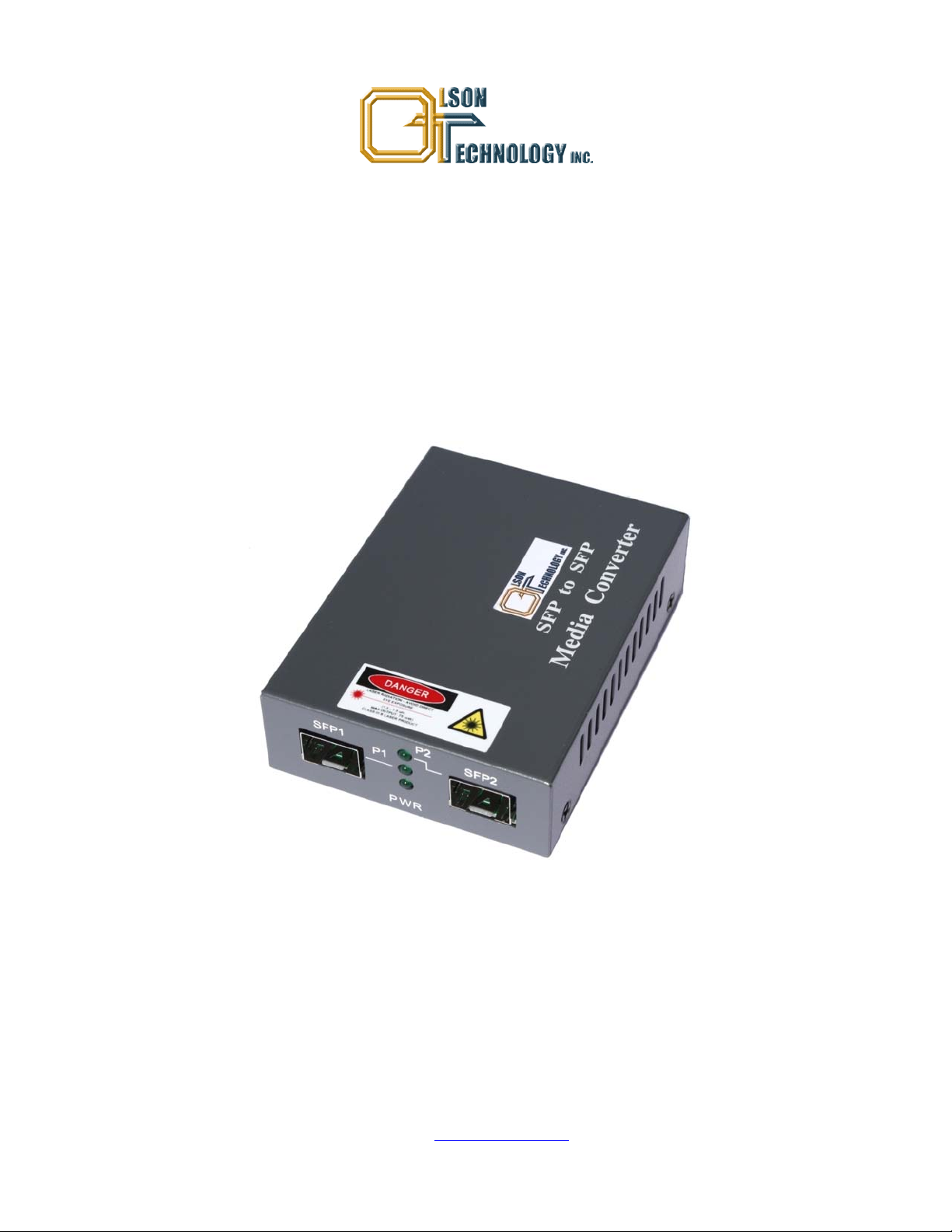
EtherNodePlus Model OTEN-WC-01 Media and
Wavelength Converter, SFP-SFP
OPERATING MANUAL
24926 Highway 108
Sierra Village, CA 95346
Phone: (800) 545-1022
Fax: (209 586-1022
025-000503 Rev. X1 E-Mail: sales@olsontech.com
10/15/09
Page 2
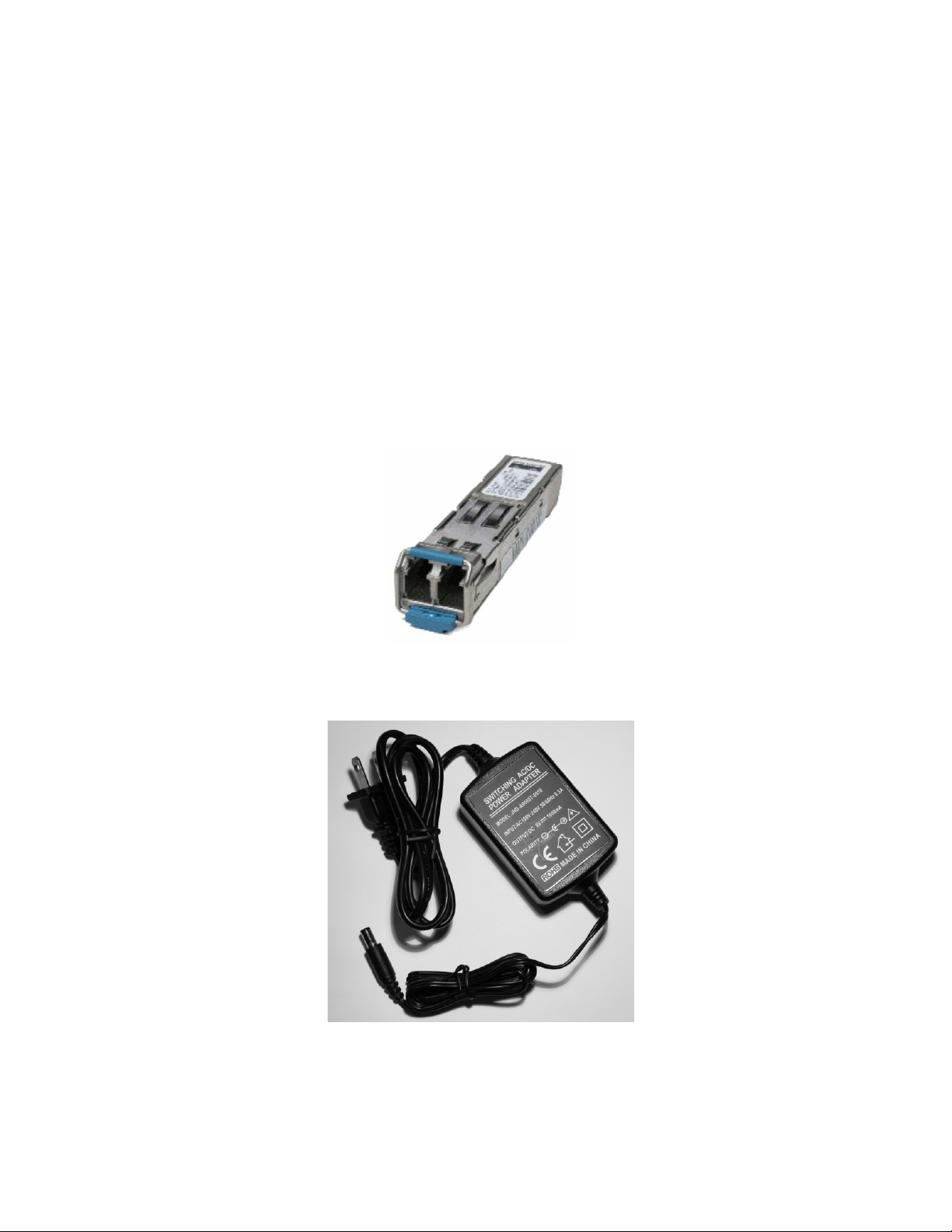
TABLE OF CONTENTS
SAFETY......................................................................................................................................................................3
Safety Precautions..................................................................................................................................................3
Laser Safety Procedure..........................................................................................................................................3
INTRODUCTION........................................................................................................................................................4
Figure 1 — Typical Application of an OTEN-WC-01 as a Digital Signal Booster............................................4
PANEL LAYOUT........................................................................................................................................................4
Figure 2 — Converter Front Panel..................................................................................................................4
TECHNICAL SPECIFICATIONS................................................................................................................................4
INSTALLATION .........................................................................................................................................................5
NOTES ON THE CONVERTER.................................................................................................................................5
Features..................................................................................................................................................................5
Protocol-Independent .............................................................................................................................................5
Maximizes Network Uptime....................................................................................................................................5
Typical Mating SFP Module
Typical AC Power Supply (Ships with Unit)
025-000503 Rev. X1 www.olsontech.com
2
Page 3

SAFETY
Safety Precautions
The optical emissions from the units are laser-based and may present eye hazards if improperly used. NEVER USE ANY
KIND OF OPTICAL INSTRUMENT TO VIEW THE OPTICAL OUTPUT OF THE UNIT. Be careful when work-
ing with optical fibers. Fibers can cause painful injury if they penetrate the skin.
Laser Safety Procedure
ALWAYS
read the product data sheet and the laser safety label before powering the product. Note the operation wave-
length, optical output power and safety classifi cat i ons.
If safety goggles or other eye protection are used, be certain that the protection is effective at the wavelength emitted by
the device under test BEFORE
ALWAYS
connect a fiber to the output of the device BEFORE power is applied. Power should never be applied without
applying power.
an attached fiber. If the device has a connector output, a connector should be attached that is connected to a fiber. This
will ensure that all light is confined within the fiber waveguide, virtually eliminating all potential hazard.
NEVER
look at the end of the fiber to see if light is coming out. NEVER! Most fiber optic laser wavelengths (1310nm
and1550nm) are totally invisible to the unaided eye and will cause permanent damage. Shorter wavelengths lasers (e.g.,
780nm) are visible and are very damaging. Always use instruments, such as an optical power meter, to verify light output.
NEVER, NEVER, NEVER
includes microscopes, eye loupes and magnifying glasses. This WILL
look into the end of a fiber on a powered device with ANY sort of magnifying device. This
cause a permanent and irreversible burn on your
retina. Always double check that power is disconnected before using such devices. If possible, completely disconnect the
unit from any power source.
If you have questions about laser safety procedures, please call Olson Technology before powering your product.
025-000503 Rev. X1 www.olsontech.com
3
Page 4

INTRODUCTION
The OLSON TECHNOLOGY, INC. Model OTEN-WC-01 EtherNodePlus Media and Wavelength Converter allows
network operators to incorporate multiple fiber types within a network. The converter provides the ability to accomplish
this by working with existing equipment, eliminating replacement costs. The units convert between single-mode,
multi-mode, and CWDM transmission wavelengths, or it can be used to boost digital signals at an intermediate point in a
fiber path. This flexibility allows operators to easily extend network range to reach more remote locations.
The OTEN-WC-01 includes two SFP ports. Operation is protocol independent, and the modules easily convert between
dissimilar fiber modes and wavelengths. The small form factor is hot swappable. The unit offers a very compact size and
multiple mounting options.
Figure 1 — Typical Application of an OTEN-WC-01 as a Digital Signal Booster
PANEL LAYOUT
Figure 2 — Converter Front Panel
The table below describes the LED indicator functions.
Designation Meaning
P1 Lit when the SFP1 connection is good.
P2 Lit when the SFP2 connection is good.
PWR Lit when the unit is receiving power.
TECHNICAL SPECIFICATIONS
Parameter Specification
SFP Ports 2
Cables Optical Fiber, UTP
Compliance
SFP-MSA SFP standard, SFF-8472-DDMI Standard
(Can use all MSA compliant SFP devices.)
025-000503 Rev. X1 www.olsontech.com
4
Page 5

Parameter Specification
Data Rate
Standards Supports OC3, OC12, and OC48
Converter Power Requirement
Power Supply Voltage 100-240 Volts AC, 50-60Hz
Operating Temperature Range 0 to +50°C
Humidity 5-90%, RH Non-condensing
Weight 5.8oz. (160g)
Weight with two (2) SFP Mod-
ules
Dimensions (L x w x H) 1.02” x 2.79” x 3.66” (26mm x 71mm x 93mm)
10Mb/s to 2.5Gb/s. Both SFP modules used in the
converter must support the same data rate.
+5 Volts DC, 290mA (typical) using the
OTOLS-1312-30 SFP module.
6.9oz. (195g)
INSTALLATION
1. Attach a fiber cable from the converter to the fiber network. The fiber connections must match: transmit socket to re-
ceive socket.
2. Attach a UTP cable from the TP network device to the RJ45 port on the converter.
3. Connect the power cord to the converter and check that th e Power LED lights up. The TP Act and FX Act LEDs will
light when all the cable connections are satisfactory.
NOTES ON THE CONVERTER
Features
• Interchangeable SFP modules allow for multiple fiber mode/type conversion options (single mode, multi-mode,
long-haul, short-haul, etc.)
• Compact size conserves space
• AC or DC power options
• Converts between dissimilar fiber modes and wavelengths
• Can use all standard MSA compliant SFP devices
Protocol-Independent
• Supports a full range of SFP modules offering various transmission speeds, from 10Mbps to 2.5Gbps
• Supports OC3, OC12, OC48
Maximizes Network Uptime
• SFP Modules are hot-Swappable; no need to power-down chassis when upgrading or troubleshooting
• Troubleshooting features include diagnostic LED’s (Both SFP’s used in the Mode Converter must support the same
data rate.)
• Hot-swappable architecture Small Form Factor
025-000503 Rev. X1 www.olsontech.com
5
 Loading...