and Chassis Overview2
2 Safety Instructions, Warnings, and Notes6
3 Directions for Use8
4 Mechanical Instructions9
5 Service Modes, Error Codes, and Faultfinding 15
6 Block Diagrams, Testpoint Overview, and
Copyright 2004 Philips Consumer Electronics B.V. Eindhoven, The Netherlands.
All rights reserved. No part of this publication may be reproduced, stored in a
retrieval system or transmitted, in any form or by any means, electronic,
mechanical, photocopying, or otherwise without the prior permission of Philips.
IC Data Sheets (Not Applicable)
10 Spare Parts List95
11 Revision List106
Published by JH 0467 TV ServicePrinted in The NetherlandsSubject to modificationEN 3122 785 14780
Page 2
EN 2EM8E1.
Technical Specifications, Connections, and Chassis Overview
1.Technical Specifications, Connections, and Chassis Overview
Index of this chapter:
1. Technical Specifications
2. Connections
3. Chassis Overview
Note: Figures below can deviate slightly from the actual
situation, due to the different set executions.
1.1Technical Specifications
1.1.1Vision
Display type: Rear projection, LCD
Screen size: 55” (140 cm), 16:9
Resolution (HxV): 1280 x 720p, WXGA
Viewing angle (HxV): 160 x 120 deg.
Tuning system: PLL
Colour systems: PAL B/G, D/K, I
: SECAM B/G, D/K, L/L’
Add. systems Ext in: NTSC 3.58, 4.43
: 576i (YPrPb)
: 576p (YPrPb)
: 720p
: 1080i
: SECAM
: VGA (640 x 400)
: VGA (640 x 480)
: WVGA (848 x 480)
: WVGA (852 x 480)
: SVGA (800 x 600)
: XGA (1024 x 768)
: SXGA (1280 x 1024)
Channel selections: 100 presets
: UVSH
Aerial input: 75 ohm, IEC-type
1.1.2Sound
1.2Connections
Note: The following connector colour abbreviations are used
(acc. to DIN/IEC 757): Bk= Black, Bu= Blue, Gn= Green, Gy=
Grey, Rd= Red, Wh= White, and Ye= Yellow.
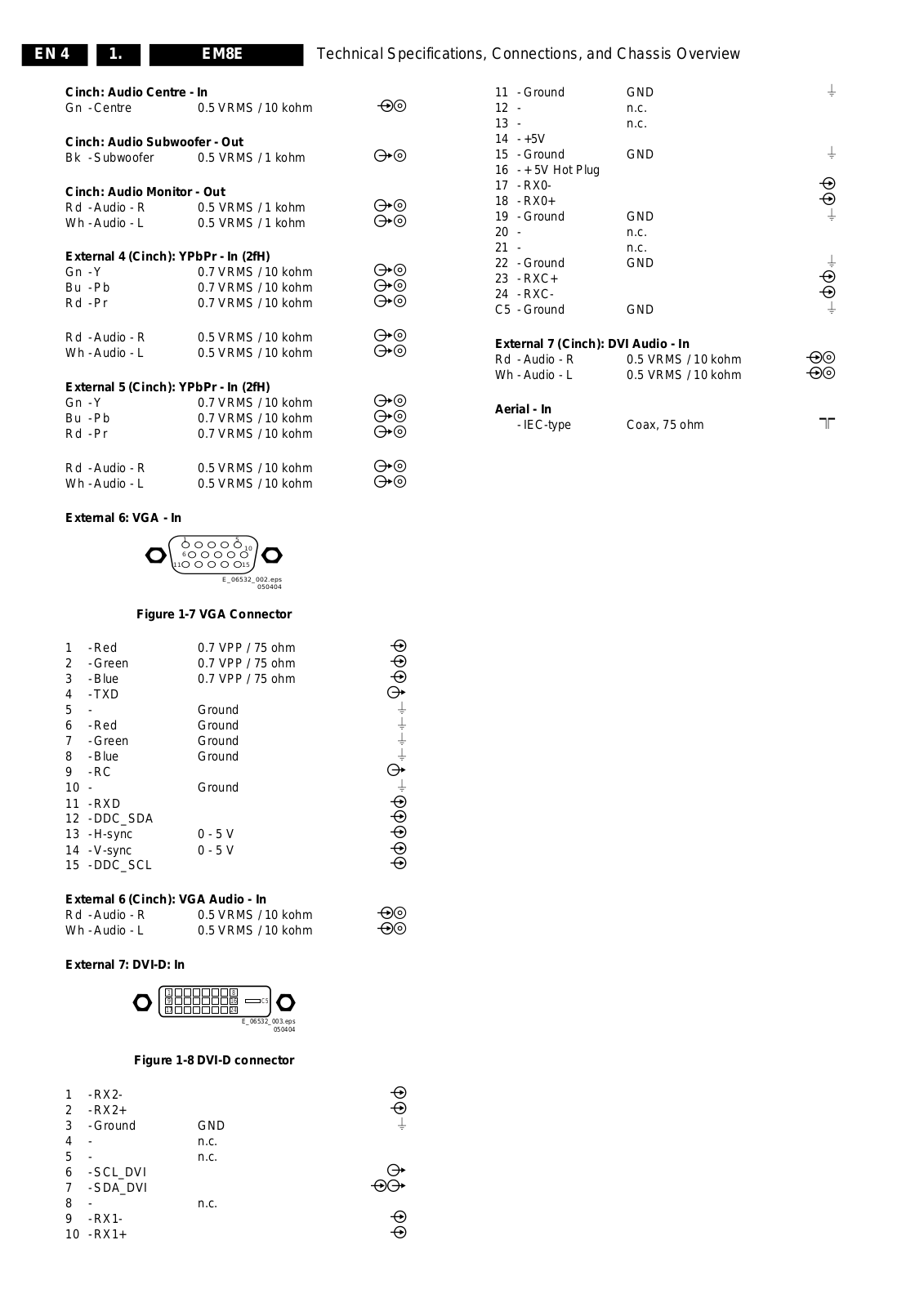
1-Red 0.7 VPP / 75 ohm j
2-Green 0.7 VPP / 75 ohm j
3-Blue 0.7 VPP / 75 ohm j
4-TXD k
5- Ground H
6-Red Ground H
7-Green Ground H
8-Blue Ground H
9-RC k
10 - Ground H
11 - RXD j
12 - DDC_SDA j
13 - H-sync 0 - 5 V j
14 - V-sync 0 - 5 V j
15 - DDC_SCL j
External 6 (Cinch): VGA Audio - In
Rd -Audio - R 0.5 VRMS / 10 kohm jq
Wh -Audio - L 0.5 VRMS / 10 kohm jq
External 7: DVI-D: In
18
916
17
24
E_06532_003.eps
C5
050404
Figure 1-8 DVI-D connector
1-RX2- j
2-RX2+ j
3-Ground GND H
4- n.c.
5- n.c.
6-SCL_DVI k
7-SDA_DVI jk
8- n.c.
9-RX1- j
10 - RX1+ j
Page 5
Technical Specifications, Connections, and Chassis Overview
1.3Chassis Overview
LED SENSOR PANEL
LS
EN 5EM8E1.
LAMP SUPPLY
MAIN POWER BOARD
U
POWER INPUT BOARD
W
Figure 1-9 PWB location
TEMP SENSOR BOARD
KEYBOARD PANEL
LIGHT ENGINE
JACK PANEL
AUDIO AMPLIFIER
SCALER BOARD
SMALL SIGNAL BOARD
SYSTEM BOARD
SIDE JACK PANEL
E_14780_013.eps
TS
P
VS
AA
SL
B
K
O
190704
Page 6
EN 6EM8E2.
Safety Instructions, Warnings, and Notes
2.Safety Instructions, Warnings, and Notes
2.1Safety Instructions
Safety regulations require that during a repair:
•Connect the set to the mains via an isolation transformer
(> 800 VA).
•Replace safety components, indicated by the symbol h,
only by components identical to the original ones. Any
other component substitution (other than original type) may
increase risk of fire or electrical shock hazard.
Safety regulations require that after a repair, the set must be
returned in its original condition. Pay in particular attention to
the following points:
•Route the wire trees correctly and fix them with the
mounted cable clamps.
•Check the insulation of the mains lead for external
damage.
•Check the strain relief of the mains cord for proper function.
•Check the electrical DC resistance between the mains plug
and the secondary side (only for sets which have a mains
isolated power supply):
1. Unplug the mains cord and connect a wire between the
two pins of the mains plug.
2. Set the mains switch to the "on" position (keep the
mains cord unplugged!).
3. Measure the resistance value between the pins of the
mains plug and the metal shielding of the tuner or the
aerial connection on the set. The reading should be
between 4.5 Mohm and 12 Mohm.
4. Switch "off" the set, and remove the wire between the
two pins of the mains plug.
•Check the cabinet for defects, to avoid touching of any
inner parts by the customer.
2.2Warnings
voltages in the power supply section both in normal
operation (G) and in standby (F). These values are
indicated by means of the appropriate symbols.
•The semiconductors indicated in the circuit diagram and in
the parts lists, are interchangeable per position with the
semiconductors in the unit, irrespective of the type
indication on these semiconductors.
•Manufactured under license from Dolby Laboratories.
“Dolby”, “Pro Logic” and the “double-D symbol”, are
trademarks of Dolby Laboratories.
E_06532_006.eps
240604
Figure 2-1 Dolby PL Symbol
2.3.2 Schematic Notes
•All resistor values are in ohms and the value multiplier is
often used to indicate the decimal point location (e.g. 2K2
indicates 2.2 kohm).
•Resistor values with no multiplier may be indicated with
either an "E" or an "R" (e.g. 220E or 220R indicates 220
ohm).
•All capacitor values are given in micro-farads (µ= x10-6),
nano-farads (n= x10-9), or pico-farads (p= x10-12).
•Capacitor values may also use the value multiplier as the
decimal point indication (e.g. 2p2 indicates 2.2 pF).
•An "asterisk" (*) indicates component usage varies. Refer
to the diversity tables for the correct values.
•The correct component values are listed in the Electrical
Replacement Parts List. Therefore, always check this list
when there is any doubt.
•All ICs and many other semiconductors are susceptible to
electrostatic discharges (ESD w). Careless handling
during repair can reduce life drastically. Make sure that,
during repair, you are connected with the same potential as
the mass of the set by a wristband with resistance. Keep
components and tools also at this same potential.
Available ESD protection equipment:
– Complete kit ESD3 (small tablemat, wristband,
connection box, extension cable and earth cable) 4822
310 10671.
– Wristband tester 4822 344 13999.
•Be careful during measurements in the high voltage
section.
•Never replace modules or other components while the unit
is switched "on".
•When you align the set, use plastic rather than metal tools.
This will prevent any short circuits and the danger of a
circuit becoming unstable.
2.3Notes
2.3.1General
•Measure the voltages and waveforms with regard to the
chassis (= tuner) ground (H), or hot ground (I), depending
on the tested area of circuitry. The voltages and waveforms
shown in the diagrams are indicative. Measure them in the
Service Default Mode (see chapter 5) with a colour bar
signal and stereo sound (L: 3 kHz, R: 1 kHz unless stated
otherwise) and picture carrier at 475.25 MHz for PAL, or
61.25 MHz for NTSC (channel 3).
•Where necessary, measure the waveforms and voltages
with (D) and without (E) aerial signal. Measure the
2.3.3 Rework on BGA (Ball Grid Array) ICs
General
Although (LF)BGA assembly yields are very high, there may
still be a requirement for component rework. By rework, we
mean the process of removing the component from the PWB
and replacing it with a new component. If an (LF)BGA is
removed from a PWB, the solder balls of the component are
deformed drastically so the removed (LF)BGA has to be
discarded.
Device Removal
As is the case with any component that, it is essential when
removing an (LF)BGA, the board, tracks, solder lands, or
surrounding components are not damaged. To remove an
(LF)BGA, the board must be uniformly heated to a temperature
close to the reflow soldering temperature. A uniform
temperature reduces the chance of warping the PWB.
To do this, we recommend that the board is heated until it is
certain that all the joints are molten. Then carefully pull the
component off the board with a vacuum nozzle. For the
appropriate temperature profiles, see the IC data sheet.
Area Preparation
When the component has been removed, the vacant IC area
must be cleaned before replacing the (LF)BGA.
Removing an IC often leaves varying amounts of solder on the
mounting lands. This excessive solder can be removed with
either a solder sucker or solder wick. The remaining flux can be
removed with a brush and cleaning agent.
After the board is properly cleaned and inspected, apply flux on
the solder lands and on the connection balls of the (LF)BGA.
Note: Do not apply solder paste, as this has shown to result in
problems during re-soldering.
Page 7
Safety Instructions, Warnings, and Notes
Device Replacement
The last step in the repair process is to solder the new
component on the board. Ideally, the (LF)BGA should be
aligned under a microscope or magnifying glass. If this is not
possible, try to align the (LF)BGA with any board markers.
To reflow the solder, apply a temperature profile according to
the IC data sheet. So as not to damage neighbouring
components, it may be necessary to reduce some
temperatures and times.
More Information
For more information on how to handle BGA devices, visit this
URL:
http://www.atyourservice.ce.philips.com (needs
subscription). After login, select “Magazine”, then go to
“Workshop Information”. Here you will find Information on how
to deal with BGA-ICs.
2.3.4Practical Service Precautions
•It makes sense to avoid exposure to electrical shock.
While some sources are expected to have a possible
dangerous impact, others of quite high potential are of
limited current and are sometimes held in less regard.
•Always respect voltages. While some may not be
dangerous in themselves, they can cause unexpected
reactions - reactions that are best avoided. Before reaching
into a powered TV set, it is best to test the high voltage
insulation. It is easy to do, and is a good service precaution.
EN 7EM8E2.
Page 8
EN 8EM8E3.
3.Directions for Use
You can download this information from the following website:
http://www.philips.com/support
Directions for Use
Page 9
4.Mechanical Instructions
Mechanical Instructions
EN 9EM8E4.
Index of this chapter:
1. Dust Filter
2. Rear Covers
3. Mirror
4. Top Control
5. Speakers
6. Screen Assembly
7. Side Jack Panel
8. Small Signal Package
9. Large Signal Package
10. LED/Sensor Panel
11. Lamp Replacement
Remote Control
N
¨
¨
¨
¨
DFU
Owner's Manual
Item 0034
Back Cover,
(Upper)
Item 0080
Support,
Mirror,
(Left)
Item 0021
Mirror
Item 0078
Support,
Mirror,
(Top)
Item 0079
Support,
Mirror,
(Right)
12. Light Engine Replacement
13. Re-assembly
Notes:
•Figures below can deviate slightly from the actual situation,
due to the different set executions.
•Follow the disassemble instructions in described order.
•Use Torx T10 and T20 screwdrivers to dismantle the set.
Item 0066
Overlay,
Control Housing
L
J
K
V
W
Item 0076
Rail, Screen,
(Vertical Right)
Item 0030
Front,
Cabinet
Item 0039
Baffle,
Speakers
Rail, Screen,
(Horizontal)
Item 0132
Frame, LED
Sensor Board
Item 0075
Rail, Screen,
(Vertical Left)
Item 0077
Item 0032
Cap,
(Top)
Item 0096
Door,
Lamp Access
C
Item 0144 & 0145
Cap Mounting
A
Item 0036
Back Cover,
(Lower)
Item 0093
Support,
Back
B
Item 0127
Side Jacks for
Mains Knob
Item 0150
Fan Assembly
Item 8190 (UK/HK)
Item 8191 (Europe)
D
Item 0090
Bracket,
X
Mains Cord
Item 0023
Light
Shield
Left Interconnect
N
Item 0018
Bracket,
Light Engine
R
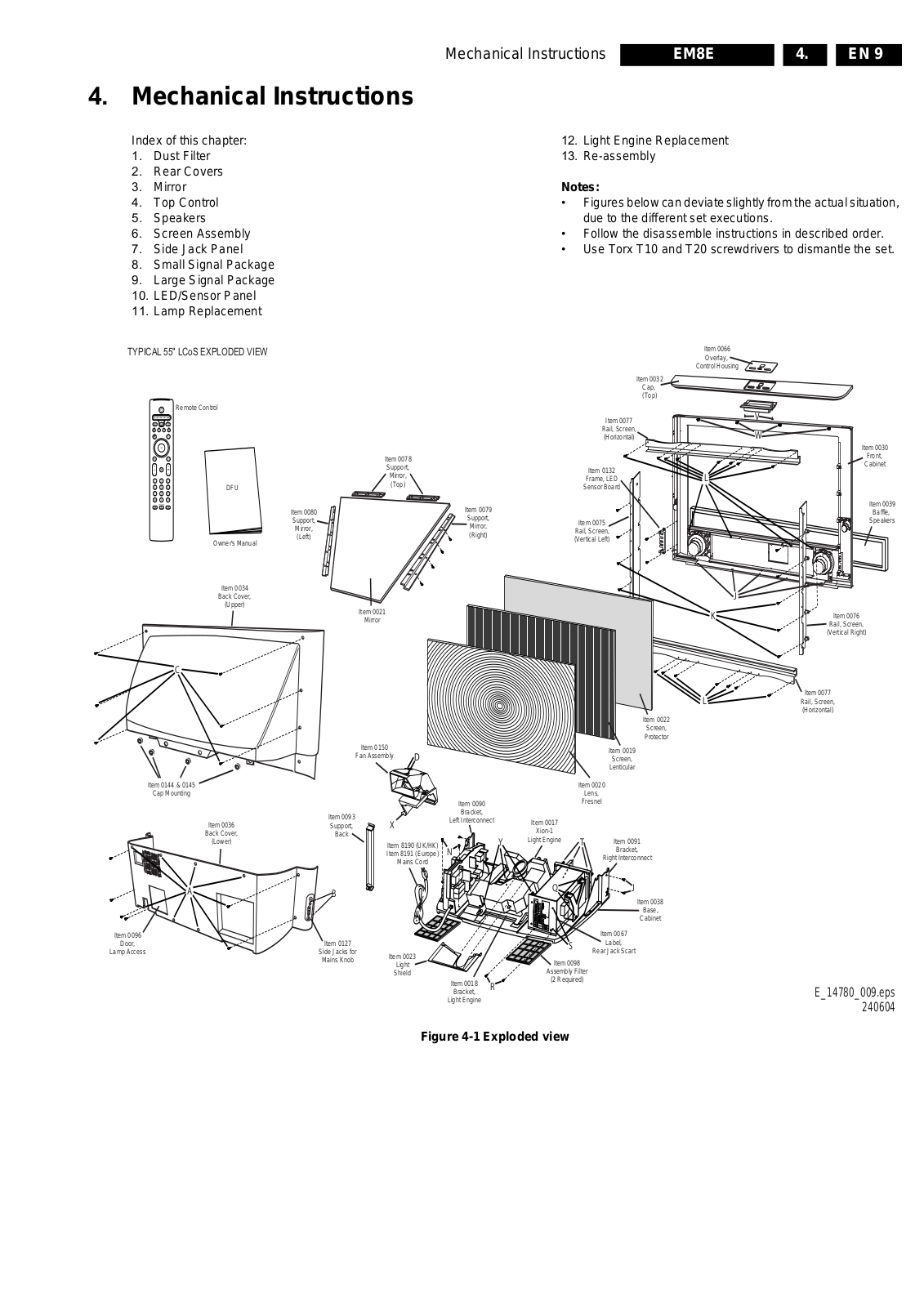
Figure 4-1 Exploded view
Item 0077
L
Item 0022
Screen,
Protector
Item 0019
Screen,
Lenticular
Item 0020
Lens,
Fresnel
Item 0017
Xion-1
Light Engine
Y
Q
Item 0098
Assembly Filter
(2 Required)
T
S
Item 0091
Bracket,
Right Interconnect
Item 0067
Label,
Rear Jack Scart
J
Item 0038
Base,
Cabinet
Rail, Screen,
(Horizontal)
E_14780_009.eps
240604
Page 10
EN 10EM8E4.
Mechanical Instructions
4.1Dust Filter (Item 0098)
E_14780_071.eps
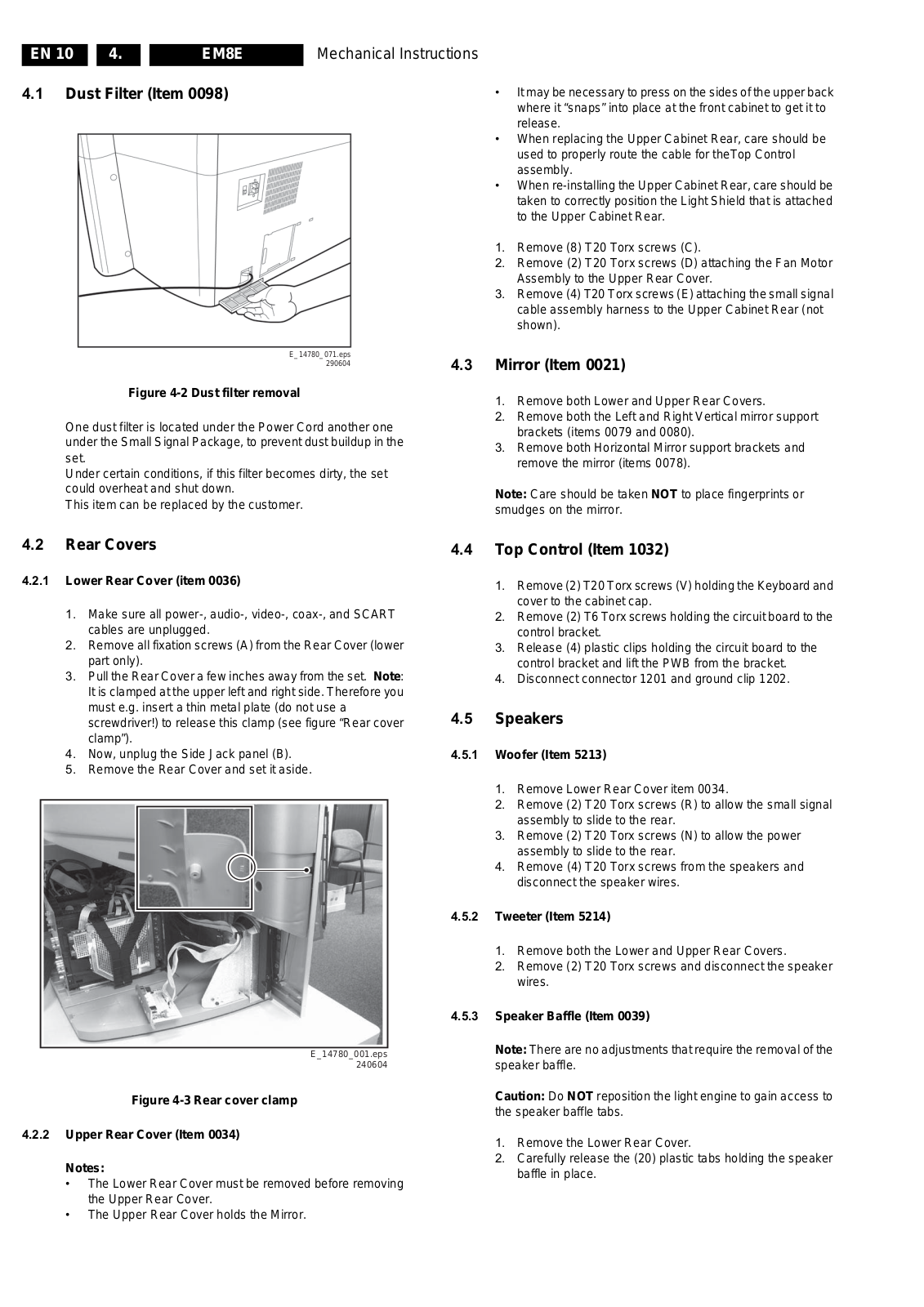
Figure 4-2 Dust filter removal
One dust filter is located under the Power Cord another one
under the Small Signal Package, to prevent dust buildup in the
set.
Under certain conditions, if this filter becomes dirty, the set
could overheat and shut down.
This item can be replaced by the customer.
290604
•It may be necessary to press on the sides of the upper back
where it “snaps” into place at the front cabinet to get it to
release.
•When replacing the Upper Cabinet Rear, care should be
used to properly route the cable for theTop Control
assembly.
•When re-installing the Upper Cabinet Rear, care should be
taken to correctly position the Light Shield that is attached
to the Upper Cabinet Rear.
1. Remove (8) T20 Torx screws (C).
2. Remove (2) T20 Torx screws (D) attaching the Fan Motor
Assembly to the Upper Rear Cover.
3. Remove (4) T20 Torx screws (E) attaching the small signal
cable assembly harness to the Upper Cabinet Rear (not
shown).
4.3Mirror (Item 0021)
1. Remove both Lower and Upper Rear Covers.
2. Remove both the Left and Right Vertical mirror support
brackets (items 0079 and 0080).
3. Remove both Horizontal Mirror support brackets and
remove the mirror (items 0078).
Note: Care should be taken NOT to place fingerprints or
smudges on the mirror.
4.2Rear Covers
4.2.1Lower Rear Cover (item 0036)
1. Make sure all power-, audio-, video-, coax-, and SCART
cables are unplugged.
2. Remove all fixation screws (A) from the Rear Cover (lower
part only).
3. Pull the Rear Cover a few inches away from the set. Note:
It is clamped at the upper left and right side. Therefore you
must e.g. insert a thin metal plate (do not use a
screwdriver!) to release this clamp (see figure “Rear cover
clamp”).
4. Now, unplug the Side Jack panel (B).
5. Remove the Rear Cover and set it aside.
4.4Top Control (Item 1032)
1. Remove (2) T20 Torx screws (V) holding the Keyboard and
cover to the cabinet cap.
2. Remove (2) T6 Torx screws holding the circuit board to the
control bracket.
3. Release (4) plastic clips holding the circuit board to the
control bracket and lift the PWB from the bracket.
4. Disconnect connector 1201 and ground clip 1202.
4.5Speakers
4.5.1 Woofer (Item 5213)
1. Remove Lower Rear Cover item 0034.
2. Remove (2) T20 Torx screws (R) to allow the small signal
assembly to slide to the rear.
3. Remove (2) T20 Torx screws (N) to allow the power
assembly to slide to the rear.
4. Remove (4) T20 Torx screws from the speakers and
disconnect the speaker wires.
4.5.2 Tweeter (Item 5214)
1. Remove both the Lower and Upper Rear Covers.
2. Remove (2) T20 Torx screws and disconnect the speaker
wires.
Figure 4-3 Rear cover clamp
4.2.2Upper Rear Cover (Item 0034)
Notes:
•The Lower Rear Cover must be removed before removing
the Upper Rear Cover.
•The Upper Rear Cover holds the Mirror.
E_14780_001.eps
240604
4.5.3 Speaker Baffle (Item 0039)
Note: There are no adjustments that require the removal of the
speaker baffle.
Caution: Do NOT reposition the light engine to gain access to
the speaker baffle tabs.
1. Remove the Lower Rear Cover.
2. Carefully release the (20) plastic tabs holding the speaker
baffle in place.
Page 11
Mechanical Instructions
EN 11EM8E4.
4.6Screen Assembly (Item 0030)
1. Remove the Lower and Upper Rear Covers.
2. Remove (4) T20 Torx screws (W) and remove the Top Cap
with Customer Control Assembly (0032).
3. Disconnect the Tweeter speaker wiring.
4. Remove (9) T20 Torx screws (J).
5. Lay lens assembly on flat clean surface.
6. Remove (12) T20 Torx screws (K) from vertical side rails
•Make sure all cables of the Side Jack panel are unplugged.
•Remove the two mounting screws.
•Unlock the clamps, which secure the panel, and remove
the Side Jack panel.
4.8Small Signal Package
3
4.8.2Jack Panel
AUDIO AMPLIFIER
(at the rear)
SYSTEM BOARD
JACK PANEL
MAIN SCALER BOARD
(MSB)
SMALL SIGNAL BOARD
(SSB)
Figure 4-5 Boards of the Small Signal Package
Pull out the Jack panel from the Small Signal Package,
unplugging it from the System Board connector.
See Figure “Boards of the Small Signal Package”.
Note: For measurements it is sometimes necessary to place
the Jack Panel in a service position. In this case it is necessary
to use the specific “Extending card” (4835 310 57605)
1
E_14780_002.eps
240604
2
3
1a
1b
Figure 4-4 Small Signal Package
1. Remove the two package mounting screws (1a).
1. Slide the Small Signal Package forward (1b).
4.8.1Cover Plate
1. Remove all Cover Plate mounting screws (2). See Figure
“Small Signal Package”.
2. Use a 5 mm socket screwdriver to remove the four
connector distance bolts (3). See Figure “Small Signal
Package”.
3. Remove the Cover Plate.
2
E_14780_005.eps
240604
4.8.3Main Scaler Board (MSB)
1. Disconnect the DVI connector and all cables from the top
of the MSB.
2. Pull out the MSB from the Small Signal package,
unplugging it from the System Board connector.
3. Remove both cover shields from the MSB.
See Figure “Boards of the Small Signal Package”.
Note: For measurements it is sometimes necessary to place
the MSB in a service position. In this case it is necessary to use
the specific “Extending card”, including two cables (4835 310
57605).
4.8.4Small Signal Board (SSB)
1. Disconnect all cables from the SSB.
2. Remove the three mounting screws (1) from the SSB
bracket. See Figure “Boards of the Small Signal package”.
3. Carefully pull out the SSB, unplugging it from the System
Board connector.
4. Remove all shieldings from the SSB.
Note: For measurements sometimes it is necessary to place
the SSB in a service position. In this case it is necessary to use
the specific “Repair kit board” (order nr. 9965 000 14526)
4.8.5Audio Amplifier Board
The Audio Amplifier is located at the rear of the System Board.
1. Disconnect all cables from the Audio Amplifier board.
2. Remove the four mounting board screws.
3. Remove the board.
Page 12
EN 12EM8E4.
Mechanical Instructions
4.8.6System Board
Figure 4-6 Rear side of the Small Signal Package
4.9.1 Main Power Board
1. Remove the six board mounting screws (1).
2. Disconnect all cables from the Main Power board.
3. Unlock the clamp, which secures the board at the topside,
and remove the Main Power board.
4.9.2 Input Power Board
1
1. Remove the six board mounting screws.
2. Disconnect all cables from the Input Power Board.
3. Unlock the clamps, which secure the board at the topside,
and remove the Input Power Board.
4.10 LED/Sensor Panel (Item 0132)
E_14780_003.eps
240604
1. Remove the two Sensor panel mounting screws.
2. Remove the Sensor panel bracket.
3. Disconnect all cables from the Sensor panel. Unlock the
two clamps, which secure the panel, and remove the
Sensor panel.
4.11 Lamp Replacement
Caution: The light source lamp produces extreme heat. Allow
a cool-down period before touching or replacing the lamp
1
assembly.
Notes:
•The lamp is easy accesible via the sliding door in the lower
rear cover.
•For protection, the lamp circuit contains a “normally closed”
switch. Therefore, the lamp will not operate with the lamp
access door in the open position.
•There are no tools required for this procedure.
E_14780_004.eps
Figure 4-7 Top side of the Small Signal Package
Note: The Audio, Jack, Scaler, and SSB panels should be
removed prior to removal of the system board.
1. Disconnect all cables from the System Board.
2. Disconnect the Arial-In cable.
3. Remove the four mounting screws at the rear side of the
Small Signal package (1). See Figure “Rear side of the
Small SignalPpackage”.
4. Remove the six mounting screws at the top side of the
Small Signal package (1). See Figure “Top side of the
Small Signal Package”.
5. Remove the six mounting screws from the bottom side of
the Small Signal Package (1). See Figure “Top side of the
Small Signal Package”.
6. Remove the two side panels from the Small Signal
Package.
7. Unlock the clamp, which secures the board at the bottom
side, and remove the System Board.
4.9Large Signal Package
1. Remove the two Large Signal Package mounting screws
(1). See figure “Cable dressing part 1: PSU” further on.
2. Slide the package out of the set (2). Note: It may be
necessary to release some of the cable holders first.
240604
E_14780_072.eps
290604
Figure 4-8 Lamp replacement
To replace the lamp assembly:
1. Slide the Lamp Access Door on the rear of the unit to the
right.
2. Unscrew the two silver thumbscrews holding the assembly
in place.
3. Slide the old lamp assembly out by crisping the “metal
handle” and pulling straight out.
4. Install the replacement lamp assembly by pushing into
place and tightening the thumbscrews.
5. Slide the Lamp Access Door to the left to close (the unit will
not operate with this door open).
Page 13
Mechanical Instructions
EN 13EM8E4.
4.12 Light Engine Replacement
Notes:
•The LCoS Light Engine comes pre-adjusted. No
adjustment for focus should be required. In rare cases, the
set may require a minor focus touch up (see chapter
“Alignments”).
•Due to screw placement, to replace the Light Engine, it is
necessary to remove the upper rear cover before
beginning the replacement. Use care with the routing of the
wiring for the Customer Keypad when replacing the upperback. Also, note mounting direction of the Upper-back
support bracket for proper re-installation.
Caution:
•Do not remove the three “silver” nuts and washers, as
these hold the Light Engine support bracket and are
critical adjustment points for focus and picture alignment.
•The Light Engine has an operating voltage of
approximately 1,000 volts. Always use caution when
working in the vicinity of the Light Engine while the unit is
in operation.
4.13 Re-assembly
To re-assemble the whole set, execute all processes in reverse
order.
Note: While re-assembling the set, make sure that:
•All cables are placed and connected in their original
position (see next figures).
•All cables are routed such that contact with any PWB is
prevented.
•All cables are dressed away from the Lamp Power Supply
(located behind the lamp assy).
•All "grounding" wires are re-connected (Side I/O, Audio
Amplifier, System Board, and PSU).
4.13.1 Cable Dressing
3
4
Remove the screws shown.
12
Remove the bracing bar
Figure 4-9 Light engine removal (part 1)
444
Figure 4-10 Light engine removal (part 2)
E_14780_081.eps
050704
E_14780_082.eps
050704
2
1
E_14780_006.eps
240604
Figure 4-11 Cable dressing part 1: PSU
•Screw mounted cable tie to the fan assy (3).
•Be sure that the wires between the fan assy and the PSU
(4) are fitted with double insulation (heat shrink sleeve).
5
E_14780_007.eps
240604
1. First, disassemble the fan assy and the cable tree (1).
2. Then, remove the bracing bar (2).
3. Next, take out the screws (“C”, see exploded view) and
remove the top cover
4. Remove the three “black” T-10 Torx screws (3) located in
the vicinity of each of the three “silver” nuts and washers.
5. Re-install the Light Engine in reverse order
Figure 4-12 Cable dressing part 2: Light Engine
•Attach the ferrite to the shield (5) with a cable tie .
Page 14
EN 14EM8E4.
Mechanical Instructions
8
7
6
E_14780_008.eps
240604
Figure 4-13 Cable dressing part 3: SSP
•Route the flat foil cable through the clip and through the
ferrite (6).
•Be sure that a ferrite (2422 549 00125) is mounted on the
flat foil cable near the PWB connector (7). The flat foil cable
must be secured with tape at this side (the tape must
overlap both sides of the SSB shielding).
•Both flat foil cables from the SSB to the Scaler board must
be routed through the strain reliefs (8) on the bracket.
Page 15
Service Modes, Error Codes, and Fault Finding
5.Service Modes, Error Codes, and Fault Finding
EN 15EM8E5.
Index of this chapter
1. Test Conditions
2. Service Modes
3. Error Codes
4. ComPair
5. The “Blinking LED” Procedure
6. Fault Finding
5.1Test Conditions
The chassis is equipped with test points, printed on the circuit
board assemblies. They refer to the diagram letters. The
numbering is in a logical sequence for diagnostics. Always start
diagnosing (within a functional block), in the sequence of the
relevant test points for that block.
Perform measurements under the following conditions:
•Service Default Mode (SDM).
•Video: colour bar signal.
•Audio: 3 kHz left, 1 kHz right.
5.2Service Modes
Service Default Mode (SDM) and Service Alignment Mode
(SAM) offer several features for the service technician, while
the Customer Service Mode (CSM) is used for communication
between a Philips Customer Care Centre (P3C) and a
customer.
There is also the option of using ComPair, a hardware interface
between a computer (see requirements below) and the TV
chassis. It offers the ability of structured troubleshooting, test
pattern generation, error code reading, software version
readout, and software upgrading.
Minimum requirements: a Pentium processor, Windows 95/
98, and a CD-ROM drive.
5.2.1Service Default Mode (SDM)
Upon entry into the Service default mode, the letters “SDM” will
be displayed at the upper right corner of the screen.
Special SDM functions
Access to Normal user menu
Press the “MENU” button on the remote control to switch from
the SDM to the normal user menu (with the SDM mode still
active in the background).
How to exit
To exit the Service default mode, enter zero “0” twice.
Note: To save the error codes, “unplug” the AC power cord
without turning the set "off".
5.2.2Service Alignment Mode (SAM)
Purpose
The Service alignment mode (SAM) is used to align the set
and/or adjust the option settings and to display/clear the error
code buffer values.
How to activate SAM
Use one of the following methods:
•Via a standard RC transmitter: key in the code “062596”
directly followed by the “OSD [i+]” button. After activating
SAM with this method a service warning will appear on the
screen, you can continue by pressing any digit key on the
RC.
•Short for a moment the two solder pads on the SSP with
the indication "SAM". Depending on the software version,
it is possible that a service warning will appear. You can
continue by pressing any digit key on the RC.
•Use the DST-emulation feature of ComPair.
•Press the ALIGN button on the DST while the set is in the
normal operation
After activating this mode, “SAM” will appear in the upper right
corner of the screen.
Introduction
The Service default mode (SDM) is a technical aid for the
service technician. The Service default mode (SDM)
establishes fixed, repeatable settings of customer controls,
which allow consistent measurements to be made. The SDM
also initiates the blinking LED procedure and, if necessary,
overrides the 5V protection.
The following functions are turned OFF while in SDM:
•Timer
•Sleep timer
The following functions are disabled during SDM (and enabled
after leaving SDM):
•Parental lock
•Blue mute
•Hospitality mode
•No-ident timer (normally the set is automatically switched
off when no video signal (IDENT) is received for 15
minutes).
All other controls operate normally.
How to enter
To enter the Service alignment mode (SAM), press the
following key sequence on the standard remote control
transmitter: 0-6-2-5-9-6-[MENU]. Do not allow the display to
“time out” while entering the key sequence.
•DEFECTIVE MODULE: Displays “Unknown” if no defective module is found.
Contents of SAM
•OPERATION HOURS (Run Timer). Displays the
accumulated total of operational hours (in hexadecimal
format).
•SW VERSION INFO (example):
– ROM VERSION. Displays the date of the software and
the software version of the ROM
(e.g.: EM8EU1_1.0_01234 = AAABBC_X.Y_NNNNN).
•AAA= the chassis name.
•BB= the region: EU= Europe, AP= Asia Pacific
PAL/Multi, AN= Asia Pacific NTSC, US= USA, LT=
LATAM.
•C= the language cluster number.
•X.Y= the software version, where X is the main
version number (different numbers are not
compatible with one another) and Y is the sub
version number (a higher number is always
compatible with a lower number).
•NNNNN= last five digits of 12nc code software.
– SW VERSION MAIN SCALER: Displays the software
version of the MSP.
– SW VERSION EPLD. Displays the software version of
the EPLD.
– SW VERSION GDE: Displays the software version of
the System Board.
•ERRORS (10 errors possible): Displays the 10 most
recent errors. The most recent error is displayed at the
upper left.
Page 16
EN 16EM8E5.
Service Modes, Error Codes, and Fault Finding
•RESET ERROR BUFFER: Pressing the “OK” or RIGHT
cursor clears the error buffer and the “Errors” level shows
“No Errors.”
•ALIGNMENTS: Allows access to 6 alignment menus.
General, Luminance Delay, MSB, GDE-Video, GDE-NVM,
and Gamma.
•DEALER OPTIONS: Allows access to dealer “Personal
Options” menu.
•SERVICE OPTIONS: Allows access to 6 service option
menus. Dual Screen, Video repro, Source Select, Audio
repro, Miscellaneous, Opt. No.
•INITIALISE NVM: Not Accessible (only after replacing the
NVM).
•STORE OPTIONS: Select “OK” to save previously
changed selections.
•FUNCTIONAL TEST: Finds module Errors and places the
Error code in the “Errors” register and shows the module
name at the “Defective Module” level. If this test finds no
faults, the ERROR buffer is set to “No Errors” and the
“Defective Module” level shows “NONE.”
•BROADCAST INFO. The purpose of this menu is to debug
the broadcast, NOT the TV. The menu gives an overview
of what is received on the current preset related to Time
extraction, CNI codes, and NexTView transmission.
Following items are displayed:
– Preset. Shows the preset number.
– Local. Local date and time from the selected preset.
– UTC (Coordinated Universal Time). Extracted from the
selected preset.
– LTO (Local Time Offset). Extracted from the selected
preset.
– CNI (Country and Network Identification). Extracted
from the current preset (displayed as a four digit
hexadecimal number. The CNI number identifies the
broadcaster.
– NexTView service (optional). This item gives
information about the type of NexTView service that is
available for the current preset. The possible strings
are:
1. NexTView provider.
2. NexTView data available from preset xx (where xx
is the preset number).
3. No NexTView data available.
– CNI Linking (optional). 'Link' refers to the connection
between the broadcasted NexTView programme
information and the preset number. The possible
strings are:
1. Data available for preset xx xx xx (where xx xx xx
is a list off all presets for which a CNI link is
available).
2. 'Automatic link' or ' Manual link', depending on
what is read from the broadcast and from the CNI
table in the NVM. 'Automatic' means that the link
has been made based on broadcasted information,
without user-interaction. 'Manual' means that the
user has established this link by selecting a preset
in the pop-up menu that you get after setting a
reminder/recording/lock/watch in EPG. Erase a
wrong 'Manual link' by entering the Manual
Installation menu and (without changing anything)
activate 'Store'.
3. Nothing is shown.
How to navigate
•Use the Cursor UP/DOWN keys to select Menu items. The
selected option will be highlighted. When not all menu
options fit on the screen, press the Cursor UP/DOWN or
LEFT/RIGHT keys on the remote transmitter, to display the
next/previous menu.
•With the cursor LEFT/RIGHT keys, it is possible to:
– activate/deactivate the selected menu (e.g.
ALIGNMENTS/GENERAL)
– change the value of the selected menu item (e.g.
TUNER AGC)
– activate the selected submenu (e.g. TEST PATTERN)
How to exit
Press the “MENU” button, enter zero “0” twice, or switch the set
off with the power button.
Note: To save the error codes, “unplug” the AC power cord
without turning the set off.
5.2.3 Customer Service Mode (CSM)
Purpose
When a customer is having problems with his TV-set, he can
call his dealer. The service technician can than ask the
customer to activate the CSM, in order to identify the status of
the set. Now, the service technician can judge the severity of
the complaint. In many cases, he can advise the customer how
to solve the problem, or he can decide if it is necessary to visit
the customer.
The CSM is a read only mode; therefore, modifications in this
mode are not possible.
How to activate CSM
Use one of the following methods:
•Press the “MUTE” button on the RC-transmitter
simultaneously with the “MENU” button on the TV (top
control) for at least 4 seconds.
•Key in the code “123654” via the standard RC transmitter.
Note: Activation of the CSM is only possible if there is no (user)
menu on the screen!
How to navigate
By means of the “CURSOR-DOWN/UP” knob on the RCtransmitter, you can navigate through the menus.
Contents of CSM
CUSTOMER SERVICE MENU 1
•SW VERSION. Displays the built-in software version of the
SSB micrprocessor. In case of field problems related to
software, software can be upgraded. You will find details of
the software versions in the chapter “Software Survey” of
the “Product Survey - Colour Television” publication. This
publication is generated four times a year.
•SW VERSION MAIN. Displays the built-in software
version for the Main Scaler Board.
•SW VERSION EPLD. SW VERSION MAIN. Displays the
built-in software version of the EPLD.
•SW VERSION GDE. SW VERSION MAIN. Displays the
built-in software version of the System Board.
•LIGHT ENG SW VERSION.SW VERSION MAIN.
Displays the built-in software version of the LE.
•LIGHT ENG HW VERSION. Displays the hardware
version of the LE.
•MANUFACTURER’S ID. Each Manufacturer that uses this
Light Engine got an ID number assigned to them. This
number shown in CSM is used to verify that a light engine
for one mfgr did not get mixed up with another mfgr. Size is
up to 5 characters
•PRODUCT ID. This is the product ID, basically the
identification number for the given manufacturer, which
light engine product is hooked up. It will tell if the engine is
a Xion engine, or a Venus engine. For 2k4 based LCoS
products, this means it will always see a XIon ID. For 2k5
with Jaguar, this may be Xion or Venus. Size is up to 5
characters.
•ENGINE DRB SERIAL. The serial number of the DRive
module Board, the electronics of the light engine. Size is up
to 10 characters.
•ENGINE OPTICS SERIAL. This is the serial number of the
optics assemly of the light engine. The big black plastic part
containing the prisms, mirrors, etc. Size is up to 10
characters
Page 17
Service Modes, Error Codes, and Fault Finding
EN 17EM8E5.
CUSTOMER SERVICE MENU 2
•LAMP LIFETIME COUNTER. This is the count of hours
since the time the lamp lifetime reset was pressed. This
reset is available to the customer. Range is 0 to 32,767.
•LAMP EXPECTED. This is the setting the customer chose
as the type of lamp he is using, and then the number of
hours based on that type of lamp. (e.g. customer selects
lamp type X, and this is converted into hours) . Range is 0
to 32,767.
•ENGINE LIFETIME. This is the total number of hours the
engine itself has been run with the lamp “on”. This is
important for later service as the Light Engine can be
swapped from final TV to TV. Range is 0 to 32,767.
•POLARIZE LIFETIME. This is the total number of hours
that the polarizer within this light engine has been active.
Again, important because engines can be swapped, or
polarizers repaired and replaced in an existing engine.
Range is 0 to 32,767.
•PANEL LIFETIME. This is the total number of hours that
the LCoS Panel itself within this light engine has been
active. Again, important because engines can be swapped,
or panels repaired and replaced in an existing engine.
Range is 0 to 32,767.
•SET TYPE. This information is very helpful for a help desk/
workshop as reference for further diagnosis. In this way, it
is not necessary for the customer to look at the rear of the
TV-set.
•CODE 1. Gives the latest five errors of the error buffer. As
soon as the built-in diagnose software has detected an
error the buffer is adapted. The last occurred error is
displayed on the left most position. Each error code is
displayed as a 3-digit number. When less than 10 errors
occur, the rest of the buffer is empty (000). See also
paragraph Error Codes for a description.
•CODE 2. Gives the first five errors of the error buffer. See
also paragraph Error Codes for a description.
•VOLUME. Gives the last status of the volume as set by the
customer. The value can vary from 0 (volume is minimum)
to 100 (volume is maximum). Volume values can be
changed via the volume key on the RC-transmitter.
CUSTOMER SERVICE MENU 3
•BRIGHTNESS. Gives the last status of the brightness as
set by the customer. The value can vary from 0 (brightness
is minimum) to 100 (brightness is maximum). Brightness
values can be changed via the “CURSOR LEFT” and
“CURSOR RIGHT” keys on the RC-transmitter after
pressing the “MENU” button and selecting “PICTURE” and
“BRIGHTNESS”.
•CONTRAST. Gives the last status of the contrast as set by
the customer. The value can vary from 0 (contrast is
minimum) to 100 (contrast is maximum). Contrast values
can be changed via “CURSOR LEFT” and “CURSOR
RIGHT” keys on the RC-transmitter after pressing the
“MENU” button and selecting “PICTURE” and
“CONTRAST”.
•COLOUR. Gives the last status of the colour saturation, as
set by the customer. The value can vary from 0 (colour is
minimum) to 100 (colour is maximum). Colour values can
be changed via “CURSOR LEFT” and “CURSOR RIGHT”
keys on the RC-transmitter after pressing the “MENU”
button and selecting “PICTURE” and “COLOUR”.
•HUE. Only relevant for NTSC-signals (e.g. NTSC DVD
discs)
•SHARPNESS. Gives the sharpness value. The value can
vary from 0 (sharpness is minimum) to 7 (sharpness is
maximum). In case of bad antenna signals, a too high
value of the sharpness can result in a noisy picture.
Sharpness values can be changed via the “CURSOR
LEFT” and “CURSOR RIGHT” keys on the RC-transmitter
after pressing the “MENU” button and selecting “PICTURE”
and “SHARPNESS”.
•HEADPHONE VOLUME. Gives the last status of the head
phone volume, as set by the customer. The value can vary
from 0 (volume is minimum) to 100 (volume is maximum).
Head phone volume values can be changed via the
“CURSOR LEFT” and “CURSOR RIGHT” keys on the RCtransmitter after pressing the “MENU” button and selecting
“SOUND” and “HEADPHONE VOLUME”.
•TUNER FREQUENCY. Indicates the frequency the
selected transmitter is tuned to. The tuner frequency can
be changed via the “CURSOR LEFT” and “CURSOR
RIGHT” keys for fine tune after opening the installation
menu and selecting “INSTALL” and “MANUAL INSTALL”.
•DIGITAL OPTION. Gives the selected digital mode,
“PROGRESSIVE SCAN”, “MOVIE PLUS” or “PIXEL
PLUS”. Change via “MENU”, “PICTURE”, “DIGITAL
OPTIONS”.
•TV SYSTEM. Gives information about the video system of
the selected transmitter.
– BG: PAL BG signal received.
– DK: PAL DK signal received.
– I: PAL I signal received.
– L/La: SECAM L/La signals received.
– M: NTSC M signal received with video carrier on 38.9
MHz.
•DNR. Gives the selected DNR setting (Dynamic Noise
Reduction), “OFF”, “MINIMUM”, “MEDIUM”, or
“MAXIMUM”. Change via “MENU”, “PICTURE”, “DNR”
CUSTOMER SERVICE MENU 4
•NOISE FIGURE. Gives the noise ratio for the selected
transmitter. This value can vary from 0 (good signal) to 127
(average signal) and to 255 (bad signal). For some
software versions, the noise figure will only be valid when
“Active Control” is set to “medium” or “maximum”.
•SOURCE. Indicates which source is used and the video/
audio signal quality of the selected source. (Example:
Tuner, Video/NICAM) Source: “TUNER”, “EXT1”, “EXT2”,
“EXT3”, “EXT4”, “SIDE”, “AV1”, “AV2”, “AV3” or “AV4”.
Video signal quality: “VIDEO”, “S-VIDEO”, “RGB 1FH”,
“YPBPR 1FH 480P”, “YPBPR 1FH 576P”, “YPBPR 1FH
1080I”, “YPBPR 2FH 480P”, “YPBPR 2FH 576P”, “YPBPR
2FH 1080I”, “RGB 2FH 480P”, “RGB 2FH 576P” or “RGB
2FH 1080I”. Audio signal quality: “STEREO”, “SPDIF 1”,
“SPDIF 2”, or “SPDIF”.
•AUDIO SYSTEM. Gives information about the audio
system of the selected transmitter: “ANALOGUE MONO”,
“ANALOGUE STEREO”, “PCM 2/0”, “DD 1/0”, “DD 2/0
LtRt”, “DD 2/0 L0R0”, “DD 2/1”, “DD 2/2”, “DD 3/0”, “DD 3/
1”, “DD 3/2”, “DD 1+1”, “MPEG 1/0”, “MPEG 2/0”, “MPEG
2/0 LtRt”, “MPEG 2/1”, “MPEG 2/2”, “MPEG 3/0”, “MPEG
3/1”, “MPEG 3/2”, “MPEG 1+1” or “MPEG 2+2”.
•TUNED BIT. Gives information about the tuning method of
the stored pre-set. If a channel is found via “automatic
installation”, you will see the value “YES”. When you
change this (automatically found) frequency via “fine tune”
adjustment (installation menu - manual installation), the
displayed value will change to “NO”. Therefore, when you
see the value “NO” in this line, it is an indication that the
received channel is a non-standard signal (e.g. of a VCR).
•ON TIMER. Indicates if the “On Timer” is set “ON” or “OFF”
and if the timer is “ON” also displays start time, start day
and program number. Change via “MENU”, “TV”,
“FEATURES”, and “ON TIMER”.
•PRESET LOCK. Indicates if the selected preset has a child
lock: “LOCKED” or “UNLOCKED”. Change via “MENU”,
“TV”, “FEATURES”, “CHILD LOCK”, and “CUSTOM
LOCK”.
•CHILD LOCK. Indicates the last status of the general child
lock: “UNLOCK”, “LOCK”, or “CUSTOM LOCK”. Change
via “MENU”, “TV”, “FEATURES”, “CHILD LOCK”, and
“LOCK”.
•AGE LOCK. Indicates the last status of the EPG rating for
child lock: “OFF”, “4 YEARS”, “6 YEARS”, “8 YEARS”, “10
YEARS”, “12 YEARS”, “14 YEARS” or “16 YEARS”. This is
only displayed if child lock is set to “CUSTOM LOCK”
•LOCK AFTER. Indicates at what time the child lock is set:
“OFF” or e.g. “18:45” (lock time). This is only displayed if
child lock is set to “CUSTOM LOCK”
Page 18
EN 18EM8E5.
Service Modes, Error Codes, and Fault Finding
•CATEGORY LOCK. Indicates the last status of the EPG
theme child lock: “MOVIES”, “NEWS”, “SHOWS”,
“SPORTS”, “CHILDREN”, “MUSIC”, “CULTURE”, or
“SERIES”. This is only displayed if child lock is set to
“CUSTOM LOCK”. It is possible that more than one value
is shown.
CUSTOMER SERVICE MENU 5
•PROGRAM CATEGORY. Indicates the theme of the
selected transmitter: “MOVIES”, “NEWS”, “SHOWS”,
“SPORTS”, “CHILDREN”, “MUSIC”, “CULTURE”, or
“SERIES”.
•SW CODE 1.
•SW CODE 2.
•TV RATINGS LOCK. Only applicable for US.
•MOVIE RATINGS LOCK. Only applicable for US.
•V-CHIP TV STATUS. Only applicable for US.
•V-CHIP MOVIE STATUS. Only applicable for US.
•OPTION S 1. Gives the option codes of option group 1 as
set in SAM (Service Alignment Mode).
•OPTION S 2. Gives the option codes of option group 2 as
set in SAM (Service Alignment Mode).
•LAMP SERVICE COUNTER.
CUSTOMER SERVICE MENU 6
•BULB REPLACED INST. 1 - 5. These each should be
zero, unless a customer has replaced his bulb. This will
show the last 5 run time hours of the set, where the
customer has pressed the lamp replaced menu item to
“yes”. Multiples are kept as a customer may errantly press
the button, and these numbers, along with the lifetime of
the engine, can be used in warranty claim questions as to
whether a lamp has been replaced by customer or by
service, or not. Or if a kid has pressed it just to see what it
would do, etc. Range is 0 to 65,535.
SW EVENT - LOG
This item contains 'software event logging' information that can
be delivered to the Philips development centre on special
request.
How to exit CSM
Use one of the following methods:
•After you press a key on the RC-transmitter (with exception
of the “CHANNEL”, “VOLUME” and digit (0-9) keys), or
•After you switch the TV-set “OFF” with the mains switch.
5.3ComPair
5.3.1Introduction
ComPair (Computer Aided Repair) is a service tool for Philips
Consumer Electronics products. ComPair is a further
development on the European DST (service remote control),
which allows faster and more accurate diagnostics. ComPair
has three big advantages:
•ComPair helps you to quickly get an understanding on how
to repair the chassis in a short time by guiding you
systematically through the repair procedures.
•ComPair allows very detailed diagnostics (on I2C level)
and is therefore capable of accurately indicating problem
areas. You do not have to know anything about I2C
commands yourself because ComPair takes care of this.
•ComPair speeds up the repair time since it can
automatically communicate with the chassis (when the
microprocessor is working) and all repair information is
directly available. When ComPair is installed together with
the SearchMan electronic manual of the defective chassis,
schematics and PWBs are only a mouse click away.
5.3.2 Specifications
ComPair consists of a Windows based faultfinding program
and an interface box between PC and the (defective) product.
The ComPair interface box is connected to the PC via a serial
or RS232 cable.
For this chassis, the ComPair interface box and the TV
communicate via a bi-directional service cable via the service
connector.
The ComPair faultfinding program is able to determine the
problem of the defective television. ComPair can gather
diagnostic information in two ways:
•Automatic (by communication with the television): ComPair
can automatically read out the contents of the entire error
buffer. Diagnosis is done on I2C level. ComPair can access
the I2C bus of the television. ComPair can send and
receive I2C commands to the micro controller of the
television. In this way, it is possible for ComPair to
communicate (read and write) to devices on the I2C
busses of the TV-set.
•Manually (by asking questions to you): Automatic
diagnosis is only possible if the micro controller of the
television is working correctly and only to a certain extends.
When this is not the case, ComPair will guide you through
the faultfinding tree by asking you questions (e.g. Does the
screen give a picture? Click on the correct answer: YES /
NO) and showing you examples (e.g. Measure test-point I7
and click on the correct oscillogram you see on the
oscilloscope). You can answer by clicking on a link (e.g.
text or a waveform picture) that will bring you to the next
step in the faultfinding process.
By a combination of automatic diagnostics and an interactive
question / answer procedure, ComPair will enable you to find
most problems in a fast and effective way.
Beside fault finding, ComPair provides some additional features like:
•Up- or downloading of pre-sets.
•Managing of pre-set lists.
•Emulation of the Dealer Service Tool (DST).
•If both ComPair and SearchMan (Electronic Service
Manual) are installed, all the schematics and the PWBs of
the set are available by clicking on the appropriate
hyperlink.
Example: Measure the DC-voltage on capacitor C2568
(Schematic/Panel) at the Mono-carrier.
– Click on the “Panel” hyperlink to automatically show
the PWB with a highlighted capacitor C2568.
– Click on the “Schematic” hyperlink to automatically
show the position of the highlighted capacitor.
5.3.3 How To Connect
1. First, install the ComPair Browser software (see the Quick
Reference Card for installation instructions).
2. Connect the RS232 interface cable between a free serial
(COM) port of your PC and the PC connector (marked with
“PC”) of the ComPair interface.
3. Connect the mains adapter to the supply connector
(marked with “POWER 9V DC”) of the ComPair interface.
4. Switch the ComPair interface “OFF”.
5. Switch the television set “OFF” with the mains switch.
6. Connect the ComPair interface cable between the
connector on the rear side of the ComPair interface
(marked with “I2C”) and the ComPair connector at the rear
side of the TV.
7. Plug the mains adapter in a mains outlet, and switch the
interface “ON”. The green and red LEDs light up together.
The red LED extinguishes after approx. 1 second while the
green LED remains lit.
8. Start the ComPair program and read the “Introduction”
chapter.
Page 19
Service Modes, Error Codes, and Fault Finding
Note: A fault in the protection detection circuitry can also lead
to a protection.
TO SERVICE
CONNECTOR
PCVCRI2CPower
9V DC
E_06532_008.eps
190204
Error codes "01", "02", "03", and "04" are protection codes, and
in this case the supplies of some circuits will be switched "off".
Also in protection, the LED will blink the number of times
equivalent to the most recent error code.
Note: If you encounter any problems, contact your local
support desk.
5.4Error Codes
5.4.1Introduction
The error code buffer contains all errors detected since the last
time the buffer was erased. The buffer is written from the left to
the right. When an error occurs, which is not yet in the error
code buffer, the error code will appear at the left side and all
other errors shift one position to the right.
5.4.2How to clear the Error Buffer
Use one of the following methods:
•Activate “Reset Error Buffer” in SAM menu
•If the content of the error buffer was not changed for 50+
hours, it resets automatically.
By leaving SDM or SAM via the power switch, the error buffer
will not be reset.
Examples:
ERROR: 000 000 000 : No errors detected
ERROR: 036 000 000 : Error code 036 is the last and only
detected error
ERROR: 018 036 000 : Error code 036 was first detected and
error code 018 is the last detected (newest) error
The contents of the error buffer can also be displayed by using
of the “blinking LED” procedure, if no picture is available. See
the chapter “The blinking LED procedure “below.
5.4.3Error Code Definition
In case of non-intermittent faults, clear the error buffer before
you begin the repair. Make sure “old” error codes are not
present. If possible, check the entire content of the error
buffers. In some situations an error code is only the result of
another error code (and not the actual cause).
41-41. GDE not responding
42Not protection error. GDE NVM error
43Fan Fault. Not protection error. Shut down if error
exists continuously for 2 minutes
44Ambient Temperature Warning. Not protection error.
Message should be displayed for 6 seconds and every
15 minutes as long as temp is above ambient temp.
warning
45High temperature alert. Not protection error. Shut
down message should be displayed and system
should enter standby after 1 minute if the temperature
exceeds this limit.
46Audio fault (audio board). N ot protection error.
47Audio fault (audio board). N ot protection error.
48Thermo cutoff SW. Protection error
49Engine Fault Lamp Off. Unexpected Lamp Off.
System should enter into standby.
51Main scaler not working. Communication via EPLD is
ok, scaler not responding. Not a protection error.
52NVM error MSB Pixelworks (local error number
MSB=3),
53Video switch. Local error number MSB=4
54Audio switch (local error number MSB=5) (TEA6422D)
55EPLD (local error number MSB=6)
56ADC error (local error number MSB=7) (AD9888)
57MSB I2C error. Not protection error
59Reserved error codes for NAFTA Digital TV
Page 20
EN 20EM8E5.
Service Modes, Error Codes, and Fault Finding
(1) This error should start the Blinking LED procedure when it
occurs.
(2) This error has the highest priority, so if other errors occur
simultaneously, this should go first.
5.5The Blinking LED Procedure
NOTE: Perform this procedure without any signal applied.
This is necessary because making any adjustment, such as
lowering the volume, will render the Blinking LED procedure
inoperative.
The contents of the error buffer can also be made visible
through the “blinking LED” procedure. This is especially useful
when there is no picture.
When the SDM is entered, the LED will blink the number of
times, equal to the value of any error codes.
The ON/OFF indicator turning orange for 500 ms precedes all
error code sequences (there is a possibility of up to 10).
After the 500 ms delay, the ON/OFF indicator will turn green for
1500 ms before the first code begins. If an error code is smaller
than 10, the ON/OFF indicator will rapidly flash orange 1-9
times to indicate the code (EXP. Six rapid flashes indicates an
error code of 6.)
There will be a delay, green light, of approximately 3 seconds
between codes.
For error codes of 10 and higher, the ON/OFF indicator will
slowly flash orange the correct number of times to indicate the
first digit, and then will rapidly flash orange the correct number
of times to indicate the second digit (EXP. Three slow orange
flashes followed by 6 rapid orange flashes indicate an error
code of 36.)
When all error-codes are displayed, the sequence is finished
and the ON/OFF indicator turns green for 3 seconds. At this
point the sequence will begin again as indicated by the ON/
OFF indicator turning orange for 500 ms.
approximately 3.3 V. This voltage can be measured on Pin 36
of 1205.
When the set is turned "On", the OTC will pull the Standby Line
Low. The relay on the Input Power board will then turn "On",
providing RAW_DC voltage to the Main Power board via Pin 1
of 1311. If 5 V is present on Pin 11 of 1403, Pin 1 and 3 of 1460,
and Pins 1 and 2 of 1410, the Standby line on Pin 9 of 1403 is
Low, RAW_DC should be present on Pin 1 of 1311. If it is not,
the Input Power board should be repaired or replaced.
When the RAW_DC voltage is applied to the Main Power
board, +36 V should appear on Pin 4 of 1312.
Additional voltage are 5 V on Pins 3, 4 and 5 of 1313, +9 V on
Pins 1 and 2 of 1314, +3.3 V on Pins 5 and 6 of 1314, and +12
V on 1314.
Operating voltages are applied to the Light Engine on
connector 1315.
5.6.2 Troubleshooting Audio Problems
The Audio Power supply is located on the Input Power board.
A positive 25 V should be present on Pin 1 of 1316 and a minus
25 V on Pin 4. An audio signal should be present on Pins 1 and
4 of 1700. The SOUND_ENABLE line should be High to switch
the Audio Amplifier "On".
5.6.3 Troubleshooting Video Problems
The 1fH signals from the SCART panel or Side Jack panel are
fed to the SSB for processing. The signal is fed to the Scaler
board in a digital format via 1401. (Figure 75) After processing,
the signal is fed to the Light Engine via connector 1200. The
SSB can be bypassed by selecting the inputs on the Scaler
board.
Table 5-2 Example of the blinking LED procedure
Error code position 12345
Error buffer:01800603600
After entering SDM: The sequence will begin with 1 long blink
of 500 ms, then pause 1500 ms, then slowly blink once followed
by 8 rapid blinks (indicating error code 18), next the LED will
pause for 3 seconds followed by 6 rapid blinks (indicating error
code 6), next the LED will pause for 3 seconds, then slowly
blink 3 times followed by 6 rapid blinks (indicating error code
36), then pause 3 seconds ending the sequence in this
example. If there were error codes in positions 4 and 5, those
sequences would also be given.
5.6Fault Finding
5.6.1Troubleshooting a Dead Set
If the status lamp is Red, the 5 V supply is present and the OTC
is working. If the indicator LED is "Off", the Standby Supply may
not be working. The Standby Supply is located on the Main
Power Board. This voltage can be measured on Pin 2 of
connector 1312.
This voltage is then fed to the Input Power board on 1403, Pin
1. The 5 V Standby voltage is also fed to the Side Jack Panel
via Pin 4 of 1344. It is then fed back to the System board on Pin
5 of 1344 and then to the Input Power board on Pin 11 of 1403.
If the voltage on Pin 5 of 1344 is High, the +5V_STBY_SW
voltage is switched "On" and fed to the SSB via Pin 40 of
connector 1205.
The ON/OFF LED voltage is fed to the System board via Pin 77
of 1205. It is then fed to the LED Sensor Panel via Pin 5 of
1214. In the Standby mode, the Standby line will be
Page 21
Block Diagrams, Testpoint Overview, and Waveforms
6.Block Diagrams, Testpoint Overview, and Waveforms
Not applicable yet
EN 21EM8E6.
Page 22
Circuit Diagrams and PWB Layouts
7.Circuit Diagrams and PWB Layouts
LCoS Audio Amplifier Board
EN 22EM8E7.
1
A
B
C
D
E
F
TO SYSTEM
BOARD
(1700)
G
SOUND_ENABLE
H
I
J
K
L
M
N
3135_037_11411_01 X
RESERVED
O
Ref Des
P
9710NOT USED
9711NOT USED
3135 033 3353.3
1
2
3
47
LCOS AUDIO AMPLIFIER BOARD
I713
3702
6K8
5V2
5V2
I711
3701
10K
2739
100R
7701
0V
BC847B
A1
I707
2701
3793
100R
47n
2703
330n
330n
3790
100R
6708
6709
4
1700
B8B-EH-A
9711
8
NOT USED
7
6
5
4
AUDIO_R
3
2
1
AUDIO_L
1216
1
2
F702
TO SYSTEM
BOARD
E
N
A
U
F
R
T
O
A
P
E
X
NOT USED
3135_037_11411_01 RESERVED
2
9710
A2
2740
n
o
t
_
u
s
e
d
X
F700
100n
2729
F701
F703
3792
100R
47n
3791
319803690010
319803690010
3
F708
I750
5
I714
6704
6706
BAS316
BAS316
6705
6707
BAS316
BAS316
6710
2704
BAS316
6711
BAS316 BAS316
BAS316
NOTES
1. CAPACITANCE VALUES ARE IN F
m= MILI u= MICRO n= NANO p= PICO f= FEMT
2. RESISTANCE VALUES ARE IN OHMS:
R= OHM K= KILO M= MEGA G= GIGA T= TERA
Perform all electrical adjustments under the following
conditions:
•Power supply voltage: 230 VAC (+/- 10%)
•Connect the set to the mains via an isolation transformer
with low internal resistance.
•Allow the set to warm up for approximately 20 to 30
minutes.
•Measure the voltages and the waveforms in relation to
chassis ground (with the exception of the voltages on the
primary side of the power supply).
Caution: Never use the cooling fins/plates as ground.
•Test probe: Ri > 10 Mohm, Ci < 20 pF.
•Use an isolated trimmer/screwdriver to perform the
alignments.
Perform all electrical adjustments with the following start
settings (for all CRTs):
•Set LIGHT SENSOR "off", by setting ACTIVE CONTROL
to "off" with the remote control.
•Set CONTRAST to "75", BRIGHTNESS and COLOUR to
"40" (via PICTURE menu).
•Set COLOUR ENHANCEMENT to "off" (via PICTURE
menu).
•Set DIGITAL OPTIONS to "Pixel Plus" (via PICTURE
menu), unless otherwise stated (for sets without "Pixel
Plus" (= Eagle), set to "Natural Motion").
•Set DYNAMIC CONTRAST to "off" (via PICTURE menu).
Alignments
Figure 8-1 Focus access
•To access the Focus adjustments on the Light Engine, it
will first be necessary to remove the front Speaker Cover.
This cover snaps in place. In some models, the Speaker
Cover has additional screws to hold the cover tightly
against the cabinet. To prevent damage to the cabinet,
unsnap as many tabs as possible from the back of the set,
before removing the Speaker Cover.
•Use an inverted 4.5 mm hex socket for these adjustments.
EN 61EM8E8.
E_14780_140.eps
120704
8.1.2Adjustment Sequence
Use the following adjustment sequence:
1. Set the correct TV-set "Options" (after storing, re-start the
set!).
2. Rough adjustment of "Geometry".
3. Allow the set to warm up.
4. Accurate adjustment of "Geometry".
5. Software alignments.
8.2Hardware Alignments
8.2.1Light Engine Focus Adjustment
The Light Engine comes pre-adjusted. No adjustment for focus
should be required. In rare cases, the set may require a minor
focus touch up.
ENO SIHT ESU
JDA OTUEHT TS
THGIR REPPU
EHT FO RENROC
.NEERCS
ENO SIHT ESU
JDA OTUEHT TS
DNA MOTTOB
EC
EHT FO RETN
.NEERCS
U
OT ENO SIHT ES
REPPU EHT TSUJDA
FO RENROC TFEL
.NEERCS EHT
E_14780_080.eps
130704
Figure 8-2 Focus adjustments
•The upper screw adjusts the upper right portion of the
screen. The thumbwheel, located on the right-hand end of
the Light Engine module, adjusts the lower part of the
screen, and the lower screws adjust the upper left part of
the screen.
•No more than two complete turns should be required to
correct the focus.
Page 62
EN 62EM8E8.
Figure 8-3 Light Engine adjustment points
Alignments
E_14780_141.eps
120704
Alignment procedure:
1. Go to the user "Installation" menu.
2. Select "Manual Installation".
3. Tune the TV-set to the system and frequency described
above via "Search" - "475" - "OK".
4. If the frequency, showed in the line "Fine tune", is between
475.18 MHz and 475.31 MHz, you do not need to re-adjust
the "IF AFC".
5. If not, adjust the frequency in the "Fine tune" line to 475.25
MHz and "Store" the program (this is very important
because this will disable the AFC algorithm).
6. Now go to the SAM and select ALIGNMENTS - GENERAL
- IF AFC.
7. During the IF AFC parameter adjustment, one can see
OSD feedback in the top of the screen.
8. This OSD feedback can give 4 kind of messages:
1. Use a 4 mm wrench to loosen the lock nut on each
adjustment post.
2. Use a #15 Torx to loosen the Centring Bracket.
3. Place a 6 mm rod (or 1/4 inch) in the Centre Reference to
keep the Light Engine centred.
4. Adjust the Tilt adjustment screws to make the Light Engine
parallel with the cabinet.
5. Turn the set "on" and apply a crosshatch pattern to the set.
6. If the picture is tilted, use adjustment post "2" to correct the
picture. Use a 4.5 mm inverted hex to adjust the post.
7. If the picture is high or low, use adjustment post "1" to
correct the picture.
8. If the picture is shifted to the left or right, use adjustment
post "3" to correct the picture.
9. If the picture is still shifted to the left or right, remove the
Centring rod and slide the assembly to correct the picture.
10. Tighten the Centring bracket.
11. Tighten the Lock nut on each of the adjustment post. To
prevent the post from turning, place the inverted hex over
each post.
12. Remove the Centring rod.
8.3Software Alignments
8.3.1Introduction
With the software alignments, it is possible to align the
Geometry, White Tone, and Tuner IF settings.
Put the set in the SAM (see chapter 5). The SAM menu will now
appear on the screen. Select, via "Alignments", one of the
sub-menus. They are explained below in the sequence of the
sub-menus.
Notes:
•All changes to menu items and alignments are stored
automatically, except the option codes. They must be
stored manually.
•If the Option codes have been changed and stored, the
set has to be switched "OFF" and "ON" using the mains
switch to activate the new settings (when switching via
Standby, the option code settings are NOT read by the
microprocessor).
•If an empty EAROM (permanent memory) is detected, all
settings are set to pre-programmed default values.
8.3.2GENERAL
LUMA GAIN
Fixed setting is “1”.
IF AFC
Supply, via an external video generator (e.g. PM5518), a TV
signal with strength of at least 1 mV and a frequency of 475.25
MHz. Use system BG if possible, otherwise match the system
of your generator with the received signal in the set.
Table 8-1 AFC
AFC-window AFC-frequency vs. reference
OutHigh
InHigh
[ In ][ Low ]
OutLow
1. The first item (IN or OUT) informs you whether you are in
or out the AFC-window.
2. The second item (HIGH or LOW) informs you about
whether the AFC-frequency is too high or too low.
3. First, you must align the IF AFC parameter such that you
come into the AFC-window (= IN).
4. Then you must look for the point where the IF AFC
parameter changes from HIGH to LOW. This level is the
value you are looking for.
Service tip: If you do not trust the frequency accuracy of your
service generator, connect it to a "good" TV set and check it
with the "Fine tune"-line.
IF LPRIME AFC
Use the same procedure as for the IF AFC alignment, but set
the video generator to SECAM L/L" (only necessary for
countries that have or can receive this system).
TUNER AGC
1. Set the external pattern generator to a colour bar video
signal and connect the RF output to the aerial input. Set the
amplitude to 10 mV and set the frequency to 475.25 MHz.
2. Connect a DC multimeter between pin 1 and the shielding
of the Tuner (item 1200 on the LSP).
3. Adjust the TUNER AGC value (default value is "20") with
the LEFT/RIGHT cursor keys until the voltage at pin 1 of
the tuner lies between 3.8 and 2.3 V.
4. STORE the alignment.
BLEND INTENSITY
Use this alignment when you replace the microcontroller. It
aligns the level of transparency of the menu-picture blended
into the main-picture.
Position the "BRIGHTNESS", "CONTRAST", and "COLOUR"
setting in the middle position (via the user PICTURE menu).
1. Apply a signal with a 100 % white video-pattern.
2. Align the BLEND INTENSITY parameter such, that the
blended signal is 65 % of the black-white amplitude. In
practice, this is about 1.3 V (blended signal) versus 2 V (full
white signal).
Page 63
3. The parameter can be adjusted in between "0" and "31"
(default value= "31").
8.3.3LUM. DEL. (Luminance Delay)
With this alignment, you place the luminance information
exactly on the chrominance information (brightness is pushed
onto the colour). Use a colour bar/grey scale pattern as test
signal.
•LUM. DELAY PAL BG: Apply a PAL BG colour bar/grey
scale pattern as a test signal. Adjust this parameter until
the transients of the colour part and black and white part of
the test pattern are at the same position. Default value=
"9".
•LUM. DELAY PAL I: Apply a PAL I colour bar/grey scale
pattern as a test signal. Adjust this parameter until the
transients of the colour part and black and white part of the
test pattern are at the same position. Default value= "10".
•LUM. DELAY SECAM: Apply a SECAM colour bar/grey
scale pattern as a test signal. Adjust this parameter until
the transients of the colour part and black and white part of
the test pattern are at the same position. Default value=
"11".
•LUM. DELAY BYPASS: apply a NTSC colour bar/
greyscale pattern as a test signal. Adjust this value until the
transients of the colour and black & white part of the test
area are at the same position. Default value= "7".
Alignments
Figure 8-4 YPbPr test pattern
EN 63EM8E8.
E_14780_077.eps
010706
8.3.4MSB (Main Scaler Board)
TEST PATTERN
To check the correct functioning of the MSB board (and its
following circuitry). When set to "on" it will display a colour bar
on the screen with eight colours (left= white, right= black).
ALIGN ADC
Required Equipment
•Digital Video Generator (e.g. VG-828D Astro).
•One YPbPr Cinch-to-BNC cable.
•One VGA-to-BNC cable.
Note: When such a (expensive) generator is not available, it is
possible to align the VGA ADC via a Personal Computer as a
"next best" solution. This requires a PC, a test pattern file (see
figure "VGA test pattern"), and a VGA cable from PC to TV. The
test pattern file (filename= "ADC alignment.bmp") is available
at your NSO (refer to Service Info HE-01/0040).
Perform the "ADC Alignment Procedure (with Personal
Computer)" as described further on.
Initial Setup
1. In the on-screen menu, place the TV in WIDE SCREEN
mode.
2. Activate the SAM mode by entering "0 6 2 5 9 6 [i+]" on the
remote.
3. Setup the Digital Video Generator programs as indicated in
the table and text below.
Table 8-2 Digital video generator setup
Program
#
Program description Pattern
500480p ADC Alignment Six Color Bar, (see figure)
501720p ADC Alignment Six Color Bar, (see figure)
502480i ADC Alignment Six Color Bar, (see figure)
503VGA ADC Alignment Black-White, (see figure)
E_14780_076.eps
Figure 8-5 VGA test pattern
•480p Signal Source Setup (Program #500):
– YPbPr amplitude: minimum 690 mV, maximum 710
mV from a 75-ohm source.
– YPbPr brightness: lowest level = black.
– Sync included on YPbPr - bi-level, -300 mV on Y only.
– Horizontal frequency: 31.47 kHz.
– Vertical frequency: 59.94 Hz.
– H_divider number (H_total): 858.
– H_active video: 720 pixels.
– H_back porch: 59 pixels.
– H_sync duration: 63 pixels.
– V_total line number: 525.
– V_back porch: 30 lines.
– V_active video: 483 lines.
– V_sync duration: 6 lines.
•720p Signal Source Setup (Program #501):
– YPbPr amplitude: minimum 690 mV, maximum 710
mV from a 75-ohm source.
– YPbPr brightness: lowest level = black.
– Sync included on YPbPr - tri-level, -300 mV on Y only.
– Horizontal frequency: 45 kHz.
– Vertical frequency: 60 Hz.
– H_divider number (H_total): 1650.
– H_active video: 1280 pixels.
– H_back porch: 260 pixels.
– H_sync duration: 40 pixels.
– V_total line number: 750.
– V_back porch: 20 lines.
– V_active video: 720 lines.
– V_sync duration: 5 lines.
010706
Page 64
EN 64EM8E8.
Alignments
•480i Signal Source Setup (Program #502):
– YPbPr amplitude: minimum 690 mV, maximum 710
mV from a 75-ohm source.
– YPbPr brightness: lowest level = black.
– Sync included on YPbPr - bi-level, -300 mV on Y only.
– Horizontal frequency: 31.47 kHz
– Vertical frequency: 29.97 Hz
– H_divider number (H_total): 858
– H_active video: 720 pixels
– H_back porch: 59 pixels
– H_sync duration: 63 pixels
– V_total line number: 525
– Start V_sync field 1 line 4 on H sync.
– V_sync duration: 6 lines.
– V_backporch: 13 lines.
– V_active video field 1: 240 lines.
– Start V_sync field 2: line 266 in between H syncs.
– V_sync duration: 51/2 lines.
– V_back porch: 14 lines.
– V_active video field 2: 240 lines.
•VGA Signal Source Setup (Program #503):
– RGB amplitude: minimum 760 mV, maximum 780 mV
from a 75-ohm source.
– RGB brightness: lowest level = black.
– Separate H and V sync, 5 V amplitude, both negative
ADC Alignment Procedure (with Digital Video Generator)
•480p Alignment Procedure:
1. Perform the initial setup.
2. Set the Digital Video Generator to "Program #500".
3. Connect the YPbPr Cinch-to-BNC cable between the
Digital Video Generator and an MSB input (EXT4 or
EXT5).
4. Set the source to the chosen MSB input (EXT4 or
EXT5) by pressing the source bottom on the remote
repeatedly until the screen changes to a vertical colour
band pattern. The MSB input is now selected.
5. In the SAM menu go to ALIGNMENT -> MSB -> ALIGN
ADC and press OK on the remote. The screen will
flicker. Once the flickering stops, the alignment is
ready.
•720p Alignment Procedure:
1. Perform the initial setup.
2. Set the Digital Video Generator to "Program #501".
3. Connect the YPbPr Cinch-to-BNC cable between the
Digital Video Generator and an MSB input (EXT4 or
EXT5).
4. Set the source to the chosen MSB input (EXT4 or
EXT5) by pressing the source bottom on the remote
repeatedly until the screen changes to a vertical colour
band pattern. The MSB input is now selected.
5. In the SAM menu go to ALIGNMENT -> MSB -> ALIGN
ADC and press OK on the remote. The screen will
flicker. Once the flickering stops, the alignment is
ready.
•480i Alignment Procedure:
1. Perform the initial setup.
2. Set the Digital Video Generator to "Program #502".
3. Connect the YPbPr Cinch-to-BNC cable between the
Digital Video Generator and an MSB input (EXT4 or
EXT5).
4. Set the source to the chosen MSB input (EXT4 or
EXT5) by pressing the source bottom on the remote
repeatedly until the screen changes to a vertical colour
band pattern. The MSB input is now selected.
5. In the SAM menu go to ALIGNMENT -> MSB -> ALIGN
ADC and press OK on the remote. The screen will
flicker. Once the flickering stops, the alignment is
ready.
•VGA Alignment Procedure:
1. Perform the initial setup.
2. Set the Digital Video Generator to "Program #503".
3. Connect the VGA cable between the TV EXT6 input
and the RED, GREEN, BLUE, HS, and VS Digital
Video Generator output.
4. Set the source to EXT6 by pressing the source bottom
on the remote repeatedly until the screen changes to
black on the left and white on the right. EXT6 is now
selected.
5. In the SAM menu go to ALIGNMENT -> MSB -> ALIGN
ADC and press OK on the remote. The screen will
flicker. Once the flickering stops, the alignment is
ready.
ADC Alignment Procedure (with Personal Computer)
•VGA Alignment Procedure:
1. Supply, via a Personal Computer in VGA-mode
(640x480), the "ADC alignment" test pattern. The test
pattern file (filename= "ADC alignment.bmp") is
available at your NSO (refer to Service Info HE-01/
0040, the bmp-file is attached to this Service
Information). This is a half black and half white picture:
black has the value 17, and white 235 on a full scale of
255 (= 700 mV).
Note: use e.g. the program MS Paint, and display the
picture in "full screen" mode (CTRL-F).
2. In the SAM menu go to ALIGNMENT -> MSB -> ALIGN
ADC and press OK on the remote. The screen will
flicker. Once the flickering stops, the alignment is
ready.
RECALL Factory
This will restore the factory alignment values as saved in the
NVM.
8.3.5 GDE-NVM
RESET LAMP SVC (SERVICE) COUNTER
This will reset the lamp counter (line 50) in the CSM menu, and
must be activated after the lamp has been replaced.
SAVE TO FACTORY
This will save the GDE settings in the NVM.
RESTORE FACTORY
This will restore the factory alignment values as saved in the
NVM.
8.3.6 GAMMA
The gamma correction factor is linked to the incidence of light
on the light sensor. Use the default values:
•Light Sensor Index: "0"
•Gamma: "24"
Page 65
Alignments
EN 65EM8E8.
8.4Option Settings
8.4.1Introduction
The microprocessor communicates with a large number of I2C
ICs in the set. To ensure good communication and to make
digital diagnosis possible, the microprocessor has to know
8.4.2DEALER OPTIONS
Select this sub-menu to set the initialisation codes (= options)
of the set via text menu's.
Table 8-3 Dealer options overview
Menu nameSubjectsOptionsDescription
Personal OptionsPicture MuteYesPicture (blue) mute active in case no picture detected
NoNoise in case of no picture detected
Virgin ModeYesTV starts up (once) with language selection menu after mains switch "on"
for the first time (virgin mode)
NoTV does not starts up (once) with language selection menu after mains
switch "on" for the first time (virgin mode)
Auto Store ModeNoneAutostore mode disabled (not in installation menu)
PDC-VPSAutostore mode via ATS (PDC/VPS) enabled
TXT pageAutostore mode via ACI enabled
PDC-VPS-TXT Autostore mode via ACI or ATS enabled
TXT PreferenceTOPPreference to TOP Teletext
FLOFPreference to FLOF Teletext
DVD door lock (only for
sets with integrated DVD)
YesTo disable the DVD tray opening function
NoTo enable the DVD tray opening function
which ICs to address. The presence / absence of these specific
ICs (or functions) is made known by the option codes.
Notes:
•After changing the option(s), save them with the STORE
command.
•The new option setting is only active after the TV is
switched "off" and "on" again with the AC power switch (the
EAROM is then read again).
8.4.3SERVICE OPTIONS
Select this sub-menu to set the initialisation codes (= options)
of the set via text menu's.
Table 8-4 Service options overview
Menu-itemSubjectsOptionsDescription
Chassis/Region RegionEuropeSelect your region
AP PalMultiSelect your region
Dual ScreenPIP/Dual ScreenNoNot selectable
Text/EPG DSYes / NoFeature present / not present
TeletextNexTView typeFlash RAMFlash RAM present / not present
Video ReproFeaturebox typeNot selectable
LightsensorYes / NoFeature present / not present
2D CombfilterYes / NoFeature present / not present
Picture Impr.Yes / NoLTP (TOPIC) present / not present
MiscellaneousHome CinemaYes / NoModel with / without Home Cinema Link (EU only)
Integrated RCYes / NoControl pheripheral equipment via TV IR receiver (EU only)
Tuner typeUV1316 / TEDE9 Model with Philips tuner / Alps tuner
P50 DVD menu line Yes / NoEnable / disable DVD control via user menu with TV RC (EU only)
VGA Data Graphic Yes / NoSet with / without VGA input
Option no.Group 1Group 1 option code overview (see set sticker)
Group 2Group 2 option code overview (see set sticker)
Page 66
EN 66EM8E8.
OPT. NO. (Option numbers)
Select this sub menu to set all options at once (expressed in
two long strings of numbers).
An option number (or option byte) represents a number of
different options. When you change these numbers directly,
you can set all options very fast. All options are controlled via
eight option numbers.
When the EAROM is replaced, all options will require a resetting. To be certain that the factory settings are reproduced
exactly, you must set both option number lines. You can find
the correct option numbers on a sticker inside the TV set.
Example: The sticker in the 55PL9874/12 gives the following
option numbers:
53835 40992 49472 00064
04182 00001 00000 03971
Every 5-digit number represents 16 bits (so maximum number
can be 65536 if all options are set).
When all the correct options are set, the sum of the decimal
values of each Option Byte (OB) will give the option number
Alignments
Page 67
Circuit Description, List of Abbreviations, and IC Data Sheets
9.Circuit Description, List of Abbreviations, and IC Data Sheets
EN 67EM8E9.
Index of this chapter:
1. Introduction
2. Power Supply Block
3. Video Signal Flow Block
4. Light Engine Block
5. Audio Signal Flow Block
6. OTC Microprocessor Block
7. SSB Standby Supply
8. Keyboard
9. Light Sensor
10. LED Circuit
11. I2C Interconnect
12. Fan Drive
13. Abbreviation List
9.1Introduction
9.1.1General
The EM8E chassis is a rear projector television, based on
LCoS (Liquid Crystal on Silicon) technology. LCoS is a
reflective LCD technology. The light source is an ARC
projection lamp, which is replaceable by the customer. This
projector is lighter and more compact, than comparable size
projection sets using tubes.
The model has Pixel Plus for the 1fH inputs. The EM8E is a
High Definition Ready set with a screen resolution of
1280x720. The tuning system is capable of tuning all the PAL
and SECAM systems. The 1fH EXT inputs can accept PAL,
SECAM, or NTSC.
A timer in the set will inform the customer when the Lamp
should be changed. Under the Setup/General title, the Bulb
Replaced selection will reset the timer when the OK button on
the Remote is pressed. The Timer is set for 6000 hours. When
the set is turned on, it takes approximately 30 seconds before
the lamp will turn on. There is an approximate 30 second
shutdown time before the set turns off and can be turned on
again.
9.1.2Set Operation
The set has three 1fH SCART inputs and one Side Jack panel.
Component or Composite video can be input into SCART 1.
RGB or Composite video can be input into SCART 2 while
SCART 3 is only wired for Composite video. Composite video
or SVHS can be input into the Side Jack panel. The SCART
and Side jack panel will accept PAL, SECAM, or NTSC signals.
AV4 or AV5 can accepts either 1fH or 2fH signals. AV6 is a
DB15 RGB input. AV7 is a DVI 1080i input connector. Inputs
from 1h sources should be connected to SCART 1, SCART2,
SCART 3, or the Side Jack panel for best results.
The indicator LEDs and the Remote Control Receiver are
located on the front of the set. When the set is turned "on", the
Amber LED will turn "on". After the Lamp in the set has
switched "on", the Green LED will turn "on".
The Control Panel is located at the top of the set. The "Power
on" button is lighted with a blue LED whenever power is applied
to the set.
When the set is turned "on" via the Keyboard or Remote
Control, the set will take approximately 30 seconds to display a
picture. By using the SELECT button, the Remote can be used
to control other devices. A list of setup codes for other devices
is located in the customer's operators manual. The customer
can select the MENU button on the Remote to make additional
selections and adjustments as desired. Use the cursor right
and cursor down buttons on the Remote to select the desired
topic.
When PICTURE is selected, use the cursor down button to
select the desired subtopic. For example, press the cursor
down button to select CONTRAST then use the cursor left and
cursor right buttons to change the values. Additional dots on
the lower part of the line indicate that additional selections are
present. Continue to press the cursor down button to make
these selections.
Under COLOR TEMPERATURE, there are three selections:
NORMAL, WARM, and COOL. With the NORMAL selection,
the picture displays a normal Gray Scale. If the customer
desires a reddish tint to the picture, WARM is selected. COOL
shifts the picture's gray scale in the direction of Blue.
With sets with Pixel Plus, the customer can select between
Progressive Scan and Pixel Plus. Pixel Plus provides additional
picture enhancement.
9.1.3Picture Formats
There are seven different Picture Formats: Super Zoom,
Panoramic, 4:3, Movie Expand 14:9, Movie expand 16:9, 16:9
Subtitle, or Wide screen, which can be selected by the
customer.
•Super Zoom enlarges the picture vertically without
distortion. Some of the top and bottom portions of the
picture will be deleted.
•The Panoramic format evenly stretches the edges while
keeping the center of the picture linear to display a 4:3
picture on a 16:9 screen.
•The 4x3 format displays a 4:3 picture without change.
Black or gray bars will show at the left and right sides.
There is no loss of picture on the top and bottom.
•Movie Expand 14:9 displays the picture in a 14:9 aspect
ratio. Some of the top and bottom portions of the picture will
be deleted. Black or gray bars will show at the left and right
sides. This would be used by the viewer if the original
material was in the 14x9 letterbox format.
•Movie Expand 16:9 format stretches the picture
horizontally and vertically to fill the 16:9 screen. Some of
the top and bottom portions of the picture will be deleted.
This format would be used by the viewer if the original
material was in the 16x9 letterbox format.
•The 16:9 Subtitle format zooms the picture for a full view of
subtitles or other information displayed at the bottom of the
screen. The top portion of the picture will be deleted in this
mode. This format digitally stretches the picture vertically,
then shifts it up.
•The Wide Screen format evenly stretches the width of a 4:3
picture to fill the screen. The viewer would use this format
if the original material was in a 16x9 compressed Format.
When portions of the picture are deleted, the cursor buttons on
the Remote can shift the picture to select the area to be
deleted.
Under the Channels title, is the channel guide lock selection.
The customer can lock out selected channels or channels that
are transmitting a selected rating code. These channels can
only be view when the code selected by the customer is
entered. If the customer forgets the code, a code of "8888",
entered twice, can be used to unlock the set.
Page 68
EN 68EM8E9.
9.1.4Reflective LCD Projection System
B+
Circuit Description, List of Abbreviations, and IC Data Sheets
E_14780_015.eps
280604
Figure 9-1 LCD cell
The LCoS (Liquid Crystal on Silicon) uses a single LCD device
with multiple LCD cells. Since a single panel is used, it is
necessary to scan the panel with the primary colours to obtain
a colour picture. A LCD is a light valve, which allows more or
less light pass through it, depending on the applied voltage.
E_14780_016.eps
280604
Figure 9-2 Transmissive LCD
The LCD used in most projectors and direct view LCD TVs
uses a transmissive type of LCD. Light is projected to pass
through the LCD panel. One of the disadvantages of this type
of system is that the electronics to control the LCD cells limit the
surface area in which light can pass. This limits the resolution
of the picture and brightness.
E_14780_069.eps
290604
Figure 9-4 LCD surface area
The reflective LCD used in the LCoS projector uses a
1280x1024 device with 20 micron pixels. Since the aspect ratio
of the TV is 16x9, the actual area used is 1280x720.
Regardless of the input format, the LCD displays the picture in
a 1280x720 format.
The Philips LCoS projector uses a single LCD device. To
obtain a colour picture, the LCD is scanned with strips of Red,
Green, and Blue light. Splitting the light from the Lamp and
directing it to three colour filters, which produces Red, Green,
and Blue light, develop the strips of colour. The output from the
filters is directed to three rotating prisms to produce the colour
strips and direct them to the correct parts of the LCD. Data is
directed to the LCD in such a way, that the correct data for
colour, illuminating to that portion of the LCD will be displayed.
The LCD is being scanned a rate of 180 Hz. The phase of each
prism is offset by 30 degrees, to provide colour separation. The
reflected light from the LCD is fed to a projection lens, the
mirror, and finally the screen.
LIQUID
CRYSTAL
DISPLAY
SCANNING PRISM
PROJECTION LENS
LAMP
DRIVER
LAMP
LIGHT SENSOR
E_14780_017.eps
280604
Figure 9-3 Reflective LCD
The reflective type of LCD, like the one used in the LCoS, has
the electronics beneath the LCD cells, allowing greater
resolution. The LCD cells are turned on, switching the
individual cells. Beneath each cell is a reflective surface. The
amount of light reflected from each cell depends on the applied
voltage. Since the LCD may be illuminated by all three primary
colors at one time, several cells are addressed at once.
E_14780_068.eps
Figure 9-5 Light engine path
PRISM
E_14780_070.eps
Figure 9-6 Light engine without lamp and PWB
120704
290604
Page 69
Circuit Description, List of Abbreviations, and IC Data Sheets
9.2Power Supply Block
EN 69EM8E9.
RECT
RELAY
STANDBY
LAMP
INTERLOCK
VACATION
SWITCH
POWER
INPUT
BOARD
AUDIO
SUP
LAMP
SUP
The Bridge Rectifiers, on/off Relay, Audio Power supply, and
Lamp supply are located on the Power Input board. The
9.2.1AC Input
3219
4.7M
1211
5
2205
680n
1207
STANDBY
3212
V-
3216
4.7M
3218
4.7M
3246
10K
3245
10K
5213
3248
10K
3250
10K
1212
1
4
1214
2220
470p
RAW-STBY
RECT
RAW-DC
+25V
-25V
330V
Figure 9-7 Power supply block
3249
100K
3247
1K
5209
100k
7211
5218
2249
100n
7212
3204
2.2M
2201
220n
+5VSTBY
160V
325V
STBY
SUPPLY
+5V STBY
+36V
MAIN
SUPPLY
+22V
+12V
+9V
MAIN
POWER
BOARD
REG
+3V3
E_14780_014.eps
280604
Standby and Main supplies are located on the Main Power
board.
2212
1n
2200
1n
2203
1n
325V
2219
100uF
6201
RAWDC_STBY
325V
5212
2202
1500uF
RAW-DC-LAMP
RAW-DC
2217
1n
6202
1210
6200
+5VSTBY
SIDE
JACK
PAN E L
1344-5
1300
VACATION
SWITCH
SYSTEM
BOARD
1403-11
1401-1
LAMP
HOUSING
T
THERMAL
SWITCH
Figure 9-8 AC input
AC is applied to the Power Input Board via connector 1212.
This voltage is rectified to produce the RAWDC-STBY and is
fed to the Main Power Board. This feeds the Standby Supply
that produces a 5 V Standby and a switched +5 V2 supply. This
supply feeds the Power Relay on the Power Input board and
the SSB to power the Microprocessor.
The AC input voltage is also fed to a Relay Switch controlled by
the Microprocessor on the SSB via the System Board. When
the set is turned "on", the Standby line goes Low, switching the
Relay "on". The Relay B+ goes through a Thermal Lamp
switch, Door Interlock switch, and Vacation Switch. Voltage
from the Relay is fed to a rectifier that supplies RAW_DC to the
Audio Supply and Lamp Supply located on the Power Input
Board. The rectifier is connected as a voltage doubler. It also
supplies RAW_DC to the Main Supply located on the Main
Power Board. The Audio Supply provides a positive and
negative voltage to the Audio Amplifier Board. The Lamp
1410-2
1460-3
LAMP
HOUSING
LAMP
DOOR
SWITCH
1460-1
E_14780_018.eps
280604
Supply is a Boost regulator that supplies 330 V to the Lamp
Driver board.
The Main Supply produces a +36 V, a +12 V, a +22 V and a +9
V supply. The +9 V supply is also fed to a 3.3 V regulator.
Fuse 1211 provides protection against over current. Spark
gaps 1214 and 1216 provide protection against excessive
voltage spikes on the AC line. Resistors 3207, 3210, 3213, and
3215 limit the current when power is first applied to the set.
Bridge 6202 rectifies the AC voltage to produce the
RAWDC_STBY for the Standby regulator.
Bridge 6201 provides power for the Lamp Supply and the Main
Power supply. When the set is turned "on", Relay 1210
switches "on" to provide power to 6201. Bridge 6201,
Capacitors 2202 and 2209 constitute a voltage doubler circuit.
When the set is turned "on", the Standby line goes Low.
Page 70
EN 70EM8E9.
Circuit Description, List of Abbreviations, and IC Data Sheets
Transistor 7212 turns "on" turning transistor 7211 "on",
switching the Relay 7210 "on". The 5 V Standby supply for the
Relay is connected to the Lamp Door Interlock switch, the
Thermal switch which is located on the Lamp Housing, and the
9.2.2Standby Supply
RAWDC_STBY
1
C
5.8V
REG
OSC
Re
5
GND_HB
1213
GND_HS
GND_HB
GND_HB
Rs
INTERNAL
SUPPLY
+
5.8
4.8
7202
-
TOP246Y
PWM
F
3233
1
2244
22uF
GND_HB
X
L
2
3
3226
8.2K
GND_HB
7
D
GND_HB
S
4
GND_HB
3224
470
Vacation switch located on the Side Jack panel. If the
Projection Lamp Door is open, the Vacation switch is open, or
the Lamp Housing has overheated, the set cannot be turned
"on".
2222
1n
2236
4.7nF
6201
3221
3222
33K
33
5209
2232
2233
100p
100p
2237
3225
2.2K
100p
6205
2245
100uF
GND_HB
GND_HB
4
1
6207
5
2
2243
100n
7206
+5VSTBY
5211
GND_HB
3229
47
3238
10K
5210
10
9
5
3
2
6
1
7
8
3223
1K
2250
3232
4.7nF
56K
2242
3237
100n
10.7K
3230
33
2235
1n
3252
330
5212
6204
2236
2239
1000uF
1000uF
3253
6209
22K
2265
3255
1uF
47K
+5VSTBY
7203
2240
1000uF
6206
7211
18V
3256
1K
3257
1K
7210
3258
7209
470
3260
3.3K
3259
1K
3231
1K
+5.2
+12V
PWRFAIL_STDBY
E_14780_019.eps
280604
Figure 9-9 Standby supply
The Standby supply is located on the Main Power board. It
provides the +5 V STBY supply to the set whenever power is
applied.
When power is first applied, the RAWDC_STBY is applied to
the primary winding of 5210 and to Pin 7 of 7202. Current
through resistor Rs charges Capacitor 2244 connected to Pin
1 of 7202. When the charge on 2244 reaches 5.8 V, the Internal
Supply switch is switched to internal. The Oscillator and PWM
turn "on" to drive the internal FET. The PWM will continue to
drive the FET until the charge on Capacitor 2244 drops below
4.8 V. Capacitor 2244 will again charge and the process will
repeat. With each start-up cycle, energy is transferred to the
secondary windings of 5210. When the +5 V STBY supply
reaches 5 V, the input of 7206 will go to 2.5 V. This will turn
Shunt Regulator 7206 "on", causing current to flow through
opto insulator or 6207. Voltage from Pins 1 and 2 of 5210 is
rectified by 6205 to produce the operating voltage for 7202.
When opto insulator 6207 turns "on", the operating voltage is
applied to Pin 1 of 7202. The supply is in a normal operating
mode.
Regulation of the secondary is accomplished by monitoring the
reference voltage via Shunt Regulator 7206 and opto insulator
6207. The +5 V STBY is the reference voltage for the Standby
supply. If the 5-V standby supply should increase, Shunt
Regulator 7206 will conduct harder, causing the LED in Opto
insulator 6207 to get brighter. The internal resistance of the
transistor inside 6207 will be reduced. The internal regulator
inside 7202 connected to Pin 1 works to keep Pin 1 at 5.8 V. If
the current through 6207 increases, the current flow through
the 5.8-V regulator will increase. This increase in current will
cause the voltage across the sensing resistor Re to increase.
The PWM will then reduce the "on" time of the internal FET,
reducing the secondary voltage. If the 5-V standby voltage
should decrease, the current through the sensing resistor Re
will decrease, reducing the voltage across the resistor. This will
cause the PWM to turn the internal FET "on" for a longer period
of time, increasing the secondary voltage.
FET 7203 switches the +5.2 V supply, when the +12 V supply
from the Main Power supply is switched "on". If the Standby
Supply should fail, or Power is removed from the set, the
Standby Power Fail circuit will signal the Microprocessor in
time to allow it to shut down. Voltage from Pin 8 of 5210 is
rectified by 6209 to produce a negative voltage. This voltage
and the +5 V standby voltage are applied to the input of Shut
Regulator 7209. The combined voltage keeps the input to 7209
below the turn "on" voltage of 2.5 V. A small Capacitor, 2265,
filters the negative voltage that is rectified by 6209. If power is
removed from the set, 2265 will discharge quickly because of
its small value. The input to 7209 will then go above 2.5 V,
turning it "on". This will turn transistor 7210 "on", switching the
Standby Power Fail line High. Transistor 7210 will also turn
"on", turning the +5.2 V supply "off".
Page 71
Circuit Description, List of Abbreviations, and IC Data Sheets
9.2.3Main Power Supply
RAW-DC
GND_HA
1
C
5.8V
REG
Re
5.87V
OSC
5
GND_M
+
5.8
-
4.8
F
2
GND_M
3333
6.8
2344
47uF
5301
PWM
L
GND_M
GND_M
7302
TOP247Y
Rs
INTERNAL
SUPPLY
X
3
3326
8.2K
3324
470
320V
2320
100uF
GND_M
GND_M
4
EN 71EM8E9.
2312
2336
1n
4.7nF
GND_M
6301
3321
3322
22K
100
20.2V
2343
47uF
GND_M
5
4
7306
2341
10uF
5309
2337
470p
6305
8.2V
1
2
7.1V
2243
100n
2.5V
7
D
2333
470p
GND_M
3327
10K
GND_M
S
6307
8.14V
Figure 9-10 Main power supply
GND_M
+9V
3325
33
2350
4.7nF
3323
1K
3338
10K
3329
150
5310
3347
10
6313
6
5
7
2356
100p
8
3
2
9
10
1
3322
56K
3344
2342
750K
100n
3345
27K
6314
5320
2357
1500uF
+9V
2354
22uF
2362
470p
6316
6315
5305
2358
1000uF
3330
220
3340
22K
2363
470uF
3339
470
+22V
2367
22uF
5323
2360
1500uF
3352
2.7K
3346
3.3K
5326
2355
1uF
2364
470uF
6309
2365
1uF
2361
1000uF
+36V
7303
-48.6V
7304
3341
680
3353
100K
2353
22uF
7309
7310
+12V
2366
1000uF
3358
3.3K
3359
180
6308
5.1V
PWR_FAIL
E_14780_020.eps
6306
+9V
280604
3331
270
3342
10K
3328
2.7K
+9V
+22V
3357
1K
3354
8.2K
3356
1K
1.1V
3355
150K
Power is applied to the Main Power supply when the set is
turned "on". The RAW-DC is switched to the Main Power
supply located on the Main Power supply board. Voltage is
applied to the Primary winding of 5310 via Pins 5 and 3.
Voltage is then applied to Pin 7 of 7302. In the Start-up mode,
voltage from the internal current limiting resistor Rs is routed to
Pin 1 where it charges Capacitor 2344. When the charge on
Capacitor 2344 reaches 5.8 V, Pin 1 is switched to the Internal
Supply connection. The Oscillator and PWM drive are switched
"on" to drive 5310. IC 7302 will continue to drive the
Transformer, 5310, until the charge on 2344 drops below 4.8 V.
The Start-up cycles will continue until the secondary reference
voltage, the 9 V supply, reaches the correct level. When the 9V supply reaches the correct level, 2.5 V will be applied to the
input of Shunt Regulator 7306. Shunt Regulator 7306 will then
turn "on" causing current to flow through the LED in Opto
insulator 6307. This will turn the transistor inside 6307 to turn
"on". Voltage from Pins 1 and 2 of the Hot secondary is rectified
by 6305 and filtered by 2341. Opto insulator 6307 switches this
voltage to Pin 1 of 7302 to provide the operating voltage for the
IC.
The secondary produces +36 V, +12 V, +9 V, and +22 V
supplies. Shunt Regulator 7304 and FET 7303 regulate the +12
V supply.
The PWR_FAIL Main Power Fail detection circuit signals the
Microprocessor when power is about to be lost to the set while
it is "on". Voltage from Pin 9 of 5310 is rectified by 6309 to
produce a negative voltage, which is filtered by Capacitor 2365.
This voltage along with the +9 V supply is applied to the input
of Shunt regulator 7309 via resistor network of 3354, 3355, and
3353. As long as the negative voltage is present on 2365, the
voltage on the input of 7309 will be less than the 2.5 V
necessary to turn it "on". Transistor 7310 will be turned "off",
keeping the PWR_FAIL line Low. When the switched mode
supply ceases operation, Capacitor 2365 will discharge
quickly, due to its low value, allowing the voltage on the input
of 7309 to increase to 2.5 V from the 9 V supply via resistors
3359 and 3357. Shunt Regulator 7309 will turn "on", turning
transistor 7310 "on", causing the PWR_FAIL line to go High.
This will signal the Microprocessor to shut everything down
before the main supply voltage drops.
Regulation of the secondary is accomplished by monitoring the
reference voltage, the +9 V supply, to control the "on" time of
the internal FET of 7302. If the +9 V supply increases, Shunt
Regulator 7306 will conduct harder increasing the amount of
current through 6307. This will cause the LED to increase in
brightness, reducing the internal resistance of the transistor
inside the IC. The increase in current will cause the voltage
across the internal sensing resistor Re inside 7302 to increase.
The PWM will then reduce the "on" time of the internal FET,
decreasing the secondary voltage. If the +9 V supply should
decrease, 7306 will conduct less, the transistor inside 6307 will
conduct less, causing less current to flow through the sensing
resistor Re. The PWM will sense the lower voltage across Re,
increasing the "on" time of the internal FET to increase the
secondary voltage. During normal operation, the voltage on Pin
1 of 7302 will stay at 5.8 V due to the internal regulator.
Page 72
EN 72EM8E9.
9.2.43.3 Volt Regulator
Circuit Description, List of Abbreviations, and IC Data Sheets
+9V
5317
3349
0.47
3334
1K
3348
100
1.27V
3351
8
Q
S
100
R
7
0.1
6
5
2348
100n
3335
100K
2340
10n
OSC
+
-
1.25V
REF
REG
7307
MC34063
1
2
3
4
Figure 9-11 3.3 Volt regulator
IC 7307 and transistor 7308 make up the 3.3-V regulator
located on the Main Power Supply board. When the Oscillator
in 7307 goes Low, the flip-flop is reset causing Q to go Low and
the output to go High. When the Feedback voltage on Pin 5 is
below 1.25 V, the comparator outputs a High. When the
Oscillator goes High, the flip-flop is Set, causing Q to go High.
This causes Pin 1 to go Low, turning Transistor 7308 "on". 7308
will stay on until the Oscillator goes Low, resetting the flip-flop.
If the output voltage monitored on Pin 5 goes below 3.3 V, the
voltage on Pin 5 will drop below the 1.25 V reference. The flip-
3336
100
2347
470p
2351
22n
7308
2348
3350
5328
1n
6312
8.2
5316
2349
1000uF
2345
10n
3343
1.8k
flop will then Set when the Oscillator goes High. If the output
voltage goes above 3.3 V, the reference voltage on Pin 5 will
be above the 1.25 V internal reference. The flip-flop will not Set
when the Oscillator goes High until the feedback reference
voltage on Pin 5 drops below the 1.25 V internal reference. This
method controls the "on" time of 7308 to regulate the 3.3-V
supply. Pin 7 monitors the current by reading the voltage drop
across resistors 3349 and 3351. If the output current is
excessive, the Oscillator will go Low to shorten the "on" time of
7308.
2352
1000uF
E_14780_021.eps
+3.3V
280604
9.2.5Audio Power Supply
1
2423
470p
GND_HA
C
5.8V
REG
Re
+
5.8
-
4.8
OSC
F
5
GND_HA
3433
6.8
2444
47uF
GND_HA
CONTROL_VOLTAGE
PWM
L
2
INTERNAL
SUPPLY
7402
TOP247Y
3
12.4V
6411
2433
100p
GND_HA
3441
4.7K
6406
18V
3430
470
0V
6404
5408
325V
8.5V
2432
1nF
3426
56K
GND_HA
5
4
17.15V
7406
6410
5
4
2441
10uF
2453
5419
5417
3460
10K
3464
10K
470p
6413
6414
2456
470p
+V_AUDIO
+5VSTBY
3473
1K
3474
100K
7412
6409
6408
2472
100uF
+25V
-25V
2454
1000uF
2457
1000uF
6403
3462
4.7K
3475
10K
3476
10K
5420
5422
DC_FAULT
7410
+V_AUDIO
-V_AUDIO
3463
10K
6407
6.8V
+5VSTBY
3461
10K
-V_AUDIO
E_14780_022.eps
280604
5410
3438
10K
3470
47
3429
1K
3432
1K
2442
100n
3472
1.2K
5
3
2
1
3431
56K
+5VSTBY
7411
6
7
8
3444
820K
3445
100K
2473
1n
7409
3425
33
5409
GND_HA
2437
100p
6405
+V_AUDIO
18.25V
1
2
2443
4.7nF
2.5V
4.99V
1
3471
1K
2
3.91V
RAW-DC
2420
4.7uF
GND_HA
Rs
X
3403
12K
5.9V
4
GND_HA
7
D
S
5411
Figure 9-12 Audio power supply
Page 73
Circuit Description, List of Abbreviations, and IC Data Sheets
EN 73EM8E9.
The Audio supply produces a plus and minus 23 V. This supply
is located on the Power Input board. The Audio supply also
produces the control voltage or operating voltage for the Lamp
supply.
RAW-DC voltage is applied to the Audio Power supply circuit
when the set is turned "on". This voltage is applied to primary
windings, Pins 5 and 3, of Transformer 5410. It is also applied
to Pin 7 of the Switching Regulator, IC 7402. Start-up occurs
when the voltage applied to Pin 7 is fed to the current limiting
resistor Rs and to Pin 1 of the IC. This voltage charges
Capacitor 2444. When the voltage on this Capacitor reaches
5.8 V, Pin 1 is switched to the Internal Supply. The Oscillator
and PWM drive turns "on" to drive the internal FET. This drives
5410 to produce the secondary voltages. The IC will continue
to operate until the charge on 2444 drops below 4.8 V. The
Start-up cycle will then repeat. When the secondary voltages
have reached the correct level, the input to Shunt Regulator
6404 will increase to 2.5 V. Shut Regulator 7406 will then turn
"on", switching Opto insulator 6404 "on". The voltage on Pin 1
and 2 of 5410 is rectified by 6405 and filtered by Capacitor
2441. Opto insulator 6404 then switches this voltage to Pin 1 of
7402 to provide the operating voltage. The supply is then
operating in a normal mode. The operating voltage from 6405
is also used to supply the CONTROL-VOLTAGE supply to the
Lamp supply.
Regulation is accomplished by monitoring the Positive Audio
supply. This voltage is fed to resistor network, 3444, 3445, and
3438. It is then fed to the input of Shunt Regulator 7406. If the
secondary voltage should increase, Shut Regulator 7406 will
conduct harder, increasing the current through the LED in Opto
insulator 6404. This will decrease the internal resistance of the
Transistor inside 6404. The 5.8-V regulator inside 7402 keeps
Pin 1 at 5.8 V. To maintain this Pin at the correct voltage, the
Regulator will increase the current through the sensing resistor
Re. The voltage across Re is fed to the PWM which reduces
the "on" time of the Internal FET, which reduces the output
voltage. If the secondary voltage should decrease, the voltage
across Re would decrease via the same path. The PWM would
then increase the "on" time of the internal FET to increase the
secondary voltage. In some cases, the secondary load could
become excessive on the positive supply causing the voltage
on the other windings of 5410 to increase. If the voltage from
Pin 1 of 5410 should exceed 23.8 volts, Zener diode 6404 will
conduct, increasing the current through the sensing resistor Re
to reduce the "on" time of the internal FET to prevent damage
to the supply.
The Audio supply can also be shut down if a DC-FAULT is
detected in the Audio Output circuit or if the positive and
negative supplies become unbalanced. In normal operation,
the DC-FAULT line is Low, turning Transistor 7412 "on". This
turns Transistor 7411 "on", which turns on Opto insulator 6410.
This connects resistor 3403 and Pin 3 of 7402 to ground. This
enables the Switching Regulator IC 7402. If Pin 3 is open, 7402
will shut down. If the DC_FAULT line should go High, 7412 will
turn "off", turning 7411 and the Opto insulator 6410 "off". This
will shut the supply down. The positive supply is connected to
diodes 6407 and 6409 via resistor 3460. The negative supply
is also connected to the same point. When the supplies are
equal, the voltage at this point is zero. If the voltage becomes
unbalanced in the negative direction by -2.5 V, Transistor 7410
will turn "on", turning Transistor 7409 "on". This will turn
Transistor 7411 "off", shutting the supply "off". If the voltage
becomes unbalanced in the positive direction by 1.2 V, Diode
6409 will conduct, turning Transistor 7409 "on", turning 7411
"off", shutting the supply down.
9.2.6Lamp Supply
CONTROL_VOLTAGE
5502
2544
47uF
3533
6.8
2541
10uF
GND_S
3536
10
2542
10n
7500
GND_S
RAW-DC-LAMP
5.9V
3537
100
3538
1K
1511
5
5503
2522
1n
3535
3534
680K
680K
1
C
5.8
4.8
OSC
5
GND_HA
F
GND_S
3542
120K
+
-
7506
5.8V
REG
Re
GND_S
2.5V
3543
2.7K
2
3541
120K
PWM
L
GND_HA
7502
TOP247Y
3540
120K
5510
190uH
Rs
INTERNAL
SUPPLY
X
3
3526
10K
GND_HA
2534
100uF
5509
BEAD
GND_HA
7
D
2533
220p
S
4
GND_HA
2535
1n
GND_HA
5507
2531
220p
2530
220p
3522
33
6501
GND_HA
5514
2536
1n
2
E_14780_023.eps
1310
1
TO LAMP
BOARD
280604
Figure 9-13 Lamp supply
The Projection requires a minimum of 330 V to operate. To
ensure that sufficient voltage is present, a Boost Regulator is
used. A Boost Regulator has a higher output voltage than the
input voltage. The Lamp supply is located on the Power Input
board.
RAW-DC-LAMP is applied to the Boost circuit via Fuse 1511.
Voltage is applied to Pin 1 and Capacitor 2544 via the current
limiting resistor Rs in 7502. When the charge on 2544 reaches
5.8 V, the PWM circuit drives the internal FET. When the FET
is "on", a field builds up in Coil 5510. 5509 is a Ferrite bead to
reduce RFI. When the FET turns "off", the field in 5510
reverses polarity. This voltage is rectified by Diode 6501, which
charges Capacitor 2534. This will continue until the charge on
2544 drops below 4.8 volts. The Start-up cycle will then repeat.
When the voltage across 2534 reaches 330 volts, Shunt
Regulator 7506 turns "on", turning Transistor 7500 "on". The
Page 74
EN 74EM8E9.
Circuit Description, List of Abbreviations, and IC Data Sheets
Control Voltage from the Audio Power supply now becomes the
operating voltage for Pin 1 of 7502.
Regulation is accomplished by the monitoring of the 330 V
Lamp voltage by Shunt Regulator 7506. If the 330 V supply
increases, 7506 will turn "on" harder, turning Transistor 7500
"on" harder. The increase in current will increase the voltage
across the sensing resistor Re inside 7502. The Regulator
connected to Pin 1 will keep Pin 1 at a constant 5.8 V. The
voltage across Re will be fed to the PWM, reducing the "on"
time of the internal FET to reduce the output voltage. If the 330
V supply decreases, the voltage across Re will decrease,
causing the PWM to increase the "on" time of the internal FET.
If the RAW-DC-LAMP voltage is 330 V or higher, the "on" time
of the internal FET in 7502 will be to small for it to have an effect
on the output voltage.
If the Switch mode circuit for the Lamp supply fails to operate,
the voltage to the Lamp would be equal to the RAW-DC-LAMP
voltage. The symptom is this case would be that the lamp
would not ignite. Another possibility would be that 7502 might
short. There would not be Lamp voltage in this case. The
feedback circuit might cause a Low output voltage, 7506 and
7500, failing to operate. A Scope reading on Pin 1 of 7502
would indicate that the voltage would be changing between 4.8
and 5.8 V. Pin 7 of 7502 would be pulsing "on" and "off".
9.3Video Signal Flow Block
SCART 1
SCART 2
SCART 3
SIDE
AV4
AV5
AV6
AV7
The LCoS projector has three sections: the 1fH PAL, SECAM,
and NTSC processing, Scaler HD Processing, and the Light
Engine.
The 1fH PAL, SECAM, and NTSC section has four video
inputs, SCART 1, SCART 2, SCART 3, and Side Jack panel,
which are for 1h Y Pr Pb, RGB, SVHS, or Composite video
only. This section has Line Doubling and Pixel Plus functions.
This section generates a 2fh signal, which is fed to the Scaler
HD Processing section.
The Scaler HD Processing section has two YPbPr inputs, AV3
and AV4. AV5 is a RGB input, while AV6 is a DVI input. AV3
and AV4 can accept either a 1fH PAL, SECAM, NTSC, 480P,
576P, or a 1080I HD signal. For best results, the 1fH signals
should be connected to SCART 1, SCART 2, SCART 3, or the
Side input. It also processes the 2fH signal from the 1fH
section. The signal is processed to output a 1280x720 pixel to
the Light Engine. The Light Engine contains all of the display
circuits used to project the picture to the screen.
Notes:
•1fH processing is for PAL, SECAM, and NTSC only.
•Pixel Plus processing in the 1fH section.
•Either 1fH or 2fH signal can be applied to the Scaler.
•Regardless of the source, all signals are displayed in a
1FH PAL, SECAM, NTSC
PROCESSING
SCALER
HD PROCESSING
2FH
Figure 9-14 Video signal flow block
1280x720 format.
LIGHT
ENGINE
1280x720
E_14780_024.eps
280604
Page 75
Circuit Description, List of Abbreviations, and IC Data Sheets
The inputs for the 1fH section are for PAL/SECAM or NTSC
Composite or Component signals only. The Side Jack panel
can accept either composite video or SVHS video. The
Composite video or YC from the Side Jack Panel is fed to the
HIP on the SSB. SCART1 and SCART2 YUV/RGB or
Composite signals are fed to the HIP for switching and
processing. The YPbPr to YUV converter is bypassed for the
European version of the LCoS. Only Composite video can be
applied to SCART3.
The HIP IC on the SSB selects between the internal Tuner
video or from one of the inputs from the SCART panel. If the
Side Jack Panel
1302-1
1301-A
4
3
5
1
2
7
9
6
8
10
6003
6.8V
6004
6.8V
6001
6.8V
6002
6.8V
3107
75
3106
75
IF
E_14780_025.eps
280604
signal is Composite video, it is fed to a 2D Comb filter panel for
processing. YC from the 2D Comb filter is fed back to the HIP.
The HIP then outputs YUV to the Feature Box, which performs
the line doubling and zooming features. YUV from the Feature
Box is then fed to the Eagle circuit, which enhances the picture.
The Pixel Plus feature is performed in the Eagle if the set is
programmed for the Pixel Plus feature. The YUV output from
the Eagle is then fed to the LVDS transmitter before being sent
to the Scaler board. The video signal is digitised in the Feature
Box and remains digitised from that point on.
3127
100
3126
100
2116
22p
2103
22p
1335
5
3
7
SYSTEM
BOARD
1220
B29
B24
JACK PANEL
Y-FRONT-IN
C-FRONT-IN
E_14780_026.eps
280604
Figure 9-16 Side jack panel
Page 76
EN 76EM8E9.
Circuit Description, List of Abbreviations, and IC Data Sheets
The Side Jack panel can have either a composite or SVHS
input. When a connector is inserted into the SVHS input, the
composite input is disconnected. Zener diodes are connected
to both the Y/Composite and the C lines to limit the applied
1fH SCART Input
1FH SCARTSYSTEM BOARDSSB
SCART1
11
G-SC1-IN_Y-IN
7
B-SC1-IN_U-IN
R-SC1-IN_V-IN
15
6017
6.8V
6018
6.8V
6016
6.8V
3042
75
3043
75
3041
75
3026
100
3025
100
3027
100
1220
2208
2.2uF
B4
2207
2.2uF
B2
2209
2.2uF
A1
3204
10
3221
27K
3203
10
3217
39K
3226
10
3216
39K
3206
100K
3205
100K
3207
100K
3210
1K
3222
150
3208
1K
3219
270
3212
1K
3224
330
7002
7001
7003
voltage to 7.4 V. A 75-ohm resistor on both lines provides the
correct impedance matching. The Y/composite and C signals
are output to the Jack panel via the System board.
3995
5317
3223
180
3220
470
3225
100
3211
1K
3209
1K
3213
1K
7006
3215
1K
7005
3214
1K
7007
3216
1K
10
+9V
3
1205
2
1
G-SC1_Y-IN
B-SC1_U-IN
R-SC1_V-IN
CVBS-SC1_AV1-IN
20
A7
Figure 9-17 1fH SCART input
The G-SC1-IN_Y-IN, B-SC1-IN_U-IN, and R-SC1-IN_V-IN are
routed to the SSB via the System board. A 75-ohm resistor
located on each line provides impedance matching. To prevent
an excessive signal from being applied to the signal lines, a 6.8
V zener is placed on each signal line.
Main Tuner
AGC
5101
+5V
2103
220uF
SCL-EMG
SDA-EMG
3108
75
+36v
2105
100n
6101
6102
3106
10K
3107
3112
120K
3109
10K
3.9K
2104
1nF
6112
15V
7115
3
3110
47
3111
47
6,7
1
2
Figure 9-18 Main tuner
1
4
5
9
PIP_TUNER_33V
10
1203
TUNER
CVBS-SC1_AV1-IN
E_14780_027.eps
12,13,14,15
280604
11
E_14780_028.eps
IF_TER
280604
The Main tuner is located on the System board. The IF output
from this Tuner is fed to the SSB for processing. The 36 V
supply from the Main Power supply board supplies the tuning
voltage. This voltage is regulated by Zener diode 6112 and
Shunt Regulator 7115 to produce 33 V. The 33 V supply is also
fed to the PIP/DW panel to supply the tuning voltage for that
Tuner. The +5 V supply is also fed to Pin 6 and 7 of the Tuner.
Page 77
Circuit Description, List of Abbreviations, and IC Data Sheets
HIP (High end Input Processor) Circuit
2412
IF-TER
LMN
4.7n
5411
2405
4.7n
3433
3406
3.9K
47
3409
2.7K
+8VP
3423
5.6K
7405
5401
5403
40.4MHz
6403
3414
4.7K
6402
6404
3407
5.6K
+8VP
7403
6405
3434
2.7K
+8VP
7401
2406
220p
2407
68p
1409-A
AUDIO
SAW
FILTER
1410-A
SAW
FILTER
NTSC
1408-A
SAW
FILTER
PAL/SECAM
CVBS-SC2_MON-OUT
Y-CVBS-SC2_AV2-IN
SOUND
TRAP
BASEBAND
AUDIO
CVBS-SC1_AV1-IN
CVBS-AV3-IN
Y-CVBS-FRONT-IN
C-SC2_SVHS-IN
C-FRONT-IN
R-SC1_V-IN
R-SC3_V-IN
G-SC1-IN_Y-IN
G_SC3_Y-IN
B-SC1-IN_U-IN
B_SC3_U-IN
FBL-SC1-IN
FBL-SC3-IN
CVBS-INT
SDA-F
SCL-F
31,48,33
EN 77EM8E9.
+8VP
64
63
2
3
10
34
14
16
20
18
23
21
24
36
41
37
42
38
43
39
40
47
46
SIF AMP
VIF AMP
AND PLL
DEMODULATOR
AGC/AFC
DELAY
DEMOD
VERT
PROC
SYNC SEP
RGB TO
YUV
MATRIX
AND
BYPASS
SWITCH
QSS MIXER
AM DEMOD
VIDEO
AMP
Y
YUV
SWITCH
U
V
ADD
7323
HIP
TDA9320
HORIZ(LINE)
PROC
5
SOUND-OUTPUT
5404
11
5405
45
28
49
50
51
29
26
25
27
59
60
61
SYS1
SYS2
YOUT
UOUT
VOUT
HA50
VA50
COMB-C
7320
SC
+8VP
11
10
COMB-Y
3371
47
3372
470
3456
4.7K
3457
4.7K
3400
4.7
CVBS-TXT
+8V_VDP
12
7
+8VP
5904
16
THREE LINE
COMB
FILTER
QSS_AM
3405
1K
+8V
14
7307
TDA9181
E_14780_139.eps
+5VCOM
5,6
120704
Figure 9-19 HIP (High-end Input Processor) circuit
The High-end Input Processor circuit is located on the Small
Signal Board (SSB). The IF-TER signal from the Tuner on the
System board is fed to the SSB. If the set is a multi-system
version (PAL, SECAM, and NTSC), there will be two video
SAW filters present, 1410-A and 1408-A. The LMN line selects
the correct SAW filter depending on the selection by the user.
The LMN line will go High for NTSC and Low for PAL or
SECAM. If the set is a multi-system PAL-SECAM only, only
1410-A will be present. SAW filter 1409-A detects the Sound
Carrier.
Video IF is fed to Pins 2 and 3 of the HIP IC. It is Amplified and
detected, fed to an internal Video amplifier, and output on Pin
10. The signal is fed to a Sound trap circuit and fed to Pin 14.
The Video switch selects composite video from Pin 14, the
SCART inputs, or the Side Jack panel. The selected video is
output on Pin 26 where it is buffered by 7320 before being fed
to Pin 12 of 7307, the 2D comb filter. The Luminance Y signal
is output on Pin 14 and the C Chroma signal is output on Pin
29. The internal switch connected to Pin 28 selects between Y
from the Comb filter or from the selected Y signal from the
SCART or Side Jack panel. The selected Y signal is fed to a
delay and then to a YUV switch. The Chroma switch connected
to Pin 29 selects between the Chroma signal from the Comb
filter or one of the selected Chroma inputs. The YUV switch
selects between the YUV from the Delay and Demodulator,
and the selected YUV from SCART1 or SCART2. The selected
YUV signal is output on Pins 49, 50, and 51 to the PICNIC IC.
The selected Y signal is then fed to the internal Sync Separator.
Line Sync is output on Pin 60 and Frame sync is output on Pin
61. These signals are fed to the PICNIC IC. Horizontal sync is
also output on Pin 59 to sync the Comb filter.
Sound Trap Switching
+8V VDP
3416
6.8
3437
1K
10
VIF
7323
HIP
14
7411
3436
220
5402
1406
5.5MHZ
3419
TRAP
82
BG
LMN
5406
1407
4.5MHZ
TRAP
7407
3435
4.7K
3417
5.6K
3421
5.6K
3445
470
7406
+8VP
7322
3439
470
3474
1K
3385
470
Figure 9-20 Sound trap switching
Composite video is output on Pin 10 of 7323 and buffered by
transistor 7411. The signal is then applied to the 5.5 MHz trap,
1406. In the PAL/SECAM mode, the LMN line is Low, switching
transistor 7407 "on", causing the signal to bypass 1407, the 4.5
MHz filter. The video is then buffered by transistor 7322 before
being applied to Pin 14 of 7323.
In the NTSC mode, the LMN line goes High, turning transistor
7406 "on", switching the 4.5 MHz SAW filter "on". Transistor
7407 is turned "off", forcing the signal through 1407.
3382
390
3473
1K
2399
68p
5417
2384
100n
E_14780_029.eps
280604
Page 78
EN 78EM8E9.
Circuit Description, List of Abbreviations, and IC Data Sheets
Feature Box
E
Y-PIP+MAIN-IN
U-PIP+MAIN-IN
V-PIP+MAIN-IN
7719
FM3
D
C
7717
B
FM2
1682
6
23
AGC
PREFILTER
CLAMP
8
25
AGC
PREFILTER
CLAMP
9
26
AGC
PREFILTER
CLAMP
28
HA50
SYNC
PROCESSING
29
VA50
4
SCL-F
5
SDA-F
A/D
A/D
A/D
MICROCONTROLLER CORE
ADDRESS
DYNAMIC
NOISE
REDUCTION
TIME
BASE
CORRECTION
DE-INTERLACER
MF
7714
FM1
7716
EPROM
NOISE
REDUCTION
HISTOGRAM
MP
MOTION
ESTIMATOR
F
TO
VERT
EAGLE
PEAK
PROGRAM
ROM
BUS D
TRIPLE
DAC
7718
FALCONIC
SAA4992
TO EAGLE
G
7611
PICNIC
SAA4978
TRIPLE
ANALOG
FILTER
E_14780_030.eps
UPCONVERSION
MP
26
27
SN-DA
SN-CL
1
2
BUS C
MUX
DATA
Figure 9-21 Feature box
The circuit located on the SSB labelled the Feature Box
performs the digitising, line doubling, and picture resizing. The
main functions are performed by 7611, PICNIC (PICture
improvement Network IC), and 7718, FALCONIC (Field And
Line COnverter and Noise reduction IC). The PICNIC IC
performs the A/D Analogue-to-Digital conversion while the
FALCONIC performs the Line Doubling. The FALCONIC also
performs the Super Zoom, Panoramic, 4:3, Movie Expand
14:9, Movie Expand 16:9, 16:9 Subtitle, and Wide screen
picture format conversions.
The YUV signal is fed to the PICNIC on Pins 23, 25, and 26.
Horizontal and Vertical Sync is fed to the IC on Pins 28 and 29.
The signals are fed to a Clamping circuit to limit the sampling
range, an AGC, and a pre-filter circuit. It is then fed to a triple
A/D converter, Time Base Corrector, Noise Reduction and
Histogram circuit, and a Multiplexer. The pre-filter circuit limits
the bandwidth of the signals to prevent aliasing. Aliasing shows
up as artefacts in the picture, which is caused by under
sampling. The Multiplexer combines the three data streams
into one.
Data is output from the PICNIC to FM1 (Field Memory), IC
7714. The Fields are read by 7718 to the Dynamic Noise
Reduction circuit and to the processor. The De-Interlace writes
the Field data to Field Memory 2, 7717 and Field Memory 2,
7719. The Processor then reads the Field memories to convert
the signal to a progressive scan signal. A Motion Estimator
processes moving blocks in the picture to produce a natural
motion. The processors resize the picture to fit the format
selected by the user. However the picture appears to be
formatted, the output is always a 480P format. The Signal is
output on two 16-bit busses, F and G, to the Eagle processor.
The FALCONIC is controlled by the Microprocessor in the
PICNIC. The Fast clock and data line from the OTC controls the
PICNIC. The PICNIC communicates with the FALCONIC and
the Eagle via the SN clock and data line. This is called a
SNERT interface. SNERT is a No parity Eight-bit Reception
and Transmission interface.
Eagle
7722
F
FM4
CONTROLS
VERT
HORIZ
PEAK
SCALING
7724
EAGLE
INPUT
7723
G
FM5
12
14
15
18
19
SN_CL
SN_DA
MUX
SNERT
INERFACE
YUV
FORMAT
SYNC
Y_OUT
U_VOUT
HD_E
VD_E
E_14780_031.eps
280604
Figure 9-22 Eagle
The Eagle circuit provides Skin tone correction, Blue stretch,
and Green Enhancement. In versions equipped with the Pixel
280604
Plus feature, the Eagle IC performs the corrections for this
mode.
The video frames are sent to FM4 and FM5, 7722 and 7723,
memories from the FALCONIC IC. These memory ICs hold the
frame data until they are required for processing by the Eagle.
The Input Multiplexer selects which frame is to be read. The
Vertical and Horizontal Peaking circuit sharpens the edges and
adds blue pixels to enhance the picture. This circuit is part of
the Pixel Plus processing.
The Scaling circuit scales the picture to 1280x720 pixels to
conform to the Light Engine display. The YUV format circuit
converts the picture to conform to the MSB (Main Scaler Board)
input. The Eagle is controlled by the Microprocessor in the
PICNIC IC via the SNERT interface. The Eagle outputs an 8-bit
digital Y and UV signal to the LVDS transmitter.
LVDS Transmitter
7100
LVDS
Y_OUT
U_VOUT
CLK
TX
TTL PARALLEL TO LVDS
PLL
48
47
46
45
42
41
38
37
40
39
TXOUT0TXOUT0+
TXOUT1TXOUT1+
TXOUT2TXOUT2+
TXOUT3TXOUT3+
TXCLKOUTTXCLKOUT+
E_14780_032.eps
280604
Figure 9-23 LVDS transmitter
The 8-bit digital Y and UV signal is fed to the LVDS (Low
Voltage Differential Signalling) Transmitter, 7100. IC 7100
converts the parallel 16-bit signal to a serial data output. The
output of the LVDS is held a 345mv to prevent RFI (Radio
Frequency Interference). There are four data pairs and one
clock pair. This circuit uses an 85MHz clock and is able to
transfer data up to 300 Mbytes per second. The LVDS data is
then sent to the MSB (Main Scaler Board) for further
processing.
Page 79
Circuit Description, List of Abbreviations, and IC Data Sheets
EN 79EM8E9.
9.3.22fH Section Block
RXIN0
RXIN1
RXIN2
RXIN3
RXINC
Y
Pb
Pr
Y
Pb
Pr
AV4
AV5
7710
SWITCH
VGA IN
AV6
7537
LVD S
REC
7746
DVI
AV7
R 8B
G 8B
B 8B
Y
Pb
Pr
7345
A/D
R
G
B
Figure 9-24 2fH section block
VGA Input
+5VA
5633
3675
10K
Y 8B
UV 8B
7
7633
3
The 2fH processing section is located on the MSB (Main Scaler
Board). Signal if fed to this board via the SSB via the LVDS line,
VGA connector, DVI connector, or the 2fH Component inputs.
OSD
R
A/D
7407
SCALER
R 8B
G 8B
B 8B
G
B
7101
PLD
OSD
INSERTION
LVDS Line
The serial LVDS data is decoded back into Y 8-bit and UV 8-bit
parallel data. This data is fed to the Scaler IC. The two 2fH
YPbPr analogue inputs, AV3 and AV4 are fed to a selection
switch, 7710. The selected YPbPr is fed to 7345 that selects
between the selected YPbPr and the AV5 RGB input. IC 7345
selects the desired input and performs an Analogue to Digital
7295
TMDS
TXR
TX0
TO
TX1
LIGHT
ENGINE
TX2
TXC
conversion. The three 8-bit parallel data lines are fed to the
Scaler IC along with the three 8-bit lines from the DVI (Digital
Video Interface) connector. The Scaler can perform a 1fH to
2fH conversion. It can also produce a split screen between two
inputs. Therefore it is possible to have a split screen with the
NTSC signal on one side and an HD input on the other side.
The Scaler also formats the video signal to fit the 1280x720
E_14780_033.eps
280604
pixel Light Engine display. The Scaler outputs the video data
signal via three 8-bit data lines to the OSD insertion circuit. The
analogue OSD (On Screen Display) signal from the OTC is
digitised and inserted into the signal from the Scaler. The signal
is then output from the OSD circuit to the TMDS where the
signal is converted from three 8-bit lines to three serial and one
clock line before being fed to the Light Engine.
"D" SHELL
3655
3668
75
100
3656
100
3657
100
3677
100
3676
100
R_VGA
G_VGA
B_VGA
V_VGA
H_VGA
E_14780_034.eps
280604
11
3669
4.7K
8
4
3673
100
5
3674
100
6
3670
4.7K
6643
+5VA
6640
+5VA
1
6
12
2
7
13
3
8
14
4
9
15
5
10
2666
10p
2665
10p
2664
10p
2670
10p
2671
10p
6638
6637
6639
6641
6642
+5VA
+5VA
+5VA
+5VA
3667
75
3666
75
Figure 9-25 VGA input
RGB is fed to the set via AV5 using a DB15 connector. IC 7633
is loaded with the possible settings that are read by the
computer when it is connected. Some of the possible inputs to
AV5 are VGA (640x480), SVGA (800x600), XGA (1024x768),
SXGA (1280x1024), HD60p (1280x720), WVGA (848x480),
and WXGA (1368x768). The RGB drive, Vertical, and
Horizontal Sync are all clamped to prevent excessive signal
levels from being applied to the set. The input signal is clamped
to 5.6 V in the positive direction and 0.6 V in the negative
direction.
Page 80
EN 80EM8E9.
AV4 and AV5 Inputs
Circuit Description, List of Abbreviations, and IC Data Sheets
Y_HD_SYNC
7716
+5VA
3711
470
5715
5710
5711
5712
5724
3731
470
3733
470
3710
47
3730
47
3732
47
Y_HD
PB_HD
PR_HD
2714
22uF
2732
22uF
2736
22uF
2724
100n
+5VCC1
+5VCC2
+5VCC3
+5VCC
E_14780_035.eps
290604
+5VCC2
+5VCC
+5VCC3
+5VCC1
3
1
6
7710
SWITCH
M52758
3727
10k
24
30
7717
7715
2FHIN1_2FH1N2
+5VA
+5VCC
3725
10K
3726
10K
27
35
10,12,15
AV3
Y
Pb
Pr
AV4
Y
Pb
Pr
2726
22p
2725
22p
2727
22p
2635
22p
2634
22p
2633
22p
3722
75
3720
75
3722
75
3636
75
3635
75
3634
75
6711
+5VA
+5VA
6712
+5VA
6632
+5VA
6631
+5VA
6630
+5VA
3717
100
3630
100
3718
100
3715
100
3631
100
3633
100
2720
47uF
2722
47uF
2718
47uF
2712
47uF
2716
47uF
2710
47uf
13
5
16
7
11
2
19
7725
Figure 9-26 AV4 and AV5 inputs
The AV4 and AV5 inputs allow the input of Component YPbPr
signals from a 1080I, 480p, PAL/SECAM or NTSC source.
Better results are obtained by inserting the PAL, SECAM, or
NTSC Component source into SCART1 or SCART2. Each of
the AV3 and AV4 inputs are clamped to limit the level of the
signals applied. This is accomplished by using diode arrays,
6711, 6710, 6712, 6632, 6631, and 6630. The positive portion
of the signal is clamped to 5.6 V and 0.6 V in the negative
direction.
IC 7710 selects the two AV sources. This is a High Frequency
switching IC with minimal cross talk. Pixelworks IC controls the
IC via the 2fHIN1_2FH1N2 line. The Control line is inverted by
Transistor 7725, which is connected to Pin 19. When the
Control line is High, 7725 turns "on" to pull Pin 19 Low. This
selects input AV4. When the Control line goes Low, Pin 19
goes High and AV3 is selected. To reduce interference, each
section of the IC is powered by a different 5-V supply. The
YPbPr signals are output on Pins 30, 27, and 35. The signals
are then buffered by Transistors 7716, 7717, and 7715.
The selected YPbPr signal and the RGB signals from the VGA
connector are fed to IC 7345. IC 7345 converts the signals from
Page 81
Circuit Description, List of Abbreviations, and IC Data Sheets
EN 81EM8E9.
Analogue to Digital. There are two triple 8-bit lines. The GRO,
GBO, and GGO lines carry the Odd field data while the GRE,
GBE, and GGE line carry the Even field data. Sync on Y is fed
to Pin 12, Sync on Green is fed to Pin 16, while Horizontal and
Vertical Sync is fed to Pins 43 and 42. The IC outputs
DVI Input
6755
5747
0305
AV6
3767
6751
6748
6750
6746
+3V3
+3V3
+3V3
4.7K
6753
3768
100
1703
1702
1701
1700
8
7747
ST24FC21
EEPROM
6
7
4
5
3
6761
+5VA
6752
+5VA
+5VA
1
2
3
4
5
6
7
8
9
10
11
12
13
14
15
16
17
18
19
20
21
22
23
24
25
26
6754
+3V3
6749
+3V3
6747
+3V3+3V3
6745
+3V3
3800
4.7K
3799
10K
3798
100
3797
4.7K
7749
5749
3769
10K
6756
7750
Horizontal Sync on Pins 125 and 126. Vertical Sync is output
on Pin 127. Clock information for the data is output on Pin 123.
The IC is controlled by the SDA_SCALER and SCL_SCALER
lines from the Pixel works (Scaler) IC.
+5VA
+3V3DDVI
TRISTATE_DVI_N
DVI_PWR_DOWN-n9
3770
10K
+3V3ADVI
+3V3DDVI
+3V3PLL_DVI
3769
10K
100
3
81
80
95
78
67
86
85
9
2
91
90
93
94
+3V3DDVI
OCK_INV (SCL)
ST (SDA)
RX2
7746
DVI
RECEIVER
RX1
RX0
RXC
44
46
48
47
40
41
10-17
BLUE EVEN
20-27
GREEN EVEN
30-37
RED EVEN
49-56
BLUE ODD
59-66
GREEN ODD
69-77
RED ODD
AD_DVI_CLK
AD_DVI_DE
AD_DVI_HS
AD_DVI_VS
SCL
SDA
GBE(2)
GGE(2)
GRE(2)
GBO(2)
GGO(2)
GRO(2)
6
5
7748
8
E_14780_037.eps
+3V3DDVI
290604
Figure 9-28 DVI input
AV6 is the DVI (Digital Video Interface) input. This type
interface is used on some computer video cards and Set Top
boxes. This is digital transmission based on the TMDS
(Transition-Minimized Differential-Signalling) format. The
TMDS system provides a high-speed reduced RFI (Radio
Frequency Interference) transmission system. IC 7746 is the
DVI receiver processor.
IC 7747 stores plug and play information for the device
transmitting data to the set. IC 7747 is powered by the +5VA
supply when the set is operating. The connecting device can
also supply power to read the setup information from 7747. The
connecting device also communicates with 7746 (DVI receiver)
when the set is turned "on". The connecting device provides the
format settings to 7746 via Pins 3 and 100. When the set is
turned "off", Transistors 7749 and 7750 are turned "off" to
prevent the signal from reaching 7746. When the set is turned
"on", those Transistors are turned "on" to connect the signal.
The B+ line to 7747 and the Data lines are clamped to 5.6 V
Positive and 0.6 V Negative with Diode Arrays 6761, 6752, and
6751.
There are three data pairs to 7746: RX0, RX1, and RX2. There
is also a Clock line RXC connected to Pins 93 and 94. Each of
these lines is clamped to prevent an excessive signal from
being applied to this circuit. The lines are clamped to 0.6 V in
the negative direction and 3.9 V in the positive direction. When
AV6 is selected, Pins 2 and 9 are switched High (3.3 volts).
This turns 7746 "on", making all of the logic circuits active.
When some other input other than AV6 is selected, all of the
Outputs are put into a high impedance tri-state mode. All of the
logic circuits are powered down and the inputs are disabled in
this mode. Pin 44 transmits clock information to the Scaler IC.
Pin 46 is a Data Enable line to signal the Scaler IC that data is
being output on the data lines. This line is switched High when
data is present. Pins 47 and 48 output Sync to the Scaler IC.
Page 82
EN 82EM8E9.
Circuit Description, List of Abbreviations, and IC Data Sheets
LVDS Receiver
2
3
5
6
8
9
14
15
11
12
LVDS_PWR_DOWN_n
9
10
11
12
15
16
19
20
17
18
7537
25
LVDS
RECEIVER
LVDS TO TTL PARALLEL
PLL
30,32-35,37-39
43,45-47,49-51,53
54
55
7
26
V_EMG
H_EMG
DE_EMG
CLK_EMG
E_14780_038.eps
290604
Y
UV
Figure 9-29 LVDS receiver
Picture data from the SSB is transmitted to the MSB (Main
Scaler Board) via the LVDS (Low Voltage transmission system)
to IC 7537. The LVDS receiver has four data lines and one
clock line.
The IC is switched "on" or "off" by the Scaler IC via the
LVDS_PWR_DOWN_n line connected to Pin 25. When
SCART1, SCART2, SCART3, or the Front (Side) input is
selected, the Scaler IC switches Pin 25 High to switch IC 7537
"on". The Signal from the Eagle is output to the Scaler as digital
Y and UV. Vertical and Horizontal Sync is output on Pin 54 and
55. The Clock data signal is output on Pin 26. The DE_EMG
line goes High when the IC is switched "on" to signal the Scaler
IC that data is present from this IC.
7407. The YUV input goes to the Video Port. This is the digital
video information from the SSB. AV3, AV4, AV5, and AV6 are
applied to the Graphics Port. Among the inputs that 7407 can
process from the Graphics Port are VGA, SVGA, XGA, and
1080I. The Horizontal Image Scaler, Crisp Image Scaler, and
Spatial Noise Reduction circuits, perform part of the scaling
functions, create the Spit Screen if selected by the user, and
make picture enhancements. The other Scaler scales the
picture to 1280x720 to meet the requirements of the Light
Engine. The Scaler IC has its own internal memory to store the
frames while they are being processed.
The Microprocessor in the Scaler controls the operation of the
Scaler and several external devices. This is a slave
Microprocessor of the OTC located on the SSB. The OTC
communicates with the Scaler via the PLD IC. Two external
memory ICs, 7406 and 7409, store the program information for
the Scaler. The NVM, 7405, stores the settings for the IC. The
Display Port outputs the processed video data on three 8-bit
lines, SCR_RED, SCR_GREEN, and SCR_BLUE.
OSD and Output Circuit
A/D
S/H
FROM
OTC
OSD-R
OSD-G
OSD-B
OSD-FBL
FROM
SCALER
D/A
D/A
D/A
D/A
6 BIT
6 BIT
6 BIT
6 BIT
SCR-RED
SCR-GREEN
PLD
7101
OSD-R
OSD-G
OSD-B
TMDS
TX0
TO
LIGHT
TX1
ENGINE
TX2
TXC
Scaler
VG0-VG7
Y
UV
CLK_EMG
AD_DVI_VS
AD_DVI_CLK
AD_DVI_HS
DE_EMG
V_EMG
H_EMG
GFBK
VB0-VB7
GRE0-GRE7
GRO0-GRO7
GGE0-GGE7
GGO0-GGO7
GBE0-GBE7
GBO0-GBO7
VIDEO
PORT
VCLK
VPEN
WS
VHS
GFBK
GVS
GCLK
GHS
GRAPHICS
PORT
HORIZ
PROCESSOR
IMAGE
MEMORY
SCALER
INTERFACE
CRISP
IMAGE
SCALER
FRAME
MEMORY
BUFFER
SPATIAL
NOISE
REDUCTION
7407
SCALER
PW181
MICROPROCESSORROM/RAM INTERFACE
X1
PORTA2
PORTA3
56SDA
7405
NVM
SCL
7411
REFCLK
PORTA0
SDA_SCALER
PORTA1
PORTA4
SCL_SCALER
IMAGE
SCALER
PORTA5
A0-A19
7406
MEMORY
SCL_EPLD
SDA_EPLD
7409
MEMORY
DISPLAY
PORT
TIMING
GENERATOR
DRE0-DRE7
SCR_RED
DGE0-DGE7
SCR_GREEN
DBE0-DBE7
SCR_BLUE
DCLK
SCR_DCLK
DVS
SCR_VSYNC
DHS
SCR_HSYNC
DEN
SCR_DEN
D0-D15
E_14780_039.eps
290604
Figure 9-30 Scaler
IC 7407 is a highly integrated system on a chip that interfaces
the YUV signal from the SSB, the DVI interface, or the
Analogue HD inputs to the 1280x720 Light Engine. The Scaler,
7407, is a 352 Pin Ball Grid array device.
Video Data from the Eagle for the 1fH signal is already scaled
correctly in the Eagle. The inputs from the DVI or 2fH Inputs
may require some Scaling. This function is performed by the
Scaler. The Scaler can also perform a 1fH to 2fH conversion
allowing PAL, SECAM or NTSC inputs into AV3 and AV4.
However, the Scaler is not as efficient as the Feature Box and
Eagle on the SSB. Therefore, 1fH inputs should be applied only
to SCART1, SCART2, SCART3, or the Side input for best
results. The Scaler can also display two different inputs in a
Split-Screen format. This can be done between the 1fH inputs
or one of the 2fH inputs. This is not possible between two of the
2fH inputs or 2 1fH inputs. There are two video data inputs to
SCR-BLUE
E_14780_040.eps
290604
Figure 9-31 OSD and output circuit
The SCR_RED, SCR_GREEN, and SCR_BLUE data is sent to
the PLD (Programmed Logic Device). The PLD inserts the
digitised OSD information onto the video information. The
signal from the PLD is output to the TMDS transmitter and then
to the Light Engine.
The OSD information from the OTC on the SSB is in an
Analogue format. This information is fed to A/D (Analogue to
Digital) and S/H (Sample and Hold) circuits. These circuits
convert the OSD into four 6-bit data lines before feeding the
information to the PLD. As will be shown later, the PLD is also
a slave Processor that communicates with the OTC and the
Scaler.
OTC OSD Input
MSB
(MAIN SCALER BOARD)
7101
PLD
1210
B20
H_TXT
B22
V_TXT
SYSTEM
BOARD
SSB (SMALL SIGNAL BOARD)
1205
7015
32
83
7016
29
84
7001
OTC
FADING (FBL)
R
G
B
1401
6
7
8
10
E_14780_041.eps
MSB
(MAIN SCALER
BOARD)
1401
6
7
8
10
090704
Figure 9-32 OTC OSD input
The OSD (On Screen Display) signals are generated by the
OTC (Microprocessor) located on the SSB. These are
Analogue RGB signals with a Fast Blanking line. The OSD
signals are sent to the MSB via connector 1401. Sync for the
text is generated by the PLD located on the MSB. This Sync is
fed to the OTC via the System Board.
Page 83
Circuit Description, List of Abbreviations, and IC Data Sheets
The OSD and Fast Blanking signals are converted to a digital
signal and fed to the PLD (Programmed Logic Device) to be
inserted into the Picture Data. The Red, Green, and Blue OSD
is buffered and fed to two A/D (Analogue to Digital) converters,
7193 and 7199. A Data reference signal, FDB, from the PLD,
along with an Upper Reference Voltage and a Lower
Reference Voltage and A/D Converters
3208
1.5K
HIGH REFERENCE
3210
560
LOW REFERENCE
BLEND_FDB(3)
BLEND_FDB(2)
BLEND_FDB(1)
BLEND_FDB(0)
FBL_OSD
3185
10K
3189
10K
3199
10K
3205
10K
3186
10K
3190
10K
3200
10K
3206
10K
3212
750
3216
680
+5VA_OSD
3187
10K
3194
10K
3202
10K
3209
10K
+5VA_OSD
3192
1K
7190
7189
3193
22K
2203
4.7uF
7188
2194
10uF
E_14780_042.eps
CLK_RET
290604
Reference Voltage is used to set the voltage level in which
sampling will begin and end. The ADC_CLOCK is used to clock
the sampled data out of 7193 and 7199. Data is output on two
6-bit data lines to latches, 7102, 7104, and 7107 before being
fed to the PLD. The CLK_RET line clocks the data out of the
Latches.
2.89V
2186
3188
10uF
120
3191
100
3196
56
2.03V
3197
3198
120
75
3204
3201
75
56
3207
18
5
6
A/D
4
ADC_CLOCK
7185
7187
7193
LATCHES
1
TTL
OUT
+5VA_OSD
+5VA_OSD
28
27
26
25
24
23
OTC_BLEND(5)
OTC_BLEND(4)
OTC_BLEND(3)
OTC_BLEND(2)
OTC_BLEND(1)
OTC_BLEND(0)
E_14780_043.eps
290604
Figure 9-34 Reference voltage and A/D converters
Page 84
EN 84EM8E9.
Circuit Description, List of Abbreviations, and IC Data Sheets
The BLEND_FDB signals are fed to a resistor matrix to set the
DC reference voltage for the A/D converters. The signals are
buffered by Transistors 7189 and 7188 to add bias to the
Analogue FBL_OSD signal. The output of the matrix is also
added to the High and Low Reference voltages. Regulator
7185 sets the Upper Reference voltage while 7187 sets the
Lower Reference voltage. The output of the A/D converter is
clocked out by the ADC_CLOCK signal to the TTL outputs. The
signal is output on a 6-bit data line. The Red, Green, and Blue
circuits work the same as this one.
One of the three latches that are used to clock data to the PLD
is shown. The OTC_BLEND (FBLK) and two bits of the Blue
are fed to the Latch 7102. This data is clocked out to the PLD
by the CLK_RET line. The reference *_FDB lines are output
from the PLD to set the sample reference voltage as described
earlier. The DIV_ADCLK and HSYNC_PLL sync lines are used
to set the CLK_RET and ADC_CLOCK signals.
ADC Clock Circuit
DIV_ADCLK
HSYNC_PLL
+5VA_OSD
16
7287
3
PHASE
COMPARATOR
14
+9VA
2190
4.7uF
RES ARRAY
66
7282
13
2286
47n
5.02
7186
3195
120
3.77
3203
120
3211
120
3213
120
RES ARRAY
3282
66
3283
220
7280
+5VA_OSD
2193
10uF
10K
7281
2.06
7283-C
7283-B
7283-A
14
14
14
1
2282
56p
3286
2287
1M
56p
7288-A
1
6
2
3
5
4
2284
2283
56p
56p
7288-B
7288-C
3
2
+3.3V
4
5
6
ADC_CLOCK
8
9
CLK_RET
7288D
E_14780_045.eps
290604
Figure 9-36 ADC clock circuit
TMDS Transmitter
OSD_RED(0:7)
OSD_GREEN(0:7)
OSD_BLUE(0:7)
OSD_VSYNC
OSD_HSYNC
OSD_DEN
SCR_DCLK
DATA
CAPTURE
LOGIC
77
76
78
80
7295
TMDS-TX
DTA
H
V
ENC
DTA
CTL
ENC
DTA
CTL
ENC
PLL
40
TX0
39
43
TX1
42
46
TX2
45
35
TXC
34
E_14780_046.eps
290604
TX0+
TX0-
TX1+
TX1-
TX2+
TX2-
TXC+
TXC-
Figure 9-37 TMDS transmitter
The three 8-bit video data lines, OSD_RED, OSD_GREEN,
and OSD_BLUE are fed to the TMDS Transmitter, 7295. IC
7295 converts the Parallel data into DVI formatted serial data
lines to drive the Light Engine. Data and Sync are output on
TX0. TX1 and TX2 are encoded with video data. TXC is the
clock line.
MSB Clock and Sync Lines
72
7101
PLD
SCR_VSYNC
C20
90
89
SCR_HSYNC
D18
SCR_DEN
N19
91
J17
18
17
19
SCR_DCLK
OSD_VSYNC
OSD_HSYNC
OSD_DEN
77
TMDS
76
TX
78
80
E_14780_047.eps
290604
V_EMG
H_EMG
DE_EMG
CLK_EMG
AD_DVI_DE
C_LM1881
E3
F3
N2
E1
SCALER
7407
A11
A9
A10
C10
B9
HD SYNC SLICER
54
7537
LVDS
55
RECEIVER
7
26
13
7345
Y_HD
17
G_VGA
16
12
42
V_VGA
43
H_VGA
125
GFBK
127
AD_DVI_VS
SYNC
123
AD_DVI_CLK
PROC
126
AD_DVI_HS
47
44
7746
DVI
48
46
Figure 9-38 MSB clock and Sync lines
If the input signal is a 1080I Analogue signal, the Sync will most
likely be Tri-Level sync. This Sync is fed to a Sync Slicer circuit
and then to the PLD. Horizontal, Vertical, Clock, and an Enable
line are fed from the LVDS Receiver to the Scaler. Horizontal
Sync, Vertical Sync, and Clock from the A/D converter and DVI
receiver are also fed to the Scaler. The A/D converter or the
DVI Receiver is selected by the Scaler IC. The output of the
one selected is turned "on". The output of the other one is
turned "off". Sync is then fed to the PLD and then to the TMDS
Transmitter. Sync is transmitted to the Light Engine via data
lines.
The DIV_ADCLK and HSYNC_PLL signals are fed to a Phase
Comparator, 7287. The Phase Comparator drives Transistor
7282, 7280, and 7281. This circuit sets the reference voltage
for the amplifiers in 7283. IC 7283, A, B, and C make up a
phase oscillator circuit. The Frequency of this circuit is set by
the value of Capacitors 2282, 2283, 2284, and the voltage
applied to the circuit. The output of the Oscillator feeds a series
of buffer amplifiers in 7288 to produce the ADC_CLOCK and
CLK_RET signals.
Page 85
Circuit Description, List of Abbreviations, and IC Data Sheets
9.4Light Engine Block
EN 85EM8E9.
TX0+
TX0-
TX1+
7202
TMDS
REC
7301
G
CONTRAST
BRIGHT
GAMMA
R
G
R
TX1-
TX2+
TX2-
TXC+
7301
CONTRAST
B
BRIGHT
GAMMA
B
TXC-
TMDS data from the MSB is fed to the TMDS Receiver on the
Light Engine. Red, Green, and Blue data is fed to IC 7301 for
Contrast, Brightness, and Gamma correction. The Signal is
then output to a Homogeneity correction circuit. This circuit
9.5Audio Signal Flow Block
HOMOGENEITY
CORR
7401
LATCH
7402
LATCH
Figure 9-39 Light Engine Block
7600
MEM
7602
MEM
7507
DISPLAY
CONTROL
7601
MEM
7603
MEM
REFLECTIVE
LCD
PANEL
E_14780_048.eps
290604
corrects for uneven brightness and contrast spots in the
picture. This output is then fed to a latch circuit and then to the
Display Control circuit. This circuit addresses the rows and
columns of the Reflective LCD Panel.
SCALER
BOARD
R-RGB
AV5
L-RGB
R-D1
AV6
L-D1
FRONT
JACK
PAN EL
HEADPHONE
SYSTEM BOARD
1FH SCART PANEL
R-Y1
AV3
L-Y1
R-Y2
AV4
L-Y2
A20
A21
A18
A19
1220-1
7113
TEA6422
23
1335
11
1344
3
1
SDA-PW
SCL-PW
9
20
25
19
6
9
4
10
28
27
R-FRONT-IN
L-FRONT-IN
DECODER
0300
B17
A13
B15
A11
SCART2
1
R-SC2_AVOUT
3
L-SC2_AVOUT
2
R-SC2-IN
6
L-SC2-IN
1220-1
13
R-MSB
A26
L-MSB
12
A25
15
SDA-ENG
14
SCL-EMG
SCART1
1
R-SC1_AV-OUT
2
L-SC1_AV-OUT
3
4
7006
74HC4053
1
15
2
13
14
12
9,10,11
SCART3
12
7005
I/O
HP_OUT_L
HP_OUT_R
2
SNDR-SC3-IN
6
SNDL-SC3-IN
7117
HEADPHONE
AMPLIFIER
1220-1
B26
A13
B25
A12
R-SC1_AV1-IN
R-SC2_AV2-IN
L-SC1_AV1-IN
L-SC2_AV2-IN
7116
SWITCH
AND
VOLUME
CONTROL
1205-61
1205-56
SSB
1205-59
1205-55
1205-80
1205-58
1205-52
1680-1
SOUND-ENABLE
1680-3
1205-53
1205-66
1205-65
68
1205-68
HEADPHONE-R
69
1205-69
HEADPHONE-L
DA-OUT1
DA-IN1
L-AUDIO
R-AUDIO
CENTER-IN
1683
1
2
4
CLK
1205
75
76
73
1700
3
4
1
5
7112
1
R
AUDIO
DELAY
ON
SYSTEM
BOARD
CENTER SW
AUDIO
AMPLIFIER
1321
2
3
GND
GND
E_14780_049.eps
290604
5
L
9.5.1Introduction
The LCoS projector has a two-channel (20 W per channel)
audio system. The Picture and Audio source can be selected
from any one of seven inputs. The AV inputs are located on the
Figure 9-40 Audio signal flow block
Jack Panel, Scaler board, or Front Jack panel. The Audio
processing for the Tuner is located on the SSB. The Audio
Amplifier is located on a board behind the System board.
Page 86
EN 86EM8E9.
Circuit Description, List of Abbreviations, and IC Data Sheets
AV4 and AV5 inputs are located on the SCART Panel. AV6 and
AV7 audio inputs are located on the Scaler board. These inputs
are fed to switch 7113 located on the System board. The
selected output from the System board is fed to the SCART
panel. IC 7006 on the SCART panel selects between the output
of 7113 and SCART2. The selected outputs are fed to the SSB
(Small Signal Board) along with SCART1 and SCART3. The
Audio Processor on the SSB outputs the audio in a digital form
via connector 1683 to an Audio Delay circuit located on the
System board. Due to the time required to process the video
signal, it is necessary to delay the audio to ensure proper sync.
Left and Right audio is output to the System board via
connector 1205. IC 7112 on the System board Left and Right
9.5.2SSB Audio Processing
TO SYSTEM BOARD
AUDIO DELAY
5
4
+5DB
63
7651
MSP3452G
DEMODULATOR
27
19
+5DB
10
A/D
A/D
CLK
WS
4
FM1
FM2
NICAM A
NICAM B
L
R
33
QSS_AM
PIP_AUDIO
SNDR-SC3-IN
SNDL-SC3-IN
R-FRONT-IN
L-FRONT-IN
R-SC2_AV2-IN
L-SC2_AV2-IN
R-SC1_AV1-IN
L_SC1_AV1-IN
SCL-F
SDA-F
+8VC
31
1
2
50
47
36
35
39
38
42
41
45
44
3
2
DA-IN1
5
3
I2S INTERFACE
LOUDSPEAKER R
LOUDSPEAKER L
HEADPHONE R
HEADPHONE L
SWITCHING
2667
3.3p
DA-OUT1
6
audio or Centre channel audio from the SSB. The selected
audio from 7112 is fed to the Audio Amplifier via connector
1700. The Audio Amplifier drives the speakers via connector
1321.
Monitor audio is output from the Audio Processor on the SSB
to SCART1 and SCART2. Headphone audio from the SSB is
output to a switch 7116, located on the System board. In
addition, L-SC1_AV1-IN and R-SC1_AV2-IN are also fed to the
switch. IC 7116 is a combination switch and volume control.
The output of 7116 is fed to IC 7117, Headphone Amplifier,
before being fed to the Side Jack panel. IC 7116 controls
headphone volume via the I2C bus.
1
1683
7654-B
12
1651
60
DACM-S
DACM-C
D/A
D/A
D/A
D/A
R
D/A
L
D/A
2668
8M
3.3p
R
L
R
L
7654-A
61
23
BUFFER
22
BUFFER
20
BUFFER
21
BUFFER
17
18
25
26
28
29
AUDIO-C
HEADPHONE-R
HEADPHONE-L
AUDIO-SW
SEL_IN_2
FROM OTC
TO SYSTEM BOARD
7667
SELECT_AUDIO_LR
H NORMAL AUDIO
L CENTER CHANNEL
12
13
2
1
5
3
12
13
2
1
5
3
7653
74HC4053
7652
74HC4053
7680
14
11
15
10
4
9
14
11
15
10
4
9
AUDIO-L
R-CL_VL-OUT
L-CL_VL-OUT
AUDIO-R
R-SC2-OUT
NOT USED IN LCOS
L-SC2-OUT
E_14780_050.eps
290604
Figure 9-41 SSB audio processing
Audio processing is performed by IC 7651, which is located on
the SSB (Small Signal Board). Base band audio is fed to the
signal processor on Pin 50. R-SC1_AV1-IN, L-SC1_AV1-IN, RSC2_AV2-IN, L-SC2_AV2-IN, SNDR-SC3-IN, SNDL-SC3-IN,
and R-FRONT-IN, L-FRONT-IN are fed to the IC on Pins 44,
45, 41, and 42. PIP audio from the PIP/DW board is input on
Pin 47. The selected AV inputs can be output on Pins 25 and
26 or can be sent to the Sound processor via the Left and Right
A/D (Analogue to Digital) converters. The Sound processor
selects between the output of the Demodulator or the selected
AV input for processing. The Sound processing includes
Volume, Equalizer, Balance, Loudness, Incredible Sound, and
Virtual Dolby. The digitised audio is output on Pin 5 to the
System board to an Audio Delay circuit. The signal is returned
to the IC on Pin 6. Due to the time required for the video
processing, it is necessary to delay the audio to obtain the
proper sync. The Main Speaker signal is output on Pins 20 and
21. The signal is buffered and fed to ICs 7653 and 7652. ICs
7653 and 7652 connect the Speaker Amplifier to the Centre
Channel audio from Pin 22 or the Main audio from Pins 20 and
21. If the Centre Channel audio has been selected for the Main
Speakers, the MON-OUT (R-CL_VL-OUT and L-CL_VL-OUT)
are connected to Pins 20 and 21. If the output on Pins 20 and
21 is selected, the MON-OUT is connected to the outputs on
Pins 25 and 26. Selected Headphone signal is output on Pins
17 and 18. SW (Sub Woofer) audio is output on Pin 23.
Page 87
Circuit Description, List of Abbreviations, and IC Data Sheets
9.5.3Audio Signal Delay Circuit
CLK
7102
8-BIT
ADD
ADD
7103
32Kx8
RAM
CNTR
7101
8-BIT
CNTR
The delay circuit for the Audio is located on the System board.
The clock signal from I2S bus is fed to two 8-bit counters. The
output of these counters addresses a RAM IC, 7103. Data from
the Audio processor is fed to Pin 2 and is output on Pin 19. The
addressing of the RAM and the data signal to the 7104 latch
shifts the data from Pin 18 of 7104 down to Pin 12. Each time
it is shifted, it is delayed. The output of 7104 is fed to a second
latch (7105), which is controlled by the Clock signal. The output
of 7105 is fed to a Multiplexer, 7106, that is controlled by
switching lines, A, B, and C. A, B, and C switching lines are
generated by the System Microprocessor. The delayed data is
output on Pin 5 of 7106. If the selected signal to the set is
applied to the Scaler board, the delay is set for 32ms. If the
selected signal is applied to the 1fH input (SSB), the delay is
set for 48ms.
CLK
DATA IN
11
12
13
15
16
17
18
19
A
C
B
32MS
48MS
64MS
11
2
3
4
5
6
7
8
9
19
7104
18
LATCH
17
16
15
14
13
1212
H
L
L
HL
LH
HH
HD
480P, 576P
1FH (PAL, SECAM, NTSC)
11
CLK
2
3
4
5
6
7
8
9
Figure 9-42 Audio signal delay circuit
7105
LATCH
EN 87EM8E9.
11
A
10
B
9
C
8MS
16MS
32MS
48MS
56MS
64MS
4
3
2
1
15
14
13
12
7106
MUX
5
DATA OUT
TO SSB
E_14780_051.eps
290604
19
18
17
16
15
14
13
9.5.4Power ON Muting
3519
10K
7675-A
+5.2V
+5V_AUDIO
6657
2.7V
3527
100
6658
3526
1.5M
3524
100K
2513
10uF
+5.2V
7675-B
Figure 9-43 Power ON muting
During power up, when the set is turned "on", the MON output
and the Subwoofer output are muted momentarily to prevent
turn on noise in any external amplifiers. When the set is turned
"on", Transistor 7675-A is turned "on" by the +5.2 V supply via
Resistor 3524. This turns Transistor 7668 "on", which turns
"on" Transistors 7678A, 7678B, and 7677. This mutes the RCL_VL-OUT and L-CL_VL-OUT, which are the MON output
lines. Transistor 7677 mutes the AUDIO-SL (SUB OUT) line.
When the charge on Capacitor 2513 reaches 0.7 volts,
Transistor 7675-B is turned "on", which turns the other
Transistors "off", removing the mute.
7668
R-CL_VL-OUT
3529
1K
L-CL_VL-OUT
3530
1K
AUDIO-SL
3528
1K
E_14780_052.eps
290604
7678-A
7678-B
7677
Page 88
EN 88EM8E9.
9.5.5Audio Power Amplifier
Circuit Description, List of Abbreviations, and IC Data Sheets
AUDIO-R
AUDIO-L
+V_AUDIO
-V_AUDIO
1700
+AVCC
-AVCC
2720
220n
2708
220n
2701
3793
680n
3
1
100
2702
3790
10n
470
2703
3792
680n
100
3791
2704
470
10n
2780
100n
2781
100n
5714
5713
1
4
2
3
2731
2200uF
2730
2200uF
2706
100n
2707
100n
+5VAUD
+AVCC
-AVCC
10
12
13
16
18
20
3705
10
3706
5.6K
1
25
7700
AUDIO
AMPLIFIER
TDA7490
6
STBY
MUTE
3721
5.6K
3711
120
3707
68K
7
14
2
9
PWM
OSC
PWM
19
3722
68K
24
17
2722
470p
2721
470
-AVCC
3708
56K
4
2714
33n
5
3
11
8
15
23
21
2726
33n
22
3723
56K
+AVCC
3725
22K
2716
330p
3710
22K
2718
3712
10k
2728
330p
2777
680n
2763
680n
2719
1n
2711
1n
3709
220
3724
220
5715
5716
2736
10n
+AVCC
SHUTD
+AVCC
SHUTD
2737
10n
1703
1704
1321
1
3732
1.5K
2
TO
SPEAKERS
5
3733
1.5K
3
E_14780_053.eps
290604
2715
1n
5701
22p
5702
2727
1n
Figure 9-44 Audio power amplifier
The Audio rower amplifier is located on a board behind the
System board. The Amplifier outputs 25 watts per channel.
This is a class D amplifier.
The signal is applied to the Amplifier on Pins 3 and 1 of
connector 1700. The signal is applied to Pins 10 and 18 of IC
7700. The output stages are basically switch mode supplies
that are driven by a 200 kHz oscillator. The pulse width of the
output signal is determined by the amplitude of the audio signal
at that instant. The Left channel output is filtered by 5702, 2763,
5715, and 2736. The Right channel is filtered by 5701, 2777,
5716, and 2737. Final filtering is performed by chokes 1703
and 1704. The DC voltage on the output lines is monitored by
SHUTD. Since the speakers are direct coupled, no DC voltage
can be allowed on the output lines.
The Amplifier is powered by the +V_AUDIO and -V_AUDIO
supply lines. These are a +25 and -25 V supplies.
The Audio from the amplifier is output to the Centre Channel
switch.
9.5.6 Audio Pro tection Circuit
7700
AUDIO
AMP
+5V
STBY-MUTE
3704
3703
10K
7701
RIGHT
3701
SOUND_ENABLE
7705
3717
150K
3796
LEFT
10K
3718
150K
10K
2729
1nF
2776
2.2uF
7704
3731
2.2uF
100
2778
33K
3702
2705
6.8K
1uF
3716
47K
3715
7706
47K
3714
47K
3726
3.3K
3713
1702
100
2713
100n
+5VSTBY
7710
7707
3799
47K
3727
6703
47K
2717
100p
Figure 9-45 Audio protection circuit
The Left and Right channels are monitored for the presence of
a DC voltage. The Right and Left channels are connected to
Transistors 7704 and 7705 via Resistors 3717 and 3718. The
signal is filtered by Capacitor 2778. If the DC voltage goes 0.7
V positive, Transistor 7704 will turn "on". If the voltage goes -
0.7 volts, Transistor 7705 will turn "on". This will turn
Transistors 7706 and 7707 "on", which will mute the audio
amplifier by pulling the STBY-MUTE line Low. Transistor 7711
will turn "on", signalling the System Microprocessor via the
AUDIO_FAULT line that there is a problem with the Audio
circuit. It will also turn "on" SCR 1702 which will turn Transistor
7708 "off". The DC_FAULT line will go Low, which will result in
the Audio Power supply shutting down. Since the SCR is
powered by the +5V STBY line, power must be removed from
the set, to reset the device.
3798
3.3K
PWR_FAIL
3797
1K
7711
AUDIO_FAULT
5708
DC_FAULT
7708
E_14780_054.eps
290604
Page 89
Circuit Description, List of Abbreviations, and IC Data Sheets
C
9.5.7Headphone Switch and Amplifier Circuit
HEADPHONE-L
L-SC1_AV1-IN
HEADPHONE-R
R-SC1_AV1-IN
4108
4109
4116
4118
2312
4u7
35V
2313
4u7
35V
3301
3302
560R
560R
2314
4u7
35V
2315
4u7
35V
3303
3304
560R
560R
7116
TDA7309D-TR
17
IN1L
18
IN2L
20
IN3L
14
IN1R
13
IN2R
11
IN3R
INPUT
SELECTOR
SUPPLY
VS
AGND
16
71
5305
+9V
F118
2u2
2316
100u 16V
Figure 9-46 Headphone switch and amplifier circuit
1
RECL
VOLUME+
LOUDNESS
SERIAL BUS DECODER
CREF
RECR
5
10
2317
22u 16V
LOUDL
+ LATCHES
VOL
LOUDNESS
EN 89EM8E9.
+5V
2319
100n
19
F114
OUTL 2
MUTE
DGND
6
SDA
4
SCL
5
ADDR
SOFT
MUTE
UME+
LOUDR
12
2318
100n
8
CSM 3
F115
OUTR 9
MUTE
2336
470n
3305
100R
2331
22n
SDA-EMG
3329
SCL-EMG
100R
2338
470n
4101
4102
3312
3.3K
3317
3K3
2343
100u
16V
3313
10K
3335
10K
2344
100p
7117
TDA1308
2
INA_NEG
INA_POS
3
6
INB_NEG
INB_POS
5
2396
100p
2389
16V
100u
2345
100n
3318
33K
8
VDD
OUTA
1
7
OUTB
VSS
4
3336
33K
F116
2392
16V
100u
2394
16V
100u
3338
3337
10K
2393
F117
10K
2395
1-A18
HP_OUT_L
6n8
1-B18
HP_OUT_R
6n8
E_14780_055.eps
290604
The Headphone Amplifier circuit is located on the System
board. AV1 audio or Headphone audio selected by the Audio
processor is applied to IC 7116. The volume for the
Headphones is controlled by IC 7116. This IC is controlled by
the SDA and SCL line's I2C bus from the OTC located on the
SSB. Left and Right audio is output on Pins 2 and 9 to the
Headphone amplifier, IC 7117. The Headphone amplifier is
powered by the +5 V supply.
9.6OTC Microprocessor Block
RGB OSDBLK
H/V SYN
DAC
CONFIG
EEPROM
XTAL
EXTERNAL
ROM
AND
DRAM
TV
CONTROL
KEY
PAD
IR
DUAL
I2C BUS
REMOTE
Figure 9-47 OTC microprocessor block
9.6.1Introduction
SHARED
DRAM
INTERNAL
MEMORY
INTERFACE
EXTERNAL
MEMORY
INTERFACE
TV CONTROL
AND
TUNING
PERIPHERAL
INTERFACE
VIDEO
TEXT
DISPLAY GENERATOR
CLUT
XA CORE
SCRATCH
SRAM
DRCS
AND
CURSOR RAM
SYNC/PLL
AND CLOCK
INSTRUCTION
ROM
7001
SAA5801H
I2C BUS
I2C BUS
I2C BUS
MSB
SYSTEM
BOARD
LIGHT
ENGINE
E_14780_056.eps
290604
9.6.2OTC Microprocessor Block
CVBS-TXT
SSB
107
7010
113
104
STANDBY
116
100
7015
83
HFB
7016
84
VSYNC
5
74
RESET
23-37
7001
OTC
45-66
86
85
88
87
91
SDA
92
SCL
KEYBOARD
SENSOR
SYSTEM
BOARD
BOARD
1205
1214
1201-2
1214
1214-2
ON/OFF
LED
STBY
LED
LIGHT
SENSOR
RC5
79
2
2
77
5
5
36
6
6
37
8
8
7
7
78
Figure 9-48 OTC microprocessor block
The Keyboard is connected to the OTC via the Sensor board
and System board to Pin 107. The Standby line on Pin 104
goes Low when the set is turned "on". It also turns "on" the
Standby LED. The On/Off line, Pin 113, goes Low turning "on"
7010, which output a High to the Orange LED when the set is
turned "on". Once all of the circuits are turned "on", this line
turns that LED "off". The Standby line then goes Low, which
turns the Green LED "on". A Light Sensor connected to Pin 116
senses the ambient light to allow the set to change the
brightness for optimum viewing. The NVM, 7011, stores the
customer settings, operation hours, and option codes. The
program to run the OTC is stored in IC 7006. IC 7012 is used
by the OTC as a temporary storage. There are two I2C busses,
the Slow bus and the Fast bus.
DTA
7006
PROGRAM
FLASH
RAM
ADD
SDA-S
SCL-S
SDA-F
SCL-F
5
6
7007
7012
DRAM
EPG
TXT
FLASH-RAM
7011
NVM
E_14780_057.eps
290604
The OTC (On-screen display Text Control) is located on the
SSB. This is the main Microprocessor for the set. The User
communicates with the OTC via the Keyboard or Remote
Control. It communicates with the rest of the set via a dual I2C
bus. The start-up program is located in the Instruction ROM
inside the IC. The Main program is located in external DRAM.
An internal Text decoder removes the Closed Caption text and
Teletext information. There are three other Microprocessors in
the set, located on the MSB (Main Scaler Board), on the
System board, and in the Light Engine.
9.7SSB Standby Supply
SYSTEM
POWER INPUT
6202
BRIDGE
BOARD
VACATION_SW
3103
10K
3104
10K
MAIN POWER
1311-6
STBY
PS
1311-6
BOARD
+5V_STBY
3105
22K
7019
7119
2128
4.7uF
+5V_STBY_SW
BOARD
1312-2
+5VSTBY
+5V_STBY_SW
SW
1312-2
7114
I/O
LED SENSOR
6003
IR REC
1214-1
BOARD
Figure 9-49 SSB Standby Supply
The 5 V Standby voltage is fed to the System board where it
supplies the I/O, 7114, and a Standby switch. The Standby 5 V
1205-40
SSB (SMALL SIGNAL BOARD)
5900
+5V
+5V_CON
7005
+3V3_INTOTC
3.3V
REG
7001
OTC
7006
FLASH
7012
FLASH
7011
NVM
E_14780_058.eps
290604
Page 90
EN 90EM8E9.
Circuit Description, List of Abbreviations, and IC Data Sheets
supply is also fed to the Power Input board where it is looped
through the Side Jack panel, Thermal Switch, and Door
Interlock Switch.The VACATION_SW voltage is then used to
switch the 5 V Standby voltage to the OTC located on the SSB.
Transistor 7019 is switched "on" when the VACATION_SW
voltage goes High (5 V), turning transistor 7119 "on". The +5
V_STBY_SW voltage is then fed to a 3.3 V regulator, 7005,
located on the SSB. This then supplies the operating voltage to
the OTC and memory ICs. When the Vacation switch is
switched "off", the VACATION_SW voltage goes Low, turning
7019 and 7119 "off". This removes the 5 V supply to the SSB.
9.8Keyboard
3011
120
3007
2.4K
1201
1
+9V
2
KEYBOARD
TO LED
SENSOR
+5V_STBY
TO
SYSTEM
BOARD
SGND
3
4
1202
1
2
Figure 9-50 Keyboard
The Keyboard is located at the top of the set's cabinet. The
resistors connected to each switch cause a different voltage to
be applied to the keyboard line when pressed. A LED is
mounted under the Standby switch.
6003
7000
3009
910
3010
160
3002
200
VOLUME+
3003
620
CHANNEL+
3001
6001
390
6.8V
VOLUME-
6002
6.8V
3004
1.1K
CHANNEL-
STANDBY
3006
2K
MENU
E_14780_059.eps
290604
the LAMP FAULT line is Low, and the Standby line is High.
When the set is "on", the LED is Green. The Standby line is
Low, turning 7001 "off", switching the Green LED "on". The
On_Off_LED line is Low. When the Lamp requires
replacement, the LED blinks Orange. The LAMP FAULT line
pulses "on" and "off".
9.9Light Sensor
+9V
2001
10uF
3014
1.5M
7001-1
3
8
+
1
2
4
2002
470n
6004
3009
1.5M
Figure 9-51 Light sensor
The Light Sensor, 6004, is amplified by two OpAmps, 7001 and
7000. This senses the ambient light. The output of 7000 is fed
to the OTC to make adjustments in the picture brightness to
compensate for the changes in ambient light.
3016
1K
3010
10K
2004
470n
7000-2
3011
3.3K
5
8
+
6
4
9.10 LED Circuit
LAMP FAULT
6000-2
6000-1
3001
ON_OFF_LED
150
ORANGE-RED
GREEN
3007
1.5K
7001
3003
1.2K
7
3004
10K
+9V
3012
4.7K
3017
3.3K
3005
7.5K
LIGHT_SENSOR
E_14780_060.eps
290604
STANDBY
E_14780_061.eps
290604
Figure 9-52 LED Circuit
The indicator LED has three states, which are Red, Orange,
and Green. When the set is in the Semi-Standby mode, the set
is downloading Teletext data, the indicator LED is Orange. To
accomplish this, the ON_OFF_LED is High, the LAMP FAULT
line is Low, and the Standby line is Low. In the Standby mode,
the LED is Red. To accomplish this, the ON_OFF_LED is High,
Page 91
Circuit Description, List of Abbreviations, and IC Data Sheets
9.11 I2C Interconnect
9.11.1 I2C Interconnect Part One
88
SDA-F
87
7001
OTC
SCL-F
SDA-S
SCL-S
3709
100
4
7713
PICNIC
SN-DA
1
26
7718
FALCONIC
1205
48
86
85
49
SSBSYSTEM BOARD1FH SCART
1220
A15
3309
100
3308
100
RXD
7109
RESET
SDA
SCL
TO SCART
PAN EL
9
8
28
18
19
2
11
A16
7108
SYSTEM
MICRO
14
15
7005
I/O
16
PWM_DRIVE
3
SHIFT_CLK
5
S_DATA_IN
24
A
25
B
26
C
13
TXD
4
ADC_SEL
40
7008
43
41
7009
42
10
5
SN-CL
2
27
3710
100
3111
47
9741-C
9741-D
10
5
10
3376
100
1203
TUNER
1
5
D_SW
3329
100
7651
MSP
3655
100
2
1220
A15
A16
15
14
POL_FAN_FAULT
7020
12
7021
7016
SYS_FAN_FAULT
AUDIO_FAULT
S_DATA_OUT
CENTER SW
LAMP_FAULT
5
6
7
9
7114
D/A
10
PWR_FAIL
3656
3377
100
100
46
47
7323
HIP
32
26
7724
EAGLE
SDA-EMG
SCL-EMG
3110
3305
47
100
4
4
7116
HP SW
VOL CTL
TH_CUT
PWR_F
PWR_S
EN 91EM8E9.
1206
1
2
COMPAIR
3
1210-2
B30
TO MSB
B29
SDA-GDE
SCL-GDE
6
5
7107
NVM
E_14780_062.eps
290604
Figure 9-53 I2C Interconnect Part One
The OTC communicates with the set via two I2C busses. The
SDA-F, Fast bus communicates with the PICNIC, HIP, and
MSP (Audio Processor). The SN-DA line from the processor in
the PICNIC communicates with the FALCONIC and EAGLE.
The SDA-S Slow bus communicates with the devices on the
System board, Jack Panel, PIP/DW board, MSB, and 3D Comb
filter board. The ComPair interface communicates with the set
via the Slow I
2
C bus. The ComPair connector is located on the
Jack Panel. All of the devices on the Jack Panel, PIP/DW, and
3D Comb are controlled directly by the OTC. The System
Microprocessor, 7108, is a slave of the OTC. The System
Microprocessor controls the Processor on the Light Engine.
The MSB also has its own Microprocessors, which receive
instructions from the OTS via the Slow I2C bus.
Page 92
EN 92EM8E9.
9.11.2 I2C Interconnect Part Two
Circuit Description, List of Abbreviations, and IC Data Sheets
7113
AUDIO
SWITCH
SYSTEM
BOARD
SDA-PW
SCL-PW
0300
B29
B30
B25
B27
A22
A23
SDA_GDE
SCL_GDE
SDA-S
SCL-S
7101
PLD
SDA_SCALER
SCALER
BOARD
SCL_SCALER
0303
7
TO LIGHT ENGINE
6
SDA_EPLD
67
SCL_EPLD
68
85
87
W14
W15
V13
W13
Y14
7407
PW
Y13
SDA_NVM
SCL_NVM
T17
V16
W16
Y16
V17
U17
W17
2FHIN1_2FN1N2
TRISTATE_DVI_n
DVI_PWR_DOWN_n
RS232_SCALER_OTC
LVDS_PWR_DOWN_n
IRQ_PW
SW_PWR_DOWN_n
5
7405
NVM
6
E_14780_063.eps
290604
The MSB has two Microprocessors, 7101 and 7407. The PLD
(Programmed Logic Device) mixes the digital OSD from the
OTC with the digital video signal from the Pixelworks IC, 7407.
The OTC sends and receives commands to and from the PLD
via the I2C Slow bus. These commands are then relayed to the
main Microprocessor on the MSB, 7407. IC 7407 controls its
internal video processing functions as well as external
switching. IC 7407 has its own NVM, 7405, which stores format
and video switching commands.
9.12 Fan Drive
The fan cools the Light Engine, while the set is in operation. A
sensing circuit increases the speed of the fan, when the
temperature increases, and decreases the speed, when the
temperature drops. There are two fans, which are mounted on
the Light Engine.
3001
3007
5.6K
1M
3006
3002
10K
2001
100n
68K
-t
3003
820
7001
3004
680
Figure 9-55 Temperature sensor board
The Temperature Sensor Board is located on the bottom of the
sets cabinet. When the temperature increases, the resistance
of 3006 increases. This reduces the drive to Transistor 7001,
allowing more current to feed Transistor 7002 via Resistor
3001. When Transistor 7002 turns on harder, the voltage on
the AMP-TEMP line increases. The Sensor Board is powered
by the +5 V supply from the System Board.
7002
3005
100
Figure 9-54 I2C Interconnect Part Two
AMB_TEMP
FROM TEMP
SENSOR
BOARD
Figure 9-56 Temperature sensing A/D converter
The voltage represents the ambient temperature of the set from
the Sensor Board, which is fed to the System Board via
1202
+5V
connector 1262. The voltage is fed to the positive input of IC
7110. This IC converts the voltage into an 8-bit data signal,
which is fed to the System Microprocessor, 7108. See Figure
3008
22K
AMB_TEMP
GND
E_14780_064.eps
290604
for 7108. The ADC_SEL line from 7108 signals 7110 to sample
the voltage on Pin 2. This line is held Low during the sampling
period. The SHIFT_CLK reads the data out to 7108. The
S_DATA_IN line sends configuration data to 7110.
The System Control Microprocessor provides a PWM drive to
the Fan drive circuit. The PWM_DRIVE signal is amplified by
Transistors 7011, 7012, 7013, and 7014. The Fan is powered
by the +12 V supply, which is fed to the Fan via connector 1251.
The return side of the Fans is fed to Transistor 7014, which
provides speed control drive. A Hall Effect sensor on the
System Fan feeds drive back to the System Board via
connector 1251, Pin 3. Feedback from the Light Engine Fan is
fed back on connector 1251, Pin 2.
+5V
GND
1262
7110
+5V
8
+
A/D
-
1
4
5
6
E_14780_065.eps
S_DATA_OUT
290604
+5V
+5V
1
3340
6107
100
2
3344
100K
3
+5V
6106
3343
100K
2
3
S_DATA-IN
ADC_SEL
SHIFT_CLK
Page 93
Circuit Description, List of Abbreviations, and IC Data Sheets
EN 93EM8E9.
LIGHT ENGINE FAN
1252
5311
1
FAN
3
2
FB
ENGINE FAN TACH
SYSTEM FAN
1251
1
FAN
2
3
FB
E_14780_066.eps
PWM_DRIVE
+12V
+5V
3350
4.7K
3352
10K
7011
3351
100K
3355
3354
10K
3353
10K
7012
7014
1K
3356
1.2K
5310
6019
5304
6018
2326
100uF
SYS_FAN_TACH
5303
Figure 9-57 Fan drive circuit
The SYS_FAN_TACH for the System Fan and the ENGINE
FAN TACH signals are fed to a Fan Failure detection circuit,
which signals the System Microprocessor, 7108, if the Fan
should stop. When the signal line goes High, the Comparator
connected to Pin 2 will output a High, which will Set the Latch.
The Output on Pin 3 will go Low. When the signal goes Low,
Transistor 7015 turns "on", discharging Capacitor 2325. If the
Fan stops turning, the signal will cease. Capacitor 2325 will
charge via Resistor 3347. The output of Comparator connected
to Pin 6 will go High, resetting the Latch, causing Pin 3 to go
High. This will signal the System Microprocessor that the Fan
has failed. The set will then shut down. IC 7118 monitors the
ENGINE FAN TECH in the same manner to signal the System
Microprocessor is the Light Engine fan should fail.
algorithm that adapts aspect ratio to
remove horizontal black bars; keeping
up the original aspect ratio
ACIAutomatic Channel Installation:
algorithm that installs TV sets directly
from cable network by means of a
predefined TXT page
ADCAnalogue to Digital Converter
AFCAutomatic Frequency Control: control
signal used to tune to the correct
frequency
AGCAutomatic Gain Control: algorithm that
controls the video input of the feature-
box
AMAmplitude Modulation
ANRAutomatic Noise Reduction: one of the
algorithms of Auto TV
ARAspect Ratio: 4 by 3 or 16 by 9
ArtisticSee OTC 2.5: main processor
ASFAuto Screen Fit: algorithm that adapts
aspect ratio to remove horizontal black
bars but without throwing away video
information
ATVSee Auto TV
AUDIO_CAudio Centre
AUDIO_LAudio Left
AUDIO_RAudio Right
AUDIO_SLAudio Surround Left
AUDIO-SRAudio surround right
AUDIO_SWAudio Subwoofer
Auto TVA hardware and software control
system that measures picture content,
and adapts image parameters in a
dynamic way
BGSystem B and G
B-SC1-INBlue SCART1 in
B-SC2-INBlue SCART2 in
B-TXTBlue teletext
CLConstant Level: audio output to
connect with an external amplifier
ComPairComputer aided rePair
CRTCathode Ray Tube or picture tube
CSMCustomer Service Mode
CTIColour Transient Improvement:
manipulates steepness of chroma
transients
CVBSComposite Video Blanking and
Synchronisation
CVBS-TERCVBS terrestrial
DACDigital to Analogue Converter
DBEDynamic Bass Enhancement: extra
low frequency amplification
DFUDirection For Use: description for the
end user
DNRDigital Noise Reduction: noise
reduction feature of the box
DPLDolby ProLogic
DSPDigital Signal Processing
DSTDealer Service Tool: special remote
control designed for dealers to enter
e.g. service mode
DVDDigital Versatile Disc
EagleFeature box IC performing peaking,
zooming and sub pixel LTI in both
horizontal and vertical direction, CTI
and other colour features
EHTExtra High Tension
Page 94
EN 94EM8E9.
Circuit Description, List of Abbreviations, and IC Data Sheets
EPGElectronic Program Guide: system
used by broadcasters to transmit TV
guide information (= NexTView)
EXTExternal (source), entering the set via
SCART or via cinches
FALCONICSAA4992H, Feature Box IC
performing Digital Natural Motion,
3DNR, and vertical zoom and vertical
peaking
FBLFast Blanking: DC signal
accompanying RGB signals
FBL-PIPThe fast blanking signal for PIP
FBL-TXTThe fast blanking signal for TXT. It has
a higher priority than FBL-PIP
FBXFeature Box: part of small signal /
separate module which contains 100
Hz processing, extra featuring and
AutoTV algorithms (FBX6= based on
PICNIC, FBX7= based on PICNIC and
Eagle)
FDSFull Dual Screen
FHPFujitsu Hitachi Plasma display Ltd.
FLASHFlash memory
FMField Memory or Frequency
Modulation
G-TXTGreen teletext
GND-DRIVEA separate ground for the line drive
towards the line driver
HA50Horizontal Acquisition 1fh: horizontal
sync pulse coming out of the HIP
HD100Horizontal Drive 2fh: horizontal sync
pulse coming out of the feature-box
HD at HOMEA signal from the OTC, to switch the
HOP to the Pixel Plus standard (75 Hz
frame)
HIPHigh-end video Input Processor
(TDA9320): video and chroma
decoder of EM5E
HOPHigh-end video Output Processor
(TDA9330): video, sync, and
geometry controller of EM5E
HPHeadphone
InterlacedScan mode where two fields are used
to form one frame. Each field contains
half the number of the total amount of
lines. The fields are written in 'pairs',
causing line flicker
Last StatusThe settings last chosen by the
customer, read, and stored in RAM or
in the NVM. They are called at start-up
of the set to configure it according the
customers wishes
LCDLiquid Crystal Display
LCoSLiquid Crystal on Silicon
LPLLG-Philips LCD
LEDLight Emitting Diode
LINE DRIVELine drive signal (for the Line
transistor)
LNALow Noise Adapter
LSPLarge signal panel
MSPMulti-standard Sound Processor: ITT
sound decoder of EM5E
MUTEMute-Line
NCNot Connected
NVMNon Volatile Memory: IC containing
TV related data e.g. alignments
O/COpen Circuit
ON/OFF LEDOn/Off control signal for the LED
OSDOn Screen Display
OTCOn screen display Teletext and
Control; also named Artistic
(SAA5800)
P50Project 50 communication: protocol
between TV and peripherals
PCBPrinted Circuit Board
Network IC (SAA4978): main IC for
100 Hz featuring and feature
processing
PIPPicture In Picture
Progressive ScanScan mode where all scan lines are
displayed in one frame at the same
time, creating a double vertical
resolution.
PTPPicture Tube Panel
PWBPrinted Wiring Board
RAMRandom Access Memory
R-TXTRed teletext
RCRemote Control
RC5 / RC6Signal protocol from the remote
control receiver
RESETReset signal
RGB-PIPRGB-input for PIP
RGB-TXTRGB-input for Teletext and OSD
RGB-VCRGB-input to the Picture Tube Panel
ROMRead Only Memory
SAMService Alignment Mode
SCSandcastle: two-level pulse derived
from sync signals
S/CShort Circuit
SCAVEMScan Velocity Modulation
SCL-FClock signal on fast I2C bus
SDStandard Definition
SDA-FData signal on fast I2C bus
SDISamsung Display Industry
SIFSound Intermediate Frequency
SNERTSynchronous No parity Eight bit
Reception and Transmit
SSB/SSPSmall Signal Board/Panel
STBYStandby
SWSubwoofer
TXTTeletext
TXT-DS Teletext Dual Screen
TXT-KILLTo kill the TXT picture to insert a PIP.
It has a higher priority than FBL-TXT.
uPMicroprocessor
U100U from Feature Box
V100V from Feature Box
VA50Vertical Acquisition 1Fh
VD100Vertical Drive 2fh: vertical sync pulse
from deflection
VDPOSOne of the symmetrical drive signals
for the DC frame output stage.
VDNEGOne of the symmetrical drive signals
for the DC frame output stage.
VDSVirtual Dolby Surround
VFBVertical Flyback Pulse: vertical sync
pulse coming from the Feature Box
VLVariable Level out: processed audio
output towards external amplifier
WYSIWYRWhat You See Is What You Record:
record selection that follows main
picture and sound
XTALQuartz crystal
Y100Y from Feature Box
Y-OUTLuminance-signal to HOP IC
YUV-FeatThe YUV input for the main picture,
60014822 130 10852 BZX284-C6V8
60024822 130 10852 BZX284-C6V8
60039322 188 10682 LED VS TLHB5400
ce
70005322 130 60159 BC846B
Main Scaler Board [SL]
Various
03002422 025 17714 Connector 64P m
03032422 033 00484 Soc DVI 24p f
03052422 033 00484 Soc DVI 24p f
03082422 026 05422 Con. cinch 4P6 F
03102422 025 17027 Connector 15p f
Loading...
+ hidden pages
You need points to download manuals.
1 point = 1 manual.
You can buy points or you can get point for every manual you upload.