

Page 1

1995.09-AJO-BS2000_US-Beo4-1/2
BEOSOUND 2000
1
BeoSound 2000 is a fascinatingly
small yet amazingly powerful music
system with built-in speakers and
three integrated audio sources: CD
player, radio and tape recorder.
BeoSound 2000 unites it all in a very
elegant and individualistic design,
which makes the system easy to fit in
wherever you want music - either
standing in its base, or hanging on
the wall in the specially designed
wall bracket.
The magic glass door, which slides
open whenever you approach the
system, combined with easy and
convenient operation of the music
sources, makes the BeoSound 2000
music system a pleasure to operate
and great fun to play.
User's guide
Page 2

2
This user's guide explains the functions offered
by the BeoSound 2000 music system, and how
they are operated on the system.
Remote operation using the Beo4 remote
control is also possible. See how on pages 28 -
30.
Complete setting-up and maintenance
instructions are found in the separate settingup guide, which is also enclosed with the
system.
Note: The Beo4 remote control, a wall bracket
for hanging your BeoSound 2000 on the wall,
and a carrying handle which doubles as an
active FM antenna for the system are all
available as optional extras at your Bang &
Olufsen dealer.
Page 3

1998.02-EHT-BS2000-Beo4
CONTENTS
3
4 An invitation to play
6 Principles of operation
8 Buttons and display
10 Using the radio
11 Tuning in to radio stations
12 Storing your radio programs
Let the system tune in for you
14 Using the CD player
15 Switching displays
Playing tracks in random order
16 Using the tape recorder
17 Finding tracks or counter
positions
Noise reduction
18 Instant recording on tape
19 Recording a specific track
on a CD
Cancelling your recording
20 Automatic tape reverse function
21 Using auxiliary sources
22 Sound adjustment
24 Stop Timer
25 BeoSound 2000 displays
26 Remote control
Page 4
4
AN INVITATION TO PLAY
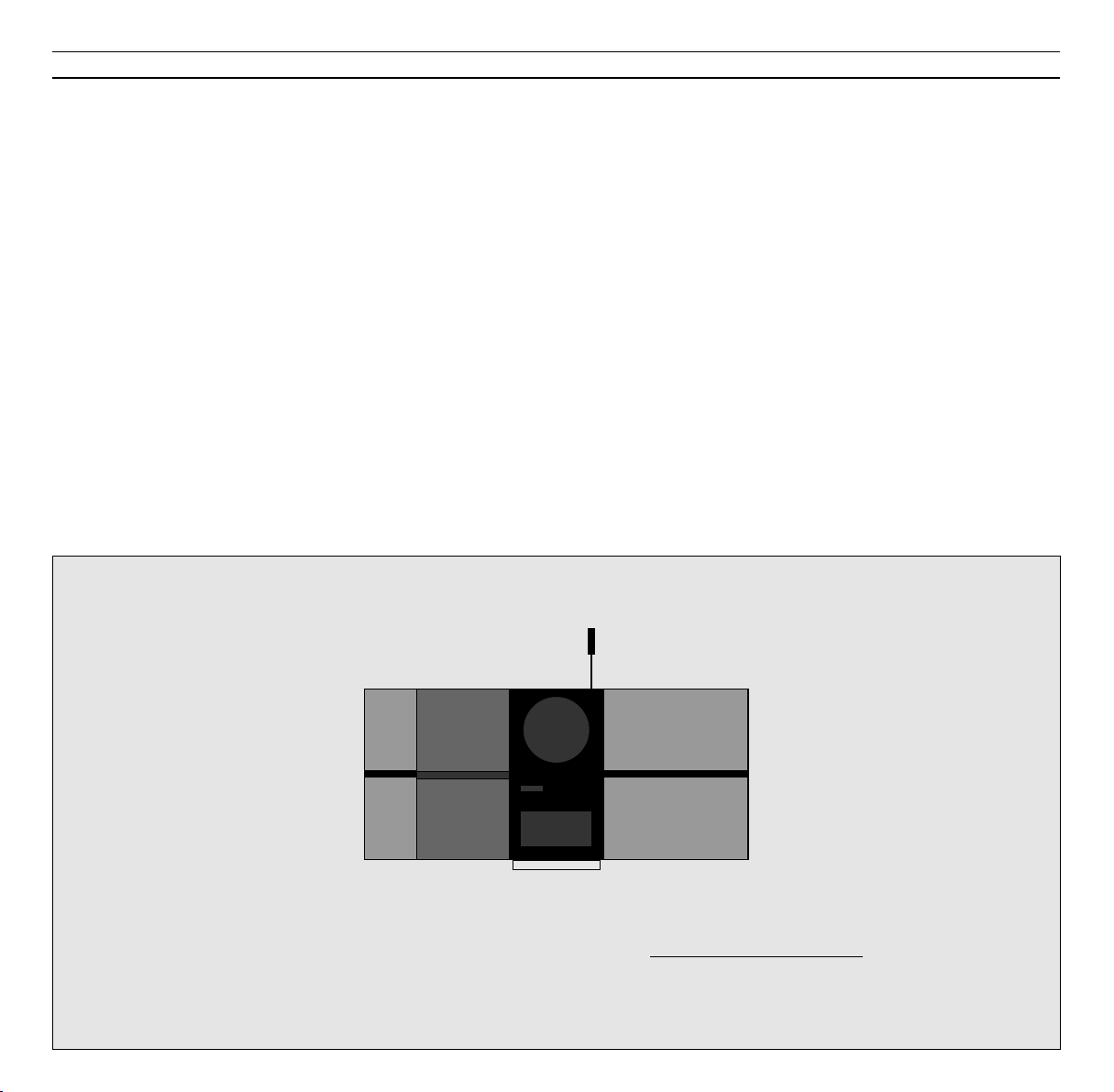
Whenever you approach the
BeoSound 2000, the glass door slides
open, and all the relevant buttons
light up in red.
You are invited in to play!
Pressing a red button makes the
system respond - either by carrying
out your instruction, or by making
another set of buttons available to
you - or both.
In this way, the BeoSound 2000
engages you in a playful
conversation about its music sources:
the CD player, the radio, or the tape
recorder.
Note: The next page shows the four
operational stages in which you may find your
BeoSound 2000 music system.
STOR SORT/HVID + RØD TEGNING - BEOSYSTEM 2000 med døren der åbner sig, og lyset i knapperne der
tændes (RADIO, CD, TAPE, AUX, LOAD, •) +
lys i dioden i displayet
OBS: samme tegning (af produktet/situationen) som tegning nr. 2 på næste side. Her blot større !
-SE DAMs ILLUSTRATION (BS2000 UG..)!
Page 5
5
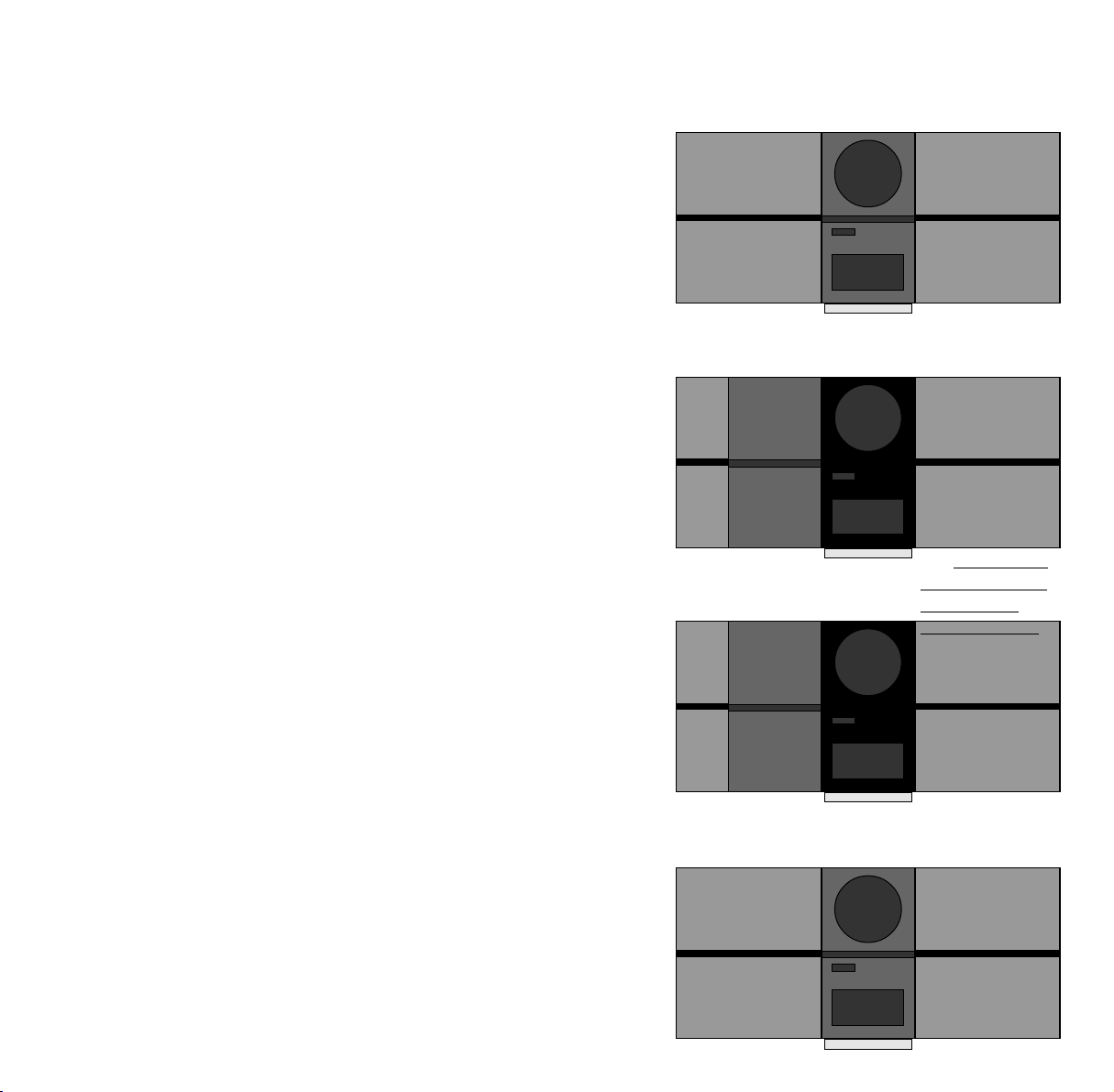
The BeoSound 2000 system is switched to stand-by,
but it will respond to a brief wave of your hand.
When you approach the system, it opens up to you,
and the four source buttons light up - inviting you in
to play!
Now, try pressing one of the source buttons.
The source starts playing, and the system offers you
all the relevant buttons for that source (here the CD
player).
S/H+RØD
TEGNING AF
HELT MØRKT
BS 2000 - KUN
MED LYS I
STAND-BY
KNAPPEN(se
DAMs illu. BS2000 UG..)!
S/H+RØD
TENING AF BS
2000 M.
DØREN ÅBEN
OG MED LYS I:
RADIO, CD,
TAPE,
AUX, LOAD, •
OG
I DIODEN I
DISPLAYET(se
DAM illu. BS2000 UG..)!
S/H+RØD
TEGNING AF
BS 2000 M.
DØREN ÅBEN
OG MED LYS
SOM VIST
If you leave the BeoSound 2000 to enjoy the music,
the glass door closes, and the lights go
out.
Only the source button and the display remain lit -
keeping you informed about the source playing.
PÅ BILAG(se
DAMs illu. BS2000 UG..)!
S/H+RØD
TEGNING AF BS
2000 MED
DØREN
LUKKET, MEN
MED LYS I CD
Page 6
6
PRINCIPLES OF OPERATION
The three sources…
Whenever you approach the
BeoSound 2000, the glass door slides
open, and all the relevant buttons
light up with an invitation for you to
play one of the music sources: the CD
player, the radio, or the tape
recorder...
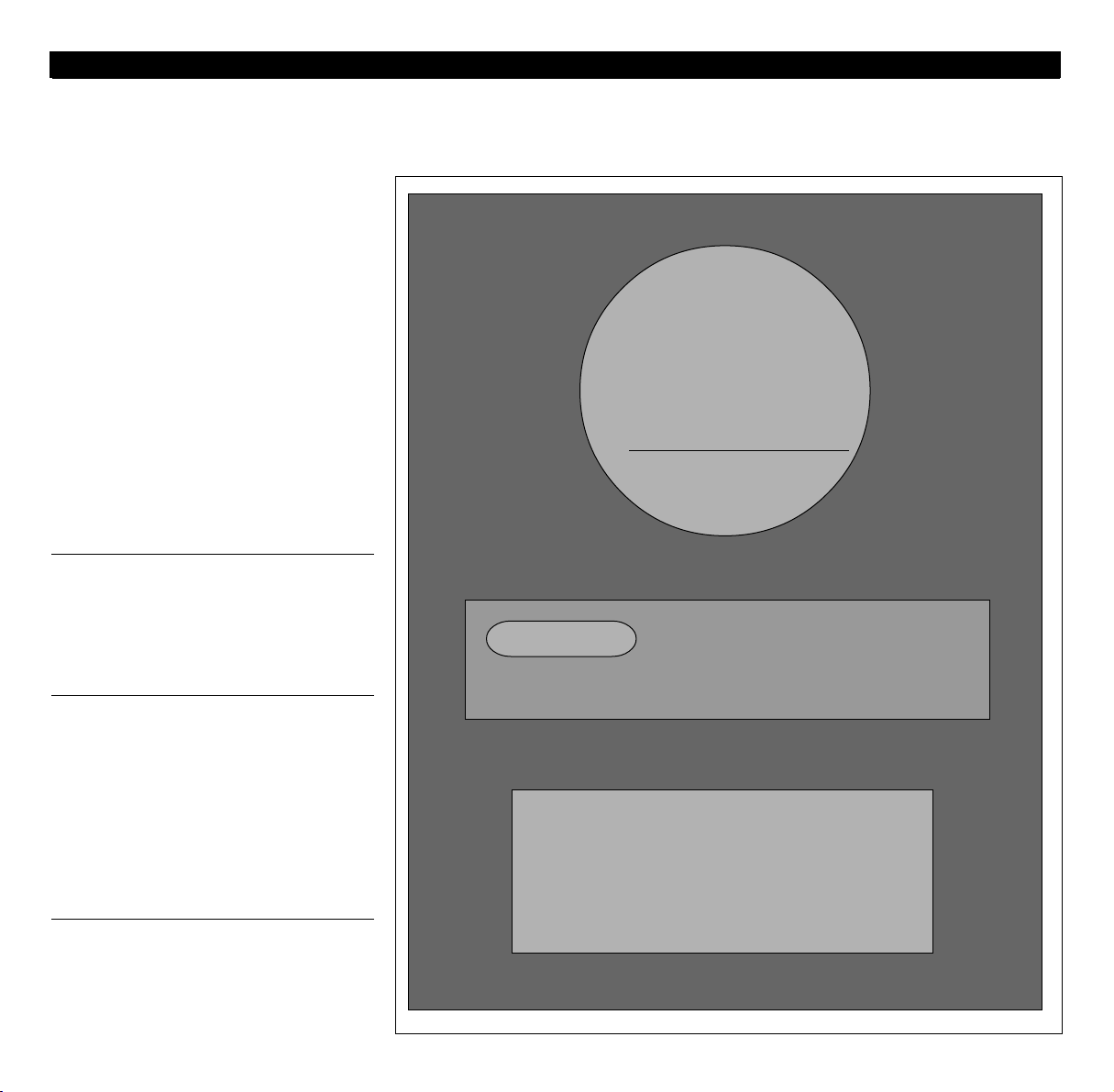
The top section of the system holds the tray for
compact discs. The compact disc is kept in place
by a clamp, which can be raised and lowered by
pressing the LOAD button (top right-hand
button).
STOR S/H+RØD TEGNING AF BS 2000s
CENTERDEL med tydelig visning af de enkelte
dele: CD m. clamp, bånddel, samt display og
knapper (med lys i: RADIO, CD, TAPE, AUX,
LOAD, •, og i dioden i displayet) - se DAMs
illustration (BS2000 UG..) !
The BeoSound 2000 radio only becomes visible
when it is being used. You will see all the
buttons for radio operation light up, and - with
a P - the display indicates that a radio program
is playing.
The middle-section of the system contains the
display and all the buttons you need for
operating the system. For further information,
see pages 8 - 9.
The bottom section is for tape cassettes. The
tape recorder adjusts automatically to the type
of tape you are using: ferro or chrome.
Page 7
7
S/H TEGNING AF ILÆGNING AF CD - se
DAMs illustration (BS2000 UG..)!
S/H TEGNING AF ILÆGNING AF BÅND -
se DAMs illustration (BS2000 UG..) !
Loading a CD
Pressing the LOAD button raises the clamp
which holds the CD in place. You can then
remove any CD from the compartment and load
the one you want to play.
Always load the CD with the text side facing
you!
Pressing LOAD again lowers the clamp. You
may also press the CD button to lower the
clamp and start playing the CD at once.
Loading a tape
The tape cassette must be loaded with the tape
slot facing downwards. Insert the top section of
the cassette first; then push in the bottom half
of the cassette until it is properly seated in the
compartment.
To unload the tape, grip the sides of the
cassette - a little below the middle - and gently,
but firmly, pull it outwards.
Raises and lowers the clamp which
holds the CD in place
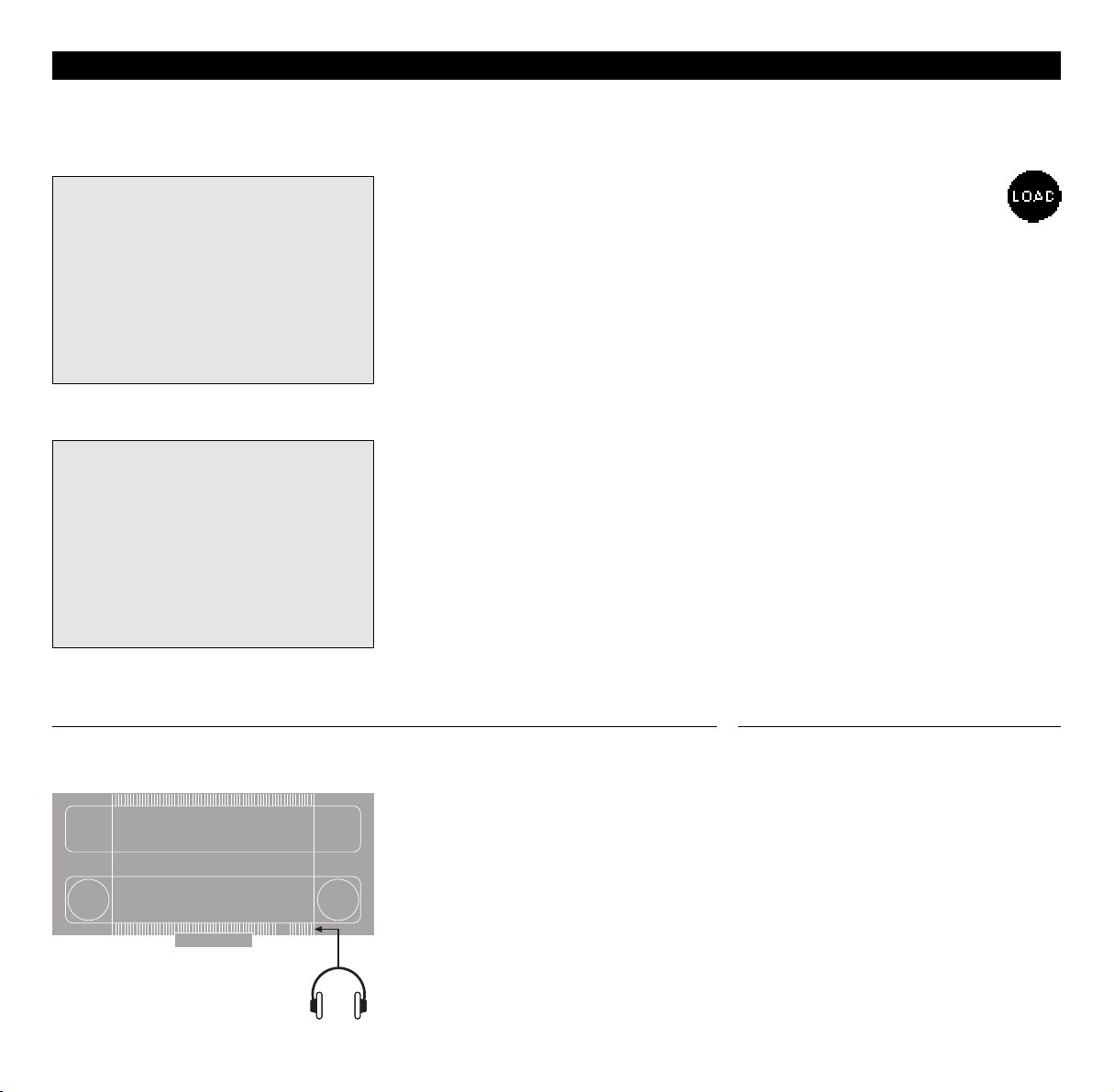
Headphones
Headphone socket
The headphone socket is placed on the back of
BeoSound 2000, as illustrated to the left.
Once you connect your headphones to
BeoSound 2000, the sound from the built-in
BeoSound 2000 speakers is muted. The sound
from the speakers is then demuted when you
disconnect your headphones.
PHONES
Page 8
1998.02-EHT-BS2000-Beo4
8
>Principles of operation
Buttons and display
Pressing a red button makes the
BeoSound 2000 respond - either by
carrying out your instruction, or by
making another set of buttons
available to you - or both.
The display and the red buttons
guide you through any operation
you may wish to carry out, engaging
you in a playful conversation about
the music sources.
These pages show what the display
and each of the 26 buttons are used
for...
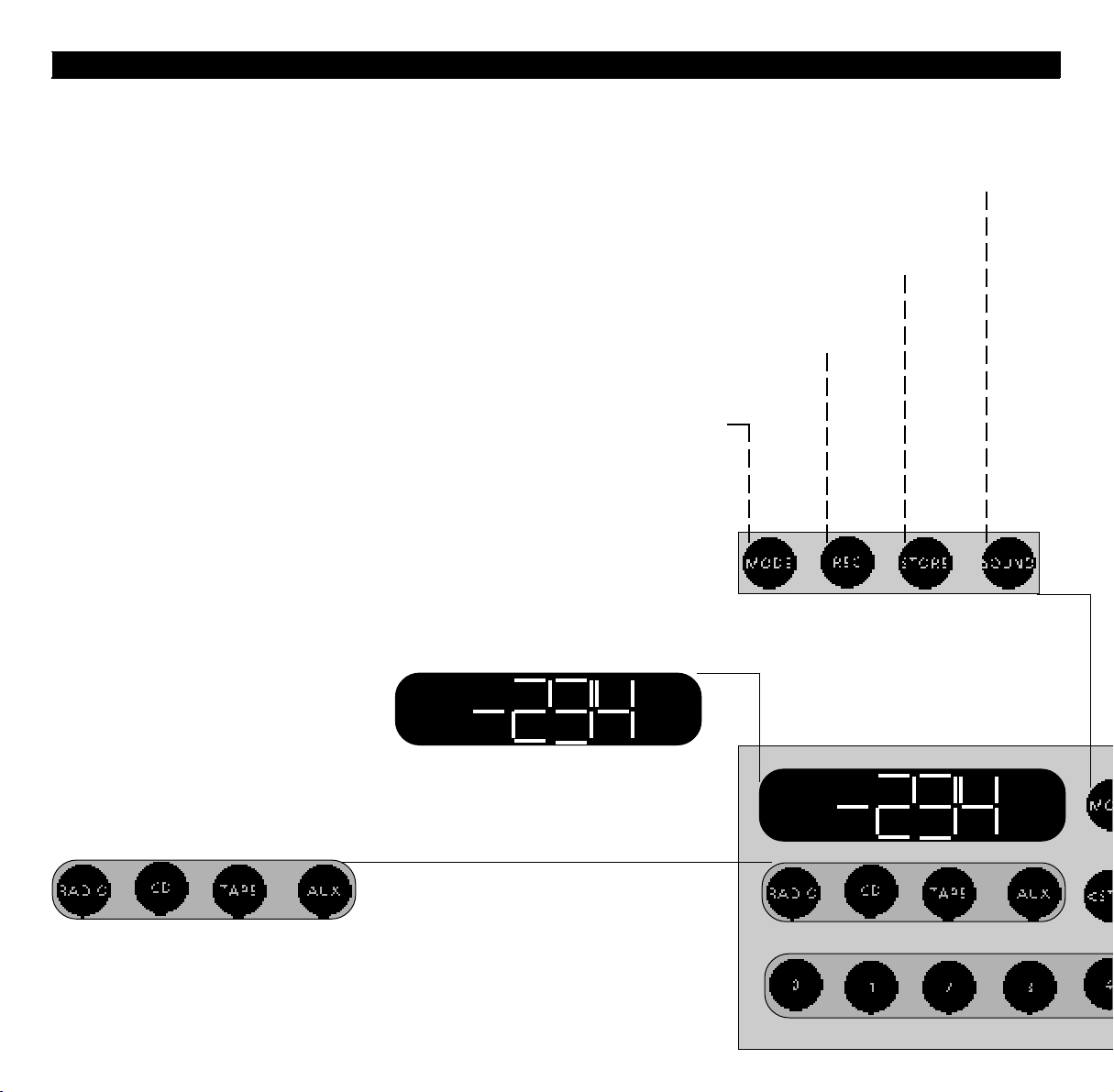
SOUND allows you to adjust the sound levels:
volume, balance, bass, treble and loudness
(pages 22 - 23).
STORE allows you to store:
•radio stations on program numbers (page 12);
•your favourite sound levels (page 23).
REC allows you to record the source you are
listening to (pages 18-20).
MODE is used for:
•switching AM and FM bands on the radio
(page11);
•switching the CD random play function on and
off (page 15);
•switching the tape Noise Reduction function on
and off (page 17);
•switching the automatic tape reverse function
on and off (page 20).
The source buttons switch on the source you
wish to listen to:
•RADIO turns on the radio (pages 10 - 13);
•CD starts the CD player (pages 14 - 15);
•TAPE starts the tape recorder (pages 16 - 20);
•AUX plays any auxiliary source (page 21).
The display keeps you informed about what the
system is doing and about any ongoing
operation. See the displays throughout this
guide and on page 25.
SE DAMs ILLUSTRATIONER!!
Page 9
1998.02-EHT-BS2000-Beo4
9
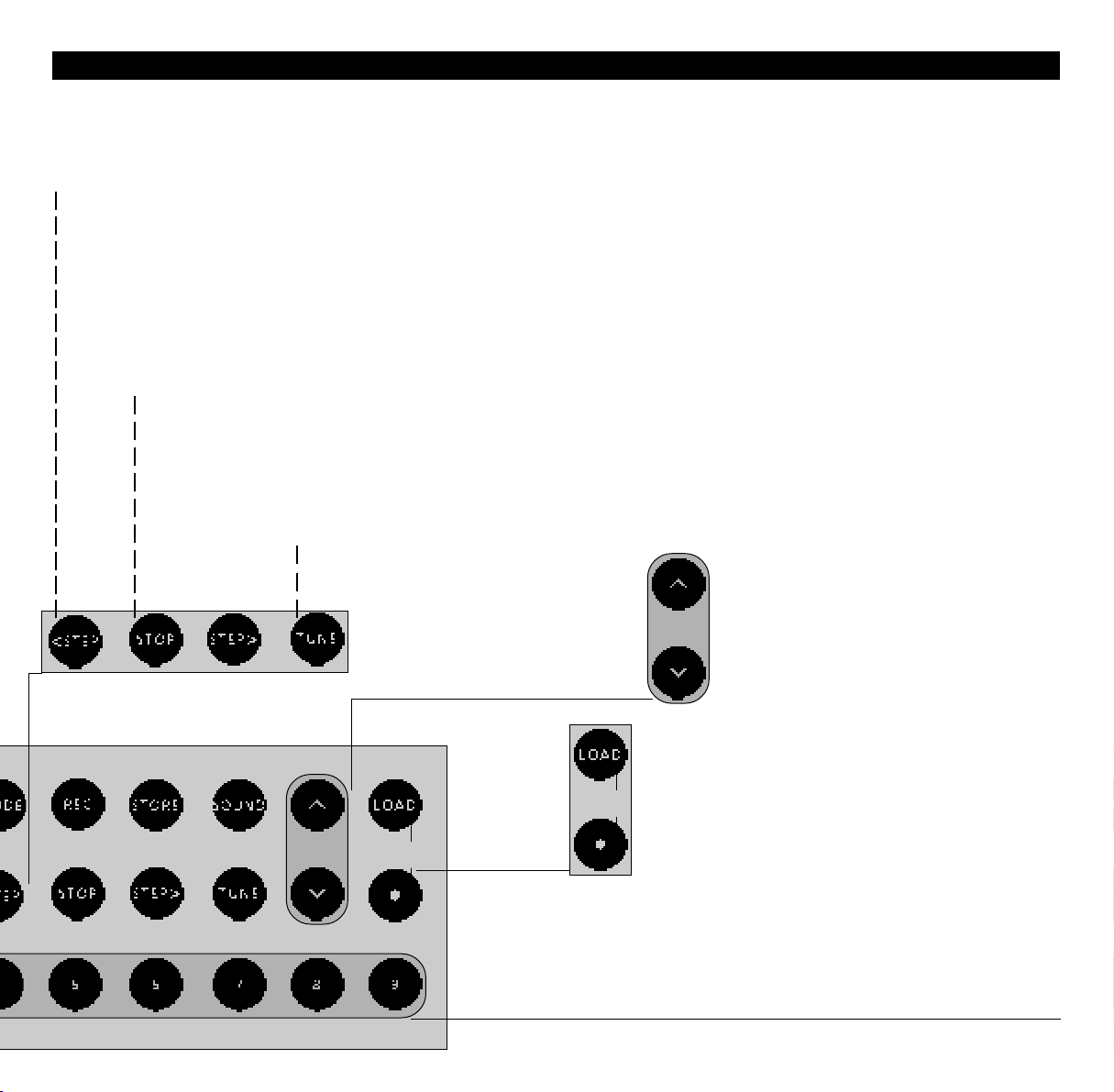
The two step buttons, <STEP and STEP>, are used:
•for stepping through:
-radio programs (page 10),
-tracks on a CD or a tape (pages 14 and 17);
•for searching for radio stations (page 11);
•for rewinding and fast forwarding a tape
(page 17);
•for cancelling a recording (page 19)
•to adjust the various sound levels (pages 22 - 23).
STOP is used:
•for pausing playback of a CD or a tape
(pages 14 and 16);
•for pausing and stopping a recording (page 18);
•for setting and activating a Stop Timer (page 24).
The TUNE button allows you to tune in to new
radio stations (pages 11 - 12).
Note: For a complete description of the various
functions performed by the system, please
follow the references to the relevant pages.
The volume buttons allow you to adjust volume
up or down.
(BS2000 UG..)
The LOAD button raises and lowers the clamp
holding the CD in place (page 7).
The stand-by button switches the system to
stand-by.
The number buttons are used for:
•keying in radio program numbers or radio
frequencies (pages 10 - 11);
•keying in CD track numbers (page 14);
•playing a tape from the beginning (page 16).
Page 10
10
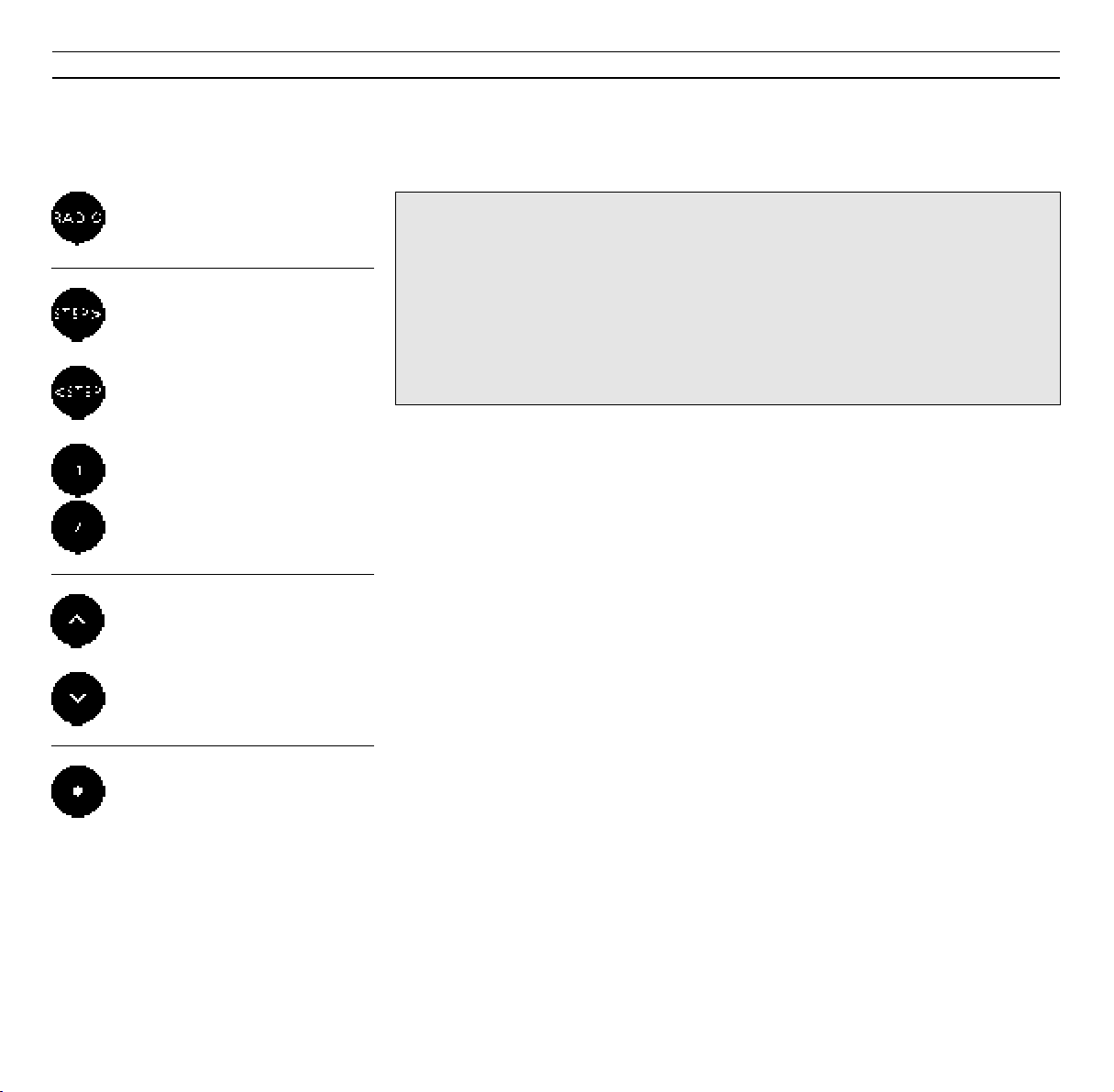
USING THE RADIO
Listening to radio programs
Turns on the radio
Press to browse through your radio
programs, forwards...
S/H+RØD TEGNING: DISPLAY OG KNAPPER V/ TRYK PÅ RADIO -se DAMs
illustration (BS2000 UG..)!
or
...or backwards
Alternatively, key in the exact
program number you want,
for example 12
Press to raise the volume
Press to lower the volume
Pressing the RADIO button makes the
display and all the buttons for
operating the radio light up. At the
same time, the radio starts playing
the program you were last listening
to.
The program number is indicated in
the display, for example: P 3.
To switch to another program, you
can either key in its number directly
using the number buttons, 0 - 9; or
If you select another source, the
radio stops automatically. To switch
off the entire system, press the standby button, •.
Note: If you press RADIO again while the radio
is playing, you can see the frequency for the
current radio station in the display. Press RADIO
again to revert to the program number
indication.
Note: The REC button makes it easy to record
the radio program you are listening to. See
how on page 18.
you can press the step buttons, <STEP
or STEP>, to browse through all your
programs.
Press to switch the system to
stand-by
The system only makes the necessary
number buttons available. That is, if
Selecting another source also turns
off the radio
you only have stored radio programs
on the numbers 1 to 5, only the
buttons 1 to 5 will be lit.
> Selecting radio programs using the method
described on this page requires that you have
tuned in to all your favourite radio stations
and stored them on program numbers of
their own. See how on the next pages.
Page 11

Tuning in to radio stations
11
Whenever you turn on the radio, the
TUNE button lights up. TUNE is the
key to the tuning function in the
BeoSound 2000 radio.
When you press TUNE, the buttons
on the system change, so that only
the buttons necessary for tuning in
to radio stations become available.
There are three ways of tuning in to
radio stations:
• You can make the system do all the
work for you (see how on page 12).
• You can let the system search for
stations by pressing TUNE then
STEP> or <STEP.
• Or, if you know a station's exact
frequency number, you can key it
in directly by pressing TUNE then
the number, using the number
buttons.
The display shows the station's
frequency number as you go along.
When you have found the station
you want, and you are hearing it
clearly in the loudspeakers, you can
store it on a program number of its
own (see how on page 12).
Note: If you have keyed in a false frequency,
the system automatically returns to the radio
program you were last listening to.
Switching AM/FM bands
In some markets, BeoSound 2000
music systems are sold which make
tuning available in both the AM and
FM bands.
To switch from FM to AM or vice
versa, press TUNE then MODE.
Turn on the radio
Press to make the system search for
a station
then
Searches up the frequency band
or
Searches down the frequency band
The radio stops automatically at the
first station producing an acceptable
signal
If this is not the station you want,
press the step button again to search
for another
Alternatively, key in the exact
frequency for the station you want,
for example 87.5 MHz
then
Note: Proper FM or AM antenna must be
connected to the BeoSound 2000 in order to
pick up the radio stations in your area. See the
setting-up guide for information about antenna
connections.
A special carrying handle with an active FM
antenna is available as an optional extra for
the BeoSound 2000. Your Bang & Olufsen
dealer has all the details!
Press to switch from FM to AM, or
then
The display changes to show the
lowest frequency in the new band
Page 12

12
>Using the radio
Storing your radio programs
then
then
number
Tune in to the FM or AM station
you want, then...
Press to make the system ready for
storing the station
Key in the number you want for
the station, for example 12
Press STORE again to finally store
the station on the program
You may now start tuning in to the
next radio station (see page 11)
You can store 30 different radio
stations on program numbers of their
own in the BeoSound 2000 radio.
This enables you to access your
favourite radio stations directly,
simply by keying in a number.
Once you have tuned in to the
station you want, and you are
hearing it clearly in the loudspeakers,
you can store it on a number of your
own choice: Press STORE, then key in
the number you want (1-30), and
press STORE again.
When you have stored the station,
press TUNE to continue tuning in to
the next radio station you want...
Let the system tune in for you
Note: When you press STORE the first time, the
display automatically offers you a vacant
program number for the new station. If the
number suits you, you need not key in another just press STORE again.
The number may also indicate that the station
you have found has already been stored - on
the number shown.
When the number stops blinking, the program
has been stored.
Note: If you wish to erase a program from its
program number, press TUNE, then STORE, 0,
STORE while you are listening to the program.
then
Turn on the radio
Press to make the system tune in –
and store all the radio stations in
your area
(Press for 2 seconds)
You may also let the system find all
the radio stations available in your
area, and store them on program
numbers of their own automatically.
To do so, just turn on the radio and
press TUNE, then press the STORE
button for 2 seconds.
The system finds all the stations
available in the FM band in your area
and stores them on program numbers
from 1 to 30.
Note: This tuning method is only available in
the FM band.
Page 13

List the radio stations you have stored here:
13
1
2
3
4
5
6
7
8
9
10
11
12
13
16
17
18
19
20
21
22
23
24
25
26
27
28
14
15
Note: Use a pencil - you may wish to change the
list later on!
29
30
Page 14

14
Starts playing the CD you have
loaded into the CD player
Press to pause the CD player
Press to resume playing
USING THE CD PLAYER
Playing a CD
S/H+RØD TEGNING AF DISPLAYS OG KNAPPER V/ TRYK PÅ CD - se DAMs
illustration (BS2000 UG..)!
Pressing the CD button starts the CD
player: the display and all the
Press to browse through the tracks
on the CD, forwards...
or
...or backwards
buttons for operating the CD player
light up, and the first track from the
CD you have loaded starts playing.
The track number is indicated in the
display: 1.
Alternatively, key in the number
of the track you want to hear,
for example track number 5
You can pause the CD player any
time by pressing STOP. To resume
playing, just press the CD button
again.
Press to raise the volume
To select another track from the CD,
If you select another source, the CD
player stops automatically. To switch
off the entire system, press the standby button, •.
Note: If the CD player is left paused or stopped
for more than 30 minutes, the system switches
to stand-by.
The other functions offered by the CD player
are:
• Switching between various display
indications: track number, track time and
remaining disc time (see page 15).
• Playing tracks in random order (see page 15).
• Recording the CD you are listening to, and
recording specific tracks (see pages 18 - 19).
you can either key in its number
directly using the number buttons, 0
Press to lower the volume
- 9; or you can browse through all
the tracks on the CD using the step
buttons, <STEP or STEP>.
Press to switch the system to
stand-by.
When the CD has been played
through once, the CD player stops,
waiting for another instruction to
Selecting another source also turns
off the CD player
play.
Page 15

Switching displays
15
The CD player is playing track number 12
The current track has been playing for 1 minute
and 47 seconds (track time)
12 minutes and 38 seconds playing time
remains on the CD (remaining disc time)
Playing tracks in random order
The CD random play function is switched off
- the indication in the display is blinking
The CD random play function is active
- the indication in the display is rotating
When you start playing a CD, the
display always shows which track
number is playing.
At any time, while the CD is playing,
you can change the indication in the
display by pressing the CD button.
The display then changes - first into
showing the track time, then into
showing the remaining disc time
(minutes and seconds).
If you press CD a third time, the
display reverts to showing the track
number.
Pressing the MODE button twice,
while the CD is playing, makes the
CD player play all the tracks on the
CD in random order.
If you wish to cancel your random
play instruction, simply press MODE
again - twice. Switching off the CD
player also cancels the random play
function.
Press while the CD is playing to
change the display indication - from
track number to track time
then
Press again to change the display
indication - from track time to
remaining disc time
then
Press a third time to revert to the
original track number indication
Press while the CD is playing to see
the current status in the display
then
Press to cut the random play
function in or out
Note: The display reverts to showing track
number or track time. While playing tracks in
random order, it cannot be set to showing
remaining disc time.
Note: You can always skip the track you are
listening to by pressing STEP>. The CD player
then continues to the next random track.
Page 16

16
USING THE TAPE RECORDER
Playing a tape
Starts playing the tape you have
loaded into the tape recorder
Press 1 to start playing from the
beginning of the tape
S/H+RØD TEGNING: KNAPPER OG DISPLAY V/ TAPE TRYK - se DAMs
illustration (BS2000 UG..)!
Press again for 2 seconds to "turn"
the tape to start playing the other
side
Press to pause the tape recorder
Press to resume playing
Press to raise the volume
Press to lower the volume
Press to switch the system to
stand-by
Selecting another source also turns
off the tape recorder
Pressing the TAPE button starts the
tape recorder. The display and all the
buttons for operating the tape
recorder light up, and the tape you
have loaded starts playing.
If you press 1 after starting the tape
recorder, the tape is rewound to start
playing from the first track.
You may of course "turn" the tape
any time. To do so, just press the TAPE
button once more for 2 seconds, and
the other side of the tape starts
playing.
The counter position is indicated in the
display, counting from 000 whenever
you start playing a new tape, and
when the tape is "turned".
You can pause the tape recorder at
any point by pressing STOP. To resume
playing, just press TAPE again.
When the tape has been played
through once (A and B side), the tape
recorder stops, waiting for another
instruction to play.
If you select another source, the tape
recorder stops automatically. To switch
off the entire system, press the standby button, •.
Note: If the tape recorder is left paused or stopped
for more than 30 minutes, the system switches to
stand-by.
Note: When the tape is "turned" to play the Bside, this is indicated in the display with a dash
before the counter indication: -000.
The other functions offered by the tape recorder
are:
• Finding specific tracks or counter positions on
the tape (see page 17).
• Noise reduction (see page 17).
• Recording on tape (see pages 18 - 19).
• Automatic tape reverse function (see page 20).
Page 17

Finding tracks or counter positions on the tape
17
While the tape recorder is playing, you
can make it find the next track simply
by pressing the step button, STEP>.
Or, you can make it play the current
track again by pressing <STEP once.
Press <STEP again if you want to hear
the previous track.
Pressing the step button several times
makes the tape recorder search
forwards or backwards for as many
tracks as you specify.
You can also rewind or fast forward
the tape to a specific counter position.
To do so, you must first pause the tape
recorder by pressing STOP. While the
tape is paused, press <STEP or STEP>
to rewind or fast forward the tape.
When you reach the position you
want, press STOP to pause the tape
recorder; or press TAPE to start playing
the tape directly.
Press to step to the next track on
the tape
Press to play the current track
again
Press <STEP twice to play the
previous track
Press to pause the tape recorder
then
Rewinds the tape
or
Fast forwards the tape
Press to stop winding and resume
playing
Noise reduction
The display glows steadily when noise reduction is
ON, and blinks when it is OFF
Note: The noise reduction system is automatically
reset to ON during recording.
The noise reduction system is set to ON
from the factory. If you wish to change
this setup, you may do so by pressing
the MODE button.
The display then shows the current
noise reduction state: glowing steadily
for ON, blinking for OFF.
Press MODE again to change from ON
to OFF, or vice versa.
Press to see the current noise
reduction state
then
Press again to change from ON to
OFF, or vice versa
Page 18

18
>Using the tape recorder
Instant recording on tape
then
then
or
Press to make the tape recorder
ready for recording
Press again to start recording
Press to pause your recording
A pause of four seconds is inserted
on the tape
Press to resume recording
Press again to stop recording
completely
The two displays blink alternately to indicate a
recording of, for example, a CD track number
Whenever the BeoSound 2000 is
playing, you can start recording
directly on the tape you have loaded.
Just press the REC button twice.
When you press REC the first time, the
tape recorder gets ready for recording.
The buttons necessary for recording
light up, and the display indicates that
the system is ready by, alternately,
displaying REC and then the number
of the radio program or CD track you
are listening to.
You can pause your recording any
time by pressing STOP. The tape
recorder automatically makes a pause
of four seconds on the tape.
Then press REC again to resume
recording; or press STOP once more to
turn off the tape recorder.
Note: To record a CD from the beginning start the CD player, then open the CD clamp by
pressing LOAD, and load the CD you wish to record.
While the CD clamp is still open, press REC, REC:
The clamp closes, recording starts, and the CD
starts playing from the first track.
Note: The REC button only becomes available if
there is a tape in the tape recorder - and provided
the tape is not record protected.
Press REC again, and recording starts
immediately.
> See the next few pages for further information
about recording and the automatic tape reverse
function.
Page 19

Recording a specific track on a CD
19
The system also allows you to start
recording from a specific track on a
CD.
Press STOP to pause the CD player.
Then press the REC button and key in
the track number you wish to record,
using either the number buttons, 0 - 9,
or the step buttons, <STEP or STEP>.
The track number is indicated in the
display.
Cancelling your recording
When you press REC again, the tape
recorder starts recording from the
beginning of the CD track you have
chosen to start from.
To pause or stop recording, just press
the STOP button once or twice.
Start playing the CD
then
Press to pause the CD player
Press to make the tape recorder
ready for recording
then
Key in the track number you want,
for example track number 4
then
Press again to start recording from
the track you have chosen
By the end of the track, pause or
stop your recording in the usual way
If you regret your recording, simply
press the step button, <STEP, while
recording is in progress.
Recording is stopped, and the tape is
rewound approximately to the spot
where your recording started.
When you have found the exact spot,
you may either stop the tape recorder
altogether, by pressing STOP; or
resume recording, by pressing REC.
Note: We recommend that you listen-in on the
tape to find the exact spot before you resume
recording.
Note: If you wish to erase a recording, you may do
so by pressing TAPE, STOP then REC, REC. As no
source other than the tape recorder is active,
nothing is recorded on the tape.
Press, while recording is in progress,
to cancel your recording and return
approximately to the spot where it
started
Page 20

20
>Using the tape recorder
Automatic tape reverse function
then
Make the tape recorder ready for
recording
Press to see the current automatic
tape reverse setting
Press again to change from ON to
OFF, or vice versa
The display shows the current automatic tape
reverse setting - glowing steadily for ON; blinking
for OFF
The BeoSound 2000 tape recorder
always plays through the entire tape
(A and B side) before stopping.
This automatic tape reverse function
can of course be switched off during
recording so that your recording is
only made on one side of the tape at
the time.
After pressing the REC button to start
recording, press the MODE button. A
tape reverse symbol appears in the
display to indicate the current setting glowing steadily for ON; blinking for
OFF.
Press MODE again to change from ON
to OFF, or vice versa.
Note: You may, of course, leave the automatic
tape reverse function ON so that your recording is
made on both sides of the tape you have loaded if required.
Page 21

USING AUXILIARY SOURCES
Playing auxiliary sources
S/H+RØD TEGNING: KNAPPER OG DISPLAY V/ AUX TRYK - se DAMs
illustration(BS2000 UG..)!
The AUX button enables you to start
playing any auxiliary source you have
connected to the BeoSound 2000.
Pressing the AUX button makes the
display and the relevant buttons light
up. AU is written in the display to
indicate that you may now start
operating the auxiliary source in the
usual way.
Note: The REC button enables you to record from
the auxiliary source onto the tape in the BeoSound
2000 tape recorder (see page 18).
Note: The auxiliary source must be connected to
the AUX-socket on the back of the system. For
further information, please refer to the small
setting-up guide also enclosed with the BeoSound
2000.
21
Turns on the BeoSound 2000
auxiliary function
You may now start operating the
auxiliary source in the usual way
Press to raise the volume
Press to lower the volume
Press to switch the system to
stand-by
Selecting another source on the
system also turns off the auxiliary
function
You will then hear the sound from the
auxiliary source through the
BeoSound 2000 speakers.
If you select one of the sources in the
BeoSound 2000 instead, the AUX
function is stopped automatically. To
switch off the entire system, press the
stand-by button, •.
Page 22

22
SOUND ADJUSTMENT
Adjusting the sound levels
then
or
Press repeatedly until the sound
cue you want is displayed
Then adjust the sound level to your
liking...
Raises the sound levels; increases
the sound in the right speaker; or
cuts the loudness function in
Lowers the sound levels; increases
the sound in the left speaker; or
cuts the loudness function out
The SOUND button enables you to
adjust the sound coming out of the
BeoSound 2000 speakers.
You can adjust the bass and treble
levels to suit your personal taste; you
can alter the balance between the left
and right speakers to direct the sound
towards your favourite listening
position; and you can cut the loudness
function in or out, as you like.
Each time you press the SOUND
button, a cue appears in the display,
indicating which adjustment can be
made, and showing the current
setting.
See the next page if you want to store
your new sound levels. If you don't,
the adjusted levels will be reset to their
original values when the system is
switched to stand-by.
Note: To adjust volume you need not press the
SOUND button first. Simply press the volume
buttons, A and V.
The display shows the current volume level.
Volume can be adjusted in steps of two within a
range of 00 to 72 using the volume buttons, A and
V.
The display shows the current balance setting here neutral. Balance can be adjusted within a
range of 6 to either side.
The display shows the current bass level - here
neutral. Bass can be adjusted within a range of -5
to +5.
The display shows the current treble level - here
neutral. Treble can be adjusted within a range of 5 to +5.
The display shows the current loudness setting glowing steadily for ON, blinking for OFF.
Page 23

1998.02-EHT-BS2000-Beo4: s detal ændret.
23
Note: The loudness function is used to compensate
for the human ear's lack of sensitivity to high and
low frequencies when listening to low volume
levels. It "boosts" the high and low frequencies so
that the music becomes more dynamic.
Storing your new sound levels
You can store your adjusted sound
levels so that the system switches on at
e.g. a lower volume level; or e.g. so
that it always plays with more or less
bass or treble tone than stored from
the factory.
All you have to do, to turn your
adjustment into a permanent setting
of the system, is press the STORE
button when you have adjusted the
various sound levels to your liking.
Note: The Beo4 remote control also enables you to
silence the BeoSound 2000 speakers temporarily;
and it enables you to reset your adjusted sound
levels without switching off the system first. See
how on pages 26 - 28.
Note: If the STORE button is not lit up in red, press
SOUND again before pressing STORE twice.
Note: All the current sound levels will be stored
simultaneously.
Adjust the sound levels to your
liking, then...
..press to start storing the levels
The display starts blinking
then
Press again to store the levels
When you press STORE, the display
starts blinking - asking you if you want
to store the setting. Press STORE again
to confirm that you do.
Page 24

1998.02 EHT BS2000 Beo4: ny s de.
24
Press to switch to radio
Press repeatedly to display desired
number of minutes for the Timer
The display reads out the number
of minutes available
STOP TIMER
Setting and activating a Stop Timer
You can make BeoSound 2000 play
the radio for a certain number of
minutes and then switch to standby
automatically. Via the STOP button on
the BeoSound 2000, you can set and,
at the same time, activate a Stop Timer
for the radio.
You set the number of minutes – 00,
15, 30, 45, 60, 90, 120 – that you would
like the system to continue playing
before it switches to standby.
If you press any other button or switch
to CD before the Timer has been set in
BeoSound 2000, the Timer is cancelled.
The Stop Timer is set when the display
returns to the radio status display. If
you press STOP while your Timer is
being executed, you can set a new
Stop Timer.
Note: The Stop Timer is not stored in your
BeoSound 2000. You will have to set a new Stop
Timer every time you wish to use the function.
Page 25

1998.02 EHT BS2000 Beo4: ombrudt s de.
BEOSOUND 2000 DISPLAYS
Radio program number 3 is playing
The radio program playing has not been stored on
a program number of its own
CD track number 12 is playing (see page 15)
Tape side A is playing (counter position 234)
Tape side B is playing (counter position 234)
The source connected to the BeoSound 2000 AUXsocket is playing
Note: The displays shown throughout this guide
show the main principles used for illustrating the
various functions in the BeoSound 2000 system.
25
The STOP button has been pressed, and the CD
player or the tape recorder is paused
The system is waiting for an instruction to play
Small lines in the display indicate the number of
digits that can be keyed in - here another three for
a radio frequency number
A small line also appears when you key in a new
program number for a radio program or, as here, a
new track number for a CD
After pressing 1, you may key in another digit, e.g.
2, to hear track number 12
Page 26

26
TV LIGHT RADIO
SAT DVD CD
V TAPE RECORD A TAPE
789
456
TEXT
0
MENU
123
LIST EXIT
STOP
GO
REMOTE CONTROL
Using the Beo4
C Press to turn on the radio
F Press to start the CD player
I Press to start the tape recorder
q Press to display [TURN] to play the
other side of a tape
O Press to turn the tape
or programs, tracks on a tape or a CD
q Press LIST to reveal [RANDOM]
then
Press to step through your radio
Alternatively, key in the exact
number, using the number keys
Start Random playback…
O Press to turn Random on
or
M Press to turn Random on
or
P Press to turn Random off
Although designed primarily for closeup operation, the BeoSound 2000
music system can also be operated
from a distance.
The Beo4 remote control operates all
the primary functions offered by the
system such as switching on, selecting
radio programs, selecting tracks on a
CD or a tape, searching on Audio tape,
pausing CD and Audio tape playback,
recording onto Audio tape, adjusting
sound, and switching off.
Nice to know…
At any time, while the BeoSound 2000 is playing,
you can press the MENU button on Beo4 to
illuminate the buttons briefly on the BeoSound
2000. If you press MENU twice, the button remain
illuminated until you switch the system to standby
– or until you press MENU again.
Press to fast forward a tape
or
Press to rewind a tape
T Press to pause the CD player or
then
tape recorder
O Press to resume playing
V Press to switch off
The Beo4 remote control is available as an optional
extra for the BeoSound 2000 system at your Bang
& Olufsen dealer.
Page 27

Start recording…
27
Press to make the system ready for
recording
Press to start recording
Press to pause the recording I
H
then
H
then
T
In order to stop recording
completely, you must press the
STOP button on the BeoSound
2000 twice or switch to
standby…
Press to raise the volume
Press to lower the volume
Press r and u simultaneously to
silence the speakers completely;
press again to recall the sound
or
> See the next page for further information about
sound adjustment with Beo4.
Page 28

>Remote control
TV LIGHT RADIO
SAT DVD CD
V TAPE RECORD A TAPE
789
456
TEXT
0
MENU
123
LIST EXIT
STOP
GO
28
Adjust sound with Beo4
q Press LIST repeatedly to reveal
then [A.SETUP]*
O
After pressing GO, [SOUND] is
then
revealed…
q Press LIST repeatedly to display
then
Bass, Treble, or Loudness
M Press to adjust the individual
or sound elements
P
q Press LIST repeatedly to reveal
then [SPEAKER]*
Repeat this procedure for the
sound elements you want to
adjust…
To adjust Balance…
O
then
L Press to adjust Balance
or
N
Then, store your adjustments…
q Press LIST to reveal [A.SETUP]*
then
O
then
q Press LIST repeatedly to display
then [S.STORE]
O Press to store the adjustments
You can adjust sound on BeoSound
2000 with the Beo4 remote control.
To adjust, you choose the relevant
sound elements on the Beo4 and
adjust them accordingly*. The actual
adjustments you make are indicated in
the BeoSound 2000 display.
*Note: In order to adjust sound and display
[A.SETUP] and [SPEAKER] on Beo4, you must add
the function to Beo4, please refer to the next
page…
The Beo4 remote control is available as an optional
extra for the BeoSound 2000 system at your Bang
& Olufsen dealer.
Page 29

Adding functions to Beo4 list of functions…
• Press and hold down the standby button on Beo4
while you press LIST to get access to the special
Beo4 setup function and let go of both buttons
at the same time. You are now in the setup
mode.
• Then you press LIST to display [ADD?] and then
GO to call up the list of cues you can add and the
first cue appears on the display.
• Then, keep pressing LIST until the cue you want
to add is displayed and then press GO to add it.
When the cue in the Beo4 display stops flashing,
it has been added.
• The addition has now been completed, press
EXIT to leave the Beo4 setup function.
Note: To be able to play any auxiliary source
connected to the BeoSound 2000 AUX-socket, you
must first add [A.AUX] to Beo4, then, press LIST on
Beo4 to find [A.AUX] in the Beo4 display, then
press GO.
29
Page 30

303132
Page 31

Page 32

Date purchased
Contact person
Dealer
Telephone
Address
Record your serial numbers here:
BeoSound 2000
Beo4 remote control
Dear Customer,
Your needs as the user of our products are always given careful consideration during
the design and development process, and we strive to make our products easy and
comfortable to operate.
We therefore hope that you will take time to drop us a line, telling us about your
experiences with your Bang & Olufsen system. Anything which you consider important
– positive or negative – may help us in our constant efforts to refine our products.
Thank you!
Please
write to:
Customer information dept.7240
Bang & Olufsen a/s
DK-7600 Struer
Denmark
 Loading...