

Page 1
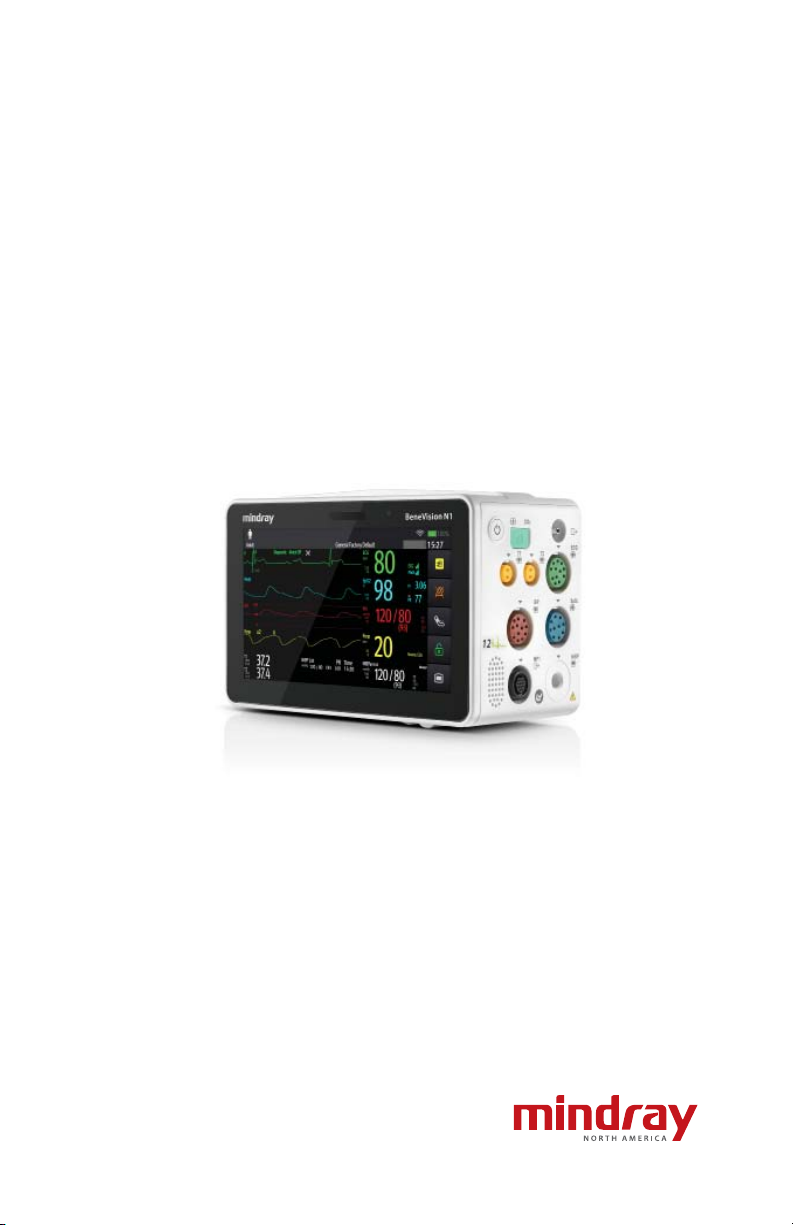
BeneVision N1
Quick Reference Guide
Page 2

Note: The BeneVision N1 Quick Reference Guide is not
intended as a replacement to the Operating Instructions.
This document is a guideline only to be used as an aid to
comprehensive Inservice Training.
Page 3

Table of Contents
Table of Contents
QUICK KEYS . . . . . . . . . . . . . . . . . . . . . . . . . . . . . . . . . . . . . . . . . . . . . . . . . . . . . . . . 1
GESTURES . . . . . . . . . . . . . . . . . . . . . . . . . . . . . . . . . . . . . . . . . . . . . . . . . . . . . . . . . 2
PATIENT SETUP . . . . . . . . . . . . . . . . . . . . . . . . . . . . . . . . . . . . . . . . . . . . . . . . . . . . . 2
Admit Patient And Enter Demographics (Manual Entry) . . . . . . . . . . . . . . . . . . . .2
Enter Demographics from the CMS . . . . . . . . . . . . . . . . . . . . . . . . . . . . . . . . . . . . . . . .3
Enter Demographics from the ADT Database . . . . . . . . . . . . . . . . . . . . . . . . . . . . . . .3
Discharge a Patient . . . . . . . . . . . . . . . . . . . . . . . . . . . . . . . . . . . . . . . . . . . . . . . . . . . . . . .4
STANDBY . . . . . . . . . . . . . . . . . . . . . . . . . . . . . . . . . . . . . . . . . . . . . . . . . . . . . . . . . . 4
Enter Standby . . . . . . . . . . . . . . . . . . . . . . . . . . . . . . . . . . . . . . . . . . . . . . . . . . . . . . . . . . . . .4
Resume Monitoring . . . . . . . . . . . . . . . . . . . . . . . . . . . . . . . . . . . . . . . . . . . . . . . . . . . . . . . 4
PRINT . . . . . . . . . . . . . . . . . . . . . . . . . . . . . . . . . . . . . . . . . . . . . . . . . . . . . . . . . . . . . . 5
Realtime Waveforms (Laser printer connection required) . . . . . . . . . . . . . . . . . . .5
Adjust Printed Waveforms . . . . . . . . . . . . . . . . . . . . . . . . . . . . . . . . . . . . . . . . . . . . . . . . .5
End Case Report . . . . . . . . . . . . . . . . . . . . . . . . . . . . . . . . . . . . . . . . . . . . . . . . . . . . . . . . . .5
ECG . . . . . . . . . . . . . . . . . . . . . . . . . . . . . . . . . . . . . . . . . . . . . . . . . . . . . . . . . . . . . . . . 6
Adjust ECG Lead . . . . . . . . . . . . . . . . . . . . . . . . . . . . . . . . . . . . . . . . . . . . . . . . . . . . . . . . . .6
Enable Pacemaker Detection . . . . . . . . . . . . . . . . . . . . . . . . . . . . . . . . . . . . . . . . . . . . . .6
Initiate ECG Relearn . . . . . . . . . . . . . . . . . . . . . . . . . . . . . . . . . . . . . . . . . . . . . . . . . . . . . . .7
Initiate ST Analysis . . . . . . . . . . . . . . . . . . . . . . . . . . . . . . . . . . . . . . . . . . . . . . . . . . . . . . . .7
Initiate QT Analysis . . . . . . . . . . . . . . . . . . . . . . . . . . . . . . . . . . . . . . . . . . . . . . . . . . . . . . . .7
Selecting Leads for QT Calculation . . . . . . . . . . . . . . . . . . . . . . . . . . . . . . . . . . . . . . . . .7
Initiate and Print a 12-lead ECG Report . . . . . . . . . . . . . . . . . . . . . . . . . . . . . . . . . . . . .8
NIBP . . . . . . . . . . . . . . . . . . . . . . . . . . . . . . . . . . . . . . . . . . . . . . . . . . . . . . . . . . . . . . . 8
Initiate A Non-Invasive Blood Pressure Measurement (NIBP) . . . . . . . . . . . . . . . .8
Stop Non-Invasive Blood Pressure Measurement (NIBP) . . . . . . . . . . . . . . . . . . . .8
Page 4

Table of Contents (cont'd)
Set A Non-Invasive Blood Pressure Measurement Interval . . . . . . . . . . . . . . . . . .9
Configure A Custom Sequence . . . . . . . . . . . . . . . . . . . . . . . . . . . . . . . . . . . . . . . . . . .10
Factors that Affect Blood Pressure Measurement Accuracy . . . . . . . . . . . . . . . . .10
INVASIVE BLOOD PRESSURES (OPTIONAL) . . . . . . . . . . . . . . . . . . . . . . . . . . 12
Adjust Invasive Blood Pressure Label . . . . . . . . . . . . . . . . . . . . . . . . . . . . . . . . . . . . . .12
Zero Invasive Blood Pressure. . . . . . . . . . . . . . . . . . . . . . . . . . . . . . . . . . . . . . . . . . . . . .12
ALARMS . . . . . . . . . . . . . . . . . . . . . . . . . . . . . . . . . . . . . . . . . . . . . . . . . . . . . . . . . . 13
Setting Parameter Alarm Properties . . . . . . . . . . . . . . . . . . . . . . . . . . . . . . . . . . . . . .13
Changing Arrhythmia Alarm Settings(Arrhythmia Option Required) . . . . . . .13
Disable Non-Lethal Arrhythmia Alarms (Arrhythmia Option Required). . . . . .14
Accessing Help When Technical Alarms Occur . . . . . . . . . . . . . . . . . . . . . . . . . . . . .14
RESET ALARMS . . . . . . . . . . . . . . . . . . . . . . . . . . . . . . . . . . . . . . . . . . . . . . . . . . . 14
PAUSE ALARMS/PAUSE ALARM TONES . . . . . . . . . . . . . . . . . . . . . . . . . . . . . 14
SCREEN DISPLAY . . . . . . . . . . . . . . . . . . . . . . . . . . . . . . . . . . . . . . . . . . . . . . . . . . 15
REVIEW . . . . . . . . . . . . . . . . . . . . . . . . . . . . . . . . . . . . . . . . . . . . . . . . . . . . . . . . . . . 15
Tabular Trends . . . . . . . . . . . . . . . . . . . . . . . . . . . . . . . . . . . . . . . . . . . . . . . . . . . . . . . . . . .15
Arrhythmia and Alarm Events . . . . . . . . . . . . . . . . . . . . . . . . . . . . . . . . . . . . . . . . . . . . .16
Full Disclosure . . . . . . . . . . . . . . . . . . . . . . . . . . . . . . . . . . . . . . . . . . . . . . . . . . . . . . . . . . .16
VOLUMES . . . . . . . . . . . . . . . . . . . . . . . . . . . . . . . . . . . . . . . . . . . . . . . . . . . . . . . . . 17
Alarm Volume . . . . . . . . . . . . . . . . . . . . . . . . . . . . . . . . . . . . . . . . . . . . . . . . . . . . . . . . . . . .17
Key Volume . . . . . . . . . . . . . . . . . . . . . . . . . . . . . . . . . . . . . . . . . . . . . . . . . . . . . . . . . . . . . .17
Beat Tone . . . . . . . . . . . . . . . . . . . . . . . . . . . . . . . . . . . . . . . . . . . . . . . . . . . . . . . . . . . . . . . .17
DATE AND TIME . . . . . . . . . . . . . . . . . . . . . . . . . . . . . . . . . . . . . . . . . . . . . . . . . . . 18
PARAMETER COLORS . . . . . . . . . . . . . . . . . . . . . . . . . . . . . . . . . . . . . . . . . . . . . . 18
LOAD DEFAULT (PRESET) SETTINGS . . . . . . . . . . . . . . . . . . . . . . . . . . . . . . . . . 19
LOCK/UNLOCK TOUCHSCREEN DISPLAY . . . . . . . . . . . . . . . . . . . . . . . . . . . . 19
Page 5

Table of Contents (cont'd)
Cleaning the Equipment and Mounting Kits . . . . . . . . . . . . . . . . . . . . . . . . . . . . . .19
Disinfecting the Equipment and Mounting Kits . . . . . . . . . . . . . . . . . . . . . . . . . . . .20
Cleaning and Disinfecting the Accessories . . . . . . . . . . . . . . . . . . . . . . . . . . . . . . . .20
STERILIZATION . . . . . . . . . . . . . . . . . . . . . . . . . . . . . . . . . . . . . . . . . . . . . . . . . . . . 20
Changes made from the N1 monitor effecting the BeneVision Central Monitoring
System and changes made from the BeneVision Central Monitoring System
effecting N1 monitor are indicated with the symbol.
Page 6

BeneVision N1
QUICK KEYS
Quick Reference Guide
Alarm Reset
Acknowledges alarms.
Alarm Pause
Pauses the current
and future alarms for a
preconfigured time.
Audio Pause
Pauses alarm tone.
NIBP Start/Stop
Starts an NIBP
measurement or
stops the current NIBP
measurement.
Lock
Selects and operates as
instructed to unlock the
touchscreen.
Unlock
Screen Setup
Opens the Screen Setup
dialog.
Print
Initiates a real-time
report.
Standby
Opens Standby mode.
Manual Event
Triggers a manual event.
NIBP Measure
Opens the NIBP Measure
dialog.
Main Menu
Selects and operates as
instructed to lock the
touchscreen.
Opens the main menu.
1
Page 7

BeneVision N1
Quick Reference Guide
GESTURES
Swipe down the touchscreen with two fingers to access the
Discharge Patient dialog box.
PATIENT SETUP
Admit Patient And Enter Demographics (Manual Entry)
The Patient Management dialog allows the clinician to admit a patient and enter
patient demographics. Admitting also restores default (preconfigured) settings
and clears the previous patient’s information.
After a patient is manually discharged, the monitor automatically admit a new
patient. To manually admit a patient on the N1 monitor:
a. The monitor prompts to admit a new patient in the following situations:
• After being switched off for the selected time period*, the monitor
automatically discharge the previous patient and admit a new patient at
startup.
• If the monitor has not detected certain patient vital signs (ECG, SpO
RR, NIBP) for 30 minutes, the clinician will be prompted to admit a new
patient once continuous monitoring is detected.
*Time period configurable.
b. To open the Patient Management dialog:
• Select the patient information area at the top left corner of the screen.
• Select the Main Menu
from the Patient Management column.
• Select Patient Management from the discharge screen.
c. Select Patient Category and select OK to confirm.
d. Select patient field(s) and enter patient information as required using the
onscreen keyboard.
e. Select
f. Select OK to confirm and return to the main screen.
Note: If the patient’s barcode is scanned, the medical number and associated
2
button to accept the information.
quick key, and select Patient Management
2
, PR,
Page 8

BeneVision N1
information is entered into the monitor.
Quick Reference Guide
Enter Demographics from the Central Monitoring System (CMS)
If the N1 monitor is connected to the CMS, entering patient information at
the CMS will enter the patient information into the N1 monitor. In addition,
entering demographic information into the N1 monitor will automatically enter
information into the CMS.
Enter Demographics from the ADT Database
If the N1 monitor is connected to a hospital’s ADT server the patient
demographic information can be imported into the N1 monitor. To import
patient information from the Hospital’s ADT server:
a. Enter the Find Patient dialog in either of the following ways:
• Select the Main Menu
Patient Management
• From the Patient Management dialog select
b. Verify the ADT tab is selected.
c. Enter search field such as patient ID.
d. Select Search to display a list of the search results.
e. Select a patient from the patient list.
f. Select
patient’s information and return to patient management.
g. Select OK to confirm and return to the main screen.
Note: Find patient from the ADT server is only enabled if ADT Query is
supported.
Note: Loading patient information from the ADT server updates only patient
information in the N1 monitor. The patient’s monitoring data is unaffected.
adjacent to the patient information N1 monitor to import that
quick key, and select Find Patient from the
column.
Find Patient.
Discharge a Patient
The Discharge function clears all patient information and restores default
(preconfigured) settings.
• Swipe down the touchscreen with two fi ngers, and select Discharge to
confi rm.
3
Page 9

BeneVision N1
• Select the Main Menu quick key, and select Discharge from the
Patient Management column.
• Select Discharge patient from the standby screen.
And select Discharge to confirm.
Quick Reference Guide
STANDBY
Enter Standby
The Standby function allows the clinician to suspend monitoring on a patient.
While in standby, the patient is not being monitored; however, all data and
settings are preserved.
To place a patient into Standby on the N1 monitor:
a. Select the Standby quick key.
Or
a. Select the Main Menu
Management column.
b. Set Location from the drop down list to define where the patient is when
the monitor enters the standby mode.
c. Select OK to confirm.
quick key, and select Standby from the Patient
Resume Monitoring
To remove a patient from Standby and resume monitoring on the N1 monitor,
select Resume Monitor.
Once a patient is discharged the monitor automatically enters the Standby mode.
To resume monitoring select Monitor.
PRINT
Realtime Waveforms (Laser printer connection required)
To print a real time report for a patient on the N1 monitor:
a. Select
Or
a. Select Report Setup from Main Menu
b. Select Realtime Reports tab.
quick key.
quick key.
4
Page 10

BeneVision N1
c. Select Print.
Quick Reference Guide
Adjust Printed Waveforms
To adjust the waveforms printed for a patient on the N1 monitor:
a. Select the Main Menu
Report column.
b. Select Realtime Reports tab.
c. Select Current Waveforms.
d. Select Print.
To print selected waveforms for a patient on the N1 monitor:
a. Select the Main Menu
Report column.
b. Select Realtime Reports tab.
c. Select Selected Waveforms.
d. Select the desired waveforms to add/delete from the selected list.
e. Select
f. Select Print.
to return to the previous page
quick key, and select Report Setup from the
quick key, and select Report Setup from the
End Case Report
The following reports can be set as end case reports:
• ECG Report
• Realtime Report
• Tabular Trends Report
• Graphic Trend Report
If Print End Case Report are enabled, the N1 monitor will automatically print the
selected reports when a patient is discharged.
To set reports to print as an End Case Report:
a. Select the Main Menu
the Report column.
b. Select the desired report tab.
quick key, and select End Case Report from
5
Page 11

BeneVision N1
c. Enable Set As End Case Report.
Quick Reference Guide
d. Select the Main Menu
quick key or to return to the main display.
ECG
Adjust ECG Lead
The N1 monitor allow the clinician to adjust the leads being viewed on the main
display. To adjust the ECG Lead:
a. Select the ECG numeric area or waveform area to enter the ECG dialog.
b. Select the Setup tab.
c. Set Lead Set according to the lead type you will be used.
d. Select ECG1 to adjust first lead.
e. Repeat step d or remaining displayed leads.
f. Select the Main Menu
quick key or to return to the main display.
Enable Pacemaker Detection
The N1 monitor allow the clinician to enable pacemaker detection. The
symbol is displayed when the pacemaker detection is enabled.
To enable the pacemaker detection on the N1 monitor:
a. Select the ECG numeric area or waveform area to enter the ECG dialog.
b. Select the Pacer tab.
c. Set Paced to Yes .
d. Select the Main Menu
quick key or to return to the main display.
Initiate ECG Relearn
To initiate ECG relearning manually on the N1 monitor:
a. Select the ECG numeric area or waveform area to enter the ECG dialog.
b. Select Relearn at the bottom left corner of the dialog.
c. Select the Main Menu
iate ST Analysis
Init
To initiate ST analysis on the N1 monitor:
a. Select the ECG numeric area or waveform area to enter the ECG dialog.
6
quick key or to return to the main display.
Page 12

BeneVision N1
b. Select the ST tab.
c. Select the Setup tab.
d. Enable ST Analysis.
Quick Reference Guide
e. Select the Main Menu
quick key or to return to the main display.
Initiate QT Analysis
To enable the QT monitoring on the N1 monitor:
a. Select the ECG numeric area or waveform area to enter the ECG dialog.
b. Select the QT tab
c. Select the Setup tab.
d. Enable QT Analysis.
e. Select the Main Menu
.
quick key or to return to the main display.
Selecting Leads for QT Calculation
To select one lead or all leads for QT calculation:
a. Select the QT numerics area, ECG numeric area, or ECG waveform area to
enter the ECG dialog.
b. Select the QT tab.
c. Select the Setup tab.
d. Set QT Leads.
e. Select the Main Menu
quick key or to return to the main display.
Initiate and Print a 12-lead ECG Report
To perform a Resting 12-lead ECG Analysis on the N1 monitor:
a. Select the ECG numeric area or waveform area to enter the ECG dialog.
b. Select the Setup tab.
c. Verify Lead Set to 12-Lead.
d. Select 12-Lead button.
e. Select Setup to enter patient information or adjust Report options.
f. Select Analyze.
g. Select Print to print out the 12-lead ECG report.
7
Page 13

BeneVision N1
Quick Reference Guide
NIBP
Initiate A Non-Invasive Blood Pressure Measurement (NIBP)
To initiate a NIBP measurement:
a. Press the NIBP Start/Stop
Or
a. Select NIBP tile on the main screen to access the NIBP dialog
b. Select Start NIBP.
c. Select the Main Menu
quick key.
.
quick key or to return to the main display.
Stop Non-Invasive Blood Pressure Measurement (NIBP)
To stop the current NIBP measurements,
a. Press the NIBP Start/Stop
Or
a. Select NIBP tile on the main screen to access the NIBP dialog
b. Select Stop NIBP.
c. Select the Main Menu
To stop all NIBP measurements on a patient on the N1 monitor:
a. Select NIBP parameter area to access the NIBP dialog.
b. Select Stop All.
c. Select the Main Menu
quick key during the NIBP measurement.
.
quick key or to return to the main display.
quick key or to return to the main display.
Select NIBP Start Mode
Start mode defines how NIBP auto mode works. To set the start mode,
a. Select the NIBP tile on the main screen to enter the NIBP dialog.
b. Set Start Mode.
• Clock: after the first measurement, the monitor automatically
synchronizes NIBP automatic measurements with the real time clock.
• Interval: after the first measurement, the monitor automatically repeats
measurements at set interval.
c. Select the Main Menu
8
quick key or to return to the main display.
Page 14

BeneVision N1
Quick Reference Guide
Set A Non-Invasive Blood Pressure Measurement Interval
The N1 monitor allows the clinician to set a pre-configured interval for a NIBP
measurement to be obtained automatically. To set an automatic interval on the
N1 monitor:
a. Select the NIBP Measure
b. Select the desired interval.
Or
a. Select NIBP tile on the main screen to access the NIBP dialog.
b. Select Interval to select the desired interval from the dropdown list.
• Intervals include: 1 min, 2 min, 2.5 min, 3 min, 5 min, 10 min, 15 min,
20 min, 30 min, 1 h, 1.5 h, 2h, 3h, 4h, 8h: The monitor automatically
measures NIBP based on the specified time interval.
• Select Sequence to automatically measure NIBP based on the sequence
customized by the user in the Sequence tab.
c. Select the Main Menu
quick key.
quick key or to return to the main display.
Configure A Custom Sequence
To configure a custom sequence:
a. Select NIBP tile on the main screen to access the NIBP dialog.
b. Set Interval to Sequence.
c. Select Sequence tab.
d. Set Duration and Interval for each phase in the measurement cycle.
e. Select the Main Menu
quick key or to return to the main display.
Factors that Affect Blood Pressure Measurement Accuracy
The accuracy of non-invasive blood pressure (BP) measurement has been shown
to be affected by numerous factors. Some of the more important aspects (based
on published literature) to consider while measuring BP are:
• The cuff should fit snugly, but with enough room for two fingers to be
placed between the cuff and the patient’s arm (on adults), and loosely on
neonates with little or no air present within the cuff.
• Use the Guidance Table provided to select the proper size cuff. Too small
9
Page 15

BeneVision N1
a cuff has been shown to result in the overestimation of BP (systolic and
diastolic) while too large a cuff results in the underestimation of BP.
Ensure that the cuff is wrapped directly over the patient’s skin. BP measurement
could be 10 to 40 mmHg higher or lower than actual when the cuff is applied
over clothing.
• The cuff should be applied so that the center of the bladder in the cuff is
over the brachial artery. Use the reference marker for ver.
• For best results, the cuff should be placed on the arm at heart level and
the lower arm supported passively. Published data indicates that BP can
increase about 2 mmHg for every inch that the cuff is below heart level and
decrease by the same amount if above heart level.
• Avoid compression or restriction of the pressure hose. Do not place the
NIBP cuff on a limb that is being utilized for any other medical procedure,
for example, an I.V. catheter.
• Have the patient sit quietly for several minutes before BP measurement and
remain still during measurement to avoid unnecessary motion artifact. If
the patient has not rested before measurement, BP could be elevated by 10
to 20 mmHg.
Quick Reference Guide
• Do not talk to the patient during BP measurement as talking has been
shown to result in a 10 to 15 mmHg overestimation of BP.
• The patient’s back and feet should be properly supported with the legs
kept uncrossed. Unsupported back and feet could increase BP by up to 15
mmHg, while crossed legs could result in a 4 to 12 mmHg increase.
• Other factors that have been shown to result in an overestimation of BP are
labored breathing (5 to 8 mmHg), full bladder (10 to 15 mmHg), pain (10 to
30 mmHg).
Guidance Table
Cuff Description Limb Circumference
Child 10 - 19 cm
Small Adult 18 - 26 cm
Adult 25 - 35 cm
Large Adult 33 - 47 cm
Thigh 46 - 66 cm
10
Page 16

BeneVision N1
Cuff Description Limb Circumference
Adult Long 25 - 35 cm
Large Adult Long 33 - 47 cm
Quick Reference Guide
References:
1. American Association on Critical-Care Nurses (AACN): Practice Alert,
Non-Invasive Blood Pressure Monitoring (April 2010)- http://www.
aacn.org/wd/practice/docs/practicealerts/non-invasive-bp-monitoring.
pdf?menu=aboutus
2. Pickering Thomas G, Hall John E, Appel Lawrence J, Falkner Bonita E, Graves
John, Hill Martha N, Jones Daniel W, Kurtz Theodore, Sheps Sheldon G,
Roccella Edward J. Recommendations for blood pressure measurement in
humans and experimental animals: Part 1: Blood pressure measurement
in humans: A statement for professionals from the Subcommittee of
Professional and Public Education of the American Heart Association
Council on High Blood Pressure Research. J Hypertens 2005; 45: 142-161.
3. O’Brien Eoin, Asmar Roland, Beilin Lawrie, Imai Yutaka, Mallion Jean-
Michel, Mancia Giuseppe, Mengden Thomas, Myers Martin, Padfield
Paul, Palatini Paolo, Parati Gianfranco, Pickering
Thomas, Redon Josep,
Staessen Jan, Stergiou George, Verdecchia Paolo. European Society of
Hypertension recommendations for conventional, ambulatory and
home blood pressure measurement. J Hypertens 2003; 21: 821-848.
INVASIVE BLOOD PRESSURES (OPTIONAL)
The N1 monitor allows a clinician to monitor up to 2 invasive blood pressures
(IBP) simultaneously.
Adjust Invasive Blood Pressure Label
To adjust the label on an invasive blood pressure:
a. Select the IBP parameter by:
• Main Menu
-Select the Main Menu
Parameters column.
-Select the Invasive Blood Pressure (ART, CVP, etc.).
quick key and select Setup from the
11
Page 17

BeneVision N1
• Waveform/Numeric tile
-Select the IBP waveform/numeric tile.
-Select the Setup tab.
b. Select IBP Label and adjust the label.
c. Select the Main Menu quick key or to return to the main display.
Quick Reference Guide
Zero Invasive Blood Pressure
To zero an invasive blood pressure transducer on the N1 monitor:
a. Connect the invasive blood pressure cable to the invasive blood pressure
transducer set.
b. Position transducer and open the invasive line in accordance with hospital
policy.
c. Select IBP waveform or numeric tile to open IBP dialog and select Zero.
d. Select the Main Menu
quick key or to return to the main display.
ALARMS
Setting Parameter Alarm Properties
The Alarm dialog allows the clinician to configure alarm properties on the N1
monitor.
To adjust the alarm properties of parameters on the N1 monitor:
a. Select the Main Menu
column.
b. Select parameter and select
• On/Off – to enable or disable parameter's alarm responses.
• Select High or Low limit and adjust value using the drop down value list
• Priority– to adjust the audio and visual alarm indicators. Level options
include High (Red), Medium (Yellow), Low (Yellow) and Prompt (audio
absent).
• Alarm Output – to activate an automatic recording/printing when the
alarm occurs.
c. Select the Main Menu
quick key, and select Limits from the Alarm
quick key or to return to the main display.
12
Page 18

BeneVision N1
Quick Reference Guide
Changing Arrhythmia Alarm Settings
To adjust a patient’s arrhythmia alarm on the N1 monitor:
a. Select ECG waveform/numeric tile or Main Menu
b. Select Arrhythmia tab.
c. Scroll and select individual arrhythmia.
d. Select
• On/Off – to enable or disable arrhythmia's alarm responses.
• Priority– to adjust the audio and visual alarm indicators. Level options
include High (Red), Medium (Yellow), Low (Yellow) and Prompt (audio
absent).
Note: If alarm is locked, alarm cannot be turned off or priority altered.
• Alarm Output – to activate an automatic recording when the alarm
occurs.
e. Select the Main Dialog
To adjust a patient arrhythmia threshold setting on the N1 monitor:
a. Select ECG waveform/numeric tile or Main Menu
b. Select Arrhythmia tab.
c. Select Threshold tab.
d. Select arrhythmia threshold and adjust value using the drop down value list.
e. Select the Main Menu
quick key or to return to the main display.
quick key or to return to the main display.
quick key.
quick key.
Disable Non-Lethal Arrhythmia Alarms
To disable all arrhythmia alarms except lethal arrhythmias on the N1 monitor:
a. Select ECG waveform/numeric tile or Main Menu
b. Select Arrhythmia tab.
c. Select Lethals Only.
d. Select the Main Menu
quick key or to return to the main display.
quick key.
Accessing Help When Technical Alarms Occur
In the technical alarm list, alarm messages followed by Detail includes help
information.
13
Page 19

BeneVision N1
a. Select the technical alarm information area to enter the Alarms dialog.
b. Select the Technical Alarms tab.
c. Select the desired alarm.
Quick Reference Guide
d. Select the Main Menu
quick key or to return to the main display.
RESET ALARMS
To reset an alarm for the duration of the alarm on the N1 monitor, select the
Alarm Reset
quick key.
PAUSE ALARMS/PAUSE ALARM TONES
To pause alarms or alarm tones on the N1 monitor, select Alarm Pause quick
key to pause all the alarms, or select Audio Pause
alarm tones.
WARNING: Selecting alarm pause or audio pause may affect current and future
alarms, including arrhythmias, depending on your department’s configuration.
quick key to pause audible
SCREEN DISPLAY
To enter the screen selection dialog and adjust the main screen’s layout on the N1
monitor:
a. Select the Screen Setup
Or
a. Select the Main Menu
Display column.
quick key.
quick key, and select Choose Screen from the
b. Select the desired screen.
• Normal Screen: Real time waveforms and numeric parameters on the
main display (Configurable).
• Big Numerics: Up to 6 waveforms and numeric parameters in an
expandable view on the main display (Configurable).
• ECG Full Screen: (5, 6, or 12 lead wire set): 7 leads or 8 leads of ECG with
numeric parameters on the main display.
• ECG 12-Lead (Optional): 12 leads of ECG with numeric parameters on the
main display.
c. Select the Main Menu
14
quick key or to return to the main display.
Page 20

BeneVision N1
Note1: The first waveform is always an ECG lead and HR is always located in the
first digital tile in the Normal Screen selection.
Note2: Digital and waveform display seelctions on the N1 monitor and Central
Monitoring System are independent.
Quick Reference Guide
REVIEW
Tabular Trends
To display Tabular trends on a patient:
a. Select the Main Menu
b. Select Tabular Trends tab from the Review column.
c. Select Trend Group and specify trend category or select Custom for user
defined parameters to be displayed.
d. Select Interval to specify the time interval tabular trends are to be
displayed.
e. Select the Main Menu
To print Tabular trends on a patient on the N1 monitor to the printer:
a. Select the Main Menu
b. Select Tabular Trends tab from the Review column.
c. Select
d. Select Print to the independent printer.
e. Select the Main Menu
and confirm specified settings.
quick key.
quick key or to return to the main display.
quick key.
quick key or to return to the main display.
Arrhythmia and Alarm Events
The Events page stores 1000 physiological and arrhythmia events on a patient
based on the Alarm Setup dialog.
To view and print an alarm event on a patient on the N1 monitor:
a. Select the Main Menu
b. Select Events tab from the Review column.
c. Scroll and select event.
d. Select Detail to view the details of selected events.
e. Select
to print to the independent printer.
quick key.
15
Page 21

BeneVision N1
f. Select the Main Menu quick key or to return to the main display.
Note: The waveforms printed are determined by the Record Setup and Print
Setup dialogs on the N1 monitor.
Quick Reference Guide
Full Disclosure
The N1 monitors have the ability to store configured waveforms and associated
numeric information for up to 48 hours.
To adjust waveforms to be stored and print waveforms stored on a patient:
a. Select the Main Menu
b. Select Full Disclosure tab from the Review column.
c. Select Setup.
d. Select the Storage tab and set the desired waveforms to be stored in the
monitor.
e. Select the Display(Maximum: 3) tab and set the desired waveforms to be
displayed on the Full Disclosure page.
f. Select
g. Select
h. Select the Main Menu
to return to the Full Disclosure page.
to print to the independent printer.
quick key.
quick key or to return to the main display.
VOLUMES
The alarm volume, key volume, and QRS volume can be adjusted on the N1
monitor.
Alarm Volume
To adjust the alarm volume on the N1 monitor:
a. Select the Main Menu
column.
quick key, and select Setup from the Alarm
b. Select Alarm Volume.
c. Select volume ranging from X*-10 (0=Off 10=Max).
d. Select the Main Menu
quick key or to return to the main display.
*The minimum volume range(X) is configurable.
Key Volume
16
Page 22

BeneVision N1
To adjust the key volume on the N1 monitor:
Quick Reference Guide
a. Select the Main Menu
column.
b. Select Key Volume.
c. Select volume ranging from 0-10 (0=Off 10=Max).
d. Select the Main Menu
quick key, and select Display from the Display
quick key or to return to the main display.
Beat Tone
To adjust the beat tone (QRS tone) volume on the N1 monitor:
a. Select ECG waveform or ECG numeric tile to enter ECG dialog.
b. Select Setup tab.
c. Select QRS Volume.
d. Select volume ranging from 0-10 (0=Off 10=Max)
e. Select the Main Menu
Or
a. Select SpO
b. Select PR Setup tab.
c. Select QRS Volume.
d. Select volume ranging from 0-10 (0=Off 10=Max).
waveform or SpO2 numeric tile to enter SpO2 dialog.
2
quick key or to return to the main display.
e. Select the Main Menu
Note: The QRS tone is derived from either the HR or PR, depending on which is
the selected soure of the QRS tone. When monitoring SpO
pitch tone changes as the patient’s saturation level changes. The pitch of the
tone rises as the saturation level increases and falls as the saturation level
decreases.
quick key or to return to the main display.
* The minimum volume range (X) is configurable.
, there is a variable
2
DATE AND TIME
The N1 monitor allow the clinician to adjust the date and time if the N1 monitor
is not connected to the network. To adjust the system time, date, and format:
a. Select the Main Menu
column.
quick key, and select Time from the System
17
Page 23

BeneVision N1
b. Set Date and Time.
c. Set Date Format.
d. Enable 24 Hour Time if desired.
e. Enable Daylight Saving Time if desired.
Quick Reference Guide
f. Select the Main Menu
If the monitor is connected to a central monitoring system (CMS) or hospital
clinical system (HIS), the date and time are automatically obtained from the
network.
quick key or to return to the main display.
PARAMETER COLORS
The N1 monitor provides the ability to adjust the parameter’s numeric and
waveform (if applicable) color.
To adjust the parameter’s color on the N1 monitor:
a. Select Main Menu
b. Select Param Color from the Parameters colume.
c. Select parameter.
d. Select color.
e. Select the Main Menu
quick key.
quick key or to return to the main display.
LOAD DEFAULT (PRESET) SETTINGS
The N1 monitor settings are automatically restored either when the patient size is
adjusted or when Discharge is performed.
A clinician may restore default settings on a patient currently being monitored on
the N1 monitor by:
a. Select Main Menu
column.
b. Select preset configuration from displayed list.
c. Select Load.
d. Select OK to confirm.
Note: All patient data preserved.
quick key, and select Load from the Configuration
LOCK/UNLOCK TOUCHSCREEN DISPLAY
18
Page 24

BeneVision N1
To lock the touchscreen, select the Unlock quick key , and swipe the slider
up as instructed.
Quick Reference Guide
When the touchscreen is locked, the quick key changes to
touchscreen, touch anywhere of the touchscreen and swipe the slider up as
instructed.
Note: The touchscreen is locked when it is not used in 60 seconds.
CLEANING/DISINFECTING
. To unlock the
Cleaning the Equipment and Mounting Kits
Clean the monitor, parameter modules, Modular Rack, Dock, folding hook,
monitor handle, and bedrail hook in accordance with the hospital’s equipment
cleaning policy.
To clean the equipment and mounting kits:
a. Dampen a soft lint-free cloth with one of the recommended cleaning and
disinfecting agents listed in the Operator's Manual.
b. Wipe the display screen.
c. Wipe the external surface of the equipments, or mounting kits with the
damp cloth, avoiding the connectors and metal parts.
d. Dry the surface with a clean cloth. Allow the equipment to air dry in a
ventilated and cool place.
Note: Lock the touchscreen before cleaning the monitor screen.
Disinfecting the Equipment and Mounting Kits
Disinfect your monitor, parameter modules, Modular Rack, Dock, folding hook,
monitor handle, and bedrail hook as required in your hospital's servicing schedule
using one of the recommended disinfecting agents listed in the Operator's
Manual. Cleaning equipment before disinfecting is recommended. Always dilute
and use disinfectants according to the manufacturer's instructions.
Note: Lock the touchscreen before cleaning the monitor screen.
Cleaning and Disinfecting the Accessories
For information regarding cleaning and disinfecting accessories, please refer to
the manufacturer's packaging or the Operator's Manual.
19
Page 25

BeneVision N1
STERILIZATION
Sterilization is not recommended for this equipment, related products,
accessories, or supplies unless otherwise indicated in the Instructions for Use
documentation accompanying the products, accessories or supplies.
Quick Reference Guide
20
Page 26

Mindray DS USA, Inc.
800 MacArthur Blvd., Mahwah, NJ 07430
Tel: 800.288.2121 or 201.995.8000
www.mindray.com
046-011466-00(2.0)
 Loading...