

Page 1

Congratulations, you and your MacBook Air
were made for each other.
Page 2

Mission Control
A bird’s-eye view
of what’s running
on your Mac.
Help Center
mission control
OS X Lion
www.apple.com/macosx
Full screen
Make apps
full screen
with a click.
Help Center
full screen
Mac App Store
The best way
to discover
and download
Mac apps.
Help Center
mac app store
launchpad
Launchpad
Instant access
to all your apps
in one place.
Help Center
iPhoto
Organize, edit,
and share
your photos.
iPhoto Help
photos
iMovie
Turn home
videos into home
blockbusters.
iMovie Help
movie
GarageBand
Create great-
sounding songs
with ease.
GarageBand Help
record
Mail
Group your
messages by
conversations.
Help Center
mail
H
E
L
L
O
F
R
O
M
C
U
P
E
R
T
I
N
O
,
C
A
Welcome to your MacBook Air.
www.apple.com/macbookair
Built-in FaceTime
camera
Make video calls
to the latest iPad,
iPhone, iPod touch,
or Mac.
Help Center
facetime
Click anywhere
Pinch to zoom Rotate images Scroll up or down
Multi-Touch trackpad
Use gestures like these
to control your Mac.
Help Center
gestures
MacBook Air
Swipe between
full-screen apps
Thunderbolt
high-speed I/O
Connect
high-performance
devices and
displays.
Help Center
thunderbolt
View Mission
Control
Page 3

OS X Lion
www.apple.com/macosx
Mission Control
A bird’s-eye view
of what’s running
on your Mac.
Help Center
mission control
F
R
O
O
L
L
M
E
H
C
A
U
C
,
P
E
O
R
N
I
T
Mail
Group your
messages by
conversations.
Help Center
mail
Launchpad
Instant access
to all your apps
in one place.
Help Center
launchpad
iPhoto
Organize, edit,
and share
your photos.
iPhoto Help
photos
Full screen
Make apps
full screen
with a click.
Help Center
full screen
iMovie
Turn home
videos into home
blockbusters.
iMovie Help
movie
Mac App Store
The best way
to discover
and download
Mac apps.
Help Center
mac app store
GarageBand
Create greatsounding songs
with ease.
GarageBand Help
record
Page 4

Page 5

Contents
Chapter 1: Ready, Set Up, Go
8 Welcome
9 What’sintheBox
9 SettingUpYourMacBookAir
15 GettingAdditionalInformationontoYourMacBookAir
18 PuttingYourMacBookAirtoSleeporShuttingItDown
Chapter 2: Life with Your MacBook Air
22 BasicFeaturesofYourMacBookAir
24 KeyboardFeaturesofYourMacBookAir
26 PortsonYourMacBookAir
28 UsingtheMulti-TouchTrackpad
32 RunningYourMacBookAironBatteryPower
33 GettingAnswers
Chapter 3: Problem, Meet Solution
38 AnOunceofPrevention
39 ProblemsThatPreventYoufromUsingYourMacBookAir
42 Repairing,Restoring,orReinstallingMacOSXSoftware
46 CheckingforaHardwareProblem
5Contents
Page 6

47 ProblemswithYourInternetConnection
48 ProblemswithWi-FiCommunication
49 KeepingYourSoftwareUptoDate
50 LearningMore,Service,andSupport
52 LocatingYourProductSerialNumber
Chapter 4: Last, but Not Least
54 ImportantSafetyInformation
59 ImportantHandlingInformation
61 UnderstandingErgonomics
63 AppleandtheEnvironment
64 RegulatoryComplianceInformation
Looking for Something?
70 Index
6 Contents
Page 7

Ready, Set Up, Go
www.apple.com/macosx
www.apple.com/macbookair
Mac Help Migration Assistant
Help Center Migration Assistant
1
Page 8

Welcome
CongratulationsonpurchasingaMacBookAir.YourMacBookAirisstreamlinedfor
portabilityandacompletelywirelessexperience.Readthischapterforhelpsettingup
andusingyourMacBookAir.
 Ifyouknowyouwon’tbemigratinginformationfromanotherMacorWindows
computer(PC),andyou’dliketogetstartedusingyourMacBookAirrightaway,
youcanfollowtheSetupAssistanttosetupyourMacBookAirquickly.Formore
information,seepage12.
 IfyouwanttomigrateinformationfromanotherMacorPCtoyourMacBookAir,
youcanuseSetupAssistanttospecifytheMacorPCwhoseinformationyouwantto
transfer.Formoreinformation,seepage12.
 AfteryousetupyourMacBookAir,ifyouwanttogetcontentfromDVDsorCDs
ontoyourMacBookAir,youcansetuponeormoreMacsorPCstopartnerwithyour
MacBookAir.Formoreinformation,seepage15.
YoucanbrowseanddownloadfreeorpurchasedapplicationsfromtheMacAppStore,
whichyoucanopenfromLaunchpadoryourDock.
Important: Readalltheinstallationinstructions(andthesafetyinformationstartingon
page54)carefullybeforeyourstuseyourMacBookAir.
ManyanswerstoquestionscanbefoundonyourMacBookAirinHelpCenter.For
informationaboutusingHelpCenter,see“GettingAnswers”onpage33.Applemay
releasenewversionsandupdatestoitssystemsoftware,sotheimagesshownin
thisbookmaybeslightlydierentfromwhatyouseeonscreen.
8 Chapter 1 Ready, Set Up, Go
Page 9

What’s in the Box
AC
plug
AC power cord
Important: Removetheprotectivelmcoveringthe45WMagSafePowerAdapter
beforesettingupyourMacBookAir.
45W MagSafe Power Adapter
Setting Up Your MacBook Air
YourMacBookAirisdesignedsothatyoucansetitupquicklyandstartusingitright
away.Thefollowingpagestakeyouthroughthesetupprocess,includingthesetasks:
 Plugginginthe45WMagSafePowerAdapter
 TurningonyourMacBookAir
 UsingSetupAssistanttoaccessanetworkandcongureauseraccountandother
settings
 SettinguptheMacOSXdesktopandpreferences
9Chapter 1 Ready, Set Up, Go
Page 10

Step 1: Plug in the 45W MagSafe Power Adapter to provide power to the
¯
AC plug
MagSafe power port
MagSafe connector
MacBook Air and charge the battery.
MakesuretheACplugisfullyinsertedintothepoweradapterandtheelectrical
prongsonyourACplugareintheircompletelyextendedposition.InserttheAC
plugofyourpoweradapterintoapoweroutletandtheMagSafeconnectorintothe
MagSafepowerport.AstheMagSafeconnectorgetsclosetotheport,you’llfeela
magneticpulldrawingitin.
AC power cord
Toextendthereachofyourpoweradapter,replacetheACplugwiththeincludedAC
powercord.FirstpulltheACpluguptoremoveitfromtheadapter,andthenattach
theACpowercordtotheadapter,makingsureit’sseatedrmly.Plugtheotherend
intoapoweroutlet.
WhendisconnectingthepoweradapterfromanoutletorfromyourMacBookAir,
pulltheplug,notthecord.
10 Chapter 1 Ready, Set Up, Go
Page 11

WhenyouconnectthepoweradaptertoyourMacBookAir,theindicatorlighton
theMagSafeconnectorstartstoglow.Anamberlightindicatesthatthebatteryis
charging.Agreenlightindicatesthatthebatteryisfullycharged.Ifyoudon’tseea
light,makesuretheconnectorisseatedproperlyandthepoweradapterisplugged
intoaworkingpoweroutlet.
Step 2: Press the power button (®) briey to turn on your MacBook Air.
Thepowerbuttonislocatedintheupperrightcornerofyourkeyboard.Whenyouturn
onyourMacBookAir,youhearastartuptone.
®
Power button
IttakesyourMacBookAirafewmomentstostartup.Afteritstartsup,SetupAssistant
opensautomatically.
IfyourMacBookAirdoesn’tturnon,seepage40.
11Chapter 1 Ready, Set Up, Go
Page 12

Step 3: Congure your MacBook Air with Setup Assistant.
ThersttimeyouturnonyourMacBookAir,SetupAssistantstarts.SetupAssistant
helpsyouspecifyyourWi-Finetwork,setupauseraccount,andtransferinformation
fromanotherMacorPC.YoucanalsotransferinformationfromaTimeMachinebackup
orotherdisk.
Ifyou’remigratingfromanotherMac,youmighthavetoupdatesoftwareiftheother
Macdoesn’thaveMacOSXversion10.5.3orlaterinstalled.TomigratefromaPC,
downloadtheMigrationAssistantfromwww.apple.com/migrate-to-mac,andinstallit
onthePCyouwanttomigratefrom.
AfteryoustartSetupAssistantonyourMacBookAir,youcanleaveitmidprocess
withoutquitting,movetotheothercomputerifyouneedtoupdateitssoftware,and
thenreturntoyourMacBookAirtocompletethesetup.
Note: Ifyoudon’tuseSetupAssistanttotransferinformationwhenyourststart
upyourMacBookAir,youcandoitlaterusingMigrationAssistant.OpenMigration
AssistantintheUtilitiesfolderinLaunchpad.ForhelpusingMigrationAssistant,open
HelpCenterandsearchfor“MigrationAssistant.”
To set up your MacBook Air:
1 InSetupAssistant,followtheonscreeninstructionsuntilyougettothe“Transfer
InformationtoThisMac”screen.
2 Doabasicsetup,asetupwithmigration,ortransferinformationfromaTimeMachine
backuporotherdisk:
 To do a basic setup,select“Don’ttransfernow”andclickContinue.Followthe
remainingpromptstoselectyourwiredorwirelessnetwork,setupanaccount,and
exitSetupAssistant.
12 Chapter 1 Ready, Set Up, Go
Page 13

 To do a setup with migration,select“FromanotherMacorPC”andclickContinue.
FollowtheonscreeninstructionstoselecttheMacorPCyouwanttomigratefrom.
YourMacorPCmustbeonthesamewiredorwirelessnetwork.Followtheonscreen
instructionsformigrating.
 To transfer information from a Time Machine backup or another disk,select“Froma
TimeMachinebackuporotherdisk”andclickContinue.Selectthebackuporthe
otherdiskthatyouwanttomigratefrom.Followtheonscreeninstructions.
Ifyoudon’tintendtokeeporuseyourothercomputer,it’sbesttodeauthorizeitfrom
playingmusic,videos,oraudiobooksthatyou’vepurchasedfromtheiTunesStore.
Deauthorizingacomputerpreventsanysongs,videos,oraudiobooksyou’vepurchased
frombeingplayedbysomeoneelse,andfreesupanotherauthorizationforuse.For
informationaboutdeauthorizing,chooseiTunesHelpfromtheHelpmenuiniTunes.
13Chapter 1 Ready, Set Up, Go
Page 14
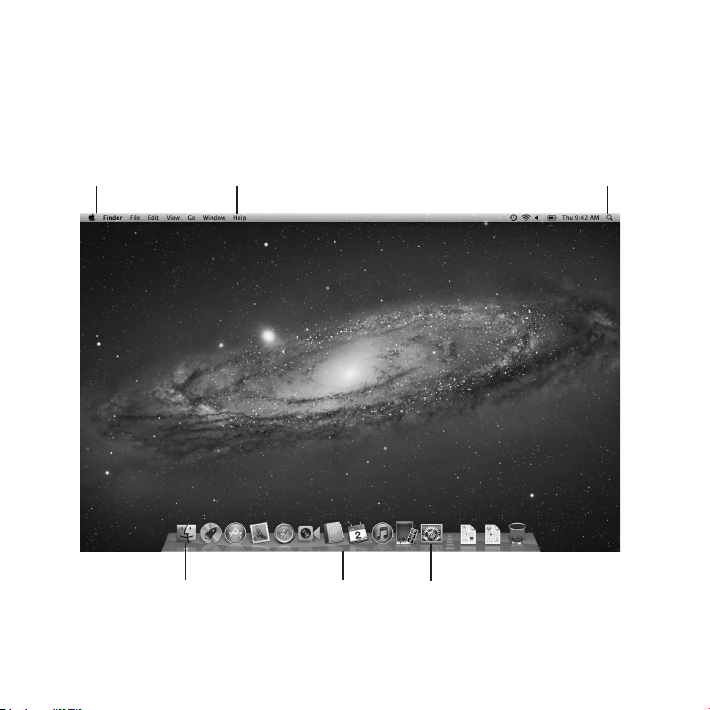
Step 4: Customize the Mac OS X desktop and set preferences.
Menubar
Helpmenu
Spotlightsearchicon
YoucanquicklymakethedesktoplookthewayyouwantusingSystem
Preferences,yourcommandcenterformostsettingsonyourMacBookAir.
ChooseApple()>SystemPreferencesfromthemenubarorclickthe
SystemPreferencesiconintheDock.
14 Chapter 1 Ready, Set Up, Go
Findericon
Dock
SystemPreferencesicon
Page 15

Important: YoucansetanoptiontoresetyourpasswordinUsers&Groups
preferences,incaseyouforgetyourloginpassword.Forhelpwithsystempreferences,
openHelpCenterandsearchfor“systempreferences”orforthespecicpreferenceyou
wanthelpfor.
Getting Additional Information onto Your MacBook Air
YourMacBookAircomeswithseveralapplicationsinstalled,includingtheiLifesuite.
ManyotherapplicationscanbedownloadedfromtheMacAppStoreortheInternet.If
youwanttoinstallthird-partyapplicationsfromaDVDorCD,youcan:
 InstallapplicationsontoyourMacBookAirorshareinformationusingtheopticaldisc
driveonanotherMacorPC(ifDVDorCDSharingissetupandenabled).Formore
information,seethenextsection.
 AttachtheMacBookAirSuperDrive(anexternalUSBopticaldiscdriveavailable
separatelyatwww.apple.com/store)totheUSBportonyourMacBookAir,and
insertyourinstallationdisc.
Setting Up DVD or CD Sharing
YoucanpartneryourMacBookAirwithanotherMacorPCthathasanopticaldisc
driveandisonthesamewiredorwirelessnetwork.Usethisothercomputerto:
 MigrateinformationtoyourMacBookAiraftersetupusingMigrationAssistant
(forinformationaboutusingMigrationAssistant,openHelpCenterandsearchfor
“MigrationAssistant”)
 SharethecontentsofDVDsorCDsorinstallapplications(seethenextsection)
15Chapter 1 Ready, Set Up, Go
Page 16

ThecomputerwiththeopticaldrivecanbeaMacwithMacOSXv10.4.11orlater,ora
Windows7,WindowsXP,orWindowsVistacomputer.IftheMachasMacOSXv10.5.3or
later,DVDorCDSharingisalreadyinstalled.Youcanpartnerwithmorethanoneother
computer,butyoucanuseonlyonepartnercomputeratatime.
Mac or Windows computer MacBook Air
IftheothercomputerisaPCoraMacwithaMacOSXversionearlierthan10.5.3,
downloadtheDVDorCDSharingSetupsoftwareforyourpartnercomputer:
 IftheothercomputerisaPC,gotosupport.apple.com/kb/DL112anddownloadthe
DVDorCDSharingSetupforWindowsinstaller.
 IftheothercomputerisaMacwithMacOSXv10.4.11–10.5.2,goto
support.apple.com/kb/DL113anddownloadtheDVDorCDSharingSetupfor
MacInstaller.
Afteryoudownloadthesoftware,followthestepsinthenextsectiontoenableDVDor
CDSharing,orreaddetailedinstructionsinsupport.apple.com/kb/HT1777.
16 Chapter 1 Ready, Set Up, Go
Page 17

Important: AfteryouinstalltheDVDorCDSharingSetuppackageonyourotherMac,
makesureyouhavethelatestsoftwarebychoosingApple()>SoftwareUpdate.
InstallanyavailableMacOSXupdates.
Sharing Discs with DVD or CD Sharing
YoucanenableDVDorCDSharingonaMacorPCtousetheRemoteDiscfeatureof
MacBookAir.RemoteDiscallowsyoutosharethediscsyouinsertintotheopticaldisc
driveoftheothercomputer.Somediscs,suchasDVDmoviesandgamediscs,maybe
copy-protectedandthereforeunusablethroughDVDorCDSharing.
MakesureDVDorCDSharingisalreadysetuponanyMacorPCyouwanttopartner
with.Forinformation,seepage15.
To enable DVD or CD Sharing, if your other computer is a Mac:
1 MakesureyourMacBookAirandtheotherMacareonthesamewirelessnetwork.
OntheotherMac,chooseApple()>SystemPreferencesandthenopenSharing.
2 IntheSharingpane,select“DVDorCDSharing”intheServicelist.Ifyouwantother
userstorequestpermissiontoshareaDVDorCD,select“Askmebeforeallowingothers
tousemyDVDdrive.”
To enable DVD or CD Sharing, if your other computer is a PC:
1 MakesureyourMacBookAirandthePCareonthesamewirelessnetwork.
2 OnthePC,opentheDVDorCDSharingcontrolpanel.
3 Select“EnableRemoteDVDorCD.”Ifyouwantotheruserstorequestpermissionto
shareaDVDorCD,select“AskmebeforeallowingotherstousemyDVDdrive.”
17Chapter 1 Ready, Set Up, Go
Page 18

To use a shared DVD or CD:
1 Ontheothercomputer,insertaDVDorCDintotheopticaldiscdrive.
2 OnyourMacBookAir,selectRemoteDiscwhenitappearsunderDevicesintheFinder
sidebar.Ifyouseethe“Asktouse”button,clickit.
3 Ontheothercomputer,whenprompted,clickAccepttoallowyourMacBookAirtouse
theDVDorCD.
4 OnyourMacBookAir,usethediscasyounormallywouldonceitbecomesavailable.
IfyoutrytoshutdowntheothercomputerorejectthesharedDVDorCDwhile
yourMacBookAirisusingit,youseeamessagetellingyouthatthediscisinuse.
Toproceed,clickContinue.
Putting Your MacBook Air to Sleep or Shutting It Down
WhenyounishworkingwithyourMacBookAir,youcanputittosleeporshut
itdown.
Putting Your MacBook Air to Sleep
Ifyou’llbeawayfromyourMacBookAirforonlyashorttime,putittosleep.Whenit’s
insleep,youcanquicklywakeitandbypassthestartupprocess.
To put your MacBook Air to sleep, do one of the following:
 Closethedisplay.
 ChooseApple()>Sleepfromthemenubar.
 Pressthepowerbutton(®)andclickSleepinthedialogthatappears.
 ChooseApple()>SystemPreferences,clickEnergySaver,andsetasleeptimer.
18 Chapter 1 Ready, Set Up, Go
Page 19

To wake your MacBook Air:
 If the display is closed,simplyopenittowakeyourMacBookAir.
 If the display is already open,pressthepowerbutton(®)oranykeyonthekeyboard.
WhenyourMacBookAirwakesfromsleep,yourapplications,documents,and
computersettingsareexactlyasyouleftthem.
Shutting Down Your MacBook Air
Ifyouaren’tgoingtouseyourMacBookAirforanextendedperiodoftime,it’sbestto
shutitdown.
To shut down your MacBook Air, do one of the following:
 ChooseApple()>ShutDownfromthemenubar.
 Pressthepowerbutton(®)andclickShutDowninthedialogthatappears.
IfyouplantostoreyourMacBookAirforanextendedperiodoftime,see“Important
HandlingInformation”onpage59forinformationabouthowtopreventyourbattery
fromdrainingcompletely.
19Chapter 1 Ready, Set Up, Go
Page 20

Page 21

2
Life with Your MacBook Air
www.apple.com/macosx
www.apple.com/macosx
Help Center Mac OS X
Page 22

Basic Features of Your MacBook Air
FaceTime camera
Camera indicator light
Stereo speakers
(under keyboard)
Battery
(built-in)
22 Chapter 2 Life with Your MacBook Air
Trackpad
Page 23

Built-in FaceTime camera and camera indicator light
UsetheincludedFaceTimeapplicationtomakevideocallstootherFaceTimeusers
(onanyiPhone4,iPad2,newiPodtouch,orMacwithFaceTime),takepictureswith
PhotoBooth,orcapturevideowithiMovie.Theindicatorlightglowswhenthe
FaceTimecameraisoperating.
Built-in stereo speakers
Listentomusic,movies,games,andmultimediales.
Built-in rechargeable battery
Usebatterypowerwhenyou’reawayfromapoweroutlet.
Trackpad
Clickordouble-clickanywhereonthetrackpad.Touchthetrackpadwithoneormore
ngerstomovethepointeranduseMulti-Touchgestures(seepage28).
23Chapter 2 Life with Your MacBook Air
Page 24

Keyboard Features of Your MacBook Air
Function (fn) key
Mission
Control key
Brightness
keys
24 Chapter 2 Life with Your MacBook Air
Keyboard
illumination keys
Launchpad
key
Media
keys
Mute
key
Volume
keys
Power
button
Page 25

Function (fn) key
Pressandholdthiskeytoactivatecustomizedactionsassignedtothefunctionkeys
(F1toF12).Tolearnhowtocustomizefunctionkeys,searchfor“functionkeys”in
HelpCenter.
Brightness keys (F1, F2)
Increase(
Mission Control key (F3)
OpenMissionControltogetacomprehensiveviewofwhat’srunningonyour
MacBookAir,includingDashboard,allyourspaces,andallopenwindows.
Launchpad key (F4)
OpenLaunchpadtoinstantlyseealltheapplicationsonyourMacBookAir.Clickan
applicationtoopenit.
Keyboard illumination keys (F5, F6)
o
Increase(
Media keys (F7, F8, F9)
’
Rewind(
Mute key (F10)
—
Mutethesoundcomingfromthebuilt-inspeakersandheadphoneport.
Volume keys (F11, F12)
-
Increase(
headphoneport.
Power button
®
TurnyourMacBookAironoro,orputittosleep.
)ordecrease( )thebrightnessofthescreen.
o)ordecrease(ø)thebrightnessofthekeyboardillumination.
),playorpause(’),orfast-forward( )asong,movie,orslideshow.
-)ordecrease(–)thevolumeofsoundcomingfromthebuilt-inspeakersor
25Chapter 2 Life with Your MacBook Air
Page 26

Ports on Your MacBook Air
USB 2.0 portdMicrophone
¯
MagSafe
power port
26 Chapter 2 Life with Your MacBook Air
Headphone
f
port
USB 2.0 port
d
Thunderbolt port
Page 27

MagSafe power port
¯
Plugintheincluded45WMagSafePowerAdaptertorechargetheMacBookAirbattery.
USB (Universal Serial Bus) 2.0 ports
d
ConnectaMacBookAirSuperDrive,USBtoEthernetadapter,iPod,iPhone,iPad,
mouse,keyboard,printer,diskdrive,digitalcamera,joystick,modem,andmoretoyour
MacBookAir.
Headphone port
f
Connectexternalspeakersandheadphones.
Built-in microphone
Capturesoundswiththemicrophone(locatedontheleftside,nexttotheheadphone
port)ortalkwithfriendsliveoverbroadbandusingtheincludedFaceTimeapplication.
Thunderbolt port (high-speed data, video, and audio)
ConnectThunderbolt-compatibledevicesforhigh-speeddatatransfer,orconnect
anexternaldisplaythatusesMiniDisplayPort.Youcanpurchaseadapterstoconnect
displaysthatuseDVI,HDMI,orVGA.
Note: Adaptersandotheraccessoriesaresoldseparatelyatwww.apple.com/storeor
yourlocalAppleRetailStore.
27Chapter 2 Life with Your MacBook Air
Page 28

Using the Multi-Touch Trackpad
UsethetrackpadtomovethepointerandtoperformavarietyofMulti-Touchgestures.
Unliketypicaltrackpads,theentireMacBookAirtrackpadisabutton,andyoucanclick
anywhereonthetrackpad.ToenableMulti-Touchgestures,viewinstructionalvideosof
thegestures,andsetothertrackpadoptions,chooseApple()>SystemPreferences,
andthenclickTrackpad.
HerearewaystouseyourMacBookAirtrackpad:
 Two-nger scrollingletsyoudragtoscrollquicklyup,down,orsidewaysintheactive
window.
28 Chapter 2 Life with Your MacBook Air
Page 29

 Secondary-clickingor“right-clicking”letsyouaccessshortcutmenucommands.
Tosetuptwo-ngersecondary-clickinganywhereonthetrackpad,select
•
“Secondaryclick”inthePoint&ClickpaneofTrackpadpreferences.
Tosetupaone-ngersecondary-clickzoneinthebottomleftorrightcornerofthe
•
trackpad,select“Secondaryclick”inthePoint&ClickpaneofTrackpadpreferences,
andchooseanoptionfromthepop-upmenu.
Secondary-click zone
Note: Youcanalsosecondary-clickbyholdingdowntheControlkeywhileyouclick.
29Chapter 2 Life with Your MacBook Air
Page 30

Thefollowingtrackpadgesturesworkincertainapplications.Whenyouperformthese
gestures,slideyourngerslightlyonthesurfaceofthetrackpad.Formoreinformation,
seeTrackpadpreferencesorchooseHelp>HelpCenterandsearchfor“trackpad.”
 Two-nger pinchingletsyouzoominoroutonPDFs,images,photos,andmore.
 Two-nger rotatingletsyourotatephotos,pages,andmore.
30 Chapter 2 Life with Your MacBook Air
Page 31

 Three-nger swipingworksintheFinderandallapplications.Swipingthreengersto
theleftorrightletsyoucyclethroughfull-screenapplications.Swipingthreengers
upopensMissionControl.Youcanalsosettheseoptionstoworkwithfourngers.
 Four-nger pinchingdisplaysLaunchpadwhenyoupinchyourthumbandthree
ngerstogether.Spreadthesamengersaparttoreturntothedesktop.
Note: Youcanspecifyotherfunctionsformanygestures.Fordetailsaboutallavailable
gestures,chooseApple()>SystemPreferences,andthenclickTrackpad.Clickthe
checkboxestoturngesturesonoro,andexplorethepop-upmenustoseethe
optionsforeachgesture.
31Chapter 2 Life with Your MacBook Air
Page 32

Running Your MacBook Air on Battery Power
WhentheMagSafepoweradapterisn’tconnected,yourMacBookAirdrawspower
fromitsbuilt-inbattery.ThelengthoftimethatyoucanrunyourMacBookAirvaries,
dependingontheapplicationsyouuseandtheexternaldevicesconnectedtoyour
MacBookAir.
TurningofeaturessuchasWi-FiorBluetooth®wirelesstechnologyandreducing
screenbrightnesscanhelpconservebatterycharge.Manyofyoursystempreferences
areautomaticallysettooptimizebatterylife.
Charging the Battery
Youcandeterminewhetherthebatteryneedstobechargedbylookingatthe
indicatorlightontheMagSafeconnector.Ifthelightisglowingamber,thebattery
needstobecharged.Ifthelightisglowinggreen,thebatteryisfullycharged.
YoucanalsochecktheamountofbatterychargeleftbyviewingtheBatterystatus
icon( )inthemenubar.Thebatterychargeleveldisplayedisbasedontheamount
ofpowerleftinthebatterywiththeapplications,peripheraldevices,andsystem
settingsyouarecurrentlyusing.Toconservebatterypower,closeapplicationsand
disconnectperipheraldevicesnotinuse,andadjustyourEnergySaversettings.
Formoreinformationaboutbatteryconservationandperformancetips,goto
www.apple.com/batteries/notebooks.html.
WhenthepoweradapterthatcamewithyourMacBookAirisconnected,thebattery
rechargeswhetherthecomputerison,o,orinsleep.Thebatteryrechargesmore
quickly,however,whenthecomputerisoorinsleep.
32 Chapter 2 Life with Your MacBook Air
Page 33

ThebatteryinyourMacBookAircanbereplacedonlybyanAppleAuthorizedService
ProvideroratanAppleRetailStore.
Getting Answers
MuchmoreinformationaboutusingyourMacBookAirisavailableinHelpCenter,and
ontheInternetatwww.apple.com/support/macbookair.
To get help from Help Center:
1 ClicktheFindericonintheDock(thebaroficonsalongtheedgeofthescreen).
2 ClicktheHelpmenuinthemenubaranddooneofthefollowing:
 TypeaquestionortermintheSearcheld,andchooseatopicfromtheresultslistor
chooseShowAllHelpTopicstoseealltopics.
 ChooseHelpCentertoopentheHelpCenterwindow,whereyoucanbrowseor
searchtopics.
33Chapter 2 Life with Your MacBook Air
Page 34

More Information
FormoreinformationaboutusingyourMacBookAir,seethefollowing:
To learn about See
Troubleshootingyour
MacBookAirifyouhave
aproblem
Findingserviceandsupport
foryourMacBookAir
UsingMacOSX TheMacOSXwebsiteatwww.apple.com/macosx.
MovingfromaPCtoaMac “WhyYou’llLoveaMac”atwww.apple.com/getamac/whyamac.
MigrationAssistant HelpCenterandsearchfor“MigrationAssistant.”
UsingiLifeapplications TheiLifewebsiteatwww.apple.com/ilife.OropenaniLife
ChangingSystemPreferences
Usingthetrackpad SystemPreferences,andthenclickTrackpad.
Usingthekeyboard HelpCenterandsearchfor“keyboard.”
UsingtheFaceTimecamera HelpCenterandsearchfor“camera.”
UsingWi-Fitechnology HelpCenterandsearchfor“wi-.”
UsingBluetoothwireless
technology
Chapter3,“Problem,MeetSolution”onpage37.
“LearningMore,Service,andSupport”onpage50.Orgotothe
AppleSupportwebsiteatwww.apple.com/support/macbookair.
Orsearchfor“MacOSX”inHelpCenter.
application,openHelpfortheapplication,andthentypea
questionorterminthesearcheld.
SystemPreferencesbychoosingApple(
Preferences.Orsearchfor“systempreferences”inHelpCenter.
TheBluetoothSupportpageatwww.apple.com/support/
bluetooth.OropentheBluetoothFileExchangeapplication
(intheUtilitiesfolderinLaunchpad)andchooseHelp>
BluetoothHelp.
K
)>System
34 Chapter 2 Life with Your MacBook Air
Page 35

To learn about See
Caringforthebattery HelpCenterandsearchfor“battery.”
Connectingaprinter HelpCenterandsearchfor“printing.”
USBconnections HelpCenterandsearchfor“USB”.
ConnectingtotheInternet HelpCenterandsearchfor“Internet.”
UsingtheThunderboltport HelpCenterandsearchfor“Thunderbolt.”
Connectinganexternaldisplay HelpCenterandsearchfor“displayport.”
Specications TheSpecicationspageatsupport.apple.com/specs.Oropen
Applenews TheApplewebsiteatwww.apple.com.
Softwaredownloads
Instructions,technicalsupport,
andmanualsforAppleproducts
SystemInformationbychoosingApple(
fromthemenubar,andthenclickMoreInfo.
TheMacAppStore(chooseApple(
AppStoreiconintheDock).
TheAppleSupportwebsiteatwww.apple.com/support.
K
)>AboutThisMac
K
)>AppStoreorclickthe
35Chapter 2 Life with Your MacBook Air
Page 36

Page 37

Problem, Meet Solution
www.apple.com/macosx
www.apple.com/support
Help Center help
3
Page 38

Occasionally,youmayhaveproblemswhileworkingwithyourMacBookAir.Read
onfortroubleshootingtipstotrywhenyouhaveaproblem.Youcanalsondmore
troubleshootinginformationinHelpCenterandontheMacBookAirSupportwebsite
atwww.apple.com/support/macbookair.
IfyouexperienceaproblemwithyourMacBookAir,there’susuallyasimpleandquick
solution.Thinkabouttheconditionsthatleduptotheproblem.Makinganoteof
thingsyoudidbeforetheproblemoccurredwillhelpyounarrowdownpossiblecauses
andndtheanswersyouneed.Thingstonoteinclude:
 Theapplicationsyouwereusingwhentheproblemoccurred.Problemsthatoccur
onlywithaspecicapplicationmightindicatethattheapplicationisnotcompatible
withtheversionoftheMacOSinstalledonyourMacBookAir.
 Anynewsoftwarethatyouinstalled,especiallysoftwarethataddeditemstothe
Systemfolder.
An Ounce of Prevention
Ifyouhaveaproblemwithyourcomputerorsoftware,havingkeptup-to-dateTime
Machinebackupsensuresthatyourdatawon’tbelost.IfyoumakeregularTime
Machinebackups,youcanrestoreyoursoftwareandallyourdatatoexactlytheway
itwasatthetimeofthebackup.Evenseriousissuesareoflessconcernwhenyou
safeguardyourinformationwithTimeMachine.
38 Chapter 3 Problem, Meet Solution
Page 39

Problems That Prevent You from Using Your MacBook Air
If your MacBook Air doesn’t respond or the pointer doesn’t move
Onrareoccasion,anapplicationmight“freeze”onthescreen.MacOSXprovidesaway
toquitafrozenapplicationwithoutrestartingthecomputer.
To force an application to quit:
1 PressCommand(x)-Option-EscorchooseApple()>ForceQuitfromthemenubar.
TheForceQuitApplicationsdialogappearswiththeapplicationselected.
2 ClickForceQuit.
Theapplicationquits,leavingallotherapplicationsopen.
Ifyouneedto,youcanalsorestarttheFinderfromthisdialog.
Next,restartyourMacBookAirtomakesuretheproblemisentirelyclearedup.
Iftheproblemoccursfrequently,chooseHelp>HelpCenterfromthemenubaratthe
topofthescreen.Searchfortheword“freeze”togethelpfortimeswhenthecomputer
freezesordoesn’trespond.
Iftheproblemoccursonlywhenyouuseaparticularapplication,checkwiththe
application’smanufacturertoseeiftheapplicationiscompatiblewithyour
MacBookAir.TogetinformationforthesoftwarethatcamewithyourMacBookAir,
gotowww.apple.com/downloads.
Ifyouknowanapplicationiscompatible,youmightneedtoreinstalltheapplication.
39Chapter 3 Problem, Meet Solution
Page 40

If your MacBook Air freezes during startup, or you see a ashing question mark,
or the display is dark
TheashingquestionmarkusuallymeansthatyourMacBookAircan’tndthesystem
softwareontheinternalashstorageoronanyexternaldisksthatareattached.
Waitafewseconds.IfyourMacBookAirstilldoesn’tstartup,shutitdownbyholding
downthepowerbutton(®)forabout8to10seconds.Disconnectallexternal
peripheralsandtryrestartingbypressingthepowerbutton(®)whileholdingdown
theOptionkey.WhenyourMacBookAirstartsup,clicktheinternalashstorageicon,
andthenclicktherightarrow.Afteritstartsup,openSystemPreferencesandclick
StartupDisk.SelectalocalMacOSXsystemfolder.
If your MacBook Air doesn’t turn on or start up
TrythefollowingsuggestionsinorderuntilyourMacBookAirturnson:
 MakesurethepoweradapterispluggedintoyourMacBookAirandintoa
functioningpoweroutlet.Besuretousethe45WMagSafePowerAdapterthatcame
withyourMacBookAir.Ifthepoweradapterstopschargingandyoudon’tseethe
indicatorlightonthepoweradapterturnonwhenyoupluginthepowercord,try
unpluggingandrepluggingthepowercordtoreseatit.
 Checkwhetherthebatteryneedstoberecharged.Ifthelightonthepoweradapter
glowsamber,thebatteryischarging.See“ChargingtheBattery”onpage32.
 Iftheproblempersists,resettheMacBookAirpowermanager(whilestillpreserving
yourles)bypressingtheleftShiftkey,leftOptionkey,leftControlkey,andthe
powerbutton(®)simultaneouslyforvesecondsuntilyourMacBookAirrestarts.
40 Chapter 3 Problem, Meet Solution
Page 41

 Pressandreleasethepowerbutton(®)andimmediatelyholddownthe
Command(x),Option,P,andRkeyssimultaneouslyuntilyouhearthestartup
soundasecondtime.ThisresetstheparameterRAM(PRAM).
 Ifyoustillcan’tstartupyourMacBookAir,see“LearningMore,Service,andSupport”
onpage50forinformationaboutcontactingAppleforservice.
If the screen suddenly goes black or your MacBook Air freezes
TryrestartingyourMacBookAir.
1 UnpluganydevicesthatareconnectedtoyourMacBookAir,exceptthepoweradapter.
2 Pressthepowerbutton(®)torestartthesystem.
3 Letthebatterychargetoatleast10percentbeforeplugginginanyexternaldevices
andresumingyourwork.
Toseehowmuchthebatteryhascharged,lookattheBatterystatusicon( )inthe
menubar.
Thescreenmightalsodarkenifyouhaveenergysaverfeaturessetforthebattery.
If your MacBook Air can’t connect to another computer’s optical disc drive
TouseservicessuchasMigrationAssistant,DVDorCDSharing,andiTunesmusic
sharing,bothyourMacBookAirandtheothercomputermustbeconnectedtothe
samenetwork.IfyourMacBookAirisconnectedwirelesslyandtheothercomputer
isconnectedtoathird-partyrouterbyEthernet,checkyourrouterdocumentation
tomakesureitsupportsbridgingawirelesstowiredconnection.
41Chapter 3 Problem, Meet Solution
Page 42
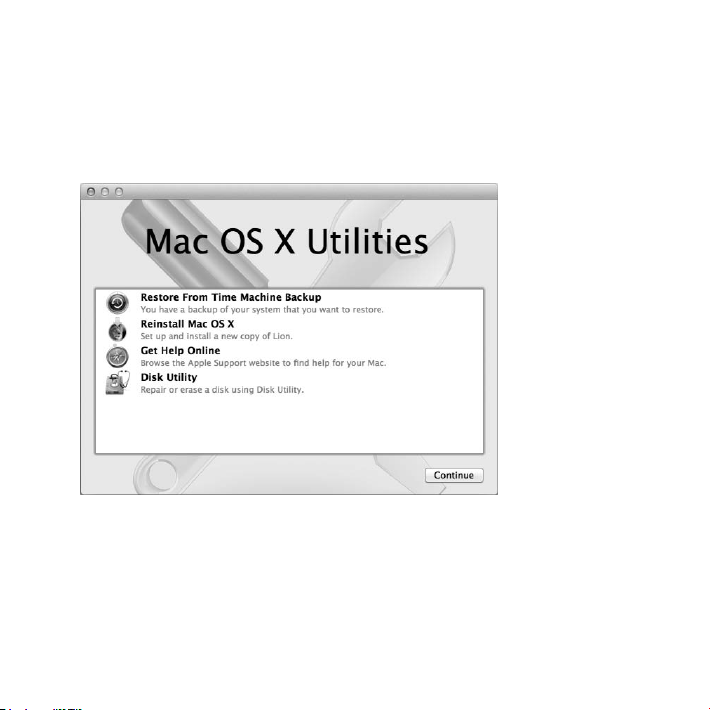
Repairing, Restoring, or Reinstalling Mac OS X Software
IfyouhaveaproblemwithyourMacsoftwareorhardware,MacOSXprovidesrepair
andrestoreutilitiesthatmayeliminateproblemsandcanevenrestoreyoursoftware
toitsoriginalfactorysettings.YoucanaccesstheseutilitiesfromtheMacOSXUtilities
application,evenifyourcomputerisn’tstartingupcorrectly.
UsetheMacOSXUtilitiesapplicationto:
 Repairyourcomputer’sdiskusingDiskUtility.
 RestoreyoursoftwareanddatafromaTimeMachinebackup.
42 Chapter 3 Problem, Meet Solution
Page 43

 ReinstallMacOSXandAppleapplications.
 Restoreyourcomputertoitsfactorysettingsbyerasingitsdiskandreinstalling
MacOSXandyourAppleapplications.
Ifyourcomputerdetectsaproblem,itopenstheMacOSXUtilitiesapplication
automatically.Youcanalsoopenitmanuallybyrestartingyourcomputer.
To open the Mac OS X Utilities application:
m RestartyourcomputerwhileholdingdowntheCommand(x)andRkeys.TheMacOSX
Utilitiespaneappears.
Important: IftheMacOSXUtilitiesapplicationdoesn’topenafterrestarting,hold
downCommand(x)-Option-RandrestartthecomputertoaccesstheMacOSX
UtilitiessoftwarefromtheInternet.Yourcomputermustbeconnectedtoanetwork
thathasaccesstotheInternet.
SomeutilitiesintheMacOSXUtilitiesapplicationrequireaccesstotheInternetand
theMacAppStore.Youmayneedtomakesureyourcomputerisconnectedtothe
InternetbyusingyourEthernetorWi-Finetwork.
To connect by using a Wi-Fi network:
1 ChooseanetworkfromtheWi-Fistatusmenuintheupperrightcornerofthescreen.
2 Ifnecessary,typethenetworkpassword.
Tojoinaclosednetwork,chooseJoinOtherNetwork.Enterthenetwork’sname
andpassword.
43Chapter 3 Problem, Meet Solution
Page 44

Repairing a Disk with Disk Utility
Ifyouhaveaproblemwithyourcomputer,orifyoustartyourcomputerandseethe
MacOSXUtilitiesapplication,youmayneedtorepairyourcomputer’sdisk.
1 SelectDiskUtilityintheMacOSXUtilitiespaneandclickContinue.
2 Selectthediskorpartitioninthelistontheleft,andthenclicktheFirstAidtab.
3 ClickRepairDisk.
IfDiskUtilitycan’trepairthedisk,backupasmuchofyourinformationaspossible,
andthenfollowtheinstructionsin“ReinstallingMacOSXandAppleApplications”on
page45.
ForinformationaboutDiskUtilityanditsoptions,seeHelpCenter,oropenDiskUtility
(intheUtilitiesfolderinLaunchpad)andchooseHelp>DiskUtilityHelp.
Restoring Information Using a Time Machine Backup
IfyoupreviouslycreatedaTimeMachinebackup,usetheRestoreutilitytorestore
everythingonyourcomputertoitspreviousstate.
UseyourTimeMachinebackuptorestoreinformationonlytothecomputerthatwas
thesourceofthebackup.Ifyouwanttotransferinformationtoanewcomputer,use
MigrationAssistant(intheUtilitiesfolderinLaunchpad).
1 IfyourbackupisonaTimeCapsule,makesureyou’reconnectedtoanEthernetor
Wi-Finetwork.(ToconnecttoaWi-Finetwork,followtheinstructionsonpage43.)
2 IntheMacOSXUtilitiespane,selectRestoreFromTimeMachineBackupand
clickContinue.
3 SelectthediskthatcontainstheTimeMachinebackup,andthenfollowtheonscreen
instructions.
44 Chapter 3 Problem, Meet Solution
Page 45

Reinstalling Mac OS X and Apple Applications
Undersomecircumstances,youmayneedtoreinstallMacOSXandAppleapplications.
Youcanreinstallwhilekeepingyourlesandusersettingsintact.
1 MakesureyourMacBookAirisconnectedtotheInternetbyusinganEthernetorWi-Fi
network.(ToconnecttoaWi-Finetwork,followtheinstructionsonpage43.)
2 IntheMacOSXUtilitiespane,selectReinstallMacOSXandclickContinue.
3 Inthepanewhereyou’reaskedtoselectadisk,selectyourcurrentMacOSXdisk
(inmostcases,itistheonlyoneavailable).
4 Toselectordeselectoptionalsoftware,clickCustomize.
5 ClickInstall.
YoucaninstallMacOSXwithouterasingthedisk,whichsavesyourexistingles
andsettings,oryoucanerasethediskrst,whicherasesallyourdataandleavesthe
computerreadyforyoutoreinstallMacOSXandAppleapplications.
AfterinstallingMacOSX,youcangototheMacAppStoreandre-downloadyour
Appleapplications.
Important: Applerecommendsthatyoubackupthedataonthediskbeforerestoring
software.Appleisnotresponsibleforanylostdata.
Restoring Your Computer to Its Factory Settings
Whenyourestoreyourcomputertoitsfactorysettings,everythingonyourcomputer
(youruseraccounts,networksettings,andallofyourlesandfolders)isdeleted.Before
yourestore,backupanylesyouwanttokeepbycopyingthemtoanotherdisk.
WritedownyournetworksettingsfromNetworkpreferencestomakeiteasiertoget
connectedagainafterreinstallingMacOSX.
45Chapter 3 Problem, Meet Solution
Page 46

1 MakesureyourMacBookAirisconnectedtotheInternetbyusinganEthernetorWi-Fi
network.(ToconnecttoaWi-Finetwork,followtheinstructionsonpage43.)
2 IntheMacOSXUtilitiespane,selectDiskUtilityandclickContinue.
3 Selectthediskinthelistontheleft,andthenclicktheErasetab.
4 SelectMacOSExtended(Journaled)fromtheFormatpop-upmenu,typeanamefor
thedisk,andthenclickErase.
5 Afterthediskiserased,chooseDiskUtility>QuitDiskUtility.
6 IntheMacOSXUtilitiespane,selectReinstallMacOSXandclickContinue.
7 ToreinstallMacOSXandyourapplications,followtheinstructionsintheMacOSX
Installer.
AfterrestoringMacOSXandyourAppleapplications,youcanselectivelyrestoreyour
otherdataandapplicationsfromaTimeMachinebackup.
Checking for a Hardware Problem
Ifyoususpectahardwareproblem,usetheAppleHardwareTestapplicationtohelp
determineifthere’saproblemwithoneoftheMacBookAircomponents,suchasthe
memoryorprocessor.
To use Apple Hardware Test:
1 DisconnectallexternaldevicesfromyourMacBookAirexceptthepoweradapter.
2 RestartyourMacBookAirwhileholdingdowntheDkey.
3 WhentheAppleHardwareTestchooserscreenappears,selectthelanguageyouwant
touse.
4 PresstheReturnkeyorclicktherightarrowbutton.
46 Chapter 3 Problem, Meet Solution
Page 47

5 WhentheAppleHardwareTestmainscreenappears(afterabout45seconds),follow
theonscreeninstructions.
6 IfAppleHardwareTestdetectsaproblem,itdisplaysanerrorcode.Makeanoteofthe
errorcodebeforepursuingsupportoptions.IfAppleHardwareTestdoesn’tdetecta
hardwarefailure,theproblemmaybesoftwarerelated.
Important: IftheAppleHardwareTestdoesn’tappearafterrestarting,holddown
Option-DandrestartthecomputertoaccesstheAppleHardwareTestsoftwarefrom
theInternet.Yourcomputermustbeconnectedtoanetworkthathasaccesstothe
Internet.
Problems with Your Internet Connection
YourMacBookAirhasaNetworkSetupAssistantapplicationtohelpyousetupan
Internetconnection.OpenSystemPreferencesandclickNetwork.
Clickthe“Assistme”buttontoopenNetworkSetupAssistant.
IfyouhavetroublewithyourInternetconnection,tryusingNetworkDiagnostics.
To use Network Diagnostics:
1 ChooseApple()>SystemPreferences.
2 ClickNetworkandthenclick“Assistme.”
3 ClickDiagnosticstoopenNetworkDiagnostics.
4 Followtheonscreeninstructions.
IfNetworkDiagnosticscan’tresolvetheproblem,theremaybeaproblemwiththe
Internetserviceprovider(ISP)youaretryingtoconnectto,withanexternaldeviceyou
areusingtoconnecttoyourISP,orwiththeserveryouaretryingtoaccess.
47Chapter 3 Problem, Meet Solution
Page 48

IfyouhavetwoormorecomputerssharinganInternetconnection,besurethatyour
wirelessnetworkissetupproperly.YouneedtoknowifyourISPprovidesonlyoneIP
addressorifitprovidesmultipleIPaddresses,oneforeachcomputer.
IfonlyoneIPaddressisprovided,thenyoumusthavearoutercapableofsharing
theconnection,alsoknownasnetworkaddresstranslation(NAT)or“IPmasquerading.”
Forsetupinformation,checkthedocumentationprovidedwithyourrouteror
askthepersonwhosetupyournetwork.YoucanuseanAirPortbasestationto
shareoneIPaddressamongmultiplecomputers.Forinformationaboutusing
anAirPortbasestation,checkHelpCenterorvisittheAppleAirPortwebsiteat
www.apple.com/support/airport.
Ifyoucannotresolvetheissueusingthesesteps,contactyourISPornetwork
administrator.
Problems with Wi-Fi Communication
IfyouhavetroubleusingWi-Fi(wirelesscommunication):
 Makesurethecomputerornetworkyou’retryingtoconnecttoisrunningandhas
awirelessaccesspoint.
 Makesureyou’veproperlyconguredthesoftwareaccordingtotheinstructionsthat
camewithyourbasestationoraccesspoint.
 Makesureyou’rewithinrangeoftheothercomputerorthenetwork’saccess
point.Nearbyelectronicdevicesormetalstructurescaninterferewithwireless
communicationandreducethisrange.Repositioningorrotatingthecomputermight
improvereception.
48 Chapter 3 Problem, Meet Solution
Page 49

 ChecktheWi-Fistatusicon(Z)inthemenubar.Uptofourbarsappear,indicating
signalstrength.Ifsignalstrengthislow,trychangingyourlocation.
 GethelponlinebychoosingHelp>HelpCenter,andthensearchingfor“wi-”.Also
seetheinstructionsthatcamewiththewirelessdeviceformoreinformation.
Keeping Your Software Up to Date
YoucanconnecttotheInternetandautomaticallydownloadandinstallthelatest
freesoftwareversions,drivers,andotherenhancementsfromApple.
Whenyou’reconnectedtotheInternet,SoftwareUpdatecheckstoseeifanyupdates
areavailable.YoucansetyourMacBookAirtocheckforupdatesperiodically,and
downloadandinstallupdatedsoftware.
To check for updated software:
1 ChooseApple()>SystemPreferences.
2 ClicktheSoftwareUpdateiconandfollowtheonscreeninstructions.
 Formoreinformation,searchfor“SoftwareUpdate”inHelpCenter.
 ForthelatestinformationaboutMacOSX,gotowww.apple.com/macosx.
You’llalsogetnoticesfromtheMacAppStorewhenapplicationupdatesareavailable.
Asmallnumberindicatingthenumberofupdatesappearsontherightedgeofthe
AppStoreicon.Youcanupdateoneormoreapplicationsatatime.
49Chapter 3 Problem, Meet Solution
Page 50

Learning More, Service, and Support
YourMacBookAirdoesnothaveanyuser-serviceableoruser-replaceableparts.Ifyou
needservice,contactAppleortakeyourMacBookAirtoanAppleAuthorizedService
Provider.YoucanndmoreinformationaboutyourMacBookAirthroughonline
resources,onscreenhelp,SystemInformation,andAppleHardwareTest.
Online Resources
Foronlineserviceandsupportinformation,gotowww.apple.com/supportandchoose
yourcountryfromthepop-upmenu.YoucansearchtheAppleCareKnowledgeBase,
checkforsoftwareupdates,orgethelpfromApple’sdiscussionforums.
Onscreen Help
Youcanoftenndanswerstoyourquestions,aswellasinstructionsand
troubleshootinginformation,inHelpCenter.ChooseHelp>HelpCenter.
System Information
TogetinformationaboutyourMacBookAir,useSystemInformation.Itshowsyou
whathardwareandsoftwareisinstalled,theserialnumberandoperatingsystem
version,howmuchmemoryisinstalled,andmore.ToopenSystemInformation,
chooseApple()>AboutThisMacfromthemenubarandthenclickMoreInfo.
AppleCare Service and Support
YourMacBookAircomeswith90daysoftechnicalsupportandoneyearof
hardwarerepairwarrantycoverageatanAppleRetailStoreoranApple-authorized
repaircenter,suchasanAppleAuthorizedServiceProvider.Youcanextendyour
coveragebypurchasingtheAppleCareProtectionPlan.Forinformation,visit
www.apple.com/support/productsorvisitthewebsiteaddressforyourcountry
listedlaterinthesection.
50 Chapter 3 Problem, Meet Solution
Page 51

Ifyouneedassistance,AppleCaretelephonesupportrepresentativescanhelpyou
withinstallingandopeningapplications,andbasictroubleshooting.Callthesupport
centernumbernearestyou(therst90daysarecomplimentary).Havethepurchase
dateandyourMacBookAirserialnumberreadywhenyoucall.
Your90daysofcomplimentarytelephonesupportbeginsonthedateofpurchase.
Country Phone Website
UnitedStates 1-800-275-2273 www.apple.com/support
Australia (61)1-300-321-456 www.apple.com/au/support
Canada(English)
(French)
Ireland (353)1850946191 www.apple.com/ie/support
NewZealand 00800-7666-7666 www.apple.com/nz/support
UnitedKingdom (44)08442090611 www.apple.com/uk/support
1-800-263-3394 www.apple.com/ca/support
www.apple.com/ca/fr/support
Telephonenumbersaresubjecttochange,andlocalandnationaltelephoneratesmay
apply.Acompletelistisavailableontheweb:
www.apple.com/support/contact/phone_contacts.html
51Chapter 3 Problem, Meet Solution
Page 52

Locating Your Product Serial Number
Serial number
UseoneofthesemethodstondyourMacBookAirserialnumber:
 TurnoveryourMacBookAir.Theserialnumberisetchedintothecasenearthehinge.
 ChooseApple()>AboutThisMac.Clicktheversionnumberbeneaththewords
“MacOSX”tocyclethroughtheMacOSXversionnumber,thebuildversion,andthe
serialnumber.
 OpenSystemInformation(intheUtilitiesfolderinLaunchpad).IntheContentspane,
clickHardware.
52 Chapter 3 Problem, Meet Solution
Page 53

Last, but Not Least
www.apple.com/macosx
www.apple.com/environment
Help Center ergonomics
4
Page 54

Foryoursafetyandthatofyourequipment,followtheserulesforhandlingand
cleaningyourMacBookAirandforworkingmorecomfortably.Keeptheseinstructions
handyforreferencebyyouandothers.
NOTICE: IncorrectstorageoruseofyourMacBookAirmayvoidthemanufacturer’s
warranty.
Important Safety Information
WARNING: Failuretofollowthesesafetyinstructionscouldresultinre,electricshock,
orotherinjuryordamage.
Built-in batteryDonotremovethebatteryfromyourMacBookAir.Thebattery
shouldbereplacedonlybyanAppleAuthorizedServiceProvider.Discontinueuseof
yourMacBookAirifit’sdroppedorappearscrushed,bent,deformed,ordamaged.Do
notexposeyourMacBookAirtoextremeheatsources,suchasradiatorsorreplaces,
wheretemperaturesmightexceed212°For100°C.
Proper handling ThebottomofyourMacBookAirmaybecomeverywarmduring
normaluse.TheMacBookAircomplieswiththeuser-accessiblesurfacetemperature
limitsdenedbytheInternationalStandardforSafetyofInformationTechnology
Equipment(IEC60950-1).
54 Chapter 4 Last, but Not Least
Page 55

Tooperatethecomputersafelyandreducethepossibilityofheat-relatedinjuries,
followtheseguidelines:
 SetupyourMacBookAironastableworksurfacethatallowsforadequateair
circulationunderandaroundthecomputer.
 DonotoperateyourMacBookAironapillow,blanket,orothersoftmaterial,because
thematerialcanblocktheairowvents.
 NeverplaceanythingoverthekeyboardwhenoperatingyourMacBookAir.
 Donotpushobjectsintotheventilationopenings.
 IfyourMacBookAirisonyourlapandgetsuncomfortablywarm,removeitfromyour
lapandplaceitonastableworksurface.
Water and wet locationsKeepyourMacBookAirawayfromsourcesofliquid,suchas
drinks,washbasins,bathtubs,showerstalls,andsoon.ProtectyourMacBookAirfrom
dampnessorwetweather,suchasrain,snow,andfog.
45W MagSafe Power AdapterUseonlythepoweradapterthatcamewithyour
MacBookAir,oranApple-authorizedpoweradapterthatiscompatiblewiththis
product.MakesuretheACplugorACpowercordisfullyinsertedintothepower
adapterbeforepluggingtheadapterintoapoweroutlet.
Thepoweradaptermaybecomeverywarmduringnormaluse.TheMagSafePower
Adaptercomplieswiththeuser-accessiblesurfacetemperaturelimitsdenedbythe
InternationalStandardforSafetyofInformationTechnologyEquipment(IEC60950-1).
55Chapter 4 Last, but Not Least
Page 56

Toreducethepossibilityofoverheatingthepoweradapterorofheat-relatedinjuries,
MagSafe connector
AC plug
dooneofthefollowing:
 Plugthepoweradapterdirectlyintoapoweroutlet.
MagSafe Power Adapter
 Ifyou’reusingtheACpowercord,placethepoweradapteronadesk,table,oronthe
oorinawell-ventilatedlocation.
AC power cord
56 Chapter 4 Last, but Not Least
MagSafe Power Adapter
MagSafe connector
Page 57

Disconnectthepoweradapteranddisconnectanyothercablesifanyofthefollowing
conditionsexists:
 Youwanttocleanthecase(useonlytherecommendedproceduredescribedon
page60).
 Thepowercordorplugbecomesfrayedorotherwisedamaged.
 YourMacBookAirorpoweradapterisexposedtorain,excessivemoisture,orliquid
spilledintothecase.
 YourMacBookAirorpoweradapterhasbeendropped,thecasehasbeendamaged,
oryoususpectthatserviceorrepairisrequired.
TheMagSafepowerportcontainsamagnetthatcanerasedataonacreditcard,
iPod,orotherdevice.Topreserveyourdata,donotplacetheseorothermagnetically
sensitivematerialordeviceswithin1inch(25mm)ofthisport.
IfdebrisgetsintotheMagSafepowerport,removeitgentlywithadrycottonswab.
MagSafe power specications:
 Frequency:50to60Hz,singlephase
 Line Voltage:100to240V
 Output Voltage:14.5VDC,3.1A
57Chapter 4 Last, but Not Least
Page 58

Hearing damagePermanenthearinglossmayoccurifearbudsorheadphonesare
usedathighvolume.Youcanadaptovertimetoahighervolumeofsoundthatmay
soundnormalbutcanbedamagingtoyourhearing.Ifyouexperienceringinginyour
earsormuedspeech,stoplisteningandhaveyourhearingchecked.Thelouderthe
volume,thelesstimeisrequiredbeforeyourhearingcouldbeaected.Hearingexperts
suggestthattoprotectyourhearing:
 Limittheamountoftimeyouuseearbudsorheadphonesathighvolume.
 Avoidturningupthevolumetoblockoutnoisysurroundings.
 Turnthevolumedownifyoucan’thearpeoplespeakingnearyou.
High-risk activitiesThiscomputerisnotintendedforuseintheoperationofnuclear
facilities,aircraftnavigationorcommunicationssystems,airtraccontrolsystems,or
foranyotheruseswhereafailureofthecomputersystemcouldleadtodeath,personal
injury,orsevereenvironmentaldamage.
58 Chapter 4 Last, but Not Least
Page 59

Important Handling Information
NOTICE: Failuretofollowthesehandlinginstructionscouldresultindamagetoyour
MacBookAirorotherproperty.
Operating environmentOperatingyourMacBookAiroutsidetheserangesmayaect
performance:
 Operating temperature:50°to95°F(10°to35°C)
 Storage temperature:-4°to113°F(-20°to45°C)
 Relative humidity:5%to90%(noncondensing)
 Operating altitude:0to10,000feet(0to3048meters)
Carrying your MacBook AirIfyoucarryyourMacBookAirinabagorbriefcase,make
surethattherearenolooseitems(suchaspaperclipsorcoins)thatcouldaccidentally
getinsidethecomputerthroughventopeningsorgetstuckinsideaport.Also,keep
magneticallysensitiveitemsawayfromtheMagSafepowerport.
Using connectors and portsNeverforceaconnectorintoaport.Whenconnecting
adevice,makesuretheportisfreeofdebris,thattheconnectormatchestheport,
andthatyouhavepositionedtheconnectorcorrectlyinrelationtotheport.
Handling glass partsYourMacBookAircontainsglasscomponents,includingthe
displayandtrackpad.Iftheyaredamaged,don’tuseyourMacBookAiruntilithasbeen
repairedbyanAppleAuthorizedServiceProvider.
59Chapter 4 Last, but Not Least
Page 60

Storing your MacBook AirIfyouaregoingtostoreyourMacBookAirforanextended
periodoftime,keepitinacoollocation(ideally,71°For22°C)anddischargethe
batteryto50percent.Whenstoringyourcomputerforlongerthanvemonths,
dischargethebatterytoapproximately50percent.Tomaintainthecapacityofthe
battery,rechargethebatteryto50percenteverysixmonthsorso.
Cleaning your MacBook AirWhencleaningtheoutsideofyourMacBookAirandits
components,rstshutdownyourMacBookAir,andthenunplugthepoweradapter.
Thenuseadamp,soft,lint-freeclothtocleantheMacBookAirexterior.Avoidgetting
moistureinanyopenings.Donotsprayliquiddirectlyonthecomputer.Donotuse
aerosolsprays,solvents,orabrasivesthatmightdamagethenish.
Cleaning the MacBook Air screenTocleanyourMacBookAirscreen,rstshutdown
yourMacBookAirandunplugthepoweradapter.Thenuseasoft,lint-freecloth
dampenedwithjustwaterandwipethescreen.Donotsprayliquiddirectlyonthescreen.
60 Chapter 4 Last, but Not Least
Page 61
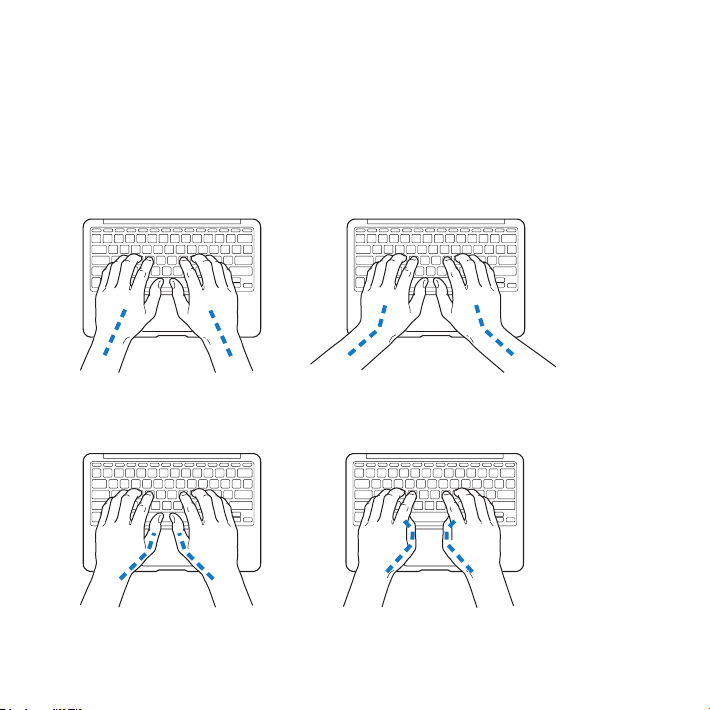
Understanding Ergonomics
Herearesometipsforsettingupahealthyworkenvironment.
Keyboard and Trackpad
Whenyouusethekeyboardandtrackpad,yourshouldersshouldberelaxed.Your
upperarmandforearmshouldformananglethatisslightlygreaterthanarightangle,
withyourwristandhandinroughlyastraightline.
This
Not this
Usealighttouchwhentypingorusingthetrackpadandkeepyourhandsandngers
relaxed.Avoidrollingyourthumbsunderyourpalms.
This
Not this
61Chapter 4 Last, but Not Least
Page 62

Changehandpositionsoftentoavoidfatigue.Somecomputerusersmightdevelop
discomfortintheirhands,wrists,orarmsafterintensiveworkwithoutbreaks.Ifyou
begintodevelopchronicpainordiscomfortinyourhands,wrists,orarms,consulta
qualiedhealthspecialist.
External Mouse
Ifyouuseanexternalmouse,positionthemouseatthesameheightasthekeyboard
andwithinacomfortablereach.
Chair
Anadjustablechairthatprovidesrm,comfortablesupportisbest.Adjusttheheight
ofthechairsoyourthighsarehorizontalandyourfeetareatontheoor.Thebackof
thechairshouldsupportyourlowerback(lumbarregion).Followthemanufacturer’s
instructionsforadjustingthebackresttotyourbodyproperly.
Youmighthavetoraiseyourchairsothatyourforearmsandhandsareattheproper
angletothekeyboard.Ifthismakesitimpossibletorestyourfeetatontheoor,you
canuseafootrestwithadjustableheightandtilttomakeupforanygapbetweenthe
oorandyourfeet.Oryoucanlowerthedesktoptoeliminatetheneedforafootrest.
Anotheroptionistouseadeskwithakeyboardtraythat’slowerthantheregular
worksurface.
62 Chapter 4 Last, but Not Least
Page 63

Built-In Display
Adjusttheangleofthedisplaytominimizeglareandreectionsfromoverhead
lightsandwindows.Donotforcethedisplayifyoumeetresistance.Thedisplayis
notdesignedtoopenpast135degrees.
Youcanadjustthebrightnessofthescreenwhenyoutakethecomputerfromone
worklocationtoanother,orifthelightinginyourworkareachanges.
Moreinformationaboutergonomicsisavailableontheweb:
www.apple.com/about/ergonomics
Apple and the Environment
AppleInc.recognizesitsresponsibilitytominimizetheenvironmentalimpactsofits
operationsandproducts.
Moreinformationisavailableontheweb:
www.apple.com/environment
63Chapter 4 Last, but Not Least
Page 64

Regulatory Compliance Information
FCC Compliance Statement
Thisdevicecomplieswithpart15oftheFCCrules.Operation
issubjecttothefollowingtwoconditions:(1)Thisdevicemay
notcauseharmfulinterference,and(2)thisdevicemustaccept
anyinterferencereceived,includinginterferencethatmaycause
undesiredoperation.Seeinstructionsifinterferencetoradioor
televisionreceptionissuspected.
L‘utilisationdecedispositifestautoriséeseulementauxconditions
suivantes:(1)ilnedoitpasproduiredebrouillageet(2)
l’utilisateurdudispositifdoitétreprêtàacceptertoutbrouillage
radioélectriquereçu,mêmesicebrouillageestsusceptiblede
compromettrelefonctionnementdudispositif.
Radio and Television Interference
Thiscomputerequipmentgenerates,uses,andcanradiateradiofrequencyenergy.Ifitisnotinstalledandusedproperly—that
is,instrictaccordancewithApple’sinstructions—itmaycause
interferencewithradioandtelevisionreception.
Thisequipmenthasbeentestedandfoundtocomplywith
thelimitsforaClassBdigitaldeviceinaccordancewiththe
specicationsinPart15ofFCCrules.Thesespecications
aredesignedtoprovidereasonableprotectionagainstsuch
interferenceinaresidentialinstallation.However,thereis
noguaranteethatinterferencewillnotoccurinaparticular
installation.
Youcandeterminewhetheryourcomputersystemiscausing
interferencebyturningito.Iftheinterferencestops,itwas
probablycausedbythecomputeroroneoftheperipheraldevices.
Ifyourcomputersystemdoescauseinterferencetoradioor
televisionreception,trytocorrecttheinterferencebyusingoneor
moreofthefollowingmeasures:
• Turnthetelevisionorradioantennauntiltheinterferencestops.
• Movethecomputertoonesideortheotherofthetelevision
orradio.
• Movethecomputerfartherawayfromthetelevisionorradio.
• Plugthecomputerintoanoutletthatisonadierentcircuit
fromthetelevisionorradio.(Thatis,makecertainthecomputer
andthetelevisionorradioareoncircuitscontrolledbydierent
circuitbreakersorfuses.)
Ifnecessary,consultanAppleAuthorizedServiceProvideror
Apple.Seetheserviceandsupportinformationthatcamewith
yourAppleproduct.Orconsultanexperiencedradio/television
technicianforadditionalsuggestions.
Important: Changesormodicationstothisproductnot
authorizedbyAppleInc.couldvoidtheEMCcomplianceand
negateyourauthoritytooperatetheproduct.
ThisproducthasdemonstratedEMCcomplianceunderconditions
thatincludedtheuseofcompliantperipheraldevicesandshielded
cables(includingEthernetnetworkcables)betweensystem
components.Itisimportantthatyouusecompliantperipheral
devicesandshieldedcablesbetweensystemcomponentsto
reducethepossibilityofcausinginterferencetoradios,television
sets,andotherelectronicdevices.
Responsible party (contact for FCC matters only):
AppleInc.CorporateCompliance
1InniteLoop,MS26-A
Cupertino,CA95014
Wireless Radio Use
Thisdeviceisrestrictedtoindoorusewhenoperatinginthe5.15to
5.25GHzfrequencyband.
Cetappareildoitêtreutiliséàl’intérieur.
Exposure to Radio Frequency Energy
TheradiatedoutputpoweroftheAirPortExtremetechnology
isbelowtheFCCandEUradiofrequencyexposurelimits.
Nevertheless,itisadvisedtousethewirelessequipmentinsuch
amannerthatthepotentialforhumancontactduringnormal
operationisminimized.
FCC Bluetooth Wireless Compliance
Theantennausedwiththistransmittermustnotbecolocatedor
operatedinconjunctionwithanyotherantennaortransmitter
subjecttotheconditionsoftheFCCGrant.
64
Page 65

Bluetooth Industry Canada Statement
ThisClassBdevicemeetsallrequirementsoftheCanadian
interference-causingequipmentregulations.
CetappareilnumériquedelaClassBrespectetouteslesexigences
duRèglementsurlematérielbrouilleurduCanada.
Industry Canada Statement
ComplieswiththeCanadianICES-003ClassBspecications.
CetappareilnumériquedelaclasseBestconformeàlanorme
NMB-003duCanada.ThisdevicecomplieswithRSS210ofIndustry
Canada.
Bluetooth Europe—EU Declaration of Conformity
ThiswirelessdevicecomplieswiththeR&TTEDirective.
Europe–EU Declaration of Conformity
Български Apple Inc. декларира, че това MacBook Air е
в съответствие със съществените изисквания и другите
приложими правила на Директива 1999/5/ЕС.
Česky Společnost Apple Inc. tímto prohlašuje, že tento
MacBook Air je ve shodě se základními požadavky a dalšími
příslušnými ustanoveními směrnice 1999/5/ES.
Dansk Undertegnede Apple Inc. erklærer herved, at følgende
udstyr MacBook Air overholder de væsentlige krav og øvrige
relevante krav i direktiv 1999/5/EF.
Deutsch Hiermit erklärt Apple Inc., dass sich das MacBook Air
in Übereinstimmung mit den grundlegenden Anforderungen
und den übrigen einschlägigen Bestimmungen der Richtlinie
1999/5/EG benden.
Eesti Käesolevaga kinnitab Apple Inc., et see MacBook Air vastab
direktiivi 1999/5/EÜ põhinõuetele ja nimetatud direktiivist
tulenevatele teistele asjakohastele sätetele.
English Hereby, Apple Inc. declares that this MacBook Air is in
compliance with the essential requirements and other relevant
provisions of Directive 1999/5/EC.
Español Por medio de la presente Apple Inc. declara que este
MacBook Air cumple con los requisitos esenciales y cualesquiera
otras disposiciones aplicables o exigibles de la Directiva
1999/5/CE.
Ελληνικά Mε την παρούσα, η Apple Inc. δηλώνει ότι αυτή
η συσκευή MacBook Air συμμορφώνεται προς τις βασικές
απαιτήσεις και τις λοιπές σχετικές διατάξεις της Οδηγίας
1999/5/ΕΚ.
Français Par la présente Apple Inc. déclare que l’appareil
MacBook Air est conforme aux exigences essentielles et aux
autres dispositions pertinentes de la directive 1999/5/CE.
Islenska Apple Inc. lýsir því hér með yr að þetta tæki
MacBook Air fullnægir lágmarkskröfum og öðrum viðeigandi
ákvæðum Evróputilskipunar 1999/5/EC.
Italiano Con la presente Apple Inc. dichiara che questo
dispositivo MacBook Air è conforme ai requisiti essenziali ed alle
altre disposizioni pertinenti stabilite dalla direttiva 1999/5/CE.
Latviski Ar šo Apple Inc. deklarē, ka MacBook Air ierīce atbilst
Direktīvas 1999/5/EK būtiskajām prasībām un citiem ar to
saistītajiem noteikumiem.
Lietuvių Šiuo „Apple Inc.“ deklaruoja, k ad šis MacBook Air atitinka
esminius reikalavimus ir kitas 1999/5/EB Direktyvos nuostatas.
Magyar Alulírott, Apple Inc. nyilatkozom, hogy a MacBook Air
megfelel a vonatkozó alapvetõ követelményeknek és az
1999/5/EC irányelv egyéb elõírásainak.
Malti Hawnhekk, Apple Inc., jiddikjara li dan MacBook Air
jikkonforma mal-ħtiġijiet essenzjali u ma provvedimenti oħrajn
relevanti li hemm d-Dirrettiva 1999/5/EC.
Nederlands Hierbij verklaart Apple Inc. dat het toestel
MacBook Air in overeenstemming is met de essentiële eisen
en de andere bepalingen van richtlijn 1999/5/EG.
Norsk Apple Inc. erklærer herved at dette MacBook Air
-apparatet er i samsvar med de grunnleggende kravene og
øvrige relevante krav i EU-direktivet 1999/5/EF.
Polski Niniejszym Apple Inc. oświadcza, że ten MacBook Air są
zgodne z zasadniczymi wymogami oraz pozostałymi stosownymi
postanowieniami Dyrektywy 1999/5/EC.
65
Page 66

Português Apple Inc. declara que este dispositivo
ၦૺૺ௴ၨྦ႖શഏౘ๗༺ຫဧዾ༘࿖ཀఁఋ
ఝዽූ૬ႜෟა༘
MacBook Air está em conformidade com os requisitos
essenciais e outras disposições da Directiva 1999/5/CE.
Română Prin prezenta, Apple Inc. declară că acest aparat
MacBook Air este în conformitate cu cerinţele esenţiale şi cu
celelalte prevederi relevante ale Directivei 1999/5/CE.
Slovensko Apple Inc. izjavlja, da je ta MacBook Air skladne z
bistvenimi zahtevami in ostalimi ustreznimi določili direktive
1999/5/ES.
Slovensky Apple Inc. týmto vyhlasuje, že toto MacBook Air spĺňa
základné požiadavky a všetky príslušné ustanovenia Smernice
1999/5/ES.
Suomi Apple Inc. vakuuttaa täten, että tämä MacBook Air
tyyppinen laite on direktiivin 1999/5/EY oleellisten vaatimusten ja
sitä koskevien direktiivin muiden ehtojen mukainen.
Svenska Härmed intygar Apple Inc. att denna MacBook Air står i
överensstämmelse med de väsentliga egenskapskrav och övriga
relevanta bestämmelser som framgår av direktiv 1999/5/EG.
AcopyoftheEUDeclarationofConformityisavailableat:
www.apple.com/euro/compliance
Thisequipmentcanbeusedinthefollowingcountries:
Korea Warning Statements
෮ቛ၁ધགྷಋ൏ધხຫጃ
ጄఙඳ໓໕๗௴ဪဧთ႖ኒጯཅໜၦၰၗ
Bૺૺ(ႜဧ෮ቛཅૺၴႁ)
ၦૺૺ௴ႜဧ(
ႜຫဧዻ௴ઇၕඛ႕ၒചዻඑ, ක౷ხ
ຫဧዾ༘ၰཀఁఋ.
B) ႖ၴኒ႕ጁૺૺചച
66
Singapore Wireless Certication
Taiwan Wireless Statements
Taiwan Class B Statement
本電池如果更換不正確會有爆炸的危險
請依製造商說明書處理用過之電池
警告
Japan VCCI Class B Statement
Page 67

Russia
External USB Modem Information
WhenconnectingyourMacBookAirtothephonelineusingan
externalUSBmodem,refertothetelecommunicationsagency
informationinthedocumentationthatcamewithyourmodem.
ENERGY STAR® Compliance
AsanENERGYSTAR®partner,Applehasdeterminedthatstandard
congurationsofthisproductmeettheENERGYSTAR®guidelines
forenergyeciency.TheENERGYSTAR®programisapartnership
withelectronicequipmentmanufacturerstopromoteenergyecientproducts.Reducingenergyconsumptionofproducts
savesmoneyandhelpsconservevaluableresources.
Thiscomputerisshippedwithpowermanagementenabledwith
thecomputersettosleepafter10minutesofuserinactivity.To
wakeyourcomputer,clickthemouseortrackpadbuttonorpress
anykeyonthekeyboard.
FormoreinformationaboutENERGYSTAR®,visit:
www.energystar.gov
Disposal and Recycling Information
Thissymbolindicatesthatyourproductmustbedisposedof
properlyaccordingtolocallawsandregulations.Whenyour
productreachesitsendoflife,contactAppleoryourlocal
authoritiestolearnaboutrecyclingoptions.
ForinformationaboutApple’srecyclingprogram,goto:
www.apple.com/recycling.
European Union—Disposal Information
Thesymbolabovemeansthataccordingtolocallawsand
regulationsyourproductshouldbedisposedofseparatelyfrom
householdwaste.Whenthisproductreachesitsendoflife,take
ittoacollectionpointdesignatedbylocalauthorities.Some
collectionpointsacceptproductsforfree.Theseparatecollection
andrecyclingofyourproductatthetimeofdisposalwillhelp
conservenaturalresourcesandensurethatitisrecycledina
mannerthatprotectshumanhealthandtheenvironment.
Türkiye
EEE yönetmeliğine (Elektrikli ve Elektronik Eşyalarda Bazı
Zararlı Maddelerin Kullanımının Sınırlandırılmasına Dair
Yönetmelik) uygundur.
Brasil—Informações sobre descarte e reciclagem
Osímboloacimaindicaqueesteprodutoe/ousuabateria
nãodevemserdescartadasnolixodoméstico.Quandodecidir
descartaresteprodutoe/ousuabateria,faça-odeacordocom
asleisediretrizesambientaislocais.Parainformaçõessobreo
programadereciclagemdaApple,pontosdecoletaetelefonede
informações,visitewww.apple.com/br/environment.
Battery Disposal Information
Disposeofbatteriesaccordingtoyourlocalenvironmentallaws
andguidelines.
Deutschland: DiesesGerätenthältBatterien.Bittenichtinden
Hausmüllwerfen.EntsorgenSiediesesGerätamEndeseines
Lebenszyklusentsprechenddermaßgeblichengesetzlichen
Regelungen.
Nederlands: Gebruiktebatterijenkunnenwordeningeleverdbijde
chemokarofineenspecialebatterijcontainervoorkleinchemisch
afval(kca)wordengedeponeerd.
67
Page 68

China Battery Statement
Taiwan Battery Statement
68
Page 69

Looking for Something?
Page 70

Index
A
ACplug 10
ACpoweradapter.Seepower
adapter
ACpowercord 10
AppleCare 50
applicationfreeze 39
applications
AppleHardwareTest 46
FaceTime 23
forcequitting 39
iLife 34
installing 15
MigrationAssistant 12
NetworkSetupAssistant 47
PhotoBooth 23
SystemInformation 50
B
battery
charging 32
disposal 68
location 23
performance 32
storing 61
blinkingquestionmark 40
brightnesskeys 25
70 Looking for Something?
built-inspeaker 23
button,power 11,25
C
carryingyourcomputer 60
changing
SystemPreferences 14
thedesktop 14
chargingthebattery 32
cleaning
thedisplay 61
yourcomputer 61
computer
disposingof 68
freezes 40
puttingtosleep 18
shuttingdown 19
specications 35
turningon 11
waking 19
won’tturnon 40
connectionproblemswith
anothercomputer 41
Control-click 29
cord,ACpower 10
D
desktop,customizing 14
display
adjustingbrightness 25
cleaning 61
goesblack 41
display,external 27
Seealsoscreen
disposingofyourcomputer 68
Dock 33
downloadingsoftware 49
DVDorCDSharing
installingsoftware 16
overview 17
withWindowscomputer 17
E
EnergySaverpreferences 18
environmentalimpact 64
ergonomics 62
F
F1toF12functionkeys 25
FaceTimeapplication 23
FaceTimevideocamera 23
Fast-forwardkey 25
ashingquestionmark 40
ForceQuit 39
Page 71

four-ngerpinching 31
four-ngerswiping 31
frozenapplication 39
Function(fn)key 25
H
handpositions,
recommended 62
headphoneport 27
HelpCenter 33
Help,ndinganswers 33
high-speeddatatransfer 27
I
iLifeapplications 34
installingDVDorCDSharing
Setup 16
IPmasquerading 48
K
keyboard
ergonomics 62
features 24
illuminationkeys 25
shortcuts 29
Seealsokeys
keys
brightness 25
Function(fn) 25
keyboardillumination 25
Launchpad 25
media 25
MissionControl 25
Mute 25
volumecontrol 25
L
Launchpadkey 25
M
MacAppStore 35
MacOSXUtilities
application 12
MacOSXwebsite 34
MagSafepoweradapter.
Seepoweradapter
MagSafepowerport 27
mediakeys 25
microphone 27
MigrationAssistant 12
MiniDisplayPort
technology 27
MissionControlkey 25
mouse 27,63
Seealsotrackpad
Mutekey 25
N
networkaddresstranslation
(NAT) 48
NetworkDiagnostics 47
NetworkSetupAssistant 47
O
onlineresources 50
opticaldiscsharing.SeeDVDor
CDsharing
P
partnercomputer
connectionproblems 41
DVDorCDSharingSetup
software 16
password,resetting 15
PhotoBoothapplication 23
pinchingtozoom 30
Play/Pausekey 25
plug,AC 10
ports
headphone 27
MagSafepower 27
Thunderbolt 27
USB2.0 27
poweradapter
port 27
safetyinformation 56
safetytips 56
setup 10
powerbutton 11,25
problems.Seetroubleshooting
puttingyourcomputerto
sleep 18
71Looking for Something?
Page 72

Q
questionmark,ashing 40
quittinganapplication 39
R
RemoteDisc 17,18
resettingpassword 15
Rewindkey 25
right-clicking 29
rotatingobjectsusing
trackpad 30
S
safety
generalinstructions 55
handlinginformation 60
importantinformation 8
poweradapter 56
screen.Seedisplay
scrollingwithtwongers 28
secondary-clicking 29
serialnumber,locating 52
serviceandsupport 50
SetupAssistant 12
sharedopticaldisc 17
sharingles 17
shuttingdown 19
sleepmode 18
software
installingDVDorCD
sharing 16
updating 49
SoftwareUpdate
preferences 49
speakers 23
specications 35
stopping
anapplication 39
thecomputer 19
storingyourcomputer 61
supportcontact
information 50
SystemInformation 50
SystemPreferences
customizingthedesktop 14
EnergySaver 18
SoftwareUpdate 49
T
three-ngerswiping 31
Thunderboltport 27
trackpad
pinching 30
rotating 30
scrolling 28
zooming 30
troubleshooting
AirPort 48
AppleCare 50
computerfreezes 40
computerwon’tturnon 40
connectingtopartner
computer 41
displaygoesblack 41
hardwareproblems 46
pointerwon’tmove 39
serviceandsupport 50
usingAirPort 48
usingHelpCenter 33,50
Wi-Fi 48
turningonyourcomputer 11
two-ngerpinching 30
two-ngerrotating 30
typingposition 62
U
updatingsoftware 49
USB
connections 35
ports 27
V
video
cameraindicatorlight 23
videoport 27
volumecontrolkeys 25
W
wakingyourcomputer 19
Wi-Fitroubleshooting 48
Z
zoomingusingthe
trackpad 30
72 Looking for Something?
Page 73

K AppleInc.
©2011AppleInc.Allrightsreserved.
Underthecopyrightlaws,thismanualmaynotbecopied,inwhole
orinpart,withoutthewrittenconsentofApple.
Everyeorthasbeenmadetoensurethattheinformationin
thismanualisaccurate.Appleisnotresponsibleforprintingor
clericalerrors.
Apple
1InniteLoop
Cupertino,CA95014
408-996-1010
www.apple.com
TheApplelogoisatrademarkofAppleInc.,registeredintheU.S.
andothercountries.Useofthe“keyboard”Applelogo(OptionShift-K)forcommercialpurposeswithoutthepriorwrittenconsent
ofApplemayconstitutetrademarkinfringementandunfair
competitioninviolationoffederalandstatelaws.
Apple,theApplelogo,AirPort,AirPortExtreme,FaceTime,Finder,
GarageBand,iChat,iLife,iMovie,iPhone,iPhoto,iPod,iTunes,Keynote,
Mac,MacOS,MacBook,MacBookAir,MagSafe,PhotoBooth,Safari,
SuperDrive,TimeCapsule,andTimeMachinearetrademarksof
AppleInc.,registeredintheU.S.andothercountries.
iPadandMulti-ToucharetrademarksofAppleInc.
Apple,AppleCare,AppleStore,andiTunesStoreareservicemarks
ofAppleInc.,registeredintheU.S.andothercountries.
AppStoreisaservicemarkofAppleInc.
ENERGYSTAR®isaU.S.registeredtrademark.
ThunderboltandtheThunderboltlogoaretrademarksofIntel
Corp.intheU.S.andothercountries.
TheBluetooth®wordmarkandlogosareregisteredtrademarks
ownedbyBluetoothSIG,Inc.andanyuseofsuchmarksbyApple
Inc.isunderlicense.
Othercompanyandproductnamesmentionedhereinare
trademarksoftheirrespectivecompanies.Mentionofthird-party
productsisforinformationalpurposesonlyandconstitutes
neitheranendorsementnorarecommendation.Appleassumes
noresponsibilitywithregardtotheperformanceoruseofthese
products.
ManufacturedunderlicensefromDolbyLaboratories.“Dolby,”
“ProLogic,”andthedouble-DsymbolaretrademarksofDolby
Laboratories.CondentialUnpublishedWorks,©1992–1997Dolby
Laboratories,Inc.Allrightsreserved.
SimultaneouslypublishedintheUnitedStatesandCanada.
Page 74

Page 75

Page 76

 Loading...