

Page 1
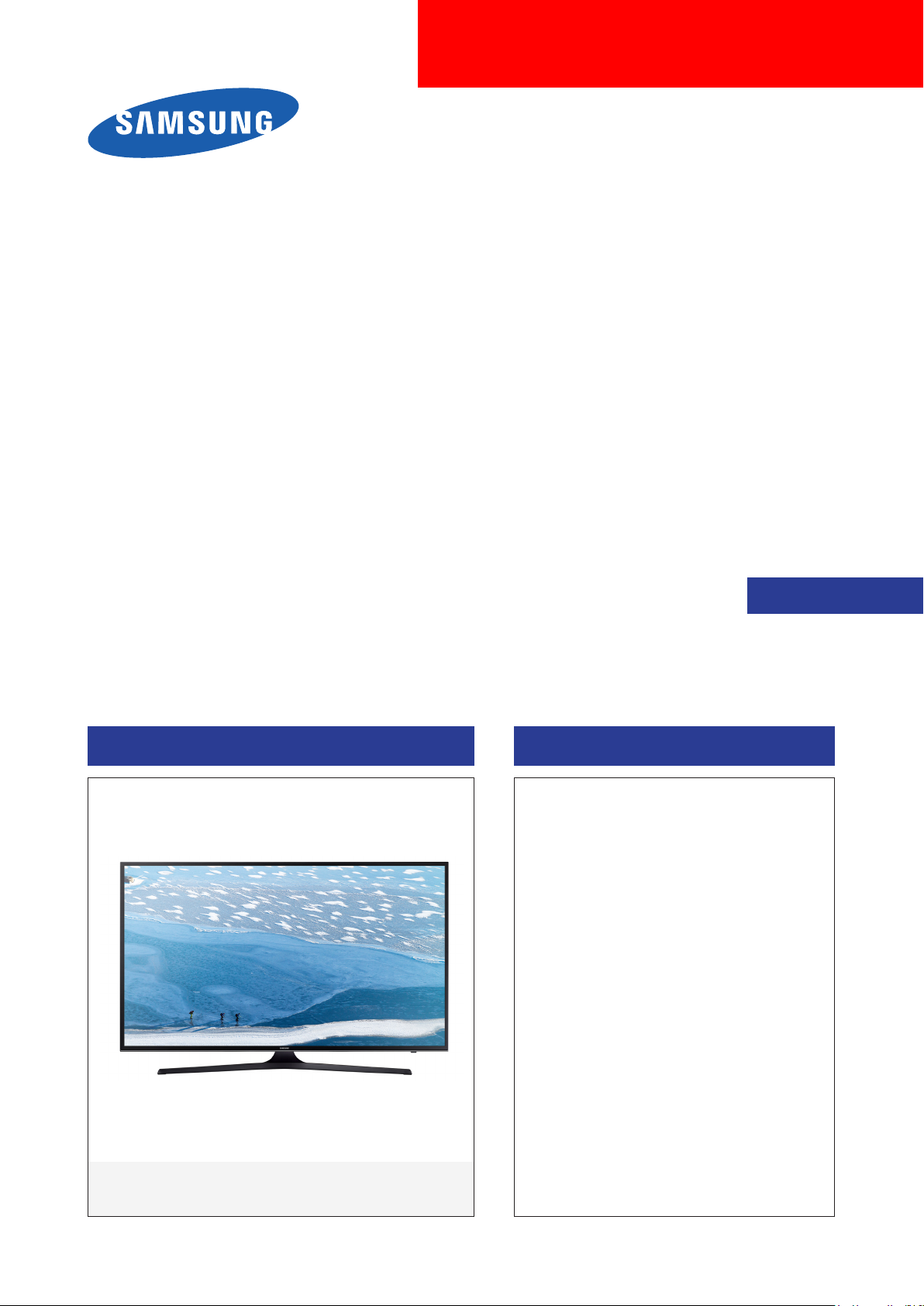
UHD TV
Chassis : UWP60
Model : UE70KU6072U
SERVICE
UHD TV Contents
1. Precautions
2. Product specications
3. Disassembly and Reassembly
4. Troubleshooting
5. Wiring Diagram
Manual
UE70KU6072U
Page 2

Contents
1. Precautions ...................................................................................................................1-1
1-1. Safety Precautions ..............................................................................................................1-1
1-1-1. Warnings ...................................................................................................................1-1
1-1-2. Servicing the LED TV ...............................................................................................1-1
1-1-3. Fire and Shock Hazard .............................................................................................1-1
1-1-4. Product Safety Notices .............................................................................................1-2
1-2. Servicing Precautions ..........................................................................................................1-3
1-2-1. General Servicing Precautions ................................................................................. 1-3
1-3. Static Electricity Precautions ...............................................................................................1-4
1-4. Installation Precautions .......................................................................................................1-5
2. Product Specications.................................................................................................2-1
2-1. Product information .............................................................................................................2-1
2-2. Detail Specication ..............................................................................................................2-2
2-3. NEW Key Features ..............................................................................................................2-5
2-3-1. 16" New UI ................................................................................................................2-5
2-4. The Remote Control ............................................................................................................2-6
2-4-1. Remote Control .......................................................................................................2-6
2-4-2. 123 Key ....................................................................................................................2-7
2-4-3. EXTRA Key ...............................................................................................................2-7
2-5. HDMI Color ..........................................................................................................................2-8
2-5-1. HDMI UHD Color ......................................................................................................2-8
2-5-2. HDMI Black Level .....................................................................................................2-8
2-6. Supported Formats ..............................................................................................................2-9
2-6-1. Supported image formats and resolutions ................................................................2-9
2-6-2. Supported music formats and codecs ...................................................................... 2-9
2-6-3. Supported video codecs ......................................................................................... 2-10
2-7. Accessories ....................................................................................................................... 2-11
3. Disassembly and Reassembly ....................................................................................3-1
3-1. Disassembly and Reassembly ............................................................................................3-1
4. Troubleshooting ...........................................................................................................4-1
4-1. Previous Check ..................................................................................................................4-1
4-2. How to Check Fault Symptom .............................................................................................4-2
4-2-1. Power .......................................................................................................................4-2
4-2-2. Video .........................................................................................................................4-5
4-2-3. Audio .........................................................................................................................4-9
4-2-4. Network...................................................................................................................4-10
4-2-5. Smart Hub .............................................................................................................. 4-11
4-2-6. WiFi Module ............................................................................................................ 4-13
4-3. Factory Mode Adjustments ................................................................................................4-15
4-3-1. Entering Factory Mode ........................................................................................... 4-15
4-3-2. Detail Factory Option ..............................................................................................4-17
4-3-3. Factory Data ...........................................................................................................4-18
Page 3

4-4. White Balance ...................................................................................................................4-31
4-4-1. Calibration ..............................................................................................................4-31
4-4-2. Service Adjustment ................................................................................................. 4-31
4-4-3. Adjustment .............................................................................................................. 4-33
4-5. Updating the TV’s Software ...............................................................................................4-34
5. Wiring Diagram .............................................................................................................5-1
5-1. Layout ..................................................................................................................................5-1
5-2. Wiring Diagram ....................................................................................................................5-2
5-3. Connector ............................................................................................................................5-3
ANNEX. Exploded View & Part List [UE70KU6072UXXH EA01] ........................ ANNEX-1
1-1. Exploded View .......................................................................................................... ANNEX-1
1-1-1. Parts List ........................................................................................................ ANNEX-1
2-1. Electrical Parts List ................................................................................................... ANNEX-2
Page 4

This Service Manual is a property of Samsung Electronics Co.,Ltd.
Any unauthorized use of Manual can be punished under applicable
International and/or domestic law.
© 2016 Samsung Electronics Co.,Ltd.
All rights reserved.
Printed in Korea
Page 5
3. Disassembly and Reassembly
Disconnect the LED TV from the power source before disassembly.1.
Follow these directions carefully; never use metal instruments to pry apart the cabinet.2.
CAUTION
3-1. Disassembly and Reassembly
Carefully position the TV so that the screen
1
is facing downwards. Make sure to place the
TV upon a soft cushion or any material that
will prevent damage to the screen.
Recommend Torque : 22.0 ~ 26.5lbf -
A strength of Torque can be changed depending on the situation.•
Description Picture Description
3. Disassembly and Reassemble
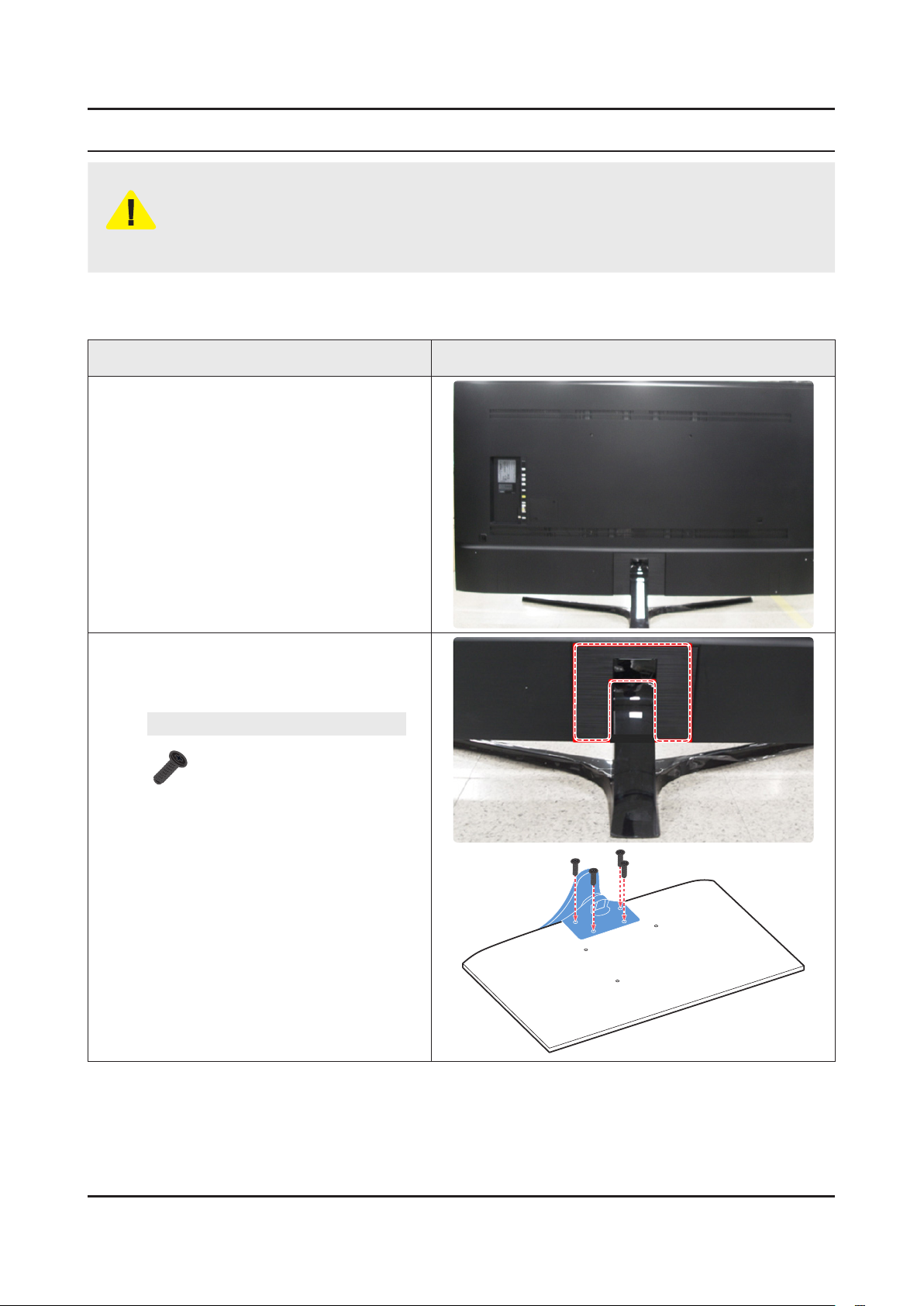
First, Remove 'Cover-Stand Decoration
2
Rear'. And remove the 4 screws connecting
the stand to the TV. Then carefully remove
the stand.
Screws
6902-002474 x 4EA
TORQUE : 22.0 ~ 26.5lbf
3-1
Page 6
3-2
3. Disassembly and Reassemble
Description Picture Description
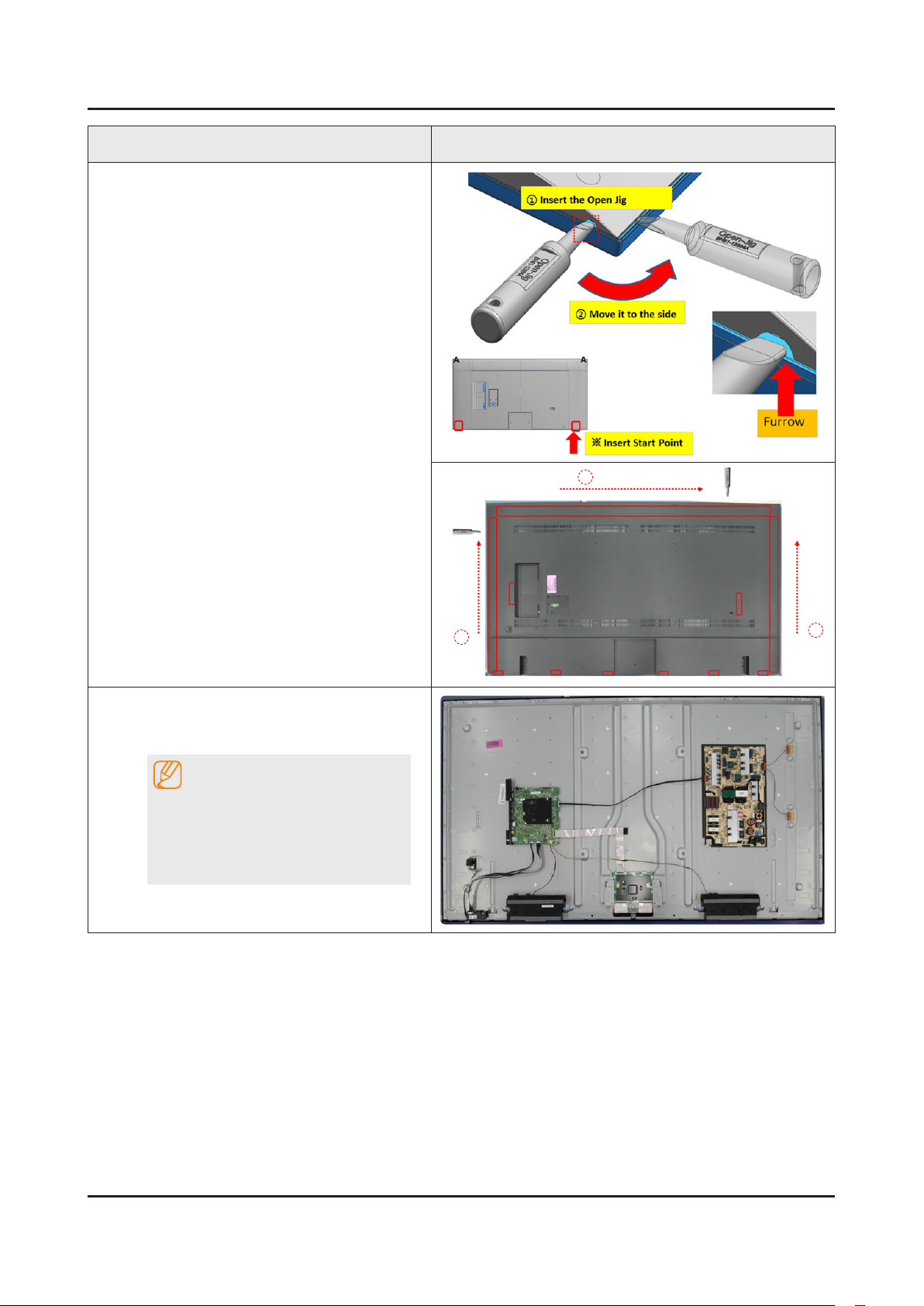
Remove the ASSY COVER P-REAR.
3
Insert Open Jig in a Disassembly furrow •
to Open the furrow.
And Move Open Jig to the side.
Disassemble all Hooks of Cover Rear •
along the three side.
Jig direction
3
Remove the Electric tapes shown on the
4
images.
NOTE
When assembling the TV, the electric
tapes must be applied on the same
locations. Please remember to take a
pictureofwherethetapeswererst
applied.
Jig direction
1
Jig direction
2
Page 7
3-3
3. Disassembly and Reassemble
Description Picture Description
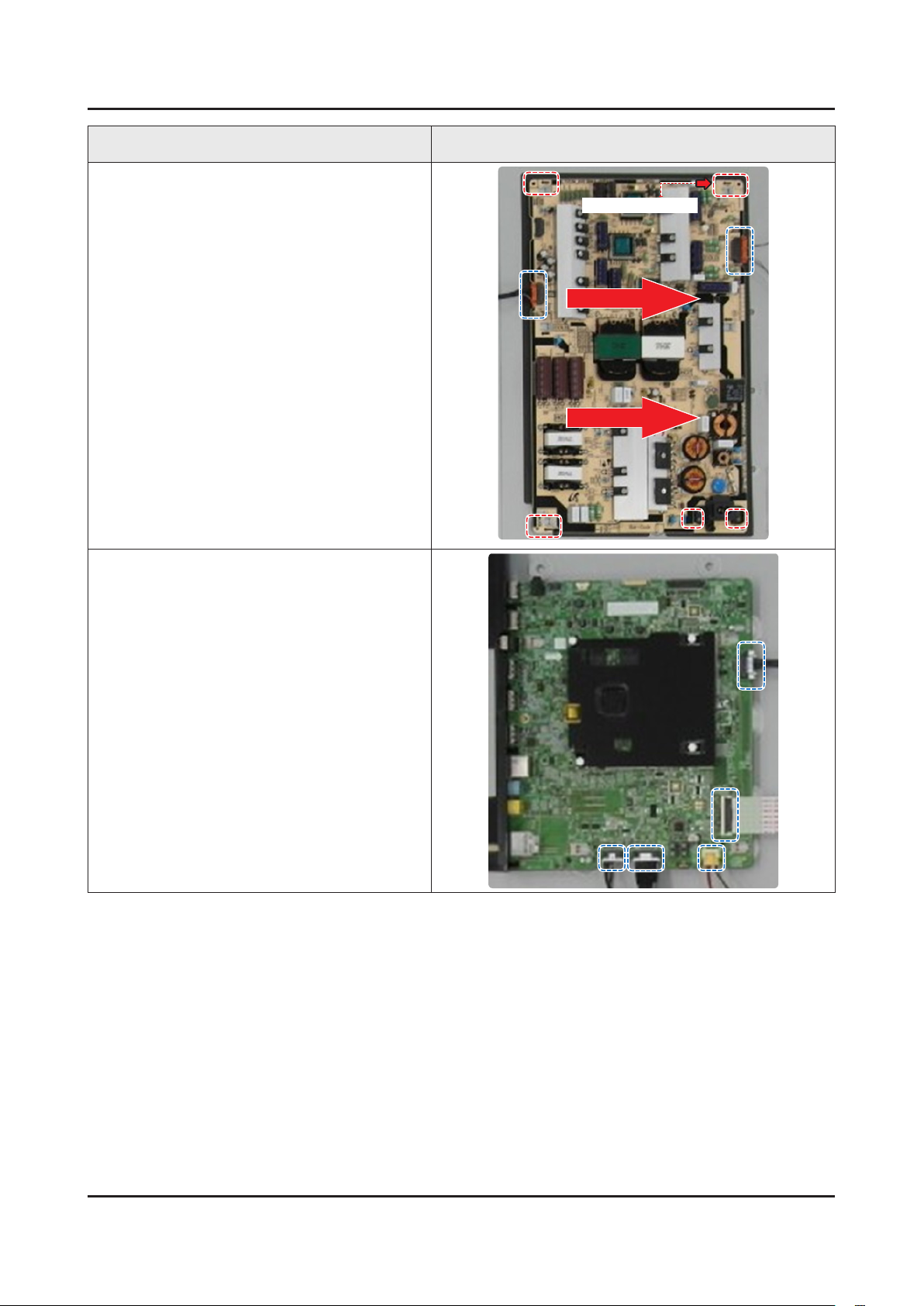
Remove the 'Lead Connectors' and screws
5
from the SMPS unit. Then carefully remove
the SMPS unit.
Board Placing Point
Remove the cables from the 'TV Board'.
6
Page 8
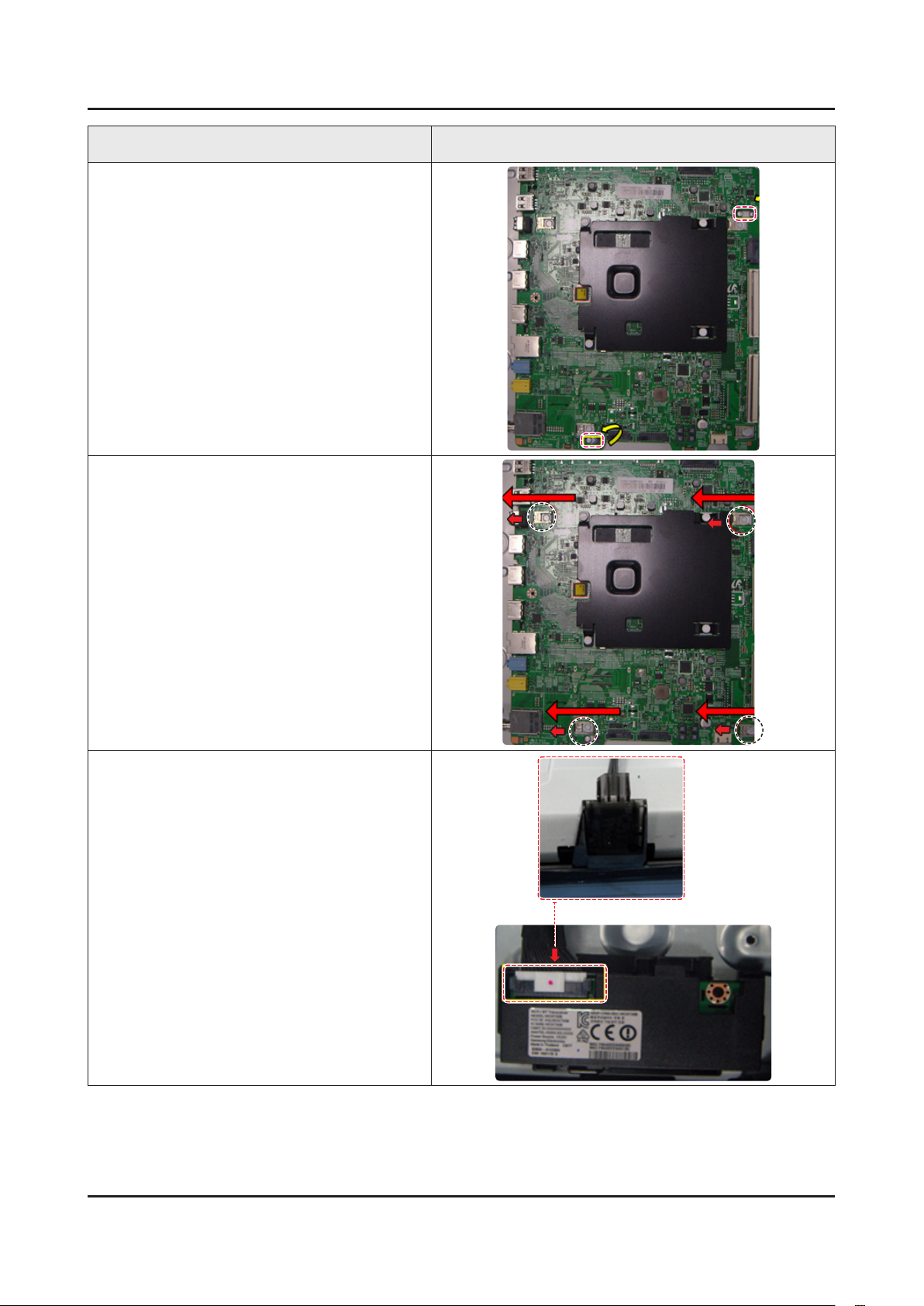
3-4
3. Disassembly and Reassemble
Description Picture Description
Use both hands to hold the 'Main Board' and
7
gently lift up 2 point marked.
Slide the board to the Left side to release the
8
board.
Then carefully remove the 'TV Board'.
Remove the BT/WIFI and IR unit.
9
Page 9
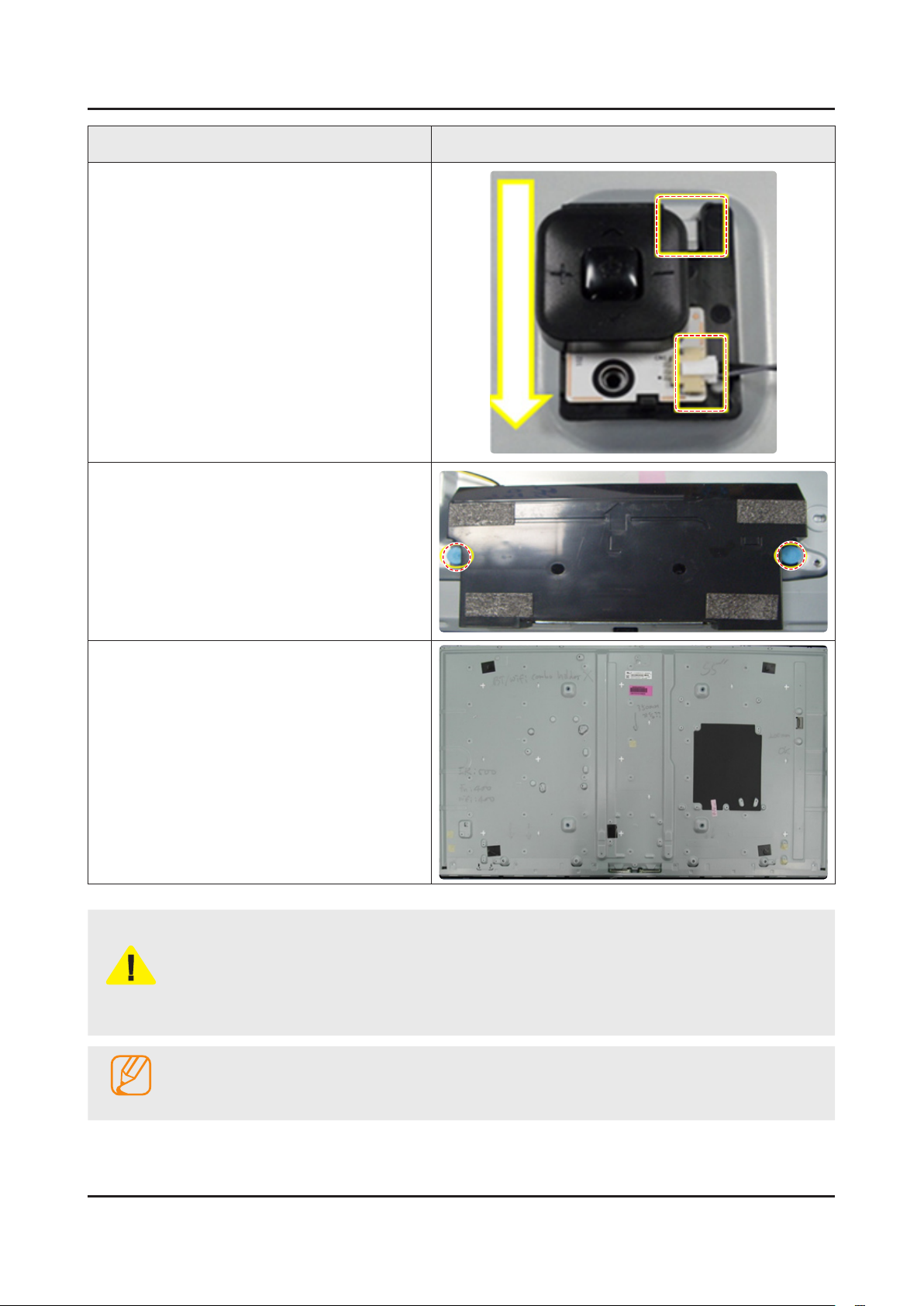
3-5
3. Disassembly and Reassemble
Description Picture Description
10
11
Remove the JOG unit.
Lastly, remove the speakers on both side.
* Panel
- Rear Side
CAUTION
NOTE
Always remember to disconnect the Poewr Cord before assembling or disassembling the LED TV.1.
Always take precautions and follow the steps properly. Remember to take a picture before 2.
disassenbling.
Recommeded screwdriver torque : 3.
The torque may need to be adjusted accordingly.•
Reassembly procedures are in the reverse order of disassembly procedures.
Page 10
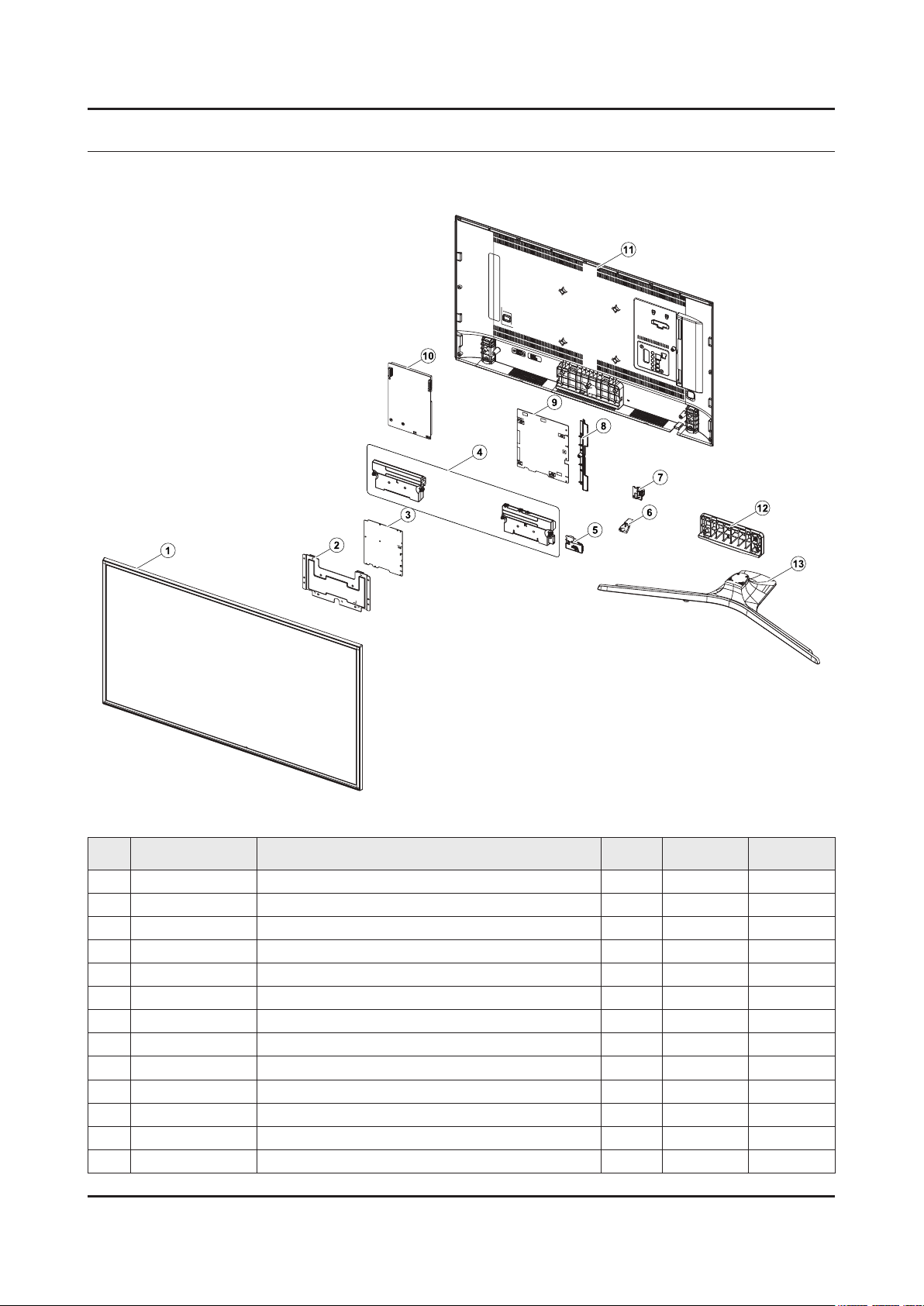
ANNEX. Exploded View & Part List
ANNEX. Exploded View & Part List [UE70KU6072UXXH EA01]
1-1. Exploded View
1-1-1. Parts List
No. Code No. Description & Specication Q’ty SA/SNA Remark
1 BN95-02682A PRODUCT LCD-SHARP; CY-GK070HGSV1V/H,KU 1 SA
2 BN61-13606A BRACKET-STAND LINK; 55KU6400,EGI-SECC,T1. 1 SNA
3 BN95-02753A ASSY T CON; KU6000 Sharp 70inch,Hawk-UFT 1 SA
4 BN96-35006F ASSY SPEAKER P-FRONT; TV-SPK,KU6000,6ohm, 1 SA
5 BN59-01174D NETWORK-WLAN CLIENT; WIDT30Q,58x31.45x8.5 1 SA
6 BN96-39955A ASSY BOARD P-IR FUNCTION; KU6000,IR ASSY_ 1 SA
7 BN96-35345B ASSY BOARD P-FUNCTION JOG; JU7500,CT15 1 SA
8 BN63-15215A COVER-TERMINAL SIDE; 55KU6000,HIPS,MOLD,H 1 SA
9 BN94-10804L ASSY PCB MAIN; LEDTV 6K 1 SA
10 BN44-00874A DC VSS-PD BOARD; L75S5N_KHS,AC/DC,357W,10 1 SA
11 BN96-40431G ASSY COVER P-REAR; 70KU6000,PC+ABS+GF1 1 SA
12 BN96-40158B ASSY GUIDE P-STAND; 70KU6000,PC+ABS,BK000 1 SA
13 BN96-40162C ASSY STAND P-BOTTOM; 70KU6000,PC+ABS,BK 1 SA
ANNEX-1
Page 11
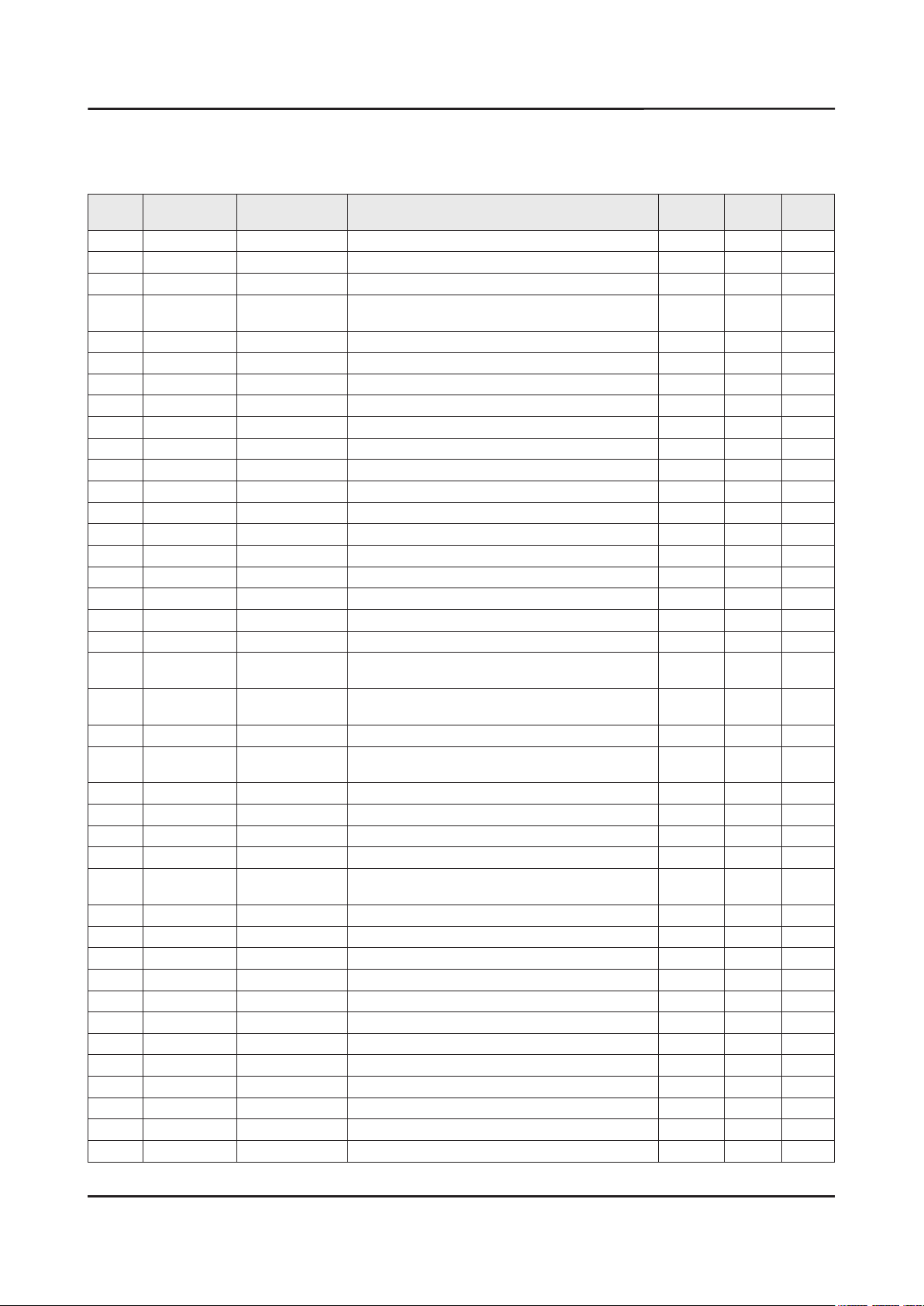
ANNEX-2
ANNEX. Exploded View & Part List
2-1. Electrical Parts List
Service Bom (SA: SERVICE AVAILABLE, SNA: SERVICE NOT AVAILABLE)
Level Location No. Code No. Description & Specication Q’ty SA/SNA Remark
UE70KU6072UXXH (EA01)
1 R001A BN90-08004F ASSY COVER REAR;LEDTV 6K 1 SNA
0.2 R001A BN96-40431G ASSY COVER P-REAR;70KU6000,PC+ABS+GF15%, 1 SA
..3 R001 BN63-15216B
...4 0103-010275 RESIN PC ABS;235GNH15/6919H,Black,BK0007 5700 SNA
..3 BN64-03529D INLAY-TERMINAL SIDE;55KU6500,PET,T0.125, 1 SNA
..3 BN68-03518R LABEL-STICKER CI SLOT;55KU6000,PET,T0.12 1 SNA
..3 BN68-07835C LABEL-STICKER LICENSE;40K5500,PET,T0.125 1 SNA
1 BN90-08029G ASSY W/I;LEDTV 6K 1 SNA
0.2 BN81-08159Z A/S PART SET-ELEC W/I;LED TV ELEC spec-C 1 SNA
0.2 BN81-11259Q A/S PART SET-MECH W/I;UKU6000P,U70KP* 1 SNA
1 S001A BN90-08065F ASSY STAND;LEDTV 6K 1 SNA
0.2 SG01A BN96-40158B ASSY GUIDE P-STAND;70KU6000,PC+ABS,BK000 1 SA
..3 SCREW 6003-000133 SCREW-TAPTYPE;BH,+,-,S,M4,L8,ZPC(BLK),SW 9 SA
..3 6902-002656 BAG PE;HDPE/PE FOAM,T0.015/T0.5,W180,L60 1 SNA
..3 BN61-11629A BRACKET-STAND NECK;EGI-SECC,NATURAL,T1.2 1 SNA
..3 BN61-13603A BRACKET-STAND NECK;65KU6500,HGI,T3,NATUR 1 SNA
..3 BN61-13605A BRACKET-STAND NECK FRONT;70KU6000,HGI,T2 1 SNA
..3 BN63-11875X SHEET-PROTECTION COVER;55KS7000,PO,T0.06 1 SNA
..3 BN63-15465A
..3 BN63-15469A
..3 BN63-15471A COVER-STAND NECK;65KU6400,PC+ABS,MOLD,V- 1 SNA
..3 BN96-29120M
...4 SCREW BN61-09494B SCREW-TAPTYPE;BH,+,S,M4,L14,ZPC(BLK),SWR 8 SA
...4 BN69-09241R BAG SCREW;LDPE,0.05,70,90,HU8500,Vinyl p 1 SNA
..3 BN96-40548A ASSY COVER P-STAND DECORATION;70KU6000,P 1 SNA
...4 BN61-13387A HOLDER-COVER;55KU6500,TPE,MOLD,BK0007,V2 4 SNA
...4 BN63-15624A
0.2 SB02A BN96-40162C ASSY STAND P-BOTTOM;70KU6000,PC+ABS,BK00 1 SA
..3 SCREW 6003-001001 SCREW-TAPTYPE;FH,+,-,B,M3,L8,ZPC(BLK),SW 4 SA
..3 SCREW 6003-001086 SCREW-TAPTYPE;BH,+,-,B,M3,L12,ZPC(BLK),S 4 SA
..3 SCREW 6003-001208 SCREW-TAPTYPE;BH,+,S,M4,L12,ZPC(BLK),SWR 4 SA
..3 6902-002461 BAG PE;HDPE/PE FOAM,T0.015/T0.5,W100,L60 2 SNA
..3 6902-002550 BAG PE;HDPE/PE FOAM,T0.015/T0.5,W200,L50 1 SNA
..3 BN60-00162E SPACER-FOAM;PE FOAM,L50M,GRAY,T0.5,W20 1 SNA
..3 BN61-05728A TAPE-DOUBLE FACE;ACRYL,T0.4,W10,L30M,GRA 1 SNA
..3 BN61-11533A BRACKET-STAND NECK;Al,NATURAL 1 SNA
..3 BN61-11556A BRACKET-STAND NECK;Al,NATURAL 1 SNA
..3 BN63-15461A COVER-STAND TOP;65KU6400,PC+ABS,MOLD,V-0 1 SNA
...4 0103-005041 RESIN PC ABS;FR3200TV,901408,BK0008,1.2m 260 SNA
COVER-REAR;70KU6000,PC+ABS+GF15%,MOLD
,V-
COVER-STAND NECK
FRONT;65KU6400,PC+ABS,M
COVER-STAND NECK
REAR;65KU6400,PC+ABS,MO
ASSY ACCESSORY-SCREW;LED_H8000,BN61-
0949
COVER-STAND DECORATION
REAR;70KU6000,PC+
1 SNA
1 SNA
1 SNA
1 SNA
1 SNA
Page 12
ANNEX-3
ANNEX. Exploded View & Part List
Level Location No. Code No. Description & Specication Q’ty SA/SNA Remark
...4 BN63-11118P SHEET-PROTECTION COVER;55K6200,PET,T0.04 1 SNA
..3 BN63-15490A COVER-STAND BOTTOM;65KU6400,HIPS,MOLD,V- 1 SNA
..3 RF01 BN67-00398L FOOT-RUBBER;UH6K,Si,GRAY,W8,L15.5,T2 8 SNA
..3 BN68-05603A LABEL-E PASS;ART PAPER 90G,W/W 3 SNA
1 M0017 BN91-17281J ASSY CHASSIS;LEDTV 6K 1 SNA
0.2 M0014 BN94-10804L ASSY PCB MAIN;LEDTV 6K 1 SA
..3 BN62-00817A HEAT SINK-PS;55KU6000,A1050,T1.5,W115,L1 1 SNA
..3 BN63-15215A COVER-TERMINAL SIDE;55KU6000,HIPS,MOLD,H 1 SA
..3 BN97-10654G ASSY SMD;LED TV 6K 1 SNA
...4 DS01A 0401-001056 DIODE-SWITCHING;MMBD4148SE,100V,200mA,SO 1 SA
...4 0403-001783 DIODE-ZENER;BZB84-C6V2,5.8~6.6V,300mW,SO 3 SNA
...4 0404-001404 DIODE-SCHOTTKY;BAT721C,40V,200mA,SOT-23, 4 SA
...4 0404-001881 DIODE-SCHOTTKY;SS3040-HE,40V,3000mA,SOD- 5 SA
...4 0406-001200 DIODE-TVS;RClamp0504F,6V,1MAV,TP 2 SA
...4 0406-001290 DIODE-TVS;3.0SMCJ20A,22.2V,24.5V,5MAV,30 1 SNA
...4 0406-001628 DIODE-TVS;AOZ8804ADI,6V,1MAV,5A,TP 1 SA
...4 0406-001635 DIODE-TVS;SMF5.0A,6.4V,6.7V,7V,200MAV,20 1 SA
...4 0501-000002 TR-SMALL SIGNAL;KSA812,PNP,150mW,SOT-23, 1 SNA
...4 0501-000445 TR-SMALL SIGNAL;KTC3875S-Y,NPN,150mW,SOT 7 SC
...4 0504-000126 TR-DIGITAL;KSR1101,NPN,200mW,4.7K/4.7K,S 1 SA
...4 0505-001844 FET-SILICON;SI4435DDY-T1-GE3,P,30V,-11.4 1 SA
...4 0505-002560 FET-SILICON;AO6415,P,20V,-3.3A,0.15ohm,1 1 SA
...4 0505-002598 FET-SILICON;AP2317GN,P,20V,-4.2A,0.052oh 1 SA
...4 0505-002893 FET-SILICON;AO4801AS,P,30V,-5A,2W,SOIC-8 2 SA
...4 0505-003397 FET-SILICON;2N7002K,N,60V,0.38A,1.19ohm, 1 SA
...4 0801-003603 IC-CMOS LOGIC;MC74LCX244MN2TWG,Octal buf 1 SA
...4 1001-001998 IC-ANALOG MULTIPLEX;NX3DV221GM,USB switc 2 SA
...4 1103-001564 IC-EEPROM;S-24C512CI-J800,512Kbit,64Kx8, 1 SA
...4 1105-002704
...4 1201-000166 IC-OP AMP;LM358,SOP,ST,8P,150MIL,DUAL,10 1 SA
...4 1201-003690 IC-AUDIO AMP;TAS5747PHPR,QFP,48P,DUAL,PL 1 SA
...4 1203-004364 IC-VOL. DETECTOR;RT9818C-42PV,SOT-23,3P, 1 SA
...4 1203-008102 IC-POSI.FIXED REG.;S-13A1D12-E800,HSOP,8 1 SNA
...4 1203-008104 IC-POSI.FIXED REG.;S-13A1D18-E800,HSOP,8 1 SNA
...4 1203-008105 IC-POSI.FIXED REG.;S-13A1D33-E800,HSOP,8 1 SNA
...4 1203-008391 IC-DC/DC CONVERTER;AOZ1269QI-02,QFN-23L, 2 SA
...4 1203-008392 IC-VOL. DETECTOR;S-6414AAB-L800X,TSOT-23 1 SA
...4 1203-008448 IC-DC/DC CONVERTER;A8305SESTR-T,QFN,16,3 1 SNA
...4 1203-008454 IC-DC/DC CONVERTER;TPS56528,HSOP8,8,4,89 2 SA
...4 1203-008522 IC-DC/DC CONVERTER;SN1501019DDCR,SOT-23, 2 SNA
...4 1203-008732 IC-DC/DC CONVERTER;SYD104ADC,TSOT-23,6,3 1 SA
...4 1203-008733 IC-DC/DC CONVERTER;AOZ1236QI-02,QFN,23,4 2 SA
...4 1204-003697 IC-DECODER;SDP1531,FCPBGA,1046P,31x31,GL 1 SA
...4 1205-004822 IC-SWITCH;TPS22965DSGR,SON,8P,2x2x0.75mm 3 SNA
...4 1205-005325 IC-REPEATER;PS8409QFN48GTR2-A1,QFN,48P,6 1 SA
...4 1205-005519 IC-SWITCH;ET20163,SOT23-5,5P,2.95x3.02mm 3 SA
IC-DDR4 SDRAM;K4F8E304HB-MGCH,LPDDR4-
SDR
2 SA
Page 13
ANNEX-4
ANNEX. Exploded View & Part List
Level Location No. Code No. Description & Specication Q’ty SA/SNA Remark
...4 1405-001232 VARISTOR;6.4V,5.6VDC,30A,1608,TP,19V,200 2 SNA
...4 1405-001271 VARISTOR;35V,20VDC,5A,1005,TP,100V,10pF 15 SA
...4 2007-000039 R-CHIP;0ohm,1%,1/10W,TP,1608 4 SA
...4 2007-000173 R-CHIP;22ohm,5%,1/16W,TP,1005 3 SNA
...4 2007-000683 R-CHIP;3.3Kohm,1%,1/10W,TP,1608 1 SA
...4 2007-000932 R-CHIP;470ohm,5%,1/16W,TP,1005 3 SNA
...4 2007-001125 R-CHIP;68Kohm,1%,1/10W,TP,1608 2 SA
...4 2007-001288 R-CHIP;18ohm,5%,1/16W,TP,1005 4 SA
...4 2007-001292 R-CHIP;33ohm,5%,1/16W,TP,1005 28 SNA
...4 2007-007107 R-CHIP;100Kohm,1%,1/16W,TP,1005 16 SNA
...4 2007-007131 R-CHIP;13Kohm,1%,1/16W,TP,1005 2 SA
...4 2007-007132 R-CHIP;15Kohm,1%,1/16W,TP,1005 2 SA
...4 2007-007137 R-CHIP;1.2Kohm,1%,1/16W,TP,1005 3 SA
...4 2007-007138 R-CHIP;27Kohm,1%,1/16W,TP,1005 3 SNA
...4 2007-007310 R-CHIP;8.2Kohm,1%,1/16W,TP,1005 1 SA
...4 2007-007312 R-CHIP;20Kohm,1%,1/16W,TP,1005 13 SA
...4 2007-007313 R-CHIP;6.8Kohm,1%,1/16W,TP,1005 3 SA
...4 2007-007334 R-CHIP;200Kohm,1%,1/16W,TP,1005 5 SNA
...4 2007-007528 R-CHIP;1.5Kohm,1%,1/16W,TP,1005 5 SA
...4 2007-007720 R-CHIP;300Kohm,1%,1/10W,TP,1608 1 SA
...4 2007-007723 R-CHIP;75Kohm,1%,1/10W,TP,1608 2 SA
...4 2007-007767 R-CHIP;200ohm,1%,1/16W,TP,1005 7 SA
...4 2007-007798 R-CHIP;10ohm,1%,1/16W,TP,1005 8 SA
...4 2007-007847 R-CHIP;16Kohm,1%,1/10W,TP,1608 5 SA
...4 2007-007942 R-CHIP;1Mohm,1%,1/16W,TP,1005 1 SNA
...4 2007-007981 R-CHIP;180Kohm,1%,1/16W,TP,1005 1 SNA
...4 2007-008015 R-CHIP;75ohm,1%,1/16W,TP,1005 9 SNA
...4 2007-008263 R-CHIP;3Kohm,1%,1/16W,TP,1005 2 SA
...4 2007-008269 R-CHIP;51Kohm,1%,1/16W,TP,1005 3 SA
...4 2007-008298 R-CHIP;49.9ohm,1%,1/16W,TP,1005 4 SA
...4 2007-008391 R-CHIP;6.34Kohm,1%,1/16W,TP,1005 2 SA
...4 2007-008779 R-CHIP;0ohm,1%,1/16W,TP,1005 2 SA
...4 2007-009117 R-CHIP;49.9Kohm,1%,1/16W,TP,1005 1 SA
...4 2007-009322 R-CHIP;1.3Kohm,1%,1/16W,TP,1005 2 SA
...4 2011-001261 R-NETWORK;33ohm,5%,1/16W,L,CHIP,8P,TP,2. 6 SA
...4 2011-001344 R-NETWORK;100ohm,5%,1/16W,L,CHIP,8P,TP,2 6 SA
...4 AD480 2203-000233 C-CER,CHIP;0.1nF,5%,50V,C0G,TP,1005 4 SA
...4 AD480 2203-000278 C-CER,CHIP;0.01nF,0.5pF,50V,C0G,TP,1005 2 SA
...4 AD480 2203-000359 C-CER,CHIP;0.15nF,5%,50V,C0G,TP,1005,0.5 3 SNA
...4 AD480 2203-000386 C-CER,CHIP;0.015nF,5%,50V,C0G,TP,1005 3 SA
...4 AD480 2203-000438 C-CER,CHIP;1nF,10%,50V,X7R,TP,1005 12 SA
...4 AD480 2203-000585 C-CER,CHIP;0.22nF,10%,50V,X7R,TP,1005 3 SA
...4 AD480 2203-000812 C-CER,CHIP;0.033nF,5%,50V,C0G,TP,1005 9 SA
...4 AD480 2203-000940 C-CER,CHIP;0.47nF,10%,50V,X7R,TP,1005 2 SA
...4 AD480 2203-002285 C-CER,CHIP;10nF,10%,50V,X7R,TP,1005 6 SNA
...4 AD480 2203-005054 C-CER,CHIP;0.0047nF,0.25pF,50V,NP0,TP,10 2 SA
...4 AD480 2203-005083 C-CER,CHIP;220nF,10%,50V,X7R,TP,1608,T0. 8 SA
Page 14
ANNEX-5
ANNEX. Exploded View & Part List
Level Location No. Code No. Description & Specication Q’ty SA/SNA Remark
...4 AD480 2203-006126 C-CER,CHIP;47nF,10%,16V,X7R,TP,1005 3 SNA
...4 AD480 2203-006324 C-CER,CHIP;2200nF,10%,10V,X5R,TP,1608 14 SA
...4 AD480 2203-006562 C-CER,CHIP;1000nF,10%,10V,X5R,TP,1005 23 SNA
...4 AD480 2203-006824 C-CER,CHIP;4700nF,10%,10V,X5R,TP,1608 5 SNA
...4 AD480 2203-006838 C-CER,CHIP;2200nF,10%,6.3V,X5R,TP,1005 9 SA
...4 AD480 2203-006844 C-CER,CHIP;470nF,10%,10V,X5R,TP,1005 2 SA
...4 AD480 2203-006960 C-CER,CHIP;1000nF,10%,50V,X7R,TP,2012 2 SNA
...4 AD480 2203-007306 C-CER,CHIP;10000nF,10%,25V,X5R,TP,2012,1 28 SNA
...4 AD480 2203-007544 C-CER,CHIP;100nF,10%,50V,X7R,TP,1005,T0. 66 SA
...4 AD480 2203-008315 C-CER,CHIP;22000nF,20%,25V,X5R,TP,2012,T 8 SA
...4 2402-001268 C-AL,SMD;100uF,20%,25V,WT,TP,8x6.3mm 1 SA
...4 2703-000213 INDUCTOR-SMD;470nH,10%,1.35Ohm,35mA,15,M 1 SA
...4 2703-002269 INDUCTOR-SMD;56nH,5%,1005,0.5T,1.4Ohm,15 7 SA
...4 2703-003149 INDUCTOR-SMD;2.2uH,20%,0.055Ohm,3000mA,W 1 SA
...4 2703-004630 INDUCTOR-SMD;2.2uH,20%,5.0T,0.0025Ohm,66 1 SNA
...4 2703-004724 INDUCTOR-SMD;8.2uH,20%,4T,0.072Ohm,2300m 4 SA
...4 2703-005191 INDUCTOR-SMD;1.5uH,20%,6060,T4.5,0.02Ohm 1 SA
...4 2703-005193 INDUCTOR-SMD;2.2uH,20%,4.5,0.024Ohm,5100 2 SA
...4 2703-005198 INDUCTOR-SMD;15uH,20%,3T,0.123Ohm,2500mA 1 SNA
...4 2801-004021 CRYSTAL-SMD;24.576MHz,20ppm,28-AAN,12pF, 1 SA
...4 3301-001364 BEAD-SMD;1000ohm,1608,TP,1085ohm/108MHz, 6 SNA
...4 3601-001374 FUSE-SURFACE MOUNT;32V,5A,FAST-ACTING,PL 3 SA
...4 3601-001376 FUSE-SURFACE MOUNT;32V,3A,FAST-ACTING,Hi 3 SNA
...4 3701-001967 CONNECTOR-HDMI;19P,A,FEMALE,AU,0.5mm,BLK 3 SA
...4 3707-001103 CONNECTOR-OPTICAL;ANGLE,SPDIF,2.5PI 1 SA
...4 3710-003908 CONNECTOR-SOCKET;64P,2R,0.5mm,SMD-S,AU,B 1 SA
...4 EH01 3711-007803 HEADER-BOARD TO CABLE;BOX,12P,1R,1.25mm, 1 SA
...4 EH01 3711-008131 HEADER-BOARD TO CABLE;BOX,4P,1R,2.5mm,AN 1 SA
...4 EH01 3711-008859 HEADER-BOARD TO CABLE;BOX,12P,2R,2mm,ANG 1 SA
...4 3711-009090 CONNECTOR-HEADER;BOX,16P,1R,1.25mm,SMD-A 1 SA
...4 3722-003199 JACK-MODULAR;8P/8C,Y,ANGLE,NONE,AU,1PORT 1 SA
...4 3722-003457 JACK-USB;4P/1C,NI,BLK,ANGLE,A,2.0,13.1x1 2 SA
...4 3722-003814 JACK-PHONE;1P/7C,NI/SN,YEL,ANGLE,3.5PI,1 1 SA
...4 JACK 3722-003873 JACK-PHONE;1P/7C,AU/SN,BLU,ANGLE,3.5PI,1 1 SA
...4 6302-001376 GASKET-SMD;,,CONDUCTIVE FABRIC,T14,W43,L 7 SNA
...4 BN40-00323A TUNER-DTV AIR CABLE SAT;DTOS24EH6A,DTOS2 1 SA
...4 BN41-02528A PCB-MAIN;KU6000,FR-4,4L,1.6T,193x241mm,1 1 SNA
...4 CB07 BN61-13312B BRACKET-SCREWLESS PCB;55KS8000,SK5,T0.3, 4 SNA
...4 BN97-10863B
....5 1107-002226 IC-NOR FLASH;W25Q40CLSSIP,4Mbit,SOIC,8P, 1 SA
...4 BN97-10865A ASSY MICOM-MAIN;T-JZL6DEUC,UWP60,KLM4G1F 1 SNA
....5 1107-002374 IC-EMMC;KLM4G1FEPD-B031,4Gbyte,BGA,153P, 1 SNA
..3 BN97-10916A ASSY DRM;JAZZ-L,DVB,NagSam, MAC, HDCP, C 1 SNA
...4 BN46-00109H KEY CODE-CERTIFICATION;MAC,TV/AV,General 1 SNA
...4 BN46-00110P KEY CODE-CERTIFICATION;MIRACAST(HDCP2.2) 1 SNA
...4 BN46-00500A KEY CODE-CERTIFICATION;JAZZ-L,Nagra CSC 1 SNA
ASSY MICOM-SUB;JMMICOM_EU_
TV,UWP60,W25Q4
1 SNA
Page 15
ANNEX-6
ANNEX. Exploded View & Part List
Level Location No. Code No. Description & Specication Q’ty SA/SNA Remark
...4 BN46-00514A KEY CODE-CERTIFICATION;CI PLUS,Jazz M, J 1 SNA
1 BN91-17313C ASSY SHIELD;LEDTV 6K 1 SNA
0.2 SCREW 6001-003081
0.2 BN02-00102B TAPE-SINGLE FACE;FILAMENT,#8917,T0.15,W2 0 SNA
0.2 BN39-02217F LEAD CONNECTOR-POWER;70KU6000,UL21016,12 1 SA
0.2 BN39-02218C LEAD CONNECTOR-SUB ASSY;65KU6000,UL21016 1 SA
0.2 BN39-02220D LEAD CONNECTOR-SUB ASSY;65KU6300,UL21016 1 SA
0.2 BN39-02245A LEAD CONNECTOR-BLU;70KU6000,UL21016,16P, 1 SA
0.2 BN44-00874A DC VSS-PD BOARD;L75S5N_KHS,AC/DC,357W,10 1 SA
0.2 WIFI BN59-01174D NETWORK-WLAN CLIENT;WIDT30Q,58x31.45x8.5 1 SA
0.2 BN61-05914A TAPE DOUBLE FACE;65LB650,ACRYL FOAM,T1.1 0 SNA
0.2 BN61-10073B HOLDER-WIFI;55KU6000,ABS,MOLD,BK0007,HB 1 SNA
0.2 BN96-35006F ASSY SPEAKER P-FRONT;TV-SPK,KU6000,6ohm, 1 SA
0.2 JOG BN96-35345B ASSY BOARD P-FUNCTION JOG;JU7500,CT15SE8 1 SA
..3 AH240 BN61-11584A HOLDER-BUTTON;JU7500,ABS,MOLD,BK0007,HB 1 SNA
..3 AH297 BN63-11231B HOLDER-KNOB;HU7000,ABS,MOLD,BLACK,HB 1 SNA
..3 FK04 BN64-02406B BUTTON-FUNCTION;LED_HU7000,ABS,HB,BLACK, 1 SNA
...4 0103-004609 RESIN ABS;HF-0680U,K21294,BK0007,HB,High 8 SNA
0.2 BN96-36274J FFC CABLE;50J6200,Fold,L500,51P 1 SA
0.2 BN96-39955A ASSY BOARD P-IR FUNCTION;KU6000,IR ASSY_ 1 SA
0.2 T0382 BP61-00492C TAPE SINGLE FACE;ACRYL,PJT,ACRYL FOAM,T0 2 SNA
1 BN92-19850M ASSY BOX;LEDTV 6K 1 SNA
0.2 BH68-00662A LABEL BOX;ALL,ART PAPER,W60,L110,WHT,NO 1 SNA
0.2 BN68-05640A LABEL BOX;ALL,ART PAPER,W110,L130,EUROPE 1 SNA
0.2 BN69-13734F BOX UNIT-OUT;70KU6000,CB,DW4,F3,L1722,W2 1 SNA
0.2 BN69-13735A BOX UNIT-IN;70KU6000,CB,DW1,C1,L2146,W55 1 SNA
1 BN92-19880M ASSY LABEL;LEDTV 6K 1 SNA
0.2 0203-001598 TAPE-SINGLE FACE;FILAMENT,#8915,T0.15,W1 0 SNA
0.2 BN68-06708G LABEL-RATING;Monitor,WW,PP,T0.161,W93,L7 1 SNA
0.2 BN68-07519A LABEL-ENERGY;ALL JORDAN,WW,PP,T0.135,W60 1 SNA
0.2 BN68-07874F LEAFLET-QUICK SETUP GUIDE;KU6000 70",EU, 1 SNA
1 ACCE1 BN92-19910P ASSY ACCESSORY;LEDTV 6K 1 SNA
0.2 ACCE4 BN96-35101J ASSY ACCESSORY-MANUAL;UE70KU6000WXXH 1 SNA
..3 6902-001964 BAG PE;LDPE,BIOBASED,T0.03,W200,L300,TRP 1 SNA
..3 T0527 BN68-00513A LABEL-E PASS;ALL MODEL,WW,YUPO,W50,L15,W 2 SNA
..3 BN68-03548J LEAFLET-WARRANTY;comm,Samsung,17Lang,Mid 1 SNA
..3 BN68-04972E
..3 BN68-07598A LEAFLET-FICHE;ALL,W/P,0 1 SNA
..3 BN68-08015T MANUAL USERS;KU6000,XH,W/P,EURO B5 1 SNA
0.2 ACCE2 BN96-39490A ASSY ACCESSORY-CABLE;UE43KU6000KXZF 1 SNA
..3 3709-001791 CONNECTOR-CARD SLOT;64P,0.5mm,SMD-A,AU,P 1 SA
..3 T0268 3903-001118 CBF-POWER CORD;DT,EU,Angle,2P(C7),250V,2 1 SA
..3 4301-000121 BATTERY-MN;1.5V,R03,10.5x44.5m,7.5g,AAA 2 SNA
..3 EC03 BN39-02189A GENDER CABLE;DC to RCA Cable,3P,L100,UL2 1 SA
..3 EC03 BN39-02190A GENDER CABLE;DC to RCA Cable,2P,L100,UL2 1 SA
..3 BN59-01247A REMOCON-TV;2016 TV,Samsung,44KEY,3V,KU60 1 SA
SCREW-MACHINE;PWH,+,M3,L5,ZPC(WHT),SWR
CH
LEAFLET-REGULATORY
GUIDE;ALL,SAMSUNG,W/W
2 SA
1 SNA
Page 16
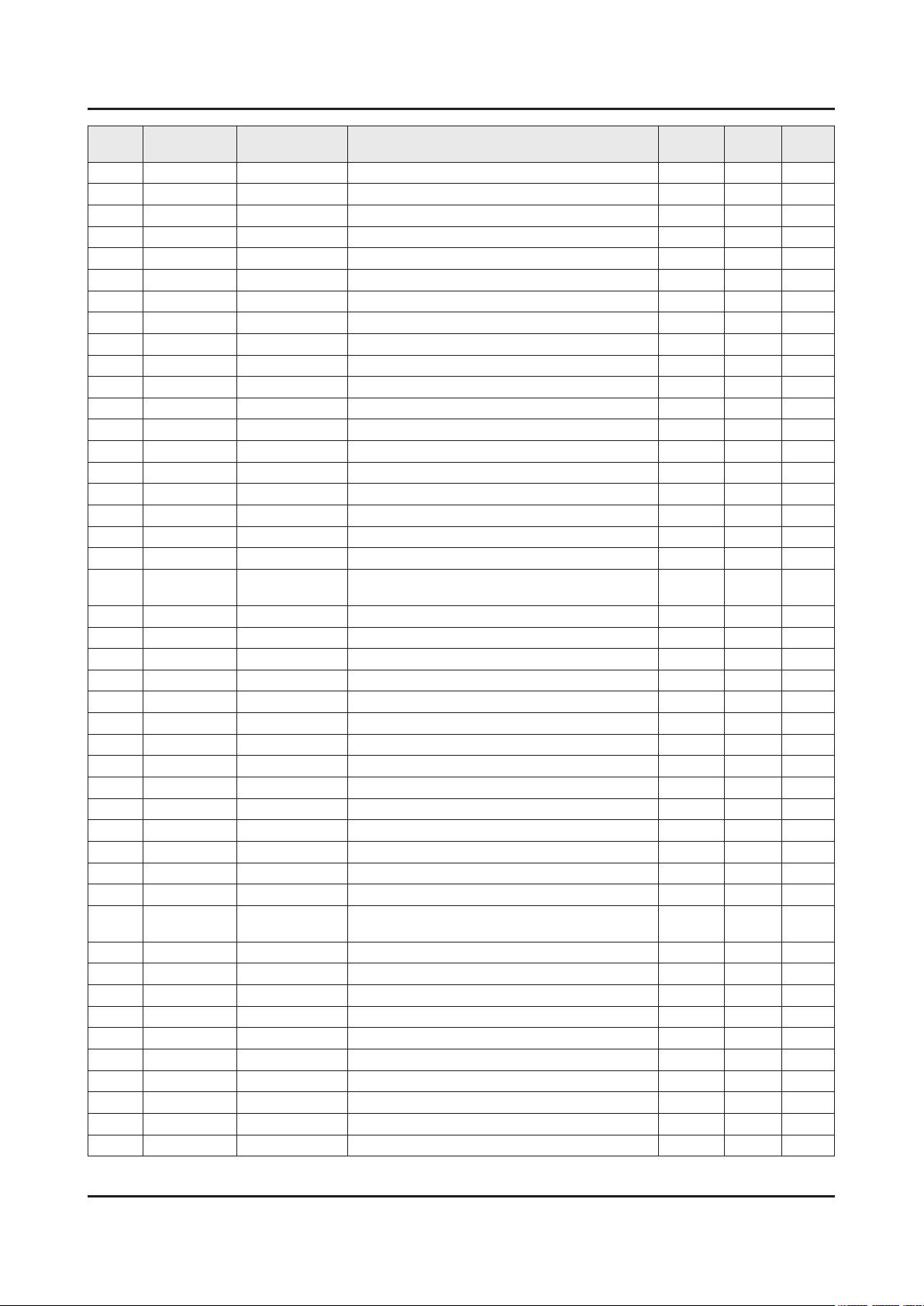
ANNEX-7
ANNEX. Exploded View & Part List
Level Location No. Code No. Description & Specication Q’ty SA/SNA Remark
..3 BN68-08097D LEAFLET;JAZZ-L,EUROPE,W/P,W200,L250,4COL 1 SNA
..3 BN68-08112A LABEL-SECURITY;ALL,PET,T0.05,W55,L52,GLO 1 SNA
..3 BN69-13918A BAG ACCESSORY;LDPE,T0.07,L350,W500,TRP,B 1 SNA
1 BN92-19940A ASSY P/MATERIAL;LEDTV 6K 1 SNA
0.2 6902-001954 BAG ROLL;HDPE/PE FOAM,HDPE T0.018mm,T0.2 4 SNA
0.2 6902-002233 BAG AIR;LDPE,-,T0.2,W900,L1850,TRP,-,-,- 1 SNA
0.2 6922-000003 BAND;PP,T0.8,W18,L1650M,TRP,DA69-90145A 6 SNA
0.2 T0214 AA61-20285C HOLDER-BOX;ALL,PP,MOLD,BLACK,HB,HB,17.5g 4 SNA
0.2 BN02-00319B TAPE-SINGLE FACE;OPP,T0.05,W75,L800M,CLE 3 SNA
0.2 BN68-02422B LABEL WARNING;ALL,ART PAPER,T0.05,W240,L 1 SNA
0.2 BN69-03982L PACKING ANGLE;ALL,PAPER,-,-,-,-,-,-,- 1 SNA
0.2 BN69-05418M WRAP;T0.017,500,2000000,2000000,500 0 SNA
0.2 BN69-06640E PAD-PACKING;TRUCK PAD,CB,-,,W410,L2500,, 1 SNA
0.2 BN69-06642A PAD-DP SHEET;PAD,CB,SW4,,W1300,L1050,,,, 1 SNA
0.2 BN69-13176A CUSHION-SET;KU6000,EPS,16.7g/l,WHT,Y-FEE 1 SNA
..3 0103-005099 RESIN EPS;BASF303,Natural,Natural 1661 SNA
0.2 BN69-13177A CUSHION-SET SIDE;KU6000,EPS,16.7g/l,WHT, 1 SNA
0.2 BN69-13764A PAD-SHEET FRONT;70KU6000,CB,DW2,W859,L15 1 SNA
0.2 BN69-13942Y PALLET-WOODEN;70" KU6000,WOOD,-,W1200,L1 1 SNA
1 PANEL BN95-02682A
0.2 SCREW 6001-003016 SCREW-MACHINE;PWH,+,M3,L5.0,ZPC(WHT),SWR 4 SA
0.2 SCREW 6001-003075 SCREW-MACHINE;BH,+,M3,L4,ZPC(WHT),SWRCH1 8 SA
0.2 BN02-00352K TAPE SINGLE FACE;JS9000,PET,T0.05,W20,L3 8 SNA
0.2 CB18 BN61-13606A BRACKET-STAND LINK;55KU6400,EGI-SECC,T1. 1 SNA
0.2 CB18 BN61-13607A BRACKET-STAND LINK;55KU6400,EGI-SECC,T1. 1 SNA
..3 BN61-09605A STUD-PEM;LED TV F6100,SUM24L,T0.8,L8,PRE 4 SNA
0.2 AS080 BN63-07229C SHEET-PROTECTION COVER;rose70",PET,T0.05 1 SNA
0.2 BN68-05722A LABEL-E PASS;POLYPROPYLENE,NON-COATING 1 SNA
0.2 BN90-08328H ASSY MISC-BLU;2016_LCM_BLU 1 SNA
..3 BN02-00114A TAPE SINGLE FACE;NNB 56",PET,T0.07,W12,L 16 SNA
..3 BN61-13369A FRAME-MIDDLE TOP;70KU6300,TPV,HB,BK0008, 1 SNA
..3 BN61-13377A FRAME-MIDDLE BOTTOM;70KU6300,TPV,HB,BK00 1 SNA
..3 BN61-13385A FRAME-MIDDLE LEFT RIGHT;70KU6300,TPV,HB, 2 SNA
..3 BN61-14015A DIFFUSER PLATE;CY-GK070HGSV1V,PS,Y16_KU6 1 SNA
..3 BN61-14016A
..3 BN61-14017A OPTICAL SHEET-MLS;CY-GK070HGSV1V,PET,KU6 1 SNA
..3 BN61-14018A OPTICAL SHEET-REFLECTOR;CY-GK070HGSV1V,P 1 SNA
..3 BN96-40269A ASSY CHASSIS REAR P;70KU6000,EGI-SECC 1 SNA
...4 BN02-00040C TAPE DOUBLE FACE;F-LED ALL,PET,T0.3,W3,L 6 SNA
...4 BN02-00102B TAPE-SINGLE FACE;FILAMENT,#8917,T0.15,W2 1 SNA
...4 BN02-00383A TAPE SINGLE FACE;Y15 JU8K,PET,T0.5,W60,L 8 SNA
...4 BN02-00383B TAPE SINGLE FACE;70KU6000,Al,T0.5,W30,L6 2 SNA
...4 BN61-11508A SUPPORT-PLATE;Y15 LED,PC,V-2,CLEAR,OD-19 23 SNA
...4 BN61-11836A HOLDER-SOURCE PCB;Y15 JU7K INX,ABS,MOLD, 8 SNA
....5 0103-005041 RESIN PC ABS;FR3200TV,901408,BK0008,1.2m 8 SNA
PRODUCT LCD-SHARP;CY-GK070HGSV1V/
H,KU600
OPTICAL SHEET-COMPLEX;CY-
GK070HGSV1V,PET
1 SA
1 SNA
Page 17
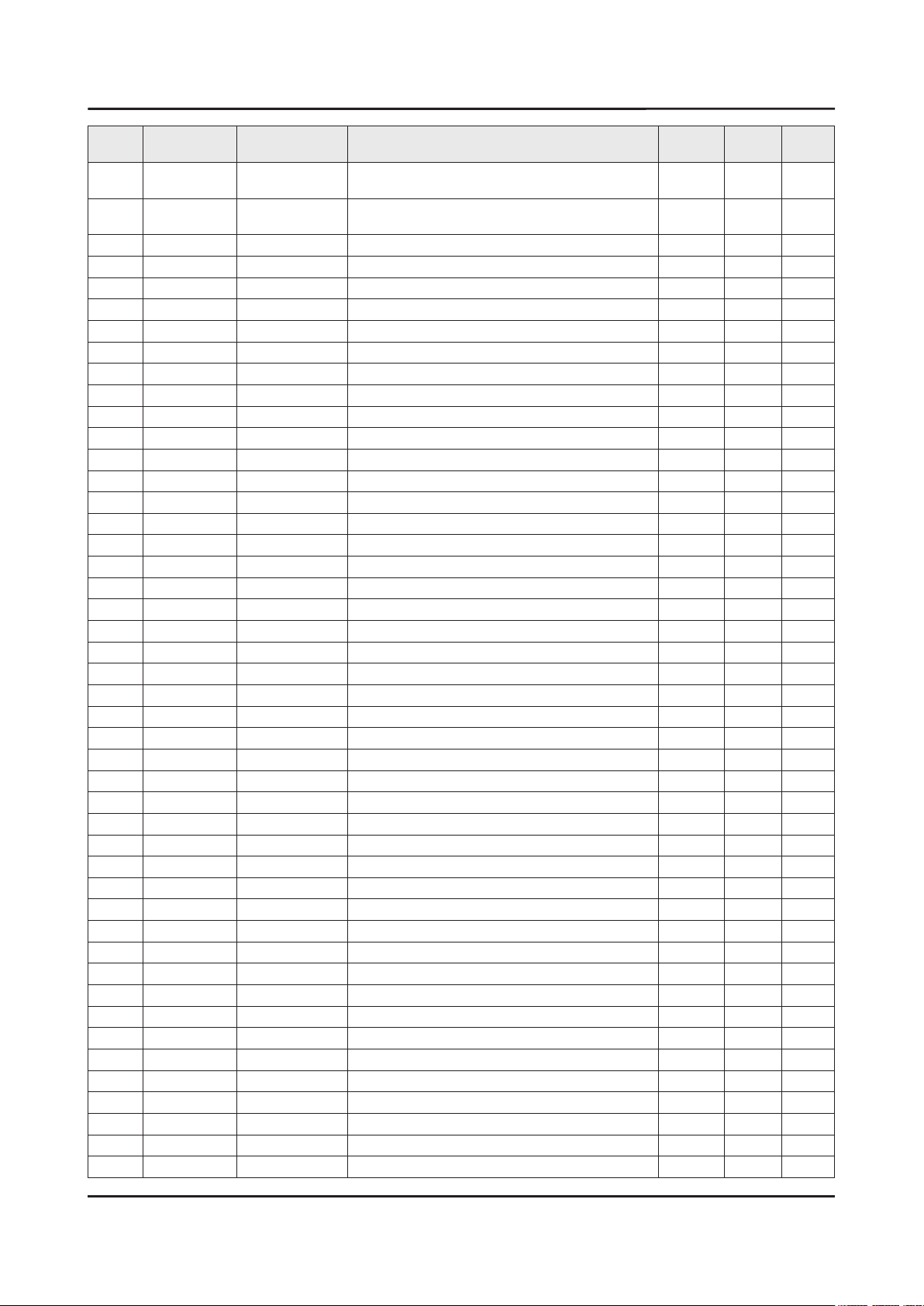
ANNEX-8
ANNEX. Exploded View & Part List
Level Location No. Code No. Description & Specication Q’ty SA/SNA Remark
...4 BN61-13447A
...4 BN61-13448A
...4 BN61-13449A FRAME-CHASSIS REAR LEFT RIGHT;70KU6000,P 2 SNA
...4 BN61-13557A BRACKET-WIRE;55KS7000,SW-C,T1,60,SILVER 7 SA
...4 BN63-15008A GASKET-ESD;GASKET,FABRIC,T8,W20,L20,BLAC 3 SNA
...4 BN63-15598A INSULATOR-SMPS;70KU6000,PC,BLACK,L408,W2 1 SNA
...4 CC04 BN64-03434A CHASSIS-REAR;70KU6000,EGI-SECC,PRESS,T0. 1 SNA
....5 CB20 BN61-10207A BRACKET-WALL;32UD6400,SWRCH10A,T1.2,L15. 4 SNA
...4 T0527 BN68-00513A LABEL-E PASS;ALL MODEL,WW,YUPO,W50,L15,W 1 SNA
...4 BN96-40780A ASSY PCB P-LED INTERFACE BOARD;70KU6000_ 1 SNA
...4 BN96-40781A ASSY PCB P-LED INTERFACE BOARD;70KU6000_ 1 SNA
..3 BN96-40275A ASSY LED BAR P;70KU6000_L,CEM3,5EA, Topv 9 SNA
..3 BN96-40276A ASSY LED BAR P;70KU6000_M,CEM3,5EA, Topv 9 SNA
..3 BN96-40277A ASSY LED BAR P;70KU6000_R,CEM3,5EA, Topv 9 SNA
0.2 TCON BN95-02753A ASSY T CON;KU6000 Sharp 70inch,Hawk-UFT 1 SA
..3 BN62-00705A HEAT SINK-PS;TV Echo-P,A1050,W135,L98.5, 1 SNA
..3 BN97-10904A ASSY SMD;KU6000 Sharp 70inch,Hawk-UFT,BN 1 SNA
...4 0202-001899 SOLDER-CREAM;M705-GRN360-K2-VT,20-38um,S 6 SNA
...4 DS01A 0401-001192 DIODE-SWITCHING;MMBD7000LT1,100V,200mA,S 3 SA
...4 0403-001164 DIODE-ZENER;MMSZ5232B,5.32~5.88V,500mW,S 1 SA
...4 0406-001643 DIODE-TVS;1SMA33AT3G,36.7V,38.65V,40.6V, 1 SNA
...4 0406-001689 DIODE-TVS;SMH14A,15.6V,17.9V,1MAV,40A,TP 1 SA
...4 0406-001691 DIODE-TVS;SESD8008MUTAG,5.5V,7V,8.5V,0.5 8 SA
...4 0501-000465 TR-SMALL SIGNAL;MMBT3904,NPN,350mW,SOT-2 1 SA
...4 0502-001345 TR-POWER;FCX491A,NPN,1000mW,SOT89,TR,900 3 SA
...4 0502-001346 TR-POWER;FCX591A,PNP,1000mW,SOT89,TR,30/ 3 SA
...4 0505-003507 FET-SILICON;AO3424,N,30V,3.8A,1.4W,SOT-2 10 SA
...4 EL02 0601-002037 LED;SMD(TOP VIEW),BLUE,1.6x0.8mm,465/470 2 SA
...4 0801-002345 IC-CMOS LOGIC;7S04,INVERTER,SOT-353,5P,2 1 SA
...4 0801-003292 IC-CMOS LOGIC;7WB66,Bus Switch,MAB08A,8P 4 SA
...4 1003-002697 IC-LEVEL DRIVER;BD8125MUV,QFN,48P,7x7x0. 1 SNA
...4 1105-002772 IC-DDR3 SDRAM;K4B1G1646I-BCMA,-,1Gbit,64 2 SA
...4 1203-004363 IC-VOL. DETECTOR;SOT-23,3Z30,2.9x1.6mm,P 1 SA
...4 1203-006130 IC-POSI.FIXED REG.;S-1172B25-U5T1G,SOT-8 1 SA
...4 1203-008118 IC-DC/DC CONVERTER;AOZ3013PI,SO-8,8,4.96 2 SA
...4 1203-008424 IC-DC/DC CONVERTER;BM81004MUV,QFN,48,7x7 1 SNA
...4 1204-003617 IC-VIDEO PROCESS;SDP1409.3,FCBGA,1023P,3 1 SA
...4 1405-001381 VARISTOR;11V,8VDC,30A,1608,TP,25V,500pF 3 SA
...4 1405-001382 VARISTOR;24.5V,16VDC,120A,2012,TP,42V,40 2 SA
...4 2007-000034 R-CHIP;1ohm,5%,1/4W,TP,3216 2 SNA
...4 2007-000060 R-CHIP;100Kohm,1%,1/10W,TP,1608 2 SNA
...4 2007-000063 R-CHIP;150Kohm,1%,1/10W,TP,1608 1 SA
...4 2007-000070 R-CHIP;0ohm,5%,1/10W,TP,1608 4 SA
...4 2007-000074 R-CHIP;100ohm,5%,1/10W,TP,1608 10 SA
...4 2007-000078 R-CHIP;1Kohm,5%,1/10W,TP,1608 2 SA
...4 2007-000084 R-CHIP;4.7Kohm,5%,1/10W,TP,1608 1 SA
FRAME-CHASSIS REAR
TOP;70KU6000,PC+GF10%
FRAME-CHASSIS REAR
BOTTOM;70KU6000,PC+GF
1 SNA
1 SNA
Page 18
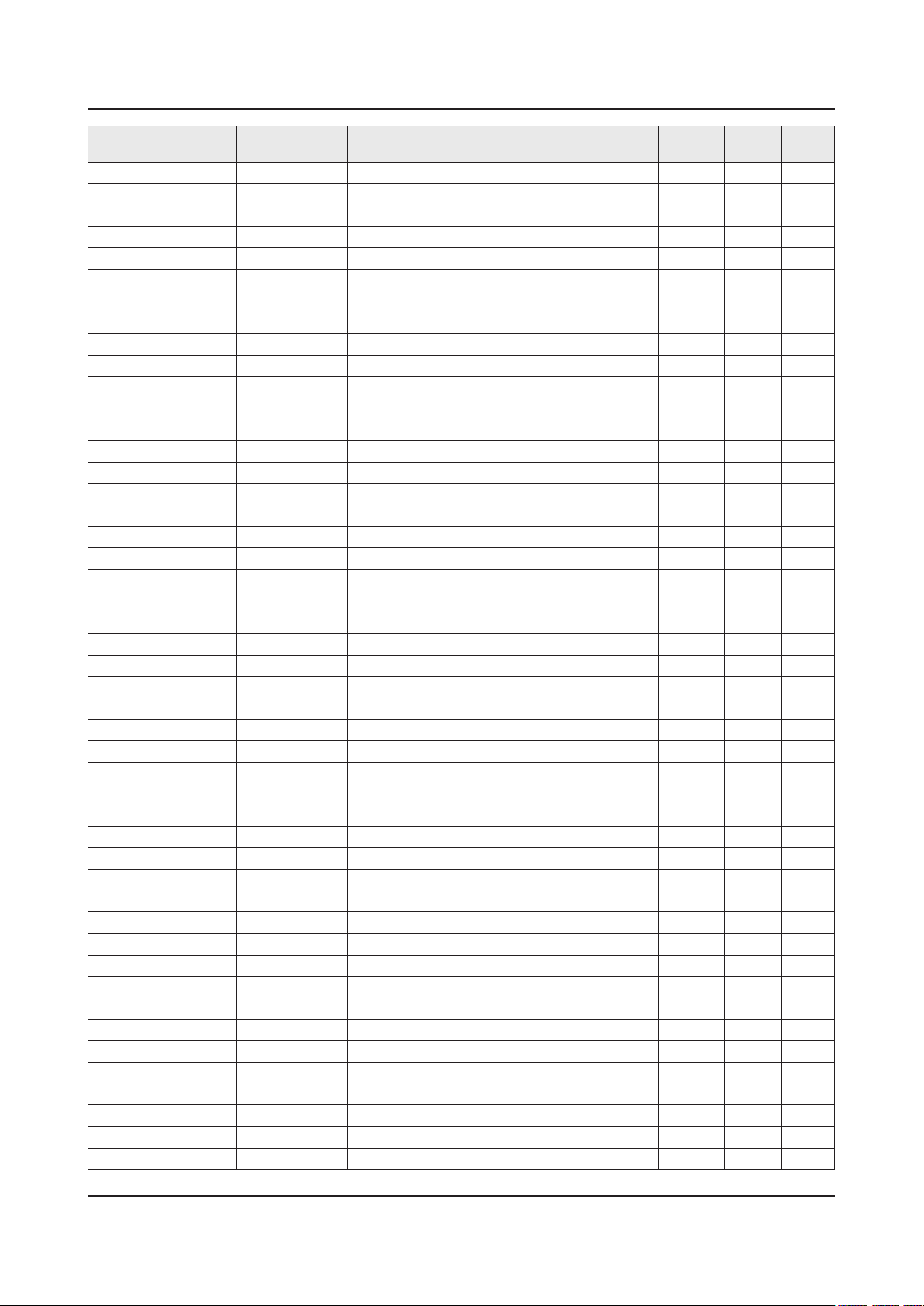
ANNEX-9
ANNEX. Exploded View & Part List
Level Location No. Code No. Description & Specication Q’ty SA/SNA Remark
...4 2007-000109 R-CHIP;1Mohm,5%,1/10W,TP,1608 1 SA
...4 2007-000138 R-CHIP;100ohm,5%,1/16W,TP,1005 9 SA
...4 2007-000140 R-CHIP;1Kohm,5%,1/16W,TP,1005 1 SNA
...4 2007-000143 R-CHIP;4.7Kohm,5%,1/16W,TP,1005 18 SNA
...4 2007-000148 R-CHIP;10Kohm,5%,1/16W,TP,1005 12 SA
...4 2007-000157 R-CHIP;47Kohm,5%,1/16W,TP,1005 1 SNA
...4 2007-000165 R-CHIP;200Kohm,5%,1/16W,TP,1005 4 SNA
...4 2007-000171 R-CHIP;0ohm,5%,1/16W,TP,1005 44 SNA
...4 2007-000172 R-CHIP;10ohm,5%,1/16W,TP,1005 2 SNA
...4 2007-000239 R-CHIP;1.5Kohm,1%,1/10W,TP,1608 1 SA
...4 2007-000491 R-CHIP;2.2Kohm,1%,1/10W,TP,1608 1 SA
...4 2007-000504 R-CHIP;2.2ohm,5%,1/4W,TP,3216 1 SA
...4 2007-000606 R-CHIP;240ohm,1%,1/10W,TP,1608 1 SA
...4 2007-000614 R-CHIP;24Kohm,1%,1/10W,TP,1608 1 SNA
...4 2007-000651 R-CHIP;27Kohm,1%,1/10W,TP,1608 1 SA
...4 2007-000842 R-CHIP;3Kohm,1%,1/10W,TP,1608 1 SA
...4 2007-000929 R-CHIP;470ohm,1%,1/10W,TP,1608 3 SNA
...4 2007-000979 R-CHIP;5.6Kohm,1%,1/10W,TP,1608 1 SA
...4 2007-001298 R-CHIP;51ohm,5%,1/16W,TP,1005 15 SNA
...4 2007-002437 R-CHIP;2ohm,5%,1/10W,TP,1608 1 SNA
...4 2007-007136 R-CHIP;4.7Kohm,1%,1/16W,TP,1005 94 SNA
...4 2007-007139 R-CHIP;47Kohm,1%,1/16W,TP,1005,T0.35 17 SA
...4 2007-007142 R-CHIP;10Kohm,1%,1/16W,TP,1005 37 SNA
...4 2007-007306 R-CHIP;100ohm,1%,1/16W,TP,1005 38 SNA
...4 2007-007309 R-CHIP;12Kohm,1%,1/16W,TP,1005,T0.35 4 SA
...4 2007-007315 R-CHIP;3.9Kohm,1%,1/16W,TP,1005 1 SNA
...4 2007-007318 R-CHIP;1Kohm,1%,1/16W,TP,1005 24 SNA
...4 2007-007488 R-CHIP;75Kohm,1%,1/16W,TP,1005 6 SNA
...4 2007-007517 R-CHIP;240ohm,1%,1/16W,TP,1005 13 SNA
...4 2007-007590 R-CHIP;82Kohm,1%,1/16W,TP,1005 2 SNA
...4 2007-007627 R-CHIP;16Kohm,1%,1/16W,TP,1005 2 SA
...4 2007-007766 R-CHIP;2Kohm,1%,1/16W,TP,1005 28 SNA
...4 2007-008035 R-CHIP;160Kohm,1%,1/10W,TP,1608 1 SA
...4 2007-008070 R-CHIP;130ohm,1%,1/10W,TP,1608 1 SNA
...4 2007-008136 R-CHIP;36Kohm,1%,1/16W,TP,1005 1 SA
...4 2007-008167 R-CHIP;120Kohm,1%,1/16W,TP,1005 1 SC
...4 2007-008332 R-CHIP;11.5Kohm,1%,1/16W,TP,1005 1 SA
...4 2007-008596 R-CHIP;0.1ohm,1%,1/4W,TP,3216 2 SC
...4 2007-009234 R-CHIP;0.47ohm,1%,1/4W,TP,3216 6 SNA
...4 2007-009777 R-CHIP;4.99Kohm,1%,1/16W,TP,1005 3 SA
...4 2007-010387 R-CHIP;10Kohm,1%,1/16W,TP,1005 1 SA
...4 2011-001264 R-NETWORK;10ohm,5%,1/16W,L,CHIP,8P,TP,2. 12 SNA
...4 2011-001427 R-NETWORK;0ohm,5%,1/16W,L,CHIP,8P,TP,2.0 3 SA
...4 AD480 2203-000254 C-CER,CHIP;10nF,10%,16V,X7R,TP,1005 6 SA
...4 AD480 2203-000332 C-CER,CHIP;0.012nF,5%,50V,C0G,TP,1608 2 SA
...4 AD480 2203-000489 C-CER,CHIP;2.2nF,10%,50V,X7R,TP,1005 4 SA
...4 AD480 2203-000888 C-CER,CHIP;4.7nF,10%,50V,X7R,TP,1608 1 SA
Page 19
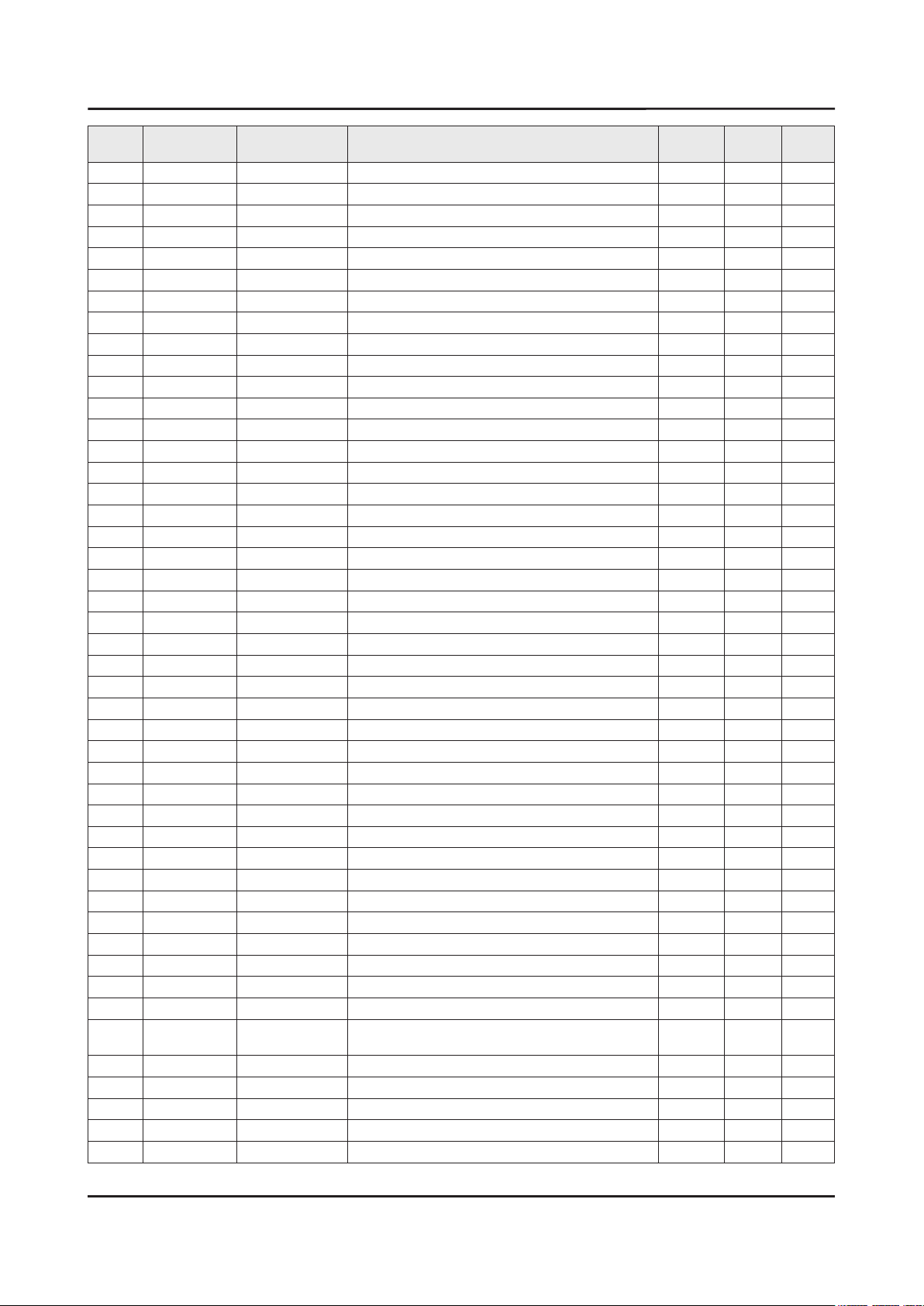
ANNEX-10
ANNEX. Exploded View & Part List
Level Location No. Code No. Description & Specication Q’ty SA/SNA Remark
...4 AD480 2203-002711 C-CER,CHIP;100nF,10%,25V,X7R,TP,1608 5 SA
...4 AD480 2203-002982 C-CER,CHIP;6.8nF,10%,50V,X7R,TP,1005 1 SA
...4 AD480 2203-005221 C-CER,CHIP;15nF,10%,50V,X7R,TP,1608 1 SNA
...4 AD480 2203-005249 C-CER,CHIP;100nF,10%,50V,X7R,TP,1608 8 SNA
...4 AD480 2203-005344 C-CER,CHIP;22nF,10%,25V,X7R,TP,1005,0.5T 8 SNA
...4 AD480 2203-005968 C-CER,CHIP;4.7nF,10%,50V,X7R,TP,1005,0.5 4 SNA
...4 AD480 2203-006048 C-CER,CHIP;100nF,10%,10V,X7R,TP,1005 14 SA
...4 AD480 2203-006158 C-CER,CHIP;100nF,10%,16V,X7R,TP,1005,T0. 224 SNA
...4 AD480 2203-006348 C-CER,CHIP;1000nF,10%,25V,X5R,TP,1608,0. 2 SA
...4 AD480 2203-006361 C-CER,CHIP;10000nF,10%,10V,X5R,TP,2012 7 SC
...4 AD480 2203-006474 C-CER,CHIP;22000nF,20%,6.3V,X5R,TP,2012 8 SA
...4 AD480 2203-006698 C-CER,CHIP;1000nF,10%,25V,X7R,TP,1608,T0 5 SNA
...4 AD480 2203-006741 C-CER,CHIP;470nF,10%,25V,X5R,TP,1608,0.8 1 SNA
...4 AD480 2203-006841 C-CER,CHIP;1000nF,10%,16V,X5R,TP,1005 1 SNA
...4 AD480 2203-006890 C-CER,CHIP;10000nF,20%,6.3V,X5R,TP,1608 32 SNA
...4 AD480 2203-007176 C-CER,CHIP;10000nF,10%,16V,X5R,TP,2012,1 52 SNA
...4 AD480 2203-007240 C-CER,CHIP;22000nF,20%,6.3V,X5R,TP,1608( 64 SA
...4 AD480 2203-007269 C-CER,CHIP;22000nF,20%,10V,X5R,TP,2012(2 19 SA
...4 AD480 2203-007270 C-CER,CHIP;10000nF,10%,10V,X5R,TP,1608,0 67 SNA
...4 AD480 2203-007370 C-CER,CHIP;10000nF,10%,10V,X7R,TP,2012 8 SA
...4 AD480 2203-007513 C-CER,CHIP;10000nF,10%,10V,X5R,TP,1608,0 6 SA
...4 2703-003862 INDUCTOR-SMD;10uH,20%,6060,0.065ohm,1900 3 SA
...4 2703-003937 INDUCTOR-SMD;1uH,20%,7.0x6.47x3.0mm,0.00 4 SA
...4 2703-004199 INDUCTOR-SMD;10uH,20%,6.6x7.0mm,2.2mm,0. 1 SNA
...4 2703-004589 INDUCTOR-SMD;2.2uH,20%,5050,2T,0.048Ohm, 2 SA
...4 2801-005324 CRYSTAL-SMD;27MHz,30ppm,Ceramic SMD(4pin 1 SA
...4 3301-002039 BEAD-SMD;26ohm,1608,TP 45 SA
...4 3601-001402 FUSE-SURFACE MOUNT;125V,7A,FAST-ACTING,C 1 SNA
...4 3708-003073 CONNECTOR-FPC/FFC/PIC;51P,0.5mm,SMD-A,AU 2 SA
...4 3708-003241 CONNECTOR-FPC/FFC/PIC;96P,0.5mm,SMD-A,AU 2 SNA
...4 3711-007839 CONNECTOR-HEADER;BOX,15P,1R,1.25mm,SMD-A 1 SA
...4 6302-001290 GASKET;SMR-TS-4-4.5-3,4.0mm,Ni+Au+SUS+Mg 6 SNA
...4 BN41-02291B PCB-TCON;Sharp UHD 120Hz,FR-4,4L,1.6T,16 1 SNA
...4 BN97-10912A ASSY MICOM;1107-002223,KU6000 Sharp 70in 1 SNA
....5 IC 1107-002265 IC-NOR FLASH;W25Q32FVSSIG,32Mbit,SOP,8P, 1 SA
0.2 BN96-39310A ASSY OPEN CELL;LQ695R3HB6K,16:9,24 1 SNA
..3 BN81-13135A A/S-IC DRIVER SOURCE;IC DRIVER SOURCE,VH 1 SNA
..3 BN81-13136A A/S-POLARIZER CF;POLARIZER CF,PFILV1993T 1 SNA
..3 BN81-13137A A/S-POLARIZER TFT;POLARIZER TFT,PFILV220 1 SNA
..3 BN81-13138A A/S-IC DRIVER GATE;IC DRIVER GATE,VHIRDG 1 SNA
..3 BN81-13139A
..3 BN81-13140A A/S-SOURCE PCB FRONT RIGHT;SOURCE PCB FR 1 SNA
..3 BN81-13141A A/S-SOURCE PCB BACK LEFT;SOURCE PCB BACK 1 SNA
..3 BN81-13142A A/S-SOURCE PCB BACK RIGHT;SOURCE PCB BAC 1 SNA
0.2 BN96-39488A FFC CABLE;KS9500,Straight,L57,96P 2 SNA
0.2 BN96-40298A ASSY COVER P-SOURCE PCB LEFT;70KU6000,EG 1 SNA
A/S-SOURCE PCB FRONT LEFT;SOURCE PCB
FRO
1 SNA
Page 20
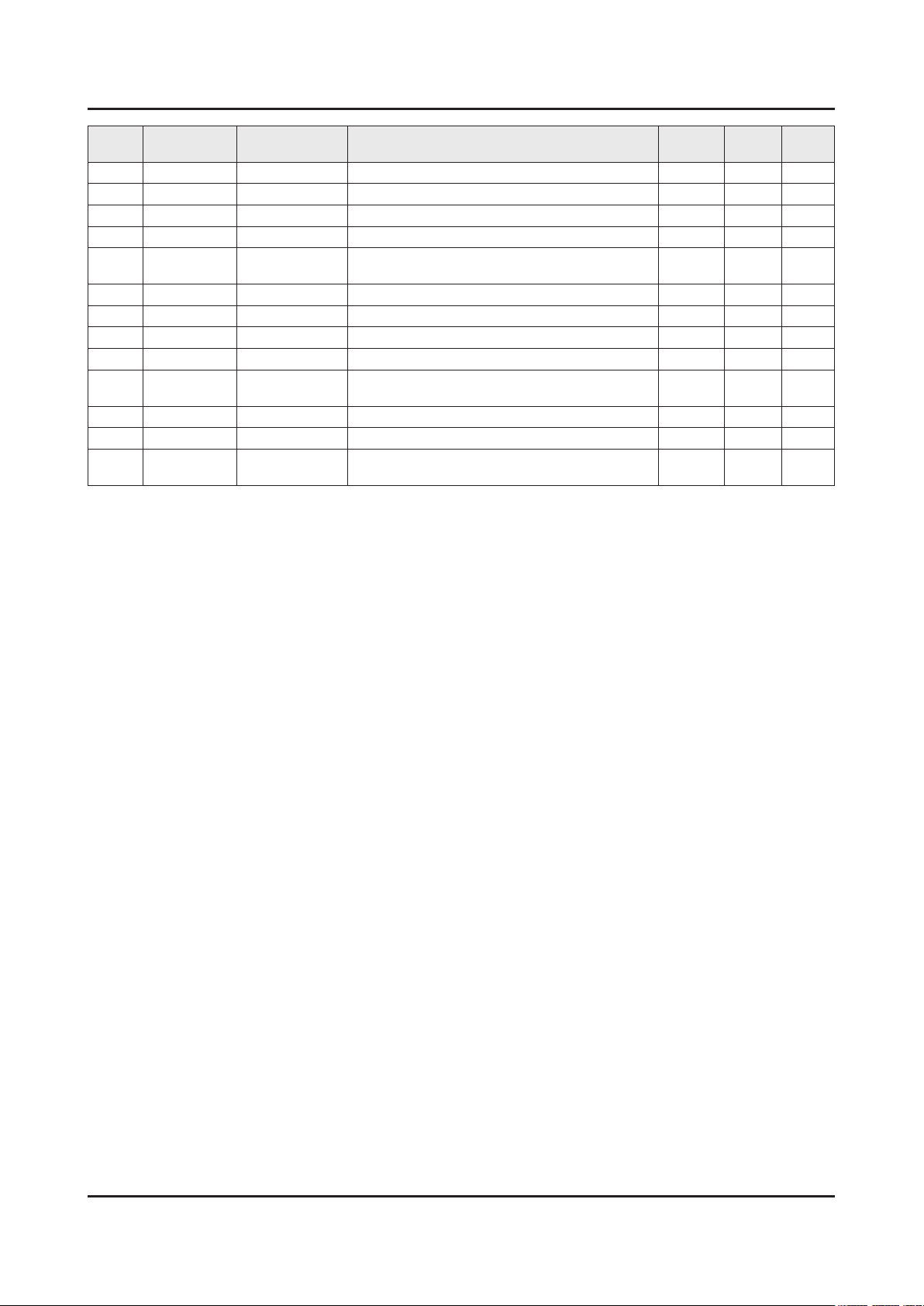
ANNEX-11
ANNEX. Exploded View & Part List
Level Location No. Code No. Description & Specication Q’ty SA/SNA Remark
..3 BN63-15301A COVER-SOURCE PCB LEFT;EGI-SECC,T0.6,PRES 1 SNA
..3 BN63-15644A INSULATOR-SOURCE PCB COVER LEFT;70KU6000 1 SNA
0.2 BN96-40299A ASSY COVER P-SOURCE PCB RIGHT;70KU6000,E 1 SNA
..3 BN63-15300A COVER-SOURCE PCB RIGHT;EGI-SECC,T0.6,PRE 1 SNA
..3 BN63-15644B
0.2 BN96-40397A ASSY CHASSIS FRONT P;70KU6000,PC+ABS+MF1 1 SA
..3 BN02-00381Y TAPE SINGLE FACE;70KU6000,CONDUCTIVE FAB 2 SNA
..3 BN02-00381Z TAPE SINGLE FACE;70KU6000,CONDUCTIVE FAB 2 SNA
..3 BN60-00715A SPACER-CONDUCTIVE;Y13 Slim F-LED,CONDUCT 2 SNA
..3 BN60-01115A
..3 BN63-14373E SHEET-PROTECTION COVER;LED_JU7000,AL,T0. 4 SNA
..3 BN63-14373H SHEET-PROTECTION COVER;LED_JU7000,PO,T0. 2 SNA
..3 AC155 BN64-03418A
INSULATOR-SOURCE PCB COVER
RIGHT;70KU600
SPACER-CONDUCTIVE;Y15 JU8K,CONDUCTIVE
FA
CHASSIS-
FRONT;70KU6000,PC+ABS+MF15%,MOLD
1 SNA
3 SNA
1 SNA
Page 21
1. Precautions
1. Precautions
1-1. Safety Precautions
Follow these safety, servicing and ESD precautions to prevent damage and to protect against potential hazards such as
electrical shock.
1-1-1. Warnings
For continued safety, do not attempt to modify the circuit board.
WARNING
1-1-2. Servicing the LED TV
When servicing the LED TV, Disconnect the AC line cord from the AC outlet.1.
It is essential that service technicians have an accurate voltage meter available at all times. Check the calibration of this 2.
meter periodically.
1-1-3. Fire and Shock Hazard
Before returning the monitor to the user, perform the following safety checks:
Inspect each lead dress to make certain that the leads are not pinched or that hardware is not lodged between the 1.
chassis and other metal parts in the monitor.
Inspect all protective devices such as nonmetallic control knobs, insulating materials, cabinet backs, adjustment and 2.
compartment covers or shields, isolation resistorcapacitor networks, mechanical insulators, etc.
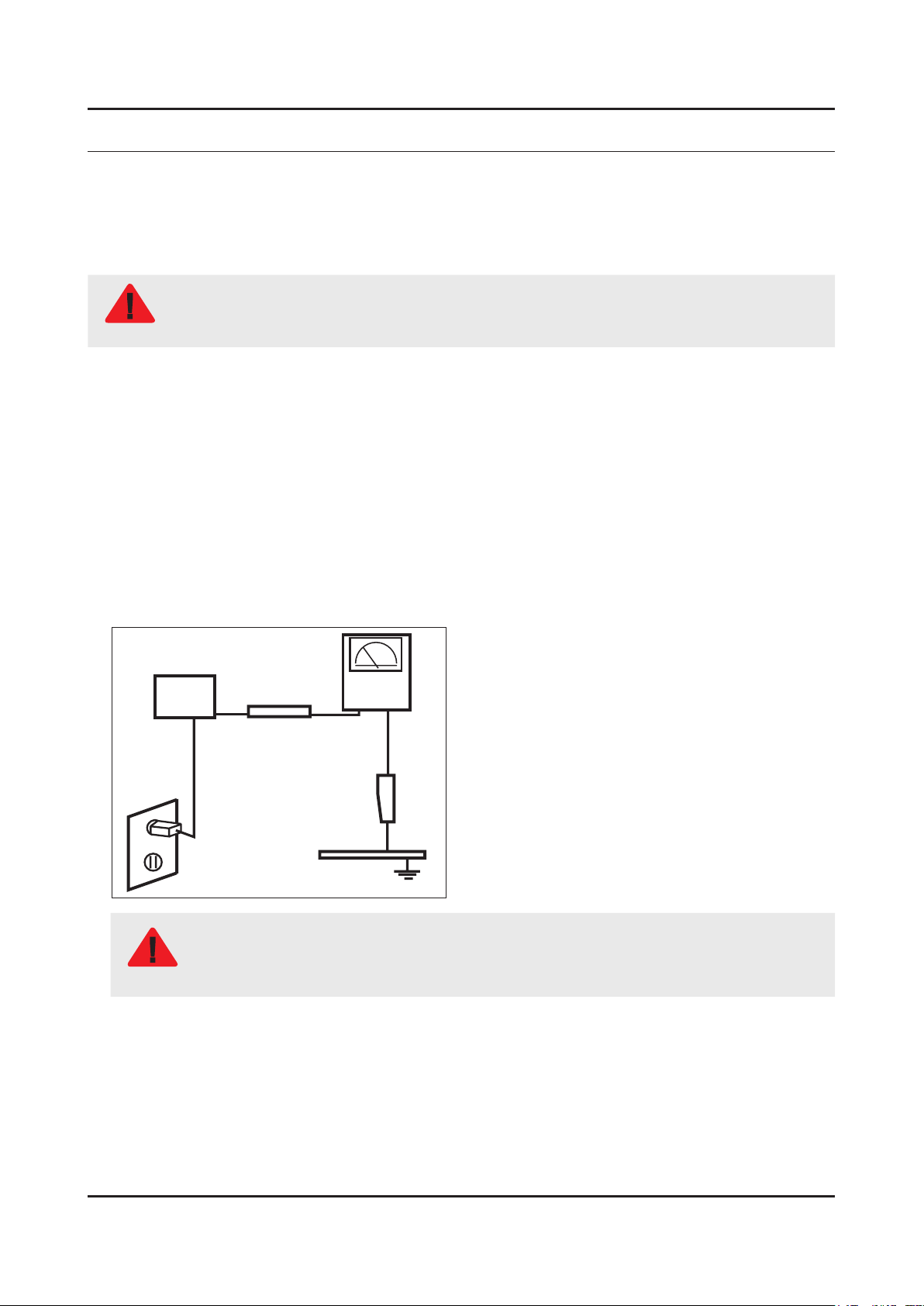
Leakage Current Hot Check:3.
Disconnect the AC power and DC power jack before servicing.
(READING SHOULD)
DEVICE
UNDER
TEST
ALSO TEST WITH
PLUG REVERSED
(USING AC ADAPTER
PLUG AS REQUIRED)
NOT BE ABOVE 0.5mA
2-WIRE CORD
TEST ALL
EXPOSED METAL
SURFACES
LEAKAGE
CURRENT
TESTER
EARTH
GROUND
Do not use an isolation transformer during this test.
Use a leakage current tester or a metering system that complies with American National Standards
WARNING
Institute (ANSI C101.1, Leakage Current for Appliances), and Underwriters Laboratories (UL
Publication UL1410, 59.7).
With the unit completely reassembled, plug the AC line cord directly into a 120V AC outlet. With the unit’s AC switch rst 4.
in the ON position and then OFF, measure the current between a known earth ground (metal water pipe, conduit, etc.)
and all exposed metal parts, including: metal cabinets, screwheads and control shafts.
The current measured should not exceed 0.5 milliamp.
Reverse the power-plug prongs in the AC outlet and repeat the test.
1-1
Page 22

1-2
1. Precautions
1-1-4. Product Safety Notices
Some electrical and mechanical parts have special safetyrelated characteristics which are often not evident from visual
inspection. The protection they give may not be obtained by replacing them with components rated for higher voltage,
wattage, etc. Parts that have special safety characteristics are identied by on schematics and parts lists. A substitute
replacement that does not have the same safety characteristics as the recommended replacement part might create
shock, re and/or other hazards. Product safety is under review continuously and new instructions are issued whenever
appropriate.
Page 23

1-3
1. Precautions
1-2. Servicing Precautions
An electrolytic capacitor installed with the wrong polarity might explode.
WARNING
Before servicing units covered by this service manual, read and follow the Safety Precautions section of
CAUTION
NOTE
1-2-1. General Servicing Precautions
Always unplug the unit’s AC power cord from the AC power source and disconnect the DC Power Jack before 1.
attempting to: (a) remove or reinstall any component or assembly, (b) disconnect PCB plugs or connectors, (c) connect
a test component in parallel with an electrolytic capacitor.
Some components are raised above the printed circuit board for safety. An insulation tube or tape is sometimes used. 2.
The internal wiring is sometimes clamped to prevent contact with thermally hot components. Reinstall all such elements
to their original position.
After servicing, always check that the screws, components and wiring have been correctly reinstalled. Make sure that 3.
the area around the serviced part has not been damaged.
Check the insulation between the blades of the AC plug and accessible conductive parts (examples: metal panels, input 4.
terminals and earphone jacks).
Insulation Checking Procedure: Disconnect the power cord from the AC source and turn the power switch ON. Connect 5.
an insulation resistance meter (500 V) to theblades of the AC plug. The insulation resistance between each blade of the
AC plug and accessible conductive parts (see above) should be greater than 1 megohm.
Always connect a test instrument’s ground lead to the instrument chassis ground before connecting the positive lead; 6.
always remove the instrument’s ground lead last.
this manual.
If unforeseen circumstances create conict between the following servicing precautions and any of the
safety precautions, always follow the safety precautions.
Page 24

1-4
1. Precautions
1-3. Static Electricity Precautions
Some semiconductor (solid state) devices can be easily damaged by static electricity. Such components are commonly
called Electrostatically Sensitive Devices (ESD). Examples of typical ESD are integrated circuits and some eld-effect
transistors. The following techniques will reduce the incidence of component damage caused by static electricity.
Immediately before handling any semiconductor components or assemblies, drain the electrostatic charge from your 1.
body by touching a known earth ground. Alternatively, wear a discharging wrist-strap device. To avoid a shock hazard,
be sure to remove the wrist strap before applying power to the monitor.
After removing an ESD-equipped assembly, place it on a conductive surface such as aluminum foil to prevent 2.
accumulation of an electrostatic charge.
Do not use freon-propelled chemicals. These can generate electrical charges sufcient to damage ESDs.3.
Use only a grounded-tip soldering iron to solder or desolder ESDs.4.
Use only an anti-static solder removal device. Some solder removal devices not classied as “anti-static” can generate 5.
electrical charges sufcient to damage ESDs.
Do not remove a replacement ESD from its protective package until you are ready to install it. Most replacement ESDs 6.
are packaged with leads that are electrically shorted together by conductive foam, aluminum foil or other conductive
materials.
Immediately before removing the protective material from the leads of a replacement ESD, touch the protective material 7.
to the chassis or circuit assembly into which the device will be installed.
Be sure no power is applied to the chassis or circuit and observe all other safety precautions.
CAUTION
Minimize body motions when handling unpackaged replacement ESDs. Motions such as brushing clothes together, or 8.
lifting your foot from a carpeted oor can generate enough static electricity to damage an ESD.
Page 25

1-5
1. Precautions
1-4. Installation Precautions
For safety reasons, more than a people are required for carrying the product.1.
Keep the power cord away from any heat emitting devices, as a melted covering may cause re or electric shock.2.
Do not place the product in areas with poor ventilation such as a bookshelf or closet. The increased internal temperature 3.
may cause re.
Bend the external antenna cable when connecting it to the product. This is a measure to protect it from being exposed 4.
to moisture. Otherwise, it may cause a re or electric shock.
Make sure to turn the power off and unplug the power cord from the outlet before repositioning the product. Also check 5.
the antenna cable or the external connectors if they are fully unplugged. Damage to the cord may cause re or electric
shock.
Keep the antenna far away from any high-voltage cables and install it rmly. Contact with the highvoltage cable or the 6.
antenna falling over may cause re or electric shock.
When installing the product, leave enough space (0.4m) between the product and the wall for ventilation purposes. 7.
A rise in temperature within the product may cause re.
If an equipment is provided with a replaceable battery, and if replacement by an incorrect type could result in an 8.
explosion (for example, with some lithium batteries), the following applies:
Risk of explosion if battery is replaced by an incorrect type dispose of used batteries according to •
the instructions.
Do not dispose of batteries in a re.•
Do not short circuit, disassemble or overheat the batteries.•
CAUTION
Danger of explosion if battery is incorrectly replaced. Replace only with the same or equivalent •
type.
Do not be exposed to excessive heat such as sunshine, re or the like.•
Page 26

2. Product Specications
2-1. Product information
Model UE70KU6072U
2. Product specications
W
Front View
Detail View
Front Color Black
Stand Type Y-Shape
Dimension (WxHxD) 70"
Weight
70"
H
* W : Width H : High D : Depth
with Stand 1572.3 x 990.3 x 378.3 mm
without Stand 1572.3 x 908.4 x 63.7 mm
with Stand
without Stand 27.6 kg
D
31.1 kg
2-1
Page 27

2-2
2. Product specications
2-2. Detail Specication
Item UE70KU6072UXXH
General Information
Display
Video
Product LED
Series 6
Country HUNGARY
Platform(TV) SoC | Jazz-L
Screen Size 70"
Screen Size (cm) 176 cm
Resolution 3,840 × 2,160
Quantum Dot Display N/A
Ultra Black N/A
Screen Curvature N/A
10 bit Support N/A
Picture Engine UHD Up-Scaling
Motion Rate N/A
PQI (Picture Quality Index) 1300
HDR (High Dynamic Range) HDR
Dynamic Contrast Ratio Mega Contrast
Micro Dimming UHD Dimming
Audio
Precision Black (Local Dimming) N/A
Quantum Dot Color N/A
Active Crystal Color N/A
Wide Color Enhancer (Plus) N/A
PurColor Yes
Auto Depth Enhancer N/A
Contrast Enhancer Yes
Auto Motion Plus Yes
Film Mode Yes
Peak Illuminator N/A
Dolby Digital Plus Yes
DTS Codec Yes
Sound Output (RMS) 20W
Speaker Type 2CH(Down Firing w/Bass Reex)
Woofer N/A
Wallmount Sound Mode Yes
Multiroom Link Yes
TV SoundConnect N/A
BT Headset Support N/A
Page 28

2-3
2. Product specications
Item UE70KU6072UXXH
Smart TV
Smart Interaction
Convergence
IoT Service
Tuner/Broadcasting
Samsung SMART TV Yes
Apps Yes
Games N/A
Cloud Game Yes
Billing Yes(RO,BG,CZ,SK,LV,LT,EE)
Automated Content Recognition (ACR) N/A
Web Browser Yes
Voice Recognition N/A
TV to Mobile - Mirroring Yes
Mobile to TV - Mirroring, DLNA Yes
Samsung SMART View Yes
Bluetooth Low Energy N/A
RVU N/A
WiFi Direct Yes
TV as Hub Support N/A
TV as Things Support N/A
IoT Client Application N/A
Digital Broadcasting DVB-T2CS2
Connectivity
Analog Tuner Yes
2 Tuner N/A
CI (Common Interface) CI+(1.3)
Data Broadcasting
HDMI 3
USB 2
Component In (Y/Pb/Pr) 1
Composite In (AV) 1(Common Use for Component Y)
Ethernet (LAN) Yes
Headphone N/A
Audio Out (Mini Jack) N/A
Digital Audio Out (Optical) 1
RF In (Terrestrial / Cable input / Satellite input) 1/1(Common Use for Terrestrial)/1
Ex-Link ( RS-232C ) N/A
CI Slot 1
Scart N/A
HDMI A / Return Ch. Support Yes
HbbTV 1.5(FR,ES,EE,HU) / HbbTV1.0(C
Z,SK,PT,DE,AT,SZ,PL,BE,NL,LU)
HDMI Quick Switch Yes
Wireless LAN Adapter Support N/A
Wireless LAN Built-in Yes
Page 29

2-4
2. Product specications
Item UE70KU6072UXXH
Connectivity
Design
Additional Feature
Anynet+ (HDMI-CEC) Yes
Design JU6000 Concept modied
Bezel Type VNB
Slim Type Slim
Front Color Black
Light Effect (Deco) N/A
Stand Type Y-Shape
Swivel (Left/Right) N/A
Instant On Yes
Processor Quad-Core
Accessibility
Digital Clean View Yes
One Connect (Jack) N/A
Auto Channel Search Yes
Auto Power Off Yes
BD Wise Plus N/A
Caption (Subtitle) Yes
Voice guide(EU 17 countries)/ Enlarge/
High contrast
Eco Feature
Power
Channel List USB-Clone Yes
Connect Share™ (HDD) Yes
ConnectShare™ (USB 2.0) Yes
Embeded POP Yes
EPG Yes
Extended PVR Yes
Game Mode Yes
OSD Language 27 European Languages
Picture-In-Picture Yes
BT HID Built-in N/A
USB HID Support Yes
Time Shift Yes
MBR Support N/A
Ultra Clean View Yes
Eco Sensor Yes
Energy Efciency Class A
Power Supply AC220-240V 50/60Hz
Power Consumption (Max) 295 W
Page 30

2-5
2. Product specications
2-3. NEW Key Features
2-3-1. 16" New UI
Smart Hub
APPS Service
Page 31

2-6
2. Product specications
2-4. The Remote Control
2-4-1. Remote Control
(Power): Turns the TV on and off.
SOURCE
: Displays and selects the available video sources.
Number
TTX/MIX
PRE-CH
MUTE
CH LIST
SPORTS
GUIDE
EXTRA
INFO
- Press and hold to display the Guide.
values shown on the TV's menu.
RETURN
EXIT
Use these buttons according to the directions on the TV screen.
: Gives direct access to channels.
: Alternately selects Teletext ON, Double, Mix or OFF.
: Returns to the previous channel.
: Adjusts the volume.
: Turns the sound on and off.
: Changes the current channel.
: Launches the Channel List.
: Turns the Soccer Mode on or off.
(Smart Hub): Launches Home Screen.
: Displays the Electronic Programme Guide (EPG).
: Displays related information about the current programme.
: Displays information about the current programme or content.
(Enter): Selects or runs a focused item.
: Moves the cursor, selects the on-screen menu items, and changes the
: Returns to the previous menu or channel.
: Exits the menu.
SETTINGS
screen.
AD/SUBT.
REC
: Stops playing content.
Use these buttons with specic features. Use these buttons according to the
directions on the TV screen.
: Sets the Quick Settings the menu on the Settings of the home
: Displays the Accessibility Shortcuts.
: Records whatever you are currently watching.
Page 32

2-7
2. Product specications
2-4-2. 123 Key
2-4-3. EXTRA Key
Page 33

2-8
2. Product specications
2-5. HDMI Color
2-5-1. HDMI UHD Color
When you set the HDMI connection to On, the TV turns off and then on automatically.•
The HDMI connection with HDMI UHD Color set to Off supports up to UHD 50P/60P 4:2:0 input signals, while the •
HDMI connection with HDMI UHD Color set to On supports up to UHD 50P/60P 4:4:4 and 4:2:2 input signals. For
more information, refer to "Supported Resolutions for UHD Input Signals.
Each HDMI connection can be individually optimized for HDMI UHD Color. When you connect the TV to an external •
device that supports only the UHD 24 or 30 Hz frequency or any FHD frequency, the HDMI UHD Color function may
not be available. In this case, set HDMI UHD Color to Off.
2-5-2. HDMI Black Level
This function is only available when the input signal, connected to the TV via an HDMI connector, is set to RGB444.•
Page 34

2-9
2. Product specications
2-6. Supported Formats
2-6-1. Supported image formats and resolutions
File Extension Type Resolution
*.jpg
*.jpeg
*.png PNG 4096x4096
*.bmp BMP 4096x4096
*.mpo MPO 15360x8640
JPEG 15360x8640
2-6-2. Supported music formats and codecs
File Extension Type Codec Note
*.mp3 MPEG MPEG1 Audio Layer 3 -
*.m4a
*.mpa
*.aac
*.ac FLAC FLAC Supports up to two channels.
*.ogg OGG Vorbis Supports up to two channels.
*.wma WMA WMA
MPEG4 AAC
WMA 10 Pro supports up to 5.1 channels.
WMA lossless audio is not supported.
Supports up to M2 prole.
*.wav wav wav
*.mid
*.midi
*.ape ape ape
*.aif
*.aiff
*.m4a ALAC ALAC
midi midi
AIFF AIFF
Supports type 0 and type 1.
Seek is not supported.
Supports USB device only.
Page 35

2-10
2. Product specications
2-6-3. Supported video codecs
File
Formats
*.avi
*.mkv
*.asf
*.wmv
*.mp4
*.mov
*.3gp
*.vro
*.mpg
*.mpeg
*.ts
*.tp
*.trp
*.mov
*.v
*.vob
*.svi
*.m2ts
*.mts
*.divx
Container Video Codecs Resolution
H.264 BP/MP/HP
4096 x 2160
1920x1080
AVI
MKV
ASF
MP4
3GP
MOV
FLV
VRO
VOB
PS
TS
SVAF
HEVC (H.265 - Main,
Main10,
Main4:2:2 10)
Motion JPEG 3584 x 2160 30 80
MVC
DivX 3.11 / 4 / 5 / 6
MPEG4 SP/ASP
Window Media Video v9
(VC1)
MPEG2
MPEG1
Microsoft MPEG-4 v1,
v2, v3
Frame rate
(fps)
4096 x 2160: 30
3840 x 2160: 60
60 80
60
Bit rate
(Mbps)
60
20
Audio Codec
Dolby Digital
LPCM
ADPCM(IMA, MS)
AAC
HE-AAC
WMA
Dolby Digital Plus
MPEG(MP3)
DTS(Core, LBR)
G.711(A-Law,
μ-Law)
*.webm WebM
Other Restrictions
NOTE
Codecs may not function properly if there is a problem with the content data.•
Video content does not play or does not correctly if there is an error in the content or container.•
Sound or video may not work if they have standard bit rates/frame rates above the TV's compatibility.ratings•
If the Index Table is wrong, the Seek(Jump) function does not work.•
When playing video over a network connection, the video may not play smoothly because of datatransmission •
speeds.
Some USB/digital camera devices may not be compatible with the player.•
HEVC codec is only available in MKV / MP4 / TS containers.•
Window Media Video v7
(WMV1), v8 (WMV2)
H.263 Sorrenson
VP6
VP8 1920 x 1080 60 20 Vorbis
VP9 4096 x 2160 4096 x 2160: 60 40
30
Page 36

2-11
2. Product specications
2-7. Accessories
NOTE
The items’ colors and shapes may vary depending on the model.•
Cables not included in the package contents can be purchased separately.•
The part code for some accessories may differ depending on your region.•
Product Code. No Product Code. No
Remote Control• BN59-01247A User Manual• BN68-08015T
Batteries (AAA x 2)• 4301-000121 Regulatory Guide• BN68-04972E
Power Cord• 3903-001118 Warranty Card• BN68-03548J
Image Product Code. No
Component In• BN39-02190A
AV IN Adapter• BN39-02189A
CI Card Adapter• 3709-001791
Page 37

4. Troubleshooting
4-1. Previous Check
Check list for initial operation
Check the various cable connections rst.1.
Check to see if there is a burnt or damaged cable. Check to see if there is a disconnected or loose cable connection. -
Check to see if the cables are connected according to the connection diagram. Check the power input to the Main Board.2.
How to distinguish if the problem is caused by Main Board or T-CON Board.3.
No Video -
4. Troubleshooting
Symptom
Check Points Replace the T-CON Board.•
Distorted Picture : -
Check Points Check the inner patterns.•
I f the problem is No Video but BLU is on and Indication LED is blinking repeatedly and faster
than nomal booting.
4-1
Page 38

4-2
4. Troubleshooting
4-2. How to Check Fault Symptom
4-2-1. Power
TV POWER STANDBY
TV in Standby1.
Standby LED Indicator √
If Not Lit:2.
AC 120Vac Line √
If missing:3.
120Vac Source and Power Cord √
If OK:4.
Resistance on SMPS √ Fuse after rst removing AC power cord.
If fusses are open replace SMPS.5.
If fuses are OK:6.
√ Standby: A13V (Always On) to Main Board. Should all be approx. 9 VDC
If any missing remove the SMPS connector to Main Board .7.
Standby A13V again for 9VDC. √
If OK replace - Main Board.
If still missing replace - SMPS.
Page 39

4-3
4. Troubleshooting
FUNCTION/IR Control
TV in Standby 1.
LED Status √
If 2. LED is OFF
LED 1.7Vdc (pin 8)and VCC for 3.3Vdc √
If missing suspect Function Assy/Cable/Main board.•
If 3. LED is ON
Switch Operation activates on screen display. √
<On Screen Selections with Function Control>
If missing:
Check the STBY voltage from SMPS to Main Board. If STBY is OK suspect 1. Main Board.
Check Jog Shuttle 5 SW Operation (2. Key 1 & Key 2) for command changes. If incorrect suspect a stuck Jog switch
which also holds data to Main preventing operation.
Check 3. SDA, SCL for effective 3.3Vdc (after power on)
Check 4. IR with Standard Remote command changes. (3.3V to 2.5V effective DC)
<Function/IR>
<Jog Function Switch>
CN1101 (FUNCTION/IR)
1 IR 3.3Vdc to 2.5Vdc (Effective DC) 2 GND
3 A3.3V_PW 4
AMP_SDA_I2C 3.3 Vdc (effective
5
KEY_INPUT2 1.8Vdc to command
7
9 N/C 10 N/C
11 N/C 12 N/C
P CMD Signal DC Voltage
1 Center Key 1 1.8V to 0 Vdc
2 Vol+ Key 2 1.8V to 1.0 Vdc
2 Vol- Key 2 1.8V to 1.5 Vdc
2 CH+ Key 2 1.8V to 0 Vdc
2 CH- Key 2 1.8V to 0.6 Vdc
3 GND
DC)
Voltage
AMP_SCL_I2C 3.3Vdc (effective
DC)
KEY_INPUT1 1.8dc to 0V with
6
8 LED_STB_OUT 1.7Vdc STBY
PWR On command
Page 40

4-4
4. Troubleshooting
SMPS POWER
Power TV On.1.
PS_ON √ . 2Vdc (when off) changes to 3.3Vdc (on)
May already be On if IoT USB is loaded or TV Smart Things Hub mode is active. if voltage error or no change.2.
Jog Function Control Test. √
If OK replace Main Board.3.
All √ A13V supplies to full voltage level 12.7VDC.
If any wrong voltage, remove the SMPS connector to Main Board.4.
A13V again for 12.7VDC. √
If OK replace Main Board.5.
If still wrong voltage replace SMPS.6.
OD √ (Over Voltage Detect) : 3.3Vdc (Operating Normal)
If 0V or changing, an SMPS or Panel error exists. Perform Backlight Test.7.
BLU_PWM √ 0V- Off to approx 1 – 3.3 V pending Backlight dim level
If missing/error replace √ Main Board.
CNL802
15 IF2 16 IF1
13 NC 14 NC
11 NC 12 1-
9 1+ 10 NC
7 NC 8 2-
5 2+ 6 NC
3 NC 4 3-
1 3+ 2 NC
CNM803
11 GND 12 GND
9 A13V 10 GND
7 A13V 8 POWER_On/Off
5 A13V 6 BLU_PWM
3 A13V 4 OD_ON/OFF
1 Fail Count 2 ANA-DIM
CNL802
CNM803
Page 41

4-2-2. Video
4-5
4. Troubleshooting
Customer Picture Test
MAIN/TCON BOARD
Main Section Pre- FRC (T-CON) Post FRC ( T-CON) Test Result Problem
Pass Pass Pass
Fail Pass Pass Replace Main/T-CON Board
Fail Fail Pass Replace Main/T-CON Board
Fail Fail Fail
Check Signal Source and other
inputs to One Connect
Replace Main/T-CON Board or
Panel
Page 42

4-6
4. Troubleshooting
MAIN / T-CON Board
Main Board Section1.
1 Start Up Logo 2 Customer Picture Test 1 3 Mute - 147 - Mute
Video Operation : Generated on Main Section.
If OK:1.
Source & Input Cables. √
Other inputs. √
One Connect Cable/Box. √
If Noisy:2.
T-CON Section Test Patterns. √
PRE FRC of T-CON Section2.
Customer Picture Test 2
Video Operation : Generated at Pre FRC, of T-CON Section.
If OK:1.
Main Section. √
If Noisy:2.
Post FRC Pattern. √
POST FRC of T-CON Section3.
Customer Picture Test 3
Video Operation : Generated at Post FRC of T-CON Section.
If OK:1.
Main / T-CON Board (defective). √
If Noisy:2.
Mute - 369 - Mute. √
Page 43

T-CON Section4.
4-7
4. Troubleshooting
Mute - 369 - Mute
NOTE
May not be available for Larger models over 70 inches.
Video Operation : Generated at T-CON Section.
If OK:1.
Main / T-CON Board (defective). √
If Noisy:2.
Main / T-CON Board. √
Page 44

4-8
4. Troubleshooting
PANEL
If Noisy:1.
Panel (defective). √
Page 45

4-2-3. Audio
4-9
4. Troubleshooting
AUDIO
Source
No TV Sound•
Menu → Audio → Speaker Settings set to √ TV Speaker
Noisy / Distorted TV Audio•
Customer Menu → Support → √ Sound Test
If • Sound Test FAILS : (Missing / Noisy Audio)
Speakers (compare resistance/quality) √
Compare audio level out to speakers with multi meter.•
Replace defective Speakers or Main Board or Cable. √
IF • Sound Test OK :
Audio Source & External Cables. √
With external Audio Generator (device or App). √
Other Inputs. √
One Connect Mini. √
Optical Digital Out Errors•
Red light from Optical Digital Out. √
If missing replace One Connect Mini•
No HDMI Audio •
Source / HDMI Cable & One Connect Mini Connectors. √
Swap with other HDMI Inputs/Sources.•
Perform • EDID Write in Factory Mode (Can restore missing HDMI Audio).
Bulletins and Latest rmware on TV. √
If not restored replace One Connect Mini/Main.•
Check Audio Format PCM/Dolby based on external Receiver.•
ARC Issues•
HDMI Cable is input to the ARC Designated HDMI port. √
ARC (HDMI Control) is enabled on the external Receiver. √
Bluetooth Audio "• Sound Share" Connection Issues
Sound Bar is in TV Mode. √
To Connect, Press & Hold Play Button until Sound Bar pairing mode begins. •
Page 46

4-10
4. Troubleshooting
4-2-4. Network
<TV> <Router> <Internet>
TV to Router "Failure"
Check Network Status (TV Router Internet)
Wired & Wireless MAC Address• in Customer Support Menu.
No Wired MAC Address √ : Replace Main Board.
No Wireless MAC Address √ : Module cabling & voltages from Main Board.
If operating voltages are OK but signal missing. √
Replace WiFi Module (WiFi/Bluetooth Module).•
Proper • security passcode
Check Wi-Fi signal strength at TV (use WiFi Analyzer or similar App). √
Try another source (Hot spot or Test Router).•
Check related Bulletins. √
Check √ Factory Mode → SVC → Info → WiFi Error Count (replace module for high error counts).
Router to Network "Failure"
Check Network Status (TV Router Internet)
Instruct the customer the TV has proper connection to the router and is likely OK.•
Check other devices using network are OK. If they test OK this does not mean the TV should be working. √
Try another source (Hotspot) to test/show TV Network operation. •
Page 47

4-2-5. Smart Hub
4-11
4. Troubleshooting
Go to Menu > Support > Self Diagnosis > Smart Hub Connection Test
<TV> <Samsung Server><Router> <Internet>
Network / Gateway 1. If it Fails:•
TV to Router Connection Test in " √ Network Trouble shooting"
DNS Test2. If it Fails:•
DNS setting in " √ Network Settings"
If DNS is set manually:•
Settings are correct (may be set to 8.8.8.8 to prevent Netix issues) √
If it still fails:•
DNS Test with setting to Auto Mode √
If it fails both Manual & Auto problem is ISP or Router.•
ISP Blocking3. If it Fails:•
Samsung Server Test4. If it Fails:•
Samsung Apps5. If it Fails:•
Internet Service Provider is Active. √
With DNS setting at 8888. √
With Hot Spot. √
Network Status. √
If OK:•
Reset Smart Hub. √
Terms of Agreement are accepted. √
Reset Smart Hub. √
Samsung Apps load correctly. √
Perform " √ Apps Reset" in Factory Mode.
Go to Smart Hub and complete Terms of Agreement and set up information. √
Samsung Apps load correctly. √
Before selecting an App, allow Apps to load or failure wilre-occur. √
Page 48

4-12
4. Troubleshooting
For Netix Operation/Connection Issues:
Check Certicate & Netix ESN Status in Factory Mode.•
If Certicate and ESN exists, " - CO", "NfO", change the DNS to 8.8.8.8
If Certicate is missing, " - C/" replace the TV’s Main Board.
If ESN number is missing: - NF/ do not replace the Main Board.
Reset TV Clock and check for correct Time & Date. Netix relies on correct settings.•
Reset Smart Hub. / Reset Apps In Factory Mode.•
For Streaming Issues:
Go to TV Web Browser / Go to speedof.me / testmy.net•
Check Speed √ for at least 5 Mbps(HD streaming) / 25 Mbps (4K Streaming).
Check Latency √ for less than 50ms.
Page 49

4-2-6. WiFi Module
4-13
4. Troubleshooting
Pins 1 2 3 4 5 6
Standby 0 3Vdc 0
Power
ON
0.02V
0
eff.dc
Wi Sig.
(DP)
0.5Vp-p
0.02V
eff.dc
Wi Sig.
(DM)
0.5Vp-p
5Vdc
VCC
5Vdc
VCC
3.3Vdc N.C
3.3Vdc
Pins # Pin Name Description Type
1
2
3
4
5
6
GND Ground G
USB_DP USB Interface I/O
USB_DN USB Interface I/O
B+_5V
Wake up Sleep/OFF to ON I/O
NC - -
+5V DC power supply for
SWL-R55
V
1 2 3 4 5 6
Go to Menu > Support > Contact Samsung
Contact Samsung
<
- Wired MAC Address : xx:xx:xx:xx:xx:xx
- Wireless MAC Address : xx:xx:xx:xx:xx:xx
- Bluetooth Address : xx:xx:xx:xx:xx:xx
Wired MAC Address (Missing or Error : Replace • Main Board.
Wireless MAC Address•
Bluetooth Address•
If • Bluetooth Address or Wireless MAC Address are missing or errors exist.
BT & Wi-Fi Connector Voltages• .
If Voltages are OK but no BT or Wi-Fi Signals voltage(s), replace defective Module. -
Page 50

4-14
4. Troubleshooting
WI-FI VDDO OFF/ON reset timing
WI-FI VDD33 ON reset timing
Page 51

4-3. Factory Mode Adjustments
4-15
4. Troubleshooting
4-3-1. Entering Factory Mode
To enter ‘Service Mode’ Press the remote-control keys in this sequence :
Factory Remote
Power TV ON.1.
Select TV Source.2.
Info3. → Factory.
Use 4. MENU for return.
Samsung IR Remote (Limited Operation)
TV Power Standby.1.
Press as follows. 2.
Remote Button :• Power OFF INFO MENU MUTE Power ON
Option• (must set Option Bytes when replacing Main Board.)
Option → • Factory Reset (returns TV to out of box condition. Does not reset Apps.)
SVC → • Test Patterns
SVC → Info → • ER Count (Important to check for errors.)
Resets to 0 with Factory Reset. -
Page 52

4-16
4. Troubleshooting
First Screen Appearing in Factory Mode (SAMPLE)
Testing Items
√
T-JZL6AKUC-XXXX.XX
T-JZMAKUS-XXXX
tztv-X.X.-main2016-jazz-m__XXXXXXXX.X
BT Version : BLUETOOTH-VER-XXXX
E-Manual:----
CAMERA:****
Blaster Version : Not support
E-POP Version : JAZZLUHD-XXXX.X
EDID SUCCESS
HDCP SUCCESS
CALIB : AV/COMP/PC/HDMI/
Option : NONE_16,NONE,6000,NONE
DTCP Not Support
FRC-[JAZZ-L/?][NON FRC][HW:0x00]
TCON Version:----
Model : NNN0O6000
Wired MAC SUCCESS
Wireless MAC SUCCESS
WIFI Version : BCM43569_16210_WLC_E_
STATUS_ABORT
CO NfO WO MO D/ HX P/ AO O S/ N/ RO SC/ SiO(P)
NS//
Factory Data Ver : XXX / Fixed Ver : XX
EERC Version : 75 / WB Ver : 8
CPLD/LD : N/A
SmartControl : 0
Board Info : 2015/12/29/PV/12/BN41-02528A
Factory Reset In Production : ----
SID : ----
Date of purchase : --/--/----
Main SW Version √
Sub √
Wired MAC (Status) √
Wireless MAC (Wi-Fi Module) √
CO NFO WO. etc. √
Certicate•
Netx•
Wide Vine•
etc. Status•
SW Version
Page 53

4-3-2. Detail Factory Option
4-17
4. Troubleshooting
NOTE
If you replace the main board with new one, please change the factory option as well.
The options you must change are "Type".
UE70KU6072UXXH
70"
Inches
EA01
Vendor SHARP
PANEL
SMPS BOARD
MAIN BOARD
Byte Item
0 Factory Reset -
1 Type 70H6AU0VK
2 Local set EU
3 SW Model UKU6000
4 BOM Model 6000
5 Tuner -
6 Ch table NONE
7 Front Color U-F-KU60
Code BN95-02682A
Spec. CY-GK070HGSV1V/H
Vendor HANSOE
Code BN44-00874A
Spec. L75S5N_KHS,AC/DC,357W
Chassis Ass'y BN91-17281J
PBA Ass'y BN94-10804L
Page 54

4-18
4. Troubleshooting
4-3-3. Factory Data
Option
Factory Menu Name Data Range
Factory Reset
Type
Local Set
SW Model
BOM Model
TUNER
Ch Table
-
70" 70H6AU0VK
EU
UKU6000
6000
- S_T2C
NONE
MRT Option
Control
Factory Menu Name Data Range
EDID
EDID ON/OFF OFF
EDID WRITE ALL …
EDID WRITE HDMI …
EDID WRITE PC …
HDMI EDID Ver …
HDMI EDID Port …
Sub Option
RS-232 Jack UART
EXT Link Support ON
Serial Log On/Off OFF
Watchdog ON
FRC Monitoring OFF
Checksum 0x0000
Fast Boot In Production ON
USB Serial OFF
ECO IC TYPE MC8121
Info Link Server Type development
Info Link Country None
TTX Group UserOSD
Visual Test Diable
OPTION_SWU
RF Remocon Support OFF
Page 55

Factory Menu Name Data Range
4-19
4. Troubleshooting
CDD mode …
DPMS Support OFF
T-CON Device JazzFT
RM Server Type Operating
LMF LEAVE THRESHOLD 160
LMF TRIM THRESHOLD 120
LMF TERM THRESHOLD 80
EOS Click OFF
BP PMS Reset 1
FAnet Thread 2
CI CPLD Version 1
ACM_MC ON
UNIQUE TRIPLET ON
FS_FAV OFF
Private Range USE ON
SCSA Support OFF
OCM Reboot ON
SPI Protection
FKP Server Type Default
OCM Support ON
Preloading Support ON
Multitasking Support ON
Browser preloading Support FULL
EXT IR Boot Support OFF
APP BOOTING SUPPORT ON
NagSam Support OFF
EWBS Support OFF
MVPD MBR Provider COMCAST
cloudscan Always Upload OFF
FirstScreen Cach Size 300
Hotel Option
Hospitality Mode OFF
Power On
Menu OSD
Operation
Music Mode
External Source
Page 56

4-20
4. Troubleshooting
Factory Menu Name Data Range
Eco Solution
Cloning
Shop Option
Exhibition Mode OFF
Peak Mode ON
Metadata ON
Shopmode Picture Reset ON
Asia Option
Unbalance OFF
AF Level adjust 0
TX Power Level 0
Mono Last Memory OFF
H Shaking 0
SOUND
High Devi OFF
Carrier_Mute ON
Pilot Level High Thld 0x20h
Pilot Level Low THLD 0x10h
*If the broadcast signal is not good, TV will
complement the characteristics of the signal (most
use when weak signal comes from the growing area
countries)
*If the noise comes from weakness-electromagnetic
eld, TV will be set Mute automatically(Only default
on in North America)
* The High threshold value of stereo signal(If Pilot
level is greather than High threshold value, recognize
Stereo signal)
* The Low threshold value of stereo signal(If Pilot
level is less than Low threshold value, recognize
Mono signal)
Carrier2 Amp High ThLD 9
Carrier2 Amp Low THLD 6
Amp Volume 0xc4h
Amp Scale 0x3ch
Amp EQ Check Sum 0x000057B5
Subwoofer Support 3
Woofer Type 0
Woofer Volume 0xc7h
Woofer Scale 0x3fh
Woofer Check sum 0x0000A273
PEQ Inx 76
PEQ Test Ready
Speaker EQ ON
Bottom Checksum NONE
Page 57

Factory Menu Name Data Range
4-21
4. Troubleshooting
Wall Filter Type 3
SRS Tuning Parm 0
SPDIF PCM Gain -9
AudioDock BT Delay 90
3D_Glass BT delay 50
Mic Scale OFF
India Sound 0
Speaker Delay Normal 0
NTV CU Delay NORMAL
Lipsync Inx 1
Lipsync Checksum 0x4972
Lipsync USB Test Ready
Lipsync BT Checksum 0x0000
TP volume 0xc4h
TP Scale 0x6ch
TP EQ CheckSum NONE
Debug
Factory Menu Name Data Range
Spread Spectrum
LVDS Spread 0
DDR Spread 0
Period 0
Amplitude 0
HD DDR SSC ON OFF OFF
HD DDR SSC Value 0
FHD DDR SSC ON OFF OFF
FHD DDR SSC Value 4
UHD DDR SSC ON OFF ON
UHD DDR SSC Value 0
P eBus SSC ON/OFF OFF
P eBus Value 0
LVDS SSC ON/OFF OFF
LVDS SSC Value 0
AP Vx1 SSC ON/OFF ON
AP Vx1 Value 12
N Vx1 SSC ON/OFF ON
Page 58

4-22
4. Troubleshooting
Factory Menu Name Data Range
N Vx1 Value 0
FRC Vx1 SSC ON/OFF OFF
FRC Vx1 SSC Period 0
FRC Vx1 SSC Modulation 0
FRC LVDS ON/OFF ON
FRC LVDS SSC MFR 3
FRC LVDS SSC MRR 2
FRC DDR SSC ON/OFF ON
FRC DDR SSC Period 1
FRC DDR SSC Modulation 2
ADV7619 Data strength 1
ADV7619 Clock strength 1
ADV7619 H_V_DE strength 1
AP DDR SSC ON/OFF OFF
AP DDR SSC Value 0
AP USIT SSC ON/OFF ON
AP USIT SSC Value 13
OCM Vx1 SSC ON/OFF OFF
OCM Vx1 SSC Value 0
TCON USIT SSC ON/OFF BYPASS
DDR Margin
A CTRL_OFFSET_0_3 0
A CTRL_OFFSET_D 0
B CTRL_OFFSET_0_3 0
B CTRL_OFFSET_D 0
BT_ON_OFF
RF Mute Time
Tuner Margin
ON
600ms
3
FRC
FRC FDISPLAY ON/OFF OFF
3D FDISPLAY ON/OFF OFF
European specications
PC Mode ON/OFF OFF
FRC VX1 RX EQ SETTING OFF
FRC VX1 TX Pre_emphasis setting 0
Netix OSD Threshold 179
TCON
TCON_TEMP READ 34
Page 59

Factory Menu Name Data Range
4-23
4. Troubleshooting
TEMP LAST 6000
DCC VERSION 0x0
TCON Demura Bypass OFF
TCON FDisplay OFF
Panel Code 1
Panel Code 2
Panel Revision
Panel Menu Week
Panel S/N 1
Panel S/N 2
Panel S/N 3
Panel S/N 4
MPEG Margin
H.264 Margin
CAM Wait Time
Voice Debug
20
15
15
OFF
Power Management
Cert Option
RM_BIST_DTV
RM_BIST_ATV
RM_BIST_CABLE
Waiting
0
0
0
SerDES Check
SerDES Tuner Failure
HDMI SW Failure
HDMI Rx Failure
MP Failure
Main SerDES Failure
Jack SerDES Failure
Stress Mode
OFF
Log Analyzer
Error Popup On/Off
DeadLock KILL
CES Option
CES Convergence Option
CES ATSC 3_0
CES OOBE MVPD SUPPORT
BT DUT
ON
OFF
OFF
OFF
OFF
OFF
OFF
OFF
Page 60

4-24
4. Troubleshooting
Factory Menu Name Data Range
BT Throughput
Reproduce Module
Failure
ON
21_9
L-DETECT STABLE TIME 7
L-DETECT UNSTABLE TIME 3
L-DETECT CAPTION THRESHOLD 720
L-DETECT RAGION THRESHOLD 720
L-DETECT B-LEVEL THRESHOLD 32
L-DETECT USB SUPPORT 0
DB Download
MRT Option Dump Failure
Picture Data Dump Failure
VCONF Dump Failure
Read Eco Sensor Data
No Signal Power OFF
Alert Option
Default HDMI1 Booting
0
ON
ON
OFF
SVC
Factory Menu Name Data Range
Self Test(for HW)
Info
Reset
Apps Reset
SVC Reset
SPI Flash Reset
Data Sync Reset
Factory Data Reset
OPTION_HDMI
DVI/HDMI SOUND Auto
HDMI HOT PLUG Disable
HOTPLUG SWITCHING Auto
HOT PLUG DURATION 800ms
CLK TERM DURATION 300ms
HDMI FLT CNT SIG 0ms
* the Output of test pattern from each IC
HDMI FLT CND SIG2
HDMI FLT CNT LOS 0ms
Page 61

Factory Menu Name Data Range
4-25
4. Troubleshooting
UNSTABLE BAN CNT 1250ms
HDMI ROBIN 0
HDMI Callback ON
HDMI CTS Thld 0
HDMI CTS Cnt1 0
HDMI EQ 0
HDMI Write Type 0
HDMI Switch 0
DVI SET TIME 0
H Write 0
HDMI Sync 0
HDMI 3D DET 1
HOT PLUG OFF HOLD TIME 600ms
HDMI MUTE TIME 0ms
HDMI NFST UNMUTE TIME 800ms
HDMI FST UNMUTE TIME 0ms
REPEA AUDIO PKT OFF
HDMI Stable Count 3
HDMI HDCP EN OFF
HDMI HDCP EN FLAG 85
POWER ON FLT CNT LOS
HDCP UPDATE SPI READY
SPI VERSION 0
HdmiRx EQ 0
HDMI TMDS ERR DET 1
DVB CI
TS Clock delay TC 0
TS Clock delay S 0
CI Control Buf ON ON
TS Clock delay CPU 1
TS Clock delay TC2 0
TS Clock delay S2 0
CI Control Buf ON2 1
TS Clock delay CPU2 0
Test Pattern
Scaler Pattern OFF
US Post Pattern OFF
Page 62

4-26
4. Troubleshooting
Factory Menu Name Data Range
FRC Pre Pattern 0
FRC Post Pattern 0
SOC TCON Pattern 0
SOC TCON Pattern Level 255
FRC OSD Pre Pattern 0
FRC OSD Post Pattern 0
FRC2 Pre Pattern 0
FRC2 Post Pattern 0
SOC TCON2 Pattern 0
SOC TCON2 Pattern Level 255
Upgrade
T-CON DATA UPGRADE
T-CON FW UPGRADE
T-CON CheckSum
T-CON2 Usb Download
T-CON2 CheckSum
PANEL EEPROM UPGRADE
PANEL FLASH UPGRADE
Logic Usb D/L
SUBMICOM UPGRADE * Upgrade Sub-Micom Program
SUBMICOM JP USB UPGRADE
BT UPGRADE * Upgarde BT(There is upgrade program in
BT FREEPAIRING
Function Upgrade
FRC3D FW UPGRADE
FRC3D SRP UPGRADE
FRC3D LD UPGRADE
FRC2 3D FW UPGRADE
Camera Upgade * Upgarde Camera module(There is upgrade
Mic Upgrade * Upgarde MIC in Camera module(There is
Main-Image)
program in Main-Image)
upgrade program in Main-Image)
Jump UPGRADE
IR Blaster Upgrade
IR Blaster delay time
NTV CU UPDATE
UD LDC PROFILE UPGRADE
Pic Data USB Update
Page 63

Factory Menu Name Data Range
4-27
4. Troubleshooting
Audio Data USB Update
Eco Data USB Update
CI CPLD Upgrade
SC ADK Upgrade
Other Setting
Delete S/N
IPERF Stopped
Expert
CAL Data Backup …
CAL Data Restore
MICOM POWER OFF ON
NTV CU FW VER 0
ATV IF AGC SPEED 0
Upgrade UHD OSD Test 0
Main USB Path
JackP USB Path
Source Direct On/Off OFF
Apps Update
Auto Power LAST POWER
SMCE Control
Motor Test
Cube Test
V APP OFF
Picture Direct On/Off OFF
SVC Panel
ORIGINAL
S/N
Serial number
Writing S/N
ADC/WB
Factory Menu Name Data Range
ADC
AV Calibaration
Comp Calibration
PC Calibration
HDMI Calibration
ADC Result
Page 64

4-28
4. Troubleshooting
Factory Menu Name Data Range
1st_Y_GH 0
1st_Y_GL 0
1st_Cb_BH 0
1st_Cb_BL 0
1st_Cr_RH 0
1st_Cr_RL 0
2nd_R_L 128
2nd_G_L 128
2nd_B_L 128
2nd_R_H 69
2nd_G_H 69
2nd_B_H 69
White Balance
R-Offset 128
G-Offset 128
B-Offset 128
R-Gain 128
G-Gain 128
B-Gain 128
WB-W2_R_Offset 128
WB_W2_B_Offset 128
WB_W2_R_Gain 136
WB_W2_B_Gain 76
WB_N_R_Offset 128
WB_N_B_Offset 128
WB_N_R_Gain 131
WB_N_B_Gain 119
MGA
MGA On/Off OFF
R1_Gain
G1_Gain
B1_Gain
R2_Gain
G2_Gain
B2_Gain
R3_Gain
G3_Gain
Page 65

Factory Menu Name Data Range
4-29
4. Troubleshooting
B3_Gain
R4_Gain
G4_Gain
B4_Gain
R5_Gain
G5_Gain
B5_Gain
R6_Gain
G6_Gain
B6_Gain
R7_Gain
G7_Gain
B7_Gain
R8_Gain
G8_Gain
B8_Gain
R9_Gain
G9_Gain
B9_Gain
R10_Gain
G10_Gain
B10_Gain
SPI White Balance
SPI White Balance On/Off
SPI R-Offset
SPI G-Offset
SPI B-Offset
SPI R-Gain
SPI G-Gain
SPI B-Gain
SPI N Rgain
SPI N Bgain
SPI N Roffset
SPI N Boffset
SPI W2 Rgain
SPI W2 Bgain
SPI W2 Roffset
Page 66

4-30
4. Troubleshooting
Factory Menu Name Data Range
SPI W2 Boffset
SPI MGA
WB Data to SPI
Advanced
Page 67

4-4. White Balance
4-31
4. Troubleshooting
4-4-1. Calibration
Into the Factory Mode.1.
Select 2. ADC/WB menu.
Select 3. ADC menu.
Option
Control
Debug
SVC
ADC/WB
Advanced
AV Calibration
Comp Calibration
PC Calibration
HDMI Calibration
4-4-2. Service Adjustment
You must perform Calibration in the Lattice Pattern before adjusting the White Balance.
Color Calibration
Adjust Specication•
Source Setting Mode Pattern Use Equipment
HDMI 1280 x 720@60 Hz Pattern #24 (Chess Pattern) CA210 & Master MSPG925 Generator
(Chess Pattern)
Use other equipment only after comparing the result with that of the Master equipment. -
Input mode Calibration Pattern
CVBS IN (Model_#1) Perform in NTSC B&W Pattern #24 Lattice
Component IN (Model_#6) Perform in 720p B&W Pattern #24 Lattice
PC Analog IN (Model_#21) Perform in VESA XGA (1024x768) B&W Pattern #24 Lattice
HDMI IN Perform in 720p B&W Pattern #24 Lattice
Page 68

4-32
4. Troubleshooting
Method of Color Calibration (AV)
Apply the NTSC Lattice (N0. 3) pattern signal to the AV IN 1 port.1.
Press the Source key to switch to “AV1” mode.2.
Enter Service mode.3.
Select the “ADC” menu.4.
Select the “AV Calibration” menu.5.
In “AV Calibration Off” status, press the “► ” key to perform Calibration.6.
When Calibration is complete, it returns to the high-level menu.7.
You can see the change of the “AV Calibration” status from Failure to Success. 8.
Method of Color Calibration (Component)
Apply the 720p Lattice (N0. 6) pattern signal to the Component IN 1 port.1.
Press the Source key to switch to “Component1” mode.2.
Enter Service mode.3.
Select the “ADC” menu.4.
Select the “Comp Calibration” menu.5.
In “Comp Calibration Off” status, press the “ ►” key to perform Calibration.6.
When Calibration is complete, it returns to the high-level menu.7.
You can see the change of the “Comp Calibration” status from Failure to Success.8.
Method of Color Calibration (PC)
Apply the VESA XGA Lattice (N0. 21) pattern signal to the PC IN port.1.
Press the Source key to switch to “PC” mode.2.
Enter Service mode.3.
Select the “ADC” menu.4.
Select the “PC Calibration” menu.5.
In “PC Calibration Off” status, press the “ ►” key to perform Calibration.6.
When Calibration is complete, it returns to the high-level menu.7.
You can see the change of the “PC Calibration” status from Failure to Success.8.
Method of Color Calibration (HDMI)
Apply the 720p Lattice (N0. 6) pattern signal to the HDMI1/DVI IN port.1.
Press the Source key to switch to “HDMI1” mode.2.
Enter Service mode.3.
Select the “ADC” menu.4.
Select the “HDMI Calibration” menu.5.
In “HDMI Calibration Off” status, press the “►” key to perform Calibration.6.
When Calibration is complete, it returns to the high-level menu.7.
You can see the change of the “HDMI Calibration” status from Failure to Success.8.
Page 69

4-4-3. Adjustment
4-33
4. Troubleshooting
Into the Factory Mode.1.
Select 2. ADC/WB menu.
Select 3. White Balance menu.
Option
Control
Debug
SVC
ADC/WB
Advanced
White Balance
(Low Light)
Sub Brightness
R offset
G offset
B offset
(Hight Light)
Sub Contrast
R gain
G gain
B gain
Page 70

4. Troubleshooting
4-5. Updating the TV’s Software
View your TV's software version and update it if necessary.
Settings• Support Software Update
Updating the TV’s software to the latest version
Settings • Support Software Update Update now
You can update your TV’s software by downloading the update from the Internet directly to your TV or copying the update
from a USB device that contains it to your TV.
Updating from the Internet requires an active Internet connection.•
To update using a USB ash drive, download the update package from Samsung.com to your computer. Then, save •
the update package in the USB device's top-level folder. Otherwise, the TV will not be able to locate the update
package.
DO NOT turn off the TV’s power until the update is complete. The TV will turn off and on automatically
after completing the software update. All video and audio settings return to their default settings after a
CAUTION
Updating the TV automatically
software update.
Settings • Support Software Update Auto Update
If the TV is connected to the Internet, you can have the TV's software update itself automatically while you are watching
the TV. When the background update is completed, it is applied the next time the TV is turned on.
This function may take a longer time if another network function is running concurrently.•
This function requires an Internet connection.•
If you agree to the Smart Hub terms and conditions, • Auto Update is set to On automatically. If you do not want the
TV's software to update itself automatically, set Auto Update to Off.
4-34
Page 71

5. Wiring Diagram
5-1. Layout
Main
5. Wiring Diagram
SMPS
Function
BT/WIFI Module
IR
T-CON
SpeakerSpeaker
5-1
Page 72

5-2
5. Wiring Diagram
CN202
CN1901
CN1101 CN2301 CN501
CNM803
CNL802
SMPS
MAIN
Function
IR
BT/WIFI
Speaker
T-CON
Speaker
5-2. Wiring Diagram
Page 73

5-3
5. Wiring Diagram
5-3. Connector
Main Board
@ CN2303
(USB)
! CN2304
(USB)
0 CN502
(OPTICAL)
9 CON_H4
(HDMI IN3)
8 CON_H3
(HDMI IN2)
7 CON_H2
(HDMI IN1)
6 CN2401_LAN
(LAN)
5 CN601
(COMPONENT)
4 CN602
(AV)
TU802_DTMB
(TUNER)
Main Board Pin Map
3 CN1101
(Function/IR)
2 CN1202
(BT/WIFI)
# CN202
(Power)
$ CN1901_VBY1
1 CN501
(Sound)
CN501 (SOUND)
1
1 OUT_C 3 OUT_D
2 OUT_A 4 OUT_B
CN1202 (BT/WIFI)
2
1 BT_NRESET 9 WIFI_PHY_ON
2 BT_MODULE_WAKE 10 GND
3 BT_WAKE 11 WIFI_D+_USB
4 GND 12 WIFI_D-_USB
5 BT_D-_USB 13 GND
6 BT_D+_USB 14 A5V_PW
7 GND 15 WIFI_WOL
8 BT_WELCOME 16 WIFI_NRESET
Page 74

5-4
5. Wiring Diagram
CN1101 (FUNCTION/IR)
3
1 IR 7 KEY_INPUT2
2 GND 8 LED_STB_OUT
3 A3.3V_PW 9 NC
4 AMP_SCL_I2C 10 NC
5 AMP_SDA_I2C 11 NC
6 KEY_INPUT1 12 NC
CN602 (AV)
4
1 GND 5 TEST_SR
2 AV1_CVBS_IN 6 TEST_SL
3 COMP_AV1_SR_IN 7 COMP_AV1_SL_IN
4 IDENT_VIDEO 8
CN601 (COMPONENT)
5
1 GND 5 TEST_PR
2 COMP_PB 6 GND
3 COMP_PR 7 GND
4 IDENT_COMP
CN2401_LAN (LAN)
6
1 LAN_TXD+_LAN 5 GND
2 GND 6 LAN_RXD-_LAN
3 LAN_TXD-_LAN 7 NC
4 LAN_RXD+_LAN 8 GND
CON_H2 (HDMI)
7
1 HDMI2_RX2+_HDMI 11 GND
2 GND 12 HDMI2_RXC-_HDMI
3 HDMI2_RX2-_HDMI 13 CEC
4 HDMI2_RX1+_HDMI 14 GND
5 GND 15
6 HDMI2_RX1-_HDMI 16
7 HDMI2_RX0+_HDMI 17 GND
8 GND 18 HDMI2_IDENT
9 HDMI2_RX0-_HDMI 19 HDMI2_HPD
10 HDMI2_RXC+_HDMI 20
HDMI2_SCL_DDC_
BUFFER
HDMI2_SDA_DDC_
BUFFER
CON_H3 (HDMI)
8
1 HDMI3_RX2+_HDMI 11 GND
2 GND 12 HDMI3_RXC-_HDMI
3 HDMI3_RX2-_HDMI 13 CEC
4 HDMI3_RX1+_HDMI 14 GND
5 GND 15
6 HDMI3_RX1-_HDMI 16
7 HDMI3_RX0+_HDMI 17 GND
8 GND 18 HDMI3_IDENT
9 HDMI3_RX0-_HDMI 19 HDMI3_HPD
10 HDMI3_RXC+_HDMI 20
CON_H4 (HDMI)
9
1 HDMI4_RX2+_HDMI 11 GND
2 GND 12 HDMI4_RXC-_HDMI
3 HDMI4_RX2-_HDMI 13 CEC
4 HDMI4_RX1+_HDMI 14 GND
5 GND 15
6 HDMI4_RX1-_HDMI 16
7 HDMI4_RX0+_HDMI 17 GND
8 GND 18 HDMI4_IDENT
9 HDMI4_RX0-_HDMI 19 HDMI4_HPD
10 HDMI4_RXC+_HDMI 20
CN502 (OPTICAL)
10
1 SPDIF_OUT 3 GND
2 B5V_PW
CN2304 (USB)
11
1 B5V_USB1_PW 3 JACK_D+_USB1
2 JACK_D-_USB1 4 GND
CN2303 (USB)
12
1 B5V_USB2_PW 3 JACK_D+_USB2
2 JACK_D-_USB2 4 GND
CN202 (POWER)
13
1 GND 7 A13V_PW
2 GND 8 PWM_DIMMING_OUT1
3 A13V_PW 9 A13V_PW
4 GND 10 OVD_ON_OFF
5 A13V_PW 11 SMPS_FET_FAIL_DEFECT
6 SW_Power 12 ANA_DIMMING
HDMI3_SCL_DDC_
BUFFER
HDMI3_SDA_DDC_
BUFFER
HDMI4_SCL_DDC_
BUFFER
HDMI4_SDA_DDC_
BUFFER
Page 75

5-5
5. Wiring Diagram
CN1901_VBY1
14
1 GND 2 FRC_SDA_I2C 3 AGING_EN 4 FRC_SCL_I2C
5 PWM_UFT 6 EXT_TCON_SDA_I2C 7 TCON_I2C_EN 8 EXT_TCON_SCL_I2C
9 GND 10 GND 11 JAZZ_L_TX7+_VBY1 12 JAZZ_L_TX7-_VBY1
13 GND 14 JAZZ_L_TX6+_VBY1 15 JAZZ_L_TX6-_VBY1 16 GND
17 JAZZ_L_TX5+_VBY1 18 JAZZ_L_TX5-_VBY1 19 GND 20 JAZZ_L_TX4+_VBY1
21 JAZZ_L_TX4-_VBY1 22 GND 23 JAZZ_L_TX3+_VBY1 24 JAZZ_L_TX3-_VBY1
25 GND 26 JAZZ_L_TX2+_VBY1 27 JAZZ_L_TX2-_VBY1 28 GND
29 JAZZ_L_TX1+_VBY1 30 JAZZ_L_TX1-_VBY1 31 GND 32 JAZZ_L_TX0+_VBY1
33 JAZZ_L_TX0-_VBY1 34 GND 35 JAZZ_L_VBY1_LOCKN 36 V_CON_NDETECT
37 GND 38 GND 39 GND 40 GND
41 NC 42 PANEL_13V_PW 43 PANEL_13V_PW 44 PANEL_13V_PW
45 PANEL_13V_PW 46 PANEL_13V_PW 47 PANEL_13V_PW 48 PANEL_13V_PW
49 PANEL_13V_PW 50 PANEL_13V_PW 51 PANEL_13V_PW - -
 Loading...