

Page 1

BlackBerry Torch Series
BlackBerry Torch 9850/9860 Smartphones
Version: 7.1
User Guide
Page 2

Published: 2012-05-30
SWD-20120530145910829
Page 3

Contents
Quick Help ................................................................................................................................................... 8
Getting started: Your smartphone ................................................................................................................. 8
Popular topics ............................................................................................................................................ 25
Popular tips ................................................................................................................................................ 29
Common troubleshooting ........................................................................................................................... 37
Tips and shortcuts ...................................................................................................................................... 42
Tips: Doing things quickly ........................................................................................................................... 42
Tips: Extending battery life .......................................................................................................................... 43
Tips: Finding apps ...................................................................................................................................... 44
Tips: Freeing space for your music, pictures, videos, and files ..................................................................... 45
Tips: Freeing space to optimize your smartphone's performance ................................................................. 46
Tips: Updating your software ...................................................................................................................... 47
Tips: Keeping your information safe ............................................................................................................ 47
Tips: Managing indicators ........................................................................................................................... 48
Shortcuts: Phone ........................................................................................................................................ 49
Shortcuts: Messages .................................................................................................................................. 49
Shortcuts: Typing with the touch screen keyboard ...................................................................................... 51
Shortcuts: Media ........................................................................................................................................ 52
Troubleshooting: Shortcuts ......................................................................................................................... 53
Phone ........................................................................................................................................................ 54
How to: Phone ............................................................................................................................................ 54
Troubleshooting: Phone .............................................................................................................................. 72
Voice commands ........................................................................................................................................ 76
How to: Voice commands ........................................................................................................................... 76
Troubleshooting: Voice commands ............................................................................................................. 78
Messages ................................................................................................................................................... 80
Page 4

How to: Messages application .................................................................................................................... 80
Troubleshooting: Messages application .................................................................................................... 116
Files and attachments .............................................................................................................................. 123
How to: Files ............................................................................................................................................ 123
Troubleshooting: Files .............................................................................................................................. 130
Media ...................................................................................................................................................... 131
How to: Media .......................................................................................................................................... 131
Troubleshooting: Media ............................................................................................................................ 148
Ring tones, sounds, and alerts .................................................................................................................. 151
How to: Ring tones, sounds, and alerts ...................................................................................................... 151
Troubleshooting: Ring tones, sounds, and alerts ....................................................................................... 155
Browser ................................................................................................................................................... 156
How to: Browser ....................................................................................................................................... 156
Troubleshooting: Browser ......................................................................................................................... 169
Calendar .................................................................................................................................................. 171
How to: Calendar ...................................................................................................................................... 171
Troubleshooting: Calendar ....................................................................................................................... 180
Contacts .................................................................................................................................................. 182
How to: Contacts ...................................................................................................................................... 182
Troubleshooting: Contacts ........................................................................................................................ 192
Clock ....................................................................................................................................................... 193
How to: Clock ........................................................................................................................................... 193
Troubleshooting: Clock ............................................................................................................................. 197
Tasks and memos .................................................................................................................................... 198
Create a task or memo .............................................................................................................................. 198
Send a task or memo ................................................................................................................................ 198
Change or delete a task or memo .............................................................................................................. 198
Page 5

Change the status of a task ....................................................................................................................... 199
Hide completed tasks ............................................................................................................................... 199
Show tasks in the calendar ....................................................................................................................... 199
Synchronizing tasks and memos ............................................................................................................... 200
About categories ...................................................................................................................................... 202
Categorize a contact, task, or memo ......................................................................................................... 202
Create a category for contacts, tasks, or memos ....................................................................................... 202
Turn off the prompt that appears before you delete items .......................................................................... 203
Typing ...................................................................................................................................................... 204
How to: Typing ......................................................................................................................................... 204
Troubleshooting: Typing ........................................................................................................................... 213
Keyboard ................................................................................................................................................. 215
How to: Keyboard ..................................................................................................................................... 215
Language ................................................................................................................................................. 219
How to: Language .................................................................................................................................... 219
Troubleshooting: Language ...................................................................................................................... 221
Screen display .......................................................................................................................................... 222
How to: Screen display ............................................................................................................................. 222
Troubleshooting: Screen display ............................................................................................................... 226
GPS technology ........................................................................................................................................ 228
How to: GPS technology ........................................................................................................................... 228
Troubleshooting: GPS technology ............................................................................................................. 230
Compass .................................................................................................................................................. 231
How to: Compass ..................................................................................................................................... 231
Maps ....................................................................................................................................................... 234
How to: Maps ........................................................................................................................................... 234
Personalize: Maps .................................................................................................................................... 238
Troubleshooting: Maps ............................................................................................................................. 240
Page 6

Applications ............................................................................................................................................. 241
How to: Applications ................................................................................................................................ 241
Troubleshooting: Applications .................................................................................................................. 243
BlackBerry ID ........................................................................................................................................... 247
How to: BlackBerry ID .............................................................................................................................. 247
BlackBerry Device Software ...................................................................................................................... 249
How to: BlackBerry Device Software ......................................................................................................... 249
Troubleshooting: BlackBerry Device Software ........................................................................................... 251
Manage Connections ................................................................................................................................ 253
Mobile network ........................................................................................................................................ 253
Wi-Fi technology ....................................................................................................................................... 260
Mobile Hotspot mode ............................................................................................................................... 270
How to: Mobile Hotspot mode ................................................................................................................... 270
Troubleshooting: Mobile Hotspot mode .................................................................................................... 273
Bluetooth technology ............................................................................................................................... 274
How to: Bluetooth technology ................................................................................................................... 274
Troubleshooting: Bluetooth technology ..................................................................................................... 282
Media server ............................................................................................................................................ 285
How to: Media server ................................................................................................................................ 285
Smart accessories .................................................................................................................................... 287
About the Smart Accessories application .................................................................................................. 287
Set up a new dock .................................................................................................................................... 287
Change a dock profile ............................................................................................................................... 288
Delete a saved dock profile ....................................................................................................................... 288
Power and battery .................................................................................................................................... 289
How to: Power and battery ........................................................................................................................ 289
Page 7

Storage space and media cards ................................................................................................................ 292
How to: Storage space and media cards ................................................................................................... 292
Troubleshooting: Storage space and media cards ..................................................................................... 296
Search ..................................................................................................................................................... 298
How to: Search ......................................................................................................................................... 298
Troubleshooting: Search ........................................................................................................................... 302
Security ................................................................................................................................................... 304
How to: Security ....................................................................................................................................... 304
Troubleshooting: Security ......................................................................................................................... 334
Service books and diagnostic reports ........................................................................................................ 336
Run, view, send, or delete a diagnostic report ........................................................................................... 336
Accept, delete, or restore a service book ................................................................................................... 336
Set a default recipient for diagnostic reports ............................................................................................. 337
Find your smartphone model number and version of the BlackBerry Device Software ................................ 337
I can't run or submit a diagnostic report .................................................................................................... 337
Synchronization ....................................................................................................................................... 339
How to: Synchronization ........................................................................................................................... 339
Troubleshooting: Synchronization ............................................................................................................. 342
Accessibility options ................................................................................................................................. 344
How to: Accessibility ................................................................................................................................ 344
Calculator ................................................................................................................................................ 350
Use the calculator .................................................................................................................................... 350
Convert a measurement ........................................................................................................................... 350
Glossary ................................................................................................................................................... 351
Legal notice ............................................................................................................................................. 353
Page 8

User Guide Quick Help
Quick Help
Getting started: Your smartphone
Find out about apps and indicators, and what the keys do on your BlackBerry smartphone.
Your BlackBerry smartphone at a glance
New in BlackBerry 7.1
BlackBerry 7.1 enhances the BlackBerry experience with new functionality and innovative apps.
Wi-Fi calling
If your wireless service provider supports Wi-Fi calling and you subscribe to this service, you can make and receive calls
over the Wi-Fi network. For more information, see Wi-Fi calling.
8
Page 9

User Guide Quick Help
Mobile Hotspot mode
When you turn on Mobile Hotspot mode, you can use your smartphone as a mobile hotspot so that other Wi-Fi enabled
devices can use the mobile network connection on your smartphone. For more information, see Mobile Hotspot mode.
Before you use your smartphone in Mobile Hotspot mode, read the latest safety and product information at
www.blackberry.com/docs/smartphones.
Parental Controls
Parental Controls are designed to help you have more control over how the features of the BlackBerry smartphone are
used. With Parental Controls you can block content, turn features on or off, and decide what types of communication are
available. For more information, see Turn on Parental Controls.
Emergency alert messages
If your wireless service provider or organization participates in CMAS, you can receive emergency alert messages
(presidential, imminent threat to safety of life, and amber alert messages) on your smartphone. For more information, see
Emergency alert messages.
New in BlackBerry 7
BlackBerry 7 includes a number of exciting new features and services, as well as some enhancements to existing features.
BlackBerry ID
A BlackBerry ID is an email and password that gives you convenient access to BlackBerry products and services. After you
create your BlackBerry ID, you can log in to any BlackBerry product that supports BlackBerry ID. For example, with
BlackBerry ID you can manage apps that you downloaded from the BlackBerry App World storefront and keep apps you
downloaded when you switch smartphones. For more information, see BlackBerry ID.
Voice enabled search
Looking for something? You can now use your voice to search for help, contacts, documents, pictures, videos, and more on
your smartphone and on the Internet. For more information, see Search for an item using voice enabled search.
9
Page 10

User Guide Quick Help
Home screen customization
Customize the home screen even more by hiding panels you don't use regularly, and hiding icons in specific panels or all
panels. For more information, see Show or hide a home screen panel and Show, hide, or find an application icon.
Compass application
Easily determine your direction in relation to the Earth's magnetic poles or to true north. You can also use the compass with
location-based applications (such as the Maps application) to find directions based on coordinates. For more information,
see Compass.
Touch-free call answering
You don't need to use your hands to answer calls when you're using a Bluetooth enabled headset or a regular headset!
Now you can set your smartphone to answer calls automatically after 5 seconds. For more information, see Change how
you answer calls with a headset.
Bluetooth enhancements
You can now send multiple pictures at once using Bluetooth technology. For details, see Send a file.
Conveniently send and receive a contact card (also called a vCard) using Bluetooth technology, and save the received
contact card into your smartphone's contact list. For more information, see Send contact cards using Bluetooth
technology.
Video enhancements
Record and play back video in HD (720 x 1280) format. For more information, see Change the video size and format.
You can now record and play back videos in full screen size in either landscape or portrait view.
Picture enhancements
When you rotate JPEG and PNG pictures, the pictures are saved automatically in the rotated view.
Sort pictures from either newest to oldest, or oldest to newest. This lets you see a slide show in the order that pictures were
taken.
You can now view pictures in a slide show using transitions such a sliding, zooming, and panning. For more information,
see Change your slide show options.
10
Page 11

User Guide Quick Help
About switching BlackBerry smartphones
When you switch to a new BlackBerry smartphone your data and settings, such as supported email messages, organizer
data, and compatible third-party applications, can be transferred to your new smartphone.
The backup and restore process can be done using a media card or the BlackBerry Device Software. Both options are
available from the Device Switch option in the Setup application.
A Switch Smartphones user guide is available at docs.blackberry.com.
Depending on your wireless service provider, this feature might not be available.
Related information
Visit the Setup application, 11
About BlackBerry ID
A BlackBerry ID gives you convenient access to multiple BlackBerry products and services. After you create a BlackBerry
ID, you can use your BlackBerry ID email address and password to log in to any BlackBerry product that supports
BlackBerry ID. With BlackBerry ID, you can manage apps that you downloaded from the BlackBerry App World storefront
and keep apps you downloaded when you switch smartphones.
You are prompted to log in using your BlackBerry ID when you set up a BlackBerry PlayBook tablet or a BlackBerry
smartphone running BlackBerry 7. If you previously created a BlackBerry ID, you must use it when you set up your new
tablet or smartphone (instead of creating a new BlackBerry ID). You can log in to both a tablet and a smartphone using the
same BlackBerry ID.
If you're using an older BlackBerry smartphone, you might be able to create a BlackBerry ID from within an app that
supports BlackBerry ID, or you can create a BlackBerry ID by visiting www.blackberry.com/blackberryid.
Related information
About downloading apps with the BlackBerry App World, 26
Visit the Setup application
The Setup application helps you learn about navigation and typing, change options to personalize your BlackBerry
smartphone, and set up network connections, such as Bluetooth connections. You can also set up email addresses and
social networking accounts. The Setup application should appear automatically the first time that you turn on your
smartphone.
1. If the Setup application does not appear automatically, on the Home screen or in a folder, click the Setup icon.
2. Click a section to change options or to complete a short series of prompts that help you set the options.
11
Page 12

User Guide Quick Help
Important keys
Keys on the front of your BlackBerry smartphone
Trackpad
Menu
Escape
Send
End/Power
• Slide your finger to move around the screen.
• Press (click) to select an item.
• Press and hold to open a pop-up menu.
• Open a menu.
• Select a highlighted menu item.
• Press and hold to switch applications quickly.
• Return to the previous screen.
• Close the menu.
• Make a call.
• Answer a call.
• End a call.
• Return to the home screen.
• Press and hold to turn on or turn off your BlackBerry smartphone.
Keys on the top of your smartphone
12
Lock Lock or unlock the screen.
Keys on the right side of your smartphone
Volume/Mute
• Press the top and bottom keys to change the volume.
• Press and hold the top or bottom key to play the next or previous
media file.
• Before you take a picture or record a video, press the top or
bottom key to zoom in or out.
Page 13
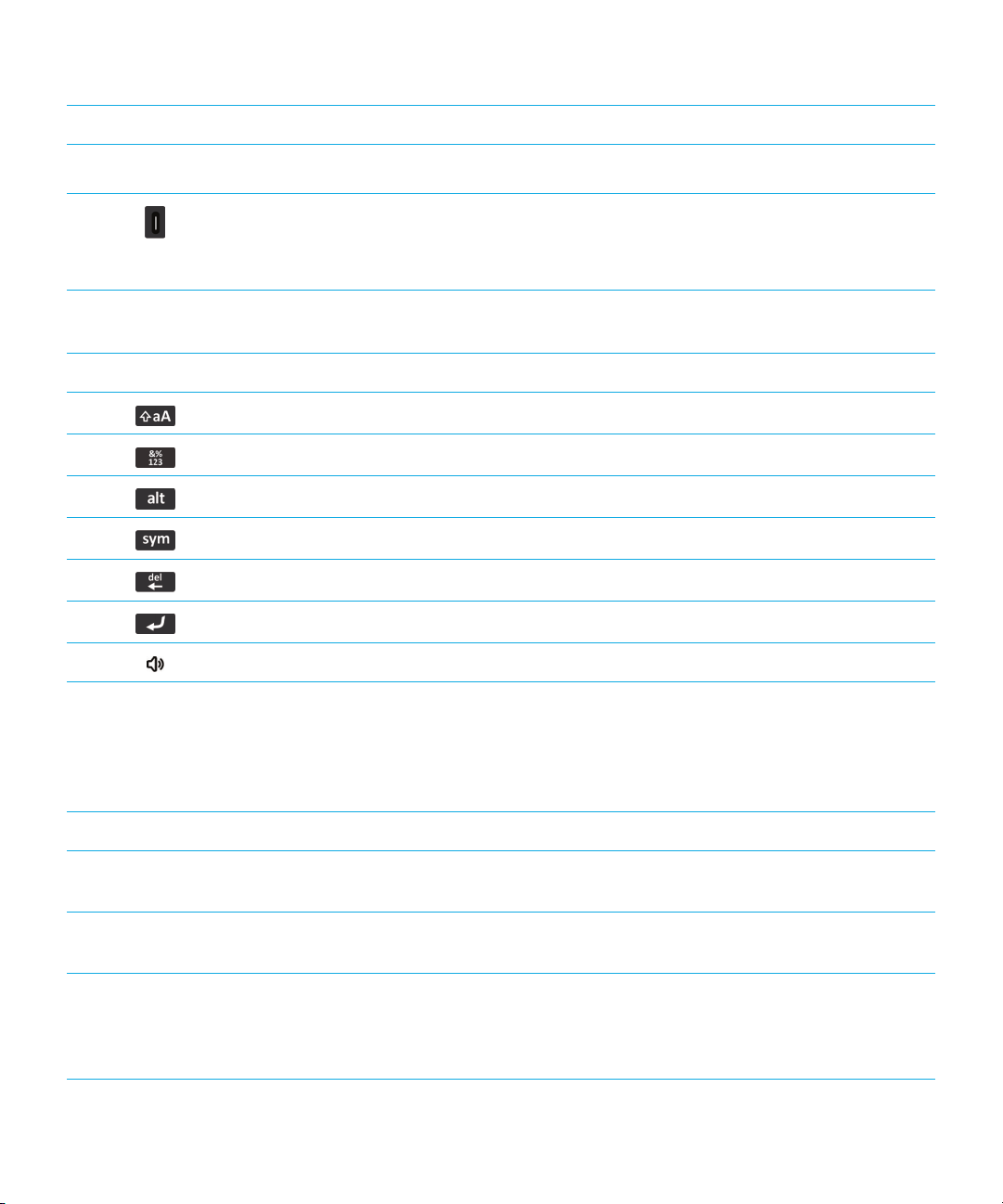
User Guide Quick Help
Keys on the right side of your smartphone
• Press the middle key to mute a call or mute the volume.
Speakerphone Turn on or turn off the speakerphone during a call.
Right convenience key
Shift Capitalize letters.
Alt Type a symbol or number.
Alt
Symbol
Backspace/Delete Delete the previous character or a selected item.
Enter Select an item.
Flashing LED
• If supported, open the camera. To take a picture, press the
convenience key again.
• You can also customize this key.
Keyboard
The LED on the top of your BlackBerry smartphone flashes different colors to indicate different statuses.
Flashing LED color Description
Green You're in a wireless coverage area. You can turn on or turn
off this notification.
Blue Your smartphone is connected to a Bluetooth enabled
device. You can turn on or turn off this notification.
Red A new message has arrived and your selected profile is set
to notify you using the flashing LED. If you're using your
smartphone with a smart card, your smartphone is
accessing data on the smart card.
13
Page 14

User Guide Quick Help
Flashing LED color Description
Amber The battery power level for your smartphone is low, or your
smartphone is turned off and is charging. You can't turn off
the notification for the low battery power level. The
notification for charging turns off when you turn on your
smartphone. If your smartphone is turned off, the LED
changes to a solid green color when the battery is fully
charged.
Related information
Turn on flashing LED notification for wireless coverage, 225
Turn off or turn on the Bluetooth connection notification, 280
Icons
Application icons
You can access your applications by clicking the icons on the home screen and in folders on the home screen. The initial
view of the home screen displays icons for only some of the available applications. To view more application icons on the
home screen, click All.
Depending on your BlackBerry smartphone model, administrator, and wireless service provider, some applications might
not be available. You might be able to download some applications from the BlackBerry App World storefront.
To see a full icon guide, go to www.blackberry.com/docs/smartphones. Click your smartphone model, then click the Icon
Guide.
Setup
14
Setup
Options
Enterprise Activation
Activate a work email account using the
BlackBerry Enterprise Server.
Page 15

User Guide Quick Help
Power and lock
Password Lock
Messages
Messages
Added email address
Text Messages
Instant messaging
Instant Messaging folder
Some applications might appear in this folder
including applications that you download.
Windows Live Messenger for BlackBerry
smartphones
Power Off
Saved Messages
Added work email address
BBM
AOL Instant Messenger Service for BlackBerry
smartphones
Google Talk for BlackBerry smartphones
Applications
Browser
Maps
Password Keeper
Applications folder
Yahoo! Messenger for BlackBerry smartphones
Manage Connections
Help
Voice Dialing
15
Page 16

User Guide Quick Help
Some applications might appear in this folder,
including applications that you download.
Media
Media folder
Pictures
Ring Tones
Camera
Voice Notes Recorder
Personal organizer
Contacts
Tasks
Clock
Videos
Music
Voice Notes
Video Camera
Podcasts
Calendar
MemoPad
Calculator
Files
Documents To Go
Social networking and mobile purchasing
16
BlackBerry App World
Files
Social Feeds
Page 17

User Guide Quick Help
Facebook for BlackBerry smartphones
BlackBerry Device Software update
A software update for the BlackBerry Device
Software is available.
A software update for the BlackBerry Device
Software is ready to be installed.
Sounds and alerts
Normal profile
Loud profile
Medium profile
Vibrate Only profile
Twitter for BlackBerry smartphones
A software update for the BlackBerry Device
Software is being downloaded.
A software update for the BlackBerry Device
Software is stopped.
Phone Calls Only profile
Custom profile
Silent profile
All Alerts Off profile
Games
Games folder
Some applications might appear in this folder,
including applications that you download.
Word Mole
BrickBreaker
Home screen icons
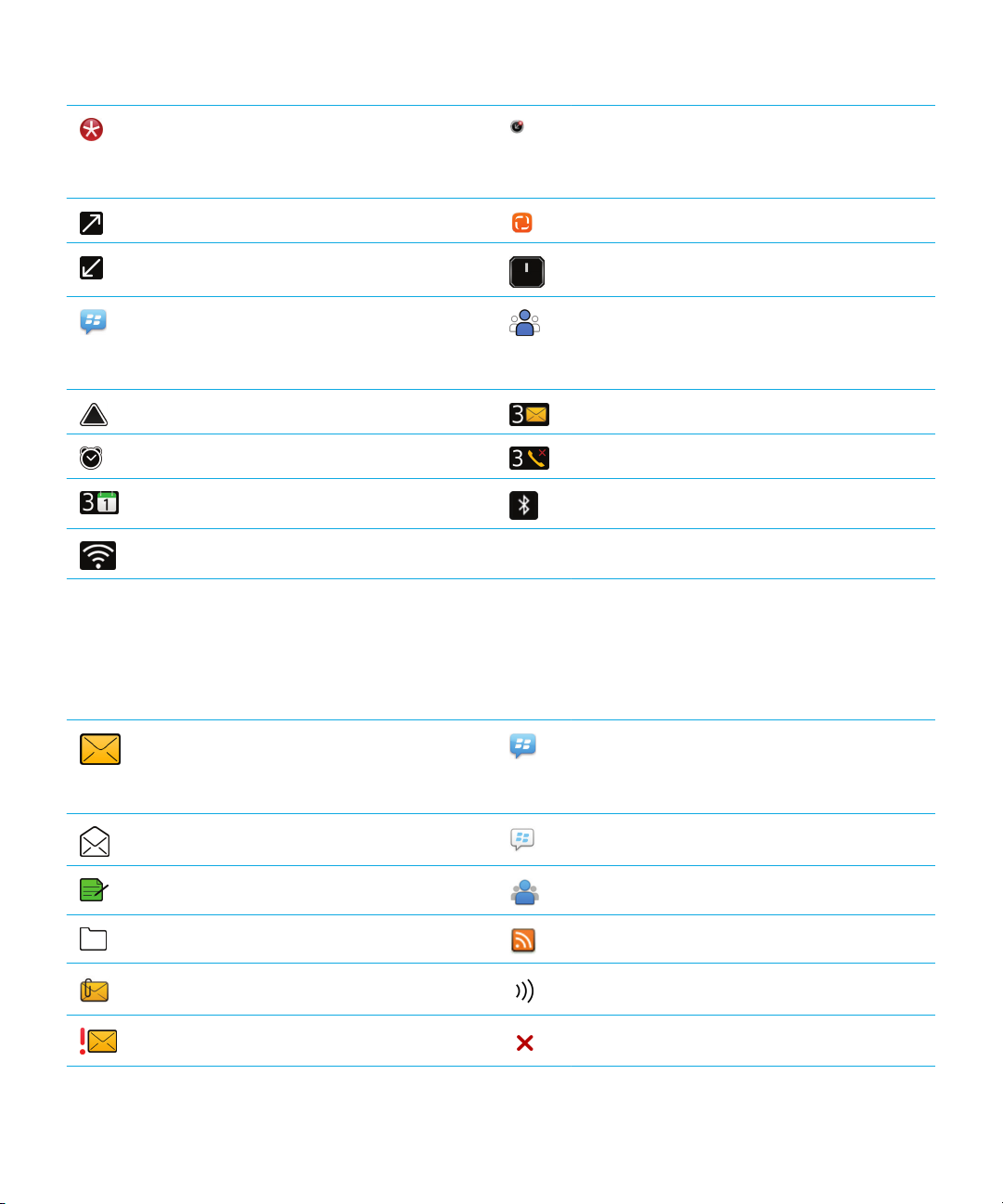
These icons are status indicators that appear at the top of the home screen.
Depending on your BlackBerry smartphone model and wireless service provider, some of these icons might not appear.
17
Page 18
User Guide Quick Help
New item
To clear this icon, open each item that has this
indicator.
Sending data
Receiving data
New BBM item
To clear this icon, open each chat that has this
icon.
Roaming
Alarm is set
Calendar reminder count
Wi-Fi technology is turned on
Message inbox icons
Update is available in the BlackBerry App World
storefront
New item in the Social Feeds application
System is busy
New BBM Groups item
Unread message count
Missed call count
Bluetooth technology is turned on
These icons indicate the type or status of each message in your inbox.
Depending on your BlackBerry smartphone model and wireless service provider, some of these icons might not appear.
18
Unread message
Read message
Draft message
Filed message
Message with an attachment
Message is high priority
New BBM item
To clear this indicator, open each chat that has
this indicator.
BBM chat is open
New BBM Groups item
New RSS item
Message is being sent
Message has not been sent
Page 19

User Guide Quick Help
Text message with an attachment
Text message
Message has been read
Message has been sent
Message has been delivered
Battery power level icons
These icons appear at the top of the Home screen and at the top of the screen in some applications.
Full battery Battery is charging
Low battery
Typing icons
These icons appear in the upper-right corner of the screen when you type.
CAP lock (capital letter lock)
NUM lock (number lock)
Multi-tap mode
Current input language
Alt mode
Phone icons
These icons appear at the top of the home screen and in the Phone application.
Missed call
Placed call
Received call
Voice mail message
Calendar icons
These icons appear when you highlight a calendar entry.
Event reminder
Meeting reminder
Recurring appointment
Exception for recurring appointment
19
Page 20

User Guide Quick Help
Notes
Camera icons
These icons appear at the bottom of the screen in the camera. You can click these icons.
View pictures
Geotagging is turned off Take another picture
Flash is turned on
Automatic flash mode
Geotagging is turned on
Flash is turned off
Scene mode
Video camera
These icons appear at the bottom of the screen in the video camera. You can click these icons.
Start recording
Send video
Delete video
Pause recording
Rename video
Your Home screen
Home screen at a glance
20
Page 21

User Guide Quick Help
Use a picture as your smartphone wallpaper
1. On the home screen, click the Media icon > Pictures icon.
2. Browse to a picture.
3. Press the key > Set As Wallpaper.
Related information
My display changed, 226
Add a shortcut to your home screen or Favorites panel
You can add a shortcut to give yourself quick access to items such as frequently used websites, contacts, applications,
files, podcast channels, or media categories.
1. Browse to a website, or highlight the item that you want to create a shortcut for.
2.
Press the key > Add to Home Screen.
• To change the name of the shortcut, type a new name.
• To change the location where the shortcut appears, change the Location field.
• To add the shortcut to your Favorites panel, select the Mark as Favorite checkbox.
3. Click Add.
Show or hide a home screen panel
1. On the home screen, press the key > Manage Panels.
2. Select or clear the checkbox for each panel.
21
Page 22

User Guide Quick Help
3. Press the key > Save.
Show, hide, or find an application icon
Depending on your theme, you might not be able to hide some application icons. You can also hide optional BlackBerry
Device Software
On the home screen or in a folder, do any of the following:
• To see all your application icons, on the navigation bar, click All.
• To hide an application icon, highlight the icon. Press the key > Hide Icon. If the icon appears in other panels,
you can hide the icon in all panels or in the current panel only.
• To show all hidden application icons, press the key > Show All Icons.
• To stop hiding an application icon, highlight the icon. Press the key > Unhide Icon.
• To hide the icon, click the Options icon. Click Device > Software Updates. Highlight a software version. Press
updates.
the
• To show all hidden BlackBerry Device Software updates, click the Options icon. Click Device > Software Updates.
Press the
Related information
My display changed, 226
key > Hide.
key > Show All.
Move an application icon
1. On the Home screen or in an application folder, highlight an application icon.
2.
Press the key.
• To move the application icon to a different location on the Home screen, click Move. Click the new location.
• To move the application icon into an application folder, click Move To Folder. Click an application folder.
• To move the application icon out of an application folder, click Move To Folder. Click Home or an application
folder.
Change where apps that you download appear
To find your downloaded apps more easily, you can set them to appear in a certain folder, including folders you create.
1. On the home screen, press the key > Options.
2. Change the Downloads Folder field.
3. Press the key > Save.
22
Page 23

User Guide Quick Help
Change themes
1. On the home screen or in a folder, click the Options icon.
2. Click Display > Screen Display.
3. In the Theme section, click a theme.
4. Click Activate.
To delete a theme, click the theme. Click Delete.
Related information
My display changed, 226
Set the number of icons that appear on the Home screen
1. On the home screen or in a folder, click the Options icon.
2. Click Accessibility.
3. Change the Home Screen Grid Layout field.
4. Press the key > Save.
Add a message that appears when your smartphone is locked
1. On the home screen or in a folder, click the Options icon.
2. Click Display > Message on Lock Screen.
3. Type the text that you want to appear on the screen when your smartphone is locked.
4. Press the key > Save.
Related information
Lock or unlock your smartphone, 28
Feature availability
The following items affect the availability of features on your BlackBerry smartphone. The features discussed are meant as
examples, and are not inclusive of every feature that might or might not be available on your smartphone.
Smartphone model
Features such as GPS, the camera and video camera, and network connection options are dependent on your smartphone
model. To find feature specifications for your smartphone model, visit www.blackberry.com/go/devices.
23
Page 24

User Guide Quick Help
Wireless service plan and wireless service provider
You must purchase or change your wireless service plan through your wireless service provider. Features such as text
messaging, location-based services, and some phone features are dependent on your wireless service provider's offerings.
A wireless service plan with phone or voice is required for you to use the Phone application and to send and receive text
messages. A wireless service plan with data is required for you to use the browser service and instant messaging
applications, and to send and receive email messages and PIN messages. A wireless service plan might affect which apps
you can download and how you can download them.
For more information about your plan, contact your wireless service provider.
BlackBerry Internet Service and BlackBerry Enterprise Server
Once you have a data plan, you must set up your email address or third-party instant messaging account in order to send
and receive email messages, use third-party instant messaging applications, and use some browser options.
If you are an individual user, when you set up your email address or instant messaging account, you are associating it with
the BlackBerry Internet Service.
If you are a corporate user, your administrator sets up your email account by associating it with a BlackBerry Enterprise
Server. Your administrator might set options that determine the features and settings that are available on your
smartphone and if you can add or update an app. You can view the IT policies that have been set by your administrator in
the security options on your smartphone.
Wireless network
The wireless network that your smartphone is connected to might affect the availability of some features. Depending on
your wireless service provider and available roaming options, different wireless networks are available. Some wireless
networks don't support features such as call blocking, call forwarding, or cell broadcasting. For more information, contact
your wireless service provider.
Region
Depending on your region, you might have the option to add or update apps using the BlackBerry App World storefront.
You might also be able to download apps from a webpage or an application. The availability of certain apps varies by
region.
Related information
Find more information, 25
BlackBerry Device Software, 249
Check which wireless networks your smartphone connects to, 253
24
Page 25

User Guide Quick Help
Find more information
• Help on your smartphone: Find step-by-step instructions in the user guide for your BlackBerry smartphone. Click Help
on the home screen or in an application menu.
• www.discoverblackberry.com: Find software, applications, and accessories for your smartphone.
• Your wireless service provider website: Find information about your wireless network or wireless service plan.
Popular topics
BlackBerry smartphone users have spoken! Here are the top things they want to know how to do on their smartphones.
Set up an email address
1. On the Home screen, click the Setup icon.
2. In the Setup section, click the Email Accounts icon.
3. Follow the screens to set up your email address. When your email address is set up correctly, you receive a
confirmation message. To view and manage your email messages, on the Home screen, click the Messages icon.
: In some cases, you might see the following options. If so, select one of the options.
Note
• Internet Mail Account: Use this option to associate your BlackBerry smartphone with one or more existing email
accounts (for example, Windows Live Hotmail) or to create a new email address for your smartphone.
• Enterprise Account: If your administrator gave you an enterprise activation password, use this option to associate your
smartphone with your work email account using the BlackBerry Enterprise Server.
If you are trying to set up a Internet email account (for example, Windows Live Hotmail or Google Mail) or a new email
address for your smartphone, and do not see this option, contact your administrator or wireless service provider.
Related information
Reconcile email over the wireless network manually, 84
Change options for your personal email account, 84
Add or change your email signature
Before you begin: Depending on your wireless service plan, this feature might not be supported.
25
Page 26

User Guide Quick Help
1. On the home screen, click the Messages icon.
2.
Press the key > Options.
• For a work email account, click Email Preferences. If the Message Services field appears, change this field to the
appropriate email account. If the
place your cursor.
• For a personal email account, click Email Account Management. Click an email account. Click Edit.
3. Type a signature.
4. Press the key > Save.
Your signature is added to your email after you send it.
Use Auto Signature check box is not selected, select it. In the field that appears,
About downloading apps with the BlackBerry App World
With the BlackBerry App World storefront, you can search for and download games, themes, social networking apps,
personal productivity apps, and much more. Using an existing
smartphone over the wireless network.
If you don't already have the BlackBerry App World on your smartphone, you can download it at
www.blackberryappworld.com. For more information about managing apps using BlackBerry App World, click the
BlackBerry App World icon. Press the key > Help.
Depending on your wireless service provider and region, you might have the option to add or update apps using the
BlackBerry App World™ storefront. You might also be able to download apps from a webpage (try visiting
mobile.blackberry.com from your BlackBerry smartphone), or through your wireless service provider. Data charges might
apply when you add or use an app over the wireless network. For more information, contact your wireless service provider.
Related information
About BlackBerry ID, 11
PayPal account, you can buy and download apps to your
Transfer a file from your computer to your smartphone using your smartphone as a USB memory drive
You must use the BlackBerry Desktop Software to manage and preserve the information or the encryption that is
associated with your media files when you transfer files between your BlackBerry smartphone and your computer.
1. Connect your smartphone to your computer using a USB cable.
2. Do one of the following:
• If you want to transfer most types of files, in the dialog box that appears on your smartphone, select the USB
option.
26
Page 27

User Guide Quick Help
• If you want to transfer media files that are protected with DRM, in the dialog box that appears on your
smartphone, select the media transfer option.
3. If necessary, type a password. Your smartphone appears as a drive on your computer.
4. Drag a file from a location on your computer to a folder on your smartphone.
To view the transferred file on your smartphone, disconnect your smartphone from your computer and find the file.
About using your smartphone as a tethered modem
Depending on your wireless service plan or administrator, you might be able to share the Internet connection on your
BlackBerry smartphone. For example, if you are travelling, you can use your smartphone's Internet connection to access
the Internet on a laptop or tablet.
To use your smartphone as a tethered modem with a laptop, you must connect your smartphone with your laptop using a
USB cable and open the
PlayBook tablet, you must pair your smartphone with your tablet using Bluetooth technology.
While using your smartphone as a modem, you might not be able to use your smartphone's Phone application, Messaging
applications, or applications that use the Internet. To receive a phone call, your smartphone might turn off the tethered
Internet connection.
For more information about tethering, see the Help on your BlackBerry PlayBook tablet or in the BlackBerry Desktop
Software.
BlackBerry Desktop Software. To use your smartphone as a tethered modem with a BlackBerry
Copy contacts from your SIM card to your contact list
Depending on your wireless service provider and wireless network, this feature might not be supported.
1. In the contact list, press the key > SIM Phone Book.
2. Press the key > Copy All To Contacts.
: If you try to copy a SIM card contact with a phone number that matches the phone number of a contact that already
Note
appears in your contact list, your BlackBerry smartphone does not copy the SIM card contact.
Change your ring tone, notifiers, reminders, or alerts
In any sound profile, you can change your ring tone or notifier tone to an audio file that's stored in your BlackBerry
smartphone's built-in media storage or media card. You can also change the options for volume, notifications during calls,
LED, and vibration in all of the profiles. The All Alerts Off profile can't be changed.
1. On the home screen, click your Sound and Alert Profiles icon.
2. Click Change Sounds and Alerts > Sounds for Selected Profile.
27
Page 28

User Guide Quick Help
• To change your ring tone or ring volume, click Phone.
• To change notifiers or reminders, click to expand a section. Click an option.
3. In the Ring Tone, Notifier Tone, or Reminder Tone field, do one of the following:
• Click a tone.
• To use a song that is on your smartphone or on a media card, click All Music. Find and click a song.
• To use a voice note that you recorded, click All Voice Notes. Find and click a voice note.
• To use a preloaded alert, click All Alerts. Find and click an alert.
4. Press the key > Save.
Related information
I can't change the number of times that my smartphone rings, 74
Add or delete a contact alert, 153
Add or delete a custom sound profile, 152
Icons for sound and alert profiles, 151
View a location on a map
1. On the Home screen, click the Maps icon.
2.
Press the key > Find a Location.
• To search for a point of interest such as a business or landmark, in the Find a store, café, etc. field, type the
information for the point of interest. Highlight the point of interest.
• To view a new location, in the Find an address field, type an address. Highlight the location.
• To view a location for a contact, in the Find a store, café, etc. field, type the contact name. Highlight the contact
information.
• To view a favorite location, in the Favorites section, highlight the location.
3. Press the key > View on Map.
If you are viewing a location other than your current location, to get directions to this location from your current location,
press the key > Navigate to Here. Your BlackBerry smartphone must have an internal GPS receiver or be paired
with a Bluetooth enabled GPS receiver to perform this task.
Lock or unlock your smartphone
You can lock the screen to avoid pressing it or making calls accidentally and, if you have set a BlackBerry smartphone
password, you can also lock your smartphone with a password.
Do one of the following:
• To lock the screen, press the key on the top of your smartphone.
28
Page 29

User Guide Quick Help
• To unlock the screen, press the key and slide your finger up.
• To lock your smartphone with a password, on the home screen or in a folder, click the icon.
• To unlock your smartphone, enter your password.
Related information
Set or change your smartphone password, 305
Set or change your smartphone password, 305
Turn on or turn off airplane mode
You should keep network connections turned off in certain places, such as on an airplane or in a hospital. For more
information, see the Safety and Product Information booklet for your BlackBerry smartphone.
On the home screen, click the connections area at the top of the screen, or click the Manage Connections icon.
• To turn on airplane mode, click All Off.
• To turn off airplane mode, click Restore Connections.
Related information
Turn on or turn off data service or set roaming options, 255
Turn on, turn off, or check the status of a network connection, 254
Turn on or turn off data service or set roaming options, 255
Turn on, turn off, or check the status of a network connection, 254
Popular tips
Save time and maximize your efficiency with these quick tips.
Tips: Finding apps
Look in a folder on your home screen. Some apps are located in folders on your home screen.
Click a folder to see what apps are inside.
Make all hidden apps visible on the home screen.
On the home screen, press the key > Show All
Icons. To unhide an app, highlight it and then press the
key > Unhide Icon. If the icon is hidden in other
29
Page 30

User Guide Quick Help
panels, you can unhide the icon in all panels, or in the
current panel only. If Show All Icons does not appear in the
menu, there are no apps hidden from view.
Search for an app.
Verify that an app is installed. On the home screen or in a folder, click the Options icon.
On the home screen, tap the icon and type the app
name.
Click Device > Application Management. If the app is
listed, it is installed on your BlackBerry smartphone.
Tips: Managing indicators
Indicators tell you that there is something new or updated, such as a new message, voice mail message, or feed, or they
inform you of the status of something, such as the battery or network connection. Indicators often appear on app icons,
new content within apps, and at the top of the Home screen.
For a complete list of indicators, visit www.blackberry.com/docs/smartphones. Click your smartphone model, and then
click the Icon Guide.
Remove the new item indicator .
Remove the unopened message indicator .
Open each item that has this indicator. For example, to
remove it from the Messages icon, click the icon.
In the Messages app, do one or more of the following:
• Open all of your messages by clicking on them. If you
can't find all of your unread messages in your inbox,
look in your messages folders.
• Mark a message as read. Highlight a message. Press
the key > Mark Read.
• Mark all messages that are prior to a date as read.
Highlight a date field. Press the key > Mark Prior
Read.
Identify an indicator.
30
• You might be able to identify an indicator by seeing the
icon of the application that the indicator refers to. To
see a complete list of applications on your BlackBerry
smartphone and their icons, on the Home screen or in a
folder, click the Options icon. Click Device >
Application Management.
Page 31

User Guide Quick Help
Tips: Updating your software
Updated BlackBerry Device Software and BlackBerry Desktop Software are released periodically, and you might be able to
update the software from either your computer or your smartphone. Research In Motion recommends that you regularly
create and save a backup file on your computer, especially before you update any software. Maintaining a current backup
file on your computer might allow you to recover smartphone data if your smartphone is lost, stolen, or corrupted by an
unforeseen issue.
Check to see if there is updated BlackBerry Device
Software that you can download over the network.
Update your BlackBerry Device Software from your
computer.
Set your BlackBerry Desktop Software to check for updates
automatically.
Update your BlackBerry Desktop Software . Visit www.blackberry.com/desktopsoftware.
Depending on your smartphone model, this feature might
not be supported. On the home screen or in a folder, click
the Options icon. Click Device > Software Updates.
On your computer, visit www.blackberry.com/update. Click
Check for Updates. Connect your smartphone to your
computer.
For instructions, see the Help in BlackBerry Desktop
Software.
Tips: Doing things quickly
For full instructions, click the links under Related information at the bottom.
Access popular options such as setting the alarm, viewing
notifications, and turning on or turning off network
connections.
See all the apps and folders on the Home screen, or
minimize the panel and view the wallpaper.
Switch to another app.
Highlight and click the areas at the top of the home screen.
On the navigation bar, click All.
Press and hold the key. Click an app.
Note: The other app might still be running in the
background.
Open an app with a convenience key. Press a convenience key on the side of your BlackBerry
smartphone.
Note: You can customize which app a convenience key
opens.
31
Page 32

User Guide Quick Help
Use toolbars. Toolbars are available in most applications, and appear at
the bottom of the screen. For example, you can click icons
on the toolbar in the message list to quickly search the
message list, compose an email, and delete the selected
message. To see a description for a toolbar icon, touch and
hold the icon.
Use pop-up menus. Pop-up menus provide common available actions, and
appear in the center of the screen. For example, you can
use the pop-up menu in a message to file, forward, or reply
to the message. To open a pop-up menu, touch and hold
the screen or press and hold the trackpad. To select a
command, tap the icon or click the trackpad.
Switch to the Favorites, Media, Downloads, and Frequent
panels.
Add an app to the Favorites panel. Highlight an app on the home screen or in a folder. Press
Change options for the home screen such as the wallpaper.
Related information
Change what happens when you type on the Home screen,
Assign an application to a convenience key, 216
Keep an application running in the background and switch to another application, 241
On the home screen, highlight All on the navigation bar and
swipe right or left.
the key > Mark as Favorite.
On the home screen, press the key > Options.
Tips: Extending battery life
Close apps when you're finished with them.
Turn on battery saving mode. On the home screen or in a folder, click the Options icon.
Turn off network connections you aren't using. On the home screen, click the connections area at the top
In an app, press the key and click Close or Exit.
ClickDevice > Battery Saving Mode. Select the Turn on
Battery Saving Mode when battery power level is low
checkbox.
of the screen, or click the Manage Connections icon. Click
a network connection to clear the checkbox.
If your BlackBerry smartphone supports Wi-Fi, use Wi-Fi
when you're in an area with reduced wireless coverage.
32
On the home screen, click the connections area at the top
of the screen, or click the Manage Connections icon. Select
the Wi-Fi checkbox.
Page 33

User Guide Quick Help
Set your smartphone to turn on and turn off automatically. On the home screen or in a folder, click the Options icon.
Click Device > Auto On/Off.
Close browser tabs you aren't using.
Set backlighting to remain on for a shorter period of time,
and lower its brightness.
Switch your vibrating notifications to sound notifications or
LED notifications, lower the volume of your sound
notifications, or select a shorter ring tone.
Delete the previous text from a reply message.
Change how often podcast or social feed applications
refresh content.
If your smartphone has a camera flash, turn off the flash. On the home screen, click the Camera icon. Click the flash
Keep your battery connections clean. Every few months, use a cotton swab or dry cloth to clean
In the browser, press the key > Tabs. Highlight a tab
and click the icon.
On the home screen or in a folder, click the Options icon.
Click Display > Screen Display.
On the home screen, click your Sound and Alert Profiles
icon. Click Change Sounds and Alerts.
When you are replying to a message, press the key >
Delete Original Text.
Your podcast and social feed applications periodically
refresh content. In some of these applications, you can
reduce how often the content refreshes. For more
information, see the Help in the application.
icon at the bottom of the screen until the flash off indicator
appears.
the metal contacts on the battery and the smartphone.
Tips: Freeing space for your music, pictures, videos, and files
You can store files in the built-in media storage on your BlackBerry smartphone or on a media card.
Check how much storage is used by media files and
documents.
Delete unneeded files. On the home screen or in a folder, click the Files icon. Find
Reduce the size of pictures you take and videos you record. On the home screen, click the Camera icon or the Media
On the home screen, click the Media icon. Press the
key > Memory Use.
and highlight a file. Press the key > Delete.
icon > Video Camera icon. Press the key > Options.
Change the Image Size or Video Format field.
33
Page 34

User Guide Quick Help
Store files on a media card instead of your smartphone. On the home screen, click the Camera icon or the Media
icon > Video Camera icon. Press the key > Options.
In the Storage section, change the Store Pictures or Store
Videos field.
Research In Motion recommends that you regularly create and save a backup file on your computer, especially before you
update any software. Maintaining a current backup file on your computer might allow you to recover smartphone data if
your smartphone is lost, stolen, or corrupted by an unforeseen issue.
Related information
Copy, move, rename, or delete a file, 126
Change the size of pictures that you take, 143
View the amount of available storage space on your smartphone, 296
Change how long your smartphone stores calendar entries, 178
Keep an application running in the background and switch to another application, 241
Tips: Keeping your information safe
You can take some simple steps to help prevent the information on your BlackBerry smartphone from being compromised,
such as avoiding leaving your smartphone unattended.
Research In Motion recommends that you regularly create and save a backup file on your computer, especially before you
update any software. Maintaining a current backup file on your computer might allow you to recover smartphone data if
your smartphone is lost, stolen, or corrupted by an unforeseen issue.
Set a smartphone password. On the home screen or in a folder, click the Options icon.
Click Security > Password.
Encrypt contacts and files. On the home screen or in a folder, click the Options icon.
Click Security > Encryption.
Back up your smartphone data to your computer. Use the BlackBerry Desktop Software to back up your
smartphone data to your computer. To download the
BlackBerry Desktop Software, from your computer, visit
www.blackberry.com/desktop and select the appropriate
option for your computer.
Back up your smartphone data to a media card. On the Home screen, click the Setup icon. In the Setup
section, click Device Switch > Save Data.
Related information
Turn on encryption, 295
Set or change your smartphone password, 305
34
Page 35

User Guide Quick Help
Shortcuts: Phone
Depending on the typing input language that you're using, some shortcuts might not be available.
Change your ring tone
Send an incoming call to voice mail when your
BlackBerry smartphone is inserted in a holster
Set up speed dial for a contact
Insert a plus sign (+) when you are typing a
phone number
Change the active phone number
From the home screen, press the key. Press the key >
Phone Ring Tones.
Press and hold the Volume Down key on the right side of your
smartphone.
From the home screen, press the key. Press and hold the key
that you would like to assign speed dial to.
Press and hold 0.
From the home screen, press the key. Click your phone number
at the top of the screen. Click a phone number.
Shortcuts: Typing with the touch screen keyboard
Depending on the typing input language that you're using, some shortcuts might not be available. Depending on the type of
touch screen keyboard you're using, some shortcuts might not be available.
Show the keyboard Tap a text field or tap the Show Keyboard icon at the
bottom of the screen.
Hide the keyboard Touch the top of the keyboard and slide your finger quickly
down the screen.
Insert a period (.)
Insert an at sign (@) or a period (.) in an email address field
Capitalize a letter
Turn on CAPS lock
Type a symbol
Tap the key twice. The next letter is capitalized.
Tap the key.
Tap the key. Tap the letter key.
Touch and hold the key until the lock indicator
appears on the key. To turn off CAPS lock, tap the
key again.
Tap the key. Tap the key. Tap the symbol.
35
Page 36

User Guide Quick Help
Type an accented character Touch and hold the letter key. Tap the accented character
that appears on the screen.
Type a number in a text field
Type a number in a number field
Turn on NUM lock
Move the cursor to edit text Touch the text. Your BlackBerry smartphone displays a
Change the typing input language If you have more than one typing input language installed,
Tap the key. Tap the number key.
Tap a number key. You don't need to tap the or
key.
Touch and hold the key until the lock indicator
appears on the key. To turn off NUM lock, tap the
key.
frame around the cursor. To move the cursor one character
at a time, touch the cursor frame and slide your finger.
and you're using the full keyboard, tap the language key.
Tap an input language.
Shortcuts: Media
Depending on the typing input language that you're using, some shortcuts might not be available.
Audio and video files
Pause an audio or video file Press the Mute key on the right side of your BlackBerry
smartphone.
Resume playing an audio or video file Press the Mute key again.
Play the next audio file Press and hold the Volume Up key on the right side of your
smartphone.
Play the previous audio file Press and hold the Volume Down key on the right side of
your smartphone.
Turn on the audio boost feature if you're using a headset Press the Volume Up key until the audio boost feature turns
on.
36
Page 37

User Guide Quick Help
Camera
Zoom in to a subject before taking a picture Press the Volume Up key.
Zoom out from a subject before taking a picture Press the Volume Down key.
Take a picture Press the Convenience key on the right side of your
smartphone.
Common troubleshooting
I can't make or receive calls
Try the following actions:
• Verify that your BlackBerry® smartphone is connected to the wireless network.
• Verify that your wireless service plan includes phone or voice services.
• If you can't make calls and fixed dialing is turned on, verify that the phone number for your contact appears in your
fixed dialing list or turn off fixed dialing.
• If you have traveled to another country and you haven't changed your smart dialing options, dial the full phone number,
including the country code and area code, for your contact.
• If you're not receiving calls, verify that call blocking and call forwarding are turned off.
• Your smartphone or your SIM card might support more than one phone number, even if you only have one phone
number. Verify that your phone number is set as your active phone number.
• If you have more than one phone number associated with your smartphone, verify that the phone number that you want
to make calls from and receive calls to is set as your active phone number.
• If you're using your BlackBerry MVS Client phone number, verify that support for the BlackBerry MVS Client is turned
on.
• If you're using your BlackBerry MVS Client phone number, verify that your smartphone is registered with the BlackBerry
Mobile Voice System. From the home screen, press the key. Press the key. Click Options. Click
BlackBerry MVS Client. Press the key. Click Register Now. If the Register Now menu item doesn't appear, or if
the registration fails, contact your administrator. If the registration doesn't complete, wait for a short period of time and
then try again.
• If you have set call forwarding for the phone number provided by your wireless service provider, calls to your BlackBerry
MVS Client phone number are also forwarded. To receive calls to your BlackBerry MVS Client phone number, verify that
call forwarding is turned off.
37
Page 38

User Guide Quick Help
Related information
Fixed dialing and smart dialing, 62
Call waiting, call forwarding, and call blocking, 60
Switch the active phone number,
I'm not receiving messages
Try the following actions:
• Verify that your BlackBerry® smartphone is connected to the wireless network. If you're not in a wireless coverage area,
you should receive messages when you return to a wireless coverage area.
• Reset your smartphone. Connect to the network and try again.
• If you created an email address or added an existing email address to your smartphone using the email setup screen in
the Setup application, verify that you have received an activation message on your smartphone from the BlackBerry
Internet Service. If you haven't received an activation message (the message might take a short period of time to
arrive), in the Setup application, open the email setup screen to send a service book to your smartphone.
• If you haven't received a registration message from the wireless network, register your smartphone. On the home
screen or in a folder, click the Options icon. Click Device > Advanced System Settings > Host Routing Table. Press the
key > Register Now.
• Verify that data service is turned on.
• If you use email filters, verify that the options for email filters are set correctly.
• Verify that email forwarding is turned on and that you have selected all the email folders, including your inbox folder,
that you want to receive email from.
• Verify that your smartphone is not blocking messages. For more information, contact your administrator.
Related information
Change, prioritize, or delete an email filter, 92
Forward email from a specific email folder to your smartphone,
I can't send messages
Try the following actions:
• Verify that your BlackBerry® smartphone is connected to the wireless network.
• If the menu item for sending a message doesn't appear, verify that you have added an email address, a PIN, or a phone
number for your contact.
• If you created an email address or added an existing email address to your smartphone using the email setup screen in
the Setup application, verify that you have received an activation message on your smartphone from the BlackBerry
Internet Service. If you haven't received an activation message (the message might take a short period of time to
arrive), in the Setup application, open the email setup screen to send a service book to your smartphone.
38
Page 39

User Guide Quick Help
• If you haven't received a registration message from the wireless network, register your smartphone. On the home
screen or in a folder, click the Options icon. Click Device > Advanced System Settings > Host Routing Table. Press the
key > Register Now.
• Generate an encryption key.
• Verify that data service is turned on.
• Resend the message.
Related information
Generate an encryption key, 312
Change or delete a contact, 183
Turn on or turn off data service or set roaming options, 255
Options for email filters, 91
Resend a message, 87
Wireless coverage indicators, 258
Turn on, turn off, or check the status of a network connection, 254
Resend a message, 87
I forget my smartphone password
If you forget your BlackBerry smartphone password, it can't be recovered. If your smartphone uses a BlackBerry Enterprise
Server, your administrator might be able to reset your password without deleting your smartphone data. Otherwise, the only
way you can reset your password without knowing your current password is to delete all your smartphone data. You can do
this by exceeding the number of allowed password attempts.
If your email account uses a BlackBerry Enterprise Server, depending on the options that your administrator sets, when you
delete your smartphone data, you might also delete the data on your media card. For more information, contact your
administrator.
Research In Motion recommends that you regularly create and save a backup file on your computer, especially before you
update any software. Maintaining a current backup file on your computer might allow you to recover smartphone data if
your smartphone is lost, stolen, or corrupted by an unforeseen issue.
My smartphone isn't ringing or vibrating when I receive a call or message
Try the following actions:
• On the home screen, click your Sound and Alert Profiles icon. Verify that your profile isn't set to All Alerts Off or Silent.
• If you have created contact alerts, on the home screen, click your Sound and Alert Profiles icon. Click Change Sounds
and Alerts
to Silent and that the Vibration field isn't set to Off.
> Sounds for Contacts. Click a contact alert. Click Phone or Messages. Verify that the Volume field isn't set
39
Page 40

User Guide Quick Help
The screen turns off
When you don't use your BlackBerry smartphone for a period of time, the screen turns off to conserve battery power. You
can change the length of time that the backlight stays on when you aren't touching your smartphone.
Related information
Set options for backlighting, 222
Email messages aren't reconciling over the wireless network
Try the following actions:
• Verify that your BlackBerry® smartphone is connected to the wireless network.
• Verify that wireless email reconciliation is turned on.
• Reconcile email messages manually.
Organizer data isn't synchronizing over the wireless network
Try the following actions:
• Verify that your BlackBerry® smartphone is connected to the wireless network.
• Verify that wireless data synchronization is turned on in the Contacts application, Calendar application, Tasks
application, and MemoPad.
• If you use the BlackBerry Internet Service, you must synchronize calendar data using the BlackBerry Desktop Software.
For more information, see the Help in the BlackBerry Desktop Software.
I can't pair with a Bluetooth enabled device
Try the following actions:
• Verify that your BlackBerry smartphone is compatible with the Bluetooth enabled device. For more information, see the
documentation that came with the Bluetooth enabled device.
• If you don't know the passkey for your Bluetooth enabled device, see the documentation that came with the Bluetooth
enabled device.
40
Page 41

User Guide Quick Help
• If your smartphone doesn't detect the Bluetooth enabled device that you want to pair with, try making your smartphone
discoverable for a short period of time. Many car kits need to discover your smartphone rather than your smartphone
discovering the car kit. On the home screen, click the connections area at the top of the screen, or click the Manage
Connections icon. Click Networks and Connections > Bluetooth Connections. Click Add New Device. Click Listen.
Bluetooth enabled devices can detect your smartphone for 2 minutes.
• Turn off encryption for Bluetooth connections between your smartphone and the Bluetooth enabled device. On the
home screen, click the connections area at the top of the screen, or click the Manage Connections icon. Click
Networks and Connections > Bluetooth Connections. Highlight a Bluetooth enabled device. Press the >
Devices Properties. Clear the Encryption checkbox. Press the key > Save.
Related information
Make your smartphone discoverable, 277
The media player screen closes
If you pause or stop a media file for a certain period of time, the media player screen closes to optimize the performance of
your BlackBerry smartphone. In the media options, you can stop the media player screen from closing or change the
amount of time before the media player screen closes.
Related information
Change the amount of time before the media player screen closes, 133
41
Page 42

User Guide Tips and shortcuts
Tips and shortcuts
Tips: Doing things quickly
For full instructions, click the links under Related information at the bottom.
Access popular options such as setting the alarm, viewing
notifications, and turning on or turning off network
connections.
See all the apps and folders on the Home screen, or
minimize the panel and view the wallpaper.
Switch to another app.
Open an app with a convenience key. Press a convenience key on the side of your BlackBerry
Use toolbars. Toolbars are available in most applications, and appear at
Use pop-up menus. Pop-up menus provide common available actions, and
Highlight and click the areas at the top of the home screen.
On the navigation bar, click All.
Press and hold the key. Click an app.
Note: The other app might still be running in the
background.
smartphone.
Note: You can customize which app a convenience key
opens.
the bottom of the screen. For example, you can click icons
on the toolbar in the message list to quickly search the
message list, compose an email, and delete the selected
message. To see a description for a toolbar icon, touch and
hold the icon.
appear in the center of the screen. For example, you can
use the pop-up menu in a message to file, forward, or reply
to the message. To open a pop-up menu, touch and hold
the screen or press and hold the trackpad. To select a
command, tap the icon or click the trackpad.
Switch to the Favorites, Media, Downloads, and Frequent
panels.
42
On the home screen, highlight All on the navigation bar and
swipe right or left.
Page 43

User Guide Tips and shortcuts
Add an app to the Favorites panel. Highlight an app on the home screen or in a folder. Press
the key > Mark as Favorite.
Change options for the home screen such as the wallpaper.
Related information
Change what happens when you type on the Home screen,
Assign an application to a convenience key, 216
Keep an application running in the background and switch to another application, 241
On the home screen, press the key > Options.
Tips: Extending battery life
Close apps when you're finished with them.
Turn on battery saving mode. On the home screen or in a folder, click the Options icon.
Turn off network connections you aren't using. On the home screen, click the connections area at the top
If your BlackBerry smartphone supports Wi-Fi, use Wi-Fi
when you're in an area with reduced wireless coverage.
In an app, press the key and click Close or Exit.
ClickDevice > Battery Saving Mode. Select the Turn on
Battery Saving Mode when battery power level is low
checkbox.
of the screen, or click the Manage Connections icon. Click
a network connection to clear the checkbox.
On the home screen, click the connections area at the top
of the screen, or click the Manage Connections icon. Select
the Wi-Fi checkbox.
Set your smartphone to turn on and turn off automatically. On the home screen or in a folder, click the Options icon.
Click Device > Auto On/Off.
Close browser tabs you aren't using.
Set backlighting to remain on for a shorter period of time,
and lower its brightness.
Switch your vibrating notifications to sound notifications or
LED notifications, lower the volume of your sound
notifications, or select a shorter ring tone.
In the browser, press the key > Tabs. Highlight a tab
and click the icon.
On the home screen or in a folder, click the Options icon.
Click Display > Screen Display.
On the home screen, click your Sound and Alert Profiles
icon. Click Change Sounds and Alerts.
43
Page 44

User Guide Tips and shortcuts
Delete the previous text from a reply message.
Change how often podcast or social feed applications
refresh content.
If your smartphone has a camera flash, turn off the flash. On the home screen, click the Camera icon. Click the flash
Keep your battery connections clean. Every few months, use a cotton swab or dry cloth to clean
When you are replying to a message, press the key >
Delete Original Text.
Your podcast and social feed applications periodically
refresh content. In some of these applications, you can
reduce how often the content refreshes. For more
information, see the Help in the application.
icon at the bottom of the screen until the flash off indicator
appears.
the metal contacts on the battery and the smartphone.
Tips: Finding apps
Look in a folder on your home screen. Some apps are located in folders on your home screen.
Click a folder to see what apps are inside.
Make all hidden apps visible on the home screen.
On the home screen, press the key > Show All
Icons. To unhide an app, highlight it and then press the
key > Unhide Icon. If the icon is hidden in other
panels, you can unhide the icon in all panels, or in the
current panel only. If Show All Icons does not appear in the
menu, there are no apps hidden from view.
Search for an app.
Verify that an app is installed. On the home screen or in a folder, click the Options icon.
44
On the home screen, tap the icon and type the app
name.
Click Device > Application Management. If the app is
listed, it is installed on your BlackBerry smartphone.
Page 45

User Guide Tips and shortcuts
Tips: Freeing space for your music, pictures, videos, and files
You can store files in the built-in media storage on your BlackBerry smartphone or on a media card.
Check how much storage is used by media files and
documents.
Delete unneeded files. On the home screen or in a folder, click the Files icon. Find
Reduce the size of pictures you take and videos you record. On the home screen, click the Camera icon or the Media
Store files on a media card instead of your smartphone. On the home screen, click the Camera icon or the Media
Research In Motion recommends that you regularly create and save a backup file on your computer, especially before you
update any software. Maintaining a current backup file on your computer might allow you to recover smartphone data if
your smartphone is lost, stolen, or corrupted by an unforeseen issue.
Related information
Copy, move, rename, or delete a file, 126
Change the size of pictures that you take, 143
View the amount of available storage space on your smartphone, 296
Change how long your smartphone stores calendar entries, 178
Keep an application running in the background and switch to another application, 241
On the home screen, click the Media icon. Press the
key > Memory Use.
and highlight a file. Press the key > Delete.
icon > Video Camera icon. Press the key > Options.
Change the Image Size or Video Format field.
icon > Video Camera icon. Press the key > Options.
In the Storage section, change the Store Pictures or Store
Videos field.
45
Page 46

User Guide Tips and shortcuts
Tips: Freeing space to optimize your smartphone's performance
Try to maintain at least 10 MB of available application storage on your BlackBerry smartphone. If you find that your
smartphone processes are unusually slow, try any of the following:
Close any apps you're not using.
Check how much free application storage you have. On the home screen or in a folder, click the Options icon.
Identify and delete applications and themes you don't
need.
Delete languages you don't use. On the home screen or in a folder, click the Setup icon.
Delete browsing history and clear the cache. On the home screen, click the Browser icon. Press the
Delete messages. Touch two messages and slide your finger up or down.
Reduce the amount of time that your smartphone stores
email messages and calendar entries.
Press and hold the key until the application switcher
appears. Click an application icon. Press the key >
Close or Exit.
Click Device > Storage.
On the home screen or in a folder, click the Options icon.
Click Device > Application Management. To view the
details about your smartphone's memory and CPU usage,
swipe right or left. To delete an application or theme, click
an item. Click Delete.
Click Languages and Input Methods.
key > Options. Go to the Clear Browsing Data
section.
Press the key > Delete Messages.
Or, highlight a date. Press the key > Delete Prior.
On the home screen, click the Messages icon or Calendar
icon. Press the key > Options.
Stop storing sent messages on your smartphone. On the home screen, click the Messages icon. Press the
key > Options > Email Preferences.
Receive only the first section of long email messages, and
choose whether to download more.
46
On the home screen, click the Messages icon. Press the
key > Options > Message Display and Actions.
Page 47

User Guide Tips and shortcuts
Research In Motion recommends that you regularly create and save a backup file on your computer, especially before you
update any software. Maintaining a current backup file on your computer might allow you to recover smartphone data if
your smartphone is lost, stolen, or corrupted by an unforeseen issue.
Related information
Change how long your smartphone stores calendar entries, 178
Delete a language from your smartphone, 219
Tips: Updating your software
Updated BlackBerry Device Software and BlackBerry Desktop Software are released periodically, and you might be able to
update the software from either your computer or your smartphone. Research In Motion recommends that you regularly
create and save a backup file on your computer, especially before you update any software. Maintaining a current backup
file on your computer might allow you to recover smartphone data if your smartphone is lost, stolen, or corrupted by an
unforeseen issue.
Check to see if there is updated BlackBerry Device
Software that you can download over the network.
Update your BlackBerry Device Software from your
computer.
Set your BlackBerry Desktop Software to check for updates
automatically.
Update your BlackBerry Desktop Software . Visit www.blackberry.com/desktopsoftware.
Depending on your smartphone model, this feature might
not be supported. On the home screen or in a folder, click
the Options icon. Click Device > Software Updates.
On your computer, visit www.blackberry.com/update. Click
Check for Updates. Connect your smartphone to your
computer.
For instructions, see the Help in BlackBerry Desktop
Software.
Tips: Keeping your information safe
You can take some simple steps to help prevent the information on your BlackBerry smartphone from being compromised,
such as avoiding leaving your smartphone unattended.
Research In Motion recommends that you regularly create and save a backup file on your computer, especially before you
update any software. Maintaining a current backup file on your computer might allow you to recover smartphone data if
your smartphone is lost, stolen, or corrupted by an unforeseen issue.
47
Page 48

User Guide Tips and shortcuts
Set a smartphone password. On the home screen or in a folder, click the Options icon.
Click Security > Password.
Encrypt contacts and files. On the home screen or in a folder, click the Options icon.
Click Security > Encryption.
Back up your smartphone data to your computer. Use the BlackBerry Desktop Software to back up your
smartphone data to your computer. To download the
BlackBerry Desktop Software, from your computer, visit
www.blackberry.com/desktop and select the appropriate
option for your computer.
Back up your smartphone data to a media card. On the Home screen, click the Setup icon. In the Setup
section, click Device Switch > Save Data.
Related information
Turn on encryption, 295
Set or change your smartphone password, 305
Tips: Managing indicators
Indicators tell you that there is something new or updated, such as a new message, voice mail message, or feed, or they
inform you of the status of something, such as the battery or network connection. Indicators often appear on app icons,
new content within apps, and at the top of the Home screen.
For a complete list of indicators, visit www.blackberry.com/docs/smartphones. Click your smartphone model, and then
click the Icon Guide.
Remove the new item indicator .
Remove the unopened message indicator .
48
Open each item that has this indicator. For example, to
remove it from the Messages icon, click the icon.
In the Messages app, do one or more of the following:
• Open all of your messages by clicking on them. If you
can't find all of your unread messages in your inbox,
look in your messages folders.
• Mark a message as read. Highlight a message. Press
the key > Mark Read.
• Mark all messages that are prior to a date as read.
Highlight a date field. Press the key > Mark Prior
Read.
Page 49

User Guide Tips and shortcuts
Identify an indicator.
• You might be able to identify an indicator by seeing the
icon of the application that the indicator refers to. To
see a complete list of applications on your BlackBerry
smartphone and their icons, on the Home screen or in a
folder, click the Options icon. Click Device >
Application Management.
Shortcuts: Phone
Depending on the typing input language that you're using, some shortcuts might not be available.
Change your ring tone
Send an incoming call to voice mail when your
BlackBerry smartphone is inserted in a holster
Set up speed dial for a contact
Insert a plus sign (+) when you are typing a
phone number
From the home screen, press the key. Press the key >
Phone Ring Tones.
Press and hold the Volume Down key on the right side of your
smartphone.
From the home screen, press the key. Press and hold the key
that you would like to assign speed dial to.
Press and hold 0.
Change the active phone number
From the home screen, press the key. Click your phone number
at the top of the screen. Click a phone number.
Shortcuts: Messages
Depending on the typing input language that you are using, some shortcuts might not be available.
In a message
Reply to a message Press R
49
Page 50

User Guide Tips and shortcuts
Reply to all in an email or a PIN message Press L
Forward a message Press F
File an email message Press I
View or hide the email address of a contact Highlight the contact in the To or From field. Press Q.
Move to the next message Press N
Move to the previous message Press P
In your message inbox
Open a message
Compose a message from a message inbox Press C
Mark a message as read or unread Press the Alt key and U.
Add a flag to a message Press W
View all flagged messages Press the Alt key and F.
View received messages and received call logs Press the Alt key and I.
View draft and sent messages Press the Alt key and O.
View voice mail messages Press the Alt key and V.
View text messages Press the Alt key and S.
View call logs Press the Alt key and P.
View all your messages
Press the key.
Press the key.
Move around your message inbox
Move up a screen Press the Shift key and the Space key.
Move down a screen Press the Space key.
Move to the top of a message inbox Press T
50
Page 51

User Guide Tips and shortcuts
Move to the bottom of a message inbox Press B
Move to the next unread item Press U
Move to the next related message Press J
Move to the previous related message Press K
Shortcuts: Typing with the touch screen keyboard
Depending on the typing input language that you're using, some shortcuts might not be available. Depending on the type of
touch screen keyboard you're using, some shortcuts might not be available.
Show the keyboard Tap a text field or tap the Show Keyboard icon at the
bottom of the screen.
Hide the keyboard Touch the top of the keyboard and slide your finger quickly
down the screen.
Insert a period (.)
Insert an at sign (@) or a period (.) in an email address field
Capitalize a letter
Turn on CAPS lock
Type a symbol
Type an accented character Touch and hold the letter key. Tap the accented character
Type a number in a text field
Type a number in a number field
Tap the key twice. The next letter is capitalized.
Tap the key.
Tap the key. Tap the letter key.
Touch and hold the key until the lock indicator
appears on the key. To turn off CAPS lock, tap the
key again.
Tap the key. Tap the key. Tap the symbol.
that appears on the screen.
Tap the key. Tap the number key.
Tap a number key. You don't need to tap the or
key.
51
Page 52

User Guide Tips and shortcuts
Turn on NUM lock
Move the cursor to edit text Touch the text. Your BlackBerry smartphone displays a
Change the typing input language If you have more than one typing input language installed,
Touch and hold the key until the lock indicator
appears on the key. To turn off NUM lock, tap the
key.
frame around the cursor. To move the cursor one character
at a time, touch the cursor frame and slide your finger.
and you're using the full keyboard, tap the language key.
Tap an input language.
Shortcuts: Media
Depending on the typing input language that you're using, some shortcuts might not be available.
Audio and video files
Pause an audio or video file Press the Mute key on the right side of your BlackBerry
smartphone.
Resume playing an audio or video file Press the Mute key again.
Play the next audio file Press and hold the Volume Up key on the right side of your
smartphone.
Play the previous audio file Press and hold the Volume Down key on the right side of
your smartphone.
Turn on the audio boost feature if you're using a headset Press the Volume Up key until the audio boost feature turns
on.
Camera
Zoom in to a subject before taking a picture Press the Volume Up key.
Zoom out from a subject before taking a picture Press the Volume Down key.
52
Page 53

User Guide Tips and shortcuts
Take a picture Press the Convenience key on the right side of your
smartphone.
Troubleshooting: Shortcuts
I can't use a shortcut
Try the following actions:
• Depending on the typing input language that you're using, some shortcuts might not be available. Try changing the
typing input language.
• If media shortcuts aren't working, verify that you have turned on audio and video shortcuts in the Media options.
Related information
Change an input or display language, 220
Turn on or turn off audio and video shortcuts, 133
53
Page 54

User Guide Phone
Phone
How to: Phone
Phone at a glance
Phone icons
These icons appear at the top of the home screen and in the Phone application.
54
Missed call
Placed call
Received call
Voice mail message
Page 55

User Guide Phone
Phone basics
Find your phone number
Do one of the following:
• To view your active phone number, from the home screen, press the key. Your phone number appears at the top
of the screen.
• To view a list of your multiple phone numbers, from the home screen, press the key. Click the area at the top of
the screen.
that you use to send and receive text messages.
Make a call
1. Do one of the following:
• If your BlackBerry smartphone is unlocked, press the key.
• If your smartphone is locked and you don't want to unlock it, press the key > Place Call.
2. Type a phone number or contact name.
3. Press the key.
If your wireless service plan supports text messaging, the first phone number in the list is the phone number
To end the call, press the key.
Related information
Add a pause or a wait to a phone number, 183
Available voice commands, 77
Turn on or turn off dialing from the lock screen, 68
Sort phone numbers or contacts on the phone screen, 68
I can't make or receive calls, 37
Answer or end a call
Press the key.
To end a call, press the key.
Related information
Change your ring tone, notifiers, reminders, or alerts, 27
I can't make or receive calls, 37
55
Page 56

User Guide Phone
Answer a second call
Depending on your wireless service provider and wireless network, this feature might not be supported.
During a call, press the key.
• To answer the incoming call and place the current call on hold, click Answer - Hold Current.
• To answer the incoming call and end the current call, click Answer - Drop Current.
To return to the first call, press the key > Swap or Flash.
Change your ring tone, notifiers, reminders, or alerts
In any sound profile, you can change your ring tone or notifier tone to an audio file that's stored in your BlackBerry
smartphone's built-in media storage or media card. You can also change the options for volume, notifications during calls,
LED, and vibration in all of the profiles. The All Alerts Off profile can't be changed.
1. On the home screen, click your Sound and Alert Profiles icon.
2. Click Change Sounds and Alerts > Sounds for Selected Profile.
• To change your ring tone or ring volume, click Phone.
• To change notifiers or reminders, click to expand a section. Click an option.
3. In the Ring Tone, Notifier Tone, or Reminder Tone field, do one of the following:
• Click a tone.
• To use a song that is on your smartphone or on a media card, click All Music. Find and click a song.
• To use a voice note that you recorded, click All Voice Notes. Find and click a voice note.
• To use a preloaded alert, click All Alerts. Find and click an alert.
4. Press the key > Save.
Related information
I can't change the number of times that my smartphone rings, 74
Add or delete a contact alert, 153
Add or delete a custom sound profile, 152
Icons for sound and alert profiles, 151
Mute a call
During a call, press the Mute key on the right side of your smartphone.
To turn off mute, press the Mute key again.
56
Page 57

User Guide Phone
Place a call on hold
If your BlackBerry smartphone is connected to a CDMA network, you can't place a call on hold.
During a call, press the key > Hold.
To resume a call, press the key > Resume.
Turn on the speakerphone
During a call, press the key > Activate Speakerphone.
Don't hold your BlackBerry smartphone near your ear while you use the speakerphone. Hearing damage can occur. For
more information, see the Safety and Product Information booklet for your smartphone.
To turn off the speakerphone, press the key > Activate Handset.
Dial an extension
1. When typing a phone number, press the key > Add Pause.
2. Type the extension number.
Dial using numbers or letters
When you type a letter in a phone number, your BlackBerry smartphone dials the number that's associated with the letter
on a conventional phone keypad.
• To type a number, press a number key.
• To type a letter, press a letter key.
Switch applications during a call
During a call, press the key > Switch Application.
: If you switch to a different application and you want to end the call, press the key.
Note
About using a headset
You can purchase an optional headset to use with your BlackBerry smartphone.
57
Page 58

User Guide Phone
If you use a headset, you can use a headset button to answer or end a call, or to turn on or turn off mute during a call.
Depending on your smartphone model, you might be able to use a headset button to make a call using a voice command.
Depending on your headset, you might also be able to use a headset button to pause, resume, skip, or adjust the volume of
audio or video files.
For more information about using the headset, see the documentation that came with your headset.
Emergency calls
About emergency calls and Emergency Callback Mode
If you're outside of a wireless coverage area and the indicator appears at the top of the screen, you can call only
emergency numbers. Your
locked. Depending on your smartphone model and the wireless network that your smartphone is connected to, your
smartphone is also designed to allow emergency calls when the SIM card isn't inserted. If the connection to the wireless
network is turned off when you initiate an emergency call, your smartphone is designed to connect to the wireless network
automatically. You can make emergency calls by typing only official emergency access numbers (for example, 911 or 112).
Note: You should not rely on any wireless smartphone for essential communications, including medical emergencies.
Emergency numbers may vary by location and emergency calls may be blocked or impeded by network, environmental, or
interference issues.
If your smartphone is connected to a CDMA network, when you end an emergency call, your smartphone enters
Emergency Callback Mode. This mode allows the operator to call you back or find your approximate location. Depending on
your wireless service provider, Emergency Callback Mode is active for 5 minutes or until you make a non-emergency call. In
Emergency Callback Mode, you can't send and receive messages or browse webpages.
If your smartphone supports GPS and you make an emergency call, an emergency operator might be able to use GPS
technology to find your approximate location.
Related information
About GPS technology,
BlackBerry smartphone is designed to allow emergency calls even when your smartphone is
Make an emergency call
Do one of the following:
• If your smartphone is locked with a password, press the key > Emergency. Press the key.
• If your keyboard is locked, press the key on the top of your smartphone. Press the key. Type the
emergency number. Press the key.
58
Page 59

User Guide Phone
Volume
Adjust the volume
• To increase the volume, press the Volume Up key on the right side of your BlackBerry smartphone.
• To decrease the volume, press the Volume Down key on the right side of your smartphone.
• To mute the volume, press the Mute key on the right side of your smartphone. To turn off mute, press the Mute key
again. If you press the Mute key during a call, your smartphone mutes the call so that you can hear others on the call,
but they can't hear you.
Related information
Mute a call, 56
Improve sound quality for media files, 132
Amplify the volume using the audio boost feature, 132
Change the default volume for calls
You can increase or decrease the default volume for calls. The higher you set the volume percentage, the louder the
volume is.
1. From the home screen, press the key.
2. Press the key > Options > In-call Settings.
3. Change the Default Call Volume field.
4. Press the key > Save.
Improve sound quality during a call
You can't change sound quality when you are using a Bluetooth enabled headset.
1. During a call, press the key > Enhance Call Audio.
2. Select a Boost Bass or Boost Treble option.
Improve sound quality for all calls
You can't change sound quality when you are using a Bluetooth enabled headset.
1. From the home screen, press the key.
2. Press the key > Options > In-call Settings.
59
Page 60

User Guide Phone
3. Change the Phone Call Audio field or Headset Call Audio field.
4. Press the key > Save.
Speed dial
Set up speed dial for a contact
1. From the home screen, press the key.
2.
3. In the Speed Dial Numbers list, click an unassigned key.
4. Click a contact.
5. If necessary, click a phone number for the contact.
To make a call using speed dial, in the Phone application, press and hold the key that you assigned to the contact.
Change the contact that is assigned to a speed dial key
1. From the home screen, press the key.
2. Press the key > View > Speed Dial List.
3. Highlight a contact or phone number.
4.
Press the key.
• To change the contact that is assigned to a speed dial key, click Edit. Click a new contact.
• To assign the contact to a different speed dial key, click Move. In the Speed Dial Numbers list, click a new speed
dial key.
• To delete the contact from the Speed Dial Numbers list, click Delete.
Call waiting, call forwarding, and call blocking
Turn on or turn off call waiting
Before you begin: To perform this task, your wireless service provider must set up your SIM card or BlackBerry smartphone
for this service.
1. From the home screen, press the key.
2. Press the key > Options > Call Waiting.
60
Page 61

User Guide Phone
3. Select or clear the Enabled checkbox.
4. Press the key > Save.
About call forwarding
Depending on your wireless service provider, one or more call forwarding phone numbers might already be available on
your SIM card or BlackBerry smartphone. You might not be able to change or delete these phone numbers or add new
ones.
For more information, contact your wireless service provider.
Forward or stop forwarding calls
Before you begin: To perform this task, your wireless service provider must set up your SIM card or BlackBerry smartphone
for this service.
1. From the home screen, press the key.
2.
Press the key > Options > Call Forwarding.
• To forward all calls to a call forwarding number, change the Forward Calls field to Always. Change the Forward All
Calls field to a call forwarding number.
• To forward unanswered calls only, change the Forward Calls field to Conditional. Change the If Busy, If No Reply,
If Not Reachable fields to a call forwarding number.
and
3. Press the key > Save.
Your call forwarding settings apply to all subsequent incoming calls, until you change your settings again.
To stop forwarding calls, change the Forward Calls field to Never.
Add, change, or delete a call forwarding number
Before you begin: To perform this task, your wireless service provider must set up your SIM card or BlackBerry smartphone
for this service.
1. From the home screen, press the key.
2. Press the key > Options > Call Forwarding.
3.
Press the key.
• To add a call forwarding number, click New Number. Type a phone number. Press the key on the
keyboard.
• To change a call forwarding number, click Edit Numbers. Highlight a phone number. Press the key > Edit.
Change the phone number. Press the key on the keyboard.
• To delete a call forwarding number, click Edit Numbers. Click a phone number. Click Delete.
61
Page 62

User Guide Phone
4. Press the key > Close.
About call blocking
The blocked calling feature allows you to block all incoming calls or block incoming calls only when roaming. You can also
block all outgoing calls and all outgoing international calls, or you can block outgoing international calls only when roaming.
To use the blocked calling feature, your BlackBerry smartphone must use a SIM card, and your wireless service provider
must set up your SIM card for this service and provide you with a call blocking password.
service provider and wireless network, this feature might not be supported.
Depending on your wireless
Block or stop blocking calls
Before you begin: To perform this task, your BlackBerry smartphone must use a SIM card, and your wireless service
provider must set up your SIM card for this service and provide you with a call blocking password.
1. From the home screen, press the key.
2. Press the key > Options > Call Barring.
3. Highlight a call blocking option.
4. Press the key > Enable.
5. Type your call blocking password.
To stop blocking calls, highlight a call blocking option. Press the key > Disable.
Change the call blocking password
1. From the home screen, press the key.
2. Press the key > Options > Call Barring.
3. Press the key > Change Password.
Fixed dialing and smart dialing
Depending on your wireless service provider and wireless network, this feature might not be supported.
About fixed dialing
If you turn on fixed dialing, you can only make calls to contacts that appear in your fixed dialing list and to official
emergency access numbers (for example, 911 or 112).
If your wireless service plan includes text messaging, you can also send text messages to contacts that appear in your fixed
dialing list.
62
Page 63

User Guide Phone
To use fixed dialing, your wireless service provider must set up your SIM card for this service and provide you with a SIM
card PIN2 code. Depending on your wireless service provider and wireless network, this feature might not be supported.
Turn on fixed dialing
Before you begin: To perform this task, your BlackBerry smartphone must use a SIM card, and your wireless service
provider must set up your SIM card for this service and provide you with a SIM card PIN2 code.
1. From the home screen, press the key.
2. Press the key > Options > FDN Phone List.
3. Press the key > Enable FDN Mode.
4. Type your PIN2 code.
5. Press the key on the keyboard.
To turn off fixed dialing, press the key > Disable FDN Mode.
Related information
I can't make or receive calls, 37
Add, change, or delete a contact in your fixed dialing list
Before you begin: To perform this task, your wireless service provider must set up your SIM card for this service and
provide you with a SIM card PIN2 code.
1. From the home screen, press the key.
2.
Press the key > Options > FDN Phone List.
• To add a contact, press the key > New. Type your PIN2 code. Press the key. Type a name and
phone number.
• To change a contact, press the key > Edit. Change the contact information.
• To delete a contact, highlight a contact. Press the key > Delete.
3. Press the key > Save.
About smart dialing
With the smart dialing feature, you can set a default country code and area code for phone numbers in the Contacts
application so that you don't have to dial a country code and area code each time that you make a call, unless the country
code or area code are different from the default codes that you set. Some country codes aren't supported by the smart
dialing feature.
In the smart dialing options, you can also specify the main phone number for an organization that you call frequently so that
you can quickly call a contact in that organization by dialing only the extension for the contact. If you add contacts from
that organization to your contact list, when you add their phone numbers, you can type just the extensions instead of typing
out the main phone number for the organization.
63
Page 64

User Guide Phone
Related information
I can't make or receive calls, 37
Set options for dialing extensions
1. From the home screen, press the key.
2. Press the key > Options > Smart Dialing.
3. In the Number field, type the main phone number for an organization.
4. In the Wait For field, set how long your BlackBerry smartphone waits before dialing an extension.
5. In the Extension Length field, set the default length for extensions.
6. Press the key > Save.
Set the default country code and area code
1. From the home screen, press the key.
2. Press the key > Options > Smart Dialing.
3. Set the Country Code and Area Code fields.
4. If necessary, set the Local Country Code field and International Dialing Digits field.
5. In the National Number Length field, set the default length for phone numbers in your country.
6. Press the key > Save.
: When you determine the default length for phone numbers, include your area code and local number, but don't
Note
include your country code or the National Direct Dialing prefix.
Conference calls
About conference calls
You can create two types of conference calls with your BlackBerry smartphone. If your organization or a conferencing
service has provided you with a conference call bridge number, you can create conference call meetings in the calendar on
your smartphone or computer. Conference call meetings allow participants who have a
the conference call meeting with a one-touch Join Now option, if this feature is supported on their smartphone, so that they
don't have to dial the conference call bridge number and access codes. If you don't have a conference call bridge number,
you can create a conference call by calling other contacts and joining the calls together.
Related information
Conference call meetings, 178
64
BlackBerry smartphone to enter
Page 65

User Guide Phone
Make a conference call
Before you begin: Depending on your wireless service provider or your wireless service plan, this feature might not be
supported.
If your BlackBerry smartphone is connected to a CDMA network, you can't join more than two contacts to a conference
call.
1. During a call, press the key > Add Participant.
2. Type a phone number or highlight a contact.
3. Press the key.
4. During the new call, press the key to join your first contact to the conference call.
5. To join another contact to the call, repeat steps 1 to 4.
Related information
Place a call on hold, 57
Create a phone number link for a conference call
1. Type a phone number for the conference call bridge.
2. Type X and the access code.
Speak privately with a contact during a conference call
Before you begin: You can perform this task only if you make a conference call by calling other contacts and joining the
calls together, and not if you create a conference call meeting in the calendar of your smartphone.
1. During a conference call, press the key > Split Call.
2. Click a contact.
To return to the conference call, press the key > Join Conference.
Disconnect a contact from a conference call
Before you begin: You can perform this task only if you make a conference call by joining calls together, and not if you
create a conference call meeting in the calendar.
1. During a conference call, press the key > Drop Call.
2. Click a contact.
After you disconnect a contact from a conference call, the call resumes with the other contacts.
65
Page 66

User Guide Phone
Leave a conference call
Before you begin: You can perform this task only if you make a conference call by joining calls together, and not if you
create a conference call meeting in the calendar.
If you make a conference call, you can leave the conference call and the call continues without you. Depending on your
wireless service provider, this feature might not be supported.
During a conference call, press the key > Transfer or Flash.
Call logs
About call logs
Call logs appear in the Phone application and show the status of recent calls by showing either a missed call indicator,
placed call indicator, or received call indicator. A call log also includes the date of the call, the phone number, and the
estimated duration of the call. For more information about the exact duration of a call, contact your wireless service
provider.
The phone list view option allows you to sort how call logs appear in the Phone application. Depending on how you set your
call logging options, you can also view call logs in the Messages application. Depending on your theme, when you miss a
call, a missed call indicator might also appear at the top of the home screen.
You can also add notes to call logs or send call logs as email messages. Unless you delete a call log, it's stored on your
BlackBerry smartphone for 30 days.
Send a call log
1. From the home screen, press the key.
2. At the top of the screen, swipe left or right to view the Call Log screen.
3. Highlight a call log.
4. Press the key > View > History.
5. Highlight a call log.
6. Press the key > Forward.
Delete call logs
1. From the home screen, press the key.
2. At the top of the screen, swipe left or right to view the Call Log screen.
3. Do one of the following:
66
Page 67

User Guide Phone
• To delete a single call log, highlight a call log.
• To delete a range of call logs, touch two call logs simultaneously and slide your finger up or down to select
additional call logs.
4. Press the key > Delete.
Add, change, or delete call log notes
1. From the home screen, press the key.
2. At the top of the screen, swipe left or right to view the Call Log screen.
3. Highlight a call log.
4. Press the key > View > History.
5. Highlight a call log.
6.
Press the key.
• To add notes, click Add Notes.
• To change notes, click Edit Notes.
• To delete notes, click Edit Notes. Press the key > Clear Field.
7. Press the key > Save.
View or hide call logs in the Messages application
You can set your BlackBerry smartphone to show call logs, including missed calls, in the Messages application.
1. From the home screen, press the key.
2.
Press the key > Options > Call Logs and Lists.
• To show recent and missed calls in the Messages application, select the All Calls option.
• To hide call logs in the Messages application, select the None option.
3. Press the key > Save.
Multiple phone numbers
About multiple phone numbers
When you have multiple phone numbers associated with your BlackBerry smartphone, you can switch the phone number
that you use as your active phone number. You have multiple phone numbers associated with your smartphone if one of
the following situations applies:
• Your smartphone uses a SIM card and your SIM card supports more than one phone number.
67
Page 68

User Guide Phone
• Your wireless service provider has set up your smartphone to support more than one phone number.
• Your wireless service provider has provided you with a phone number, and your organization has provided you with a
BlackBerry MVS Client phone number.
If your SIM card supports more than one phone number, you can make calls using your active phone number only, but you
receive calls to all phone numbers. If you're already on a call, you receive calls to your active phone number only, and any
calls that you receive to your other phone numbers receive a busy signal or are sent to voice mail.
If your wireless service provider has set up your smartphone to support more than one phone number, you can make calls
and receive calls using your active phone number only. Any calls that you receive to your other phone numbers receive a
busy signal or are sent to voice mail.
If your wireless service provider has provided you with a phone number, and your organization has provided you with a
BlackBerry MVS Client phone number, you can make calls using your active phone number only, but you receive calls to all
phone numbers. If you're already on a call, you can receive calls to all phone numbers.
If your wireless service plan supports text messaging, the first phone number that appears in the drop-down list at the top
of the screen in the phone application is the phone number that you use to send and receive text messages.
You can change call waiting, call forwarding, and voice mail options for each phone number associated with your
smartphone.
Switch the active phone number
1. From the home screen, press the key.
2. Click the area at the top of the screen.
3. Click the phone number that you want to set as the active phone number.
Phone options
Turn on or turn off dialing from the lock screen
1. From the home screen, press the key.
2. Click Security > Password.
3. Select or clear the Allow Outgoing Calls While Locked checkbox.
4. Press the key > Save.
Related information
Change when your smartphone locks automatically with a password, 306
Sort phone numbers or contacts on the phone screen
1. From the home screen, press the key.
68
Page 69

User Guide Phone
2.
Press the key > Options > Call Logs and Lists.
• To sort phone numbers or contacts by frequency of use, change the Phone List View field to Most Used.
• To sort contacts alphabetically by contact name, change the Phone List View field to Name.
• To sort phone numbers or contacts by most recent use, change the Phone List View field to Most Recent.
3. Press the key > Save.
Related information
Turn on or turn off dialing from the lock screen, 68
Hide or display your phone number when you make calls
Your wireless network can override the option that you choose.
1. From the home screen, press the key.
2.
Press the key > Options > In-call Settings.
• To hide your phone number when you make calls, change the Restrict My Identity field to Always.
• To display your phone number when you make calls, change the Restrict My Identity field to Never.
• To allow your wireless network to decide whether to hide or display your phone number, change the Restrict My
Identity field to Network Determined.
3. Press the key > Save.
Turn off the prompt that appears before you delete items
You can turn off the prompt that appears before you delete messages, call logs, contacts, calendar entries, tasks, memos,
or passwords.
1. On the Home screen, click the application icon for an application that prompts you before you delete items.
2. Press the key > Options.
3. If necessary, click General Options.
4. Clear the Confirm Delete checkbox.
5. Press the key > Save.
Change how you answer or end calls with the holster
1. From the home screen, press the key.
2.
Press the key > Options > In-call Settings.
• To answer calls automatically when you remove your BlackBerry smartphone from the holster, change the Auto
Answer Calls field to Out of Holster.
69
Page 70

User Guide Phone
• To stop answering calls automatically when you remove your smartphone from the holster, change the Auto
Answer Calls field to Never.
• To end calls automatically when you insert your smartphone in the holster, change the Auto End Calls field to Into
Holster.
• To stop ending calls automatically when you insert your smartphone in the holster, change the Auto End Calls
field to Never.
3. Press the key > Save.
Change how you answer calls with a headset
If your BlackBerry smartphone is paired with a Bluetooth enabled headset or you have a headset plugged into your
smartphone, you can set your smartphone to answer calls automatically after 5 seconds.
1. From the home screen, press the key.
2.
Press the key > Options > In-call Settings.
• To answer calls automatically after 5 seconds, change the Auto Answer Calls field to After 5s (Bluetooth/
Headset Only)
• To stop answering calls automatically after 5 seconds, change the Auto Answer Calls field to Never.
3. Press the key > Save.
.
Reset a call timer
A call timer provides the estimated duration of calls. For more information about the exact duration of a call, contact your
wireless service provider.
1. From the home screen, press the key.
2. Press the key > Status > Last Call or Total Calls > Clear Timer.
3. Press the key > Save.
About hearing aid mode
In hearing aid mode, or telecoil mode, the magnetic signal of your BlackBerry smartphone is modified to an appropriate
level and frequency response to be picked up by hearing aids that are equipped with telecoils.
Turn on hearing aid mode
1. From the home screen, press the key.
2. Press the key > Options > Hearing Aid Mode.
3. Change the Mode Enabled field to Telecoil.
70
Page 71

User Guide Phone
4. Press the key > Save.
The H-T telecoil indicator appears at the top of the home screen.
Related information
About hearing aid mode, 70
About TTY support
When you turn on TTY support and you connect your BlackBerry smartphone to a TTY device that operates at 45.45 bits
per second, you can make calls to and receive calls from TTY devices. Your smartphone is designed to convert received
calls to text that you can read on your TTY device.
If your TTY device is designed for use with a 2.5-mm headset jack, you must use an adapter accessory to connect your TTY
device to your smartphone. To get an adapter accessory that Research In Motion has approved for use with your
smartphone, visit www.shopblackberry.com.
Turn on or turn off TTY support
1. From the home screen, press the key.
2. Press the key > Options > TTY.
3. Change the TTY field.
4. Press the key > Save.
A TTY indicator appears in the connections area at the top of the Home screen.
Related information
About TTY support, 71
Phone options, 68
Voice mail
About your voice mail greeting and voice mail password
Depending on your wireless service provider, the method for changing your voice mail greeting or voice mail password
might differ. You should be able to access the options for changing your voice mail greeting or voice mail password when
you check your voice mail. For more information, contact your wireless service provider.
Check your voice mail
Depending on your theme, you might be able to check your voice mail from the home screen.
1. From the home screen, press the key.
71
Page 72

User Guide Phone
2. Press the key > Call Voice Mail.
Related information
I can't check my voice mail, 74
Change the voice mail access number and password
If a voice mail access number isn't already set on your BlackBerry smartphone, you can type the access number for a
different voice mail system.
Note: If you change the voice mail password on your smartphone, you must also call your voice mail system to change the
password there. Otherwise, the password for your voice mail isn't updated in your voice mail system. If you forget your voice
mail password, call your wireless service provider to get a new password.
1. From the home screen, press the key.
2. Press the key > Options > Voice Mail.
3. Type a voice mail access number and a password.
4. Press the key > Save.
Related information
I can't check my voice mail, 74
Change how many times your smartphone rings before the call goes to voice mail
To change how many times your BlackBerry smartphone rings before the call is forwarded to voice mail, you must call your
wireless service provider's voice mail system. Each wireless service provider has a different voice mail system. For more
information, contact your wireless service provider.
Related information
I can't change the number of times that my smartphone rings, 74
Troubleshooting: Phone
Some features aren't available on my smartphone
The availability of certain features on your BlackBerry smartphone might be affected by items such as your smartphone
model and wireless service plan.
72
Page 73

User Guide Phone
Depending on your messaging service plan, some features or options might not be available in the message options on the
Email Preferences screen.
If your email account is associated with a BlackBerry Enterprise Server, your administrator might add IT policy rules to your
smartphone that determine the features and settings that are available and whether you can add or update an app. If your
administrator has turned off a feature or set an option for you, the option might not appear, the option might appear grayed
out, or a lock indicator appears beside the option field.
If your smartphone was previously associated with a BlackBerry Enterprise Server and your administrator hasn't removed
IT policy rules from your smartphone, you can use the BlackBerry Desktop Software to remove the IT policy rules. For more
information, visit www.blackberry.com/btsc and read KB18998.
For more information about the features that are available on your smartphone, contact your wireless service provider or
administrator, or visit www.blackberry.com/go/devices.
Related information
Feature availability, 23
I can't make or receive calls
Try the following actions:
• Verify that your BlackBerry® smartphone is connected to the wireless network.
• Verify that your wireless service plan includes phone or voice services.
• If you can't make calls and fixed dialing is turned on, verify that the phone number for your contact appears in your
fixed dialing list or turn off fixed dialing.
• If you have traveled to another country and you haven't changed your smart dialing options, dial the full phone number,
including the country code and area code, for your contact.
• If you're not receiving calls, verify that call blocking and call forwarding are turned off.
• Your smartphone or your SIM card might support more than one phone number, even if you only have one phone
number. Verify that your phone number is set as your active phone number.
• If you have more than one phone number associated with your smartphone, verify that the phone number that you want
to make calls from and receive calls to is set as your active phone number.
• If you're using your BlackBerry MVS Client phone number, verify that support for the BlackBerry MVS Client is turned
on.
• If you're using your BlackBerry MVS Client phone number, verify that your smartphone is registered with the BlackBerry
Mobile Voice System. From the home screen, press the key. Press the key. Click Options. Click
BlackBerry MVS Client. Press the key. Click Register Now. If the Register Now menu item doesn't appear, or if
the registration fails, contact your administrator. If the registration doesn't complete, wait for a short period of time and
then try again.
• If you have set call forwarding for the phone number provided by your wireless service provider, calls to your BlackBerry
MVS Client phone number are also forwarded. To receive calls to your BlackBerry MVS Client phone number, verify that
call forwarding is turned off.
Related information
73
Page 74

User Guide Phone
Fixed dialing and smart dialing, 62
Call waiting, call forwarding, and call blocking, 60
Switch the active phone number,
I can't check my voice mail
Try the following actions:
• If you have more than one phone number associated with your BlackBerry smartphone and you're trying to check your
voice mail using a shortcut key, your smartphone calls the voice mail access number for your active phone number.
Check the voice mail for your alternate phone number.
• You need a voice mail access number to check your voice mail. To obtain a voice mail access number, contact your
wireless service provider or administrator.
Related information
Switch the active phone number,
I can't block calls
• Your wireless service provider might not support the blocked calling feature. For more information, contact your
wireless service provider.
• If the BlackBerry MVS Client is installed on your BlackBerry smartphone, you can block calls from unwanted callers. For
more information, see the BlackBerry MVS Client User Guide.
I can't change the number of times that my smartphone rings
Depending on your wireless service provider, you might not be able to choose the length of time that your BlackBerry
smartphone rings before the call is picked up by voice mail. For more information, contact your wireless service provider.
My phone number appears as Unknown in the Phone application
If your BlackBerry smartphone uses a SIM card, try changing the phone number on your SIM card to change how your
phone number appears in the Phone application.
1. On the home screen or in a folder, click the Options icon.
74
Page 75

User Guide Phone
2. Click Device > Advanced System Settings > SIM Card.
3. Highlight the phone number.
4.
Press the key > Edit SIM Phone Number.
5. Type your phone number.
6. Click OK.
I can't make calls using a voice command
Try the following actions:
• Verify that your BlackBerry® smartphone is connected to the wireless network.
• If you're using a Bluetooth enabled device, such as a hands-free car kit or wireless headset, verify that the Bluetooth
enabled device supports this feature and that you have paired the Bluetooth enabled device with your BlackBerry
smartphone.
• Verify that your screen is unlocked.
• Verify that the language that you use to say voice commands is the same as the voice dialing language that you have set
in the language options. Certain languages might not be supported.
Related information
Bluetooth technology, 274
Change the language for voice commands, 77
My headset makes calls instead of my smartphone
If your BlackBerry smartphone is connected to a Bluetooth enabled headset, your smartphone might automatically make
calls on the Bluetooth-enabled headset.
Try the following actions:
• Disconnect the Bluetooth-enabled headset from your smartphone.
•
During a call, press the key, click Activate Handset.
75
Page 76

User Guide Voice commands
Voice commands
How to: Voice commands
Perform an action using a voice command
1. On the Home screen or in a folder, click the Voice Dialing icon.
2. After the beep, say a voice command.
Related information
I can't make calls using a voice command, 75
Change the options for voice prompts
After you say a voice command, voice prompts might prompt you for further information or clarification, or voice prompts
might read out instructions that appear on the screen.
1. On the home screen or in a folder, click the Options icon.
2. Click Call Management > Voice Dialing.
• To turn off voice prompts, change the Audio Prompts field to No Prompts.
• To turn on voice prompts, change the Audio Prompts field to Basic Prompts.
• To turn on voice prompts and to have the voice prompts read out instructions that appear on the screen, change
Audio Prompts field to Detailed Prompts.
the
3. Press the key > Save.
Improve voice recognition
You can improve voice recognition by completing a short series of prompts that ask you to say specific numbers and words.
1. On the home screen or in a folder, click the Options icon.
2. Click Call Management > Voice Dialing.
3. In the Voice Adaptation section, click Start.
4. Complete the instructions on the screen.
76
Page 77

User Guide Voice commands
Available voice commands
Voice command Description
"Call <contact name or phone
number>"
"Call <contact name> <phone number
type>"
"Call extension <extension number>" Say this voice command to dial an extension. To perform this task, you must set
"Check my phone number" If you have multiple phone numbers associated with your BlackBerry
"Check signal strength" Say this voice command to check your wireless coverage level.
"Check network" Say this voice command to check the wireless network that your smartphone is
"Check battery" Say this voice command to check the battery power level.
"Repeat" Say this voice command to have the last voice prompt repeated to you.
"Cancel" Say this voice command to close the voice dialing application.
Related information
Set options for dialing extensions, 64
Say this voice command to make a call. To perform this task with a Bluetooth
enabled device, such as a handsfree car kit or wireless headset, the paired
Bluetooth enabled device must support this feature and you must turn on
Bluetooth technology. You can't make calls to emergency numbers using voice
commands.
Say this voice command to call a specific phone number for a contact that is in
your contact list. For example, if the contact has a work number and a mobile
number, you can say "call <contact name> work" to call the work number.
options for dialing extensions. You can dial extensions only within your company.
smartphone, say this voice command to check your active phone number.
connected to.
Change the language for voice commands
When you change the language for voice commands, you change the language for voice prompts and the language that
you use to make a voice command.
1. On the home screen or in a folder, click the Options icon.
2. Click Typing and Language > Language.
3. Change the Voice Dialing field.
4. Press the key > Save.
77
Page 78

User Guide Voice commands
Related information
My smartphone doesn't recognize names or numbers in voice commands, 79
Turn off choice lists for voice commands
If your BlackBerry smartphone identifies more than one possible match to a voice command, your smartphone presents
you with a list of possible matches, or a choice list. You can turn off choice lists so that your smartphone always selects the
best match and dials the phone number automatically.
1. On the home screen or in a folder, click the Options icon.
2. Click Call Management > Voice Dialing.
3. Set the Choice Lists field to Always Off.
4. Press the key > Save.
Troubleshooting: Voice commands
I can't make calls using a voice command
Try the following actions:
• Verify that your BlackBerry® smartphone is connected to the wireless network.
• If you're using a Bluetooth enabled device, such as a hands-free car kit or wireless headset, verify that the Bluetooth
enabled device supports this feature and that you have paired the Bluetooth enabled device with your BlackBerry
smartphone.
• Verify that your screen is unlocked.
• Verify that the language that you use to say voice commands is the same as the voice dialing language that you have set
in the language options. Certain languages might not be supported.
Related information
Bluetooth technology, 274
Change the language for voice commands, 77
78
Page 79

User Guide Voice commands
My smartphone doesn't recognize names or numbers in voice commands
Try the following actions:
• Say the first name and the last name of your contact.
• Improve voice recognition of numbers.
79
Page 80

User Guide Messages
Messages
How to: Messages application
Messages at a glance
Search for messages
You can search for messages on your BlackBerry smartphone. You might also be able to search for messages in the email
application on your computer or in another associated email account if your email account uses the BlackBerry Internet
Service or a BlackBerry Enterprise Server that supports this feature.
On the home screen, click the Messages icon.
• To search for messages based on the subject, highlight a message. Press the key > Search by > Subject.
• To search for messages based on the sender, highlight a message. Press the key > Search by > Sender.
• To perform an advanced search, press the key > Search by > Advanced. Specify the search criteria. To save the
search criteria, press the key > Save. Click Search.
80
Page 81

User Guide Messages
• To search for messages using the criteria from your last advanced search, press the key > Search by >
Advanced. Press the key > Last.
Note: If you search for messages, your smartphone doesn't search attachments.
To stop a search, press the key.
Related information
Do more with your message search results, 301
Message search criteria, 300
Hide filed and sent messages from the Messages application
1. On the home screen, click the Messages icon.
2.
Press the key > Options > Message Display and Actions.
• To hide filed messages, select the Hide Filed Messages checkbox.
• To hide sent messages, select the Hide Sent Messages checkbox.
3. Press the key > Save.
Show or hide messages from the Messages application
You can prevent messages from specific email accounts from appearing in the Messages application. You can also set a
separate icon to appear on the home screen for text messages. Depending on your theme, a separate icon might already
appear by default.
1. On the home screen, click the Messages icon.
2.
Press the key > Options > Inbox Management.
• To hide messages from specific email accounts, in the Email Accounts section, clear the checkbox beside one or
more email accounts.
• To show text messages, in the Other Message Types section, selct the Text Messages checkbox.
3. Press the key > Save.
View or hide call logs in the Messages application
You can set your BlackBerry smartphone to show call logs, including missed calls, in the Messages application.
1. From the home screen, press the key.
81
Page 82

User Guide Messages
2.
Press the key > Options > Call Logs and Lists.
• To show recent and missed calls in the Messages application, select the All Calls option.
• To hide call logs in the Messages application, select the None option.
3. Press the key > Save.
Hide the new or unread message indicator
1. On the Home screen, click the Messages icon.
2.
Press the key > Options > Message Display and Actions.
• To hide the new message indicator, clear the Display New Message Indicator checkbox.
• To hide the unread message indicator, change the Display Message Count field to None.
3. Press the key > Save.
Change how you group email messages
1. On the Home screen, click the Messages icon.
2. Press the key > Display Style > Group by Subject or Single Messages.
Use color to differentiate work messages from other messages
Before you begin: To perform this task, your work email account must use a BlackBerry Enterprise Server that supports
this feature. For more information, contact your administrator.
1. On the home screen or in a folder, click the Options icon.
2. Click Display > Message Categorization.
3. In the Message Outline Colors section, do any of the following:
• To set an outline color for email that is sent to your BlackBerry smartphone through a BlackBerry Enterprise
, change the Enterprise Messages field.
Server
• To set an outline color for your other messages, change the Other Messages field.
4. Press the key > Save.
: PIN messages might use the outline color that you have set for your work email. For more information, contact your
Note
administrator.
82
Page 83

User Guide Messages
Set how long your smartphone stores messages
1. On the Home screen, click the Messages icon.
2. Press the key > Options > Message Display and Actions.
3. Change the Days To Keep Messages field.
4. Press the key > Save.
Related information
Some messages no longer appear on my smartphone, 118
Open a new message automatically when you remove your smartphone from your holster
1. On the Home screen, click the Messages icon.
2. Press the key > Options > Message Display and Actions.
3. Change the Auto Open Newest Message After Removing Device From Holster field.
4. Press the key > Save.
Turn off the delete message or read message prompt
1. On the home screen, click the Messages icon.
2.
Press the key > Options > Message Display and Actions.
• To turn off the delete message prompt, in the Actions section, clear the Confirm Delete checkbox.
• To turn off the read message prompt, in the Actions section, clear the Confirm Mark Prior Read checkbox.
3. Press the key > Save.
Change options for spell check
1. On the home screen, click the Messages icon.
2.
Press the key > Options > Spell Check.
• To check spelling before sending your email, select the Spell Check Email Before Sending checkbox.
• To set the size of the word to check, click a number in the Minimum Sized Word To Check dialog box.
83
Page 84

User Guide Messages
3. Press the key > Save.
Set up an email address
1. On the Home screen, click the Setup icon.
2. In the Setup section, click the Email Accounts icon.
3. Follow the screens to set up your email address. When your email address is set up correctly, you receive a
confirmation message. To view and manage your email messages, on the Home screen, click the Messages icon.
Note: In some cases, you might see the following options. If so, select one of the options.
• Internet Mail Account: Use this option to associate your BlackBerry smartphone with one or more existing email
accounts (for example, Windows Live Hotmail) or to create a new email address for your smartphone.
• Enterprise Account: If your administrator gave you an enterprise activation password, use this option to associate your
smartphone with your work email account using the BlackBerry Enterprise Server.
If you are trying to set up a Internet email account (for example, Windows Live Hotmail or Google Mail) or a new email
address for your smartphone, and do not see this option, contact your administrator or wireless service provider.
Related information
Reconcile email over the wireless network manually, 84
Change options for your personal email account, 84
Reconcile email over the wireless network manually
If you file or delete email messages and the changes aren't reflected on your BlackBerry smartphone or your computer, you
can reconcile your email manually. To complete this task, wireless email reconciliation must be turned on.
1. On the home screen, click the Messages icon.
2. Press the key> Reconcile Now.
Change options for your personal email account
Before you begin: Depending on your wireless service provider, you might not be able to change some options for your
personal email account.
You can change options for each personal email account that you added to your BlackBerry smartphone. You can create
email filters, synchronize your contacts, change your signature or display name, and more.
1. On the Home screen, click the Messages icon.
84
Page 85

User Guide Messages
2. Press the key > Options > Email Account Management.
3. Click the email account that you want to change options for.
For more information about personal email accounts, visit www.blackberry.com/docs/smartphones and click the link under
Email Setup.
Compose and send an email
1. On the home screen, click the Messages icon.
2. Press the key > Compose Email.
3. In the To field, type an email address or a contact name.
4. Type a message.
5. Press the key > Send.
Related information
Search for a contact, 184
Personal distribution lists, 188
I can't send messages, 38
Attach a file to an email, 86
Check spelling
You can check spelling in messages, calendar entries, tasks, or memos that you create.
1. Press the key > Check Spelling.
2. Do any of the following:
• To accept the suggested spelling, click a word in the list that appears.
• To ignore the suggested spelling, press the key.
• To ignore all instances of the suggested spelling, press the key > Ignore All.
• To add the word to the custom dictionary, press the key > Add To Dictionary.
• To stop checking spelling, press the key > Cancel Spell Check.
Related information
I can't check spelling, 213
Save a message
Saved messages aren't deleted even if your BlackBerry smartphone is set to delete messages automatically after a certain
period of time.
85
Page 86

User Guide Messages
On the home screen, click the Messages icon.
• To save an email or PIN message, highlight an email or PIN message. Press the key > Save.
• To save a draft email, press the key > Compose Email > Save Draft.
Related information
View saved messages, 87
Blind carbon copy a contact
You can blind carbon copy a contact in an email or a PIN message.
When you are composing an email or a PIN message, press the key > Add Bcc.
Attach a contact card to a message
You can attach a contact card to an email, a PIN message, or a text message.
1. When you are composing a message, press the key > Attach > Contact.
2. Find and highlight a contact.
3. Press the key > Continue.
Related information
I can't attach a file to a text message, 121
Attach a file to an email
Before you begin: To attach a file that is saved on your organization's network, your email account must use a BlackBerry
Enterprise Server that supports this feature. For more information, contact your administrator.
When you are composing an email, press the key > Attach > File.
• To attach a file that is saved on your BlackBerry smartphone or media card, find and click the file.
• To attach a file that is saved on your organization's network, press the key > Go To. Find and click the file. If
necessary, type the credentials that you use to connect to your organization's network.
Set the importance level for an email or a PIN message that you send
If you change the importance level of an email or a PIN message, a high priority indicator or low priority indicator
appears beside that message on your BlackBerry smartphone. If the recipient's messaging application supports
importance levels for messages, the importance level will also be indicated to the recipient.
1. When you are composing an email or a PIN message, press the key > Options.
86
Page 87

User Guide Messages
2. Change the Importance field.
3. Press the key > Save.
Viewing and replying to email
View saved messages
1. On the Home screen, click the Messages icon.
2. Press the key > View Saved Messages.
View an address instead of a display name
In a message, press the key > Show Address.
To view the display name again, press the key > Show Name.
Reply to or forward an email or PIN message
In a message, press the key.
• To reply to a message, click Reply or Reply to All.
• To forward a message, click Forward or Forward As.
Related information
I can't send messages, 38
Delete the original text from a reply message
When you are replying to a message, press the key > Delete Original Text.
Stop a message from sending
You can stop a message from sending only if a clock icon appears beside the message.
1. On the Home screen, click the Messages icon.
2. Highlight the message.
3. Press the key > Delete.
Resend a message
You cannot change a text message before you resend it.
In a sent message, press the key.
87
Page 88

User Guide Messages
• To change the message, click Edit. Change the message. Press the key > Send.
• To change the recipients, click Edit. Highlight a contact. Press the key > Change Address. Click a new contact.
Press the key > Send.
• To resend the message without changing it, click Resend.
Related information
I can't send messages, 38
Change options for HTML email
1. On the home screen, click the Messages icon.
2. Press the key > Options > Email Preferences.
3. In the HTML Email section, do any of the following:
• To view email in plain text format, clear the Enable HTML Email checkbox.
• To download images automatically in HTML email, select the Download Images Automatically checkbox.
• To turn off the prompt that appears before downloading images in HTML email, clear the Confirm External Image
Download checkbox.
4. Press the key > Save.
Organizing your email inbox
Delete a message
On the Home screen, click the Messages icon.
• To delete a message, highlight the message. Press the key > Delete.
• To delete a saved message, press the key > View Saved Messages. Highlight the message. Press the key
> Delete. If necessary, delete the message from your message inbox as well.
• To delete a range of messages, touch two messages simultaneously and slide your finger up or down to select
additional messages. Press the key > Delete Messages.
• To delete all messages prior to a certain date, highlight a date field. Press the key > Delete Prior > Delete.
: Email messages that you delete using the Delete Prior menu item are not deleted from the email application on your
Note
computer during email reconciliation.
Mark a message as read or unread
On the Home screen, click the Messages icon.
• To mark a message as read or unread, highlight the message. Press the key > Mark Read or Mark Unread.
88
Page 89

User Guide Messages
• To mark all messages that are prior to a specific date as read, highlight a date field. Press the key > Mark Prior
Read.
Add, change, or remove a flag
If you make changes to a flag in an email that you sent, the changes are reflected only on your BlackBerry smartphone and
are not sent to the recipient. Depending on the message service you're using, you might not be able to do this task.
When you are composing or viewing an email, press the key.
• To add a flag, click Flag for Follow Up. Set the flag properties. Press the key > Save.
• To change a flag, click Flag Properties. Change the flag properties. Press the key > Save.
• To remove a flag, click Clear Flag.
Filter email by sender or subject
1. On the home screen, click the Messages icon.
2. Highlight an email.
3. Press the key > Filter by > Sender or Subject.
4. Type a name for the email filter.
5. Set the email filter options.
6. Press the key > Save.
Add, move, rename, or delete an email folder
Before you begin: To perform this task, your work email account must use a BlackBerry Enterprise Server that supports
this feature. For more information, contact your administrator.
1. On the Home screen, click the Messages icon.
2. Press the key > View Folder.
3. Highlight a folder.
4.
Press the key.
• To add a folder, click Add Folder.
• To move a folder, click Move Folder. Click the new location.
• To rename a folder, click Rename Folder.
• To delete a folder, click Delete Folder.
File an email
Before you begin: To perform this task, your work email account must use a BlackBerry Enterprise Server that supports
this feature. For more information, contact your administrator.
89
Page 90

User Guide Messages
1. On the Home screen, click the Messages icon.
2. Highlight an email.
3. Press the key > File.
4. Highlight a folder.
5. Press the key > File.
View filed messages
1. On the Home screen, click the Messages icon.
2. Press the key > View Folder.
3. Click a folder.
Email filters
About email filters
You can create email filters to specify which email is forwarded to your BlackBerry smartphone and which remains in the
email application on your computer.
Email filters are applied to email based on the order in which they appear in your list of email filters. If you create multiple
email filters that could apply to the same email, you must decide which one should be applied first by placing that filter
higher in the list.
Create an email filter
Before you begin: To perform this task, your work email account must use a BlackBerry Enterprise Server that supports
this feature. For more information, contact your administrator.
For information about completing this task for a personal email account that you have on your BlackBerry smartphone
(such as Google Mail™ or Windows Live™ Hotmail®), visit www.blackberry.com/docs/smartphones and click the link under
Email Setup.
1. On the Home screen, click the Messages icon.
2. Press the key > Options > Email Filters.
3. Press the key > New.
4. Type a name for the email filter.
5. Set the email filter options.
6. Press the key > Save.
90
Page 91

User Guide Messages
Options for email filters
Option Description
From Specify one or more contacts or email addresses that the
email filter should search for in the From field of your email.
Separate multiple contacts or email addresses with a
semicolon (;). To specify that the email filter should search
for all contacts or email addresses that contain specific
text, type the text and use an asterisk (*) as a wildcard
character to represent the rest of the contact or email
address.
Sent to Specify one or more contacts or email addresses that the
email filter should search for in the Sent To field of your
email. Separate multiple contacts or email addresses with a
semicolon (;). To specify that the email filter should search
for all contacts or email addresses that contain specific
text, type the text and use an asterisk (*) as a wildcard
character to represent the rest of the contact or email
address.
Subject Specify the text that the email filter should search for in the
Subject field of your email.
Message Specify the text that the email filter should search for in the
body of your email.
Sent directly to me Set whether the email filter applies to email that includes
your email address in the To field.
Cc to me Set whether the email filter applies to email that includes
your email address in the Cc field.
Bcc to me Set whether the email filter applies to email that includes
your email address in the Bcc field.
Importance Set the importance level of email that the email filter applies
to.
Sensitivity Set the sensitivity level of email that the email filter applies
to.
Action Set whether email that the email filter applies to is
forwarded to your BlackBerry smartphone. If email is
91
Page 92

User Guide Messages
Option Description
forwarded, specify whether it is forwarded with high
importance or with the email header only.
Filter email by sender or subject
1. On the home screen, click the Messages icon.
2. Highlight an email.
3. Press the key > Filter by > Sender or Subject.
4. Type a name for the email filter.
5. Set the email filter options.
6. Press the key > Save.
Turn on an email filter
1. On the Home screen, click the Messages icon.
2. Press the key > Options > Email Filters.
3. Select the check box beside an email filter.
4. Press the key > Save.
Change, prioritize, or delete an email filter
1. On the Home screen, click the Messages icon.
2. Press the key > Options > Email Filters.
3. Highlight an email filter.
4.
Press the key.
• To change an email filter, click Edit. Change the options for the email filter. Press the key > Save.
• To prioritize an email filter, click Move. Click the new location.
• To delete an email filter, click Delete.
Synchronizing email
About synchronization and reconciliation
The wireless data synchronization and wireless email reconciliation features are designed to synchronize organizer data
(contacts, calendar entries, tasks, and memos) and reconcile email between your BlackBerry smartphone and the email
application on your computer over the wireless network.
92
Page 93

User Guide Messages
In rare cases, if your smartphone doesn't recognize fields in a contact, calendar entry, or email account, some data or
email can't be synchronized or reconciled.
If wireless data synchronization isn't available on your smartphone or if you turned off this feature, you can use the
BlackBerry Desktop Software to synchronize your organizer data. For more information, see the Help in the BlackBerry
Desktop Software.
Research In Motion recommends that you regularly create and save a backup file on your computer, especially before you
update any software. Maintaining a current backup file on your computer might allow you to recover smartphone data if
your smartphone is lost, stolen, or corrupted by an unforeseen issue.
Reconcile email over the wireless network manually
If you file or delete email messages and the changes aren't reflected on your BlackBerry smartphone or your computer, you
can reconcile your email manually. To complete this task, wireless email reconciliation must be turned on.
1. On the home screen, click the Messages icon.
2. Press the key> Reconcile Now.
Turn on or turn off wireless email reconciliation
You can turn on or turn off wireless email reconciliation for each email address associated with your BlackBerry
smartphone.
1. On the home screen, click the Messages icon.
2. Press the key > Options > Email Reconciliation.
3. If the Message Services field appears, set this field to the appropriate email account.
4. Select or clear the Wireless Reconcile checkbox.
Empty the deleted items folder on your computer from your smartphone
Before you begin: To perform this task, your work email account must use a BlackBerry Enterprise Server that supports
this feature. For more information, contact your administrator.
1. On the Home screen, click the Messages icon.
2. Press the key > Options > Email Reconciliation.
3. If the Message Services field appears, set this field to the appropriate email account.
4. Press the key > Purge Deleted Items.
Delete email on your smartphone and in your email application on your computer
You can set the Delete On option for each email address that is associated with your BlackBerry smartphone.
1. On the Home screen, click the Messages icon.
93
Page 94

User Guide Messages
2. Press the key > Options > Email Reconciliation.
3. If the Message Services field appears, set this field to the appropriate email account.
4. Change the Delete On field to Mailbox & Handheld.
5. Press the key > Save.
It takes a short period of time for email to be deleted over the wireless network.
Related information
Delete a message, 88
Stop forwarding email to your smartphone
Before you begin: To perform this task, your work email account must use a BlackBerry Enterprise Server that supports
this feature. For more information, contact your administrator.
1. On the Home screen, click the Messages icon.
2. Press the key > Options > Email Preferences.
3. If the Message Services field appears, set this field to the appropriate email account.
4. Clear the Send Email to Handheld checkbox.
5. Press the key > Save.
To forward email to your BlackBerry smartphone again, select the Send Email to Handheld checkbox.
Stop storing email sent from your computer on your smartphone
Before you begin: To perform this task, your work email account must use a BlackBerry Enterprise Server that supports
this feature. For more information, contact your administrator.
1. On the home screen, click the Messages icon.
2. Press the key > Options > Email Preferences.
3. If the Message Services field appears, set this field to the appropriate email account.
4. Press the key > Folder Redirection.
5. Clear the checkbox beside the Sent Items folder.
6. Press the key > Save.
Stop storing email sent from your smartphone on your computer
Before you begin: To perform this task, your work email account must use a BlackBerry Enterprise Server that supports
this feature. For more information, contact your administrator.
1. On the home screen, click the Messages icon.
2. Press the key > Options > Email Preferences.
3. If the Message Services field appears, set this field to the appropriate email account.
94
Page 95

User Guide Messages
4. Clear the Save Copy In Sent Folder checkbox.
5. Press the key > Save.
Google Mail
About Google Mail on your smartphone
Depending on your wireless service plan or administrator, you can add a Google Mail account (also known as a Gmail
account) to your BlackBerry smartphone. Similar to the Google Mail web application that you can use on your computer,
related messages are grouped into a single conversation. To help organize your message inbox, you can create and apply
your own custom labels, report spam, archive messages, and add stars to important email messages.
For more information about Google Mail, visit www.googlemail.com.
Add or remove a Google Mail star
You can mark an important Google Mail message or conversation with a star.
1. On the home screen, click the Messages icon.
2. Highlight a Google Mail message or conversation.
3.
Press the key.
• To add a star, click Add Star.
• To remove a star, click Remove Star.
Apply or remove a Google Mail label
You can apply a label or multiple labels to a Google Mail message or conversation to help organize your message inbox. If
you apply a label to an individual message in a conversation, the label is applied to all of the messages in the conversation.
1. On the home screen, click the Messages icon.
2. Highlight a Google Mail message or conversation.
3.
Press the key > Labels.
• To apply a label, select the checkbox beside the label.
• To remove a label, clear the checkbox beside the label.
4. Press the key > Save.
View Google Mail messages with a specific label
1. On the Home screen, click the Messages icon.
2. Press the key > View Folder.
3. Click a label.
95
Page 96

User Guide Messages
Create or delete a Google Mail label
1. On the Home screen, click the Messages icon.
2.
Press the key > Labels.
• To create a new label, click New Label. Type a label name. Click Save.
• To delete a label, highlight a label. Press the key > Delete.
Preview more of grouped email messages
Before you begin:
To display more lines of each email in a group, you must have set your BlackBerry smartphone to group email messages by
subject.
1. On the Home screen, click the Messages icon.
2. Click Options > Message Display and Actions.
3. Change the Preview Length field.
4. Press the key > Save.
Archive a Google Mail message or conversation
If you archive a Google Mail message that is part of a conversation, the Archive label is applied to all of the messages in the
conversation.
1. On the Home screen, click the Messages icon.
2. Highlight a Google Mail message or conversation.
3. Press the key > Archive > Yes.
: Depending on how you've set your BlackBerry smartphone to store messages, archived messages might be
Note
automatically deleted from your smartphone after a certain period of time.
Move archived Google Mail messages to your message inbox
1. On the home screen, click the Messages icon.
2. Press the key > View Folder > Archive.
3. Highlight a Google Mail message or conversation.
4. Press the key > Move to Inbox.
Report spam sent to your Google Mail account
When you report a Google Mail message as spam, it's deleted from your BlackBerry smartphone. If you report a message
that is part of a conversation, all of the messages in the conversation are also reported as spam.
96
Page 97

User Guide Messages
1. On the home screen, click the Messages icon.
2. Highlight a Google Mail message or conversation.
3. Press the key > Report Spam.
4. If necessary, click Yes.
Text messages
About text messages
To send and receive text messages, your wireless service provider must set up your wireless service plan for text
messaging. Depending on your wireless service provider, this feature might not be supported.
Depending on the typing input language that you use to type your text messages, your messages might display to your
recipients differently than you expect.
Depending on your wireless service provider, you might also be able to send and receive the following media files in text
messages: .jpg, .gif, .wbmp, .midi, .vcf (vCard), .ics (iCalendar), .avi, .mpg, or .mov.
If you have more than one phone number associated with your BlackBerry smartphone, your smartphone sends text
messages using the first phone number that appears in the My Number field in the Phone application.
Compose and send a text message
The number of recipients that you can send a text message to depends on your wireless service provider.
1. On the home screen, click the Messages icon.
2. Press the key > Compose Text Message.
3. In the To field, do one of the following:
• Type a contact name.
• Press the key > Choose Contact. Click a contact.
• Type a phone number that can receive text messages (including the country code and area code). For languages
with non-Latin characters, press the Alt key to type numbers.Press the key.
• If your BlackBerry smartphone is connected to a CDMA network, you can type an email address.
4. Type a message.
5. Press the key.
Related information
Personal distribution lists, 188
I can't send messages, 38
Attach a media file, contact card, appointment, or location to a text message, 98
97
Page 98

User Guide Messages
Attach a media file, contact card, appointment, or location to a text message
Before you begin: To attach a video, the video must be recorded in MMS mode.
1. When you're composing a text message, press the key > Attach.
2. Click an attachment type.
3. Click a file.
Related information
I can't attach a file to a text message, 121
Attach a contact card to a message
You can attach a contact card to an email, a PIN message, or a text message.
1. When you are composing a message, press the key > Attach > Contact.
2. Find and highlight a contact.
3. Press the key > Continue.
Related information
I can't attach a file to a text message, 121
Reply to or forward a text message
Before you begin: You can't forward text messages that contain content that is copyright protected.
1. On the Home screen, click the Text Messages icon.
2. Highlight a message.
• To reply to a message, press the key > Reply.
• To forward a message, press the key > Forward.
Add an appointment to your calendar from a text message
1. In a text message, highlight an iCalendar attachment.
2. Press the key > View Appointment.
3. Press the key > Add To Calendar.
98
Page 99

User Guide Messages
Delete the history from a text message
Do one of the following:
• To delete an individual message from the history, highlight the message. Press the key > Delete Message.
• To delete all the messages from the history and keep the chat open, when you are replying to a message, press the
key > Clear Conversation.
• To delete all the messages from the history and close the chat, in your list of text messages, highlight a message. Press
the key > Delete.
Cell broadcasting
About cell broadcasting
Cell broadcasting is designed to enable wireless service providers to use SMS text messaging to send information to all
BlackBerry smartphones in a specific geographical area simultaneously. You can receive cell broadcast messages that
contain a specific type of information by subscribing to a cell broadcast channel that provides that type of information.
Different cell broadcast channels send different cell broadcast messages. For example, one cell broadcast channel might
send regular weather forecasts while another might send traffic reports.
Turn on cell broadcasting
Before you begin: To perform this task, your BlackBerry smartphone must use a SIM card, and your wireless service
provider must set up your SIM card with a cell broadcast channel or provide you with the ID for a cell broadcast channel.
Depending on your wireless service provider and the wireless network that your smartphone is connected to, this feature
might not be supported.
1. On the home screen or in a folder, click the Options icon.
2. Click Device > Advanced System Settings > Cell Broadcasting.
3. Select the Enable Cell Broadcasting checkbox.
• If one or more cell broadcast channels appear on the screen, select the checkbox beside the channel.
• If no cell broadcast channels appear on the screen, highlight the Empty field. Press the key > Add
Channel
4. Select the checkbox beside a language.
5. Press the key > Save.
To turn off cell broadcasting, clear the Enable Cell Broadcasting checkbox. Before you turn off cell broadcasting, verify
that your wireless service provider does not use cell broadcasting to manage services, such as preferred rates, based on
your location.
Related information
I can't turn on cell broadcasting, 121
. Type the channel ID and a nickname. Click OK.
99
Page 100

User Guide Messages
Stop receiving messages from a cell broadcast channel
Before you begin: Verify that your wireless service provider does not use the cell broadcast channel to manage services,
such as preferred rates, based on your location.
1. On the home screen or in a folder, click the Options icon.
2. Click Device > Advanced System Settings > Cell Broadcasting.
3. In the Channels section, highlight a cell broadcast channel.
4.
Press the key.
• To stop receiving messages from the cell broadcast channel, click Disable.
• To delete the cell broadcast channel, click Delete Channel.
Rename a cell broadcast channel
1. On the home screen or in a folder, click the Options icon.
2. Click Device > Advanced System Settings > Cell Broadcasting.
3. In the Channels section, highlight a cell broadcast channel.
4. Press the key > Set Nickname.
5. Type a name for the cell broadcast channel.
6. Click OK.
7. Press the key > Save.
Emergency alert messages
About emergency alert messages
If your wireless service provider participates in Personal Localized Alerting Network (PLAN), you might receive emergency
alert messages in your message inbox or your emergency alert message inbox on your BlackBerry smartphone. PLAN is a
new public safety system that allows customers who own an enabled mobile device to receive geographically-targeted,
text-like messages alerting them of imminent threats to safety in their area.
Depending on your wireless service provider, emergency alert messages don't contribute to data usage in your wireless
service plan. Depending on your smartphone model and wireless network, this feature might not be supported. For more
information, contact your wireless service provider or administrator.
Unsubscribe from emergency alert messages
You can't unsubscribe from presidential alert messages.
100
 Loading...