

Page 1
AM-FM STEREO RECEIVER
DRA-F107
Owner’s Manual
Bedienungsanleitung
Manuel de l’Utilisateur
Manuale delle istruzioni
Manual del usuario
Gebruiksaanwijzing
Bruksanvisning
Page 2
ITALIANO ESPAÑOL NEDERLANDS SVENSKADEUTSCH FRANCAISENGLISH
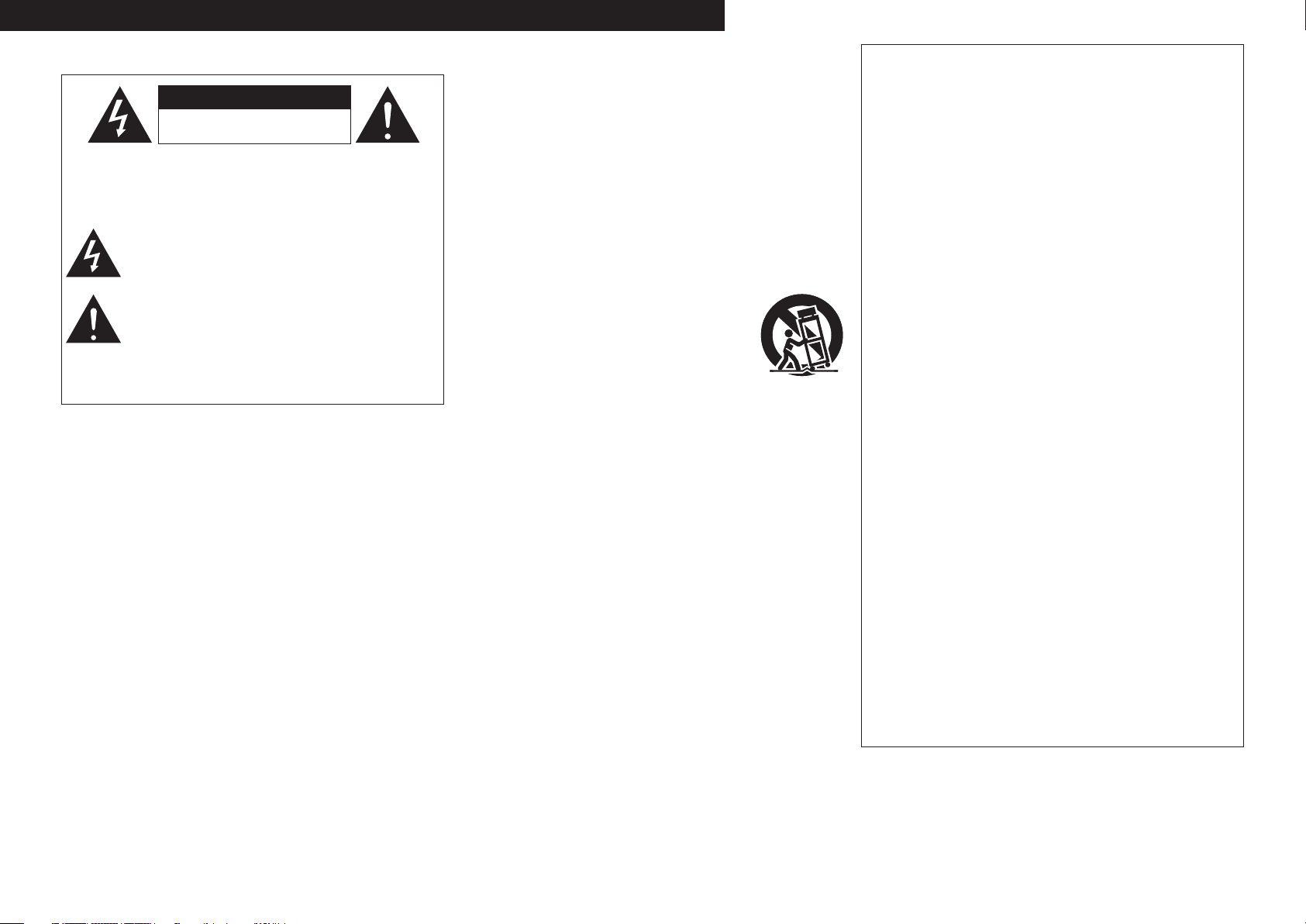
CAUTION
RISK OF ELECTRIC SHOCK
DO NOT OPEN
SAFETY PRECAUTIONS
n
CAUTION:
TO REDUCE THE RISK OF ELECTRIC SHOCK, DO NOT REMOVE
COVER (OR BACK). NO USER-SERVICEABLE PARTS INSIDE.
REFER SERVICING TO QUALIFIED SERVICE PERSONNEL.
The lightning flash with arrowhead symbol, within an equilateral
triangle, is intended to alert the user to the presence of
uninsulated “dangerous voltage” within the product’s enclosure
that may be of sufficient magnitude to constitute a risk of electric
shock to persons.
The exclamation point within an equilateral triangle is intended
to alert the user to the presence of important operating
and maintenance (servicing) instructions in the literature
accompanying the appliance.
WARNING:
TO REDUCE THE RISK OF FIRE OR ELECTRIC SHOCK, DO NOT
EXPOSE THIS APPLIANCE TO RAIN OR MOISTURE.
IMPOTANT SAFETY
INSTRUCTIONS
1. Read these instructions.
2. Keep these instructions.
3. Heed all warnings.
4. Follow all instructions.
5. Do not use this apparatus near water.
6. Clean only with dry cloth.
7. Do not block any ventilation openings.
Install in accordance with the manufacturer’s instructions.
8. Do not install near any heat sources such as radiators, heat registers, stoves,
or other apparatus (including amplifiers) that produce heat.
9. Protect the power cord from being walked on or pinched particularly at
plugs, convenience receptacles, and the point where they exit from the
apparatus.
10. Only use attachments/accessories specified by the manufacturer.
11. Use only with the cart, stand, tripod, bracket, or table
specified by the manufacturer, or sold with the apparatus.
When a cart is used, use caution when moving the cart/
apparatus combination to avoid injury from tip-over.
12. Unplug this apparatus during lightning storms or when
unused for long periods of time.
13. Refer all servicing to qualified service personnel.
Servicing is required when the apparatus has been damaged in any way,
such as power-supply cord or plug is damaged, liquid has been spilled or
objects have fallen into the apparatus, the apparatus has been exposed to
rain or moisture, does not operate normally, or has been dropped.
14. Batteries shall not be exposed to excessive heat such as sunshine, fire or
the like.
CAUTION:
To completely disconnect this product from the mains, disconnect
the plug from the wall socket outlet.
The mains plug is used to completely interrupt the power supply to
the unit and must be within easy access by the user.
VORSICHT:
Um dieses Gerät vollständig von der Stromversorgung abzutrennen,
ziehen Sie bitte den Stecker aus der Wandsteckdose.
Der Netzstecker wird verwendet, um die Stromversorgung zum
Gerät völlig zu unterbrechen; er muss für den Benutzer gut und
einfach zu erreichen sein.
PRECAUTION:
Pour déconnecter complètement ce produit du courant secteur,
débranchez la prise de la prise murale.
La prise secteur est utilisée pour couper complètement
l’alimentation de l’appareil et l’utilisateur doit pouvoir y accéder
facilement.
ATTENZIONE:
Per scollegare completamente questo prodotto dalla rete di
alimentazione elettrica, scollegare la spina dalla relativa presa a muro.
La spina di rete viene utilizzata per interrompere completamente
l’alimentazione all’unità e deve essere facilmente accessibile
all’utente.
PRECAUCIÓN:
Para desconectar completamente este producto de la alimentación
eléctrica, desconecte el enchufe del enchufe de la pared.
El enchufe de la alimentación eléctrica se utiliza para interrumpir por
completo el suministro de alimentación eléctrica a la unidad y debe
de encontrarse en un lugar al que el usuario tenga fácil acceso.
WAARSCHUWING:
Om de voeding van dit product volledig te onderbreken moet de
stekker uit het stopcontact worden getrokken.
De netstekker wordt gebruikt om de stroomtoevoer naar het toestel
volledig te onderbreken en moet voor de gebruiker gemakkelijk
bereikbaar zijn.
FÖRSIKTIHETSMÅTT:
Koppla loss stickproppen från eluttaget för att helt skilja produkten
från nätet.
Stickproppen används för att helt bryta strömförsörjningen till
apparaten, och den måste vara lättillgänglig för användaren.
I
Page 3
NOTE ON USE / HINWEISE ZUM GEBRAUCH / OBSERVATIONS RELATIVES A L’UTILISATION / NOTE SULL’USO /
n
NOTAS SOBRE EL USO / ALVORENS TE GEBRUIKEN / OBSERVERA ANGÅENDE ANVÄNDNINGEN
CAUTION:
• The ventilation should not be impeded by covering the ventilation openings with items,
such as newspapers, tablecloths, curtains, etc.
• No naked flame sources, such as lighted candles, should be placed on the unit.
• Observe and follow local regulations regarding battery disposal.
• Do not expose the unit to dripping or splashing fluids.
• Do not place objects filled with liquids, such as vases, on the unit.
ACHTUNG:
• Die Belüftung sollte auf keinen Fall durch das Abdecken der Belüftungsöffnungen durch
Gegenstände wie beispielsweise Zeitungen, Tischtücher, Vorhänge o. Ä. behindert
werden.
• Auf dem Gerät sollten keinerlei direkte Feuerquellen wie beispielsweise angezündete
Kerzen aufgestellt werden.
• Bitte beachten Sie bei der Entsorgung der Batterien die örtlich geltenden
Umweltbestimmungen.
• Das Gerät sollte keiner tropfenden oder spritzenden Flüssigkeit ausgesetzt werden.
• Auf dem Gerät sollten keine mit Flüssigkeit gefüllten Behälter wie beispielsweise Vasen
aufgestellt werden.
ATTENTION:
• La ventilation ne doit pas être gênée en recouvrant les ouvertures de la ventilation avec des
objets tels que journaux, rideaux, tissus, etc.
• Aucune flamme nue, par exemple une bougie, ne doit être placée sur l’appareil.
• Veillez à respecter les lois en vigueur lorsque vous jetez les piles usagées.
• L’appareil ne doit pas être exposé à l’eau ou à l’humidité.
• Ne pas poser d’objet contenant du liquide, par exemple un vase, sur l’appareil.
ATTENZIONE:
• Le aperture di ventilazione non devono essere ostruite coprendole con oggetti, quali
giornali, tovaglie, tende e così via.
• Non posizionate sull’unità fiamme libere, come ad esempio candele accese.
• Prestate attenzione agli aspetti legati alla tutela dell’ambiente nello smaltimento delle
batterie.
• L’apparecchiatura non deve essere esposta a gocciolii o spruzzi.
• Non posizionate sull’unità alcun oggetto contenente liquidi, come ad esempio i vasi.
PRECAUCIÓN:
• La ventilación no debe quedar obstruida por haberse cubierto las aperturas con objetos
como periódicos, manteles, cortinas, etc.
• No debe colocarse sobre el aparato ninguna fuente inflamable sin protección, como velas
encendidas.
• A la hora de deshacerse de las pilas, respete la normativa para el cuidado del medio
ambiente.
• No exponer el aparato al goteo o salpicaduras cuando se utilice.
• No colocar sobre el aparato objetos llenos de líquido, como jarros.
WAARSCHUWING:
• De ventilatie mag niet worden belemmerd door de ventilatieopeningen af te dekken met
bijvoorbeeld kranten, een tafelkleed, gordijnen, enz.
• Plaats geen open vlammen, bijvoorbeeld een brandende kaars, op het apparaat.
• Houd u steeds aan de milieuvoorschriften wanneer u gebruikte batterijen wegdoet.
• Stel het apparaat niet bloot aan druppels of spatten.
• Plaats geen voorwerpen gevuld met water, bijvoorbeeld een vaas, op het apparaat.
OBSERVERA:
• Ventilationen bör inte förhindras genom att täcka för ventilationsöppningarna med föremål
såsom tidningar, bordsdukar, gardiner osv.
• Inga blottade brandkällor, såsom tända ljus, får placeras på apparaten.
• Tänk på miljöaspekterna när du bortskaffar batterier.
• Apparaten får inte utsättas för vätska.
• Placera inte föremål fyllda med vätska, t.ex. vaser, på apparaten.
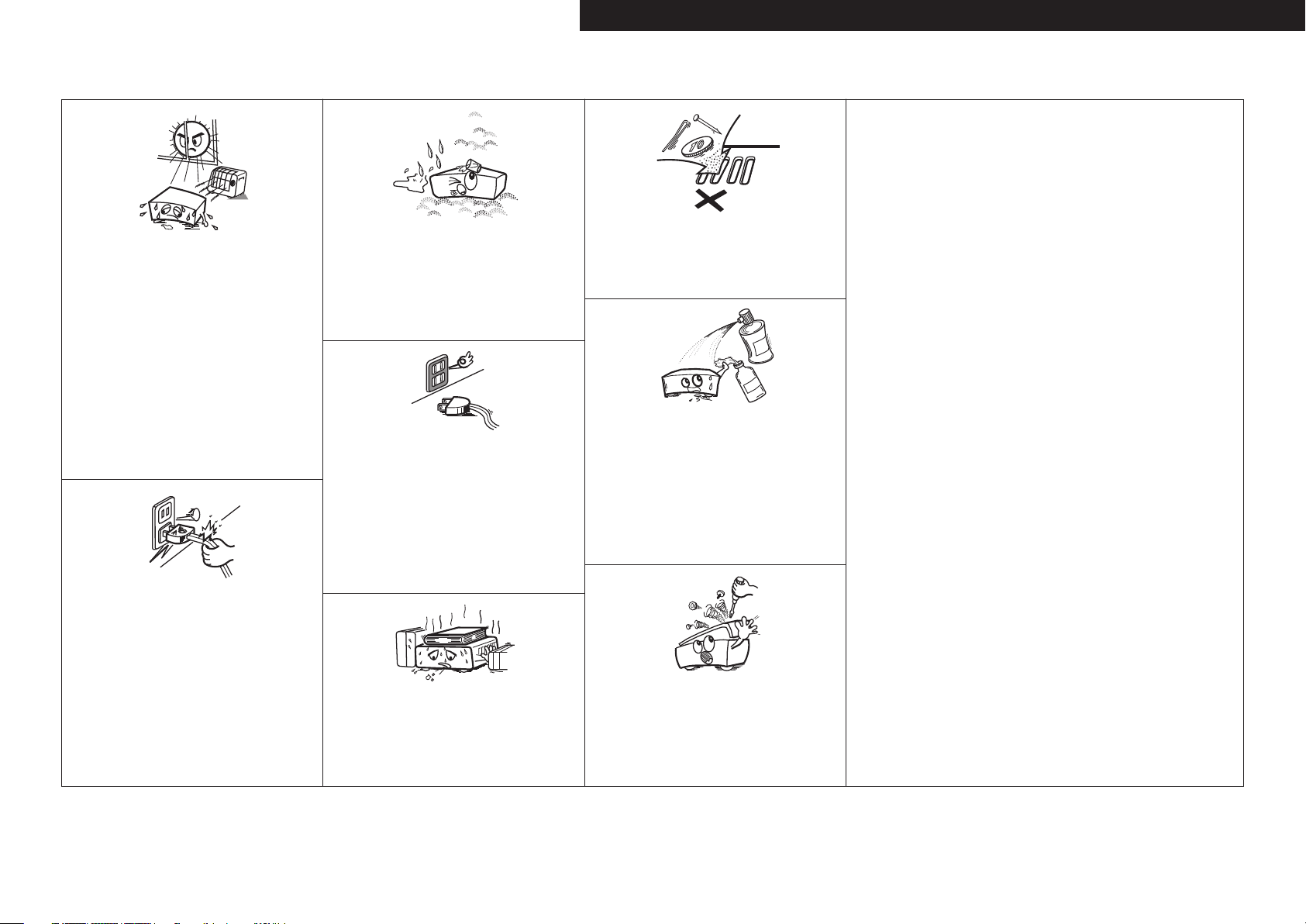
• Avoid high temperatures.
Allow for sufficient heat dispersion when installed in a rack.
• Vermeiden Sie hohe Temperaturen.
Beachten Sie, dass eine ausreichende Belüftung gewährleistet
wird, wenn das Gerät auf ein Regal gestellt wird.
• Eviter des températures élevées.
Tenir compte d’une dispersion de chaleur suffisante lors de
l’installation sur une étagère.
• Evitate di esporre l’unità a temperature elevate.
Assicuratevi che vi sia un’adeguata dispersione del calore
quando installate l’unità in un mobile per componenti audio.
• Evite altas temperaturas.
Permite la suficiente dispersión del calor cuando está
instalado en la consola.
• Vermijd hoge temperaturen.
Zorg er bij installatie in een audiorack voor, dat de door
het toestel geproduceerde warmte goed kan worden
afgevoerd.
• Undvik höga temperaturer.
Se till att det finns möjlighet till god värmeavledning vid
montering i ett rack.
• Handle the power cord carefully.
Hold the plug when unplugging the cord.
• Gehen Sie vorsichtig mit dem Netzkabel um.
Halten Sie das Kabel am Stecker, wenn Sie den Stecker
herausziehen.
• Manipuler le cordon d’alimentation avec précaution.
Tenir la prise lors du débranchement du cordon.
• Manneggiate il cavo di alimentazione con attenzione.
Tenete ferma la spina quando scollegate il cavo dalla presa.
• Maneje el cordón de energía con cuidado.
Sostenga el enchufe cuando desconecte el cordón de
energía.
• Hanteer het netsnoer voorzichtig.
Houd het snoer bij de stekker vast wanneer deze moet
worden aan- of losgekoppeld.
• Hantera nätkabeln varsamt.
Håll i kabeln när den kopplas från el-uttaget.
• Keep the unit free from moisture, water, and dust.
• Halten Sie das Gerät von Feuchtigkeit, Wasser und Staub
fern.
• Protéger l’appareil contre l’humidité, l’eau et la poussière.
• Tenete l’unità lontana dall’umidità, dall’acqua e dalla
polvere.
• Mantenga el equipo libre de humedad, agua y polvo.
• Laat geen vochtigheid, water of stof in het apparaat
binnendringen.
• Utsätt inte apparaten för fukt, vatten och damm.
• Unplug the power cord when not using the unit for long
periods of time.
• Wenn das Gerät längere Zeit nicht verwendet werden soll,
trennen Sie das Netzkabel vom Netzstecker.
• Débrancher le cordon d’alimentation lorsque l’appareil n’est
pas utilisé pendant de longues périodes.
• Scollegate il cavo di alimentazione quando prevedete di non
utilizzare l’unità per un lungo periodo di tempo.
• Desconecte el cordón de energía cuando no utilice el equipo
por mucho tiempo.
Neem altijd het netsnoer uit het stopkontakt wanneer het
•
apparaat gedurende een lange periode niet wordt gebruikt.
• Koppla loss nätkabeln om apparaten inte kommer att
användas i lång tid.
* (For apparatuses with ventilation holes)
• Do not obstruct the ventilation holes.
• Decken Sie den Lüftungsbereich nicht ab.
• Ne pas obstruer les trous d’aération.
• Non coprite i fori di ventilazione.
• No obstruya los orificios de ventilación.
• De ventilatieopeningen mogen niet worden beblokkeerd.
• Täpp inte till ventilationsöppningarna.
• Do not let foreign objects into the unit.
Lassen Sie keine fremden Gegenstände in das Gerät kommen.
•
• Ne pas laisser des objets étrangers dans l’appareil.
• Non inserite corpi estranei all’interno dell’unità.
• No deje objetos extraños dentro del equipo.
• Laat geen vreemde voorwerpen in dit apparaat vallen.
• Se till att främmande föremål inte tränger in i apparaten.
• Do not let insecticides, benzene, and thinner come in
contact with the unit.
• Lassen Sie das Gerät nicht mit Insektiziden, Benzin oder
Verdünnungsmitteln in Berührung kommen.
• Ne pas mettre en contact des insecticides, du benzène et
un diluant avec l’appareil.
• Assicuratevi che l’unità non entri in contatto con insetticidi,
benzolo o solventi.
• No permita el contacto de insecticidas, gasolina y diluyentes
con el equipo.
• Voorkom dat insecticiden, benzeen of verfverdunner met dit
toestel in contact komen.
• Se till att inte insektsmedel på spraybruk, bensen och
thinner kommer i kontakt med apparatens hölje.
• Never disassemble or modify the unit in any way.
• Versuchen Sie niemals das Gerät auseinander zu nehmen
oder zu verändern.
• Ne jamais démonter ou modifier l’appareil d’une manière ou
d’une autre.
• Non smontate né modificate l’unità in alcun modo.
• Nunca desarme o modifique el equipo de ninguna manera.
• Dit toestel mag niet gedemonteerd of aangepast worden.
• Ta inte isär apparaten och försök inte bygga om den.
DEUTSCHFRANCAISITALIANOESPAÑOLNEDERLANDSSVENSKA ENGLISH
II
Page 4
ITALIANO ESPAÑOL NEDERLANDS SVENSKADEUTSCH FRANCAISENGLISH
• DECLARATION OF CONFORMITY
We declare under our sole responsibility that this product, to which this
declaration relates, is in conformity with the following standards:
EN60065, EN55013, EN55020, EN61000-3-2 and EN61000-3-3.
Following the provisions of 2006/95/EC and 2004/108/EC Directive.
• ÜBEREINSTIMMUNGSERKLÄRUNG
Wir erklären unter unserer Verantwortung, daß dieses Produkt, auf das
sich diese Erklärung bezieht, den folgenden Standards entspricht:
EN60065, EN55013, EN55020, EN61000-3-2 und EN61000-3-3.
Entspricht den Verordnungen der Direktive 2006/95/EC und 2004/108/EC.
• DECLARATION DE CONFORMITE
Nous déclarons sous notre seule responsabilité que l’appareil, auquel se
réfère cette déclaration, est conforme aux standards suivants:
EN60065, EN55013, EN55020, EN61000-3-2 et EN61000-3-3.
D’après les dispositions de la Directive 2006/95/EC et 2004/108/EC.
• DICHIARAZIONE DI CONFORMITÀ
Dichiariamo con piena responsabilità che questo prodotto, al quale la
nostra dichiarazione si riferisce, è conforme alle seguenti normative:
EN60065, EN55013, EN55020, EN61000-3-2 e EN61000-3-3.
In conformità con le condizioni delle direttive 2006/95/EC e 2004/108/EC.
QUESTO PRODOTTO E’ CONFORME
AL D.M. 28/08/95 N. 548
• DECLARACIÓN DE CONFORMIDAD
Declaramos bajo nuestra exclusiva responsabilidad que este producto al
que hace referencia esta declaración, está conforme con los siguientes
estándares:
EN60065, EN55013, EN55020, EN61000-3-2 y EN61000-3-3.
Siguiendo las provisiones de las Directivas 2006/95/EC y 2004/108/EC.
• EENVORMIGHEIDSVERKLARING
Wij verklaren uitsluitend op onze verantwoordelijkheid dat dit produkt,
waarop deze verklaring betrekking heeft, in overeenstemming is met de
volgende normen:
EN60065, EN55013, EN55020, EN61000-3-2 en EN61000-3-3.
Volgens de bepalingen van de Richtlijnen 2006/95/EC en 2004/108/EC.
• ÖVERENSSTÄMMELSESINTYG
Härmed intygas helt på eget ansvar att denna produkt, vilken detta intyg
avser, uppfyller följande standarder:
EN60065, EN55013, EN55020, EN61000-3-2 och EN61000-3-3.
Enligt stadgarna i direktiv 2006/95/EC och 2004/108/EC.
DENON EUROPE
Division of D&M Germany GmbH
An der Landwehr 19, Nettetal,
D-41334 Germany
A NOTE ABOUT RECYCLING:
This product’s packaging materials are recyclable and can be reused. Please dispose of any materials
in accordance with the local recycling regulations.
When discarding the unit, comply with local rules or regulations.
Batteries should never be thrown away or incinerated but disposed of in accordance with the local
regulations concerning battery disposal.
This product and the supplied accessories, excluding the batteries, constitute the applicable product
according to the WEEE directive.
HINWEIS ZUM RECYCLING:
Das Verpackungsmaterial dieses Produktes ist zum Recyceln geeignet und kann wieder verwendet
werden. Bitte entsorgen Sie alle Materialien entsprechend der örtlichen Recycling-Vorschriften.
Beachten Sie bei der Entsorgung des Gerätes die örtlichen Vorschriften und Bestimmungen.
Die Batterien dürfen nicht in den Hausmüll geworfen oder verbrannt werden; bitte entsorgen Sie die
Batterien gemäß der örtlichen Vorschriften.
Dieses Produkt und das im Lieferumfang enthaltene Zubehör (mit Ausnahme der Batterien!)
entsprechen der WEEE-Direktive.
UNE REMARQUE CONCERNANT LE RECYCLAGE:
Les matériaux d’emballage de ce produit sont recyclables et peuvent être réutilisés. Veuillez
disposer des matériaux conformément aux lois sur le recyclage en vigueur.
Lorsque vous mettez cet appareil au rebut, respectez les lois ou réglementations en vigueur.
Les piles ne doivent jamais être jetées ou incinérées, mais mises au rebut conformément aux lois en vigueur sur la
mise au rebut des piles.
Ce produit et les accessoires inclus, à l’exception des piles, sont des produits conformes à la directive DEEE.
NOTA RELATIVA AL RICICLAGGIO:
I materiali di imballaggio di questo prodotto sono riutilizzabili e riciclabili. Smaltire i materiali conformemente alle
normative locali sul riciclaggio.
Per lo smaltimento dell’unità, osservare le normative o le leggi locali in vigore.
Non gettare le batterie, né incenerirle, ma smaltirle conformemente alla normativa locale sui rifiuti chimici.
Questo prodotto e gli accessori inclusi nell’imballaggio sono applicabili alla direttiva RAEE, ad eccezione delle batterie.
ACERCA DEL RECICLAJE:
Los materiales de embalaje de este producto son reciclables y se pueden volver a utilizar. Disponga de estos materiales
siguiendo los reglamentos de reciclaje de su localidad.
Cuando se deshaga de la unidad, cumpla con las reglas o reglamentos locales.
Las pilas nunca deberán tirarse ni incinerarse. Deberá disponer de ellas siguiendo los reglamentos de su localidad
relacionados con los desperdicios químicos.
Este producto junto con los accesorios empaquetados es el producto aplicable a la directiva RAEE excepto pilas.
EEN AANTEKENING MET BETREKKING TOT DE RECYCLING:
Het inpakmateriaal van dit product is recycleerbaar en kan opnieuw gebruikt worden. Er wordt verzocht om zich van
elk afvalmateriaal te ontdoen volgens de plaatselijke voorschriften.
Volg voor het wegdoen van de speler de voorschriften voor de verwijdering van wit- en bruingoed op.
Batterijen mogen nooit worden weggegooid of verbrand, maar moeten volgens de plaatselijke voorschriften
betreffende chemisch afval worden verwijderd.
Op dit product en de meegeleverde accessoires, m.u.v. de batterijen is de richtlijn voor afgedankte elektrische en
elektronische apparaten (WEEE) van toepassing.
OBSERVERA ANGÅENDE ÅTERVINNING:
Produktens emballage är återvinningsbart och kan återanvändas. Kassera det enligt lokala återvinningsbestämmelser.
När du kasserar enheten ska du göra det i överensstämmelse med lokala regler och bestämmelser.
Batterier får absolut inte kastas i soporna eller brännas. Kassera dem enligt lokala bestämmelser för kemiskt avfall.
Denna apparat och de tillbehör som levereras med den uppfyller gällande WEEE-direktiv, med undantag av
batterierna.
III
Page 5
ENGLISH
n Contents
Getting Started
Accessories ····················································································2
Cautions on Handling ···································································2
Cautions on Installation ·······························································2
About the Remote Control Unit···················································3
Operations possible by remote control ·········································3
Inserting the Batteries ··································································3
Operating Range of the Remote Control Unit ······························3
Part Names ····················································································4
Front Panel····················································································4
Display ··························································································4
Rear Panel·····················································································4
Remote Control Unit ·····································································5
Connections
Preparations ··················································································7
Assembling the AM loop antenna ················································7
Using the AM Loop Antenna ························································7
Antenna terminals·········································································7
Cables Used for Connections ·······················································8
Speaker Connections ···································································· 8
Connecting the Speaker Cables····················································8
Connecting a subwoofer ······························································9
Connecting the Playback Components ······································· 9
CD Player ······················································································ 9
Record Player················································································9
iPod® ························································································· 10
Connecting a portable player ······················································10
Connecting the Recording Components ···································10
Connecting the Power Cord ······················································· 10
Once Connections are Completed ············································· 11
Playback
Preparations ················································································12
Turning the Power On ································································12
Operations During Playback ······················································12
Adjusting the Master Volume ·····················································12
Switching the function (input source) ·········································12
Listening with Headphones ························································ 12
Adjusting the Tone······································································13
Turning the Sound Off Temporarily (Muting) ······························13
Switching the Brightness of the Display ·····································13
TUNER Playback ··········································································13
Tuning in Broadcast Stations ······················································13
Automatically Presetting FM Stations (Auto Preset) ··················14
Presetting FM/AM Stations Manually ·········································15
Listening to Preset Stations ························································15
Operating using the PRESET/TUNING buttons on the main unit
····································································································15
RDS (Radio Data System) ···························································15
RDS Search·················································································15
PTY Search ·················································································15
TP Search····················································································16
Listening to DAB/DAB+ (For UK Model Only) ··························17
Tuning in DAB Stations ·······························································17
Auto Scannig Broadcast Stations ················································17
Switching the Reception Information for the Currently Tuned in
DAB Station ················································································18
Making the DAB Settings ···························································18
DAB Initialize···············································································18
iPod® Playback ············································································19
Preparations ················································································19
Playing ························································································19
Disconnecting the iPod ·······························································19
Recording ····················································································· 20
Recording on an External Device ················································20
About System Functions
Device supporting system connections (sold separately)·······22
What you can do with the system functions····························22
Making system connections ······················································22
System Functions ·······································································23
Auto Power On Function ····························································23
Auto Function ·············································································23
Timer Function ············································································23
Troubleshooting···································································23
Specifications ········································································24
Setup
Setting the Current Time (24-Hour Display) ····························· 11
Setting the Timer
Timer Playback ············································································20
Setting the Timer ········································································ 20
Setting the Sleep Timer ······························································ 21
Other Functions
Convenient Functions ································································· 22
Setting the optimizing filter for the SC-F107 speaker system
(sold separately) ··········································································22
Auto Function Selector Function ················································22
Last Function Memory································································22
Page 6
ENGLISH
r t y
q e
q w
Getting Started
Getting Started
Thank you for purchasing this DENON product. To ensure proper
operation, please read this owner’s manual carefully before using the
Connections Setup Playback Setting the Timer Other Functions Troubleshooting SpecificationsSystem Functions
product.
After reading them, be sure to keep them for future reference.
Accessories
Check that the following parts are supplied with the product.
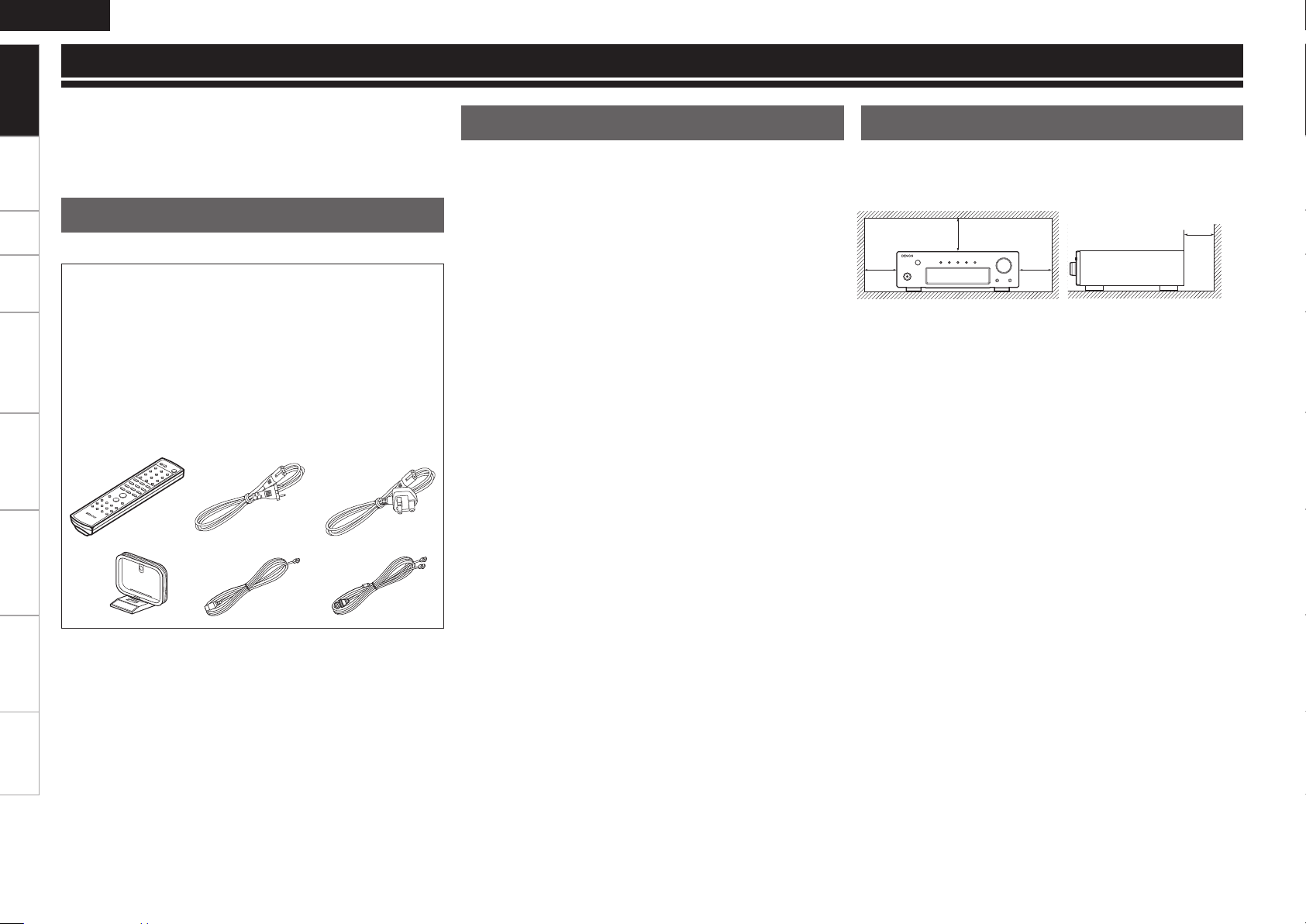
q Remote control (RC-1127) ........................................................1
w R03/AAA batteries ................................................................... 2
e q Power cord: for continental model only
(Cord length: Approx. 1.9 m) ............................................... 1
w Power cord: for UK model only
(Cord length: Approx. 1.9 m) ............................................... 1
r AM loop antenna .....................................................................1
t FM indoor antenna ..................................................................1
y DAB indoor antenna (for UK model only) .................................1
u Owner’s manual ......................................................................1
i Service station list ...................................................................1
Cautions on Handling
• Before turning the power switch on
Check once again that all connections are correct and that there are
no problems with the connection cables.
•
Power is supplied to some of the circuitry even when the unit is
set to the standby mode. When traveling or leaving home for long
periods of time, be sure to unplug the power cord from the power
outlet.
• About condensation
If there is a major difference in temperature between the inside of
the unit and the surroundings, condensation (dew) may form on
the operating parts inside the unit, causing the unit not to operate
properly.
If this happens, let the unit sit for an hour or two with the power
turned off and wait until there is little difference in temperature
before using the unit.
• Cautions on using mobile phones
Using a mobile phone near this unit may result in noise. If so, move
the mobile phone away from this unit when it is in use.
• Moving the unit
Turn off the power and unplug the power cord from the power
outlet.
Next, disconnect the connection cables to other system units before
moving the unit.
•
Note that the illustrations in these instructions may differ from the
actual unit for explanation purposes.
Cautions on Installation
Note:
For proper heat dispersal, do not install this unit in a confined
space, such as a bookcase or similar enclosure.
b Note
b
b
b
Wall
Page 7
About the Remote Control Unit
ENGLISH
Getting Started
Operations possible by remote control
Operations on the DRA-F107
n
Operating components connected to the DRA-
n
F107 by system cable
When the DCD-F107 CD player (sold separately) is connected to
the DRA-F107 by system cable, the remote control signals received by the DRA-F107 are transmitted to the DCD-F107 to oper-
ate the DCD-F107.
For instructions on system connections, see “About System Functions”
(vpage 22).
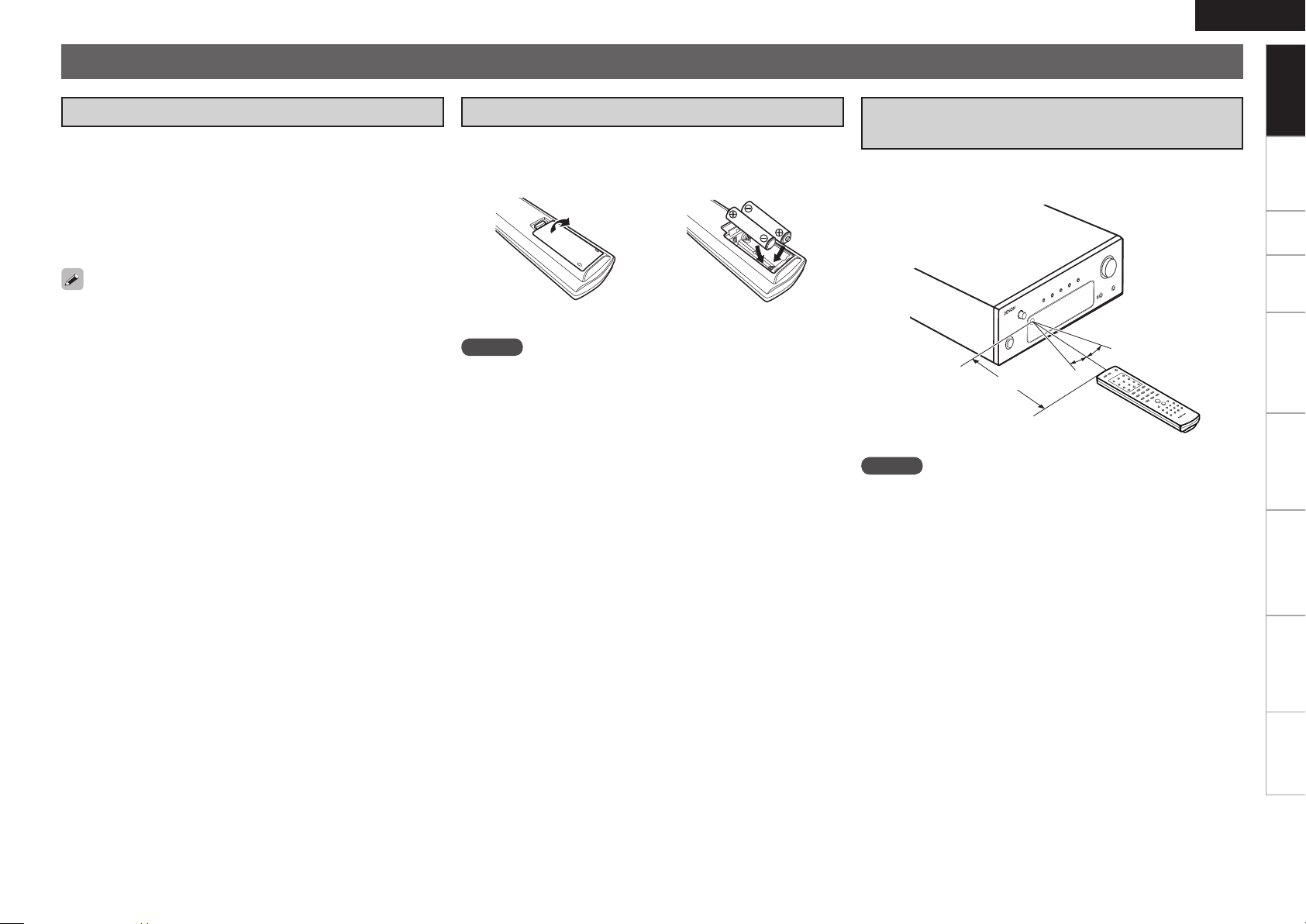
Inserting the Batteries
q Remove the remote control
unit’s rear cover.
e Put the rear cover back on.
NOTE
• Replace the batteries with new ones if the set does not operate even
when the remote control unit is operated close to the unit.
• The supplied batteries are only for verifying operation.
• When inserting the batteries, be sure to do so in the proper direction,
following the “q” and “w” marks in the battery compartment.
• To prevent damage or leakage of battery fluid:
• Do not use a new battery together with an old one.
• Do not use two different types of batteries.
• Do not attempt to charge dry batteries.
• Do not short-circuit, disassemble, heat or dispose of batteries in
flames.
• If the battery fluid should leak, carefully wipe the fluid off the inside
of the battery compartment and insert new batteries.
• Remove the batteries from the remote control unit if it will not be in
use for long periods.
• Used batteries should be disposed of in accordance with the local
regulations regarding battery disposal.
w Set two R03/AAA batteries in
the battery compartment in the
indicated direction.
Operating Range of the Remote Control
Unit
Point the remote control unit at the remote sensor when operating it.
30°
30°
Approx. 7 m
NOTE
The set may function improperly or the remote control unit may not
operate if the remote control sensor is exposed to direct sunlight,
strong artificial light from an inverter type fluorescent lamp or infrared
light.
Connections Setup Playback Setting the Timer Other Functions Troubleshooting SpecificationsSystem Functions
Page 8
ENGLISH
q
re
t y
i uoQ0Q1Q2
w
q
t r e
w
q q tew r
yuioQ1 Q0
Getting Started
Part Names
For buttons not explained here, see the page indicated in parentheses ( ).
Connections Setup Playback Setting the Timer Other Functions Troubleshooting SpecificationsSystem Functions
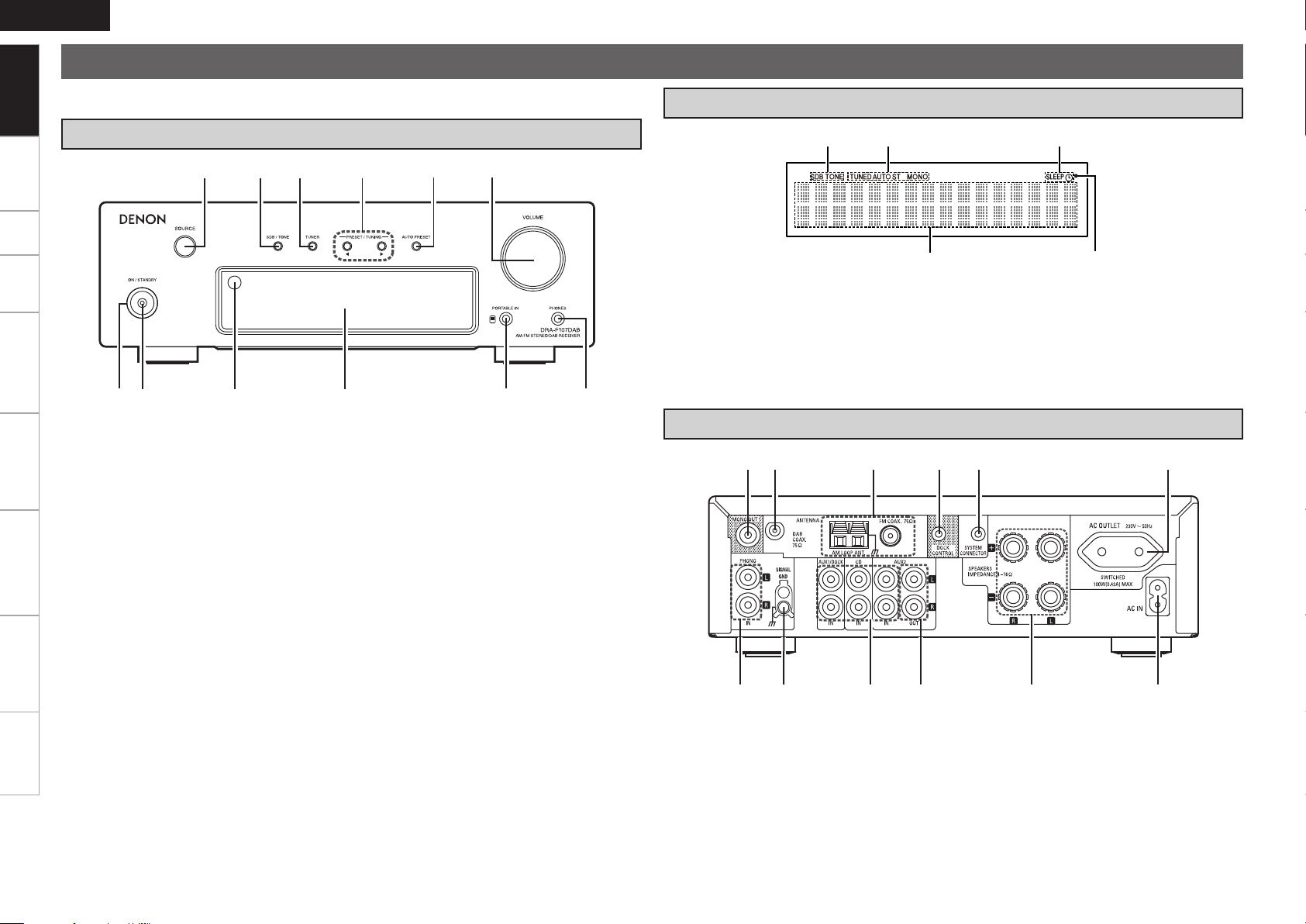
Front Panel
q Power operation button
(ON/STANDBY) ··········································· (12)
w Power indicator ··········································· (12)
e Remote control sensor ·································(3)
r Display
t PORTABLE IN jack ······································ (10)
y Headphones jack (PHONES) ······················ (12)
u
Master volume control knob (VOLUME)
····· (12)
i Auto tuner preset button
o Preset/tuning buttons
Q0 TUNER button ············································· (13)
Q1 Super Dynamic Bass/Tone control button
Q2 Source selection knob (SOURCE) ············· (12)
(AUTO PRESET) ·········································· (14)
(PRESET/TUNING) ····································· (15)
(SDB/TONE) ················································ (13)
Display
q Information display
Various information is displayed here.
w Remote control signal reception indicator
e Timer operation indicator
r Tuner reception mode indicators ·············· (13)
Rear Panel
t Tone indicators ··········································· (13)
SDB:
Lights when the super dynamic bass
function is set to “ON”.
TONE: Lights when the tone (bass/treble) is
being adjusted.
q Analog input terminals ·························· (9, 10)
w SIGNAL GND terminal ·································(9)
e Analog output terminals ···························· (10)
r Speaker terminals (SPEAKERS) ··················(8)
t AC inlet (AC IN) ··········································· (10)
y AC outlet ··············································· (10, 22)
u SYSTEM CONNECTOR jack························ (22)
i DOCK CONTROL jack ································· (10)
o FM/AM antenna terminals ··························· (7)
Q0 DAB ANTENA terminal (UK model only)·······(7)
Q1 MONO OUT terminal ···································· (9)
Page 9
q
r
t
e
w
y
u
i
q
t
u
y
i
o
w
e
r
q
w
r
t
e
e
o
r
Q0
Q1
y
u
i
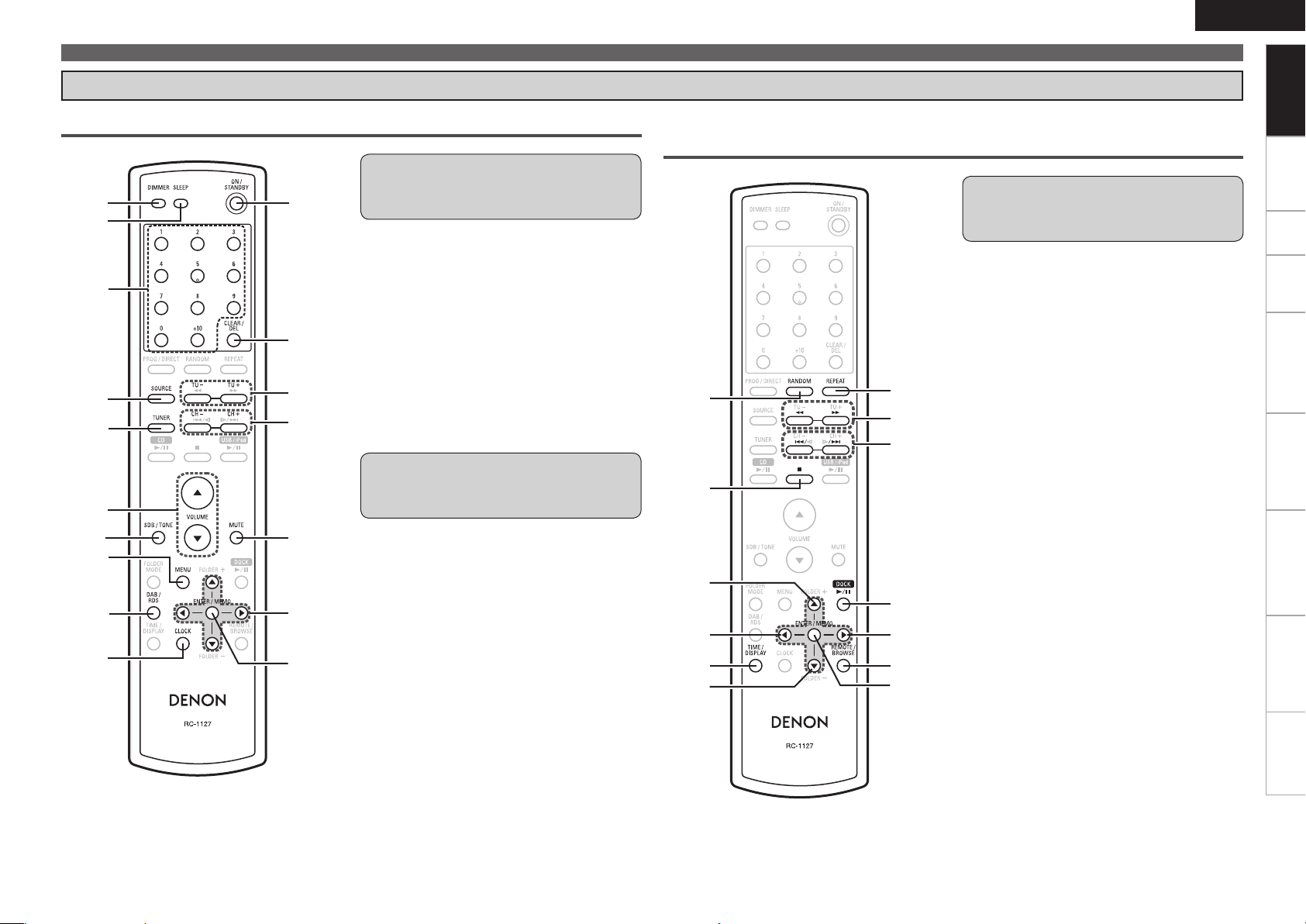
Remote Control Unit
ENGLISH
Part Names
Getting Started
Buttons for operating the receiver Buttons for operating Control Dock for iPod (ASD-11R or ASD-
3N/3W, sold separately)
Amplifier operations
Control Dock for iPod operations
The buttons below can be operated when
the function is set to “iPod”.
qRANDOM button
wStop button (2)
eCursor buttons (ui)
Item selection
rCursor buttons (o p)
Movement between menu layers
tTIME/DISPLAY button
yREPEAT button
uSearch button (6/7)
iSkip button (8/9)
oDOCK play/pause button (DOCK 1/3)
Q0REMOTE/BROWSE button
Q1ENTER/Memory button (ENTER/MEMO)
The buttons below can be operated
regardless of the currently set function.
qDIMMER button
wSleep timer button (SLEEP)
eSource select button (SOURCE)
rMaster volume control buttons
(VOLUME)
tSuper Dynamic Bass/Tone control
selection button (SDB/TONE)
yCLOCK button
uON/STANDBY button
iMUTE button
Tuner operations
The buttons below can be operated when
the function is set to “TUNER”.
qNumber buttons (0 ~ 9, +10)
wTUNER button
eMENU button
rDAB/RDS button
tCLEAR/DEL button
yTuning buttons (TU +/–)
uPreset channel buttons (CH +/–)
iCursor buttons (uio p)
oENTER/Memory button (ENTER/MEMO)
Connections Setup Playback Setting the Timer Other Functions Troubleshooting SpecificationsSystem Functions
Page 10

ENGLISH
w
e
q
r
t
u
y
o
i
Q0
Q1
Q2
y
Q4
Q3
w
e
i
o
Q0
Q1
y
Q2
Q3
y
t
q
u
r
r
Getting Started
Part Names
Buttons for operating components connected by system cable
For system functions and components that can be operated, see “About System Functions” (vpage 22)
.
Connections Setup Playback Setting the Timer Other Functions Troubleshooting SpecificationsSystem Functions
The buttons below can be operated when
the function is set to “CD/USB”.
qNumber buttons (0 ~ 9, +10)
wPROG/DIRECT button
eRANDOM button
rCD play/pause button (CD 1/3)
tFolder mode select button
(FOLDER MODE)
yCursor buttons (o p)
uDisplay select button (TIME/DISPLAY)
iCLEAR/DEL button
oREPEAT button
Q0Search button (6/7)
Q1Skip button (8/9)
Q2Stop button (2)
Q3Folder select button (FOLDER +/–)
Q4ENTER/Memory button (ENTER/MEMO)
CD operations
USB/iPod operations
When the function is set to “CD/USB”, the
USB memory device or iPod connected to
the USB port on the DCD-F107 which is
in turn connected by system cable to the
DRA-F107 can be operated with the buttons
below.
qNumber buttons (0 ~ 9, +10)
wRANDOM button
eStop button (2)
rCursor buttons (ui)
tFolder mode selection button
(FOLDER MODE)
yCursor buttons (o p)
uDisplay selection button (TIME/DISPLAY)
iREPEAT button
oSearch button (6/7)
Q0Skip button (8/9)
Q1USB/iPod play/pause button
(USB/iPod 1/3)
Q2REMOTE/BROWSE button
Q3ENTER/Memory button (ENTER/MEMO)
Page 11

Connections
ENGLISH
Getting Started Setup Playback Setting the Timer Other Functions Troubleshooting SpecificationsSystem Functions
Preparations
For details about system connections, also see “About
System Functions” (vpage 22).
NOTE
• Do not plug in the power cord until all connections have been
completed.
• When making connections, also refer to the operating instructions of
the other components.
• Be sure to connect the left and right channels properly (left with left,
right with right).
• Do not bundle power cords together with connection cables. Doing
so can result in humming or noise.
Assembling the AM loop antenna
Put the stand section
1
through the bottom of the
loop antenna from the rear
and bend it forward.
Insert the projecting part
2
into the square hole in the
stand.
Loop antenna
Stand
Square
hole
Projecting
part
Antenna terminals
AM/FM
The AM and FM reception sensitivity depends on the place the antenna
is set and the direction in which it is set. Set it so that reception is
best.
AM loop
antenna
(supplied)
FM indoor antenna
(supplied)
Connections
DAB (for UK Model Only)
n Installing the DAB indoor antenna
DAB station reception (vpage 17).
DAB indoor antenna
(Supplied)
Using the AM Loop Antenna
To use suspended on a
wall
Suspend directly on the wall
without assembling.
Nail, tack, etc.
To use standing alone
Use the procedure below to
assemble.
n Connecting the AM loop antenna
Push the lever.
1
Insert the conductor.
2
Return the lever.
3
NOTE
• Make sure the AM loop antenna lead terminals do not touch metal
parts of the panel.
• Do not connect two FM antennas simultaneously.
Page 12

ENGLISH
w qw q
(R)(L)
R
L
R
L
Getting Started Setup Playback Setting the Timer Other Functions Troubleshooting SpecificationsSystem Functions
Preparations
Cables Used for Connections
Select the cables according to the equipment being connected.
Connections
Analog connections (stereo)
Analog connections (for subwoofer)
Analog connections (for portable player)
(White)
(Red)
Audio cables
Stereo pin-plug cable
Pin-plug cable
Speaker Connections
Speakers
Connecting the Speaker Cables
Carefully check the left (L) and right (R) channels and + (red) and –
(black) polarities on the speakers being connected to the DRA-F107,
and be sure to interconnect the channels and polarities correctly.
Peel off about 10 mm of sheathing from
1
the tip of the speaker cable, then either
twist the core wire tightly or terminate
it.
Turn the speaker terminal counterclockwise
2
to loosen it.
Insert the speaker cable’s core wire to
3
the hilt into the speaker terminal.
System connections
System cable (included with the system device)
Speaker connections
Stereo mini-plug cable
Speaker cables
Turn the speaker terminal clockwise to
4
tighten it.
NOTE
• Use speakers with an impedance of 4 to 16 Ω/ohms. The protection
circuit may be activated if speakers with an impedance other than
When using an SC-F107 (speaker system, sold separately), we
recommend using the receiver's optimizing filter.
Signals adjusted for the SC-F107's properties are output.
(vpage 22 “ Convenient Functions”).
Protection circuit
The protection circuit will be activated in the following cases:
• When the speaker cable’s core wires are touching the rear panel or screws or when the speaker cable’s + and – sides are touching
• When the surrounding temperature is extremely high
• When the internal temperature rises due to extended use with a high output
When the protection circuit is activated, the speaker output is cut off and the power indicator flashes orange. If this happens, unplug the
power cord, then check the connections of the speaker cables and input cables. If the set’s temperature is extremely high, wait for it to cool
off and improve surrounding ventilation. After doing this, plug the power cord back in.
If the protection circuit is activated though there are no problems in ventilation around the set or in connections, the set could be damaged.
Turn off the power, then contact a DENON servicing and inquiry outlet.
specified are used.
• Connect the speaker cables in such a way that they do not stick out
of the speaker terminals. The protection circuit may be activated if
the core wires touch the rear panel or if the + and – sides touch each
other (v “Protection circuit”).
• Never touch the speaker terminals while the power supply is
connected. Doing so could result in electric shock.
Page 13

(/%
"6%*0
065
R
L
R
L
R
L
3-
065
"6%*0
"6%*0
*/
Connecting a subwoofer
ENGLISH
Getting Started Setup Playback Setting the Timer Other Functions Troubleshooting SpecificationsSystem Functions
Connecting the Playback Components
Power amp /
Subwoofer
CD Player Record Player
CD Player
Turntable
Connections
Ground wire
When connecting the DRA-F107 and DCD-F107 (CD player,
sold separately), make system connections.
This enables operation using the DRA-F107’s remote control
unit and the various system functions.
(vpage 22 “About System Functions”)
• Playback with an MC cartridge is not possible with the DRA-F107.
When using an MC cartridge, use a commercially available head
amplifier or booster transformer.
• With some record players, noise may be generated when the ground
wire is connected. If so, disconnect the ground wire.
NOTE
The DRA-F107’s SIGNAL GND terminal is meant to reduce noise when
a record player is connected. This is not a safety ground terminal.
Page 14

ENGLISH
"6%*0-*/&
065
R
R
L
L
R
R
L
L
-3 -3
065 */
"6%*0
"6%*0
"4%/8
R
L
R
L
Getting Started Setup Playback Setting the Timer Other Functions Troubleshooting SpecificationsSystem Functions
Connecting the Playback Components
iPod®
Use a DENON control dock for iPod (ASD-11R or ASD-3N/3W, sold
separately) to connect the iPod to the DRA-F107.
Connections
Connecting the Recording
Components
Tape deck
Connecting the Power Cord
Wait until all connections have been completed before connecting the
power cord.
n For Continental model only
iPod
• When using a control dock for iPod, the Control Dock for iPod must
be set. For details, refer to the operating instructions of the Control
Dock for iPod.
• When the control dock for iPod is connected, the function indicator
switches from “AUX1” to “iPod”.
• To use an iPod, see “iPod® Playback” (vpage 19).
Connecting a portable player
Portable player
To household
power outlet
(AC 230 V, 50 Hz)
Power cord
(Supplied)
Connecting to the AC OUTLET
SWITCHED (Total capacity: 100 W (0.43 A):
The power supply to the outlet turns ON and OFF with the
main unit’s ON/STANDBY button. Make sure the total power
consumption of the connected devices does not exceed
100 W (0.43 A).
n For UK model only
To household
power outlet
(AC 230 V, 50 Hz)
Power cord
(Supplied)
0
Page 15

M E N U
C L O C K S E T U P
M E N U
C L O C K S E T U P
C L O C K S E T U P
1 0 : 0 0
C L O C K S E T U P
1 0 : 0 0
C L O C K S E T U P
1 0 : 1 5
C L O C K S E T U P
1 0 : 1 5
ON/STANDBY
ON/STANDBY
[MENU]
[CLOCK]
[ENTER/MEMO]
[uip]
Connecting the Power Cord
NOTE
• Insert the AC plugs securely. Incomplete connections could cause
noise.
Do not unplug the power cord before the power indicator turns off
and the DRA-F107 enters Standby mode.
• Only use the supplied power cord.
• Be sure the power cord is unplugged from the power outlet before
connecting or disconnecting it to the AC IN.
• The AC outlet is for use with audio components. Do not use it to
connect hair dryers or any equipment other than audio components.
Once Connections are
Completed
Turning the Power On (vpage 12)
Setup
Symbols used to indicate buttons in this manual
Button located on both the main unit and the remote control
unit
Button only on the main unit
Button only on the remote control unit
<BUTTON>
[BUTTON]
BUTTON
Setting the Current Time
(24-Hour Display)
GExampleH Setting the current time to 10:15 am
Press ON/STANDBY to turn the power on.
1
Press [MENU].
Various types of setting menus are displayed.
2
Use [u] or [i] to select “CLOCK SETUP”, then
3
press [ENTER/MEMO] or [p].
Use [u] or [i] to set the “hours”.
4
ENGLISH
Getting Started Playback Setting the Timer Other Functions Troubleshooting SpecificationsSystem Functions
Connections Setup
Press [ENTER/MEMO] or [p].
5
The “minutes” display flashes.
Use [u] or [i] to set the “minutes”.
6
Press [ENTER/MEMO] or [p].
The current time is set, and the normal display reappears.
7
n Checking the current time when the power is on
Press [CLOCK].
Press once more and the display returns to its original condition.
n Checking the current time when the power is set
to standby
Press [CLOCK].
The current time is displayed for 10 seconds.
NOTE
The time cannot be set when in the standby mode. Turn on the power
first.
Page 16

ENGLISH
CD/USB TUNER
AUX1 (iPod) PHONOAUX2
b1
b2
PORTABLE IN
ON/STANDBY
<SOURCE> SDB/TONE TUNER <VOLUME>
<PHONES>
ON/STANDBY
SDB/TONE
DAB/RDS
[SOURCE]
[VOLUME df]
[op]
TUNER
[DIMMER]
[MUTE]
[
TU–, TU+
]
Getting Started Connections Setup Setting the Timer Other Functions Troubleshooting SpecificationsSystem Functions
Playback
Playback
Symbols used to indicate buttons in this manual
Button located on both the main unit and the remote control
unit
Button only on the main unit
Button only on the remote control unit
BUTTON
<BUTTON>
[BUTTON]
Preparations Operations During Playback
Turning the Power On Adjusting the Master Volume
Press ON/STANDBY.
• The power turns on.
Press again to set the power to standby.
• When the power is turned on, the function that was being used
when the power was last turned off is selected (vpage 22 “Last
function memory”).
• The receiver switches to the low power consumption mode about
30 seconds after it is set to standby.
Power indicator
Standby ∙∙∙∙∙∙∙∙∙∙∙∙∙∙∙∙∙∙∙∙∙∙∙∙∙∙∙∙∙∙∙∙∙∙∙∙∙∙∙∙∙∙∙∙∙∙∙∙∙∙∙∙∙∙∙∙∙∙∙∙∙∙∙∙∙∙∙∙∙∙∙∙∙∙∙∙∙∙∙∙∙∙∙∙∙∙∙∙∙∙∙∙ Off
Power on ∙∙∙∙∙∙∙∙∙∙∙∙∙∙∙∙∙∙∙∙∙∙∙∙∙∙∙∙∙∙∙∙∙∙∙∙∙∙∙∙∙∙∙∙∙∙∙∙∙∙∙∙∙∙∙∙∙∙∙∙∙∙∙∙∙∙∙∙∙∙∙∙∙∙∙∙∙∙∙∙∙∙∙∙∙Green
When the timer is set ∙∙∙∙∙∙∙∙∙∙∙∙∙∙∙∙∙∙∙∙∙∙∙∙∙∙∙∙∙∙∙∙∙∙∙∙∙∙∙∙∙∙∙∙∙∙∙∙∙∙∙∙∙∙∙∙∙∙∙∙∙∙∙∙Orange
NOTE
Power continues to be supplied to some of the circuitry even when the
power is in the standby mode. When leaving home for long periods of
time or when traveling, unplug the power cord from the power outlet.
n Completely turning off the power
Unplug the power cord from the wall outlet.
b Note that the time setting is cleared when the power cord is
unplugged from the outlet.
b The settings made for the various functions may be cleared if the
power cord is left unplugged from a power outlet for an extended
period of time.
Either turn <VOLUME> or press [VOLUME df].
The volume level is displayed.
[Variable range]
00
~
,
62
MAX
Switching the function (input source)
Either turn <SOURCE> or press [SOURCE].
b1 “PORTABLE IN” is only displayed when a portable player is
connected.
b2 The “iPod (dock)” indicator is displayed when a Control Dock for
iPod is connected.
Listening with Headphones
Plug the headphones (sold separately) into the <PHONES>.
b The sound from the speakers is automatically cut off.
NOTE
To prevent hearing loss, do not raise the volume level excessively
when using headphones.
Page 17

SDB BASS
BALANCES. DIRECT
TREBLE
Operations During Playback
b1
DAB FM AUTO
FM MONOAM
ENGLISH
Getting Started Connections Setup Setting the Timer Other Functions Troubleshooting SpecificationsSystem Functions
TUNER Playback
Adjusting the Tone
Use SDB/TONE to select the tone parameter to be
1
adjusted.
Adjust the volume with <SOURCE> or [o p].
2
b To make other tone adjustments at this time, press SDB/TONE.
b If no operation is performed for 5 seconds, the adjustment is
retained and the normal display reappears.
SDB
BASS
[Variable range]
TREBLE
[Variable range]
BALANCE
[Variable range]
S.DIRECT
Settings made upon purchase:
• SDB ········································ OFF
• BASS ·······································0dB
• TREBLE ···································0dB
• BALANCE ························ CENTER
: Emphasize the +10dB bass sound.
[Selectable modes]
: Adjusts the bass sound.
: Adjusts the treble sound.
: Adjusts the left/right volume balance.
Press [o] when you want to adjust the left channel, [p]
when you want to adjust the right channel.
: The tone is not adjusted.
–8dB
–8dB
+L10
ON
~
~
~
~
OFF
+8dB
+8dB
CENTER
~
+R10
Turning the Sound Off Temporarily
(Muting)
Press [MUTE].
The “MUTE ON” is displayed.
To cancel, press [MUTE] again.
(The mute mode is also canceled when the <VOLUME> is turned or a
[VOLUME df] is pressed.)
Switching the Brightness of the Display
Press [DIMMER].
Bright Dim
DarkOff
b The display’s brightness switches each time the button is
pressed.
Tuning in Broadcast Stations
Connect the antenna beforehand (vpage 7).
Press TUNER to select the reception band.
1
b1 UK model only
GAbout the displayH
When “FM AUTO” is selected ∙∙∙∙∙∙∙∙∙∙“AUTO” is displayed.
When “FM MONO” is selected ∙∙∙∙∙∙∙“MONO” is displayed.
When “AM” is selected ∙∙∙∙∙∙∙∙∙∙∙∙∙∙∙∙∙∙∙∙ The reception mode is not
displayed.
Use [TU –, TU +] to select the reception band.
When a station is received, the “TUNED” indication will light.
2
• If the function is set to something other than “TUNER”, press TUNER
to switch the function to “TUNER”.
• The function can also be switched to “TUNER” using <SOURCE> or
[SOURCE].
n To tune automatically
Press and hold in [TU –, TU +] to tune in stations automatically.
b Stations whose signal is weak cannot be tuned in.
b In the DAB mode, tuning only moves to receivable stations, so auto
tuning is not possible.
n To stop auto tuning
Press [TU –, TU +].
n Tuning using the PRESET/TUNING buttons on the
main unit
See “Operating using the PRESET/TUNING buttons on the main
unit” (vpage 15).
Playback
SDB and BASS can be set simultaneously.
A humming sound may be heard when using a TV nearby while
receiving AM programs. If this happens, move the system as far from
the TV as possible.
See overleaf
Page 18

ENGLISH
TUNER
[NUMBER] (0~9,+10)
[MENU]
[DAB/RDS]
[
CH–, CH+
]
[
CLEAR/DEL
]
[ENTER/MEMO]
[uiop]
TUNER <AUTO PRESET>
<PRESET/TUNING>
Getting Started Connections Setup Setting the Timer Other Functions Troubleshooting SpecificationsSystem Functions
TUNER Playback
Symbols used to indicate buttons in this manual
Button located on both the main unit and the remote control
unit
Button only on the main unit
Button only on the remote control unit
Playback
BUTTON
<BUTTON>
[BUTTON]
About the FM Broadcast Reception Status Display
When the reception band mode is set to “FM AUTO”, the “ST”
indicator lights when a stereo broadcast is tuned in.
If the signal is weak and stable stereo reception is not possible, select
“FM MONO” to receive in monaural.
Automatically Presetting FM Stations
(Auto Preset)
Up to 40 stations can be preset.
Auto preset is not possible with AM broadcast stations.
Press <AUTO PRESET>.
1
Press <AUTO PRESET> while “FM AUTO PRESET”
2
is ashing.
Broadcast stations are preset automatically.
Auto presetting with the remote control unit
Press [MENU].
1
Select “TUNER SETUP” using [u] and [i], then
2
press [ENTER/MEMO] or [p].
Select “FM AUTO PRESET” using [u] and [i], then
3
press the [ENTER/MEMO] or [p].
Press [ENTER/MEMO] while “FM AUTO PRESET”
4
is ashing.
Broadcast stations are preset automatically.
Broadcast stations whose antenna signal are weak cannot be preset
automatically. If you wish to preset such stations, tune them in
manually.
NOTE
When the auto presetting operation is performed, the new presettings
overwrite the previous presettings.
Giving station names to preset channels
Names of up to 8 characters can be input.
Tune in the preset channel you want to name.
1
Press [ENTER/MEMO] twice.
2
The display switches to the station name input display.
Input the station name.
Names of up to 8 characters can be input.
3
•
[u, i]
•
[p]
•
[CLEAR/DEL]
···································Deletes the currently selected character.
b Characters that can be input.
Press [ENTER/MEMO].
4
The characters you have input are entered.
b To give names to other stations, repeat steps 1 to 4.
button
······································ Selects the character.
button
·································Moves the cursor to the right.
button
A ~ Z, 0 ~ 9, ^ ’ ( ) * + , - . / = (space)
n Canceling auto presetting
Press TUNER or [MENU].
Page 19

ENGLISH
TUNER Playback
Getting Started Connections Setup Setting the Timer Other Functions Troubleshooting SpecificationsSystem Functions
Presetting FM/AM Stations Manually
Up to 40 stations (total for FM and AM) can be preset.
Tune in the station you want to preset.
1
Press [ENTER/MEMO].
The minimum number display “P– –” for the unregistered preset
2
flashes.
Select the number to be preset using [NUMBER] (0 ~
3
9, +10) or [CH –, CH +] and press [ENTER/MEMO].
The reception frequency and reception mode are preset and the
display switches to the station name input display.
Input the station name.
Names of up to 8 characters can be input.
4
•
[u, i]
•
[p]
•
[CLEAR/DEL]
···································Deletes the currently selected character.
b Characters that can be input.
• If you do not want to input a station name, press
without inputting anything else.
• If you make a mistake when inputting, perform the procedure
again. Whatever was previously input is overwritten.
Press [ENTER/MEMO].
5
The characters you have input are entered.
b To give names to other stations, repeat steps 1 to 4.
button
······································ Selects the character.
button
·································Moves the cursor to the right.
button
A ~ Z, 0 ~ 9, ^ ’ ( ) * + , - . / = (space)
[ENTER/MEMO]
Operating using the PRESET/TUNING
buttons on the main unit
PRESET/TUNING
the preset channel and for tuning.
Before operating them, switch the receiver to the “preset mode”
or “tuning mode” using the procedure below.
Press [MENU].
on the main unit can be used both for switching
1
Select “TUNER SETUP” using [u] and [i], then
2
press the [ENTER/MEMO] or [p].
Select “MODE SELECT” using [u] and [i], then
3
press the [ENTER/MEMO] or [p].
Use [u] or [i] to select “PRESET MODE” or
4
“TUNING MODE”, then press [ENTER/MEMO].
<PRESET/TUNING> are set to operate in the selected
mode.
RDS (Radio Data System)
RDS (works only on the FM band) is a broadcasting service which
allows a station to send additional information along with the
regular radio program signal.
The following four types of RDS information can be received with
this unit:
RDS Search
Use this function to automatically tune to FM stations that provide
the RDS service.
Press TUNER to select “FM”.
1
Press [DAB/RDS].
2
Select “RDS SEARCH” using [u] and [i], then
3
press the [ENTER/MEMO] or [p].
Press [o p].
Automatically begin the RDS search operation.
4
If no RDS station is found, “NO STATION” is displayed.
b
PTY Search
Use this function to find RDS stations broadcasting a designated
program type (PTY).
For a description of each program type, refer to “Program Type
(PTY)”.
Press TUNER to select “FM”.
1
Press [DAB/RDS].
2
Select “PTY SEARCH” using [u] and [i], then
3
press the [ENTER/MEMO] or [p].
Playback
Listening to Preset Stations
Use [NUMBER] (0 ~ 9, +10) or [CH –, CH +] to select the
preset number.
Use [ui] to call out the desired program type.
4
Press [o p].
Automatically begin the PTY search operation.
5
If no program of the specified type is found, “NO STATION” is
b
displayed.
See overleaf
Page 20

ENGLISH
Freq. PS
CTRT
PTY
TUNER
[MENU]
[DAB/RDS]
[TIME/DISPLAY]
TUNER
[uiop]
[ENTER/MEMO]
[
TU–, TU+
]
Getting Started Connections Setup Setting the Timer Other Functions Troubleshooting SpecificationsSystem Functions
TUNER Playback
Button located on both the main unit and the remote control
unit
Button only on the main unit
Button only on the remote control unit
Playback
Symbols used to indicate buttons in this manual
BUTTON
<BUTTON>
[BUTTON]
Program Type (PTY)
PTY identifies the type of RDS program.
The program types and their displays are as follows:
NEWS News
AFFAIRS Current Affairs
INFO Information
SPORT Sports
EDUCATE Education
DRAMA Drama
CULTURE Culture
SCIENCE Science
VARIED Varied
POP M Pop Music
ROCK M Rock Music
EASY M
LIGHT M Light Classical
CLASSICS Serious Classical
OTHER M Other Music
Easy Listening
Music
WEATHER Weather
FINANCE Finance
CHILDREN
SOCIAL Social Affairs
RELIGION Religion
PHONE IN Phone In
TRAVEL Travel
LEISURE Leisure
JAZZ Jazz Music
COUNTRY Country Music
NATION M National Music
OLDIES Oldies Music
FOLK M Folk Music
DOCUMENT Documentary
Children’s
programmes
TP Search
Use this function to find RDS stations broadcasting traffic programs
(TP stations).
Press TUNER to select “FM”.
1
Press [DAB/RDS].
2
Select “TP SEARCH” using [u] and [i], then press
3
the [ENTER/MEMO] or [p].
Press [o p].
Automatically begin the TP search operation.
4
“NO STATION” is displayed when there is no traffic information
b
broadcast station.
Traffic Program (TP)
TP identifies programs that carry traffic announcements.
This allows you to easily find out the latest traffic conditions in your
area before leaving home.
n Viewing Information During Reception
Press [TIME/DISPLAY] while receiving a RDS to display the
information currently being broadcast.
1
*
1 Freq: Frequency
*
2 PS: Program service name
*
2
*
Radio Text (RT)
RT allows RDS stations to send text messages that appear on the
display.
• When the RT mode is turned on while an RDS radio station not
offering an RT service is tuned in, “NO TEXT” is displayed on the
display, then the mode automatically switches to the PS mode.
• In the same way, the mode automatically switches to the PS mode
when the RT service is finished. In this case, the mode automatically
switches from the PS mode back to the RT mode when an RT
broadcast is resumed.
• The RT mode cannot be set in the AM band or for FM stations not
offering RDS broadcasts.
NOTE
The operations described below selecting “RDS Search” will not
function in areas in which there are no RDS broadcasts.
Clock Time (CT)
Use this to correct the time of the clock on the DRA-F107.
q During CT reception, press [MENU].
The “AUTO Adj mm:ss” is displayed.
w Press [ENTER/MEMO] to set.
The “RDS mm:ss” is displayed.
b
The time on the set’s internal clock is updated to the currently
displayed “CT” time.
Do not operate any buttons while the time is being updated. If
buttons are operated, CT reception is not possible and the time is not
updated.
Page 21

Listening to DAB/DAB+ (For UK Model Only)
ENGLISH
Getting Started Connections Setup Setting the Timer Other Functions Troubleshooting SpecificationsSystem Functions
About DAB (Digital Audio Broadcasting)
• Since the DAB system is broadcasted in digital format, DAB system
can supply crystal-clear audio and stable reception even in mobile
objects. DAB is a new generation radio which can provide data
service and supplementary multi-media services.
• DAB broadcasts multiple services under one Ensemble that are
called service components.
• Each component contains inherent programmes; news, music,
sports, and many more.
• Each Ensemble and service component has its label, and users can
recognize a current broadcasting station and service contents by
using the label.
• The main service component is broadcast as Primary while the
others are broadcast as Secondary.
• Also rich character information is serviced through Dynamic Labels;
song title, artist composer etc.
About DAB+
• The main difference between DAB and DAB+ is the type of audio
codec used.
DAB: MPEG2
DAB+: MAEG4 (AAC)
• The DRA-F107 can receive both DAB and DAB+ broadcasts.
Tuning in DAB Stations
Press TUNER to select “DAB”.
1
b When a DAB operation is performed for the first time after
purchase, auto scanning is performed automatically.
Press [TU +, TU –] to select the desired broadcast
2
station.
b The broadcast stations are displayed in the order in which they
were scanned.
DAB stations can be stored in the preset memory and played in the
same way as FM/AM stations.
•
“Presetting FM/AM Stations Manually”
•
“Listening to Preset Stations”
•
Up to 40 stations can be preset (in addition to FM/AM stations).
Auto Scannig Broadcast Stations
Connect the antenna beforehand.
Press [MENU] during DAB reception.
1
Playback
Select “TUNER SETUP” using [u] and [i], then
2
press the [ENTER/MEMO] or [p].
Select “DAB AUTO SCAN” using [u] and [i], then
3
press the [ENTER/MEMO] or [p].
Press [ENTER/MEMO].
4
The receiver searches for receivable DAB stations.
Page 22

ENGLISH
11/2Off
<SOURCE>
ON/STANDBY
[MENU]
[TIME/DISPLAY]
[DAB/RDS]
[SOURCE]
[RANDOM]
[ENTER/MEMO]
[DOCK 1/3]
[6, 7]
[8, 9]
[REPEAT]
[REMOTE/
BROWSE]
[uiop]
ON/STANDBY
Getting Started Connections Setup Setting the Timer Other Functions Troubleshooting SpecificationsSystem Functions
Listening to DAB/DAB+ (For UK Model Only)
Button located on both the main unit and the remote control
unit
Button only on the main unit
Button only on the remote control unit
Playback
Symbols used to indicate buttons in this manual
BUTTON
<BUTTON>
[BUTTON]
Switching the Reception Information for
the Currently Tuned in DAB Station
Perform steps 1 to 2 under “Tuning in DAB stations”
1
to tune in a DAB station.
Press [TIME/DISPLAY].
2
b The display switches as shown below each time the button is
pressed.
q Data Label Segment :
Text data included in the broadcast is scrolled.
w Station Name :
The service station name is displayed.
e Program Type :
The category of the tuned in station is displayed.
r Ensemble Name :
The ensemble name is displayed.
t Frequency:
The frequency is displayed.
y Signal Quality :
The reception signal sensitivity is displayed (0 to 100).
b If the reception signal sensitivity is 80 or greater, the
program can be received without noise.
u Audio Information :
The mode of the currently tuned in station and its bit rate are
displayed.
i Data and Time :
The current date and time are displayed.
b When MENU is pressed, the set’s internal clock is updated
to the currently displayed time.
Making the DAB Settings
Press [DAB/RDS] during DAB reception.
1
Select “item” using [u] and [i], then press the
2
[ENTER/MEMO].
[Selectable items]
Tuning Aid
The reception sensitivity of the currently tuned in frequency is
displayed.
b The program can be received without noise when the cursor move
to the right of the sensitivity display.
Station Order
The service list is created with the auto scan function.
MULTIPLEX ALPHANUMERIC
(In order of frequency) (In alphabetical order)
DRC (Dynamic Range Control)
DAB Version
The DAB module’s version is displayed.
:
:
:
:
DAB Initialize
When the “DAB Initialize” procedure is performed, all the preset
memory settings for the stations and DABs are reset.
Press [MENU] during DAB reception.
1
Select “TUNER SETUP” using [u] and [i], then
2
press the [ENTER/MEMO] or [p].
Select “DAB INITIALIZE” using [u] and [i], then
3
press the [ENTER/MEMO] or [p].
Press [ENTER/MEMO].
4
b Once initialization is completed, auto scanning is performed
automatically.
Page 23

iPod® Playback
With the DRA-F107, you can listen to music on an iPod. It is also possible to operate the iPod from the main unit or remote control unit.
ENGLISH
Getting Started Connections Setup Setting the Timer Other Functions Troubleshooting SpecificationsSystem Functions
When using a Control Dock for iPod (ASD-11R, ASD-3N or
ASD-3W, sold separately), music on an iPod can be played
on the receiver. The iPod can be operated from the main
unit or remote control unit.
iPod is a trademark of Apple Inc., registered in the U.S.
and other countries.
b The iPod may only be used to copy or play contents that are not
copyrighted or contents for which copying or playback is legally
permitted for your private use as an individual. Be sure to comply
with applicable copyright legislation.
Preparations
Set the iPod on the DENON Control Dock for iPod.
(vSee the control dock for iPod’s operating instructions.)
1
Either turn
2
“iPod”.
Press [REMOTE/BROWSE] to select the display
3
mode.
The mode switches each time the button is pressed.
[Selectable mode]
Display location Main unit display
Playable
files
Active
buttons
: Video may not be output, depending on the combination of ASD-
z
11R and iPod.
Browse mode:
Operating mode that shows iPod information on the DRA-F107
display.
In this mode, it is not possible to operate the iPod directly or to
perform the operations associated with the slide show function. Set
the Remote mode to play slide shows.
Remote mode:
This mode is for operating the iPod directly while watching the
information displayed on the iPod’s screen.
<SOURCE>
Audio file
Video file
Remote
control unit
(DRA-F107)
iPod
or press
Browse mode Remote mode
[SOURCE]
S S
A S
S S
A S
to select
iPod display
z
Playing
Use [u], [i], [ENTER/MEMO] or [
1
music le to be played.
Press
[DOCK 1/3]
Playback starts.
2
If the function is set to something other than “iPod”, press [DOCK
1/3] to switch the function to “iPod” and start playback (vpage 22
“Auto Function Selector Function”).
.
Remote control and iPod button relations
Remote control
unit buttons
Dock 1/3 13
8, 9 8, 9
6, 7
Press and hold
u, i
ENTER/MEMO
or
p
REMOTE/BROWSE
REPEAT – Switch the repeat function
RANDOM – Switch the shuffle function
o
Also see the control dock for iPod operating manual regarding
connection and operation.
NOTE
• DENON will accept no responsibility whatsoever for any loss of iPod
data.
• Depending on the type of iPod and the software version, some
functions may not operate.
iPod buttons Operation on the DRA-F107
Play the track / Pause the track.
Play the track from the begin-
ning/Play the next track.
8, 9
Press and hold
Click Wheel Select an item.
Select
–
MENU
Fast-reverse the track/Fast-forward the track.
Enter the selection or plays the
track.
Switch between the browse
mode and the remote mode.
Display the menu or return to the
previous menu.
p
] to select the
To Switch the Display
During playback, press [TIME/DISPLAY].
The display switches each time the button is pressed.
Title name / Artist name
Title name / Album title
Playback
Disconnecting the iPod
Press ON/STANDBY to set the standby mode.
1
Remove the iPod from the control dock for iPod.
2
For instructions on playing an iPod on a DCD-F107 (CD player,
sold separately) connected to the receiver by system cable,
see the DCD-F107’s owner’s manual.
Page 24

ENGLISH
ONCE
EVERYDAY
M O D E S E L E C T
O N C E T I M E R
M O D E S E L E C T
O N C E T I M E R
<SOURCE>
ON/STANDBY
[MENU]
[SOURCE]
[SLEEP]
ON/STANDBY
[uiop]
[ENTER/MEMO]
Getting Started Connections Setup Other Functions Troubleshooting SpecificationsSystem Functions
Playback Setting the Timer
Symbols used to indicate buttons in this manual
Button located on both the main unit and the remote control
unit
Button only on the main unit
Button only on the remote control unit
BUTTON
<BUTTON>
[BUTTON]
Recording
Recording on an External Device
First connect the device from which you want to record to the
DRA-F107 (vpage 9, 10).
Either turn
1
the input source to be recorded.
Set the recorder to the recording mode.
<SOURCE>
or press
[SOURCE]
to choose
2
b For instructions on operating, see the operating instructions of the
connected component.
Start playback on the player.
3
b For instructions on operating, see the operating instructions of the
connected component.
• The signals input to the AUX terminals are not output from the AUX
output terminals (“REC”).
• Adjusting the volume or tone does not affect the sound being
recorded.
Setting the Timer
Timer Playback
The everyday timer, once timer and sleep timer can be set.
Timer order of priorityTimer order of priority
The order of priority when the times set for the different
timers overlap is as follows:
1. Sleep timer
2. Once timer
3. Everyday timer
If the current time is not set, enter timer setting mode to get time
setting mode.
Setting the Timer
• Everyday timer (“EVERY DAY”)
Playback starts and stops (the power turns off) at the set times
each day.
• Once timer (“ONCE”)
Playback starts and stops (the power turns off) once only at the
set times.
Press [MENU].
1
0
Select “TIMER SETUP” using [u] and [i], then
2
press [ENTER/MEMO] or [p].
Use [u] and [i] to select the timer mode, then press
3
[ENTER/MEMO] or [p].
Page 25

O N C E T I M E R 0 O N 1
E V E R Y D A Y O F F
O N C E T I M E R O N
E V E R Y D A Y 0 O F F 1
O N C E T I M E R 0 O N 1
E V E R Y D A Y O F F
O N C E T I M E R O N
E V E R Y D A Y 0 O F F 1
SLEEP 40SLEEP 30SLEEP 20SLEEP 10SLEEP OFF
SLEEP 90 SLEEP 80 SLEEP 70 SLEEP 60 SLEEP 50
Select the source using [u] and [i], then press
CD TUNER USB/iPod
HDD AUX2 AUX1 (DOCK)
b
S O U R C E S E L E C T
C D
S O U R C E S E L E C T
C D
O N T I M E
1 0 : 0 0 > 0 0 : 0 0
O N T I M E
1 0 : 0 0 > 0 0 : 0 0
O N T I M E
1 0 : 3 0 > 0 0 : 0 0
O N T I M E
1 0 : 3 0 > 0 0 : 0 0
O F F T I M E
1 0 : 3 0 > 1 1 : 0 0
O F F T I M E
1 0 : 3 0 > 1 1 : 0 0
O F F T I M E
1 0 : 3 0 > 1 1 : 3 0
O F F T I M E
1 0 : 3 0 > 1 1 : 3 0
4
[ENTER/MEMO] or [p].
b “DOCK” is displayed only when control dock for iPod is
connected.
Only when the “TUNER” function is selected
Select the reception band using [u] and [i], then
-1
5
5
b When no name has been registered for the selected preset
6
7
press [ENTER/MEMO] or [
Select the preset number using [u] and [i], then
-2
press [ENTER/MEMO] or [
number, the program service or frequency appears after the preset
number is displayed.
Select the “hours” for the timer start time using [u]
and [i], then press [ENTER/MEMO] or [
Select the “minutes” for the timer start time using
[u] and [i], then press [ENTER/MEMO] or [p].
p
] (UK model only).
p
].
p
].
Use [o] and [p] to select “ON” or “OFF” for the
10
timer, then press [ENTER/MEMO].
• The“ ”indicator lights and
the timer setting is entered.
• The timer settings are displayed
for 3 seconds.
Set the power to standby.
11
Timer standby mode is set, and the power indicator lights
orange.
n Setting the timer to on or off
q Press [MENU].
w Select “TIMER ON/OFF” using [u] and[i], then press [ENTER/
MEMO].
e Use [u] and[i] to select “ONCE” or “EVERYDAY”.
r Use [o] and[
press [ENTER/MEMO].The timer settings are displayed after this.
b When set to “OFF”, time operation is disabled, but the timer
settings remain unchanged.
n To check the timer settings
q Press [MENU].
w Select “TIMER ON/OFF” using [
MEMO].
e When “ON” is displayed for the timer setting, press [ENTER/
MEMO].
The timer settings are displayed for 3 seconds.
p
] to select “ON” or “OFF” for the timer, then
u
] and[i], then press [ENTER/
ENGLISH
Timer Playback
n When performing a timer setting with DENON
control dock for iPod (ASD-11R, ASD-3N or ASD3W)
Pause the track you want to play, and keep the power on for DENON
control dock for iPod.
Setting the Sleep Timer
Use this function to automatically switch the power to the standby
mode after a specific amount of time (minutes).
The sleep timer can be set to up to 90 minutes, in steps of 10
minutes.
Press [SLEEP] during playback and select the setting
time.
b After about 5 seconds, the setting is entered and the display
returns to as it was before.
n Canceling the sleep timer
Either press [SLEEP] to select “SLEEP OFF” or press ON/
STANDBY.
n
To check the time remaining until the sleep timer
is activated
Press [SLEEP].
Getting Started Connections Setup Playback Other Functions Troubleshooting SpecificationsSystem Functions
Setting the Timer
Select the “hours” for the timer stop time using [u]
8
and [i], then press [ENTER/MEMO] or [
Select the “minutes” for the timer stop time using [u]
9
and [i], then press [ENTER/MEMO] or [
p
p
n To change the timer settings
Perform the operations at “Setting the Timer” (vpage 20).
].
n To change the setting while setting the timer
Press <o>.
The setting returns to the previous step. Display the setting you
want to change, then make the desired setting.
].
Page 26

ENGLISH
4:45&.
$0//&$503
4:45&.
$0//&$503
[MENU]
[TUNER]
[ENTER/MEMO]
[DOCK 1/3]
[uip]
Getting Started Connections Setup Playback Setting the Timer Troubleshooting Specifications
Symbols used to indicate buttons in this manual
Button located on both the main unit and the remote control
unit
Button only on the main unit
Button only on the remote control unit
BUTTON
<BUTTON>
[BUTTON]
Other Functions
Convenient Functions
Setting the optimizing filter for the SCF107 speaker system (sold separately)
The receiver’s speaker output signal properties are set to be
optimal for the SC-F107.
Press [MENU].
1
Select “SPK OPTIMISE” using [u] and [i], then
2
press the [ENTER/MEMO] or [p].
About System Functions
Device supporting system
connections (sold separately)
DCD-F107 (CD Player)
What you can do with the
system functions
When system connections are made between the DRA-F107 and
DCD-F107 (CD Player, sold separately), the operations described
below can be performed.
Other Functions System Functions
Select “ON” using [u] and [i], then press the
3
[ENTER/MEMO] or [p].
The setting is entered.
Auto Function Selector Function
When one of the buttons below is pressed, the function switches
to the respective function and playback of that source starts.
• [DOCK 1/3] ···· The function switches to “iPod” and the iPod
starts playing.
• [TUNER] ·········· The functions switches to “TUNER” and the
band last set is tuned in.
Last Function Memory
This stores the settings as they were directly before the standby
mode was set.
When the power is turned back on, the settings are restored to as
they were directly before the standby mode was set.
n The DCD-F107 can be operated using the
receiver's remote control unit
(vpage 6 “Buttons for operating components connected by
system cable”)
n Auto Power On Function (v “System Function”)
n Auto Function (v “System Function”)
n Timer Function (v “System Function”)
Making system connections
In addition to connection of the audio cables, also connect the
system cable.
Also, connect the power cord of the DCD-F107 (CD player, sold
separately) to the AC outlet on the back of the receiver (DRAF107).
NOTE
Be sure to plug the DRA-F107’s power cord into a wall power outlet.
DRA-F107 (This unit)
System cable
To a wall power
outlet
DCD-F107
(Included with the
DCD-F107)
Page 27

USB/iPod 1/3
CD 1/3
System Functions
Auto Power On Function
When the CD 1/
3
or USB/iPod
remote control unit is pressed, the power of the respective
devices turns on and the DRA-F107’s function switches
automatically.
1/3
• CD
• USB/iPod
··································· When a disc is loaded, playback
starts.
1/3
························ The device connected to the USB
port is played.
NOTE
The auto power function does not work by pressing the play button on
the front panel of the DCD-F107 (CD player, sold separately).
Auto Function
When the CD 1/
control unit is pressed, the DRA-F107’s function switches
automatically and playback starts.
The currently playing source stops.•
3
or USB/iPod
1/3 button on the
1/3 button on the remote
ENGLISH
Troubleshooting
If a problem should arise, first check the following:
1. Are the connections correct?
2. Is the set being operated as described in the owner’s manual?
3. Are the other components operating properly?
If this unit does not operate properly, check the items listed in the table below. Should the problem persist,
there may be a malfunction.
In this case, disconnect the power immediately and contact your store of purchase.
GGeneralH
Symptom Cause Countermeasure Page
When the power
is turned on, the
power indicator
does not light
and no sound is
produced.
The power
indicator lights
but no sound is
produced.
No sound is
produced from
one side.
For stereo
sources, the
positions of the
instruments are
inverted.
• Connection of the power cord is
faulty.
• The speaker cables are not
properly connected.
• The function is not switched to
the input source you want to
play.
• The volume is set too low.
• The speaker cables are not
properly connected.
• The input cables are not properly
connected.
• The left/right balance is off.
• The connections of the speaker
cables or input cables are
inverted.
• Check that the power plugs are
securely inserted into the DRAF107’s AC inlet and the wall
power outlet.
• Connect securely.
• Switch to the correct function.
• Adjust the volume to an
appropriate level.
• Connect securely.
• Connect securely.
• Adjust the left/right balance.
• Check and remedy the
connections.
10
8
12
12
8
9, 10
13
8 ~ 10
Getting Started Connections Setup Playback Setting the Timer Other Functions Specifications
System Functions Troubleshooting
Timer Function
Playback can be performed at a set time using the DCDF107’s timer function.
See “Timer Playback” (vpage 20) for details.•
GRecord PlayerH
Symptom Cause Countermeasure Page
When playing
records, a wailing
noise (howling) is
produced when
the volume is
raised.
• The player and speakers are too
close together.
• The floor is soft and vibrates
easily.
• Move the player and speakers as
far apart as possible.
• Use cushions or spikes to absorb
the vibrations of the speakers
being conveyed from the floor.
–
–
See overleaf
Page 28

ENGLISH
Getting Started Connections Setup Playback Setting the Timer Other Functions System Functions
GRemote Control UnitH
Symptom Cause Countermeasure Page
Set does not work
properly when
remote control
unit operated.
GTunerH
Symptom Cause Countermeasure Page
Buzzing noise in
FM broadcasts.
Hissing or buzzing
noise is heard in
AM broadcasts.
Humming noise
is heard in AM
broadcasts.
GiPodH
Symptom Cause Countermeasure Page
iPod cannot be
Troubleshooting Specifications
played.
• Batteries are worn.
• You are operating outside of the
specified range.
• Obstacle between main unit and
remote control unit.
• The batteries are not inserted in
the proper direction, as indicated
by the polarity marks in the
battery compartment.
• The set’s remote control sensor
is exposed to strong light (direct
sunlight, inverter type fluorescent
bulb light, etc.).
• The antenna cable is not properly
connected.
• Noise interference from a nearby
electronic device equipped with
a microprocessor, or the radio
broadcast signal is weak.
• Noise interference from a
nearby monitor, etc., or there
is interference in the broadcast
signal.
• There is interference from current
in power cords.
• The function is not switched to
“iPod (Dock)”.
• Cable is not properly connected.
• Control dock for iPod’s AC
adapter is not connected to
power outlet.
• Replace with new batteries.
• Operate within the specified
range.
• Remove the obstacle.
• Insert the batteries in the
proper direction, following the
polarity marks in the battery
compartment.
• Move the set to a place in which
the remote control sensor will
not be exposed to strong light.
• Connect the antenna properly.
• Reposition the equipment or the
positions or directions of the
connection cables, antenna, etc.
• Turn off the monitor.
• Change the position or direction
of the AM loop antenna.
• Try inserting the power plug in
the opposite direction.
• Switch the function.
• Reconnect.
• Plug the control dock for iPod’s
AC adapter into a power outlet.
12
10
Specifications
3
3
–
3
3
7
–
–
7
–
–
Receiver section
n
Rated output: 2-channel driving
65 W + 65 W (4 Ω/ohms, 1 kHz, T.H.D. 0.7 %)
Dynamic power: 80 W + 80 W (4 Ω/ohms)
High frequency distortion:
Output terminals:
Suited for headphones/stereo headphones
Equalizer amplifier output
(REC OUT terminals):
Input sensitivity / Input impedance: PHONO (MM) : 2.5 mV / 47 kΩ/kohms
CD/USB, AUX1, AUX2, Portable In : 200 mV / 47 kΩ/kohms
RIAA deviation:
Reception frequency range: FM : 87.50 MHz ~ 108.00 MHz AM : 522 kHz ~ 1611 kHz
DAB : BAND
Reception sensitivity: FM : 1.5 μV / 75 Ω/ohms AM : 20 μV
DAB : –93 dBm
FM channel separation: 30 dB (1 kHz)
FM S/N ratio: Monaural : 74 dB Stereo : 70 dB
FM harmonic distortion: Monaural : 0.3 % Stereo : 0.4 %
S/N ratio: PHONO (MM) :
(With input terminals short-circuited, 5 mV input signal)
Tone control: SDB : 100 Hz + 10 dB
BASS : 100 Hz ± 8 dB
TREBLE : 10 kHz ± 8 dB
Frequency response:
Clock/Timer section
n
Clock type:
Timer: Everyday timer / Once timer : One system each
Sleep timer : Max. 90 minutes
General
n
Power supply: AC 230 V, 50 Hz
Power consumption:
0.2 W (Standby)
Maximum external dimensions:
Weight: 2.6 kg
Remote control unit (RC-1127)
n
Remote control method: Infrared pulse method
Batteries:
Maximum external dimensions:
Weight: 110 g (including batteries)
0.1 % (Rated output: –3 dB), 4 Ω/ohms, 1 kHz
Speaker 4 ~ 16 Ω/ohms
Rated output : 200 mV
PHONO : 20 Hz ~ 20 kHz ±0.5 dB
III 170 MHz ~ 240 MHz
80 dB
10 Hz ~ 40 kHz (+0.5 dB, –3 dB) (SOURCE DIRECT: ON)
Power line frequency synchronized method (Within ±30 seconds per month)
44 W
250 (W) x 82 (H) x 283 (D) mm
R03/AAA Type (two batteries)
49 (W) x 220 (H) x 24 (D) mm
z: For purposes of improvement, specifications and design are subject to change without notice.
Page 29

www.denon.com
Printed in China 5411 10282 101D
D&M Holdings Inc.
 Loading...