

Page 1
e
SERVICE MANUAL
MODEL JP E3 E2 EK EA E1C E1K CI
Ver. 6
Please refer to the
MODIFICATION NOTICE.
AVR-3312CI
AVR-3312
INTEGRATED NETWORK AV RECEIVER
P
s s
P P
• For purposes of improvement, specications and design are subject to change without notice.
Please use this service manual with referring to the operating instructions without fail.
•
Some illustrations using in this service manual are slightly different from the actual set.
•
e
D&M Holdings Inc.
S0377-1V06DM/DG1110
Page 2

CONTENTS
SAFETY PRECAUTIONS ..........................................................3
NOTE FOR SCHEMATIC DIAGRAM
TECHNICAL SPECIFICATIONS
DIMENSION
CAUTIONS IN SERVICING
Initializing INTEGRATED NETWORK AV RECEIVER ..............6
Service Jig .................................................................................6
DISASSEMBLY
1. FRONT PANEL ASSY ...........................................................9
2. HEAT SINK ASSY ...............................................................10
3. HDMI UNIT ASSY ................................................................12
4. TRANS MAIN ......................................................................15
SPECIAL MODE
Special mode setting button ....................................................16
1. µcom/DSP Version display mode ........................................17
2. Errors checking mode (Displaying the protection history) ...20
3. Remote ID Setup mode .......................................................22
PROTECTION DIAGRAM
4. DIAGNOSTIC MODE
(Video/Audio (signal) path conrmation mode) ...................24
BLOCK DIAGRAM
JIG FOR SERVICING
WHEN THE MICROPROCESSOR IS
REPLACED WITH A NEW ONE
PROCEDURE FOR UPGRADING
THE VERSION OF THE FIRMWARE
ADJUSTMENT
SURROUND MODES AND PARAMETERS
TROUBLE SHOOTING
1. POWER ...............................................................................81
2. Analog video ........................................................................82
3. HDMI/DVI ............................................................................88
4. AUDIO .................................................................................97
5. Network/USB .....................................................................100
6. SMPS ................................................................................103
CLOCK FLOW & WAVE FORM IN DIGITAL BLOCK
LAEVEL DIAGRAM
PRINTED WIRING BOARDS
7CH AMP (COMPONENT SIDE) ..........................................113
7CH AMP (FOIL SIDE) ..........................................................113
SMPS (COMPONENT SIDE) ................................................114
SMPS (FOIL SIDE) ...............................................................114
SPK_PREOUT (COMPONENT SIDE) ..................................115
SPK_PREOUT (FOIL SIDE) .................................................116
INPUT (COMPONENT SIDE) ...............................................117
INPUT (FOIL SIDE) ...............................................................118
FUSE (COMPONENT SIDE).................................................119
F_WIDE (COMPONENT SIDE).............................................119
RS232C_CNT (COMPONENT SIDE) ...................................119
FUSE (FOIL SIDE) ................................................................119
F_WIDE (FOIL SIDE) ............................................................119
RS232C_CNT (FOIL SIDE) ...................................................119
POSISTOR (COMPONENT SIDE) ........................................119
POSISTOR (FOIL SIDE) .......................................................119
FRONT (COMPONENT SIDE) ..............................................120
V.AUX (FOIL SIDE) ...............................................................120
FRONT (FOIL SIDE) .............................................................120
V.AUX (COMPONENT SIDE) ................................................120
GUIDE L (COMPONENT SIDE) ............................................121
HDMI FFC (COMPONENT SIDE) .........................................121
GUIDE TOP (COMPONENT SIDE).......................................121
HDMI FFC (FOIL SIDE) ........................................................121
GUIDE TOP (FOIL SIDE) ......................................................121
GUIDE L (FOIL SIDE) ......................................................... ..121
USB (COMPONENT SIDE) ...................................................121
HP (COMPONENT SIDE) .....................................................121
GUIDE R (COMPONENT SIDE) ...........................................121
HP (FOIL SIDE) .....................................................................121
...............................................................................5
.......................................................6
..........................................................................7
......................................................................16
........................................................23
...................................................................29
..............................................................63
.........................................................................74
............................................................81
...............................................................107
.........................................4
................................................5
.............................................67
....................................67
............................75
...........106
.................................................113
GUIDE R (FOIL SIDE)
USB (FOIL SIDE) ..................................................................121
SELECTOR (COMPONENT SIDE) .......................................122
RS232C (COMPONENT SIDE).............................................122
SELECTOR (FOIL SIDE) ......................................................122
RS232C (FOIL SIDE) ............................................................122
SIDE_CNT (COMPONENT SIDE) ........................................123
SIDE_CNT (FOIL SIDE) ........................................................123
VIDEO (COMPONENT SIDE) ...............................................124
VIDEO (FOIL SIDE) ..............................................................125
FRONT CNT (COMPONENT SIDE) .....................................126
FRONT CNT (FOIL SIDE) .....................................................127
HDMI (COMPONENT SIDE) .................................................128
HDMI (FOIL SIDE) ................................................................129
SCHEMATIC DIAGRAMS
USB UNIT..............................................................................130
FRONT UNIT .........................................................................130
AMP UNIT (1/2) .....................................................................131
AMP UNIT (2/2) .....................................................................132
SPK/PREOUT/REG UNIT (1/4).............................................133
SPK/PREOUT/REG UNIT (2/4).............................................134
SPK/PREOUT/REG UNIT (3/4).............................................135
SPK/PREOUT/REG UNIT (4/4).............................................136
CNT/RS232C UNIT (1/4).......................................................137
CNT/RS232C UNIT (2/4).......................................................138
CNT/RS232C UNIT (3/4).......................................................139
CNT/RS232C UNIT (4/4).......................................................140
INPUT UNIT
VIDEO UNIT ..........................................................................142
SMPS UNIT ...........................................................................143
DIGITAL UNIT (1/16) .............................................................144
DIGITAL UNIT (2/16) .............................................................145
DIGITAL UNIT (3/16) .............................................................146
DIGITAL UNIT (4/16) .............................................................147
DIGITAL UNIT (5/16) .............................................................148
DIGITAL UNIT (6/16) .............................................................149
DIGITAL UNIT (7/16) .............................................................150
DIGITAL UNIT (8/16) .............................................................151
DIGITAL UNIT (9/16) .............................................................152
DIGITAL UNIT (10/16) ...........................................................153
DIGITAL UNIT (11/16) .............. .............................................154
DIGITAL UNIT (12/16) ...........................................................155
DIGITAL UNIT (13/16) ...........................................................156
DIGITAL UNIT (14/16) ...........................................................157
DIGITAL UNIT (15/16) ...........................................................158
DIGITAL UNIT (16/16) ...........................................................159
WIRING DIAGRAM
EXPLODED VIEW
PARTS LIST OF EXPLODED VIEW
PACKING VIEW
PARTS LIST OF PACKING & ACCESSORIES
SEMICONDUCTORS
1. IC's ....................................................................................168
2. FL DISPLAY.......................................................................199
PARTS LIST OF P.C.B. UNIT
PCB FRONT ASSY ...............................................................201
PCB 7CH_AMP ASSY ...........................................................203
PCB CNT ASSY ....................................................................208
PCB MAIN ASSY...................................................................209
PCB INPUT ASSY .................................................................213
PCB VIDEO ASSY ................................................................215
PCB SMPS ASSY .................................................................217
PCB HDMI ASSY ..................................................................219
..........................................................................141
...........................................................121
......................................................130
................................................................160
..................................................................161
......................................163
.....................................................................166
.....................167
.............................................................168
................................................201
2
Page 3
SAFETY PRECAUTIONS
The following items should be checked for continued protection of the customer and the service technician.
LEAKAGE CURRENT CHECK
Before returning the set to the customer, be sure to carry out either (1) a leakage current check or (2) a line to chassis
resistance check. If the leakage current exceeds 0.5 milliamps, or if the resistance from chassis to either side of the
power cord is less than 460 kohms, the set is defective.
Be sure to test for leakage current with the AC plug in both polarities, in addition, when the set's power is in each state (on,
off and standby mode), if applicable.
CAUTION
Please heed the following cautions and instructions during servicing and
inspection.
Heed the cautions!
◎
Cautions which are delicate in particular for servicing
are labeled on the cabinets, the parts and the chassis,
etc. Be sure to heed these cautions and the cautions
described in the handling instructions.
Cautions concerning electric shock!
◎
(1) An AC voltage is impressed on this set, so if
you touch internal metal parts when the set is
energized, you may get an electric shock. Avoid
getting an electric shock, by using an isolating
transformer and wearing gloves when servicing
while the set is energized, or by unplugging the
power cord when replacing parts, for example.
(2) There are high voltage parts inside. Handle with
extra care when the set is energized.
◎ Caution concerning disassembly and
assembly!
Through great care is taken when parts were
manufactured from sheet metal, there may be burrs
on the edges of parts. The burrs could cause injury if
ngers are moved across them in some rare cases.
Wear gloves to protect your hands.
Use only designated parts!
◎
The set's parts have specic safety properties (re
resistance, voltage resistance, etc.). Be sure to use
parts which have the same properties for replacement.
The burrs have the same properties. In particular, for
the important safety parts that are indicated by the z
mark on schematic diagrams and parts lists, be sure to
use the designated parts.
◎ Be sure to mount parts and arrange the wires
as they were originally placed!
For safety seasons, some parts use tapes, tubes or
other insulating materials, and some parts are mounted
away from the surface of printed circuit boards.
Care is also taken with the positions of the wires by
arranging them and using clamps to keep them away
from heating and high voltage parts, so be sure to set
everything back as it was originally placed.
Make a safety check after servicing!
◎
Check that all screws, parts and wires removed or
disconnected when servicing have been put back in
their original positions, check that no serviced parts
have deteriorate the area around. Then make an
insulation check on the external metal connectors and
between the blades of the power plug, and otherwise
check that safety is ensured.
(Insulation check procedure)
Unplug the power cord from the power outlet,
disconnect the antenna, plugs, etc., and on the power.
Using a 500V insulation resistance tester, check that
the insulation resistance value between the inplug and
the externally exposed metal parts (antenna terminal,
headphones terminal, input terminal, etc.) is 1MΩ or
greater. If it is less, the set must be inspected and
repaired.
CAUTION
Concerning important safety
parts
Many of the electric and the structural parts used in
the set have special safety properties. In most cases
these properties are difcult to distinguish by sight, and
the use of replacement parts with higher ratings (rated
power and withstand voltage) does not necessarily
guarantee that safety performance will be preserved.
Parts with safety properties are indicated as shown
below on the wiring diagrams and the parts list in this
service manual. Be sure to replace them with the parts
which have the designated part number.
(1) Schematic diagrams .......Indicated by the z mark.
(2) Parts lists .......Indicated by the z mark.
The use of parts other than the
designated parts could cause electric
shocks, res or other dangerous
situations.
3
Page 4
NOTE FOR SCHEMATIC DIAGRAM
NOTE FOR PARTS LIST
WARNING:
Parts indicated by the
CAUTION:
Before returning the set to the customer, be sure to carry out either (1) a leakage current check or (2) a line to chassis resistance check. If
the leakage current exceeds 0.5 milliamps, or if the resistance from chassis to either side of the power cord is less than 460 kohms, the set
is defective.
WARNING:
DO NOT return the set to the customer unless the problem is identied and remedied.
NOTICE:
ALL RESISTANCE VALUES IN OHM. k=1,000 OHM / M=1,000,000 OHM
ALL CAPACITANCE VALUES ARE EXPRESSED IN MICRO FARAD, UNLESS OTHERWISE INDICATED. P INDICATES MICRO-MICRO
FARAD. EACH VOLTAGE AND CURRENT ARE MEASURED AT NO SIGNAL INPUT CONDITION. CIRCUIT AND PARTS ARE SUBJECT
TO CHANGE WITHOUT PRIOR NOTICE.
mark have critical characteristics. Use ONLY replacement parts recommended by the manufacturer.
z
NOTE FOR PARTS LIST
1.
Parts indicated by "nsp" on this table cannot be supplied.
2.
When ordering a part, make a clear distinction between "1" and "I" (i) to avoid mis-supplying.
3.
A part ordered without specifying its part number can not be supplied.
4.
Part indicated by "★" mark is not illustrated in the exploded view.
5.
General-purpose Carbon Film Resistor in the P.W.Board parts list. (Refer to the Schematic Diagram for those parts.)
6.
General-purpose Carbon Chip Resistors are not included are not included in the P.W.Board parts list.
(Refer to the Schematic Diagram for those parts.)
WARNING:
Parts indicated by the z mark have critical characteristics. Use ONLY replacement parts recommended by the manufacturer.
4
Page 5
TECHNICAL SPECIFICATIONS
Audio Section
n
• Poweramplier
Rated output :
Front :
125 W + 125 W (8 Ω, 20 Hz – 20 kHz with 0.05 % T.H.D.)
165 W + 165 W (6 Ω, 1 kHz with 0.7 % T.H.D.)
Center :
125 W (8 Ω, 20 Hz – 20 kHz with 0.05 % T.H.D.)
165 W (6 Ω, 1 kHz with 0.7 % T.H.D.)
Surround :
125 W + 125 W (8 Ω, 20 Hz – 20 kHz with 0.05 % T.H.D.)
165 W + 165 W (6 Ω, 1 kHz with 0.7 % T.H.D.)
Surround back:
125 W + 125 W (8 Ω, 20 Hz – 20 kHz with 0.05 % T.H.D.)
165 W + 165 W (6 Ω, 1 kHz with 0.7 % T.H.D.)
Dynamic power : 130 W x 2ch (8 Ω)
Output connectors : 6 – 16 Ω
• Analog
Input sensitivity/Input impedance : 200 mV/47 kΩ
Frequency response: 10 Hz – 100 kHz — +1, –3 dB (DIRECT mode)
S/N : 102 dB (IHF–A weighted, DIRECT mode)
Distortion: 0.005 % (20 Hz – 20 kHz) (DIRECT mode)
Rated output : 1.2 V
• Digital
D/A output : Rated output — 2 V (at 0 dB playback)
Digital input : Format — Digital audio interface
• Phono equalizer (PHONO input — REC OUT)
Input sensitivity : 2.5 mV
RIAA deviation: ±1 dB (20 Hz to 20 kHz)
S/N : 74 dB (A weighting, with 5 mV input)
Rated output: 150 mV
Distortion factor : 0.03 % (1 kHz, 3 V)
Video section
n
• Standard video connectors
Input/output level and impedance : 1 Vp-p, 75 Ω
Frequency response :
• Color component video connector
Input/output level and impedance :
Frequency response :
190 W x 2ch (4 Ω)
Total harmonic distortion — 0.008 % (1 kHz, at 0 dB)
S/N ratio — 102 dB
Dynamic range — 100 dB
5 Hz – 10 MHz — 0, –3 dB
(when “Video Convert” set to “OFF”)
Y (brightness) signal — 1 Vp-p, 75 Ω
B / CB signal — 0.7 Vp-p, 75 Ω
P
R / CR signal — 0.7 Vp-p, 75 Ω
P
5 Hz – 60 MHz — 0, –3 dB
(when “Video Convert” set to “OFF”)
s
Tuner section (E3 model)
n
[FM](Note: μV at 75 Ω, 0 dBf = 1 x 10
–15
W)
Receiving Range :
87.5 MHz – 107.9 MHz [AM]530 kHz – 1710 kHz
[FM]
Usable Sensitivity :
1.5 μV (14.8 dBf) [AM]20 μV
[FM]
S/N (IHF-A) :
MONO 78 dB [AM]
[FM]
STEREO 68 dB
HD 85 dB 85 dB
Total harmonic Distortion :
MONO 0.1 % (1 kHz) [AM]
[FM]
STEREO 0.2 % (1 kHz)
HD 0.02 % (1 kHz) 0.02 % (1 kHz)
Tuner section (E2,E1C model)
n
[FM](Note: μV at 75 Ω, 0 dBf = 1 x 10
–15
W)
Receiving Range :
87.5 MHz – 108.0 MHz [AM]522 kHz – 1611 kHz
[FM]
Usable Sensitivity :
1.2 μV (12.8 dBf) [AM]18 μV
[FM]
50 dB Quieting Sensitivity :
[FM]MONO 2.0 μV (17.3 dBf)
STEREO 34.5 μV (42 dBf)
S/N :
[FM]MONO 72 dB (IHF–A weighted, DIRECT mode)
STEREO 67 dB (IHF–A weighted, DIRECT mode)
Total harmonic Distortion :
[FM]MONO 0.3 % (1 kHz)
STEREO 0.7 % (1 kHz)
General
n
Power supply : AC 120 V, 60 Hz (E3 model)
AC 230 V, 50/60 Hz (E2 model)
AC 220 V, 50 Hz (E1C model)
Power consumption :
670 W
0.1 W (Standby)
2.2 W (CEC standby)
Maximum external dimensions :
435 (W) x 167 (H) x 382 (D) mm
Weight : 11.8 kg
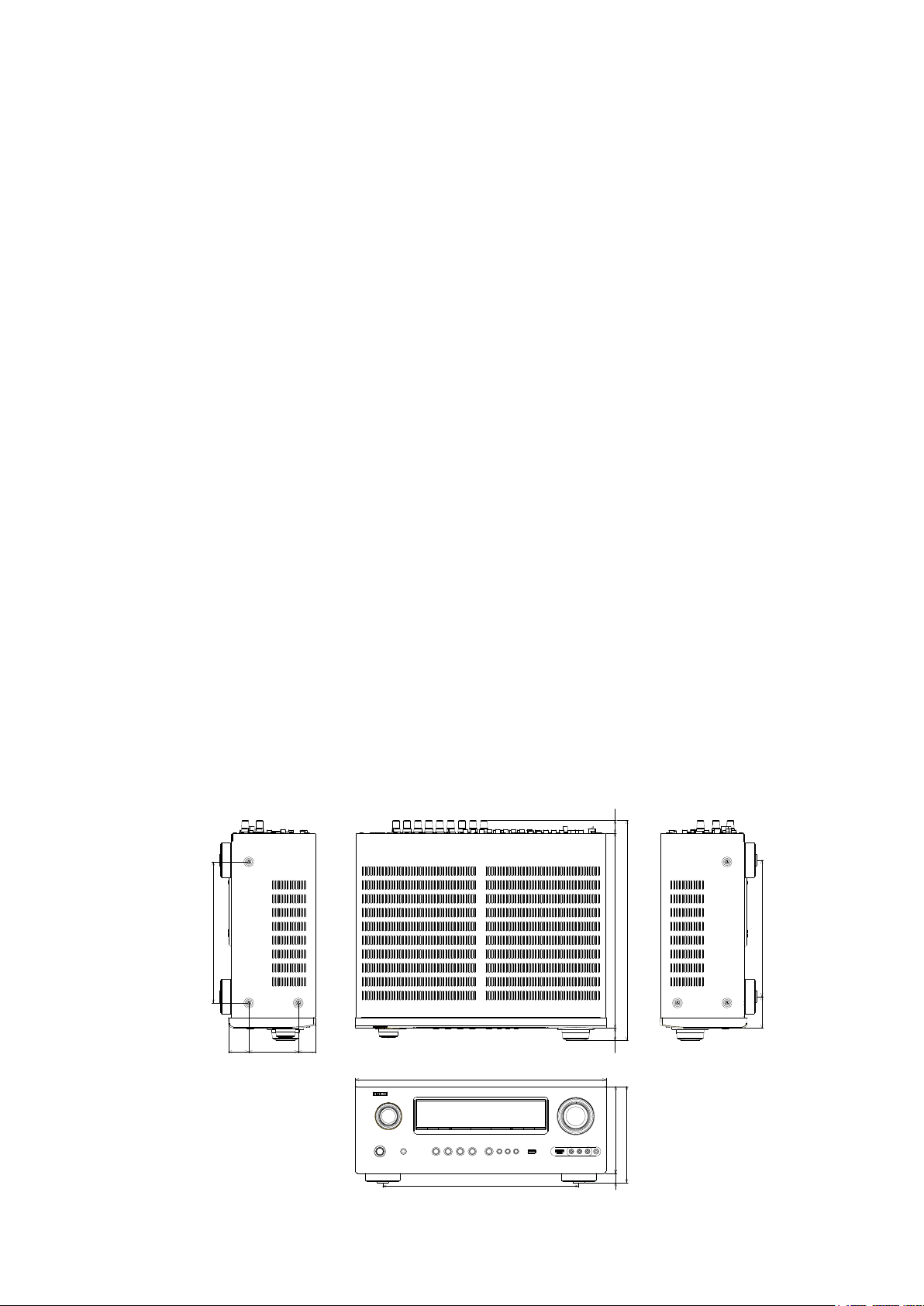
DIMENSION
245
22
382
338.5
29.88635.2
435
340
21.5
151
167
16
236.8
54.7
5
Page 6
CAUTIONS IN SERVICING
Initializing INTEGRATED NETWORK AV RECEIVER
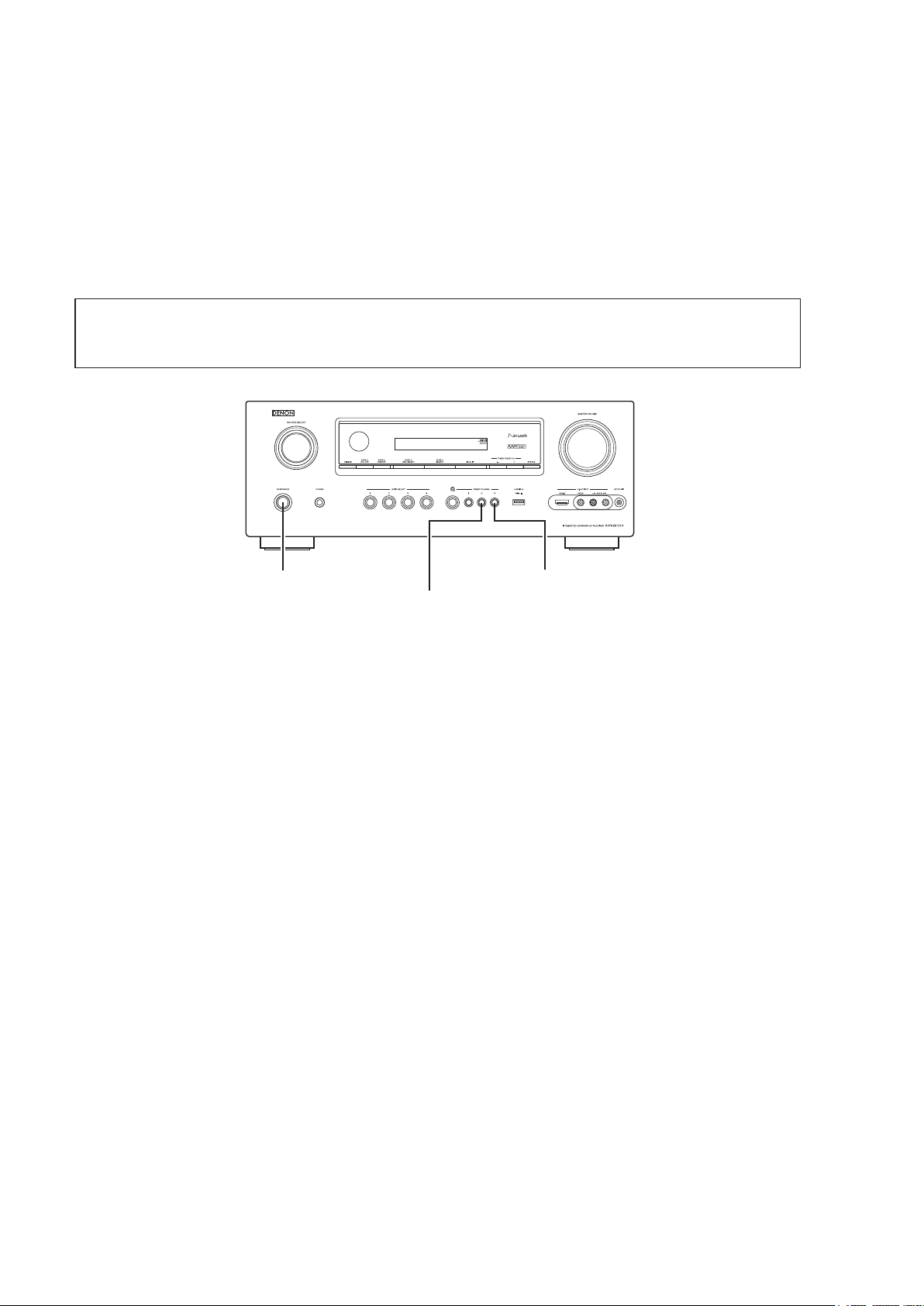
INTEGRATED NETWORK AV RECEIVER initialization should be performed when the μcom, peripheral parts of μcom,
and Digital P.W.B. were replaced.
1. Turn off the power pressing ON/STANDBY button.
2. Press ON/STANDBY button while simultaneously while pressing PRESET CHANNEL 2 and PRESET CHANNEL 3
buttons.
3. Check that the entire display is ashing at intervals of about 1 second, and then release the 2 buttons.
The microprocessor will be initialized.
Note: • If step 3 fails, start over from step 1.
• All user settings will be lost and the factory setting will be recovered after the set is initialized.
So make sure to note down your setting beforehand for restoring after the initialization.
ON/STANDBY
PRESET CHANNEL 3
PRESET CHANNEL 2
Service Jig
When you repair the printing board, you can use the following JIG (Extension cable kit).
Please order it from Denon Ofcial Service Distributor in your region if necessary.
8U-110084S
(Refer to 63 page.)
d
: EXTENSION UNIT KIT : 1 Set
6
Page 7

DISASSEMBLY
• Disassemble in order of the arrow in the following gure.
• In the case of the re-assembling, assemble it in order of the reverse of the following ow.
• In the case of the re-assembling, observe "attention of assembling".
• If wire bundles are untied or moved to perform adjustment or replace parts etc., be sure to rearrange them neatly as
they were originally bundled or placed afterward.
Otherwise, incorrect arrangement can be a cause of noise generation.
CABINET TOP
FRONT PANEL ASSY
Refer to "DISASSEMBLY
1. FRONT PANEL ASSY"
and "EXPLODED VIEW"
PCB V.AUX_VOL
(Ref. No. of EXPLODED VIEW : C1)
PCB HP
(Ref. No. of EXPLODED VIEW : C2)
PCB USB
(Ref. No. of EXPLODED VIEW : C3)
PCB FRONT
(Ref. No. of EXPLODED VIEW : C4)
PCB SELECTOR
(Ref. No. of EXPLODED VIEW : C5)
PCB HDMI FFC GUIDE
(Ref. No. of EXPLODED VIEW : C6)
PCB FRONT HDMI
(Ref. No. of EXPLODED VIEW : C25)
HEAT SINK ASSY
Refer to "DISASSEMBLY
2. HEAT SINK ASSY"
and "EXPLODED VIEW"
PCB GUIDE R
(Ref. No. of EXPLODED VIEW : C7)
PCB GUIDE L
(Ref. No. of EXPLODED VIEW : C8)
PCB GUIDE TOP
(Ref. No. of EXPLODED VIEW : C9)
PCB 7CH_AMP ASSY
(Ref. No. of EXPLODED VIEW : C10)
HDMI UNIT ASSY
Refer to "DISASSEMBLY
3. HDMI UNIT ASSY"
and "EXPLODED VIEW"
PCB FRONT CNT
(Ref. No. of EXPLODED VIEW : C11)
PCB SIDE CNT
(Ref. No. of EXPLODED VIEW : C12)
PCB RS232C
(Ref. No. of EXPLODED VIEW : C13)
PCB SPK_PREOUT
(Ref. No. of EXPLODED VIEW : C14)
PCB RS232C CNT
(Ref. No. of EXPLODED VIEW : C15)
PCB FUSE
(Ref. No. of EXPLODED VIEW : C16)
PCB F_WIDE
(Ref. No. of EXPLODED VIEW : C17)
PCB INPUT
(Ref. No. of EXPLODED VIEW : C18)
PCB VIDEO ASSY
(Ref. No. of EXPLODED VIEW : C20)
PCB HDMI
(Ref. No. of EXPLODED VIEW : C22)
POWER TRANS
Refer to "DISASSEMBLY
4. POWER TRANS"
and "EXPLODED VIEW"
POWER TRANS
(Ref. No. of EXPLODED VIEW : C23)
7
Page 8

About the photos used for "descriptions of the DISASSEMBLY" section
• The shooting direction of each photograph used herein is indicated on the left side of the respective photograph as
"Shooting direction: ***".
• Refer to the diagram below about the shooting direction of each photograph.
• Photographs with no shooting direction indicated were taken from the top of the set.
• The photograph is AVR-3312CIE3 model.
The viewpoint of each photograph
(Shooting direction)
Shooting direction: B
[View from the top]
Front side
Shooting direction: DShooting direction: C
Shooting direction: A
8
Page 9
1. FRONT P ANEL ASSY
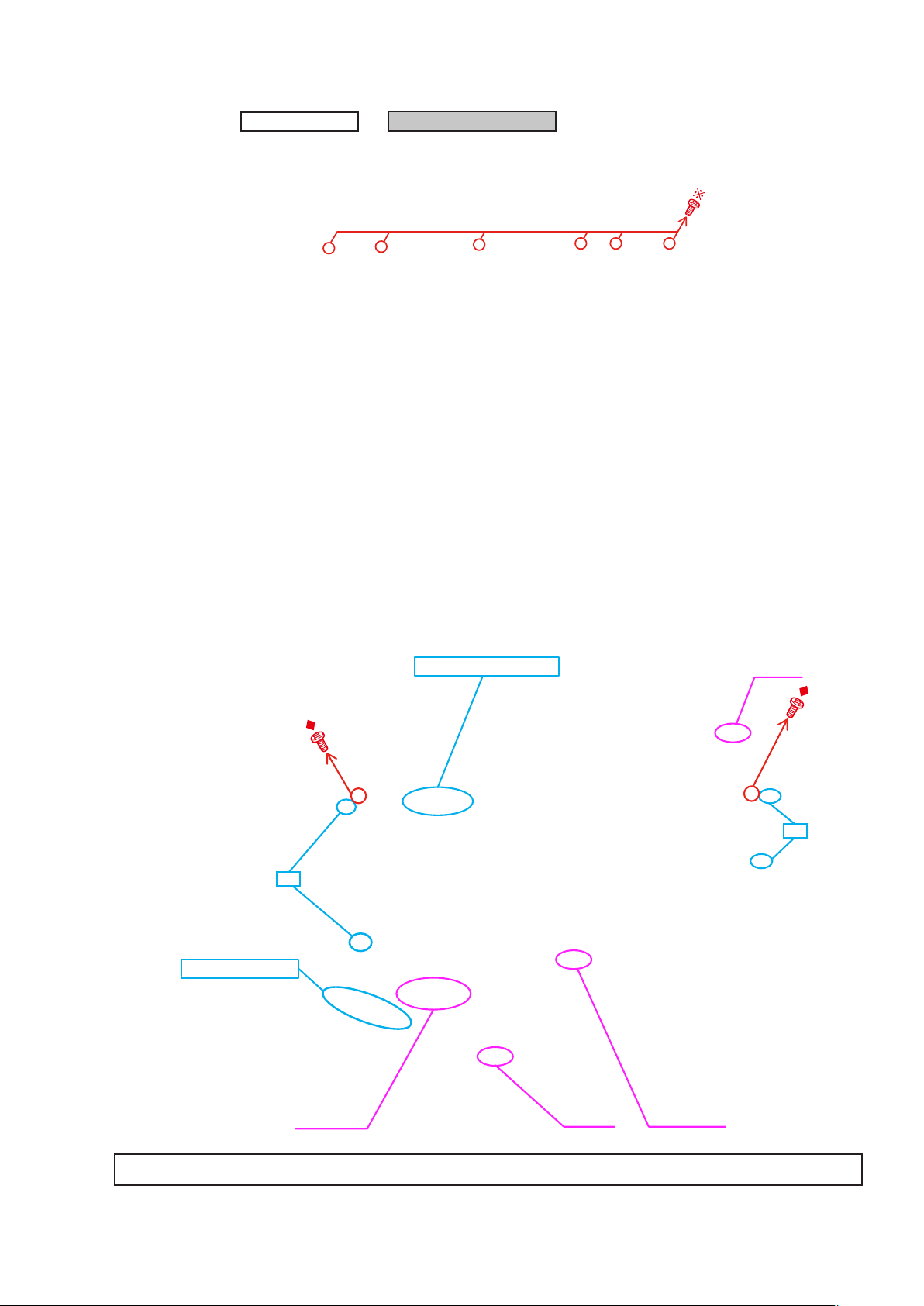
Proceeding :
(1) Remove the screws.
View from the bottom
CABINET TOP
FRONT PANEL ASSY
→
(2) Cut the wire clamp band, then disconnect the connector wires and FFC cables. Remove the screws.
STYLE PIN : Loosen
cut
CN602
TAPE : Remove
cut
FFC cable
Please refer to "EXPLODED VIEW" for the disassembly method of each P.W.B included in FRONT PANEL ASSY.
9
CN390 FFC cable
Page 10
2. HEAT SINK ASSY
Proceeding :
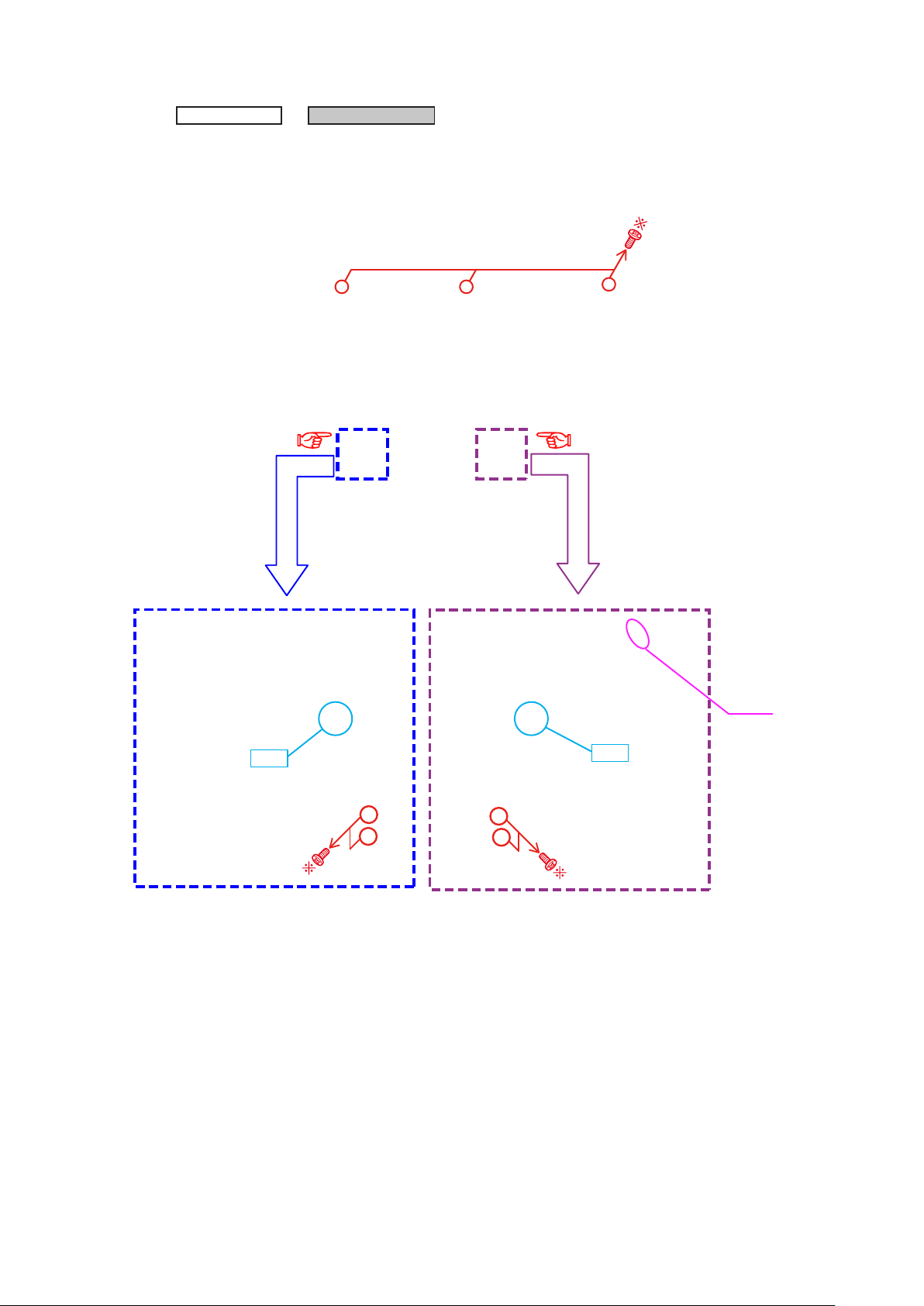
(1) Remove the screws.
CABINET TOP
View from the bottom
(2) Cut the wire clamp band, then remove the screws. Disconnect the connector wires.
HEAT SINK ASSY
→
Shooting direction: C
cut
Shooting direction: D
CN602
cut
10
Page 11
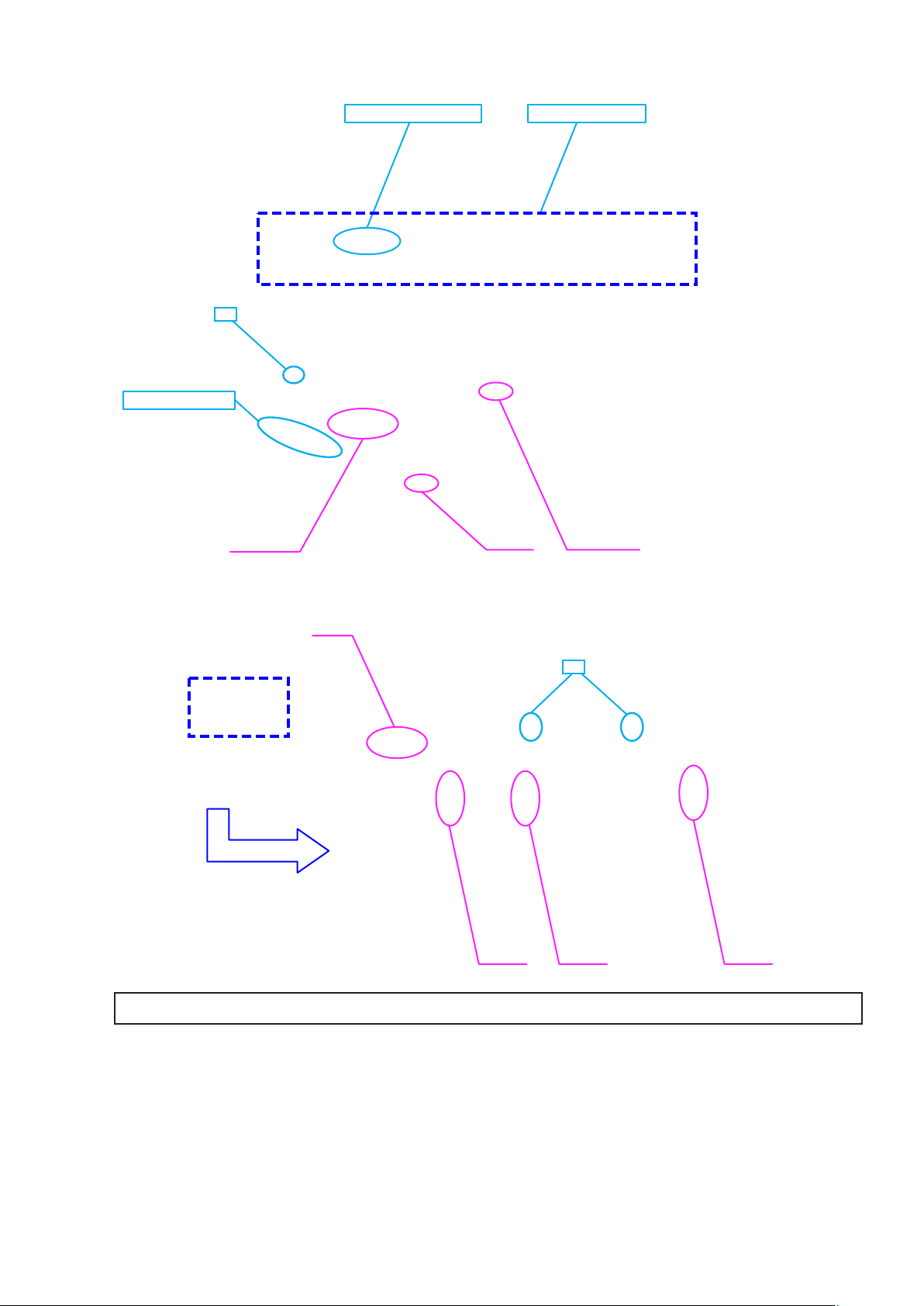
(3) Cut the wire clamp band, then disconnect the connector wire and FFC cables .
STYLE PIN : Loosen HEAT SINK Assy
cut
TAPE : Remove
FFC cable
CN390 FFC cable
(4) Cut the wire clamp bands, then disconnect the connector wires.
CN461
cut
CN702CN703CN701
Please refer to "EXPLODED VIEW" for the disassembly method of each P.W.B included in HEAT SINK ASSY.
11
Page 12
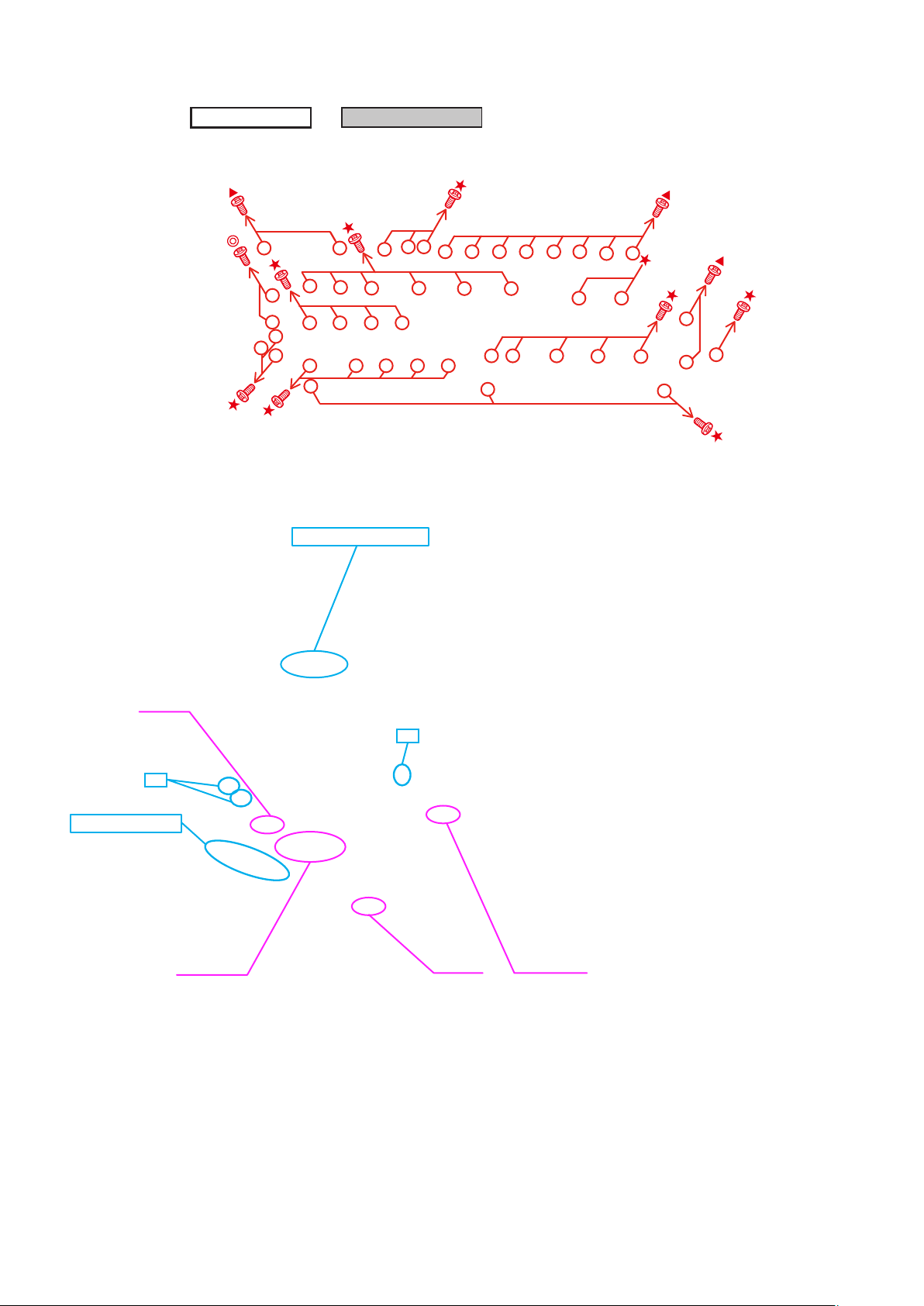
3. HDMI UNIT ASSY
Proceeding :
(1) Remove the screws, then remove the BACK PANEL and the HDMI BRACKET.
Shooting of photograph: A
(2) Cut the wire clamp band, then disconnect the connector wires and the FFC cables.
Remove the PCB DOCK from the PCB SIDE CNT and PCB RS232C(Board to board).
CABINET TOP
STYLE PIN : Loosen
HDMI UNIT ASSY
→
CN704
cut
TAPE : Remove
FFC cable
cut
CN390 FFC cable
12
Page 13
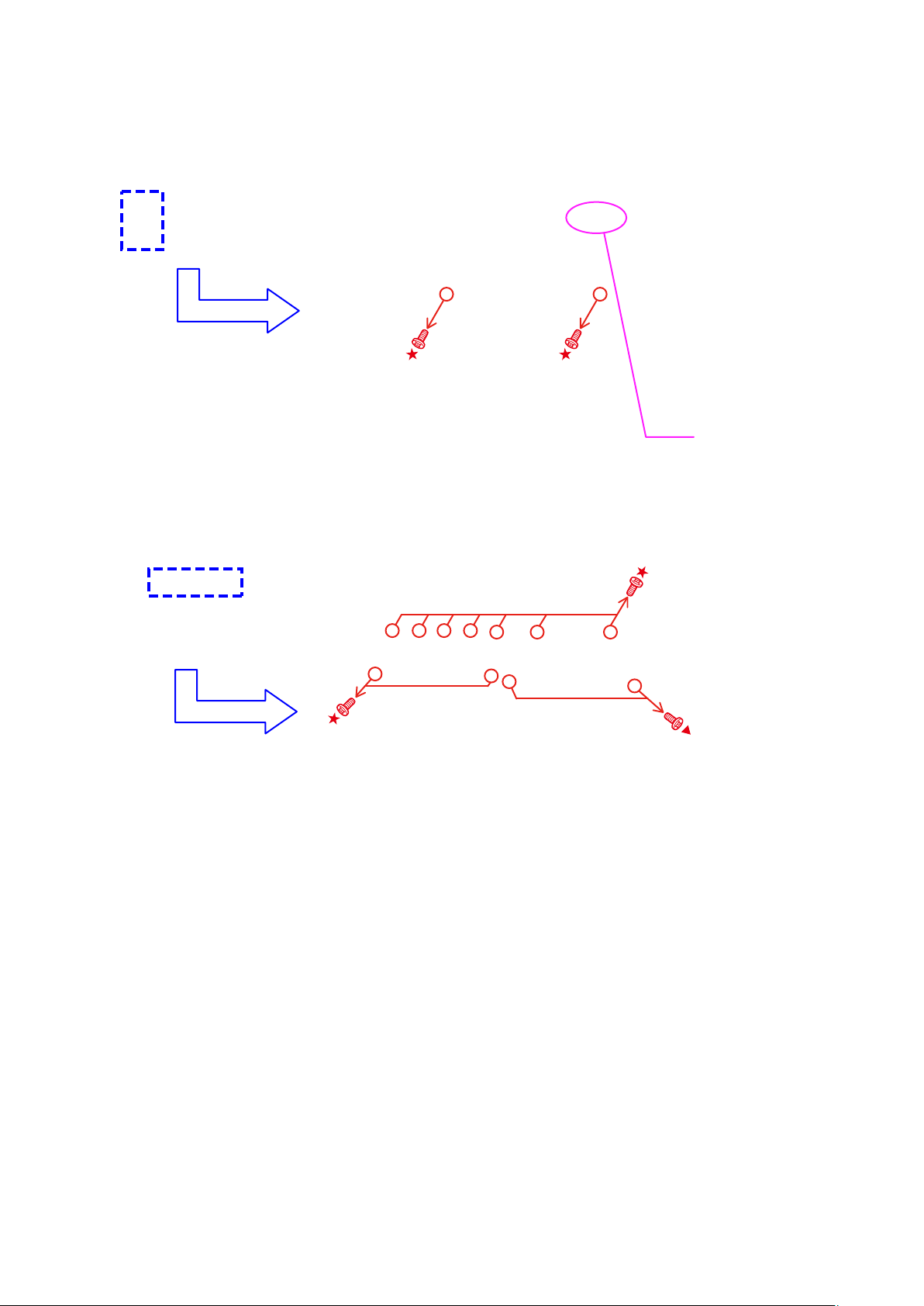
(3) Disconnect the connector wire. Remove the screws.
(4) Remove the screws.
CN931
13
Page 14
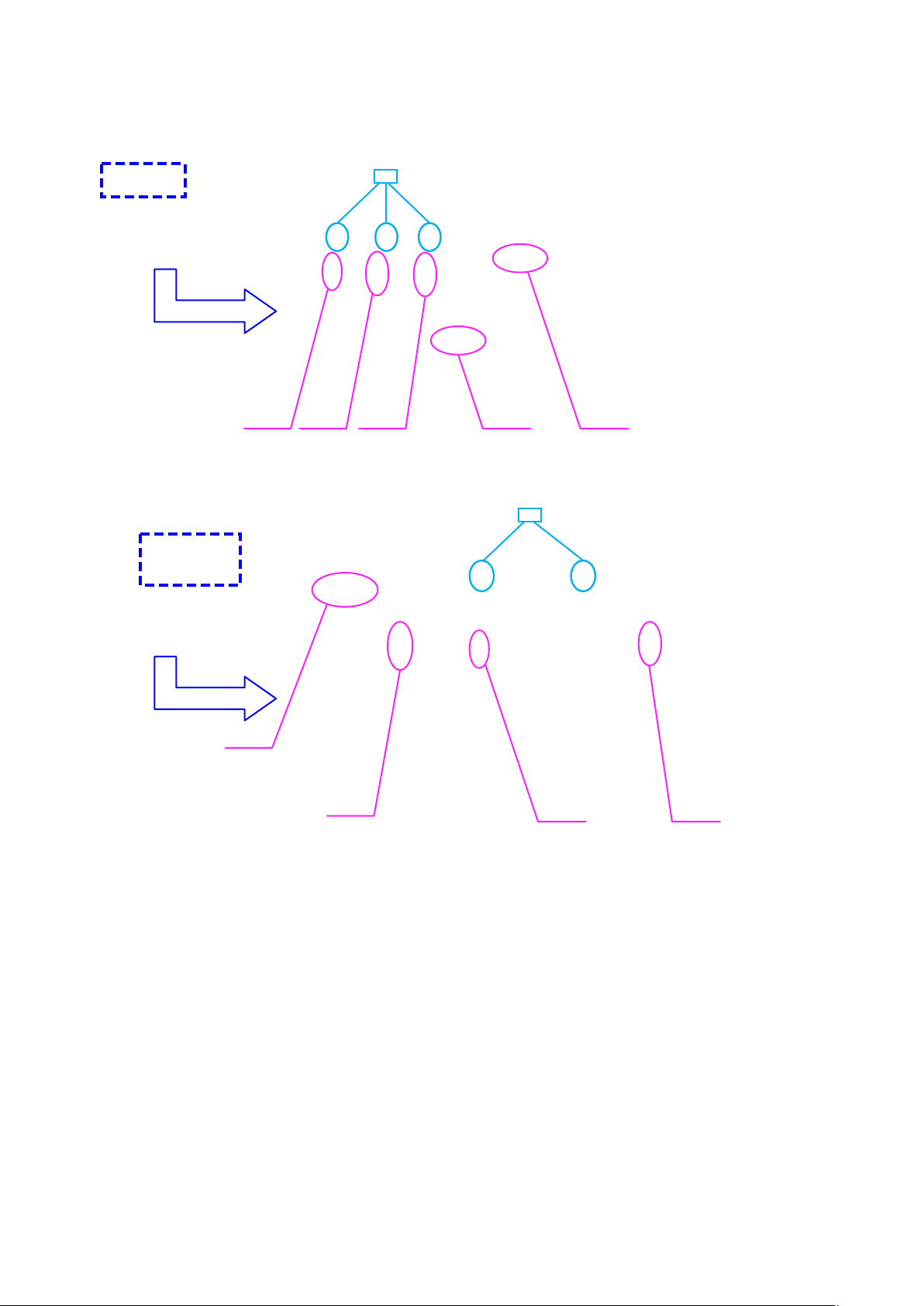
(5) Cut the wire clamp band, then disconnect the connector wires.
cut
CN940CN932CN941 CN903 CN781
(6) Cut the wire clamp band, then disconnect the connector wires.
cut
CN461
CN701
CN703 CN702
14
Page 15
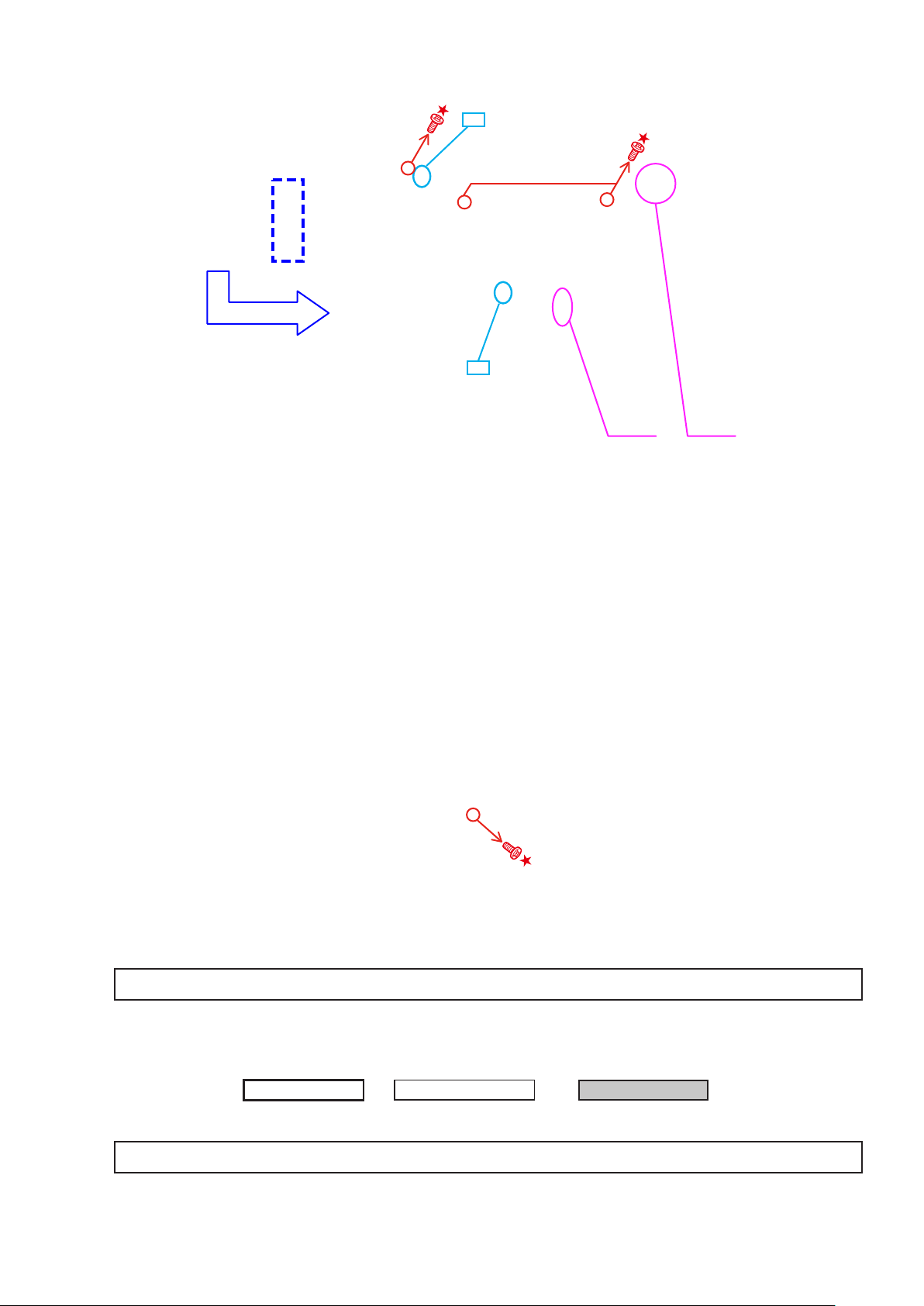
(7) Cut the wire clamp bands, then disconnect the connector wires, and remove the screws.
cut
cut
CN203 CN902
(8) Remove the screw.
Please refer to "EXPLODED VIEW" for the disassembly method of each P.W.B included in HDMI UNIT ASSY.
4. TRANS MAIN
Proceeding :
Please refer to "EXPLODED VIEW" for the disassembly method of each P.W.B included in TRANS MAIN.
CABINET TOP
HDMI UNIT ASSY
→
15
POWER TRANS
→
Page 16
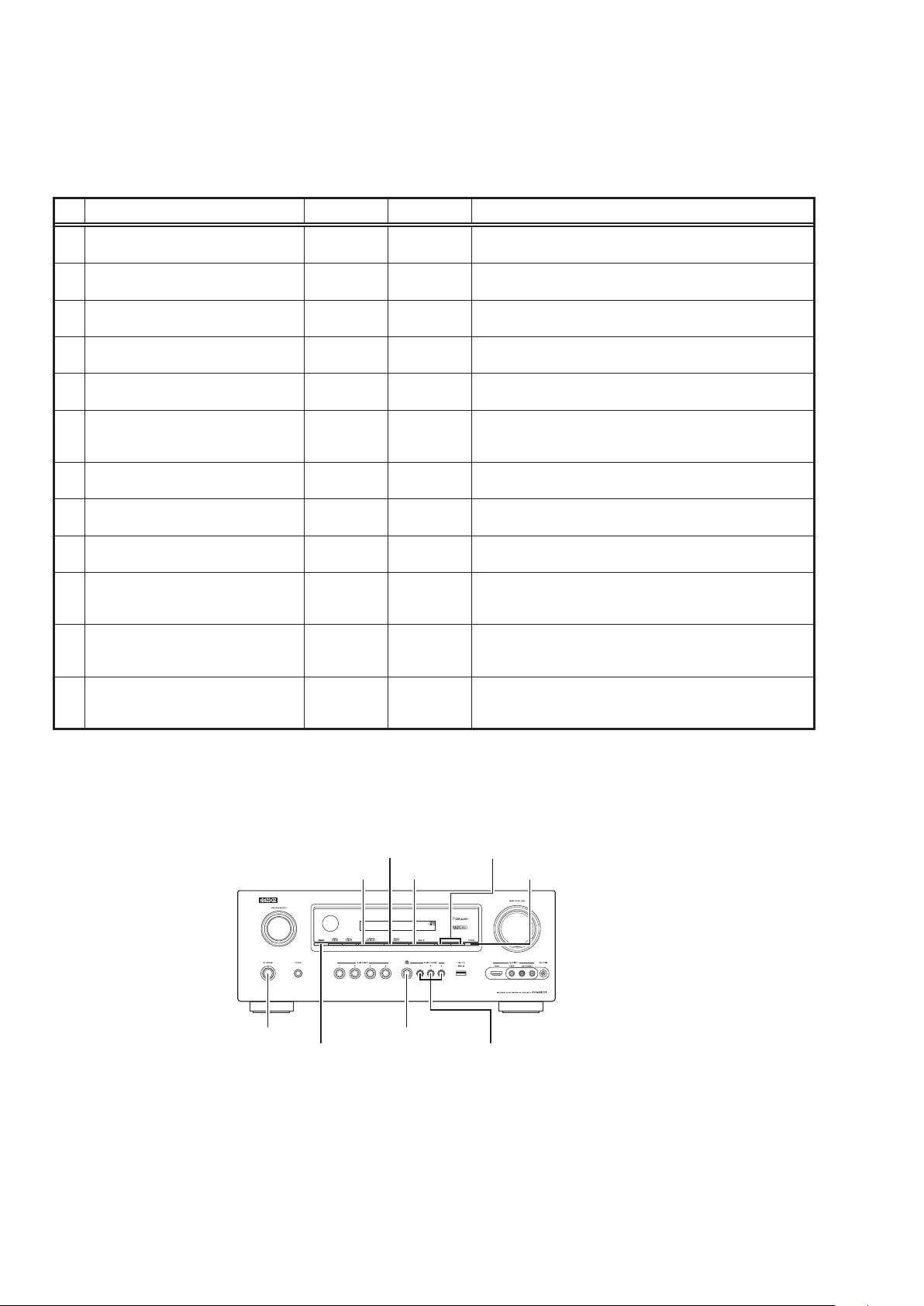
SPECIAL MODE
d
Special mode setting button
No.1 - 10, 12 : Press the ON/STANDBY button to turn on the power while pressing both the button A and the button B at the same
b
No.11 : Press and hold both buttons A and B for over 3 second with the power turned on.
b
No. Mode Button A Button B Contents
Version display
1
(μcom/DSP Error Display)
2 Displaying the protection history mode
IInitialization mode
3
(Remove settings for Installer Setup.)
IInitialization mode
4
(Includes settings for Installer Setup.)
Mode for switching tuner frequency step
5
(E2 model Only)
Mode for preventing remote control
6
acceptance
7 Panel lock mode
Panel lock mode
8
(Master volume is not locked.)
9 Cancellation of panel lock mode
10 Diagnostic mode
11 Remote ID Setup mode
12 Installer Setup mode
NOTE:
If " REC " is displayed on the uorescent display, the set is in the special developer's mode and the RS-232C
communications are not possible.
Turn on the power, then press and hold down the "PRESET CHANNEL 2" and " STATUS " buttons for over 3 seconds to
turn off "Q" on the display. RS-232C communications are now enabled.
time.
TUNER
PRESET CH +
TUNER
PRESET CH -
PRESET
CHANNEL 2
PRESET
CHANNEL 1
ZONE3
SELECT
PRESET
CHANNEL 1
PRESET
CHANNEL 2
PRESET
CHANNEL 2
TUNER
PRESET CH -
PRESET
CHANNEL 1
PRESET
CHANNEL 1
ZONE2/REC
SELECT
STATUS
STATUS
PRESET
CHANNEL 3
PRESET
CHANNEL 2
iPod
INTERNET
RADIO
iPod
TUNER
PRESET CH -
DIMMER Panel lock mode is cancelled.
STATUS
STATUS
STATUS
Firmware versions such as Main or DSP are displayed in the FL
manager. Errors are displayed when they occur. (Refer to 17 page)
The protection history is displayed.
(Refer to 20 page)
Backup data initialization is carried out.
(Remove settings for Installer Setup.)
Backup data initialization is carried out.
(Includes settings for Installer Setup.)
Change tuner frequency step to FM:200kHz/AM:10kHzSTEP
1
Operations using the remote control are rejected.
(Mode cancellation: Turn off the power and execute the same
button operations as when performing setup.)
Operations using the main unit panel buttons or the master volume
1
knob are rejected.
Operations using the main unit panel buttons are rejected.
This mode is used for conrming the Video and Audio (signal)
paths. (Troubleshooting)
The signal paths of the set can be easily conrmed after repair.
When using multiple DENON AV receivers in the same room, make
this setting so that only the desired AV receiver operates.(Refer to 22
page)
Access the Remote Maintenance mode via the internet.Installer
Setup is displayed on GUI/Option Menu.
Refer to AVR_RemoteMaintenance_.pdf of SDI.
b
ZONE3 SELECT
ZONE2/REC SELECT
ON/STANDBY
DIMMER PRESET CHANNEL 1,2,3
TUNER PRESET CH +,-
iPod 1
INTERNET RADIO
16
STATUS
Page 17
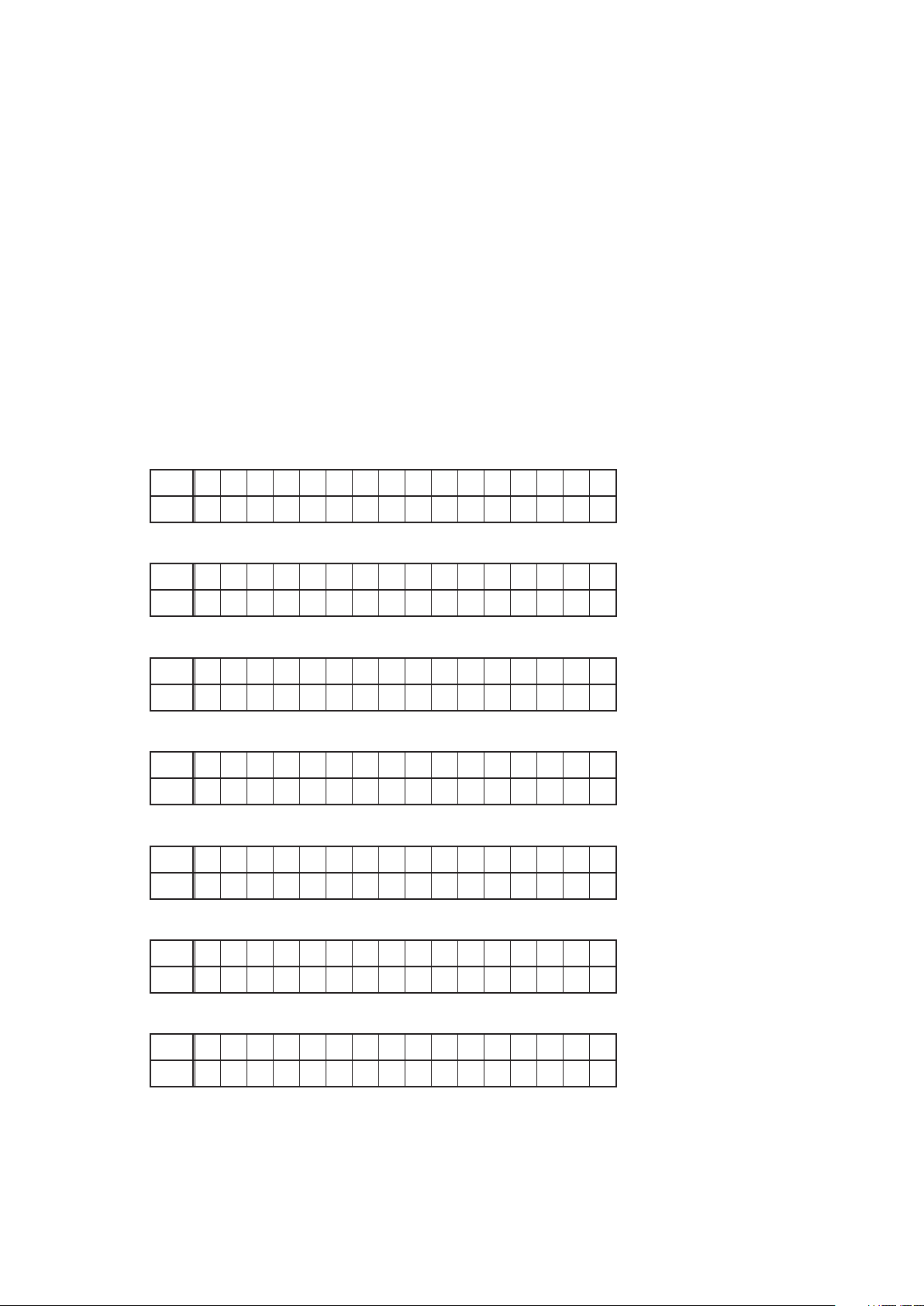
1. µcom/DSP Version display mode
1.1. Operationspecications
µcom/DSP version display mode:
When the set is started up in this mode, the version information is displayed.
Starting up:
Press the "ON/STANDBY" button to turn on the power while pressing the "STATUS" and "PRESET CH +" buttons.
Now, press the "STATUS" button to the display the 2nd item information on the FL Display.
When the version is displayed on the FL Display, the version list is also displayed on the OSD.
b
1.2. Display Order
Error information(Refer to 1.3. Error display) →
→ e Main µ-com/MAIN FBL(1st Boot Loader) Version → r Sub µ-com/Sub FBL → t DSP version →
→ u GUI SFLASH →
→ o Ethernet(DM860) 2nd Boot Loader, Rhapsody Flag →
→ Q1 Ethernet(DM860)MAC ADDRESS information →
→
MultEQ Pro APP(Displayed when Audyssey Pro is complete)
Q3
→ Q4 MultEQ Pro ICL(Displayed when Audyssey Pro is complete
Model destination information :
q
Upper
A V R 3 3 1 2 E 3 : * * * *
Lower
S / N . * * * * * * * * * *
Ethernet(DM860) 1st Boot Loader, Hardware ID
i
Model destination information →
q
Ethernet(DM860) IMAGE
Q0
HD RADIO SDK/HD RADIO BBP(AVR-3312CIE3 only)
Q2
Firmware Package Version
w
Audio PLD
y
Firmware Package Version :
w
Upper
Lower
Main µ-com & MAIN FBL version :
e
Upper
Lower
Sub µ-com & Sub FBL :
r
Upper
Lower
DSP ROM :
t
Upper
Lower
Audio PLD :
y
Upper
Lower
F i r m . P a c k a g e
M a i n : * * . * *
M a i n F B L : * * . * *
S u b : * * . * *
S u b F B L : * * . * *
D S P : * * . * *
A u d i o P L D : * * . * *
V e r . : * * * *
GUI SFLASH :
u
Upper
Lower
G U I : * * * * * * * *
17
Page 18
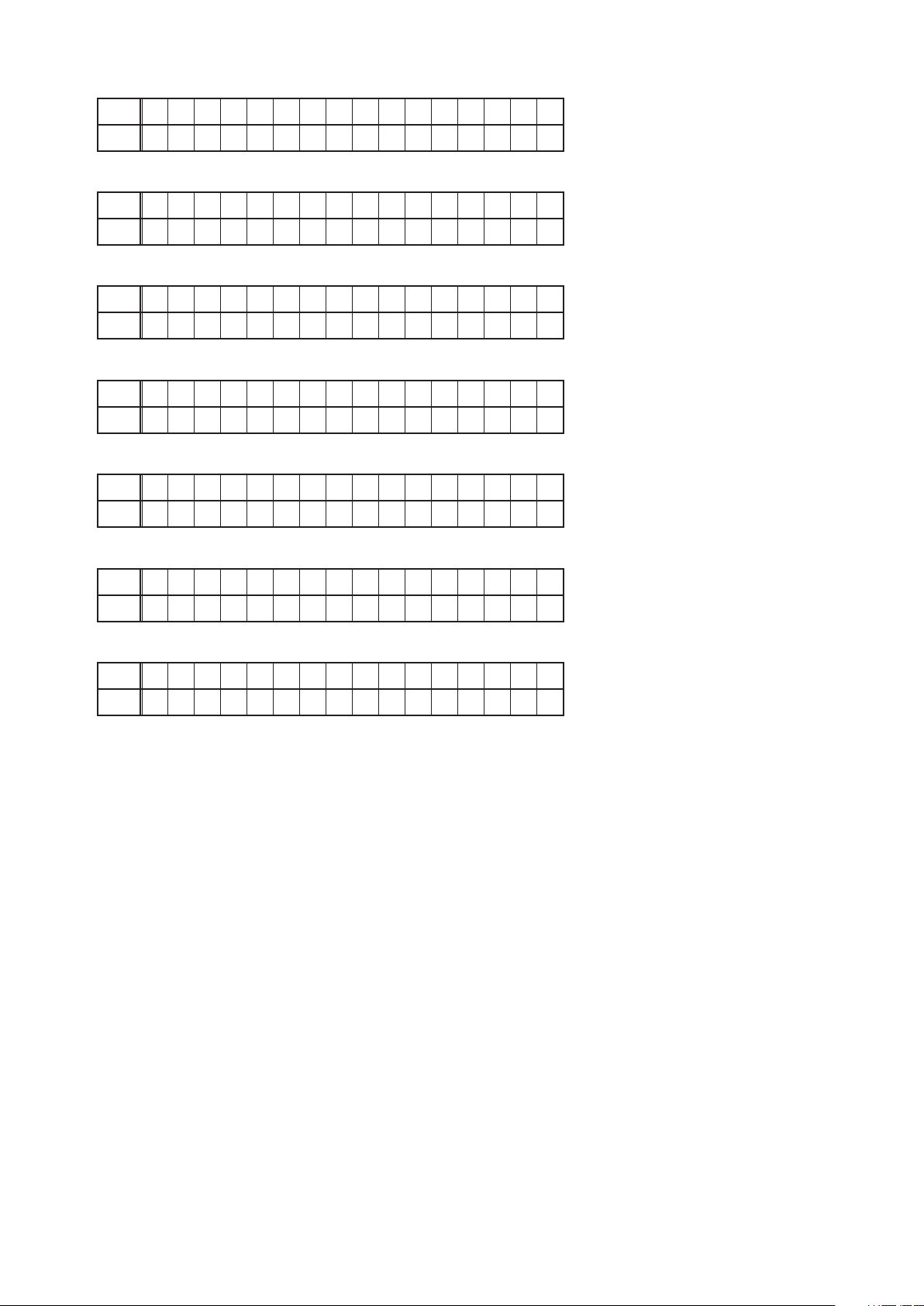
Ethernet(DM860) 1st Boot Loader, Hardware ID :
i
Upper
Lower
Ethernet(DM860) 2nd Boot Loader, Rhapsody Flag :
o
Upper
Lower
Ethernet(DM860) IMAGE :
Q0
Upper
Lower
Ethernet(DM860)MAC ADDRESS information :
Q1
Upper
Lower
HD RADIO SDK/HD RADIO BBP (AVR-3312CIE3 onlly) :
Q2
Upper
Lower
E t h e r n e t F B L
* * * * * * - A A
E t h e r n e t S B L
* * * * * * * * * * * * * - B B
E t h e r n e t I M G
* * * * * * * * * * * * *
* E t h e r n e t M A C
* * * * * * - * * * * * *
* M u l t E Q P r o A P P
* * . * * . * * . * * * *
MultEQ Pro APP :
Q3
Upper
* M u l t E Q P r o A P P
Lower
* * . * * . * * . * * * *
MultEQ Pro ICL :
Q4
Upper
* M u l t E Q P r o I C L
Lower
* * . * * . * * . * * * *
18
Page 19

1.3. Error display
s
See the following table for each "Error information" display and its explanation (status).
Display order is
Condition Status FL Display Trouble shooting
q
Firm Check
NG
w
GUI Version
NG
e
SUB NG
r
DIR NG
t
DSP NG
y
IP SCALER
NG
u
E2PROM NG
i
Both DSP /
EEPROM OK
q,w,e,r,t,y,u,i
Compared with the destination setting
on the board. This is displayed when the
model name or destination information
written into the rmware does not match.
(b1)
Error occurs in GUI version and Main
μ-com version.(
No response from SUB microcomputer.
No response from DIR
When DSP code boot is performed, the
DSP FLAG0 port does not change to "H"
even if DSP reset is executed.
Before DSP command is issued, the DSP
BUSY port does not change to "L".
When DSP data read is performed,
executing WRITE="L" does not result in
ACK="H".
When DSP data read is performed,
executing REQ="L" does not result in
ACK="L".
When DSP data writing is performed,
executing WRITE="H" does not result in
ACK="H".
When DSP data writing is performed,
executing REQ="L" does not result in
ACK="L".
An error has occurred in the i/p Scaler
(ADV8002)initial settings. The error is a
DDR memory Loopback Test error.
Error occurs in E2PROM checksum.(*** is
a block address number.)
2)
b
.
• Please check the
destination-resistors
R2060/R2061, HDMI
(
F I R M E R R O R
G U I V E R . E R R O R
S U B E R R O R 0 1
D I R E R R O R 0 1
B'D).
• Please write the
rmware of correct
destination.
• Please check the
rmware of correct
version.
• Please check SUB
(IC231) and arroud
circuits.
• Please check DIR
IC403/IC404/IC405,
(
HDMI B'D) and around
circuits.
D S P E R R O R 0 1
D S P E R R O R 0 2
D S P E R R O R 0 3
• Please check DSP
IC408, HDMI B'D)
(
D S P E R R O R 0 4
and around circuits.
D S P E R R O R 0 5
D S P E R R O R 0 6
• Please check
I P S C A L E R E R R 0 1
ADV8002 (IC151) and
arroud circuits.
E 2 P R O M E R R * * *
(No error display, version display only)
Status FL Display
1,
2
b
b
The written Firmware and product settings
(model name, brand name, destination) are
compared. If Firmware that is not designed
for this product is written, ▲ is displayed in
the rst column, as shown on the right.
–
M a i n : * * . * *
–
S U B : * * . * *
–
D S P : * * . * *
–
A u d i o P L D : * * . * *
–
G U I : * * * * * * * *
19
Page 20
2. Errors checking mode (Displaying the protection history)
2.1. Operationspecications
Error mode (Displaying the protection history):
When the set is started up in this mode, the error information is displayed.
Starting up:
•Commoninallthemodels
Press the "ON/STANDBY" button to turn on the power while pressing the "STATUS" and "TUNER PRESET-" buttons.
The error (protection history display) mode is set.
Now, press the "STATUS" button to turn on the FL display.
2.2. About the display on the FL display
When the "STATUS" button is pressed after setting the error (protection history display) mode is set, a history like the one
shown below is displayed, depending on the conditions.
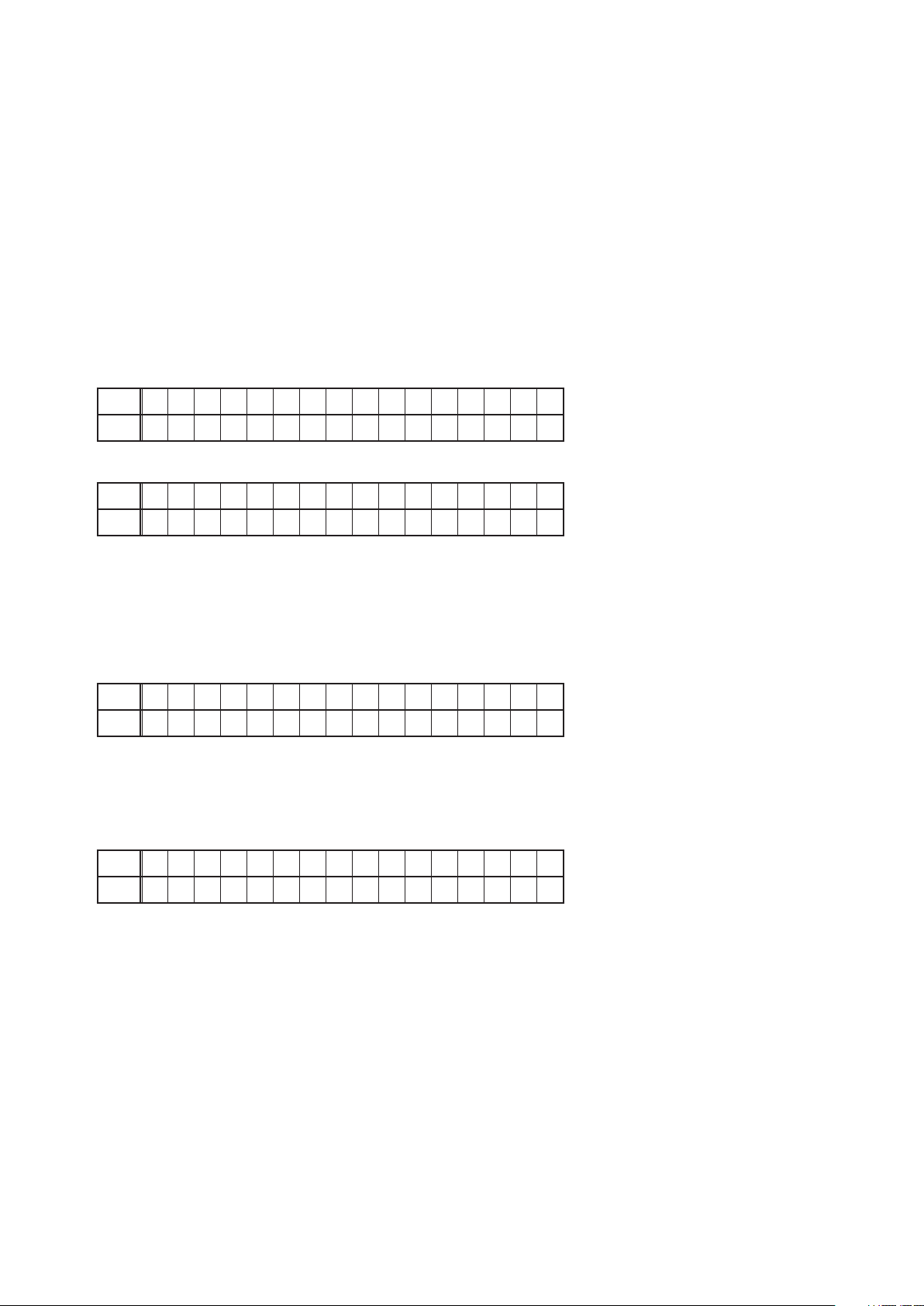
(1) Normal (when there has been no protection incident)
Upper
P R O T E C T H I S T O R Y
Lower
: N O P R O T E C T
(2) For ASO (when the last protection incident was ASO protection)
Upper
P R O T E C T H I S T O R Y
Lower
: A S O
Cause: The line between speaker terminals is shorted, or speakers with impedance of less than the rated value.
Supplementary information: As the excess current is detected after operation of the speaker relay, a short on the
speaker terminal and the connected speaker can be identied.
If the power is turned on without correcting the abnormality, the protection function will work about 5 seconds later
and the power supply will be shut off.
(3) For DC (when the last protection incident was DC protection)
Upper
P R O T E C T H I S T O R Y
Lower
: D C
Cause: DC output of the power amplier is abnormal.
If the power is turned on without correcting the abnormality, the protection function will work about 5 seconds later
and the power supply will be shut off.
(4) For THERMAL (when the last protection incident was THERMAL protection)
Upper
P R O T E C T H I S T O R Y
Lower
: T H E R M A L *
: A~D
z
Cause: The temperature of the heat sink is excessive.
If the power is turned on without correcting the abnormality, the protection function will work about 5 seconds later
and the power supply will be shut off.
Additional causes of protection can be due to loose connections, associated components, Microprocessor, etc.
b
When the "STATUS" button is pressed again after the above protection history as shown above is displayed, the normal
display reappears.(Refer to "PROTECTION DIAGRAM" 23 page.)
20
Page 21
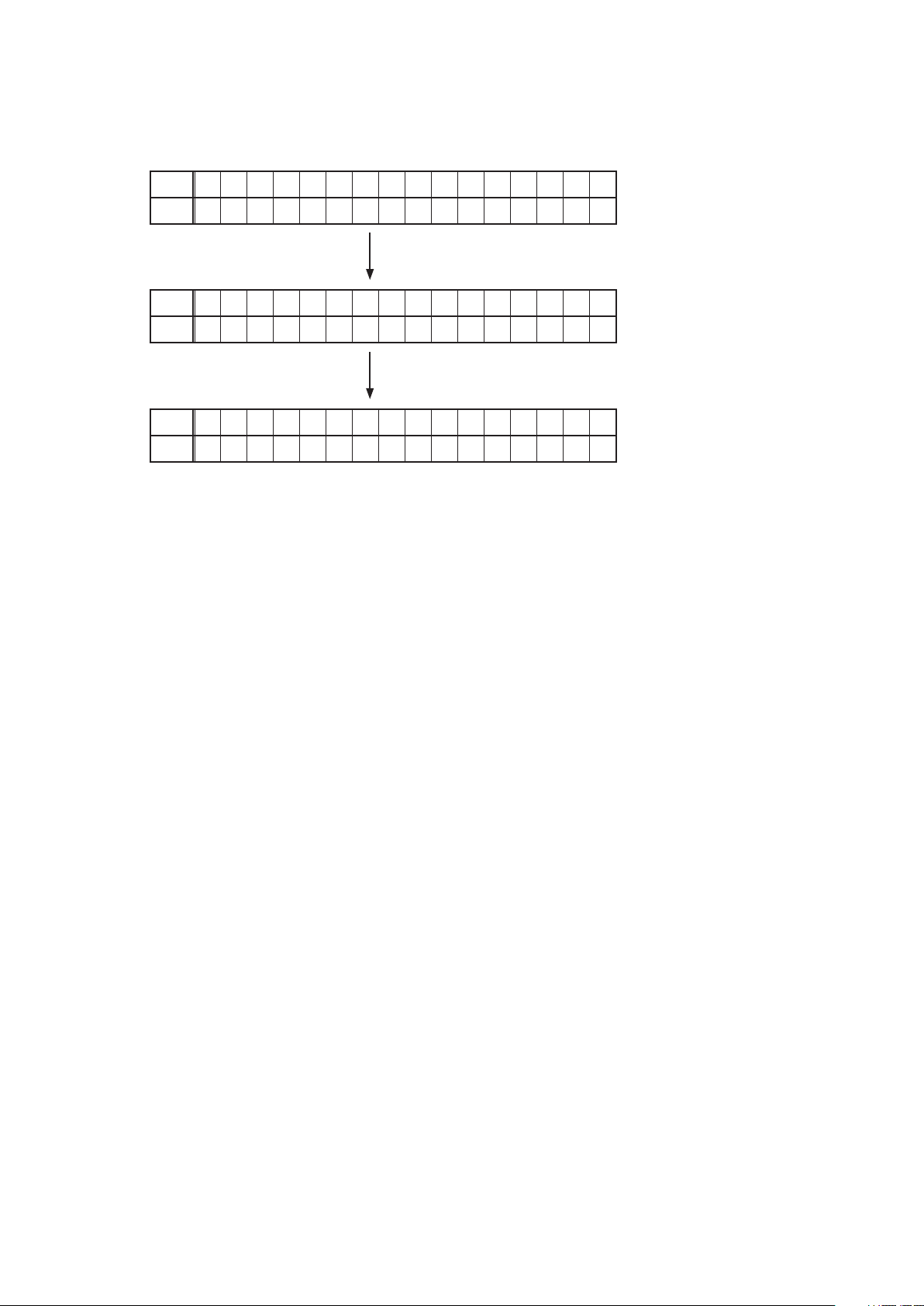
2.3. Clearing the protection history
There are two ways to clear the protection history, as described below.
(1) Start up the set in error (protection display) mode and display the error, then press and hold down the "INTERNET
RADIO" button for 3 seconds.
Upper
P R O T E C T H I S T O R Y
Lower
: T H E R M A L A
Press the "INTERNET RADIO" button for 3 seconds.
Upper
P R O T E C T H I S T O R Y
Lower
Upper
P R O T E C T H I S T O R Y
Lower
: N O P R O T E C T
(2) Initialize. (Refer to "Initializing INTEGRATED NETWORK AV RECEIVER" 6 page.)
If you want to save a backup, perform the method in 2.3.(1) above.
b
C L E A R
The above is displayed and the protection history is cleared.
Warning indication by the POWER LED
If the power is turned off when a protection incident has been detected, the POWER LED (red) ashes as a warning
according to the conditions in which the protection incident occurred.
(1) ASO/DC PROTECTION : Flashes at intervals of 0.5 seconds (0.25 seconds lit, 0.25 seconds off)
(2) THERMAL (A/B/C/D) PROTECTION : Flashes at intervals of 2 seconds (1 second lit, 1 second off)
21
Page 22
3. Remote ID Setup mode
3.1. Specications
When using multiple DENON AV receivers in the same room, make this setting so that only the desired AV receiver
operates.
2.2. Setting the AV receivers
Starting up:
Press and hold both "STATUS" and "PRESET 1" buttons for over 3 second with the power turned on.
(1) When Remote ID Setup mode is started, the following is displayed.
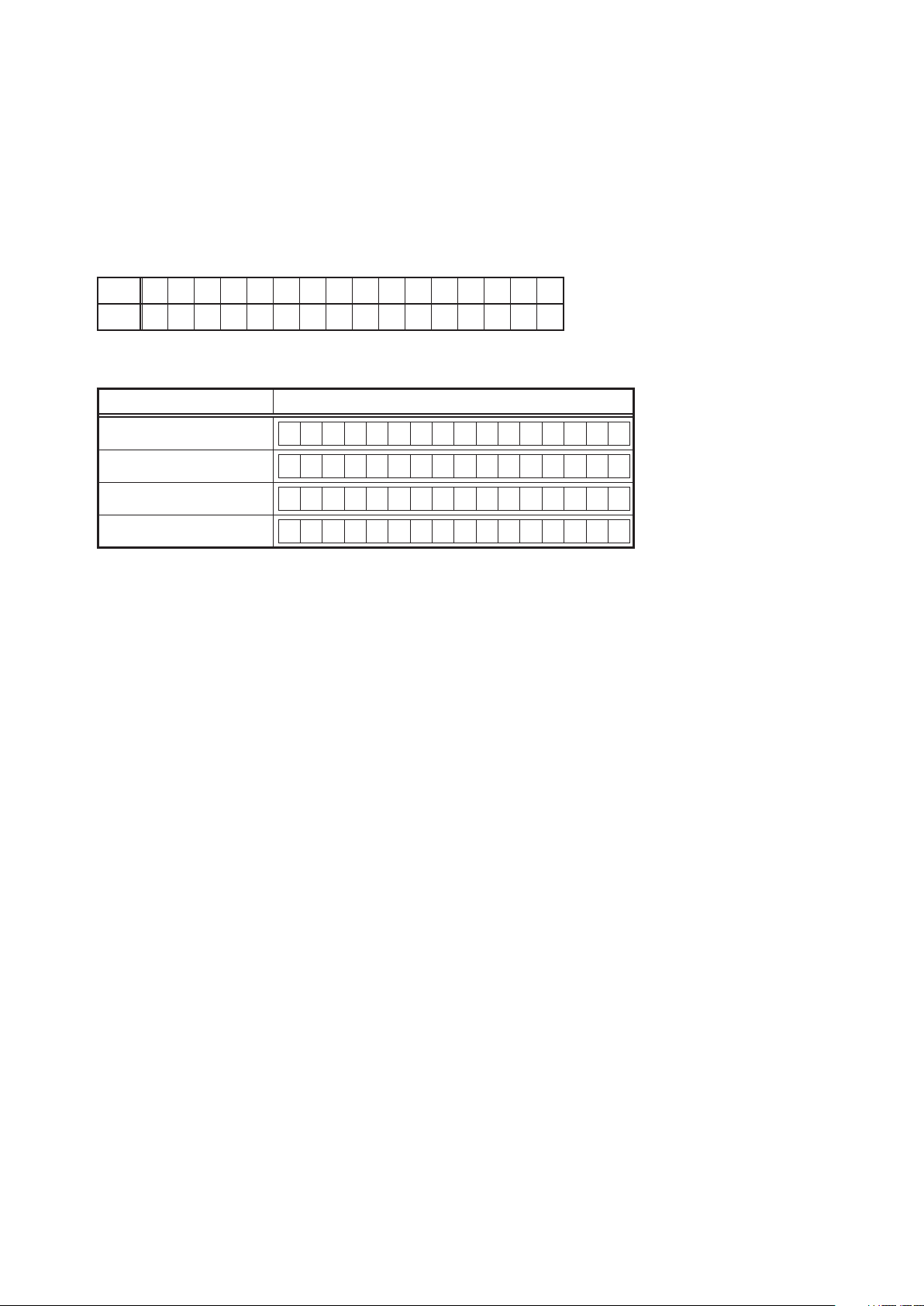
Upper
Lower
(2) Press the "QUICK SELECT 1 - 4" button that corresponds to the number you want to set.
Button FL Display
QUICK SELECT 1
QUICK SELECT 2
QUICK SELECT 3
QUICK SELECT 4
(3) Turn off the power using "ON/STANDBY" button.
(4) Turn on the power using "ON/STANDBY" button.
When Remote ID Setup mode is running, operations other than the "QUICK SELECT 1 - 4" buttons or "ON/
b
STANDBY" buttons on the main unit are not received.
R E M O T E I D ?
R E M O T E I D 1
R E M O T E I D 2
R E M O T E I D 3
R E M O T E I D 4
2.2. Setting the Remote control unit
(1) Press and hold both "ZONE/DEVICE (1)" button for at least 3 second.
The zone mode indicator ashes twice.
(2) Press the "AMP" button.
The zone mode indicator ashes twice.
(3) Press the "1, 2, 3 or 4" button.
The zone mode indicator ashes twice.
NOTE:
If the IDs do not match, "AVAMPz" (
control unit is operated.
is the main unit's remote control ID) appears on the display when the remote
z
22
Page 23
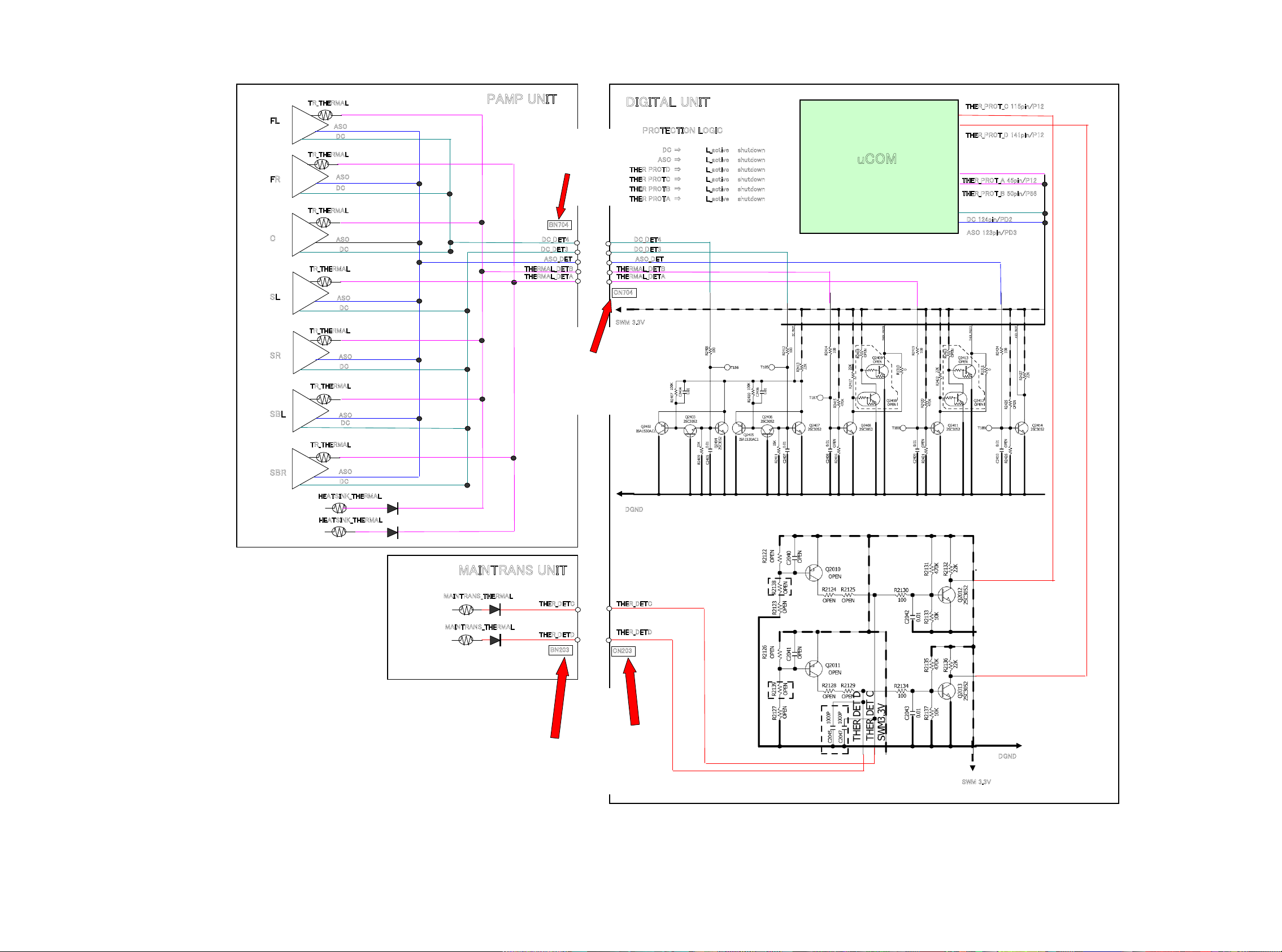
PROTECTION DIAGRAM
AVR3312/2312/SR6006 PROTECTION DIAGRAM
2011_5_26 D&M P1 D.Hara
d
TR_THERMAL
FL
FR
C
SL
SR
SBL
ASO
DC
TR_THERMAL
ASO
DC
TR_THERMAL
ASO
DC
TR_THERMAL
ASO
DC
TR_THERMAL
ASO
DC
TR_THERMAL
ASO
DC
PAMP UNIT
DC_DET4
DC_DET3
ASO_DET
THERMAL_DETB
THERMAL_DETA
BN704
DIGITAL UNIT
PROTECTION LOGIC
DC ⇒ L_active shutdown
ASO ⇒ L_active shutdown
THER PROTD ⇒ L_active shutdown
THER PROTC ⇒ L_active shutdown
THER PROTB ⇒ L_active shutdown
THER PROTA ⇒ L_active shutdown
DC_DET4
DC_DET3
ASO_DET
THERMAL_DETB
THERMAL_DETA
CN704
SWM 3.3V
THER_PROT_C 115pin/P12
THER_PROT_D 141pin/P12
uCOM
THER_PROT_A 45pin/P12
THER_PROT_B 50pin/P56
DC 124pin/PD2
ASO 123pin/PD3
SBR
TR_THERMAL
ASO
DC
HEATSINK_THERMAL
HEATSINK_THERMAL
MAINTRANS UNIT
MAINTRANS_THERMAL
MAINTRANS_THERMAL
THER_DETC
THER_DETD
BN203
DGND
THER_DETC
THER_DETD
CN203
DGND
23
SWM 3.3V
Page 24
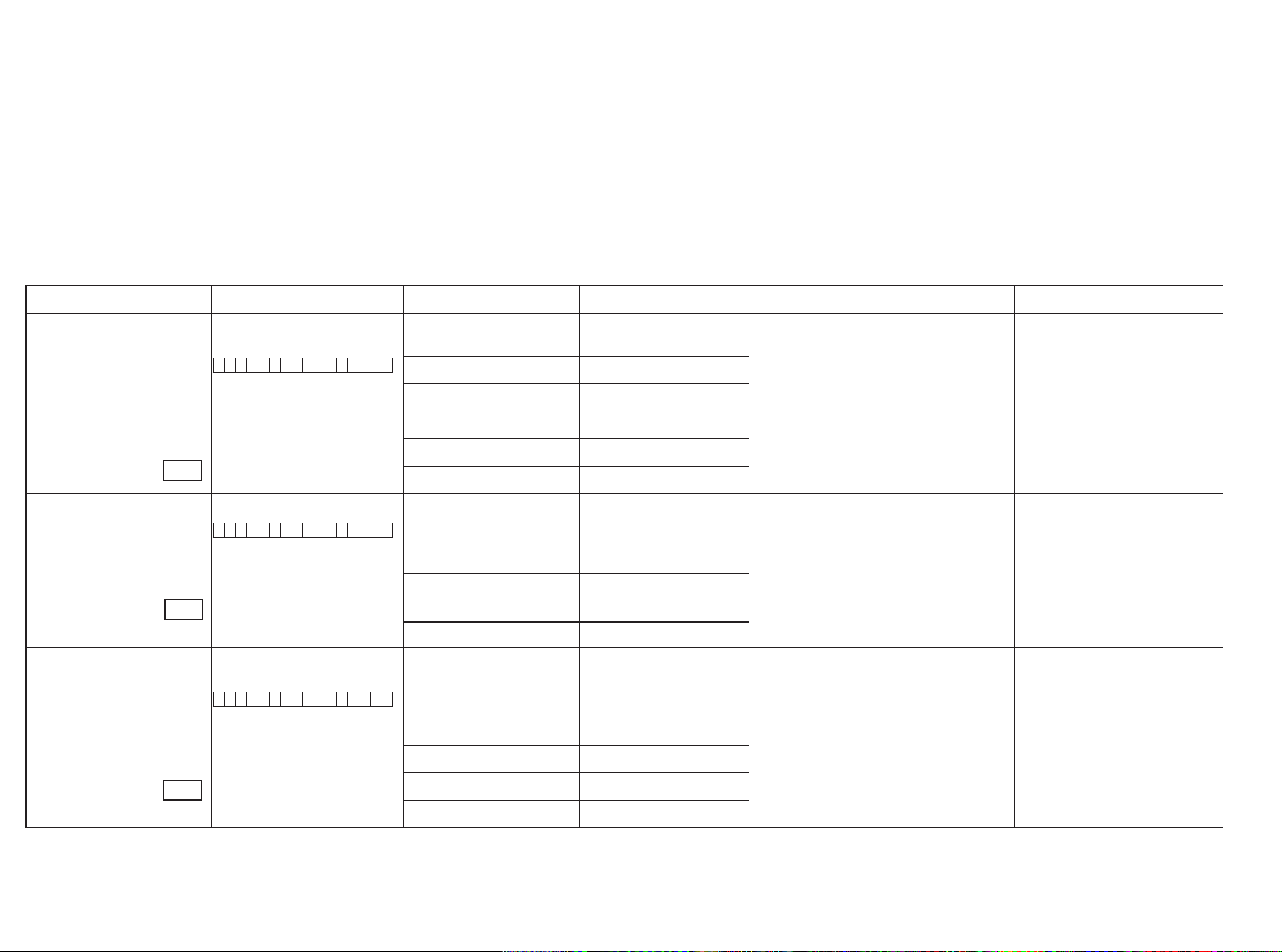
4. DIAGNOSTICMODE(Video/Audio(signal)pathconrmationmode)
d
This mode is used for conrming the Video and Audio (signal) paths. (Troubleshooting)
Conrming the operation of unit can be easily done after repair.
Backup data will not be lost.
4.1. Starting diagnostic mode
Press the "PRESET CHANNEL 1" and "STATUS" button while simultaneously pressing those two buttons of this unit.
Q1, Q2 and Q3 are lit in FL display.
4.2. Canceling diagnostic mode
Turn off the power by pressing the ON/Standby button.
4.3. Operation
When you perform remote operation in accordance with the instructions in "Details of how to operate remote controller" *a) in the table below using the remote control unit (RC-1156).
You will nd using another remote control unit with the macro functions very useful. To use the macro functions, program a macro function to output a remote control code in accordance with the steps in *b) in the table below.
4.4. Videosystemconrmationitems
g.XX : Refer to the block diagram of the g.XXth.
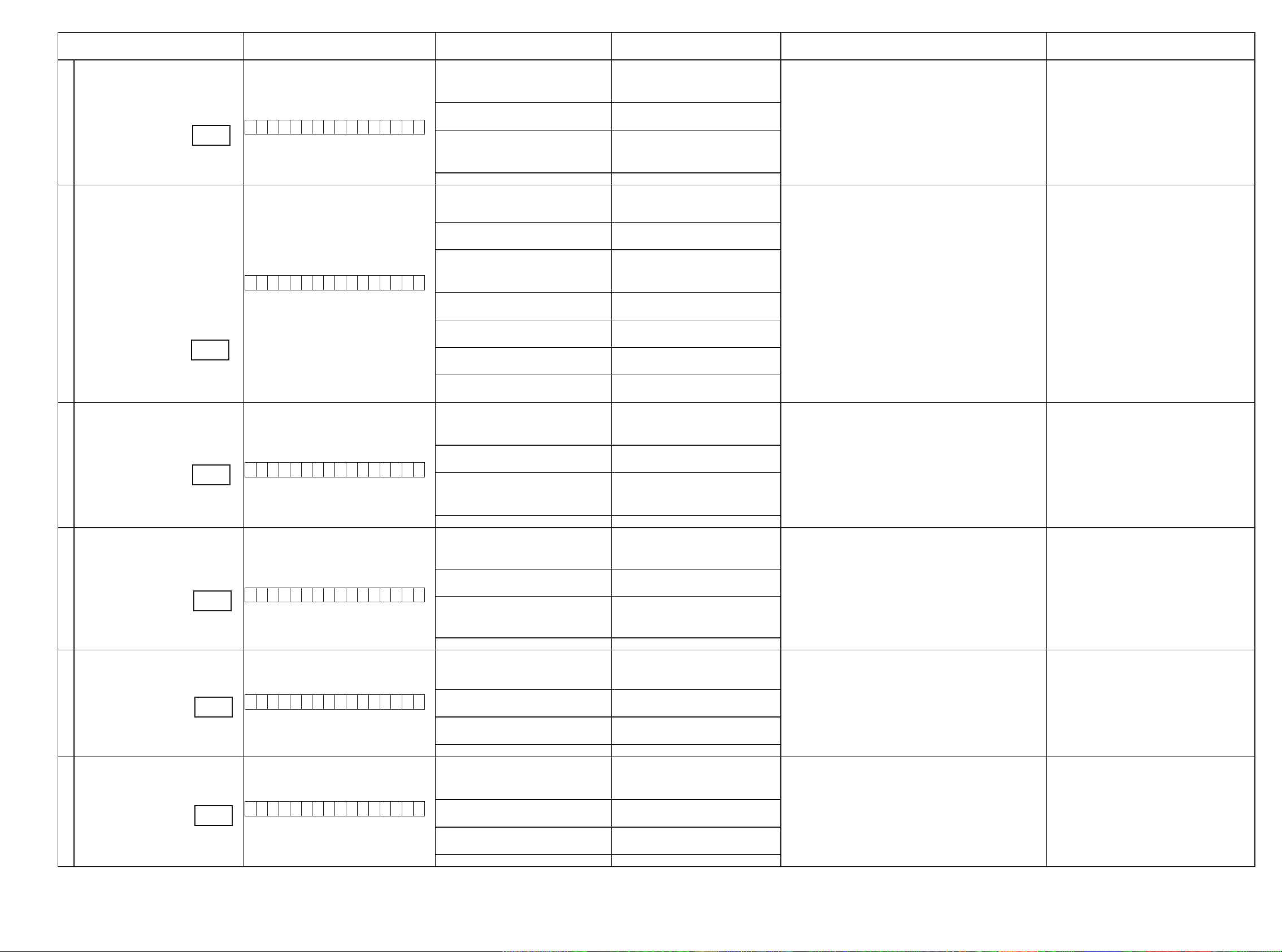
Conrmation item Setting and display
Analog Video (signal) Path Video Convert (IP Scaler) : OFF , All Sources
All ZONE : ON
Display:
V 0 1 D V D
1
g.1
Analog Video Convert (signal) Path Video Convert(IP Scaler) : ON , All Sources
Display:
V 0 2 D V D
2
g.2
HDMI (signal) Path Video Convert(IP Scaler) : OFF, All Sources
All ZONE:ON
Display:
V 0 1 D V D
3
g.3
Details of how to operate remote controller *a)
1.Press [AMP]
2.Press [ZONE SELECT] , Select "ZONE2"
3.Press [ZONE OFF]
4.Press [ZONE SELECT], Select "ZONE3"
5.Press [ZONE OFF]
6.Press [ZONE SELECT], Select "MAIN"
7.Press [1/./]
8.Press [ZONE SELECT], Select "ZONE2"
9.Press [ZONE ON]
10.Press [ZONE SELECT], Select "ZONE3"
11.Press [ZONE ON]
12.Press [ZONE SELECT], Select "MAIN"
13.Press [DVD]
1.Press [AMP]
2.Press [ZONE SELECT] , Select "ZONE2"
3.Press [ZONE OFF]
4.Press [ZONE SELECT], Select "ZONE3"
5.Press [ZONE OFF]
6.Press [ZONE SELECT], Select "MAIN"
7.Press [2/ABC]
8.Press [DVD]
1.Press [AMP]
2.Press [ZONE SELECT] , Select "ZONE2"
3.Press [ZONE OFF]
4.Press [ZONE SELECT], Select "ZONE3"
5.Press [ZONE OFF]
6.Press [ZONE SELECT], Select "MAIN"
7.Press [1/./]
8.Press [ZONE SELECT], Select "ZONE2"
9.Press [ZONE ON]
10.Press [ZONE SELECT], Select "ZONE3"
11.Press [ZONE ON]
12.Press [ZONE SELECT], Select "MAIN"
13.Press [DVD]
Output sequence of remote control codes
It is useful to form a macro program. *b)
※
ZONE2 POWER OFF ·Input : CVBS / Output : CVBS
q
·Input : CVBS / Output : CVBS RECOUT (DVR)
·Input : CVBS / Output : CVBS ZONE2
ZONE3 POWER OFF
w
KEY 1/CODE1 (Main Zone)
e
Initialization & Video Convert All OFF
ZONE2 POWER ON
r
ZONE3 POWER ON
t
DVD (Main Zone)
y
ZONE2 POWER OFF ·Input : CVBS / Through : V.Decoder and V.Encoder / Output : CVBS
q
ZONE3 POWER OFF
w
KEY 2/ABC (Main Zone)
e
Initialization & Video Convert All ON & IP
Scaler "Analog & HDMI"
DVD (Main Zone)
r
ZONE2 POWER OFF ·Input : HDMI / Output : HDMI
q
ZONE3 POWER OFF
w
KEY1/CODE1 (Main Zone)
e
Initialization & Video Convert All OFF
ZONE2 POWER ON
r
ZONE3 POWER ON
t
DVD (Main Zone)
y
·Input : S-Video / Output : CVBS
·Input : Component / Output : Component
(
As the input source, you can switch from DVD to other ones.)
※
· Input : CVBS / Through : V.Decoder and V.Encoder / Output :
Component
·Input : S-Video / Through V.Decoder and V.Encoder / Output : CVBS
· Input : S-Video / Through V.Decoder and V.Encoder / Output :
Component
·Input : Component / Through V.Decoder and V.Encoder / Output : CVBS
· Input : Component / Through V.Decoder and V.Encoder / Output :
Component
(
As the input source, you can switch from DVD to other ones.)
※
(
As the input source, you can switch from DVD to other ones.)
※
Contents of conrmation Remarks
only AVR3312
Conrm the input pass one by one.
Because it becomes only the input of the highest input
becomes Convert/IP Scaler (signal) Path if it inputs it at
the same time.
(HDMI input > Component input > S-VIDEO input >
CVBS input)
Do not connect anything with HDMI Monitor OUT.
Because the Convert pass is used with Analog to HDMI
when connecting it.
24
Page 25
Conrmation item Setting and display
Analog or HDMI to HDMI (signal) Path
4
g.4
OSD FUNCTION Video Convert(IP Scaler) : ON, All Sources
Video Convert(IP Scaler) : ON, All Sources
IP Scaler : Analog & HDMI , All Sources
Resolution : "AUTO", All Sources
Display:
V 0 2 D V D
IP Scaler : Analog & HDMI , All Sources
Resolution : "AUTO", All Sources
Menu : ON
All ZONE :ON
Display:
V 0 2 D V D
5
g.5
CEC FUNCTION
(Control Monitor : HDMI Monitor1)
6
CEC FUNCTION
(Control Monitor : HDMI Monitor 2)
7
HDMI Audio (signal) Path
(Audio : AMP)
8
HDMI Audio (signal) Path
(Audio : TV)
9
g.6
g.7
g.8
g.9
HDMI Control : ON
Control Monitor Monitor1 (When checking the
HDMI Monitor Out1)
Display:
V 0 3 D V D
HDMI Control : ON
Control Monitor Monitor 2 (When checking the
HDMI Monitor Out 2)
Display:
V 0 4 D V D
Audio : AMP(When checking the audio output
from AMP)
Display:
V 0 5 D V D
Audio : TV(When checking the audio output
from TV)
Display:
V 0 6 D V D
Details of how to operate remote controller *a)
1.Press [AMP]
2.Press [ZONE SELECT] , Select "ZONE2"
3.Press [ZONE OFF]
4.Press [ZONE SELECT], Select "ZONE3"
5.Press [ZONE OFF]
6.Press [ZONE SELECT], Select "MAIN"
7.Press [2/ABC]
8.Press [DVD]
1.Press [AMP]
2.Press [ZONE SELECT] , Select "ZONE2"
3.Press [ZONE OFF]
4.Press [ZONE SELECT], Select "ZONE3"
5.Press [ZONE OFF]
6.Press [ZONE SELECT], Select "MAIN"
7.Press [2/ABC]
8.Press [ZONE SELECT], Select "ZONE2"
9.Press [ZONE ON]
10.Press [ZONE SELECT], Select "ZONE3"
11.Press [ZONE ON]
12.Press [ZONE SELECT], Select "MAIN"
13.Press [DVD]
14.Press [AMP]
15.Press [MENU]
1.Press [AMP]
2.Press [ZONE SELECT] , Select "ZONE2"
3.Press [ZONE OFF]
4.Press [ZONE SELECT], Select "ZONE3"
5.Press [ZONE OFF]
6.Press [ZONE SELECT], Select "MAIN"
7.Press [3/DEF]
8.Press [DVD]
1.Press [AMP]
2.Press [ZONE SELECT] , Select "ZONE2"
3.Press [ZONE OFF]
4.Press [ZONE SELECT], Select "ZONE3"
5.Press [ZONE OFF]
6.Press [ZONE SELECT], Select "MAIN"
7.Press [4/GHI]
8.Press [DVD]
1.Press [AMP]
2.Press [ZONE SELECT], Select "ZONE2"
3.Press [ZONE OFF]
4.Press [ZONE SELECT], Select "ZONE3"
5.Press [ZONE OFF]
6.Press [ZONE SELECT], Select "MAIN"
7.Press [5/JKL]
8.Press [DVD]
1.Press [AMP]
2.Press [ZONE SELECT] , Select "ZONE2"
3.Press [ZONE OFF]
4.Press [ZONE SELECT], Select "ZONE3"
5.Press [ZONE OFF]
6.Press [ZONE SELECT], Select "MAIN"
7.Press [6/MNO]
8.Press [DVD]
Output sequence of remote control codes
It is useful to form a macro program. *b)
※
ZONE2 POWER OFF ·Input CVBS / Through : IP Scaler / Output : HDMI
q
·Input S-VIDEO / Through : IP Scaler / Output : HDMI
·Input Component / Through : IP Scaler / Output : HDMI
ZONE3 POWER OFF
w
KEY 2/ABC (Main Zone)
e
Initialization & Video Convert All ON & IP
Scaler "Analog & HDMI"
DVD (Main Zone)
r
ZONE2 POWER OFF ·OSD Display / Output : CVBS
q
ZONE3 POWER OFF
w
KEY 2/ABC (Main Zone)
e
Initialization &VideoConvert All ON & IP
Scaler"Analog&HDMI"
ZONE2 POWER ON
r
ZONE3 POWER ON
t
DVD (Main Zone)
y
GUI MENU (Main Zone)
u
ZONE2 POWER OFF
q
ZONE3 POWER OFF
w
KEY 3/DEF (Main Zone)
e
Initialization & CEC Control ON & Select
Control Monitor 1
DVD (Main Zone)
r
ZONE2 POWER OFF When the power supply of a TV is put in the standby mode, make sure
q
ZONE3 POWER OFF
w
KEY 4/GHI (Main Zone)
e
Initialization & CEC Control ON & Select
Control Monitor 2
DVD (Main Zone)
r
ZONE2 POWER OFF ·Input : HDMI (Signal of PCM, DolbyDigital or DTS) / Output : Speakers
q
ZONE3 POWER OFF
w
KEY 5/JKL (Main Zone)
e
Initialization & Select Audio AMP
DVD (Main Zone)
r
ZONE2 POWER OFF
q
ZONE3 POWER OFF
w
KEY 6/MNO (Main Zone)
e
Initialization & Audio Select TV
DVD (Main Zone)
r
·Input HDMI / Through : IP Scaler / Output : HDMI
(
As the input source, you can switch from DVD to other ones.)
※
·OSD Display / Output : Component
·OSD Display / Output : HDMI
(
As the input source, you can switch from DVD to other ones.)
※
· When the power supply of a TV is put in the standby mode, make sure
that the power supply of this unit is also put in the standby mode.
(
As the input source, you can switch from DVD to other ones.)
※
that the power supply of this unit is also put in the standby mode.
(
As the input source, you can switch from DVD to other ones.)
※
·Input : HDMI (Signal of HD Audio) / Output : Speakers
(
As the input source, you can switch from DVD to other ones.)
※
· Input : HDMI (Signal of PCM or DolbyDigital or DTS) / Output : HDMI
(Audio output from connected TV)
(
As the input source, you can switch from DVD to other ones.)
※
Contents of conrmation Remarks
Conrm the input pass one by one.
Because it becomes only the input of the highest input
becomes Convert/IP Scaler (signal) Path if it inputs it at
the same time.
(HDMI input > Component input > S-VIDEO input >
CVBS input)
Connect HDMI Monitor OUT / Output : OSD from HDMI
No connect HDMI Monitor OUT / Output : OSD from
Component
No output other terminal.
AVR2312/3312 are nothing ZONE2 OSD
※
only AVR3312
25
Page 26
3.5. Audiosystemconrmationitems
g.XX : Refer to the block diagram of the g.XXth.
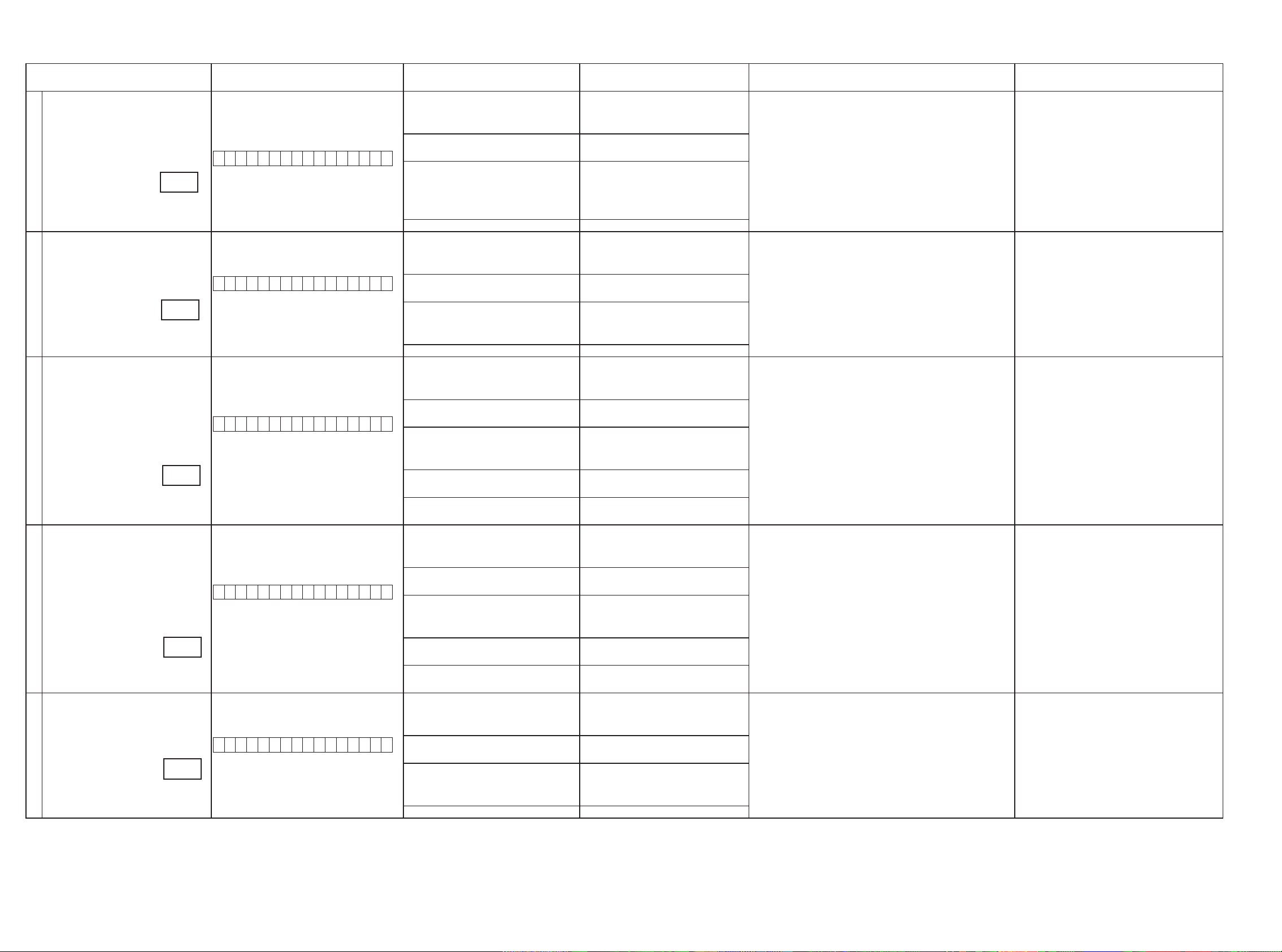
Conrmation item Setting and display
Analog (signal) Path Input Mode : Fixed ANALOG
SURROUND mode : DIRECT
Amp assign : NORMAL
Display:
1
A 0 1 D V D
g.10
DIGITAL (signal) Path
(MAIN)
Input Mode : Fixed DIGITAL
Amp assign : NORMAL
Display:
A 0 2 D V D
2
g.11
DIGITAL (signal) Path
(ZONE2)
Input Mode : Fixed DIGITAL
Amp assign : ZONE2
ZONE2 Function : Source
Display:
A 0 3 D V D
3
g.12
DIGITAL (signal) Path
(ZONE3)
Input Mode : Fixed DIGITAL
Amp assign : ZONE3
ZONE3 Function : Source
Display:
A 0 4 D V D
4
g.13
HDMI (signal) Path Input Mode : Fixed HDMI
Amp assign : NORMAL
Display:
A 0 5 D V D
5
g.14
Details of how to operate remote controller
1.Press [AMP]
2.Press [ZONE SELECT] , Select "ZONE2"
3.Press [ZONE OFF]
4.Press [ZONE SELECT], Select "ZONE3"
5.Press [ZONE OFF]
6.Press [ZONE SELECT], Select "MAIN"
7.Press [7/PQRS]
8.Press [DVD]
1.Press [AMP]
2.Press [ZONE SELECT] , Select "ZONE2"
3.Press [ZONE OFF]
4.Press [ZONE SELECT], Select "ZONE3"
5.Press [ZONE OFF]
6.Press [ZONE SELECT], Select "MAIN"
7.Press [8/TUV]
8.Press [DVD]
1.Press [AMP]
2.Press [ZONE SELECT] , Select "ZONE2"
3.Press [ZONE OFF]
4.Press [ZONE SELECT], Select "ZONE3"
5.Press [ZONE OFF]
6.Press [ZONE SELECT], Select "MAIN"
7.Press [9/WXYZ]
8.Press [ZONE SELECT], Select "ZONE2"
9.Press [ZONE ON]
10.Press [ZONE SELECT], Select "MAIN"
11.Press [DVD]
1.Press [AMP]
2.Press [ZONE SELECT] , Select "ZONE2"
3.Press [ZONE OFF]
4.Press [ZONE SELECT], Select "ZONE3"
5.Press [ZONE OFF]
6.Press [ZONE SELECT], Select "MAIN"
7.Press [0/_*]
8.Press [ZONE SELECT], Select "ZONE3"
9.Press [ZONE ON]
10.Press [ZONE SELECT], Select "MAIN"
11.Press [DVD]
1.Press [AMP]
2.Press [ZONE SELECT] , Select "ZONE2"
3.Press [ZONE OFF]
4.Press [ZONE SELECT], Select "ZONE3"
5.Press [ZONE OFF]
6.Press [ZONE SELECT], Select "MAIN"
7.Press [MOVIE]
8.Press [DVD]
Output sequence of remote control codes
It is useful to form a macro program.
※
ZONE2 POWER OFF ·Input : Analog / Output : Speakers (Front L/R)
q
·Input : Analog / Output : Pre OUT(Front L/R)
(
As the input source, you can switch from DVD to other ones.)
※
ZONE3 POWER OFF
w
KEY 7/PQRS (Main Zone)
e
Initialization & Amp assign NORMAL& Input
Mode Fixed ANALOG & SURROUND mode
DIRECT
DVD (Main Zone)
r
ZONE2 POWER OFF ·Input : Digital / Output : Speakers (Front L/R)
q
·Input : Digital / Output : Pre OUT(Front L/R)
(
As the input source, you can switch from DVD to other ones.)
※
ZONE3 POWER OFF
w
KEY 8/TUV (Main Zone)
e
Initialization & Amp assign NORMAL& Input
Mode Fixed DIGITAL
DVD (Main Zone)
r
ZONE2 POWER OFF ·Input : Digital / Output : Speakers (SURR BACK L/R)
q
·Input : Digital / Output : Pre OUT(ZONE2 L/R)
(
As the input source, you can switch from DVD to other ones.)
※
ZONE3 POWER OFF
w
KEY9/WXYZ (Main Zone)
e
Initialization & Amp assign ZONE2 & Input
Mode Fixed DIGITAL
ZONE2 POWER ON
r
DVD (Main Zone)
t
ZONE2 POWER OFF ·Input : Digital / Output : Speakers (SURR BACK L/R)
q
·Input : Digital / Output : Pre OUT(ZONE3 L/R)
(
As the input source, you can switch from DVD to other ones.)
※
ZONE3 POWER OFF
w
KEY 0/CODE2 (Main Zone)
e
Initialization & Amp assign ZONE3 & Input
Mode Fixed DIGITAL
ZONE3 POWER ON
r
DVD (Main Zone)
t
ZONE2 POWER OFF ·Input : HDMI / Output : Speakers (Front L/R)
q
·Input : HDMI / Output : Pre OUT(Front L/R)
(
As the input source, you can switch from DVD to other ones.)
※
ZONE3 POWER OFF
w
MOVIE
e
Initialization &Amp assign NORMAL & Input
Mode Fixed HDMI
DVD (Main Zone)
r
Contents of conrmation Remarks
AVR2312: Only "NET/USB" corresponds to the input
source.
only AVR3312
26
Page 27
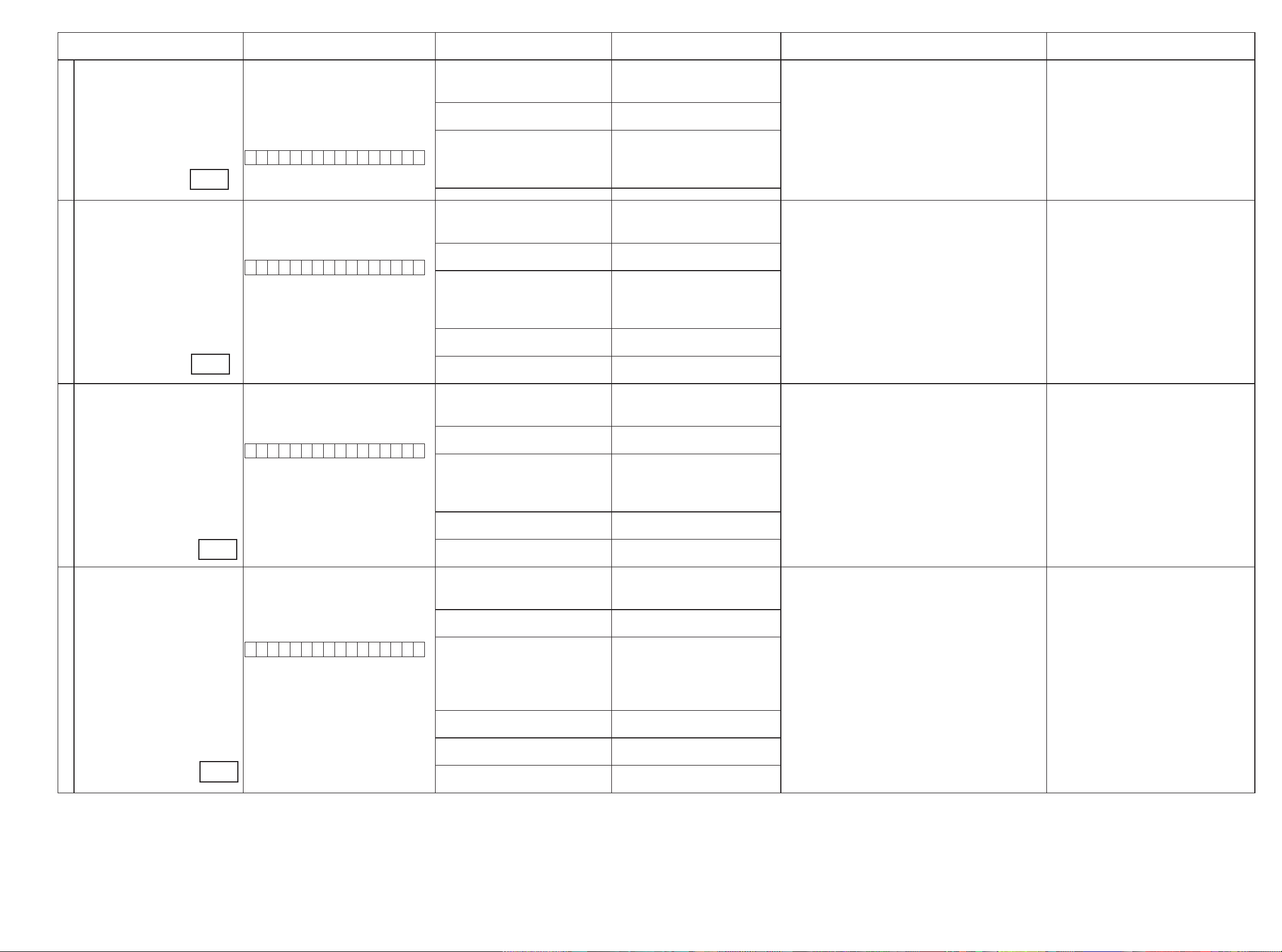
Conrmation item Setting and display
A/D (signal) Path
(Main Zone)
6
g.15
Amp Assign (signal) Path
(Amp Assign : ZONE2)
7
g.16
Amp Assign (signal) Path
(Amp Assign : ZONE3)
8
Amp Assign (signal) Path
(Amp Assign : ZONE2/ZONE3-MONO)
9
g.17
g.18
Amp assign : NORMAL
SURROUND mode : Multi ch STEREO
Vol -20dB
Speaker Cong : SSSSY
(Front/Center/Surround/SourroundBack : Small, SW : Yes)
Display:
A 0 6 D V D
Amp assign : ZONE2
ZONE2 Function : Source
Zone2 Vol -20dB
Display:
A 0 7 D V D
Amp assign : ZONE3
SURROUND mode : Multi ch STEREO
Zone3 Vol -20dB
Display:
A 0 8 D V D
Amp assign : ZONE2/ZONE3-MONO
SURROUND mode : Multi ch STEREO
ZONE2 Vol -20dB
ZONE3 Vol -20dB
Display:
A 0 9 D V D
Details of how to operate remote controller
1.Press [AMP]
2.Press [ZONE SELECT] , Select "ZONE2"
3.Press [ZONE OFF]
4.Press [ZONE SELECT], Select "ZONE3"
5.Press [ZONE OFF]
6.Press [ZONE SELECT], Select "MAIN"
7.Press [MUSIC]
8.Press [DVD]
1.Press [AMP]
2.Press [ZONE SELECT] , Select "ZONE2"
3.Press [ZONE OFF]
4.Press [ZONE SELECT], Select "ZONE3"
5.Press [ZONE OFF]
6.Press [ZONE SELECT], Select "MAIN"
7.Press [GAME]
8.Press [ZONE SELECT], Select "ZONE2"
9.Press [ZONE ON]
10.Press [ZONE SELECT], Select "MAIN"
11.Press [DVD]
1.Press [AMP]
2.Press [ZONE SELECT] , Select "ZONE2"
3.Press [ZONE OFF]
4.Press [ZONE SELECT], Select "ZONE3"
5.Press [ZONE OFF]
6.Press [ZONE SELECT], Select "MAIN"
7.Press [DIRECT]
8.Press [ZONE SELECT], Select "ZONE3"
9.Press [ZONE ON]
10.Press [ZONE SELECT], Select "MAIN"
11.Press [DVD]
1.Press [AMP]
2.Press [ZONE SELECT] , Select "ZONE2"
3.Press [ZONE OFF]
4.Press [ZONE SELECT], Select "ZONE3"
5.Press [ZONE OFF]
6.Press [ZONE SELECT], Select "MAIN"
7.Press [6]
8.Press [ZONE SELECT], Select "ZONE2"
9.Press [ZONE ON]
10.Press [ZONE SELECT], Select "ZONE3"
11.Press [ZONE ON]
12.Press [ZONE SELECT], Select "MAIN"
13.Press [DVD]
Output sequence of remote control codes
It is useful to form a macro program.
※
ZONE2 POWER OFF ·Input : Analog / Output : Speakers (Front L/R)
q
·Input : Analog / Output : Pre OUT(Front L/R), SW(20Hz)
(
As the input source, you can switch from DVD to other ones.)
※
ZONE3 POWER OFF
w
MUSIC
e
Initialization &Amp assign NORMAL &
SURROUND mode : Multi ch STEREO &
Volume -20dB
DVD (Main Zone)
r
ZONE2 POWER OFF ·Input : Analog / Output : Speakers (SURR BACK L/R)
q
·Input : Analog / Output : Pre OUT (ZONE2 L/R)
(
As the input source, you can switch from DVD to other ones.)
※
ZONE3 POWER OFF
w
GAME
e
Initialization & Amp assign ZONE2 &
SURROUND mode : Multi ch STEREO &
ZONE2 Volume -20dB
ZONE2 POWER ON
r
DVD (Main Zone)
t
ZONE2 POWER OFF ·Input : Analog / Output : Speakers (SURR BACK L/R)
q
·Input : Analog / Output : Pre OUT (ZONE3 L/R)
(
As the input source, you can switch from DVD to other ones.)
※
ZONE3 POWER OFF
w
DIRECT
e
Initialization & Amp assign ZONE3 &
SURROUND mode : Multi ch STEREO &
ZONE3 Volume -20dB
ZONE3 POWER ON
r
DVD (Main Zone)
t
ZONE2 POWER OFF ·Input : Analog / Output : Speakers (SURR BACK L/R)
q
·Input : Analog / Output : Pre OUT (ZONE2 L/R)
·Input : Analog / Output : Pre OUT (ZONE3 L/R)
ZONE3 POWER OFF
w
e
6
Initialization & Amp assign ZONE2/ZONE3MONO & SURROUND mode : Multi ch
STEREO & ZONE2 Volume -20dB &
ZONE3 Volume -20dB
ZONE2 POWER ON
r
ZONE3 POWER ON
t
DVD (Main Zone)
y
(
As the input source, you can switch from DVD to other ones.)
※
Contents of conrmation Remarks
only AVR3312
only AVR3312
27
Page 28

Conrmation item Setting and display
Amp Assign (signal) Path
(Amp Assign : 2CH)
10
Amp assign : 2CH
SURROUND mode : DIRECT
Vol -20dB
Display:
A 1 0 D V D
g.19
Amp Assign (signal) Path
(Amp Assign : BiAMP)
11
Amp assign : BiAMP
SURROUND mode : Multi ch STEREO
Vol -20dB
Display:
A 1 1 D V D
g.20
Amp Assign (signal) Path
(Amp Assign : Front-B)
12
Amp assign : Front-B
SURROUND mode : Multi ch STEREO
Vol -20dB
Display:
A 1 2 D V D
g.20
Front Height (signal) Path Amp assign : Front Height ( As AVR2312)
Amp assign : NORMAL (As AVR3312)
SURROUND mode : Multi ch STEREO
Vol -20dB
Surround Parameter-Speaker : F.Height
Display:
A 1 4 D V D
13
g.22
Front Wide (signal) Path Amp assign : NORMAL
SURROUND mode : Multi ch STEREO
Vol -20dB
Surround Parameter-Speaker : F.Wide
14
g.23
Display:
A 1 5 D V D
Details of how to operate remote controller
1.Press [AMP]
2.Press [ZONE SELECT] , Select "ZONE2"
3.Press [ZONE OFF]
4.Press [ZONE SELECT], Select "ZONE3"
5.Press [ZONE OFF]
6.Press [ZONE SELECT], Select "MAIN"
7.Press [7]
8.Press [DVD]
1.Press [AMP]
2.Press [ZONE SELECT] , Select "ZONE2"
3.Press [ZONE OFF]
4.Press [ZONE SELECT], Select "ZONE3"
5.Press [ZONE OFF]
6.Press [ZONE SELECT], Select "MAIN"
7.Press [8]
8.Press [DVD]
1.Press [AMP]
2.Press [ZONE SELECT] , Select "ZONE2"
3.Press [ZONE OFF]
4.Press [ZONE SELECT], Select "ZONE3"
5.Press [ZONE OFF]
6.Press [ZONE SELECT], Select "MAIN"
7.Press [9]
8.Press [DVD]
1.Press [AMP]
2.Press [ZONE SELECT] , Select "ZONE2"
3.Press [ZONE OFF]
4.Press [ZONE SELECT], Select "ZONE3"
5.Press [ZONE OFF]
6.Press [ZONE SELECT], Select "MAIN"
7.Press [+10/MEMORY]
8.Press [DVD]
1.Press [AMP]
2.Press [ZONE SELECT], Select "ZONE2"
3.Press [ZONE OFF]
4.Press [ZONE SELECT], Select "ZONE3"
5.Press [ZONE OFF]
6.Press [ZONE SELECT], Select "MAIN"
7.Press [SLEEP]
8.Press [DVD]
Output sequence of remote control codes
It is useful to form a macro program.
※
ZONE2 POWER OFF ·Input : Analog / Output : Speakers (SURR BACK L/R)
q
·Input : Analog / Output : Pre OUT (Front L/R)
(
As the input source, you can switch from DVD to other ones.)
※
ZONE3 POWER OFF
w
e
7
Initialization &Amp assign 2CH &
SURROUND mode : DIRECT & Volume
-20dB
DVD (Main Zone)
r
ZONE2 POWER OFF ·Input : Analog / Output : Speakers (SURR BACK L/R)
q
·Input : Analog / Output : Pre OUT (SB L/R)
(
As the input source, you can switch from DVD to other ones.)
※
ZONE3 POWER OFF
w
e
8
Initialization & Amp assign BiAMP &
SURROUND mode : Multi ch STEREO &
Volume -20dB
DVD (Main Zone)
r
ZONE2 POWER OFF ·Input : Analog / Output : Speakers (SURR BACK L/R)
q
·Input : Analog / Output : Pre OUT (SB L/R)
(
As the input source, you can switch from DVD to other ones.)
※
ZONE3 POWER OFF
w
e
9
Initialization & Amp assign Front-B &
SURROUND mode Multi ch STEREO &
Volume -20dB
DVD (Main Zone)
r
ZONE2 POWER OFF ·Input : Analog / Output : Speakers (F.HEIGHT L/R)
q
(
As the input source, you can switch from DVD to other ones.)
※
ZONE3 POWER OFF
w
MEMORY/+10 (Main Zone)
e
As AVR2312
Initialization & Amp assign Front Height &
SURROUND mode:Multi ch STEREO &
Volume -20dB
As AVR3312
Initialization & Amp assign NORMAL &
SURROUND mode:Multi ch STEREO &
Volume -20dB & Surround Parameter-
Speaker : F.Height
DVD (Main Zone)
r
ZONE2 POWER OFF ·Input : Analog / Output : Speakers (F.WIDE L/R)
q
(
As the input source, you can switch from DVD to other ones.)
※
ZONE3 POWER OFF
w
SLEEP MODE
e
Initialization &Amp assign NORMAL &
SURROUND mode:Multi ch STEREO &
Volume -20dB Surround Parameter-Speaker
: F.Wide
DVD (Main Zone)
r
Contents of conrmation Remarks
AVR2312 and AVR3312, operate differently
only AVR3312
28
Page 29
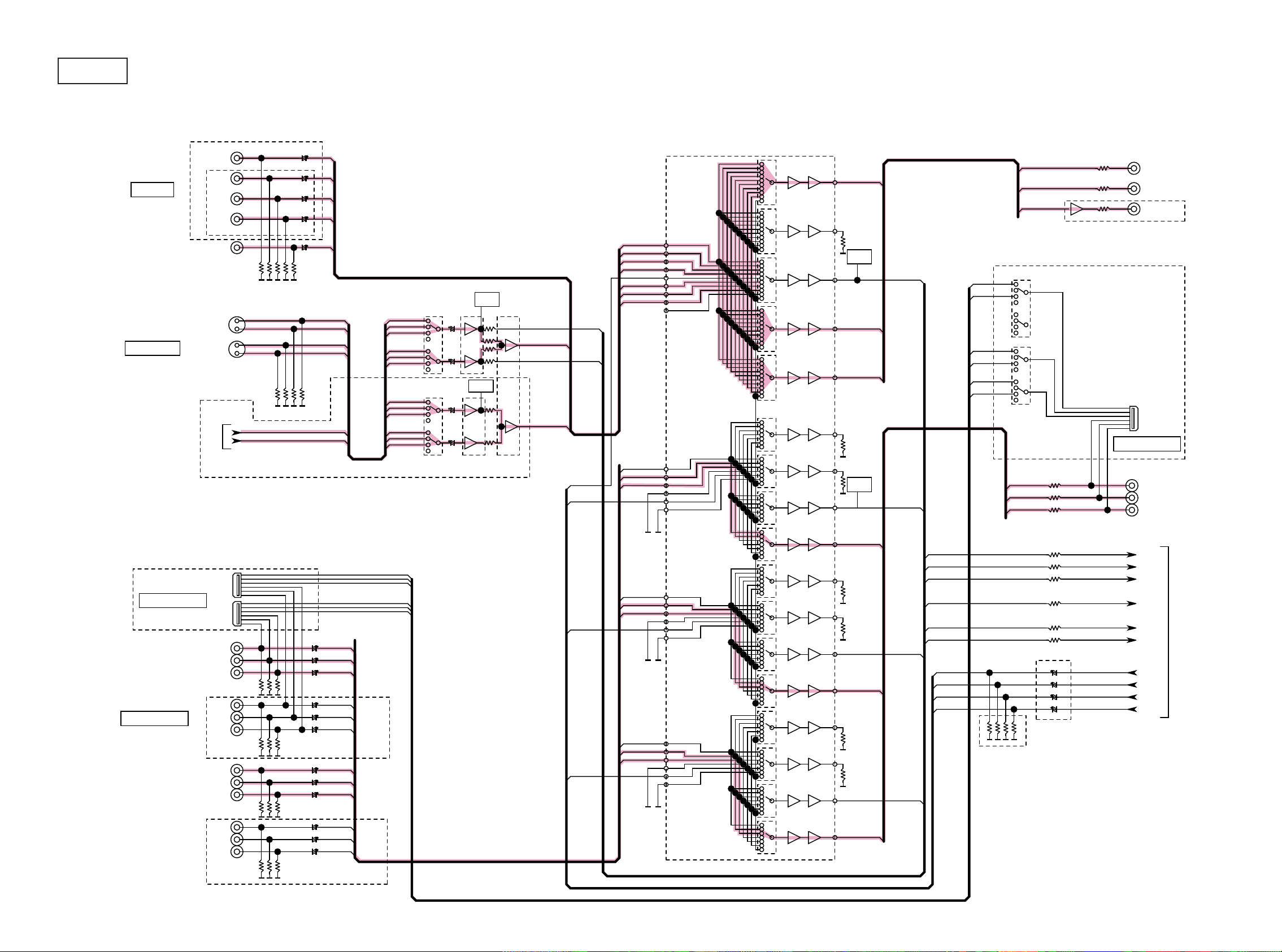
BLOCK DIAGRAM
g.1
d
AVR3312/2312 VIDEO BLOCK
CVBS IN
S-VIDEO IN
AVR3312
DVD
DVR
SAT
AVR2312
V.AUX(FRONT)
iPod
DVR
AVR3312
IC551
BD
BD_V
DVD_V
DVR_V
SAT_V
IN1
IN2
IN3
IN4
IN5
IN6
IN7
IN8
IN9
ETHER_SY
ETHER_SC
V.AUX_V
75
DETECT
F
IC554
BD7628F
IC555
BD7628F
CIRCUIT
DETECT
CIRCUIT
IC556
BD7628F
75
75
DEC_SY_IN
MAIN Y/C
DEC_SC_IN
ZONE2 Y/C
IC552
BU4052BC
IC553
75
BU4052BCF
BD_V
DVD_V
SAT_V
DVR_V
VDO_CVBS
V.AUX_V
MAIN Y/C
ZONE2 Y/C
AVDM-2000
6dB
MONITOR
Z2 MONITOR
VOUT4
1k
VOUT5
1k
DETECT
CIRCUIT
MONITOR
REC
DEC_CVBS_IN
VIN2L1
VIN1L1
VIN2L2
VIN1L2
VIN2L3
VIN1L3
VOUT1
75
VOUT2
75
VOUT3
75
REC
Z2 MONITOR
BU4052BCF
MONIL1
BU4052BCF
MONIL2
MONIL3
MONITOR
REC
Z2 MONITOR
AVR3312
ONLY JPN AVR3312
D VIDEO OUT
YOUT3
1k
JAPAN D-JACK
JAPAN D-JACK
COMPONENT IN
TO DIGITAL AUDIO BLOCK
DVD
BD
OPEN
SAT
DVD_Y
DVD_CB
DVD_CR
BD_Y
BD_CB
BD_CR
SAT_Y
SAT_CB
SAT_CR
VIN1L1
VIN1L2
VIN1L3
VIN2L1
VIN2L2
VIN2L3
VDO_CVBS
VDO_Y
VDO_PB
VDO_PR
BD_Y
DVD_Y
SAT_Y
BD_PB
DVD_PB
SAT_PB
BD_PR
DVD_PR
SAT_PR
YIN1
YIN2
YIN3
YIN4
YIN5
YIN6
PBIN1
PBIN2
PBIN3
PBIN4
PBIN5
PBIN6
PRIN1
PRIN2
PRIN3
PRIN4
PRIN5
PRIN6
1k
75
75
1k
1k
75
75
1k
1k
75
YOUT4
YOUT1
YOUT2
PBOUT3
PBOUT4
PBOUT1
PBOUT2
PROUT3
PROUT4
PROUT1
DETECT
CIRCUIT
ZONE1 PB
ZONE1 Y
DEC_Y_IN
DEC_PB_IN
DEC_PR_IN
DEC_Y_IN
DEC_PB_IN
DEC_PR_IN
DEC_CVBS_IN
DEC_SY_IN
DEC_SC_IN
VDO_Y
VDO_PB
VDO_PR
VDO_CVBS
AVR2312
ZONE1 Y
ZONE1 PB
ZONE1 PR
0
COMPONENT OUT
TO HDMI BLOCK
AVR3312
DVR
OPEN
DVR_Y
DVR_CB
DVR_CR
29
75
PROUT2
ZONE1 PR
Page 30
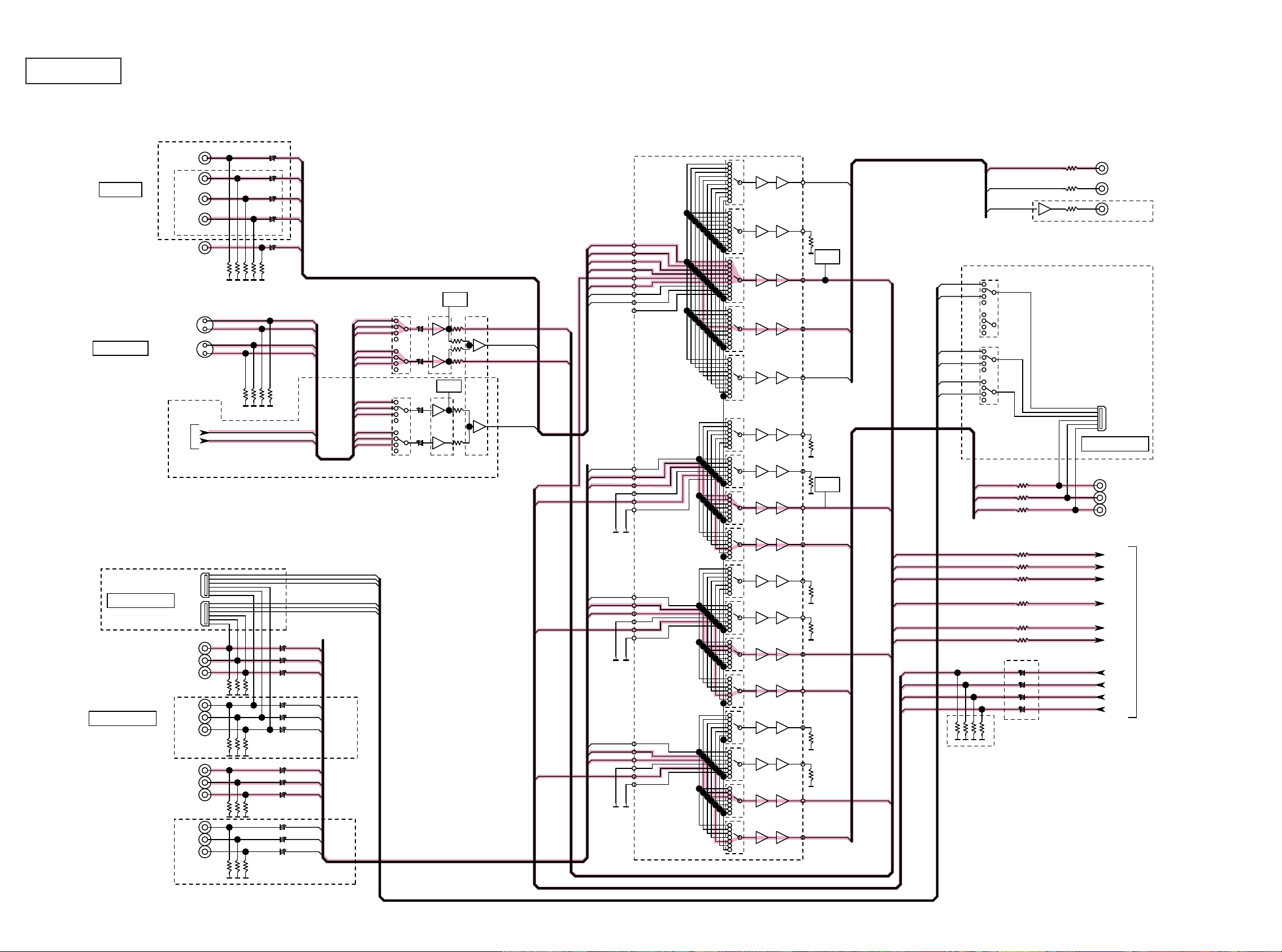
g.2(1/2)
AVR3312/2312 VIDEO BLOCK
CVBS IN
S-VIDEO IN
AVR3312
DVD
DVR
SAT
AVR2312
V.AUX(FRONT)
iPod
DVR
AVR3312
IC551
BD
BD_V
DVD_V
DVR_V
SAT_V
IN1
IN2
IN3
IN4
IN5
IN6
IN7
IN8
IN9
ETHER_SY
ETHER_SC
V.AUX_V
75
DETECT
IC554
BD7628F
IC555
BD7628F
CIRCUIT
DETECT
CIRCUIT
IC556
BD7628F
75
75
DEC_SY_IN
MAIN Y/C
DEC_SC_IN
ZONE2 Y/C
IC552
BU4052BC
F
IC553
75
BU4052BCF
BD_V
DVD_V
SAT_V
DVR_V
VDO_CVBS
V.AUX_V
MAIN Y/C
ZONE2 Y/C
AVDM-2000
6dB
MONITOR
VOUT4
1k
VOUT5
1k
VOUT1
75
VOUT2
75
VOUT3
75
Z2 MONITOR
DETECT
CIRCUIT
MONITOR
REC
DEC_CVBS_IN
VIN2L1
VIN1L1
VIN2L2
VIN1L2
VIN2L3
VIN1L3
REC
Z2 MONITOR
BU4052BCF
MONIL1
BU4052BCF
MONIL2
MONIL3
MONITOR
REC
Z2 MONITOR
AVR3312
ONLY JPN AVR3312
D VIDEO OUT
YOUT3
1k
JAPAN D-JACK
JAPAN D-JACK
COMPONENT IN
TO DIGITAL AUDIO BLOCK
DVD
BD
OPEN
SAT
DVD_Y
DVD_CB
DVD_CR
BD_Y
BD_CB
BD_CR
SAT_Y
SAT_CB
SAT_CR
VIN1L1
VIN1L2
VIN1L3
VIN2L1
VIN2L2
VIN2L3
VDO_CVBS
VDO_Y
VDO_PB
VDO_PR
BD_Y
DVD_Y
SAT_Y
BD_PB
DVD_PB
SAT_PB
BD_PR
DVD_PR
SAT_PR
YIN1
YIN2
YIN3
YIN4
YIN5
YIN6
PBIN1
PBIN2
PBIN3
PBIN4
PBIN5
PBIN6
PRIN1
PRIN2
PRIN3
PRIN4
PRIN5
PRIN6
1k
75
75
1k
1k
75
75
1k
1k
75
YOUT4
YOUT1
YOUT2
PBOUT3
PBOUT4
PBOUT1
PBOUT2
PROUT3
PROUT4
PROUT1
DETECT
CIRCUIT
ZONE1 PB
ZONE1 Y
DEC_Y_IN
DEC_PB_IN
DEC_PR_IN
DEC_Y_IN
DEC_PB_IN
DEC_PR_IN
DEC_CVBS_IN
DEC_SY_IN
DEC_SC_IN
VDO_Y
VDO_PB
VDO_PR
VDO_CVBS
AVR2312
ZONE1 Y
ZONE1 PB
ZONE1 PR
0
COMPONENT OUT
TO HDMI BLOCK
AVR3312
DVR
OPEN
DVR_Y
DVR_CB
DVR_CR
30
75
PROUT2
ZONE1 PR
Page 31

g.2(2/2)
AVR3312/2312 HDMI VIDEO BLOCK
HDMI IN
HDMI FRONT IN
HDMI IN1
HDMI IN2
HDMI IN3
HDMI IN4
HDMI IN5
HDMI IN6
IC101
AD8195
Buffer
IC111
ADV3002
Port A
Port B
Port C
Port D
DEC_Y_IN
DEC_PB_IN
DEC_PR_IN
DEC_CVBS_IN
DEC_SY_IN
DEC_SC_IN
IC121
ADV7844
X1201
28.636MHz
HD_PCLK
HD_HSYNC
LLC
HD/CS
TMDS INPUT
VS/FIELD
FIELD/DE
SFL
P[0:35]
HD_VSYNC
HD_DE
HD_SFL
HD_P[0:35]
VIDEO SIGNAL OUT
IC151
ADV8002-1 : AVR3312
ADV8002-4 : AVR2312
VIDEO
PROCESSING
VIDEO
HDMI Rx
X1501
27MHz
HDMI OUT1
HDMI Tx
HDMI OUT2
AVR3312
TR Buffer
DATA
AUDIO
VIDEO
ENCODER
ISA1530AC1
VIDEO INPUT
AUDIO SIGNAL OUT
CONTROL
DDR2 INTERFACE
AVR3312
VDO_Y
VDO_PB
VDO_PR
VDO_CVBS
TO VIDEO BLOCK
DEC_Y_IN
DEC_PB_IN
DEC_PR_IN
DEC_CVBS_IN
FROM VIDEO BLOCK
DEC_SY_IN
DEC_SC_IN
SN74LVC244APWR
IC122 IC155 IC152 IC153
S. FLASH
MX25L6406EM2I-12G
64M
DDR2 SDRAM
DDR2 SDRAM
K4T1G164QF-BCF7 K4T1G164QF-BCF7
1G
1G
< TO / FROM AUDIO PLD >
31
Page 32

g.3
AVR3312/2312 HDMI VIDEO BLOCK
HDMI IN
HDMI FRONT IN
HDMI IN1
HDMI IN2
HDMI IN3
HDMI IN4
HDMI IN5
HDMI IN6
IC101
AD8195
Buffer
IC111
ADV3002
Port A
Port B
Port C
Port D
DEC_Y_IN
DEC_PB_IN
DEC_PR_IN
DEC_CVBS_IN
DEC_SY_IN
DEC_SC_IN
IC121
ADV7844
X1201
28.636MHz
HD_PCLK
HD_HSYNC
LLC
HD/CS
TMDS INPUT
VS/FIELD
FIELD/DE
SFL
P[0:35]
HD_VSYNC
HD_DE
HD_SFL
HD_P[0:35]
VIDEO SIGNAL OUT
IC151
ADV8002-1 : AVR3312
ADV8002-4 : AVR2312
VIDEO
PROCESSING
VIDEO
HDMI Rx
X1501
27MHz
HDMI OUT1
HDMI Tx
HDMI OUT2
AVR3312
TR Buffer
DATA
AUDIO
VIDEO
ENCODER
ISA1530AC1
VIDEO INPUT
AUDIO SIGNAL OUT
CONTROL
DDR2 INTERFACE
AVR3312
VDO_Y
VDO_PB
VDO_PR
VDO_CVBS
TO VIDEO BLOCK
DEC_Y_IN
DEC_PB_IN
DEC_PR_IN
DEC_CVBS_IN
FROM VIDEO BLOCK
DEC_SY_IN
DEC_SC_IN
SN74LVC244APWR
IC122 IC155 IC152 IC153
S. FLASH
MX25L6406EM2I-12G
64M
DDR2 SDRAM
DDR2 SDRAM
K4T1G164QF-BCF7 K4T1G164QF-BCF7
1G
1G
< TO / FROM AUDIO PLD >
32
Page 33

g.4(1/2)
AVR3312/2312 VIDEO BLOCK
CVBS IN
S-VIDEO IN
AVR3312
DVD
DVR
SAT
AVR2312
V.AUX(FRONT)
iPod
DVR
AVR3312
IC551
BD
BD_V
DVD_V
DVR_V
SAT_V
IN1
IN2
IN3
IN4
IN5
IN6
IN7
IN8
IN9
ETHER_SY
ETHER_SC
V.AUX_V
75
DETECT
F
IC554
BD7628F
IC555
BD7628F
CIRCUIT
DETECT
CIRCUIT
IC556
BD7628F
75
75
DEC_SY_IN
MAIN Y/C
DEC_SC_IN
ZONE2 Y/C
IC552
BU4052BC
IC553
75
BU4052BCF
BD_V
DVD_V
SAT_V
DVR_V
VDO_CVBS
V.AUX_V
MAIN Y/C
ZONE2 Y/C
AVDM-2000
6dB
MONITOR
Z2 MONITOR
VOUT4
1k
VOUT5
1k
DETECT
CIRCUIT
MONITOR
REC
DEC_CVBS_IN
VIN2L1
VIN1L1
VIN2L2
VIN1L2
VIN2L3
VIN1L3
VOUT1
75
VOUT2
75
VOUT3
75
REC
Z2 MONITOR
BU4052BCF
MONIL1
BU4052BCF
MONIL2
MONIL3
MONITOR
REC
Z2 MONITOR
AVR3312
ONLY JPN AVR3312
D VIDEO OUT
YOUT3
1k
JAPAN D-JACK
JAPAN D-JACK
COMPONENT IN
TO DIGITAL AUDIO BLOCK
DVD
BD
OPEN
SAT
DVD_Y
DVD_CB
DVD_CR
BD_Y
BD_CB
BD_CR
SAT_Y
SAT_CB
SAT_CR
VIN1L1
VIN1L2
VIN1L3
VIN2L1
VIN2L2
VIN2L3
VDO_CVBS
VDO_Y
VDO_PB
VDO_PR
BD_Y
DVD_Y
SAT_Y
BD_PB
DVD_PB
SAT_PB
BD_PR
DVD_PR
SAT_PR
YIN1
YIN2
YIN3
YIN4
YIN5
YIN6
PBIN1
PBIN2
PBIN3
PBIN4
PBIN5
PBIN6
PRIN1
PRIN2
PRIN3
PRIN4
PRIN5
PRIN6
1k
75
75
1k
1k
75
75
1k
1k
75
YOUT4
YOUT1
YOUT2
PBOUT3
PBOUT4
PBOUT1
PBOUT2
PROUT3
PROUT4
PROUT1
DETECT
CIRCUIT
ZONE1 PB
ZONE1 Y
DEC_Y_IN
DEC_PB_IN
DEC_PR_IN
DEC_Y_IN
DEC_PB_IN
DEC_PR_IN
DEC_CVBS_IN
DEC_SY_IN
DEC_SC_IN
VDO_Y
VDO_PB
VDO_PR
VDO_CVBS
AVR2312
ZONE1 Y
ZONE1 PB
ZONE1 PR
0
COMPONENT OUT
TO HDMI BLOCK
AVR3312
DVR
OPEN
DVR_Y
DVR_CB
DVR_CR
33
75
PROUT2
ZONE1 PR
Page 34

g.4(2/2)
AVR3312/2312 HDMI VIDEO BLOCK
HDMI IN
HDMI FRONT IN
HDMI IN1
HDMI IN2
HDMI IN3
HDMI IN4
HDMI IN5
HDMI IN6
IC101
AD8195
Buffer
IC111
ADV3002
Port A
Port B
Port C
Port D
DEC_Y_IN
DEC_PB_IN
DEC_PR_IN
DEC_CVBS_IN
DEC_SY_IN
DEC_SC_IN
IC121
ADV7844
X1201
28.636MHz
HD_PCLK
HD_HSYNC
LLC
HD/CS
TMDS INPUT
VS/FIELD
FIELD/DE
SFL
P[0:35]
HD_VSYNC
HD_DE
HD_SFL
HD_P[0:35]
VIDEO SIGNAL OUT
IC151
ADV8002-1 : AVR3312
ADV8002-4 : AVR2312
VIDEO
PROCESSING
VIDEO
HDMI Rx
X1501
27MHz
HDMI OUT1
HDMI Tx
HDMI OUT2
AVR3312
TR Buffer
DATA
AUDIO
VIDEO
ENCODER
ISA1530AC1
VIDEO INPUT
AUDIO SIGNAL OUT
CONTROL
DDR2 INTERFACE
AVR3312
VDO_Y
VDO_PB
VDO_PR
VDO_CVBS
TO VIDEO BLOCK
DEC_Y_IN
DEC_PB_IN
DEC_PR_IN
DEC_CVBS_IN
FROM VIDEO BLOCK
DEC_SY_IN
DEC_SC_IN
SN74LVC244APWR
IC122 IC155 IC152 IC153
S. FLASH
MX25L6406EM2I-12G
64M
DDR2 SDRAM
DDR2 SDRAM
K4T1G164QF-BCF7 K4T1G164QF-BCF7
1G
1G
< TO / FROM AUDIO PLD >
34
Page 35

g.5(1/2)
AVR3312/2312 HDMI VIDEO BLOCK
HDMI IN
HDMI FRONT IN
HDMI IN1
HDMI IN2
HDMI IN3
HDMI IN4
HDMI IN5
HDMI IN6
IC101
AD8195
Buffer
IC111
ADV3002
Port A
Port B
Port C
Port D
DEC_Y_IN
DEC_PB_IN
DEC_PR_IN
DEC_CVBS_IN
DEC_SY_IN
DEC_SC_IN
IC121
ADV7844
X1201
28.636MHz
HD_PCLK
HD_HSYNC
LLC
HD/CS
TMDS INPUT
VS/FIELD
FIELD/DE
SFL
P[0:35]
HD_VSYNC
HD_DE
HD_SFL
HD_P[0:35]
VIDEO SIGNAL OUT
IC151
ADV8002-1 : AVR3312
ADV8002-4 : AVR2312
VIDEO
PROCESSING
VIDEO
HDMI Rx
X1501
27MHz
HDMI OUT1
HDMI Tx
HDMI OUT2
AVR3312
TR Buffer
DATA
AUDIO
VIDEO
ENCODER
ISA1530AC1
VIDEO INPUT
AUDIO SIGNAL OUT
CONTROL
DDR2 INTERFACE
AVR3312
VDO_Y
VDO_PB
VDO_PR
VDO_CVBS
TO VIDEO BLOCK
DEC_Y_IN
DEC_PB_IN
DEC_PR_IN
DEC_CVBS_IN
FROM VIDEO BLOCK
DEC_SY_IN
DEC_SC_IN
SN74LVC244APWR
IC122 IC155 IC152 IC153
S. FLASH
MX25L6406EM2I-12G
64M
DDR2 SDRAM
DDR2 SDRAM
K4T1G164QF-BCF7 K4T1G164QF-BCF7
1G
1G
< TO / FROM AUDIO PLD >
35
Page 36

g.5(2/2)
AVR3312/2312 VIDEO BLOCK
CVBS IN
S-VIDEO IN
AVR3312
DVD
DVR
SAT
AVR2312
V.AUX(FRONT)
iPod
DVR
AVR3312
IC551
BD
BD_V
DVD_V
DVR_V
SAT_V
IN1
IN2
IN3
IN4
IN5
IN6
IN7
IN8
IN9
ETHER_SY
ETHER_SC
V.AUX_V
75
DETECT
IC554
BD7628F
IC555
BD7628F
CIRCUIT
DETECT
CIRCUIT
IC556
BD7628F
75
75
DEC_SY_IN
MAIN Y/C
DEC_SC_IN
ZONE2 Y/C
IC552
BU4052BC
F
IC553
75
BU4052BCF
BD_V
DVD_V
SAT_V
DVR_V
VDO_CVBS
V.AUX_V
MAIN Y/C
ZONE2 Y/C
AVDM-2000
6dB
MONITOR
VOUT4
1k
VOUT5
1k
VOUT1
75
VOUT2
75
VOUT3
75
Z2 MONITOR
DETECT
CIRCUIT
MONITOR
REC
DEC_CVBS_IN
VIN2L1
VIN1L1
VIN2L2
VIN1L2
VIN2L3
VIN1L3
REC
Z2 MONITOR
BU4052BCF
MONIL1
BU4052BCF
MONIL2
MONIL3
MONITOR
REC
Z2 MONITOR
AVR3312
ONLY JPN AVR3312
D VIDEO OUT
YOUT3
1k
JAPAN D-JACK
JAPAN D-JACK
COMPONENT IN
TO DIGITAL AUDIO BLOCK
DVD
BD
OPEN
SAT
DVD_Y
DVD_CB
DVD_CR
BD_Y
BD_CB
BD_CR
SAT_Y
SAT_CB
SAT_CR
VIN1L1
VIN1L2
VIN1L3
VIN2L1
VIN2L2
VIN2L3
VDO_CVBS
VDO_Y
VDO_PB
VDO_PR
BD_Y
DVD_Y
SAT_Y
BD_PB
DVD_PB
SAT_PB
BD_PR
DVD_PR
SAT_PR
YIN1
YIN2
YIN3
YIN4
YIN5
YIN6
PBIN1
PBIN2
PBIN3
PBIN4
PBIN5
PBIN6
PRIN1
PRIN2
PRIN3
PRIN4
PRIN5
PRIN6
1k
75
75
1k
1k
75
75
1k
1k
75
YOUT4
YOUT1
YOUT2
PBOUT3
PBOUT4
PBOUT1
PBOUT2
PROUT3
PROUT4
PROUT1
DETECT
CIRCUIT
ZONE1 PB
ZONE1 Y
DEC_Y_IN
DEC_PB_IN
DEC_PR_IN
DEC_Y_IN
DEC_PB_IN
DEC_PR_IN
DEC_CVBS_IN
DEC_SY_IN
DEC_SC_IN
VDO_Y
VDO_PB
VDO_PR
VDO_CVBS
AVR2312
ZONE1 Y
ZONE1 PB
ZONE1 PR
0
COMPONENT OUT
TO HDMI BLOCK
AVR3312
DVR
OPEN
DVR_Y
DVR_CB
DVR_CR
36
75
PROUT2
ZONE1 PR
Page 37

g.6
AVR3312/2312 HDMI VIDEO BLOCK
HDMI IN
HDMI FRONT IN
HDMI IN1
HDMI IN2
HDMI IN3
HDMI IN4
HDMI IN5
HDMI IN6
IC101
AD8195
Buffer
IC111
ADV3002
Port A
Port B
Port C
Port D
DEC_Y_IN
DEC_PB_IN
DEC_PR_IN
DEC_CVBS_IN
DEC_SY_IN
DEC_SC_IN
IC121
ADV7844
X1201
28.636MHz
HD_PCLK
HD_HSYNC
LLC
HD/CS
TMDS INPUT
VS/FIELD
FIELD/DE
SFL
P[0:35]
HD_VSYNC
HD_DE
HD_SFL
HD_P[0:35]
VIDEO SIGNAL OUT
IC151
ADV8002-1 : AVR3312
ADV8002-4 : AVR2312
VIDEO
PROCESSING
VIDEO
HDMI Rx
X1501
27MHz
u-COM
HDMI OUT1
HDMI Tx
HDMI OUT2
AVR3312
TR Buffer
DATA
AUDIO
VIDEO
ENCODER
ISA1530AC1
VIDEO INPUT
AUDIO SIGNAL OUT
CONTROL
DDR2 INTERFACE
AVR3312
VDO_Y
VDO_PB
VDO_PR
VDO_CVBS
TO VIDEO BLOCK
DEC_Y_IN
DEC_PB_IN
DEC_PR_IN
DEC_CVBS_IN
FROM VIDEO BLOCK
DEC_SY_IN
DEC_SC_IN
SN74LVC244APWR
IC122 IC155 IC152 IC153
S. FLASH
MX25L6406EM2I-12G
64M
DDR2 SDRAM
DDR2 SDRAM
K4T1G164QF-BCF7 K4T1G164QF-BCF7
1G
1G
< TO / FROM AUDIO PLD >
37
Page 38

g.7
AVR3312/2312 HDMI VIDEO BLOCK
HDMI IN
HDMI FRONT IN
HDMI IN1
HDMI IN2
HDMI IN3
HDMI IN4
HDMI IN5
HDMI IN6
IC101
AD8195
Buffer
IC111
ADV3002
Port A
Port B
Port C
Port D
DEC_Y_IN
DEC_PB_IN
DEC_PR_IN
DEC_CVBS_IN
DEC_SY_IN
DEC_SC_IN
IC121
ADV7844
X1201
28.636MHz
HD_PCLK
HD_HSYNC
LLC
HD/CS
TMDS INPUT
VS/FIELD
FIELD/DE
SFL
P[0:35]
HD_VSYNC
HD_DE
HD_SFL
HD_P[0:35]
VIDEO SIGNAL OUT
IC151
ADV8002-1 : AVR3312
ADV8002-4 : AVR2312
VIDEO
PROCESSING
VIDEO
HDMI Rx
X1501
27MHz
HDMI Tx
u-COM
HDMI OUT1
HDMI OUT2
AVR3312
TR Buffer
DATA
AUDIO
VIDEO
ENCODER
ISA1530AC1
VIDEO INPUT
AUDIO SIGNAL OUT
CONTROL
DDR2 INTERFACE
AVR3312
VDO_Y
VDO_PB
VDO_PR
VDO_CVBS
TO VIDEO BLOCK
DEC_Y_IN
DEC_PB_IN
DEC_PR_IN
DEC_CVBS_IN
FROM VIDEO BLOCK
DEC_SY_IN
DEC_SC_IN
SN74LVC244APWR
IC122 IC155 IC152 IC153
S. FLASH
MX25L6406EM2I-12G
64M
DDR2 SDRAM
DDR2 SDRAM
K4T1G164QF-BCF7 K4T1G164QF-BCF7
1G
1G
< TO / FROM AUDIO PLD >
38
Page 39

g.8(1/2)
FL
FR
CEN
SW
SL
SR
BSL
EXT. INPUT(7.1CH)
BSR
(AVR3312-2312 NOT USED)
AVR3312
PHONO
BD
DVD
SAT/CBL
DVR
iPod
CD
V.AUX
(FRONT)
ANALOG 9 INPUT
TUNER
HD RADIO : AVR3312 E3
AM/FM TUNER : OTHERS
MIC(Mini Jack)
TO DIGITAL
AUDIO BLOCK
AVR3312/2312 ANALOG AUDIO BLOCK
EXTFL
DAZ2
DAZ3
ADFL
ADFR
DAFL
DAFR
DACEN
DASW
DASL
DASR
DASBL
DASBR
EXTFR
EXTC
EXTSW
EXTSL
EXTSR
EXTBSL
EXTBSR
AZ4580
PHONO
DVD
DVR
iPod
V.AUX
TUNER
ANA_FL/FR
V.AUX
DAZONE2
DAZONE3
MXP
Pull down
Pull down
TUNER
MIC
PHONO
BD
BD
SAT
DVD
SAT
Open
D
CD
VR
iPod
(VAUX2)
CD
DVR REC
MIC
IN1
IN2
IN3
IN4
IN5
IN6
IN7
IN8
INA/REC1
IN9
INB/REC2
IN10/REC4
IN11/REC5
IN12
IN13
IN14
ANA_FL/FR
ADINL/R
SUB
MAIN
ZONE2
ZONE3
EXT_SBR
EXT_SBL
AVR3312 Only
ADINL
Z2L
ADINR
DAFL
DAFR
DAC
DASW
DASL
DASR
DASBL
DASBR
Z2R
ZONE3_L
ZONE3_R
HPF
MONO
MIX
HPF
HPF
MONO
MIX
HPF
MONO
MIX
MONO
MIX
IC484
VOL IC
NJW1194V
IC489
VOL IC
NJW1194V
ANA_FL
DAFL
EXTFL
ANAFR
DAFR
EXTFR
DAC
EXTC
DASW
EXTSW
DASL
EXTSL
DASR
EXTSR
DASBL
EXTSBL
DASBR
EXTSBR
TONE
TONE
Z2L
Z3L
Z2R
Z3R
IC471
VOL IC
R2A15220FP
ZONE2_L
ZONE2ZONE3
ZONE2_R
ZONE3_L
ZONE3_R
AMP/PRE
AMP/PRE
AMP/PRE
CEN
AMP/PRE
AMP/PRE
AMP/PRE
AMP/PRE
SBL
AMP/PRE
SBR
DVR_REC
ATT
HPR
GND
H/P OUT
HPL
FL
FR
AMPFL
AMPFR
+
-
+
-
SPK OUT
FL
FR
NOT USED
+
AVR3312 ONLY :
FH_L
-
FRONT HEIGHT
+
FH_R
-
SW
MAIN AMP
SL
2SD2560/2SB1647
AMPC
SR
AMPSL
AMPSR
AMPSBL
AMPSBR
PREFL
AVR3312
PREFR
PREC
PRESL
PRESR
PRESBL
PRESBR
PRESW
PRESW
PRESW2
DVR_REC
ZONE2_L/R
ZONE3_L/R
AVR3312
+
C
-
+
SL
-
+
SR
-
+
SBL
-
+
SBR
-
+
FW_L
-
AVR3312 ONLY
FRONT WIDE
+
FW_R
-
FL
FR
C
SL
SR
BSL
BSR
SW1
SW2
DVR_REC
ZONE2 OUT
AVR3312
ZONE3 OUT
PRE OUT
AVR2312 OPEN
39
Page 40

g.8(2/2)
AVR3312/2312 DIGITAL AUDIO BLOCK
DIGTAL IN
HDMI IN7
HDMI IN6
HDMI IN5
HDMI IN4
HDMI IN3
HDMI IN2
HDMI IN1
HDMI OUT1
HDMI OUT2
AVR3312
OPT1
OPT2
COAX1
COAX2
(FRONT)
AVR3312
Jitter
Reducer
O1
O2
C1
C2
IC101
AD8195
O1
O2
C1
C2
RxMCK
Rx64FS
RxSD0~3
RxSPDIF
TxMCK
Tx64FS
TxSD0~3
TxSPDIF
RXFS
DATAAD.
24
IC403
X4001
DIR1
LC89058
24.576MHz
2 21
DZ1.
DATA_DIR1
DATAF/CSW/S/SB
TxFS
DZ2.
860SPDIF
ARCSPDIF1/2
IC111
ADV3002
FSDIR1,64FSDIR1,256FSDIR1
20
22 23
27
SBCK1
SLRCK1
256_1
IC406
EPM240T100C5N
DZ3.
256FSZ2
256FSDIR4
256FSZ3
256FSDIR5
RXFS
RxMCK
Rx64FS
RxSD0~3
IC121
ADV7844
28.636MHz
DATAF/CSW/S/SB
FSDIR1,64FSDIR1,256FSDIR1
RxSPDIF
X1201
DAC256FS
DAC64FS
DACFS
DSP1OUT64FS
DSP1OUTFS
DSP1OUT
DSP1IN64FS
DSP1INFS
DSP1INDATA
256_1
SN74LVC244APWR
RxMCK
RXFS
Rx64FS
RxSD0~3
RxSPDIF
OCTAL
BUFFER
IC441
DAC
AK4358VQ
DATAF/CSW/S/SB
DAC256FS
DAC64FS
DACFS
IC408
DSP
AVR3312 : ADSP21487KSWZ-4B (400MHz)
AVR2312 : ADSP21487KSWZ-3B (350MH
FLASH SDRAM
MX29LV160DBTI-70G W9864G6JH-6
16M Flash 64M
ARCSPDIF1/2
TxMCK
TxFS
Tx64FS
xSD0~3
T
TxSPDIF
TxMCK
TxFS
Tx64FS
TxSD0~3
PDIF
TxS
AVR3312 :
ADV8002-1
AVR2312 :
ADV8002-4
HDMI Tx
IC151
DATAAD.
FSDIR1,64FSDIR1,256FSDIR1
9
10
AK5358BET
IC451
ADC
2
1
ADINL
ADINR
DAFL
DAFR
DAC
DASW
DASL
DASR
DASBL
DASBR
DAZ2
DAZ3
TO ANALOG
AUDIO BLOCK
X4002
AVR3312 : 25MHz
AVR2312 : 21.875MHz
256FSZ2
256FSDIR4
DZ2.
256_1
256FSZ3
z)
256FSDIR5
DZ3.
256_1
16
2
29
16
2
29
24MHz
860SPDIF
IC404
LC89058
IC405
LC89058
X3900
DIR4
DIR5
17
20
21
17
20
21
IC390
64FSDIR4
FSDIR4
DATA_DIR4
64FSDIR5
FSDIR5
DATA_DIR5
NETWORK
CONTROLLER
DM860
VD0~7
X1501
27MHz
NAND FLASH SDRAM
1G 256M
IC391 IC392
SAA7121H/V2.518
VD0~7
VIDEO ENCODER
IC323
W9825G6JH-6H27U1G8F2BTR-BC
ETHER_SY
ETHRE_SC
IC455
ZONE2
AK4424ET
IC457
ZONE3
AK4424ET
ESCL/ESDA
USBD-
USBD+
MII
TO VIDEO BLOCK
DAC
DAC
236710076509S
IC322
ETHERNET
PHY
LAN8700
AVR3312
IC324
IPOD AUTH.
S558-5999U7F
TD+/-
USB
RX+/-RD+/-
TX+/-
PULSE-TRANS
ETHERNET
40
Page 41

g.9
AVR3312/2312 DIGITAL AUDIO BLOCK
DIGTAL IN
HDMI IN7
HDMI IN6
HDMI IN5
HDMI IN4
HDMI IN3
HDMI IN2
HDMI IN1
HDMI OUT1
HDMI OUT2
AVR3312
OPT1
OPT2
COAX1
COAX2
(FRONT)
AVR3312
Jitter
Reducer
O1
O2
C1
C2
IC101
AD8195
O1
O2
C1
C2
RxMCK
Rx64FS
RxSD0~3
RxSPDIF
TxMCK
Tx64FS
TxSD0~3
TxSPDIF
RXFS
DATAAD.
24
IC403
X4001
DIR1
LC89058
24.576MHz
2 21
DZ1.
DATA_DIR1
DATAF/CSW/S/SB
TxFS
DZ2.
860SPDIF
ARCSPDIF1/2
IC111
ADV3002
FSDIR1,64FSDIR1,256FSDIR1
20
22 23
27
SBCK1
SLRCK1
256_1
IC406
EPM240T100C5N
DZ3.
256FSZ2
256FSDIR4
256FSZ3
256FSDIR5
RXFS
RxMCK
Rx64FS
RxSD0~3
IC121
ADV7844
28.636MHz
DATAF/CSW/S/SB
FSDIR1,64FSDIR1,256FSDIR1
RxSPDIF
X1201
DAC256FS
DAC64FS
DACFS
DSP1OUT64FS
DSP1OUTFS
DSP1OUT
DSP1IN64FS
DSP1INFS
DSP1INDATA
256_1
SN74LVC244APWR
RxMCK
RXFS
Rx64FS
RxSD0~3
RxSPDIF
OCTAL
BUFFER
IC441
DAC
AK4358VQ
DATAF/CSW/S/SB
DAC256FS
DAC64FS
DACFS
IC408
DSP
AVR3312 : ADSP21487KSWZ-4B (400MHz)
AVR2312 : ADSP21487KSWZ-3B (350MH
FLASH SDRAM
MX29LV160DBTI-70G W9864G6JH-6
16M Flash 64M
ARCSPDIF1/2
TxMCK
TxFS
Tx64FS
xSD0~3
T
TxSPDIF
TxMCK
TxFS
Tx64FS
TxSD0~3
PDIF
TxS
AVR3312 :
ADV8002-1
AVR2312 :
ADV8002-4
HDMI Tx
IC151
DATAAD.
FSDIR1,64FSDIR1,256FSDIR1
9
IC451
10
AK5358BET
ADC
2
1
ADINL
ADINR
DAFL
DAFR
DAC
DASW
DASL
DASR
DASBL
DASBR
DAZ2
DAZ3
TO ANALOG
AUDIO BLOCK
X4002
AVR3312 : 25MHz
AVR2312 : 21.875MHz
256FSZ2
256FSDIR4
DZ2.
256_1
256FSZ3
z)
256FSDIR5
DZ3.
256_1
16
2
29
16
2
29
24MHz
860SPDIF
IC404
LC89058
IC405
LC89058
X3900
DIR4
DIR5
17
20
21
17
20
21
IC390
64FSDIR4
FSDIR4
DATA_DIR4
64FSDIR5
FSDIR5
DATA_DIR5
NETWORK
CONTROLLER
DM860
VD0~7
X1501
27MHz
NAND FLASH SDRAM
1G 256M
IC391 IC392
SAA7121H/V2.518
VD0~7
VIDEO ENCODER
IC323
W9825G6JH-6H27U1G8F2BTR-BC
ETHER_SY
ETHRE_SC
IC455
ZONE2
AK4424ET
IC457
ZONE3
AK4424ET
ESCL/ESDA
USBD-
USBD+
MII
TO VIDEO BLOCK
DAC
DAC
236710076509S
IC322
ETHERNET
PHY
LAN8700
IC324
IPOD AUTH.
AVR3312
TD+/-
S558-5999U7F
RX+/-RD+/-
TX+/-
PULSE-TRANS
USB
ETHERNET
41
Page 42

g.10
AVR3312/2312 ANALOG AUDIO BLOCK
FL
FR
CEN
SW
SL
SR
BSL
EXT. INPUT(7.1CH)
BSR
(AVR3312-2312 NOT USED)
AVR3312
PHONO
BD
DVD
SAT/CBL
DVR
iPod
CD
V.AUX
(FRONT)
ANALOG 9 INPUT
TUNER
HD RADIO : AVR3312 E3
AM/FM TUNER : OTHERS
MIC(Mini Jack)
TO DIGITAL
AUDIO BLOCK
DAZ2
DAZ3
ADFL
ADFR
DAFL
DAFR
DACEN
DASW
DASL
DASR
DASBL
DASBR
EXTFL
EXTFR
EXTC
EXTSW
EXTSL
EXTSR
EXTBSL
EXTBSR
AZ4580
PHONO
DVD
SAT
DVR
iPod
V.AUX
TUNER
BD
CD
MIC
ADINL
ADINR
DAFL
DAFR
DAC
DASW
DASL
DASR
DASBL
DASBR
V.AUX
DAZONE2
DAZONE3
MXP
Pull down
Pull down
TUNER
PHONO
DVD
SAT
Open
D
iPod
(VAUX2)
DVR REC
ATT
HPR
GND
H/P OUT
HPL
ANA_FL
DAFL
ANA_FL/FR
IN1
IN2
IN3
IN4
IN5
IN6
IN7
MIC
BD
VR
CD
IN8
INA/REC1
IN9
INB/REC2
IN10/REC4
IN11/REC5
IN12
IN13
IN14
ANA_FL/FR
ADINL/R
SUB
MAIN
ZONE2
ZONE3
EXTFL
ANAFR
DAFR
EXTFR
DAC
EXTC
DASW
EXTSW
DASL
EXTSL
DASR
EXTSR
DASBL
EXTSBL
DASBR
EXTSBR
Z2L
Z3L
Z2R
Z3R
TONE
TONE
IC471
VOL IC
R2A15220FP
EXT_SBR
EXT_SBL
AVR3312 Only
Z2L
ZONE2_L
ZONE2ZONE3
ZONE2_R
ZONE3_L
ZONE3_R
Z2R
ZONE3_L
ZONE3_R
HPF
MONO
MIX
HPF
HPF
MONO
MIX
HPF
MONO
MIX
MONO
MIX
IC484
VOL IC
NJW1194V
IC489
VOL IC
NJW1194V
AMP/PRE
AMP/PRE
AMP/PRE
CEN
AMP/PRE
AMP/PRE
AMP/PRE
AMP/PRE
SBL
AMP/PRE
SBR
DVR_REC
FL
FR
AMPFL
AMPFR
+
-
+
-
SPK OUT
FL
FR
NOT USED
+
AVR3312 ONLY :
FH_L
-
FRONT HEIGHT
+
FH_R
-
SW
MAIN AMP
SL
2SD2560/2SB1647
AMPC
SR
AMPSL
AMPSR
AMPSBL
AMPSBR
PREFL
AVR3312
PREFR
PREC
PRESL
PRESR
PRESBL
PRESBR
PRESW
PRESW
PRESW2
DVR_REC
ZONE2_L/R
ZONE3_L/R
AVR3312
+
C
-
+
SL
-
+
SR
-
+
SBL
-
+
SBR
-
+
FW_L
-
AVR3312 ONLY
FRONT WIDE
+
FW_R
-
FL
FR
C
SL
SR
BSL
BSR
SW1
SW2
DVR_REC
ZONE2 OUT
AVR3312
ZONE3 OUT
PRE OUT
AVR2312 OPEN
42
Page 43

g.11(1/2)
FL
FR
CEN
SW
SL
SR
BSL
EXT. INPUT(7.1CH)
BSR
(AVR3312-2312 NOT USED)
AVR3312
PHONO
BD
DVD
SAT/CBL
DVR
iPod
CD
V.AUX
(FRONT)
ANALOG 9 INPUT
TUNER
HD RADIO : AVR3312 E3
AM/FM TUNER : OTHERS
MIC(Mini Jack)
TO DIGITAL
AUDIO BLOCK
AVR3312/2312 ANALOG AUDIO BLOCK
EXTFL
DAZ2
DAZ3
ADFL
ADFR
DAFL
DAFR
DACEN
DASW
DASL
DASR
DASBL
DASBR
EXTFR
EXTC
EXTSW
EXTSL
EXTSR
EXTBSL
EXTBSR
AZ4580
PHONO
DVD
DVR
iPod
V.AUX
TUNER
ANA_FL/FR
V.AUX
DAZONE2
DAZONE3
MXP
Pull down
Pull down
TUNER
MIC
PHONO
BD
BD
SAT
DVD
SAT
Open
D
CD
VR
iPod
(VAUX2)
CD
DVR REC
MIC
IN1
IN2
IN3
IN4
IN5
IN6
IN7
IN8
INA/REC1
IN9
INB/REC2
IN10/REC4
IN11/REC5
IN12
IN13
IN14
ANA_FL/FR
ADINL/R
SUB
MAIN
ZONE2
ZONE3
EXT_SBR
EXT_SBL
AVR3312 Only
ADINL
Z2L
ADINR
DAFL
DAFR
DAC
DASW
DASL
DASR
DASBL
DASBR
Z2R
ZONE3_L
ZONE3_R
HPF
MONO
MIX
HPF
HPF
MONO
MIX
HPF
MONO
MIX
MONO
MIX
IC484
VOL IC
NJW1194V
IC489
VOL IC
NJW1194V
ANA_FL
DAFL
EXTFL
ANAFR
DAFR
EXTFR
DAC
EXTC
DASW
EXTSW
DASL
EXTSL
DASR
EXTSR
DASBL
EXTSBL
DASBR
EXTSBR
TONE
TONE
Z2L
Z3L
Z2R
Z3R
IC471
VOL IC
R2A15220FP
ZONE2_L
ZONE2ZONE3
ZONE2_R
ZONE3_L
ZONE3_R
AMP/PRE
AMP/PRE
AMP/PRE
CEN
AMP/PRE
AMP/PRE
AMP/PRE
AMP/PRE
SBL
AMP/PRE
SBR
DVR_REC
ATT
HPR
GND
H/P OUT
HPL
FL
FR
AMPFL
AMPFR
+
-
+
-
SPK OUT
FL
FR
NOT USED
+
AVR3312 ONLY :
FH_L
-
FRONT HEIGHT
+
FH_R
-
SW
MAIN AMP
SL
2SD2560/2SB1647
AMPC
SR
AMPSL
AMPSR
AMPSBL
AMPSBR
PREFL
AVR3312
PREFR
PREC
PRESL
PRESR
PRESBL
PRESBR
PRESW
PRESW
PRESW2
DVR_REC
ZONE2_L/R
ZONE3_L/R
AVR3312
+
C
-
+
SL
-
+
SR
-
+
SBL
-
+
SBR
-
+
FW_L
-
AVR3312 ONLY
FRONT WIDE
+
FW_R
-
FL
FR
C
SL
SR
BSL
BSR
SW1
SW2
DVR_REC
ZONE2 OUT
AVR3312
ZONE3 OUT
PRE OUT
AVR2312 OPEN
43
Page 44

g.11(2/2)
AVR3312/2312 DIGITAL AUDIO BLOCK
DIGTAL IN
HDMI IN7
HDMI IN6
HDMI IN5
HDMI IN4
HDMI IN3
HDMI IN2
HDMI IN1
HDMI OUT1
HDMI OUT2
AVR3312
OPT1
OPT2
COAX1
COAX2
(FRONT)
AVR3312
Jitter
Reducer
O1
O2
C1
C2
IC101
AD8195
O1
O2
C1
C2
RxMCK
Rx64FS
RxSD0~3
RxSPDIF
TxMCK
Tx64FS
TxSD0~3
TxSPDIF
RXFS
DATAAD.
24
IC403
X4001
DIR1
LC89058
24.576MHz
2 21
DZ1.
DATA_DIR1
DATAF/CSW/S/SB
TxFS
DZ2.
860SPDIF
ARCSPDIF1/2
IC111
ADV3002
FSDIR1,64FSDIR1,256FSDIR1
20
22 23
27
SBCK1
SLRCK1
256_1
IC406
EPM240T100C5N
DZ3.
256FSZ2
256FSDIR4
256FSZ3
256FSDIR5
RXFS
RxMCK
Rx64FS
RxSD0~3
IC121
ADV7844
28.636MHz
DATAF/CSW/S/SB
FSDIR1,64FSDIR1,256FSDIR1
RxSPDIF
X1201
DAC256FS
DAC64FS
DACFS
DSP1OUT64FS
DSP1OUTFS
DSP1OUT
DSP1IN64FS
DSP1INFS
DSP1INDATA
256_1
SN74LVC244APWR
RxMCK
RXFS
Rx64FS
RxSD0~3
RxSPDIF
OCTAL
BUFFER
IC441
DAC
AK4358VQ
DATAF/CSW/S/SB
DAC256FS
DAC64FS
DACFS
IC408
DSP
AVR3312 : ADSP21487KSWZ-4B (400MHz)
AVR2312 : ADSP21487KSWZ-3B (350MH
FLASH SDRAM
MX29LV160DBTI-70G W9864G6JH-6
16M Flash 64M
ARCSPDIF1/2
TxMCK
TxFS
Tx64FS
xSD0~3
T
TxSPDIF
TxMCK
TxFS
Tx64FS
TxSD0~3
PDIF
TxS
AVR3312 :
ADV8002-1
AVR2312 :
ADV8002-4
HDMI Tx
IC151
DATAAD.
FSDIR1,64FSDIR1,256FSDIR1
9
10
AK5358BET
IC451
ADC
2
1
ADINL
ADINR
DAFL
DAFR
DAC
DASW
DASL
DASR
DASBL
DASBR
DAZ2
DAZ3
TO ANALOG
AUDIO BLOCK
X4002
AVR3312 : 25MHz
AVR2312 : 21.875MHz
256FSZ2
256FSDIR4
DZ2.
256_1
256FSZ3
z)
256FSDIR5
DZ3.
256_1
16
2
29
16
2
29
24MHz
860SPDIF
IC404
LC89058
IC405
LC89058
X3900
DIR4
DIR5
17
20
21
17
20
21
IC390
64FSDIR4
FSDIR4
DATA_DIR4
64FSDIR5
FSDIR5
DATA_DIR5
NETWORK
CONTROLLER
DM860
VD0~7
X1501
27MHz
NAND FLASH SDRAM
1G 256M
IC391 IC392
SAA7121H/V2.518
VD0~7
VIDEO ENCODER
IC323
W9825G6JH-6H27U1G8F2BTR-BC
ETHER_SY
ETHRE_SC
IC455
ZONE2
AK4424ET
IC457
ZONE3
AK4424ET
ESCL/ESDA
USBD-
USBD+
MII
TO VIDEO BLOCK
DAC
DAC
236710076509S
IC322
ETHERNET
PHY
LAN8700
AVR3312
IC324
IPOD AUTH.
S558-5999U7F
TD+/-
USB
RX+/-RD+/-
TX+/-
PULSE-TRANS
ETHERNET
44
Page 45

g.12(1/2)
FL
FR
CEN
SW
SL
SR
BSL
EXT. INPUT(7.1CH)
BSR
(AVR3312-2312 NOT USED)
AVR3312
PHONO
BD
DVD
SAT/CBL
DVR
iPod
CD
V.AUX
(FRONT)
ANALOG 9 INPUT
TUNER
HD RADIO : AVR3312 E3
AM/FM TUNER : OTHERS
MIC(Mini Jack)
TO DIGITAL
AUDIO BLOCK
AVR3312/2312 ANALOG AUDIO BLOCK
EXTFL
DAZ2
DAZ3
ADFL
ADFR
DAFL
DAFR
DACEN
DASW
DASL
DASR
DASBL
DASBR
EXTFR
EXTC
EXTSW
EXTSL
EXTSR
EXTBSL
EXTBSR
AZ4580
PHONO
DVD
DVR
iPod
V.AUX
TUNER
ANA_FL/FR
V.AUX
DAZONE2
DAZONE3
MXP
Pull down
Pull down
TUNER
MIC
PHONO
BD
BD
SAT
DVD
SAT
Open
D
CD
VR
iPod
(VAUX2)
CD
DVR REC
MIC
IN1
IN2
IN3
IN4
IN5
IN6
IN7
IN8
INA/REC1
IN9
INB/REC2
IN10/REC4
IN11/REC5
IN12
IN13
IN14
ANA_FL/FR
ADINL/R
SUB
MAIN
ZONE2
ZONE3
EXT_SBR
EXT_SBL
AVR3312 Only
ADINL
Z2L
ADINR
DAFL
DAFR
DAC
DASW
DASL
DASR
DASBL
DASBR
Z2R
ZONE3_L
ZONE3_R
HPF
MONO
MIX
HPF
HPF
MONO
MIX
HPF
MONO
MIX
MONO
MIX
IC484
VOL IC
NJW1194V
IC489
VOL IC
NJW1194V
ANA_FL
DAFL
EXTFL
ANAFR
DAFR
EXTFR
DAC
EXTC
DASW
EXTSW
DASL
EXTSL
DASR
EXTSR
DASBL
EXTSBL
DASBR
EXTSBR
TONE
TONE
Z2L
Z3L
Z2R
Z3R
IC471
VOL IC
R2A15220FP
ZONE2_L
ZONE2ZONE3
ZONE2_R
ZONE3_L
ZONE3_R
AMP/PRE
AMP/PRE
AMP/PRE
CEN
AMP/PRE
AMP/PRE
AMP/PRE
AMP/PRE
SBL
AMP/PRE
SBR
DVR_REC
ATT
HPR
GND
H/P OUT
HPL
FL
FR
AMPFL
AMPFR
+
-
+
-
SPK OUT
FL
FR
NOT USED
+
AVR3312 ONLY :
FH_L
-
FRONT HEIGHT
+
FH_R
-
SW
MAIN AMP
SL
2SD2560/2SB1647
AMPC
SR
AMPSL
AMPSR
AMPSBL
AMPSBR
PREFL
AVR3312
PREFR
PREC
PRESL
PRESR
PRESBL
PRESBR
PRESW
PRESW
PRESW2
DVR_REC
ZONE2_L/R
ZONE3_L/R
AVR3312
+
C
-
+
SL
-
+
SR
-
+
SBL
-
+
SBR
-
+
FW_L
-
AVR3312 ONLY
FRONT WIDE
+
FW_R
-
FL
FR
C
SL
SR
BSL
BSR
SW1
SW2
DVR_REC
ZONE2 OUT
AVR3312
ZONE3 OUT
PRE OUT
AVR2312 OPEN
45
Page 46

g.12(2/2)
AVR3312/2312 DIGITAL AUDIO BLOCK
DIGTAL IN
HDMI IN7
HDMI IN6
HDMI IN5
HDMI IN4
HDMI IN3
HDMI IN2
HDMI IN1
HDMI OUT1
HDMI OUT2
AVR3312
OPT1
OPT2
COAX1
COAX2
(FRONT)
AVR3312
Jitter
Reducer
O1
O2
C1
C2
IC101
AD8195
O1
O2
C1
C2
RxMCK
Rx64FS
RxSD0~3
RxSPDIF
TxMCK
Tx64FS
TxSD0~3
TxSPDIF
RXFS
DATAAD.
24
IC403
X4001
DIR1
LC89058
24.576MHz
2 21
DZ1.
DATA_DIR1
DATAF/CSW/S/SB
TxFS
DZ2.
860SPDIF
ARCSPDIF1/2
IC111
ADV3002
FSDIR1,64FSDIR1,256FSDIR1
20
22 23
27
SBCK1
SLRCK1
256_1
IC406
EPM240T100C5N
DZ3.
256FSZ2
256FSDIR4
256FSZ3
256FSDIR5
RXFS
RxMCK
Rx64FS
RxSD0~3
IC121
ADV7844
28.636MHz
DATAF/CSW/S/SB
FSDIR1,64FSDIR1,256FSDIR1
RxSPDIF
X1201
DAC256FS
DAC64FS
DACFS
DSP1OUT64FS
DSP1OUTFS
DSP1OUT
DSP1IN64FS
DSP1INFS
DSP1INDATA
256_1
SN74LVC244APWR
RxMCK
RXFS
Rx64FS
RxSD0~3
RxSPDIF
OCTAL
BUFFER
IC441
DAC
AK4358VQ
DATAF/CSW/S/SB
DAC256FS
DAC64FS
DACFS
IC408
DSP
AVR3312 : ADSP21487KSWZ-4B (400MHz)
AVR2312 : ADSP21487KSWZ-3B (350MH
FLASH SDRAM
MX29LV160DBTI-70G W9864G6JH-6
16M Flash 64M
ARCSPDIF1/2
TxMCK
TxFS
Tx64FS
xSD0~3
T
TxSPDIF
TxMCK
TxFS
Tx64FS
TxSD0~3
PDIF
TxS
AVR3312 :
ADV8002-1
AVR2312 :
ADV8002-4
HDMI Tx
IC151
DATAAD.
FSDIR1,64FSDIR1,256FSDIR1
9
10
AK5358BET
IC451
ADC
2
1
ADINL
ADINR
DAFL
DAFR
DAC
DASW
DASL
DASR
DASBL
DASBR
DAZ2
DAZ3
TO ANALOG
AUDIO BLOCK
X4002
AVR3312 : 25MHz
AVR2312 : 21.875MHz
256FSZ2
256FSDIR4
DZ2.
256_1
256FSZ3
z)
256FSDIR5
DZ3.
256_1
16
2
29
16
2
29
24MHz
860SPDIF
IC404
LC89058
IC405
LC89058
X3900
DIR4
DIR5
17
20
21
17
20
21
IC390
64FSDIR4
FSDIR4
DATA_DIR4
64FSDIR5
FSDIR5
DATA_DIR5
NETWORK
CONTROLLER
DM860
VD0~7
X1501
27MHz
NAND FLASH SDRAM
1G 256M
IC391 IC392
SAA7121H/V2.518
VD0~7
VIDEO ENCODER
IC323
W9825G6JH-6H27U1G8F2BTR-BC
ETHER_SY
ETHRE_SC
IC455
ZONE2
AK4424ET
IC457
ZONE3
AK4424ET
ESCL/ESDA
USBD-
USBD+
MII
TO VIDEO BLOCK
DAC
DAC
236710076509S
IC322
ETHERNET
PHY
LAN8700
AVR3312
IC324
IPOD AUTH.
S558-5999U7F
TD+/-
USB
RX+/-RD+/-
TX+/-
PULSE-TRANS
ETHERNET
46
Page 47

g.13(1/2)
AVR3312/2312 ANALOG AUDIO BLOCK
FL
FR
CEN
SW
SL
SR
BSL
EXT. INPUT(7.1CH)
BSR
(AVR3312-2312 NOT USED)
AVR3312
PHONO
BD
DVD
SAT/CBL
DVR
iPod
CD
V.AUX
(FRONT)
ANALOG 9 INPUT
TUNER
HD RADIO : AVR3312 E3
AM/FM TUNER : OTHERS
MIC(Mini Jack)
TO DIGITAL
AUDIO BLOCK
DAZ2
DAZ3
ADFR
DAFL
DAFR
DACEN
DASW
DASL
DASR
DASBL
DASBR
EXTFL
EXTFR
EXTC
EXTSW
EXTSL
EXTSR
EXTBSL
EXTBSR
ADFL
AZ4580
PHONO
DVD
DVR
iPod
V.AUX
TUNER
ATT
HPR
GND
H/P OUT
HPL
ANA_FL
DAFL
ANA_FL/FR
V.AUX
DAZONE2
DAZONE3
MXP
Pull down
Pull down
TUNER
MIC
PHONO
BD
BD
DVD
SAT
SAT
Open
D
iPod
(VAUX2)
DVR REC
VR
CD
CD
IN1
IN2
IN3
IN4
IN5
IN6
IN7
IN8
INA/REC1
IN9
INB/REC2
IN10/REC4
IN11/REC5
IN12
IN13
IN14
ANA_FL/FR
ADINL/R
SUB
MAIN
ZONE3
ZONE2
EXTFL
ANAFR
DAFR
EXTFR
DAC
EXTC
DASW
EXTSW
DASL
EXTSL
DASR
EXTSR
DASBL
EXTSBL
DASBR
EXTSBR
Z2L
Z3L
Z2R
Z3R
TONE
TONE
IC471
VOL IC
MIC
ADINL
ADINR
DAFL
DAFR
DAC
DASW
DASL
DASR
DASBL
DASBR
Z2L
Z2R
ZONE3_L
ZONE3_R
HPF
MONO
MIX
HPF
HPF
MONO
MIX
HPF
MONO
MIX
MONO
MIX
EXT_SBR
EXT_SBL
AVR3312 Only
IC484
VOL IC
NJW1194V
IC489
VOL IC
NJW1194V
ZONE2_L
ZONE2ZONE3
ZONE2_R
ZONE3_L
ZONE3_R
R2A15220FP
AMP/PRE
AMP/PRE
AMP/PRE
CEN
AMP/PRE
AMP/PRE
AMP/PRE
AMP/PRE
SBL
AMP/PRE
SBR
DVR_REC
FL
FR
AMPFL
AMPFR
+
-
+
-
SPK OUT
FL
FR
NOT USED
+
AVR3312 ONLY :
FH_L
-
FRONT HEIGHT
+
FH_R
-
SW
MAIN AMP
SL
2SD2560/2SB1647
AMPC
SR
AMPSL
AMPSR
AMPSBL
AMPSBR
PREFL
AVR3312
PREFR
PREC
PRESL
PRESR
PRESBL
PRESBR
PRESW
PRESW
PRESW2
DVR_REC
ZONE2_L/R
ZONE3_L/R
AVR3312
+
C
-
+
SL
-
+
SR
-
+
SBL
-
+
SBR
-
+
FW_L
-
AVR3312 ONLY
FRONT WIDE
+
FW_R
-
FL
FR
C
SL
SR
BSL
BSR
SW1
SW2
DVR_REC
ZONE2 OUT
AVR3312
ZONE3 OUT
PRE OUT
AVR2312 OPEN
47
Page 48

g.13(2/2)
AVR3312/2312 DIGITAL AUDIO BLOCK
DIGTAL IN
HDMI IN7
HDMI IN6
HDMI IN5
HDMI IN4
HDMI IN3
HDMI IN2
HDMI IN1
HDMI OUT1
HDMI OUT2
AVR3312
OPT1
OPT2
COAX1
COAX2
(FRONT)
AVR3312
Jitter
Reducer
O1
O2
C1
C2
IC101
AD8195
O1
O2
C1
C2
RxMCK
Rx64FS
RxSD0~3
RxSPDIF
TxMCK
Tx64FS
TxSD0~3
TxSPDIF
RXFS
DATAAD.
24
IC403
X4001
DIR1
LC89058
24.576MHz
2 21
DZ1.
DATA_DIR1
DATAF/CSW/S/SB
TxFS
DZ2.
860SPDIF
ARCSPDIF1/2
IC111
ADV3002
FSDIR1,64FSDIR1,256FSDIR1
20
22 23
27
SBCK1
SLRCK1
256_1
IC406
EPM240T100C5N
DZ3.
256FSZ2
256FSDIR4
256FSZ3
256FSDIR5
RXFS
RxMCK
Rx64FS
RxSD0~3
IC121
ADV7844
28.636MHz
DATAF/CSW/S/SB
FSDIR1,64FSDIR1,256FSDIR1
RxSPDIF
X1201
DAC256FS
DAC64FS
DACFS
DSP1OUT64FS
DSP1OUTFS
DSP1OUT
DSP1IN64FS
DSP1INFS
DSP1INDATA
256_1
SN74LVC244APWR
RxMCK
RXFS
Rx64FS
RxSD0~3
RxSPDIF
OCTAL
BUFFER
IC441
DAC
AK4358VQ
DATAF/CSW/S/SB
DAC256FS
DAC64FS
DACFS
IC408
DSP
AVR3312 : ADSP21487KSWZ-4B (400MHz)
AVR2312 : ADSP21487KSWZ-3B (350MH
FLASH SDRAM
MX29LV160DBTI-70G W9864G6JH-6
16M Flash 64M
ARCSPDIF1/2
TxMCK
TxFS
Tx64FS
xSD0~3
T
TxSPDIF
TxMCK
TxFS
Tx64FS
TxSD0~3
PDIF
TxS
AVR3312 :
ADV8002-1
AVR2312 :
ADV8002-4
HDMI Tx
IC151
DATAAD.
FSDIR1,64FSDIR1,256FSDIR1
9
10
AK5358BET
IC451
ADC
2
1
ADINL
ADINR
DAFL
DAFR
DAC
DASW
DASL
DASR
DASBL
DASBR
DAZ2
DAZ3
TO ANALOG
AUDIO BLOCK
X4002
AVR3312 : 25MHz
AVR2312 : 21.875MHz
256FSZ2
256FSDIR4
DZ2.
256_1
256FSZ3
z)
256FSDIR5
DZ3.
256_1
16
2
29
16
2
29
24MHz
860SPDIF
IC404
LC89058
IC405
LC89058
X3900
DIR4
DIR5
17
20
21
17
20
21
IC390
64FSDIR4
FSDIR4
DATA_DIR4
64FSDIR5
FSDIR5
DATA_DIR5
NETWORK
CONTROLLER
DM860
VD0~7
X1501
27MHz
NAND FLASH SDRAM
1G 256M
IC391 IC392
SAA7121H/V2.518
VD0~7
VIDEO ENCODER
IC323
W9825G6JH-6H27U1G8F2BTR-BC
ETHER_SY
ETHRE_SC
IC455
ZONE2
AK4424ET
IC457
ZONE3
AK4424ET
ESCL/ESDA
USBD-
USBD+
MII
TO VIDEO BLOCK
DAC
DAC
236710076509S
IC322
ETHERNET
PHY
LAN8700
AVR3312
IC324
IPOD AUTH.
S558-5999U7F
TD+/-
USB
RX+/-RD+/-
TX+/-
PULSE-TRANS
ETHERNET
48
Page 49

g.14(1/2)
FL
FR
CEN
SW
SL
SR
BSL
EXT. INPUT(7.1CH)
BSR
(AVR3312-2312 NOT USED)
AVR3312
PHONO
BD
DVD
SAT/CBL
DVR
iPod
CD
V.AUX
(FRONT)
ANALOG 9 INPUT
TUNER
HD RADIO : AVR3312 E3
AM/FM TUNER : OTHERS
MIC(Mini Jack)
TO DIGITAL
AUDIO BLOCK
AVR3312/2312 ANALOG AUDIO BLOCK
EXTFL
DAZ2
DAZ3
ADFL
ADFR
DAFL
DAFR
DACEN
DASW
DASL
DASR
DASBL
DASBR
EXTFR
EXTC
EXTSW
EXTSL
EXTSR
EXTBSL
EXTBSR
AZ4580
PHONO
DVD
DVR
iPod
V.AUX
TUNER
ANA_FL/FR
V.AUX
DAZONE2
DAZONE3
MXP
Pull down
Pull down
TUNER
MIC
PHONO
BD
BD
SAT
DVD
SAT
Open
D
CD
VR
iPod
(VAUX2)
CD
DVR REC
MIC
IN1
IN2
IN3
IN4
IN5
IN6
IN7
IN8
INA/REC1
IN9
INB/REC2
IN10/REC4
IN11/REC5
IN12
IN13
IN14
ANA_FL/FR
ADINL/R
SUB
MAIN
ZONE2
ZONE3
EXT_SBR
EXT_SBL
AVR3312 Only
ADINL
Z2L
ADINR
DAFL
DAFR
DAC
DASW
DASL
DASR
DASBL
DASBR
Z2R
ZONE3_L
ZONE3_R
HPF
MONO
MIX
HPF
HPF
MONO
MIX
HPF
MONO
MIX
MONO
MIX
IC484
VOL IC
NJW1194V
IC489
VOL IC
NJW1194V
ANA_FL
DAFL
EXTFL
ANAFR
DAFR
EXTFR
DAC
EXTC
DASW
EXTSW
DASL
EXTSL
DASR
EXTSR
DASBL
EXTSBL
DASBR
EXTSBR
TONE
TONE
Z2L
Z3L
Z2R
Z3R
IC471
VOL IC
R2A15220FP
ZONE2_L
ZONE2ZONE3
ZONE2_R
ZONE3_L
ZONE3_R
AMP/PRE
AMP/PRE
AMP/PRE
CEN
AMP/PRE
AMP/PRE
AMP/PRE
AMP/PRE
SBL
AMP/PRE
SBR
DVR_REC
ATT
HPR
GND
H/P OUT
HPL
FL
FR
AMPFL
AMPFR
+
-
+
-
SPK OUT
FL
FR
NOT USED
+
AVR3312 ONLY :
FH_L
-
FRONT HEIGHT
+
FH_R
-
SW
MAIN AMP
SL
2SD2560/2SB1647
AMPC
SR
AMPSL
AMPSR
AMPSBL
AMPSBR
PREFL
AVR3312
PREFR
PREC
PRESL
PRESR
PRESBL
PRESBR
PRESW
PRESW
PRESW2
DVR_REC
ZONE2_L/R
ZONE3_L/R
AVR3312
+
C
-
+
SL
-
+
SR
-
+
SBL
-
+
SBR
-
+
FW_L
-
AVR3312 ONLY
FRONT WIDE
+
FW_R
-
FL
FR
C
SL
SR
BSL
BSR
SW1
SW2
DVR_REC
ZONE2 OUT
AVR3312
ZONE3 OUT
PRE OUT
AVR2312 OPEN
49
Page 50

g.14(2/2)
AVR3312/2312 DIGITAL AUDIO BLOCK
DIGTAL IN
HDMI IN7
HDMI IN6
HDMI IN5
HDMI IN4
HDMI IN3
HDMI IN2
HDMI IN1
HDMI OUT1
HDMI OUT2
AVR3312
OPT1
OPT2
COAX1
COAX2
(FRONT)
AVR3312
Jitter
Reducer
O1
O2
C1
C2
IC101
AD8195
O1
O2
C1
C2
RxMCK
Rx64FS
RxSD0~3
RxSPDIF
TxMCK
Tx64FS
TxSD0~3
TxSPDIF
RXFS
DATAAD.
24
IC403
X4001
DIR1
LC89058
24.576MHz
2 21
DZ1.
DATA_DIR1
DATAF/CSW/S/SB
TxFS
DZ2.
860SPDIF
ARCSPDIF1/2
IC111
ADV3002
FSDIR1,64FSDIR1,256FSDIR1
20
22 23
27
SBCK1
SLRCK1
256_1
IC406
EPM240T100C5N
DZ3.
256FSZ2
256FSDIR4
256FSZ3
256FSDIR5
RXFS
RxMCK
Rx64FS
RxSD0~3
IC121
ADV7844
28.636MHz
DATAF/CSW/S/SB
FSDIR1,64FSDIR1,256FSDIR1
RxSPDIF
X1201
DAC256FS
DAC64FS
DACFS
DSP1OUT64FS
DSP1OUTFS
DSP1OUT
DSP1IN64FS
DSP1INFS
DSP1INDATA
256_1
SN74LVC244APWR
RxMCK
RXFS
Rx64FS
RxSD0~3
RxSPDIF
OCTAL
BUFFER
IC441
DAC
AK4358VQ
DATAF/CSW/S/SB
DAC256FS
DAC64FS
DACFS
IC408
DSP
AVR3312 : ADSP21487KSWZ-4B (400MHz)
AVR2312 : ADSP21487KSWZ-3B (350MH
FLASH SDRAM
MX29LV160DBTI-70G W9864G6JH-6
16M Flash 64M
ARCSPDIF1/2
TxMCK
TxFS
Tx64FS
xSD0~3
T
TxSPDIF
TxMCK
TxFS
Tx64FS
TxSD0~3
PDIF
TxS
AVR3312 :
ADV8002-1
AVR2312 :
ADV8002-4
HDMI Tx
IC151
DATAAD.
FSDIR1,64FSDIR1,256FSDIR1
9
10
AK5358BET
IC451
ADC
2
1
ADINL
ADINR
DAFL
DAFR
DAC
DASW
DASL
DASR
DASBL
DASBR
DAZ2
DAZ3
TO ANALOG
AUDIO BLOCK
X4002
AVR3312 : 25MHz
AVR2312 : 21.875MHz
256FSZ2
256FSDIR4
DZ2.
256_1
256FSZ3
z)
256FSDIR5
DZ3.
256_1
16
2
29
16
2
29
24MHz
860SPDIF
IC404
LC89058
IC405
LC89058
X3900
DIR4
DIR5
17
20
21
17
20
21
IC390
64FSDIR4
FSDIR4
DATA_DIR4
64FSDIR5
FSDIR5
DATA_DIR5
NETWORK
CONTROLLER
DM860
VD0~7
X1501
27MHz
NAND FLASH SDRAM
1G 256M
IC391 IC392
SAA7121H/V2.518
VD0~7
VIDEO ENCODER
IC323
W9825G6JH-6H27U1G8F2BTR-BC
ETHER_SY
ETHRE_SC
IC455
ZONE2
AK4424ET
IC457
ZONE3
AK4424ET
ESCL/ESDA
USBD-
USBD+
MII
TO VIDEO BLOCK
DAC
DAC
236710076509S
IC322
ETHERNET
PHY
LAN8700
AVR3312
IC324
IPOD AUTH.
S558-5999U7F
TD+/-
USB
RX+/-RD+/-
TX+/-
PULSE-TRANS
ETHERNET
50
Page 51

g.15(1/2)
FL
FR
CEN
SW
SL
SR
BSL
EXT. INPUT(7.1CH)
BSR
(AVR3312-2312 NOT USED)
AVR3312
PHONO
BD
DVD
SAT/CBL
DVR
iPod
CD
V.AUX
(FRONT)
ANALOG 9 INPUT
TUNER
HD RADIO : AVR3312 E3
AM/FM TUNER : OTHERS
MIC(Mini Jack)
TO DIGITAL
AUDIO BLOCK
AVR3312/2312 ANALOG AUDIO BLOCK
EXTFL
DAZ2
DAZ3
ADFL
ADFR
DAFL
DAFR
DACEN
DASW
DASL
DASR
DASBL
DASBR
EXTFR
EXTC
EXTSW
EXTSL
EXTSR
EXTBSL
EXTBSR
AZ4580
PHONO
DVD
DVR
iPod
V.AUX
TUNER
ANA_FL/FR
V.AUX
DAZONE2
DAZONE3
MXP
Pull down
Pull down
TUNER
MIC
PHONO
BD
BD
SAT
DVD
SAT
Open
D
CD
VR
iPod
(VAUX2)
CD
DVR REC
MIC
IN1
IN2
IN3
IN4
IN5
IN6
IN7
IN8
INA/REC1
IN9
INB/REC2
IN10/REC4
IN11/REC5
IN12
IN13
IN14
ANA_FL/FR
ADINL/R
SUB
MAIN
ZONE2
ZONE3
EXT_SBR
EXT_SBL
AVR3312 Only
ADINL
Z2L
ADINR
DAFL
DAFR
DAC
DASW
DASL
DASR
DASBL
DASBR
Z2R
ZONE3_L
ZONE3_R
HPF
MONO
MIX
HPF
HPF
MONO
MIX
HPF
MONO
MIX
MONO
MIX
IC484
VOL IC
NJW1194V
IC489
VOL IC
NJW1194V
ANA_FL
DAFL
EXTFL
ANAFR
DAFR
EXTFR
DAC
EXTC
DASW
EXTSW
DASL
EXTSL
DASR
EXTSR
DASBL
EXTSBL
DASBR
EXTSBR
TONE
TONE
Z2L
Z3L
Z2R
Z3R
IC471
VOL IC
R2A15220FP
ZONE2_L
ZONE2ZONE3
ZONE2_R
ZONE3_L
ZONE3_R
AMP/PRE
AMP/PRE
AMP/PRE
CEN
AMP/PRE
AMP/PRE
AMP/PRE
AMP/PRE
SBL
AMP/PRE
SBR
DVR_REC
ATT
HPR
GND
H/P OUT
HPL
FL
FR
AMPFL
AMPFR
+
-
+
-
SPK OUT
FL
FR
NOT USED
+
AVR3312 ONLY :
FH_L
-
FRONT HEIGHT
+
FH_R
-
SW
MAIN AMP
SL
2SD2560/2SB1647
AMPC
SR
AMPSL
AMPSR
AMPSBL
AMPSBR
PREFL
AVR3312
PREFR
PREC
PRESL
PRESR
PRESBL
PRESBR
PRESW
PRESW
PRESW2
DVR_REC
ZONE2_L/R
ZONE3_L/R
AVR3312
+
C
-
+
SL
-
+
SR
-
+
SBL
-
+
SBR
-
+
FW_L
-
AVR3312 ONLY
FRONT WIDE
+
FW_R
-
FL
FR
C
SL
SR
BSL
BSR
SW1
SW2
DVR_REC
ZONE2 OUT
AVR3312
ZONE3 OUT
PRE OUT
AVR2312 OPEN
51
Page 52

g.15(2/2)
AVR3312/2312 DIGITAL AUDIO BLOCK
DIGTAL IN
HDMI IN7
HDMI IN6
HDMI IN5
HDMI IN4
HDMI IN3
HDMI IN2
HDMI IN1
HDMI OUT1
HDMI OUT2
AVR3312
OPT1
OPT2
COAX1
COAX2
(FRONT)
AVR3312
Jitter
Reducer
O1
O2
C1
C2
IC101
AD8195
O1
O2
C1
C2
RxMCK
Rx64FS
RxSD0~3
RxSPDIF
TxMCK
Tx64FS
TxSD0~3
TxSPDIF
RXFS
DATAAD.
24
IC403
X4001
DIR1
LC89058
24.576MHz
2 21
DZ1.
DATA_DIR1
DATAF/CSW/S/SB
TxFS
DZ2.
860SPDIF
ARCSPDIF1/2
IC111
ADV3002
FSDIR1,64FSDIR1,256FSDIR1
20
22 23
27
SBCK1
SLRCK1
256_1
IC406
EPM240T100C5N
DZ3.
256FSZ2
256FSDIR4
256FSZ3
256FSDIR5
RXFS
RxMCK
Rx64FS
RxSD0~3
IC121
ADV7844
28.636MHz
DATAF/CSW/S/SB
FSDIR1,64FSDIR1,256FSDIR1
RxSPDIF
X1201
DAC256FS
DAC64FS
DACFS
DSP1OUT64FS
DSP1OUTFS
DSP1OUT
DSP1IN64FS
DSP1INFS
DSP1INDATA
256_1
SN74LVC244APWR
RxMCK
RXFS
Rx64FS
RxSD0~3
RxSPDIF
OCTAL
BUFFER
IC441
DAC
AK4358VQ
DATAF/CSW/S/SB
DAC256FS
DAC64FS
DACFS
IC408
DSP
AVR3312 : ADSP21487KSWZ-4B (400MHz)
AVR2312 : ADSP21487KSWZ-3B (350MH
FLASH SDRAM
MX29LV160DBTI-70G W9864G6JH-6
16M Flash 64M
ARCSPDIF1/2
TxMCK
TxFS
Tx64FS
xSD0~3
T
TxSPDIF
TxMCK
TxFS
Tx64FS
TxSD0~3
PDIF
TxS
AVR3312 :
ADV8002-1
AVR2312 :
ADV8002-4
IC151
HDMI Tx
DATAAD.
FSDIR1,64FSDIR1,256FSDIR1
9
10
AK5358BET
IC451
ADC
2
1
ADINL
ADINR
DAFL
DAFR
DAC
DASW
DASL
DASR
DASBL
DASBR
DAZ2
DAZ3
TO ANALOG
AUDIO BLOCK
X4002
AVR3312 : 25MHz
AVR2312 : 21.875MHz
256FSZ2
256FSDIR4
DZ2.
256_1
256FSZ3
z)
256FSDIR5
DZ3.
256_1
16
2
29
16
2
29
X3900
24MHz
860SPDIF
IC404
DIR4
LC89058
IC405
DIR5
LC89058
17
20
21
17
20
21
IC390
64FSDIR4
FSDIR4
DATA_DIR4
64FSDIR5
FSDIR5
DATA_DIR5
NETWORK
CONTROLLER
DM860
VD0~7
X1501
27MHz
NAND FLASH SDRAM
1G 256M
IC391 IC392
SAA7121H/V2.518
VD0~7
VIDEO ENCODER
IC323
W9825G6JH-6H27U1G8F2BTR-BC
ETHER_SY
ETHRE_SC
IC455
ZONE2
AK4424ET
IC457
ZONE3
AK4424ET
ESCL/ESDA
USBD-
USBD+
MII
TO VIDEO BLOCK
DAC
DAC
236710076509S
IC322
ETHERNET
PHY
LAN8700
IC324
IPOD AUTH.
AVR3312
TD+/-
S558-5999U7F
RX+/-RD+/-
TX+/-
PULSE-TRANS
USB
ETHERNET
52
Page 53

g.16
FL
FR
CEN
SW
SL
SR
BSL
EXT. INPUT(7.1CH)
BSR
(AVR3312-2312 NOT USED)
AVR3312
PHONO
BD
DVD
SAT/CBL
DVR
iPod
CD
V.AUX
(FRONT)
ANALOG 9 INPUT
TUNER
HD RADIO : AVR3312 E3
AM/FM TUNER : OTHERS
MIC(Mini Jack)
TO DIGITAL
AUDIO BLOCK
AVR3312/2312 ANALOG AUDIO BLOCK
EXTFL
DAZ2
DAZ3
ADFL
ADFR
DAFL
DAFR
DACEN
DASW
DASL
DASR
DASBL
DASBR
EXTFR
EXTC
EXTSW
EXTSL
EXTSR
EXTBSL
EXTBSR
AZ4580
PHONO
DVD
DVR
iPod
V.AUX
TUNER
ANA_FL/FR
V.AUX
DAZONE2
DAZONE3
MXP
Pull down
Pull down
TUNER
MIC
PHONO
BD
BD
SAT
DVD
SAT
Open
D
CD
VR
iPod
(VAUX2)
CD
DVR REC
MIC
IN1
IN2
IN3
IN4
IN5
IN6
IN7
IN8
INA/REC1
IN9
INB/REC2
IN10/REC4
IN11/REC5
IN12
IN13
IN14
ANA_FL/FR
ADINL/R
SUB
MAIN
ZONE2
ZONE3
EXT_SBR
EXT_SBL
AVR3312 Only
ADINL
Z2L
ADINR
DAFL
DAFR
DAC
DASW
DASL
DASR
DASBL
DASBR
Z2R
ZONE3_L
ZONE3_R
HPF
MONO
MIX
HPF
HPF
MONO
MIX
HPF
MONO
MIX
MONO
MIX
IC484
VOL IC
NJW1194V
IC489
VOL IC
NJW1194V
ANA_FL
DAFL
EXTFL
ANAFR
DAFR
EXTFR
DAC
EXTC
DASW
EXTSW
DASL
EXTSL
DASR
EXTSR
DASBL
EXTSBL
DASBR
EXTSBR
TONE
TONE
Z2L
Z3L
Z2R
Z3R
IC471
VOL IC
R2A15220FP
ZONE2_L
ZONE2ZONE3
ZONE2_R
ZONE3_L
ZONE3_R
AMP/PRE
AMP/PRE
AMP/PRE
CEN
AMP/PRE
AMP/PRE
AMP/PRE
AMP/PRE
SBL
AMP/PRE
SBR
DVR_REC
ATT
HPR
GND
H/P OUT
HPL
FL
FR
AMPFL
AMPFR
+
-
+
-
SPK OUT
FL
FR
NOT USED
+
AVR3312 ONLY :
FH_L
-
FRONT HEIGHT
+
FH_R
-
SW
MAIN AMP
SL
2SD2560/2SB1647
AMPC
SR
AMPSL
AMPSR
AMPSBL
AMPSBR
PREFL
AVR3312
PREFR
PREC
PRESL
PRESR
PRESBL
PRESBR
PRESW
PRESW
PRESW2
DVR_REC
ZONE2_L/R
ZONE3_L/R
AVR3312
+
C
-
+
SL
-
+
SR
-
+
SBL
-
+
SBR
-
+
FW_L
-
AVR3312 ONLY
FRONT WIDE
+
FW_R
-
FL
FR
C
SL
SR
BSL
BSR
SW1
SW2
DVR_REC
ZONE2 OUT
AVR3312
ZONE3 OUT
PRE OUT
AVR2312 OPEN
53
Page 54

g.17
AVR3312/2312 ANALOG AUDIO BLOCK
FL
FR
CEN
SW
SL
SR
BSL
EXT. INPUT(7.1CH)
BSR
(AVR3312-2312 NOT USED)
AVR3312
PHONO
BD
DVD
SAT/CBL
DVR
iPod
CD
V.AUX
(FRONT)
ANALOG 9 INPUT
TUNER
HD RADIO : AVR3312 E3
AM/FM TUNER : OTHERS
MIC(Mini Jack)
TO DIGITAL
AUDIO BLOCK
DAZ2
DAZ3
ADFR
DAFL
DAFR
DACEN
DASW
DASL
DASR
DASBL
DASBR
EXTFL
EXTFR
EXTC
EXTSW
EXTSL
EXTSR
EXTBSL
EXTBSR
ADFL
AZ4580
PHONO
DVD
DVR
iPod
V.AUX
TUNER
ATT
HPR
GND
H/P OUT
HPL
ANA_FL
DAFL
ANA_FL/FR
V.AUX
DAZONE2
DAZONE3
MXP
Pull down
Pull down
TUNER
MIC
PHONO
BD
BD
DVD
SAT
SAT
Open
D
iPod
(VAUX2)
DVR REC
VR
CD
CD
IN1
IN2
IN3
IN4
IN5
IN6
IN7
IN8
INA/REC1
IN9
INB/REC2
IN10/REC4
IN11/REC5
IN12
IN13
IN14
ANA_FL/FR
ADINL/R
SUB
MAIN
ZONE3
ZONE2
EXTFL
ANAFR
DAFR
EXTFR
DAC
EXTC
DASW
EXTSW
DASL
EXTSL
DASR
EXTSR
DASBL
EXTSBL
DASBR
EXTSBR
Z2L
Z3L
Z2R
Z3R
TONE
TONE
IC471
VOL IC
MIC
ADINL
ADINR
DAFL
DAFR
DAC
DASW
DASL
DASR
DASBL
DASBR
Z2L
Z2R
ZONE3_L
ZONE3_R
HPF
MONO
MIX
HPF
HPF
MONO
MIX
HPF
MONO
MIX
MONO
MIX
EXT_SBR
EXT_SBL
AVR3312 Only
IC484
VOL IC
NJW1194V
IC489
VOL IC
NJW1194V
ZONE2_L
ZONE2ZONE3
ZONE2_R
ZONE3_L
ZONE3_R
R2A15220FP
AMP/PRE
AMP/PRE
AMP/PRE
CEN
AMP/PRE
AMP/PRE
AMP/PRE
AMP/PRE
SBL
AMP/PRE
SBR
DVR_REC
FL
FR
AMPFL
AMPFR
+
-
+
-
SPK OUT
FL
FR
NOT USED
+
AVR3312 ONLY :
FH_L
-
FRONT HEIGHT
+
FH_R
-
SW
MAIN AMP
SL
2SD2560/2SB1647
AMPC
SR
AMPSL
AMPSR
AMPSBL
AMPSBR
PREFL
AVR3312
PREFR
PREC
PRESL
PRESR
PRESBL
PRESBR
PRESW
PRESW
PRESW2
DVR_REC
ZONE2_L/R
ZONE3_L/R
AVR3312
+
C
-
+
SL
-
+
SR
-
+
SBL
-
+
SBR
-
+
FW_L
-
AVR3312 ONLY
FRONT WIDE
+
FW_R
-
FL
FR
C
SL
SR
BSL
BSR
SW1
SW2
DVR_REC
ZONE2 OUT
AVR3312
ZONE3 OUT
PRE OUT
AVR2312 OPEN
54
Page 55

g.18
FL
FR
CEN
SW
SL
SR
BSL
EXT. INPUT(7.1CH)
BSR
(AVR3312-2312 NOT USED)
AVR3312
PHONO
BD
DVD
SAT/CBL
DVR
iPod
CD
V.AUX
(FRONT)
ANALOG 9 INPUT
TUNER
HD RADIO : AVR3312 E3
AM/FM TUNER : OTHERS
MIC(Mini Jack)
TO DIGITAL
AUDIO BLOCK
AVR3312/2312 ANALOG AUDIO BLOCK
EXTFL
DAZ2
DAZ3
ADFL
ADFR
DAFL
DAFR
DACEN
DASW
DASL
DASR
DASBL
DASBR
EXTFR
EXTC
EXTSW
EXTSL
EXTSR
EXTBSL
EXTBSR
AZ4580
PHONO
DVD
DVR
iPod
V.AUX
TUNER
ANA_FL/FR
V.AUX
DAZONE2
DAZONE3
MXP
Pull down
Pull down
TUNER
MIC
PHONO
BD
BD
SAT
DVD
SAT
Open
D
CD
VR
iPod
(VAUX2)
CD
DVR REC
MIC
IN1
IN2
IN3
IN4
IN5
IN6
IN7
IN8
INA/REC1
IN9
INB/REC2
IN10/REC4
IN11/REC5
IN12
IN13
IN14
ANA_FL/FR
ADINL/R
SUB
MAIN
ZONE2
ZONE3
EXT_SBR
EXT_SBL
AVR3312 Only
ADINL
Z2L
ADINR
DAFL
DAFR
DAC
DASW
DASL
DASR
DASBL
DASBR
Z2R
ZONE3_L
ZONE3_R
HPF
MONO
MIX
HPF
HPF
MONO
MIX
HPF
MONO
MIX
MONO
MIX
IC484
VOL IC
NJW1194V
IC489
VOL IC
NJW1194V
ANA_FL
DAFL
EXTFL
ANAFR
DAFR
EXTFR
DAC
EXTC
DASW
EXTSW
DASL
EXTSL
DASR
EXTSR
DASBL
EXTSBL
DASBR
EXTSBR
TONE
TONE
Z2L
Z3L
Z2R
Z3R
IC471
VOL IC
R2A15220FP
ZONE2_L
ZONE2ZONE3
ZONE2_R
ZONE3_L
ZONE3_R
AMP/PRE
AMP/PRE
AMP/PRE
CEN
AMP/PRE
AMP/PRE
AMP/PRE
AMP/PRE
SBL
AMP/PRE
SBR
DVR_REC
ATT
HPR
GND
H/P OUT
HPL
FL
FR
AMPFL
AMPFR
+
-
+
-
SPK OUT
FL
FR
NOT USED
+
AVR3312 ONLY :
FH_L
-
FRONT HEIGHT
+
FH_R
-
SW
MAIN AMP
SL
2SD2560/2SB1647
AMPC
SR
AMPSL
AMPSR
AMPSBL
AMPSBR
PREFL
AVR3312
PREFR
PREC
PRESL
PRESR
PRESBL
PRESBR
PRESW
PRESW
PRESW2
DVR_REC
ZONE2_L/R
ZONE3_L/R
AVR3312
+
C
-
+
SL
-
+
SR
-
+
SBL
-
+
SBR
-
+
FW_L
-
AVR3312 ONLY
FRONT WIDE
+
FW_R
-
FL
FR
C
SL
SR
BSL
BSR
SW1
SW2
DVR_REC
ZONE2 OUT
AVR3312
ZONE3 OUT
PRE OUT
AVR2312 OPEN
55
Page 56

g.19,20
AVR3312/2312 ANALOG AUDIO BLOCK
FL
FR
CEN
SW
SL
SR
BSL
EXT. INPUT(7.1CH)
BSR
(AVR3312-2312 NOT USED)
AVR3312
PHONO
BD
DVD
SAT/CBL
DVR
iPod
CD
V.AUX
(FRONT)
ANALOG 9 INPUT
TUNER
HD RADIO : AVR3312 E3
AM/FM TUNER : OTHERS
MIC(Mini Jack)
TO DIGITAL
AUDIO BLOCK
DAZ2
DAZ3
ADFL
ADFR
DAFL
DAFR
DACEN
DASW
DASL
DASR
DASBL
DASBR
EXTFL
EXTFR
EXTC
EXTSW
EXTSL
EXTSR
EXTBSL
EXTBSR
AZ4580
PHONO
DVD
SAT
DVR
iPod
V.AUX
TUNER
BD
CD
MIC
ADINL
ADINR
DAFL
DAFR
DAC
DASW
DASL
DASR
DASBL
DASBR
V.AUX
DAZONE2
DAZONE3
MXP
Pull down
Pull down
TUNER
PHONO
DVD
SAT
Open
D
iPod
(VAUX2)
DVR REC
ATT
HPR
GND
H/P OUT
HPL
ANA_FL
DAFL
ANA_FL/FR
IN1
IN2
IN3
IN4
IN5
IN6
IN7
MIC
BD
VR
CD
IN8
INA/REC1
IN9
INB/REC2
IN10/REC4
IN11/REC5
IN12
IN13
IN14
ANA_FL/FR
ADINL/R
SUB
MAIN
ZONE2
ZONE3
EXTFL
ANAFR
DAFR
EXTFR
DAC
EXTC
DASW
EXTSW
DASL
EXTSL
DASR
EXTSR
DASBL
EXTSBL
DASBR
EXTSBR
Z2L
Z3L
Z2R
Z3R
TONE
TONE
IC471
VOL IC
R2A15220FP
EXT_SBR
EXT_SBL
AVR3312 Only
Z2L
ZONE2_L
ZONE2ZONE3
ZONE2_R
ZONE3_L
ZONE3_R
Z2R
ZONE3_L
ZONE3_R
HPF
MONO
MIX
HPF
HPF
MONO
MIX
HPF
MONO
MIX
MONO
MIX
IC484
VOL IC
NJW1194V
IC489
VOL IC
NJW1194V
AMP/PRE
AMP/PRE
AMP/PRE
CEN
AMP/PRE
AMP/PRE
AMP/PRE
AMP/PRE
SBL
AMP/PRE
SBR
DVR_REC
FL
FR
AMPFL
AMPFR
+
-
+
-
SPK OUT
FL
FR
NOT USED
+
AVR3312 ONLY :
FH_L
-
FRONT HEIGHT
+
FH_R
-
SW
MAIN AMP
SL
2SD2560/2SB1647
AMPC
SR
AMPSL
AMPSR
AMPSBL
AMPSBR
PREFL
AVR3312
PREFR
PREC
PRESL
PRESR
PRESBL
PRESBR
PRESW
PRESW
PRESW2
DVR_REC
ZONE2_L/R
ZONE3_L/R
AVR3312
+
C
-
+
SL
-
+
SR
-
+
SBL
-
+
SBR
-
+
FW_L
-
AVR3312 ONLY
FRONT WIDE
+
FW_R
-
FL
FR
C
SL
SR
BSL
BSR
SW1
SW2
DVR_REC
ZONE2 OUT
AVR3312
ZONE3 OUT
PRE OUT
AVR2312 OPEN
56
Page 57

g.22(1/2)
FL
FR
CEN
SW
SL
SR
BSL
EXT. INPUT(7.1CH)
BSR
(AVR3312-2312 NOT USED)
AVR3312
PHONO
BD
DVD
SAT/CBL
DVR
iPod
CD
V.AUX
(FRONT)
ANALOG 9 INPUT
TUNER
HD RADIO : AVR3312 E3
AM/FM TUNER : OTHERS
MIC(Mini Jack)
TO DIGITAL
AUDIO BLOCK
AVR3312/2312 ANALOG AUDIO BLOCK
EXTFL
DAZ2
DAZ3
ADFL
ADFR
DAFL
DAFR
DACEN
DASW
DASL
DASR
DASBL
DASBR
EXTFR
EXTC
EXTSW
EXTSL
EXTSR
EXTBSL
EXTBSR
AZ4580
PHONO
DVD
DVR
iPod
V.AUX
TUNER
ANA_FL/FR
V.AUX
DAZONE2
DAZONE3
MXP
Pull down
Pull down
TUNER
MIC
PHONO
BD
BD
SAT
DVD
SAT
Open
D
CD
VR
iPod
(VAUX2)
CD
DVR REC
MIC
IN1
IN2
IN3
IN4
IN5
IN6
IN7
IN8
INA/REC1
IN9
INB/REC2
IN10/REC4
IN11/REC5
IN12
IN13
IN14
ANA_FL/FR
ADINL/R
SUB
MAIN
ZONE2
ZONE3
EXT_SBR
EXT_SBL
AVR3312 Only
ADINL
Z2L
ADINR
DAFL
DAFR
DAC
DASW
DASL
DASR
DASBL
DASBR
Z2R
ZONE3_L
ZONE3_R
HPF
MONO
MIX
HPF
HPF
MONO
MIX
HPF
MONO
MIX
MONO
MIX
IC484
VOL IC
NJW1194V
IC489
VOL IC
NJW1194V
ANA_FL
DAFL
EXTFL
ANAFR
DAFR
EXTFR
DAC
EXTC
DASW
EXTSW
DASL
EXTSL
DASR
EXTSR
DASBL
EXTSBL
DASBR
EXTSBR
TONE
TONE
Z2L
Z3L
Z2R
Z3R
IC471
VOL IC
R2A15220FP
ZONE2_L
ZONE2ZONE3
ZONE2_R
ZONE3_L
ZONE3_R
AMP/PRE
AMP/PRE
AMP/PRE
CEN
AMP/PRE
AMP/PRE
AMP/PRE
AMP/PRE
SBL
AMP/PRE
SBR
DVR_REC
ATT
HPR
GND
H/P OUT
HPL
FL
FR
AMPFL
AMPFR
+
-
+
-
SPK OUT
FL
FR
NOT USED
+
AVR3312 ONLY :
FH_L
-
FRONT HEIGHT
+
FH_R
-
SW
MAIN AMP
SL
2SD2560/2SB1647
AMPC
SR
AMPSL
AMPSR
AMPSBL
AMPSBR
PREFL
AVR3312
PREFR
PREC
PRESL
PRESR
PRESBL
PRESBR
PRESW
PRESW
PRESW2
DVR_REC
ZONE2_L/R
ZONE3_L/R
AVR3312
+
C
-
+
SL
-
+
SR
-
+
SBL
-
+
SBR
-
+
FW_L
-
AVR3312 ONLY
FRONT WIDE
+
FW_R
-
FL
FR
C
SL
SR
BSL
BSR
SW1
SW2
DVR_REC
ZONE2 OUT
AVR3312
ZONE3 OUT
PRE OUT
AVR2312 OPEN
57
Page 58

g.22(2/2)
AVR3312/2312 DIGITAL AUDIO BLOCK
DIGTAL IN
HDMI IN7
HDMI IN6
HDMI IN5
HDMI IN4
HDMI IN3
HDMI IN2
HDMI IN1
HDMI OUT1
HDMI OUT2
AVR3312
OPT1
OPT2
COAX1
COAX2
(FRONT)
AVR3312
Jitter
Reducer
O1
O2
C1
C2
IC101
AD8195
O1
O2
C1
C2
RxMCK
Rx64FS
RxSD0~3
RxSPDIF
TxMCK
Tx64FS
TxSD0~3
TxSPDIF
RXFS
DATAAD.
24
IC403
X4001
DIR1
LC89058
24.576MHz
2 21
DZ1.
DATA_DIR1
DATAF/CSW/S/SB
TxFS
DZ2.
860SPDIF
ARCSPDIF1/2
IC111
ADV3002
FSDIR1,64FSDIR1,256FSDIR1
20
22 23
27
SBCK1
SLRCK1
256_1
IC406
EPM240T100C5N
DZ3.
256FSZ2
256FSDIR4
256FSZ3
256FSDIR5
RXFS
RxMCK
Rx64FS
RxSD0~3
IC121
ADV7844
28.636MHz
DATAF/CSW/S/SB
FSDIR1,64FSDIR1,256FSDIR1
RxSPDIF
X1201
DAC256FS
DAC64FS
DACFS
DSP1OUT64FS
DSP1OUTFS
DSP1OUT
DSP1IN64FS
DSP1INFS
DSP1INDATA
256_1
SN74LVC244APWR
RxMCK
RXFS
Rx64FS
RxSD0~3
RxSPDIF
OCTAL
BUFFER
IC441
DAC
AK4358VQ
DATAF/CSW/S/SB
DAC256FS
DAC64FS
DACFS
IC408
DSP
AVR3312 : ADSP21487KSWZ-4B (400MHz)
AVR2312 : ADSP21487KSWZ-3B (350MH
FLASH SDRAM
MX29LV160DBTI-70G W9864G6JH-6
16M Flash 64M
ARCSPDIF1/2
TxMCK
TxFS
Tx64FS
xSD0~3
T
TxSPDIF
TxMCK
TxFS
Tx64FS
TxSD0~3
PDIF
TxS
AVR3312 :
ADV8002-1
AVR2312 :
ADV8002-4
HDMI Tx
IC151
DATAAD.
FSDIR1,64FSDIR1,256FSDIR1
9
10
AK5358BET
IC451
ADC
2
1
ADINL
ADINR
DAFL
DAFR
DAC
DASW
DASL
DASR
DASBL
DASBR
DAZ2
DAZ3
TO ANALOG
AUDIO BLOCK
X4002
AVR3312 : 25MHz
AVR2312 : 21.875MHz
256FSZ2
256FSDIR4
DZ2.
256_1
256FSZ3
z)
256FSDIR5
DZ3.
256_1
16
2
29
16
2
29
24MHz
860SPDIF
IC404
LC89058
IC405
LC89058
X3900
DIR4
DIR5
17
20
21
17
20
21
IC390
64FSDIR4
FSDIR4
DATA_DIR4
64FSDIR5
FSDIR5
DATA_DIR5
NETWORK
CONTROLLER
DM860
VD0~7
X1501
27MHz
NAND FLASH SDRAM
1G 256M
IC391 IC392
SAA7121H/V2.518
VD0~7
VIDEO ENCODER
IC323
W9825G6JH-6H27U1G8F2BTR-BC
ETHER_SY
ETHRE_SC
IC455
ZONE2
AK4424ET
IC457
ZONE3
AK4424ET
ESCL/ESDA
USBD-
USBD+
MII
TO VIDEO BLOCK
DAC
DAC
236710076509S
IC322
ETHERNET
PHY
LAN8700
AVR3312
IC324
IPOD AUTH.
S558-5999U7F
TD+/-
USB
RX+/-RD+/-
TX+/-
PULSE-TRANS
ETHERNET
58
Page 59

g.23(1/2)
FL
FR
CEN
SW
SL
SR
BSL
EXT. INPUT(7.1CH)
BSR
(AVR3312-2312 NOT USED)
AVR3312
PHONO
BD
DVD
SAT/CBL
DVR
iPod
CD
V.AUX
(FRONT)
ANALOG 9 INPUT
TUNER
HD RADIO : AVR3312 E3
AM/FM TUNER : OTHERS
MIC(Mini Jack)
TO DIGITAL
AUDIO BLOCK
AVR3312/2312 ANALOG AUDIO BLOCK
EXTFL
DAZ2
DAZ3
ADFL
ADFR
DAFL
DAFR
DACEN
DASW
DASL
DASR
DASBL
DASBR
EXTFR
EXTC
EXTSW
EXTSL
EXTSR
EXTBSL
EXTBSR
AZ4580
PHONO
DVD
DVR
iPod
V.AUX
TUNER
ANA_FL/FR
V.AUX
DAZONE2
DAZONE3
MXP
Pull down
Pull down
TUNER
MIC
PHONO
BD
BD
SAT
DVD
SAT
Open
D
CD
VR
iPod
(VAUX2)
CD
DVR REC
MIC
IN1
IN2
IN3
IN4
IN5
IN6
IN7
IN8
INA/REC1
IN9
INB/REC2
IN10/REC4
IN11/REC5
IN12
IN13
IN14
ANA_FL/FR
ADINL/R
SUB
MAIN
ZONE2
ZONE3
EXT_SBR
EXT_SBL
AVR3312 Only
ADINL
Z2L
ADINR
DAFL
DAFR
DAC
DASW
DASL
DASR
DASBL
DASBR
Z2R
ZONE3_L
ZONE3_R
HPF
MONO
MIX
HPF
HPF
MONO
MIX
HPF
MONO
MIX
MONO
MIX
IC484
VOL IC
NJW1194V
IC489
VOL IC
NJW1194V
ANA_FL
DAFL
EXTFL
ANAFR
DAFR
EXTFR
DAC
EXTC
DASW
EXTSW
DASL
EXTSL
DASR
EXTSR
DASBL
EXTSBL
DASBR
EXTSBR
TONE
TONE
Z2L
Z3L
Z2R
Z3R
IC471
VOL IC
R2A15220FP
ZONE2_L
ZONE2ZONE3
ZONE2_R
ZONE3_L
ZONE3_R
AMP/PRE
AMP/PRE
AMP/PRE
CEN
AMP/PRE
AMP/PRE
AMP/PRE
AMP/PRE
SBL
AMP/PRE
SBR
DVR_REC
ATT
HPR
GND
H/P OUT
HPL
FL
FR
AMPFL
AMPFR
+
-
+
-
SPK OUT
FL
FR
NOT USED
+
AVR3312 ONLY :
FH_L
-
FRONT HEIGHT
+
FH_R
-
SW
MAIN AMP
SL
2SD2560/2SB1647
AMPC
SR
AMPSL
AMPSR
AMPSBL
AMPSBR
PREFL
AVR3312
PREFR
PREC
PRESL
PRESR
PRESBL
PRESBR
PRESW
PRESW
PRESW2
DVR_REC
ZONE2_L/R
ZONE3_L/R
AVR3312
+
C
-
+
SL
-
+
SR
-
+
SBL
-
+
SBR
-
+
FW_L
-
AVR3312 ONLY
FRONT WIDE
+
FW_R
-
FL
FR
C
SL
SR
BSL
BSR
SW1
SW2
DVR_REC
ZONE2 OUT
AVR3312
ZONE3 OUT
PRE OUT
AVR2312 OPEN
59
Page 60

g.23(2/2)
AVR3312/2312 DIGITAL AUDIO BLOCK
DIGTAL IN
HDMI IN7
HDMI IN6
HDMI IN5
HDMI IN4
HDMI IN3
HDMI IN2
HDMI IN1
HDMI OUT1
HDMI OUT2
AVR3312
OPT1
OPT2
COAX1
COAX2
(FRONT)
AVR3312
Jitter
Reducer
O1
O2
C1
C2
IC101
AD8195
O1
O2
C1
C2
RxMCK
Rx64FS
RxSD0~3
RxSPDIF
TxMCK
Tx64FS
TxSD0~3
TxSPDIF
RXFS
DATAAD.
24
IC403
X4001
DIR1
LC89058
24.576MHz
2 21
DZ1.
DATA_DIR1
DATAF/CSW/S/SB
TxFS
DZ2.
860SPDIF
ARCSPDIF1/2
IC111
ADV3002
FSDIR1,64FSDIR1,256FSDIR1
20
22 23
27
SBCK1
SLRCK1
256_1
IC406
EPM240T100C5N
DZ3.
256FSZ2
256FSDIR4
256FSZ3
256FSDIR5
RXFS
RxMCK
Rx64FS
RxSD0~3
IC121
ADV7844
28.636MHz
DATAF/CSW/S/SB
FSDIR1,64FSDIR1,256FSDIR1
RxSPDIF
X1201
DAC256FS
DAC64FS
DACFS
DSP1OUT64FS
DSP1OUTFS
DSP1OUT
DSP1IN64FS
DSP1INFS
DSP1INDATA
256_1
SN74LVC244APWR
RxMCK
RXFS
Rx64FS
RxSD0~3
RxSPDIF
OCTAL
BUFFER
IC441
DAC
AK4358VQ
DATAF/CSW/S/SB
DAC256FS
DAC64FS
DACFS
IC408
DSP
AVR3312 : ADSP21487KSWZ-4B (400MHz)
AVR2312 : ADSP21487KSWZ-3B (350MH
FLASH SDRAM
MX29LV160DBTI-70G W9864G6JH-6
16M Flash 64M
ARCSPDIF1/2
TxMCK
TxFS
Tx64FS
xSD0~3
T
TxSPDIF
TxMCK
TxFS
Tx64FS
TxSD0~3
PDIF
TxS
AVR3312 :
ADV8002-1
AVR2312 :
ADV8002-4
HDMI Tx
IC151
DATAAD.
FSDIR1,64FSDIR1,256FSDIR1
9
10
AK5358BET
IC451
ADC
2
1
ADINL
ADINR
DAFL
DAFR
DAC
DASW
DASL
DASR
DASBL
DASBR
DAZ2
DAZ3
TO ANALOG
AUDIO BLOCK
X4002
AVR3312 : 25MHz
AVR2312 : 21.875MHz
256FSZ2
256FSDIR4
DZ2.
256_1
256FSZ3
z)
256FSDIR5
DZ3.
256_1
16
2
29
16
2
29
24MHz
860SPDIF
IC404
LC89058
IC405
LC89058
X3900
DIR4
DIR5
17
20
21
17
20
21
IC390
64FSDIR4
FSDIR4
DATA_DIR4
64FSDIR5
FSDIR5
DATA_DIR5
NETWORK
CONTROLLER
DM860
VD0~7
X1501
27MHz
NAND FLASH SDRAM
1G 256M
IC391 IC392
SAA7121H/V2.518
VD0~7
VIDEO ENCODER
IC323
W9825G6JH-6H27U1G8F2BTR-BC
ETHER_SY
ETHRE_SC
IC455
ZONE2
AK4424ET
IC457
ZONE3
AK4424ET
ESCL/ESDA
USBD-
USBD+
MII
TO VIDEO BLOCK
DAC
DAC
236710076509S
IC322
ETHERNET
PHY
LAN8700
AVR3312
IC324
IPOD AUTH.
S558-5999U7F
TD+/-
USB
RX+/-RD+/-
TX+/-
PULSE-TRANS
ETHERNET
60
Page 61

AVR3312/2312 VCC BLOCK DIAGRAM
!
+HIGHB
!
AC CORD
RELAY
S1(AMP+B,-B)
2
4
1
3
-HIGHB
264mA
RELAY (HPV/FV/CV/SUB/SBV/F-BV/F-HV)
(AVR3312 : 6EA -> 264mA)
(AVR2312 : 5EA -> 220mA)
171mA
DA+8V (ANALOG AUDIO PART)
183mA
DA+5V (ANALOG AUDIO PART)
171mA
A-8V (ANALOG AUDIO PART)
150mA
TRIGGER +12V
150mA
TRIGGER +12V
50mA
TUNER+9V
S2 TOTAL : 701mA
S2(+8V,-8V)
MAIN TRANS
KIA7808API
KIA7805API
KIA7908PI
PQ120DNA1ZPH
PQ120DNA1ZPH
KIA7809API
S3(VIDEO)
IC307
Q3200
IC961
0.6A
VBUS
0.5A
CEC POWER
0.08A
165mA
AV+3.3V
(AVDM2000)
100mA
+5VV
265mA
-5VV
20mA
Vdisp(+42V)
FILAMENT AC
FILAMENT AC
TU3.3V
0.2A
IC981
0.5A
CPU POWER
REMOTE POWER
FL 5V
IC306
+3V3
NJM2887DL3
IC603
0.08A
NJM2845DL133 M-X PORT
Q3058
Q3034
Q3036
Q3029
NJM2845DL133
S3 TOTAL : 880mA
HD TUNER+3.3V
SWM5V
LEVEL CHG
M3.3V
MCU,256EEP
MUTE3.3V
MUTE
SWM3.3V
LEVEL CHG
REMOTE 3.3V
VFD POWER 4.19V
USB +5V
CEC +5V
SCPU +3.3V
CEC BUFFER
FRONT USB
ADV3002,AD8195
ROM
NJM2845DL133
KIA7805API
KIA7905PI
VIDEO+5V
VIDEO+5V
!
S4(FL+Vdisp)
!
S5(FILAMENT)
1.46A
+5.2V
D5V
5.415A
D
G
S
43
2 1
MAIN PWR ON
0.045A
1.64A
0.13A
0.52A
1.11A
0.17A
0.34A
D3.3V-1
OPEN (OPTION)
IC301
D3.3V
IC302
CEC1.8V
IC303
DV1.8V
IC309
NET1.2V
IC304
DA1.1V
IC305
2.163A
0.173A
1.25A
2.678A
NET POWER
0.606A
DA POWER
1.359A
OPEN
Q3013
Q3003
Q3008
Q3023
DV 5V
0.045A
NET POWER
0.753A
DA POWER
0.473A
CEC POWER
0.937A
DV POWER1
CEC POWER
DV POWER2
IC156
NJM2845DL133
OPEN
IC123
NJM2845DL118
OPEN
CEC 1.8V
DV 1.8V
NET 1.2V
DA 1.1V
NET 3.3V
DA 3.3V
CEC 3.3V
AVDD 1.8V
DV 3.3V
4
ADV8002
DM860,LAN8700,SAA7121
256SDRAM, 1G FLASH
APPLE
DIR*3,74VHC04,PLD
DSP,64SDRAM,16FLASH
CS2100D3.3V-1
AVD7844,ADV3002,AD8195
TC74VHC244FT
AVD7844
ADV8002,64SFLASH
VE3.3V
AVD784
ADV8002,1G_DDR2*2
DM860
DSP
1.46A
0.2A
0.6A
0.16A
0.5A
0.08A
0.08A
PQ033DNA1ZPH
Q3031
PQ033DNA
Q3025
Q3027
61
Page 62

Personal notes: Personal notes:
62
Page 63

JIG FOR SERVICING
When you repair the printing board, you can use the following JIG (Extension cable kit).
Please order it from DENON Ofcial Service. Distributor in your region if necessary.
NOTE
: The incorrect connection with in the JIG (EXTENSION UNIT KIT) may cause damage.
8U-110084S : EXTENSION UNIT KIT : 1 Set
•ConnectionofPCBHDMIJIG
-Preparation-
8U-110084S : EXTENSION UNIT KIT : 1 Set
Insulation sheet (Do not supply it) : 3 sheets
Ground lead (Do not supply it) : 3 pcs
-Procedures-
(1) Remove the screws.
63
Page 64

(2) Disconnect the connector board.
Board to board
CN931
Board to board
Board to board
PCB HDMI
Board to board
PCB VIDEO
Board to board
Board to board
PCB INPUT
64
Page 65

(3) Detach PCB HDMI from the chassis, and turn it over.
Please put an insulation sheet that is larger than PCB HDMI under PCB.
Connect the ground point of PCB to the chassis with a ground lead or the like.
b
VIDEO PCB
HDMI PCB
AUDIO PCB
CHASSIS - HDMI CONECTOR
(4) Connect the six extension jig cables.
3
PCB FRONT CNT
4
5
PCB HDMI
2
1
CHASSIS - COMPOSIT CONECTOR
PCB HDMI
6
7
8
PCB SIDE CNT
PCB FRONT CNT
PCB VIDEO
Insulation sheet
9
10
11
65
Page 66

15
16
14
PCB SIDE CNT
12
13
Connection table of Board to Board
No. Pin Ref. No. PCB Ref. No. PCB
q
w
e
r
t
y
u
i
o
Q0
Q1
Q2
Q3
Q4
Q5
Q6
11 pin CN28A SIDE CNT
21 pin CN27A SIDE CNT
27 pin CN24A FRONT CNT
15 pin CN26A FRONT CNT
17 pin CN25A FRONT CNT
17 pin CN22A FRONT CNT
15 pin CN21A FRONT CNT
13 pin CN23A FRONT CNT
17 pin CN52A FRONT CNT
15 pin CN51A FRONT CNT
13 pin CN53A FRONT CNT
11 pin CN45A SIDE CNT
17 pin CN44A SIDE CNT
15 pin CN41A SIDE CNT
27 pin CN42A FRONT CNT
15 pin CN43A FRONT CNT
CN28B HDMI
CN27B HDMI
CN24B HDMI
CN26B HDMI
CN25B HDMI
CN22B HDMI
CN21B HDMI
CN23B HDMI
CN52B AVIDEO
CN51A AVIDEO
CN53A AVIDEO
CN45B INPUT
CN44B INPUT
CN41B INPUT
CN42B INPUT
CN43B INPUT
PCB FRONT CNT
Insulation sheet
PCB INPUT
66
Page 67

WHEN THE MICROPROCESSOR IS REPLACED WITH A NEW ONE
When the U-PRO (Microprocessor) or the Flash ROM is replaced, conrm the following.
PWB Name Ref. No. Description
HDMI IC201 R5F5630ECDFB B SOFTWARE: Main
HDMI IC231 R5F3650KNFB B SOFTWARE: Sub
HDMI IC410 MX29LV160DBTI-70G B SOFTWARE: DSP ROM
HDMI IC406 EPM240T100C5N B SOFTWARE: Audio PLD
HDMI IC155 MX25L6406EM2I-12G B SOFTWARE: Video OSD ROM
After replacing
A
: Mask ROM (With software). No need for write-in of software to the microprocessor.
B : Flash ROM (With software). Usually, no need for write-in of software. But, when the software was updated, you should
write the new software on the microprocessor or ash ROM. Please check the software version.
C
: Empty Flash ROM (Without software). You should write the software on the microprocessor or ash ROM.
Refer to "Update procedure" or "writing procedure", when you write the software.
After
replaced
Remark
PROCEDURE FOR UPGRADING THE VERSION OF THE FIRMWARE
You can update the rmware by downloading the latest version from the Internet.
1.1. Connecting to the Network
(1) System requirements
• Internet Connection by Broadband Circuit
• Modem
• Router
• Ethernet cable (CAT-5 or greater recommended)
(2) Setting
d
1.2. Checkingandupdatingthermware
Check if the latest rmware exists. You can also check approximately time required to complete an update.
(1) Press the MENU button on the remote control to display the GUI menu.
(2) Use the cursor buttons to select "System Setup" → "Option Setup" → "Firmware Update" → "Check For Update".
(3) Press the ENTER button.
• The latest version of the rmware on the website is displayed.
• If the rmware on the website is latest, proceed to (4).
• If the latest rmware has been already installed, press the MENU button to close the menu.
(4) Use the cursor buttons to select "Update", then press the ENTER button.
• During update, the power indicator lights in red and the GUI screen disappears. And an approximately remaining
time is indicated on the display.
• When updating is complete the power indicator lights in green and normal status is resumed.
(5) Press the MENU button to close the menu.
67
Page 68

--- Cautions on Firmware Update ---
• In order to update the rmware, you must have the correct system requirements and settings for a broadband Internet
connection.
• Do not turn off the power until updating is completed.
Even with a broadband connection to the Internet, approximately 1 hour is required for the updating procedure to be
completed.
Once updating starts, normal operations on the AVR-3312 cannot be performed until updating is completed. Also,
setting items of the GUI menu of AVR-3312 or setting items of the image adjustment may be initialized.
Note down the settings before updating, and set them again after updating.
1.3. About the error code
See the table below for error codes, details of faults, and coping strategies when the rmware is updated through DPMS
(Denon Product Management Server).
Error
Code
01
02
03
04
05
06
07
Details of Error code Display Coping strategies
Log-in to DPMS has failed.
Line, etc., is busy when logging into
DPMS.
Connection to DPMS failed.
Firmware le data was requested
but error message was received.
Firmware le data was requested
but it timed out.
Firmware le data was requested
but error message was received.
All rmware le data was requested
but it timed out.
L o g i n f a i l e d
S e r v e r i s b u s y
C o n n e c t i o n f a i l
C o n n e c t i o n f a i l
C o n n e c t i o n f a i l
C o n n e c t i o n f a i l
C o n n e c t i o n f a i l
Reset and update again.
Carry out the update in an environment that
0 1
has little network load.
Carry out the update in an environment
that has little network load.
0 2
Check the network connection.
Carry out the update in an environment
0 3
that has little network load.
Check the network connection.
Carry out the update in an environment
0 4
that has little network load.
Check the network connection.
Carry out the update in an environment
0 5
that has little network load.
Check the network connection.
Carry out the update in an environment
0 6
that has little network load.
Check the network connection.
Carry out the update in an environment
0 7
that has little network load.
Firmware le data of Main CPU was
requested but error message was
08
received.
Firmware le data of Main CPU was
09
requested but it timed out.
Error (NG) message was received
when rmware of Main CPU was
0A
downloaded.
Error (line congestion) message
was received when rmware of
0B
Main CPU was downloaded.
Error (connection failure) message
was received when rmware of
0C
Main CPU was downloaded.
Received Package Version is
0D
wrong.
C o n n e c t i o n f a i l
C o n n e c t i o n f a i l
D o w n l o a d f a i l
D o w n l o a d f a i l
D o w n l o a d f a i l
C o n n e c t i o n f a i l
68
Check the network connection.
Carry out the update in an environment
0 8
that has little network load.
Check the network connection.
Carry out the update in an environment
0 9
that has little network load.
Check the network connection.
Carry out the update in an environment
0 A
that has little network load.
Check the network connection.
Carry out the update in an environment
0 B
that has little network load.
Check the network connection.
Carry out the update in an environment
0 C
that has little network load.
Check the network connection.
Carry out the update in an environment
0 D
that has little network load.
Page 69

Error
Code
Details of Error code Display Coping strategies
Connection to DPMS failed.
0E
(can not get NTP)
Main CPU failed to receive rmware
for rewriting sent from
10
DM860 (when timed out).
Main CPU failed to receive rmware
for rewriting sent from DM860 (when
11
an error occurred)
There was invalid data in the
rmware for rewriting sent from
12
DM860 to Main CPU (when a
Check Sum error occurred).
The deletion of block data failed
13
before Main CPU was rewritten.
The rewriting of block data failed
14
when Main CPU was rewritten.
The data verication was invalid
15
after Main CPU was rewritten.
C o n n e c t i o n f a i l
0 E
M a i n * * * m i n
U p d a t i n g f a i l 1 0
M a i n * * * m i n
U p d a t i n g f a i l 1 1
M a i n * * * m i n
U p d a t i n g f a i l 1 2
M a i n * * * m i n
E r a s e f a i l 1 3
M a i n * * * m i n
U p d a t i n g f a i l 1 4
M a i n * * * m i n
U p d a t e C h e c k N G 1 5
Check the network connection.
Carry out the update in an environment
that has little network load.
Turn off and on the power. Updating
starts automatically.
Turn off and on the power. Updating
starts automatically.
Turn off and on the power. Updating
starts automatically.
Turn off and on the power. Updating
starts automatically.
Turn off and on the power. Updating
starts automatically.
Turn off and on the power. Updating
starts automatically.
Failure to acquire (Boot Loader
Mode) IP address before rewriting
20
DM860 (AutoIP).
Failure to acquire (Boot Loader
Mode) IP address before rewriting
21
DM860 (when timed out).
Log-in to DPMS failed.
22
Line, etc., is busy when logging into
23
DPMS.
Connection to DPMS failed.
24
Mode change failure of DM860.
25
Data acquisition failed (timed out)
when rmware of Main CPU was
26
downloaded. Received Package
Version is wrong.
C o n n e c t i o n f a i l
C o n n e c t i o n f a i l
L o g i n f a i l e d
S e r v e r i s b u s y
C o n n e c t i o n f a i l
C o n n e c t i o n f a i l
D o w n l o a d f a i l
Check the network connection.
Carry out the update in an environment
that has little network load.
2 0
Check the network connection.
Carry out the update in an environment
that has little network load.
2 1
Reset and update again.
Carry out the update in an environment
that has little network load.
2 2
Carry out the update in an environment
that has little network load.
2 3
Check the network connection.
Carry out the update in an environment
that has little network load.
2 4
Reset and update again.
2 5
Check the network connection.
Carry out the update in an environment
that has little network load.
2 6
Mode change failure of DM860.
27
Log-in to DPMS ailed when
rmware such as Sub CPU, DSP,
36
FPGA, and PLD was rewritten.
C o n n e c t i o n f a i l
L o g i n f a i l e d
69
Reset and update again.
2 7
Carry out the update in an environment
that has little network load.
3 6
Page 70

Error
Code
37
Details of Error code Display Coping strategies
Line, etc., is busy when logging into
DPMS when rmware such as Sub
CPU, DSP, FPGA, and PLD was
rewritten.
S e r v e r i s b u s y
Carry out the update in an environment
that has little network load.
3 7
Connection to DPMS failed when
rmware such as Sub CPU, DSP,
38
FPGA, and PLD was rewritten..
Connection to DPMS timed out
when rmware such as Sub CPU,
39
DSP, FPGA, and PLD was rewritten.
Error (NG) message was received
when rmware was downloaded or
3A
Main CPU was rewritten.
Error (line congestion) message
received when rmware was
3B
downloaded or Main CPU was
rewritten.
Error (connection failure) message
received when rmware was
3C
downloaded or Main CPU was
rewritten.
Failure to acquire (Boot Loader
Mode) IP address before rewriting
3D
DM860 (AutoIP).
Failure to acquire (Boot Loader
Mode) IP address before rewriting
3E
DM860 (when timed out).
C o n n e c t i o n f a i l
C o n n e c t i o n f a i l
D o w n l o a d f a i l
D o w n l o a d f a i l
D o w n l o a d f a i l
C o n n e c t i o n f a i l
C o n n e c t i o n f a i l
Check the network connection.
Carry out the update in an environment
3 8
that has little network load.
Check the network connection.
Carry out the update in an environment
3 9
that has little network load.
Turn off and on the power. Updating
starts automatically.
Carry out the update in an environment
3 A
that has little network load.
Turn off and on the power. Updating
starts automatically.
Carry out the update in an environment
3 B
that has little network load.
Turn off and on the power. Updating
starts automatically.
Carry out the update in an environment
3 C
that has little network load.
Check the network connection.
Carry out the update in an environment
3 D
that has little network load.
Check the network connection.
Carry out the update in an environment
3 E
that has little network load
Log-in to DPMS failed when
rmware such as Sub CPU, DSP
50
and PLD was rewritten.
Line, etc., is busy when log-in into
DPMS when rmware such as Sub
51
CPU, DSP and PLD was rewritten.
Connection to DPMS failed when
rmware such as Sub CPU, DSP
52
and PLD was rewritten.
Error message received regarding
rmware data after the log-in to DPMS
54
when rmware such as Sub CPU, DSP
and PLD was rewritten.
When rmware such as Sub CPU,
DSP and PLD, request was made for
55
rmware data after the log-in to DPMS,
but it timed out was rewritten.
Downloading rmware failed after
the log-in to DPMS when rmware
56
such as Sub CPU, DSP and PLD
was rewritten.
Firmware download error received (line
congestion) after the log-in to DPMS when
57
rewriting rmware such as Sub CPU, DSP
and PLD was rewritten.
Firmware download error was received
(connection failure) after the log-in to
58
DPMS when rmware such as Sub CPU,
DSP and PLD was rewritten.
S u b * * * m i n
L o g i n f a i l e d 5 0
S u b * * * m i n
S e r v e r i s b u s y 5 1
S u b * * * m i n
C o n n e c t i o n F a i l 5 2
S u b * * * m i n
U p d a t i n g f a i l 5 4
S u b * * * m i n
U p d a t i n g f a i l 5 5
S u b * * * m i n
D o w n l o a d f a i l 5 6
S u b * * * m i n
S e r v e r i s b u s y 5 7
S u b * * * m i n
C o n n e c t i o n F a i l 5 8
Carry out the update in an environment
that has little network load.
Carry out the update in an environment
that has little network load.
Check the network connection.
Carry out the update in an environment
that has little network load.
Turn off and on the power. Updating
starts automatically.
Carry out the update in an environment
that has little network load.
Turn off and on the power. Updating
starts automatically.
Carry out the update in an environment
that has little network load.
Turn off and on the power. Updating
starts automatically.
Carry out the update in an environment
that has little network load.
Turn off and on the power. Updating
starts automatically.
Carry out the update in an environment
that has little network load.
Turn off and on the power. Updating
starts automatically.
Carry out the update in an environment
that has little network load.
70
Page 71

Error
Code
Details of Error code Display Coping strategies
NACK was received when "C"
command sent to Sub CPU, DSP
5A
PLD etc.
NACK was received when "L"
command sent to Sub CPU, DSP,
5B
PLD etc.
Sub CPU, DSP, PLD etc. failed to
receive rmware for rewriting sent
5C
from DM860 (when timed out).
Sub CPU, DSP, PLD etc. failed
to receive rmware for rewriting
5D
sent from DM860 (when an error
occurred).
Data in rmware such as Sub CPU,
DSP and PLD for rewriting sent
5E
from DM860 was invalid (when a
Check Sum error occurred).
Invalid data in rmware such as Sub
CPU, DSP and PLD for rewriting
5F
sent from DM860 was invalid (invalid
data was received).
NACK was received when "P"
command sent to Sub CPU, DSP,
60
PLD etc.
S u b * * * m i n
C o n n e c t i o n F a i l 5 A
S u b * * * m i n
U p d a t i n g f a i l 5 B
S u b * * * m i n
U p d a t i n g f a i l 5 C
S u b * * * m i n
U p d a t i n g f a i l 5 D
S u b * * * m i n
U p d a t i n g f a i l 5 E
S u b * * * m i n
U p d a t i n g f a i l 5 F
S u b * * * m i n
U p d a t i n g f a i l 6 0
Turn off and on the power. Updating
starts automatically.
Turn off and on the power. Updating
starts automatically.
Turn off and on the power. Updating
starts automatically.
Turn off and on the power. Updating
starts automatically.
Turn off and on the power. Updating
starts automatically.
Turn off and on the power. Updating
starts automatically.
Turn off and on the power. Updating
starts automatically.
NACK was received when "I"
command sent to Sub CPU, DSP,
61
PLD etc.
Start of Sub µ-com fail.
62
Acquisition of serial ash data failed
80
before serial ash was deleted.
Deleting data failed before serial
81
ash was rewritten.
Receiving rmware for rewriting
serial ash sent by DM860 failed
82
(when timed out).
Receiving rmwarefor rewriting
serial ash sent by DM860 failed
83
(when an error).
Receiving rmwarefor rewriting
serial ash sent by DM860 failed
84
(when a Check Sum error).
S u b * * * m i n
U p d a t e C h e c k N G 6 1
S u b * * * m i n
U p d a t i n g f a i l 6 2
G U I * * * m i n
U p d a t i n g f a i l 8 0
G U I * * * m i n
U p d a t i n g f a i l 8 1
G U I * * * m i n
U p d a t i n g f a i l 8 2
G U I * * * m i n
U p d a t i n g f a i l 8 3
G U I * * * m i n
U p d a t i n g f a i l 8 4
Turn off and on the power. Updating
starts automatically.
Turn off and on the power. Updating
starts automatically.
Turn off and on the power. Updating
starts automatically.
Turn off and on the power. Updating
starts automatically.
Turn off and on the power. Updating
starts automatically.
Turn off and on the power. Updating
starts automatically.
Turn off and on the power. Updating
starts automatically.
Receiving rmwarefor rewriting
serial ash sent by DM860 failed
85
(when invalid data was received).
The data verication was invalid
86
after serial ash was rewritten.
G U I * * * m i n
U p d a t i n g f a i l 8 5
G U I * * * m i n
U p d a t i n g f a i l 8 6
71
Turn off and on the power. Updating
starts automatically.
Turn off and on the power. Updating
starts automatically.
Page 72

Error
Code
Details of Error code Display Coping strategies
Acquisition of (Application Mode)
IP address failed before rewriting
A0
DM860 was rewritten (AutoIP).
Acquisition of (Application Mode)
IP address failed before rewriting
A1
DM860 was rewritten (when timed
out).
Invalid login via DPMS access was
notied DM860 related rmware
A2
was rewritten (Application Mode).
Line congestion via DPMS access
was notied DM860 related rmware
A3
was rewritten (Application Mode).
Connection failure via DPMS
access was notied DM860 related
A4
rmware was rewritten (Application
Mode).
Firmware data error message
was received after DPMS login
A6
when DM860 related rmware was
rewritten (Application Mode).
When DM860 related rmware
was rewritten (Application Mode),
A7
request was made for rmware data
after DPMS login but it timed out.
E t h e r I M G * * * m i n
C o n n e c t i o n F a i l A 0
E t h e r I M G * * * m i n
C o n n e c t i o n F a i l A 1
E t h e r I M G * * * m i n
L o g i n f a i l e d A 2
E t h e r I M G * * * m i n
S e r v e r i s b u s y A 3
E t h e r I M G * * * m i n
C o n n e c t i o n F a i l A 4
E t h e r I M G * * * m i n
U p d a t i n g f a i l A 6
E t h e r I M G * * * m i n
U p d a t i n g f a i l A 7
Check the network connection.
Carry out the update in an environment
that has little network load.
Check the network connection.
Carry out the update in an environment
that has little network load.
Check the network connection.
Carry out the update in an environment
that has little network load.
Check the network connection.
Carry out the update in an environment
that has little network load.
Check the network connection.
Carry out the update in an environment
that has little network load.
Turn off and on the power. Updating
starts automatically.
Carry out the update in an environment
that has little network load.
Turn off and on the power. Updating
starts automatically.
Carry out the update in an environment
that has little network load.
Acquisition of (Boot Loader Mode)
IP address failed before rewriting
A8
DM860 was rewritten (AutoIP).
Acquisition of (Boot Loader Mode)
IP address failed before rewriting
A9
DM860 was rewritten (when timed
out).
Invalid login via DPMS access failed
when DM860 related rmware was
AA
rewritten (Boot Loader Mode).
Line congestion via DPMS access
when DM860 related rmware was
AB
rewritten (Boot Loader Mode).
Connection failure via DPMS
access failed when DM860 related
AC
rmware was rewritten (Boot Loader
Mode).
Firmware download error message
received (when download fails)
AE
when DM860 related rmware was
rewritten (Boot Loader Mode).
Firmware download error message
received (line congestion) when
AF
DM860 related rmware was
rewritten (Boot Loader Mode).
Firmware download error message
received (connection failure) when
B0
DM860 related rmware was
rewritten (Boot Loader Mode).
Error message received when
DM860 related rmware was
B2
rewritten
E t h e r I M G * * * m i n
C o n n e c t i o n F a i l A 8
E t h e r I M G * * * m i n
C o n n e c t i o n F a i l A 9
E t h e r I M G * * * m i n
L o g i n f a i l e d A A
E t h e r I M G * * * m i n
S e r v e r i s b u s y A B
E t h e r I M G * * * m i n
C o n n e c t i o n F a i l A C
E t h e r I M G * * * m i n
D o w n l o a d f a i l A E
E t h e r I M G * * * m i n
S e r v e r i s b u s y A F
E t h e r I M G * * * m i n
C o n n e c t i o n F a i l B 0
E t h e r I M G * * * m i n
U p d a t i n g f a i l B 2
Check the network connection.
Carry out the update in an environment
that has little network load.
Check the network connection.
Carry out the update in an environment
that has little network load.
Check the network connection.
Carry out the update in an environment
that has little network load.
Check the network connection.
Carry out the update in an environment
that has little network load.
Check the network connection.
Carry out the update in an environment
that has little network load.
Turn off and on the power. Updating
starts automatically.
Carry out the update in an environment
that has little network load.
Turn off and on the power. Updating
starts automatically.
Carry out the update in an environment
that has little network load.
Turn off and on the power. Updating
starts automatically.
Carry out the update in an environment
that has little network load.
Turn off and on the power. Updating
starts automatically.
Carry out the update in an environment
that has little network load.
72
Page 73

Devicedisplayduringrmwareupdate
Target of device when rmware updated.
Target of device
Main
Sub
Audio PLD
DSP
GUI Serial Flash
DM860 Boot Loader
Display
M a i n * * * m i n
U p d a t i n g * * %
S u b * * * m i n
U p d a t i n g * * %
A P L D * * * m i n
U p d a t i n g * * %
D S P * * * m i n
U p d a t i n g * * %
G U I * * * m i n
U p d a t i n g * * %
E t h e r S B L * * * m i n
U p d a t i n g * * *
Error cpde
08~0C
10~15
22~24
36~3E
50~52
54~58
5A~62
50~52
54~58
5A~62
50~52
54~58
5A~62
50~52
54~58
5A~62
80~86
A0~A4
A6~A7
AE~B5
DM860 Image
E t h e r I M G * * * m i n
U p d a t i n g * * *
A0~A4
A6~A7
AE~B5
73
Page 74

ADJUSTMENT
Audio Section
Adjusting Idling Current
Required measurement equipment: DC Voltmeter
1. Preparation
(1) Avoid direct blow from an air conditioner or an electric fan, and adjust the unit at normal room temperature
15 °C ~ 30 °C (59 °F ~ 86 °F).
(2) Presetting
• POWER (Power source switch) STANDBY
• SPEAKER (Speaker terminal) No load
(Do not connect speaker, dummy resistor, etc.)
2. Adjustment
(1) Remove top cover and set VR714,VR724,VR734,VR744,VR754,VR764,VR774 on 7CH AMP UNIT at fully
counterclockwise (c) position.
(2) Connect DC Voltmeter to test points (FRONT-Lch: CN715, FRONT-Rch: CN725, CENTER ch: CN735, SURROUND-
Lch: CN745, SURROUND-Rch: CN755, SURROUND-BACK Lch: CN765, SURROUND-BACK Rch: CN775.
(3) Connect power cord to AC Line, and turn power switch "ON".
(4) Presetting.
MASTER VOLUME : "---" counterclockwise (
SPEAKER (Speaker terminal) : No load
(Do not connect speaker, dummy resistor, etc.)
MODE : MCH STEREO
FUNCTION : DVD
(5) Within 2 minutes after the power on, turn VR714 clockwise (x) to adjust the TEST POINT voltage to
6.5mV ± 0.5mV DC.
(6) After 10 minutes from the preset above, turn VR714 to set the voltage to 8mV ± 0.5mV DC.
(7) Adjust the Variable Resistors of other channels in the same way.
c
min.)
DC Voltmeter
VR714
CN715
F Lch
VR744
AMP UNIT
CN745
S Lch
VR734
CN735
C ch
VR754
74
CN755
S Rch
VR724
CN725
F Rch
VR764
VR774
CN765
S Back Lch
CN775
S Back Rch
Page 75

SURROUND MODES AND PARAMETERS
1
are the same as in DIRECT mode.
output from the subwoofer.
audio.
is output from the front height speakers.
is available for “Surround Parameters” – “Mode” .
( is set to “Cinema”.
is set to “Cinema” or “Pro Logic”.
from the front height speakers.
the front wide speakers.
z1 During playback in PURE DIRECT mode, the surround parameters
z2 This item can be selected when a Dolby TrueHD signal is played.
z3 Only when “Subwoofer Mode” is set to “LFE+Main” , sound is
z4 A signal for each channel contained in an input signal is output as
z5 If “Surround Parameters” – “PLgz Height” is set to “ON”, sound
z6 If this surround mode is selected, only the “Height” mode setting
z7 This item can be selected when “Surround Parameters” – “Mode”
z8 This item can be selected when “Surround Parameters” – “Mode”
z9 If “Audyssey DSX™” is set to “ON–Height–”, sound is output
z10 If “Audyssey DSX™” is set to “ON–Wide–”, sound is output from
z11 This item cannot be set when “Surround Parameters” – “Surround
Back” is set to “PLgx Music”.
sound is output from the surround back speakers.
is output from the front height speakers.
output from the front wide speakers.
z12 If “Surround Parameters” – “Speaker” is set to “Surround Back”,
z13 If “Surround Parameters” – “Speaker” is set to “Height”, sound
z14 If “Surround Parameters” – “Speaker” is set to “Wide”, sound is
S
z2
DRC
z3
Subwoofer Mode Cinema EQ.
L/R
Front wide
L/R
Front height
L/R
Surround back
Channel output Surround Parameters
S
S
S
S
S
S
S
z7
z7
z8
z8
z8
z8
z7
z11
S S
z6
D S S
D S S
D S
D S
z4
D
z5
z4
D
z4
D S S
z10
z10
z10
z10
D
D
D
z9
z9
z9
z9
S
z11
z11
z11
z11
z11
z11
z11
D S
D S
D S
D S
D S
D S
D S
D S
D S S
D S
D
z5
z5
z5
z5
z5
z5
D S
D S
D S
D S
14
z14
z14
z14
z14
z14
z
D
D
D
D
D
D
z5
z13
z13
z13
z13
z13
z13
D
D
D
D
D
D
z12
z12
z12
z12
z12
z12
D
L/R
Surround
Center
S D D D D
S D S
S D D D
S D
L/R
Front
z1
z1
Surround mode
DOLBY PRO LOGIC g S D D D S S
DOLBY PRO LOGIC gz S D D D D S
DOLBY PRO LOGIC gx S D D D D S S
MULTI CH IN
STEREO
DIRECT/PURE DIRECT
(Multi-channel)
DIRECT/PURE DIRECT
This unit is equipped with a digital signal processing circuit that lets you play program sources in the surround mode to achieve the same sense of presence as in a movie theater.
Surround modes and surround parameters
Symbols in the table
This table shows the speakers that can be used in each surround mode and the surround parameters adjustable in each surround mode.
S This indicates the audio output channels or surround parameters that can be set.
D This indicates the audio output channels. The output channels depend on the settings of “Speaker Config.”.
(2channel)
S D D D
S D D D D S S
S D D D
S D D D S S
DTS NEO:6 A-DSX
DTS NEO:6
DOLBY PRO LOGIC A-DSX
DOLBY PRO LOGIC g A-DSX S D D D
DOLBY PRO LOGIC
S D D D
S D D D D
Audyssey DSX™
DOLBY DIGITAL
75
S D D D D
S D D D D
S D D D D
S D D D D
S D D D D
DTS-HD
DTS 96/24
DTS SURROUND
DOLBY TrueHD
DOLBY DIGITAL Plus
S D D D
S D D D
S D D D
S D D D D
MULTI CH STEREO
ROCK ARENA
JAZZ CLUB
DTS Express
S D D
S D D D
S D D D
MONO MOVIE
VIDEO GAME
MATRIX
S D S
VIRTUAL
Page 76

2
surround parameters are the same as in DIRECT
mode.
“LFE+Main” , sound is output from the
subwoofer.
DTS signal is played.
DTS signal or DVD-Audio is played.
Parameters” – “PLgz Height” is set to “ON”.
“None”, this item cannot be selected.
z1 During playback in PURE DIRECT mode, the
z3 Only when “Subwoofer Mode” is set to
z15 This item can be selected when a Dolby Digital or
z16 This item can be selected when a Dolby Digital or
z17 This item can be selected when “Surround
z18 If “Speaker Config.” – “Front Height” is set to
z3
Subwoofer
Speaker
z16 Surround Back
AFDM
z18
PLgz Height
z17
Height Gain
Surround Parameters
Delay Time Effect Level Room Size
LFE
z16
z15
D. COMP
Surround mode
DIRECT/PURE DIRECT
S S
S S
S S
z1
z1
DIRECT/PURE DIRECT
(Multi-channel)
STEREO
(2channel)
S S S S
MULTI CH IN
DOLBY PRO LOGIC gz S S S
DOLBY PRO LOGIC gx S S
S S S
DOLBY PRO LOGIC g S S S
DOLBY PRO LOGIC
DOLBY PRO LOGIC g A-DSX S
S
S S S
S S S S S S
S
S S
DTS NEO:6 A-DSX
DOLBY PRO LOGIC A-DSX
DTS NEO:6
S S S S S S
Audyssey DSX™
DOLBY DIGITAL
DOLBY DIGITAL Plus
S S S S S
S S S S S S
S S S S S S
DOLBY TrueHD
DTS SURROUND
DTS 96/24
76
S S S S S S
S S S S S S
DTS-HD
DTS Express
S S S S S
S S S S S
S S S
MULTI CH STEREO
S S S S S
ROCK ARENA
JAZZ CLUB
MONO MOVIE
S S S S S
S S S S S
S S
VIDEO GAME
MATRIX
VIRTUAL
Page 77

3
” is set to “ON”.
®
are the same as in DIRECT mode.
z1 During playback in PURE DIRECT mode, the surround parameters
z19 This item cannot be set when “Dynamic EQ
z20 For HD Audio whose sampling frequency of an input signal is more
z23
RESTORER
z20
Audyssey DSX™
Dynamic
z20
” is set to “OFF”.
®
XT” is set to “OFF” or
®
than 96 kHz, this sound parameter cannot be set.
“Manual”.
or 44.1 kHz.
z21 This item cannot be set when “MultEQ
z22 This item cannot be set when “Dynamic EQ
z23 This item can be set when the input signal is analog, PCM 48 kHz
z24 In this surround mode, bass is +6 dB, and treble is +4 dB (Default).
®
z22
Volume
®
z21
Dynamic EQ
Audyssey Settings
XT
®
Tone
z19
mode only
NEO:6 Music
Surround Parameters
PRO LOGIC g/gx Music mode only
Panorama Dimension Center Width Center Image MultEQ
S S S S
z24
S S S S S
S S S S S
S S S S S S S S S
S S S S S S S S S
S S S S S
S S S S S
S S S S S
S S S S S
S S S S S
S S S S S
S S S S S
S S S S S S S
S S S S S S S
S
S S S S S
S S S S S
S S S S S
S S S S S
S S S S S
S S S S S
S S S S S
Surround mode
z1
DIRECT/PURE DIRECT
(2channel)z1DIRECT/PURE DIRECT
(Multi-channel)
STEREO
MULTI CH IN
DOLBY PRO LOGIC gz S S S S S
DOLBY PRO LOGIC gx S S S S S S S S S
DOLBY PRO LOGIC g S S S S S S S S S
DOLBY PRO LOGIC
DOLBY PRO LOGIC g A-DSX S S S S S S S S S
DOLBY PRO LOGIC A-DSX
DTS NEO:6
DTS NEO:6 A-DSX
Audyssey DSX™
DOLBY DIGITAL
DOLBY DIGITAL Plus
DOLBY TrueHD
DTS SURROUND
DTS 96/24
DTS-HD
DTS Express
MULTI CH STEREO
ROCK ARENA
JAZZ CLUB
MONO MOVIE
VIDEO GAME
MATRIX
VIRTUAL
77
Page 78

4
DOLBY
DIGITAL (2ch)
DOLBY
DIGITAL
(5.1/5/4/3ch)
Flag)
DOLBY
(With no
DIGITAL EX
DOLBY
(With Flag)
DIGITAL EX
DOLBY
DIGITAL Plus
DOLBY
TrueHD
DTS 96/24
DTS
(5.1ch)
MTRX
DTS ES
Input signal types and formats
(With Flag)
DSCRT
DTS ES
(With Flag)
DTS
EXPRESS
Audio
Resolution
DTS-HD High
DTS-HD
Master Audio
(2ch)
PCM
PCM DTS-HD DTS DOLBY DOLBY DIGITAL
PCM
(multi ch)
ANALOG
S S S S S S S
S S S
S S S
z1 F
z1 F
z1 S S F
z1 F
z2z3 F
z2z3 F D
z1 S S S
z1 F
z1 S S S
z2z3 S S S S S S
z1 The same was when “Audyssey DSX™” setting is set to “ON”.
z2 This surround mode can be selected when “Amp Assign” is set to “NORMAL”.
z3 If “Speaker Config.” – “Surr.Back” is set to “None”, this surround mode cannot be selected.
z4 If “Speaker Config.” – “Surr.Back” is set to “1spkr” or “None”, this surround mode cannot be selected.
z5 If “Speaker Config.” – “Front Height” is set to “None”, this surround mode cannot be selected.
Surround mode NOTE
DTS-HD MSTR
DTS-HD HI RES
DTS ES DSCRT6.1
DTS ES MTRX6.1
DTS SURROUND
DTS 96/24
DTS (–HD) + PLgx CINEMA z2z4 S S S S S S
DTS (–HD) + PLgx MUSIC z2z3 S S S S S S
DTS (–HD) + PLgz z2z5 S S S S S S S
This table shows the input signal that can be played in each surround mode. Check the audio signal of the input source then select the surround mode.
n Types of input signals, and corresponding surround modes
Symbols in the table
F This indicates the default surround mode.
D This indicates the surround mode that is fixed when “AFDM” is set to “ON”.
S This indicates the selectable surround mode.
DTS SURROUND
DTS EXPRESS
DTS NEO:6 CINEMA A-DSX
DTS NEO:6 MUSIC
DTS (–HD) + NEO:6
DTS NEO:6 CINEMA
78
Audyssey DSX™
DTS NEO:6 MUSIC A-DSX
Page 79

5
DOLBY
DOLBY
DIGITAL
DOLBY
DIGITAL EX
DOLBY
DIGITAL EX
DOLBY
DIGITAL (2ch)
(5.1/5/4/3ch)
Flag)
(With no
(With Flag)
DIGITAL Plus
DOLBY
TrueHD
DTS 96/24
DTS
(5.1ch)
MTRX
DTS ES
Input signal types and formats
(With Flag)
DSCRT
DTS ES
(With Flag)
DTS
EXPRESS
Audio
Resolution
DTS-HD High
DTS-HD
Master Audio
(2ch)
PCM
S S S S S
PCM DTS-HD DTS DOLBY DOLBY DIGITAL
PCM
(multi ch)
ANALOG
Surround mode NOTE
z1 F
z1 F
z2z3 S S
z2z3 S S S
DOLBY (D+) (HD) +EX
DOLBY TrueHD
DOLBY DIGITAL+
DOLBY DIGITAL EX
DOLBY SURROUND
z1 S F F
DOLBY (D) (D+) (HD) +PLgz z5 S S S S S
DOLBY (D) (D+) (HD) +PLgx MUSIC z2z3 S S S S S
DOLBY (D) (D+) (HD) +PLgx CINEMA z2z4 S S F D S S
DOLBY DIGITAL
S S S
z1 S S S
z1 The same was when “Audyssey DSX™” setting is set to “ON”.
z2 This surround mode can be selected when “Amp Assign” is set to “NORMAL”.
z3 If “Speaker Config.” – “Surr.Back” is set to “None”, this surround mode cannot be selected.
z4 If “Speaker Config.” – “Surr.Back” is set to “1spkr” or “None”, this surround mode cannot be selected.
z5 If “Speaker Config.” – “Front Height” is set to “None”, this surround mode cannot be selected.
Audyssey DSX™
DOLBY PRO LOGIC A-DSX
DOLBY PRO LOGIC g GAME A-DSX S S S
DOLBY PRO LOGIC g MUSIC A-DSX S S S
DOLBY PRO LOGIC g CINEMA A-DSX S S S
DOLBY PRO LOGIC
DOLBY PRO LOGIC g GAME z1 S S S
DOLBY PRO LOGIC g MUSIC z1 S S S
DOLBY PRO LOGIC g CINEMA z1 S S S
DOLBY PRO LOGIC gz z2z5 S S S
DOLBY PRO LOGIC gx GAME z2z3 S S S
DOLBY PRO LOGIC gx MUSIC z2z3 S S S
DOLBY PRO LOGIC gx CINEMA z2z3 S S S
79
Page 80

6
DOLBY
DIGITAL (2ch)
DOLBY
DIGITAL
(5.1/5/4/3ch)
Flag)
DOLBY
(With no
DIGITAL EX
DOLBY
(With Flag)
DIGITAL EX
DOLBY
DIGITAL Plus
DOLBY
TrueHD
DTS 96/24
DTS
(5.1ch)
MTRX
DTS ES
Input signal types and formats
(With Flag)
DSCRT
DTS ES
(With Flag)
DTS
EXPRESS
Audio
Resolution
DTS-HD High
DTS-HD
Master Audio
(2ch)
PCM
PCM DTS-HD DTS DOLBY DOLBY DIGITAL
PCM
(multi ch)
ANALOG
S
F S F S S S S S S S S S S S S S
S S S S S S S S S S S S S S S S
S S S S S S S S S S S S S S S S
S S S S S S S S S S S S S S S S
S S S S S S S S S S S S S S S S
S S S S S S S S S S S S S S S S
S S S S S S S S S S S S S S S S
S S S S S S S S S S S S S S S S
S S S S S S S S S S S S S S S S
S S S S S S S S S S S S S S S S
z1 F
z2z3 S
z2z3 F (7.1)
z1 The same was when “Audyssey DSX™” setting is set to “ON”.
z2 This surround mode can be selected when “Amp Assign” is set to “NORMAL”.
z3 If “Speaker Config.” – “Surr.Back” is set to “None”, this surround mode cannot be selected.
z4 If “Speaker Config.” – “Surr.Back” is set to “1spkr” or “None”, this surround mode cannot be selected.
z5 If “Speaker Config.” – “Front Height” is set to “None”, this surround mode cannot be selected.
Surround mode NOTE
MULTI CH IN
MULTI CH IN + PLgx CINEMA z2z4 S
MULTI CH IN
MULTI CH IN + PLgx MUSIC z2z3 S
MULTI CH IN + PLgz z2z5 S
MULTI CH IN + Dolby EX
MULTI CH IN 7.1
Audyssey DSX™
DIRECT
PURE DIRECT
DIRECT
MULTI CH STEREO
PURE DIRECT
DSP SIMULATION
MONO MOVIE
JAZZ CLUB
ROCK ARENA
VIRTUAL
MATRIX
VIDEO GAME
80
STEREO
STEREO
Page 81

TROUBLE SHOOTING
1. POWER
1.1. Power not turn on
Power not turn on.
When the power turned on,
does the ON/STANDBY
indicator on the front panel
ashing green?
YES
About 10 seconds later,
does the ON/STANDBY
indicator on the front panel
turn lighting green ?
NO
When the power turned on,
NO
does the ON/STANDBY
indicator on the front panel
ashing red?
Is the fuse blown?
Is a DC 5V voltage being
supplied from the SMPS B'D
(BN903) to the HDMI B'D?
Check µ-com periphery
circuitry of HDMI B'D and
replace any defective parts.
YES
YES
NO
YES
Refer to 1.2.Fuse is blown.
NO
Is a DC 5V voltage output
NO NO
when the cord supplying the
power from the SMPS B'D
to the HDMI B'D (CN903) is
unplugged?
YES YES
Check circuitry and parts from
CN903 on the HDMI B'D to the
µ-com power supply for damage
and shortcircuits, and replace
any defective parts.
Are there any incomplete
connections in the connectors
connecting between the
various circuit boards?
YES
To troubleshooting
6.SMPS.
(Refer to 103 page.)
NO
Check "2. Errors
checking mode".
(Refer to 20 page.)
Is the fuse blown?
NO
Check voltage of CN704 (15PIN) of HDMI B'D while the
ON/STANDBY indicator is
ashing green.
0.6Vor-0.6V
Pull out connector (CN781) of
SPK BD, and check "2. Errors
checking mode".
(Refer to 20 page.)
1.2. Fuse is blown
Check for leaks or short
circuits in the primary side
parts, and replace any
defective parts.
YES
Refer to 1.2. Fuse is blown.
Check circuitry and parts from CN704 on
0V
the HDMI B'D to the µ-com for damage
and shortcircuits, and replace any
defective parts.
Fuse is blown
Check for short circuits in the
rectier diodes and circuitry of
the secondary side rectifying
circuits, and replace any
defective parts.
Connect the connectors properly.
Check for short circuits in
the power stabilizer unit's
regulator output terminal and
the ground, and replace any
defective parts.
After repairing, also replace the fuse.
81
Page 82

2. Analog video
Perform the operation below beforehand.
Check that the connection cable and the Monitor are normal.
b
Set VIDEO CONVERT ON.
b
Set COMPONENT signal to 480i.
b
Set Function to the following.
b
V : SAT
S : DVR
COMPONENT : SAT
MONITOR OUT (CVBS/Cmponent) output NG
Input
CVBS
Input
S
To A
Input
COMPONENT
82
Page 83

A
Input
CVBS,S,COMPONENT
Is the power supply voltage
correctly output?
V+5V : CN931-4pin
V-5V : CN931-1pin
YES
Check on set value of each IC.
Is they the following voltage
values?
VSDA : I2C(AVSDA)
VSCL : I2C(AVSCL)
Refer to 85 page
T15 : H(5V)
T14 : L(0V)
YES
Is the DET signal able to
detect?
Is the signal input to video
decoder (IC121)?
<DET signal>
V_DET : H(3.3V)
S_DET : H(3.3V)
COMP_DET : H(3.3V)
<Input signal>
V : C1256
S(Y) : C1308
S(C) : C1309
COMPONENT(Y) : C1319
COMPONENT(Cb) : C1318
COMPONENT(Cr) : C1317
REGULATOR B'D aw.
NO
VIDEO B'D and REGULATOR
B'D and connection of the wire
are defective.
NO
HDMI B'D aw.
FRONT CONNECTOR B'D aw
or defective connection of the
connector.
The parts between
NO
CONNETOR(CN21B) and
IC121 are defective
VIDEO B'D aw.
V/COMPONENT INPUT : B
S INPUT : C
YES
Is the signal output from video
encoder (IC151).
V : En_CVBS
COMPONENT(Y) : En_Y
COMPONENT(Cb) : En_Pb
COMPONENT(Cr) : En_Pr
YES
FRONT CONNECTOR B'D aw
or defective connection of the
connector.
VIDEO B'D aw : D
HDMI B'D aw.
NO
The parts between
CONNETOR(CN23B) and
IC151 are defective
83
Page 84

B
VIDEO B'D aw.
Extend HDMI B'D using a jig.
C
Is the signal output from
IC551(AVDM-2000)?
V :
COMPONENT(Y) :
COMPONENT(Cb) : J5135
COMPONENT(Cr) : J5136
FRONT CONNECTOR B'D aw
or defective connection of the
connector.
VIDEO B'D aw.
Extend HDMI B'D using a jig.
J5227/J5137
J5134/J5133
YES
NO
Is the signal input to
IC551(AVDM-2000)?
V : J5195
COMPONENT(Y) : J5241
COMPONENT(Cb) : J5233
COMPONENT(Cr) : J5235
YES
The soldering (IC551) is defective.
NO
The parts between IC551 and
JK551 or JK557 are defective.
Is the signal output from
IC554(BD7628)?
S(Y) : J5114/J5204
S(C) : J5115
YES
FRONT CONNECTOR B'D aw
or defective connection of the
connector.
Is the signal input to
NO
IC552(BU4052)?
S(Y) : J5280
S(C) : J5287
IC552 and IC554, and
surrounding circuitry soldering
are defective.
YES
NO
The pattern between IC552
and JK553 are defective.
84
Page 85

D
VIDEO B'D aw.
Extend HDMI B'D using a jig.
Is the signal output from
IC551(AVDM-2000)?
V : JK554 Lead
COMPONENT(Y) : J5157
COMPONENT(Cb) : J5149
COMPONENT(Cr) : J5143
YES
The pattern between IC551 and
JK551 or JK557 are defective.
NO NO
I2C communication wave form
CH1: CLK
Is the signal input to
IC551(AVDM-2000)?
V : J5163
COMPONENT(Y) : J5184
COMPONENT(Cb) : J5178
COMPONENT(Cr) : J5128
YES
The soldering (IC551) is defective.
FRONT CONNECTOR B'D aw
or defective connection of the
connector.
CH1: DATA
85
Page 86

HDMI test point
A
B
(COMPONENT SIDE)
Detail A
En_CVBS
Detail B
COMPONENT(Cr)
COMPONENT(Y)
En_Pr
En_Y
En_Pb
V
COMP_DET
VSDA
VSDA
S(C)
S(Y)
COMPONENT(Cb)
S_DET
V_DET
T15
T14
86
Page 87

VIDEO test point
Pb
1.MO N_CO M P_ Y_O UT
2.VG ND
3.MO N_CO M P_ CB_O UT 8.SAT_ LINE2
4.VG ND
5.MO N_CO M P_ CR_O UT
6.VG ND
7.MO NI_LINE1
8.MO NI_LINE2
9.MO NI_LINE3
10.NC
11.NC
35
C5236
C52
IC T AD J1
IC
B AR C O D E LAB E L
(COMPONENT SIDE)
AD J2 RP
11.VG ND
12.ET HE R_S Y
10.ET HE R_S C
13.SY 2_D ET
CN 53B
9.VG ND
8.VD O_C VB S
7.VG ND
MON _C OMP _Y _OU T
W1
5.VG ND
4.VD 0_PB
6.VD O_P R
W2
MON _C OMP _C B_O UT
W0
C5237
2.VD O_Y
1.+5V V
3.VG ND
CN56A
VDO _CV BS
MON _C OMP _C R_O UT
Q9
JK554
JK558
C5191
Q8
Q7
DE C_ Y_IN
Q6
DE C_ PB_ IN
DE C_ PR_ IN
CN53B
Q5
Q4
11.DE C_ PB_ IN
C N5 1B
14.VG ND
15.DE C_ CV BS_ IN
12.VG ND
13.DE C_ PR _IN
JK557
1.DIN_SA T_Y
2.VG ND
3
.DIN_SA T_CB
4.VG ND
5.DIN_SA T_CR
6.VG ND
7.SAT_ LINE1
9.SAT_ LINE3
10.NC
CN55A
11.NC
SA T_C OM P _Y_IN
VD O_ CR
Q3
C5238
8.VG ND
5.DE C_S C_IN
10.VG ND
9.DE C_Y _IN
6.VG ND
7.DE C_S Y_IN
i
DV D_ CO MP _Y _IN
SA T_C OM P _CR _IN
u
DV D_ CO MP _C R_IN
SA T_C OM P _CB _IN
VDO _Y
o
90
51
C
VDO _CB
Q0
+3.3V
C5239
DEC _SC_ IN
Q1
DEC _SY_ IN
C5240
1.VG ND
2.VG ND
4.VG ND
3.AU X_V _IN
CN54A
1.DIN_DV D_Y
2.VG ND
3.DIN_DV D_CB
4.VG ND
5.DIN_DV D_CR
6.VG ND
7.DVD_ LINE1
8.DVD_ LINE2
9.DVD_ LINE3
10.NC
11.NC
C5215
DV D_ CO MP _C B_IN
Z1_Y C MIX_IN
Z2_Y C MIX_IN
AV SC L
AV SD A
-5VV
C5173
Q2
C5213
CN51B
JK556
y
DE C_ CVB S_ IN
q
0
1
1
521
52
C
C
S_IN
S_IN
B
B
t
CV
_
DV R
SA T_C VB S_IN
DV D_ CV
C5171 C5170
CN52B
JK553
5
514
C
4
514
C
C5143C51
42
BD _C VBS _IN
-5VV
r
(COMPONENT SIDE)
16.AV SC L
14.AV SD A
C N5 2B
17.VG ND
13.VG ND
15.VG ND
C5172
T
11.CV BS _DE
12.CO M P_D ET
10.SY 1_D ET
C5149
_S W _B
9.Z1_S W _A
5.AS PEC T_H
4.AS PEC T_L
7.Z2_S W _A
6.Z2_S W _B
8.Z1
C5106 C5104
C5108 C5102
IPOD _S C
w
+5V V
-5VV
C5147
C5202
+5VV
1.NC
2.LINE_ B
3.LINE_ A
JK551
Y
S
D_
O
IP
e
C U P 12389Z
CN931
+5VV
+5VV
VG ND
VG ND
-5VV
No. Ref. No. No. Ref. No.
1 JK554 12 J5114
2 J5287 13 J5128
3 J5280 14 J5133
4 J5204 15 J5134
5 J5195 16 J5135
6 J5227 17 J5136
7 J5233 18 J5137
8 J5235 19 J5143
9 J5184 20 J5149
10 J5178 21 J5157
11 J5115 22 J5163
87
Page 88

3. HDMI/DVI
3.1. No picture or sound is output (HDMI to HDMI)
No picture or sound is output.
Check HDMI/DVI cable connection.
(1) Is the HDMI/DVI cable properly connected?
YES
(2) Are you using an HDMI/DVI selector, repeater or a device for
improving picture quality?
NO
(3) Are you using a certied HDMI cable (with the HDMI stamp)?
YES
(4) Are you using an HDMI/DVI cable less than 5 meters in length?
YES
(5) Are the picture and sound output when another HDMI/DVI cable
is used?
NO
h
NO
There may be the a problem with the HDMI/
DVI cable. Check connection.
YES
Disconnect everything and connect only the
HDMI/DVI cable to check
NO
Use a certied HDMI cable (with the HDMI
stamp).
Replace the HDMI/DVI cable with one that
NO
is less than 5 meters in length (2 meters
recommended) to check.
YES
The HDMI/DVI cable is defective.
Check BD/DVD player.
(6) Is the BD/DVD player's HDMI output setting correct?
YES
(7) When you use a DENON BD/DVD player's, is the uorescent
display tube's "HDMI" indicator lit? If you use a non-DENON BD/
DVD player's, proceed to
NO
(9) Is sound output from the set's speaker terminals when the TV's
power is turned off or the connection cable between the TV and
the set is disconnected?
"YES".
YES
(8)
Are the picture and sound output
when the BD/DVD player's
resolution is changed?
NO
NO
(10) Are the picture and sound
output when a different BD/
DVD player is used?
NO
NO
Check the HDMI output setting, referring to
the BD/DVD player's operating instructions.
YES
Set the BD/DVD player output resolution to
a resolution with which the TV is compatible.
YES
The BD/DVD player may not be compatible
with HDCP repeaters. Ask the BD/DVD
player's manufacturer.
YES
The BD/DVD player is defective.
88
Page 89

Check TV
(11) Is the TV HDCP-compatible?
YES
(12) Is the TV compatible with resolutions of 1080P?
YES
(13) Is the TV's input set to HDMI?
YES
(14) Are the picture and sound output when a different TV is used?
Check set (AV RECEIVER)
NO
Use an HDCP-compatible TV. PC TVs
cannot be used.
If the TV is not compatible with resolutions
NO
of 1080P, no picture will be output, even
if the BD/DVD player's resolution is set to
1080P.
NO
Check the TV's input setting, referring to the
TV's operating instructions.
NO
The TV is defective.
(15) Is a contact part of HDMI connector normal?
(Refer to 91 page (*1).)
YES
(16) Is the set's input set to HDMI?
Is the output setting of set corresponding to the connection of TV?
YES
The set does not recognize
the TV.
(MONITOR OUT: Set
MONITOR1)
(17)
Is the "H"(3V-5V) signal
outputted of TP[HPD] in the
vicinity of JK151?
With the TV
connected,check the
voltage of the IC on the
side on which the TV is
connected.
Is communication
waveform conrmed in
TP[DDC_CLK/DDC_
DATA] in the HDMI
connector (JK151)?
Is D1601/D1602/D1603/
D1604/D1605/D1606/
D1607/D1608 terminated
by the TMDS signal of
3.3V and is the signal
output?
The set does not recognize
the TV.
(MONITOR OUT: Set
MONITOR2)
(32)
Is the "H"(3V-5V) signal
NO
outputted of TP[HPD] in the
vicinity of JK152?
With the TV
connected,check the
voltage of the IC on the
side on which the TV is
connected.
Is communication
waveform conrmed in
TP[DDC_CLK/DDC_
DATA] in the HDMI
connector (JK152)?
Is D1613/D1614/D1615/
D1616/D1617/D1618/
D1619/D1620 terminated
by the TMDS signal of
3.3V and is the signal
output?
NO
The HDMI connector is defective.
Replace the new HDMI connector.
NO
Check the set's input setting, referring to the
set's operating instructions.
YES
NO
The pattern and circuit from the HDMI
connector (JK151) to the IC151 is defective,
or HDMI output circuitry is defective (IC151
and surrounding circuitry).
The pattern and circuit from the HDMI
connector (JK151/152) to the IC151 is
defective, or HDMI output circuitry is
defective (IC151 and surrounding circuitry).
YES
89
Page 90

YES
(18)
When using a DENON
BD/DVD player, is the FL
display's "HDMI" indicator lit?
If using a non-DENON BD/
DVD player, proceed to "NO".
The BD/DVD player does not recognize the
connection with the set.
(19)
Is the "H"(3V-5V) signal outputted of HDMI
connector (JK101/JK111/JK112/JK113/JK114/
JK121/JK122 : TP[HPD])?
With the BD/DVD player connected, Check
voltage of the HDMI connector for the input on the
NO NO
side on which the BD/DVD player is connected.
Is communication waveform conrmed in
TP[DDC_CLK]/TP[DDC_DATA] around each
HDMI connector ?
Is TMDS line of HDMI connector terminated by
the TMDS signal of 3.3V and is the signal output?
The pattern and circuit
from the HDMI connector
(JK101/JK111/JK112
/JK113/JK114/JK121/
JK122) to the IC
(IC101/111/121) is
defective.
YES
(20) VIDEO CONVERT : Is the picture output when it is set to off?
(After item (23) : To be "VIDEO CONVERT:OFF" setting.)
NO
The HDMI input circuitry is defective.
(IC111 or IC121 and surrounding circuitry)
Check operation of each device.
(AMP source : BD[i/p:Analog&HDMI,MONITOR OUT:Auto] / Video
input of player : 480P / Connect the TV.)
Check operation of IC111(ADV3002).
(21) Check power supply.
Are 5V or 3.3V supplied to IC111 (each power supply pin)?
Refer to [Detail C] of the substrate for test point.
YES
(22) Check RESET.
Is RESET waveform conrmed in TP[3002_RESET], when power
is turned on?(If the waveform is not the reference waveform,
proceed to NO.)
YES
YES
YES
IC151(ADV8002) and surrounding circuitry
are defective.
NO
The power supply circuitry is defective.
NO
The RESET circuitry (Q1109 and
surrounding circuitry) or IC111 is defective.
(23) Check Control signal (I2C).
Is waveform conrmed in TP[HDMI_SCL/HDMI_SDA], when
power is turned on? (If the waveform is not the reference
waveform, proceed to NO.)
YES
(24) Check output signal.
Is TMDS waveform conrmed in 25pin/26pin/28pin/29pin/31pin/3
2pin/34pin/35pin.
Is communication waveform of DDC_SCL/DDC_SDA conrmed
in 67pin/68pin? (If the waveform is not the reference waveform,
proceed to NO.)
YES
90
NO
The pattern is defective of the HDMI_SCL/
HDMI_SDA line.
NO
The IC111 is defective.
Page 91

YES
CheckoperationofIC121(ADV7844).
(25) Check power supply.
Are 1.8V supplied to L1202/L1203/L1204/L1205?
Are 3.3V supplied to L1201/L1206/L1207?
YES
(26) Check xtal oscillator.
Is oscillation of X1201(28.6363MHz) transmitted?
YES
(27) Check RESET.
Is RESET waveform conrmed in TP[7844_RESET], when power
is turned on? (If the waveform is not the reference waveform,
proceed to NO.)
YES
(28) Check output signal.
Is waveform con rmed in TP[DE/VSYNC/HSYNC/PCLK].
(If the waveform is not the reference waveform, proceed to NO.)
YES
CheckoperationofIC151(ADV8002)
(29) Check power supply.
Are 1.8V supplied to L1501/L1502/L1503/L1504/L1505/C1529/
C1561/L1509/L1513/L1518/L1521/L1522?
Are 3.3V supplied to L1508/L1510/L1511/L1514?
YES
NO
The power supply circuitry is defective.
NO
The X1201 or IC121 is defective.
NO
The RESET circuitry or IC121 is defective.
NO
The IC121 is defective.
NO
The power supply circuitry is defective.
(30) Check xtal oscillator.
Is oscillation of X1501(27MHz) transmitted?
YES
(31) Check RESET.
Is RESET waveform conrmed in TP[8002_RESET], when power
is turned on? (If not reference waveform, proceed to "NO".)
YES
The pattern and circuit from the HDMI connector (JK151/JK152) to
the IC(IC151) is defective, or HDMI output circuitry is defective.
(*1) Abnormal sample of HDMI connector : The internal terminal has bent.
NO
The X1501 or IC151 is defective.
NO
The RESET circuitry (Q1507 and
surrounding circuitry) or IC151 is defective.
91
Page 92

3.2. HDMI test point and waveforms
Detail A
A
E
TX1_D1-
TX1_D1+
TX1_CK-
TX1_CK+
D
TX2_D1-
TX2_D1+
B
C
(COMPONENT SIDE)
TX2_CK-
TX2_CK+
TX1_D2+
Detail B
TX1_D2-
TX1_D0-
TX1_D0+
DDC_DATA
DDC_CLKHPD
+5V
TX2_D2+
TX2_D0-
TX2_D2-
+5V
DDC_CLK
HPD DDC_DATA
DDC_DATA
+5V
DDC_CLKHPD
TX2_D0+
92
Page 93

Detail C
D1- [INPUT1]
D2- [INPUT1]
D1+ [INPUT1]
D2+ [INPUT1]
IC111 [ADV3002] Power pin
5V : 64pin
3.3V : 9pin / 18pin / 33pin / 43pin /52pin
D0+ [INPUT1]
D0- [INPUT1]
Detail D
7844_RESET
Detail E
CK- [INPUT1]
CK+ [INPUT1]
3.3V
HDMI_SDA
HDMI_SCL
3002_RESET
3.3V
RXB_2+
RXB_2-
RXB_1+
RXB_C-
RXB_C+
RXB_0-
RXB_0+
RXB_1-
1.8V1.8V
1.8V
3.3V
1.8V
1.8V
1.8V
3.3V 3.3V
1.8V
PCLK
VSYNC
DE
HSYNC
8002_RESET
93
Page 94

DDC_CLK/DDC_DATA/TMDS : Check items (17)/(19)/(24)/(32)
0.9V
DDC_CLK
TMDS Waveform
2.48V
DDC_DATA
Timing waveform illustration from the start of CEC3.3V to when reset is released : Check items (22)
CEC3.3V
338ms
3002_RESET
Controlled waveform(I2C), when power is turned on : Check items (23)
HDMI_SCL
HDMI_SDA
POWER ON
94
Page 95

Timing waveform illustration from the start of CEC3.3V to when reset is released : Check items (27)
CEC3.3V
338ms
7844_RESET
Timing waveform illustration from the start of CEC3.3V to when reset is released : Check items (31)
DV3.3V
8002_RESET
DV3.3V
8002_RESET
314ms
10ms 10ms
95
Page 96

HD_DE/HD_VSYNC/HD_HSYNC/HD_PCLK : Check items (28)
HD_DE
HD_HSYNC
HD_VSYNC
HD_PCLK
16.68ms
37.0ns
HD_DE
HD_HSYNC
HD_VSYNC
31.76us
31.84us
96
Page 97

4. AUDIO
4.1. AUDIO CHECK
Audio output NG. Refer to "Audio Check PATH" (105 page).
CHECK1 INPUT SURROND MODE SOURCE
Audio output OK? ANALOG 2CH DIRECT ANALOG
YES
CHECK2 INPUT SURROND MODE SOURCE
Audio output OK? COAX or OPT Don't care
YES
CHECK3 INPUT SURROND MODE SOURCE
Audio output OK? ANALOG 2CH MULTICH STEREO ANALOG
YES
CHECK4 INPUT SURROND MODE SOURCE
Audio output OK? HDMI Don't care
YES
CHECK5 INPUT SURROND MODE SOURCE
Audio output OK? HDMI Don't care
YES (Digital audio Block is OK)
Legacy
(PCM or DolbyDigital or dts…)
Legacy
(PCM2ch or DolbyDigital or dts…)
HBR audio
(DolbyTrueHD or dtsHD MA)
NO
Check ANALOG audio BLOCK.
NO
Check Digital audio BLOCK.
NO
Check ADC BLOCK
NO
Check HDMI BLOCK.
Check other factors.
AVR's (connected in HDMI) audio
output OK?
Check Digital audio BLOCK
NO
CHECK6 INPUT Connect
HDMI This unit's HDMI OUT → Other AVR's HDMI IN
Setting SURROND MODE SOURCE
CEC STANDBY Don't care HBR audio(DolbyTrueHD or dtsHD MA)
YES
Check HDMI BLOCK.
NO
97
Page 98

4.2. Power AMP (MAIN UNIT)
No sound is output.
The protector operates.
YES
Is the power transistor open or short-
circuited?
2SB1647/2SD2560
NO
Is the emitter resistance of the power
transistor open?
0.47Ω
NO
Is the base resistance of the power
transistor open?
22Ω
NO
Is the trimmer potentiometer between the
base of the power transistor open?
1kΩ
NO
Are the zener diode and diode which
are connected with the base of a power
transistor short-circuited?
MTZJ4.7B
1SS133
NO
YES
Replace the power transistor.
YES
Replace the emitter resistance.
YES
Replace the base resistance.
YES
Replace the trimmer potentiometers.
YES
Replace the zener diode and the diode.
YES
Is other transistor trouble?
NO
Is other resistance trouble?
Turn on the power, check that voltage of the section is normal and that idling electric current is
owing.
Replace the transistor.
YES
Replace the resistance.
98
Page 99

4.3. Analog audio
No sound is output
Is the voltage of ±8V supplied to
SIDE CNT B'D CN41A 4-7pin?
YES
Is the audio signal transmitted to
INPUT B'D CN461?
NO
Is the serial data for electronic volume
transmitted to FRONT CNT B'D
CN26A 14,15pin?
YES
Once more, checking the connection of the connector.
When can specify the trouble of the channel and function, check signal route where it
corresponds.
NO
The power supply of ±8V is repaired.
YES
The power amplier is repaired.
NO
Is the connector correctly connected
with HDMI B'D?
NO
Connect the connectors properly.
YES
The HDMI B'D is repaired.
99
Page 100

5. Network/USB
d
5.1. Cannot connect to network
Is the LAN cable properly connected?
YES
YES
Are the AV RECEIVER's network settings correct?
YES
Checking the environment
NO
Check the LAN cable properly then turn the
power back on.
Checking the settings
Set the IP address and other parameters
properly. For a xed IP setting, check
NO
whether the IP address is redundant with
that of other devices, and check whether the
subnet mask setting is correct.
Are the router, hub and other peripherals properly connected?
YES
Are the router's settings correct?
YES
Checking the set (AV RECEIVER)
Is a voltage (5V) supplied between CN903 2pin and 4pin?
YES
Is output voltage (3.3V) supplied from IC301?
YES
Is output voltage (1.2V) supplied from IC304?
NO
Connect properly to peripherals.
Check the router's operating instructions
NO
and set properly.
Check whether there are connection
restrictions due to the MAC address, etc.
NO
The circuit from AC inlet to CN903 is defective.
NO
The IC301 and surrounding circuitry or
circuitry of 3.3v device is defective.
NO
The IC304 or IC390 and surrounding
circuitry is defective.
YES
Is the version of IMG or Ethernet SBL displayed with Version check
mode?
YES
The IC322 and surrounding circuitry are defective.
NO
The rmware of ethernet is defective.
100
 Loading...