

Page 1
BeoVision 7
Guide
Page 2

The Guide and the Reference Book
IMPORTANT! All references to DVD
operation apply only if your television
is equipped with a DVD player.
This Guide contains information about the daily use of your Bang & Olufsen product.
The Reference book contains information about more advanced operation as well as
connecting and operating external equipment, it also provides you with an
overview of on-screen menus.
We expect your Bang & Olufsen retailer to deliver, install and set up your products.
However, the information required to install and set them up is included in the
Reference book. This is useful if you move your products or expand your system at
a later date.
Index …
The Reference book also contains an index which
refers to this Guide and the Reference book. It can
help you find the specific subject you want to
know more about.
An explanation of symbols in the Guide and
Reference book
Buttons on the Beo4 remote
control
Display on the Beo4 remote
control
TV
LIST
FO RMAT
Page 3

Contents
3
Introducing your Bang & Olufsen television,
Find out how to use the Beo4 remote control and bring up the menus on the
screen.
Watch TV,
Find out how to operate the daily functions of your television for watching
television.
Adjust sound,
How to adjust volume and change sound mode.
See two sources at the same time,
Find out how to use the dual-screen function of your television.
Surround sound and Home cinema,
How to turn your system into a Home cinema for watching movies.
Teletext,
How to use the teletext functions of your television, for example MEMO pages.
Use Groups,
How to use the Groups function in your television and create groups of favourite
programs.
Use the DVD player,
How to operate the daily functions of the DVD player and call up on-screen menus.
6
8
9
10
12
14
16
4
The pincode system,
How to utilise the pincode system of your television.
Maintenance,
How to clean your television and change batteries in the Beo4 remote control.
22
24
Page 4
TV LIGHT RADIO
DTV DVD CD
V MEM RECORD A MEM
7 8 9
4 5 6
TEXT
0
MENU
1 2 3
LIST EXIT
STOP
GO
4
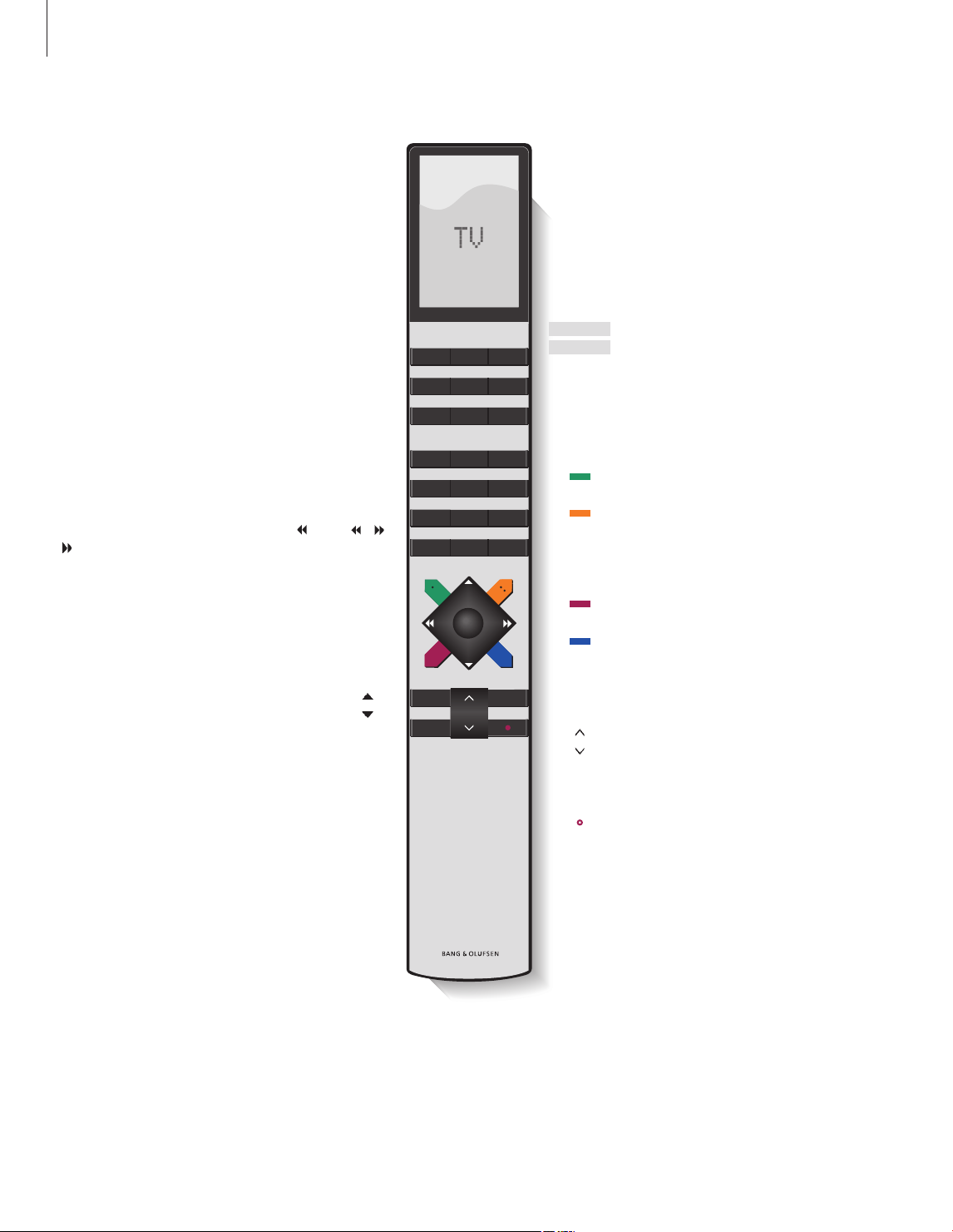
Introducing BeoVision 7 and Beo4
The Beo4 remote control gives you access
to all functions. When a function is in use,
you are informed via displays on Beo4 or
on the television.
Switch on the television
Switch on digital satellite T V, if your television is
equipped with a digital satellite module, or switch
Switch on DVD and play a loaded disc
Select programs, teletext pages, track numbers
and DVD chapters. Enter data in on-screen menus
Enter information in on-screen menus. Press
while TV is on to select a program Group you
have created. Cue back and forth during playback
Accept and store instructions or settings. Press
and hold to call up a program list. Start disc
on a connected set-top box
or
of a DVD
playback
TV
DTV
DVD
– 9
0
GO
TV
FO RMAT
MENU
TEXT
For information about how to operate connected
equipment, refer to the Guide enclosed with it.
For information on how to add extra functions to
those shown in the Beo4 display, refer to the
chapter ‘Customise Beo4’ in the Reference book.
The Beo4 display shows the source you have
selected, or extra functions available when you
press the LIST button
Bring up the main menu
Switch on teletext
Bring up the subtitle language menu for DVD*
Use with number buttons to bring up DVD menus
when watching a DVD. Also used to switch
between “play mode” operation and “menu
mode” operation with certain DVDs
Bring up the audio language menu for DVD*
Bring up the DVD disc menu when watching a
DVD
Step up or down through programs or menu
items. Step between chapters or tracks on a disc
Reveal additional functions in the Beo4 display,
such as FORMAT
STOP
LIST
EXIT
•
*NOTE! Alternative subtitle and audio languages
are only available on some discs. Functions not
available on a loaded disc will not be highlighted
in on-screen menus.
Stop playback of a disc, step back in menus
Adjust sound volume: press in the middle to mute
the sound
Exit all on-screen menus
Switch the television to standby
Page 5
Displayed information and menus
E
U
R
O
S
P
O
R
TV SE TUP
select
GO
PROGRA M GROUPS
TUNING
TIMER RECORDIN G
PLAY TIM ER
OPTION S
STAND P OSITIONS
EDIT PROGRAM
ADD PR OGRAM
AUTO TUN ING
TV TU NING
select
GO
EDIT PROGRAMS
ADD P ROGRAM
AUTO TUN ING
MANUAL TUNING
LINK FREQUENCY
1 DR1
2 TV2
3 . . . . . . . .
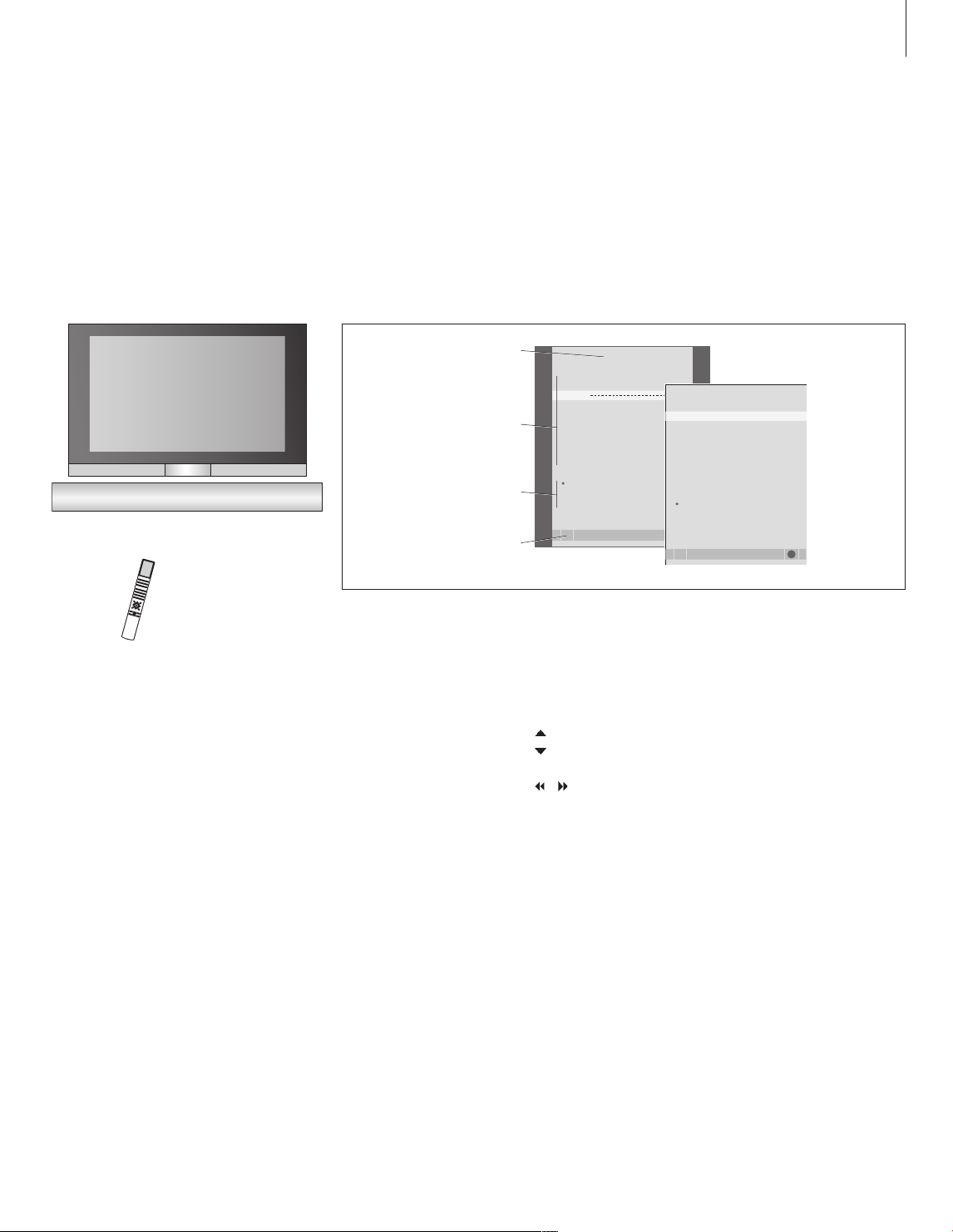
Information about the selected source is
shown in the display. On-screen menus allow
you to adjust settings.
Menu name
Menu options
Option
content s
5
Information
field
How to use on-screen menus …
Press to switch on the television
Press to bring up the TV SETUP
menu
Press to move between the
different menu options
Press to reveal different settings
Press to bring up a menu or store
a setting you have made
Press to step back through
previous menus
Press to exit all menus
TV
MENU
GO
STOP
EXIT
Examples of on-screen menus. As you highlight
menu options, the contents of each option appear
in grey below the options.
Page 6

6
NEWS
group select
GO
DR1
DR2
TV2
BBC
CNN
ZDF
RTL7
EUROSP RT
TV PR OGRAM LI ST
more select
GO
1 DR2
2 TV2
3 . . . . . . . .
4 EUROSPRT
5 ZDF
6 RTL7
7 . . . . . . . .
8 BBC
9 . . . . . . . .
10 . . . . . . . .
11 . . . . . . . .
12 CNN
13 N3
14 . . . . . . . .
15 SAT 1
16 SVT 2
17 NRK
18 TV4
Watch TV
This chapter describes daily use of
your television: how to switch the
television on, choose a program and
switch the television off.
In addition, it describes two functions
that make watching TV easier and
more enjoyable:
– The TV list gives you an overview
of all your programs, and you can
also view a list of programs you
have placed in a Group;
– If your television is equipped with
an optional motorised stand, you
can turn the television.
For further information about Groups,
refer to the chapter ‘Use Groups’ on
page 14.
Select a TV program
When you switch the television on, the last
program viewed appears on the screen.
Press to switch on the television
Press a program number to go
directly to that program
Press to change programs one by
one
Press to switch the television to
standby
Pressing 0 swaps between the
current TV program and
previous T V program.
TV
0
•
– 9
Bring up a program list
All your TV programs appear on a list, which
you can bring up on the screen. The list
contains program numbers and names, and
can contain up to 99 T V programs. You can
also bring up a program list for Groups of
programs.
The program list for TV is now called up. It
provides you with an overview of all your available
TV programs.
Group list … TV programs selected for a Group
also appear in the program lists for all tuned TV
programs.
NOTE! If the screen is overheated, black spots may
appear in the picture. These spots disappear again,
once the television cools down to normal
temperature.
Page 7
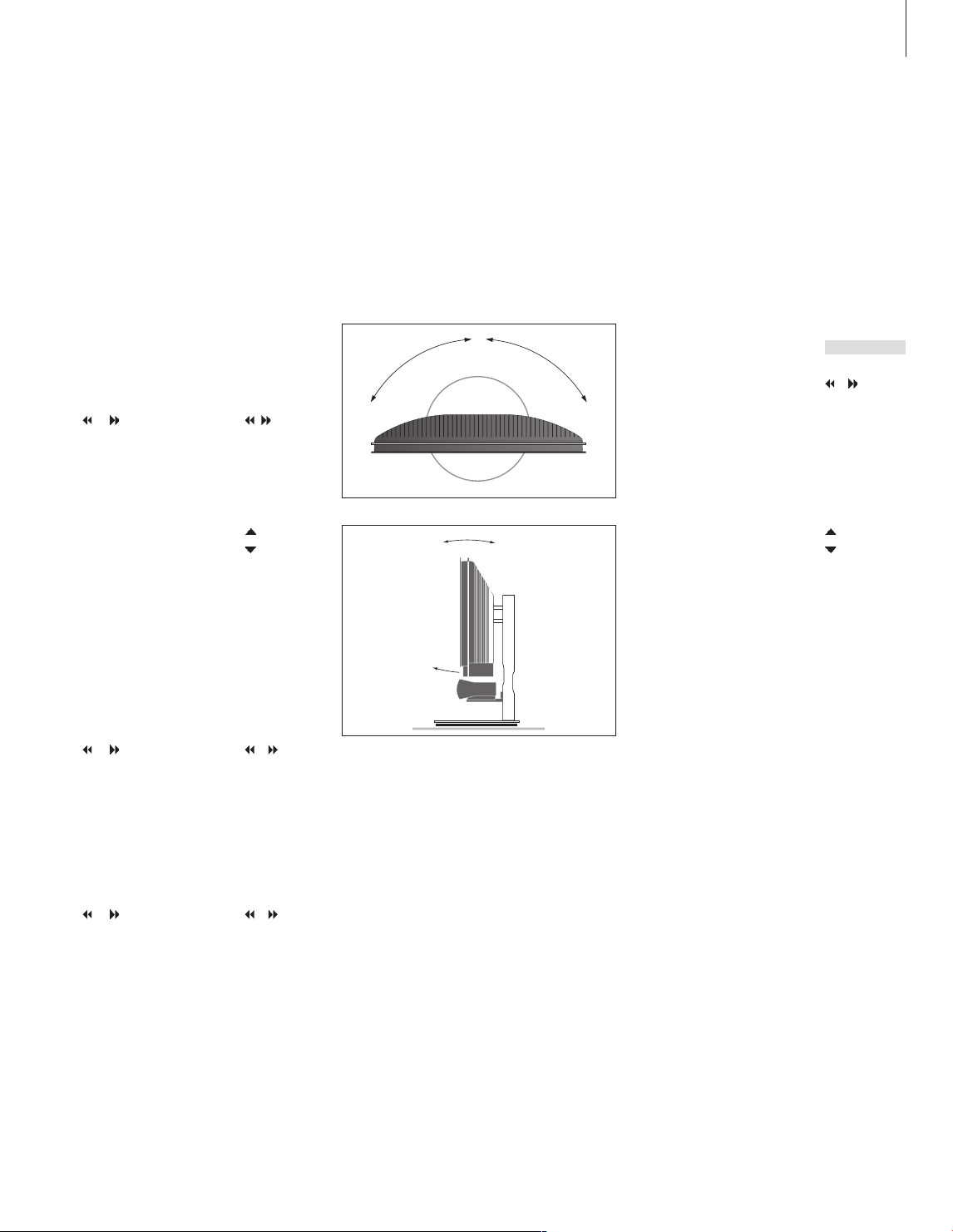
Turn the television
If you have a motorised stand, you can turn
the television using your Beo4 remote control.
7
Press to switch on the television
Press and hold to bring up a
program list on the screen
or to step between
Press
‘pages’ in the program list
To select a program, enter the
program number, or …
… press until the desired
program is highlighted
Press to switch on the chosen
program, or …
… press to leave the menu
Bring up the program list for
a specific Group …
Press to switch on the television
Press or repeatedly to step
through your Groups
Press to bring up the chosen
Group
TV
GO
0 – 9
GO
EXIT
TV
GO
For further information about how to preset
positions for T V viewing, refer to the chapter ‘Set
positions for the television to turn to’ on page 22
in the Reference book.
Press repeatedly to display
STAND on Beo4
Press to turn the television to the
left or the right, or …
… press the number buttons to
choose a pre-defined position;
1 represents the far left position,
9 represents the far right position
If your television is equipped
with a stand with motorised tilt
function, press to tilt the television up or down
LIST
STA N D
1 – 9
Press and hold to bring up the
program list for this Group
Press or to see the program
lists for the other Groups
GO
Page 8

8
Adjust sound
Several sound adjustment possibilities
are available in your television.
You can adjust the volume or mute
the sound completely at any time.
If programs are broadcasted with
different sound types or languages,
you can choose between the sound
types or languages.
Adjust volume or mute the sound
You can adjust volume or mute the sound at
any time.
Press either end of the button to
adjust the volume up or down
Press in the middle of the button
to mute the sound
Press either end of the button to
bring the sound back
Prolonged listening at high
volume levels can cause hearing
damage!
Sound type or language
While you are watching T V, you can switch
between the types of sound that are
available.
Press repeatedly to display
SOUND* on Beo4
Press to bring up the current
sound type in the display
Press GO repeatedly to switch to
another sound type or language
in a multi-language programme
Press to leave the SOUND
function
You can store your favourite sound
type when tuning in your TV
channels. For fur ther information,
refer to the chapter ‘Edit tuned
programs’ on page 16 in the
Reference book.
LIST
SO UND
GO
GO
EXIT
*NOTE! In order to display SOUND on Beo4, you
must first add it to the Beo4 list of functions. Refer
to the chapter ‘Customise Beo4’ on page 58 in the
Reference book.
Page 9
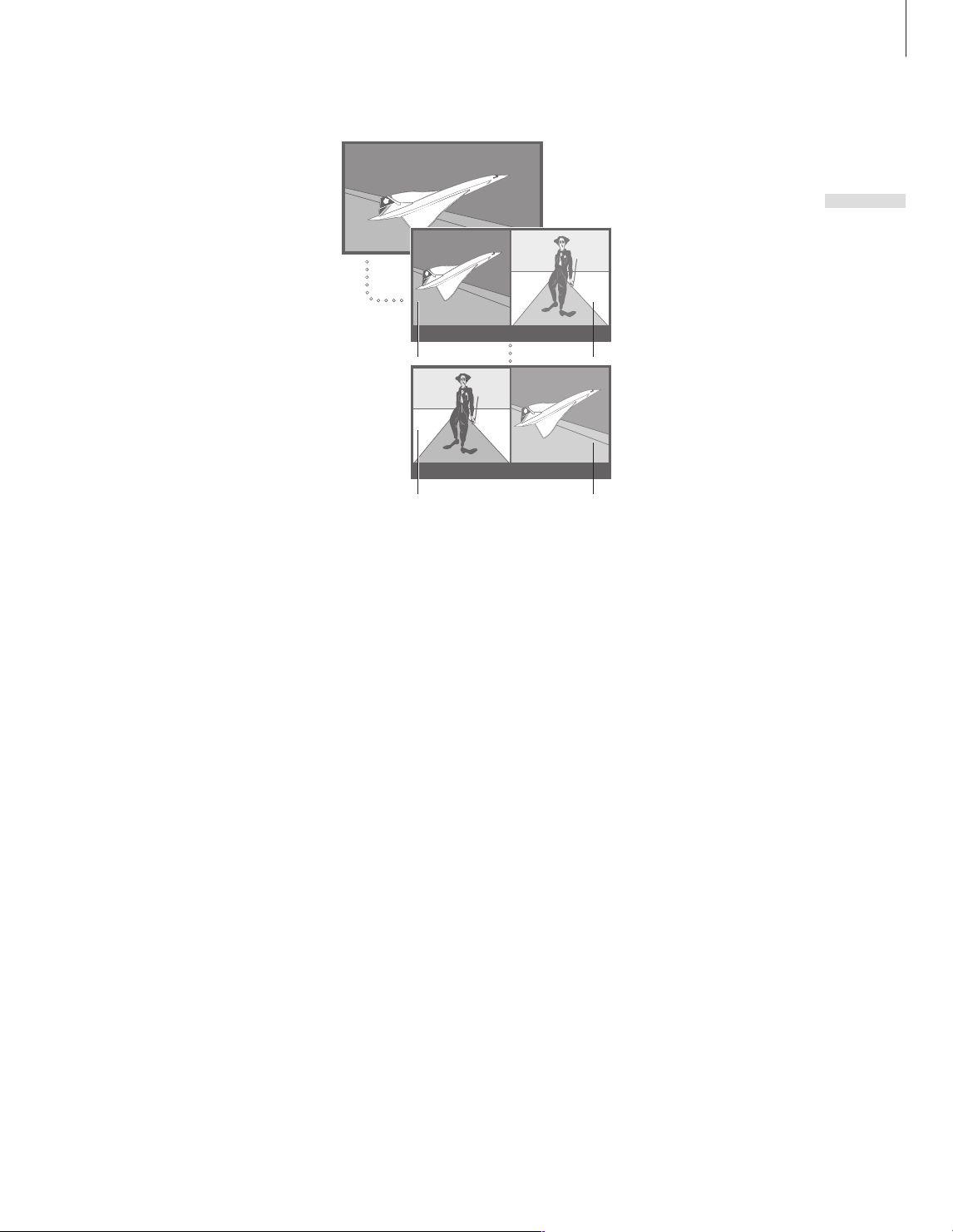
See two sources at the same time
A
B
A
B
9
Your Beo4 remote control gives you
access to a dual-screen function for
viewing two video sources at the
same time. For example, you can
view a video tape playback and a TV
programme at the same time,
provided that the selected sources
are available in your system.
While watching a programme or
recording, you can divide the screen
between the current programme or
recording (picture A in the second
illustration) and a new programme or
recording (picture B). You can also
swap the two pictures at any time.
Volume adjustment with Beo4 always
affects picture A, while other Beo4
operations, such as selecting
programs, affect picture B. Choosing
a new source cancels dual-screen
viewing.
To view a source registered in the ‘Connections’
menu as V.AUX, such as a set-top box, press LIST
repeatedly until P-V.AUX* is shown in the Beo4
display instead.
While watching, for example,
TV …
Press repeatedly to display
P-AND-P on Beo4
Press, for example, V MEM to
select the source to view on the
right side of the screen (B)
Press 0 to swap the left picture
and right picture
To leave the dual-screen
function …
Press to leave the function and
return to normal T V viewing
Pressing TEXT on Beo4 brings up
teletext on the right hand side of
the screen for the source shown
in picture B. If there is no
teletext service available for this
source, the screen turns black.
LIST
P- A ND-P
V MEM
0
TV
*NOTE! In order to display P-V.AUX on Beo4, you
must add it to the Beo4 list of functions. For
further information, refer to the chapter
‘Customise Beo4’ on page 58 In the Reference
book.
Page 10

10
Surround sound and Home cinema
You can extend your system into a
surround sound system by adding
four Bang & Olufsen loudspeakers
and a BeoLab 2 subwoofer*.
When you switch on one of the
sources, speakers in a surround
sound system can be cut in or out,
depending on what kind of sound
suits the source you are using.
If you connect a projector, you can
turn your system into a Home cinema.
When you switch to the Home
cinema setup, the television switches
the picture from its own screen to
the projector screen and activates the
appropriate speakers.
Select speakers for movie sound
You can select the speaker combination that
suits the source you are using, provided that
the various sound modes are available in your
system.
Press repeatedly to display
SPEAKER on Beo4
Press the number of the speaker
combination you want. The
selected speakers cut in
automatically
Press to adjust the balance
between the front and rear
speakers
Press to adjust the balance
between the left and right
speakers
Press to remove SPEAKER from
the Beo4 display and to return to
the source you were using
LIST
SP E AKE R
1 – 5
EXIT
Speaker combinations
SPEAKER 1 … Sound in the centre speaker only.
SPEAKER 2 … Stereo sound in the two front
speakers. The BeoLab 2 subwoofer is active.
SPEAKER 3 … The centre speaker, front speakers
and the BeoLab 2 subwoofer are active.
SPEAKER 4 … Enhanced stereo sound in the front
and rear speakers. The BeoLab 2 subwoofer is
active.
SPEAKER 5 … Surround sound from all speakers
including the BeoLab 2 subwoofer. For
programmes encoded in Surround Sound.
If you have added only two front speakers to the
television, you will only be able to choose
SPEAKER 1–3.
*NOTE! For further information about how to
connect speakers to the television, refer to the
chapter ‘Loudspeaker setup – surround sound’ on
page 42 in the Reference book.
Page 11

11
Picture format
Your television always ensures you the best
possible picture. It automatically adapts the
picture so that it fills out as much of the screen
as possible. However, you can always choose
the format you prefer. When you select a
format yourself, the automatic format
selection is deactivated, until you switch to a
different channel or change source.
Press repeatedly to display
FORMAT on Beo4
Press if you want to optimise the
picture, or …
… press the number of the
desired picture format
If you have chosen Format 1 …
or to select variations
Press
of this format
If you have chosen Format 1
or Format 2 …
or to move the
Press
picture up and down
LIST
FO RMAT
GO
1 – 3
Picture formats to choose from
FORMAT 1 … For standard TV pictures. Three
variations are available: 4:3, 15:9 and Panoramic
view (for the largest picture).
FORMAT 2 … For letter-box pictures. When you
select FORMAT 2, the picture is automatically
adjusted ver tically. This ensures that program
names or subtitles – if these appear in the
broadcasted picture – can be seen.
FORMAT 3 … For genuine 16:9 wide-screen
pictures. FORMAT 3 is usually selected
automatically. If this is not the case, you can
select it yourself.
Switch to Home cinema
If a projector is connec ted, you can use your
Beo4 remote control and move the picture
from the television screen onto a projector
screen for a special occasion or movie.
Press repeatedly to display
FORMAT on Beo4
Press to switch between Home
cinema mode and ordinary T V
mode
Press to leave the FORMAT
function
Note that a projector delay is
part of the projector setup.
LIST
FO RMAT
0
EXIT
Press to leave the FORMAT
function
EXIT
Page 12

12
PAGE PROGRAM HALT REC SETUP REVEAL
P100 BBC S100 Wed 13 Oct 12:39:34
PAGE PROGRAM HALT REC SETUP REVEAL
P100 BBC S100 Wed 13 Oct 12:39:34
Teletext
If you select a program and the
broadcaster offers a teletext service,
the television gives you access to
teletext pages and any subpages
linked to the pages.
The arrow buttons on Beo4 and the
menu bar at the top of the screen,
help you move to the page you want.
When you get there, you can pause
the turning of subpages to read them
at your own pace.
The television can remember your
favourite pages, reveal hidden
messages or help you switch to
another program’s teletext service. To
make your favourite teletext pages
appear first when you bring up
teletext, store them as MEMO pages.
Basic teletext functions
Navigate through teletex t pages by using the
menu bar at the top of the teletext page.
> Press TEXT to gain access to teletext and EXIT
to leave teletext.
To move to a new page …
> Enter the number of the page you wish to see,
or …
> … press
PAGE.
> Press
to step faster.
> Pressing GO steps to index pages (100, 200,
300 …).
to move the highlighted cursor to
or to step between pages, and hold
To move to another teletext service …
> Press
> Press GO to bring up a program list.
> Press
> Press GO to switch to another teletext service.
To stop subpages from turning …
> Press STOP to stop subpages from turning, or …
> … move the cursor to HALT and press GO. HALT
> Use
> … enter its number using the number buttons
> Press GO to restart page turning.
to move the highlighted cursor to
PROGRAM.
If MEMO pages have been created, MEMO is
highlighted when you switch on teletext. Press
or while MEMO is highlighted to find
PROGRAM.
is replaced by a set of four digits.
to see, or …
on Beo4.
or to find a desired program.
and to step to the subpage you wish
NOTE! If your television is linked via a BeoLink
cable to another television, stored MEMO pages
are not shared among these televisions. MEMO
pages must be stored manually on each linked
television.
To reveal hidden messages and the like …
> Press
> Press GO to reveal hidden tex t on the current
to move the highlighted cursor to
REVEAL.
page.
Page 13

13
PAGE MEMO1 HALT REC SETUP REVEAL
P100 BBC S100 Wed 13 Oct 12:39:34
PAGE MEMO2 HALT REC SETUP REVEAL
P100 BBC S100 Wed 13 Oct 12:39:34
PAGE PROGRAM HALT REC SETUP REVEAL
P100 BBC S100 Wed 18 SEP 12:39:32
PAGE PROGRAM HALT REC SETUP REVEAL
P100 BBC S100 Wed 13 Oct 12:39:34
Store favourite teletext pages
Nine MEMO pages are available for each
television program’s teletext service.
To create a MEMO page …
> Bring up a page you view often.
> Press
> Press GO to store the current page. The cursor
> Use the number buttons on Beo4 to select the
> Repeat the procedure for each page you wish to
> To leave the MEMO setup, press
> Press EXIT to leave teletext.
or to move the cursor along the menu
bar to SETUP and press GO. The 9 available
MEMO slots are shown by number. The first is
highlighted.
moves to the next available MEMO slot.
next teletext page you wish to store.
store.
or to move
the cursor to BACK and press GO
.
Day-to-day use of MEMO pages
You may wish to refer to your teletext MEMO
pages quickly, for example, if you are leaving
for work and wish to check traffic information
on a teletext service.
To view MEMO pages …
> Press TEXT to bring up teletext.
> Press
> Press EXIT to leave teletext.
To delete a MEMO page …
> Press
> Move the cursor to the MEMO page you wish to
> Press the yellow button again to confirm.
If you would like available teletext subtitles to
appear automatically for a particular program,
store the teletext subtitles page as MEMO page 9.
or to move between MEMO pages.
or to move the cursor to SETUP and
.
press GO
delete and press the yellow button.
First time use of teletext
The very first time teletext is activated, it
starts in dual-screen mode. You can then
choose full-screen instead. The teletex t mode
is remembered the next time you switch on
teletext.
To change viewing mode …
> Press TEXT to bring up teletext.
> Press TEXT again to switch between full-screen
and dual-screen.
> Press EXIT to leave teletext.
MEMO pages and subtitles are not available when
watching teletext in dual-screen mode.
Page 14

14
PROGRA M GROUPS
charac ter next
accept
GO
A
TV SE TUP
select
GO
PROGRA M GROUPS
TUNING
TIMER RECORDIN G
PLAY TIM ER
OPTION S
STAND P OSITIONS
GROUP1
. . .
. . .
copy
accept
GO
1 DR2 DR2
2 TV2 SKY NE WS
3 . . . . . . . . ZDF
4 EU ROSPORT RADIO 2
5 ZD F BBC
6 AR D
7 . . . . . . . .
. .
. .
15 SAT 1
16 SVT 2
17 NRK
18 TV4
COPY T V TO MY GR OUP
name mo ve
c reate
GO
MY GRO UP
. . .
PROGRA M GROUPS
PROGRA M GROUPS
name mo ve
new gr oup c reate grou p
GO
GROUP1
. . .
. . .
. . .
. . .
. . .
. . .
. .
.
Use Groups
If you have stored a lot of television
programs and want to get to your
favourites quickly without going
through the list each time, place
them in a Group. You no longer need
to step through programs you do not
use.
Name the Groups after the people
who watch them – ‘Dad’ or ‘Mary’ –
or according to the types of
programs included, like ‘News’ or
‘Sports’.
When you have created and selected
a particular Group, you only step
through the TV programs belonging
to this particular Group. Switch to a
different Group to watch a different
set of programs or switch from
GROUPS to TV to see all the tuned
TV programs.
Select programs in a Group
You can gain access to your Groups by
activating Groups mode. Press the arrow
buttons to select the Group you are looking
for, then step through the programs in this
Group.
Press to switch on the television
Move left or right until your
Groups are displayed
When you find the Group you
want, press GO to select it
Step up or down through the
programs in that particular
Group
Use the number buttons to enter
the number of the program you
want to see
Move left or right to switch to
another Group – and press GO
to bring it up
To bring up a program list for the
current Group, press and hold
GO in Groups mode. To select all
available TV programs, press TV.
TV
GO
0 – 9
GO
Create Groups
You can create up to eight different Groups.
Each Group can contain up to 18 programs.
The same program can be stored in more
than one Group.
Page 15

Move programs within a Group
NEWS
group select
GO
DR1
DR2
TV2
BBC
CNN
ZDF
RTL7
EUROSP RT
You can rearrange the order in which your
programs appear within a Group and delete
programs in a Group.
15
> Press TV to switch on the television.
> Press MENU to bring up the T V SETUP menu,
PROGRAM GROUPS is already highlighted.
> Press GO to bring up the PROGRAM GROUPS
menu.
> Press
to move the cursor to an empty Group
and press the green button to be able to name
a new Group.
> Press
> Press
or to select characters.
or to move to the previous or next
character space.
> Press GO to store the name, and press GO
again to be able to copy programs into the new
Group.
> Press
or to find a program you wish to
copy to the new Group.
> Press
to copy a TV program to your Group.
> Press GO to store your Group when you have
finished copying programs.
> Press STOP to back up through previous menus
or press EXIT to exit all menus.
> Press TV to switch on the television.
> Press MENU to bring up the T V SETUP menu
PROGRAM GROUPS is already highlighted.
> Press GO to bring up the PROGRAM GROUPS
menu.
> Press
to highlight a Group and press GO to
select it.
> Press
to highlight the program you wish to
move or delete.
> Press
> Press
to move the program out of the list and
or to move it to the new position.
press
to move the program back into the list,
or press the yellow button to delete it. When
you delete a program in the list, the remaining
programs contract.
> If the program changed places with another
program, then move this program to a new
position.
> When you finish moving or deleting programs in
a Group, press GO to store the Group.
> Press STOP to back up through previous menus
or press EXIT to exit all menus.
Page 16

16
Use the DVD player
You can start and stop playback, step
between chapters and tracks and cue
back and forth on a disc. Bring up
the DVD menus to change, for
example, audio or subtitle language.
Use the DVD main menu to make
your own settings for DVD playback.
You can always resume playback of
the loaded DVD at the point where
you left off provided that you have
just stopped playback of the DVD by
pressing STOP twice, not three times.
Some discs do not register, whether
the DVD player is in “play mode” or
“menu mode” when being operated.
In these few cases, you must press
the yellow button before sending a
command to the player. In menus, for
example, you must press the yellow
button and then GO, to store a
selection.
When playing an audio CD, the
television screen is blank.
Load and play a disc
To load a disc, press the load bar below the
television screen.
Load bar
Place a disc in the loader with the label facing
upwards. Eight centimetre discs may only be
loaded provided with a suitable adaptor. Discs of
other shapes cannot be played.
To load a disc and begin playback …
> Press the load bar below the screen. The loader
slides out, and the display prompts you to load
a disc.
> Place a disc in the loader as described to the left.
> Press and hold the load bar. The loader retracts,
DVD is activated and playback begins
automatically.*
To load a DVD while watching T V, for example,
for playback at a later point in time, press the load
bar shortly. The loader retracts and playback
does not begin.
If you restart playback of a loaded disc after an
interruption, playback resumes at the point of
interruption.
*NOTE! If the DVD player cannot recognise the
format of a loaded disc, the disc is ejected and
DVD LOAD is shown in the display window. This
may be due to disc faults such as dust, dirt, fingerprints or scratches, or because the DVD is from an
incompatible region. For more information about
handling DVDs, refer to the chapter ‘Maintenance
of your television’ on page 24.
Page 17

17
Play and change chapters or
tracks on a disc …
Press to start playing a DVD or
CD
Press to step between chapters
or tracks
Press repeatedly to jump to
another chapter or track on the
disc
Enter the chapter number to
step directly to a chapter or track
Press to cue backwards or
forwards during playback
Press to resume playback
DVD
1 – 9
GO
Pause, slow playback or stop
playback of a disc …
Press to pause playback
Press for playback in slowmotion either forwards or
backwards ( DVD only)
Press again to stop playback
completely*, or …
… press to resume playback, or …
… press a third time to return to
the beginning of the disc
Some video CDs and super VCDs
have PBC menus, to bring up
this menu press the yellow
button, then STOP.
*If you stop playback like this, the
player remembers where you
left off on the last 5 discs, and
resumes playback, when you
restart.
STOP
STOP
GO
STOP
To play other disc formats
Your television is designed to play back
different disc formats. Supported formats are:
– DVD-Video
– Audio CD
– Video CD
– CD-R /RW
– DVD-R/ RW, provided that these are
recorded using the DVD Video format and
the disc is finalized.
– Discs containing mp3 files are supported, if
the sampling frequency is set to either 32,
44.1 or 48 Khz.
– WMA (Windows Media Audio), except
when protected with DRM (Digital Rights
Management).
When playing discs with mp3 or WMA files,
and to step between tracks, and
use
and to wind.
Press the blue button to bring up a list of
the disc content and browse in the content.
Press EXIT to remove the list.
– JPEG files up to a resolution of 3072 x 2048.
When playing discs with JPEG files, use the
yellow button, then
and , and to
rotate the picture.
– DivX versions 3, 4, 5 and DivX VOD are
supported.
In general, playback of data generated files is
only possible if the files are recorded onto a
CD-R /RW.
NOTE! Some DVDs offer special features which are
temporarily available during playback, such as
additional film sequences. In such situations, press
GO to select this special feature.
Page 18

18
AUDIO
SUBTITLE
“SHIFT”
DISC MENU
TOP MENU
DVD DISPLAY
DVD SETUP
ZOOM
ANGLE
1
2
3
4
5
1
2
3
4
5
AUDIO
SUBTI TLE
“SHIF T”
DISC MENU
TOP MEN U
DVD D ISPLA
Y
DVD S ETU
P
ZOOM
ANGLE
DVD menu
To get a quick overview of the DVD menus,
you can bring up an overlay on the T V screen.
>> Use the DVD player
Press to switch on DVD
Press to bring up the DVD menu
overlay
Press one of the coloured
buttons to activate a function,
or …
… press the number button that
activates the function you want
DVD
MENU
1 – 5
The menu overlay helps you remember the DVD
functions, however, you can call up the functions
without calling up the overlay first.
Use DVD on –screen menus …
Press the red button to bring up
the audio language menu*. Press
repeatedly to switch between
the available options. When you
have made your selection, the
menu disappears
Press the green button to bring
up the subtitle language menu*.
Press repeatedly to switch
between the available options.
When you have made your
selection, the menu disappears
Press the blue button to bring
up the disc menu
In the disc menus …
Use the arrow keys to move
between options in the menus
Press to enter your choice or
setting
*Not all discs have separate
subtitle and audio language
menus, in those cases you must
use the main or disc menu.
GO
When DVD is selected as source, press MENU
twice to bring up the television’s main menu.
Page 19

While DVD is selected …
Play Mode
A-B R epeat
Repea t
Rando m
Searc h Mode
A (St art Point)
B (En d Point)
Off
Play Mode Disc Navigator
Initial Settings
Press the yellow button then 1
to bring up the disc’s own top
menu*
19
1
Use the arrow keys to move
between options in the menus
Press to enter your choice or
setting
Press the yellow button then 2
to bring up the status display
menu. Press 2 again to change
to the next display. Press 2 a
third time to remove the status
display
Press the yellow button then 3
to bring up the DVD setup menu.
This is described to the right
Press the yellow button then 4
to zoom in on the picture. Press
4 to increase the zoom factor.
Press 4 a third time to exit the
zoom feature
Press the yellow button then 5
to bring up the camera angle
menu. Press 5 to switch
between the available options.
When you have made your
selection the menu disappears.
However, if you have switched
on the angle indicator in the disc
setup menu, the icon remains on
the screen
GO
2
3
4
5
How to use the DVD menus …
> Press the yellow button, then
3 to bring up the
DVD main menu.
> Press
> Use the arrow keys;
or to move to the menu you wish to
enter and press GO
.
, , and to move
between menus and settings.
> Press GO to store your choice.
> Press EXIT to leave on-screen menus.
What’s on the Play Mode menu
The Play Mode menu allows you to make selections
for playback. The following options are available:
A–B Repeat … The A–B repeat function allows
you to specify two points on a disc that form a
loop to be played over and over.
Repeat … The repeat function allows you to
repeat a title or a chapter on a disc over and
over.
Random … The random play function allows you
to play titles or chapters on a disc in random
order.
Search Mode … The search mode function
allows you to search through a disc, either by
searching for a specific title or chapter, or by
searching for a moment in elapsed time on a
disc.
*Not all discs contain a top menu.
NOTE! This DVD player is set for the appropriate
region from the factory. Discs from incompatible
regions will not play on this player.
Page 20

20
Initi al Settings
Digit al Audio Out
Vi
deo O utput
Langu age
Displ ay
Optio ns
Dolby Digital Out Dolby Digital
DTS O ut DTS
>> Use the DVD player
What’s on the Initial Settings menu
The Initial Settings menu enables you to choose
your preferred settings for DVD playback. Settings
in this menu cannot be entered during playback.
The following options are available:
Digital Audio Out … Choose the sound output
for your system. Options for Dolby Digital Out
are: Dolby Digital or Dolby Digital > PCM
(stereo). Options for DTS Out are: DTS and DTS
> PCM (stereo).
Video Output
… This menu allows you to select
a picture format suitable for your television;
Options are 4:3 (Letter Box)
and 16:9 (Wide)
.
, 4:3 (Pan & Scan)
In ‘4:3 (Letter Box)’ the film is shown with black
bars at the top and bottom of the screen.
Component Out; Do not change, unless you
change AV Connector Out setting to Video
.
AV Connector Out, set for best quality; RGB.
Language
… The language menu allows you to
store your preferred language for audio, subtitle
and the disc menu, and to decide whether or
not available subtitles should be shown during
playback. If the languages you choose in this
menu are available on the loaded disc, they will
be used.
Some DVDs will require you to choose a subtitle
language from a disc menu, even if you have
previously selected a default subtitle language
from the ‘Language’ menu.
… The display menu allows you to select
Display
the language of the DVD player menus, to decide
whether or not operation displays should be
shown on the screen, and whether the angle
indicator should be shown. The angle indicator
is only available if the disc contains the alternate
camera angle feature.
Options
… Some DVDs feature a Parental Lock
level. If you specify a level lower that the one
contained on the disc, the disc will not play,
unless your pincode is entered. Some discs also
support the Country Code feature. This means
that the player does not play certain scenes on a
disc, depending on the Countr y Code and the
Parental Lock level you set. Before you can set
the Parental Lock level or the Country Code, you
must enter a pincode. You can change the
pincode at any time.
If you forget your pincode, you must enter the
Parental Lock menu, and disable the Parental
Lock. The function is then deactivated. This is
described on the next page.
DivX VOD is used for video on demand. Use the
menu to generate a DivX VOD registration code
which you submit to your provider. Contact to
your DivX VOD provider for further instructions.
Page 21

What’s on the Disc Navigator menu
Disc Navigator
Titl
e
Chapt er
DVD S ETUP
select
GO
DVD
TIMER RECORDIN G
PLAY TIM ER
OPTION S
DVD S ETUP
select
GO
DVD
TIMER RECORDIN G
PLAY TIM ER
PA
RENTAL L OCK
To disabl e Parental l ock
press GO
PA
RENTAL LOCK
acce pt
GO
The Disc Navigator menu allows you to quickly step
to specific titles or chapters on a disc.
To disable the Parental Lock …
IMPORTANT! You must remove the disc from the
DVD player and make sure the loader is closed
before you disable the Parental Lock
.
> Press DVD to activate the DVD player.
> Press MENU to bring up the DVD SETUP menu.
> Press
to move the cursor down to the
OPTIONS menu.
> Press MENU to reveal the item PARENTAL LOCK.
> Press GO to bring up the PARENTAL LOCK menu.
> Press GO to disable the Parental Lock, or …
> … press STOP to leave the menu without
disabling the Parental Lock
.
> Press EXIT to leave all menus.
NOTE! When you disable the Parental Lock, the DVD
player restarts automatically. All settings you have
made for the DVD player, such as language
selection, are reset and you must make your
settings again.
21
Page 22

22
TV SE TUP
select
GO
PROGRA M GROUPS
TUNING
TIMER RECORDIN G
PLAY TIM ER
OPTION S
STAND P OSITIONS
GROUP1
. . .
. . .
PINCOD E
n ext
accept
GO
PINCOD E 0 . . .
CONFIR M PINCOD E . . . .
TV SE TUP
select
GO
PROGRA M GROUPS
TUNING
TIMER RECORDIN G
PLAY TIM ER
OPTION S
STAND P OSITIONS
GROUP1
. . .
. . .
PINCOD E
select
GO
DELETE PINCODE
NEW P INCODE
The pincode system
The pincode system is intended to
make normal use of your television
impossible for someone who does
not know the pincode. You choose
whether or not to activate the
pincode system.
When the pincode system is activated
and the television has been
disconnected from the mains for 15–30
minutes, the pincode system goes
into effect.
When reconnected and switched on,
the television automatically switches
itself off after four minutes. Entering
the pincode returns the television to
normal.
Activate the pincode system
Bring up the TV SETUP menu on the screen,
activate the PINCODE menu and choose from
the submenus.
If you wish to deactivate the pincode system,
you can do so by deleting you pincode.
To activate the pincode system …
> Press MENU to bring up the T V SETUP menu.
> Press
twice, followed by STOP. The PINCODE
menu appears on the screen.
> Use the number buttons or
enter the four digits of your code. Press
on Beo4 to
to go
back to digits you wish to correct and use
to change them.
> Press GO after the last digit is found.
> Re-enter your code to confirm it and press GO
again. If the two codes are not identical, the
input fields are cleared and you must enter the
code again.
To change or delete your pincode …
> Press MENU to bring up the T V SETUP menu.
> Press
twice, followed by STOP. The PINCODE
menu appears on the screen.
> Enter the correct pincode and press GO
.
DELETE PINCODE is highlighted.
> To delete your code, press GO
> To change your code, press
.
to highlight
NEW PINCODE and press GO. Enter the new
code using the number buttons or
and
press GO. Re-enter the new code to confirm it.
or
If you inadvertently press a wrong button while
entering a code, press STOP. The entry is
cancelled and the input fields are cleared
.
NOTE! You can change your pincode up to five
times within a three-hour period.
Page 23

Use your pincode
PINCOD E
n ext
accept
GO
PINCOD E 0 . . .
MASTER CODE
n ext
accept
GO
MASTER CODE 0 . . . .
23
If your television has been disconnected from
the mains for 15–30 minutes, the television
prompts you for the pincode when you
switch it on. You may not be able to switch
the television on immediately – wait
approximately 30 seconds and tr y again.
IMPORTANT! If you are prompted for a pincode
the first time you switch on your television,
contact your Bang & Olufsen retailer.
When your television is switched on …
> Enter the code digits using the number buttons
.
or
> Press GO when the last digit is entered.
> Your television starts up again.
Five incorrect entries will cause the television to
shut down for three hours, during which
operation is not possible.
If you have forgotten your pincode …
> Contact a Bang & Olufsen retailer to receive a
five-digit mastercode.
> When the television prompts you for your
pincode, press and hold
to bring up the
MASTERCODE menu.
> Entering the code digits using the number
buttons or
and pressing GO will deactivate
your pincode and reactivate your television.
To use the pincode system again …
> Follow the procedure for activating the pincode
system.
NOTE! Should you lose or forget your code,
contact your Bang & Olufsen retailer. Your retailer
can provide you with a mastercode, which
disables your pincode.
Page 24

24
Maintenance of your television
Regular maintenance, such as cleaning
the television, is the responsibility of
the user. To achieve the best result,
follow the instructions to the right.
Contact your Bang & Olufsen retailer
to determine recommendations for
regular maintenance.
Any defective parts are covered by
the guarantee during the warranty
period.
Cleaning
Cabinet surfaces
Wipe dust off the surfaces using a dry, soft
cloth. Remove grease stains or persistent dir t
with a sof t, lint-free, firmly wrung cloth,
dipped in a solution of water containing only
a few drops of mild detergent, such as
washing-up liquid.
To clean the picture screen, use a mild window
cleaning fluid. To retain the optimum
performance of the screen, make sure that no
streaks or traces of the cleaning fluid are left
on the screen. Be ware that some types of
micro-fibre cloths may harm the optical
coating due to their strong abrasive effec t.
Beo4
Wipe the Beo4 remote control with a soft, lintfree, firmly wrung cloth.
Never use alcohol or other solvents to clean any
part of the television, stand or bracket!
NOTE! If the front screen glass should crack or chip,
or if it should be damaged in any way, it must be
replaced immediately, as it could otherwise cause
injury. You can order replacement front screen glass
from your Bang & Olufsen retailer.
Page 25

Changing the Beo4 batteries
1
2
3
1
2
When BATTERY appears in the Beo4 display,
it is time to change the batteries in the
remote control.
The Beo4 requires three batteries. We
recommend that you use Alkaline batteries
only (1.5 V – size AAA). Replace the batteries
as shown on this page. Keep a finger on top
of the batteries until the lid is replaced.
When you have replaced the batteries, you
must wait about 10 seconds until TV appears
in the display. The Beo4 remote control is
then ready for use.
25
Handling discs : Should the disc become soiled by
fingerprints, dust or dirt, it can be wiped clean
with a lint-free, soft, dry cloth. Always wipe in a
straight line from the centre to the edge. Avoid
extreme heat and humidity, and never write on
your discs.
Page 26

26
For your information …
Your needs as a user are given careful
consideration during the design and
development process of a Bang & Olufsen
produc t and we strive to make our products
easy and comfor table to operate.
Therefore, we hope that you will take the
time to tell us about your experiences with
your Bang & Olufsen product. Anything
which you consider important – positive or
negative – may help us in our efforts to
refine our produc ts.
Thank you!
To contact us, visit our Web-site on …
www.bang-olufsen.com
or write to:
BeoCare
Peter Bangs Vej 15
DK–7600 Struer
or fax: Bang & Olufsen
BeoCare
+45 97 85 39 11 (fax)
Bang & Olufsen a/s
Technical specifications, features and the use
thereof are subject to change without notice.
3507576 0808
Page 27

Page 28

www.bang-olufsen.com
 Loading...