

Page 1
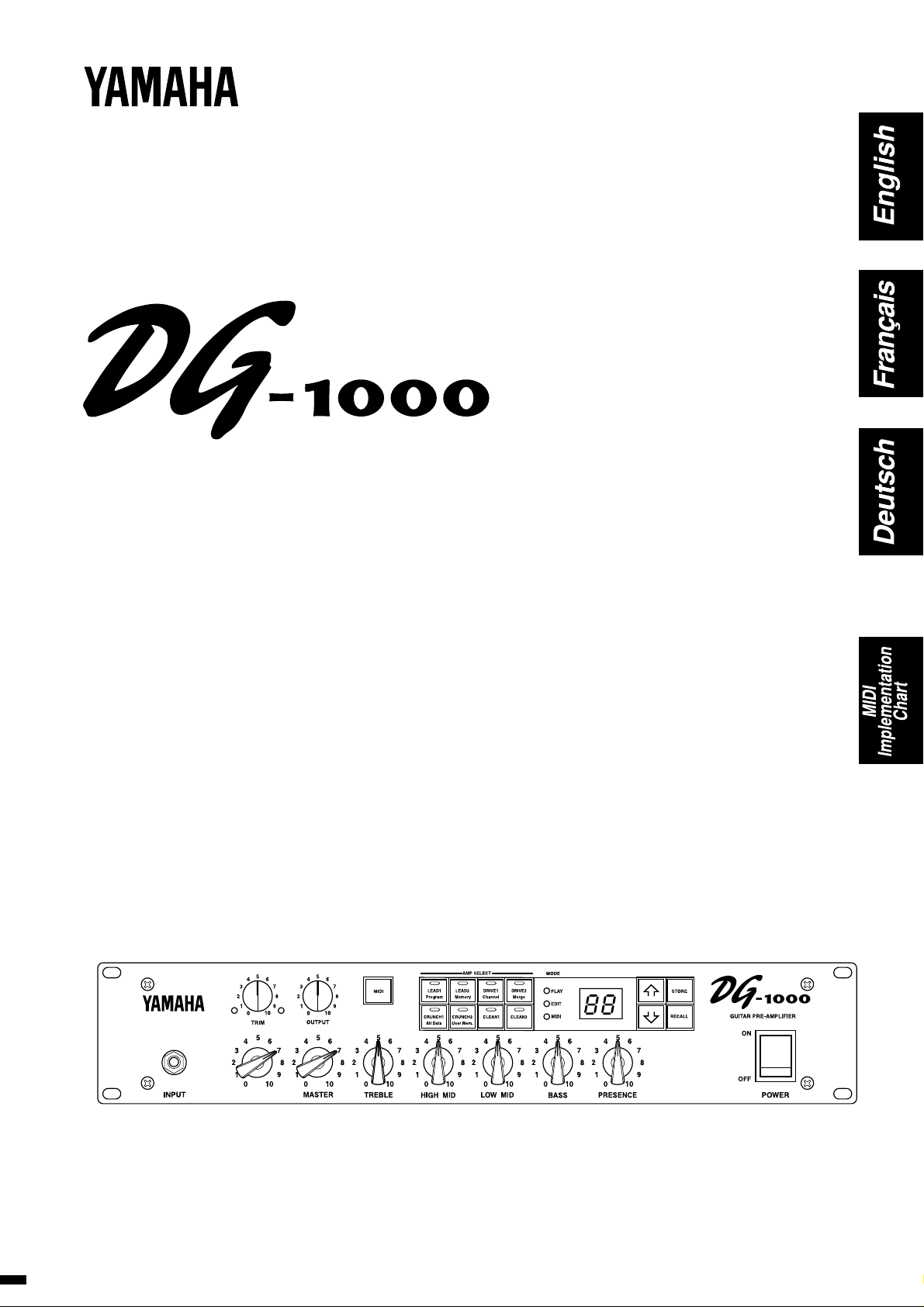
GUITAR PRE-AMPLIFIER
PRÉAMPLIFICATEUR DE GUITARE
GITARREN-VORVERSTÄRKER
Owner’s Manual
Mode d’emploi
Bedienungsanleitung
GAIN
Page 2
FCC INFORMATION (U.S.A.)
1. IMPORTANT NOTICE: DO NOT MODIFY THIS UNIT!
This product, when installed as indicated in the instructions contained in this manual, meets FCC requirements. Modifications not
expressly approved by Yamaha may void your authority, granted
by the FCC, to use the product.
2. IMPORTANT: When connecting this product to accessories and/
or another product use only high quality shielded cables. Cable/s
supplied with this product MUST be used. Follow all installation
instructions. Failure to follow instructions could void your FCC
authorization to use this product in the USA.
3. NOTE: This product has been tested and found to comply with
the requirements listed in FCC Regulations, Part 15 for Class “B”
digital devices. Compliance with these requirements provides a
reasonable level of assurance that your use of this product in a
residential environment will not result in harmful interference with
other electronic devices. This equipment generates/uses radio
frequencies and, if not installed and used according to the instructions found in the users manual, may cause interference harmful
to the operation of other electronic devices. Compliance with FCC
* This applies only to products distributed by YAMAHA CORPORATION OF AMERICA.
ADVARSEL!
Lithiumbatteri—Eksplosionsfare ved fejlagtig håndtering.
Udskiftning må kun ske med batteri af samme fabrikat og
type. Levér det brugte batteri tilbage til leverandøren.
VARNING
Explosionsfara vid felaktigt batteribyte. Använd samma
batterityp eller en ekvivalent typ som rekommenderas av
apparattillverkaren. Kassera använt batteri enlight
fabrikantens instruktion.
VAROITUS
Paristo voi räjähtää, jos se on virheellisesti asennettu. Vaihda
paristo ainoastaan laitevalmistajan suosittelemaan tyyppiin.
Hävitä käytetty paristo valmistajan ohjeiden mukaisesti.
regulations does not guarantee that interference will not occur in
all installations. If this product is found to be the source of interference, which can be determined by turning the unit “OFF” and
“ON”, please try to eliminate the problem by using one of the
following measures:
Relocate either this product or the device that is being affected by
the interference.
Utilize power outlets that are on different branch (circuit breaker
or fuse) circuits or install AC line filter/s.
In the case of radio or TV interference, relocate/reorient the antenna. If the antenna lead-in is 300 ohm ribbon lead, change the
lead-in to co-axial type cable.
If these corrective measures do not produce satisfactory results,
please contact the local retailer authorized to distribute this type
of product. If you can not locate the appropriate retailer, please
contact Yamaha Corporation of America, Electronic Service Division, 6600 Orangethorpe Ave, Buena Park, CA90620
The above statements apply ONLY to those products distributed
by Yamaha Corporation of America or its subsidiaries.
NEDERLAND / NETHERLAND
• Dit apparaat bevat een lithium batterij voor geheugen back-up.
• This apparatus contains a lithium battery for memory back-up.
• Raadpleeg uw leverancier over de verwijdering van de batterij op
het moment dat u het apparaat ann het einde van de levensduur
afdankt of de volgende Yamaha Service Afdeiing:
Yamaha Music Nederland Service Afdeiing
Kanaalweg 18-G, 3526 KL UTRECHT
Tel. 030-2828425
• For the removal of the battery at the moment of the disposal at the
end of the service life please consult your retailer or Yamaha
Service Center as follows:
Yamaha Music Nederland Service Center
Address : Kanaalweg 18-G, 3526 KL UTRECHT
Tel : 030-2828425
• Gooi de batterij niet weg, maar lever hem in als KCA.
• Do not throw away the battery. Instead, hand it in as small chemical
waste.
IMPORTANT NOTICE FOR THE UNITED KINGDOM
Connecting the Plug and Cord
IMPORTANT. The wires in this mains lead are coloured in accordance with the following code:
BLUE : NEUTRAL
BROWN : LIVE
As the colours of the wires in the mains lead of this apparatus
may not correspond with the coloured makings identifying the
terminals in your plug proceed as follows:
The wire which is coloured BLUE must be connected to the terminal which is marked with the letter N or coloured BLACK.
The wire which is coloured BROWN must be connected to the
terminal which is marked with the letter L or coloured RED.
Making sure that neither core is connected to the earth terminal
of the three pin plug.
• This applies only to products distributed by Yamaha-Kemble Music (U.K.) Ltd.
The exclamation point within the equilateral
triangle is intended to alert the user to the
presence of important operating and maintenance (servicing) instructions in the literature
accompanying the product.
The lightning flash with arrowhead symbol,
within the equilateral triangle, is intended to
alert the user to the presence of uninsulated
“dangerous voltage” within the product’s
enclosure that may be of sufficient magnitude
to constitute a risk of electrical shock.
Page 3

IMPORTANT SAFETY INSTRUCTIONS
INFORMA TION RELATING TO PERSONAL INJUR Y, ELECTRICAL SHOCK,
AND FIRE HAZARD POSSIBILITIES HAS BEEN INCLUDED IN THIS LIST.
WARNING- When using any electrical or electronic prod-
uct, basic precautions should always be followed. These precautions include, but are not limited to, the following:
1. Read all Safety Instructions, Installation Instructions,
Special Message Section items, and any Assembly Instructions
found in this manual BEFORE making any connections, including connection to the main supply.
2. Do not attempt to service this product beyond that de-
scribed in the user-maintenance instructions. All other servicing
should be referred to qualified service personnel.
3. Main Power Supply Verification: Yamaha products are
manufactured specifically for the supply voltage in the area
where they are to be sold. If you should move, or if any doubt
exists about the supply voltage in your area, please contact your
dealer for supply voltage verification and (if applicable) instructions. The required supply voltage is printed on the name plate.
For name plate location, please refer to the graphic found in the
Special Message Section of this manual.
4. DANGER-Grounding Instructions: This product must be
grounded and therefore has been equipped with a three pin attachment plug. If this product should malfunction, the ground
pin provides a path of low resistance for electrical current, reducing the risk of electrical shock. If your wall socket will not
accommodate this type plug, contact an electrician to have the
outlet replaced in accordance with local electrical codes. Do
NOT modify the plug or change the plug to a different type!
8. This product was NOT designed for use in wet/damp loca-
tions and should not be used near water or exposed to rain. Examples of wet /damp locations are; near a swimming pool, spa, tub,
sink, or wet basement.
9. This product should be used only with the components
supplied or; a cart ,rack, or stand that is recommended by the
manufacturer. If a cart, rack, or stand is used, please observe all
safety markings and instructions that accompany the accessory
product.
10. The power supply cord (plug) should be disconnected from
the outlet when electronic products are to be left unused for extended periods of time. Cords should also be disconnected when
there is a high probability of lightening and/or electrical storm
activity.
11. Care should be taken that objects do not fall and liquids are
not spilled into the enclosure through any openings that may exist.
12. Electrical/electronic products should be serviced by a
qualified service person when:
a. The power supply cord has been damaged; or
b. Objects have fallen, been inserted, or liquids have been
spilled into the enclosure through openings; or
c. The product has been exposed to rain; or
d. The product does not operate, exhibits a marked change
in performance; or
e. The product has been dropped, or the enclosure of the
product has been damaged.
5. WARNING: Do not place this product or any other
objects on the power cord or place it in a position where anyone
could walk on, trip over, or roll anything over power or connecting cords of any kind. The use of an extension cord is not recommended! If you must use an extension cord, the minimum
wire size for a 25' cord (or less) is 18 AWG. NOTE: The smaller
the AWG number, the larger the current handling capacity. For
longer extension cords, consult a local electrician.
6. Ventilation: Electronic products, unless specifically
designed for enclosed installations, should be placed in locations
that do not interfere with proper ventilation. If instructions for
enclosed installations are not provided, it must be assumed that
unobstructed ventilation is required.
7. Temperature considerations: Electronic products should
be installed in locations that do not seriously contribute to their
operating temperature. Placement of this product close to heat
sources such as; radiators, heat registers etc., should be avoided.
PLEASE KEEP THIS MANUAL
92-469-3
13. This product, either alone or in combination with an ampli-
fier and headphones or speaker/s, may be capable of producing
sound levels that could cause permanent hearing loss. DO NOT
operate for a long period of time at a high volume level or at a
level that is uncomfortable. If you experience any hearing loss or
ringing in the ears, you should consult an audiologist.
IMPORTANT: The louder the sound, the shorter the time period
before damage occurs.
14. Some Yamaha products may have benches and/or acces-
sory mounting fixtures that are either supplied as a part of the
product or as optional accessories. Some of these items are designed to be dealer assembled or installed. Please make sure that
benches are stable and any optional fixtures (where applicable) are
well secured BEFORE using. Benches supplied by Yamaha are
designed for seating only. No other uses are recommended.
1
Page 4
Thank you for purchasing the Yamaha DG-1000 Guitar Pre-amplifier.
From its initial conception, the DG-1000 has been entirely developed by Yamaha.
The DG-1000 delivers powerful tube amp sounds and offers stability that can not
be found in other tube amplifiers. The DG-1000 reproduces 8 preset amp types
that can then be custom tailored by the user. A total of 128 sound settings can be
stored in internal memory, that can be freely recalled using the panel buttons or a
MIDI foot controller.
Easy to use controls and a high level of quality will help supply you with a wide
variety of tonal colors. To get the best results and longest life out of your DG1000, we recommend that you carefully read this manual. Also, keep this manual
in a safe place for future reference.
■ Specifications
A/D Converter 20 bit + 5 bit Floating
D/A Converter 20 bit
Sampling Frequency 48kHz
Memory 128
Input Impedance 1MΩ (Input Jack)
Output Impedance 1kΩ (Output Jack)
Controllers
Analog TRIM, OUTPUT
Digital GAIN, MASTER, TREBLE, HIGH MID,
LOW MID, BASS, PRESENCE, AMP
SELECT (LEAD1, LEAD2, DRIVE1,
DRIVE2, CRUNCH1, CRUNCH2,
CLEAN1, CLEAN2), , , STORE,
RECALL, MIDI
Display AMP SELECT display LED x 8,
MODE display LED x 3,
7 Segment LED x 2 Place
Indicator TRIM level display LED (green)
TRIM clip display LED (red)
Power Requirements UL • CSA : AC 120 V
SEMKO • BS : AC 230 V
Power Consumption 20 W atts
Size (W x H x D) 480 x 89 x 275 mm ( 18.9” x 3.5” x 10.8”)
Weight 6.0 kg (13 lbs. 4 oz)
* Specifications and design may change without notice.
CONTENTS
The Panel Controls ..............................................3
Connecting the DG-1000 .....................................4
■ Connecting Procedure ........................................... 4
How to use the DG-1000 ...................................... 4
■ First, acquire sound ............................................... 4
■ Set the TRIM level.................................................. 4
■ Set the OUTPUT level............................................ 4
■ Sound Setting ........................................................ 4
Store and Recall ................................................... 5
■ Store Settings ........................................................ 5
■ Recall Memory ....................................................... 5
MIDI Operations (MIDI Mode) .............................. 6
MIDI Implementation Chart ............................... 17
About the Backup Battery
A backup battery (lithium battery) is used to keep internal data
(settings) from being lost, even when the power cord is unplugged.
Internal data will be lost when battery power is depleted, so it is
recommended that data be stored to an external data recorder
such as the Yamaha MIDI Data Filer MDF2 (→ pg. 6), or keep
records of settings in memo form. The average battery life span is
about 3 years. When replacement becomes necessary contact
the music store where the unit was purchased, or a qualified service representative, to perform the replacement.
• Do not attempt to replace the backup battery by yourself.
• Keep the backup battery out of reach of children.
•“E6” appears in the display when the battery becomes depleted.
Internal data may be lost.
• Data may be lost if the unit is improperly handled or if repairs
are performed.
2
Page 5
The Panel Controls
■ Front Panel
wie
GAIN
q
r t y
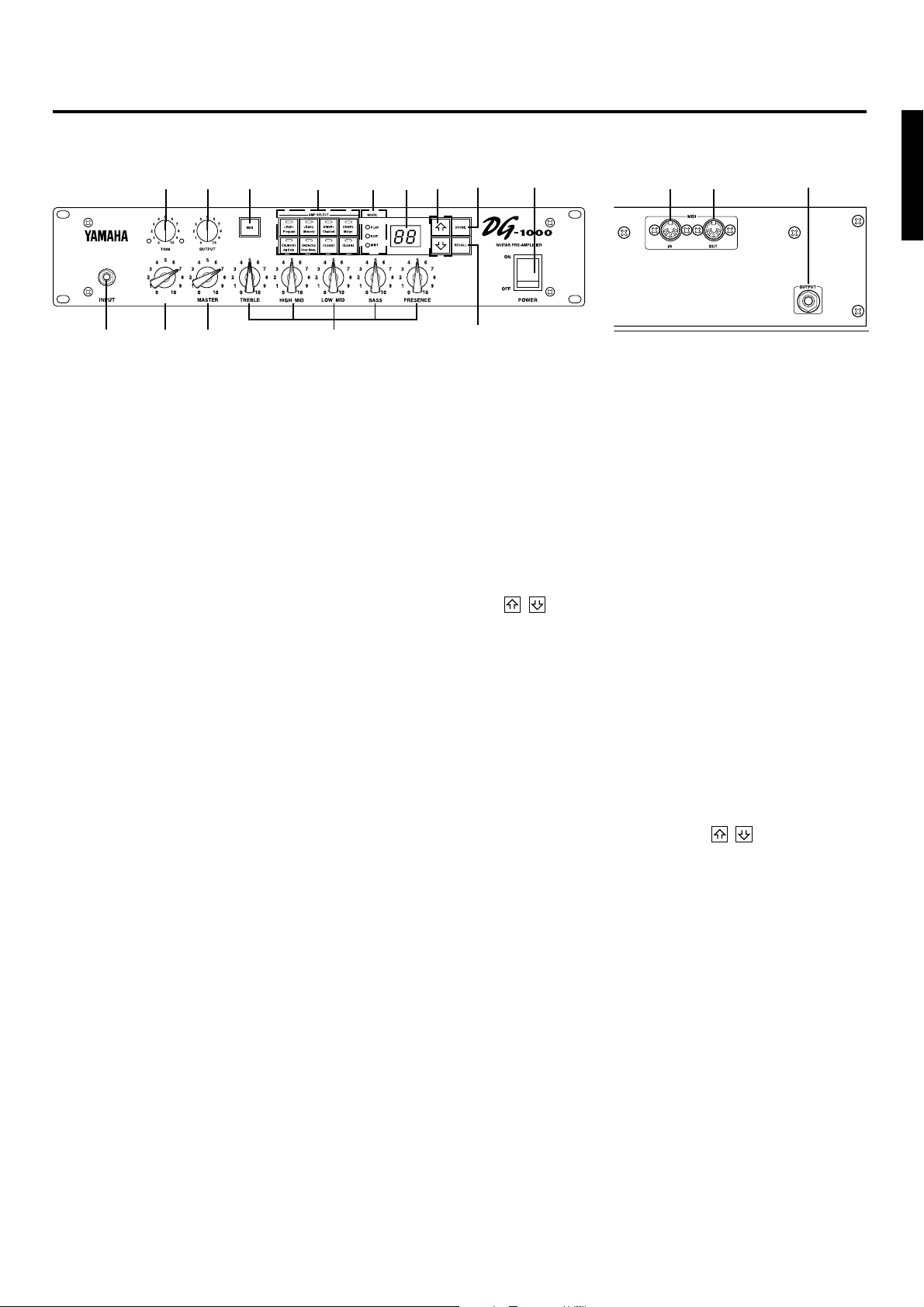
q Input Jack (INPUT)
Connect the guitar to this jack.
* Switch the power OFF before connecting the guitar.
w Trim Control (TRIM)
Matches the guitar output level to the pre-amp’s input level. (→ pg. 4)
* TRIM level settings are not stored in memory.
e Output Level Control (OUTPUT)
Controls the output level of the OUTPUT jack on the back panel. Matches
the output level to the amp’s input level. (→ pg.4)
* Output level settings are not stored in memory.
r Gain V olume (GAIN)
Controls the amount of distortion.
* No sound will be produced if GAIN is set to 0, even if the MASTER
volume t is turned up.
t Master V olume (MASTER)
Controls the overall volume of GAIN and tone controls settings.
y Tone Controls
(TREBLE, HIGH MID, LO W MID, BASS, PRESENCE)
Controls the levels of their respective frequencies.
u MIDI Button
Press this button to edit settings in the MIDI mode. (→ pg. 6)
i Amp Select Button/Amp Select Display
(LEAD 1, 2/DRIVE 1,2/CRUNCH 1,2/CLEAN 1,2)
Selects one of the 8 preset amp types. The currently selected amp type
is shown on the display. (→ pg. 4)
Also acts as the MIDI function switch when in the MIDI mode. (→ pg. 6)
* When the amp select button is pressed, knobs r – y will return to their
preset positions (GAIN & MASTER = 7, Tone Controls all = 5).
o Mode Display Lamp (PLAY/EDIT/MIDI)
Displays the DG-1000’s currently selected mode.
• PLAY (Play Mode):
Automatically enters this mode when a memory number is recalled,
and when the power is switched on. (→ pg. 4)
u
o !0
■ Rear Panel
!1 !2 !4 !5!6 !7
!3
• EDIT (Edit mode)
Automatically enters this mode when tone control or amp select settings are changed. (→ pg. 4)
• MIDI (MIDI Mode)
MIDI functions are edited in this mode.
Press the MIDI button u to enter the MIDI mode. (→ pg. 6)
!0 Display
Displays Memory Numbers, Program Change Numbers, MIDI Channel,
etc.
!1 / Buttons
Increases or decreases the memory number by 1. Also, increases or
decreases values by 1, or switches the MIDI mode ON/OFF when in the
MIDI mode. Values change continuously when the button is pressed
and held.
!2 STORE Button (STORE)
Press this button to save current sound settings to internal memory.
(→ pg. 5) Also, used to carry out bulk dump functions in the MIDI mode.
(→ pg. 6)
!3 RECALL Button (RECALL)
Recalls settings from memory. Use the / buttons to select a
memory number (01 – 128), then press the RECALL button to recall
those settings from memory . (→ pg. 5)
!4 POWER Switch (POWER)
The power switch for the DG-1000.
* Set the OUTPUT Volume e to 0 before turning the POWER ON/OFF.
!5 OUTPUT Jack (OUTPUT)
Connect to the power amp (or guitar amp). (→ pg. 4)
!6 MIDI IN Jack
Connected to a MIDI Foot Controller’s MIDI OUT jack, the DG-1000 can
be controlled by an external foot controller. (→ pg. 6)
!7 MIDI OUT/THRU Jack
Connect to the MIDI IN jack of a device that can save MIDI data. Data
stored in the DG-1000’s memory can be saved to an external MIDI device (MIDI Data Filer, etc.). (→ pg. 5)
Also, sends MIDI data, received by the MIDI IN jack !6, to an external
device when MIDI Merge is set to ON. (→ pg. 6)
3
Page 6
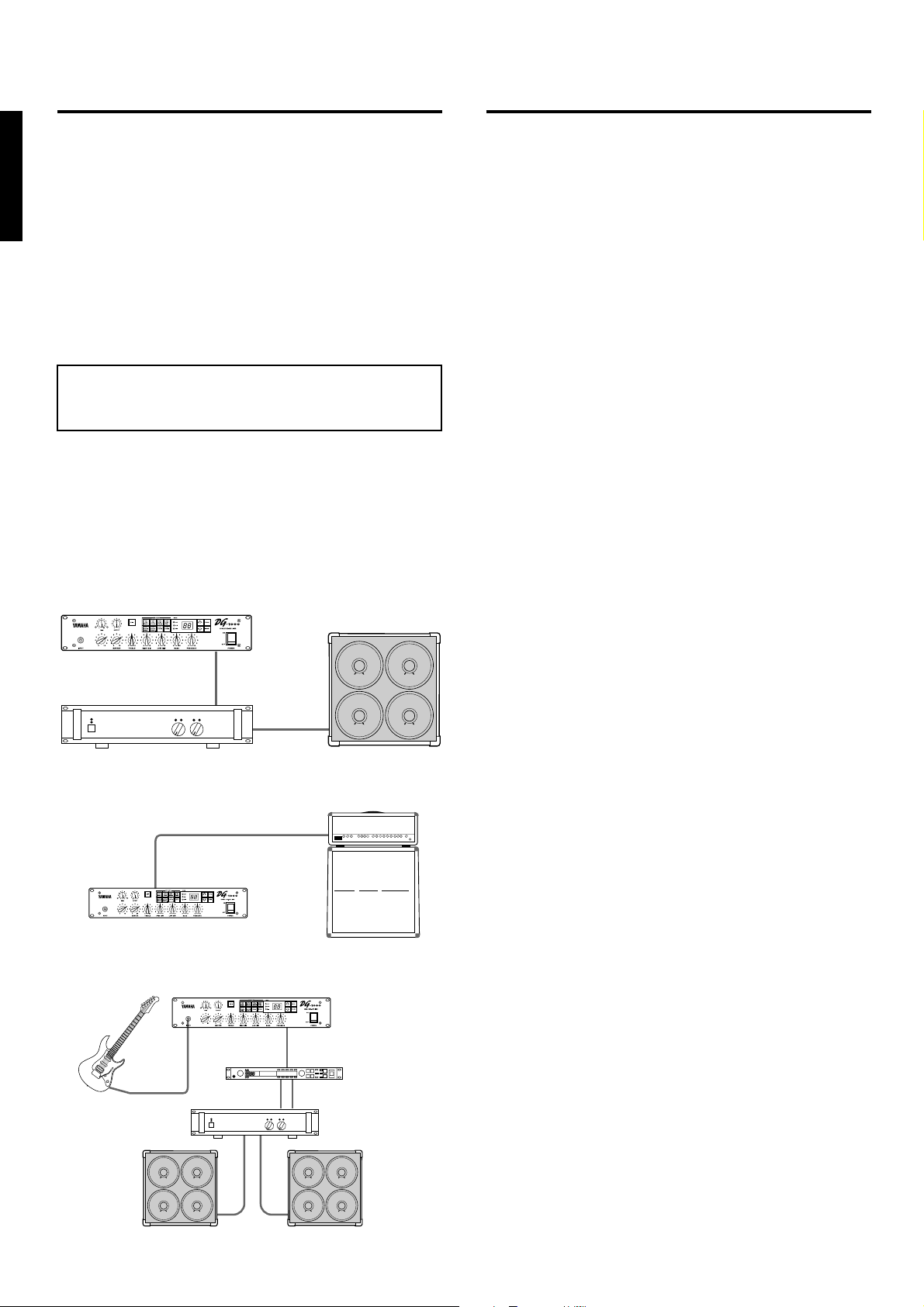
Connecting the DG-1000
How to use the DG-1000
To set up a guitar amp system, connect the DG-1000 to a power amp
and speaker.
As you know, power amps and speakers all have their own special characteristics. So the sound’s character will change according to the type
of devices used. The combined result of each device’s character , room
temperature, room humidity, and a variety of other factors, determines
the guitar’s sound. The purpose of the DG-1000 is to create sound by
faithfully reproducing the dynamic range and tone nuance of the guitar
as well as preserving the characteristics of the power amp, speakers,
etc. The DG-1000 will surely provide you with the means to create your
own personal sound.
■ Connecting Procedure
Make sure that the power is switched OFF on the DG1000 and the power amp (guitar amp) before making any
connections.
1. Connect the OUTPUT jack on the rear panel of the DG-1000 to
the INPUT jack on the power amp using a cable.
* Choose a cable that matches the required jack standard. The DG-
1000’s OUTPUT jack is monaural.
2. Connect the power amp’s speaker output (SPEAKER, etc.) to a
speaker.
* Use a speaker that matches the power characteristics of the amp
(power capacity, system impedance).
DG-1000
Speaker
GAIN
OUTPUT
Power Amp
INPUT
SPEAKER
Once the amp and speaker has been properly set up, try getting some
sound out of the system.
■ First, acquire sound
1. With the DG-1000 and power amp (guitar amp) power switched
OFF, connect the guitar to the INPUT jack on the front panel.
2. With the OUTPUT knob set to “0”, switch the power ON.
3. A short time after the power has been switched ON, the DG1000’s internal relay will produce a small “Click” sound. Once
the sound is heard, set the power amp’s (guitar amp’s) volume
to “0” and switch the power ON on the power amp (guitar amp).
4. At first, set the DG-1000’s TRIM and OUTPUT levels to “5” and
strum the guitar. Then adjust the power amp’s volume level.
5. Once you have sound, set the TRIM and OUTPUT levels as described in the following procedures.
■ Set the TRIM level
The TRIM level is used to set the output level of the guitar to an optimum
level for the DG-1000’s INPUT jack. Depending on the TRIM level subtle
picking nuances and the attack of a strong strum can be realized.
An improperly adjusted trim level will result in noise, feedback and a cut
up sound.
* Output levels vary according to the type of guitar used. If a different
guitar is used, adjust the trim level to match the guitar.
* Even to create distortion, make sure that the TRIM level is properly
adjusted, and use the GAIN control to create distortion.
1. Set the guitar’s v olume to its maximum le vel and strum it po werfully. Begin to adjust the TRIM level.
An optimum level is achieved when the Green LED is lit.
● Connecting the DG-1000 to a guitar amp is also possible
Guitar Amp
RETURN or INPUT
(RETURN is better)
OUTPUT
GAIN
DG-1000
● Add a stereo effector to the system
DG-1000
Stereo Effect
2 CH Power Amp
Speaker
Speaker
INPUT
GAIN
OUTPUT
2. Continue adjusting the TRIM knob until the Red LED lights. Set
the TRIM level to 10 if the Red LED does not light. If the Red
LED lights, lower the TRIM level until the Green LED lights.
■ Set the OUTPUT level
Use the OUTPUT knob to set the DG-1000’s required OUTPUT level.
■ Sound Setting
Choose one of the DG-1000’s 8 preset amp types, then use the
GAIN+MASTER, and Tone Controls to shape the sound.
1. With one of the AMP SELECT buttons choose an amp type. The
LED will light on the selected amp type button.
2. Use the GAIN, MASTER, and the 5 Tone Controls to shape the
sound.
* When an AMP SELECT button is pressed, all knobs (Except TRIM
and GAIN) will return to their preset positions (GAIN & MASTER =
7, Tone Controls all = 5). To sa ve edited settings, refer to “Store Settings” on the next page.
4
Page 7

Store and Recall
The DG-1000 has an internal memory that can hold up to 128 amp type and settings. Each memory can be recalled at any time.
Motor drives in the knobs will automatically set them to the proper positions. Try storing a sound you created to memory.
■ Store Settings
1. Create a sound using the 8 preset amp types, GAIN, MASTER,
and the 5 Tone Controls. The EDIT lamp lights on the MODE
display.
* If MODE display’s MIDI lamp is lit, press the button so that
the EDIT lamp lights.
2. Use the / buttons to select the memory number to which
the settings will be saved. The memory number will flash in the
display.
* Press and hold one of the / buttons to make memory num-
bers cycle rapidly.
* The third digit of the memory number (100 – 128) is represented by
a dot between the two digits.
Sample) 128 is displayed as →
3. Hold the button, f or about one second, until “8.8.” ap-
pears on the display.
Release the button, the flashing memory number will then light
indicating the setting is saved to memory.
* TRIM and OUTPUT settings are not stored in memory. Use the
MASTER knob to set backing and solo levels.
Store Execute
Lights
The memory number to be stored.
Flashing → 8.8. → Lights
Select the memory
number
■ Recall Memory (Recall)
The settings stored in memory can easily be recalled by selecting a
memory number.
1. Check the Mode Display lamp.
→ If PLAY is lit:
Go to the next step.
→ If EDIT is lit:
The current settings are not stored in memory. If you want to
save those settings, use the “Store Settings” procedure on
the left page, then proceed to the next step.
→ If MIDI is lit:
Press the
2. Use the / buttons to select the memory number to be
recalled. The memory number appears on the display (flashing).
3. Press the button. The flashing memory number will
then light. Each of the knobs, and the Amp Select Display will
change according to the data recalled from memory.
* Settings do not change until the button is pushed.
* TRIM and OUTPUT knob settings will not change with the Recall
operation.
* It takes anywhere from 1 – 10 seconds for the knob settings to change
however, internal settings (sound) will change instantly.
* “E1” will appear on the display if the volume knob does not go to
its assigned position, or the device does not recognize the recall command after 20 seconds from the start of the operation.
Continued use of the device in this condition may result in fire or
electrical shock. Take the unit to the music dealer where you purchased it, or to the nearest Yamaha Service Center for repair.
The memory number to be recalled goes from
flashing display → lit display
button to return to the PLAY or EDIT mode.
Data stored in memory (1 – 128) can be saved to an
external MIDI storage device. Refer to the ne xt page
for details.
HINT Some hints on storing memory numbers
When storing memory, divide the memory numbers 1 – 128 into
several groups.
Recalling memory from these groups is convenient. For example,
• Create groups according to the amp type (LEAD1, DRIVE 1, etc.).
→ For example, memory numbers 1 – 10 are LEAD 1 sounds.
• Create groups based on sound type (Distortion, Clean, etc.)
• Create groups based on live performance song lists.
• Create groups based on the type of guitar used (humbucker, etc.).
It’s also a good idea to keep a chart listing what types of sounds
are stored in memory numbers.
PLAY or
EDIT
Lights
Select the memory
number to be recalled.
Recall Execute
A MIDI foot controller or other external MIDI device
can be used to select and recall memory. Refer to
the following page for details.
Initialize the memory
Use the following operation to restore all of the internal memory
(No. 1 – 128) to its original initialized condition (GAIN & MASTER
= 7, All tone controls = 5). Anything that you have saved to memory
will be lost so please use caution.
[Operation]
While holding both the button and the button,
switch the POWER ON.
5
Page 8

MIDI Operations (MIDI Mode)
■ What is MIDI?
MIDI is the abbreviation for: Musical Instruments Digital Interface. MIDI
is a world standard communication interface that allows MIDI compatible musical instruments and computers to share musical information
and control one another regardless of instrument type or maker. With
the DG-1000, an external MIDI controller can be used to recall memory
settings (program change), an external MIDI controller can be used to
control the main volume (control change), and memory and MIDI settings can be exchanged with an external MIDI device (bulk dump).
■ Using MIDI to Recall Memory
Program change messages from a Y amaha MIDI Foot Controller MFC10,
etc., or external MIDI device can be used to recall settings in the DG1000’s memory .
1. Use a MIDI cable to connect the DG-1000’s MIDI IN Jack to the
MIDI OUT Jack on an external MIDI device.
* Use onl y a standard MIDI cable that is less than 15 meters in length.
Using a longer cable may result in abnormal operation.
MIDI Cable
MIDI OUT
STATUS
BANK MSB/MAX
DATA/CTRL
BANK LSB/MIN
TOGGLE ON-OFF
DEC
INC
MEMORY
WRITE
±10
8.8.8
.
/NUMBER OF PGM
/NO
/YES
EDITPCEDIT
/EXIT
GAIN
DG-1000
MIDI IN
External MIDI Device
2. Set the DG-1000’s MIDI receive channel and the external MIDI
device’s MIDI transmit channel to the same MIDI channel. (the
factory preset is channel 1).
2-1. Press the button, the MIDI display lamp will light.
2-2. Press the button, the currently set MIDI receive chan-
nel is shown on the display.
2-3. Use the / buttons to select the MIDI receive channel
(1 – 16 , All, oF).
* All is set to OMNI.
3. Create a program change table*
(the factory preset is, Program Change No. = Memory No.).
* For example, “the received Program Change Number 1, recalls the
DG-1000’s Memory Number 5”. To achieve this, assign the received
program change n umber to the corresponding memory number.
3-1. With the Mode Display Lamp lit, press the button.
3-2. Use the / buttons to select a program change number
(1 – 2.8). The selected number appears on the display.
3-3. Press the button.
3-4. Use the / buttons to select the corresponding memory
number (1 – 2.8). The number appears on the display.
3-5. If necessary, repeat steps 3-1 through 3-4.
4. When program memory data is transmitted from an external
MIDI device, the corresponding memory assigned to the Program Change Table will be recalled.
■ About MIDI Control Changes
You can control the overall volume of the DG-1000 by connecting an
external MIDI device’s MIDI OUT jack to the DG-1000’s MIDI IN jack,
and transmit Number 7 Control Change Messages (Main Volume) to the
DG-1000.
* With the exception of the Number 7 Control Change, the DG-1000 does
not recognize any other MIDI Control Change messages.
* The Main Volume data will not change, even if a different memory num-
ber is selected.
* When the POWER is switched ON, the Main Volume data is set to its
MAX value.
6
* After the Main Volume data is changed, and the external MIDI device
is disconnected, the pre-amp’s volume level may not be sufficient. If this
case occurs, transmit a Control Change with a higher volume setting
again, or switch the POWER OFF and then back ON.
■ Setting the MIDI Merge
To have data received by the DG-1000’s MIDI IN jack, re-transmitted
from the MIDI OUT jack, set the MIDI Merge to “
on”. If not, set to “oF”.
1. Press the button, the MIDI Display will light.
2. Press the button, the current MIDI Merge setting is shown
in the display.
3. Use the / buttons to select “on/oF”.
■ MIDI Bulk Out
The DG-1000’s data can be sent to an external MIDI storage device
(Yamaha MIDI Data Filer MDF2, etc.) for data backup.
1. Use a MIDI cable to connect the DG-1000’s MIDI OUT Jack to the
MIDI IN Jack on an external MIDI device.
2. Press the button. The MIDI display lamp will light.
3. To send data for the entire memory (128) + MIDI settings with
the Bulk Out operation:
→ Press the button. “All” is shown in the display.
To send a single memory with the Bulk Out operation:
→ Press the button. Use the / buttons to
select the memory number you wish to send.
4. Press the button to transmit the memory data.
Press the button to cancel the operation.
* The device number is the same as the MIDI receive channel. If the
MIDI receive channel is set to OMNI ( All ) or OFF ( oF ), the
MIDI channel will be set to 1.
■ MIDI Bulk In
Use a MIDI cable to connect the DG-1000’s MIDI IN Jack to the MIDI
OUT Jack on an external MIDI device. Return DG-1000 backup data to
the DG-1000.
* T he MIDI bulk in operation is carried out in the PLAY or EDIT modes
only. It can not be carried out in the MIDI mode.
* The device number is the same as the MIDI receive channel. If the MIDI
receive channel is set to OMNI ( All ), the MIDI channel will be set to
1. It will not receive if it is set to OFF ( oF ).
*“Ld” is shown on the display during the MIDI Bulk In operation.
■ Error Messages
If an error occurs during a MIDI operation, one of the following error
message numbers will appear on the DG-1000’s display .
E2: MIDI receive buffer full.
T oo much MIDI data is being received by the DG-1000 at one
time. Try to reduce the amount of data being sent or, break
the data into smaller blocks.
E3: Communication error.
An abnormality is detected in the transmitted data. Check all
connections and relevant settings and try again.
E4: Bulk receive check sum error.
A check sum error has been detected in the MIDI bulk data
received by the DG-1000. Check all connections and relevant
settings and try again.
E5: Bulk receive data abnormality.
An abnormality has been detected in the MIDI bulk data
rö”eived by the DG-1000. Check all connections and relevant
settings and try again.
Page 9

Nous vous remercions d’avoir choisi le préamplificateur de guitare DG-1000 de Yamaha.
Le DG-1000 a été, depuis sa conception d’origine, entièrement développé par Yamaha.
Le DG-1000 délivre les sons puissants des amplificateurs à lampe et offre une stabilité
qui est introuvable sur les autres amplificateurs à lampe. Le DG-1000 reproduit 8
sortes d’amplis préréglés qui peuvent ensuite être personnalisés sur mesure par l’utilisateur.
Au total, 128 paramètres sonores peuvent être sauvegardés dans les mémoires internes
et rappelés à volonté avec les boutons du panneau ou une commande au pied MIDI.
Les commandes faciles à utiliser et le haut niveau de qualité vous apporteront une
grande variété de couleurs tonales. Pour obtenir les meilleurs résultats et la plus grande
longévité de votre DG-1000, nous vous recommandons de lire attentivement ce mode
d’emploi. Conservez-le dans un endroit précis pour vous y reporter ultérieurement.
■ FICHE TECHNIQUE
Convertisseur A/N Flottant 20 bits + 5 bits
Convertisseur N/A 20 bits
Fréquence d’échantillonnage 48kHz
Mémoire 128
Impédance d’entrée 1 Mohm (mini-prise d’entrée)
Impédance de sortie 1 kohm (mini-prise de sortie)
Contrôleurs
Analogique TRIM, OUTPUT
Numérique GAIN, MASTER, TREBLE, HIGH MID,
LOW MID, BASSE, PRESENCE, AMP
SELECT (LEAD1, LEAD2, DRIVE1,
DRIVE2, CRUNCH1, CRUNCH2,
CLEAN1, CLEAN2), , , STORE,
RECALL, MIDI
Affichage Diode d’affichage AMP SELECT x 8,
Diode d’affichage MODE x 3,
Diode à 7 segments x 2 endroits
Indicateurs Diode d’affichage de niveau TRIM
(verte)
Diode d’affichage de clip TRIM (rouge)
Alimantation UL • CSA : 120 V secteur
SEMKO • BS : 230 V secteur
Consommation 20 Watts
Dimensions (L x H x P) 480 x 89 x 275 mm
Poids 6.0 kg
* Sous réserve de modifications sans préavis.
Table des matières
Les commandes des panneaux .......................... 8
Connexion du DG-1000........................................ 9
■ Procédure de raccordement .................................. 9
Comment utiliser le DG-1000 .............................. 9
■ T out d’abord, obtenez le son.................................. 9
■ Réglez le niveau TRIM........................................... 9
■ Réglez le niveau OUTPUT..................................... 9
■ Paramètres de son................................................. 9
Sauvegarde et rappel......................................... 10
■ Sauvegarde des paramètres................................ 10
■ Rappel de mémoire (Recall) ................................ 10
Opérations MIDI (Mode MIDI) ............................ 11
Table d’implémentation ..................................... 17
A propos de la pile de maintien de mémoire
Une pile de maintien de mémoire (pile au lithium) est utilisée pour
empêcher que les données internes (paramètres) ne soient perdues, même quand le cordon d’alimentation est débranché. Cependant, ces données internes étant perdues quand la pile est
épuisée, nous vous recommandons de sauvegarder vos données
sur un support d’enregistrement externe comme le MIDI Data Filer MDF2 (→ pg. 11), ou de conserver vos données sous la forme
d’un mémo. L’autonomie moyenne de la pile est d’environ 3 ans.
Lorsqu’il devient nécessaire de la remplacer, prenez contact avec
le magasin d’instruments de musique où vous l’avez acheté ou
avec un technicien qualifié pour faire effectuer le remplacement.
• N’essayez pas de remplacer la pile de maintien de mémoire vous-
même.
• Ne laissez pas la pile de maintien de mémoire à la portée des
enfants.
• Lorsque la pile est épuisée, “E6” apparaît sur l’écran. Les don-
nées peuvent alors être perdues.
• Les données peuvent être perdues par suite de mauvaise
manipulations de cet appareil ou lors de ses réparations.
7
Page 10

Les commandes des panneaux
■ Face avant
wie
GAIN
q
r t y
q Mini-prise d’entrée (INPUT)
Raccordez la guitare à cette mini-prise.
* Mettez hors tension avant de raccorder la guitare.
w Commande d’ajustement (TRIM)
Fait correspondre le niveau de sortie de la guitare avec le niveau d’entrée
du préampli. (→ pg. 9)
* Les paramètres de niveau TRIM ne sont pas sauvegardés dans les mémoi-
res.
e Commande de niveau de sortie (OUTPUT)
Commande le niveau de sortie de la mini-prise OUTPUT sur la face arrière. Fait correspondre le niveau de sortie au niveau d’entrée de l’ampli.
(→ pg. 9)
* Les paramètres de niveau de sortie ne sont pas sauvegardés dans les mé-
moires.
r Volume de gain (GAIN)
Commande la grandeur de distorsion.
* Aucun son ne sort si GAIN est réglé sur 0, même lorsque le volume
MASTER t est monté.
t Volume général (MASTER)
Commande le volume général des paramètres de GAIN et des commandes de tonalités.
y Commandes de tonalités
(TREBLE, HIGH MID , LO W MID , B ASS, PRESENCE)
Commandent les niveaux de leurs fréquences respectives.
u Bouton MIDI
Appuyez sur ce bouton pour éditer les paramètres dans le mode MIDI.
(→ pg. 11)
i Bouton de sélection d’ampli/affichage de sélection
d’ampli (AMP SELECT)
(LEAD 1,2/DRIVE 1,2/CRUNCH 1,2/CLEAN 1,2)
Sélectionne l’un des 8 types d’amplis préréglés. Le type d’ampli actuellement sélectionné est indiqué sur l’affichage. (→ pg. 9)
Sert également de commutateur de fonction MIDI quand vous êtes dans
le mode MIDI. (→ pg. 11)
* Quand vous appuyez sur le bouton Amp Select, les boutons de r à y
reviennent à leur position préréglée (GAIN et MASTER = 7, toutes les
commandes de tonalités = 5).
o Lampe-témoin d’affichage de mode
(PLAY/EDIT/MIDI)
Indique le mode actuellement sélectionné du DG-1000.
u
o !0
!1 !2
8
■ Face arrière
!4 !5!6 !7
!3
• PLAY (Mode Play)
Ce mode est automatiquement appelé quand un numéro de mémoire
est rappelé.
• Edit (Mode d’édition)
Ce mode est automatiquement appelé quand les paramètres des commandes de tonalités ou de la sélection d’ampli sont modifiés. (→ pg. 9)
• MIDI (Mode MIDI)
Les fonctions MIDI sont éditées dans ce mode.
Appuyez sur le bouton MIDI u pour entrer le mode MIDI. (→ pg. 11)
!0 Affichage
Indique les numéros de mémoires, les numéros de changement de programme, le canal MIDI, etc.
!1 Boutons /
Augmente et diminue le numéro de mémoire d’une unité. Egalement, augmente et diminue les valeurs d’une unité, ou active/désactive le mode
MIDI quand le mode MIDI est réglé. Les valeurs changent en continu quand
vous appuyez sur le bouton et le maintenez enfoncé.
!2 Bouton de sauvegarde (STORE)
Appuyez sur ce bouton pour sauvegarder les paramètres de sons actuels
dans les mémoires internes. (→ pg. 10) Utilisez-le également pour effectuer les fonctions de vidage de grande capacité dans le mode MIDI. (→
pg. 11)
!3 Bouton de rappel (RECALL)
Rappelle les paramètres mémorisés. Utilisez les boutons / pour
sélectionner un numéro de mémoire (de 01 à 128), puis appuyez sur le
bouton RECALL pour rappeler ces paramètres de la mémoire. (→ pg. 10)
!4 Interrupteur d’alimentation (POWER)
L’interrupteur d’alimentation du DG-1000.
* Avant de mettre sous/hors tension, positionnez le volume OUTPUT e
sur 0.
!5 Mini-prise de sortie (OUTPUT)
A raccorder à l’ampli de puissance (ou l’ampli de guitare). (→ pg. 9)
!6 Mini-prise MIDI IN
Raccordé à la mini-prise MIDI OUT de la commande au pied MIDI, le DG1000 peut être commandé par une commande au pied externe. (→ pg. 11)
!7 Mini-prise MIDI THRU/OUT
A raccorder à la mini-prise MIDI IN d’un appareil qui peut sauvegarder les
données MIDI. Les données sauvegardées dans la mémoire du DG-1000
peuvent être stockées sur un dispositif MIDI externe. (MIDI Data Filer,
etc.) (→ pg. 10)
Envoie également les données MIDI reçues sur la mini-prise MIDI IN !6
sur un appareil externe quand la fusion MIDI est activée. (→ pg. 11)
Page 11

Connexion du DG-1000
Comment utiliser le DG-1000
Pour installer un système d’ampli de guitare, raccordez le DG-1000 à
un ampli de puissance et un haut-parleur.
Comme vous le savez, les amplis de puissance et les haut-parleurs ont
leurs caractéristiques spéciales propres.
Aussi, le caractère du son changera selon le type d’appareil utilisé. Le
résultat combiné de chaque caractère d’appareil, de la température de
la pièce, de l’humidité de la pièce et d’une variété d’autres facteurs
détermine le son de la guitare. Le DG-1000 a pour objet de créer un son
en reproduisant fidèlement la plage dynamique et la nuance tonale de
la guitare, de même que de préserver les caractéristiques de l’ampli de
puissance, des haut-parleurs, etc. Le DG-1000 vous offrira définitivement
les moyens de créer vos sons personnels.
■ Procédure de raccordement
Vérifier que l’alimentation du DG-1000 et de l’ampli de
puissance (ampli de guitare) est coupée (OFF) avant de
faire les connexions.
1. Raccordez la mini-prise OUTPUT à la face arrière du DG-1000 à
la mini-prise INPUT avec un câble.
* Choisissez un câble qui correspond aux normes requises pour la
mini-prise. La mini-prise OUTPUT du DG-1000 est monophonique.
2. Raccordez la sortie du haut-parleur de l’ampli de puissance
(SPEAKER, etc.) à un haut-parleur.
* Utilisez un haut-parleur compatible avec les caractéristiques de puis-
sance de l’ampli (capacité de puissance, impédance du système).
DG-1000
Haut-parleur
GAIN
OUTPUT
Ampli de puissance
● La connexion du DG-1000 à un ampli de guitare est aussi
possible.
OUTPUT
GAIN
DG-1000
INPUT
Haut-parleur
Ampli de guitare
RETURN ou INPUT
(RETURN est préférable)
Une fois que l’ampli et le haut-parleur sont correctement installés, essayez de faire sortir quelques sons du système.
■ Tout d’abord, obtenez le son
1. Avec l’alimentation du DG-1000 et de l’ampli de puissance
(ampli de guitare) coupée, raccordez la guitare à la mini-prise
INPUT de la face avant.
2. Avec le bouton OUTPUT positionné sur “0”, mettez sous ten-
sion.
3. Un court moment après la mise sous tension (ON), le relais
interne du DG-1000 émet le son d’un léger “déclic”. Lorsque
vous entendez ce son, réglez le v olume de l’ampli de puissance
(ampli de guitare) sur “0” et mettez l’ampli de puissance (ampli
de guitare) sous tension (ON).
4. Tout d’abord, réglez les niveaux TRIM et OUTPUT du DG-1000
sur “5” et grattez les cordes de la guitare . Puis ajustez le niveau de volume de l’ampli de puissance (ampli de guitare).
5. Quand vous avez obtenu le son, réglez les niveaux TRIM et
OUTPUT comme décrit dans les procédures suivantes.
■ Réglez le niveau TRIM
Le niveau TRIM est utilisé pour régler le niveau de sortie de la guitare
au niveau optimal pour la mini-prise INPUT du DG-1000. En fonction du
niveau TRIM, vous pouvez réaliser des nuances de pincement subtiles
ou l’attaque d’un grattement fort.
Un niveau TRIM incorrectement réglé aura pour résultat un son parasité,
réactif ou coupé.
* Les niveaux de sortie varient selon le type de guitare utilisé. Quand
vous utilisez une guitare différente, réglez le niveau TRIM pour qu’il
corresponde à la guitare.
* Même pour créer une distorsion, vérifiez que le niveau TRIM est cor-
rectement réglé et utilisez la commande GAIN pour créer la distorsion.
1. Réglez le volume de la guitare au niveau maximum et grattez
dessus avec puissance. Commencez à ajuster le niveau TRIM.
Le niveau optimal est atteint lorsque la diode verte s’allume.
2. Continuez à ajuster le bouton TRIM jusqu’à ce que la diode
rouge s’allume. Si la diode rouge ne s’allume pas, réglez le
niveau TRIM à 10. Si elle s’allume, abaissez le niveau TRIM jusqu’à ce que la diode verte s’allume.
■ Réglez le niveau OUTPUT
Utilisez le bouton OUTPUT pour régler le niveau OUTPUT désiré du
DG-1000.
● Ajouter un effecteur stéréo au système
GAIN
INPUT
Haut-parleur Haut-parleur
OUTPUT
DG-1000
Effecteur stéréo
Ampli de puissance
2 canaux
■ Paramètres de son
Choisissez l’un des 8 types d’amplis préréglés du DG-1000 et utilisez
alors GAIN + MASTER et les commandes de tonalités pour modeler le
son.
1. Choisissez le type d’ampli avec l’un des boutons AMP SELECT .
La diode éclairera le type d’ampli sélectionné.
2. Utilisez GAIN, MASTER et les 5 commandes de tonalités pour
modeler le son.
* Quand vous appuyez sur l’un des boutons AMP SELECT, tous les
boutons (à l’exception de TRIM et de GAIN) reviennent à leur position d’origine (GAIN et MASTER = 7, toutes les commandes de tonalités = 5). Pour sauvegarder les paramètres édités, reportez-vous à “Sauvegarde des paramètres” page suivante.
9
Page 12

Sauvegarde et rappel
Le DG-1000 est doté d’une mémoire interne qui accepte 128 types d’amplis et paramètres. Chaque mémoire peut être rappelée à tout moment. Les
commandes motrices dans les boutons les fixent automatiquement aux bonnes positions. Essayez de sauvegarder un son que vous avez créé.
■ Sauvegarde des paramètres
1. Créez un son avec l’un des 8 types d’amplis préréglés, GAIN,
MASTER et les 5 commandes de tonalités. La lampe-témoin
EDIT s’allume sur l’affichage de MODE.
* Si la lampe-témoin MIDI de l’affichage de MODE est allumée, ap-
puyez sur le bouton afin que la lampe-témoin EDIT s’allume.
2. Utilisez les boutons / pour sélectionner le numéro de
mémoire sous lequel les paramètres seront sauvegardés. Le
numéro de mémoire clignotera sur l’affichage.
* Appuyez sur l’un des boutons / et maintenez-le enfoncé pour
faire défiler rapidement les numéros de mémoires.
* Le troisième chiffre du numéro de mémoire (de 100 à 128) est repré-
senté par un point entre les deux chiffres.
Exemple) 128 est affiché comme →
3. Pendant une seconde environ, maintenez le bouton
enfoncé jusqu’à ce que “8.8.” apparaisse sur l’affichage.
Relâchez le bouton, le numéro de mémoire qui clignotait s’al-
lume, indiquant que le paramètre est sauvegardé dans la mé-
moire.
* Les paramètres TRIM et OUTPUT ne sont pas sauvegardés dans
les mémoires. Utilisez le bouton MASTER pour régler les niveaux
de fond sonore et de solo.
Exécutez la sauvegarde
S’allume
Le numéro de mémoire sous lequel
sauvegarder
Clignote → 8.8. → S’allume
Les données sauvegardées dans les mémoires (de 1 à 128)
peuvent être stockées sur un dispositif MIDI externe. Reportez-vous page suivante pour les détails.
Sélectionnez le numéro
de mémoire
■ Rappel de mémoire (Recall)
Les paramètres sauvegardés dans les mémoires peuvent être rappelés
en sélectionnant un numéro de mémoire.
1. Vérifiez la lampe-témoin de l’affichage de mode.
→ Si PLAY est allumé:
Passez à l’étape suivante.
→ Si EDIT est allumé:
Les paramètres actuels ne sont pas sauvegardés dans les
mémoires. Si vous souhaitez sauvegarder ces paramètres,
suivez la procédure “Sauvegarde des paramètres”
sur la partie gauche de la page, puis passez à l’étape sui-
vante.
→ Si MIDI est allumé:
Appuyer sur le bouton pour revenir au mode PLAY ou
au mode EDIT.
2. Utilisez les boutons / pour sélectionner le numéro d e
mémoire à rappeler. Le numéro de mémoire apparaît sur l’affi-
chage (il clignote).
3. Appuyez sur le bouton . Le numéro de mémoire clignotant s’allume alors. Chacun des boutons et l’afficha ge Amp
Select changeront en fonction des données rappelées de la
mémoire.
* Les réglages ne changeront pas avant que le bouton ne
soit enfoncé.
* Les paramètres des boutons TRIM et OUTPUT ne changeront pas
avec l’opération de rappel.
* Il faut de 1 à 10 secondes pour que les paramètres des boutons chan-
gent, cependant, les paramètres internes (sons) changent
instantanément.
* Si le bouton de volume ne va pas à la position affectée ou si l’appa-
reil ne reconnaît pas la commande de rappel dans les 20 secondes
qui suivent l’opération de rappel “E1” apparaît sur l’affichage. L’utilisation continue de l’appareil dans ces conditions peut
déclencher un incendie ou provoquer une électrocution. Rapportez
l’appareil chez le concessionnaire d’instruments de musique où vous
l’avez acheté ou au Centre Après-Vente Yamaha le plus proche pour
le faire réparer.
Le numéro de mémoire à rappeler va de
affichage clignotant → affichage allumé
PLAY ou
EDIT
s’allume
Conseils
Lorsque vous sauvegardez dans les mémoires, divisez les numé-
ros des mémoires de 1 à 128 en plusieurs groupes.
Il est plus pratique de rappeler une mémoire à partir de ces groupes. Par exemple,
•
Créez des groupes selon le type d’ampli (LEAD1, DRIVE 1, etc.).
→ Par exemple, les numéros de 1 à 10 sont affectés aux sons
LEAD 1.
• Créez des groupes basés sur un type de son (Distortion, Clean,
etc.).
• Créez des groupes basés sur les listes de morceaux joués en direct.
•
Créez des groupes basés sur le type de guitare utilisé
(à bobinage, etc.).
C’est aussi une bonne idée de garder une fiche listant les types
de sons qui sont sauvegardés sous les numéros des mémoires.
Quelques conseils sur la sauvegarde
avec les numéros de mémoires
10
Sélectionnez le numéro de
mémoire à rappeler
Une commande au pied MIDI ou un autre appareil MIDI externe,
peuvent être utilisés pour sélectionner une mémoire et rappeler son numéro. Reportez-vous pa ge suivante pour les détails.
Exécutez le rappel
Initialisation de la mémoire
Procédez de la manière suivante pour restaurer toutes les mémoires internes (du n° 1 au n° 128) à leur condition d’origine (GAIN et
MASTER = 7, commandes de toutes les tonalités = 5). T out ce que
vous aurez sauvegardé précédemment sera perdu, aussi faites
très attention.
[Opération]
Mettez sous tension, tout en maintenant les deux boutons
et enfoncés.
Page 13

Opérations MIDI (Mode MIDI)
■ Qu’est-ce que MIDI ?
MIDI est l’abréviation de Musical Instruments Digital Interface. MIDI est
une interface de communication de norme mondiale qui permet aux instruments compatibles MIDI et aux ordinateurs de partager des informations musicales et de se commander mutuellement, quel que soit le type
d’instrument ou le fabricant. Avec le DG-1000, vous pouvez utiliser un contrôleur MIDI externe pour rappeler les paramètres mémorisés (changements de programme) et le contrôleur MIDI externe peut être utilisé pour
commander le niveau de volume principal (changement de contrôle) et
échanger les paramètres de mémoire et MIDI avec un autre appareil MIDI
externe (Vidage de grande capacité).
■ Utilisation de MIDI pour rappeler les mémoires
Les messages de changement de programme depuis la commande au
pied MFC10 de Y amaha, etc., ou un appareil MIDI externe, peuvent être
utilisés pour rappeler les paramètres dans la mémoire du DG-1000.
1. Utilisez un câble MIDI pour raccorder la mini-prise MIDI IN du
DG-1000 à la mini-prise MIDI OUT de l’appareil MIDI externe.
* N’utilisez qu’un câble MIDI normalisé, d’une longueur inférieure à
15 mètres. L’utilisation d’un câble plus long pourrait entraîner des
opérations anormales.
Câble MIDI
MIDI OUT
STATUS
BANK MSB/MAX
DATA/CTRL
BANK LSB/MIN
TOGGLE ON-OFF
DEC
INC
MEMORY
WRITE
±10
8.8.8
.
/NUMBER OF PGM
/NO
/YES
EDITPCEDIT
/EXIT
GAIN
DG-1000
MIDI IN
Appareil MIDI externe
2. Fixez le canal de réception MIDI du DG-1000 et le canal de trans-
mission de l’appareil MIDI externe au même canal MIDI. (Le
préréglage d’usine est le canal 1).
2-1. Appuyez sur le bouton . La lampe-témoin de l’affichage s’al-
lume.
2-2. Appuyez sur le bouton , le canal de réception MIDI ac-
tuellement fixé est indiqué sur l’affichage.
2-3. Utilisez les boutons / pour sélectionner le canal de récep-
tion MIDI (1 –16, All, oF).
* All est fixé sur OMNI.
3. Créez un tableau de changement de programme*
(Le préréglage d’usine est, Numéro de changement de programme = numéro de mémoire).
* Par exemple, “le numéro 1 de changement de programme reçu, rap-
pelle le numéro 5 de mémoire du DG-1000”. Pour parvenir à ce résultat, affectez le numéro de changement de programme reçu au numéro de mémoire correspondant.
3-1. Appuyez sur le bouton quand la lampe-témoin du mode
d’affichage s’allume.
3-2. Utilisez les boutons / pour sélectionner un numéro de chan-
gement de programme (de 1 à 28). Le numéro sélectionné apparaît
sur l’affichage.
3-3. Appuyez sur le bouton .
3-4. Utilisez les boutons / pour sélectionner le numéro de mé-
moire correspondant (de 1 à 28). Le numéro apparaît sur l’affichage.
3-5. Répétez les étapes 3-1 à 3-4 si nécessaire.
4. Lorsque les données de mémoire de programme sont env oyées
d’un appareil MIDI externe, la mémoire correspondante, affectée au tableau de changement de programme, est rappelée.
■ A propos des changements de contrôle MIDI
Vous pouvez contrôler le volume général du DG-1000 en raccordant la
mini-prise MIDI OUT de l’appareil MIDI extérieur à la mini-prise MIDI IN
du DG-1000 et en transmettant les messages de changement de contrôle (Control Change) numéro 7 (volume principal) au DG-1000.
* A l’exception du changement de contrôle numéro 7, le DG-1000 ne
reconnaît pas les messages de changements de contrôle MIDI.
* Les données de volume principal ne changent pas, même si un numéro
différent de mémoire est sélectionné.
* Lorsque l’appareil est sous tension (POWER ON), les données de vol-
ume principal sont fixées à la valeur MAX.
* Une fois que les données de volume principal sont changées et que l’appareil
MIDI extérieur est déconnecté, le niveau de volume du préamp peut s’avérer
insuffisant. Dans ce cas, transmettez à nouveau un changement de contrôle
avec un réglage de volume supérieur ou coupez l’alimentation et rallumez
l’appareil.
■ Réglage de la fusion MIDI (MIDI Merge)
Pour retransmettre les données reçues sur la mini-prise MIDI IN du DG1000 par la mini-prise MIDI OUT , positionnez MIDI Merge sur“on”. Sinon,
réglez sur “oF”.
1. Appuyez sur le bouton . La lampe-témoin de l’affichage
s’allume.
2. Appuyez sur le bouton , le réglage MIDI Merge actuel est
indiqué sur l’affichage.
3. Utilisez les boutons / pour sélectionner “on/oF”.
■ Sortie de grande capacité MIDI (Bulk Out)
Les données du DG-1000 peuvent être transmises à un appareil de sauvegarde MIDI externe (Midi Data Filer MDF2 de Yamaha, etc) pour conserver des données de réserve.
1. Utilisez un câble MIDI pour raccorder la mini-prise MIDI OUT du DG-
1000 à la mini-prise MIDI IN de l’appareil MIDI externe.
2. Appuyez sur le bouton . La lampe-témoin d’affichage MIDI s’al-
lume.
3. Pour envoyer les données de toutes les mémoires (128) + les
paramètres MIDI par l’opération Bulk Out :
→ Appuyez sur . “All” est indiqué sur l’affichage.
Pour envoyer une seule mémoire par l’opération Bulk Out :
→ Appuyez sur . Utilisez les boutons / pour sé-
lectionner le numéro de mémoire que vous souhaitez transmettre.
4. Appuyez sur le bouton pour transmettre les données
mémorisées.
Appuyez sur le bouton pour annuler l’opération.
* Le numéro de l’appareil est identique au canal de réception MIDI. Si
le canal de réception MIDI est spécifié sur OMNI ( All ) ou sur
désactivé ( oF ), le canal MIDI sera spécifié sur 1.
■ Entrée de grande capacité MIDI (Bulk In)
Utilisez un câble MIDI pour raccorder la mini-prise MIDI IN du DG-1000 à
la mini-prise MIDI OUT de l’appareil MIDI externe. Renvoyez les données
de réserve du DG-1000 au DG-1000.
* L’opération MIDI Bulk In s’effectue dans les modes PLAY ou EDIT seu-
lement. Elle ne peut s’effectuer dans le mode MIDI.
* Le numéro de l’appareil est identique au canal de réception MIDI. Si le
canal de réception MIDI est spécifié sur OMNI ( All ), le canal MIDI
sera spécifié sur 1. Le canal ne recevra pas s’il est désactivé ( oF ).
*“Ld” est indiqué sur l’affichage pendant l’opération MIDI Bulk In.
■ Messages d’erreur
Quand une erreur se produit pendant une opération MIDI, l’un des numé-
ros de messages d’erreurs suivants apparaît sur l’affichage du DG-1000.
E2: Le tampon de réception MIDI est plein.
Le DG-1000 reçoit un trop grand nombre de données MIDI à la
fois. Essayez de réduire l’ensemble des données transmises ou
divisez les données en blocs plus petits.
E3: Erreur de communication.
Une anomalie est détectée dans les données transmises. Vérifiez
toutes les connexions et les paramètres concernés et essayez
encore une fois.
E4: Erreur de total de contrôle de réception de grande capacité.
Une erreur de total de contrôle est détectée dans les données
de grande capacité MIDI reçues par le DG-1000. Vérifiez toutes
les connexions et les paramètres concernés et essayez encore
une fois.
E5: Anormalité de données de réception de grande capacité..
Une anomalie est détectée dans les données de grande capacité
MIDI reçues par le DG-1000. Vérifiez toutes les connexions et
les paramètres concernés et essayez encore une fois.
11
Page 14

Zunächst einmal vielen Dank für den Kauf des Gitarren-Vorverstärkers DG-1000 von Yamaha.
Von seiner Grundkonzeption an war der DG-1000 eine Yamaha-eigene Entwicklung. Der DG-
1000 liefert kraftvolle Röhrenverstärker-Klänge und bietet dabei eine Stabilität, die von anderen Röhrenverstärkern nicht erzielt werden kann. Der DG-1000 wartet mit 8 Verstärker-Presets
auf, die vom Benutzer frei maßgeschneidert werden können. Insgesamt 128 solcher Klangeinstellungen können als Programme im Speicher festgehalten und später bei Bedarf auf Tastendruck oder per MIDI-Befehl abgerufen werden.
Benutzerfreundliche Bedienelemente und eine qualitativ hochwertige Ausführung ermöglichen
Ihnen das Arbeiten mit einer Vielfalt an Klangfärbungen. Um das Potential Ihres DG-1000
über Jahre hinweg voll ausschöpfen zu können, empfehlen wir Ihnen, diese Anleitung aufmerksam durchzulesen. Bewahren Sie die Anleitung danach für später anfallende Fragen gut auf.
■ T echnische Daten
A/D-Umsetzer 20 Bits + 5 gleitende Bits
D/A-Umsetzer 20 Bits
Sampling-Frequenz 48kHz
Speicher 128
Eingangsimpedanz 1MΩ (Eingangsbuchse)
Ausgangsimpedanz 1kΩ (Ausgangsbuchse)
Bedienelemente
Analog TRIM, OUTPUT
Digital GAIN, MASTER, TREBLE, HIGH
MID, LOW MID, BASS, PRESENCE,
AMP SELECT (LEAD1, LEAD2,
DRIVE1, DRIVE2, CRUNCH1,
CRUNCH2, CLEAN1, CLEAN2),
, , STORE, RECALL, MIDI
Display-LEDs AMP SELECT-LEDs x 8, MODE-
LEDs x 3, LED-Display (7-SegmentMatrix) x 2 Stellen
Anzeige-LEDs TRIM-Pegelanzeige (grün)
TRIM-Beschneidungsanzeige (rot)
Netzanschluß UL, CSA: 120 V
SEMKO, BS: 230 V
Leistungsaufnahme 20 Watt
Abmessungen
Gewicht 6.0 kg
* Änderungen der technischen Daten und des Designs vorbehalten.
(B x H x T)
480 x 89 x 275 mm
INHALT
Bedienelemente.................................................. 13
Anschluß des DG-1000 ...................................... 14
■ Anschluß .............................................................. 14
Gebrauch des DG-1000...................................... 14
■
Zunächst einen provisorischen Klang erzeugen ......
■ Den TRIM-Pegel einstellen .................................. 14
■ Den OUTPUT-Pegel einstellen............................. 14
■ Klangeinstellungen............................................... 14
Speichern und Abrufen von Programmen....... 15
■ Speichern von Klangeinstellungen....................... 15
■ Abrufen gespeicherter Programme...................... 15
MIDI-Funktionen ................................................. 16
Implementierungstabelle................................... 17
Über die Speicherschutzbatterie
Eine Speicherschutzbatterie (Lithiumbatterie) sorgt dafür, daß die
im Gerät gespeicherten Daten (Einstellungen) beim Ziehen des
Netzsteckers nicht verloren gehen. Diese internen Daten gehen
jedoch verloren, wenn die Speicherschutzbatterie verbraucht ist,
weshalb wir Ihnen anraten, den Speicherinhalt auf ein externes
Datenspeichergerät wie beispielsweise den Yamaha MIDI Data
Filer MDF2 zu übertragen (→ S. 16), oder handschriftlich festzuhalten. Die durchschnittliche Lebensdauer der Lithiumbatterie
beträgt etwa 3 Jahre. Sollte ein Austausch erforderlich werden,
wenden Sie sich bitte an das Musikgeschäft, in dem das Gerät
erworben wurde, oder einen autorisierten Kundendienst.
• Versuchen Sie bitte nicht, die Batterie selbst auszutauschen.
• Achten Sie darauf, daß die Speicherschutzbatterie nicht in
Kinderhände gerät!
• Wenn die Batteriespannung bis auf einen kritischen Punkt abfällt, wird “E6” auf dem Display angezeigt. Bei einer derart
schwachen Batterie können gespeicherte Daten verloren gehen.
• Datenverlust kann auch bei falscher Handhabung sowie bei einer Reparatur des Geräts auftreten.
14
12
Page 15

Bedienelemente
■ Frontplatte
wie
GAIN
q
r t y
q Eingangsbuchse (INPUT)
Hier wird die Gitarre angeschlossen.
* Schalten Sie das Gerät vor dem Anschließen der Gitarre aus.
w Trimmregler (TRIM)
Zum Anpassen des Gitarren-Ausgangspegels an den Eingangspegel des
Vorverstärkers (→ S. 14).
* Die TRIM-Einstellung wird nicht gespeichert.
e Ausgangspegelregler (OUTPUT)
Zum Einstellen des Ausgangspegels an der rückseitigen OUTPUTBuchse. Erlaubt Anpassen des V orverstärker-Ausgangspegel an den Eingangspegel des Endverstärkers (→ S. 14).
* Die Ausgangspegeleinstellung wird nicht gespeichert.
r Verstärkungsregler (GAIN)
Regelt den Grad an Signalverzerrung.
* Bei einer GAIN-Einstellung von “0” wird auch bei ganz aufgedrehtem
MASTER-Lautstärkeregler t kein Ton erzeugt.
t Lautstärkeregler (MASTER)
Zum Einstellen der Gesamtlautstärke (für das per GAIN- und Klangregler
eingestellte Signal).
y Klangregler
(TREBLE, HIGH MID, LOW MID, BASS,
PRESENCE)
Erlaubt Einstellen des Signalpegels für die einzelnen Frequenzbänder.
u MIDI-Taste
Zum Bearbeiten von Einstellungen im MIDI-Modus (→ S. 16).
i Verstärker-Wahltasten mit Display-LEDs
(AMP SELECT: LEAD 1/2, DRIVE 1/2, CRUNCH 1/2,
CLEAN 1/2)
Erlaubt Auswählen eines der 8 Verstärkertyp-Presets. Die LED des gewählten Verstärkertyps leuchtet zur Bestätigung (→S. 14).
Im MIDI-Modus dienen die T asten außerdem als MIDI-Funktionsschalter
(→ S. 16).
* Beim Betätigen einer der Verstärker-Wahltasten werden die Einstel-
lungen der Regler r bis y rückgesetzt (GAIN und MASTER = 7,
Klangregler = 5).
o Modus-Display (MODE: PLAY, EDIT, MIDI)
Zeigt den aktuellen Modus des DG-1000 an.
• PLAY (Spielmodus)
Dieser Modus wird beim Abrufen eines gespeicherten Programms automatisch vorgegeben.
• EDIT (Bearbeitungsmodus)
Dieser Modus wird beim Ändern einer Klangregler- oder der AMP
SELECT-Einstellung aufgerufen (→ S. 14).
u
o !0
!1 !2
!3
■ Rückwand
!4 !5!6 !7
• MIDI (MIDI-Modus)
Erlaubt Bearbeiten der MIDI-Funktionen.
Zum Aufrufen des MIDI-Modus drücken Sie die MIDI-Taste u
(→ S. 16).
!0 Display
Zeigt Speicherplatz-, Programmwechsel-, MIDI-Kanalnummern u. dgl.
an.
!1 / -Tasten
Zum Erhöhen/Erniedrigen der Speicherplatznummer um 1. Dienen au-
ßerdem zum Erhöhen/Erniedrigen von Werten um 1 sowie zum Einstel-
len von Funktionen im MIDI-Modus. Bei gedrückt gehaltener Taste än-
dert sich der angezeigte Wert übergangslos.
!2 Speichertaste (STORE)
Zum Sicherstellen der aktuellen Klangeinstellung im internen Speicher
(→ S 15). Dient im MIDI-Modus außerdem zum Ausführen der Bulk DumpÜbertragung (→ S. 16).
!3 Abruftaste (RECALL)
Zum Abrufen gespeicherter Programme. Hierzu wählen Sie zunächst
mit den / -Tasten die Nummer des betreffenden Speicherplatzes
(01 bis 128) und drücken dann die RECALL-Taste, um die Programmeinstellungen wieder aufzurufen (→ S. 15).
!4 Netzschalter (POWER)
Zum Ein- und Ausschalten des PG-1000.
* Stellen Sie den OUTPUT-Regler e auf “0”, bevor Sie das Gerät ein-
oder ausschalten.
!5 Ausgangsbuchse (OUTPUT)
Für den Anschluß an den Endverstärker (bzw. Gitarrenverstärker)
(→ S. 14).
!6 MIDI-Eingangsbuchse (MIDI IN)
Wenn Sie diese Buchse mit der MIDI OUT-Buchse eines MIDI-Fuß-
schalters (Foot Controller) verbinden, können Sie diesen zum “Fernbedienen” des DG-1000 verwenden (→ S. 16).
!7 MIDI-Ausgangs-/Durchgangsbuchse
(MIDI OUT/THRU)
Diese Buchse können Sie mit der MIDI IN-Buchse eines Geräts verbinden, das sich zum Speichern von MIDI-Daten eignet. Auf diese Weise
haben Sie die Möglichkeit, die im DG-1000 gespeicherten Daten (Programme und Einstellungen) auf dem externen Gerät (MIDI Data Filer
usw.) sicherzustellen (→ S. 15).
Die Buchse kann auch verwendet werden, um bei aktivierter MIDI-Mischfunktion die über MIDI IN !6 empfangenen Daten an ein externes Gerät
weiterzuleiten (→ S. 16).
13
Page 16

Anschluß des DG-1000
Gebrauch des DG-1000
Zur Vervollständigung des Gitarren-V erstärkersystems müssen Sie den
DG-1000 an einen Endverstärker und Lautsprecher anschließen.
Wie Sie wohl wissen, haben Endverstärker und Lautsprecher eigene
spezifische Eigenschaften. Der Klangcharakter hängt daher auch von
den verwendeten Gerätetypen ab. Die Eigenschaften der einzelnen
Geräte, die Zimmertemperatur, die Luftfeuchtigkeit und eine Reihe
anderer Faktoren bestimmen gemeinschaftlich den endgültigen Klang
der Gitarre. Der DG-1000 hat dabei die Aufgabe, den Dynamikumfang
und tonale Nuancen der Gitarre verlustfrei in Ton umzusetzen, ohne
dabei die Klangeigenschaften des Verstärkers, Lautsprechers usw. zu
beeinträchtigen. Wir sind uns sicher, daß der DG-1000 für Sie zu einem
unentbehrlichen Werkzeug bei der Gestaltung Ihres “persönlichen”
Sounds werden wird.
■ Anschluß
Vergewissern Sie sich vor dem Anschluß, daß der DG1000 und der Endverstärker (Gitarren verstärker) ausgeschaltet sind.
1. Verbinden Sie die OUTPUT-Buchse an der Rückwand des DG-
1000 über ein geeignetes Kabel mit der INPUT-Buchse des
Endverstärkers.
* Verwenden Sie ein Kabel mit zu den Buchsen passenden Steckern.
Der DG-1000 ist mit einer Mono-Ausgangsbuchse ausgestattet.
2. Schließen Sie den Lautsprecher an den Lautsprecherausgang
(SPEAKER o. dgl.) des Verstärkers an.
* Verwenden Sie einen Lautsprecher mit zum Verstärker passenden
Kennwerten (Belastbarkeit, Impedanz).
DG-1000
GAIN
OUTPUT
Endverstärker
INPUT
SPEAKER
● Alternativer Anschluß des DG-1000 an einen Gitarren-
verstärker
RETURN oder INPUT
(RETURN ist besser)
OUTPUT
GAIN
DG-1000
● Erweiterung durch ein Stereo-Effektgerät
Lautsprecher
Gitarrenverstärker
Nach Anschließen des Verstärkers und Lautsprechers stellen Sie den
Klang grundlegend ein.
■ Zunächst einen provisorischen Klang
erzeugen
1. Schalten Sie den DG-1000 und den Endverstärker (Gitarren-
verstärker) aus, und schließen Sie die Gitarre an die INPUTBuchse an der Frontplatte an.
2. Stellen Sie den OUTPUT-Regler auf “0”, und schalten Sie den
DG-1000 dann ein.
3. Kurz nach dem Einschalten erzeugt das Netzrelais im DG-1000
ein leises Klickgeräusch. Sobald Sie dieses Geräusch hören,
stellen Sie die Lautstärke am Endverstärker (Gitarren verstärker)
auf “0” und schalten den Endverstärker (Gitarrenverstärker)
dann ein.
4. Stellen Sie nun den TRIM- und OUTPUT-Pegel des DG-1000 anfänglich auf “5”, und sc hlagen Sie einige Saiten auf der Gitarre
an. Stellen Sie dann die Lautstärke am Verstärker ein.
5. Das System erzeugt nun provisorisch Ton, mit dem Sie den
TRIM- und den OUTPUT-Pegel einstellen können, wie in den
folgenden Abschnitten beschrieben.
■ Den TRIM-Pegel einstellen
Der TRIM-Pegel dient dazu, den Ausgangspegel der Gitarre optimal an
den Pegel der INPUT-Buchse des DG-1000 anzupassen. Bei optimaler
TRIM-Einstellung werden feinste Nuancierungen im Zupfen sowie auch
die kraftvolle Attack-Einschwingung beim “Schlagen” und Anreißen der
Saiten wiedergegeben.
Bei einem ungeeigneten Trimmpegel treten Störgeräusche,
Rückkopplungen und eine Beschneidung des Klangs auf.
* Der Gitarren-Ausgangspegel hängt vom jeweiligen Instrument ab. Nach
Anschließen einer anderen Gitarre müssen Sie den Trimmpegel an das
neue Instrument anpassen.
* Auch wenn mit Distortion- oder Verzerrungseffekt gespielt werden soll,
muß der TRIM-Pegel stimmen. Der Verzerrungseffekt wird mit dem
GAIN-Regler eingestellt.
1. Stellen Sie die Gitarrenlautstärke auf Höchstpegel, und schla-
gen Sie die Saiten stark an. Beginnen Sie nun die Justa ge des
TRIM-Pegels.
Der Pegel ist optimal, wenn die grüne Anzeige-LED leuchtet.
2. Drehen Sie den TRIM-Regler weiter, bis die rote Anzeige-LED
leuchtet. (Stellen Sie den TRIM-Pegel auf “10”, wenn die rote
Anzeige-LED nicht leuchten sollte.) Sobald die rote AnzeigeLED leuchtet, regeln Sie den TRIM-Pegel zurück, bis die grüne
Anzeige-LED leuchtet.
■ Den OUTPUT-Pegel einstellen
Stellen Sie nun mit dem OUTPUT-Regler am DG-1000 den erforderlichen Ausgangspegel ein.
Lautsprecher
14
INPUT
GAIN
OUTPUT
DG-1000
Stereo-Effektgerät
2-Kanal-Endverstärker
Lautsprecher
■ Klangeinstellungen
Wählen Sie eines der 8 im DG-1000 gespeicherten VerstärkertypPresets, um den Klang dann mit dem GAIN- und MASTER-Regler sowie den Klangreglern wunschgemäß einzustellen.
1. Drücken Sie die AMP SELECT-Taste mit dem gewünschten
Verstärker typ-Preset. Die LED der Taste leuchtet zur Bestäti-
gung.
2. Stellen Sie den Sound mit dem GAIN- und MASTER-Regler
sowie den 5 Klangreglern ein.
* Beim Drücken einer AMP SELECT-Taste werden die Einstellungen aller
Regler (außer TRIM und OUTPUT) rückgesetzt (GAIN und MASTER =
7, Klangregler = 5). Zum Speichern einer Einstellung als Programm siehe
“Speichern von Klangeinstellungen” auf der nächsten Seite.
Page 17

Speichern und Abrufen von Programmen
Der DG-1000 verfügt über einen internen Speicher, in dem Sie bis zu 128 eigene Verstärkertyp-Programme festhalten können. Diese Programme
können dann später bei Bedarf wieder abgerufen werden. Versuchen Sie nun probeweise, eine Klangeinstellung als Programm zu speichern.
■ Speichern von Klangeinstellungen
1. Wählen Sie einen Verstärkertyp, und stellen Sie dessen Klang
dann mit dem GAIN- und MASTER-Regler sowie den 5 Klangreglern wunschgemäß ein. Die EDIT-Anzeige des MODUS-
Display leuchtet nun.
* Sollte die MIDI-Anzeige des MODUS-Displays leuchten, drücken
Sie die
2. Wählen Sie mit den / -Tasten die Nummer des Speicherplatzes, an dem das Programm abgelegt werden soll. Die Nummer wird blinkend auf dem Display angezeigt.
* Zum schnellen Weiterschalten durch die Speicherplatznummern
können Sie die - bzw. -Taste auch gedrückt halten.
* Die Hunder terstelle der Speicherplätze 100 bis 128 wird durch einen
Punkt zwischen den beiden anderen Stellen gekennzeichnet.
3. Halten Sie die -T aste etwa eine Sekunde lang gedrückt,
bis “8.8.” auf dem Display erscheint.
Nach Loslassen der Taste bestätigt die auf dem Display blin-
kende Speicherplatznummer, daß die Einstellung als Programm
gespeichert wird.
* Die Einstellungen der Regler TRIM und OUTPUT werden nicht
gespeichert. Die Lautstärke für Begleitungs- und Solo-Einsatz wird
mit dem MASTER-Regler eingestellt.
Leuchtet
Speicherplatznummer für das Programm
Blinken → 8.8. → Leuchten
Die Daten (Programme) der internen Speicherplätze (1 bis 128)
können auch auf ein externes MIDI-Datenspeichergerät übertragen werden. Einzelheiten hierzu finden Sie auf der näch-
sten Seite.
-Taste, so daß die EDIT-Anzeige aufleuchtet.
Beispiel: 128 →
Den Speichervorgang ausführen
Die Speicherplatznummer
wählen
■ Abrufen gespeicherter Programme
Zum Abrufen einer gespeicherten Klangeinstellung wählen Sie einfach
die betreffende Speicherplatznummer.
1. Sehen Sie nach, welche Anzeige des MODE-Displays leuc htet:
→ Wenn PLAY leuchtet:
Gehen Sie direkt zum nächsten Schritt über.
→ Wenn EDIT leuchtet:
Die aktuellen Einstellungen wurden noch nicht gespeichert.
Wenn Sie die Einstellungen als Klangprogramm speichern
möchten, gehen Sie wie unter “Speichern von Klangeinstellungen” links auf dieser Seite beschrieben vor, und führen
danach Schritt 2 weiter unten aus.
→ Wenn MIDI leuchtet:
Drücken Sie die -T aste, um auf PLA Y - oder EDIT -Modus
umzuschalten.
2. Wählen Sie mit den / -Tasten die Nummer des Speicherplatzes, dessen Programm abgerufen werden soll. Die Nummer wird (blinkend) auf dem Display angezeigt.
3. Drücken Sie die -Taste. Die Nummer leuchtet nun kontinuierlich. Die Einstellungen der einzelnen Regler und der AMP
SELECT-Tasten ändern sich in Übereinstimmung mit dem abgerufenen Programm.
* Die Einstellungen ändern sich erst beim Drücken der -
Taste.
* Die TRIM- und OUTPUT-Einstellungen ändern sich beim Abru-
fen eines Programms nicht.
* Die Reglerverstellung kann 1 bis 10 Sekunden dauern — die inter-
nen Einstellungen (d. h. der Klang) ändern sich jedoch sofort.
* “E1” wird auf dem Display angezeigt, wenn ein Regler sich nicht
auf die vorgegebene Position einstellt oder das Gerät nach Drücken
der -Taste den Abrufbefehl nicht innerhalb von 20 Sekunden ausführt. Wird das Gerät in diesem Fehlerzustand weiterhin
betrieben, besteht die Gefahr eines Brandes oder elektrischen Schlages. Lassen Sie das Gerät von dem Geschäft, in dem es erworben
wurde, oder von einem Yamaha-Service in Ihrer Nähe überprüfen
und instandsetzen.
Speicherplatznummer des Programms
Blinken → Leuchten
PLAY
oder
EDIT
leuchtet
TIP
Anmerkungen zum Speichern von
Programmen
Zum übersichtlichen Abspeichern von Programmen sollten Sie die
Speicherplätze 1 bis 128 in entsprechende Gruppen einteilen. Das
Abrufen gewünschter Programme ist dann einfacher. Beispiele:
•
Einteilung in Speicherplatzgruppen nach bestimmten Verstärkertypen (LEAD1, DRIVE 1 usw.):
→ beispielsweise Nr. 1 bis 10 für LEAD1-Klänge.
• Gruppieren von Programmen nach Sound-Typ (Distortion, ohne
Effekt usw.).
• Gruppieren der Programme in der gewünschten Abruf-Reihenfolge für Live-Auftritte.
•
Gruppieren der Programme nach Gitarrentypen (mit/ohne
Entbrummspule usw.).
Es empfiehlt sich auch, eine separate Tabelle anzulegen, auf der
die Programme (Sounds) der einzelnen Speicherplätze eingetragen ist.
Die Speicherplatznummer des
Programms wählen
Programme können auch mit einem MIDI-Fußschalter oder einem anderen externen MIDI-Gerät angewählt und abgerufen
werden. Einzelheiten hierzu finden Sie auf der nächsten Seite.
Den Abrufvorgang
ausführen
Initialisieren des Speichers
Mit dem im folgenden beschriebenen Bedienvorgang kann der interne Speicher (Nr. 1 bis 128) in einem Durchgang auf die
werkseitigen Vorgabeeinstellungen (GAIN und MASTER = 7, alle
Klangregler = 5) rückgesetzt werden. Beachten Sie bitte, daß bei
einer Initialisierung alle von Ihnen gespeicherten Einstellungen
verloren gehen!
[Bedienvorgang]
Halten Sie beim Einschalten des Geräts mit dem POWER-
Schalter die Tasten und gedrückt.
15
Page 18

MIDI-Funktionen
■ Was ist MIDI?
MIDI ist die Abkürzung für “Musical Instruments Digital Interface”. MIDI ist
ein weltweit etablierter Schnittstellenstandard, der es MIDI-kompatiblen
Instrumenten und Computern ermöglicht, musikalische Daten herstellerunabhängig auszutauschen und zu verarbeiten. Im Falle des DG-1000
kann ein externes MIDI-Gerät dazu verwendet werden, gespeicherte
Klangeinstellungen abzurufen (Programmwechsel), ein externer MIDIController kann zum Steuern der Gesamtlautstärke verwendet werden
(Steuerwechsel), und gespeicherte Programme oder MIDI-Einstellungen
können auf ein externes Gerät übertragen werden (Bulk Dump).
■ Programmabruf per MIDI-Befehl
Bei Bedarf können Sie im DG-1000 gespeicherte Programme mit dem
Yamaha MIDI Foot Controller MFC10 oder einem anderen MIDI-Gerät
über Programmwechsel-Befehle (Program Change) abrufen.
1. Verbinden Sie die MIDI IN-Buchse des DG-1000 über ein MIDI-
Kabel mit der MIDI OUT-Buchse des externen MIDI-Geräts.
* Verwenden Sie ein hochwertiges MIDI-Kabel, dessen Länge 15 m nicht
überschreiten sollte. Größere Kabellängen können Betriebsstörungen
zur Folge haben.
MIDI-Kabel
MIDI OUT
STATUS
BANK MSB/MAX
DATA/CTRL
BANK LSB/MIN
TOGGLE ON-OFF
INC
MEMORY
WRITE
DEC
±10
8.8.8
.
/NUMBER OF PGM
/NO
/YES
EDITPCEDIT
/EXIT
GAIN
DG-1000
MIDI IN
Externes MIDI-Gerät
2. Stellen Sie den Empfangskanal des DG-1000 und den Sendekanal des externen Geräts auf dieselbe Nummer ein. (Die Vorgabeeinstellung ist Kanal 1.)
2-1. Drücken Sie die -T aste, so daß die MIDI-Anzeige leuchtet.
2-2. Drücken Sie die -Taste. Die Nummer des aktuell einge-
stellten MIDI-Empfangskanals erscheint dabei auf dem Display.
2-3. Wählen Sie mit den / -Tasten die gewünschte MIDI-
Empfangskanaleinstellung (1 bis16, All, oF).
* “All” entspricht dem OMNI-Modus.
3. Ändern Sie ggf. die Speicherplatz-Programmwechsel-Zuordnung.*
(V orgabezuordnung: Speicherplatz-Nr . = Pr ogrammwechsel-Nr .)
* Beispiel: Zum Abrufen des Programms in Speicherplatz Nr. 5 bei
Empfang der Programmwechsel-Nr. 1. Hierzu müssen Sie die
Programmwechselnummer dem betreffenden Speicherplatz neu zuordnen.
3-1. Drücken Sie bei leuchtender MODE-Anzeige die -Taste.
3-2. Wählen Sie die gewünschte Programmwechsel-Nr. (1 bis 2.8) mit
den / -Tasten. Die Nummer wird auf dem Display angezeigt.
3-3. Drücken Sie die -Taste.
3-4. Wählen Sie nun wieder mit den / -T asten die Speicherplatz-
Nr. (1 bis 2.8). Die Nummer wird auf dem Display angezeigt.
3-5. Wenn weitere Zuordnungen geändert werden sollen, wiederholen
Sie Schritte 3-1 bis 3-5.
4. Wenn ein externes Gerät einen Programmwechsel-Befehl sen-
det, wird im DG-1000 das Programm an dem Speicherplatz abgerufen, dem die betreffende Programmwechselnummer zugeordnet ist.
■ Über MIDI-Steuerbefehle (Control Change)
Sie können die Gesamtlautstärke des DG-1000 “fernbedient” regeln, indem Sie die MIDI OUT-Buchse eines externen MIDI-Geräts mit der MIDI
IN-Buchse des DG-1000 verbinden und über Controller-Nr. 7 (Main V olume
= Gesamtlautstärke) entsprechende Befehle an den DG-1000 senden.
* Der DG-1000 spricht nur auf Controller-Nr. 7 an und ignoriert
Steuerbefehle anderer Controller.
* Der vorgegebene Main Volume-Wert b leibt auch beim Aufrufen eines
anderen Programms (Speicherplatzes) erhalten.
* Beim Einschalten wird der Main Volume-Parameter auf den Maximalwert
gesetzt.
16
* Wenn das externe MIDI-Gerät nach Ändern des Main Volume-Werts
abgetrennt wird, ist der Lautstärkepegel des Vorverstärkers unter
Umständen zu niedrig. In diesem Fall senden Sie erneut einen Control
Change-Befehl mit einem höheren Wert oder schalten das Gerät kurz aus
und dann wieder ein.
■ MIDI-Mischfunktion (Merge)
Falls die über die MIDI IN-Buchse empfangenen Daten vom DG-1000 an
der MIDI OUT-Buchse wieder ausgegeben werden sollen, aktivieren Sie
die MIDI-Mischfunktion (“on”). Wenn nicht, schalten Sie diese Funktion
aus (“oF”).
1. Drücken Sie die -Taste, so daß die MIDI-Anzeige leuchtet.
2. Drücken Sie die -Taste. Die aktuelle Einstellung der MIDI-
Mischfunktion wird auf dem Display angezeigt.
3. Wählen Sie mit den / -Tasten “on” (EIN) oder “oF” (AUS).
■ MIDI Bulk Dump — Senden (Sicherstellen)
Sie können die im DG-1000 gespeicherten Daten zum Sicherstellen auf
ein externes MIDI-Datenspeichergerät (z.B. Y amaha MIDI Data Filer MDF2)
übertragen.
1. Verbinden Sie die MIDI OUT-Buchse des DG-1000 über ein MIDIKabel mit der MIDI IN-Buchse des externen MIDI-Geräts.
2. Drücken Sie die -Taste, so daß die MIDI-Anzeige leuchtet.
3. Zum Sicherstellen aller gespeicherten Daten (128 Speicherplätze
+ MIDI-Einstellungen) per Bulk Dump:
→ Drücken Sie die -Taste. “All” wird zur Bestätigung
auf dem Display angezeigt.
Zum Sicherstellen der Daten einzelner Speicherplätze (Programme):
→ Drücken Sie die -T aste. Wählen Sie dann mit den
/ -T asten die Nummer des Speicherplatzes, dessen Programm
übertragen (sichergestellt) werden soll.
4. Drücken Sie die -Taste, um die Speicher-Daten zu übertragen.
Zum Abbrechen des Speichervorgangs drücken Sie die -Taste.
* Die Gerätenummer ist identisch mit der Nummer des MIDI-Empfangs-
kanals. Wenn der MIDI-Empfang auf OMNI ( “All”) oder AUS
( “oF”) eingestellt ist, wird MIDI-Kanal 1 vorgegeben.
■ MIDI Bulk Dump — Empfang (Laden)
Verbinden Sie die MIDI IN-Buchse des DG-1000 über ein MIDI-Kabel mit
der MIDI OUT-Buchse des externen MIDI-Geräts. Danach können Sie die
im externen Gerät sichergestellten Daten in den DG-1000 zurückladen.
* Das Laden von Daten per MIDI Bulk Dump ist nur in den Modi PLAY und
EDIT möglich. Im MIDI-Modus können keine Daten empfangen werden.
* Die Gerätenummer ist identisch mit der Nummer des MIDI-Empfangskanals.
Wenn der MIDI-Empfang auf OMNI ( “
All
”) eingestellt ist, wird MIDI-
Kanal 1 vorgegeben. Bei AUS ( “oF”) werden keine Daten empfangen.
* Während des MIDI Bulk Dump Empfangs wird “Ld” auf dem Display an-
gezeigt.
■ Fehlermeldungen
Wenn bei einem MIDI-Betriebsvorgang ein Fehler auftritt, erscheint ein
entsprechender Fehlercode auf dem Display des DG-1000.
E2: MIDI-Empfangspuffer voll.
Es wurden zu einem gegebenen Zeitpunkt zu viele Daten vom
DG-1000 empfangen. Versuchen Sie, die zu sendende
Datenmenge zu reduzieren, oder teilen Sie die Daten in kleinere
Blöcke auf.
E3: Kommunikationsfehler.
Die gesendeten Daten enthalten einen Fehler. Überprüfen Sie
alle Anschlüsse und entsprechende Einstellungen, und
versuchen Sie es dann noch einmal.
E4: Kontrollsummenfehler bei Bulk Dump-Empfang.
Die vom DG-1000 empfangenen Bulk Dump-Daten weisen einen
Kontrollsummenfehler auf. Überprüfen Sie alle Anschlüsse und
entsprechende Einstellungen, und versuchen Sie es dann noch
einmal.
E5: Datenfehler bei Bulk Dump-Empfang.
Die vom DG-1000 empfangenen Bulk Dump-Daten weisen einen
Fehler auf. Überprüfen Sie alle Anschlüsse und entsprechende
Einstellungen, und versuchen Sie es dann noch einmal.
Page 19

YAMAHA [ Digital Guitar Pre Amplifier ] Date:9-Jan-1997
Model DG-1000 MIDI Implementation Chart Version : 1.0
+----------------------------------------------------------------------+
: : Transmitted : Recognized : Remarks :
: Function ... : : : :
:-------------------+----------------+----------------+----------------:
:Basic Default : x : 1 - 16, off : memorized :
:Channel Changed : x : 1 - 16, off : :
:-------------------+----------------+----------------+----------------:
: Default : x : 1,3 : memorized :
:Mode Messages : x : x : :
: Altered : ************** : x : :
:-------------------+----------------+----------------+----------------:
:Note : x : x : :
:Number : True voice: ************** : x : :
:-------------------+----------------+----------------+----------------:
:Velocity Note ON : x : x : :
: Note OFF : x : x : :
:-------------------+----------------+----------------+----------------:
:After Key's : x : x : :
:Touch Ch's : x : x : :
:-------------------+----------------+----------------+----------------:
:Pitch Bender : x : x : :
:-------------------+----------------+----------------+----------------:
: 0 - 6 : x : x : :
: 7 : x : o : Main Volume :
: 8 - 127 : x : x : :
: : : : :
: Control : : : :
: : : : :
: Change : : : :
: : : : :
: : : : :
: : : : :
: : : : :
: : : : :
: : : : :
:-------------------+----------------+----------------+----------------:
:Prog : x : o 0 - 127 : Program Change :
:Change : True # : ************** : : Number 1-128 :
:-------------------+----------------+----------------+----------------:
:System Exclusive : o : o : Bulk Dump :
:-------------------+----------------+----------------+----------------:
:System : Song Pos. : x : x : :
: : Song Sel. : x : x : :
:common : Tune : x : x : :
:-------------------+----------------+----------------+----------------:
:System :Clock : x : x : :
:Real Time :Commands: x : x : :
:-------------------+----------------+----------------+----------------:
:Aux :Local ON/OFF : x : x : :
: :All Notes OFF: x : x : :
:Mes- :Active Sense : o : x : :
:sages:Reset : x : x : :
:-------------------+----------------+----------------+----------------:
: :
: :
: :
: :
+-------------------+----------------+----------------+----------------+
Mode 1 : OMNI ON, POLY Mode 2 : OMNI ON, MONO o : Yes
Mode 3 : OMNI OFF, POLY Mode 4 : OMNI OFF, MONO x : No
17
Page 20

Printed in Japan
VU75530
 Loading...