

Page 1
AUDIO/VIDEO MULTI-CHANNEL
RECEIVER
VSX-1325
VSX-1125
-K
-K
Register your product at
http://www.pioneerelectronics.com (US)
http://www.pioneerelectronics.ca (Canada)
·
Protect your new investment
The details of your purchase will be on file for reference in the event of an
insurance claim such as loss or theft.
·
Receive free tips, updates and service bulletins on
your new product
·
Improve product development
Your input helps us continue to design products that meet your needs.
·
Receive a free Pioneer newsletter
Registered customers can opt in to receive a monthly newsletter.
Operating Instructions
Page 2
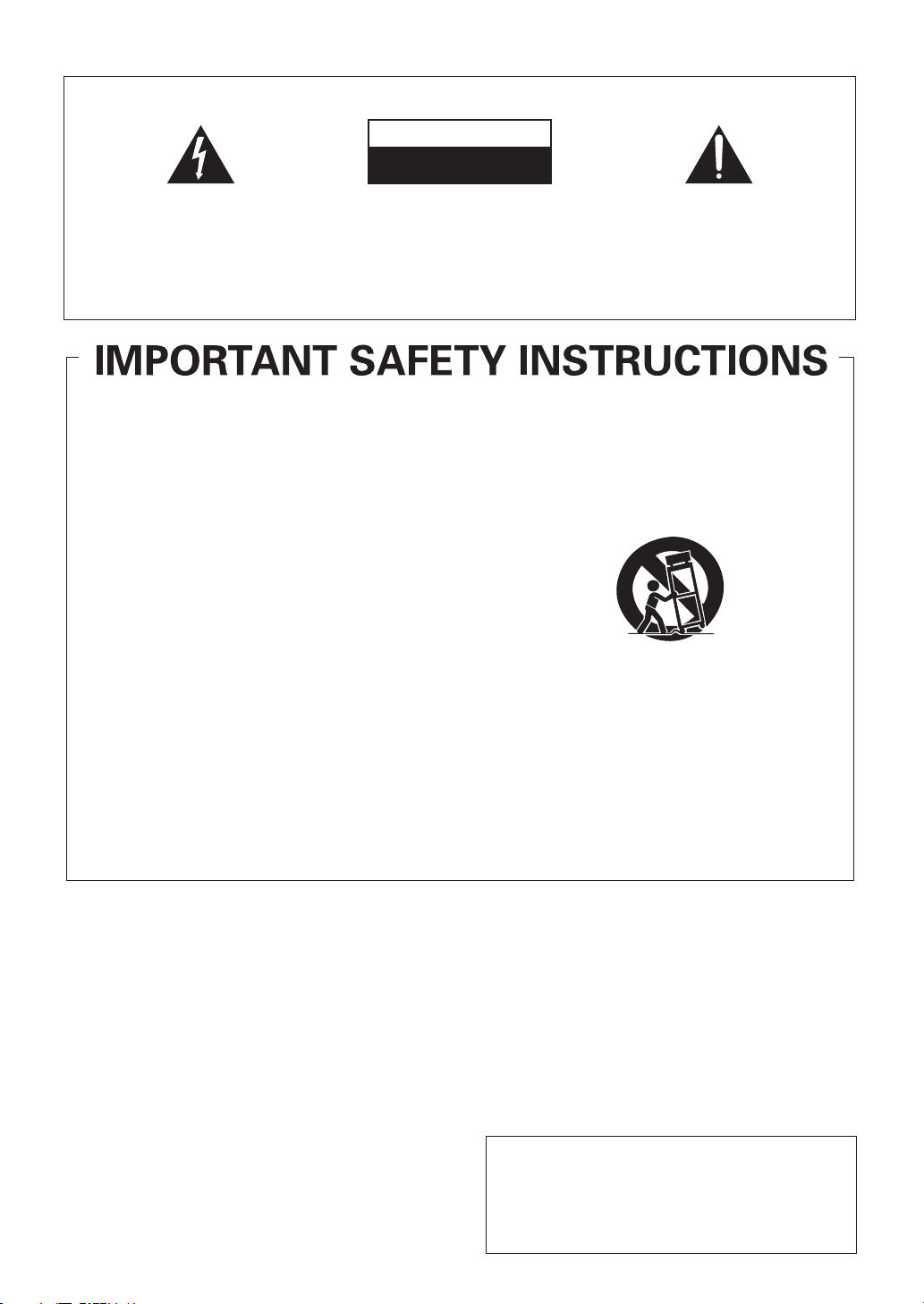
The exclamation point within an equilateral
triangle is intended to alert the user to the
presence of important operating and
maintenance (servicing) instructions in the
literature accompanying the appliance.
The lightning flash with arrowhead symbol,
within an equilateral triangle, is intended to
alert the user to the presence of uninsulated
“dangerous voltage” within the product’s
enclosure that may be of sufficient
magnitude to constitute a risk of electric
shock to persons.
CAUTION:
TO PREVENT THE RISK OF ELECTRIC
SHOCK, DO NOT REMOVE COVER (OR
BACK). NO USER-SERVICEABLE PARTS
INSIDE. REFER SERVICING TO QUALIFIED
SERVICE PERSONNEL.
CAUTION
RISK OF ELECTRIC SHOCK
DO NOT OPEN
IMPORTANT
D3-4-2-1-1_A1_En
WARNING
This equipment is not waterproof. To prevent a fire or
shock hazard, do not place any container filled with
liquid near this equipment (such as a vase or flower
pot) or expose it to dripping, splashing, rain or
moisture.
D3-4-2-1-3_A1_En
WARNING
Before plugging in for the first time, read the following
section carefully.
The voltage of the available power supply differs
according to country or region. Be sure that the
power supply voltage of the area where this unit
will be used meets the required voltage (e.g., 230 V
or 120 V) written on the rear panel.
D3-4-2-1-4*_A1_En
Operating Environment
Operating environment temperature and humidity:
+5 °C to +35 °C (+41 °F to +95 °F); less than 85 %RH
(cooling vents not blocked)
Do not install this unit in a poorly ventilated area, or in
locations exposed to high humidity or direct sunlight (or
strong artificial light)
D3-4-2-1-7c*_A1_En
WARNING
To prevent a fire hazard, do not place any naked flame
sources (such as a lighted candle) on the equipment.
D3-4-2-1-7a_A1_En
Caution
To prevent fire hazard, the Class 2 Wiring Cable
should be used for connection with speaker, and
should be routed away from hazards to avoid damage
to the insulation of the cable.
D3-7-13-67*_A1_En
Read these instructions.
Keep these instructions.
Heed all warnings.
Follow all instructions.
Do not use this apparatus near water.
Clean only with dry cloth.
Do not block any ventilation openings. Install in
accordance with the manufacturer’s
instructions.
Do not install near any heat sources such as
radiators, heat registers, stoves, or other
apparatus (including amplifiers) that produce
heat.
Do not defeat the safety purpose of the polarized
or grounding-type plug. A polarized plug has two
blades with one wider than the other. A
grounding type plug has two blades and a third
grounding prong. The wide blade or the third
prong are provided for your safety. If the provided
plug does not fit into your outlet, consult an
electrician for replacement of the obsolete outlet.
Protect the power cord from being walked on or
pinched particularly at plugs, convenience
receptacles, and the point where they exit from
the apparatus.
1)
2)
3)
4)
5)
6)
7)
8)
9)
10)
Only use attachments/accessories specified by
the manufacturer.
Use only with the cart, stand, tripod, bracket, or
table specified by the manufacturer, or sold with
the apparatus. When a cart is used, use caution
when moving the cart/apparatus combination to
avoid injury from tip-over.
Unplug this apparatus during lightning storms
or when unused for long periods of time.
Refer all servicing to qualified service personnel.
Servicing is required when the apparatus has
been damaged in any way, such as power-supply
cord or plug is damaged, liquid has been spilled
or objects have fallen into the apparatus, the
apparatus has been exposed to rain or moisture,
does not operate normally, or has been dropped.
D3-7-13-69_En
11)
12)
13)
14)
Page 3
VENTILATION CAUTION
When installing this unit, make sure to leave space
around the unit for ventilation to improve heat radiation
(at least 40 cm at top, 10 cm at rear, and 20 cm at each
side).
WARNING
Slots and openings in the cabinet are provided for
ventilation to ensure reliable operation of the product,
and to protect it from overheating. To prevent fire
hazard, the openings should never be blocked or
covered with items (such as newspapers, table-cloths,
curtains) or by operating the equipment on thick carpet
or a bed.
D3-4-2-1-7b*_A1_En
If the AC plug of this unit does not match the AC
outlet you want to use, the plug must be removed
and appropriate one fitted. Replacement and
mounting of an AC plug on the power supply cord of
this unit should be performed only by qualified
service personnel. If connected to an AC outlet, the
cut-off plug can cause severe electrical shock. Make
sure it is properly disposed of after removal.
The equipment should be disconnected by removing
the mains plug from the wall socket when left unused
for a long period of time (for example, when on
vacation).
D3-4-2-2-1a_A1_En
CAUTION
The
STANDBY/ON
switch on this unit will not
completely shut off all power from the AC outlet.
Since the power cord serves as the main disconnect
device for the unit, you will need to unplug it from the
AC outlet to shut down all power. Therefore, make
sure the unit has been installed so that the power
cord can be easily unplugged from the AC outlet in
case of an accident. To avoid fire hazard, the power
cord should also be unplugged from the AC outlet
when left unused for a long period of time (for
example, when on vacation).
D3-4-2-2-2a*_A1_En
NOTE:
This equipment has been tested and found to comply with the limits for a Class B digital device, pursuant to Part 15
of the FCC Rules. These limits are designed to provide reasonable protection against harmful interference in a
residential installation. This equipment generates, uses, and can radiate radio frequency energy and, if not installed
and used in accordance with the instructions, may cause harmful interference to radio communications. However,
there is no guarantee that interference will not occur in a particular installation. If this equipment does cause
harmful interference to radio or television reception, which can be determined by turning the equipment off and on,
the user is encouraged to try to correct the interference by one or more of the following measures:
— Reorient or relocate the receiving antenna.
— Increase the separation between the equipment and receiver.
— Connect the equipment into an outlet on a circuit different from that to which the receiver is connected.
— Consult the dealer or an experienced radio/TV technician for help.
D8-10-1-2_A1_En
Information to User
Alterations or modifications carried out without
appropriate authorization may invalidate the user’s
right to operate the equipment.
D8-10-2_A1_En
CAUTION
This product satisfies FCC regulations when shielded
cables and connectors are used to connect the unit
to other equipment. To prevent electromagnetic
interference with electric appliances such as radios
and televisions, use shielded cables and connectors
for connections.
D8-10-3a_A1_En
FEDERAL COMMUNICATIONS COMMISSION DECLARATION OF CONFORMITY
This device complies with part 15 of the FCC Rules. Operation is subject to the following two conditions: (1) This
device may not cause harmful interference, and (2) this device must accept any interference received, including
interference that may cause undesired operation.
Product Name: AUDIO/VIDEO MULTI-CHANNEL RECEIVER
Model Number: VSX-1325-K / VSX-1125-K
Responsible Party Name: PIONEER ELECTRONICS (USA) INC.
SERVICE SUPPORT DIVISION
Address: 1925 E. DOMINGUEZ ST. LONG BEACH, CA 90810-1003, U.S.A.
Phone: 1-800-421-1404
URL: http://www.pioneerelectronics.com
D8-10-4*_C1_En
IMPORTANT NOTICE
THE MODEL NUMBER AND SERIAL NUMBER OF
THIS EQUIPMENT ARE ON THE REAR OR BOTTOM.
RECORD THESE NUMBERS ON YOUR ENCLOSED
WARRANTY PAGE 111 FOR FUTURE REFERENCE.
D36-AP9-1_A1_En
Page 4
This product is for general household purposes. Any
failure due to use for other than household purposes
(such as long-term use for business purposes in a
restaurant or use in a car or ship) and which requires
repair will be charged for even during the warranty
period.
K041_A1_En
CAUTION:
HOT SURFACE. DO NOT TOUCH.
The top surface over the internal
heatsink may become hot when
operating this product continuously.
WARNING: Handling the cord on this product or
cords associated with accessories sold with the
product may expose you to chemicals listed on
proposition 65 known to the State of California and
other governmental entities to cause cancer and
birth defect or other reproductive harm.
Wash hands after handling.
D36-P5_B1_En
Page 5

Contents
Thank you for buying this Pioneer product. Please read through these operating instructions so you will know how to operate
your model properly. After you have finished reading the instructions, put them away in a safe place for future reference.
01 Before you start
Features. . . . . . . . . . . . . . . . . . . . . . . . . . . . . . . . . . . . 9
Checking what’s in the box . . . . . . . . . . . . . . . . . . . . . 9
Installing the receiver . . . . . . . . . . . . . . . . . . . . . . . . 10
Loading the batteries . . . . . . . . . . . . . . . . . . . . . . . . . 10
Operating range of remote control unit . . . . . . . . . . . 10
02 Controls and displays
Remote control . . . . . . . . . . . . . . . . . . . . . . . . . . . . . 11
Front panel . . . . . . . . . . . . . . . . . . . . . . . . . . . . . . . . 12
Display. . . . . . . . . . . . . . . . . . . . . . . . . . . . . . . . . . . . 13
03 Connecting your equipment
Rear panel . . . . . . . . . . . . . . . . . . . . . . . . . . . . . . . . . 15
Determining the speakers’ application . . . . . . . . . . . 17
Other speaker connections . . . . . . . . . . . . . . . . . . . 18
Placing the speakers . . . . . . . . . . . . . . . . . . . . . . . . . 18
THX speaker system setup . . . . . . . . . . . . . . . . . . . 18
Some tips for improving sound quality . . . . . . . . . . 18
Connecting the speakers . . . . . . . . . . . . . . . . . . . . . . 19
Installing your speaker system. . . . . . . . . . . . . . . . . . 20
Standard surround connection . . . . . . . . . . . . . . . . 20
Bi-amping your speakers. . . . . . . . . . . . . . . . . . . . . 21
Bi-wiring your speakers . . . . . . . . . . . . . . . . . . . . . . 21
Selecting the Speaker system . . . . . . . . . . . . . . . . . . 22
Front height setup. . . . . . . . . . . . . . . . . . . . . . . . . . 22
Front wide setup . . . . . . . . . . . . . . . . . . . . . . . . . . . 22
Spea
ker B setup . . . . . . . . . . . . . . . . . . . . . . . . . . . 22
Bi-Amping setup . . . . . . . . . . . . . . . . . . . . . . . . . . . 22
ZONE 2 setup . . . . . . . . . . . . . . . . . . . . . . . . . . . . . 22
About the audio connection. . . . . . . . . . . . . . . . . . . . 22
About the video converter . . . . . . . . . . . . . . . . . . . . . 22
About HDMI . . . . . . . . . . . . . . . . . . . . . . . . . . . . . . . 23
Connecting your TV and playback components . . . . . 24
Connecting using HDMI . . . . . . . . . . . . . . . . . . . . . 24
Connecting your DVD player with no HDMI
output . . . . . . . . . . . . . . . . . . . . . . . . . . . . . . . . . . . 25
Connecting your TV with no HDMI input . . . . . . . . . 26
Connecting an HDD/DVD recorder, BD recorder
and other video sources. . . . . . . . . . . . . . . . . . . . . . . 27
Connecting a satellite/cable receiver or other
set-top box . . . . . . . . . . . . . . . . . . . . . . . . . . . . . . . . . 28
Connecting other audio components. . . . . . . . . . . . . 28
About the WMA9 Pro decoder. . . . . . . . . . . . . . . . . 29
Connecting additional amplifiers. . . . . . . . . . . . . . . . 29
Connecting AM/FM antennas
Conn
ecting external antennas. . . . . . . . . . . . . . . . . 30
MULTI-ZONE setup . . . . . . . . . . . . . . . . . . . . . . . . . . 30
Making MULTI-ZONE connections. . . . . . . . . . . . . . 31
Connecting to the network through LAN interface. . . 32
Connecting Optional Bluetooth® ADAPTER . . . . . . . 32
Connecting an HDMI-equipped component to the
front panel input . . . . . . . . . . . . . . . . . . . . . . . . . . . . 32
. . . . . . . . . . . . . . . . . . 30
Connecting an XM Radio tuner (VSX-1325 only) . . . . . 33
Connecting a SiriusConnect™ tuner . . . . . . . . . . . . . 33
Connecting an iPod . . . . . . . . . . . . . . . . . . . . . . . . . . 33
Connecting a USB device . . . . . . . . . . . . . . . . . . . . . 34
Connecting a USB device for Advanced MCACC
output . . . . . . . . . . . . . . . . . . . . . . . . . . . . . . . . . . . . 34
Connecting an IR receiver . . . . . . . . . . . . . . . . . . . . . 35
Operating other Pioneer components with this
unit’s sensor . . . . . . . . . . . . . . . . . . . . . . . . . . . . . . . 35
Switching components on and off using the
12 volt trigger (VSX-1325 only). . . . . . . . . . . . . . . . . . . 36
Plugging in the receiver. . . . . . . . . . . . . . . . . . . . . . . 36
04 Basic Setup
Switching the speaker impedance . . . . . . . . . . . . . . . 37
Changing the OSD display language
(OSD Language) . . . . . . . . . . . . . . . . . . . . . . . . . . . . 37
Automatically conducting optimum sound tuning
(Auto MCACC) . . . . . . . . . . . . . . . . . . . . . . . . . . . . . . 37
Problems when using the Auto MCACC Setup . . . . 39
The Input Setup menu . . . . . . . . . . . . . . . . . . . . . . . . 39
Input function default and possible settings . . . . . . 40
05 Basic playback
Playing a source . . . . . . . . . . . . . . . . . . . . . . . . . . . . 41
Playing a source with HDMI connection . . . . . . . . . 41
Playing an iPod . . . . . . . . . . . . . . . . . . . . . . . . . . . . . 41
Playing back audio files stored on an iPod . . . . . . . 42
Playing a USB device. . . . . . . . . . . . . . . . . . . . . . . . . 42
Playing back audio files stored on a USB memory
device . . . . . . . . . . . . . . . . . . . . . . . . . . . . . . . . . . . 43
Playing back photo files stored on a USB memory
device . . . . . . . . . . . . . . . . . . . . . . . . . . . . . . . . . . . 43
About playable file formats . . . . . . . . . . . . . . . . . . . 44
Listening to the radio . . . . . . . . . . . . . . . . . . . . . . . . . 45
Improving FM sound . . . . . . . . . . . . . . . . . . . . . . . . 45
Using Neural Surround . . . . . . . . . . . . . . . . . . . . . . 45
Tuning directly to a station . . . . . . . . . . . . . . . . . . . 45
Saving station presets. . . . . . . . . . . . . . . . . . . . . . . 45
Naming station presets. . . . . . . . . . . . . . . . . . . . . . 45
Listening to station presets . . . . . . . . . . . . . . . . . . . 45
Listening to Internet radio stations . . . . . . . . . . . . . . 46
Programming the Internet radio stations . . . . . . . . 46
Listening to Satellite Radio . . . . . . . . . . . . . . . . . . . . 47
Listening to XM Radio (VSX-1325 only) . . . . . . . . . . . . 47
Using XM HD Surround . . . . . . . . . . . . . . . . . . . . . 48
Saving channel presets . . . . . . . . . . . . . . . . . . . . . . 48
Using the XM Menu . . . . . . . . . . . . . . . . . . . . . . . . 48
Listening to SIRIUS Radio . . . . . . . . . . . . . . . . . . . . . 48
Saving channel presets .
Using the SIRIUS Menu . . . . . . . . . . . . . . . . . . . . . 49
. . . . . . . . . . . . . . . . . . . . . 49
5
En
Page 6

Bluetooth ADAPTER for Wireless Enjoyment of
Music . . . . . . . . . . . . . . . . . . . . . . . . . . . . . . . . . . . . . 50
Wireless music play . . . . . . . . . . . . . . . . . . . . . . . . . 50
Pairing the Bluetooth ADAPTER and Bluetooth
wireless technology device. . . . . . . . . . . . . . . . . . . . 50
Listening to music contents of a Bluetooth wireless
technology device with your system . . . . . . . . . . . . . 51
06 Listening to your system
Auto playback. . . . . . . . . . . . . . . . . . . . . . . . . . . . . . . 52
Listening in surround sound. . . . . . . . . . . . . . . . . . . . 52
Standard surround sound . . . . . . . . . . . . . . . . . . . . 52
Using the Home THX modes . . . . . . . . . . . . . . . . . . 53
Using the Advanced surround effects . . . . . . . . . . . 53
Listening in stereo . . . . . . . . . . . . . . . . . . . . . . . . . . . 54
Using Front Stage Surround Advance . . . . . . . . . . . . 54
Using Stream Direct. . . . . . . . . . . . . . . . . . . . . . . . . . 54
Selecting MCACC presets . . . . . . . . . . . . . . . . . . . . . 55
Choosing the input signal. . . . . . . . . . . . . . . . . . . . . . 55
Better sound using Phase Control . . . . . . . . . . . . . . . 55
07 Control with HDMI function
Making Control with HDMI connections. . . . . . . . . . . 56
HDMI Setup . . . . . . . . . . . . . . . . . . . . . . . . . . . . . . . . 56
Before using synchronization . . . . . . . . . . . . . . . . . . . 57
About synchronized operations . . . . . . . . . . . . . . . . . 57
About connections with a product of a different brand
that supports the Control with HDMI function . . . . . 58
Setting the PQLS function . . . . . . . . . . . . . . . . . . . . . 58
Cautions on the Control with HDMI function . . . . . . . 58
08 Using other functions
Setting the Audio options . . . . . . . . . . . . . . . . . . . . . . 59
Setting the Video options . . . . . . . . . . . . . . . . . . . . . . 61
Switching the speaker terminals . . . . . . . . . . . . . . . . 62
Using the MULTI-ZONE controls . . . . . . . . . . . . . . . . . 62
Making an audio or a video recording. . . . . . . . . . . . . 63
Reducing the level of an analog signal . . . . . . . . . . . . 63
Using the sleep timer . . . . . . . . . . . . . . . . . . . . . . . . . 63
Dimming the display . . . . . . . . . . . . . . . . . . . . . . . . . 63
Switching the HDMI output (VSX-1325 only) . . . . . . . . 64
Using the Web Control function . . . . . . . . . . . . . . . . . 64
Checking your system settings . . . . . . . . . . . . . . . . . . 64
Resetting the system . . . . . . . . . . . . . . . . . . . . . . . . . 64
Default system settings . . . . . . . . . . . . . . . . . . . . . . 65
09 Controlling the rest of your system
Operating multiple receivers. . . . . . . . . . . . . . . . . . . . 66
Setting the remote to control other components . . . . 66
Selecting preset codes directly . . . . . . . . . . . . . . . . . . 66
Programming signals from other remote controls . . . 67
Erasing one of the remote control button settings . . . 67
Erasing all learnt settings that are in one input
function . . . . . . . . . . . . . . . . . . . . . . . . . . . . . . . . . . . 68
Direct function . . . . . . . . . . . . . . . . . . . . . . . . . . . . . . 68
Setting the backlight mode. . . . . . . . . . . . . . . . . . . . . 68
Multi operation and System off. . . . . . . . . . . . . . . . . . 68
Programming a Multi operation or a shutdown
sequence . . . . . . . . . . . . . . . . . . . . . . . . . . . . . . . . . 69
Using multi operations. . . . . . . . . . . . . . . . . . . . . . . 69
Using System off . . . . . . . . . . . . . . . . . . . . . . . . . . . 69
Erasing the settings for the multi-operatio
Resetting the remote control settings. . . . . . . . . . . . . 70
Default preset codes . . . . . . . . . . . . . . . . . . . . . . . . 70
Controlling components. . . . . . . . . . . . . . . . . . . . . . . 70
n . . . . . . . 69
10 The Advanced MCACC menu
Making receiver settings from the Advanced
MCACC menu . . . . . . . . . . . . . . . . . . . . . . . . . . . . . . 73
Automatic MCACC (Expert) . . . . . . . . . . . . . . . . . . . . 73
Manual MCACC setup . . . . . . . . . . . . . . . . . . . . . . . . 75
Fine Channel Level. . . . . . . . . . . . . . . . . . . . . . . . . . 76
Fine Speaker Distance . . . . . . . . . . . . . . . . . . . . . . . 76
Standing Wave. . . . . . . . . . . . . . . . . . . . . . . . . . . . . 76
Acoustic Calibration EQ Adjust . . . . . . . . . . . . . . . . 77
Acoustic Calibration EQ Professional . . . . . . . . . . . 77
Checking MCACC Data . . . . . . . . . . . . . . . . . . . . . . . 79
Speaker Setting . . . . . . . . . . . . . . . . . . . . . . . . . . . . 79
Channel Level . . . . . . . . . . . . . . . . . . . . . . . . . . . . . 79
Speaker Distance. . . . . . . . . . . . . . . . . . . . . . . . . . . 79
Standing Wave. . . . . . . . . . . . . . . . . . . . . . . . . . . . . 79
Acoustic Cal EQ. . . . . . . . . . . . . . . . . . . . . . . . . . . . 79
Output MCACC data . . . . . . . . . . . . . . . . . . . . . . . . 80
Data Management . . . . . . . . . . . . . . . . . . . . . . . . . . . 80
Renaming MCACC presets . . . . . . . . . . . . . . . . . . . 80
Copying MCACC preset data . . . . . . . . . . . . . . . . . . 81
Clearing MCACC presets . . . . . . . . . . . . . . . . . . . . . 81
11 The System Setup and Other Setup menus
Making receiver settings from the System Setup
menu . . . . . . . . . . . . . . . . . . . . . . . . . . . . . . . . . . . . . 82
Manual speaker setup . . . . . . . . . . . . . . . . . . . . . . . . 82
Speaker system setting . . . . . . . . . . . . . . . . . . . . . . 83
Speaker Setting . . . . . . . . . . . . . . . . . . . . . . . . . . . . 83
Channel Level . . . . . . . . . . . . . . . . . . . . . . . . . . . . . 84
Speaker Distance. . . . . . . . . . . . . . . . . . . . . . . . . . . 84
X-Curve . . . . . . . . . . . . . . . . . . . . . . . . . . . . . . . . . . 85
THX Audio Setting . . . . . . . . . . . . . . . . . . . . . . . . . . 85
Network Setup menu . . . . . . . . . . . . . . . . . . . . . . . . . 85
IP address/Proxy setting . . . . . . . . . . . . . . . . . . . . . 85
Checking the MAC address . . . . . . . . . . . . . . . . . . . 86
Network Standby . . . . . . . . . . . . . . . . . . . . . . . . . . . 86
The Other Setup menu . . . . . . . . . . . . . . . . . . . . . . . . 86
Volume Setup . . . . . . . . . . . . . . . . . . . . . . . . . . . . . 87
Remote Control Mode Setup . . . . . . . . . . . . . . . . . . 87
Flicker Reduction Setup. . . . . . . . . . . . . . . . . . . . . . 87
EXTENSION Setup . . . . . . . . . . . . . . . . . . . . . . . . . . 87
6
En
Page 7

12 Additional information
Speaker Setting Guide . . . . . . . . . . . . . . . . . . . . . . . . 88
Positional relationship between speakers and
monitor . . . . . . . . . . . . . . . . . . . . . . . . . . . . . . . . . . 89
Troubleshooting. . . . . . . . . . . . . . . . . . . . . . . . . . . . . 89
Power . . . . . . . . . . . . . . . . . . . . . . . . . . . . . . . . . . . 89
No sound . . . . . . . . . . . . . . . . . . . . . . . . . . . . . . . . 90
Other audio problems . . . . . . . . . . . . . . . . . . . . . . . 91
ADAPTER PORT . . . . . . . . . . . . . . . . . . . . . . . . . . . 92
Video . . . . . . . . . . . . . . . . . . . . . . . . . . . . . . . . . . . . 92
Settings. . . . . . . . . . . . . . . . . . . . . . . . . . . . . . . . . . 93
Professional Calibration EQ graphical output . . . . . 93
Display . . . . . . . . . . . . . . . . . . . . . . . . . . . . . . . . . . 94
Remote control . . . . . . . . . . . . . . . . . . . . . . . . . . . . 94
Web Control . . . . . . . . . . . . . . . . . . . . . . . . . . . . . . 95
HDMI . . . . . . . . . . . . . . . . . . . . . . . . . . . . . . . . . . . 95
Important information regarding the HDMI
connection . . . . . . . . . . . . . . . . . . . . . . . . . . . . . . . 96
USB interface . . . . . . . . . . . . . . . . . . . . . . . . . . . . . 96
Internet radio. . . . . . . . . . . . . . . . . . . . . . . . . . . . . . 97
XM radio messages. . . . . . . . . . . . . . . . . . . . . . . . . 98
SIRIUS radio messages. . . . . . . . . . . . . . . . . . . . . . 99
Surround sound formats
Do
lby. . . . . . . . . . . . . . . . . . . . . . . . . . . . . . . . . . . 100
DTS . . . . . . . . . . . . . . . . . . . . . . . . . . . . . . . . . . . . 100
Windows Media Audio 9 Professional . . . . . . . . . . 100
About THX . . . . . . . . . . . . . . . . . . . . . . . . . . . . . . . . 100
About iPod. . . . . . . . . . . . . . . . . . . . . . . . . . . . . . . . 101
About SIRIUS and XM . . . . . . . . . . . . . . . . . . . . . . . 102
Auto Surround, ALC and Stream Direct with
different input signal formats. . . . . . . . . . . . . . . . . . 103
Preset code list . . . . . . . . . . . . . . . . . . . . . . . . . . . . 104
Specifications . . . . . . . . . . . . . . . . . . . . . . . . . . . . . 108
Cleaning the unit . . . . . . . . . . . . . . . . . . . . . . . . . . . 109
Our philosophy . . . . . . . . . . . . . . . . . . . . . . . . . . . . 109
. . . . . . . . . . . . . . . . . . . . . 100
En
7
Page 8
Flow of settings on the receiver
The unit is a full-fledged AV receiver equipped with an abundance of functions and terminals. It can be used easily
after following the procedure below to make the connections and settings.
The colors of the steps indicate the following:
Required setting item
Setting to be made as necessary
1 Before you start
• Checking what’s in the box (page 9)
• Loading the batteries (page 10)
2
Determining the speakers’ application (page
17)
• 7.1 channel surround system (Front height)
• 7.1 channel surround system (Front wide)
• 7.1 channel surround system & Speaker B
connection
• 5.1 channel surround system & Front Bi-amping
connection (High quality surround)
• 5.1 channel surround system & ZONE 2 connection
(Multi Zone)
3 Connecting the speakers
• Placing the speakers (page 18)
• Connecting the speakers (page 19)
• Installing your speaker system (page 20)
• Bi-amping your speakers (page 21)
4 Connecting the components
• About the audio connection (page 22)
• About the video converter (page 22)
• Connecting your TV and playback components
(page 24)
• Connecting AM/FM antennas (page 30)
• Plugging in the receiver (page 36)
5 Switching the speaker impedance (page 37)
(Only if the impedance of the connected speakers is
6 Ω to 8 Ω)
6Power On
7 Changing the OSD display language (OSD
Language) (page 37)
8 MCACC speaker settings
• Automatically conducting optimum sound tuning
(Auto MCACC) (page 37)
9 The Input Setup menu (page 39)
(When using connections other than the
recommended connections)
10 Basic playback (page 41)
11 Switching the HDMI output (VSX-1325 only) (page
64)
12 Adjusting the sound and picture quality as desired
• Using the various listening modes
• Better sound using Phase Control (page 55)
• Measuring the all EQ type (SYMMETRY/ALL CH
ADJ/FRONT ALIGN) (page 73)
• Changing the channel level while listening (Tip on
page 84)
• Switching on/off the Acoustic Calibration EQ,
Sound retriever or Dialog Enhancement (page 59)
• Setting the PQLS function (page 58)
• Setting the Audio options (Tone, Loudness or
Sound delay, etc.) (page 59)
• Setting the Video options (page 61)
13 Other optional adjustments and settings
• Control with HDMI function (page 56)
• The Advanced MCACC menu (page 73)
• The System Setup and Other Setup menus (page
82)
14 Making maximum use of the remote control
• Operating multiple receivers (page 66)
• Setting the remote to control other components
(page 66)
8
En
Page 9

Before you start
Note
Chapter 1:
Before you start
Features
• Advanced Direct Energy design
This receiver offers a new advancement in discrete
design unique to Pioneer for high-power drivability, low
distortion and stable imaging.
• HDMI (Ver.1.4 with 3D, Audio Return Channel)
A compatible component is required to use the above
function.
• Remote operation on an iPhone/iPod touch
Operation via LAN is possible from an iPhone or iPod
touch by downloading a Pioneer original application
(iControlAV) from the iTunes Store.
• iPhone/iPod playback
Your iPhone or iPod can be connected to the receiver’s
USB terminal to play the music/video files on the iPhone/
iPod.
• PQLS multi surround
Jitterless high quality playback is possible by connecting
a PQLS-compatible player with HDMI connections.
• Dolby Pro Logic llz compatible
Adding a pair of speakers above the front left and right
speakers adds expressiveness in the vertical direction to
the previous horizontally-oriented sound field. The height
channel strengthens the sound field’s sense of three-
dimensionality and air, producing presence and
expansion.
• Internet Radio
By connecting this receiver to the network via the LAN
terminal, you can listen to Internet radio stations.
01
• Easy setup using Advanced MCACC
The Auto MCACC Setup provides a quick but accurate
surround sound setup, which includes the advanced
features of Professional Acoustic Calibration EQ.
• Web control
The receiver can be operated using a browser from a
computer connected on the same LAN as the receiver.
Checking what’s in the box
Please check that you’ve received the following supplied
accessories:
•Setup microphone (cable: 5 m (16.4 ft.))
• Remote control unit
• AAA size IEC R03 dry cell batteries (to confirm system
operation) x2
•AM loop antenna
•FM wire antenna
•iPod cable
•Power cord
•These operating instructions
•XM1 and SIRIUS Ready
With the XM1 and SIRIUS Radio terminals, you’ll be up
and running in no time.
•
Bluetooth
Using the Bluetooth ADAPTER (Pioneer Model No. ASBT100)
Bluetooth wireless technology device wirelessly.
• Sound Retriever and Sound Retriever Air
The Sound Retriever feature employs DSP technology to
restore sound pressure and smooth jagged artifacts left
over after compression. Sound Retriever Air
compensates for reduced sound quality due to
compression when sending Bluetooth signals.
1 XM Radio is only supported on the VSX-1325.
2 The AS-BT100 is sold separately.
compatible
2
lets you enjoy music files on an iPhone or other
9
En
Page 10

01
7 m (23 ft.)
30°
30°
Before you start
Installing the receiver
• When installing this unit, make sure to put it on a
level and stable surface.
Don’t install it on the following places:
– on a color TV (the screen may distort)
– near a cassette deck (or close to a device that gives off
a magnetic field). This may interfere with the sound.
– in direct sunlight
– in damp or wet areas
– in extremely hot or cold areas
– in places where there is vibration or other movement
– in places that are very dusty
– in places that have hot fumes or oils (such as a kitchen)
• Do not touch this receiver’s bottom panel while the
power is on or just after it is turned off. The bottom
panel becomes hot when the power is on (or right
after it is turned off) and could cause burns.
Loading the batteries
The batteries included with the unit are to check initial
operations; they may not last over a long period. We
recommend using alkaline batteries that have a longer
life.
Operating range of remote control unit
The remote control may not work properly if:
•There are obstacles between the remote control and
the receiver’s remote sensor.
•Direct sunlight or fluorescent light is shining onto the
remote sensor.
•The receiver is located near a device that is emitting
infrared rays.
•The receiver is operated simultaneously with another
infrared remote control unit.
10
En
CAUTION
Incorrect use of batteries may result in such hazards as
leakage and bursting. Observe the following precautions:
• Never use new and old batteries together.
•Insert the plus and minus sides of the batteries
properly according to the marks in the battery case.
•Batteries with the same shape may have different
voltages. Do not use different batteries together.
• When disposing of used batteries, please comply
with governmental regulations or environmental
public instruction’s rule
area.
• WARNING
Do not use or store batteries in direct sunlight or
other excessively hot place, such as inside a car or
near a heater. This can cause batteries to leak,
overheat, explode or catch fire. It can also reduce the
life or performance of batteries.
s that apply in your country or
Page 11
Chapter 2:
RECEIVER
ZONE 2 ZONE 3 LIGHT
AUTO
/
ALC /
DIRECT
D.ACCESS
CH LEVEL A.ATT DIMMER
SIGNAL SEL
MCACC SLEEP
HDMI OUT
TV
/
DTV MPX PQLS
PHASE
CTRL STATUSTHX
PGM
STEREO
iPod CTRL
HOME
MENU
TUNE
TUNE
TOOLS
LIST
CH
TV CONTROL
INPUT
INPUT
SELECT TV CTRL
iPod
USB TUNER SIRIUS XM
ADAPTERNET RADIO
CDTV
BD DVD
R.SETUP
SOURCERECEIVER
MULTI
OPERATION
DVR/BDR HDMI
RECEIVER
MUTE
MASTER
VOLUME
VOL
PRESET
TOP MENU
BAND GUIDE
T.EDIT
VIDEO
PARAMETER
AUDIO
PARAMETER
ENTER
PRESET
RETURN
CATEGORY
MEMORY
STANDARD
MENU
ADV SURR
AUDIO
INFO
CLASS
ENTER
DISP
HDD DVD
546
8
0
79
213
/ CLR
CH
1
2
3
4
8
9
5
6
7
10
11
12
13
14
RECEIVER
RECEIVER
Controls and displays
Remote control
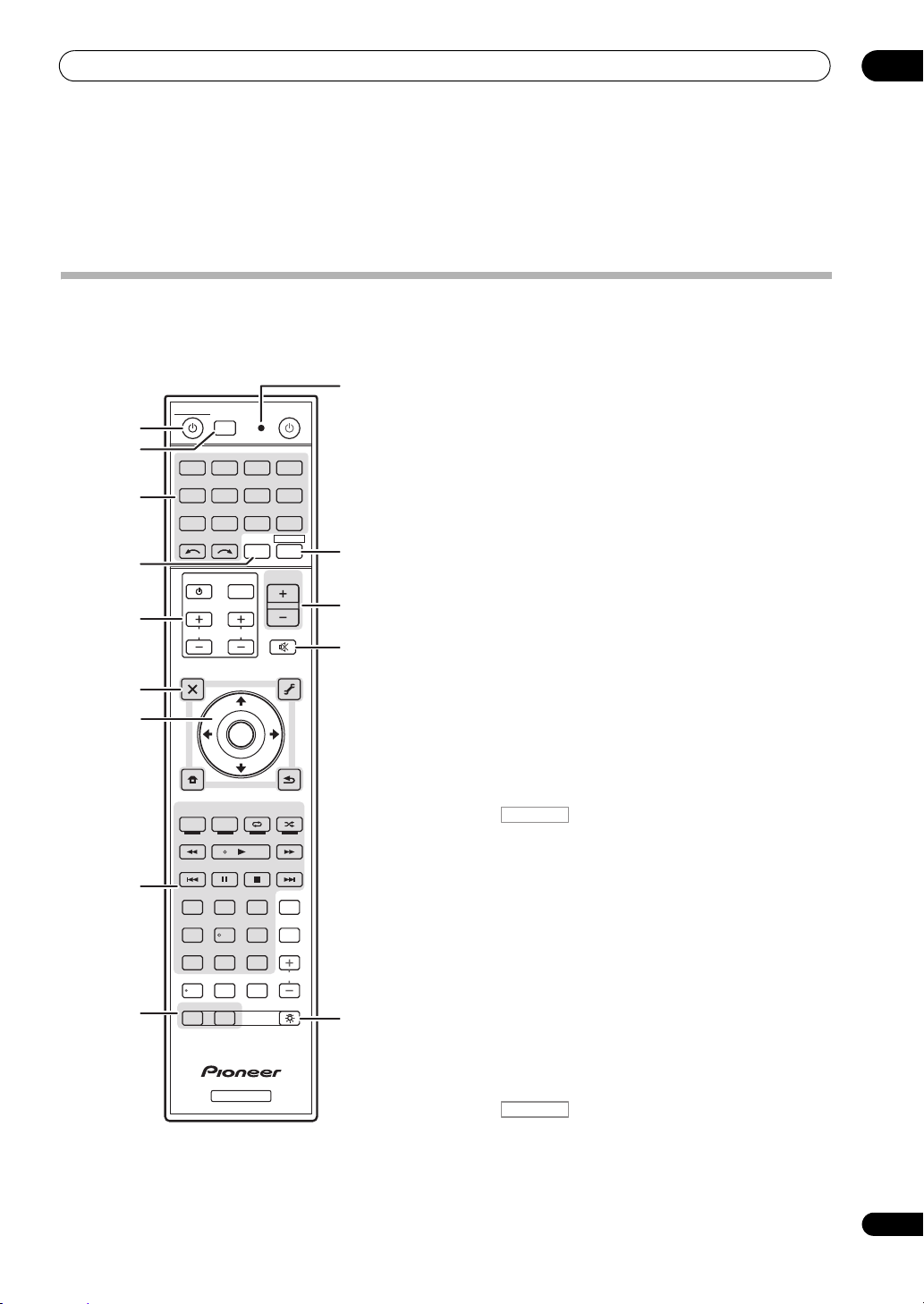
This section explains how to operate the remote control
for the receiver.
Controls and displays
The remote has been conveniently color-coded according
to component control using the following system:
• White – Receiver control, TV control
• Blue – Other controls (See page 41, 42, 45, 46, 50 and
70.)
1
RECEIVER
This switches between standby and on for this receiver.
2
MULTI OPERATION – Use to perform multi
operations (page 68).
R.SETUP – Use to input the preset code when making
remote control settings and to set the remote control
mode (page 66).
3 Input function buttons
Press to select control of other components (page 66).
(The XM button can only be used with the VSX-1325.)
Use INPUT SELECT to select the input function (page 41).
4
TV CTRL
Set the preset code of your TV’s manufacturer when
controlling the TV (page 66).
5
TV CONTROL
buttons
These buttons are dedicated to control the TV assigned to
the TV CTRL button.
6 Receiver setting buttons
Press first to access:
AUDIO PARAMETER – Use to access the Audio
options (page 59).
VIDEO PARAMETER – Use to access the Video
options (page 61).
HOME MENU – Use to access the Home Menu
(pages 37, 39, 56, 73, 82 and 85).
RETURN – Press to confirm and exit the current
menu screen.
7
////ENTER
Use the arrow buttons when setting up your surround
sound system (see page 73) and the Audio or Video
options (page 59 or 61).
8 Receiver Control buttons
Press first to access:
AUTO/ALC/DIRECT –
Surround
(page 52)
Stream Direct mode
Switches between Auto
, Auto Level Control mode and
(page 54).
02
11
En
Page 12
02
MASTER
VOLUME
INPUT
SELECTOR
STANDBY/ON
PHONES
BAND TUNE PQLS
AUTO SURR /ALC/
STREAM DIRECT
ADVANCED
SURROUND
STANDARD
SURROUND
MCACC SETUP MIC
STEREO
SPEAKERSHOME THX
USB
CONTROL
MULTI-ZONE
ON
/
OFF
ADVANCED
MCACC
iPod
iPhone
HDMI PRESET TUNER EDIT
ENTER
iPod
iPhone
VIDEO CAMERA
HDMI 5
12 345
910 141211 13
15
786
Controls and displays
STEREO – Switches between stereo playback and
Front Stage Surround Advance modes (page 54).
STANDARD – Press for Standard decoding and to
switch various modes (2 Pro Logic, Neo:6, etc.)
(page 52).
ADV SURR – Use to switch between the various
surround modes (page 53).
THX – Press to select a Home THX listening mode
(page 53).
PHASE CTRL – Press to switch on/off Phase Control
(page 55).
STATUS – Press to check selected receiver settings
(page 64).
PQLS – Press to select the PQLS setting (page 58).
HDMI OUT – VSX-1325 only: Switch the HDMI output
terminal (page 64).
SIGNAL SEL – Use to select an input signal (page 55).
MCACC – Press to switch between MCACC presets
(page 55).
SLEEP – Use to put the receiver in
sleep mode and
select the amount of time before sleep (page 63).
CH LEVEL – Press repeatedly to select a channel,
then use / to adjust the level (page 84).
A.ATT – Attenuates (lowers) the level of an analog
input signal to prevent distortion (page 63).
DIMMER – Dims or brightens the display (page 63).
9
MULTI-ZONE
select buttons
Switch to perform operations in ZONE 2 and ZONE 3
(page 63). (The ZONE 3 button can only be used with the
VSX-1325.)
10 Remote control LED
Lights when a command is sent from the remote control
(page 66).
RECEIVER
11
Switches the remote to control the receiver (used to
select the white commands).
Switch to perform operations in the main zone.
Also use this button to set up surround sound.
12
MASTER VOLUME +/–
Use to set the listening volume.
13
MUTE
Mutes the sound or restores the sound if it has been
muted (adjusting the volume also restores the sound).
14
Press to turn on/off the illumination for the buttons. The
way the buttons light can be selected from four modes
(page 68).
Front panel
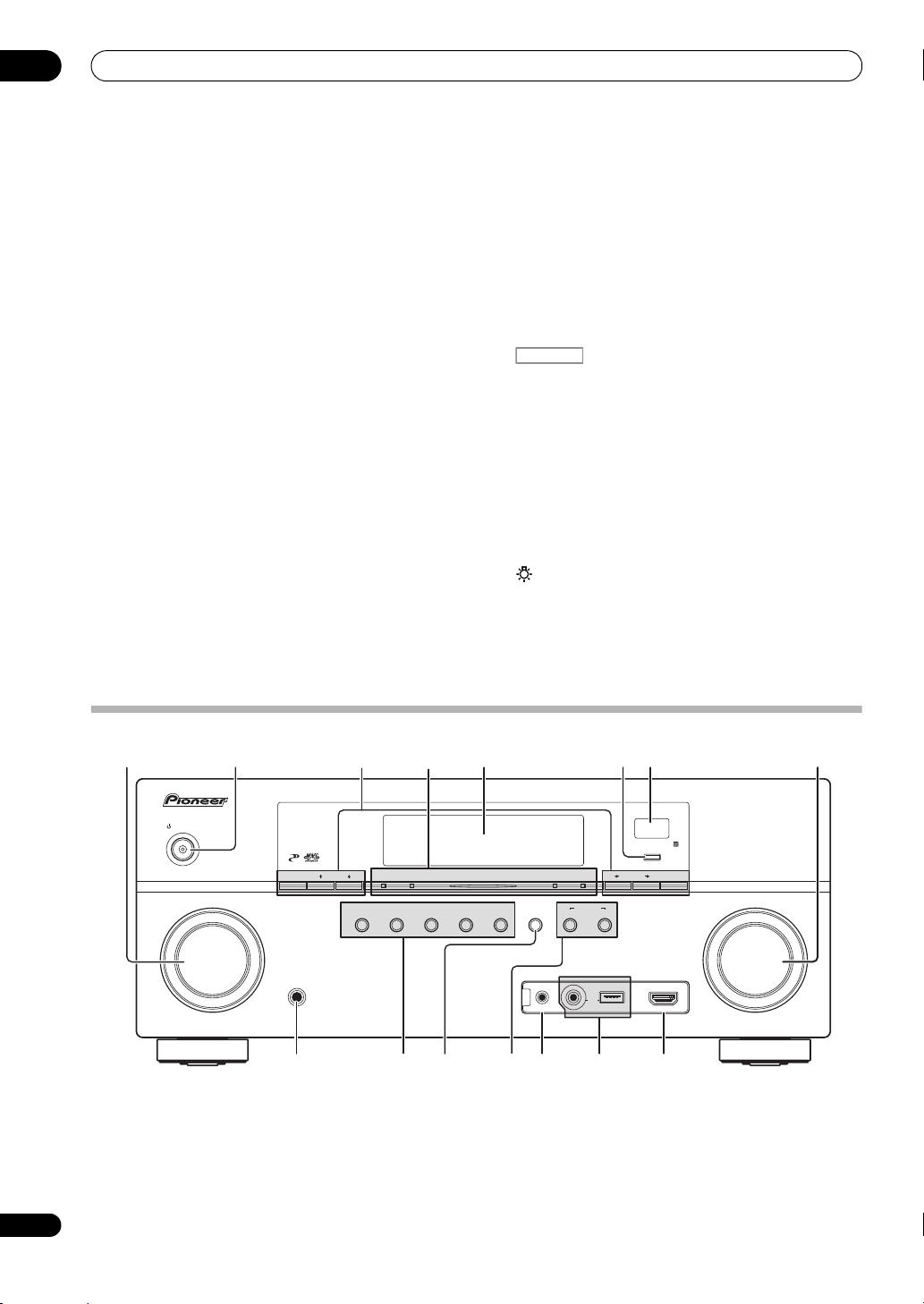
1
12
En
INPUT SELECTOR
Use to select an input function.
2
STANDBY/ON
Switches the receiver between on and standby.
dial
3 Tuner controls
BAND – Switches between the AM and FM radio
bands (page 45).
TUNE / – Use to find radio frequencies (page 50).
PRESET / – Use to find preset stations (page 45).
Page 13
Controls and displays
PCM
HDMI
DIGITAL
ANALOG
L C R
SL SR
XL XR
XC
LFE
AUTO
DIGITAL PLUS
AUTO SURROUND
STREAM DIRECT
PROLOGIC x
Neo:6
THX ADV.SURROUND
STEREO STANDARD
SP AB
SLEEP
DSD PCM
DTS HD ES 96/24
MSTR
S.RTRV SOUND UP MIX
OVER
MONO
dB
2
MULTI-ZONE
STEREO
TrueHD WMA9Pro
PQLS
ALC
ATT
2
2
USB XM
VIDEO
TV
DVD
HDMI
DVR
BD
CD
TUNER
SIRIUS
CD-R
iPod
[ 2 ]
[ 3 ]
[ 4 ]
TUNED
21 3 9754 108 11 12 13
18 1915 16 17
14
7
6
02
TUNER EDIT –
and
ENTER
(page 45)
Use with
TUNE /, PRESET /
to memorize and name stations for recall
.
4Indicators
ADVANCED MCACC
the
AUDIO PARAMETER
–
Lights when EQ is set to ON in
menu
(page 59)
.
PQLS – Lights when the PQLS feature is active
(page 58).
HDMI
– Blinks when connecting an HDMI-equipped
component; lights when the component is connected
(page 24)
.
iPod/iPhone – Lights to indicate iPod/iPhone is
connected (page 33).
5 Character display
See Display below.
6
ENTER
7 Remote sensor
Receives the signals from the remote control (see
Operating range of remote control unit on page 10).
8
MASTER VOLUME
9
PHONES
jack
dial
Use to connect headphones. When the headphones are
connected, there is no sound output from the speakers.
10 Listening mode buttons
AUTO SURR/ALC/STREAM DIRECT –
between Auto Surround
(page 52)
mode and Stream Direct mode
Switches
, Auto Level Control
(page 54)
.
STEREO – Switches between stereo playback and
Front Stage Surround Advance modes (page 54).
ADVANCED SURROUND – Use to switch between
the various surround modes (page 53).
STANDARD SURROUND – Press for Standard
decoding and to switch various modes (2 Pro Logic,
Neo:6, etc.) (page 52).
HOME THX – Press to select a Home THX listening
mode (page 53).
11
SPEAKERS
Use to change the speaker terminal (page 62).
12
MULTI-ZONE
controls
If you’ve made MULTI-ZONE connections (see MULTIZONE setup on page 30) use these controls to control the
sub zone from the main zone (see Using the MULTI-ZONE
controls on page 62).
13
MCACC SETUP MIC
jack
Use to connect the supplied microphone (page 37).
14
iPod/iPhone/USB
terminals
Use to connect your Apple iPod as an audio and video
source, or connect a USB device for audio and photo
playback (page 33).
15 HDMI input connector
Use for connection to a compatible HDMI device (Video
camera, etc.) (page 32).
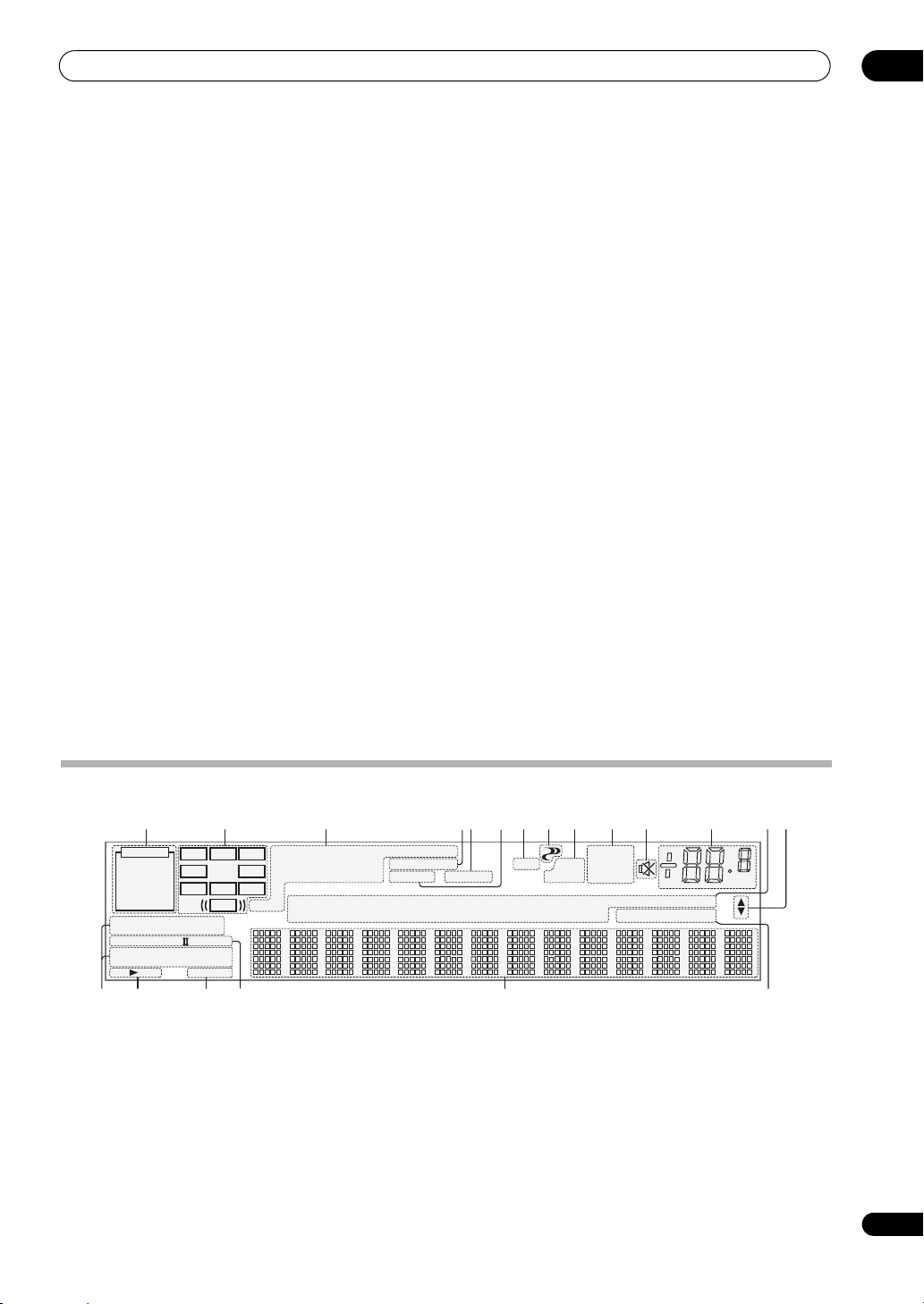
Display
1
Light to indicate the currently selected input signal.
AUTO lights when the receiver is set to select the input
signal automatically (page 55).
2 Program format indicators
Light to indicate the channels to which digital signals are
being input.
SIGNAL
L/R – Left front/Right front channel
C – Center channel
SL/SR – Left surround/Right surround channel
indicators
LFE – Low frequency effects channel (the (( )) indicators light
when an LFE signal is being input)
XL/XR – Two channels other than the ones above
XC – Either one channel other than the ones above, the mono
surround channel or matrix encode flag
3 Digital format indicators
Light when a signal encoded in the corresponding format
is detected.
2 DIGITAL – Lights with Dolby Digital decoding.
2 DIGITAL PLUS – Lights with Dolby Digital Plus
decoding.
13
En
Page 14

02
Controls and displays
2 TrueHD – Lights with Dolby TrueHD decoding.
DTS – Lights with DTS decoding.
DTS HD – Lights with DTS-HD decoding.
96/24 – Lights with DTS 96/24 decoding.
WMA9 Pro – Lights to indicate that a WMA9 Pro
signal is being decoded.
DSD PCM – Light during DSD (Direct Stream Digital)
to PCM conversion with SACDs.
PCM – Lights during playback of PCM signals.
MSTR – Lights during playback of DTS-HD Master
Audio signals.
4
MULTI-ZONE
Lights when the MULTI-ZONE feature is active (page 62).
5
SOUND
Lights when any of the Midnight, Loudness or tone
controls features is selected (page 59).
Lights when Dialog Enhancement is switched on.
6
S.RTRV
Lights when the Sound Retriever function is
(page 59)
7 Listening mode indicators
8 (
Lights when Phase Control is switched on (page 55).
9 Analog signal indicators
Light to indicate reducing the level of an analog signal
(page 63).
10 Tuner indicators
11
Lights when the sound is muted (page 12).
.
AUTO SURROUND – Lights when the Auto Surround
feature is switched on (page 52).
ALC – Lights when the ALC (Auto level control) mode
is selected (page 54).
STREAM DIRECT – Lights when Direct/Pure Direct is
selected (page 54).
ADV.SURROUND – Lights when one of the
Advanced Surround modes has been selected
(page 53).
STEREO – Lights when stereo listening is switched
on (page 54).
STANDARD – Lights when one of the Standard
Surround modes is switched on (page 52).
THX – Lights when one of the Home THX modes is
selected (page 53).
PHASE CONTROL
TUNED – Lights when a broadcast is being received.
STEREO –
received in auto stereo mode.
MONO – Lights when the mono mode is set using
MPX.
Lights when a stereo FM broadcast is being
)
active
12 Master volume level
Shows the overall volume level.
“---” indicates the minimum level, and “+12dB” indicates
the maximum level.
13 Input function indicators
Light to indicate the input function you have selected.
(XM only lights for the VSX-1325.)
14 Scroll indicators
Light when there are more selectable items when making
the various settings.
15 Speaker indicators
Lights to indicate the current speaker system, A and/or B
(page 62).
16
SLEEP
Lights when the receiver is in sleep mode (page 63).
17 Matrix decoding format indicators
2PRO LOGIC IIx – This lights to indicate 2 Pro
Logic II / 2 Pro Logic IIx decoding (page 52).
Neo:6 –
is on, this lights to indicate Neo:6 processing
18 Character display
Displays various system information.
19 Remote control mode indicator
Lights to indicate the receiver’s remote control mode
setting. (Not displayed when set to 1.) (page 66)
When one of the Neo:6 modes of the receiver
(page 52)
.
14
En
Page 15
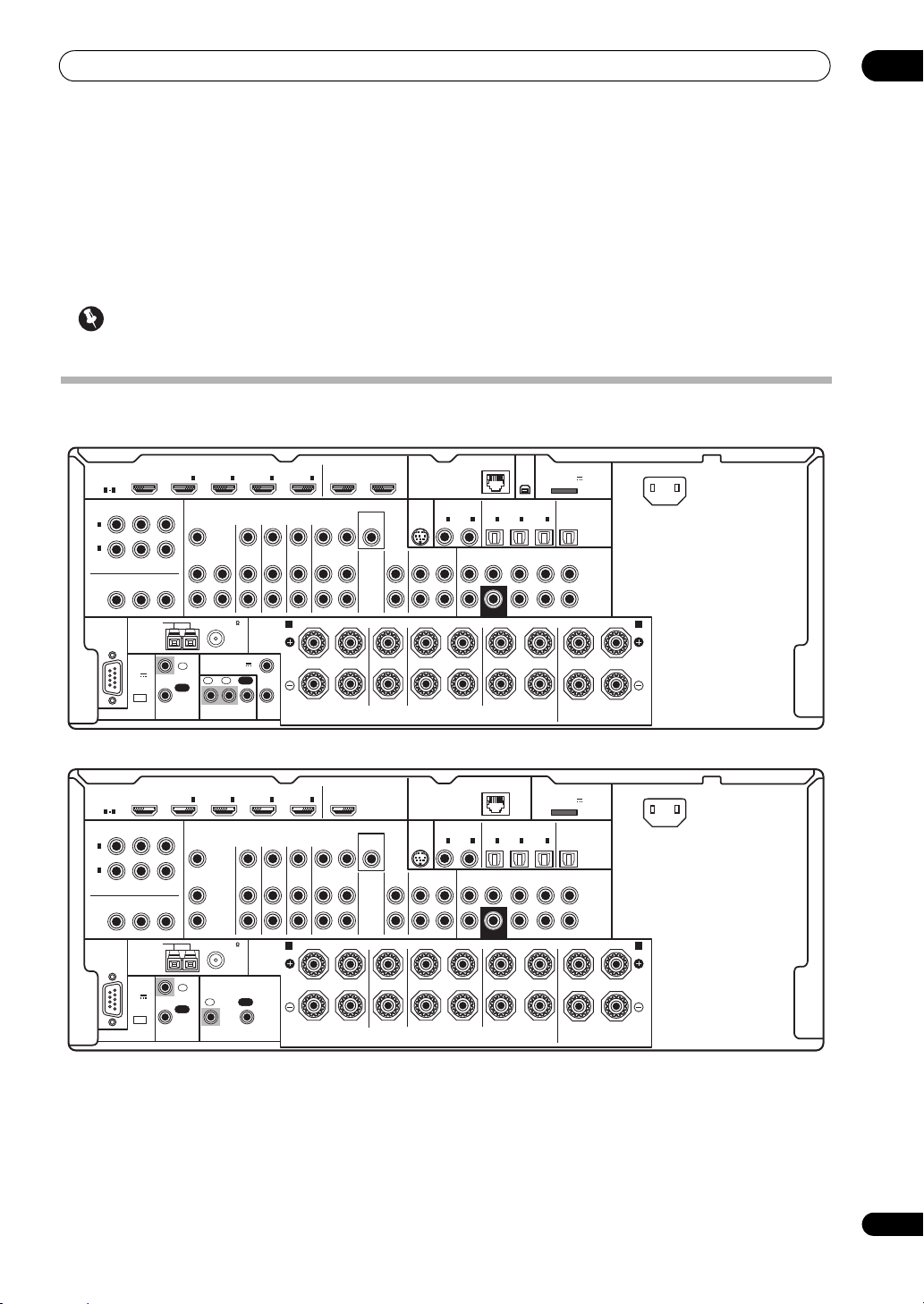
Connecting your equipment
RS-232C
HDMI
SPEAKERS
ASSIGNABLE
COAXIALCOMPONENT VIDEO
ASSIGNABLE
OPTICAL
ASSIGNABLEASSIGNABLE
MONITOR
OUT
IN
Y
P
R
Y
CD-R/TAPE
ANTENNA
FM UNBAL 75 AM LOOP
AC IN
IN
CD
VIDEO
MONITOR
AUDIO
IN
OUT
OUT
ZONE2
OUT
ZONE3
OUT
DVDINTV/SATINVIDEOINDVR/BDR
OUT IN
P
B
PRP
B
1
INBD
IN
1
IN2IN
3
OUT 1
(
CONTROL
)
OUT 2
A
B
RLR L R L(Single)
SURROUND BACKSURROUNDCENTERFRONT
R
R
L
L
FRONT HEIGHT / FRONT WIDE/
1 4
(
DVD
)
IN
1
(
DVD
)
IN
1
(
TV/SAT
)
IN
2
(
DVR/BDR
)
IN
OUT
FRONT CENTER SURROUND SURR BACK
(Single)
FH/FW
3
(
VIDEO
)
IN
2
(CD)
IN
2
(
DVR/BDR
)
CONTROL
EXTENSION
IR
12 V TRIGGER
IN
IN IN
OUT
OUT
12
1
2
(OUTPUT 12 V
TOTAL 150 mA MAX)
SUBWOOFER
IN
4
LAN
(
10/100
)
(
OUTPUT 5 V
100 mA MAX
)
ADAPTER PORT
PRE OUT
(
OUTPUT
5 V
150 mA
MAX
)
XM
IN
SIRIUS
IN
Class 2 Wiring
RS-232C
HDMI
SPEAKERS
ASSIGNABLE
COAXIALCOMPONENT VIDEO
ASSIGNABLE
OPTICAL
ASSIGNABLEASSIGNABLE
MONITOR
OUT
IN
Y
P
R
Y
CD-R/TAPE
ANTENNA
FM UNBAL 75 AM LOOP
AC IN
IN
CD
VIDEO
MONITOR
AUDIO
IN
OUT
OUT
ZONE2
OUT
DVDINTV/SATINVIDEOINDVR/BDR
OUT IN
P
B
PRP
B
1
INBD
IN
1
IN2IN
3
OUT
A
B
RLR L R L(Single)
SURROUND BACKSURROUNDCENTERFRONT
R
R
L
L
FRONT HEIGHT / FRONT WIDE/
1 4
(
DVD
)
IN
1
(
DVD
)
IN
1
(
TV/SAT
)
IN
2
(
DVR/BDR
)
IN
OUT
FRONT CENTER SURROUND SURR BACK
(Single)
FH/FW
3
(
VIDEO
)
IN
2
(CD)
IN
2
(
DVR/BDR
)
CONTROL
EXTENSION
IR
IN
IN
OUT
OUT
SUBWOOFER
IN
4
LAN
(
10/100
)
(
OUTPUT 5 V
100 mA MAX
)
ADAPTER PORT
PRE OUT
(
OUTPUT
5 V
150 mA
MAX
)
SIRIUS
IN
Class 2 Wiring
Chapter 3:
Connecting your equipment
This receiver provides you with many connection possibilities, but it doesn’t have to be difficult. This chapter explains
the kinds of components you can connect to make up your home theater system.
Important
• Illustration shows the VSX-1325, however connections for the VSX-1125 are the same except where noted.
Rear panel
VSX-1325
03
VSX-1125
15
En
Page 16
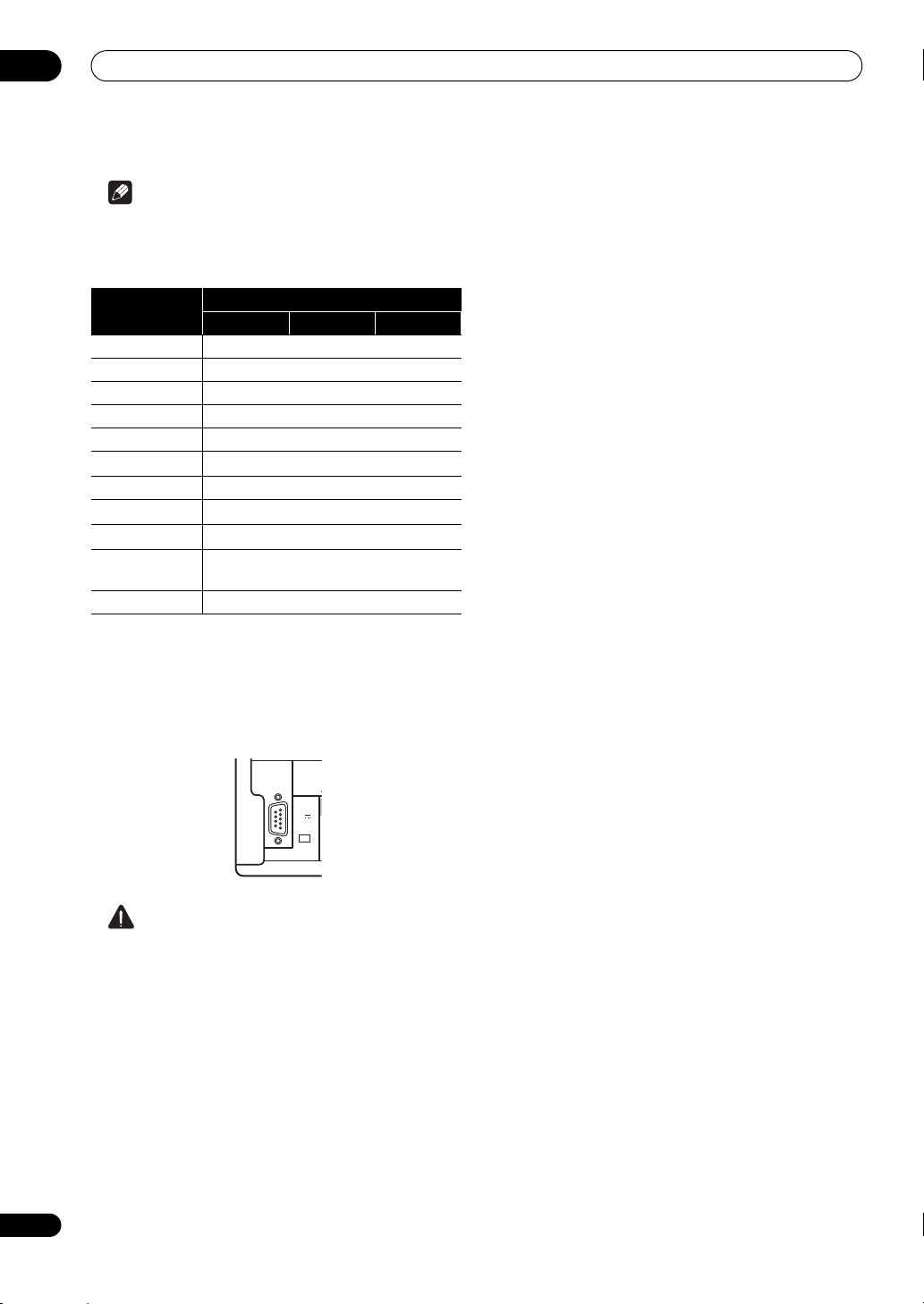
03
A
O
Connecting your equipment
Note
•The input functions below are assigned by default to
the receiver’s different input terminals. Refer to The
Input Setup menu on page 39 to change the
assignments if other connections are used.
Input function
Digital HDMI
DVD COAX-1 IN 1
BD (BD)
TV/SAT OPT-1
DVR/BDR OPT-2 IN 2
VIDEO OPT-3
HDMI 1
HDMI 2 (HDMI-2)
HDMI 3
HDMI 4 (HDMI-4)
HDMI 5
(front panel)
CD COAX-2
• The CU-RF100 omni-directional remote control
(separately sold) can be connected to the RS-232C
and EXTENSION terminals. Using the CU-RF100 lets
you display the receiver’s display information on the
remote control display in your hands and operate it
without worrying about obstacles or the direction in
which the remote control is pointing.
Input Terminals
(HDMI-1)
(HDMI-3)
(
HDMI-5)
AM LO
RS-232C
ANTENN
(
OUTPUT
5 V
150 mA
)
MAX
EXTENSION
Component
16
En
CAUTION
•Before making or changing the connections, switch
off the power and disconnect the power cord from the
power outlet. P
lugging in should be the final step.
Page 17
Connecting your equipment
Note
Speaker B
Front Bi-Amp
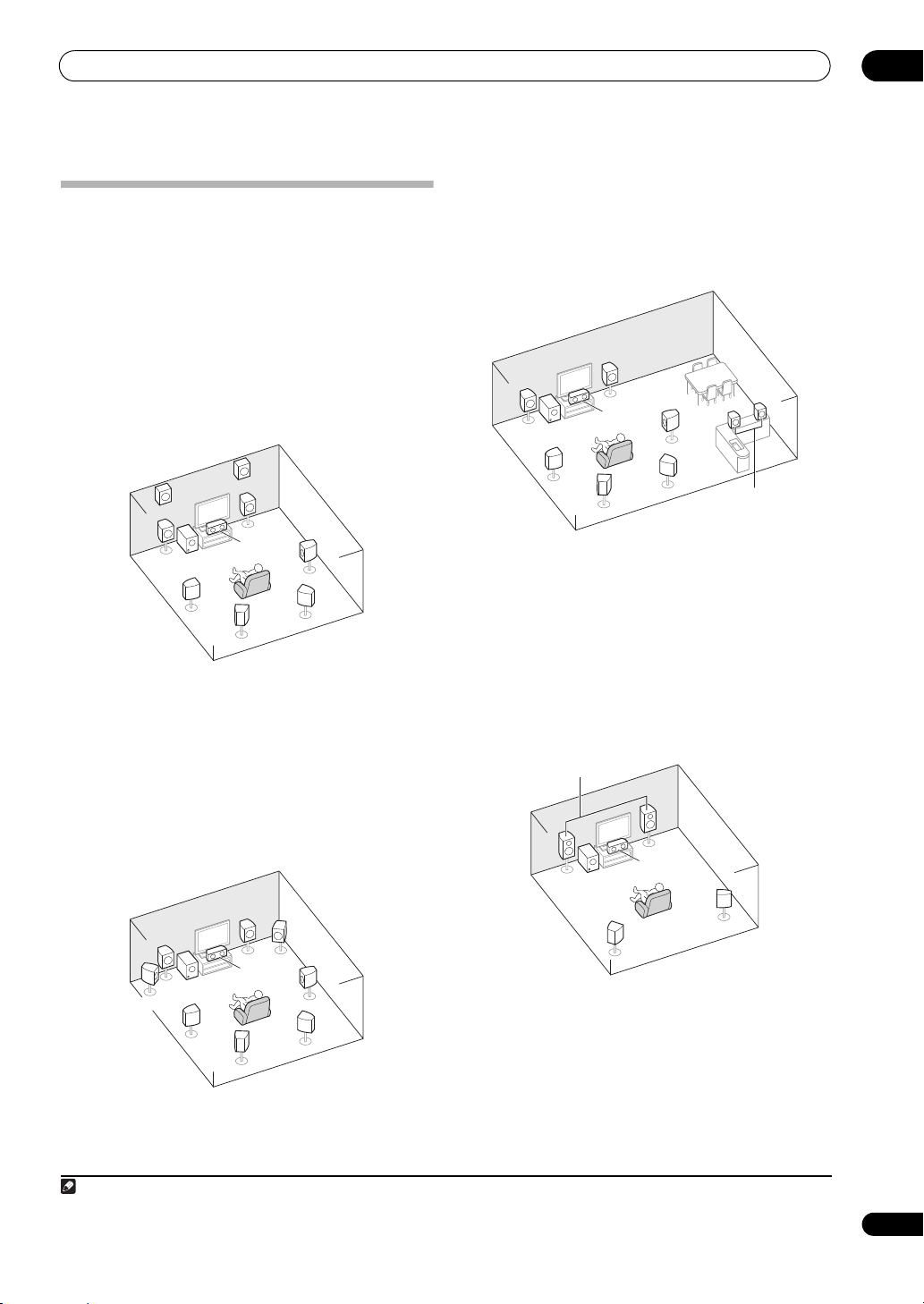
Determining the speakers’ application
This unit permits you to build various surround systems,
in accordance with the number of speakers you have.
• Be sure to connect speakers to the front left and right
channels (L and R).
• It is also possible to only connect one of the surround
back speakers (SB) or neither.
Choose one from Plans [A] to [E] below.
[A] 7.1 channel surround system (Front height)
*Default setting
• Speaker System setting: Normal(SB/FH)
This surround system produces a true-to-life sound over
a wider area.
[C] 7.1 channel surround system & Speaker B
connection
• Speaker System setting: Speaker B
R
L
R
L
SW
C
SR
03
FHR
FHL
L
SW
SL
R
C
SBL
A 7.1 ch surround system connects the left and right
front speakers (L/R), the center speaker (C), the left and
right front height speakers (FHL/FHR), the left and right
surround speakers (SL/SR), the left and right surround
back speakers (SBL/SBR), and the subwoofer (SW).
This surround system produces a more true-to-life sound
from above.
[B] 7.1 channel surround system (Front wide)
• Speaker System
FWL
setting: Normal(SB/FW)
R
L
C
SW
SL
SBL
FWR
This plan replaces the left and right front height speakers
shown in [A] with the left and right front wide speakers
(FWL/FWR).
1
SR
SBR
SR
SBR
SL
SBL
SBR
With these connections you can simultaneously enjoy
5.1-channel surround sound in the main zone with stereo
playback of the same sound on the B speakers. The same
connections also allow for 7.1-channel surround sound
in the main zone when not using the B speakers.
[D] 5.1 channel surround system & Front Biamping connection (High quality surround)
• Speaker System setting: Front Bi-Amp
Bi-amping connection of the front speakers for high
sound quality with 5.1-channel surround sound.
1
R
L
SW
C
SR
SL
1 It is not possible to produce sound simultaneously from the front height or front wide speakers and the surround back speakers.
17
En
Page 18
03
L
L
R
R
SL
SW
C
SR
Main zone
Sub zone
ZONE 2
Connecting your equipment
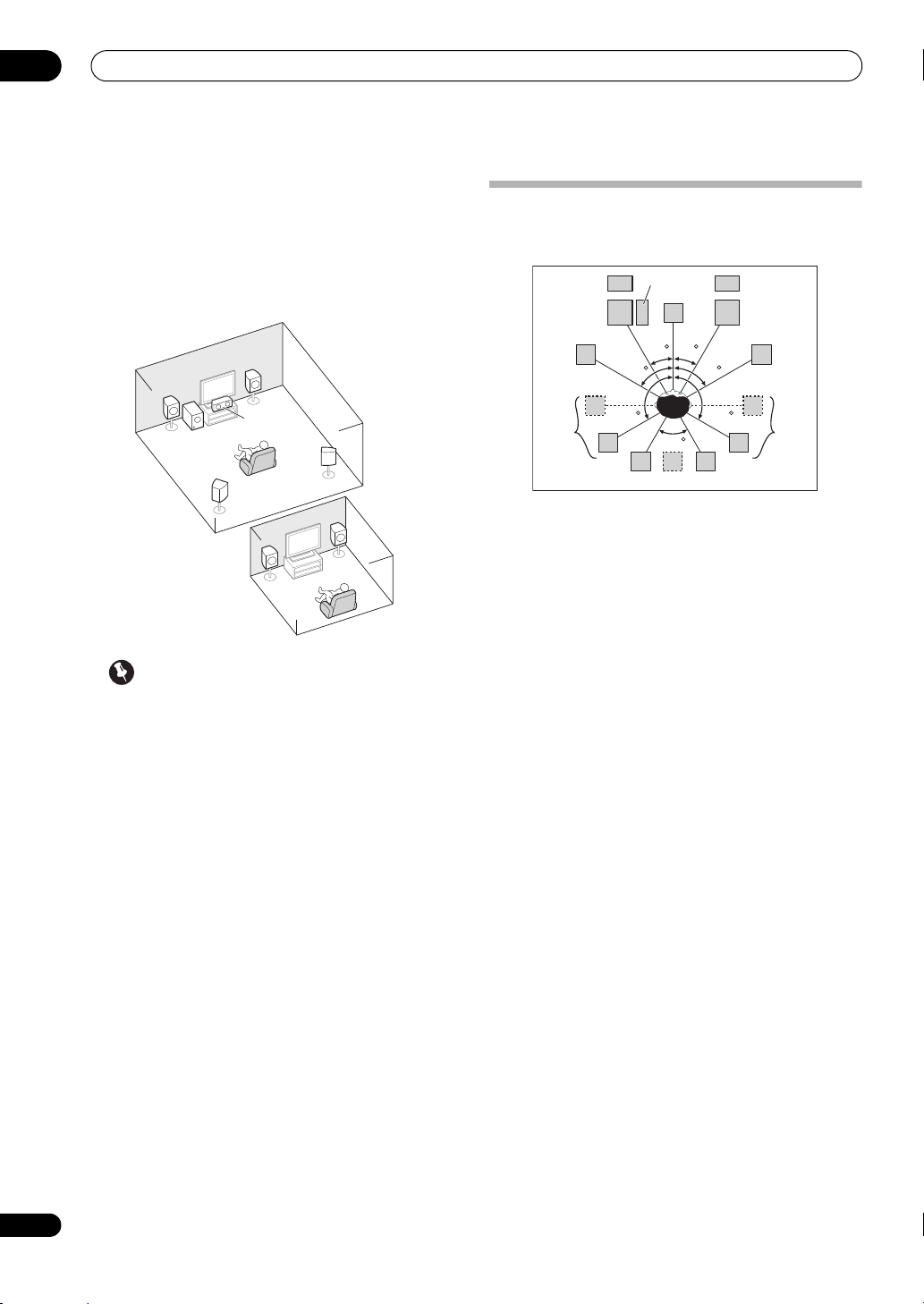
[E] 5.1 channel surround system & ZONE 2
connection (Multi Zone)
• Speaker System setting: ZONE 2
With these connections you can simultaneously enjoy
5.1-channel surround sound in the main zone with stereo
playback on another component in ZONE 2. (The
selection of input devices is limited.)
Placing the speakers
Refer to the chart below for placement of the speakers
you intend to connect.
FHL
SW
C
L
FHR
R
FWL
SL
30 30
60
SB
60
SBR
60
120 120
SBL
FWR
SR
•Place the surround speakers at 120º from the center.
If you, (1) use the surround back speaker, and, (2)
don’t use the front height speakers / front wide
speakers, we recommend placing the surround
speaker right beside you.
• If you intend to connect only one surround back
speaker, place it directly behind you.
• Place the left and right front height speakers at least
Important
•The Speaker System setting must be made if you
use any of the connections shown above other than
[A] (see Speaker system setting on page 83).
• Sound does not come through simultaneously from
the front height, front wide, speaker B and surround
back speakers. Output speakers are different
depending on the input signal or listening mode.
Other speaker connections
•Your favorite speaker connections can be selected
even if you have fewer than 5.1 speakers (except front
left/right speakers).
• When not connecting a subwoofer, connect speakers
with low frequency reproduction capabilities to the
front channel. (The subwoofer’s low frequency
component is played from the front speakers, so the
speakers could be damaged.)
•
After connecting, be sure to conduct the Auto
MCACC (speaker environment setting) procedure.
See Automatically conducting optimum sound tuning
(Auto MCACC) on page 37.
one meter (3.3 ft.) directly above the left and right
front speakers.
THX speaker system setup
If you are using a THX certified subwoofer, use the THX
INPUT jack on the subwoofer (if your subwoofer has one)
or switch the filter position to THX on your subwoofer.
See also THX Audio Setting on page 85 to make the
settings that will give you the best sound experience
when using the Home THX modes (page 53).
Some tips for improving sound quality
Where you put your speakers in the room has a big effect
on the quality of the sound. The following guidelines
should help you to get the best sound from your system.
•The subwoofer can be placed on the floor. Ideally, the
other speakers should be at about ear-level when
you’re listening to them. Putting the speakers on the
floor (except the subwoofer), or mounting them very
high on a wall is not recommended.
•For the best stereo effect, place the front speakers 2
m to 3 m (6 ft. to 9 ft.) apart, at equal distance from
the TV.
•If you’re going to place speakers around your CRT TV,
use shielded speakers or place the speakers at
a
sufficient distance from your CRT TV.
•If you’re using a center speaker, place the front
speakers at a wider angle. If not, place them at a
narrower angle.
18
En
Page 19
Connecting your equipment
fig. A fig. B fig. C
10 mm (
3
/8 in.)
• Place the center speaker above or below the TV so
that the sound of the center channel is localized at
the TV screen. Also, make sure the center speaker
does not cross the line formed by the leading edge of
the front left and right speakers.
• It is best to angle the speakers towards the listening
position. The angle depends on the size of the room.
Use less of an angle for bigger rooms.
•Surround and surround back speakers should be
positioned 60 cm to 90 cm (2 ft. to 3 ft.) higher than
your ears and tilted slightly downward. Make sure the
speakers don’t face each other. For DVD-Audio, the
speakers should be more directly behind the listener
than for home theater pla
•Try not to place the surround speakers farther away
from the listening position than the front and center
speakers. Doing so can weaken the surround sound
effect.
yback.
Connecting the speakers
Each speaker connection on the receiver comprises a
positive (+) and negative (–) terminal. Make sure to
match these up with the terminals on the speakers
themselves.
CAUTION
•These speaker terminals carry HAZARDOUS LIVE
voltage. To prevent the risk of electric shock when
connecting or disconnecting the speaker cables,
disconnect the power cord before touching any
uninsulated parts.
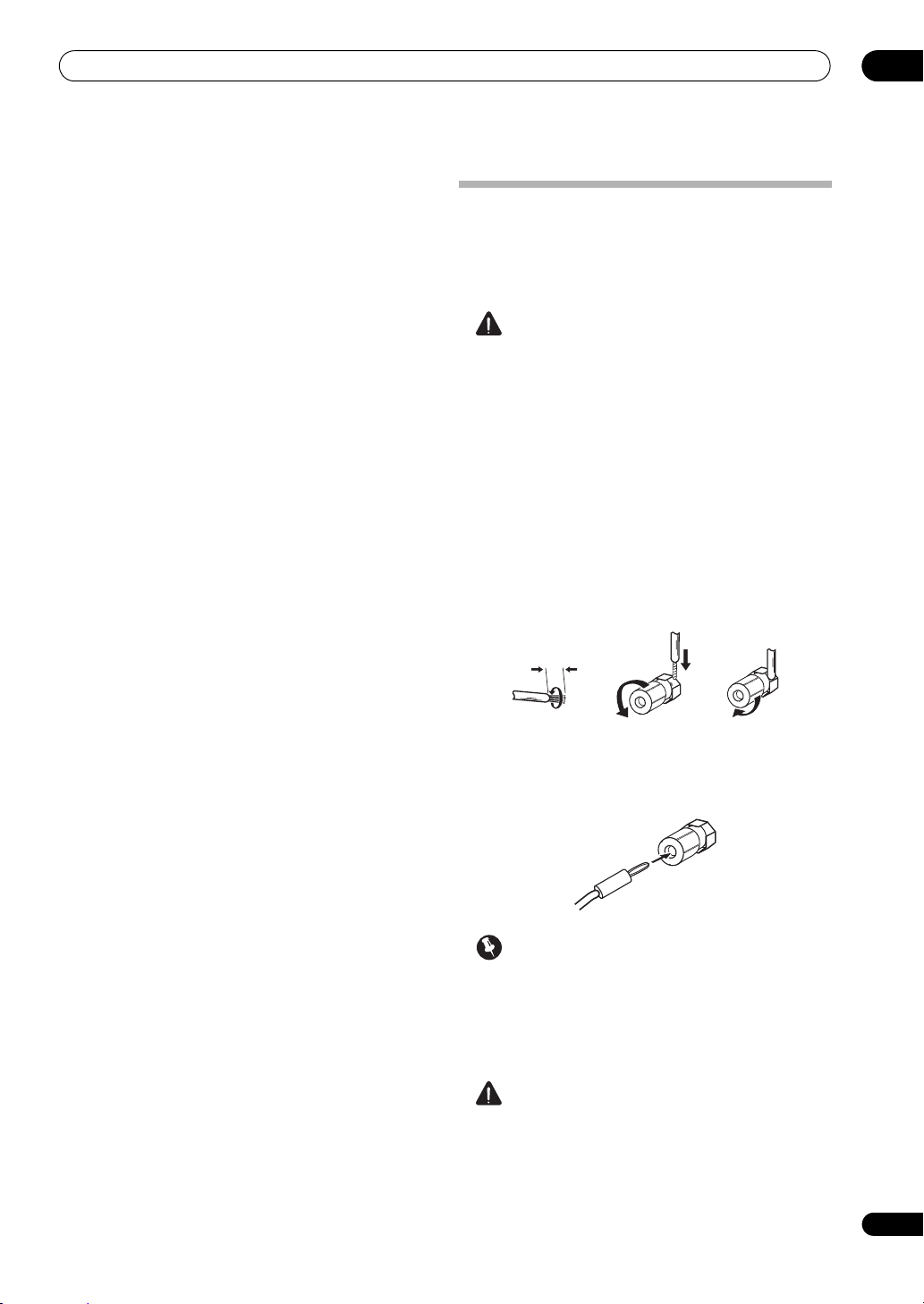
•Make sure that all the bare speaker wire is twisted
together and inserted fully into the speaker terminal.
If any of the bare speaker wire touches the back panel
it may cause the power to
Bare wire connections
1 Twist exposed wire strands together.
2 Loosen terminal and insert exposed wire.
3 Tighten terminal.
cut off as a safety measure.
(fig. A)
(fig. B)
(fig. C)
03
Banana plug connections
If you want to use speaker cables terminated with banana
plugs, screw the speaker terminal fully shut, then plug
the banana plug into the end of the speaker terminal.
Important
•Please refer to the manual that came with your
speakers for details on how to connect the other end
of the speaker cables to your speakers.
• Use an RCA cable to connect the subwoofer. It is not
possible to connect using speaker cables.
CAUTION
•Make sure that all speakers are securely installed.
This not only improves sound quality, but also
reduces the risk of damage or injury resulting from
speakers being knocked over or falling in the event of
external
shocks such as earthquakes.
19
En
Page 20
03
Front left
Subwoofer
Center
Surround right
Not connectedNot connected
Front right
Surround left
The surround back terminals can also be
used for ZONE 2.
5.1 ch surround setting
Surround back
Not connected
Surround back left
ZONE 2 setting
ZONE 2 - Right
ZONE 2 - Left
6.1 ch surround setting
Surround back right
7.1 ch surround setting
Speaker B - leftSpeaker B - right
Speaker B setting
Front wide left
Front wide right
Front height left
Front height setting
Front height right
The front height terminals can also be used
for the front wide and Speaker B
speakers.
Front wide setting
Connecting your equipment
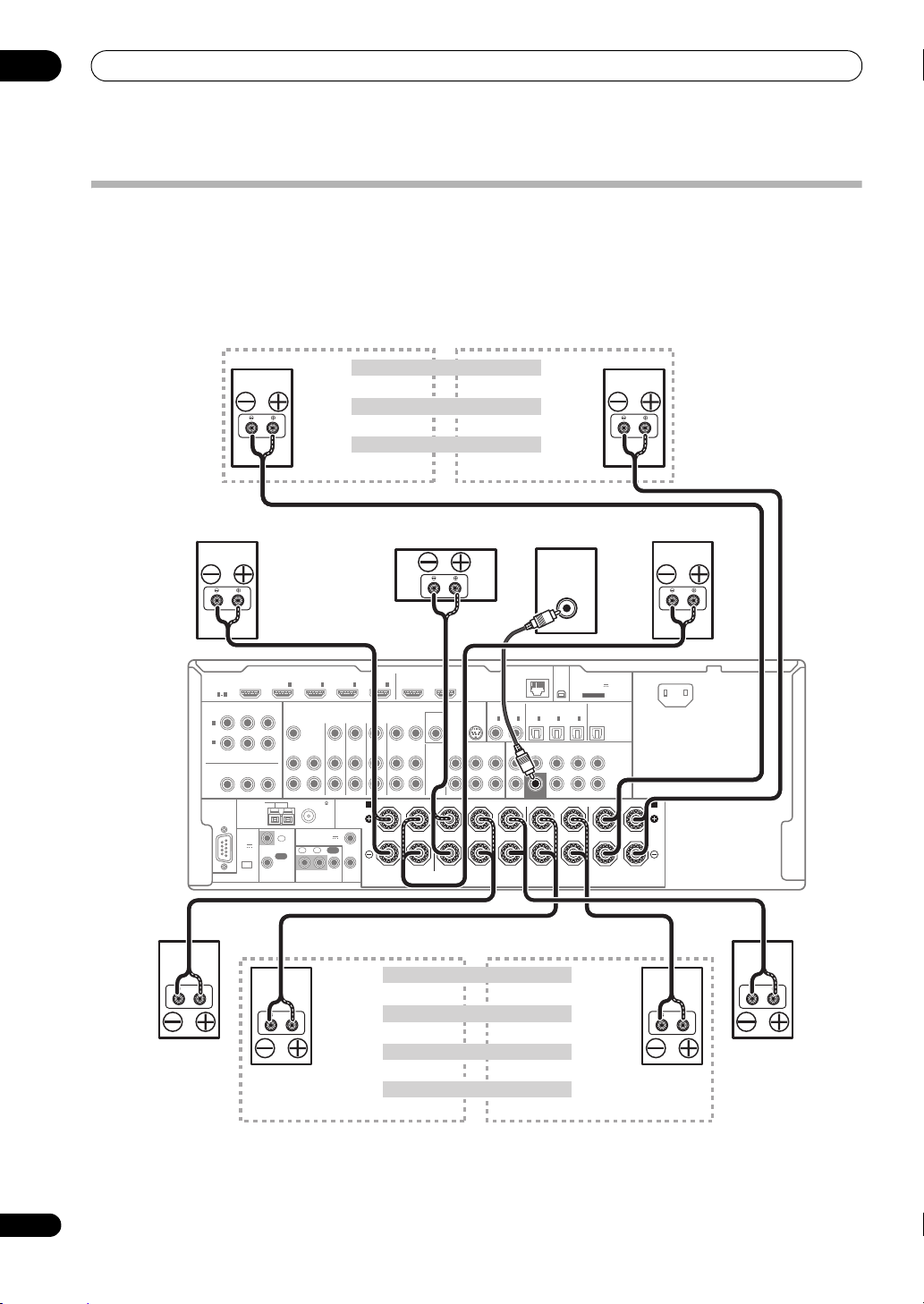
Installing your speaker system
At the very least, front left and right speakers only are necessary. Note that your main surround speakers should always
be connected as a pair, but you can connect just one surround back speaker if you like (it must be connected to the
left surround back terminal).
Standard surround connection
B
P
B
ANTENNA
(
OUTPUT
5 V
150 mA
)
MAX
IN
ASSIGNABLE
PRP
P
CONTROL
R
OUT
INBD
1IN2IN3
ZONE2
ZONE3
OUT
OUT
FM UNBAL 75 AM LOOP
12 V TRIGGER
(OUTPUT 12 V
IN
TOTAL 150 mA MAX)
IN IN
IR
DVDINTV/SATINVIDEOINDVR/BDR
SPEAKERS
Class 2 Wiring
OUT12
(
DVR/BDR
MONITOR
IN
(
DVD
IN
HDMI
ASSIGNABLE
1 4
1
)
2
)
OUT
RS-232C
Y
Y
EXTENSION
OUT 1
IN
(
CONTROL
4
MONITOR
OUT IN
A
1
2
OUT 2
)
COAXIALCOMPONENT VIDEO
SIRIUS
IN
OUT
VIDEO
CD-R/TAPE
CD
OUT
IN
AUDIO
RLR L R L(Single)
(
)
LAN
10/100
OPTICAL
ASSIGNABLEASSIGNABLE
1
1
2
IN
IN
IN
(
)
(
(CD)
DVD
TV/SAT
IN
FRONT CENTER SURROUND SURR BACK
SUBWOOFER
LINE LEVEL
INPUT
XM
2
IN
)
(
DVR/BDR
SURROUND BACKSURROUNDCENTERFRONT
IN
)
(
VIDEO
ADAPTER PORT
(
OUTPUT 5 V
100 mA MAX
3
IN
OUT
)
FH/FW
(Single)
FRONT HEIGHT / FRONT WIDE/
R
)
PRE OUT
L
R
AC IN
B
L
20
En
Page 21
Connecting your equipment
Front left
Subwoofer
Center
Surround right
Front right
Surround left
Bi-amp compatible
speaker
Bi-amp compatible
speaker
Bi-amping your speakers
03
High
Low
B
P
B
ANTENNA
(
OUTPUT
5 V
150 mA
)
MAX
IN
ASSIGNABLE
PRP
P
R
CONTROL
OUT
INBD
1IN2IN3
ZONE2
ZONE3
OUT
OUT
FM UNBAL 75 AM LOOP
12 V TRIGGER
(OUTPUT 12 V
IN
TOTAL 150 mA MAX)
IN IN
12
IR
DVDINTV/SATINVIDEOINDVR/BDR
SPEAKERS
Class 2 Wiring
1
OUT
2
(
IN
(
DVD
IN
DVR/BDR
MONITOR
HDMI
ASSIGNABLE
1 4
1
)
2
)
OUT
RS-232C
Y
Y
EXTENSION
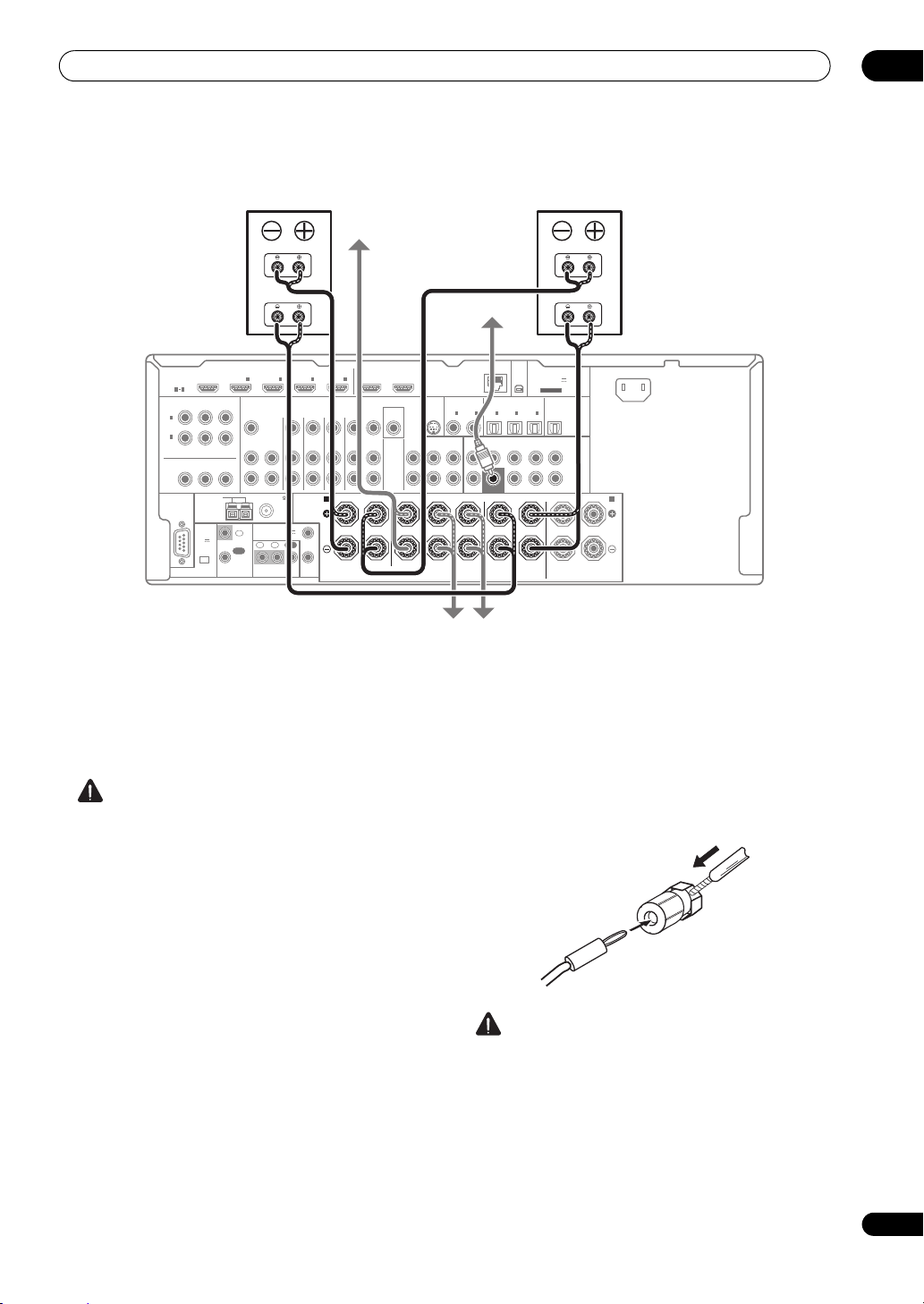
Bi-amping is when you connect the high frequency driver
and low frequency driver of your speakers to different
amplifiers for better crossover performance. Your
speakers must be bi-ampable to do this (having separate
terminals for high and low) and the sound improvement
will depend on the kind of speakers you’re using.
CAUTION
•Most speakers with both High and Low terminals
have two metal plates that connect the High to the
Low terminals. These must be removed when you are
bi-amping the speakers or yo
damage the amplifier. See your speaker manual for
u could severely
more information.
•If your speakers have a removable crossover network,
make sure you do not remove it for bi-amping. Doing
so may damage your speakers.
IN
4
OUT IN
A
OUT 1
(
CONTROL
OUT 2
)
COAXIALCOMPONENT VIDEO
SIRIUS
IN
IN
MONITOR
AUDIO
OUT
(
DVD
VIDEO
CD-R/TAPE
CD
IN
OUT
IN
RLR L R L(Single)
High
Low
(
)
LAN
10/100
OPTICAL
ASSIGNABLEASSIGNABLE
1
1
2
IN
IN
)
(
)
(CD)
TV/SAT
FRONT CENTER SURROUND SURR BACK
SUBWOOFER
SURROUND BACKSURROUNDCENTERFRONT
IN
(
DVR/BDR
XM
IN
2
)
ADAPTER PORT
(
OUTPUT 5 V
100 mA MAX
3
IN
OUT
(
)
VIDEO
FH/FW
(Single)
FRONT HEIGHT / FRONT WIDE/
R
)
PRE OUT
L
R
B
L
AC IN
Bi-wiring your speakers
Your speakers can also be bi-wired if they support biamping.
• With these connections, the Speaker System setting
makes no difference.
• To bi-wire a speaker, connect two speaker cords to
the speaker terminal on the receiver.
Using a banana plug for the second connection is
recommended.
CAUTION
• Don’t connect different speakers from the same
terminal in this way.
•When bi-wiring as well, heed the cautions for bi-
amping shown at the left.
21
En
Page 22
03
Note
Connecting your equipment
Selecting the Speaker system
The front height terminals can be used for front wide and
Speaker B connections, in addition to for the front height
speakers. Also, the surround back terminals can be used
for bi-amping and ZONE 2 connections, in addition to for
the surround back speakers. Make this setting according
to the application.
Front height setup
*Default setting
1 Connect a pair of speakers to the front height
speaker terminals.
See Standard surround connection on page 20.
2 If necessary, select ‘
Speaker System
See Speaker system setting on page 83 to do this.
Front wide setup
1 Connect a pair of speakers to the front height
speaker terminals.
See Standard surround connection on page 20.
2 Select ‘
menu.
See Speaker system setting on page 83 to do this.
Normal(SB/FW)
Speaker B setup
You can listen to stereo playback in another room.
1 Connect a pair of speakers to the front height
speaker terminals.
See Standard surround connection on page 20.
2 Select ‘
See Speaker system setting on page 83 to do this.
Speaker B
Bi-Amping setup
Bi-amping connection of the front speakers for high
sound quality with 5.1-channel surround sound.
1 Connect bi-amp compatible speakers to the front
and surround back speaker terminals.
See Bi-amping your speakers on page 21.
2 Select ‘
menu.
See Speaker system setting on page 83 to do this.
Front Bi-Amp
Normal(SB/FH)
menu.
’ from the
’ from the
Speaker System
’ from the
’ from the
Speaker System
menu.
Speaker System
ZONE 2 setup
With these connections you can simultaneously enjoy
5.1-channel surround sound in the main zone with stereo
playback on another component in ZONE 2.
1 Connect a pair of speakers to the surround back
speaker terminals.
See Standard surround connection on page 20.
2 Select ‘
See Speaker system setting on page 83 to do this.
About the
Sound signal priority
• With an HDMI cable, video and audio signals can be
ZONE 2
’ from the
Speaker System
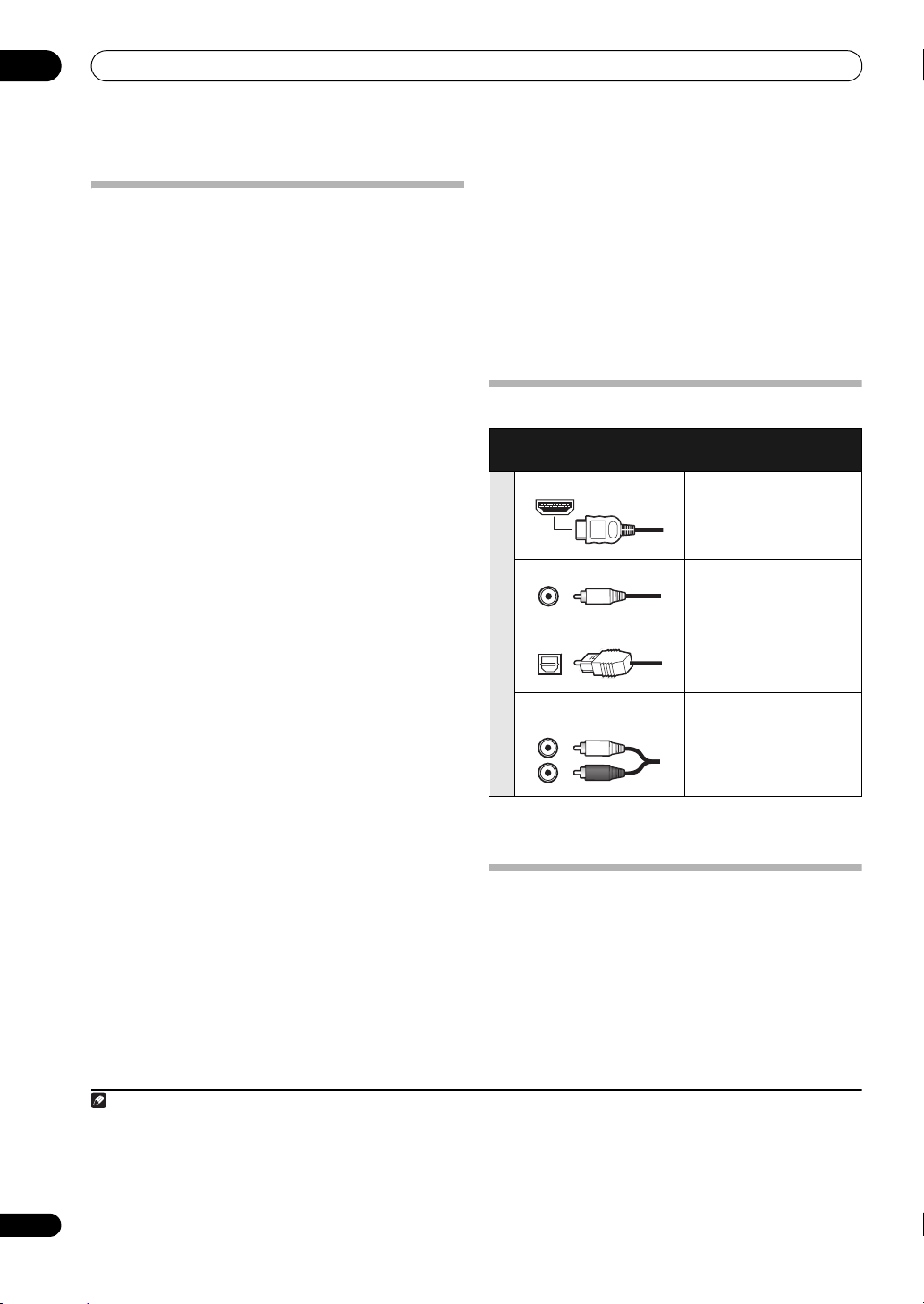
audio connection
Types of cables and
terminals
HDMI HD audio
Digital (Coaxial) Conventional digital audio
Digital (Optical)
RCA (Analog)
(White/Red)
transferred in high quality over a single cable.
Transferable audio
signals
Conventional analog audio
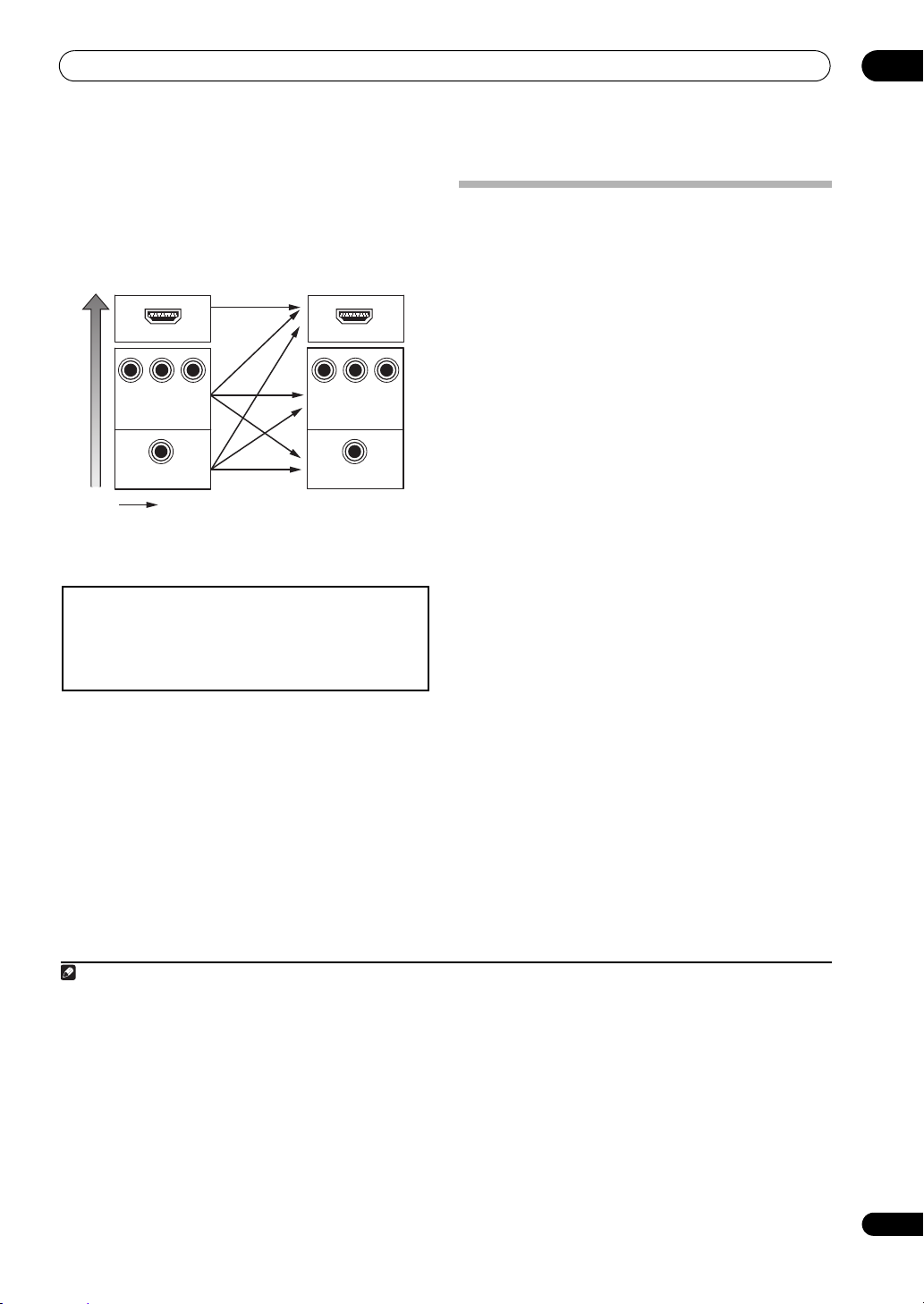
About the video converter
The video converter ensures that all video sources are
output through all of the MONITOR VIDEO OUT jacks.
The only exception is HDMI: since this resolution cannot
be downsampled, you must connect your monitor/TV to
the receiver’s HDMI video outputs when connecting this
video source.
1
menu.
22
En
1 • If the video signal does not appear on your TV, try adjusting the resolution settings on your component or display. Note that some
components (such as video game units) have resolutions that may not be converted. In this case, try switching Digital Video Conversion (in
Setting the Video options on page 61) OFF.
• The signal input resolutions that can be converted from the component video input for the HDMI output are 480i/576i, 480p/576p, 720p and
1080i. 1080p signals cannot be converted.
• Only signals with an input resolution of 480i/576i can be converted from the component video input for the composite MONITOR OUT
terminals.
Page 23
Connecting your equipment
VIDEO IN
VIDEO
MONITOR OUT
COMPONENT
VIDEO IN
Y
P
B
P
R
YPBP
R
COMPONENT VIDEO
MONITOR OUT
HDMI IN HDMI OUT
High picture quality
Terminal for connection
with source device
Terminal for connection
with TV monitor
Video signals can be output
This product incorporates copyright protection technology that is
protected by U.S. patents and other intellectual property rights.
Use of this copyright protection technology must be authorized by
Rovi Corporation, and is intended for home and other limited
viewing uses only unless otherwise authorized by Rovi Corporation.
Reverse engineering or disassembly is prohibited.
Note
If several video components are assigned to the same
input function (see The Input Setup menu on page 39),
the converter gives priority to HDMI, component, then
composite (in that order).
•For optimal video performance, THX recommends
switching Digital Video Conversion (in Setting the
Video options on page 61) OFF.
About HDMI
1
The HDMI connection transfers uncompressed digital
video, as well as almost every kind of digital audio.
This receiver incorporates High-Definition Multimedia
®
Interface (HDMI
This receiver supports the functions described below
through HDMI connections.
) technology.
2
•Digital transfer of uncompressed video (contents
protected by HDCP (1080p/24, 1080p/60, etc.))
•3D signal transfer
•Deep Color signal transfer
• x.v.Color signal transfer
•Audio Return Channel
3
3
3
3
•Input of multi-channel linear PCM digital audio
signals (192 kHz or less) for up to 8 channels
•Input of the following digital audio formats:
4
– Dolby Digital, Dolby Digital Plus, DTS, High bitrate
audio (Dolby TrueHD, DTS-HD Master Audio, DTSHD High Resolution Audio), DVD-Audio, CD, SACD
(DSD signal), Video CD, Super VCD
•Synchronized operation with components using the
Control with HDMI function (see Control with HDMI
function on page 56)
HDMI, the HDMI logo and High-Definition Multimedia
Interface are trademarks or registered trademarks of HDMI
Licensing, LLC in the United States and other countries.
“x.v.Color” and x.v.Color logo are trademarks of Sony
Corporation.
03
1 • An HDMI connection can only be made with DVI-equipped components compatible with both DVI and High Bandwidth Digital Content
Protection (HDCP). If you choose to connect to a DVI connector, you will need a separate adaptor (DVIHDMI) to do so. A DVI connection,
however, does not support audio signals. Consult your local audio dealer for more information.
• If you connect a component that is not compatible with HDCP, an HDCP ERROR message is displayed on the front panel display. Some
components that are compatible with HDCP still cause this message to be displayed, but so long as there is no problem with displaying video
this is not a malfunction.
• Depending on the component you have connected, using a DVI connection may result in unreliable signal transfers.
• This receiver supports SACD, Dolby Digital Plus, Dolby TrueHD and DTS-HD Master Audio. To take advantage of these formats, however,
make sure t
2• Use a High Speed HDMI
• When an HDMI cable with a built-in equalizer is connected, it may not operate properly.
3 Signal transfer is only possible when connected to a compatible component.
4• HDMI format digital audio transmissions require a longer time to be recognized. Due to this, interruption in the audio may occur when
switching between audio formats or beginning playback.
• Turning on/off the device connected to this unit's HDMI OUT terminal during playback, or disconnecting/connecting the HDMI cable during
playback, may cause noise or interrupted audio.
hat the component connected to this receiver also supports the corresponding format.
®
cable. If an HDMI cable other than a High Speed HDMI® cable is used, it may not work properly.
23
En
Page 24
03
A
DIGITAL OUT
COAXIAL OPTICAL
ANALOG
RL
AUDIO OUT
HDMI INHDMI OUTHDMI OUT
Other HDMI/DVIequipped component
HDMI/DVI-compatible
Blu-ray disc player
HDMI/DVI-compatible
monitor
Select one
This connection is
required in order to
listen to the sound of
the TV over the
receiver.
1
Note
Connecting your equipment
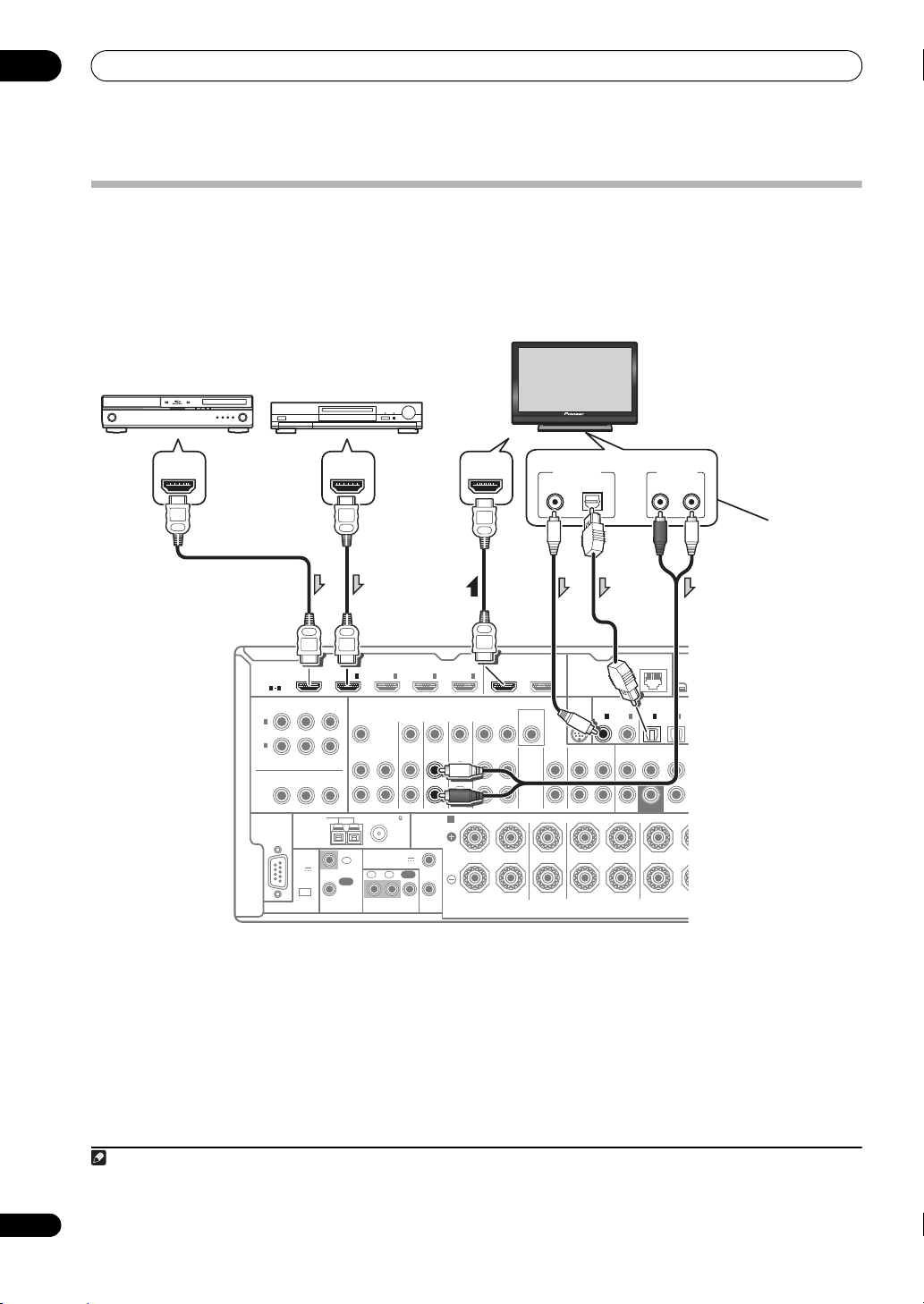
Connecting your TV and playback components
Connecting using HDMI
If you have an HDMI or DVI (with HDCP) equipped component (Blu-ray disc player (BD), etc.), you can connect it to
this receiver using a commercially available HDMI cable.
If the TV and playback components support the Control with HDMI feature, the convenient Control with HDMI
functions can be used (see Control with HDMI function on page 56).
• VSX-1325 only: When connecting to an HDMI/DVI-
compatible monitor using the HDMI OUT 2 terminal,
switch the HDMI output setting to HDMI OUT 2 or
HDMI OUT ALL. See Switching the HDMI output
(VSX-1325 only) on page 64.
•For input components, connections other than HDMI
connections are also possible (see Connecting your
DVD player with no HDMI output on page 25).
1 When the TV and receiver are connected by HDMI connections, if the TV supports the HDMI Audio Return Channel function, the sound of the
TV is input to the receiver via the HDMI terminal, so there is no need to connect an audio cable. In this case, set TV Audio at HDMI Setup to
via HDMI (see HDMI Setup on page 56).
24
En
HDMI
ASSIGNABLE
1 4
Y
1
IN
(
)
DVD
2
IN
(
DVR/BDR
MONITOR
OUT
RS-232C
)
Y
EXTENSION
B
P
B
ANTENNA
(
OUTPUT
5 V
150 mA
)
MAX
IN
ASSIGNABLE
PRP
R
P
CONTROL
OUT 1
INBD
IN2IN
1
ZONE2
ZONE3
DVDINTV/SATINVIDEOINDVR/BDR
OUT
OUT
FM UNBAL 75 AM LOOP
SPEAKERS
Class 2 Wiring
12 V TRIGGER
(OUTPUT 12 V
IN
TOTAL 150 mA MAX)
OUT
IN IN
12
OUT
IR
IN
3
4
A
1
2
OUT IN
OUT 2
(
)
CONTROL
MONITOR
OUT
VIDEO
CD
IN
AUDIO
• If you want to listen to the sound of the TV over the
receiver, connect the receiver and TV with audio
1
cables.
(
10/100
LAN
COAXIALCOMPONENT VIDEO
SIRIUS
1
IN
IN
IN
(
)
(CD)
DVD
CD-R/TAPE
IN
OUT
FRONT CENTER SURROUND
SURROUNDCENTERFRONT
RLRL R
2
)
OPTICAL
ASSIGNABLEASSIGNABLE
IN
(
TV/SAT
SUBWOOFER
1
)
(
SURROUND B
DVR/B DR
XM
IN
2
IN
)
Page 25
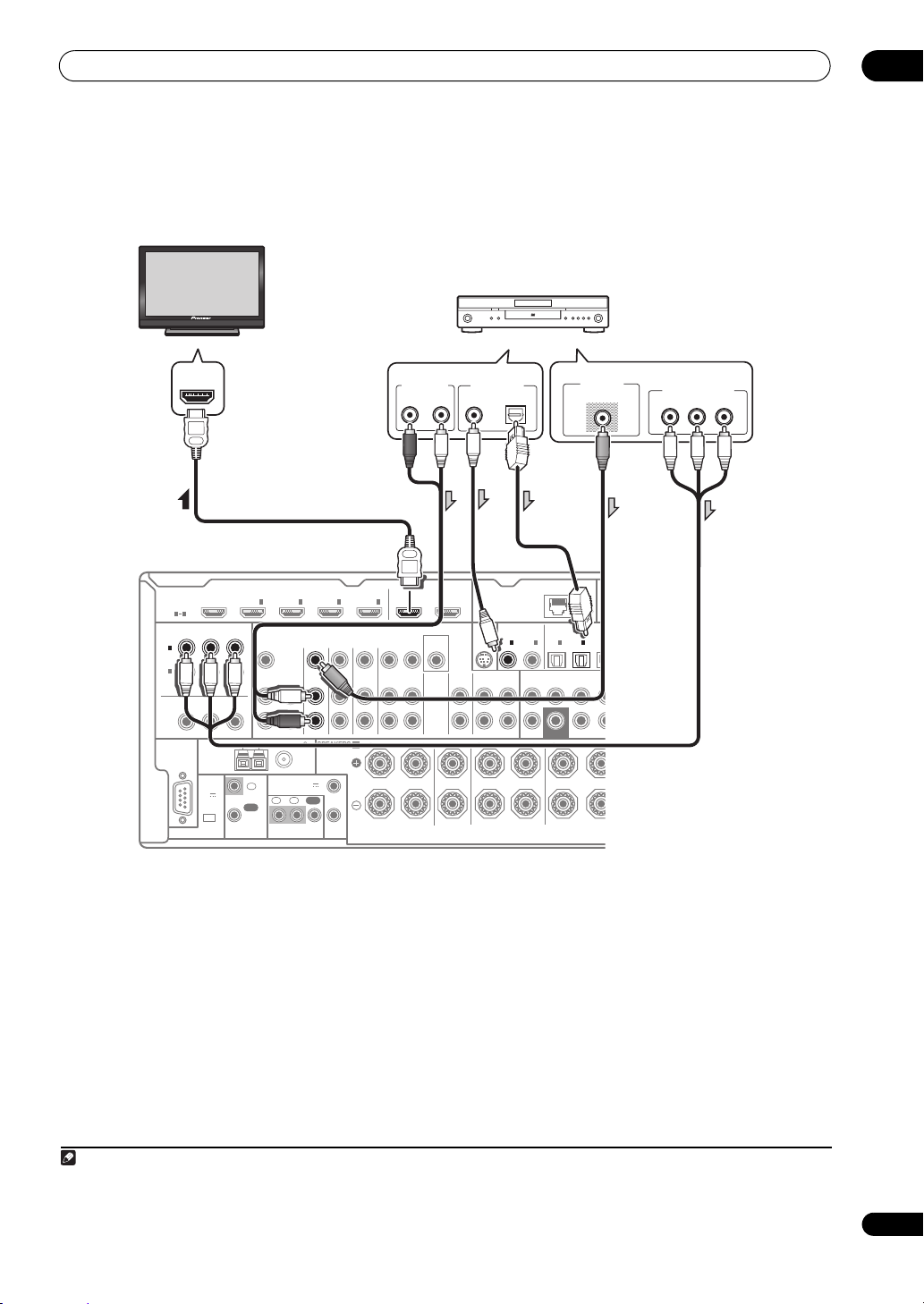
Connecting your equipment
R
D
DVD player, etc.
HDMI/DVI-compatible
monitor
Select one
Select one
Note
Connecting your DVD player with no HDMI output
This diagram shows connections of a TV (with HDMI input) and DVD player (or other playback component with no
HDMI output) to the receiver.
03
HDMI IN
HDMI
1 4
1
)
2
)
RS-232C
Y
Y
ANTENNA
(
OUTPUT
5 V
150 mA
MAX
EXTENSION
B
P
B
)
IN
ASSIGNABLE
PRP
R
P
CONTROL
ASSIGNABLE
IN
(
DVD
IN
(
DVR/BDR
MONITOR
OUT
INBD
1IN2IN3
ZONE2
ZONE3
OUT
OUT
FM UNBAL 75 AM LOOP
12 V TRIGGER
(OUTPUT 12 V
IN
TOTAL 150 mA MAX)
IN IN
12
OUT
IR
DVDINTV/SATINVIDEOINDVR/BDR
SPEAKERS
A
Class 2 Wiring
1
OUT
2
IN
4
OUT IN
AUDIO OUT
R
ANALOG
OUT 1
(
CONTROL
• If you want to listen to the sound of the TV over the
receiver, connect the receiver and TV with audio
cables (page 24).
1
• If you use an optical digital audio cable, you’ll need to
tell the receiver which digital input you connected the
player to (see The Input Setup menu on page 39).
DIGITAL OUT
L
COAXIAL OPTICAL
OUT 2
)
SIRIUS
MONITOR
IN
OUT
VIDEO
CD-R/TAPE
CD
OUT
IN
AUDIO
RLRL R
(
10/100
LAN
COAXIALCOMPONENT VIDEO
1
2
IN
IN
(
)
(CD)
DVD
IN
FRONT CENTER SURROUND SUR
)
OPTICAL
ASSIGNABLEASSIGNABLE
IN
(
TV/SAT
SUBWOOFER
VIDEO OUT
VIDEO
XM
IN
1
2
IN
IN
)
(
)
(
DVR/BDR
VI
SURROUND BACKSURROUNDCENTERFRONT
COMPONENT VIDEO OUT
PR
P
B
Y
1 When the TV and receiver a re co nnecte d by HDM I conne ctions, if the TV supports the HDMI Audio Return Channel function, the sound of the
TV is input to the receiver via the HDMI terminal, so there is no need to connect an audio cable. In this case, set TV Audio at HDMI Setup to
via HDMI (see HDMI Setup on page 56).
25
En
Page 26
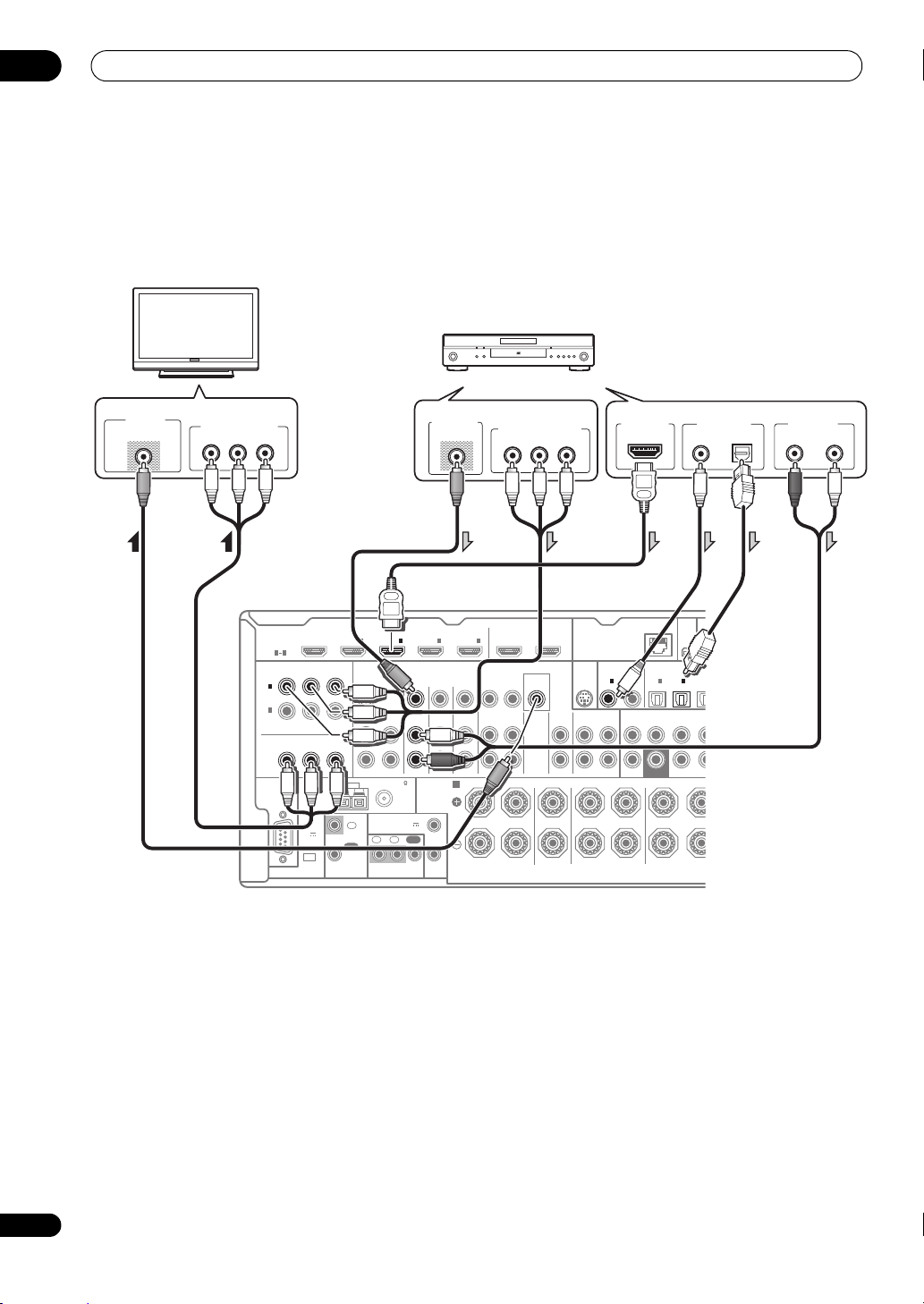
03
R
D
ANALOG
R
AUDIO OUT
VIDEO IN
Y
P
B
P
R
COMPONENT VIDEO IN
VIDEO OUT
VIDEO
VIDEO
Y
P
B
P
R
COMPONENT VIDEO OUT
DIGITAL OUT
COAXIAL OPTICAL
HDMI OUT
L
DVD player, etc.
TV
Select one
Select one
Select one
Connecting your equipment
Connecting your TV with no HDMI input
This diagram shows connections of a TV (with no HDMI input) and DVD player (or other playback component) to the
receiver.
• With these connections, the picture is not output to the TV even if the DVD player i s co nnec ted with an H DMI c abl e.
Connect the DVD player’s video signals using a composite or component cord.
B
P
B
)
IN
ASSIGNABLE
PRP
R
P
CONTROL
INBD
1
ZONE2
ZONE3
OUT
OUT
FM UNBAL 75 AM LOOP
12 V TRIGGER
(OUTPUT 12 V
IN
TOTAL 150 mA MAX)
IN IN
12
OUT
IR
HDMI
ASSIGNABLE
1 4
Y
1
IN
(
)
DVD
2
IN
(
)
DVR/BDR
Y
MONITOR
OUT
RS-232C
ANTENNA
(
OUTPUT
5 V
150 mA
MAX
EXTENSION
• Connect using an HDMI cable to listen to HD audio
on the receiver. Do not use an HDMI cable to input
video signals.
Depending on the video component, it may not be
possible to output signals connected by HDMI and
other methods simultaneously, and it may be
necessary to make output settings.
operating instructions
supplied with your component
Please refer to the
for more information.
• If you want to listen to the sound of the TV over the
receiver, connect the receiver and TV with audio
cables (page 24).
•If you use an optical digital audio cable, you’ll need to
tell the receiver which digital input you connected the
player to (see The Input Setup menu on page 39).
IN2IN
3
DVDINTV/SATINVIDEOINDVR/BDR
SPEAKERS
A
Class 2 Wiring
1
OUT
2
IN
4
OUT IN
OUT 1
(
CONTROL
OUT 2
)
SIRIUS
MONITOR
AUDIO
IN
OUT
VIDEO
CD-R/TAPE
CD
OUT
IN
RLRL R
(
)
10/100
LAN
COAXIALCOMPONENT VIDEO
OPTICAL
ASSIGNABLEASSIGNABLE
1
2
IN
IN
(
)
(CD)
DVD
IN
FRONT CENTER SURROUND SUR
SUBWOOFER
XM
IN
1
2
IN
IN
IN
(
)
(
)
(
TV/SAT
DVR/B DR
VI
SURROUND BACKSURROUNDCENTERFRONT
26
En
Page 27
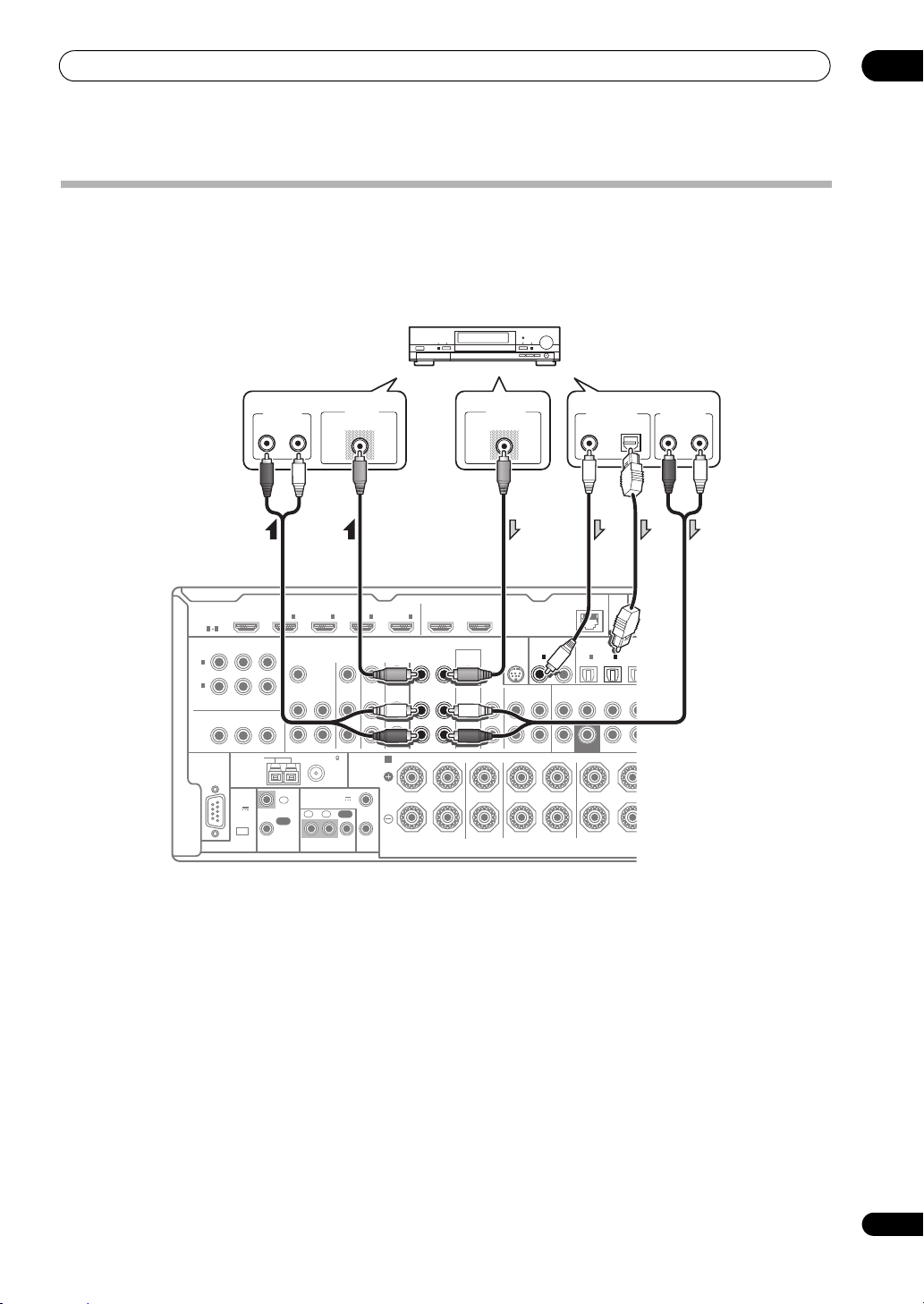
Connecting your equipment
R
D
HDD/DVD recorder, BD recorder, etc.
Select one
Connecting an HDD/DVD recorder, BD recorder and other video sources
This receiver has two sets of audio/video inputs and outputs suitable for connecting analog or digital video devices,
including HDD/DVD recorders and BD recorders.
When you set up the receiver you’ll need to tell the receiver which input you connected the recorder to (see also The
Input Setup menu on page 39).
03
VIDEO IN
VIDEO
ZONE3
DVDINTV/SATINVIDEOINDVR/BDR
OUT
FM UNBAL 75 AM LOOP
SPEAKERS
Class 2 Wiring
12 V TRIGGER
(OUTPUT 12 V
TOTAL 150 mA MAX)
OUT
IN IN
12
IR
A
1
2
(
DVR/BDR
MONITOR
IN
(
DVD
IN
OUT
R L
ANALOG
B
P
B
IN
ASSIGNABLE
INBD
1IN2IN3
PRP
ZONE2
OUT
R
P
HDMI
ASSIGNABLE
1 4
1
)
2
)
Y
Y
RS-232C
ANTENNA
IN
(
OUTPUT
5 V
150 mA
)
OUT
MAX
CONTROL
EXTENSION
• In order to record, you must connect the analog
audio cables (the digital connection is for playback
only) (page 63).
• If your HDD/DVD recorder, BD recorder, etc., is
equipped with an HDMI output terminal, we
recommend connecting it to the receiver’s HDMI IN
terminal. When doing so, also connect the receiver
and TV by HDMI (see Connecting using HDMI on
page 24).
IN
4
OUT IN
OUT 1
OUT 2
(
)
CONTROL
MONITOR
OUT
VIDEO
AUDIO
VIDEO OUT
VIDEO
SIRIUS
IN
CD-R/TAPE
CD
OUT
IN
RLRL R
(
10/100
LAN
COAXIALCOMPONENT VIDEO
1
2
IN
IN
(
)
(CD)
DVD
IN
FRONT CENTER SURROUND SUR
COAXIAL OPTICAL
)
OPTICAL
ASSIGNABLEASSIGNABLE
IN
(
TV/SAT
SUBWOOFER
DIGITAL OUT
1
IN
)
(
DVR/B DR
SURROUND BACKSURROUNDCENTERFRONT
XM
IN
2
)
IN
(
VI
AUDIO OUTAUDIO IN
RL
ANALOG
27
En
Page 28
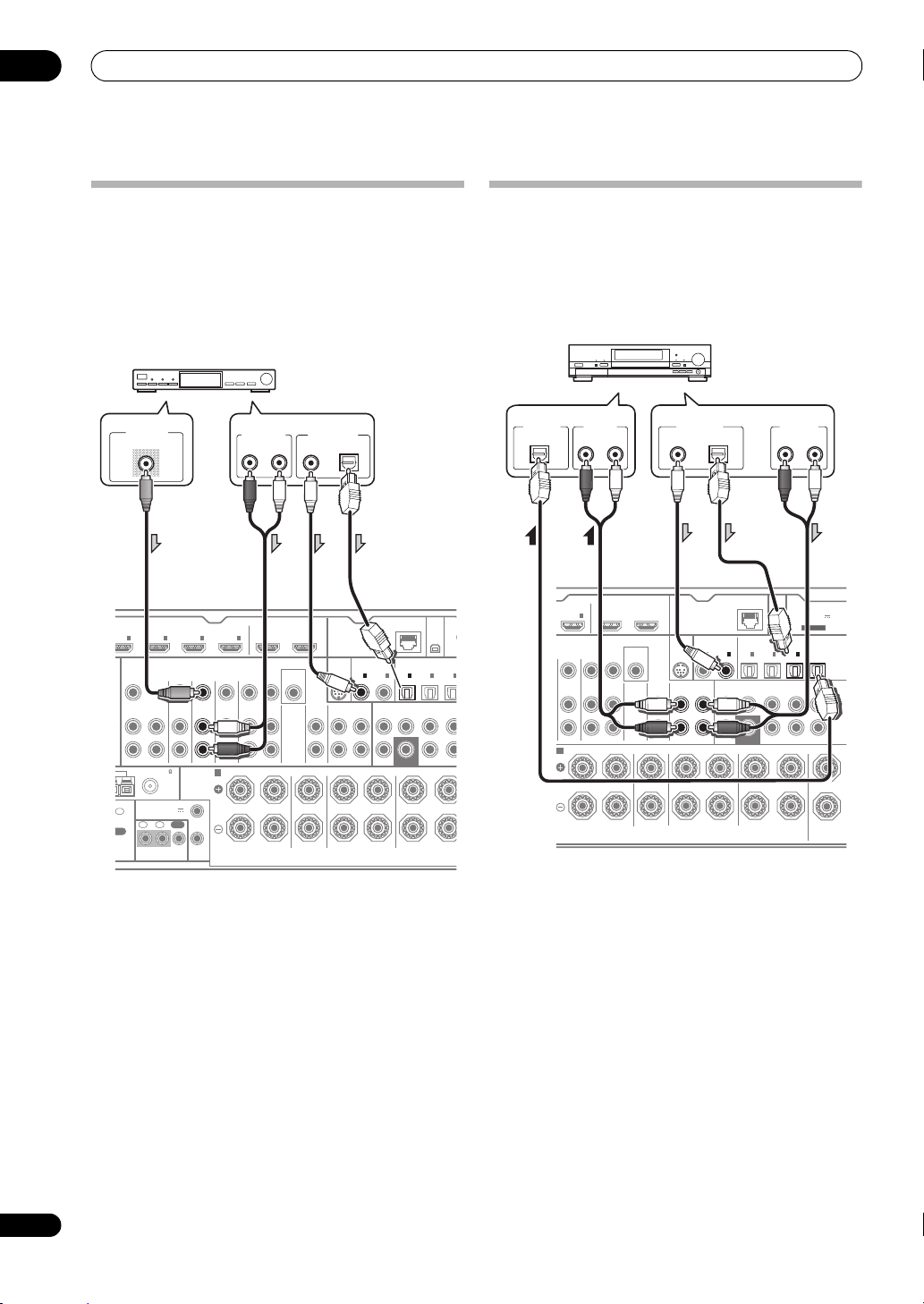
03
SPEAKERS
COAXIAL
E
OPTICAL
ASSIGNABLEASSIGNABLE
CD-R/TAPE
FM UNBAL 75
IN
CD
VIDEO
MONITOR
AUDIO
IN
OUT
OUT
ZONE2
OUT
ZONE3
OUT
DVDINTV/SATINVIDEOINDVR/BDR
OUT IN
IN1IN2IN
3
OUT 1
(
CONTROL
)
OUT 2
A
RLRL RL(
SURROUND BACKSURROUNDCENTERFRONT
IN
1
(
DVD
)
IN
1
(
TV/SAT
)
IN
2
(
DVR/B DR
)
IN
FRONT CENTER SURROUND SURR B
3
(
VIDEO
IN
2
(CD)
TROL
IR
12 V TRIGGER
IN
IN IN
OUT12
1
2
(OUTPUT 12 V
TOTAL 150 mA MAX)
SUBWOOFER
IN
4
LAN
(
10/100
)
(
A
XM
IN
SIRIUS
IN
Class 2 Wiring
VIDEO OUT
VIDEO
ANALOG
R
AUDIO OUT
DIGITAL OUT
COAXIAL OPTICAL
L
STB
Select one
/
O
CD-R, MD, DAT, etc.
Select oneSelect one
Connecting your equipment
Connecting a satellite/cable receiver or other set-top box
Satellite and cable receivers, and terrestrial digital TV
tuners are all examples of so-called ‘set-top boxes’.
When you set up the receiver you’ll need to tell the
receiver which input you connected the set-top box to
(see The Input Setup menu on page 39).
Connecting other audio components
This receiver has both digital and analog inputs, allowing
you to connect audio components for playback.
When you set up the receiver you’ll need to tell the
receiver which input you connected the component to
(see also The Input Setup menu on page 39).
)
ASSIGNABLEASSIGNABLE
SUBWOOFER
IN
(
TV/SAT
RL
XM
IN
1
2
IN
)
(
)
DVR/B DR
SURROUND BACKSURROUNDCENTERFRONT
AUDIO OUT
ANALOG
ADAPTER PORT
(
OUTPUT 5 V
100 mA MAX
3
IN
(
)
VIDEO
(Single)
)
OUT
FH/FW
FRONT HEIGHT
R
PRE
L
R
DIGITAL IN
OPTICAL
AUDIO IN
RL
ANALOG
IN
4
VIDEOINDVR/BDR
OUT IN
A
OUT 1
(
CONTROL
DIGITAL OUT
COAXIAL OPTICAL
OUT 2
)
COAXIAL OPTICAL
SIRIUS
MONITOR
IN
OUT
VIDEO
CD-R/TAPE
CD
OUT
IN
AUDIO
RLR L R L(Single)
(
10/100
LAN
1
2
IN
IN
(
)
(CD)
DVD
IN
FRONT CENTER SURROUND SURR BACK
28
En
•If your set-top box is equipped with an HDMI output
terminal, we recommend connecting it to the
receiver’s HDMI IN terminal. When doing so, also
connect the receiver and TV by HDMI (see
Connecting using HDMI on page 24).
•If your turntable has line-level outputs (i.e., it has a
built-in phono pre-amp), connect it to the CD inputs
instead.
•If you’re connecting a recorder, connect the analog
audio outputs to the analog audio inputs on the
recorder.
• You can’t hear HDMI audio through this receiver’s
digital out jack.
Page 29
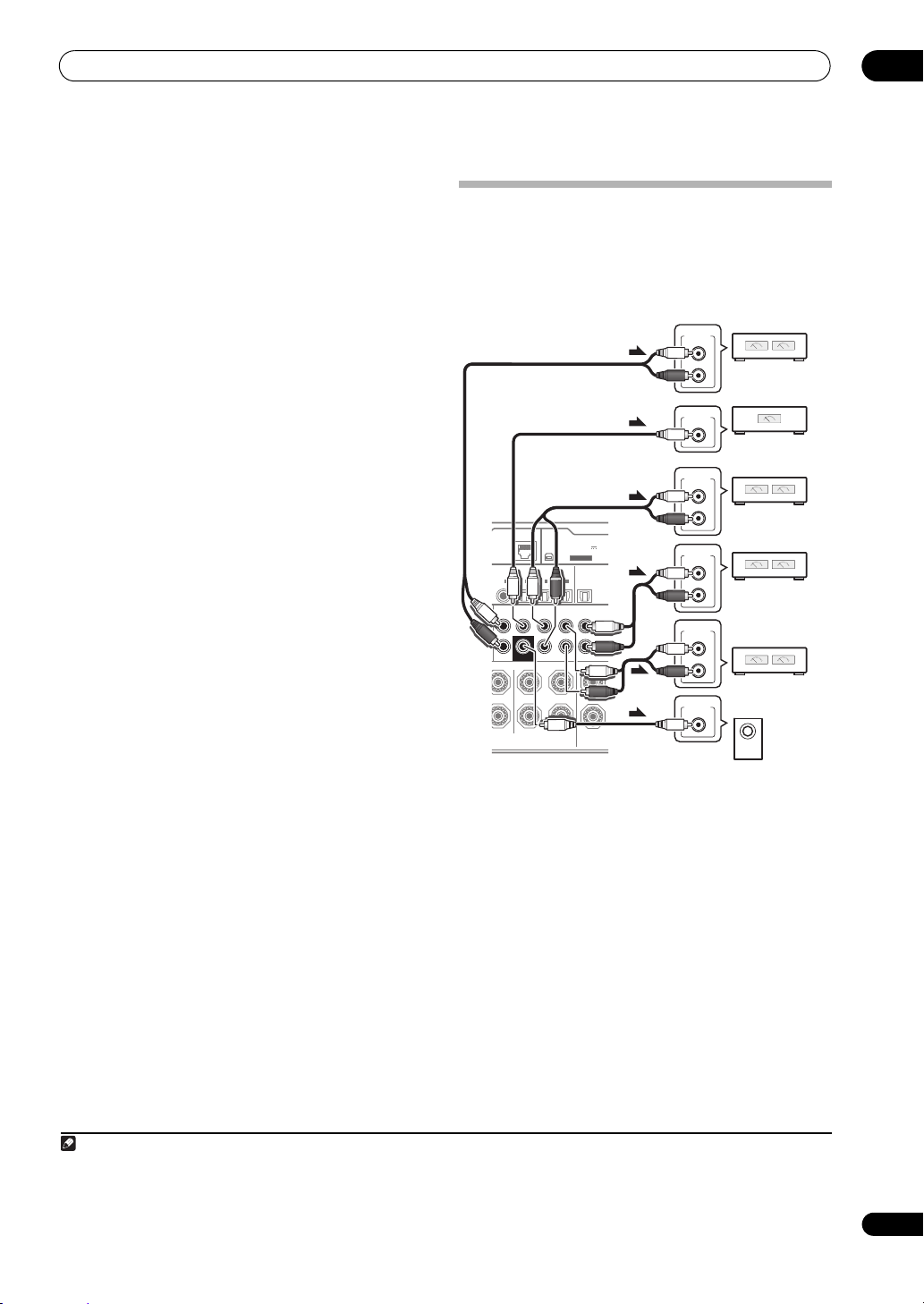
Connecting your equipment
Note
T
O
R
L
ANALOG
INPUT
R
L
ANALOG
INPUT
R
L
ANALOG
INPUT
ANALOG
INPUT
ANALOG
INPUT
R
L
ANALOG
INPUT
Powered
subwoofer
Front channel
amplifier
Center channel
amplifier (mono)
Surround channel
amplifier
Surround back
channel amplifier
Front height or
Front wide
channel amplifier
About the WMA9 Pro decoder
This unit has an on-board Windows Media™ Audio 9
Professional
playback WMA9 Pro-encoded audio using HDMI, coaxial
or optical digital connection when connected to a WMA9
Pro-compatible player. However, the connected DVD
player, set-top bo x, etc. must be ab le t o output WMA9 Pro
format audio signals through a coaxial or optical digital
output.
1
(WMA9 Pro) decoder, so it is possible to
Connecting additional amplifiers
This receiver has more than enough power for any home
use, but it’s possible to add additional amplifiers to every
channel of your system using the pre-outs. Make the
connections shown below to add amplifiers to power
your speakers.
ADAPTER PORT
XM
(
)
10/100
AL OPTICAL
BLE
2
IN
(CD)
FRONT CENTER SURROUND SURR BACK
SUBWOOFER
L R L(Single)
ASSIGNABLE
1
IN
(
TV/SAT
2
IN
)
(
DVR/B DR
SURROUND BACK
(
OUTPUT 5 V
IN
)
100 mA MAX
3
IN
OUT
)
(
)
VIDEO
PRE
FH/FW
(Single)
L
R
FRONT HEIGH
R
03
• You can use the additional amplifier on the surround
back channel pre-outs for a single speaker as well. In
this case plug the amplifier into the left (L (Single))
1• Windows Media and the Windows logo are trademarks or registered trademarks of Microsoft Corporation in the United States and/or other
countries.
• With WMA9 Pro, sound problems may occur depending on your computer system. Note that WMA9 Pro 96 kHz sources will be
downsampled to 48 kHz.
terminal only.
•The sound from the surround back terminals will
depend on how you have configured the Speaker
system setting on page 83.
•To hear sound only from the pre-outs, switch the
speaker system to OFF, or si
mply disconnect any
speakers that are connected directly to the receiver.
If you’re not using a subwoofer, change the front speaker
setting (see Speaker Setting on page 83) to LARGE.
29
En
Page 30
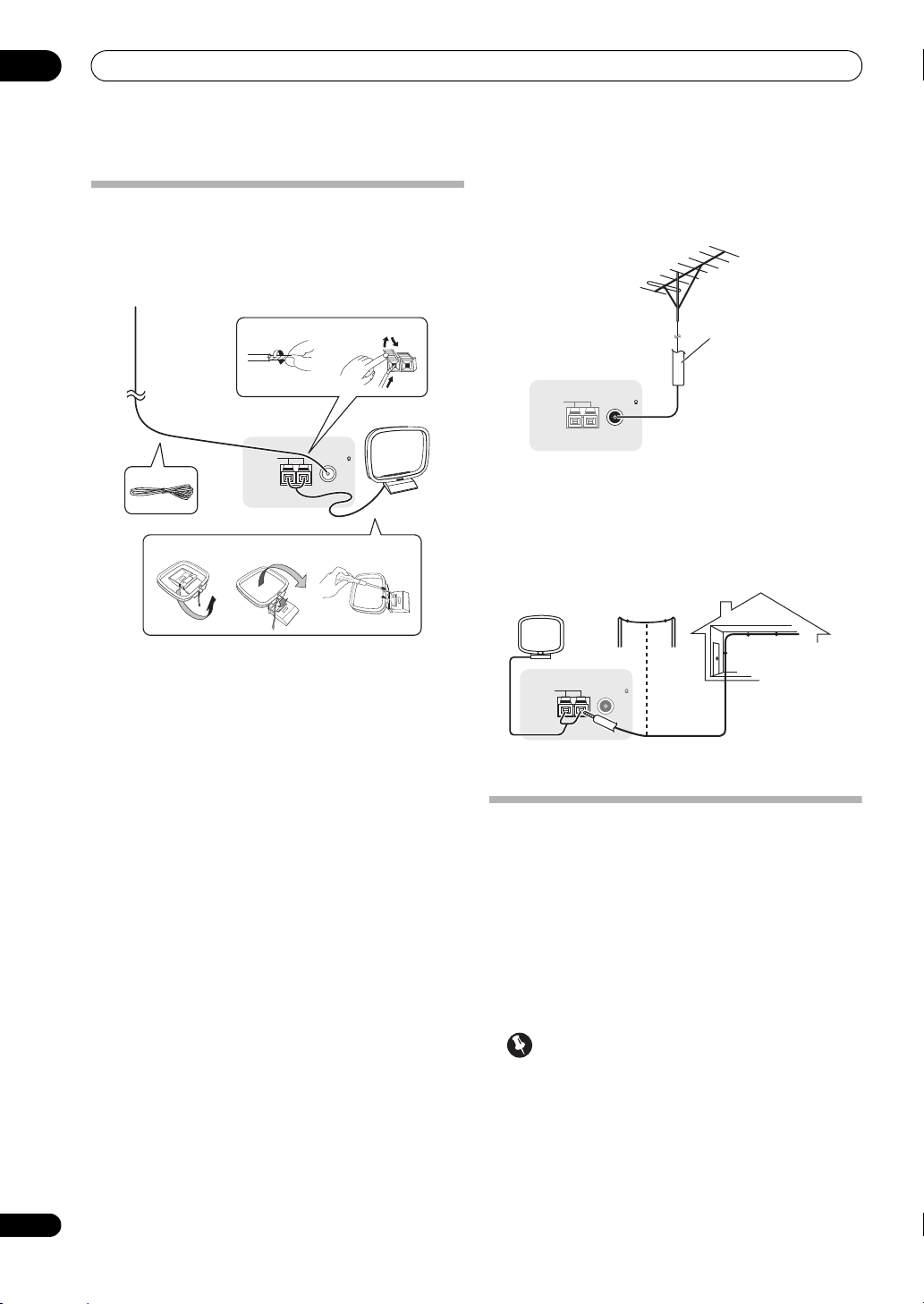
03
ANTENNA
FM UNBAL 75 AM LOOP
3
4
5
fig. a fig. b fig. c
1
2
75 Ω coaxial cable
Outdoor antenna
Indoor antenna
(vinyl-coated wire)
5 m to 6 m
(16 ft. to 20 ft.)
Connecting your equipment
Connecting AM/FM antennas
Connect the AM loop antenna and the FM wire antenna
as shown below. To improve reception and sound quality,
connect external antennas (see Connecting external
antennas below).
Connecting external antennas
To improve FM reception, connect an external FM
antenna to FM UNBAL 75 Ω.
FM UNBAL 75 AM LOOP
ANTENNA
To improve AM reception, connect a 5 m to 6 m (16 ft. to
20 ft.) length of vinyl-coated wire to the AM LOOP
terminals without disconnecting the supplied AM loop
antenna.
For the best possible reception, suspend horizontally
outdoors.
1 Pull off the protective shields of both AM antenna
wires.
2 Push open the tabs, then insert one wire fully into
each terminal, then release the tabs to secure the AM
antenna wires.
3 Fix the AM loop antenna to the attached stand.
To fix the stand to the antenna, bend in the direction
indicated by the arrow (fig. a) then clip the loop onto the
stand (fig. b).
•If you plan to mount the AM antenna to a wall or other
surface, secure the stand with screws (fig. c) before
clipping the loop to the stand. Make sure the
reception is clear.
4 Place the AM antenna on a flat surface and in a
direction giving the best reception.
5 Connect the FM wire antenna into the FM antenna
socket.
For best results, extend the FM antenna fully and fix to a
wall or door frame. Don’t drape loosely or leave coiled up.
30
En
FM UNBAL 75 AM LOOP
ANTENNA
MULTI-ZONE setup
This receiver can power up to three (VSX-1325)/two (VSX-
1125) independent systems in separate rooms after you
have made the proper MULTI-ZONE connections.
Different sources can be playing in three (VSX-1325)/two
(VSX-1125) zones at the same time or, depending on your
needs, the same source can also be used. The main and
sub zones have independent power (the main zone power
can be off while one (or both) of the sub zones is on) and
the sub zones can be controlled by the remote or front
panel controls.
Important
•The explanations for ZONE 3 below only apply to the
VSX-1325.
Page 31

Connecting your equipment
U
Z
2
1
O
TO
Main zoneSub zone (ZONE 2)
OPTICAL
ASSIGNABLE
L R L(Single)
SURROUND BACK
R
R
L
FRONT HEIGHT / FRONT W
IN
1
(
TV/SAT
)
IN
2
(
DVR/B DR
)
IN
OUT
(Single)
FH/FW
3
(
VIDEO
)
IN
2
(CD)
SUBWOOFER
)
(
OUTPUT 5 V
100 mA MAX
)
ADAPTER PORT
PRE OUT
XM
IN
ASSIGNABLE
P
R
ANTENNA
FM UNBAL AM LOOP
ZONE2
OUT
ZONE3
OUT
P
B
PRP
B
INBD
IN
1
CONTROL
IR
12 V T
IN
IN IN
OUT
1
(OUTPU
TOTAL 1
(
OUTPUT
5 V
150 mA
MAX
)
Main zone
Sub zone (ZONE 2)
G
2
m
Main zone
Sub zone (ZONE 3)
03
Making MULTI-ZONE connections
It is possible to make these connections if you have a
separate TV and speakers for your primary (
zone, and a separate amplifier (and speakers) for your
secondary (
amplifier if you are not using the
speaker terminals (ZONE 2)
zone. There are two primary sub zone setups possible with
this system. Choose whichever works best for you.
MULTI-ZONE listening options
The following table shows the signals that can be output
to ZONE 2 and ZONE 3:
Sub Zone Input functions available
ZONE 2 DVD, TV/SAT, DVR/BDR, VIDEO, INTERNET
ZONE 3 DVD, TV/SAT, DVR/BDR, VIDEO, CD, CD-R/TAPE,
a.VSX-1325 only.
Basic MULTI-ZONE setup (ZONE 2)
• Connect a separate amplifier to the
OUT
jack, both on this receiver.
You should have a pair of speakers attached to the sub
zone amplifier as shown in the following illustration.
ZONE 3
) sub zone. You will also need a separate
MULTI-ZONE setup using
below for your primary sub
RADIO, iPod/USB, XMa, CD, CD-R/TAPE, TUNER,
ADAPTER PORT, SIRIUS
(Outputs analog audio and composite video.)
TUNER, ADAPTER PORT
(Outputs analog audio.)
jacks and a TV monitor to the
VIDEO IN
AUDIO IN
RL
VIDEO ZONE 2 OUT
COMPONENT VIDEO
IN
(
DVD
IN
(
DVR/BDR
MONITOR
OUT
HDMI
ASSIGNABLE
1 4
1
)
2
)
RS-232C
ZONE 2
) sub
AUDIO ZONE 2
INBD
IN
1
ASSIGNABLE
Y
PRP
B
ZONE2
OUT
R
P
B
P
Y
OUT
CONTROL
FM
1
(
IN
IN
ANTENNA
(
OUTPUT
5 V
150 mA
MAX
EXTENSION
AM LOOP
)
MULTI-ZONE setup using speaker terminals (ZONE 2)
You must select ZONE 2 in Speaker system setting on
page 83 to use this setup.
• Connect a TV monitor to the
VIDEO ZONE 2 OUT
jacks on this receiver.
You should have a pair of speakers attached to the
surround back speaker terminals as shown below.
VIDEO IN
RL
Secondary MULTI-ZONE setup (ZONE 3)
• Connect a separate amplifier to the
OUT
jacks on this receiver.
AUDIO ZONE 3
You should have a pair of speakers attached to the sub
zone amplifier as shown in the following illustration.
HDMI
IN
ASSIGNABLE
1 4
IN
(
DVD
IN
1
)
2
OUT
RS-232C
Y
)
Y
EXTENSION
B
P
B
ANTENNA
(
OUTPUT
5 V
150 mA
)
MAX
ASSIGNABLE
PRP
R
P
CONTROL
IN
OUT
AUDIO IN
RL
COMPONENT VIDEO
(
DVR/BDR
MONITOR
INBD
1IN2
ZONE2
OUT
FM UNBAL 75 AM LOOP
12 V TRI
(OUTPUT 1
TOTAL 150
12
IN IN
ZONE3
OUT
IR
31
En
Page 32

03
Note
A
LAN cable
(sold separately)
to LAN port
Router
Modem
Internet
PC
Bluetooth® ADAPTER (sold separately)
MASTER
VOLUME
MCACC SETUP MIC
USB
iPod
iPhone
VIDEO CAMERA
HDMI 5
CONTROL ON / OFF
Video camera, etc.
Connecting your equipment
Connecting to the network through LAN interface
By connecting this receiver to the network via the LAN
terminal, you can listen to Internet radio stations.
OUT 1
DVR/BDR
OUT IN
(
CONTROL
OUT 2
MONITOR
OUT
AUDIO
)
LAN
COAXIAL OPTICAL
SIRIUS
1
IN
IN
(
)
DVD
VIDEO
CD-R/TAPE
CD
IN
OUT
IN
SURROUNDCENTERFRONT
RLLR
(
)
10/100
ASSIGNABLEASSIGNABLE
1
2
IN
IN
(
)
(CD)
TV/SAT
FRONT CENTER SURROUND
SUBWOOFER
SURROUND B
IN
(
DVR/BDR
XM
IN
2
)
LAN
321
Connect the LAN terminal on this receiver to the LAN
terminal on your router (with or without the built-in DHCP
server function) with a straight LAN cable (CAT 5 or
higher).
Turn on the DHCP server function of your router. In case
your router does not have the built-in DHCP server
function, it is necessary to set up the network manually.
For details, see Network Setup menu on page 85.
1
WAN
Connecting Optional
Bluetooth
®
ADAPTER
When the Bluetooth ADAPTER (Pioneer Model No. AS-
2
BT100)
is co nne ct ed t o this receiver, a product equipped
with Bluetooth wireless technology (portable cell phone,
digital music player, etc.) can be used to listen to music
wirelessly.
3
(
)
LAN
10/100
COAXIAL OPTICAL
ASSIGNABLEASSIGNABLE
1
2
IN
IN
IN
(
)
(
(CD)
DVD
TV/SAT
APE
IN
FRONT CENTER SURROUND SURR BACK
SUBWOOFER
L R L(Single)
ADAPTER PORT
XM
(
OUTPUT 5 V
IN
)
100 mA MAX
1
2
3
IN
IN
OUT
)
(
)
(
)
DVR/BDR
VIDEO
PRE OUT
FH/FW
(Single)
L
R
FRONT HEIGHT / FRONT WIDE/
SURROUND BACKURROUND
R
B
L
AC IN
• Switch the receiver into standby and connect
Bluetooth
ADAPTER to the
ADAPTER PORT
.
•For instructions on playing the Bluetooth wireless
technology device, see Pairing the Bluetooth
ADAPTER and Bluetooth wireless technology device
on page 50.
Important
• Do not move the receiver with the Bluetooth
ADAPTER connected. Doing so could cause damage
or faulty contact.
Connecting an HDMI-equipped component to the front panel input
LAN terminal specifications
LAN terminal. . . . . . . . . . . . . . . . . . . . . . . . . . . . Ethernet jack
1 To listen to Internet radio stations, you must sign a contract with an ISP (Internet Service Provider) beforehand.
2The Bluetooth ADAPTER (AS-BT100) is sold separately.
3• The Bluetooth wireless technology enabled device must support A2DP profiles.
• Pioneer does not guarantee proper connection and operation of this unit with all Bluetooth wireless technology enabled devices.
32
En
10BASE-T/100BASE-TX
Page 33

Connecting your equipment
COAXIAL OPTICAL
ASSIGNABLEASSIGNABLE
AC IN
IN
R
L
IN
1
(
DVD
)
IN
1
(
TV/SAT
)
IN
2
(
DVR/BDR
)
IN
OUT
FRONT CENTER SURROUND SURR BACK
(Single)
FH/FW
3
(
VIDEO
)
IN
2
(CD)
SUBWOOFER
LAN
(
10/100
)
(
OUTPUT 5 V
100 mA MAX
)
ADAPTER PORT
PRE OUT
XM
IN
SATELLiTE RADiO
SATELLiTE
RADiO
XM Mini-Tuner and Home Dock
with antenna
Antenna
SiriusConnect™
HOME tuner
AC adapter
iPod
iPod cable
(supplied)
03
Connecting an XM Radio tuner
(VSX-1325 only)
After purchasing an XM Mini-Tuner and Home Dock
(both sold separately), you will also need to activate the
XM Radio service to begin receiving broadcasts.
•For instructions on playing the XM Radio, see
Listening to XM Radio (VSX-1325 only) on page 47.
Connecting a SiriusConnect™ tuner
To receive SIRIUS Satellite Radio broadcasts, you will
need to activate your SiriusConnect™ tuner.
Connecting an iPod
This receiver has a dedicated iPod terminal that will allow
you to control playback of audio content from your iPod
using the controls of this receiver.
• Switch the receiver into standby then use the
supplied iPod cable to connect your iPod to the
iPhone/USB
terminal on the front panel of this
receiver.
•It is also possible to connect using the cable included
with the iPod, but in this case it is not possible to view
pictures via the receiver.
•For the cable connection, also refer to the operating
instructions for your iPod.
•For instructions on playing the iPod, see Playing an
iPod on page 41.
CONTROL ON / OFF
VIDEO CAMERA
iPod
iPhone
USB
MCACC SETUP MIC
HDMI 5
iPod/
MASTER
VOLUME
OUT 1
VR/BDR
IN
(
CONTROL
MONITOR
AUDIO
OUT
)
OUT 2
VIDEO
CD
IN
SIRIUS
COAXIAL OPTICAL
SIRIUS
IN
IN
(
DVD
CD-R/TAPE
IN
OUT
H
(
LAN
10/100
1
2
IN
)
(CD)
FRONT CENTER SURROUND SURR BACK
)
ASSIGNABLEASSIGNABLE
SUBWOOFER
ADAPTER PORT
XM
(
OUTPUT 5 V
IN
)
100 mA MAX
1
2
3
IN
IN
IN
(
TV/SAT
OUT
)
(
)
(
)
DVR/BDR
VIDEO
PRE OUT
FH/FW
(Single)
L
R
H
SIRIUS
You will also need to connect the antenna and AC
adapter to the SiriusConnect™ tuner.
For instructions on playing the SIRIUS Radio, see
Listening to SIRIUS Radio on page 48.
AC IN
MENU
33
En
Page 34

03
Note
MASTER
VOLUME
MCACC SETUP MIC
USB
iPod
iPhone
VIDEO CAMERA
HDMI 5
CONTROL ON / OFF
USB mass
storage device
USB keyboard
Connecting your equipment
Connecting a USB device
It is possible to play audio and photo files by connecting
USB devices to this receiver. It is also possible to connect
a USB keyboard (US-international layout) to the receiver
to enter text in the following GUI screens.
• Change the input name in the Input Setup menu
(page 39).
•Add names to radio station presets
•Enter Internet radio station URLs
• Switch the receiver into standby then connect your
USB device to the USB terminal on the front panel of
this receiver.
1
•For instructions on playing the USB device, see
Playing a USB device on page 42.
(page 45).
(page 46)
.
Connecting a USB device for Advanced MCACC output
When using Auto MCACC (page 73) or Acoustic
Calibration EQ Professional (page 77) to calibrate the
reverb characteristics of your listening room, the 3D
graphs of the reverb characteristics in your listening
room (before and after calibration) can be checked on a
computer screen.
The various MCACC parameters can also be checked on
the computer. MCACC data and parameters are
transferred from this receiver to a USB device and by
connecting the USB device to a computer, the data is
imported via the MCACC software in the comput
The MCACC software to output the results is available
from the support area of the Pioneer website (http://
www.pioneerelectronics.com/PUSA/
Home+Entertainment+Custom+Install). Instructions
for using the software are also available here. If you have
any questions regarding, please contact the Customer
Support Division of Pioneer.
See the documentation provided with the Advanced
MCACC PC Display Application Software for more
information.
•For the USB device connection and operations, see
Output MCACC data on page 80
2
.
er.
34
En
1This receiver does not support a USB hub.
2The various parameters and the reverb characteristics data used for display on the computer are not cleared when the power is turned off (see
Output MCACC data on page 80).
Page 35

Connecting your equipment
Note
RS-232C
HDMI
SPEAKERS
ASSIGNABLE
COMPONENT VIDEO
ASSIGNABLE
MONITOR
OUT
IN
Y
P
R
Y
ANTENNA
FM UNBAL 75 AM LOOP
ZONE2
OUT
ZONE3
OUT
DVDINTV/SAT
IN
P
B
PRP
B
1
INBD
IN
1IN2IN3
A
1 4
(
DVD
)
IN
2
(
DVR/B DR
)
CONTROL
EXTENSION
IR
12 V TRIGGER
IN
IN IN
OUT
OUT
12
1
2
(OUTPUT 12 V
TOTAL 150 mA MAX)
(
OUTPUT
5 V
150 mA
MAX
)
Class 2 Wiring
IN
IR
IN OUT
CONTROL
IR receiver
Closet or shelving unit
Non-Pioneer
component
Pioneer
component
OUT
OUT IN IN
A
03
Connecting an IR receiver
If you keep your stereo components in a closed cabinet or
shelving unit, or you wish to use the sub zone remote
control in another zone, you can use an optional IR
receiver (such as a Niles or Xantech unit) to control your
system instead of the remote sensor on the front panel of
this receiver.
1 Connect the IR receiver sensor to the
the rear of this receiver.
1
IR IN
jack on
Operating other Pioneer components with this unit’s sensor
Many Pioneer components have SR CONTROL jacks
which can be used to link components together so that
you can use just the remote sensor of one component.
When you use a remote control, the control signal is
passed along the chain to the appropriate component.
Important
• Note that if you use this feature, make sure that you
also have at least one set of analog audio, video or
HDMI jacks connected to another component for
grounding purposes.
1 Decide which component you want to use the
remote sensor of.
When you want to control any component in the chain,
this is the remote sensor at which you’ll point the
corresponding remote control.
2 Connect the
to the
CONTROL IN
Use a cable with a mono mini-plug on each end for the
connection.
CONTROL OUT
jack of that component
jack of another Pioneer component.
P
R
P
B
Y
MONITOR
OUT
FM UNBAL 75 AM LOOP
SPEAKERS
RS-232C
ANTENNA
(
OUTPUT
5 V
150 mA
MAX
EXTENSION
IN
)
OUT
CONTROL
12 V TRIGGER
(OUTPUT 12 V
TOTAL 150 mA MAX)
IN IN
12
IR
Class 2 Wiring
OUT
1
2
2
2 Connect the
IR OUT
jack on the rear of this receiver to link it to the
IR receiver.
IR IN
jack of another component to the
IN OUT
CONTROL
Please see the manual supplied with your IR receiver for
the type of cable necessary for the connection.
• If you want to link a Pioneer component to the IR
receiver, see Operating other Pioneer components
Continue the chain in the same way for as many
components as you have.
with this unit’s sensor below to connect to the
CONTROL jacks instead of the IR OUT jack.
1• Remote operation may not be possible if direct light from a strong fluorescent lamp is shining on the IR receiver remote sensor window.
• Note that other manufacturers may not use the IR terminology. Refer to the manual that came with your component to check for IR
compatibility.
• If using two remote controls (at the same time), the IR receiver’s remote sensor takes priority over the remote sensor on the front panel.
2 • If you want to control all your components using this receiver’s remote control, see Setting the remote to control other components on
page 66.
• If you have connected a remote control to the CONTROL IN jack (using a mini-plug cable), you won’t be able to control this unit using the
remote sensor.
IN OUT
CONTROL
35
En
Page 36

03
R
12 V TRIGGER
INPUT
Note
Connecting your equipment
Switching components on and off using
the 12 volt trigger
(VSX-1325 only)
You can connect components in your system (such as a
screen or projector) to this receiver so that they switch on
or off using 12 volt triggers when you select an input
function. However, you must specify which input
functions switch on the trigger using the The Input Setup
menu on page 39. Note that this will only work with
components that have a standby mode.
B
P
B
ANTENNA
(
OUTPUT
5 V
150 mA
)
MAX
IN
ASSIGNABLE
PRP
P
R
CONTROL
IN
OUT
INBD
1IN2IN3
ZONE2
ZONE3
DVDINTV/SATINVIDEOINDVR/BD
OUT
OUT
FM UNBAL 75 AM LOOP
12 V TRIGGER
(OUTPUT 12 V
TOTAL 150 mA MAX)
OUT12
IN IN
IR
jack of this receiver to
HDMI
ASSIGNABLE
COMPONENT VIDEO
1
IN
(
)
DVD
2
IN
(
DVR/BDR
MONITOR
OUT
RS-232C
• Connect the
1 4
Y
)
Y
EXTENSION
12 V TRIGGER
the 12 V trigger of another component.
Use a cable with a mono mini-plug on each end for the
connection.
After you’ve specified the input functions that will switch
on the trigger, you’ll be able to switch the component on
or off just by pressing the input function(s) you’ve set on
page 39.
It is also possible to have the component switch not when
the input function is switched, but when HDMI OUT is
switched. For details, see HDMI Setup on page 56.
SPEAKERS
Class 2 Wiring
IN
4
OUT
FRONT
R
A
1
2
Plugging in the receiver
Only plug in after you have connected all your
components to this receiver, including the speakers.
1 Plug the supplied power cord into the
on the back of the receiver.
2 Plug the other end into a power outlet.
CAUTION
• Handle the power cord by the plug part. Do not pull
out the plug by tugging the cord, and never touch the
power cord when your hands are wet, as this could
cause a short circuit or electric shock. Do not place
the unit, a piece of furniture, or other object on the
power cord or pinch the cord in any other way. Never
make a knot in the cord or tie it with other cables. The
power cords should be routed so that they are not
likely to be stepped on. A damaged power cord can
cause a fire or give you an electric shock. C
power cord once in a while. If you find it damaged,
ask your nearest Pioneer authorized independent
service company for a replacement.
•Do not use any power cord other than the one
supplied with this unit.
• Do not use the supplied power cord for any purpose
other than that described below.
•The receiver should be disconnected by removing the
mains plug from the wall socket when not in regular
use, e.g., when on vacation.
•Make sure the blue STANDBY/ON light has gone
out before unplugging.
• If you have connected speakers with a 6
impedance, change the impedance setting before
turning on the power.
AC IN
1
Ω
socket
heck the
36
En
1After this receiver is connected to an AC outlet, a 2 second to 10 second HDMI initialization process begins. You cannot carry out any
operations during this process. The HDMI indicator in the front panel display blinks during this process, and you can turn on this receiver
once it has stopped blinking. When you set the Control with HDMI to OFF, you can skip this process. For details about the Control with HDMI
feature, see Control with HDMI function on page 56.
Page 37

Basic Setup
RECEIVER
Microphone
Tripod
Chapter 4:
Basic Setup
04
Switching the speaker impedance
We recommend using speakers of 8 Ω with this system,
but it is possible to switch the impedance setting if you
plan to use speakers with a 6 Ω impedance rating.
1 Switch the receiver into standby.
2 While holding down
press
STANDBY/ON
ENTER
.
on the front panel,
The display shows RESET NO .
Use TUNE / (or / on the remote control) to select
SPEAKER 8Ω , and then use PRESET / (or /
on the remote control) to select SPEAKER 8Ω or
SPEAKER 6Ω.
• SPEAKER 8Ω – Use this setting if your speakers are
rated at 8 Ω or more.
• SPEAKER 6Ω – Use this setting if your speakers are
rated at 6 Ω.
Changing the OSD display language (OSD Language)
The language used on the Graphical User Interface
screen can be changed.
•The explanations in these operating instructions are
for when English is selected for the GUI screen.
1 Switch on the receiver and your TV.
Make sure that the TV’s video input is set to this receiver
(for example, if you connected this receiver to the VIDEO
jacks on your TV, make sure that the VIDEO input is now
selected).
2 Press on the remote control, then press
HOME MENU
A Graphical User Interface (GUI) screen appears on your
TV. Use /// and ENTER to navigate through the
screens and select menu items. Press RETURN to exit
the current menu.
3 Select ‘
4 Select ‘
menu.
5 Select the desired language.
6 Select ‘
The setting is completed and the System Setup menu
reappears automatically.
.
System Setup
OSD Language
OK
’ to change the language.
’ from the
’ from the
Home Menu
System Setup
.
Automatically conducting optimum sound tuning (Auto MCACC)
The Auto MCACC Setup measures the acoustic
characteristics of your listening area, taking into account
ambient noise, speaker connection and speaker size, and
tests for both channel delay and channel level. After you
have set up the microphone provided with your system,
the receiver uses the information from a series of test
tones to optimize the speaker settings and equalization
for your particular room.
Important
•Make sure the microphone and speakers are not
moved during the Auto MCACC Setup.
• Using the Auto MCACC Setup will overwrite any
existing settings for the MCACC preset you select.
•Before using th
headphones should be disconnected.
CAUTION
• The test tones used in the Auto MCACC Setup are
output at high volume.
®
THX
•THX is a trademark of THX Ltd., which may be
registered in some jurisdictions. All rights reserved.
1 Switch on the receiver and your TV.
Make sure that the TV’s video input is set to this receiver.
2 Connect the microphone to the
jack on the front panel.
Make sure there are no obstacles between the speakers
and the microphone.
e Auto MCACC Setup, the
CONTROL ON / OFF
VIDEO CAMERA
iPod
iPhone
USB
MCACC SETUP MIC
HDMI 5
MCACC SETUP MIC
MASTER
VOLUME
37
En
Page 38

04
Note
Basic Setup
If you have a tripod, use it to place the microphone so that
it’s about ear level at your normal listening position. If you
do not have a tripod, use some other object to install the
microphone.
The Full Auto MCACC display appears once the
microphone is connected.
3 Select the parameters you want to set.
1
2
1a.Full Auto MCACC
Speaker System : Normal(SB/FH
EQ Type : SYMMETRY
MCACC : M1.MEMORY 1
THX Speaker : NO
START
Exit Return
A/V RECEIVER
)
3
If the speakers are connected using any setup other than
Normal(SB/FH), be sure to set Speaker System before
the Auto MCACC Setup. See Speaker system setting on
page 83.
• Speaker System
4
– Shows the current settings.
When this is selected and ENTER is pressed, the
speaker system selection screen appears. Select the
proper speaker system, then press RETURN to return.
• EQ Type – This determines how the frequency
balance is adjusted.
• MCACC – The six MCACC presets are used for storing
surround sound settings for different listening
positions. Simply choose an unused preset for now
(you can rename it later in Data Management on
page 80).
• THX Speaker – Select YES if you are using THX
speakers (set all speakers to SMALL), otherwise leave
it set to NO.
4 Press and then select
RECEIVER
START
.
5 Follow the instructions on-screen.
Make sure the microphone is connected, and if you’re
using a subwoofer, make sure it is switched on and set to
a comfortable volume level.
6 Wait for the test tones to finish, then confirm the
speaker configuration in the GUI screen.
A progress report is displayed on-screen while the
receiver outputs test tones to determine the speakers
present in your setup. Try to be as quiet as possible while
it’s doing this.
If no operations are performed for 10 seconds while the
speaker configuration check screen is being displayed,
the Auto MCACC Setup will resume automatically. In this
case, you don’t need to select ‘OK’ and press ENTER in
step 7.
•With error messages (such as Too much ambient
noise! or Check microphone.), select RETRY after
checking for ambient noise (see Problems when
using the Auto MCACC Setup on pa
ge 39) and
verifying the mic connection. If there doesn’t seem to
be a problem, you can simply select GO NEXT and
continue.
1a.Full Auto MCACC
Now Analyzing... 2/9
Environment Check
A/V RECEIVER
Ambient Noise : OK
Microphone :
Speaker YES/NO :
Exit Cancel
1a.Full Auto MCACC
L : YES
FHL : YES
C : YES
FHR : YES
R : YES
SR : YES
SBR : YES
SBL : YES
SL : YES
SW : YES
10
Exit Cancel
A/V RECEIVER
OK RETRY
The configuration shown on-screen should reflect the
actual speakers you have.
• If you see an ERR message (or the speaker
configuration displayed isn’t correct), there may be a
problem with the speaker connection.
If selecting RETRY doesn’t work, turn off the power
and check the speaker connections. If there doesn’t
seem to be a problem, you can simply use / to
select the speaker and / to change the setting
and continue.
38
En
1 Install the microphone on a stable floor. Placing the microphone on any of the following surfaces may make accurate measurement
impossible:
• Sofas or other soft surfaces.
• High places such as tabletops and sofa tops.
2 If you leave the GUI screen for over five minutes, the screen saver will appear.
3• When data measurement is taken, the reverb characteristics data (both before- and after-calibration) that this receiver had been storing will
be overwritten. If you want to save the reverb characteristics data before measuring, connect a USB memory device to this receiver and
transfer the data.
• When measure
you will need to measure after correcting data, take the measurement using the EQ Professional menu in the Manual MCACC setup (page 75).
4 If you are planning on bi-amping your front speakers, or setting up a separate speaker system in another room, read through Speaker system
ment is taken of the reverb characteristics data other than SYMMETRY, the data are not measured after the correction. If
setting on page 83 and make sure to connect your speakers as necessary before continuing to step 4.
Page 39

Basic Setup
Note
RECEIVER
12V Trigger is only for
VSX-1325.
•If Reverse Phase is displayed, the speaker’s wiring
(+ and –) may be inverted. Check the speaker
connections.
– If the connections were wrong, turn off the power,
disconnect the power cord, then reconnect properly.
After this, perform the Full Auto MCACC procedure
again.
– If the connections were right, select GO NEXT and
continue.
7 Make sure ‘OK’ is selected, then press
A progress report is displayed on-screen while the
receiver outputs more test tones to determine the
optimum receiver settings.
Again, try to be as quiet as possible while this is
happening. It may take 3 to 10 minutes.
8 The Auto MCACC Setup procedure is completed and
the
Home Menu
Be sure to disconnect the microphone from this receiver
upon completion of the Auto MCACC Setup.
The settings made in the Auto MCACC Setup should give
you excellent surround sound from your system, but it is
also possible to adjust these settings manually using The
Advanced MCACC menu on page 73 or The System Setup
and Other Setup menus on page 82.
Problems when using the Auto MCACC Setup
If the room environment is not optimal for the Auto
MCACC Setup (too much background noise, echo off the
walls, obstacles blocking the speakers from the
microphone) the final settings may be incorrect. Check
for household appliances (air conditioner, fridge, fan,
etc.), that may be affecting the environment and switch
them off if necessary. If there are any instructions
showing in the front panel display, please follow them.
• Some older TVs may interfere with the operation of
the microphone. If this seems to be happening,
switch off the TV when doing the Auto MCACC Setup.
1
ENTER
menu reappears automatically.
2
.
The Input Setup menu
You only need to make settings in the Input Setup menu
if you didn’t hook up your digital equipment according to
the default settings (see Input function default and
possible settings on page 40). In this case, you need to
tell the receiver what equipment is hooked up to which
terminal so the buttons on the remote control
correspond to the components you’ve connected.
1 Press on the remote control, then press
HOME MENU
A Graphical User Interface (GUI) screen appears on your
TV.
Use /// and ENTER to navigate through the
screens and select menu items. Press RETURN to
confirm and exit the current menu.
2Select ‘
3Select ‘
a.Manual SP Setup
b. Input Setup
c. OSD Language
d. Network Setup
e. Other Setup
Exit Return
4 Select the input function that you want to set up.
The default names correspond with the names next to the
terminals on the rear panel (such as DVD or VIDEO)
which, in turn, correspond with the names on the remote
control.
5 Select the input(s) to which you’ve connected your
component.
For example, if your DVD player only has an optical
output, you will need to change the DVD input function’s
Digital In setting from COAX-1 (default) to the optical
input you’ve connected it to. The numbering (OPT-1 to 3)
corresponds with the numbers beside the inputs on the
back of the receiver.
6 When you’re finished, proceed to the settings for
other inputs.
There are optional settings in addition to the assignment
of the input jacks:
.
System Setup
Input Setup
4.System Setup 4b.Input Setup
A/V RECEIVER
’ from the
’ from the
Home Menu
System Setup
Input : DVD
Input Name : Rename
Input Skip : OFF
Digital In : COAX-1
HDMI Input :
Component In : Comp-1
12V Trigger1 : OFF
12V Trigger2 : OFF
Exit Finish
A/V RECEIVER
---
.
menu.
04
1If the speaker is not pointed to the microphone (listening position) or when using speakers that affect the phase (dipole speakers, reflective
speakers, etc.), Reverse Phase may be displayed even if the speakers are properly connected.
2• Depending on the characteristics of your room, sometimes identical speakers with cone sizes of around 12 cm (5 inches) will end up with
different size settings. You can correct the setting manually using the Manual speaker setup on page 82.
• The subwoofer distance setting may be farther than the actual distance from the listening position. This setting should be accurate (taking
delay and room characteristics into account) and generally does not need to be changed.
• If Auto MCACC Setup me
adjusting the settings manually.
asurement results are incorrect due to the interaction of the speakers and viewing environment, we recommend
39
En
Page 40

04
Note
Basic Setup
• Input Name – You can choose to rename the input
function for easier identification. Select Rename to
do so, or Default to return to the system default.
• Input Skip – When set to ON, that input is skipped
when selecting the input using INPUT SELECT. (DVD
and other inputs can be still be selected directly with
the input function buttons.)
• 12V Trigger1/2 (VSX-1325 only) – After connecting a
component to one of the 12 volt triggers (see
Switching components on and off using the 12 volt
trigger (VSX-1325 only) on page 36), select MAIN,
ZONE 2, ZONE 3 or OFF for the corresponding trigger
setting to switch it on automatically along with the
(main or sub) zone specified.
7 When you’re finished, press
1
RETURN
.
You will return to the System Setup menu.
Input function default and possible settings
The terminals on the receiver generally correspond to the
name of one of the input functions. If you have connected
components to this receiver differently from (or in
addition to) the defaults below, see The Input Setup menu
on page 39 to tell the receiver how you’ve connected up.
The dots () indicate possible assignments.
Input
function
DVD COAX-1
BD (BD)
TV/SAT OPT-1
DVR/BDR OPT-2
VIDEO OPT-3
HDMI 1
HDMI 2 (HDMI-2)
HDMI 3
HDMI 4
HDMI 5
(front panel)
INTERNET
RADIO
iPod/USB
b
XM
CD COAX-2
CD-R/TAPE
TUNER
ADAPTER
PORT
SIRIUS
a.With Control with HDMI set to ON, assignments cannot be made
(see Control with HDMI function on page 56).
b.XM Radio is only supported on the VSX-1325 only.
Digital HDMI
Input Terminals
a
a
a
a
(HDMI-1)
(HDMI-3)
(HDMI-4)
(HDMI-5)
Component
IN 1
IN 2
40
En
1 VSX-1325 only: Devices connected to 12 volt triggers can be associated with HDMI OUT switching. For details, see HDMI Setup on page 56.
Page 41

Basic playback
Note
RECEIVER
Chapter 5:
Basic playback
Playing a source
Here are the basic instructions for playing a source (such
as a DVD disc) with your home theater system.
1 Switch on your system components and receiver.
Make sure that the TV’s video input is set to this receiver.
2 Select the input function you want to play.
You can use the input function buttons on the remote
control, INPUT SELECT, or the front panel INPUT
SELECTOR dial.
3 Press , then press
(
AUTO SURR/ALC/STREAM DIRECT
SURROUND
If you’re playing a Dolby Digital or DTS surround sound
source, you should hear surround sound. If you are
playing a stereo source, you will only hear sound from the
front left/right speakers in the default listening mode.
•See also Listening to your system on page 52 for
information on different ways of listening to sources.
It is possible to check on the front panel display whether
or not multi-channel playback is being performed
properly. For details, see Auto Surround, ALC and Stream
Direct with different input signal formats on page 103.
When using a surround back speaker, 2D+PLIIx
MOVIE is displayed when playing Dolby Digital signals,
and DTS+Neo:6 is displayed when playing DTS 5.1channel signals.
If the display does not correspond to the input signal and
listening mode, check the connections and settings.
4 Use the volume control to adjust the volume level.
Turn down the volume of your TV so that all sound is
coming from the speakers connected to this receiver.
1
AUTO/ALC/DIRECT
) to select ‘
’ and start playback of the source.
AUTO
2
Playing a source with HDMI connection
•Use
INPUT SELECT
connected to (for example,
You can also perform the same operation by using the
INPUT SELECTOR dial on the front panel or by pressing
HDMI on the remote control repeatedly.
• Set the HDMI parameter in Setting the Audio options
on page 59 to THROUGH if you want to hear HDMI
audio output from your TV (no sound will be heard
from this receiver).
• If the video signal does not appear on your TV, try
adjusting the resolution settings on your component
or display. Note that some components (such as
video game units) have resolutions that may not be
converted. In this case, use an analog video
connection.
to select the HDMI input you’ve
HDMI 1
).
Playing an iPod
This receiver has the iPod/iPhone/USB terminal that will
allow you to control playback of audio content from your
iPod using the controls of this receiver.
1 Switch on the receiver and your TV.
See Connecting an iPod on page 33.
• It is also possible to operate the iPod on the iPod
itself, without using the TV screen. For details, see
Switching the iPod controls on page 42.
2Press
receiver to the
Loading appears in the GUI screen while the receiver
verifies the connection and retrieves data from the iPod.
When the display shows the iPod top menu you’re ready
to play music from the iPod.
iPod USB
iPod/USB
on the remote control to switch the
.
4
3
05
1 If you need to manually switch the input signal type press SIGNAL SEL (page 55).
2 You may need to check the digital audio output settings on your DVD player or digital satellite receiver. It should be set to output Dolby Digital,
DTS and 88.2 kHz / 96 kHz PCM (2 channel) audio, and if there is an MPEG audio option, set this to convert the MPEG audio to PCM.
3 • This system is compatible with the audio and video of the iPod nano (audio only for the iPod nano 1G), iPod fifth generation (audio only),
iPod classic, iPod touch and iPhone. However, some of the functions may be restricted for some models. The system is not compatible with
the iPod shuffle.
•
Compatibility may vary depending on the software version of your iPod and iPhone. Please be sure to use the latest available software
version.
• iPod and iPhone are licensed for reproduction of non-copyrighted materials or materials the user is legally permitted to reproduce.
• Features such as the equalizer cannot be controlled using this receiver, and we recommend switching the equalizer off before connecting.
• Pioneer cannot under any circumstances accept responsibility for any direct or indirect loss arising from any inconvenience or loss of
recorded material resulting from the iPod failure.
• When listening to a track on the iPod in the main zone, it is possible to control the sub zone, but not to listen to a different track in the sub
zone from the one playing in the main zone.
4 The controls of your iPod will be inoperable when connected to this receiver.
41
En
Page 42

05
Note
iPod CTRL
HOME
MENU
TUNE
TUNE
TOOLS
LIST
PRESET
TOP MENU
BAND GUIDE
T.EDIT
VIDEO
PARAMETER
AUDIO
PARAMETER
ENTER
PRESET
RETURN
CATEGORY
Basic playback
Playing back audio files stored on an iPod
To navigate songs on your iPod, you can take advantage
of the GUI screen of your TV connected to this receiver.
You can also control all operations for music in the front
panel display of this receiver.
Finding what you want to play
When your iPod is connected to this receiver, you can
browse songs stored on your iPod by playlist, artist name,
album name, song name, genre or composer, similar to
using your iPod directly.
1Use
/
to select ‘Music’ from the iPod top menu.
2Use
/
to select a category, then press
browse that category.
•To return to the previous level any time, press
RETURN.
3Use
/
to browse the selected category (e.g.,
albums).
•Use / to move to previous/next levels.
4 Continue browsing until you arrive at what you
want to play, then press
to start playback.
Tip
•You can play all of the songs in a particular category
by selecting the All item at the top of each category
list. For example, you can play all the songs by a
particular artist.
Basic playback controls
This receiver’s remote control buttons can be used for
basic playback of files stored on an iPod.
•Press iPod USB to switch the remote control to the
iPod/USB operation mode.
STEREO
DIRECT
HDD DVD
PHASE
/
DTV MPX PQLS
TV
HDMI OUT
213
SIGNAL SEL
MCACC SLEEP
546
2
STANDARD
CTRL STATUSTHX
ADV SURR
AUDIO
INFO
DISP
ENTER
to
Switching the iPod controls
You can switch over the iPod controls between the iPod
1
and the receiver.
1 Press
iPod CTRL
to switch the iPod controls.
3
This enables operation and display on your iPod, and this
receiver’s remote control and GUI screen become
inactive.
2 Press
iPod CTRL
again to switch back to the receiver
controls.
Playing a USB device
It is possible to play files4 using the USB interface on the
front of this receiver.
1 Switch on the receiver and your TV.
See Connecting a USB device on page 34.
2 Press
receiver to the
iPod USB
iPod/USB
on the remote control to switch the
6
.
Loading appears in the GUI screen as this receiver starts
recognizing the USB device connected. When the display
shows the USB Top menu you’re ready to play from the
USB device.
Important
If an Over Current message lights in the display, the
power requirements of the USB device are too high for
this receiver. Try following the points below:
•Switch the receiver off, then on again.
• Reconnect the USB device with the receiver switched
off.
• Use a dedicated AC adapter (supplied with the
device) for USB power.
If this doesn’t remedy the problem, it is likely your USB
device is incompatible.
5
1• Note that characters that cannot be displayed on this receiver are displayed as #.
2During Audiobook playback, press / to switch the playback speed: Faster Normal Slower
3 You cannot use this function, when an iPod of fifth generation or iPod nano of first generation is connected.
4• Compatible USB devices include external magnetic hard drives, portable flash memory drives (particularly key drives) and digital audio
5Make sure the receiver is in standby when disconnecting the USB device.
42
En
6 The iPod/USB function cannot be selected in the main zone when the Internet radio function is selected in the sub zone. Also, the iPod/USB
• This feature is not available for photos on your iPod. To display photos, switch iPod operation to the iPod (see Switching the iPod controls
below).
players (MP3 players) of format FAT16/32.
• Pioneer cannot guarantee compatibility (operation and/or bus power) with all USB mass storage devices and assumes no responsibility for
any loss of data that may occur when connected to this receiver.
function cannot be selected in the sub zone when the Internet radio function is selected in the main zone.
Page 43

Basic playback
Note
05
Playing back audio files stored on a USB memory device
The maximum number of levels that you can select in
Step 2 (below) is 8. Also, you can display and play back
up to 30 000 folders and files within a USB memory
1
device.
1Use
/
to select ‘Music’ from the
2Use
/
to select a folder, then press
browse that folder.
•To return to the previous level any time, press
RETURN.
3 Continue browsing until you arrive at what you
want to play, then press
to start playback.
Basic playback controls
This receiver’s remote control buttons can be used for
basic playback of files stored on USB memory devices.
•Press iPod USB to switch the remote control to the
iPod/USB operation mode.
Photo
DIRECT
HDD DVD
TV
SIGNAL SEL
s’ from the
TUNE
ENTER
TUNE
TOOLS
3
VIDEO
PARAMETER
T.EDIT
PRESET
RETURN
AUDIO
PARAMETER
LIST
TOP MENU
BAND GUIDE
PRESET
CATEGORY
HOME
MENU
iPod CTRL
Playing back photo files stored on a USB memory device
1Use
/
to select ‘
menu.
2Use
/
to select a folder, then press
browse that folder.
• To return to the previous level any time, press RETURN.
3 Continue browsing until you arrive at what you
want to play, then press
to start playback.
The selected content is displayed in full screen and a
slideshow starts.
After a slideshow launches, pressing ENTER toggles
between play and pause (only when Theme on the
Slideshow Setup is set to Normal (OFF)).
STEREO
PHASE
/
DTV MPX PQLS
HDMI OUT
213
MCACC SLEEP
546
USB Top
ENTER
STANDARD
ADV SURR
CTRL STATUSTHX
AUDIO
INFO
DISP
USB Top
ENTER
menu.
to
2
to
4
Basic playback controls
Button(s) What it does
ENTER, Starts displaying a photo and playing a slideshow.
RETURN, Stops the player and returns to the previous
menu.
a
a
DISP
a.You can only use this button when Theme on the Slideshow Setup
is set to Normal (OFF)
Displays the previous photo content.
a
Displays the next photo content.
Pauses/unpauses the slideshow.
a
Displays the photo information.
Slideshow Setup
Make the various settings for playing slideshows of photo
files here.
1Use
/
Top
to select ‘
menu.
Slideshow Setup
’ from the
USB
2 Select the setting you want.
• Theme – Add various effects to the slideshow.
• Interval – Set the interval for switching the photos.
This may not be available depending on the Theme
setting.
• BGM – Play music files stored on the USB device
while displaying photos.
• Music Select – Select the folder containing the
music files to be played when BGM is set to ON.
3 When you’re finished, press
RETURN
.
You will return to the USB Top menu.
1 Note that non-Roman characters in the playlist are displayed as #.
2• Copyrighted audio files cannot be played back on this receiver.
• DRM-protected audio files cannot be played back on this receiver.
3 Photo files cannot be played in the sub zone.
4 If the slideshow is left in the pause mode for five minutes, the list screen reappears.
43
En
Page 44

05
Basic playback
About playable file formats
The USB function of this receiver supports the following file formats. Note that some file formats are not available for playback
although they are listed as playable file formats.
Music files
Category Extension Stream
a
MP3
WAV .wav LPCM Sampling frequency 32 kHz, 44.1 kHz, 48 kHz
WMA .wma
a.“MPEG Layer-3 audio decoding technology licensed from Fraunhofer IIS and Thomson multimedia.”
b.Files encoded using Windows Media Codec 9 may be playable but some parts of the specification are not supported; specifically, Pro, Lossless,
Voice.
Photo files
Category Extension
JPEG .jpg
.mp3 MPEG-1, 2, 2.5 Audio Layer-3 Sampling frequency 8 kHz to 48 kHz
Quantization bitrate 16 bit
Channel 2 ch
Bitrate 8 kbps to 320 kbps
VBR/CBR Supported/Supported
Quantization bitrate 8 bit, 16 bit
Channel 2 ch, Monaural
.jpeg
.jpe
.jif
.jfif
b
WMA8/9
Format Meeting the following conditions:
• Baseline JPEG format (including files recorded in Exif/DCF format)
• Y:Cb:Cr - 4:4:4, 4:2:2 or 4:2:0
Resolution 30 to 8184 pixels vertical, 40 to 8184 pixels horizontal
Sampling frequency 8 kHz to 48 kHz
Quantization bitrate 16 bit
Channel 2 ch
Bitrate 8 kbps to 320 kbps
VBR/CBR Supported/Supported
44
En
Page 45

Basic playback
Listening to the radio
The following steps show you how to tune in to FM and
AM radio broadcasts using the automatic (search) and
manual (step) tuning functions. If you already know the
frequency of the station you want, see Tuning directly to a
station below. Once you are tuned to a station you can
memorize the frequency for recall later—see Saving
station presets below for more on how to do this.
1Press
2 Use BAND to change the band (FM or AM), if
necessary.
3 Tune to a station.
There are three ways to do this:
Improving FM sound
If the TUNED or STEREO indicator doesn’t light when
tuning to an FM station because the signal is weak, press
MPX to switch the receiver into mono reception mode.
This should improve the sound quality and allow you to
enjoy the broadcast.
Using Neural Surround
This feature uses Neural Surround™ technologies to
achieve optimal surround sound from FM radio.
• While listening to FM radio, press AUTO/ALC/
The Neural Surround mode can be selected also with
STANDARD.
Tuning directly to a station
1Press
2
necessary.
3Press
4 Use the number buttons to enter the frequency of
the radio station.
For example, to tune to 106.00 (FM), press 1, 0, 6, 0, 0.
If you make a mistake halfway through, press D.ACCESS
twice to cancel the frequency and start over.
TUNER
to select the tuner.
Automatic tuning – To search for stations in the
currently selected band, press and hold TUNE /
for about a second. The receiver will start searching
for the next station, stopping when it has found one.
Repeat to search for other stations.
Manual tuning – To change the frequency one step
at a time, press TUNE /.
High speed tuning – Press and hold TUNE / for
high speed tuning. Release the button at the
frequency you want.
DIRECT for Neural Surround.
TUNER
to select the tuner.
Use
BAND
to change the band (FM or AM),
D.ACCESS
(Direct Access).
if
Saving station presets
If you often listen to a particular radio station, it’s
convenient to have the receiver store the frequency for
easy recall whenever you want to listen to that station.
This saves the effort of manually tuning in each time. This
receiver can memorize up to 63 stations, stored in seven
banks, or classes (A to G) of 9 stations each.
1 Tune to a station you want to memorize.
2Press
The display shows PRESET MEMORY, then a blinking
memory class.
3Press
press
want.
You can also use the number buttons to select a station
preset.
4Press
After pressing ENTER, the preset class and number stop
blinking and the receiver stores the station.
T.EDIT (TUNER EDIT
CLASS
PRESET /
to select one of the seven classes, then
to select the station preset you
ENTER
.
).
Naming station presets
For easier identification, you can name your station
presets.
1 Choose the station preset you want to name.
See Listening to station presets below for how to do this.
2Press
The display shows PRESET NAME, then a blinking cursor
at the first character position.
3 Input the name you want.
Use / to select a character, / to set the position,
and ENTER to confirm your selection.
T.EDIT (TUNER EDIT
Tip
•To erase a station name, simply repeat steps 1 to 3
and input eight spaces instead of a name.
• Once you have named a station preset, you can press
DISP when listening to a station to switch the display
between name and frequency.
).
Listening to station presets
1Press
2Press
is stored.
Press repeatedly to cycle through classes A to G.
3Press
want.
TUNER
to select the tuner.
CLASS
to select the class in which the station
PRESET /
• You can also use the number buttons on the remote
control to recall the station preset.
to select the station preset you
05
45
En
Page 46

05
Note
Basic playback
Listening to Internet radio stations
Internet radio is an audio broadcasting service
transmitted via the Internet.
Internet radio stations broadcasting a variety of services
from every corner of the world. Some are hosted,
managed, and broadcast by private individuals while
others are by the corresponding traditional terrestrial
radio stations or radio networks. Whereas terrestrial, or
OTA (over-the-air), radio stations are geographically
restricted on the range of radio waves broadcast from a
transmitter through the air, In
accessible from anywhere in the world, as long as there
is a connection to the Internet, as services are not
transmitted through the air but are delivered over the
World Wide Web. On this receiver you can select Internet
radio stations by genre as well as by region.
Important
•Before listening to Internet radio, you need to
program the Internet radio stations you wish to listen
to onto this unit. See Programming the Internet radio
stations below for how to program. Though the
Internet radio stations are programmed in this
receiver before it leaves the factory, the link may have
expired. In that case, preset the statio
yourself.
1 Press
input.
NET RADIO
2
The Internet Radio list screen is displayed.
2Use
/
to select the Internet radio station to play
back, and then press
Press / to scroll up and down the list and select the
desired item. When you press ENTER, playback starts
with the playback screen being displayed for the selected
item. Depending on the Internet line conditions, the
sound may not be smooth when playing Internet radio.
To return to the list screen, press RETURN.
Programming the Internet radio stations
By programming the Internet radio stations you wish to
listen to onto this receiver, you will be able to select those
Internet radio stations. You can program up to 24
stations.
1
There are a large number of
ternet radio stations are
ns again
to switch to the Internet radio
ENTER
.
3
There are two methods of programming: one lets you use
the GUI screen on this receiver; the other lets you
connect your computer and use that screen.
Programming with the GUI screen
1 Press
TOP MENU
when the Internet Radio station
list is displayed.
The Internet Radio Setup screen is displayed.
2Use
screen you wish to edit, and then press
3Use
/
to select the Internet Radio station list
/
to select “Edit“.
•If you select “
Delete
”, information regarding the
ENTER
.
Internet radio stations programmed into the currently
selected memory will be deleted.
4 Enter the URL of the Internet radio station you wish
to program.
4
Use / to select a letter and / to move the cursor.
• A URL containing up to 192 letters can be entered.
5 Enter the title of the Internet radio station.
Use / to select a letter and / to move the cursor.
• A title containing up to 22 letters can be entered.
Programming on the computer screen
You can enter the Internet radio list on the screen of a
computer that is connected to the same LAN as this
receiver, and send the list to this unit.
The computer needs to be connected in advance to the
network of this receiver and set up.
1 Turn on the computer and launch the Internet
browser.
2 In the address bar on the browser, enter the IP
address assigned to this receiver.
For example, if the IP address of this receiver is
“192.168.0.2”, enter “http://192.168.0.2/”.
When the connection is made with the receiver, a Top
Menu will be displayed.
•This receiver’s IP address can be found in the ‘IP
address, Proxy’ menu (page 85).
46
En
1 • To listen to Internet radio stations, you must have high-speed broadband Internet access. With a 56 K or ISDN modem, you may not enjoy
the full benefits of Internet radio.
• The port number varies depending on the Internet radio station. Check the firewall settings.
• Broadcasts may be stopped or interrupted depending on the Internet radio station. In this case, you cannot listen to a radio station selected
from the list of Internet radio stations.
2 The Internet radio function cannot be selected in the main zone when the iPod/USB function is selected in the sub zone. Also, the Internet
radio function cannot be selected in the sub zone when the iPod/USB function is selected in the main zone.
3 When the list screen is displayed from the playback screen, the playback screen reappears automatically if no operation is performe
seconds while the list screen is displayed.
4 The URL can also be entered by connecting a USB keyboard (see Connecting a USB device on page 34).
d for 10
Page 47

Basic playback
Note
05
3 Select ‘Internet Radio Setting’.
The following programming screen will be shown on the
browser.
Top Menu
Update
Update
Update
Update
Update
Update
Update
Update
Top Menu
Connection OK
Connection OK
Connection OK
Connection OK
Connection OK
Connection OK
Connection OK
Connection OK
Pioneer
Internet Radio Setting
J-POP
Title
1
http://www.xxxxxxx.net:9500
URL
Title
2
URL
Rock
Title
3
http://www.xxxxxxx.com:8096
URL
Classic
Title
4
http://www.yyyyyyy.com:8800
URL
Title
5
URL
STATION6
Title
6
http://zzzzzzz.com:7040
URL
Title
7
URL
ENKA
Title
8
http://www.zyxzyx.com:6000
URL
4 Enter the title and URL of the Internet radio station
you wish to program, then press ‘Update’.
The entered information will be transmitted to the
receiver.
The connection to the URL designated from the
computer will be confirmed:
If connection is successful, ‘Connection OK’ will be
displayed on screen, and the selected Internet radio
station will begin playing via this receiver.
If the connection failed, ‘Connection NG’ will be
displayed. Check to see if the URL you entered is correct.
Important
•‘Connection OK’ and ‘Connection NG’ are only
displayed when this receiver is set to the Internet
radio function.
•When entering the title and URL of Internet radio
station, do not press ‘Update’ while you are
connected to other stations (i.e., labelled as
“Connecting...”).
Listening to Satellite Radio
Important
• XM Radio is only supported on the VSX-1325. The
VSX-1125 only supports SIRIUS Radio.
To listen to Satellite Radio, you’ll need to connect either
a SIRIUS or XM Satellite Radio tuner (sold separately) to
your satellite-ready receiver. Satellite Radio is available to
residents of the US (except Alaska and Hawaii) and
Canada.
Satellite Radio delivers a variety of commercial-free
music from categories ranging from Pop, Rock, Country,
R&B, Dance, Jazz, Classical and many more plus
coverage of all the top professional and college sports
including play by play games from select leagues and
teams. Additional programming includes expert sports
talk, uncensored entertainment, comedy, family
progra
mming, local traffic and weather and news from
your most trusted sources.
Whether you purchase a SIRIUS or XM tuner, you’ll need
to activate and subscribe to begin enjoying the service.
Easy to follow installation and setup instructions are
provided with the satellite tuners. Whichever service you
choose, there are a variety of programming packages
available, including the option of adding “The Best of
SIRIUS” programming to your XM tuner or “The Best of
XM” programming to your SIRIUS tuner, enabling you to
enjoy the most popular programming among both
services. The “Best of” packages are not available to
SIRIUS or XM Canada subscribers at thi
s time.
Family friendly packages are also available to restrict
channels featuring content that may be inappropriate for
children.
To subscribe to XM, U.S. customers should visit
xmradio.com or call 1-800-XMRADIO (1-800-967-2346);
Canadian customers should visit xmradio.ca or call XM
Listener Care at 1-877-GETXMSR (1-877-438-9677).
To subscribe to SIRIUS, U.S. and Canadian customers
can call 1-888-539-SIRI (1-888-539-7474) or visit
sirius.com (US) or siriuscanada.ca (Canada).
Listening to XM Radio
(VSX-1325 only)
For details on XM Radio, see About SIRIUS and XM on
page 102.
•Press
For best reception, you may need to move the XM MiniTuner antenna near a window (the southernmost window
should produce the best results).
After connecting, you will be able to use this receiver to
select channels and navigate categories using the GUI
screen.
Selecting channels and browsing by genre
From the XM Channel Guide, you can browse XM Radio
channels in the order that they appear, or you can narrow
your channel search by genre.
XM
to switch to the
XM RADIO
input.
•If after pressing XM the display shows Check XM
Tuner or Check Antenna, try disconnecting the
receiver and tuner connections, and then plugging
them back in.
2
1
3
1 You can check the strength of reception in Using the XM Menu on page 48.
2 It’s easiest if you have your TV switched on to take advantage of the GUI screens. You can, however, use just the front panel display to do
everything if you prefer.
3 Select 0 (RADIO ID) from the GUI to check the Radio ID of the XM Mini-Tuner.
47
En
Page 48

05
Note
Basic playback
1 Press
through the channels one at time with
ENTER
/
to enter the XM Channel Guide, navigate
/
to listen to the XM radio broadcast.
, then press
•To browse by genre, first press CATEGORY, use /
to select a genre, then press ENTER.
• To cancel and exit any time, press RETURN.
Tip
• You can select channels directly by pressing
D.ACCESS, then the three-digit channel number.
•You can press DISP to change XM Radio information
in the front panel display.
•The currently selected channel is automatically
chosen (without pressing ENTER) after five seconds.
Using XM HD Surround
XM HD Surround uses Neural Surround™ technologies
to achieve optimal surround sound from XM radio. XM
HD Surround Sound is available on select XM channels
only.
• While listening to XM Radio, press
DIRECT
for XM HD Surround listening.
AUTO/ALC/
XM HD Surround can be selected also with STANDARD.
Saving channel presets
This receiver can memorize up to 63 channels, stored in
seven banks, or classes (A to G) of 9 channels each.
1 Select the channel you want to memorize.
See Selecting channels and browsing by genre on
page 47.
2 Press
T.EDIT
.
The display shows a blinking memory class.
3 Press
press
CLASS
/
to select one of the seven classes, then
to select the channel preset you want.
You can also use the number buttons to select a preset.
• The default for all presets is XM1.
4 Press
ENTER
.
After pressing ENTER, the preset class and number stop
blinking and the receiver stores the XM channel.
1
Tip
•You can also press MEMORY during reception
display to save the information of up to five songs.
See Using the XM Menu below to recall this
information.
Listening to channel presets
1 Press
CLASS
to select the class in which the channel
is stored.
Press repeatedly to cycle through classes A to G.
2 Press
/
to select the channel preset you want.
• You can also use the number buttons on the remote
control to recall the channel preset.
Using the XM Menu
The XM Menu provides additional XM Radio features.
1 Press
2Use
TOP MENU
/
.
to select a menu item, then press
Choose from the following menu items:
• Channel Skip/Add – Use / and ENTER to select
channels you would like to remove/restore from/to
the channel guide.
• Antenna Aiming – Check the strength of satellite
and terrestrial reception.
• Memory Recall – Use / to browse your saved
song information (see Tip above).
3 When you’re finished press
TOP MENU
to return to
the reception display.
2
ENTER
Listening to SIRIUS Radio
For deta ils o n SIRIUS Radio, se e About SIRIUS and XM on
page 102.
• Press
For best reception, you may need to move the
SiriusConnect™ tuner antenna near a window (refer to
the manual for the SiriusConnect™ Home tuner for
antenna placement recommendations).
SIRIUS
to switch to the SIRIUS input.
3
.
48
En
1 You can reset the channel presets and memory in Resetting the system on page 64.
2 You can reset the Channel Skip/Add settings in Resetting the system on page 64.
3• In order to activate your radio subscription, you will need the SIRIUS ID (SID) which uniquely identifies your tuner. The SID may be found on
a sticker located on the packaging, or on the bottom of the tuner itself. The label will have a printed 12-digit SID number. When you have
located the SID, write it down in the space provided near the end of this manual. Contact SIRIUS on the internet at: https://
activate.siriusradio.com
Follow the prompts to activate your subscription, or you can also call SIRIUS toll-free at 1-888-539-SIRIUS (1-888-539-7474).
• Select 0 (SIRIUS ID) from the on-screen display to check the Radio ID of the SiriusConnect™ tuner (see Selecting channels and browsing by
genre on page 49).
Page 49

Basic playback
Note
05
•If after pressing SIRIUS the display shows Antenna
Error, try disconnecting the antenna and
reconnecting.
1
If the display shows Check Sirius
Tuner, check the connection of the AC adapter and
this receiver to the SiriusConnect™ tuner.
After connecting, you will be able to use this receiver to
select channels and navigate categories using the GUI
screen display.
2
Selecting channels and browsing by genre
From the SIRIUS Channel Guide, you can browse SIRIUS
Radio channels in the order that they appear, or you can
narrow your channel search by genre.
1Press
navigate through the channels one at time with
then press
/
to enter the SIRIUS Channel Guide,
ENTER
to listen to the SIRIUS radio
/
broadcast.
•To browse by genre, first press CATEGORY, use /
to select a genre, then press ENTER.
• To cancel and exit any time, press RETURN.
Tip
• You can select channels directly by pressing
D.ACCESS, then the three-digit channel number.
•You can press DISP to change SIRIUS Radio
information in the front panel display.
•The currently selected channel is automatically
chosen (without pressing ENTER) after five seconds.
Saving channel presets
This receiver can memorize up to 63 channels, stored in
seven banks, or classes (A to G) of nine channels each.
1 Select the channel you want to memorize.
See Selecting channels and browsing by genre above.
2Press
The display shows a blinking memory class.
3Press
press
You can also use the number buttons to select a preset.
4Press
After pressing ENTER, the preset class and number stop
blinking and the receiver stores the SIRIUS channel.
T.EDIT
.
CLASS
to select one of the seven classes, then
/
to select the channel preset you want.
ENTER
.
Tip
•You can also press MEMORY during reception
display to save the information of up to five songs.
See Using the SIRIUS Menu below to recall this
information.
Listening to channel presets
1Press
CLASS
to select the class in which the channel
is stored.
Press repeatedly to cycle through classes A to G.
2Press
/
to select the channel preset you want.
• You can also use the number buttons on the remote
control to recall the channel preset.
,
Using the SIRIUS Menu
The SIRIUS Menu provides additional SIRIUS Radio
features.
1Press
2Use
4
TOP MENU
/
to select a menu item, then press
.
Choose from the following menu items:
• Channel Skip/Add – Use / and ENTER to select
channels you would like to remove/restore from/to
the channel guide.
• Parental Lock – Use / and ENTER to select
channels you would like to place under parental lock.
Channels put under parental lock are not displayed in
the Channel Guide, but may be accessed by dir ectly
inputting their channel number and providing the
parental lock password.
• Antenna Aiming – Check the strength of satellite
3
and terrestrial reception.
• Memory Recall – Use / to browse your saved
song information (see Tip above).
• Password Set – Set the parental lo
3 When you’re finished press
ck password.
TOP MENU
the reception display.
ENTER
to return to
.
1 You can check the strength of reception in Using the SIRIUS Menu below.
2 It’s easiest if you have your TV switched on to take advantage of the GUI screens. You can, however, use just the front panel display to do
everything if you prefer.
3 You can reset the Channel presets and memory in Resetting the system on p age 64.
4 You can reset the Channel Skip/Add, Parental Lock and Password settings in Resetting the system on page 64.
49
En
Page 50

05
Note
This receiver
Remote control
operation
Music data
Bluetooth
®
ADAPTER
Bluetooth
wireless
technology
enabled device:
cell phone
Bluetooth wireless
technology
enabled device:
Digital music
player
Device not
equipped with
Bluetooth wireless
technology:
Digital music
player
+
Bluetooth audio
transmitter
(sold commercially)
RECEIVER
Basic playback
Bluetooth
ADAPTER for Wireless
Enjoyment of Music
Wireless music play
When the Bluetooth ADAPTER (Pioneer Model No. AS-
1
BT100)
is connected to this unit, a product equipped
with Bluetooth wireless technology (portable cell phone,
digital music player, etc.) can be used to listen to music
wirelessly. Also, by using a commercially available
transmitter supporting Bluetooth wireless technology,
you can listen to music on a device not equipped with
Bluetooth wireless technology. The AS-BT100 model
supports SCMS-T contents protection, so music can also
be enjoyed on devices equipped with SCMS-T type
Bluetooth wireless technology.
Remote control operation
The remote control supplied with this unit allows you to
play and stop media, and perform other operations.
2
Pairing the
Bluetooth
ADAPTER and
Bluetooth
wireless technology device
“Pairing” must be done before you start playback of
Bluetooth wireless technology content using the
Bluetooth ADAPTER. Make sure to perform pairing the
first time you operate the system or any time pairing data
is cleared. The pairing step is necessary to register the
Bluetooth wireless technology device to enable Bluetooth
communications.
operating instructions of your Bluetooth wireless
technology device.
1 Press , then press
2 Select ‘
3 Select ‘
4 Select ‘
ENTER
.
5 Select the ‘
Select the same passcode as the Bluetooth wireless
technology device you wish to connect.
• 0000/1234/8888 – Select the passcode from these
options. These are the passcodes that can be used in
most cases.
• Others – Select to use a passcode other than those
mentioned above.
6 If you selected
Use / to select a number and / to move the
cursor.
7 Follow the instructions displayed on the GUI screen
to conduct pairing with the
technology device.
Switch on the Bluetooth wireless technology device that
you want to make pair, place it near the receiver and set
it to the pairing mode.
8 Check to see that the
detected by the
When the Bluetooth wireless technology device is
connected:
CONNECTED appears in the receiver display.
When the Bluetooth wireless technology device is not
connected:
Go back to the passcode setting in step 5. In this case,
perform the connection operation from the Bluetooth
wireless technology device.
3
For more details, see also the
Home Menu
System Setup
Other Setup
’, then press
’, then press
Pairing Bluetooth Device
Passcode
’ setting you want.
Others
in step 5, enter the passcode.
Bluetooth
Bluetooth
Bluetooth
wireless technology device.
.
ENTER
.
ENTER
.
’, then press
wireless
ADAPTER is
4
50
En
1The Bluetooth ADAPTER (AS-BT100) is sold separately.
2 • It must be necessary that the Bluetooth wireless technology enabled device supports AVRCP profiles.
• Remote control operations cannot be guaranteed for all Bluetooth wireless technology enabled devices.
3• Pairing is required when you first use the Bluetooth wireless technology device and Bluetooth ADAPTER.
• To enable Bluetooth communication, pairing should be done with both your system and Bluetooth wireless technology device.
4 The system can display alphanumeric characters only. Other characters may not be displayed correctly.
Page 51

Basic playback
Note
05
9 From the
select
selected in step 5.
Listening to music contents of a
Bluetooth
Bluetooth
wireless technology device list,
ADAPTER and enter the Passcode
1
Bluetooth
wireless technology device with your system
1
Press
receiver to
ADAPTER PORT
2From the
perform the operation to connect to the
ADAPTER.
3 Start playback of music contents stored on the
ADAPTER
Bluetooth
wireless technology device.
This receiver’s remote control buttons can be used for
basic playback of files stored on Bluetooth wireless
technology devices.
The Bluetooth® word mark and logos are registered
trademarks owned by Bluetooth SIG, Inc. and any use of
such marks by Pioneer Corporation is under license.
Other trademarks and trade names are those of their
respective owners.
on the remote control to switch the
Bluetooth
wireless technology device,
input.
2
Bluetooth
3
STANDARD
ADV SURR
STEREODIRECT
HDD DVD
CTRL STATUSTHX
PHASE
/
DTV MPX PQLS
TV
HDMI OUT
AUDIO
213
1The passcode may in some cases be referred to as PASSKEY or PIN code.
2 When the Bluetooth ADAPTER is not plugged into the ADAPTER PORT, NO ADAPTER will be displayed if ADAPTER PORT input is selected.
3• Bluetooth wireless technology device should be compatible with AVRCP profile.
• Depending on the Bluetooth wireless technology device you use, operation may differ from what is shown in the remote control buttons.
51
En
Page 52

06
RECEIVER
Note
Listening to your system
Chapter 6:
Listening to your system
Important
• The listening modes and many features described in
this section may not be available depending on the
current source, settings and status of the receiver.
Auto playback
There are many ways to listen back to sources using this
receiver, but the simplest, most direct listening option is
the Auto Surround feature. The receiver automatically
detects what kind of source you’re playing and selects
multichannel or stereo playback as necessary.
• While listening to a source, press , then
press
AUTO/ALC/DIRECT (AUTO SURR/ALC/STREAM
DIRECT
) for auto playback of a source.
AUTO SURROUND shows briefly in the display before
showing the decoding or playback format. Check the
digital format indicators in the front panel display to see
how the source is being processed.
•If the source is Dolby Digital, DTS, or Dolby Surround
encoded, the proper decoding format will
automatically be selected and shows in the display.
• When listening to the FM radio, the Neur al Surround
feature is selected automatically (see Using Neural
Surround on page 45 for more on this).
• When listening to the ADAPTER PORT input, the
SOUND RETRIEVER AIR feature is selected
automatically (see Listening in stereo on page 54 for
more on this).
• VSX-1325 only: When listening to XM Radio, the XM
HD Surround feature is selected automatically (see
Using XM HD Surround on page 48 for more on
In the Auto level control (ALC) mode, this receiver
equalizes playback sound levels.
Tip
• When ALC is selected, the effect level can be
adjusted using the EFFECT parameter in Setting the
Audio options on page 59.
this).
Listening in surround sound
Using this receiver, you can listen to any source in
surround sound. However, the options available will
depend on your speaker setup and the type of source
you’re listening to.
Standard surround sound
The following modes provide basic surround sound for
stereo and multichannel sources.
• While listening to a source, press , then
press
STANDARD (STANDARD SURROUND
If necessary, press repeatedly to select a listening mode.
•If the source is Dolby Digital, DTS, or Dolby Surround
encoded, the proper decoding format will
automatically be selected and shows in the display.
With two channel sources, you can select from:
• 2 Pro Logic IIx MOVIE –
(surround back)
, especially suited to movie sources
• 2 Pro Logic IIx MUSIC –
(surround back)
, especially suited to music sources
• 2 Pro Logic IIx GAME – Up to 7.1 channel sound
(surround back), especially suited to video games
• 2 PRO LOGIC – 4.1 channel surround sound (sound
from the surround speakers is mono)
• 2 Pro Logic IIz HEIGHT – Up to 7.1 channel sound
(front height)
•
WIDE SURROUND MOVIE
3
– Up to 7.1 channel sound
(front wide), especially suited to movie sources
• WIDE SURROUND MUSIC – Up to 7.1 channel sound
(front wide), especially suited to music sources
• Neo:6 CINEMA – 7.1 channel sound (surround
back), especially suited to movie sources
• Neo:6 MUSIC – 7.1 channel sound (surround back),
especially suited to music sources
• Neural Surround – Up to 7.1 channel sound
(surround back), especially suited to music sources
RECEIVER
).
Up to 7.1 channel sound
Up to 7.1 channel sound
4
4
5
5
2
1
6
52
En
1If the surround back speakers are not connected or V.SB is switched OFF (page 59), 2 Pro Logic IIx becomes 2 Pro Logic II (5.1 channel
sound).
2 When listening to 2-channel sources in Dolby Pro Logic IIx Music mode, there are three further parameters you can adjust: C.WIDTH,
DIMENSION and PANORAMA. See Setting the Audio options on page 59 to adjust them.
3• This mode can only be selected when Speaker System is set to Normal(SB/FH).
• When listening sources in 2 Pro Logic IIz HEIGHT mode, you can also adjust the H.GAIN effect (see Setting the Audio options on page 59).
4
This mode can only be selected when Speaker System is set to Normal(SB/FW).
5 When listening to 2-channel sources in Neo:6 Cinema or Neo:6 Music mode, you can also adjust the center image effect (see Setting the Audio
options on page 59).
6 Neural Surround can be selected for 2-channel signals for which the input signal is PCM (48 kHz or less), Dolby Digital, DTS or analog 2-
channel sources.
Page 53

Listening to your system
Note
RECEIVER
RECEIVER
06
• XM HD Surround (VSX-1325 only) – Up to 7.1
channel sound, especially suited to music sources
With multichannel sources, if you have connected
surround back, front height or front wide speakers, you can
select (according to format):
• 2 Pro Logic IIx MOVIE – See above
• 2 Pro Logic IIx MUSIC – See above
• Dolby Digital EX – Creates surround back channel
sound for 5.1 channel sources and provides pure
decoding for 6.1 channel sources (like Dolby Digital
Surround EX)
• DTS-ES – Allows you to hear 6.1 channel playback
with DTS-ES encoded sources
• DTS Neo:6 – Allows you to hear 6.1 channel playback
with DTS encoded sources
• 2 Pro Logic IIz HEIGHT – See above
• WIDE SURROUND MOVIE – See above
• WIDE SURROUND MUSIC – See above
2
3
3
•Straight Decode – Plays back without the effects
above.
Using the Home THX modes
THX and Home THX are technical standards created by
THX Ltd. for cinema and home theater sound. Home THX
is designed to make home theater audio sound more like
what you hear in a cinema.
Different THX options will be available depending on the
source and the setting for surround back channel
processing (see THX Audio Setting on page 85 for more
on this).
• Press , then press
select a listening mode.
With two channel sources, press THX repeatedly to select
a matrix-decoding process for the THX CINEMA mode
(see THX Audio Setting on page 85 for an explanation of
each process):
• THX CINEMA
• THX MUSIC
• THX GAMES
• 2 Pro Logic IIx MOVIE+THX CINEMA
• 2 PRO LOGIC+THX CINEMA
• Neo:6 CINEMA+THX CINEMA
• 2 Pro Logic IIx MUSIC+THX MUSIC
• Neo:6 MUSIC+THX MUSIC
• 2 Pro Logic IIx GAME+THX GAMES
THX (HOME THX
) to
• 2 Pro Logic IIz HEIGHT+THX CINEMA
1
• 2 Pro Logic IIz HEIGHT+THX MUSIC
2
• 2 Pro Logic IIz HEIGHT+THX GAMES
• THX SELECT2 GAMES
4
With multichannel sources, press THX (HOME THX)
repeatedly to select from:
• THX CINEMA
• THX MUSIC
• THX GAMES
• THX Surround EX – Allows you to hear 6.1 or 7.1
channel playback with 5.1 channel sources
• Neo:6 CINEMA+THX CINEMA
• 2 Pro Logic IIx MOVIE+THX CINEMA
4
• THX SELECT2 CINEMA
– Allows you to hear 7.1
channel playback with 5.1 channel sources
• 2 Pro Logic IIx MUSIC+THX MUSIC
• 2 Pro Logic IIz HEIGHT+THX CINEMA
• 2 Pro Logic IIz HEIGHT+THX MUSIC
2
• 2 Pro Logic IIz HEIGHT+THX GAMES
•
THX SELECT2 MUSIC4– This mode is suited not only
for sources recorded in Dolby Digital and DTS, but also
to all multi-channel music sources (DVD-Audio, etc.).
• THX SELECT2 GAMES4 – This mode is suited to
playing the sound of games.
Using the Advanced surround effects
The Advanced surround effects can be used for a variety of
additional surround sound effects. Most Advanced Surround
modes are designed to be used with film soundtracks, but
some modes are also suited for music sources. Try different
settings with various soundtracks to see which you like.
• Press , then press
(
ADVANCED SURROUND
listening mode.
• ACTION – Designed for action movies with dynamic
soundtracks
• DRAMA – Designed for movies with lots of dialog
• SCI-FI – Designed for science fiction with lots of
special effects
• MONO FILM – Creates surround sound from mono
soundtracks
• ENT.SHOW – Suitable for musical sources
• EXPANDED – Creates an extra wide stereo field
ADV SURR
) repeatedly to select a
2
2
2
2
1 XM HD Surround can be selected only with the XM input.
2• This mode can only be selected when Speaker System is set to Normal(SB/FH).
• When listening sources in 2 Pro Logic IIz HEIGHT mode, you can also adjust the H.GAIN effect (see Setting the Audio options on page 59).
3
This mode can only be selected when Speaker System is set to Normal(SB/FW).
4 Unavailable with only one surround back speaker connected or not connected.
53
En
Page 54

06
Note
FOCUS position
(Recommended)
WIDE position
Front left
speaker
Front right
speaker
Front left
speaker
Front right
speaker
Listening to your system
• TV SURROUND – Provides surround sound for both
mono and stereo TV sources
• ADVANCED GAME – Suitable for video games
• SPORTS – Suitable for sports programs
• CLASSICAL – Gives a large concert hall-type sound
• ROCK/POP – Creates a live concert sound for rock
and/or pop music
• UNPLUGGED – Suitable for acoustic music sources
• EXT.STEREO – Gives multichannel sound to a stereo
source, using all of your speakers
• PHONES SURR – When listening through
headphones, you can still get the effect of overall
surround.
Tip
• When an Advanced Surround listening mode is
selected, the effect level can be adjusted using the
EFFECT param
eter in Setting the Audio options on
page 59.
Listening in stereo
When you select STEREO, you will hear the source
through just the front left and right speakers (and
possibly your subwoofer depending on your speaker
settings). Multichannel sources are downmixed to
stereo.
• While listening to a source, press , then
press
STEREO
for stereo playback.
RECEIVER
Press repeatedly to switch between:
• STEREO – The audio is heard with your sound
settings and you can still use the audio options.
• F.S.SURR FOCUS – See Using Front Stage Surround
Advance below for more on this.
• F.S.SURR WIDE – See Using Front Stage Surround
Advance below for more on this.
• SOUND RETRIEVER AIR
1
– Suitable for listening to
the sound from a Bluetooth wireless technology
device.
Using Front Stage Surround Advance
The Front Stage Surround Advance function allows you to
create natural surround sound effects using just the front
speakers and the subwoofer.
• While listening to a source, press , then
press
STEREO
to select Front Stage Surround Advance
RECEIVER
modes.
• STEREO – See Listening in stereo above for more on
this.
• F.S.SURR FOCUS – Use to provide a rich surround
sound effect directed to the center of where the front
left and right speakers sound projection area
converges.
• F.S.SURR WIDE – Use to provide a surround sound
effect to a wider area than FOCUS mode.
Using Stream Direct
Use the Stream Direct modes when you want to hear the
truest possible reproduction of a source. All unnecessary
signal processing is bypassed, and you’re left with the
pure analog or digital sound source. Processing differs
depending on the input signal and whether or not
surround back speakers are connected. For details, see
Auto Surround, ALC and Stream Direct with different input
signal formats on page 103.
• While listening to a source, press , then
press
AUTO/ALC/DIRECT (AUTO SURR/ALC/STREAM
DIRECT
) to select the mode you want.
Check the digital format indicators in the front panel
display to see how the source is being processed.
• AUTO SURROUND – See Auto playback on page 52.
• ALC – Listening in Auto level control mode (page 52).
• DIRECT – Plays back sound from the source with the
least modification next to PURE DIRECT. With
DIRECT, the only modifications added to PURE
DIRECT playback are calibration of the sound field by
the MCACC system and the Phase Control effect.
• PURE DIRECT – Plays back unmodified sound from
source with only minimal digital treatment. No sound
is output from the Speaker B in this mode.
RECEIVER
54
En
1The SOUND RETRIEVER AIR listening mode can only selected when the ADAPTER PORT input.
Page 55

Listening to your system
Note
RECEIVER
RECEIVER
RECEIVER
06
Selecting MCACC presets
• Default setting: MEMORY 1
If you have calibrated your system for different listening
positions, you can switch between settings to suit the
kind of source you’re listening to and where you’re sitting
(for example, watching movies from a sofa, or playing a
video game close to the TV).
• While listening to a source, press , then
press
MCACC
.
Press repeatedly to select one of the six MCACC presets1.
See Data Management on page 80 to check and manage
your current settings.
Choosing the input signal
On this receiver, it is possible to switch the input signals
for the different inputs as described below.
• Press , then press
SIGNAL SEL
the input signal corresponding to the source
component.
Each press cycles through the options as follows:
• AUTO – The receiver selects the first available signal
in the following order: HDMI; DIGITAL; ANALOG.
• ANALOG – Selects an analog signal.
• DIGITAL – Selects an optical or coaxial digital signal.
• HDMI – Selects an HDMI signal.
• PCM – For PCM input signals.4 The receiver selects
the first available signal in the following order: HDMI;
DIGITAL.
When set to DIGITAL, HDMI or AUTO (only selected
DIGITAL or HDMI), the indicators light according to the
signal being decoded (see Display on page 13).
2
to select
3
Better sound using Phase Control
This receiver’s Phase Control feature uses phase
correction measures to make sure your sound source
arrives at the listening position in phase, preventing
unwanted distortion and/or coloring of the sound.
Phase Control technology provides coherent sound
reproduction through the use of phase matching
optimal sound image. The default setting is on and we
recommend leaving Phase Control switched on for all
sound sources.
• Press , then press
CONTROL
) to switch on phase correction.
PHASE CTRL (PHASE
The PHASE CONTROL indicator on the front panel lights.
5
for an
1 • These settings have no effect when headphones are connected.
• You can also press / to select the MCACC preset.
2 • This receiver can only play back Dolby Digital, PCM (32 kHz to 192 kHz), DTS (including DTS 96/24) and WMA9 Pro digital signal formats.
The compatible signals via the HDMI terminals are: Dolby Digital, DTS, WMA9 Pro, PCM (32 kHz to 192 kHz), Dolby TrueHD, Dolby Digital Plus,
DTS-EXPRESS, DTS-HD Master Audio and SACD.
• You may get digital noise when an LD, CD, DVD or BD player compatible with DTS is playing an analog signal. To prevent noise, make the
proper digital connections (page 28) and set the signal input to DIGITAL.
• Some DVD players don’t output DTS signals. For more details, refer to the instruction manual supplied with your DVD player.
3 When the HDMI audio output parameter is set to THROUGH, the sound will be heard through your T
4 • This is useful if you find there is a slight delay before AUTO recognizes the PCM signal on a CD, for instance.
• When PCM is selected, noise may be output during playback of non-PCM sources. Please select another input signal if this is a problem.
5 • Phase matching is a very important factor in achieving proper sound reproduction. If two waveforms are ‘in phase’, they crest and trough
together, resulting in increased amplitude, clarity and presence of the sound signal. If a crest of a wave meets a trough, then the sound will
be ‘out of phase’ and an unreliable sound image will be produced.
• The PHASE CONTROL feature is available even when the headphones are plugged in.
• If your subwoofer has a phase control switch, set it to the plus (+) sign (or 0°). However, the effect you can actually feel when
PHASE CONTROL is set to ON on this receiver depends on the type of your subwoofer. Set your subwoofer to maximize the effect. It is also
recommended you try
• Set the built-in lowpass filter switch of your subwoofer to off. If this cannot be done on your subwoofer, set the cutoff frequency to a higher
value.
• If the speaker distance is not properly set, you may not have a maximized PHASE CONTROL effect.
• The PHASE CONTROL mode cannot be set to ON in the following cases:
– When the PURE DIRECT mode is switched on.
– When the HDMI audio output parameter is set to THROUGH in Setting the Audio options on page 59.
changing the orientation or the place of your subwoofer.
V, not from this receiver.
55
En
Page 56

07
Control with HDMI function
Chapter 7:
Control with HDMI function
Synchronized operations below with a Control with
HDMI-compatible Pioneer TV or Blu-ray disc player or
with a component of another make that supports the
Control with HDMI functions are possible when the
component is connected to the receiver using an HDMI
cable.
•The receiver’s volume can be set and the sound can
be muted using the TV’s remote control.
•The
receiver’s input switches over automatically
when the TV’s channel is changed or a Control with
HDMI-compatible component is played.
•The receiver’s power is also set to standby, when the
TV’s power is set to standby.
Important
•With Pioneer devices, the Control with HDMI
functions are referred to as “KURO LINK”.
• You cannot use this function with components that
do not support Control with HDMI.
•We do not guarantee this receiver will work with
Pioneer Control with HDMI-compatible components
or components of other makes that support the
Control with HDMI function. We do not guarantee
that all synchronized operations will work with
components of other makes t
with HDMI function.
•Use a High Speed HDMI
use the Control with HDMI function. The Control
with HDMI function may not work properly if a
different type of HDMI cable is used.
•For details about concrete operations, settings, etc.,
refer to also the operating instructions for each
component.
hat support the Control
®
cable when you want to
Making Control with HDMI connections
You can use synchronized operation for a connected TV
and up to five other components.
•Be sure to connect the TV’s audio cable to the audio
input of this unit. When the TV and receiver are
connected by HDMI connections, if the TV supports
the HDMI Audio Return Channel function, the sound
of the TV is input to the receiver via the HDMI
terminal, so there is no need to connect an audio
cable. In this case, set TV Audio at HDMI Setup to
via HDMI (see HDMI Setup below).
For details, see Connecting your TV and playback
components on page 24.
Important
• When connecting this system or changing
connections, be sure to switch the power off and
disconnect the power cord from the wall socket.
After completing all connections, connect the power
cords to the wall socket.
•After this receiver is c
second to 10 second HDMI initialization process
begins. You cannot carry out any operations during
initialization. The HDMI indicator on the display unit
blinks during initialization, and you can turn this
receiver on once it has stopped blinking.
• To get the most out of this function, we recommend
that you connect your HDMI component not to a TV but
rather directly to the HDMI terminal on this receiver.
•While the receiver is equipped with six HDMI inputs
(BD, HDMI 1 to 5), the Control with HDMI function
can on ly b e used w ith up to three DVD or Blu-ray disc
players or up to three DVD or Blu-ray disc recorders.
• VSX-1325 only: The Control with HDMI function can
be used with a TV connected to the HDMI OUT 1
terminal, but not with a TV connected to the HDMI
OUT 2 terminal.
onnected to an AC outlet, a 2
HDMI Setup
You must adjust the settings of this receiver as well as the
connected Control with HDMI-compatible components
in order to make use of the Control with HDMI function.
For more information see the operating instructions for
each component.
1 Press , then press
2 Select ‘
3 Select ‘
4 Select ‘
5 Select the ‘
Choose whether to set this unit’s Control with HDMI
function ON or OFF. You will need to set it to ON to use
the Control with HDMI function.
When using a component that does not support the
Control with HDMI function, set this to OFF.
• ON – Enables the Control w it h H DMI functi on . W he n
RECEIVER
System Setup
Other Setup
HDMI Setup
Control
this unit’s power is turned off and you have a
supported source begin playback while using the
Control with HDMI function, the audio and video
outputs from the HDMI connection are output from
the TV.
’, then press
’, then press
’ setting you want.
HOME MENU
’, then press
ENTER
ENTER
ENTER
.
.
.
.
56
En
Page 57

Control with HDMI function
07
• OFF – The Control with HDMI is disabled.
Synchronized operations cannot be used. When this
unit’s power is turned off, audio and video of sources
connected via HDMI are not output.
6 Select the ‘
Choose whether you want to enable HDMI for all linked
functions or the PQLS function only. However, Display
Power Off will activate the settings set forth in step 7 below.
• ALL – Enabled for all linked functions.
• PQLS – Enabled only for the PQLS function. When
PQLS is selected, link functions other than the PQLS
function may not work properly. If you wish to use all
link functions, select ALL.
7 Select the ‘
If the TV’s power is turned off while using the Control
with HDMI function, the receiver’s power is also turned
off (all power off function). This function can be disabled.
• YES – The all power off function is enabled. The
receiver’s power turns off together with the TV’s
power.
This function only works when the input for a
component connected to the receiver by HDMI
connection is selected or when watching the TV.
• NO – The all power off function is disabled. The
receiver’s power is not affected when the TV’s power
is turned off.
8 Select the ‘
It is possible to transfer signals from an HDMI-connected
player to the TV when this receiver's power is on standby
as long as Control is ON, but the amount of energy
consumed rises. It is, however, possible to minimize
energy consumption when power is set to standby.
• Normal – Regular setting. Power-up time from
standby is short.
• Eco – Conserves ener gy while standby. Power-up
time is longer than when set to Normal.
9 Select the ‘TV Audio’ setting you want.
When a TV supporting the HDMI Audio Return Channel
function is connected to the receiver, the sound of the TV
can be input via the HDMI terminal.
• Normal – The TV’s sound is input from the Audio
input terminals other than HDMI inputs.
• via HDMI – The TV’s sound is input via the HDMI
terminal. This can only be selected when Control is
set to ON.
10
VSX-1325 only:
want.
The component connected to the 12V TRIGGER jack can
be turned on and off when HDMI OUT is switched. HDMI
OUT 1, HDMI OUT 2 or OFF can be selected. Select OFF
when you want the component to switch when the input
function is switched.
Control Mode
Display Power Off
Standby Through
Select the ‘12V Trigger’ setting you
’ setting you want.
’ setting you want.
’ setting you want.
11 When you’re finished, press
HOME MENU
.
Before using synchronization
Once you have finished all connections and settings, you
must:
1 Put all components into standby mode.
2 Turn the power on for all components, with the
power for the TV being turned on last.
3 Choose the HDMI input to which the TV is
connected to this receiver, and see if video output from
connected components displays properly on the screen
or not.
4 Check whether the components connected to all
HDMI inputs are properly displayed.
About synchronized operations
The Control with HDMI-compatible component
connected to the receiver operates in sync as described
below.
•From the menu screen of the Control with HDMI-
compatible TV, set audio to be played through this
receiver, and the receiver will switch to the
synchronized amp mode.
• When in the synchronized amp mode, you can adjust
the receiver’s volume or mute the sound using the
TV’s remote control.
• When in the synchronized amp mode, the synchronized
amp mode is canceled when the receiver’s power is
turned off. To turn the synchronized amp mode back on,
set audio to be played through the receiver from the
TV’s menu screen, etc. This receiver will power up and
switch to the synchronized amp mode.
• When the synchronized amp mode is canceled, the
receiver’s power turns off if you were viewing an
HDMI input or a TV program on the TV.
• When in the synchronized amp mode, the
synchronized amp mode is canceled if an operation
that produces sound from the TV is performed from
the TV’s menu screen, etc.
•When the TV’s power is set to standby, the receiver’s
power is also set to standby. (Only when the input for
a component connected to the receiver by HDMI
connection is selected or when watching the TV.)
•The receiver’s input switches automatically when the
Control with HDMI-compatible component is played.
•The receiver’s input swit
TV’s channel is switched.
•The synchronized amp mode remains in effect even if
the receiver’s input is switched to a component other
than one connected by HDMI.
ches automatically when the
57
En
Page 58

07
Note
RECEIVER
Control with HDMI function
The operations below can also be used on Pioneer
Control with HDMI-compatible TVs.
• When the receiver’s volume is adjusted or the sound
is muted, the volume status is displayed on the TV’s
screen.
• When the OSD language is switched on the TV, the
receiver’s language setting also switches
accordingly.
About connections with a product of a different brand that supports the Control with HDMI function
The synchronized operations below can be used when
the receiver’s Control with HDMI function is connected
to a TV of a brand other than Pioneer that supports the
Control with HDMI function. (Depending on the TV,
however, some of the Control with HDMI functions may
not work.)
• When the TV’s power is set to standby, the receiver’s
power is also set to standby. (Only when the input for
a component connected to the receiver by HDMI
connection is selected or when watching the TV)
• The sound of TV programs or an external input
connected to the TV can also be output from the
speakers connected to the receiver. (If the TV does
not support the HDMI Audio Return Channel
function, this requires connection of an opti
digital cable, etc., in addition to the HDMI cable.)
The synchronized operations below can be used when
the receiver’s Control with HDMI function is connected
to a player or recorder of a brand other than Pioneer that
supports the Control with HDMI function.
• When playback starts on the player or recorder, the
receiver’s input switches to the HDMI input to which
that component is connected.
See the Pioneer website for the latest information on the
models of non-Pioneer brands and products that support
the Control with HDMI function.
cal
Setting the PQLS function
PQLS (Precision Quartz Lock System) is a digital audio
signal transfer control technology using the Control with
HDMI function. It offers higher-quality audio playback by
controlling audio signals from the receiver to a PQLS
compatible player, etc. This enables removing jitter that
has a negative effect on the quality of the sound and is
generated upon transmission.
•On players compatible with PQLS Multi Surround,
PQLS works for all sources. Set the player’s audio
output to Linear PCM.
•On players compatible with PQLS 2 ch Audio, PQLS
only works when playing CDs.
Please refer to the operating instructions supplied with
your pla
yer for more information.
This function is activated when Control is set to ON.
• Press , then press
setting.
The setting is displayed on the front panel display.
• PQLS
• PQLS
AUTO – PQLS is enabled. A precision quartz
controller in this receiver eliminates distortion
caused by timing errors (jitter), giving you the best
possible digital-to-analog conversion when you use
the HDMI interface. This is valid as an HDMI function
for PQLS-compatible players.
OFF – PQLS is disabled.
PQLS
to select the PQLS
1
Cautions on the Control with HDMI function
•Connect the TV directly to this receiver. Interrupting a
direct connection with other amps or an AV converter
(such as an HDMI switch) can cause operational
errors.
• Only connect components (Blu-ray disc player, etc.)
you intend to use as a source to the HDMI input of
this receiver. Interrupting a direct connection with
other amps or an AV converter (such as an HDMI
switch) can cause operational errors.
• When Control is set to ON, HDMI Input in The Input
Setup menu on page 39 is automatically set to OFF.
• When the receiver’s Control is turned ON, even
receiver’s power is in the standby mode, it is possible
to output the audio and video signals from a player
via HDMI to the TV without producing sound from the
receiver, but only when a Control with HDMI-
compatible component (Blu-ray disc player, etc.) and
compatible TV are connected. In this case, the
receiver’s power turns on and the power and HDMI
indicators light.
if the
58
En
1 • If a listening mode other than AUTO SURROUND, ALC, DIRECT, PURE DIRECT or STEREO is selected while the PQLS effect is enabled, the
PQLS effect is disabled.
• When this receiver is connected by HDMI cable to a Pioneer player that is compatible with the PQLS function via HDMI connection and
HDMI reauthentication is performed (the HDMI indicator blinks), the PQLS effect is enabled and the listening mode is set to AUTO
SURROUND if a listening mode other than AUTO SURROUND, ALC, DIRECT, PURE DIRECT or STEREO is selected.
Page 59

Using other functions
RECEIVER
Chapter 8:
Using other functions
Setting What it does Option(s)
Setting the Audio options
There are a number of additional sound settings you can
make using the AUDIO PARAMETER menu. The
defaults, if not stated, are listed in bold.
Important
• Note that if a setting doesn’t appear in the AUDIO
PARAMETER menu, it is unavailable due to the
current source, settings and status of the receiver.
1 Press , then press
2Use
/
to select the setting you want to adjust.
Depending on the current status/mode of the receiver,
certain options may not be able to be selected. Check the
table below for notes on this.
3Use
/
to set as necessary.
See the table below for the options available for each
setting.
4Press
Setting What it does Option(s)
MCACC
(MCACC
preset)
EQ
(Acoustic
Calibration
EQ)
S-WAVE
(Standing
Wave)
DELAY
(Sound
Delay)
MIDNIGHT Allows you to hear effective
LOUDNESS Used to get good bass and treble
RETURN
to confirm and exit the menu.
Selects your favorite MCACC
preset memory when multiple
preset memories are saved. When
an MCACC preset memory has
been renamed, the given name is
displayed.
Switches on/off the effects of EQ
Pro.
Switches on/off the effects of
Standing Wave Control.
Some monitors have a slight
delay when showing video, so the
soundtrack will be slightly out of
sync with the picture. By adding a
bit of delay, you can adjust the
sound to match the presentation
of the video.
surround sound of movies at low
volumes.
from music sources at low
volumes.
AUDIO PARAMETER
M1. MEMORY 1
to
M6. MEMORY 6
Default:
M1. MEMORY 1
ON
OFF
ON
OFF
0.0 to 10.0
(frames)
1 second = 30
frames (NTSC)
Default: 0.0
MIDNIGHT/
LOUDNESS
OFF
MIDNIGHT ON
LOUDNESS
ON
.
TONE
(Tone
Control)
a
BASS
a
TREBLE
S.RTRV
(Sound
Retriever)
DNR
(Digital
Noise
Reduction)
DIALOG E
(Dialog
Enhance
ment)
DUAL
(Dual
Mono)
DRC
(Dynamic
Range
Control)
Applies the treble and bass tone
controls to a source, or bypasses
them completely.
Adjusts the amount of bass. –6 to +6 (dB)
Adjusts the amount of treble. –6 to +6 (dB)
With the Sound Retriever
function, DSP processing is used
to compensate for the loss of
audio data upon compression,
improving the sound’s sense of
density and modulation.
May improve the quality of sound
in a noisy source (for example,
video tape with lots of background
noise) when switched on.
Localizes dialog in the center
channel to make it stand out from
other background sounds in a TV
or movie soundtrack. By moving
from UP1 through UP2 and UP3
up to UP4, you can make the
sound source seem to relocate
upwards.
Specifies how dual mono
encoded Dolby Digital
soundtracks should be played.
Dual mono is not widely used, but
is sometimes necessary when
two languages need to be sent to
separate channels.
Adjusts the level of dynamic
range for movie soundtracks
optimized for Dolby Digital, DTS,
Dolby Digital Plus, Dolby TrueHD,
DTS-HD and DTS-HD Master
Audio (you may need to use this
feature when listening to
surround sound at low volumes).
BYPASS
ON
Default: 0 (dB)
Default: 0 (dB)
b
OFF
ON
OFF
ON
OFF
FLAT
UP1/UP2/UP3/
c
UP4
CH1 – Channel
1 is heard only
CH2 – Channel
2 is heard only
CH1 CH2 –
Both channels
heard from
front speakers
d
AUTO
MAX
MID
OFF
08
59
En
Page 60

08
Using other functions
60
En
Setting What it does Option(s)
LFE
(LFE
Attenuate)
Some audio sources include
ultra-low bass tones. Set the LFE
attenuator as necessary to
prevent the ultra-low bass tones
from distorting the sound from
0dB
/ –5dB/
–10dB/ –15dB/
–20dB
OFF
the speakers.
The LFE is not limited when set to
0 dB, which is the recommended
value. When set to –5 dB, –10 dB,
–15 dB or –20 dB, the LFE is
limited by the respective degree.
When OFF is selected, no sound
is output from the LFE channel.
SACD
GAIN
HDMI
(HDMI
Audio)
Brings out detail in SACDs by
e
maximizing the dynamic range
(during digital processing).
f
Specifies the routing of the HDMI
audio signal out of this receiver
(amp) or through to a TV. When
THROUGH is selected, no sound
0dB
+6 dB
AMP
THROUGH
is output from this receiver.
A. DELAY
(Auto
delay)
This feature automatically
corrects the audio-to-video delay
between components connected
OFF
ON
with an HDMI cable. The audio
delay time is set depending on the
operational status of the display
connected with an HDMI cable.
The video delay time is
C. WIDTH
(Center
Width)
(Applicable
only when
using a
automatically adjusted according
to the audio delay time.
h
Provides a better blend of the
front speakers by spreading the
center channel between the front
right and left speakers, making it
sound wider (higher settings) or
narrower (lower settings).
g
0 to 7
Default: 3
center
speaker)
DIMENSION
Adjusts the depth of the surround
sound balance from front to back,
making the sound more distant
–3 to +3
Default: 0
h
(minus settings), or more forward
(positive settings).
PANORAMA
C. IMAGE
(Center
Image)
(Applicable
only when
using a
center
Extends the front stereo image to
include the surround speakers for
a ‘wraparound’ effect.
i
Adjusts the center image to
create a wider stereo effect with
vocals. Adjust the effect from 0
(all center channel sent to front
right and left speakers) to 10
(center channel sent to the center
speaker only).
OFF
ON
0 to 10
Defaults:
Neo:6 MUSIC:
3
Neo:6
CINEMA: 10
h
speaker)
EFFECT Sets the effect level for the
10 to 90
currently selected Advanced
Surround or ALC mode (each
mode can be set separately).
Setting What it does Option(s)
H.GAIN
(Height
Gain)
Adjusts the output from the front
height speaker when listening in
DOLBY PLIIz HEIGHT mode. If set
to HIGH, the sound from the top
LOW
MID
HIGH
will be more emphasized.
V.SB
(Virtual
Surround
Back)
When you’re not using surround
back speakers, selecting this
mode allows you to hear a virtual
surround back channel through
OFF
ON
your surround speakers. You can
choose to listen to sources with
no surround back channel
information, or if the material
sounds better in the format (for
example, 5.1) for which it was
originally encoded, you can have
the receiver only apply this effect
to 6.1 encoded sources like Dolby
Digital EX or DTS-ES.
V.HEIGHT
(Virtual
Front
Height)
When you’re not using front
height speakers, selecting this
mode allows you to hear a virtual
front height channel through your
front speakers.
a.The adjustment can be made only when TONE is set to ON.
b.With the iPod/USB, INTERNET RADIO or ADAPTER PORT input
function, by default S.RTRV is set to ON.
c.UP1 to UP4 can be selected only when the front height speaker is
connected. The presence or absence of effects depends on the
listening mode.
d.The initially set AUTO is only available for Dolby TrueHD signals.
Select MAX or MID for signals other than Dolby TrueHD.
e.You shouldn’t have any problems using this with most SACD
discs, but if the sound distorts, it is best to switch the gain setting
back to 0 dB.
f. • The HDMI Audio setting cannot be switched while performing
synchronized amp mode operations.
• The synchronized amp mode must be turned on in order to play
the receiver’s HDMI audio and video input signals from the TV
the receiver’s power in the standby mode. See About synchronized
operations on page 57.
g.This feature is only available when the connected display supports
the automatic audio/video synchronizing capability (‘lipsync’) for
HDMI. If you find the automatically set delay time unsuitable, set A.
DELAY to OFF and adjust the delay time manually. For more details
about the lipsync feature of your display, contact the manufacturer
directly.
h.Only when listening to 2-channel sources in Dolby Pro Logic IIx
Music/Dolby Pro Logic II Music mode.
i. Only when listening to 2-channel sources in Neo:6 MUSIC/CINEMA
mode.
j. • You can’t use the Virtual Surround Back mode when the
headphones are connected to this receiver or when any of the
stereo, Front Stage Surround Advance, Sound Retriever Air or
Direct modes is selected.
Stream
• You can only use the Virtual Surround Back mode if the surround
speakers are on and the SB setting is set to NO or if Front Bi-Amp
or ZONE 2 is selected at Speaker System. It can also be used when
Speaker B is selected at Speaker system and SPAB is selected
with the SPEAKERS button.
• When inputting Dolby True HD, DTS-HD or DTS Express audio
signals, the Virtual Surround Back mode cannot be used if no
surround signals are recorded in the source.
j
OFF
ON
k
with
Page 61

Using other functions
RECEIVER
08
k.• You can’t use the Virtual Front Height mode when the
headphones are connected to this receiver or when any of the
stereo, Front Stage Surround Advance, Sound Retriever Air or
Stream Direct modes is selected.
• The Virtual Front Height mode cannot be used when no surround
speaker is connected.
• When inputting Dolby True HD, DTS-HD or DTS Express audio
signals, the Virtual Front Height mode cannot be used if no
surround signals are recorded in the source.
Setting the Video options
There are a number of additional picture settings you can
make using the VIDEO PARAMETER menu. The defaults,
if not stated, are listed in bold.
Important
• Note that if an option cannot be selected on the
VIDEO PARAMETER menu, it is unavailable due to
the current source, setting and status of the receiver.
• All of the setting items can be set for each input
function.
•Setting items other than V. CONV can only be
selected when V. CONV is set to ON.
1 Press , then press
2Use
/
to select the setting you want to adjust.
Depending on the current status/mode of the receiver,
certain options may not be able to be selected. Check the
table below for notes on this.
3Use
/
to set as necessary.
See the table below for the options available for each
setting.
4Press
Setting What it does Option(s)
V. CONV
(Digital Video
Conversion)
RES
(Resolution)
ASPc
(Aspect)
b
RETURN
a
to confirm and exit the menu.
Converts video signals for output
from the MONITOR OUT jacks
(including HDMI OUT connector)
for all video types (see page 22).
Specifies the output resolution of
the video signal (when video input
signals are output at the HDMI
OUT connector, select this
according to the resolution of your
monitor and the images you wish
to watch).
Specifies the aspect ratio when
input signals are output at the
HDMI output. Make your desired
settings while checking each
setting on your display (if the
image doesn’t match your monitor
type, cropping or black bands
appear).
VIDEO PARAMETER
ON
OFF
AUTO
PURE
480p/576p
720p
1080i
1080p
1080/24p
THROUGH
NORMAL
.
Setting What it does Option(s)
d,e
PCINEMA
(PureCinema)
P.MOTION
(Progressive
Motion)
d
YNR
d
CNR
d
BNR
MNR
DETAIL
BRIGHT
(Brightness)
CONTRAST
d
HUE
CHROMA
(Chroma
Level)
BLK SETUP
a.If the video picture deteriorates when this settings is switched ON,
switch it OFF.
b.• When set to a resolution with which the TV (monitor) is not
compatible, no picture is output. Also, in some cases no picture will
be output due to copyright protection signals. In this case, change
the setting.
• When AUTO is selected, the resolution is selected automatically
according to the capacity of the TV (monitor) connected by HDMI.
When PURE is selected, the signals are output with the same
resolution as when input (see About the video converter on page 22).
• If this is set to something other than AUTO, PURE and 480i/576i
analog signals are input, 480p/576p signals are output from the
component output terminals.
c.• If the image doesn’t match your monitor type, adjust the
ratio on the source component or on the monitor.
• This setting is only displayed when 480i/p or 576i/p video signals
are being input.
This setting optimizes the
operation of the progressive
scanning circuit for playing film
materials. Normally set it to AUTO.
If the picture seems unnatural,
switch this to ON or OFF.
d,e
Adjusts the motion and still picture
quality when video output is set to
progressive.
Reduces noise in the luminance
(Y) signal.
Reduces noise in the input’s color
(C) signal.
Reduces block noise (blockshaped distortion generated upon
MPEG compression) in the
picture.
d
Reduces mosquito noise
(distortion generated at the
contours of the picture upon
MPEG compression) in the
picture.
d
Adjusts how sharp edges appear.0 to +8
d
Adjusts the overall brightness. –6 to +6
d
Adjusts the contrast between light
and dark.
Adjusts the red/green balance. –6 to +6
d
Adjusts saturation from dull to
bright.
f
Corrects the black depth in the
brightness signal.
Normally select 7.5. If the dark
parts of the picture are all black
with this setting, select 0.
AUTO
ON
OFF
–4 to +4
Default: 0
0 to +8
Default: 0
0 to +8
Default: 0
0 to +8
Default: 0
0 to +8
Default: 0
Default: 0
Default: 0
–6 to +6
Default: 0
Default: 0
–6 to +6
Default: 0
7.5
0
aspect
61
En
Page 62

08
Note
Using other functions
d.This setting is only displayed when the video signals below are
being input:
• 480i, 576i, 480p, 576p, 720p, 1080i analog video signals
• 480i, 576i, 480p, 576p, 720p, 1080i, 1080p, 1080p24 HDMI video
signals
e.• This setting is valid for component outputs and HDMI output.
• This setting have the effect only for pictures recorded in the
interlaced scan format (480i/576i or 1080i signals).
• P.MOTION is disabled when PCINEMA is set to ON.
f. You can’t use this setting when the HDMI or component video
signals are being input.
Switching the speaker terminals
If you selected Speaker B at Speaker system setting on
page 83, you can switch between speakers using the
SPEAKERS button. If you selected Normal(SB/FH),
Normal(SB/FW), Front Bi-Amp or ZONE 2, the button
will simply switch your main speaker terminals on or off.
The options below are for the Speaker B setting only.
•Use
SPEAKERS
on the front panel to select a
1
speaker system setting.
As mentioned above, if you have selected Normal(SB/
FH) or Normal(SB/FW), the button will simply switch
your main speaker terminal (A) on or off.
Press repeatedly to choose a speaker terminal option:
• SPA – Sound is output from the A-speaker
terminals (up to 7 channels (including surround back
channels), depending on the source).
• SPB – Sound is output from the two speakers
connected to the B-speaker terminals. Multichannel
sources will not be heard.
• SPAB – Sound is output from the A-speaker
terminals (up to
5 channels, depending on the
source), the two speakers connected to the Bspeaker terminals, and the subwoofer. The sound
from the B-speaker terminals will be the same as the
sound from the A-speaker terminals (multichannel
sources will be downmixed to 2 channels).
• SP (off) – No sound is output from the speakers.
Using the MULTI-ZONE controls
The following steps use the front panel controls to adjust
the sub zone volume and select sources. See MULTI-
ZONE remote controls on page 63.
Important
•The explanations for ZONE 3 below only apply to the
VSX-1325.
1 Press
MULTI-ZONE ON/OFF
on the front panel.
Each press selects a MULTI-ZONE option:
• ZONE 2 ON – Selects your primary (ZONE 2) sub
zone
• ZONE 2&3 ON
• ZONE 3 ON
2
– Select both sub zones
2
– Selects your secondary (ZONE 3) sub
zone
• MULTI ZONE OFF – Switches the MULTI-ZONE
feature off
The MULTI-ZONE indicator lights when the MULTI-ZONE
control has been switched ON.
2 Press
MULTI-ZONE CONTROL
on the front panel to
select the sub zone(s) you want.
If you selected ZONE 2&3 ON above, you can toggle
between ZONE 2 and ZONE 3.
• When the receiver is on,
3
make sure that any
operations for the sub zone are done while ZONE and
your selected sub zone(s) show in the display. If this
is not showing, the front panel controls affect the
main zone only.
3Use the
INPUT SELECTOR
dial to select the source
for the zone you have selected.
For example, ZONE 2 CD-R sends the source connected
to the CD-R inputs to the primary (ZONE 2) sub room.
•If you select TUNER, you can use the tuner controls
to select a preset station (see Saving station presets
on page 45 if you’re unsure how to do this).
4 When
MASTER VOLUME
Speaker System
dial to adjust the volume for the sub
is set to
ZONE 2
4
, use the
zone.
5 When you’re finished, press
CONTROL
again to return to the main zone controls.
You can also press MULTI-ZONE ON/OFF on the front
panel to switch off all output to the sub zone(s).
MULTI-ZONE
5
62
En
1 • The subwoofer output depends on the settings you made in Manual speaker setup on page 82. However, if SPB is sele cted ab ove, no so und
is heard from the subwoofer (the LFE channel is not downmixed).
• All speaker systems (except Speaker B connections) are switched off when headphones are connected.
2 This can only be selected on the VSX-1325.
3If the receiver is in standby, the display is dimmed, and ZONE and your selected sub zone(s) continue to show in the display.
4 The tuner cannot be tuned to more than one station at a time. Therefore, changing the station in one zone also changes the station in the other
zone. Please be careful not to change stations when recording a radio broadcast.
5 • You won’t be able to switch the main zone off completely unless you’ve switched off the MULTI-ZONE control first.
• If you don’t plan to use the MULTI-ZONE feature for a while, turn off the power in both the sub and main rooms so that this receiver is in
standby.
Page 63

Using other functions
Note
RECEIVER
RECEIVER
30 min
60 min
90 minOff
08
MULTI-ZONE remote controls
Set the MULTI-ZONE operation switch to
ZONE 2
or
ZONE
3 to operate the corresponding zone.
The following table shows the possible MULTI-ZONE
remote controls:
Button What it does
Switches on/off power in the sub zone.
INPUT SELECT Use to select the input function in the sub
Input function
buttons
MASTER
VOLUME +/–
MUTE
a.You can only use this button when Speaker System is set to ZONE
2.
zone.
Use to select the input function directly (this
may not work for some functions) in the sub
zone.
Use to set the listening volume in the sub
a
zone.
Mutes the sound or restores the sound if it has
been muted (adjusting the volume also
restores the sound).
a
Making an audio or a video recording
You can make an audio or a video recording from the
built-in tuner, or from an audio or video source
connected to the receiver (such as a CD player or TV).
Keep in mind you can’t make a digital recording from an
analog source or vice-versa, so make sure the
components you are recording to/from are hooked up in
the same way (see Connecting your equipment on
page 15 for more on connections).
Since the video converter is not available when making
recordings (from the video OUT jacks) make sure to use
the same type of video cable for connecting your recorder
as you used to connect your video source (the one you
want to record) to this receiver. For example, you must
connect your recorder using Component video if your
sourc
e has also been connected using Component video.
1 Select the source you want to record.
Use the input function buttons (or INPUT SELECT).
2 Prepare the source you want to record.
Tune to the radio station, load the CD, video, DVD etc.
3 Select the input signal according to the signal to be
recorded.
Use the remote control’s SIGNAL SEL button.
1
4 Prepare the recorder.
Insert a blank tape, MD, video etc. into the recording
device and set the recording levels. Refer to the
instructions that came with the recorder if you are
unsure how to do this. Most video recorders set the audio
recording level automatically—check the component’s
instruction manual if you’re unsure.
5 Start recording, then start playback of the source
component.
Reducing the level of an analog signal
The input attenuator lowers the input level of an analog
signal when it’s too strong. You can use this if you find
that the OVER indicator lights often or you can hear
distortion in the sound.
• Press , then press
2
A.ATT
to switch the
input attenuator on or off.
Using the sleep timer
The sleep timer switches the receiver into standby after a
specified amount of time so you can fall asleep without
worrying about the receiver being left on all night. Use
the remote control to set the sleep timer.
• Press , then press
SLEEP
repeatedly to set
the sleep time.
• You can check the remaining sleep time at any time
by pressing SLEEP once. Pressing repeatedly will
cycle through the sleep options again.
3
Dimming the display
You can choose between four brightness levels for the
front panel display. Note that when selecting sources, the
display automatically brightens for a few seconds.
• Press , then press
change the brightness of the front panel display.
RECEIVER
DIMMER
repeatedly to
1• The receiver’s volume, Audio parameters (the tone controls, for example), and surround effects have no effect on the recorded signal.
• Some digital sources are copy-protected, and can only be recorded in analog.
• Some video sources are copy-protected. These cannot be recorded.
2 The attenuator isn’t available with digital sources, or when using the Stream Direct (ANALOG DIRECT) modes.
3 The sleep timer is valid for all zones. If any zone is on, the sleep timer continues functioning.
63
En
Page 64

08
Note
Web Control
ZONE 2
POWER
INPUT SELECT
LISTENING MODE STEREO
AUTO SURR/ALC/
STREAM DIRECT
HOME
THX
STANDARD
SURROUND
ADVANCED
SURROUND
STEREO
DVD
VOLUME MUTE-60.0dBON OFF
Top Menu
Main ZONE ZONE 3
Using other functions
Switching the HDMI output
(VSX-1325 only)
Set which terminal to use when outputting video and
audio signals from the HDMI output terminals.
The HDMI OUT1 terminal is compatible with the Control
with HDMI function.
• Press , then press
Please wait a while when Please wait ... is displayed.
The output switches among
1
and HDMI OUT 2 each time the button is pressed.
RECEIVER
HDMI OUT
HDMI OUT ALL, HDMI OUT
.
1
Using the Web Control function
The receiver can be operated using a browser from a
computer connected on the same LAN as the receiver.
1 Turn on the computer and launch the Internet
browser.
2 In the address bar on the browser, enter the IP
address assigned to this receiver.
For example, if the IP address of this receiver is
“192.168.0.2”, enter “http://192.168.0.2/”.
When the connection is made with the receiver, a Top
Menu will be displayed.
This receiver’s IP address can be found in the ‘IP address,
Proxy’ menu (page 85).
3 Once the Top Menu is displayed, click the button for
the zone you want to operate.
4 Operate from the screen for the individual zone.
• Even when the receiver is in the standby mode, it can
be turned on using the Web Control function. For
details, see Network Standby on page 86.
Checking your system settings
Use the status display screen to check your current
settings for features such as surround back channel
processing and your current MCACC preset.
1 Press , then press
RECEIVER
STATUS
to check the
system settings.
The front panel display shows each of the following
settings for three seconds each: Input function,
Sampling Frequency, MCACC preset, ZONE 2 input,
ZONE 3 input
2 When you’re finished, press
2
and HDMI OUT.
STATUS
again to
switch off the display.
Resetting the system
Use this procedure to reset all the receiver’s settings to
the factory default. Use the front panel controls to do this.
Set MULTI-ZONE to OFF.
• Disconnect the iPod and USB memory device from
the receiver beforehand.
1 Switch the receiver into standby.
2 While holding down
press
STANDBY/ON
The display shows RESET NO .
3 Select ‘
ENTER
RESET
on the front panel.
The display shows RESET? OK.
4 Press
ENTER
to confirm.
OK appears in the display to indicate that the receiver
has been reset to the factory default settings.
• Note that all settings will be saved, even if the
receiver is unplugged.
’ using
ENTER
on the front panel,
.
PRESET /
, then press
64
En
1• The synchronized amp mode is canceled when the HDMI output is switched. If you wish to use the synchronized amp mode, switch to HDMI
OUT 1, then select the synchronized amp mode on the TV using the TV’s remote control.
• When the power is turned off then back on after switching the HDMI output, the input is set to a setting between HDMI1 and HDMI3, or BD.
2 The ZONE 3 input are only displayed for the VSX-1325.
Page 65

Using other functions
08
Default system settings
Setting Default
Digital Video Conversion ON
SPEAKERS A
Speaker System Normal (SB/FH)
Speaker Setting Front SMALL
Center SMALL
FH/FW SMALL
Surr SMALL
SB SMALLx2
SW YES
Surround Position IN REAR
Crossover 80 Hz
X-Curve OFF
THX Audio Setting 4 ft<
DIMMER Brightest
Network Standby OFF
Inputs
See Input function default and possible settings on page 40.
HDMI
HDMI Audio Amp
HDMI output (VSX-1325 only) HDMI OUT ALL
Control ON
Control Mode ALL
DIsplay Power Off YES
Setting Default
DSP
Power On Level LAST
Volume Limit OFF
Mute Level FULL
Phase Control ON
Sound Retriever
Sound Delay 0.0 frame
Dual Mono CH1
DRC AUTO
SACD Gain 0 dB
LFE Attenuate 0 dB
Auto delay OFF
Digital Safety OFF
Effect Level ExtendedStereo 90
2 PL II Music
Options
Neo:6 Options Center Image Neo:6 MUSIC: 3
All Inputs Listening Mode
See also Setting the Audio options on page 59 for other default
DSP settings.
MCACC
MCACC Position Memory M1: MEMORY 1
Channel Level (M1 to M6) 0.0 dB
Speaker Distance (M1 to M6) 10.00 ft
Standing Wave
(M1 to M6)
EQ Data (M1 to M6) All channels/bands 0.0 dB
iPod/USB, INTERNET
RADIO, ADAPTER
PORT function
Other functions
Other modes 50
Center Width 3
Dimension 0
Panorama OFF
(2 ch/multi ch)
Listening Mode (HP) STEREO
ATT of all channels/
filters
SWch Wide Trim 0.0 dB
EQ Wide Trim 0.0 dB
ON
OFF
Neo:6 CINEMA: 10
AUTO
SURROUND
0.0 dB
65
En
Page 66

09
INPUT SELECT TV CTRL
iPod
USB TUNER SIRIUS XM
ADAPTERNET RADIO
CDTV
BD DVD
R.SETUP
SOURCERECEIVER
MULTI
OPERATION
DVR/BDR HDMI
RECEIVER
66
En
Controlling the rest of your system
Chapter 9:
Controlling the rest of your system
•For greater convenience, assign the TV connected to
Operating multiple receivers
Up to four receivers can be operated discretely using this
receiver's remote control when using multiple receivers,
provided they are of the same model as this receiver. The
receiver to be operated is switched by inputting the
preset code to set the remote control setting.
• Set the remote modes on the receivers before using
this function (see Remote Control Mode Setup on
page 87).
1 Press and hold
R.SETUP
, then press “4” for three
seconds.
The LED flashes continuously.
• To cancel the preset setup mode press R.SETUP.
2 Press the number button for the receiver (“
1
” to “
Receiver 4
”) you wish to operate.
Receiver
For example, to operate “Receiver 2”, press “2”.
If the LED lights for one second, the setting has been
successfully completed.
When the preset code is input, the LED flashes three
times to indicate that the setting has failed.
Setting the remote to control other components
Most components can be assigned to one of the input
function buttons (such as DVD or CD) using the
component’s manufacturer preset code stored in the
remote.
However, there are cases where only certain functions
may be controllable after assigning the proper preset
code, or the codes for the manufacturer in the remote
control will not work for the model that you are using.
If you can’t find a preset code that matches the
component you want to control, you can still teach the
remote individual commands from another remote
control (see Programming signals from other remote
controls on page 67).
Note
• You can cancel or exit any of the steps by pressing
R.SETUP.
•A
fter one minute of inactivity, the remote
automatically exits the operation.
the MONITOR OUT terminal to the TV CTRL button,
and assign your satellite/cable receiver or set-top box
connected to the TV input terminal to the TV input
button. If a single device is connected to both
terminals, that device should be assigned to both the
TV CTRL and TV input buttons.
• Devices may be assigned to the following input
function buttons.
Selecting preset codes directly
1 Press and hold
seconds.
The LED flashes continuously.
• To cancel the preset setup mode press R.SETUP.
2 Press the input function button for the component
you want to control.
When assigning preset codes to TV CONTROL, press TV
CTRL here.
The LED blinks once and flashes continuously.
3 Use the number buttons to enter the 4-digit preset
code.
See Preset code list on page 104.
If the LED lights for one second, the setting has been
successfully completed.
When the preset code is fully input, the LED flashes three
times to indicate that the setting has failed. If this
happens, enter the 4-digit preset code again.
4 Repeat steps 2 through 3 for the other components
you want to control.
To try out the remote control, switch the component on or
off (into standby) by pressing SOURCE. If it doesn’t
seem to work, select the next code from the list (if there
is one).
5 Press
R.SETUP
R.SETUP
, then press “1” for three
to exit the preset setup mode.
Page 67

Controlling the rest of your system
Note
3 cm
(1 inch)
This receiver’s
remote control
Other remote
control
Programming signals from other remote controls
If the preset code for your component is not available, or
the available preset codes do not operate correctly, you
can program signals from the remote control of another
component. This can also be used to program additional
operations (buttons not covered in the presets) after
assigning a preset code.
Certain buttons represent operations that cannot be
learned from other remote controls. The buttons
available are shown below:
MULTI
OPERATION
R.SETUP
BD DVD
CDTV
iPod
USB TUNER SIRIUS XM
INPUT
SELECT TV CTRL
INPUT
TV CONTROL
VOL
CH
1 Press and hold
seconds.
The LED flashes continuously.
• To cancel the preset setup mode press R.SETUP.
2 Press the input function button for the component
you want to control.
The LED blinks once and flashes continuously.
3 Point the two remote controls towards each other,
then press the button that will be doing the learning on
this receiver’s remote control.
The LED blinks once and flashes continuously.
SOURCERECEIVER
DVR/BDR HDMI
ADAPTERNET RADIO
RECEIVER
MASTER
VOLUME
MUTE
R.SETUP
1
AUDIO
PARAMETER
LIST
TOP MENU
BAND GUIDE
PRESET
CATEGORY
HOME
MENU
iPod CTRL
/
ALC /
AUTO
DIRECT
STEREO
HDD DVD
/
DTV MPX PQLS
TV
HDMI OUT
SIGNAL SEL
MCACC SLEEP
CH LEVEL A .ATT DIMMER
D.ACCESS
/ CLR
ZONE 2 ZONE 3 LIGHT
VIDEO
PARAMETER
TOOLS
TUNE
ENTER
RETURN
TUNE
MEMORY
PGM
STANDARD
ADV SURR
CTRL STATUSTHX
PHASE
AUDIO
213
546
8079
CLASS
ENTER
, then press “2” for three
T.EDIT
PRESET
MENU
INFO
DISP
CH
•The remote controls should be 3 cm (1 inch) apart.
4 Press the corresponding button on the other remote
control that is sending (teaching) the signal to this
receiver’s remote control.
If the LED lights for one second, the setting has been
successfully completed.
2
5 To program additional signals for the current
component repeat steps 3 and 4.
To program signals for another component, exit and
repeat steps 2 through 4.
6Press
R.SETUP
to exit the programming mode.
Erasing one of the remote control button settings
This erases one of the buttons you have programmed and
restores the button to the factory default.
1 Press and hold
seconds.
The LED flashes continuously.
• To cancel the preset setup mode press R.SETUP.
2 Press the input function button corresponding to
the command to be erased, then press
The LED flashes once.
3 Press and hold the button to be erased for three
seconds.
If the LED lights for one second, the erasing has been
successfully completed.
4 Repeat step 3 to erase other buttons.
5Press
R.SETUP
R.SETUP
, then press “7” for three
ENTER
to exit the erasing mode.
.
09
1 The remote can store about 120 preset codes from other components (this has been tested with codes of Pioneer format only).
2 • Note that interference from TVs or other devices will sometimes result in the remote control learning the wrong signal.
• Some commands from other remote controls cannot be learned, but in most cases the remotes just need to be moved closer together or
farther apart.
• If the LED flashes for five seconds, it means the memory is full. See Erasing all learnt settings that are in one input function on page 68 to
erase a programmed button you’re not using to free up more memory (note that some signals may take more memor y than others).
67
En
Page 68

09
Controlling the rest of your system
Erasing all learnt settings that are in one input function
This operation erases all the operational settings of other
devices that have been programmed in one input
function, and restores the factory default.
This function is handy for erasing all data programmed
for devices no longer being used.
1 Press and hold
seconds.
The LED flashes continuously.
• To cancel the preset setup mode press R.SETUP.
2 Press and hold the input function button
corresponding to the command to be erased for three
seconds.
If the LED lights for one second, the erasing has been
successfully completed.
R.SETUP
, then press “9” for three
Direct function
•Default setting: On
You can use the direct function feature to control one
component using the remote control while at the same
time using your receiver to play a different component.
This could let you, for example, use the remote control to
set up an d l ist en to a CD on the receiver, and then use the
remote control to rewind a tape in your VCR while you
continue to listen to your CD player.
When direct function is on, any component you select
(using the input function buttons) will be selected by both
the receiver and the remote control. When you turn direct
function off, you can operate the remote control without
affecting the receiver.
1 Press and hold
seconds.
The LED flashes continuously.
• To cancel the preset setup mode press R.SETUP.
2 Press the input function button for the component
you want to control.
3 Press “1” (On) or “0” (Off) to switch the direct
function mode.
If the LED lights for one second, the setting has been
successfully completed.
If the LED flashes three times, the setting has failed.
4 Press
R.SETUP
R.SETUP
to exit the setup.
, then press “5” for three
Setting the backlight mode
• Default setting: 1 (normal mode)
The backlight lighting pattern can be selected from
among four modes, in consideration of convenience and
battery service life.
1 Press and hold
seconds.
The LED flashes continuously.
• To cancel the preset setup mode press R.SETUP.
2 Press the number button for the backlight mode
you want to set.
•
“1” (normal mode)
off with the light button. After it lights, it turns off
automatically if no operation is performed for 10
seconds.
•
“2” (
frequent lighting mode) – The backlight turns
on when any button on the remote control is pressed.
It is turned off with the light button. After it lights, it
turns off automatically if no operation is performed
for 10 seconds.
•
“3” (eco mode)
with the light button. After it lights, it turns off
automatically if no operation is performed for 5
seconds.
•
“4” (off mode)
when the light button is pressed.
If the LED lights for one second, the setting has been
successfully completed.
If the LED flashes three, the setting has failed.
3 Press
R.SETUP
R.SETUP
– The backlight is turned on and off
– The backlight does not turn on even
to exit the setup.
, then press “6” for three
– The backlight is turned on and
Multi operation and System off
The Multi operation feature allows you to program a
series of up to 5 commands for the components in your
system.
•
Be sure to call up the preset codes of devices or
perform programming signals for other remote
controls before multi operation memory
programming (
The Multi operation feature makes it easy to perform the
following operations by pressing just two buttons.
Press MULTI OPERATION and then the DVD input
function button to:
1. Switch this receiver on.
2. Switch this receiver’s input to DVD.
3. Transmit a sequence of up to five programmed
commands.
page 67).
68
En
Page 69

Controlling the rest of your system
Note
09
Similar to Multi operations, System off allows you to use
two buttons to stop and switch off a series of components
in your system at the same time.
1
Only one System off
operation sequence may be programmed.
Press
MULTI OPERATION
and then
SOURCE
to:
1. Transmit a sequence of up to five programmed
commands.
2. Switch off all Pioneer devices including the receiver
(except DVD recorders and VCRs).
For greater convenience, program this receiver to
perform power on/off and playback operations on nonPioneer devices as well.
2
(The signals for Pioneer devices
described above are not contingent on programming for
non-Pioneer devices.)
The buttons that can be programmed using Multi
operation or System off are the same buttons as those
that can be programmed for other remote controls (see
Programming signals from other remote controls on
page 67).
Programming a Multi operation or a shutdown sequence
1 Press and hold
seconds.
The LED flashes continuously.
• To cancel the preset setup mode press R.SETUP.
2 Press the input function button (or
button).
For Multi operations, press the input function you wish to
program (for example, if you want to start the sequence
by switching on your DVD player, press DVD)
For System off, press the SOURCE button.
The LED blinks twice and flashes continuously.
3 If necessary, press the input function button for the
component whose command you want to input.
This is only necessary if the command is for a new
component (input function).
4 Select the button for the command you want to
input.
The LED blinks once and flashes continuously.
• You don’t need to program the receiver to switch on
or off. This is done automatically.
R.SETUP
, then press “3” for three
SOURCE
3
.
With Pioneer components, you don’t need to program
the power to switch off in a shutdown sequence (except
DVD recorders).
5 Repeat steps 3 to 4 to program a sequence of up to
five commands.
If you press R.SETUP before programming is completed,
commands programmed up to that point will be stored.
6Press
R.SETUP
to exit the programming mode.
Using multi operations
1Press
The LED flashes continuously.
2
button that has been set up with a multi operation.
The receiver switches on (if it was in standby) and the
programmed multi operation is performed automatically.
MULTI OPERATION
.
Within five seconds, press
an input function
Using System off
1Press
The LED flashes continuously.
2
The command sequence you programmed will run, then
all Pioneer components will switch off
receiver (switch of all the zones becomes off).
MULTI OPERATION
Within five seconds,
.
press
SOURCE
4
, followed by this
.
Erasing the settings for the multi-operation
This erases all the settings programmed in the remote
control for the multi-operation.
1 Press and hold
seconds.
The LED flashes continuously.
• To cancel the preset setup mode press R.SETUP.
2 Press the input function button containing the
program you want to cancel or the
for three seconds.
If the LED lights for one second, the erasing has been
successfully completed.
R.SETUP
, then press “8” for three
SOURCE
button
1• Before Multi operation and System off will work correctly, you must setup the remote to work with your TV and other components (see
Operating multiple receivers on page 66 for more on this).
• Some units may take some time to power up, in which case multiple operations may not be possible.
• Power on and off commands only work with components that have a standby mode.
2Some remote controllers for other manufacturers' devices use the same signals for switching the power on and off. In so me cas es, even i f this
receiver is programmed to perform these commands, power to the non-Pioneer devices may not be switched on and off correctly. Program
eiver to perform these commands if the non-Pioneer device uses separate signals for power on/off.
the rec
3 With Multi operation, the HDMI and TV CTRL settings cannot be made. For other settable input functions, see Setting the remote to control
other components on page 66.
4In order to avoid accidently switching off a DVD recorder that is currently recording, no DVD recorder power off codes are sent.
69
En
Page 70

09
Note
Controlling the rest of your system
Resetting the remote control settings
Use this procedure to reset all the remote control’s
settings to the factory default.
1 Press and hold
R.SETUP
seconds.
The LED flashes continuously.
2 Press and hold the
If the LED lights for one second, the erasing has been
successfully completed.
Default preset codes
Input function button Preset code
DVD 2158
BD 2160
DVR/BDR 2150
HDMI 2159
TV 0116
CD 5066
TV CTRL 0116
1
, then press “0” for three
ENTER
button for three seconds.
Controlling components
This remote control can control components after
entering the proper codes (see Setting the remote to
control other components on page 66 for more on this).
Use the input function buttons to select the component.
•The TV CONTROL buttons on the remote control are
dedicated to control the TV assigned to the TV CTRL
button. If you have two TVs, assign the main TV to the
TV CTRL button.
MULTI
OPERATION
R.SETUP
BD DVD
CDTV
iPod
USB TUNER SIRIUS XM
INPUT
SELECT TV CTRL
TV CONTROL
CH
AUDIO
PARAMETER
LIST
TOP MENU
BAND GUIDE
PRESET
CATEGORY
HOME
MENU
iPod CTRL
/
ALC /
AUTO
PGM
DIRECT
STEREO
HDD DVD
PHASE
/
DTV MPX PQLS
TV
HDMI OUT
SIGNAL SEL
MCACC SLEEP
CH LEVEL A.ATT DIMMER
79
D.ACCESS
/ CLR
ZONE 2 ZONE 3 LIGHT
SOURCERECEIVER
DVR/BDR HDMI
ADAPTERNET RADIO
RECEIVER
MASTER
VOLUME
INPUT
VOL
MUTE
VIDEO
PARAMETER
TOOLS
TUNE
T.EDIT
ENTER
PRESET
RETURN
TUNE
MEMORY
MENU
STANDARD
ADV SURR
CTRL S TATU STHX
AUDIO
213
546
8
0
CLASS
ENTER
INFO
DISP
CH
70
En
RECEIVER
1 When preset codes are set, all the signals learned in the input function buttons are cleared. This function is convenient when you want to reset
some but not all of input function buttons.
Page 71

Controlling the rest of your system
Button(s) TV TV (Monitor) BD/DVD HDD/DVR VCR SAT/CATV
SOURCE POWER ON/OFF POWER ON/OFF POWER ON/OFF POWER ON/OFF POWER ON/OFF POWER ON/OFF
Number buttons numerics numerics numerics numerics numerics numerics
• (dot) • (dot) KURO LINK CLEAR + -
ENTER
(CLASS)
ENTER CH ENTER ENTER ENTER - ENTER
EXIT/INFO EXIT TOP MENU TOP MENU - LIST
09
TOOLS/GUIDE/
EPG
/////////////// - ///
ENTER ENTER ENTER ENTER ENTER - ENTER
HOME MENU HOME MENU HOME MENU HOME MENU - HOME / MENU
RETURN RETURN RETURN RETURN - RETURN
HDD (Red) Red Red -HDD -Red
DVD (Green) Green Green -DVD -Green
(Yellow)
(Blue)
- -
- AUTO SETUP
- FREEZE
- -
- -
ANT
-SCREEN SIZE -
AUDIO AUDIO AUDIO AUDIO AUDIO AUDIO AUDIO
DISP DISPLAY DISPLAY DISPLAY DISPLAY - DISPLAY/INFO
CH +/– CH+/
a. Controls for BD.
Yellow Yellow -VCR -Yellow
Blue Blue MENU MENU - Blue
-
USER MENU TOOLS GUIDE - GUIDE
AV SELECTION
CH+/
-
-
OUTPUT
RESOLUTION
a
+/
-
CH+/
-
CH+/
-
CH+/
-
71
En
Page 72

09
Controlling the rest of your system
Button(s) LD CD/CD-R/SACD MD/DAT TAPE
SOURCE POWER ON/OFF POWER ON/OFF POWER ON/OFF POWER ON/OFF
Number buttons numerics numerics numerics -
• (dot) +10 >10/CLEAR CLEAR
ENTER
(CLASS)
////// - -///
ENTER ENTER - - -
AUDIO AUDIO
DISP DISPLAY/INFO TIME
a. Controls for SACD.
b. Controls for MD.
ENTER DISK/ENTER
TOP MENU - -MS
-
-
RETURN - - -
LEGATO LINK
SACD SETUPa - -
PURE AUDIO
a
a
a
b
OPEN/CLOSEbENTER
-MS
- -
- -
CLEAR
Button(s) TV (Projector)
SOURCE POWER ON
1 MOVIE
2 STANDARD
3 DYNAMIC
4 USER1
5 USER2
6 USER3
7 COLOR+
8 SHARP+
9 GAMMA
0 COLOR
• (dot) SHARP
ENTER (CLASS) COLOR TEMP
//////
ENTER ENTER
HDMI1
HDMI2
COMP.
VIDEO
S-VIDEO
BRIGHT
BRIGHT+
AUDIO POWER OFF
DISP ASPECT
CH +/– CONTRAST+/
-
-
EXIT
INFO
TEST
HIDE
MENU
-
-
72
En
Page 73

The Advanced MCACC menu
RECEIVER
Chapter 10:
The Advanced MCACC menu
10
Making receiver settings from the Advanced MCACC menu
The Advanced MCACC (Multi Channel ACoustic
Calibration) system was developed in Pioneer’s
laboratories with the aim of making it possible for home
users to perform adjustments of the same level as in a
studio easily and with high precision. The acoustic
characteristics of the listening environment are
measured and the frequency response is calibrated
accordingly to allow high precision, automatic analysis
and optimal calibration of the sound field to bring it
closer to a studio environment than ever before.
Furthermore, while it was previously difficult to eliminate
standing waves, this receiver is equipped with a standing
wave control function using a unique process to perform
acoustic analysis and reduce their in
This section describes how to calibrate the sound field
automatically and fine-adjust the sound field data
manually.
1 Switch on the receiver and your TV.
Make sure that the TV’s video input is set to this receiver.
2 Press on the remote control, then press
HOME MENU
A Graphical User Interface (GUI) screen appears on your
TV. Use /// and ENTER to navigate through the
screens and select menu items. Press RETURN to
confirm and exit the current menu.
•Press HOME MENU at any time to exit the Home
Menu.
3 Select ‘
then press
4 Select the setting you want to adjust.
• Full Auto MCACC – See Automatically conducting
optimum sound tuning (Auto MCACC) on page 37 for
a quick and effective automatic surround setup.
• Auto MCACC – See Automatic MCACC (Expert)
below for a more detailed MCACC setup.
• Manual MCACC – Fine-tunes your speaker settings
and customizes the Acoustic Calibration EQ (see
Manual MCACC setup on page 75).
• Demo – No settings are saved and no errors occur.
When the speakers are connected to this receiver,
the test tone is output repeatedly. Press RETURN to
cancel the test tone.
.
Advanced MCACC
ENTER
.
fluence.
’ from the
Home Menu
Automatic MCACC (Expert)
If your setup requires more detailed settings than those
provided in Automatically conducting optimum sound
tuning (Auto MCACC) on page 37, you can customize
your setup options below. You can calibrate your system
differently for up to six different MCACC presets, which
are useful if you have different listening positions
depending on the type of source (for example, watching
movies from a sofa, or playing a video game close to the
TV).
Important
•Make sure the microphone/speakers are not moved
during the Auto MCACC Setup.
•The screen saver will automatically appear after five
minutes of inactivity.
CAUTION
• The test tones used in the Auto MCACC Setup are
output
at high volume.
®
THX
THX is a trademark of THX Ltd., which may be registered
in some jurisdictions. All rights r eser ved.
1Select ‘
menu, then press
If the Advanced MCACC screen is not displayed, refer to
Making receiver settings from the Advanced MCACC menu
,
above.
Auto MCACC
ENTER
’ from the
.
Advanced MCACC
73
En
Page 74

10
Note
1 2
3
2nd reference
point
3rd reference
point
Main listening
position
Microphone
Tripod
The Advanced MCACC menu
2 Select the parameters you want to set.
Use / to select the item, then use / to set.
• Auto MCACC – The default is ALL (recommended),
but you can limit the system calibration to only one
setting (to save time) if you want.
1
• EQ Type (only available when the Auto MCACC
Menu above is EQ Pro & S-Wave) – This determines
how the frequency balance is adjusted.
After a single calibration is performed, each of the
following three correction curves can be stored
separately in the MCACC memory. SYMMETRY
implements symmetric correction for each pair of left
and right speakers to flatten the frequency-amplitude
characteristics. ALL CH ADJ is a ‘flat’ setting where all
the speakers are set individually so no special weighting
is given to any one channel. FRONT ALIGN
2
sets all
speakers in accordance with the front speaker settings
(no equalization is applied to the front left and right
channels).
• THX Speaker (only available when the Auto MCACC
Menu above is ALL or Speaker Setting) – Select YES
if you are using THX speakers (set all speakers to
SMALL), otherwise leave it set to NO.
• STAND.WAVE Multi-Point (only available when the
Auto MCACC Menu above is EQ Pro & S-Wave) – In
addition to measurements at the listening position,
you can use two more reference points for which test
tones will be analyzed for standing waves. This is
useful if you want to get a balanced ‘flat’ calibration
for several seating positions in your listening area.
Place the microphone at the reference poin
t
indicated on-screen and note that the last
microphone placement will be at your main listening
position:
3 Connect the microphone to the
MCACC SETUP MIC
jack on the front panel.
Make sure there are no obstacles between the speakers
and the microphone.
MASTER
VOLUME
MCACC SETUP MIC
CONTROL ON / OFF
iPod
iPhone
VIDEO CAMERA
USB
HDMI 5
If you have a tripod, use it to place the microphone so that
it’s about ear level at your normal listening position. If you
do not have a tripod, use some other object to install the
microphone.
3
4 When you’re finished setting the options, select
START
then press
ENTER
.
5 Follow the instructions on-screen.
6 Wait for the Auto MCACC Setup to finish
outputting test tones.
A progress report is displayed on-screen while the
receiver outputs test tones to determine the speakers
present in your setup. Try to be as quiet as possible while
it’s doing this.
4
•With error messages (such as Too much ambient
noise! or Check microphone) select RETRY after
checking for ambient noise (see Problems when
using the Auto MCACC Setup on page 39) and
verifying the mic connection. If there doesn’t seem to
be a problem, you can simply select GO NEXT and
continue.
7 If necessary, confirm the speaker configuration in
the GUI screen.
The configuration shown on-screen should reflect the
actual speakers you have.
1• When data measurement is taken (after selecting ALL or Keep SP System), the reverb characteristics data (both before- and after-
calibration) that this receiver had been storing will be overwritten. If you want to save the reverb characteristics data before measuring,
connect a USB memory device to this receiver and transfer the data.
• When measurement is taken of data other than SYMMETRY (after selecting ALL or Keep SP System), the data are not measured after the
correction. If you will need to measure after correction data, take the measurement using the EQ Professional menu in the Manual MCACC
setup (page 75).
• The EQ Pro & S-Wave measurem
Professional on page 77 for more on this.
• Either effect of Acoustic Calibration EQ Professional and Standing Wave can be switched on and off in the respective MCACC preset. For
details, see Setting the Audio options on page 59.
2 If you selected ALL or Keep SP System as your Auto MCACC menu, you can specify the MCACC preset where you want to save the
74
En
SYMMETRY, ALL CH ADJ and FRONT ALIGN settings.
3 It may not be possible to measure correctly if the microphone is placed on a table, sofa, etc.
4 Do not adjust the volume during the test tones. This may result in incorrect speaker settings.
ent is also taken when Keep SP System or EQ Pro & S-Wave is selected. See Acoustic Calibration EQ
Page 75

The Advanced MCACC menu
Note
If no operations are performed for 10 seconds while the
speaker configuration check screen is being displayed,
the Auto MCACC Setup will resume automatically. In this
case, you don’t need to select ‘OK’ and press ENTER in
step 8.
• If you see an ERR message (or the speaker
configuration displayed isn’t correct), there may be a
problem with the speaker connection.
If selecting RETRY doesn’t work, turn off the power
and check the speaker connections. If there doesn’t
seem to be a problem, you can simply use / to
select the speaker and / to change the setting
and continue.
•If Reverse Phase is displayed, the speaker’s wiring
(+ an
d –) may be inverted. Check the speaker
connections.
– If the connections were wrong, turn off the power,
disconnect the power cord, then reconnect properly.
After this, perform the Full Auto MCACC procedure
again.
– If the connections were right, select GO NEXT and
continue.
8 Make sure ‘OK’ is selected, then press
A progress report is displayed on-screen while the
receiver outputs more test tones to determine the
optimum receiver settings.
Again, try to be as quiet as possible while this is
happening. It may take 3 to 7 minutes.
• If you selected a STAND.WAVE Multi-Point setup
(in step 2), you will be asked to place the mic at the
2nd and 3rd reference points before finally placing it
at your main listening position.
9 The Auto MCACC Setup procedure is completed and
the
Advanced MCACC
The settings made in the Auto MCACC Setup should give
you excellent surround sound from your system, but it is
also possible to adjust these settings manually using the
Manual MCACC setup menu (starting below) or Manual
SP Setup menu (starting on page 82).
You can also choose to view the settings by selecting
individual parameters from the MCACC Data Check
screen (see Checking MCACC Data on page 79).
Press RETURN after you have finished checking each
screen. When you’re finished, select RETURN to go back
to the Home Menu.
Be sure to disconnect the microphone from this receiver
upon completion of the Auto MCACC Setup.
1
menu reappears automatically.
2
ENTER
.
Manual MCACC setup
You can use the settings in the Manual MCACC setup
menu to make detailed adjustments when you’re more
familiar with the system. Before making these settings,
you should have already completed Automatically
conducting optimum sound tuning (Auto MCACC) on
page 37.
You only need to make these settings once (unless you
change the placement of your current speaker system or
add new speakers).
CAUTION
• The test tones used in the Manual MCACC setup are
output at high volume.
Important
•Press the MCACC button while the pertinent setup
screens are displayed to select MCACC presets.
•For some of the settings below, you’ll have to connect
the setup microphone to the front panel and place it
about ear level at your normal listening position.
Press HO
before you connect the microphone to this receiver.
•See Problems when using the Auto MCACC Setup on
page 39 for notes regarding high background noise
levels and other possible interference.
•If you’re using a subwoofer, switch it on and turn up
the volume to the middle position.
1Select ‘
MCACC
See Making receiver settings from the Advanced MCACC
menu on page 73 if you’re not already at this screen.
2 Select the setting you want to adjust.
If you’re doing this for the first time, you might want to
make these settings in order.
• Fine Channel Level – Make fine adjustments to the
overall balance of your speaker system (see Fine
Channel Level on page 76).
• Fine SP Distance – Make precise delay settings for
your speaker system (see Fine Speaker Distance on
page 76).
ME MENU to display the Home Menu
Manual MCACC
’ from the
Advanced
menu.
10
1If the speaker is not pointed to the microphone (listening position) or when using speakers that affect the phase (dipole speakers, reflective
speakers, etc.), Reverse Phase may be displayed even if the speakers are properly connected.
2• Depending on the characteristics of your room, sometimes identical speakers with cone sizes of around 12 cm (5 inches) will end up with
different size settings. You can correct the setting manually using the Manual speaker setup on page 82.
• The subwoofer distance setting may be farther than the actual distance from the listening position. This setting should be accurate (taking
delay and room characteristics into account) and generally does not need to be changed.
• If Auto MCACC Setup me
adjusting the settings manually.
asurement results are incorrect due to the interaction of the speakers and viewing environment, we recommend
75
En
Page 76

10
Note
The Advanced MCACC menu
• Standing Wave – Control overly resonant low
frequencies in your listening room (see Standing
Wave on page 76).
The last two settings are specifically for customizing the
parameters explained in Acoustic Calibration EQ Adjust
on page 77:
• EQ Adjust – Manually adjust the frequency balance
of your speaker system while listening to test tones
(see Acoustic Calibration EQ Adjust on page 77).
• EQ Professional – Calibrate your system based on
the direct sound coming from the speakers and make
detailed settings according to your room’s reverb
characteristics (see Acoustic Calibration EQ
Professional on page 77).
Fine Channel Level
•Default setting: 0.0dB (all channels)
You can achieve better surround sound by properly
adjusting the overall balance of your speaker system. You
can adjust the Channel Level of each speaker in 0.5 dB
increments. The following setting can help you make
detailed adjustments that you may not achieve using the
Manual speaker setup on page 82.
1 Select ‘
MCACC
The volume increases to the 0.0 dB reference level.
2 Adjust the level of the left channel.
This will be the reference speaker level, so you may want
to keep the level around 0.0dB so that you’ll have plenty
of room to adjust the other speaker levels.
•After pressing ENTER, test tones will be output.
3 Select each channel in turn and adjust the levels (
–12.0 dB
Use / to adjust the volume of the speaker you
selected to match the reference speaker. When it sounds
like both tones are the same volume, press to confirm
and continue to the next channel.
•For comparison purposes, the reference speaker will
• If you want to go back and adjust a channel, simply
4 When you’re finished, press
You will return to the Manual MCACC setup menu.
Fine Channel Level
’ from the
Manual
setup menu.
) as necessary.
change depending on which speaker you select.
use / to select it.
RETURN
.
+/
Fine Speaker Distance
• Default setting: 10’00” (all speakers)
For proper sound depth and separation with your system,
it is necessary to add a slight bit of delay to some
speakers so that all sounds will arrive at the listening
position at the same time. You can adjust the distance of
each speaker in half inch increments. The following
setting can help you make detailed adjustments that you
may not achieve using the Manual speaker setup on
page 82.
1 Select ‘
Fine SP Distance
’ from the
Manual MCACC
setup menu.
2 Adjust the distance of the left channel from the
listening position.
3 Select each channel in turn and adjust the distance
as necessary.
Use / to adjust the delay of the speaker you selected
to match the reference speaker.
Listen to the reference speaker and use it to measure the
target channel. From the listening position, face the two
speakers with your arms outstretched pointing at each
speaker. Try to make the two tones sound as if they are
arriving simultaneously at a position slightly in front of
you and between your arm span.
1
When it sounds like the delay settings are matched up,
press to confirm and continue to the next channel.
•For comparison purposes, the reference speaker will
change depending on which speaker you select.
• If you want to go back and adjust a channel, simply
use / to select it.
4 When you’re finished, press
RETURN
.
You will return to the Manual MCACC setup menu.
Standing Wave
• Default setting: ON2/ATT 0.0dB (all filters)
Acoustic standing waves occur when, under certain
conditions, sound waves from your speaker system
resonate mutually with sound waves reflected off the
walls in your listening area. This can have a negative
effect on the overall sound, especially at certain lower
frequencies. Depending on speaker placement, your
listening position, and ultimately the shape of your room,
76
En
1 • If you can’t seem to achieve this by adjusting the distance setting, you may need to change the angle of your speakers very slightly.
• For better audibility, the subwoofer emits a continuous test tone (oscillating pulses are heard from your other speakers). Note that it may be
difficult to compare this tone with the other speakers in your setup (depending on the low frequency response of the reference speaker).
2 You can switch on or off the Standing Wave and Acoustic Calibration EQ feature in the AUDIO PARAMETER menu. See Setting the Audio
options on page 59 for more on this.
Page 77

The Advanced MCACC menu
Note
Level
Low
frequencies
Acoustic Cal. EQ Pro.
calibration range
Time
(in msec)
80 160
High
frequencies
Conventional MCACC
EQ calibration range
0
Level
Front L
Acoustic Cal. EQ Pro.
calibration range
Time
(in msec)
80 160
Front R
Conventional MCACC
EQ calibration range
0
10
it results in an overly resonant (‘boomy’) sound. The
Standing Wave Control uses filters to reduce the effect of
overly resonant sounds in your listening area. During
playback of a source, you can customize the filters used
for Standing Wave Control for each of your MCACC
1
presets.
1 Select ‘
Standing Wave
’ from the
Manual MCACC
setup menu.
2 Adjust the parameters for the Standing Wave
Control.
• Filter Channel – Select the channel to which you will
apply the filter(s): MAIN (all except center channel
and subwoofer), Center or SW (subwoofer).
• TRIM (only available when the filter channel above is
SW) – Adjust the subwoofer channel level (to
compensate for the difference in output post-filter).
• Freq / Q / ATT – These are the filter parameters where
Freq represents the frequency you will be targeting
and Q is the bandwidth (the higher the Q, the
narrower the bandwidth, or range) of the attenuation
(ATT, the amount of reduction to the targeted
frequency).
3 When you’re finished, press
RETURN
.
You will return to the Manual MCACC setup menu.
Tip
•Changing the frequency curve of one channel too
drastically will affect the overall balance. If the speaker
balance seems uneven, you can raise or lower channel
levels using test tones with the
to select
TRIM
channel level for the current speaker.
3 When you’re finished, press
You will return to the Manual MCACC setup menu.
Acoustic Calibration EQ Professional
This setup minimizes the unwanted effects of room
reverberation by allowing you to calibrate your system
based on the direct sound coming from the speakers.
How to use Acoustic Calibration EQ Professional
If you find that lower frequencies seem overly reverberant
in your listening room (i.e. it sounds ‘boomy’), or that
different channels seem to exhibit different reverb
characteristics (when Type A or Type B shown on the
diagrams on the following applies), select EQ Pro. & S-
Wave (or ALL) for the Auto MCACC setting in Automatic
MCACC (Expert) on page 73 to calibrate the room
automatically.
• Type A: Reverberance of high vs. low frequencies
Acoustic Calibration EQ Adjust
• Default setting: ON/0.0dB (all channels/bands)
Acoustic Calibration Equalization is a kind of room
equalizer for your speakers (excluding the subwoofer). It
works by measuring the acoustic characteristics of your
room and neutralizing the ambient characteristics that
can color the original source material (providing a ‘flat’
equalization setting). If you’re not satisfied with the
adjustment provided in Automatically conducting
optimum sound tuning (Auto MCACC) on page 37 or
Automatic MCACC (Expert) on page 73, you can also
adjust these settings manually to get a frequency
balance that suits your tastes.
1 Select ‘
EQ Adjust
’ from the
Manual MCACC
setup
menu.
2 Select the channel(s) you want and adjust to your
liking.
Use / to select the channel.
Use / to select the frequency and / to boost or
cut the EQ. When you’re finished, go back to the top of
the screen and press to return to Ch, then use / to
select the channel.
•The OVER! indicator shows in the display if the
frequency adjustment is too drastic and might
distort. If this happens, bring the level down until
OVER! disappears from the display.
1 Standing Wave control filter settings cannot be changed during playback of sources using the HDMI connection.
• Type B: Reverb characteristics for different
channels
If the pattern is as shown above, select the 30-50ms
setting. If not, this setting is not necessary.
, then use
TRIM
/
feature. Use
to raise or lower the
RETURN
.
/
77
En
Page 78

10
Note
The Advanced MCACC menu
Using Acoustic Calibration EQ Professional
1 Select ‘
2 Select an option and press
EQ Professional
’, then press
ENTER
.
ENTER
.
• Reverb Measurement – Use this to measure the
reverb characteristics before and after calibration.
• Reverb View – You can check the reverb
measurements made for specified frequency ranges
in each channel.
1
• Advanced EQ Setup – Use this to select the time
period that will be used for frequency adjustment and
calibration, based on the reverb measurement of
your listening area. Note that customizing system
calibration using this setup will alter the settings you
made in Automatically conducting optimum sound
tuning (Auto MCACC) on page 37 or Automatic
MCACC (Expert) on page 73 and is not necessary if
you’re satisfied with these settings.
3 If you selected ‘
ON
or
OFF
, and then
Reverb Measurement
START
.
’, select EQ
The following options determine how the reverb
characteristics of your listening area are displayed in
Reverb View:
• EQ OFF – You will see the reverb characteristics of
your listening area without the equalization
performed by this receiver (before calibration).
• EQ ON – You will see the reverb characteristics of
your listening area with the equalization performed
by this receiver (after calibration).
response may not appear entirely flat due to
adjustments necessary for your listening area.
2
Note that the EQ
3
When the reverb measurement is finished, you can select
Reverb View to see the results on-screen. See
Professional Calibration EQ graphical output on page 93
for troubleshooting information.
4 If you selected ‘
reverb characteristics for each channel. Press
Reverb View
’, you can check the
RETURN
when you’re done.
The reverb characteristics are displayed when the Full
Auto MCACC or Reverb Measurement measurements
are conducted.
4
Use / to select the channel, frequency and
calibration setting you want to check. Use / to go
back and forth between the three. The reverb
characteristics graph before and after EQ calibration can
be displayed by selecting Calibration : Before / After.
Note that the markers on the vertical axis indicate
decibels in 2 dB steps.
5If ‘
Advanced EQ Setup
’ is selected, select the
MCACC memory to be stored, then enter the desired
time setting for calibration, and then select
START
5
.
Based on the reverb measurement above, you can
choose the time period that will be used for the final
frequency adjustment and calibration. Even though you
can make this setting without reverb measurement, it is
best to use the measurement results as a reference for
your time setting. For an optimal system calibration
based on the direct sound coming from the speakers, we
recommend using the 30-50ms setting.
Use / to select the setting. Use / to switch
between them.
Select the setting from the following time periods (in
milliseconds): 0-20ms, 10-30ms, 20-40ms, 30-50ms, 40-
60ms, 50-70ms and 60-80ms. This setting will be applied
to all channels during calibration.
When you’re finished, select START. It will take about 2
to 4 minutes for the cali
bration to finish.
After the Acoustic Calibration Equalization is set, you are
given the option to check the settings on-screen.
78
En
1If the Reverb View procedure is performed after the Automatically conducting optimum sound tuning (Auto MCACC) on page 37 or Reverb
Measurement operation, depending on the standing wave control setting, differences may appear on the reverb graph. With the Auto MCACC
function, the reverberations are measured with the standing waves controlled, so the reverb characteristics graph shows the characteristics
with the effect of the standing waves eliminated. By contrast, the Reverb Measurement function measures the reverberations without
controlling the standing waves, so the graph indicates the reverb charac
check the reverb characteristics of the room itself (with the standing waves as such), we recommend using the Reverb Measurement
function.
2 • The calibration corresponding to the currently selected MCACC preset will be used when EQ ON is selected. To use another MCACC preset,
press MCACC to select the MCACC memory you want to store.
• The predicted reverb characteristics after calibration can be acquired with the Full Auto MCACC function (Automatically conducting
optimum sound tuning (Auto MCACC) on page 37), but here the actually measured reverb characteristics after calibration can be acquired.
3After auto calibration with EQ Type : SYMMETRY (Full Auto MCACC, etc.), the graph for the inferred
by selecting Reverb View. To display the actually measured reverb characteristics after EQ calibration, measure with EQ ON.
4The After display when measurements have been made using the Full Auto MCACC or Auto MCACC (ALL or KEEP SP system) function
shows the graph for the inferred reverb characteristics after EQ Type : SYMMETRY calibration.
5To specify the place where the MCACC memory is to be stored, press MCACC to select the MCACC memory you want to store.
teristics including the effect of the standing waves. If you wish to
reverb characteristics can be displayed
Page 79

The Advanced MCACC menu
RECEIVER
10
Checking MCACC Data
At the procedure of Automatically conducting optimum
sound tuning (Auto MCACC) on page 37, the procedure
of Automatic MCACC (Expert) on page 73 or after fine-
adjusting at Manual MCACC setup on page 75, you can
check your calibrated settings using the GUI screen. The
data can be transferred to a computer using a USB
device to check it on the computer’s screen as well.
1 Press , then press
A Graphical User Interface (GUI) screen appears on your
TV. Use /// and ENTER to navigate through the
screens and select menu items. Press RETURN to
confirm and exit the current menu.
2 Select ‘
3 Select the setting you want to check.
• Speaker Setting – Used to check the settings of the
• Channel Level – Used to check the output level of the
• Speaker Distance – Used to check the distance to
• Standing Wave – Used to check the standing wave
• Acoustic Cal EQ –
• Output MCACC data – See Output MCACC data on
4Press
Check
settings.
5 When you’re finished, press
You will return to the Home Menu.
MCACC Data Check
speaker systems. See Speaker Setting below for more
on this.
different speakers. See Channel Level below for more
on this.
the different speakers. See Speaker Distance below
for more on this.
control filter settings. See Standing Wave below for
more on this.
values of the listening environment’s frequency
response. See
page 80 for more on this.
RETURN
menu, repeating steps 2 and 3 to check other
Used to check the calibration
Acoustic Cal EQ below
to go back to the
Speaker Setting
Use this to display the speaker size and number of
speakers. See
1 Select ‘
Check
2 Select the channel you want to check.
Use / to select the channel. The corresponding
channel on the layout diagram is highlighted.
Speaker Setting
Speaker Setting
menu.
Channel Level
Use this to display the level of the various channels. See
Channel Level on page 84 for more on this.
HOME MENU
’ from the
MCACC Data
RETURN
on page 83 for more on this.
’ from the
.
Home Menu
for more on this.
.
MCACC Data
1Select ‘
Check
2 When ‘
the MCACC preset you want to check.
The level of the various channels set at the selected
MCACC preset is displayed. ‘---’ is displayed for channels
that are not connected.
Channel Level
menu.
MCACC
’ from the
’ is highlighted, use
MCACC Data
/
Speaker Distance
Use this to display the distance from the different
channels to the listening position. See Speaker Distance
on page 84 for more on this.
1Select ‘
Check
.
2 When ‘
the MCACC preset you want to check.
The distance from the various channels set at the
selected MCACC preset is displayed. ‘---’ is displayed for
channels that are not connected.
Speaker Distance
menu.
MCACC
’ from the
’ is highlighted, use
MCACC Data
/
Standing Wave
Use this to display the standing wave related adjustment
values for the various MCACC memories. See Standing
Wave on page 76 for more on this.
1Select ‘
Check
2 When ‘
select the channel for which you want to check
standing wave control.
The standing wave related calibration value for the
selected channel stored at the selected MCACC preset
and its graph are displayed.
3Press to highlight ‘
select the MCACC preset you want to check.
Standing Wave
menu.
Filter Channel
’ from the
’ is highlighted, use
MCACC
MCACC Data
’, then use
Acoustic Cal EQ
Use this to display the calibration values for the
frequency response of the various channels set in the
different MCACC presets. See Acoustic Calibration EQ
Adjust on page 77 for more on this.
1Select ‘
Check
2 When ‘
channel.
The calibration value for the frequency response of the
selected channel stored at the selected MCACC preset
and its graph are displayed.
3Press to highlight ‘
select the MCACC preset you want to check.
Acoustic Cal EQ
menu.
Ch
’ is highlighted, use
’ from the
MCACC
MCACC Data
/
to select the
’, then use
to select
to select
/
to
/
to
/
to
79
En
Page 80

10
Note
The Advanced MCACC menu
Output MCACC data
Before continuing, make sure you have completed step 2
in Checking MCACC Data on page 79. The data measured
with the Advanced MCACC function is transmitted to the
USB device.
before and after calibration and the MCACC results
(parameters) can be checked on your computer.
1
The 3D graphs of the reverb characteristics
Data Management
This system allows you to store up to six MCACC presets,
allowing you to calibrate your system for different
listening positions (or frequency adjustments for the
same listening position).
settings to match the kind of source you’re listening to
and where you’re sitting (for example, watching movies
from a sofa, or playing a video game close to the TV).
From this menu you can copy from one preset to another,
name presets for easier identification and clear any ones
you don’t need.
3
This is useful for alternate
1 Select ‘
Data Check
Output MCACC data
menu.
’ from the
MCACC
When the receiver is ready for transmission, “Please
connect your USB memory for the MCACC data, then
press OK to output them.” shows on the GUI screen.
2 Connect your USB device to the USB terminal on the
front panel, then select “OK”.
“Please wait...” will be displayed on the screen and
transmission of measurement data to the USB device will
begin.
Transmission is complete when “Complete” is
displayed.
2
1 Press , then press
RECEIVER
HOME MENU
.
A Graphical User Interface (GUI) screen appears on your
TV. Use /// and ENTER to navigate through the
screens and select menu items. Press RETURN to
confirm and exit the current menu.
2 Select ‘
Data Management
’ from the
Home Menu
3 Select the setting you want to adjust.
• Memory Rename – Name your MCACC presets for
easy identification (see Renaming MCACC presets
below).
• MCACC Memory Copy – Copy settings from one
MCACC preset to another (see Copying MCACC
preset data on page 81).
• MCACC Memory Clear – Clear any MCACC presets
that you don’t want (see Clearing MCACC presets on
page 81).
Renaming MCACC presets
If you have several different MCACC presets that you’re
using, you may want to rename them for easier
identification.
1 Select ‘
Management
2 Select the MCACC preset you want to rename, then
select an appropriate preset name.
Use / to select the preset, then / to select a
preset name.
3 Repeat for as many MCACC presets as necessary,
then press
You will return to the Data Management setup menu.
Memory Rename
setup menu.
RETURN
when you’re finished.
’ from the
Data
.
80
En
1 MCACC data and parameters are transferred from this receiver to a USB device and by connecting the USB device to a computer, the data is
imported via the MCACC software in the computer. See Connecting a USB device for Advanced MCACC output on page 34 for more on this.
2 Only one set of reverb characteristics is stored on the receiver. If you wish to compare several different measurement results, transmit the
data to the USB memory each time reverb measurements are taken.
3 This can be done in Automatically conducting optimum sound tuning (Auto MCACC) on page 37 or Automatic MCACC (Expert) on page 73,
either of which you should have already completed.
Page 81

The Advanced MCACC menu
Note
Copying MCACC preset data
If you want to manually adjust the Acoustic Calibration
EQ (see Manual MCACC setup on page 75), we
recommend copying your current settings
MCACC preset. Instead of just a flat EQ curve, this will
give you a reference point from which to start.
1 Select ‘
Management
2 Select the setting you want to copy.
• All Data – Copies all the settings of the selected
• Level & Distance – Copies only the channel level and
3 Select the MCACC preset you’ll be copying the
settings ‘
them (‘
Make sure you don’t overwrite an MCACC preset you’re
currently using (this can’t be undone).
4 Select ‘OK’ to confirm and copy the settings.
When MCACC Memory Copy? is displayed, select YES.
If NO is selected, the memory is not copied.
Completed! shows in the GUI screen to confirm the
MCACC preset has been copied, then you automatically
return to the Data Management setup menu.
MCACC Memory Copy
setup menu.
MCACC preset memory.
speaker distance settings of the selected MCACC
preset memory.
From
’, then specify where you want to copy
To
’).
1
to an unused
’ from the
Data
10
Clearing MCACC presets
If you are no longer using one of the MCACC presets
stored in memory, you can choose to clear the calibration
settings of that preset.
1 Select ‘
Management
2 Select the MCACC preset you want to clear.
Make sure you don’t clear an MCACC preset you’re
currently using (this can’t be undone).
3 Select ‘OK’ to confirm and clear the preset.
When MCACC Memory Clear? is displayed, select YES.
If NO is selected, the memory is not cleared.
Completed! shows in the GUI screen to confirm the
MCACC preset has been cleared, then you automatically
return to the Data Management setup menu.
1 The settings made in Automatically conducting optimum sound tuning (Auto MCACC) on page 37 or Automatic MCACC (Expert) on page 73.
MCACC Memory Clear
setup menu.
’ from the
Data
81
En
Page 82

11
The System Setup and Other Setup menus
Chapter 11:
The System Setup and Other Setup
menus
Making receiver settings from the System Setup menu
The following section describes how to change the
speaker-related settings manually and make various
other settings (input selection, OSD language selection,
etc.).
1 Switch on the receiver and your TV.
Make sure that the TV’s video input is set to this receiver.
2 Press , then press
A Graphical User Interface (GUI) screen appears on your
TV. Use /// and ENTER to navigate through the
screens and select menu items. Press RETURN to
confirm and exit the current menu.
•Press HOME MENU at any time to exit the Home
3 Select ‘
press
4 Select the setting you want to adjust.
• Manual SP Setup – Sets the type of connection used
• Input Setup – Specifies what you’ve connected to
• OSD Language – The GUI screen’s display language
• Network Setup – Conducts the setup necessary to
• Other Setup – Makes customized settings to reflect
RECEIVER
Menu.
System Setup
ENTER
.
for surround back terminals and the size, number
distance and overall balance of the connected
speakers (see Manual speaker setup below).
the digital, HDMI and component video inputs (see
The Input Setup menu on page 39).
can be changed (see Changing the OSD display
language (OSD Language) on page 37).
connect this unit to the network (see Network Setup
menu on page 85).
how you are using the receiver (see The Other Setup
menu on page 86).
HOME MENU
’ from the
.
Home Menu
, then
Manual speaker setup
This receiver allows you to make detailed settings to
optimize the surround sound performance. You only need
to make these settings once (unless you change the
placement of your current speaker system or add new
speakers).
These settings are designed to customize your system,
but if you’re satisfied with the settings made in
Automatically conducting optimum sound tuning (Auto
MCACC) on page 37, it isn’t necessary to make all of
these settings.
CAUTION
• The test tones used in the Manual SP Setup are
output at high volume.
1 Select ‘
See Making receiver settings from the System Setup menu
above if you’re not already at this screen.
2 Select the setting you want to adjust.
If you are doing this for the first time, you may want to
adjust these settings in order:
• Speaker System – Specifies how you are using your
• Speaker Setting – Specifies the size and number of
• Channel Level – Adjusts the overall balance of your
• Speaker Distance – Specifies the distance of your
• X-Curve – Adjusts the tonal balance of your speaker
• THX Audio Setting – Specifies whether you are
3 Make the adjustments necessary for each setting,
pressing
Manual SP Setup
surround back speakers (page 83).
speakers you’ve connected (page 83).
speaker system (page 84).
speakers from the listening position (page 84).
system for movie soundtracks (page 85).
using a THX speaker set
RETURN
to confirm after each screen.
’, then press
up (page 85).
ENTER
.
82
En
Page 83

The System Setup and Other Setup menus
Note
11
Speaker system setting
• Default setting: Normal(SB/FH)
There are several ways you can use the speaker terminals
with this receiver. In addition to a normal home theater
setup where they are used for the front height speakers
or front wide speakers, they can be used for bi-amping
the front speakers or as an independent speaker system
in another room.
1 Select ‘
menu.
See Making receiver settings from the System Setup menu
on page 82 if you’re not already at this screen.
2 Select the speaker system setting.
• Normal(SB/FH) – Select for normal home theater
• Normal(SB/FW) – Select for normal home theater
• Speaker B – Select to use the B speaker terminals to
• Front Bi-Amp – Select this setting if you’re bi-
• ZONE 2 – Select to use the (surround back) B
3If you selected
Speaker B
surround speakers.
In a 7.1-channel surround system with surround
speakers placed directly at the sides of the listening
position, the surround sound of 5.1-channel sources is
heard from the side. This function mixes the sound of the
surround speakers with the surround back speakers so
that the surround sound is heard from diagonally to the
rear as it should be.
• ON SIDE – Select when the surround speakers is
• IN REAR – Select when the surround speaker is
Speaker System
’ from the
Manual SP Setup
use with front height speakers in your main (speaker
system A) setup.
use with front wide speakers in your main (speaker
system A) setup.
listen to stereo playback in another room (see
Switching the speaker terminals on page 62).
amping your front speakers (see Bi-amping your
speakers on page 21).
speaker terminals for an
independent system in
another zone (see Using the MULTI-ZONE controls on
page 62).
Normal(SB/FH), Normal(SB/FW)
, or
in Step 2, select the placement of the
1
positioned right beside you.
positioned obliquely behind you.
4 When ‘
Setting Change?
’ is displayed, select
If No is selected, the setting is not changed.
You will return to the Manual SP Setup menu.
Speaker Setting
Use this setting to specify your speaker configuration
(size, number of speakers and crossover frequency)
a good idea to make sure that the settings made in
Automatically conducting optimum sound tuning (Auto
MCACC) on page 37 are correct. Note that this setting
applies to all MCACC presets, and cannot be set
independently.
1Select ‘
menu.
2 Choose the set of speakers that you want to set,
then select a speaker size.
Use / to select the size (and number) of each of the
following speakers:
• Front – Select LARGE if your front speakers
• Center – Select LARGE if your center speaker
• FH – Select LARGE if your front height speakers
• FW – Select LARGE if your front wide speakers
Speaker Setting
3
’ from the
Manual SP Setup
reproduce bass frequencies effectively, or if you
didn’t connect a subwoofer. Select SMALL to send
the bass frequencies to the subwoofer.
reproduces bass frequencies effectively, or select
SMALL to send bass frequencies to the other
speakers or subwoofer. If you didn’t connect a center
speaker, choose NO (the center channel is sent to
the front speakers).
reproduce bass freque
ncies effectively, or select
SMALL to send bass frequencies to the other
speakers or subwoofer. If you didn’t connect front
height speakers, choose NO (the front height
channel is sent to the front speakers).
4
reproduce bass frequencies effectively, or select
SMALL to send bass frequencies to the other
speakers or subwoofer. If you didn’t connect front
wide speakers, choose NO (the front wide channel is
sent to the front speakers).
5
Yes
2
. It is
.
1Depending on the positions of the speakers and the sound source, in some cases it may not be possible to achieve good results. In this case,
set the setting to ON SIDE or IN REAR.
2If you’re using a THX speaker setup, set all speakers to SMALL.
3 If you select SMALL for the front speakers the subwoofer will automatically be fixed to YES. Also, the center, surround, surround back, front
height and front wide speakers can’t be set to LARGE if the front speakers are set to SMALL. In this case, all bass frequencies are sent to the
subwoofer.
4 • You can adjust this setting only when Speaker System setting is Normal(SB/FH).
• If the surround speakers are set to NO, this setting will automatically be set to NO.
• You can adjust this setting only when Speaker System setting is Normal(SB/FW).
5
• If the surround speakers are set to NO, this setting will automatically be set to NO.
83
En
Page 84

11
Note
RECEIVER
The System Setup and Other Setup menus
• Surr – Select LARGE if your surround speakers
reproduce bass frequencies effectively. Select
SMALL to send bass frequencies to the other
speakers or subwoofer. If you didn’t connect
surround speakers choose NO (the sound of the
surround channels is sent to the front speakers or a
subwoofer).
• SB – Select the number of surround back speakers
you have (one, two or none).
1
Select LARGEx2 or
LARGEx1 if your surround back speakers reproduce
bass frequencies effectively. Select SMALLx2 or
SMALLx1 to send bass frequencies to the other
speakers or subwoofer. If you didn’t connect
surround back speakers choose NO.
• SW – LFE signals and bass frequencies of channels
set to SMALL are output from the subwoofer when
YES is selected. Choose the PLUS setting if you want
the subwoofer to output bass sound continuously or
you want deeper bass (the bass frequencies that
would normally come out the front and center
speakers are also routed to the subwoofer).
2
If you did
not connect a subwoofer choose NO (the bass
frequencies are output from other speakers).
3 Select ‘
X. OVER
’ and set the crossover frequency.
Frequencies below this point will be sent to the
subwoofer (or LARGE speakers).
4 When you’re finished, press
RETURN
.
You will return to the Manual SP Setup menu.
Channel Level
Using the channel level settings, you can adjust the
overall balance of your speaker system, an important
factor when setting up a home theater system.
1 Select ‘
Channel Level
’ from the
Manual SP Setup
menu.
The test tones will start.
2 Adjust the level of each channel using
Use / to switch speakers.
Adjust the level of each speaker as the test tone is
emitted.
3 When you’re finished, press
4
RETURN
.
You will return to the Manual SP Setup menu.
Tip
• You can change the channel levels by press
, then press CH LEVEL, and then using /
on the remote control.
Speaker Distance
For good sound depth and separation from your system,
3
you need to specify the distance of your speakers from
the listening position. The receiver can then add the
proper delay needed for effective surround sound.
1 Select ‘
Setup
2 Adjust the distance of each speaker using
You can adjust the distance of each speaker in 1/2 inch
Increments.
3 When you’re finished, press
You will return to the Manual SP Setup menu.
Speaker Distance
menu.
’ from the
RETURN
Manual SP
.
/
.
/
.
84
En
Tip
• For best surround sound, make sure the surround
back speakers are the same distance from the
listening position.
1 • If you selected ZONE 2 or Front Bi-Amp (in Speaker system setting on page 83) you can’t adjust the surround back settings.
• If the surround speakers are set to NO, the surround back speakers will automatically be set to NO.
2 If you have a subwoofer and like lots of bass, it may seem logical to select LARGE for your front speakers and PLUS for the subwoofer. This
may not, however, yield the best bass results. Depending on the speaker placement of your room you may actually experience a decrease in
the amount of bass due low frequency cancellations. In this case, try changing the position or direction of speakers. If you can’t get good
results, listen to the bass response with it set to PLUS and YES or the front speakers set to LARGE and SMALL alternatively and let your ears
judge which sounds best. If you’re having problems, the easiest option is to route all the bass sounds to the subwoofer by selecting SMALL
for the front speakers.
3 • This setting decides the cutoff between bass sounds playing back from the speakers selected as LARGE, or the subwoofer, and bass sounds
playing back from those selected as SMALL. It also decides where the cutoff will be for bass sounds in the LFE channel.
• With Full Auto MCACC Setup or Auto MCACC Setup (ALL or Speaker Setting), the setting here will not apply and the crossover frequency
will be automatically set. Crossover frequency is a frequency aimed at achieving the optimal sound field taking into account the bass capacity
of all connected speakers and human aural characteristics.
• If you’re using THX speakers, confirm that the crossover frequency is set to 80Hz.
4 If you are using a Sound Pressure Level (SPL) meter, take the readings from your main listening position and adjust the level of each speaker
to 75 dB SPL (C-weighting/slow reading).
Page 85

The System Setup and Other Setup menus
Note
RECEIVER
11
X-Curve
Most soundtracks mixed for cinema sound too bright
when played back in large rooms. The X-Curve setting acts
as a kind of re-equalization for home theater listening, and
restores proper tonal balance of movie soundtracks.
1 Select ‘
X-Curve
’ from the
Manual SP Setup
1
menu.
2 Choose the X-Curve setting you want.
Use / to adjust the setting. The X-Curve is expressed
as a downwards slope in decibels per octave, starting at
2 kHz. The sound becomes less bright as the slope
increases (to a maximum of –3.0dB/oct). Use the
following guidelines to set the X-Curve according to your
room size:
Room size (ft2)
X-Curve (dB/oct)
≤400 ≤550 ≤650 ≤800 ≤2200 ≤12000
–0.5 –1.0 –1.5 –2.0 –2.5 –3.0
•If you select OFF, the frequency curve will be flat and
the X-Curve has no effect.
3 When you’re finished, press
RETURN
.
THX Audio Setting
This menu allows the user to adjus t various THX features
including Loudness Plus, SBch processing, SB Speaker
Position, THX Select2 Subwoofer (on/off), and Boundary
Gain Control. Please see page 100 for details regarding
these THX features.
1 Select ‘
setup menu.
2 Select either
setting.
3 Specify whether the SBch processing is AUTO or
MANUAL.
• AUTO –
• MANUAL – The desired THX surround mode can be
4 Specify the distance of your surround back speakers
from each other.
• 0–1 ft – Surround back speakers within 1 foot apart.
• >1–4 ft – Surround back speakers between 1 and 4
• 4 ft< – Surround back speakers more than 4 feet
THX Audio Setting
ON
or
OFF
’ from the
for the
THX Loudness Plus
Manual SP
When surround back speakers are connected,
whether or not surround back channel signals are
present in the audio signals being input is detected
and the appropriate THX surround mode is set.
selected regardless of whether or not surround back
channel signals are present in the audio signals
being input.
feet apart.
apart (default).
5 Specify whether your subwoofer is THX Select2
certified or not.
If your subwoofer isn’t THX Select2 certified, but you still
want to switch boundary gain compensation on, select
YES here, but the effect might not work properly.
6 Select either ON or
OFF
for Boundary Gain
Compensation setting.
7 When you’re finished, press
RETURN
.
You will return to the Manual SP Setup menu.
Network Setup menu
Setting up the network to listen to Internet radio on this
receiver.
1 Press on the remote control, then press
HOME MENU
A Graphical User Interface (GUI) screen appears on your
TV. Use /// and ENTER to navigate through the
screens and select menu items. Press RETURN to
confirm and exit the current menu.
2Select ‘
3Select ‘
menu.
4 Select the setting you want to adjust.
If you are doing this for the first time, you may want to
adjust these settings in order:
• IP Address, Proxy – Sets up the IP address/Proxy of
this receiver (see below).
• Information – Checks the MAC address of this
receiver (page 86).
• Network Standby – Allows the Web Control
function to be used even when the receiver is in the
standby mode (page 86).
IP address/Proxy setting
In case the router connected to the LAN terminal on this
receiver is a broadband router (with a built-in DHCP
server function), simply turn on the DHCP ser ver
function, and you will not need to set up the network
manually. You must set up the network as described
below only when you have connected this receiver to a
broadband router without a DHCP server function.
Before you set up the network, consult with your ISP or
the network manager for the required settings. It is
advised that you also refer to the operation manual
supplied with your network component.
.
System Setup
Network Setup
’ from the
’ from the
Home Menu
System Setup
2
.
1Since the principal is the same, X-Curve isn’t applied when you’re using any of the Home THX or Pure direct modes.
2 In case you make changes to the network configuration without the DHCP server function, make the corresponding changes to the network
settings of this receiver.
85
En
Page 86

11
Note
The System Setup and Other Setup menus
IP Address
The IP address to be entered must be defined within the
following ranges. If the IP address defined is beyond the
following ranges, you cannot listen to Internet radio
stations.
Class A: 10.0.0.1 to 10.255.255.254
Class B: 172.16.0.1 to 172.31.255.254
Class C: 192.168.0.1 to 192.168.255.254
Subnet Mask
In case an xDSL modem or a terminal adapter is directly
connected to this receiver, enter the subnet mask
provided by your ISP on paper. In most cases, enter
255.255.255.0.
Default Gateway
In case a gateway (router) is connected to this receiver,
enter the corresponding IP address.
Primary DNS Server/Secondary DNS Server
In case there is only one DNS server address provided by
your ISP on paper, enter it in the ‘Primary DNS Server’
field. In case there are more than two DNS server
addresses, enter ‘Secondary DNS Server’ in the other
DNS server address field.
Proxy Hostname/Proxy Port
This setting is required when you connect this receiver to
the Internet via a proxy server. Enter the IP address of
your proxy server in the ‘Proxy Hostname’ field. Also,
enter the port number of your proxy server in the ‘Proxy
Port’ field.
Tip
• Press / or the numeric buttons to enter
alphanumeric characters. To delete alphanumeric
characters entered one at a time, press CLEAR.
1 Select ‘
menu.
2 Select the
When you select ON, the network is automatically set up,
and you do not need to follow Steps 3. Proceed with Step
4.
If there is no DHCP server on the network and you select
ON, this receiver will use its own Auto IP function to
determine the IP address.
3 Enter the
Gateway
Server
Press / to select a number and / to move the
cursor.
IP Address, Proxy
DHCP
setting you want.
IP Address, Subnet Mask, Default
,
Primary DNS Server
.
’ from the
1
and
Network Setup
Secondary DNS
4 Select ‘
setting to deactivate or activate the proxy server.
In case you select ‘OFF’, proceed with Step 7. In case you
select ‘ON’, on the other hand, proceed with Step 5.
5 Enter the address of your proxy server or the
domain name.
6 Enter the port number of your proxy server.
Use the numeric buttons to enter the port number.
7 Select ‘OK’ to confirm the IP Address/Proxy setup.
OFF
’ or ‘ON’ for the Enable Proxy Server
Checking the MAC address
You can check the MAC address.
1 Select ‘
menu.
Information
’ from the
Network Setup
Network Standby
This setting allows the Web Control function (page 64)
for operating the receiver from a computer connected on
the same LAN as the receiver to be used even when the
receiver is in the standby mode.
1 Select ‘Network Standby’ from the
menu.
2 Specify whether the Network Standby is ON or OFF.
• ON – The Web Control function can be used even
when the receiver is in the standby mode.
• OFF – The Web Control function cannot be used
when the receiver is in the standby mode (This lets
you reduce power consumption in the standby
mode).
The Other Setup menu
The Other Setup menu is where you can make
customized settings to reflect how you are using the
receiver.
1 Press on the remote control, then press
HOME MENU
A Graphical User Interface (GUI) screen appears on your
TV. Use /// and ENTER to navigate through the
screens and select menu items. Press RETURN to
confirm and exit the current menu.
2 Select ‘
3 Select ‘
4 Select the setting you want to adjust.
If you are doing this for the first time, you may want to
adjust these settings in order:
RECEIVER
.
System Setup
Other Setup
’ from the
’, then press
Network Setup
Home Menu
ENTER
.
.
86
En
1 The IP address determined by the Auto IP function is 169.254.X.X. You cannot listen to an Internet radio station if the IP address is set for the
Auto IP function.
Page 87

The System Setup and Other Setup menus
11
• HDMI Setup – Synchronizes this receiver with your
Pioneer component supporting Control with HDMI
(page 56).
• Volume Setup – Sets up the volume-related
operations of this receiver (see below)
• Remote Control Mode Setup – Sets this receiver’s
remote control mode (see below).
• Flicker Reduction – Adjusts the way the GUI screen
looks (see below).
• EXTENSION Setup – Allows the CU-RF100 to be used
even when the receiver is in the standby mode (see
below).
• Pairing Bluetooth Setup – Use to pair a Bluetooth
ADAPTER and Bluetooth wireless technology device
(page 50).
5 Make the adjustments necessary for each setting,
pressing
RETURN
to confirm after each screen.
.
Volume Setup
You can set the maximum volume of this receiver or
specify what the volume level will be when the power is
turned on.
1 Select ‘
2 Select the
The volume can be set so that it is always set to the same
level when the receiver’s power is turned on.
• LAST (default) – When the power is turned on, the
•“---” – When the power is turned on, the volume is set
• –80.0dB to +12.0dB – Specify the volume to be set
It is not possible to set a volume level greater than the
value specified at Volume Limit setup (see below).
3 Select the
Use this function to limit the maximum volume. The
volume cannot be increased above the level set here,
even by operating MASTER VOLUME button (or the dial
on the front panel).
• OFF (default) – The maximum volume is not limited.
• –20.0dB/–10.0dB/0.0dB – The maximum volume is
4 Select the
This sets how much the volume is to be turned down
when MUTE is pressed.
• FULL (default) – No sound.
• –40.0dB/–20.0dB – The volume will be turned down
Volume Setup
Power ON Level
volume is set to the same level as when the power
was last turned off.
to minimum level.
when the power is turned on, in steps of 0.5 dB.
Volume Limit
limited to the value set here.
Mute Level
to the level specified here.
’ from the
setting you want.
Other Setup
setting you want.
setting you want.
menu.
5 When you’re finished, press
You will return to the Other Setup menu.
RETURN
.
Remote Control Mode Setup
• Default setting: 1
This sets this receiver’s remote control mode to prevent
erroneous operation when multiple units of the receiver
are being used.
1Select ‘
Other Setup
2 Select the
3Select “
4 Follow the instructions on the screen to change the
remote control’s setting.
See Operating multiple receivers on page 66.
5 When you’re finished, press
You will return to the Other Setup menu.
Remote Control Mode Setup
menu.
Remote Control Mode
OK
” to change the remote control mode.
RETURN
’ from the
setting you want.
.
Flicker Reduction Setup
• Default setting: OFF
The GUI screen’s resolution can be increased. If you feel
the GUI screen is hard to see, try changing this setting.
Note that the resolution in this setting only affects the
GUI screen; it has no influence on the video output.
1Select ‘
Setup
2 Select the Flicker Reduction setting you want.
3 When you’re finished, press
You will return to the Other Setup menu.
Flicker Reduction Setup
menu.
’ from the
RETURN
Other
.
EXTENSION Setup
• Default setting: OFF
A separately sold the CU-RF100 can be used to operate
the receiver by RF communications. To do so, set the
EXTENSION setting to ON. When ON is set here, the
receiver can be operated even when the receiver is in the
standby mode.
1Select ‘
menu.
2 Select the
3 When you’re finished, press
You will return to the Other Setup menu.
EXTENSION Setup
EXTENSION
setting you want.
’ from the
RETURN
Other Setup
.
87
En
Page 88

12
Additional information
Chapter 12:
Additional information
Step 3: Adjusting the speaker orientation
Speaker Setting Guide
In order to achieve an even better surround effect, it is
important to accurately position the speakers and make
their volume and tone characteristics uniform so as to
finely focus the multi-channel sound.
The three major elements in positioning the speakers are
distance, angle and orientation (the direction in which
the speakers are pointing).
Distance: The distance of all the speakers should be
equal.
Angle: The speakers should be horizontally symmetrical.
Orientation: The orientation should be horizontally
symmetrical.
In most homes, however, it is not possible to achieve this
environment. For the distance, on this receiver it is
possi
ble to automatically correct the speaker distance
electrically to a precision of
MCACC Setup function (page 37).
Step 1: Speaker layout and distance adjustment
Use speaker stands or the like to make sure the speakers
are steady, and leave at least 10 cm (4 inches) from the
surrounding walls. Position the speakers attentively so
that the speakers on the left and right are at equal angles
from the listening position (center of the adjustments).
(We recommend using cords, etc., when adjusting the
layout.) Ideally all the speakers should be equidistant
from the listening position.
Tip
•If the speakers cannot be set at equal distances (on a
circle), use the Auto MCACC Setup speaker distance
correction and Fine Speaker Distance functions to
make them equalize the distance artificially.
Step 2: Adjusting the speaker height
Adjust the heights (angles) of the different speakers.
Adjust so that the front speaker units reproducing midand high frequencies is roughly at the height of the ears.
If the center speaker cannot be set at the same height as
the front speakers, adjust its angle of elevation to point it
to the listening position.
Set surround speaker 1 so that it is not under the height
of the ears.
1
/2 inch using the Auto
If the left and right speakers are not pointing in the same
direction, the tone will not be the same on the right and
left, and as a result the sound field will not be reproduced
properly. However, if all the speakers are pointed towards
the listening position, the sound field will seem cramped.
Testing by the Pioneer Multi-channel Research Group
has shown that a good sense of sound positioning can be
achieved by pointing all the speakers towards an area
30 cm to 80 cm (12 inches to 31 inches) behind the
listening position (between the surround speakers and
the listening position).
However, the sense of sound positioning can differ
according to the conditions in the room and the speakers
being used. In smaller environm
the front speakers are close to the listening position),
with this method the speakers will be pointed too inward.
We suggest you use this example of installation as
reference when trying out different installation methods.
Step 4: Positioning and adjusting the subwoofer
Placing the subwoofer between the center and front
speakers makes even music sources sound more natural
(if there is only one subwoofer, it doesn’t matter if it is
placed on the left or right side). The low bass sound
output from the subwoofer is not directional and there is
no need to adjust the height. Normally the subwoofer is
placed on the floor. Put it in a position at which it will not
cancel out the bass sound output from the other
speakers. Also note that placing it near a wall may result
in sympathetic vibrations with the building that could
excessively amplify the bass sound.
If the subwoofer must be installed near a wall, place it at
an angle so that it is not parallel to the wall surface. This
can help reduce any sympathetic vibrations, but
depen
ding on the shape of the room this could result in
standing waves. However, even if standing waves are
generated, their influence on the sound quality can be
prevented using the Auto MCACC’s standing wave
control function (page 79).
Step 5: Default settings with the Auto MCACC
Setup (auto sound field correction) function
It is more effective to perform the Auto MCACC Setup
(page 37) procedure once the adjustments described
above have been completed.
Tip
• The distance to the subwoofer may be slightly larger
than the distance actually measured with a tape
measure, etc. This is because this distance is
corrected for electric delay, and is not a problem.
ents in particular (when
88
En
Page 89

Additional information
TV
L
R
45° to 60°
Installation on floor
(Diagram as seen
from the side)
Monitor
12
Positional relationship between speakers and monitor
Position of front speakers and monitor
The front speakers should be as equidistant as possible
to the monitor.
Position of center speaker and monitor
Since mostly dialogs are output from the center speaker,
keeping the center speaker as close as possible to the
screen makes the overall sound more natural. For TVs
using Braun tubes, however, when installing the center
speaker on the floor, adjust its angle of elevation to point
it towards the listening position.
• If the center speaker is not of the shielded type, install
it away from the TV.
• When installing the center speaker on top of the
monitor, place it facing slightly downwards towards
the listening position.
Troubleshooting
Incorrect operations are often mistaken for trouble and malfunctions. If you think that there is something wrong with
this component, check the points below. Sometimes the trouble may lie in another component. Investigate the other
components and electrical appliances being used. If the trouble cannot be rectified even after exercising the checks
listed below, ask your nearest Pioneer authorized independent service company to carry out repair work.
Note
• If the unit does not operate normally due to external effects such as static electricity disconnect the power plug
from the outlet and insert again to return to normal operating conditions.
Power
Symptom Remedy
The power does not turn on. • Make sure that the power cord is plugged in to an active power outlet.
• Try disconnecting from the power outlet, then plugging back in.
Power cannot be turned off.
(ZONE 2 ON or ZONE 3 ON
(VSX-1325 only) is displayed.)
The receiver suddenly switches
off or the iPod iPhone
indicator blinks.
During loud playback the
power suddenly switches off.
The unit does not respond
when the buttons are pressed.
• Press the remote control’s ZONE 2 or ZONE 3 (VSX-1325 only) button, then press RECEIVER to
switch the sub zone off.
• Check that there are no loose strands of speaker wire touching the rear panel or another set of
wires. If so, re-attach the speaker wires, making sure there are no stray strands.
• The receiver may have a serious problem. Disconnect from the power and call a Pioneer authorized
independent service company.
• Turn down the volume.
• Lower the 63 Hz and 125 Hz equalizer levels in the Manual MCACC setup on page 75.
• Switch on the digital safety feature. While holding down ENTER on the front panel, press
STANDBY/ON to set this receiver to the standby mode. Use TUNE / to select D.SAFETY
OFF, and then use PRESET / to select 1 or 2 (select D.SAFETY OFF to deactivate this
feature). If the power switches off even with 2 switched on, turn down the volume. With 1 or 2 on,
some features may be unavailable.
• Try switching the receiver off, then back on again.
• Try disconnecting the power cord, then connect again.
89
En
Page 90

12
Additional information
Symptom Remedy
AMP ERR blinks in the display,
then the power automatically
switches off. The ADVANCED
MCACC blinks and the power
does not turn on.
The PQLS flashes and power
turns off.
AMP OVERHEAT and the
power indicator flash and the
power turns off.
The receiver suddenly power
off or ADVANCED MCACC
flashes.
VSX-1325 only: Display blinks
12V TRG ERR.
No sound
Symptom Remedy
No sound is output when an
input function is selected.
No sound is output from the
front speakers.
No sound from the surround or
center speakers.
No sound from surround back
speakers.
No sound from front height or
front wide speakers.
No sound from
subwoofer. • Check that the subwoofer is connected properly, switched on and the volume turned up.
• The receiver may have a serious problem. Do not try switching the receiver on. Unplug the receiver
from the wall and call a Pioneer authorized independent service company.
• There is a problem with the receiver’s power unit or fan. Try turning on the power after 1 minute. If
the same thing happens, the receiver is damaged. Unplug the receiver from the wall and call a
Pioneer authorized independent service company. (Other symptoms may appear when the power is
turned on.)
• Allow the unit to cool down in a well-ventilated place before switching back on.
• Wait at least 1 minute, then try turning the power on again.
• The power unit is damaged. Unplug the receiver from the wall and call a Pioneer authorized
independent service company.
• An error has arisen in the 12 V trigger jacks. Reconnect accurately then turn the power back on.
• Check the volume, mute setting (press MUTE) and speaker setting (press SPEAKERS).
• Make sure the correct input function is selected.
• Check that the MCACC setup microphone is disconnected.
• Make sure the correct input signal is selected (press SIGNAL SEL). Note that when PCM is
selected, you won’t be able to hear any other signal format.
• Check that the source component is connected properly (see Connecting your equipment on
page 15).
• Check that the speakers are connected properly (see Connecting the speakers on page 19).
• Check that the Stereo listening mode or the Front Stage Surround Advance mode isn’t selected;
select one of the surround listening modes (see Listening in surround sound on page 52).
• Check that the surround/center speakers are not set to NO (see Speaker Setting on page 83).
• Check the channel level settings (see Channel Level on page 84).
• Check the speaker connections (see Connecting the speakers on page 19).
• Check that the surround back speakers are set to LARGE or SMALL, and the surround speakers
are not set to NO (see Speaker Setting on page 83).
• Check the speaker connections (see Connecting the speakers on page 19). If only one surround
back speaker is connected, make sure it’s connected to the left channel speaker terminal.
• Surround back speakers will not play while the Speaker System is set to Speaker B and audio is
being played through speaker B.
• Check that the front height or front wide speakers are set to LARGE or SMALL, and the surround
speakers are not set to NO (see Speaker Setting on page 83).
• Check the speaker connections (see Connecting the speakers on page 19).
• If your subwoofer has a sleep function, make sure it is switched off.
• Make sure that the Subwoofer setting is YES or PLUS (see Speaker Setting on page 83).
• The crossover frequency may be set too low; try setting it higher to match the characteristics of
your other speakers (see Speaker Setting on page 83).
• If there is very little low frequency information in the source material, change your speaker settings
to Front: SMALL / Subwoofer: YES, or Front: LARGE / Subwoofer: PL
page 83).
• Check that the LFE channel is not set to OFF, or to a very quiet setting (see Setting the Audio options
on page 59).
• Check the speaker level settings (see Channel Level on page 84).
US (see Speaker Setting on
90
En
Page 91

Additional information
Symptom Remedy
No sound from one speaker. • Check the speaker connection (see Connecting the speakers on page 19).
• Check the speaker level settings (see Channel Level on page 84).
• Check that the speaker hasn’t been set to NO (see Speaker Setting on page 83).
• The channel may not be recorded in the source. By using one of the advanced effect listening
modes, you may be able to create the missing channel (see Listening in surround sound on page 52).
Sound is produced from
analog components, but not
from digital ones (DVD, LD,
CD-ROM, etc.).
No sound is output or a noise is
output when Dolby Digital/DTS
software is played back.
No sound when using the
Home Menu.
Other audio problems
Symptom Remedy
Broadcast stations cannot be
selected automatically, or
there is considerable noise in
radio broadcasts.
Noise is output when scanning
a DTS CD.
When playing a DTS format LD
there is audible noise on the
soundtrack.
Can’t record audio. • You can only make a digital recording from a digital source, and an analog recording from an
Subwoofer output is very low. • To route more signal to the subwoofer, set it to PLUS or set the front speakers to SMALL (see
Everything seems to be set up
correctly, but the playback
sound is odd.
The PHASE CONTROL fe
doesn’t seem to have an
audible effect.
Noise or hum can be heard
even when there is no sound
being input.
• Check that the input signal type is set to DIGITAL (see Choosing the input signal on page 55).
• Make sure that the digital input is assigned correctly for the input jack the component is connected
to (see The Input Setup menu on page 39).
• Check the digital output settings on the source component.
• If the source component has a digital volume control, make sure this is not turned down.
• Make sure that the multichannel analog inputs are not selected. Select any other input function.
• Check that your DVD player is compatible with Dolby Digital/DTS discs.
• Check the digital output settings of your DVD player. Make sure that the DTS signal output is set
to On.
• If the source component has a digital volume control, make sure this is not turned down.
• If the HDMI input function is selected, sound is muted until exiting the Home Menu.
For FM broadcasts
• Fully extend the FM wire antenna, adjust the position for best reception and secure to a wall, etc.
• Use an outdoor antenna for better reception (see page 30).
For AM broadcasts
• Adjust the position and direction of the AM antenna.
• Use an outdoor antenna for better reception (see page 30).
• Noise may be caused by interference from other equipment, such as a fluorescent light, motor,
etc. Switch off or move the other equipment, or move the AM antenna.
• This is not a malfunction of the receiver. The scan function of your player alters the digital
information, making it unreadable, resulting in noise being output. Lower the volume when
scanning.
• Make sure that the input signal type is set to DIGITAL (see Choosing the input signal on page 55).
analog source.
• For digital sources, make sure that what you’re recording isn’t copy protected.
• Check that the OUT jacks are properly connected to the recorders input jacks (see Connecting
other audio components on page 28).
Speaker Setting on page 83).
• The speakers may be out of phase. Check that the positive/negative speaker terminals on the
receiver are matched with the corresponding terminals on the speakers (see Connecting the
speakers on page 19).
ature
• If applicable, check that the lowpass filter switch on your subwoofer is off, or the lowpass cutoff is
set to the highest frequency setting. If there is a PHASE setting on your subwoofer, set it to 0º (or
depending on the subwoofer, the setting where you think it has the best overall effect on the sound).
• Make sure the speaker distance setting is correct for all speakers (see Speaker Distance on
page 84).
• Check that personal computers or other digital components connected to the same power source
are not causing interference.
12
91
En
Page 92

12
Additional information
Symptom Remedy
Can’t select some Input
functions by the INPUT
SELECTOR on the front panel
or the INPUT SELECT button on
the remote control.
There seems to be a time lag
between the speakers and the
output of the subwoofer.
The maximum volume
available (shown in the front
panel display) is lower than the
+12dB maximum.
ADAPTER PORT
Symptom Remedy
The Bluetooth wireless
technology device cannot be
connected or operated.
Sound from the Bluetooth
wireless technology device is
not emitted or the sound is
interrupted.
• Check the Input Skip settings in the Input Setup menu.
• Check the HDMI Input assignment in the Input Setup menu then try OFF.
• See Automatically conducting optimum sound tuning (Auto MCACC) on page 37 to set up your
system again using MCACC (this will automatically compensate for a delay in the subwoofer output).
• Check that the Volume Limit is set to OFF (see Volume Setup on page 87).
• The channel level setting may be over 0dB.
• Check that no object that emits electromagnetic waves in the 2.4 GHz band (microwave
oven, wireless LAN device or Bluetooth wireless technology apparatus) is near the unit. If
such an object is near the unit, set the unit far from it. Or, stop using the object emitting the
electromagnetic waves.
• Check that the Bluetooth wireless technology device is not too far from the unit and that
obstructions are not set between the Bluetooth wireless technology device and the unit. Set
the Bluetooth wireless technology device and the unit so that the distance between them is
less than about 10 m and no obstructions exist between them.
• Check that the Bluetooth ADAPTER and the ADAPTER PORT of the unit are correctly
connected.
• The Bluetooth wirel
supporting the Bluetooth wireless technology. Check the setting of the Bluetooth wireless
technology device.
• Check that pairing is correct. The pairing setting was deleted from this unit or the Bluetooth
wireless technology device. Reset the pairing.
• Check that the profile is correct. Use a Bluetooth wireless technology device that supports
A2DP profile and AVRCP profile.
ess technology device may not be set to the communication mode
92
En
Video
Symptom Remedy
No image is output when an
input is selected.
Can’t record video. • Check that the source is not copy-protected.
Noisy, intermittent, or distorted
picture.
• Check the video connections of the source component (see page 27).
• For HDMI, or when digital video conversion is set to OFF and a TV and another component are
connected with different cords (in Setting the Video options on page 61), you must connect your TV
to this receiver using the same type of video cable as you used to connect your video component.
• Make sure the input assignment is correct for components connected using component video or
HDMI cables (see The Input Setup menu on page 39).
• Check the video output settings of the source component.
• Check that the video input you selected on your TV is correct.
• Some components (such as video game units) have resolutions that may not be converted. If
adjusting this receiver’s Resolution setting (in Setting the Video options on page 61) and/or the
resolution settings on your component or display doesn’t work, try switching Digital Video
Conversion (in Setting the Video options on page 61) to OFF.
• The video converter is not available when making recordings. Check that the same type of video
cable is used for connecting both the recorder and the video source (the one you want to record) to
this receiver.
• Sometimes a video deck may output a noisy video signal (during scanning, for example), or the
video quality may just be poor (with some video game units, for example). The picture quality may
also depend on the settings, etc. of your display device. Switch off the video converter and reconnect
the source and display device using the same type of connection (component or composite), then
start playback again.
Page 93

Additional information
Symptom Remedy
Video signals are not output
from the component terminal.
Settings
Symptom Remedy
The Auto MCACC Setup
continually shows an error.
After using the Auto MCACC
Setup, the speaker size setting
is incorrect.
Can’t adjust the Fine Speaker
Distance setting (page 76)
properly.
The display shows
when you try to make settings.
Most recent settings have been
erased.
The various system settings are
not stored.
KEY LOCK ON
• When a monitor only compatible with resolutions of 480i is connected to the component terminal
and another monitor is connected to the HDMI terminal, the video signals may not be output to the
monitor connected to the component terminal. If this happens, do the following:
– Turn off the power of the monitor connected to the HDMI terminal.
– Change the VIDEO PARAMETER menu RES setting (page 61).
– Video signals from the HDMI terminal cannot be output to the component terminals. Input the
video signals from the player or other source to the composite or component terminals. When using
the component terminal, assign it at Input Setup.
• The ambient noise level may be too high. Keep the noise level in the room as low as possible (see
also Problems when using the Auto MCACC Setup on page 39). If the noise level cannot be kept low
enough, you will have to set up the surround sound manually (page 82).
• When using only one surround back speaker, connect it to the SURROUND BACK L (Single)
terminals.
• To use a 5.1-channel speaker set, use the surround speakers for the surround channel, not the
surround back channel.
• Make sure there are no obstacles between the speakers and the microphone.
• If Reverse Phase is displayed, try the following:
– The speaker’s wiring (+ and –) may be inverted. Check the speaker connections.
–
Depending on the type of speakers and their installation conditions,
displayed even if the speakers are properly connected. If this happens, select
– If the speaker is not pointed to the microphone (listening position) or when using speakers that
affect the phase (dipole speakers, reflective speakers, etc.), it may not be possible to properly identify
the polarity.
• There may have been some low frequency noise in the room from an air-conditioner, motor, etc.
Switch off all other appliances in the room and use Auto MCACC Setup again.
• Depending on a number of factors (bass reproduction capabilities of the speakers, room size,
speaker placement, etc.) this may occur in some cases. Change the speaker setting manually in
Speaker Setting on page 83, and use the ALL (Keep SP System) option for the Auto MCACC menu
in Automatic MCACC (Expert) on page 73 if this is a recurring problem.
• Check that the speakers are all in phase (make sure the positive (+) and negative (–) terminals are
matched up properly).
• With the receiver in standby, press STANDBY/ON for about 10 seconds while holding down
SPEAKERS to disable the key lock.
• The power cord was disconnected from the wall while adjusting this setting.
• Settings are only stored if all the zones are turned off. Turn off all the zones before unplugging the
power cord.
• Make sure the blue STANDBY/ON light has gone out before unplugging.
Reverse Phase
GO NEXT
12
may be
and continue.
Professional Calibration EQ graphical output
Symptom Remedy
The EQ response displayed in
the graphical output following
calibration does not appear
entirely flat.
EQ adjustments made using
the Manual MCACC setup on
page 75 do not appear to
change the graphical output.
• There are cases where the graph does not appear flat (even when selecting ALL CH ADJ in the Auto
MCACC Setup) due to adjustments made to compensate for room characteristics to achieve optimal
sound.
• Areas of the graph may appear identical (before and after) when there is little or no adjustment
needed.
• The graph may appear to have shifted vertically when comparing before and after measurements.
• Despite level adjustments being made, the filters used for analysis may not display these
adjustments in the graphical output. However, these adjustments are taken into account by the
filters dedicated to overall system calibration.
93
En
Page 94

12
Additional information
Symptom Remedy
Lower frequency response
curves do not seem to have
been calibrated for SMALL
speakers.
Display
Symptom Remedy
The display is dark or off. • Press DIMMER repeatedly to select a different brightness.
You can’t get DIGITAL to
display when using SIGNAL
SEL.
2 DIGITAL or DTS does not
light when playing Dolby/DTS
software.
When playing Dolby Digital or
DTS sources, the receiver’s
format indicators do not light.
When playing certain discs,
none of the receiver’s format
indicators light.
When playing a disc with the
listening mode set to Auto
Surround or ALC, 2 PL II or
Neo:6 appear on the receiver.
During playback of DVD-Audio,
the display shows PCM.
The power turns off
automatically and some
indicator flashes, or some
indicator flashes and the power
does not turn on.
• Low frequencies used in bass management (the subwoofer channel) will not change for speakers
that have been specified as SMALL in the configuration, or do not output these frequencies.
• Calibration is performed, but due to your speakers’ low frequency limitations, no measurable
sound is output for display.
• Check the digital connections and make sure that the digital inputs are assigned correctly (see The
Input Setup menu on page 39).
• If the multichannel analog inputs are selected, select a different input function.
• These indicators do not light if playback is paused.
• Check the playback (especially the digital output) settings of the source component.
• Check that the player is connected using a digital connection.
• Make sure that the receiver is set to AUTO or DIGITAL (see Choosing the input signal on page 55).
• Check that the player isn’t set up so that Dolby Digital and DTS sources are converted to PCM.
• Ensure that if there are several audio tracks on the disc, the Dolby Digital or DTS is selected.
• The disc may not contain 5.1/6.1 channel material. Check the disc packaging for more on what
audio tracks are recorded on the disc.
• Make sure that the receiver is set to AUTO or DIGITAL (see Choosing the input signal on page 55).
• If a two channel soundtrack is currently playing (including Dolby Surround encoded), then this is
not a malfunction. Check the disc packaging for details about the audio tracks available.
• This will occur when playing DVD-Audio material over the HDMI connection. This is not a
malfunction.
• See the Power section (page 89).
94
En
Remote control
Symptom Remedy
Cannot be remote controlled. • Set the remote control unit’s remote control mode so that it matches the setting on the main unit
Other components can’t be
operated with the system
remote.
(see Operating multiple receivers on page 66).
• Check whether the receiver’s remote control mode is properly set (see Remote Control Mode Setup
on page 87).
• Try replacing the batteries in the remote control (see Loading the batteries on page 10).
• Be sure to operate within 7 m (23 feet) and a 30º angle of the remote sensor on the front panel (see
Operating range of remote control unit on page 10).
• Check that there are no obstacles between the receiver and the remote control.
• Make sure that there is no fluorescent or other strong light shining on to the remote sensor.
• Check the connections of the CONTROL IN jacks (see Operating other Pioneer components with
this unit’s sensor on page 35).
• If the battery ran down, the preset codes may have been cleared. Re-enter the preset codes.
• The preset code may be incorrect. Redo the procedure for entering preset codes.
• When commands from the remote control units of other devices are registered using the learning
function, in some cases they may not be learned properly. In this case, register the commands again
using the learning function (see Programming signals from other remote controls on page 67). If they
still do not work, they may be in a special format that cannot be registered on this receiver’s remote
control. Operate the device using another remote control.
Page 95

Additional information
Web Control
Symptoms Causes Remedies
Top Menu screen is not
displayed on browser.
Receiver cannot be operated
from browser.
Receiver’s power does not
turn on when the power is
turned on using the Web
Control function.
HDMI
Symptom Remedy
The HDMI indicator blinks
continuously.
No picture or sound. • This receiver is HDCP-compatible. Check that the components you are connecting are also HDCP-
No picture. • Try changing the Resolution setting (in Setting the Video options on page 61).
No sound, or sound suddenly
ceases.
Noisy or distorted picture. • Sometimes a video deck may output a noisy video signal (during scanning, for example), or the
HDCP ERROR shows in the
display.
When Control with HDMI is
set to ON, the HDMI Input
assignment at Input Setup is
canceled.
This receiver’s IP address has not been entered
into the browser correctly.
JavaScript is disabled on the internet browser.Enable JavaScript.
The browser is not compatible with JavaScript. Use an internet browser that is compatible with
Network Standby at Network Setup is set to
OFF.
• Check all the points below.
compatible. If they are not, please connect them using the component or composite video jacks.
• Depending on the connected source component, it’s possible that it will not work with this receiver
(even if it is HDCP-compatible). In this case, connect using the component or composite video jacks
between source and receiver.
• If the problem still persists when connecting your HDMI component directly to your monitor,
please consult the component or monitor manual or contact the manufacturer for support.
• If video images do not appear on your TV, try adjusting the resolution, DeepColor or other setting
for your component.
• While analog video signals are being output over HDMI, use a separate connection for audio
output.
• To output signals in DeepColor, use an HDMI cable (High Speed HDMI® Cable) to connect this
receiver to a component or TV with the DeepColor feature.
• VSX-1325 only: Set the HDMI output setting to the connected HDMI OUT terminal (in Switching the
HDMI output (VSX-1325 only) on page 64).
• Check that the HDMI AV setting is set to AMP/THROUGH.
• If the component is a DVI device, use a separate connection for the audio.
• If analog video is being output over HDMI, please use a separate connection for the audio.
• Check the audio output settings of the source component.
• HDMI format digital audio transmissions require a longer time to be recognized. Due to this,
interruption in the audio may occur when switching between audio formats or beginning playback.
ing on/off the device connected to this unit's HDMI OUT terminal during playback, or
• Turn
disconnecting/connecting the HDMI cable during playback, may cause noise or interrupted audio.
video quality may just be poor (with some video game units, for example). The picture quality may
also depend on the settings, etc. of your display device. Switch off the video converter and reconnect
the source and display device using the same type of connection (component or composite), then
start playback again.
• If the problem still persists when connecting your HDMI component directly to your monitor,
ple
ase consult the component or monitor manual or contact the manufacturer for support.
• Check whether or not the connected component is compatible with HDCP. If it is not compatible
with HDCP, reconnect the source device using a different type of connection (component or
composite). Some components that are compatible with HDCP still cause this message to be
displayed, but so long as there is no problem with displaying video, this is not a malfunction.
• Even when Control with HDMI is set to ON, for Digital In assignment of HDMI 1 is not canceled,
so in this case use the HDMI 1 input.
Check the receiver’s IP address and enter it
correctly in the browser (page 85).
JavaScript.
Set Network Standby at Network Setup to ON
(page 86).
12
95
En
Page 96

12
Additional information
Symptom Remedy
Synchronized operation not
possible using Control with
HDMI function.
Important information regarding the HDMI connection
There are cases where you may not be able to route HDMI signals through this receiver (this depends on the HDMIequipped component you are connecting–check with the manufacturer for HDMI compatibility information).
If you aren’t receiving HDMI signals properly through this receiver (from your component), please try one of the
following configurations when connecting up.
Configuration A
Use component video cables to connect the video output
of your HDMI-equipped component to the receiver’s
component video input. The receiver can then convert the
analog component video signal to a digital HDMI signal
for transmission to the display. For this configuration,
use the most convenient connection (digital is
recommended) for sending audio to the receiver. See the
operating instructions for more on audio connections.
Note
•The picture quality will change slightly during
conversion.
USB interface
Symptoms Causes Remedies
The folders/files stored on a
USB memory device are not
displayed.
• Check the HDMI connections.
• The cable may be damaged.
• Select ON for the Control with HDMI setting (see HDMI Setup on page 56).
• Select ALL for the Control Mode with HDMI setting (see HDMI Setup on page 56).
• Turn the TV’s power on before turning on this receiver’s power.
• Set the TV side Control with HDMI setting to ON (see TV’s operating instructions).
• VSX-1325 only: Connect the TV to the HDMI OUT 1 terminal and set the HDMI output to HDMI OUT
1. Then turn on first the TV’s power, then this receiver’s power.
Configuration B
Connect your HDMI-equipped component directly to the
display using an HDMI cable. Then use the most
convenient connection (digital is recommended) for
sending audio to the receiver. See the operating
instructions for more on audio connections. Set the
display volume to minimum when using this
configuration.
Note
•If your display only has one HDMI terminal, you can
only receive HDMI video from the connected
component.
•Depending on the component, audio output may be
limited to the number of channels available from the
connected display unit (for example audio output is
reduced to 2 channels for a monitor with stereo audio
limitations).
• If you want to switch the input function, you’ll have to
switch functions on both the receiver and your
display unit.
• Since the sound is muted on the display when using
the HDMI connection, you must adjust the volume on
the displa
The folders/files are currently stored in a region
other than the FAT (File Allocation Table) region.
The number of levels in a folder is more than 8. Limit the maximum number of levels in a folder to
There are more than 30 000 folders/files stored in
a USB memory device.
The audio files are copyrighted. Copyrighted audio files stored on a USB memory
y every time you switch input functions.
Store the folders/files in the FAT region.
8 (page 43).
Limit the maximum number of folders/files stored
in a USB memory device to 30 000 (page 43).
device cannot be played back (page 43).
96
En
Page 97

Additional information
Symptoms Causes Remedies
A USB memory device is not
recognized.
A USB memory device is
connected and displayed, but
the audio files stored on the
USB memory device cannot
be played back.
Cannot detect USB keyboard. The USB keyboard is routed through a USB hub. This receiver is not compatible with USB hubs.
Cannot enter correct text
using the USB keyboard.
Internet radio
Symptoms Causes Remedies
Cannot access the network.
(“Connection Error” shows in
the display.)
Cannot listen to Internet radio
stations.
(“Connection Error” shows in
the display.)
Cannot listen to Internet radio
stations. (“File Format Error”
shows in the display.)
The USB memory device does not support the
mass storage class specifications.
A USB hub is currently being used. This receiver does not support USB hubs
This receiver recognizes the USB memory device
as a fraud.
Some formats of USB memory devices, including
FAT 12, NTFS, and HFS, cannot be played back on
this receiver.
The file format cannot be properly played back on
this receiver.
A PS2 keyboard is routed through a PS2/USB
connector.
Keyboard is not a USB HID Class device. Some devices will not be detected. Use a USB HID
Keyboard is not US-international layout keyboard. Use a US-international layout keyboard. NB:
The LAN cable is not firmly connected. Firmly connect the LAN cable (page 32).
The router is not switched on. Switch on the router.
The network device was switched on when this
receiver was already on.
The firewall settings for components on the
network are currently in operation.
You are currently disconnected from the Internet. Check the connection settings for components on
The URL for the Internet radio station is
incorrectly programmed.
The broadcasts from an Internet radio station are
stopped or interrupted.
An Internet radio station is selected whose
protocol this receiver does not recognize.
An Internet radio station had closed or moved. Enter new internet radio station on the Internet
Broadcast is in a format not compatible with this
receiver.
Try using a USB memory device compatible with
the mass storage class specifications. Note that
there are cases where even the audio files stored
on a USB memory device compatible with the
mass storage class specifications are not played
back on this receiver (page 43).
Connect the USB memory device and switch on
this receiver (page 34).
(page 43).
Switch off and on again this receiver.
Check whether the format of your USB memory
device is either FAT 16 or FAT 32. Note that the FAT
12, NTFS, and HFS formats cannot be played back
on this receiver (page 43).
See the list of file formats that can be played back
on this receiver (page 44).
Plug the keyboard directly into the receiver.
PS2 keyboards cannot be used with this receiver,
even if routed through a PS2/USB connector. Use
a USB keyboard.
Class keyboard.
Some characters cannot be entered.
Switch the network device on before the receiver.
Check the firewall settings for components on the
network.
the network, and consult with your network
service provider if necessary (page 85).
Check that the URL was correctly entered when
programming.
Broadcasts may be interrupted or suspended by
the radio station.
This receiver does not recognize protocols other
than ‘http’ and ‘mms’.
Radio Setup.
This receiver cannot play audio in formats other
than MP3 or WMA. Also, even if they are MP3 or
WMA formats, this receiver may not be able to
play back.
12
97
En
Page 98

12
Additional information
Symptoms Causes Remedies
The Internet radio settings
screen cannot be displayed on
the computer Internet
browser.
XM radio messages
Status messages Cause Action
Check XM Tuner The XM Mini-Tuner is not installed or not fully seated
Check Antenna The XM antenna is not connected to the XM Mini-
Loading The XM Mini-Tuner is acquiring audio or program
No Signal The XM Mini-Tuner is not receiving the XM satellite
Off Air The XM channel you selected is not currently
CH Unauthorized You selected an XM channel that is blocked or
CH Unavailable The selected channel is not available. The channel
– – – – – – – – No artist name or song title is available for this
This receiver’s IP address has not been entered
into the browser correctly.
JavaScript is disabled on the Internet browser.Enable JavaScript.
The browser is not compatible with JavaScript. Use an Internet browser that is compatible with
in the XM Mini-Tuner Home Dock or the XM MiniTuner Dock is not connected to this receiver.
Tuner Home Dock or the XM antenna cable is
damaged.
information from the XM satellite signal. This
message can also occur in weak XM signal
conditions.
Note that this receiver may not respond to some
buttons while this message is displayed.
signal. Something may be blocking the XM
antenna’s view of the satellites or the antenna is not
properly aimed.
broadcasting.
cannot be received with your XM subscription
package.
may have been reassigned to a different channel
number.
This message may occur initially with a new radio or
a radio that has not received XM’s signal for an
extended period.
selection.
Check the receiver’s IP address and enter it
correctly on the browser (page 85).
JavaScript.
Confirm the XM Mini-Tuner is fully seated in the dock
and check the XM Mini-Tuner Home Dock cable is
connected to this receiver.
Check that the XM antenna is securely connected to
the XM Mini-Tuner Home Dock and check the
antenna cable for damage. Replace the XM antenna
if the cable is damaged.
This message should disappear in a few seconds in
good signal conditions.
If you see this message often, reposition the XM
antenna for better signal reception.
Use the Antenna Aiming option to optimize the
antenna position.
Check for antenna obstructions and reposition the
XM antenna to get better signal reception. Use the
Antenna Aiming option to optimize the antenna
position.
See instructions supplied with the XM Mini-Tuner
and Home Dock for antenna installation
information.
Check back later.
Consult the latest channel guide at
www.xmradio.com for the current list of channels.
For information on receiving this channel, visit
www.xmradio.com or contact XM Satellite Radio at
1-800-967-2346.
Consult the latest channel guide at
www.xmradio.com for the current list of channels.
For cases of a new radio or a radio that has not
received XM’s signal for an extended period, allow
the radio to receive the XM satellite signal for at least
5 minutes and then try to select the channel again.
No action required.
98
En
Page 99

Additional information
Status messages Cause Action
Upgrade XM Tuner The connected XM CNP-1000 is incompatible. This
XM Power Error A short-circuit occurring in the antenna or
receiver features advanced technology that is
designed for use with the XM Mini-Tuner.
surrounding antenna cable.
SIRIUS radio messages
Status messages Cause Action
Antenna Error The SIRIUS antenna is not properly
Check Sirius Tuner The SiriusConnect™ tuner is not properly
Acquiring Signal The SIRIUS signal is too weak at the current
Subscription Updating Unit is updating subscription. Wait until the channel subscription has been updated.
Updating Channels Unit is updating the channel information. Wait until the channel information has been updated.
Invalid Channel Selected channel is not available/does not
Firmware Updating The SiriusConnect™ tuner’s firmware is
connected.
connected.
location.
exist.
being updated.
Contact XM Listener Care (1-800-967-2346) and ask
about upgrading your XM CNP-1000 to an XM MiniTuner.
Have this receiver’s model name and CNP-1000 XM
Radio ID number ready beforehand, and explain that
this receiver is displaying the message Upgrade XM
Tuner.
If you already have an XM Mini-Tuner connected and
you see this message, turn off this receiver, make
sure the XM Mini-Tuner is properly seated in the
Mini-Tuner Home Dock, and then turn this receiver
on again. If the message reappears, contact XM
Listener Care and explain the issue that you’re
experiencing and the corrective actions you’ve tried.
Make sure that there is nothing unusual with the
antenna or antenna cable. Switch the power off,
then back on again.
Check that the antenna cable is attached securely.
Check that the 8 pin mini DIN cable and AC Adapter are
attached securely.
Check for antenna obstructions and reposition the
SIRIUS antenna to get better signal reception. Use the
Antenna Aiming option to optimize the antenna position.
Select another channel.
Wait for updating to finish.
12
If the problem is not solved after the troubleshooting above, if the screen freezes unexpectedly or if the buttons on the
remote control or front panel stop working completely, do the following:
•Press STANDBY/ON on the front panel to turn off the power, then turn the power back on.
•If the power cannot be turned off, press and hold STANDBY/ON on the front panel for over 10 seconds. The
power will turn off. (In this case, the various settings made on the receiver may be clear ed.)
99
En
Page 100

12
Additional information
100
En
Surround sound formats
Below is a brief description of the main surround sound
formats you’ll find on BDs, DVDs, satellite, cable and
terrestrial broadcasts, and video cassettes.
Dolby
The Dolby technologies are explained below. See
www.dolby.com for more detailed information.
Manufactured under license from Dolby Laboratories.
Dolby, Pro Logic, Surround EX and the double-D symbol are
trademarks of Dolby Laboratories.
DTS
The DTS technologies are explained below. See
www.dtstech.com for more detailed information.
Manufactured under license under U.S. Patent #’s:
5,451,942; 5,956,674; 5,974,380; 5,978,762; 6,226,616;
6,487,535; 7,212,872; 7,333,929; 7,392,195; 7,272,567 &
other U.S. and worldwide patents issued & pending. DTS
and the Symbol are registered trademarks, & DTS-HD, DTSHD Master Audio, and the DTS logos are trademarks of
DTS, Inc. Product includes software. © DTS, Inc. All Rights
Reserved.
Windows Media Audio 9 Professional
Windows Media Audio 9 Professional (WMA9 Pro) is a
discrete surround format developed by Microsoft
Corporation.
Windows Media and the Windows logo are trademarks or
registered trademarks of Microsoft Corporation in the
United States and/or other countries.
About THX
The THX technologies are explained below. See
www.thx.com for more detailed information.
• THX Cinema processing
THX is an exclusive set of standards and technologies established by
THX Ltd. THX grew from George Lucas’ personal desire to make your
experience of the film soundtrack, in both movie theatres and in your
home theatre, as faithful as possible to what the director intended.
Movie soundtracks are mixed in special movie theatres called
dubbing stages and are designed to be played back in movie theatres
with similar equipment and conditions. This same soundtrack is then
transferred directly onto Laserdisc, VHS tape, DVD, etc., and is not
changed for playback in a small home theatre environment. THX
engineers developed patented technologies to accurately translate
the sound from the movie theatre environment into the home,
correcting the tonal and spatial
when the THX indicator is on, THX features are automatically added
in Cinema modes (e.g. THX Cinema, THX Surround EX).
• Re-Equalization
The tonal balance of a film soundtrack will be excessively bright and
harsh when played back over audio equipment in the home because
film soundtracks were designed to be played back in large movie
theaters using very different professional equipment. Re-Equalization
restores the correct tonal balance for watching a movie soundtrack in
a small home environment.
• Timbre Matching
The human ear changes our perception of a sound depending on the
direction from which the sound is coming. In a movie theatre, there is
an array of surround speakers so that the surround information is all
around you. In a home theatre, you use only two speakers located to the
side of your head. The Timbre Matching feature filters the information
going to the surround speakers so that they more closely match the
tonal characteristics of the sound coming from the front speakers. This
ensures seamless panning between the front and surround speakers.
• Adaptive Decorrelation
In a movie theatre, a large number of surround speakers help create
an enveloping surround sound experience, but in a home theatre
there are usually only two speakers. This can make the surround
speakers sound like headphones that lack spaciousness and
envelopment. The surround sounds will also collapse into the closest
speaker as you move away from the middle seating position. Adaptive
Decorrelation slightly changes one surround channel’s time and
phase relationship with respect to the other surround channel. This
expands the listening position and creates—with only two speakers—
the same spacious surround experie
• THX Select2 Plus
Before any home theatre component can be THX Select2 Plus
certified, it must incorporate all the features above and also pass a
rigorous series of quality and performance tests. Only then can a
product feature the THX Select2 Plus logo, which is your guarantee
that the Home Theatre products you purchase will give you superb
performance for many years to come. THX Select2 Plus requirements
cover every aspect of the product including pre-amplifier and power
amplifier performance and operation, and hundreds of other
ters in both the digital and analog domain.
parame
errors that occur. On this product,
nce as in a movie theatre.
 Loading...