

Page 1
ELECTRONIC LABELING SYSTEM
User’s Guide (English)
Page 2
ELECTRONIC LABELING SYSTEM
WARNING
User’s Guide (English)
Thank you for purchasing model PT-P300BT, the P-TOUCH CUBE!
Please read this guide, including all Precautions, before using this machine. After reading this
guide, keep it in a safe place.
NOTE
• The information provided in this document is subject to change without notice.
• Unauthorized duplication or reproduction of any or all content of this document is prohibited.
• Although this document has been written with extreme care, if you notice something
questionable or incorrect, please contact Brother.
• Please note that we cannot assume any responsibility for any damage or lost profit arising
from the use of this label printer or the label created with this label printer or the
disappearance or change of data due to failure, repair or consumables using battery, or any
claim from a third party.
For FAQs, Troubleshooting, and to download software and manuals, visit
support.brother.com
Page 3

Safety Precautions
WARNING
Indicates a potentially hazardous situation which, if not avoided,
could result in death or serious injuries.
Follow these guidelines to avoid the risk of fire, burns, injury, electric shocks, rupture,
overheating, abnormal odors or smoke.
• Always use the specified voltage and the AC Adapter (AD-24ESA or AD-24ESAW) for the label
printer to prevent any damage or failure.
• Do not touch the label printer during a lightning storm.
• Do not use the label printer or AC Adapter in places of high humidity such as bathrooms.
• Do not overload the power cord.
• Do not place heavy objects on, or damage the label printer, power cord or plug.
Do not forcibly bend or pull the power cord. Always hold the AC Adapter when disconnecting
from the power outlet.
• Make sure that the plug is fully inserted in the power outlet. Do not use an outlet that is loose.
• Do not allow the label printer, AC Adapter, power plug, or batteries to get wet, for example, by
handling them with wet hands or spilling beverages on them.
• Do not disassemble or modify the label printer, AC Adapter, or batteries.
• Do not allow a metal object to contact both the plus and minus ends of a battery.
• Do not use sharp objects, such as tweezers or a metallic pen, to change the batteries.
• Do not throw the batteries into fire or expose to heat.
• Disconnect the AC Adapter, remove batteries immediately and stop using the label printer if you
notice abnormal odor, heat, discoloration, deformation or anything unusual while using or storing it.
• Do not use a damaged or leaking battery as the fluid.
• Do not use a deformed or leaking battery or one whose label is damaged. There is a possibility
of damaging the label printer.
• Since loss of eyesight may result if leaked fluid from batteries gets into your eyes, immediately
rinse your eyes with a large amount of clean water, and then seek medical attention.
CAUTION
Follow these guidelines to avoid personal injury, liquid leakage, burns, or heat.
• When the label printer is not being used, store it out of the reach of children. In addition, do not
allow children to put any label printer parts or labels in their mouths. If any object has been
swallowed, seek medical attention.
• Do not touch metal parts around the Print Head immediately after printing.
• Do not touch the cutter blade.
• If leaked fluid from batteries gets on your skin or clothes, immediately rinse them with clean water.
• Remove the batteries and disconnect the AC Adapter if you do not intend to use the label printer.
• Do not use any batteries other than those specified. Do not use combinations of old and new
batteries or combinations of different types, different charging levels, different manufacturers, or
different models. Do not insert a battery with its plus and minus ends reversed.
• Do not drop or hit the label printer or AC Adapter.
• Do not put your finger inside the label printer when you close the Cassette Cover and the Battery
Cover.
• Before using Ni-MH rechargeable batteries, carefully read the instructions for the batteries and
battery charger, and be sure to use them correctly.
• When using Ni-MH rechargeable batteries, charge the batteries with a specialized battery
charger before using the batteries.
• Do not put your finger inside the Tape Exit Slot. You could be injured by the cutter blade.
• Make sure that use only 6×AAA Alkaline Batteries or chargeable 6×AAA Ni-MH batteries.
Indicates a potentially hazardous situation which, if not avoided,
may result in minor or moderate injuries.
Page 4

General Precautions
• Depending on the location, material, and environmental conditions, the label may unpeel or
become irremovable, the color of the label may change or be transferred to other objects.
Before applying the label, check the environmental conditions and the material.
• Do not use the label printer in any way or for any purpose not described in this guide. Doing
so may result in accidents or damage to the label printer.
• Use only Brother TZe Tape Cassettes with the label printer. Do not use tapes that do not
have the mark.
• Only use a soft, dry cloth to clean the label printer; never use alcohol or other organic solvents.
• Use a soft wipe to clean the Print Head; never touch the Print Head with your fingers.
• Do not put any foreign objects into the Tape Exit Slot, the AC Adapter connector or battery
compartment, etc.
• Do not place the label printer, AC Adapter, or batteries in direct sunlight or rain, near heaters
or other hot appliances, in any location exposed to extremely high or low temperatures (e.g.,
on the dashboard or in the back of your car), high humidity, or in dusty locations.
• Do not try to print if the cassette is empty; it will damage the Print Head.
• Do not pull the tape while printing or feeding; it will damage the tape and the label printer.
• The label printer is not equipped with a charging feature for rechargeable batteries.
• The length of the printed label may differ from the displayed label length on the smartphone
or tablet.
• When printing multiple copies of a label, the label printer will not detect the end of the tape
cassette and will continue operating.
• Printed characters may look different than previewed on your device, as your device's
screen may have a higher resolution than the label printer.
• Printed small text may not be as clear as it is displayed on your device.
• White and Gold text may not print clearly if you use thin characters.
Trademarks and Copyrights
BROTHER is either a trademark or a registered trademark of Brother Industries, Ltd.
P-TOUCH is a trademark or registered trademark of Brother Industries, Ltd.
© 2016 Brother Industries, Ltd. All rights reserved.
Google Play is a registered trademark of Google Inc.
Android is registered trademarks of Google Inc.
Apple, Macintosh, Mac OS, iPhone, iPad and iPod are trademarks of Apple Inc., registered
in the United States and other countries.
The names of other software or products used in this document are trademarks or registered
trademarks of the respective companies that developed them.
The Bluetooth word mark and logos are owned by the Bluetooth SIG, Inc. and any use of
such marks by Brother Industries, Ltd. under license.
Each company whose software title is mentioned in this manual has a Software License
Agreement specific to its proprietary programs.
Any trade names and product names of companies appearing on Brother products, related
documents and any other materials are all trademarks or registered trademarks of those
respective companies.
Page 5

Federal Communications Commission (FCC) Declaration of Conformity
Responsible Party: Brother International Corporation
200 Crossing Boulevard
Bridgewater, NJ 08807-0911, U.S.A.
TEL : (908) 704-1700
Product Name : Brother Label Printer Electronic Labeling System
Model Number : PT-P300BT
Label printer complies with Part 15 of the FCC Rules. Operation is subject to the following
two conditions: (1) Label printer may not cause harmful interference, and (2) label printer
must accept any interference received, including interference that may cause undesired
operation.
Label printer has been tested and found to comply with the limits for a Class B digital device,
pursuant to Part 15 of the FCC Rules. These limits are designed to provide reasonable
protection against harmful interference in a residential installation. Label printer generates,
uses and can radiate radio frequency energy and, if not installed and used in accordance
with the instructions, may cause harmful interference to radio communications. However,
there is no guarantee that interference will not occur in a particular installation. If label printer
does cause harmful interference to radio or television reception, which can be determined
by turning the label printer off and on, the user is encouraged to try to correct the
interference by one or more of the following measures:
(For USA Only)
• Reorient or relocate the receiving antenna.
• Increase the separation between the label printer and receiver.
• Connect the label printer into an outlet on a circuit different from that to which the receiver
is connected.
• Consult the dealer or an experienced radio/TV technician for help.
• This transmitter must not be co-located or operated in conjunction with any other antenna
or transmitter.
Important
• The enclosed interface cable should be used in order to ensure compliance with the limits
for a Class B digital device.
• Changes or modifications not expressly approved by Brother Industries, Ltd. could void the
user's authority to operate the label printer.
CAUTION: To maintain compliance with FCC’s RF exposure guidelines, use only the
supplied antenna. Unauthorize antenna, modification, or attachments could damage the
transmitter and may violate FCC regulations.
This label printer complies with FCC/IC radiation exposure limits set forth for an uncontrolled
environment and meets the FCC radio frequency (RF) Exposure Guidelines and RSS-102 of the
IC radio frequency (RF) Exposure rules. This label printer has very low levels of RF energy that
are deemed to comply without testing of specific absorption rate (SAR).
Page 6
Performing Routine Maintenance
WARNING
Cutter Board
Cutter's Edge
1
2
NOTE
Before performing any maintenance, power off the label printer. if you use batteries,
remove the batteries and if you use AC Adapter, unplug the AC Adapter.
Cleaning the label printer case
Wipe the case with a soft, dry cloth to remove dirt or dust. If the case is heavily soiled, wipe
it with a cloth dampened with some water.
NOTE
Do not use solvents or agents such as benzene, paint thinner, or alcohol, which may
damage the label printer’s surface.
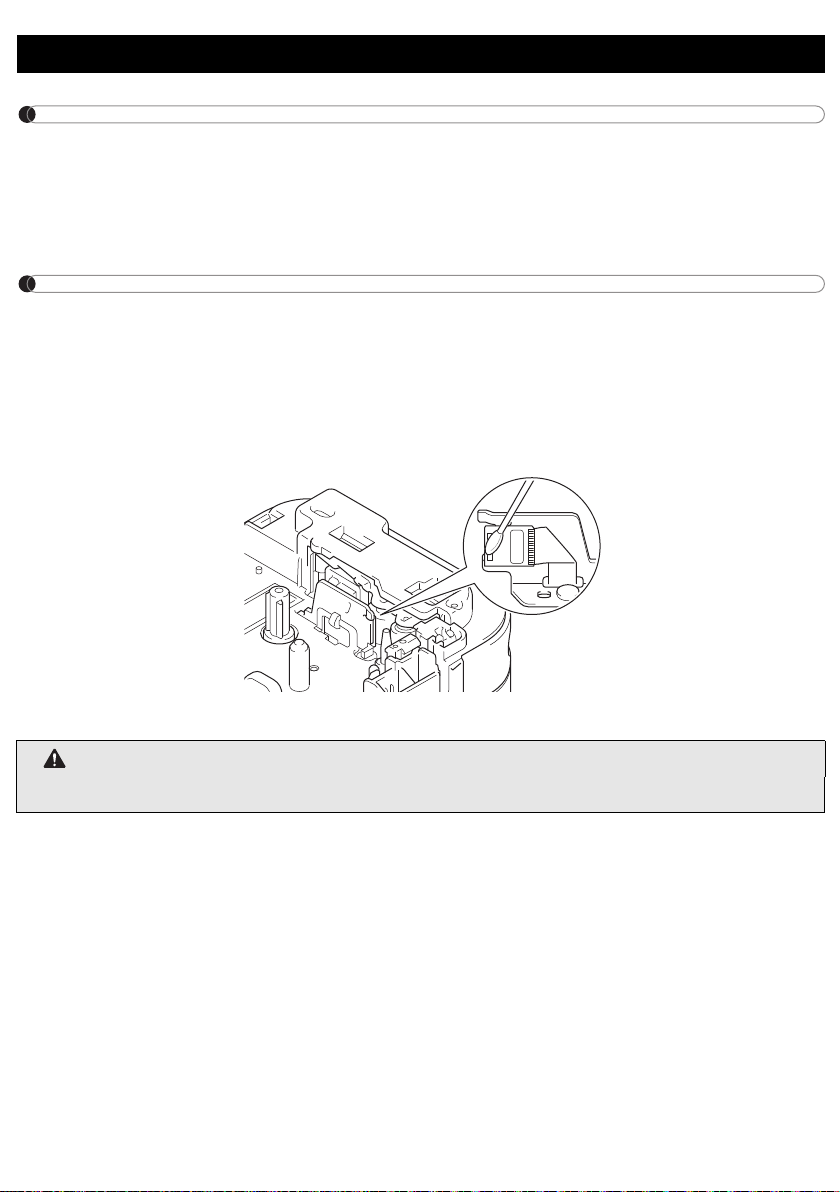
Cleaning the Print Head
Dirt on the Print Head may cause blank lines, faint type, or missing characters.
Use an optional dedicated head cleaning cassette (TZe-CL3) or use a cotton swab to gently
wipe dirt from the Print Head.
WARNING
DO NOT TOUCH the Print Head. It is very hot and you may get burned.
Page 7

WARNING
International ENERGY STAR® Qualification Statement
Cutter Board
Cutter's Edge
1
2
The purpose of the International ENERGY STAR® Program is to promote the development
and popularization of energy-efficient equipment.
As an ENERGY STAR
meets the ENERGY STAR
®
Partner, Brother Industries, Ltd. has determined that this product
®
specifications for energy efficiency.
Accessories
If the cutter blade becomes blunt after repetitive use and the tape cannot be cut cleanly,
rotate and reset the Cutter Board as shown in the illustration (1).
If you still have difficulties, replace the Cutter Unit with a new one (item number: TC4) from
an authorized Brother reseller or online at Brothermall.com.
Replacing the Cutter Unit
1. Pull out the two sections of the Cutter Unit (green) in the direction of the arrows shown
in the illustration (1).
2. Install the new Cutter Unit. Unit by pressing the two new pieces down until they lock into
place.
Page 8
Specifications
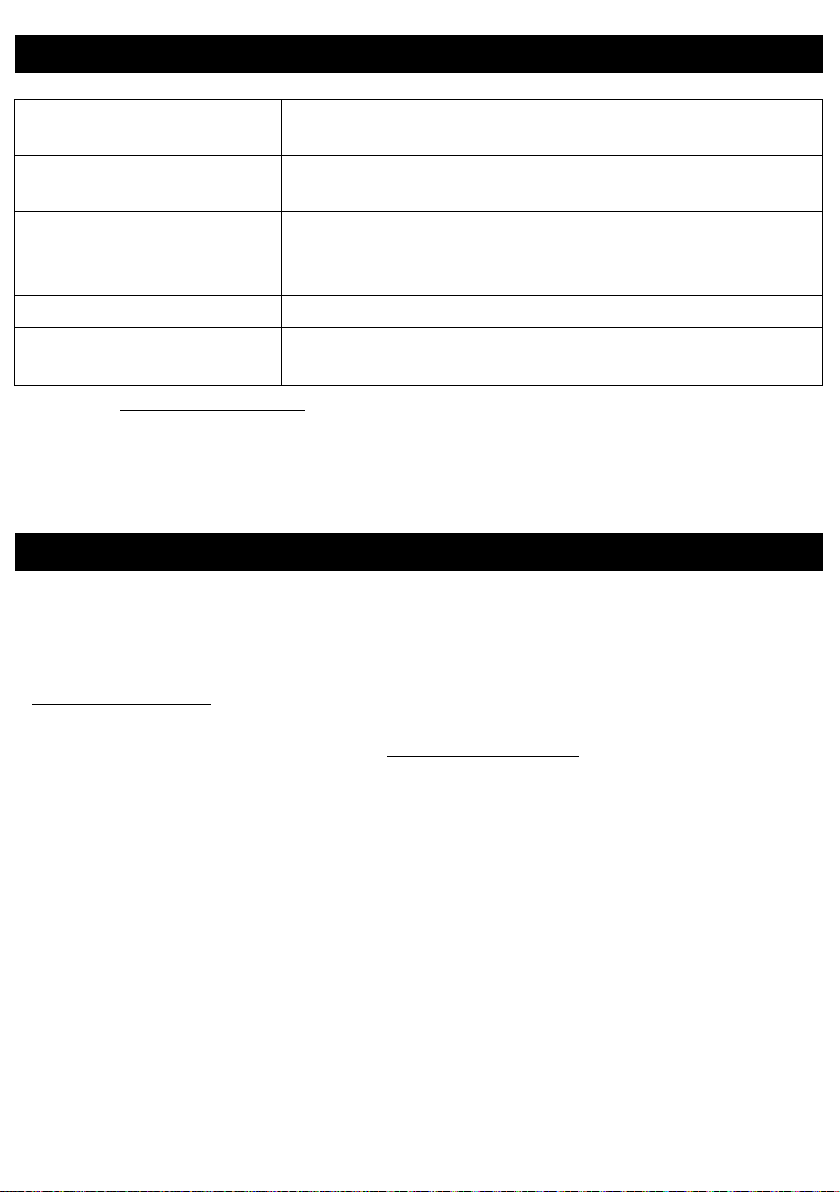
Dimensions (W × D × H) Approximately 4.5" (W) × 2.4" (D) × 4.5" (H)
(115 mm (W) × 61 mm (D) × 115 mm (H))
Weight Approximately 0.8 lb (380 g)
(without batteries and Tape Cassette)
Power Supply AC Adapter (AD-24ESA or AD-24ESAW)
6×AAA Alkaline Batteries (LR03)
Chargeable 6×AAA Ni-MH batteries (HR03)*
Interface Bluetooth Ver 2.1 + EDR Class2
Tape Cassette Brother TZe Tape Cassette
Compatible widths: 3.5 mm, 6 mm, 9 mm, 12 mm
* Visit us at support.brother.com/ for the latest battery recommendations.
Important Information
If you have questions or need information about your Brother product, please visit us online
or call.
For FAQs, Troubleshooting, and to download software and manuals, visit
support.brother.com
To order supplies and accessories, visit www.brothermall.com
visit your local authorized Brother reseller.
For USA Customer Service, call 1-877-BROTHER (1-877-276-8437).
Fax: 1-901-379-1210
.
or call 1-877-552-6255, or
Page 9

Unpacking the PT-P300BT
Check that the package contains the following before using the label printer. If any item is
missing or damaged, contact your Brother reseller.
PT-P300BT AC Adapter (AD-24ESAW)
Starter Tape Cassette
Page 10

AC Adapter
AC Adapter Cord
Power Button
AC Adapter Jack
Tape Window
Cassette Cover
Download the P-touch app to your
smartphone or tablet
* You are responsible for any connection fees.
iPad/iPhone/iPod touch
Go to the App Store, search for [ P-touch Design&Print ], and download.
Go to Google Play™, search for [ P-touch Design&Print ], and download.
Android
User’s Guide (English)
Introduction
ELECTRONIC LABELING SYSTEM
Printed in China
LAJ368001A
P-touchDesign&Print
Page 11

AC Adapter
AC Adapter Cord
1. Parts and Components
Power Button
AC Adapter Jack
Tape Window
Cassette Cover
Front
Tape Cutter Lever
LED
Tape Exit Slot
Rear
Battery Cover
Feeding Tape
Power on the label printer and press the Power Button twice quickly to automatically feed
the tape.
Cutting Tape
When your label finishes printing, press the Tape Cutter Lever to cut the tape.
Page 12

AC Adapter
AC Adapter Cord
2. Installing Batteries or Connecting the AC Adapter
CAUTION
ALWAYS USE THE SPECIFIED VOLTAGE AND THE AC ADAPTER (AD-24ESA OR
AD-24ESAW) FOR THE LABEL PRINTER TO PREVENT ANY DAMAGE OR FAILURE.
This label printer requires six (6) AAA alkaline batteries or six (6) fully-charged AAA Ni-MH
batteries, not included. As an alternative, use the AC Adapter included with this machine
and plug the label printer into an AC outlet.
1. Hold the label printer as shown in
the illustration. Open the Battery
Cover by pressing the mark on its
side (1) and pulling in the direction of
the arrow (2).
2. Insert six batteries following the
drawing marked inside the case.
Alternate positive and negative
poles, making sure to match the
negative battery end with the coil in
the battery slot.
1
2
3. Insert the two hooks at the rear of
the Battery Cover into the slots on
the label printer (3). Push the
Battery Cover closed (4), making
sure it locks into place.
The coils are
negative pole
3
4
Page 13

2
AC Adapter
AC Adapter Cord
. Installing Batteries or Connecting the AC Adapter (cont)
CAUTION
USING A COMBINATION OF DIFFERENT BATTERIES (SUCH AS ALKALINE WITH
Ni-MH) MAY RESULT IN AN EXPLOSION. DISPOSE OF USED BATTERIES
ACCORDING TO THE INSTRUCTIONS.
CAUTION
• Remove the batteries if you do not intend to use the label printer for an extended
period of time.
• Dispose of batteries at an appropriate collection point, not in the general waste
stream. Be sure to observe all applicable federal, state, and local regulations.
• When storing or discarding a battery, wrap it with cellophane tape
to prevent it from short-circuiting (see illustration).
1. Cellophane tape
2. Alkaline or Ni-MH battery
NOTE
1
Do not set together old and new batteries. Replace all six batteries at the same time.
Connecting the AC Adapter
If you use the included AC Adapter:
1. Insert the AC Adapter Cord into the AC Adapter Jack on the side of the machine.
2. Insert the AC Adapter into an AC electrical outlet.
2
Page 14

Cassette Cover
2
1
Print Head
Tape Guide
End of Tape
3
AC Adapter
AC Adapter Cord
Power Button
AC Adapter Jack
Tape Window
Cassette Cover
Download the P-touch app to your
smartphone or tablet
* You are responsible for any connection fees.
iPad/iPhone/iPod touch
Go to the App Store, search for [ P-touch Design&Print ], and download.
Go to Google Play™, search for [ P-touch Design&Print ], and download.
Android
User’s Guide (English)
Introduction
ELECTRONIC LABELING SYSTEM
Printed in China
LAJ368001A
P-touchDesign&Print
3. Inserting the Tape Cassette
Make sure your Tape Cassettes display the TZe mark ( ).
Use only tape widths of 3.5 mm, 6 mm, 9 mm, or 12 mm.
If there is a stopper on the TZe Tape Cassette, remove it before installation.
1. Hold the label printer as shown in the
illustration. Open the Cassette Cover
by pressing the mark on its side (1) and
pulling in the direction of the arrow (2).
2. Insert the Tape Cassette following the
drawing marked inside the case.
Confirm that the tape is aimed at the
green Tape Outlet and gently press the
Tape Cassette into the label printer
until it locks into place.
NOTE
• Make sure that there is no slack in the
tape. To fix any slack, pull the end of
the tape out of the Tape Guide.
• When inserting or removing the Tape
Cassette, make sure that the tape
does not catch on the silver pin (3) or
the Print Head.
3. Insert the two hooks at the rear of the
Cassette Cover into the slots on the
label printer (4). Push the Cassette
Cover closed (5), making sure it locks
into place.
5
4
Page 15

AC Adapter
AC Adapter Cord
Power Button
AC Adapter Jack
Tape Window
Cassette Cover
4. Turning the Label Printer On or Off
Press the Power Button to power on. Hold the Power Button for 0.5 seconds to power off.
5. LED Indications
The label printer's LED indicates the label printer's status.
LED Condition
Lighting a light to green
Flashing a light to green
Flashing a light to green
Lighting a light to red The label printer is booting.
Flashing a light to red
Flashing a light to red
Flashing a light to orange
Label printer is connected via Bluetooth or the tape is
feeding.
If a green light is on for 3 seconds, then off for 1 second,
the label printer is powered on and ready.
If a green light flashes on and off at 0.5 second
intervals, the unit is receiving data from your
smartphone or tablet.
If a red light flashes on and off at 1 second intervals,
one of the following has occurred:
• No Tape Cassette installed
• Incorrect Tape Cassette installed
• Incompatible Tape Cassette installed
• Transmission error (see "7. Troubleshooting")
• Cutter error
• Incompatible AC Adapter used
(see "7. Troubleshooting")
If a red light flashes on and off at 0.5 second intervals,
there is a system error (see "7. Troubleshooting").
If an orange light flashes on and off at 1 second
intervals, the batteries are almost out of power.
Page 16

6.
AC Adapter
AC Adapter Cord
Pairing the Label Printer with Your Smartphone or Tablet
On your smartphone or tablet:
1. In Settings, access the Bluetooth option, and turn it ON.
2. When the list of discovered Bluetooth devices appears, tap PT-P300BT**** (where ****
is the last four digits of your label printer’s serial number. Alternatively, you can find your
machine number on the sticker below the Power Button). The unit's serial number is
located where the TZe Tape Cassette is set inside the Cassette Cover.
3.If asked to enter a PIN Code, enter “0000”.
NOTE
• Pairing instructions may differ slightly, depending on the smartphone or tablet you are
using.
• If the label printer is not discovered by your smartphone or tablet, the label printer may
already be connected to another device. If so, locate the smartphone or tablet that is paired
with the label printer, turn off Bluetooth on that device, and then power off the label printer
and power it back on.
• If the label printer is moved too far from your smartphone or tablet, it may disconnect. If this
happens, repeat these steps near the label printer to pair them again.
• If using a Smart Cover on your tablet, ensure that the cover remains open while you are
creating or printing labels. Closing the Smart Cover may interrupt data communication, and
your labels will not print.
7. Troubleshooting
Problem Solution
I cannot turn on the label
printer.
A horizontal space runs
through the middle of the
printed label.
Check to see that the batteries are installed correctly, or that
the included AC Adapter is securely connected.
Streaks or poor quality characters on printed labels generally
indicate that the Print Head is dirty. See the section
"Performing Routine Maintenance" for instructions on
cleaning the Print Head.
* Do not touch the Print Head with your bare hands.
Page 17

AC Adapter
AC Adapter Cord
7. Troubleshooting (cont)
Problem Solution
The label is difficult to cut. • Rotate and reset the Cutter Board. (see "Accessories")
• If the issue persists, replace the Cutter Unit. Visit
www.brothermall.com
* Do not touch the cutter blade with your bare hands.
The label printer does not
print, or the printed characters
are not formed correctly.
The label printer powers off
when I try to print.
The tape does not feed
correctly, or the tape gets
stuck inside the label printer.
I cannot print from my
smartphone or tablet.
System error Please contact Brother Customer Service.
Booting In the event that Booting occurs due to the failure of
Transmission error Data transfer from your mobile device to the PT-P300BT was
High pressure error An incompatible AC Adapter is plugged into the PT-P300BT
• Check that the Tape Cassette has been inserted correctly.
• If the Tape Cassette is empty, replace it.
• Check the Cassette Cover is securely closed.
• The batteries may be weak. Replace them.
• Check that the batteries are correctly inserted.
(see "2. Installing Batteries or Connecting the AC
Adapter")
• You are using an incompatible adapter. Use only the
recommended adapter (see Specifications).
• Check that the end of the tape feeds under the tape guides.
• You may have tried to use the Cutter while printing. Do not
try to cut a label while it is printing.
Check that the label printer and your smartphone or tablet
are connected via Bluetooth. See "6. Pairing the Label
Printer with your Smartphone or Tablet".
transferring the program, the system will recover if the
program is transferred again. Follow operating procedures of
the application.
To resolve the issue, contact your Brother dealer or Brother
customer service for assistance.
interrupted. Turn the PT-P300BT off, then on again, and try
sending the label from your mobile device to the PT-P300BT
again.
and voltage is too high. Use ONLY the recommended
adapter (see Specifications).
and type TC4 in the Search field.
 Loading...