

Page 1

Instruction Manual
En
AV RECEIVER
VSX-LX305
Page 2
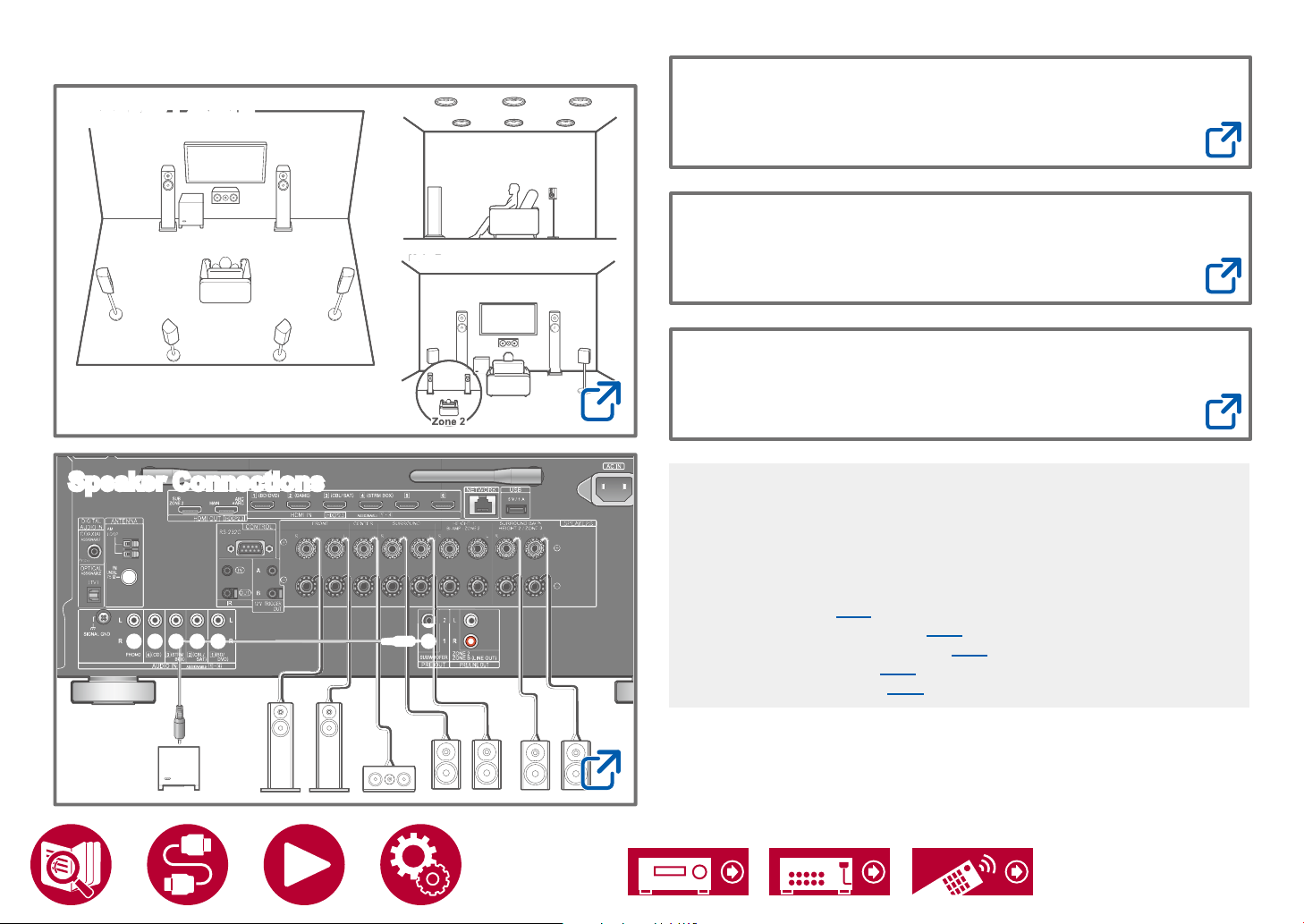
Table of contents
Z
2
Zone 2
Main Room
Roo
Speaker Layout
Main Room
Firmware Update
Troubleshooting
m
Supplementary Information
Speaker Connections
Zone 2Zone 2
one
Reducing the Power Consumption in Standby
State
When the following functions are enabled, the power consumption in
standby state increases. To reduce the power consumption in standby state,
check each setting and set the functions to "Off".
– HDMI CEC ( →p124)
– HDMI Standby Through ( →p124)
– USB Power Out at Standby ( →p126)
– Network Standby ( →p127)
– Bluetooth Wakeup ( →p127)
Detailed contents (Next page)
2
Page 3

Before starting the procedure 7
Firmware Update 8
Update Information of the rmware 8
Firmware Update Procedure 8
Part Names 11
Front Panel 11
Display 13
Rear Panel 14
Remote Controller 16
Inputting Characters 18
Speaker Layout
Connections
Notes regarding connections with HDMI cables 47
Connections 47
Connecting the TV 48
To ARC/eARC TV 48
To Non-ARC TV 48
Connecting the SUB Monitor 50
SUB Monitor 50
Connecting Playback Devices 51
Connections to BD/DVD and GAME with HDMI jacks 51
Connecting an Audio Component 52
The listening room and the speaker layout 20
5.1 Channel System 21
7.1 Channel System 22
5.1.2 Channel System 23
7.1.2 Channel System 24
5.1.4 Channel System 25
Speaker Installation
Speaker Connections
Speakers you can use with this unit and cable
connections 33
Connecting a Video Camera, etc. 53
Connecting a TV or Integrated Amplier in a separate
room (Multi-zone) 54
Connecting a TV (ZONE 2) 54
Connecting an Integrated Amplier (ZONE 2) 55
Connecting Antennas 56
Network Connection 57
Connecting External Control Devices 58
IR IN/OUT port 58
12V TRIGGER OUT jack 59
Connecting the Power Cord 60
3
Page 4

Playback
Playing audio from an externally connected device 62
Basic Operations 62
BLUETOOTH
Playing audio from BLUETOOTH wireless technology
enabled devices with this unit 63
Transmitting audio from this unit to BLUETOOTH
wireless technology enabled devices 64
Listening To the Radio 66
Listening To the AM/FM Radio (AM: North American,
Australian and Asian models only) 66
Listening To DAB Digital Radio (European models
only) 69
®
Playback 63
Registering this unit with an Amazon account 81
Operating this unit 82
Amazon Music 83
Registering This Unit with Amazon Music 83
Playing Amazon Music using the Pioneer Remote
App 84
Playing Amazon Music using the remote controller 84
TIDAL 85
Registering this unit with TIDAL 85
Playing TIDAL 85
Connecting the Sonos System for Playback 86
Necessary Equipment 86
How to Connect This Unit and Sonos Connect 86
Presetting a Radio Station 71
Listening Mode 72
AV Adjust 74
Menu operations 74
Spotify 77
AirPlay
®
78
Basic Operations 78
Playing Back on multiple devices (AirPlay2) 79
DTS Play-Fi
®
80
Playing Back 80
Amazon Alexa 81
Setting Up 86
Playing Sonos on This Unit 87
Internet Radio 88
Playing Back 88
Multi-zone 90
Playing Back (ZONE 2) 91
Playing Back (ZONE 3) 93
Using PERSONAL PRESET 94
Playing music les saved on a USB storage device 96
USB Storage Device Requirements 97
Music Server 98
4
Page 5

Supported Audio Formats 98
Windows Media
®
Player 12 settings 98
Manual MCACC 136
MCACC Data Check 138
Playing Back 99
Play Queue 101
Adding Play Queue Information 101
Sort and Delete 101
Playing Back 102
Connecting a transmitter for playback 103
Connections 103
Setting Up 103
Playing Back 103
Setup
System Setup 106
Menu list 106
Input/Output Assign 108
Sp ea ker 114
Audio Adjust 119
Source 122
Hardware 124
Multi Zone 130
Miscellaneous 132
Advanced MCACC 134
Network/Bluetooth 139
Menu operations 139
Network 140
Bluetooth 143
Web Setup 146
Menu operations 146
Initial Setup with Auto Start-up Wizard 147
Operations 147
1. Speaker Setup 148
2. Multi Zone Sound Check 149
3. ARC Setup 149
4. Room EQ 149
Pioneer Remote App 153
Main features 153
Initial Setup 153
Dirac Live 154
Measuring with Dirac Live 154
Using Dirac Live 155
Manual Adjust 155
Troubleshooting
Menu operations 134
Full Auto MCACC 135
Before starting the procedure 158
When the unit is operating erratically 159
5
Page 6

Troubleshooting 160
Appendix
Speaker Layouts and Selectable Listening Modes 171
Input Formats and Selectable Listening Modes 174
Listening Mode Effects 178
Speaker combinations 183
General Specications 184
6
Page 7

Before starting the procedure
What's in the box
1. Main unit (1)
2. Remote controller (RC-974R) (1), Batteries (AAA/R03) (2)
3. Speaker setup microphone (1)
• Used during Initial Setup.
4. DAB/FM antenna (European models) (1)
5. Indoor FM antenna (North American, Australian and Asian models) (1)
6. AM loop antenna (North American, Australian and Asian models) (1)
7. Power cord (1)
• Initial Setup Guide (1)
*
This document is an online instruction manual. This is not supplied with the product.
Note
• Connect speakers with an impedance of 4 Ω to 16 Ω.
• The power cord must be connected only after all other connections are
completed.
• We will not accept any responsibility for damage arising from the connection
with equipment manufactured by other companies.
• Network services and content that can be used may no longer be available
if new functions are added by updating rmware or the service providers
terminate their services. Also, available services may differ depending on
your area.
• Details on the rmware update will be posted on our website and through
other means at a later date.
• The illustrations in this manual use those of North American models unless
otherwise mentioned.
• Specications and appearance are subject to change without prior notice.
7
Page 8
Firmware Update
This unit is equipped with a function to update the rmware via network or USB
port when the rmware update is announced after purchase. This enables
various functions to be added and operations to be improved.
Depending on the manufacturing timing of the product, the rmware may be
switched to the updated one. In such a case, new functions may be added
from the star t. For how to conrm the latest rmware contents and the rmware
version of your product, see the following section.
Update Information of the rmware
For the latest rmware contents and the rmware version, visit our company’s
website. If the rmware version of your product differs from the latest one, it is
recommended to update the rmware.
To conrm the rmware version of your product, press the button on the
remote controller to display the Home screen, and refer to "System Setup" "Miscellaneous" - "Firmware Update" - "Version" ( →p133).
Firmware Update Procedure
The update may take approx. 20 minutes to complete via network or via USB
port. Existing settings are guaranteed in either updating method.
When this unit is connected to the network, notications of rmware updates may
be displayed. To update the rmware, select "Update Now" with the cursors on
the remote controller, and press the ENTER button. The unit automatically enters
standby mode after "Completed!" is displayed, and the update is completed.
Disclaimer: The program and accompanying online documentation are
furnished to you for use at your own risk.
Our company will not be liable and you will have no remedy for damages for
any claim of any kind whatsoever concerning your use of the program or the
accompanying online documentation, regardless of legal theory, and whether
arising in tort or contract.
In no event will our company be liable to you or any third party for any special,
indirect, incidental, or consequential damages of any kind, including, but not
limited to, compensation, reimbursement or damages on account of the loss of
present or prospective prots, loss of data, or for any other reason whatsoever.
Updating the Firmware via Network
• While updating the rmware, do not do the following:
– Disconnecting and reconnecting cables, USB storage device, speaker
setup microphone or headphones, or performing operations on the unit
such as turning the power off
– Accessing this unit from a PC or smartphone using their applications
• Check that the unit is turned on, and the connection to the Internet is secured.
• Turn off control devices (PC etc.) connected to the network.
• Stop any playing Internet radio, USB storage device, or server content.
• If the multi-zone function is active, turn it off.
• If "HDMI CEC" is set to "On", set it to "Off".
– Press to display the Home screen. Next, select "System Setup" -
"Hardware" - "HDMI", press ENTER, select "HDMI CEC" and select "Off".
* The descriptions may differ from the actual on-screen displays, however, operations
and functions are the same.
Update
1. Press .
The Home screen is displayed on the T V screen.
2. Select "System Setup" - "Miscellaneous" - "Firmware Update" - "Update via
NET" with the cursors in order, then press ENTER.
• If "Firmware Update" is grayed out and cannot be selected, wait for a while
until it starts up.
• If there is no updatable rmware, "Update via NET" cannot be selected.
3. Press ENTER with "Update" selected, and start update.
• During the update, the TV screen may go black depending on the program
to be updated. In such a case, check the progress on the display of the
unit. The TV screen will remain black until the update is completed and the
power is turned on again.
• When "Completed!" is displayed, the update is complete.
4. Press STANDBY/ON on the main unit to turn the unit into standby mode.
The process is completed, and your rmware is updated to the latest version.
• Do not use on the remote controller.
8
Page 9

If an Error Message is Displayed
If an error occurs, "- Error!" is displayed on the display of the unit. (""
represents an alphanumeric character.) Refer to the following descriptions and
check.
Error Code
• - 01, -10:
Ethernet cable not found. Connect the Ethernet cable properly.
• -02, -03, - 04, -05, -06, -11, -13, -14, -16, - 17, -18 , -20,
-21:
Internet connection error. Check the following:
– Whether the router is turned on
– Whether this unit and the router are connected via the network
Unplug and plug the power cords of this unit and the router. This may solve
the problem. If you are still unable to connect to the Internet, the DNS server
or proxy server may be temporarily down. Check the server operation status
with your Internet service provider.
• Others:
After removing the power plug once, insert it to the outlet, and then start the
operation from the beginning.
Updating via USB
• While updating the rmware, do not do the following:
– Disconnecting and reconnecting cables, USB storage device, speaker
setup microphone or headphones, or performing operations on the unit
such as turning the power off
– Accessing this unit from a PC or smartphone using their applications
• Prepare a 1 GB or larger USB storage device. The format of USB storage
devices supports FAT16 or FAT32 le system format.
– Media inserted into a USB card reader may not be used for this function.
– USB storage devices equipped with the security function are not
supported.
– USB hubs and USB devices equipped with the hub function are not
supported. Do not connect these devices to the unit.
• Delete any data stored on the USB storage device.
• Turn off control devices (PC etc.) connected to the network.
• Stop any playing Internet radio, USB storage device, or server content.
• If the multi-zone function is active, turn it off.
• If "HDMI CEC" is set to "On", set it to "Off".
– Press to display the Home screen. Next, select "System Setup" -
"Hardware" - "HDMI", press ENTER, select "HDMI CEC" and select "Off".
* Depending on the USB storage device or its content, long time may be required
for loading, the content may not be loaded correctly, or power may not be supplied
co rre ctly.
* Our company will not be liable whatsoever for any loss or damage of data, or
storage failure arising from the use of the USB storage device. Please note this in
advance.
* The descriptions may differ from the actual on-screen displays, however, operations
and functions are the same.
Update
1. Connect the USB storage device to your PC.
2. Download the rmware le from the our company's website to your PC and
unzip.
Firmware les are named as below.
PIOAVR_R.zip
Unzip the le on your PC. The number of unzipped les and folders varies
depending on the model.
3. Copy all unzipped les and folders to the root folder of the USB storage
device.
• Make sure to copy the unzipped les.
9
Page 10

4. Connect the USB storage device to the USB port of this unit.
• If an AC adapter is supplied with the USB storage device, connect the AC
adapter, and use it with a household outlet.
• If the USB storage device has been partitioned, each section will be
treated as an independent device.
5. Press .
The Home screen is displayed on the T V screen.
6. Select "System Setup" - "Miscellaneous" - "Firmware Update" - "Update via
USB" with the cursors in order, then press ENTER.
• If "Firmware Update" is grayed out and cannot be selected, wait for a while
until it starts up.
• If there is no updatable rmware, "Update via USB" cannot be selected.
7. Press ENTER with "Update" selected, and start update.
• During the update, the TV screen may go black depending on the program
to be updated. In such a case, check the progress on the display of the
unit. The TV screen will remain black until the update is completed and the
power is turned on again.
• During the update, do not turn the power off, or disconnect or reconnect
the USB storage device.
• When "Completed!" is displayed, the update is complete.
8. Disconnect the USB storage device from the unit.
9. Press STANDBY/ON on the main unit to turn the unit into standby mode.
The process is completed, and your rmware is updated to the latest version.
• Do not use on the remote controller.
If an Error Message is Displayed
If an error occurs, "- Error!" is displayed on the display of the unit. (""
represents an alphanumeric character.) Refer to the following descriptions and
check.
Error Code
• - 01, -10:
The USB storage device cannot be recognized. Check if the USB storage
device or USB cable is securely inserted to the USB port of the unit.
Connect the USB storage device to an external power source if it has its own
power supply.
• -05, -13, -20, -21:
The rmware le is not present in the root folder of the USB storage device,
or the rmware le is for another model. Retry from the download of the
rmware le.
• Others:
After removing the power plug once, insert it to the outlet, and then start the
operation from the beginning.
10
Page 11
Part Names
Front Panel
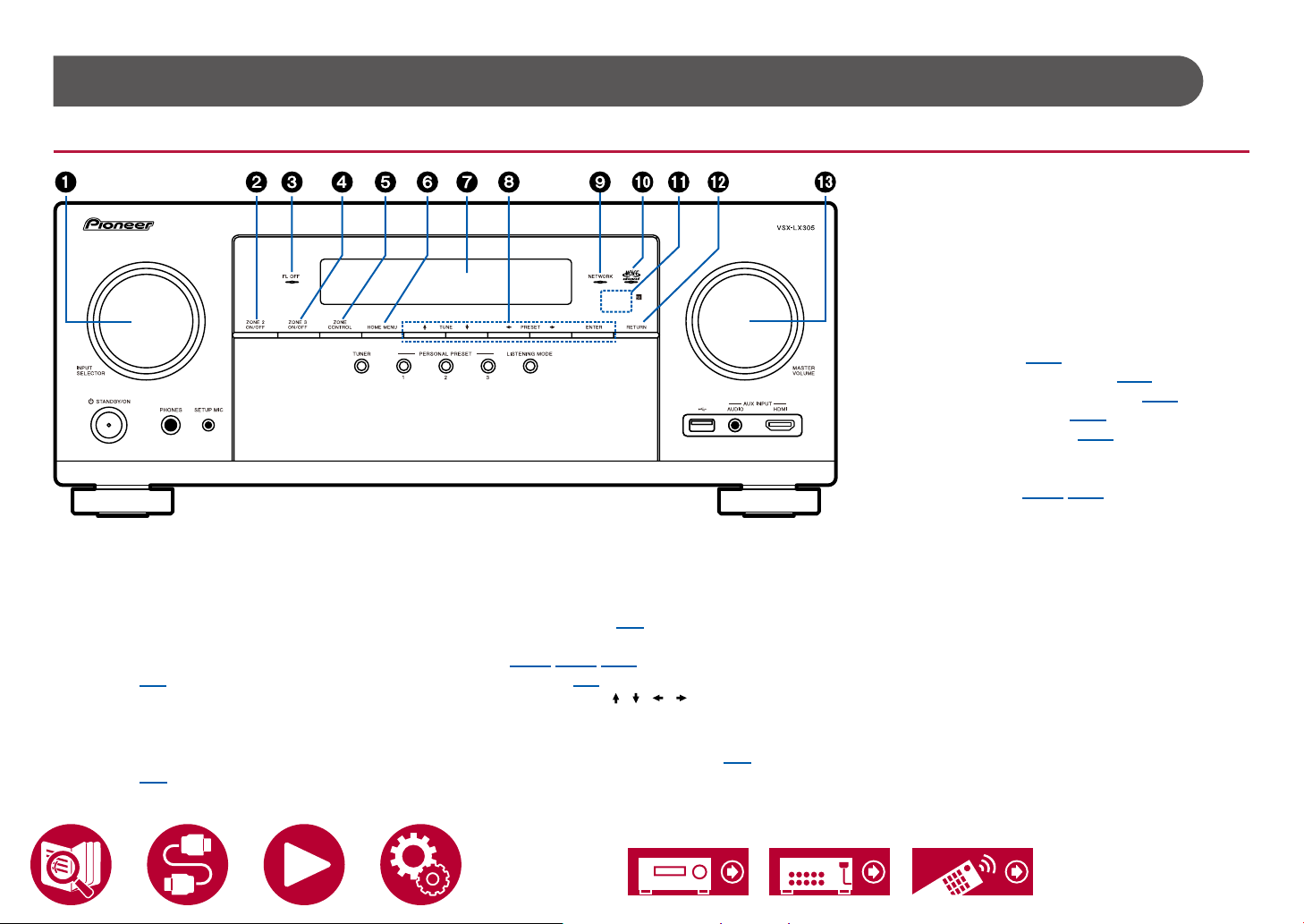
1. INPUT SELECTOR dial: Switch the input to be
played.
2. ZONE 2 ON/OFF button: Turns ZONE 2 ON/
OFF. ( →p91)
3. FL OFF indicator: Lights up when the display is
turned off by repeatedly pressing the DIMMER
button on the remote controller.
4. ZONE 3 ON/OFF button: Turns ZONE 3 ON/
OFF. ( →p93)
5. ZONE CONTROL button: Controls the multi-
zone function. ( →p90)
6. HOME MENU button: Displays the Home.
( →p106, p134, p139)
7. Display ( →p13)
8. Cursor buttons ( / / / ) and ENTER
button: Select the item with the cursors, and
press ENTER to conrm. Use them to tune to
stations when using TUNER. ( →p66)
9. NETWORK indicator: This lights when "NET"
is selected with the input selector and the unit
is connected to the network. Lights up when
any of the following functions is working or
enabled in standby state of this unit. When this
indicator is lighting, the power consumption in
standby state increases, however, the increase
in power consumption is minimized by entering
the HYBRID STANDBY mode where only the
essential circuits operate. It does not light when
ZONE 2/ZONE 3 is on, however.
– HDMI CEC ( →p124)
– HDMI Standby Through ( →p124)
– USB Power Out at Standby ( →p126)
– Network Standby ( →p127)
– Bluetooth Wakeup ( →p127)
10.
Advanced MCACC indicator: This lights when
you have enabled the speaker calibration made
with MCACC. ( →p135, p152)
11.
Remote control sensor: Receives signals from
the remote controller.
• The signal range of the remote controller is
within about 16´/5 m, at an angle of 20° on the
perpendicular axis and 30° to either side.
12.
RETURN button: Returns the display to the
previous state.
13.
MASTER VOLUME
11
Page 12
Front Panel
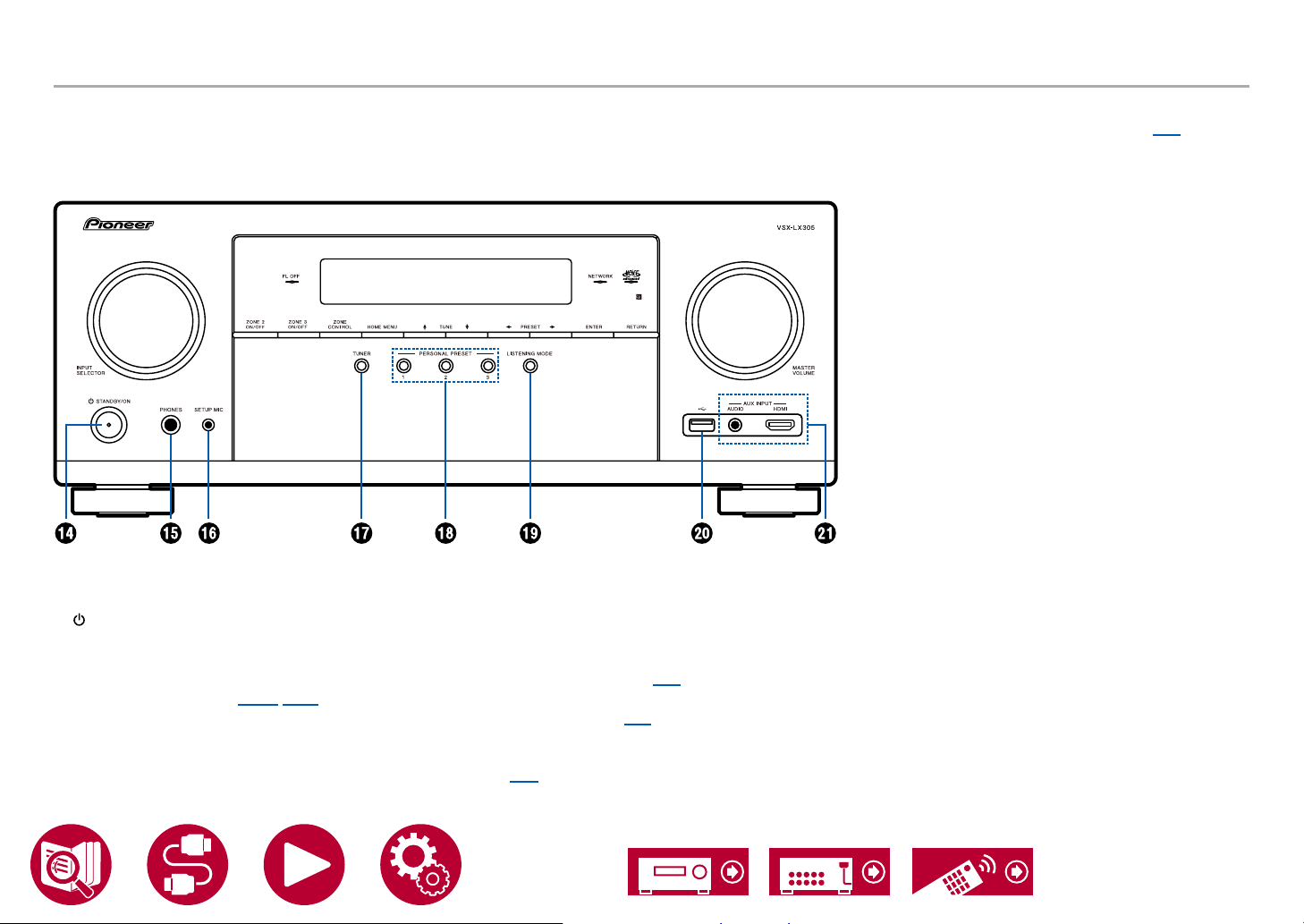
video camera, etc. using a stereo mini plug cable
(ø1/8″ / 3.5 mm) or HDMI cable. ( →p53)
14.
STANDBY/ON button
15.
PHONES jack: Headphones with a standard
plug (ø1/4" / 6.3 mm) are connected.
16.
SETUP MIC jack: Connect the supplied speaker
setup microphone. ( →p135, p152)
17.
TUNER button: Switches the input to be
played to "TUNER". Also, pressing this button
repeatedly switches the input between "AM"
(North American, Australian and Asian models),
"FM" and "DAB" (European models).
18.
PERSONAL PRESET 1/2/3 buttons: Registers
the current setting conditions such as input
selector, listening mode, etc. or call the
registered settings. ( →p94)
19.
LISTENING MODE button: Switches the
listening mode. ( →p72)
20.
USB port: A USB storage device is connected
so that music les stored in it can be played.
( →p96)
21.
AUX INPUT AUDIO/HDMI jack: Connect a
12
Page 13

DisplayDisplay
input is selected.
3. Lights according to the type of input digital audio
signal and the listening mode.
4. Lights in the following conditions.
RDS (European, Australian and Asian models):
Receiving RDS broadcasting.
TUNED: Receiving DAB (European models)/AM
(North American, Australian and Asian models)/
FM radio
STEREO: Receiving FM stereo.
SLEEP: Sleep timer is set. ( →p126)
AUTO STBY: Auto Standby is set. ( →p126)
5. Displays the audio output destination.
A: Outputs audio only to ZONE A.
B: Outputs audio only to ZONE B.
AB: Outputs audio to both ZONE A and ZONE B.
6. Lights when headphones are connected.
7. Blinks when muting is on.
8. Displays various information of the input signals.
9. Lights when adjusting the volume.
10.
Speaker/Channel display: Displays the output
channel that corresponds to the selected
listening mode.
1. / / / : These may light when performing
operations while "NET" or "USB" is selected
with the input selector. / light when there are
multiple folders or les that are available to be
selected. / light when text information does
not t with the range provided by "H".
2. Lights in the following conditions.
Z2/Z3: ZONE 2/ZONE 3 is on.
: Connected by BLUETOOTH.
: Connected by Wi-Fi.
NET: Lights when connected to the network with
the "NET" input selector. It will blink if incorrectly
connected to the network.
USB: Lights when the "USB" input selector is
selected, a USB device is connected and the
USB input is selected. It will blink if the USB
device is not properly connected.
HDMI: HDMI signals are input and the HDMI
input is selected.
DIGITAL: Digital signals are input and the digital
13
Page 14

Rear PanelRear Panel
3. HDMI OUT jacks: Transmit video signals and
audio signals with an HDMI cable connected to a
monitor such as a TV or projector.
4. Wireless antenna: Used for
Wi-Fi connection or when
90°
180°
using a BLUETOOTH enabled
device. Adjust the angles
8K
8K
4K
8K
according to the connection
status.
5. HDMI IN jacks: Transmit video
signals and audio signals with an HDMI cable
connected to an AV component.
6. NETWORK port: Connect to the network with an
Ethernet cable.
7. USB port: Connect a USB storage device to
play music les ( →p96). You can also supply
power (5 V/1 A) to USB devices with a USB
cable.
8. AC IN: The supplied power cord is connected.
1. DIGITAL AUDIO IN OPTICAL/COAXIAL jacks:
Input TV or AV component digital audio signals
with a digital optical cable or digital coaxial cable.
2. ANTENNA AM LOOP/FM UNBAL 75 Ω
terminal (North American, Australian and Asian
models): Connect the supplied antennas.
ANTENNA DAB/FM terminal
(European models): Connect
the supplied antennas.
14
Page 15

Rear Panel
to two powered subwoofers can be connected.
The same signal is output from each of the
SUBWOOFER PRE OUT jacks.
16.
ZONE 2 PRE/LINE OUT jacks: Output audio
signals with an analog audio cable connected
to an integrated amplier in a separate room
(ZONE 2).
ZONE B LINE OUT jacks: Simultaneously
8K
8K
4K
8K
output the same audio source as the speakers
(ZONE A) connected to this unit by connecting
this unit to wireless headphones, wireless
speaker transmitter, etc., using an analog audio
cable.
9. SIGNAL GND terminal: Connect the ground
wire of the turntable.
10.
AUDIO IN jacks: Input AV component audio
signals with an analog audio cable.
11.
RS-232C port: Connect a home control system
equipped with an RS-232C port. For installing
a home control system, contact the specialized
stores.
12.
IR IN/OUT port: Connect a remote control
receiver unit. ( →p58)
13.
12V TRIGGER OUT A/B jack: Connect a device
equipped with a 12V trigger input jack to enable
power link operation between the device and this
unit. ( →p59)
14.
SPEAKERS terminals: Connect speakers with
speaker cables. (North American models support
banana plugs. Use a plug 4 mm in diameter. Y
plug connection is not supported.)
15.
SUBWOOFER PRE OUT jacks: Connect a
powered subwoofer with a subwoofer cable. Up
15
Page 16
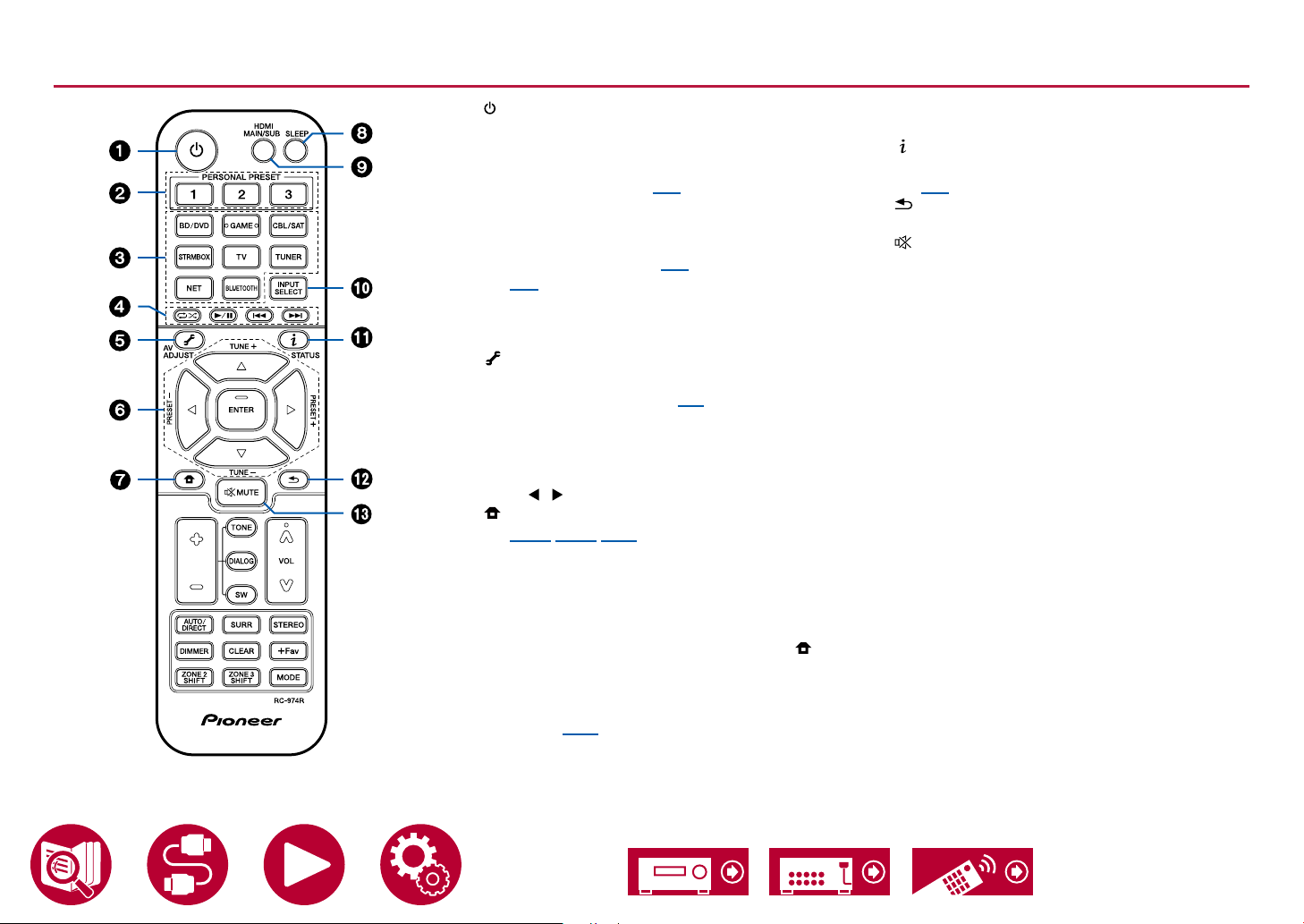
Remote ControllerRemote Controller
1. STANDBY/ON button
2. PERSONAL PRESET 1/2/3 buttons: Registers
the current setting conditions such as input
selector, listening mode, etc. or call the
registered settings. ( →p94)
3. Input selector buttons: Switches the input to be
played.
4. Play buttons: Used for playback operations
for the Music Server ( →p98) or USB device
( →p96). Also, switching to "CEC MODE"
with "21. MODE button" allows you to operate
an HDMI CEC function-enabled AV component.
(Some devices may not be operated.)
5. (AV ADJUST) button: Settings such as
"HDMI" and "Audio" can be made quickly during
play on the TV screen. ( →p74)
6. Cursor buttons and ENTER button: Select
the item with the cursors, and press ENTER to
conrm your selection. When the folder or le
lists are not shown on one screen on the TV,
press / to change the screen.
7. button: Displays the Home.
( →p106, p134, p139)
8. SLEEP button: You can allow the unit to enter
standby automatically when the specied time
has elapsed. Select the time from "30 min", "60
min", "90 min" and "Off". When you do not want
to turn the unit to standby automatically, select
"Off". You can also set this by pressing the
button on the remote controller to display the
Home screen and selecting "System Setup" "Hardware" - "Power Management" - "Sleep
Timer" ( →p126).
9. HDMI MAIN/SUB button: Select the HDMI OUT
jack to output video signals from "MAIN", "SUB",
and "MAIN+SUB".
10.
INPUT SELECT button: Switches the input to be
played.
11.
(STATUS) b u t t o n: Switches the information
on the display and is used to operate RDS.
( →p67)
12.
button: Returns the display to the previous
state.
13.
MUTE button: Temporarily mutes audio.
Press the button again to cancel muting.
16
Page 17

Remote Controller
14.
TONE/DIALOG/SW buttons: Adjusts the sound
quality of the speakers and volume level of the
subwoofer.
TONE button: You can adjust the sound quality
of the speakers.
1. Press TONE repeatedly to select Treble or
Bass and adjust the content.
Treble: Enhances or moderates the high-tone
range of the speakers.
Bass: Enhances or moderates the low-tone
range of the speakers.
2. Press + or - for adjustment.
DIALOG button: Emphasizes movie dialogues
and music vocals to listen to them more easily.
It is effective to movie lines in particular. Also, it
exerts the effect even if the center speaker is not
used. Select a desired level from "1" (low) to "5"
(high).
1. Press DIALOG.
2. Press + or - for adjustment.
• Depending on the input source or listening
mode setting, selection is not possible, or the
desired effect may not be achieved.
SW button: Adjust the speaker level of the
subwoofer while listening to the sound.
1. Press SW.
2. Press + or - to adjust the level between
"-15.0 dB" and "+12.0 dB".
• If you set the unit to the standby mode, the
adjustments you made will be restored to
the previous statuses.
15.
LISTENING MODE buttons: Selects a listening
mode ( →p72).
16.
DIMMER button: You can switch the display off or
adjust the brightness of the display in three steps.
17.
ZONE 2/ZONE 3 SHIFT button: Used to control
the multi-zone function ( →p90).
18.
Volume buttons
19.
CLEAR button: Deletes all characters you have
entered when entering text on the TV screen.
20.
+Fav button: Used to register AM (North
American, Australian and Asian models)/
FM/DAB (European models) radio stations.
( →p71)
21.
MODE button: Switches between automatic
tuning and manual tuning ( →p66) for AM
(North American, Australian and Asian models)/
FM stations, and allows you to select the order
for displaying DAB stations ( →p70). Also,
when an HDMI CEC function-enabled AV
component is connected to this unit, you can
switch "4. Play buttons" between "CEC MODE"
and "RCV MODE" (normal mode).
17
Page 18

Inputting Characters
You can input characters or symbols on the keyboard displayed on the TV
screen such as when inputting a password for Wi-Fi Setup ( →p140) or naming
a preset radio station ( →p122).
1. Select a character or symbol with the cursors / / / on the remote
controller and press the ENTER button.
2. When saving characters after input, select "OK" and press the ENTER button.
, . ;/ : ], . ; :
/ / /
ENTER
CLEAR
ZONE 2
MODE
SHIFT
• Select "A/a" to switch between upper and lower cases. (Can also be switched
with the MODE button on the remote controller.)
• To enter a space, select " ".
• To delete a character on the left of the cursor, select " ".
• To delete all the input characters, press the CLEAR button on the remote
control.
• On the ZONE 2 playback screen, operate the remote controller while pressing
and holding the ZONE 2 SHIFT button. To delete all the input characters, only
press the CLEAR button without pressing the ZONE 2 SHIFT button.
18
Page 19
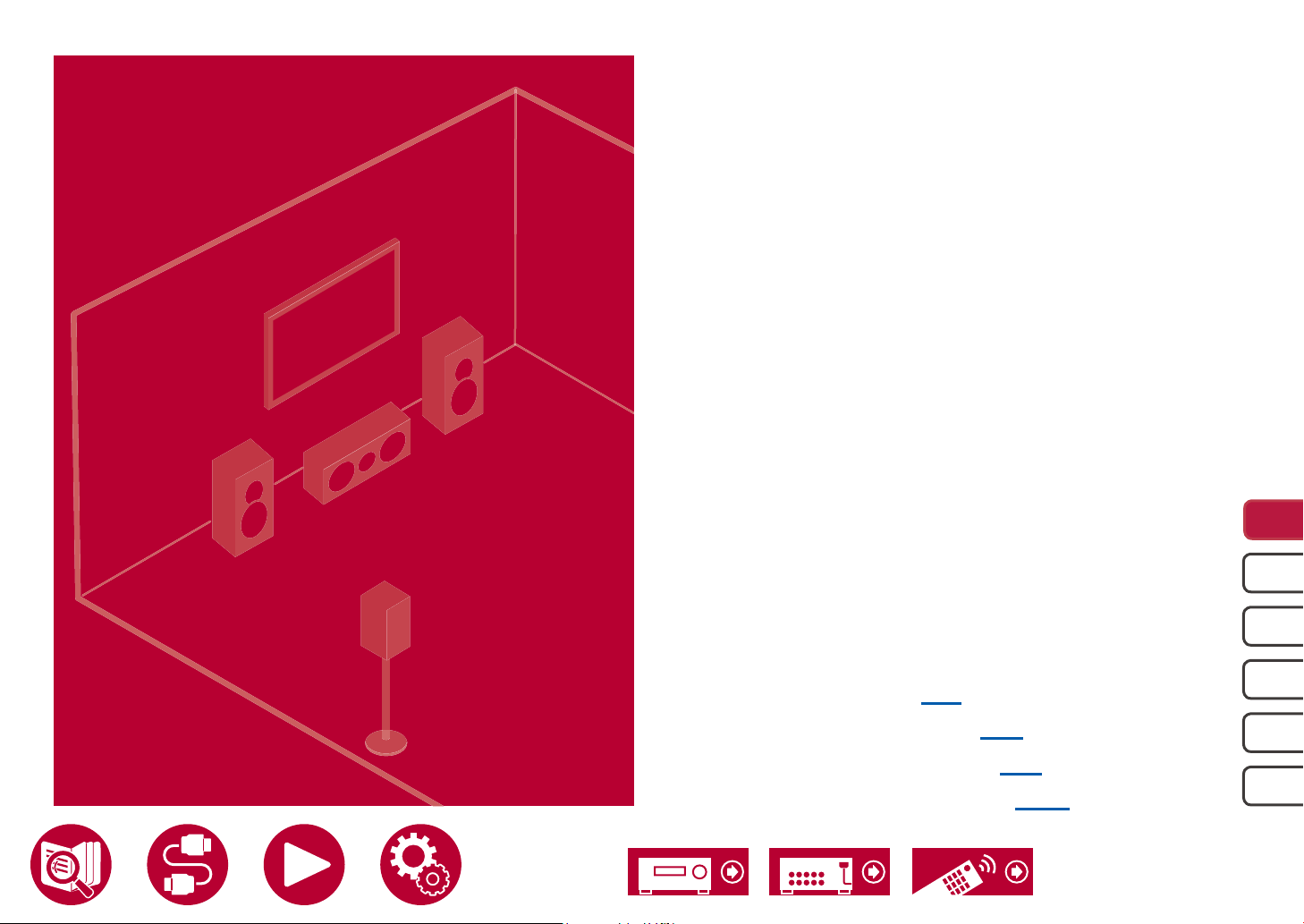
Speaker Layout
Speaker Layout
This unit can be used in different ways, depending on the layout of the
speakers you are installing. Select the speaker layout that suits the installation
environment, then conrm the methods for installation and connection.
Speaker layout ( →p21)
Speaker Installation ( →p27)
Speaker Connections ( →p32)
Speaker Combinations ( →p183)
5.1c h
7.1c h
5.1. 2c h
7.1. 2c h
5.1.4ch
19
Page 20

The listening room and the speaker layout
ZONE A
(Main Room)
Speaker Layout
1. ZONE A Speakers
The speaker system set up in the main room (where this unit is located).
2. ZONE 2 Speakers
The 2 ch speaker system set up in a separate room (ZONE 2). This enables you
to play the same source in the main room and the separate at the same time, or
to play separate sources.
3. ZONE 3 Speakers
The 2 ch speaker system set up in a separate room (ZONE 3). This enables you
to play the same source in the main room and the separate at the same time, or
to play separate sources.
ZONE 2
ZONE 3
5.1c h
7.1c h
5.1. 2c h
7.1. 2c h
5.1.4ch
20
Page 21
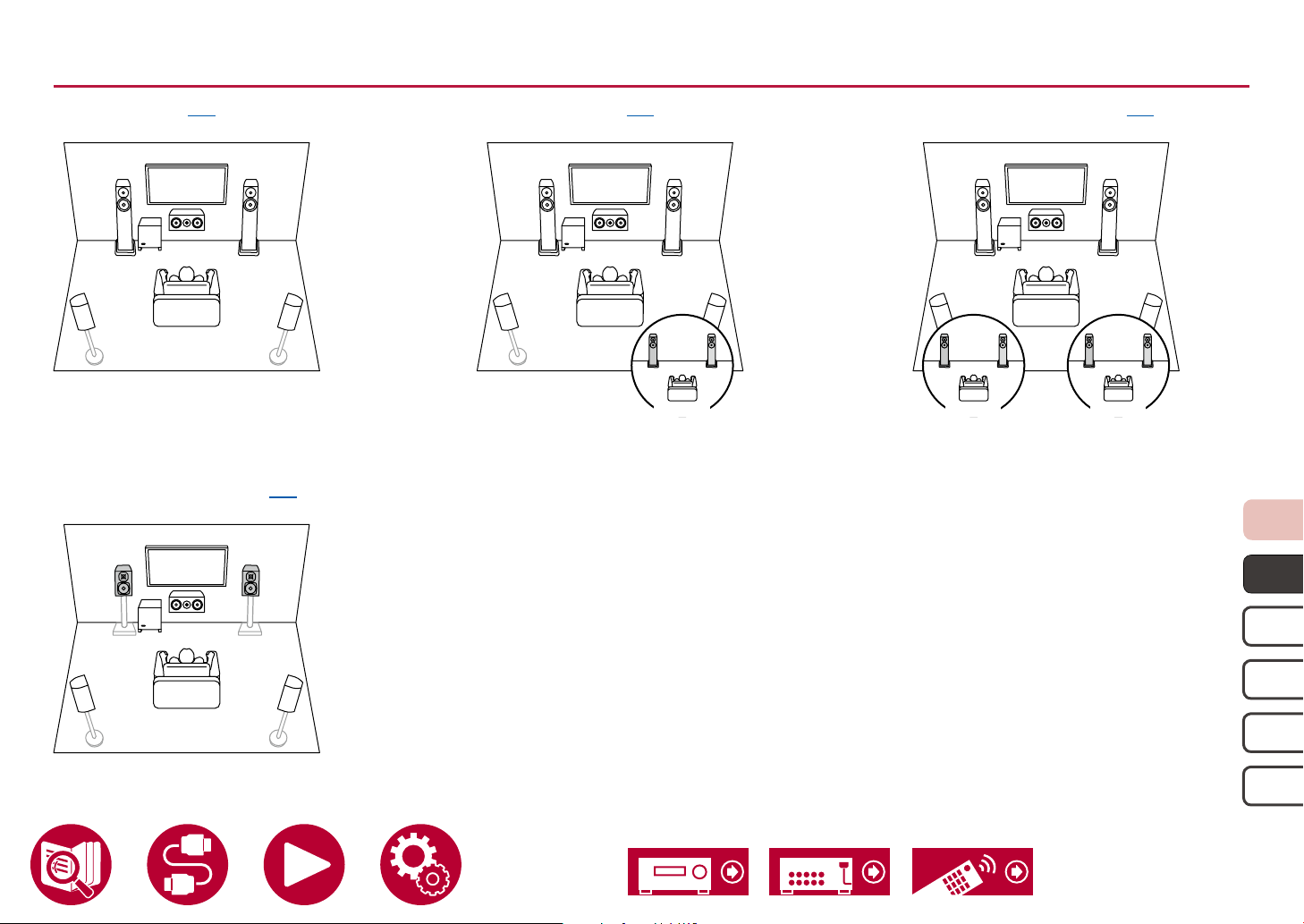
Speaker Layout
Zone 2Zone 2
Zone 2Zone 2 Zone 3Zone 3
5.1 Channel System
Basic system ( →p28)
5.1 ch (Bi-Amping (Front)) ( →p28)
This is a basic 5.1 Channel System.
5.1 ch + ZONE 2 ( →p28)
Main Room
5.1 ch + ZONE 2/ZONE 3 ( →p28)
Main Room
5.1c h
7.1c h
5.1. 2c h
7.1. 2c h
5.1.4ch
21
Page 22

Speaker Layout
Zone 2Zone 2
7.1 Channel System
Basic system ( →p28)
This is a 7.1 Channel System that consists of the basic 5.1 Channel System and added surround back speakers.
7.1 ch + ZONE 2 ( →p28) 7.1 ch (Bi-Amping (Front)) ( →p28)
Main Room
5.1c h
7.1c h
5.1. 2c h
7.1. 2c h
5.1.4ch
22
Page 23
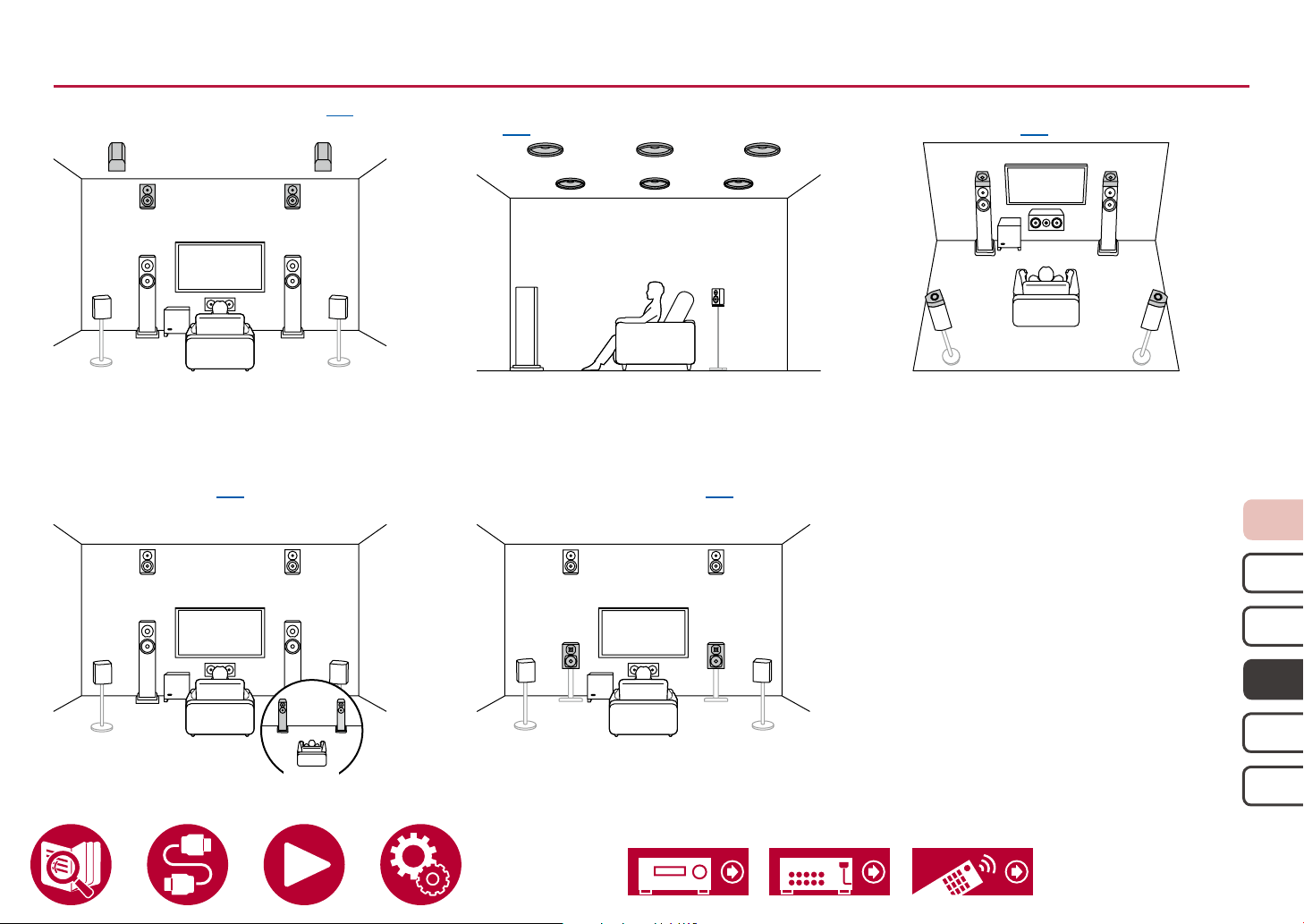
Speaker Layout
Zone 2Zone 2
Main Room
5.1.2 Channel System
5.1.2 ch (Front High or Rear High) ( →p29) 5.1.2 ch (Top Front or Top Middle or Top Rear)
5.1.2 ch + ZONE 2 ( →p29) 5.1.2 ch (Bi-Amping (Front)) ( →p29)
A Speaker System that is a 5.1 Channel System with one set of height speakers added.
( →p29)
5.1.2 ch (Dolby Enabled Speakers (Front or
Surround)) ( →p29)
5.1c h
7.1c h
5.1. 2c h
7.1. 2c h
5.1.4ch
23
Page 24

Speaker Layout
7.1.2 Channel System
7.1.2 ch (Front High or Rear High) ( →p30) 7.1.2 ch (Top Front or Top Middle or Top Rear)
A Speaker System that is a 7.1 Channel System with one set of height speakers added.
( →p30)
7.1.2 ch (Dolby Enabled Speakers (Front or
Surround or Surround Back)) ( →p30)
5.1c h
7.1c h
5.1. 2c h
7.1. 2c h
5.1.4ch
24
Page 25

Speaker Layout
5.1.4 Channel System
5.1.4 ch (Front High and Rear High) ( →p31) 5.1.4 ch (Front High and Top Middle) ( →p31) 5.1.4 ch (Front High and Top Rear) ( →p31)
5.1.4 ch (Front High and Dolby Enabled
Speakers (Surround)) ( →p31)
A Speaker System that is a 5.1 Channel System with two sets of height speakers added.
5.1.4 ch (Top Front and Top Rear) ( →p31) 5.1.4 ch (Top Front and Rear High) ( →p31)
5.1c h
7.1c h
5.1. 2c h
7.1. 2c h
5.1.4ch
25
Page 26

5.1.4 Channel System
Speaker Layout
5.1.4 ch (Top Front and Dolby Enabled
Speakers (Surround)) ( →p31)
5.1.4 ch (Dolby Enabled Speakers (Front)
and Rear High) ( →p31)
5.1.4 ch (Top Middle and Rear High)
( →p31)
5.1.4 ch (Dolby Enabled Speakers (Front) and
Top Rear) ( →p31)
5.1.4 ch (Dolby Enabled Speakers (Front and
Surround)) ( →p31)
5.1c h
7.1c h
5.1. 2c h
7.1. 2c h
5.1.4ch
26
Page 27
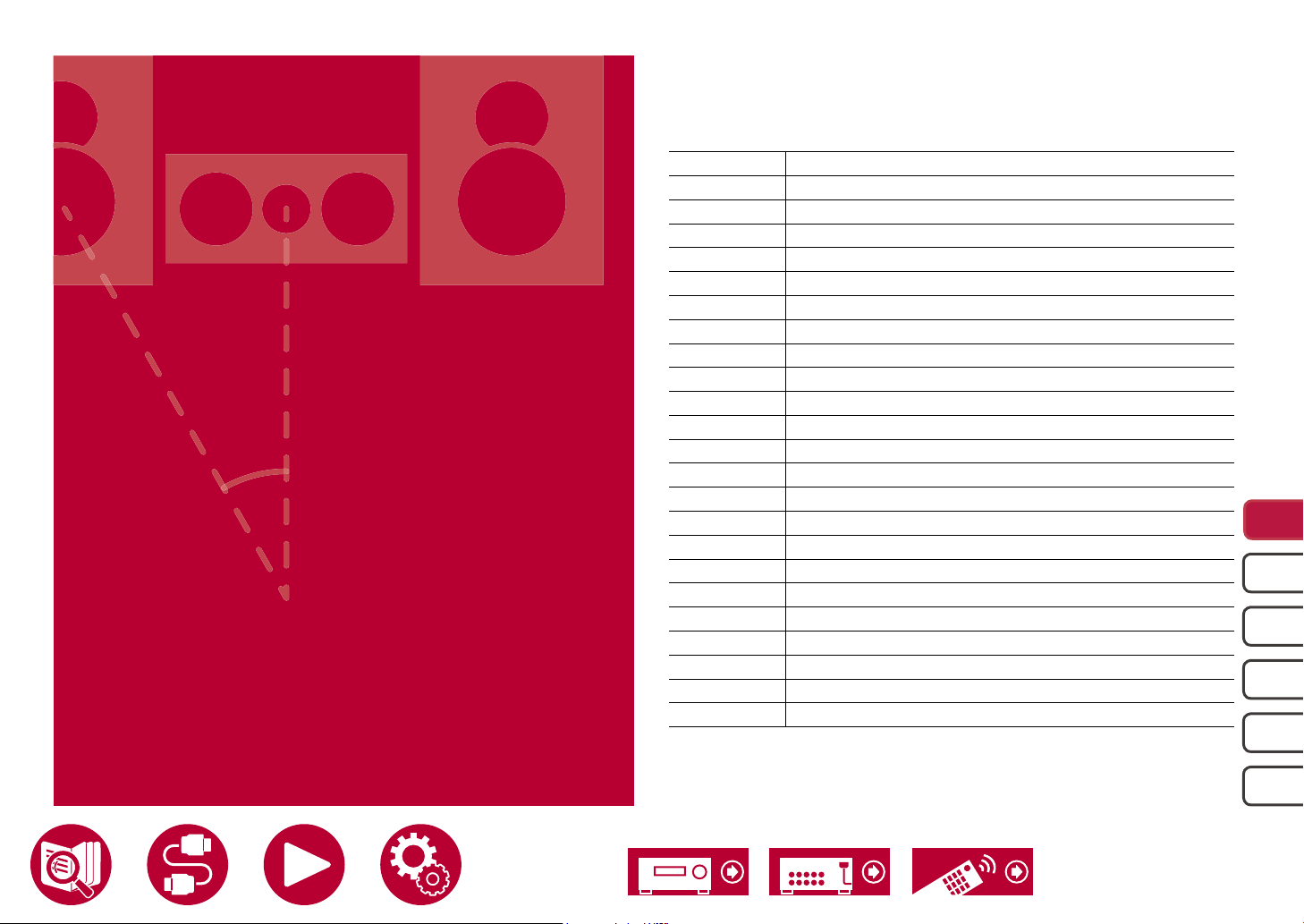
Speaker Installation
Speaker Installation
How the speakers are set up depends on the size and shape of the room, so
here we introduce just a basic layout example.
The alphabetic symbols used in this chapter represent the following speakers:
FL Front speaker Left
FR Front speaker Right
C Center speaker
SW powered SubWoofer
SL Surround speaker Left
SR Surround speaker Right
SBL Surround Back speaker Left
SBR Surround Back speaker Right
FHL Front High speaker Left
FHR Front High speaker Right
RHL Rear High speaker Left
RHR Rear High speaker Right
TFL Top Front speaker Left
TFR Top Front speaker Right
TML Top Middle speaker Left
TMR Top Middle speaker Right
TRL Top Rear speaker Left
TRR Top Rear speaker Right
DFL Dolby enabled speaker Front Left
DFR Dolby enabled speaker Front Right
DSL Dolby enabled speaker Surround Left
DSR Dolby enabled speaker Surround Right
DSBL Dolby enabled speaker Surround Back Left
DSBR Dolby enabled speaker Surround Back Right
5.1c h
7.1c h
5.1. 2c h
7.1. 2c h
5.1.4ch
27
Page 28

Speaker Installation
5.1 Channel System
FL FR
SW
b
SL SR
a: 22° to 30°, b: 120°
FL, FR Place the Left and Right Front Speakers to match ear height.
C The center speaker should be set up facing the listening position at
an angle.
SW Place the powered subwoofer between the center speaker and a
front speaker.
SL, SR Place the Left and Right Surround Speakers to be just above ear
height.
C
a
7.1 Channel System
FL FR
SW
SL SR
a: 22° to 30°, b: 90° to 110°, c: 135° to 150°
FL, FR Place the Left and Right Front Speakers to match ear height.
C The center speaker should be set up facing the listening position
at an angle.
SW Place the powered subwoofer between the center speaker and a
front speaker.
SL, SR Place the Left and Right Surround Speakers to be just above ear
height.
SBL, SBR Place the Left and Right Surround Back Speakers at ear height.
• If surround back speakers are installed, be sure to install surround
speakers as well.
b
c
SBL SBR
C
a
5.1c h
5.1 ch connection ( →p35)
5.1 ch + ZONE 2 connection ( →p36)
5.1 ch + ZONE 2/ZONE 3 connection ( →p36)
5.1 ch (Bi-Amping (Front)) connection ( →p37)
7.1 ch connection ( →p38)
7.1 ch + ZONE 2 connection ( →p39)
7.1 ch (Bi-Amping (Front)) connection ( →p40)
7.1c h
5.1. 2c h
7.1. 2c h
5.1.4ch
28
Page 29

5.1.2 Channel System
TFL
TML
TRL
High Speakers
FHL FHR
3´(0.9 m)
or more
a
b
RHL RHR
FHL, FHR Place the front high speakers directly above the front speakers,
angled to face the listening position.
RHL, RHR Place the rear high speakers so the lateral distance matches the
front speakers, angled to face the listening position.
a: 22° to 30°
b: 120 °
3´(0.9 m)
or more
Speaker Installation
Top Speakers
TFR
TFL, TFR
TML, TMR
Fit top front speakers on the ceiling in front of the listening position.
Fit top middle speakers on the ceiling directly above the listening position.
TRL, TRR Fit top rear speakers on the ceiling behind the listening position.
• Match the lateral distance of the top speakers to the front speakers.
Dolby Enabled Speakers
DSL DSR
TMR
c
b
a
DFL DFR
a
b
TRR
a: 30° to 55°
b: 65° to 100°
c: 125° to 150°
a: 22° to 30°
b: 120 °
5.1c h
5.1.2 ch connection ( →p41)
5.1.2 ch + ZONE 2 connection ( →p42)
5.1.2 ch (Bi-Amping (Front)) connection ( →p43)
DFL, DFR The Dolby enabled speakers (front) are installed on top of the
front speakers.
DSL, DSR The Dolby enabled speakers (surround) are installed on top of the
surround speakers.
7.1c h
5.1. 2c h
7.1. 2c h
5.1.4ch
29
Page 30

7.1.2 Channel System
TFL
TML
TRL
High Speakers
FHL FHR
3´(0.9 m)
or more
b
Speaker Installation
Top Speakers
a: 22° to 30°
b: 90° to 110°
c: 135° to 150°
a
TFR
TMR
a
TRR
c
b
a: 30° to 55°
b: 65° to 100°
c: 125° to 150°
c
RHL RHR
3´(0.9 m)
or more
FHL, FHR Place the front high speakers directly above the front speakers,
angled to face the listening position.
RHL, RHR Place the rear high speakers so the lateral distance matches the
front speakers, angled to face the listening position.
7.1.2 ch connection ( →p44)
TFL, TFR
TML, TMR
Fit top front speakers on the ceiling in front of the listening position.
Fit top middle speakers on the ceiling directly above the listening position.
TRL, TRR Fit top rear speakers on the ceiling behind the listening position.
• Match the lateral distance of the top speakers to the front speakers.
Dolby Enabled Speakers
a: 22° to 30°
DFL DFR
DSL DSR
DSBL DSBR
a
b
c
b: 90° to 110°
c: 135° to 150°
DFL, DFR The Dolby enabled speakers (front) are installed on top of the
front speakers.
DSL, DSR The Dolby enabled speakers (surround) are installed on top of the
surround speakers.
DSBL, DSBR
The Dolby enabled speakers (surround back) are installed on top
of the surround back speakers.
5.1c h
7.1c h
5.1. 2c h
7.1. 2c h
5.1.4ch
30
Page 31

5.1.4 Channel System
TFL
TML
TRL
High Speakers
FHL FHR
3´(0.9 m)
or more
a
b
RHL RHR
FHL, FHR Place the front high speakers directly above the front speakers,
angled to face the listening position.
RHL, RHR Place the rear high speakers so the lateral distance matches the
front speakers, angled to face the listening position.
a: 22° to 30°
b: 120 °
3´(0.9 m)
or more
Speaker Installation
Top Speakers
TFR
TFL, TFR
TML, TMR
Fit top front speakers on the ceiling in front of the listening position.
Fit top middle speakers on the ceiling directly above the listening position.
TRL, TRR Fit top rear speakers on the ceiling behind the listening position.
• Match the lateral distance of the top speakers to the front speakers.
Dolby Enabled Speakers
DSL DSR
TMR
c
b
a
DFL DFR
a
b
TRR
a: 30° to 55°
b: 65° to 100°
c: 125° to 150°
a: 22° to 30°
b: 120 °
5.1c h
5.1.4 ch connection ( →p45)
DFL, DFR The Dolby enabled speakers (front) are installed on top of the
front speakers.
DSL, DSR The Dolby enabled speakers (surround) are installed on top of the
surround speakers.
7.1c h
5.1. 2c h
7.1. 2c h
5.1.4ch
31
Page 32
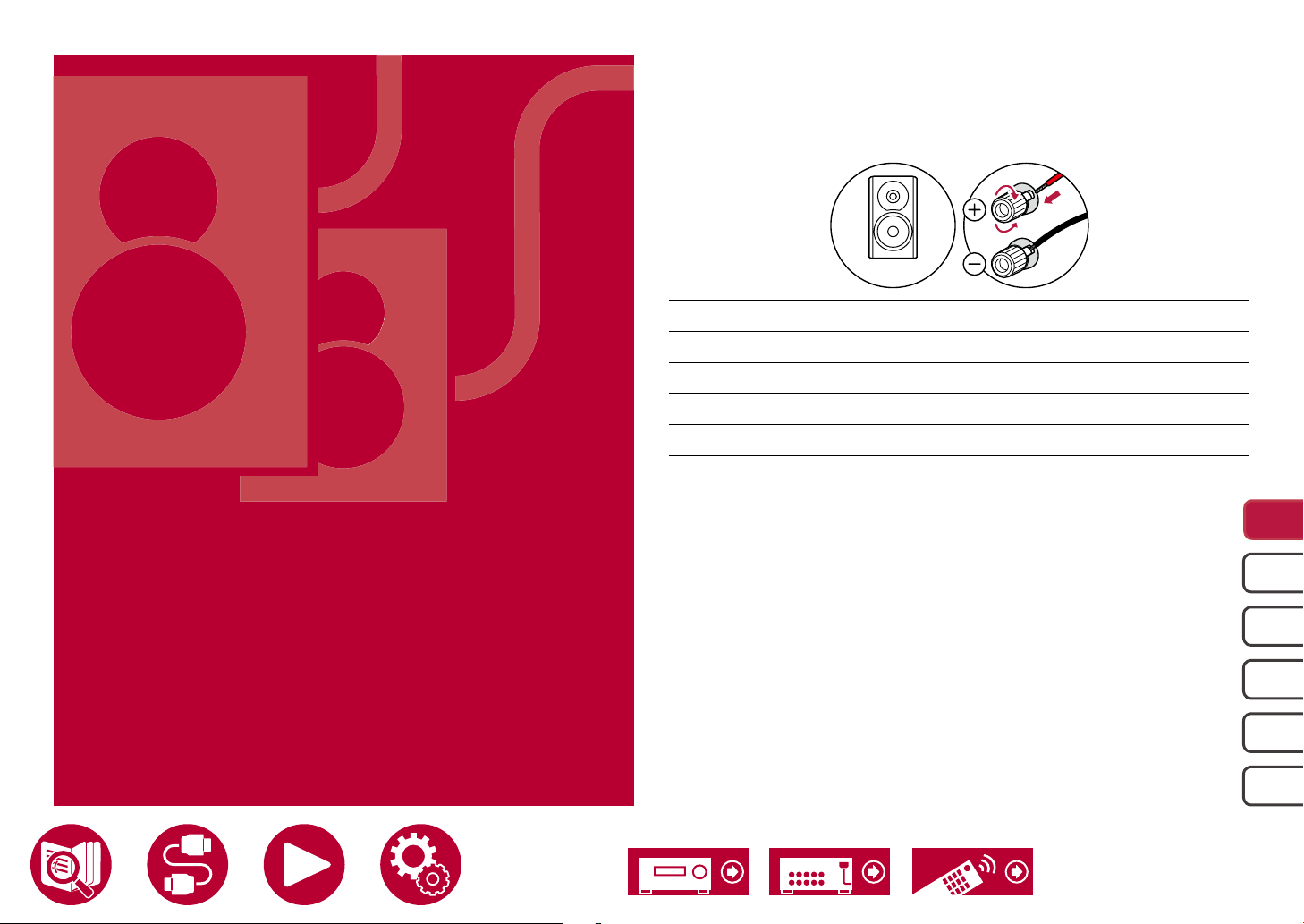
Speaker Connections
(Before starting the procedure)
Speakers you can use with this unit and cable
connections 33
4-16Ω
Speaker Connections
5.1 Channel System 35, 36, 37
7.1 Channel System 38, 39, 40
5.1.2 Channel System 41, 42, 43
7.1.2 Channel System 44
5.1.4 Channel System 45
5.1c h
7.1c h
5.1. 2c h
7.1. 2c h
5.1.4ch
32
Page 33

Speaker Connections
1/2˝
(12 mm)
Speakers you can use with this unit and cable connections
Speakers you can use with this unit
This unit supports speakers with 4 Ω to 16 Ω impedance. For speaker impedance, check the speaker instruction manual.
(Note) Speaker Impedance
If any of the speakers to be connected has an impedance of 4 Ω or more and less than 6 Ω, set "Speaker Impedance" to "4ohms" for "Speaker Setup" in the Initial
Setup section ( →p147). When setting "Speaker Impedance" from the System Setup menu, press the button on the remote controller to display the Home
screen, and select "System Setup" - "Speaker" - "Conguration", then set "Speaker Impedance" ( →p115 ) to "4ohms".
Connect the Speaker Cables
Make correct connection between the unit's jacks and speaker's jacks (+ side to + side, and - side to - side) for each channel. If the connection is wrong, a bass
sound will not be reproduced properly due to reverse phase. Twist the wires exposed from the tip of the speaker cable so that the wires do not stick out of the
speaker terminal when connecting. If the exposed wires touch the rear panel, or the + side and - side wires touch each other, a malfunction may occur.
5.1c h
7.1c h
5.1. 2c h
7.1. 2c h
5.1.4ch
33
Page 34

Connect the Subwoofer
a
a Subwoofer cable
Connect a powered subwoofer with this unit using a subwoofer cable. Up to two
powered subwoofers can be connected. The same signal is output from each
SUBWOOFER PRE OUT jack.
Speaker Connections
5.1c h
7.1c h
5.1. 2c h
7.1. 2c h
5.1.4ch
34
Page 35
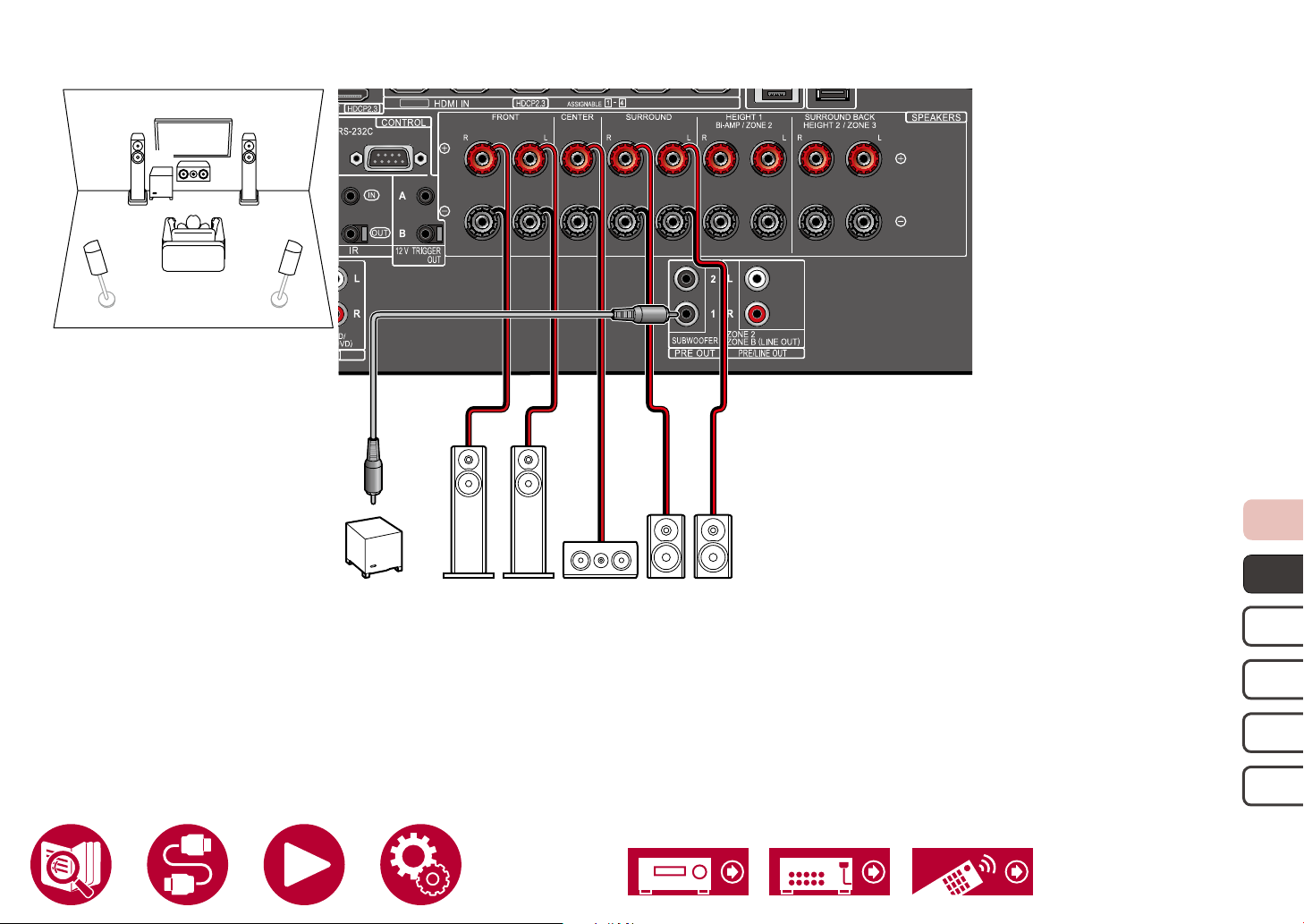
5.1 Channel System
FL FR
SW
SL SR
C
Speaker Connections
8K
SW FR FL C SR SL
5.1c h
7.1c h
5.1. 2c h
7.1. 2c h
5.1.4ch
35
Page 36
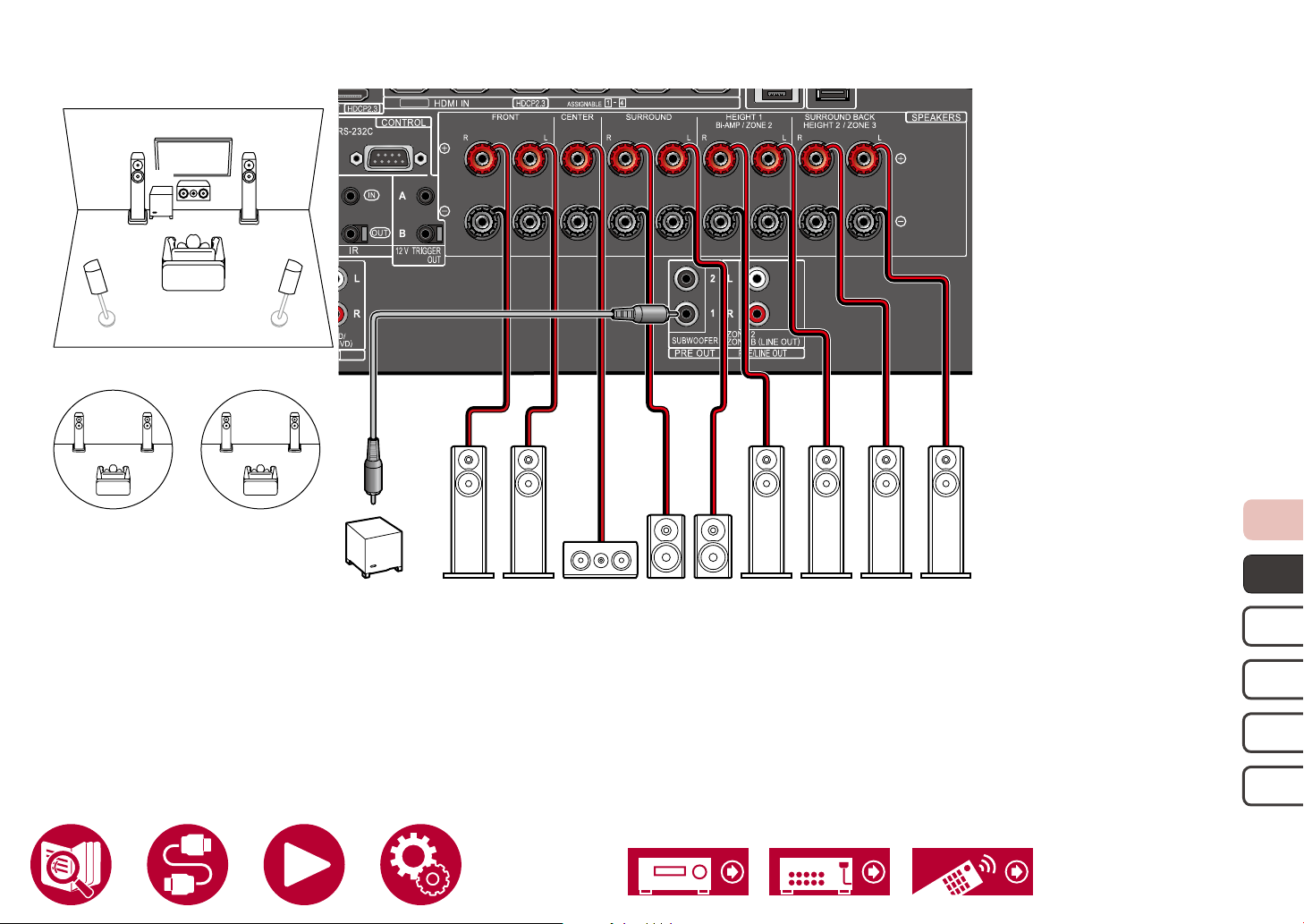
5.1 Channel System + ZONE SPEAKER
MAIN ROOM
FL FR
SW
SL SR
C
8K
Speaker Connections
ZONE 2
FL(Z2)FR(Z2)
To output audio from an externally connected AV component to ZONE 3, use an analog audio cable for connection. Note that ZONE 3 output is not possible with the
connection using a HDMI cable, digital coaxial cable, or digital optical cable.
ZONE 3
FL(Z3)FR(Z3)
SW FR FL C FR(Z2) FL(Z2) FR(Z3) FL(Z3)SR SL
5.1c h
7.1c h
5.1. 2c h
7.1. 2c h
5.1.4ch
36
Page 37

5.1 Channel System (Bi-Amping the Speakers)
8K
FL FR
SW
SL SR
C
For highfrequency
Speaker Connections
For low-
SW C SR SL
Be sure to remove the jumper bar connecting between the woofer jacks and tweeter jacks of the Bi-Amping supported speakers. Refer to the instruction manual of
your speakers as well.
frequency
FR FL
5.1c h
7.1c h
5.1. 2c h
7.1. 2c h
5.1.4ch
37
Page 38

7.1 Channel System
FL FR
SW
SL SR
SBL SBR
C
Speaker Connections
8K
SW FR FL C SBR SBLSR SL
5.1c h
7.1c h
5.1. 2c h
7.1. 2c h
5.1.4ch
38
Page 39

7.1 Channel System + ZONE SPEAKER
MAIN ROOM
FL FR
SW
SL SR
SBL SBR
ZONE 2
FL(Z2)FR(Z2)
C
8K
Speaker Connections
SW FR FL C FR(Z2) FL(Z2) SBR SBLSR SL
5.1c h
7.1c h
5.1. 2c h
7.1. 2c h
5.1.4ch
39
Page 40
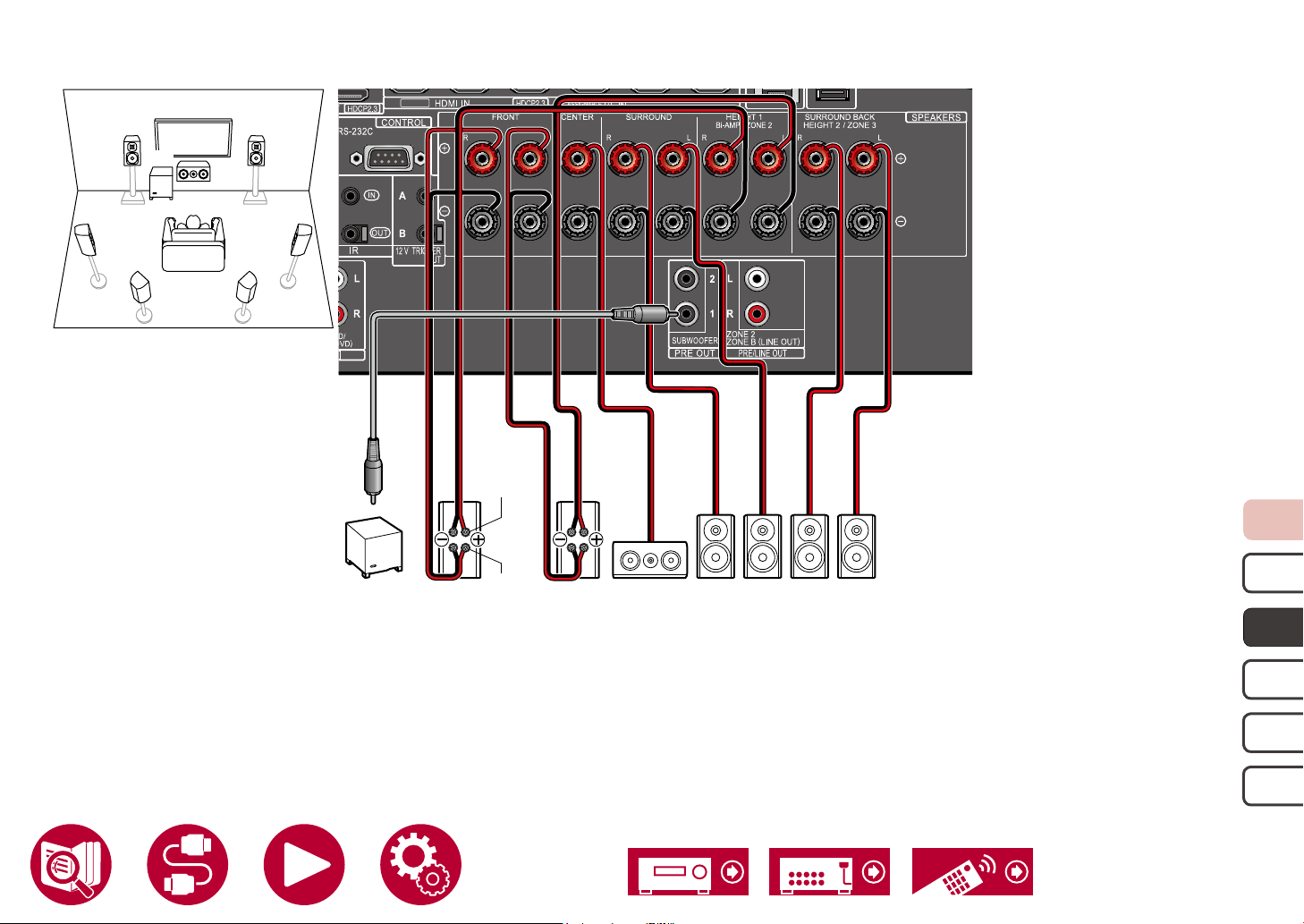
7.1 Channel System (Bi-Amping the Speakers)
8K
FL FR
SW
SL SR
SBL SBR
C
For highfrequency
Speaker Connections
For low-
SW C SR SL
frequency
FR FL
SBR SBL
Be sure to remove the jumper bar connecting between the woofer jacks and tweeter jacks of the Bi-Amping supported speakers. Refer to the instruction manual of
your speakers as well.
5.1c h
7.1c h
5.1. 2c h
7.1. 2c h
5.1.4ch
40
Page 41

5.1.2 Channel System
HR
HL
Speaker Connections
HL HR
FL FR
SW
SL SR
C
8K
SW FR FL C
SR SL
OR
OR
5.1c h
OR
OR
*1
*1 Connect the Height Speakers you have actually installed (HL/HR: Height Speakers, Top Speakers, Dolby Enabled Speakers).
7.1c h
5.1. 2c h
7.1. 2c h
5.1.4ch
41
Page 42

5.1.2 Channel System + ZONE SPEAKER
MAIN ROOM
HL HR
FL FR
SW
SL SR
C
ZONE 2
FL(Z2)FR(Z2)
8K
Speaker Connections
OR
OR
HR
OR
OR
HL
SW FR FL C FR(Z2) FL(Z2)
SR SL
*1
*1 Connect the Height Speakers you have actually installed (HL/HR: Height Speakers, Top Speakers, Dolby Enabled Speakers).
5.1c h
7.1c h
5.1. 2c h
7.1. 2c h
5.1.4ch
42
Page 43

5.1.2 Channel System (Bi-Amping the Speakers)
HR
HL
Speaker Connections
HL HR
FL FR
SW
SL SR
C
8K
For highfrequency
For low-
SW C
frequency
FR FL
SR SL
OR
OR
5.1c h
OR
OR
*1
Be sure to remove the jumper bar connecting between the woofer jacks and tweeter jacks of the Bi-Amping supported speakers. Refer to the instruction manual of
your speakers as well.
*1 Connect the Height Speakers you have actually installed (HL/HR: Height Speakers, Top Speakers, Dolby Enabled Speakers).
7.1c h
5.1. 2c h
7.1. 2c h
5.1.4ch
43
Page 44

7.1.2 Channel System
HR
HL
Speaker Connections
HL HR
FL FR
SW
SL SR
SBL SBR
C
8K
SW FR FL C
OR
OR
5.1c h
SBR SBLSR SL
OR
OR
*1
*1 Connect the Height Speakers you have actually installed (HL/HR: Height Speakers, Top Speakers, Dolby Enabled Speakers).
7.1c h
5.1. 2c h
7.1. 2c h
5.1.4ch
44
Page 45

5.1.4 Channel System
HR1
HL1
HR2
HL2
Speaker Connections
HL1 HR1
FL FR
SW
SL SR
HL2 HR2
C
8K
SW FR FL C
SR SL
OR
OR
OR
OR
5.1c h
OR
OR
OR
OR
*1 *2
*1 Connect the Height Speakers you have actually installed (HL1/HR1: Front Height Speakers, Top (front side) Speakers, Dolby Enabled Speakers (Front)).
*2 Connect the Height Speakers you have actually installed (HL2/HR2: Rear Height Speakers, Top (rear side) Speakers, Dolby Enabled Speakers (Surround)).
7.1c h
5.1. 2c h
7.1. 2c h
5.1.4ch
45
Page 46
Connections
Notes regarding connections with HDMI cables 47
Connecting the TV 48
Connecting the SUB Monitor 50
Connecting Playback Devices 51
Connecting a TV or Integrated Amplier in a separate
room (Multi-zone) 54
Connecting Antennas 56
Connections
Network Connection 57
Connecting External Control Devices 58
Connecting the Power Cord 60
46
Page 47

Notes regarding connections with HDMI cables
Connections
HDMI (High-Denition Multimedia Interface) is a digital interface standard for
connecting TVs, projectors, Blu-ray Disc players, game consoles, and other
video components. With HDMI, a single cable can carry control signals, digital
video, and digital audio.
Connections
Push HDMI cables straight in and all the way. You can damage the terminals if
you try to insert at an angle.
Right Wrong
Right Wrong
(Note) Placement of cables
Putting a load on HDMI cables can lead to poor operational performance. Place
the cables so there is no load put on them.
Right Wrong Wrong
• When 4K high-quality video (4K 60Hz, 4K HDR, etc.) is to be played, use
Premium High Speed HDMI Cable or Premium High Speed HDMI Cable
with Ethernet that have the "PREMIUM Certied Cable" label attached to the
packaging.
• When 8K high-quality video (8K 60Hz, etc.) is to be played, use ULTRA High
Speed HDMI Cable that has the "ULTRA HIGH SPEED" label attached to the
packaging.
• Hold the terminal housing on the HDMI cable when unplugging. Pulling on the
cable may lead to damaged cabling.
47
Page 48

Connections
DIGITAL
OPTICAL
OUT
IN(ARC)
Connecting the TV
By connecting a TV to this unit, you can show the video from AV devices connected to this unit on the TV and also play the sound from the TV through this unit.
To ARC/eARC TV
If the TV supports the ARC (Audio Return Channel) function(*), use only the
HDMI cable to connect with the TV. Use the ARC-compatible HDMI IN jack of
the TV for connection. You connect the HDMI cable to the HDMI OUT MAIN jack
labeled "ARC" on the receiver side.
• When a TV compatible with the eARC function is connected, use an HDMI
cable that supports Ethernet.
ARC TV
SUB Monitor ( →p50)
ZONE 2 ( →p54)
a
To Non-ARC TV
8K
4K
b
TV
Non-ARC TV
Be sure to insert the HDMI
cable all the way in.
8K
If the TV does not support the ARC (Audio Return Channel) function(*), connect
an HDMI cable and digital optical cable.
• If you use a cable set-top box, etc. connected to the input jack of this unit to
watch TV (without using a TV’s built-in tuner), connection with a digital optical
cable is not required.
Setup
• When not using the ARC function, in the Home screen, set "System Setup" "Hardware" - "HDMI" - "Audio Return Channel (eARC supported)" ( →p125)
to "O f f ".
(*)The ARC function and eARC function transmit the audio signals of the TV via
an HDMI cable, and plays the audio of the TV on this unit. To check if the TV
supports the ARC function and eARC function, refer to the instruction manual
of the TV, etc.
ARC/eARC compatible audio formats ( →p186)
a HDMI cable, b Digital optical cable
48
Page 49
• Settings are required when 4K or 8K high-quality video is to be played.
Refer to "HDMI 4K/8K Signal Format" ( →p109) for information on the
settings. Also, use an HDMI cable that supports 4K or 8K video.
Connections
49
Page 50

Connecting the SUB Monitor
8K
4K
a
SUB Monitor
8K
8K
Be sure to insert the HDMI
cable all the way in.
Connections
SUB Monitor
This unit has multiple HDMI OUT jacks, and another TV or projector can be
connected to the HDMI OUT SUB jack.
• Switch between MAIN and SUB using the HDMI MAIN/SUB button on the
remote controller ( →p16) or "AV Adjust" ( →p74). Note that this jack is
not ARC-compatible.
• If devices with different resolutions are connected to HDMI OUT MAIN jack
and SUB jack, images are output with the lower resolution.
a HDMI cable
50
Page 51
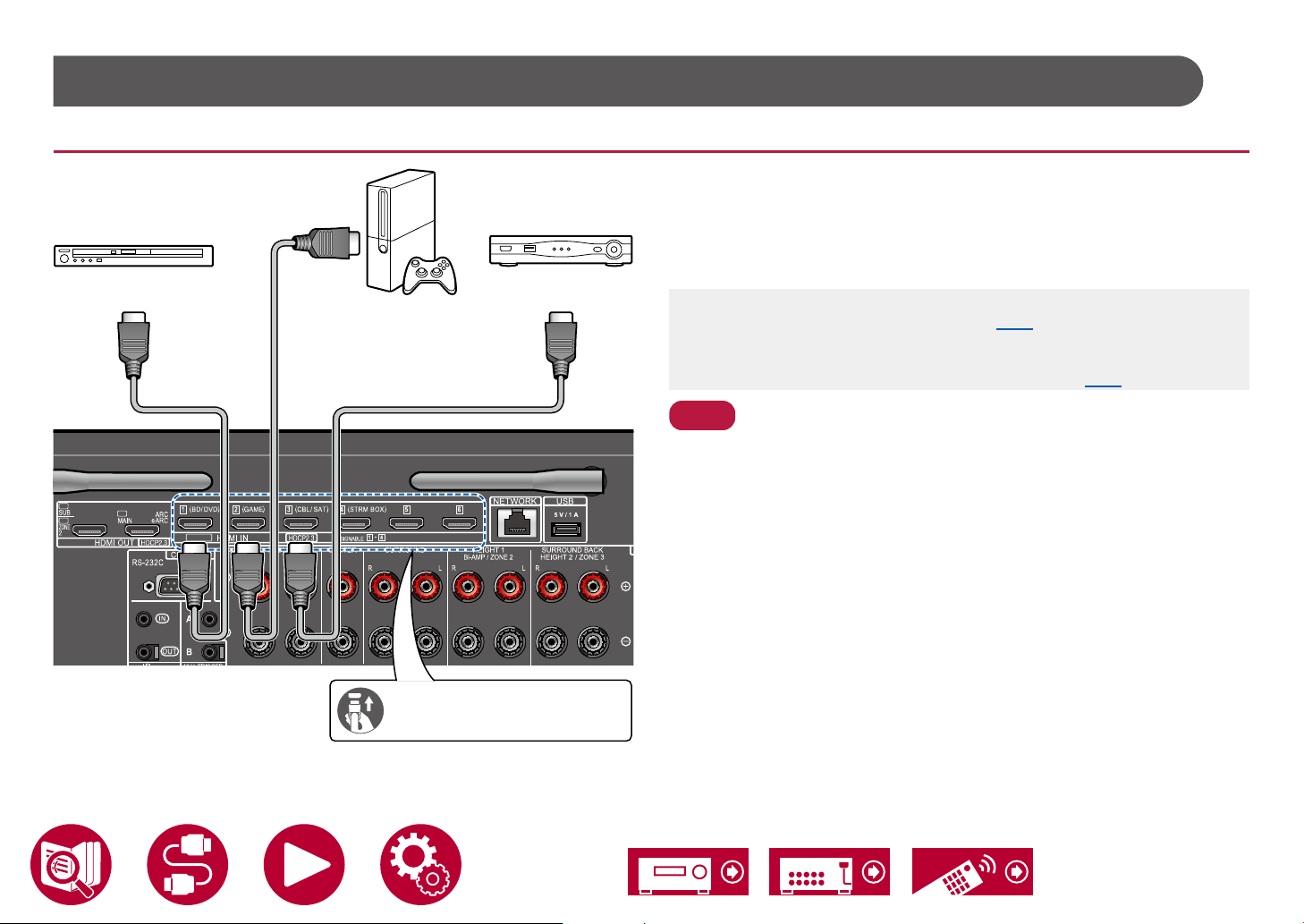
Connecting Playback Devices
Note
Connections to BD/DVD and GAME with HDMI jacks
This is a connection example of an AV component equipped with an HDMI jack.
When connecting with an AV component that conforms to the CEC (Consumer
Electronics Control) standard, you can use the HDMI CEC function (*) that
enables linking with input selectors, etc. and the HDMI Standby Through
function that can transmit video and audio signals of the AV component to the
BD/DVD Cable/Satellite
GAME
set-top box
a
8K
4K
8K
8K
TV even if this unit is in standby mode.
• Settings are required when 4K or 8K high-quality video is to be played.
Refer to "HDMI 4K/8K Signal Format" ( →p109) for information on the
settings. Also, use an HDMI cable that supports 4K or 8K video.
• The corresponding resolution is different depending on the HDMI jack
connected. See "Corresponding input resolutions" ( →p187) for details.
• To enjoy digital surround sound including Dolby Digital, set the audio output of
the connected Blu-ray Disc player etc. to the Bitstream output.
(*)The HDMI CEC function: This function enables various linking operations with
CEC-compliant devices, such as switching input selectors interlocking with
a CEC-compliant player, switching audio output between TV and this unit or
adjusting the volume using the remote controller of a CEC-compliant TV, and
automatically switching this unit to standby when the T V is turned off.
Connections
Be sure to insert the HDMI
cable all the way in.
a HDMI cable
51
Page 52
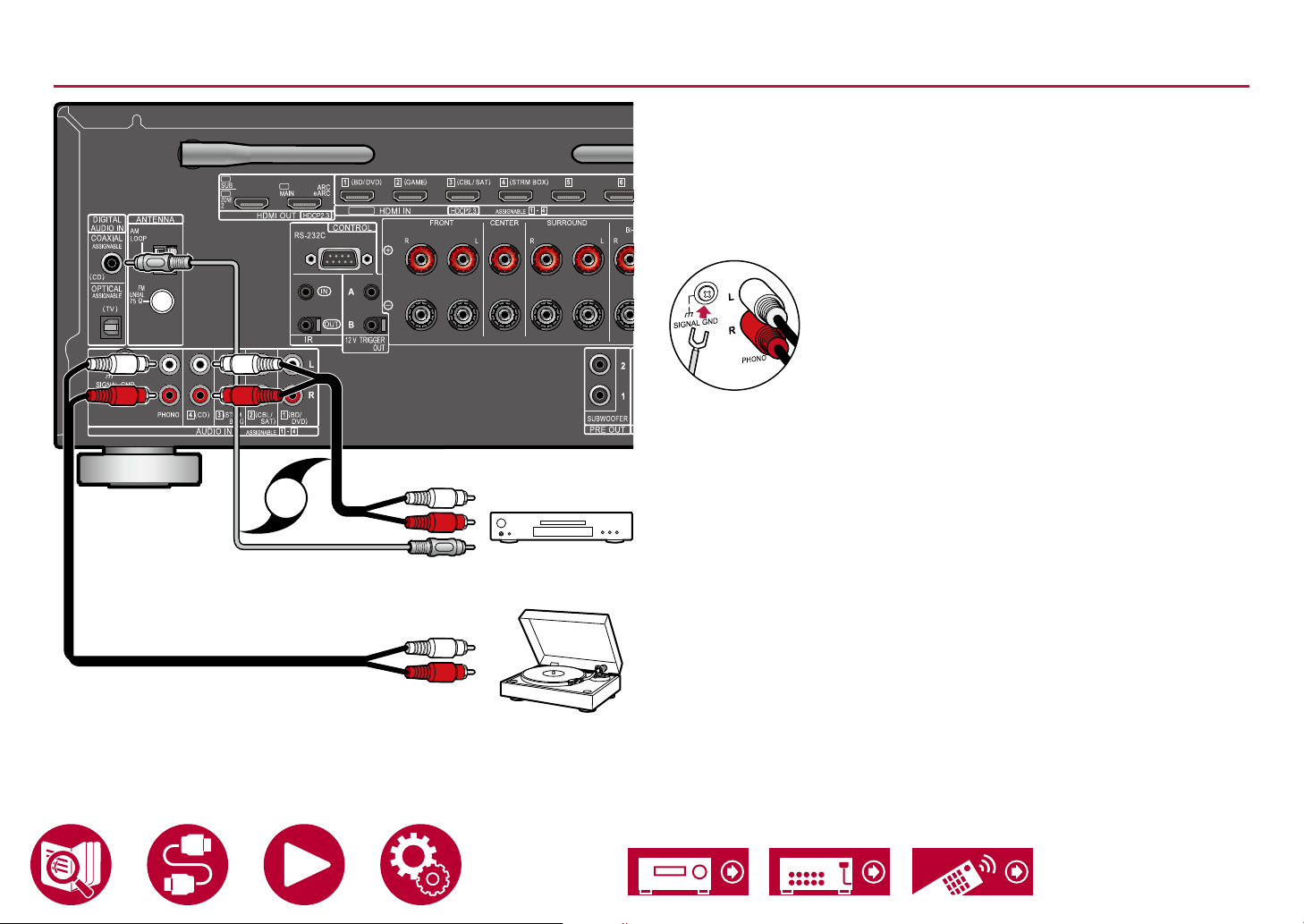
Connecting an Audio Component
8K
4K
b
8K
8K
a
OR
Connections
This is a connection example of an audio component. Connect a CD player
using a digital coaxial cable or analog audio cable. You can also connect a
turntable that has an MM-type cartridge to the PHONO jack.
• If the turntable has a built-in phono equalizer, connect it to any of the AUDIO
IN jacks other than the PHONO jack. Further, if the turntable uses an MC type
cartridge, install a phono equalizer compatible with the MC type cartridge
between the unit and the turntable, and then connect it to any of the AUDIO
IN jacks other than the PHONO jack.
If the turntable has a ground wire, connect it to the SIGNAL GND terminal of this unit.
a
a Analog audio cable, b Digital coaxial cable
CD
Turntable
52
Page 53

Connecting a Video Camera, etc.
Be sure to insert the HDMI
cable all the way in.
Connections
Connect a video camera, etc. to the AUX INPUT AUDIO/HDMI jack on the front
panel using an HDMI cable or stereo mini plug cable (ø1/8″ / 3.5 mm).
a HDMI cable
a
Video camera
53
Page 54
Connections
Connecting a TV or Integrated Amplier in a separate room (Multi-zone)
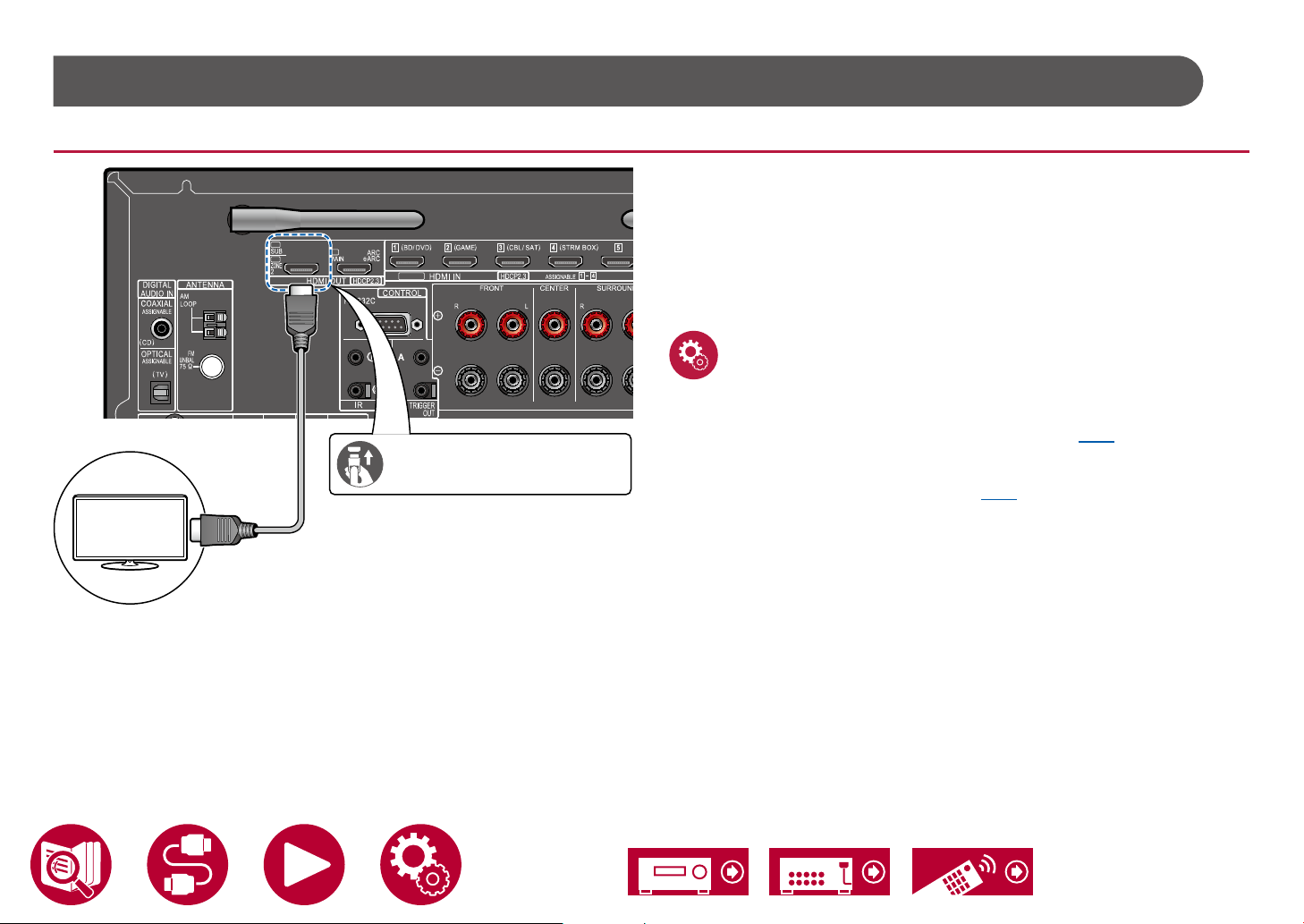
Connecting a TV (ZONE 2)
While a disc is played on a Blu-ray Disc player in the main room (where this unit
is located), you can play the video and audio of the same Blu-ray Disc player or
another AV component on the TV equipped with an HDMI IN jack in a separate
8K
4K
8K
8K
Be sure to insert the HDMI
cable all the way in.
a
room (ZONE 2). Note that only the devices connected to the HDMI IN1 to IN3
jacks can be played on the TV in the separate room.
• The audio from externally connected AV components can be output only
when the signal is 2 ch PCM audio. It may also be necessary to convert the
audio output of the AV component to PCM output.
Setup
• When video and audio via HDMI input are output to ZONE 2, set "Input/
Output Assign" - "TV Out / OSD" - "Zone 2 HDMI" ( →p109) to "Use" on
the System Setup menu. Note that when "Zone 2 HDMI" is set to "Use", the
resolution of the video that can be output by the HDMI OUT SUB/ZONE 2
jack will be limited to "4K Enhanced" ( →p109).
TV
a HDMI cable
54
Page 55

Connecting an Integrated Amplier (ZONE 2)
Connections
You can enjoy 2 ch audio in the separate room (ZONE 2) while performing
playback in the main room (where this unit is located). Use an analog audio
cable to connect the ZONE 2 PRE/LINE OUT terminal on this unit to the input
jack on an integrated amplier in the separate room.
• To output audio from an externally connected AV component to ZONE 2,
connect it to any of HDMI IN1 to IN3 jacks. If the AV component is not
equipped with an HDMI jack, use a digital coaxial cable, digital optical
cable or analog audio cable. Also, the audio from externally connected AV
components can be output to ZONE 2 only when the audio is analog or 2 ch
PCM signal. When the AV component is connected to this unit with a digital
coaxial cable or digital optical cable, change the audio output of the AV
component to the PCM output.
a Analog audio cable
a
Terminal
Integrated
amplier
Input
Setup
• Settings are required to output audio to ZONE 2. Press on the remote
controller to display the Home screen, then set "System Setup" - "Speaker" -
"Conguration" - "Zone 2 Preout" ( →p115) to "Zone 2".
• When connecting an integrated amplier that does not have a volume
control, in the System Setup menu, set "Multi Zone" - "Zone 2" - "Output
Level" ( →p130) to "Variable (Default Value: Fixed)". If you do not set this,
the volume output will be very loud and there is a danger of damage to the
integrated amplier, speakers, etc. When connecting an integrated amplier
that has a volume control, leave this as "Fixed".
55
Page 56
Connecting Antennas
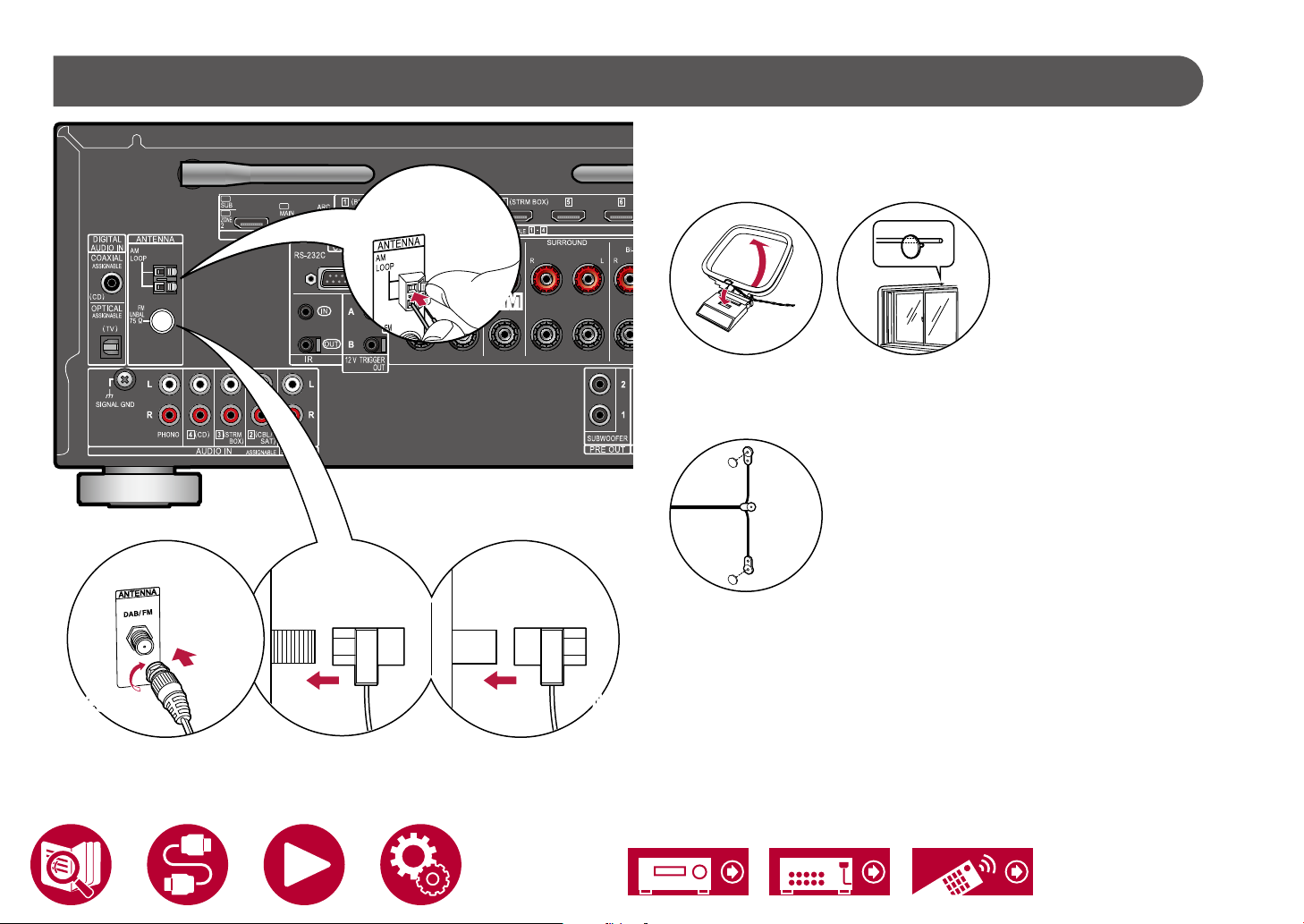
c
c
A B
8K
4K
8K
(North American,
Australian and
Asian models)
Connections
North American, Australian and Asian models
Connect the antenna to this unit, and set up the antenna at the best position for
listening while receiving radio signals. Attach the indoor FM antenna to the wall
using push pins or adhesive tape.
a
a
c
AMAM
European models
Make sure the plug is pushed in all the way, then x in place by turning the nut to
the right. Use a tack or similar to x the antenna to a wall.
b
(European models)
DABDAB
a AM loop antenna, b DAB/FM antenna, c Indoor FM antenna
b
(North American
models)
(Australian and
Asian models)
FMFM
56
Page 57

Network Connection
Connections
This unit can be connected to the network using a wired LAN or Wi-Fi (wireless
LAN). You can enjoy network functions such as Internet radio by network
connection. If connection is made by the wired LAN, connect the router and the
NETWORK jack with the Ethernet cable as shown in the illustration. To connect
by Wi-Fi, select your desired setting method in "Network Connection" ( →p148)
of Initial Setup, and then follow the on-screen instructions. To set in the System
Setup menu after completing Initial Setup, press on the remote controller,
then from the Home screen displayed, set in "Network/Bluetooth" - "Network"
( →p140). For the Wi-Fi connection, stand the wireless antenna for use.
a Ethernet cable
a
57
Page 58
Connecting External Control Devices
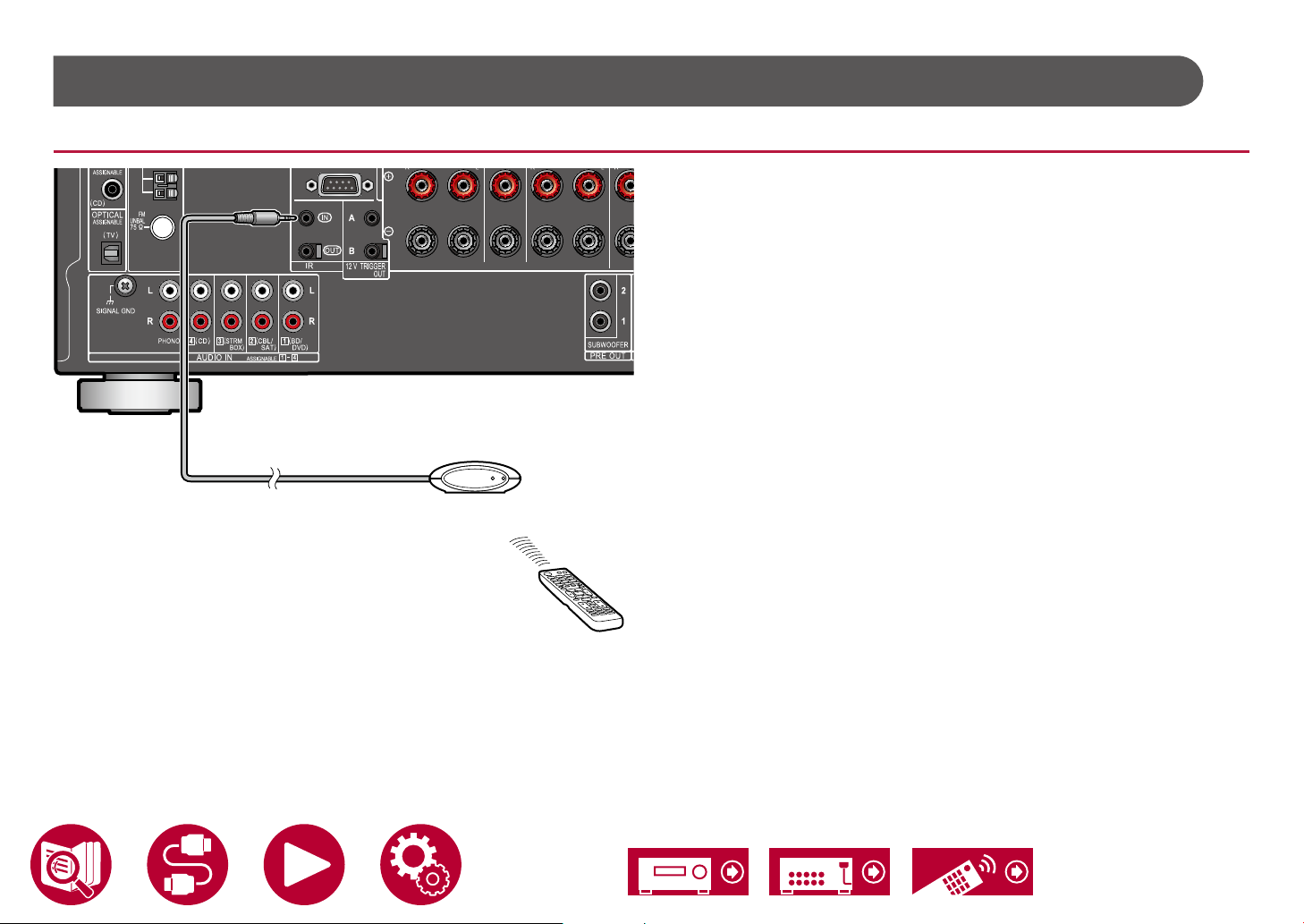
IR IN/OUT port
IR Receiver
Connections
When connecting a remote control receiver unit consisting of an IR Receiver,
etc. to this unit, operation using the remote controller is possible even if the
remote control signal is difcult to reach (due to installation in the cabinet,
etc.). It is also possible to operate this unit from other room such as ZONE 2
with a remote controller, or operate other devices with the remote controller by
connecting other devices to this unit. For installing a remote control receiver unit,
contact the specialized stores.
• For the type of cable required for connection, refer to the operation manual,
etc. of the remote control receiver unit.
58
Page 59

12V TRIGGER OUT jack
Connections
When connecting a device equipped with a TRIGGER IN jack such as a BD/
DVD player to this unit, the device can be turned on or set to standby by
interlocking the operation on this unit. When the desired input is selected on the
unit, power link operation will be activated with a control signal of maximum 12
V/100 mA from the 12V TRIGGER OUT A jack or maximum 12 V/25 mA when
using the 12V TRIGGER OUT B jack. You can select the zone to output the
control signal by setting each of the inputs.
• For connection, use a monaural mini plug cable (ø1/8″ / 3.5 mm) without
resistance. Do not use a stereo mini plug cable.
a Monaural mini plug cable (ø1/8″ / 3.5 mm)
BD/DVD
a
Setup
• Settings are required to outputs control signal from the 12V TRIGGER
OUT jack. Press on the remote controller then from the displayed Home
screen set the input select for "System Setup" - "Hardware" - "12V Trigger A"
( →p128) or "12V Trigger B" ( →p128) to "Main", "Zone 2", or "Zone 3".
59
Page 60

Connecting the Power Cord
Connections
Connect the power cord after all the connections are completed.
• This unit includes a removable power cord. Be sure to connect the power
cord to the AC IN of the unit rst, and then connect it to the outlet. Always
disconnect the outlet side rst when disconnecting the power cord.
a
a Power cord
60
Page 61

Playback
Basic Operations
Playing audio from an externally connected device 62
BLUETOOTH
Listening To the Radio 66
Listening Mode 72
AV Adjust 74
®
Playback 63
Network Services
Playback
Spotify 77
AirPlay
DTS Play-Fi
®
78
®
80
Amazon Alexa 81
Amazon Music 83
TIDAL 85
Connecting the Sonos System for Playback 86
Internet Radio 88
Convenience functions
Multi-zone 90
Using PERSONAL PRESET 94
Playing music les saved on a USB storage device 96
Music Server 98
Play Queue 101
Connecting a transmitter for playback 103
61
Page 62

Playing audio from an externally connected device
TV
INPUT
You can play the audio from AV components, such as Blu-ray disc players through this unit.
• When a TV is connected to the HDMI OUT SUB jack, use the HDMI MAIN/SUB button or "AV Adjust" ( →p74) to switch between MAIN and SUB.
Basic Operations
Perform the following procedure when this unit is on.
TV’s REMOTE
Inputs
TV
HDMI 1
HDMI 2
HDMI 3
1. Switch the input on the TV to the input connected to the unit.
2. Press the input selector whose name is the same as that of the jack to which
the player is connected.
For example, press BD/DVD to play the player connected to the BD/DVD
jack. Press TV to listen to the sound of the TV. To play a device connected to
the CD, USB, PHONO, HDMI5, HDMI6 jack or the AUX INPUT AUDIO/HDMI
jack on the front panel, press INPUT SELECT repeatedly to select the input.
• When the CEC link function works, the input switches automatically
when a CEC compliant TV or player is connected to this unit using HDMI
connection.
3. Start play on the AV component.
HDMI MAIN/SUB
Input selector
INPUT SELECT
Playback
62
Page 63

Playback
Pioneer VSX-LX305XXX
BLUETOOTH® Playback
You can wirelessly play music on a smartphone or other BLUETOOTH wireless technology enabled device through the speakers connected to this unit. It is also
possible to transmit the audio from this unit to BLUETOOTH enabled headphones, wireless speakers, etc.
Playing audio from BLUETOOTH wireless technology enabled devices with this unit
Perform the following procedure when this unit is on.
Pairing
1. When you press the BLUETOOTH button, "Now Pairing..." is displayed on this
unit's display, and the pairing mode is enabled.
2. Enable (turn on) the BLUETOOTH function of the BLUETOOTH enabled
device, and then select this unit from among the devices displayed. If a
password is requested, enter "0000".
The illustration shows an image.
• This unit is displayed as "Pioneer VSX-LX305 XXX XXX". This display can
be changed with the Friendly Name function ( →p141) or the Pioneer
Remote App ( →p153) (can be used with the iOS or Android™).
• To connect another BLUETOOTH enabled device, press and hold the
BLUETOOTH button until "Now Pairing..." is displayed, and then perform
step 2. This unit can store the pairing information of up to 8 paired devices.
• The coverage area is approx. 48´/15 m. Note that connection is not always
guaranteed with all BLUETOOTH enabled devices.
Playing Back
1. Perform the connection procedure on the BLUETOOTH enabled device.
2. Playing the music le.
The input on this unit automatically switches to "BLUETOOTH".
Turn up the volume of the BLUETOOTH enabled device to an appropriate
level.
• Due to the characteristics of BLUETOOTH wireless technology, the sound
produced on this unit may slightly be behind the sound played on the
BLUETOOTH enabled device.
63
Page 64

Playback
Transmitting audio from this unit to BLUETOOTH wireless technology enabled devices
Pairing
1. Press the input selector you want to play.
• Select a source other than "BLUETOOTH". This function does not work if
you select "BLUETOOTH".
2. Press on the remote controller, and in the Home menu displayed, select
"Network/Bluetooth" - "Bluetooth" - "Bluetooth Transmitter", and then press
ENTER.
3. Select either "On (Tx)" or "On (Main + Tx)" in "Bluetooth Transmitter".
• If you select "On (Tx)", playback is from the BLUETOOTH wireless
technology enabled device only, and if you select "On (Main + Tx)",
playback is from both the BLUETOOTH wireless technology enabled
The illustration shows an image.
device and the main unit.
Bluetooth Transmitter
Bluetooth Transmitter On (Tx)
Search Devices Start
Output Level Variable
aptX HD Off
Low Latency Mode Off
Pairing Information Clear
Device
Status Ready
Set to “Off” if you are not using the Bluetooth Transmitter.
4. In "Search Devices", press ENTER.
• The search starts for BLUETOOTH wireless technology enabled devices
that are able to receive, then a list of relevant devices is displayed.
5. Select the device you want to output the audio from, and when you press
ENTER the message "Now Pairing…" is displayed and the two are paired.
• Depending on the BLUETOOTH wireless technology enabled device,
you may need to pair manually. If the device name does not appear in the
list, check the settings of the BLUETOOTH wireless technology enabled
device.
64
Page 65

Playing Back
1. Do the play operations on the AV component connected to this unit. Do the
play operations on this unit when the input is TUNER or NET.
• If "Variable" has been selected for the "Output Level", the volume can
be adjusted on this unit. Adjust to a suitable volume on the connected
BLUETOOTH wireless technology enabled device beforehand. If "Fixed" is
selected, adjust the volume on the BLUETOOTH wireless technology enabled
device.
• You cannot transmit audio to multiple BLUETOOTH wireless technology
enabled devices from this unit.
• The coverage area is approx. 48´/15 m. Note that connection is not always
guaranteed with all BLUETOOTH enabled devices.
• When "Bluetooth Transmitter" is "On (Tx)" or "On (Main + Tx)" and in the
following cases, when this unit detects a paired BLUETOOTH wireless
technology enabled device, it will automatically reconnect with that device.
– When the power is turned on again after the unit is switched to standby
– While other than "BLUETOOTH" is selected
– When the "NET" input is selected and there is audio output from a network
service/content (some services excluded)
When not using this function, select "Off" in "Bluetooth Transmitter" to cancel
the connection. Also disconnect on the receiving device (if disconnection is
possible on the receiving device).
• Audio cannot be output from a BLUETOOTH wireless technology enabled
device in the following cases:
– When the audio le is DSD format
– When playing audio from one of the following network services:
Chromecast built-in, Amazon Alexa, AirPlay, DTS Play-Fi
• Sound quality adjustments and listening modes of this unit cannot be applied
to the output audio.
• This function can be used in the main room (where this unit is located). This
function turns off if you turn on the Multi-zone function which outputs audio
from a separate room (ZONE 2/ZONE 3).
Playback
65
Page 66

Playback
Listening To the Radio
You can receive AM (North American, Australian and Asian models), FM and DAB (European models) radio stations on this unit with the built-in tuner.
Listening To the AM/FM Radio (AM: North American, Australian and Asian models only)
Tuning into a Radio Station
Perform the following procedure when this unit is on.
Tuning Automatically
1. Press TUNER repeatedly to select either "AM" or "FM".
2. Press MODE repeatedly to display "TunMode: Auto" on the display.
3. When you press the cursors / , automatic tuning starts, and searching
stops when a station is found. When tuned in to a radio station, the "TUNED"
indicator on the display lights up. When tuned in to an FM radio station, the
"STEREO" indicator lights up.
When FM broadcasts reception is poor: Perform the procedure for "Tuning
Manually" ( →p67). Note that if you tune manually, the reception for FM
broadcasts will be monaural rather than stereo, irrespective of the sensitivity of
the reception.
66
Page 67
Playback
Tuning Manually
Note that if you tune manually, the reception for FM broadcasts will be monaural
rather than stereo, irrespective of the sensitivity of the reception.
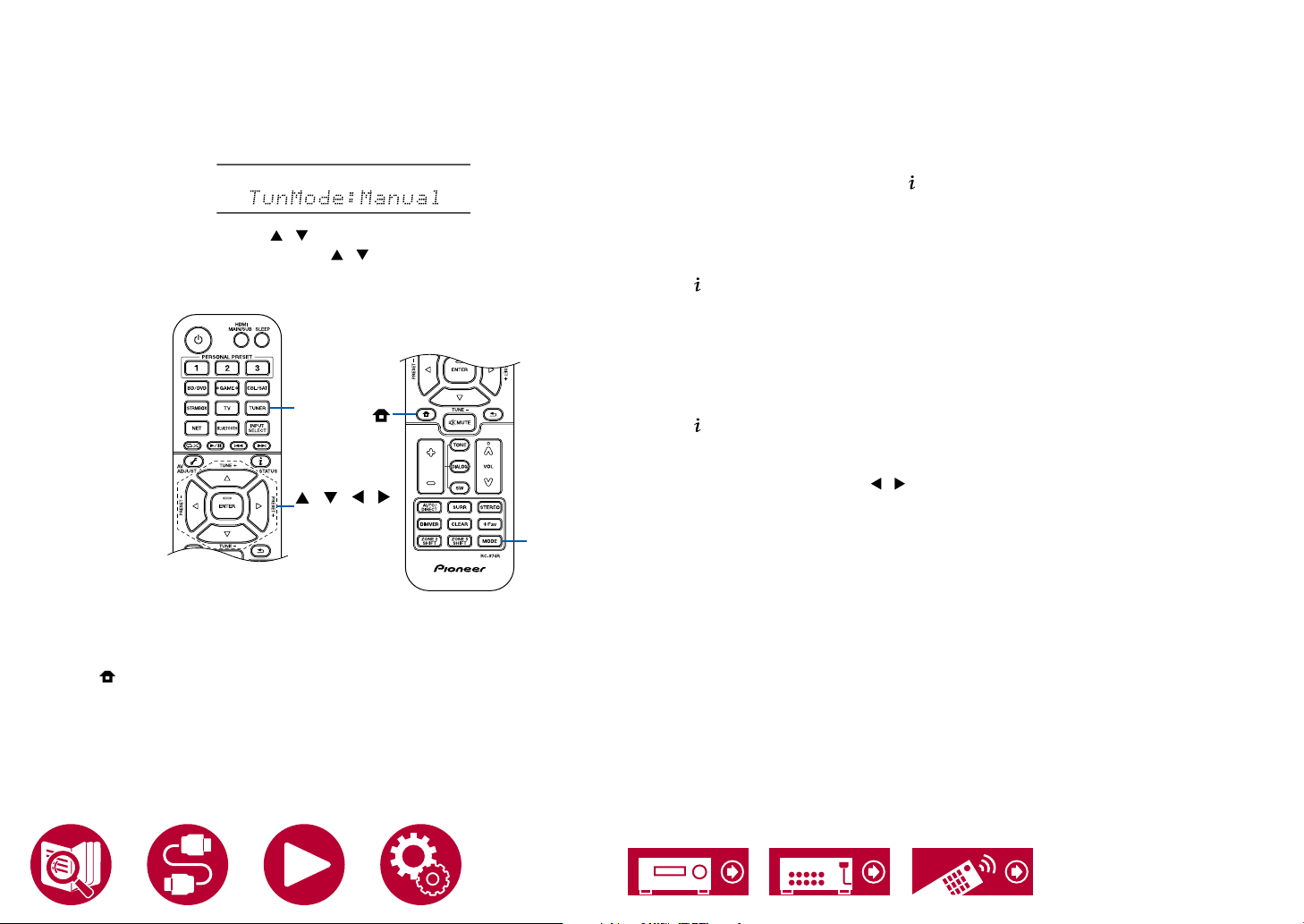
1. Press TUNER repeatedly to select either "AM" or "FM".
2. Press MODE repeatedly to display "TunMode: Manual" on the display.
3. While pressing the cursors / , select the desired radio station.
• Each time you press the cursors / , the frequency changes by 1 step.
If the button is held down, the frequency changes continuously, and if the
button is released, the frequency stops changing.
TUNER
/ / /
ENTER
MODE
Frequency step setting (North American, Australian
and Asian models)
Press on the remote controller, and from Home displayed select "System
Setup" - "Miscellaneous" - "Tuner" - "AM/FM Frequency Step" or "AM Frequency
Step", and then select the frequency step for your area. Note that when this
setting is changed, all radio presets are deleted.
Using RDS (European, Australian and Asian
models)
RDS stands for Radio Data System, and is a method of transmitting data in FM
radio signals. In regions where RDS can be used, when you tune in to a radio
station broadcasting program information, the radio station name is displayed on
the display. When you press the button on the remote controller in this state,
you can use the following functions.
Display Text Information (Radio Text)
1. While the name of the station is being displayed on the display, press the
button on the remote controller once.
The Radio Text (RT), which is text information delivered by the station, is
displayed scrolling across the display. "No Text Data" is displayed when no
text information is delivered.
Search for Stations by Program Type
1. While the name of the station is being displayed on the display, press the
button on the remote controller twice.
• If none of the Program Types are set for the radio station under reception,
"None" is displayed.
2. Press the cursor buttons / on the remote controller to select the Program
Type you want to search for, and then press the ENTER button to start the
search.
• The Program Types displayed are as follows: None / News (News reports)
/ Affairs (Current affairs) / Info (Information) / Sport / Educate (Education) /
Drama / Culture / Science (Science and technology) / Varied / Pop M (Pop
music) / Rock M (Rock music) / Easy M (Middle of the road music) / Light
M (Light classics) / Classics (Serious classics) / Other M (Other music)
/ Weather / Finance / Children (Children's programmes) / Social (Social
affairs) / Religion / Phone In / Travel / Leisure / Jazz (Jazz music) / Country
(Country music) / Nation M (National music) / Oldies (Oldies music) / Folk
M (Folk music) / Document (Documentary)
• The information displayed may not match the content delivered by the
station.
3. When a station is found, the station blinks on the display. Pressing the
ENTER button in this state will receive that station. If you don't press the
ENTER button, the unit starts to search for another station.
67
Page 68

• If no stations are found, the message "Not Found" is displayed.
• Unusual characters may be displayed when the unit receives unsupported
characters. This is not a malfunction. Also, if the signal from a station is weak,
information may not be displayed.
Playback
Presetting a Radio Station ( →p71)
68
Page 69
Listening To DAB Digital Radio (European models only)
Tuning into a Radio Station
Perform the following procedure when this unit is on.
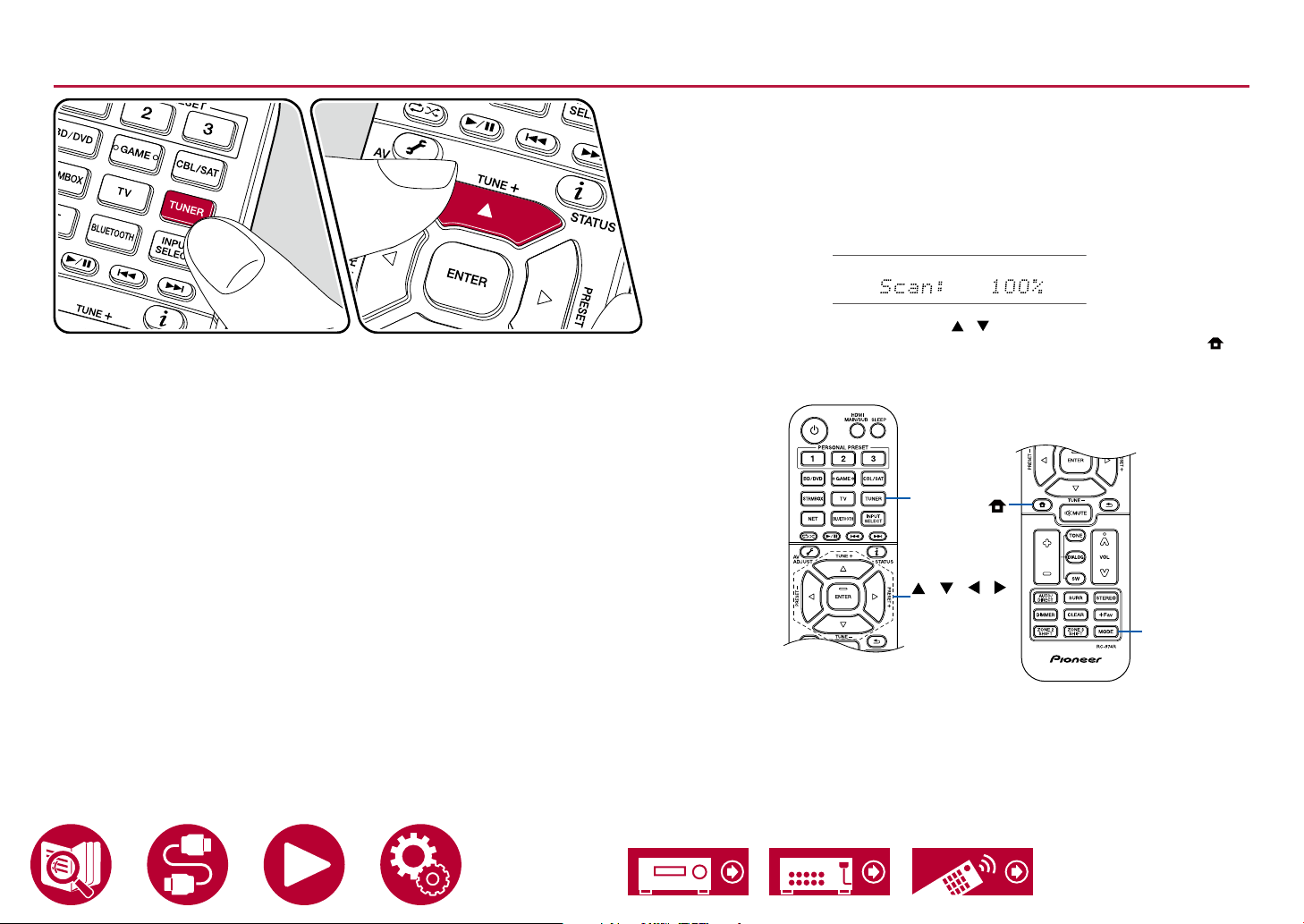
1. Press TUNER repeatedly to select "DAB".
• The very rst time you select DAB, the Auto Tuning function automatically
scans the DAB Band 3 for the multiplexes (i.e., stations) available in your
area. Once the scanning process is complete, the rst station that was
detected is selected.
2. Select the desired radio station with / .
• If a new DAB station is introduced, or you move to a new area, press ,
then use the cursors and ENTER button to run the "DAB Auto Scan" in
"Miscellaneous" - "Tuner".
Playback
TUNER
/ / /
ENTER
MODE
69
Page 70

Changing the order stations are displayed
You can sort the available stations alphabetically or by multiplex.
1. Press MODE repeatedly to set the method for sorting the display order from
the following.
Alphabet (default setting): Sort stations alphabetically.
Multiplex: Sort stations by multiplex.
Displaying DAB Radio Information
1. Press repeatedly to display more information about the selected DAB
station.
DLS (Dynamic Label Segment): When tuned to a station that's broadcasting
DLS text data, the text will scroll across the display.
Program Type: Displays the type of program.
Bit Rate and Audio Mode: Displays the station's bit rate and audio mode
(Stereo, Mono).
Quality: Displays the signal quality.
0 - 59: Poor reception
60 - 79: Good reception
80 - 100: Excellent reception
Multiplex Name: Displays the name of the current multiplex.
Multiplex Number and Frequency:
Displays the number and frequency of the current multiplex.
Playback
70
Page 71
Presetting a Radio Station
Playback
Registration Procedure
You can preset up to 40(*) of your favorite radio stations.
(*)North American, Australian and Asian models: AM and FM stations
European models: FM and DAB stations
After tuning in to the radio station you want to register, perform the following
procedure.
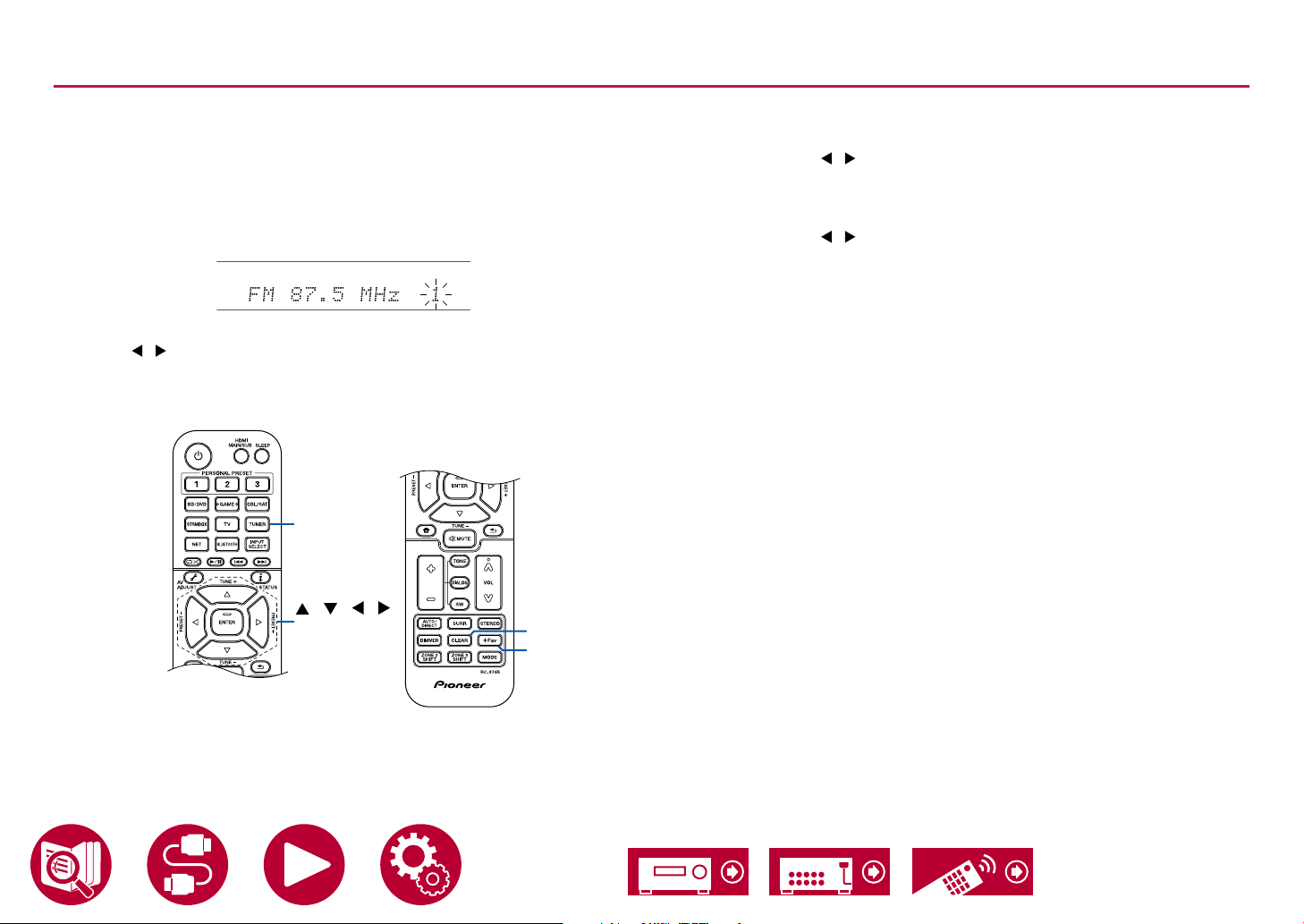
1. Press +Fav so that the preset number on the display blinks.
2. While the preset number is blinking (approx. 8 seconds), repeatedly press the
cursors / to select a number between 1 and 40.
3. Press +Fav again to register the station.
When the station is registered, the preset number stops blinking. Repeat this
steps to register your favorite radio stations.
TUNER
/ / /
ENTER
CLEAR
+Fav
Selecting a Preset Radio Station
1. Press TUNER.
2. Press the cursors / to select a preset number.
Deleting a Preset Radio Station
1. Press TUNER.
2. Press the cursors / to select the preset number to delete.
3. After pressing +Fav, press CLEAR while the preset number is blinking,
and delete the preset number. When deleted, the number on the display
disappears.
71
Page 72
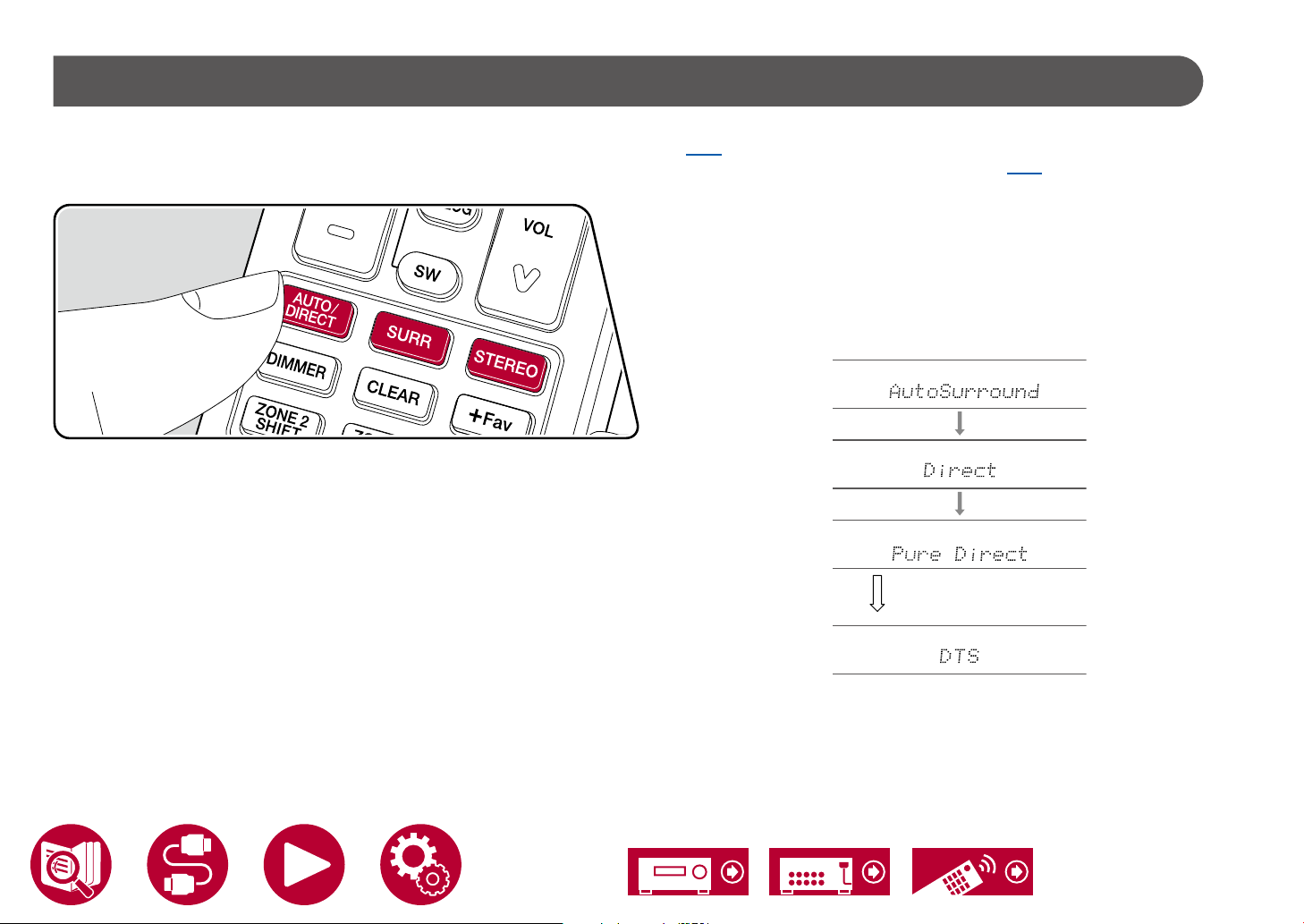
Listening Mode
You can change the listening mode during play by pressing repeatedly "AUTO/DIRECT", "SURR", or "STEREO".
• For details of the effects of each listening mode, refer to "Listening Mode Effects" ( →p178).
• For listening modes selectable for each audio format of input signals, refer to "Input Formats and Selectable Listening Modes" ( →p174).
AUTO/DIRECT button
Press repeatedly and the listening modes suited to the input signal are switched
between "Auto Surround", "Direct", and "Pure Direct". After selecting one of
them, "Auto Surround" (or "Direct" or "Pure Direct") is displayed, then the most
suitable listening mode for the audio format is selected automatically (DTS for
multi-channel input signals, Stereo for 2 channel input signals, etc.) and an
indicator such as "DTS" is displayed on the display.
Playback
The display changes automatically.
72
Page 73
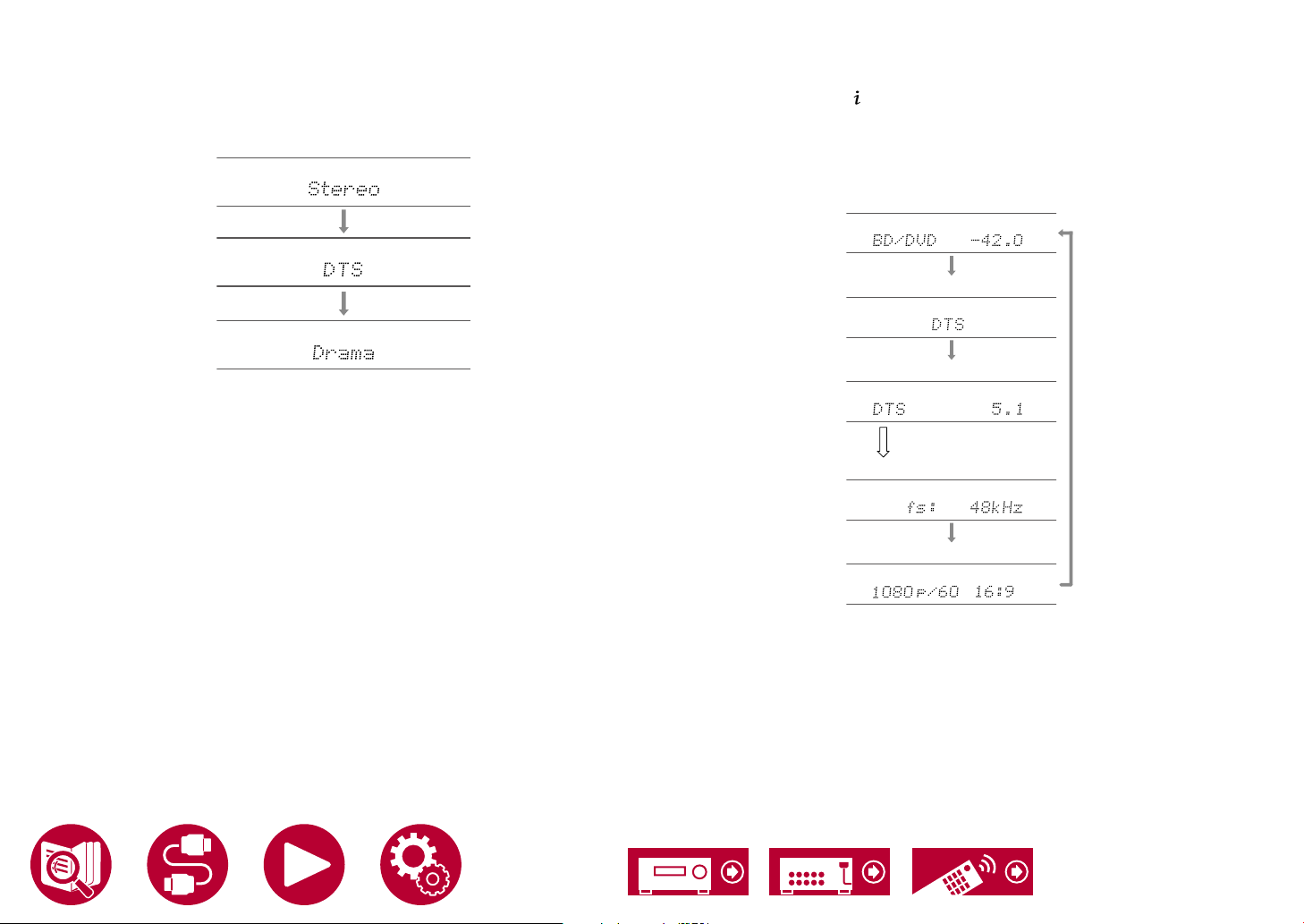
Playback
SURR button
By pressing repeatedly you can select the audio format of the signals being input
and switch between a variety of listening modes. Select the mode that suits your
preference. The selected listening mode is displayed on the display.
STEREO button
You can select the Stereo mode to playback only from the front speakers and
subwoofer and the Extended Stereo mode.
• Each of AUTO/DIRECT, SURR, and STEREO buttons stores the listening
mode that was selected last. If content incompatible of the listening mode
selected last is played, the most standard listening mode for the content is
automatically selected.
Checking the input format and listening mode
Repeatedly pressing the button on the remote controller switches the display
of the main unit in the following order.
• The content displayed depends on the source, BLUETOOTH, etc., being
played.
• Not all the information is necessarily displayed.
Input source and volume
Listening mode
Input format
The display is switched in
a few seconds.
Sampling frequency
Input signal resolution
73
Page 74

AV Adjust
Menu operations
Playback
You can quickly adjust the settings you frequently use, such as tone
adjustments, etc.
You can make the settings on the TV screen while playing something. Press
on the remote controller to display the AV Adjust menu. Note that there is no
display on the TV screen when the input selector is "CD", "TV", "PHONO", "FM",
"AM", or "DAB" so follow the main unit’s display while doing the operations.
AV Adjust
HDMI
Audio
Room EQ
Level
HDMI Out
Sound Delay
Audio Return Channel
BD/DVD
Select the item with the cursor / buttons of the remote controller and press
ENTER to conrm your selection.
Use the cursors to change the settings.
• To return to the previous screen, press .
• To exit the settings, press .
74
Page 75
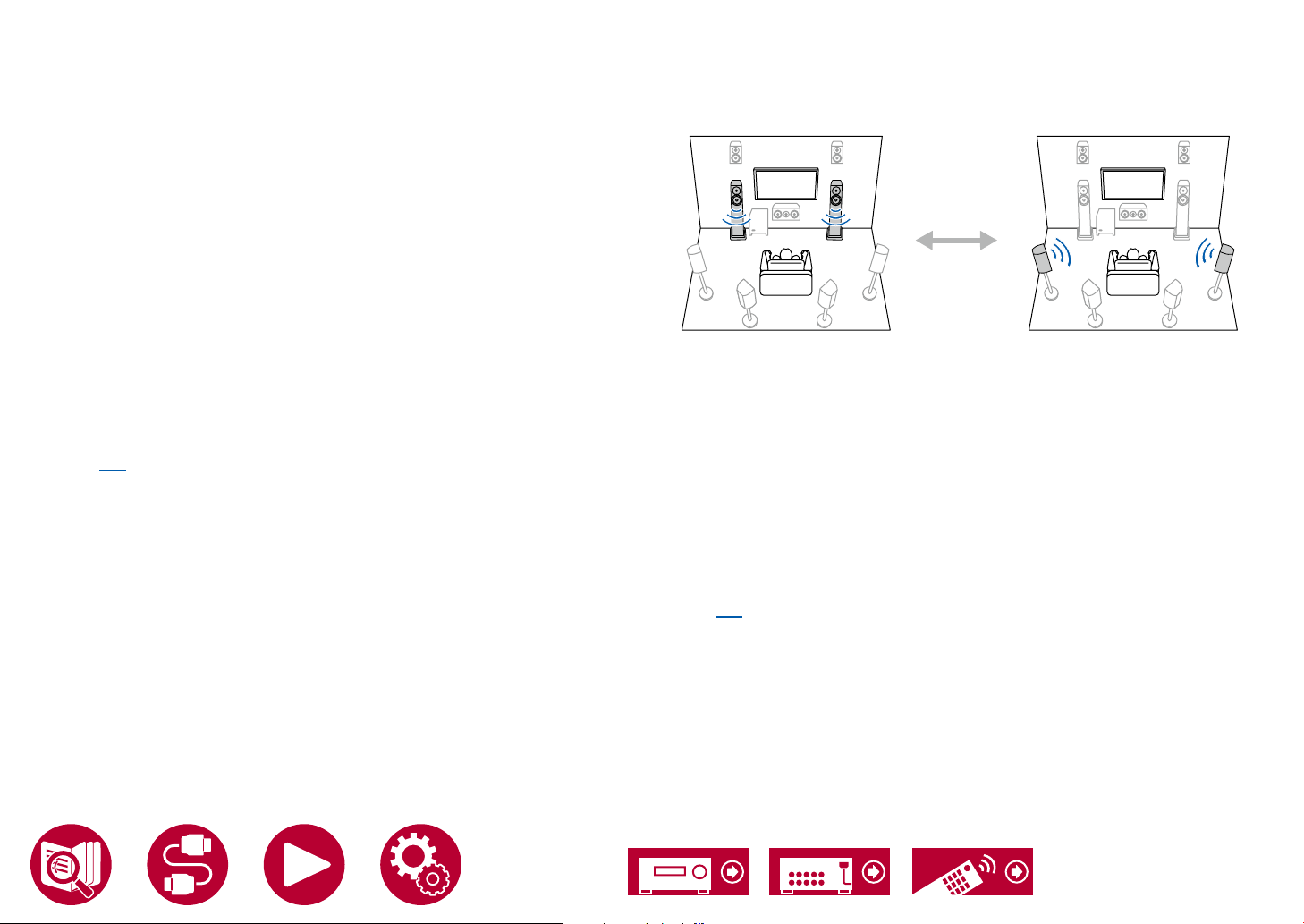
HDMI
"Front" "Surround"
HDMI Out: Select the HDMI OUT jack to output video signals from "MAIN",
"SUB", and "MAIN+SUB".
Sound Delay: If the video is behind the audio, you can delay the audio to offset
the gap. Different settings can be set for each input selector.
• It cannot be set if the listening mode is Pure Direct and the input signal is
either analog or DSD.
Audio Return Channel: You can enjoy the sound of the HDMI-connected ARC-
compatible T V through the speakers connected to the unit. Select "On" when
listening to the audio of TV using the speakers of this unit. Select "Off" when the
ARC function is not used.
Audio
Sound Retriever: Improve the quality of the compressed audio. Playback sound
of lossy compressed les such as MP3 will be improved. The setting can be
separately set to each input selector. The setting is effective in the signals of
48 kHz or less. The setting is not effective in the bitstream signals.
• It cannot be set if the listening mode is Direct or Pure Direct.
• This cannot be selected when either of the slots is selected with "Dirac Live"
( →p76).
Midnight: Make small sounds easily heard. It is useful when you need to reduce
the volume while watching a movie late night.
• It cannot be set if the listening mode is Direct or Pure Direct.
• The setting cannot be used in the following cases.
– If "Loudness Management" is set to "Off" when playing Dolby Digital Plus
or Dolby TrueHD
– When the input signal is DTS:X and "Dialog Control" is other than 0 dB
Playback
Stereo Assign: This function enables you to select a pair of speakers to output
stereo sound. Apart from the front speakers (Front), you can select the Surround
speakers (Surround), Surround Back speakers (Surround Back), Height 1
speakers (Height 1), and Height 2 speakers (Height 2).
Selectable
• The listening mode switches to "Stereo" if the audio output destination is
changed.
Zone B: Select a method of outputting audio to ZONE B from among "Off", "On
(A+B)" and "On (B)".
Auto Phase Control+: The low frequencies are recorded with a delay for some
discs not made according to phase control standards. This function corrects
the phase shift when playing such discs. When "Auto" is selected, in addition
to the low frequency delay, the polarity and correlation are also detected and
corrected.
• It cannot be set if the listening mode is Pure Direct.
• This cannot be selected when either of the slots is selected with "Dirac Live"
( →p76).
75
Page 76

Room EQ
Dirac Live (*1): You can select the equalizers measured with Dirac Live
( →p150, p154) from "Slot1" to "Slot3". When disabling the equalizer, select
"O f f ".
• The Dirac Live measurement results are saved in "Slot1" to "Slot3", but
you are able to register your own original sound quality with Manual Adjust
( →p155).
• This cannot be selected when measurements are made using "Full Auto
MCACC".
MCACC EQ (*1)(*3): Enable or disable the equalizer function that corrects for
distortion caused by the acoustic environment of the room.
Phase Control (*1): Correct phase disturbance in the low range to enhance the
bass. This enables you to achieve powerful bass reproduction that is faithful to
the original sound.
Theater Filter (*2)(*3): Adjust the soundtrack that was processed to enhance its
high pitch range, in order to make it suitable for home theater.
Standing Wave (*1)(*3): Setting this "On" will control the effect of the standing
wave generated by the sound wave reected by wall or similar interfering with
the original sound wave.
(*1) It cannot be set if the listening mode is Pure Direct.
(*2) It cannot be set if the listening mode is Direct or Pure Direct.
(*3) This function cannot be used if Dirac Live ( →p76) is being used.
Furthermore, there is no effect even if it can be selected.
Playback
Level
Front: Adjust the speaker level of the front speakers while listening to the sound.
Center: Adjust the speaker level of the center speaker while listening to the
sound.
Subwoofer: Adjust the speaker level of the subwoofer while listening to the
sound.
• If you set the unit to the standby mode, the adjustments you made will be
restored to the previous statuses.
76
Page 77

Spotify
Use your phone, tablet or computer as a remote control for Spotify.
Go to spotify.com/connect to learn how.
Playback
77
Page 78
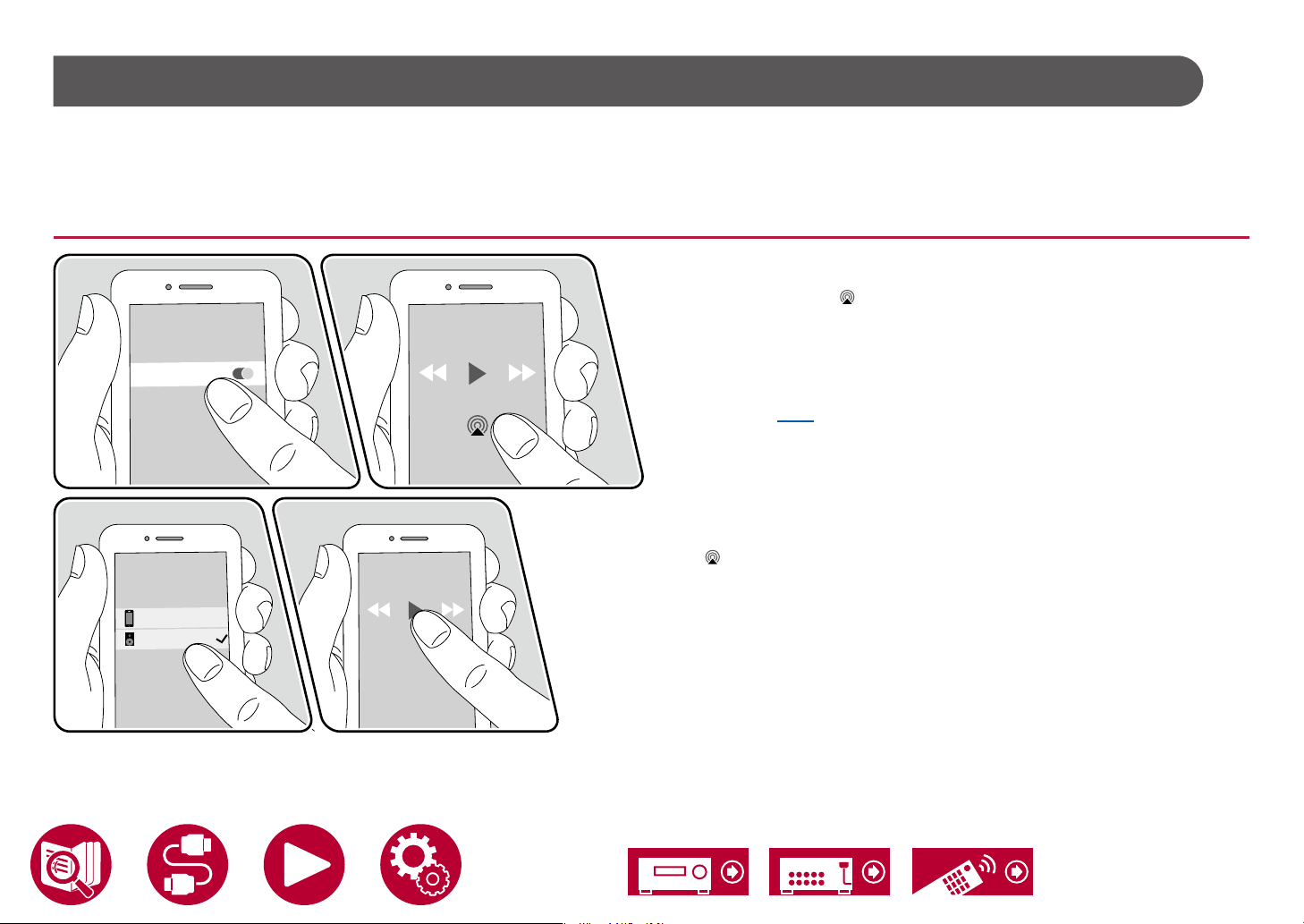
Playback
iPhone
Pioneer VSX-LX305 XXXXXX
Wi-Fi
AirPlay
By connecting this unit to the same network as iOS devices, such as that of iPhone®, iPod touch® and iPad®, you can enjoy music les on iOS devices wirelessly.
• Update the OS version on your iOS device to the latest version.
• Depending on the iOS version, operation screens or operation procedures on the iOS device may be different. For details, refer to the operating instructions for the
iOS device.
®
Basic Operations
1. Connect the iOS device to the access point where this unit is connected via
network.
2. Tap the AirPlay icon in the play screen of the music app on an iOS device
that supports AirPlay and select this unit from the list of devices displayed.
3. Play the music le on the iOS device.
• If "System Setup" - "Hardware" - "Power Management" - "Network Standby"
is set to "Off " in the Home, manually turn the unit on and then press NET
on the remote controller. In the factory default setting, the Network Standby
function ( →p127) is set to On.
• Due to the characteristics of AirPlay wireless technology, the sound produced
on this unit may slightly be behind the sound played on the AirPlay-enabled
device.
You can also play the music les on a PC with iTunes (Ver. 10.2 or later)
equipped. Conrm that this unit and the PC are connected to the same network
beforehand. Then, press NET on the remote controller. Next, click the AirPlay
in iTunes, select this unit from the displayed devices, and start play of a
icon
music le.
e.g., iOS 10
78
Page 79

Playing Back on multiple devices (AirPlay2)
Pioneer VSX-LX305
XXXXXX
iPhone
Pioneer
XXXXXXXX
Pioneer
XXXXXXXX
Wi-Fi
e.g., iOS 11.4
Playback
This unit supports AirPlay2. If the version of the iOS device is iOS11.4 or later,
you can play the music le on the iOS device simultaneously on this device and
on another device that supports AirPlay2.
1. Connect the iOS device to the access point where this unit is connected via
network.
2. Tap the AirPlay icon on the play screen of the music play application on
the iOS device, and select this unit and AirPlay2-supported devices to play
from the displayed devices.
• AirPlay2-supported devices are displayed with white circle on the right
side.
• Multiple AirPlay2-supported devices can be selected.
• The volume can be adjusted on individual devices.
3. Play the music le on the iOS device.
• If "System Setup" - "Hardware" - "Power Management" - "Network Standby"
is set to "Off " in the Home, manually turn the unit on and then press NET
on the remote controller. In the factory default setting, the Network Standby
function ( →p127) is set to On.
• Due to the characteristics of AirPlay wireless technology, the sound produced
on this unit may slightly be behind the sound played on the AirPlay-enabled
device.
You can also play the music les on a PC with iTunes (Ver. 12.8 or later)
equipped. Conrm that this unit and the PC are connected to the same network
beforehand. Then, press NET on the remote controller. Next, click the AirPlay
in iTunes, select this unit and AirPlay2-supported devices to play from
icon
the displayed devices, and start play of a music le.
79
Page 80
Playback
DTS Play-Fi
When connecting this unit to the same network as mobile devices, such as
a smartphone and tablet, you can enjoy music played on the mobile device
wirelessly. Music from a streaming distribution service or music in the music
library on a mobile device can be played. This function also supports a playlist
on iTunes. Also, connecting multiple speakers supporting DTS Play-Fi on
the same network will enable "Group playback" that plays the same music in
separate rooms at home. To enjoy this function, download Pioneer Music Control
App (available on iOS or Android™).
®
https://play-.com/
Playing Back
1. Download Pioneer Music Control App using your mobile device.
https://intl.pioneer-audiovisual.com/play/app_p.html
2. Connect the mobile device to the network where this unit is connected.
3. Starting up Pioneer Music Control App will automatically display compatible
devices.
4. Select this device from the compatible devices. Then, a list of applications
such as a music streaming distribution service is displayed. Select
the content to play, and perform operation according to the on-screen
instructions.
• If "System Setup" - "Hardware" - "Power Management" - "Network Standby"
is set to "Off " in the Home, manually turn the unit on and then press NET
on the remote controller. In the factory default setting, the Network Standby
function ( →p127) is set to On.
• For detailed operation and FAQ, visit the following URL.
https://intl.pioneer-audiovisual.com/play/info_p.html
• To use a music streaming distribution service, user registration may be
required.
• This unit does not support the following DTS Play-Fi functions.
– Spotify
– Wireless Surround Sound
– Line In Rebroadcast
– Internet Radio
• Some of the settings in the "Setup menu" cannot be changed on this unit. To
change those settings, cancel the connection of this unit from the application.
• Listening modes cannot be selected during playback.
80
Page 81
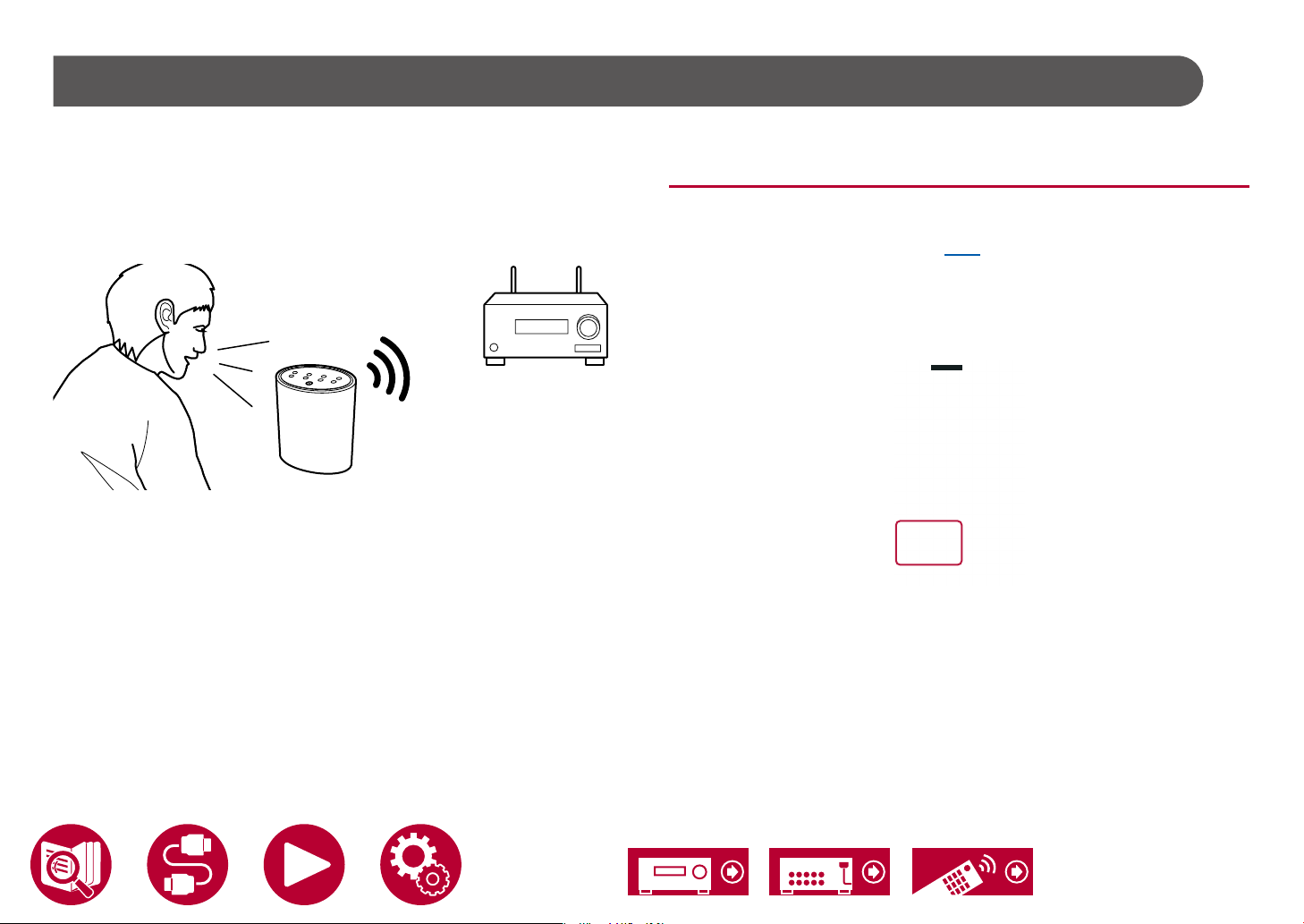
Amazon Alexa
Playback
Alexa is a cloud-based voice service developed by Amazon. When this unit is
registered with an Amazon account, you can use a terminal with Amazon Alexa
(an Amazon Echo, etc.) or Amazon Alexa App (available on iOS and Android™)
to perform operations such as adjusting the volume of this unit or playing music
using voice commands.
• You need an Amazon account to use Amazon Alexa. For more information,
see the Amazon website.
Registering this unit with an Amazon account
1. Register with the Amazon account on Pioneer Remote App. This cannot be
set with operations on this unit.
Refer to "Pioneer Remote App" ( →p153) for information about the app.
2. Start Pioneer Remote App and tap the unit when displayed.
3. Tap "NET" or "NETWORK" at the top of the Pioneer Remote App screen, and
after switching to the network menu, tap the "amazon alexa" icon.
• If the login screen is not displayed, but rather a screen prompting
installation of Service Unlocker, then install that rst.
Available ser vices may differ depending on your area.
4. Tap "Start Setup", and in the Setup screen, select the language and register
the device name. Select the same language as the one you have selected
for your other terminals with Amazon Alexa (an Amazon Echo, etc.). For the
device name, use one that can easily be called up vocally.
For example: Speaker
5. Tap "Next" to display the Amazon Alexa screen.
6. Follow the on screen instructions to enter the Amazon account information,
such as your email address and password, to log into Amazon (*1). After
logging in, tap "Allow" and register this unit with an Amazon account.
(*1) Log in using the same account as other terminals with Amazon Alexa.
81
Page 82

7. When registration is nished, the screen returns to the one for Pioneer
Remote App. Follow the on screen instructions and talk to the terminal with
Amazon Alexa (an Amazon Echo, etc.), and conrm that you can use voice
commands.
For example: "Alexa, raise the volume of the speaker (*2)"
"Alexa, play music from the speaker (*2)"
(*2) Use the device name you registered in Step 4 when talking.
Playback
Operating this unit
You can use voice commands to adjust the volume on this unit, start and stop
music, and skip music up or down.
1. With the unit on, speak at the terminal with Amazon Alexa (an Amazon Echo,
etc.). When using the Amazon Alexa app, after starting the app, tap the Alexa
logo and speak at the mobile device.
For example: "Alexa, raise the volume of the speaker (*3)"
"Alexa, play music from the speaker (*3)"
(*3) Use the device name you registered in Step 4 of "Registering this unit
with an Amazon account" when talking.
• Refer to the website for details about voice commands. (Click here )
• It is not possible to turn the unit on or off, or to switch the listening mode.
• Refer to the Amazon websites for information about operation of the Amazon
Alexa app.
82
Page 83
Amazon Music
You can use the music distribution service provided by Amazon by registering
with Amazon Music.
• To play Amazon Music you need to have an Amazon account and to be
a member of Amazon Prime and Amazon Music Unlimited. For more
information, see the Amazon website.
Amazon Music is now available in several countries. If Amazon Music is not
available in your country, please visit https://music.amazon.com/ for more info.
Playback
Registering This Unit with Amazon Music
1. Register with the Amazon account on Pioneer Remote App. This cannot be
set with operations on this unit.
Refer to "Pioneer Remote App" ( →p153) for information about the app.
2. Start Pioneer Remote App and tap the unit when displayed.
3. Tap "NET" or "NETWORK" at the top of the Pioneer Remote App screen, and
after switching to the network screen, tap the "Amazon Music" icon to display
the Amazon Music login screen. (Depending on the model, the icon names
may be different.)
• If the login screen is not displayed, but rather a screen prompting
installation of Service Unlocker, then install that rst.
Available ser vices may differ depending on your area.
4. Enter the information required for the Amazon account, such as your email
address and password, to log into Amazon. The Amazon Music menu is
displayed when login is successful and this unit is registered.
To continue to start play, proceed to step 3 in the next section.
83
Page 84
Playing Amazon Music using the Pioneer Remote App
1. Start the Pioneer Remote App. This unit is displayed automatically when the
app is started, so tap the unit when displayed to select it.
2. Tap "NET" or "NETWORK" at the top of the screen, and after switching to the
network screen, tap the "Amazon Music" icon.
3. Select the content that you want to play in the menu screen for Amazon
Music and start play.
Playing Amazon Music using the remote controller
1. Switch the input on the TV to the input connected to the unit.
2. Pressing NET will display the Network Functions list screen on the TV.
3. Select "Amazon Music" with the cursors and press ENTER to conrm.
4. Select the content that you want to play in the menu screen for Amazon
Music and start play.
Playback
84
Page 85
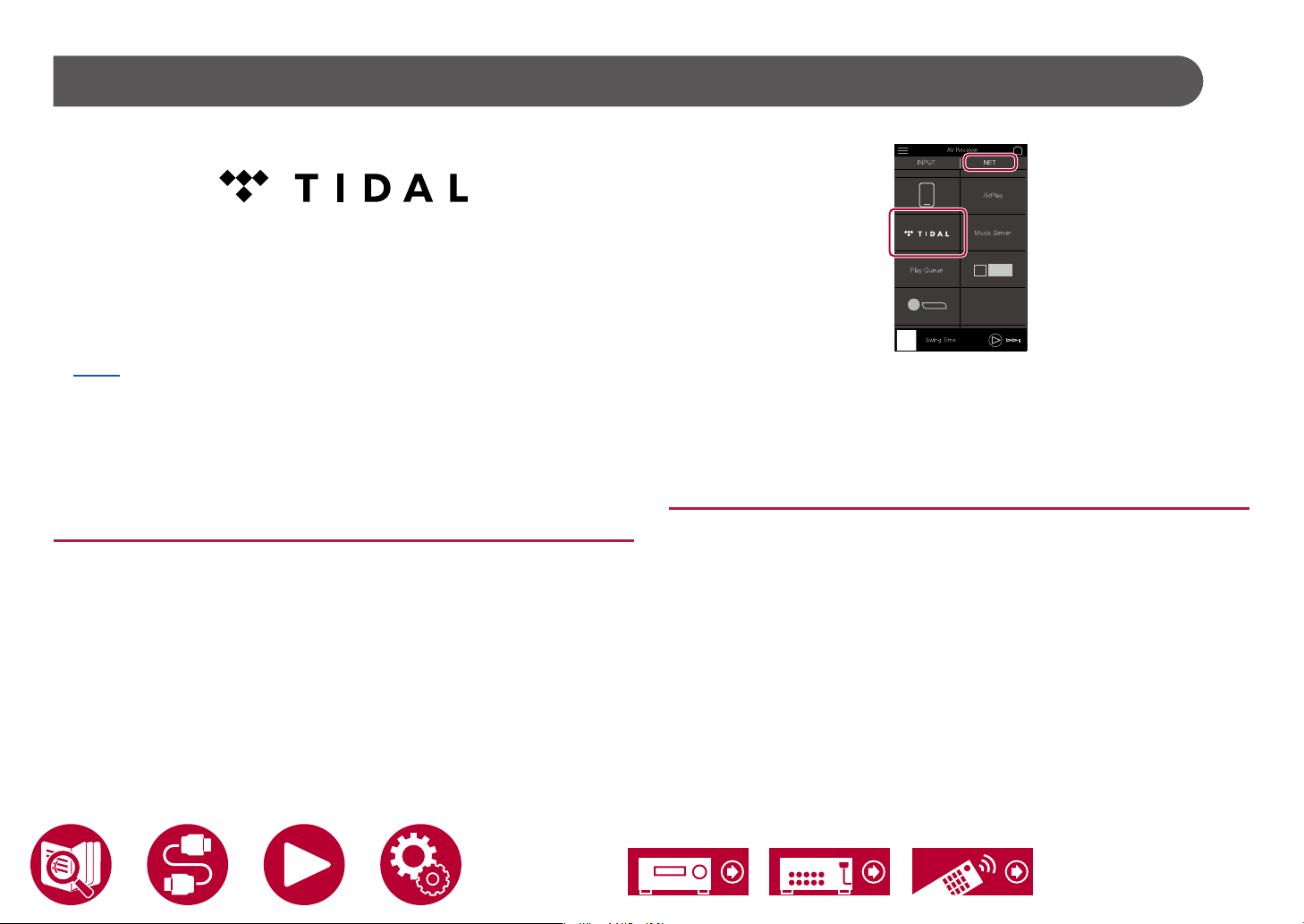
TIDAL
Registering this unit with TIDAL allows you to enjoy the music distribution
service provided by TIDAL. You can register this unit on the screen of Pioneer
Remote App by downloading Pioneer Remote App (available on iOS or
Android™) to mobile devices such as a smartphone and tablet.
• You need a TIDAL account to play back TIDAL. For more information, see the
TIDAL website.
Playback
onscreen instructions.
Available ser vices may differ depending on your area.
6. Enter the TIDAL account information such as login ID and password to log in
to TIDAL. When the login is successful and this unit is registered, the TIDAL
menu is displayed.
For playback, proceed to step 3 in the next section.
Playing TIDAL
Registering this unit with TIDAL
• You can register this unit with TIDAL using Pioneer Remote App. The
registration cannot be per formed by operation of this unit.
1. Connect this unit to your home network by the network settings on this unit.
2. Download Pioneer Remote App using your mobile device.
3. Connect the mobile device to the network where this unit is connected.
4. Start up Pioneer Remote App to automatically display this unit. Tap and select
this unit displayed.
5. Tap "NET" or "NETWORK" on the upper part of the Pioneer Remote App’s
screen to switch to the network menu. Then tap the "TIDAL" icon to display
the login screen of TIDAL. (Depending on the model, the icon names may be
different.)
• If the login screen is not displayed but an update or installation screen
is displayed instead, perform the update or installation according to the
1. Start up Pioneer Remote App. This unit is automatically displayed after
startup. Then, tap and select this unit displayed.
2. Tap "NET" or "NETWORK" on the upper part of the screen to switch to the
network screen. Then tap the "TIDAL" icon.
3. Select the content to play from the menu screen of TIDAL to start playback.
• To play TIDAL using the remote controller, operate the input selector on the
remote controller to display the network menu, and select "TIDAL" from the
menu.
85
Page 86
Connecting the Sonos System for Playback
How to Connect This Unit and Sonos Connect
1. Connect the Sonos Connect to the AUDIO IN jack of this unit with the RCA
Once your unit is connected to the Sonos Connect you will be able to send any
music or source on your Sonos App to the unit. By going through the Sonos
Connect, you can play your unit through other Sonos devices in the network in
the same group, or you can just play on your unit. Further, the power of your unit
turns on automatically when music starts playing on the Sonos App, and the
linked function to switch input works.
• If "System Setup" - "Hardware" - "Power Management" - "Network Standby"
is set to "Off " in the Home, manually turn the unit on and then press NET
on the remote controller. In the factory default setting, the Network Standby
function ( →p127) is set to On.
• You can register a maximum of 3 Sonos Connect.
Setting Up
A setup is required to play Sonos on this unit. Make the setting according to the
following procedure.
1. Press the button on the remote controller to display the Home screen,
Necessary Equipment
• Sonos Connect
• RCA audio cable (supplied with Sonos Connect)
2. Select the following items with the cursors / and set each item.
Playback
audio cable supplied with the Sonos Connect. Any input can be used other
than the PHONO jack.
• You can also connect with a digital cable. For details, refer to the
instruction manual of the Sonos.
• You can rename the input that is displayed on the unit to a more logical
name. For example, you can change the name of input that the Sonos
Connect is plugged into from "CD" (or another input selector name) to
"SONOS". Press the
Home screen, and select "System Setup" - "Source" - "Name Edit" to
change the name.
select "System Setup" - "Hardware" - "Works with SONOS", and press the
ENTER button.
Input Selector:
Enable the interlocking function with the Sonos Connect. With the cursors / ,
select the input selector to which the Sonos Connect is connected.
Connected Device:
Press the ENTER button to display Sonos devices connected to the same
network as the network of this unit. Select the Sonos Connect connected to
the unit and press the ENTER button.
• Products (e.g. Play:3 unequipped with an output terminal) other than the
Sonos Connect are also displayed in the device list and selectable. In
that case, when playback on the Sonos side starts, the input is switched,
however, audio is not output. Select the room name of the connected
button on the remote controller to display the
86
Page 87

Sonos Connect.
• Up to 32 devices can be displayed on the Sonos product list screen. If you
cannot nd the Sonos Connect to be interlocked, return to the previous
screen, turn off the product you do not want to interlock, and try again.
Output Zone:
With the cursors / , select the ZONE where you want to listen to the music.
"Main": Outputs audio only to the main room (where this unit is located).
"Zone 2": Outputs audio only to the separate room (ZONE 2).
"Main/Zone 2": Outputs audio to both the main room and separate room
(ZONE 2).
"Zone 3": Outputs audio only to the separate room (ZONE 3).
"Main/Zone 3": Outputs audio to both the main room and separate room
(ZONE 3).
"Zone 2/Zone 3": Outputs audio to both the separate rooms (ZONE 2 and
ZONE 3).
"Main/Zone 2/Zone 3": Outputs audio to the main room and both separate
rooms (ZONE 2 and ZONE 3).
Preset Volume:
You can set the volume that Sonos Connect will be played at beforehand.
Select a value from "Last" (Volume level before entering standby mode),
"-∞ dB", and "-81.5 dB" to "+18.0 dB".
• When making the setting for the second and third unit, press the cursor
several times to move to the next page, and change the menu from
"SONOS-1" to "SONOS-2" or "SONOS-3".
Playback
Playing Sonos on This Unit
1.
Using your Sonos App select the music you want to listen to and send it to the
room (or group) where your unit is located. We recommend naming your unit /
Sonos Connect combination a friendly name like TV Room or Living Room where
the equipment is located.
• If the input on your unit does not change automatically when play starts, try
stopping play, then starting it again.
• When the "Volume Pass Through" mode has been selected with the Sonos
App settings, you can use the Sonos App to control the volume of this unit.
* You cannot use the "Preset Volume" function when the " Volume Pass
Through" mode has been selected.
87
Page 88

Playback
TV
INPUT
Network
Internet Radio
By connecting this unit to an Internet-connected network, you can enjoy Internet radio services such as TuneIn Radio.
• To play Internet radio services, the network needs to be connected to the Internet.
•
Depending on the Internet radio service, a user registration may be required on your PC beforehand. For details of each service, visit the website of each
service.
Playing Back
Perform the following procedure when this unit is on.
TV’s REMOTE
Inputs
TV
HDMI 1
HDMI 2
HDMI 3
1. Switch the input on the TV to the input connected to the unit.
2. Pressing NET will display the Network Services list screen on the TV.
3. Select your preferred Internet radio service using cursor, and press ENTER to
conrm the selection.
4. Following the on-screen instructions, select a radio station and program using
cursor, and then press ENTER to play.
• To return to the previous screen, press .
NET
/ / /
ENTER
The illustration shows an image.
88
Page 89
Internet Radio Service Menu
You can bookmark specic stations, or delete stations that have been
bookmarked. The displayed menu varies according to the service being
selected.
The menu icon
icon is displayed, pressing ENTER will display the menu on the screen. When
multiple icons are displayed, select the
ENTER.
is displayed while a station is being played. When only this
icon with the cursor, and press
Regarding the TuneIn Radio Account
If you create an account on the TuneIn Radio website (tunein.com), and log in it
from this unit, your favorite radio stations or programs you have followed on the
website are automatically added to your "My Presets" on this unit. "My Presets"
is displayed on the next level in the hierarchical structure of TuneIn Radio. To
display a radio station added to "My Presets", you need log into TuneIn Radio
from the unit. To log in, select "Login" - "I have a TuneIn account" in the "TuneIn
Radio" top list on the unit, and then enter your user name and password.
• If you select "Login" on this unit, a registration code is displayed. By using
this code, you can associate the device on the My Page section of the TuneIn
Radio website so that you can log in from "Login" - "Login with a registration
code" without entering the user name and password.
Playback
89
Page 90

Playback
Multi-zone
You can enjoy 2 ch audio in the separate room (ZONE 2/ZONE 3) while performing playback in the main room (where this unit is located). The same source can
be played back in the main room and ZONE 2/ZONE 3 simultaneously. Also, different sources can be played back in both rooms. For the "NET", "BLUETOOTH" or
"USB" input selector, you can select only the same source for the main room and separate room. If you select "NET" in the main room and then select "BLUETOOTH"
in the separate room, the main room setting switches to "BLUETOOTH". You cannot select different stations of DAB (European models)/AM (North American,
Australian and Asian models)/FM broadcasts for the main room and separate room.
Pioneer Remote App ( →p153) is useful for the multi-zone playback operation. Download Pioneer Remote App (available on iOS or Android™) to a mobile device,
such as a smartphone and tablet to use it.
Playing Back (ZONE 2) ( →p91)
90
Page 91

Playing Back (ZONE 2)
2
Playback
In the remote controller operation, while pressing and holding the ZONE 2
SHIFT button on the remote controller, operate with each button.
1. Point the remote controller at the unit, and while pressing and holding the
ZONE 2 SHIFT button on the remote controller, press .
• "Z2" on the display of the main unit lights up.
1
2. While pressing and holding the ZONE 2 SHIFT button on the remote
controller, press the input selector of the input source you want to play in the
separate room. When operating on the main unit, press the ZONE CONTROL
button repeatedly to select "Z2" on the display, then within 8 seconds select
the input you want to play in another room using the input selector dial.
3. When using the ZONE 2 PRE/LINE OUT connection, adjust the sound
volume on the integrated amplier in the separate room. For the ZONE
speaker output, while pressing and holding the ZONE 2 SHIFT button on the
remote controller, adjust the volume with the volume button. When operating
on the main unit, press the ZONE CONTROL button repeatedly to select "Z2"
on the display, then within 8 seconds adjust using the MASTER VOLUME
knob.
• When connecting an integrated amplier that does not have a volume
control, in the System Setup menu, set "Multi Zone" - "Zone 2" - "Output
Level" ( →p130) to "Variable (Default Value: Fixed)". If you do not set
this, the volume output will be very loud and there is a danger of damage
to the integrated amplier, speakers, etc. When connecting an integrated
amplier that has a volume control, leave this as "Fixed".
• Information of a connected device can be displayed on the TV in the
separate room. Press the button while pressing and holding the ZONE 2
SHIFT button on the remote controller.
• If you turn the unit to standby during multi-zone playback, the Z2 indicator is
dimmed, and the playback mode is switched to playback in a separate room
only. Setting ZONE 2 to on while the unit is in standby also switches the
playback mode to playback in the separate room only.
• The audio from externally connected AV components can be output to ZONE
2 only when the audio is analog or 2 ch PCM signal. When the AV component
91
Page 92

is connected to this unit with an HDMI cable, digital coaxial cable or digital
optical cable, change the audio output of the AV component to the PCM
output.
• When video and audio via HDMI input are output to ZONE 2, set "Input/
Output Assign" - "TV Out / OSD" - "Zone 2 HDMI" ( →p109) to "Use" on the
System Setup menu.
• DSD audio signals cannot be output to ZONE 2 when selected with the "NET"
or "USB" input selector.
• If ZONE 2 is on, power consumption during standby will increase.
• This function turns off if you use the Bluetooth Transmitter ( →p64).
To set the function to off: While pressing and holding ZONE 2 SHIFT button,
press
. Alternatively, press the ZONE 2 ON/OFF button on the main unit.
Playback
Playing Back (ZONE 3) ( →p93)
92
Page 93
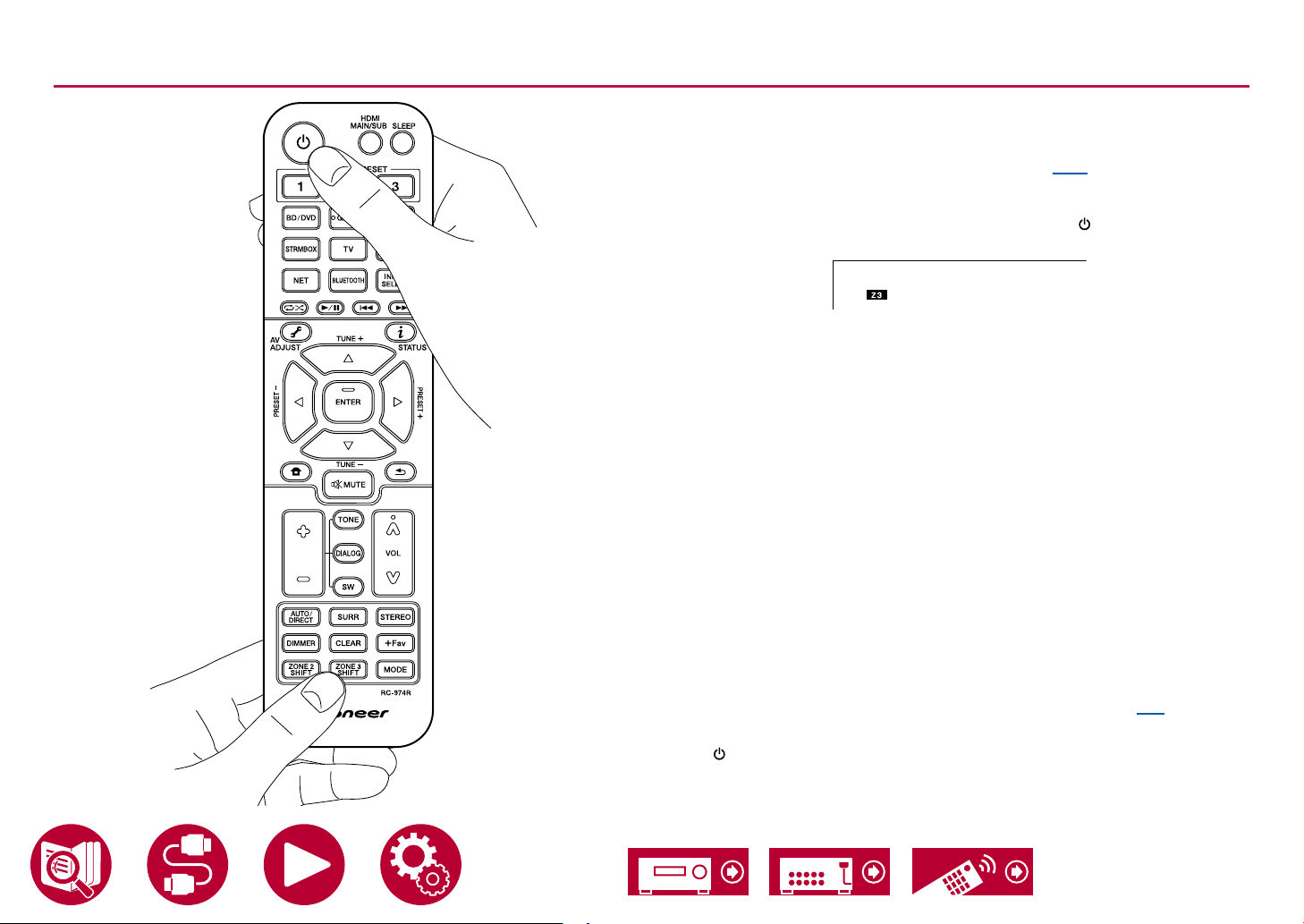
Playing Back (ZONE 3)
2
1
Playback
In the remote controller operation, while pressing and holding the ZONE 3
SHIFT button on the remote controller, operate with each button. Settings are
required to playback a source in ZONE 3.
Set "Speaker" - "Conguration" - "Zone Speaker" ( →p115) in the System
Setup menu to "Zone 2/Zone 3".
1. Point the remote controller at the unit, and while pressing and holding the
ZONE 3 SHIFT button on the remote controller, press .
• "Z3" on the display of the main unit lights up.
2. While pressing and holding the ZONE 3 SHIFT button on the remote
controller, press the input selector of the input source you want to play in the
separate room. When operating on the main unit, press the ZONE CONTROL
button repeatedly to select "Z3" on the display, then within 8 seconds select
the input you want to play in another room using the input selector dial.
3. To adjust the volume of the ZONE speakers in the separate room, press
the volume buttons while pressing the ZONE 3 SHIFT button on the remote
controller. When operating on the main unit, press the ZONE CONTROL
button repeatedly to select "Z3" on the display, then within 8 seconds adjust
using the MASTER VOLUME knob.
• If you turn the unit to standby during multi-zone playback, the Z3 indicator is
dimmed, and the playback mode is switched to playback in a separate room
only. Setting ZONE 3 to on while the unit is in standby also switches the
playback mode to playback in a separate room only.
• For ZONE 3 output, audio from externally connected AV components can be
output only when it is an analog audio signal.
• DSD audio signals cannot be output to ZONE 3 when selected with the "NET"
or "USB" input selector.
• If ZONE 3 is on, power consumption during standby will increase.
• This function turns off if you use the Bluetooth Transmitter ( →p64).
To set the function to off: While pressing and holding ZONE 3 SHIFT button,
press
. Alternatively, press the ZONE 3 ON/OFF button on the main unit.
93
Page 94

Using PERSONAL PRESET
Playback
Registration
You can register settings ( →p95) such as the current input selector and
listening mode with the three PERSONAL PRESET buttons, and call a
registered setting in a single operation.
e.g.) Pressing the PERSONAL PRESET button will automatically switch the
input selector to "TUNER" to receive the registered station. Also, the listening
mode and volume level are switched as registered.
Perform the following steps in the state of the setting to register.
1. Press and hold any of the 1 to 3 buttons of PERSONAL PRESET.
2. "Preset Written" appears on the display, and the setting is registered. If
registration has already been made, the registered setting is overwritten.
PERSONAL
PRESET
94
Page 95

Settings that can be registered
The following settings can be registered with PERSONAL PRESET.
– Input selector (Network service or AM (North American, Australian and Asian
models)/FM/DAB (European models) radio stations can also be registered.)
– Output destination (HDMI)
– Listening mode
– Volume level (Upper limit "0.0 dB")
(When ZONE 2/ZONE 3 is on, the volume level of ZONE 2/ZONE 3 is also
registered.)
– Output destination (Multi Zone)
– Sound Retriever function's "On" and "Off"
– TREBLE/BASS/DIALOG, etc.
* When AM/FM/DAB radio stations are registered, TUNER's preset numbers
"38", "39" and "40" ( →p71) are overwritten.
Using the registered settings
1. Press any of the 1 to 3 buttons of PERSONAL PRESET with which settings
have been registered.
Checking the registered settings
1. Press to display the Home screen, select "System Setup" - "Input/Output
Assign" - "PERSONAL PRESET Information" ( →p112), and press ENTER.
2. The registered settings are displayed in the list.
• Some of the items such as the Sound Retriever function are not displayed
in the list.
Playback
95
Page 96
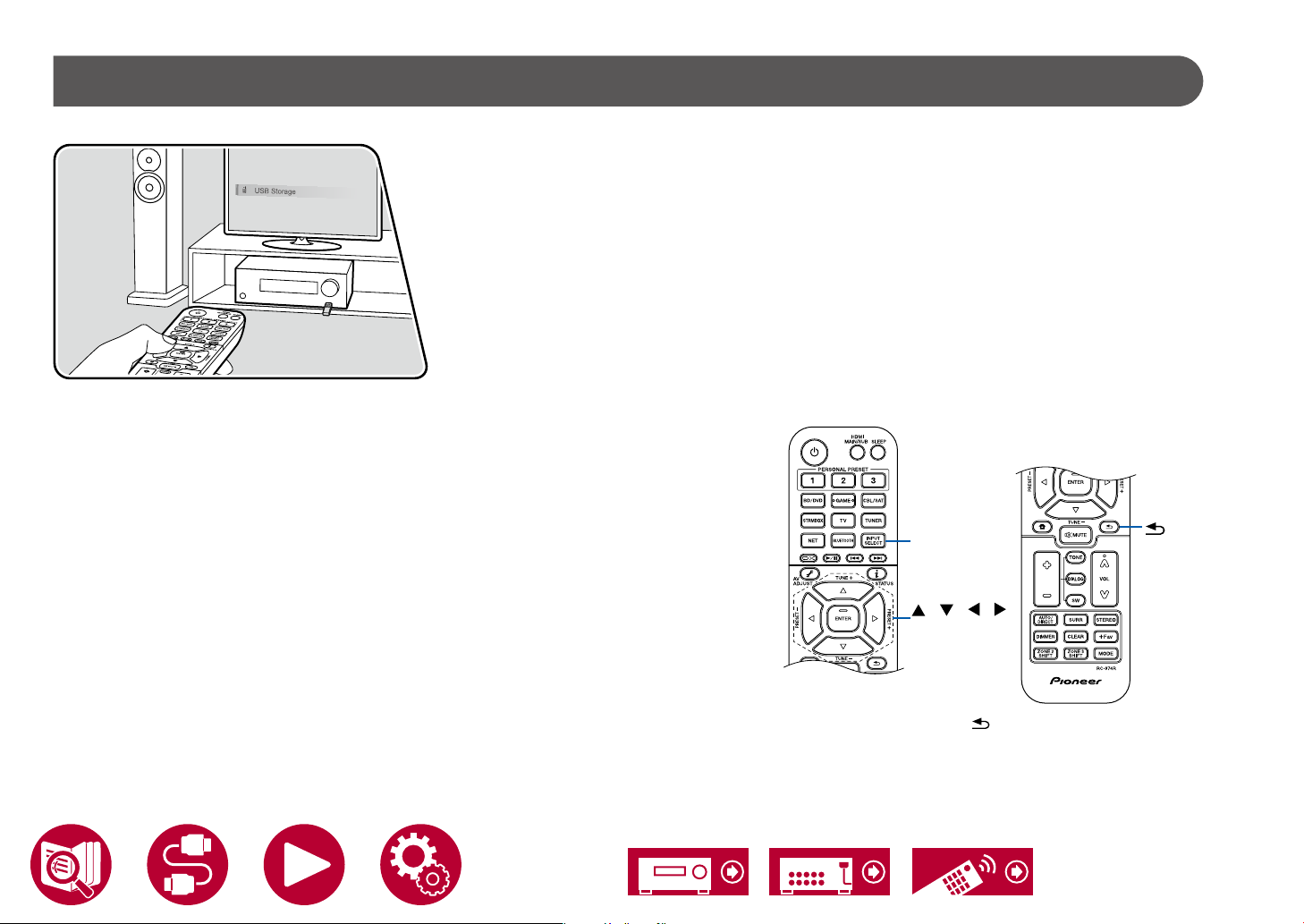
Playing music les saved on a USB storage device
USB Front
You can play music les stored on a USB storage device.
Perform the following procedure when this unit is on.
1. Switch the input on the TV to the input connected to the unit.
2. Plug your USB storage device with the music les into the USB port either on
the front panel or rear panel of this unit.
3. Press INPUT SELECT and select "USB Front" or "USB Rear".
• If the "USB" indicator blinks on the display, check whether the USB storage
device is plugged in properly.
• Do not unplug the USB storage device while "Connecting..." is being
displayed on the display. This may cause data corruption or malfunction.
4. Press ENTER in the next screen. The list of folders and music les on the
USB storage device is displayed. Select the folder with the cursors, and press
ENTER to conrm your selection.
5. Select the music le with the cursors, and then press ENTER to start
playback.
Playback
INPUT
SELECT
/ / /
ENTER
• To return to the previous screen, press .
• Characters that cannot be displayed on this unit appear with "".
• The USB port of this unit complies with the USB 2.0 standard. The transfer
speed may be insufcient for some content you play, and sound interruptions,
96
Page 97
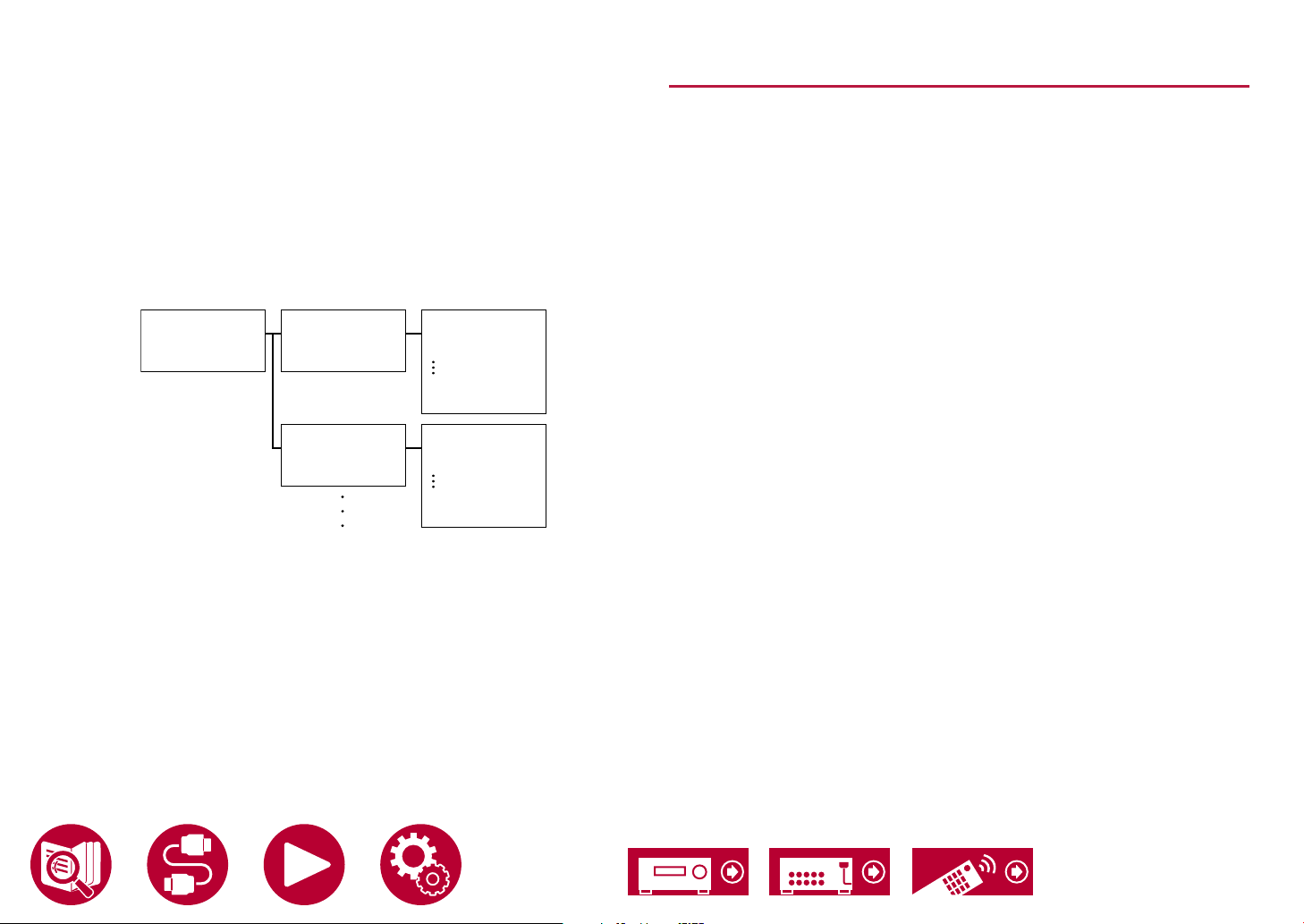
etc. may occur.
• When playing les recorded with VBR (Variable bit-rate), the playback time
may not be displayed correctly.
• This unit supports the gapless playback of the USB storage device in the
following conditions.
When continuously playing WAV, FLAC and Apple Lossless les with the
same format, sampling frequency, the number of channels and quantization
bit rate.
• To display an album title, artist name and album art of a le in WAV format,
make the folder structure and le names as shown below when saving music
les. The album art can be displayed by saving a .jpg le to display on the
screen in the folder of bottom level. Note that a large volume of .jpg le may
take time to be displayed, or may not be displayed.
Folder 1
Artist name
Folder 1-1
Album name
Folder 1-2
Album name
file 1-1
file 2-1
file 3-1
.jpg file
file 1-2
file 2-2
file 3-2
.jpg file
Playback
USB Storage Device Requirements
• This unit can use USB storage devices that comply with the USB mass
storage class standard. Also the format of USB storage devices supports
FAT16 or FAT32 le system format.
• If the USB storage device has been partitioned, each section will be treated
as an independent device.
• Up to 20,000 tracks per folder are supported, and folders can be nested up to
16 levels deep.
• USB hubs and USB storage devices with hub functions are not supported. Do
not connect these devices to the unit.
• If an AC adapter is supplied with the USB storage device, connect the AC
adapter, and use it with a household outlet.
• USB storage devices with security functions are not supported on this unit.
• Media inserted to the USB card reader may not be available in this function.
Furthermore, depending on the USB storage device, proper reading of the
contents may not be possible.
• In use of a USB storage device, our company accepts no responsibility
whatsoever for the loss or modication of data stored on a USB storage
device, or malfunction of the USB storage device. We recommend that you
back up the data stored on a USB storage device before using it with this unit.
• Note that operation is not always guaranteed for all USB storage devices.
97
Page 98
Playback
Music Server
Streaming play of music les stored on PCs or NAS devices connected to the same network as this unit is supported.
• The network servers this unit is compatible with are those PCs with players installed that have the server functionality of Windows Media® Player 12 or NAS that
are compatible with home network functionality. When using Windows Media® Player 12, you need to make the settings beforehand. Note that with PCs, only music
les registered in the library of Windows Media® Player can be played.
Supported Audio Formats
MP3 (.mp3)
• MPEG-1/MPEG-2 Audio Layer 3/44.1 kHz, 48 kHz/Between 8 kbps and 320
kbps, and VBR
WMA (.wma)
• 44.1 kHz, 48 kHz/Between 5 kbps and 320 kbps, and VBR
• WMA Pro/Voice/WMA Lossless formats are not supported.
WAV (.wav)
WAV les contain uncompressed PCM digital audio.
• 44.1 kHz, 48 kHz, 88.2 kHz, 96 kHz, 176.4 kHz, 192 kHz/8 bit, 16 bit, 24 bit
AIFF (.aiff/.aif)
AIFF les contain uncompressed PCM digital audio.
• 44.1 kHz, 48 kHz, 88.2 kHz, 96 kHz, 176.4 kHz, 192 kHz/8 bit, 16 bit, 24 bit
AAC (.aac /.m4a /.mp 4/.3gp/.3g2)
• MPEG-2/MPEG-4 Audio/44.1 kHz, 48 kHz, 88.2 kHz, 96 kHz/Between 8 kbps
and 320 kbps, and VBR
FLAC (.ac)
• 44.1 kHz, 48 kHz, 88.2 kHz, 96 kHz, 176.4 kHz, 192 kHz/8 bit, 16 bit, 24 bit
LPCM (Linear PCM)
• 44.1 kHz, 48 kHz/16 bit
Apple Lossless (.m4a/.mp4)
• 44.1 kHz, 48 kHz, 88.2 kHz, 96 kHz/16 bit, 24 bit
DSD (.dsf/.dff)
• DSF/DSDIFF/2.8 MHz, 5.6 MHz, 11.2 MHz
Windows Media® Player 12 settings
1. Turn on your PC, and start Windows Media® Player 12 .
2. In the "Stream" menu, select "Turn on media streaming" to display a dialog
box.
• If the media streaming is already turned on, select "More streaming
options..." in the "Stream" menu to display the list of playback devices in
the network, and then go to step 4.
3. Click "Turn on media streaming" to display the list of playback devices in the
network.
4. Select this unit in "Media streaming options" and check that it is set to "Allow".
5. Click "OK" to close the dialog.
6. Open the "Stream" menu and conrm that "Allow remote control of my
Player..." is checked.
Playing Back ( →p99)
98
Page 99
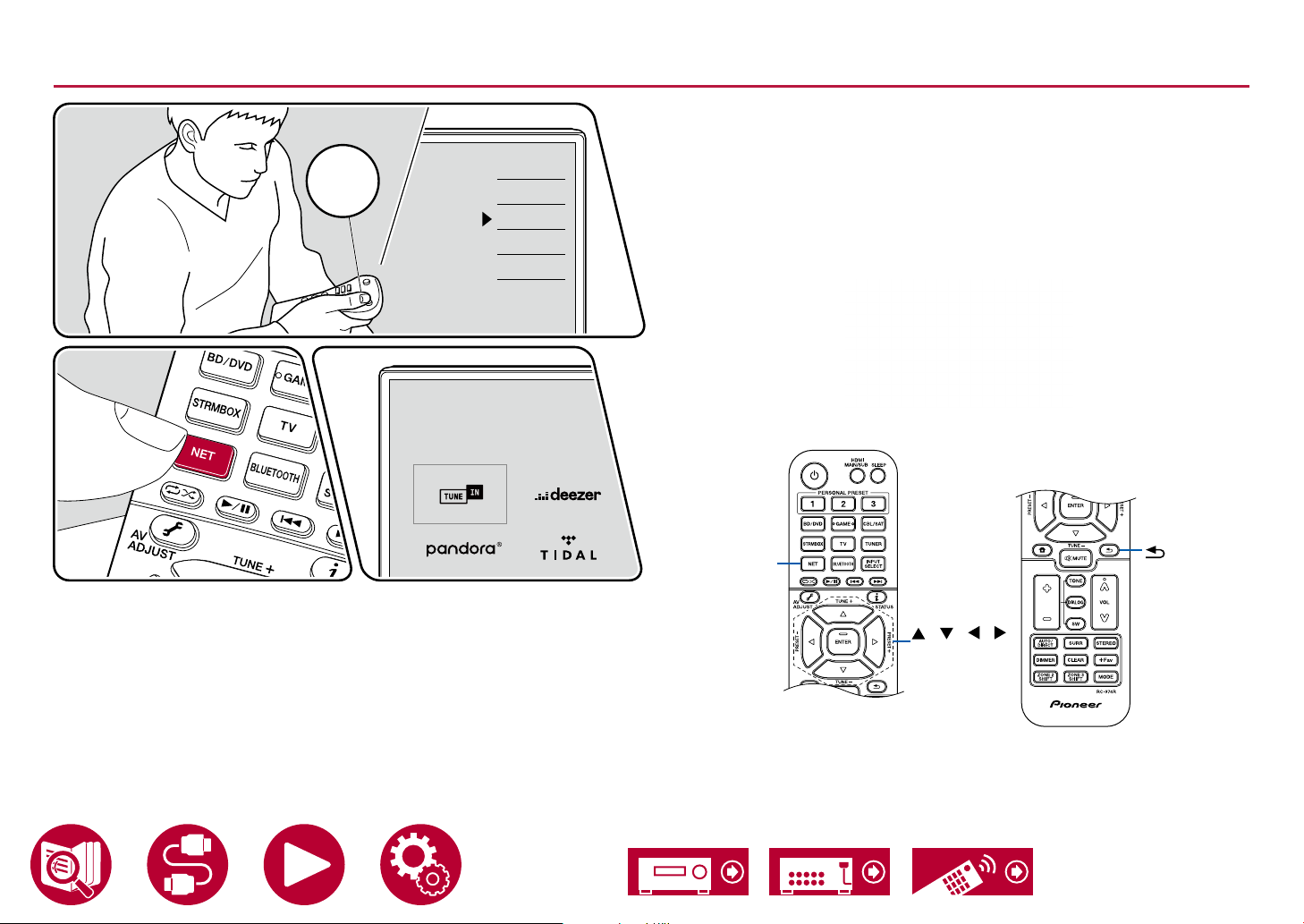
Playing Back
TV
INPUT
Network
TV’s REMOTE
Inputs
TV
HDMI 1
HDMI 2
HDMI 3
Playback
Perform the following procedure when this unit is on.
1. Switch the input on the TV to the input connected to the unit.
2. Start the server (Windows Media® Player 12 or NAS device) containing the
music les to play.
3. Make sure that the PCs and/or NASs are properly connected to the same
network as this unit.
4. Press NET to display the network service list screen.
• If the "NET" indicator on the display blinks, the unit is not properly
connected to the network. Check the connection.
5. With the cursors, select "Music Server", and then press ENTER.
NET
The illustration shows an image.
/ / /
ENTER
99
Page 100
6. Select the target server with the cursors, and press ENTER to display the
items list screen.
• This unit cannot access pictures and videos stored on servers.
• Depending on the server sharing settings, contents stored on the server
may not be displayed.
7. With the cursors, select the music le to play, and then press ENTER to start
playback.
• If "No Item." is displayed on the screen, check whether the network is
properly connected.
• To return to the previous screen, press
• When playing les recorded with VBR (Variable bit-rate), the playback time
may not be displayed correctly.
• For music les on a server, up to 20,000 tracks per folder are supported, and
folders can be nested up to 16 levels deep.
• Depending on the type of media server, the unit may not recognize it, or may
not be able to play its music les.
.
Searching music les to select
If the server you use supports search functions, the following search function
can be used.
Perform the following procedure with available servers displayed using Music
Server.
1. With
2. With
3. With / , select the folder, and press ENTER.
4. Input a character string to search for, and press ENTER. Then, the search
5. With
/ , select the server containing music les you want to play, and
select ENTER.
/ , select the Search folder, and press ENTER. The Search folder
contains the following three folders.
• "Search by Artist": Select this when searching by artist name.
• "Search by Album": Select this when searching by album title.
• "Search by Track": Select this when searching by track title.
result is displayed.
/ , select the music les to play, and select ENTER.
Playback
Controlling Remote Playback from a PC
You can use this unit to play music les stored on your PC by operating the PC
in your home network. The unit supports remote playback via Windows Media®
Player 12. To use the remote playback function of this unit with Windows Media®
Player 12, it must be congured beforehand. ( →p98)
Remote playback
1. Turn on the power of the unit.
2. Turn on your PC, and start Windows Media
3. Select and right-click the music le to play with Windows Media® Player 12 .
• To remotely play a music le on another server, open the target server
from "Other Libraries", and select the music le to play.
4. Select this unit in "Play to" to open the "Play to" window of Windows Media®
Player 12, and start playback on this unit.
• If your PC is running on Windows® 8.1, click "Play to", and select this unit.
If your PC is running on Windows® 10, click "Cast to Device", and select
this unit. Operations during remote playback are possible from the "Play
to" window on the PC. The playback screen is displayed on the HDMIconnected TV.
5. Adjust the volume using the volume bar on the "Play to" window.
• Sometimes, the volume displayed on the remote playback window may
differ from the volume displayed on the display of this unit.
• When the volume is changed on this unit, the value is not reected in the
"Play to" window.
• This unit cannot play music les remotely in the following conditions.
– It is using a network service.
– It is playing a music le on a USB storage device.
• Remote play of FLAC and DSD is not supported.
• Remote playback does not support the gapless playback.
®
Player 12 .
100
 Loading...