

Page 1

HPE B-series 32Gb SAN Switches
Getting Started Guide
Abstract
This document provides information on installing, configuring, and maintaining the HPE
StoreFabric SN3600B 32Gb Fibre Channel Switch or HPE StoreFabric SN6600B 32Gb Fibre
Channel Switch.
Part Number: 870876-002
Published: March 2017
Edition: 2
Page 2

©
2016, 2017 Hewlett Packard Enterprise Development LP
Notices
The information contained herein is subject to change without notice. The only warranties for Hewlett
Packard Enterprise products and services are set forth in the express warranty statements accompanying
such products and services. Nothing herein should be construed as constituting an additional warranty.
Hewlett Packard Enterprise shall not be liable for technical or editorial errors or omissions contained
herein.
Confidential computer software. Valid license from Hewlett Packard Enterprise required for possession,
use, or copying. Consistent with FAR 12.211 and 12.212, Commercial Computer Software, Computer
Software Documentation, and Technical Data for Commercial Items are licensed to the U.S. Government
under vendor's standard commercial license.
Links to third-party websites take you outside the Hewlett Packard Enterprise website. Hewlett Packard
Enterprise has no control over and is not responsible for information outside the Hewlett Packard
Enterprise website.
Acknowledgments
Microsoft® and Windows® are either registered trademarks or trademarks of Microsoft Corporation in the
United States and/or other countries.
UNIX® is a registered trademark of The Open Group.
Page 3

Contents
Overview.................................................................................................. 5
Setup and install..................................................................................... 6
Login and Configuration ..................................................................... 16
HPE StoreFabric SN3600B 32Gb FC Switch............................................................................... 5
HPE StoreFabric SN6600B 32Gb FC Switch............................................................................... 5
Installation and safety considerations........................................................................................... 6
Installing the switch.......................................................................................................................6
Installing the SN3600B Switch in a rack using the Rack Mount Kit................................... 6
Installing the HPE StoreFabric SN6600B 32Gb FC Switch in a rack using the Rack
Mount Kit.......................................................................................................................... 11
Installing a standalone switch.......................................................................................... 14
Setting up the switch...................................................................................................................16
Connecting the serial cable..............................................................................................16
Logging in to the serial console port................................................................................ 16
Setting the IP address......................................................................................................17
Setting the date and time................................................................................................. 17
Installing Transceivers......................................................................................................19
Verifying the configuration................................................................................................21
Backing up the configuration............................................................................................21
Installing and activating Port Upgrade licenses.......................................................................... 21
Configuring the zones and selecting devices..............................................................................22
Fabric OS Native and AG modes................................................................................................22
Disabling and enabling AG mode.....................................................................................22
Powering the switch on and off................................................................................................... 23
LEDs........................................................................................................................................... 23
Resources and other information........................................................29
Related information.....................................................................................................................29
Hewlett Packard Enterprise Websites.........................................................................................29
Specifications........................................................................................30
Physical specifications................................................................................................................ 30
Facility requirements...................................................................................................................31
Power supply specifications........................................................................................................31
Environmental requirements....................................................................................................... 32
General specifications.................................................................................................................33
Data transmission ranges........................................................................................................... 33
Memory specifications.................................................................................................................34
FC port specifications..................................................................................................................34
Serial port specifications............................................................................................................. 35
AG default port mapping............................................................................................................. 35
Contents 3
Page 4

Electrostatic discharge and grounding recommendations.............. 36
Electrostatic discharge recommendations.................................................................................. 36
Grounding methods.................................................................................................................... 36
Warranty and regulatory information..................................................37
Warranty information...................................................................................................................37
Regulatory information................................................................................................................37
Belarus Kazakhstan Russia marking............................................................................... 37
Turkey RoHS material content declaration.......................................................................38
Ukraine RoHS material content declaration..................................................................... 38
4 Contents
Page 5

Overview
HPE StoreFabric SN3600B 32Gb FC Switch
The HPE StoreFabric SN3600B 32Gb FC Switch is a 24-port autosensing 4, 8, 16, or 32 Gb/s FC switch
that delivers the latest HPE single-chip architecture for FC SANs. It is an entry level switch designed to
handle the SAN requirements of a small to medium sized workgroup environment.
HPE StoreFabric SN6600B 32Gb FC Switch
The HPE StoreFabric SN6600B 32Gb FC Switch is a 64-port autosensing 4, 8, 10, 16, or 32 Gb/s FC
switch that delivers the latest HPE multi-chip architecture for FC SANs. It is an enterprise-class switch
designed to handle the large-scale SAN requirements of an enterprise environment, and can also be
used to address the SAN requirements of a small-sized to medium-sized workgroup.
Overview 5
Page 6

Setup and install
Installation and safety considerations
You can install the switch in a rack or as a standalone device on a flat surface. Hewlett Packard
Enterprise recommends mounting the HPE StoreFabric SN3600B 32Gb FC Switch or HPE StoreFabric
SN6600B 32Gb FC Switch in an HPE 10000 G2 Series Rack.
Installing the switch
To set up the switch for the first time, you will need the following:
• Workstation with an installed terminal emulator (such as HyperTerminal)
• Unused IP address and corresponding subnet mask and gateway address
• Serial cable (supplied with the switch)
• Ethernet cable
• Access to an FTP server, SCP server, or USB device for backing up the switch configuration (optional)
• HPE B-series SFP+ transceivers and compatible cables, as required (HPE B-series 32 Gb/s SFP+
transceivers for SFP+ ports, or 32 Gb/s QSFP transceivers for QSFP ports (SN6600B 32Gb FC
Switch only), are required for 32 Gb/s performance)
IMPORTANT:
Depending on your ordered part number, the switches may come with optics or without optics. If
ordered without optics, order transceivers and cables separately. The HPE StoreFabric SN3600B
32Gb FC Switch and HPE StoreFabric SN6600B 32Gb FC Switch support only transceivers and
cables labeled either HPE B-series or Brocade SFP+, QSFP (SN6600B 32Gb FC Switch only) , or
HPE B-series cable.
Installing the SN3600B Switch in a rack using the Rack Mount Kit
Use the Switch Rack Mount Kits to install your 32Gb FC Switch in any HPE supported racks. See the
product QuickSpecs for the list.
For optimal cable management, Hewlett Packard Enterprise recommends that you install the SN3600B
Rack Mount Kit to allow the non-port side of the device to slide out of the cool-air side of the rack. In this
installation, the port side of the device is set back from the edge of the rack, allowing a more gradual
bend in the fiber optic cables.
The following items are required to install the device in a rack:
• Power cables
• #2 Phillips screwdriver
• 1/4 inch slotted screwdriver
• Plenum (if required)
• SAN Switch Rack Mount Kit hardware
Table 1 identifies the rails and rail-mounting hardware.
6 Setup and install
Page 7
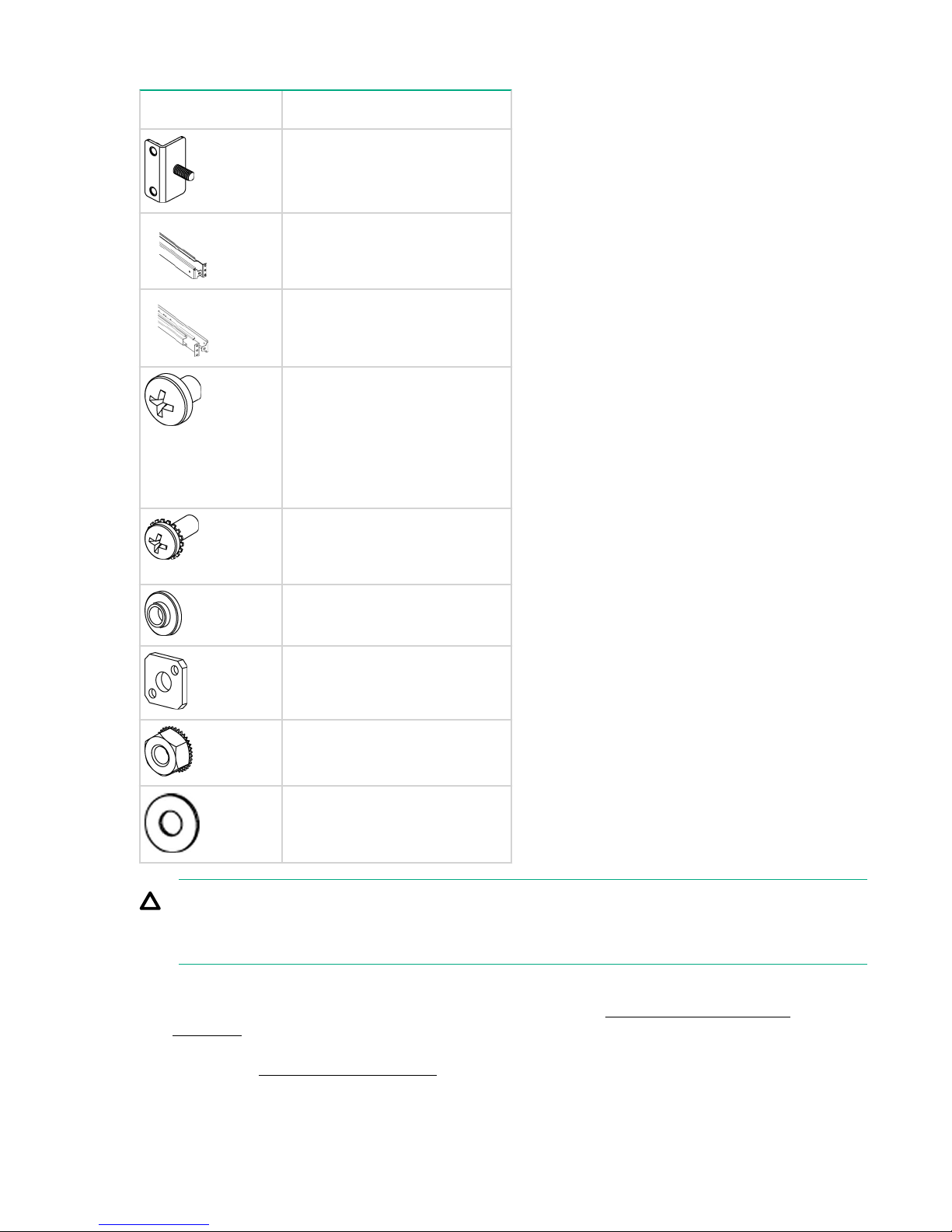
Table 1: SN3600B Rack Mount Kit hardware
Item Description
Two rear mounting brackets
A right inner rail and a right
outer rail
A left inner rail and a left outer
rail
Fourteen #8-32 x 3/16-inch
Phillips panhead screws with
thread lock.
Fourteen #8-32 x 5/16-inch
Phillips panhead SEMS
screws.
Ten #10-32 x 1/2-inch Phillips
panhead screws with captive
star lock washers
Eight #10 alignment washers
Eight #10 adapter washers
Two 1/4-20 hex nuts with
captive star lock washers
Two 1/4-inch flat washers
CAUTION:
For proper airflow, the SFP+ media side of the device port side must face the rear of the rack. This
allows cool air to enter the front of the rack and exit from the rear.
To install the switch in a rack using the Rack Mount Kit:
1. Verify that the required parts and hardware are available. (See SN3600B Rack Mount Kit
hardware.)
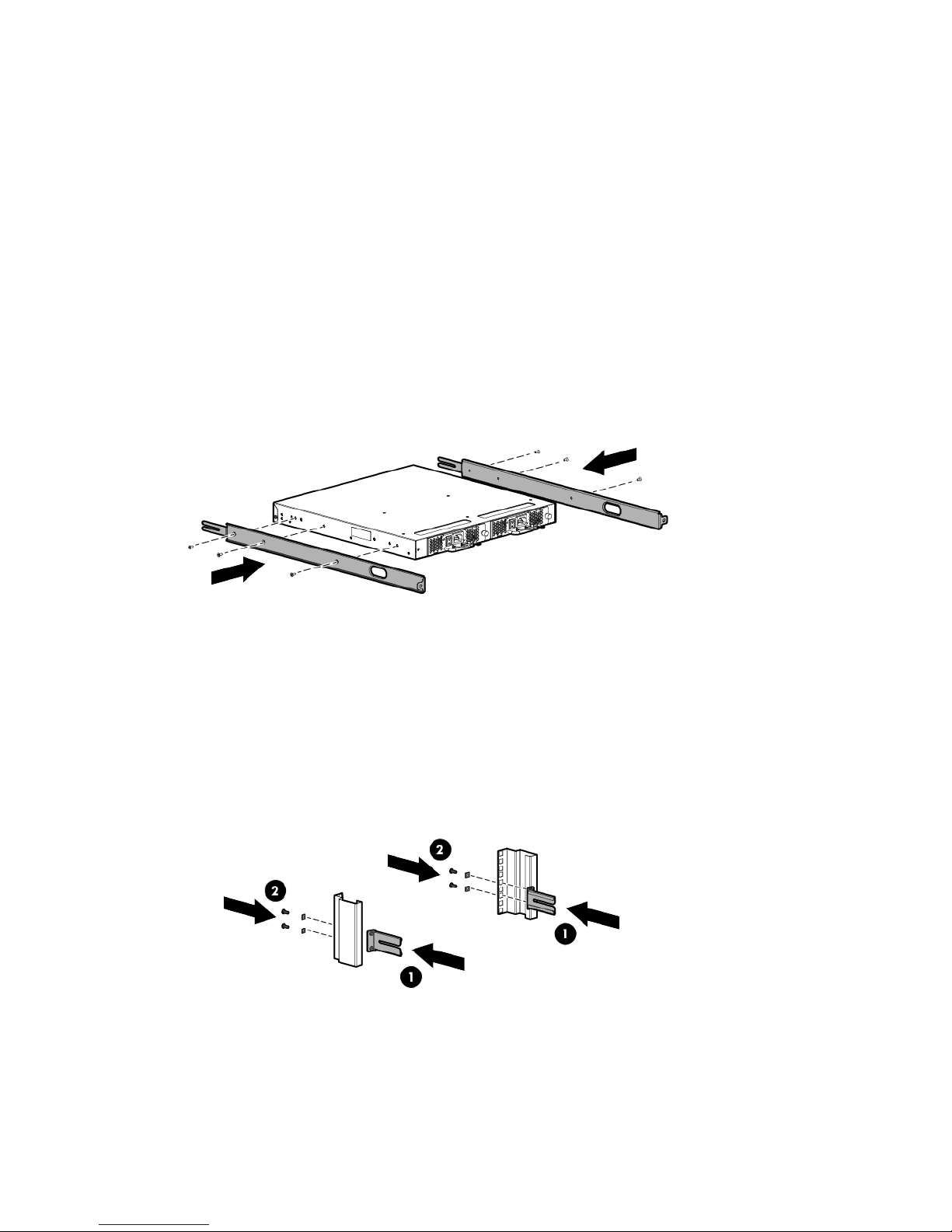
2. Place the switch on a flat surface and attach each inner rail to the switch using five flat-head screws
as shown in Attaching the inner rails. The rails are labeled Left and Right to designate the left side
and right side of the switch as viewed from its non-port side.
Setup and install 7
Page 8
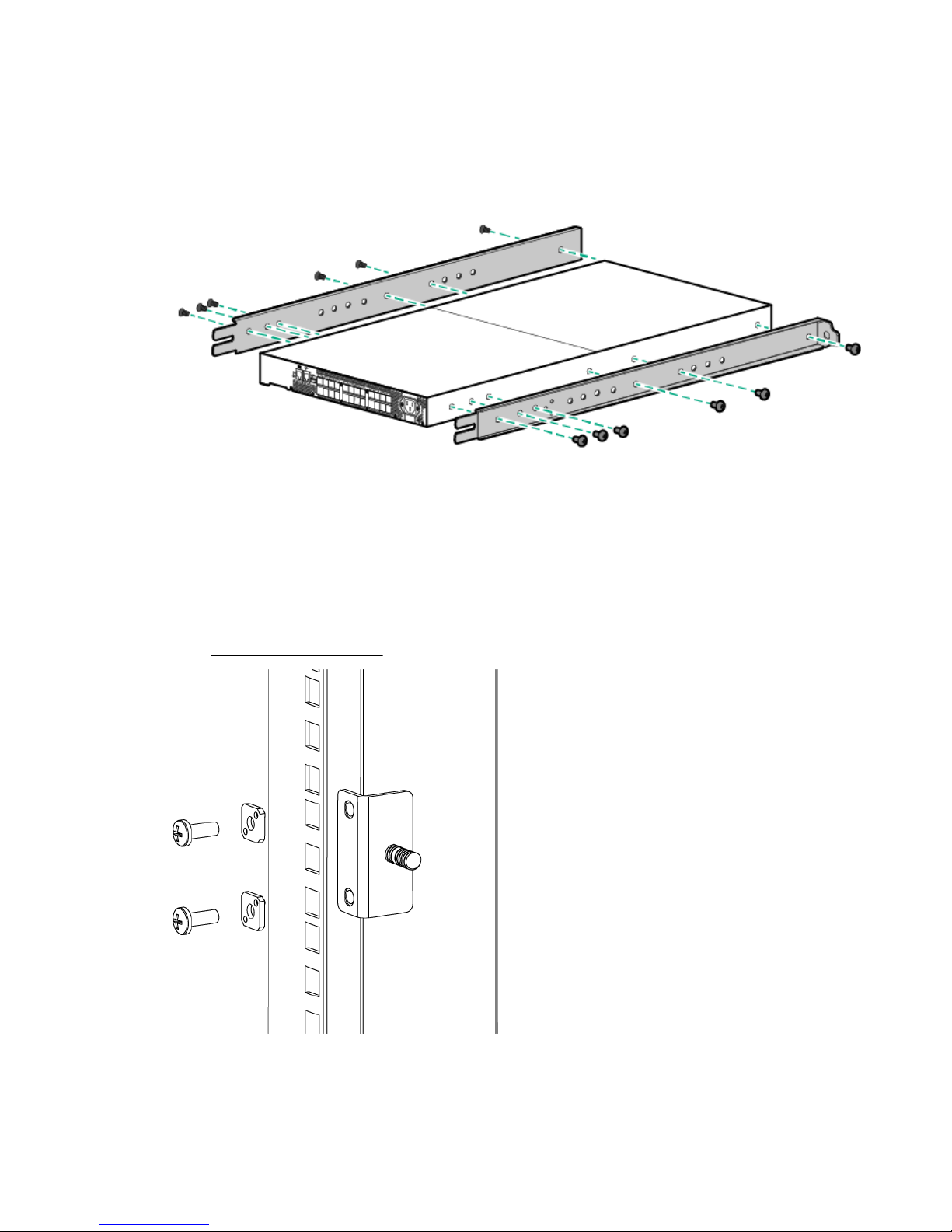
Figure 1: Attaching the inner rails
3. Choose a mounting location for the device in the rack.
4. Attach the rear mounting brackets to the rear rack uprights.
• For an HPE 10000 Series Rack, assemble each of the brackets using two #10-32 x 1/2-inch
Phillips panhead screws with captive star lock washers and two #10 adapter washers, as shown
in HPE 10000 Series Rack.
Figure 2: HPE 10000 Series Rack
8 Setup and install
Page 9

NOTE:
The SN3600B Rack Mount Kit contains rails labeled Left and Right to designate the left side
and right side of the device or cabinet as viewed from the front of the cabinet.
5. Assemble the outer rails as follows:
• Attach the left outer rail and right outer rail to the rear mounting brackets using two 1/4-20 hex
nuts with captive star lock washers attached loosely, as shown in HPE 10000 Series Rack. Do
not tighten the nuts.
Figure 3: HPE 10000 Series Rack
• Depending on the rack you are using, complete one of the following tasks:
◦ For an HPE 10000 Series Rack, install two #10-32 x 1/2-inch Phillips panhead screws with
captive star lock washers and two #10 adapter washers in the upper and lower holes on the
right rail. Then, install two #10-32 x 1/2-inch Phillips panhead screws with captive star lock
washers and two #10 adapter washers in the upper and lower holes on the left rail. (See HPE
10000 Series Rack).
Setup and install 9
Page 10
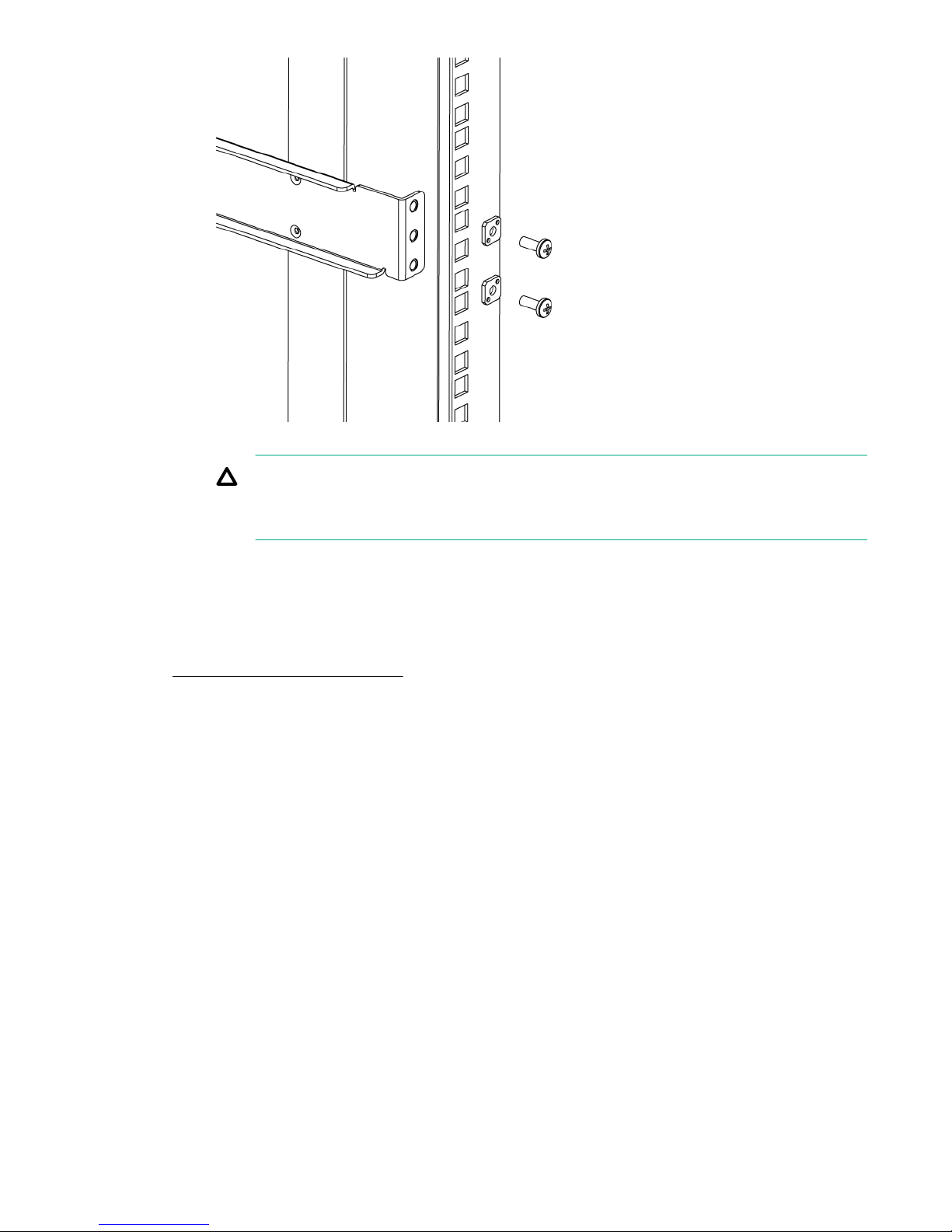
Figure 4: HPE 10000 Series Rack
◦
CAUTION:
Use only the screws provided in the SN3600B Rack Mount Kit. Using other screws can
cause damage to internal components.
6. To attach each inner rail to the SN3600B, use four screw holes marked 8. The plenum requires one
screw hole marked 8 and one screw hole marked 16.
7. Secure the two inner rails (one on each side) to the device using the appropriate number of screws.
8. Install the plenum included in the switch accessory kit.
9. From the front of the rack, slide the switch (with inner rails attached) onto the outer rails, taking care
to align the inner rails with the attachment screws on the outer rails at the rear of the rack. See
Installing the switch in the rack.
10 Setup and install
Page 11
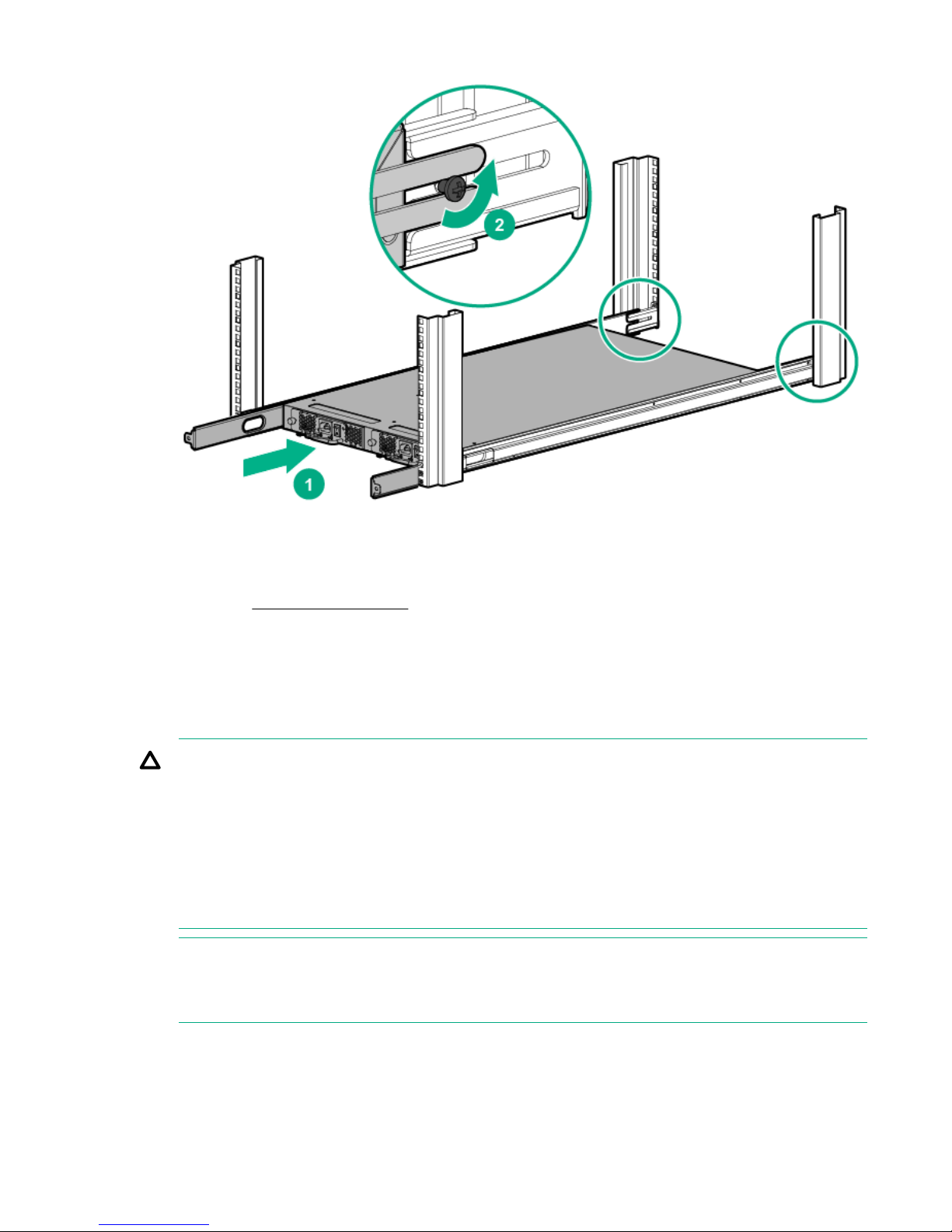
Figure 5: Installing the switch in the rack
10. When the switch is in place, secure the inner rails to the outer rails by tightening the screws at the
rear of the rack.
11. Proceed to Setting up the switch on page 16.
Installing the HPE StoreFabric SN6600B 32Gb FC Switch in a rack using the
Rack Mount Kit
Use the Switch Rack Mount Kits to install your 32Gb FC Switch in any HPE supported racks. See the
product QuickSpecs for the list.
CAUTION:
Install the Rack Mount Kit so that when the switch is installed, the port side faces the rear of the
rack. This configuration optimizes performance by:
• Providing better airflow by using a plenum to force cool air to enter the switch from the front of
the rack.
• Providing room for a gradual bend in the fiber optic cables because the port side of the switch is
set back from the edge of the rack. Use only the screws provided in the Rack Mount Kit. Using
other screws can cause damage to internal components.
NOTE:
For the switches with Port Side Air Intake, install the Rack Mount Kit so that when the switch is
installed, the port side faces the front of the rack.
The following items are required to install the switch in a rack:
• Power cables
• #2 Phillips screwdriver
Installing the HPE StoreFabric SN6600B 32Gb FC Switch in a rack using the Rack Mount Kit 11
Page 12
• 7/16-inch wrench or socket
• SAN Switch Rack Mount Kit hardware
Installation safety guidelines
Verify that the rack and the area around the rack meet the following requirements:
• Plan a rack space that is a 1U high and provides clearance for the switch power cords to run between
the rack sides and the rails at the front of the 19-inch EIA rack.
• Ground all equipment in the rack through a reliable branch circuit connection and maintain ground at
all times. Do not rely on a secondary connection to a branch circuit, such as a power strip.
• Ensure that airflow and temperature requirements are met on an ongoing basis.
• Secure the rack to ensure stability in case of unexpected movement.
Rack mount installation
To install the switch in a rack using the Rack Mount Kit:
1. Place the switch on a flat surface and attach each inner rail to the switch using three flat-head
screws.
Figure 6: Attaching the inner rails to the switch
2. Choose a rack mounting location that provides clearance for the switch power cords to run between
the rack sides and the rails at the front of the rack.
3. Attach each rear mounting bracket to a rear rack upright column using two Phillips screws and
adapter washers.
Figure 7: Installing the rear mounting brackets
4. Attach each outer rail.
12 Setup and install
Page 13

The rails are labeled Left and Right to designate the left side and right side of the rack as viewed
from the front of the cabinet.
Figure 8: Attaching the outer rails
a. Slide the rail over the rear mounting brackets.
b. Attach the front of the rail to a front rack upright column using two Phillips screws and adapter
washers.
c. Attach the outer rail to the rear mounting bracket using a Phillips screw.
NOTE:
Tighten the rear screws just enough for the end of the screw to go through the rear
brackets. Later in the procedure, you will need room to slide the inner rail between the
screw head and the outer bracket.
5. From the front of the rack, slide the switch (with inner rails attached) onto the outer rails, taking care
to align the inner rails with the attachment screws on the outer rails at the rear of the rack.
Figure 9: Installing the switch in the rack
Setup and install 13
Page 14

6. When the switch is in place, secure the inner rails to the outer rails by tightening the screws at the
rear of the rack.
7. At the front of the rack, run the switch power cords from the sides of the rack through the cutouts in
the rail, and then connect them to the switch power supplies. Connect two power cords to the
SN6600B 64-port switch.
IMPORTANT:
Make sure that the power cords do not come in contact with any sharp edges.
1. Cutouts for power cords 2. Power cable plugs
3. Power switches 4. Plenum thumb screws
Figure 10: Connecting power and installing the plenum
8. Connect the other end of the power cords to power sources on separate circuits to protect against
AC failure. (Make sure that two power cords are connected to the SN6600B 64-port switch.)
9. Power on the power supplies by setting the power switches to the ON (I) position.
The power supply LEDs are amber until the Power On Self Test (POST) is complete, and then
change to green. The HPE StoreFabric SN6600B 32Gb FC Switch takes several minutes to boot and
complete POST.
NOTE:
When installed, the plenum covers the power supply switches and LEDs. However, the LEDs
are visible through the air holes in the front of the plenum.
10. Slide the plenum over the nonport side of the inner rails, taking care to bypass the power cables.
11. Tighten the thumbscrews to secure the plenum to the front of the rack.
12. Proceed to Setting up the switch on page 16.
Installing a standalone switch
To install the HPE StoreFabric SN3600B 32Gb FC Switch or HPE StoreFabric SN6600B 32Gb FC Switch
as standalone switch, follow the steps:
1. Unpack the switch and verify the contents.
2. To prevent the switch from sliding off the supporting surface, apply the adhesive rubber feet as follows:
14 Installing a standalone switch
Page 15

a. Clean the indentations at each corner on the bottom of the switch to ensure that they are free of
dust or other debris.
b. With the adhesive side against the chassis, place one rubber foot in each indentation and press
into place.
3. Place the switch on a flat, sturdy surface.
4. HPE StoreFabric SN3600B 32Gb FC Switch-Connect the power cord to the power supply present.
Power is supplied to the switch as soon as the power cord is connected to the switch and power
source. There is no power switch on the power supply.
HPE StoreFabric SN6600B 32Gb FC Switch- Connect the power cords to both power supplies and
then to power sources on separate circuits to protect against AC failure.
Ensure that the cords have a minimum service loop of 6 inches available and are routed to avoid
stress.
5. HPE StoreFabric SN6600B 32Gb FC Switch only-Power on the power supplies by setting both AC
switches to the on (|) position.
The power supply LEDs are amber until POST is complete, and then change to green. The switch
takes several minutes to boot and complete POST.
NOTE:
• HPE StoreFabric SN3600B 32Gb FC Switch-Power is supplied to the switch as soon as the
power cord is connected to the switch and power source. There is no power switch on the
power supply.
• HPE StoreFabric SN6600B 32Gb FC Switch only-Power is supplied to the switch as soon
as the first power supply is connected and turned on.
6. After POST is complete, verify the switch power and status LEDs on the port side of the switch are
green.
Setup and install 15
Page 16

Login and Configuration
This chapter provides configuration information for the HPE StoreFabric SN3600B 32Gb FC Switch or
HPE StoreFabric SN6600B 32Gb FC Switch.
Setting up the switch
To set up the switch, you will need the following:
• Standard screwdriver
• WWN, located on the switch ID pull-out tab
• Ethernet connection (hub or switch)
• Ethernet and FC cables
• Disk array with FC ports
• If you are using static IP addressing, you will need the following items (not required if using DHCP):
◦ Fixed IP address (IPv4 or IPv6) for the switch
◦ Subnet mask value
◦ Default gateway value
Connecting the serial cable
Procedure
1. Connect the serial cable to the serial port on the switch and to an RS-232 serial port on the
workstation.
If the serial port is RJ-45 instead of RS-232, remove the adapter on the end of the serial cable and
insert the exposed RJ-45 connector into the RJ-45 serial port on the workstation.
2. Disable any serial communication programs running on the workstation.
3. Open a terminal emulator (such as HyperTerminal on a PC, or TERM, TIP, or Kermit in a UNIX
environment) and configure as follows:
For most Windows systems:
Bits per second: 9,600
Data bits: 8
Parity: None
Stop bits: 1
Flow control: None
For most UNIX systems:
Enter tip /dev/ttyb -9600
If ttyb is already in use, enter tip /dev/ttya -9600
Logging in to the serial console port
Procedure
1. Verify that the switch has completed POST.
When POST is complete, the switch status and switch power LEDs return to a normal state.
2. When the terminal emulator stops reporting information, press Enter to display the login prompt.
3. Log in to the switch as admin, using the default password, password.
16 Login and Configuration
Page 17

You are prompted to change the default password at initial login.
Setting the IP address
You can configure the switch with a static IP address or you can use a DHCP server to set the IP
address. (DHCP is enabled by default.) The switch supports both IPv4 and IPv6.
Using DHCP to set the IP address
When using DHCP, the switch obtains its IP address, subnet mask, and default gateway address from the
DHCP server. The DHCP client can connect only to a DHCP server that is on the same subnet as the
switch. If your DHCP server is not on the same subnet as the switch, use a static IP address.
Setting a static IP address
Procedure
1. Use the ipaddrset command to set the Ethernet IP address.
• For an IPv4 address, use dotted-decimal notation:switch :admin> ipaddrset
• For an IPv6 address, use colon-separated notation:switch:admin> ipaddrset -ipv6 --add
1080::8:800:200C:417A/64
2. Provide the following network information for an IPv4 address:
a. Ethernet IP address: 192.168.74.102
b. Ethernet subnet mask: 255.255.255.0
c. Gateway IP address: 192.168.74.1
3. When prompted, enter off to disable DHCP:
DHCP [OFF]: off
4. Verify the IP address by entering the ipaddrshow command at the prompt.
5. Record the IP address on the pull-out tab on the port side of the switch.
6. If the serial port is no longer required, use the logout command to log out of the serial console.
Remove the serial cable and replace the plug in the serial port.
7. Connect the Ethernet port on the switch to the Ethernet network where the IP address was assigned.
Setting the date and time
Setting the date
Procedure
1. Log in to the switch using the admin account. The default password is password.
2. Enter the date command:
date "mmddHHMMyy"
The values are as follows:
mm is the month; valid values are 01 through 12.
dd is the date; valid values are 01 through 31.
HH is the hour; valid values are 00 through 23.
MM is minutes; valid values are 00 through 59.
Setting the IP address 17
Page 18

yy is the year; valid values are 00 through 99. (Values greater than 69 are interpreted as 1970 through
1999; values less than 70 are interpreted as 2000-2069.)
switch:admin> date
Fri Dec 30 17:01:48 UTC 2016
switch:admin> date "0109142417"
Mon Jan 9 14:24:00 UTC 2017
Setting the time zone
You need to only set the time zone once on each switch because the value is written to nonvolatile
memory.
The following procedure sets the current time zone to Central Standard Time using the tsTimeZone
command:
Procedure
1. Log in to the switch using the admin account. The default password is password.
2. Use tsTimeZone to set the time zone by Country/City or by time zone ID, such as PST. The following
example shows how to change the time zone to US/Central:
switch:admin> tstimezone
Time Zone : US/Pacific
switch:admin> tstimezone US/Central
switch:admin> tstimezone
Time Zone : US/Central
3. [Optional] Use tstimezone --interactive to select your time zone through an interactive menu.
Synchronizing local time using NTP
To synchronize the local time using NTP:
Procedure
1. Log in to the switch using the admin account. The default password is password.
2. Enter the tsclockserver command:
switch:admin> tsclockserver "<ntp1;ntp2>”
The value ntp1 is the IP address or DNS name of the first NTP server, which the switch must be able
to access. The value ntp2 is the name of the second NTP server and is optional. The entire operand
"<ntp1;ntp2>” is optional; by default, this value is LOCL, which uses the local clock of the principal
or primary switch as the clock server.
switch:admin> tsclockserver
LOCLx
switch:admin> tsclockserver "132.163.135.131"
switch:admin> tsclockserver
132.163.135.131
18 Setting the time zone
Page 19

The following example shows how to set up more than one NTP server using a DNS name:
switch:admin> tsclockserver "10.32.170.1;10.32.170.2;ntp.localdomain.net"
Changes to the clock server value on the principal or primary FCS switch are propagated to all
switches in the fabric.
For more information on using an NTP server, and IPv6 considerations, see the Fabric OS
Administrator's Guide.
Installing Transceivers
The switch supports only HPE or Brocade-qualified transceivers. If you use an unqualified transceiver, the
switchshow command output shows the port in a Mod_Inv state. Fabric OS also logs the issue in the
system error log. To insert an SFP+ or QSFP (SN6600B 32Gb FC Switch only) transceiver, complete the
following steps:
WARNING:
Do not insert a cable intended for an mSFP transceiver into a regular SFP+ transceiver; you may
damage the cable. Do not attempt to insert a standard SFP cable into an mSFP transceiver; you
can damage the transceiver.
NOTE:
Procedure
1. Install the SFP+ or QSFP (SN6600B 32Gb FC Switch only) transceivers in the appropriate FC ports on
Only HPE B-series or Brocade branded optical transceivers are supported.
the switch to match the port type.
Remove any protector plugs from the SFP+ transceiver. Insert each SFP+ transceiver (right side up in
the top row of ports, and upside down in the bottom row of ports) until it is firmly seated and the
latching mechanism clicks.
NOTE:
Each SFP+ transceiver has a 10-pad gold-plated PCB-edge connector on the bottom. Insert an
SFP+ transceiver into the upper row of ports with the gold edge down. Insert an SFP+
transceiver into the lower row of ports with the gold edge up.
The 32 Gb/s and 16 Gb/s SFP+ transceivers do not have a bail. Use the pull tab to push the
transceiver into the port.
Installing Transceivers 19
Page 20

Figure 11: Inserting a 16 Gb/s SFP+ transceiver in an FC port
NOTE:
SN6600B 32Gb FC Switch only-Each QSFP+ transceiver also has a pull tab. Use the pull tab on
these transceivers to help push the transceiver into the port.
Transceivers are keyed so that they can only be inserted with the correct orientation. If a
transceiver does not slide in easily, ensure that it is correctly oriented. Push the correctly oriented
transceiver into the port until it is firmly seated and the latching mechanism clicks.
1. Pull tab 2. QSFP cable
3. QSFP transceiver
Figure 12: Inserting a QSFP transceiver in an FC port (SN6600B 32Gb FC Switch only)
2. Connect the FC cables from the switch to your host and storage devices.
a. Remove the plastic protector caps from the FC cable ends (if there are any) and position the cable
connector so that it is oriented correctly.
b. Position a cable so that the key (the ridge on one side of the cable connector) is aligned with the
slot in the transceiver (see Figure 12: Inserting a QSFP transceiver in an FC port (SN6600B
32Gb FC Switch only) on page 20).
c. Insert the cable into the transceiver until the latching mechanism clicks.
20 Login and Configuration
Page 21

Verifying the configuration
To confirm that the switch is configured and ready for use:
Procedure
1. Observe the LEDs to verify that all components are functional.
2. Issue the switchshow command from the workstation.
This command provides information about the switch and port status.
3. Issue the fabricshow command from the workstation.
This command provides general information about the fabric.
Backing up the configuration
Procedure
1. Enter the configupload command.
This command uploads the switch configuration to the server, making it available for downloading to a
replacement switch, if necessary. For instructions on backing up the configuration, see the Fabric OS
Administrator's Guide.
2. Follow the on-screen prompts.
Installing and activating Port Upgrade licenses
Procedure
1. Use the licenseport --show command to verify the number of ports licensed on your switch.
2. Obtain the WWN from the Switch ID pull-out tab located on the port side of your switch.
3. Contact your Hewlett Packard Enterprise representative to purchase the appropriate Port Upgrade
4. Install the license.
For more information on this command, see the Fabric OS Command Reference Manual.
You can also use the switchshow or licenseidshow command to display the WWN.
license. Hewlett Packard Enterprise requires the switch WWN obtained in Step 2 to assign a license
key.
a. Log in to the switch as admin.
b. Enter the licenseadd command, followed by the license key.
For Example:
switch:admin> licenseadd DXXtN3LmRSMWCSW3XmfSBPfrWKLZ3HMTN73rP9GANJMA
adding license-key [DXXtN3LmRSMWCSW3XmfSBPfrWKLZ3HMTN73rP9GANJMA]
The license key consists of approximately 44 uppercase and lowercase letters and numerals.
IMPORTANT:
Enter the license key exactly as issued. If you enter the key incorrectly, the license will not
function properly.
c. Enter the licenseshow command to verify the license is valid.
If a licensed product is not displayed, the license is not valid.
Verifying the configuration 21
Page 22

NOTE:
You do not need to reboot the system.
5. Configure the inactive ports.
Enter the portenable command to enable the ports. For example:
portenable 8–15
6. Optional: Enter the portshow command to verify the newly activated ports have started.
Configuring the zones and selecting devices
See the Fabric OS Administrator's Guide, Web Tools Administrator Guide, or Network Advisor user
manual, available from the Storage section of the Hewlett Packard Enterprise website:
http://www.hpe.com/support/manuals
Fabric OS Native and AG modes
The HPE Storefabric SN3600B FC Switch and HPE StoreFabric SN6600B FC Switch can function in
either Fabric OS Native mode or Access Gateway (AG) mode. The switch is shipped in Native mode by
default.
• For general information and details on using AG, see the Access Gateway Administrator’s Guide.
• For a list of available features for each mode and AG restrictions, see the Access Gateway
Administrator’s Guide.
Disabling and enabling AG mode
NOTE:
You can disable and enable AG mode using Web Tools. For more information, see the Web Tools
Administrator’s Guide.
Enabling AG mode
To enable AG mode using Fabric OS commands:
Procedure
1. Before enabling AG mode, save the current configuration file using the configupload command.
2. Enter the switchshow command to verify the switch mode.
AG Mode is displayed for switchMode if the switch is in AG mode. Native is displayed for
switchMode if the switch is in Native mode.
3. Enter the switchdisable command to disable the switch.
The switch must be disabled in order to enable or disable AG mode.
4. Enter the ag -–modeenable command to enable AG mode.
5. Enter the ag --modeshow command to verify that AG mode is enabled.
switch:admin> ag --modeshow
Access Gateway mode is enabled.
Disabling AG mode
To disable AG mode using Fabric OS commands:
22 Configuring the zones and selecting devices
Page 23

Procedure
1. Enter the switchshow command to verify the switch mode.
AG Mode is displayed if the switch is in AG mode. Native is displayed if the switch is in Native mode.
2. Enter the switchdisable command to disable the switch.
The switch must be disabled in order to enable or disable AG mode.
3. Enter the ag --modeDisable command to disable AG mode.
4. Enter the ag --modeshow command to verify that AG mode is disabled.
Powering the switch on and off
HPE StoreFabric SN3600B 32Gb FC Switch
• Power is supplied to the switch as soon as the power cord is plugged into the switch and power
source.
• To power the switch off, remove the power cord. All devices are returned to their initial state the next
time the switch is powered on.
HPE StoreFabric SN6600B 32Gb FC Switch
• Power switches are located on the nonport side of the switch.
• If the HPE StoreFabric SN6600B 32Gb FC Switch is mounted in a rack, you must remove the plenum
to access the power switches.
• Power is supplied to the switch as soon as the first power supply is connected and powered on.
• To power the switch off, power off the power supplies present by setting the AC power switch to O. All
devices are returned to their initial state the next time the switch is powered on.
LEDs
The switch LEDs indicate system activity and status. There are three LED states: no light, a steady light,
and a flashing light. Flashing lights can be slow, fast, or flickering. The lights are green or amber.
The LEDs can flash green or amber during boot, POST, or other diagnostic tests. This is normal; it does
not indicate a problem unless the LEDs do not indicate a healthy state after all boot processes and
diagnostic tests are complete.
Figure 13: LEDs on the port side of the HPE StoreFabric SN3600B 32Gb FC Switch on page 24
and Figure 14: LEDs on the port side of the HPE StoreFabric SN6600B 32Gb FC Switch on page
24 show the LEDs on the port side of the switch. The port status LEDs for the FC ports are arranged left
to right, and correspond to the upper and lower ports in each pair.
Powering the switch on and off 23
Page 24

1. Switch ID pull-out tab 2. System status LED
3. System power LED 4. System RS232 console port (RJ-45)
5. Ethernet port with two Ethernet status LEDs 6. USB port
7. SFP+ (upper) FC port 8 status LED 8. SFP+ (lower) FC port 12 status LED
9. AC power receptacle 10. Trunk port group 2 (SFP+ FC ports 16-23)
11. Trunk port group 1 (SFP+ FC ports 8-15) 12. Trunk port group 0 (SFP+ FC ports 0-7)
Figure 13: LEDs on the port side of the HPE StoreFabric SN3600B 32Gb FC Switch
1. System status LED 2. System power LED
3. FC port status LED (port 0) 4. FC port status LED (port 4)
5. FC port status LED (port 52) 6. FC port status LED (port 53)
7. FC port status LED (port 54) 8. FC port status LED (port 55)
9. FC port status LED (port 60) 10. FC port status LED (port 61)
11. FC port status LED (port 62) 12. FC port status LED (port 63)
Figure 14: LEDs on the port side of the HPE StoreFabric SN6600B 32Gb FC Switch
24 Login and Configuration
Page 25

NOTE:
342
1
The two LEDs on the serial console port are not functional.
1. Power supply and fan assembly 2 2. Power supply and fan assembly 1
3. Power supply and fan assembly 1 status LED 4. Power supply and fan assembly 2 status LED
Figure 15: LEDs on nonport side of the HPE StoreFabric SN6600B 32Gb FC Switch
Table 2: LED patterns on the port side of the HPE StoreFabric SN3600B 32Gb FC
Switch and HPE StoreFabric SN6600B 32Gb FC Switch
LED name LED color Status of hardware Recommended action
System power
LED
No light System is off or there is an
internal power supply failure.
Verify the system is powered on
(power supply switches set to I), the
power cables are attached, and the
power source is live.The unit may be
faulty. Contact your switch service
provider.
Steady green System is on and power
No action is required.
supplies are functioning
properly.
System status
LED
No light System is off or there is no
power.
Steady green POST and initialization is
Verify the system is on and has
completed booting.
No action is required.
completed. System is on and is
functioning properly.
Steady amber
(for more than
5 seconds-can
This LED is steady amber
during POST, which is normal
and does not indicate a fault.
No action is required.
take over a
minute to
complete
POST)
Table Continued
Login and Configuration 25
Page 26

LED name LED color Status of hardware Recommended action
FC port status
LED
Steady amber
(for more than
a few minutes)
Unknown state, boot has failed,
or the system is faulty.This may
also be a result of switch failure
after completion of POST.
Blinking
amber/green
Attention is required. There can
be a number of reasons for this
status, including a single power
supply failure, a fan failure, or
one or more environmental
ranges exceeded.
No light Indicates one of the following:
• There is no light or signal
carrier on the media
interface.
• Device may be initializing
• Connected device is
configured in an offline state.
Perform the following steps:
1. Connect a serial cable to the
system.
2. Reboot the system.
3. Check the failure indicated on the
system console.
4. Contact your switch service
provider.
Check the management interface
and the error log for details on the
cause of this status.Contact your
switch service provider.
• Verify the power LED is on, and
check the SFP+ and cable.
• Verify the device is not being
initialized.
• Verify the status of the connected
device.
Steady amber Port is receiving light or signal
No action is required
carrier, but not online.
Slow blinking
amber (2
seconds)
Either the port has been
disabled by diagnostic tests
running or was disabled from
executing the portdisable
Verify the diagnostic tests are not
being run. Re-enable the port using
the portCfgPersistentDisable
command.
CLI command.
Fast blinking
amber (1/4
second)
Fast blinking
amber (1/2
second)
Port is online and an internal
No action is required.
loopback diagnostic test is
running.
SFP+ or port is faulty. • Reset the port.
• Replace the SFP+. Must be a
Brocade-branded SFP+.
Steady green The port is online. No action is required.
Slow blinking
green (1/2
seconds)
The port is online, but is
segmented due to a loopback
cable or incompatible device
Verify that the correct device is
attached to the switch.
connection.
Flickering
green
26 Login and Configuration
The port is online, with frames
flowing through the port.
No action is required.
Table Continued
Page 27

LED name LED color Status of hardware Recommended action
Power supply
and fan
assembly
status LED
No light Power supply and fan assembly
is off or not receiving power.
Steady green Power supply and fan assembly
is within the operational range.
Flashing
green (5
seconds)
Indicates one of the following:
• The assembly is switched off
(flashing for ~ 5 seconds,
then off).
• The power cable is
disconnected (flashing for ~
5 seconds, then off).
• The power supply and fan
assembly has failed.
NOTE:
When the device is first
powered on, the power
supply and fan assembly
status LED flashes until
POST has completed.
Verify the power supply and fan
assembly is on and seated correctly,
and the power cord is connected to a
functioning AC power source.
No action is required.
• Check the power cable
connection.
• Verify that the assembly is
powered on.
• Replace the power supply and
fan assembly.
QSFP port
status LED
(HPE
StoreFabric
SN6600B
32Gb FC
Switch only)
No light Indicates one of the following:
• There is no light or signal
carrier on the media
interface.
• Device may be initializing
• Connected device is
configured in an offline state.
Steady amber Port is receiving light or signal
carrier, but not online.
Slow blinking
amber (2
seconds)
Either the port has been
disabled by diagnostic tests
running or was disabled from
executing the portdisable
CLI command.
Fast blinking
amber (1/4
second)
Fast blinking
Port is online and an internal
loopback diagnostic test is
running.
QSFP or port is faulty. • Reset the port.
amber (1/2
second)
• Verify the power LED is on, and
check the QSFP and cable.
• Verify the device is not being
initialized.
• Verify the status of the connected
device.
No action is required
Verify the diagnostic tests are not
being run. Re-enable the port using
the portCfgPersistentDisable
command.
No action is required.
• Replace the QSFP. Must be a
Brocade-branded QSFP.
Table Continued
Login and Configuration 27
Page 28

LED name LED color Status of hardware Recommended action
Steady green The port is online. No action is required.
Slow blinking
green (1/2
seconds)
Flickering
green
The port is online, but is
segmented due to a loopback
cable or incompatible device
connection.
The port is online, with frames
flowing through the port.
Verify that the correct device is
attached to the switch.
No action is required.
28 Login and Configuration
Page 29

Resources and other information
Related information
You can find related documents on the following manuals page:
• SN3600B
http://www.hpe.com/support/sn3600b-manuals
–
• SN6600B
– http://www.hpe.com/support/sn6600b-manuals
Hewlett Packard Enterprise Websites
For additional information, see the following Hewlett Packard Enterprise websites:
• http://www.hpe.com
• http://www.hpe.com/info/storage
• http://www.hpe.com/storage/spock
• http://www.hpe.com/support/downloads
Resources and other information 29
Page 30

Specifications
This appendix provides switch specifications.
Physical specifications
Table 3: HPE StoreFabric SN3600B 32Gb FC Switch physical specifications
Dimension Value
Height 4.29 cm (1.69 inches)
Depth 30.64 cm (12.06 inches)
Width 42.88 cm (16.88 inches)
Weight (with power supply and fan assemblies,
and no transceivers installed)
4.2 kg (9.3lb)
Table 4: HPE StoreFabric SN6600B 32Gb FC Switch physical specifications
Dimension Value
Height 4.39 cm (1.73 inches)
Depth 35.56 cm (14.00 inches)
Width 44.00 cm (17.32 inches)
Weight (with two power supplies and fan
assemblies, and no transceivers installed)
7.71 kg (17.00lb)
30 Specifications
Page 31

Facility requirements
Table 5: Facility requirements
Dimension Value
Electrical • Adequate supply circuit, line fusing, and wire size, as specified by the
Thermal • HPE StoreFabric SN3600B 32Gb FC Switch
electrical rating on the switch nameplate
• Circuit protected by a circuit breaker and grounded in accordance
with local electrical codes
For complete power supply specifications, see HPE StoreFabric
SN3600B 32Gb FC Switch or HPE StoreFabric SN6600B 32Gb FC
Switch power supply specifications table.
Maximum airflow of 54.5 cubic m/hr (32.1 cubic ft/min) available in
the immediate vicinity of the switch. Nominal: 36.35 cmh (21.4 cfm)
HPE StoreFabric SN6600B 32Gb FC Switch
Maximum airflow of 71.36 cubic m/hr (42 cubic ft/min) available in the
immediate vicinity of the switch. Nominal: 59.47 cmh (35 cfm)
• Ambient air temperature not exceeding 40°C (104°F) while the
switch is operating
Rack (when rack-mounted) • 1U in a 48.3 cm (19 in) cabinet
• All equipment in rack grounded through a reliable branch circuit
connection
• Additional weight of switch not to exceed the rack’s weight limits
• Rack secured to ensure stability in case of unexpected movement
Power supply specifications
The power supplies are universal and operate worldwide without voltage jumpers or switches. They meet
IEC 61000-4-5 surge voltage requirements and support autoranging to accommodate input voltages and
line frequencies. Each power supply has built-in fans for cooling.
Table 6: HPE StoreFabric SN3600B 32Gb FC Switch and HPE StoreFabric
SN6600B 32Gb FC Switch power supply specifications
Specification Values
Input voltage Range: 90–264 VAC, Nominal: 100–240 VAC
Input frequency Range: 47–63 Hz; Nominal: 50–60 Hz
Inrush current Maximum of 50 A peak at 240 VAC
Table Continued
Facility requirements 31
Page 32

Specification Values
Input line protection Lines are fused
Maximum power supply output • HPE StoreFabric SN3600B 32Gb FC Switch-150 W
• HPE StoreFabric SN6600B 32Gb FC Switch-250 W (each)
Environmental requirements
The 32Gb FC Switch environmental requirements table lists the acceptable environmental ranges for both
operating and nonoperating (such as during transportation or storage) conditions.
Table 7: HPE StoreFabric SN3600B 32Gb FC Switch and HPE StoreFabric
SN6600B 32Gb FC Switch environmental requirements
Condition Acceptable range during operation Acceptable range during nonoperation
Ambient
temperature
Humidity 10% to 85% at 40ºC (104ºF) 10% to 90% non-condensing
Altitude 0 to 3000 m (9,842 feet) above sea level 0 to 12000 m (39,370 feet) above sea
Shock 20 G, 6 ms, half-sine wave 33 G, 11 ms, half-sine wave, 3G Axis
Vibration 0.5 G sine, 0.4 gms random, 5–500 Hz 2.0 G sine, 1.1 gms random, 5–500 Hz
Airflow • HPE StoreFabric SN3600B 32Gb FC
0º to 40ºC (32º to 104ºF) -25º to 70ºC (-13º to 158ºF)
level
N/A
Switch-Maximum: 54.6 cubic m/h (32.1
cubic f/m)Nominal: 36.35 cubic m/h
(21.4 cubic f/m)
• HPE StoreFabric SN6600B 32Gb FC
Switch-Maximum: 71.36 cubic m/h (42
cubic f/m)Nominal: 59.47 cubic m/h (35
cubic f/m)
32 Environmental requirements
Page 33

General specifications
Table 8: HPE StoreFabric SN3600B 32Gb FC Switch and HPE StoreFabric
SN6600B 32Gb FC Switch general specifications
Specification Description
Configurable port types • HPE StoreFabric SN3600B 32Gb FC Switch-E_Port, F_Port,
System architecture Nonblocking shared-memory switch
System processor • HPE StoreFabric SN3600B 32Gb FC Switch-Freescale T1022E
ANSI FC protocol FC-PH (Fibre Channel Physical and Signaling Interface standard)
Modes of operation FC Class 2 and Class 3
N_Port, and D_Port;
• HPE StoreFabric SN6600B 32Gb FC Switch-E_Port, F_Port,
N_Port, and D_Port; EX_Port with license
CPU
• HPE StoreFabric SN6600B 32Gb FC Switch-Freescale T1022
CPU
Fabric initialization Complies with FC-SW-3 Rev. 6.6
FC-IP Complies with FC-IP 2.3 of FCA profile
Local port latency • HPE StoreFabric SN3600B 32Gb FC Switch-<900 nanoseconds
with no contention (destination port is free) including FEC using
cut-through frame switching.
• HPE StoreFabric SN6600B 32Gb FC Switch-700 ns
Data transmission ranges
Table 9: HPE StoreFabric SN3600B 32Gb FC Switch and HPE StoreFabric
SN6600B 32Gb FC Switch supported optics, speeds, cables, and distances (SFP+)
Transceiver
type
SWL 4 Gb/s 150 m (492 ft) 380 m (1,264 ft) 400 m (1,312 ft) N/A
Speed Multimode
media (50
microns)
(OM2)
8 Gb/s 50 m (164 ft) 150 m (492 ft) 190 m (623 ft) N/A
Multimode
media (50
microns) (OM3)
Multimode
media (50
microns) (OM4)
Single Mode
Media (9
microns)
10 Gb/s182 m (269 ft) 300 m (984 ft) 550 m(1,804 ft) N/A
16 Gb/s 35 m (115 ft) 100 m (328 ft) 125 m (410 ft) N/A
Table Continued
General specifications 33
Page 34

Transceiver
type
LWL 4 Gb/s N/A N/A N/A 30 km (18.6
ELWL 4 Gb/s N/A N/A N/A N/A
Speed Multimode
media (50
microns)
(OM2)
32 Gb/s N/A 70 m (230 ft) 100 m (328 ft) N/A
8 Gb/s N/A N/A N/A 10 km (6.2 miles)
10 Gb/s1N/A N/A N/A 10 km (6.2 miles)
16 Gb/s N/A N/A N/A 10 km (6.2 miles)
32 Gb/s N/A N/A N/A 10 km (6.2 miles)
8 Gb/s N/A N/A N/A N/A
10 Gb/s1N/A N/A N/A N/A
Multimode
media (50
microns) (OM3)
Multimode
media (50
microns) (OM4)
Single Mode
Media (9
microns)
miles)
16 Gb/s N/A N/A N/A N/A
32 Gb/s N/A N/A N/A N/A
1
Supported by HPE StoreFabric SN6600B 32Gb FC Switch only
Memory specifications
Table 10: Memory specifications for the HPE StoreFabric SN3600B 32Gb FC
Switch and HPE StoreFabric SN6600B 32Gb FC Switch
Memory type Size
Boot flash 8 MB
eUSB Module 2 GB
Main memory (DDR2 SDRAM) • HPE StoreFabric SN3600B 32Gb FC
Switch-2 GB, 64-bit
• HPE StoreFabric SN6600B 32Gb FC
Switch-4 GB, 64-bit
FC port specifications
The FC ports are compatible with SWL, LWL, and ELWL SFP+ transceivers. The strength of the signal is
determined by the type of transceiver in use.
The FC ports meet all required safety standards. The ports operate at 4, 8, 16, or 32 Gb/s, depending on
SFP+ models, and are able to autonegotiate to the maximum link speed.
34 Memory specifications
Page 35

Serial port specifications
The serial port is located on the port-side of the switch and uses an RJ-45 connector for the serial port.
An RJ-45 to DB9 adapter cable is supplied with the switch.
NOTE:
To prevent damage, keep the cover on the port when not in use.
Before connecting the switch to a fabric or IP network, you must connect to a workstation through the
serial port and configure the switch IP address. The serial port’s parameters are fixed at 9600 baud, 8
data bits, and no parity, with flow control set to None.
Table 11: Serial cable pinouts for the HPE StoreFabric SN3600B 32Gb FC Switch
and HPE StoreFabric SN6600B 32Gb FC Switch
Pin Signal Description
1 Not supported N/A
2 Not supported N/A
3 UART1_TXD Transmit data
4 GND Logic ground
5 GND Logic ground
6 UART1_RXD Receive data
7 Not supported N/A
8 Not supported N/A
AG default port mapping
Table 12: HPE StoreFabric SN3600B 32Gb FC Switch AG default port mapping
Total ports F_Ports N_Ports Default port mapping
24 0–15 16-23 0–1 mapped to 16; 2-3 mapped to 17; 4-5 mapped to 18;
Table 13: HPE StoreFabric SN6600B 32Gb FC Switch AG default port mapping
6-7 mapped to 19; 8-9 mapped to 20; 10-11 mapped to 21;
12-13 mapped to 22; 14-15 mapped to 23
Total ports F_Ports N_Ports Default port mapping
64 0–39 40–47 0–4 mapped to 40; 5-9 mapped to 41; 10–14 mapped to
42; 15–19 mapped to 43; 20–24 mapped to 44; 25–29
mapped to 45; 30–34 mapped to 46; 35–39 mapped to 47
Serial port specifications 35
Page 36

Electrostatic discharge and grounding
recommendations
Electrostatic discharge recommendations
CAUTION:
To prevent damaging the system, be aware of the precautions you need to follow when setting up
the system or handling parts. A discharge of static electricity from a finger or other conductor may
damage system boards or other static-sensitive devices. This type of damage can reduce the life
expectancy of the device.
To prevent electrostatic damage, observe the following precautions:
• Avoid hand contact by transporting and storing products in static-safe containers.
• Keep electrostatic-sensitive parts in their containers until they arrive at static-free workstations.
• Place parts on a grounded surface before removing them from their containers.
• Avoid touching pins, leads, or circuitry.
• Always make sure you are properly grounded when touching a static-sensitive component or
assembly.
Grounding methods
There are several methods for grounding. Use one or more of the following methods when handling or
installing electrostatic sensitive parts:
• Use a wrist strap connected by a ground cord to a grounded workstation or computer chassis. Wrist
straps are flexible straps with a minimum of 1 megohm ± 10 percent resistance in the ground cords. To
provide proper ground, wear the strap snug against the skin.
• Use heel straps, toe straps, or boot straps at standing workstations. Wear the straps on both feet
when standing on conductive floors or dissipating floor mats.
• Use conductive field service tools.
• Use a portable field service kit with a folding static-dissipating work mat. If you do not have any of the
suggested equipment for proper grounding, have an Hewlett Packard Enterprise authorized reseller
install the part.
NOTE:
For more information on static electricity, or for assistance with product installation, contact your
Hewlett Packard Enterprise authorized reseller.
36 Electrostatic discharge and grounding recommendations
Page 37

Warranty and regulatory information
For important safety, environmental, and regulatory information, see Safety and Compliance Information
for Server, Storage, Power, Networking, and Rack Products, available at
Compliance-EnterpriseProducts.
Warranty information
HPE ProLiant and x86 Servers and Options
www.hpe.com/support/ProLiantServers-Warranties
HPE Enterprise Servers
www.hpe.com/support/EnterpriseServers-Warranties
HPE Storage Products
www.hpe.com/support/Storage-Warranties
HPE Networking Products
www.hpe.com/support/Networking-Warranties
Regulatory information
www.hpe.com/support/Safety-
Belarus Kazakhstan Russia marking
Manufacturer and Local Representative Information
Manufacturer information:
• Hewlett Packard Enterprise Company, 3000 Hanover Street, Palo Alto, CA 94304 U.S.
Local representative information Russian:
• Russia
:
• Belarus
:
• Kazakhstan
:
Local representative information Kazakh:
Warranty and regulatory information 37
Page 38

• Russia
:
• Belarus
:
• Kazakhstan
:
Manufacturing date:
The manufacturing date is defined by the serial number.
CCSYWWZZZZ (serial number format for this product)
Valid date formats include:
• YWW, where Y indicates the year counting from within each new decade, with 2000 as the starting
point; for example, 238: 2 for 2002 and 38 for the week of September 9. In addition, 2010 is indicated
by 0, 2011 by 1, 2012 by 2, 2013 by 3, and so forth.
Turkey RoHS material content declaration
Ukraine RoHS material content declaration
38 Turkey RoHS material content declaration
 Loading...