

Page 1
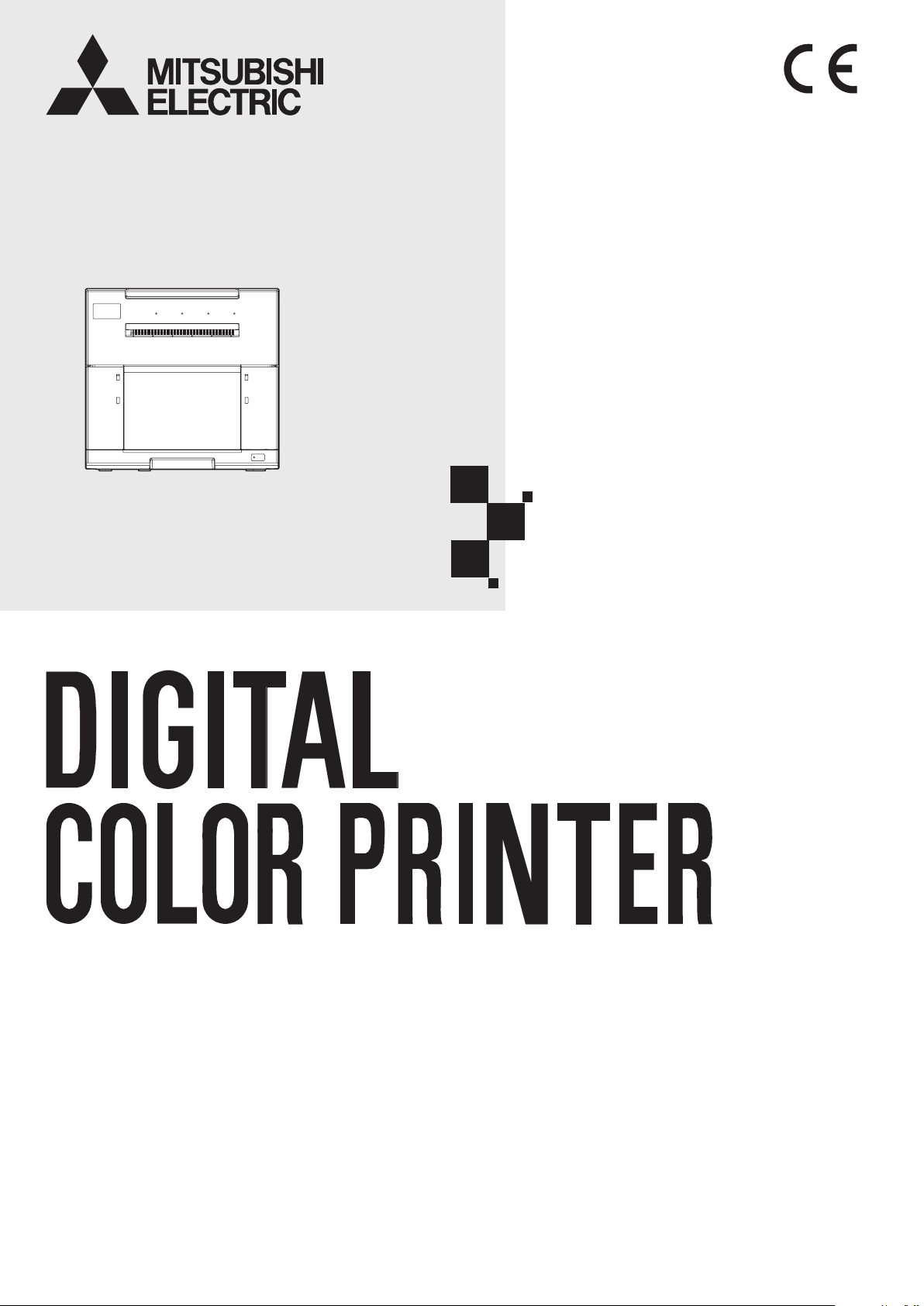
DIGITAL COLOR PRINTER
MODEL
CP-M1
OPERATION MANUAL
THIS OPERATION MANUAL IS IMPORTANT
TO YOU.
PLEASE READ IT BEFORE USING YOUR
DIGITAL COLOR PRINTER.
Page 2
WARNING :
TO PREVENT FIRE OR SHOCK HAZARD, DO NOT EXPOSE THIS APPLIANCE TO RAIN
OR MOISTURE.
WARNING:
Use the included AC power cord so as not to interfere with radio and television reception.
If you use other cables, it may cause interference with radio and television reception.
CAUTION
RISK OF ELECTRIC SHOCK
DO NOT OPEN
CAUTION :
SHOCK,
DO NOT REMOVE COVER (OR BACK)
TO REDUCE THE RISK OF ELECTRIC
NO USER-SERVICEABLE PARTS INSIDE
REFER SERVICING TO QUALIFIED SERVICE
PERSONNEL.
The lightning ash with arrowhead symbol, within an equilateral triangle, is intended
to alert the user to the presence of uninsulated “dangerous voltage” within the
product’s enclosure that may be of sufcient magnitude to constitute the risk of
electric shock.
The exclamation point within an equilateral triangle is intended to alert the user to
the presence of important operating and maintenance (servicing) instructions in the
literature accompanying the appliance.
The “Caution, hot surface” symbol indicates that the marked item may be hot and
should not be touched.
SHOOTING
TROUBLE-
OTHERSPRECAUTIONS FEATURES PREPARATION
CONTENTS
The “Electro Static Discharge (ESD) warning” symbol indicates that trouble (including
equipment malfunction) due to static electricity may occur in certain conditions.
The “STANDBY” symbol
The “Alternating current” symbol indicates that the equipment is suitable for
alternating current only.
Page 3
FCC CAUTION:
Changes or modications not expressly approved by the party responsible for compliance could void the user’s
authority to operate the equipment.
NOTE:
This equipment has been tested and found to comply with the limits for a Class A digital device, pursuant to part
15 of the FCC Rules. These limits are designed to provide reasonable protection against harmful interference
when the equipment is operated in a commercial environment. This equipment generates, uses, and can radiate
radio frequency energy and, if not installed and used in accordance with the instruction manual, may cause
harmful interference to radio communications. Operation of this equipment in a residential area is likely to cause
harmful interference in which case the user will be required to correct the interference at his own expense.
This device contains licence-exempt transmitter(s)/receiver(s) that comply with Innovation, Science and
Economic Development Canada’s licence-exempt RSS(s). Operation is subject to the following two conditions:
(1) This device may not cause interference.
(2) This device must accept any interference, including interference that may cause undesired
operation of the device.
WARNING:
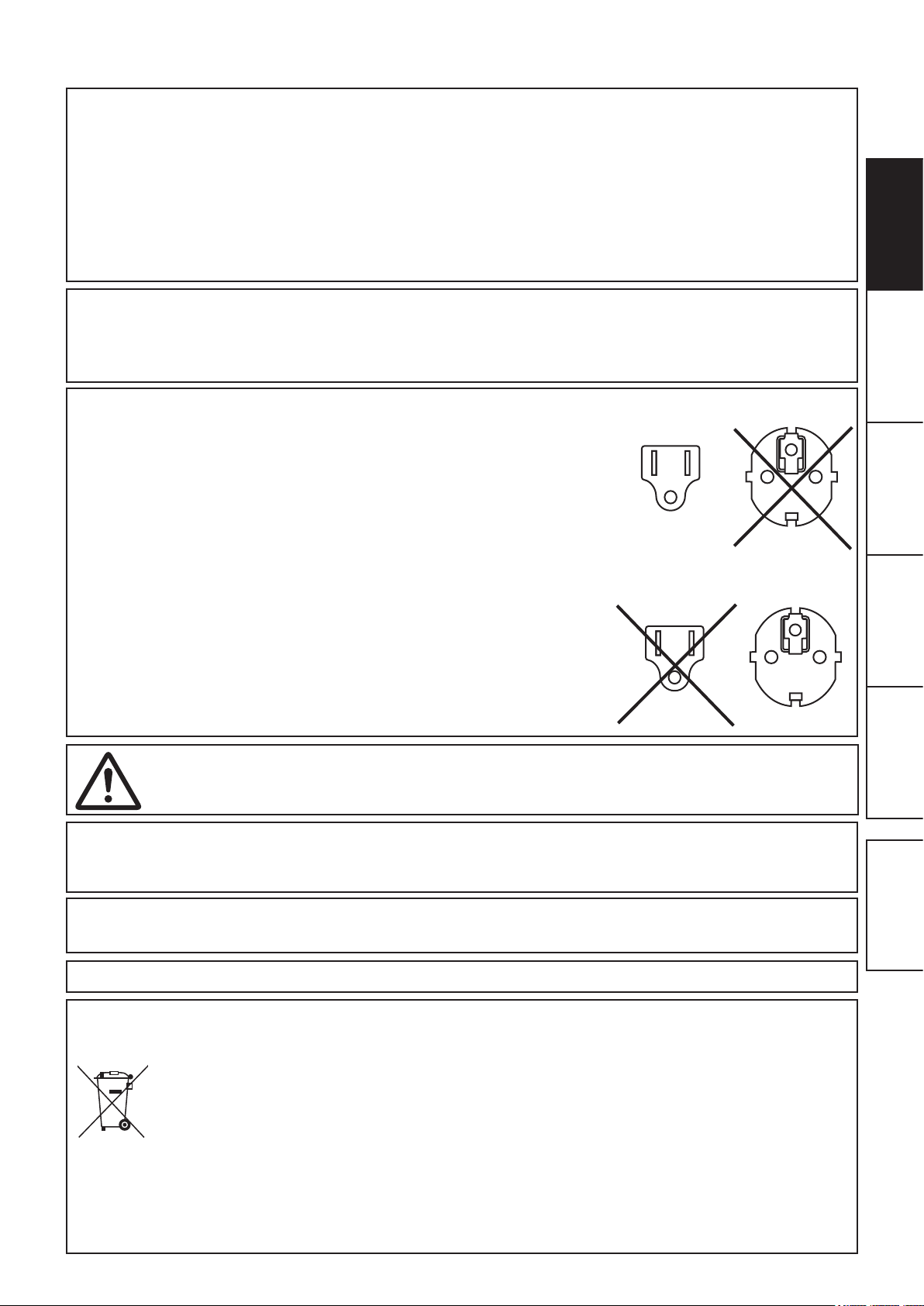
In the USA or Canada, use the AC power cord according to the recommendations as
below, in order to comply with UL60950-1 and CAN/CSA C22.2 No. 60950-1-03.
Connect to the 120 V receptacle of the room or the host equipment.
The AC power cord should be UL or CSA approved and consist of type SVT, size
16 or 18AWG, length 2 m or shorter cord with IEC60320-1/C13 type, 125 V 10 A or
higher rating connector and NEMA 5-15 type, 125 V 10 A or higher rating plug.
Use the AC power cord as specied above, so as not to interfere with radio and
television reception.
If you use other cables, it may cause interference with radio and television reception.
WARNING:
In Europe, use the AC power cord according to the recommendations as below, in
order to comply with EN60950-1.
Connect to the 230 V receptacle of the room or the host equipment.
The AC power cord should be VDE approved and consist of core size 0.75 mm
bigger, length 2 m or shorter cord with IEC60320-1/C13 type, 250 V 10 A or higher
rating connector and CEE(7)VII type, 250 V 10 A or higher rating plug.
Use the AC power cord as specied above, so as not to interfere with radio and
television reception.
If you use other cables, it may cause interference with radio and television reception.
2
or
SHOOTING
TROUBLE-
OTHERSPRECAUTIONS FEATURES PREPARATION
WARNING:
The socket outlet shall be installed near the equipment and shall be easily accessible.
WARNING:
This equipment is compliant with Class A of CISPR 32. In a residential environment this equipment may cause
radio interference.
WARNING:
This equipment is not suitable for use in locations where children are likely to be present.
This product is applicable to connect to Norwegian IT power distribution systems.
Note: This symbol mark is for EU countries only.
This symbol mark is according to the directive 2012/19/EU Article 14 Information for users and Annex IX, and/or
to the directive 2006/66/EC Article 20 Information for end-users and Annex II.
Your MITSUBISHI ELECTRIC product is designed and manufactured with high quality materials and
components which can be recycled and/or reused.
This symbol means that electrical and electronic equipment, batteries and accumulators, at their end-of-life,
should be disposed of separately from your household waste.
If a chemical symbol is printed beneath the symbol shown above, this chemical symbol means that the battery
or accumulator contains a heavy metal at a certain concentration. This will be indicated as follows:
Hg: mercury (0,0005%), Cd: cadmium (0,002%), Pb: lead (0,004%)
In the European Union there are separate collection systems for used electrical and electronic products,
batteries and accumulators.
Please, dispose of this equipment, batteries and accumulators correctly at your local community waste
collection/recycling centre.
Please, help us to conserve the environment we live in!
CONTENTS
Page 4
CONTENTS
CONTENTS ...................................................................................................................1
SAFETY PRECAUTIONS
PROTECTIVE MEASURES
INSTALLATION LOCATIONS
FOR LONG OPERATING LIFE...........................................................................3
OTHER CAUTIONS
SPECIAL FEATURES
UNPACKING
FEA TURES AND FUNCTIONS
BEFORE OPERATION
ERROR MESSAGES AND COUNTERMEASURES
..................................................................................................................6
FRONT PANEL
SIDE AND REAR PANELS
PRINTER SETUP PROCEDURE
INK RIBBON INSTALLATION
PRINT PAPER INSTALLATION
HANDLING OF PAPER / INK RIBBON SET
CONNECTION WITH USB DATA SIGNAL EQUIPMENT
PRINTER DRIVER INSTALLATION
INDICATIONS ON THE FRONT PANEL AND COUNTERMEASURES
OVERCOMING PAPER JAMS
REPAIRING A TORN INK RIBBON
BEFORE CALLING FOR SERVICE
INSTRUCTIONS FOR TRANSPORT ATION
..............................................................................................2
................................................................................2
.............................................................................3
............................................................................................4
....................................................................................................5
......................................................................................7
...................................................................................................7
.................................................................................8
..................................................................................................9
.......................................................................9
.............................................................................10
..........................................................................11
.......................................................13
...................................14
...................................................................14
......................................................15
...........................................................................16
....................................................................17
...................................................................18
.......................................................18
.............15
PREPARATIONFEATURESPRECAUTIONS OTHERS CONTENTS
SHOOTING
TROUBLE-
CLEANING
SPECIFICATIONS
.....................................................................................................................19
VENTILATION INLET CLEANING
THERMAL HEAD CLEANING
PLATEN ROLLER CLEANING
.........................................................................................................21
......................................................................19
............................................................................19
...........................................................................20
1
Page 5

SAFETY PRECAUTIONS
In the interest of safety, please observe the following precautions:
POWER REQUIREMENT
This Digital Color Printer is designed to operate on 100 - 240 V AC 50/60 Hz. Never connect to any outlet or power supply
having a different voltage or frequency. In addition, be sure to supply power to the printer from a receptacle with a ground fault
circuit interrupter.
WARNING: THIS APPARATUS MUST BE EARTHED.
PROTECTIVE MEASURES
IF ABNORMALITIES ARISE, .....
Use of the unit during emission of smoke or abnormal sounds (without adopting countermeasures) is dangerous. In such a case,
unplug the power cord from the source outlet immediately, and request maintenance service from the sales dealer.
NEVER INSERT ANY OBJECT INTO THE UNIT
Foreign objects of any kind inserted into this unit constitute a safety hazard and can cause extensive damage.
DO NOT PLACE ANYTHING ON THE DIGITAL COLOR PRINTER
Heavy objects placed on the Digital Color Printer can cause damage or obstruct proper ventilation.
PROTECT THE POWER CORD
Damage to the power cord may cause re or shock hazard. When unplugging, hold by the plug only and remove carefully.
DO NOT PLACE WATER CONTAINERS ON THE UNIT
Do not place ower vases, and other water-holding containers on the device. If, for some reason, water seeps to the inside of
the unit, unplug the power cord from the source outlet, and contact the sales dealer. If used without corrective measures, the
unit may be damaged.
“In the interest of safety, avoid handling of liquids near the unit.”
DO NOT REMOVE THE CABINET
Touching internal parts is dangerous, besides, it may lead to malfunction. Contact the sales dealer to carry out internal checks
and adjustments. Before opening the cover for eliminating a jammed paper, etc., be sure to disconnect the power cord plug.
DURING A LONG ABSENCE
Unplug the power cord during a long absence.
WHEN TRANSPORTING THE UNIT
When transporting the unit, remove the ink ribbon and print paper from the unit. See “INSTRUCTIONS FOR
TRANSPORTATION” on page 18.
WHEN MOVING THE UNIT
Ensure the printing unit is completely closed. Do not accidentally press the latch bar while moving the unit. When the printing
unit is not closed completely or the latch bar is accidentally pressed, the printing unit may open. It can cause injury or damage.
BE CAREFUL AROUND PRINT PAPER EXIT SLOT
Don’t insert your hand or any material into the paper exit slot during printing.
Do not touch the cutter blade inside the paper exit slot.
Otherwise, your nger will be injured.
DO NOT TOUCH THE THERMAL HEAD EXCEPT WHEN CLEANING
Do not touch the thermal head (located inside the unit) except when cleaning.
They are heated to high temperature and may cause burns or injury when touched.
Also, malfunction caused by static electricity may occur.
SHOOTING
TROUBLE-
OTHERSPRECAUTIONS FEATURES PREPARATION
CONTENTS
WHEN PLACING THE PRINT PAPER, KEEP THE PRINT PAPER UPRIGHT
When you put the print paper sideways on a table, etc., it may roll and fall. This may cause injury.
CONNECTION CABLES
Use the provided power cord.
2
Page 6

SAFETY PRECAUTIONS
DO NOT LEAVE THE PRINTING UNIT OPEN
When the printer is moved with the printing unit open, it may cause injury or damage.
CLOSE THE PRINTING UNIT FIRMLY
Take care not to pinch your hand when closing the printing unit. When the printing unit is not closed rmly, it may open during
transportation and it may cause injury or damage.
DO NOT PUSH DOWN ON THE PRINTING UNIT OR THE DOOR
If you push down on the printing unit or the door when they are open, this unit may fall and it can cause damage or injury.
INSTALLATION LOCATIONS
MAINTAIN GOOD VENTILATION
Ventilation slots and holes are provided on the rear and both sides of this unit. Place the unit on a hard and level surface and
keep a space between the unit and the walls to ensure proper ventilation. When putting the unit on the system rack, take a
space between the unit and the back and sides of the rack.
SUITABLE LOCATIONS
Avoid shaky places or hot-springs areas where corrosive gas and acidic ions are likely to be generated.
AVOID PLACES WITH HIGH HUMIDITY AND DUST
Do not place the unit at a high humidity and dusty locations. They can cause extensive damage to this unit. Avoid places where
the unit is likely to be exposed to oily fumes and vapors.
AVOID PLACES LIKELY TO BE EXTREMELY HOT
Places exposed to direct sunlight, or near heating appliances can attain extremely high temperatures, which may deform the
cabinet, or can become a prime cause of damage.
PLACES THE UNIT ON A HORIZONTAL LEVEL
The unit is likely to be affected if it is placed in slanted conditions or in an unstable places.
PROTECT AGAINST DEW FORMATION
In extremely cold regions, if the unit is moved quickly from an extremely cold place to warmer one, dew is likely to be formed. If
dew is formed, printing is not possible.
OPERATING AMBIENT TEMPERATURE RANGE
The operating ambient temperature range is 5°C - 35°C (41°F - 95°F) and the humidity of 30% - 80% RH. When using the unit
on the system rack, be sure to keep this ambient temperature inside the rack.
Depending on the internal temperature, it may take some time to start printing.
DO NOT STACK THE PRINTERS
The printer is not designed to be on top of each other. It will prevent the door from opening.
FOR LONG OPERATING LIFE
UNSUITABLE MATERIALS FOR THE DIGITAL COLOR PRINTER
Coat aking and deformation are likely to occur if the unit is wiped with chemical dusters, benzine, thinner or any other solvent, if
rubber or PVC items are left in contact with the unit for extended duration, or if the unit is sprayed with insecticide.
CARE OF THE CABINET
• Wipe with a soft cloth to clean.
• When the unit becomes particularly dirty, clean the unit with a cloth soaked in lukewarm water with kitchen detergent diluted
according to the manufacturer’s instructions on the label. Thoroughly wipe off the detergent with a soft dry cloth. Do not use
the kitchen detergent without diluting it.
Do not use petroleum-based solvents or abrasives to clean the unit. Doing so may result in discoloration, degeneration, or
cracking.
SHOOTING
TROUBLE-
OTHERSPRECAUTIONS FEATURES PREPARATION
CONTENTS
KEEP VENTILATION OPENINGS CLEAN
Clogged ventilation openings may result in re or malfunction.
3
Page 7

SAFETY PRECAUTIONS
HEAD ABRASION
The thermal head, like the video head, wears out. When it is abraded, it becomes hard to print out ne details of the picture. In
such a case, it is necessary to replace the thermal head. Consult with the sales dealer for replacing the head.
CONNECTING DEVICES
Read thoroughly “Operating Precautions” of the instruction booklets for the devices connected with the Digital Color Printer. The
power cord must be disconnected after printing is over.
CAUTION ON RELOCATING
When transporting this unit, make sure it is not likely to be subjected to impacts. They can be a prime cause for damage.
Further, make sure to disconnect the power cord from the power outlet, and the cables from the connected devices.
OTHER CAUTIONS
• Do not pull out nor touch the print paper until printing is completed. It may degrade the print quality or cause an error.
• Dust or other foreign materials adhering to the print paper or the ink ribbon, or deformation resulting from exposure to
extremely low or high temperatures could cause loss of color, uneven color or lines, or wrinkles in the print images.
• Depending on the internal temperature, the printer may stop printing temporarily during printing. Please wait for the printer to
resume printing.
Do not touch the print paper.
• Each time printing is completed, remove the prints. If the prints are not removed, a paper jam may occur.
• Empty the paper strip bin frequently to prevent jamming the strips at the print outlet.
• The paper tray is used for storing the cut print paper (10x15 (4x6”) and 9x13 (3.5x5”)) temporarily. The print paper may fall
from the tray or may not be stored in the printed order.
• Do not use the printer in a place where a strong wind blows. Otherwise, the print paper may not be fed properly, resulting in
the paper jam.
• Do not move the printer or do not open the printing unit during printing. It may cause a printing failure.
• The paper strip bin may become discolored if the printer is used in a high-humidity environment.
NOTE:
YOUR UNDERSTANDING IS REQUESTED FOR THE LOSS OF IMAGES IN MEMORY DUE TO THE SUDDEN
OCCURRENCE OF A MALFUNCTION.
SHOOTING
TROUBLE-
OTHERSPRECAUTIONS FEATURES PREPARATION
CONTENTS
4
Page 8

SPECIAL FEATURES
AVAILABLE 4 PRINT SIZES
4 printing sizes, 9x13 (3.5x5”) (max. 89 x 127 mm), 10x15 (4x6”) (max. 102 x 152 mm), 13x18 (5x7”) (max. 127 x 178 mm) and
15x20 (6x8”) (max. 152 x 203 mm), are selectable.
300 DPI HIGH RESOLUTION
CP-M1 has a high resolution of 300 dpi for precise illustrations and sharp photographic images.
LARGE CAPACITY PRINTING
Maximum of 400 prints per roll for 13x18 (5x7”) is offered. Large economical print capacity per roll reduces frequency of
exchanging paper and ink ribbon.
HIGH QUALITY PRINTS
CP-M1 is a dye sublimation thermal transfer color printer, which produces superior high quality images. It also produces a
continuous tone at 256 gradient for each of Y, M, and C.
HIGH SPEED PRINTING
HI-SPEED USB (VER. 2.0) INTERFACE SUPPORTING
SHOOTING
TROUBLE-
OTHERSPRECAUTIONS FEATURES PREPARATION
CONTENTS
5
Page 9

UNPACKING
Take the printer out of the box by the following procedures. Make sure to check the accessories.
Open the printer box from the top and remove
the top cushion containing the accessories out
of the box.
Carefully pull the printer up and out of the box.
Pull the printer straight up as shown in the gure.
NOTE
• The printer weighs about 14 kg. Handle it with care.
Accessories
Unwrap the packing.
Remove the protective materials for transportation such as
protective sheet.
Hold the printer by the front and rear handle as illustrated in the
drawing.
• When the printing unit is not closed completely or the
latch bar is accidentally pressed, the printing unit may
open. It can cause injury or damage.
CONTENTS
The accessories items are placed in the top cushion. Check all items are included.
Quick setup
guide
Safety guide Power cord Paper tray
SHOOTING
TROUBLE-
OTHERSPRECAUTIONS FEATURES PREPARATION
CONTENTS
Paper strip bin
The printer comes installed with paper strip bin.
6
Page 10

FEATURES AND FUNCTIONS
1
2
3
4
5
6
7
8
9
10
95
4
1 2 3
8
10
6
7
FRONT PANEL
ALARM INDICATOR ( )
This indicator blinks when the paper strip bin is not
installed or a paper jam occurs. See page 15.
PAPER/RIBBON INDICATOR ( )
When an error concerning the ink ribbon or print paper
occurs, this indicator illuminates or blinks. See page
15.
DOOR INDICATOR ( )
This indicator blinks when the door is not completely or
properly close. See page 15.
PRINT OUTLET
The printed paper comes out here.
POWER BUTTON (POWER INDICATOR )
Pressing this button while the power is off will turn on
the power. Holding it down for two seconds or longer
while the power is on will turn off the power. When the
power is on, the indicator will be lit. When the printer is
in power-save mode, the indicator will blink slowly. See
page 15.
DOOR
The door will automatically open up when the printing
unit is pulled out.
LATCH BAR
Press the latch bar to open the printing unit.
PAPER STRIP BIN
Holds the paper strips generated by margin cut. Empty
the bin frequently to prevent jamming the strips at the
print outlet.
OPENING THE DOOR
Press the horizontal latch bar, pull the printing unit
forward all the way, and release the bar. The door will
automatically open up.
PAPER STRIP BIN
Grab the paper strip bin and lift it up to remove it.
To install the paper strip bin, place the paper strip bin
into the slot.
SHOOTING
TROUBLE-
OTHERSPRECAUTIONS FEATURES PREPARATION
CONTENTS
HANDLE FOR TRANSPORTING
When carrying or moving the printer, use both the front
and rear panel handles for a strong grip.
PRINTING UNIT
Open to load print paper or ink ribbon. Press the latch
bar and pull forward to open.
7
Page 11

1
4
3 42
5
2
6
FEA TURES AND FUNCTIONS
1
2
3
4
5
6
INSTALLING THE PAPER TRAY
1. Engage the upper hooks of
the tray in the upper holes
of the paper strip bin.
• Remove the paper tray when printing in 13x18 (5x7”) or 15x20 (6x8”) size.
2. Then, secure the tray by
engaging the lower hooks in
the lower holes of the bin.
NOTE
SIDE AND REAR PANELS
RIGHT SIDE PANEL REAR PANEL LEFT SIDE PANEL
SHOOTING
TROUBLE-
OTHERSPRECAUTIONS FEATURES PREPARATION
VENTILATION OUTLETS
These outlets are for cooling the inside of the printer.
VENTILATION INLETS
These inlets are for cooling the inside of the printer.
HANDLE FOR TRANSPORTING
Use this handle along with the front handle for a secure
and strong grip when carrying or moving the printer.
SECURING THE POWER CORD
(Example)
AND USB CABLE
1. Wrap a cable tie around the power cord
or the USB cable.
2. Draw the tie through the securing hole on
the rear panel and secure it.
SECURING HOLES FOR THE CABLE TIE
Use to secure the power cord or USB cable by using
the cable ties.
POWER SOCKET (AC LINE)
Use to connect the provided power cord. Insert the
cord rmly.
USB TERMINAL
Use to connect the USB cable. See page 14.
Securing hole
for the cable tie
CONTENTS
8
Page 12

BEFORE OPERATION
PRINTER SETUP PROCEDURE
Before printing, follow the printer setup listed below.
Install the ink ribbon to this printer.
Install the print paper to this printer.
Connect the printer to a personal computer.
Make sure to close the printing unit when the setup procedure is completed.
(See page 10.)
(See pages 11 to 12.)
(See page 14.)
SHOOTING
TROUBLE-
OTHERSPRECAUTIONS FEATURES PREPARATION
CONTENTS
9
Page 13

BEFORE OPERATION
INK RIBBON INSTALLATION
Press the POWER button on the front panel to turn on the
power.
Press the latch bar, pull out the printing unit forward, and
release the bar to open the door.
POWER button
Rotate the front ink ribbon shaft forward to eliminate any loose
ribbon.
Place the ink ribbon in the position as shown in the illustration.
NOTE
• Do not touch the thermal head. Fingerprints or dust on the
thermal head will degrade the print quality.
CAUTION
Do not touch the thermal head or the motor right after printing
because they will be extremely hot. Otherwise you may get
burned or injured.
NOTE
Note that the thermal head is quite sensitive to static electricity.
When you touch the thermal head while carrying static electricity
on your body, the thermal head may be damaged.
SHOOTING
TROUBLE-
OTHERSPRECAUTIONS FEATURES PREPARATION
CONTENTS
10
Page 14

BEFORE OPERATION
PRINT PAPER INSTALLATION
Remove the paper strip bin.
Adjust the paper guides according to the paper width.
Hold down the tabs on the adjustable paper guides and slide them in or out.
6” 6”
• Make sure to set the adjustable paper guides to the size of the paper width. When they are not positioned
properly, a malfunction such as paper jam and misaligned printing position may occur.
• The printer can print papers with different width (5” (127 mm) and 6” (152 mm)). When printing a 5”-wide paper
rst and then a 6”-wide paper, streaks may appear on the printed image half an inch from the edges. It is
recommended to use either 5”-wide or 6”-wide papers, but not both with the same printer.
5”
NOTE
CAUTION
5”
Install the print paper into the unit and remove
the sticker.
Place the printing paper in the correct orientation.
Make sure the paper roll is rmly installed.
CAUTION
• Do not press or lean down while the printing unit
is open. The printer may fall and cause damage or
injury if a downward force is placed on the printing
unit while it is open.
NOTE
• Make sure to turn on the power before installing the
print paper. Otherwise, a paper jam may occur.
• Load the paper roll slowly into the unit. If it is
dropped along the ditches, the unit or accessories
may be damaged.
SHOOTING
TROUBLE-
OTHERSPRECAUTIONS FEATURES PREPARATION
CONTENTS
Direction of paper insertion
11
Page 15

BEFORE OPERATION
Insert the print paper edge to load the paper as illustrated. Stop
feeding the paper roll when the paper-feed status light turns
GREEN.
When no paper is fed, the paper-feed status light blinks slowly in red.
Make sure to insert the paper straight.
NOTE
• When taking the print paper out, pull it up toward you by holding the
paper anges.
• Make sure to turn on the power before replacing the print paper.
• Make sure to eliminate any slack from the print paper. If you carry out
the following steps without eliminating the slack, the print paper may be
damaged.
Red
Paper-feed
status light
NOTE
• Do not over feed paper. Doing so may cause a paper jam.
Attach the paper strip bin.
Hold the door down and slide the print unit in without pressing
the latch bar on top of the door.
When a new paper is loaded and the printing unit is closed with the power turned
on, the paper will be automatically fed and cut.
CAUTION
• Do not press or lean down while the door is open. The printer may fall
and cause damage or injury if a downward force is placed on the door
while it is open.
• When closing the printing unit, be careful not to get your hands caught
between the printer and the printing unit or between the door and the
paper strip bin. Otherwise, you may get injured.
NOTE
• When closing the printing unit, push it until a click is heard.
• If the PAPER/RIBBON indicator ashes with the printing unit closed, the
print paper may have been installed incorrectly. In this case, open the
printing unit to make sure that the print paper has been installed correctly.
Then close the printing unit again.
• When the paper roll is reinstalled more than three times, the print paper
may be used up earlier than the ink ribbon.
Green
SHOOTING
TROUBLE-
OTHERSPRECAUTIONS FEATURES PREPARATION
CONTENTS
Installation of ink ribbon and print paper is complete.
NOTE
• Make sure to replace the ink ribbon and the print paper simultaneously.
• Empty the paper strip bin frequently to prevent jamming the strips at the
print outlet. Whenever you replace the ink ribbon and the print paper,
make sure to throw away the paper strips in the paper strip bin.
• Whenever you replace the ink ribbon and the print paper, clean the
thermal head and the platen roller. For the cleaning procedures, see
“CLEANING” (on pages 19 and 20).
12
Page 16

BEFORE OPERATION
HANDLING OF PAPER / INK RIBBON SET
BEFORE PRINTING
• Fingerprints or dust on the paper printing surface may produce poor print quality and cause paper jams.
• When the print paper or ink ribbon is abruptly transferred from a cool place to a hot place, vapor or dew is generated
on the surface, which causes paper jams or degraded print quality. Leave the print paper in the room to stabilize its
temperature before use.
• If you repeat the PRINT PAPER INSTALLATION procedure more than the designated number of times, the indicated
number of prints may not be made. In addition, if you replace the print paper before it is used up, the indicated number of
prints may not be made.
AFTER PRINTING
• If the paper absorbs nonvolatile organic solvents (alcohol, ester, ketone, etc.) the print may be discolored.
• Discoloration of prints is accelerated if the print paper comes into contact with soft vinyl chloride such as transparent
tape.
• Avoid storing prints in direct sunlight or places with high humidity.
STORAGE OF PAPER / INK RIBBON SET
• Do not store the print paper and ink ribbon in the container made of soft polyvinyl chloride. They may be discolored
because of chemical reaction.
• Store the print paper and ink ribbon out of direct sunlight and away from heating appliances in a cool, dark place where
the temperature is 5˚C to 30˚C and the humidity is 20% to 60% RH.
SHOOTING
TROUBLE-
OTHERSPRECAUTIONS FEATURES PREPARATION
CONTENTS
13
Page 17

BEFORE OPERATION
CONNECTION WITH USB DATA SIGNAL EQUIPMENT
CONNECTING TO PERSONAL COMPUTER (EXAMPLE)
Check that the printer is turned on before connection.
Turn on the power of a personal computer.
Install the printer driver.
NOTE
• Do not yet connect the printer to a personal computer.
Connect the printer to a personal computer as shown below.
To USB port
To USB port
Personal computer
NOTE
• A USB cable is not supplied with this unit. Use the USB 2.0 certied cable of 2 m or less in length.
Digital color printer
PRINTER DRIVER INSTALLATION
The printer driver is required to print the data from the personal computer connected with this unit.
• Refer to the following website to check the latest version of the printer driver and the printer information.
http://www.mitsubishielectric.co.jp/ldg/ja/products/visual/lineup/printer/photo/download_01_english.html
NOTE
SHOOTING
TROUBLE-
OTHERSPRECAUTIONS FEATURES PREPARATION
CONTENTS
14
Page 18

ERROR MESSAGES AND COUNTERMEASURES
INDICATIONS ON THE FRONT PANEL AND COUNTERMEASURES
If, for some reason, printing is not possible or an error occurs during printing, the indicators on the front panel will illuminate
or blink. In this case, follow the procedure described below.
: Steady on : Off : Blinking
ALARM PAPER/
RIBBON
DOOR POWER Causes and Countermeasures Page
The printer is in the standby mode.
7
FEATURESPRECAUTIONS OTHERS CONTENTS
(Blinks
slowly)
If any of the indicator lights (ALARM, PAPER/RIBBON or DOOR) ashes or stay lit, open the printing unit and perform
above countermeasures.
The printer is in the power save mode.
When the printer is idle for an extended period, it
automatically enters the power save mode from
the standby mode, reducing power consumption.
It may take time that the printer is ready to print
images after the image data is sent.
The printing unit is open.
• Close the printing unit.
The paper strip bin is removed.
• Attach the paper strip bin properly.
A paper jam or a problem concerning the ink
ribbon occurs.
• Refer to “Overcoming paper jams.”
The ink ribbon which is not available to this
printer is installed.
• Replace the ink ribbon with a new one.
The print paper or ink ribbon is not installed.
The print paper or ink ribbon is used up.
• Install new print paper or ink ribbon.
Other errors
7
7
7
16
10
10-12
18
PREPARATION
SHOOTING
TROUBLE-
15
Page 19

ERROR MESSAGES AND COUNTERMEASURES
OVERCOMING PAPER JAMS
Press the latch bar, pull out the printing unit forward, and
release the bar to open the door.
Make sure that the power is turned on before opening the printing unit.
FEATURESPRECAUTIONS OTHERS CONTENTS
Remove the paper strip bin.
Remove the ink ribbon.
Pull out the defective part of the print paper to the direction of
an arrow.
PREPARATION
SHOOTING
TROUBLE-
Cut off the defective part of the print paper with scissors.
NOTE
• Make sure to cut off the printed part of the print paper. Failure to do this
may result in the ink ribbon sticking to the print paper and being torn.
• Make sure to clean the thermal head and the platen roller.
“CLEANING” (on pages 19 and 20).
Refer to
Remove the print paper.
Re-install the print paper and ink ribbon. (Refer to pages 10-12.)
Make sure the Power is ON before reinstalling the print paper and ink ribbon.
Attach the paper strip bin.
Hold the door down and slide the print unit in without pressing
the latch bar on top of the door.
16
Page 20

ERROR MESSAGES AND COUNTERMEASURES
REPAIRING A TORN INK RIBBON
Positionthetorninkribbononaat,cleansurface.
Place a piece of transparent adhesive cellophane tape on the center of the ink ribbon.
Cellophane tape
Wind the shaft of the ink ribbon in the direction of the arrow so that the cellophane tape is not
seen.
FEATURESPRECAUTIONS OTHERS CONTENTS
PREPARATION
Reinstall the repaired ink ribbon in the printer.
Direction to turn
the shaft
SHOOTING
TROUBLE-
17
Page 21

ERROR MESSAGES AND COUNTERMEASURES
BEFORE CALLING FOR SERVICE
For the following symptoms, check the unit again before calling for service.
Symptom Check & Remedy
The power is not turned on. Is the power cord plug disconnected from the outlet?
→ Connect the power cord plug to the outlet rmly.
→ The protective circuit may be working. Turn off the power and wait for
about two minutes. Then turn on the power again.
The printing unit doesn’t open. Are you turning off the power during printing procedure?
→ Turn on the power and then open the printing unit.
The image is not printed. Is the PAPER/RIBBON indicator or the ALARM indicator illuminating or
blinking?
→ Refer to “Overcoming paper jams.”
Is the appropriate size of data sent to this unit?
→ Make sure that the appropriate size of image data is sent to this unit.
Is the print paper or the ink ribbon used up?
→ Check them.
Is the printing unit set rmly?
→ Set the printing unit rmly.
→ When the indicators keep illuminating or blinking though the above
operations are performed, remove the ink ribbon and print paper and
reinstall them.
An error can not be resolved.
→ Turn off the power by pressing and holding the POWER button for
two seconds or longer, and then turn it back on by pressing the power
button. This printer starts initialization.
FEATURESPRECAUTIONS OTHERS CONTENTS
PREPARATION
SHOOTING
TROUBLE-
POWER button
INSTRUCTIONS FOR TRANSPORTATION
When transporting this unit for some reason such as repair, follow the instructions below.
1. Use the original packaging.
The genuine package unit may not endure more than one round trip. If the unit is transported with the package unit more
than one round trip, it may not be guaranteed.
Purchase another package unit when transporting this unit again.
Pack the unit with the accessories (ink ribbon and print paper) removed.
2. Closetheprintingunitrmly.
When closing the printing unit, push it until a click is heard.
CAUTION
• When the printing unit is not closed completely or the latch bar is accidentally pressed, the printing unit may open.
It can cause injury or damage.
3. If the ink ribbon or print paper are stuck and can not be taken out, please consult your dealer
or technical support. Additional damage may occur if you force the media out or use a foreign
tool to remove it.
18
Page 22

CLEANING
Cleaning as indicated below will help maintain stable printer operation and extend the printer’s life.
Wearing gloves at cleaning is recommended to prevent injury.
Make sure to turn off the power before cleaning.
VENTILATION INLET CLEANING
Maintain the ventilation inlets (rear and left side) clean. You may use a vacuum to clean
as illustrated in the diagram.
FEATURESPRECAUTIONS OTHERS CONTENTS
THERMAL HEAD CLEANING
When lines appear on the printed images, clean the thermal head.
Preparations
Alcohol (ethyl alcohol, etc.)
Soft and clean cloth
Press the latch bar, pull out the printing unit forward, and
release the bar to open the door.
Remove the paper strip bin.
Remove the ink ribbon out of the printer.
Wipe the head cleaning part (as shown right) carefully with
cloth dampened with a small amount of alcohol.
NOTE
• Do not damage the thermal head.
• When the poor print quality is not corrected even if the head has been
cleaned, replacement of the thermal head may be required. Contact your
dealer.
Ventilation inlets
Thermal head
PREPARATION
SHOOTING
TROUBLE-
CAUTION
Thermal head and the motor will be hot right after printing. Wait until they have
cooled down before cleaning the thermal head.
NOTE
The thermal head may be damaged if you touch it while static electricity builds
up on your body.
NOTE
• When you clean the thermal head, make sure not to apply excessive force
to the peeling roller on the bottom of the thermal head. When the excessive
force is applied to the roller, the roller may be deformed, resulting in
deterioration of the printing quality.
Cleaning part of
thermal head
Peeling roller
19
Page 23

CLEANING
PLATEN ROLLER CLEANING
Preparations
Alcohol (ethyl alcohol, etc.)
Soft and clean cloth
Clean the black part of the roller.
Wipe the black part carefully with cloth dampened with a small amount of alcohol.
Wipe the whole roller by turning it.
Platen roller
FEATURESPRECAUTIONS OTHERS CONTENTS
PREPARATION
SHOOTING
TROUBLE-
20
Page 24

SPECIFICATIONS
Class Digital Color Printer
Model CP-M1
Printing method Sublimation Dye Thermal Transfer line print
3-color faces progressive printing (yellow, magenta, and cyan) and surface lamination
Print’s resolution
Dot resolution 9x13 (3.5x5”)
Print size 9x13 (3.5x5”)
Gradations 256 (8 bits) for each color
Supply method Automatic
Interface Hi-Speed USB (Ver.2.0)
Power supply 100 - 240 V AC 50/60 Hz
Power consumption 4 A
Operating conditions
Installation conditions Operating attitude : Horizontal ±5°
Outside dimensions 300 (W) x 350 (D) x 281 (H) mm
Weight Approx. 14 kg (excluding accessories)
Standard accessories Power cord (1), Quick setup guide (1), Safety guide (1), Paper strip bin (1), Paper tray (1)
300 x 300 dpi (dpi : dots per inch)
1082 x 1550 dots
10x15 (4x6”)
13x18 (5x7”)
15x20 (6x8”)
10x15 (4x6”)
13x18 (5x7”)
15x20 (6x8”)
Temperature : 5°C - 35°C
Humidity : 30% - 80% RH (no dewing)
1232 x 1852 dots
1550 x 2134 dots
1852 x 2434 dots
89 x 127mm (without frame)
102 x 152mm (without frame)
127 x 178mm (without frame)
152 x 203mm (without frame)
FEATURESPRECAUTIONS OTHERS CONTENTS
PREPARATION
SHOOTING
TROUBLE-
Print size and outside dimensions show typical value.
Design and specications are subject to change without notice.
21
Page 25

Contact Information
♦♦♦♦ Visit the local website closest to you ♦♦♦♦
https://www.mitsubishielectric.com/en/about/locations/index.html
[Americas]
♦USA/CentralAmerica/LatinAmerica
Mitsubishi Electric US, Inc.
Visual and Imaging Systems
5900-A Katella Ave. Cypress, CA 90630-5019, U.S.A.
Phone : +1 (714) 220-2500 US Ofce Main
(888) 307-0388 Product Information Within USA
(888) 307-0309 Product Support Within USA
[Europe, the Middle East and Africa]
♦Europe,theMiddleEastandAfrica
Mitsubishi Electric Europe B.V.
German Branch
Mitsubishi-Electric-Platz 1, 40882 Ratingen, North Rhine-Westphalia, Germany
Phone : +49 (2102) 4860
Fax : +49 (2102) 486 1120
Manufactured by Mitsubishi Electric Corporation Kyoto Works
1 Zusho Baba, Nagaokakyo City, Kyoto 617-8550, Japan
WE919C205A4
 Loading...