

Page 1

Reference Manual
Page 2

This page intentionally left blank
10% 20% 30% 40% 50% 60% 70% 80% 90% 100%
Copyright 2002, Alesis. All rights reserved
Reproduction in whole or in part is prohibited.
Specifications subject to change without notice.
All trademarks are the property of their respective holders.
7-51-0112-A
8/2002
Page 3

Table of Contents
Introduction....................................................................3
Welcome! .........................................................................................................3
About the Bitrman.........................................................................4
Important features of your Bitrman ...........................................................4
Bitrman Key Features....................................................................................5
How to Use This Manual.............................................................6
Safety Instructions/Notices .....................................7
Important Safety Instructions (English)............................ 7
CE Declaration Of Conformity................................................9
FCC Compliance Statement......................................................9
Instructions de Sécurité Importantes (French) .........................................10
Lesen Sie bitte die folgende Sicherheitshinweise
(German) ..................................................................................................12
Quick Start Guide ........................................................15
If you can’t wait to get started......................................................................15
Hook it up to a synthesizer...........................................................................15
A quick overview of the controls ...........................................16
Rear Panel........................................................................................................16
Connections ....................................................................17
Unpacking and Inspection............................................................................17
Installing in a Rack .........................................................................................17
Power................................................................................................................17
Connecting to the Channel Inserts of a mixing console: ........................19
Connecting to the Main Outputs of a mixing console: ...........................20
Connecting to the Effect Send/Return of a mixing
console: .....................................................................................................20
Connecting to the inserts on an instrument amplifier: ............................21
Connecting to equipment with XLR inputs and outputs:.......................22
About audio cables.........................................................................................22
Using the ModLink........................................................................23
Using the Bitrman........................................................25
About multieffects.........................................................................25
About the effects ............................................................................26
What is Compression?...................................................................................26
What is Distortion? ........................................................................................26
What is a Dual Phasor? .................................................................................26
Bitrness Effects...............................................................................................27
Description of Controls...............................................................30
Compress [1] ...................................................................................................30
Distort [2].........................................................................................................30
Dual Phasor [3] ...............................................................................................30
Bitrness Knob .................................................................................................30
BITRNESS select switch ..............................................................................31
CONFIGURE switch....................................................................................31
1
Page 4

Table Of Contents
Bypass...............................................................................................................33
Using the Foot Switch...................................................................................33
Sample Settings.............................................................35
Troubleshooting............................................................39
Troubleshooting Index................................................................ 39
Avoiding ground loop noise.........................................................................41
Line conditioners and spike protectors ......................................................42
Care and Maintenance ................................................................43
Cleaning............................................................................................................43
Refer all servicing to Alesis...........................................................................43
Obtaining repair service ................................................................................44
Specifications.................................................................45
Audio Input.....................................................................................................45
Audio Output..................................................................................................45
Audio Performance........................................................................................45
Mechanical.......................................................................................................45
Warranty/Contact Alesis ...........................................48
Alesis Limited Warranty................................................................................48
Alesis Contact Information ..........................................................................49
2
Page 5

Introduction
F
Welcome!
Thank you for making the Alesis Bitrman a part of your studio.
Since 1984, we've been designing and building creative tools for
the audio community. We believe in our products, because we've
heard the results that creative people like you have achieved with
them. One of Alesis' goals is to make high-quality studio
equipment available to everyone, and this Reference Manual is an
important part of that. After all, there's no point in making
equipment with all kinds of capabilities if no one explains how to
use them. So, we try to write our manuals as carefully as we build
our products.
The goal of this manual is to get you the information you need as
quickly as possible, with a minimum of hassle. We hope we've
achieved that. If not, please drop us an email and give us your
suggestions on how we could improve future editions of this
manual.
We hope your investment will bring you many years of creative
enjoyment and help you achieve your goals.
or more effective
service and product
update notices, please
register your Bitrman
online at:
http://www.alesis.com/
support/warranty.htm
Sincerely,
The people of Alesis
3
Page 6

Introduction
About the Bitrman
Your new Bitrman is a member of the Alesis ModFX family of
performance effects boxes. This particular ModFX unit combines a
compressor, a distortion effect, a dual phasor, plus one of six
different “Bitrness” effects. The “Bitrness” effects are a comb filter,
a decimator, a bit reducer, a frequency modulator, a ring modulator,
and a frequency shifter.
Each box in the ModFX line provides a different set of sound
effects and signal processing, and they are easy to arrange and
connect to each other. With a uniform, friendly, uncomplicated
user interface and high-resolution digital processing, the ModFX
product line is perfect for keyboardists, guitarists, and any other
studio or live performance artists.
Important features of your Bitrman
High Resolution Processing
The Bitrman internally uses 28-bit stereo digital signal processing.
The digital-to-analog and analog-to-digital conversion is sampled
at 48kHz with 24 bits of resolution. That means you can get the
effect you want, without adding unwanted noise and distortion.
ModLink
If you’re using multiple ModFX boxes to make your own unique
effects chain, ModLink makes it easy to hookup without needing
patch cords within the chain. The nine-pin connectors built into
each side of the case enable a ModFX box to transfer digital audio
and word clock directly to another. Any number of units can be
connected together.
Configurable Processing
In the tradition of multieffects boxes started by the famous Alesis
Quadraverb, the Bitrman features four effects to process your
audio signal. The fourth effect, “Bitrness” is user selectable. The
order of the four effects in a chain is also selectable, with six
possible configuration settings.
4
Page 7

Bitrman Key Features
• Four simultaneous digital effects in one box, each with its
own separate control: compression, distortion, dual phasor,
and “Bitrness”
• Six different “Bitrness” modes provide unique tone-bending
effects: comb filter, decimator, bit reducer, FM (frequency
modulation), ring modulation, and frequency shift
• Effects can be configured in six different orders
• Uniform, friendly, uncomplicated user interface—no fiddling
with complicated menus or “hidden” knobs
• Stereo processing via four 1/4” unbalanced connectors
• ModLink port, a cable-free connection that transfers digital
audio and word clock to other boxes in the ModFX family
• Footswitch connection to control the bypass function
• Ability to mount 3 ModFX boxes in the optional ModFX
rack adapter
• Input trim control to adjust input level
• Internal 28-bit digital processing
• 24-bit D/A and A/D conversion at 48kHz sampling rate for
quiet, distortion-free effects
• External 9VAC power supply included
Introduction
5
Page 8

Introduction
H
How to Use This Manual
A little technical knowledge will help you get the most out of your
gear...it’s really pretty simple. This manual is divided into the
following sections describing the various functions and
applications for the Bitrman. While it's a good idea to read
through the entire manual once carefully, those having general
knowledge about effect devices should use the table of contents to
look up specific functions.
Chapter 1: Quick Start. If you're already experienced with effect
boxes, this will get you started using the Bitrman right away. It's a
short guide to the essential elements of hooking it up and using it
for the first time. A brief tour of the front and rear panels also
directs you to the chapters focused on individual features.
Chapter 2: Connections gives detailed instructions for connecting the
Bitrman to a variety of typical audio systems. It also discusses the
process of linking the Bitrman with other ModFX devices.
Chapter 3: Using the Bitrman explains the controls of the Bitrman
and their functions.
Chapter 4: Sample Settings provides a selection of sound charts
created by the sound designers at Alesis for you to try.
Near the end of the manual are troubleshooting tips,
specifications, and an index to help you find what you're looking
for.
elpful tips an d ad v ic e a re
h ig hlig h te d in a sh a de d b ox
lik e th is
Whe n so m ething im po r ta nt
a pp ea rs in the ma nua l, a n
e xc la ma tio n m ar k (like th e
o ne s ho wn at le ft) will a pp ea r
with so m e ex p la na to r y te x t.
This sy m bo l ind ic ate s th a t
this in for ma tio n is vita l whe n
o pe ra tin g th e Bitrm an .
6
Page 9
Safety Instructions/Notices
Important Safety Instructions (English)
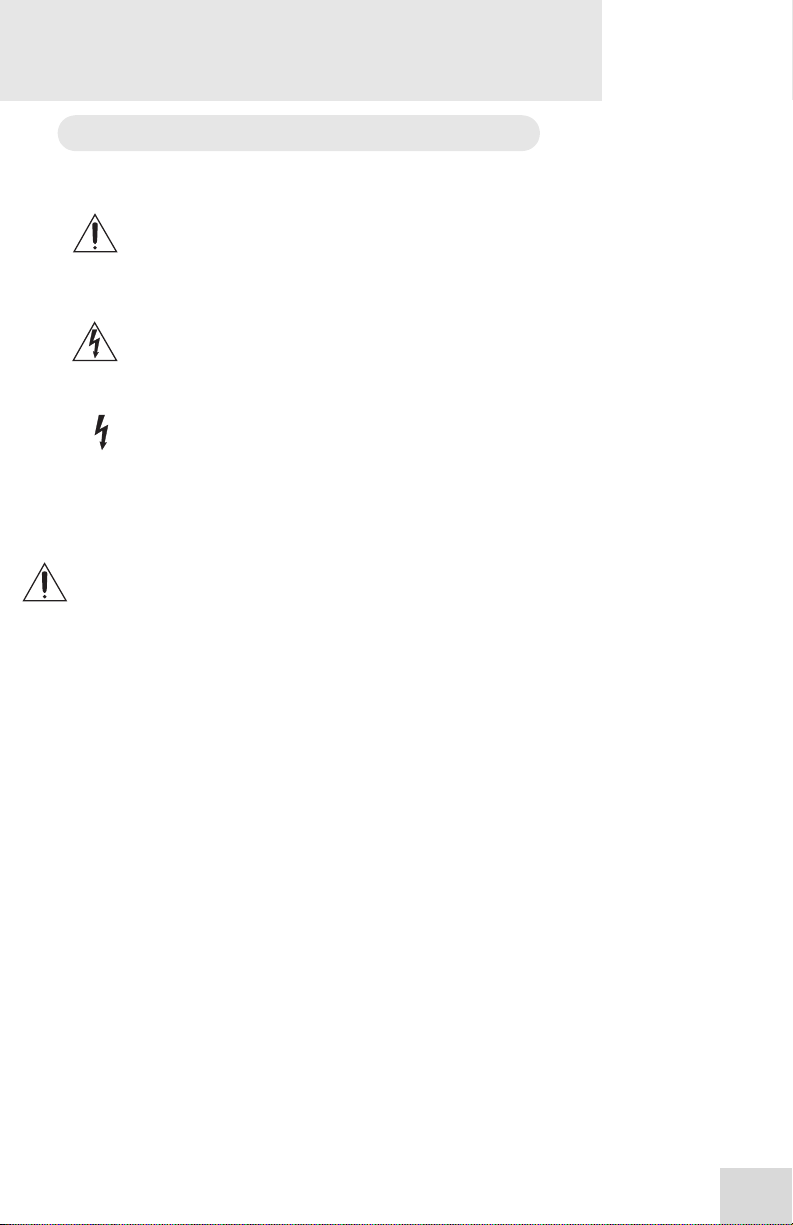
Safety symbols used in this product
operating and maintenance instructions in the literature
accompanying this unit.
the unit that can cause dangerous electric shocks.
voltages that can cause dangerous electrical shock.
This symbol alerts the user that there are important
This symbol warns the user of uninsulated voltage within
This symbol warns the user that output connectors contain
Please follow these precautions when using
this product:
1. Read these instructions.
2. Keep these instructions.
3. Heed all warnings.
4. Follow all instructions.
5. Do not use this apparatus near water.
6. Clean only with a damp cloth. Do not spray any liquid cleaner
onto the faceplate, as this may damage the front panel
controls or cause a dangerous condition.
7. Install in accordance with the manufacturer's instructions.
8. Do not install near any heat sources such as radiators, heat
registers, stoves, or other apparatus (including amplifiers) that
produce heat.
9. Do not defeat the safety purpose of the polarized or
grounding-type plug. A polarized plug has two blades with
one wider than the other. A grounding-type plug has two
blades and a third grounding prong. The wide blade or the
third prong are provided for your safety. When the provided
plug does not fit into your outlet, consult an electrician for
replacement of the obsolete outlet.
10. Protect the power cord from being walked on or pinched,
particularly at plugs, convenience receptacles, and the point
where they exit from the apparatus.
Continued next page
7
Page 10

Important Safety Instructions
11. Use only attachments or accessories specified by the
manufacturer.
12. Use only with a cart, stand, bracket, or table designed for use
with professional audio or music equipment. In any
installation, make sure that injury or damage will not result
from cables pulling on the apparatus and its mounting. If a
cart is used, use caution when moving the cart/apparatus
combination to avoid injury from tip-over.
13. Unplug this apparatus during lightning storms or when unused
for long periods of time.
14. Refer all servicing to qualified service personnel. Servicing is
required when the apparatus has been damaged in any way,
such as when the power-supply cord or plug is damaged, liquid
has been spilled or objects have fallen into the apparatus, the
apparatus has been exposed to rain or moisture, does not
operate normally, or has been dropped.
15. This unit produces heat when operated normally. Operate in a
well-ventilated area with at least six inches of clearance from
peripheral equipment.
16. This product, in combination with an amplifier and
headphones or speakers, may be capable of producing sound
levels that could cause permanent hearing loss. Do not
operate for a long period of time at a high volume level or at a
level that is uncomfortable. If you experience any hearing loss
or ringing in the ears, you should consult an audiologist.
17. Do not expose the apparatus to dripping or splashing. Do not
place objects filled with liquids (flower vases, soft drink cans,
coffee cups) on the apparatus.
18. WARNING: To reduce the risk of fire or electric shock, do
not expose this apparatus to rain or moisture.
8
Page 11

Important Safety Instructions
CE Declaration Of Conformity
See our website at:
http://www.alesis.com
FCC Compliance Statement
This device complies with Part 15 of the FCC rules. Operation is
subject to the following two conditions: (1) This device may not
cause harmful interference and (2) this device must accept any
interference received, including interference that may cause
undesired operation.
NOTE: This equipment has been tested and found to comply
with the limits for a Class B digital device, pursuant to Part 15 of
the FCC Rules. These limits are designed to provide reasonable
protection against harmful interference in a residential installation.
This equipment generates, uses and can radiate radio frequency
energy and, if not installed and used in accordance with the
instructions, may cause harmful interference to radio
communications. However, there is no guarantee that interference
will not occur in a particular installation. If this equipment does
cause harmful interference to radio or television reception, which
can be determined by turning the equipment off and on, the user is
encouraged to try to correct the interference by one or more of
the following measures:
• Reorient or relocate the receiving antenna.
• Increase the separation between the equipment and receiver.
• Connect the equipment into an outlet on a circuit different
from that to which the receiver is connected.
• Consult the dealer or an experienced radio/TV technician for
help.
9
Page 12

Important Safety Instructions
Instructions de Sécurité Importantes (French)
Symboles utilisés dans ce produit
de fonctionnement et de maintenance dans la documentation
jointe avec ce produit.
tension non isolée à l’intérieur de l’appareil pouvant engendrer des
chocs électriques.
sur les raccordements de sorties, représentant un risque
d'électrocution.
Ce symbole alèrte l’utilisateur qu’il existe des instructions
Ce symbole avertit l’utilisateur de la présence d’une
Ce symbole prévient l'utilisateur de la présence de tensions
Veuillez suivre ces précautions lors de
l’utilisation de l’appareil:
1. Lisez ces instructions.
2. Gardez ces instructions.
3. Tenez compte de tous les avertissements.
4. Suivez toutes les instructions.
5. N’utilisez pas cet allareil à proximité de l’eau.
6. Ne nettoyez qu’avec un chiffon humide. Il est potentiellement
dangereux d'utiliser des pulvérisateurs ou nettoyants liquides
sur cet appareil.
7. Installez selon les recommandations du constructeur.
8. Ne pas installer à proximilé de sources de chaleur comme
radiateurs, cuisinière ou autre appareils (don’t les
amplificateurs) produisant de la chaleur.
9. Ne pas enlever la prise de terre du cordon secteur. Une prise
murale avec terre deux broches et une troisièrme reliée à la
terre. Cette dernière est présente pour votre sécurité. Si le
cordon secteur ne rentre pas dans la prise de courant,
demandez à un électricien qualifié de remplacer la prise.
10. Evitez de marcher sur le cordon secteur ou de le pincer, en
particulier au niveau de la prise, et aux endroits où il sor de
l’appareil.
Suite de la page suivante
10
Page 13

Important Safety Instructions
11. N’utilisez que des accessoires spécifiés par le constructeur.
12. N’utilisez qu’avec un stand, ou table conçus pour l’utilisation
d’audio professionnel ou instruments de musique. Dans toute
installation, veillez de ne rien endommager à cause de câbles
qui tirent sur des appareils et leur support.
13. Débranchez l’appareil lors d’un orage ou lorsqu’il n’est pas
utilisé pendant longtemps.
14. Faites réparer par un personnel qualifié. Une réparation est
nécessaire lorsque l’appareil a été endommagé de quelque sorte
que ce soit, par exemple losrque le cordon secteur ou la prise
sont endommagés, si du liquide a coulé ou des objets se sont
introduits dans l’appareil, si celui-ci a été exposé à la pluie ou à
l’humidité, ne fonctionne pas normalement ou est tombé.
15. Puisque son fonctionement normale génère de la chaleur,
placez cet appareil au moins 15cm. des équipments
péripheriques et assurez que l’emplacement permet la
circulation de l’air.
16. Ce produit, utilisé avec un amplificateur et un casque ou des
enceintes, est capable de produite des niveaux sonores
pouvant engendrer une perte permanente de l’ouïe. Ne
l’utilisez pas pendant longtemps à un niveau sonore élevé ou à
un niveau non confortable. Si vous remarquez une perte de
l’ouïe ou un bourdonnement dans les oreilles, consultez un
spécialiste.
17. N'exposez pas l'appareil à l'égoutture ou à l'éclaboussement.
Ne placez pas les objets remplis de liquides (vases à fleur,
boîtes de boisson non alcoolique, tasses de café) sur l'appareil.
18. AVERTISSEMENT: Pour réduire le risque du feu ou de
décharge électrique, n'exposez pas cet appareil à la pluie ou à
l'humidité.
11
Page 14
Important Safety Instructions
Lesen Sie bitte die folgende Sicherheitshinweise (German)
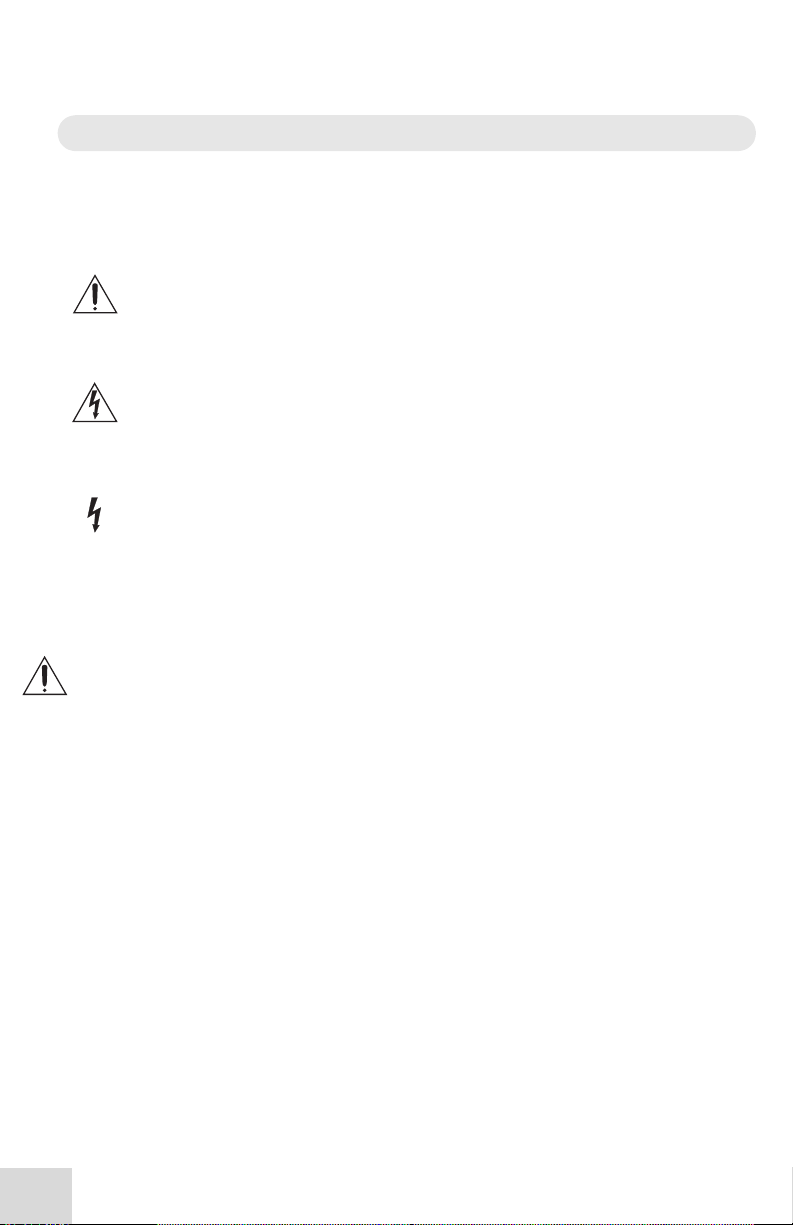
Sicherheit Symbole verwendet in diesem
Produkt
Funktionieren und Wartung Anweisungen in der Literatur gibt, die
diese Maßeinheit begleitet.
Spannung innerhalb der Maßeinheit, die gefährliche elektrische
Schläge verursachen kann.
Spannungen enthalten, die gefährlichen elektrischen Schlag
verursachen können.
Dieses Symbol alarmiert den Benutzer, daß es wichtige
Dieses Symbol warnt den Benutzer der nicht isolierten
Dieses Symbol warnt den Benutzer, dem Ausgabestecker
Folgen Sie bitte diesen Vorkehrungen, wenn
dieses Produkt verwendet wird:
1. Lesen Sie die Hinweise.
2. Halten Sie sich an die Anleitung.
3. Beachten Sie alle Warnungen.
4. Beachten Sie alle Hinweise.
5. Bringen Sie das Gerät nie mit Wasser in Berührung.
6. Verwenden Sie zur Reinigung nur ein weiches Tuch.
Verwenden Sie keine flüssigen Reinigungsmittel. Dies kann
gefährliche Folgen haben.
7. Halten Sie sich beim Aufbau des Gerätes an die Angaben des
Herstellers.
8. Stellen Sie das Gerät nich in der Nähe von Heizkörpern,
Heizungsklappen oder anderen Wärmequellen (einschließlich
Verstärkern) auf.
9. Verfehlen Sie nicht den Zweck des grounging Terminals auf
dem Netzstecker. Dieses Terminal wird für Ihre Sicherheit zur
Verfügung gestellt.
10. Verlegen Sie das Netzkabel des Gerätes niemals so, daß man
darüber stolpern kann oder daß es gequetscht wird.
Fortsetzung auf nächster Seite
12
Page 15

Important Safety Instructions
11. Benutzen Sie nur das vom Hersteller empfohlene Zubehör.
12. Verwenden Sie ausschließlich Wagen, Ständer, oder Tische, die
speziell für professionelle Audio- und Musikinstrumente
geeignet sind. Achten Sie immer darauf, daß die jeweiligen
Geräte sicher installiert sind, um Schäden und Verletzungen zu
vermeiden. Wenn Sie einen Rollwagen benutzen, achten Sie
darauf, das dieser nicht umkippt, um Verletzungen
auszuschließen.
13. Ziehen Sie während eines Gewitters oder wenn Sie das Gerät
über einen längeren Zeitraum nicht benutzen den Netzstecher
aus der Steckdose.
14. Die Wartung sollte nur durch qualifiziertes Fachpersonal
erfolgen. Die Wartung wird notwendig, wenn das Gerät
beschädigt wurde oder aber das Stromkabel oder der Stecker,
Gegenstände oder Flüssigkeit in das Gerät gelangt sind, das
Gerät dem Regen oder Feuchtigkeit ausgesetzt war und
deshalb nicht mehr normal arbeitet oder heruntergefallen ist.
15. Dieses Gerät produziert auch im normalen Betrieb Wärme.
Achten Sie deshalb auf ausreichende Lüftung mit mindestens
15 cm Abstand von anderen Geräten.
16. Dieses Produkt kann in Verbindung mit einem Verstärker und
Kopfhörern oder Lautsprechern Lautstärkepegel erzeugen, die
anhaltende Gehörschäden verursachen. Betreiben Sie es nicht
über längere Zeit mit hoher Lautstärke oder einem Pegel, der
Ihnen unangenehm is. Wenn Sie ein Nachlassen des Gehörs
oder ein Klingeln in den Ohren feststellen, sollten Sie einen
Ohrenarzt aufsuchen.
17. Setzen Sie den Apparat nicht Bratenfett oder dem Spritzen
aus. Plazieren Sie die Nachrichten, die mit Flüssigkeiten
(gefüllt werden Blumevases, Getränkdosen, Kaffeetassen)
nicht auf den Apparat.
18. WARNING: um die Gefahr des Feuers oder des elektrischen
Schlages zu verringern, setzen Sie diesen Apparat nicht Regen
oder Feuchtigkeit aus.
13
Page 16

Important Safety Instructions
This page intentionally left blank.
14
Page 17

1 Quick Start Guide
I
p
s
p
If you can’t wait to get started
The Alesis Bitrman is a unique product, but its basic hookup and
operation is similar to other effects units in most respects. If
you're experienced with signal processors, this chapter is a
"shorthand" guide for those who want to start using the Bitrman
right away. If you have questions about any of the features, don’t
worry – later chapters will unveil the mysteries of the Bitrman's
special features.
Hook it up to a synthesizer
1. First, make sure the power is off to all the components
you’re connecting to: amp, mixer, and instruments.
2. Pull the Bitrman and its power supply out of the
package.
3. Using a pair of 1/4” instrument cables, plug the outputs
of the synthesizer into the INPUTS on the back of the
Bitrman.
4. Connect the OUTPUTS of the Bitrman to the inputs of
a mixer, powered speakers, or instrument amplifier.
5. Insert the power jack of the Bitrman’s power adapter
into the POWER 9VAC input on the rear panel of the
Bitrman and plug the power adapter into an AC outlet
(preferably on a power strip with its switch off).
f you're new to signal
rocessing...
t a r t w i t h t h e m o r e d e t a i l e d
ins tr uc tio ns fo r ho o ku p a nd
o pe ra tio n sta rtin g in th e n ex t
c ha
ter .
The Bitrman doesn’t have a POWER switch of its own. The
moment you plug in the power, its top panel LEDs will come on.
6. Turn the power on to the system: the keyboard, then
the Bitrman’s power strip (if it’s not already on), then
the mixer, then the amp.
7. Turn the INPUT TRIM knob on the back of the
Bitrman while playing the keyboard to adjust the input
level. The SIGNAL LED on the top panel will light
green, not red, when the level is correct.
8. Experiment with the knob and button settings on the
Bitrman to create different sounds.
For more detailed information on connecting the Bitrman, see
chapter 2: Connections.
15
Page 18

Quick Start Guide
1
A quick overview of the controls
CON FI GU RE switc h
This ch o os es th e or d er o f the
fou r in ter na l e ffec ts, a s s ho wn
b y th e LED s n ex t to th e
s witc h. S ee pa ge 3 2.
COMPRESS ( 1) is a s ing le k no b co m pr es s or /lim ite r.
Tur n le ft fo r les s
c om pr es s io n, to the righ t for
a totally co m pr es se d s ou n d.
Rear Panel
Plu g th e p owe r ad ap ter in
h er e.
D ISTO RT (2 ) ad ds d istor tio n
a nd “cr u nc h” to the sign a l.
Tur n clo ck wis e fo r m or e
d is to rtion , c ou nter - cloc k wise
for les s .
BYPASS le ts s ign al pa ss
thr ou gh with o ut a ny effe c ts .
The FOO T SWI TCH ma y be
c on ne cte d to an y mo m en ta r y
p ed al, to en g ag e th e BYPASS
fun ctio n .
BITRN ESS MOD E s witc h
s elec ts on e o f th e s ix k ind s of
Bitrn es s e ffe cts, a s s ho wn by
the LED s n ex t to th e s witch .
D UAL PH ASO R
( 3) a djus ts th e
p ha so r’ s s pe e d.
Tur n co u nter c lo ck wis e to tu rn
o ff.
BITRN ESS
c on tr ols d iffer en t
thing s, de pe n ding
o n th e m od e. S ee
p ag e 2 7.
Sig na l LED
Whe n th is lig hts gr e en , the
Bitrm an is g e ttin g a n in p ut
s ig na l. Whe n it’ s r ed , it’ s
s ee in g too m u ch lev e l...s o
tur n do wn th e ins tr u me nt...
...or th e TRI M co ntro l h er e
o n th e b ac k p an el.
The Mod Link co nnec tor s le t
y ou c on n ec t Mod FX b o xe s in
a c ha in , with ou t ha v in g to us e
inp ut a n d ou tpu t ca b le s
within the c h ain.
16
I NPUTS a nd O U TPUTS a re
s ta nd ar d 1 /4 ” lin e- lev el
jac ks .
I f yo u’ r e us ing a Mo dLin k
c ha in , y ou o n ly n ee d to
c on ne ct to th e firs t u nit’s
inp ut, a nd th e la st un it’ s
o utpu t.
Page 19

2 Connections
M
I
f
A
D
s
Unpacking and Inspection
Your Bitrman was packed carefully at the factory. The shipping
carton was designed to protect the unit during shipping. Please
retain this container in the highly unlikely event that you need to
return the Bitrman for servicing.
The shipping carton should contain the following items:
• Bitrman with the same serial number as shown on the
shipping carton
• Power Adapter
• This instruction manual
To register your purchase, go to the Alesis website at
www.alesis.com.
Installing in a Rack
The Bitrman is designed for tabletop use, but can also be installed
in a standard 19" audio equipment rack. For rack mounting,
contact your Alesis dealer for the ModFX Rack. This rack shelf
holds three ModFX units in a 3-space high 19” rack.
Power
The Bitrman comes with an AC power adapter that transforms
the voltage from a standard wall outlet down to 9 volts AC (830
mA). Plug the small end of the power adapter cord into the
Bitrman’s POWER INPUT socket and then plug the adapter itself
into a good quality, noise-free AC power source of the proper
rating.
ak e su r e yo u r ea d the
initial Im po r ta nt S a fe ty
n s t r u c t i o n s c h a p t e r a t t h e
ro nt o f this m an ua l.
void “popping”:
The supplied AC line adapter is designed only for the country or
region to which the unit is shipped. To use the Bitrman in another
country, contact your Alesis dealer for an Alesis P3 adapter
suitable for the electrical system in the country you are traveling
to.
on ’t p lug th e po we r a da p te r
into th e Bitrm an un til a ll
o th er a u dio c ab le s h av e b ee n
h oo ke d u p. Mak e su r e yo u r
a mp lifie r or po w e r e d
p e a k e r s a r e s w i t c h e d o f f
whe n plu gg in g in th e Bitrm an
to av oid d am a ge .
17
Page 20

Connections
M
F
f
f
2
Connecting audio
The Bitrman will work in many different applications, whether you
are connecting an instrument directly into it, or routing signals to it
from a mixing console. But since the Bitrman is a stereo effect
unit, it’s important to know whether the source will be stereo
or mono.
Mono In, Mono or Stereo Out
If you’re connecting a guitar or bass directly to the Bitrman, hook
it up this way:
1. Connect a 1/4" phone cord to the [L/MONO INPUT] of the
Bitrman from a mono source. (The Left input will then feed
both inputs of the effect.)
2. Connect another 1/4" phone cord from the [L OUTPUT] of
the Bitrman to an amplification system or mixer input.
3. If the amp or mixer is stereo, connect a second 1/4" phone
cord from the [RIGHT OUTPUT] of the Bitrman to the
other input of the stereo amplification system, or the next
mixer input.
4. If you’re connecting directly to a stereo mixer, pan the two
channels hard left and hard right to get the maximum effect.
Wh en c o nn ec tin g au d io
c ab le s a nd /o r tur nin g po wer
o n an d o ff, m ak e su r e th a t all
d ev ic es in y o ur s ys tem a r e
tur ne d o ff a n d th e v olum e
c on tr ols a re tu rn ed do wn .
Turn up the trim...
os t gu ita rs an d ba s se s h av e
r elativ e ly lo w ou tp u t le v els.
or the qu ie tes t effec t, tu rn
u p th e v olum e o n th e g uitar to
ull, th en c r an k up th e
[ TRIM] c on tr o l on th e ba c k
o f th e Bitrm an un til the
S IG NAL LED o n its to p pa n el
la sh es re d while y o u pla y,
the n ba c k it off a b it.
18
Page 21

Connecting to the Channel Inserts of a
I
mixing console:
Most recording consoles have a jack near the mic and line inputs
labeled "Insert". This is typically a TRS jack with the send and
return on the same jack. To use the Bitrman as a channel insert,
you will need an insert cable (not included).
Rin g:
I ns er t r etur n
I ns er t SEN D:
To Mo dFX I NPU T
Connections
2
Tip : Sle ev e:
n s e r t s e n d I n s e r t G r o u n d
This cable splits the TRS insert jack into two unbalanced mono
connectors. Usually, the tip is connected to the INPUT of the
Bitrman and the ring is connected to the OUTPUT of the
Bitrman. However, this may be reversed on some recording
consoles. Check your mixer’s Reference Manual to be sure or just
try it both ways – this won’t damage the Bitrman.
For stereo operation, you would use two insert cables, inserted
into two adjacent channels of the mixer. One would send and
receive signal to the left channel of the Bitrman, and the pan pot
of that mixer channel would normally be panned to the left. Pan
the next mixer channel, for the right side of the Bitrman, to the
right.
I ns er t RETURN :
Fro m Mo d FX O U TPUT
19
Page 22

Connections
I
f
B
f
F
2
Connecting to the Main Outputs of a mixing
console:
In addition to channel inserts, most mixing consoles have main
insert jacks near the main outputs. You can use insert cables to
connect the Bitrman to the main L/R bus the same way you
connect it to a pair of channels. Simply connect one insert cable
to the left main insert of the mixer, and connect the two mono
jacks to the left INPUT and OUTPUT of the Bitrman. Use
another insert cable to connect the right main insert to the right
INPUT and OUTPUT of the Bitrman.
Another method would be to plug the main outputs of the mixing
console to the inputs of the Bitrman, then feed the outputs of the
Bitrman to your monitor amps or mixdown recorder. However, if
you fade down the volume at the end of the song, the sound
quality may change as you fade. This is why it’s better to use the
insert jacks, if available.
Connecting to the Effect Send/Return of a
mixing console:
Since the ModFX boxes don’t have a wet/dry mix control, they’re
designed more for in-line processing than the send/receive kind of
processing typically used for reverb units. However, plugging the
Bitrman into a mixer’s effect send/return loop will allow you to
add effects to a mix of several instruments, from any mixer
channel that has its effect send raised.
To do this, connect a single cable from the Effect Send Out
(sometimes labeled “Aux Out”) to the [L/MONO INPUT] of the
Bitrman. Use two separate cables to connect the [L OUTPUT]
and [R OUTPUT] of the Bitrman to the left and right inputs of a
Stereo Effect Return, or to two adjacent mixer channels panned to
left and right.
ro m Aux /Eff S en d
To re tu r ns
f yo u use m ixe r cha nnels
o r t h e r e t u r n s f r o m t h e
itrm an, b e su re th e Effec t
S en ds fo r t h o s e c h a n n e l s a r e
tur ne d a ll th e wa y o ff to a vo id
ee db ac k .
20
Page 23

d
B
Connecting to the inserts on an instrument
amplifier:
The insert send on a guitar or bass amp is usually labeled "effects
send and return" or "insert send and return". This allows you
to preamplify your instrument before processing it and sending
it to the power amp.
Most guitar amps are single channel, so connect a single insert
cable from the amp to the [L/MONO INPUT] and [LEFT
OUTPUT] of the Bitrman. Some amps have separate “effect
send” and “effect return” jacks; for these, use standard cables.
Check the manual of your amplifier for details.
Connections
N e v e r c o nn e c t t he
Bit r m a n be t w e e n t he
p ow e r a m p an d t he
s pe a k e r !
The h ig h p owe r le ve ls cr e ate
b y th e p ower am p will
d es tr oy th e c ir cu itr y of th e
itrm an .
2
If you are using a dedicated rack-mount preamplifier, another
method would be to insert the Bitrman between the preamp and
the input(s) of the power amp.
21
Page 24

Connections
D
M
s
N
D
s
y
2
Connecting to equipment with XLR inputs
and outputs:
If you are connecting the Bitrman to a product with XLR balanced
inputs and outputs, you will need to convert this signal to a 1/4”
unbalanced connector. Make sure that Pin 2 of the XLR
connector is connected to the Tip of the 1/4” adapter or cable.
Watch out for high levels, however: some XLR sources put out
levels close to the maximum the Bitrman can accept (about +12
dBu) even when its trim is at minimum. Lower the level of the
source if the [SIGNAL] LED flashes red.
About audio cables
The connections between the Bitrman and your studio are your
music’s lifeline, so use only high quality cables. These should be
low-capacitance shielded cables with a stranded (not solid) internal
conductor and a low-resistance shield. Although quality cables
cost more, they do make a difference.
Route cables to the Bitrman correctly by observing the following
precautions:
• Do not bundle audio cables with AC power cords.
• Avoid running audio cables near sources of
electromagnetic interference such as transformers,
monitors, computers, etc.
• Do not place cables where they can be stepped on.
Stepping on a cable may not cause immediate damage,
but it can compress the insulation between the center
conductor and shield (degrading performance) or reduce
the cable’s reliability.
• Avoid twisting the cable or having it make sharp, right
angle turns.
• Never unplug a cable by pulling on the wire itself.
Always unplug by firmly grasping the body of the plug
and pulling directly outward.
on't use line
transformers:
an y XLR-to- 1 /4 " ad a pter s
old at elec tro nics stor e s ar e
OT a da p te rs , b ut
tra ns fo r me rs (a nd v e ry lo w
q ua lity tr an s fo rm er s a t tha t) .
o n ' t u s e t h e s e o n the o u tp ut
o f th e Bitrm an —th ey 're
u nn ec es s ar y a nd g en e ra lly
o u n d a w f u l b e c a u s e t h e y
d on 't h a ve th e he ad r oo m to
h an dle the Bitrm an 's ou tpu t..
G et a h a rd -wire d ad a pter or
c ab le fr om y o ur p ro fes sio na l
a ud io d e aler , o r ma k e on e
o u r s e l f f r o m c o m p o n e n t s .
22
Page 25

Using the ModLink
j
j
j
A
The Bitrman can be connected to other effect boxes in the
ModFX family via the ModLink. The ModLink is a cable-free
connection between two ModFX units that transfers digital audio
and word clock. The 9-pin male connector on the left side of the
unit is the ModLink IN port. The 9-pin female connector on the
right side is the ModLink OUT port. By directly connecting two
ModFX units via the ModLink, audio will pass from the left-most
unit to the right-most unit.
Inputs AC adapter Outputs
Master First Slave Second Slave
udio Flow
Connections
What about the 1/4”
acks on the slave
units?
Whe n a u nit is a sla ve to
a no th er un it, its a u dio inp ut
ac ks a r e dis ab le d; it will g et
its a ud io in p ut d ig ita lly fro m
its Mod Lin k p or t. The o u tp ut
ac ks , h owev e r, a re alwa y s
a ctiv e; so a n a ud io ou tp u t
c an b e tap pe d fro m a ny
lin ke d u nit, with ou t
inter ru p ting th e flo w to th e
r es t of th e c ha in .
2
The audio signal flows from left to right. The Master will send its
digital audio output to the First Slave, and the First Slave will, in
turn, send its output to the Second Slave.
23
Page 26

Connections
2
This page intentionally left blank.
24
Page 27

3 Using the Bitrman
This section will explain how the effects work, and explains the
functions of the Bitrman’s controls in greater detail.
About multieffects
Think of the Bitrman as being four different effect boxes in one.
If you hooked up separate “stomp boxes” with cables, you’d find
that the same four boxes will produce radically different sounds
when they’re connected in different orders. Take, for example,
this chain of devices:
Com pr e s s or D is t o r t P ha so r Bit r n e s s
The input is compressed first, then distorted, then phased, then
modulated. The resulting sound of the above will be very different
from this chain:
Com pr e s s or D is t o r t P ha so r Bit r n e s s
The fact that the compressor is last in this chain, after all the other
effects have taken place, can have a dramatic effect...especially if
the input is a dynamic source like a guitar, with sudden transients
on the attacks that are much louder. In this chain, the distortion
will be more dynamic on those attacks; in the first chain, the
compressor (if it’s turned up) “squeezes” the attacks down to the
same levels, so the distortion is more even.
In the Bitrman, you can “rearrange the order of the stomp boxes”
by using the CONFIGURE switch.
After the order of effects has been set, the basic operation of the
Bitrman couldn’t be simpler. Each of the effects has a single
knob, controlling how much the signal will be affected by that
particular part of the chain. First, let us explain what each
individual effect is designed to do.
25
Page 28

Using the Bitrman
3
About the effects
What is Compression?
Compression makes things sound louder and more sustained. It
reduces the difference between loud sounds and soft sounds.
When it “hears” a soft sound, it increases the gain. When it
“hears” a loud peak, it instantly lowers the gain. It’s an automatic
volume control, with a constant “hand on the fader” regulating
the output level faster than any real engineer could. Compression
is used in the recording of almost every vocal, guitar, and bass.
What is Distortion?
Distortion occurs naturally when an amplifier or speaker is driven
beyond its capability. When electronics are pushed beyond their
limits, they generate frequencies that weren’t in the original signal.
When the “new” frequencies are an even multiple of the input
frequencies, it’s called harmonic distortion. An amp that’s driven into
clipping also generates nonharmonic distortions, i.e., noise.
The [DISTORT] feature of the Bitrman is designed to emulate the
classic sound of overdriven electronics: nonlinear, soft clipping
with a blend of harmonic and nonharmonic distortion, but without
blowing up speakers or amps.
What is a Dual Phasor?
Phasing is a swimming, vibrato-like effect that is similar to (but not
the same as) flanging or the effect of a rotating speaker (i.e., a
Leslie™). It changes the phase of the signal at different
frequencies, with multiple filters sweeping across the spectrum.
It’s useful on guitars, electric pianos, and other keyboard sounds.
The Dual Phasor.of the Bitrman is a stereo effect: the left channel
and right channel phasors are separate and offset from each other,
giving a unique stereo sound (if the outputs are connected to a
stereo system).
26
Page 29

Using the Bitrman
D
s
s
Bitrness Effects
Because of the unique digital signal processing used inside the
Bitrman, Alesis engineers were able to include a family of effects
that take effects processing to a whole new level. These effects
process the input in unique, striking ways that have to be heard to
be understood. So, we put them under the common control
[BITRNESS], and you can select any of these following effects
using the Bitrness rocker switch.
What is Comb Filtering?
A comb filter is a kind of equalizer with several steep notches or
nodes in its frequency response. If you’ve ever mixed a slightlydelayed signal with an original, you’ve heard a comb filter. The
[BITRNESS] control sweeps this comb filter across the frequency
band so you can lock it in any part of the spectrum you want. As
you turn the knob, the notches also spread apart from each other.
Unlike the other effects, however, when the Bitrman is in
COMB mode, the filter is always in the path—the [BITRNESS]
control affects the frequency of the filter only, not the amount of
filtering applied to the signal.
3
What is Decimation?
The Decimator is a unique kind of distortion/modulation that can
twist any input signal into something else entirely...i.e., decimate it.
It adds weird multi-frequency nonharmonic aliasing distortions to
the signal, somewhat like Ring Modulation (see below), but more
as a distortion effect than a harmonic effect. But while the
[DISTORT] feature sounds like overdriven electronics,
DECIMATOR sounds like digital satellite or cell phone distortion.
The [BITRNESS] control increases the amount of decimation; at
high settings there are so many distortions the original signal
disappears into the effect.
Tec hn ic a lly, th e
ECIMATO R lo wer s th e
i g n a l ’ s s a m p l i n g f r e q u e n c y
witho ut lo we r in g th e
a ntia lia sing filter . This
m ea ns th at m irr or r e flec tio ns
o f th e o rigin al fre q ue nc y
( “a lias e s”) a re c re a te d in th e
i g n a l, ad din g cr un c h an d
b uz z. Try this with a d rum
m ac hine fo r a s pe cia l effe c t.
27
Page 30

Using the Bitrman
I
s
g
y
3
What is Bit Reduction?
The BIT REDUCER is an extreme combination of limiting and
distortion that’s not for wimps. By intentionally reducing the
digital resolution (or word length) of the signal, distortion and
noise increase, and dynamic range decreases. At high settings of
the [BITRNESS] knob, as the input signal fades, the noise in the
signal will become more apparent, so watch out! This is the
ultimate low-rez effect.
The [BITRNESS] knob is quantized in Bit Reduction mode to
provide 24-bit (bypass), 10-, 8-, 6-, 4-, 2-, and 1-bit resolutions,
with according jumps in after-stage gain to compensate.
What is Frequency Modulation (FM)?
At low speeds, FM (Frequency Modulation) mode simply adds
vibrato (up and down pitch change) to any signal. The vibrato
speed is controlled by the [BITRNESS] knob, and the vibrato
depth is fixed.
When the speed of FM is increased, so that the “vibrato”
frequency is as high or higher than the input signal, the effect
becomes more extreme. At high settings of the [BITRNESS]
control, the output can sound like signals from a touch-tone
phone (because FM is how those tones are created) or outputs
from a video game.
The dark side of
digital audio
The Bitrm an ta ke s a dv an tag e
o f th e d own s id e of digital
a ud io . Firs t , f o r e v e r y b i t y o u
los e, th e sig na l- to - no is e r atio
oe s do wn 6 d B. Se c on d, as
o u l o s e d i g ita l re s olution ,
the r es u ltin g wav e b ec om e s
“sq ua re d o ff”, ju st as if it
was c lip ping fr om o v er dr ive
( Th is d istor tio n wo u ld s o un d
les s, h o we ve r , if it wer e
d ithe re d .)
f you want a less
dramatic modulation
tha n FM Mo d m od e, tr y lo w
etting s o f the RING MOD
m od e.
28
Page 31

Using the Bitrman
M
s
I
s
H
F
p
f
F
What is Ring Modulation?
Ring Modulation was first used in modular synthesizers. Ring
modulation happens when two signals are multiplied by each
other, creating sum and difference frequencies that aren’t in the
original source. The resulting sound is sort of like an electronic
tubular bell, noise, or metal bars being hit, depending on the
difference between the two frequencies.
When the Bitrman’s in RING MOD mode, an internal digital sine
wave oscillator is used to amplitude-modulate the incoming input
signal. The [BITRNESS] knob controls this modulating
frequency, from off at full counter-clockwise to several thousand
Hertz at full clockwise. Low settings of [BITRNESS] in RING
MOD mode result in a tremolo effect, made into an autopan effect
in stereo because the modulator’s phase is shifted 90° between
channels. As you raise the control while playing a single tone,
you’ll hear the original tone, plus another one going up, and
another one going down. As the ring mod frequency increases, it
will sound distorted in a “signals from outer space” kind of way.
At a full clockwise setting, the Ring Mod source is very high,
resulting in a spaced-out metallic whistling sound, since the sum
and difference signals are so far from the original signal.
Inbetween those two extremes, RING MOD produces a unique
synthesized distortion effect worth exploring.
If you have your Bitrman connected in stereo, you’ll notice that
RING MOD produces some interesting stereo effects.
3
The s ettin g o f th e
[ BI TRNES S] k n ob in Rin g
od m od e s ets the
m od ulating fr eq ue nc y . I f it’ s
o nly 2 H z, th e re su lt will be a
l i g h t t r e m o l o / a u t o p a n s o u n d .
f it’s 10 0 H z, a nd yo u p la y a
4 00 H z n ote, Ring Mo d will
a dd two n on ha rm o nic
i d e b a n d s a t 3 0 0 H z + 5 0 0
z t o t h e o u t p u t .
What is Frequency Shifting?
Frequency Shifting is a relative of Ring Modulation. But instead of
giving you the sum and difference frequencies in the output, it
gives only the sum (higher frequencies), and eliminates the original
pitch entirely.
In FREQ SHIFT mode, the [BITRNESS] knob multiplies the
incoming audio by a higher and higher frequency as you turn the
knob clockwise.
re qu en c y Sh iftin g is NO T
itch s h iftin g (y ou ca n’ t u se
this to ad d a n in te r va l o f a
ifth o r o cta ve a bo v e th e
inp ut). The pitc h o utpu t in
REQ SH I FT m o de is n ot
h ar mo nic .
29
Page 32

Using the Bitrman
I
s
M
p
R
s
d iffe re n t.
3
Description of Controls
Compress [1]
Turn the [COMPRESS] control clockwise for more compression.
At high settings, you’ll get a lot of sustain, but less dynamic range.
When the control’s all the way up, you’ll find that soft and loud
inputs both come out at almost the same loudness. Depending on
the input signal, you may also hear an increase in noise; but this is
normal for all compressor/limiters with high output gain. As you
turn it down, the loud inputs will still be loud, but the soft inputs
will become softer. Turn [COMPRESS] full counter-clockwise
for no compression at all.
Distort [2]
Turn the [DISTORT] control clockwise for more distortion, and
full counter-clockwise for no distortion at all.
Dual Phasor [3]
The [DUAL PHASOR] control primarily controls the speed of the
phasing effect, from slow to fast. But the full counter-clockwise
position turns the phasing effect off entirely.
Bitrness Knob
See page 27 for complete descriptions of each Bitrness effect.
The [BITRNESS] knob does different things depending on what
Bitrness effect is chosen by the BITRNESS rocker switch.
Mode [BITRNESS] controls:
COM B Frequency of co mb filter (always in pat h).
DEC IMATOR Add s aliasing d istort ion
BIT REDUC ER Dig ital w ord length reduction (clockwise for
more noise, distortio n, and compression )
FM Increases modulation frequency
RIN G MOD Increases the ring mo dulation frequency
FREQ SHIF T Increases the amount of frequency shift
Threshold
compression
f y o u ’ r e u s e d t o c o m p r e s s o r s
with mu ltiple c on tr o ls ( lik e
the Ale s is Nan oCom p re ss o r
a nd 3 63 0 ), u n de rs ta n d th a t
tur ning up th e CO MPRES S
c on tr ol do es two th ing s
i m u l t a n e o u s ly: lo wer s the
thr es ho ld, a n d in c r e a s e s t h e
o utpu t g ain b y th e s am e
a mo un t. The co mp re s sion
r atio is fix e d at a b ou t 6 :1 ,
a nd a tta ck a n d re le a se time s
a re s et at th e mo st us efu l fo r
ins tr um e ntal play in g .
odulation depends
on the octave you’re
laying in
Whe n a s ettin g us es FM,
ING MO D , or FREQ
S HI FT, the s e ttin g o f th e
[ BI TRNES S] c o ntro l m us t b e
v ar ie d d ep en d in g ho w h ig h
o r lo w in th e m us ic a l sc a le
the inp u t is . Fo r e xa mp le, the
etting fo r a b as s p la ye r a nd
a g uita r is t will be to ta lly
30
Page 33

Using the Bitrman
R
F
P
R
R
g
BITRNESS select switch
The up/down rocker switch above the [BITRNESS] knob on the
right side of the unit selects the type of Bitrness effect. The LEDs
next to the switch light up to indicate the current mode. There are
six kinds of Bitrness effects available, explained previously.
CONFIGURE switch
As explained on page 25, this switch controls the order of the four
effects of the Bitrman, from input to output. Whatever LED is lit
to the left of the switch shows the current order, with “1” standing
for the COMPRESS effect, “2” standing for the DISTORT effect,
“3” standing for the DUAL PHASOR effect, and the letter “B”
standing for the BITRNESS effect.
3
What configuration should you use?
There’s no “ideal setting” here; the difference between one order
of effects and another depends very much on the individual knob
settings for each. Typically, the last effect in a chain will be the
most clearly heard, but when you’re setting out to make a unique
sound, it’s not always true. The location of the compressor is
crucial for distortion-based effects: do you want things to clip
first, then be compressed, or should the input to the distortion
module already be compressed? The position of the Dual Phasor
in the chain is also sensitive relative to the DISTORT and
BITRNESS modules; if the Phasor comes before them, its effect
can be somewhat lost if the distortion or modulation is dramatic.
The Bitrness Mode is another “wild card” in selecting the
configuration: having a comb filter last in a chain is very different
from having a Bit Reducer last in a chain. The only answer is to
experiment for yourself and try lots of configurations with
different settings.
elating Bitrness to
other effects
Cer ta in Bitrn es s e ffe cts ar e
r elativ e s to th e oth er e ffe cts.
or e xa m ple, CO MB a n d th e
ha so r a re b o th filter -p h as e
n otch e ffe cts , so in c er tain
o rd er s the y’ ll ad d tog eth er in
inter es tin g way s. The BI T
ED UCER co mb ine s
d is to rtion a n d co mp r es sio n
tog ethe r . Ex pe rime n t with
d iffe re n t co n figu ra tio ns
whe re th e CO MPRES S b lo ck
is be fo r e or afte r the BI T
ED UCER bloc k , an d y ou ’ll
et m uc h m or e p ower th en
e ithe r o ne a lon e.
31
Page 34

Using the Bitrman
3
About the six configurations
When the top CONFIGURE LED is lit, the effects are in the
same order they’re in on the top panel, from left to right. This
compresses the signal before distorting it.
Com pr e s s or D is t o r t P ha so r Bit r n e s s
The second configuration (B 3 2 1) puts the effects in reverse
order, with the compressor last in the chain. This typically gives a
smoother sound if the DISTORT control is high.
The third configuration (3 2 1 B) is like the above, but with
Bitrness last in the chain.
Com pr e s s or D is t o r t P ha so r Bit r n e s s
The “B 1 2 3” configuration puts the phasor last, so the overtones
of the preceding distortion or modulation blocks will get phased.
Use this when you want the sweeping phase shift to be dominant.
Com pr e s s or D is t o r t P ha so r Bit r n e s s
Com pr e s s or D is t o r t P ha so r Bit r n e s s
In “1 B 3 2”, the input is gain-leveled before it hits any other
effect, just as in the first configuration, but in this case the
DISTORT block comes last, so its effects aren’t masked by
anything. This is like putting effects before a clipping guitar amp:
Com pr e s s or D is t o r t P ha so r Bit r n e s s
Finally, the last configuration (2 B 3 1) puts the compressor last, as
in the second configuration, to smooth out whatever came before.
In theory, this is like putting a microphone on a guitar cabinet,
then putting phasing and compression on the mixing console.
32
Com pr e s s or D is t o r t P ha so r Bit r n e s s
Page 35

Bypass
B
Using the Bitrman
3
This button sends the signal directly from the input to the output
without any effect. Press [BYPASS] to check the sound of the
source without any effect from the Bitrman. When the red
BYPASS LED is lit, all effects are off. Bypass can also be
activated by the foot switch.
Since the Bitrman is a digital effect, signal always passes through
the digital A/D–D/A conversion process, so that digital signal will
flow through to other effects in a ModLink chain even when
[BYPASS] is on. So, unlike old analog effects, this is not a
“hardwire” bypass switch—the Bitrman must be powered on to
pass signal through, even in bypass mode. Similarly, the [TRIM]
control is always active, since it’s an analog control regulating the
level feeding the analog-to-digital converters.
Using the Foot Switch
If you need to bypass the effect totally but your hands aren’t free,
simply connect any momentary footswitch (such as those used for
keyboard sustain pedals, either NC normally closed or NO
normally open) to the [FOOT SWITCH] jack on the rear panel.
The footswitch will turn the BYPASS LED on and off.
To bypass any of the
internal effects
S im ply tur n its k no b a ll th e
way c ou n te r- c lo ck wis e. The
o nly ex c ep tio n is if
ITRNES S i s in CO MB
m od e; to b yp a ss this s ele ct
a ny o th e r mo d e an d tur n the
k no b all the wa y do wn.
33
Page 36

Using the Bitrman
3
This page intentionally left blank.
34
Page 37

4 Sample Settings
D
s
While there’s nothing like discovering new sounds for yourself,
here are some sample settings for the Bitrman to help get you
started. Simply set the knobs on your Bitrman so they’re at the
positions shown, and press the rocker switches so each effect is in
the mode shown by the LEDs. Feel free to modify these any way
you want to suit your particular playing style.
ecimator
S im ple d ec im a tion with
c om pr es s io n for a fu ll s o un d.
Tubular
This se tting will g ive y o u th e
c la ss ic ring mo d u l a t i o n
ou nd with m o st k in d s of
inp ut.
35
Page 38

Sample Settings
B
s
M
H
4
Twin Distortion
This co m bine s c om pr e ss io n
with dis to rtion a nd bit
r ed uc tio n to ge t a n as ty
d is to rtion .
ell Worship
The fre q ue nc y s hifting h e re
m ak es in ha rm o nic be ll
ou nd s fro m the inp u t.
36
etallic FM
er e, th e fr e qu en cy
m od ulation g e ne ra te s
inh ar mo n ic fr e q u e nc ies .
Page 39

Sample Settings
B
F
s
s
H
s
ollowgram
The c om b filter m ak e s it
ou nd like y o u ar e lis te n in g
thr ou gh a ho llo w tu b e an d
the p ha so r g i v e s it s om e
m otio n.
lank
ill in yo ur own fa v or ite
etting s h er e . Pho toc op y the
n ex t pa g e if yo u ne e d mo r e
p a c e .
4
37
Page 40

Sample Settings
4
Blank settings templates
38
Page 41

5 Troubleshooting
[
Troubleshooting Index
If you experience problems while operating your Bitrman, please
use the following table to locate possible causes and solutions
before contacting Alesis Product Support for assistance.
Symptoms Cause Solution
No audio output s. No input audio (SIGNAL
Mod Linked units are n ot
working p roperly
Distorted sound
Noise rises during the
decay of each n ote.
Buz z or h um fro m
out puts
LED doesn ’t flash).
Bad cables.Rep lace t he cab les.
Destination is turned
down.
[IN PUT TRIM] kn ob is
turned down
Inp ut cab les are conn ected
to a linked unit
Power is no t conn ected Go take a walk
Power dropo ut to one of
the units in th e chain
Inp ut level too h igh
(SIGNAL LED on fro nt
pan el flashes red)
[DISTORT] or
[BITRNESS ] up
[CO MPRESS ] knob is set
hig h, add ing gain to a
noisy sig nal
Aud io cab les are crossing a
power cable or a power
adapter.
BIT RNESS is in BIT
RED UCER m ode
Bad cables Rep lace t he cab les
Test with a known good
inp ut.
Check the connections
and the level of th e mixer
or amp th at the Bit rman is
con nected to.
Adjust th e knob to th e
pro per level.
Con nect t he inp ut cab les
to the Master o f the link
chain
Plug in a power supply to
each unit in a chain.
Turn down the so urce, or
the TRIM cont rol on th e
Bit rman’s back pan el.
Turn them d own, if you
wan t a clean so und
Red uce th e noise coming
fro m the source, or lower
the
COMP RESS] cont rol
Make sure that t he
Bit rman and its audio
cab les are kept away fro m
power cables and wall
warts.
Don ’t wrap cable in t ight
bun dles.
Turn down the
[BITRNESS ] knob , or
select a different mo de, or,
just enjo y it.
39
Page 42

Troubleshooting
5
Symptoms Cause Solution
Pro blem w ith th e source Try bypassing t he Bit rman
AC hum Gro und lo op Place all equip ment in the
by connecting t he inp ut
cab les to the o utput cables
and see if the problem
rem ains.
studio on a com mon
gro und (see next page) .
40
Page 43

Troubleshooting
Avoiding ground loop noise
In today’s studio, where it seems every piece of equipment has its
own computer chip inside, there are many opportunities for
ground loop problems to occur. These show up as hums, buzzes
or sometimes radio reception and can occur if a piece of
equipment "sees" two or more different paths to ground. While
there are methods to virtually eliminate ground loops and stray
radio frequency interference, most of the professional methods are
expensive and involve installing a separate power source just for
the sound system. Alternatively, here are some helpful hints that
professional studio installers use to keep those stray hums and
buzzes to a minimum.
KEEP ALL ELECTRONICS OF THE SOUND
SYSTEM ON THE SAME AC ELECTRICAL
CIRCUIT.
Most stray hums and buzzes happen as a result of different parts
of the sound system being plugged into outlets of different AC
circuits. If any noise generating devices such as air conditioners,
refrigerators, neon lights, etc., are already plugged into one of these
circuits, you then have a perfect condition for stray buzzes. Since
most electronic devices of a sound system don’t require a lot of
current (except for power amplifiers), it’s usually safe to run a
multi-outlet box or two from a SINGLE wall outlet and plug in all
of the components of your system there.
5
KEEP AUDIO WIRING AS FAR AWAY FROM AC
WIRING AS POSSIBLE.
Many hums come from audio cabling being too near AC wiring.
If a hum occurs, try moving the audio wiring around to see if the
hum ceases or diminishes. If it’s not possible to separate the audio
and AC wiring in some instances, make sure that the audio wires
don’t run parallel to any AC wire (they should only cross at right
angles, if possible).
TO ELIMINATE HUM IF THE ABOVE HAS FAILED:
1. Disconnect the power from all outboard devices and
tape machines except for the Bitrman, the mixer and
control room monitor power amp.
2. Plug in each tape machine and outboard effects device
one at a time. If possible, flip the polarity of the plug of
each device (turn it around in the socket) until the
quietest position is found.
3. Make sure that all of the audio cables are in good
working order. Cables with a detached ground wire will
cause a very loud hum!!
41
Page 44

Troubleshooting
5
4. Keep all cables as short as possible, especially in
unbalanced circuits.
If the basic experiments don’t uncover the source of the problem,
consult your dealer or technician trained in proper studio
grounding techniques. In some cases, a "star grounding" scheme
must be used, with the mixer at the center of the star providing the
shield ground on telescoping shields, which do NOT connect to
the chassis ground of other equipment in the system.
Line conditioners and spike protectors
Although the Bitrman is designed to tolerate typical voltage
variations, in today’s world the voltage coming from the AC line
may contain spikes or transients. These can cause audible noises,
and they can stress your gear and, over time, possibly cause a
failure. There are three main ways to protect against this, listed in
ascending order of cost and complexity:
• Line spike/surge protectors. Relatively inexpensive,
these are designed to protect against strong surges and
spikes, acting somewhat like fuses in that they need to
be replaced if they’ve been hit by an extremely strong
spike.
• Line filters. These generally combine spike/surge
protection with filters that remove some line noise
(dimmer hash, transients from other appliances, etc.). A
good example is the Isobar™ series from Tripp Lite.
42
• Uninterruptible power supply (UPS). This is the
most sophisticated option. A UPS provides power even
if the AC power line fails completely. Intended for
computer applications, a UPS allows you to complete an
orderly shutdown of a computer system in the event of a
power outage. In addition, the isolation it provides
from the power line minimizes all forms of
interference—spikes, noise, etc.
Page 45

Troubleshooting
Care and Maintenance
Cleaning
Disconnect the AC cord, then use a damp cloth to clean the
Bitrman’s metal and plastic surfaces. For heavy dirt, use a nonabrasive household cleaner such as Formula 409™ or Fantastik™.
DO NOT SPRAY THE CLEANER DIRECTLY ONTO THE
FRONT OF THE UNIT AS IT MAY DESTROY THE
LUBRICANTS USED IN THE SWITCHES AND CONTROLS!
Spray onto a cloth, then use cloth to clean the unit.
Refer all servicing to Alesis
We believe that the Bitrman is one of the best signal processors
that can be made using current technology, and should provide
years of trouble-free use. However, should problems occur, DO
NOT attempt to service the unit yourself unless you have training
and experience. Service on this product should be performed only
by qualified technicians. NO USER-SERVICEABLE PARTS
INSIDE.
5
43
Page 46

Troubleshooting
5
Obtaining repair service
Before contacting Alesis, check over all your connections, and
make sure you’ve read the manual.
Customers in the USA and Canada:
If the problem persists, contact Alesis and request the Product
Support department. Make sure you have the unit’s serial number
with you. Talk the problem over with one of our technicians; if
necessary, you will be given a return order (RO) number and
instructions on how to return the unit. All units must be shipped
prepaid and COD shipments will not be accepted.
For prompt service, indicate the RO number on the shipping label.
Units without an RO will not be accepted. If you do not have
the original packing, ship the unit in a sturdy carton, with shockabsorbing materials such as Styrofoam pellets (the kind without
CFCs, please) or "bubble-pack" surrounding the unit. Shipping
damage caused by inadequate packing is not covered by the Alesis
warranty.
Tape a note to the top of the unit describing the problem, include
your name and a phone number where Alesis can contact you if
necessary, as well as instructions on where you want the product
returned. Alesis will pay for standard one-way shipping back to
you on any repair covered under the terms of this warranty. Field
repairs are not authorized during the warranty period, and repair
attempts by unqualified personnel may invalidate the warranty.
Customers outside the USA and Canada:
Contact your local Alesis distributor for any warranty assistance.
The Alesis Limited Warranty applies only to products sold to users
in the USA and Canada. Customers outside of the USA and
Canada are not covered by this Limited Warranty and may or may
not be covered by an independent distributor warranty in the
country of sale. Do not return products to the factory unless you
have been given specific instructions to do so.
44
Page 47

Specifications
A
Audio Input
Input Connectors: 2 unbalanced 1/4” jacks
Maximum Input Level: +10 dBV
Nominal Level: -10 dBV
Input Impedance: 470kΩ
Input Converter Resolution: 24-bit, 48 kHz sampling
Audio Output
Output Connectors: 2 unbalanced 1/4” jacks
Maximum Output Level: +9 dBV
Output Impedance: 500Ω
Output Converter Resolution: 24-bit, 48 kHz sampling
Audio Performance
(Analog In to Analog Out)
Signal To Noise Ratio: >100 dB A-weighted
THD+N: < 0.005%
Frequency Response: ± 1dB from 22Hz to 22kHz
Internal DSP Resolution: 28-bit
ll m ea s ur em e nts do n e ov e r
a 2 2H z – 2 2k H z ra ng e with a
1 kH z sin e wa v e at - 1 dBFS
inp ut. I mp ed a nc es ar e
m ea su re d a t 1 kH z.
Power Consumption: 7 Watts max (9VAC Alesis P3)
Mechanical
Size: 2.1” H x 5.8” W x 3.9” D
Weight: 12.6oz. (357 g)
(53mm H x 148mm W x
98mm D)
45
Page 48

Specifications
6
This page intentionally left blank.
46
Page 49

Index
amplifier, 21
BIT REDUCER, 28, 30
BITRNESS, 16, 27, 30
order in configurations, 31
quantized in BIT
REDUCER, 28
switch, 16, 31
BYPASS, 16, 33
with foot switch, 33
cables, 22
COMB filter, 27, 30
COMPRESS, 16, 30
Compression, 26
configurations, 25, 32
CONFIGURE switch, 16,
25, 31
DECIMATOR, 27, 30
digital, 28
digital converters, 33, 45
DISTORT, 16, 30
Distortion, 26
DSP, 45
DUAL PHASOR, 16, 26, 30
Effect Send/Return, 20
FM, 28, 30
FOOT SWITCH, 16, 33
FREQ SHIFT, 29, 30
Ground Loop, 41
grounding, 7
guitar, 18
Hums and buzzes, 41
INPUTS, 15
INPUTS and OUTPUTS, 16
Insert Cables, 19
levels, 22
mixing console
hookup, 20
ModLink, 16, 23
modulation, 30
multieffects, 25
OUTPUTS, 15
on ModLink slave units, 23
Phasor. See DUAL PHASOR
POWER, 15
adapter, 17
cable safety, 7
Rack mounting, 17
RING MOD, 29, 30
Safety, 7
SIGNAL LED, 15, 16, 18, 22
stereo, 18
in RING MOD mode, 29
transformers, 22
TRIM, 15, 16, 18
active in bypass mode, 33
vibrato, 28
XLR, 22
47
Page 50

Warranty / Contact Alesis
F
Alesis Limited Warranty
ALESI S CORPORATI ON ("ALES IS") war rants this product to be free of defects
in material and workmanship for a period of one (1) year for parts and for a period of
one (1) year fo r labor from the date of original retail purchase. This warranty is
enforceable only by the original retail p urchaser and cannot be t ransferred or assi gned.
For the most effective service, the purchaser should re gister t he purchase on the
ALESI S website at http:/ /www.ale sis.com/support/warranty.htm.
Duri ng the warranty period ALESIS shall, at its sole and absolute option, either repair
or replace free of charge any prod uct that proves to be defecti ve on inspection by
ALESI S or its authorize d service representative. In all cases disputes concerning t his
warranty shall be resolved as prescrib ed by law.
To ob tain warra nty service, the purchaser must first call or write ALESIS at the
address and telep hone n umber ava ilable on the Alesis Website to obtain a Return
Autho rization Number and i nst ructions concerning wh ere to return the unit for
service. All inquiries must be accompanied by a description of the problem. All
autho rized returns must be sent to ALESIS or an au thorized ALESIS repair facil ity
postage prepaid, insured and properly packaged. Proof of purchase must be presented
in the form of a bill of sale, canceled check or some other positive proof that the
product is within the warranty period. ALESIS reserves the righ t to update any unit
return ed for repair. ALESIS rese rves the right to change or improve de sign of the
product at any time without prior notice.
This war ranty does not cover claims for damage due t o abuse, neglect, alte ration or
atte mpted repair by unauthorized personnel, and is limited to failures arising during
normal use that are due to defects in material or workmanship in the product.
THE ABOVE WARRANTIE S ARE IN LIEU OF ANY OTHER
WARRA NT IES O R REPRESENTATIONS WHETHER EXPRESS OR
IMPLIED OR OTHERWISE, WITH RESPECT TO THE PRODUCT, AND
SPECIFICALLY EXCLUDE ANY IMPLIED WARRANTIES OF FITNESS
FOR A PARTICULAR PURPOSE OR MER CHANTABILITY OR OTHER
IMPLIED WARRANTIES. Some states do not allow limitations on how long an
implied warranty lasts, so the above limitation may not appl y to you.
IN NO EVENT WILL ALESIS BE LIABLE FOR INCIDENTAL,
CONSEQUENTI AL, INDIR ECT OR OTHER DAM AGES RESULTING
FROM THE BREACH OF ANY EXPRESS OR IMPLIE D WARRANTY,
INCLUDING, AMONG OTHER THI NGS, DAMAGE TO PROPERTY,
DAMAGE BASED O N INCONVE NIENCE OR ON LOSS O F USE OF THE
PRODUCT, AND, TO THE EXTENT PERMITTED BY LAW, DAMAGES
FOR PERSONAL INJURY. Some states d o not allow the exclusion or limitation of
incidental or consequential damages, so the above limitation or exclusion may not
apply to you .
THIS CONTRACT SHALL BE GOVERNED BY THE INTERNAL LAWS
OF THE STATE OF CALIFORNIA WITHOUT REFERENCE TO
CONFLICTS OF LAWS. This warranty gives you specific le gal righ ts, and you may
also have other rights required by law which vary from state to state.
This war ranty only applies to products sold to purchasers in the United States of
America or Canada. The terms of this warranty and any obligations of Alesis under
this warranty shall apply only within the country of sale. Without limiting the
foregoing, repairs under this warranty shall be made only by a duly authorized Alesis
service representative in the count ry of sale. For warranty information in all other
count ries please re fer to your local distributor.
or more effective
service and product
update notices, please
register your Bitrman
online at:
http://www.alesis.com/
support/warranty.htm
48
Page 51

Warranty/Contact Information
Alesis Contact Information
Alesis Studio Electronics
Los Angeles, CA USA
E-mail: support@alesis.com
Website: http://www.alesis.com
Alesis Bitrman Reference Manual
Version 1.0 by Alex Souppa & Dan Tinen
Copyright 2002, Alesis Distribution, LLC. All rights reserved
Reproduction in whole or in part is prohibited. Specifications
subject to change without notice.
All trademarks are the property of their respective holders.
7-51-0112-A
8/2002
49
 Loading...