

Page 1
Samsung Electronics
3-1
3. Software Update
3-1 Drive Firmware Update
3-1-1 Introduction
When you can not record and play on specific recording media (especially on newly available DVD-RW or DVD-R).
3-1-2 How to make an update disc
• Write the downloaded file onto a blank CD-R or CD-RW disc, using the following settings :
1) Download the software update file from the samsung internet site. (http://europe.samsungportal.com)
2) Write the file to disc using the CD-RW of your computer.
• Recommended Application Program
- Nero Burning / Easy CD Creator ..etc
• Option
- Extension name : “*.SMD”
- Multisession : No Multisession
- File name lenght : Max. of 11 = 8 + 3
- Format : Mode 1
- Character set : ISO 9660 or Joliet Format
- CD Close & Dise at once
N O T E
Very important : please read the notice below before updating your unit.
The following events may interrupt the update process and MAY RESULT IN PERMANENT DAMAGE TO THE UNIT WHILE UPDATING
! Unplugging the power cord.
@ Power Outage.
# Dirt or Scratches on the disc.
$ Opening a disc tray during processing.
WARNING
Page 2
3-2
Software Update
Samsung Electronics
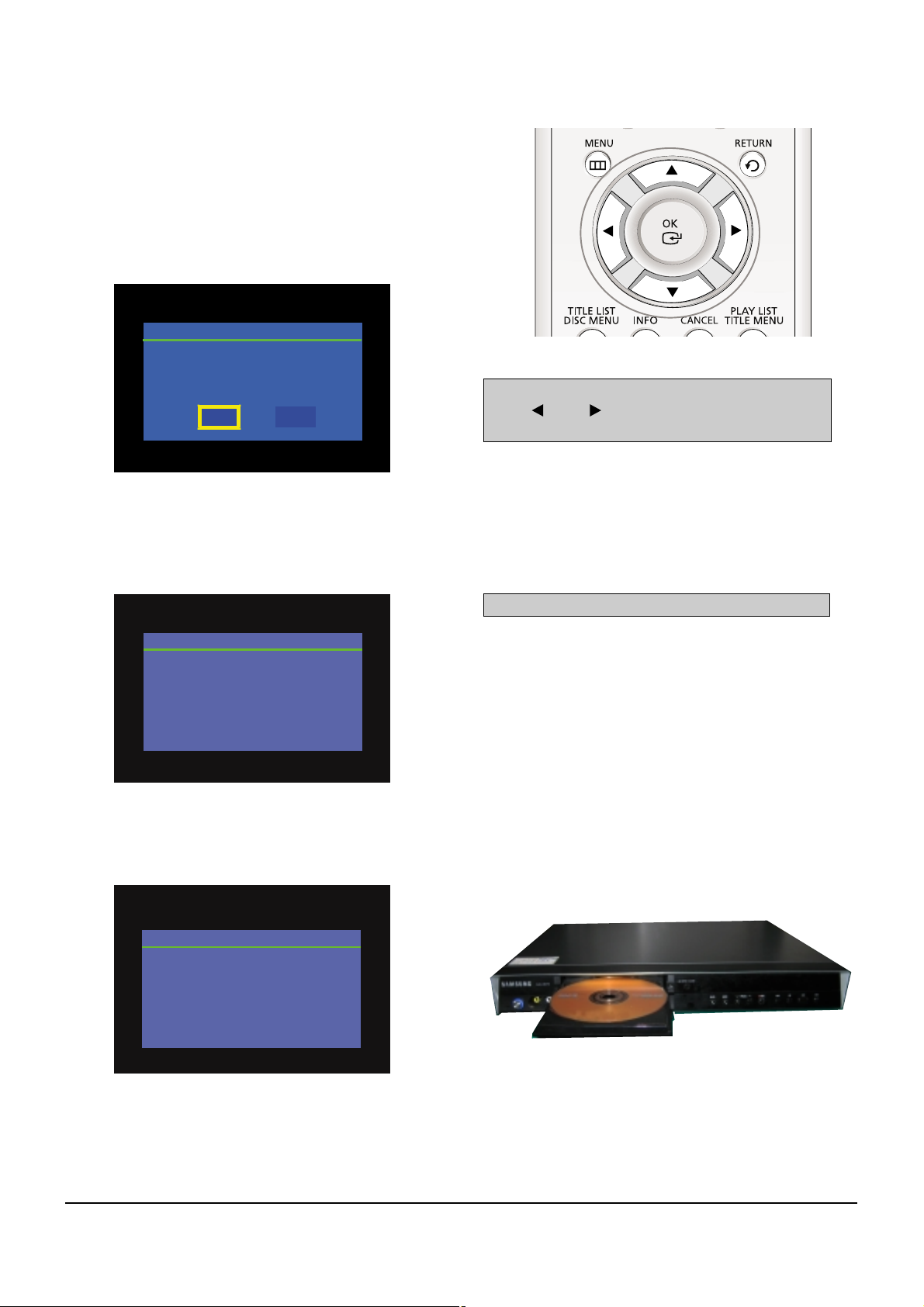
Fig. 3-1
* If you don’t see the message above, try another disc. Generally, this is caused by disc quality and by disc creating problem.
4) Press the OK button on the remote control (Fig. 3-1).
Fig.3-3
5) It takes about 1~2 minutes to complete the update.
The message below will be displayed in the screen after update is completed and the tray will open automatically.
Fig. 3-4
6) After removing the update disc, turn off the unit with power button.
Turn on the power again the tray will then close.
The drive firmware is now complete.
Atfer checking old and new version, select “Yes” or “No”
with “ ” or “ ” on the remote control.
* The Version is indicated by “XX.X modelname”
You will see “LOAD” on FLT Display.
Fig. 3-5
1) Press OPEN/CLOSE to open the disc tray.
2) Insert the update CD-R disc with the software update, label
facing up.
3) Press OPEN/CLOSE to close the disc tray.
* It takes about 1~2 minites before the mesage below appears.
Fig. 3-2 Remote Control
Drive Update
Do you want to update drive-firmware?
Version: Xx.X.HR755 -> XX.X.HR755
Yes
No
Drive Update
Now, processing...
Please, do not turn off the power.
Drive Update
Drive firmware is successfully
updated.
Page 3
Software Update
3-3
Samsung Electronics
3-2 Flash Update
3-2-1 Introduction
When you encounter the problem which is not related in drive firmware necessity.
3-2-2 How to make an update disc
Write the downloaded file onto a blank CD-R or CD-RW disc, using the following settings :
1) Download the software update file from the samsung internet site. (http://europe.samsungportal.com)
2) Write the file to disc using the CD-RW of your computer.
• Recommended Application Program
- Nero Burning / Easy CD Creator ..etc
• Option
- Multisession : No Multisession
- CD close & disc at once
- ISO 9660 or joliet format
- Extension name : “*.RUF”
• In order to increase disc playability, add a dummy file (over 100MB) together with the latest program.
(The dummy file can be any kind of file except MP3 file etc which can be played in the unit and we recommend to use a file whose
extension name as “*.dmy”, which can be changed from original one.)
N O T E
Very important : please read the notice below before updating your unit.
The followong events may interrupt the update process and MAY RESULT IN PERMANENT DAMAGE TO THE UNIT WHILE UPDATING
! Unplugging the power cord.
@ Power Outage.
# Dirt or Scratches on the disc.
$ Opening a disc tray during processing.
WARNING
Page 4
3-4
Software Update
Samsung Electronics
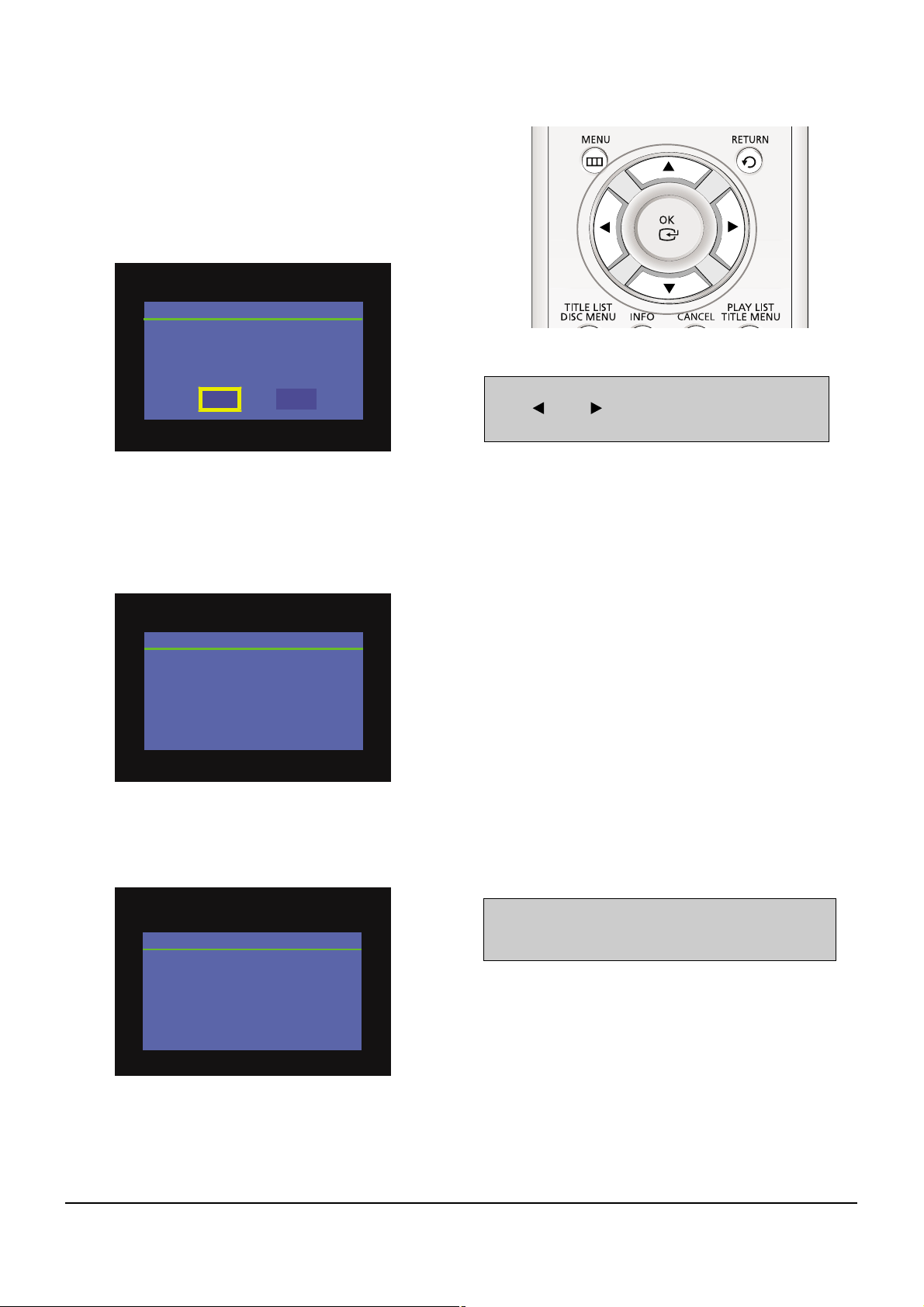
Fig. 3-6
* If you don’t see the message above, try another disc.
Generally, this is caused by disc quality and by disc creating problem.
4) Press the OK button on the remote control (Fig. 3-6).
Fig. 3-8
5) It takes about 5 minutes to complete the update.
The message below will be displayed in the screen after update is completed and the tray will open automatically.
Fig. 3-9
6) After removing the update disc, turn off the unit with power button.
Turn on the power again and the tray will then close.
The Flash update is now complete.
* If the message to the left isn’t displayed after 10minutes
and the unit is no longer functioning properly, contact a
samsung authorized service center.
Atfer checking old and new version, select “Yes” or “No”
with “ ” or “ ” on the remote control.
* The Version is indicated by “YYMMDD.xx modelname”
1) Press OPEN/CLOSE to open the disc tray.
2) Insert the update CD-R disc with the software update, label
facing up.
3) Press OPEN/CLOSE to close the disc tray.
Fig. 3-7 Remote Control
Flash Update
Do you want to update flash memory?
Version: YYMMDD.xx.HR755
-> YYMMDD.xx.HR755
Yes
No
Flash Update
Now, processing...
Please, do not turn off the power.
Flash Update
Flash memory is successfully
updated.
 Loading...