

Page 1
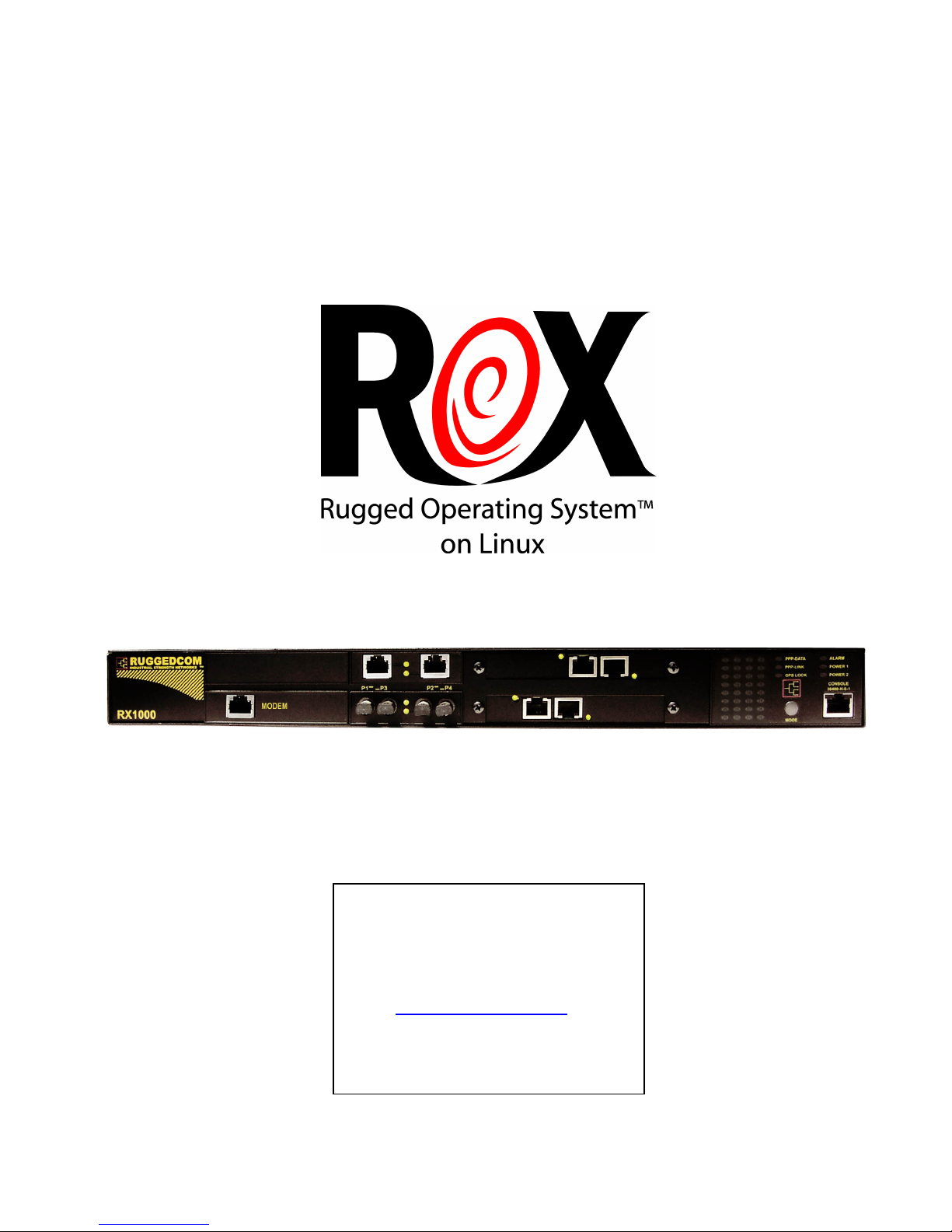
RuggedRouter
RX1000/RX1100 User Guide
®
RuggedCom Inc.
30 Whitmore Road,
Woodbridge, Ontario, Canada
L4L 7Z4
Web: www.ruggedcom.com
Tel: (905) 856-5288
Fax: (905) 856-1995
Toll Free: (888) 264-0006
Page 2

FOR USE WITH RX1000/RX1100 PRODUCTS
RuggedCom
30 Whitmore Road
RUGGEDROUTER® USER GUIDE
Version 1.1 3. 3 – October 20, 2008
Disclaimer
RuggedCom Inc. makes no wa rr an ty o f any kind with regar d to this
mater ial.
Woodbridge, Ontario
Canada L4L7Z4
Tel: (905) 856-5288
Fax: (905) 856-1995
Toll Free: (888) 264-0006
support@ruggedcom.com
http://www.ruggedcom.com
RuggedCom shall not be liable for errors conta in ed herein or fo r
consequ ential damages in con nection wit h the furnish in g,
performan ce, or use of this material.
Warranty
Five (5) years from date of purchase , return to factory. For warranty
detai ls , visi t www.rugged com.com or contac t your customer servi ce
repre sentative.
COPYR IG HT © October 2008 Ru gg ed Co m In c.
ALL RIGHTS RESERVED
Thi s do cu ment contains proprietary i nformation, which is protected by
copyright. All righ ts are reserved.
The R ugge dR outer® includes components licensed under the GPL and
BSD style lic enses. The f ull licences of such are included in an
associa ted document.
No pa rt of this document may be photoco pied, repr od uced o r
trans lated to another language with ou t the pri or wri tt en consent of
RuggedCom Inc.
Lin ux ® is the regi st ered t rademark of Linus Tor va ld s in the U.S. and
other countries.
Gaunt let® is the registered trademark of Industri al Defender
Corporation .
Page 3

About this User Guide
This guide is concerned with aiding the user in the configuration and operation of the
RuggedRouter® using the RuggedCom command line, setup menu and web
management interfaces. Specifically, this guide details aspects of:
• Accessing the User Interfaces
• Security
• Configuring the router
• Status determination
• Performance measurement
• Uploading and downloading files
• Dealing with alarms
This guide also details operation of the RX1100 Gauntlet security appliance.
This guide is intended solely for the purpose of familiarizing the reader with the ways
that the RuggedRouter can be used to support routing over Ethernet, T1/E1, T3
ADSL, DDS and Frame Relay as well as act as a Serial server and time
synchronization device.
About this User Guide
Applicable Firmware Revision
This guide is applicable to RuggedRouter ROX 1.13.3 software revision.
Who Should Use This User Guide
This guide is to be used by network technical support personnel who are familiar with
the operation of networks. Others who might find the book useful are network and
system planners, system programmers and line technicians.
How To Use This User Guide
Each chapter has been prepared with a feature description, an application section and a
description of the default mode of operation. It is recommended that you use this
guide along with the following applicable documents.
RuggedRouter® Installation Guide
Rugged MediaConverter Installation Guide
RuggedCom Fiber Guide
Gauntlet® Command and Control Center (CCC) User Manual,
Gauntlet Virtual Polling Controller (VPC) User Manual
Gauntlet System Installation Manual
Gauntlet System Best Practices
RuggedCom 1
Page 4

RuggedRouter® User Guide
Document Conventions
This publication uses the following conventions:
Note: Means reader take note. Notes contain helpful suggestions or references to materials
not contained in this guide.
Helpful Hint
This type of note often indicates useful shortcuts or methods employed by other RuggedCom
customers.
Quick Start Recommendations
The following description is included to aid those users experienced with
communications equipment that may wish to attempt to configure the router without
fully reading the guide.
1. Locate/mount the chassis in its final resting place and apply power.
2. The router can be configured through its web management interface, or for
advanced users, through ssh. The default Ethernet addresses for ports one through
four are 192.168.1.1 through 192.168.4.1. Two shell accounts, rrsetup and root,
are provided. Both accounts have a default password of “admin”. The web
management interface uses the root account password. The rrsetup account
provides a shell that configures such items as passwords, addresses, date/time and
services offered by the router. The root account provides a full shell.
3. Attach a PC running terminal emulation software to the RS232 port and apply
power to the chassis (default baud rate, data bits, parity - “38400 8 n 1”, no
hardware/software flow control). Set the terminal type to VT100. Press ENTER
to obtain a login prompt.
Initial Configuration Before Attaching To The Network
4. Login as the rrsetup user with password “admin”.
5. Change the root and rrsetup passwords from the shell. Record the
passwords in a secure manner. If RADIUS authentication will be employed,
configure at least one authentication server address.
6. Configure the router’s hostname, IP address, subnet mask, and gateway addresses
for the built-in Ethernet ports.
7. For an RX1100 router, the Gauntlet Security application may be configured with
the passphrase allocated to the network the network address of the Command and
Control Center (CCC). Note that you must also configure and activate the firewall
before using the Gauntlet.
8. Ensure that the date, time and timezone fields are correctly set.
9. If Web or SSH services will not be used, these can be disabled from the setup
shell.
2 RuggedCom
Page 5

About this User Guide
10. All further configuration is accomplished through the web management interface.
Attach the configuring host to one of the Ethernet ports configured above. Point
your web browser at the address for that port, use https and specify a port number
of 10000, e.g. https://192.168.1.1:10000 (or otherwise if configured in step 4).
Login with the root user and password (configured above). If RADIUS
authentication is configured and a server is available, you may also login via a
RADIUS user.
Basic Web Based Configuration
11. Change the router password from the System menu, Change Password submenu.
12. If you are using the web management interface you may wish to restrict the
allowed users to a specific subnet. This can be done in the Webmin menu,
Webmin Configuration, IP Access Control sub-menu.
13. If you are planning to SSH in to the router you may wish to restrict the allowed
users to a specific subnet. This can be done in the Servers menu, SSH Server,
Networking sub-menu.
14. The router's local hostname may configured in the System Menu, System
Hostname sub-menu.
15. The router may be configured to log to a remote server by the Maintenance
menu, System Logs sub-menu. See the chapter “Maintaining The Router” for
more details.
16. The router's DNS settings may configured in the DNS Clients sub-menu. You
may also specify the IP addresses of frequently used hosts. See the chapter
“Configuring Networking” for more details.
Physical Interface Related
17. Ethernet port parameters may be changed in the Networking menu, Ethernet submenu. The Ethernet Interfaces sub-menu will configure the IP address, subnet
mask, gateway address, proxy arping and media type of each interface. See the
chapter “Configuring Ethernet Interfaces” for more details.
18. If your router is equipped with T1/E1 WAN interfaces, the Networking menu,
T1/E1 sub-menu will allow you to configure them with Frame Relay or PPP
connections. See the chapter “Configuring Frame Relay/PPP And T1/E1” for
more details.
19. If your router is equipped with T3 WAN interfaces, the Networking menu, T3
sub-menu will allow you to configure them with Frame Relay or PPP connections.
See the chapter “Configuring Frame Relay/PPP And T3” for more details.
20. If your router is equipped with DDS interfaces, the Networking menu, DDS submenu will allow you to configure them with Frame Relay or PPP connections.
See the chapter “Configuring Frame Relay/PPP And DDS” for more details.
21. If your router is equipped with ADSL interfaces, the Networking menu, ADSL
sub-menu will allow you to configure them. See the chapter “Configuring PPPoE
On ADSL” for more details. If you wish to use PPPOE with an external ADSL
modem, the Networking menu, Ethernet sub-menu will configure it.
RuggedCom 3
Page 6

RuggedRouter® User Guide
22. If your router is equipped with an embedded modem, the Networking menu,
Modem sub-menu will allow you to configure it with PPP or incoming console
connections. See the chapter “Configuring PPP And Modem” for more details.
23. If your router is equipped with Serial Interfaces, the Servers menu, Serial
Protocols sub-menu will allow you to configure them with an operating protocol.
See the chapter “Configuring Serial Protocols” for more details.
24. If your router is equipped with a Precision Time Protocol Card, the Servers menu,
IRIGB sub-menu will allow you to enable and configure its output ports. See the
chapter “Configuring IRIGB” for more details.
Additional Configuration
25. You may wish to configure a backup interface to use in the event of a failure of
your default gateway interface. This can be done in the Networking menu,
Network Configuration, End To End Backup sub-menu.
26. If you are planning to connect your router to the Internet, configure the firewall
and then activate it. This can be done in the Networking menu, Shorewall
Firewall sub-menu.
27. The router provides a default event logging configuration. You can modify this
configuration through the Maintenance menu, System Logs sub-menu. Remote
logging can be activated here.
28. The routers SSH and Web Management interfaces are enabled by default. The
routers DHCP server, IPsec VPN server, NTP server, OSPF/RIP protocol, VRRP
protocol and firewall are disabled by default. To changes these services visit the
System menu, Bootup and Shutdown sub-menu.
29. You can install static IP and Multicast routings for Ethernet and WAN interfaces
via the Networking menu, Network Configuration, Routing and Default Route
and Static Multicast Routing sub-menus.
30. You can configure the NTP server through the Servers menu, NTP Server submenu. See the chapter “Configuring NTP” for more details.
31. You can configure SSH through the Servers menu, SSH Server sub-menu. SSH
can be set-up to issue a login banner from this menu. See the chapter
“Configuring SSH” for more details.
32. Traffic prioritization can be configured on the network interfaces through the
Networking menu, Traffic Prioritization sub-menu.. See the chapter “Traffic
Prioritization” for more details.
33. SNMP is disabled by default. You can configure SNMP by following the
instructions in the Appendix on SNMP. You may allow read and write access, set
community names, enable traps and program the router to issue traps with a
specific client address.
34. If your router is an RX1100 you may configure and activate the Snort Intrusion
Detection system and the Gauntlet Security Appliance. If you decide to forward
daily email summaries you must configure a mail forwarder in the Maintenance
menu Miscellaneous sub-menu Outgoing Mail sub-menu.
4 RuggedCom
Page 7

About this User Guide
35. When your routers configuration is stable, it is recommended that the
configuration should be uploaded from the router and stored as a backup. The
Maintenance menu Backup And Restore sub-menu will be useful.
36. Should you need to transfer files to or from the router, the Maintenance menu
Upload/Download Files sub-menu will be useful.
37. Further concerns such as ensuring robustness, measuring and optimizing
performance are dealt with by reading the guide fully.
RuggedCom 5
Page 8

RuggedRouter® User Guide
Table Of Contents
About this User Guide............................................................................................................................1
Applicable Firmware Revision..........................................................................................................1
Who Should Use This User Guide.....................................................................................................1
How To Use This User Guide............................................................................................................1
Document Conventions......................................................................................................................2
Quick Start Recommendations...........................................................................................................2
Table Of Contents..................................................................................................................................6
Table Of Figures..................................................................................................................................18
Chapter 1 - Setting Up And Administering The Router......................................................................25
Introduction ...............................................................................................................................25
Access Methods.......................................................................................................................25
Accounts And Password Management.....................................................................................25
Default Configuration..............................................................................................................25
Accessing The RuggedRouter Command Prompt...........................................................................26
From the Console Port ...............................................................................................................26
From SSH ....................................................................................................................................26
The RuggedRouter Setup Shell........................................................................................................26
Configuring Passwords................................................................................................................27
Configuring IP Address Information ...........................................................................................27
Setting The Hostname .................................................................................................................28
Configuring RADIUS Authentication..........................................................................................28
Enabling And Disabling The SSH and Web Server ....................................................................28
Enabling And Disabling The Gauntlet Security Appliance.........................................................28
Configuring The Date, Time And Timezone .........................................................................29
Displaying Hardware Information................................................................................................29
Restoring A Configuration ..........................................................................................................30
The RuggedRouter Web Interface....................................................................................................31
Using a Web Browser to Access the Web Interface....................................................................31
SSL Certificate Warnings ...........................................................................................................31
The Structure of the Web Interface..............................................................................................32
Using The LED Status Panel .........................................................................................................33
Obtaining Chassis Information .......................................................................................................34
Chapter 2 - Webmin Configuration.....................................................................................................35
Introduction......................................................................................................................................35
Webmin Configuration Menu .........................................................................................................35
IP Access Control ........................................................................................................................35
Ports And Addresses ...............................................................................................................36
Change Help Server.....................................................................................................................36
Logging .......................................................................................................................................37
Authentication .............................................................................................................................38
Webmin Events Log ....................................................................................................................38
Chapter 3 - Configure Webmin Users..................................................................................................39
Introduction......................................................................................................................................39
6 RuggedCom
Page 9

Table Of Contents
Webmin User and Group Fundamentals..........................................................................................39
RADIUS User Access Control Fundamentals.................................................................................39
Webmin Users Menu.......................................................................................................................40
Edit Webmin User menu..................................................................................................................41
Current Login Sessions Menu..........................................................................................................41
Password Restrictions Menu............................................................................................................42
Chapter 4 - Configuring The System...................................................................................................43
Introduction......................................................................................................................................43
Bootup And Shutdown ....................................................................................................................43
Change Password Command ........................................................................................................44
Scheduled Commands .....................................................................................................................44
Scheduled Cron Jobs .......................................................................................................................46
System Hostname.............................................................................................................................47
System Time ...................................................................................................................................47
Chapter 5 - Configuring Networking...................................................................................................49
Introduction......................................................................................................................................49
Network Configuration....................................................................................................................49
Core Settings................................................................................................................................50
Dummy Interface..........................................................................................................................51
Routing And Gateways................................................................................................................51
Default Route Table.................................................................................................................51
Configured Static Routes.........................................................................................................52
Manually Entered Static Routes ..............................................................................................52
Static Multicast Routing...............................................................................................................53
DNS Client...................................................................................................................................54
Host Addresses.............................................................................................................................54
End To End Backup.....................................................................................................................55
Configuring End To End Backup.............................................................................................56
Current Routing & Interface Table .............................................................................................56
Chapter 6 - Configuring Ethernet Interfaces........................................................................................57
Introduction......................................................................................................................................57
Ethernet Interface Fundamentals..................................................................................................57
LED Designations ...................................................................................................................57
VLAN Interface Fundamentals....................................................................................................57
VLAN Tag...............................................................................................................................57
RuggedRouter Functions Supporting VLANs.........................................................................58
PPPoE On Native Ethernet Interfaces Fundamentals .................................................................58
Ethernet Configuration.....................................................................................................................59
Ethernet Interfaces........................................................................................................................59
Editing Currently Active Interfaces ............................................................................................60
Virtual Interfaces .....................................................................................................................61
Virtual Lan Interfaces...............................................................................................................61
Edit Boot Time Interfaces ...........................................................................................................61
PPPoE On Native Ethernet Interfaces..........................................................................................62
Edit PPPoE Interface....................................................................................................................63
PPP Logs......................................................................................................................................63
Current Routes & Interface Table................................................................................................64
RuggedCom 7
Page 10

RuggedRouter® User Guide
Chapter 7 - Configuring Frame Relay/PPP And T1/E1.......................................................................65
Introduction......................................................................................................................................65
T1/E1 Fundamentals....................................................................................................................65
Frame Relay.............................................................................................................................65
Location Of Interfaces And Labeling.......................................................................................66
LED Designations ...................................................................................................................66
Included With T1E1.................................................................................................................66
T1/E1 Configuration .......................................................................................................................67
T1/E1 Network Interfaces............................................................................................................67
Strategy For Creating Interfaces...............................................................................................67
Naming Of Logical Interfaces..................................................................................................68
Editing A T1/E1 Interface ...........................................................................................................69
T1 Settings ..............................................................................................................................69
E1 Settings ..............................................................................................................................69
Editing A Logical Interface (Frame Relay) .................................................................................70
Frame Relay Link Parameters..................................................................................................70
Frame Relay DLCIs..................................................................................................................71
Editing A Logical Interface (PPP) ...............................................................................................71
T1/E1 Statistics............................................................................................................................72
Link Statistics...........................................................................................................................72
Frame Relay Interface Statistics...............................................................................................73
PPP Interface Statistics............................................................................................................74
T1/E1 Loopback...........................................................................................................................75
Current Routes & Interface Table................................................................................................76
Upgrading Software ....................................................................................................................76
Upgrading Firmware ...................................................................................................................76
Chapter 8 - Configuring Frame Relay/PPP And T3.............................................................................77
Introduction......................................................................................................................................77
T3 Fundamentals..........................................................................................................................77
Location Of Interfaces And Labeling.......................................................................................77
LED Designations ...................................................................................................................77
T3 Configuration .........................................................................................................................78
T3 Network Interfaces..................................................................................................................78
Naming Of Logical Interfaces..................................................................................................78
Editing A T3 Interface .................................................................................................................79
Editing A Logical Interface (Frame Relay) .................................................................................79
Editing A Logical Interface (PPP) ...............................................................................................80
T3 Statistics..................................................................................................................................80
Current Routes & Interface Table................................................................................................80
Upgrading Software ....................................................................................................................81
Chapter 9 - Configuring Frame Relay/PPP And DDS.........................................................................83
Introduction......................................................................................................................................83
DDS Fundamentals......................................................................................................................83
Location Of Interfaces And Labeling.......................................................................................83
LED Designations ...................................................................................................................83
DDS Configuration .........................................................................................................................84
DDS Network Interfaces..............................................................................................................84
Naming Of Logical Interfaces..................................................................................................85
Editing A Logical Interface (Frame Relay) .................................................................................85
8 RuggedCom
Page 11

Table Of Contents
Editing A Logical Interface (PPP) ...............................................................................................86
DDS Statistics..............................................................................................................................86
Link Statistics...........................................................................................................................86
Frame Relay And PPP Interface Statistics...............................................................................87
DDS Loopback.............................................................................................................................87
Current Routes & Interface Table................................................................................................87
Upgrading Software ....................................................................................................................87
Chapter 10 - Configuring PPPoE/Bridged Mode On ADSL................................................................89
Introduction......................................................................................................................................89
ADSL Fundamentals....................................................................................................................89
PPPoE/Bridged Mode Fundamentals...........................................................................................89
Authentication, Addresses and DNS Servers .........................................................................90
PPPoE MTU Issues ...............................................................................................................90
Bridged Mode...........................................................................................................................90
Location Of Interfaces And Labeling.......................................................................................90
LED Designations ...................................................................................................................90
ADSL Configuration .......................................................................................................................91
ADSL Network Interfaces............................................................................................................91
Editing A Logical Interface (PPPoE) ..........................................................................................92
Editing A Logical Interface (Bridged) ........................................................................................93
ADSL Statistics............................................................................................................................94
Current Routes & Interface Table................................................................................................94
Upgrading Software ....................................................................................................................94
Chapter 11 - Configuring PPP and Modem.........................................................................................95
Introduction......................................................................................................................................95
PPP and Modem Fundamentals...................................................................................................95
PPP Interface............................................................................................................................95
Authentication, Addresses and DNS Servers...........................................................................95
When the Modem Connects.....................................................................................................95
LED Designations....................................................................................................................95
PPP Modem Configuration .............................................................................................................96
Modem Configuration .................................................................................................................96
Modem PPP Client Connections..................................................................................................98
Modem PPP Client ......................................................................................................................99
Modem PPP Server....................................................................................................................100
Modem Incoming Call Logs .....................................................................................................101
Modem PPP Logs ......................................................................................................................101
Modem PPP Connection Logs ..................................................................................................102
Current Routes & Interface Table..............................................................................................102
Chapter 12 - Configuring PPP and Cellular Modem.........................................................................103
Introduction....................................................................................................................................103
PPP and Cellular Modem Fundamentals...................................................................................103
PPP Interface..........................................................................................................................103
Authentication, Addresses and DNS Servers .......................................................................103
When the Modem Connects...................................................................................................103
LED Designations .................................................................................................................103
PPP Cellular Modem Configuration..............................................................................................104
Cellular Modem Configuration..................................................................................................104
RuggedCom 9
Page 12

RuggedRouter® User Guide
Modem Status............................................................................................................................105
Modem PPP Client Connections................................................................................................106
Modem PPP Client ....................................................................................................................106
PPP Logs, PPP Connection Logs...............................................................................................107
Current Route and Interfaces Table...........................................................................................107
Chapter 13 - Configuring The Firewall..............................................................................................109
Introduction....................................................................................................................................109
Firewall Fundamentals ..................................................................................................................109
Stateless vs Stateful Firewalls................................................................................................109
Linux® netfilter, iptables And The Shoreline Firewall ........................................................109
Network Address Translation................................................................................................110
Port Forwarding.....................................................................................................................111
Shorewall Quick Setup...................................................................................................................111
ShoreWall Terminology And Concepts.........................................................................................113
Zones......................................................................................................................................113
Interfaces................................................................................................................................113
Hosts.......................................................................................................................................114
Policy......................................................................................................................................114
Masquerading And SNAT......................................................................................................115
Rules.......................................................................................................................................116
Configuring The Firewall And VPN..............................................................................................117
Route Based Virtual Private Networking...............................................................................117
Policy Based Virtual Private Networking..............................................................................118
Virtual Private Networking To A DMZ.................................................................................119
Firewall Configuration...................................................................................................................120
Network Zones...........................................................................................................................122
Network Interfaces.....................................................................................................................122
Network Zone Hosts..................................................................................................................124
Default Policies..........................................................................................................................125
Masquerading.............................................................................................................................126
Firewall Rules............................................................................................................................127
Static NAT.................................................................................................................................128
TC (Traffic Control) Interfaces, Classes, and Rules..................................................................129
Actions When Stopped...............................................................................................................129
Chapter 14 - Traffic Control..............................................................................................................131
Traffic Control (TC) Fundamentals...............................................................................................131
Traffic Control Example............................................................................................................131
TC Interfaces..........................................................................................................................131
TC Classes..............................................................................................................................132
TC Rules................................................................................................................................132
Traffic Control Configuration........................................................................................................133
TC Interfaces (tcdevices)...........................................................................................................133
TC Classes..................................................................................................................................134
TC Rules....................................................................................................................................136
Hints on optimizing the TC Rule table..................................................................................138
Chapter 15 - Configuring IPsec VPN ................................................................................................139
Introduction....................................................................................................................................139
VPN Fundamentals ...................................................................................................................139
10 RuggedCom
Page 13

Table Of Contents
IPsec Modes...........................................................................................................................139
Policy Vs Route Based VPNs................................................................................................140
Supported Encryption Protocols ...........................................................................................140
Public Key And Pre-shared Keys...........................................................................................141
X509 Certificates...................................................................................................................141
NAT Traversal.......................................................................................................................141
Other Configuration Supporting IPSec..................................................................................141
The Openswan Configuration Process...................................................................................142
IPsec and Router Interfaces....................................................................................................142
Ipsec VPN Configuration...............................................................................................................143
VPN Main Menu Before Key Generation..................................................................................143
VPN Main Menu ......................................................................................................................143
Server Configuration .................................................................................................................144
Public Key .................................................................................................................................145
Preshared Keys ..........................................................................................................................145
List Certificates..........................................................................................................................146
VPN Connections ......................................................................................................................146
IPsec VPN Connection Details..............................................................................................147
Left/Right System's Settings..................................................................................................148
Export Configuration.............................................................................................................148
Showing IPsec Status ................................................................................................................149
IPSec X.509 Roaming Client Example......................................................................................150
Select A Certificate Authority................................................................................................150
Generate X.509 Certificates .................................................................................................151
VPN Networking Parameters.................................................................................................151
Client Configuration..............................................................................................................151
Router IPSec Configuration...................................................................................................151
Firewall IPSec Configuration.................................................................................................152
Ethernet Port Configuration...................................................................................................152
Chapter 16 - Configuring Dynamic Routing .....................................................................................153
Introduction....................................................................................................................................153
Quagga, RIP and OSPF..............................................................................................................153
RIP Fundamentals......................................................................................................................153
OSPF Fundamentals...................................................................................................................154
Link State Advertisements.....................................................................................................154
Key OSPF And RIP Parameters.................................................................................................154
Network Areas.......................................................................................................................154
Router-ID...............................................................................................................................155
Hello Interval and Dead Interval............................................................................................155
Active/Passive Interface Default............................................................................................155
Redistributing Routes.............................................................................................................155
Link Detect.............................................................................................................................156
Configuring OSPF Link Costs...............................................................................................156
OSPF Authentication.............................................................................................................156
RIP Authentication.................................................................................................................156
OSPF And Antispoofing........................................................................................................156
Administrative Distances.......................................................................................................157
OSPF And VRRP Example Network.........................................................................................157
Area And Subnets..................................................................................................................158
VRRP Operation....................................................................................................................158
RuggedCom 11
Page 14

RuggedRouter® User Guide
Dynamic Routing Configuration....................................................................................................159
Enable Protocols........................................................................................................................159
Core............................................................................................................................................160
Core Global Parameters.........................................................................................................160
Core Interface Parameters......................................................................................................161
View Core Configuration.......................................................................................................161
OSPF..........................................................................................................................................161
OSPF Global Parameters.......................................................................................................162
OSPF Interfaces.....................................................................................................................164
OSPF Network Areas.............................................................................................................165
OSPF Status...........................................................................................................................165
View OSPF Configuration.....................................................................................................165
RIP.............................................................................................................................................166
RIP Global Parameters...........................................................................................................166
RIP Key Chains......................................................................................................................167
RIP Interfaces.........................................................................................................................168
RIP Networks.........................................................................................................................169
RIP Status...............................................................................................................................169
View RIP Configuration........................................................................................................169
Chapter 17 - Link Backup..................................................................................................................171
Introduction....................................................................................................................................171
Link Backup Fundamentals........................................................................................................171
Path Failure Discovery...........................................................................................................171
Use Of Routing Protocols And The Default Route................................................................172
Link Backup Configuration............................................................................................................172
Link Backup Main Menu...........................................................................................................172
Link Backup Configurations......................................................................................................172
Edit Link Backup Configuration................................................................................................173
Link Backup Logs......................................................................................................................174
Link Backup Status....................................................................................................................174
Test Link Backup.......................................................................................................................174
Chapter 18 - Configuring VRRP........................................................................................................177
Introduction....................................................................................................................................177
VRRP Fundamentals .................................................................................................................177
The Problem With Static Routing..........................................................................................177
The VRRP Solution...............................................................................................................177
VRRP Terminology...............................................................................................................177
VRRP Configuration......................................................................................................................180
VRRP Main Menu.....................................................................................................................180
VRRP Configuration Menu.......................................................................................................180
Editing A VRRP Instance..........................................................................................................181
Editing A VRRP Group.............................................................................................................182
Viewing VRRP Instances Status ...............................................................................................182
Chapter 19 - Configuring Traffic Prioritization ................................................................................183
Introduction....................................................................................................................................183
Traffic Prioritization Fundamentals ..........................................................................................183
Priority Queues.......................................................................................................................183
Filters.....................................................................................................................................183
12 RuggedCom
Page 15

Table Of Contents
TOS Prioritization..................................................................................................................184
Prioritization Example...............................................................................................................185
Configuring Traffic Prioritization..................................................................................................186
Traffic Prioritization Main Menu...............................................................................................186
Interface Prioritization Menu.....................................................................................................186
Prioritization Queues..............................................................................................................187
Prioritization Filters...............................................................................................................187
Prioritization Transmit Queue Length...................................................................................188
Prioritization Statistics...............................................................................................................188
Chapter 20 – Configuring Generic Routing Encapsulation ..............................................................189
Introduction....................................................................................................................................189
GRE Fundamentals ...................................................................................................................189
GRE Configuration........................................................................................................................190
GRE Main Menu........................................................................................................................190
GRE Configuration Menu..........................................................................................................190
Chapter 21 - Network Utilities ..........................................................................................................193
Introduction....................................................................................................................................193
Network Utilities Main Menu........................................................................................................193
Ping Menu......................................................................................................................................194
Traceroute Menu............................................................................................................................194
Host Menu......................................................................................................................................195
Trace Menu....................................................................................................................................195
Tcpdump A Network Interface..............................................................................................195
Frame Relay Link Layer Trace A WAN Interface.................................................................196
Serial Trace A Serial Server Port...........................................................................................196
Interface Statistics Menu................................................................................................................197
Current Routing & Interface Table ...........................................................................................197
Interface Status.......................................................................................................................198
Chapter 22 - Configuring Serial Protocols ........................................................................................199
Introduction....................................................................................................................................199
Serial IP Port Features................................................................................................................199
LED Designations .................................................................................................................199
Serial Protocols Applications.....................................................................................................200
Character Encapsulation.........................................................................................................200
RTU Polling...........................................................................................................................200
Broadcast RTU Polling..........................................................................................................200
Serial Protocols Concepts And Issues........................................................................................201
Host And Remote Roles.........................................................................................................201
Use Of Port Redirectors.........................................................................................................201
Message Packetization...........................................................................................................201
Use of Turnaround Delays.....................................................................................................202
TcpModBus Server Application................................................................................................202
Local Routing At The Server Gateway..................................................................................202
MultiMaster Capability..........................................................................................................202
TcpModbus Concepts And Issues..............................................................................................202
Host And Remote Roles.........................................................................................................202
Port Numbers.........................................................................................................................203
Retransmissions.....................................................................................................................203
RuggedCom 13
Page 16

RuggedRouter® User Guide
ModBus Exception Handling.................................................................................................203
TcpModbus Performance Determinants................................................................................204
A Worked Example................................................................................................................205
DNP (Distributed Network Protocol)........................................................................................206
Address Learning for DNP.....................................................................................................206
DNP Broadcast Messages......................................................................................................206
Serial Protocols Configuration.......................................................................................................207
Serial Protocols Main Menu......................................................................................................207
Assign Protocols Menu..............................................................................................................208
Port Settings Menu.....................................................................................................................208
RawSocket Menu.......................................................................................................................208
TcpModBus Menu.....................................................................................................................209
DNP Menu.................................................................................................................................210
Serial Protocols Statistics Menu................................................................................................212
Protocol Specific Packet Error Statistics...............................................................................212
Serial Protocols Trace Menu......................................................................................................213
Serial Protocols Sertrace Utility.................................................................................................214
Chapter 23 - Configuring GOOSE Tunnels.......................................................................................215
Introduction....................................................................................................................................215
IEC61850 GOOSE Fundamentals..............................................................................................215
Layer 2 Tunnel Daemon Details............................................................................................215
Layer 2 Tunnel Configuration........................................................................................................216
Layer 2 Tunnels Main Menu......................................................................................................216
General Configuration Menu.....................................................................................................217
GOOSE Tunnels Menu..............................................................................................................217
GOOSE Statistics Menu.............................................................................................................218
Activity Trace Menu..................................................................................................................219
Chapter 24 - Configuring The DHCP server......................................................................................221
Introduction....................................................................................................................................221
DHCP Fundamentals..................................................................................................................221
DHCP Network Organizations...............................................................................................221
DHCP Client Options............................................................................................................221
Option 82 Support with Disable NAK ..................................................................................223
Example DHCP Scenarios And Configurations........................................................................223
Single Network With Dynamic IP Assignment.....................................................................223
Single Network With Static IP Assignment...........................................................................224
Single Network With Option82 Clients On One Switch.......................................................224
Multiple Subnets On Separate VLANs Using Option82 On One Switch..............................225
DHCP Configuration......................................................................................................................227
DHCP Server Main Menu..........................................................................................................227
DHCP Shared Network Configuration.......................................................................................228
DHCP Subnet Configuration.....................................................................................................229
DHCP Group Configuration......................................................................................................230
DHCP Host Configuration.........................................................................................................230
DHCP Pool Configuration.........................................................................................................231
Chapter 25 - Configuring NTP ..........................................................................................................233
Introduction....................................................................................................................................233
NTP Fundamentals ....................................................................................................................233
14 RuggedCom
Page 17

Table Of Contents
The NTP Sanity Limit ...........................................................................................................234
NTP And The Precision Time Protocol Card........................................................................234
Included With NTP ...............................................................................................................234
NTP Configuration.........................................................................................................................235
NTP Server Main Menu.............................................................................................................235
Generic Options.........................................................................................................................235
Servers Configuration................................................................................................................236
Peers Configuration....................................................................................................................236
Viewing NTP Status...................................................................................................................236
Viewing The NTP Log ..............................................................................................................237
Viewing GPS Status...................................................................................................................238
Viewing The GPS Log ..............................................................................................................238
Chapter 26 - Configuring SSH ..........................................................................................................239
Introduction....................................................................................................................................239
SSH Fundamentals ....................................................................................................................239
Included With SSH................................................................................................................239
SSH Configuration.........................................................................................................................239
SSH Main Menu.........................................................................................................................239
Authentication ...........................................................................................................................240
Networking ................................................................................................................................240
Access Control .......................................................................................................................241
Chapter 27 - Configuring IRIGB And IEEE1588..............................................................................243
Introduction....................................................................................................................................243
IEEE1588 Fundamentals............................................................................................................243
PTP Network Roles................................................................................................................243
PTP Master Election..............................................................................................................244
Synchronizing NTP from IEEE1588......................................................................................244
IRIGB Fundamentals..................................................................................................................244
IRIGB Output Formats...........................................................................................................245
Reference Clocks...................................................................................................................245
How The Router Selects A Reference Clock.........................................................................245
GPS Cable compensation...........................................................................................................245
IRIGB/IEEE1588 Configuration....................................................................................................246
IRIGB/IEEE1588 Main Menu....................................................................................................246
General Configuration ...............................................................................................................246
IRIGB Configuration .................................................................................................................247
IEEE1588 Configuration............................................................................................................247
IRIGB Status..............................................................................................................................248
IEEE1588 Status........................................................................................................................248
IRIGB Log..................................................................................................................................248
Chapter 28 - Configuring the Intrusion Detection System.................................................................249
Introduction....................................................................................................................................249
Snort Fundamentals....................................................................................................................249
Which Interfaces To Monitor.................................................................................................249
Snort Rules.............................................................................................................................249
Alerting Methods...................................................................................................................250
Performance And Resources..................................................................................................250
IDS Configuration..........................................................................................................................251
RuggedCom 15
Page 18

RuggedRouter® User Guide
Snort IDS Main Menu................................................................................................................251
Global Configuration.............................................................................................................251
Interfaces................................................................................................................................251
Rulesets..................................................................................................................................252
Rule Lookup by SID ............................................................................................................252
Network Settings .......................................................................................................................253
PreProcessors.............................................................................................................................253
Alerts & Logging.......................................................................................................................254
Edit Config File..........................................................................................................................254
Chapter 29 - Maintaining The Router................................................................................................255
Introduction....................................................................................................................................255
Alert System...................................................................................................................................255
Alert Main Menu........................................................................................................................255
Alert Configuration....................................................................................................................256
Alert Filter Configuration .....................................................................................................257
Alert Definition Configuration...............................................................................................257
Change Alert Definition.........................................................................................................258
Industrial Defender.........................................................................................................................260
What information is sent to an SEM unit...............................................................................260
Industrial Defender Configuration.............................................................................................260
Configuring Industrial Defender Addresses...........................................................................261
Retrieving an Industrial Defender Key..................................................................................261
Configuring remote syslogging..............................................................................................262
Gauntlet Security............................................................................................................................263
What And How Gauntlet Protects..............................................................................................263
Gauntlet And The Firewall.........................................................................................................263
Step 1 of 3 - Shorewall Configuration...................................................................................263
Step 2 of 3 – Gauntlet Configuration.....................................................................................264
Step 3 of 3 - CCC Configuration...........................................................................................264
Note on VRRP, Firewall Rules, and Gauntlet.......................................................................264
Gauntlet Status Menu.................................................................................................................265
Upgrading Gauntlet....................................................................................................................265
Backup And Restore .....................................................................................................................266
General Configuration................................................................................................................267
Configuration Rollback..............................................................................................................268
Archive History..........................................................................................................................269
Archive Backup..........................................................................................................................269
Archive Restore..........................................................................................................................270
Archive Difference Tool............................................................................................................272
SNMP Configuration.....................................................................................................................274
SNMP Configuration Main Menu..............................................................................................274
System Configuration.................................................................................................................275
Network Addressing Configuration...........................................................................................275
Access Control...........................................................................................................................276
Trap Configuration.....................................................................................................................277
MIB Support...............................................................................................................................279
RADIUS Authentication................................................................................................................280
RADIUS Authentication Configuration.....................................................................................281
Edit RADIUS Server Parameters...............................................................................................281
Outgoing Mail................................................................................................................................283
16 RuggedCom
Page 19

Table Of Contents
Chassis Parameters.........................................................................................................................284
Power over Ethernet.......................................................................................................................285
Power over Ethernet Menu.........................................................................................................286
System Logs...................................................................................................................................287
Syslog Factory Defaults.............................................................................................................287
Remote Logging.........................................................................................................................288
Upgrade System.............................................................................................................................289
RuggedRouter Software Fundamentals......................................................................................289
When A Software Upgrade Requires A Reboot........................................................................290
Automatic Upgrade....................................................................................................................290
Upgrade to RX1100...................................................................................................................290
Change Repository Server..........................................................................................................291
Automatic Upgrading.................................................................................................................292
Upgrading All Packages.............................................................................................................292
Installing A New Package..........................................................................................................292
Pre-upgrade/Post-upgrade scripts...............................................................................................293
Uploading And Downloading Files...............................................................................................294
Chapter 30 - Security Considerations................................................................................................295
Introduction....................................................................................................................................295
Security Actions ........................................................................................................................295
Appendix A - Setting Up A Repository ............................................................................................297
Repository Server Requirements ..............................................................................................297
Initial Repository Setup..............................................................................................................297
Upgrading The Repository.........................................................................................................298
Setting Up The Routers..............................................................................................................298
An Alternate Approach..........................................................................................................298
Upgrading Considerations .....................................................................................................299
Appendix B - Re-Flashing Router Software .....................................................................................300
Appendix C - Installing Apache Web Server On Windows..............................................................301
Appendix D - Installing IIS Web Server On Windows......................................................................303
Appendix E - RADIUS Server Configuration...................................................................................304
FreeRadius.............................................................................................................................304
Windows Internet Authentication Service.............................................................................304
Appendix F - VPN/L2TP Configuration in Windows.......................................................................307
Index...................................................................................................................................................308
RuggedCom 17
Page 20

RuggedRouter® User Guide
Table Of Figures
Figure 1: RuggedRouter Setup Main Menu.....................................................................................26
Figure 2: RuggedRouter Setup Password Change Menu.................................................................27
Figure 3: RuggedRouter Interfaces Setup Menu..............................................................................27
Figure 4: RuggedRouter DNS Client Menu.....................................................................................27
Figure 5: RADIUS Server Configuration menu...............................................................................28
Figure 6: Gauntlet Setup Menu........................................................................................................28
Figure 7: RuggedRouter Date/Time/Timezone Menu.....................................................................29
Figure 8: RuggedRouter Hardware Information Menu....................................................................29
Figure 9: Selecting a configuration to reload...................................................................................30
Figure 10: Selecting a previously made configuration.....................................................................30
Figure 11: Signing On To The Router With A Web Browser.........................................................31
Figure 12: RuggedRouter Web Interface Main Menu Window.......................................................32
Figure 13: LED Status Panel............................................................................................................34
Figure 14: Meaning of LEDs...........................................................................................................34
Figure 15: Webmin Configuration Menu.........................................................................................35
Figure 16: Webmin Configuration Menu, IP Access Control..........................................................35
Figure 17: Webmin Configuration Menu, Ports and Addresses......................................................36
Figure 18: Webmin Configuration Menu, Change Help Server......................................................36
Figure 19: Webmin Configuration Menu, Logging.........................................................................37
Figure 20: Webmin Configuration Menu, Authentication...............................................................38
Figure 21: Webmin Events Log.......................................................................................................38
Figure 22: Webmin users menu.......................................................................................................40
Figure 23: Edit Webmin User Menu................................................................................................41
Figure 24: Current login sessions menu...........................................................................................41
Figure 25: Password Restrictions Menu..........................................................................................42
Figure 26: Bootup and Shutdown, Part 1.........................................................................................43
Figure 27: Bootup and Shutdown, Part 2.........................................................................................44
Figure 28: System Menu Change Password Command...................................................................44
Figure 29: Scheduled Commands....................................................................................................44
Figure 30: Scheduled Commands Displaying a Command.............................................................45
Figure 31: Webmin Scheduled Cron Jobs.......................................................................................46
Figure 32: Creating a Cron Job........................................................................................................46
Figure 33: Scheduled Cron Jobs menu displaying cron jobs...........................................................47
Figure 34: System Hostname...........................................................................................................47
Figure 35: System Time...................................................................................................................47
Figure 36: Network Configuration Menu........................................................................................49
Figure 37: Core Networking Settings..............................................................................................50
Figure 38: Dummy Interface............................................................................................................51
Figure 39: Routing And Gateways...................................................................................................51
Figure 40: Static Multicast Routing.................................................................................................53
Figure 41: DNS Client.....................................................................................................................54
Figure 42: Host Addresses...............................................................................................................54
Figure 43: End To End Backup Example........................................................................................55
Figure 44: End To End Backup........................................................................................................56
Figure 45: Ethernet Menu................................................................................................................59
Figure 46: Current and Boot Time Ethernet Configuration.............................................................59
Figure 47: Editing a Network Interface............................................................................................60
Figure 48: Creating a Virtual Interface............................................................................................61
Figure 49: Creating a Virtual Lan Interface.....................................................................................61
18 RuggedCom
Page 21

Table Of Figures
Figure 50: Editing a Boot Time Interface........................................................................................61
Figure 51: List PPPoE Interfaces.....................................................................................................62
Figure 52: Editing a PPPoE Interface..............................................................................................63
Figure 53: Display PPP Logs...........................................................................................................63
Figure 54: T1/E1 Trunks And Interfaces.........................................................................................67
Figure 55: T1/E1 Network Interfaces Initial Configuration.............................................................67
Figure 56: T1/E1 Network Interfaces After Channel Creation........................................................67
Figure 57: T1/E1 Network Interfaces After Interface Creation.......................................................68
Figure 58: Edit T1 Interface.............................................................................................................69
Figure 59: Edit Logical Interface (Frame Relay).............................................................................70
Figure 60: Edit Logical Interface (PPP)...........................................................................................71
Figure 61: T1/E1 Link Statistics......................................................................................................72
Figure 62: Frame Relay Statistics....................................................................................................73
Figure 63: PPP Link Statistics.........................................................................................................74
Figure 64: T1/E1 Loopback Menu...................................................................................................75
Figure 65: T1/E1 Loopback.............................................................................................................75
Figure 66: T3 Trunks And Interfaces...............................................................................................78
Figure 67: T3 Network Interfaces Initial Configuration..................................................................78
Figure 68: T3 Network Interfaces Initial Configuration..................................................................78
Figure 69: Edit T3 Interface.............................................................................................................79
Figure 70: Edit T1 Interface.............................................................................................................79
Figure 71: Edit Logical Interface (Frame Relay).............................................................................80
Figure 72: Edit Logical Interface (PPP)...........................................................................................80
Figure 73: DDS Trunks And Interfaces...........................................................................................84
Figure 74: DDS WAN Interfaces.....................................................................................................84
Figure 75: DDS WAN Interfaces after logical interface assignment...............................................84
Figure 76: Edit Logical Interface (Frame Relay), single DLCI........................................................85
Figure 77: Edit Logical Interface (Frame Relay), multiple DLCIs..................................................85
Figure 78: Edit Logical Interface (PPP)...........................................................................................86
Figure 79: DDS Link Statistics........................................................................................................86
Figure 80: ADSL Interfaces.............................................................................................................91
Figure 81: ADSL WAN Interfaces...................................................................................................91
Figure 82: Edit Logical Interface (PPPoE)......................................................................................92
Figure 83: Edit Logical Interface (Bridged).....................................................................................93
Figure 84: ADSL Link Statistics......................................................................................................94
Figure 85: Modem Configuration Main Menu................................................................................96
Figure 86: Edit Internal Modem Configuration...............................................................................96
Figure 87: Edit External Modem Configuration..............................................................................96
Figure 88: Modem PPP Client Connections....................................................................................98
Figure 89: Configure Modem PPP Client........................................................................................99
Figure 90: Configure Modem PPP Server.....................................................................................100
Figure 91: Incoming Call Logs......................................................................................................101
Figure 92: PPP Logs......................................................................................................................101
Figure 93: PPP Connection Logs...................................................................................................102
Figure 94: Cellular Modem Interface.............................................................................................104
Figure 95: Cellular Modem configuration.....................................................................................104
Figure 96: Modem PPP Client Connections..................................................................................106
Figure 97: Configure Modem PPP Client......................................................................................106
Figure 98: Starting Shorewall Firewall Menu................................................................................120
Figure 99: Shorewall Firewall Menu.............................................................................................121
Figure 100: Firewall Network Zones.............................................................................................122
RuggedCom 19
Page 22

RuggedRouter® User Guide
Figure 101: Firewall Network Interfaces.......................................................................................122
Figure 102: Editing a Firewall Network Interfaces........................................................................123
Figure 103: Firewall Zone Hosts...................................................................................................124
Figure 104: Firewall Default Policies............................................................................................125
Figure 105: Editing A Firewall Default Policy..............................................................................125
Figure 106: Firewall Masquerading And SNAT............................................................................126
Figure 107: Editing A Masquerading Rule....................................................................................126
Figure 108: Firewall Rules.............................................................................................................127
Figure 109: Editing A Firewall Rule..............................................................................................127
Figure 110: Static NAT..................................................................................................................128
Figure 111: Creating a Static NAT Entry......................................................................................128
Figure 112: Actions When Stopped...............................................................................................129
Figure 113: TC Interfaces..............................................................................................................133
Figure 114: Edit TC Interface........................................................................................................133
Figure 115: TC Classes..................................................................................................................134
Figure 116: Edit TC Classes..........................................................................................................134
Figure 117: TC Rules.....................................................................................................................136
Figure 118: Edit TC Rule...............................................................................................................137
Figure 119: IPsec VPN Configuration Menu Before Key Generation...........................................143
Figure 120: IPsec VPN Configuration Menu Before After Generation.........................................143
Figure 121: IPsec VPN Configuration After Connections Have Been Created.............................144
Figure 122: Server Configuration..................................................................................................144
Figure 123: Show Public Key........................................................................................................145
Figure 124: Preshared Keys...........................................................................................................145
Figure 125: List Certificates..........................................................................................................146
Figure 126: Editing A VPN Connection, Part 1.............................................................................147
Figure 127: Editing A VPN Connection, Part 2.............................................................................148
Figure 128: IPsec Status.................................................................................................................149
Figure 129: End To End Backup Example....................................................................................150
Figure 130: OSPF and VRRP Example.........................................................................................157
Figure 131: Dynamic Routing Menu.............................................................................................159
Figure 132: Enable Protocols Menu...............................................................................................159
Figure 133: Core Menu..................................................................................................................160
Figure 134: Core Global Parameters..............................................................................................160
Figure 135: Core Interface Parameters...........................................................................................161
Figure 136: OSPF Menu................................................................................................................161
Figure 137: OSPF Global Parameters............................................................................................162
Figure 138: OSPF Interfaces..........................................................................................................164
Figure 139: Network Areas............................................................................................................165
Figure 140: RIP Menu....................................................................................................................166
Figure 141: RIP Global Parameters...............................................................................................166
Figure 142: RIP Interfaces.............................................................................................................168
Figure 143: RIP Networks.............................................................................................................169
Figure 144: Link Backup Example................................................................................................171
Figure 145: Link Backup Main Menu............................................................................................172
Figure 146: Link Backup Configurations......................................................................................172
Figure 147: Edit Link Backup Configuration................................................................................173
Figure 148: Link Backup Log........................................................................................................174
Figure 149: Link Backup Status.....................................................................................................174
Figure 150: Test Link Backup........................................................................................................174
Figure 151: VRRP Example..........................................................................................................178
20 RuggedCom
Page 23

Table Of Figures
Figure 152: VRRP Group Example...............................................................................................179
Figure 153: VRRP Main Menu......................................................................................................180
Figure 154: VRRP Configuration Menu........................................................................................180
Figure 155: VRRP Instance...........................................................................................................181
Figure 156: VRRP Group..............................................................................................................182
Figure 157: VRRP Instances Status...............................................................................................182
Figure 158: Traffic Prioritization Main Menu...............................................................................186
Figure 159: Interface Prioritization Menu.....................................................................................186
Figure 160: Prioritization Queue Configuration...........................................................................187
Figure 161: Prioritization Filter Configuration.............................................................................187
Figure 162: Prioritization Statistics..............................................................................................188
Figure 163: GRE Example.............................................................................................................189
Figure 164: GRE Main Menu........................................................................................................190
Figure 165: GRE Tunnel Configuration Menu.............................................................................190
Figure 166: Network Utilities Main Menu...................................................................................193
Figure 167: Ping Menu.................................................................................................................194
Figure 168: Traceroute Menu.......................................................................................................194
Figure 169: Host Menu.................................................................................................................195
Figure 170: Tcpdump Menu.........................................................................................................195
Figure 171: Frame Relay Trace Menu..........................................................................................196
Figure 172: Serial Server Port Trace Menu..................................................................................196
Figure 173: Interface Statistics Menu..........................................................................................197
Figure 174: Current Routing & Interface Table.............................................................................197
Figure 175: Sources of Delay and Error in an End to End Exchange............................................204
Figure 176: Serial Protocols Server Main Menu...........................................................................207
Figure 177: Assign Protocols Menu...............................................................................................208
Figure 178: Port Settings Menu.....................................................................................................208
Figure 179: Raw Socket Menu.......................................................................................................208
Figure 180: TcpModbus Menu......................................................................................................209
Figure 181: DNP Settings..............................................................................................................210
Figure 182: DNP Device Table Settings........................................................................................211
Figure 183: Serial Protocols Statistics Menu.................................................................................212
Figure 184: Serial Protocols Trace Menu......................................................................................213
Figure 185: Layer 2 Tunnels Main Menu.....................................................................................216
Figure 186: General Configuration Menu......................................................................................217
Figure 187: GOOSE Menu............................................................................................................217
Figure 188: GOOSE Menu............................................................................................................217
Figure 189: GOOSE Statistics Menu.............................................................................................218
Figure 190: Activity Trace Menu...................................................................................................219
Figure 191: DHCP Server Menu....................................................................................................227
Figure 192: DHCP Shared Network Configuration......................................................................228
Figure 193: DHCP Subnet Configuration......................................................................................229
Figure 194: DHCP Group Configuration......................................................................................230
Figure 195: DHCP Host Configuration........................................................................................230
Figure 196: DHCP Pool Configuration.........................................................................................231
Figure 197: NTP Server.................................................................................................................235
Figure 198: NTP Generic Options.................................................................................................235
Figure 199: NTP Server List..........................................................................................................236
Figure 200: NTP Status..................................................................................................................236
Figure 201: NTP Log.....................................................................................................................237
Figure 202: GPS Status..................................................................................................................238
RuggedCom 21
Page 24

RuggedRouter® User Guide
Figure 203: GPS Log.....................................................................................................................238
Figure 204: SSH Server.................................................................................................................239
Figure 205: SSH Server Authentication Menu..............................................................................240
Figure 206: SSH Server Networking.............................................................................................240
Figure 207: SSH Server Access Control........................................................................................241
Figure 208: IRIGB/1588 Main Menu............................................................................................246
Figure 209: IRIGB/IEEE1588 General Configuration menu........................................................246
Figure 210: IRIGB Configuration menu.......................................................................................247
Figure 211: IEEE1588 Configuration Menu.................................................................................247
Figure 212: IRIGB GPS Status.....................................................................................................248
Figure 213: IEEE1588 Status........................................................................................................248
Figure 214: IRIGB GPS Status.....................................................................................................248
Figure 215: Snort Main Menu part 1.............................................................................................251
Figure 216: Snort Main Menu part 2............................................................................................251
Figure 217: Snort Main Menu part 3.............................................................................................252
Figure 218: Snort Ruleset Edit......................................................................................................252
Figure 219: Snort Network Settings..............................................................................................253
Figure 220: Snort Preprocessors...................................................................................................253
Figure 221: Snort Alerts.................................................................................................................254
Figure 222: Alert Main Menu........................................................................................................255
Figure 223: Alert Configuration Menu..........................................................................................256
Figure 224: Alert Filter Configuration Menu................................................................................257
Figure 225: Alert Definition Configuration Menu.........................................................................257
Figure 226: Change Alert Definition Menu...................................................................................258
Figure 227: Industrial Defender Agent Configuration...................................................................260
Figure 228: Industrial Defender Configuration – IP addresses saved............................................261
Figure 229: Industrial Defender Configuration - key obtained......................................................261
Figure 230: Gauntlet Security Appliance Menu............................................................................265
Figure 231: System Backup And Restore......................................................................................266
Figure 232: Backup and Restore General Configuration...............................................................267
Figure 233: Configuration Rollback menu....................................................................................268
Figure 234: Ethernet main menu while Configuration Rollback is active.....................................268
Figure 235: Configuration Rollback menu ready to accept changes..............................................268
Figure 236: Archive History..........................................................................................................269
Figure 237: Archive Backup..........................................................................................................270
Figure 238: Archive Backup, Complete........................................................................................270
Figure 239: Archive Restore Menu................................................................................................271
Figure 240: Start Restore...............................................................................................................271
Figure 241: Archive Differences Menu.........................................................................................272
Figure 242: Archive Differences List............................................................................................272
Figure 243: Show Difference for selected file between two targets..............................................273
Figure 244: SNMP Main Configuration Menu..............................................................................274
Figure 245: System Configuration Menu.......................................................................................275
Figure 246: Network Addressing Configuration Menu, Client Address.......................................275
Figure 247: Network Addressing Configuration Menu, Addresses to listen on...........................275
Figure 248: Access Control Menu, SNMP V1 and V2c................................................................276
Figure 249: Access Control Menu, SNMP V3..............................................................................276
Figure 250: Trap Configuration Menu, Trap Options....................................................................277
Figure 251: Trap Destinations V1 and V2c...................................................................................277
Figure 252: Trap Destinations V3..................................................................................................278
Figure 253: RADIUS Authentication Main Menu.........................................................................281
22 RuggedCom
Page 25

Table Of Figures
Figure 254: RADIUS Authentication Server Parameters..............................................................281
Figure 255: RADIUS Authentication Main Menu.........................................................................283
Figure 256: Chassis Parameters Menu...........................................................................................284
Figure 257: PoE pinout on 10/100BaseT port...............................................................................285
Figure 258: Power over Ethernet Menu.........................................................................................286
Figure 259: System Logs...............................................................................................................287
Figure 260: Changing a Syslog entry to remote log.......................................................................288
Figure 261: Software Upgrade System..........................................................................................289
Figure 262: Upgrade to RX1100....................................................................................................291
Figure 263: Change Repository Server..........................................................................................291
Figure 264: Automatic Upgrade....................................................................................................292
Figure 265: Upgrading All Packages.............................................................................................292
Figure 266: Installing A New Package..........................................................................................292
Figure 267: Upload/Download menu.............................................................................................294
Figure 268: Apache Default Web Page..........................................................................................301
Figure 269: Installing IIS...............................................................................................................303
Figure 270: IAS Window - Edit Remote Access Policy................................................................305
Figure 271: IAS Window - Edit Profile.........................................................................................305
Figure 272: IAS Window – Add Attribute.....................................................................................305
Figure 273: IAS Window – Multivalued Attribute Information....................................................306
Figure 274: IAS Window – Vendor-Specific Attribute Information.............................................306
Figure 275: IAS Window – Configure VSA (RFC compliant)......................................................306
RuggedCom 23
Page 26

RuggedRouter® User Guide
This page intentionally blank
24 RuggedCom
Page 27

Chapter 1 - Setting Up And Administering The Router
Chapter 1 - Setting Up And Administering The
Router
Introduction
This chapter familiarizes the user with the RuggedCom Serial Console interface, the
RuggedRouter Setup script and signing on to the Web interface. This chapter
describes the following procedures:
• Running the Setup Script
• Signing on the Web Interface
• Signing on to the Command Prompt
• Restoring the default configuration
Access Methods
You can access the router through the console, Ethernet ports, WAN ports and the
modem port.
Accounts And Password Management
The router provides an “rrsetup” account which provides a shell that quickly
configures such items as passwords, addresses, date/time and services offered by the
router. It is very useful to sign-in to this shell first, harden the router, and configure
network addresses in order that the router be reachable from the network through Web
Management. The rrsetup password should be changed, recorded securely and
restricted to qualified personnel.
The root account provides a superuser capability for SSH shell access and the Web
server. The password should be changed, recorded securely and restricted to
qualified personnel.
The root and rrsetup accounts may be also be managed through RADIUS
authentication.
The Web management agent can be accessed through the root account. It may also be
accessed through a number of RADIUS accounts via RADIUS authentication. This
offers the advantage of attributing actions in logs to the specific user, as opposed to
the root user.
Default Configuration
Your RuggedRouter is shipped from the factory with the following defaults:
• Ethernet ports are enabled and have an address of 192.168.X.1 where X is
the port number,
• WAN and modem ports are disabled,
• IRIG-B output ports are disabled,
• Setup account “rrsetup”, password “admin”,
• Superuser account “root”, password “admin”,
• SSH and Web Management interfaces are enabled by default. All other services
(including Serial Protocol Server, DHCP server, NTP server, End to End Backup
Server, VPN Server, NFS, OSPF/RIP protocol and firewall) are disabled by
default.
RuggedCom 25
Page 28
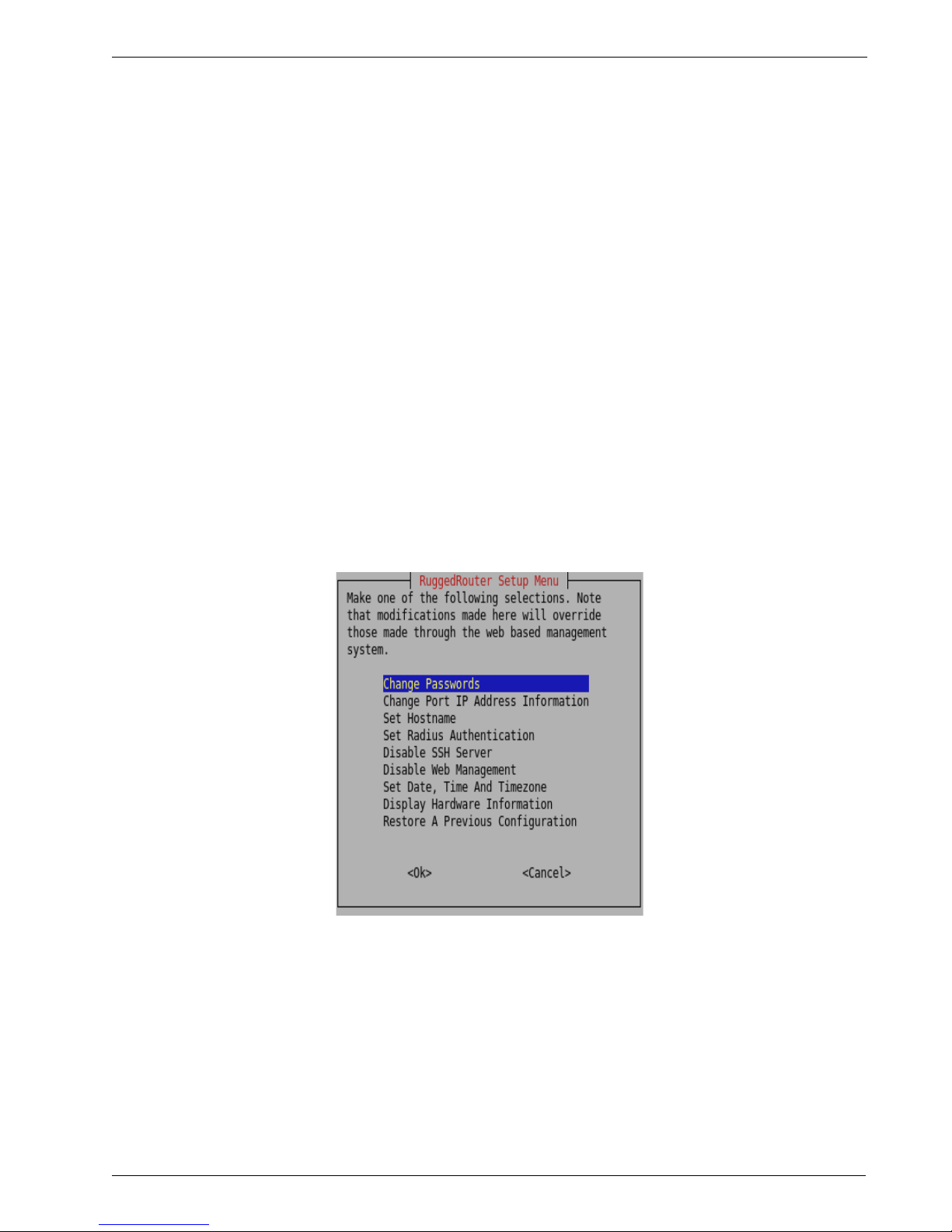
RuggedRouter® User Guide
Accessing The RuggedRouter Command Prompt
From the Console Port
Attach a terminal (or PC running terminal emulation software) to the RS232 port on
the rear of the chassis. The terminal should be configured for 8 bits, no parity
operation at 38.4 Kbps. Hardware and software flow control must be disabled. Select
a terminal type of VT100.
Once the terminal is connected, pressing <CR> will prompt for the user to login as
and that user's password. Sign-in as either the rrsetup or root user. The router is
shipped with default passwords of “admin” for either of these accounts.
From SSH
Use an SSH agent running the version 2 protocol. SSH to either the rrsetup or root
accounts of the router at one of its IP addresses described above. The router is
shipped with default passwords of “admin” for either of these accounts.
The RuggedRouter Setup Shell
Signing-in as the rrsetup user will automatically enter the configuration shell shown
below. Quitting the shell (with cancel, or by entering escape) will cause the
connection to close.
Figure 1: RuggedRouter Setup Main Menu
The shell provides a number of configuration commands, described below.
26 RuggedCom
Page 29
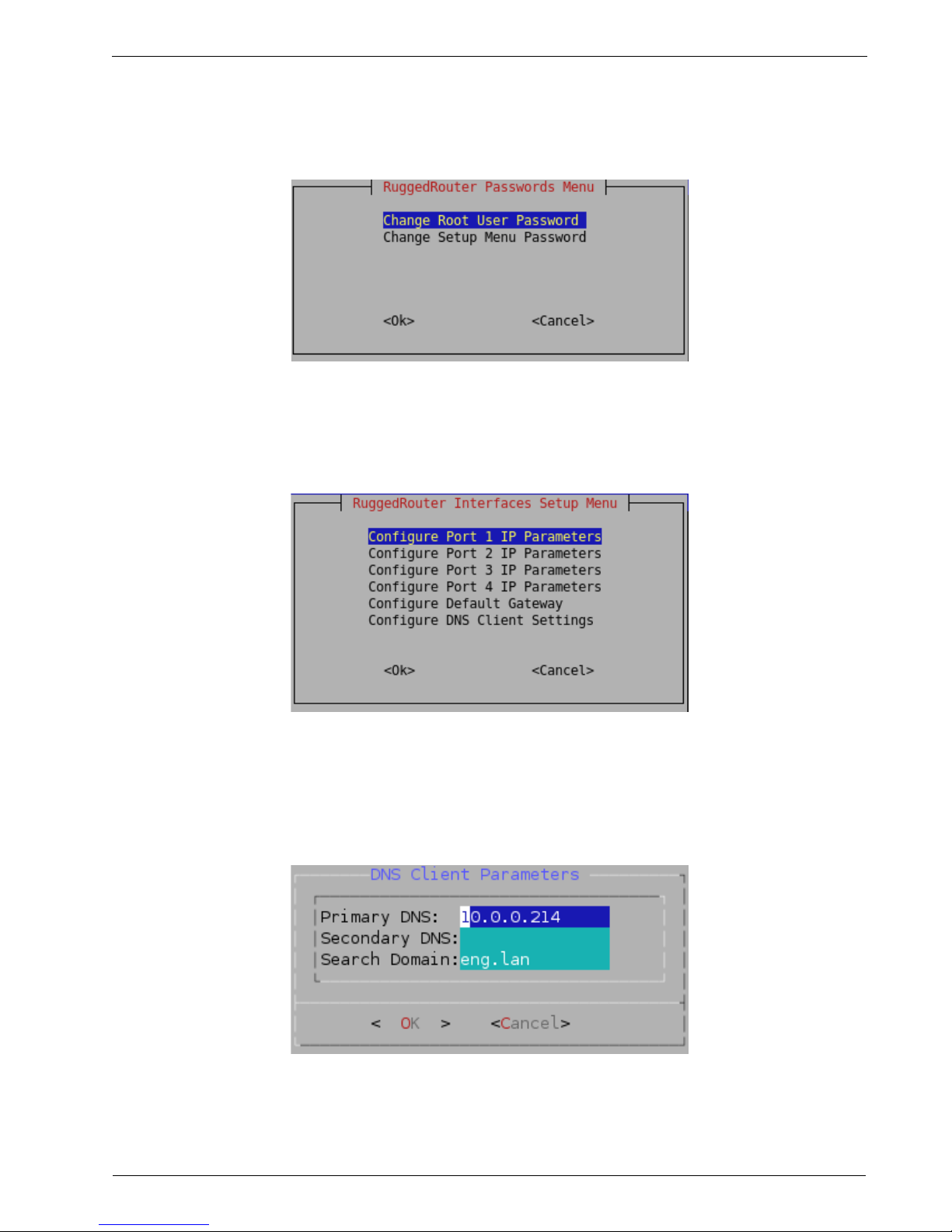
Chapter 1 - Setting Up And Administering The Router
Configuring Passwords
The Change Passwords command changes the rrsetup and root account passwords.
These passwords should be changed before installing the router on the network.
Figure 2: RuggedRouter Setup Password Change Menu
Configuring IP Address Information
The Change Port IP Address command configures port IP addresses and gateways.
Figure 3: RuggedRouter Interfaces Setup Menu
Each port number X has a default address of 192.168.X.1 and a mask of
255.255.255.0.
The Configure Default Gateway Settings command configures the default gateway.
The Configure DNS Client Settings command configures the DNS server address. If
the router is part of a domain, enter the domain name in the “Search Domain” field.
Figure 4: RuggedRouter DNS Client Menu
RuggedCom 27
Page 30
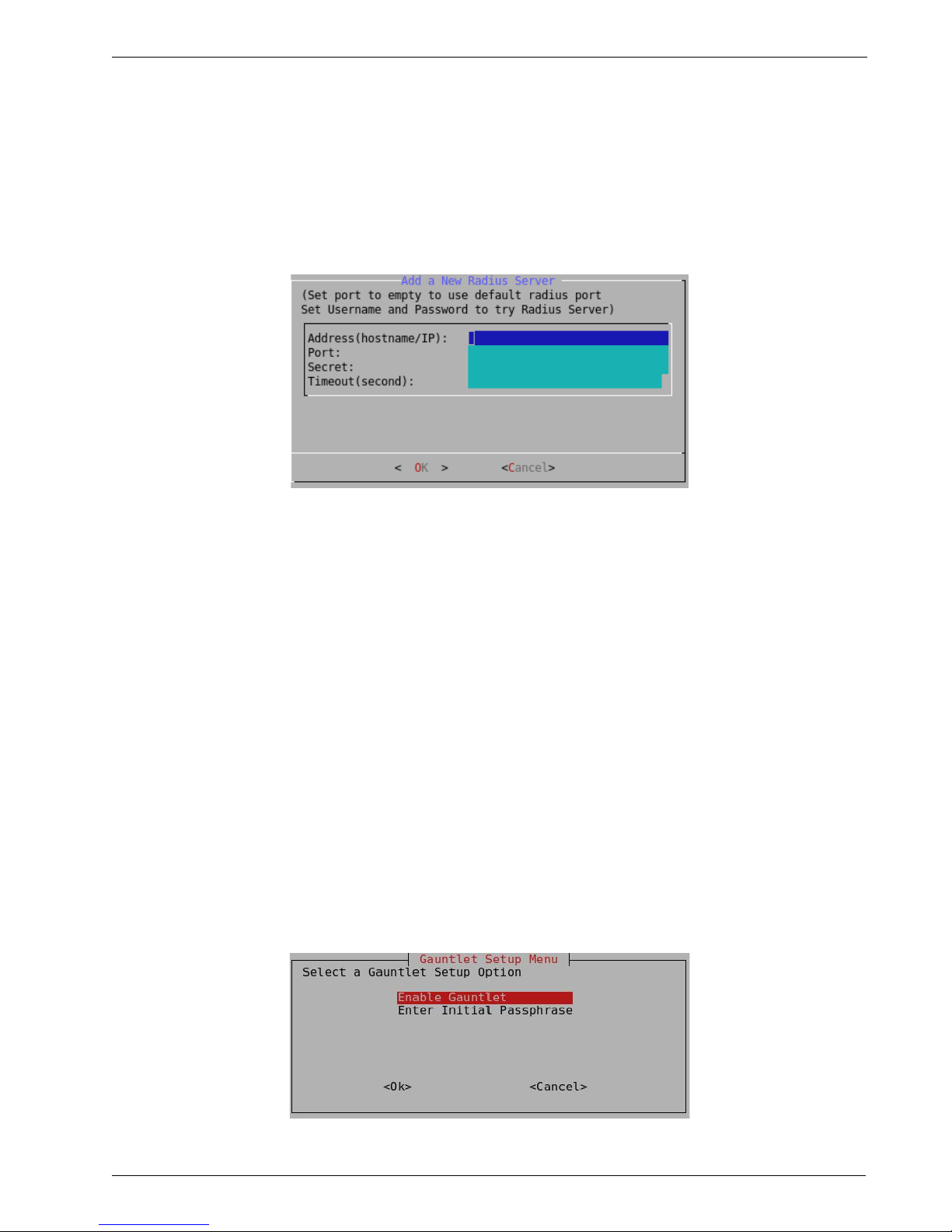
RuggedRouter® User Guide
Setting The Hostname
The Set Hostname command sets the hostname, shown in shell prompts and Web
Management.
Configuring RADIUS Authentication
The Set RADIUS Authentication command configures the address of a RADIUS
server, if available.
Figure 5: RADIUS Server Configuration menu
The Hostname/IP and Port Number fields configures the server location.
The Shared Secret field configures the unique password used by this server.
The time Timeout field selects the maximal time to wait before trying the next server.
The entry, created for both LOGIN and PPP Login, can be changed from the web
interface.
Enabling And Disabling The SSH and Web Server
By default SSH and Web Management are enabled. The Disable SSH and Disable
Web Management commands allows these services to be disabled. The servers will
be immediately stopped. If access to the shell has been made through ssh the session
will continue, but no new sessions will be allowed.
Upon disabling the services, the titles in the main menu will change to Enable SSH
and Enable Web Management to reflect the disabled state. Enabling a service
automatically restarts it.
Enabling And Disabling The Gauntlet Security Appliance
The Gauntlet security Appliance requires a pass phrase unique to your network. This
menu will configure it.
Figure 6: Gauntlet Setup Menu
28 RuggedCom
Page 31

Chapter 1 - Setting Up And Administering The Router
Configuring The Date, Time And Timezone
The Set The Date, Time And Timezone command allows these parameters to be set.
Figure 7: RuggedRouter Date/Time/Timezone Menu
Once set, the router will account for Daylight Savings time.
Displaying Hardware Information
The Display Hardware Information command describes commissioned hardware.
Figure 8: RuggedRouter Hardware Information Menu
RuggedCom 29
Page 32

RuggedRouter® User Guide
Restoring A Configuration
The Restore A Previous Configuration command provides a means to restore a
previously taken snapshot of the configuration of the router.
Note: The router will reboot immediately after restoring configuration.
The user is first prompted to select either the factory default configuration or a
previously made archive.
Note: Restoring the factory defaults will reset IP addresses and may make the
router impossible to reach from the network.
Figure 9: Selecting a configuration to reload
Initially, your RuggedRouter will have no previously saved configurations. The
factory defaults will always be available.
Once a configuration is selected the archive will be restored. After the configuration is
restored, the router will reboot immediately.
Figure 10: Selecting a previously made configuration
30 RuggedCom
Page 33

Chapter 1 - Setting Up And Administering The Router
The RuggedRouter Web Interface
The RuggedCom Web interface is provided by an enhanced version of the popular
Webmin interface.
Using a Web Browser to Access the Web Interface
Start a web browser session and open a connection to the router by entering a URL
that specifies its hostname or IP address (e.g. h ttps://179.1.0.45:10000). Once the
router is contacted, start the login process by clicking on the “Login” link. The
resulting page should be similar to that presented below.
Enter the “root” user name and the appropriate password for that user, then click on
the “Login” button. The router is shipped with a default administrator password of
“admin”. Once successfully logged in, the user will be presented with the main menu.
Figure 11: Signing On To The Router With A Web Browser
SSL Certificate Warnings
Your browser may complain about the SSL certificate that Webmin issues.
This happens because the default SSL certificate that comes with Webmin is not
issued by a recognized certificate authority. From a security point of view, this makes
the certificate less secure because an attacker could theoretically redirect traffic from
your server to another machine without you knowing, which is normally impossible if
using a proper SSL certificate.
Network traffic is still encrypted though, so you are safe against attackers who are just
listening in on your network connection.
If you are initiating the connection to the router, and your network is private, a VPN
or firewalled, it should be safe to have your browser permanently accept the
certificate.
If you want to be really sure that the Webmin server you are connecting to is really
your own, the only solution is to order a certificate from an authority like Verisign that
is associated with your router's hostname and will be recognized by web browsers.
RuggedCom 31
Page 34

RuggedRouter® User Guide
The Structure of the Web Interface
The Web interface presents an web page with two frames. The leftmost or index
frame selects subsystems to configure and is always displayed.
The rightmost or configuration frame presents the configuration for the currently
selected subsystem, or in the case of signing-on, the home page window. The home
page window presents an annotated view of the front of the chassis as well as a
number of important system parameters. These parameters include:
• The router uptime and load averages for the past 1, 5 and 15 minutes. Under
normal operation the load average should be less than 2.0.
• The disk usage. A disk usage higher than 92% requires attention.
• The memory usage, indicating the amount of memory used by applications.
Under normal operation memory usage should be less than 60%.
• The chassis temperature.
• Any major alarms, such as the failure of hardware components.
Figure 12: RuggedRouter Web Interface Main Menu Window
The index frame presents a number of entries with associated icons:
• The icon forces home page window to be redisplayed.
• The icon signifies that the next level contains a menu of menus.
• The icon signifies that clicking the entry will run a single menu.
• The icon logs out of Webmin.
The menu system entries are composed of the Webmin, System, Servers, Networking
and Maintenance menus.
32 RuggedCom
Page 35

Chapter 1 - Setting Up And Administering The Router
The Webmin Menu provides the ability to:
• Configure the sign-on password,
• Specify session timeouts,
• Restrict the Subnet of IP addresses that can login,
• Configure and view Webmin event logs,
The System Menu provides the ability to:
• Change the router password,
• Enable and disable applications from running,
• Reboot the router,
• Schedule one time and periodic tasks to run,
• Change the router's name (hostname),
• Change the time and date.
The Servers Menu provides the ability to:
• Control and configure the Serial Protocol, DHCP, NTP, IRIGB and SSH servers.
The Networking Menu provides the ability to:
• Configure the network interfaces,
• Configure static IP and Multicast Routings and configure a default
gateway,
• Select a DNS server and edit local host addresses,
• Configure End To End Backup,
• Configure DDS, T1/E1, T3 and ADSL Networking,
• Configure the embedded modem,
• Set up the firewall,
• Set up Virtual Private Networking,
• Configure Routing protocols such as OSPF and RIP,
• Configure Virtual Router Redundancy Protocol (VRRP),
• Configure Traffic Prioritization,
• Perform pings, traceroutes, host lookups and line tracing.
The Maintenance Menu provides the ability to:
• Manage the Gauntlet Security Appliance
• Backup and restore configurations,
• Configure SNMP access,
• Configure RADIUS Authentication,
• View system logs,
• Upgrade the software of the router,
• Upgrade the router type to RX1100,
• Upload/Download files to and from the router.
Using The LED Status Panel
The LED status Panel provides the console port, indicates the status of
hardware/software and can initiate a controlled reboot.
RuggedCom 33
Page 36

RuggedRouter® User Guide
The LEDs are organized into three primary groups; the port group, GPS/PPP group
and the Alarm/Power Supply group. The display possibilities are as follows:
LED Name Description
LED 1-4 Ethernet port 1-4 is active when green
LED 5-8 Ethernet port 1-4 has link when green and failed when red
LED 9-12 WAN port 1-4 is active when green
LED 13-16 WAN port 1-4 has link when green and failed when red
LED 17-20 WAN port 5-8 is active when green
Figure 13: LED Status Panel
LED 21-24 WAN port 5-8 has link when green and failed when red
PPP-DATA PPP Modem port is active when green
PPP-LINK PPP Modem port has link when green
GPS-LOCK The PTP card GPS system has satellite lock
ALARM A Major Alarm exists when red
POWER 1 Power supply 1 working properly when green and failed when red
POWER 2 Power supply 2 working properly when green and failed when red
Figure 14: Meaning of LEDs
The software will cause the ALARM LED to become active for various reasons. Any
condition that causes the ALARM LED to become active will activate the critical fail
relay. The Web interface displays the alarms.
Pressing the pushbutton for more than five seconds will reboot the router.
Obtaining Chassis Information
The chassis displays the hardware inventory at boot time. This information is
captured in the /var/log/messages file after boot. The Web Management interface
home page displays the chassis serial number.
34 RuggedCom
Page 37

Chapter 2 - Webmin Configuration
Chapter 2 - Webmin Configuration
Introduction
This chapter familiarizes the user with configuring the router through the Webmin
menu and describes the following procedures:
• Configuring the IP Address and Subnet Mask
• Configuring the Gateway Address
• Viewing the Webmin Log
Webmin Configuration Menu
Figure 15: Webmin Configuration Menu
IP Access Control
Figure 16: Webmin Configuration Menu, IP Access Control
Webmin uses a secure communications method called Secure Sockets Layer (SSL) to
encrypt traffic with its clients. Webmin guarantees that communications with the
client is kept private. But Webmin will provide access to any client that provides the
correct password, rendering it vulnerable to brute force attacks. The best way of
addressing this problem is to restrict access to specific IP addresses or subnets.
By default, IP access control allows all IP addresses to access Webmin.
RuggedCom 35
Page 38

RuggedRouter® User Guide
If your router is being used on a completely private network, or IP access control is
being provided by the firewall you may leave IP Access Control disabled. Select the
Allow from all addresses field and Save.
If you wish to restrict access to a single address or subnet, select the Only allow from
listed addresses field. Enter a single IP address or a subnetted address.
If you wish to deny access to a specific subnet, select the Deny from listed addresses
field. Enter a single IP address or a subnetted address.
If DNS is configured you may allow and deny based upon hostname. Partially
qualified domain names such as *.foo.com are acceptable.
The Resolve hostnames on every request field forces Webmin to perform a
hostname lookup for every user access. The result of this will be that a dynamically
assigned IP with a DNS entry with a Dynamic DNS registrar will be able to be
checked against the IP Access Control list, just like a fixed address. This method is
useful for administrators who travel or simply don't have a fixed address at their
normal location.
Note: This is not efficient if you have more than a few domain names entered in
the IP Access Control list, due to the high overhead of performing a name
lookup for every hostname in the list on every request.
Ports And Addresses
Figure 17: Webmin Configuration Menu, Ports and Addresses
This command allows you to restrict access to Webmin from one particular network
interface on your server. If your Webmin server has a non-routable local address and
a routable Internet address, you should decide whether anyone will ever need to be
able to access the Webmin server from outside of your local network. If not, simply
configure Webmin to listen on the local interface.
By default, Webmin listens on TCP port 10000 for clients. It is possible to change
this default behaviour.
Change Help Server
Figure 18: Webmin Configuration Menu, Change Help Server
36 RuggedCom
Page 39

Logging
Chapter 2 - Webmin Configuration
The Web management package provides context sensitive help in each of its menus.
When a help link is selected the router instructs the browser to open the help text from
a help server. In this way the router does not waste large amounts of disk space
storing help text and network bandwidth sending large web pages. By default, the
router directs the browser to the same server used to upgrade the router. This is as
specified in the Maintenance menu Upgrade System sub-menu Change Repository
Server command.
This command allows you to disable Web management help, use the upgrade
repository server as well as specify a new server. If you specify an alternate web
server to host the help text, you must install release specific help directories below the
document root. The menu suggests the currently expected directory. The actual help
files are provided with every release under the html directory at the repository server.
Figure 19: Webmin Configuration Menu, Logging
This menu allows you to log actions taken by Webmin administrators.
It is also possible to log actions based on the module where the actions are performed.
The Log resolved hostnames field will cause Webmin to provide a hostname rather
than just an IP address for the client computer that performed an action.
The Clear logfiles every...hours field causes Webmin to rotate its own logs and keep
them from overfilling the disk with old logs.
Currently, the Log actions by all users field should be left selected.
RuggedCom 37
Page 40

RuggedRouter® User Guide
The Log changes made to files by each action field causes verbose logging and
should be left enabled.
Authentication
Figure 20: Webmin Configuration Menu, Authentication
This menu allows you to configure what Webmin will do when a number of failed
logins from the same IP address occur.
If the Enable password timeouts field is selected, the host will be blocked for the
specified period of time. If the Log blocked hosts, logins and authentication
failures to syslog field is selected, warning messages will be added to the syslog.
Enabling the Enable session authentication field, activating “Auto-logout after..”
will cause an individual administrators session to be logged out after the specified
period.
Webmin Events Log
Figure 21: Webmin Events Log
This menu allows you to search the Webmin log for changes made by yourself or
other administrators.
38 RuggedCom
Page 41

Chapter 3 - Configure Webmin Users
Chapter 3 - Configure Webmin Users
Introduction
This chapter familiarizes the user with:
• Configuring Webmin users
• Displaying and removing existing login sessions
• Setting up password restrictions
Webmin User and Group Fundamentals
When the Webmin package is installed for the first time, an account for the user:
“root” exists on the router. Besides the root account, three groups, or privilege levels,
are defined: “administrator”, “operator”, and “guest”.
● Users belong to the “administrator” group have full access to all Webmin
modules.
● Users belonging to the “operator” group have full access to most Webmin
modules with the following exceptions: “Webmin Configuration”, “Webmin
Event Log”, “Webmin Users”, “Scheduled Commands”, “Scheduled Cron
Jobs”, “System Hostname”, “System Time”, “SSH Server”, “Backup And
Restore”, “Upgrade System”, and “Upload/Download Files”.
● Users belong to the “guest” group can only view configuration and statistics
but can not change them. Besides this limitation, they also have no access to
the modules forbidden to the “operator” group, listed above.
The root user must always be defined. New Webmin users can be created and deleted,
and must belong to one of the three aforementioned groups. New Webmin user
names must contain only the characters “a-zA-Z0-9-.@” but must not begin with “@”
and must not conflict with any other user or group name.
RADIUS User Access Control Fundamentals
Webmin provides the ability to authenticate against a RADIUS server in order to
centralize the creation and maintenance of user accounts. Multiple RuggedRouters
may be configured to authenticate Webmin users using a common RADIUS server,
eliminating the need to replicate the effort of configuring the same user account
information on many routers.
If RuggedRouter is configured to use RADIUS to authenticate Webmin users (in the
Miscellaneous module under the Maintenance category), the router will present the
configured RADIUS server with the user name and password presented to a Webmin
session for authentication. If the RADIUS server authenticates the user, it will return
an indication of success along with the privilege level (described above) associated
with the user.
A user successfully authenticated by the RADIUS server will have Webmin access
corresponding to his/her privilege level, as configured for the user account on the
RADIUS server. For information on how to configure user accounts on the RADIUS
server, please refer to Appendix E - RADIUS Server Configuration
RuggedCom 39
Page 42

RuggedRouter® User Guide
Notes: A Webmin user will only be authenticated locally if a user account of
that name has already been created in Webmin.
The Change Password Command can only be accessed via a locally defined
user account.
Webmin Users Menu
Figure 22: Webmin users menu
This menu allows you to create, change or delete a Webmin user, to view and remove
current login sessions, and to set password restrictions.
Click the Select all link to select all manually created users.
Click the Invert selection link to deselect all manually created users.
Click the Create a new Webmin user link to create a new Webmin user.
Click on manually created user name to change its setting.
Click the Delete Selected button to delete selected users.
Click the View login sessions button to view all current login sessions.
Click the Password Restrictions button to set the password restriction rules.
Note: The accounts managed from this menu are local to the RuggedRouter,
and are not maintained on a RADIUS server, even if one is configured.
40 RuggedCom
Page 43

Edit Webmin User menu
Figure 23: Edit Webmin User Menu
This menu allows you to change the user name, group membership, password, and
real name for a user account.
The Username field sets the user name for the Webmin user. This user name will be
used in the login.
The Member of group field determines which group the user belongs to. Recall that
the group is equivalent to the privilege level, which determines the user's access level
for the Webmin system.
Chapter 3 - Configure Webmin Users
The Password field sets the password for the user.
The Real name field sets the real name for the user.
The Save button will save the changes permanently.
The View Logs button will display the action logs for this Webmin user.
The Delete button will delete the current user from Webmin.
Note: When a Webmin user is deleted, any current session the user may have
established will be terminated.
Current Login Sessions Menu
Figure 24: Current login sessions menu
This menu allows you to view and delete current login sessions (delete login session
will force the login user to login again).
Click on Session link under the Session ID column to cancel a session.
Click the Webmin user link under the Webmin user column to display the Webmin
user edit menu for that user.
Click the View logs link to display logs for that Webmin user.
RuggedCom 41
Page 44

RuggedRouter® User Guide
Password Restrictions Menu
Figure 25: Password Restrictions Menu
This menu allows you to set restrictions for password selection in order to prevent the
use of trivial, or machine-guessable passwords.
The Minimum password length field sets the minimum length for password.
The Regular expression passwords must match field sets the regular expression that
a new password must match. The above example restricts new passwords to begin
with an alpha character followed by at least another 5 alphanumeric characters.
The Disallow passwords containing username field prevents new passwords from
containing the user name.
The Number of old passwords to reject field determines after how many successful
passwords settings you are allowed to reuse an old password.
A Note on Regular Expressions:
The Password restriction mechanism in ROX uses PERL regular expression
syntax. For the definitive reference documentation on regular expressions in
PERL, please refer to:
http://perldoc.perl.org/perlreref.html
http://perldoc.perl.org/perlre.html
http://perldoc.perl.org/perlretut.html
http://perldoc.perl.org/perlrequick.html
If you do not have access to an Internet connection, but do have a UNIX / Linux
system with PERL installed, access the local manual pages by typing:
man perlreref
man perlre
man perlretut
man perlrequick
at the command line. Root privilege is not required to access manual pages.
42 RuggedCom
Page 45

Chapter 4 - Configuring The System
Chapter 4 - Configuring The System
Introduction
This chapter familiarizes the user with:
• Enabling and disabling processes such as SSH and Web Management
• Changing the system password
• Shutting down and rebooting the system
• Scheduling one-off and periodic commands
• Examining system logs
• Changing the hostname
• Changing the system time and timezone
Bootup And Shutdown
Figure 26: Bootup and Shutdown, Part 1
This menu allows you to enable/disable services and to perform actions at boot. The
first part of the menu manages services. Check the box for the desired service and
click on “Start Selected” to start the service and have it start at the next boot. Click
on “Stop Selected” to stop the service and not have it start at boot.
The “Reboot System” button will cause the system to reboot.
The “Shutdown System” button shuts down the system in order to remove power.
Note: The RuggedRouter never enters a permanent shutdown state. If the
RuggedRouter is instructed to shutdown, either from Webmin or from a shell command,
it will reboot into a command line shell that waits five minutes before restarting.
If you really want the router to remain powered but permanently inactive, you must issue the
shutdown, connect a terminal to the serial port, wait for the router to enter the shutdown
shell and issue a CTRL-C.
Once again, if you accidentally shutdown the router it will restart after five minutes.
RuggedCom 43
Page 46

RuggedRouter® User Guide
The second part of the menu allows you to program specific actions at boot time. The
script will be run after all regular boot actions have completed.
Figure 27: Bootup and Shutdown, Part 2
The actions may be a series of commands that can be executed at the command line.
Each entered line is executed independently of the previous line, so change directory
commands will not be effective. Always specify the absolute path of files used in
commands. Selecting Save And Run Now will run the script and show its output,
allowing you to debug it.
Change Password Command
Figure 28: System Menu Change Password Command
This command changes only the root account password used to login to Webmin and
the root account via the serial console or SSH.
Scheduled Commands
Figure 29: Scheduled Commands
This menu allows you to schedule a command to run in the future.
44 RuggedCom
Page 47

Chapter 4 - Configuring The System
Begin by selecting the time and date you wish to run the command at using the Run
on date and Run at time fields.
Use the Run in directory field to enter a directory to run the command in, or simply
use “/”.
Finally, enter the command to execute in the Commands to execute field.
Note that the command will remain scheduled after reboot. After the command is
entered, the Scheduled Commands menu will display any commands and allow you
cancel them.
Figure 30: Scheduled Commands Displaying a Command
RuggedCom 45
Page 48

RuggedRouter® User Guide
Scheduled Cron Jobs
A Cron job is a combination of a command to run, and a definition of the times at
which to run it. The Scheduled Cron Jobs allows you to create, delete and edit these
jobs.
Figure 31: Webmin Scheduled Cron Jobs
Initially, there will be no scheduled jobs. Follow the “create” link to create one.
Figure 32: Creating a Cron Job
Begin the construction of the job by selecting a “user” to execute as. For most
purposes, “root” will suffice. Enter this user in the Execute cron job as field
Enter the command to execute and any input to the command in the Command field.
Select the times the script is to run from the When to execute table (remember to
check the selected button above any column you edit).
The Active radio button at the top of the menu temporarily disables the job.
After selecting the Create button, the Scheduled Cron Jobs menu will display the job.
46 RuggedCom
Page 49

Figure 33: Scheduled Cron Jobs menu displaying cron jobs
Follow the link of a specific job in order to delete the job, edit it, or test the command
part of the job by running it immediately.
If you have multiple jobs, the arrows in the Move column will alter the order in which
they are presented.
System Hostname
Chapter 4 - Configuring The System
Figure 34: System Hostname
The Hostname field modifies the hostname as presented in the web server and shell
sessions. Note that the new hostname will only appear in new sessions.
System Time
Figure 35: System Time
This menu provides a method to set the time and timezone of the router.
Note: Changing the system may confuse protocols such as OSPF and RIP, which
depend upon an accurate system time. If you use OSPF or RIP, changing the time
from this menu will restart them.
RuggedCom 47
Page 50

RuggedRouter® User Guide
This page intentionally blank
48 RuggedCom
Page 51

Chapter 5 - Configuring Networking
Chapter 5 - Configuring Networking
Introduction
This chapter familiarizes the user with:
• Configuring routing and gateways
• Configuring DNS (Dynamic Name Service)
• Entering host addresses
• Configuring a pair of End To End Backup interfaces
• Viewing routing tables
Network Configuration
Figure 36: Network Configuration Menu
This menu allows you to configure IP networking parameters.
Select the Core Settings icon to configure kernel networking settings such as
antispoofing and syncookies filtering.
Select the Dummy Interface in order to to assign an IP Address to the router that is
independent of its interfaces.
Select the Routing and Default Route icon to assign a gateway address.
Select the Static Multicast Routing icon to configure static multicast routes.
Select the DNS Client icon to point the router at a DNS server.
Select the Host Addresses icon to locally configure IP address-hostname mappings.
Select the End To End Backup icon to configure an end to end backup connection.
Select the Current Routing & Interface Table icon to view the routing table.
The Apply Configuration button serves to restore the permanently saved changes and
restart Ethernet networking.
RuggedCom 49
Page 52

RuggedRouter® User Guide
Core Settings
Figure 37: Core Networking Settings
This menu allows you to configure core networking settings.
The IPV6 Support field determines where IPV6 interfaces are created and supported
at boot time. Set this option to yes if you need these interfaces. Disabling these
interfaces removes them from interface displays and OSPF/RIP. A change will take
effect at the next boot.
The Antispoofing field corresponds to the kernel rp_filter setting. Setting
Antispoofing to “yes” will cause the kernel to reject incoming packets if their source
address doesn't match the network interface that they're arriving on, which helps to
prevent IP spoofing. If you modify this parameter, the setting be applied to all active
interfaces, change the default setting for new interfaces and those created at bootup.
The Ignore All ICMP ECHO field corresponds to the kernel icmp_echo_ignore_all
setting. Setting Ignore All ICMP ECHO to “yes” will cause the kernel to reject
incoming ICMP ECHO request packets.
The Ignore ICMP Broadcasts field corresponds to the kernel
icmp_echo_ignore_broadcasts setting. Setting Ignore ICMP Broadcasts to “yes” will
cause the kernel to reject incoming ICMP ECHO request packets if their destination
address is a broadcast address.
The Syncookie Protection field corresponds to the kernel tcp_syncookie setting.
Setting Syncookie Protection to “yes” will cause the kernel to protect against SYN
flood attacks.
50 RuggedCom
Page 53

Dummy Interface
Figure 38: Dummy Interface
This menu allows you to configure a dummy interface. Normally the router is
reachable on any of its interface addresses, whether the interface is active or not.
When OSPF and link detection is used, inactive interfaces are not advertised to the
network and thus not reachable. A dummy interface is always advertised and thus
reachable.
Routing And Gateways
Chapter 5 - Configuring Networking
Figure 39: Routing And Gateways
This menu allows you to configure the default gateway address and static routes.
Static routes specify a way to forward subnets of traffic that cannot be associated with
the subnets of configured interfaces. The gateway address is the address that is used
to forward traffic that can not be routed to configured interfaces or to static routes.
This menu also allows user to convert manually entered static routes to permanently
configured static routes.
Default Route Table
The first table of this menu configures the default gateway address.
Note: Don't configure a default gateway if you plan to provide one from a WAN,
PPPoE or modem interface. Don't manually configure configure the default gateway
in the /etc/network/interfaces file, configure the default gateway from this menu.
RuggedCom 51
Page 54

RuggedRouter® User Guide
If the default gateway is configured but the actual default gateway in use is different,
the menu will display a warning accompanied by the actual gateway. Use the Save
button below the table to change the default gateway setting.
Configured Static Routes
This table configures static and host routes.
The Network/Host and Netmask fields describe the remote network the static route
will reach. If the netmask field is not entered (or a netmask of 255.255.255 is entered)
the routing will define a host route. Any other netmask will define a network route. If
the network field is cleared the route will be deleted upon the next save.
The Gateway field describes an address that is used as the next hop to forward traffic
to. If this field is not specified than traffic is forwarded to the Interface.
The Interface field describes the network interface this static route will use. The
interface does not need to be active or even exist, but the route will not be installed
until both are true. You do not need to provide an interface, but doing so will cause
the menu to warn you if the gateway is not owned by the interface. The menu
provides a list of currently configured interfaces for your convenience.
The Metric field specifies an integer cost metric for the route, which is used when
choosing among multiple routes in the routing table that most closely match the
destination address of a packet being forwarded. The route with the lowest metric is
chosen.
The Comment field shows the status of the static route, and provides a basic cause
when the route is not installable.
The Save button below the table will save the routes and immediately install them.
The following sanity checks will be made for static routes:
• The Netmask can not be 0.0.0.0.
• If the interface is active the static route will be installed, if it can not be
installed, it will be treated as illegal.
• A routings Gateway address must be owned by the routings interface.
Delete routes by removing their Network/Host addresses before saving.
Manually Entered Static Routes
This table will be shown if there are active static routes which are not in the
Configured Static Routes table. Following a routes “Save to Configured Static
Routes” link will make the route permanent.
Note: There are situations where manually entered routes should not be converted,
e.g. routes dynamically added by IPsec and GRE tunnels. Making these routes
permanent may cause the daemons that add them to fail.
52 RuggedCom
Page 55

Static Multicast Routing
Figure 40: Static Multicast Routing
This menu allows you to configure static multicast routing.
The Configured Static Multicast Routes table shows configured multicast routes.
Chapter 5 - Configuring Networking
New routings may be added by completing the bottom row of the table and selecting
the Save button. Routings may be deleted by clearing the routings Multicast IP
Address field and selecting the Save button.
The Multicast IP Address field specifies the multicast IP address to be forwarded.
The Input Interface field specifies the interface upon which the multicast packet
arrives.
The Source IP Address specifies the multicast packet's expected source IP address.
The Output Interface specifies the interface to which the matched multicast packet
will be forwarded.
The Comment field shows the current status of the the routing.
The Note field below the table shows current active interfaces.
In order to start Multicast routing at each and every boot, you must enable it via the
System folder, Bootup And Shutdown menu.
RuggedCom 53
Page 56

RuggedRouter® User Guide
DNS Client
Figure 41: DNS Client
This menu allows you to display and configure various DNS client fields.
The Resolution Order selector determines the order of sources for resolving domain
names into IP addresses. The Hosts file /etc/hosts can be populated with frequently
used, but unchanging addresses. DNS refers to any configured DNS servers.
The DNS servers fields allow you to specify, in order, the serves to resolve from.
The Search domains fields allow you to specify the domain name of the network in
which the router is located. This allows short names relative to the local domain to be
used. If you do not specify a domain name the router will try and extract this
information from the host addresses.
Host Addresses
Figure 42: Host Addresses
This menu allows you to display and configure host addresses. Host addresses are
useful when a non-changing IP address is often used or when DNS is not configured.
Follow the Add a new host address link to add an address.
54 RuggedCom
Page 57

End To End Backup
End To end backup is method of using two interfaces to ensure a reliable end to end
connection between two routers using alternate routing, without the need to configure
routing protocols.
The two interfaces are assigned as a primary:secondary backup pair. The primary
interface serves as the gateway. If connectivity to the target is lost from the primary
interface, traffic is migrated to the secondary interface. When connectivity is restored
on the primary path, traffic will be restored to it.
Chapter 5 - Configuring Networking
Figure 43: End To End Backup Example
The backup is “end to end” because connectivity is determined by the availability of
an interface on the target system, and not a local link. In the above figure, interface
w1ppp acts as the primary interface and eth1 acts as the secondary interface. The
router tests the primary path by probing 192.168.16.2 on router 2. A failure of the
either w1ppp, network A or the remote link on router2 will render the primary path as
“failed”.
If the primary path fails, the routing table will be modified to direct packets out the
secondary (eth1 in the above figure).
Presumably, the secondary is a higher cost (and perhaps lower throughput) path. In
the initial deployment of this feature, the secondary path was implemented with
Ethernet-CDMA modem. The modem featured a low latency connection time
(initiated by the reception of packets) but had a low bandwidth capability and high
monetary cost.
Note that the feature must be implemented at both routers. If the feature is only
implemented at router 1, the second router's gateway will still point towards Network
A after a failure of the primary path. Packets from router 1 would reach router 2
through the secondary, but the responses would disappear in the black hole of the
failed path.
RuggedCom 55
Page 58

RuggedRouter® User Guide
Configuring End To End Backup
Figure 44: End To End Backup
This menu allows you to display and configure end to end backup.
In order to start end to end backup at each and every boot, you must enable it via the
System folder, Bootup And Shutdown menu. The menu will remind you if the feature
is not enabled.
The Primary Interface field determines the primary interface. The interface selected
should be configured to supply the default gateway.
The Peer IP Address on Primary field sets the IP address to probe for connectivity
on the primary interface.
The Secondary Interface field determines the secondary interface.
The Peer IP Address on Secondary field sets the IP address to probe for connectivity
on the secondary interface.
The Fail Over Timer field determines the amount of time the primary link must be
failed before directing packets down the secondary link.
The Generate Alarms field determines whether alarms are generated upon
configuration problems and link failures.
The Save button will save changes to the configuration file. The Save and Apply
button will save changes restart the end to end backup daemon.
Current Routing & Interface Table
This menu displays the current routing table and the state of the router's interfaces.
Consult the Network Utilities chapter for details of this menu.
56 RuggedCom
Page 59

Chapter 6 - Configuring Ethernet Interfaces
Chapter 6 - Configuring Ethernet Interfaces
Introduction
This chapter familiarizes the user with:
• Reading the Ethernet LEDs
• Configuring Ethernet Network Interfaces
• Configuring VLANs
• Configuring PPPoE
Ethernet Interface Fundamentals
RuggedCom manufactures dual Ethernet Interface boards in a variety of formats.
Some (most notably the optical interfaces) have the same outward appearance but
different order numbers. A complete set of descriptions is displayed on the console
during boot and can be found after boot in the file /var/cache/ruggedrouter/inventory.
LED Designations
The RuggedRouter includes two sources of LED indicated information about Ethernet
ports, the front panel LEDs and the LED Panel.
A LED is associated with each port, next to the Ethernet interface RJ45 socket. This
LED is off when the link is disconnected, remains solidly on when the link is
established and flashes briefly from on to off when traffic occurs.
The LED Panel also summarizes this information. LEDs 1-4 reflect traffic on
Ethernet port 1-4. LEDs 5-8 reflect the link status of the same ports.
VLAN Interface Fundamentals
A virtual LAN (VLAN) is a group of devices on one or more LAN segments that
communicate as if they were attached to the same physical LAN segment. VLANs are
extremely flexible because they are based on logical instead of physical connections.
When VLANs are introduced, all traffic in the network must belong to one or another
VLAN. Traffic on one VLAN cannot pass to another, except through an intranetwork
router or layer 3 switch.
The IEEE 802.1Q protocol specifies how traffic on a single physical network can be
partitioned into VLANs by “tagging” each frame or packet with extra bytes to denote
which virtual network the packet belongs to.
VLAN Tag
A VLAN tag is the identification information that is present in frames in order to
support VLAN operation. If an Ethernet frame is VLAN tagged, the EtherType value
(immediately following the Source MAC address) is set to 0x8100, denoting 802.1Q
(VLAN). The next 2-bytes of the VLAN tag contain: a 3-bit User Priority Field that
may be used as a priority level for Ethernet frames, a 1-bit Canonical Format Indicator
(CFI) used to indicate the presence of a Routing Information Field (RIF), and finally
the 12-bit VLAN Identifier (VID) which uniquely identifies the VLAN to which the
Ethernet frame belongs. These four bytes, known as the VLAN tag, are followed by
the rest of the Ethernet frame, starting with the length field.
RuggedCom 57
Page 60

RuggedRouter® User Guide
RuggedRouter Functions Supporting VLANs
Functions Supported
Comments
?
Static Route and Default
Route
Static Multicast Routing Y
End To End backup Y
PPPoE N
Shorewall Firewall Y
IPSec N Netkey (policy based VPNs) supports VLAN
VRRP Y
Traffic Prioritization Y
Dynamic Routing Both OSPF and RIP support VLAN
GRE Tunnel Y
DHCP Server Y
Y
Klips (route based VLANs) do not support
VLAN
PPPoE On Native Ethernet Interfaces Fundamentals
The RuggedRouter supports PPPoE (Point-to-Point Protocol Over Ethernet) over both
external modems (described here) and internal interfaces (described in the chapter
“PPPOE On ADSL”). The PPPOE On ADSL chapter contains more useful
information on PPPOE Authentication, Addresses, DNS Servers and MTU Issues.
Only one PPPoE interface can be created on each Ethernet Interface. Each PPPoE
interface name is assigned internally. The name is “pppX”, where X is 10 plus the
native Ethernet interface the PPPoE is created upon (e.g. a PPPoE on eth1 is ppp11).
58 RuggedCom
Page 61

Ethernet Configuration
Figure 45: Ethernet Menu
This menu allows you to configure Ethernet interface parameters as well as display
the routes and status of all network interfaces.
Select the Ethernet Interfaces icon to configure Ethernet interfaces.
The Network Interfaces menu lets you edit the permanent configuration of Ethernet
interfaces, or simply try out changes. The Apply Configuration button serves to
restore the permanently saved changes and restart Ethernet networking.
Chapter 6 - Configuring Ethernet Interfaces
Ethernet Interfaces
Figure 46: Current and Boot Time Ethernet Configuration
This menu allows you to display and configure the Ethernet interfaces in the router.
The Current Configuration table allows you to try out changes on the existing
interfaces before making permanent changes. Any changes made take effect
immediately, but will not be present after the next boot. The entries in this table can
also be used to temporarily disable or re-enable an interface.
The Boot Time Configuration table router allows you make changes to the
“permanent” configuration of any interface.
RuggedCom 59
Page 62

RuggedRouter® User Guide
The Network Configuration menu Apply Configuration button applies permanent
changes and restart Ethernet networking. If only temporary changes have been made,
the permanent configuration will be re-applied.
In either table, edit the desired interface by clicking on its link under the Name
column.
Editing Currently Active Interfaces
Figure 47: Editing a Network Interface
This menu allows you to make changes to the currently active interfaces. The Save
button will activate any changes, and will not affect the permanent configuration.
The IP Address field sets the IP address for this interface.
The Netmask fields set the IP network mask for this interface. Setting this to
Automatic causes the mask to be set to the usual class A, B or C network mask (as
derived from the interface address. The next field can be used to specify the mask
manually.
The Broadcast fields set the IP broadcast address for this interface. Setting this to
Automatic causes the address to be set to the usual address (as derived from the
interface address. The next field can be used to specify the broadcast address
manually.
The MTU fields sets the Maximum Transfer Unit of an interface. This limits the
maximum size of frames on the interface.
The Status field provides a way to disable the interface or bring it back into service.
The MAC address field displays the current Media Access Control address and
allows it to be modified.
The Proxy ARP fields display whether the interface has proxy-arp activated.
The Media Type field displays the current media type. Copper interfaces may be
configured to Auto-negotiable, 10 BaseT Half Duplex, 10 BaseT Full Duplex, 100
BaseT Half Duplex and 100 BaseT Full Duplex modes.
60 RuggedCom
Page 63

Virtual Interfaces
Use virtual interfaces when you have an Ethernet port that has multiple "real" IP
addresses assigned to it, e.g. as with a port provided by an an Internet Service
Provider.
Figure 48: Creating a Virtual Interface
The only new parameter is the virtual interface descriptor, which must be a numeric
value. As an example a virtual interface numbered 0 on eth1 appears as eth1:0 in
interface descriptions and routing tables.
Virtual Lan Interfaces
Chapter 6 - Configuring Ethernet Interfaces
Click the link “Add Virtual Lan Interface” when you want to create a VLAN interface.
Figure 49: Creating a Virtual Lan Interface
The only new parameter is the vlan id, which must be a numeric value between 1 and
4094. The vlan id will be changed automatically as 4 digits (prefixed with 0) if the
input is less than 4 digits. For example, if the input is 2, it will be automatically
changed to 0002.
Edit Boot Time Interfaces
Figure 50: Editing a Boot Time Interface
This menu allows you to make permanent changes to interfaces and to immediately
apply those changes if desired. The Save button will save changes to the permanent
configuration.
RuggedCom 61
Page 64

RuggedRouter® User Guide
The Netmask, Broadcast, MTU, Virtual Interfaces, Proxy ARP and Media Type
controls are as described above.
The IP Address fields allow you to manually specify an IP address for this interface,
or to obtain the address from DHCP or from BOOTP.
The Activate at boot fields allow you permanently disable the interface without
actually deleting it.
The Save and Apply button applies any changes after they have been saved.
The Delete and Apply button deletes both the boot time and active interface.
The Delete button deletes the boot time interface but leaves the active interface in
existence.
PPPoE On Native Ethernet Interfaces
Figure 51: List PPPoE Interfaces
This menu allows you to display and configure the PPPoE interfaces on all available
Ethernet ports.
The PPPoE Interfaces table allows you to add a PPPoE interface on an Ethernet ports
or change PPPoE interface parameters of created interfaces. Only one PPPoE interface
can be created on each Ethernet port.
The Ethernet field shows all available Ethernet ports.
The Interface Name field shows created PPPoE interfaces and provides a link to edit
the existing configuration or create a new one.
The MTU, Use Peer DNS and Default Route fields are the configured information
for PPPoE interfaces.
The Status field shows the current PPPoE link status.
62 RuggedCom
Page 65

Edit PPPoE Interface
Figure 52: Editing a PPPoE Interface
This menus allows you to edit a PPPoE interface.
The PPPoE Username field determines the username to use when connecting to the
PPPoE server as specified by your provider.
The Password field determines the password provided to the PPPoE server.
The Default Route checkbox enables automatically setting a default route using this
interface whenever it connects. If this is your primary connection you probably want
this option enabled.
Chapter 6 - Configuring Ethernet Interfaces
PPP Logs
The Use peer DNS checkbox enables automatically setting the DNS server entries
that the PPPoE server recommends. Enable this option unless you provide your own
name servers.
The MTU field defines the MTU size to request when connecting to the PPPoE
server. In some cases the PPPoE provider may provide a smaller MTU in which case
the smaller setting will be used, or it may refuse to alter the MTU and use whatever it
considers to be the default.
The Save button will update all of the changes. The current PPPoE link will be
connected.
The Delete button will delete the PPPoE interface, closing the current PPPoE link.
Figure 53: Display PPP Logs
RuggedCom 63
Page 66

RuggedRouter® User Guide
This menu displays the native Ethernet and internal ADSL interface PPPoE
connection messages. This is mainly useful when trying to debug a PPP connection
problem.
Current Routes & Interface Table
The table provided by this command is as described in the Networking menu,
Network Utilities sub-menu. It is also provided here as a convenience.
64 RuggedCom
Page 67

Chapter 7 - Configuring Frame Relay/PPP And T1/E1
Chapter 7 - Configuring Frame Relay/PPP And
T1/E1
Introduction
This chapter familiarizes the user with:
• Frame Relay and PPP Terminology and Issues
• Configuring Frame Relay and PPP Links
• Viewing status and statistics
• Upgrading Firmware
T1/E1 Fundamentals
A T1 is a communications circuit upon which has been imposed a digital signal 1
(DS1) signaling scheme. The scheme allows 24 “timeslots” of 64 Kbps DS0
information (as well as 8 Kbps of signaling information) to be multiplexed to a 1544
Kbps circuit.
The 24 DS0s can be used individually as standalone channels, bonded into groups of
channels or can be bonded to form a single 1536 Kbps channel, referred to as a clear
channel. Not all channels need be used. It is quite common to purchase N channels
of 64Kbps bandwidth and leave the remainder unused, this is known as fractional T1.
The telephone network terminates the T1 line and maps each of the channels through
the T1 network to a chosen T1 line. Individual and bonded DS0s from more than one
remote T1 can be aggregated into a full T1 line (often referred to as central site
concentration).
Whereas the T1 line itself is referred to as the physical interface, groups of DS0s form
channels and the protocols that run on the channels are known as a logical interfaces.
The RuggedRouter provides you the ability to operate Frame Relay or PPP over your
logical interfaces.
An E1 is is a communications circuit conforming to European standards, possessing
32 64 Kbps channels, of which one is usually reserved for signaling information.
Frame Relay
Frame Relay is a packet switching protocol for use over the WAN. The
RuggedRouter provides the ability to construct point-to-point IP network connections
over Frame Relay.
Each Frame Relay interface provides a “link” between a local and peer station. One
of the stations must be configured as a Data Communications Equipment (DCE)
device (often known as the “Switch”) while the peer station must be configured as a
Data Terminal Equipment (DTE) device (often known as Customer Premises
Equipment (CPE)). The DCE is responsible for managing the link, advertising
connections to the DTE and switching packets between connections. The DTE raises
individual connections and sends data on them.
When using a T1/E1 line to access a public Frame Relay provider, configure the
Router as a DTE.
RuggedCom 65
Page 68

RuggedRouter® User Guide
Unlike PPP, a Frame Relay link can provide multiple (up to 990) connections. Each
connection is identified by a Data Link Connection Identifier (DLCI) and must match
at the DCE and DTE. The use of multiple connections can support meshed network
interconnections and disaster recovery.
Location Of Interfaces And Labeling
Unlike the Ethernet ports (which are statically located), the location of T1/E1, DDS
and ADSL ports in your router depends upon the number of ports and how they were
ordered. Refer to the labeled hardware image as presented in the Webmin home page.
To make labeling easy to understand, all T1E1, T3, DDS and ADSL ports are
assigned a unique port number that relates to the LEDs on the status panel.
LED Designations
The RuggedRouter includes two sources of LED indicated information about T1E1
lines, the T1E1 card itself and the LED Panel.
One LED is associated with each line, next to the interface jack. This LED is red
when the link is disconnected, flashes green when the link is connecting and remains
solid green when the link is established.
The RuggedRouter also indicates information about T1E1 ports on the LED Panel. A
pair of LEDs will indicate traffic and link status of the port. Consult the section
“Using The LED Status Panel” to determine which LEDs correspond to the port.
Included With T1E1
T1E1 includes wanpipemon, a utility that can capture traces from the T1E1 line.
66 RuggedCom
Page 69

T1/E1 Configuration
Figure 54: T1/E1 Trunks And Interfaces
This menu allows you to display and configure T1 or E1 Trunks as well as display the
routes and status of the network interfaces.
T1/E1 Network Interfaces
Chapter 7 - Configuring Frame Relay/PPP And T1/E1
Figure 55: T1/E1 Network Interfaces Initial Configuration
This menu allows you to display and configure T1/E1 Trunk parameters, Channels
and the logical interfaces that run on them. A table is presented for each interface.
Note that the interface number is the same regardless of whether it is a T1 or E1
interface. Interface numbers are as described by the “WAN” labels as shown in the
home page chassis diagram.
The status of the trunks physical and logical interfaces are shown This menu presents
connection statuses but does not update them in real time. Click on the Refresh this
page link to update to the current status.
Strategy For Creating Interfaces
Initially, each interface will be configured as T1 and will have a single channel that
includes all timeslots (1-24). Channelized cards can have their timeslots reassigned to
make additional channels. Unchannelized cards may have timeslots removed from
their single timeslot.
If the interface is to be an E1, convert it using the “Edit T1-1 Parameters” link.
If the interface is channelized and you need to have more than one channel, construct
the channel groups with the desired bandwidths. This can be done by editing the
single initially configured channel and removing timeslots. The unassigned timeslots
will be displayed on the main menu in a link that creates channels, as shown below.
Figure 56: T1/E1 Network Interfaces After Channel Creation
RuggedCom 67
Page 70

RuggedRouter® User Guide
Once all timeslots have been assigned to channels, the “Timeslots..” link will no
longer appear. Note that you do not have to assign all timeslots.
Assign Frame Relay or PPP to the channels by following the “Assign .. Protocol”
links. The resultant menus will allow you select the desired channel.
If you are assigning multiple DLCIs, assign the first DLCI used by that interface and
configure the Frame Relay Link Parameters and that DLCIs network parameters.
After assigning the first DLCI, you may revisit the interface through the link under the
Name field and add additional DLCIs.
Once all channels have been assigned, the “Assign” links will no longer appear, as
shown below. Note that any of the Frame Relay interfaces on a channel (in this case
w1c4fr16 and w1c4fr17) may be used to edit the Frame Relay Link Parameters.
Figure 57: T1/E1 Network Interfaces After Interface Creation
Naming Of Logical Interfaces
Webmin names the logical interfaces for you (but allows you to provide a
description). All interfaces start with a “w” to identify them as wan interfaces,
followed by the physical interface number.
Unchannelized hardware interfaces supply only one channel (that can be composed of
a varying number of timeslots) logical interface. You may configure one PPP
interface or up to 990 Frame Relay DLCI interfaces. The next part of the identifier is
either “ppp” or “frX” where X the frame relay channel number.
Channelized hardware allows more than one logical interface. The next part of the
identifier indicates the channel the interface uses with a “c” followed by the lowest
channel used. The final part of the identifier is either “ppp” or “fr” and the frame
relay channel number.
68 RuggedCom
Page 71

Chapter 7 - Configuring Frame Relay/PPP And T1/E1
Note: Once a channel is created, and an interface is constructed on it, the name of the
interface will never change. This will remain true even if the number of timeslots on
the channel is changed. This property is desirable since interface names used by
features such as OSPF, RIP and the firewall can rely on the interface name. Channel
re-assignments can, however, lead to a non-intuitive relationship between channels
and timeslots.
Editing A T1/E1 Interface
T1 Settings
Figure 58: Edit T1 Interface
This menu allows you to display and configure T1 or E1 Trunk parameters. By
default the interface is set for T1 operation. The Convert this interface to E1 link
will set the interface for E1 operation and allow you to configure its settings.
If logical interfaces use a channel above 24 and an attempt to convert from E1 to T1
will prompt to delete the logical interface first.
The Framing field determines the framing format used. Your line provider will
indicate the correct format. Modern facilities usually employ Extended Super Frame
(ESF), an enhanced T1 format that allows a line to be monitored during normal
operation.
The Line Decoding field reflects the line encoding/decoding scheme. Almost all T1s
now use B8ZS.
The Clocking field selects whether to accept or provide clocks. In normal use the
central office provides clocks and your setting should be “Normal”. You may also
connect to another router by using a cross-over cable and selecting a “Master”
clocking option on one of the two routers.
The Line Build Out field “tunes” the shape of the T1 pulses and adjusts their
amplitude depending upon distances and the desired attenuation.
E1 Settings
The Framing and Line Decoding fields for E1 reflect the European variants.
The Clocking field performs the same function as that described for T1.
RuggedCom 69
Page 72

RuggedRouter® User Guide
Editing A Logical Interface (Frame Relay)
Figure 59: Edit Logical Interface (Frame Relay)
This menu allows you to configure Frame Relay link and logical interface fields.
Frame Relay Link Parameters
The first table presents the link parameters and applies to all logical interfaces.
The Station Type field determines whether the router acts as a customer premises
equipment or as a frame relay switch. When a Frame Relay network provider is used,
the CPE interface should be chosen. When the connection is end to end, it is typical
to set the central site end to switch and the remote end to be CPE.
The Signaling type field reflects the Frame Relay link management protocol used,
which include ANSI T1.617 Annex D, LMI and Q.933 signaling.
The Link Failure field determines whether the IP interface should reflect the state of
the T1 (connected/disconnected). If you are using SNMP, enable this option as
SNMP uses the state of the interface to determine the state of the connection.
The T391 (Link Integrity Verification polling) timer is valid at the CPE and indicates
the number of seconds between the transmission of In-channel Signaling messages.
The T392 (verification of polling cycle) timer is valid at the Switch and indicates the
expected number of seconds between the reception of In-channel Signaling messages
transmitted by the CPE.
The N391 counter is valid at the CPE and defines the frequency of transmission of
Full Status enquiry messages.
The N392 counter is valid at both the CPE and the Switch and defines the number of
errors during N393 events which cause the channel to be inactive.
The N393 counter is valid at both the CPE and the Switch and is an event counter for
measuring N392.
The EEK Type field controls whether End to End Keepalive messages are sent while
operating as a CPE device. If this option is set to “Off”, EEK is disabled. If this
option is set to “Request”, EEK messages are sent every EEK Timer x T391 seconds.
This timer may be configured from 1 to 100 periods in duration.
Your network provider will inform you of what is proper for these parameters.
70 RuggedCom
Page 73

Frame Relay DLCIs
The second table provides a listing of all DLCIs available on the channel. Only the
DLCI selected from the main menu can be edited, although another DLCI can be
added by following the Add another DLCI to this channel link.
The DLCI Number refers to the Data Link Connection Identifier. This number
should be provided to you by your provider.
The Local IP Address field defines the IP address for this interface.
The Netmask field defines the network address mask The value 255.255.255.255
specifies a point-to-point connection which is almost always correct.
The Remote IP Address field defines the IP address for other side of this interface.
As most WAN links are of point-to-point type, there is only one host connected to the
other end of the link and its address is known in advance. This option is the address
of the 'other end' of the link and is usually assigned by the network administrator or
Internet service provider.
The Use as Default Route fields allow you to install a default route to be used while
the interface is active. If specified, the gateway address should reside within the host
portion of the subnetted remote IP address.
Chapter 7 - Configuring Frame Relay/PPP And T1/E1
The Description field attaches a description to the logical interface viewable from the
network interfaces menu.
The Delete this logical interface button removes the currently selected interface.
Repetitive use of this button on other DLCIs assigned to the channel will free the
channel up.
Editing A Logical Interface (PPP)
Figure 60: Edit Logical Interface (PPP)
The Local Address, Netmask, Remote Address, Default Gateway and Description
fields are as described in the previous section.
RuggedCom 71
Page 74

RuggedRouter® User Guide
T1/E1 Statistics
When at least one logical interface is configured, T1/E1 Link and logical interface
statistics will be available. These statistics are available from links on the T1/E1
WAN Interfaces menu.
Link Statistics are provided through the “View Link Statistics” link at the bottom of
each interface table. Frame Relay and PPP statistics are available through
“(Statistics)” links under the interface name column of each interface table.
Link Statistics
Figure 61: T1/E1 Link Statistics
The Link Alarms indicate ongoing problems.
ALOS/LOS (Loss of Signal) – This alarm indicates a complete absence of
synchronization pulses on the line.
RED (Red Alarm) - This is a local equipment alarm. It indicates that the incoming
signal has been corrupted for a number of seconds. This equipment will then begin
sending a yellow alarm as its outbound signal.
AIS (Alarm Indication Signal, or BLUE alarm) - This alarm indicates the total
absence of incoming signal as a series of continuous transitions (an all 1's pattern) is
received.
YEL (Yellow Alarm) – This alarm is transmitted to the network and alerts it that a
failure has been detected.
OOF (Out of Frame) – This alarm signifies the occurrence of a particular density of
framing error events. This alarm could signify that the wrong framing mode is
configured.
72 RuggedCom
Page 75

Frame Relay Interface Statistics
Chapter 7 - Configuring Frame Relay/PPP And T1/E1
Figure 62: Frame Relay Statistics
Note that the Frame Relay Trunk Statistics and Frame Relay Trunk
Communications Errors tables are common to all Frame Relay DLCIs on the trunk.
RuggedCom 73
Page 76

RuggedRouter® User Guide
PPP Interface Statistics
Figure 63: PPP Link Statistics
74 RuggedCom
Page 77

T1/E1 Loopback
When at least one logical interface is configured, a T1/E1 Loopback tests can be
performed. This menu can be reached from a link on the T1/E1 WAN Interfaces
menu.
Chapter 7 - Configuring Frame Relay/PPP And T1/E1
Figure 64: T1/E1 Loopback Menu
The loopback test provides a means to test the digital and analog hardware of your T1/
E1 hardware and the T1/E1 line. The sender transmits a number of frames which are
looped back to it. The returning frames are verified for correctness.
A digital loopback is started first, verifying the digital section of the interface. If a
loopback stub is inserted in the interface jack, a remote loopback will verify the
interfaces digital and analog sections. If the remote equipment is able to loop, the
entire T1/E1 line can be verified. If the remote router is another RuggedCom router, a
starting a line loopback will verify both cards and the line. This router will display the
count of loopback frames as they arrive.
Figure 65: T1/E1 Loopback
The Select Loopback Type field selects the loopback.
The Number of Loops field controls the frames sent during digital and remote
loopback. This parameter is not used during line loopback.
The Time to run test field limits the time the sender will transmit and the router
running line loopback will wait.
RuggedCom 75
Page 78

RuggedRouter® User Guide
Running a loop test on an active interface will immediately cause it to go down.
The loop test automatically initializes the trunk after completing the test.
Current Routes & Interface Table
The table provided by this command is as described in the Networking menu,
Network Utilities sub-menu. It is also provided here as a convenience.
Upgrading Software
For some customers, access to remote sites in accomplished solely by a T1 or E1
connection. Usually a software upgrade will stop the system being upgraded, perform
the upgrade and then restart it. If T1E1 was upgraded in this way, the upgrade would
fail as the T1E1 link was taken down. Instead, T1E1 software upgrades modify only
the software on the disk. You must schedule a reboot in order to run the new version
of T1E1 software.
Upgrading Firmware
RuggedCom T1E1 interfaces reside upon PCI interface cards. These cards contain
FLASH memory which (from time to time) will be required to be upgraded. The
upgrade process will take down the T1E1 links, upgrade the firmware and then restart
the interfaces.
Note: The upgrade process requires upwards of 15 minutes for each PCI interface
card. Because of the lengthy duration required to upgrade the interfaces, RuggedCom
does not automatically perform the firmware upgrade. Instead, the scheduling of the
upgrade is left to the user.
The upgrade can be performed by signing on to the platform via the console or ssh
and running the command “/usr/sbin/update-wanfirmware”. If the ssh connection has
been made over an active T1E1 interface, the connection will fail but the upgrade will
continue.
The upgrade can also be scheduled for a specific time by using the System menu,
Scheduled Commands sub-menu. Set the Commands to execute field to “/usr/sbin/
update-wanfirmware proceed”, set the Run in directory field to “/root” and set the
Run at time field to the desired upgrade time.
After the upgrade completes, alarms recommending an upgrade will be cleared.
76 RuggedCom
Page 79

Chapter 8 - Configuring Frame Relay/PPP And T3
Chapter 8 - Configuring Frame Relay/PPP And T3
Introduction
This chapter familiarizes the user with:
• Configuring Frame Relay and PPP Links
• Viewing status and statistics
• Upgrading Firmware
T3 Fundamentals
A T3 is a communications circuit upon which has been imposed a digital signal 3
(DS3) signaling scheme. The scheme allows 672 “timeslots” of 64 Kbps DS0
information to be multiplexed to a 44.736 Mbps circuit.
Channel groups and fractional lines are not supported.
The RuggedRouter provides you the ability to operate Frame Relay or PPP over your
physical interfaces.
Location Of Interfaces And Labeling
Unlike the Ethernet ports (which are statically located), the location of T1/E1, T3,
DDS and ADSL ports in your router depends upon the number of ports and how they
were ordered. Refer to the labeled hardware image as presented in the Webmin home
page.
To make labeling easy to understand, all T1E1, T3, DDS and ADSL ports are
assigned a unique port number that relates to the LEDs on the status panel.
LED Designations
The RuggedRouter includes two sources of LED indicated information about T3 lines,
the T3 card itself and the LED Panel.
One LED is associated with each line, next to the interface jack. This LED is red
when the link is disconnected, flashes green when the link is connecting and remains
solid green when the link is established.
The RuggedRouter also indicates information about T3 ports on the LED Panel. A
pair of LEDs will indicate traffic and link status of the port. Consult the section
“Using The LED Status Panel” to determine which LEDs correspond to the port.
RuggedCom 77
Page 80

RuggedRouter® User Guide
T3 Configuration
Figure 66: T3 Trunks And Interfaces
This menu allows you to display and configure T3 Trunks as well as display the routes
and status of the network interfaces.
T3 Network Interfaces
Figure 67: T3 Network Interfaces Initial Configuration
This menu allows you to display and configure T3 Trunk parameters. A table is
presented for each interface.
Interface numbers are as described by the “WAN” labels as shown in the home page
chassis diagram.
The status of the trunks physical and logical interfaces are shown This menu presents
connection statuses but does not update them in real time. Click on the Refresh this
page link to update to the current status.
The menu will change after assignment of a logical interface, providing links to
logical interface and link statistics.
Figure 68: T3 Network Interfaces Initial Configuration
Naming Of Logical Interfaces
Webmin names the logical interfaces for you (but allows you to provide a
description). All interfaces start with a “w” to identify them as wan interfaces,
followed by the interface number. The next part of the identifier is either “ppp” or “fr”
and the frame relay DLCI number.
78 RuggedCom
Page 81

Editing A T3 Interface
Figure 69: Edit T3 Interface
This menu allows you to display and configure T3 Trunk parameters.
The Framing field determines the framing format used. Your line provider will
indicate the correct format.
The Line Decoding field reflects the line encoding/decoding scheme. Almost all T3s
now use B3ZS.
The Clocking field selects whether to accept or provide clocks. In normal use the
central office provides clocks and your setting should be “Normal”. You may also
connect to another router by using a cross-over cable and selecting a “Master”
clocking option on one of the two routers.
Chapter 8 - Configuring Frame Relay/PPP And T3
Editing A Logical Interface (Frame Relay)
Figure 70: Edit T1 Interface
This menu allows you to display and configure logical interface fields for Frame
Relay. The menu is composed of two tables. The first table provides link based
configuration, which affect all DLCIs. The second table provides configuration
parameters for individual DLCIs.
After the first DLCI has been configured, revisiting that DLCI will display a menu
that allows additional DLCIs to be configured.
RuggedCom 79
Page 82

RuggedRouter® User Guide
Figure 71: Edit Logical Interface (Frame Relay)
The fields and buttons in this menu are the same as those described in the Editing A
Logical Interface (Frame Relay) section of the Configuring Frame Relay/PPP
And T1/E1 chapter.
Editing A Logical Interface (PPP)
Figure 72: Edit Logical Interface (PPP)
The Local Address, Netmask, Remote Address, Default Gateway and Description
fields are as described in the previous section.
T3 Statistics
When at least one logical interface is configured, T3 Link and logical interface
statistics will be available. These statistics are available from links on the T3 WAN
Interfaces menu.
Link Statistics are provided through the “View Link Statistics” link at the bottom of
each interface table. Frame Relay and PPP statistics are available through
“(Statistics)” links under the interface name column of each interface table.
Link, Frame Relay And PPP Interface Statistics are as described in the Configuring
Frame Relay/PPP And T1/E1 chapter with the exception that T3 provides only AIS,
LOS, OOF and YEL alarms.
Current Routes & Interface Table
The table provided by this command is as described in the Networking menu,
Network Utilities sub-menu. It is also provided here as a convenience.
80 RuggedCom
Page 83

Upgrading Software
For some customers, access to remote sites in accomplished solely by a T3
connection. Usually a software upgrade will stop the system being upgraded, perform
the upgrade and then restart it. If T3 port was upgraded in this way, the upgrade
would fail as the T3 link was taken down. Instead, T3 software upgrades modify only
the software on the disk. You must schedule a reboot in order to run the new version
of T3 software.
Chapter 8 - Configuring Frame Relay/PPP And T3
RuggedCom 81
Page 84

RuggedRouter® User Guide
This page intentionally blank
82 RuggedCom
Page 85

Chapter 9 - Configuring Frame Relay/PPP And DDS
Chapter 9 - Configuring Frame Relay/PPP And
DDS
Introduction
This chapter familiarizes the user with:
• Configuring Frame Relay and PPP Links
• Viewing status and statistics
• Upgrading software
DDS Fundamentals
A Digital Data Services (DDS) line is a North American digital transmission method
that operates at 56 Kbps synchronously over an unloaded, 4-Wire metallic-pair circuit.
The DDS line is typically a telephone grade network connection often called the
“local loop”. A Data Terminal Equipment (DTE) device attaches to the line and
transmits data to the telephone company (TELCO), which routes the data to a remote
DDS line. A short-haul, synchronous-data line driver known as a CSU/DSU
terminates the line and attaches to the DTE. The DSU part of the DSU/CSU manages
the format of the data signal while the CSU manages electrical levels, isolation and
provides loopback to the TELCO.
RuggedCom DDS port provides an integrated DTE, DSU and CSU.
Location Of Interfaces And Labeling
Unlike the Ethernet ports (which are statically located), the location of T1/E1, DDS
and ADSL ports in your router depends upon the number of ports and how they were
ordered. Refer to the labeled hardware image as presented in the Webmin home page.
To make labeling easy to understand, all T1E1, T3, DDS and ADSL ports are
assigned a unique port number that relates to the LEDs on the status panel.
LED Designations
The RuggedRouter indicates information about DDS ports on the LED Panel. A pair
of LEDs will indicate traffic and link status of the port. Consult the section “Using
The LED Status Panel” to determine which LEDs correspond to the port.
RuggedCom 83
Page 86

RuggedRouter® User Guide
DDS Configuration
Figure 73: DDS Trunks And Interfaces
This menu allows you to display and configure DDS Trunks. The Current Routes
menu will display the routes and status of the network interfaces.
DDS Network Interfaces
Figure 74: DDS WAN Interfaces
This menu allows you to display DDS trunks and configure the logical interfaces that
run on them. A table is presented for each interface.
Interface numbers are as described by the “DDS” labels as shown in the home page
chassis diagram.
The status of both the physical interface and its corresponding logical interface is
shown.
If no interfaces have been configured the menu will provide links to Frame Relay and
PPP configuration menus.
This menu presents connection statuses but does not update them in real time. Click
on the Refresh this page link to update to the current status.
The menu will change after assignment of a logical interface, providing links to
logical interface and link statistics.
Figure 75: DDS WAN Interfaces after logical interface assignment
84 RuggedCom
Page 87

Chapter 9 - Configuring Frame Relay/PPP And DDS
Naming Of Logical Interfaces
Webmin names the logical interfaces for you (but allows you to provide a
description). All interfaces start with a “w” to identify them as wan interfaces,
followed by the interface number. The next part of the identifier is either “ppp” or “fr”
and the frame relay DLCI number.
Editing A Logical Interface (Frame Relay)
Figure 76: Edit Logical Interface (Frame Relay), single DLCI
This menu allows you to display and configure logical interface fields for Frame
Relay. The menu is composed of two tables. The first table provides link based
configuration, which affect all DLCIs. The second table provides configuration
parameters for individual DLCIs.
After the first DLCI has been configured, revisiting that DLCI will display a menu
that allows additional DLCIs to be configured.
Figure 77: Edit Logical Interface (Frame Relay), multiple DLCIs
The fields and buttons in this menu are the same as those described in the Editing A
Logical Interface (Frame Relay) section of the Configuring Frame Relay/PPP
And T1/E1 chapter.
RuggedCom 85
Page 88

RuggedRouter® User Guide
Editing A Logical Interface (PPP)
Figure 78: Edit Logical Interface (PPP)
The fields and buttons in this menu are the same as those described in the Editing A
Logical Interface (PPP) section of the previous chapter.
DDS Statistics
When at least one logical interface is configured, DDS Link and logical interface
statistics will be available. These statistics are available from links on the DDS WAN
Interfaces menu.
Link Statistics are provided through the “View Link Statistics” link at the bottom of
each interface table. Frame Relay and PPP statistics are available through
“(Statistics)” links under the interface name column of each interface table.
Link Statistics
Figure 79: DDS Link Statistics
86 RuggedCom
Page 89

Chapter 9 - Configuring Frame Relay/PPP And DDS
Frame Relay And PPP Interface Statistics
Frame Relay And PPP Interface Statistics are as described in the Configuring Frame
Relay/PPP And T1/E1 chapter.
DDS Loopback
When at least one logical interface is configured and that interface is active, a DDS
Loopback test can be performed. This menu can be reached from a link on the DDS
WAN Interfaces menu.
The remote equipment must be able to loop, allowing the entire entire line to be
verified. If the remote equipment is another RuggedCom router, starting a line
loopback will verify both cards and the line. DDS has no standard for performing
digital loopback.
For more information on DDS loopback refer to the T1/E1 Loopback section in the
chapter “Configuring Frame Relay/PPP And T1/E1”.
Current Routes & Interface Table
The table provided by this command is as described in the Networking menu,
Network Utilities sub-menu. It is also provided here as a convenience.
Upgrading Software
For some customers, access to remote sites in accomplished solely by a DDS
connection. Usually a software upgrade will stop the system being upgraded, perform
the upgrade and then restart it. If DDS port was upgraded in this way, the upgrade
would fail as the DDS link was taken down. Instead, DDS software upgrades modify
only the software on the disk. You must schedule a reboot in order to run the new
version of DDS software.
RuggedCom 87
Page 90

RuggedRouter® User Guide
This page intentionally blank
88 RuggedCom
Page 91

Chapter 10 - Configuring PPPoE/Bridged Mode On ADSL
Chapter 10 - Configuring PPPoE/Bridged Mode
On ADSL
Introduction
This chapter familiarizes the user with:
• Configuring PPPoE and Bridged Mode Links
• Viewing status
ADSL Fundamentals
An ADSL (Asymmetric Digital Subscriber Line) line is a communications link
running over regular POTS telephone service. The link is asymmetric, supporting
data transfer at up to 8 Mbps from the network and up to 1 Mbps to the network. The
actual bandwidth depends upon the distance between the router and telco central
office, the maximum distance of which may be up to 5480 m. An ADSL card must
connect to a central ADSL DSLAM for its connection.
ADSL shares ordinary telephone lines by using frequencies above the voice band.
ADSL and voice frequencies will interfere with each other. If the line will be used for
both data and voice, a “splitter” should be installed to divide the line for DSL and
telephone.
ADSL is almost always used to make a connection to the Internet via an ISP. There
are two methods for establishing the connection, PPPoe and Bridged mode.
ADSL uses the ATM protocol to communicate with the central office DSLAM. ATM
uses virtual channels to route traffic and the DSL connection needs to know which
virtual channels to use. Most providers use VPI=0 and VCI=35. There are exceptions
to this. Some providers that use different settings are listed in the following table.
Provider VPI VCI
Typical Provider 0 35
Bell South 8 35
New Edge 0 38
Sprint 8 35
US West/Qwest 0 32
PPPoE/Bridged Mode Fundamentals
In PPPoE (Point-to-Point Protocol Over Ethernet) the PPP dial-up protocol is used
with Ethernet over ADSL as the transport. PPPoE supports the protocol layers and
authentication widely used in PPP and enables a point-to-point connection to be
established in the normally multipoint architecture of Ethernet.
As your PPPoE connection is established a PPP interface will be created. The name
will be “pppX” where X is the same as the interface number. Use this interface name
in firewall rules.
RuggedCom 89
Page 92

RuggedRouter® User Guide
Authentication, Addresses and DNS Servers
PPP authentication utilizes PAP or CHAP. Your ISP will provide you with a user-ID
and password which you will enter in the GUI. The authentication process will assign
a local IP address and addresses of the ISPs DNS servers to the router. You should
use these DNS servers unless you wish to provide your own.
You will obtain either a dynamic or static IP from your ISP. Firewall configuration
should be performed as is appropriate.
PPPoE MTU Issues
The use of PPPoE introduces a limitation of the maximum length of packets. The
maximum Ethernet frame is 1518 bytes long. 14 bytes are consumed by the header,
and 4 by the frame-check sequence, leaving 1500 bytes for the payload. For this
reason, the Maximum Transmission Unit (MTU) of an Ethernet interface is usually
1500 bytes.
This is the largest IP datagram which can be transmitted over the interface without
fragmentation. PPPoE adds another six bytes of overhead, and the PPP protocol field
consumes two bytes, leaving 1492 bytes for the IP datagram. This reduces the MTU
of PPPoE interfaces to 1492 bytes.
Packets received by hosts via Ethernet that are sized to the Ethernet MTU will be too
large for the PPPoE connections MTU and will be fragmented. Large packets from
hosts on the Internet will be fragmented by the ISP. The router will re-assemble these
packets, but at the cost of increased latency. Configuring smaller MTUs at your
hosts may reduce latency.
Bridged Mode
In bridged mode, the router simply employs the ADSL interface as a carrier of
Ethernet frames. The interface will be created at boot time with a 1500 byte MTU.
No authentication information is required for bridged mode.
Your ISP will provide you with one or more IP addresses and an appropriate subnet
mask. Your ISP will also suggest a DNS server which you can configure via the
Networking, Network Configuration, DNS Client menu.
Location Of Interfaces And Labeling
Unlike the Ethernet ports (which are statically located), the location of ADSL ports in
your router depends upon the number of ports and how they were ordered. Refer to
the labeled hardware image as presented in the Webmin home page.
To make labeling easy to understand, all T1E1, T3, DDS and ADSL ports are
assigned a unique port number that relates to the LEDs on the status panel.
LED Designations
The RuggedRouter includes two sources of LED indicated information about ADSL
lines, the ADSL card itself and the LED Panel.
Four LEDs are associated with the line, next to the interface jack.
Power (Green) indicates when the card is active and powered.
Link (Green) indicates when the DSL link is established.
90 RuggedCom
Page 93

TX (Red) indicates when data is being transmitted over DSL.
RX (Red) indicates when data is being received over DSL.
While connecting the LEDs are flashing sequentially.
The RuggedRouter also indicates information about ADSL ports on the LED Panel.
A pair of LEDs will indicate traffic and link status of the port. Consult the section
“Using The LED Status Panel” to determine which LEDs correspond to the port.
ADSL Configuration
Figure 80: ADSL Interfaces
This menu allows you to display and configure ADSL interfaces. The PPP Logs
menu will display a log of PPP releated information. The Current Routes menu will
display the routes and status of the network interfaces.
Chapter 10 - Configuring PPPoE/Bridged Mode On ADSL
ADSL Network Interfaces
Figure 81: ADSL WAN Interfaces
This menu allows you to display and configure ADSL interfaces and the protocols that
run on them. A table is presented for each interface.
Interface numbers are as described by the “ADSL” labels as shown in the home page
chassis diagram.
The status of the physical interface, its corresponding logical interface and link
statistics are provided.
This menu presents connection statuses but does not update them in real time. Click
on the Refresh this page link to update to the current status.
RuggedCom 91
Page 94

RuggedRouter® User Guide
Editing A Logical Interface (PPPoE)
Figure 82: Edit Logical Interface (PPPoE)
This menu allows you to display and configure logical interface fields for PPPoE and
to convert the interface to Bridged Mode.
By default, interfaces are created with PPPoE. If you want the interface to be Bridged
Mode, click on the Convert this interface to bridged link.
The Description field attaches a description to the logical interface viewable from the
network interfaces menu.
The VPI field determines the VPI number the connection uses. The default of 0 is
correct for most providers. The VCI field determines the VCI number the connection
uses. The default of 35 is correct for most providers.
The Attempt ATM Autoconfiguration option causes the router to attempt to
automatically determine the VPI and VCI used on the connection. This does not work
with all providers and may case the connection to fail even if the link light is on. If
this option is used it should only be used to find out what the correct values are if your
provider isn't willing to help you, and when the correct values are found it should be
disabled with the correct values entered in the VPI and VCI fields instead.
The PPPoE Username field determines the username to use when connecting to the
PPPoE server as specified by your provider.
The Password field determines the password provided to the PPPoE server.
The Default Route checkbox enables automatically setting a default route using this
interface whenever it connects. If this is your primary connection you probably want
this option enabled.
The Use peer DNS checkbox enables automatically setting the DNS server entries
that the PPPoE server recommends. Enable this option unless you provide your own
name servers.
The MTU field defines the MTU size to request when connecting to the PPPoE
server. In some cases the PPPoE provider may provide a smaller MTU in which case
the smaller setting will be used, or it may refuse to alter the MTU and use whatever it
considers to be the default.
Note: If the negotiated MTU is different from the requested MTU, a warning will be
displayed on the Networking, ADSL menu.
92 RuggedCom
Page 95

Chapter 10 - Configuring PPPoE/Bridged Mode On ADSL
Editing A Logical Interface (Bridged)
Figure 83: Edit Logical Interface (Bridged)
The Description field attaches a description to the logical interface viewable from the
network interfaces menu.
The VPI field determines the VPI number the connection uses. The default of 0 is
correct for most providers.
The Attempt ATM Autoconfiguration option causes the router to attempt to
automatically determine the VPI and VCI used on the connection. This does not work
with all providers and may case the connection to fail even if the link light is on. If
this option is used it should only be used to find out what the correct values are if your
provider isn't willing to help you, and when the correct values are found it should be
disabled with the correct values entered in the VPI and VCI fields instead.
The VCI field determines the VCI number the connection uses. The default of 35 is
correct for most providers.
The Use DHCP field forces the router to fetch its IP address from the peer via DHCP.
Note that DHCP is selected the local and remote IP addresses are immediately
dummied out to 169.254.0.1 and 169.254.0.2, the netmask is set to 255.255.0.0 and
default gateway option is suppressed.
The Local IP Address field defines the IP address for this interface.
The Netmask field defines the network address mask The value 255.255.255.255
specifies a point-to-point connection which is almost always correct.
The Remote IP Address field defines the IP address for other side of this interface.
As most WAN links are of point-to-point type, there is only one host connected to the
other end of the link and its address is known in advance. This option is the address
of the 'other end' of the link and is usually assigned by the network administrator or
Internet service provider.
The Gateway IP Address field defines the IP address to use as the gateway for
sending to other sites. This is usually the same as the Remote IP Address.
RuggedCom 93
Page 96

RuggedRouter® User Guide
ADSL Statistics
Figure 84: ADSL Link Statistics
When at least one logical interface is configured, ADSL Link statistics will be
available. These statistics are available from links on the DDS WAN Interfaces
menu.
The Local SNR Ratio is an effective indicator of line quality. SNR values above 40
db correspond to excellent line quality while values below 10 db result in marginal
operation or failure.
Current Routes & Interface Table
The table provided by this command is as described in the Networking menu,
Network Utilities sub-menu. It is also provided here as a convenience.
Upgrading Software
For some customers, access to remote sites in accomplished solely by an ADSL
connection. Usually a software upgrade will stop the system being upgraded, perform
the upgrade and then restart it. If ADSL was upgraded in this way, the upgrade would
fail as the ADSL link was taken down. Instead, ADSL software upgrades modify only
the software on the disk. You must schedule a reboot in order to run the new version
of ADSL software.
94 RuggedCom
Page 97

Chapter 11 - Configuring PPP and Modem
Chapter 11 - Configuring PPP and Modem
Introduction
This chapter familiarizes the user with:
• Configuring PPP Client
• Configuring PPP Server
• Configuring Dial in console
• Viewing status
PPP and Modem Fundamentals
RuggedRouter may be equipped with an internal modem or with a serial card, which
will allow connection to an external modem. A modem allows connections to be made
over standard telephone lines. PPP (the Point-to-Point Protocol) is used to establish a
network connection over a modem link.
PPP Interface
When a PPP connection is established, a network interface is created in the system.
The interface name for both internal and external modem connections is ppp0. Refer
to this interface name when configuring firewall rules.
Authentication, Addresses and DNS Servers
PPP authentication will, automatically, use either of the PAP or CHAP protocols.
In order to create a PPP client connection in Webmin, you will need to obtain a user
ID and password along with a telephone number from the operator of the PPP server
that you will be dialing. The operator might be an Internet Service Provider or a
system administrator within your organization.
The authentication process will provide a local IP address for use on the PPP interface
and optionally the addresses of the DNS servers and a default gateway address to use.
You should generally use these addresses unless you need to provide your own.
The PPP interface's IP address, obtained from the PPP server, can be either a dynamic
or a static IP address. Firewall configuration should be performed as is appropriate.
In the case of a PPP server configuration, you must configure the parameters
described above for incoming PPP client connections.
When the Modem Connects
A PPP Client Connection may be configured to connect at boot time.
LED Designations
The RuggedRouter provides a pair of LEDs to indicate information about the modem
PPP connection.
PPP-Link will be green when the modem PPP link is established. It will flash while a
connection is being established, or a console dial in session is active.
PPP-Data will flash green when there is traffic on the PPP link.
RuggedCom 95
Page 98

RuggedRouter® User Guide
PPP Modem Configuration
Figure 85: Modem Configuration Main Menu
This menu allows you to display and configure the modem interface, PPP client and
server connections.
Modem Configuration
Figure 86: Edit Internal Modem Configuration
Figure 87: Edit External Modem Configuration
These menus allow you to configure modem settings and usage features.
96 RuggedCom
Page 99

Chapter 11 - Configuring PPP and Modem
The Dial-in console field allows the modem to answer incoming calls and present a
login screen in the same way that the console serial port does. The login used for the
Dial-in console is the same as that used for SSH and serial console logins.
Note If RADIUS authentication is enabled, the Dial-In Console login will
be in the LOGIN group and not in the PPP group. See the section:RADIUS
Authentication for details.
The PPP server field configures the router to answer incoming modem calls and
negotiate a PPP connection to the calling system to provide network access.
The RADIUS Authentication field will cause incoming PPP connections to be
authenticated against the RADIUS servers configured in the Maintenance menu,
RADIUS Authentication sub-menu.
Note The Dial-in Console and PPP Server can be enabled at the same
time. The router will automatically detect whether an incoming call is PPP or
console only. If PPP Client mode is active, it will try to maintain the PPP link
at all times, and hence block incoming calls most of the time. Enabling the
PPP Client at the same time as the Dial-in Console and/or PPP Server is not
recommended.
Rings before answer controls how many times to let the modem ring before
answering a call, if either of Dial-in console or PPP Server is enabled.
Additional Modem AT Init Codes allows extra AT command codes to be entered if
required. Note that care must be taken to ensure the correctness of any AT command
codes entered here, as the router does not verify them. A selection of supported AT
codes for the Internal modem follow. For equivalent codes for an external modem,
please refer to the documentation for the external modem used.
Blind dial
X0 - Ignore dialtone/busy signal. Blind dial.
X4 - Monitor and report dialtone/busy signal. (default)
Guard tone control
&G0 - Disable guard tone. (default)
&G1 - Enable guard tone at 550Hz.
&G2 - Enable goard tone at 1800Hz.
Pulse dialing control
&P0 - Make/break ratio of 39/61 at 10 pulses/second. (default)
&P1 - Make/break ratio of 33/67 at 10 pulses/second.
&P2 - Make/break ratio of 39/61 at 20 pulses/second.
&P3 - Make/break ratio of 33/67 at 20 pulses/second.
Compression control
%C0 - Disable data compression negotiation.
RuggedCom 97
Page 100

RuggedRouter® User Guide
%C1 - Enable MNP5 compression negotiation.
%C2 - Enable V.42bis compression negotiation.
%C3 - Enable MNP5 and V.42bis compression negotiation. (default)
Line quality monitoring control
%E0 - Disable line quality monitor and auto-retrain.
%E1 - Enable line quality monitor and auto-retrain.
%E2 - Enable line quality monitor and fallback/fallforward. (default)
S registers
S6=X - Wait time for dialtone detection (2-255 seconds) (default=2)
S7=X - Wait time for carrier detection (1-255 seconds) (default=50)
S8=X - Pause time for comma in dial string (0-255 seconds) (default=2)
S9=X - Carrier detect response time (50-255 * .1 seconds) (default=6)
S10=X - Loss of carrier to hangup delay (50-255 * .1 seconds) (default=14)
S11=X - DTMF tone duration (50-255 * .01 seconds) (default=95)
S29=X - Hook flash dial modifier time (0-255 * .01 seconds) (default=70)
The last three options are presented for the Internal modem only:
Country Code selects which country's dialing system to work with. If this is not set
correctly the modem might not be able to dial or connect.
Speaker Volume controls how load the modem speaker is.
Speaker Mode controls whether the speaker on the modem is on or off.
Modem PPP Client Connections
Figure 88: Modem PPP Client Connections
To edit an existing connection, click the “Edit” link for that connection.
To create a new connection click “Add new” link.
To have the router automatically dial a connection at boot time and keep it always
active, select which connection should be used from the drop down list of available
connection profiles in the “Connect at boot” list.
98 RuggedCom
 Loading...