

Page 1

Thank you for purchasing this PENTAX digital camera.
The PENTAX WG-3 GPS / PENTAX WG-3 is waterproof,
dustproof, and shockproof, as shown below, so you can
use it i n a wide range of outdoor activities.
Waterproof/dustproof: JIS grade 8 waterproof and grade 6
dustproof (IP68)
Shockproof: Satisfies the PENTAX drop test (2.0 m height
onto a 5 cm thick plywood surface) complying with
MIL-Standard 810F Method 516.5-Shock testing.
* Waterproof performance is not guaranteed if the camera
is exposed to impact such as being dropped or hit.
* The camera is not guaranteed to be free of trouble or
damage under every condition.
ENG
0
Page 2

To users of this camera
• Do not use or store this camera in the vicinity of equipment that generates
strong electromagnetic radiation or magnetic fields.
• Strong static charges or the magnetic fields produced by equipment such as
radio transmitters could interfere with the display, damage the stored data,
or affect the camera’s internal circuitry and cause camera misoperation.
• The liquid crystal panel used for the display is manufactured using extremely
high precision technology. Although the level of functioning pixels is 99.99%
or better, you should be aware that 0.01% or fewer of the pixels may not
illuminate or may illuminate when they should not. However, this has no
effect on the recorded image.
• There is a possibility that the illustrations and the screen display in this
manual are different from the actual ones.
• In this manual, SD Memory Cards, SDHC Memory Cards and SDXC
Memory Cards are referred to as SD Memory Cards.
• In this manual, the generic term “computer(s)” refers to either a Windows PC
or a Macintosh.
• In this manual, the term “battery(ies)” refers to any type of batteries used for
this camera and its accessories.
Page 3
Using Your Camera Safely
We have paid close attention to the safety of this camera. When
using this camera, we request your special attention regarding items
marked with the following symbols.
Warning
Caution
This symbol indicates that ignoring this item could
cause serious personal injuries.
This symbol indicates that ignoring this item could
cause minor or medium personal injuries, or loss
of property.
About the Camera
Warning
• Do not attempt to take the camera apart or modify the camera. High
voltages are present within the camera, and there is a danger of
electric shock if the camera is taken apart.
• If the inside of the camera should become exposed as a result of, for
example, the camera being dropped, please do not under any
circumstances touch such exposed portions, as there is a danger of
receiving an electric shock.
• Wrapping the strap around a neck is dangerous. Take care that small
children do not hang the strap around their necks.
• If any irregularities occur during use, such as smoke or a strange odor,
stop use immediately, remove the battery or the AC adapter, and
contact your nearest PENTAX Service Center. Continued use can
cause a fire or electric shock.
Caution
• Do not place your finger on the flash when it is discharging as there is
a risk of burns.
• Do not discharge the flash while it is touching your clothing as there is
a risk of discoloring.
1
Page 4
• Some portions of the camera heat up during use, so please take care,
as there is a risk of low temperature burns if such portions are held for
long periods of time.
• Should the display be damaged, be careful of glass fragments. Also,
be careful not to allow the liquid crystal to get on your skin, in your eyes,
or in your mouth.
• Depending on your individual factors or physical condition, the use of
the camera may cause itching, rashes or blisters. In case of any
abnormality, stop using the camera and get medical attention
immediately.
About the Power Adapter and the AC Adapter
Warning
• Always use the power adapter or AC adapter exclusively developed for
this camera, with the specified power and voltage. Using a power
adapter or AC adapter not exclusive to this camera, or using the
exclusive power adapter or AC adapter with an unspecified power or
voltage can cause a fire, electric shock, or camera breakdown. The
specified voltage is 100-240V AC.
• Do not disassemble or modify the product. This can cause a fire or
electric shock.
• If the generation of smoke or strange odor from the product or other
abnormality occurs, immediately discontinue its use and consult a
PENTAX Service Center. Continued use can cause a fire or electric
shock.
• If water should happen to get inside the product, consult a PENTAX
Service Center. Continued use can cause a fire or electric shock.
• If you see a lightning flash or hear thunder during use of the power
adapter or AC adapter, unplug the AC plug and discontinue use.
Continued use can cause damage to the product, fire, or electric shock.
• Wipe off the AC plug if it becomes covered with dust. Accumulated dust
may cause a fire.
2
Page 5
Caution
• Do not place or drop heavy objects on or forcefully bend the USB cord
or AC plug cord. Doing so may damage the cord. Should the cord be
damaged, consult a PENTAX Service Center.
• Do not touch or short-circuit the terminal area of the USB cord or AC
plug cord while the cord is plugged in.
• Do not handle the AC plug with wet hands. This can cause an electric
shock.
• Do not subject the product to strong impacts or allow it to drop onto a
hard surface. This can cause a malfunction.
• Do not use the power adapter to charge a battery other than a
rechargeable lithium-ion battery D-LI92. This can cause overheating,
explosion, or power adapter failure.
• To reduce the risk of hazards, use only a CSA/UL certified power
supply cord set, cord is Type SPT-2 or heavier, minimum NO.18 AWG
copper, one end with a molded-on male attachment plug cap (with a
specified NEMA configuration), and the other is provided with a
molded-on female connector body (with a specified IEC nonindustrial
type configuration) or the equivalent.
About the Battery
Warning
• Be sure to store the battery out of the reach of small children. Placing
it in their mouths may cause an electric shock.
• If any leakage from the battery should come in contact with your eyes,
it may cause a loss of sight. Flush your eyes with clean water and get
medical attention immediately. Do not rub them.
Caution
• Only use the specified battery with this camera. Use of other batteries
may cause an explosion or fire.
• Do not disassemble the battery. Disassembling the battery may cause
an explosion or leakage.
3
Page 6
• Remove the battery from the camera immediately if it becomes hot or
begins to smoke. Be careful not to burn yourself during removal.
• Keep wires, hairpins, and other metal objects away from the + and contacts of the battery.
• Do not short the battery or dispose of the battery in fire. This can cause
an explosion or fire.
• If any leakage from the battery should come in contact with skin or
clothes, it may cause irritation to the skin. Wash the affected areas
thoroughly with water.
• Precautions for D-LI92 Battery Usage:
BATTERY MAY EXPLODE OR FIRE IF MISTREATED.
- DO NOT DISASSEMBLE OR DISPOSE OF IN FIRE.
- DO NOT CHARGE EXCEPT SPECIFIED CHARGING CONDITION.
- DO NOT HEAT ABOVE 140°F / 60°C, OR SHORT CIRCUIT.
- DO NOT CRUSH OR MODIFY.
Keep the Camera and its Accessories out of the Reach of
Small Children
Warning
• Be sure to keep the camera and its accessories out of the reach of
small children.
1. Injuries may result from the product falling or from unexpected
movement.
2. Suffocation may result from wrapping the strap around the neck.
3. Small accessories such as battery or an SD Memory Card may be
swallowed. Seek medical attention immediately if an accessory is
accidentally swallowed.
4
Page 7

Care to be Taken During Handling
Before Using Your Camera
• When traveling, take the Worldwide Service Network listing that is
included in the package. This will be useful if you experience problems
abroad.
• When the camera has not been used for a long time, confirm that it is
still working properly, particularly prior to taking important pictures
(such as at a wedding or when traveling). Contents of the recording
cannot be guaranteed if recording, playback or transferring your data
to a computer, etc. is not possible due to a malfunction of your camera
or recording media (SD Memory Card), etc.
• The lens on this camera is not interchangeable. The lens is not
removable.
About the Battery and Power Adapter
• To keep the battery in optimum condition, avoid storing it in a fully
charged state or in high temperatures.
• If the battery is left inserted and the camera is not used for a long time,
the battery will over-discharge and shorten the battery’s life.
• Charging the battery a day before use or on the day of use is
recommended.
• The AC plug adapter D-PL135 is designed for exclusive use with the
Power Adapter D-PA135. Do not use it with other devices.
Precautions on Carrying and Using Your Camera
• Hot and humid places should be avoided. Particular care should be
taken regarding vehicles, which can become very hot inside.
• Ensure that the camera is not subjected to substantial vibrations,
shocks, or pressure as this may cause damage, malfunction, or a loss
in waterproof performance. Place the camera on a cushion for
protection when the camera is subjected to the vibrations of a
motorbike, car, ship, etc. If the camera is subjected to substantial
vibrations, shocks, or pressure, take your camera to your nearest
PENTAX Service Center and have it checked.
5
Page 8

• The temperature range in which the camera can be used is -10°C to
40°C (14°F to 104°F).
• The display will become black at high temperatures but will return to
normal at normal temperatures.
• The response speed of the display becomes slow at low temperatures.
This is due to the properties of the liquid crystal and is not a
malfunction.
• If the camera is subjected to rapid temperature changes, condensation
may form on the inside and outside of the camera. Therefore put the
camera in a bag or plastic bag and take it out when the difference in
temperature has subsided.
• Avoid contact with garbage, mud, sand, dust, water, toxic gases, or
salt. These could cause the camera to breakdown. Wipe the camera to
dry off any rain or water drops.
• Do not press the display with excessive force. This could cause it to
break or malfunction.
• Be careful not to sit down with the camera in your back pocket as this
may damage the exterior of the camera or the display.
• When using a tripod with the camera, be careful not to overtighten the
screw in the tripod socket on the camera.
Cleaning Your Camera
• Do not clean the camera with organic solvents such as thinner, alcohol
or benzine.
• Use a lens brush to remove dust accumulated on the lens. Never use
a spray blower for cleaning as it may damage the lens.
Storing Your Camera
• Avoid storing the camera where pesticides and chemicals are handled.
Remove the camera from its case and store it in a well-ventilated place
to prevent the camera from becoming moldy during storage.
• Avoid using or storing the camera where it may be exposed to static
electricity or electrical interference.
6
Page 9
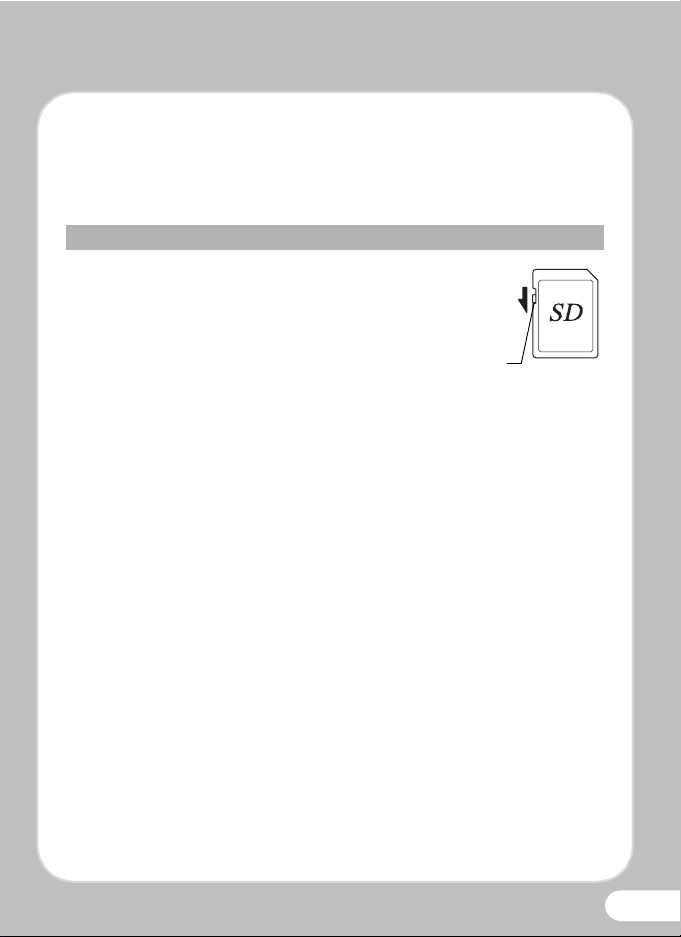
• Avoid using or storing the camera in direct sunlight or in locations
Write-protect
switch
where it may be exposed to rapid changes in temperature or to
condensation.
• Periodic inspections are recommended every one to two years to
maintain high performance.
Other Precautions
• The SD Memory Card is equipped with
a write-protect switch. Setting the
switch to LOCK prevents new data
from being recorded on the card, the
stored data from being deleted, and
the card from being formatted by the
camera or computer.
r appears on the display when the
card is write-protected.
• Care should be taken when removing the SD Memory Card
immediately after using the camera, as the card may be hot.
• Keep the battery cover closed and do not remove the SD Memory Card
or turn the camera off while the data is being played back or saved to
the card, or the camera is connected to a computer with the USB cable,
as this may cause the data to be lost or the card to be damaged.
• Do not bend the SD Memory Card or subject it to violent impact. Keep
it away from water and store away from high temperature.
• Do not remove the SD Memory Card during formatting as this may
damage the card and render it unusable.
• The data on the SD Memory Card may be lost in the following
circumstances. We do not accept any liability for data that is deleted
(1) when the SD Memory Card is mishandled by the user.
(2) when the SD Memory Card is exposed to static electricity or
electrical interference.
(3) when the SD Memory Card has not been used for a long time.
(4) when the SD Memory Card is ejected or the batteries are removed
while the card is being accessed.
• Be sure to format SD Memory Cards that are unused or have been
used on another camera.
7
Page 10

• When using an SD Memory Card with a slow recording speed,
recording may stop while recording a movie even if there is adequate
space in the memory, or image capture or playback may take a long
time.
• Please note that deleting data, or formatting the SD Memory Cards or
the built-in memory does not completely erase the original data.
Deleted files can sometimes be recovered using commercially
available software. It is user’s responsibility to ensure the privacy of
such data.
8
Page 11

Checking the Contents of the Package
Check that your camera came complete with the items
listed below.
P Camera (PENTAX WG-3 GPS /
PENTAX WG-3)
P Carabiner strap
(O-ST134 / O-ST135)
P Software (CD-ROM)
S-SW135
P Rechargeable lithium-ion battery
(D-LI92)
P Macro stand (O-MS2)
P Operating Manual P Quick Guide (this guide)
P Utilities Guide for GPS (PENTAX WG-3 GPS only)
P USB cable (I-USB7)
P Power adapter D-PA135 (AC plug
adapter D-PL135 attached)
9
Page 12

Flash
Self-timer lamp/
Focus assist light
Front
Back
Tripod socket
Remote control
receiver
Shutter
release button
Power button/Power lamp (gr een)
Lens
Sub-display
(PENTAX WG-3 GPS
only)
Microphones
Remote control
receiver
LED Macro lights
Strap lug
Release latch
Speakers
Display
Battery cover
lock
Battery cover
USB/AV terminal
HDMI terminal
Battery lock lever
Names of Parts and Display Indicators
10
In this Quick Guide,
the arrow keys to be
pressed are indicated
as shown on the right.
2
2
3
54
3
4
5
Page 13

Display Indicators
1 4 : 2 5
3 8
+ 1 . 0
1 / 2 5 0
F 3 . 5
0 4 / 0 4 / ' 1 3
Battery level
Shooting mode
Flash mode
+
Built-in memory
(without card)
a
SD Memory Card
r
Card is write-protected
Drive mode
Remaining image
storage capacity
Digital zoom/
Intelligent Zoom
Shutter speed
Aperture
Date imprint
setting
Focus Mode
Normal Display in Still Picture Capture Mode
Eye-Fi communication status
Electronic Level
Date and
time
Shake Reduction
Face Detection
EV
Compensation
World Time setting
D-Range Setting
Focus frame
No icon Hometown
Destination
Memory status
Following indicators are displayed in Still Picture Capture Mode.
P
DATE
+1.
+1.0
1/25
1/250
F3.
F3.5
38
Battery Level Indicator
You can check the battery level by the indicator on t he display.
Screen Display Battery Status
[Battery depleted] The camera will turn off after this message appears.
(green) Adequate power remains.
(green) Batteries are running low.
(yellow) Batteries are running very low.
(red) Batteries are exhausted.
04/04/'13
14:2
14:25
11
Page 14

SD Memory Card
Battery
Battery lock
lever
Battery cover
SD Memory Card socket
Release latch
Battery cover lock
1
1
Prepare your camera for use before you start using it.
Preparing the Camera for Use
Attaching the Carabiner Strap
Attach the carabiner strap
supplied with the camera as
shown in the illustration.
Installing the Battery and SD Memory Card
Install the battery and SD Memory Card as shown in the illustration.
* The SD Memory Cards are sold separately.
The inside of the battery compartment is not waterproof.
In places where the camera is exposed to water or dirt such as
underwater, at the beach, in a kitchen, etc., make sure that the battery
cover lock and release latch are firmly locked so that they won't open
unexpectedly. Do not open the cover in such places.
When removing the battery or card, avoid places where the camera
may be exposed to water or dirt, and make sure that the camera, battery,
card, and your hands are completely dry.
12
Page 15

1
2
2
Memo
MENU
Cancel
Initial Setting
Hometown
New York
Settings complete
English
DST
OFOFFOFF
2
2
Turning the Camera On
Pressing the Power Button
The camera turns on and is ready to
take still pictures. Press the power
button again to turn the camera off.
Making the Initial Settings
The [Language/u] screen appears when the camera is turned on for the
first time. Select the desired language and then set the date and time.
Use the four-way controller (2345) to select the desired
language.
Press the 4 button. The [Initial Setting] screen appears.
If you accidentally select the wrong
language and press the 4 button,
press the four-way controller (5), use
the four-way controller (2345) to
select the desired language, and then
press the 4 button. The [Initial Setting]
screen appears in the selected language.
13
Page 16

Press the four-way controller (3)
OFF
3
4
5
6
7
8
9
to move the frame to
[W Hometown].
Press the four-way controller (5).
The [W Hometown] screen
Initial Setting
Hometown
New York
Settings complete
MENU
Cancel
Hometown
English
DST
OFF
OFF
appears.
City
New York
DST
MENU
Cancel
OK
OK
Use the four-way controller (45) to choose a city.
Press the four-way controller (3) to move the frame to [DST]
(Daylight Saving Time).
Use the four-way controller (45) to select O or P and press the
4 button.
The [Initial Setting] screen reappears.
Press the four-way controller (3) to select [Settings complete],
then press the 4 button.
The [Date Adjustment] screen appears.
Press the four-way controller (5)
to move the frame to [mm/dd/yy],
then use the four-way controller
(23) to choose the date format.
Date Adjustment
Date Format
Date
Time
Settings complete
MENU
Cancel
mm/dd/yy 24
01/01/2013
00:00
h
14
Page 17

Press the four-way controller (5) to select [24h], then use the
10
11
12
13
14
12
15
four-way controller (23) to select [24h] (24-hour display) or
[12h] (12-hour display).
Press the four-way controller (5), then press the four-way
controller (3) to move the frame to [Date].
Press the four-way controller (5) to select [01] (month), [01]
(day) or [2013] (year), then use the four-way controller (23) to
set the current date.
Press the four-way controller (5), then press the four-way
controller (3) to move the frame to [Time].
Set the time in the same manner as in .
Press the four-way controller (3)
to select [Settings complete] and
press the 4 button.
Date Adjustment
Date Format
Date
Time
Settings complete
MENU
Cancel
mm/dd/yy 24
01/01/2013
00:00
h
Formatting an SD Memory Card
Use this camera to format (initialize) an SD Memory Card that is unused
or has been previously used on other cameras or digital devices. Be aware
that formatting deletes all the data stored in the SD Memory Card.
15
Page 18

1
2
2
Widens the area
that is captured
by the camera.
Enlarges
the subject.
3
F 4 .6
1 / 25 0
3 8
4
3
3
Aim the camera at the subject, then press the shutter release
button. The flash discharges automatically depending on the
brightness.
Taking Pictures
Frame the subject using the focus frame on the display.
Press the W / T button to change the captured area.
WT
Press the shutter release button halfway.
The focus frame on the display turns green when the subject
is in focus.
Press the shutter
release button fully.
The picture is taken.
1/25
1/250
F4.
F4.6
38
16
Page 19

Selecting the Flash Mode
Auto
Flash Off
Flash On
Auto + Red-eye
Flash On + Red-eye
Memo
Standard (single-frame)
Self-timer (10 sec.)
Remote Control (3 sec.)
Each time you press the four-way controller (4), the flash mode switches
between the following modes.
The available modes differ depending on the selected shooting mode, focus
mode and drive mode.
Selecting the Drive Mode
Each time you press the four-way controller (2), the drive mode switches
between the following modes.
17
Page 20

• The available modes differ depending on the selected shooting mode.
Memo
Standard
Macro
1cm Macro
Pan Focus
Infinity
Manual Focus
Memo
• You can select Z (2-sec. Self-timer) by pressing the four-way controller (3)
and then (5) after selecting g.
• You can select h (0-sec Remote Control) by pressing the four-way
controller (3) and then (5) after selecting i.
Selecting the Focus Mode
Each time you press the four-way controller (5), the focus mode switches
between the following modes.
The available modes differ depending on the selected shooting mode.
18
Page 21

Selecting a Shooting Mode
Memo
You can choose the optimal shooting mode for your particular situation
from the Capture Mode Palette.
Press the four-way controller (3).
Landscape
For capturing landscape
views. Enhances colors
of sky and foliage
MENU
Cancel
Use the four-way controller (
to choose a shooting mode, then press
the
4
button.
An explanation appears when you select a shooting mode.
OK
2345
1/2
OK
)
19
Page 22

The monitor display in 4:3 aspect ratio
33 838
P
When [Recorded Pixels] is set to /6/f/h/l/m in
[A Rec. Mode], the aspect ratio of the image is 4:3 and the monitor
display for image capture and playback is as shown below.
20
Page 23

1
1 0 0
-
0 0 3 8
Ed it
14 :25
04 /04/' 13
Memo
1
2
2
4
4
You can play back the captured images on the display.
Playing Back Images
Playing Back Images
Press the Q button after shooting.
The image appears on the display.
10
003
100-0038
Edit
Edit
• To play back the previous or next image, press the four-way controller
(45).
• Pressing f button during playback displays 6 thumbnail images. Pressing
f again in 6-image display switches to 12-image display. Pressing f yet
again switches to folder or calendar display.
04/04/'13
14:2504/04/'13
14:25
Deleting Images
Deleting a Single Image
You can delete a single image currently displayed on the display.
Play back the image you want to delete.
Press the i button.
The confirmation screen appears.
21
Page 24

Use the four-way controller (2) to select [Delete].
3
1 0 0
-
0 0 1 7
OK
4
Memo
100
0017
100-0017
Delete
Cancel
OKOKOK
OK
OK
Press the 4 button.
• You can delete multiple images selected from the 6- or 12-image display.
• You can delete all images at once.
• You can protect stored images from being accidentally deleted.
22
Page 25

Selecting a Playback Mode
Memo
You can choose the playback mode you want to use from the Playback
Mode Palette.
Press the four-way controller (3) while an image is displayed in
playback mode.
Slideshow
For continuously playing
back images. Screen or
sound effects can be set
Use the four-way controller (2345) to choose a playback mode,
then press the 4 button.
An explanation appears when you select a playback mode.
1/2
OKMENU
OKCancel
23
Page 26

For details about how to use the PENTAX WG-3 GPS / PENTAX WG-3, refer
to the Operating Manual.
PENTAX WG-3 GPS / PENTAX WG-3 Operating Manual
24
Page 27

Information for Users on Collection and Disposal of Old Equipment and Used
Batteries
1. In the European Union
These symbols on the products, packaging and/or accompanying
documents mean that used electrical and electronic equipment and
batteries should not be mixed with general household waste.
Used electrical/electronic equip ment and batteries must be treated
separately and in accordance with legislation that requires proper
treatment, recovery and recycling of these products.
By disposing of these products correctly you will help ensure that the
waste undergoes the necessary treatment, recovery and recycling
and thus prevent potential negative effects on the environment an d
human health which could otherwise arise due to inappropriate
waste handling.
If a chemical symbol is added beneath the symbol shown above, in accordance
with the Battery Directive, this indicates that a heavy metal (Hg = Mercury,
Cd = Cadmium, Pb = Lead) is present in the battery at a concentration above an
applicable threshold specified in the Battery Directive.
For more information about collection and recycling of used products, please
contact your local authorities, your waste disposal service or the point of sale
where you purchased the products.
2. In other countries outside the EU
These symbols are only valid in the European Union. If you wish to discard used
products, please contact your local authorities or dealer and ask for the correct
method of disposal.
For Switzerland: Used electrical/electron ic equipment can be returned free of
charge to the dealer, even when you don’t purchase a new product. Further
collection facilities are listed on the home page of www.swico.ch
or www.sens.ch.
25
Page 28

PENTAX RICOH IMAGING CO., LTD.
PENTAX RICOH IMAGING
FRANCE S.A.S.
(European Headquarters)
PENTAX RICOH IMAGING
DEUTSCHLAND GmbH
PENTAX RICOH IMAGING
UK LTD.
PENTAX RICOH IMAGING
AMERICAS CORPORATION
PENTAX RICOH IMAGING
CANADA INC.
PENTAX RICOH IMAGING
CHINA CO., LTD.
2-35-7, Maeno-cho, Itab ashi-ku, Tokyo 174-8639 , JAPAN
(http://www.pentax.jp)
112 Quai de Bezons, B.P. 204, 95106 Argenteuil Cedex,
FRANCE
(HQ - http://www.pentax.eu)
(France - http://www.pentax.fr)
Julius-Vosseler-Strasse 104, 22527 Hamburg,
GERMANY
(http://www.pentax.de)
PENTAX House, He ron Drive, Langley, Slough, Berks
SL3 8PN, U.K.
(http://www.pentax.co.uk)
633 17th Street, Suite 2600, Denver, Colorado 80202,
U.S.A.
(http://www.pentaximaging.com)
1770 Argentia Road Mississauga, Ontario L5N 3S7,
CANADA
(http://www.pentax.ca)
23D, Jun Yao International Plaza, 789 Zhaojiabang
Road, Xu Hui District, Shanghai, 200032, CHINA
(http://www.pentax.com.cn)
http://www.pentax.jp/english
• Specifications and external dimensions are subject to change without notice.
OPWG30171/ENG Copyright © PENTAX RICOH IMAGING CO., LTD. 2013
FOM 01.03.2013 Printed in Europe
 Loading...