

Page 1
Model SR4002/SR5002 User Guide
AV Surround Receiver
Page 2

ENGLISH
NEDERLANDS
ITALIANO
WARRANTY
For warranty information, contact your local Marantz
distributor.
RETAIN YOUR PURCHASE RECEIPT
Your purchase receipt is your permanent record of a
valuable purchase. It should be kept in a safe place
to be referred to as necessary for insurance purposes
or when corresponding with Marantz.
IMPORTANT
When seeking warranty service, it is the responsibility of
the consumer to establish proof and date of purchase.
Your purchase receipt or invoice is adequate for such
proof.
FOR U.K. ONLY
This undertaking is in addition to a consumer's
statutory rights and does not affect those rights in
any way.
FRANÇAIS
GARANTIE
Pour des informations sur la garantie, contacter le
distributeur local Marantz.
CONSERVER L'ATTESTATION D'ACHAT
L'attestation d'achat est la preuve permanente
d'un achat de valeur. La conserver en lieu sur pour
s'y reporter aux fi ns d'obtention d'une couverture
d'assurance ou dans le cadre de correspondances
avec Marantz.
IMPORTANT
Pour l'obtention d'un service couvert par la garantie,
il incombe au client d'établir la preuve de l'achat
et d'en corroborer la date. Le reçu ou la facture
constituent des preuves suffi santes.
DEUTSCH
GARANTIE
Voor inlichtingen omtrent garantie dient u zich tot uw
plaatselijke Marantz.
UW KWITANTIE, KASSABON E.D. BEWAREN
Uw kwitantie, kassabon e.d. vormen uw bewijs van
aankoop van een waardevol artikel en dienen op een
veilige plaats bewaard te worden voor evt, verwijzing
bijv, in verbend met verzekering of bij correspondentie
met Marantz.
BELANGRIJK
Bij een evt, beroep op de garantie is het de
verantwoordelijkheid van de consument een
gedateerd bewijs van aankoop te tonen. Uw
kassabon of factuurzijn voldoende bewijs.
ESPAÑOL
GARANTIA
Para obtener información acerca de la garantia
póngase en contacto con su distribuidor Marantz.
GUARDE SU RECIBO DE COMPRA
Su recibo de compra es su prueba permanente de
haber adquirido un aparato de valor, Este recibo
deberá guardarlo en un lugar seguro y utilizarlo
como referencia cuando tenga que hacer uso del
seguro o se ponga en contacto con Marantz.
IMPORTANTE
Cuando solicite el servicio otorgado por la garantia
el usuario tiene la responsabilidad de demonstrar
cuándo efectuó la compra. En este caso, su recibo
de compra será la prueba apropiada.
GARANZIA
L’apparecchio è coperto da una garanzia di buon
funzionamento della durata di un anno, o del periodo
previsto dalla legge, a partire dalla data di acquisto
comprovata da un documento attestante il nominativo
del Rivenditore e la data di vendita. La garanzia sarà
prestata con la sostituzione o la riparazione gratuita
delle parti difettose.
Non sono coperti da garanzia difetti derivanti da
uso improprio, errata installazione, manutenzione
effettuata da personale non autorizzato o, comunque,
da circostanze che non possano riferirsi a difetti di
funzionamento dell’apparecchio. Sono inoltre esclusi
dalla garanzia gli interventi inerenti l’installazione e
l’allacciamento agli impianti di alimentazione.
Gli apparecchi verranno riparati presso i nostri Centri
di Assistenza Autorizzati. Le spese ed i rischi di
trasporto sono a carico del cliente.
La casa costruttrice declina ogni responsabilità per
danni diretti o indiretti provocati dalla inosservanza
delle prescrizioni di installazione, uso e manutenzione
dettagliate nel presente manuale o per guasti dovuti ad
uso continuato a fi ni professionali.
SVENSKA
GARANTI
För information om garantin, kontakta Marantz
lokalagent.
SPAR KVITTOT
Kvittot är ett inköpsbevis på en värdefull vara. Det skall
förvaras säkert och hänvisas till vid försäkringsfall
eller vidkorrespondens mod Marantz.
VIKTIGT
Fö att garantin skall gälla är det kundens sak att
framställa bevis och datum om köpet. Kvitto eller
faktura är tillräokligt bevis fö detta.
GARANTIE
Bei Garantiefragen wenden Sie sich bitte an Ihren
Marantz-Händler.
HEBEN SIE IHRE QUITTING GUT AUF
Die Quittung dient Ihnen als bleibende Unterlage
für Ihren wertvollen Einkauf Das Aufbewahren der
Quittung ist wichtig, da die darin enthaltenen Angaben
für Versicherungswecke oder bei Korrespondenz mit
Marantz angeführt werden müssen.
WICHTIG!
Bei Garantiefragen muß der Kunde eine Kaufunterlage
mit Kaufdatum vorlegen. Ihren Quittung oder
Rechnung ist als Unterlage ausreichend.
Page 3

English
The SR4002/SR5002 is in conformity with the EMC directive and low-voltage directive.
Deutsch
Español
Italiano
Français
Le SR4002/SR5002 est conforme à la directive EMC et à la directive sur les basses
tensions.
Das Modell SR4002/SR5002 entspricht den EMC-Richtlinien und den Richtlinien für
Niederspannungsgeräte.
Nederlands
De SR4002/SR5002 voldoet aan de EMC eisen en de vereisten voor laag-voltage.
El SR4002/SR5002 está de acuerdo con las normas EMC y las relacionadas con baja
tensión.
Il SR4002/SR5002 è conforme alle direttive CEE ed a quelle per i bassi voltaggi.
Svenska
SR4002/SR5002 är tillverkad i enlighet med EMC direktiven och direktiven för lågvoltsutrusning.
CE MARKING
English
- Do not expose the equipment to rain or moisture.
- Do not remove the cover from the equipment.
- Do not insert anything into the equipment through
the ventilation holes.
- Do not handle the mains cord with wet hands.
- Do not cover the ventilation with any items such as
tablecloths, newspapers, curtains, etc.
- No naked fl ame sources, such as lighted candles,
should be placed on the equipment.
- When disposing of used batteries, please comply
with governmental regulations or environmental
public instruction’s rules that apply in your country
or area.
- Make a space of about 0.2 meter around the unit.
- No objects fi lled with liquids, such as vases, shall
be placed on the equipment.
- When the switch is in the OFF position, the
equipment is not completely switched off from
MAINS.
- The equipment shall be installed near the
power supply so that the power supply is easily
accessible.
- Do Not Touch Hot Spots During and Immediately
After Use.
- During and immediately after use, this product is
hot in areas other than the controls and rear panel
connection jacks. Do not touch hot spots and
especially the top panel. Contact with hot areas
can cause burns.
Français
-
Ne pas exposer l’appareil à la pluie ni à l’humidité.
- Ne pas essayer de retirer le boîtier de l’appareil.
- Ne rien insérer dans l’appareil par les orifi ces de
ventilation.
- Ne pas manipuler le cordon d’alimentation avec
les mains mouillées.
- Ne pas recouvrir les ouïes de ventilation avec un
objet quelconque comme une nappe, un journal,
un rideau, etc.
- Ne placer aucune source de fl amme nue, comme
une bougie allumée, sur l'appareil.
- Pour mettre au rebut les piles usées, respecter les
lois gouvernementales ou les règlements offi ciels
concernant l’environnement qui s'appliquent à
votre pays ou région.
- Veiller à ce qu’aucun objet ne soit à moins de 0,2
mètre des côtés de l'appareil.
WARNINGS
AVERTISSEMENTS
- Aucun objet rempli de liquide, un vase par exemple,
ne doit être placé sur l'appareil.
- Lorsque l'interrupteur est sur la position OFF,
l'appareil n'est pas complètement déconnecté du
SECTEUR (MAINS).
- L'appareil sera installé près de la source
d'alimentation, de sorte que cette dernière soit
facilement accessible.
- Ne pas toucher aux zones chaudes pendant et
immédiatement après l’utilisation.
- Pendant l’utilisation et immediatement apres, cet
appareil est chaud en dehors des commandes
et des prises de raccordement arriere. Ne pas
toucher aux zones chaudes, et particulièrement
au panneau supérieur, pour éviter tout risque de
brûlure.
Deutsch
WARNHINWEISE
- Das Gerät nicht Regen oder Feuchtigkeit
aussetzen.
- Die Abdeckung nicht vom Gerät abnehmen.
- Keine Gegenstände durch die Belüftungsschlitze
stecken.
- Das Netzkabel nicht mit feuchten oder nassen
Händen anfassen.
- Decken Sie die Lüftungsöffnungen nicht mit einem
Tischtuch, einer Zeitung, einem Vorhang usw. ab.
- Es dürfen keine Gegenstände mit offener Flamme,
wie etwa brennende Kerzen, auf dem Gerät
aufgestellt werden.
- Beachten Sie bei der Entsorgung der verbrauchten
Batterien alle geltenden lokalen und überregionalen
Regelungen.
- Auf allen Geräteseiten muß ein Zwischenraum
von ungefähr 0,2 meter vorhanden sein.
- Auf das Gerät dürfen keine mit Flüssigkeiten
gefüllte Behälter, wie etwa eine Vase, gestellt
werden.
- Wenn der Schalter ausgeschaltet ist (OFFPosition), ist das Gerät nicht vollständig vom
Stromnetz (MAINS) abgetrennt.
- Das Gerät sollte in der Nähe einer Netzsteckdose
aufgestellt werden, damit es leicht an das
Stromnetz angeschlossen werden kann.
- Berühren Sie während oder unmittelbar nach dem
Gebrauch keine heißen Stellen des Gerätes.
- Während oder unmittelbar nach dem Gebrauch ist
dieses Produkt mit Ausnahme der Bedienelemente
und der Anschlussbuchsen auf der Rückseite heiß.
Berühren Sie die heißen Stellen und insbesondere
die Oberseite nicht. Der Kontakt mit heißen
Flächen kann zu Verbrennungen führen.
Page 4

Nederlands
WAARSCHUWINGEN
- Stel het apparaat niet bloot aan regen of vocht.
- Verwijder de afdekplaat van het apparaat niet.
- Duw niets door de ventilatieopeningen in het
apparaat.
- Raak het netsnoer niet met natte handen aan.
- Bedek de ventilatieopeningen niet met enige
voorwerpen, zoals tafelkleden, kranten, gordijnen,
enz.
- Plaats geen brandende voorwerpen, zoals
kaarsen, op het apparaat.
- Volg bij het weggooien van verbruikte batterijen de
overheidswetgeving of milieuvoorschriften op die
van kracht zijn in het land of de regio waarin u zich
bevindt.
- Zorg dat er 0,2 meter vrije ruimte rond het toestel
is.
- Plaats geen voorwerpen met een vloeistof erin,
zoals een bloemenvaas, op het apparaat.
- Als de schakelaar op OFF staat, is het apparaat
niet volledig losgekoppeld van de netspanning
(MAINS).
- De apparatuur wordt in de buurt van het stopcontact
geïnstalleerd, zodat dit altijd gemakkelijk
toegankelijk is.
- Raak hete gedeelten van het apparaat niet aan
tijdens en onmiddellijk na het gebruik.
- Tijdens en onmiddellijk na het gebruik is dit
product heet, behalve in de omgeving van de
bedieningstoetsen en de aansluitingen op het
achterpaneel. Raak geen hete plekken aan, vooral
niet het bovenpaneel. Contact met hete plekken
kan brandwonden veroorzaken.
Español
ADVERTENCIAS
- No exponga el equipo a la lluvia ni a la humedad.
- No extraiga la tapa del equipo.
- No introduzca nada en el interior del equipo a
través de los orifi cios de ventilación.
- No maneje el cable de alimentación con las
manos mojadas.
- No cubra la ventilación con objetos como manteles,
periódicos, cortinas, etc.
- No deben colocarse sobre el equipo elementos
con fuego, por ejemplo velas encendidas.
- Cuando se eliminen baterías usadas, deben
cumplirse las reglamentaciones oficiales o las
normas de protección medioambiental aplicables
en su país o en su zona.
- Deje un espacio de unos 0,2 metro alrededor de la
unidad.
- No se deben colocar sobre el aparato recipientes
que contengan líquidos, como por ejemplo
jarrones.
- Cuando el interruptor está en la posición OFF, el
equipo no está completamente desconectado de
la alimentación MAINS.
- El equipo se instalará cerca de la fuente de
alimentación de manera que resulte fácil acceder
a ella.
- No tocar las áreas calientes mientras la unidad
está en uso ni inmediatamente después.
- Mientras esta en funcionamiento e inmediatamente
despues de su uso, este producto presenta zonas
calientes en diversas partes, no exclusivamente
en el sector de los controles o en las conexiones
del panel posterior. No tocar las áreas calientes,
especialmente el panel superior dado que pueden
producirse quemaduras.
Italiano
AVVERTENZE
- Non esporre l’apparecchio alla pioggia o
all’umidità.
- Non rimuovere il coperchio dell’apparecchio.
- Non introdurre oggetti all’interno dell’apparecchio
attraverso i fori di ventilazione.
- Non toccare il cavo di alimentazione con le mani
bagnate.
- Non coprire le fessure di ventilazione con tovaglie,
giornali, tende od oggetti analoghi.
- Non posare sull'apparecchio sorgenti di fi amme
scoperte quali candele accese.
- Smaltire le pile usate in conformità alle norme
governative o disposizioni ambientali vigenti nel
proprio paese o zona.
- Lasciare 0,2 metro liberi tutto intorno l'unità.
- Non mettere sull'apparecchiatura alcun contenitore
di liquido, come ad esempio dei vasi.
- Quando l'interruttore è nella posizione OFF,
l'apparecchiatura non è completamente scollegata
da MAINS.
- L’apparecchio va installato in prossimità della
fonte di alimentazione, in modo che quest’ultima
sia facilmente accessibile.
- Non toccare i punti caldi né durante, né
immediatamente dopo l’uso.
- Durante, e subito dopo l’utilizzo, questo prodotto
risulta essere molto caldo in alcune sue parti come
ad esempio i connettori del pannello posteriore.
Non toccare i punti caldi e specialmente la
superfi cie del pannello. Il contatto con parti calde
può provocare ustioni.
Svenska
VARNINGAR
- Utsätt inte utrustningen för regn eller fukt.
- Ta inte bort utrustningens hölje.
- För inte in föremål i utrustningen genom
ventilationshålen.
- Hantera inte nätsladden med våta händer.
- Täck inte för ventilationsöppningarna med
några föremål som till exempel bordsdukar,
dagstidningar, gardiner e.d.
- Inga föremål med öppen låga, som till exempel
tända stearinljus, bör placeras på utrustningen.
- Följ de lagar och miljöskyddsråd som gäller i det
land eller område där du bor när du gör dig av med
batterier.
- Se till att det fi nns omkring 0,2 meter fri plats runt
omkring enheten.
- Inga objekt som är fyllda med någon vätska,
till exempel blomstervaser, bör placeras på
apparaten.
- Även om strömbrytaren står i det avstängda läget
OFF, så är utrustningen inte helt bortkopplad från
det elektriska nätet (MAINS).
- Utrustningen ska vara installerad nära strömuttaget
så att strömförsörjningen är lätt att tillgå.
- Vidrör inte varma punkter under och omedelbart
efter användning.
- Bortsett från kontrollerna och anslutningsuttagen
på baksidan är den här produkten varm under och
omedelbart efter användning. Vidrör inte varma
punkter och särskilt inte ovansidan. Kontakt med
varma ytor kan orsaka brännskador.
AV_060126N1
Page 5
INTRODUCTION
Thank you for purchasing the Marantz SR4002/SR5002 Surround receiver.
This remarkable component has been engineered to provide you with many years of home theater enjoyment.
Please take a few minutes to read this manual thoroughly before you connect and operate the SR4002/
SR5002.
As there are a number of connection and confi guration options, you are encouraged to discuss your own
particular home theater setup with your Marantz A/V specialist dealer.
ACCESSORIES CHECK
Before use, check the below accessories were included in the package.
Remote Controller
T.TONE
SETU
P/
BASS
T.DISP
PRESET
DISC+
CH-SEL
ANGLE
TUNING
SUBTITLE
V-OFF ATT.
T
BASS
V
TUNER
AUDIO
DVD
TAPE
CD
TREBLE
AUX 1
CDR
DSSVCR
SYSTEM REMOTE CONTROLLER
AUX 2
MD
RC
AMP
5
500SR
AAA-size batteries × 2
Microphone MC-10
Front AUX Jack Cover
PUSH
PUSH
User Guide
LEARN
SOURCE
l/l/
SEND
SLEEP
SET
DISPLAY
AITP
O
FF
1
P.DIRECT
CS II
ON
2
4
SURROUND
M-CH ST
EX/ES
dts
3
7
5
LIP SYNC/
VIRTUAL
INPUT
STEREO
BAND
6
CL
8
T.MODE
7.1C
NIGHT
CH/CAT
H
IN
4
9
0
P.SCAN
SPKR A/B
A/D
+10
4
HT-EQ
M
OSD
MUTE
U
LTI/
MEMO
CAT
VOLLUME
M-SPKR
ENTER
MENU
PTY
EXIT
F.DIRECT
AM Loop Antenna
FM Antenna
AC Power Cable
A NOTE ABOUT RECYCLING
This product’s packaging materials are recyclable
and can be reused. This product and the
accessories packed together are the applicable
product to the WEEE directive except batteries.
Please dispose of any materials in accordance
with your local recycling regulations.
When discarding the unit, comply with your local
rules or regulations.
Batteries should never be thrown away or
incinerated but disposed of in accordance with your
local regulations concerning chemical wastes.
TABLE OF CONTENTS
INTRODUCTION ....................................1
ACCESSORIES CHECK ....................................................1
TABLE OF CONTENTS .........................1
FEATURES .............................................2
DESCRIPTION ...................................................................2
BEFORE USE .........................................4
OPERATION OF REMOTE CONTROLLER ......................4
NAMES AND FUNCTIONS ....................5
FRONT PANEL (SR4002) ..................................................5
FRONT PANEL (SR5002) ..................................................5
FL DISPLAY AND INDICATOR ..........................................7
REAR PANEL (SR4002) .....................................................8
REAR PANEL (SR5002) .....................................................8
REMOTE CONTROLLER ................................................10
REMOTE CONTROL OPERATION .....12
GENERAL INFORMATION OF REMOTE CONTROLLER
TO THE UNIT ...................................................................12
CONTROLLING MARANTZ COMPONENTS .................13
BASIC OPERATION .........................................................16
CONNECTIONS ...................................18
SPEAKER PLACEMENT .................................................18
CONNECTING SPEAKERS .............................................18
CONNECTING AUDIO COMPONENTS ..........................19
CONNECTING VIDEO COMPONENTS ..........................20
CONNECTING HDMI COMPONENTS ............................21
ADVANCED CONNECTING ............................................22
CONNECTING THE REMOTE CONTROL JACKS .........22
CONNECTING THE ANTENNA TERMINALS .................23
CONNECTING FOR THE MULTI ROOM (SR5002 only) 24
CONNECTING OTHER EQUIPMENT .............................25
SETUP ..................................................26
ON SCREEN DISPLAY MENU SYSTEM ........................26
1 INPUT SETUP (ASSIGNABLE DIGITAL INPUT AND
COMPONENT VIDEO INPUT) .........................................27
2 SPEAKER SETUP ........................................................27
3 PREFERENCE .............................................................30
4 SURROUND .................................................................30
5 PL II (PRO LOGIC II) MUSIC PARAMETER ..............31
6 CS II (CIRCLE SURROUND II) PARAMETER ...........31
7 7.1 CH INPUT LEVEL ...................................................31
8 MULTI ROOM (SR5002 only) .......................................31
SIMPLE SETUP ....................................32
BASIC OPERATION (PLAYBACK) ......33
SELECTING AN INPUT SOURCE ...................................33
SELECTING THE SURROUND MODE ...........................33
NIGHT MODE ..................................................................33
ADJUSTING THE MAIN VOLUME ..................................33
ADJUSTING THE TONE (BASS & TREBLE) CONTROL 33
TEMPORARILY TURNING OFF THE SOUND ..................33
USING THE SLEEP TIMER .............................................33
VIDEO CONVERT ............................................................34
SURROUND MODE .............................35
OTHER FUNCTION ..............................38
DISPLAY MODE ...............................................................38
RECORDING AN ANALOG SOURCE .............................38
SELECTING ANALOG AUDIO INPUT OR DIGITAL AUDIO
INPUT ..............................................................................38
LISTENING THROUGH HEADPHONES
.........................39
DOLBY HEADPHONE MODE .........................................39
ATTENUATION TO ANALOG INPUT SIGNAL ................39
SPEAKER A/B ..................................................................39
7.1 CH INPUT ...................................................................39
AUX2 INPUT .....................................................................40
HT-EQ (HOME THEATER EQUALIZER) .........................40
TV AUTO ON/OFF FUNCTION ........................................40
VIDEO ON/OFF ...............................................................40
LIP.SYNC (SR5002 only) ..................................................40
BASIC OPERATION (TUNER) .............41
LISTENING TO THE TUNER ...........................................41
PRESET MEMORY ..........................................................41
RDS OPERATION ............................................................43
MULTI ROOM SYSTEM (SR5002 ONLY)
..44
MULTI ROOM PLAYBACK USING THE MULTI ROOM
OUT TERMINALS .............................................................44
MULTI ROOM PLAYBACK USING THE MULTI SPEAKER
TERMINALS .....................................................................44
SURROUND SPEAKER B SYSTEM
(SR4002 ONLY) ...............................45
ANOTHER ROOM PLAYBACK USING THE S
(SURROUND) SPEAKER B TERMINALS .......................45
TROUBLESHOOTING .........................46
HDMI .................................................................................47
TECHNICAL SPECIFICATIONS ..........48
SETUP CODES ........................................ I
ENGLISH
1
Page 6
ENGLISH
FEATURES
This unit incorporates the latest generation of digital
surround sound decoding technology such as Dolby
Digital EX, Dolby Digital, DTS-ES (Discrete 6.1 and
Matrix 6.1), DTS Neo:6 (Cinema, Music), Dolby ProLogic II x (Movie, Music and Game), Circle Surround
II (Cinema and Music).
In addition, Marantz has focused on the future. By
utilizing pre-out jacks, 7.1 direct inputs and a RS232C communication port (SR5002 only), the unit is
tomorrow’s technology, today!
This unit features a fully discrete 7 channel amplifi er
section capable of delivering 80 watts (SR4002)/90
watts (SR5002) of high-current amplification, for
continuously clean and stable power into each of the 7
channels. It employs a massive EI power transformer
in combination with oversized filter capacitors.
This design confi guration is capable of a clear and
powerful reproduction of the most demanding action
movie soundtracks and full range (multichannel)
music discs. Through its ability to generate very high
output voltages, the unit can easily drive the most
demanding speakers with optimum results.
This unit incorporates the most advanced Digital
Signal Processing circuitry, along with a Crystal® 192
kHz/24 bit D/A converter in each of the 7 channels.
Independent power supply circuits are incorporated for
the FL display, audio and video sections for maximum
separation, clarity and dynamic range. Together with
hand-selected customized components, all elements
work in harmony to recreate the emotion, exactly as
the artist had intended.
This unit is designed and engineered with extensive
feedback from custom installation experts, dealers
and consumers. It features multi-room/multisource,
a RS-232C communication port (SR5002 only),
heavy duty speaker binding posts and an extensive
array of both analog and digital inputs / outputs.
With 6 assignable digital inputs (including Front
Aux), 3 assingnable component inputs (SR5002),
5 assignable digital input (SR4002), Super Audio
CD Multi Channel (7.1 channel) direct inputs video
convert system and OSD output versatility is taken
to a stunning new level. Furthermore, the unit can
output the OSD information through the Y/C (Svideo) and composite video outputs.
An easy-to-use universal remote controller allows full
access to all of the operating functions and can be
used for system operation as well.
This unit has Simple Setup function for easy setup.
You can setup all speaker settings by just selecting
your room size and the number of your speakers with
Simple Setup function. You can also setup customized
settings just like conventional AV amplifi ers.
• Dolby Digital EX, Dolby Digital ,
DTS ES (Discrete 6.1, Matrix 6.1, Neo: 6)
• Dolby Headphone 2
• Dolby Pro Logic II x (Movie, Music, Game)
• Circle Surround II (Movie, Music, Mono)
• HDCD decording
• MRAC (Marantz Room Acoustic Calibration)
available
• Simple Setup Function
• Improved Station Name Input Method, 50 Presets
• Auto Adjust Function for Speaker Distance Settings
(Delay Time)
• LIP.SYNC Funciton (Audio delay)
• 7 × 80 Watts (8 Ohm) (SR4002)/7 × 90 Watts (8
Ohm) (SR5002), Discrete Amplifi ers
• High Power Current Feedback Circuitry
• Massive Energy Power Supply, Huge EI
Transformer, Large ELCO’s.
• 192 kHz/24 bit Crystal® DAC for all 8 Channels
• 32 bit Digital Surround Processing Chipsets
• Large Heavy Duty Speaker Terminals for all
Channels
• Auto Input Signal Detection
• Front AUX Input (Digital Camera, Portable DVD)
• Video Off Mode
• Set Up Menu via all Video Output (Composite, SVideo and Component video)
• Video convert system
• RS-232C Terminal for System Control (SR5002only)
• Universal remote control
• HDMI (Ver. 1.1)
3 Input/1 Output (SR5002)
2 Input/1 Output (SR4002)
DESCRIPTION
Manufactured under license under U.S. Patent
#’s: 5,451,942; 5,956,674; 5,974,380; 5,978,762;
6,226,616; 6,487,535; 7,003,467 & other U.S. and
worldwide patents issued & pending. DTS, DTS
Digital Surround, ES, and Neo:6 are registered
trademarks and the DTS logos, Symbol and DTS
96/24 are trademarks of DTS, Inc. © 1996-2007 DTS,
Inc. All Rights Reserved.
• dts Digital Surround
DTS was introduced in 1994 to provide 5.1 channels of
discrete digital audio into home theater systems.
DTS brings you premium quality discrete multichannel
digital sound to both movies and music.
DTS is a multichannel sound system designed to
create full range digital sound reproduction.
The no compromise DTS digital process sets the
standard of quality for cinema sound by delivering
an exact copy of the studio master recordings to
neighborhood and home theaters.
Now, every moviegoer can hear the sound exactly as
the moviemaker intended.
DTS can be enjoyed in the home for either movies or
music on of DVD’s, LD’s, and CD’s.
• dts Neo:6
The advantages of discrete multichannel systems
over matrix are well known.
But even in homes equipped for discrete multichannel,
there remains a need for high-quality matrix decoding.
This is because of the large library of matrix surround
motion pictures available on disc and on VHS tape; and
analog television broadcasts.
The typical matrix decoder of today derives a center
channel and a mono surround channel from twochannel matrix stereo material. It is better than a
simple matrix in that it includes steering logic to
improve separation, but because of its mono, bandlimited surround it can be disappointing to users
accustomed to discrete multichannel.
Neo:6 offers several important improvements as
follow,
• Neo:6 provides up to six full-band channels of
matrix decoding from stereo matrix material. Users
with 6.1 and 5.1 systems will derive six and fi ve
separate channels, respectively, corresponding to
the standard home-theater speaker layouts.
•
Neo:6 technology allows various sound elements
within a channel or channels to be steered
separately, and in a way which follows naturally
from the original presentation.
•
Neo:6 offers a music mode to expand stereo nonmatrix
recordings into the fi ve- or six-channel layout, in a way
which does not diminish the subtlety and integrity of
the original stereo recording.
• dts Digital Surround ES
DTS-ES Extended Surround is a new multichannel
digital signal format developed by Digital Theater
Systems Inc. While offering high compatibility with the
conventional DTS Digital Surround format, DTS-ES
Extended Surround greatly improves the 360-degree
surround impression and space expression thanks
to further expanded surround signals. This format
has been used professionally in movie theaters since
1999.
In addition to the 5.1 surround channels (FL, FR, C,
SL, SR and LFE), DTS-ES Extended Surround also
offers the SB (Surround Back) channel for surround
playback with a total of 6.1 channels. DTS-ES
Extended Surround includes two signal formats with
different surround signal recording methods, as DTSES Discrete 6.1 and DTS-ES Matrix 6.1.
• dts Digital Surround 96/24
The stereo CD is a 16-bit medium with sampling at
44.1 kHz. Professional audio has been 20- or 24bit for some time, and there is increasing interest
in higher sampling rates both for recording and for
delivery into the home. Greater bit depths provide
extended dynamic range. Higher sampling rates
allow wider frequency response and the use of antialias and reconstruction fi lters with more favorable
aural characteristics.
DTS 96/24 allows for 5.1channel sound tracks to be
encoded at a rate of 96kHz/24bits on DVD-Video
titles.
When DVD-video appeared, it became possible to
deliver 24-bit, 96 kHz audio into the home, but only in
two channels, and with serious limitations on picture.
This capability has had little use.
DVD-audio allows 96/24 in six channels, but a
new player is needed, and only analog outputs are
provided, necessitating the use of the D/A converters
and analog electronics provided in the player.
DTS 96/24 offers the following:
1. Sound quality transparent to the original 96/24
master.
2
Page 7
2.
Full backward compatibility with all existing
decoders. (Existing decoders will output a 48 kHz
signal)
3. No new player required: DTS 96/24 can be carried
on DVD-video, or in the video zone of DVD-audio,
accessible to all DVD players.
4. 96/24 5.1-channel sound with full-quality fullmotion video, for music programs and motion
picture soundtracks on DVD-video.
Dolby Digital identifi es the use of Dolby Digital audio
coding for such consumer formats as DVD and DTV.
As with fi lm sound, Dolby Digital can provide up
to fi ve full-range channels for left, center, and right
screen channels, independent left and right surround
channels, and a sixth (“.1”) channel for low-frequency
effects.
Dolby Surround Pro Logic II is an improved matrix
decoding technology that provides better spatiality
and directionality on Dolby Surround program
material; provides a convincing three-dimensional
soundfi eld on conventional stereo music recordings;
and is ideally suited to bring the surround experience
to automotive sound. While conventional surround
programming is fully compatible with Dolby Surround
Pro Logic II decoders, soundtracks will be able to be
encoded specifi cally to take full advantage of Pro
Logic II playback, including separate left and right
surround channels. (Such material is also compatible
with conventional Pro Logic decoders.)
Dolby Digital EX creates six full-bandwidth output
channels from 5.1-channel sources. This is done
using a matrix decoder that derives three surround
channels from the two in the original recording. For
best results, Dolby Digital EX should be used with
movies soundtracks recorded with Dolby Digital
Surround EX.
About Dolby Pro Logic IIx
Dolby Pro Logic IIx technology delivers a natural
and immersing 7.1-channel listening experience
to the home theater environment. A product of
Dolby’s expertise in surround sound and matrix
decoding technologies, Dolby Pro Logic IIx is a
complete surround sound solution that maximizes
the entertainment experience from stereo as well as
5.1-channel encoded sources.
Dolby Pro Logic IIx is fully compatible with Dolby
Surround Pro Logic technology and can optimally
decode the thousands of commercially available
Dolby Surround encoded video cassettes and
television programs with enhanced depth and
spatiality. It can also process any high-quality
stereo or Advanced Resolution 5.1-channel music
content into a seamless 6.1- or 7.1-channel listening
experience.
The Dolby Headphone technology provides a
surround sound listening experience over headphones.
When listening to multichannel content such as DVD
movies over headphones, the listening experience
is fundamentally different than listening to speakers.
Since the headphone speaker drivers are covering
the pinna of the ear, the listening experience differs
greatly from traditional speaker playback. Dolby
utilizes patented headphone perspective curves to
solve this problem and provides a non-fatiguing,
immersive, home theater listening experience. Dolby
Headphone also delivers exceptional 3D audio from
stereo material.
Manufactured under license from Dolby Laboratories.
“Dolby”, “Pro Logic”, and the double-D symbol are
trademarks of Dolby Laboratories.
Circle Surround II (CS-II ) is a powerful and versatile
multichannel technology. CS-II is designed to enable
up to 6.1 multichannel surround sound playback
from mono, stereo, CS encoded sources and other
matrix encoded sources. In all cases the decoder
extends it into 6 channels of surround audio and a
LFE/subwoofer signal. The CS-II decoder creates a
listening environment that places the listener “inside”
music performances and dramatically improves
both hi-fi audio conventional surround-encoded
video material. CS-II provides composite stereo rear
channels to greatly improve separation and image
positioning – adding a heightened sense of realism
to both audio and A/V productions.
CS-II is packed with other useful feature like dialog
clarity (SRS Dialog) for movies and cinema-like bass
enrichment (TruBass). CS-II can enable the dialog
to become clearer and more discernable in movies
and it enables the bass frequencies contained in
the original programming to more closely achieve
low frequencies – overcoming the low frequency
limitations of the speakers by full octave.
Circle Surround II, Dialog Clarity, TruBass, SRS and
symbol are trademarks of SRS Labs, Inc.
Circle Surround II, Dialog Clarity and TruBass
technology are incorporated under license from SRS
Labs, Inc.
HDCD® (High Defi nition Compatible Digital ®) is a
patented process for delivering on Compact Disc the
full richness and details of the original microphone
feed.
HDCD encoded CDs sound better because they are
encoded with 20-bits of real musical information as
compared to 16-bits for all other CDs.
HDCD overcomes the limitation of the 16-bit CD
format by using a sophisticated system to encode
the additional four bits onto the CD while remaining
completely compatible with the CD format.
When listening to HDCD recordings, you hear more
dynamic range, a focused 3-D sound stage, and
extremely natural vocal and musical timbre. With
HDCD, you get the body, depth and emotion of the
original performance not a fl at, digital imitation.
HDCD system manufactured under license from
Microsoft. This product is covered by one or more
of the following: In the United States 5,479,168
5,638,074 5,640,161 5,808,574 5,838,274 5,854,600
5,864,311 5,872,531 and in Australia 669,114 with
other patents pending.
HDMI, the and High-Defi nition Multimedia
Interface are trademarks or registered trademarks of
HDMI Licensing LLC.
ENGLISH
3
Page 8
ENGLISH
BEFORE USE
This section must be read before any connection is
made to the mains supply.
EQUIPMENT MAINS WORKING SETTING
Your Marantz product has been prepared to comply
with the household power and safety requirements
that exist in your area.
SR4002/SR5002 can be powered by 230V AC only.
COPYRIGHT
Recording and playback of any material may
require consent. For further information refer to the
following:
— Copyright Act 1956
— Dramatic and Musical Performers Act 1958
— Performers Protection Acts 1963 and 1972
— Any subsequent statutory enactments and
orders
DO NOT LOCATE IN THE FOLLOWING PLACES
To ensure long-lasting use, do not locate the unit where:
• Exposed to direct sunlight.
• Near to sources of heat such as heaters.
• Highly humid or poorly ventilated.
• Dusty.
• Subjected to mechanical vibrations.
• On wobbly, inclined or otherwise unstable
surfaces
• Radiated heat is blocked such as in cramped
audio racks.
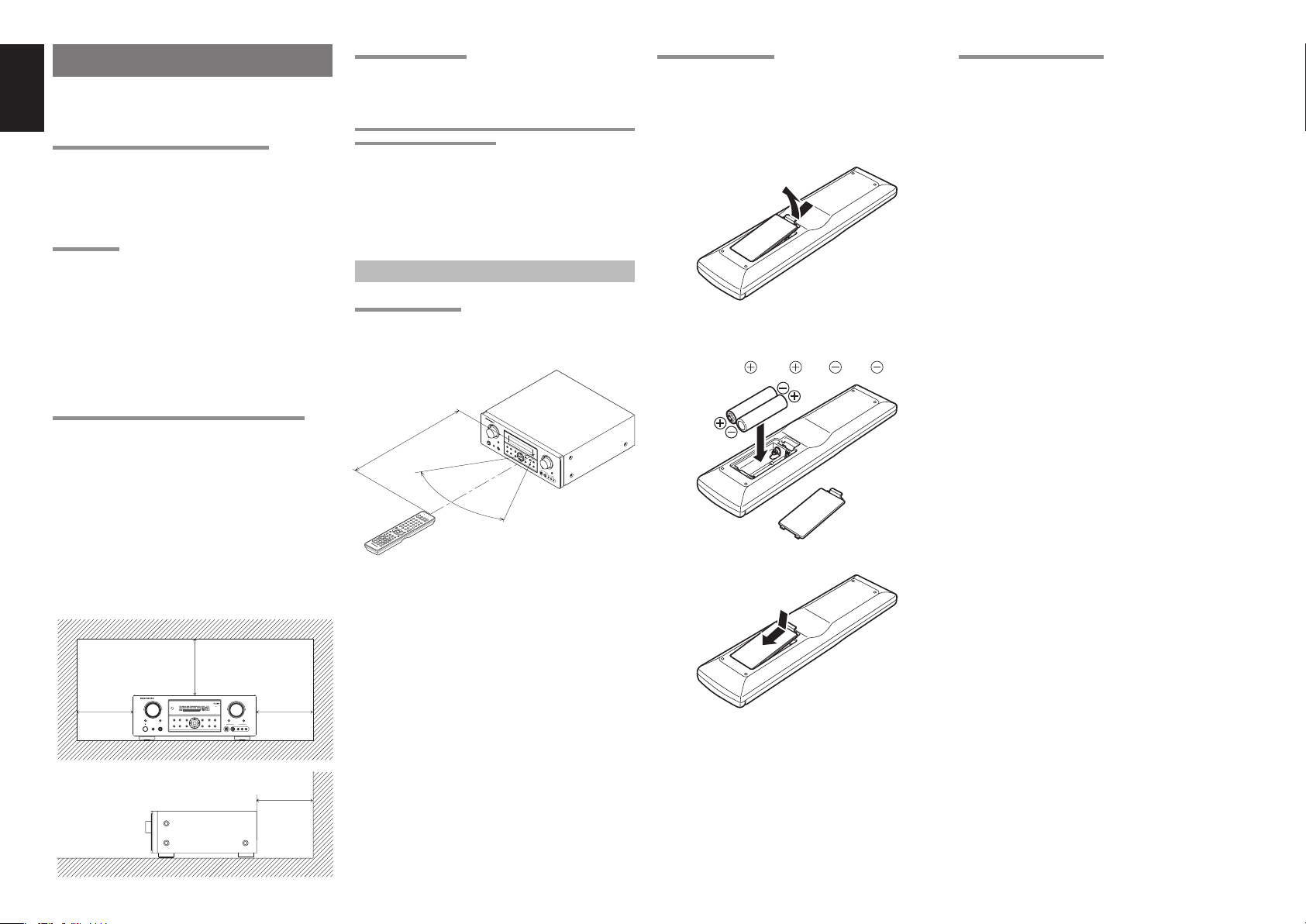
To ensure proper heat radiation, ensure the below
clearance from walls and other equipment.
0.2 m
(8 ins.)
AV SURROUND RECEIVER SR5002
INPUT SELECTORINPUT SELECTOR
SIMPLESIMPLE
PUREPURE
SURROUNDSURROUND
MULTI
SETUPSETUP
DIRECTDIRECT
MODEMODE
MULTI
SPEAKER
STANDBY
AUTOAUTO
HT-EQHT-EQ
MENUMENU
PHONES
POWER ON/OFF
SETUP MIC
VOLUMEVOLUME
0.2 m (8 ins.)0.2 m (8 ins.)
UPUP
DOWNDOWN
MEMORYMEMORY
DISPLAYDISPLAY
CLEARCLEAR
ATTATT
MUTEMUTE
ENTERENTER
T-MODET-MODE
EXITEXIT
BAND
BAND
AUX 1 INPUTAUX 1 INPUT
DIGITALDIGITAL
RRLLVIDEOVIDEO
S-VIDEOS-VIDEO
AUDIOAUDIO
0.2 m (8 ins.)
KEEP OBJECTS OFF
Keep objects off the unit. Blocking the vent can result
in accident and damage.
DO NOT TOUCH HOT SPOTS DURING AND
IMMEDIATELY AFTER USE
During and immediately after use, the unit is hot
in areas other than the controls and rear panel
connection jacks. Do not touch hot spots and
especially the top panel. Contact with hot areas can
cause burns.
OPERATION OF REMOTE CONTROLLER
REMOTE CONTROL
Operate the remote controller within a distance of
approx. 5m from the infrared receptor window on the
front of the unit.
IN
PU
T S
EL
A
V
E
S
C
URR
T
O
R
O
U
ND
R
E
CEIV
ER
S
R5
00
2
M
UL
TI
S
T
A
N
D
B
Y
P
OW
M. S
E
R O
PE
N/OFF
A
KE
R B
SE
TU
P
M
IC
S
U
RR
OU
M
O
ND
PHO
DE
NES
PURE
DIR
E
CT
S
IM
P
A
SETUP
LE
UT
Approx. 5 m
60°
S
YS
TE
M
RE
MO
R
TE
C
5
C
5
O
0
0
N
S
TR
R
OL
L
E
R
Remote controller
Caution:
• Do not allow direct sunlight, an inverter fl uorescent
light or other strong source of light to shine onto
the player’s infrared receptor window. Otherwise,
the operation of the remote controller may be
disabled.
• Bear in mind that operating the remote controller
may cause other devices operated by infrared rays
to be operated by mistake.
• The remote controller cannot be operated if the
space between the controller and the player’s
infrared receptor window is obstructed.
• Do not place any objects on top of the remote
controller.
Doing so may cause one or more buttons to be
held down which will cause the batteries to run
down.
O
HTEQ
M
V
O
ENU
L
U
M
E
D
I
S
P
L
A
Y
ENTER
M
EM
OR
D
Y
O
W
N
CLEAR
EXIT
B
AN
D
T-M
ODE
M
UTE
U
P
D
IG
IT
AL
7
.
1C
H
I
N
P
S
U
-V
T
ID
E
O
A
U
X
V
1
I
D
I
E
N
O
P
U
T
L
AU
D
I
O
R
SR4002/SR5002
LOADING BATTERIES
Before using the remote controller for the fi rst time,
load the batteries in the remote controller. The
batteries provided are used to verify the operations
of the remote controller only.
1. Remove the battery cover.
2. Load the two new size “AAA” batteries inside
the battery compartment while taking care to
align their polarities correctly with the polarity
markings ( with ( and with ).
3. Close the battery cover until it clicks shut.
CAUTIONS ON BATTERIES
• Use “AAA” type batteries in this remote controller.
• We recommend that you use alkali batteries.
• If the remote controller does not operate from
close to the unit, replace the batteries with new
ones, even if less then a year has passed.
• The included battery is only for verifying operation.
Replace it with a new battery as soon as possible.
• When inserting the batteries, be careful to do so in
the proper direction, following the + and - marks in
the remote controller’s battery compartment.
• To prevent damage or battery fl uid leakage:
- Do not use a new battery with an old one.
- Do not use two different types of batteries.
- Do not short-circuit, disassemble, heat or
dispose of batteries in fl ames.
• Remove the batteries when not planning to use the
remote controller for a long period of time.
• If the batteries should leak, carefully wipe off the
fl uid from the inside of the battery compartment,
then insert new batteries.
• When disposing of used batteries, please comply
with governmental regulations or environmental
public instruction’s rules that apply in your country
or area.
4
Page 9
NAMES AND FUNCTIONS
!
@
!
@
@
!
!
@
!
@
!
@
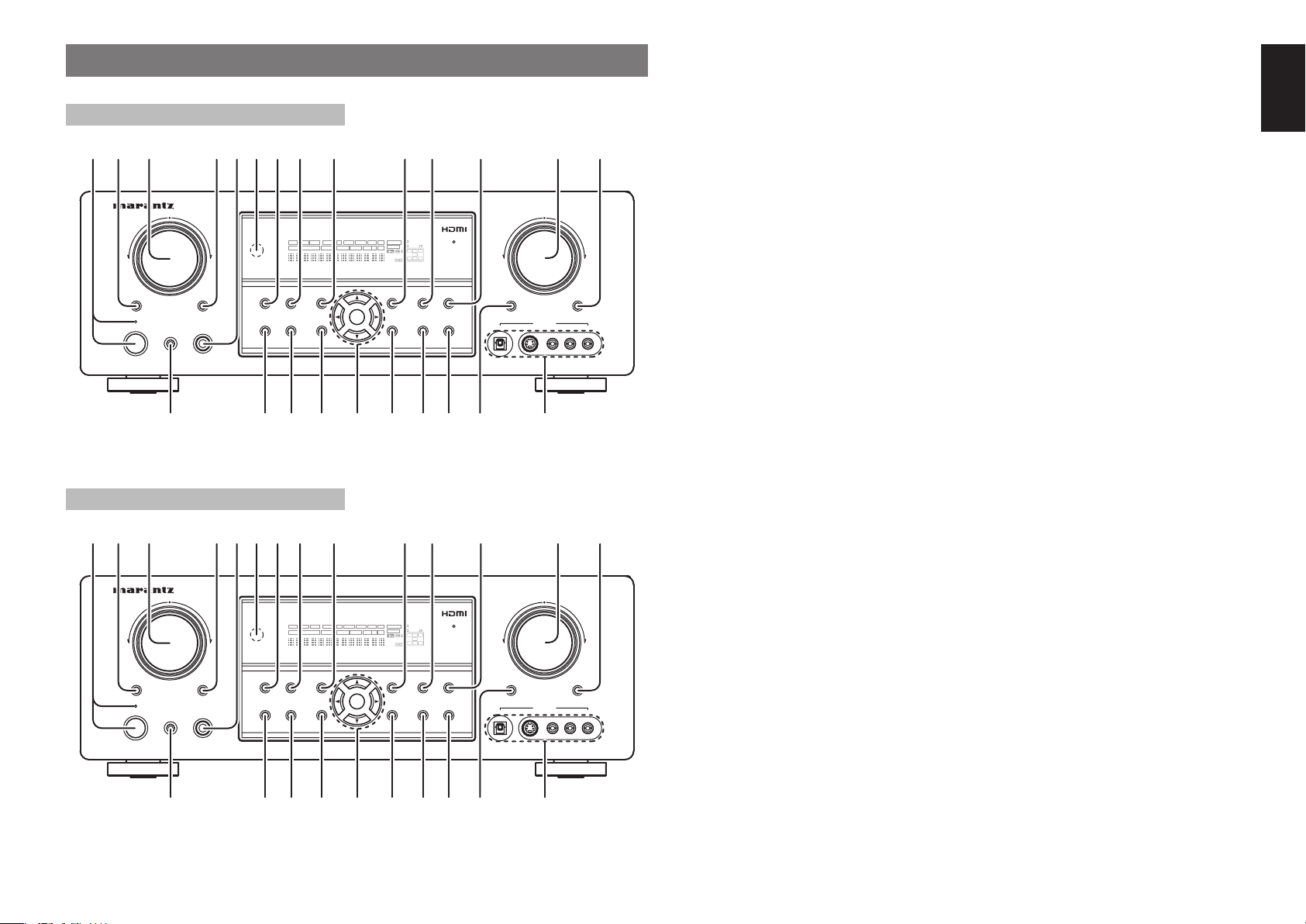
FRONT PANEL (SR4002)
qw ui !4o!0 !1y!3!2rte
AV SURROUND RECEIVER SR4002
INPUT SELECTOR
7.1 CH INPUT
POWER ON/OFF
STANDBY
S.SPEAKER B
PHONESSETUP MIC
4
FRONT PANEL (SR5002)
qw ui !4o!0 !1y!3!2rte
AV SURROUND RECEIVER SR5002
INPUT SELECTOR
MULTI
SETUP MIC
SPEAKER
PHONES
POWER ON/OFF
MULTI
STANDBY
DISP MULTI AUTO TUNED ST V – OFF NIGHT PEAK ANALOG
SURR
AUTO
SLEEP
SIMPLE
PURE
SURROUND
SURROUND
MODE
AUTO
MODE
AUTO
SETUP
DIRECT
HT-EQ
MENU
DISP MULTI AUTO TUNED ST V – OFF NIGHT PEAK ANALOG
SURR
SLEEP
AUTO
SIMPLE
PURE
SETUP
DIRECT
HT-EQ
MENU
DIRECT DISC 6.1 MTX 6.1 SPKR B EQ
1@2@3
DIRECT DISC 6.1 MTX 6.1 SPKR B EQ
ATT
DIGITAL
DISPLAY
ENTER
EXIT
0
ATT
DIGITAL
DISPLAY
ENTER
EXIT
q POWER switch and STANDBY
indicator
Press the button to turn the power ON, and press
again to turn it OFF. If the POWER switch is in the
ON position, the power of this unit can be turned
ON/OFF by pressing the POWER button on the
remote controller.
When this unit is in the standby mode with the
y INFRARED receiving sensor
window
This window receives infrared signals for the remote
control.
ENGLISH
u SURROUND MODE button
Press this button to select the surround mode.
POWER switch set to the ON position, pressing the
ENTER button also allows to turn the power on.
VOLUME
SURROUND
DIGITAL
LCR
LFE
PCM
SL S SR
MEMORY
DOWN
CLEAR
T-MODE
BAND
MUTE
AUX 1 INPUT
DIGITAL
S-VIDEO
UP
ATT
RLVIDEO
AUDIO
The STANDBY indicator lights up when this unit
is the standby mode (power OFF) by the remote
controller.
w MULTI (Multi Room) button
(SR5002 only)
Press this button to activate the Multiroom system.
“MULTI” indicator will be illuminated in the display.
i PURE DIRECT button and
indicator
When this button is pressed once, “SOURCE DIRECT”
appears on the FL display. If pressed again, “PURE
DIRECT” appears. After 2 seconds, the FL display
indication goes out.
In the source/pure direct mode, the tone control
circuitry and bass management are bypassed.
Notes:
• The surround mode is automatically switched to
AUTO when the pure direct/source direct function
w 7.1CH INPUT button (SR4002 only)
Press this button to select the output of an external
7!8!9
6
5
multichannel player.
e INPUT SELECTOR knob
(AUDIO/ VIDEO)
is turned on.
• Additionally, speaker configurations are fixed
automatically as follows.
Front SPKR = LARGE
Center SPKR = LARGE
Surround SPKR = LARGE
Surround Back SPKR = LARGE
Sub woofer = YES
This knob is used to select the input sources. (See
page 33)
r M.(Multi Room) SPEAKER button
(SR5002 only)
Press this button to activate the Multiroom Speaker
VOLUME
SURROUND
DIGITAL
LCR
LFE
PCM
SL S SR
MEMORY
DOWN
CLEAR
T-MODE
BAND
MUTE
AUX 1 INPUT
DIGITAL
S-VIDEO
UP
ATT
RLVIDEO
AUDIO
system. “MULTI” indicator will be illuminated in the
display.
(See page 44)
r S.(Surround) SPEAKER B button
(SR4002 only)
Press this button to activate the Surround Speaker B
system . “SPKR B” indicator will be illuminated in the
display.
(See page 45)
o SIMPLE SETUP button
Press this button to enter the simple setup mode.
You can setup the speaker conditions (speaker sizes,
number of speakers, speaker delay times) quickly by
pressing the cursor buttons.
!0 DISPLAY button
Press this button to change the FL display mode.
(See page 38)
!1 MEMORY button
Press this button to enter the tuner preset memory
numbers or station names. (See page 41)
t
HEADPHONE jack for stereo
headphones
This jack may be used to listen to the unit’s output
0
4
1@2@3
7!8!9
6
5
through a pair of headphones. Be certain that the
headphones have a standard 1 / 4” stereo phono
!2 CLEAR button
Press this button to cancel the station-memory
setting mode or preset scan tuning. (See page 42)
plug.
5
Page 10
ENGLISH
!3 VOLUME control knob
This knob is used to adjust the overall sound level.
Turning the control clockwise increases the sound
level. (See page 33)
!4 ATT (Attenuate) button
Press this button to reduce the analog audio signal
input level by about half. “ATT” indicator will be
illuminated in the display. (See page 39)
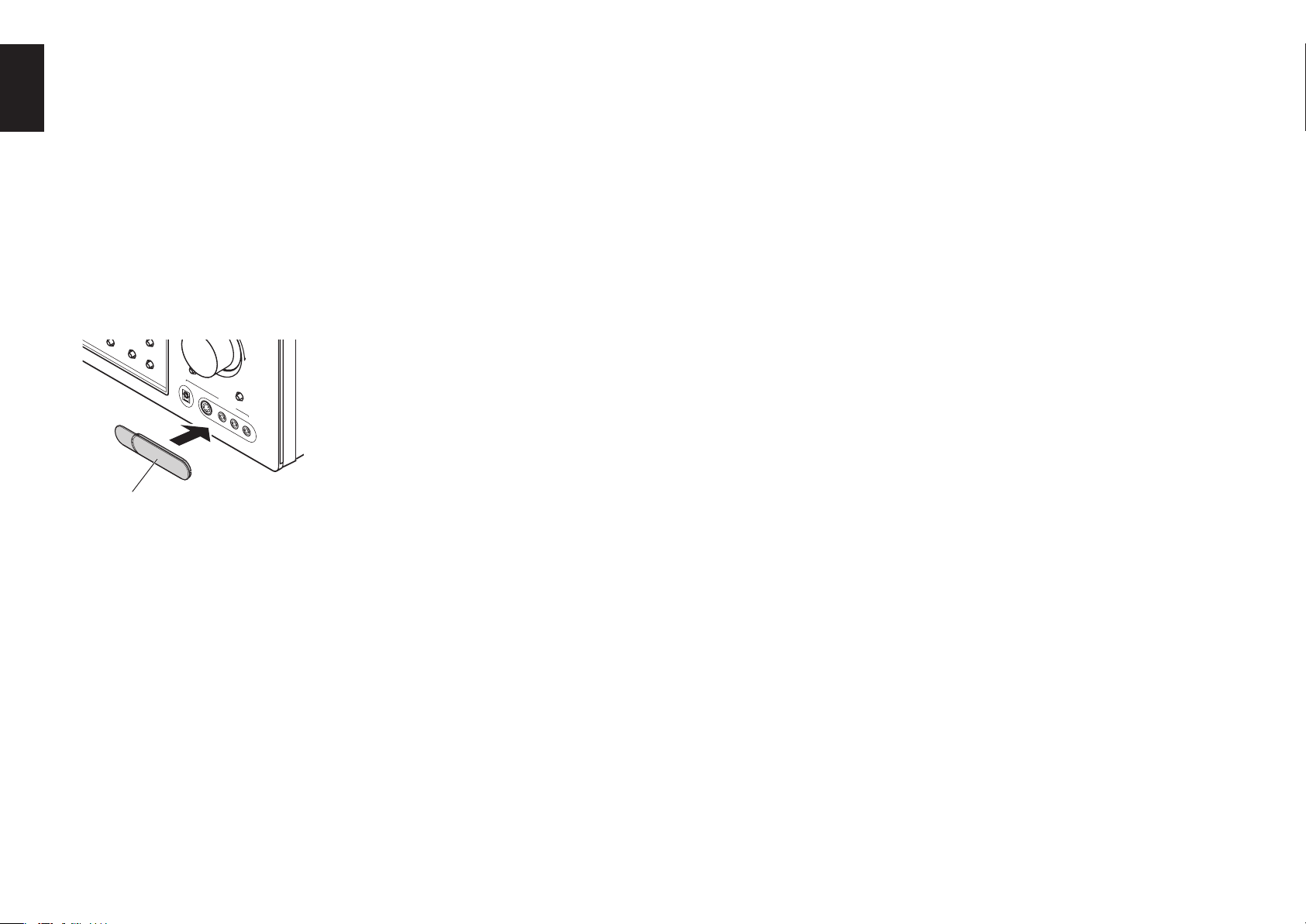
!5 AUX1 INPUT jacks
These auxiliary video/audio input jacks accept the
connections of a camcorder, portable DVD, game etc.
When not using these jacks, protect with the included
jack covers.
How to Attach the Front AUX Jack Cover
B
A
N
D
T-MODE
M
U
T
E
DIG
ITA
L
PU
P
US
S
H
H
UP
7.1CH INPU
S
-V
T
ID
E
O
A
U
X
V
1
ID
IN
E
O
P
U
T
L
A
U
D
IO
R
@0 Cursor (1, 2, 3, 4) / ENTER button
Press these buttons to operate the SETUP MAIN
MENU and TUNER function.
@1 MENU button
Press this button to enter the SETUP MAIN MANU.
@2 HT-EQ button
Press this button to turn on or off HT(Home Theater)EQ mode. This mode compensates for the audio
portion of a movie sounding “bright”. “EQ” indicator
will be illuminated in the display. (See page 40)
@3 AUTO (Auto surround) button
Press this button to select the AUTO mode from the
surround modes. When this mode is selected, the unit
determines the surround mode corresponding to a
digital input signal automatically.
@4 SETUP MIC jack
Automatically measure speaker characteristics using
the included microphone (MC-10). (See page 29)
Front AUX Jack Cover
!6 MUTE button
Press this button to mute the output to the speakers.
Press it again to return to the previous volume level.
!7 T-MODE button
Press this button to select the auto stereo mode or
mono mode when the FM band is selected.
“AUTO” indicator will be illuminated in the display.
(See page 41)
!8 BAND button
Press this button to switch between FM and AM in
the TUNER mode.
!9 EXIT button
Press this button to exit from the SETUP MAIN
MENU.
6
Page 11
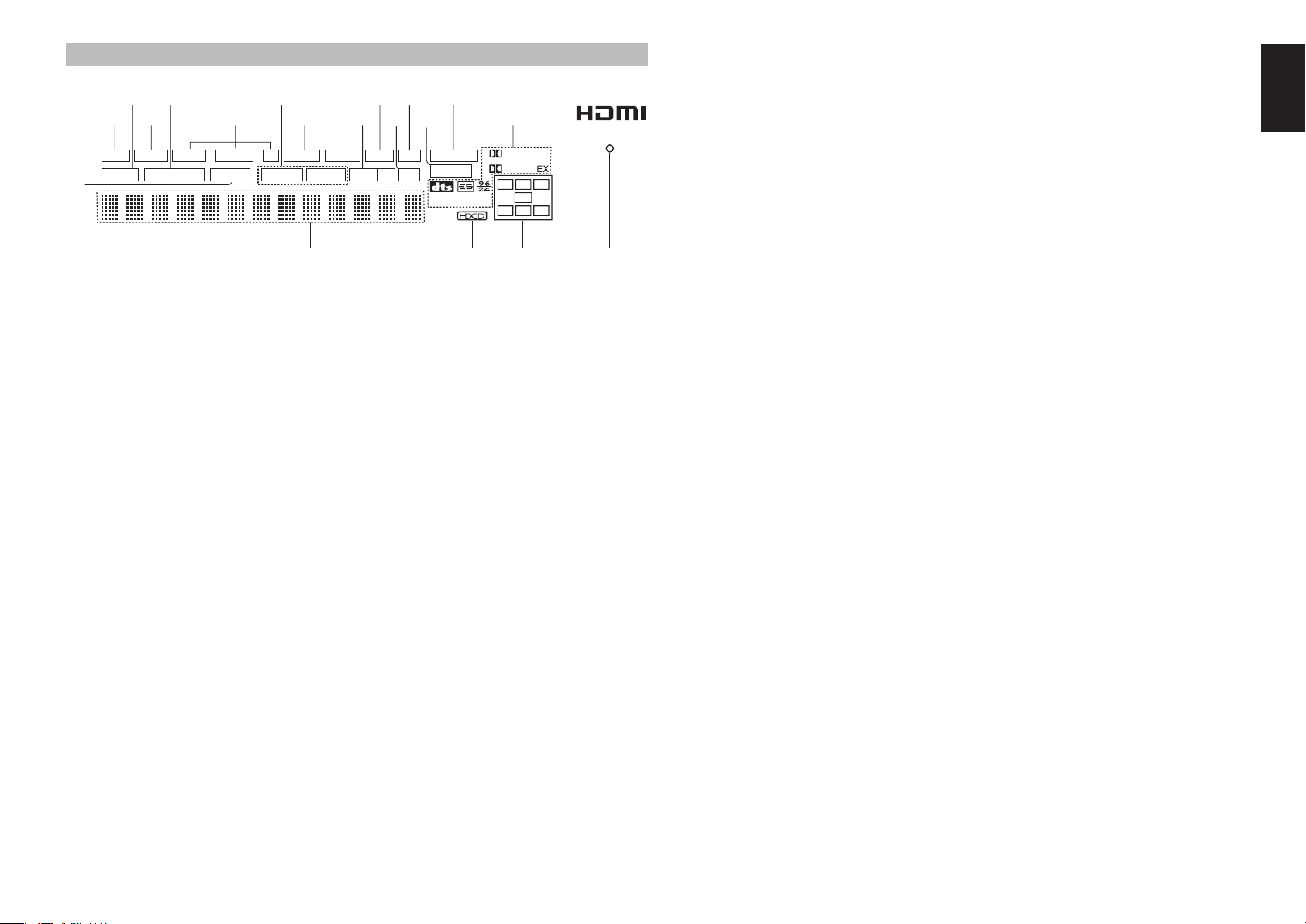
FL DISPLAY AND INDICATOR
¡
¡
¡
¡
s
a
DISP MULTI AUTO TUNED ST V – OFF NIGHT PEAK ANALOG
SURR
AUTO
SLEEP
g
DIRECT DISC 6.1 MT X 6.1 SPKR B EQ
hk¡0 ¡2 ¡4f
jl¡1
™0
9
a DISP (Display Off) indicator
This indicator is illuminated when this unit is in the
display off mode.
s SLEEP timer indicator
This indicator is illuminated when the sleep timer
function in the main-room is in use.
j V (video)-OFF mode indicator
This indicator is illuminated when the Video-OFF
function is active.
k NIGHT mode indicator
This indicator is illuminated when this unit is in the
Night mode, which reduces the dynamic range of
digital program material at low volume levels.
d Multi-room system indicator
This indicator is illuminated when the multi-room
system is active.
f AUTO SURR (Auto Surround
mode) indicator
This indicator is illuminated to show that the AUTO
SURROUND mode is in use.
g TUNER’s indicators
AUTO : This indicator illuminates when the
tuner’s Auto mode is in use.
TUNED : This indicator illuminates when the
tuner receives a suffi ciently strong
radio signal.
ST(Stereo) : This indicator illuminates when an
FM station is being tuned into stereo
condition.
h DTS-ES mode indicators
(DISC6.1, MTX6.1)
These indicators will illuminate to show the DTS-ES
decoding mode (Discrete 6.1 or Matrix 6.1).
l SPKR (speaker) AB indicator
This indicator is illuminated when the M (Multiroom)
speaker B system is active. (SR4002 only)
It displays the speaker system in use (A or B). When
the speakers are not in use, both lights (A and B) will
be turned off. (SR5002 only)
¡0 PEAK indicator
This indicator is a monitor for an analog audio input
signal. If the selected analog audio input signal is
greater than the capable level of internal processing,
this will illuminate. If this happens, you should press
the ATT button.
¡1 EQ mode indicator
This indicator is illuminated when the HT-EQ function
is active.
¡2 ATT (Attenuation) indicator
This indicator is illuminated when the attenuation
function is active.
ATT
¡3
DIGITAL
PCM
8
¡5d
SURROUND
DIGITAL
C
L
LFE
SL S SR
7
¡3 DIGITAL Input Indicator
This indicator is illuminated when a digital input has
been selected.
¡4 ANALOG input indicator
This indicator is illuminated when an analog input
source has been selected.
R
¡8 HDCD indicator
This indicator is illuminated when the HDCD signal is
decoded from digital input signal.
¡9 Main Information Display
This display shows messages relating to the status,
input source, surround mode, tuner, volume level or
other aspects of unit’s operation.
ENGLISH
¡5 SIGNAL FORMAT indicators
2 DIGITAL
This indicator is illuminated when a Dolby Digital
6
signal is input.
EX
This indicator is illuminated when a Dolby Digital EX
signal is input.
dts
This indicator is illuminated when a DTS signal is
input.
ES
This indicator is illuminated when a DTS ES signal
is input.
96/24
This indicator is illuminated when a DTS 96/24 signal
is input.
PCM
This indicator is illuminated when the input signal is
PCM (pulse code modulation).
2 SURROUND
This indicator is illuminated when a Dolby Surround
signal is input.
™0 DIRECT (Puredirect) indicator
This indicator is illuminated when this unit is in the
SOURCE DIRECT or PURE DIRECT mode.
¡6 HDMI indicator
This indicator is illuminated when input terminal of
the HDMI component is connected to the unit.
¡7 ENCODED CHANNEL STATUS
indicators
These indicators display the channels that are
encoded with a digital
input signal.
If the digital input signal is Dolby Digital 5.1ch or
DTS 5.1ch, “L”, “C”, “R”, “SL”, “SR” and “LFE” will be
illuminated.
If the digital input signal is 2 channel PCM-audio, “L”
and “R” will be illuminated.
If the digital input signal is Dolby Digital 5.1ch signal
with Surround EX fl ag or DTS-ES, “L”, “C”, “R”, “SL”,
“S” , “SR” and “LFE” will be illuminated.
7
Page 12
ENGLISH
!
u!7!8i
y
!5
o
!3
e!
!4
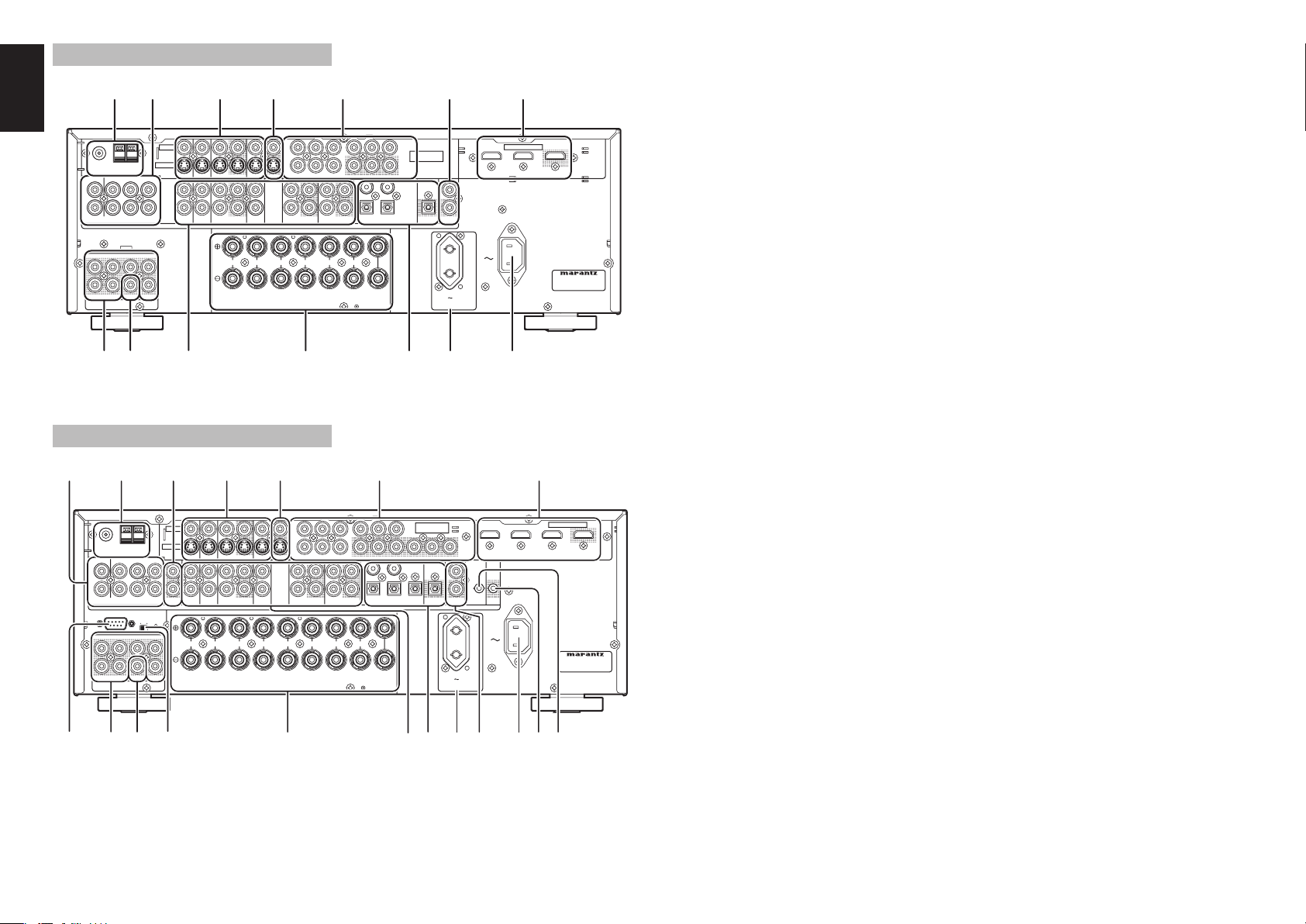
REAR PANEL (SR4002)
w
FM FM ((7575))GNDGND AMAM
ANTENNAANTENNA
LL SLSL CC SBLSBL
LL
RR
RR SRSR SWSW SBRSBR
((
AUX2AUX2)) 7.1CH INPUT 7.1CH INPUT
SLSL SBLSBLLL
RR SRSRCCSWSW SBRSBR
PRE OUTPRE OUT
y
!1 q r !6
VIDEOVIDEO
S-VIDEOS-VIDEO
!0
!4
ININ OUTOUT
RR LL LLLLRR
DSSDSS
t
INPUTINPUT
11
INPUTINPUT
22
//
BB
BB
YYDSSDSSTVTV DVDDVD VCR INVCR IN VCR OUTVCR OUT
MONITOR OUTMONITOR OUT
AUDIOAUDIO
SPEAKER SYSTEMS : 6-8 OHMSSPEAKER SYSTEMS : 6-8 OHMS
S. SPEAKER BS. SPEAKER B
PP
OUTOUTININ
TAPETAPEVCRVCRDVDDVDTVTV
o
//
RR
CC
PPRRCC
CD/CDRCD/CDR
RR
SURROUNDSURROUND
//
//
RR
BB
BB
YY
CC
PPRRCC
PP
4433
2211
OUTOUTININ
DIGITAL INDIGITAL IN
CENTERCENTERFRONTFRONT SURROUND BACKSURROUND BACK
INPUTINPUT
33
MONITORMONITOR
OUTOUT
!5
COMPONENTCOMPONENT
VIDEOVIDEO
OPTOPT
DIGITAL OUTDIGITAL OUT
!3
ININ
OUTOUT
REMOTE CONT.REMOTE CONT.
AC OUTLETAC OUTLET
230V 50/60Hz230V 50/60Hz
SWITCHEDSWITCHED
0.65A 150W0.65A 150W
i
REAR PANEL (SR5002)
!1 q r !6
w
FM FM ((7575))GNDGND AMAM
ANTENNAANTENNA
LL SLSL CC SBLSBL
LL
RR
RR SRSR SWSW SBRSBR
((
AUX2AUX2)) 7.1CH INPUT 7.1CH INPUT
RS-232CRS-232C SPEAKER CSPEAKER C
SLSL SBLSBLLL
RR SRSRCCSWSW SBRSBR
PRE OUTPRE OUT
OFFOFF ONON
0
!2
VIDEOVIDEO
S-VIDEOS-VIDEO
MULTI.MULTI.
OUTOUT
RR
FRONTFRONT B B FRONTFRONT A A
FRONT A OR B.CENTER.FRONT A OR B.CENTER.
FRONT A + B : 8 OHMSFRONT A + B : 8 OHMS
9
ININ OUTOUT
LL LL LLLLRR
t
INPUTINPUT
11
INPUTINPUT
22
MONITOR OUTMONITOR OUT
OUTOUTININ
TAPETAPEVCRVCRDVDDVDTVTV
DSSDSS
AUDIOAUDIO
RR RR
SURROUND BACKSURROUND BACK
SPEAKER C/MULTI SPEAKERSPEAKER C/MULTI SPEAKER
SURR.SURR BACK : 6-8 OHMSSURR.SURR BACK : 6-8 OHMS
COMPONENTCOMPONENT
INPUTINPUT
VIDEOVIDEO
33
11
RR
BB
BBYY
RR
BB
BBYYDSSDSSTVTV DVDDVD VCR INVCR IN VCR OUTVCR OUT
CC
PPRRCC
PP
//
//
CD/CDRCD/CDR
CC
PPRRCC
PP
//
//
5544
22 3311
OUTOUTININ
DIGITAL INDIGITAL IN
CENTERCENTERSURROUNDSURROUND
SPEAKERSPEAKER
SYSTEMSSYSTEMS
YY
//
BB
OPTOPT
DIGITAL OUTDIGITAL OUT
PP
BB
MONITORMONITOR
OUT 2OUT 2
CC
PPRRCC
//
RR
ININ
OUTOUT
REMOTE CONT.REMOTE CONT.
AC OUTLETAC OUTLET
230V 50/60Hz230V 50/60Hz
SWITCHEDSWITCHED
0.65A 150W0.65A 150W
FLASHERFLASHER
t MONITOR OUT
This is a monitor output and each one includes both
composite video and S-video confi gurations. When
connecting two video monitors or televisions, be
aware that the OSD interface can be used with both
MONITOR OUT connections.
y Preamp Outputs
(L, R, SL, SR, SBL, SBR, C)
HDMI Ver 1.1HDMI Ver 1.1
INPUT 2INPUT 2 OUTPUTOUTPUTINPUT 1INPUT 1
q
VIDEO IN/OUT
(TV, DVD, VCR, DSS)
These are the video inputs and outputs. There
are 4 video inputs and 2 video outputs and each
one includes both composite video and S-video
confi gurations. Connect VCRs, DVD players, and
other video components to the video inputs.
The 2 video output channels can be used to be
connected to video tape recorders for making
recordings.
Jacks for L(front left), R (front right), C (Center), SL
(surround left), SR (surround right), SBL (surround
back left) and SBR (surround back right).
Use these jacks for connection to external power
amplifi ers.
u AC INLET
Plug the supplied power cable into this AC INLET
and then into the power outlet on the wall.
This unit can be powered by 230V AC only.
i AC OUTLETS
Connect the AC power cable of component such as
a DVD or CD player to this outlet.
This outlet provides power only when this unit is
turned on.
Caution:
AC INAC IN
u
MODEL NO. SR4002MODEL NO. SR4002
w FM antenna terminal (75 ohms)
Connect an external FM antenna with a coaxial
cable, or a cable network FM source.
AM antenna and ground terminals
Connect the supplied AM loop antenna. Use the
terminals marked “AM” and “GND”. The supplied AM
loop antenna will provide good AM reception in most
areas. Position the loop antenna until you hear the
best reception.
e RS-232C (SR5002 only)
The RS-232C port is to be used in conjunction with
an external controller to control the operation of the
SR5002 by using an external device.
• In order to avoid potential turn-off thumps, anything
HDMI Ver 1.1HDMI Ver 1.1
INPUT 2INPUT 2INPUT 1INPUT 1
INPUT 3INPUT 3 OUTPUTOUTPUT
DCDC
ININ
TRIGGERTRIGGER
AC INAC IN
MODEL NO. SR5002MODEL NO. SR5002
OUTPUT
If your DVD player or other device has component
video connectors, be sure to connect them to these
component video connectors on the unit. This unit
has two component video input connectors to obtain
the color information (Y, CB, CR) directly from the
recorded DVD signal or other video component and
one component video output connector to output it
directly into the matrix decoder of the display device.
By sending the pure DVD component video signal
directly, the DVD signal forgoes the extra processing
that normally would degrade the image. The result is
vastly increased image quality, with incredibly life like
colors and crisp detail.
When the video convert function is enabled, video and
S-video images can be output to the COMPONENT
MOINTOR OUT jack.
r COMPONENT VIDEO INPUT/
plugged into this outlet should be powered up before
this unit is turned on.
• The capacity of this AC outlet is 150W. Do not
connect devices that consume electricity more
than the capacity of this outlet. If the total power
consumption of the connected devices exceeds the
capacity, the protection circuit shuts down the power
supply.
o Speaker outputs terminals
Seven terminals are provided for the front left,
front right, front center, surround left, surround
right, surround back left and surround back right
speakers.
Note:
You can use surround back speaker terminals as M
(Multiroom) SPEAKER B terminals, when you use
no surround back speaker.
8
Page 13

!0 Subwoofer Output
Connect this jack to the line level input of a powered
subwoofer. If an external subwoofer amplifi er is used,
connect this jack to the subwoofer amplifi er input.
If you are using two subwoofers, either powered or
with a 2 channel subwoofer amplifi er, connect a “Y”
connector to the subwoofer output jack and run one
cable from it to each subwoofer amplifi er.
!1 7.1 CHANNEL or AUX2 INPUT
By connecting a DVD Audio player, Super Audio CD
multichannel player, or other components that has a
multichannel port, you can playback the audio with
5.1 channel or 7.1 channel outputs.
!2 Multiroom Outputs (SR5002 only)
These are the audio output jacks for the Multi zone
(Multi room).
Connect these jacks to optional audio power amplifi ers
to listen the source selected by the multiroom system
in a remote room.
!3 REMOTE CONT. IN/OUT terminals
Connect to a Marantz component equipped with
remote control (RC-5) terminals.
!4 AUDIO IN/OUT (CD, TAPE, CD-R,
TV, DVD, VCR, DSS)
These are the analog audio inputs and outputs.
There are 6 audio inputs (4 of which are linked
to video inputs) and 3 audio outputs (1 of which
are linked to video outputs). The audio jacks are
nominally labeled for cassette tape decks, compact
disc players, DVD players and etc.... The audio inputs
and outputs require RCA-type connectors.
!5 DIGITAL INPUT
(SR4002 : Dig.1 - 4, SR5002 : Dig.1-5)
/ OUTPUT (optical)
These are the digital audio inputs and outputs.
The SR4002 has 2 digital inputs with coaxial jacks, 2
with optical jacks.
The SR5002 has 2 digital inputs with coaxial jacks, 3
with optical jacks.
The inputs accept digital audio signals from a CD,
DVD, or other digital source component.
For digital output, this is 1 optical output.
The digital outputs can be connected to MD recorders,
CD recorders, or other similar components.
!6 HDMI INPUT/OUTPUT
The SR4002 has 2 HDMI inputs and 1 HDMI output.
The SR5002 has 3 HDMI inputs and 1 HDMI output.
The input function can be selected from the
menu system
. (See page 27)
OSD
!7 DC TRIGGER output terminal
(SR5002 only)
Connect a device that needs to be triggered by DC
under certain conditions (screen, power strip, etc…)
Use the system OSD setup menu to determine the
conditions by which these jack will be active.
Note:
This output voltage is for (status) control only, It is not
suffi cient for drive capability.
!8 FLASHER IN
(Flasher input terminal) (SR5002 only)
These terminals are to control the unit from each
zone. Connect the control signal from a Keypad, etc.
!9
SPEAKER C SELECTOR SWITCH
(SR5002 only)
The terminals can be used to connect a third set of
speakers by setting the SPEAKER C selector switch
to ON. For connection and use, see page 24.
ENGLISH
9
Page 14
ENGLISH
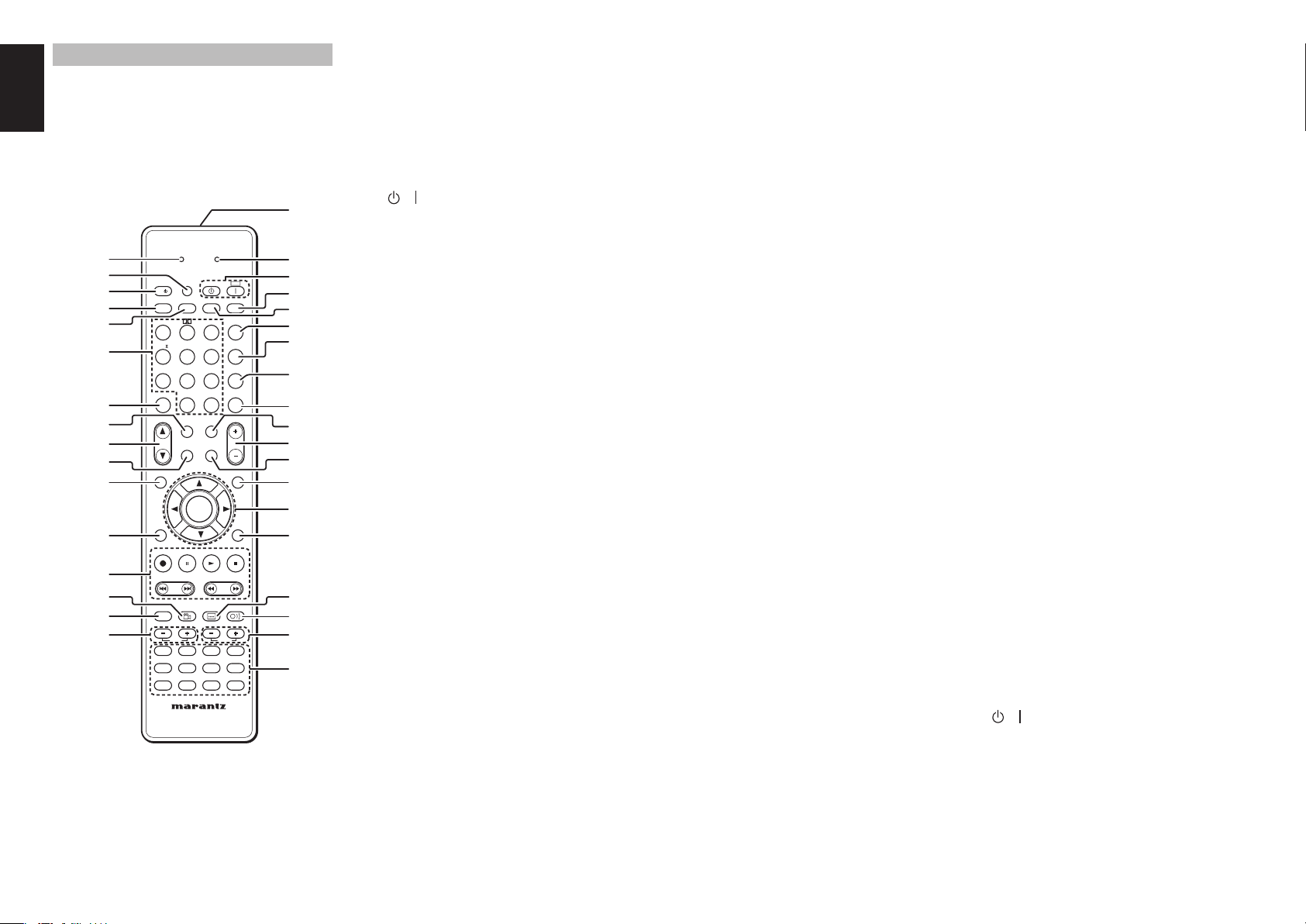
REMOTE CONTROLLER
The provided remote controller is a universal
remote controller. The POWER button, numeric
buttons and control buttons are used in common
across different input source components.
The input source controlled with the remote controller
changes when one of the input selector buttons is
pressed.
SEND
z
x
c
v
b
n
m
,
.
⁄0
LEARN
OFF
SET
SOURCE
l/
SLEEP
AUTO
M-CH ST
CH/
INFO
P.DIRECT
DISPLAY
123
EX/ES
VIRTUAL
CS
456
STEREO
NIGHT
789
7.1CH IN
MULTI/
SPKR A/B
A/D
0
+10
MUTE
CAT
M-SPKR
CL
CAT
ON
SURROUND
LIP SYNC/
INPUT
dts
BAND
T.MODE
P.SCAN
HT-EQ
MEMO
VOLUME
MENU
⁄1
ENTER
T.TONE
⁄2
⁄3
⁄4
⁄5
⁄6
/SET UP
T.DISP
REC
PRESET
-
DISC+
CH-SEL
BASS
TV
TUNER
TAPE
REMOTE CONTROLLER
ANGLE
V-OFF
DVD
CD
AUX1
PTY
-
SUB TITLE
ATT.
VCR
CDR
AUX2
TUNING
TREBLE
EXIT
F.DIRECT
++
AUDIO
DSS
MD
AMP
‹5
⁄7
⁄8
⁄9
¤0
¤1
¤2
¤3
¤4
¤5
¤6
¤7
¤8
¤9
‹0
‹1
‹2
‹3
‹4
z LEARN indicator
Indicates when the remote controller is in the LEARN
mode.
x SET button
This button is used to enter learn mode and preset
mode.
c / SOURCE ON/OFF button
This button is used to turn a specifi c source (such as
a DVD player) on or off independently from the rest
of the system.
v SLEEP button
This button is used for setting the sleep timer.
b DISPLAY button
This button is used to selects the display mode for the
front display of the unit.
n Numeric buttons
These buttons are used to switch between 0 to +10
of the source components.
If the source is set to the amplifi er, these buttons are
used to perform operations.
(When AMP mode is selected)
1/AUTO button
This button is used to select auto surround.
2/Dolby button
This button is used to select DOLBY mode.
3/dts button
This button is used to select dts mode.
4/CSII button
This button is used to select CSII mode.
5/EX/ES button
This button is used to select EX/ES mode.
6/VIRTUAL button
This button is used to select VIRTUAL mode.
7/M-CH ST button
This button is used to select Multi Channel Stereo.
8/STEREO button
This button is used to select STEREO mode.
9/NIGHT button
Pressing this button prevents the Dolby Digital
signal from playback at a loud voice. This function
reduces the voice by 1/3 to 1/4 at maximum. Thus, it
eliminates the occurrence of an abruptly loud voice
at night. However, the function is valid only in the
case when the Dolby Digital signal is entered into
OPTICAL or COAXIAL and data to compress the
voice exists in the signal to be played back.
When this button is pressed, the “NIGHT” indicator
is illuminated.
0/7.1CH IN button
This button is used to select the output of an external
multi channel decoder.
(+10) A/D button
This button is used to switch between the analog and
digital inputs.
m CL (Clear) button
This button is used to erase the memory or program
of a source.
, SPKR A/B button (SR5002 only)
This button is used to select the speaker system.
The speaker system is switched in the following
sequence.
A → B → A+B → off
. CH/CAT3 (UP) / 4 (DOWN) buttons
These buttons are used to change channels.
⁄0 MULTI/CAT button (SR5002 only)
(When AMP mode is selected)
This button is used to turn on and off multi room.
⁄1 INFO button
(When AMP mode is selected)
When this button is pressed, the current setting are
displayed on the TV monitor.
⁄2 T.TONE/SET UP button
(When AMP mode is selected)
This button is used to enter the test tone menu. (2-4
speakers level)
⁄3 CONTROL buttons
These buttons are used when operating PLAY, STOP,
PAUSE and other commands of a source.
(When TUNER mode is selected)
T.DISP button
This button is used to select the display mode in
RDS.
PTY button
This button is used to display the programme type
information of the current station.
F.DIRECT button
This button is used to select the "Frequency direct
input".
PRESET +/- buttons
This button is used to select a preset station up and
down.
TUNING +/- buttons
This button is used to tune a frequency station up
and down.
⁄4 ANGLE/V-OFF buton
(When AMP mode is selected)
This button is used to turn off the video signal.
⁄5 DISC+/CH. SEL button
(When AMP mode is selected)
This button is used to call up CH LEVEL ADJUST
and adjust speaker levels or 7.1 ch input level.
⁄6 BASS +/- buttons
These buttons are used to adjust the tone control
of low frequency sound for left, right and subwoofer
speaker.
⁄7 SEND indicator
Indicates when the remote controller is transmitting
a signal.
⁄8 / POWER ON and OFF buttons
(When AMP mode is selected)
These buttons are used to turn the unit on or off.
⁄9 SURROUND button
This button is used to selects the surround mode.
10
Page 15

¤0 P.DIRECT button
When this button is pressed, the tone control circuit
is bypassed.
¤1 BAND/LIP SYNC/INPUT button
(When TUNER mode is selected)
This button is used to select a radio band.
(When AMP mode is selected)
This button is used to select LIP SYNC mode.
(When TV mode is selected)
This button is used to select monitor input.
¤2 T.MODE button
(When TUNER mode is selected)
This button is used to select auto stereo mode or
mono mode when the FM band is selected.
The “AUTO” indicator lights in the auto stereo mode.
¤3 P.SCAN button
(When TUNER mode is selected)
This button is used to start preset scan.
¤4 MEMO/HT-EQ button
This button is used to store setting to memory or
program a source.
(When AMP mode is selected)
This button is used to turn on or off HT(Home
Theater)-EQ mode. This mode compensates for the
audio portion of a movie sounding “bright”.
When this button is pressed, “EQ” indicator light up.
¤5 MUTE button
This button is used to mute the audio for the amplifi er
and television.
Note:
Set the AMP mode to use this button with the unit.
¤6 VOLUME +/- buttons
This button is used to adjust the volume for the
amplifi er and television.
Note:
Set the AMP mode to use this button with the unit.
¤7 M-SPKR button (SR5002 only)
(When AMP mode is selected)
This button is used to turn on and off multi speaker.
¤8 MENU button
(When AMP mode is selected)
This button is used to call up the SETUP MAIN
MENU of the unit.
¤9 1, 2, 3, 4 (CURSOR) / ENTER buttons
These buttons are used when controlling the cursor
of the unit, DVD or other AV equipment.
‹0 EXIT button
(When AMP mode is selected)
This button is used to cancel setting in the setup
menu.
‹1 SUBTITLE/ATT. button
(When AMP mode is selected)
When the input signal is too high and the voice
distorts even by throttling the unit VOLUME control,
turn on this function.
“ATT ” is indicated when this function is activated.
The input level reduced. Attenuator is invalid for the
output signal of “REC OUT”.
Note:
This function is unavailable while the digital input is
selected.
‹2 AUDIO buttons
(When DVD mode is selected)
This button is used to select one of the audio
language.
ENGLISH
‹3 TREBLE +/- buttons
These buttons are used to adjust the tone control of
high frequency sound for left and right speaker.
‹4 SOURCE button
These buttons are used to switch the source of your
A/V Receiver / amplifer. Each time a source button is
pressed, the remote controller changes to the source
which was pressed.
This remote controller can control 12 types of
equipment. To change the A/V Receiver / amplifi er
source, press this button twice within two seconds.
The signal is sent when it is pressed the second
time.
Notes:
• Select the AMP as the source to use this remote
controller with the unit.
• In the case of the SR4002 or SR5002, the MD button
cannot be used.
‹5 Infrared Transmitter and Learning
Sensor
This transmitter emits infrared light. Press the buttons
while pointing the transmitter towards the infrared
receiver window of the unit or other AV equipment.
Be sure to also point towards other remote controllers
when using the learning function.
11
Page 16
ENGLISH
REMOTE CONTROL OPERATION
GENERAL INFORMATION OF REMOTE CONTROLLER TO THE UNIT
To control the unit by your remote controller, you have to select the device AMP or TUNER by pressing the
SOURCE button. Please refer below for the details in AMP and TUNER mode.
AMP MODE
SOURCESOURCE
l/l/
SLEEPSLEEP
AUTOAUTO
CSCS
M-CH STM-CH ST
CH/
INFOINFO
T.TONET. TO NE
/SET UP/SET UP
REC
-
DISC+DISC+
CH-SELCH-SEL
TUNER
TAPE
LEARN
SET
DISPLAYDISPLAY
11 22 33
EX/ESEX/ES
44 55 66
STEREOSTEREO
77 88 99
7.1CH IN7.1CH IN
CL
00
CAT
SPKR A/BSPKR A/B
CAT
MULTI/MULTI/
ENTERENTER
T.DISP
PRESET
ANGLEANGLE
V-OFFV-OFF
BASSBASS
DVD
TV
CD
AUX1
REMOTE CONTROLLER
P.DIRECTP.DIRECT
VIRTUALVIRTUAL
NIGHTNIGHT
+10+10
M-SPKRM-SPKR
SUB TITLESUB TITLE
AUX2
TUNER MODE
SEND
OFF
ONON
SURROUNDSURROUND
LIP SYNC/LIP SYNC/
INPUTINPUT
dtsdts
BAND
T.MODE
P.SCAN
HT-EQHT-EQ
A/DA/D
MEMOMEMO
VOLUME
MUTEMUTE
SOURCE ON / OFF Turns the SR4002/SR5002 on and off
POWER OFF Turns the SR4002/SR5002 off
POWER ON Turns the SR4002/SR5002 on
SLEEP Sets the sleep timer function
DISPLAY Changes the front display mode
P.DIRECT Selects the pure direct mode
SURROUND Selects the surround mode
AUTO (1) Selects auto surround
DOLBY (2) Selects DOLBY mode
dts (3) Selects dts mode
MENUMENU
CSII (4) Selects CSII mode
EX/ES (5) Selects EX/ES
EXITEXIT
F.DIRECT
PTY
TUNING
-
++
AUDIOAUDIO
ATT.AT T.
TREBLETREBLE
VCR
DSS
MD
CDR
AMP
VIRTUAL (6) Selects VIRTUAL mode
M-CH ST (7) Selects Multi Channel Stereo
STEREO (8) Selects STEREO mode
NIGHT (9) Turns on or off NIGHT mode
7.1CH IN (0) Selects the 7.1CH IN
A/D (+10) Switches between the analog or digital inputs
LIP SYNC / INPUT Selects the LIP SYNC mode
HT-EQ Turns on or off HT-EQ mode
SPKR A / B Selects the speaker system
LEARN
SOURCESOURCE
l/l/
SLEEPSLEEP
DISPLAYDISPLAY
AUTOAUTO
11 22 33
EX/ESEX/ES
CSCS
44 55 66
STEREOSTEREO
M-CH STM-CH ST
77 88 99
7.1CH IN7.1CH IN
CLCL
CAT
CH/
SPKR A/BSPKR A/B
MULTI/MULTI/
INFOINFO
T.TONET. TO NE
/SET UP/SET UP
T.DISPT.DISP
REC
PRESETPRESET
--
ANGLE
DISC+
CH-SEL
V-OFF
BASS
DVD
TV
TUNER
AUX1
TAPE
REMOTE CONTROLLER
SEND
OFFONSET
P.DIRECTP.DIRECT
SURROUNDSURROUND
LIP SYNC/LIP SYNC/
INPUTINPUT
dtsdts
BAND
T.MODET.MO DE
VIRTUALVIRTUAL
P.SCA NP. S C AN
NIGHTNIGHT
HT-EQHT-EQ
A/DA/D
MEMOMEMO
00
+10+10
VOLUMEVOLUME
MUTEMUTE
CAT
M-SPKRM-SPKR
MENUMENU
ENTERENTER
EXITEXIT
F.DIRECTF.DIRECT
PTYPTY
TUNINGTUNING
--
++++
AUDIO
SUB TITLE
ATT.
TREBLE
VCR
DSS
MD
CDR
CD
AMP
AUX2
MULTI / CAT Turns on or off multi room
MUTE Decreases the sound temporarily
M-SPKR Turns on or off multi speaker
VOLUME 3 /
4
Adjusts the over all sound level
INFO Displays the current setting on the monitor
MENU Enters the "SETUP MENU"
ENTER
Enters the "SETUP MENU"
Confi rms the setting in "SETUP MENU" mode
CURSOR Moves the cursor for setting in "SETUP MENU" mode
T.TONE / SET UP Enters the test tone menu
EXIT Exits from SETUP MENU
CH-SEL Calls up CH LEVEL ADJUST and adjusts speaker levels or 7.1ch input
level
V-OFF Turns on or off video output
ATT. Reduces the input level
4
BASS 3 /
TREBLE 3 /
Adjusts the tone control of low frequency sound
4
Adjusts the tone control of high frequency sound
SOURCE Selects a particular source component
0-9 Inputs the numeric
BAND Selects a radio band
T.MODE Selects the auto stereo mode or mono mode
P.SCAN Starts preset scan
CL Clears the inputting
MEMO Enters the tuner preset memory numbers
INFO Shows preset information
T.DISP Selects the display mode in RDS
PTY Displays the programme type information of the current station
F.DIRECT Selects the “Frequency direct input”
PRESET 3 / 4Selects a preset station up and down
TUNING 3 / 4Tunes a frequency station up and down
12
Page 17
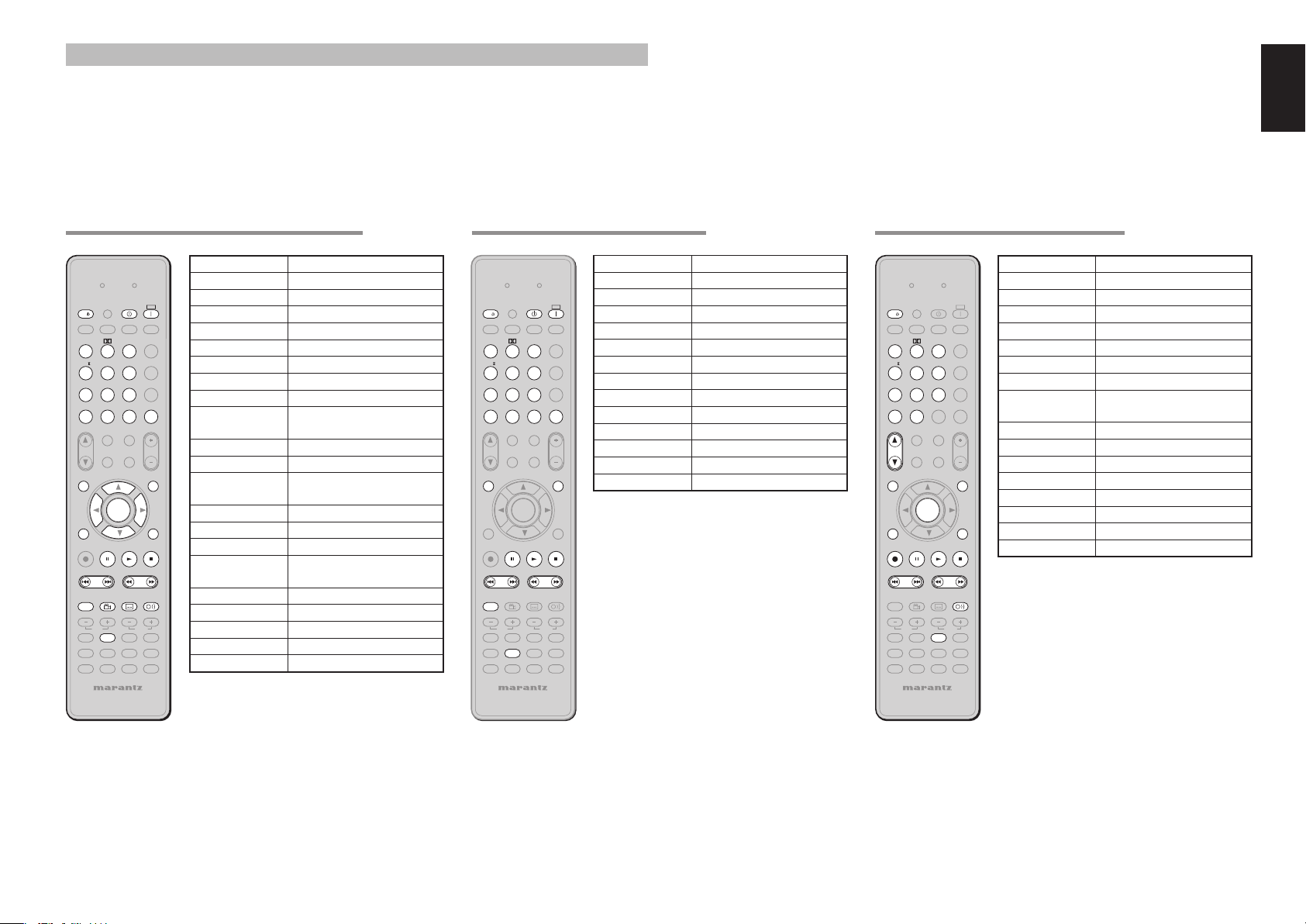
CONTROLLING MARANTZ COMPONENTS
1. Press the desired SOURCE button.
2. Press the desired operation buttons to play the selected component.
• For details, refer to the component’s user guide.
• It may not be possible to operate some models.
ENGLISH
CONTROLLING A MARANTZ DVD PLAYER (DVD MODE) CONTROLLING A MARANTZ VCR (VCR MODE)
LEARN
SET
SOURCESOURCE
l/l/
SLEEP
DISPLAY
AUTOAUTO
11 22 33
CSCS
EX/ESEX/ES
44 55 66
STEREOSTEREO
M-CH STM-CH ST
77 88 99
7.1CH IN7.1CH IN
CLCL
00
CAT
CH/
SPKR A/B
MULTI/
INFOINFO
T.TONET.TON E
/SET UP/SET UP
T.DISPT.DISP
REC
PRESET
-
ANGLEANGLE
DISC+DISC+
CH-SELCH-SEL
V-OFFV-OFF
BASS
DVD
TV
CD
TUNER
AUX1
TAPE
REMOTE CONTROLLER
SEND
OFFOFF
ONON
P.DIRECT
SURROUND
LIP SYNC/
INPUT
dtsdts
BAND
T.MODE
VIRTUALVIRTUAL
P.SCAN
NIGHTNIGHT
HT-EQHT-EQ
A/DA/D
MEMOMEMO
+10+10
VOLUME
MUTE
CAT
M-SPKR
MENUMENU
ENTERENTER
F.DIRECTF.DIRECT
PTYPTY
TUNING
-
AUDIOAU DIO
SUB TITLESUB TITLE
ATT.ATT.
TREBLE
VCR
DSS
MD
CDR
AMP
AUX2
SOURCE ON / OFF Turns the DVD player on and off
POWER OFF Turns the DVD player off
POWER ON Turns the DVD player on
0-9,+10 Inputs the numeric
CL Clears the inputting
MEMO Calls up programming menu
INFO Displays the disc information
MENU Calls up the menu of DVD disc
ENTER Enters the setting
CURSOR Moves the cursor for setting in
"On Screen Display" mode
T.TONE / SET UP Enters the test tone menu
EXIT Exits from SETUP MENU
T.Tone/Set up Calls up the setup menu of the
DVD player
Pause Pause
EXITEXIT
Play Play
Stop Stop
Previous/Next S k i ps f o r w ar d o r p r e v io u s
++
chapter/track
Rewind/ Forward Searchs forward or backward
DISC+ DVD changer next disc
ANGLE Selects the camera angle
SUBTITLE Selects the subtitle language
AUDIO Selects the audio language
CONTROLLING A MARANTZ CD (CD MODE)
LEARN
SET
SOURCESOURCE
l/l/
SLEEP
DISPLAY
AUTOAUTO
11 22 33
CSCS
EX/ESEX/ES
44 55 66
STEREOSTEREO
M-CH STM-CH ST
77 88 99
7.1CH IN7.1CH IN
CLCL
00
CAT
CH/
SPKR A/B
MULTI/
INFOINFO
T.TONET.TON E
/SET UP/SET UP
T.DISPT.DISP
REC
PRESET
-
ANGLEANGLE
DISC+DISC+
CH-SELCH-SEL
V-OFFV-OFF
BASS
DVD
TV
CD
TUNER
AUX1
TAPE
REMOTE CONTROLLER
SEND
OFFOFF
P.DIRECT
SURROUND
LIP SYNC/
INPUT
dtsdts
BAND
T.MODE
VIRTUALVIRTUAL
P.SCAN
NIGHTNIGHT
HT-EQHT-EQ
A/DA/D
MEMOMEMO
+10+10
VOLUME
MUTE
CAT
M-SPKR
ENTERENTER
F.DIRECTF.DIRECT
PTYPTY
TUNING
-
AUDIOAU DIO
SUB TITLESUB TITLE
ATT.ATT.
TREBLE
VCR
CDR
AUX2
SOURCE ON / OFF Turns the CD player on and off
POWER OFF Turns the CD player off
POWER ON Turns the CD player on
ONON
0-9 Inputs the numeric
CL Clears the inputting
MEMO Programs
INFO Scrolls the disc information
MENU Switches the display information
Pause Pause
Play Play
Stop Stop
Previous/ Next Skips forward or previous track
Rewind/ Forward Searchs forward or backward
MENUMENU
DISC+ CD changer next disc
EXITEXIT
++
DSS
MD
AMP
LEARN
SET
SOURCESOURCE
l/l/
SLEEP
DISPLAY
AUTOAUTO
11 22 33
EX/ESEX/ES
CSCS
44 55 66
STEREOSTEREO
M-CH STM-CH ST
77 88 99
7.1CH IN7.1CH IN
CLCL
00
CAT CAT
CH/CH/
SPKR A/B
MULTI/
INFOINFO
T.TONET.TONE
/SET UP/SET UP
T.DISPT.DISP
RECREC
PRESET
-
ANGLE
DISC+
CH-SEL
V-OFF
BASS
DVD
TV
CD
TUNER
AUX1
TAPE
REMOTE CONTROLLER
SEND
OFF
P.DIRECT
SURROUND
LIP SYNC/
INPUT
dtsdts
BAND
T.MODE
VIRTUALVIRTUAL
P.SC A N
NIGHTNIGHT
A/D
HT-EQ
MEMO
+10
VOLUME
MUTE
CAT
M-SPKR
ENTERENTER
F.DIRECTF.DIRECT
PTYPTY
TUNING
-
AUDIOAU DIO
SUB TITLE
ATT.
TREBLE
VCR
CDR
AUX2
0-9,+10 Inputs the numeric
LIP SYNC/INPUT Selects TV/VCR
ON
CL Clears the inputting
MEMO Calls up programming menu
4
CH 3 /
Selects VCR channel up or down
MENU Calls up the menu
ENTER Enters the setting
CURSOR Moves the cursor for setting in
"On Screen Display" mode
EXIT Exits the programming menu
REC Record
Pause Pause
MENUMENU
Play Play
Stop Stop
Previous / Next Skips forward or previous track
EXITEXIT
Rewind / Forward Searchs forward or backward
AUDIO Selects the audio language
++
DSS
MD
AMP
SOURCE ON / OFF Turns the VCR on and off
13
Page 18

ENGLISH
CONTROLLING A MARANTZ CD RECORDER (CDR MODE)
LEARN
SET
SOURCESOURCE
l/l/
SLEEP
DISPLAY
AUTOAUTO
11 22 33
EX/ESEX/ES
CSCS
44 55 66
STEREOSTEREO
M-CH STM-CH ST
77 88 99
7.1CH IN7.1CH IN
CLCL
00
CAT
CH/
SPKR A/B
MULTI/
INFOINFO
T.TONET.TON E
/SET UP/SET UP
T.DISPT.DISP
RECREC
PRESET
-
ANGLE
DISC+
CH-SEL
V-OFF
BASS
DVD
TV
CD
TUNER
AUX1
TAPE
REMOTE CONTROLLER
SEND
OFFOFF
P.DIRECT
SURROUND
LIP SYNC/
INPUT
dtsdts
BAND
T.MODE
VIRTUALVIRTUAL
P.SCAN
NIGHTNIGHT
A/D
HT-EQ
MEMO
+10
VOLUME
MUTE
CAT
M-SPKR
MENUMENU
ENTERENTER
F.DIRECTF.DIRECT
PTYPTY
TUNING
-
SUB TITLE
AUDIO
ATT.
TREBLE
VCR
DSS
CDR
AMP
AUX2
SOURCE ON / OFF Turns the CD recorder on and off
POWER OFF Turns the CD recorder off
POWER ON Turns the CD recorder on
ONON
0-9 Inputs the numeric
CL Clears the inputting
MEMO Programs
INFO Scrolls the disc information
MENU Switches the display information
REC Record
Pause Pause
Play Play
Stop Stop
Previous / Next Skips forward or previous track
Rewind / Forward Searchs forward or backward
EXITEXIT
++
MD
CONTROLLING A MARANTZ MD DECK (MD MODE)
LEARN
SET
SOURCESOURCE
l/l/
SLEEP
DISPLAY
AUTOAUTO
11 22 33
EX/ESEX/ES
CSCS
44 55 66
STEREOSTEREO
M-CH STM-CH ST
77 88 99
7.1CH IN7.1CH IN
CLCL
00
CAT
CH/
SPKR A/B
MULTI/
INFOINFO
T.TONET.TON E
/SET UP/SET UP
T.DISPT.DISP
RECREC
PRESET
-
ANGLE
DISC+
CH-SEL
V-OFF
BASS
DVD
TV
CD
TUNER
AUX1
TAPE
REMOTE CONTROLLER
SEND
OFFOFF
P.DIRECT
SURROUND
LIP SYNC/
INPUT
dtsdts
T.MODE
VIRTUALVIRTUAL
P.SCAN
NIGHTNIGHT
A/D
HT-EQ
MEMO
+10
VOLUME
MUTE
CAT
M-SPKR
MENUMENU
ENTERENTER
F.DIRECTF.DIRECT
PTYPTY
TUNING
-
SUB TITLE
AUDIO
ATT.
TREBLE
VCR
DSS
CDR
AMP
AUX2
SOURCE ON / OFF Turns the MD deck on and off
POWER OFF Turns the MD deck off
POWER ON Turns the MD deck on
ONON
0-9 Inputs the numeric
CL Clears the inputting
MEMO Programs
MENU Switches the display information
REC Record
Pause Pause
Play Play
Stop Stop
Previous / Next Skips forward or previous track
Rewind / Forward Searchs forward or backward
EXITEXIT
++
MD
CONTROLLING A MARANTZ TAPE DECK (TAPE MODE)
LEARN
SET
SOURCESOURCE
l/l/
SLEEP
DISPLAY
AUTOAUTO
11 22 33
EX/ESEX/ES
CSCS
44 55 66
STEREOSTEREO
M-CH STM-CH ST
77 88 99
7.1CH IN7.1CH IN
CLCL
00
CAT
CH/
SPKR A/B
MULTI/
INFOINFO
T.TONET.TON E
/SET UP/SET UP
T.DISPT.DISP
RECREC
PRESET
-
ANGLE
DISC+
CH-SEL
V-OFF
BASS
DVD
TV
CD
TUNER
AUX1
TAPE
REMOTE CONTROLLER
SEND
OFFOFF
ONON
P.DIRECT
SURROUND
LIP SYNC/
INPUT
dtsdts
T.MODE
VIRTUALVIRTUAL
P.SCAN
NIGHTNIGHT
A/D
HT-EQ
MEMO
+10
VOLUME
MUTE
CAT
M-SPKR
ENTERENTER
F.DIRECTF.DIRECT
PTYPTY
TUNING
-
SUB TITLE
AUDIO
ATT.
TREBLE
VCR
DSS
CDR
AMP
AUX2
SOURCE ON / OFF Turns the TAPE deck on and off
POWER OFF Turns the TAPE deck off
POWER ON Turns the TAPE deck on
0-9 Inputs the numeric
CL Clears the inputting
MEMO Programs
REC Record
Pause Pause
Play Play
Stop Stop
Previous / Next Skips forward or previous track
Rewind / Forward Searchs forward or backward
MENUMENU
EXITEXIT
++
MD
14
Page 19
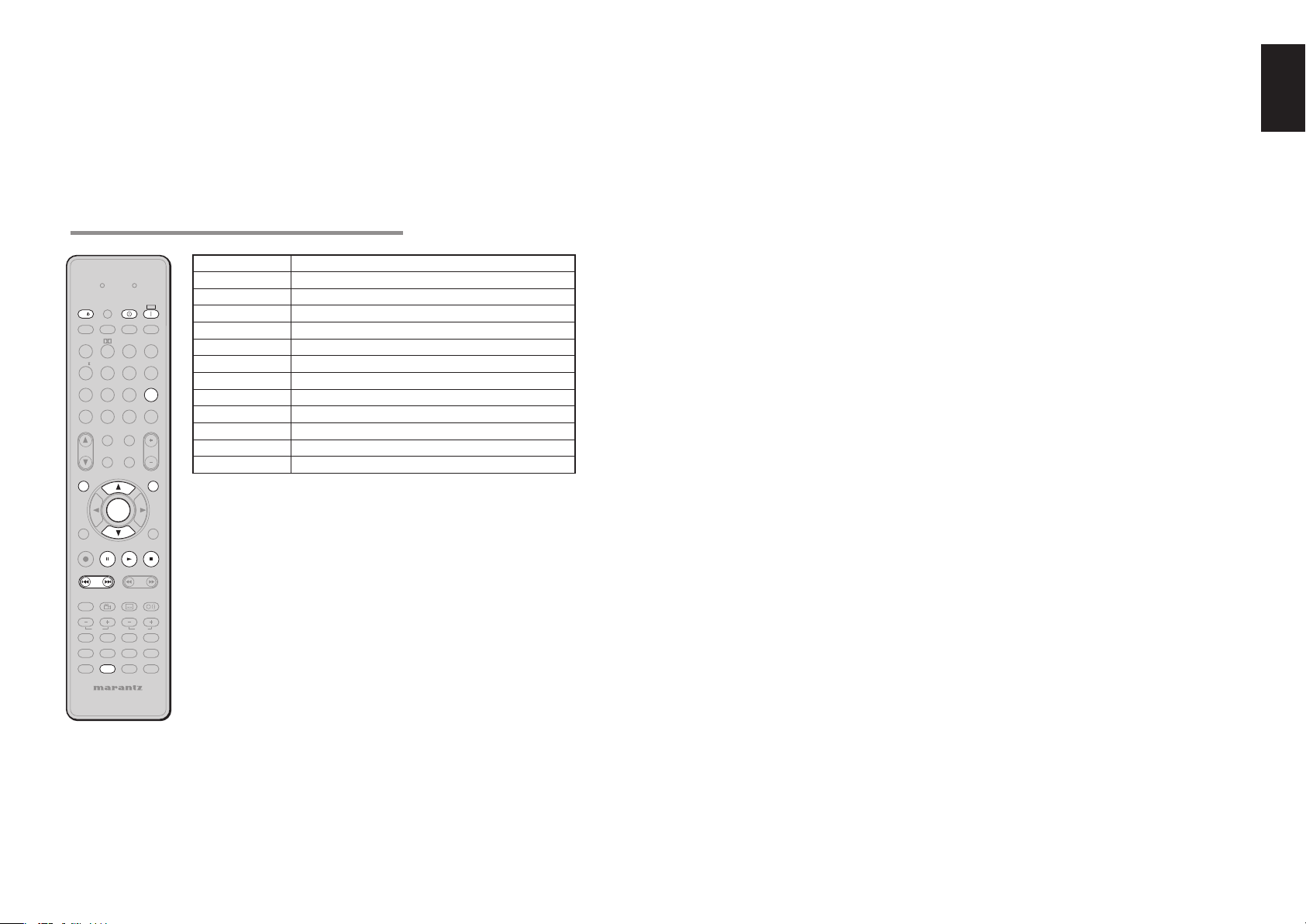
CONTROLLING A MARANTZ UNIVERSAL DOCK (AUX1 MODE)
ENGLISH
LEARN
SET
SOURCESOURCE
l/l/
SLEEP
DISPLAY
AUTOAUTO
112233
EX/ESEX/ES
CSCS
445566
STEREOSTEREO
M-CH STM-CH ST
778899
7.1CH IN7.1CH IN
CLCL
00
CAT
CH/
SPKR A/B
MULTI/
INFOINFO
T.TONET.TON E
/SET UP/SET UP
T.DISPT.DISP
RECREC
PRESET
-
ANGLE
DISC+
CH-SEL
V-OFF
BASS
DVD
TV
CD
TUNER
AUX1
TAPE
REMOTE CONTROLLER
SEND
OFFOFF
ONON
P.DIRECT
SURROUND
LIP SYNC/
INPUT
dtsdts
T.MODE
VIRTUALVIRTUAL
P.SCAN
NIGHTNIGHT
A/D
HT-EQ
MEMO
+10
VOLUME
MUTE
CAT
M-SPKR
MENUMENU
ENTERENTER
EXITEXIT
F.DIRECTF.DIRECT
PTYPTY
TUNING
-
SUB TITLE
AUDIO
ATT.
TREBLE
VCR
DSS
MD
CDR
AMP
AUX2
POWER OFF Turns the UNIVERSAL DOCK (Dock connector) OFF
POWER ON Turns the UNIVERSAL DOCK (Dock connector) ON
INFO Mode
MENU Call up the menu
ENTER Enter the setting
CURSOR UP Select contents Up
CURSOR DOWN Select contents Down
Pause Pause
Play Play / Pause
Stop Stop
Previous/Next Skips forward or previous tracks
P.SCAN Shuffl e
++
SOURCE ON / OFF Turns the UNIVERSAL DOCK (Dock connector) ON and OFF
15
Page 20

ENGLISH
BASIC OPERATION
NORMAL MODE
(
When operating Marantz AV equipment products
This remote controller is preset with a total of
12 types of remote codes, including Marantz TV
(television), DVD, VCR (VCR deck), DSS (satellite
broadcasting tuner), TUNER, CD, CD-R, MD, TAPE
(tape deck), AUX1, AUX2, and AMP (amplifi er).
Learning is not necessary for Marantz products. You
can use these products without setting any codes.
Press the SOURCE button.
1.
For this example, press DVD.
Pressing the SOURCE button once changes
the remote control to the settings for the source
that was pressed.
To change the amplifi er on other source, press
the SOURCE button twice (double-click). The
code is sent, and then the amplifi er source
changes to DVD.
SETTING THE BACK LIGHT
Each time press the buttons, illuminate button 2
seconds.
To turn off back light, press and hold down the SET
and OFF button until SEND indicator blinks twice.
To turn on it again, press and hold down the SET and
ON button until SEND indicator blinks twice.
Initial is back light ON.
PRESET MODE
(When operating non-Marantz AV equipment
products)
This remote controller is preset with remote control
codes from AV equipment by other manufacturers.
The preset codes are TV, VCR, DVD and DSS.
Settings can be made in one of two ways.
When the preset codes are set, the following codes
are contained in the source button of the remote
controller.
See the attached manufacturer number list for the
preset manufacturers, devices, preset numbers, and
other settings.
Remote controller
source name
TV TV Television
DVD DVD DVD player
VCR VCR Video deck
DSS SATELLITE Satellite broadcasting
Corresponding preset
code
Device name
tuner equipment
Importants:
• Some codes may be not match your equipment.
In this case, you can use LEARN mode to store these
codes.
• The preset codes do not cover full functions.
)
If you need extra function, use LEARN mode to
store extra function.
• Wen the batteries are getting weak, the preset
procedure is not successful.
PROGRAMMING WITH THE 4-DIGIT CODE
TUNING
PRESET
-
-
1.
DISC+
CH-SEL
BASS
TVTV
TUNER
TAPE
REMOTE CONTROLLER
ANGLE
V-OFF
DVDDVD VCRVCR
CD
AUX1
SUB TITLE
++
AUDIO
ATT.
CDR
AUX2
1.
TREBLE
DSSDSS
MD
AMP
2.
SOURCE
l/
SLEEP
DISPLAY
AUTO
11 22 33
CS
44 55 66
STEREO
M-CH ST
77 88 99
7.1CH IN
CL
CAT
CH/
SPKR A/B
1. Press and hold down the SOURCE button for the
appliance which should be controlled and press
SET button until the SEND indicator blinks twice.
Then back light fl ushes.
2. Press the 4-digit code for appliance (code table
at the end of this book)
When the procedure is successful, the
indicator will blink twice.
Note:
If the indicator did not blink twice, then repeat steps 1
through 2 and try entering the same code again.
SCANNING THE CODE TABLE
SOURCE
SEND
LEARN
3.
SURROUND
LIP SYNC/
INPUT
T.MODE
3.
AUDIO
TREBLE
DSSDSS
MD
5.
AMP
2.
2.
SOURCESOURCE
l/l/
SLEEP
DISPLAY
AUTO
123
EX/ES
CS
ANGLE
DISC+
CH-SEL
V-OFF
BASS
DVDDVD VCRVCR
TVTV
CD
TUNER
AUX1
TAPE
REMOTE CONTROLLER
SUB TITLE
OFFONSET
P.DIRECT
dts
VIRTUAL
ATT.
CDR
AUX2
1. Switch on the appliance which should be
controlled.
l/
SLEEP
DISPLAY
AUTO
123
CS
456
STEREO
M-CH ST
789
7.1CH IN
CL
CAT
CH/
SPKR A/B
MULTI/
INFO
T.TONE
/SET UP
EX/ES
EX/ES
00
0
CAT
ENTER
OFFONSET
P.DIRECT
SURROUND
dts
T.MODE
VIRTUAL
NIGHT
A/D
+10
VOLUME
MUTE
SEND
OFFONSET
P.DIRECT
SURROUND
dts
T.MODE
VIRTUAL
NIGHT
A/D
+10
MUTE
M-SPKR
2. Press and hold down the SOURCE button for
appliance which should be controlled and press
SET button until the SEND indicator blinking
twice. Then back light fl ushes.
3. Aim the remote control at the appliance and
slowly alternate between pressing CH+ button
and the
SOURCE ON/OFF
appliance.
4. Stop when the appliance turns off.
Press ENTER button once to lock in the code.
5.
CHECKING THE CODE
LIP SYNC/
INPUT
SEND
P.SCAN
HT-EQ
MEMO
1.
1.
LEARN
SOURCE
l/
SLEEP
DISPLAY
AUTO
123
ANGLE
DISC+
CH-SEL
V-OFF
BASS
DVDDVD VCRVCR
TVTV
CD
TUNER
AUX1
TAPE
REMOTE CONTROLLER
P.DIRECT
SUB TITLE
ATT.
AUX2
OFFONSET
CDR
3.
SURROUND
LIP SYNC/
INPUT
dts
4.
AUDIO
TREBLE
DSSDSS
MD
AMP
2.
1. Press and hold down the SOURCE button for
appliance which should be controlled and press
SET button until the SEND indicator blinking twice
then back light fl ushes.
2. Press the INFO button.
The SEND indicator will blink twice.
To view the code for fi rst digit, press 1 once.
3.
Wait 3 seconds, count the SEND indicator
LIP SYNC/
INPUT
blinks (e.g. 3 blinks = 3) and write down the
number.
Note:
P.SCAN
HT-EQ
MEMO
VOLUME
If a code digit is “0”, the SEND indicator will not
blink.
Repeat step 3 three more times for remaining
4.
digits. Use 2 for the second digit, 3 for the third
MENU
EXIT
digit, and 4 for the fourth digit.
button for the
OFFONSET
SOURCE
l/
P.DIRECT
SLEEP
AUTO
123
CS
4 56
M-CH ST
789
CL
CAT
CH/
INFO
T.TONE
/SET UP
SURROUND
DISPLAY
LIP SYNC/
INPUT
dts
T.MODE
EX/ES
VIRTUAL
P.SCAN
STEREO
NIGHT
HT-EQ
7.1CH IN
A/D
MEMO
0
+10
VOLUME
MUTE
SPKR A/B
CAT
MULTI/
M-SPKR
MENU
ENTER
EXIT
RESETTING THE CODE
SEND
LEARN
OFFONSET
SOURCE
l/
P.DIRECT
1.
1.
SLEEP
AUTO
123
DISC+
CH-SEL
TVTV
TUNER
TAPE
DISPLAY
dts
ANGLE
SUB TITLE
V-OFF
ATT.
BASS
DVDDVD VCRVCR
CDR
CD
AUX2
AUX1
REMOTE CONTROLLER
SURROUND
LIP SYNC/
INPUT
AUDIO
TREBLE
DSSDSS
MD
2.
AMP
1. Press and hold down the SOURCE button
for appliance which should be controlled and
press SET button until the SEND indicator
blinking twice.
Then back light fl ushes.
2. Press the below codes to reset.
TV : 1000
DVD : 2000
VCR : 3000
DSS : 4000
The indicator will blink twice.
Note:
After this procedure, the selected SOURCE button is
set initial code.
LEARN
SOURCE
l/
SLEEP
DISPLAY
AUTO
123
EX/ES
CS
4 56
STEREO
M-CH ST
789
7.1CH IN
CL
0
CAT
CH/
SPKR A/B
CAT
MULTI/
INFO
P.DIRECT
VIRTUAL
SEND
OFFONSET
SURROUND
LIP SYNC/
INPUT
dts
T.MODE
P.SCAN
NIGHT
HT-EQ
A/D
MEMO
+10
VOLUME
MUTE
M-SPKR
MENU
16
Page 21
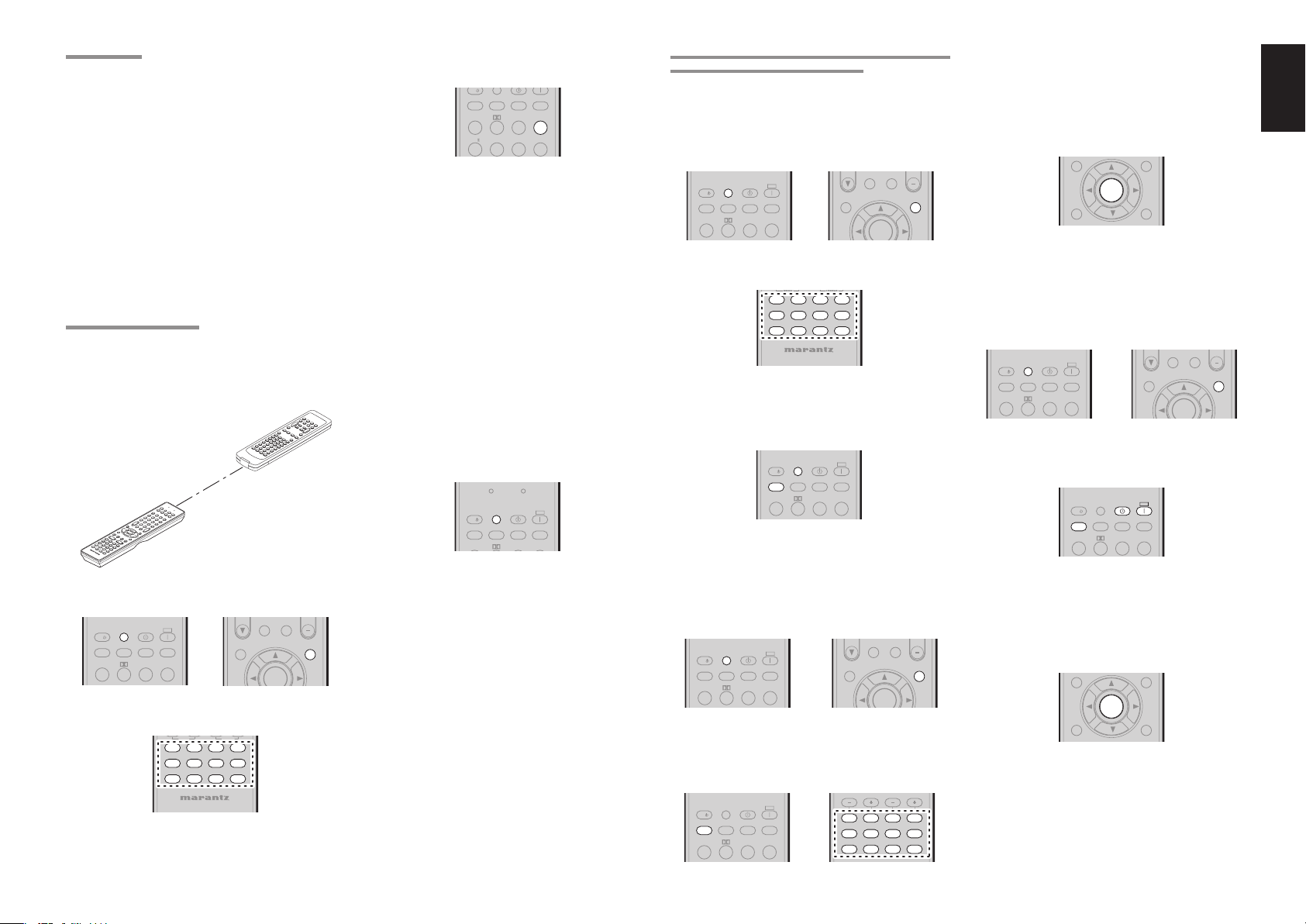
BASS
TREBLE
CH-SEL
V-OFF
ATT
LEARN MODE
This remote controller is capable of learning and
storing codes used by other remote controls that you
already own.
For codes which are not learned, the remote
controller will transmit either the Marantz preset
codes from the initial settings, or remote codes from
another manufacturer’s AV equipment which is set
by the customer.
The receiver sensor for the remote controller signals is
located at the top of the remote controller.
Notes:
• This remote controller is capable to learn around 60
codes.
• When the batteries are getting weak , the learing
procedure is not successful.
LEARNING PROCEDURE
1. Place the remote controller so that its infrared
signal transmitter is facing the infrared signal
receiver on the Marantz remote controller at a
distance of about 0.05 m (2 inches).
0.05 m
S
Y
ST
E
M
R
E
M
O
R
T
C
E
5
C
5
O
0
0
N
S
T
R
R
O
LL
E
R
2. Press and hold down the SET and MENU
buttons until LEARN indicator blinks.
SET
OFF
DISPLAY
P.DIRECT
ON
SURROUND
LIP SYNC/
INPUT
dts
SOURCE
l/
SLEEP
AUTO
123
3. Select the SOURCE button to select the
SOURCE.
BASS
DVDDVD
TVTV
CDCD
TUNERTUNER
AUX1AUX1
TAPETA PE
REMOTE CONTROLLER
MULTI/
INFO
TREBLE
VCRVCR
DSSDSS
MDMD
CDRCDR
AMPAMP
AUX2AUX2
4. Select the button to be learned.
• LEARN indicator lights up.
l/
P.DIRECT
DISPLAY
SURROUND
LIP SYNC/
INPUT
dts
T.MODE
EX/ES
VIRTUAL
SLEEP
AUTO
123
CS
456
5. Press and hold the button of the original remote
controller to learn until the SEND indicator
blinks twice.
Notes:
• When the SEND indicator blinks once, repeat this
step.
• If the LEARN indicator fl ashes when the SEND
indicator is lit, then the button cannot be learned.
• When the memory of the remote controller is full,
the LEARN and SEND indicators blink once. If
you want to learn the code, you should erase other
learned button.
Repeat steps 4 and 5 to learn other buttons in
6.
same SOURCE.
7. Repeat steps 3 to 6 to learn other SOURCE.
8. When you have finished programming the
remote controller, press the SET button, then
LEARN indicator stops blinking and exits from
the LEARN mode.
SEND
LEARN
SOURCE
SLEEP
AUTO
OFFONSET
l/
P.DIRECT
SURROUND
DISPLAY
LIP SYNC/
dts
INPUT
Notes:
• When the SEND indicator blinks once again,
the transmitting code is unavailable for remote
CAT
M-SPKR
MENU
controller, or the transmitting signal is intercepted
by noise.
• If no buttons are pressed for approximately 1
minutes while in the LEARN mode, the remote
ENTER
controller automatically exits from the LEARN
mode.
ERASING PROGRAMMED CODES
(RETURNING TO INITIAL SETTINGS)
Codes can be erased in three ways: by buttons,
sources, and by all memory contents.
Erasing the code by buttons
Press and hold down the SET and MENU
1.
buttons until LEARN indicator blinks.
CAT
MULTI/
SOURCE
SLEEP
OFFONSET
l/
P.DIRECT
DISPLAY
AUTO
dts
123
SURROUND
LIP SYNC/
INPUT
2. Select the SOURCE button to select the button
to be erased.
DVDDVD
VCRVCR
TVTV
TUNERTUNER
TAPETA PE
REMOTE CONTROLLER
DSSDSS
CDRCDR
CDCD
AMPAMP
AUX2AUX2
AUX1AUX1
3. Press and hold down the SLEEP button and
press the learned button twice to be erased.
• SEND indicator blinks twice and the mode
returns to LEARN mode.
SOURCE
OFFONSET
l/
P.DIRECT
SLEEP
DISPLAY
dts
AUTO
123
SURROUND
LIP SYNC/
INPUT
4. To return the NORMAL mode, press the SET
button.
Erasing the code by SOURCE
1. Press and hold down the SET and MENU
buttons until LEARN indicator blinks.
SOURCE
SLEEP
OFFONSET
l/
P.DIRECT
DISPLAY
dts
AUTO
123
SURROUND
LIP SYNC/
INPUT
2. Press and hold down the SLEEP button and
M-SPKR
INFO
MDMD
INFO
MENU
ENTER
CAT
MULTI/
M-SPKR
MENU
ENTER
3. Press ENTER button to continue erasing.
• The SEND indicator blinks twice and the
mode returns to LEARN mode.
• To cancel the erasing operation, do not
ENTER
press
button and simply touch any
other button.
INFO
T.TONE
/SET UP
MENU
ENTER
EXIT
4. To return the NORMAL mode, press the SET
button.
Erasing the all SOURCES
1. Press and hold down the SET and MENU
buttons until LEARN indicator blinks.
CAT
MULTI/
SOURCE
l/
P.DIRECT
SLEEP
DISPLAY
AUTO
123
OFFONSET
SURROUND
LIP SYNC/
INPUT
dts
M-SPKR
INFO
MENU
ENTER
2. Press and hold down the SLEEP button and
press POWER ON and POWER OFF button.
• LEARN indicator lights.
SOURCE
l/
SLEEP
AUTO
OFFONSET
P.DIRECT
DISPLAY
dts
123
SURROUND
LIP SYNC/
INPUT
3. Press ENTER button to continue erasing.
• The SEND indicator blinks twice and the
mode returns to LEARN mode.
• To cancel the erasing operation, do not
ENTER
press
button and simply touch any
other button.
INFO
T.TONE
/SET UP
MENU
ENTER
EXIT
ENGLISH
press the learned SOURCE button twice to be
erased.
• LEARN indicator lights.
SOURCE
OFFONSET
l/
P.DIRECT
SLEEP
DISPLAY
AUTO
dts
123
SURROUND
LIP SYNC/
INPUT
.
BASS
TREBLE
DVDDVD
VCRVCR
TVTV
TUNERTUNER
TAPETAPE
DSSDSS
MDMD
CDRCDR
CDCD
AMP
AUX2AUX2
AUX1AUX1
4. To return the NORMAL mode, press the SET
button.
Note:
Erasing codes will return to the factory preset code,
or there will leave empty if the button has no factory
preset code.
17
Page 22

ENGLISH
CONNECTIONS
SPEAKER PLACEMENT
The ideal surround speaker system for this unit is 7speaker systems, using front left and right speakers,
a center speaker, surround left and right speakers,
a surround back left and right speakers, and a
subwoofer.
For best results we recommend that all front speakers
be of the same type, with identical or similar driver
units. This will deliver smooth pans across the front
sound stage as the action moves from side to side.
Your center channel speaker is very important as
over 80% of the dialog from a typical motion picture
emanates from the center channel.
It should possess similar sonic characteristics to the
main speakers. Surround channel speakers need not
be identical to the front channel speakers, but they
should be of high quality.
The surround back speaker is useful for playback
of Dolby Digital Surround EX or DTS-ES. One of
the benefi ts of both Dolby Digital and DTS is that
surround channels are discrete full range, while they
were frequency limited in earlier “Pro Logic’ type
systems.
Bass effects are an important part of home theater.
For optimal enjoyment a subwoofer should be used
as it is optimized for low frequency reproduction. If
you have full range front speakers, however, they
may be used in place of a subwoofer with proper
setting of the switches in the menu system.
Subwoofer
Front Left
Surround Back
Left
Surround Left
Surround left and right speakers
When this unit is used in surround operation, the
preferred location for surround speakers is on the
side walls of the room, at or slightly behind the
listening position.
The center of the center speaker should face the
center of the room.
Surround back left and right speakers
Surround back speakers are required when a full 7.1channel system is installed.
Speakers should be placed on a rear wall, behind the
listening position.
The center of the center speaker should face the
center of the room.
Subwoofer
We recommend using a sub-woofer to have maximum
bass effect. As the subwoofer only handles low
frequencies, you can place it any where in the room.
HEIGHT OF THE SPEAKER UNITS
Front left and right speakers, and a center speaker
Align the tweeters and mid-range drivers on the
three front speakers at the same height, as best as
possible.
Surround left and right speakers, and surround
back speaker
Place the surround left, right and surround back
speakers higher than your ears by about 70cm – 1m.
Also place the speakers at the same height, as best
as possible.
70cm
1m
CONNECTING SPEAKERS
INVERT
OUTPUT
VIDEOVIDEO
S-VIDEOS-VIDEO
MULTI.MULTI.
OUTOUT
FRONT A OR B.CENTER.FRONT A OR B.CENTER.
FRONT A OR B.CENTER.FRONT A OR B.CENTER.
FRONT A + B : 8 OHMSFRONT A + B : 8 OHMS
FRONT A + B : 8 OHMSFRONT A + B : 8 OHMS
Front B
Power
Amplifi er
INPUT
BTL REMOTE CONT.EXT. CONT. IN
INPUT
LEVEL
MASTERSLAVE
MIN MAX
VIDEO/
+5~13V DC
SPEAKER SYSTEM
MINIMUM 4 OHMS
RR
RR
FRONTFRONT B B FRONTFRONT A A
FRONTFRONT B B FRONTFRONT A A
Passive
subwoofer
FM FM ((7575))GNDGND AMAM
ANTENNAANTENNA
LL SLSL CC SBLSBL
LL
RR
RR SRSR SWSW SBRSBR
((
AUX2AUX2)) 7.1CH INPUT 7.1CH INPUT
RS-232CRS-232C SPEAKER CSPEAKER C
SLSL SBLSBLLL
RR SRSRCCSWSW SBRSBR
PRE OUTPRE OUT
PRE OUTPRE OUT
OFFOFF ONON
SWSW
Right Left
SR5002 only
SYSTEM OUT OUT
IN
S
E
U
F
ININ OUTOUT
LL LL LLLLRR
LL LL LLLLRR
Right Left
INPUTINPUT
11
INPUTINPUT
22
YYDSSDSSTVTV DVDDVD VCR INVCR IN VCR OUTVCR OUT
MONITOR OUTMONITOR OUT
OUTOUTININ
TAPETAPEVCRVCRDVDDVDTVTV
DSSDSS
AUDIOAUDIO
RR RR
RR RR
SURROUND BACKSURROUND BACK
SURROUND BACKSURROUND BACK
SPEAKER C/MULTI SPEAKERSPEAKER C/MULTI SPEAKER
SPEAKER C/MULTI SPEAKERSPEAKER C/MULTI SPEAKER
SURR.SURR BACK : 6-8 OHMSSURR.SURR BACK : 6-8 OHMS
SURR.SURR BACK : 6-8 OHMSSURR.SURR BACK : 6-8 OHMS
Front A
Powered
subwoofer
Surround
BACK
Right Left
or
INPUT 2INPUT 2INPUT 1INPUT 1
HDMI Ver 1.1HDMI Ver 1.1
INPUT 3INPUT 3 OUTPUTOUTPUT
MODEL NO. SR5002MODEL NO. SR5002
COMPONENTCOMPONENT
INPUTINPUT
VIDEOVIDEO
33
11
YY
CC
PPRRCC
PP
RR
BB
BB
//
//
OUTOUTININ
CD/CDRCD/CDR
PP
BB
BB
//
CENTERCENTERSURROUNDSURROUND
CENTERCENTERSURROUNDSURROUND
SPEAKERSPEAKER
SPEAKERSPEAKER
SYSTEMSSYSTEMS
SYSTEMSSYSTEMS
5544
22 3311
DIGITAL INDIGITAL IN
YY
CC
PPRRCC
RR
//
BB
OPTOPT
DIGITAL OUTDIGITAL OUT
//
PP
BB
MONITORMONITOR
OUT 2OUT 2
//
CC
PPRRCC
RR
ININ
OUTOUT
REMOTE CONT.REMOTE CONT.
AC OUTLETAC OUTLET
230V 50/60Hz230V 50/60Hz
SWITCHEDSWITCHED
0.65A 150W0.65A 150W
FLASHERFLASHER
DCDC
ININ
TRIGGERTRIGGER
AC INAC IN
Center
Right
Left
Surround
Front Center
Surround Back
Right
150°
135°
110°
Surround Right
90°
0°
22°
30°
Front Right
Front left and right speakers
We recommend to set the front L and R speakers
with 45-60 degrees from the listening position.
Center speaker
Align the front line of the center speaker with the front
L/R speakers. Or place the center speaker a little
backward from the line.
18
Note:
Use magnetically-shielded speakers for front left, right
and the center speakers when the speakers are installed
near the TV.
CONNECTING SPEAKER WIRE
Strip away approx. 3/8 inch (10 mm) of wire
1.
insulation.
2. Twist the bared wire ends tight, to prevent short
circuits.
Loosen the knob by turning it counterclockwise.
3.
4. Insert the bare part of the wire into the hole in
side of each terminal.
Tighten the knob by turning it clockwise to
5.
secure the wire.
1. 2.
10 mm
3. 4. 5.
Page 23
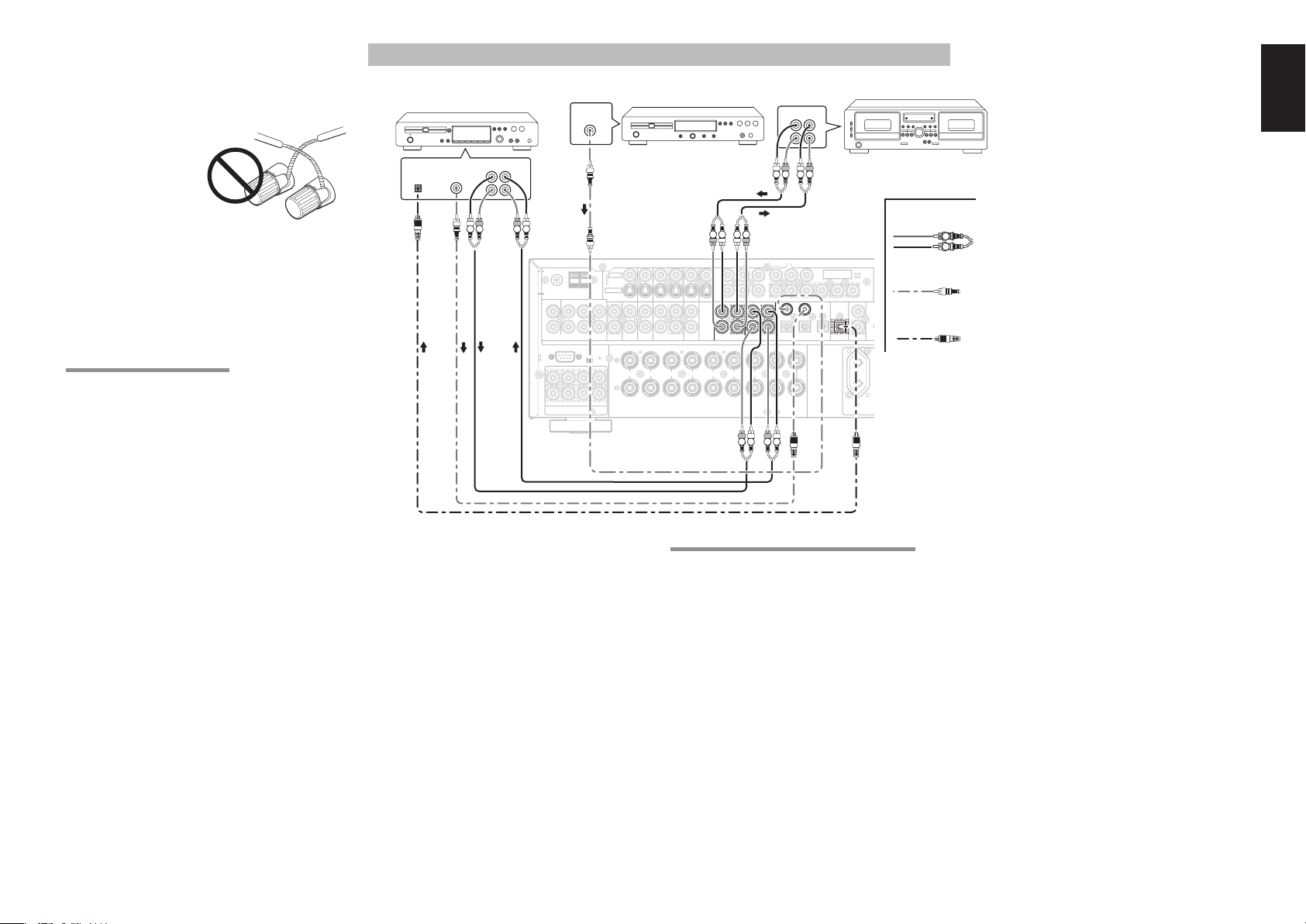
Caution:
T
Hz
LASHER
IN
• Be sure to use speakers with the specifi ed impedance
as shown on the rear panel of this unit.
• To prevent damage to circuitry, do not let the bare
speaker wires touch each other and do not let them
touch any metal
part of this unit.
• Do not touch the
speaker terminals
when the power is
on. It may cause
you to receive an
electric shocks.
• Do not connect more than one speaker cable to one
speaker terminal. Doing so may damage this unit.
Note:
Be sure to connect the positive and negative cables for
the speaker properly. If they are miss-connected, the
signal phase will be reversed and the signal quality
will be corrupted.
CONNECTING A SUBWOOFER
Use the PRE OUT SUBWOOFER jack to connect a
powered subwoofer (power amplifi er built in).
If your subwoofer is a passive type (power amplifi er
is not built in), connect a monaural power amplifi er to
the PRE OUT SUBWOOFER jack and connect the
subwoofer to the amplifi er.
CONNECTING AUDIO COMPONENTS
DIGITAL
INPUT
CD recorder
OUT IN
DIGITAL
OUTPUT
LRL
RL
R
R L
FM FM ((7575))GNDGND AMAM
ANTENNAANTENNA
LL SLSL CC SBLSBL
LL
RR
RR SRSR SWSW SBRSBR
((
AUX2AUX2)) 7.1CH INPUT 7.1CH INPUT
RS-232CRS-232C SPEAKER CSPEAKER C
SLSL SBLSBLLL
RR SRSRCCSWSW SBRSBR
PRE OUTPRE OUT
DIGITAL
OUTPUT
OFFOFF ONON
VIDEOVIDEO
S-VIDEOS-VIDEO
MULTI.MULTI.
OUTOUT
RR
FRONTFRONT B B FRONTFRONT A A
FRONT A OR B.CENTER.FRONT A OR B.CENTER.
FRONT A + B : 8 OHMSFRONT A + B : 8 OHMS
ININ OUTOUT
LL LL LLLLRR
CD player
MONITOR OUTMONITOR OUT
DSSDSS
SPEAKER C/MULTI SPEAKERSPEAKER C/MULTI SPEAKER
SURR.SURR BACK : 6-8 OHMSSURR.SURR BACK : 6-8 OHMS
R L RL
INPUTINPUT
11
INPUTINPUT
22
YYDSSDSSTVTV DVDDVD VCR INVCR IN VCR OUTVCR OUT
OUTOUTININ
OUTOUTININ
TAPETAPE
TAPETAPEVCRVCRDVDDVDTVTV
AUDIOAUDIO
RR RR
SURROUND BACKSURROUND BACK
11
RR
BB
BB
//
//
CC
PPRRCC
PP
OUTOUTININ
OUTOUTININ
CD/CDRCD/CDR
CD/CDRCD/CDR
R L R L
OUT IN
LRL
L R
YY
SPEAKERSPEAKER
SYSTEMSSYSTEMS
Tape Deck
ENGLISH
R
L R
Analog Audio
L R
COMPONENTCOMPONENT
INPUTINPUT
VIDEOVIDEO
33
YY
//
BB
BB
CC
PP
RR
BB
BB
//
//
CC
PPRRCC
PP
5544
5544
22 3311
OPTOPT
OPTOPT
DIGITAL OUTDIGITAL OUT
DIGITAL OUTDIGITAL OUT
DIGITAL INDIGITAL IN
CENTERCENTERSURROUNDSURROUND
230V 50/60230V 50/60
Digital Audio (coaxial)
MONITORMONITOR
OUT 2OUT 2
//
RR
PPRRCC
ININ
Digital Audio (optical)
FLF
OUTOUT
REMOTE CONT.REMOTE CONT.
AC OUTLETAC OUTLE
SWITCHEDSWITCHED
0.65A 150W0.65A 150W
The output audio signal from the TAPE OUT jack and
the CD/CD-R OUT jack is the same signal which is
currently selected.
Caution:
Do not connect this unit and other components to mains
power until all connections between components have
been completed.
Notes:
• Insert all plugs and connectors securely. Incomplete
connections may make noise.
• Be sure to connect the left and right channels
properly.
Red connectors are for the R (right) channel, and
white connectors are for the L (left) channel.
• Be sure to connect input and output properly.
• Refer to the instructions for each component that is
connected to this unit.
• Do not bind audio/video connection cables with
power cords and speaker cables this will result in
generating a hum or other noise.
CONNECTING DIGITAL AUDIO COMPONENTS
• There are 4 digital inputs (SR4002), 5 digital
inputs (SR5002), 2 coaxial jacks and 2 optical
jacks (SR4002), 3 optical jacks (SR5002), on the
rear panel. You can use these jacks to input PCM,
Dolby Digital and DTS bitstream signals from a
CD, DVD, or other digital source components.
• There is one optical output jack on the rear panel.
These jacks can be connected to a CD recorder,
or a MD deck inputs, respectively.
• Refer to the instructions for each component. To
setup the digital audio format of DVD player, or
other digital source’s connected to digital input
jacks.
• Use fiber optical cables (optical) for DIG-1,2
(SR4002), DIG-1,2,3 (SR5002), input jacks. Use
75 ohms coaxial cables (for digital audio or video)
for DIG-3,4 (SR4002), DIG-4,5 (SR5002), input
jacks.
• You can designate the input for each digital input/
output jacks according to your component. See
page 27.
Notes:
• There is no Dolby Digital RF input jack. Please use
an external RF demodulator Dolby Digital decoder
when connecting the Dolby Digital RF output jack
of the video disc player to the digital input jack.
• The digital signal jacks on this unit conform to
the EIA standard. If you use a cable that does not
conform to this standard, this unit may not function
properly.
• Each type of audio jack works independently.
Signals input through the digital and analog jacks are
output through the corresponding digital and analog
jacks, respectively.
19
Page 24
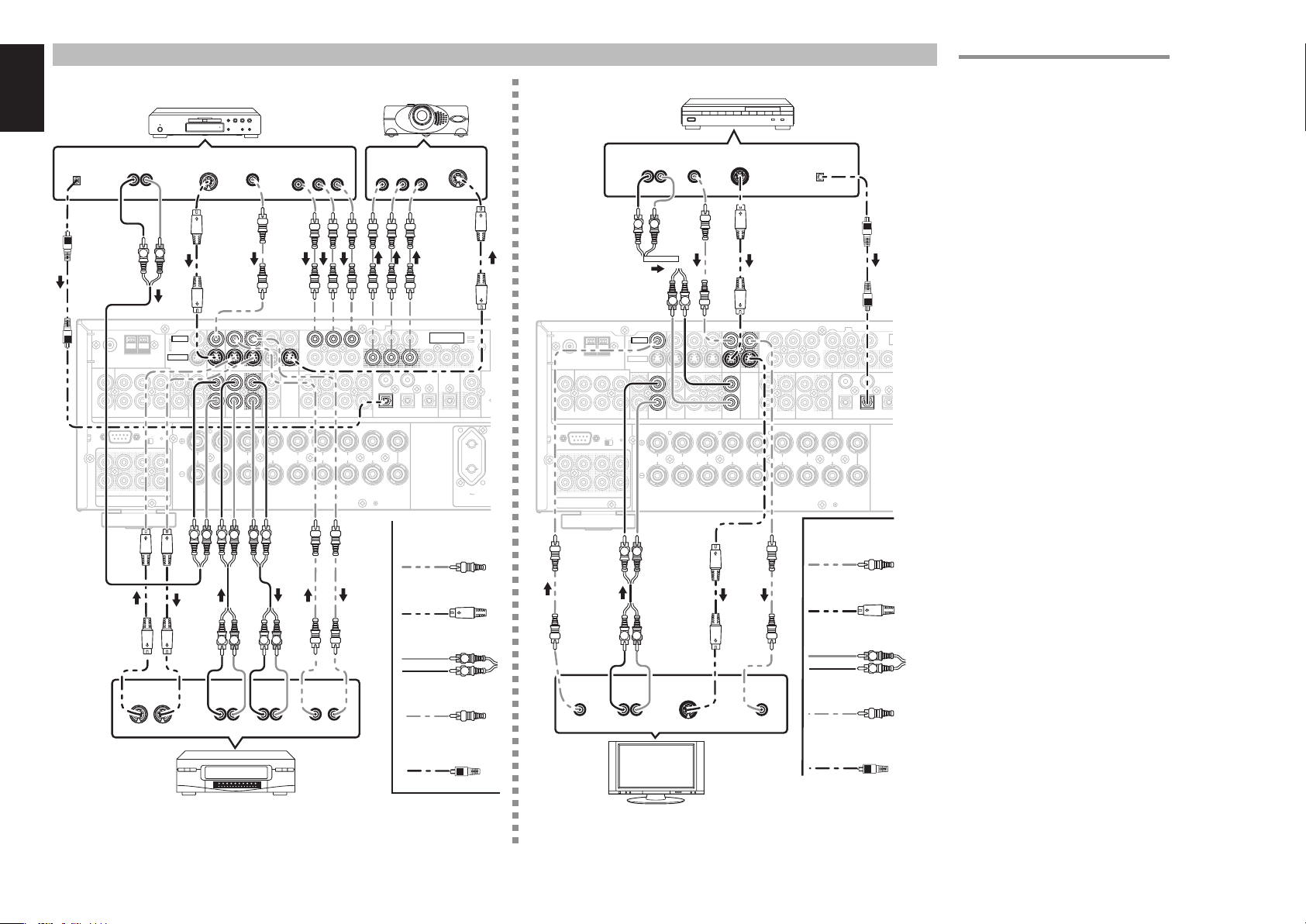
ENGLISH
CCOMPONENT
VIDEO
T
Hz
W
LASHER
IN
CONNECTING VIDEO COMPONENTS
DVD player
DIGITAL
OUT
AUDIO
OUT
S-VIDEO
LR
L R
VIDEOVIDEO
VIDEOVIDEO
S-VIDEOS-VIDEO
OFFOFF ONON
S-VIDEO
OUT IN
S-VIDEOS-VIDEO
MULTI.MULTI.
OUTOUT
RR
FRONT A OR B.CENTER.FRONT A OR B.CENTER.
FRONT A + B : 8 OHMSFRONT A + B : 8 OHMS
L R L R LR
FM FM ((7575))GNDGND AMAM
ANTENNAANTENNA
LL SLSL CC SBLSBL
LL
RR
RR SRSR SWSW SBRSBR
((
AUX2AUX2)) 7.1CH INPUT 7.1CH INPUT
RS-232CRS-232C SPEAKER CSPEAKER C
SLSL SBLSBLLL
RR SRSRCCSWSW SBRSBR
PRE OUTPRE OUT
VIDEO
OUT
OUT
DVDDVD VCR INVCR IN VCR OUTVCR OUT
ININ OUTOUT
ININ OUTOUT
LL LL LLLLRR
FRONTFRONT B B FRONTFRONT A A
L R L R
AUDIO
AUDIO
OUT
LR
COMPONENT
VIDEO OUT
YC
B
/ PBCR
INPUTINPUT
INPUTINPUT
11
11
INPUTINPUT
22
YYDSSDSSTVTV DVDDVD VCR INVCR IN VCR OUTVCR OUT
MONITOR OUTMONITOR OUT
MONITOR OUTMONITOR OUT
TAPETAPEVCRVCRDVDDVDTVTV
DSSDSS
AUDIOAUDIO
RR RR
SURROUND BACKSURROUND BACK
SPEAKER C/MULTI SPEAKERSPEAKER C/MULTI SPEAKER
SURR.SURR BACK : 6-8 OHMSSURR.SURR BACK : 6-8 OHMS
VIDEO
IN
OUT IN
LR
VIDEO, S-VIDEO , COMPONENT JACKS
VIDEO PROJECTOR
COMPONENT
VIDEO IN
YC
/ PR
B
/ PBCR
/ PR
S-VIDEO
IN
AUDIO
OUT
Satellite Tuner
VIDEO
OUT
S-VIDEO
OUT
DIGITAL
OUT
LR
L R
LR
COMPONENTCOMPONENT
COMPONENTCOMPONENT
INPUTINPUT
VIDEOVIDEO
VIDEOVIDEO
33
11
CC
PPRRCC
PP
RR
//
BB
//
BB
YY
YY
11
OUTOUTININ
OUTOUTININ
CD/CDRCD/CDR
PP
PP
BB
//
BB
BB
//
BB
CENTERCENTERSURROUNDSURROUND
SPEAKERSPEAKER
SYSTEMSSYSTEMS
CC
CC
5544
22 3311
DIGITAL INDIGITAL IN
DIGITAL INDIGITAL INVCRVCRDVDDVD
YY
PPRRCC
PPRRCC
RR
//
RR
//
//
BB
OPTOPT
DIGITAL OUTDIGITAL OUT
CC
PP
RR
BB
REMOTE CONT.REMOTE CONT.
AC OUTLETAC OUTLE
230V 50/60230V 50/60
SWITCHEDSWITCHED
0.65A 150W0.65A 150
MONITORMONITOR
OUT 2OUT 2
//
PPRRCC
ININ
FLF
OUTOUT
FM FM ((7575))GNDGND AMAM
ANTENNAANTENNA
LL SLSL CC SBLSBL
LL
RR
RR SRSR SWSW SBRSBR
((
AUX2AUX2)) 7.1CH INPUT 7.1CH INPUT
RS-232CRS-232C SPEAKER CSPEAKER C
SLSL SBLSBLLL
RR SRSRCCSWSW SBRSBR
PRE OUTPRE OUT
Video
OFFOFF ONON
VIDEOVIDEO
VIDEOVIDEO
S-VIDEOS-VIDEO
TVTV
MULTI.MULTI.
OUTOUT
TVTV DSSDSS
RR
FRONT A OR B.CENTER.FRONT A OR B.CENTER.
FRONT A + B : 8 OHMSFRONT A + B : 8 OHMS
L R
ININ OUTOUT
LL LL LLLLRR
FRONTFRONT B B FRONTFRONT A A
S-VIDEO
L R
AUDIO
OUT
LR
S-VIDEO
IN
Analog Audio
Digital Audio
(coaxial)
Digital Audio
(optical)
L R
VIDEO
OUT
INPUTINPUT
11
INPUTINPUT
22
YYDSSDSSTVTV DVDDVD VCR INVCR IN VCR OUTVCR OUT
MONITOR OUTMONITOR OUT
DSSDSS
MONITOR OUTMONITOR OUT
OUTOUTININ
TAPETAPEVCRVCRDVDDVDTVTV
DSSDSS
AUDIOAUDIO
RR RR
SURROUND BACKSURROUND BACK
SPEAKER C/MULTI SPEAKERSPEAKER C/MULTI SPEAKER
SURR.SURR BACK : 6-8 OHMSSURR.SURR BACK : 6-8 OHMS
VIDEO
IN
11
CC
PPRRCC
PP
RR
//
BB
//
BB
OUTOUTININ
CD/CDRCD/CDR
Video
S-VIDEO
Analog Audio
Digital Audio
(coaxial)
Digital Audio
(optical)
YY
PP
BB
//
BB
CENTERCENTERSURROUNDSURROUND
SPEAKERSPEAKER
SYSTEMSSYSTEMS
5544
22 3311
22
DIGITAL INDIGITAL IN
DIGITAL INDIGITAL IN
INPUTINPUT
33
YY
CC
PPRRCC
RR
//
L R
There are 3 types of video jacks on the rear panel.
VIDEO jack
The video signal for the VIDEO jacks is the
conventional composite video signal.
S-VIDEO jack
The video signal is separated into luminance (Y) and
color (C) signals for the S-VIDEO jack. The S-VIDEO
signals enables high-quality color reproduction. If
your video component has an S-VIDEO output, we
recommend to use it. Connect the S-VIDEO output
jack on your video component to the S-VIDEO input
jack on this unit.
Component jack
Make component video connections to a TV or
monitor with component inputs to produce higher
quality video images. Use a component video cable
or 3 video cords to connect the component video out
jacks on the unit to the monitor.
Notes:
• Be sure to connect the left and right audio channels
properly.
Red connectors are for the R (right) channel, and
white connectors are the for L (left) channel.
• Be sure to connect the inputs and outputs of the
video signals properly.
• This unit has the “TV-AUTO ON/OFF” function to
turn the TV ON or OFF automatically, by sensing
the incoming video signal from the VIDEO jacks.
• You may need to setup the digital audio output
format of your DVD player, or other digital source
components. Refer to the instructions of the each
component connected to the digital input jacks.
• There is no Dolby Digital RF input jack. Use an
external RF demodulator with a Dolby Digital
decoder to connect the Dolby Digital RF output jack
of the DVD player to the digital input jack on this
unit.
• The COMPONENT OUTPUT 1 and 2 terminals of
the SR5002 can output the same video signal.
• For details concerning the connection of Video
equipment, please see VIDEO CONVERT (page
34).
20
VCR
TV
Page 25

NIN
CONNECTING HDMI COMPONENTS
DVD player VIDEO PROJECTOR
HDMI JACK
This unit has 3 HDMI inputs and one HDMI output. It
can send digital video and audio signals from DVDs and
other sources directly to a display. It minimizes signal
degradation caused by analog conversion so that high
quality images can be enjoyed.
Select an input source from the OSD menu system.
(See page 27)
Notes:
• When the HDMI output is connected to a display
monitor that does not support HDCP*, signals are
not output. To view images in HDMI, it is necessary
to connect to a display that supports HDCP*.
• There may be no image output if connected to a
TV or display that is not compatible with the above
format.
• Refer to the instruction manual of the TV or display
to be connected to the unit for detailed information
regarding the HDMI terminal.
* HDCP: High-bandwidth Digital Content Protection
CONNECTING HDMI COMPONENTS
An HDMI cable (sold separately) is used to connect
the HDMI jack on the unit with the HDMI jack on a DVD
player, TV, projector or other component. To transmit
multichannel audio via HDMI, the connected player
must support multichannel audio transmission through
its HDMI jack.
HDMI video streaming is compatible with DVI in
principle. Therefore, it is possible to connect to a TV
or monitor that has a DVI terminal using an HDMI-DVI
conversion cable or plug. When connecting to a DVI
terminal, connect the audio signal separately.
• When multiple components are connected to this
unit, turn power to unused components off to
prevent interference between them.
• Disconnecting or connecting cables with the power
on can damage the equipment. Turn the power off
before disconnecting or connecting cables.
• Some DVD-Audio disks disable downmixing.
These types of disks are not played back correctly
unless the left, center, right and surround left and
right speakers, and subwoofer are connected.
• If a DVD player that does not support HDMI 1.1 is
connected to the unit, multi channel PCM playback
is not possible even with DVD-Audio disks.
If a DVD player or other device with DVI output is
•
connected to the unit, a separate audio cable (opticaldigital, coaxial digital or analog) is needed for the
audio signals. In this case, select the connected audio
input as explained in “1 INPUT SETUP”. (See page
27)
• Multi channel PCM signals and audio signals of 64
kHz or higher that are input from the HDMI jack are
not output from the DIGITAL OUT jacks.
• Depending on the quiality of the cable used, the
HDMI signal may be affected by noise.
• Audio units that use sampling frequencies of 128
kHz and above are not supported.
• When only HDMI components are connected, OSD
will not be displayed. (See page 26)
IN
IN VCR OUTVCR OUT
ER.
ER.
S
S
OUTOUT
FRONTFRONT A A
DSSDSS
INPUTINPUT
11
INPUTINPUT
22
//
BB
BB
YYDSSDSS
MONITOR OUTMONITOR OUT
SURROUND BACKSURROUND BACK
SPEAKER C/MULTI SPEAKERSPEAKER C/MULTI SPEAKER
SURR.SURR BACK : 6-8 OHMSSURR.SURR BACK : 6-8 OHMS
PP
OUTOUTININ
TAPETAPEVCRVCR
AUDIOAUDIO
RR RR
LL LLLLRR
RR
CC
CD/CDRCD/CDR
11
//
YY
PPRRCC
OUTOUTININ
HDMI OUTPUT
INPUTINPUT
33
YY
//
//
RR
BB
BB
CC
PPRRCC
PP
5544
22 3311
DIGITAL INDIGITAL IN
CENTERCENTERSURROUNDSURROUND
SPEAKERSPEAKER
SYSTEMSSYSTEMS
Satellite Tuner
HDMI OUTPUT
COMPONENTCOMPONENT
VIDEOVIDEO
BB
BB
//
PP
OPTOPT
DIGITAL OUTDIGITAL OUT
MONITORMONITOR
OUT 2OUT 2
RR
//
CC
PPRRCC
ININ
OUTOUT
REMOTE CONT.REMOTE CONT.
AC OUTLETAC OUTLET
230V 50/60Hz230V 50/60Hz
SWITCHEDSWITCHED
0.65A 150W0.65A 150W
FLASHERFLASHER
HDMI INPUT
HDMI Ver 1.1HDMI Ver 1.1
HDMI Ver 1.1HDMI Ver 1.1
INPUT 3INPUT 3 OUTPUTOUTPUT
INPUT 2INPUT 2INPUT 1INPUT 1
DCDC
ININ
TRIGGERTRIGGER
AC INAC IN
OUTPUTOUTPUTINPUT 2INPUT 2INPUT 1INPUT 1
MODEL NO. SR5002MODEL NO. SR5002
ENGLISH
Notes:
• Some HDMI components can be controlled over
the HDMI cable, but this unit cannot control other
components this way.
• When connected to a monitor (i.e., TV, projector,
etc.) that does not support HDCP, video and audio
are not output.
• DVI cables come with 24-pin and 29-pin plugs. This
unit supports 24-pin DVI-D cables; 29-pin DVI
cables cannot connect to it.
• Some source devices such as DVD players does not
support HDMI repeater like those of the unit. In such
case, pictures are not properly projected on monitors
such as TVs and projectors.
21
Page 26
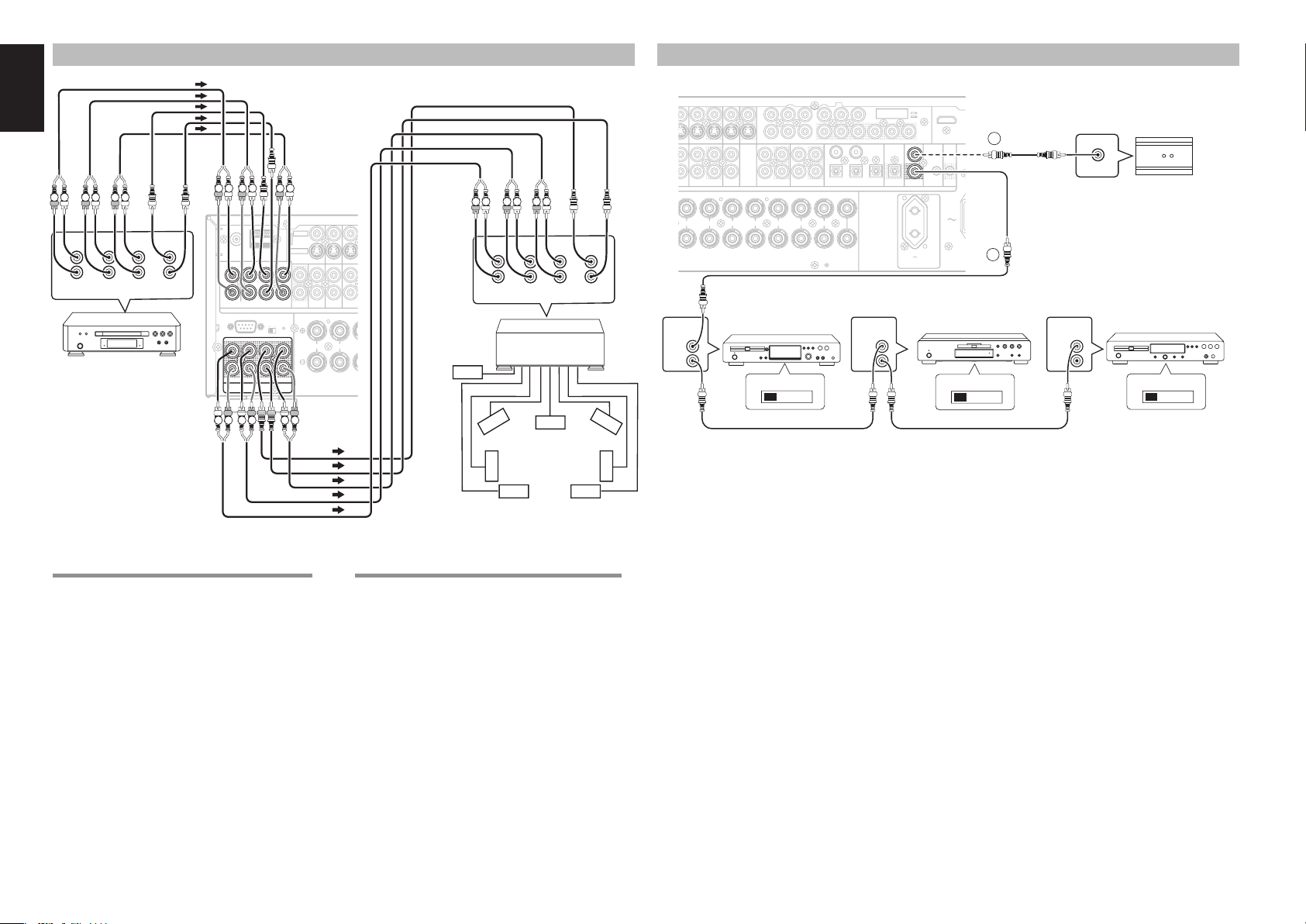
ENGLISH
.
TFRONT
ADVANCED CONNECTING
CONNECTING THE REMOTE CONTROL JACKS
LR
R L R L R L
L
R
FRONT SURR.
DVD Audio player
Super Audio CD Multi
SURR.
BACK
or
channel player
CENTER
SUB
WOOFER
LR
FM FM ((7575))GNDGND AMAM
ANTENNAANTENNA
LL SLSL CC SBLSBL
LL SLSL CC SBLSBL
LL
LL
RR
RR
RR SRSR SWSW SBRSBR
RR SRSR SWSW SBRSBR
((
((
AUX2AUX2)) 7.1CH INPUT 7.1CH INPUT
AUX2AUX2)) 7.1CH INPUT 7.1CH INPUT
RS-232CRS-232C SPEAKER CSPEAKER C
SLSL SBLSBLLL
SLSL SBLSBLLL
RR SRSRCCSWSW SBRSBR
RR SRSRCCSWSW SBRSBR
PRE OUTPRE OUT
PRE OUTPRE OUT
RL
RL RL
OFFOFF ONON
VIDEOVIDEO
S-VIDEOS-VIDEO
TVTV DVDDVD VCR INVCR IN
MULTI.MULTI.
OUTOUT
RR LL
FRONTFRONT B B
FRONT A OR B.CENTERFRONT A OR B.CENTER
FRONT A + B : 8 OHMSFRONT A + B : 8 OHMS
CONNECTING MULTI CHANNEL AUDIO SOURCE
The 7.1CH INPUT jacks are for multichannel audio
source such as a Super Audio CD multichannel
player, DVD audio player or external decoder.
If you use these jacks, switch on the 7.1CH INPUT
and set the 7.1CH INPUT level by using the SETUP
MAIN MENU. See page 31.
R LLRR L R L
CENTER
L
R
Power
Amplifer
FRONT SURR.
ININ
VCVCRDVDDVDTVTV
SURR.
BACK
SUB
WOOFER
Subwoofer
Center
Surround
Front
Right
Right
Surround
Back Right
Front
Left
Surround
Left
Surround
Back Left
CONNECTING AN EXTERNAL POWER AMPLIFIER
The PREOUT jacks are for connecting external
power amplifi ers.
Be sure to connect each speaker to the corresponding
external power amplifi er.
VD
VD VCR INVCR IN VCR OUTVCR OUT
VD
VD
LL LL LLLLRR
B B FRONTFRONT A A
B.CENTER.
B.CENTER.
: 8 OHMS
: 8 OHMS
REMOTE
CONTROL
IN
OUT
ININ OUTOUT
INPUTINPUT
11
INPUTINPUT
22
YYDSSDSS
MONITOR OUTMONITOR OUT
DSSDSS
SURR.SURR BACK : 6-8 OHMSSURR.SURR BACK : 6-8 OHMS
OUTOUTININ
TAPETAPEVCRVCR
AUDIOAUDIO
RR RR
SPEAKER C/MULTI SPEAKERSPEAKER C/MULTI SPEAKER
11
//
//
YY
CC
PPRRCC
PP
RR
BB
BB
OUTOUTININ
CD/CDRCD/CDR
//
PP
BB
BB
CENTERCENTERSURROUNDSURROUNDSURROUND BACKSURROUND BACK
SPEAKERSPEAKER
SYSTEMSSYSTEMS
5544
22 3311
DIGITAL INDIGITAL IN
INPUTINPUT
33
//
CC
PPRRCC
RR
REMOTE
CONTROL
IN
OUT
COMPONENTCOMPONENT
VIDEOVIDEO
YY
DIGITAL OUTDIGITAL OUT
CC
PP
RR
BB
BB
//
OPTOPT
REMOTE CONT.REMOTE CONT.
REMOTE CONT.REMOTE CONT.
AC OUTLETAC OUTLET
230V 50/60Hz230V 50/60Hz
SWITCHEDSWITCHED
0.65A 150W0.65A 150W
MONITORMONITOR
OUT 2OUT 2
PPRRCC
//
ININ
ININ
FLASHERFLASHER
OUTOUT
OUTOUT
EXTERNAL INTERNAL
q
You can control other Marantz products through this
unit with the remote controller by connecting the
REMOTE CONTROL terminals on each unit.
The signal transmitted from the remote controller
is received by the remote sensor on this unit. Then
the signal is sent to the connected device through
this terminal. Therefore you need to aim the remote
signal only to the unit. Also, if a Marantz power
amplifi er (some models excluded) is connected to
one of these terminals, the power amplifi er’s, power
switch is synchronized with this unit’s power switch.
Set the REMOTE CONTROL SWITCH on the
back of other units (not the SR4002/SR5002) to
“EXT”.(EXTERNAL) to use this feature.
INPUT 1INPUT 1
ININ
TRIGGERTRIGGER
AC INAC IN
2
DCDC
RC OUT
OPTION
1
DVD playerCD recorder CD player
EXTERNAL INTERNAL
REMOTE
CONTROL
IN
OUT
EXTERNAL INTERNAL
w
Whenever external infrared sensors or similar
devices are connected to RC-5 IN of the unit, be sure
to always disable operation of the infrared sensor on
the unit by using the following procedure.
1. Hold down the 7.1CH INPUT (SR4002) / MULTI
(SR5002) button and MENU button on the front
panel at the same time for fi ve seconds.
2. The setting “IR=ENABLE” is shown on the FL
DISPLAY.
3. Press the 1 or 2 cursor button to change this to
“IR=DISABLE”.
4. Press the ENTER button. Once this setting
is made, the infrared sensor on the unit is
disabled.
Note:
Be sure to set to “IR=ENABLE” when external
infrared sensors or similar devices are not connected.
Otherwise, the unit will be unable to receive remote
control commands.
5. To restore the original setting, perform steps 1
to 4 to set to “IR=ENABLE”.
22
Page 27

CONNECTING THE ANTENNA TERMINALS
FM External
FM Antenna
FM FM ((7575))GNDGND AMAM
FM FM ((7575))GNDGND AMAM
ANTENNAANTENNA
ANTENNAANTENNA
LL SLSL CC SBLSBL
LL
RR
RR SRSR SWSW SBRSBR
((
AUX2AUX2)) 7.1CH INPUT 7.1CH INPUT
RS-232CRS-232C SPEAKER CSPEAKER C
OFFOFFONON
SLSL SBLSBLLL
RR SRSRCCSWSW SBRSBR
PRE OUTPRE OUT
ASSEMBLING THE AM LOOP ANTENNA
1. Release the vinyl tie and take out the connection
line.
Antenna
VIDEOVIDEO
S-VIDEOS-VIDEO
MULTI.MULTI.
OUTOUT
RR
FRONTFRONT B B FRONTFRONT A A
FRONT A OR B.CENTER.FRONT A OR B.CENTER.
FRONT A + B : 8 OHMSFRONT A + B : 8 OHMS
ININ OUTOUT
LL LL LLLLRR
INPUTINPUT
11
INPUTINPUT
22
MONITOR OUTMONITOR OUT
DSSDSS
AUDIOAUDIO
RR RR
SURROUND BACKSURROUND BACK
SPEAKER C/MULTI SPEAKERSPEAKER C/MULTI SPEAKER
SURR.SURR BACK : 6-8 OHMSSURR.SURR BACK : 6-8 OHMS
CONNECTING THE SUPPLIED ANTENNAS
AM Loop
Antenna
COMPONENTCOMPONENT
INPUTINPUT
VIDEOVIDEO
PP
//
BB
CENTERCENTERSURROUNDSURROUND
SPEAKERSPEAKER
SYSTEMSSYSTEMS
BB
5544
22 3311
DIGITAL INDIGITAL IN
33
YY
//
PP
BB
BB
CC
PPRRCC
//
RR
OPTOPT
DIGITAL OUTDIGITAL OUT
230V 50/60Hz230V 50/60Hz
11
YYDSSDSSTVTV DVDDVD VCR INVCR IN VCR OUTVCR OUT
TAPETAPEVCRVCRDVDDVDTVTV
YY
CC
PPRRCC
PP
//
//
RR
BB
BB
OUTOUTININ
OUTOUTININ
CD/CDRCD/CDR
MONITORMONITOR
//
CC
PPRRCC
RR
ININ
OUTOUT
REMOTE CONT.REMOTE CONT.
AC OUTLETAC OUTLET
SWITCHEDSWITCHED
0.65A 150W0.65A 150W
OUT 2OUT 2
FLASHERFLASHER
ININ
AM External
Antenna
INPUT 2INPUT 2INPUT 1INPUT 1
DCDC
TRIGGERTRIGGER
AC INAC IN
HDMI Ver 1.1HDMI Ver 1.1
INPUT 3INPUT 3 OUTPUTOUTPUT
MODEL NO. SR5002MODEL NO. SR5002
Connecting the supplied FM antenna
The supplied FM antenna is for indoor use only.
During use, extend the antenna and move it in various
directions until the clearest signal is received.
Fix it with push pins or similar implements in the
position that will cause the least amount of distortion.
If you experience poor reception quality, an outdoor
antenna may improve the quality.
Connecting the supplied AM loop antenna
The supplied AM loop antenna is for indoor use
only.
Set it in the direction and position it to where you
receive the clearest sound. Put it as far away as
possible from the unit, televisions, speaker cables,
and power cords.
If you experience poor reception quality, an outdoor
antenna may improve the quality.
Press and hold down the lever of the AM
1.
antenna terminal.
2. Insert the bare wire into the antenna terminal.
3. Release the lever.
ENGLISH
CONNECTING AN FM OUTDOOR ANTENNA
Notes:
4.
Place the antenna on stable surface.
• Keep the antenna away from noise sources (neon
signs, busy roads, etc.).
• Do not put the antenna close to power lines. Keep it
well away from power lines, transformers, etc.
• To avoid the risk of lightning and electrical shock,
grounding is necessary.
2. Bend the base part in the reverse direction.
3. Insert the hook at the bottom of the loop part
into the slot at the base part.
CONNECTING AN AM OUTDOOR ANTENNA
An outdoor antenna will be more effective if it is
stretched horizontally above a window or outside.
Notes:
• Do not remove the AM loop antenna.
• To avoid the risk of lightning and electrical shock,
grounding is necessary.
23
Page 28
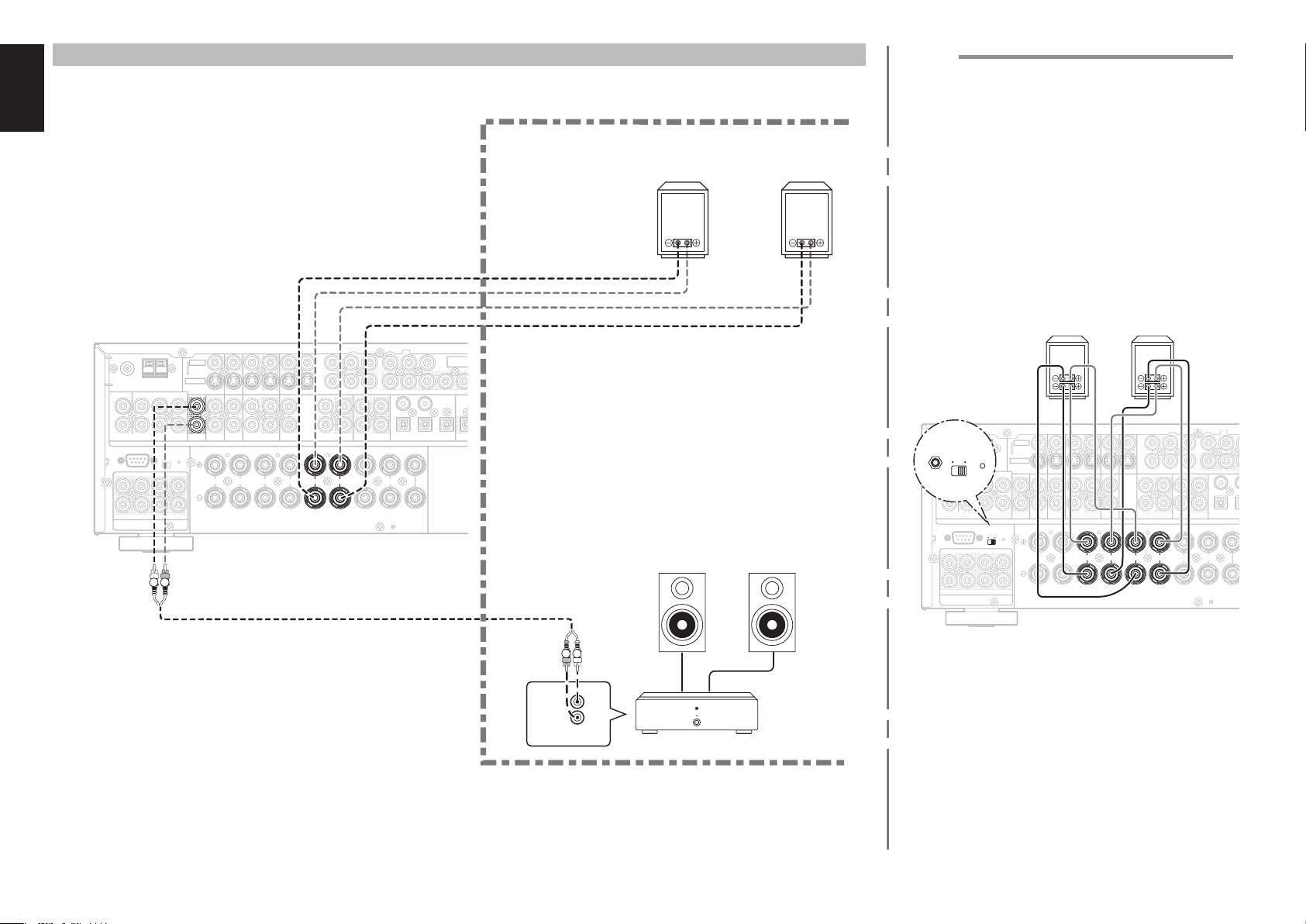
ENGLISH
PT
L OUT
BB
NENT
EO
AC OUTLET
230V 50/60Hz
SWITCHED
0.65A 150W
R
IN
OUT
REMOTE CONT.
OPT
DIGITAL OUT
C
R
/
P
R
C
R
/
PRC
B
/
P
B
Y
ITAL IN
INPUT
3
MONITOR
OUT 2
INPUT 3 OUTPUT
MODEL NO. SR5002
FLASHERINDC
TRIGGER
E
ER
MS
INPUT 2INPUT 1
HDMI Ver 1.1
COMPONENT
VIDEO
AC IN
CONNECTING FOR THE MULTI ROOM (SR5002 only)
(Multi room speaker B)
RIGHT
SPEAKER
LEFT
SPEAKER
CONNECTING FOR SPEAKER C USE (SR5002 only)
Bi-amp Connection
A bi-amp connection is possible with speakers that
have two sets of inputs (for treble and bass).
This allows you to drive the treble and bass units
with separate channel amps, which enables better
sound quality. Connect the speakers as shown in the
fi gure. Set the SPEAKER C selector switch on the
rear panel to ON.
Notes:
• If incorrectly connected, a protective circuit in the
SR5002 will trip and set the SR5002 to standby.
(The STANDBY indicator will fl ash.) In such case,
recheck the connections between the speakers and
the SR5002.
• Turn power to the SR5002 off before changing the
setting of the SPEAKER C selector switch.
24
FM FM ((7575))GNDGND AMAM
ANTENNAANTENNA
LL SLSL CC SBLSBL
LL
LL
RR
RR
RR SRSR SWSW SBRSBR
((
AUX2AUX2)) 7.1CH INPUT 7.1CH INPUT
RS-232CRS-232C SPEAKER CSPEAKER C
SLSL SBLSBLLL
RR SRSRCCSWSW SBRSBR
PRE OUTPRE OUT
OFFOFF ONON
L R
VIDEOVIDEO
S-VIDEOS-VIDEO
MULTI.MULTI.
MULTI.MULTI.
OUTOUT
OUTOUT
RR
FRONTFRONT B B FRONTFRONT A A
FRONT A OR B.CENTER.FRONT A OR B.CENTER.
FRONT A + B : 8 OHMSFRONT A + B : 8 OHMS
ININ OUTOUT
LL LL LLLLRR
INPUTINPUT
11
INPUTINPUT
22
YYDSSDSSTVTV DVDDVD VCR INVCR IN VCR OUTVCR OUT
MONITOR OUTMONITOR OUT
DSSDSS
SPEAKER C/MULTI SPEAKERSPEAKER C/MULTI SPEAKER
SPEAKER C/MULTI SPEAKERSPEAKER C/MULTI SPEAKER
SURR.SURR BACK : 6-8 OHMSSURR.SURR BACK : 6-8 OHMS
SURR.SURR BACK : 6-8 OHMSSURR.SURR BACK : 6-8 OHMS
OUTOUTININ
TAPETAPEVCRVCRDVDDVDTVTV
AUDIOAUDIO
RR RR
RR
LL
SURROUND BACKSURROUND BACK
SURROUND BACKSURROUND BACK
BB
//
CC
PP
RR
BB
//
CD/CDRCD/CDR
11
PPRRCC
YY
OUTOUTININ
PP
BB
BB
//
DIGITAL INDIGITAL IN
CENTERCENTERSURROUNDSURROUND
SPEAKERSPEAKER
SYSTEMSSYSTEMS
COMPONCOMPO
INPUTINPUT
VIDEVID
33
CC
PP
YY
BB
//
CC
PPRRCC
RR
//
5544
22 3311
OPO
DIGITALDIGITA
MULTIROOM
MULTIROOM
LEFT
SPEAKER
MULTIROOM
RIGHT
SPEAKER
SPEAKER CSPEAKER C
OFFOFF ONON
FM FM ((7575))GNDGND AMAM
ANTENNAANTENNA
LL SLSL CC SBLSBL
LL
RR
RR SRSR SWSW SBRSBR
((
AUX2AUX2)) 7.1CH INPUT 7.1CH INPUT
RS-232CRS-232C SPEAKER CSPEAKER C
SLSL SBLSBLLL
RR SRSRCCSWSW SBRSBR
PRE OUTPRE OUT
SPEAKER CSPEAKER C
OFFOFF ONON
OFFOFF ONON
VIDEOVIDEO
S-VIDEOS-VIDEO
MULTI.MULTI.
OUTOUT
RR
FRONTFRONT B B FRONTFRONT A A
FRONT A OR B.CENTER.FRONT A OR B.CENTER.
FRONT A + B : 8 OHMSFRONT A + B : 8 OHMS
ININ OUTOUT
LL LL LLLLRR
FRONTFRONT A A
INPUTINPUT
11
INPUTINPUT
22
YYDSSDSSTVTV DVDDVD VCR INVCR IN VCR OUTVCR OUT
MONITOR OUTMONITOR OUT
OUTOUTININ
TAPETAPEVCRVCRDVDDVDTVTV
DSSDSS
AUDIOAUDIO
RR RR
RR
LLLLRR
SURROUND BACKSURROUND BACK
SURROUND BACKSURROUND BACK
SPEAKER C/MULTI SPEAKERSPEAKER C/MULTI SPEAKER
SPEAKER C/MULTI SPEAKERSPEAKER C/MULTI SPEAKER
SURR.SURR BACK : 6-8 OHMSSURR.SURR BACK : 6-8 OHMS
SURR.SURR BACK : 6-8 OHMSSURR.SURR BACK : 6-8 OHMS
11
YY
CC
PP
CC
PPRRCC
PP
//
BB
BB
//
RR
CD/CDRCD/CDR
SURROUNDSURROUND
//
BB
BB
5544
22311
OUTOUTININ
DIGDIG
CENTERCENTE
SPEAK
SPEAK
SYSTEMSYSTE
R L
L
R
FRONT
MAIN AMP
(For multiroom)
Note:
You can use surround back speaker terminals as multi
room speaker terminals when you use no surround
back speaker.
Page 29

CONNECTING OTHER EQUIPMENT
a ds
FM FM ((7575))GNDGND AMAM
ANTENNAANTENNA
LL SLSL CC SBLSBL
LL
RR
RR SRSR SWSW SBRSBR
((
AUX2AUX2)) 7.1CH INPUT 7.1CH INPUT
RS-232CRS-232C
RS-232CRS-232C SPEAKER CSPEAKER C
SLSL SBLSBLLL
RR SRSRCCSWSW SBRSBR
PRE OUTPRE OUT
OFFOFF ONON
VIDEOVIDEO
S-VIDEOS-VIDEO
MULTI.MULTI.
OUTOUT
RR
FRONTFRONT B B FRONTFRONT A A
FRONT A OR B.CENTER.FRONT A OR B.CENTER.
FRONT A + B : 8 OHMSFRONT A + B : 8 OHMS
ININ OUTOUT
LL LL LLLLRR
INPUTINPUT
11
INPUTINPUT
22
YYDSSDSSTVTV DVDDVD VCR INVCR IN VCR OUTVCR OUT
MONITOR OUTMONITOR OUT
OUTOUTININ
TAPETAPEVCRVCRDVDDVDTVTV
DSSDSS
AUDIOAUDIO
RR RR
SURROUND BACKSURROUND BACK
SPEAKER C/MULTI SPEAKERSPEAKER C/MULTI SPEAKER
SURR.SURR BACK : 6-8 OHMSSURR.SURR BACK : 6-8 OHMS
11
//
//
YY
RR
BB
BB
CC
PPRRCC
PP
OUTOUTININ
CD/CDRCD/CDR
//
BB
BB
PP
CENTERCENTERSURROUNDSURROUND
SPEAKERSPEAKER
SYSTEMSSYSTEMS
5544
22 3311
DIGITAL INDIGITAL IN
COMPONENTCOMPONENT
INPUTINPUT
VIDEOVIDEO
33
PP
BB
BB
YY
//
//
RR
CC
PPRRCC
OPTOPT
DIGITAL OUTDIGITAL OUT
230V 50/60Hz230V 50/60Hz
a RS232C
Connect an external control device or other device for
servicing. (Use a straight cable for the connection.)
s DC OUT (DC TRIGGER)
External devices can be controlled from the SR5002
by connecting them to the DC OUT terminal (12 V).
(See page 30)
d FLASHER IN
This unit can be controlled by connecting a control
box or other control device to this unit.
MONITORMONITOR
CC
PPRRCC
RR
//
ININ
OUTOUT
REMOTE CONT.REMOTE CONT.
AC OUTLETAC OUTLET
SWITCHEDSWITCHED
0.65A 150W0.65A 150W
ENGLISH
HDMI Ver 1.1HDMI Ver 1.1
OUT 2OUT 2
FLASHERFLASHER
FLASHERFLASHER
INPUT 2INPUT 2INPUT 1INPUT 1
INPUT 3INPUT 3 OUTPUTOUTPUT
DCDC
DCDC
ININ
ININ
TRIGGERTRIGGER
TRIGGERTRIGGER
AC INAC IN
MODEL NO. SR5002MODEL NO. SR5002
25
Page 30
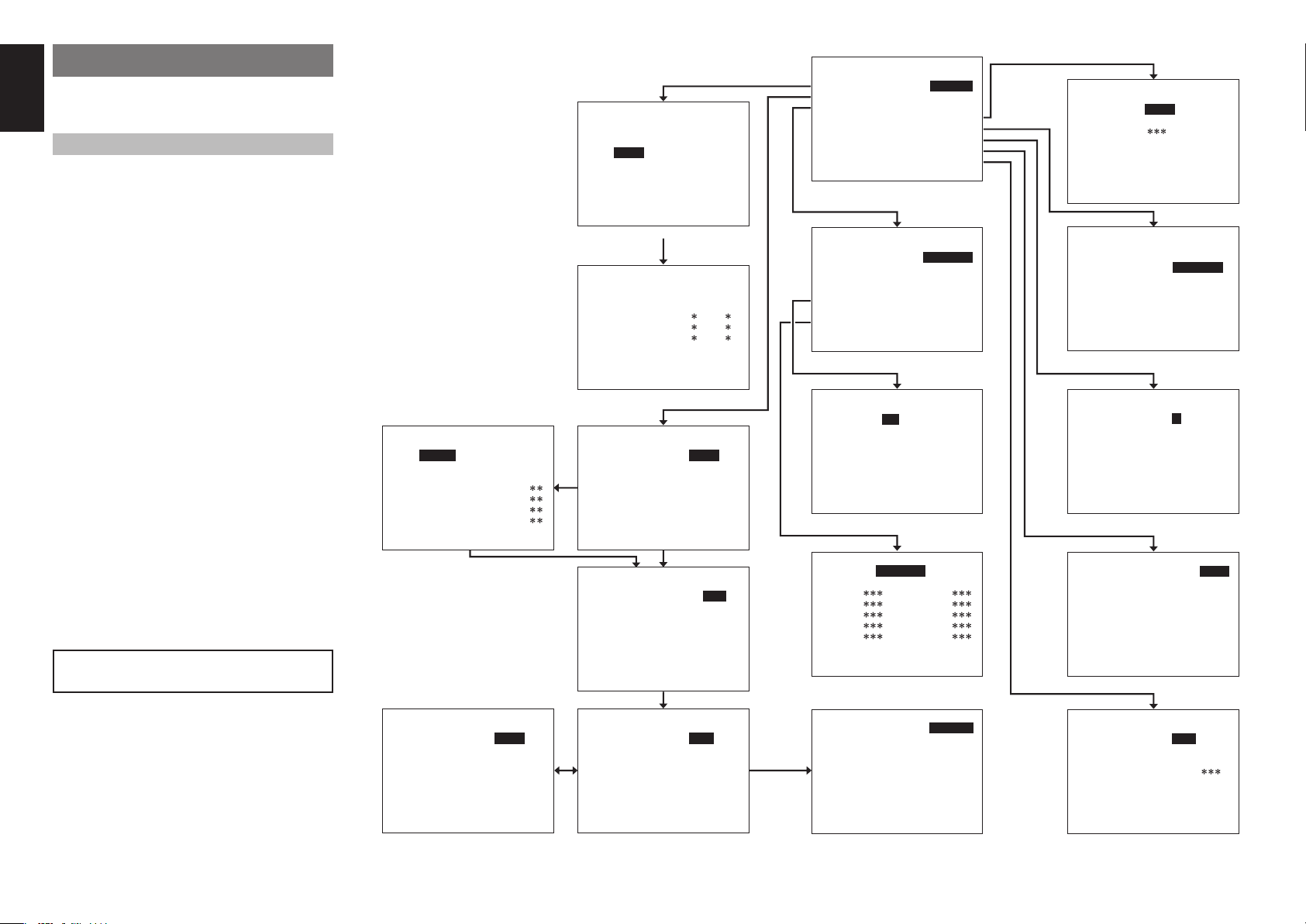
ENGLISH
SETUP
After all components are connected, initial setup
must be performed.
ON SCREEN DISPLAY MENU SYSTEM
This unit incorporates an on-screen menu system,
which makes various operations possible by using
the cursor (3, 4, 1, 2) and ENTER buttons on the
remote control or on the front panel.
Note:
To view the on-screen displays, make certain you have
made a connection from the Monitor Out jack on the
rear panel to the composite, S-Video, component video
input of your TV or projector. (see page20)
1. Press the AMP button of the remote
controller.(This step is not needed when
operating the setup menus from the unit itself.)
2. Press the MENU button on the remote controller
or set to display the “SETUP MAIN MENU” of
the OSD menu system.
There are 8 items in the SETUP MAIN MENU.
3. Select a desired sub-menu with the
cursor buttons, and press the ENTER button to
enter. The display will change to the selected
sub-menu. You can lock the condition of setup
to each sub-menu with the
buttons.
Note:
If you desire to adjust any sub-menu, you need to set
it to UNLOCKED.
If you desire to exit from this menu system,
4.
press the EXIT button, or move the cursor to
EXIT and press the ENTER button.
When only HDMI components are connected, the
OSD menu will not be displayed on the screen.
1 or 2
3 or 4
or cursor
SETUP MAIN MENU
1. INPUT SETUP :UNLOCK
2. SPEAKER SETUP:UNLOCK
1-1 INPUT SETUP
FUNC:MODE :DIG:HDMI:COMP
-----------------------TV :AUTO : 5 : - : DVD :AUTO : 1 : 1 : 1
VCR :AUTO : 3 : 3 : 3
DSS :AUTO : 2 : 2 : 2
AUX1:AUTO : F : - : -
MAIN NEXT EXIT
* For the SR4002, “–” is displayed for TV DIG
and VCR HDMI.
1-2 INPUT SETUP
FUNC:MODE :DIG:HDMI:COMP
-----------------------TAPE:AUTO : - : :
CD/R:AUTO : 4 : :
AUX2:AUTO : - : :
MAIN RETURN EXIT
AUTO SETUP
START CANCEL
SPEAKERS CHECK :
SPEAKERS LEVEL :
SPEAKERS DISTANCE :
SPEAKERS SIZE :
MAIN RETURN NEXT EXIT
2-3 SPEAKERS DISTANCE
DISTANCE UNIT : ft
FRONT L : 10.0 ft
FRONT R : 10.0 ft
CENTER : 10.0 ft
SURR.L : 10.0 ft
SURR.R : 10.0 ft
SUB W : 10.0 ft
SURR.B L : 10.0 ft
SURR.B R : 10.0 ft
MAIN RETURN NEXT EXIT
AUTO
2-1 SPEAKER SETUP
SPEAKER SETUP : AUTO
SET MICROPHONE
MAIN NEXT EXIT
2-2 SPEAKERS SIZE
SUBWOOFER : YES
FRONT L/R : LARGE
CENTER : SMALL
SURROUND L/R : SMALL
SURR.BACK : 2CH
SURR.BACK SIZE : SMALL
LPF/HPF : 100Hz
BASS MIX : BOTH
MAIN NEXT EXIT
2-3 SPEAKERS DISTANCE
DISTANCE UNIT : m
FRONT L : 3.0 m
FRONT R : 3.0 m
CENTER : 3.0 m
SURR.L : 3.0 m
SURR.R : 3.0 m
SUB W : 3.0 m
SURR.B L : 3.0 m
SURR.B R : 3.0 m
MAIN RETURN NEXT EXIT
MANUAL
3. PREFERENCE :UNLOCK
4. SURROUND :UNLOCK
5. PLIIx MUSIC :UNLOCK
6. CSII :UNLOCK
7. 7.1 CH. INPUT:UNLOCK
8. MULTI ROOM :UNLOCK
EXIT
* “8. MULTI ROOM” is displayed only with
the SR5002.
3 PREFERENCE
STANDBY MODE : ECONOMY
TV-AUTO : DISABLE
OSD INFO : ENABLE
BILINGUAL : MAIN
VIDEO CONVERT
HDMI : ENABLE
DC TRIGGER
MAIN EXIT
* “DC TRIGGER” is displayed only with the SR5002.
3-1 VIDEO CONVERT
TV : ON
DVD : ON
VCR : ON
DSS : ON
AUX1 : ON
MAIN RETURN EXIT
SR5002 only
3-2 DC TIRGGER SETUP
DC TRIG DISABLE
TV : TAPE :
DVD : CD/R :
VCR : AUX2 :
DSS : TUNER:
AUX1 : 7.1CH:
MAIN RETURN EXIT
2-4 SPEAKERS LEVEL
TEST MODE : MANUAL
FRONT L : 0 dB
CENTER : 0 dB
FRONT R : 0 dB
SURR.R : 0 dB
SURR.B R : 0 dB
SURR.B L : 0 dB
SURR.L : 0 dB
SUB W : 0 dB
MAIN RETURN EXIT
4 SURROUND
SURR.MODE :AUTO
HT-EQ :OFF
LFE LEVEL :
MAIN EXIT
5 PLIIx MUSIC PARAMETER
PARAMETER : DEFAULT
PANORAMA : OFF
DEMENSION : 0
CENTER WIDTH : 3
MAIN EXIT
6 CSII PARAMETER
TRUBASS : 0
SRS DIALOG : 0
MAIN EXIT
7 7.1 CH. INPUT LEVEL
VIDEO-IN : LAST
FRONT L : 0 dB
CENTER : 0 dB
FRONT R : 0 dB
SURR.R : 0 dB
SURR.B R : 0 dB
SURR.B L : 0 dB
SURR.L : 0 dB
SUB W : 0 dB
MAIN EXIT
SR5002 only
8 MULTI ROOM
AUDIO : DVD
SLEEP TIMER : OFF
MULTI:OUT : STEREO
MULTI:OFF MSPK :
VOL : VARI
LEVEL : -90dB
--- MAIN ROOM STATUS --VIDEO:DVD AUDIO:DVD
MAIN EXIT
26
Page 31
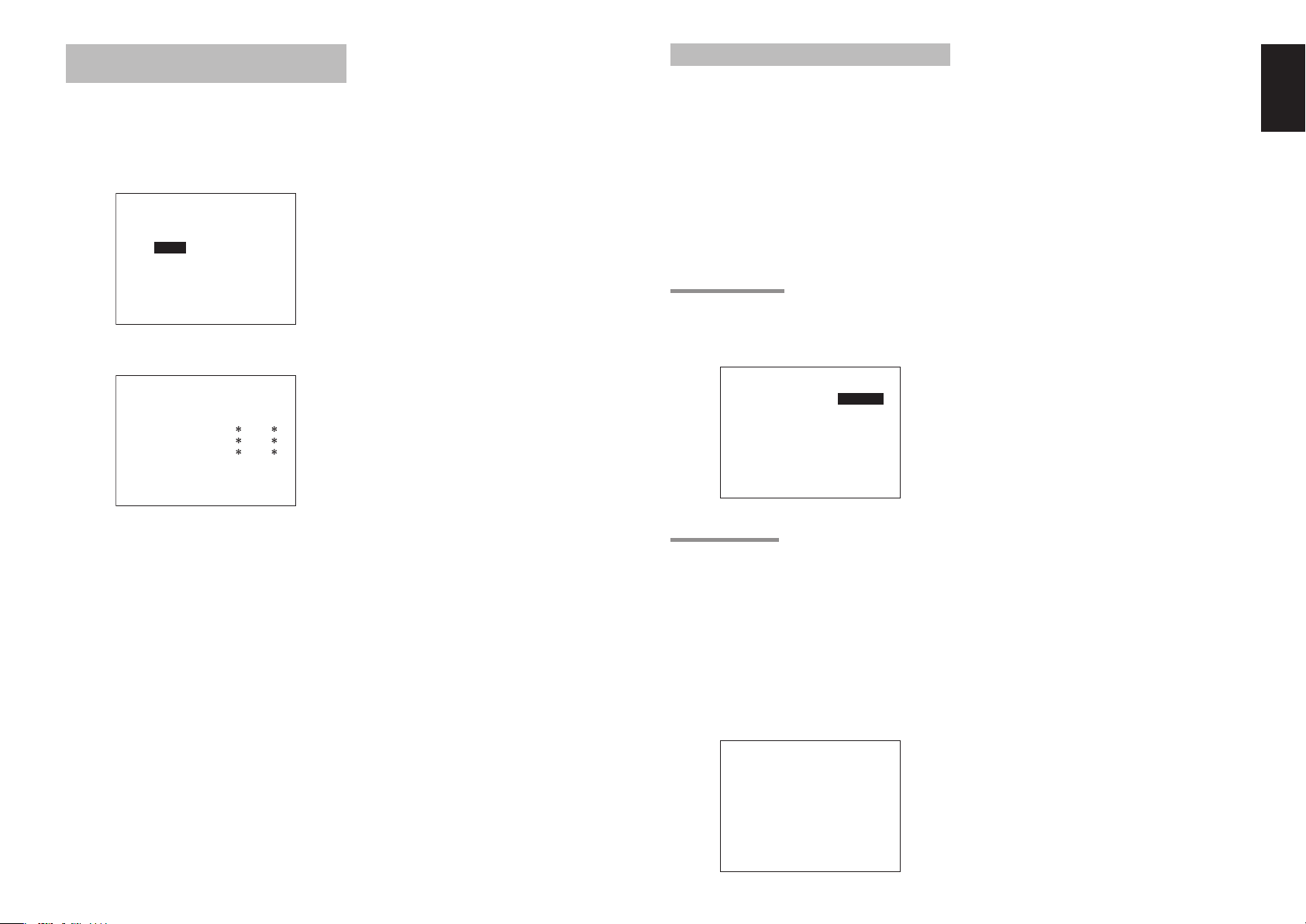
1 INPUT SETUP (ASSIGNABLE DIGITAL
INPUT AND COMPONENT VIDEO INPUT)
Use this menu to select the input jack to be assigned
to the input source.
1. Select “INPUT SETUP” in SETUP MAIN
MENU with 3 or 4 cursor button, and press the
ENTER button.
1-1 INPUT SETUP
FUNC:MODE :DIG:HDMI:COMP
-----------------------TV :AUTO : 5 : - : DVD :AUTO : 1 : 1 : 1
VCR :AUTO : 3 : 3 : 3
DSS :AUTO : 2 : 2 : 2
AUX1:AUTO : F : - : -
MAIN NEXT EXIT
* For the SR4002, “–” is displayed for TV DIG
and VCR HDMI.
1-2 INPUT SETUP
FUNC:MODE :DIG:HDMI:COMP
-----------------------TAPE:AUTO : - : :
CD/R:AUTO : 4 : :
AUX2:AUTO : - : :
MAIN RETURN EXIT
To select the input source and MODE, press
2.
the 3 or 4 cursor buttons.
To select
3.
jack, press the 1 or 2 cursor buttons.
Select “AUTO” for input sources, for automatic
detection of the digital input signal condition.
If there is not a digital signal present, but there
is an analog signal present, the analog signal
will be played.
Select “DIG”, when only a digital signal will be
used.
no digital input jacks are used.
To select the vdieo source, select “HDMI” or
4.
“COMP” by pressing the 3 or 4 cursor buttons,
and press the 1 or 2 cursor buttons to select
the vdieo source to be assigned .
5. After you complete this portion of the set up,
move the cursor to MAIN with the 3 or 4 cursor
buttons and press the ENTER button.
“DIG”
“HDMI” or “COMP” for the input
Select “ANA” for input sources for which
Notes:
• When the TUNER is fi xed to the analog input, you
can not select any digital input.
• When a DTS-LD or DTS-CD is playing, this setup is
not available. This is to avoid noise being generated
from the analog input.
• If “AUTO” is selected and a DVD, compact disc
or LD is fast-forwarded during playback, decoded
signals may produce a skipping sound. In such cases,
change the setting to “DIG”.
2 SPEAKER SETUP
After you have installed the unit, connected all the
components, and determined the speaker layout, it
is now time to perform the settings in the Speaker
Setup menu for the optimum sound acoustics for
your environment and speaker layout.
Before you perform the following settings, it is
important that you first determine the following
characteristics:
1. Select “SPEAKER SETUP” in SETUP MAIN
MENU with 3 or 4 cursor button, and press the
ENTER button.
2-1 SPEAKER SETUP
Speakers are set up by selecting either MANUAL
or AUTO using the 1 and 2 cursor buttons. For
operation when AUTO has been selected, see
MRAC on page 29.
2-1 SPEAKER SETUP
SPEAKER SETUP : MANUAL
MAIN NEXT EXIT
2-2 SPEAKERS SIZE
When setting the speaker size in the SPEAKER SIZE
sub-menu, use the guidelines given below.
LARGE:
The complete frequency range for the channel you
are setting will be output from the speaker.
SMALL:
Frequencies of the channel you are setting lower
than approx. 100 Hz will be output from the
subwoofer.
If the Subwoofer is set to “NONE”, the setting of
the front speakers will be fi xed to “LARGE,” and
the sound will be output from both the left and
right speakers.
2-2 SPEAKERS SIZE
SUBWOOFER : YES
FRONT L/R : LARGE
CENTER : SMALL
SURROUND L/R : SMALL
SURR.BACK : 2CH
SURR.BACK SIZE : SMALL
LPF/HPF : 100Hz
BASS MIX : BOTH
MAIN NEXT EXIT
1. To select the each speaker, press the 3 or 4
cursor buttons.
To select the setting of each speaker size,
2.
press the 1 or 2 cursor buttons.
3. After you complete this portion of the set up,
move the cursor to “NEXT” with the 3 or 4
cursor buttons and then press the ENTER
button to go to the next page.
SUBWOOFER:
YES:
Select when a subwoofer is connected.
NONE:
Select when a subwoofer is not connected.
FRONT L/R
LARGE:
Select if the front speakers are large.
SMALL:
Select if the front speakers are small.
• If “NONE” is selected for the Subwoofer setting,
then this setting is fi xed to “LARGE.”
CENTER
NONE:
Select if no center speaker is connected.
LARGE:
Select if the center speaker is large.
SMALL:
Select if the center speaker is small.
SURROUND L/R
NONE:
Select if no surround left and right speakers are
connected.
LARGE:
Select if the surround left and right speakers are
large.
SMALL:
Select if the surround left and right speakers are
small.
SURR. BACK
NONE:
Select if no surround back left and right speakers
are connected.
2CH:
Select if the surround back left and right speakers
are connected.
1CH:
Select if the one surround back speaker is
connected.
In this case, the audio signal is emitted form the
Surround back L output terminal.
ENGLISH
27
Page 32
ENGLISH
Notes:
• If “NONE” is selected for the Surround L/R setting,
then this setting is fi xed to “NONE.”
• You can use surround back speaker terminals as
multi room speaker terminals when you use no
surround back speaker. (See page 22)
SURR. BACK SIZE
LARGE:
Select if the surround back speaker is large.
SMALL:
Select if the surround back speaker is small.
Note:
If “NONE” is selected for the Surround L/R setting,
then this setting is not available.
LPF/HPF
When you use a subwoofer, you can select the cutoff
frequency for the small speakers used. Select one of
the crossover frequency levels according to the size
of the small speaker connected.
80Hz → 100Hz → 120Hz → 150Hz → 180Hz
Notes:
• If using small front speakers, set a slightly higher
frequency. If using large front speakers, set a slightly
lower frequency.
• If Pure-Direct mode, 7.1CH Input is in use, this
function does not take effect.
BASS MIX
• The bass mix setting is only valid when “LARGE”
is set for the front speakers and “YES” is set for the
subwoofer during stereo playback .
This setting has effect only during playback of
PCM or analog stereo sources.
• When “BOTH” is selected, the low frequencies will
be played through the main L&R, as well as the
sub woofer.
In this playback mode, the low frequency range
expand more uniformly through the room, but
depending on the size and shape of the room,
interference may result in a decrease of the actual
volume of the low frequency range.
• By selecting “MIX”, the low frequencies will play
through the main L&R ONLY.
Note:
LFE signals during playback of Dolby Digital or DTS,
will be played through the sub woofer.
2-3 SPEAKERS DISTANCE
Use this parameter to specify the distance of each
speaker’s position from the listening position. The
delay time is automatically calculated according to
these distances.
Begin by determining the ideal or most commonly
used seating position in the room.
This is important for the timing of the acoustics to
create the proper sound space that the unit and
today’s sound systems are able to produce.
Note:
For speakers that you have selected “NONE” the
Speaker Configuration sub-menu will not appear
here. (There are several useful books and special
DVD and LD’s available to guide you through proper
home theater confi guration. If you are unsure, have
your Marantz dealer perform the installation for you.
They are trained professionals familiar with even
the most sophisticated custom installations. Marantz
recommends the WWW.CEDIA.ORG website for
further information about this).
2-3 SPEAKERS DISTANCE
DISTANCE UNIT : m
FRONT L : 3.0 m
FRONT R : 3.0 m
CENTER : 3.0 m
SURR.L : 3.0 m
SURR.R : 3.0 m
SUB W : 3.0 m
SURR.B L : 3.0 m
SURR.B R : 3.0 m
MAIN RETURN NEXT EXIT
1. To select each speaker , press the 3 or 4
cursor buttons.
2. To set the distance for each speaker , press the
1 or 2 cursor buttons.
3. After you complete this portion of the set up,
move the cursor to “NEXT” with the 3 or 4
cursor buttons and then press the ENTER
button to go to the next page.
FRONT L:
Set the distance from the front left speaker to your
normal listening position.
CENTER:
Set the distance from the center speaker to your
normal listening position.
FRONT R:
Set the distance from the front right speaker to
your normal listening position.
SURR. L:
Set the distance from the surround left speaker to
your normal listening position.
SURR. R:
Set the distance from the surround right speaker
to your normal listening position.
SUB W:
Set the distance from the subwoofer to your
normal listening position.
SURR. B L:
Set the distance from the surround back left
speaker to your normal listening position.
SURR. B R:
Set the distance from the surround back right
speaker to your normal listening position.
Notes:
• Set the distance to each speaker in meters (m) or feet
(ft) as follows.
m: 0.1 - 9 m in 0.1 m steps
ft: 0.3 - 30 ft in 0.3 ft steps
• For the speakers that you have selected “NONE” the
Speaker Size menu will not appear.
• The setting for Surr.Back L and Surr.Back R appears
if you set for it to, two surround back speakers in the
Speaker Size menu.
• The setting of Surr.Back appears if it is set for one
surround back speaker in the Speaker Size menu.
2-4. SPEAKERS LEVEL SETTING WITH TEST TONE
Here you will set the volume for each speaker so that
they are all heard by the listener at the same level.
We recommend using a SPL (Sound Pressure Level)
meter, when available.
Note:
The speaker level settings are not available in 7.1
Channel Input mode, CS mode and Multi Channel
Stereo mode.
2-4 SPEAKERS LEVEL
TEST MODE : MANUAL
FRONT L : 0 dB
CENTER : 0 dB
FRONT R : 0 dB
SURR.R : 0 dB
SURR.B R : 0 dB
SURR.B L : 0 dB
SURR.L : 0 dB
SUB W : 0 dB
MAIN RETURN EXIT
TEST MODE :
Selects “MANUAL” or “AUTO” for generating
the mode of the test tone with the 1 or 2 cursor
buttons.
If you select “AUTO” , the test tone will be cycled
through in a circular pattern which is Left → Center →
Right → Surround Right → Surround Back Right →
Surround Back Left → Surround Left → Subwoofer
→ Left → .. increments of 2 seconds
for each channel.
Using the 1 or 2 cursor buttons, adjust the volume
level of the noise from the speaker so that it is the
same level for all the speakers.
If you select “MANUAL”, adjust the output level of
each speaker as listed below.
1. When you move the cursor to FRONT L by
pressing the 4 cursor button, the unit will emit
a pink noise from the front left speaker.
Remember the level of this noise and then
press the 4 cursor button.
(Note that this can be adjusted to any level
between -10 and +10 dB in 1 dB intervals
except the subwoofer setting. The subwoofer
can be adjusted to any level between -15 and
+10 dB in 1 dB intervals.)
The unit will now emit the pink noise from the
center speaker.
Using the 1 and 2 cursor buttons, adjust the
2.
volume level of the noise from the center
speaker so that it is the same level as the front
left speaker.
3. Press the 4 cursor button again. The unit will
now emit the pink noise from the front right
speaker.
Repeat steps 2 and 3 above for the front
4.
right and other speakers until all speakers are
adjusted to the same volume level.
After you complete this portion of the set up, press
the ENTER button, the cursor will move to “MAIN”
and then press the ENTER button to go to SETUP
MAIN MENU.
Notes:
• Speakers that you selected “NONE” for in the
Speaker Size menu will not appear.
• The setting of Surr.Back L and Surr.Back R appears
if you have set it for two surround back speakers in
the Speaker Size menu.
•
The setting of Surr.Back appears if you have set it for
one surround back speaker in the Speaker Size menu.
• To adjust the speaker levels for 7.1-channel input
sources, you will need to use the 7.1CH-INPUT sub
menu. (See page 31).
28
Page 33

MRAC (Marantz Room Acoustic Calibration)
Speaker settings that were diffi cult by MANUAL setup can now be made by automatically measuring speaker
characteristics using the including microphone.
2-1 SPEAKER SETUP
SPEAKER SETUP : AUTO
SET MICROPHONE
MAIN NEXT EXIT
AUTO SETUP
START CANCEL
SPEAKERS CHECK :
SPEAKERS LEVEL :
SPEAKERS DISTANCE :
SPEAKERS SIZE :
MAIN RETURN EXIT
AUTO SETUP
START CANCEL
AMBIENT NOISE CHK
SPEAKERS CHECK :
SPEAKERS LEVEL :
SPEAKERS DISTANCE :
SPEAKERS SIZE :
MAIN RETURN EXIT
AUTO SETUP
START CANCEL
AMBIENT NOISE OK
&&&&&&&&&&&&&&&&
SPEAKERS CHECK :
SPEAKERS LEVEL :
SPEAKERS DISTANCE :
SPEAKERS SIZE :
MAIN RETURN EXIT
AUTO SETUP
START CANCEL
NOW ANALYZING
&&&&&&&&&&&&&&&&
>
SPEAKERS CHECK :
SPEAKERS LEVEL :
SPEAKERS DISTANCE :
SPEAKERS SIZE :
MAIN RETURN EXIT
AUTO SETUP
START CANCEL
FINISHED
SPEAKERS CHECK : OK
SPEAKERS LEVEL : OK
SPEAKERS DISTANCE : OK
SPEAKERS SIZE : OK
MAIN RETURN NEXT EXIT
NG
NG
NG
AUTO SETUP
START CANCEL
MIC SETUP ERROR
SPEAKERS CHECK :
SPEAKERS LEVEL :
SPEAKERS DISTANCE :
SPEAKERS SIZE :
MAIN RETURN NEXT EXIT
AUTO SETUP
START CANCEL
AMBI NOISE ERROR
SPEAKERS CHECK :
SPEAKERS LEVEL :
SPEAKERS DISTANCE :
SPEAKERS SIZE :
MAIN RETURN NEXT EXIT
AUTO SETUP
START CANCEL
SPEAKER SET ERROR
SPEAKERS CHECK :
SPEAKERS LEVEL :
SPEAKERS DISTANCE :
SPEAKERS SIZE :
MAIN RETURN NEXT EXIT
Measurement
During measurement, a test tone is output from the
speakers, which is then measured and analyzed
though the microphone. The measurement fl ow and
items are as follows.
Microphone connection check: MIC CHECK
Ambient noise measurement: AMBIENT NOISE
Speaker connected/not connected check:
SPEAKER CHECK
Speaker output level check: SPEAKER LEVEL
Distance from speaker (delay time) check:
SPEAKER DISTANCE
Speaker characteristics check: SPEAKER SIZE
How to Operate
Settings are displayed on the monitor during setup,
therefore turn the monitor on.
Connect the included microphone to the MRAC
1.
jack of the unit.
AV SURROUND RECEIVER SR5002
INPUT SELECTOR
SIMPLE
PURE
SURROUND
MULTI
SPEAKER
MULTI
STANDBY
SETUP MIC
PHONES
POWER ON/OFF
SETUP
MEMORY
DISPLAY
DIRECT
MODE
ENTER
AUTO
HT-EQ
EXIT
MENU
BAND
VOLUME
UP
DOWN
CLEAR
T-MODE
ATT
MUTE
AUX 1 INPUT
DIGITAL
RLVIDEO
S-VIDEO
AUDIO
2. Set the microphone at ear height as in the
actual listening position. Use a stand or tripod
to position the microphone.
Notes:
• Remove any obstructions between the speakers and
the microphone.
• Keep the room quiet during measurement.
• The test tone emitted during measurement is loud.
Take considerations for neighboring homes and
children.
• Step away from the listening position during
measurement and operate the unit with the remote
controller from outside the speaker path.
• About surround back speakers :
When the surround back speaker is set to NONE in
the SPEAKER SETUP, it is skipped in the AUTO
setup. To use the surround back speaker, set it to
YES by MANUAL setup before using the MRAC
feature.
• The MRAC feature is available except in the
following modes.
- 7.1 CH INPUT
- PURE-DIRECT
- SOURCE DIRECT
Select “2. SPEAKER SETUP” on the SETUP
3.
MAIN MENU, then select AUTO for “21 SPEAKER SETUP”. Move the cursor to
“NEXT” with the 3 or 4 cursor buttons and then
press the ENTER button.
2-1 SPEAKER SETUP
SPEAKER SETUP : AUTO
SET MICROPHONE
MAIN NEXT EXIT
4. Select START on the AUTO SETUP display
and press the ENTER button to start
measurements.
AUTO SETUP
START CANCEL
SPEAKERS CHECK :
SPEAKERS LEVEL :
SPEAKERS DISTANCE :
SPEAKERS SIZE :
MAIN RETURN NEXT EXIT
5. For measurement items, see “Measurement”.
When measurements are completed,
6.
“FINISHED” appears on the monitor.
Once finished, disconnect the microphone
7.
from the unit.
8. Measurement results can be seen by selecting
“NEXT” and press the ENTER button or
selecting “2. SPEAKER SETUP” on the SETUP
MAIN MENU. Then select MANUAL for “2-1
SPEAKER SETUP”.
ENGLISH
29
Page 34

ENGLISH
Notes:
• If MRAC is started with both speaker settings A
and B off, it will enter CANCEL mode without
displaying an ERROR on the screen. When this
happens, check the SPEAKER setting.
• The measured speaker distance may differ from the
actual distance from speakers. Nevertheless, the
measured value is suitable for the speakers.
• To make changes to individual speakers, select 2.
SPEAKER SETUP on the SETUP MAIN MENU,
then select MANUAL for 2-1 SPEAKER SETUP.
• The included microphone is designed specifi cally for
this receiver. Other microphones do not guarantee
suitable measurement results. Use the included
microphone to conduct measurements.
• During measurement, press the ENTER or EXIT
button to cancel measurement.
• In some rooms, an error may occur during auto
speaker setup or it may not be possible to set Speaker
distance correctly because of room acoustics. In
such case, set the speaker distance by MANUAL
setup.
• Please set any THX Certifi ed speakers manually
to “Small” and the crossover to “80 Hz” after Auto
setup operation.
• When only HDMI components are connected, OSD
will not be displayed.
Error Indications During Measurement
If trouble occurs during measurement, an error
message is displayed on the monitor screen and
FL display. Those errors and their remedies are
described below. The message appearing on the FL
display is given in ( ).
MIC SETUP ERROR (MIC SET ERROR)
The microphone (MC-10) is not properly connected.
→ Check the microphone connection.
AMBI NOISE ERROR (AMBI NOISE ER)
Measurement cannot be done correctly because of
excessive ambient noise.
→ Either temporarily turn off power to noisy
devices such as air conditioning or move them
out of the room.
→ Retry measurement when the room is quiet.
SPEAKER SET ERROR (SPK SET ERROR)
The speakers are not properly connected.
→ Recheck speaker layout and connections.
3 PREFERENCE
3 PREFERENCE
STANDBY MODE : ECONOMY
TV-AUTO :
OSD INFO : ENABLE
VIDEO CONVERT
HDMI : ENABLE
DC TRIGGER
MAIN EXIT
1. Select “PREFERENCE” in the SETUP MAIN
MENU with the 3 or 4 cursor buttons, and
press the ENTER button.
To select a desired content, press the 3 or 4
2.
cursor buttons.
STANDBY MODE:
When this function is set to “ECONOMY”, you can
reduce the power consumption when the unit is in
the standby mode.
Note:
TV-AUTO and RS-232C are disabled in the
“ECONOMY” setting (SR5002 only).
TV AUTO:
Select the TV AUTO ON/OFF function to enable or
disable with the 1 or 2 cursor buttons.
OSD Info:
Select the OSD information function to enable or
disable with the 1 or 2 cursor buttons.
If you select “ENABLE”, the unit will display the
status of the feature (Volume up/down, input
select, etc..) on the TV monitor. But if you do not
desire this information, select “DISABLE”.
VIDEO CONVERT:
Select the VIDEO CONVERT function to enable or
disable with the 1 or 2 cursor buttons. (Video cable
connection: Refer to page 20)
3-1 VIDEO CONVERT
TV : ON
DVD : ON
VCR : ON
DSS : ON
AUX1 : ON
MAIN RETURN EXIT
After you complete this portion of the set up, move
the cursor to “MAIN” with the 3 or 4 cursor buttons
and press the
ENTER
button.
HDMI AUDIO:
This setting determines whether to playback audio
input to the HDMI jacks through the unit or output
it through the unit to a TV or projector.
ENABLE: The audio input to the HDMI jacks
can be played back by this unit.
In such case, audio signals are not
output to the TV or projector.
THROUGH: The audio input to the HDMI jacks
is not output from the speaker
terminals of the unit. Audio data is
output directly to the TV or projector.
This setting is used to listen to audio
on a multi channel TV, etc.
DC TRIGGER:
Select “DC TRIG SETUP” in the SETUP MAIN
MENU with 3 or 4 cursor button, and press the
ENTER button.
3-2 DC TIRGGER SETUP
DC TRIG DISABLE
TV : TAPE :
DVD : CD/R :
VCR : AUX2 :
DSS : TUNER:
AUX1 : 7.1CH:
MAIN RETURN EXIT
You can select MAIN ROOM, MULTI ROOM,
REMOTE or DISABLE by pressing 1 or 2 cursor
buttons.
Notes:
• REMOTE is available for the external control. The
RC5001SR cannot operate this function.
• To select desired input source , press 3 or 4 cursor
button.
• To set ON or OFF, press 1 or 2 cursor button.
• After you complete this portion of the set up, move
the cursor to “MAIN” with the 3 or 4 cursor
buttons and press the ENTER button.
4 SURROUND
4 SURROUND
SURR.MODE :AUTO
HT-EQ :OFF
LFE LEVEL :
MAIN EXIT
1. Select “SURROUND” in the SETUP MAIN
MENU with the 3 or 4 cursor buttons, and
press the ENTER button.
2. To select a desired content , press the 3 or 4
cursor buttons.
SURR.MODE:
Select the desired surround mode with the 1 or 2
cursor buttons.
HT-EQ:
Select to active the HT-EQ with the
buttons.
The tonal balance of a film soundtrack will be
excessively bright and harsh when played back
over audio equipment in the home. This is because
fi lm soundtracks were designed to be played back
in large movie theater environments.
Activating the HT-EQ feature when watching a fi lm
made for movie theaters corrects this and restores
the correct tonal balance.
The HT-EQ feature is available except in the
following modes.
• 7.1 CH INPUT
• PURE-DIRECT
• SOURCE DIRECT
• When VIRTUAL is set for the surround mode
LFE LEVEL:
Select the output level of the LFE signal included in
the Dolby Digital signal or the DTS signal.
Select 0 dB, -10 dB or OFF with the 1 or 2 cursor
buttons.
After you complete this portion of the set up, move
the cursor to “MAIN” with the 3 or 4 cursor buttons
and press the ENTER button.
1 or 2
cursor
30
Page 35

5 PL II (PRO LOGIC II)
MUSIC PARAMETER
Pro Logic II -Music mode creates a rich and enveloping
surround ambience from stereo sources such as
CDs.
In this mode, SR4002/SR5002 includes three controls
to fi ne-tune the soundfi eld as follows.
5 PLIIx MUSIC PARAMETER
PARAMETER : DEFAULT
PANORAMAA : OFF
DIMENSION : 0
CENTER WIDTH : 3
MAIN EXIT
Select “PL II MUSIC” in the SETUP MAIN MENU
with the 3 or 4 cursor buttons, and press the ENTER
button.
PARAMETER:
Select “DEFAULT” or “CUSTOM” with the 1 or 2
cursor buttons.
If you select “CUSTOM”, you can adjust three
parameters as listed below.
PANORAMA:
Select the Panorama mode On or Off with the
1 or 2 cursor buttons.
Panorama wraps the sound of the front left and right
speakers around you, for an exciting perspective.
DIMENSION:
Set the Dimension level between +3 and –3 level in
1 level intervals with the 1 or 2 cursor buttons.
Adjust the soundfi eld either towards the front or
towards the rear.
This can be useful to help achieve a more
suitable balance from all the speakers with certain
recordings.
CENTER WIDTH:
Set the Center width level between 0 and 7 in 1
level intervals with the 1 or 2 cursor buttons.
Center Width allows you to gradually spread the
center channel sound into the front left and right
speakers.
At its widest setting, all the sound from the center
is mixed into the left and right.
This control may help achieve a more spacious
sound or a better blend for the front image.
If “NONE” was selected for the Center speaker
setting, in the Speaker size set up menu, then this
setting will not appear.
After you complete this portion of the set up, move
cursor to “MAIN” with the 3 or 4 cursor buttons and
press the ENTER button.
6 CS II (CIRCLE SURROUND II) PARAMETER
6 CSII PARAMETER
TRUBASS : 0
SRS DIALOG : 0
MAIN EXIT
1. Select “CS II” in the SETUP MAIN MENU
with the 3 or 4 cursor buttons, and press the
ENTER button.
2. To Select desired contents as below, press the
3 or 4 cursor buttons.
TRUBASS:
Set the TRUBASS level between 0 and 6 level in 1
level interval with the 1 or 2 cursor buttons.
TRUBASS produced by the speakers are an octave
below the actual physical capabilities of the speakers
adding exciting, deeper bass effects.
SRS DIALOG:
Set the SRS DIALOG level between 0 and 6 in 1
level intervals with the 1 or 2 cursor buttons.
This can be popped out of the surround audio
effects, allowing the listener to easily discern what
the actors say.
If “NONE” was selected for the Center speaker
setting, in the Speaker size set up menu, then this
setting will not appear.
After you complete this portion of the set up, move
cursor to “MAIN” with the 3 or 4 cursor buttons and
press the
ENTER
button.
7 7.1 CH INPUT LEVEL
This sub-menu is to adjust the speaker levels for 7.1channel input sources.
Here you will adjust the volume for each channel so
that they are all heard by the listener at the same
level.
7 7.1 CH. INPUT LEVEL
VIDEO-IN : LAST
FRONT L : 0 dB
CENTER : 0 dB
FRONT R : 0 dB
SURR.R : 0 dB
SURR.B R : 0 dB
SURR.B L : 0 dB
SURR.L : 0 dB
SUB W : 0 dB
MAIN EXIT
1. Select “7.1CH INPUT” in the SETUP MAIN
MENU with the 3 or 4 cursor buttons, and
press the ENTER button.
To select “VIDEO IN”, press 3 or 4 cursor
2.
button.
3. Using the 1 or 2 cursor buttons, select the
video input source which is emitted from
Monitor out in the 7.1 CH INPUT function.
The input source is switched by pressing the
1 or 2 cursor buttons as follows;
LAST ↔ TV ↔ DVD ↔ VCR ↔ DSS ↔ AUX1
↔ V-OFF ↔ LAST ↔
Notes:
When select LAST, the source is set previous source
•
before 7.1 CH INPUT function
When select V-OFF, no signal is emitted from monitor
•
out terminal.
4. To Select desired channel , press the 3 or 4
cursor buttons.
5. Using the 1 or 2 cursor buttons, adjust the
volume level of each channel.
After you complete this portion of the set up,
6.
move the cursor to “MAIN” with the 3 or 4
cursor buttons and press the ENTER button.
Notes:
•
These settings will be memorized to 7.1CH INPUT
source.
• This feature can be directly selected with the
CH.SEL button of the remote controller.
is activated.
8 MULTI ROOM (SR5002 only)
SR5002 has features in MULTI ROOM SYSTEM
such as source selector, sleep timer, Multi Room
Speaker output and remote control.
You can set these feature in this sub-menu.
8 MULTI ROOM
AUDIO : DVD
SLEEP TIMER : OFF
MULTI:OUT : STEREO
MULTI:OFF MSPK :
VOL : VARI
LEVEL : -90dB
--- MAIN ROOM STATUS --VIDEO:DVD AUDIO:DVD
MAIN RETURN EXIT
1. Select “MULTI ROOM” in the SETUP MAIN
MENU with 3 or 4 cursor button, and press the
ENTER button.
2. To Select desired contents, press 3 or 4 cursor
button
AUDIO:
Select the audio source of the Multi-room output
with 1 or 2 cursor buttons.
SLEEP TIMER:
SLEEP timer function is available during the
multiroom is active, set the time with 1 or 2 cursor
buttons.
MULTI OUT:
To switch MULTI and MSPK outputs to either
STEREO or MONO, press 1 or 2 cursor button.
MULTI (MULTI ROOM):
To switch on the Multi-room output ON or OFF,
press 1 or 2 cursor button.
VOL (VOLUME SETUP):
Select whether the Multi-room output level is
variable or fi xed with a 1 or 2 cursor buttons.
LEVEL (VOLUME LEVEL):
Adjust the Multi-room output level with 1 or 2
cursor buttons.
MSPK (MULTI SPEAKER):
To switch on the Multi-speaker output ON or OFF,
press 1 or 2 cursor buttons.
Note:
This setting can be changed when the Surr Back is set
“NONE” in 2-1 SPEAKER SIZE menu. When this
setting is unavailable, “✽✽✽” is displayed
MAIN ROOM STATUS:
Selected input source in the main room will be
displayed.
Note:
If “VOLUME” is set to “FIXED”, the multi-room
output level cannot be adjusted from the second zone.
After you complete this portion of the set up, move
the cursor to “MAIN” with 3 or 4 cursor buttons and
press ENTER button.
ENGLISH
31
Page 36
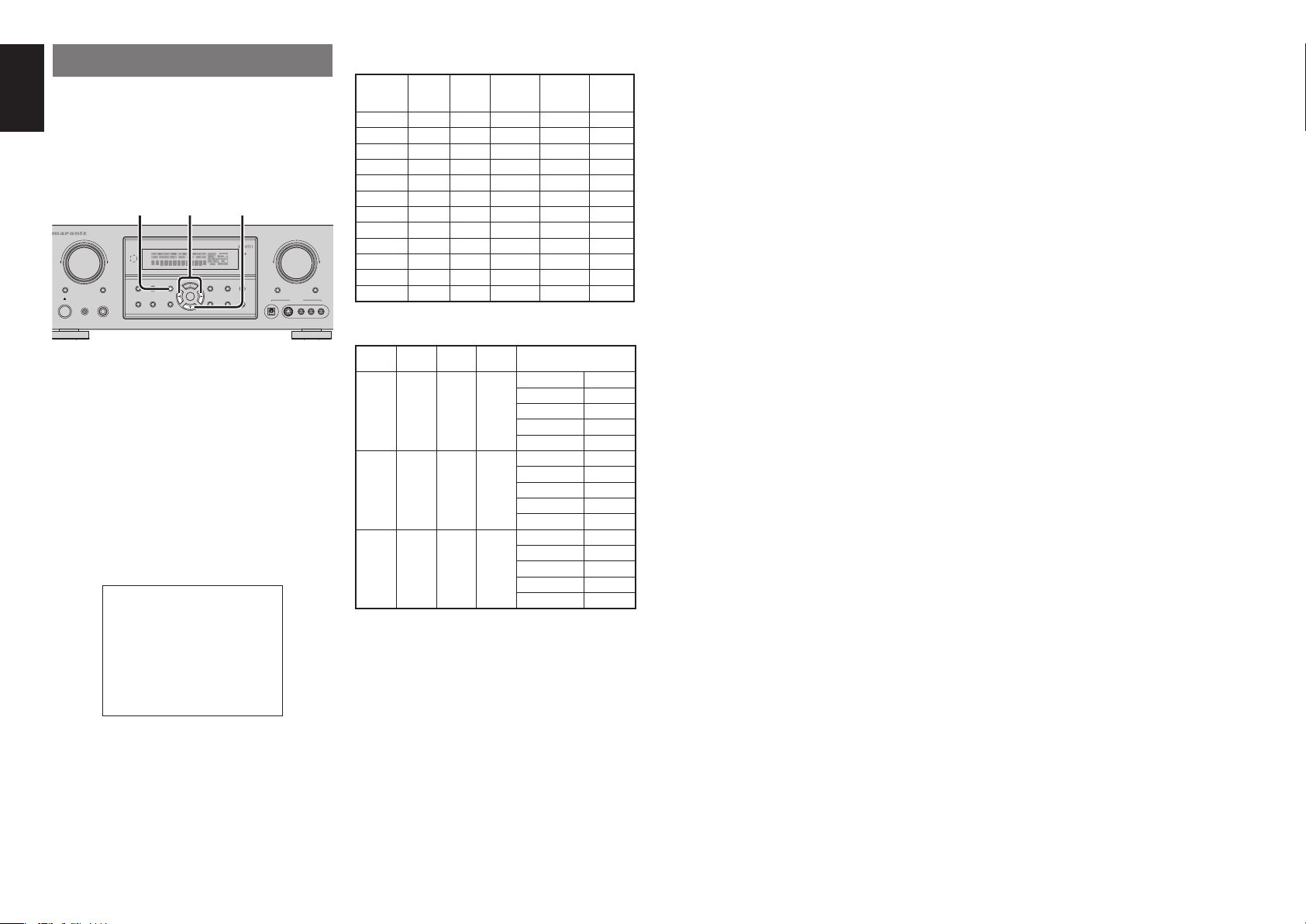
ENGLISH
SIMPLE SETUP
You can setup the speaker conditions quickly with
SIMPLE SETUP menu. In this menu, the number
of speakers and speaker delay time can be set.
These settings can be changed more detail in “2.
SPEAKER” setup menu.
Press the SIMPLE SETUP button on the unit to enter
this menu.
3. 5.1. 2. 4.
AV SURROUND RECEIVER SR5002
INPUT SELECTOR
DOWN
SIMPLE
PURE
SURROUND
MULTI
SPEAKER
MULTI
STANDBY
SETUP MIC
PHONES
POWER ON/OFF
1. Press the SIMPLE SETUP button on the unit to
enter the “SPEAKERS” menu.
Press 1 or 2 cursor button to select the speaker
2.
number.
3. Press the 4 cursor button to enter the “ROOM”
menu.
4. Press 1 or 2 cursor button to select the room
size.
5.
After fi nishing all setup, press the 4 cursor
button to exit the SIMPLE SETUP menu.
Note:
All Simple Setup menu is reset when the speaker
setting is changed with Speaker Setup menu.
SIMPLE SETUP
1.SPEAKERS : ?
SETUP
DIRECT
MODE
AUTO
HT-EQ
MENU
MEMORY
DISPLAY
ENTER
CLEAR
T-MODE
EXIT
BAND
DIGITAL
The relation of the speakers number and
conectted speaker
CHANNEL
Front
L/R
(F)
Front
Center
(C)
Surround
L/R
(S)
Surround
Back L/R
(SB)
Sub
woofer
(SW)
7.1 ch LARGE SMALL SMALL 2ch YES
7.0 ch LARGE SMALL SMALL 2ch NONE
6.1 ch LARGE SMALL SMALL 1ch YES
6.0 ch LARGE SMALL SMALL 1ch NONE
5.1 ch LARGE SMALL SMALL NONE YES
5.0 ch LARGE SMALL SMALL NONE NONE
4.1 ch LARGE NONE SMALL NONE YES
VOLUME
4.0 ch LARGE NONE SMALL NONE NONE
3.1 ch LARGE SMALL NONE NONE YES
UP
ATT
MUTE
AUX 1 INPUT
RLVIDEO
S-VIDEO
AUDIO
3.0 ch LARGE SMALL NONE NONE NONE
2.1 ch LARGE NONE NONE NONE YES
2.0 ch LARGE NONE NONE NONE NONE
The relation of the room size and fl oor space
Floor
Width
SIZE
space
(W)
Depth
(D)
Imaging Distance
Front (F) 6 ft. (1.8 m)
Center (C) 5 ft. (1.5 m)
SMALL 10 m22.7 m 3.6 m
Surround (S) 4 ft. (1.2 m)
Surr. Back (SB) 5 ft. (1.5 m)
Sub Woofer (SW) 5 ft. (1.5 m)
Front (F) 7 ft. (2.1 m)
Center (C) 6 ft. (1.8 m)
Surround (S) 5 ft. (1.5 m)
MEDIUM 16 m
2
3.6 m 4.5 m
Surr. Back (SB) 7 ft. (2.1 m)
Sub Woofer (SW) 6 ft. (1.8 m)
Front (F) 9 ft. (2.7 m)
Center (C) 8 ft. (2.4 m)
LARGE 24 m24.5 m 5.4 m
Surround (S) 7 ft. (2.1 m)
Surr. Back (SB) 8 ft. (2.4 m)
Sub Woofer (SW) 8 ft. (2.4 m)
The relation of the room size and fl oor space is a
roughly standard.
32
2.ROOM : ?
MAIN RETURN EXIT
Page 37
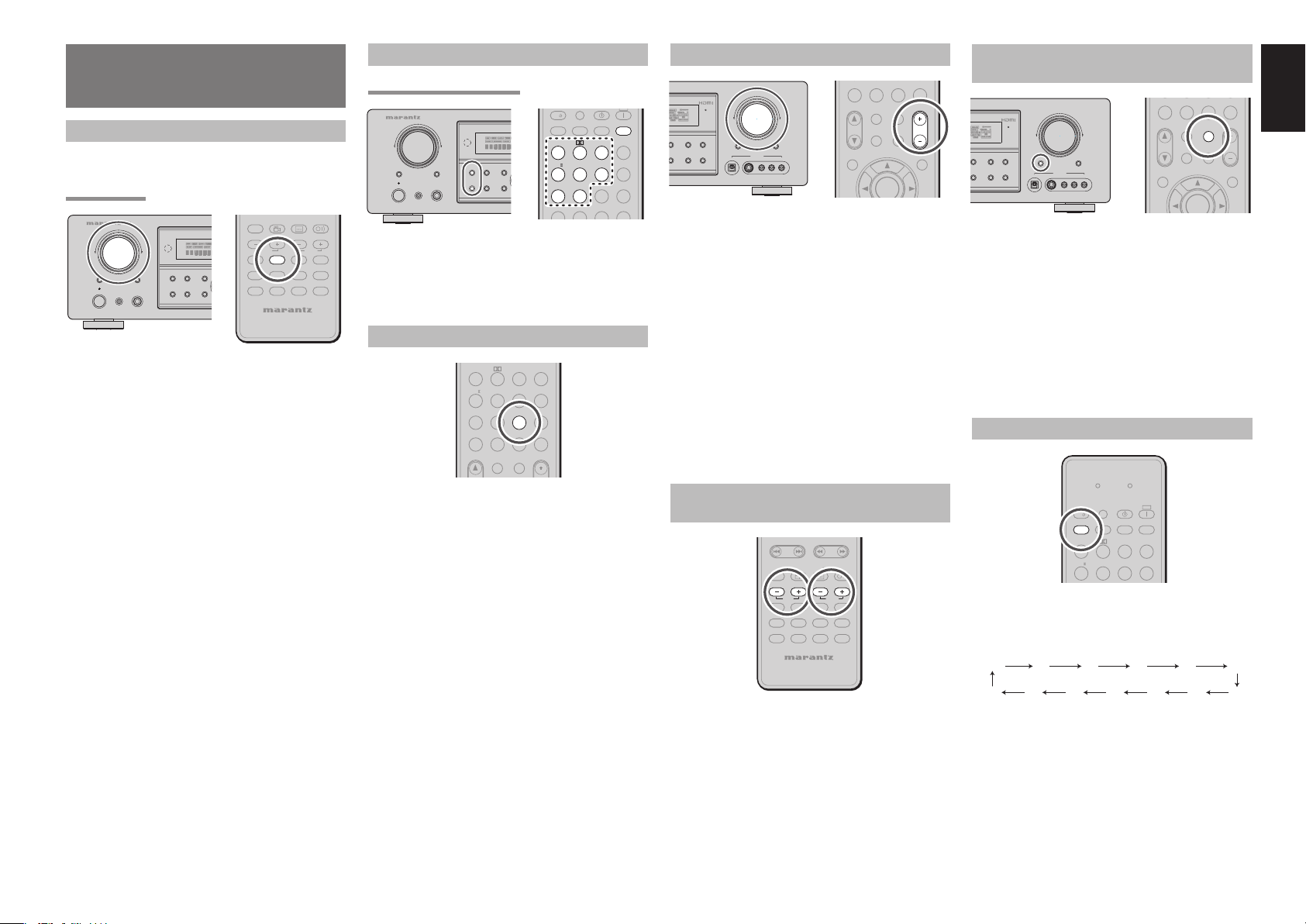
OFFONSET
SOURCE
BASIC OPERATION
(PLAYBACK)
SELECTING AN INPUT SOURCE
Before you can listen to any input media, you must
fi rst select the input source on the unit.
Example : DVD
AUDIO
ANGLE
SUB TITLE
AV SURROUND RECEIVER SR5002
INPUT SELECTOR
SIMPLE
PURE
SURROUND
MULTI
SPEAKER
MULTI
STANDBY
SETUP MIC
PHONES
POWER ON/OFF
SETUP
DIRECT
MODE
AUTO
HT-EQ
To select DVD, turn the INPUT SOURCE knob on
the front panel or simply press the DVD button on the
remote controller.
After you have selected DVD, simply turn on the DVD
player and play the DVD.
• As the input source is changed, the new input
name will appear momentarily an OSD information
on the video display. The input name will also
appear in the display, on the front-panel.
• As the input is changed, this unit will automatically
switch to the digital input, surround mode,
attenuation, and night mode status which were
entered during the confi guration process for that
source.
• When an audio source is selected, the last video
input used remains routed to the VCR Output
and Monitor Output. This permits simultaneous
viewing and listening to different sources.
• When a Video source is selected, the video
signal for that input will be routed to the Monitor
Output jacks and will be viewable on a TV monitor
connected to the unit.
If a component video input is connected to the
DVD or DSS component inputs, it will be routed
to the Component Video Output. Make certain
that your TV is set to the proper input to view the
signal.
DISC+
CH-SEL
V-OFF
ATT.
BASS
TREBLE
DVD VCR
TV
MENU
TUNER
TAPE
REMOTE CONTROLLER
DSS
MD
CDR
CD
AMP
AUX2
AUX1
SELECTING THE SURROUND MODE
Example: AUTO SURROUND
AV SURROUND RECEIVER SR5002
INPUT SELECTOR
SIMPLE
PURE
SURROUND
MULTI
SPEAKER
MULTI
STANDBY
SETUP MIC
PHONES
POWER ON/OFF
SETUP
DIRECT
MODE
AUTO
HT-EQ
MENU
To select the surround mode during playback, press
the SURROUND MODE button on the front panel
or the SURROUND MODE buttons on the remote
controller.
l/
P.DIRECT
SLEEP
DISPLAY
dts
AUTO
123
EX/ES
VIRTUAL
CS
456
STEREO
NIGHT
M-CH ST
789
7.1CH IN
A/D
SURROUND
LIP SYNC/
INPUT
T.MODE
P.SCAN
HT-EQ
NIGHT MODE
LIP SYNC/
INPUT
AUTO
M-CH ST
CH/
Press the NIGHT button on the remote controller to
turn on the NIGHT mode.
Selecting the Night Mode ON is effective in Dolby
Digital only, and it compresses the dynamic range.
This softens loud passages such as sudden
explosions, to help prevent disturbing others late at
night.
To turn off the Night mode, press the NIGHT button
again.
dts
123
EX/ES
VIRTUAL
CS
456
STEREO
NIGHT
789
7.1CH IN
A/D
CL
0
+10
CAT
MUTE
SPKR A/B
T.MODE
P.SCAN
HT-EQ
MEMO
VOLUME
ADJUSTING THE MAIN VOLUME
SPKR A/B
HT-EQ
A/D
MEMO
0
+10
VOLUMEVOLUME
MUTE
CAT
M-SPKR
MENU
ENTER
VOLUME
DOWN
PLAY
CLEAR
MEMORY
T-MODE
XIT
BAND
DIGITAL
UP
ATT
MUTE
AUX 1 INPUT
RLVIDEO
S-VIDEO
AUDIO
7.1CH IN
CL
CAT
CH/
MULTI/
INFO
Adjust the volume to a comfortable level using
the VOLUME control knob on the front panel or
VOLUME 3 / 4 buttons on the remote controller.
To increase the volume, turn the VOLUME knob
clockwise or press VOLU ME 3 button on the
remote controller, to decrease the volume, turn
counterclockwise or press VOLUME 4 button on the
remote controller.
Notes:
• The volume can be adjusted within the range of – ∞
to 18 dB, in steps of 1 dB.
However, when the channel level is set as described
•
on page 26, if the volume for any channel is set at +1
dB or greater, the volume cannot be adjusted up to 18
dB.
(In this case the maximum volume adjustment range is
“18 dB - Maximum value of channel level)
ADJUSTING THE TONE (BASS & TREBLE)
CONTROL
TUNING
PRESET
-
-
++
AUDIO
ANGLE
SUB TITLE
DISC+
CH-SEL
V-OFF
ATT.
BASSBASS
TREBLETREBLE
DVD
VCR
TV
TUNER
TAPE
REMOTE CONTROLLER
During a listening session you may wish to adjust the
Bass and Treble Control to suit your listening tastes
or room acoustics.
(Using the remote controller)
To adjust the bass effect, press BASS 3 or BASS 4
on the remote controller.
To adjust the treble effect, press TREBLE 3 or
TREBLE 4 on the remote controller.
Note:
The tone control function can work in the AUTO
Surround, Stereo, Dolby PL
Multi Ch. Stereo mode.
DSS
MD
CDR
CD
AMP
AUX2
AUX1
II x
, DTS, DTS-ES, and
TEMPORARILY TURNING OFF
THE SOUND
VOLUME
DOWN
SPLAY
CLEAR
MEMORY
T-MODE
EXIT
BAND
DIGITAL
UP
ATT
MUTE
AUX 1 INPUT
RLVIDEO
S-VIDEO
AUDIO
7.1CH IN
CL
CAT
CH/
SPKR A/B
MULTI/
INFO
To temporarily silence all speaker outputs such as
when interrupted by a phone call, press the MUTE
button on the front panel or MUTE button on the
remote controller.
This will interrupt the output to all speakers and the
head-phone jack, but it will not affect any recording or
dubbing that may be in progress.
When the system is muted, the display will show
“MUTE” .
Press the MUTE button again to return to normal
operation.
HT-EQ
A/D
MEMO
0
+10
VOLUME
MUTEMUTE
CAT
M-SPKR
MENU
ENTER
USING THE SLEEP TIMER
SEND
LEARN
SOURCE
SLEEPSLEEP
To program this unit for automatic standby, press the
SLEEP button on the remote controller.
Each press of the button will increase the time before
shut down in the following sequence.
OFF 10 20 30 5040
120 90 80 70 60100110
The sleep time will be shown for a few seconds in the
display on the front panel, and it will count down until
the time has elapsed.
When the programmed sleep time has elapsed, the
unit will automatically turn off.
Note that the SLEEP indicator on the display will
illuminate when the Sleep function is programmed.
To cancel the Sleep function, press the SLEEP
button until the display shows “SLEEP OFF” and the
SLEEP indicator will disappear.
OFFONSET
l/
P.DIRECT
DISPLAY
dts
AUTO
123
EX/ES
VIRTUAL
CS
456
SURROUND
LIP SYNC/
INPUT
T.MODE
ENGLISH
33
Page 38
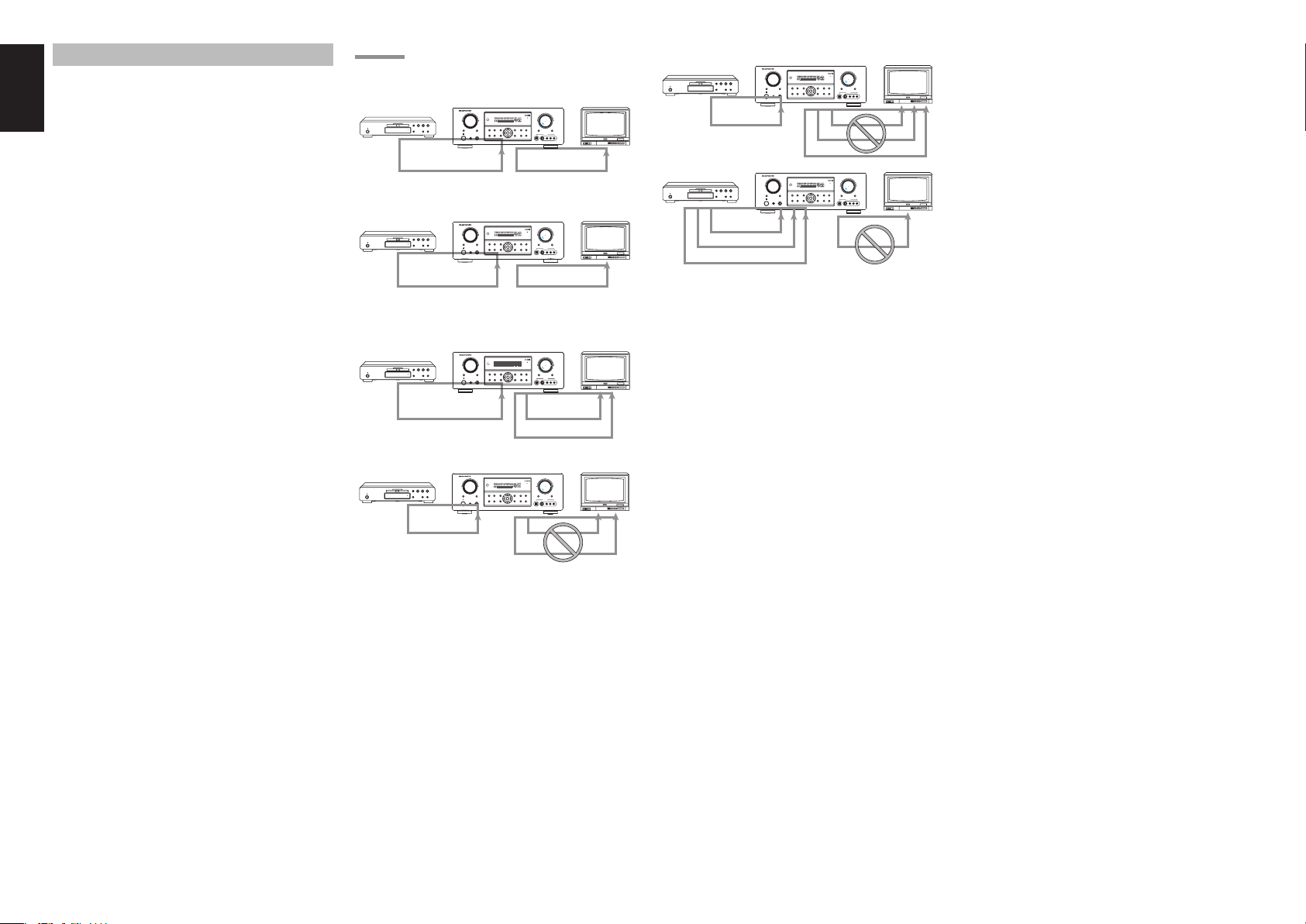
ENGLISH
VIDEO CONVERT
When this function is activated, the video or
S-video signal can be emitted from the video, S-video
or component video output terminal.
To activate this function, select VIDEO CONVERT in
PREFERENCE menu and set ENABLE.
Notes:
• The component video signal is emitted only from
component video output terminal.
When the video equipment is connected by
component terminal, connect the monitor and
SR4002/SR5002 by the component terminal.
• This function is unavailable for the REC out
terminal.
This function is unavailable for the still picture, fast
•
forward and reverse playing of the video component.
• If, while attempting to use the video convert feature,
the SR4002/SR5002 cannot synchronize with the
display device, “NO SIGNAL” appears on the
monitor, or noise is generated, this feature cannot
be used. All of these signs are caused by equipment
incompatibility; there is nothing wrong with the
SR4002/SR5002.
In such case, set VIDEO CONVERT in the
PREFERENCE menu to DISABLE. Also, connect
the video input signal to the display device via the
MONITOR OUT terminal under VIDEO and the
S-video input signal to the display device via the
MONITOR OUT terminal under S-VIDEO.
Example:
Monitor is connected with the component.
SR5002 only
Monitor is connected with the video or S-video.
SR5002 only
Monitor is connected with the video or component.
SR4002/SR5002
S-VIDEO VIDEO
SR4002/SR5002
VIDEO
VIDEO
AV SURROUND RECEIVER SR5002
INPUT SELECTOR
PURE
SURROUND
MULTI
DIRECT
MODE
SPEAKER
MULTI
STANDBY
AUTO
HT-EQ
PHONES
POWER ON/OFF
SETUP MIC
VOLUME
UP
DOWN
SIMPLE
SETUP
MEMORY
DISPLAY
CLEAR
ATT
MUTE
ENTER
T-MODE
EXIT
MENU
BAND
AUX 1 INPUT
DIGITAL
RLVIDEO
S-VIDEO
AUDIO
component
AV SURROUND RECEIVER SR5002
INPUT SELECTOR
PURE
SURROUND
MULTI
DIRECT
MODE
SPEAKER
MULTI
STANDBY
AUTO
HT-EQ
PHONES
POWER ON/OFF
SETUP MIC
VOLUME
UP
DOWN
SIMPLE
SETUP
MEMORY
DISPLAY
CLEAR
ATT
MUTE
ENTER
T-MODE
EXIT
MENU
BAND
AUX 1 INPUT
DIGITAL
RLVIDEO
S-VIDEO
AUDIO
S-VIDEO
AV SURROUND RECEIVER SR4002
INPUT SELECTOR
PURE
SURROUND
DIRECT
MODE
S.SPEAKER B
7.1 CH INPUT
STANDBY
AUTO
HT-EQ
PHONES
POWER ON/OFF
SETUP MIC
VOLUME
UP
DOWN
SIMPLE
SETUP
MEMORY
DISPLAY
CLEAR
ATT
MUTE
ENTER
T-MODE
EXIT
MENU
BAND
AUX 1 INPUT
DIGITAL
RLVIDEO
S-VIDEO
AUDIO
component
AV SURROUND RECEIVER SR5002
INPUT SELECTOR
PURE
SURROUND
MULTI
DIRECT
MODE
SPEAKER
MULTI
STANDBY
AUTO
HT-EQ
PHONES
POWER ON/OFF
SETUP MIC
VOLUME
UP
DOWN
SIMPLE
SETUP
MEMORY
DISPLAY
CLEAR
ATT
MUTE
ENTER
T-MODE
EXIT
MENU
BAND
AUX 1 INPUT
DIGITAL
RLVIDEO
S-VIDEO
AUDIO
HDMI
AV SURROUND RECEIVER SR5002
HDMI
INPUT SELECTOR
PURE
SURROUND
MULTI
DIRECT
MODE
SPEAKER
MULTI
STANDBY
AUTO
HT-EQ
PHONES
POWER ON/OFF
SETUP MIC
VOLUME
UP
DOWN
SIMPLE
SETUP
MEMORY
DISPLAY
CLEAR
ATT
MUTE
ENTER
T-MODE
EXIT
MENU
BAND
AUX 1 INPUT
DIGITAL
RLVIDEO
S-VIDEO
AUDIO
VIDEO
S-VIDEO
component
AV SURROUND RECEIVER SR5002
INPUT SELECTOR
PURE
SURROUND
MULTI
DIRECT
MODE
SPEAKER
MULTI
STANDBY
AUTO
HT-EQ
PHONES
POWER ON/OFF
SETUP MIC
VOLUME
UP
DOWN
SIMPLE
SETUP
MEMORY
DISPLAY
CLEAR
ATT
MUTE
ENTER
T-MODE
EXIT
MENU
BAND
AUX 1 INPUT
DIGITAL
RLVIDEO
S-VIDEO
AUDIO
VIDEO
S-VIDEO
HDMI
component
Notes of OSD menu:
HDMI: OSD menu is not displayed.
VIDEO/S-VIDEO/component: VIDEO CONVERT
of HDMI is not possible, thus the OSD menu is not
displayed.
34
VIDEO
component
S-VIDEO
The signal cannot be converted from the component
to the video or S-video.
Notes of OSD menu:
• The setup menu can be displayed through all video
out (COMPONENT, S-VIDEO, VIDEO).
• The setting informations (e.g. volume setting) are
displayed through all video out when the VIDEO
CONVERT function are set ON.
Note:
No setting information is displayed when the
signal is emitted from the COMPONENT IN to
COMPONENT OUT.
• The setting informations (e.g. volume setting) are
displayed through the S-VIDEO or VIDEO out
when the VIDEO CONVERT function are set
DISABLE. When the S-VIDEO and VIDEO outputs
are used simultaneously, the setting informations are
displayed through the S-VIDEO out only.
Page 39

SURROUND MODE
This unit is equipped with many surround modes. These are provided to reproduce a variety of surround sound effects, according to the content of the source to be played.
The available surround modes may be restricted depending on the input signal and speaker setup.
The relation between the selected surround mode and the input signal
The surround mode is selected with the surround mode selector on this unit or the remote controller. However, the sound you hear is subject to the relationship between the selected surround mode and input signal. That
relationship is as follows;
ENGLISH
Surround
Mode
AUTO
SOURCE DIRECT
PURE DIRECT
EX/ES
DOLBY
(PL IIx movie)
(PL IIx music)
(PL IIx game)
(Pro Logic)
DTS
(Neo:6 Cinema)
(Neo:6 Music)
CS II Cinema
CS II Music
CS II Mono
Input Signal Decoding
Dolby Surr. EX Dolby Digital EX OOOOO
Dolby D (5.1ch) Dolby Digital 5.1 OOO - O
Dolby D(2ch) Dolby Digital 2.0 O ---Dolby D (2ch Surr) Pro Logic IIx movie OOOOO
DTS-ES DTS-ES OOOOOdts, ES L, C, R, SL, SR, S, LFE
DTS 96/24 DTS 96/24 OOO - O dts 96/24 L, C, R, SL, SR, LFE
DTS (5.1ch) DTS 5.1 OOO - O dts L, C, R, SL, SR, LFE
Multi Ch-PCM Multi Ch-PCM OOO - O PCM L, C, R, SL, SR, LFE
Multi Ch-PCM 96kHz Multi Ch-PCM 96kHz OOO - O PCM L, C, R, SL, SR, LFE
PCM(Audio) PCM (Stereo) O ---O PCM L, R
PCM 96kHz PCM (96kHz Stereo) O ---O PCM L, R
HDCD PCM (Stereo) O ---O PCM HDCD L, R
Analog Stereo O ---O ANALOG -
Dolby Surr. EX Dolby Digital EX OOOOO
Dolby D (5.1ch) Dolby Digital 5.1 OOO - O
Dolby D (2ch) Dolby Digital 2.0 O ---Dolby D (2ch Surr) Pro Logic IIx movie OOO -DTS-ES DTS-ES OOOOOdts, ES L, C, R, SL, SR, S, LFE
DTS 96/24 DTS 96/24 OOO - O dts 96/24 L, C, R, SL, SR, LFE
DTS (5.1ch) DTS 5.1 OOO - O dts L, C, R, SL, SR, LFE
Multi Ch-PCM Multi Ch-PCM OOO - O PCM L, C, R, SL, SR, LFE
Multi Ch-PCM 96kHz Multi Ch-PCM 96kHz OOO - O PCM L, C, R, SL, SR, LFE
PCM (Audio) PCM (Stereo) O - - - - PCM L, R
PCM 96kHz PCM (96kHz Stereo) O - - - - PCM L, R
HDCD PCM (Stereo) O - - - - PCM HDCD L, R
Analog Stereo O - - - - ANALOG Dolby Surr. EX Dolby Digital EX OOOOO
Dolby D (5.1ch) Dolby Digital EX OOOOO
DTS-ES DTS-ES OOOOOdts , ES L, C, R, SL, SR, S, LFE
DTS 96/24 DTS-ES OOOOOdts 96/24 L, C, R, SL, SR, LFE
DTS(5.1ch) DTS-ES OOOOOdts L, C, R, SL, SR, LFE
Multi CH-PCM
AAC (5.1ch) AAC EX OOO - O AAC L, C, R, SL, SR, LFE
Dolby Surr. EX Dolby Digital 5.1 OOO * O
Dolby D (5.1ch) Dolby Digital 5.1 OOO * O
Dolby D (2ch) Pro Logic IIx OOOOO
Dolby D (2ch Surr) Pro Logic IIx OOOOO
Multi Ch-PCM Multi Ch-PCM + PLIIx OOOOOPCM L, C, R, SL, SR, LFE
PCM (Audio) Pro Logic IIx OOOOOPCM L, R
Analog Pro Logic IIx OOOOOANALOG -
DTS-ES DTS 5.1 OOO - O dts, ES L, C, R, SL, SR, S, LFE
DTS 96/24 DTS 96/24 OOO - O dts 96/24 L, C, R, SL, SR, LFE
DTS (5.1ch) DTS 5.1 OOO - O dts L, C, R, SL, SR, LFE
PCM (Audio) Neo:6 OOOOOPCM L, R
Analog Neo:6 OOOOOANALOG -
Dolby D (2ch) Neo:6 OOOOO
Dolby D (2ch Surr) Neo:6 OOOOO
PCM (Audio) CS II OOOOOPCM L, R
Analog CS II OOOOOANALOG -
Dolby D (2ch) CS II OOOOO
Dolby D (2ch Surr) CS II OOOOO
Multi Ch-PCM + Dolby EX
Output Channel Front information display
SLSRSBL
L/R C
OOOOOPCM L, C, R, SL, SR, LFE
SBR
Signal format indicators Channel status
SubW
2 DIGITAL EX
2 DIGITAL
2 DIGITAL
2 DIGITAL , 2 SURROUND
2 DIGITAL EX
2 DIGITAL
2 DIGITAL
2 DIGITAL , 2 SURROUND
2 DIGITAL EX
2 DIGITAL
2 DIGITAL EX
2 DIGITAL
2 DIGITAL
2 DIGITAL , 2 SURROUND
2 DIGITAL
2 DIGITAL ,
2 DIGITAL
2 DIGITAL , 2 SURROUND
2 SURROUND
L, C, R, SL, SR, S, LFE
L, C, R, SL, SR, LFE
L, R
L, R, S
L, C, R, SL, SR, S, LFE
L, C, R, SL, SR, LFE
L, R
L, R, S
L, C, R, SL, SR, S, LFE
L, C, R, SL, SR, LFE
L, C, R, SL, SR, S, LFE
L, C, R, SL, SR, LFE
L, R
L, R, S
L, R
L, R, S
L, R
L, R, S
Surround
Mode
STEREO
Virtual
Multi Ch.
Stereo
Input Signal Decoding
Dolby Surr. EX Stereo O ---O
Dolby D (5.1ch) Stereo O ---O
Dolby D (2ch) Stereo O ---O*
Dolby D (2ch Surr) Stereo O ---O*
DTS-ES Stereo O ---O dts, ES L, C, R, SL, SR, S, LFE
DTS 96/24 Stereo O ---O dts 96/24 L, C, R, SL, SR, LFE
DTS (5.1ch) Stereo O ---O dts L, C, R, SL, SR, LFE
Multi Ch-PCM Stereo O ---O PCM L, C, R, SL, SR, LFE
PCM (Audio) Stereo O ---O PCM L, R
PCM 96kHz Stereo O ---O PCM L, R
HDCD PCM (Stereo) O ---O PCM HDCD L, R
Analog Stereo O ---O ANALOG -
Dolby Surr. EX Virtual O ---Dolby D (5.1ch) Virtual O ---Dolby D (2ch) Virtual O ---Dolby D (2ch Surr) Virtual O ---DTS-ES Virtual O ---DTS (5.1ch) Virtual O ----dts L, C, R, SL, SR, LFE
Multi Ch-PCM Virtual O ----PCM L, C, R, SL, SR, LFE
PCM (Audio) Virtual O ----PCM L, R
Analog Virtual O ----ANALOG Dolby Surr. EX Dolby Digital EX OOOOO
Dolby D (5.1ch) Dolby Digital 5.1 OOO - O
Dolby D (2ch) Multi Channel Stereo OOOOO*
Dolby D (2ch Surr) Multi Channel Stereo OOOOO*
DTS-ES DTS-ES OOOOOdts, ES L, C, R, SL, SR, S, LFE
DTS 96/24 DTS 96/24 OOOOOdts 96/24 L, C, R, SL, SR, LFE
DTS (5.1ch) DTS 5.1 OOO - O dts L, C, R, SL, SR, LFE
Multi Ch-PCM Multi Ch-PCM OOO - O PCM L, C, R, SL, SR, LFE
Multi Ch-PCM 96kHz Multi Ch-PCM 96kHz OOO - O PCM L, C, R, SL, SR, LFE
PCM (Audio) Multi Channel Stereo OOOOO*PCM L, R
Analog Multi Channel Stereo OOOOO*ANALOG -
Output Channel Front information display
L/R C
SLSRSBL
SBR
Signal format indicators Channel status
SubW
2 DIGITAL EX
2 DIGITAL
2 DIGITAL
2DIGITAL , 2 SURROUND
2 DIGITAL EX
2 DIGITAL
2 DIGITAL
2 DIGITAL , 2 SURROUND
dts, ES L, C, R, SL, SR, S, LFE
2 DIGITAL EX
2 DIGITAL
2 DIGITAL
2 DIGITAL , 2 SURROUND
L, C, R, SL, SR, S, LFE
L, C, R, SL, SR, LFE
L, R
L, R, S
L, C, R, SL, SR, S, LFE
L, C, R, SL, SR, LFE
L, R
L, R, S
L, C, R, SL, SR, S, LFE
L, C, R, SL, SR, LFE
L, R
* : Depending on the particular setup, there may be differences compared to the information contained in
these tables.
O* : When L/R (FRONT Speaker) = SMALL.
Notes:
• Dolby Digital (2 ch: Lt/Rt): signal with Dolby
Surround fl ag Speakers are full set.
• No sound outputs from the surround speaker, center
speaker and subwoofer if the DVD disc has no
surround data.
Abbreviations
L/R : Front speakers
C : Center speaker
SL/SR : Surround speakers
SBL/SBR : Surround Back speakers
SubW : Sub woofer speaker
35
Page 40

ENGLISH
AUTO
When this mode is selected, the unit determines
whether the digital input signal is Dolby Digital, Dolby
Digital Surround EX, DTS, DTS-ES, DTS 96/24 or
PCM-audio.
Surround EX & DTS-ES will operate for multichannel
source that has a Dolby Digital Surround EX or DTSES auto trigger fl ag in the digital signal.
When a Dolby Digital or DTS signal is input, the
number of channels for which the corresponding
signal is encoded will be played.
Inputting a Dolby Digital two channel signal with
Dolby surround status automatically subjects that
signal to Pro Logic II x movie processing before play.
PCM 96 kHz source material can be played in this
mode.
Notes:
• When you use this mode with certain DVD and CD
players, performing operations such as “Skip” or
“Stop” may momentarily interrupt the output.
• When the signal is not decoded, the mode is changed
to AUTO mode automatically. Refer to page 35 to
confi rm the available decoding mode.
SOURCE DIRECT
In the Source Direct mode, the tone control circuit
and bass management confi guration are bypassed
for full-range frequency response and the purist
audio reproduction.
Notes:
• Speaker size is set to Front L/R = LARGE, Center =
LARGE, Surround L/R = LARGE and Subwoofer
= YES automatically. Tone controls, equalizer and
additional processing are deactivated.
• When you use this mode with certain DVD and CD
players, performing operations such as skip or stop
may momentarily interrupt the output.
PURE DIRECT
The Pure Direct mode further reduces sources of
noise in addition to effect of the Source Direct mode,
by blocking output from the video jacks (VIDEO,
S-VIDEO, COMPONENT VIDEO and HDMI) and
turning the FL display off.
EX/ES
This mode provides 6.1 channel surround for DOLBY
DIGITAL EX, DTS-ES encoded source material such
as DVD.
This mode cannot be used when an analog input has
been selected.
Dolby Digital EX
In a movie theater, fi lm soundtracks that have been
encoded with Dolby Digital surround EX technology
are able to reproduce an extra channel which has
been added during the mixing of the program.
This channel, called Surround Back, places sounds
behind the listener in addition to the currently
available front left, front center, front right, surround
right, surround left and subwoofer channels.
This additional channel provides the opportunity
for more detailed imaging behind the listener and
brings more depth, spacious ambience and sound
localization than ever before.
Dolby Digital EX is not available in the system without
surround back speaker(s).
DTS-ES (Discrete 6.1, Matrix 6.1)
DTS-ES adds the surround back channel audio to
the DTS 5.1-channel format to improve the acoustic
positioning and makes acoustic image movement
more natural with the 6.1-channel reproduction.
This unit incorporates a DTS-ES decoder, which
can handle DTS-ES Discrete-encoded and DTS-ES
Matrix-encoded program sources from DVD, etc..
DTS-ES Discrete 6.1 features digital discrete
recording of all channels including the surround back
channel(s) and higher quality of audio reproduction.
DTS-ES is not available in the system without a
surround back speaker.
2 MODE
(Dolby Digital, Pro Logic IIx MOVIE, Pro Logic II x
MUSIC, Pro Logic IIx GAME, Pro Logic)
This mode is used with source materials encoded in
Dolby Digital and Dolby Surround.
DOLBY DIGITAL
This mode is enabled when playing source materials
encoded in Dolby Digital.
Playing multichannel encoded 6.1 or 7.1-channel
Dolby Digital sources provides five main audio
channels (left, center, right, surround left and
surround right) and Low Frequency Effect channel.
Dolby Digital EX decoding is not available in this
mode.
Dolby Pro Logic IIx brings the excitement of surround
sound to any stereo mix, while making existing
Dolby Surround mixes sound more like discrete 5.1
channels Surround sound.
Dolby Pro Logic IIx has 3 modes. Please see below.
Pro Logic
This mode provides 6.1 or 7.1 channel surround
sound from Dolby Surround encoded stereo movie
sound tracks.
Pro Logic IIx MUSIC
This mode provides 6.1 or 7.1 channel surround
sound from conventional stereo sources, analog or
digital, such as CD, Tape, FM, TV, Stereo VCR, etc.
Pro Logic IIx GAME
Game mode restores the impact low-frequency
surround effects by routing them to the system’s
subwoofer.
Pro Logic
This mode emulated original Dolby Pro Logic
decoding (3/1 surround) suit for Dolby Surround
encoded stereo movie soundtracks.
Notes:
II
x MOVIE
• Pro Logic IIx mode will decode as Pro Logic II
mode when the SURROUND BACK SPEAKER
is set NONE in SPEAKER SETUP menu. (See
SPEAKER SETUP, page 27)
• Pro Logic IIx mode is available for a 2ch input signal
which is encoded in Dolby Digital or PCM format.
• PCM-audio signals can be subjected to Pro Logic
processing when the sampling frequency is 32 kHz,
44.1 kHz or 48 kHz.
dts MODE
(dts, Neo:6 Cinema, Neo:6 Music)
This mode is for DTS encoded source materials such
as LASER DISC, CD, and DVD. Neo:6 is for some 2
channel sources.
dts : This mode is enabled when playing source
materials encoded in dts multichannel.
Playing multichannel encoded 5.1-channel dts
sources provides five main audio channels (left,
center, right, surround left and surround right) and
Low Frequency Effect channel.
dts-ES decoding is not available in this mode.
The DTS mode cannot be used when an analog
input has been selected.
Neo:6 Cinema, Neo:6 Music
This mode decodes 2-channel signals into 6channel signals using high-accuracy digital matrix
technology.
The DTS NEO:6 decoder has near-discrete properties
in the frequency characteristics of the channels as
well as in channel separation.
According to the signals to be played back, DTS
NEO:6 uses either the NEO:6 CINEMA mode
optimized for movie playback or the NEO:6 MUSIC
mode optimized for music playback.
Notes:
•
Neo:6 mode is available to 2ch input signals which
are encoded in Dolby Digital or PCM Analog
format.
• PCM-audio signals can be subjected to Neo:6
processing when the sampling frequency is 32 kHz,
44.1 kHz or 48 kHz.
36
Page 41

CIRCLE SURROUND II
(CSII-CINEMA, CSII-MUSIC, CSII-MONO)
Circle Surround is designed to enable multichannel
surround sound playback of non-encoded and
multichannel encoded material.
Backward compatibility provides listeners with up to
6.1 channels of surround performance from entire
collection of music and fi lm, including broadcast,
videotape and stereo recorded music.
Depending on source material, you can select CSIICinema mode, CSII-Music mode or CSII-Mono
mode.
CSII Cinema mode
This mode is suited for playing back Circle Surroundencoded and non-encoded film and television
soundtracks. Cinema Mode enables 6.1-channel
surround playback of 2-channel sources such as
Video Cassettes, TV broadcasts, streaming media
and DVDs.
CSII Music mode
This mode is suited for playing back Circle Surroundencoded and non-encoded music. Music Mode
decodes, music DVDs, radio and TV music broadcasts
and CDs into enveloping 6.1-channel surround.
CSII-Mono mode
This mode plays back monaural recordings from
any source, including CDs, DVDs and TV and radio
broadcasts in compelling 6.1-channel surround.
Notes:
• CS II mode is available for 2ch input signals which
are encoded in Dolby Digital or PCM format.
• PCM-audio signals can be subjected to CS II
processing when the sampling frequency is 32 kHz,
44.1 kHz or 48 kHz.
STEREO
This mode bypasses all surround processing.
In stereo program sources, the left and right channels
play normally when PCM-audio or analog stereo is
input.
With Dolby Digital and DTS sources, the 5.1
multichannels are converted to two channel stereo.
96 kHz PCM source material can be played back in
stereo mode.
VIRTUAL
This mode creates a virtualized surround sound
experience from a two-speaker (front L and R)
playback system playing any multichannel audio
source (such as found on DVDs and digital
broadcasts), including Dolby Digital, Dolby Pro Logic
or DTS.
MULTI CH. ST
This mode is used to create a wider, deeper and more
natural soundstage from two channel source material.
This is done by feeding the left channel signal to
both left front and left surround speaker and the right
channel signal to both right front and right surround
speaker. Additionally, the center channel reproduces
a mix of the right and left channel.
CAUTION
NOTE for DTS signal
* Connected DVD player, laserdisc player or CD
player needs to support DTS digital output. You
may not be able to play some DTS source signals
from certain CD players and LD players even if
you connect the player to this unit digitally. This
is because the digital signal has been processed
(such as the output level, sampling frequency
or frequency response), and this unit cannot
recognize the signal as DTS data.
* You can not listen to DTS-encoded software in a
multiroom.
* Depending on the player used, DTS play may
produce a short noise. This is not a malfunction.
* While signals from a DTS laserdisc or CD are
playing in another surround mode, you cannot
switch to digital input or from digital input to analog
input from the INPUT SETUP in the MAIN MENU
or by pressing the A/D button.
* The outputs for VCR 1 OUT, DSS/VCR 2 OUT,
TAPE OUT, and CD-R OUT output analog audio
signals only. Do not record from CDs or LDs that
support DTS using these outputs. If you do, the
DTS-encoded signal will be recorded as noise.
NOTE for Dolby Digital Surround EX signal
* When playing Dolby Digital Surround EX-encoded
software in 6.1 channels, it is required to set the
EX/ES mode.
* Note that some of Dolby Digital Surround
EX-encoded software does not contain the
identifi cation signal. In this case, set the EX/ES
mode manually.
NOTE for 96 kHz/192 kHz PCM audio
* The AUTO, Pure Direct, and Stereo modes can be
used when playing PCM signals with a sampling
frequency of 96/192 kHz (such as from DVDVideo/Audio discs).
* Certain DVD player models inhibit digital output.
For details, refer to the player’s operation manual.
* Some DVD discs feature copy protection. When
using such disc, 96 kHz PCM signal is not output
from the DVD player. For details, refer to the
player’s operation manual.
NOTE for HDCD signal
* HDCD is effective only through digital input.
* You may not be able to play some HDCD source
signals from certain CD players if you connect
the player to this unit digitally. This is because the
digital signal has been processed (such as the
output level, sampling frequency or frequency
response) and this unit cannot recognize the
signal as HDCD data.
ENGLISH
37
Page 42

ENGLISH
SS
456
OTHER FUNCTION
DISPLAY MODE
R SR5002
SIMPLE
PURE
SURROUND
SETUP
DIRECT
MODE
AUTO
HT-EQ
MENU
MEMORY
DISPLAY
ENTER
CLEAR
T-MODE
EXIT
BAND
You can select the display mode for the front display
of the unit.
To select this mode, press the DISPLAY on the
remote controller.
When this button is pressed, the display mode is
switched in the following sequence.
→ Surround Mode → Auto-display Off → Display Off
→ Input Function → Surround Mode....
In Auto display off mode, the display is off. But, if you
make a change to the unit such as input or surround
mode, the display will show that change, then go
back to off after about 3 seconds. When changing the
volume, it is not displayed.
In Display off mode, the display is off completely.
Note:
Only the DISP indicator will be illuminated on the
front display in display off condition
LEARN
SOURCE
l/
SLEEP
DISPLAYDISPLAY
AUTO
123
EX/ES
CS
456
STEREO
M-CH ST
789
P.DIRECT
VIRTUAL
RECORDING AN ANALOG SOURCE
In normal operation, the audio or video source
selected for listening through this unit is sent to the
record outputs.
This means that any program you are watching
SEND
OFFONSET
SURROUND
LIP SYNC/
INPUT
dts
T.MODE
P.SCAN
NIGHT
or listening to may be recorded simply by placing
machines connected to the outputs for TAPE OUT,
CD/CDR OUT, VCR OUT in the record mode.
To record the input source signal you are currently
watching or listening to
1.
POWER ON/OFF
AV SURROUND RECEIVER SR5002
INPUT SELECTOR
SIMPLE
PURE
SURROUND
MODE
MULTI
SPEAKER
MULTI
STANDBY
SETUP MIC
PHONES
SETUP
DIRECT
1.
AUTO
HT-EQ
MENU
PRESET
-
DISC+
CH-SEL
BASS
TVTV
TUNERTUNER
TAPE
REMOTE CONTROLLER
ANGLE
V-OFF
DVDDVD VCRVCR
CDCD
AUX1
-
SUB TITLE
AUX2
TUNING
AUDIO
ATT.
TREBLE
CDRCDR
1. Select the input source to record by turning the
INPUT SOURCE knob on the front panel or
simply press the input selector buttons on the
remote controller.
The input source is now selected and you may
watch or listen to it as desired.
2. The currently selected input source signal is
output to the TAPE OUT, CD/CDR OUT, VCR
OUT outputs for recording.
Start recording to the recording component as
3.
desired.
Recording the video from one source and
the audio from another
You can add the sound from one source to the
video of another source to make your own video
recordings.
Below is an example of recording the sound from
a compact disc player connected to CD IN and the
video from a video camera connected to DSS to
video cassette recorder connected to the VCR OUT
jack.
AUDIO
ANGLE
SUB TITLE
DISC+
CH-SEL
V-OFF
ATT.
BASS
TV
TUNER
AUX1
TAPE
REMOTE CONTROLLER
TREBLE
DVD
DSS
VCRVCR
MD
CDR
CDCD
AMP
AUX2
1.
++
DSSDSS
MDMD
1. Switch the video output source to VCR by
AMP
2.
simply pressing the input selector buttons on
the remote controller.
2. Switch the audio input source to CD by simply
pressing the input selector buttons on the
remote controller.
Now “CD” has been selected as the audio input
3.
source and “VCR” as the video input source.
Notes:
• If you change the input source during recording, you
will record the signals from the newly selected input
source.
• You cannot record the surround effects.
• Digital input signals are only output to the digital
outputs. There is no conversion from digital to
analog.
When connecting CD players and other digital
SELECTING ANALOG AUDIO INPUT OR
DIGITAL AUDIO INPUT
DVD
VCR
TV
TUNER
TAPE
REMOTE CONTROLLER
M-CH ST
789
7.1CH IN
CL
CAT
CH/
MULTI/
If you have already assigned the digital inputs, you
can temporarily select the audio input mode for each
input source as following procedures.
Press the AMP button and press the A/D (0) button.
When this button is pressed, the input mode is
switched in the following sequence.
→ HDMI Auto → HDMI → Digital → Analog → HDMI
Auto....
In
HDMI
Auto mode, the types of signals being input
to the digital and analog input jacks for the selected
input source are detected automatically.
If no digital signal is being input, the analog input
jacks are selected automatically.
In Digital and
HDMI
assigned digital input terminal.
In analog mode, the analog input jacks are selected.
This selecting is temporary, so the result will not be
stored in memory.
If you need to change the input mode completely, use
INPUT SETUP in OSD menu system. (see page 27)
D
MD
CDR
CD
AUX2
AUX1
AMPAMP
P.SC A N
STEREO
NIGHT
HT-EQ
A/DA/D
MEMO
0
+10+10
VOLUME
MUTE
SPKR A/B
CAT
M-SPKR
mode, input is fixed to an
components, do not connect only the digital
terminals, but the analog ones as well.
38
Page 43

LISTENING THROUGH HEADPHONES
T.DISP
F.DIRECT
PTY
REC
This jack may be used to listen to the unit’s output
through a pair of headphones. Be certain that the
headphones have a standard 1/4” stereo phono
plug.
Note that the speakers will automatically be turned
off when the headphone jack is in use.
AV SURROUND RECEIVER SR5002
INPUT SELECTOR
SIMPLE
PURE
SURROUND
MULTI
SPEAKER
MULTI
STANDBY
SETUP MIC
PHONES
POWER ON/OFF
SETUP
DIRECT
MODE
AUTO
HT-EQ
MENU
Notes:
• When using headphones, the surround mode will
change to BYPASS and Dolby Headphone by
MENU and Cursor button.
• The surround mode returns to the previous setting
as soon as the headphone plug is removed from the
jack.
• The tone control function can not work through the
headphones output.
DOLBY HEADPHONE MODE
This feature simulates the waveforms of the actual
sounds heard from the speakers.
When headphones are used, the MENU button
automatically switches to the Dolby headphone
mode.
The OSD that appears when the MENU button is
pressed is shown below.
HEAD PHONE
DOLBY HP MODE : ON
SURROUND : OFF
L LEVEL : 0 dB
R LEVEL : 0 dB
DOLDBY HP (Headphone) MODE can be selected
with the left and right cursor buttons.
BYPASS → ON → BYPASS
BYPASS: Bypasses the Dolby headphone mode
ON: Dolby headphone mode active.
When the PURE DIRECT and SOURCE DIRECT
mode is selected, Dolby surround processing is
bypassed and “✽✽✽” is displayed as the mode
indication.
The surround mode can be selected when mode is
ON.
L/R LEVEL can be set in the ±10 dB range.
Notes:
and delivers ordinary 2-channel stereo.
• The surround mode returns to the previous setting as
soon as the plug is removed from the jack.
• The Dolby Headphone function will not work when
32 or 96 kHz PCM digital signals are input.
ATTENUATION TO ANALOG INPUT SIGNAL
TUNING
PRESET
-
-
++
AUDIO
ANGLE
DISC+
SUB TITLESUB TITLE
CH-SEL
V-OFF
ATT.ATT.
BASS
TREBLE
DVD VCR
TV
TUNER
DSS
MD
CDR
CD
If the selected analog audio input signal is greater
than the capable level of internal processing, the
“PEAK” indicator will light up on the front display. If
this happens, you should press the ATT button on
the remote controller.
“ATT ” indicator will be illuminated when this function
is activated. The signal-input level is reduced by
about half. Attenuation will not work with the output
signal of TAPE-OUT, CD/CDR-OUT and VCR-OUT.
This function is memorized for each individual input
source.
SPEAKER A/B
P.SCAN
STEREO
NIGHT
M-CH ST
789
7.1CH IN
CL
CAT
CH/
MULTI/
INFO
This unit has speaker system - A and speaker
system- B for front L/R channels.
You can select these systems by pressing
SPEAKERS A/B button on the front panel or SPKAB on the remote controller.
SPKR A/B
HT-EQ
A/D
MEMO
0
+10
VOLUME
MUTE
CAT
M-SPKR
MENU
7.1 CH INPUT
This unit is equipped for future expansion through the
use of Multi channel Super Audio CD multichannel
player or DVD-Audio player.
When this is selected, the input signals connected to
the L(front left), R (front right), CENTER, SL (surround
left), SR (surround right) and SBL (surround back left)
and SBR (surround back right) channels of the 7.1
CH. In jacks are output directly to the front (left and
right), center, surround (left and right) and surround
back speaker systems as well as the pre-out jacks
without passing through the surround circuitry.
In addition, the signal input to the SW (subwoofer)
jack is output to the PRE OUT SW (subwoofer) jack.
When 7.1 CH. INPUT is selected, the last video input
used remains routed to the Monitor Outputs.
This permits simultaneous viewing with video
sources.
ENGLISH
39
Page 44

ENGLISH
U
N
1.2.
AV SURROUND RECEIVER SR5002
INPUT SELECTOR
2.
PURE
SURROUND
MULTI
SPEAKER
MULTI
STANDBY
SETUP MIC
PHONES
POWER ON/OFF
4.
DOWN
CLEAR
MEMORY
BAND
1. Select a desired Video source to decide the
2.
3.
Adjust the speaker output levels so that you can
The subwoofer can be adjusted between –15
These adjustments result will be stored to 7.1
4. Adjust the main volume with the MAIN VOLUME
To cancel the 7.1 CH. INPUT setting, press the 7.1
CH INPUT button on the front panel or press 7.1 CH
IN on the remote controller.
Notes:
MUTE
T-MODE
DIGITAL
S-VIDEO
routed video signal to the Monitor Outputs.
Press the 7.1 CH INPUT button on the front
panel or press 7.1 CH IN on the remote
controller to switch the 7.1 channel input.
If it is necessary to adjust the output level of
each channel, press the CH.SEL button on the
remote controller.
hear the same sound level from each speaker
at the listening position. For the front left, front
right, center, surround left, surround right and
surround back speakers, the output levels can
be adjusted between –10 to +10 dB.
and +10 dB.
CH. INPUT memory.
knob or the VOLUME buttons on the remote
controller.
• 7.1 CH. Input mode bypasses the internal surround
processing, so SURROUND mode cannot be
selected.
• In addition, there is no signal at the record outputs
when the 7.1 CH. Input is in use.
DIRECT
MODE
AUTO
VOLUME
UP
ATT
AUX 1 INPUT
RLVIDEO
AUDIO
4.
HT-EQ
1.
M-CH ST
789
CL
CAT
CH/
INFO
T.TONE
/SET UP
REC
PRESET
-
DISC+
CH-SEL
BASS
TVTV
TUNER
TAPE
REMOTE CONTROLLER
40
STEREO
7.1CH IN7.1CH IN
00
SPKR A/B
MULTI/
T.DISP
ANGLE
V-OFF
DVDDVD VCRVCR
CD
AUX1
AUX2 INPUT
P.SCAN
NIGHT
A/D
MEMO
+10
VOLUMEVOLUME
MUTE
CAT
M-SPKR
ENTER
F.DIRECT
PTY
TUNING
-
AUDIO
SUB TITLE
ATT.
TREBLE
CDR
AUX2
If you don’t need to connect 7.1 Ch. input terminals
with multi channel decoder,
HT-EQ
L(front left) and R (front right) inputs terminals are
available as AUX2 input.
In this case, You can connect additional audio source
MENU
to AUX2 as other audio input terminals.
AV SURROUND RECEIVER SR5002
EXIT
++
DSSDSS
MD
AMP
INPUT SELECTOR
SURROUND
MULTI
MODE
SPEAKER
MULTI
STANDBY
SETUP MIC
POWER ON/OFF
AUTO
PHONES
SIMP
PURE
SET
DIRECT
HT-EQ
ME
HT-EQ (HOME THEATER EQUALIZER)
AV SURROUND RECEIVER SR5002
INPUT SELECTOR
DOWN
SIMPLE
PURE
SURROUND
MODE
MULTI
SPEAKER
MULTI
STANDBY
SETUP MIC
PHONES
POWER ON/OFF
At cinemas, the front left, front right and center
speakers are located behind the screen. So, screen
damping is taken into account when mastering movie
software, with an emphasis on high frequencies.
When playing back such software at home, the
signal takes on different characteristics from those
at the cinema. This unit includes HT-EQ to rectify
the sound difference between that experienced at a
cinema and in a home theater, allowing you to enjoy
the same sound you would experience at the cinema
at home. The HT-EQ feature is available except in the
following modes.
• 7.1 CH INPUT
• PURE-DIRECT
• SOURCE DIRECT
• When VIRTUAL is set for the surround mode
SETUP
DIRECT
AUTO
HT-EQ
MENU
MEMORY
DISPLAY
CLEAR
ENTER
EXIT
BAND
MUTE
T-MODE
AUX 1 INPUT
DIGITAL
S-VIDEO
TV AUTO ON/OFF FUNCTION
This function allows the component connected to the
TV-VIDEO in jack to control the power (ON/OFF) to
the unit.
AUTO POWER ON
1. Be sure the TV auto mode is ENABLED. (Refer
page 28 : System Setup)
Connect your TV TUNER (etc) to the TV-
2.
VIDEO in terminal. Be sure to connect the
VIDEO input.
3. Turn OFF the power to the TV TUNER and the
unit.
4. Turn ON the TV TUNER and tune in a receivable
station.
When the station is received, this unit turns ON
5.
and TV is selected automatically.
VOLUME
AUTO POWER OFF
1. In the above situation, turn the TV TUNER OFF
LVIDEO
or select a channel that does not contain any
broadcast.
The power to the unit switches to STANDBY
2.
after approx. 5 minutes.
Notes:
• AUTO POWER OFF is canceled if this unit is set to
a source other than TV.
The function reactivates when TV is selected again.
• Some TV broadcasts may cause the TV AUTO
FUNCTION to turn ON.
• The S-Video terminal does not support “TV AUTO
ON/OFF” function.
VIDEO ON/OFF
When no video signal is connected to the unit or
a DVD, etc., is connected directly to your TV, the
unnecessary video circuit can be turned off by
selecting the “VIDEO OFF” setting.
To select video off, press the AMP button and press
the V-OFF button.
DVD
VCR
CD
AUX1
REMOTE CONTROLLER
T.DISP
PRESET
ANGLE
V-OFF
BASS
DVD VCR
AUX2
SUB TITLE
DSS
MD
CDR
AMPAMP
F.DIRECT
PTY
TUNING
-
++
AUDIO
ATT.
TREBLE
DSS
TV
5002
SIMPLE
PURE
SURROUND
SETUP
DIRECT
MODE
AUTO
HT-EQ
MENU
MEMORY
DISPLAY
ENTER
CLEAR
T-MODE
EXIT
BAND
TUNER
TAPE
REC
-
DISC+
CH-SEL
TV
LIP.SYNC (SR5002 only)
Depending on the image device (TV, monitor,
projector, etc.) connected to the SR5002, a time lag
can occur between image signal processing and
audio signal processing. Though minor, this time
lag can interfere with movie and music enjoyment.
The LIP.SYNC feature delays the audio signal with
respect to the image signal output from the SR5002
to correct the time lag between the sound and image.
It can be operated with the “LIP.SYNC” and 1 and
2 cursor buttons of the remote controller. Set the
remote controller to the AMP mode before operating
the LIP.SYNC feature. The initial setting is OFF (0
ms).The time lag can be adjusted in 10 ms steps up
to 200 ms.
Watch the picture on the image device (i.e., TV,
monitor, projector, etc.) as you adjust the time lag.
Note:
The LIP.SYNC feature turns OFF (0 ms) in the
SOURCE DIRECT mode. When the SOURCE
DIRECT mode is deactivated, the set value of the LIP.
SYNC feature is automatically restored.
1. Press the HT-EQ button on the unit.
“EQ” indicator on the front panel will illuminate,
indicating the HOME THEATER EQUALIZER
has been activated.
To cancel this function, press the HT-EQ button
2.
again.
“EQ” indicator on the front panel will be
turned off, indicating the HOME THEATER
EQUALIZER has been deactivated.
Page 45

BASIC OPERATION
M
M
(TUNER)
LISTENING TO THE TUNER
Frequency scan step for AM is selectable.
Default setup is 9 kHz step, if your country’s standard
is 10 kHz step, Press BAND button on the remote
controller more than 6 seconds. Scan step will
change.
Note:
Preset memory for the tuner will clear by changing
this setup.
AUTO TUNING
P.DIRECT
SLEEP
AUTO
123
CS
456
M-CH ST
789
REC
-
DISC+
CH-SEL
SIMPLE
PURE
D
DIRECT
HT-EQ
SETUP
DISPLAY
ENTER
EXIT
MENU BAND
1.2.
1.
DOWN
MEMORY
CLEAR
T-MODE
DIGITAL
2.
(Using the unit)
To select tuner and desired band (FM or AM),
1.
press the BAND button on the front panel.
Press the
2.
3 or 4 cursor buttons
panel for more than 1 second to start the auto
tuning function.
Automatic searching begins then stops when a
3.
station is tuned in.
(Using the remote controller)
1. To select tuner and desired band (FM or
AM), press the BAND button on the remote
controller.
2. Press the 5 or 6 for more than 1 second on
the remote controller.
Automatic searching begins then stops when a
3.
station is tuned in.
If tuning does not stop at the desired station, use to
the “Manual tuning” operation.
SURROUND
DISPLAY
LIP SYNC/
INPUT
dts
BAND
T.MODE
EX/ES
VIRTUAL
P.SCAN
STEREO
NIGHT
T.DISP
F.DIRECT
PTY
PRESET+TUNINGTUNING
--
++
AUDIO
ANGLE
SUB TITLE
V-OFF
ATT.
on the front
MANUAL TUNING
P.DIRECT
SLEEP
DISPLAY
AUTO
123
EX/ES
VIRTUAL
CS
456
STEREO
M-CH ST
789
T.DISP
REC
PRESET+TUNINGTUNING
-
ANGLE
SUB TITLE
DISC+
CH-SEL
V-OFF
PURE
D
DIRECT
HT-EQ
SIMPLE
SETUP
DISPLAY
ENTER
EXIT
MENU BAND
1.2.
1.
DOWN
MEMORY
CLEAR
T-MODE
DIGITAL
2.
(Using the unit)
To select tuner and desired band (FM or AM),
1.
press the BAND button on the front panel.
Press the
2.
3 or 4 cursor buttons
on the front
panel to select the desired station.
(Using the remote controller )
To select tuner and desired band (FM or
1.
AM), press the BAND button on the remote
controller.
Press the 5 or 6 on the remote controller to
2.
tune in the desired station.
DIRECT FREQUENCY CALL
P.DIRECT
SLEEP
OFFONSET
SOURCE
l/
P.DIRECT
SLEEP
AUTO
11 22 33
CS
3.
1.
44 55 66
M-CH ST
77 88 99
CL
CAT
CH/
To select tuner and desired band (FM or
SURROUND
DISPLAY
LIP SYNC/
INPUT
dts
EX/ES
VIRTUAL
STEREO
NIGHT
7.1CH IN
A/D
00
+10
MUTE
SPKR A/B
CAT
MULTI/
M-SPKR
1.
T.MODE
P.SCAN
HT-EQ
MEMO
VOLUME
2.
AM), press the BAND button on the remote
controller.
Press the F.DIRECT on the remote controller,
2.
display will show “FREQ - - - -”.
Input your desired station’s frequency with the
3.
numeric buttons on the remote controller.
4.
The desired station will automatically be tuned.
DISPLAY
AUTO
123
EX/ES
VIRTUAL
CS
456
STEREO
M-CH ST
789
7.1CH IN
/SET UP
T.DISP
REC
PRESET
-
(FM) TUNING MODE (AUTO STEREO OR MONO)
SURROUND
LIP SYNC/
INPUT
dts
BAND
T.MODE
P.SCAN
NIGHT
F.DIRECT
PTY
--
++
AUDIO
ATT.
DISPLAY
CLEAR
MEMORY
ENTER
T-MODE
EXIT
BAND
When in the auto stereo mode, AUTO indicator will
be illuminated on the display.
VOLUME
DOWN
DIGITAL
UP
ATT
MUTE
AUX 1 INPUT
RLVIDEO
S-VIDEO
AUDIO
The “ST” indicator is illuminated when a stereo
broadcast is tuned in.
At open frequencies, the noise is muted and the
“TUNED” and “ST” indicators are not illuminated.
If the signal is weak, it may be diffi cult to tune into
the station in stereo. In such a case, press the
T-MODE button on the front panel or remote
controller.
“AUTO ” indicator is not illuminated, if FM stereo
broadcasts are received in monaural and the “ST”
indicator is not illuminated.
To return to auto stereo mode, press the T-MODE
button or press T-MODE button on the remote
controller
again. AUTO indicator is illuminated on the
display.
SOURCE
l/
SLEEP
DISPLAY
AUTO
123
EX/ES
CS
456
STEREO
M-CH ST
789
7.1CH IN
CL
0
CAT
CH/
SPKR A/B
P.DIRECT
VIRTUAL
OFFONSET
SURROUND
LIP SYNC/
INPUT
dts
T.MODET.MODE
P.SCAN
NIGHT
HT-EQ
A/D
MEMO
+10
VOLUME
MUTE
While pressing the MEMO button, press the 2
2.
cursor button.
“AUTO PRESET” will appear on the display,
and scanning starts from the lowest frequency.
Each time the tuner fi nds a station, scanning
3.
will pause and the station will be played for fi ve
seconds.
During this time, the following operations are
possible.
The band can be changed by the BAND button.
If no button is pressed during this period, the
4.
current station is memorized in location Preset
02.
If you wish to skip the current station, press the
3 cursor button during this period, this station
is skipped and auto presetting continues.
Operation stops automatically when all 50
5.
preset memory positions are fi lled or when
auto scanning attains the highest end of all
bands. If you desire to stop the auto preset
memory at anytime, press the CLEAR button.
Note:
It is possible that existing preset memory positions
will be overwritten.
ENGLISH
MANUAL PRESET MEMORY
SURROUND
LIP SYNC/
INPUT
dts
BAND
T.MODE
P.SCAN
NIGHT
HT-EQ
A/D
EXIT
PTY
F.DIRECTF.DIRECT
TUNING
-
PRESET MEMORY
With this unit you can preset up to 50 FM/AM stations
in any order.
For each station, you can memorize the frequency
and reception mode if desired.
AUTO PRESET MEMORY
This function automatically scans the FM and AM
++
band and enters all stations with proper signal
strength into the memory.
2. 2. 5.4. 1. 3.
AV SURROUND RECEIVER SR5002
INPUT SELECTOR
SIMPLE
PURE
SURROUND
MULTI
SPEAKER
MULTI
STANDBY
SETUP MIC
PHONES
POWER ON/OFF
SETUP
DIRECT
MODE
AUTO
HT-EQ
MENU
MEMORY
DISPLAY
ENTER
CLEAR
T-MODE
EXIT
BAND
3. 2. 4.
CEIVER SR5002
3.
SIMPLE
PURETSURROUND
SETUP
DIRECT
MODE
AUTO
HT-EQ
MENU
(Using the unit)
Tune into the radio station you desire (Refer to
1.
the “MANUAL TUNING” or “AUTO TUNING”
VOLUME
DOWN
DIGITAL
UP
ATT
MUTE
AUX 1 INPUT
RLVIDEO
S-VIDEO
AUDIO
section).
Press the MEMORY button on the front panel.
2.
“– –“ (preset number) starts blinking on the
display.
Select the preset number by pressing the 1
3.
or 2
cursor
MEMORY
DISPLAY
ENTER
EXIT
BAND
2.
buttons, while this is still blinking
(approx. 5 seconds)
Press the MEMORY button again to enter. The
To select FM, press the BAND button on the
1.
front panel.
4.
display stops blinking.
The station is now stored in the specifi ed preset
memory location.
SLEEP
DISPLAY
AUTO
11 22 33
CS
44 55 66
STEREO
M-CH ST
77 88 99
7.1CH IN
CL
CAT
CH/
SPKR A/B
MULTI/
INFO
P.DIRECT
SURROUND
LIP SYNC/
INPUT
dts
T.MODE
EX/ES
VIRTUAL
P.SCAN
NIGHT
HT-EQ
A/D
MEMOMEMO
+10
00
VOLUME
MUTE
CAT
M-SPKR
MENU
41
Page 46

ENGLISH
T.DISP
F.DIRECT
PTY
REC
(Using the remote controller)
Tune into the radio station you desire (Refer to
1.
the “MANUAL TUNING” or “AUTO TUNING”
section).
Press the MEMO button on the remote
2.
controller. “– –“ (preset number) starts blinking
on the display.
Enter the desired preset number by pressing
3.
the numeric buttons.
Note:
When entering a single digit number (2 for example),
either input “02” or just input “2” and wait for a few
seconds.
RECALLING A PRESET STATION
1.
1.
SIMPLE
PURE
SURROUND
SETUP
DIRECT
MODE
AUTO
HT-EQ
MENU
MEMORY
DISPLAY
ENTER
CLEAR
T-MODE
EXIT
BAND
1.
(Using the unit)
Select the desired preset station by pressing
1.
the 1 or 2
(Using the remote controller)
Press the S or T buttons to select the
1.
desired preset station, or input your desired
preset channel with the numeric buttons on
the remote controller.
PRESET SCAN
42
cursor
buttons on the front panel
T.MODE
EX/ES
VIRTUAL
CS
456
M-CH ST
789
3.
CLCL
CAT CAT
CH/CH/
REC
-
DISC+
CH-SEL
P.SCANP.SCAN
STEREO
NIGHT
HT-EQ
7.1CH IN
A/D
MEMO
0
+10
VOLUME
MUTE
SPKR A/B
T.DISP
F.DIRECT
PTY
TUNING
PRESET
-
++
AUDIO
ANGLE
SUB TITLE
V-OFF
ATT.
SLEEP
DISPLAY
AUTO
11 22 33
EX/ES
CS
44 55 66
STEREO
M-CH ST
77 88 99
7.1CH IN
CL
CAT CAT
CH/CH/
SPKR A/B
PRESET
-
ANGLE
DISC+
1.
3.
3.
(Using the remote controller)
Press the P.SCAN on the remote controller.
1.
“PRESET SCAN” appears on the display and
then the preset station with the lowest preset
number is recalled fi rst.
Preset stations are recalled in sequence (No.1
2.
→ No.2 → etc.) for 5 seconds each.
No stored preset number will be skipped.
You can fast forward the preset stations by
3.
pressing the T continuously.
When the desired preset station is received,
cancel the preset scan operation by pressing
the CLEAR button or P.SCAN on the remote
controller.
P.DIRECT
SURROUND
LIP SYNC/
INPUT
dts
T.MODE
VIRTUAL
P.SCAN
NIGHT
A/D
00
+10
VOLUME
MUTE
TUNING
-
AUDIO
SUB TITLE
CLEARING STORED PRESET STATIONS
You can remove preset stations from the memory
using the following procedure.
HT-EQ
MEMO
++
2. 3.
VOLUME
2.
DOWN
DISPLAY
CLEAR
MEMORY
ENTER
EXIT
BAND
Recall the preset number to be cleared with
1.
MUTE
T-MODE
AUX 1 INPUT
DIGITAL
S-VIDEO
3.
VIDEO
AUTO
123
EX/ES
CS
456
STEREO
M-CH ST
789
7.1CH IN
CLCL
0
CAT
CH/
SPKR A/B
CAT
MULTI/
INFO
dts
T.MODE
VIRTUAL
P.SCAN
NIGHT
A/D
+10
VOLUME
MUTE
M-SPKR
the method described in “Recalling” a preset
station.
Press the MEMORY button on the front panel
2.
or press the MEMO button on the remote
controller.
The stored preset number blinks in the display
3.
for 5 seconds. While blinking, press the
CLEAR button on the front panel or the remote
controller
“xx CLEAR” appears on the display to indicate
4.
.
that the specified preset number has been
cleared.
Note:
To clear all stored preset stations, press and hold the
CLEAR and the ENTER buttons for two seconds.
SORTING PRESET STATIONS
AV SURROUND RECEIVER SR5002
INPUT SELECTOR
SIMPLE
PURE
SURROUND
MULTI
SPEAKER
MULTI
STANDBY
SETUP MIC
PHONES
POWER ON/OFF
SETUP
DIRECT
MODE
AUTO
HT-EQ
MENU
MEMORY
DISPLAY
ENTER
EXIT
BAND
If you have stations memorized, and there is a gap in
the sequential order:
I.e. the stations are stored as follows
1) 87.1 MHz
2) 93.1 MHz
3) 94.7 MHz
10) 105.9 MHz
(notice there is no stations programmed for pre sets
for 4-9), you can have pre set 10 become pre set 5:
To sort the numbers, press the 4 cursor button while
pressing the MEMORY button.
“PRESET SORT” will appear on the display and
LIP SYNC/
INPUT
sorting will be done.
NAME INPUT OF THE PRESET STATION.
HT-EQ
This function allows the name of each preset channel
MEMOMEMO
to be entered using alphanumeric characters.
Before name inputting, you need to store preset
stations with the preset memory operation.
MENU
SIMPLE
SETUP
ENTER
MENU
CH/CH/
INFO
T.TONE
/SET UP
DISC+
CH-SEL
5. 2. 5. 6.
MEMORY
DISPLAY
EXIT
BAND
789
7.1CH IN
A/D
CL
+10
0
CAT CAT
MUTE
SPKR A/B
CAT
MULTI/
M-SPKR
ENTERENTER
T.DISP
PTY
REC
PRESET
--
-
+
ANGLE
SUB TITLE
V-OFF
ATT.
BASS
DVD VCR
TV
4.
AV SURROUND RECEIVER SR5002
INPUT SELECTOR
PURE
SURROUND
MULTI
SPEAKER
MULTI
STANDBY
SETUP MIC
PHONES
POWER ON/OFF
2. 5. 6.
DIRECT
MODE
AUTO
HT-EQ
5.
4.
Recall the preset number to be inputted name
1.
VOLUME
DOWN
CLEAR
T-MODE
DIGITAL
UP
ATT
MUTE
AUX 1 INPUT
RLVIDEO
S-VIDEO
AUDIO
with the method described in “Recalling” a
preset station.
Press the MEMORY button on the front panel
2.
or press the MEMO button on the remote
controller for more than 3 seconds.
The left most column of the station name
3.
indicator fl ashes, indicating the character entry
ready status.
When you press the 3 or 4 cursor buttons
4.
on the front panel or the 5 / 6 buttons on
the remote controller, alphabetic and numeric
characters will be displayed in the following
order:
A → B → C ... Z → 1 → 2 → 3 ..... 0 → – → +
→ / → (Blank) → A
UP →
← DOWN
After selecting the fi rst character to be entered,
5.
press the MEMORY or ENTER buttons, press
the MEMO button on the remote controller.
The entry in this column is fi xed and the next
column starts to fl ash. Fill the next column the
same way.
To move back and forth between the characters,
press the 1 / 2 cursor buttons or press S or
T buttons on the remote controller.
Note:
VOLUME
DOWN
CLEAR
T-MODE
DIGITAL
UP
ATT
MUTE
AUX 1 INPUT
RLVIDEO
S-VIDEO
AUDIO
Unused columns should be fi lled by entering blanks.
To save the name, press the MEMORY button
6.
on the front panel or remote controller for more
than 2 seconds.
Ten keypad Press, press again, press again, etc.
1
HT-EQ
MEMOMEMO
VOLUME
2
3
4
5
MENU
6
7
EXIT
F.DIRECT
TUNINGTUNING
++
AUDIO
TREBLE
DSS
8
9
0
A → B → C → 1 → A
E → F → 2 → D
→
D
H → I → 3 → G
G
→
→
J
K → L → 4 → J
M
N → O → 5 → M
→
Q → R → 6 → P
P
→
S → T → U → 7 → S
V → W → X → 8 → V
Z → space → 9 → Y
Y
→
– → + → / → 0
Page 47

RDS OPERATION
MENU
INFO
Now in use in many countries, RDS (Radio Data
System) is a description of the station’s programming
hidden space in the FM signal.
This unit is equipped with RDS to assist in the
selection of FM stations using station and network
names, rather than broadcast frequencies. Additional
RDS functions include the ability to search for
programme types.
RADIO TEXT
Some RDS stations broadcast RADIO TEXT, which is
additional information on the station and programme
being broadcast.
RADIO TEXT information appears as ‘running’ text
in the display. RADIO TEXT is transmitted character
by the radio station. As a result of that it may take
some time until the entire text has been completely
received.
RDS DISPLAY
When this unit is tuned to an FM station that is
transmitting RDS data, the Front Panel Information
Display will automatically show the station name or
RADIO TEXT in place of the typical display of the
station’s broadcast frequency.
To change the display, press the T.DISP button on
the remote controller.
ENTER
T.TONE
Program Service Name
/SET UP
T.DISP
REC
PRESET+TUNINGTUNING
-
ANGLE
DISC+
CH-SEL
V-OFF
) Frequency
F.DIRECT
PTY
--
AUDIO
SUB TITLE
ATT.
RT (
RADIO TEXT
EXIT
++
)PS (
PROGRAMME TYPE (PTY) DISPLAY
The RDS system categorizes programmes according
to their genre into different programme type (PTY)
groups. To display the programme type information
of the current station, press the PTY button in the
TUNER MODE on the remote controller.
ENTER
T.TONE
/SET UP
DISC+
CH-SEL
T.DISP
REC
PRESET
-
ANGLE
V-OFF
BASS
PTYPTY
-
SUB TITLE
ATT.
TUNING
EXIT
F.DIRECT
++
AUDIO
TREBLE
PTY AUTO SEARCH
This unit is equipped to automatically search for
stations transmitting any of 29 different programme
types. To search for a PTY, follow these procedures:
2.
002
SIMPLE
PURE
SURROUND
MODE
SETUP
DIRECT
AUTO
HT-EQ
MENU
MEMORY
DISPLAY
ENTER
EXIT
BAND
2.
CLEAR
T-MODE
1.
3.
4.
2.
Press the PTY button in the TUNER MODE on
1.
the remote controller. The current station’s PTY
AUTO
11 22 33
CS
44 55 66
M-CH ST
77 88 99
CL
CAT CAT
CH/CH/
T.TONE
/SET UP
REC
-
DISC+
CH-SEL
will be displayed, or the currently selected PTY
group will be displayed in blinking if no station
or RDS data is present.
To change to a new PTY type, press the
2.
4 cursor
button on the front panel or numeric
or S / T buttons on the remote controller
until the desired PTY is shown in the display.
Once the desired PTY group or type has
3.
been selected, press the PTY button while
the display blink (approx. 5 seconds). The
PTY Auto search will start, and the tuner will
pause at each station broadcasting RDS PTY
information corresponding to the selected
choice.
LIP SYNC/
INPUT
dts
T.MODE
EX/ES
VIRTUAL
P.SCAN
STEREO
NIGHT
HT-EQ
7.1CH IN
A/D
MEMO
+10
00
VOLUME
MUTE
SPKR A/B
ENTER
EXIT
T.DISP
F.DIRECT
PTYPTY
TUNING
PRESET
-
++
AUDIO
ANGLE
SUB TITLE
V-OFF
ATT.
BASS
TREBLE
3 or
To advance to the next RDS station with the
4.
desired PTY, press the PTY button again within
5 seconds.
NUMBER DISPLAY PROGRAMME TYPE
1 POP Pop Music
2 ROCK Rock Music
3 MOR M. O. R. Music
4 LIGHT Light classical
5 CLASSIC Serious classical
6 NEWS News
7 AFFAIR Current Affairs
8 INFO Information
9 SPORT Sport
10 EDUCATE Education
11 DRAMA Drama
12 CULTURE Culture
13 SCIENCE Science
14 OTHERS Varied
15 OTHER Other Music
16 WEATHER Weather
17 FINANCE Finance
18 CHILDREN Children’s programmes
19 SOCIAL Social Affairs
20 RELIGION Religion
21 PHONE IN Phone In
22 TRAVEL Travel
23 HOBBIES Hobbies
24 JAZZ Jazz Music
25 COUNTRY Country Music
26 NATION National Music
27 OLDIES Oldies Music
28 FOLK Folk Music
29 DOCUMENT Documentary
ENGLISH
43
Page 48

ENGLISH
MULTI ROOM
SYSTEM
The Multi Room system is a function which allows
you to listen to the same or a different source in a
room other than the room in which the SR5002 is
located.
The operations possible with the multi room function
are explained briefl y below.
For details, refer to the instruction manual supplied
with the multi room remote controller and SR5002.
When the outputs of the MULTI OUT terminals are
wired and connected to amplifi ers installed in other
rooms or M (MULTI) SPEAKER B terminals are
wired and connected to L&R speakers in other room,
different sources can be played in rooms other than
the main room in which the SR5002 and the playback
devices are installed.
SR5002 has some feature to MULTI ROOM SYSTEM
as source selector, sleep timer, Multi Room Speaker
output and remote control.
(SR5002 only)
MULTI ROOM PLAYBACK USING THE MULTI
ROOM OUT TERMINALS
The SR5002 is equipped with audio pre-out terminals
for which the volume is adjustable as the MULTI
output terminals.
A separately sold stereo power amplifier can be
connected to enjoy multi room playback.
2. 3.1. 4.
AV SURROUND RECEIVER SR5002
INPUT SELECTOR
MULTI
STANDBY
SETUP MIC
POWER ON/OFF
1. 4.
MULTI
SPEAKER
PHONES
2.
SIMPLE
PURE
SURROUND
SETUP
DIRECT
MODE
AUTO
HT-EQ
MENU
CL
00
CAT
CH/
SPKR A/B
CAT
MULTI/
INFO
ENTER
T.TONE
/SET UP
T.DISP
REC
PRESET
-
ANGLE
DISC+
CH-SEL
V-OFF
BASS
DVDDVD VCRVCR
TVTV
CD
TUNER
AUX1
TAPE
REMOTE CONTROLLER
SUB TITLE
MEMORY
DISPLAY
ENTER
+10
MUTE
M-SPKR
PTY
-
ATT.
CDR
AUX2
CLEAR
T-MODE
EXIT
BAND
MEMO
VOLUMEVOLUME
MENU
EXIT
F.DIRECT
TUNING
++
AUDIO
TREBLE
DSSDSS
MD
AMP
DOWN
MUTE
DIGITAL
S-VIDEO
3.
1. 4.
VOLUME
ATT
AUX 1 INPUT
AUDIO
MULTI ROOM PLAYBACK USING THE MULTI
SPEAKER TERMINALS
The SR5002 allows you to connect another set
of speakers and place them in a different room or
separated area for listening to music.
2. 3.1. 4.
AV SURROUND RECEIVER SR5002
INPUT SELECTOR
DOWN
SIMPLE
PURE
SURROUND
UP
RLVIDEO
SETUP MIC
PHONES
POWER ON/OFF
MULTI
SPEAKER
MULTI
STANDBY
1. 4.
2.
SETUP
DIRECT
MODE
AUTO
HT-EQ
MENU
CL
CAT
CH/
SPKR A/B
MULTI/
INFO
T.TONE
/SET UP
T.DISP
REC
PRESET
-
ANGLE
DISC+
CH-SEL
BASS
TVTV
TUNER
TAPE
REMOTE CONTROLLER
00
CAT
ENTER
V-OFF
DVDDVD VCRVCR
CD
AUX1
MEMORY
DISPLAY
M-SPKR
SUB TITLE
CLEAR
T-MODE
EXIT
BAND
DIGITAL
MEMO
+10
VOLUMEVOLUME
MUTE
3.
MENU
EXIT
F.DIRECT
PTY
TUNING
-
++
AUDIO
ATT.
TREBLE
DSSDSS
MD
CDR
AMP
AUX2
1. 4.
ENTER
Press the MULTI SPEAKER (M-SPKR) button.
1.
The unit enters multi room speaker mode and
the display indicates “SELCT SOURCE” and
fl ashes the “MULTI” indicators for approx. 10
seconds.
Select the input source using the INPUT
2.
SELECTOR knob or function button on the
remote controller.
VOLUME
UP
ATT
MUTE
AUX 1 INPUT
RLVIDEO
S-VIDEO
AUDIO
Then, the display indicates “MSPKR VOLUME”
“MSPKR VOL.–xx” for approx. 5 seconds.
During this time, you can set the volume level in
3.
the multi room as desired.
This will only set the volume in the multi room.
To cancel this function, press the MULTI button
4.
on the unit or remote controller (after pressing
the AMP button on the remote controller).
“MULTI” indicator on the front panel will be
turned off.
Notes for MULTI ROOM SPEAKER
• MULTI ROOM SPEAKER On/ Off is available in
main room only.
• MULTI ROOM SPEAKER output terminals can
be used when the SURROUND BACK SPEAKER
is set NONE in SPEAKER SETUP menu. (See
SPEAKER SETUP, page 27)
• “The Surr. Back Speakers are in use” is displayed
by pressing the MULTI SPEAKER (M-SPKR)
button when the SURROUND BACK SPEAKER is
set except NONE in SPEAKER SETUP menu. (See
SPEAKER SETUP, page 27)
44
Press the MULTI button on the unit or remote
1.
controller (after pressing the AMP button
on the remote controller). The unit enters
MULTI ROOM mode, and the display indicates
“SELECT SOURCE.” The “MULTI” indicator will
fl ash for about 10 seconds.
Select the input source using the INPUT
2.
SELECTOR knob or function button on the
remote controller.
Then, the display indicates “MULTI VOLUME”
“MULTI VOL. xx” for approx. 5 seconds.
During this time, you can set the volume level in
3.
the multi room as desired.
This will only set the volume in the second room.
To cancel this function, press the MULTI button
4.
on the unit or remote controller (after pressing
the AMP button on the remote controller).
“MULTI” indicator on the front panel will be
turned off.
Page 49
SURROUND
SPEAKER B SYSTEM
(SR4002 only)
The Surround Speaker B system is a function which
allows you to listen to the same source in a room other
than the room in which the SR4002 is located.
The operations possible with the Surround speaker
function are explained briefl y below.
ANOTHER ROOM PLAYBACK USING THE
S (SURROUND) SPEAKER B TERMINALS
The SR4002 allows you to connect another set
of speakers and place them in a another room or
separated area for listening to music.
The SURROUND SPEAKER B system can not be
operated with the supplied remote controller.
2.1.
AV SURROUND RECEIVER SR4002
INPUT SELECTOR
SIMPLE
PURE
SURROUND
STANDBY
SETUP MIC
POWER ON/OFF
Press the S (Surround) SPEAKER B button.
1.
AUTO
HT-EQ
PHONES
MENU
SETUP
DIRECT
MODE
S.SPEAKER B
7.1 CH INPUT
MEMORY
DISPLAY
ENTER
CLEAR
T-MODE
EXIT
BAND
The unit enters surround speaker B mode and
the “SPKR B” will appear on the display.
The volume of S. SPEAKER B is interlocked
2.
with the main volume.
Notes for SURROUND SPEAKER B
• SURROUND SPEAKER B On/ Off is available in
main room only.
• SURROUND SPEAKER B
output terminals can be
used when the SURROUND BACK SPEAKER is set
NONE in SPEAKER SETUP menu. (See SPEAKER
SETUP, page 27)
• “The Surr. Back Speakers are in use” is displayed
by pressing the S. SPEAKER B button
SURROUND BACK SPEAKER is set except NONE
in SPEAKER SETUP menu. (See SPEAKER SETUP,
page 27)
• Surround Speaker B function is unavailable, while
the unit is 7.1 CH input mode.
DOWN
MUTE
DIGITAL
VOLUME
ATT
AUX 1 INPUT
S-VIDEO
AUDIO
when the
UP
RLVIDEO
ENGLISH
45
Page 50

ENGLISH
TROUBLESHOOTING
In case of trouble, check the following before calling for service:
1. Are the connections made properly ?
2. Are you operating the unit properly following the user’s guide ?
3. Are the power amplifi ers and speaker working properly ?
If the unit does not operate properly, check items shown in the following table.
If your trouble cannot be recovered with the remedy actions listed in the following table, malfunction of the
internal circuitry is suspected; immediately unplug the power cable and contact your dealer, nearest Marantz
authorized dealer or the Marantz Service Center in your country.
SYMPTOM CAUSE REMEDY
This unit cannot be turned up. The power plug is not connected. Connect the power plug to the outlet.
No sound and picture are output
even when power is on.
No speaker output. The headphones are connected to the
Incorrect Audio or Video for
selected source.
Incorrect Audio from a channel.
No Audio output from the center
channel speaker.
No Audio output from the
surround speakers.
No Audio output from the
surround back speakers.
Mute is on. Cancel mute using the remote controller.
The input cable is not connected correctly.
The master volume control is turned all
the way down.
The SOURCE position is wrong. Select correct position.
headphone jack.
Input cable connected incorrectly. Connect the cable correctly by referring to the
Speaker cable connected incorrectly. Connect the cable correctly by referring to the
The center speaker cable connection is
incomplete.
STEREO has been selected for Surround
mode.
Center = NONE has been selected in
SETUP mode.
The surround speaker cable connection
is incomplete.
STEREO has been selected for Surround
mode.
Surround = NONE has been selected in
SETUP mode.
The surround back speaker cable
connection is incomplete.
Surround mode is not EX/ES mode. Set surround mode EX/ES.
Surround back = NONE has been selected
in SPEAKERS SIZE SETUP
See the connection diagram and connect the cables
correctly.
Adjust the master volume.
Disconnect the headphones. (Speakers will not output
sound when headphones are connected.)
connection diagram.
connection diagram.
Connect the cable correctly.
When STEREO is selected for Surround mode, no
sound will be output from the center speaker. Set
another Surround mode.
Make the correct setting.
Connect the cable correctly.
When STEREO has been selected for Surround
mode, no sound will be output from the surround
speaker. Set another Surround mode.
Make the correct setting.
Connect the cable correctly.
Make the correct setting.
SYMPTOM CAUSE REMEDY
Can not select EX/ES mode. Surround center= NONE has been
Can not select Pro Logic II x
mode.
Can not select Neo:6 mode. Input signal is incompatible. Use 2 channel Dolby Digital input signal, PCM input
Can not select CSII mode. Input signal is incompatible. Use 2 channel Dolby Digital input signal, PCM input
No output to Sub Woofer Out. Sub-woofer = NONE has been selected in
Noise is produced during DTSencoded CD or laser disc play.
A specifi c channel does not
produce output.
FM or AM reception fails. Antenna connection is incomplete. Correctly connect the indoor FM and AM antennas to
Noise is heard during AM
reception.
Noise is heard during FM
reception.
Cannot get programmed station
when the PRESET button is
pressed.
Control with the remote
controller fails.
MRAC is not working. Headphones are connected. Disconnect the headphones.
MRAC is going to CANCEL
mode automatically.
selected in SPEAKERS SIZE SETUP
Input signal is incompatible. Use 5.1channel source.
Input signal is incompatible. Use 2 channel Dolby Digital input signal, PCM input
SETUP mode.
Analog has been selected for input. Be sure to perform digital connection, select digital
Nothing recorded on source. Check the encoded channel on the source side.
Reception is affected by other electrical
fi elds.
The radio waves from the broadcasting
station are weak.
Preset data has been erased. Disconnecting power plug for long periods of time will
Batteries are consumed. Replace all the batteries with new ones.
Remote controller’s function-key setting
is wrong.
The distance between this unit and the
remote commander is too far.
Something is blocking this unit and the
remote commander.
Are the speakers set to OFF? Set SPK A or SPK B to ON.
Make the correct setting.
signal or analog input signal.
signal or analog input signal.
signal or analog input signal.
Select Sub-woofer = YES.
input, then play.
FM and AM antenna outlets.
Try changing location where the AM indoor antenna
is set up.
Install an FM outdoor antenna.
erase preset data. If that happens, input the preset
data again.
Select different position from which equipment will
be controlled.
Move closer to this unit.
Remove offending object.
46
Page 51
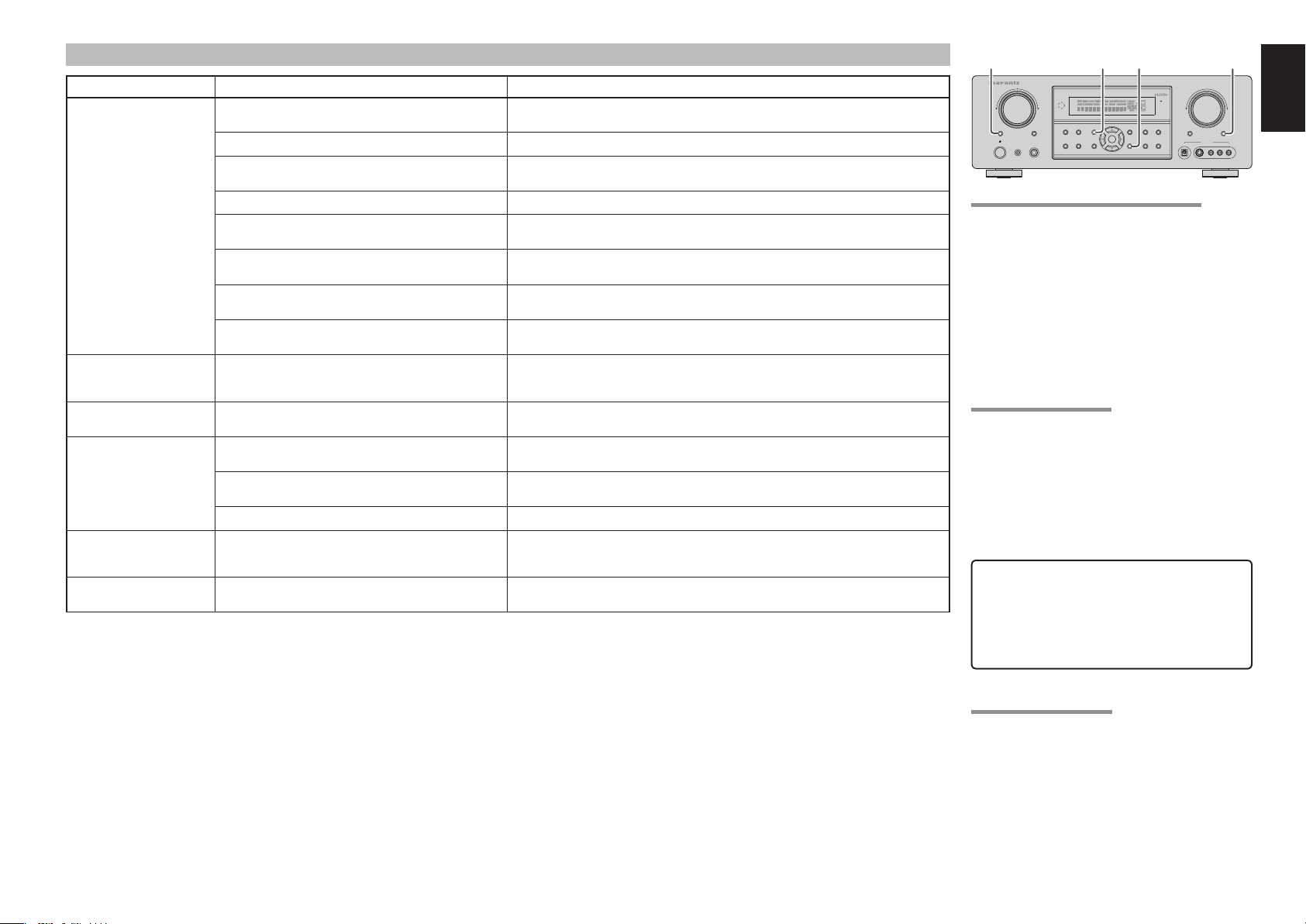
HDMI
SYMPTOM CAUSE REMEDY
The display does not appear
over an HDMI connection.
The SR4002/5002 OSD menu
does not appear over an HDMI
connection.
Time is needed for the display of
an HDMI connection to appear.
Audio is not played back over an
HDMI connection.
DVD-Audio is not played back
over an HDMI connection.
Super Audio CD is not played
back over an HDMI connection.
Note:
Sometimes, when “PROTECT” is shown on the unit’s display, the standby indicator fl ashes slowly (twice a second).
When this happens, turn off the unit’s power and remove the power cable. Then follow the procedure described below:
• Check to ensure that the speaker cables connected to the unit have not been connected with + and - connections reversed.
• Checktoensurethatthespeakercablesconnectedtotheunitarenotshort-circuiting(checktheconnectionsbothontheunitandonthespeakers).
(Check that the playback volume is not greater than the unit can handle.)
• Check that the playback volume is not greater than the unit can handle.
After completing the above checks, connect the power cable and switch the unit back ON using the remote control.
Then, after reducing the volume, start playback and check that “PROTECT” is not appearing on the display and that there is no problem with speaker connections to the unit or
with sound reproduction.
If the same problem re-occurs, please contact your local service center to have it repaired.
On rare occasions, the unit will go into standby mode with the standby indicator fl ashing rapidly (eight times a second).
When this happens, it means that some major problem has occurred with the unit.
Quickly disconnect the power cable and take the unit to your local service center to have it repaired.
The connected monitor or projector does not support HDCP. • Connect to equipment that supports HDCP.
• Please change the method of connection.
The HDMI input of on the TV is not on. Set HDMI input so that it turns on, as explained in the TV’s instruction manual.
The HDMI output on the source component (DVD, Set Top Box,
etc.) is not on.
Set HDMI output so that it turns on, as explained in the source component’s instruction manual.
The HDMI mode is not correctly set on the unit. Set HDMI input on the FUNC INPUT SETUP menu as explained on page 33.
The HDMI output video resolution of the source component (DVD,
Set Top Box, etc.) does not match the TV specifi cations.
The device is connected with a non-standard HDMI cable. A 5 m or shorter cable is recommended to ensure stable operation and prevent image quality
Power to the unit is off. (When the unit is on standby, HDMI
connections cannot be turned on.)
The connection between HDMI components was not
authenticated.
Set the resolution so that it matches, as explained in the instruction manuals of both components.
deterioration.
Turn on the power to the unit.
Shut off and then turn the power back on to the unit, TV and source component.
The unit SETUP menu does not support HDMI output. Use the COMPONENT VIDEO, S-VIDEO or VIDEO output.
The connection is being authenticated between the HDMI
devices.
The HDMI audio output of the source component (DVD, Set Top
Box, etc.) is not on.
The signal format of the source component (DVD, Set Top Box,
etc.) is not supported by the unit.
There is nothing wrong with the system. Some HDMI devices require time for authentication.
Set the HDMI audio output so that it turns on, as explained in the source component’s instruction
manual.
Set the HDMI audio output so that it can connect to the unit, as explained in the source component’s
instruction manual.
The unit is set to the HDMI audio “THROUGH” mode. In the “THROUGH” mode, sound is not produced from the unit. Set it to “ENABLE”. (see page 30)
The DVD player does not support CPPM, therefore it cannot
output HDMI audio.
The current HDMI connection does not support Super Audio
CDs.
• Use a DVD-Audio player that supports CPPM.
• Turn on PCM downsampling on the DVD player.
• Use an analog connection.
Use an analog connection.
7.1 CH INPUT (SR4002)
MULTI (SR5002)
AV SURROUND RECEIVER SR4002
INPUT SELECTOR
S.SPEAKER B
7.1 CH INPUT
STANDBY
SETUP MIC
PHONES
POWER ON/OFF
SIMPLE
EXIT ATT
SETUP
VOLUME
UP
DOWN
SIMPLE
PURE
SURROUND
MODE
SETUP
DIRECT
AUTO
HT-EQ
MENU
MEMORY
DISPLAY
ENTER
CLEAR
T-MODE
EXIT
BAND
ATT
MUTE
AUX 1 INPUT
DIGITAL
RLVIDEO
S-VIDEO
AUDIO
FRONT KEY (BUTTON) LOCK OF THE UNIT
If the SIMPLE SETUP and EXT buttons on the front
panel are both pressed at the same time for three
seconds or more, all the buttons on the front panel,
(excluding the POWER ON/OFF button), as well as
the INPUT SELECTOR knob and VOLUME knob,
will become locked. “F-KEY LOCK!” will appear in
the display.
Release the lock by pressing the same two keys
again at the same time for three seconds or more.
“F-KEY UNLOCK” will appear in the display, and the
keys will unlock.
GENERAL MALFUNCTION
If the equipment malfunctions, this may be because
an electrostatic discharge or AC line interference has
corrupted the information in the equipment memory
circuits. Therefore:
- disconnect the plug from the AC line supply
- after waiting at least three minutes, reconnect
the plug to the AC line supply
- re-attempt to operate the equipment
Memory backup
• In case a power outage occurs or the power
cord is accidentally unplugged, this unit is
equipped with a backup function to prevent
memory data such as the preset memory
from being erased.
HOW TO RESET THE UNIT
Should the operation or display seem to be abnormal,
reset the unit with the following procedure.
To turn on the SR4002, press and hold the 7.1CH
INPUT and ATT buttons simultaneously for 3 seconds
or more.
To turn on the SR5002, press and hold the MULTI
and ATT buttons simultaneously for 3 seconds or
more.
Remember that the procedure will reset the settings
of the SOURCE, Surround mode, delay time, TUNER
PRESET etc., to their initial settings.
ENGLISH
47
Page 52

ENGLISH
TECHNICAL SPECIFICATIONS
Frequency Range ................................87.5 – 108.0 MHz
Usable Sensitivity ............................IHF 1.8 µV/16.4 dBf
Signal to Noise Ratio ................... Mono/Stereo 75/70 dB
Distortion ......................................Mono/Stereo 0.2/0.3 %
Stereo Separation .........................................1 kHz 45 dB
Alternate Channel Selectivity .................± 300 kHz 60 dB
Image Rejection .........................................98 MHz 70 dB
Tuner Output Level ........... 1 kHz, ± 75 kHz Dev 800 mV
AM TUNER SECTION
Frequency Range ...................................531 – 1602 kHz
Signal to Noise Ratio ..............................................50 dB
Usable Sensitivity .....................................Loop 400µV/m
Distortion ...................................400Hz, 30 % Mod. 0.5 %
Selectivity ................................................. ± 20 kHz 70 dB
AUDIO SECTION (SR4002)
Power Output (20 Hz – 20 kHz/THD=0.08%)
Front L&R ............................................8 ohms 80 W / Ch
Center ..................................................8 ohms 80 W / Ch
Surround L&R ......................................8 ohms 80 W / Ch
Surround Back L&R .............................8 ohms 80 W / Ch
Front L&R ..........................................6 ohms 105 W / Ch
Center ................................................6 ohms 105 W / Ch
Surround L&R ....................................6 ohms 105 W / Ch
Surround Back L&R ...........................6 ohms 105 W / Ch
Input Sensitivity/Impedance ...............180 mV/ 47 Kohms
Signal to Noise Ratio(Analog Input / Pure Direct) ....105 dB
Frequency Response
(Analog Input / Pure Direct)
...........................................8 Hz – 100 kHz (± 3 dB)
(Digital Input / 96 kHz PCM)
............................................ 8 Hz – 45 kHz (± 3 dB)
AUDIO SECTION (SR5002)
Power Output (20 Hz – 20 kHz/THD=0.08%)
Front L&R ............................................8 ohms 90 W / Ch
Center ..................................................8 ohms 90 W / Ch
Surround L&R ......................................8 ohms 90 W / Ch
Surround Back L&R .............................8 ohms 90 W / Ch
Front L&R ..........................................6 ohms 110 W / Ch
Center ................................................ 6 ohms 110 W / Ch
Surround L&R .................................... 6 ohms 110 W / Ch
Surround Back L&R ........................... 6 ohms 110 W / Ch
Input Sensitivity/Impedance ...............180 mV/ 47 Kohms
Signal to Noise Ratio(Analog Input / Pure Direct) ....105 dB
Frequency Response
(Analog Input / Pure Direct)
...........................................8 Hz – 100 kHz (± 3 dB)
(Digital Input / 96 kHz PCM)
.............................................8 Hz – 45 kHz (± 3 dB)
VIDEO
Television Format ............................................ NTSC/PAL
Input Level/Impedance ...........................1 Vp-p/75 ohms
Output Level/Impedance ......................... 1 Vp-p/75 ohms
Video Frequency Response .......5 Hz to 8 MHz (– 1 dB)
Video Frequency (Component)
.... 5 Hz to 80 MHz (– 1 dB)
S/N .......................................................................... 60 dB
GENERAL (SR4002)
Power Requirement ...................... AC 230 V 50 Hz/60Hz
Power Consumption ..............................................500 W
Weight ................................................................. 11.4 Kg
GENERAL (SR5002)
Power Requirement ...................... AC 230 V 50 Hz/60Hz
Power Consumption ..............................................600 W
Weight ................................................................. 12.3 Kg
ACCESSORIES
Remote Controller RC5001SR ...................................... 1
AAA-size batteries ........................................................ 2
FM Antenna ................................................................... 1
AM Loop Antenna .......................................................... 1
Front AUX Jack Cover ................................................... 1
AC Power Cord .............................................................. 1
Microphone MC-10 ........................................................ 1
User Guide ..................................................................... 1
DIMENSIONSFM TUNER SECTION
440 mm
AV SURROUND RECEIVER SR5002
INPUT SELECTOR
SIMPLE
PURE
SURROUND
MODE
MULTI
SPEAKER
MULTI
STANDBY
SETUP MIC
PHONES
POWER ON/OFF
SETUP
DIRECT
AUTO
HT-EQ
MEMORY
DISPLAY
ENTER
EXIT
MENU
BAND
Specifi cations subject to change without prior notice.
VOLUME
UP
DOWN
CLEAR
T-MODE
ATT
MUTE
AUX 1 INPUT
DIGITAL
RLVIDEO
S-VIDEO
AUDIO
23 mm
341 mm
20 mm
146 mm
14 mm
384 mm
160 mm
48
Page 53

SETUP CODES
TV
Acer .......................................................... 1141
Admiral .................................1002, 1009, 1089
Aiko ..........................................................1059
Aiwa ................................................1117, 1118
Akai ..........................................................1001
Amtron ...................................................... 1023
Anam ........................................................ 1113
Anam National ......................1023, 1069, 1092
AOC ........................... 1003, 1024, 1049, 1127
Audiovox ................................................... 1023
Bell & Howell ..................................1009, 1025
Benq ............................................... 1104, 1142
Broksonic .................. 1003, 1097, 1098, 1113
Celebrity ................................................... 1001
Citizen ..................................1003, 1013, 1023
1026, 1059, 1063
Colortyme ....................................... 1003, 1043
Contec ...................................................... 1113
Contec/Cony ........................1023, 1045, 1047
Craig .......................... 1020, 1022, 1023, 1113
Crown .............................................1023, 1067
Curtis Mathes .......................1003, 1013, 1025
1026, 1062, 1103, 1110
Daewoo ..................... 1003, 1013, 1024, 1035
1036, 1059, 1084, 1101
Daytron .................................1003, 1013, 1016
Dimensia ........................................1103, 1110
Dumont .................................1003, 1010, 1153
Electroband .............................................. 1001
Electrohome .............. 1001, 1003, 1069, 1133
Emerson ...............................1003, 1013, 1015
1020, 1021, 1022, 1023
1025, 1038, 1044, 1045
1048, 1055, 1061, 1094
1096, 1099, 1101, 1113
Envision .................................................... 1003
Fisher ........................ 1025, 1051, 1091, 1160
Fujitsu ........................ 1038, 1124, 1125, 1155
Funai ....................................1023, 1038, 1113
Gateway ...................................................1150
GE ............................ 1003, 1018, 1022, 1046
1054, 1069, 1085, 1103
1110, 1113, 1133, 1136, 1153
Goldstar ................................1003, 1013, 1024
1030, 1045, 1080
Hallmark ................................................... 1003
Hisense ....................................................1116
Hitachi ....................... 1003, 1012, 1031, 1032
1037, 1041, 1045, 1047
1065, 1068, 1082, 1088
1094, 1139, 1140, 1145, 1159
Infi nity .......................................................1067
Janeil ........................................................ 1134
JBL ........................................................... 1067
JC Penney ............................1003, 1013, 1018
1019, 1024, 1026
1046, 1047, 1054
1063, 1083, 1085
1100, 1103, 1110
1112, 1133, 1154
Jensen ...................................................... 1003
JVC .......................................1028, 1029, 1045
1047, 1050, 1060, 1065
Kawasho .........................................1001, 1003
Kenwood ..................................................1003
Kloss Novabeam ....... 1023, 1056, 1057, 1134
KTV ......................................1013, 1023, 1033
1034, 1073, 1099, 1113
LG ...................................................1024, 1030
M.Wards ...............................1002, 1009, 1038
Magnavox .............................1003, 1052, 1053
1056, 1057, 1063
1067, 1081, 1106
Marantz ..................... 1003, 1031, 1067, 1122
Mitsubishi .............................1003, 1024, 1051
1115, 1122, 1133
Motorola .........................................1014, 1069
NEC ................. 1003, 1012, 1024, 1043, 1069
NET-TV ........................................... 1137, 1150
Orion ...............................................1020, 1096
Panasonic ........ 1017, 1067, 1069, 1095, 1111
Philips ........................ 1003, 1011, 1045, 1052
1054, 1056, 1057, 1058
1063, 1067, 1069, 1106
Pioneer .................................1003, 1018, 1037
1070, 1071, 1094
1145, 1147, 1149
Plasmsync ................................................ 1135
Portland ..................... 1003, 1013, 1024, 1059
Price Club .................................................1026
Prism ........................................................ 1018
1100, 1112, 1154
Proscan ..................... 1004, 1005, 1006, 1007
1008, 1085, 1103, 1110
Proton ............................................. 1003, 1045
Quasar ............ 1010, 1069, 1073, 1111, 1153
Radio Shack .........................1003, 1013, 1015
1023, 1024, 1025, 1045
1100, 1103, 1110, 1113
RCA ......................................1003, 1004, 1005
1006, 1007, 1008
1014, 1024, 1049, 1069
1075, 1079, 1085, 1087
1088, 1093, 1094, 1101
1103, 1110, 1113, 1153
Realistic ..................... 1013, 1015, 1023, 1025
1045, 1100, 1103, 1110
Runco ............................................. 1010, 1153
Sampo ...................................................... 1150
Samsung ................... 1003, 1013, 1024, 1026
1040, 1045, 1062, 1078
1083, 1090, 1100, 11051114
1120, 1121, 1146, 1148, 1157
Sansui ......................................................1119
Sanyo ........................ 1003, 1025, 1051, 1072
1077, 1091, 1156, 1157, 1158
Sharp ....................................1003, 1013, 1014
1015, 1045, 1055, 1064
1066, 1076, 1089, 1123
Signature .................................................. 1009
Sony .....................................1001, 1102, 1108
Soundesign ..... 1003, 1023, 1038, 1063, 1113
Starlite ...................................................... 1023
Supre-Macy .............................................. 1134
Sylvania ................................1003, 1039, 1042
1052, 1053, 1056, 1057
1063, 1067, 1089, 1151
Symphonic ...........................1023, 1039, 1044
Tandy ........................................................ 1014
Tatung .......................................................1069
Technics ...................................................1018
Techwood ....................................... 1003, 1018
Teknika ...................... 1003, 1009, 1013, 1023
1024, 1026, 1038, 1045
1047, 1059, 1063, 1111, 1113
Telecaption ............................................... 1074
Toshiba .................................1003, 1019, 1025
1026, 1042, 1074, 1098
1107, 1111, 1135, 1136
Totevision .................................................1013
Universal ........................................1046, 1054
Video Concepts ........................................1113
Viewsonic .............................1006, 1022, 1109
1128, 1129, 1130, 1131
1138, 1143, 1145, 1150
Wards ...................................1003, 1009, 1015
1024, 1038, 1044, 1046
1052, 1054, 1056, 1057
1067, 1086, 1103, 1110
White Westinghouse ......................1001, 1101
Yamaha ..........................................1003, 1024
Zenith ...................................1003, 1009, 1010
1132, 1144, 1153
VCR
Admiral ...........................................3026, 3060
Adventura ................................................. 3035
Aiko ..........................................................3038
Aiwa ................................................3035, 3039
Akai ................................................3003, 3053
3054, 3072, 3073
American High .........................................3009
Asha ......................................................... 3021
Audio Dynamics ...................3034, 3040, 3083
Audiovox ................................................... 3052
Beaumark ....................................... 3017, 3021
Bell & Howell ............................................3029
Broksonic .......................................3029, 3075
Calix .........................................................3052
Candle ..................................3012, 3021, 3034
3038, 3050, 3052, 3056
Canon ............................................. 3008, 3009
Capehart .................................................. 3050
Carver ............................................. 3045, 3062
CCE ................................................ 3038, 3067
Challenger ................................................ 3078
Citizen ............. 3012, 3021, 3038, 3052, 3056
Colortyme ....................................... 3034, 3079
Colt ........................................................... 3067
Craig .......................... 3021, 3032, 3052, 3067
Criterion .................................................... 3067
Curtis Mathes .................................3008, 3009
3021, 3034, 3063
Cybernex .................................................. 3021
Daewoo ................................3035, 3038, 3050
Daytron ...........................................3038, 3050
DBX ......................................3034, 3040, 3083
Denon ....................................................... 3005
i
Page 54

Dimensia ..............................3004, 3063, 3085
Dixon ..............................................3077, 3081
Dynatech .................................................. 3035
Electrohome ............................................. 3052
Electrophonic ...........................................3052
Emerson .................... 3009, 3015, 3016, 3017
3018, 3019, 3022, 3035
3047, 3052, 3054, 3073
Fisher .............................................3029, 3032
Fuji .................................................. 3003, 3009
Funai ..............................................3035, 3056
Garrard ..................................................... 3035
GE ........................................3004, 3008, 3009
3021, 3028, 3058
3063, 3074, 3085
Go Video ..............................3021, 3036, 3037
3052, 3067, 3068, 3069
Goldstar ..................... 3021, 3031, 3034, 3052
Gradiente .......................................3035, 3052
Harley Davidson .......................................3035
Harman Kardon ..............................3034, 3045
Harwood ................................................... 3067
Headquarter ............................................. 3029
Hitachi ............. 3004, 3005, 3055, 3072, 3074
Homeline .................................................. 3052
Instant Replay .......................................... 3009
JBL ........................................................... 3002
JC Penney ................. 3005, 3008, 3009, 3017
3021, 3029, 3034, 3040
3052, 3062, 3067, 3083
JCL ........................................................... 3009
Jensen ............................................ 3005, 3072
JVC .......................................3014, 3015, 3034
3040, 3041, 3042
3048, 3049, 3072, 3083
Kenwood ................... 3029, 3034, 3048, 3072
KLH ..........................................................3067
Kodak .............................................3009, 3052
LG ...................................................3031, 3052
Lloyds ...................................3034, 3035, 3056
Logik ......................................................... 3067
LXI ............................................................ 3052
Magnasonic ..........................3038, 3052, 3067
Magnavox .............................3008, 3009, 3010
3045, 3067, 3071
Magnin ...........................................3021, 3052
Marantz ................................3009, 3029, 3034
3040, 3045, 3062, 3083
Marta ........................................................ 3052
MEI ........................................................... 3009
Memorex ..............................3005, 3009, 3021
3026, 3029, 3032, 3035
3052, 3060, 3067, 3071
MGA ...............................................3022, 3073
MGN Technology ......................................3021
Midland ..................................................... 3056
Minolta ...................................................... 3005
Mitsubishi .............................3005, 3022, 3023
3025, 3048, 3052, 3073
Montgomery Ward ..........................3026, 3060
Motorola ...............................3009, 3026, 3060
MTC ................................................ 3021, 3067
Multitech ...............................3021, 3035, 3067
NEC ......................................3033, 3034, 3040
3048, 3072, 3083
Nikko ........................................................3052
Noblex ......................................................3021
Olympus ................................................... 3009
Optimus ................................3026, 3052, 3060
Optonica ................................................... 3027
Orion .......................... 3015, 3017, 3047, 3052
Panasonic ........ 3006, 3007, 3008, 3009, 3067
Pentax ..................................3005, 3034, 3074
Philco ............... 3005, 3008, 3009, 3047, 3062
Philips .............. 3009, 3010, 3027, 3045, 3062
Pilot ..........................................................3052
Pioneer .................................3005, 3040, 3046
3048, 3061, 3080, 3083
Portland .................................................... 3050
Proscan ................................3004, 3063, 3085
Protec ....................................................... 3067
Proton ....................................................... 3067
Pulsar ........................ 3021, 3038, 3056, 3071
Quarter ........................................... 3029, 3084
Quartz ............................................3029, 3084
Quasar ...........................................3008, 3009
Radio Shack .............. 3021, 3052, 3009, 3008
3035, 3027, 3060, 3026
Radix ........................................................ 3052
Randex ..................................................... 3052
RCA ......................................3004, 3005, 3009
3021, 3046, 3054, 3057
3061, 3063, 3074, 3085
Realistic ..................... 3008, 3009, 3012, 3021
3026, 3027, 3029, 3032
3035, 3052, 3060, 3084
Ricoh ..............................................3002, 3059
Runco ....................................................... 3071
Samsung ..............................3013, 3020, 3021
3056, 3068, 3069, 3070
Sanky ...................................3026, 3060, 3071
Sansui ............. 3040, 3048, 3067, 3072, 3083
Sanyo ...................................3021, 3029, 3032
Scott .......................... 3012, 3017, 3022, 3052
Sears ....................................3005, 3009, 3029
3032, 3034, 3052, 3084
Sharp ......................... 3026, 3027, 3060, 3064
Shintom ................................3003, 3005, 3067
Shogun ..................................................... 3021
Signature ........................................ 3026, 3060
Signature 2000 .....................3026, 3029, 3084
Singer ........................ 3002, 3009, 3059, 3067
Sony .......................... 3001, 3003, 3043, 3065
STS ................................................3005, 3009
Sylvania ................................3008, 3009, 3022
3035, 3045, 3062, 3076
Symphonic ...........................3034, 3035, 3056
Tandy .............................................. 3029, 3084
Tashiko .....................................................3052
Tatung .......................................................3072
Teac ................................................ 3035, 3072
Technics .........................................3007, 3009
Teknika .................................3009, 3035, 3052
TMK .......................................................... 3021
Toshiba .................................3005, 3011, 3012
3022, 3051, 3073
Totevision .......................................3021, 3052
Unitec ....................................................... 3056
Unitech ..................................................... 3021
Vector Research ........ 3012, 3034, 3040, 3083
Victor ..............................................3040, 3083
Video Concepts ..............................3012, 3034
3040, 3073, 3083
Videosonic ................................................3021
Wards ...................................3005, 3009, 3012
3021, 3026, 3027
3032, 3035, 3045
3052, 3060, 3061, 3067
White Westinghouse ......................3035, 3056
XR-1000 ...............................3009, 3035, 3067
Yamaha ................................3029, 3034, 3040
3072, 3083, 3084
Zenith .............. 3030, 3052, 3053, 3059, 3071
DVD
Aiwa ................................................2036, 2037
Apex ...... 2012, 2017, 2018, 2019, 2021, 2034
BOSE .............................................2038, 2039
Denon ............................................. 2047, 2048
Funai ........................................................2049
GE ............................. 2009, 2020, 2029, 2033
Harman Kardon ........................................2061
Hitachi ..................................2008, 2012, 2031
JVC .......................................2006, 2010, 2040
2041, 2042, 2043
Kenwood ........................................2053, 2054
Koss ..........................................................2058
Magnavox .................. 2007, 2011, 2023, 2025
Marantz ....................................................2025
Mitsubishi .......................................2011, 2015
Onkyo ....................................................... 2062
Oritron ............................................2009, 2030
Panasonic .................. 2003, 2015, 2016, 2055
Philips ...................................2007, 2011, 2058
Pioneer .................................2002, 2014, 2056
Proscan ................................2009, 2020, 2032
RCA ................. 2005, 2009, 2020, 2035, 2057
Sampo ...................................................... 2041
Samsung ......... 2008, 2012, 2022, 2024, 2027
Sanyo .............................................2050, 2052
Sharp ..............................................2044, 2045
Sherwood ................................................. 2051
Sony .....................................2001, 2013, 2059
Toshiba ...................... 2004, 2008, 2026, 2028
Yamaha ..........................................2046, 2060
Zenith .......................................................2010
DSS
Alphastar .................................................. 4027
BSB .......................................................... 4021
Chaparral .................................................4039
DIRECTV .......................................4001, 4016
DISH Network ..........................................4030
Drake ........................................................ 4026
Echostar .......... 4007, 4017, 4018, 4019, 4020
Express Vu ............................................... 4017
Fujitsu ....................................................... 4025
GE ........................................4002, 4008, 4009
General Instruments ......................4036, 4037
Hitachi ............................................4001, 4015
ii
Page 55

Hughes ........................................... 4001, 4016
Janeil ........................................................ 4025
JVC ...........................................................4017
Mitsubishi .................................................4001
Panasonic .......................................4004, 4010
Philips ............................................. 4031, 4035
Proscan ..................... 4002, 4008, 4009, 4011
Radio Shack ...................................4036, 4037
RCA ........................... 4002, 4008, 4009, 4029
Realistic .................................................... 4040
Rural Cable .............................................. 4036
Samsung ........................................ 4022, 4027
Sony .....................................4003, 4012, 4014
Star Choice ..............................................4032
Star Trak ...................................................4024
STS ..........................................................4038
SuperDish ................................................4028
Toshiba ........................................... 4001, 4034
Uniden ..................................4005, 4006, 4013
Video Pall .................................................4025
Zenith .............................................4025, 4033
iii
Page 56

www.marantz.com
You can find your nearest authorized distributor or dealer on our website.
is a registered trademark.
07/2007 00M32CW851310 mzh-dPrinted in China
 Loading...