

Page 1
APP CONNECTION AND MODES
LTGLK4
RGB Smart Garden Light - 4pc Kit
IP65 220-240V
Please read these instructions before commencing installation & retain them for future reference.
Important information
It is recommended that the garden lights are installed by a qualified electrician ensuring the
installation complies to current IEE wiring regulations & local building control.
• These products are designed for connection to a 220-240V mains supply.
• We will not accept responsibility for any claims arising from a poor installation.
Installation Procedure
• Always switch off mains supply before servicing.
• Ensure 220-240V supply voltage.
• Fix the garden lights in a suitable position.
• The garden lights are suitable for external use, but must not be submerged in water.
• Ensure correct wiring connection is made using correct size cables and IP67 or IP68
rated boxes for external use.
• For externally mounted fittings LEDLite recommends electrical connection to an RCD/RCBO
protected circuit.
Please note that the lights are not individually controlled and the kit acts as a single unit.
All the lamps in the LTGLK4 kit will change the mode or colour at once.
SPECIFICATIONS:
DIMENSIONS:
• Input: 220-240 V/AC, 50/60 Hz
• Output Voltage: DC 24V
• Power: 4 x 12W = 48W Total
• Adapter: DC 24V, 3A, 72W
• Up to 6 lights can be installed in series
with the supplied adapter
• 3 metres lead-in to the first light
• 2 metres cable between lights
• Lamp body material: ABS
• Colour Temperature: RGB
• Luminous Flux: 450-750lm
• Beam angle: 45-60 degrees
• IP Rating: IP65
• Control Type: Bluetooth 4.0 Mesh
• Bluetooth Range: up to 10m
• Working Temperature: -25 C~40 C
0 0
SCAN THE QR CODE
to download the APP:
iOS
Android
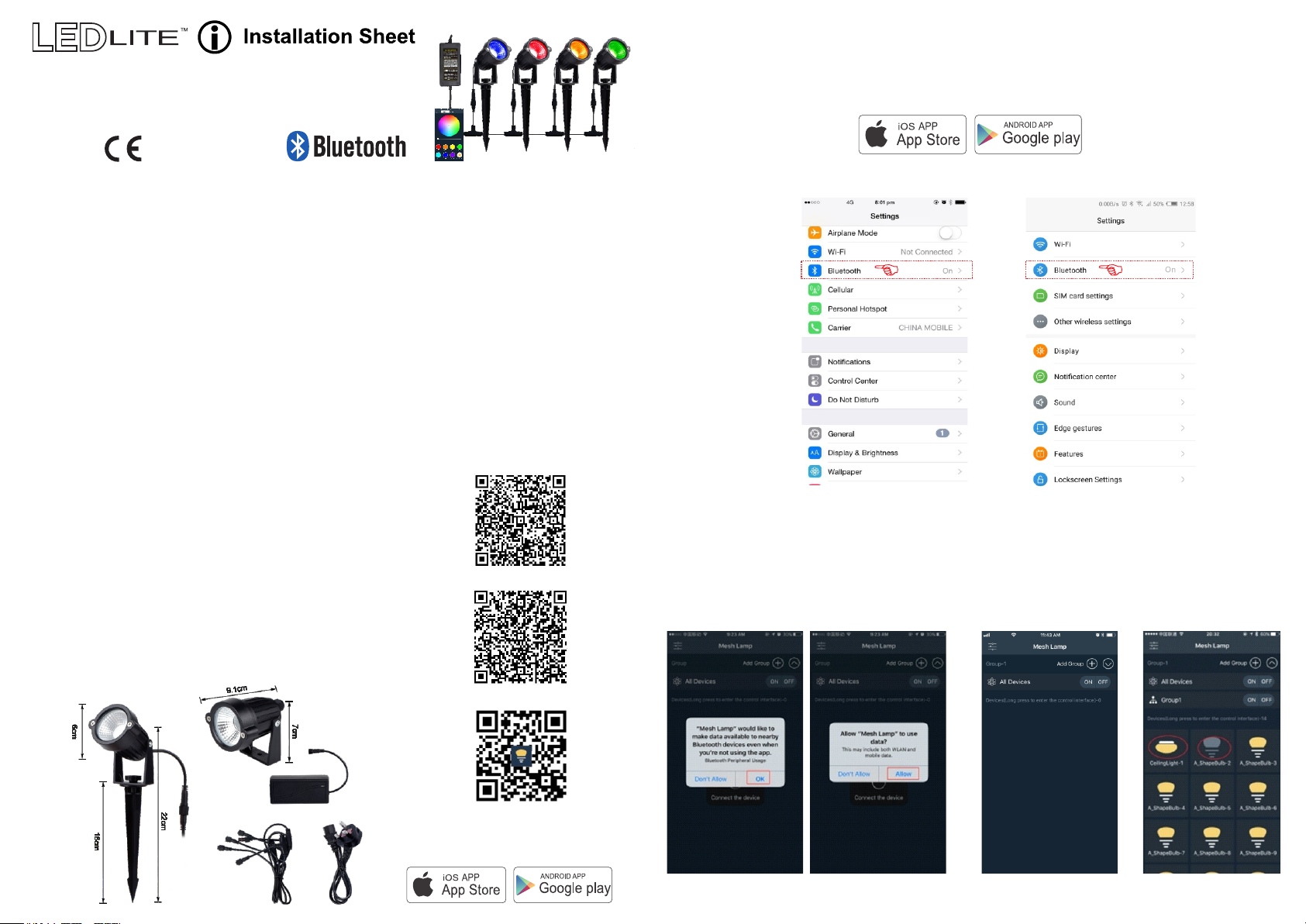
1. Download and install the Mesh Lamp application from the App Store (IOS device) or Google Play Store
(Android device).
2.Turn on the Bluetooth on your Apple or Android device (see Fig. 1)
Fig. 1
iOS Android
3.Turn ON the garden lights and enable Mesh Lamp to be data available - "Allow” app to use data and allow Bluetooth
devices to be data available even when you are not using the app (Fig. 2). Run the application - when there are
garden lights nearby they will be shown in the home page. Select the light to finish the connection (Fig. 3).
4. Tap the garden light kit icon to turn it ON or OFF. Please note: when the icon is yellow the lights will be on and if
it is grey they will be off (Fig. 4). Long press the icon to enter the control interface.
Android 4.3
or search "Mesh Lamp" on your App Store
or Android Market by Mobile Phone.
Fig. 2 Fig. 4
Fig. 3
Page 2
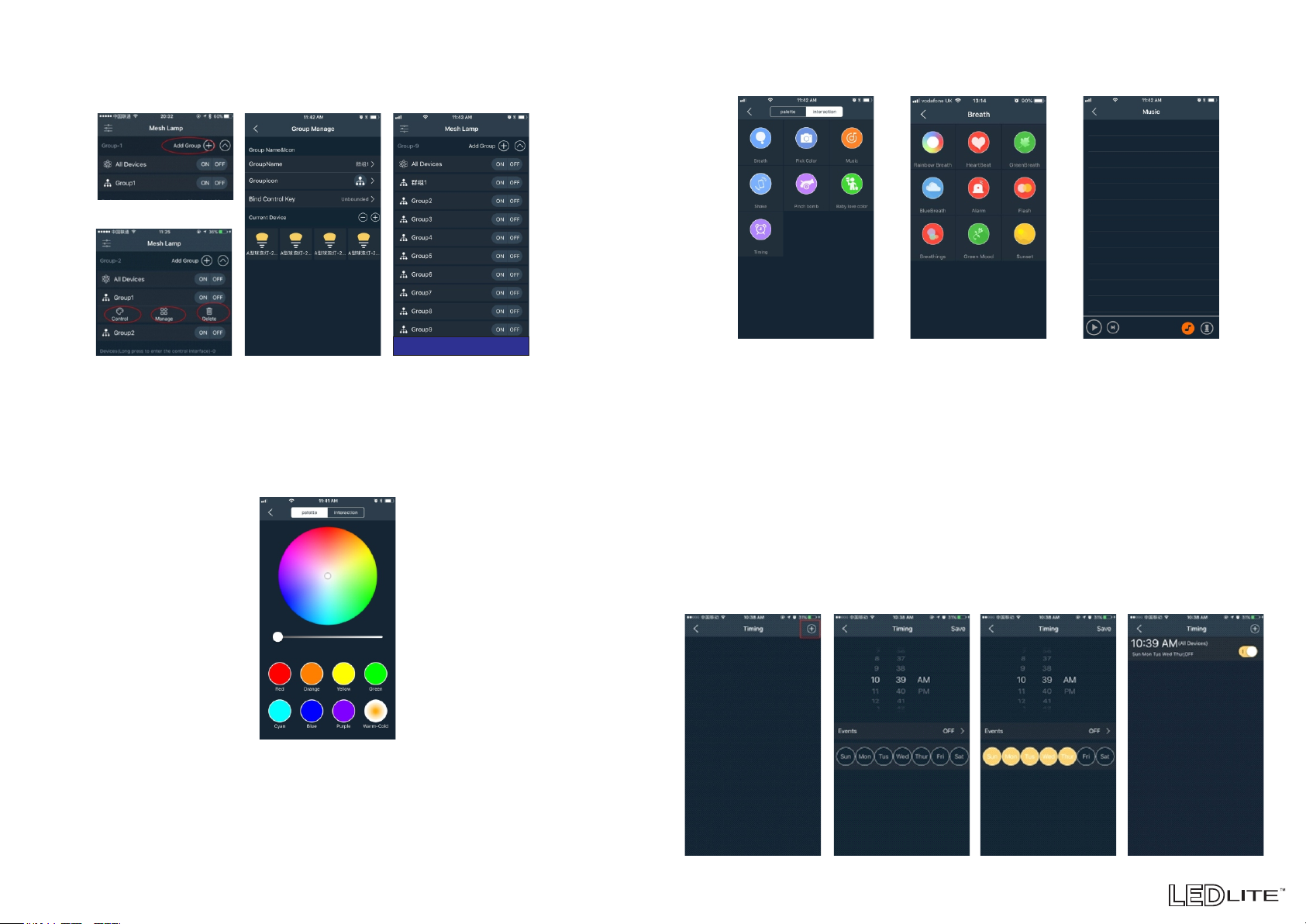
5. You can group up maximum of 250 light sets using the app by tapping "Add Group". You can create multiple groups
to control the lights together. The light sets will create a wireless Bluetooth Mesh connection with an effective signal
transmission distance of 6-8m between sets. Tap the Group Name and it will open a menu for you to “control,
manage and delete” the group. Tap “Manage” button to change a group name or to add devices (Fig. 5).
You can choose to add devices to the group from your current device list.
Music Mode - In this mode the connected garden lights will light in the rhythm of the music playing on the
smartphone or tablet. To do this, select your music library on smartphone or tablet and select the desired music.
With the pause/play button on the left, you can start or stop the music and the LED light (Fig. 9).
NOTE: Music Mode does not work with music or video streaming apps.
Group=250pcs Light max. Group=250pcs Light max.
Fig. 5 - Group devices
In order to control the light set tap All Devices or the Group Name you want to control and then tap the "Control" icon
that appears.
5. RGB Mode - Tap the "Control" button to enter Palette RGB mode. You can adjust both the colour RGB (Red, Green,
Blue) as well as the brightness of the colour. There are 7 preset colour buttons for easy access to the individual
channels (Fig. 6).
Fig. 6 - RGB Mode
6. Interaction - Tap the "Interaction" button to enter Scene mode. There are 7 modes available: Breath, Pick Colour,
Music, Shake, Pinch Bomb, Baby Love Colour and Timing Mode (Fig. 7).
Fig. 7 - Interaction Fig. 8 - Breathing Mode Fig. 9 - Music
Shake - Shake your smartphone to change the colour.
Pinch Bomb and Baby Love Colour - 2 interactive colour games for children and adults alike.
7. Timer - Tap the "Timing" icon to access the built-in timer function (Fig 10).
Press the "+" button on the top right corner to set a specific time to turn the lights ON or OFF.
A selection menu will be shown with the time ON/OFF switch. You can select the desired ON or OFF time or you can
set the lights to work in a time interval.
By tapping "Events" you can choose the timer action - turn the lights ON or OFF.
Choose the days of the week you want the timer to be activated.
After adding successfully, the timer will be shown in your “Timing” list.
Please note: The timer will not operate if the power supply is interrupted.
Breath (Breathing Mode) - There are 9 available colour modes. You can choose your mode from the screen by
tapping the icon (Fig. 8).
Pick Colour - the garden lights will change colour based on the colour of the object seen through phone's camera.
Fig. 10 - Timing Mode
 Loading...