

Page 1

Model: 891
300 kHz Bench LCR Meter
USER MANUAL
Page 2

Safety Summary
The following safety precautions apply to both operating and maintenance
personnel and must be followed during all phases of operation, service, and
repair of this instrument.
Before applying power to this instrument:
Read and understand the safety and operational information in this
manual.
Apply all the listed safety precautions.
Verify that the voltage selector at the line power cord input is set to
the correct line voltage. Operating the instrument at an incorrect line
voltage will void the warranty.
Make all connections to the instrument before applying power.
Do not operate the instrument in ways not specified by this manual
or by B&K Precision.
Failure to comply with these precautions or with warnings elsewhere in this
manual violates the safety standards of design, manufacture, and intended
use of the instrument. B&K Precision assumes no liability for a customer’s
failure to comply with these requirements.
Category rating
The IEC 61010 standard defines safety category ratings that specify the
amount of electrical energy available and the voltage impulses that may occur
on electrical conductors associated with these category ratings. The category
rating is a Roman numeral of I, II, III, or IV. This rating is also accompanied by a
maximum voltage of the circuit to be tested, which defines the voltage
impulses expected and required insulation clearances. These categories are:
Category I (CAT I): Measurement instruments whose measurement inputs are
not intended to be connected to the mains supply. The voltages in the
environment are typically derived from a limited-energy transformer or a
i
Page 3

battery.
Category II (CAT II): Measurement instruments whose measurement inputs
are meant to be connected to the mains supply at a standard wall outlet or
similar sources. Example measurement environments are portable tools and
household appliances.
Category III (CAT III): Measurement instruments whose measurement inputs
are meant to be connected to the mains installation of a building. Examples
are measurements inside a building's circuit breaker panel or the wiring of
permanently-installed motors.
Category IV (CAT IV): Measurement instruments whose measurement inputs
are meant to be connected to the primary power entering a building or other
outdoor wiring.
Do not use this instrument in an electrical environment with a higher
category rating than what is specified in this manual for this instrument.
You must ensure that each accessory you use with this instrument has a
category rating equal to or higher than the instrument's category rating to
maintain the instrument's category rating. Failure to do so will lower the
category rating of the measuring system.
Electrical Power
This instrument is intended to be powered from a CATEGORY II mains power
environment. The mains power should be 115 V RMS or 230 V RMS. Use only
the power cord supplied with the instrument and ensure it is appropriate for
your country of use.
ii
Page 4

Ground the Instrument
To minimize shock hazard, the instrument chassis and cabinet must be
connected to an electrical safety ground. This instrument is grounded through
the ground conductor of the supplied, three-conductor AC line power cable.
The power cable must be plugged into an approved three-conductor
electrical outlet. The power jack and mating plug of the power cable meet IEC
safety standards.
Do not alter or defeat the ground connection. Without the safety ground
connection, all accessible conductive parts (including control knobs) may
provide an electric shock. Failure to use a properly-grounded approved outlet
and the recommended three-conductor AC line power cable may result in
injury or death.
Unless otherwise stated, a ground connection on the instrument's front or
rear panel is for a reference of potential only and is not to be used as a safety
ground.
Do not operate in an explosive or flammable atmosphere
Do not operate the instrument in the presence of flammable gases or vapors,
fumes, or finely-divided particulates.
iii
Page 5

The instrument is designed to be used in office-type indoor environments. Do
not operate the instrument
In the presence of noxious, corrosive, or flammable fumes, gases,
vapors, chemicals, or finely-divided particulates.
In relative humidity conditions outside the instrument's
specifications.
In environments where there is a danger of any liquid being spilled
on the instrument or where any liquid can condense on the
instrument.
In air temperatures exceeding the specified operating temperatures.
In atmospheric pressures outside the specified altitude limits or
where the surrounding gas is not air.
In environments with restricted cooling air flow, even if the air
temperatures are within specifications.
In direct sunlight.
This instrument is intended to be used in an indoor pollution degree 2
environment. The operating temperature range is 0 °C to 40 °C and 20% to
80% relative humidity, with no condensation allowed.
Measurements made by this instrument may be outside specifications if the
instrument is used in non-office-type environments. Such environments may
include rapid temperature or humidity changes, sunlight, vibration and/or
mechanical shocks, acoustic noise, electrical noise, strong electric fields, or
strong magnetic fields.
Do not operate instrument if damaged
iv
Page 6

If the instrument is damaged, appears to be damaged, or if any liquid,
chemical, or other material gets on or inside the instrument, remove the
instrument's power cord, remove the instrument from service, label it as not
to be operated, and return the instrument to B&K Precision for repair. Notify
B&K Precision of the nature of any contamination of the instrument.
Clean the instrument only as instructed
Do not clean the instrument, its switches, or its terminals with contact
cleaners, abrasives, lubricants, solvents, acids/bases, or other such chemicals.
Clean the instrument only with a clean dry lint-free cloth or as instructed in
this manual.
Not for critical applications
This instrument is not authorized for use in contact with the human body or
for use as a component in a life-support device or system.
Do not touch live circuits
Instrument covers must not be removed by operating personnel. Component
replacement and internal adjustments must be made by qualified servicetrained maintenance personnel who are aware of the hazards involved when
the instrument's covers and shields are removed. Under certain conditions,
even with the power cord removed, dangerous voltages may exist when the
covers are removed. To avoid injuries, always disconnect the power cord from
v
Page 7

the instrument, disconnect all other connections (for example, test leads,
computer interface cables, etc.), discharge all circuits, and verify there are no
hazardous voltages present on any conductors by measurements with a
properly-operating voltage-sensing device before touching any internal parts.
Verify the voltage-sensing device is working properly before and after making
the measurements by testing with known-operating voltage sources and test
for both DC and AC voltages. Do not attempt any service or adjustment unless
another person capable of rendering first aid and resuscitation is present.
Do not insert any object into an instrument's ventilation openings or other
openings.
Hazardous voltages may be present in unexpected locations in circuitry being
tested when a fault condition in the circuit exists.
Fuse replacement
Fuse replacement must be done by qualified service-trained maintenance
personnel who are aware of the instrument's fuse requirements and safe
replacement procedures. Disconnect the instrument from the power line
before replacing fuses. Replace fuses only with new fuses of the fuse types,
voltage ratings, and current ratings specified in this manual or on the back of
the instrument. Failure to do so may damage the instrument, lead to a safety
hazard, or cause a fire. Failure to use the specified fuses will void the
warranty.
Servicing
Do not substitute parts that are not approved by B&K Precision or modify this
instrument. Return the instrument to B&K Precision for service and repair to
vi
Page 8

ensure that safety and performance features are maintained.
Cooling fans
This instrument contains one or more cooling fans. For continued safe
operation of the instrument, the air inlet and exhaust openings for these fans
must not be blocked nor must accumulated dust or other debris be allowed
to reduce air flow. Maintain at least 25 mm clearance around the sides of the
instrument that contain air inlet and exhaust ports. If mounted in a rack,
position power devices in the rack above the instrument to minimize
instrument heating while rack mounted. Do not continue to operate the
instrument if you cannot verify the fan is operating (note some fans may have
intermittent duty cycles). Do not insert any object into the fan's inlet or
outlet.
For continued safe use of the instrument
Do not place heavy objects on the instrument.
Do not obstruct cooling air flow to the instrument.
Do not place a hot soldering iron on the instrument.
Do not pull the instrument with the power cord, connected probe, or
connected test lead.
Do not move the instrument when a probe is connected to a circuit
being tested.
vii
Page 9

Compliance Statements
This product is subject to Directive 2002/96/EC of
the European Parliament and the Council of the
European Union on waste electrical and electronic
equipment (WEEE), and in jurisdictions adopting
that Directive, is marked as being put on the
market after August 13, 2005, and should not be
disposed of as unsorted municipal waste. Please
utilize your local WEEE collection facilities in the
disposition of this product and otherwise observe
all applicable requirements.
Disposal of Old Electrical & Electronic Equipment (Applicable in the
European
Union and other European countries with separate collection systems)
viii
Page 10

CE Declaration of Conformity
This instrument meets the requirements of 2006/95/EC Low Voltage Directive
and 2004/108/EC Electromagnetic Compatibility Directive with the following
standards.
Low Voltage Directive
- EN61010-1: 2001
EMC Directive
- EN 61000-3-2: 2006
- EN 61000-3-3: 1995+A1: 2001+A2: 2005
- EN 61000-4-2 / -3 / -4 / -5 / -6 / -11
- EN 61326-1: 2006
ix
Page 11

Safety Symbols
Refer to the user manual for warning information to
avoid hazard or personal injury and prevent damage to
instrument.
Electric Shock hazard
Alternating current (AC)
Chassis (earth ground) symbol.
Ground terminal
On (Power). This is the In position of the power switch
when instrument is ON.
Off (Power). This is the Out position of the power
switch when instrument is OFF.
CAUTION indicates a hazardous situation which, if not
avoided, will result in minor or moderate injury
WARNING indicates a hazardous situation which, if not
avoided, could result in death or serious injury
DANGER indicates a hazardous situation which, if not
avoided, will result in death or serious injury.
NOTICE is used to address practices not related to
physical injury.
x
Page 12

Table of Contents
Safety Summary ......................................................................... i
Compliance Statements ..................................................................... viii
Safety Symbols ...................................................................................... x
1 General Information ...................................................... 1
1.1 Product Overview ....................................................................... 1
1.2 Package Contents ....................................................................... 1
1.3 Front Panel Overview ................................................................. 3
Front Panel Description .............................................................. 3
1.4 Keypad Overview ........................................................................ 4
Main Keypad Description............................................................ 4
Menu Keypad Description ........................................................... 5
1.5 Rear Panel Overview .................................................................. 6
Rear Panel Description ................. Error! Bookmark not defined.
1.6 Display Overview ........................................................................ 7
Display Description ..................................................................... 7
2 Getting Started ............................................................. 8
2.1 Input Power Requirements ........................................................ 8
Input Power ................................................................................ 8
Fuse Requirements ..................................................................... 9
Fuse Replacement ....................................................................... 9
2.2 Preliminary Check ..................................................................... 10
3 Making Measurements ............................................... 11
3.1 Open and Short Calibration ...................................................... 11
Open Calibration....................................................................... 11
xi
Page 13

Short Calibration....................................................................... 11
3.2 Parameter Entry ....................................................................... 12
3.3 Impedance Parameters ............................................................ 14
Series and Parallel Models........................................................ 16
Choosing a Test Frequency ....................................................... 17
Choosing a Measurement Circuit Model .................................. 18
3.4 Configure Basic Measurement ................................................. 21
Primary Parameters .................................................................. 21
Secondary Parameters .............................................................. 22
Parameter Combinations .......................................................... 23
Measurement Options .............................................................. 23
Measurement Display............................................................... 24
3.5 Bin Sorting Function ................................................................. 26
Absolute Mode ......................................................................... 27
Tolerance Mode ........................................................................ 28
Bin Display ................................................................................ 30
Table Display ............................................................................. 30
Histogram Display .................................................................... 31
Configure Bin Function ............................................................. 32
3.6 Sweep Function ........................................................................ 35
Linear Sweep Mode .................................................................. 35
Logarithmic Sweep Mode ......................................................... 36
Table Display ............................................................................. 36
Configure Sweep Function ........................................................ 37
AUTOSCALE ............................................................................... 39
AUTOFREQ ................................................................................ 39
INTERP ...................................................................................... 39
xii
Page 14

4 System ........................................................................ 43
System Information .................................................................. 44
System Setup ............................................................................ 46
Communication Setup .............................................................. 48
5 Save/Recall ................................................................. 49
Save/Recall a Measurement Configuration .............................. 51
Save a Measurement Result ..................................................... 54
Save a Screenshot ..................................................................... 57
6 Remote Interface ........................................................ 59
6.1 Interface Configuration ............................................................ 59
USB (Virtual COM) .................................................................... 59
GPIB .......................................................................................... 60
LAN (Ethernet) .......................................................................... 60
6.2 Parameter Definition ................................................................ 65
6.3 Error/Event List ......................................................................... 66
6.4 SCPI Common Commands ........................................................ 67
6.5 SCPI Command Subsystem ....................................................... 67
7 Troubleshooting Guide ................................................ 75
8 Specifications .............................................................. 76
Basic Measurement Function ................................................... 76
Measurement Accuracy ............................................................ 78
SERVICE INFORMATION ........................................................... 84
LIMITED THREE-YEAR WARRANTY ............................................ 85
xiii
Page 15

1 General Information
1.1 Product Overview
The B&K Precision model 891 bench LCR meter is a high accuracy component
tester that is capable of testing inductors, capacitors and resistors with
adjustable test frequency from 20 Hz to 300 kHz. The 891 has a 2U half rack
form factor and is suitable for standard rack mount installation. With the
vivid 4.3-inch color graphic LCD, users can operate and read the
measurements easily.
Integrated BIN comparator function enables model 891 Bench LCR Meter to
quickly sort components up to 10 bins. The easy to operate sweep function
provides a quick look of the component characteristics over any range of test
frequencies. With built-in USB, GPIB and Ethernet interfaces, the 891 can be
remotely controlled to perform daily operations in production, quality control
and laboratory environments.
Features:
Best accuracy 0.05%
Test frequency from 20 Hz to 300 kHz
Frequency sweep function
Bin sorting comparator
Adjustable measurement speed for fast readout or better accuracy
Standard USB, GPIB and Ethernet interface
Save and recall up to 10 internal measurement setups
4.3” color TFT LCD with 480 x 272 pixels
1.2 Package Contents
Please inspect the instrument mechanically and electrically upon receiving it.
Unpack all items from the shipping carton, and check for any obvious signs of
physical damage that may have occurred during transportation. Report any
damage to the shipping agent immediately. Save the original packing carton
for possible future reshipment. Every instrument is shipped with the
1
Page 16

following contents:
1 x Model 891 bench LCR meter
1 x User Manual
1 x AC power cord
1 x 4-wire Kelvin clip test lead
1 x Certificate of calibration
1 x Test report
Verify that all items above are included in the shipping container. If anything
is missing, please contact B&K Precision.
2
Page 17

Power On/Off Switch
Menu Keys
Measurement Terminal
Save/Recall Keys
Numeric Keypad
Arrow Keys
Local Key
Softkeys
4.3” TFT Color LCD Display Window
USB Host Port
1
2
3
4
5 6 7
8
9
10
1
2 4 3
9 5 6 7 8
10
1.3 Front Panel Overview
Figure 1.1 – Front Panel Overview
Front Panel Description
3
Page 18

Local: Switch to local operation
Recall: Recall the configuration from internal memory or
external USB flash.
Save: Save the configuration, screen and result to
internal memory or external USB flash.
Up: Moves the cursor up
Down: Moves the cursor down
Left: Moves the cursor left
Right: Moves the cursor right
Decimal: Decimal point during numeric entry
Sign: Plus or minus sign during a numeric entry
1.4 Keypad Overview
Figure 1.2 – Main Keypad Overview
Main Keypad Description
4
Page 19

MEAS
FUNC
Measurement function selection of C, L, Z, R and DCR
BIN
Bin comparator measurement of tolerance mode and
absolute mode
SWEEP
Frequency sweep measurement
DISP
Display option configuration
SYSTEM
System settings menu
Figure 1.3 - Menu Keypad Overview
Menu Keypad Description
5
Page 20

Power On/Off Switch
Menu Keys
Measurement Terminal
Save/Recall Keys
Numeric Keypad
Arrow Keys
Local Key
1 2 3
4
5 7 6
1
2 3 4
5
6
7
1.5 Rear Panel Overview
Figure 1.4 - Rear Panel Overview
Rear Panel Description
6
Page 21

Main Display Area
Displays measurement conditions and measurement results
corresponding to the measurement modes.
Menu Functions
Displays the current measurement mode.
Menu Options
Displays label options corresponding to the active field.
1 2 3
2
1
3
1.6 Display Overview
Figure 1.5 – Display Overview
Display Description
7
Page 22

The included AC power cord is safety certified for this
instrument operating in rated range. To change a cable or
add an extension cable, be sure that it can meet the
required power ratings for this instrument. Any misuse
with wrong or unsafe cables will void the warranty.
2 Getting Started
Before connecting and powering up the instrument, please review and go
through the instructions in this chapter.
2.1 Input Power Requirements
Input Power
The instrument has a selectable AC input that accepts line voltage and
frequency input within:
AC Input: 104 – 126 V / 207 – 253 V (selectable)
Frequency: 47 – 63 Hz
Before connecting to an AC outlet or external power source, be sure that the
voltage selection switch is at the correct position of 115 V or 230 V and the
power switch is in the OFF position. Also, verify that the AC power cord,
including the extension line, is compatible with the rated voltage/current and
that there is sufficient circuit capacity for the power supply. Once verified,
connect the cable firmly.
8
Page 23

Before replacing fuse, disconnect AC input power cord first
to prevent electric shock.
Only use same rating of the fuse. Using a different rated
fuse may damage the instrument.
Model
Fuse Specification (115 V)
Fuse Specification (230 V)
891
T 1 A, 250 V
T 500 mA, 250 V
Fuse Requirements
An AC input fuse is necessary when powering the instrument. The fuse is
located at the back of the instrument. In the event the fuse needs to be
replaced, make sure the AC input power cord is disconnected from the
instrument before replacing. Refer to the table below for the fuse
requirements with either 115 VAC or 230 VAC.
Table 2.1 – Fuse Requirements
Fuse Replacement
Follow the steps below to replace or check the fuse.
1. Locate the fuse box in the rear panel of the instrument, next to the
AC input receptacle.
2. Use a flat blade screwdriver and turn the fuse capsule counter-
clockwise. There is an internal spring that will push it out after
turning.
3. Pull out the glass tube fuse inside to check and replace as necessary.
4. Insert the fuse capsule in the same location and use the flat blade
screwdriver to turn clockwise.
9
Page 24

5. The fuse capsule will now be locked and secured.
2.2 Preliminary Check
Complete the following steps to verify that the generator is ready for use.
1. Verify AC Input Voltage
Verify and check to make sure proper AC voltages are available to
power the instrument. The AC voltage range must meet the
acceptable specification as explained in section 2.1.
2. Connect Power
Connect AC power cord to the AC receptacle in the rear panel and
press the power switch to the ON position to turn ON the instrument.
The instrument will have a boot screen while loading, after which the
main screen will be displayed.
3. Self Adjust
At power-on, the waveform generator performs a diagnostic self-test
procedure to check itself for errors.
10
Page 25

3 Making Measurements
3.1 Open and Short Calibration
The 891 provides open/short calibration capability to have better accuracy in
measuring high and low impedance. It is recommended that the user perform
open/short calibration if the test leads or the test fixture has been changed.
Open Calibration
The open calibration feature compensates for any stray admittances that may
exist within the test fixture or leads. Disconnect any device under test from
the test leads or test fixture and make sure the test terminals are open
(nothing connected). Press SYSTEM → CAL → OPEN CAL keys to start the
open calibration.
Figure 3.1 – Open Calibration
This open calibration takes about 1 minute to complete. After it is finished,
the 891 will beep rapidly to inform that the calibration is done.
Short Calibration
The short calibration feature compensates for any residual impedances that
11
Page 26

may exist within the test fixture or leads. To perform the short calibration,
connect all four terminals on the test leads or insert the Shorting Bar into the
test fixture. Press SYSTEM → CAL → SHORT CAL keys to start the short
calibration.
Figure 3.2 – Short Calibration
This short calibration takes about 30 seconds. After it is finished, the 891 will
beep rapidly to inform that the calibration is done.
3.2 Parameter Entry
The test parameters on different measurement functions can vary. But, they
all have similar methods to enter the parameters. The following list explains
the general method of test parameter entry.
1. Use any arrow key to activate the selection cursor.
12
Page 27

Figure 3.3 – Parameter Selection
2. Use , , or arrow keys to move the cursor to the
corresponding parameter field for editing.
3. If the parameter is a numeric value, use the numeric keypad to enter
the desired value followed by unit selection using the option softkeys.
Figure 3.4 – Digit Selection Entry
4. Or, use the and arrow keys on the option softkey to move
the cursor left and right to selected desired digit of increase or
13
Page 28
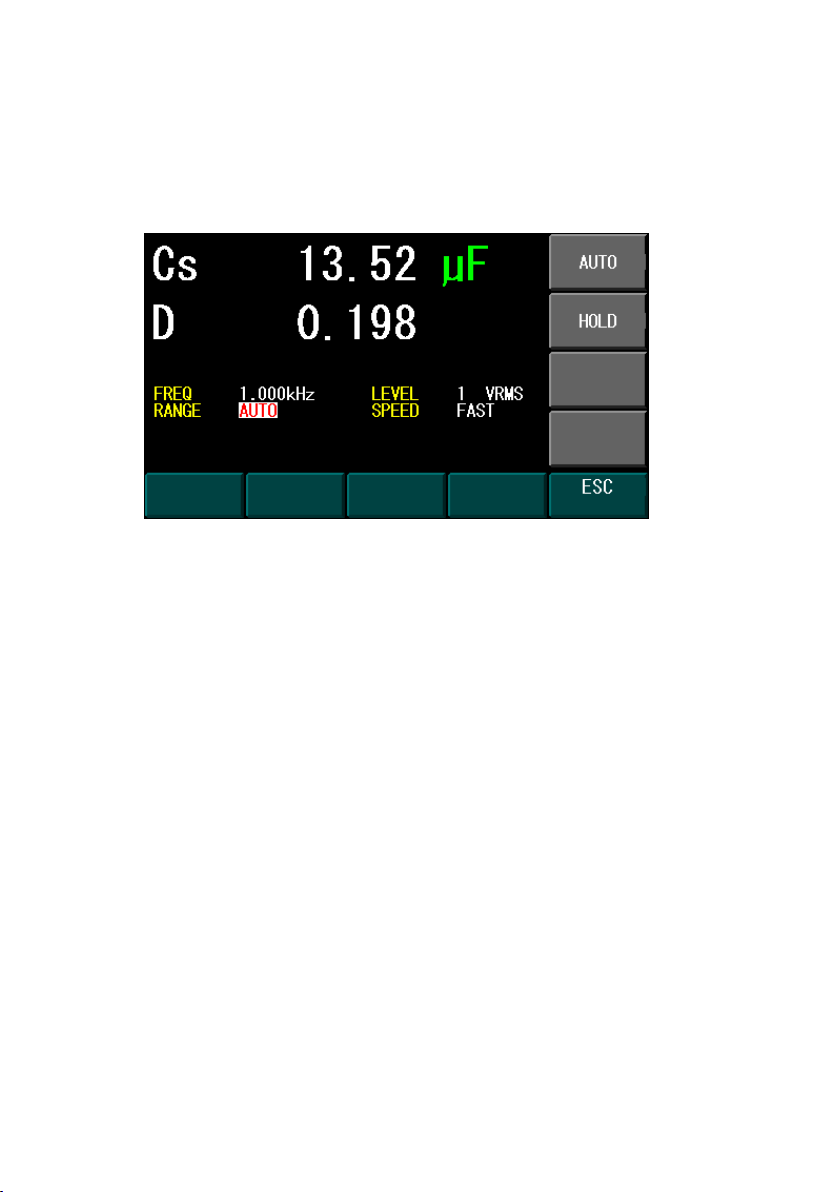
decrease. Use the INC or DEC on the softkey to increase or decrease
the parameter value.
5. If the parameter is a selection value, press the desired selection on
the option softkey.
Figure 3.5 – Selection Entry
3.3 Impedance Parameters
Components such as inductors (L), capacitors (C), and resistors (R) can
respond to test signals with varying frequencies and levels in different ways.
Large capacitors tested at high frequencies can respond differently than when
tested at lower frequencies. Large inductors tested at low frequencies can
respond differently than when tested at higher frequencies. In contrast,
resistors will respond relatively the same at high or low frequencies. Due to
these characteristics, it is very important to understand the complex
impedance parameters of the electronic components. The 891 LCR meter
allows users to vary these test signals’ measurement frequency,
measurement level, and equivalent circuit choice to characterize the
component under test.
When we analyze the impedance using the impedance measurement plane
(Figure 3.6), it can be visualized by the real element (Resistance) on the X-axis
and the imaginary element (Reactance) on the Y-axis. This impedance
14
Page 29

measurement plane can also be seen as polar coordinates. |Z| is the
magnitude and θ is the phase of the impedance.
Figure 3.6 – Complex Impedance Plane
X
There are two different types of reactance: Inductive (XL) and Capacitive (XC).
It can be defined as follows:
15
Page 30

For components, the quality factor (Q) serves as a measurement of the
reactance purity. In the real world, there is always some associated resistance
that dissipates power, decreasing the amount of energy that can be
recovered. The quality factor can be defined as the ratio of the stored energy
(reactance) and the dissipated energy (resistance). Q is generally associated
with inductors and D (dissipation factor) for capacitors. Below shows the
relationships between these parameters:
Series and Parallel Models
Components are modeled with one of the two following equivalent circuits:
16
Page 31

Series model
Parallel model
R
S
X
S
X
P
R
P
Figure 3.7 – Series and Parallel Models
The impedance for the series model is:
The impedance for the parallel model is:
These circuit models are mathematically equivalent. The LCR meter measures
an impedance, which gives two independent numbers, the magnitude (|Z|)
and phase (θ) of the impedance. These are changed into rectangular
components R and X, giving the real and imaginary part of the impedance.
These rectangular components can then be transformed into either a series
or parallel circuit of a pure resistance and pure reactance. These transformed
circuits have exactly the same impedance as the measured value, only at the
measured frequency.
Choosing a Test Frequency
Test frequency can greatly affect the results of measurement reading,
especially when measuring inductors and capacitors. This section provides
some recommendations and suggestions to consider.
Capacitance
When measuring capacitance selecting, the right frequency is important in
obtaining the most accurate measurement results. Generally, a 1 kHz and
17
Page 32

above test frequency is used to measure capacitors that are 0.01 µF or
smaller. For capacitors that are 10 µF or larger, a frequency of 1 kHz or lower
can be used. Following this trend, high test frequencies are best for testing
very low capacitance components. For large capacitance components, low
frequency would be optimal. For example, if the capacitance of the
component is to be in the mF range, then selecting in the range of 20 Hz to
200 Hz for test frequency would give much better results. The results will also
be obvious because if the same component was tested with 1 kHz or above,
the measured readings may look erroneous on the display.
In all cases, it is best to check with the manufacturer’s data sheet in order to
determine the best test frequency to use for measurement.
Inductance
Typically, a 1 kHz test frequency is used to measure inductors that are used in
audio and RF circuits. This is because these components operate at higher
frequencies and require that they be measured at higher frequencies above 1
kHz. However, a 120 Hz test signal is used to measure inductors that are used
for applications such as filter chokes in power supplies, which are typically
operated at 60 Hz AC (in U.S.) with 120 Hz filter frequencies.
In general, inductors below 2 mH should be measured at 1 kHz frequency
while inductors above 200 H should be measured at 120 Hz.
In all cases, it is best to check with the manufacturer’s data sheet in order to
determine the best test frequency to use for measurement.
Choosing a Measurement Circuit Model
There are two measurement circuit models to choose from, series or parallel,
when characterizing components under test. The LCR meter will make
measurements regardless of which model is chosen, but components will
display more accurate results if the correct measurement model is selected.
To determine the better model to choose depends on the impedance of the
component at the specified frequency.
18
Page 33

Small Capacitor
(High Z)
RP
C
Large Capacitor
(Low Z)
RP
C
RS
RS
Capacitance
The impedance in a capacitor is negatively proportional. Therefore, the larger
capacitance means the lower impedance, the smaller capacitance reverts to
higher impedance. Figure 3.8 shows the equivalent circuit of capacitor. If the
capacitance is small, the parallel resistance (RP) becomes large and more
relevant than the series resistance (RS). If the capacitance is large, the series
resistance becomes dominant and the parallel resistance becomes
insignificant. Hence, it is proper to use the parallel model for low capacitance
measurement and series model for high capacitance measurement.
Relevant
Less relevant
Figure 3.8 – Equivalent Capacitor Circuit
Less relevant
Relevant
Inductance
The impedance of an inductor is positively proportional. Therefore, the larger
inductances equals to higher impedance and vice versa. Figure 3.9 shows the
equivalent circuit of an inductor. When the inductance is small, the series
resistance (RS) becomes more important than the parallel resistance (RP).
When the inductance is large, the parallel resistance should be taken into
consideration. Therefore, it is recommended to use the series model to
measure an inductor with low inductance and parallel model to measure an
inductor with high inductance.
19
Page 34

Frequency
(kHz)
Capacitors
Inductors
Use series
model when
Use parallel
model when
Use series
model when
Use parallel
model when
0.1
> 16 μF
< 16 μF
< 160 mH
> 160 mH
1
> 1.6 μF
< 1.6 μF
< 16 mH
> 16 mH
10
> 160 nF
< 160 nF
< 1.6 mH
> 1.6 mH
100
> 16 nF
< 16 nF
> 160 μH
> 160 μH
Large Inductor
(High Z)
RP
L
Small Inductor
(Low Z)
RP
L
RS
RS
Relevant
Less Relevant
Figure 3.9 – Equivalent Inductor Circuit
Less Relevant
Relevant
What is considered high and low impedances to choose the correct circuit
model? There is no exact answer, but generally if the impedance is greater
than 100 Ω* use the parallel circuit model. Use the series circuit model when
the impedance is less than 100 Ω*.
*Note: This is only a typical value. In all cases, it is best to check with the
manufacturer’s data sheet in order to determine the best model to use for
measurement.
The following table translates this approximate impedance rule into
inductance and capacitance values:
Ta ble 3.1 – Series/Parallel Model Guidelines
20
Page 35

If the component under test is a capacitor, make sure the
capacitor has been fully discharged before connecting it to
the instrument. Failing to discharge the capacitor may
damage the instrument and will be considered misuse.
Primary
Measurement
Secondary
Measurement
Measurement
Parameters
3.4 Configure Basic Measurement
To measure the component, connect the device under test to the test leads or
insert it into the test fixture. Press MEAS FUNC to select desired primary
measurement of C, L, Z, R or DCR. To select series or parallel mode as well as
the secondary measurement parameters of Q, D, R, G, θ (not shown), and X
(not shown), press the corresponding softkey to the right of the LCD.
Figure 3.10 – Measurement Function Display
Primary Parameters
All primary parameters are listed below:
21
Page 36

Parameter
Description
Cs
Capacitance value measured using a series
equivalent circuit model
Cp
Capacitance value measured using a
parallel equivalent circuit model
Ls
Inductance value measured using a series
equivalent circuit model
Lp
Inductance value measured using a parallel
equivalent circuit model
Z
Impedance value
Y
Admittance value
R
Resistance value using a specified AC
frequency and level
G
Conductance value
DCR
Resistance value using a DC bias.
Parameter
Description
Q
Quality factor
D
Dissipation factor
R
Equivalent resistance
G
Conductance
θ
Phase angle
X
Reactance
B
Susceptance
Secondary Parameters
Table 3.2 – Primary Parameters
All secondary parameters are listed below:
Table 3.3 – Secondary Parameters
22
Page 37

Primary
Parameter
Series Mode
Parallel Mode
C
Cs-Q
Cs-D
Cs-R
Cp-Q
Cp-D
Cp-R
Cp-G
L
Ls-Q
Ls-D
Ls-R
Lp-Q
Lp-D
Lp-R
Lp-G Z Z-θ
-
Y - Y-θ R R-X
- G -
G-B
Parameter
Description
Input
FUNC
Specify the measurement type
All combinations
FREQ
Specify the test signal frequency
20 Hz to 300 kHz
LEVEL
Specify the test signal level
0.5 VRMS, 1
Parameter Combinations
The combinations of primary and secondary parameters, including the series
and parallel combinations are listed below:
Table 3.4 – Parameter Combinations
Measurement Options
The following table lists the measurement parameter options that are
configurable for a basic measurement.
Table 3.5 – Measurement Parameter Options
23
Page 38

VRMS, 1 VDC*
RANGE
Specify the measurement range control
AUTO, HOLD
SPEED
Specify the measurement speed
SLOW, FAST
Parameter
Description
Input
NOTATION
Specify the numerical notation
Decimal, Scientific
PRI. DIG.
Specify the number of digits to display
for primary measurement
2, 3, 4
SEC. DIG.
Specify the number of digits to display
for the secondary measurement
2, 3, 4
DISP
(NORM)
When selected, all measurement
parameters will be displayed on screen
DISP
(LARGE)
When selected, only the primary and
secondary measurements will be displayed
in a larger font.
*DCR mode only
Measurement Display
The number of digits of the primary and secondary measurement value can
be changed from 2 to 4 digits. Also, the display notation of decimal or
scientific can be selected as well. The large display enhances the readability
of the measurement. The following table shows display options for the
measurement function.
Table 3.6 – Measurement Display Options
The following steps walk through how to configure the measurement display
options:
1. Press the DISP function key to open the display softkey options.
24
Page 39

Figure 3.11 – Display Function Options
2. Press the softkey options PRI. DIG. or SEC. DIG. to select the number
of digits to be displayed for the primary or secondary measurements.
Figure 3.12 – Display Function (Primary and Secondary Digits)
3. Press the NOTATION softkey to select the scientific or decimal
display.
25
Page 40

Figure 3.13 – Display Function (Notation)
4. Press the DISP key again to show large readings on the screen.
Figure 3.14 – Display Function (Large Format)
5. Press the DISP key to go back to normal readings display.
3.5 Bin Sorting Function
The bin sorting function is very useful for component sorting in component
inspection or quality control. It has 9 Primary bins plus a Secondary bin and
an Out-of-specification bin. Each bin has high and low limit values. If the
measured value is within the high and low limits of the bin, the bin counter
26
Page 41

will increment by one with beep function. The beep can be turned off or used
when the component passes or fails specification. The beep tone for each bin
is different so that the user can distinguish bins by listening. The bin detection
sequence is from low to high. This means that the bin 1 comparator will
execute first and if the measured value is not within bin 1’s limits, it will
execute the bin 2 comparator and so on. For instance, if both bins are set to
the same limits, the larger numbered bin will not be compared because the
smaller numbered bin will always count first.
To measure the value and record the count into the predefined bins, users
can connect the component and press the TRIG softkey. If the flash drive is
inserted and the Bin Log option is ON in the SYSTEM SETUP menu (see System
Setup section), each measured value will be recorded onto the flash drive.
The bin function has two modes: absolute mode and tolerance mode.
Absolute Mode
The absolute mode allows users to use absolute values for the high and low
limits of each bin. The following example shows a typical setup of absolute
mode.
Figure 3.15 – Bin Mode Table View (Absolute Mode)
The following graph is a visual representation of the Bin absolute mode setup
demonstrated in Figure 3.16.
27
Page 42

Figure 3.16 – Bin Setup Absolute Mode Graph
Tolerance Mode
The tolerance mode allows the user to set high and low limits value by
percentage of a nominal value. The following example shows a typical setup
of tolerance mode.
Figure 3.17 – Bin Mode Table View (Tolerance Mode)
The following graph is a visual representation of the Bin tolerance mode
setup demonstrated in Figure 3.18.
28
Page 43

Figure 3.18 – Bin Setup Tolerance Mode Graph
Secondary comparator bin
If the measured component primary value is within any of the Primary bin
limits and the measured secondary parameter value is not within the
Secondary bin limits, the secondary bin count will increment by one. If the
measured primary value and secondary value are not within the high/low
limits of any bins, the Out bin count will increment by one.
Figure 3.19 – Bin Priorities
29
Page 44

Measurement
Parameters
Measured
Values
Sorted Bin
Total Count
The bin function has three different display screens to present results of the
comparisons: Bin, Table, and Histogram. The manual trigger to count can be
accessed in any of these displays.
Bin Display
This screen shows the measured value as well as the compared bin number.
Figure 3.20 – Bin Main Display
Table Display
The table display shows the overall result of the bin function. It shows the
result, the comparator enable switch and high/low limit values of each bin.
The comparator setting can be accessed in this display screen.
30
Page 45

Measurement
Parameters
Sorted Bin
Bin Limits
Table Display
Indicator
Measurement
Parameters
Histogram
Chart
Histogram
Display Indicator
Results
Figure 3.21 – Bin Table Display
Histogram Display
The screen shows the histogram chart of the bin function result.
Figure 3.22 – Bin Histogram Display
31
Page 46

Parameter
Description
Input
FUNC
Specify the measurement type
All combinations
NOM*
Specify the nominal component value
Valid component
range
FREQ
Specify the test signal frequency
20 Hz to 300 kHz
LEVEL
Specify the test signal level
0.5 VRMS, 1
VRMS, 1 VDC**
RANGE
Specify the measurement range control
AUTO, HOLD
SPEED
Specify the measurement speed
SLOW, FAST
SWAP
Specify primary or secondary
measurement
PRI, SEC
Configure Bin Function
The following table shows the different parameters that can be configured in
the Bin function.
Table 3.7 – Bin Parameter Options
*Tolerance mode only
**DCR measurement only
To perform the bin function, press the BIN function key to enter the bin
softkey menu. The default mode is tolerance mode.
32
Page 47

Figure 3.23 - – Bin Mode View (Tolerance Mode)
Press the BIN function key again to switch between tolerance and absolute
mode.
Figure 3.24 – Bin Mode View (Absolute Mode)
Press the arrow keys to select the test parameters and use the option
softkeys to edit and set them.
33
Page 48

Figure 3.25 - Bin Parameter Edit
To edit the high/low limits values and comparator ON/OFF for each bin, press
DISP key to enter the table display. Use arrow key to activate the cursor and
edit the corresponding values.
Figure 3.26 – Bin Enable/Disable
To start the bin comparator function, do the following steps:
1. Select the desired beep function by press the BEEP softkey.
2. The SWAP softkey will swap the primary and secondary
measurement to be the main bin comparison.
3. Press the START softkey to start the bin comparison.
34
Page 49

4. Connect the component under test to the test leads or insert it into
the test fixture.
5. Press the TRIG key to perform a bin comparison and log the
corresponding bin count result.
6. Remove the device under test from the test leads or test fixture.
7. Repeat steps 1 – 3 for more components to be tested.
8. Press the STOP softkey to stop the bin comparison.
9. Use the CLEAR softkey to clear the bin count results.
NOTE: You may save the bin comparison test results to an external USB flash
drive. To do so, please refer to the Save a Measurement Result section.
3.6 Sweep Function
The sweep function scans the frequency over the component under test. It
shows a full spectrum of the component characteristics in a very easy to
operate method. It can also sweep the frequency linearly or logarithmically to
provide better understanding of the component. Users can also view data
either by a graph or by a table and obtain up to 300 points in one sweep.
Linear Sweep Mode
In linear sweep mode, the unit will sweep the frequency linearly from start
frequency to stop frequency. The following will be displayed for the “GRAPH”
display:
35
Page 50

Figure 3.27 – Sweep Linear Display
Logarithmic Sweep Mode
In logarithmic sweep mode, it will sweep the frequency logarithmically from
start frequency to stop frequency. The following will be displayed for the
“GRAPH” display:
Figure 3.28 – Sweep Logarithmic Display
Table Display
The table display shows the overall result of the linear or logarithmic sweep.
It shows the step number, frequency, and component value in a table form.
36
Page 51

Measurement
Parameters
Sweep
Graph
Using the PG UP or PG DN softkey options will scroll the table up or down. Up
to 300 points (depending on sweep settings) can be displayed in table display.
If interpolation is turned on, interpolated data will be shown in orange. The
result table can be accessed using the DISP function key.
Figure 3.29 – Sweep Table Display (with INTERP ON)
NOTE: You may save the table sweep results to an external USB flash drive. To
do so, please refer to the Save a Measurement Result section.
Configure Sweep Function
Figure 3.30 - Sweep Function
37
Page 52

Parameter
Description
Input
FUNC
Specify the type of sweep measurement
All
combinations
(Except DCR)
LEVEL
Specify the sweep voltage level
0.5 VRMS, 1
VRMS
START
Specify the sweep start frequency (X-Axis)
20 Hz to 300
kHz
STOP
Specify the sweep stop frequency (X-Axis)
20 Hz to 300
kHz
HI
Specify the high display value scale (Y-Axis)
LOW
Specify the low display value scale (Y-Axis)
STEP
Specify the frequency sweep step and limit
number of measured points
1, 2, 5, 10
SWAP
Specify primary or secondary sweep
measurement
PRI, SEC
There are many parameters that may be configured for each sweep. The
following table are the different parameters that can be setup in the Sweep
function.
Table 3.8 – Sweep Parameter Selections
38
Page 53

AUTOSCALE
If enabled (ON), the unit will automatically
select the HI and LO values (Y-axis) to properly
display the frequency sweep on the display
graph. If disabled (OFF), the manually set user
values will be used.
ON, OFF
AUTOFREQ
If enabled (ON), the unit will automatically
select the start and stop frequency based on
an initial analysis of the component connected
to the input and the initial start and stop
frequency that is set. The start and stop
frequency are then adjusted automatically to
ensure sufficient interval/spacing between
each frequency points of the sweep.
ON, OFF
INTERP
If enabled (ON), the unit will show interpolated
data in table view and return interpolated data
in remote mode.
ON, OFF
Step
Parameter
Number of Points
(INTERP ON)
Number of Points
(INTERP OFF)
1
300
300 2 300
150 5 300
60
10
300
30
The following table specifies the number of points generated with
interpolation enabled and disabled.
Table 3.9 - Step Parameter Points
To run the sweep function, perform the following steps:
1. Press the SWEEP function key to enter the sweep function.
2. Press the DISP function key to select linear or logarithmic scale.
3. Press the SWAP softkey if the secondary value is desired to be swept.
39
Page 54

4. Use the arrow keys to edit the desired measurement parameters
such as level, start frequency, stop frequency, high and low values of
the Y-Axis (if AUTOSCALE is ON, the meter will automatically scale the
Y-axis), and the step value. Step can be set to 1, 2, 5, and 10 points
per sweep step.
5. Turn AUTOFREQ ON if you would like the meter to automatically
select the start and stop frequency.
6. Turn INTERP ON if you would like to have interpolated data included
in the sweep result (only valid if step is 2, 5, or 10). Connect the test
leads to the component under test or insert component into the test
fixture.
7. Press the START softkey to execute the sweep function with the
current parameters. The display will do an initial scan and analyze
the component connected to the input to determine the frequency
sweep range (if AUTOFREQ is ON). The below screen will display
during the scan.
8. If needed, press the STOP softkey to terminate the sweep function
immediately.
9. While sweeping, the instrument may occasionally display the below
screen if a measurement requires more than 1000 ms to complete.
This is normal.
40
Page 55

10. After the sweep is completed, the display will show one of the
following graphs:
Note: When sweep is completed, if you press any of the arrow keys
to select or change any of the sweep parameters, all data will be
cleared.
Figure 3.31 – Post Linear Sweep Display
41
Page 56

Figure 3.32 – Post Logarithmic Sweep Display
11. Use the CURSOR LEFT or CURSOR RIGHT softkeys to change the
cursor position of the frequency on the curve to read the measured
value at that frequency.
Figure 3.33 – Post Sweep Point Selection
12. To view all the points for frequency and component values in a table
form, press the DISP function key.
42
Page 57

Figure 3.34 - Points Table without Interpolation
Figure 3.35 - Points Table with Interpolation
13. When finished, you may clear the sweep data by using the CLEAR
softkey option.
4 System
The system menu allows the user to view the system information, configure
system setup and communication setup. Press the SYSTEM function to enter
this submenu.
43
Page 58

Figure 4.1 – System Submenu
System Information
Press the SYSTEM INFO function key to view the system information. The
following screen will be shown.
Figure 4.2 – System Information
In the system information page, the user can view the following:
Model
Serial Number
UI Firmware Version/Hardware Version/GPIB Version
Real Time Clock Battery Information
Front USB Identification
USB Product Information
GPIB Address
MAC Address
Current IP Address
44
Page 59

Parameter
Default Setting
Mode
Measurement
Primary measurement
Parallel Capacitance (Cp)
Secondary measurement
Dissipation Factor (D)
Test frequency
1.000 kHz
Test level
1 VRMS
Test range
Auto
Test speed
Slow
Display font
Normal
Display notation
Decimal
Primary digit
4
Secondary digit
4
Bin mode
Tolerance
Bin mode display
Bin
Bin beep
Off
Current Subnet Mask
Current Gateway
Clear Errors
In this menu page, the user also has the ability to clear any errors, as
indicated in the bottom right corner of the screen with a red “ERR”, which
may occur. To do so, press the CLEAR ERROR option softkey to clear all errors.
This has the same effect as sending the “*CLS” command (see SCPI Common
Commands section) remotely.
Set to Factory Default
To set instrument settings to factory default, press the RESET option softkey.
The instrument will change all settings to default and the screen will return to
the main measurement display.
Below is a table of the factory default settings:
Table 4.1 – Default Settings
45
Page 60

Sweep display
Linear
Sweep start frequency
20.00 Hz
Sweep stop frequency
300.0 kHz
Sweep Autoscale
On
Sweep step
1
System LCD brightness
9
System beep
On
System Bin Log
On
System communication GPIB address
01
System communication IP mode
Auto
Parameter
Description
Input
Date
Set the date (YY/MM/DD)
Numeric Keys
Time
Set the time in 24 hour format
(HH:MM:SS)
Numeric Keys
Brightness
Set the LCD brightness level
Numeric Keys (0-9)
Beep
Configure the system beep
ON/OFF
Bin Log
Configure data logging to
external USB flash for bin mode
ON/OFF
System Setup
To edit the system setup, press the SYSTEM SETUP function key. Use the
arrow keys to edit system settings such as date, time, LCD brightness, system
beep, Bin Log function, and the Auto Scale for the sweep mode. The following
table describes the available setup options.
Table 4.2 – System Setup Menu
46
Page 61

Figure 4.3 – System Setup Screen
Bin Log
When Bin Log setting is enabled (ON) in the System Setup, it allows for the
LCR meter to log measurement results directly to the connected USB flash
drive. The LCR meter will create a folder called “LOG” in the flash drive and
store the bin log files (BLOGxxxx.TXT) in this folder. The feature will work in
both absolute mode and tolerance mode. The following is a sample of the
generated data log:
47
Page 62

Parameter
Description
Input
GPIB Address
Set the GPIB address
Numeric Keys
(1-30)
IP Mode
Configure the IP mode to setup the
LAN as DHCP (Auto) or static
(Manu)
AUTO/MANU
IP Address
Set the instrument IP address
Numeric Keys
BIN TOLERANCE
Cs-D FREQ 1.000 kHz RANGE AUTO
NOM 22.00uF LEVEL 1 VRMS SPEED FAST
BIN# LOW LMT HIGH LMT
1 -1.000 % 1.000 %
2 -2.000 % 2.000 %
3 -5.000 % 5.000 %
4 -10.00 % 10.00 %
5 -- --
6 -- --
7 -- --
8 -- --
9 -- --
SEC -- --
TEST RESULT
NO. Value BIN#
1 Cs : 22.8uF 3
2 Cs : 22.8uF 3
3 Cs : 22.8uF 3
4 Cs : 22.8uF 3
Date: 2014/04/29
Time: 16:48:01
Figure 4.4 – Bin Log Text Result
Communication Setup
Press the COMM SETUP function key to edit the communication setup such
as GPIB address, IP mode, IP address, subnet mask, and gateway. The
following parameters will be displayed.
Table 4.3 – Communication Setup Menu
48
Page 63

Subnet Mask
Set the instrument Subnet Mask
Numeric Keys
Gateway
Set the instrument Gateway
Numeric Keys
Figure 4.5 – Communication Setup Screen
For further information on the communication setup, see Interface
Configuration section.
5 Save/Recall
The 891 has built-in non-volatile memory that can store 10 sets of
measurement configurations. With an external USB flash drive, users can
store an additional 90 sets of measurement configurations and up to 1000
sets each of measurement data results and screen captures. Before
Save/Recall is executed, insert the USB flash drive into the front USB flash
drive port. A short message indicates the USB flash drive has been attached
and recognized, as shown below.
Note: The USB flash drive is compatible with most FAT32 formatted flash
drives.
49
Page 64

Figure 5.1 – USB Flash Detect Message
When the button is selected, the following options screen will appear
and allow the user to save a measurement configuration (CONFIG),
measurement data results (MEAS), or a screen capture (SCREEN).
Figure 5.2 - Save Menu
The file folders that store the measurement configuration (CFG),
measurement result (RLT), and LCD screen (BMP) will be created by the LCR
meter and stored on the USB flash drive.
50
Page 65

Measurement state of single measurement, bin
function, or sweep function
Primary measurement of C, L, R, Z, and DCR
Secondary measurement of D, Q, R, G
Test frequency
Test level
Test range
Test speed
Display normal or large
Display notation
Primary digit
Secondary digit
Bin mode of tolerance or absolute
Bin display of bin, table or histogram
Bin beep of off, pass or fail
Bin swap of primary and secondary
Bin nominal value of tolerance mode
Bin comparator on/off switch of bin 1-9 and secondary
bin in tolerance mode
Bin high/low limits of bin 1-9 and secondary bin in
tolerance mode
Bin comparator on/off switch of bin 1-9 and secondary
bin in absolute mode
Bin high/low limits of bin 1-9 and secondary bin in
absolute mode
Sweep display of linear or logarithm
Sweep start frequency
Sweep stop frequency
Sweep high value of the graph scale
Sweep low value of the graph scale
Save/Recall a Measurement Configuration
The following measurement parameters will be saved or recalled during this
operation.
Table 5.1 – Save/Recall Parameters
51
Page 66

Sweep step
Sweep swap of primary and secondary
Sweep Autoscale
System LCD brightness
System beep
System communication GPIB address
System communication IP mode of manual or auto
System communication IP address
System communication subnet mask
System communication gateway address
The file name of the measurement configuration is 891CFGxx.CFG, where the
xx represents the location (00 to 99) in internal non-volatile memory or
external USB flash drive. The number 00 to 09 is designated to be the internal
non-volatile memory and the number 10 to 99 is in the external USB flash
drive.
Save a Measurement Configuration
To save the measurement configuration, press the key first and then
press the SAVE CONFIG softkey option to show the save configuration pop-up
window.
52
Page 67

Indicates
flash drive
Filename to
be saved
internal
memory or
external USB
Figure 5.3 – Save Configuration Pop-Up Window
Use the numeric keypad to edit the desired location from 00 to 99 in the
memory, from 00 to 09, Press SAVE softkey option to execute the save
function or press ABORT to close the save configuration pop-up window. The
“891CFGxx.CFG File Saved !” message will be displayed on the screen, if saved
successfully, a message will pop up as shown below.
Figure 5.4 – Save Confirmation Message
Recall a Measurement Configuration
To recall the measurement configuration, press the key first and then
press the RECALL CONFIG softkey to show the save configuration pop-up
53
Page 68

window.
Figure 5.5 – Recall Configuration Pop-Up Window
Use the numeric keypad to enter the desired file number to be recalled or use
the NEXT FILE softkey option to select the next available configuration file
that has been stored in the internal memory or external flash drive. Press the
EXEC softkey option to execute the recall configuration file or press the
ABORT softkey option to close the recall configuration pop-up window.
Save a Measurement Result
The measurement result can be saved to an external USB flash drive. The
format of the saved result is the text file that can be opened by any text
editor program, such as notepad. Three types of measurement results can be
saved: single measurement, bin test, and sweep test.
54
Page 69

SINGLE MEASUREMENT
------------------------Date: 2014/04/29
Time: 16:37:55
FREQ : 1.010 kHz
LEVEL : 1 VRMS
RANGE : AUTO
SPEED : SLOW
Cs : 45.02 uF
D : 0.174
BIN TOLERANCE MEASUREMENT
------------------------Date: 2014/04/29
Time: 16:41:40
FUNC Cs-D FREQ 1.010 kHz RANGE AUTO
NOM 47.00uF LEVEL 1 VRMS SPEED SLOW
BIN# RESULT ON/OFF LOW LMT HIGH LMT
1 0 ON -1.000 % 1.000 %
2 0 ON -2.000 % 2.000 %
3 0 ON -3.000 % 3.000 %
4 2 ON -4.000 % 4.000 %
5 5 ON -5.000 % 5.000 %
6 2 ON -6.000 % 6.000 %
7 0 ON -7.000 % 7.000 %
8 6 ON -10.00 % 10.00 %
9 0 ON -20.00 % 20.00 %
SEC 0 ON 0.050 0.200
OUT 0
Figure 5.6 – Single Measurement Text Result
Figure 5.7 – Tolerance Bin Measurement Text Result
55
Page 70

BIN ABSOLUTE MEASUREMENT
-----------------------Date: 2014/04/29
Time: 16:42:01
FUNC Cs-D FREQ 1.010 kHz RANGE AUTO
LEVEL 1 VRMS SPEED SLOW
BIN# RESULT ON/OFF LOW LMT HIGH LMT
1 6 ON 43.00uF 43.50uF
2 2 ON 43.50uF 44.00uF
3 5 ON 44.00uF 44.50uF
4 1 ON 44.50uF 45.00uF
5 1 ON 45.00uF 45.50uF
6 0 ON 45.50uF 46.00uF
7 0 ON 46.00uF 46.50uF
8 0 OFF -- --
9 0 OFF -- --
SEC 0 ON 0.010 0.100
OUT 0
SWEEP MEASUREMENT
-----------------------Date: 2014/04/29
Time: 16:42:57
HIGH : 50.00uF
LOW : 10.00uF
STARTFREQ: 20.00 Hz
STOPFREQ : 300.0 kHz
LEVEL : 1 VRMS
SCALE : LINEAR
1 FREQ: 20.000 Hz Cs : 60.85 uF
2 FREQ: 1019.933 Hz Cs : 45.01 uF
3 FREQ: 2019.867 Hz Cs : 44.08 uF
4 FREQ: 3019.800 Hz Cs : 43.79 uF
5 FREQ: 4019.733 Hz Cs : 43.35 uF
.
.
.
299 FREQ:298000.125 Hz Cs : 18.12 uF
300 FREQ:299000.063 Hz Cs : 17.96 uF
301 FREQ:300000.000 Hz Cs : 18.61 uF
Figure 5.8 – Absolute Bin Measurement Text Result
Figure 5.9 – Sweep Measurement Text Result
56
Page 71

To save the test result, first, make the measurement of desired test such as
single measurement, bin, or sweep. Press the key and press the SAVE
MEAS softkey option to show the save measurement pop-up window. The file
name of the measurement result is 891RLTxxx.TXT, where xxx represents 000
to 999 locations in the external USB flash drive.
Figure 5.10 – Save Measurement Pop-Up Window
Use the numeric keypad to edit the desired location from 000 to 999 in the
memory. Press the SAVE softkey option to execute the save function or press
ABORT to close the save configuration pop-up window. If saved successfully,
the “891RLTxxx.TXT File Saved !” message will be displayed on the screen.
Save a Screenshot
The contents on the LCD screen can be captured using the screenshot
function. It will create a bitmap file of the entire 480 x 272 pixels of screen.
The file name of the LCD screen is 891SCRxxx.BMP, where xxx represents the
000 to 999 locations in the external USB flash drive. To make a screenshot of
the LCD screen, press the key and press the SAVE SCREEN softkey
option to show the save screen pop-up window, as shown below.
57
Page 72

Figure 5.11 – Save Screenshot Pop-Up Window
Use the numeric keypad to edit the desired location from 000 to 999 in the
memory. Press the SAVE softkey option to execute the save function. Or,
press ABORT to close the save screen pop-up window. If saved successfully,
the “891SCRxxx.BMP File Saved !” message will be displayed on the screen.
58
Page 73

Parameter
Description
Baud rate
9600, 19200, 38400, 57600
Parity and
data bit
None/8 bits, Even/8 bits, Odd/8 bits
Stop bit
1, 2
Flow control
None
6 Remote Interface
The instrument comes with USB (virtual COM), GPIB, and LAN interfaces for
remote control. This chapter will describe how users can remotely operate
the instrument and use SCPI (Standard Commands for Programmable
Instruments) commands over any one of these remote interfaces.
NOTE: The green RMT indicator will appear on the lower right of the display
when the LCR meter is successfully connected to a PC remotely through any
remote interface. Keys on the front panel will be locked until the instrument
is in LOCAL mode. To return to LOCAL mode from the front panel, press the
key. The RMT indicator will disappear when the instrument is in LOCAL
mode.
6.1 Interface Configuration
USB (Virtual COM)
The standard USB port is a virtual COM port that can be used for remote
communication. There are no settings in the menu system for USB
configuration. The serial settings are listed below:
59
Page 74

The USB interface does not support hardware flow control
(only transmit, receive, and ground pins are used). The
programmer should be aware of this limitation and notice
the command process time of the LCR meter. If the remote
commands are sent too fast to the LCR meter, the internal
buffer may overrun and cause a communication error.
Therefore, adding a delay between commands is necessary
to allow time for the meter to process.
GPIB
The GPIB address of the LCR meter can be configured from 1-30. To
communicate via GPIB, connect a GPIB cable to the GPIB port at the back of
the LCR meter. Follow the instructions below to select and configure the GPIB
interface for remote operation.
1. From the SYSTEM menu, select the COMM SETUP function key.
2. From the COMM SETUP menu, press any arrow key to highlight the
first parameter, GPIB Address in this case.
3. Once GPIB Address is highlighted, use the numeric keypad to input
the GPIB address (1-30 is valid) and press the ENTER softkey option.
4. Press ESC to exit editing parameters.
LAN (Ethernet)
There are three ways to control the LCR meter via LAN interface: Web server,
Telnet connection, and Socket connection.
Follow the instructions below to select the Ethernet interface and configure it
for remote operation.
60
Page 75

1. From the SYSTEM menu, select the COMM SETUP function key.
2. From the COMM SETUP menu, press the down arrow key multiple
times to highlight the IP Mode parameter. You have the option
between AUTO and MANU. Selecting AUTO will allow the unit to
request an IP Address, Subnet Mask, and Gateway automatically in
order to communicate properly. No other configuration is necessary
once AUTO is selected.
NOTE: The unit must already be connected via Ethernet connection
and the connected network/router must be compatible to assign
the correct parameters to the instrument.
Selecting MANU will allow the user to manually enter the IP Address,
Subnet Mask, and Gateway of the instrument.
3. If MANU is selected, press the down arrow key to highlight the IP
Address parameter and enter using the numeric keypad (i.e. IP
Address: 192.168.100.55).
4. Repeat step 3 for the Subnet Mask and Gateway parameters.
5. Press ESC to exit editing parameters.
Web Server
There is an embedded web server GUI that can access the LCR meter via LAN
interface using a web browser. The GUI provides a simple way of setting
measurement parameters, sending SCPI commands, making measurements,
as well as viewing system information using a web browser from a computer
connected to the same local area network as the instrument. To access this,
perform the following steps:
1. Open up a web browser on the computer
2. Check the IP address of the LCR meter by pressing the SYSTEM
function key and the SYSTEM INFO key.
61
Page 76

Current IP
Address
Figure 6.1 – Current IP Address
3. Type the IP address of the LCR meter in the URL bar of your browser
with http:// prefix (i.e. http://192.168.1.55 for IP Address
192.168.1.55).
4. If correctly configured, the following screen will be shown:
Figure 6.2 – Web Server Login Page
62
Page 77

5. A password is required to login and access the menu items on the
page. The default admin password is 123456.
The web server menu items are described below:
- HOME
The HOME page provides general information of the LCR meter: Model
Number, Manufacturer, Firmware version, Front USB ID/product, MAC
address, and IP address.
Figure 6.3 – Web Server Home Page
- CONFIG
The CONFIG page provides the setting of date, time, and brightness.
63
Page 78

Figure 6.4 – Web Server Configuration Page
- CONTROL
The CONTROL page provides the general control of the LCR meter such as
measurement function, test frequency, test level, range, and speed. The real
time measurement result is shown on this page. The command line to send
and receive SCPI commands can also be accessed here.
Figure 6.5 – Web Server Control Page
Log Out will exit the web page and go back to the login screen.
64
Page 79

Symbol
Response Formats
<bool>
Boolean value, can be 1 or “ON”, 0 or “OFF”
Telnet Connection
The instrument can be connected via LAN (Ethernet) interface using Telnet
client with the following socket port 5024.
Socket Connection
Socket connection is available for communication via LAN (Ethernet)
interface. Users can use socket port 5025 to open a raw socket connection for
sending remote commands.
Note: The TCP protocols are used to communicate with the instrument.
Note: When controlling the instrument via LAN, the instrument needs to
have additional delays of at least 100 ms added between each write
operations to ensure a stable connection between the computer and the
instrument.
6.2 Parameter Definition
The instrument supports communication protocols, which include standard
SCPI commands and a few proprietary commands that follow the SCPI
convention. This enables users to operate the LCR meter through a computer
or a terminal equipped with IEEE-488.2 GPIB, USB, or LAN interface.
Additionally, it allows remote control and monitoring. SCPI IEEE-488.2 also
supports multi-unit control allowing a user to control up to 30 units.
Note: GPIB and LAN interface have an internal buffer of 100 bytes. If multiple
commands of the same subsystem are sent in one string, note this buffer size
will limit how many commands can be sent at once.
The following table lists all of the numeric parameters.
Table 6.1 – SCPI Numeric Parameters
65
Page 80

<NR1>
Integer value, can be zero, positive or negative integer
number
<NRf>
Flexible numerical value, can be zero, positive or negative
float point numeric value
<string>
String value, characters enclosed in single or double quotes
<NL>
New line, hex code 0x0Ah
<Rtn>
Return, hex code 0x0Dh
Error
Description
-000
No error
-102
Syntax error
-103
Invalid separator
-108
Parameter not allowed
-109
Missing Parameter
-113
Undefined header
-131
Invalid suffix
-138
Suffix not allowed
-200
Execution error
All commands should be ended with the <Rtn> and <NL> and there should be
a space between command and numeric parameter.
6.3 Error/Event List
SCPI can offer an error/event list that contains up to 10 errors/events. Users
can read the list through the “SYStem:ERRor?” command in a first-in first-out
manner. Once an error or event is read, the read process will clear it from the
memory. To clear all errors or events from the memory, the “*CLS” command
can be used.
The following table lists all the known errors that can be encountered.
Table 6.2 – Error List
66
Page 81

Command
Description
*CLS
Clear status
*IDN?
Return the instrument identification (<Manufacturer>,
<model>, <serial number>, <firmware type and version>)
*RCL <NR1>
Recall setting from memory
*RST
Reset
*SAV <NR1>
Save setting to memory
Command
Description
CALibrate
:BUSY?
Calibrate subsystem
Return calibration status <NR1>, 0=done,
1=busy, -1=fail
6.4 SCPI Common Commands
The instrument is compatible with most of the common IEEE-488.2 and SCPI
commands. Common commands generally control overall LCR meter
functions, such as reset, status, and synchronization. All common commands
consist of a three-letter mnemonic preceded by an asterisk (*). Commands
ended with question mark (?) represent a query command.
The following table lists the common SCPI commands supported:
Table 6.3 – SCPI Common Commands List
6.5 SCPI Command Subsystem
Subsystem commands are specific to functions. They can be a single
command or a group of commands. The groups are comprised of commands
that extend one or more levels below the root. The subsystem commands are
arranged alphabetically according to the function they perform.
The following table lists the common SCPI subsystem commands supported:
Table 6.4 – SCPI Command Subsystem
67
Page 82

:OPEN
:SHORt
Execute open calibration
Execute short calibration
BIN
:ABSolute
:COMParator
:BIN[1-9] <BOOL | ?>
:SECondary <BOOL | ?>
:COUNt
:CLEar
:DATA?
:LIMit
:BIN[1-9] <NRf, NRf | ?>
:SECondary <NRf, NRf
| ?>
:BEEPer <OFF/0 | PASS/1 |
FAIL/2 | ?>
:DISPlay
:MODE <BIN/0 | TABle/1 |
HISTogram/2 | ?>
:BIN <CSQ/0 | CSD/1 |
CSR/2 | CPQ/3 |
CPD/4 | CPR/5 |
CPG/6 | LSQ/7 |
LSD/8 | LSR/9 |
LPQ/10 | LPD/11 |
LPR/12 | LPG/13 |
ZTH/14 | YTH/15 |
RX/16 | GB/17 |
DCR/18 | ?>
BIN subsystem
Absolute mode
Set or return the bin[1-9] comparator on or
off switch
Set or return the secondary bin comparator
on or off
Clear bin counts
Return the bin counts of bin 1<NR1>, bin 2
<NR1>, …, bin 9 <NR1>, out of specification
bin <NR1> and secondary bin <NR1>
Set or return the limit value of the bin[1-9],
<NRf, NRf> = <low, high>
Set or return the limit value of secondary
bin <NRf, NRf> = <low, high>
Set or return the beeper in bin test
Set or return display mode of bin test
Set or return function in BIN display mode
68
Page 83

:TABle <CSQ/0 | CSD/1 |
CSR/2 | CPQ/3 |
CPD/4 | CPR/5 |
CPG/6 | LSQ/7 |
LSD/8 | LSR/9 |
LPQ/10 | LPD/11 |
LPR/12 | LPG/13 |
ZTH/14 | YTH/15 |
RX/16 | GB/17 |
DCR/18 | ?>
:HISTogram <CSQ/0 |
CSD/1 | CSR/2 |
CPQ/3 | CPD/4 |
CPR/5 | CPG/6 |
LSQ/7 | LSD/8 |
LSR/9 | LPQ/10 |
LPD/11 | LPR/12 |
LPG/13 | ZTH/14 |
YTH/15 | RX/16 |
GB/17 | DCR/18
| ?>
:MODE <ABSolute/0 |
TOLerance/1 | ?>
:STARt <BOOL | ?>
:SWAP <BOOL | ?>
:TOLerance
:COMParator
:BIN[1-9] <BOOL | ?>
:SECondary <BOOL | ?>
:COUNt
:CLEar
Set or return function in BIN table display
mode
Set or return function in BIN histogram
display mode
Set or return the bin count mode
Set or return the BIN start running status
Set or return the BIN primary and secondary
swap parameter
Set or return the bin[1-9] comparator on or
off
Set or return the secondary bin comparator
on or off
Clear bin counts
69
Page 84

:DATA?
:LIMit
:BIN[1-9] <NRf, NRf | ?>
:SECondary <NRf, NRf ?>
:NOMinal <NRf | ?>
:TRIGger
Return the bin counts of bin 1<NR1>, bin 2
<NR1>, …, bin 9 <NR1>, out of specification
bin <NR1> and secondary bin <NR1>
Set or return the limit value of the bin[1-9],
<NRf, NRf> = <low, high>
Set or return the limit value of secondary
bin <NRf, NRf> = <low, high>
Set or return the nominal value of tolerance
mode
Trigger a measurement of bin count
DISPlay
:FONT <NORMal/0 | LARGe/1
| ?>
:MODE <DECimal/0 |
SCIentific/1 | ?>
:PAGE < BIN/0 |
MEASurement/1 |
SWEEp/2 |
SYSTem/3 | ?>
:PRImary:DIGit <NR1 | ?>
:SECondary:DIGit <NR1 | ?>
Display subsystem
Set or return display font
Set or return display mode
Select or return measurement function
page
Set or return primary digits
Set or return secondary digits
FETCh?
Return the fetched (display) primary <NRf>
and secondary <NRf> reading
FORMat
[:DATA] <ASCii/0 | REAL/1
| ?>
Format subsystem
Select or return the data format to be ASCII
code or binary code
FREQuency <NRf | ?>
Set or return test signal frequency
LEVel
:AC <NRf | ?>
Level subsystem
Set or return test signal level (0.5 or 1)
MEASurement
:FUNCtion < CSQ/0 | CSD/1 |
CSR/2 | CPQ/3 |
CPD/4 | CPR/5 |
CPG/6 | LSQ/7 |
Measurement subsystem
Set or return the measurement function
70
Page 85

LSD/8 | LSR/9 |
LPQ/10 | LPD/11
| LPR/12 |
LPG/13 | ZTH/14
| YTH/15 |
RX/16 | GB/17 |
DCR/18 | ? >
:RANGe < HOLD/0 | AUTO/1
| ?>
RESUlt?
:SPEEd <SLOW/1 |
FAST/2| ?>
Set or return the measurement range
control
Return the measured (raw data) primary
<NRf> and secondary <NRf> reading
Set or return the measurement speed
RECall
:CONFiguration <NR1>
Recall subsystem
Recall configuration parameters from
internal memory (CFG00.CFG-CFG09.CFG)
or external USB flash disk (CFG10.CFGCFG99.CFG)
SWEEp
:BUSY?
:POInt <NR1 | ?>
:DATA?
:DATA: ALL?
:MODE <LINear/0 |
LOGarithm/1 | ?>
:DISPlay
Sweep subsystem
Queries the status of sweep.
Set or return the sweep point n to be
returned the result of SWEEp:DATA?
command
Return sweep test results of the frequency
<NRf> and data <NRf> of point n
Return sweep test results (300 points)
(This command is not supported via GPIB
and LAN interface due to buffer size limit.)
Set or return the sweep mode
71
Page 86

:LIMit <NRf, NRf | ?>
:MODE <GRAPh/0 |
TABLe/1 | ?>
:LINear
:GRAPh <CSQ/0 | CSD/1 |
CSR/2 | CPQ/3 |
CPD/4 | CPR/5 |
CPG/6 | LSQ/7 |
LSD/8 | LSR/9 |
LPQ/10 | LPD/11 |
LPR/12 | LPG/13 |
ZTH/14 | YTH/15 |
RX/16 | GB/17
| ?>
:TABle <CSQ/0 | CSD/1 |
CSR/2 | CPQ/3 |
CPD/4 | CPR/5 |
CPG/6 | LSQ/7 |
LSD/8 | LSR/9 |
LPQ/10 | LPD/11 |
LPR/12 | LPG/13 |
ZTH/14 | YTH/15 |
RX/16 | GB/17
| ?>
:LOGarithm
:GRAPh <CSQ/0 | CSD/1 |
CSR/2 | CPQ/3 |
CPD/4 | CPR/5 |
CPG/6 | LSQ/7 |
LSD/8 | LSR/9 |
LPQ/10 | LPD/11 |
LPR/12 | LPG/13 |
ZTH/14 | YTH/15 |
Set or return the sweep display limits <low,
high>
Set or return the sweep display mode
Set or return function in sweep linear graph
mode
Set or return function in sweep linear table
mode
Set or return function in sweep linear graph
mode
72
Page 87

RX/16 | GB/17
| ?>
:TABle CSQ/0 | CSD/1 |
CSR/2 | CPQ/3 |
CPD/4 | CPR/5 |
CPG/6 | LSQ/7 |
LSD/8 | LSR/9 |
LPQ/10 | LPD/11 |
LPR/12 | LPG/13 |
ZTH/14 | YTH/15 |
RX/16 | GB/17
| ?>
:FREQuency
:STARt <NRf | ?>
:STOP <NRf | ?>
:STEP <NR1 | ?>
:STARt <BOOL >
:SWAP <BOOL | ?>
:BUSY?
:CLEar
:AUTO
:SCALe <BOOL | ?>
:FREQ <BOOL | ?>
:INTERPolate <BOOL | ?>
Set or return function in sweep log table
mode
Set or return sweep start frequency
Set or return sweep stop frequency
Set or return sweep steps
Set or return sweep start running status
Set or return the sweep primary and
secondary swap parameter
Return sweep running status
Clear sweep data from memory
Set or return sweep auto scale status
Set or return sweep auto frequency status
Set or return data interpolation. This must
be enable or disabled before running a
sweep. Data loss will occur if changed after
a sweep.
SAVe
:CONFig <NR1>
Save subsystem
Save configuration parameters to internal
memory (CFG00.CFG-CFG09.CFG) or
external USB flash disk (CFG10.CFGCFG99.CFG)
73
Page 88

:MEASurement <NR1>
:SCReen <NR1>
Save measurement result to external USB
flash disk (RLT00.TXT-RLT99.TXT)
Save screen to external USB flash disk
(SCR000.BMP-SCR999.BMP)
SYStem
:DATE <NR1, NR1, NR1 | ?>
:BEEPer <Bool | ?>
:BRIGhtness <NR1 | ?>
:ERRor?
:GPIB
:ADDRess <NR1 | ?>
:IP
:ADDRess <NR1.NR1.
NR1.NR1 | ?>
:CONFig <STATic |
MANUal/0, DHCP
| AUTO/1 | ?>
:GATEway <NR1.NR1.
NR1.NR1 | ?>
:MASK <NR1.NR1.NR1. NR1
| ?>
:TIME <NR1, NR1, NR1 | ?>
System subsystem
Set or return current date <year, month,
day>
Set or return beeper state
Set or return display brightness status
return system error
Set or return GPIB address value
Set or return Ethernet IP address
Set or return Ethernet IP mode
Set or return ethernet IP gateway
Set or return ethernet IP mask
Set or return current time <hour, minute,
second>
74
Page 89

7 Troubleshooting Guide
Below are some frequently asked questions and answers. Please check if any
apply to your instrument before contacting B&K Precision.
Q: I cannot power up the instrument
- Check that the power cord is securely connected to the AC input and
there is live power from your electrical AC outlet.
- Check and confirm that the correct fuse is inserted and not blown.
- Verify that the AC power coming from the mains is the correct voltage.
The generator can accept a specific range of AC input voltages. Refer to
section “2.1 Input Power Requirements”.
Q: The measurements on the instrument are shown in a different color
- The component under test may be out of the range of the LCR meter.
Please see the specifications and ranges of the unit.
- Make sure the component test fixture or Kelvin clip is properly secured to
the unit and perform an open and short calibration.
Q: The front panel keys are not responding to key presses
- Verify that the instrument is in REMOTE mode (RMT will be shown on the
front panel in green.) If it is in REMOTE mode, the unit must be changed
to LOCAL mode in order to respond to front panel key presses. To return
to LOCAL mode from the front panel, press the key.
75
Page 90

Measurements
Series mode
Parallel mode
Primary
Secondary
Primary
Secondary
Capacitance
Cs
Q, D, Rs
Cp
Q, D, Rp, G
Inductance
Ls
Q, D, Rs
Lp
Q, D, Rp, G
Resistance
R X
Conductance
G
B
Impedance
Z θ
Admittance
Y
θ
DC Resistance
DCR
Enhanced Measurement Function
Bin Sort Comparator
Limit setting mode
Tolerance (TOL) or Absolute (ABS) value
Number of bins
9 Primary, 1 Secondary, 1 Out of Spec
Bin counts
0 to 60000
Beep warning
OFF, Pass with smart tone, and Fail
Trigger
Manual Trigger
Display format
Measurement, Table, and Histogram
Sweep
Frequency range
20.00 Hz to 300.0 kHz
Sweep modes
Linear and Logarithmic
Sweep points
Up to 300 points
Sweep step
1, 2, 5, and 10 points/step
Parameters
Primary and Secondary
Display format
Graph and Table
8 Specifications
Note: All specifications apply to the unit after a temperature stabilization
time of 15 minutes over an ambient temperature range of 23 °C ± 5 °C.
Specifications are subject to change without notice.
Basic Measurement Function
76
Page 91

Parameter Display Range
Cs, Cp
0.000 F to ± 9999 F
Ls, Lp
0.000 H to ± 9999 H
Rs, Rp, R, Z
0.000 Ω to ± 9.999 GΩ
G, B, Y
0.000 S to ± 9.999 GS
D
0.000 to ± 9999
Q
0.000 to ± 9999
θ
0.000 ° to ± 180.00 °
DCR
0.000 Ω to ± 9.999 GΩ
Test Signal
Frequency
20 Hz to 300 kHz
Resolution
0.01 Hz (20.00 Hz to 99.99 Hz)
0.1 Hz (100.0 Hz to 999.9 Hz)
1 Hz (1.000 kHz to 9.999 kHz)
10 Hz (10.00 kHz to 99.99 kHz)
100 Hz (100.0 kHz to 300.0 kHz)
Accuracy
± 0.1%
Test Signal Level
AC Level
Range
0.5 Vrms and 1 Vrms selectable
Accuracy
5%
Output impedance
100 Ω (nominal)
DC Level
Range
1 VDC
Accuracy
5%
Output impedance
100 Ω (nominal)
77
Page 92

Frequency
Impedance
DC, 20 Hz –
1 kHz
1 kHz –
10 kHz
10 kHz –
100 kHz
100 kHz –
200 kHz
200 kHz –
300 kHz
0.1 Ω – 1 Ω
1% ± 1
1% ± 1
2% ± 1
5% ± 1
10% ±1
1 Ω – 100 Ω
0.5% ± 1
0.5% ± 1
1% ± 1
2% ± 1
4% ± 1
100 Ω – 1 kΩ
0.2% ± 1
0.2% ± 1
0.2% ± 1
0.5% ± 1
1% ± 1
1 kΩ – 10 kΩ
0.05% ± 1
0.2% ± 1
0.5% ± 1
1% ± 1
2% ± 1
10 kΩ – 100 kΩ
0.2% ± 1
0.2% ± 1
0.5% ± 1
1% ± 1
2% ± 1
100 kΩ – 1 MΩ
0.5% ± 1
0.5% ± 1
2% ± 1
2% ± 1
4% ± 1
1 MΩ – 10 MΩ
1% ± 1
2% ± 1
5% ± 1
5% ± 1
10% ± 1
10 MΩ – 20 MΩ
4% ± 1
5% ± 1
--
--
--
Measurement Accuracy
Best accuracy : 0.05%
Impedance (Z) Accuracy:
Accuracy is based on test signal level at 1 VRMS, slow measurement
speed
Ae multiply 1.1 at 0.5 VRMS test signal level
1. Capacitance (C) Accuracy:
Refer to - Measurement Accuracy Chart for Cae
when
when
Dx: Measured D value
Cae: Relative Accuracy of C
2. Inductance (L) Accuracy:
Refer to - Measurement Accuracy Chart for Lae
when
when ,
78
Page 93

Dx: Measured D value
Lae: Relative Accuracy of L
3. Resistance (R) Accuracy:
Refer to - Measurement Accuracy Chart for Zae
Rae:
Xx: Measured X value
Zae: Relative Accuracy of Z
4. Conductance (G) Accuracy:
Refer to - Measurement Accuracy Chart for Zae
when ,
when ,
Qx: Measured Q value
Zae: Relative Accuracy of Z
5. Admittance (Y) Accuracy:
Refer to - Measurement Accuracy Chart for Zae
Yae:
6. Dissipation factor (D) Accuracy:
Refer to - Measurement Accuracy Chart for Zae
when
when ,
Dx: Measured D value
Zae: Relative Accuracy of Z
79
Page 94

Example:
Zae × (1 + Dx2) = 0.005 × (1 + 0.1222) = 0.005074 = ±0.5074%
Example:
Frequency: 500 Hz; Level: 0.5 VRMS; Measured Lx Value: 1013 mH; Qx: 10.18;
Frequency: 1 kHz; Level: 1 VRMS; Measured Cx Value: 15 μF; Dx: 0.122
Step 1: Find Cae; Refer to - Measurement Accuracy Chart
Cae = Zae = ±0.5%
Step 2: Find Dae; Dx > 0.1
7. Quality factor (Q) Accuracy:
Refer to - Measurement Accuracy Chart for Zae
when ,
when ,
Qx: Measured Q value
Dae: Relative Accuracy of D
Zae: Relative Accuracy of Z
Dx: 0.098
Step 1: Find Lae; Refer to - Measurement Accuracy Chart
Ae multiply 1.1 at 0.5 VRMS; Zae × 1.1 = Lae = Dae = ±0.05% × 1.1 = ±0.055%
Step 2: Find Qx × Dae; 10.18 × 0.00055 = 0.00509; Qx × Dae < 1
Step 3: Find Qae;
8. Susceptance (B) Accuracy:
Refer to - Measurement Accuracy Chart for Zae
when ,
when ,
Qx: Measured Q value
Zae: Relative Accuracy of Z
9. Phase Angle (θ) Accuracy:
80
Page 95

Example:
Refer to - Measurement Accuracy Chart for Zae
θae:
Zae: Relative Accuracy of Z
Frequency: 500 Hz; Level: 1 VRMS; Measured Lx Value: 100 uH
Step 1: Find Lae; Refer to - Measurement Accuracy Chart
Lae = Zae = ±1%
Step 2: Find θae;
Note: If calculated ,
81
Page 96

82
Page 97

Measurement Speed
Slow
800 ms/measurement
Fast
200 ms/measurement
Measurement Range
Range
Auto or Hold range
Save/Recall
Instrument Setting
Locations
number 00 – 09 at internal storage
number 10 – 99 at external USB storage
Measurement result and screenshot
Locations
number 000 – 009 at internal storage
number 010 – 999 at external USB storage
General
Remote Interface
USB (Virtual COM), GPIB, Ethernet
Display
4.3” 480 × 272 LCD display
AC Input
104 V - 126 V, 50/60 Hz
207 V - 253 V, 50/60 Hz
Power Consumption
20 VA max.
Operating
Temperature
0 °C to 40 °C
Storage Temperature
-10 °C to 70 °C
Relative Humidity
up to 80%
Dimension (W×H×D)
258 × 113 × 381 mm
Weight
3.4 kg
Figure 8.1 - Measurement Accuracy Chart
To ensure the most current version of this manual, please download the
latest version here: bkprecision.com/search/891
For current up-to-date product information, please visit bkprecision.com
83
Page 98

SERVICE INFORMATION
Warranty Service: Please go to the support and service section on our website at
bkprecision.com to obtain a RMA #. Return the product in the original packaging with proof of
purchase to the address below. Clearly state on the RMA the performance problem and
return any leads, probes, connectors and accessories that you are using with the device.
Non-Warranty Service: Please go to the support and service section on our website at
bkprecision.com to obtain a RMA #. Return the product in the original packaging to the
address below. Clearly state on the RMA the performance problem and return any leads,
probes, connectors and accessories that you are using with the device. Customers not on an
open account must include payment in the form of a money order or credit card. For the most
current repair charges please refer to the service and support section on our website.
Return all merchandise to B&K Precision Corp. with prepaid shipping. The flat-rate repair
charge for Non-Warranty Service does not include return shipping. Return shipping to locations
in North America is included for Warranty Service. For overnight shipments and non-North
American shipping fees please contact B&K Precision Corp.
B&K Precision Corp.
22820 Savi Ranch Parkway
Yorba Linda, CA 92887
bkprecision.com
714-921-9095
Include with the returned instrument your complete return shipping address, contact name,
phone number and description of problem.
84
Page 99

LIMITED THREE-YEAR WARRANTY
B&K Precision Corp. warrants to the original purchaser that its products and the component
parts thereof, will be free from defects in workmanship and materials for a period of three
years from date of purchase.
B&K Precision Corp. will, without charge, repair or replace, at its option, defective product or
component parts. Returned product must be accompanied by proof of the purchase date in
the form of a sales receipt.
To help us better serve you, please complete the warranty registration for your new instrument
via our website bkprecision.com
Exclusions: This warranty does not apply in the event of misuse or abuse of the product or as
a result of unauthorized alterations or repairs. The warranty is void if the serial number is
altered, defaced or removed.
B&K Precision Corp. shall not be liable for any consequential damages, including without
limitation damages resulting from loss of use. Some states do not allow limitations of
incidental or consequential damages. So the above limitation or exclusion may not apply to
you.
This warranty gives you specific rights and you may have other rights, which vary from state-tostate.
B&K Precision Corp.
22820 Savi Ranch Parkway
Yorba Linda, CA 92887
bkprecision.com
714-921-9095
85
Page 100

22820 Savi Ranch Parkway
Yorba Linda, CA 92887
bkprecision.com
© 2015 B&K Precision Corp.
Printed in Taiwan v080415
 Loading...