

Page 1
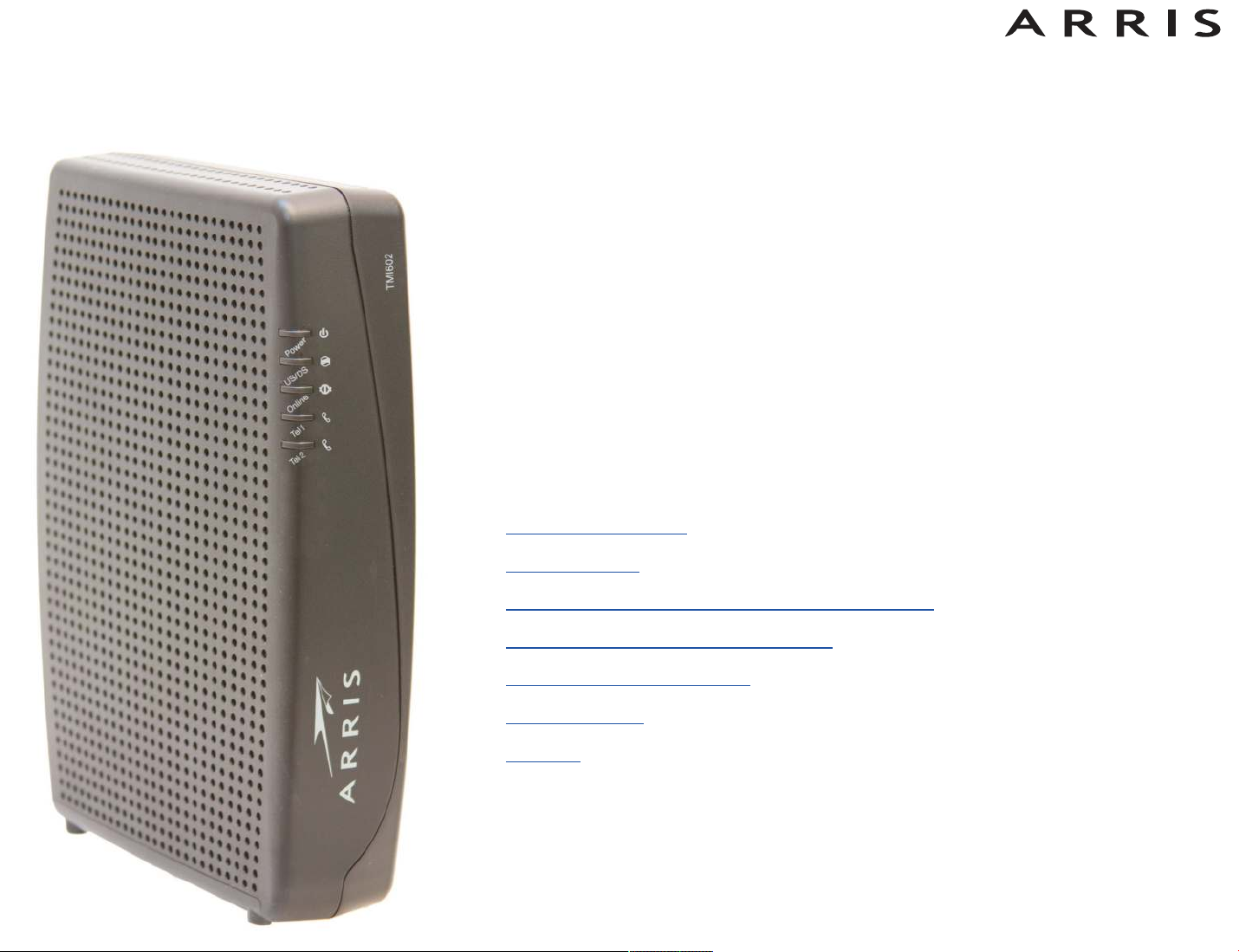
Touchstone®TM1602 Telephony Modem
User’s Guide
Get ready to experience the Internet’s express lane! Whether you’re checking out
streaming media, downloading new software, checking your email, or talking with
friends on the phone. the Touchstone TM1602 Telephony Modem brings it all to you
faster and more reliably, all while providing toll quality Voice over IP telephone service.
The Touchstone Telephony Modem provides an Ethernet connection for use with
either a single computer or home/office Local Area Network (LAN). The Touchstone
Telephony Modem provides for up to two separate lines of telephone service.
Installation is simple and your cable company will provide assistance to you for any
special requirements. The links below provide more detailed instructions.
Safety Requirements
Getting Started
Installing and Connecting Your Telephony Modem
Configuring Your Ethernet Connection
Using the Telephony Modem
Troubleshooting
Glossary
Page 2

Export Regulations
This product may not be exported outside the U.S. and Canada without U.S. Department of Commerce, Bureau of Export Admin istration authorization. Any export or re-export by the purchaser, directly or indirectly, in contravention of U.S. Export Adminis tration Regulation is prohibited.
©ARRIS Enterprises, Inc. 2014 All rights reserved. No part of this publication may be reproduced in any form or by any means or used to make
any derivative work (such as translation, transformation, or adaptation) without written permission from ARRIS Enterprises, Inc. (“ARRIS”).
ARRIS reserves the right to revise this publication and to make changes in content from time to time without obligation on the part of ARRIS to
provide notification of such revision or change.
ARRIS provides this guide without warranty of any kind, implied or expressed, including, but not limited to, the implied warranties of merchantability and fitness for a particular purpose. ARRIS may make improvements or changes in the product(s) described in this manual at any
time. The capabilities, system requirements and/or compatibility with third-party products described herein are subject to change without notice.
ARRIS and the ARRIS logo are all trademarks of ARRIS Enterprises, Inc. Other trademarks and trade names may be used in this document to
refer to either the entities claiming the marks and the names of their products. ARRIS disclaims proprietary interest in the marks and names of
others.
Protected under one or more of the following U.S. patents: 7,031,435. Other patents pending.
Release 16 Standard 1.3 July 2014
Page 3
Safety
Getting
Started
Installation
Ethernet
Configuration
Usage Troubleshooting Glossary
Safety Requirements
ARRIS Telephony Modems comply with the applicable requirements for performance, construction, labeling, and information when used as outlined below:
CAUTION
Risk of shock
Mains voltages inside this unit. No user serviceable parts inside. Refer
service to qualified personnel only!
CAUTION
Double pole/Neutral fusing
CAUTION
Potential equipment damage
Potential loss of service
Connecting the Telephony Modem to existing telephone wiring should
only be performed by a professional installer. Physical connections to
the previous telephone provider must be removed and the wiring must
be checked; there must not be any voltages. Cancellation of telephone
service is not adequate. Failure to do so may result in loss of service
and/or permanent damage to the Telephony Modem.
• The Telephony Modem is designed to be connected directly to a telephone.
• Connecting the Telephony Modem to the home’s existing telephone wiring
should only be performed by a professional installer.
• Do not use product near water (i.e. wet basement, bathtub, sink or near a
swimming pool, etc.), to avoid risk of electrocution.
• Do not use the telephone to report a gas leak in the vicinity of the leak.
• Do not use spray cleaners or aerosols on the Telephony Modem.
• The product shall be cleaned using only a damp, lint-free, cloth. No solvents
or cleaning agents shall be used.
Touchstone TM1602 Telephony Modem User’s Guide
3
Page 4

Safety
Getting
Started
Installation
Ethernet
Configuration
Usage Troubleshooting Glossary
• Avoid using and/or connecting the equipment during an electrical storm, to
avoid risk of electrocution.
• Do not locate the equipment within 6 feet (1.9 m) of a flame or ignition
source (i.e. heat registers, space heaters, fireplaces, etc.).
• Use only power supply and power cord included with the equipment.
• Equipment should be installed near the power outlet and should be easily
accessible.
• The shield of the coaxial cable must be connected to earth (grounded) at the
entrance to the building in accordance with applicable national electrical installation codes. In the U.S., this is required by NFPA 70 (National Electrical
Code) Article 820. In the European Union and in certain other countries,
CATV installation equipotential bonding requirements are specified in IEC
60728-11, Cable networks for television signals, sound signals and interac-
tive services, Part 11: Safety. This equipment is intended to be installed in
accordance with the requirements of IEC 60728-11 for safe operation.
If the equipment is to be installed in an area serviced by an IT power line
network, as is found in many areas of Norway, special attention should be
given that the installation is in accordance with IEC 60728-11, in particular
Annex B and Figure B.4.
• In areas of high surge events or poor grounding situations and areas prone
to lightning strikes, additional surge protection may be required (i.e.
PF11VNT3 from American Power Conversion) on the AC, RF, Ethernet and
Phone lines.
• When the Telephony Modem is connected to a local computer through Ethernet cables, the computer must be properly grounded to the building/residence AC ground network. All plug-in cards within the computer must be
properly installed and grounded to the computer frame per the manufacturer’s specifications.
• Ensure proper ventillation. Position the Telephony Modem so that air flows
freely around it and the ventillation holes on the unit are not blocked.
• Do not mount the Telephony Modem on surfaces that are sensitive to heat
and/or which may be damaged by the heat generated by the modem, its
power supply, or other accessories.
Touchstone TM1602 Telephony Modem User’s Guide
4
Page 5

Safety
Getting
Started
Installation
Ethernet
Configuration
Usage Troubleshooting Glossary
FCC Part 15
This equipment has been tested and found to comply with the requirements for a
Class B digital device under Part 15 of the Federal Communications Commission
(FCC) rules. These requirements are intended to provide reasonable protection
against harmful interference in a residential installation. This equipment generates,
uses and can radiate radio frequency energy and, if not installed and used in accordance with the instructions, may cause harmful interference to radio communications. However, there is no guarantee that interference will not occur in a
particular installation. If this equipment does cause harmful interference to radio or
television reception, which can be determined by turning the equipment off and on,
the user is encouraged to try to correct the interference by one or more of the following measures:
• Reorient or relocate the receiving antenna.
• Increase the separation between the equipment and receiver.
• Connect the equipment into an outlet on a circuit different from that to which
the receiver is connected.
• Consult the dealer or an experienced radio/TV technician for help.
Changes or modifications to this equipment not expressly approved by the party responsible for compliance could void the user’s authority to operate the equipment.
Warning: Changes or modifications to this equipment not expressly approved by
the party responsible for compliance could void the user’s authority to operate the
equipment.
RF Exposure
This equipment complies with FCC radiation exposure limits set forth for an uncontrolled environment. This equipment should be installed and operated with minimum distance of 7.9 inches (20cm) between the radiator and your body. This
transmitter must not be co-located or operating in conjunction with any other antenna or transmitter.
Touchstone TM1602 Telephony Modem User’s Guide
5
Page 6

Safety
Getting
Started
Installation
Ethernet
Configuration
Usage Troubleshooting Glossary
Industry Canada Compliance
Under Industry Canada regulations, this radio transmitter may only operate using
an antenna of a type and maximum (or lesser) gain approved for the transmitter
by Industry Canada. To reduce potential radio interference to other users, the antenna type and its gain should be so chosen that the equivalent isotropically radiated power (e.i.r.p.) is not more than that necessary for successful communication.
This device complies with Industry Canada license-exempt RSS standard(s). Operation is subject to the following two conditions: (1) this device may not cause interference, and (2) this device must accept any interference, including interference
that may cause undesired operation of the device.
For Mexico
The operation of this equipment is subject to the following two conditions: (1) This
equipment or device cannot cause harmful interference and (2) this equipment or
device must accept any interference, including interference that may cause some
unwanted operation of the equipment.
Touchstone TM1602 Telephony Modem User’s Guide
6
Page 7
Safety
Getting
Started
Installation
Ethernet
Configuration
Usage Troubleshooting Glossary
European Compliance
This product complies with the provisions of the Electromagnetic Compatibility
(EMC) Directive (89/336/EEC), the Amending Directive (92/31/EEC), the Low Voltage Directive (73/23/EEC), and the CE Marking Directive (93/68/EEC). As such,
this product bears the CE marking in accordance with the above applicable Directive(s).
A copy of the Declaration of Conformity may be obtained from: ARRIS International, Inc., 3871 Lakefield Drive, Suite 300, Suwanee, GA 30024.
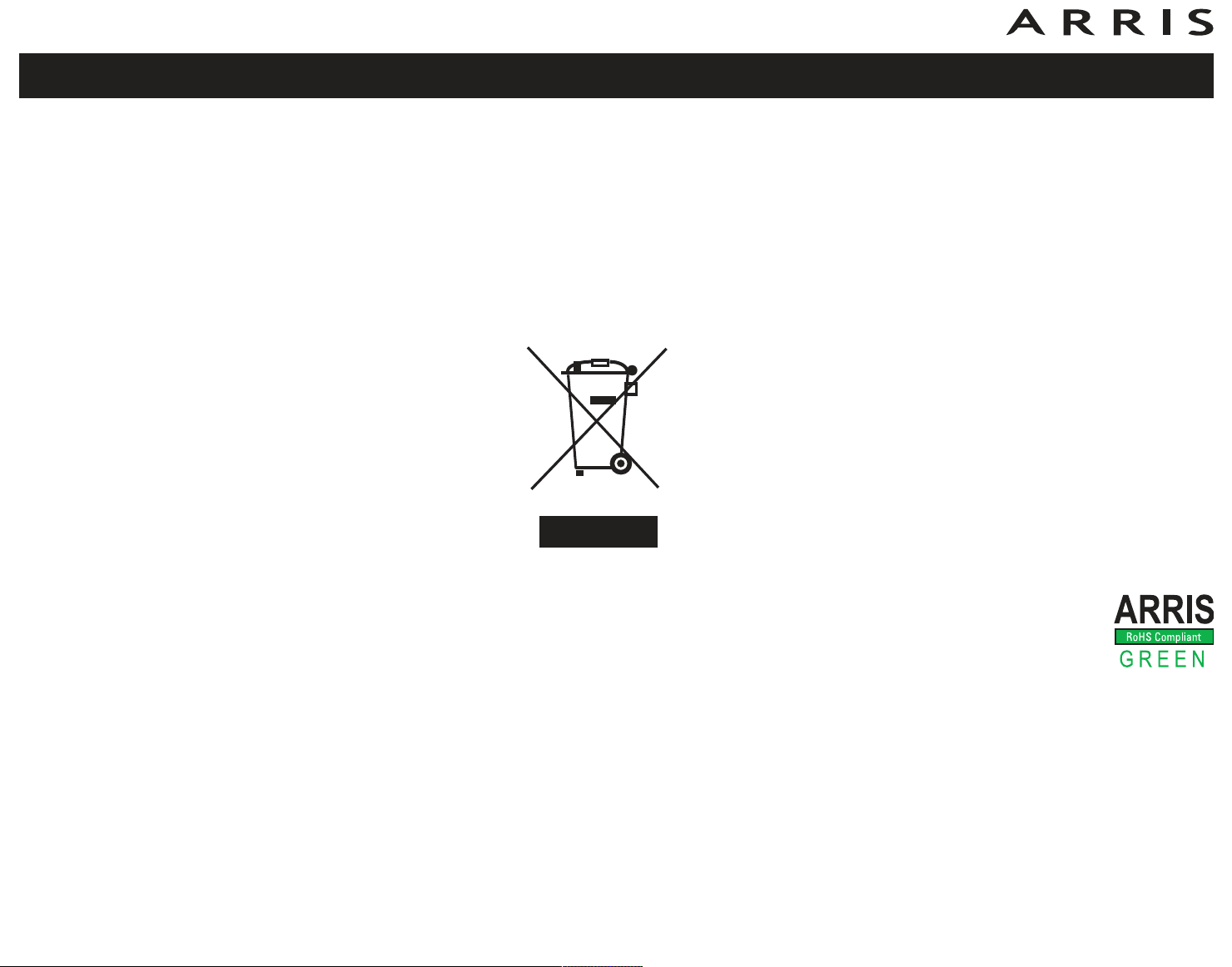
As indicated by this symbol, disposal of this product is governed
by Directive 2002/96/EC of the European Parliament and of the
Council on waste electrical and electronic equipment (WEEE).
WEEE could potentially prove harmful to the environment; as
such, upon disposal of the Telephony Modem the Directive requires that this product must not be disposed as unsorted municipal waste, but rather collected separately and disposed of in
accordance with local WEEE ordinances.
This product complies with directive 2002/95/EC of the European Parliament and of the Council of 27 January 2003 on the restriction of the
use of certain hazardous substances (RoHS) in electrical and electronic equipment.
Touchstone TM1602 Telephony Modem User’s Guide
7
Page 8

Safety
Getting
Started
Installation
Ethernet
Configuration
Usage Troubleshooting Glossary
Getting Started
About Your New Telephony Modem
The Touchstone TM1602 Telephony Modem is DOCSIS® compliant with the following features:
• Speed: much faster than dialup or ISDN service; up to sixteen times faster
than DOCSIS 2.0 cable modems
• Connectivity: supports Ethernet connection
• Flexibility: provides two independent lines of telephone service as well as
high speed data
• Compatibility:
– Data services: DOCSIS 3.0 compliant and backward-compatible with
DOCSIS 2.0 or 1.1; supports tiered data services (if offered by your
cable company)
– Telephony services: PacketCable™ 1.5 or 1.0 compliant
What’s in the Box?
Make sure you have the following items before proceeding. Call your cable company
for assistance if anything is missing.
• Telephony Modem
• Power Cord
• Ethernet Cable (CAT5e)
• End User License Agreement
Touchstone TM1602 Telephony Modem User’s Guide
8
Page 9
Safety
Getting
Started
Coax Cable
Installation
Ethernet
Configuration
Usage Troubleshooting Glossary
Items You Need
If you are installing the Telephony Modem yourself, make sure you have the following items on hand before continuing:
• Telephony modem package: see What’s in the Box? for a list of items in
the package.
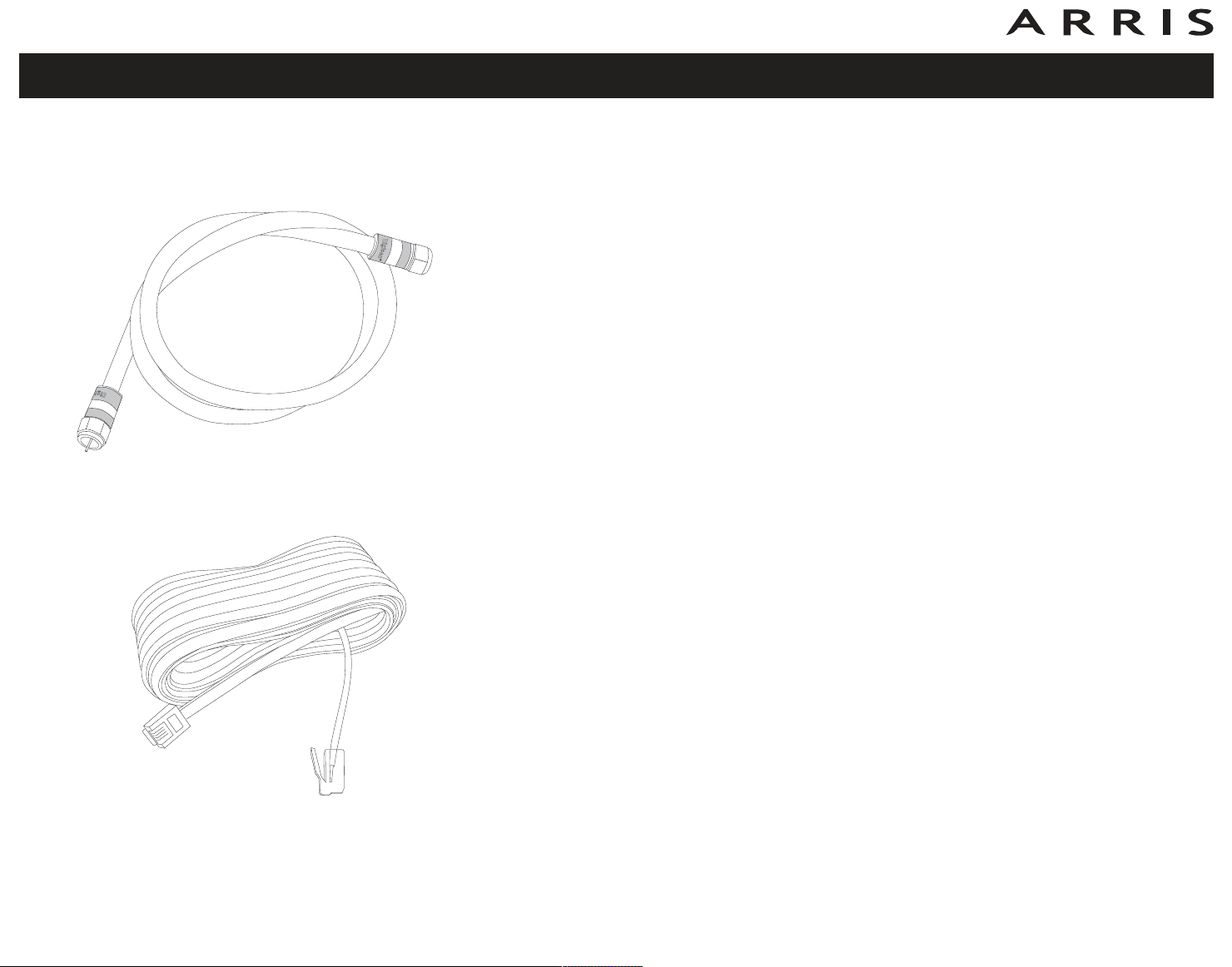
• Coaxial cable (coax): as shown in the image to the left, this is a round
cable with a connector on each end. It is the same kind of wire used to connect to your television for cable TV. You can buy coax from any electronics
retailer and many discount stores; make sure it has connectors on both
ends. There are two types of connectors, slip-on and screw-on; the screwon connectors are best for use with your Telephony Modem. The coax should
be long enough to reach from your Telephony Modem to the nearest cable
outlet.
Note: For best performance, use high-quality RG-6 type coax cable and minimize or eliminate splitters between the cable jack and the Telephony Modem.
• Phone Cable: as shown in the image to the left, this is a standard phone
cable with standard phone connectors (RJ11 type) on both ends. You can
buy phone cables from any electronics retailer and many discount stores.
• Splitter (optional): provides an extra cable connection by splitting a single outlet into two. You may need a splitter if you have a TV already connected to the cable outlet that you want to use. You can buy a splitter from
any electronics retailer and most discount stores; you may also need a short
piece of coax cable (with connectors); use it to connect the splitter to the
cable outlet and then connect the Telephony Modem and TV to the splitter.
Phone Cable
Note: A splitter effectively cuts the signal in half and sends each half to its
two outputs. Using several splitters in a line may deteriorate the quality of
your television, telephone, and/or internet connection.
• Wall-mount hardware (optional): if you want to wall-mount your Telephony Modem, you need to obtain two drywall anchors or wood screws.
• Information packet: your cable company should furnish you with a packet
containing information about your service and how to set it up. Read this information carefully and contact your cable company if you have any questions.
Touchstone TM1602 Telephony Modem User’s Guide
9
Page 10

Safety
Getting
Started
Installation
Ethernet
Configuration
Usage Troubleshooting Glossary
Getting Service
Before trying to use your new Telephony Modem, contact your local cable company
to establish an Internet account and telephone service. When you call, have the
following information ready:
• the Telephony Modem serial number and MAC addresses of the unit (printed
on a sticker on the bottom of the Telephony Modem)
• the model number of the Telephony Modem
Save this information for future use. In addition, you should ask your cable company the following questions:
• Do you have any special system requirements or files that I need to download after I am connected?
• When can I start using my Telephony Modem?
• Do I need a user ID or password to access the Internet or my e-mail?
• Will my phone number(s) change?
• What new calling features will I have and how do I use them?
Touchstone TM1602 Telephony Modem User’s Guide
10
Page 11

Safety
Getting
Started
Installation
Ethernet
Configuration
Usage Troubleshooting Glossary
System Requirements
The Touchstone Telephony Modem operates with most computers. The following
describes requirements for each operating system; see the documentation for your
system for details on enabling and configuring networking.
To use the Telephony Modem, you need DOCSIS high-speed Internet service from
your cable company. Telephone service requires that the cable company has PacketCable support.
Recommended Hardware
The following hardware configuration is recommended. Computers not meeting this
configuration can still work with the TM1602, but may not be able to make maximum use of TM1602 throughput.
• CPU: P4, 3GHz or faster
• RAM: 1GB or greater
• Hard drive: 7200 RPM or faster
• Ethernet: Gig-E (1000BaseT)
Windows
Ethernet connection: Windows XP, Windows Vista, Windows 7 or Windows 8
MacOS
Ethernet connection: System 7.5 to MacOS 9.2 (Open Transport recommended) or
MacOS X
Linux/other Unix
Ethernet connection: Hardware drivers, TCP/IP, and DHCP must be enabled in the
kernel
Touchstone TM1602 Telephony Modem User’s Guide
11
Page 12
Safety
www.arrisi.com/legal
Model
Number
Getting
Started
Installation
Ethernet
Configuration
Usage Troubleshooting Glossary
About this Manual
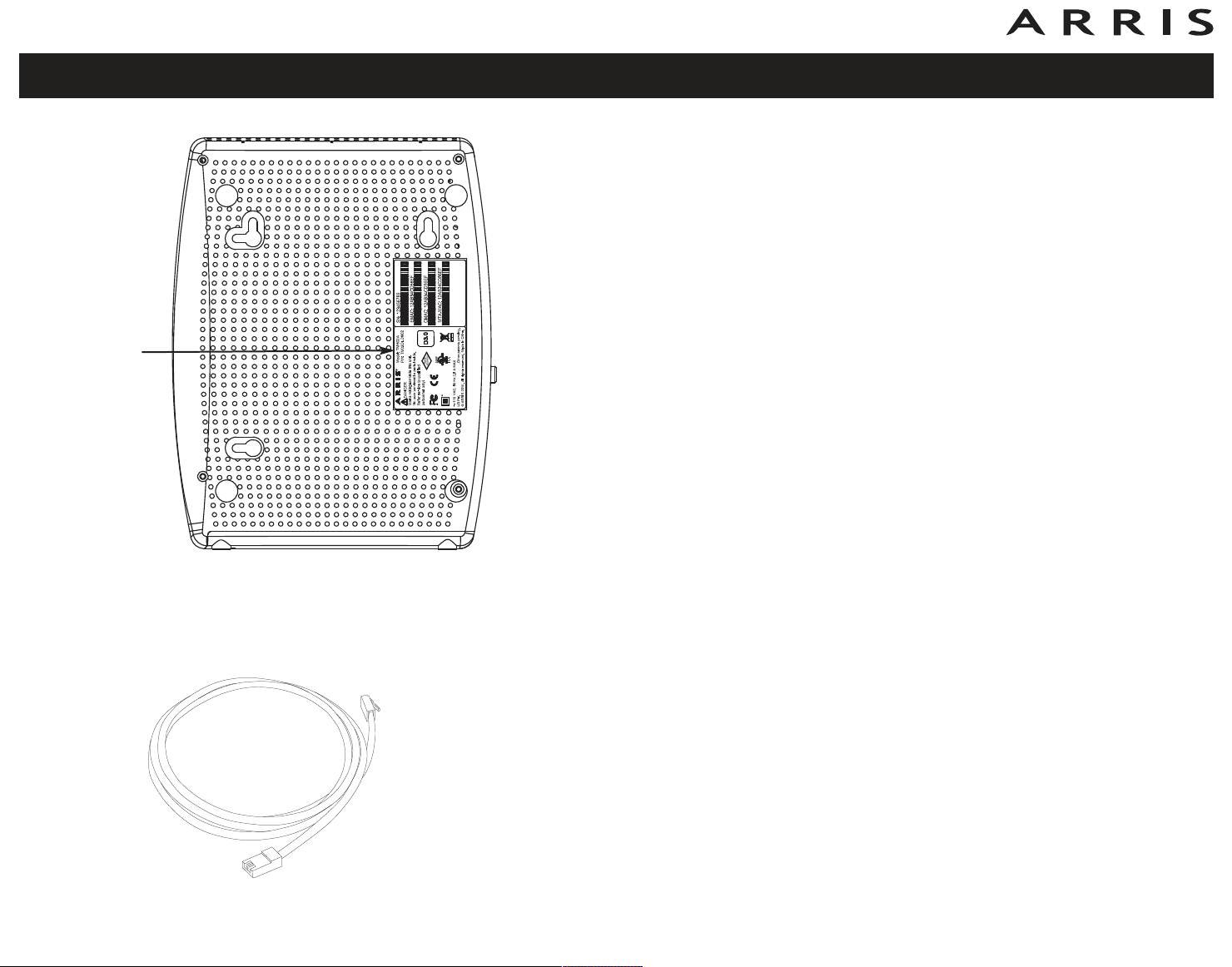
This manual covers all of the different TM1602 models. Your model may not have
all of the capabilities outlined in this manual. To determine which model you have
purchased, refer to the image at the left. The model number is on the label affixed
to the Telephony Modem.
Ethernet Cable
Ethernet Connection
Ethernet is a standard method of connecting two or more devices into a Local Area
Network (LAN). Use the Ethernet connection if your computer has built-in Ethernet
hardware or you want to share the Telephony Modem connection with several computers.
Note: To connect two or more computers to the Ethernet port, you will need a
hub or broadband router (available at computer retailers).
The Telephony Modem package comes with a 4-foot (1.2m) Ethernet cable (the
connectors look like wide telephone connectors); you can purchase more cables if
necessary at a computer retailer. If you are connecting the Telephony Modem
directly to a computer, or to an Ethernet hub or broadband router with a cross-over
switch, ask for Category 5e (CAT5e) straight-through cable. CAT5e cable is required
for gigabit Ethernet (Gig-E), not regular CAT5 cable.
Touchstone TM1602 Telephony Modem User’s Guide
12
Page 13

Safety
Getting
Started
Installation
Ethernet
Configuration
Usage Troubleshooting Glossary
What About Security?
Having a high-speed, always-on connection to the Internet requires a certain
amount of responsibility to other Internet users—including the need to maintain a
reasonably secure system. While no system is 100% secure, you can use the following tips to enhance your system’s security:
• Keep your operating system updated with the latest security patches. Run
the system update utility at least weekly.
• Keep your email program updated with the latest security patches. In addition, avoid opening email containing attachments, or opening files sent
through chat rooms, whenever possible.
• Install a virus checker and keep it updated.
• Avoid providing web or file-sharing services over your Telephony Modem.
Besides certain vulnerability problems, most cable companies prohibit running servers on consumer-level accounts and may suspend your account for
violating your terms of service.
• Use the cable company’s mail servers for sending email.
• Avoid using proxy software unless you are certain that it is not open for
abuse by other Internet users (some are shipped open by default). Criminals can take advantage of open proxies to hide their identity when breaking into other computers or sending spam. If you have an open proxy, your
cable company may suspend your account to protect the rest of the network.
Touchstone TM1602 Telephony Modem User’s Guide
13
Page 14
Safety
Getting
Started
Installation
Ethernet
Configuration
Usage Troubleshooting Glossary
Installing and Connecting Your
Telephony Modem
Before you start, make sure that:
• You have contacted your cable company and verified that they provide data
and telephone service using standard DOCSIS technology.
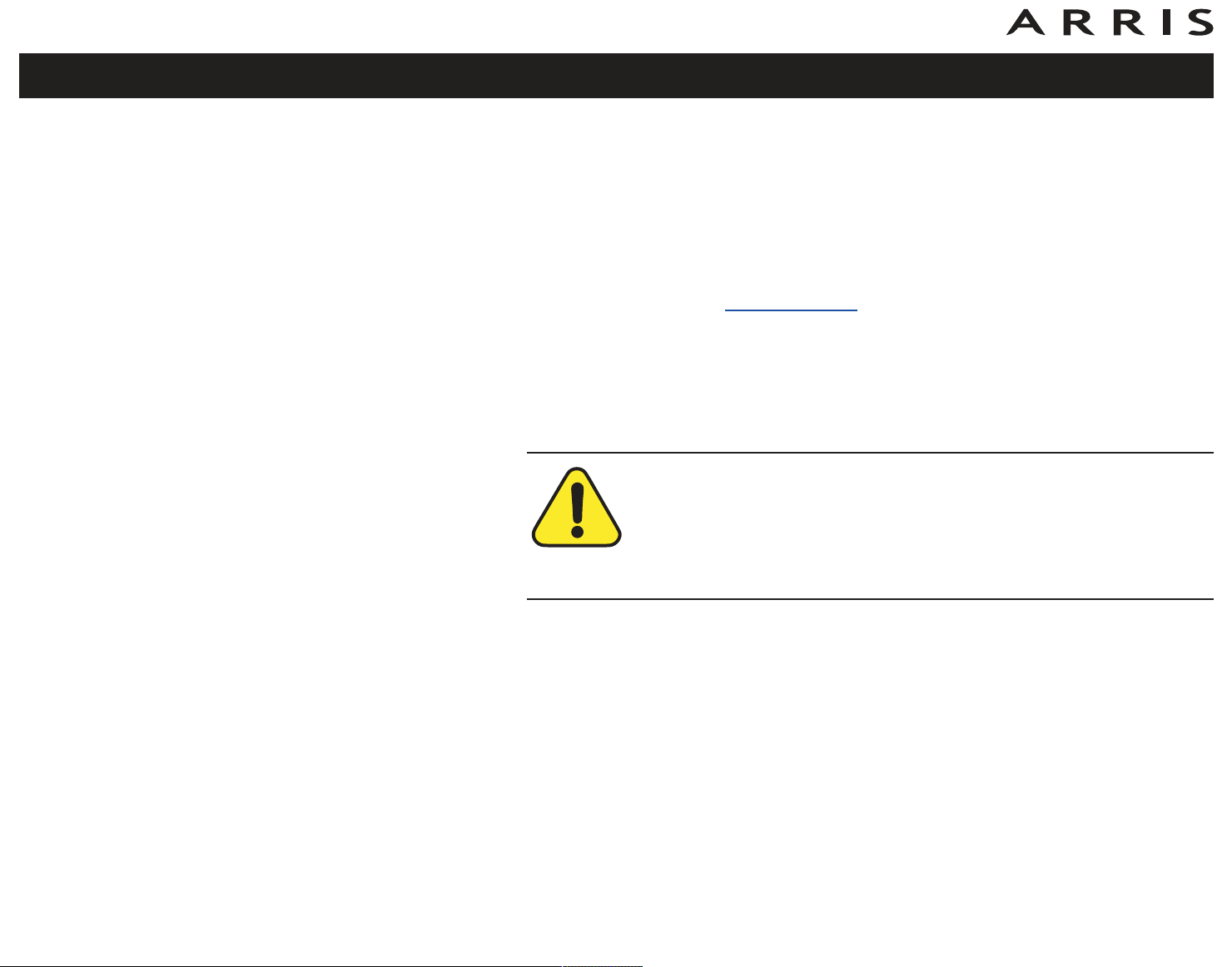
• You have all the
• Cable, phone, and power outlets are available near the computer. If a cable
outlet is not conveniently located, your cable company can install a new one.
If you have ordered service, your cable company should configure the Telephony
Modem automatically. You need only follow the instructions in this section to install
and connect the Telephony Modem.
Items You Need.
CAUTION
Risk of equipment damage
Only qualified installation technicians should connect the Telephony
Modem to house wiring. Incumbent telephone service must be physically disconnected at the outside interface box before making any connections.
Touchstone TM1602 Telephony Modem User’s Guide
14
Page 15
Safety
TM1602
T
e
l 2
T
e
l 1
Online
Pow
e
r
US/
D
S
Reset
Tel 2Tel 1
Ethernet
10/100/1000
Cable
Getting
Started
Installation
Ethernet
Configuration
Front Panel
Usage Troubleshooting Glossary
C E
BAD
A CB D E F
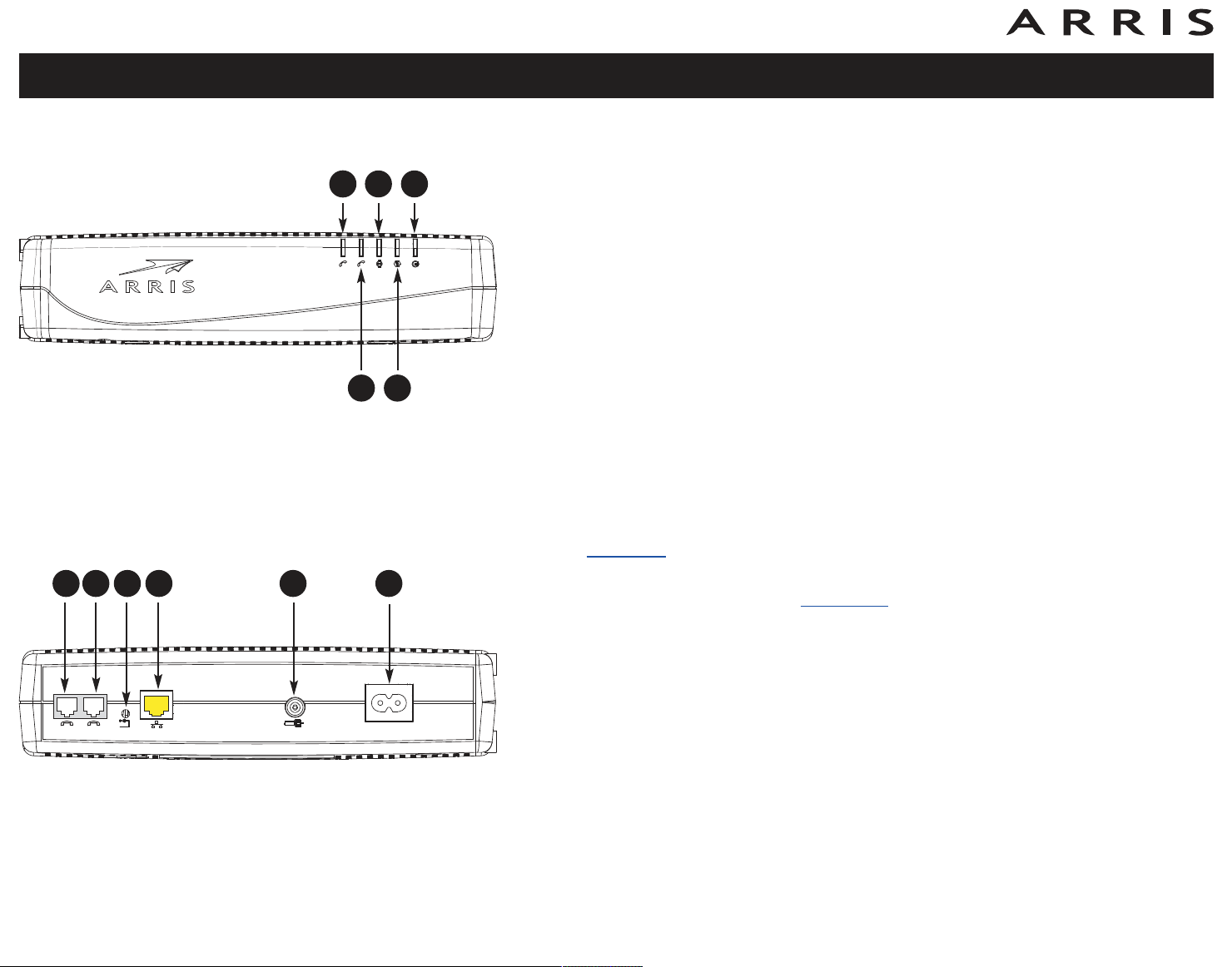
The front of the Telephony Modem provides the following indicators.
A Tel 2: indicates status of telephone line 2.
B Tel 1: indicates status of telephone line 1.
C Online: indicates Internet data transmission status.
D US/DS: indicates upstream/downstream connectivity.
E Power: indicates whether AC power is available to the unit.
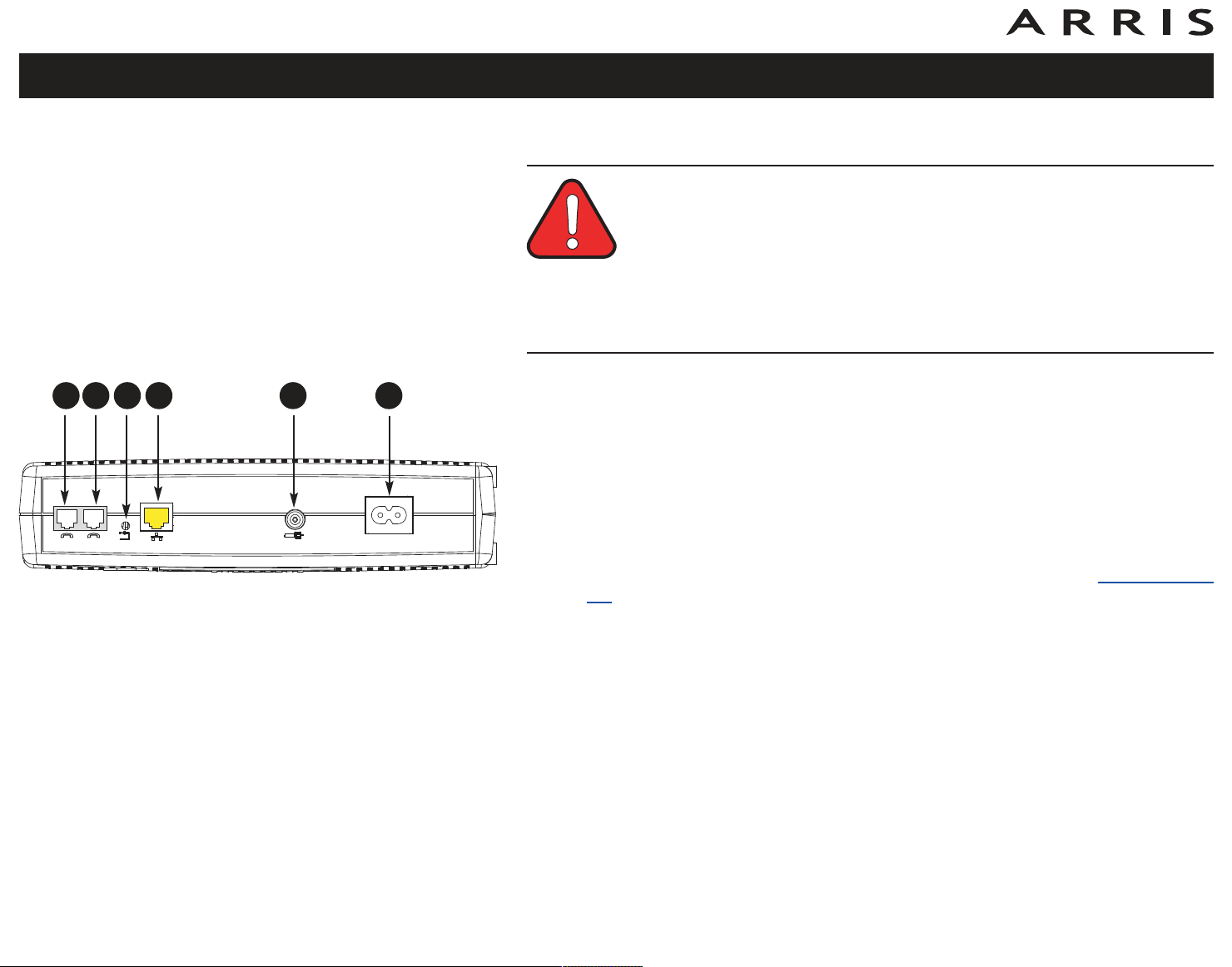
Rear Panel
The rear of the Telephony Modem has the following connectors and controls:
A Tel 1 (grey): connector for the first phone line.
B Tel 2 (grey): connector for the second phone line.
C Reset button: resets the Telephony Modem as if you power cycled the unit.
Use a pointed non-metallic object to press this button.
D
Ethernet connector (yellow): for use with a computer or home network LAN
connection.
E Cable: connector for the
F Power: connector for the power cord.
coax cable.
Touchstone TM1602 Telephony Modem User’s Guide
15
Page 16

Safety
Getting
Started
Installation
Ethernet
Configuration
Usage Troubleshooting Glossary
Mounting the Telephony Modem
You can either mount the Telephony Modem on a wall or place it on a desktop. For
wall-mount applications, you can mount the Telephony Modem with the indicators
facing upward (vertical) or to the side (horizontal).
Tools and Materials
For wall-mounted installations, make sure you have the following tools and materials before proceeding:
• for mounting on drywall: Two 1/4” (6mm) drywall anchors (not included),
two #6 x 1.5” (38.1 mm) self-tapping panhead screws (not included), and
a drill with 1/4” (6mm) bit (not included)
• for mounting on plywood or studs: two #6 x 1.5” (38.1 mm) self-tapping
panhead wood screws (not included)
• screwdriver (flat-blade or Phillips, depending on what kind of screws you
use)
Location
There are a number of factors to consider when choosing a location to install your
Telephony Modem:
• Is an AC outlet available nearby? For best results, the outlet should not be
switched and should be close enough that exten sion cords are not required.
• Is a cable jack available? For best performance, keep the number of splitters between the jack and cable drop to a minimum. Each splitter attenuates
(re duces) the signal available to the Telephony Modem.
• Can you easily run cables between the Telephony Modem’s location and the
phones?
• If you are connecting devices to the Ethernet port, can you easily run ca bles
between the Telephony Modem’s location and the device?
Touchstone TM1602 Telephony Modem User’s Guide
16
Page 17
Safety
Step 1
Step 3
Getting
Started
Installation
Step 2
Step 4
Ethernet
Configuration
Usage Troubleshooting Glossary
Instructions
Wall-mounting instructions
Note: When mounting the Telephony Modem on drywall, try to position the
Telephony Modem so at least one of the screws is fastened to a stud.
This may prevent the Telephony Modem from pulling out of the wall in
the future. To prevent overheating of the Telephony Modem, do not block
the ventilation holes on the sides of the unit.
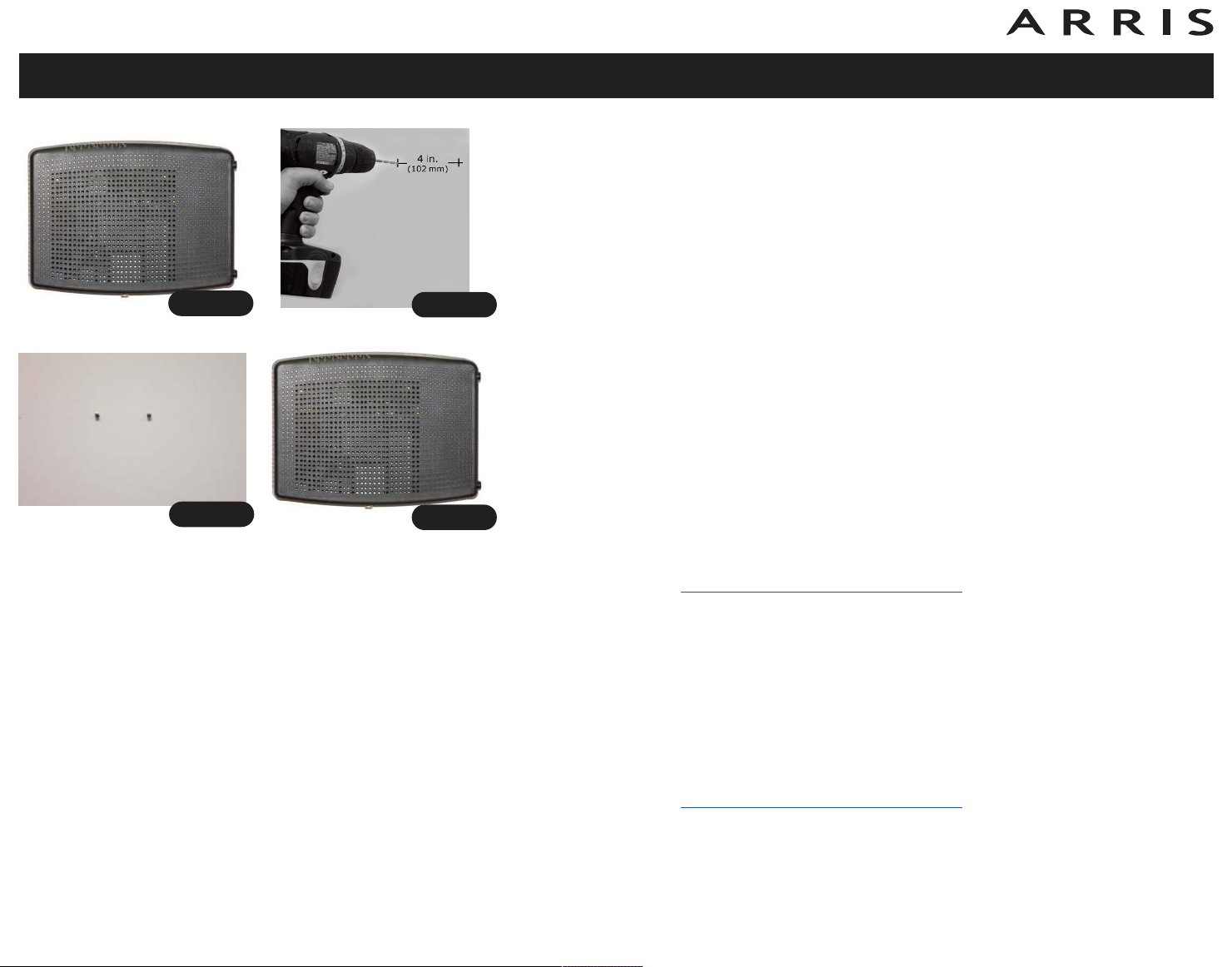
1 Position the Telephony Modem on the surface where you intend to mount it.
Orient the Telephony Modem with the indicator lights facing up or right, as
desired.
2 Drill two holes, 4 inches (102 mm) apart, in the correct locations for the
mounting screws.
3 If using drywall anchors, set them into the wall. Then, drive the screws into
the wall leaving a gap of about 1/8” (3 mm) between the screw head and
the wall. If not using anchors, just drive the screws.
4 Slip both mounting slots (in the back of the Telephony Modem) over the
screws, then slide the case down until the narrow end of the keyhole slot
contacts the screw shaft.
5 Proceed to
Connecting the Telephony Modem.
Desktop mounting instructions
1 Position the Telephony Modem so that:
• air flows freely around it
• the back faces the nearest wall
• it will not fall to the floor if bumped or moved
• the ventilation holes on the side of the unit are not blocked
2 Proceed to
Connecting the Telephony Modem.
Touchstone TM1602 Telephony Modem User’s Guide
17
Page 18
Safety
Reset
Tel 2Tel 1
Ethernet
10/100/1000
Cable
Getting
Started
Installation
Ethernet
Configuration
Usage Troubleshooting Glossary
Connecting the Telephony Modem
WARNING
Risk of injury or equipment damage
Connecting the Telephony Modem to the home’s existing telephone
wiring should only be performed by a professional installer. Physical connections to the previous telephone provider must be removed and the
wiring must be checked; there must not be any voltage. Cancellation of
telephone service is not adequate. Failure to do so may result in loss of
service and/or permanent damage to the Telephony Modem.
A CB D E F
1 Connect one end of the coax cable to the cable outlet or splitter, and the
other end to the Telephony Modem’s Cable connector (E). Tighten the connections by hand, then tighten an additional 1/8 turn with a wrench.
Note: For best performance, use high-quality RG-6 type coax cable and minimize or eliminate splitters between the cable jack and the Telephony Modem.
2 Insert the plug from the power cord into the Power connector on the Tele-
phony Modem (F) and insert the power cord into a convenient AC outlet.
The Power light on the front of the Telephony Modem lights up, then flashes
once (refer to the Indicator Lights table for your model). See
Troubleshoot-
ing if the Power light does not turn on.
Making Ethernet Connections
3 Connect one end of the yellow Ethernet cable to the yellow port on the back
of the Telephony Modem labeled “Ethernet 10/100/1000,” (D) and the other
end to the Ethernet port on a computer, hub, or broadband router.
Note: If you are connecting to a computer, use the Ethernet cable included
in the Telephony Modem package.
Making Telephone Connections
4 Connect one end of the telephone cable to one of the grey telephone ports
on the back of the Telephony Modem (A or B). Connect the other end to the
telephone.
Touchstone TM1602 Telephony Modem User’s Guide
18
Page 19

Safety
Getting
Started
Installation
Ethernet
Configuration
Usage Troubleshooting Glossary
Configuring Your Ethernet Connection
If your computer is equipped with a LAN card providing an Ethernet connection,
you may have to configure your computer’s TCP/IP settings. The steps that follow
will guide you through setting your computer’s TCP/IP settings to work with the
Telephony Modem.
Requirements
Make sure you have the following before attempting to configure your Ethernet connection:
• Computer with:
— one of: Windows XP, Windows Vista, Windows 7, Windows 8, or MacOS
X
— Ethernet interface
• Ethernet cable (supplied)
• IP address, subnet, gateway, and DNS information for installations not using
DHCP
How to use this chapter
The following list shows the procedures for modifying the TCP/IP settings on the
computer. The procedure is slightly different depending on the operating system
that you are using. Please ensure you are using the correct steps for the operating
system on your computer. Follow the links below for instructions to configure your
Ethernet connection on your operating system.
TCP/IP Configuration for Windows XP
•
• TCP/IP Configuration for Windows 7
• TCP/IP Configuration for MacOS X
Note: For Windows 8 and Windows Vista, use the Windows 7 procedure.
They are very similar.
Touchstone TM1602 Telephony Modem User’s Guide
19
Page 20

Safety
Getting
Started
Installation
Ethernet
Configuration
Usage Troubleshooting Glossary
TCP/IP Configuration for Windows XP
Follow these steps to configure the Ethernet interface on a Windows XP operating
system.
TCP/IPv6 Note: This procedure shows the configuration of TCP/IPv4. TCP/IPv6
is not installed or enabled by default in Windows XP. If your cable
provider rerquires TCP/IPv6 you must first install and enable it on your
Windows XP system. Refer to Microsoft support materials on Windows
XP for installation instructions. Once installed and enabled, follow this
same configuration example, but select TCP/IPv6 at the appropriate
step.
1 From the computer, select Start > Settings > Control Panel and double-
click Network Connections in the Control Panel.
The Network Connection window displays a list of LAN connections and associated network adapters.
2 Double-click the local area connection to be used for your device’s network
connection.
The Local Area Connection Status widow displays.
3 Click Properties.
4 Select TCP/IP by clicking it one time. Then click Properties.
5 Click the General tab. Then click Obtain an IP address automatically
and click OK.
6 Click OK to accept the new settings, and OK again to close the Properties
window.
7 You may have to restart your computer in order for your computer to obtain
a new IP address from the network.
Touchstone TM1602 Telephony Modem User’s Guide
20
Page 21

Safety
Getting
Started
Installation
Ethernet
Configuration
Usage Troubleshooting Glossary
TCP/IP Configuration for Windows 7
Follow these steps to configure the Ethernet interface on a Windows 7 operating
system.
1 Open the Windows 7 Control Panel.
2 Click Network and Internet.
3 Click Network and Sharing Center.
4 Click Local Area Connection to open the Status window.
5 Click Properties to open the Properties window.
6 Select Internet Protocol Version 4 (TCP/IPv4) and click Properties to
configure TCP/IPv4.
Note: If your cable provider requires TCP/IP version 6, select Internet Pro-
tocol Version 6 (TCP/IPv6) and click Properties to configure TCP/IPv6.
The TCP/IP properties window for the version you selected displays.
7 For either TCP/IPv4 or TCP/IPv6, select Obtain an IP address automati-
cally and Obtain DNS server address automatically, unless instructed
otherwise by your cable provider.
8 Click OK to accept the newe settings and close the Properties window. Then
click Close to back out of the remaining setup screens.
Touchstone TM1602 Telephony Modem User’s Guide
21
Page 22

Safety
Getting
Started
Installation
Ethernet
Configuration
Usage Troubleshooting Glossary
TCP/IP Configuration for MacOS X
Follow these steps to configure the Ethernet interface on a MacOS X operating system.
1 Open System Preferences, either by choosing System Preferences from the
Apple menu or by clicking the System Preferences icon in the dock.
2 Click the Network icon.
3 Choose Automatic from the Location drop-down menu, and Built-in Eth-
ernet from the Show menu.
4 Choose the TCP/IP tab, if necessary.
If you are using TCP/IPv4, go to step 5.
If your cable provider requires TCP/IPv6, go to step 8.
5 Choose Using DHCP from the Configure IPv4 menu.
6 If necessary, click the Renew DHCP Lease button.
7 Close the System Properties application.
TCP/IPv4 configuration is completed.
8 If you are using TCP/IPv6, click Configure IPv6 near the bottom of the pre-
vious window.
9 Choose Automatically from the Configure IPv6 drop-down menu and click
OK.
10 Close the System Properties application.
Touchstone TM1602 Telephony Modem User’s Guide
22
Page 23
Safety
Getting
Started
Installation
Ethernet
Configuration
Usage Troubleshooting Glossary
Using the Telephony Modem
This chapter describes the controls and features available on the Touchstone Telephony Modem, and covers basic troubleshooting procedures.
Setting up Your Computer to Use the Telephony Modem
•
• Indicator Lights for the TM1602
• Using the Reset Button
Setting up Your Computer to Use the
Telephony Modem
Follow the instructions in the information packet supplied by your cable company.
Contact your cable company if you need help setting up your computer.
Wiring Problems
If the Telephony Modem begins flashing all its lights for more than 10 seconds, this
indicates a problem with the telephone wiring—the red and green wires may be
shorted (touching), or there may be undesired voltage on the lines. If this pattern
persists for more than 10 seconds, disconnect the telephone lines from the Telephony Modem, then call a wiring technician for assistance.
Touchstone TM1602 Telephony Modem User’s Guide
23
Page 24
TM1602
T
e
l 2
T
e
l 1
Online
Pow
e
r
U
S/D
S
Te
l 2
Te
l 1
Online
P
ow
e
r
US/D
S
Safety
Getting
Started
Installation
Ethernet
Configuration
Usage Troubleshooting Glossary
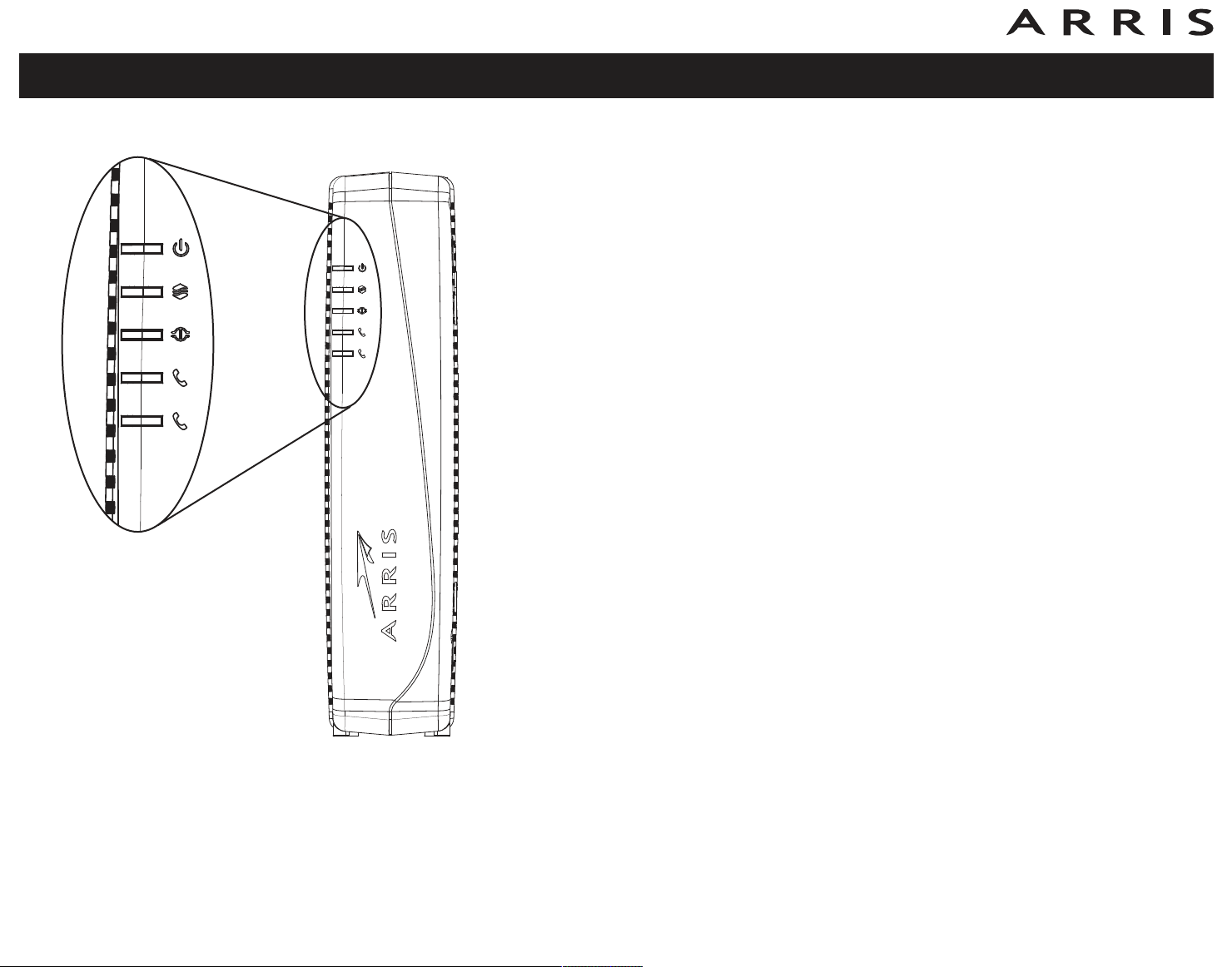
Indicator Lights for the TM1602
The Touchstone Telephony Modem has indicator lights to assist in troubleshooting.
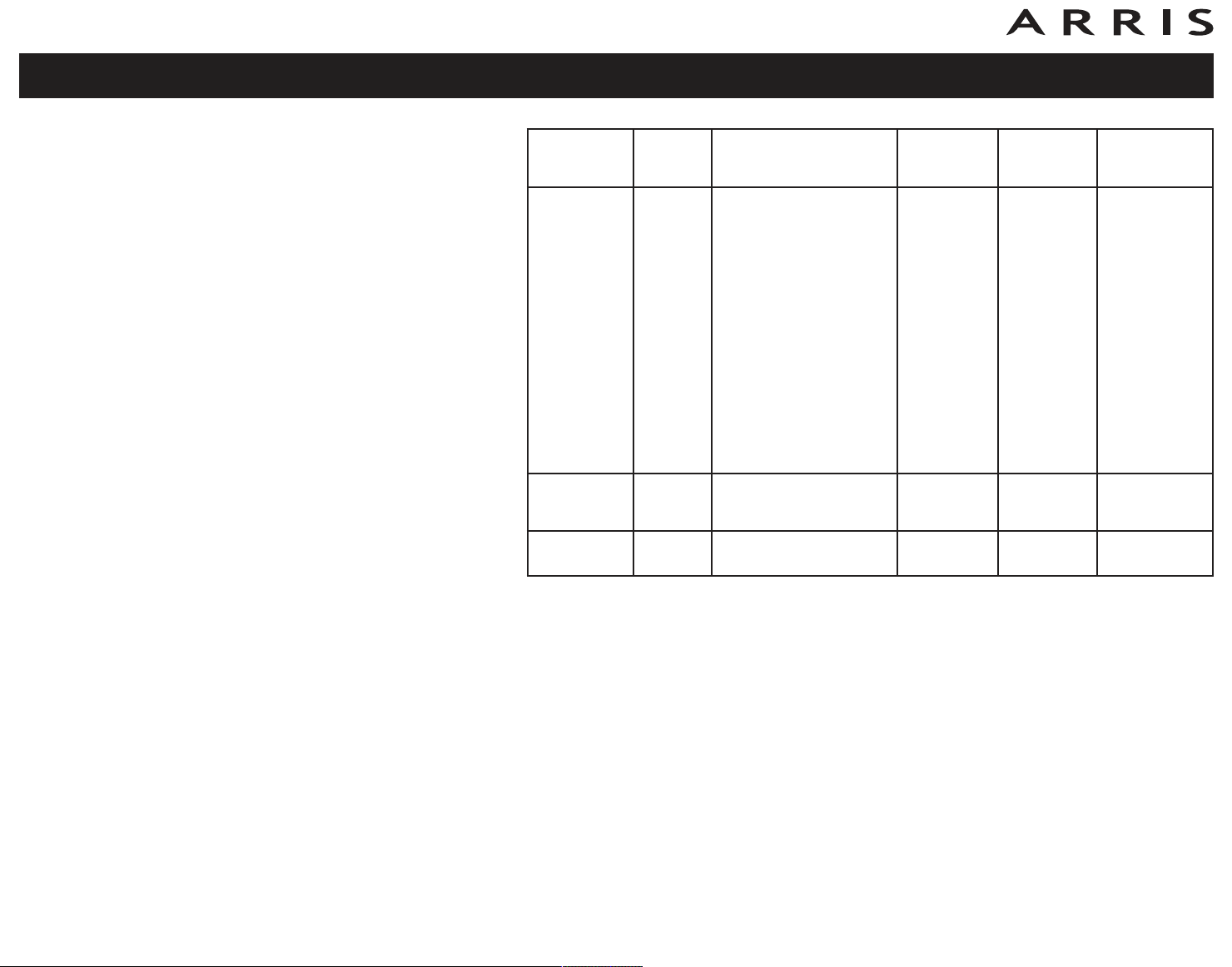
Indicator Lights: Normal Operation
The following table shows light patterns during normal operation. If colors are not
indicated, they do not affect the status.
Touchstone TM1602 Telephony Modem User’s Guide
24
Page 25
Safety
Getting
Started
Installation
Ethernet
Configuration
Usage Troubleshooting Glossary
Mode Power
AC Power Good On
No AC Power Off Off Off Off Off
Firmware
Upgrade
On (normal operation) Flash On
Ethernet
(rear panel)
Green LED On = Com-
puter with 1 Gbps port
connected
Amber LED On = Computer with 100 Mbps/10
Mbps port connected
Amber/Green LED
Flash = Computer
activity
Both LEDs Off = Com-
puter not
connected
US/DS Online Tel 1/Tel 2
Yellow1=
Connected to
the Internet
(high speed)
Green1=
Connected to
the Internet
(ultra-high
speed)
Flash = Not
connected to
the Internet
On = Internet
Available
Off = Internet
not available
On =
On-hook
Flash =
Off-hook
Off = disabled
(normal
operation)
Note 1: Your cable company may configure the Telephony Modem to always display
the US/DS indicator in green regardless of the connection speed or swap
the meaning (speed indication) of yellow and green.
Touchstone TM1602 Telephony Modem User’s Guide
25
Page 26
Safety
Getting
Started
Installation
Ethernet
Configuration
Usage Troubleshooting Glossary
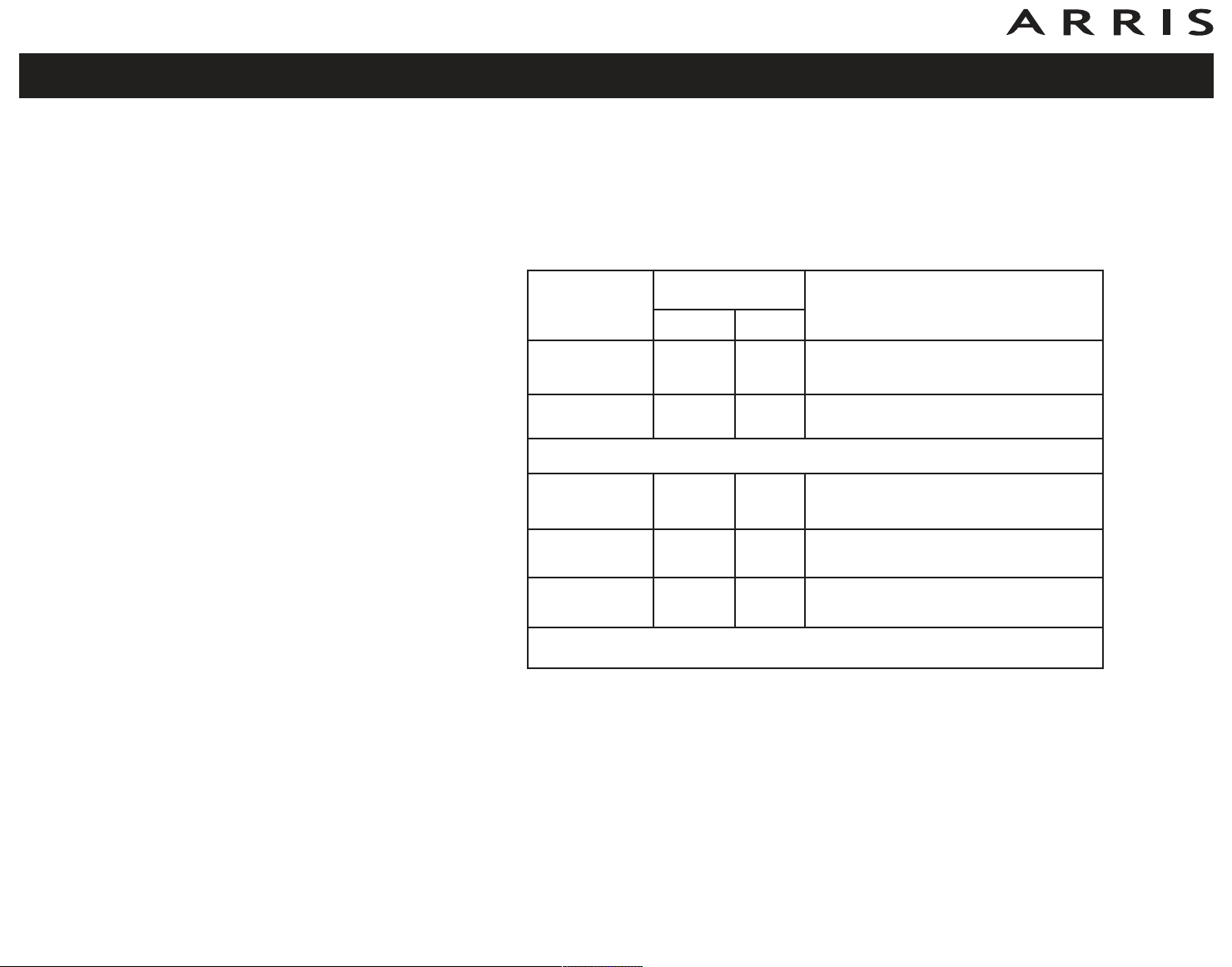
Indicator Lights: Startup Sequence
The following table shows the Telephony Modem light patterns during each phase
of the startup sequence. There are two phases of startup; the Telephony phase and
the cable modem phase. Both are outlined below.
Telephony Modem Start Up Sequence
Power,
US/DS,
Online
Telephone
Description
1 2
Off Off Off No power to Cable Modem
Flash Flash Flash Power-on Self Test
“Cable Modem Start Up Sequence” Begins
On Flash Off
On Off Flash
Retrieving telephone network information
Retrieving telephone line information
On Flash Flash Activating telephone service
Normal Operation Begins
Note: The US/DS indicator flashes yellow during startup, and turns green if
the Telephony Modem establishes an ultra-high speed connection. For
some cable companies these colors may be reversed.
Touchstone TM1602 Telephony Modem User’s Guide
26
Page 27
Safety
Getting
Started
Installation
Ethernet
Configuration
Usage Troubleshooting Glossary
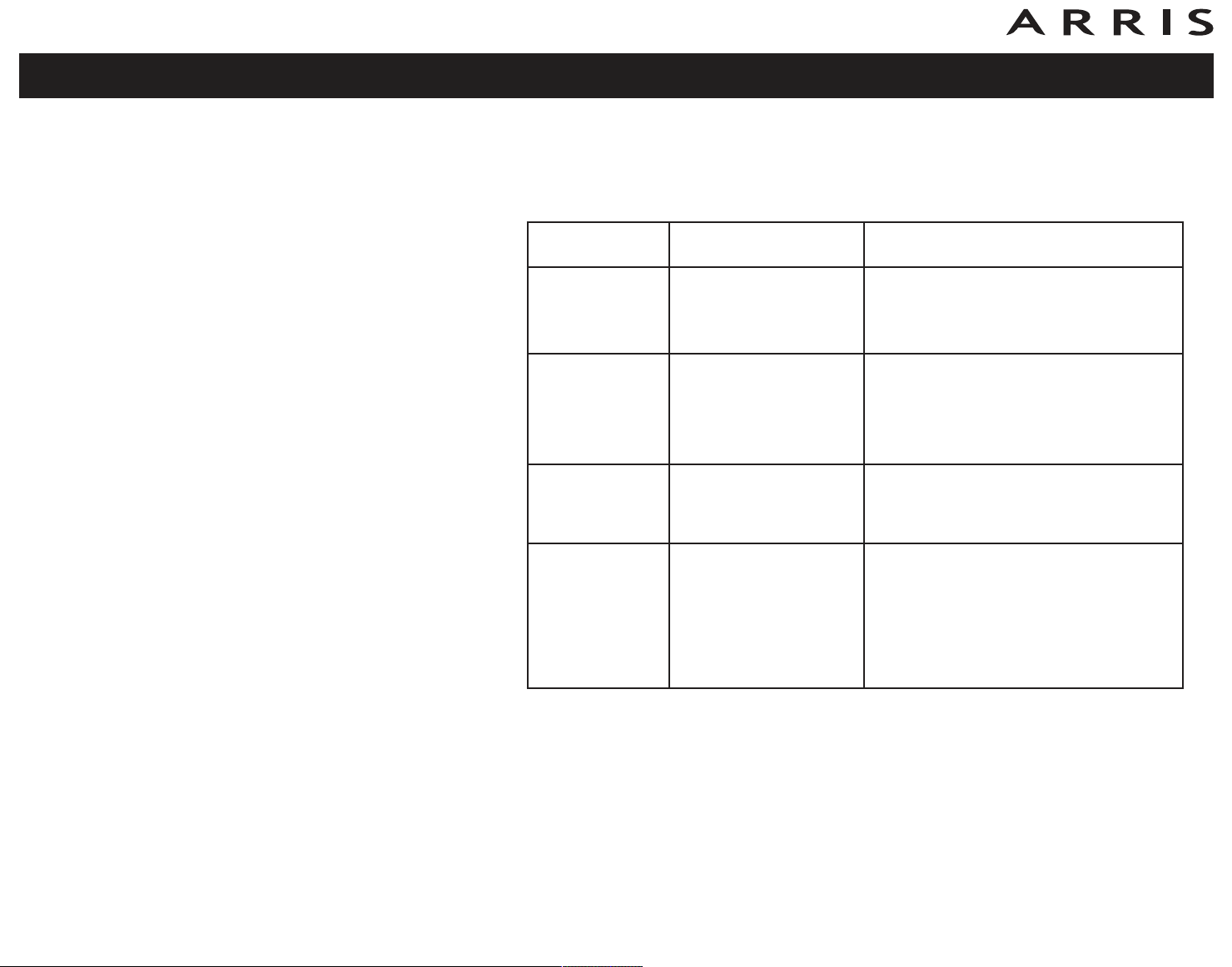
Cable Modem Start Up Sequence
The following table shows the start-up sequence for the cable modem portion of the
Telephony Modem. Indicator color is not important.
US/DS Online Description
Slow Flash
(1/second)
On
(until Upstream
acqusition
starts)
Fast Flash
(3/second)
On
Off Downstream acqusition in progress
Off Downstream acquisition completed
Off Upstream acquisition completed
Slow Flash
(during acqusition)
On (when modem IP
address obtained)
Upstream acqusition completed,
ready for service
Touchstone TM1602 Telephony Modem User’s Guide
27
Page 28
Safety
Reset
Tel 2Tel 1
Ethernet
10/100/1000
Cable
Getting
Started
Installation
Ethernet
Configuration
Usage Troubleshooting Glossary
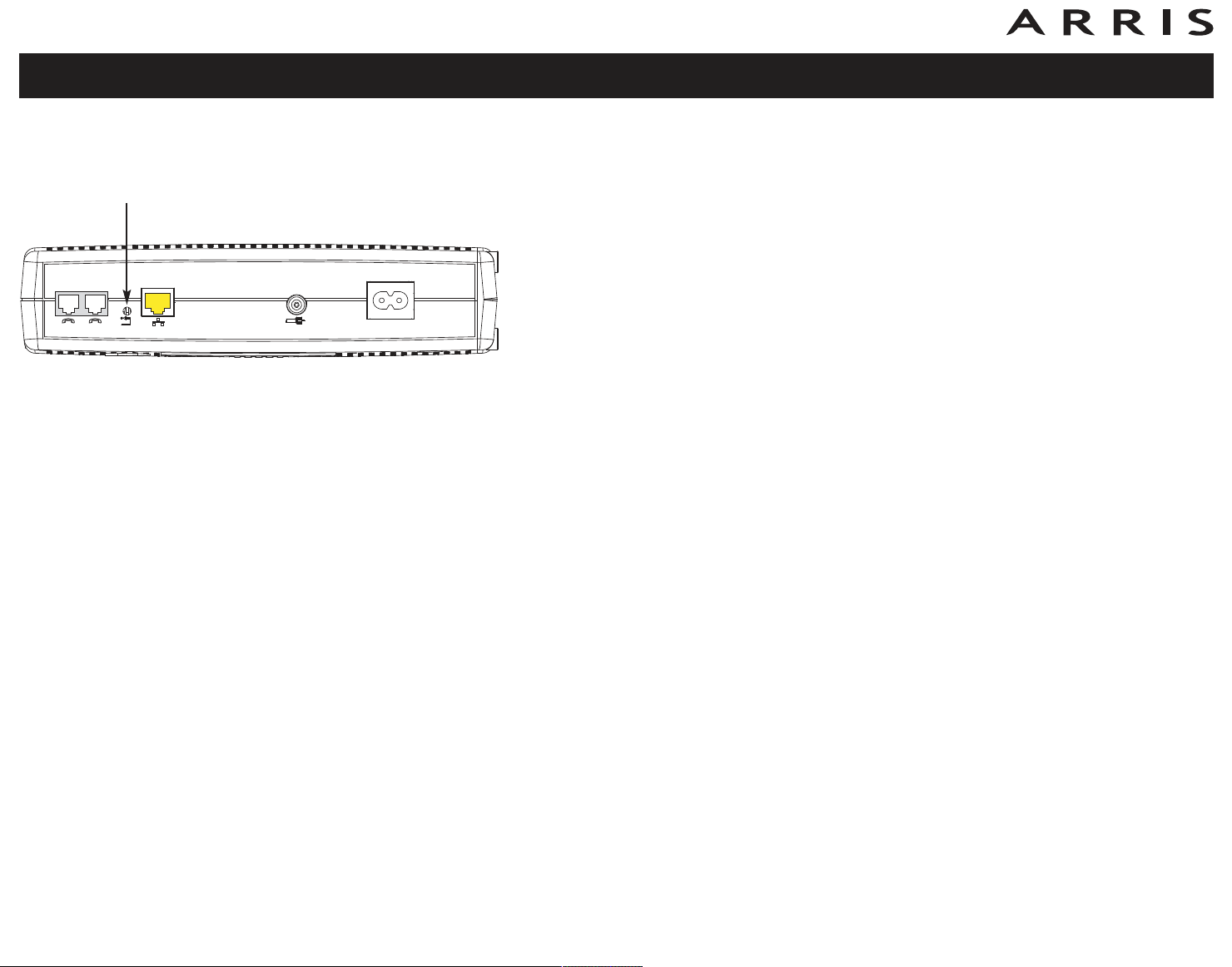
Using the Reset Button
Reset Button
Use the Reset button, on the back of the Telephony Modem, to reset the modem
as if you power cycled the unit. You may need to reset the Telephony Modem if you
are having problems connecting to the Internet. Using this button will be rare.
Use a pointed non-metallic object to press this button. The photo to the left shows
the location of the Reset button. The Reset button is recessed to prevent accidental resets.
Touchstone TM1602 Telephony Modem User’s Guide
28
Page 29

Safety
Getting
Started
Installation
Ethernet
Configuration
Usage Troubleshooting Glossary
Troubleshooting
The Telephony modem is plugged in, but the Power light is off.
Check all power connections. Is the power cord plugged in firmly at both
ends?
If you plugged the power cord into a power strip, make sure the strip is
switched on.
Avoid using an outlet controlled by a wall switch, if possible.
Check the outlet by plugging in another device (such as a lamp).
Finally, check the fuse or circuit breaker panel.
I’m not getting on the Internet.
It may take over 30 minutes to establish a connection the first time you
power up your Telephony Modem, especially when many people are online.
Always leave your Telephony Modem plugged into AC power and connected
to the cable system.
Check the front panel lights:
• The Power and Online lights should be on.
• If the Power light blinks for more than 30 minutes, call your cable com-
pany for assistance.
Check your cable connections. Connectors should be tight. The coax cable
should not be pinched, kinked, or bent sharply—any of these can cause a
break or short in the cable (you may have to replace the cable). If you have
one or more splitters between the Telephony Modem and CATV outlet, remove the splitters and connect the Telephony Modem directly to the outlet.
Proceed to the Ethernet solution (next page) if necessary.
Touchstone TM1602 Telephony Modem User’s Guide
29
Page 30

Safety
Getting
Started
Installation
Ethernet
Configuration
Usage Troubleshooting Glossary
I’m not getting on the Internet. (Ethernet)
If you are using a hub, is the hub turned on?
Are you using the right type of
Ethernet cable? Use the supplied cable for
direct connection to a computer; use a cross-over cable for connection to a
hub or home router.
Press the Reset button on the back of the Telephony Modem.
I can get on the Internet, but everything is slow.
If the Web site you are visiting is very popular, that site may be having trouble servicing all the requests. If other sites download quickly, wait for a few
minutes and try again. Usage during peak hours may also affect the connection speed.
If your Telephony Modem is connected to a LAN (Local Area Network), either
directly or through a firewall, other communications on the LAN may slow
down your connection.
To test your network speed, try an online test such as
http://reviews.cnet.com/Bandwidth_meter/7004-7254_7-0.html
I have two computers connected to the Telephony Modem, but only one
can get on the Internet.
Check your cable company’s terms of service: they may allow only one computer to connect directly to the Telephony Modem.
I don’t have dial tone when I pick up my phone, why?
In order for telephone service to be functional on the Telephony Modem,
telephone service must have been purchased from the service provider and
configured on your Telephony Modem. The following steps should help in
identifying the source of the problem.
• Is the Power LED lit?
If not, check to make sure the Telephony Modem is plugged in and the
outlet has power.
Touchstone TM1602 Telephony Modem User’s Guide
30
Page 31

Safety
Getting
Started
Installation
Ethernet
Configuration
Usage Troubleshooting Glossary
If the LED is lit, go to the next step.
• Is the Online LED lit?
If not, check the coax connection at the Telephony Modem and the wall.
Ensure they are connected and tight. If they are and you do not have dial
tone, contact your service provider.
If the Online LED is lit, go to the next step.
• Is the Telephone (Tel 1 or Tel 2) LED lit?
If not, phone service has not been provisioned on that line. Contact your
service provider.
If it is blinking, there is a phone off hook somewhere in the house. Find
that phone and hang it up.
If it is lit, go to the next step
• Is the phone plugged directly into the Telephony Modem?
Make sure the phone is plugged into the port on the back of the Telephony Modem labeled “Tel 1” for line 1, and “Tel 2” for line 2.
If so, try a different phone. Make sure the new phone is a working phone.
If a known good phone is used and you still don’t have dial tone, try a
different phone cable. If a new phone and cable do not restore dial tone,
call your service provider.
• Is the Telephony Modem plugged into a wall outlet?
If so, unplug the RJ-11 connector at the back of the Telephony Port and
plug in a known working phone. If you now have dial tone, the problem
is with the house wiring. Contact your cable company or a qualified
wiring technician to correct the house wiring. If you still do not have dial
tone, contact your service provider.
Touchstone TM1602 Telephony Modem User’s Guide
31
Page 32

Safety
Getting
Started
Installation
Ethernet
Configuration
Usage Troubleshooting Glossary
Glossary
The following is a list of common cable and networking terms.
Category 5e (Cat5e)
A high-quality type of cable, used for gigabit Ethernet (1000BaseT) connections. When purchasing Ethernet cables, always look for Category 5e cable.
Coaxial cable (coax)
A thin wire, used to connect your television and Telephony Modem to the
cable TV system. You can buy coax from any electronics retailer and many
discount stores.
CPE
Customer Premise Equipment. This is the equipment that is plugged in to the
telephony modem; typically a computer, hub, or router.
Cross-over
An Ethernet cable used to connect two hubs (or a hub and a cable modem)
together. Also, some Ethernet hubs may have built-in cross-over on one or
more ports (which eliminates the need for a cross-over cable).
DHCP
Dynamic Host Configuration Protocol. An IP protocol used to provide an IP
address and location of services (such as DNS and TFTP) needed by a device
connecting to the network. DHCP allows the cable company to configure your
computer’s networking software for you.
DNS
Domain Name Service (Server). An IP service that associates a domain
name (such as www.example.com) with an IP address.
Downstream
In an HFC network, the direction from the head-end to the subscriber. Some
older cable documentation may refer to this as the forward path.
Touchstone TM1602 Telephony Modem User’s Guide
32
Page 33

Safety
Getting
Started
Installation
Ethernet
Configuration
DOCSIS
Data Over Cable System Interface Specification. The interoperability standards used for data communications equipment on an HFC network.
EMTA
Embedded Multimedia Terminal Adapter. An MTA device that is integrated
with a cable modem.
Ethernet
A standard method of connecting two or more computers into a Local Area
Network (LAN).
Euro-DOCSIS
The European version of DOCSIS.
Event
An informational message used for monitoring network status.
F-connector
The type of connector used on coax cable. There are two common types of
F-connector, slip-on and screw-on. Use coax with screw-on connectors for
connecting your Telephony Modem.
Usage Troubleshooting Glossary
Gateway
The device, usually a router, that connects devices on a given IP subnet to
other IP subnets.
Headend
The “central office” in an HFC network. The headend houses both video and
data equipment. In larger cable networks, a “master” headend often feeds
several “remote” headends to provide distributed services.
HTTP
HyperText Transfer Protocol.
Hub
A box with several Ethernet connectors. Ethernet hubs provide a common
point of contact for all connected devices.
Touchstone TM1602 Telephony Modem User’s Guide
33
Page 34

Safety
Getting
Started
Installation
Ethernet
Configuration
IP address
A number assigned to your computer by your cable company, used to identify your computer to other systems on the Internet.
ISDN
Integrated Services Digital Network. A digital telephony standard that provides communication speeds about twice as fast as standard dialup.
LAN
Local Area Network. A network that allows computers in a single location
(such as a building) to communicate with one another.
LED
Light Emitting Diode. A semi-conductor diode that emits light when current
is passed through it.
MAC address
A number that uniquely identifies any device connected to a network. Your
cable company uses your Telephony Modem’s MAC address to authorize
access to the Internet. The MAC address is printed on a label on the bottom
of your Telephony Modem.
Usage Troubleshooting Glossary
Protocol
A set of rules and formats that determines the communication behavior of
network entities at a given layer.
Proxy
A device or program that stands in between a server (for example, a web
site) and a client (your browser), providing a way to relieve some of the
burden from the server. For example, your cable company may have a web
proxy that keeps copies of popular web pages; the proxy can send you those
pages instead of fetching them directly from the web site, resulting in faster
page loading and less network congestion.
RF
Abbreviation for Radio Frequency. Some literature refers to coax as “RF
cable” and the connectors as “RF connectors.”
Touchstone TM1602 Telephony Modem User’s Guide
34
Page 35

Safety
Getting
Started
Installation
Ethernet
Configuration
RJ-11
A standard 2-conductor modular connector, commonly used in North America for connecting telephones.
RJ-45
A standard 8-conductor modular connector, commonly used on Ethernet
cable. An RJ-45 connector looks like a wide RJ-11 (telephone) connector.
Splitter
A small box with three cable connectors: one input and two outputs. You
may need a splitter if you have a TV already connected to the cable outlet
that you want to use for your Telephony Modem. You can buy a splitter from
any electronics retailer and most discount stores.
Switched outlet
A power outlet that may be turned on and off using a wall switch. Usually
intended for lamps. Avoid plugging your computer or Telephony Modem into
a switched outlet to avoid disruptions.
TCP/IP
Transmission Control Protocol/Internet Protocol. The protocols used to facilitate communications across one or more connected networks.
Usage Troubleshooting Glossary
TDMA
Time Division Multiple Access. A method used by DOCSIS-compliant cable
modems for sending upstream data with minimal interference.
Upstream
The path from a subscriber device to the headend. Some older cable documentation may refer to this as the return path or reverse path.
Touchstone TM1602 Telephony Modem User’s Guide
35
Page 36

Touchstone®
TM1602 Telephony Modem
User’s Guide
©ARRIS Enterprises, Inc. 2014 All rights reserved. No
part of this publication may be reproduced in any form or
by any means or used to make any derivative work (such
as translation, transformation, or adaptation) without
written permission from ARRIS Enterprises, Inc.
(“ARRIS”). ARRIS reserves the right to revise this publication and to make changes in content from time to time
without obligation on the part of ARRIS to provide notification of such revision or change.
ARRIS provides this guide without warranty of any kind,
implied or expressed, including, but not limited to, the implied warranties of merchantability and fitness for a particular purpose. ARRIS may make improvements or changes
in the product(s) described in this manual at any time. The
capabilities, system requirements and/or compatibility with
third-party products described herein are subject to change
without notice.
ARRIS and the ARRIS logo are all trademarks of ARRIS Enterprises, Inc. Other trademarks and trade names may be
used in this document to refer to either the entities claiming the marks and the names of their products. ARRIS disclaims proprietary interest in the marks and names of
others.
Protected under the following U.S. patent: 7,031,435.
Other patents pending.
Release 16 Standard 1.3
July 2014
 Loading...