

Alcatel-lucent 4068 OMNIPCX ENTREPRISE, 4038 OMNIPCX ENTREPRISE, 4039 OMNIPCX ENTREPRISE User Manual
Page 1

Alcatel OmniPCX Enterprise
Alcatel 4038/4039/4068
Page 2

First
Page 3
User manual
How
Introduction
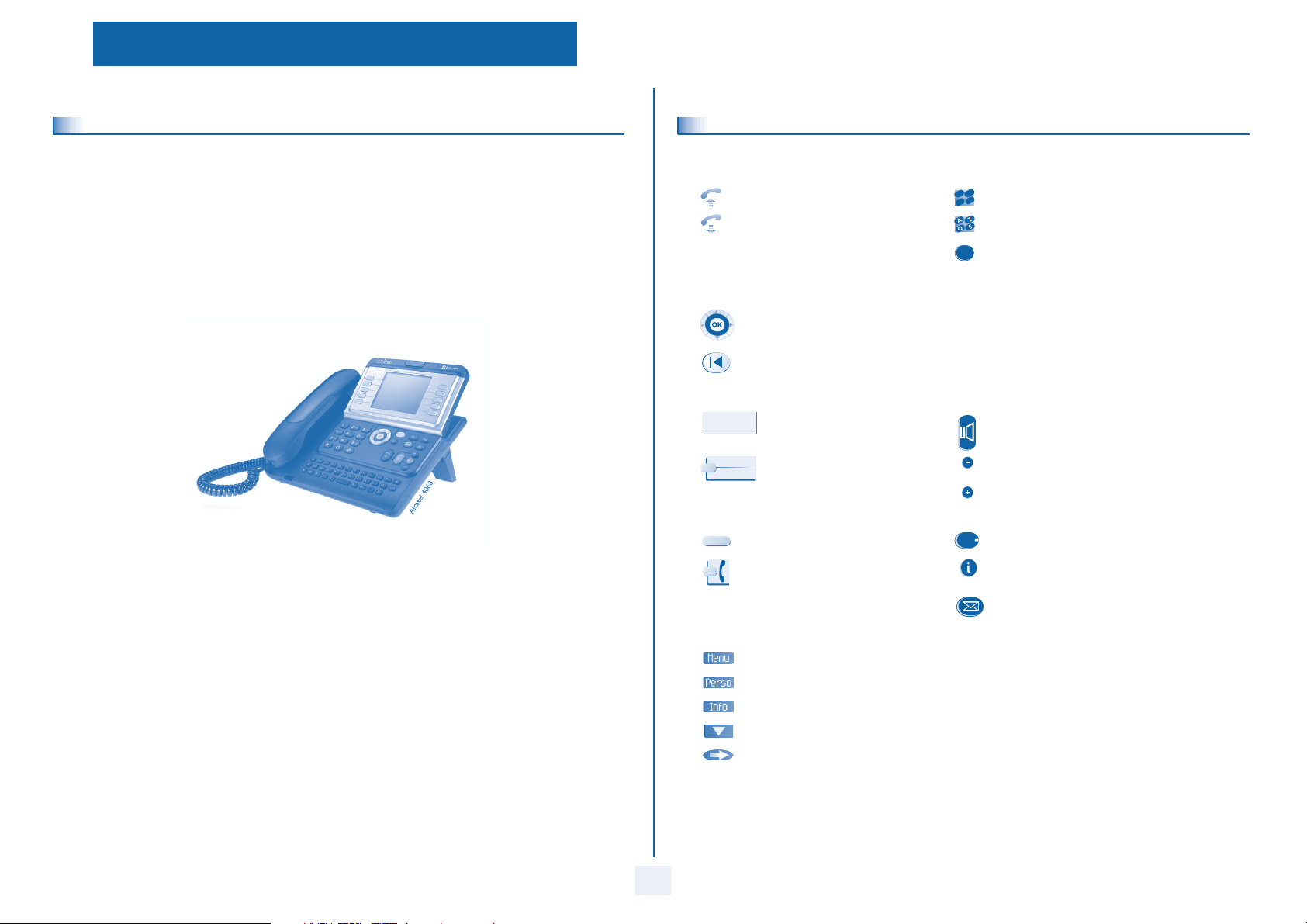
Thank you for choosing a telephone from the 4038/4039/4068 range manufactured by Alcatel.
Your Alcatel 4038/4039/4068 digital terminal has a new ergonomic layout for more effective communication.
A large graphic screen, in conjunction with various keys and the navigator, allows you to make calls, configure and program
your telephone,
a receiver that is pleasant to use: it fits nicely in the hand with a flexible grip section,
communication is even more convenient using the audio keys (l
using the convenient alphabetic keypad, you can call your correspondents by name.
oudspeaker, hands free),
How to use this guide
• Actions • Keypad
Lift the receiver. Numeric keypad.
Hang up. Alphabetic keypad.
• Navigator
Move the navigation key up, down, to the left or to the right.
To go back one level (press and release) or to return to the welcome page (press and hold);
during a conversation, can be used to access the different pages (Menu, Perso, etc.) and to return
to the telephone screens.
• Display and display keys • Audio keys
Smith John
Partial view of display.
…
Display key. Adjustment “reduce”.
• Programmable keys and icons • Other fixed keys
Line key. Fixed key.
Icon corresponding to key. MENU key.
c
b
def
a
3
2
o
n
m
jkl
6
5
2
Specific key on numeric keypad.
Loudspeaker,
hands free.
Adjustment “increase”.
Voice mail access key.
• Other symbols used
Means that the function is accessible from the Menu page.
Means that the function is accessible from the Perso page.
Means that the function is accessible from the Info page.
Means that the function is subject to programming. If necessary, contact your installer.
means that the function can be accessed by pressing a programmed key - see Program the keys
for the Perso page or the add-on module.
These symbols can be supplemented by small icons or text.
3
Page 4

How
Page 5

Contents
Getting to know your telephone . . . . . . . . . . . . . . . . . . . . . . . . . . . . . . . . p.6
1.
Description of the screens . . . . . . . . . . . . . . . . . . . . . . . . . . . . . . . . . . . . . p.7
1.1 Welcome screens . . . . . . . . . . . . . . . . . . . . . . . . . . . . . . . . . . . . . . . . . . . . . . . . . . . . . . . . p.7
1.2 Call management screen. . . . . . . . . . . . . . . . . . . . . . . . . . . . . . . . . . . . . . . . . . . . . . . . . . . p.8
1.3 Application screen . . . . . . . . . . . . . . . . . . . . . . . . . . . . . . . . . . . . . . . . . . . . . . . . . . . . . . . p.8
2.
Using your telephone . . . . . . . . . . . . . . . . . . . . . . . . . . . . . . . . . . . . . . . . . p.9
2.1 Making a call . . . . . . . . . . . . . . . . . . . . . . . . . . . . . . . . . . . . . . . . . . . . . . . . . . . . . . . . . . . . p.9
2.2 Receiving a call . . . . . . . . . . . . . . . . . . . . . . . . . . . . . . . . . . . . . . . . . . . . . . . . . . . . . . . . . . p.9
2.3 Using the telephone in "Hands free" mode . . . . . . . . . . . . . . . . . . . . . . . . . . . . . . . . . . . . p.9
2.4 Activating the loudspeaker during a conversation (receiver lifted). . . . . . . . . . . . . . . . . . p.10
2.5 Calling your correspondent by name (company directory) . . . . . . . . . . . . . . . . . . . . . . . p.10
2.6 Make calls via your programmed call keys. . . . . . . . . . . . . . . . . . . . . . . . . . . . . . . . . . . . . p.10
2.7 Calling from the common directory . . . . . . . . . . . . . . . . . . . . . . . . . . . . . . . . . . . . . . . . . p.10
2.8 Redialling . . . . . . . . . . . . . . . . . . . . . . . . . . . . . . . . . . . . . . . . . . . . . . . . . . . . . . . . . . . . . . . p.10
2.9 Call back the last caller. . . . . . . . . . . . . . . . . . . . . . . . . . . . . . . . . . . . . . . . . . . . . . . . . . . . p.10
2.10 Requesting automatic callback if internal number is busy . . . . . . . . . . . . . . . . . . . . . . . . . p.11
2.11 Answering an internal call in intercom mode . . . . . . . . . . . . . . . . . . . . . . . . . . . . . . . . . . p.11
2.12 Sending DTMF signals . . . . . . . . . . . . . . . . . . . . . . . . . . . . . . . . . . . . . . . . . . . . . . . . . . . . . p.11
2.13 Mute, so that your correspondent cannot hear you . . . . . . . . . . . . . . . . . . . . . . . . . . . . . p.11
3.
During a conversation . . . . . . . . . . . . . . . . . . . . . . . . . . . . . . . . . . . . . . . . p.12
3.1 Making a second call during a conversation. . . . . . . . . . . . . . . . . . . . . . . . . . . . . . . . . . . . p.12
3.2 Answering a second call during a conversation. . . . . . . . . . . . . . . . . . . . . . . . . . . . . . . . . p.12
3.3 Switching between calls (Broker call). . . . . . . . . . . . . . . . . . . . . . . . . . . . . . . . . . . . . . . . . p.12
3.4 Transferring a call . . . . . . . . . . . . . . . . . . . . . . . . . . . . . . . . . . . . . . . . . . . . . . . . . . . . . . . . p.13
3.5 Three-way conference with internal and/or external corr
3.6 Talk simultaneously to more than 2 correspondents . . . . . . . . . . . . . . . . . . . . . . . . . . . . p.13
3.7 Placing a call on hold (hold) . . . . . . . . . . . . . . . . . . . . . . . . . . . . . . . . . . . . . . . . . . . . . . . . p.13
3.8 Placing an outside call on hold (parking) . . . . . . . . . . . . . . . . . . . . . . . . . . . . . . . . . . . . . . p.14
3.9 Intrusion into an internal conversation . . . . . . . . . . . . . . . . . . . . . . . . . . . . . . . . . . . . . . . p.14
3.10 Adjust audio volume . . . . . . . . . . . . . . . . . . . . . . . . . . . . . . . . . . . . . . . . . . . . . . . . . . . . . . p.14
4.
Sharing. . . . . . . . . . . . . . . . . . . . . . . . . . . . . . . . . . . . . . . . . . . . . . . . . . . . . p.15
4.1 Answering the general bell . . . . . . . . . . . . . . . . . . . . . . . . . . . . . . . . . . . . . . . . . . . . . . . . . p.15
4.2 Manager/secretary filtering. . . . . . . . . . . . . . . . . . . . . . . . . . . . . . . . . . . . . . . . . . . . . . . . . p.15
4.3 Call pick-up . . . . . . . . . . . . . . . . . . . . . . . . . . . . . . . . . . . . . . . . . . . . . . . . . . . . . . . . . . . . . p.15
4.4 Hunting groups . . . . . . . . . . . . . . . . . . . . . . . . . . . . . . . . . . . . . . . . . . . . . . . . . . . . . . . . . . p.16
4.5 Calling an internal correspondent on his/her pager . . . . . . . . . . . . . . . . . . . . . . . . . . . . . p.16
4.6 Answering a call on your pager . . . . . . . . . . . . . . . . . . . . . . . . . . . . . . . . . . . . . . . . . . . . . p.16
4.7 Calling a correspondent on his/her loudspeaker. . . . . . . . . . . . . . . . . . . . . . . . . . . . . . . . p.17
4.8 Sending a written message to an internal correspondent . . . . . . . . . . . . . . . . . . . . . . . . . p.17
4.9 Send a voice message copy. . . . . . . . . . . . . . . . . . . . . . . . . . . . . . . . . . . . . . . . . . . . . . . . . p.17
4.10 Sending a recorded message to a number / a distribution list . . . . . . . . . . . . . . . . . . . . . p.17
4.11 Broadcasting a message on the loudspeakers of a station group . . . . . . . . . . . . . . . . . . . p.18
Toc
espondents (conference). . . . p.13
5.
Keep in touch. . . . . . . . . . . . . . . . . . . . . . . . . . . . . . . . . . . . . . . . . . . . . . . . p.19
5.1 Diverting calls to another number (immediate diversion). . . . . . . . . . . . . . . . . . . . . . . . . p.19
5.2 Diverting your calls to your voice message service. . . . . . . . . . . . . . . . . . . . . . . . . . . . . . p.19
5.3 When you return, consult recorded messages . . . . . . . . . . . . . . . . . . . . . . . . . . . . . . . . . p.19
5.4 Diverting calls to your pager . . . . . . . . . . . . . . . . . . . . . . . . . . . . . . . . . . . . . . . . . . . . . . . p.19
5.5 Forwarding your calls from the receiving terminal (“Follow me”) . . . . . . . . . . . . . . . . . . p.19
5.6 Applying a selective diversion . . . . . . . . . . . . . . . . . . . . . . . . . . . . . . . . . . . . . . . . . . . . . . . p.19
5.7 Cancelling all diversions . . . . . . . . . . . . . . . . . . . . . . . . . . . . . . . . . . . . . . . . . . . . . . . . . . . p.20
5.8 Cancelling a specific diversion . . . . . . . . . . . . . . . . . . . . . . . . . . . . . . . . . . . . . . . . . . . . . . p.20
5.9 Diverting calls when your line is busy (divert if busy) . . . . . . . . . . . . . . . . . . . . . . . . . . . . p.20
5.10 Do not disturb . . . . . . . . . . . . . . . . . . . . . . . . . . . . . . . . . . . . . . . . . . . . . . . . . . . . . . . . . . p.20
5.11 Leaving a recorded message for internal callers . . . . . . . . . . . . . . . . . . . . . . . . . . . . . . . . p.20
5.12 Consulting written messages . . . . . . . . . . . . . . . . . . . . . . . . . . . . . . . . . . . . . . . . . . . . . . . p.21
6.
Managing your charges . . . . . . . . . . . . . . . . . . . . . . . . . . . . . . . . . . . . . . . . p.22
6.1 Charging your calls directly to business accounts . . . . . . . . . . . . . . . . . . . . . . . . . . . . . . . p.22
6.2 Finding out the cost of an outside call made for an internal user from your terminal. . . p.22
7.
Programming your telephone . . . . . . . . . . . . . . . . . . . . . . . . . . . . . . . . . . p.23
7.1 Initializing your voice mailbox. . . . . . . . . . . . . . . . . . . . . . . . . . . . . . . . . . . . . . . . . . . . . . . p.23
7.2 Customising your voice greeting . . . . . . . . . . . . . . . . . . . . . . . . . . . . . . . . . . . . . . . . . . . . p.23
7.3 Modify the password for your phone set. . . . . . . . . . . . . . . . . . . . . . . . . . . . . . . . . . . . . . p.23
7.4 Modify the password for your voice mailbox . . . . . . . . . . . . . . . . . . . . . . . . . . . . . . . . . . p.23
7.5 Adjusting the audio functions . . . . . . . . . . . . . . . . . . . . . . . . . . . . . . . . . . . . . . . . . . . . . . . p.24
7.6 Adjusting screen brightness . . . . . . . . . . . . . . . . . . . . . . . . . . . . . . . . . . . . . . . . . . . . . . . . p.24
7.7 Selecting the welcome page . . . . . . . . . . . . . . . . . . . . . . . . . . . . . . . . . . . . . . . . . . . . . . . . p.24
7.8 Selecting language . . . . . . . . . . . . . . . . . . . . . . . . . . . . . . . . . . . . . . . . . . . . . . . . . . . . . . . . p.25
7.9 Program the keys for the Perso page or the add-on module . . . . . . . . . . . . . . . . . . . . . . p.25
7.10 Programming direct call keys . . . . . . . . . . . . . . . . . . . . . . . . . . . . . . . . . . . . . . . . . . . . . . . p.25
7.11 Programming an appointment reminder . . . . . . . . . . . . . . . . . . . . . . . . . . . . . . . . . . . . . . p.25
7.12 Identify the terminal you are on . . . . . . . . . . . . . . . . . . . . . . . . . . . . . . . . . . . . . . . . . . . . . p.26
7.13 Lock / unlock your telephone. . . . . . . . . . . . . . . . . . . . . . . . . . . . . . . . . . . . . . . . . . . . . . . p.26
7.14 Configuring the audio jack of your telephone . . . . . . . . . . . . . . . . . . . . . . . . . . . . . . . . . . p.26
7.15 Modify the associated number . . . . . . . . . . . . . . . . . . . . . . . . . . . . . . . . . . . . . . . . . . . . . . p.26
7.16 Create, modify or consult your intercom list (max. 10 numbers) . . . . . . . . . . . . . . . . . . p.26
7.17 Installing a Bluetooth® Wireless Technology headset (matching) . . . . . . . . . . . . . . . . . . p.27
7.18 Using a Bluetooth® Wireless Technology headset . . . . . . . . . . . . . . . . . . . . . . . . . . . . . . p.27
7.19 Removing a Bluetooth® Wireless Technology headset . . . . . . . . . . . . . . . . . . . . . . . . . . p.27
Guarantee and clauses . . . . . . . . . . . . . . . . . . . . . . . . . . . . . . . . . . . . . . . . p.28
5
Page 6
Telephone
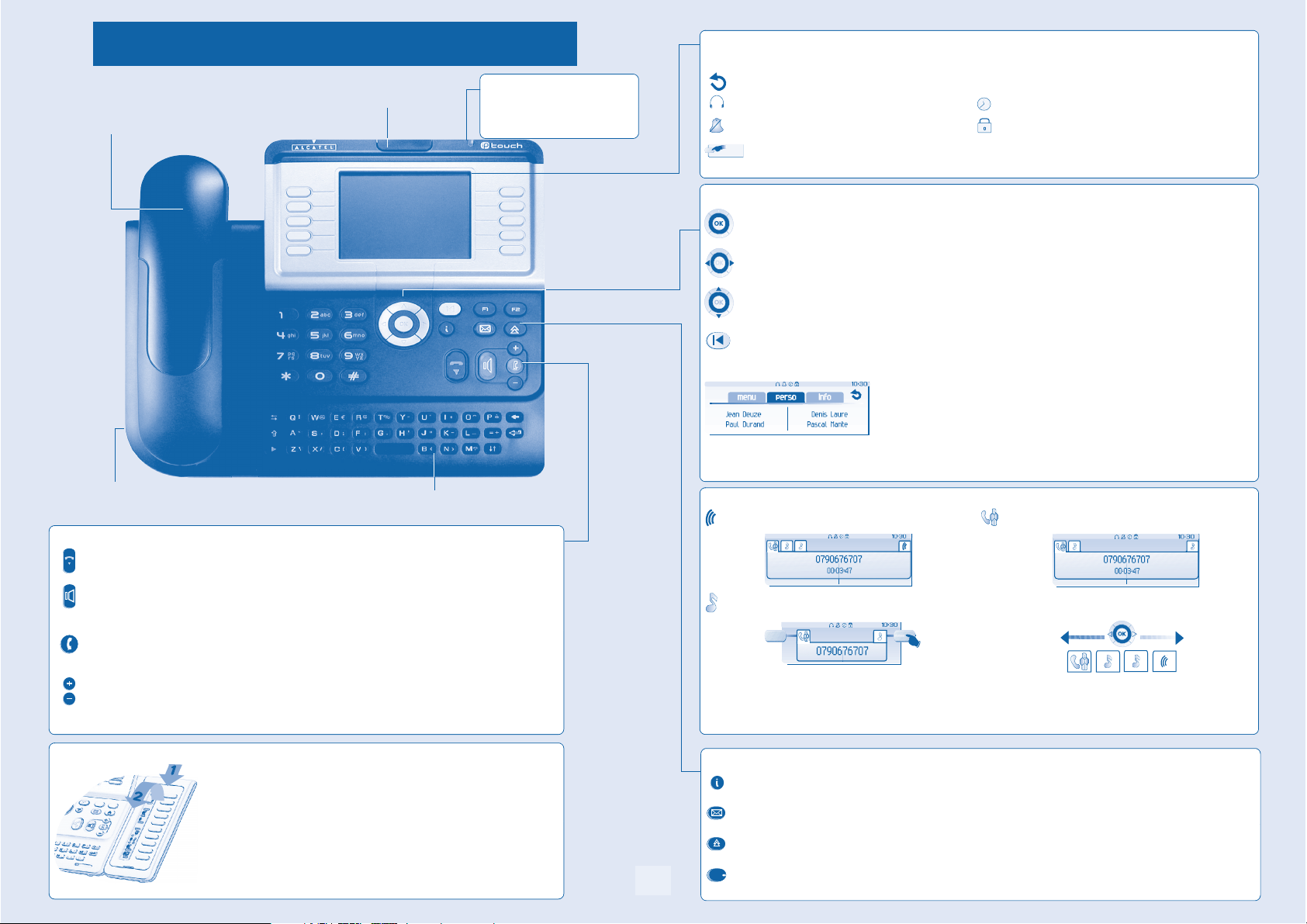
Handset
Getting to know your telephone
Indicator light
Adjust the tilt of the screen
• Flashing green: incoming call.
• Flashing red: alarm.
Display and display keys
Contains several lines and pages providing information on calls and the functions accessible via the 10 keys associated with the words on the
screen.
Navigation
Transfer icon:
Headset connected.
Silent mode activated.
Display keys:
pressing the key next to this icon allows you to program or change the transfer function.
Appointment programmed.
Telephone locked.
pressing a display key activates the function shown associated with it on the screen.
OK key:
used to validate your choices and options while programming or configuring.
Socket for connecting headphones or a
Hands-free / Loudspeaker unit
Audio keys
Hang-up key:
Hands-free/Loudspeaker Key:
Intercom/Mute key:
To adjust the loudspeaker or handset volume up or down
to terminate a call.
• Lit in hands-free mode or headset mode (short press).
• Flashing in loudspeaker mode (long press).
• During a conversation: press this key so that your correspondent can no longer hear you.
• Terminal idle: press this key to answer calls automatically without picking up the receiver.
to make or answer a call without lifting the receiver.
Alphabetic keypad
Alcatel 4068
Left-right navigator:
Up-down navigator:
Back/Exit key:
provides access to welcome screens (Menu, Info, ...) and to return to the conversation icon screens.
Welcome screens
Info page:
vation of transfer function, appointment reminder, etc.
If you get two calls at the same time, you can switch from one call
to the other by pressing the display key associated with each call.
contains information on the telephone and the status of its functions: name, telephone number, number of messages, acti-
Call display
Incoming call.
Call on hold*.
used to move from one page to another.
used to scroll through the content of a page.
to return to previous menu (short press) or return to first screen (long press); during a conversation,
Menu page:
the words on the screen.
Perso page:
keys.
contains all functions and applications accessible via the keys associated with
contains call line keys (allowing supervision of calls) and programmable call
Call in progress or outgoing call.
Left-right navigator:
used to check calls.
Extension unit
An extension unit can be fitted to your telephone. This provides additional keys which
can be configured as function keys, line keys, call keys etc.
To affix labels:
the label under the keypad, in the housing designed for, and place the keypad back
into position.
push the holding strip of the unit backwards to you and lift it. Install
Function keys and programmable keys
Guide key:
Messaging key to access various mail services:
if the key flashes orange, a new voice message, a new text message or a call-back request has been received.
'Redial' key:
6
Programmable key (F1 and F2 keys):
lit when the function associated with the key is activated.
used to obtain information on functions of the 'menu' page and to program key of the 'perso' page.
to access the 'Redial' function.
Page 7
1
Description of the screens
Other
Welcome screens
1.1
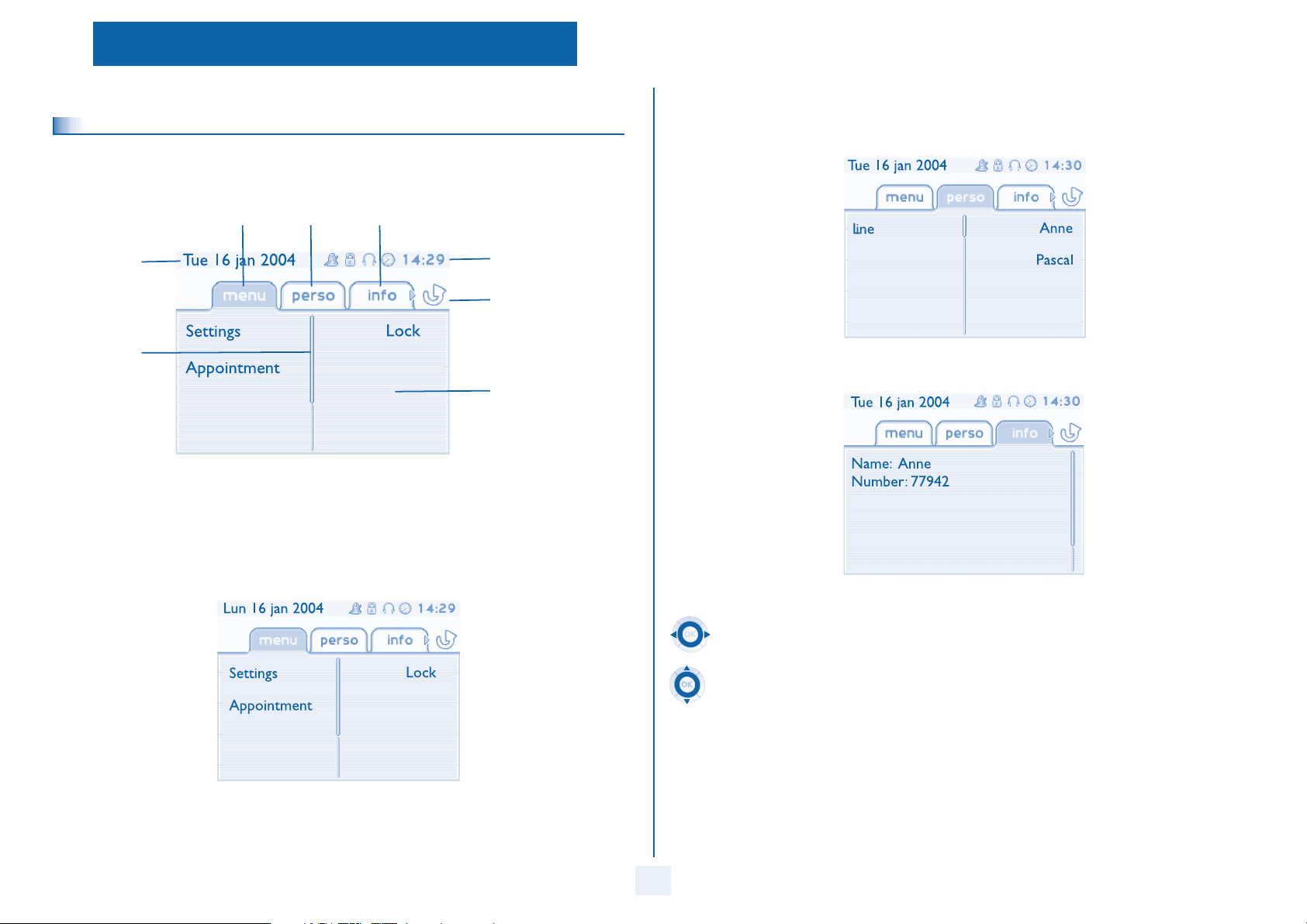
Menu page Perso page Info page
Time and status icon
Date
Call forwarding icon
Stationary:
activated.
Rotating:
ted
Scroll bar:
shows
the position on a
page
Displays the content of the
page selected
Menu page: contains all functions and applications accessible via the keys associ
From this page, it is possible to adjust the ringer volume and screen brightness, program the time of an appointment,
lock the terminal, define the default page displayed, configure voice mail, and access telephone functions such as calling
back one of the last 10 numbers or intercepting calls.
ated with the words on the screen.
no forwarding
forwarding activa-
Perso page: contains call line keys (allowing supervision of calls) and programmable call keys. The up-down navigator
is used to access all the direct call keys (apart from those displayed by default). Direct call keys are programmed or
modified via the Information key.
Info page: contains information on the telephone and the status of its functions: name, telephone number, number of
messages, activation of transfer function, appointment remind
er, etc.
Left-right navigator:
used to move from one page to another.
Up-down navigator:
used to scroll through the content of a page.
7
Page 8
1
Description of the screens
Call management screen
1.2
Call holding icon
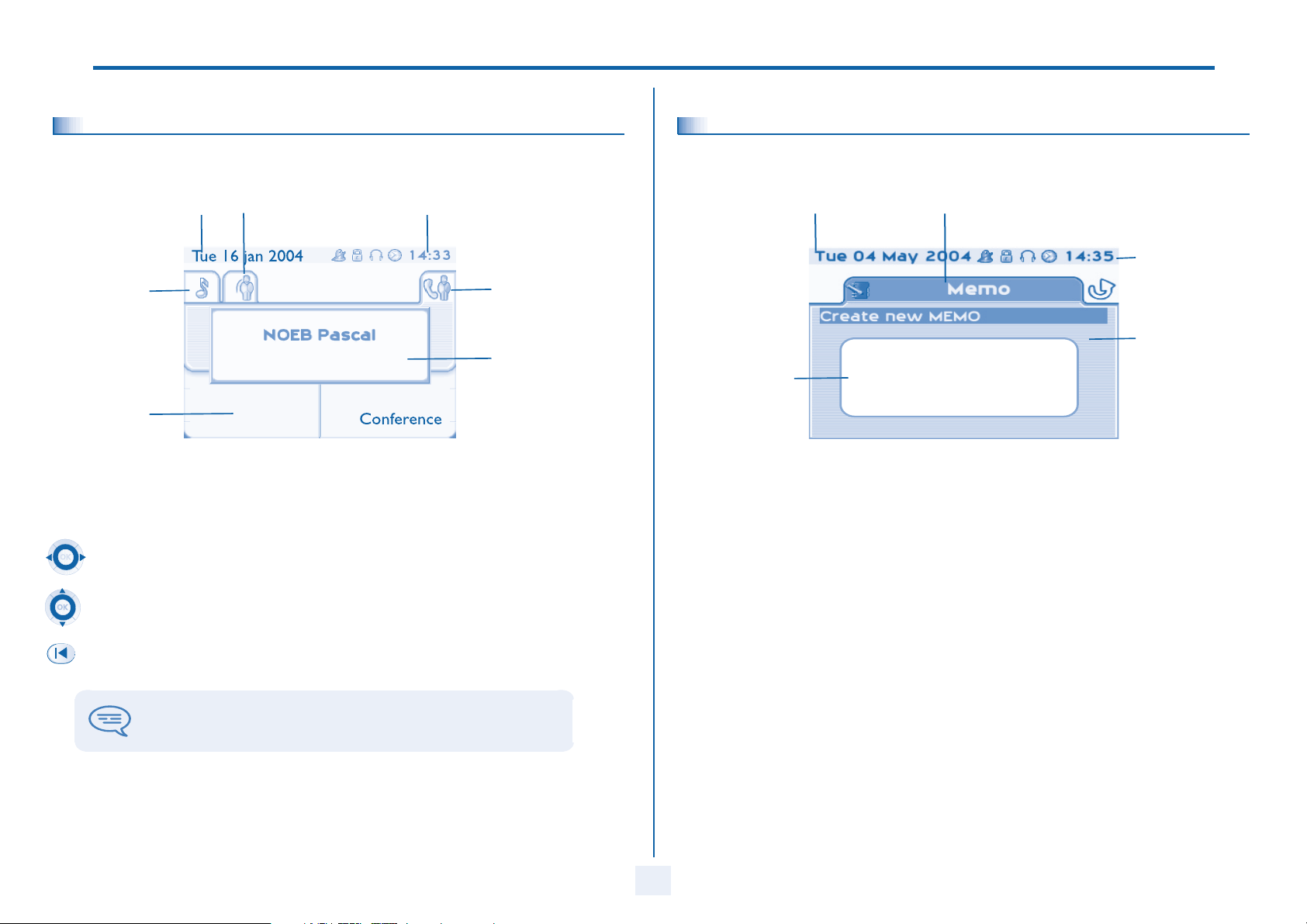
Pop-up display of
functions accessible while the call is
taking place
Date Incoming call icon Time and status icon
Call in progress icon
Incoming call presentation screen.
temporarily displayed when a
call arrives and shows the
name and/or number of the
caller.
Each tab corresponds to a call, the status of which is symbolized by its icon (in progress, held, arrival of new call).
When a call is in progress, use the left-right navigator to look at held or incoming calls.
This screen is
Application screen
1.3
Date Application name
Events screen
Application screen: displays information relevant to programming or configuring the telephone.
Events screen: displays events connected to the programming or configuration operations in progress,
confirmation, rejection, error, etc.
Time and
status icon
Application
screen
Use the up-down navigator to display the functions accessible. These functions (transfer, conference, etc.) are
directly related to the status of the call consulted. For example, the transfer function will not be available
between a call in progress or a held call and an incoming call.
Back/Exit key:
used to switch from a telephone screen to an application screen. For example, can be used while a call is in progress to look up a number, program an appointment reminder, etc.
Calls can also be managed from the Perso page.
While the call is in progress, press the Back/Exit key and display the Perso page.
Calls in progress or waiting are displayed on the different line keys. It is then possible to converse with the caller
of your choice by pressing the key associated with him.
8
Page 9
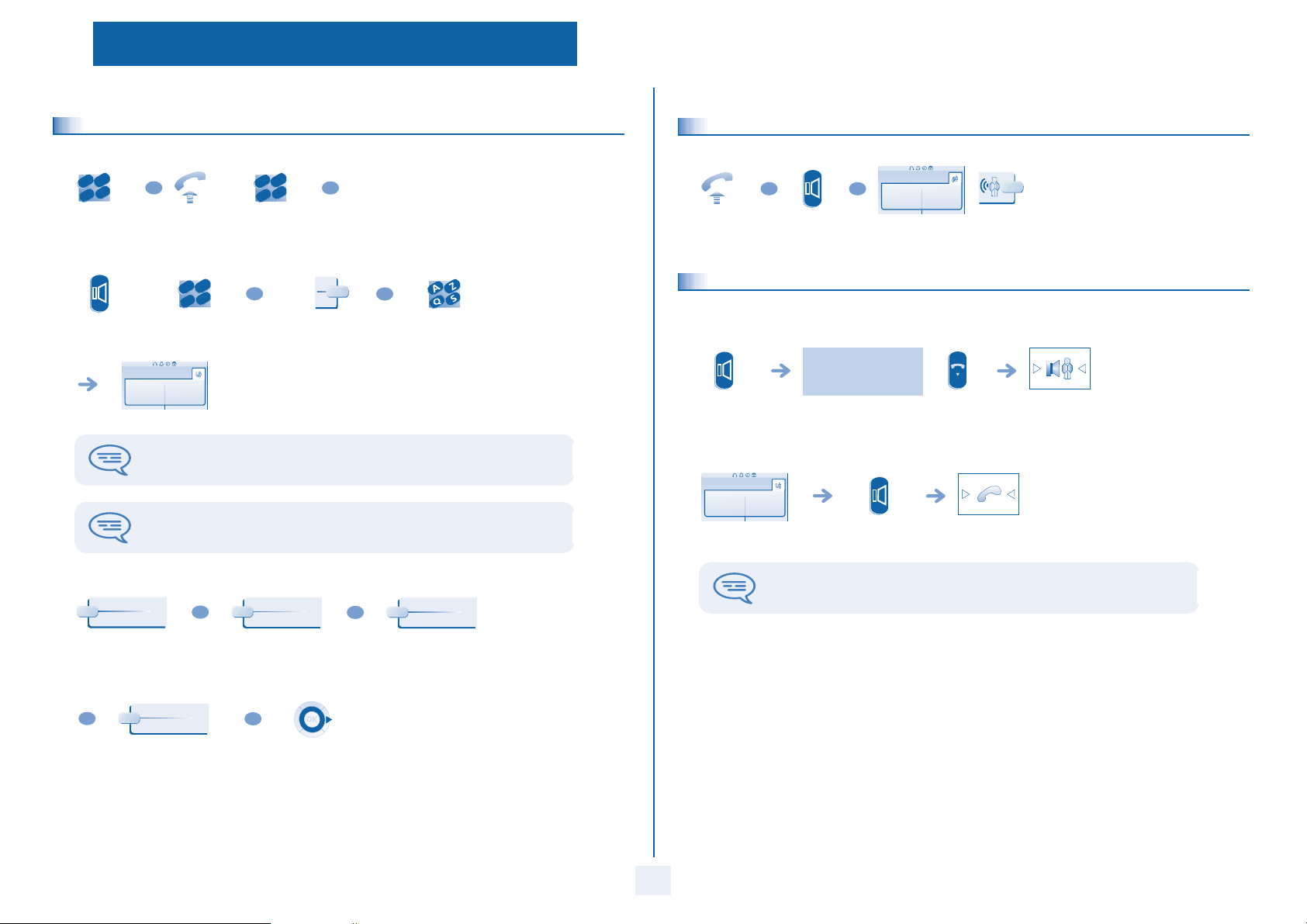
2
o
o
Using your telephone
Other
Making a call
2.1
def
abc
3
2
mn
jkl
6
5
dial directly
the number
OR
lift the
receiver
abc
3
2
jkl
6
5
number
required
def
OR
mno
for your call
def
abc
3
2
jkl
6
5
hands free number
required
Paul
Conversation 00:23'
OR
n
m
programmed line
key
during a conversation
To make an external call, dial the outside line access code before dialling your
correspondent's number. 9 is the default code for an outside line.
For the operator, dial '0' (by default).
• If the internal or outside number does not reply:
LS announce
OR
Call back
OR
OR
correspondent’s
name
Text mail
2.2
lift the
receiver
2.3
Terminal idle:
press and
release
Call in progress:
Paul
Conversation 00:23'
during a
conversation
Receiving a call
OR
hands free press the key next to the
OR
Paul
is calling
'incoming call' icon
Using the telephone in 'Hands free' mode
you are in hands free
mode
terminate
your call
press and release
During a conversation, you can lift the receiver without terminating the call.
broadcast a message on
the loudspeaker of the
free terminal
OR
request callback to a
busy terminal
Text mail
OR
send a voice message go to next screen
send a written
message
9
Page 10

2
o
Using your telephone
Activating the loudspeaker during a conversation (receiver lifted) -
2.4
Loudspeaker.
Paul
Conversation 00:23'
during a
conversation
OR
adjust volume
(7 levels)
activate loudspeaker
(long press)
deactivate
loudspeaker
(long press)
press and release the loudspeaker key to switch to hands free mode (light steady).
Calling your correspondent by name (company directory)
2.5
enter the name or initials or
the surname and first name
of your correspondent
select the type of search you
want (last name, last name
and first name* or initials*)
the loudspeaker key flashes
The key is no longer lit
Make calls via your programmed call keys
2.6
10:30
PERSO
access the
'Perso' page
find the correspondent
you want to call from
call the chosen
correspondent
the programmed call
keys
Calling from the common directory
2.7
Your terminal has access to a common directory of outside numbers.
def
abc
3
2
n
m
jkl
6
5
directory
number
Redialling
2.8
OR
10:30
menu
Redial
'Redial' key reach the 'Menu'
page
Helen
Display of all the correspondents
meeting the search criteria
OR
display the
previous and
next names
*Name must be entered in format name/space/first name.
press the key
associated with the
correspondent to call
OR
modify the search
10
last number redial
Call back the last caller (whose call was not answered)
2.9
caller
10:30
menu
reach the 'Menu'
Callback last
No reply
Last caller :
call back the last caller
page
Page 11

2
Using your telephone
Requesting automatic callback if internal number is busy
2.10
internal number busy callback request acknowledged
Answering an internal call in intercom mode
2.11
You can answer without lifting the receiver. When you receive an internal call, your telephone rings and you are connected
directly in hands free mode. The screen shows the caller’s identity.
Call back
• To activate - Terminal idle:
corresponding LED lights up
When your caller hangs up, intercom mode remains ac
tive.
• To deactivate - Terminal idle:
the corresponding LED goes out
Mute, so that your correspondent cannot hear you
2.13
You can hear your correspondent but he/she cannot hear you:
Paul
Conversation 00:23'
during a
disable microphone
The key lights up
conversation
The key is no longer lit
resume the
conversation
Sending DTMF signals
2.12
During a conversation you sometimes have to send DTMF signals, such as with a voice server, an automated attendant o
remotely consulted answering machine.
Send DTMF
OR
Paul
Conversation 00:23'
during a
*
to activate
conversation
The function is automatically cancelled when you hang
up.
r a
11
Page 12

3
o
During a conversation
Other
Making a second call during a conversation
3.1
def
Paul
Conversation 00:23'
during a
conversation
Enquiry call
abc
3
2
mn
jkl
6
5
number of
second
correspondent
• Other methods for calling a second correspondent
def
abc
3
2
mno
jkl
6
5
Dial directly the number for your call.
Name of second correspondent.
- To access the 'Redial' function (short press).
- Call back on the last 10 number dialled (press and hold).
Programmed line key.
• To cancel your second call and recover the first:
John
Conversation 00:23
Enquiry off
If you make an error, hang up: your telephone will ring and you will recover your first
call.
OR
John
Conversation 00:23
the first call is on hold
Paul
Conversation 00:23'
Answering a second call during a conversation
3.2
• A second correspondent is trying to call you:
Paul
Conversation 00:23'
during a
conversation
Answer call displayed
line key for which
OR
Paul
is calling
name or no. of the caller
displayed for 3 seconds
Take call
the first call is on hold
icon is flashing
• To return to your first caller and end the conversation in progress:
John
Conversation 00:23
Paul
In conversation
key associated with the
'incoming call' icon
Switching between calls (Broker call)
3.3
During a conversation, a second call is on hold.
To accept the second call:
John
Conversation 00:23
OR
OR
John
Conversation 00:23
key associated
with the
Paul
Conversation 00:52
your first call is placed on
hold
'incoming call'
icon
12
Page 13

3
o
Transferring a call
3.4
• To transfer your call to another number:
def
abc
3
2
mn
Paul
Conversation 00:23'
during a
conversation
• If the number receiving the transfer answers:
Call back
jkl
6
5
calling a second
person during a
conversation
John
Conversation 00:23
the first call is on hold
During a conversation
After the conference, to leave your two correspondents talking together:
Call back
Talk simultaneously to more than 2 correspondents
3.6
You are in a conference call with 2 correspondents. To add another correspondent to the conference:
Paul
John
00:23
Add
OR
def
abc
3
2
mno
jkl
6
5
correspondent’s name
or number
OR
You can also transfer your call immediately, without waiting for the number to answer, using either of the two methods described
above.
Transfer between two outside calls is not generally possible (depends on country
concerned and system configuration).
Three-way conference with internal and/or external correspondents
3.5
(conference)
During a conversation, a second call is on hold:
John
Conversation 00:23
Conference
select the 'conference'
function
Cancel conference and return to first correspondent (if conference is active):
End conference
Hang up on all correspondent (if conference is active):
End conference
OR
Paul
John
00:23
Insert
Placing a call on hold (hold)
3.7
• Exclusive hold:
During a conversation, you wish to place the call on hold and recover it later, on the same telephone.
Paul
Conversation 00:23'
during a
Conference
Number of participants:
Put on hold
Paul
On hold
your call is placed on hold
conversation
• Recover the call on hold:
Paul
On hold
Paul
Conversation 00:23'
key associated with the
'incoming call' icon
13
Page 14

3
o
• Common hold:
To recover your call on any telephone in your system:
Paul
Conversation 00:23'
during a
conversation
Recover the call on hold from any telephone:
key associated with the
'incoming call' icon
Placing an outside call on hold (parking)
3.8
call
You can place an outside call on hold and recover the call on another telephone:
Hold
Park/retrieve
Paul
Conversation 00:23'
your call is placed on
hold
During a conversation
Intrusion into an internal conversation
3.9
Your correspondent’s line is busy. If the number is not “protected” and if authorised, you can intrude into the call:
Intrusion
• Protection against intrusion:
protection
press programmed
key
Protection is cancelled when you hang up.
same key to exit
Intrusion
Intrusion
def
abc
3
2
mn
jkl
6
5
enter the number
Paul
Conversation 00:23'
Park the call
during a
conversation
A parking announcement message is displayed on the screen of the parking destination
set.
• To recover the parked call:
call
To automatically take the parked call, pick up the handset of the parking destination set.
10:30
menu
Park/retrieve
Settings
My services
reach the 'Menu'
page
Call pick up
services
If the parked call is not recovered within a preset time (default value 1 min 30), it is
transferred to the operator.
Park/retrieve
call
Consultation
14
Adjust audio volume
3.10
During a call, to adjust the volume level of the loudspeaker or receiver:
Paul
in conversation
during a
OR
adjust audio volume
conversation
Page 15

4
o
Sharing
Other
Answering the general bell
4.1
Night service
call pick up
When the operator is absent, outside calls to the operator are indicated by a general bell. To answer:
10:30
menu
Settings
My services
reach the 'Menu'
page
Consultation
Manager/secretary filtering
4.2
Screened list :
System configuration allows “manager/secretary” groups to be formed, s
secretaries.
Call pick up
services
Night service
call pick up
o that the manager’s calls can be directed to one or more
• From the manager’s or secretary’s telephone:
incoming calls are filtered by a chosen person
(secretary, etc.)
press
programmed key
Call pick-up
4.3
You hear a telephone ringing in an office where no-one can answer. If authorised, you can answer the call on your own telephone.
• If the telephone ringing is in your own pick-up group:
up
10:30
menu
Group call pick
Settings
My services
reach the 'Menu'
page
Consultation
Call pick up
services
Group call pick
up
• If the telephone ringing is not in your pick-up group:
pick up
10:30
menu
Individual call
Settings
My services
Consultation
reach the 'Menu'
page
def
Call pick up
services
Individ pick up
abc
3
2
mn
jkl
6
5
number of
telephone
ringing
same key to cancel
Filtering is indicated on the manager’s telephone by the ic
“filtering” programmed key.
The system can be configured to prevent call pick-up on certain telephones.
on corresponding to the
15
Page 16

4
o
o
o
Sharing
Hunting groups
4.4
• Hunting group call:
Certain numbers can form a hunting group and can be called by dialling the group number.
def
abc
3
2
mn
jkl
6
5
Group No.
• Temporary exit from your hunting group:
hunting group
10:30
menu
Go out of
Settings
My services
reach the 'Menu'
page
Consultation
Additional
services
Out hunting grp
abc
3
2
jkl
6
5
your group number
• Return into your group:
group
10:30
menu
Go into hunting
Settings
My services
reach the 'Menu'
page
Consultation
Additional
services
In hunting grp
abc
3
2
jkl
6
5
your group number
Calling an internal correspondent on his/her pager
4.5
The number called does not answer and you know that the pe
def
abc
3
2
mno
jkl
6
5
Paging
rson called has a pager:
def
abc
3
2
mno
jkl
6
5
number called number called
paging in progress is displayed
Your correspondent can answer from any telephone in the system.
def
n
m
Answering a call on your pager
4.6
Paging answer
A call on your pager can be answered from any telephone within the system.
your pager beeps
10:30
menu
Settings
My services
reach the 'Menu'
page
def
def
mn
Consultation
Paging
Paging answer
abc
3
2
no
m
jkl
6
5
your extension
number
Belonging to a group does not affect the management of direct
telephone within a group can always be called by using its own number.
calls. A specific
16
Page 17

4
a
o
o
o
o
Sharing
Calling a correspondent on his/her loudspeaker
4.7
Your internal correspondent does not answer. If authorised, you can remotely activate your correspondent’s phone:
Paul
LS announce
your
correspondent
does not reply
you are connected to the loudspeaker on your correspondent’s
phone (if he/she has the hands free function)
Sending a written message to an internal correspondent
4.8
def
new text mess
Send
abc
3
2
mno
jkl
6
5
enter the number
of the terminal to
receive the
OR
enter the first
letters of the
name
message
Text mail
Send a text message to
xxx xxx
Predefined msg
select a predefined message
OR
To complete
OR
Msg to create
select a predefined message to complete compose a new message
Send a voice message copy
4.9
def
new voice
message
abc
3
2
mn
jkl
6
5
personal code
Text mail
Record your message
OR
#
Consult
Exit
Send
display number of new and old
def
abc
3
2
mn
jkl
6
5
number to be
messages
Forward msg
OR
Spell name
correspondent’s name send message
called
Sending a recorded message to a number / a distribution list
4.10
def
new voice
message
abc
3
2
n
m
jkl
6
5
Send
personal code
Voice mail
Record your message
Exit
Text mail
xxxxxx xxx
complete your
message
Apply
abc
2
5
number to be
record message end of recording
def
3
mn
jkl
6
OR
Spell name
correspondent’s name
OR
#
called
Send
OR
Exit
send message end of broadcast
17
Page 18

4
o
Broadcasting a message on the loudspeakers of a station group
4.11
A message not requiring an answer can be broadcast on the loudspeakers within your broadcast group:
def
abc
3
2
mn
jkl
6
5
number of
broadcast
group
speak, you have 20 seconds
OR
Sharing
The message will only be broadcast on terminals not in u
loudspeaker.
se and which have a
18
Page 19

5
o
d
o
o
e
Keep in touch
Other
Diverting calls to another number (immediate diversion)
5.1
The number can be your home, portable or car phone, voice message or an internal extension (operator, etc.).
def
Immediate
forward
abc
3
2
mno
jkl
6
5
number to be
called
diversion is acknowledged
You can make calls, but only the destination number can call you.
Diverting your calls to your voice message service
5.2
Imm fwd to VM
When you return, consult recorded messages
5.3
diversion is acknowledged
Diverting calls to your pager
5.4
Radio paging
Callers will thus be able to contact you while you are moving arou
nd the company:
diversion is acknowledged
press programmed
key
Forwarding your calls from the receiving terminal (“Follow me”)
5.5
Remote forward
You wish to receive your calls in your present location:
Use the “Follow me” function.
Other fwd
Remote forwar
your extension
def
abc
3
OR
press programmed
key
2
mn
jkl
6
5
your extension
number
diversion is acknowledged
abc
3
2
jkl
6
5
number
def
mn
The light indicates that messages have been received.
def
new voice
message
abc
3
2
mn
jkl
6
5
display name of sender, with date, time and
personal code
Consult
Replay
OR
listen to message erase message
OR
Call back
call back sender of
OR
Save
archive the message terminate consultation
message
ranking of message
Erase
OR
Exit
19
Applying a selective diversion
5.6
You can forward your primary number and your secondary number or numbers to different sets.
10:30
menu
Settings
My services
Consultation
reach the 'Menu'
page
Forward servic
Principal line
selection
OR
Second line
selection
def
abc
3
2
mno
jkl
6
5
select the number to forward number receiving
diversion
Page 20

5
s
o
o
&
a
Keep in touch
Cancelling all diversions
5.7
Deactivate
Cancelling a specific diversion
5.8
programmed key corresponding to type of diversion
Diverting calls when your line is busy (divert if busy)
5.9
(group or selective)
Deactivate
forward
Forward on busy
Callers will thus be able to contact you while you are moving aro
OR
10:30
menu
und the company:
Forward
reach the 'Menu' page
def
Forward on bu
abc
3
2
n
m
jkl
6
5
diversion is acknowledged
number receiving
diversion
def
abc
3
OR
2
n
m
jkl
6
5
diversion is acknowledged
press programmed key number receiving
diversion
programme another type of
OR
diversion
Other fwd
Do not disturb
5.10
on/off
Do not disturb
You can make your terminal temporarily unavailable for all calls.
Settings
Do not disturb
locking
Callers wishing to contact you will see the 'Do Not Disturb' message displayed on their
sets when they try to call.
Leaving a recorded message for internal callers
5.11
My services
Do not disturb
on/off
Consultation
diversion is acknowledged
You can leave a message on your terminal which will be displayed on the screen of the terminal calling you.
new text mess
Predefined msg
Fwd to text
OR
Text mail
Fwd to text
To complete
select a predefined message select a predefined message to complete
OR
Msg to create
Text mail
xxxxxx xxx
compose a new message complete your
message
Apply
20
Page 21

5
a
Consulting written messages
5.12
The light indicates that messages have been received.
Keep in touch
OR
call back sender of
OR
Text answer
answer with a text
message
number of
messages received
Recall
message
OR
OR
consultation
new text mess
Save
Read message
OR
record message next message
terminate
Next message
display name of sender, with
date, time and ranking of
message
21
Page 22

6
n
o
o
Charging your calls directly to business accounts
6.1
Managing your charges
Other
You can charge the cost of your outside calls to business account numbers.
10:30
menu
Settings
My services
reach the 'Menu'
page
Consultation
def
abc
3
2
mn
jkl
6
5
number of
Additional
services
def
abc
3
2
mn
jkl
6
5
number required
Business accou
code
business
account
Finding out the cost of an outside call made for an internal user from
6.2
your terminal
10:30
menu
reach the 'Menu'
page
Consultation &
callbacks
Settings
Charging
informations
My services
Consultation
22
Page 23

7
o
o
o
o
o
o
7.1
light flashes
Programming your telephone
Initializing your voice mailbox
enter your personal code then record
your name according to voice guide
instructions
Your personal code is used to access your voice mailbox and to lock your telephone.
Customising your voice greeting
7.2
You can replace the greeting message by a personal message.
def
No new voice
message
abc
3
2
mn
jkl
6
5
Perso options
personal code
Normal prompt
OR
Perso greeting
Other
def
abc
3
2
mn
jkl
6
5
OR
Apply
enter new
password again to
confirm
This password controls access to the programming and
the user (default password: 0000).
Modify the password for your voice mailbox
7.4
def
No new voice
message
abc
3
2
mn
jkl
6
5
Perso options
terminal locking functions by
Admin options
personal code
Greeting msg
Perso greeting
Password
My password
def
abc
3
2
mn
jkl
6
5
#
new code
Voice mail
Greeting recording
End
(4 digits)
to return to the
default message
Accept
OR
apply re-record a message replay message
Modify the password for your phone set
7.3
10:30
menu
Settings
reach the 'Menu'
page
def
abc
3
2
n
m
jkl
6
5
old code
(4 digits)
def
abc
3
2
mn
jkl
6
5
new code
(4 digits)
Restart
My phone
OR
record message end of recording
OR
Apply
Replay
Password
As long as your voice mailbox has not been initialized, personal code is 0000.
23
Page 24

7
Adjusting the audio functions
7.5
10:30
menu
reach the 'Menu'
page
T Choose the tune:
Settings
My phone
Programming your telephone
T
Adjust ringer volume while a call arrives:
Paul
is calling
Ringing
your telephone
rings
Adjusting screen brightness (Alcatel 4038/4039)
7.6
OR
adjusting the ringer volume
Melody
select the melody of your choice
(16 tunes)
T Adjusting the ringer volume:
Ringing level
select the volume of your choice:
(12 levels)
T activate/deactivate silent mode:
More options
¤ Silent mode
to deactivate to activate
T Activate/disable meeting mode (progressive ringing):
More options
¤ Progressive
ringing
to deactivate to activate
T Activate/deactivate discreet ring mode:
OR
× Silent mode
× Progressive
ringing
10:30
menu
Settings
My Phone
reach the 'Menu'
page
OR
increase or decrease the contrast
Selecting the welcome page
7.7
This function is used to choose the page displayed by default on the telephone.
10:30
menu
Settings
My phone
select the default page
Contrast
Homepage
¤ One beep
before ringing
OR
¤ Three beeps
before ringing
¤ One beep
before ringing
to deactivate to activate
OR
¤ Three beeps
before ringing
24
Page 25

7
o
o
o
Programming your telephone
Selecting language
7.8
10:30
menu
Settings
My phone
Language
reach the 'Menu'
page
def
abc
3
2
mn
jkl
6
5
enter your personal
password
Program the keys for the Perso page or the add-on module
7.9
select the language of your
choice
You can program call numbers and functions for the 'Perso' page keys and the add-on module keys.
10:30
PERSO
reach the 'Menu'
page
press the key you
want to program
Speed dial
to program a
number
OR
to program a
To program a number:
def
Speed dial
abc
3
2
n
m
jkl
6
5
enter the
Apply
enter the name apply
number
To program a function:
Services
function
Programming direct call keys (F1 and F2 keys)
7.10
Speed dial
press a programmable
key (F1 or F2)
follow informations displayed on the
Programming an appointment reminder
7.11
screen
to program a
number
OR
Services
to program a
function
You can define the time of a temporary reminder (one in 24 hours) or a permanent reminder (every day at the same time)
10:30
menu
reach the 'Menu'
Appointment
Appointment
hour
enter time of appointment
def
abc
3
2
mno
jkl
6
5
page
def
abc
3
2
mn
jkl
6
5
dial the number of the
appointment destination set
The 'Appointment programmed' icon is displayed on the welcome page.
• At the programmed time, your telephone rings:
.
Other possibilities:
modify contents
of entry displayed
Services
Modify
follow informations displayed on the
screen
If your calls are diverted to another terminal, the diversion is not applied to the
reminder call.
• To cancel your reminder request:
OR
Erase
delete
25
10:30
menu
Appointment
Erase
reach the 'Menu' page
The 'Appointment programmed' icon disappears from the welcome page.
Page 26

7
o
o
o
Programming your telephone
Identify the terminal you are on
7.12
The number of your telephone is displayed on the 'Info' page.
Access the Info page using the navigator.
Lock / unlock your telephone
7.13
10:30
menu
reach the 'Menu'
page
Lock
depending the displayed
informations, enter your
def
abc
3
2
mn
jkl
6
5
your telephone is
locked/unlocked
password or confirm
Configuring the audio jack of your telephone
7.14
By default, the audio jack of your telephone can be used to connect a headset, hands free kit or loudspeaker.
10:30
menu
Settings
My Phone
Jack plug
reach the 'Menu'
page
Modify the associated number
7.15
The associated number can be a phone set number, the voice mail number or the pager number.
10:30
menu
Settings
My services
Associate
reach the 'Menu'
page
def
abc
3
2
mn
jkl
6
5
Modify
enter your
personal
password
Create, modify or consult your intercom list (max. 10 numbers)
7.16
10:30
menu
Settings
My services
def
abc
3
2
mn
jkl
6
5
enter the new
associated
number
acceptance of the
programming is displayed
reach the 'Menu'
page
Interphony
follow instructions given on display
Headset
OR
Hands-free
OR
Loudspeaker
26
Page 27

7
o
Programming your telephone
Installing a Bluetooth® Wireless Technology headset (matching)
7.17
- Alcatel 4068
Before a Bluetooth® headset can be used, it must be correctly matched to the terminal. Before performing the matchin
operation, the headset must be in detectable mode*.
10:30
menu
reach the 'Menu'
page
Add device
apply your choice enter the PIN
* Refer to the user documentation supplied with the headset.
Using a Bluetooth® Wireless Technology headset - Alcatel 4068
7.18
Settings
Searches for Bluetooth® equipment;
wait until the type of equipment
detected and the address is displayed
def
abc
3
2
n
m
jkl
6
5
code of the
headset *
My Phone
Bluetooth
select the relevant
equipment
acknowledgement message
and display of the headset
icon on the terminal screen
Add
Removing a Bluetooth® Wireless Technology headset -
7.19
Alcatel 4068
g
10:30
menu
reach the 'Menu'
page
Mydevices
Delete
Settings
display of the different equipment
apply your choice
matched
My Phone
select the equipment
to be removed
message acknowledging the
equipment has been removed
Bluetooth
Refer to the user documentation supplied with the headset.
27
Page 28

Guarantee and clauses
Independently of the legal warranty that covers this appliance, it is guaranteed for 1 year, parts
howtoc
and labour, counting from the date indicated on your invoice.
The invoice will be demanded if making a claim under the warranty. The warranty does not
however apply in the following cases: in the event of use that does not comply with the
instructions given in this user’s manual, faults or damage caused by natural wear, damage
resulting from a cause external to the appliance (e.g. impact, fall, exposure to dampness, etc.),
noncompliant installation or modifications or repairs carried out by people who are not
approved by the manufacturer or retailer.
Warning: never place your telephone in contact with water. To clean your telephone, you may
however use a damp soft cloth. Never use solvents (trichlorethylene, acetone, etc.) which may
damage the plastic parts of your telephone. Never spray it with cleaning products.
Earpiece may retain magnetic objects.
The wording is not contractual and may be subject to change. Some functions of your
telephone are controlled by a software key and the configuration of the unit.
Declaration of compliance
EC: We, Alcatel Business Systems, hereby declare that we assume the Alcatel 4038/4039/4068
product to be compliant with the essential requirements of Directive 1999/5/CE of the
European Parliament and Council. A copy of the original of this declaration of compliance can
be obtained from your installer.
Alcatel 4068
This apparatus makes use of a frequency spectrum, which use is not harmonized throughout
the countries of the EC. The frequency spectrum may be shared with other applications and
its operation is subject to the following two conditions: (1) this device may not cause harmful
interference, and (2) this device must accept any interference received, including interference
that may cause undesired operation. The device is designed and manufactured not to exceed
the emission limits for exposure to radio frequency energy in SAR (Specific Absorption Rate)
set by the concerned countries (Federal Communications Commission for the United-States)
Alcatel Business Systems, in keeping with its policy of constant product improvement for the
customer, reserves the right to modify product specifications without prior notice. Copyright
© Alcatel Business Systems. 2005. All rights reserved.
MU19001BSAB-E610ed01-0805
28
 Loading...