

Page 1

Handheld RFID Reader
Model 702 and Model 802
Owners Manual
3M Security Systems Division
3M Center, Building 225-4N-14
St. Paul, Minnesota 55144-1000
Copyright © 2003-2004 3M IPC. All rights reserved.
78-8123-9267-4 Rev B
Page 2

Page 3

Table of Contents
Safety Information .......................................................................... 1
Intended Use................................................................................................................................... 1
Safety messages ............................................................................................................................2
Important Notes.............................................................................................................................. 3
Safety label locations .................................................................................................................... 4
EMC, USA, and Canada Compliance............................................................................................ 5
Getting Started ...............................................................................6
Specifications................................................................................................................................. 6
Handheld components .................................................................................................................. 7
Controls and indicators................................................................................................................. 8
Using the Handheld Device for the first time .............................................................................. 9
Inserting the memory card.......................................................................................................... 10
Removing the memory card........................................................................................................11
Resetting the handheld ............................................................................................................... 12
Resetting the handheld ............................................................................................................... 12
Formatting a memory card ........................................................................................................13
Adjusting the antenna ................................................................................................................. 14
Cleaning the handheld................................................................................................................. 14
Storing the handheld ................................................................................................................... 14
Battery Management .................................................................... 15
Battery charging guidelines........................................................................................................ 15
Battery use ................................................................................................................................ 15
Sleep Mode ............................................................................................................................... 15
Charging the battery.................................................................................................................... 16
Replacing the battery................................................................................................................... 17
Requesting service ....................................................................... 18
3M Service phone numbers ........................................................................................................18
For software support ................................................................................................................. 18
For service................................................................................................................................. 18
To order parts............................................................................................................................ 18
Ordering replacement parts........................................................................................................ 19
To order parts............................................................................................................................ 19
Copyright 2003-2004, 3M IPC. All rights reserved.
Page 4

Page 5
Safety Information
Read, understand, and follow all safety information contained in these
instructions prior to installation of the 3M™ Handheld RFID Reader
Model 702 and Model 802. Retain these instructions for future
reference.
Intended Use
The 3M Handheld RFID Reader Model 702 and Model 802 are designed and
tested for use in processing 3M™ RFID Tags. These tags are used to
identify items, such as books, videocassettes, files, etc., for various users.
It has not been evaluated for other uses.
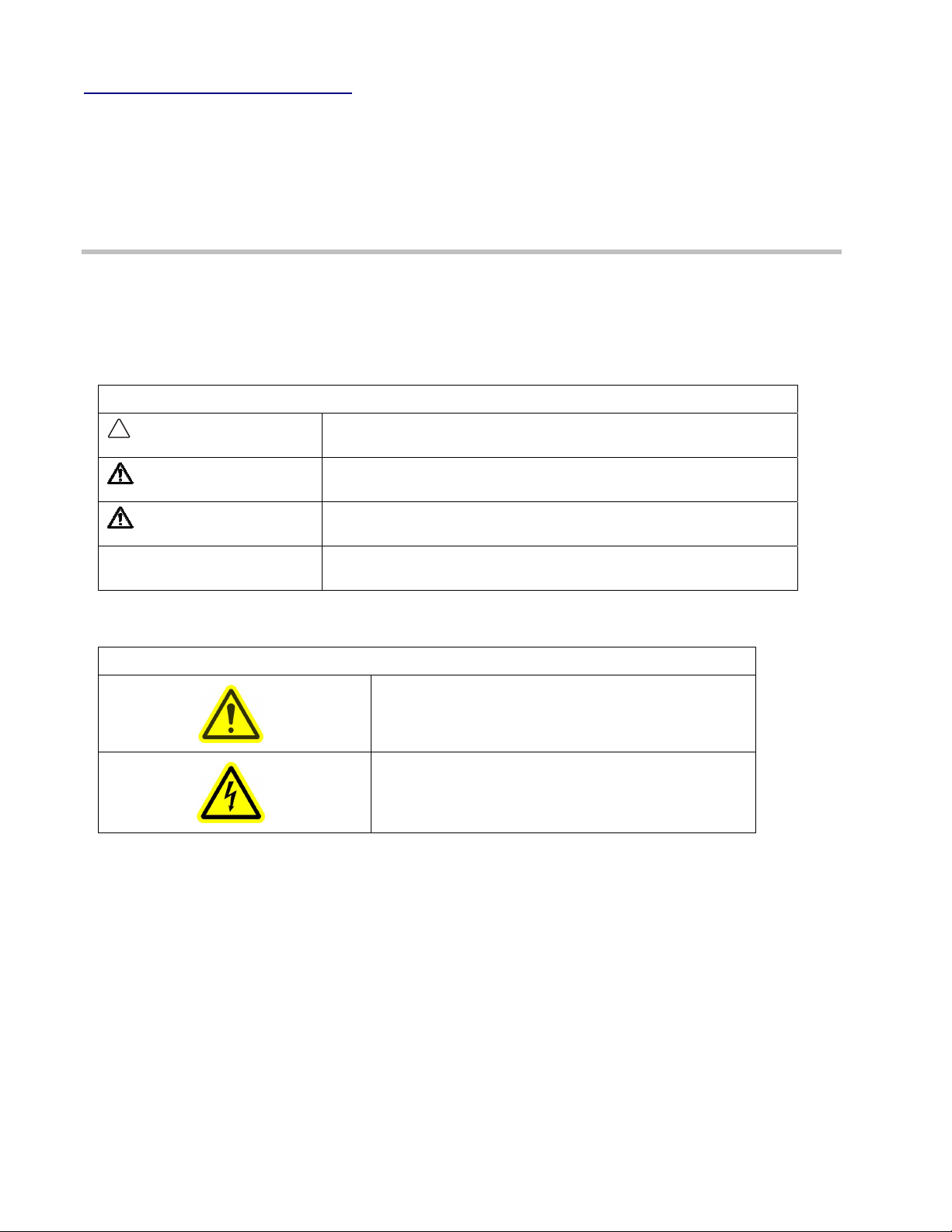
Explanation of Signal Word Consequences
!
DANGER:
WARNING:
CAUTION:
CAUTION:
Indicates a potentially hazardous situation, which, if not avoided,
will result in death or serious injury and/or property damage.
Indicates a potentially hazardous situation, which, if not avoided,
could result in death or serious injury and/or property damage.
Indicates a potentially hazardous situation, which, if not avoided,
may result in minor or moderate injury and/or property damage.
Indicates a potentially hazardous situation, which, if not avoided,
may result in property damage.
Explanation of Product Safety Label Symbols
Attention: Read accompanying documentation
Warning: Risk of Electric Shock
1
Page 6
Safety messages
WARNING
To reduce the risk associated with fire and explosion:
Do not attempt to use a damaged battery pack, charger, or power supply;
Do not allow battery pack to come in contact with water;
Do not disassemble, crush, or incinerate the battery pack — at the end of service
life, dispose of the battery pack in accordance to federal, state and local
requirements;
Replace battery pack with Molicel MCR-1821 type battery pack only;
Do not store the battery pack in areas that may exceed temperatures of
100°C/212°F;
Use the charger with the supplied power supply only.
To reduce the risk associated with hazardous voltage contained within the
battery charger:
Do not use the charger or power supply if the case or cord are damaged;
Do not use in outdoor or wet environments;
Do not attempt to service or repair the charger or power supply — no user
serviceable parts inside.
CAUTION
To reduce the risk associated with repetitive strain injuries from overuse of the
Handheld unit:
Operation of the 3M™ Handheld RFID Reader may involve repeated body
movements. To minimize possibility of Repetitive Stress Injury, avoid prolonged
repetitive movements, rest when becoming fatigued and, when possible, alternate
job functions with other people. Avoid awkward reaching for items.
To reduce the risk associated with environmental contamination from the
potentially hazardous chemicals within the lithium-ion battery pack:
At the end of service life, dispose of the battery pack in accordance with federal,
state and local requirements.
To reduce the risk associated with environmental contamination from circuit
boards containing lead-bearing solder within the Handheld:
At the end of service life, dispose of the handheld unit in accordance with federal,
state and local requirements.
2
Page 7

Important Notes
Important notes summarize best practices that can help you avoid damaging
the 3M™ Handheld RFID Reader Model 702 and Model 802 (Handheld)
and/or corrupting data.
IMPORTANT NOTES!
Be careful not to damage the handheld.
DO NOT drop the Handheld.
DO NOT leave the Handheld in locations where it might fall.
DO NOT leave the Handheld in direct sunlight.
DO NOT expose the Handheld to heat.
Only use the point of the stylus to touch the various buttons and checkboxes on the screen.
Never use a pen, pencil, or other sharp object on the display screen.
Save all the original handheld packing materials.
You will need the packing materials if you return the Handheld for repair.
Do not over tighten the antenna adjustment screw.
Over tightening the antenna adjustment screw may damage the Handheld.
Always use the Change Battery function when you change the battery.
If you do not use the Change Battery function when changing the battery, you may lose collected data
and/or corrupt the memory card. Also, you may have to reset the handheld.
Always return to the Home screen before removing the memory card.
This helps avoid corrupting data that you collected with the handheld and saved to the memory card.
Make sure that you use the correct RFID tags with your 3M™ Handheld RFID Reader.
The Model 702 can only be used with systems that use 3M™ D1 RFID Tags.
(The Model 702 cannot read D8 tags.)
The Model 802 can only be used with the 3M™ One-Tag RFID System that uses 3M™ D8 RFID
Tags. (The Model 802 cannot read D1 tags.)
3
Page 8

Safety label locations
Model 702
12 VDC
FCC ID: DGF-LSD702
CANADA: ______
S/N: 702XXXX
PWR COM/STATUS
N1108
Model 802
12 VDC
FCC ID: DGF-LSD702
CANADA: ______
S/N: 802XXXX
PWR COM/STATUS
N1108
702_001
4
Page 9

EMC, USA, and Canada Compliance
FCC Radio Frequency Rules and Regulations
This equipment has been tested and found to comply with the limits for a Class A device, pursuant to Part 15 of
the FCC Rules. These limits are designed to provide reasonable protection against harmful interference when
the equipment is operated in a commercial environment. This equipment generates, uses, and can emit radiated
radio frequency energy and, if not installed and used in accordance with the instruction manual, may cause
harmful interference to radio communications. Operation of this equipment in a residential area is likely to cause
harmful interference in which case the user will be required to correct the interference at his own expense.
FCC Intentional Radiator
Certification
FCC ID: DGF-LSD702
This equipment contains an intentional radiator approved by the FCC under the FCC ID number shown above.
This device complies with Part 15 of the FCC Rules. Operation is subject to the following two conditions: (1) this
device may not cause harmful interference, and (2) this device must accept any interference received, including
interference that may cause undesired operation.
NO MODIFICATIONS. Modifications to this device shall not be made without the written consent of The 3M
Company. Unauthorized modifications may void the authority granted under Federal Communications
Commission Rules permitting the operation of this device.
Industry Canada Radio Frequency Rules and Regulations
This Class A digital apparatus meets all requirements of the Canadian Interference-Causing Equipment
Regulations.
Cet appareil numerique de la classe A respecte toutes les exigences du Reglement sur le materiel brouilleur du
Canada.
CANADA: Pending
Operation is subject to the following two conditions: (1) this device may not cause interference, and (2) this
device must accept any interference received, including interference that may cause undesired operation of the
device.
EMC Compliance Europe
This equipment complies with the requirements of the RATE and EMC directives.
5
Page 10

Getting Started
The 3M™ Handheld RFID Reader Model 702 and Model 802 (Handheld) are
used to read 3M™ RFID Tags placed in items such as books,
videocassettes, files, etc.
The main difference between the Model 702 and Model 802 hardware is the
type of RFID tag that they can read. In addition, they may run different
software that performs different tasks.
The Model 702 can only be used with systems that use 3M™ D1 RFID Tags.
(The Model 702 cannot read D8 tags.)
The Model 802 can only be used with the 3M™ One-Tag RFID System
that uses 3M™ D8 RFID Tags. (The Model 802 cannot read D1 tags.)
IMPORTANT NOTE!
Save all the original handheld packing materials.
You will need the packing materials if you return the
Handheld for repair.
Specifications
Operating Temperature
Storage Temperature
Humidity
Memory Card
Battery type
Battery charger
Typical charge life
Typical time to fully charge
a battery
Typical ambient temperature range: 50°F to 104°F (10°C to 40°C)
-40°F to 131°F (-40°C to 55°C)
0% to 85% RAH, non-condensing
Type I or Type II CompactFlash
(A 64-MB memory card stores data for approximately 460,000 items.)
Only use a Molicel MCR-1821 battery.
Only use a Molicel MAC-1821B battery charger.
A fully charged battery will last for approximately three to four hours of
"trigger time" (time the trigger is pressed or activated). This typically
provides many hours (even a full day or two) of use before recharging is
required.
The battery charger will charge a fully discharged battery in approximately
four hours.
TM
card
Battery Charger Power
100-240 Vac, 1.0A, 50-60 Hz
6
Page 11

Handheld components
IMPORTANT NOTE!
Be careful not to damage the handheld.
DO NOT drop the Handheld.
DO NOT leave the Handheld in locations where it might fall.
DO NOT leave the Handheld in direct sunlight.
DO NOT expose the Handheld to heat.
Only use the point of the stylus to touch the various buttons and checkboxes on the screen.
Never use a pen, pencil, or other sharp object on the display screen.
Antenna
Antenna
Adjustment
Screw
Trigger
Battery
Indicator Lights (3)
Scroll Buttons (2)
Menu Buttons (4)
Stylus
702_002
Figure 1: Handheld components.
7
Page 12

Controls and indicators
The handheld display includes menu selections and setup screens with
various checkboxes.
Most tasks are selected using the menu buttons. You can also use the
stylus to select various handheld functions.
Use the stylus to check and uncheck the various checkboxes that
appear in the setup screens.
Stylus
Indicator Lights
used in conjunction with
audible cues to help
locate items and shelf
positions.
Display
Menu Buttons
702_009
Figure 2: The handheld includes a menu-driven display screen.
Scroll Bar
Menu Selections
Scroll Buttons
used to move up and
down through lists.
Menu Buttons
used to select the menu
selections that appear
on the bottom of the
display screen.
8
Page 13

y
the software to load
Using the Handheld Device for the first time
Step 1 – Use your system software to export
your data and 3M Handheld software onto a
memory card.
(See your Software User Manual.)
1 Install the Handheld software (located on the CD-
ROM delivered with the handheld) on the same
computer where you installed your system software.
2 Export Handheld software onto a memory card.
This occurs automatically whenever you export
data to a memory card.
3 Insert the memory card into the handheld.
See Inserting the memory card
Step 2 – Charge the battery and insert it into
the handheld.
on page 10.
1 See Charging the battery on page 16.
2 Insert the charged battery into the handheld.
1
Memory
Card
Memory
Card Drive
Use System Software to
export Handheld Software
onto a memory card
2
Insert a
memory card
Memor
Card
Step 3 – Calibrate the screen
1 Press the Reset button (located on the bottom of the
handheld near the antenna).
2 Follow the instructions to calibrate the screen using
the handheld stylus.
Tap Next at the Country/Date/Time screen.
Tap Done at the Setup Complete screen.
Step 4 – Load and set up 3M software
1 Press and release the trigger on the handheld to load
software into RAM (takes approximately 15 seconds)
and display the Palm Preferences screen.
Continue to the next step without setting any
preferences.
If the 3M software does not load, perform the reset
procedure on page 12 and try again.
2 Press and release the trigger on the handheld again
to display the 3M Software Home screen. (You may
have to set the time functions before the Home
screen appears.)
Charge the battery
3
Reset
Button
Press the Reset button
4
Trigger
Insert a charged battery
into the handheld reader
Setup 2 of 4
In the following screen,
you
will be asked to tap the
center of the target as
shown below. This ensures
Calibrate the display
702_026
Use the stylus to tap
Stylus
3 Refer to the 3M Handheld Software Manual for Staff
and Admin Setup procedures.
9
Press and release
the trigger and wait
about 15 seconds for
Pull the trigger again,
Home screen appears
.
the
702_003
Page 14

7
Inserting the memory card
The memory card contains the data and Handheld software
required for operation.
1 - Install a pull tab on the
memory card
The handheld includes a number of pull
tabs that you can attach to various memory
cards. These pull tabs can make removing
memory cards easier.
For reliable operation, 3M recommends
using only SanDisk memory cards and
SanDisk memory-card readers.
2 – Insert the memory card
1 Grasp the memory card with the label
side up.
2 Push the pin-socket end of the memory
card into the memory-card slot until it
is completely inserted.
Messages (such as loading the
database, etc.) appear on the
screen.
32
MB
78-8123-7890-5
Pin Socket
CompactFlash
Memory Card
Pull Tab
32
78-8123-7890-5
MB
702_00
CompactFlash
Figure 3: Attach the memory-card pull tab to the
memory card.
If the memory card contains a
newer version of 3M software, a
dialog box will ask you if you want
to install the new version.
Above the memory-card slot is a Secure
Digital (SD) card slot that is not used. A
small plastic panel blocks the SD slot. If
the panel becomes loose, push it back
into place.
Database Errors
The handheld may display No Database or
Invalid Database messages.
These messages are usually the result
of corrupted data on the memory card.
If you see these messages, you may
have to reformat the memory card
(See Formatting a memory card
on
page 13.)
Pin-socket side of
the memory card
Insert the memory card with:
>
The pin-socket end of
the memory card facing
the Handheld
> The label facing up.
Figure 4: Insert the memory card as shown.
702_008
10
Page 15

Removing the memory card
IMPORTANT NOTE!
Always return to the Home screen before removing the memory card.
This helps avoid corrupting data that you collected with the handheld and saved to the
memory card.
Procedure
1 Press Home to return to the Home
screen.
This ensures that the handheld
finishes any write activities
before you attempt to remove the
memory card.
2 Grasp the memory card and pull it
straight out from the handheld.
To make it easier to remove a
memory card, attach a memorycard pull tab to the memory card.
702_010
Figure 5: Return to the 3M software Home screen before
removing the memory card from the handheld.
11
Page 16

Resetting the handheld
If the handheld display locks up or stops working, perform the reset
procedure described below.
Symptoms may include:
The power will not come on (screen remains blank).
Lines appear on the display or the display is distorted.
A blinking black square appears in the upper left corner of the display.
The Palm startup screen appears on the display and will not go away.
A blank screen may be caused by a fully discharged battery.
To reset the handheld
1 Insert a memory card (with 3M Handheld software
on it) into the handheld.
2 Press and hold the reset button for approximately
one second.
The Preferences screen appears.
3 Press the trigger.
a The Handheld software loads.
b The Home screen appears.
If pressing the reset button
did not work…
1 Insert a memory card (with 3M Handheld software
on it) into the handheld.
2 Remove the battery for approximately five
minutes.
3 Insert a fully charged battery.
4 Follow the Using the Handheld Device for the
first time
procedure on page 9.
Reset
Button
Figure 6: Handheld reset button.
702_012
12
Page 17

Formatting a memory card
If the Handheld displays database error messages
when you insert the memory card, try reformatting
the memory card.
No Database
Invalid Database
If this procedure does not work, call 3M Service.
(See Requesting service
on page 18.)
Using Windows to format the memory card
1 Double-click the My Computer icon on your
computer’s desktop.
2 Right click on the memory-card icon and select
Format.
The Format dialog box appears.
Leave the other settings at their default state.
No database found on
Memory card.
Insert a memory card with a
Val id d ata ba se .
OK
DLA_053
Invalid database found on
memory card.
Export data to memory
card again.
OK
Figure 7: If the Handheld displays database
error messages when you insert the memory
card, try reformatting the memory card.
DLA_061
3 In the File System list box, select FAT.
4 Click Start.
5 After formatting is complete, use your system
software to export information to the memory
card.
6 Insert the memory card into the Handheld.
If the Handheld reads the memory card, the
formatting was successful.
If the Handheld displays “No Database” or
“Invalid Database” messages, call 3M
Service. See Requesting service
18 for phone numbers.
on page
13
Page 18

A
Adjusting the antenna
If necessary, use the antenna adjustment tool
(shipped with the Handheld) to carefully adjust the
swivel tightness of the handheld antenna.
If the antenna is too loose
Use the antenna adjustment tool to tighten (turn
clockwise) the antenna adjustment screw slightly until
the antenna swivels properly.
Be careful to only turn the adjustment screw the
minimum amount needed to tighten the handheld
antenna swivel.
If the antenna is too tight
Use the antenna adjustment tool to loosen (turn
counterclockwise) the antenna adjustment screw
slightly until the antenna swivels properly.
IMPORTANT NOTE!
Antenna
Adjustment
Too l
Antenna
djustment
Screw
Do not over tighten the antenna adjustment screw.
Over tightening the antenna adjustment screw may
damage the Handheld.
702_011
Figure 8: Use the antenna adjustment tool to
adjust the antenna.
Cleaning the handheld
The handheld may need occasional cleaning.
Gently rub the handheld with a soft cloth dampened with a mild cleaning
solution. Make sure that no liquids enter the handheld case.
DO NOT spray cleaning solution directly on the handheld.
Storing the handheld
During storage, the handheld continues to use a small amount
of battery power. Over time (approximately one week), the
battery can lose its charge, requiring you to perform a reset.
Storing the handheld for less than a week
Install a fully charged battery into the handheld.
To start using the handheld, press and release the trigger.
Storing the handheld for more than a week
Remove the battery from the handheld when storing it for more
than a week.
After storage, insert a fully charged battery and perform the
Resetting the handheld
procedure on page 12.
14
Page 19

Battery Management
The handheld is powered by a rechargeable lithium-ion battery that must be
periodically charged.
Battery charging guidelines
Batteries may be charged overnight or for
extended periods.
Batteries do not have to be discharged before
recharging them.
Batteries may be plugged in for any amount of
time to partially recharge the battery.
Always keep one of the two batteries fully
charged in the battery charger. At the end of
each workday, you may want to replace the
battery with a fully charged battery and charge
the other battery.
2
Battery
1a
Charger
Stand
Status
Light
3
Figure 9: Battery charging system.
Power
Supply
1c
1b
Power
Cord
702_004
Battery use
Typical charge life
A fully charged battery typically provides several hours of use
before recharging is needed.
Checking the battery charge
The upper right hand corner of each task screen includes a
graphical battery charge indicator (battery gauge).
The battery gauge shows how much of a charge remains in
the battery that is currently being used. (See Figure 10.)
If the battery gauge shows less than 50% charge
remaining, you may want to replace the battery with a fully
charged battery and place the other battery in the charger.
Low battery warning messages
The handheld warns you when battery power is low. You
should replace the battery if a “battery low” message
appears.
Handheld software protects you from totally losing power
by requiring that the battery be changed or recharged when
the charge drops to a very low level.
Battery Gauge
?
Indicates that the battery
gauge will display shortly.
100% charge remaining
50% charge remaining
25% charge remaining
0/0
Press Trigger To Begin
Home
702_005
Figure 10: The battery gauge shows
how much charge remains in the
battery.
Sleep Mode
Once the battery is charged and installed, the handheld is ready
to use at all times.
To conserve battery charge, the handheld will enter “sleep
mode” after approximately two (2) minutes of no activity.
During sleep mode, the screen will go blank.
To bring the handheld out of sleep mode, press the trigger.
The display will revert to the last function that was used.
15
Page 20

Charging the battery
Always keep one of the two batteries fully charged in the battery charger.
The typical charge time is four hours.
To charge a battery
1 Connect the battery charger.
a Connect the power supply output to
the charger stand.
b Plug one end of the power cord into
the power supply.
c Plug the other end of the power cord
into an AC power source:
(100-240 Vac, 1.0A, 50-60 Hz).
The status light is Green when no
battery is inserted into the charger
stand.
Battery
2
1a
Charger
Stand
Power
Supply
1c
1b
Power
Cord
2 Insert a single battery into the battery
charger stand.
Ensure that the two gold contacts on
the battery are placed face down into
the charger stand.
The status light will change to Red to
indicate that the battery is charging.
3 The status light changes from Red to
Green when the battery is fully charged.
Battery Charger Status Light
Red
indicates that the battery is
being charged.
Green
indicates that the battery is
charged or that there is no
battery inserted in the
charger stand.
Status
Light
3
702_004
Figure 11: Connect the battery charger as shown.
WARNING
To reduce the risk associated with fire and explosion:
Do not attempt to use a damaged battery pack, charger, or
power supply;
Do not allow battery pack to come in contact with water;
Do not disassemble, crush, or incinerate the battery pack —
at the end of service life, dispose of the battery pack in
accordance to federal, state and local requirements;
Replace battery pack with Molicel MCR-1821 type battery
pack only;
Do not store the battery pack in areas that may exceed
temperatures of 100°C/212°F;
Use the charger with the supplied power supply only.
To reduce the risk associated with hazardous voltage
contained within the battery charger:
Do not use the charger or power supply if the case or cord
are damaged;
Do not use in outdoor or wet environments;
Do not attempt to service or repair the charger or power
supply — no user serviceable parts inside.
16
Page 21

Replacing the battery
Battery replacement
Most software options are protected if all
power is lost.
If a battery is removed and replaced
in approximately one minute, the
handheld will continue to function
without interruption.
If a battery is removed for more than
one minute, you may have to initialize
the screen and reset the time, and date
parameters.
Removing the battery
1 From the 3M software’s Home
menu, select Change Battery.
Important Note! - If you do not use
the Change Battery function, you
may lose collected data and/or
corrupt the memory card. Also, you
may have to reset the handheld.
2 When the screen goes blank, it is
safe to remove the battery.
3 Push the battery tab down, away
from the battery.
To reduce the risk associated with fire and explosion:
Do not attempt to use a damaged battery pack, charger, or
power supply;
Do not allow battery pack to come in contact with water;
Do not disassemble, crush, or incinerate the battery pack — at
the end of service life, dispose of the battery pack in
accordance to federal, state and local requirements;
Replace battery pack with Molicel MCR-1821 type battery
pack only;
Do not store the battery pack in areas that may exceed
temperatures of 100°C/212°F;
Use the charger with the supplied power supply only.
To reduce the risk associated with hazardous voltage
contained within the battery charger:
WARNING
Do not use the charger or power supply if the case or cord are
damaged;
Do not use in outdoor or wet environments;
Do not attempt to service or repair the charger or power
supply — no user serviceable parts inside.
Select "Change Battery" from the main screen
1
4 Slide the battery out of the battery
holder.
If a battery is removed and
replaced within approximately
one minute, the handheld will
continue to function without
interruption.
If necessary, perform the
Resetting the handheld
procedure on page 12.
Installing the battery
1 Insert the battery into the battery
holder as shown.
2 Make sure that the battery tab
securely holds the battery in place.
Remove the old battery
2
Press the
Battery
Tab
Insert the new battery
3
Insert the Battery
Make sure that the
battery tab securely
holds the battery in place
Remove the Battery
702_006
Figure 12: Before removing a battery, select Change Battery.
17
Page 22

Requesting service
Before you call
Before you call 3M Service, have the following information available:
Have the Handheld near the phone.
Write down the Handheld’s serial number (located on the bottom of the
Handheld).
Be ready to describe the problem and any error messages in detail.
Write down the software version. (From the Handheld’s Home screen,
select About to display the software version number.)
Return for repair
If repairs are necessary, call 3M Service and the 3M-service representative
will explain how to package and return the handheld.
Save all the original handheld packing materials so you can properly
pack the unit if you need to return it for repair.
3M Service phone numbers
For software support
In the United States
Library Systems: 1-800-328-0067 (Option 1)
3M™ RFID Tracking System: 1-800-944-3512 (Option 2)
In Canada
Library Systems and 3M™ RFID Tracking System (English): 1-800-561-5115 Ext 3770
Library Systems and 3M™ RFID Tracking System (Français): 1-800-361-4488 Ext 4766
In other countries
Call your local 3M office.
For service
In the United States
Library Systems: 1-800-328-0067 (Option 1)
3M™ RFID Tracking System: 1-800-944-3512 (Option 2)
In Canada
Library Systems and 3M™ RFID Tracking System (English): 1-800-268-6235
Library Systems and 3M™ RFID Tracking System (Français): 1-800-567-3193
In other countries
Call your local 3M office.
To order parts
See Ordering replacement parts on page 19 for part numbers and phone numbers.
18
Page 23

Ordering replacement parts
The following consumable parts may be ordered separately:
Stock Number Description
78-8123-7939-0 Battery
78-8123-7940-8 Battery charger assembly
26-1014-9577-3 Antenna-adjustment tool
78-8123-7890-5 Memory-card removal tab
26-1017-1145-0 64-MB memory card
26-1014-9616-9 Replacement stylus three pack
To order parts
Call the following phone numbers to order the parts listed above.
In the United States
Library Systems: 1-800-328-0067 (Option 2)
3M™ RFID Tracking System: 1-800-944-3512 (Option 3)
In Canada
Library Systems and 3M™ RFID Tracking System (English/Français): 1-800-410-6880
In other countries
Call your local 3M office.
19
 Loading...