

Page 1

®
YAMAHA
AUTHORIZED
PRODUCT MANUAL
Multitrack Cassette Recorder
Page 2
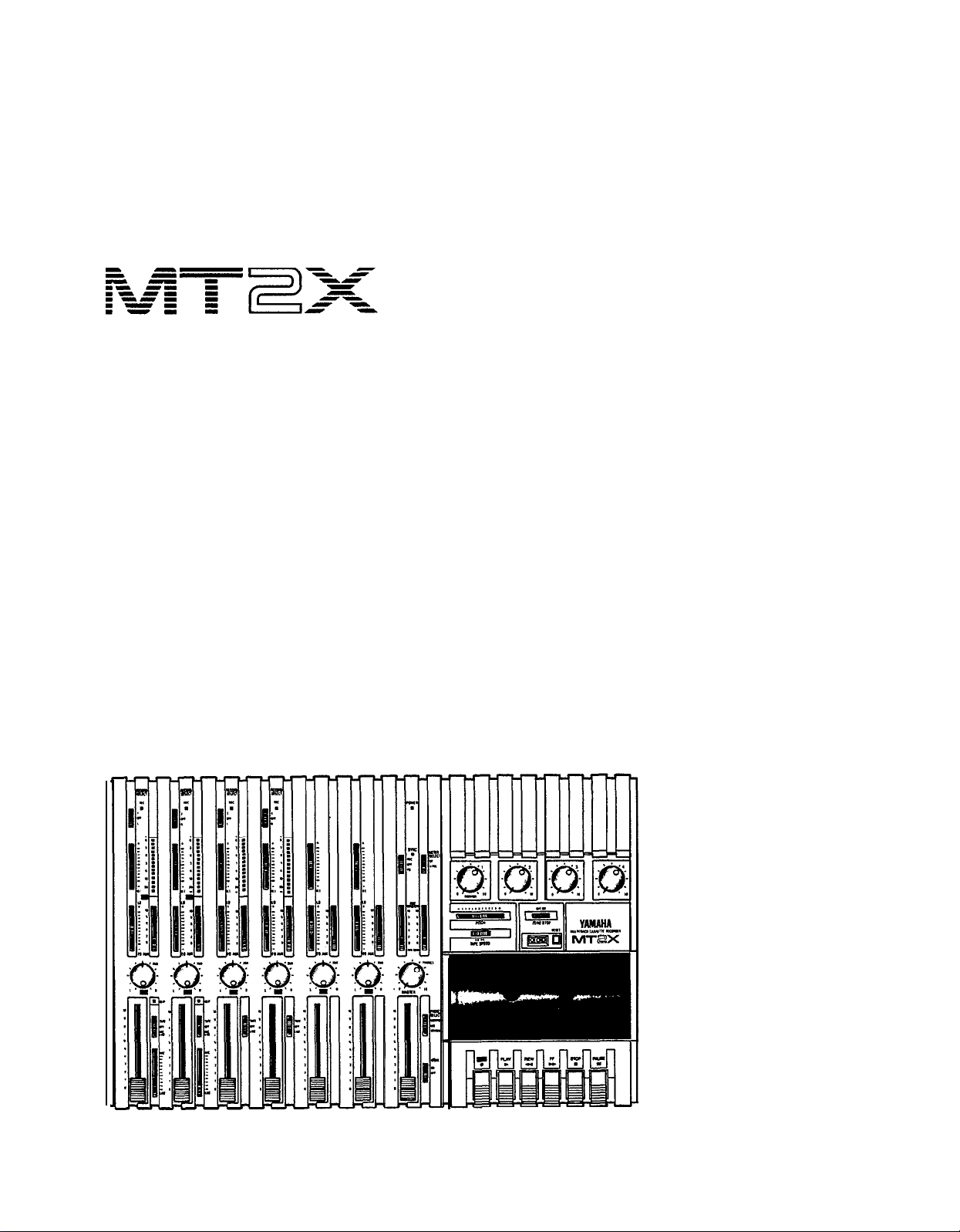
YAMAHA
Multitrack Cassette Recorder
Operating Manual
Page 3

Congratulations on your choice of the Yamaha MT2X Multitrack Cassette
Recorder. The Yamaha MT2X Multitrack Cassette Recorder is a complete
multitrack recording package which elegantly integrates a high-performance
six-channel mixer and dual-speed 4-track cassette recorder. It is fully compatible with advanced MIDI tape synchronization applications, and accepts
an optional plug-in YMC2 MIDI Converter that makes MIDI timing signals
from any appropriate MIDI device usable for synchronization With a full
complement of carefully planned features and functions, the MT2X is a
musical instrument in its own right. It can vastly expand your creative
scope.
To take full advantage of the outstanding features and performance
capabilities of the MT2X, we urge to read this owner’s manual thoroughly.
CONTENTS
BEFORE OPERATION
PLEASE NOTE THE FOLLOWING PRECAUTIONS
THE DIFFERENCE BETWEEN TRACKS AND CHANNELS
WHAT IS A MULTITRACK CASSETTE RECORDER? .................. 3
THE CONTROLS AND THEIR FUNCTIONS
MIXER SECTION ................................................................... 4
RECORDER SECTION
METER AND MONITOR SECTION
CONNECTOR SECTION
CONNECTION EXAMPLE
ABOUT CASSETTE TAPES
MULTITRACK RECORDING TECHNIQUES
ONE EXAMPLE OF A MULTITRACK RECORDING PROCESS
BEFORE RECORDING
MULTITRACK RECORDING
USING CHANNELS 5 AND 6 ..................................................
SYNC-RECORDING
FOR MAXIMUM
BLOCK DIAGRAM
GENERAL SPECIFICATIONS
INTRODUCTION TO THE ACCESSORIES
SERVICE
..................................................................................
................................................................. 2
...................... 2
............ 3
.................................... 4
............................................................
...........................................
..........................................................
............................................................
.........................................................
....................................
.......
.............................................................
....................................................
.................................................................... 34
PERFORMANCE OF YOUR
MT2X ........................ 35
.....................................................................
.......................................................
......................................
8
10
12
14
15
16
16
16
17
33
36
37
38
39
1
Page 4

BEFORE OPERATION
n
PLEASE NOTE THE FOLLOWING PRECAUTIONS:
ABOUT CASSETTE TAPE
This unit is designed to be used only with Chromeposition tape, and will not work properly with Ferri-
chrome tape formulations. CrO
EQ: 70µs) should be used. Also, the use of C-120
tapes is not recommended because they exhibit
poorer performance, and can be the cause of equipment failure.
ABOUT dbx
In order to get proper sound reproduction, set the dbx
switch ON when playing back tapes recorded with
dbx on, and keep it OFF when playing back tapes
recorded without dbx.
*dbx and the dbx mark are trademarks of dbx in-
corporated.
*The dbx system has been manufactured under
license of dbx Incorporated.
CHECK YOUR AC POWER SUPPLY
Make sure that your local AC mains voltage matches
the voltage specified on the bottom panel of the
MT2X — check this BEFORE plugging in and turning
on your MT2X! For General models equipped with a
voltage selector, make sure the voltage selector is set
to match your local line voltage.
The rated supply voltage for U.S. and Canadian
models is 120 VAC. The General model is rated for
use with 110/120/220/240 VAC supplies (the bottompanel voltage selector is factory preset to
220 volts).
2 tape (Bias: HIGH;
PRECAUTION AGAINST LIGHTNING
In the event of lightning or electrical storms, unplug
the AC power cord as soon as possible to avoid potential damage.
DO NOT OPEN THE CABINET
To avoid electrical shock or damage to the unit, do
not open the cabinet and tamper with the parts or
circuits inside.
CONNECTING OTHER EQUIPMENT
Make sure the power switch is OFF and the input
fader is all the way down when connecting other
equipment.
MOVING THE UNIT
To prevent shorts or breakage, make sure all connection cords have been removed from the unit before
moving it.
CLEANING THE CABINET
Do not clean the unit with benzene or other powerful solvents, and avoid the use of aerosol insecticides
near the unit. Clean the unit only with a soft, dry
cloth.
FCC CERTIFICATION (USA)
This equipment generates and uses radio frequency energy and if not installed and used properly, that
is, in strict accordance with the manufacturer’s
instructions, may cause interference to radio and
television reception. It has been type tested and
found to comply with the limits for a Class B computing device in accordance with the specifications
in Subpart J of Part 15 of FCC Rules, which are
designed to provide reasonable protection against
such interference in a residential installation. However, there is no guarantee that interference will not
occur in a particular installation. If this equipment
does cause interference to radio or television reception, which can be determined by turning the equipment off and on, the user is encouraged to try to
correct the interference by one or more of the follow-
ing measures:
Reorient the receiving antenna.
Relocate the computer with respect to the receiver.
Move the computer away from the receiver.
Plug the computer into a different outlet so that
computer and receiver are on different branch circuits.
If necessary, the user should consult the dealer
or an experienced radio/television technician for additional suggestions. The user may find the following booklet prepared by the Federal Communications
Commission helpful:
“How to identify and Resolve Radio-TV interference problems”.
This booklet is available from the U.S. Government
Printing Office, Washington, DC 20402, Stock No.
004-000-00345-4.
2
Page 5
n
THE DIFFERENCE BETWEEN TRACKS AND CHANNELS
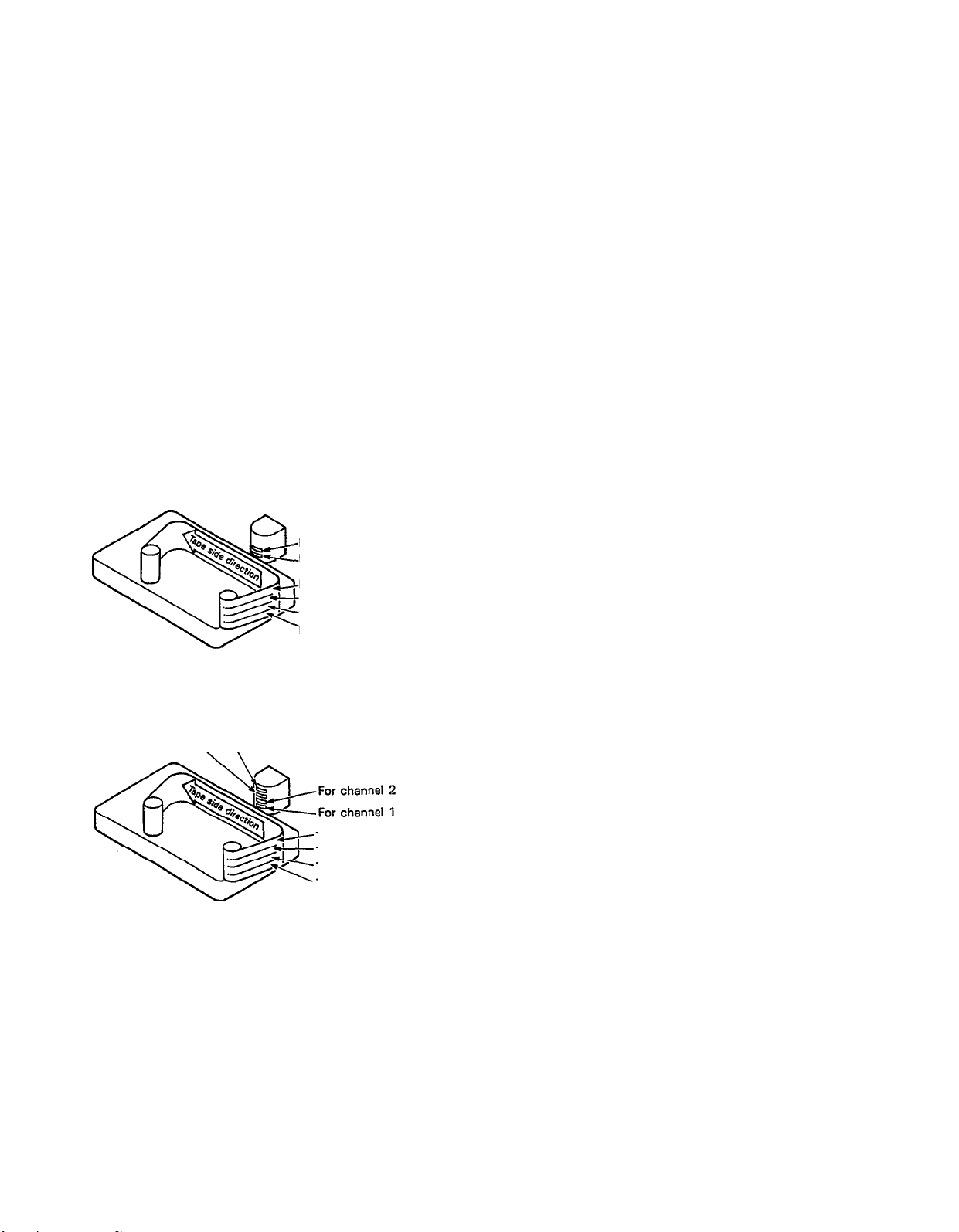
The words “track” and “channel” are often confused. In order to properly operate this unit, it is necessary to understand the meanings of these terms.
TRACK:
The “band” on the tape itself where a certain signal is
recorded. The tape inside a cassette has four different
tracks, enabling the recording of four distinct signals.
For conventional recordings, there are two tracks (stereo
CHANNEL:
The route of a signal input or output. In the input side,
this unit has six INPUT channels and two AUX channels.
The output side consists of one stereo channel (made
up of two mono channels) and an AUX channel.
left and right) on each side of the tape.
n
WHAT IS A MULTITRACK CASSETTE RECORDER?
The difference between the MT2X multitrack cassette recorder and a conventional stereo cassette deck is shown
below.
CONVENTIONAL STEREO CASSETTE DECK
The diagram shows how a conventional stereo cassette
deck records and plays back music. The four tracks on
a cassette tape represent the left and right (for stereo)
For right channel track
For left channel track
For left channel track on the B side
For right channel track on the B side
For right channel track on the A side
For left channel track on the A side
sound for each side of the tape. The MT2X uses these
four tracks for single-direction recording and playback
on only one side of a cassette tape.
Conventional stereo cassette recorders always record
and play back in the same mode, with the tape side
(direction) determining which two tracks will be used.
These recorders do not allow separate selection of tracks
for recording and playback.
Multitrack recorders, however, allow you to record or
MT2X MULTITRACK CASSETTE RECORDER
playback tracks separately as you choose. This enables
a degree of recording and playback freedom not possible
For channel 3
For channel 4
with conventional cassette recorders.
Track for channel 4 (track 4)
Track for channel 3 (track 3)
Track for channel 2 (track 2)
Track for channel 1 (track 1)
3
Page 6
THE CONTROLS AND THEIR FUNCTIONS
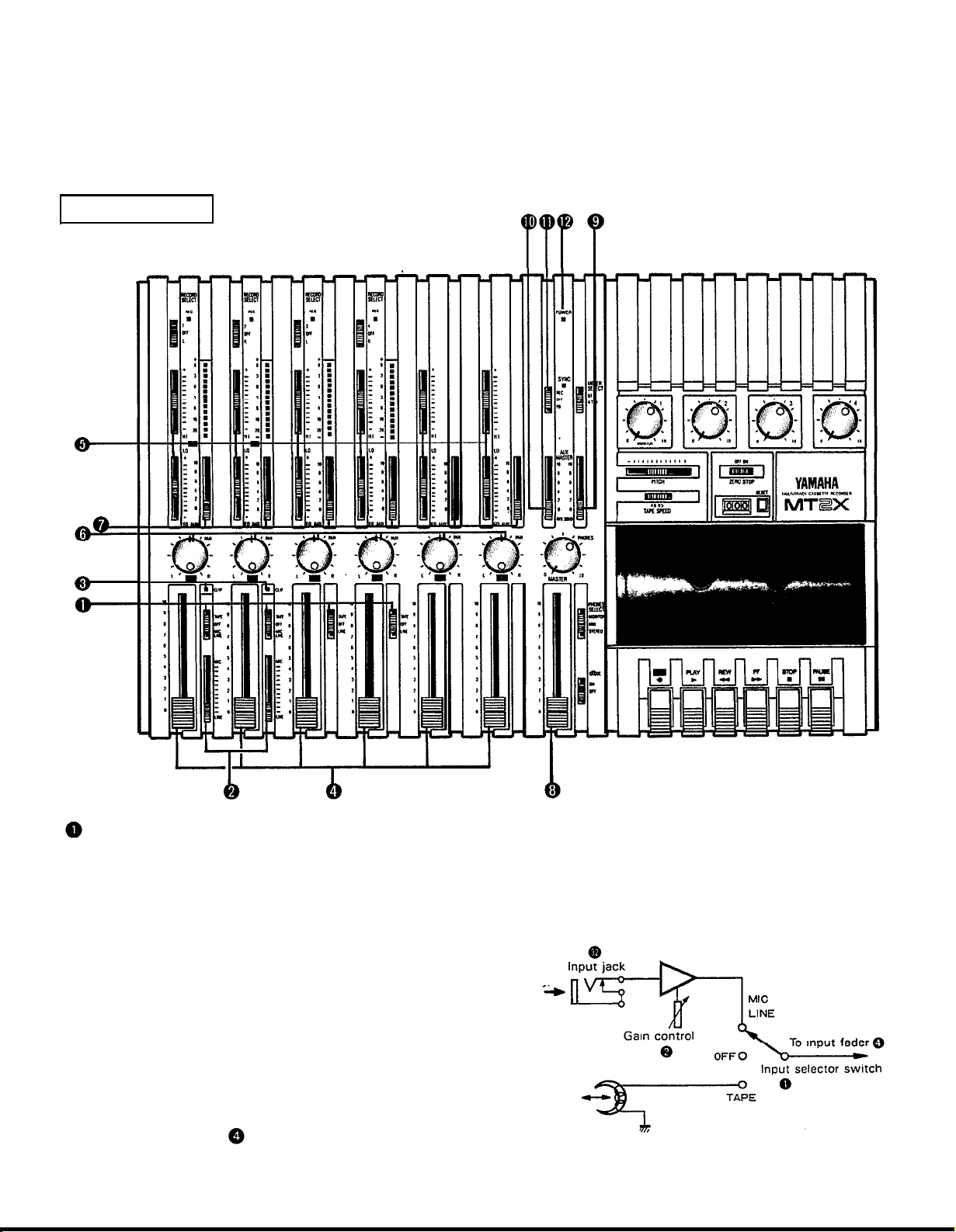
This section explains the names and functions of all the knobs, sliders, and switches for the mixer, recorder, meter/
monitor, and connector sections. Familiarize yourself with them in order to take full advantage of the MT2X’s versatile functions.
MIXER SECTION
INPUT SELECTOR SWITCHES
These three-position switches are provided on input
channels 1 through 4. Position them according to the
operation to be performed. Note that input channels 5
and 6 only accept line input.
MIC/LINE: Only input channels 1 and 2 accept
microphone input. This position on the channel 3 and 4 inputs is simply marked “LINE”.
Set this switch to the proper position when
the output of a microphone, keyboard instrument, or electric guitar is connected to the
corresponding input jack on the front panel.
OFF:
Be sure to set the switch to this position
when the channel is not being used, or when
you don’t want to playback material already
recorded on the track. Although sliding the
input fader to the “O” position will stop
the signal, it’s a good idea to also set the
switch to OFF.
TAPE:
Microphone or
instrument
to channel
1 or 2
Sounds already
recorded
Set the switch to this position to playback
material which has already been recorded on
this channel. Channels 1–4 correspond to
tracks 1–4 on the tape.
4
Page 7
GAIN CONTROLS
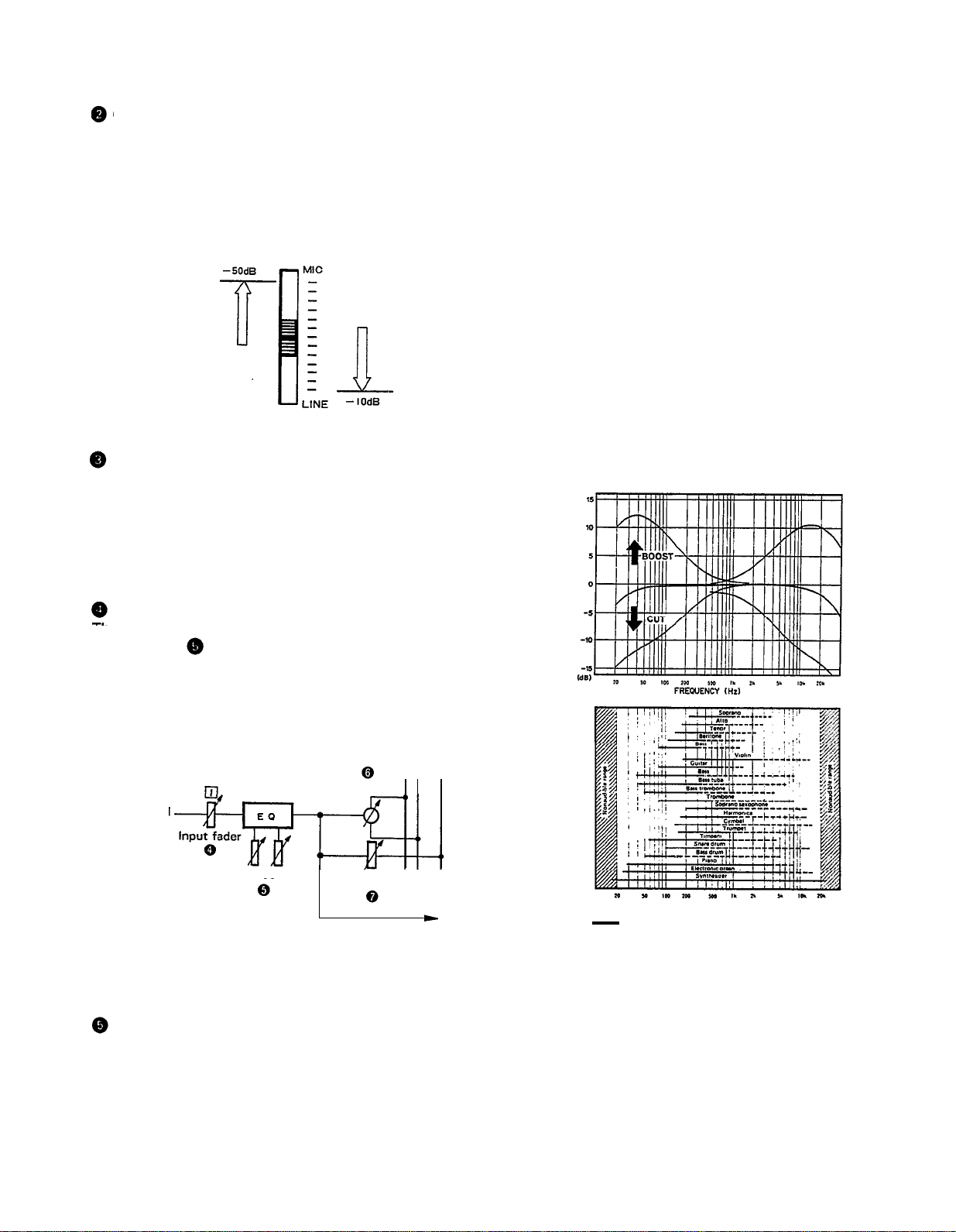
These controls adjust the input level of the channel
to match the output level of a microphone or instru-
ment connected to input jack of channel 1 or 2.
Control from
-10dB to -50dB is possible. Adjust
the output level of the microphone or instrument as
outlined in its instruction booklet.
Low output source,
such as a microphone
High output source,
such as an
electronic
keyboard
you to get the type of sound you desire, and allow you
to bring the sound “forward”, “clean up” unclear sounds,
and “push down” sounds at annoying frequencies.
In order to properly use these equalizers, it’s important
to understand the frequency response characteristics
of various musical instruments. This is particularly true
when trying to “change” the sound of a certain in-
strument, because you should know that instrument’s
harmonic sound components as well. For example, the
normal frequency range of a bass drum is between 50Hz
and 150Hz. To bring out this sound so you can feel it
better, the LO (low) control (which centers on the 100Hz
frequency band) can be moved up a little. But the harmonic sound components are around I0KHz, so the HI
(high) control should also be moved up a little to achieve
the proper sound profile of the bass drum.
CLIP INDICATOR
These LED indicators are provided on channels 1 and 2.
If a CLIP LED lights, the input level to that channel is
too high and is causing clipping distortion. The situation
must be remedied by reducing the setting of the corres-
ponding GAIN control, or by reducing the output level
of the source.
INPUT FADERS
These controls adjust the volume of the signal input, and
send it to the equalizer. Each control is used for setting the sound level of its channel when mixing it with
the signals of other channels. Position “7” on the scale
is considered ideal for the lowest noise and distortion
characteristics.
L R AUX
Pan pot
Input signal
Equalizer controls AUX control
SOUND CHARACTERISTICS OF THE EQUALIZER AND
VARIOUS MUSICAL INSTRUMENTS
Be sure to set the control to “0” for channels not being
used.
EQUALIZER CONTROLS
These controls are used to adjust the tonal character-
istics of the input signal, or the channel output during
playback of previously recorded material. The LO (low)
controls adjust the frequencies centering around 100Hz,
while the HI (high) controls adjust the frequencies center-
ing around 10KHz, with a 10dB boost or cut range for
both controls. Use of these equalizer controls will help
5
FREQUENCY (Hz)
Normal frequency ----- Harmonic sound
components
If accurate and comprehensive sound equalization is
required, connect a graphic equalizer or a parameteric
equalizer between the sound source and the input jack.
When recording material that you intend to “ping-pong”
(see “Ping-ponging” on page 25) later, give the input
somewhat of a high boost with the Hi control to help
preserve the high frequency response when the track is
re-recorded. This technique is known as “pre-emphasis,”
and is commonly used in professional recording.
Page 8
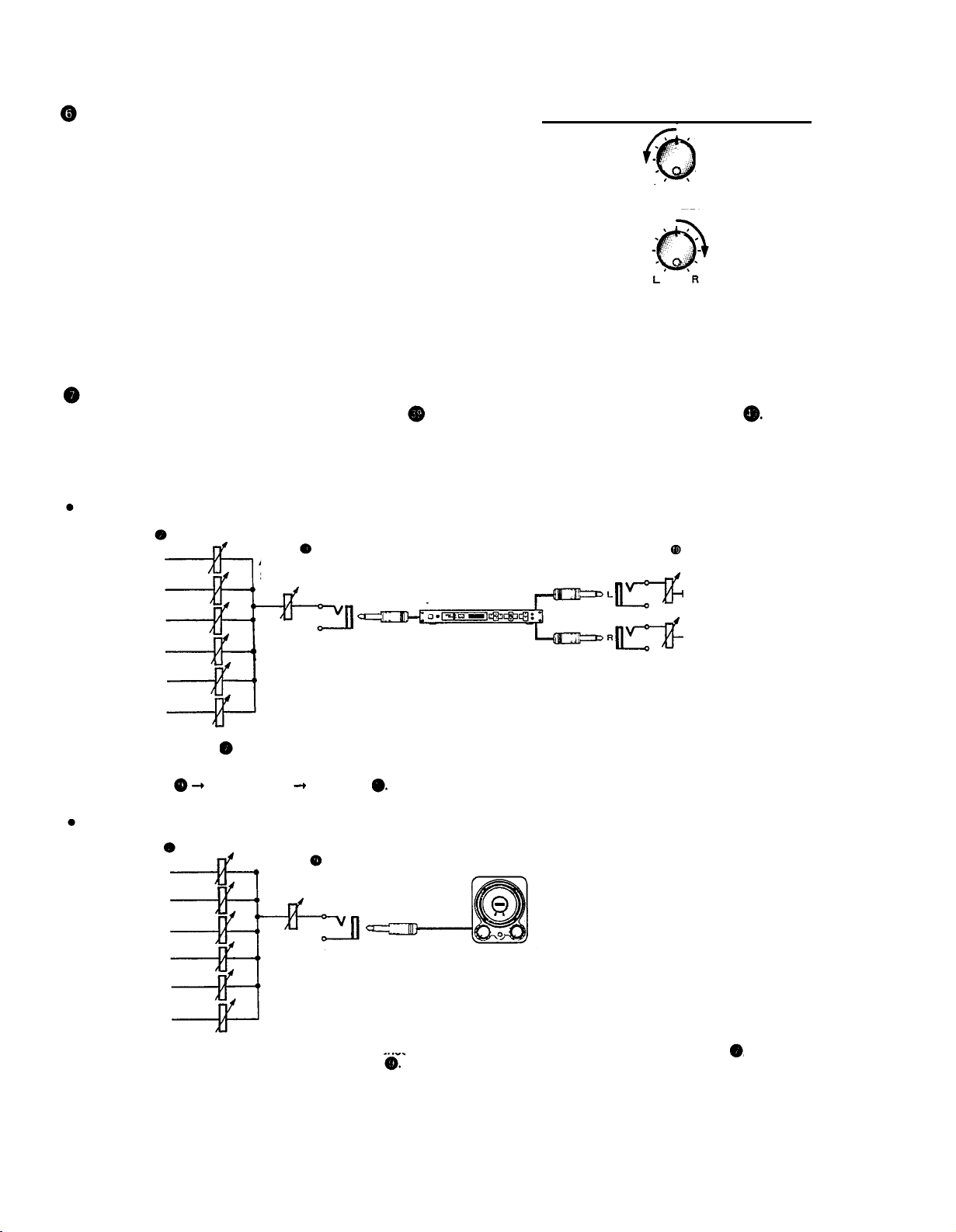
PAN (PAN POT) CONTROLS
After volume level and equalizing, the input signal is sent
to these controls. During mixdown (see “Mixdown” on
page 31, each control helps determine the acoustic
“position” of the signal in regards to the stereo field.
Turning the control all the way to the left puts the signal
all the way over to the left side of the stereo sound field;
turning the control to the right sends the signal towards
the right. At dead center, the signal comes out equally
from the left and right channels.
L
I
All the way to the left,
the signal comes out
from the left channel.
L
Center
PAN
R
PAN
All the way to the
right, the signal comes
out from the right
channel.
R
I
These controls are also useful in ping-ponging (see “Pingponging” on page 25).
AUX CONTROLS
The MT2X is equipped with an AUX SEND jack
and two (left and right) AUX RETURN jacks
When special
effects are desired on a certain channel, reverb or delay effects can be connected between these jacks to provide
only the desired effect to the desired channel. Amplified monitor speakers can also be connected to the AUX SEND
jack. Each AUX control adjusts the sources connected to the AUX SEND jack in the following manner.
CONNECTING AN EFFECTOR
AUX controls
Channel 1 signal
Channel 2 signal
Channel 3 signal
Channel 4 signal
Channel 5 signal
Channel 6 signal
Raise the AUX control of the channel which requires effects. At the same time, make sure that the AUX controls for the other channels
are adjusted for proper balance. The effected signal, with all the channel signals mixed in, flows in the following manner: AUX MASTER
SEND control effects device AUX RTN . At the end, the sounds are mixed by the stereo mix buss.
CONNECTING MONITOR SPEAKERS
AUX MASTER
SEND control
Effects device
(digital reverb, digital delay, etc.)
AUX RTN control
To the left & right
stereo mix busses
AUX control
Channel 1 signal
Channel 2 signal
AUX MASTER
SEND control
Channel 3 signal
Channel 4 signal
Channel 5 signal
Channel 6 signal
Performers or sound mixers can control the level balance of the four channels (instruments) with the AUX controls
level adjusted by the AUX MASTER SEND control
Amplified monitor
speakers
, with the total output
6
Page 9
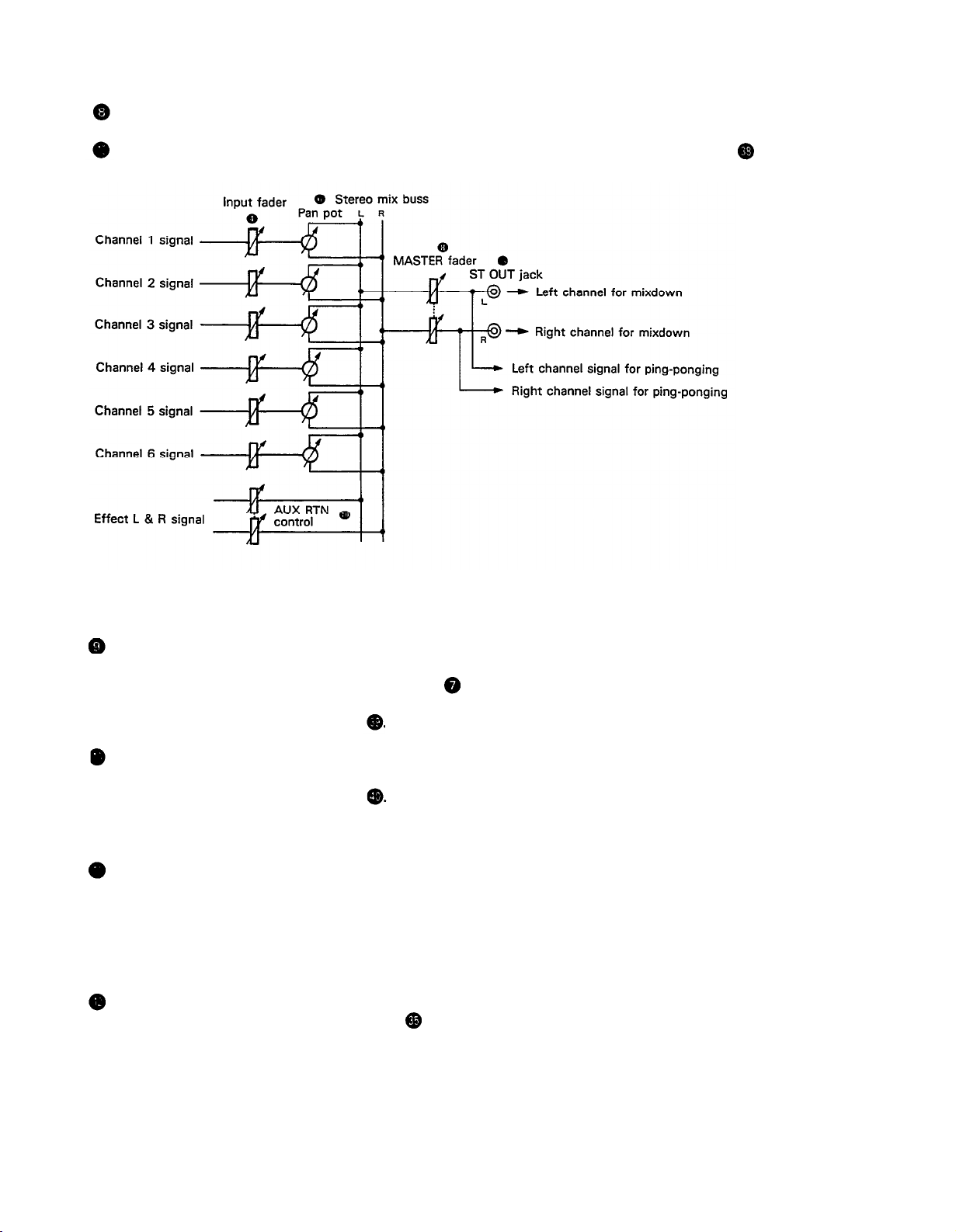
MASTER FADER
This controls the level of all the input faders, as well as the final level of the effected signal of the AUX RTN control
and the sound mixed through the stereo mix buss. The output level of the ST OUT jack (the recording level
at mixdown) and the recording level during ping-ponging are also adjusted with this control.
Set the control input faders at “7” for best results.
AUX MASTER SEND CONTROL
This control adjusts the level of the effect-mixed signals
from each channel (adjusted by each AUX control )
as well as the AUX signal for monitoring use. The final
output is through the AUX SEND jack
AUX RETURN CONTROL
This control adjusts the input level of effects or sub-
mixers connected to the AUX RTN jack . The level of
the effect in relation to the “dry” sound can be set with
this control.
SYNC SWITCH
Normally left in the “OFF” position, this switch should
be set to REC or PB if this unit is to be used for synchronized operation with MIDI products like synthesizers
and rhythm machines. Synchro operation is explained in
the section on Sync-Recording on page 34.
POWER INDICATOR
This indicator lights when the power switch on the
rear panel is turned on.
7
Page 10
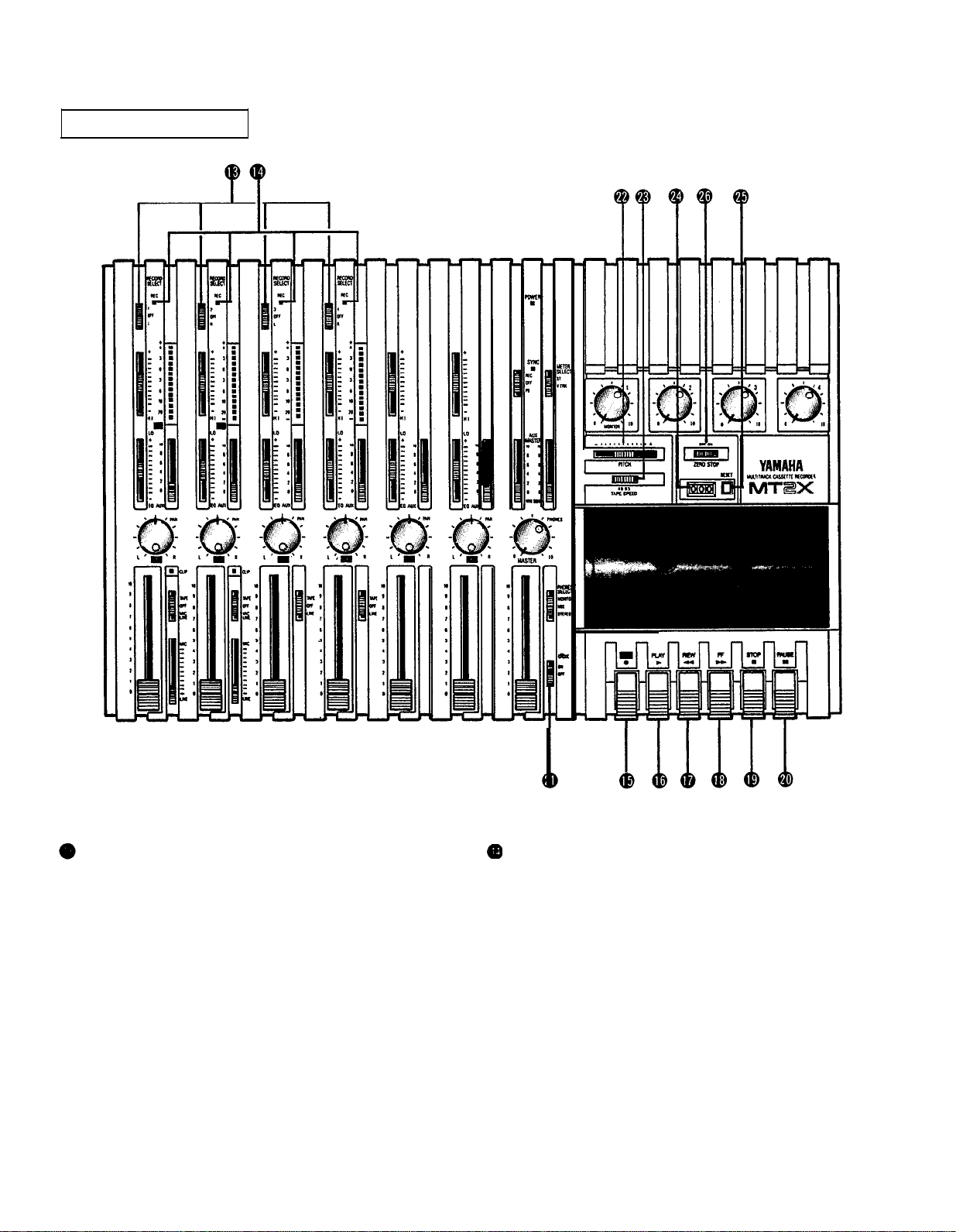
RECORDER SECTION
RECORD SELECT SWITCHES
These switches are used to choose the signal to be
recorded. When the track is not to be recording, set the
corresponding switch to the OFF position. Switch ON
only those switches corresponding to the tracks which
are to record. The panel indications for “L" and “R” cor-
respond to the stereo left and right signals, whereas “1”,
“2”, “3”, and “4” correspond to the signal from the 1,
2, 3, and 4 input channels. Those signals are recorded
on their respective track when the switches are in
position.
NOTE:
Tracks 1 and 3 cannot be recorded from the right
stereo signal, and tracks 2 and 4 cannot be
recorded from the left stereo signal.
REC INDICATORS
Each track on the MT2X has its own REC indicator LED.
When the RECORD SELECT switches are used to set one
or more of the tracks to the REC standby mode (that is,
the selected tracks are ready to record but the cassette
transport is not yet running in the REC mode), the cor-
responding REC INDICATOR(s) will flash. When recording is actually begun, the REC INDICATORS for the
selected tracks will light continuously.
8
Page 11

REC SWITCH
When this switch is pressed, the PLAY switch also
moves, and the unit goes into the recording mode.
However, if the RECORD SELECT switches for all tracks
1-4 are switched OFF, nothing will be recorded.
NOTE: When the REC switch is pressed down, noise
occurs which is recorded on the tape. In order
to prevent this, we recommended the use of the
PAUSE switch . Press the PAUSE switch first,
then press the REC switch. To start recording,
press the PAUSE switch again to shift out of the
REC pause mode
and into the recording mode.
PITCH CONTROL
During recording or playback, this control can be used
to vary the tape running speed from +10% to -10%.
The pitch of voices or musical instruments also varies
in proportion to tape speed.
Under normal conditions, the control should be in the
center position. When overdubbing (playing back a
recorded passage while recording new material on a dif-
ferent track) the pitch of the previously recorded material
can be altered to match the new material if necessary.
This feature can also be used to obtain certain special
effects during recording.
PLAY SWITCH
Press this switch for playback. However, if the input
selector switch of a track is not in the TAPE position,
the sound will not be heard on the stereo buss.
REW SWITCH (REWIND)
Use this switch to rewind the tape. Pressing it when
the MT2X is in the PLAY mode enables you to hear the
sound of the tape while it rewinds. This feature is useful for finding the beginning of a song or other recorded
material.
FF SWITCH (FAST FORWARD)
Use this switch to quickly advance the tape forward.
Pressing it when the MT2X is in the PLAY mode enables
you to hear the sound of the tape while it is moved forward. This feature is useful for cueing up the start of
a subsequent song or other recorded material on the
tape.
STOP SWITCH
Press this to stop tape.
PAUSE SWITCH
Press this switch to momentarily stop playback or
recording in progress. Press it again to restart.
TAPE SPEED SWITCH
This switch selects either LO (4.8 cm/s) or HI (9.5
cm/sec) cassette tape speed. The low-speed setting cor-
responds to standard cassette tape speed, offering max-
imum recording time. The HI setting causes the tape
to run at twice the standard tape speed, reducing avail-
able recording time but significantly improving sound
quality.
TAPE COUNTER
This displays the amount of tape run.
RESET SWITCH
Press this switch to reset the tape counter to “000”.
Pressing this switch at the start of recording, or at the
beginning of a song, makes it easy to cue up the selec-
tion from the start.
ZERO STOP SWITCH
If this switch is set “ON” during rewinding, the tape
will stop when the tape counter reaches “999”. During
multitrack recording, this feature is convenient for
repeated playback or recording operations after rewind.
dbx SWITCH
Ordinary cassette tapes don’t have sufficient dynamic
range (the level difference between the softest sounds
and the loudest peaks) to adequately record highly
dynamic music. If the dbx switch is put “ON” during
recording, highly dynamic music signals can be adequately handled, while the hiss noise inherent to cassette
tapes is kept down below the range of human hearing.
If the dbx switch is kept “ON” during recording, it must
also be kept “ON” during playback.
9
Page 12
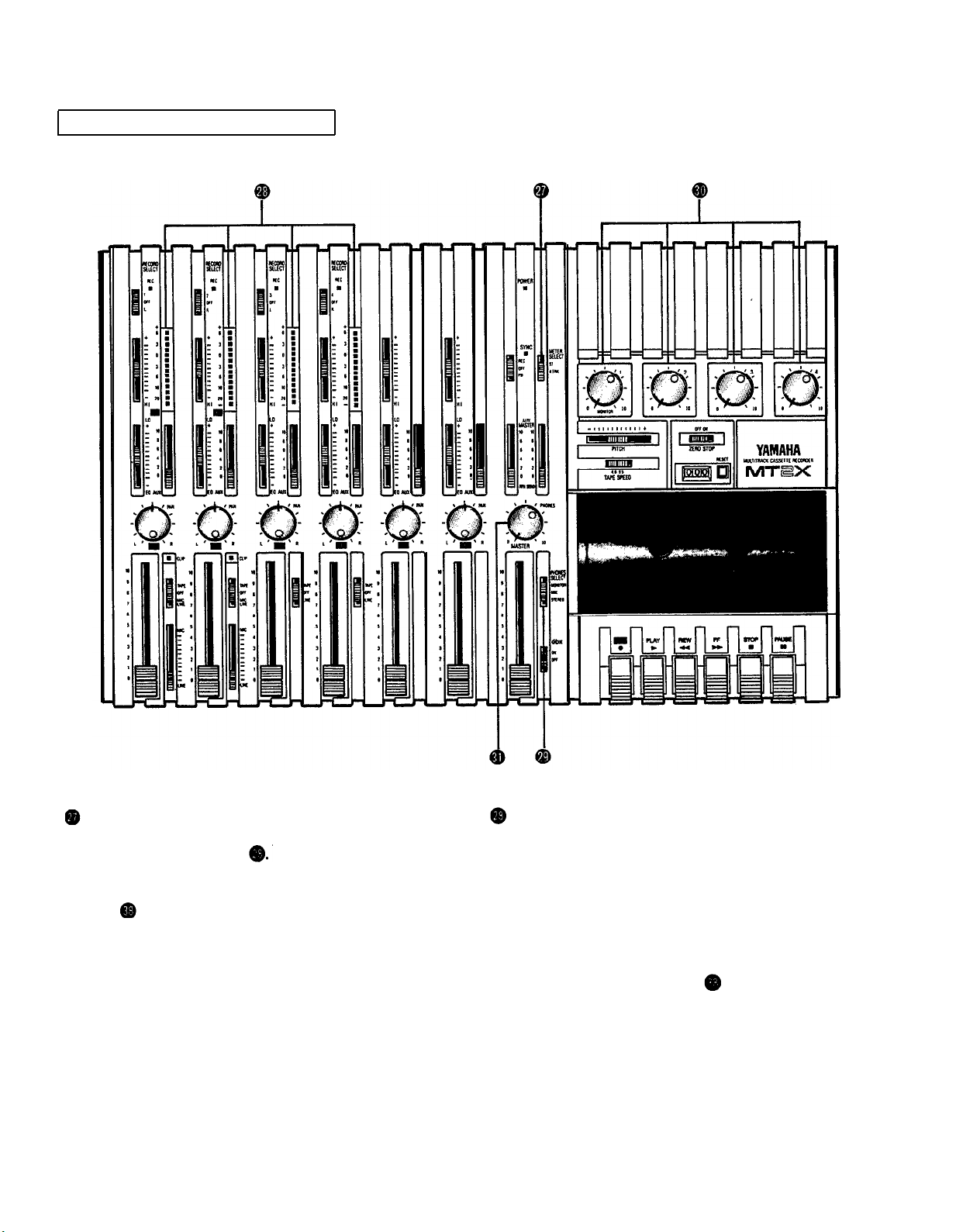
METER AND MONITOR SECTION
METER SELECT SWITCH
This switch is used to select the signal to be monitored
by the Peak Level Meters
Stereo Position:
The level of the signal output through the ST OUT
jacks is indicated. The meter on the far left shows
the level of the Left channel of the stereo signal, while
the second meter from the left shows the level of the
Right channel. Setting to this position during pingponging or mixdown operations enables easy reading
of the recording level.
4 TRK Position:
Set the switch in this position to display the level of
each track. Starting from the far left, each meter corresponds to tracks 1–-4. During playback, the playback level is displayed; during recording, the recording level is displayed. Setting the switch to this position during overdubbing enables easy reading of the
recording level.
PEAK LEVEL METERS
There are 14 LED indicators in each meter which show
a range from - 20dB to +6dB. During recording, setting
levels high (but below the point where the recording
becomes distorted) will ensure the greatest dynamic
range with the lowest possible noise. An ideal point is
when the LED indicators for 0dB and above flash occasionally.
During stereo signal level indication, the actual specified
output from the ST OUT jacks is - 10dB (into a 50K
ohm load) when the LED indicators start to flash at 0dB.
10
Page 13
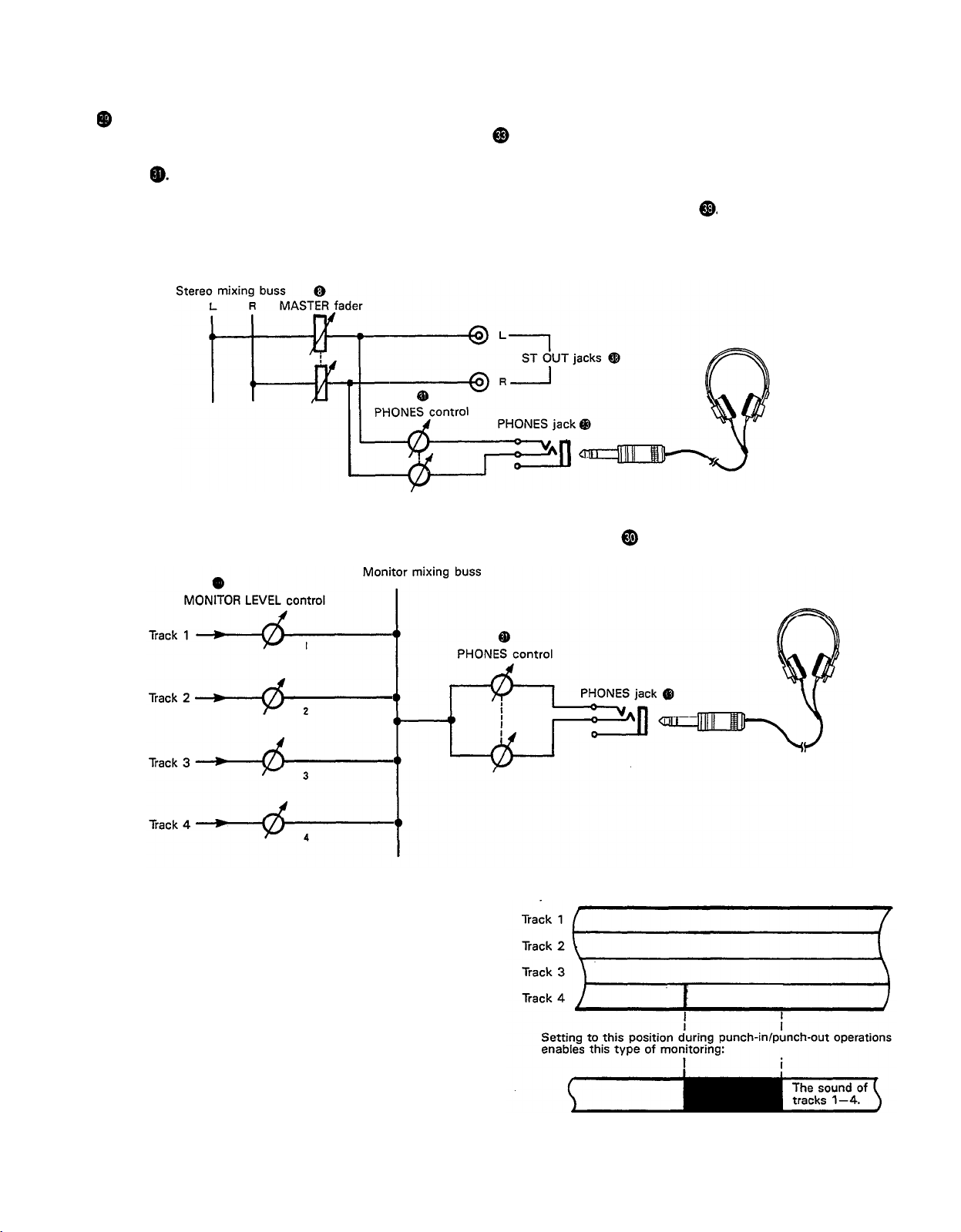
PHONES SELECT SWITCH
You can plug a set of headphones into the PHONES jack on the front panel to monitor the sound. The PHONES
SELECT Switch is used to select the signal to be monitored. Control the volume level with the PHONES volume
control .
STEREO Position:
Put the switch in this position to monitor the signal output through the ST OUT jacks .
The Left and Right chan-
nels of the stereo signal will be heard through the headphones.
When set to this position during ping-ponging or mixdown operations, the mixed signal of all the instruments can
be monitored.
MONITOR Position:
This position is for monitoring the signal of each track. You can freely monitor while mixing the sound of each
track during recording or playback. Using the MONITOR LEVEL Controls
set the desired level for each track.
MIX Position:
This position allows you to simultaneously monitor
both the sound heard in the STEREO position and the
sound heard in the MONITOR position. Setting to this
position during punch-in/punch-out operations will
enable the type of monitoring shown below. (Refer to
“Punch-in/Punch-out” on page 27).
11
For
way:
example,
when adding in instruments or vocals in the following
The sound of
tracks 1-4 plus the
plus the sound
of the material
to be added.
For retake
Tracks 1-3
sound of the
material
added.
Page 14

MONITOR LEVEL CONTROLS
When setting the PHONES SELECT Switch to the
MONITOR position, these level controls are used for each
track to achieve a level balance for easy monitoring. Use
these controls freely and independently to maintain a
desired level balance during overdubbing operations,
when the addition of a new signal changes the volume.
CONNECTOR SECTION
FRONT PANEL
PHONES CONTROL
This control adjusts the volume of the headphones (See
page 10).
INPUT JACKS
The MT2X mixer has six channels and therefore six IN-
PUT jacks. INPUT 1 and 2 can be used with microphones
or line-level sources such as electric and electronic
instruments. INPUT
S 3 through 6 accept only line-level
input.
When directly connecting an electric guitar to one of
the MT2X INPUTs, we recommend the use of a guitar
preamplifier or “direct box” between the guitar and
MT2X to ensure optimum sound quality.
REAR PANEL
PHONES JACK
Plug a set of headphones into this jack for monitoring.
Please use headphones rated from 8–40 ohms for best
results.
PUNCH IN/OUT JACK
By connecting the optional FS-1 footswitch to this jack,
you can control punch-in/punch-out operations by foot.
12
Page 15

POWER SWITCH
This switch turns on the MT2X. When switching the unit
on or off, make sure that the Input Faders and the
AUX RTN Control are at the “0” position.
SYNC IN/SYNC OUT JACKS
These jacks are used during synchronized operation with
MIDI-equipped instruments. The jacks make it possible
to use an optional YMC10 MIDI Converter in place of the
YMC2 MIDI Converter designed specifically for the
MT2X. For a detailed explanation, refer to “Sync-
Recording” on page 34.
TAPE OUT JACKS
These jacks directly output the signal of each track. Dur-
ing playback, the signals of the tracks being played are
output. During recording, the signals of the tracks be-
ing recorded are output. Since the output level cannot
be adjusted, the input levels of the mixer or recorder
connected to these jacks must be set to match the
output level of the MT2X. These jacks can be conven-
iently used in the following ways:
l Another 4-track recorder can be connected for direct
dubbing of all four channels.
l An external mixer can be connected for mixdown.
YMC2 CONNECTOR
This connector accepts the optional YMC2 MIDI Converter which has been designed for perfect electronic
and cosmetic matching with the MT2X. When installed,
the YMC2 receives its power directly from the MT2X.
The YMC2 is used for tape synchronization of external
MIDI equipment. The synchronization signal is recorded
on track 4 of the MT2X tape.
ST OUT JACKS
The mixed signals of each channel (and each track) are
output in stereo through these jacks. Since these jacks
output the final mix, a stereo cassette deck can be
connected. These jacks can also be used as follows.
l The MT2X can be used as a sub-mixer, with the out-
put sent to a main mixer through this jack.
l A stereo amplifier or powered monitor speakers can
be connected through this jack.
AUX SEND JACK
This jack outputs the mixed signal from the Aux bus, and
is used as an output terminal for the connection of an
effects device. This can also be used as an additional
monitor output.
AUX RTN JACKS
These jacks are used to input the signal from an effects
device back into the MT2X. As well, the mixed output
from an external mixer can be connected to these jacks.
Please note that if only a single plug is inserted into either
one of these jacks, the signal will be sent to both Left
and Right channels. This is useful if the effects device
being used is mono.
l
VOLTAGE SELECTOR (General model only)
The MT2X voltage selector is located on the
bottom panel. A standard screwdriver (“minus”
type) can be used to rotate the selector to match
the MT2X to your local AC mains voltage.
* NEVER ADJUST THE VOLTAGE SELECTOR
WHILE THE AC CORD IS PLUGGED IN!
* CHECK THAT THE SELECTED VOLTAGE IS
CORRECT BEFORE PLUGGING IN YOUR MT2X
FOR THE FIRST TIME!
13
Page 16

CONNECTION EXAMPLES
n
BASIC MT2X SYSTEM WITH EFFECTS
This basic recording system puts the
MT2X’s six input channels to good use.
A microphone for vocals and an electric
guitar are plugged into channels 1 and 2,
taking advantage of the low-level input
and level-matching capability provided
by these channels. Channels 3 and 4
receive the stereo outputs from a
Yamaha DX100 Digital Programmable
Algorithm Synthesizer, and the stereo
outputs from a Yamaha RX17 Digital
Rhythm Programmer are plugged into
channels 5 and 6. With a setup like this,
you’re ready to record any source on
virtually any track with no need for
repatching. For top-quality reverb, delay
and other effects a Yamaha SPX90 Multi-
effect Processor is connected into the
MT2X’s AUX SEND/RETURN loop. A sim-
ple but highly effective monitor system
is provided by a pair of Yamaha KS10
powered speakers.
MT2X + SPX90 + monitor system + mic
+ guitar + DX100 + RX17
AMP
I I
RX17
n
MIDI TAPE SYNC SYSTEM
In this system the YMC2 MIDI Converter
converts the MIDI timing signals from the
QX21 Digital Sequence Recorder into
analog signals which are recorded on
track 4 of the tape. On playback, the
analog tape signals are converted back
into MIDI form by the YMC2 and used to
control START and STOP of the QX21.
Thus, playback of the QX21 sequencer,
which controls the DX27 Digital Pro-
grammable Algorithm Synthesizer and
RX17 Digital Rhythm Programmer, is
perfectly synchronized to playback of the
MT2X tape. Other material can now be
recorded on tracks 1 through 3 of the
— vocals, acoustic instruments,
MT2X
— in perfect synchronization with
etc.
the MIDI sequence. The benefit is that
we effectively have more than four
playback tracks, and that the synchronired MIDI instruments can be modified as
desired: i.e., voices can be changed on
the synthesizer or the QX21 sequence
edited without affecting any other tracks.
DX21
MT2X + YMC2 + QX21 + DX27 + RX17 + monitor system
KS10
DX27
14
Page 17

ABOUT CASSETTE TAPES
l
This unit is designed to be used only with Chrome-
position tape, and will not work properly with Ferri-
chrome tape formulations. CrO
2 tape (Bias: HIGH; EQ:
70µ should be used. Also, the use of C-120 tapes is
not recommended because they exhibit poorer performance, and can be the cause of equipment failure.
l
Preventing accidental erasure of recordings
To keep from inadvertently erasing a prized recording, all
cassette tapes have record protection tabs along the top
edge of the cassette shell. If this tab is broken out using
a screwdriver or any other appropriate implement, it will
not be possible to record on the corresponding side of
the tape. This will protect your recordings from accidental
erasure. For 4-track recording, it’s necessary to break out
the tabs for both the A and B sides of the tape.
When you’d like to record over a tape with the tabs
broken out, just cover the holes (where the tabs were)
with tape.
PREVENTING ACCIDENTAL TAPE ERASURE:
Taking up tape slack
If the tape is used when it is slack, or some portion of
the tape is out of the cassette shell, there is a risk it
may become tangled around the capstan or pinchroller.
In order to correct this, insert a pencil or ballpoint pen
into the center of one reel, and rotate to take up loose
tape slack.
l
Storing cassette tapes
To prevent tape slack, fit a stopper into the tape or keep
tapes in their cases. Do not store tapes in direct sunlight,
or in places with high heat or humidity, as this may
damage the tapes. Also, keep the tapes away from
magnetic fields, such as near televisions or speakers,
because the recordings can be erased or sonically altered
to some degree.
Cassette shell
Break off the tab
with a screwdriver or
similar implement.
RECORDING OVER A TAPE WITH THE TABS BROKEN OUT:
Cover the holewith
l
Playing tapes recorded on other cassette
recorders
When playing Normal-position tapes, or tapes encoded
with Dolby B noise reduction the MT2X, the following
steps are advised:
1) Playing Normal-position tapes — move the HI
equalizer fader in the "+" direction to boost the high
frequencies until the sound is satisfactory.
l MAINTENANCE
As a good general rule, the tape heads, pinchroller and
capstan should be cleaned before each recording, thus
ensuring the best audio quality.
After the deck has been used for a period of time, the
heads, pinchroller, and capstan will become dirty. This
increases noise and uneven rotation, leading to a
deterioration in sound quality. Therefore, periodic cleaning and demagnetization is a must to preserve optimal
audio performance.
Use cotton swabs and alcohol or head cleaning fluid
(available in most all audio stores) to clean the heads,
capstan, and pinchroller. Do not use rubbing alcohol as
this contains mineral oil which can damage the
mechanism. Keeping the heads clean is essential for
good recordings. For demagnetization, use a quality head
demagnetizer, and follow the instructions carefully.
2) Playing tapes encoded with Dolby B NR — put the
dbx switch in the “OFF” position, and move the HI
equalizer fader in the "-" direction to reduce the
high frequencies until the sound is satisfactory.
15
Pinchroller
* It’s important to keep all parts clean!
Page 18

MULTITRACK RECORDING TECHNIQUES
n
ONE EXAMPLE OF A MULTlTRACK
RECORDING PROCESS
Multitrack recording is usually used to record a rhythm
section, with overdubbing and ping-ponging operations
assisting in mixing the parts of the various musicians in
the proper balance. Finally, the tape is mixed down to
produce a stereo master tape.
These are the steps in our example:
Record the drums on track 1
Record the bass on track 2
Record the rhythm guitar on track 3
Ping-ponging tracks 1 –- 3 onto track 4
(freeing tracks 1 – 3)
Record the keyboards on track 3
Record the lead guitar on track 2
Record the vocals on track 1
Mixdown tracks 1 – 4 to produce a stereo
master tape
Track 1
PLAN CAREFULLY FOR MICROPHONE RECORDING
Since the MT2X only permits microphone recording via
channels 1 and 2, one or both of these channels must
be kept available if you plan to record with microphones.
STEREO POSITIONING
It’s important to think about the acoustic “position” of
all the instruments well before you start your multitrack
recording.
Here’s one example of acoustic positioning. Set the bass
drum and the snare drum in the center, with the tomtoms and high hat set off to either side to bring out the
“stereo” effect. The bass and other “heavy” instruments
should be in the center, with the keyboards to the left
and the guitar to the right. Solo instruments and voices
should span both right and left. Solo instruments with
a stereo output can have their left channel connected
to a delay machine, while the right channel is recorded
directly. You can probably think of many other different
ways to “arrange” the soundstage.
Track 2
Track 3
Track 4
n
BEFORE RECORDING
Mixdown
RECORDING LEVEL
In making a good recording, the most important step is
setting the ideal recording level. If the level is too low,
the recording will contain a lot of noise and hiss; if the
level is too high, the recording will sound distorted and
unclear. The MT2X is equipped with peak level meters
which show the level of each track, as well as the level
of the stereo output signal. Use these meters to help you
set the ideal recording level. If the level meters “peak
out” (show the maximum reading) briefly, it’s not a problem. However, if they’re peaking out for more than a
second or two, then distortion may become a problem.
dbx SYSTEM
Keep the dbx switch “ON” to expand dynamic range and
to reduce inherent tape noise.
EQUALIZATION AND EFFECT PROCESSING
Equalization and effect processing are usually added at
the ping-pong and mixdown stages. In multitrack record-
ing, these types of signal processing can be decided on
later, and employed to any degree necessary. However,
the MT2X is limited in the number of effects which can
be used during mixdown, so it’s best to use them dur-
ing the initial recording stages.
MONlTORlNG
In addition to circuits for signal recording, this unit also
features a separate monitor circuit to allow the performer
to monitor the levels of the recording in progress through
a pair of headphones. In this case, set the PHONES
SELECT switch to the “MONITOR” position. Adjust the
volume level of each track with its MONITOR LEVEL
controls.
In addition, powered monitor speakers can be directly
connected to the ST OUT jacks or the AUX SEND jack.
SELECT THE BEST TAPE SPEED
The MT2X gives you a choice of two tape speeds. The
low speed gives you about double the record/playback
time of the high-speed mode — at the expense of
reproduction quality. Use the low-speed mode when
making test recordings or simply trying out ideas. Use
the high-speed mode when you need the best possible
sound quality — when recording an important demo, for
example.
16
Page 19

n
MULTITRACK RECORDING
PLAN YOUR RECORDING
A clear plan is essential before you begin multitrack
recording. If you begin cold, without regard to all the
steps involved, you may “record yourself into a corner”
by running out of available empty tracks, missing the
chance to add effects at the proper points, losing control over the final stereo positioning of the instruments,
and creating the need for more ping-pong and mixdown
recording operations than really necessary. Although you
can perform ping-pong and mixdown operations without
limit, a certain amount of noise and sound degradation
results during these operations. It’s best to hold ping-
ponging down to 1 or 2 operations in order to achieve
good sound quality.
So before you start, plan your recording carefully — what
order the parts will be recorded in, what instruments will
go on which tracks, how and when effects will be used,
when recorded tracks will be ping-ponged, and what sort
of end result is desired. The recording process of the ex-
ample we will explain in this section is illustrated on page
16.
— Signal route when recording drums —
Input signal
Effect signal
Recording signal
RECORDING THE DRUMS
The drums will be recorded on track 1. In recent years,
drum machines and rhythm machines have made an
appearance, with Yamaha coming out with the highperformance RX-series.
In this example we’ll use an RX-series Digital Rhythm programmer to record a high-quality drum track. The “L” and
“R” stereo outputs from the rhythm programmer are fed
to input channels 1 and 2 of the MT2X, and these are
mixed down onto track 1 of the tape.
The Yamaha SPX90 Multi-effect processor is an ideal
way to add live-sounding reverb to the drums. The
SPX90 is connected between the MT2X AUX SEND and
stereo AUX RTN jacks.
Signal displayed by the meter
Monitor signal
Output L
Output R
Meter 1
q
1
ST OUT
AUX RTN
1717
Effect
OUT 1-1 IN
Page 20

— Drum Recording Procedure —
1. Connections
Plug the AC cord into an AC outlet.
Plug the Digital Rhythm Programmer’s stereo out-
puts into INPUTs 1 and 2.
Plug a pair of monitor headphones (rated 8–40
ohms) into the PHONES jack.
When using an effect, connect it between the AUX
SEND jack (input) and either of the AUX RTN jacks
(output).
2. Getting ready
Lift open the cassette door and insert a chrome
position (CrO2) tape.
Return all the switches and controls to their nor-
mal positions, referring to the control panel illustra-
tion on pages 4~10.
Turn the power switches on for the effect and
rhythm programmer, and then turn the MT2X "ON".
The POWER indicator will light.
Bias: HIGH, Eq: 70µs.
3. Setting up the recorder section
Press the RESET switch to return the counter to
"000".
Turn "ON" the ZERO STOP switch.
Turn "ON" the dbx switch.
Select the appropriate tape speed the 9.5 cm/sec.
is recommended.
Set the RECORD SELECT switch 1 to the "L" posi-
tion. This is to record the Left stereo signal onto
track 1. The REC indicator will begin flashing.
Press the pause switch to start the recording. The
REC indicator will light up completely.
18
Page 21

4. Setting the monitor and meter sections
Set the PHONES SELECT switch to the "STEREO"
position.
Set the PHONES volume to around "7".
Make sure the METER SELECT switch is in the "4
TRK" position.
5. Adjusting the input level
Set the channels 1 and 2 input switches to the
MIC/LINE position.
Set the MASTER fader to "7".
Set the PAN controls for channels 1 and 2 between
the center and the extreme "L" position, as shown.
19
Push the input faders for channels 1 and 2 up to
"7".
Set the GAIN controls to the LINE position, start the
rhythm programmer and adjust its output level so
the "+3" segment on the track-1 level meter lights
only briefly on the signal peaks.
Pull the input faders back down to "0".
— The proper input levels for channels 1 and 2 are
now set. —
Page 22

6. Adjusting level balance and equalization
characteristics
Adjust channel faders 1 and 2 to achieve the desired
recording level balance.
Adjust the equalizers for 1 and 2 to obtain the
desired sound character for each individual channel. (If you’re thinking of ping-ponging these tracks
afterwards, it’s a good idea to add a little boost on
the HIGH EQ because high frequencies can be
slightly diminished during the ping-pong re-record-
ing process).
Set the effect level for each channel with the AUX
controls. Then, adjust the overall mix of effect
signal to input signal with the AUX MASTER SEND
control.
If necessary, go over steps to several times
until everything is just right.
Adjust the master recording level with the MASTER
fader, setting it at the point where the "+3" in-
dicator on the far left level meter flashes occasionally on the sound peaks.
7. Recording
Push the PAUSE switch to start recording. Just
before the rhythm programmer is started, be sure
to "count" out loud to help you get the timing right
on the other tracks during overdubbing later on.
When the music sequence is over, press the STOP
switch to stop the recording. Then, press the REW
switch, and the tape will rewind to a point just
before the beginning
"999" on the tape counter
and stop.
— Drum Recording Completed —
Track 1
Track 2
Track 3
Track 4
20
Page 23

8. Post recording check
Return all switches and controls to their normal
positions.
Set the PHONES SELECT switch to the "MONITOR"
position, turn MONITOR LEVEL control 1 to "7",
then turn the PHONES volume control to about "7".
Make sure the METER SELECT switch is set to "4
TRK".
Press the PLAY switch, and check the sound record-
ed on track 1 by headphones, and by looking at the
level meter.
21
At this point, if the track is recorded properly and there
doesn’t seem to be any problems, press the REW switch
and reset all the knobs and controls to their normal posi-
tions. Now it’s time to record the bass.
If the recording is not to your satisfaction, you can rerecord the whole track. Or you can use the "punchin/punch-out" technique to record over a certain spot on
the tape. It’s explained on page 26.
Page 24

RECORDING THE BASS GUITAR BY OVERDUBBING
Overdubbing is the process of playing back previously
recorded tracks while recording a new instrument on a
different track. With this technique, it’s possible for one
musician to play many different instrumental parts on
a single recording. If you’re multitalented, multitrack overdubbing can clone you into your own group.
Now, we’re going to record a bass guitar on track 2 in
synchronization with the drum part already recorded on
track 1. There are two ways to record the bass: place
a microphone in front of the bass amp, or run a direct
line from the bass into the recorder.
If you’re after a really clear recording, direct line record-
ing is the way to go. If you’re using an effect of some
sort, you’ll want to insert a noise gate after the final
stage of effect. This is true with all electrified musical
instruments.
Another idea is to use the Yamaha GC2020B comp/
limiter. In addition to the compresser and limiter func-
tions, the noise gate function can prove to be very
convenient.
—Signal Path when Recording the Bass Guitar —
22
Page 25

— Bass guitar recording procedure —
1. Connections
Connect everything through input jack 2 as follows.
If the GC2020B is being used, connect it between
the amplifier and input jack 2.
When not using a bass amp, the use of a direct box
is recommended.
2. Setting the recorder
Make sure the tape has been rewound to the "999"
point on the counter. (This also goes for the rest
of the steps.)
Keep the ZERO STOP switch "ON" until mixdown.
(This also goes for the rest of the steps.)
Keep the dbx switch "ON" until mixdown. (This also
goes for the rest of the steps.)
Set the same tape speed as before. (This also goes
for the rest of the steps.)
Set the RECORD SELECT position to "2". the REC
indicator will flash to show that the bass guitar con-
nected to input jack 2 will be recorded on track 2.
Press the pause switch to start the recording. The
REC indicator will light up completely.
3. Setting the monitor and meter sections
Set the PHONES SELECT switch to the "MONITOR"
Connect the monitor headphones. Until the mixdown process, only use headphones and avoid
using monitor speakers. (This also goes for the rest
23 TRK" position.
of the steps.)
position.
Turn MONITOR LEVEL controls 1 and 2 to about "7".
Set the PHONES volume level to about "7".
Make sure the METER SELECT switch is in the "4
Page 26

4. Adjusting the Input level
Set the input selector switch to the MIC/LINE
position.
Push input fader 2 up to about "7".
Start playing the bass guitar, and slide gain control
2 towards the "MIC" direction, stopping when the
"+3" indicator on the level meter second from the
left flashes occasionally on the sound peaks.
5. Adjusting the recording level and sound
characteristics
Operate the equalizer controls for channel 2 to get
the desired tone. (If you plan to ping-pong this track
later, boost up the treble a little bit with the HIGH
EQ control.)
Use input fader 2 to adjust the recording level according to the reading on the meter second from
the left.
6. Adjusting the monitor sound
Press the PAUSE switch to start the tape, and set
the sound balance of the bass guitar and drums.
If necessary, control the combined volume level
with the PHONES volume control.
After you have adjusted the monitor levels to your
satisfaction, rewind the tape and set the recorder
into the REC PAUSE mode.
7. Recording
Press the PAUSE switch to start recording. While
monitoring through headphones, the bass player
should play along in sync with the drum track.
When the musical segment is over, stop and rewind
the tape.
— Bass Guitar Recording completed —
Track 1
Track 2
Track 3
Track 4
8. Post recording check
Just press the play switch to check to see that
the track was recorded properly.
Set all switches and controls back to their nor-
mal positions.
24
Page 27

RECORDING THE RHYTHM GUITAR
Record the rhythm guitar on track 3 in sync with the
drums on track 1 and the bass guitar on track 2. Record-
ing preparations and operations are the same as when
recording the bass guitar. Be sure to use a guitar
preamplifier or guitar amp with a line output to provide
a line-level signal to the MT2X.
PING-PONG < PING-PONG RECORDING >
After the rhythm section has been recorded on tracks
1
— 3, only track 4 remains as an empty, spare track.
Since there are three more parts to be recorded, more
tracks will be needed.
The ping-pong technique (sometimes called bouncing, or
track transfer, or collapsing tracks) shown here allows
you to re-record these three tracks onto one track, thus
freeing up tracks for other recording operations. You can
also add other new parts during the ping-pong process.
As long as there are empty tracks, you can ping-pong
from one or more tracks to another as many times as
you like.
However, each time a track is ping-ponged onto another
track, some degradation in sound quality occurs. Most
noticeable is a loss of high frequency sounds, or "treble". Therefore, it’s best to plan for only 1 or 2 ping-pong
operations to preserve the sound quality of the instruments you record. Now, let’s get started.
Track 1
Track 2
Track 3
Track 4
Track 1
Track 2
Track 3
Track 4
— Signal Path during Ping-pong Recording —
2525
Page 28

— Ping-pong Recording Procedure —
1. Setting the recorder
Set the channel-4 RECORD SELECT switch to the
"R" position to mix the sound of the drums, bass
guitar, and rhythm guitar through the stereo buss.
The REC indicator will flash.
Press the PAUSE switch, then the REC switch to
put the recorder into the REC PAUSE mode. The
REC indicator will light.
2. Setting the monitor and meter sections
Set the PHONES SELECT switch to the "MONITOR"
position to monitor the sound recorded onto track 4.
Turn the MONITOR LEVEL 4 control to about "7".
Turn the PHONES volume control to about "7".
Make sure the METER SELECT switch is set to "4
TRK".
3. Adjusting the level balance and sound
characteristics
Set input selector switches 1 — 3 to the "TAPE"
position.
Press the PAUSE switch to start the tape.
Adjust the input balance of each track with the in-
put faders 1 through 3. Set the overall level with
the MASTER fader. Use the level meter on the far
right as the reference.
Set the equalizer controls for each channel, 1—3,
to get the desired tone for each instrument. AFTER
PING-PONGING IT WILL BE IMPOSSIBLE TO
CHANGE THE TONE OR LEVEL BALANCE FOR
EACH INSTRUMENT SEPARATELY.
If necessary, repeat steps
as many times as
you like until everything sounds right.
Rewind the tape, and reset to the REC PAUSE mode.
4. Recording
Push the PAUSE switch to start recording.
When ping-pong recording is finished, rewind the
tape.
— Ping-pong Recording Completed —
Track 1
Track 2
Track 3
Track 4
5. Post recording check
Just press the PLAY switch to check if everything
was recorded properly.
Return all switches and controls to their normal
positions, and rewind the tape. Next, we will record
the keyboards.
26
Page 29

RECORDING THE KEYBOARDS BY OVERDUBBING
PUNCH-IN/PUNCH-OUT
Now that the recording of the rhythm guitar on track 3
has been ping-ponged onto track 4, this track is free for
recording the keyboards.
RECORDING THE LEAD GUITAR BY OVERDUBBING
Just like with the keyboards, the lead guitar can be
recorded on track 2. Both the keyboards and the lead
guitar can be positioned Left and Right with the PAN
controls during mixdown. Since delay and chorus effects
will be added separately in stereo during mixdown, dis-
tortion and compression effects added in mono should
be done during this stage.
RECORDING THE
Vocals will be recorded on track 1 (because we need
microphone input capability). Just like with the drums,
vocal recording should be monitored through the
headphones.
VOCALS
BY OVERDUBBING
segment on a track without disturbing the rest of the
track, or the other tracks.
When all the tracks are playing back, press the REC
switch to start the tape, "punch in" at the starting point
the new recording), and then "punch out" (return the
tion). With this technique, it’s also possible to insert a
Now let’s explain the punch-in/punch-out technique.
Mastering it will allow you to re-record even the smallest
of the section to be redone (set the RECORD SELECT
switch of the track to be redone to the REC position for
RECORD SELECT switch of the track to the "OFF" posilead solo into an empty section of the vocal track.
However, this sort of operation requires a blank section
of tape on a track.
NOTE:
Let’s show you how "punch-in/punch-out" works. As
an example, we’ll explain how to re-do a segment of the
vocal recorded on track 1.
The RECORD SELECT switches of the MT2X can
be operated by the optional FS-1 Foot Switch.
The RECORD SELECT switch for the track to be
redone must be set, and then it can be the foot
can be used to "punch in" and "punch out".
27
Page 30

— Signal Path during Punch-in/Punch-out Operation —
28
Page 31

— Punch-in/Punch-out Procedure —
1. Connections
Connect the vocal microphone through input jack 1.
If the FS-1 Foot Switch is being used, connect it to
the PUNCH IN/OUT jack.
2. Setting the recorder
If the FS-1 Foot Switch is connected, set RECORD
SELECT switch 1 to the "1" position. The REC indicator will flash.
After pressing the PAUSE switch, press the REC
switch. (If the FS-1 is being used, the unit is put
into the REC PAUSE mode, and the REC indicator
lights.)
If the FS-1 is connected, set its foot switch so that
the REC indicator flashes.
29
3. Setting the monitor and meter sections
Set the PHONES SELECT switch to "MIX". (If it’s
not set to this position, you won’t be able to monitor
the new recording sound and the playback sound
of tracks 1-4 during punch-in/punch-out operation.)
Turn the MONITOR LEVEL control to about . "7".
Turn the PHONES volume to about "7".
Set the METER SELECT switch to "4 TRK".
Page 32

4. Setting input levels
Set input select switch 1 to "MIC/LINE".
Set both input fader 1 and the MASTER fader to "7".
Slide gain control 1 in the "MIC" direction, stopping
when the "+3" LED indicator on the leftmost level
meter flashes occasionally on music peaks. (Setting the same as when the vocals were initially
recorded is recommended.)
"Punch-out" when you have finished redoing the
passage by sliding the RECORD SELECT switch to
the "OFF" position. When using the FS-1, press on
the foot switch again. In both cases, the REC indicator will begin flashing.
Rewind the tape.
—
Punch-in/Punch-out Completed
—
5. Adjusting the recording level and sound
characteristics
Using the equalizer controls for channel 1, adjust
for the desired sound characteristics. It’s a good
idea to set them where they were for the initial
recording.
After setting the equalization, set the recording
level, preferably at the same level as the initial
recording.
6. Recording
Press the PAUSE switch to start the recording.
"Punch-in" when you reach the passage that must
be redone by sliding the RECORD SELECT switch
to the "1" position. When using the FS-1, press on
the foot switch. In both cases, the REC indicator
will light.
7. Post recording check
Press the PLAY switch to make sure the passage
was redone correctly.
Return all controls and switches to their normal
positions, and rewind the tape. We’re now ready for
mixdown recording.
30
Page 33

MIXDOWN (TRACKDOWN)
It’s now time for the mixdown. Often called "trackdown"
or "remix", mixdown is when all the four recorded tracks
are mixed to achieve a certain sound balance in level,
effects, and stereo positioning, and then recorded onto
one side of a cassette tape in mono or stereo. This tape
is the final "master".
— Signal Path During Mixdown —
In this next step, the instruments are "put in their place"
in the stereo sound field, and a slight amount of reverb
will be added to the vocal track with the SPX90.
31
Page 34

— Mixdown Procedure —
1. Connections
Connect a stereo tape deck to the ST OUT jack, and
insert a blank tape to record the final mix in stereo.
Connect the SPX90 Multi-effect Processor through
the AUX SEND jack and AUX RETURN jacks.
2. Setting the meter and monitor sections
Set the PHONES SELECT switch to "STEREO" in
order to monitor the mixed down sound.
Turn the PHONES volume to about "7".
Set the METER SELECT switch to "STEREO" so
that the level of the mixed down signal will be
indicated.
4. Recording
3. Adjust the level balance and sound characteristics,
Set all the input select switches 1 — 4 to "TAPE".
Press the PLAY switch to start the tape, and adjust
the level balance of each track. Push the MASTER
fader up to "7", and then set the level balance with
each channel fader.
Adjust the sound characteristics for each track with
the equalizer controls for channels 1 — 4.
Add the effects to the vocal track using the AUX
1, AUX MASTER SEND, and AUX RTN controls.
Determine the stereo positioning of the instruments
recorded on each track using the PAN controls 1
— 4.
If necessary, repeat steps
thing sounds right.
Watching level meters 1 and 2, use the MASTER
fader to set the output level of the signal sent from
the ST OUT jacks.
Watching the level meters of the stereo tape deck,
set its proper recording level.
Rewind the tape.
Press the PLAY switch of the MT2X at the same
time you start recording with the stereo tape deck.
After the recording is finished, play back the mixed
down tape. How does it sound? You can keep repeating the mixdown process, varying the levels,
equalizations, and effect level balance until you’re
fully satisfied with the results. When you make that
"perfect" mix, congratulations. You've finished your
stereo master.
—
Mixdown Completed
through
—
until every-
32
Page 35

n nUSING CHANNELS 5 AND 6
While the MT2X recorder section permits multitrack
recording on four tracks, the mixer section offers a total
of six input channels. The following are a few hints on
using the extra two channels for more effective, more
versatile recording.
* Once three of the four available recorder tracks have
been recorded using direct recording, overdubbing and
perhaps pingponging techniques, three more instruments may be mixed and recorded on the remaining
track via mixer channels 4, 5 and 6.
* Once all four recorder tracks have been recorded, an
additional two instruments may be added via mixer
channels 5 and 6 at the mixdown stage.
*
When track 4 of the recorder is used to record an FSK
signal via the YMC2 MIDI Converter or an external
YMC10 MIDI Converter, the playback signals from this
track will frequently be used to control a stereo MIDI
device such as an RX-series Rhythm Programmer or
a Sequence Recorder which drives multiple tone
generators. The audio output from the Rhythm Programmer or tone generators can be mixed in with
the recorded material on tracks 1, 2 and 3 via mixer
channels 5 and 6. The use of channels 5 and 6 in this
application also permits easy application of effects to
the output of the MIDI devices.
33
Page 36

SYNC-RECORDING
For synchronized operation with MIDI instruments, the
optional plug-in YMC2 or external YMC10 MIDI converter
enables synchro-operation of the MT2X and MIDI in-
struments such as the RX-series digital rhythm program-
mers and the QX-series digital sequence recorders. Some
devices such as the QX5 and QX1 digital sequence
recorders actually have the MIDI-FSK conversion function built-in, and may be connected directly to the MT2X
SYNC IN jack. In this section, we will explain synchro-
recording using synchro-operation techniques.
ll
Merits of synchro-recording
Synchro-recording enables the use of digital sources
such as rhythm programmers and sequencers dur-
ing the first mixdown stages. Since these sources
are recorded directly onto the master, it extracts the
full sound quality, dynamic range, and superb S/N
performance of these digital instruments.
ll
Operating the tape sync
In order to work the tape sync, the MIDI synchronizing signal must be converted to an FSK (frequency
shift keying) signal first. This is because MIDI
transmits information in digital form.
The MIDI digital information is at too high a frequency
to be recorded by conventional analog audio tape.
By using the MIDI converter, the MIDI synchronizing
signal is converted to an FSK signal that analog audio
tape can handle.
ll
An example of synchro-recording using the
RX17 rhythm programmer
Set the RX17 to create the desired rhythm effects.
Connect the RX17 in the following manner.
With the SYNC switch set to "PB", press the PLAY
switch and the FSK signal recorded on track 1 is
sent to the YMC2 or YMC10, which converts it
to the MIDI synchronizing signal and outputs it to
the RX17. In this way, track 4 of the MT2X
operates the RX17. FOR THIS OPERATION, DON’T
FORGET TO SET THE RX17 SYNC SWITCH TO
"MIDI".
Now, tracks 1—3 can be used for overdubbing.
Connect as shown below for mixdown.
After putting the MT2X into the REC PAUSE
mode, set the SYNC switch to the "REC" position. To record the sync signal, set the MT2X to
the RECORD mode on track 4 then start playback
of the RX15. Here’s how it works. The YMC10
converts the MIDI synchronizing signal from the
RX17 to FSK signal, which is recorded on track
4 of the MT2X.
In order to operate the RX17 by the FSK signal
recorded on track 4, connect everything like this:
Start the tape, mixdown the sound from tracks
1—3 and the RX17’s drum sounds input through
the AUX Left and Right jacks, and record it with
a stereo tape deck.
34
Page 37

FOR MAXIMUM PERFORMANCE OF YOUR MT2X
CLEANING THE HEADS
The precision of the MT2X playback/record and erase
heads is very high.
If the heads are dirty, the fidelity of playback, recording,
and erase will be affected. To prevent loss of fidelity,
clean the heads regularly with cotton swabs and alcohol
or cleaning fluid.
RECORDING LEVEL
For superior sound recording, be sure to look at the level
meters. If recording is done without referring to the level
meters, the recording level may turn out to be too high
or too low. If too high, the sound may be distorted, and
if too low, there may be excessive noise.
The level meters have a switch for STEREO/4 TRK
switchover. Use this switch according to the recording
mode. When it is set to STEREO, the signal output to
the ST OUT jack will be displayed on the level meters.
When set to 4 TRK, the signals being recorded on each
track (and playback signals) will be displayed on the
level meters.
l
When a source input to the INPUT jack is recorded
without any mixing:
Set the RECORD SELECT switch to the track (1 to 4)
that will be recorded. Then set the level meter select
switch as shown below.
PING-PONG RECORDING
Avoid ping-pong recording of adjacent tracks (for example from track 2 to track 1, or to track 3). There may
be howling due to signal leaks (crosstalk) from the
playback/record head.
If there is unavoidable howling generated by a track
recorded by ping-pong, turn down the playback level a
little, or reduce the high-range (above 10 kHz) by the
channel equalizer’s High.
SYNC LEVEL
For synchronized recording, the FSK signal is input via
the optional YMC2 or through the SYNC IN jack and
recorded onto track 4. However, if the level is not above
the prescribed level, the SYNC may not operate during
playback. If this happens repeatedly, adjust the level
adjustment volume at the bottom of the MT2X. (Since
the unit is already set at the proper level at the factory,
it normally need not be adjusted.) If the level is adjusted
too high, signals from the other tracks may leak (crosstalk), so be careful.
•
When a source input to the INPUT jack is mixed and
recorded with the sound from the effector connected
between AUX SEND and RTN:
Set the RECORD SELECT switch of the track to be
recorded to either L or R. Then set the level meter
select switch as shown below.
•
For ping-pong recording:
Set the RECORD SELECT switch of the track to be
recorded in ping-pong to either L or R. Then set the
level meter select switch as shown below.
35
Page 38

BLOCK DIAGRAM
NOTE: When the REC button is engaged, the panel switches can be used to individually order
recording on only those channels with RECORD SELECT not switched "OFF".
36
Page 39

GENERAL SPECIFICATIONS
TRANSPORT
Tape type
Heads
Tape speeds
Pitch control
Wow & flutter
fast wind
Motor
CONNECTORS
Inputs 1, 2:
Inputs 3 ~ 6:
Aux return L, R: Input impedance
Stereo L, R:
Phones out:
Tape out 1—4: Output impedance
Aux send:
Input impedance
Rated input level
Max. input level
Min. input level
Input impedance
Rated input level
Min. input level
Rated input level
Min. input level
Output impedance
Load impedance
Rated output level
Load impedance
Max. output level
Load impedance
Rated output level
Output impedance
Load impedance
Rated output level
ELECTRICAL SPECIFICATIONS
Equalizer
Frequency responser
S/N ratio
Distortion
Channel separation
Erasure ratio
Noise reduction
OTHERS
Power supply
Power consumption
Dimensions (W x H x D)
Weight
*dbx is a trademark of dbx Incorporated.
All specifications subject to change without notice.
Chrome (70 microsec. EQ)
4-channel Permalloy rec/play 4-channel ferrite erase
4.8 cm/sec, 9.5 cm/sec
±10%
Less than 0.05% WRMS
Approx 100 sec, for C-60 tape
DC servo
10 k-ohms
- 10 to - 50 dB (fader nominal)
+ 10 dB (trim min.)
- 56 dB (trim, fader max.)
10 k-ohms
- 10 dB (fader nominal)
- 16 dB (fader max.)
10 k-ohms
- 10 dB (fader nominal)
- 16 dB (fader max.)
1 k-ohm
Greater than 10 k-ohms
- 10 dB into 50 k-ohms
8—40 ohms
100 mW + 100 mW
1 k-ohm
Greater than 10 k-ohms
- 10 dB into 50 k-ohms
1 k-ohm
Greater than 10 k-ohms
- 10 dB into 50 k-ohms
HIGH: ± 10 dB at 10 kHz (shelving)
LOW: ± 10 dB at 100 Hz (shelving)
40 Hz~18 kHz,
40 Hz~12.5 kHz, ± 3 dB at 4.8 cm/sec
85 dB, dbx ON, IHF-A
Less than 1%, EIAJ 315 Hz
Greater than 55 dB at 1 kHz
Greater than 70 dB at 1 kHz
dbx*
U.S. & Canadian Models: 120V, 50 Hz
General Model: 110/120/220/240V, 50/60 HZ
U.S. & Canadian models: 23W
General Model: 21W
413x75x260 mm (16-1/4x3x10-1/4")
3.5 kg (7.7 Ibs.)
± 3 dB at 9.5 cm/sec
37
Page 40

INTRODUCTION TO THE ACCESSORIES
DIGITAL MULTI-EFFECT PROCESSOR - SPX90
GRAPHIC EQUALIZER - GQ1031B 2-CHANNEL COMPRESSOR/LIMITER - GC2020B
MIDI CONVERTER - YMC2
KEYBOARD SPEAKER - KS10
POWER AMPLIFIER - P2075
SPEAKER SYSTEM - S10X
FOOT SWITCH - FS-1
38
Page 41

SINCE 1887
YAMAHA
NIPPON GAKKI CO., LTD. HAMAMATSU, JAPAN
VD70420
SERVICE
The MT2X is supported by Yamaha's worldwide network of
factory trained and qualified dealer service personnel. In the
event of a problem, contact your nearest Yamaha dealer.
Printed in Japan
Page 42

®
YAMAHA
Yamaha Corporation of America
6600 Orangethorpe Avenue, P.O. Box 6600, Buena Park, CA 90622-6600
11/17/98 98109
 Loading...