

Page 1
CXD Amplifier
Quick Start Guide
EXPLANATION OF TERMS AND SYMBOLS
The term “WARNING!” indicates instructions regarding personal safety. If the instructions are not followed the result may be bodily injury or death.
The term “CAUTION!” indicates instructions regarding possible damage to physical equipment. If these instructions are not followed, it may result in
damage to the equipment that may not be covered under the warranty.
The term “IMPORTANT!” indicates instructions or information that are vital to the successful completion of the procedure.
The term "NOTE" is used to indicate additional useful information.
The intent of the lightning fl ash with arrowhead symbol in a triangle is to alert the user to the presence of un-insulated "dangerous"
voltage within the product's enclosure that may be of suffi cient magnitude to constitute a risk of electric shock to humans.
The intent of the exclamation point within an equilateral triangle is to alert the user to the presence of important safety, and operating
and maintenance instructions in this manual.
NOTE:
four separate outputs. For detailed instructions for custom confi gurations refer to the CXD User Guide (TD-000367).
This Quick Start Guide is based on the basic confi guration as the amplifi er comes from the factory. Four separate inputs, and
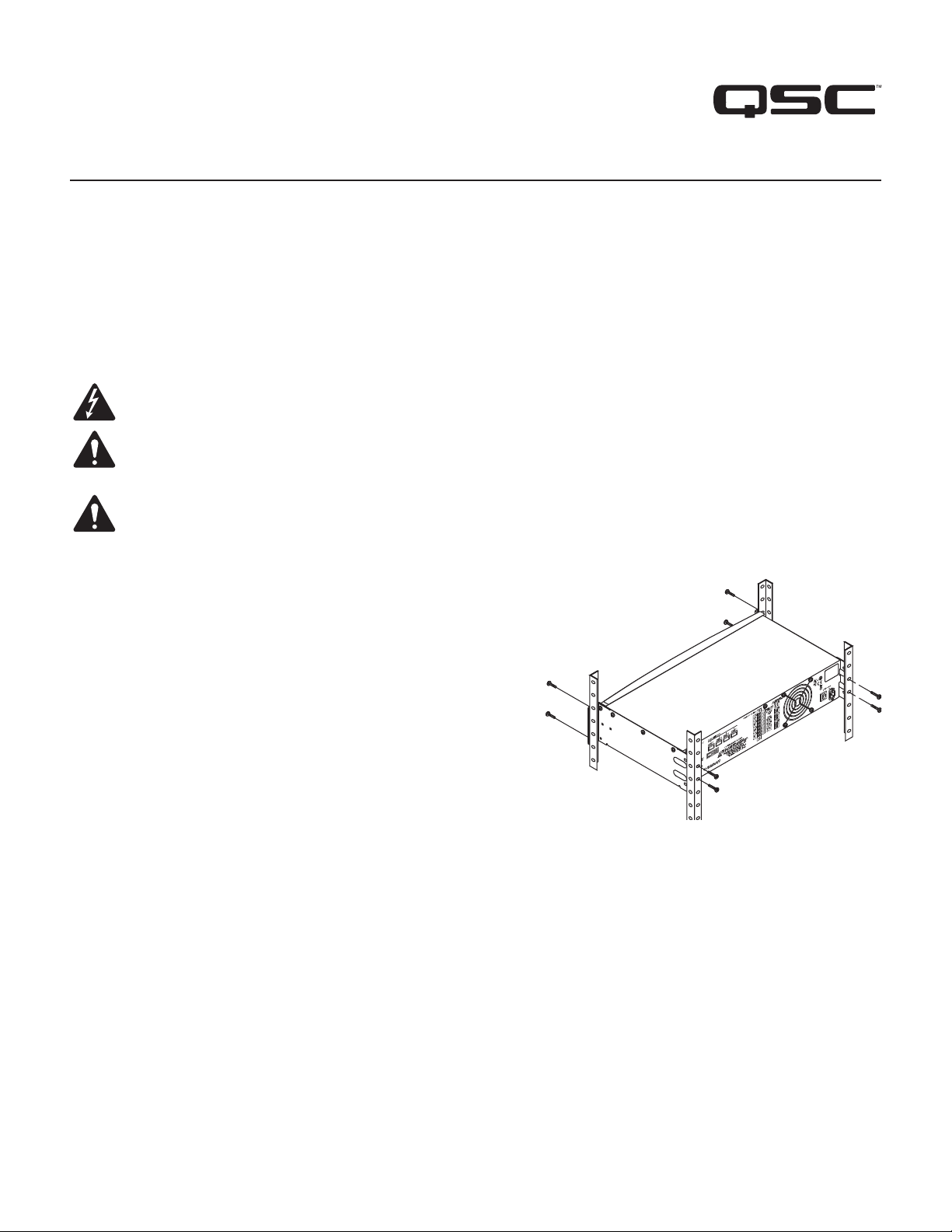
Rack-Mount the Amplifi er
1. Secure the amplifi er in the rack with eight screws (not supplied), four in front, four
in back.
— Figure 1 —
TD-000350-00-B
*TD-000350-00*
1
Page 2
Connections
Inputs
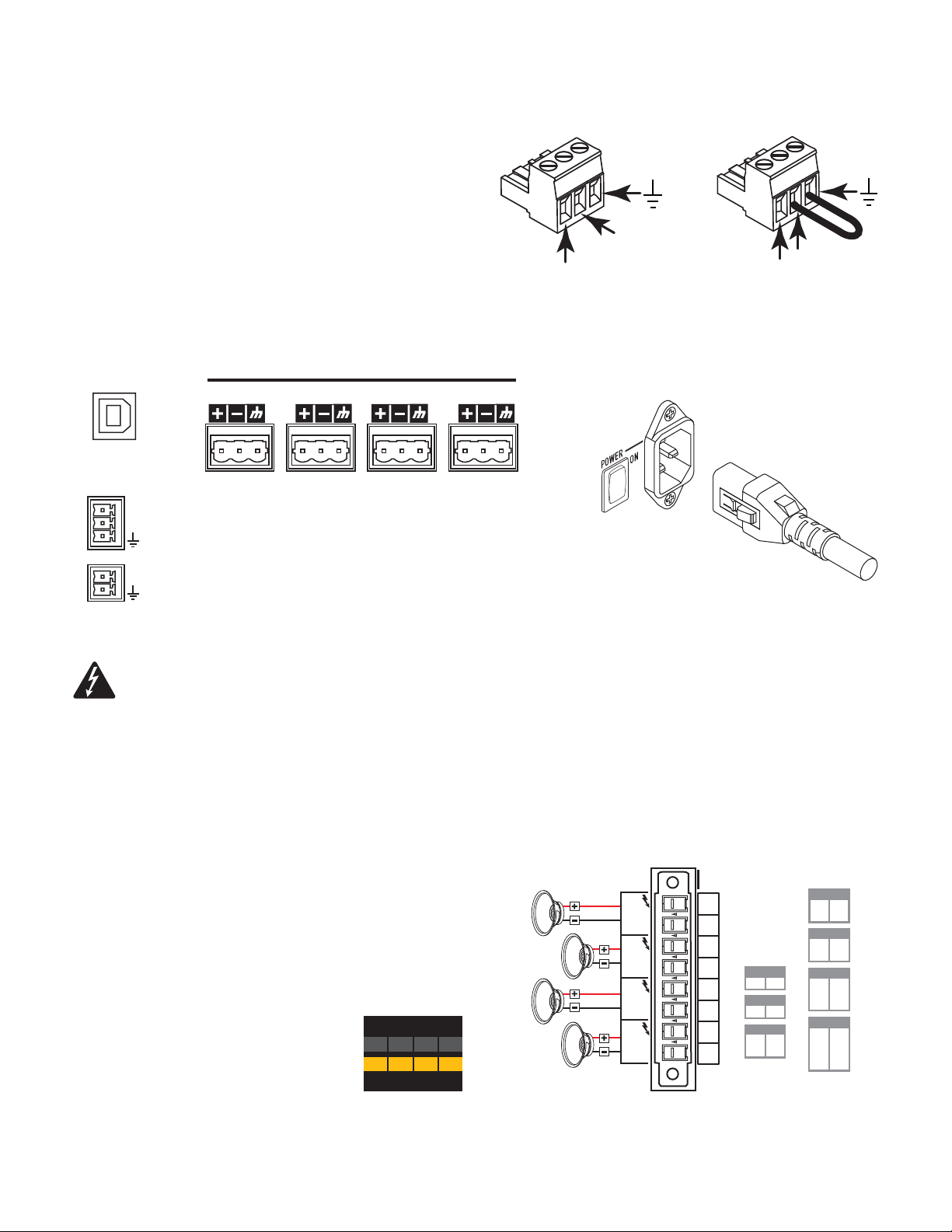
1. Wire the audio line-level source to up to four Euro-style connectors
(supplied). You may use either balanced inputs (Figure 2) or unbalanced
inputs (Figure 3).
2. Plug the connectors into the appropriate receptacles (Routable Inputs 1, 2,
3, 4) Figure 4.
3. Connect the IEC power cord to the AC receptacle on the rear of the
amplifi er. (Figure 5)
GPIO
ROUTABLE INPUTS
2143
HEARTBEAT
GPIO
Balanced
+
— Figure 2 —
Unbalanced
—
—
+
— Figure 3 —
GPIO
— Figure 5 —
— Figure 4 —
WARNING!:
Do not turn the amplifi er on at this time.
Outputs
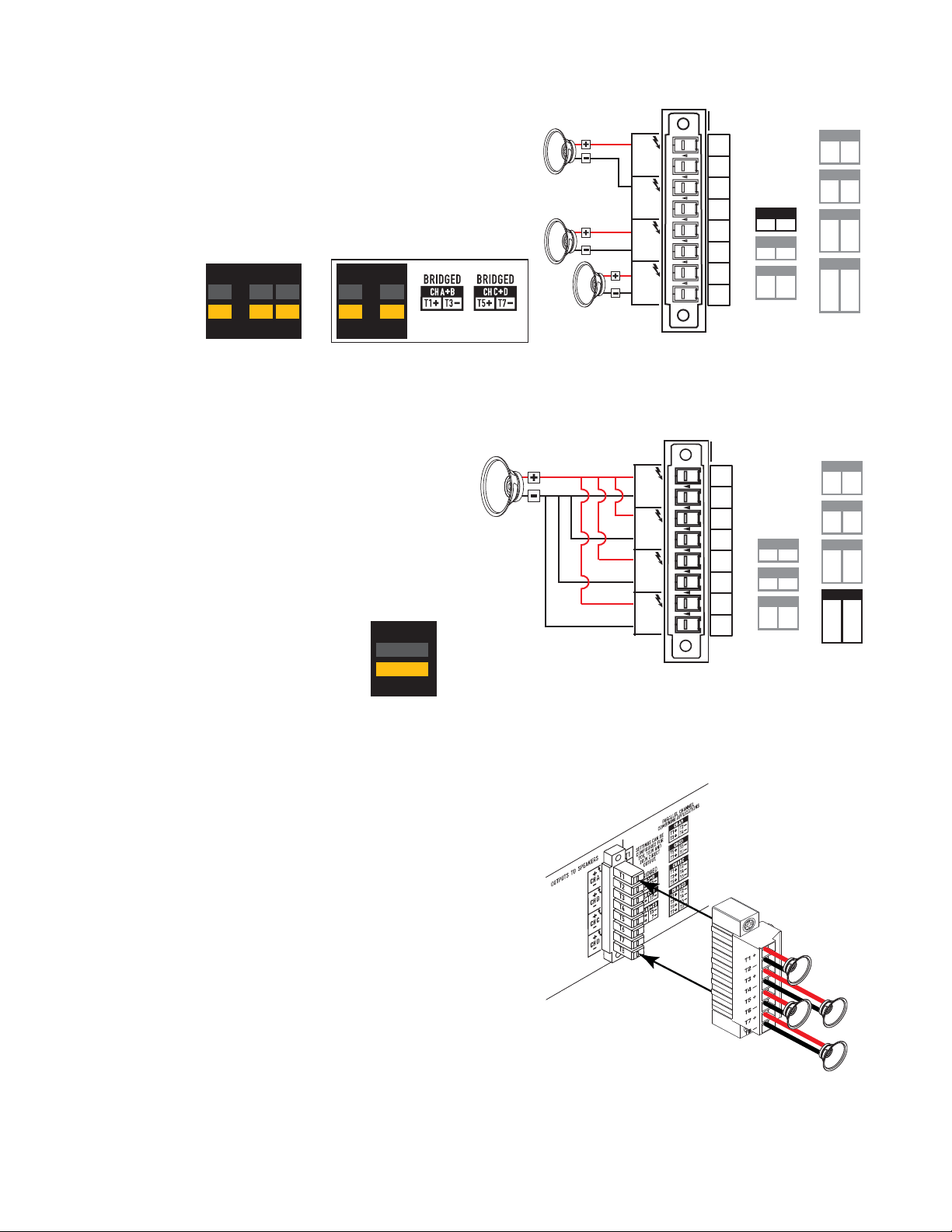
When the output confi guration of the amplifi er changes, the Outputs to the loudspeakers change accordingly. Use the diagrams shown in Figure 6
thru Figure 8 as a reference for wiring the loudspeakers. After connecting the outputs to the loudspeakers, you may turn the amplifi er on.
Separate Channels (A B C D)
For Four Separate Loudspeakers
Use four 2-wire cables, connect to:
• T1+/T2- (Loudspeaker 1)
• T3+/T4- (Loudspeaker 2)
• T5+/T6- (Loudspeaker 3)
• T7+/T8- (Loudspeaker 4)
A
8.0
625
625
B
8.0
625
625
C
8.0
625
625
D
8.0
625
625
OUTPUTS TO SPEAKERS
+
CH A
+
CH B
+
CH C
+
CH D
-
T1
T2
T3
T4
T5
T6
T7
T8
SETTINGS CAN BE
CONFIGURED FOR
70V, 100V AND
200V DIRECT
BRIDGED
T1+ T3-
COMBINING APPLICATIONS
OUTPUT.
CH A+B
CH C+D
T5+ T7-
CH AB+CD
T1
+
T5-
T3+
T7-
PARALLEL CHANNEL
CH AB
T1+
T2-
T3+
T4-
CH CD
T5+
T6-
T7+
T8-
CH ABC
T2-
T1
+
T4-
T3+
T6-
T5+
CH ABCD
+
T2-
T1
T3+
T4-
T5+
T6-
T7+
T8-
— Figure 6 —
2
Page 3
Bridged (A+B) and Separate (C D ) Channels
S
S
For A+B (Bridged) One Loudspeaker
Use one 2-wire cable connect to:
• T1+/T3-
For C & D (Separate) Two Loudspeakers
Use two 2-wire cables connect to:
• T5+/T6- for CH C
• T7+/T8- for CH D
A+B
1250
1250
8.0
8.0
625
625
C
D
8.0
625
625
Parallel Channels (ABCD)
For One Loudspeaker
Full power to one loudspeaker
Use one 2-wire cable, connect to:
• T1+/T2-
• Jumper T1, T3, T5, T7
• Jumper T2, T4, T6, T8
For Multiple Loudspeakers
Full power for multiple loudspeakers in parallel
Use up to four 2-wire cables, connect to:
• T1+/T2-
• T3+/T4-
• T5+/T6-
• T7+/T8-
A+B
8.0
1250
1250
C+D
8.0
1250
1250
A B C D
8.0
2500
2500
— Figure 7 —
OUTPUTS TO SPEAKERS
+
CH A
+
CH B
+
CH C
+
CH D
-
OUTPUTS TO SPEAKERS
+
CH A
+
CH B
+
CH C
+
CH D
-
T1+, T3+, T5+, and T7+ are elec trically the same point
T2-, T4-, T6-, and T8- are elec trically the same point
T1
T2
T3
T4
T5
T6
T7
T8
T1
T2
T3
T4
T5
T6
T7
T8
SETTINGS CAN BE
CONFIGURED FOR
70V, 100V AND
200V DIRECT
OUTPUT.
BRIDGED
CH A+B
T1+ T3-
CH C+D
T5+ T7-
CH AB+CD
T1
+
T5-
T3+
T7-
SETTINGS CAN BE
CONFIGURED FOR
70V, 100V AND
200V DIRECT
OUTPUT.
BRIDGED
CH A+B
T1+
T3-
CH C+D
T5+
T7-
CH AB+CD
T1
+
T5-
T3+
T7-
PARALLEL CHANNEL
COMBINING APPLICATION
CH AB
T1+
T2-
T3+
T4-
CH CD
T5+
T6-
T7+
T8-
CH ABC
T2-
T1
+
T4-
T3+
T6-
T5+
CH ABCD
+
T1
T2-
T3+
T4-
T5+
T6-
T7+
T8-
PARALLEL CHANNEL
COMBINING APPLICATION
CH AB
T1+
T2-
T3+
T4-
CH CD
T5+
T6-
T7+
T8-
CH ABC
T2-
T1
+
T4-
T3+
T6-
T5+
CH ABCD
+
T2-
T1
T3+
T4-
T5+
T6-
T7+
T8-
— Figure 8 —
Connect the Loudspeakers
1. Connect the loudspeaker wiring to the 8-pin Euro-style connector as needed for
your amplifi er's confi guration.
2. Install the female 8-pin Euro-style connector onto the male connector on the rear of
the amplifi er as shown in Figure 9.
3. Use a Phillips screwdriver to secure the connector.
— Figure 9 —
3
Page 4

CXD Amplifi er Signal Flow
Input Settings
Sensitivity
Switch
Sensitivity
Switch
Sensitivity
Switch
Sensitivity
Switch
Meter
Meter
Meter
Meter
Gain
Gain
Gain
Gain
1
2
3
4
Mixer
Mixer
Mixer
Mixer
Button
Actuated
Mute
Mute
Mute
Mute
Highpass
Filter
Highpass
Filter
Highpass
Filter
Highpass
Filter
Amplifi er Control
Off Mode
• Rear power switch is off, the amplifi er is not operable. The power
switch is the AC Mains disconnect.
• The power button is not illuminated.
• Turn the power switch to on. The amplifi er enters the Run Mode.
• The power button is illuminated blue.
Output Processing
Gain /
Lowpass
Polarity
Lowpass
Gain /
Polarity
Gain /
Lowpass
Polarity
Lowpass
Gain /
Polarity
Crossover
— Figure 10 —
ENTER Button
• Navigates into the menu structure
• Enters the edit mode for adjusting parameters
• Confi rms the changes you make
EXIT Button
• Navigates out of the menu structure and parameter selection.
• In the edit mode, pressing EXIT reverts the value back to its prior
Filter
Filter
Filter
Filter
5-band
PEQ
5-band
PEQ
5-band
PEQ
5-band
PEQ
Delay
Delay
Delay
Delay
RMS / Peak
Limiter
RMS / Peak
Limiter
RMS / Peak
Limiter
RMS / Peak
Limiter
state, and exits the edit mode.
Meter
Meter
Meter
Meter
Amp Configuration
A
B
C
D
Set by Wizard
ENTER
EXIT
Run Mode
• From Standby or Mute All modes, press and release the power button
on the front panel.
• The power button is illuminated blue.
• The amplifi er is fully operable; audio can pass.
Standby Mode
• From Mute All or Run modes, press and hold the power button on
the front panel.
• The power button illuminates solid red.
• The amplifi er is not operable; audio will not pass.
Mute All Mode
• From the Run Mode, press and release the power button.
• The power button fl ashes red.
• The front panel and DSP functionality are fully operable. Any changes
you make are saved and take effect in the Run Mode.
Master Control Knob
• Scrolls up/down and right/left to select menu items and parameters
• Adjusts parameters
HOME Button
HOME
• If you are on the Home screen, pressing HOME displays the alternate
Home screen. Pressing HOME again returns you to the primary
Home screen.
• If you are on a navigation screen, pressing HOME takes you to the
home screen.
• If you are on an edit screen, pressing HOME will confi rm any value
being edited and take you to the Home screen.
GAIN Button
GAIN
• Pressing the GAIN button from any screen takes you to the output
gain screen for the most recently accessed output channel.
• Pressing GAIN again confi rms the gain change and returns to the
screen you were on when you pressed GAIN.
SEL Buttons
SEL
• Use these buttons to navigate between input channels or output
channels. For example, if you are adjusting output gain on channel A,
pressing the channel B SEL button takes you to the gain adjustment
for channel B.
• The SEL buttons are active only when the LCD screen is on an input
or output parameter adjustment screen.
4
Page 5

Menu Tree
d
Presets
Preset Recall
Preset Save
Preset Wizard
*For QSC Line Arrays only
Screen Types
Informational
Informational screens, like the HOME screen, are
designed to provide you with a good amount of
useful information at a glance.
Inputs
Input Sensitivity
Input Gain
F1: Config - A B C D
Home (Press HOME for more information)
Full
A - FR
+1.5 dB
Full
B - FR
+3.5 dB
Outputs
Mixer w/Noise & Tone
Mode (Lo-Z, 70V, 100V)
Processing
Array Correction*
Crossover
EQ
Delay
Limiter
Load Speaker
Save Speaker
Full
C - FR
+1.5 dB
Full
D - FR
+1.5 dB
Utilities
Status
Amp ID
Display
Lockout
Passwor
GPIO
Preset # and Configuration
Location and breadcrumbs
Channel Configuration
and Gain
Navigational
Navigational screens provide the means to move
around and select menu items. Use the Master
Control knob, ENTER and EXIT buttons for navigation.
This is an example of one type of navigational screen,
there are others.
Parameter Editing
Parameter editing screens allow you to select, edit,
and confi rm changes for various system parameters.
Use the ENTER button to edit and confi rm changes
to parameters. Use the Master Control knob to select
parameter, and make adjustments. Use the EXIT
button to exit the edit mode without saving changes.
121 V 7.2 AAC Voltage: AC Current:
Amp Status:
OK
— Figure 11 —
F1: Config - A B C D
Menu
PRESETS
Preset Recall and Save
INPUTS
— Figure 12 —
F1: Config - A B C D
Gn/Pol
-7.0 dB
Gain
Polarity
POL+
Output
A
20 dB
-60 dB
AC Voltage and Current
Amplifier Status
Preset # and Configuration
Location and breadcrumbs
Empty area indicates no
selections above (CCW).
Current Menu Selection
Next Menu selection below
(CW)
Parameter being edited
Parameter not selected
Parameter selected
Gain
-7.0 dB
— Figure 13 —
5
Page 6

Presets
The CXD amplifi ers are preset driven, so to get the most out of the amplifi ers an understanding of how presets work is essential. A Preset, in the
context of the CXD amplifi ers, is a combination of amplifi er confi guration and DSP processing; as a preset is recalled it can change the output routing
and wiring and/or any DSP processing.
Preset Creation
A preset can be created in two ways, the fi rst is to modify an existing preset, then save this as a new Preset; the second is to use the Preset Wizard to
create a Preset from scratch.
Preset Wizard
The Preset Wizard simplifi es the preset creation process, and allows the user to create a preset from the ground up. The Wizard provides a mechanism
for the user to select his desired power and load. Based on these selections, the best amplifi er confi guration is selected and the user is then allowed to
select and assign loudspeakers to each output.
To start the Wizard:
STEP 1 —
Adjust Impedance and Power
Output:
Imped:
Power:
Remaining Power Available: 1875 W
Enter Load Profile (Impedance and Power)
A
B
8.0
8.0
625
625
625
HOME > PRESETS > PRESET WIZARD > ENTER
OUTPUTS SPEAKERS SAVE
AB C D
8.0 - - - - - -
25 - - - - - -
Default = 8 Ω
Default = min. for amp
Adjust Impedance based on the total loudspeaker load connected to the channel.
Possible Output Mode Combinations using the Preset Wizard
A B + C D
8.0
2475
— Figure 14 —
8.0
C
D
8.0
625
A+B
8.0
1250
C
8.0
625
D
8.0
625
A+B
8.0
1250
C+D
8.0
1250
A B C D
8.0
2500
Adjust Impedance
Adjust Power
To confirm, press
Modes:
A B = Separate Channels
A+B = Bridge Mode
AB = Parallel Mode
ENTER
STEP 2 —
Select Output Channel for Speaker Assignment
OUTPUTS SPEAKERS SAVE
Output:
Imped:
Power:
Spkr:
ADCB
8.0 8.08.08.0
625 625625625
- - - - - - - -- - - -- - - -
Assign
Assign
Optional: Scroll to desired Output channel
To Assign a loudspeaker, press
AssignAssign
Loudspeaker assignment is optional.
ENTER
6
Page 7

STEP 3 —
Select Speaker Type for Channel
OUTPUTS SPEAKERS SAVE
To edit Speaker, press
ENTER
A
Band and Filter
selections are based
on the Speaker.
To exit edit mode and confirm, press
Scroll to select Speaker type
ENTER
Scroll to edit Band then Filter
STEP 4 —
Output:
Speaker:
Band:
Filter:
Save Wizard Preset
WL2102 BiLFNS
2-Way LF
80 Hz
CONFIRM
OUTPUTS SPEAKERS SAVE
Scroll to the Save screen
User Preset Number:
New Preset Name
Con f i g - A
21
To edit User Preset number, press
ENTER
To name and save the preset,
SAVE
Edit preset number or press EXIT
Complete steps 1 thru 3 under
“To Save a New User Preset”
Saving Presets
Presets can be modifi ed and saved using the Save Preset menu. You can start with a Factory Preset (F<n>: <name>), make modifi cations, then save
it as a User Preset (U<n>: <name>). You cannot overwrite Factory Presets. There are two ways to save Presets, Overwrite an existing User Preset, or
Save a new User Preset.
To Overwrite a User Preset,
Overwrite Preset
U1: Config - A B C D
Press ENTER to save preset
To Save a New User Preset,
STEP 1 —
Select and Edit Preset Number
U1: Config - A B C D
Con f i g - A
Edit preset number or press EXIT
HOME > PRESETS > PRESET SAVE > ENTER
SAVE
HOME > PRESETS > PRESET SAVE AS > ENTER
User Preset Number:
New Preset Name
21
SAVE
To save, press
To exit without saving, press
To confirm the save, press
To edit User Preset number, press
Scroll to desired number (1 thru 50)
To confirm User Preset number, press
ENTER
EXIT
ENTER
ENTER
ENTER
7
Page 8

STEP 2 —
Name the Preset
STEP 3 —
U1: Config - A B C D
User Preset Number:
New Preset Name
Con f i g X A
Press ENTER to edit preset name
Save Preset
U1: Config - A B C D
User Preset Number:
New Preset Name
Con f i g X A
SAVE
21
21
Indicates editing
Indicates New Preset
Name selection
Indicates more positions
Up to 21 characters, A - Z / a - z / 0 - 9 / _ / - / space
When you are finished naming, press
Scroll to New Preset Name
Press
Scroll to desired position
Press
Scroll to SAVE
Press
SAVE
SAVE
Press ENTER to save preset
To confirm Save, press
Recalling Presets
Recalling a Preset changes the confi guration of the amplifi er. You can recall factory or user-defi ned presets. To Overwrite a User Preset,
ENTER
ENTER
EXIT
ENTER
ENTER
HOME > PRESETS > PRESET RECALL > ENTER
STEP 4 —
STEP 5 —
Select Preset
F1: Config - A B C D
F1: Config - A B C D
Full
1
Input Sub MF FullHFLF
Full Full Full
2
A
B
3
Confi rm Selection
F1: Config - A B C D
F18: Triamp - A+B C D
LF
1
A+B
Press ENTER to confirm selection
C
MF HF
3
C
Indicates more Presets
Scroll to desired Preset
4
D
To select the Preset conguration, press
4
D
20 Factory, up to 50 User-dened
To Conrm the selection, press
ENTER
ENTER
Bottom message changes to: “Recalling Preset now...”
You may hear relays clicking
Utilities
The Utilities section provides the following amplifi er information and functionality: Please refer to the CXD User Manual for complete details.
• STATUS
• ID
• Serial Number
• LOCKOUT
• PASSWORD
• GPIO
8
Page 9

Mailing Address:
QSC Audio Products, LLC
1675 MacArthur Boulevard
Costa Mesa, CA 92626-1468 USA
Telephone Numbers:
Main Number: (714) 754-6175
Sales & Marketing: (714) 957-7100 or toll free (USA only) (800) 854-4079
Customer Service: (714) 957-7150 or toll free (USA only) (800) 772-2834
Facsimile Numbers:
Sales & Marketing FAX: (714) 754-6174
Customer Service FAX: (714) 754-6173
World Wide Web:
www.qsc.com
E-mail:
info@qscaudio.com
service@qscaudio.com
tech_support@qscaudio.com
If you would like a full copy of the CXD User manual, visit the QSC Audio Products website at www.qsc.com, or contact
Customer Service +1 714 957-7150 or toll free (USA only) (800) 772-2834 to receive a copy by mail.
Si desea obtener una copia completa del manual del usuario de la CXD, visite el sitio web de QSC Audio Products en www.
qsc.com, o póngase en contacto con el Servicio al Cliente al +1 714 957-7150 o sin costo (sólo en EE.UU.) al (800) 772-2834
para recibir una copia por correo.
Pour obtenir un exemplaire complet du manuel d’utilisation de la CXD, allez sur le site Web QSC Audio Products à www.
qsc.com ou contactez le service clientèle au +1 714 957-7150 ou au (800) 772-2834 (numéro vert - USA seulement) pour
recevoir un exemplaire par courrier.
Ein vollständiges Exemplar des Benutzerhandbuchs für die CXD fi nden Sie auf der QSC Audio Products-Website unter www.
qsc.com. Sie können sich unter +1 714 957-7150 oder unter der (nur in den USA) gebührenfreien Nummer +1 (800) 7722834 auch an den Kundendienst wenden, um sich ein Exemplar zuschicken zu lassen.
如果您需要 CXD 产品用户手册的完整副本,请访问 QSC 音频产品网站 www.qsc.com,或致电客户
服务部门 +1 714 957-7150,或拨打免费电话(仅限美国)(800) 772-2834 通过邮件获取副本。
© 2013 QSC Audio Products, LLC. All rights reserved. QSC and the QSC logo are registered trademarks of QSC Audio Products, LLC in the U.S. Patent and Trademark offi ce and
All other trademarks are the property of their respective owners. Patents may apply or be pending.
other countries. Neutric is a trademark of Neutric Inc.
9
 Loading...