

Page 1

Industrial IP67 Rated 8-Port 10/100Mbps M12 Ethernet Switch
ISW-800T-M12 & ISW-804PT-M12
User’s Manual
Page 2

Trademarks
Copyright © PLANET Technology Corp. 2011.
Contents subject to revision without prior notice.
PLANET is a registered trademark of PLANET Technology Corp. All other trademarks
belong to their respective owners.
Disclaimer
PLANET Technology does not warrant that the hardware will work properly in all
environments and applications, and makes no warranty and representation, either
implied or expressed, with respect to the quality, performance, merchantability, or
tness for a particular purpose.
PLANET has made every effort to ensure that this User’s Manual is accurate;
PLANET disclaims liability for any inaccuracies or omissions that may have
occurred.
Information in this User’s Manual is subject to change without notice and does not
represent a commitment on the part of PLANET. PLANET assumes no responsibility
for any inaccuracies that may be contained in this User’s Manual. PLANET makes
no commitment to update or keep current the information in this User’s Manual,
and reserves the right to make improvements to this User’s Manual and/or to the
products described in this User’s Manual, at any time without notice.
If you nd information in this manual that is incorrect, misleading, or incomplete,
we would appreciate your comments and suggestions.
FCC Warning
This equipment has been tested and found to comply with the limits for a Class A
digital device, pursuant to Part 15 of the FCC Rules. These limits are designed to
provide reasonable protection against harmful interference when the equipment is
operated in a commercial environment. This equipment generates, uses, and can
radiate radio frequency energy and, if not installed and used in accordance with
the Instruction manual, may cause harmful interference to radio communications.
Operation of this equipment in a residential area is likely to cause harmful
interference in which case the user will be required to correct the interference at
his own expense.
Page 3

CE Mark Warning
This is a Class A product. In a domestic environment, this product may cause radio
interference, in which case the user may be required to take adequate measures.
WEEE Warning
To avoid the potential effects on the environment and human health as a
result of the presence of hazardous substances in electrical and electronic
equipment, end users of electrical and electronic equipment should
understand the meaning of the crossed-out wheeled bin symbol. Do not
dispose of WEEE as unsorted municipal waste and have to collect such WEEE
separately.
Revision
PLANET Industrial IP67 Rated 8-Port 10/100Mbps M12 Ethernet Switch User’s
Manual
For Models: ISW-800T-M12 & ISW-804PT-M12
Revision: 1.0 (August, 2011)
Part No: EM-ISW-800T-M12_804PT-M12_v1.0 (2350-AH0450-000)
Page 4

Table of Contents
1. Introduction ............................................................................................... 5
1.1 Package Contents ................................................................................ 5
1.2 How to Use This Manual....................................................................... 5
1.3 Product Features ................................................................................. 6
1.4 Product Specications .......................................................................... 7
1.5 Physical Dimension .............................................................................10
2. Installation ...............................................................................................12
2.1 Product Description .............................................................................12
2.1.1 Product Overview ......................................................................13
2.1.2 Switch Front Panel ....................................................................13
2.1.3 LED Indicators ..........................................................................14
2.1.4 M12 DC Power Cable Pinout .......................................................14
2.1.5 10/100Mbps Ports with M12 Interface Cable Pinout ......................15
2.2 Mounting Installation ..........................................................................16
2.2.1 DIN-Rail Mounting .....................................................................16
2.2.2 Wall Mount Plate Mounting .........................................................17
3. Applicaiton ...............................................................................................18
4. Power Over Ethernet Overview ...................................................................22
5. Troubleshooting ......................................................................................... 25
Appendix A: Networking Connection .................................................................26
A.1 Switch’s RJ-45 Pin Assignments ...........................................................26
A.2 RJ-45 Cable Pin Assignments ...............................................................26
Page 5

5
1. Introduction
1.1 Package Contents
Check the contents of your package for following parts:
Industrial IP67 Rated M12 Ethernet Switch x 1 l
User's Manual x 1 l
1.2m M12-to-RJ45 UTP Cable x 1 l
1.2m M12 Power Cable x 1 l
DIN Rail Kit x 1 l
Wall Mount Kit x 1 l
If any of these are missing or damaged, please contact your dealer immediately,
if possible, retain the carton including the original packing material, and use them
against to repack the product in case there is a need to return it to us for repair.
In the following section, the term “Industrial M12 Ethernet Switch” means the
ISW-800T-M12 and ISW-804PT-M12.
1.2 How to Use This Manual
This Industrial M12 Ethernet Switch User Manual is structured as follows:
Chapter 2 Installation
The chapter explains the feature, functionality and the physical installation of the
Industrial M12 Ethernet Switch.
Chapter 3 Application
The chapter explains the Industrial M12 Ethernet Switch application.
Chapter 4 Power over Ethernet overview (ISW-804PT-M12 only)
The section explains the IEEE 802.3af Power over Ethernet theories.
Chapter 5 Troubleshooting
The chapter explains the troubleshooting of the Industrial M12 Ethernet Switch.
Appendix A
This chapter contains cable information of the Industrial M12 Ethernet Switch.
Page 6

6
1.3 Product Features
Physical Port
8-Port 10/100Mbps M12 Connector with IP67 protection l
4-Port IEEE 802.3af PoE Ports l (ISW-804PT-M12) (Port 5 to port 8)
Layer 2 Features
Supports Auto-negotiation and 10/100Mbps half / full duplex mode l
High performance Store and Forward architecture, runt/CRC ltering eliminates l
erroneous packets to optimize the network bandwidth
Prevents packet loss with back pressure (Half-Duplex) and IEEE 802.3x PAUSE l
frame ow control (Full-Duplex)
Backplane (Switching Fabric): 1.6Gbps l
Integrated address look-up engine, support 2K absolute MAC addresses l
Automatic address learning and address aging l
CSMA/CD Protocol l
Industrial Case / Installation
IP67 Aluminum metal case / Protection l
DIN Rail and Wall Mount Design l
Waterproof / dustproof design l
12 to 48V DC, redundant power with polarity reverse protect function and l
connective removable terminal block for master and slave power (ISW-
800T-M12)
48V DC, redundant power with polarity reverse protect function and connective l
removable terminal block for master and slave power (ISW-804PT-M12)
Supports EFT protection 6000 VDC for power line l
Supports 6000 VDC Ethernet ESD protection l
-40 to 75 Degree C operating temperature l
Page 7
7
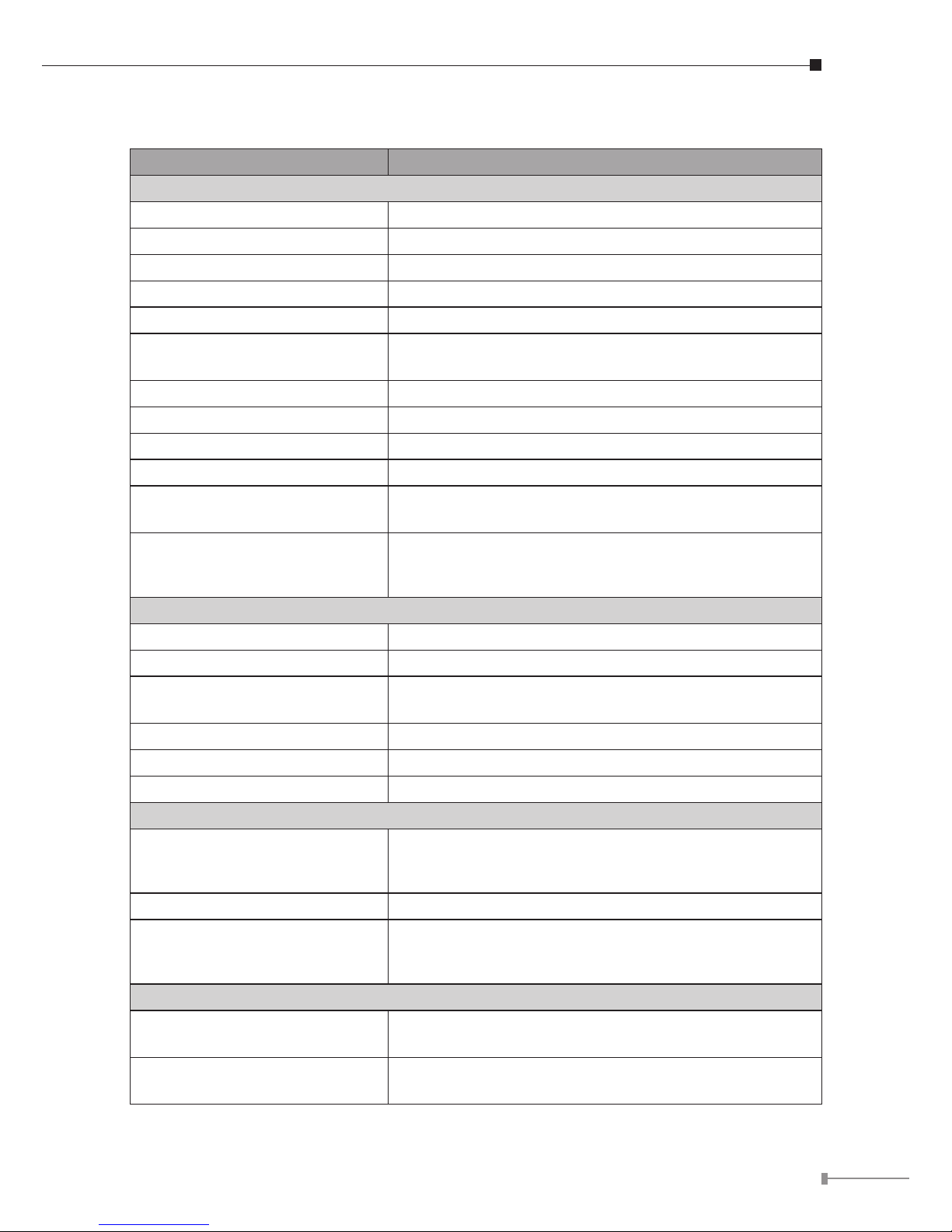
1.4 Product Specications
Model ISW-800T-M12
Hardware Specication
10/100Base-TX Ports 8 x M12, 4-Pin D-coded female connector
Power Connector 1 x M12, 5-Pin A-Coded male connector
Enclosure IP67 Aluminum
Dimension (W x D x H) 163 x 103 x 53 mm
Weight 976g
Power Requirement
12~48V DC, Redundant power with polarity reverse
protection function
Power Consumption / Dissipation 4 Watts / 13 BTU
Installation DIN rail kit and wall mount ear
ESD Protection 6KV DC
EFT Protection 6KV DC
LED Indicators
Power LED: Power 1 / Power 2 (Green), FAULT (Green)
10/100Base-TX Port (Port-1 to Port-8): LNK/ACT (Green)
Network Cables
10Base-T: 2-Pair UTP Cat.3,4,5 up to 100m (328ft)
100Base-TX: 2-Pair UTP Cat.5, 5e, 6 up to 100m (328ft)
EIA/TIA-568 100-ohm STP (100m, max.)
Switch Specication
Switch Processing Scheme Store-and-Forward
Address Table 2K entries
Flow Control
Back pressure for half duplex
IEEE 802.3x Pause Frame for full duplex
Switch Fabric 1.6Gbps
Throughput (packet per second) 1.19Mpps@64Bytes
Maximum Transmit Unit 1536 bytes
Standards Conformance
Standards Compliance
IEEE 802.3 Ethernet
IEEE 802.3u Fast Ethernet
IEEE 802.3x Full-Duplex Flow Control
Regulation Compliance FCC Part 15 Class A, CE
Stability Testing
IEC60068-2-32 (Free fall)
IEC60068-2-27 (Shock)
IEC60068-2-6 (Vibration)
Environment
Temperature
Operating: -40~75 Degree C
Storage: -40~75 Degree C
Humidity
Operating: 5~95% (Non-condensing)
Storage: 5~95% (Non-condensing)
Page 8

8
Model ISW-804PT-M12
Hardware Specication
10/100Base-TX Ports 8 x M12, 4-Pin D-coded female connector
IEEE 802.3af PoE Ports 4, port 5 to port 8
Power Connector 1 x M12, 5-Pin A-Coded male connector
Enclosure IP67 Aluminum
Dimension (W x D x H) 163 x 103 x 53 mm
Weight 976g
Power Requirement
48V DC, Redundant power with polarity reverse
protection function
Power Consumption / Dissipation 65 Watts / 221 BTU
Installation DIN rail kit and wall mount ear
ESD Protection 6KV DC
EFT Protection 6KV DC
LED Indicators
Power LED: Power 1 / Power 2 (Green), FAULT (Green)
10/100Base-TX Port (Port-1 to Port-8): LNK/ACT (Green)
PoE Port (Port-5 to Port-8): PoE In-Use (Orange)
Network Cables
10Base-T: 2-Pair UTP Cat.3,4,5 up to 100m (328ft)
100Base-TX: 2-Pair UTP Cat.5, 5e, 6 up to 100m (328ft)
EIA/TIA-568 100-ohm STP (100m, max.)
Switch Specication
Switch Processing Scheme Store-and-Forward
Address Table 2K entries
Flow Control
Back pressure for half duplex
IEEE 802.3x Pause Frame for full duplex
Switch Fabric 1.6Gbps
Throughput (packet per second) 1.19Mpps@64Bytes
Maximum Transmit Unit 1536 bytes
Standards Conformance
Standards Compliance
IEEE 802.3 Ethernet
IEEE 802.3u Fast Ethernet
IEEE 802.3x Full-Duplex Flow Control
IEEE 802.3af Power over Ethernet
Regulation Compliance FCC Part 15 Class A, CE
Stability Testing
IEC60068-2-32 (Free fall)
IEC60068-2-27 (Shock)
IEC60068-2-6 (Vibration)
Page 9
9
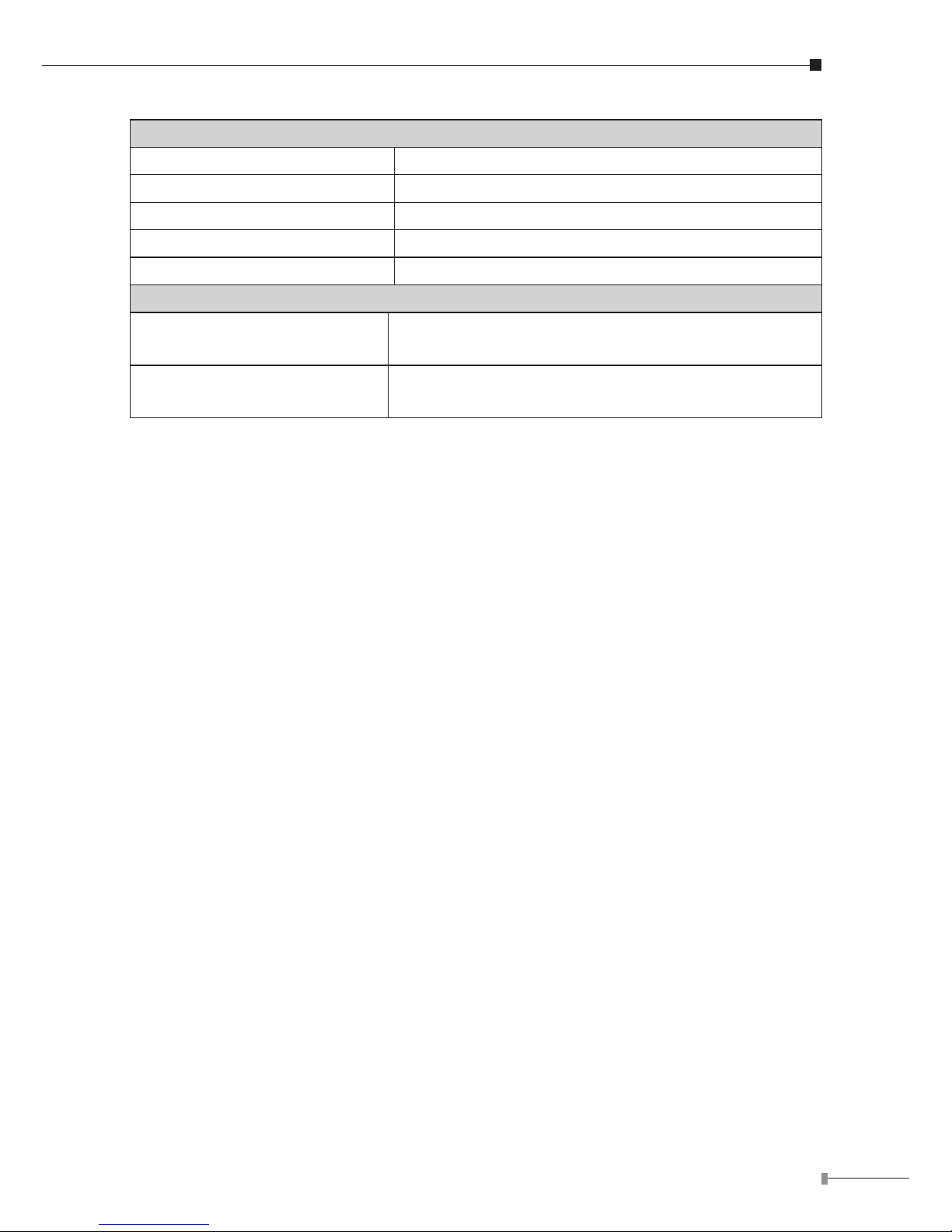
Power over Ethernet
PoE Standard IEEE 802.3af Power over Ethernet / PSE
PoE Power Supply Type End-Span
PoE Power Output 48V DC Per Port, 350mA. Max. 15.4 Watts
Power Pin Assignment 1/2(+), 3/6(-)
PoE Budget 60 Watts
Environment
Temperature
Operating: -40~75 Degree C
Storage: -40~75 Degree C
Humidity
Operating: 5~95% (Non-condensing)
Storage: 5~95% (Non-condensing)
Page 10

10
1.5 Physical Dimension
ISW-800T-M12 Industrial M12 Ethernet Switch dimension (W x D x H): 163 x
103 x 53mm
Mounting Kit
Mounting Kit
DIN-Rail Kit
Rear View
Front ViewSide View Side View
Page 11

11
ISW-804PT-M12 Industrial M12 Ethernet Switch dimension (W x D x H): 163 x
103 x 53mm
Mounting Kit
Mounting Kit
DIN-Rail Kit
Front ViewSide View
Side View
Rear View
Page 12

12
2. Installation
This section describes the functionalities of the Industrial M12 Ethernet Switch’s
components and guides how to install it on the desktop. Basic knowledge of
networking is assumed. Please read this chapter completely before continuing.
2.1 Product Description
The Industrial M12 Ethernet Switch equipped with IP67 industrial case protection,
the Industrial M12 Ethernet Switch provides a high level of immunity against
electromagnetic interference and heavy electrical surges which are usually found
on plant oors or in curb side trafc control cabinets. The compact, IP67 standard
metal case of Industrial M12 Ethernet Switch allows either DIN rail or wall
mounting for efcient use of cabinet space.
Being able to operate under the temperature range from -40 to 75 Degree C, the
Industrial M12 Ethernet Switch can be placed in almost any difcult environment.
The Industrial M12 Ethernet Switch also possesses an integrated power supply
source with wide range of voltages (ISW-800T-M12 with 12 to 48V DC) and
(ISW-804PT-M12 with 48V DC) for worldwide high availability applications
requiring dual or backup power inputs.
The ISW-800T-M12 equipped with eight 10/100Base-TX auto-negotiation ports M12
connector, the ISW-804PT-M12 equipped with eight 10/100Base-TX auto-negotiation
ports M12 connector with 4-Port IEEE 802.3af PoE Ports (Port 5 to port 8); per
PoE port provide 15.4 Watts PoE output. The M12 connector provides tightly and
strong connection and guarantee stable Ethernet operation performance under high
vibration and shock environment.
The Industrial M12 Ethernet Switch has 2K MAC Address table and offers wirespeed packets transfer performance without risk of packet loss, the high data
throughput of the device makes it ideal for most Fast Ethernet environments. With
a 1.6Gbps internal switching fabric and featuring auto negotiation support in each
Fast Ethernet port, the Industrial M12 Ethernet Switch can handle large amounts of
data in a secure topology linking to a backbone or high capacity servers.
The ow control function enables the Industrial M12 Ethernet Switch to provide fast
and reliable data transfer, all of the M12 RJ-45 copper interfaces in the Industrial
M12 Ethernet Switch support 10/100Mbps Auto-Negotiation for optimal speed
detection through RJ-45 Category 3, 4, 5, 5e, 6 cables. The standard Auto-MDI/
MDI-X support can detect the type of connection to any Ethernet device without
requiring special straight or crossover cables.
Page 13

13
2.1.1 Product Overview
The PLANET Industrial M12 Ethernet Switch with 8 RJ-45 10/100Mbps ports M12
interfaces, for high-speed network connectivity. The Industrial M12 Ethernet Switch
can also automatically identify and determine the correct transmission speed and
half / full duplex mode of the attached devices with its 8 Fast Ethernet ports. The
M12 Fast Ethernet ports can handle extremely large amounts of data transmission
in a secure topology linking to a backbone or high-power servers, the ISW804PT-M12 also provide 4 IEEE 802.3af Fast Ethernet PoE ports and per PoE port
provide 15.4 Watts PoE power output. It is an ideal solution to ll the demand of
Industrial environment PoE application.
The Industrial M12 Ethernet Switch also supports Store-and-Forward forwarding
scheme to ensure low latency and high data integrity, eliminates unnecessary
trafc and relieves congestion on critical network paths. With an intelligent address
recognition algorithm, the Industrial M12 Ethernet Switch could recognize up to 2K
different MAC address and enables ltering and forwarding at full wire speed.
2.1.2 Switch Front Panel
Figure 2-1 & 2-2 shows a front panel of Industrial M12 Ethernet Switch.
Figure 2-1: ISW-800T-M12 front panel Figure 2-2: ISW-804PT-M12 front panel
Page 14

14
2.1.3 LED Indicators
ISW-800T-M12
LED Color Function
PWR 1 Green Lit: indicate the power 1 has power.
PWR 2 Green Lit: indicate the power 2 has power.
FAULT Green Lit: indicate the either power 1 or power 2 has no power.
LNK / ACT Green
Lit: indicate the Switch is successfully connecting to the
network at 10/100Mbps.
Blink: indicate that the Switch is actively sending or
receiving data over that port.
Off: indicate the Switch is not connecting to the network
at 10/100Mbps.
ISW-804PT-M12
LED Color Function
PWR 1 Green Lit: indicate the power 1 has power.
PWR 2 Green Lit: indicate the power 2 has power.
FAULT Green Lit: indicate the either power 1 or power 2 has no power.
LNK / ACT Green
Lit: indicate the Switch is successfully connecting to the
network at 10/100Mbps.
Blink: indicate that the Switch is actively sending or
receiving data over that port.
Off: indicate the Switch is not connecting to the network
at 10/100Mbps.
PoE In-Use
Port 5 to
port 8
Orange
Lit: indicate the Switch port is providing 15.4 Watts PoE
power output.
Off: indicate the Switch port is not providing 15.4 Watts
PoE power output.
2.1.4 M12 DC Power Cable Pinout
The Industrial M12 Ethernet Switch front panel provides one M12 A-coded 5 pin
male connector for DC power input; please use the power cable with M12 A-coded
5 pin female connector from Industrial M12 Ethernet Switch package for DC power
input. The Industrial M12 Ethernet Switch power input port pinout is shown as
below
INPUT
DC 12V~48V
Pinout 1: V1
-
Pinout 2: V1+
Pinout 3: V2+
Pinout 4: V2
-
ISW-800T-M12
V2
V2
V1
V1
3
4
2
1
INPUT
DC 48V
Pinout 1: V1
-
Pinout 2: V1+
Pinout 3: V2+
Pinout 4: V2
-
ISW-804PT-M12
V2
V2
V1
V1
3
4
2
1
Page 15

15
Please follow the steps below for DC power cable installation on Industrial M12
Ethernet Switch.
1. Plug the DC power cord connector to the power input port of the Industrial M12
Ethernet Switch.
2. Screw the nut on DC power cord female connector to the DC power input male
connector of Industrial M12 Ethernet Switch and make sure the connection is
tight.
Note
Before DC power cord connection, please check and assure your
local DC power source is stable.
2.1.5 10/100Mbps Ports with M12 Interface Cable Pinout
The Industrial M12 Ethernet Switch front panel provides provide eight RJ45 10/100Mbps ports M12 interfaces, these ports are designed for Ethernet
equipments connection. The Industrial M12 Ethernet Switch 10/100Mbps M12 input
interface pinout is shown as below
Pinout 1: TX+
Pinout 2: RX+
Pinout 3: TX
-
Pinout 4: RX -
ISW-800T-M12/ISW-804PT-M12
TX
RX
RX
TX
1
4
2
3
RJ-45(8-Pin)
Pinouts for the RJ-45(8-Pin) Port
1 8
MDI MDI-X
Pin
1
2
3
6
Singnal
TX+
TX
-
RX+
RX
-
RX+
RX
-
TX+
TX
-
Please follow the steps below for 10/100Mbps M12 cable installation on Industrial
M12 Ethernet Switch.
1. Plug the 10/100Mbps M12 cable male connector to the Ethernet female
connector input port of the Industrial M12 Ethernet Switch.
2. Screw the nut on 10/100Mbps M12 cable male connector to the Ethernet input
female connector of Industrial M12 Ethernet Switch and make sure the connection is tight.
Note
Due to per Ethernet port of Industrial M12 Ethernet Switch is
running at auto negotiation mode. Please assure the opposite
Ethernet devices Ethernet ports are running at auto negotiation
mode also, otherwise, the Ethernet performance will be poor.
Page 16

16
2.2 Mounting Installation
This section describes how to install the Industrial M12 Ethernet Switch and make
connections to it. Please read the following topics and perform the procedures in
the order being presented.
2.2.1 DIN-Rail Mounting
The DIN-Rail is screwed on the Industrial M12 Ethernet Switch when out of factory.
When need to replace the wall mount application with DIN-Rail application on
Industrial M12 Ethernet Switch, please refer to following gures to screw the DIN-
Rail on the Industrial M12 Ethernet Switch. To hang the Industrial M12 Ethernet
Switch, follow the below steps:
Step 1: Screw the DIN-Rail on the Industrial M12 Ethernet Switch.
Step 2: Lightly press the button of DIN-Rail into the track.
Step 3: Check the DIN-Rail is tightly on the track.
Page 17

17
Step 4: Please refer to following procedures to remove the Industrial M12 Ethernet
Switch from the track.
Step 5: Lightly press the button of DIN-Rail for remove it from the track.
2.2.2 Wall Mount Plate Mounting
To install the Industrial M12 Ethernet Switch on the wall, please follows the
instructions described below.
Step 1: Remove the DIN-Rail from the Industrial M12 Ethernet Switch; loose the
screws to remove the DIN-Rail.
Step 2: Place the wall mount plate on the rear panel of the Industrial M12
Ethernet Switch.
Step 3: Use the screws to screw the wall mount plate on the Industrial M12
Ethernet Switch.
Step 4: Use the hook holes at the corners of the wall mount plate to hang the
Industrial M12 Ethernet Switch on the wall.
Step 5: To remove the wall mount plate, reverse steps above.
Page 18

18
3. Applicaiton
In this paragraph, we will describe how to install Industrial M12 Ethernet Switch
and the installation points for the attention.
Public Construction
Control Center
Subway 2
Subway 1
Maintenance Shop
Fiber Switch
ISW-800T-M12
Outdoor
IP Camera
Outdoor
IP Camera
Industrial Gigabit Switch
Industrial Gigabit
Switch
Industrial Managed
Switch
70Km
10Km
30Km
ISW-800T-M12
Outdoor
IP Camera
Outdoor
IP Camera
ISW-804PT-M12
Outdoor PoE
IP Camera
Outdoor PoE
IP Camera
1000
1000
1000
1000Base-SX/LX Fiber-optic
1000
100Base-TX UTP
Public Transmission System
3G Router
NVR
Bus Control Center
Industrial M12
PoE Ethernet Switch
PoE
IP Camera
PoE
IP Camera
PoE
IP Camera
PoE
100Base-TX UTP
PoE
100Base-TX UTP with PoE
Page 19

19
Railway Transmission System
Passenger
Information System
Entertainment
System
Industrial Backbone
Switch
AP
AP
VoIP
PC
Laptop
Content
Server
PC
ISW-800T-M12
ISW-800T-M12
ISW-804PT-M12
ISW-804PT-M12
Next Stop
PoE IP Camera
PoE IP Camera
PoE IP Camera
N
N
Control Center
PoE
PoE
PoE
PoE
PoE
100Base-TX UTP
PoE
100Base-TX UTP with PoE
Installation Steps
Step 1: Unpack the Industrial M12 Ethernet Switch.
Step 2: Check the DIN-Rail is screwed on the Industrial M12 Ethernet Switch.
(Please refer to DIN-Rail Mounting section for DIN-Rail installation If the
DIN-Rail is not screwed on the Industrial switch). If you want to wall
mount the Industrial M12 Ethernet Switch, then please refer to Wall
Mount Plate Mounting section for wall mount plate installation.
Step 3: To hang the Industrial M12 Ethernet Switch on the DIN-Rail track or wall,
please refer to the Mounting Installation section.
Step 4: Power on the Industrial M12 Ethernet Switch. (Please refer to the M12
DC Power Cable Inputs) The power LED on the Industrial M12 Ethernet
Switch will light up. Please refer to the LED Indicators section for meaning
of LED lights.
Page 20

20
Step 5: Prepare the twisted-pair, straight through Category 3, 4, 5, 5e, 6 cables
for Ethernet connection.
Step 6: Insert one side of Category 3, 4, 5, 5e, 6 cables into the Industrial M12
Ethernet Switch Ethernet port (RJ-45 port) and another side of Category
3, 4, 5, 5e, 6 cables to the network devices' Ethernet port (RJ-45 port),
ex: switch, PC or Server. The UTP port (RJ-45) LED on the Industrial M12
Ethernet Switch will light up when the cable connected with the network
device. Please refer to the LED Indicators section for LED light meaning.
Step 7: When all connections are all set and LED lights all show in normal, the
installation is complete.
Note
Be sure the connected network devices support MDI/MDI-X. If it
does not support then use the crossover Category 3, 4, 5, 5e, 6
cables.
Department/ Workgroup PoE Switch (ISW-804PT-M12 only)
Providing 4-Port PoE in-line power interface, the ISW-804PT-M12 can easily build
a power centrally-controlled IP phone system, IP Camera system and Wireless AP
group for the enterprise. For instance, up to 4 cameras can be installed around the
corner in the company for surveillance demands or up to 4 Wireless AP to build a
wireless roaming environment in the ofce. Without the power-socket limitation, the
Switch makes the installation of cameras or Wireless AP more easily and efciently.
Outdoor PoE IP Camera
PoE VoIP ATA
PoE IP Phone
Phone
Data+Power
Data+Power
48V DC Power Input
DIN-Rail
Power Supply
DC
PC
PC
PC
PC
PoE
PoE
PoE
PoE
PoE Wireless AP
Laptop
N
N
DC
Power Line (DC)
100Base-TX UTP
PoE
100Base-TX UTP with PoE
Telephone wire
2.4GHz 802.11n
N
Industrial M12
PoE Ethernet Switch
Page 21

21
Power over Ethernet Powered Device
3~5 Watts
Voice over IP phones
Enterprise can install POE VoIP Phone, ATA and other
Ethernet/non-Ethernet end-devices to the central where UPS
is installed for un-interrupt power system and power control
system.
6~12 Watts
Wireless LAN Access Points
Museum, Sightseeing, Airport, Hotel, Campus, Factory,
Warehouse can install the Access Point any where with no
hesitation.
10~12 Watts
IP Surveillance
Enterprise, Museum, Campus, Hospital, Bank, can install
IP Camera without limits of install location – no need
electrician to install AC sockets.
3~12 Watts
PoE Splitter
PoE Splitter split the PoE 48V DC over the Ethernet cable
into 5/12V DC power output. It frees the device deployment
from restrictions due to power outlet locations, which
eliminate the costs for additional AC wiring and reduces the
installation time.
Page 22

22
4. Power Over Ethernet Overview
What is PoE?
Based on the global standard IEEE 802.3af, PoE is a technology for wired Ethernet,
the most widely installed local area network technology adopted today. PoE allows
the electrical power necessary for the operation of each end-device to be carried
by data cables rather than by separate power cords. New network applications,
such as IP Cameras, VoIP Phones, and Wireless Networking, can help enterprises
improve productivity. It minimizes wires that must be used to install the network
for offering lower cost, and less power failures.
IEEE 802.3af also called Data Terminal equipment (DTE) power via Media
dependent interface (MDI) is an international standard to dene the transmission
for power over Ethernet. The 802.3af is delivering 48V power over RJ-45 wiring.
Besides 802.3af also dene two types of source equipment: Mid-Span and End-
Span.
Mid-Span
Mid-Span device is placed between legacy switch and the powered device. MidSpan is tap the unused wire pairs 4/5 and 7/8 to carry power, the other four is for
data transmit.
End-Span
End-Span device is direct connecting with power device. End-Span could also tap
the wire 1/2 and 3/6.
PoE System Architecture
The specication of PoE typically requires two devices: the Powered Source
Equipment (PSE) and the Powered Device (PD). The PSE is either an End-Span
or a Mid-Span, while the PD is a PoE-enabled terminal, such as IP Phones, Wireless
LAN, etc. Power can be delivered over data pairs or spare pairs of standard CAT-5
cabling.
How Power is Transferred Through the Cable
A standard CAT5 Ethernet cable has four twisted pairs, but only two of these are
used for 10BASE-T and 100BASE-T. The specication allows two options for using
these cables for power, shown in Figure 2 and Figure 3:
The spare pairs are used. Figure 2 shows the pair on pins 4 and 5 connected
together and forming the positive supply, and the pair on pins 7 and 8 connected
and forming the negative supply. (In fact, a late change to the spec allows either
polarity to be used).
Page 23

23
POWER SOURCING
EQUIPMENT (PSE)
POWERED DEVICE
(PD)
SPARE PAIR
SPARE PAIR
SIGNAL PAIR
SIGNAL PAIR
Converter
DC / DC
RX
TX
TX
RX
48V
4
5
1
2
3
6
7
8
4
5
1
2
3
6
7
8
+
-
Converter
Figure 1 - Power Supplied over the Spare Pins
The data pairs are used. Since Ethernet pairs are transformer coupled at each
end, it is possible to apply DC power to the center tap of the isolation transformer
without upsetting the data transfer. In this mode of operation the pair on pins 3
and 6 and the pair on pins 1 and 2 can be of either polarity.
POWER SOURCING
EQUIPMENT (PSE)
POWERED DEVICE
(PD)
SPARE PAIR
SPARE PAIR
SIGNAL PAIR
SIGNAL PAIR
DC / DC
RX
TX
TX
RX
48V
4
5
1
2
3
6
7
8
4
5
1
2
3
6
7
8
+ / -
+ / -
Converter
Figure 2 - Power Supplied over the Data Pins
Page 24

24
When to install PoE?
Consider the following scenarios:
You’re planning to install the latest VoIP Phone system to minimize cabling l
building costs when your company moves into new ofces next month.
The company staff has been clamoring for a wireless access point in the picnic l
area behind the building so they can work on their laptops through lunch, but
the cost of electrical power to the outside is not affordable.
Management asks for IP Surveillance Cameras and business access systems l
throughout the facility, but they would rather avoid another electrician’s
payment.
References:
IEEE Std 802.3af-2003 (Amendment to IEEE Std 802.3-2002, including IEEE Std
802.3ae-2002), 2003 Page(s):0_1-121
White Paper on Power over Ethernet (IEEE 802.3af)
http://www.poweroverethernet.com/articles.php?article_id=52
Microsemi /PowerDsine
http://www.microsemi.com/PowerDsine/
Linear Tech
http://www.linear.com/
Page 25

25
5. Troubleshooting
This chapter contains information to help you solve issues. If the Industrial M12
Ethernet Switch is not functioning properly, make sure the Industrial M12 Ethernet
Switch was set up according to instructions in this manual.
The per port LED is not lit
Solution:
Check the cable connection of the Industrial M12 Ethernet Switch.
Performance is bad
Solution:
Check the speed duplex mode of the partner device. The Industrial M12 Ethernet
Switch is run at Auto-negotiation mode and if the partner is set to half duplex,
then the performance will be poor.
Per port LED is lit, but the trafc is irregular
Solution:
Check that the attached device is not set to dedicate full duplex. Some devices use
a physical or software switch to change duplex modes. Auto-negotiation may not
recognize this type of full-duplex setting.
Why the Industrial M12 Ethernet Switch doesn’t connect to the network
Solution:
Check per port LED on the Industrial M12 Ethernet Switch. Try another port on the
Industrial M12 Ethernet Switch Make sure the cable is installed properly Make sure
the cable is the right type Turn off the power. After a while, turn on power again.
Page 26

26
Appendix A: Networking Connection
A.1 Switch’s RJ-45 Pin Assignments
10/100Mbps, 10/100Base-TX
RJ-45 Connector pin assignment
Contact
MDI Media Dependant
Interface
MDI-X Media Dependant
Interface -Cross
1 Tx + (transmit) Rx + (receive)
2 Tx - (transmit) Rx - (receive)
3 Rx + (receive) Tx + (transmit)
4, 5 Not used
6 Rx - (receive) Tx - (transmit)
7, 8 Not used
A.2 RJ-45 Cable Pin Assignments
RJ-45(8-Pin)
Pinouts for the RJ-45(8-Pin) Port
1 8
MDI MDI-X
Pin
1
2
3
6
Singnal
TX+
TX
-
RX+
RX
-
RX+
RX
-
TX+
TX
-
Pinout 1: TX+
Pinout 2: RX+
Pinout 3: TX
-
Pinout 4: RX -
ISW-800T-M12/ISW-804PT-M12
TX
RX
RX
TX
1
4
2
3
TX+
RX+
TX
-
RX -
1
2
3
4
1
2
3
6
TX+
TX
-
RX+
RX
-
M12(4-Pin, M) to RJ-45(8-Pin) Cross-Over Cable Wiring
Cross-Over Cable Wiring
TX+
RX+
TX
-
RX -
1
2
3
4
1
2
3
6
RX+
RX
-
TX+
TX
-
M12(4-Pin, M) to RJ-45(8-Pin) Straight-Trough Cable Wiring
Straight-through Cable Wiring
Page 27

27
The standard RJ-45 receptacle/connector
There are 8 wires on a standard UTP/STP cable and each wire is color-coded. The
following shows the pin allocation and color of straight cable and crossover cable
connection:
Straight Cable
SIDE 1
SIDE 1
SIDE 2
SIDE 1
SIDE 2
112233445566778
8
112233445566778
8
SIDE 2
Straight Cable
SIDE 1 SIDE 2
1 = White/Orange
2 = Orange
3 = White/Green
4 = Blue
5 = White/Blue
6 = Green
7 = White/Brown
8 = Brown
1 = White/Orange
2 = Orange
3 = White/Green
4 = Blue
5 = White/Blue
6 = Green
7 = White/Brown
8 = Brown
1 = White/Orange
2 = Orange
3 = White/Green
4 = Blue
5 = White/Blue
6 = Green
7 = White/Brown
8 = Brown
1 = White/Green
2 = Green
3 = White/Orange
4 = Blue
5 = White/Blue
6 = Orange
7 = White/Brown
8 = Brown
Figure A-1: Straight-Through and Crossover Cable
Please make sure your connected cables are with same pin assignment and color
as above picture before deploying the cables into your network.
Page 28

This page is intentionally left blank
 Loading...