

Page 1

ISDN Internet Telephony PBX System
IPX-1800N
User’s Manual
Page 2

Copyright
Copyright (C) 2006 PLANET Technology Corp. All rights reserved.
The products and programs described in this User’s Manual are licensed products of PLANET
Technology, This User’s Manual contains proprietary information protected by copyright, and this
User’s Manual and all accompanying hardware, software, and documentation are copyrighted.
No part of this User’s Manual may be copied, photocopied, reproduced, translated, or reduced to any
electronic medium or machine-readable form by any means by electronic or mechanical. Includi ng
photocopying, recording, or information storage and retrieval systems, for any purpose other than the
purchaser's personal use, and without the prior express written permission of PLANET Technology.
Disclaimer
PLANET Technology does not warrant that the hardware will work properly in all environments and
applications, and makes no warranty and representation, either implied or expressed, with respect to
the quality, performance, merchantability, or fitness for a particular purpose.
PLANET has made every effort to ensure that this User’s Manual is accurate; PLANET disclaims
liability for any inaccuracies or omissions that may have occurred.
Information in this User’s Manual is subject to change without notice and does not represent a
commitment on the part of PLANET. PLANET assumes no responsibility for any inaccuracies that
may be contained in this User’s Manual. PLANET makes no commitment to update or keep current
the information in this User’s Manual, and reserves the right to make improvements to this User’s
Manual and/or to the products described in this User’s Manual, at any time without notice.
If you find information in this manual that is incorrect, misleading, or incomplete, we would appreciate
your comments and suggestions.
CE Declaration of conformity
This equipment complies with the requirements relating to electromagnetic compatibility, EN 55022
class A for ITE and EN 50082-1. This meets the essential protection requirements of the European
Council Directive 89/336/EEC on the approximation of the laws of the Member States relating to
electromagnetic compatibility.
The is a class B device, In a domestic environment, this product may cause radio interference, in
which case the user may be required to take adequate measures.
FCC Notice
This equipment has been tested and found to comply with the limits for a Class A digital device,
pursuant to Part 15 of FCC Rules. These limits are designed to provide reasonable protection against
harmful interference when the equipment is operated in a commercial environment. This equipment
generates, uses, and can radiate radio frequency energy and, if not installed in accordance with the
instruction manual, may cause harmful interference to radio communication. Operation of this
Page 3

equipment in a residential area is likely to cause harmful interference in which case the user will be
required to correct the interference at the user’s own expense.
WEEE Warning
To avoid the potential effects on the environment and human health as a result of the
presence of hazardous substances in electrical and electronic equi pment, end users of
electrical and electronic equipment should understand the meaning of the crossed-out
wheeled bin symbol. Do not dispose of WEEE as unsorted municipal waste and have to
collect such WEEE separately.
Trademarks
The PLANET logo is a trademark of PLANET Technology. This documentation may refer to numerous
hardware and software products by their trade names. In most, if not all cases, their respective
companies claim these designations as trademarks or registered trademarks.
Revision
PLAENT IPX-1800N User’s Manual
Revision: 1.0 (Nov. 2006)
Part No. EM-IPX1800NV1.0
Page 4

T A BLE OF C ONTENTS
1
OVERVIEW................................................................................................................................................6
1.1 PHYSICAL INTERFACES.........................................................................................................................7
2 SYSTEM CONFIGURATION ..................................................................................................................8
2.1 PBX SYSTEM .......................................................................................................................................9
2.2 TIME SETUP.......................................................................................................................................... 9
2.3 ON-BOARD WAN SETUP ....................................................................................................................10
2.4 ON-BOARD LAN SETUP .....................................................................................................................11
2.5 LAN ROUTING ................................................................................................................................... 11
2.6 DYNAMIC DNS SETUP ....................................................................................................................... 12
2.7 QOS SETUP.........................................................................................................................................13
2.8 VIRTUAL SERVER...............................................................................................................................13
2.9 MAINTENANCE...................................................................................................................................14
2.9.1 Storage Backup.............................................................................................................................14
2.9.2 SIP UA..........................................................................................................................................15
2.9.3 CDR Log.......................................................................................................................................15
2.9.4 System Events................................................................................................................................15
2.9.5 Active Calls...................................................................................................................................15
2.10 FIRMWARE UPGRADE......................................................................................................................... 16
2.11 SHUTDOWN ........................................................................................................................................17
2.12 LOGOUT .............................................................................................................................................17
3 SERVICE CONFIGURATION...............................................................................................................18
3.1 NTP SERVICE.....................................................................................................................................18
3.2 SNMP SERVICE..................................................................................................................................18
3.3 STUN SERVICE ..................................................................................................................................19
3.4 TFTP SERVICE ...................................................................................................................................20
3.5 DHCP SERVICE..................................................................................................................................21
3.6 IP PBX SERVICE ................................................................................................................................23
3.6.6 Service & Configuration...............................................................................................................23
3.6.7 Advance ........................................................................................................................................24
4 IP PBX CONFIGURATION....................................................................................................................26
4.1 USER CONFIGURATION.......................................................................................................................26
4.2 USER GROUP CONFIGURATION...........................................................................................................27
4.3 DEVICE CONFIGURATION ...................................................................................................................29
Page 5

4.3.8 IP Phone.......................................................................................................................................29
4.3.9 Extension of IP Phone...................................................................................................................31
4.3.10 Analog Phone...........................................................................................................................33
4.4 ROUTE CONFIGURATION ....................................................................................................................36
4.5 ROUTE GROUP CONFIGURATION ........................................................................................................37
4.6 SIP TRUNK CONFIGURATION..............................................................................................................39
4.7 ISDN PSTN TRUNK CONFIGURATION ...............................................................................................42
4.8 TERMINAL TRUNK CONFIGURATION (IPX-2000, IPX-1803 AND IPX-1804 ONLY) ............................45
4.9 POTS SETTING (IPX-2000, IPX-1803 AND IPX-1804 ONLY) ............................................................46
5 FEATURE CONFIGURATION..............................................................................................................47
5.1 CALL PARK ........................................................................................................................................47
5.2 MEET-ME CONFERENCE .....................................................................................................................47
5.3 MUSIC ON HOLD................................................................................................................................49
5.4 VOICEMAIL.........................................................................................................................................50
5.5 MEET-ME PROMPTS............................................................................................................................51
5.6 VOICEMAIL PROMPTS.........................................................................................................................52
5.7 WORKTIME.........................................................................................................................................53
5.8 INTERACTIVE VOICE RESPONSE (IVR)...............................................................................................54
5.8.11 IVR Prompts Management.......................................................................................................57
6 VOICE COMMUNICATION SAMPLES..............................................................................................58
6.1 VOICE COMMUNICATION VIA IP PBX SYSTEM – IPX-1800N .............................................................58
6.2 VOICE COMMUNICATION VIA IP PBX SYSTEM – IPX-1800N (AUTO-CONFIG) ...................................61
6.3 ISDN PSTN TRUNK PROCEDURE:......................................................................................................65
Page 6

PLANET IP PBX user’s manual
1 Overview
PLANET IPX-1800N ISDN IP PBX system are designed and optimized for the SMB,
and SOHO daily communications. The IPX-1800N is the next generation voice
communication platform for the small to medium enterprise. Designed as an
open, scalable, and highly reliable telephony solution, the IPX-1800N is
able to accept 30 extension registrations, and effectively meeting scales
from various enterprises. Designed to run on a variety of VoIP applications,
the IPX-1800N provides centralized call control, auto-attendant, voice
conferencing, PSTN, and IP-based communications. The IPX-1800N integrates
up to 4 ISDN telephony interfaces (Euro-ISDN ST-interface) to become a
feature-rich PBX system that supports seamless communications between
existing PSTN calls, IP phones and SIP-based endpoints.
The IPX-1800N ISDN IP PBX system integrates telephony call processing, call
control, voice mail, and a widely PBX application programming interface
into a highly scalable architecture designed to support both traditional
circuit-based and the Internet telephony service within a distributed
enterprise communications network.
With IPX-1800N, standard SIP phones can be easily integrated in your office;
plus the auto-config feature, you may integrate our IP Phone series - VIP153T/VIP-154T, and the ATA (analog telephone adapter) series - VIP-156/VIP157 to build up the VoIP network deployment in minutes.
Allowing distributed IP technology to meet traditional voice services, with
proactive management interface, the IPX-1800N ISDN IP PBX system in the
daily business processes, enterprises can make people more productive, more
intelligent tasks, and more customer satisfaction.
Page 7
PLANET IP PBX user’s manual
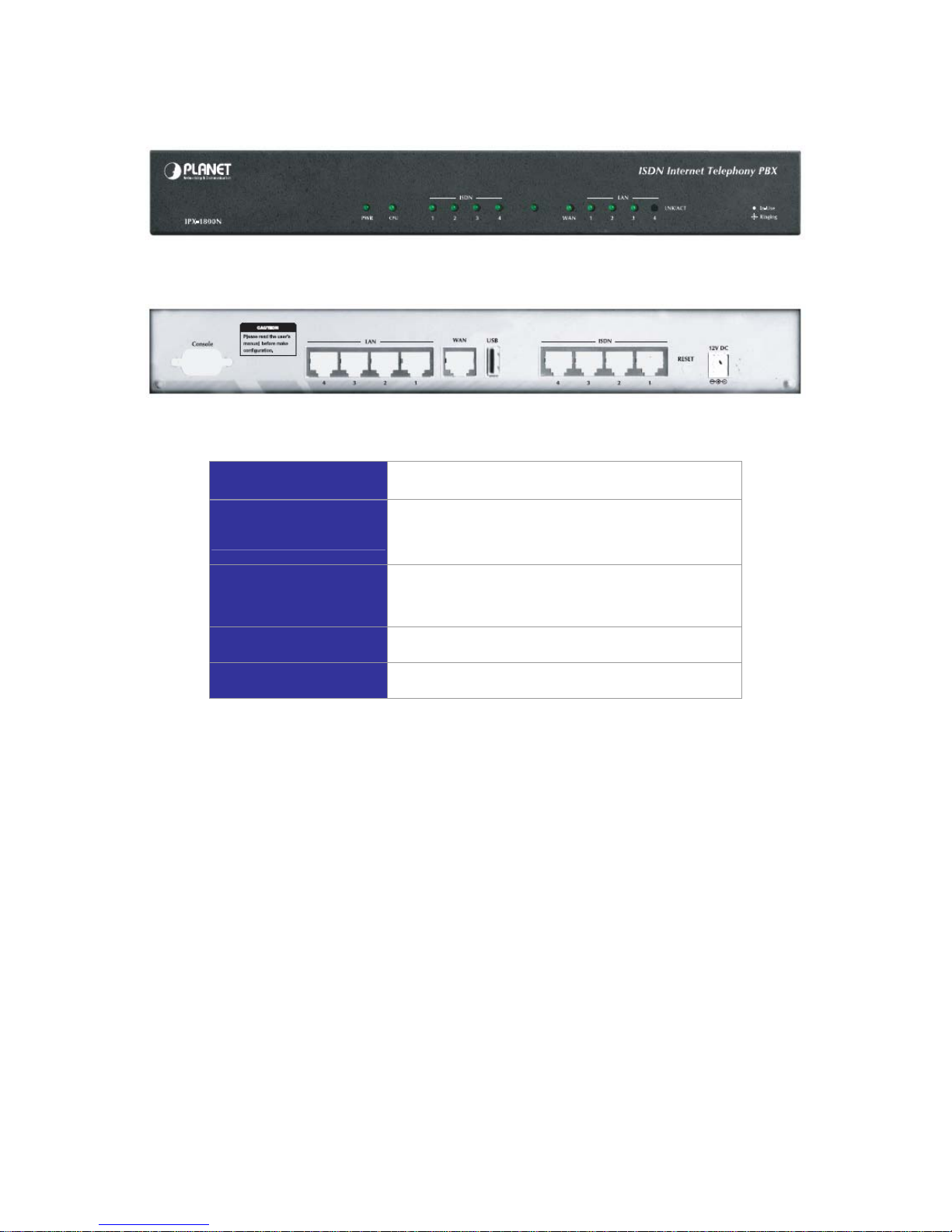
1.1 Physical Interfaces
Front Panel of IPX-1800N
Rear Panel of IPX-1800N
Power adapter
12V DC
Telephony interface ports
ISDN BRI TE ports are to be connected to NT points
from PSTN or other ISDN network-side devices.
USB ports
1 external port with compliance to USB 1.1/2.0. Plug in a
USB hard drive for voicemail backup from the internal one
WAN
Connect to a broadband modem or a WAN router
LAN
Connect to a LAN switch
Page 8
PLANET IP PBX user’s manual
2 System Configuration
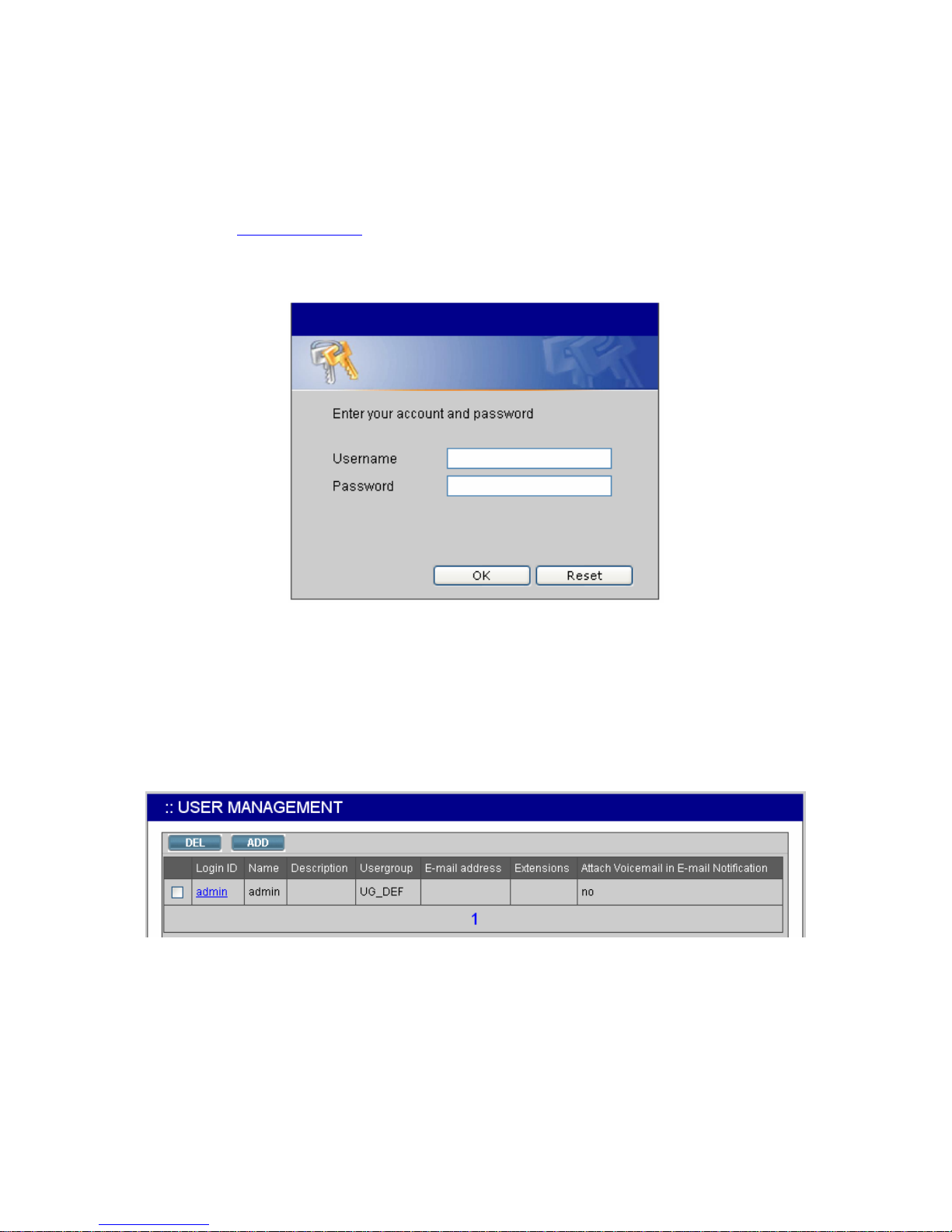
This section describes how to configure system parameters used by PLANET ISDN IP PBX. The
factory default of LAN IP address is 192.168.1.1. Connect to LAN port and the configuration Web
interface is at https://192.168.1.1/
. Once connected, the browser will ask for accepting a certificate.
Click Yes to see the home page. Type in the default administrator ID and password (both are admin)
to log in for administration.
The administrator password can be changed in the User Management -> User.
1. Click admin in the Login ID.
2. Change the password in Password.
3. Click UPDATE to change the password.
Note: For the system security, please change the password after the first log-in.
Page 9
PLANET IP PBX user’s manual
2.1 PBX System
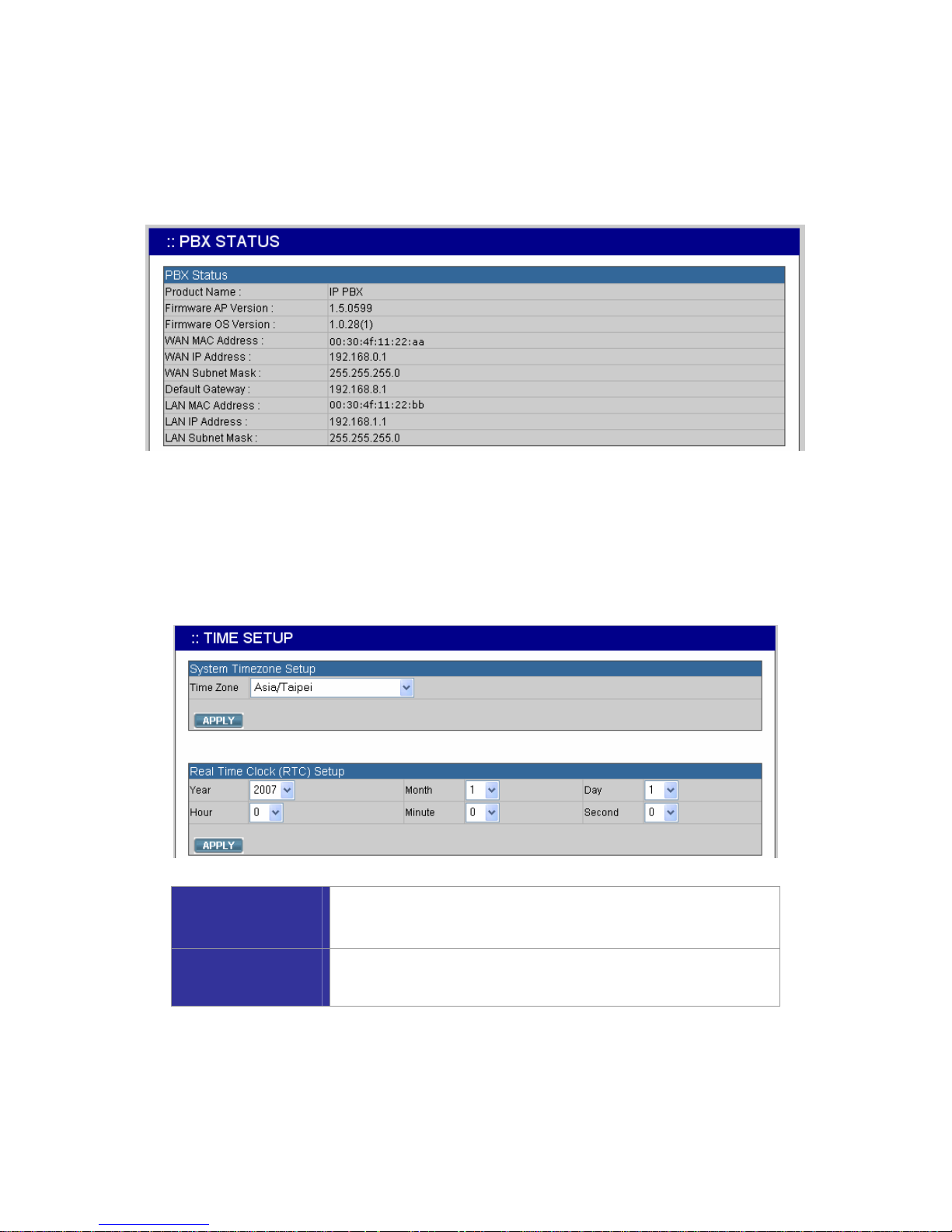
The PBX System page briefs IP PBX status to the administrator. Firmware versions, IP addresses of
WAN and LAN interfaces, and default gateway router are shown in this page. Click PBX System to
see the basic information of IP PBX.
2.2 Time Setup
The Time Setup page allows administrator to configure time zone and date for PLANET IP PBX. With
correct time setup, functions such as IVR, work time, and voicemail can present the actions at the
right time. Select System -> Time Setup to see the current setting of time zone and date.
System Time Zone
Click a region/country in the Time Zone list, and click APPLY in
System Timezone Setup.
Real Time Clock
(RTC) Setup
Click year, month, day, hour, minute, and second in the
correspondent list, and click APPLY in Real Time Clock Setup.
Note: When reset the time 15 minutes later than the time showed in RTC Setup, the system will ask
for re-login.
Page 10
PLANET IP PBX user’s manual
2.3 On-board WAN Setup
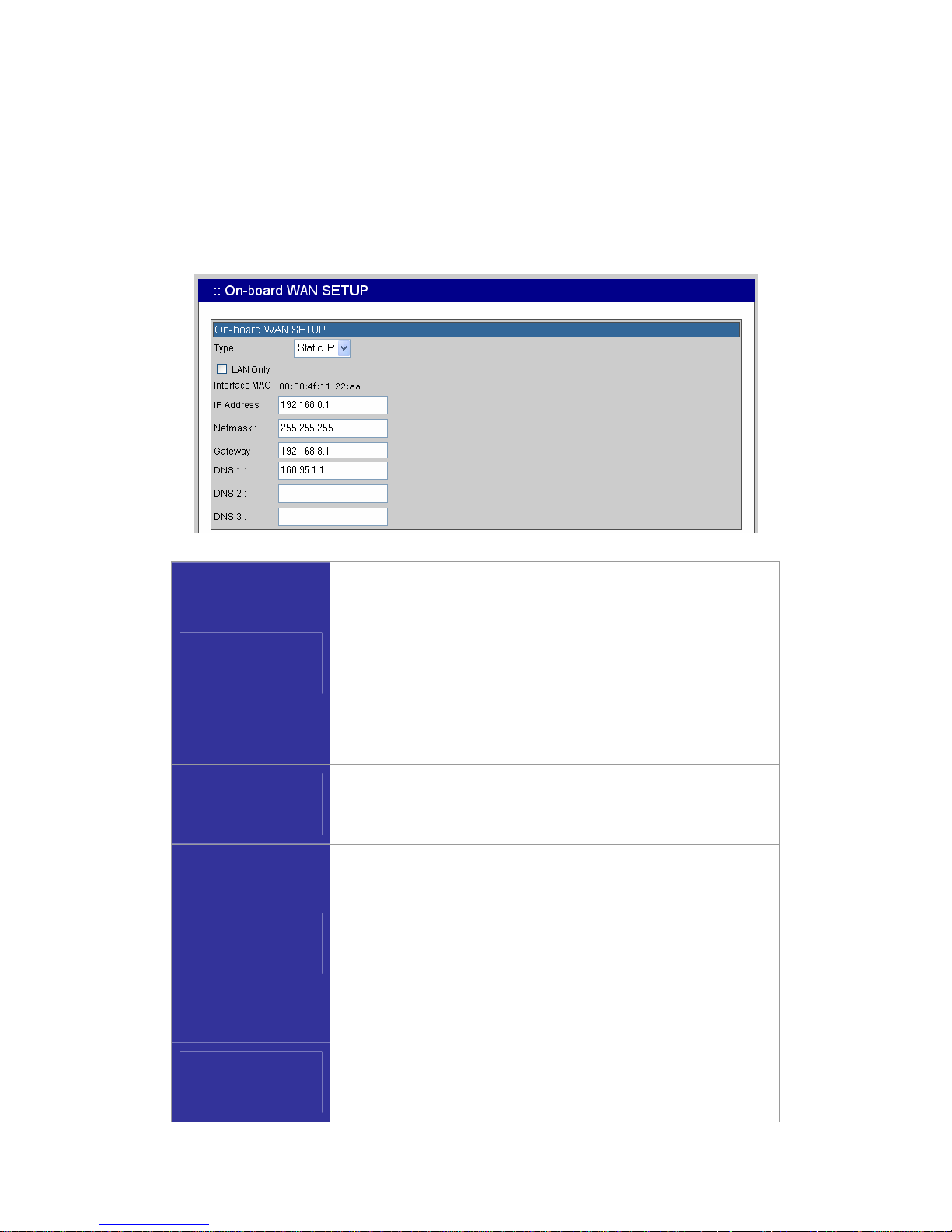
The On-board WAN Setup page allows administrator to configure WAN network interface for PLANET
IP PBX. Select System -> On-board WAN Setup, and the current setting of WAN network interface
is displayed, e.g. type, IP address etc. Unless the “LAN Only” is selected, you can choose one of the
three options, Static IP, DHCP, and PPPoE from the Type list for your configuration. Select LAN
Only check box to disable WAN and only default router and DNS settings are applicable.
Static IP
You can click Static IP in the Type list, and manually configure the
following information:
․ IP Address
․ Netmask
․ Default gateway IP address
․ Primary, secondary or third DNS servers
Click “APPLY” to submit.
DHCP
Simply click DHCP in the Type list, and click APPLY. The acquired
IP address, netmask, and default gateway information will show
when revisit this page later.
PPPoE
1. Click PPPoE in the Type list.
2. Enter a user name and its password in User Name and
Password boxes.
3. Click “APPLY” to submit.
The PPPoE dialing will start right away. When there is an active
connection, the page will show the acquired IP address, network
mask, and default gateway information.
LAN Only
Select LAN Only to disable WAN IP settings but allow the
configuration of default gateway and primary/secondary/third DNS
servers.
Page 11
PLANET IP PBX user’s manual
2.4 On-board LAN Setup
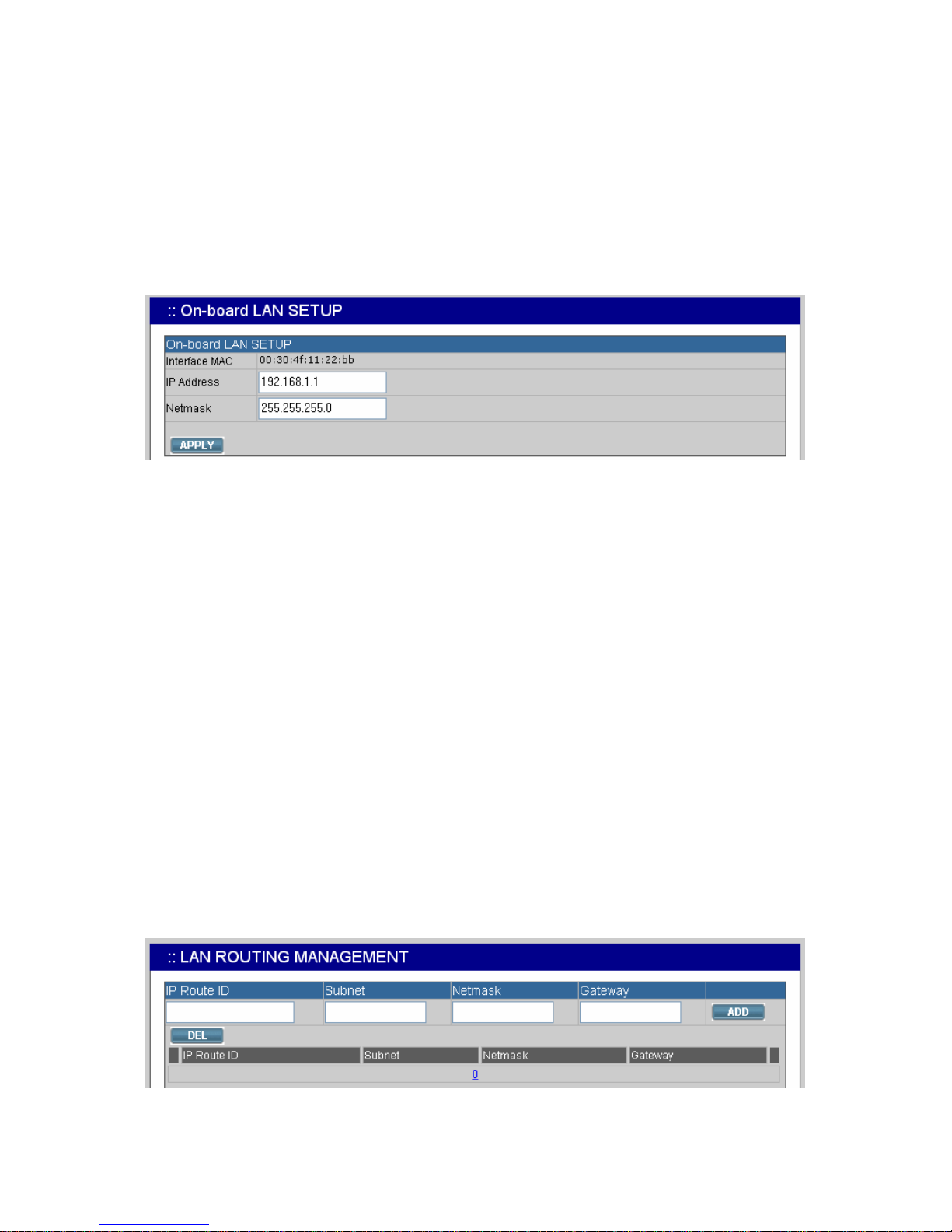
The On-board LAN Setup page allows administrator to configure LAN network interface for P LANET
IP PBX.
1. Select System -> On-board LAN Setup to see the current settings of LAN network interface.
2. Enter a new IP address and network mask.
3. Click “APPLY” to change the settings.
Note: By default PLANET IP PBX grants IP addresses to LAN devices via DHCP, and translates
those addresses into its W A N IP address for access beyond the LAN subnet. As a result,
modifying the system LAN IP subnet must also change DHCP pool and LAN routing (if any)
accordingly. After configuration, go to Service -> IP PBX Service, and click Restart to active
the changes.
2.5 LAN Routing
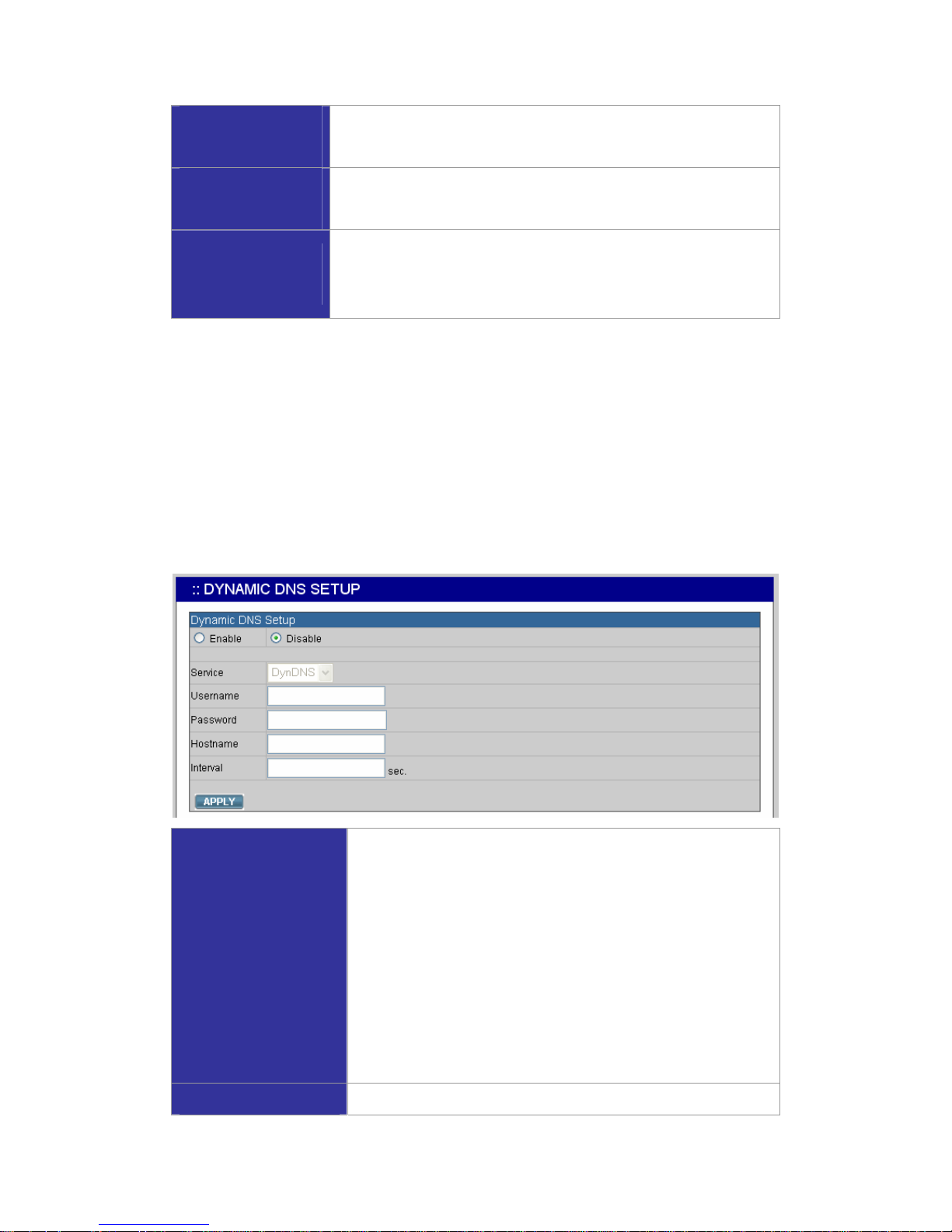
To enable static routing among LAN subnets, enter network information and the IP address of the
corresponding gateway in the IP PBX’s LAN. It is important to assure that the given gateway IP
address sits in the IP PBX’s LAN. Each subnet requires an entry even multiple subnets share the
same gateway, unless masking does the same. Examples are adding IP Route IDs net1 and net2 with
parameters 192.168.128.0/255.255.255.0, 192.168.129.0/255.255.255.0, shared gateway
192.168.1.254 respectively. Or, IP Route ID net1n2 with 192.168.128.0/255.255.254.0 and gateway
192.168.1.254 would do the same. Added routes enable routing immediately after clicking ADD.
However, the IP PBX Service needs to be restarted to regard calls from designated LAN subnets as
LAN traffic. Go to Service -> IP PBX Service, and click Restart to regard calls as LAN traffic.
Page 12
PLANET IP PBX user’s manual
Add a Route
1. Enter the IP Route ID, Subnet, Netmask, and Gateway.
2. Click ADD to have the newly added route in IP Rout ID.
Edit a Route
1. Edit the information in a row.
2. Click “APPLY” in the row to update the information.
Only Delete a Route
1. Select a route ID.
2. Click DEL to remove the route ID from the IP Route ID
column.
2.6 Dynamic DNS Setup
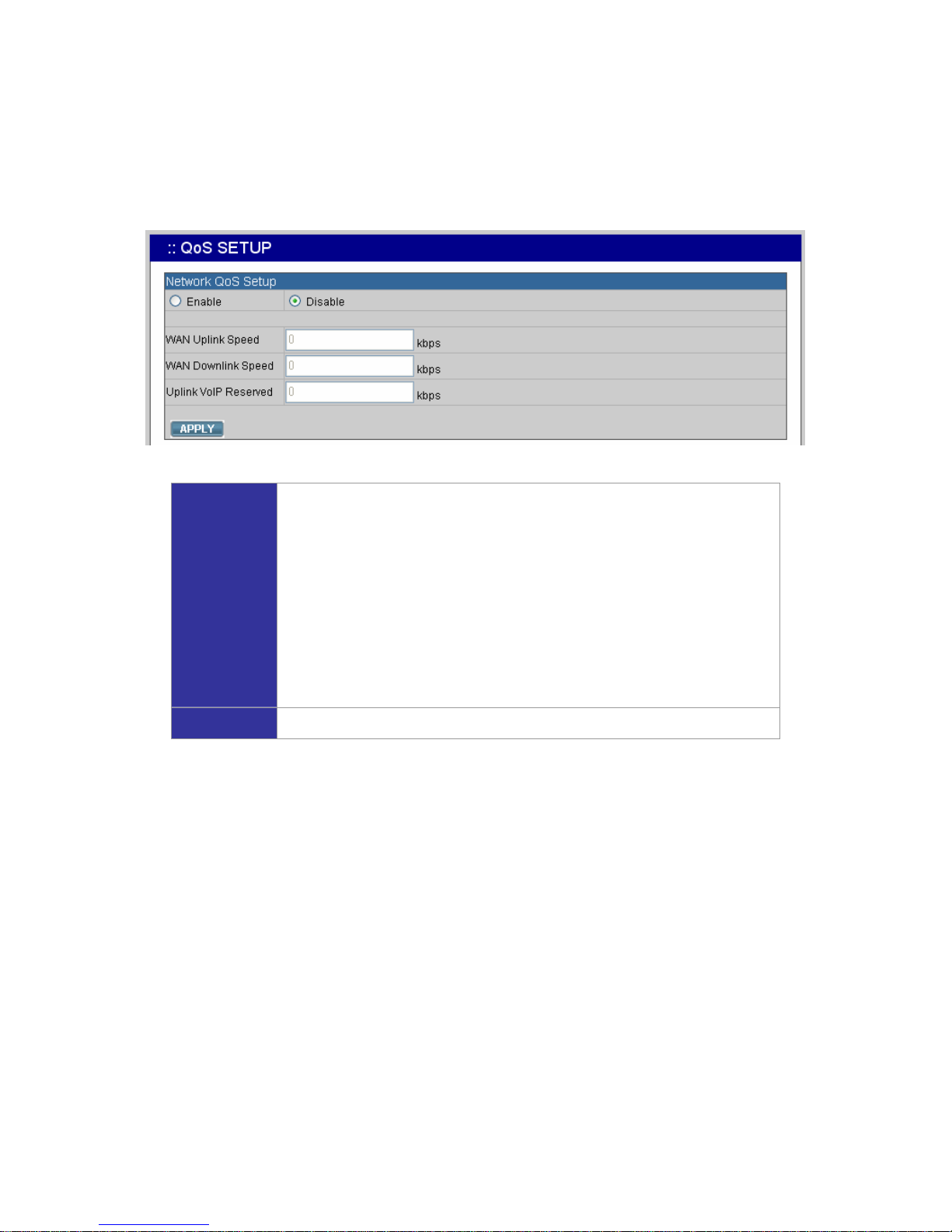
Dynamic WAN IP address causes difficulty for inbound connections from remote clients or IP PBX
systems. A popular work-around is to adopt domain names provided by Dynamic DNS service
providers and run a client on or behind the gateway router (or IP PBX). It is required to apply an
account and create a hostname in the account before configuration. Click Enable, give account
information and refresh interval to activate a Dynamic DNS client. The client then uses Username
and Password to access its account and update the Hostname with the latest WAN IP address at
DynDNS or 3322.net Service in Interval seconds periodically.
Enable Dynamic DNS
Typical hostname has a form of <hostname>.dyndns.org or
<hostname>.3322.net. The refresh interval is usually between
60 – 600 seconds depending on the volatility of WAN IP
assignment.
1. Click Enable.
2. Click DynDNS or 3322.net in the Service list.
3. Enter the Username, Password, Hostname, and
Interval.
4. Click APPLY.
Disable Dynamic DNS Click Disable, and then click APPLY.
Page 13
PLANET IP PBX user’s manual
2.7 QoS Setup
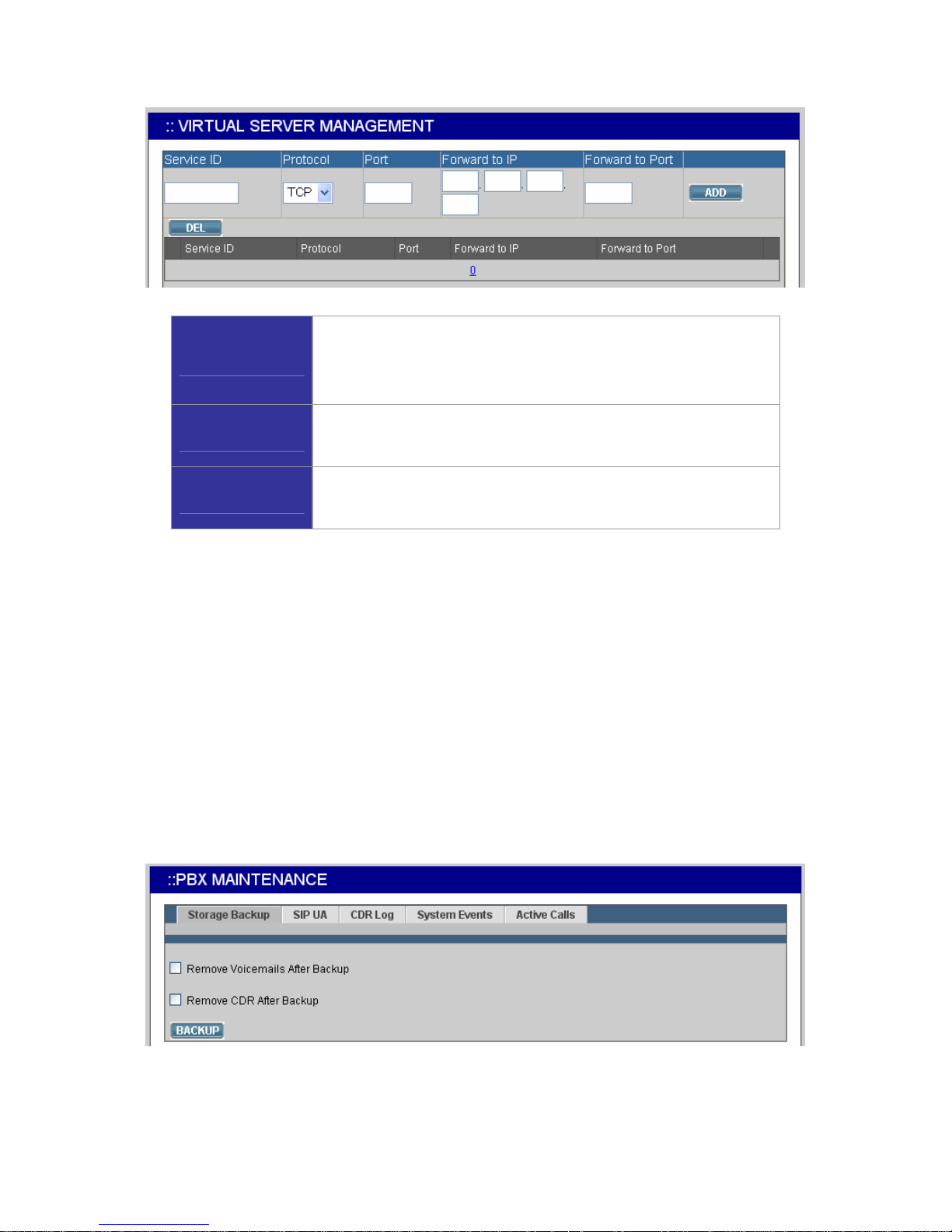
To assure the bandwidth reserved for the outgoing VoIP traffic over regular data traffic from LAN, the
QoS Setup page offers three parameters to characterize the WAN link. The default QoS setting is
disabled because these parameters must be correctly given according to the actual WAN speed.
Enable QoS
1. Click Enable
2. Enter the WAN Uplink Speed, WAN Downlink Speed, and Uplink
VoIP Reserved (bandwidth).
3. Click APPLY.
For a popular 2M/256K ADSL program, the WAN uplink speed would be
256 and the WAN downlink speed would be 2048. The Uplink VoIP
reserved could be, say, 192 out of the total 256 kbps to allow 2 concurrent
G.711 calls.
Disable QoS Click Disable, and then click APPLY.
2.8 Virtual Server
You can configure PLANET IP PBX as a virtual server for remote users to access services such as
the Web or FTP at your local site via Public IP Addresses. With proper settings, PLANET IP PBX can
automatically redirect inbound traffic from WAN to local servers configured with private IP addresses.
In other words, depending on the requested service (TCP/UDP) port number, the IP PBX redirects the
external service request to the appropriate internal server (located at one of your LAN's Private IP
Address). To enable access servers in LAN from a machine beyond WAN, select System -> Virtual
Server to configure port mappings. Service ID names the service. Protocol and Port specify the
TCP/UDP port number on WAN IP to be forwarded to the Forward to Port of Forward to IP in LAN.
Say 192.168.1.5 is a Mail Server to be seen from outside, one should configure TCP port 25 to be
forwarded to 192.168.1.5 port 25.
Page 14
PLANET IP PBX user’s manual
Add a Service
1. Enter the Service ID, Protocol, Port, Forward to IP, and
Forward to Port.
2. Click ADD to add the newly service in the Service ID.
Edit a Service
1. Change any information in a row.
2. Click APPLY in the row to update the information.
Delete a Service
1. Select a service ID.
2. Click DEL to remove the service from the Service ID.
2.9 Maintenance
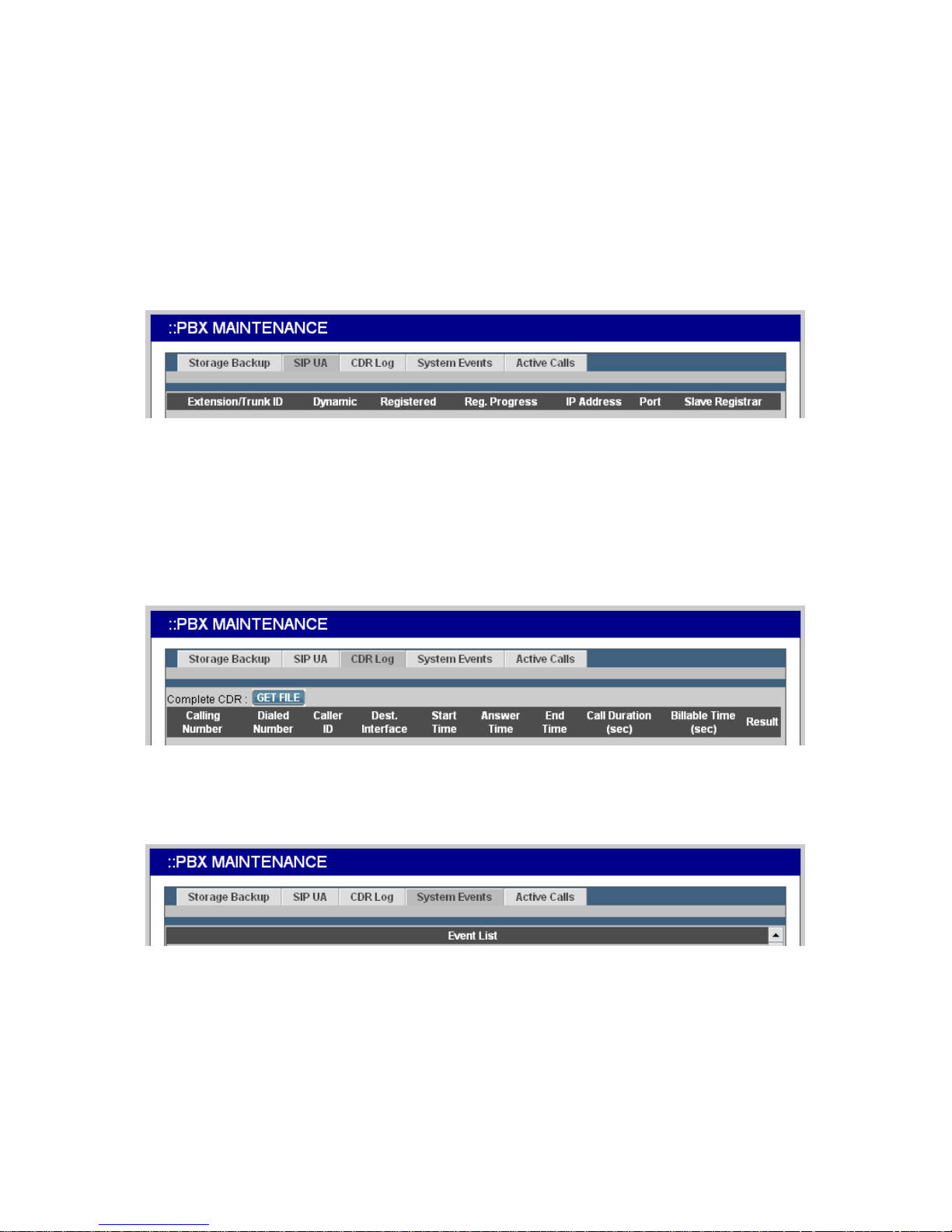
This page includes maintenance functions of IP PBX, including Storage Backup, SIP UA, CDR Log,
System Event, and Active Calls.
2.9.1 Storage Backup
To back up internal main storage, click BACKUP, and follow the instructions to insert the USB
connector of an external USB drive. Options include whether to keep or remove CDR and/or
voicemails after backup. After a confirmation of the insertion, backup starts a few seconds later if the
external USB drive is accessible and has enough free space. If the backup is successful, a new folder
will be created on the external drive. After the backup, remove the USB connector of the external
drive.
Page 15
PLANET IP PBX user’s manual
2.9.2 SIP UA
SIP UA lists the registration status of each client and remote IP PBX, and the IP Address/Port from
where they register. SIP trunk registrations, if any, also show at the end of the list. The Dynamic
column shows the listed IP address is dynamic or static. Reg. Progress is the response code and
message if registration has been attempted but not successful so far. Slave Registrar column is used
only under the stackable mode. It indicates with which slave box a SIP client is registered. Blank
means a client is registered with the master box locally.
2.9.3 CDR Log
The CDR(Call Detail Record) Log shows each call record including Calling and Dialed Numbers,
Caller ID, Destination Interface(trunk if outbound) in use, epochs when the call was made, answered
and ended, and which yield the total and billable durations. The last column denotes the disposition of
a call like answered or not.
2.9.4 System Events
Event log includes reported events from following system services: NTP, DNS, DHCP, and PPPoE.
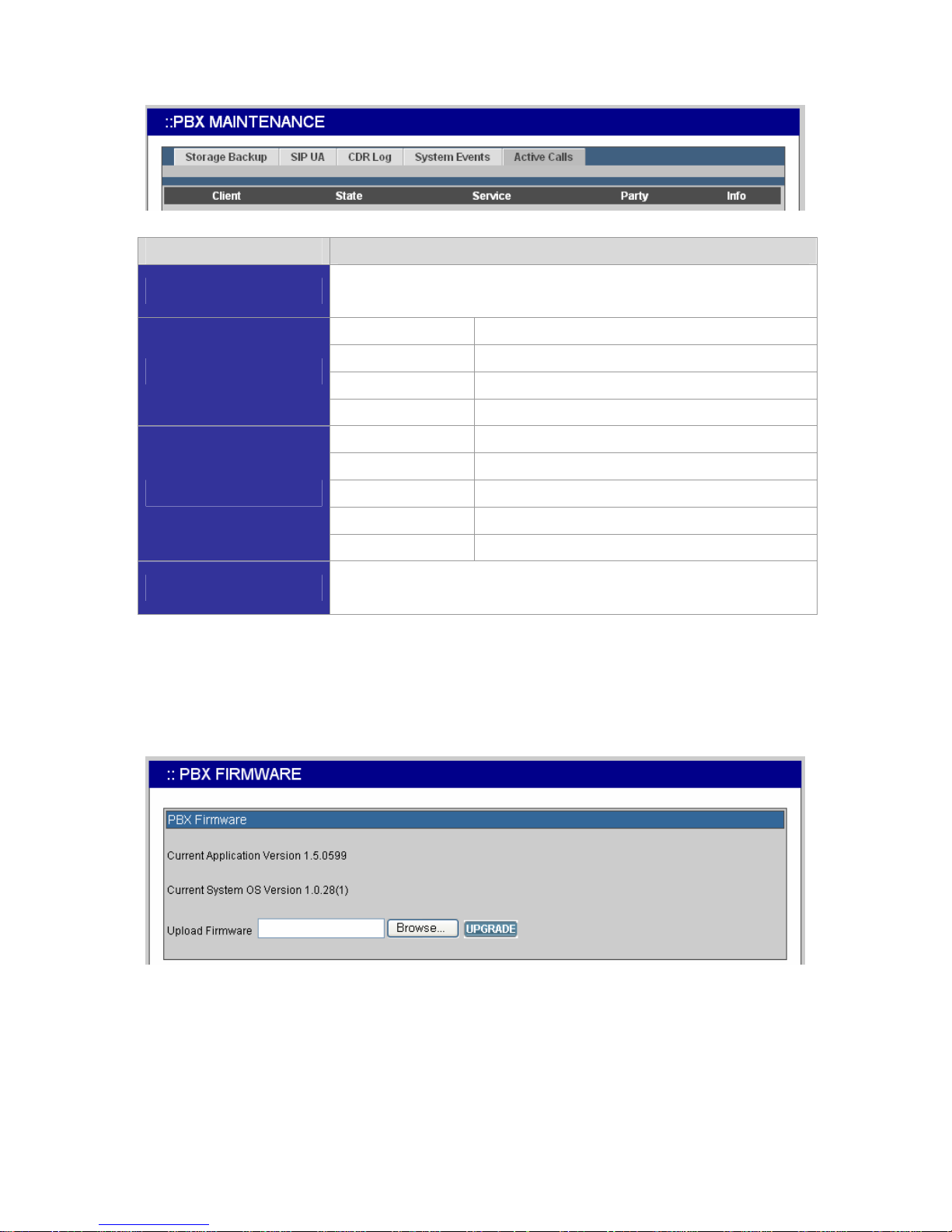
2.9.5 Active Calls
The Active Calls page shows current active calls. Columns Client and Party indicate the involved
extensions or trunks of a call. State shows the state of a call, while Service gives the current action of
the listed Client.
Page 16
PLANET IP PBX user’s manual
Field Description
Client
Show the caller or callee’s extension number, port number, or SIP trunk
ID.
Connected In the conversation.
Ring The client is a caller and is ringing a callee.
Ringing The client is a callee and is ringed by a caller.
State
Reserved FXS detects off-hook.
Dial The client is a caller.
Answer The client is a callee.
IVR Calls from FXO are picked up by Auto-Attendant.
Meet-me The client enters meet-me.
Service
Voicemail The client enters voicemail.
Party
Shows extension number, POTS number or SIP trunk ID that is talking
to this client.
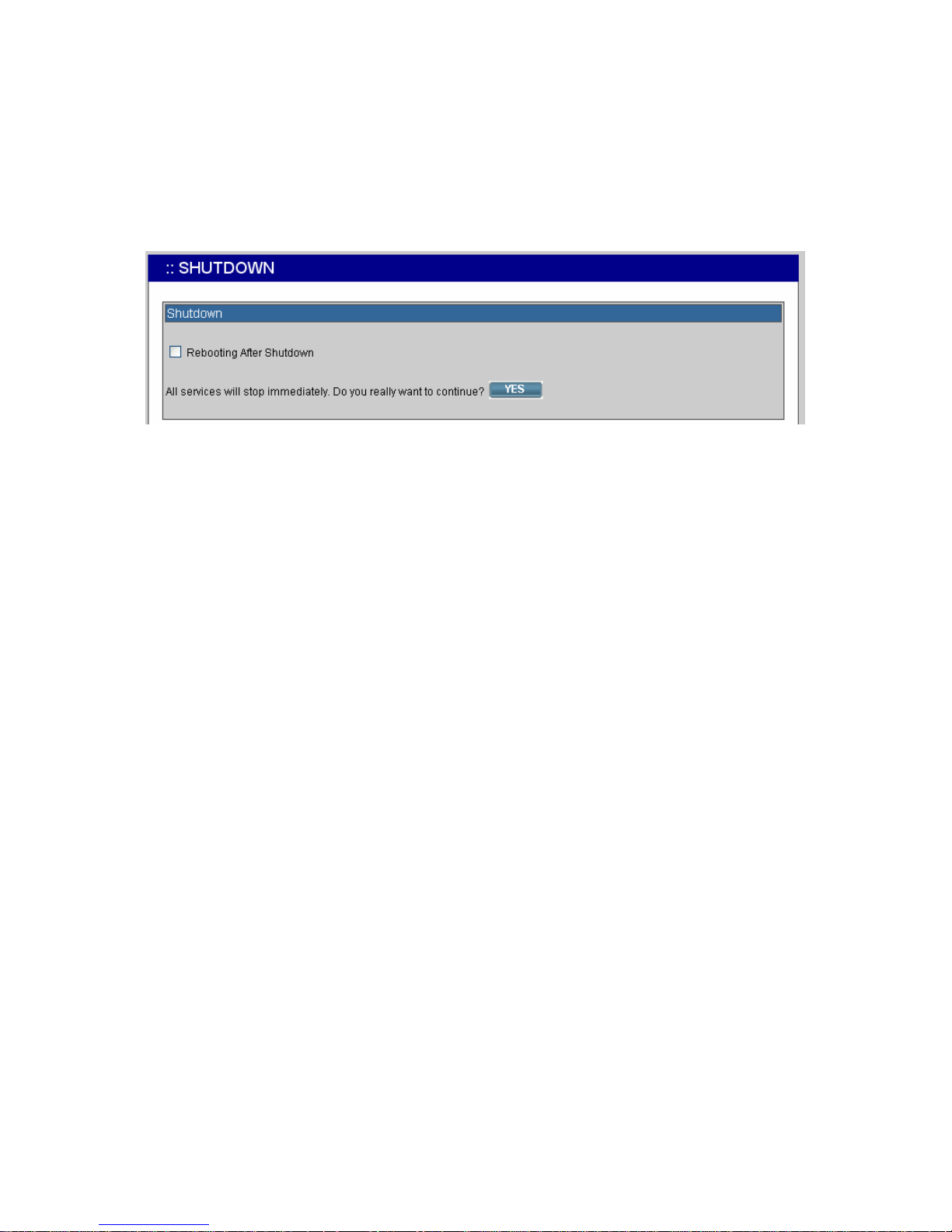
2.10 Firmware Upgrade
The version of the running PBX firmware could be found in System -> Firmware Upgrade. To
upgrade current firmware, click Browse to locate a release file obtained from the vendor, and click
UPGRADE to have the latest version of PBX firmware.
Note: Do not change the firmware file name, otherwise the system will reject it.
Page 17
PLANET IP PBX user’s manual
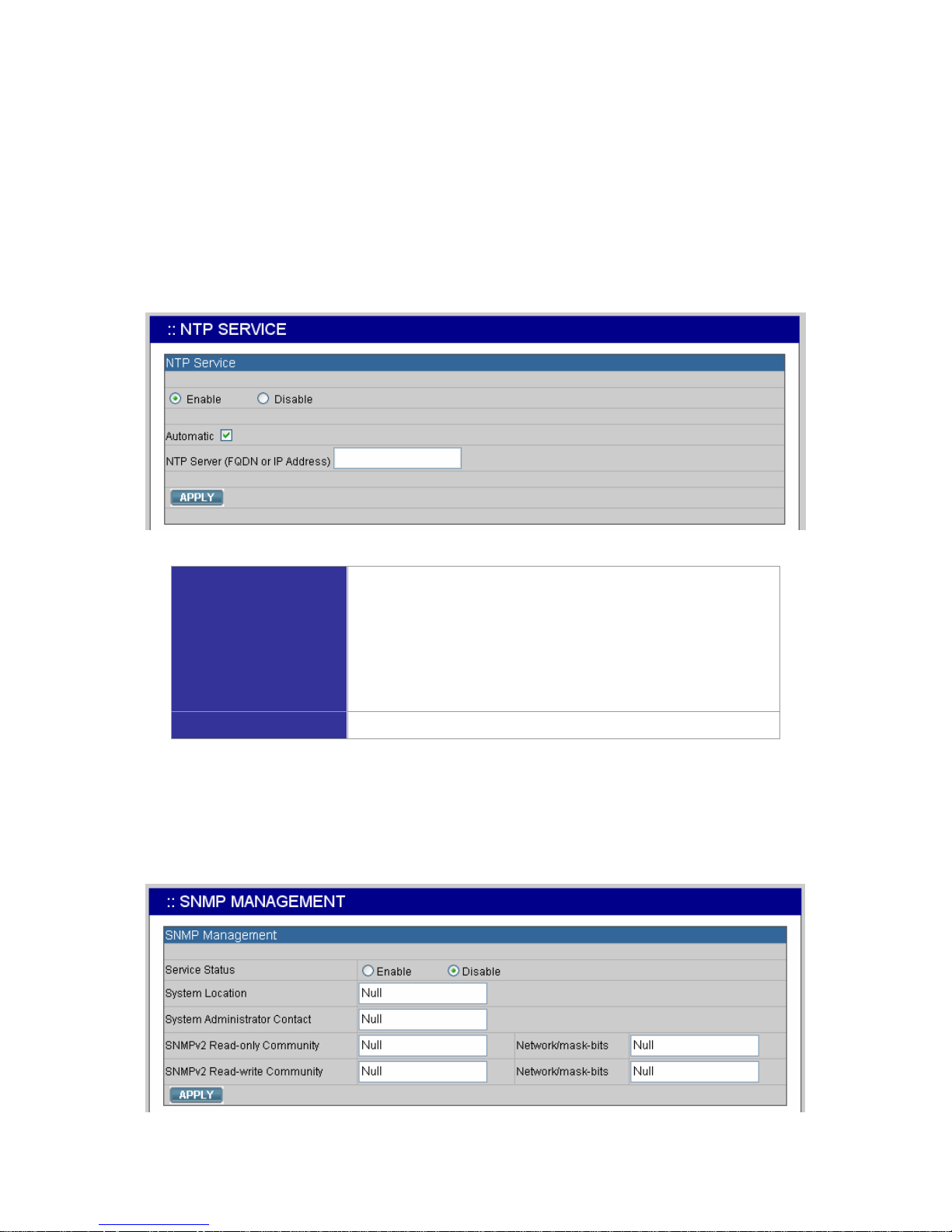
2.11 Shutdown
In System -> Shutdown, you can shutdown the machine by clicking YES, or reboot the machine by
selecting the Rebooting After Shutdown check box and clicking YES. In case the software reboot
fails, you can also press the hardware Reset button. It is advised to shut down IP PBX system before
a power-off.
2.12 Logout
Logout button locates at the top-left of the webpage. Administrator can logout, and go back to the
login page by clicking it.
Page 18
PLANET IP PBX user’s manual
3 Service Configuration
This section describes details to configure various services built in the PLANET IP PBX.
3.1 NTP Service
Select Service -> NTP Service to specify a NTP server for network time synchronization. You can
enable or disable NTP service at any time.
Enable NTP Service
1. Click Enable.
2. Select Automatic check box to use server pool at
pool.ntp.org; or, enter a fully qualified domain name or the
IP address of a NTP server.
3. Click APPLY.
Disable NTP Service Click Disable, and click APPLY.
3.2 SNMP Service
Select Service -> SNMP Service to specify Simple Network Management Protocol (SNMP)
parameters for network status retrieval. You can enable or disable SNMP service at any time.
Page 19
PLANET IP PBX user’s manual
Enable SNMP Service
1. Click Enable.
2. Enter System Location, System Administrator Contact,
SNMPv2 Read-only Community with allowed network
specifications, and also those of the Read-write
Community.
3. Click APPLY.
Disable SNMP Service Click Disable, and click APPLY.
3.3 STUN Service
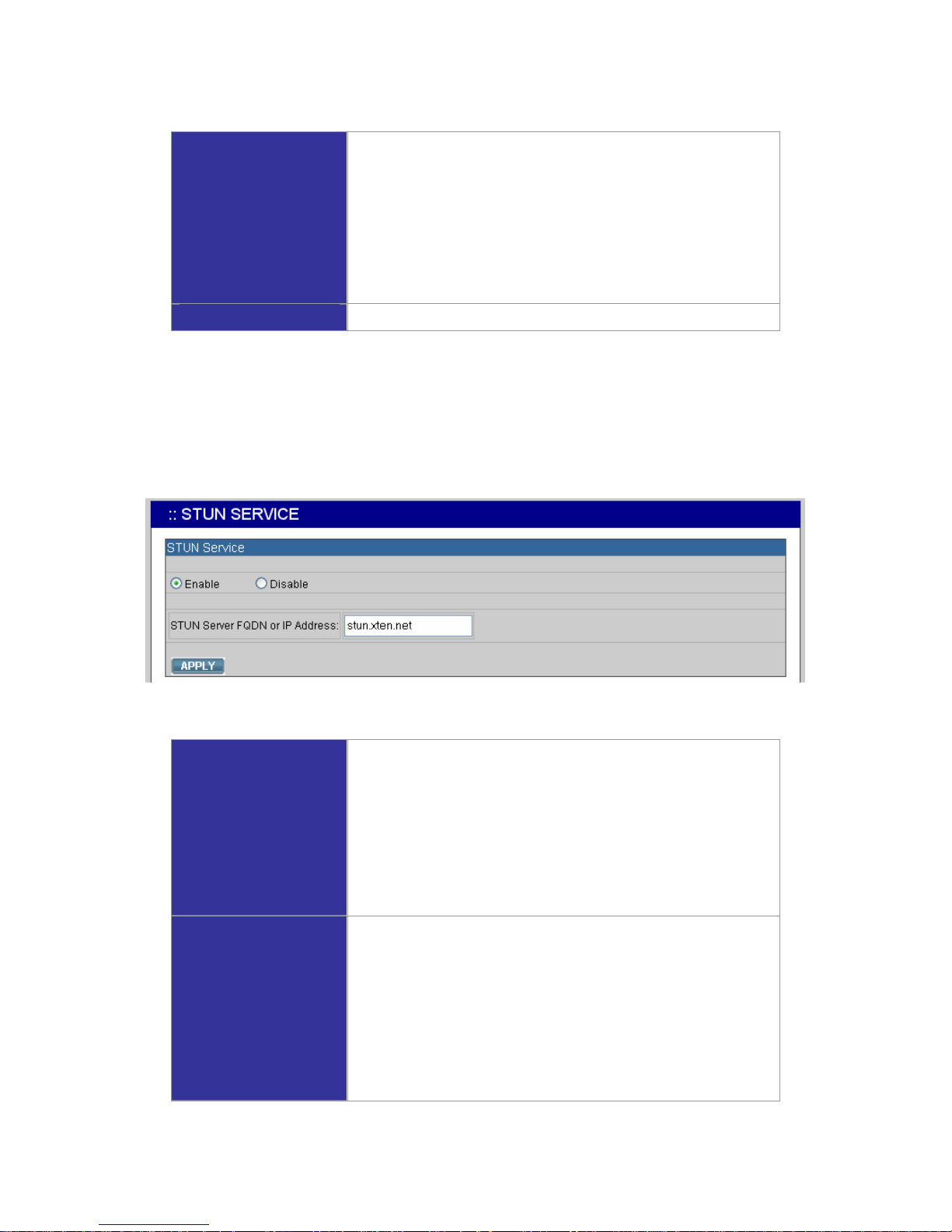
PLANET IP PBX has a built-in STUN client to solve NAT problems. Select Service -> STUN Service
to specify a Simple Traversal of UDP through NATs (STUN) server for NAT traversal. You can enable
or disable STUN Service at any time.
Note: You have to restart the IP PBX Service, after changing the STUN setting.
Enable STUN Service
1. Click Enable.
2. Enter a fully qualified domain name or the IP address of a
STUN server.
3. Click APPLY.
4. Go to Service -> IP PBX Service, and click RESTART to
reflect the changes.
Disable STUN Service
Click Disable, enter the fully qualified domain name or the static
IP address of the external WAN interface and then click APPLY.
Usually this address refers to the static WAN IP address if there
is a NAT device between the IP PBX and the Internet. If the
WAN port of IP PBX directly connects to Internet or it is unused,
leave the address blank. Go to Service -> IP PBX Service, and
click RESTART to reflect the changes.
Page 20
PLANET IP PBX user’s manual
3.4 TFTP Service
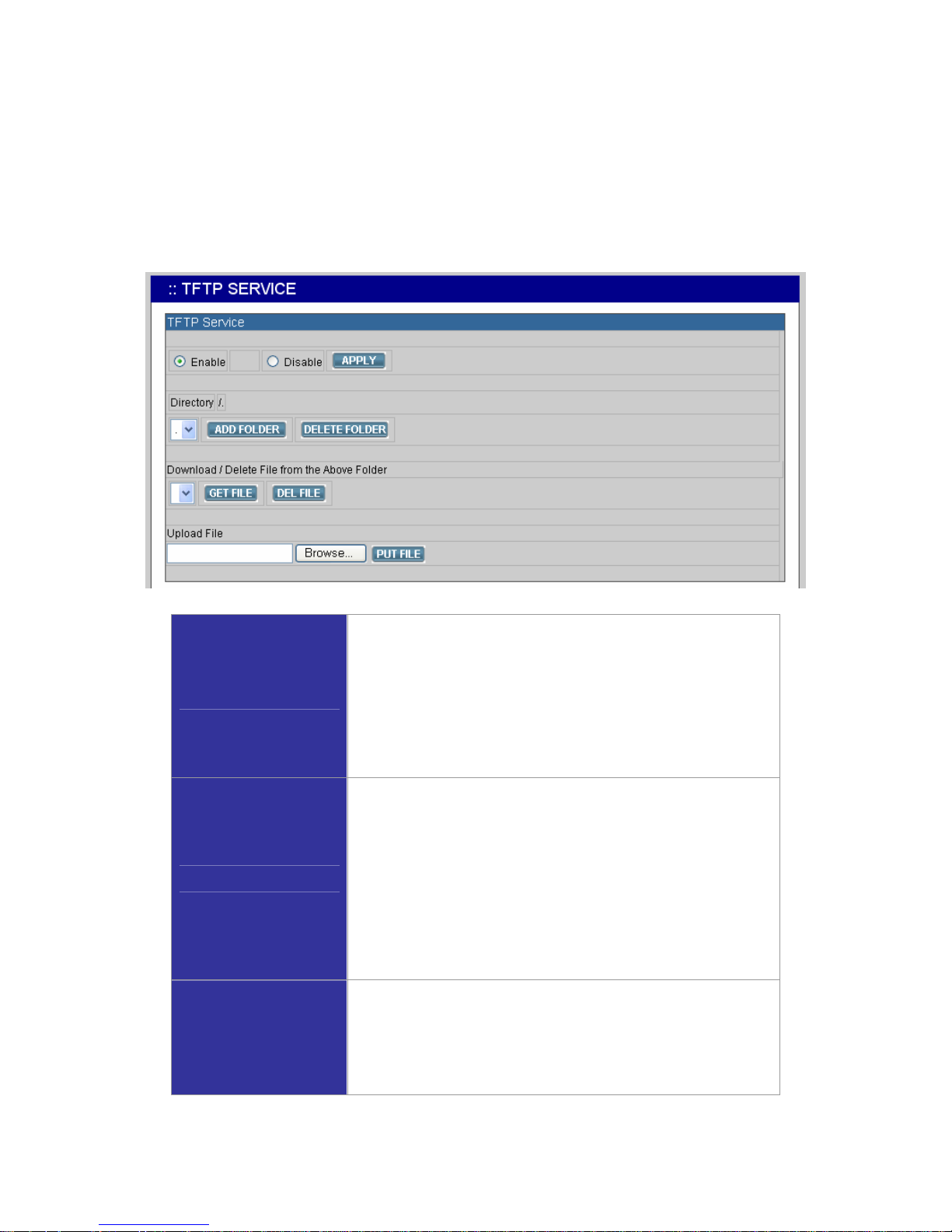
Select Service -> TFTP Service to view the current status of TFTP Service. You can enable or
disable TFTP Service at any time.
Enable TFTP Service: To click Enable, and then click APPLY to manage files, e.g. upload and
download files to and from the IP PBX. Uploaded files can then be retrieved through TFTP Service.
Change Directory
Current directory is shown in the field on the right side of
Directory, for instance, it is /.at the beginning. Click a directory
in the Directory list to change to a different folder.
Note: The default directory is /. Initially, you may not be able to
change the directory, since no folder is created under /.
yet.
Add a Folder
1. Click a directory under which you want to add a new folder
in the Directory list.
2. Click ADD FOLDER.
3. Enter a folder name in the pop-up dialog box, e.g.
myfolder.
4. Click OK to see the newly added folder in the Directory
list, e.g. /myfolder/.
Delete a Folder
1. Click a directory of a folder in the Directory list.
2. Click DELETE FOLDER to remove the folder from the
Directory list.
Note: A folder cannot be deleted if there is still file inside.
Page 21
PLANET IP PBX user’s manual
Download a File
1. Click a directory in the Directory list.
2. Click a file in the Download / Delete File from the Above
Folder list.
3. Click GET FILE to download the file.
Delete a File
1. Click a directory in the Directory list.
2. Select a file in the Download / Delete File from the
Above Folder list.
3. Click DEL FILE to remove the file.
Upload a File
1. Click a directory in the Directory list.
2. Click Browse.
3. Select a directory in the Find list, and then a file.
4. Click Open.
5. Click PUT FILE to upload the file.
Now, the uploaded file should appear in current directory and is
displayed in the Download / Delete File from the Above
Folder list.
Disable TFTP Service Click Disable, and then APPLY.
3.5 DHCP Service
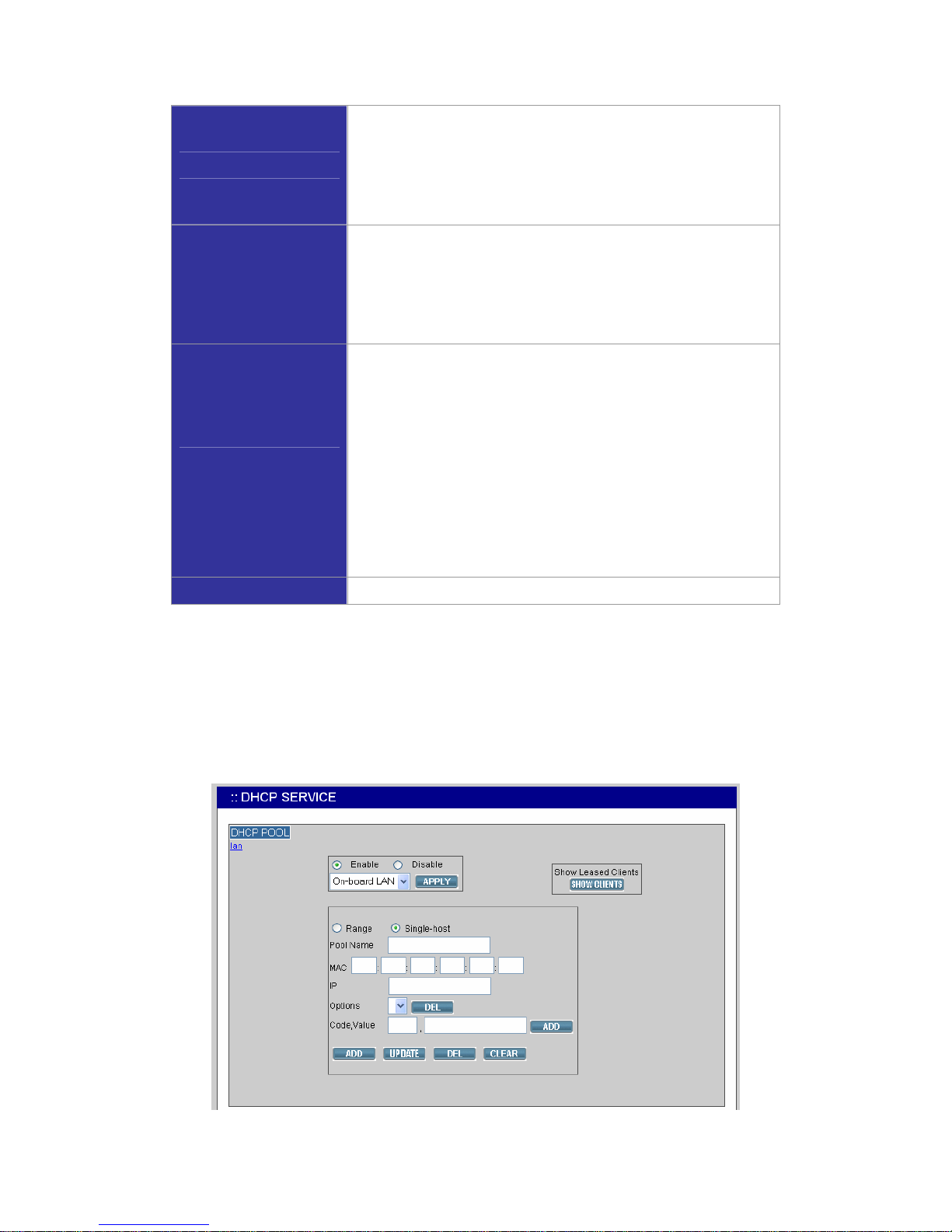
Select Service -> DHCP Service to view the current status of the DHCP Service. You can enable or
disable the DHCP Service at any time.
Enable DHCP Service: To click Enable, choose the main interface offering addresses, and then
APPLY to configure DHCP settings.
Page 22

PLANET IP PBX user’s manual
Note: If the IP PBX was shut down abnormally, Select Service -> DHCP Service and click APPLY, or
Go to Service -> IP PBX Service, and click RESTART to active the DHCP service.
Add DHCP Range
1. Click CLEAR.
2. Enter a pool name (must have an alphabet initial) in Pool
Name.
3. Select Single-host to enter an IP address of the host with
MAC, if the binding is intended for a specific host only.
4. Enter a DHCP range of addresses available for lease in IP.
The right address box will not show if Single-host is
selected.
5. Optionally, DHCP options
1
could be configured by
entering an option code and value in Code,Value and click
ADD. The new DHCP option will show in the OPTIONS
list. To delete an option, choose it from the OPTIONS list
and click DEL after the box.
6. Click ADD at the bottom of the page to commit changes.
You can see the newly added DHCP POOL displayed in the
DHCP POOL list.
Edit DHCP Range
1. Click any pool name in the DHCP POOL list to see the
settings on the right.
2. Edit the settings.
3. Click UPDATE to change the settings.
Delete DHCP Range
1. Click any pool name in the DHCP POOL list.
2. Click DEL to remove the pool name from the DHCP POOL
list.
Show Clients
Click SHOW CLIENTS to see all leased LAN IP addresses and
client details.
Disable DHCP Service Click Disable, and click APPLY.
1
Refer to RFC 2132 for the details of available DHCP options.
Page 23

PLANET IP PBX user’s manual
3.6 IP PBX Service
In Service -> IP PBX Service, you can click the Service & Configuration tab to reload, backup,
restore, restart or revert the IP PBX configuration, or click the Advance tab for the IP PBX parameters
settings.
3.6.6 Service & Configuration
Select Service -> IP PBX Service, and then click the Service & Configuration tab.
Reload IP PBX
Configuration
Click RELOAD, and IP PBX will reload the configuration once
there is no active call. If there is any active call, it will retain up
to 3 minutes, and then IP PBX will reload. This is the most
frequently used function in this page since any IP PBX
configuration change has to be reloaded to take effect.
Backup IP PBX
Configuration
Click BACKUP, and IP PBX archives and encrypts current
configuration into a time-stamped backup file under tftpboot root
directory. To secure configuration files, download them to a
local host through the GET FILE function in Service -> TFTP
Service once a while. Clear PBX Settings Only check box,
both PBX and system (interfaces and services) settings will be
archived in the backup file.
Note: Do not change the configuration file name, or the
RESTORE function will reject the configuration file.
Restore IP PBX
Configuration
Click a configuration backup file in the list, click RESTORE, and
IP PBX will restore the configuration as current setup. Go to
Service -> IP PBX Service, and click RESTART to activate the
Page 24

PLANET IP PBX user’s manual
settings.
Restart IP PBX
Configuration
Click RESTART, and the IP PBX Service will restart completely.
Currently active calls will be disconnected immediately. This
function is rarely required unless the network setting has been
changed, or the service operates abnormally without
problematic configuration could be identified.
Revert IP PBX
Configuration
Click REVERT, and IP PBX will erase current IP PBX settings
and revert configuration back to the factory default. Note the
reversion affects IP PBX service only, but not other system
services such as DHCP, TFTP, and NTP. The backup IP PBX
configuration files under TFTP remain intact after reversion, so
that one can restore to a specific time if a backup file had been
generated then.
To revert the whole system back to the factory default as much as possible, hold the hardware Reset
button for 10 seconds. Since this will wipe out almost everything generated by the user, all system
interfaces and services must be configured from scratch again if no appropriate backup configuration
could be restored. Note that such reversion will not erase backup configurations and existing
voicemails. Backup configuration files could be deleted in the TFTP Service page and voicemails
could be deleted in the Maintenance page.
3.6.7 Advance
Select Service -> IP PBX Service, and then click the Advance tab to configure IP PBX parameters.
After the configuration, go to Service -> IP PBX Service, and click RESTART to activate changes.
Page 25

PLANET IP PBX user’s manual
Field Description
PBX SIP Port
Specify the UDP port where the SIP service listens on.
RTP Port Range
Limit the UDP ports used by the IP PBX for media
transport.
) The port range needs to have at least equals to the
(number of extensions (also count shared-lines) +
number of SIP trunks (also count trunk terminals)) *
2. If selecting Enable Video Codec, the total amount
needs to multiply by 2 to have the least requirements
for RTP port range.
Max/Default Expiration Time
Guard and advertise SIP registration respectively.
PBX Caller ID
The default Caller ID for an unknown incoming call.
Enable Video Codec
Select if there will be video clients registering to the
system
Support Devices Multiplex Call-ID
Select to force discrimination of SIP tags. Do this only
when there is such a client device in the system and other
devices supporting the same. Otherwise, one may find the
special device only got registered with this option but
other clients or even SIP trunks fail due to such change.
Clear the box if you are not sure.
Max Active Users
Enter a number for registration admission control to limit
the maximum number of active registered clients.
Max Active Calls
Enter a number for call admission control to limit the
maximum number of concurrent calls.
Max Wireless Calls
Enter a number to limit the calls made by explicitly
specified wireless extensions.
IP TOS Value
Set the TOS value in the IP header of RTP packets
originated from IP PBX.
Disable WAN Bandwidth Saver
Select to disable attempts to use low-bit-rate codec
(G.729A or G.723.1) for remote parties.
Enable DNS SRV Resolution
Select to enable looking up IP of dynamic clients or trunks
by DNS Service records before their successful
registrations.
Page 26

PLANET IP PBX user’s manual
4 IP PBX Configuration
This section introduces steps to provision the IP telephony part of the IP PBX. Note that reloading
configuration is required in order to make new configuration effective
2
.
4.1 User Configuration
A user is a logical entity in IP telephony which associates extensions with a usergroup. It also
propagates its attributes such as e-mail and voicemail PIN to extensions. Usually a user refers to a
real person who has a name and e-mail; however, one can always create virtual users to associate
with public extensions. For example, extensions in reception, break room, and lab areas.
The User Management page allows the administrator to manage users in the IP telephony network.
Select User Management -> User, and one can add, edit, and delete users. Go to Service -> IP PBX
Service, and click RELOAD to activate changes.
Add a User
1. Click ADD.
2. Enter settings shown in Table 4.1.
3. Click ADD.
4. Click BACK to see the newly added user in the Login ID.
Edit a User
1. Click a user in the Login ID.
2. Edit settings shown in Table 4.1.
3. Click UPDATE.
Delete a User
1. Select a Login ID.
2. Click DEL to remove the user from the Login ID.
2
Please refer to 0 for details.
Page 27

PLANET IP PBX user’s manual
Table 4.1 User configuration Settings
Field Description
Login ID
A unique ID containing alphabets, numbers, and
underscore only without spaces; 32 characters maximum.
This is the ID for personal configuration through IP PBX
Web management.
Name
Name of the user, either a real or a virtual one, e.g. Alice
Lee or Conference Room.
Password
Password for the user to access IP PBX Web management.
Description
Arbitrary description information.
E-mail Address
E-mail address of the user for voicemail notification.
Attach Voicemail in E-mail
Notification
Select to enclose the message received in the notification
e-mail as an attachment.
Usergroup
Select the usergroup this user belongs to.
) If there is not any appropriate usergroup to select, come
back later to revise this selection if no appropriate
usergroup could be chosen for now.
Extensions
Show the extensions associated with this user.
4.2 User Group Configuration
A usergroup is a logically grouping of users and their privileges. For instance, one could have couple
of usergroups in an IP telephony network, e.g. Sales, Marketing, Administration, Accounting, and
Engineering, etc. Each usergroup associates with a set of PBX features and call routing scope s. In
other words, all users in the same usergroup share the same reachability of PBX features and final
destinations.
The User Group Management page allows the administrator to manage usergroups. Sele ct User
Management -> User Group, and one can add, edit, or delete usergroups. Go to Service -> IP PBX
Service, and click RELOAD to activate changes.
Page 28

PLANET IP PBX user’s manual
Add a User Group
1. Enter a usergroup name beside the ADD button, and then
click ADD.
2. The name will show in Group ID.
3. Click the name in Group ID to view the edit page.
4. Enter settings shown in Table 4.2.
5. Click SET to save the settings, and click BACK to return to
the USERGROUP MANAGEMENT page.
Now, you can see the newly added usergroup displayed in the
Group ID.
Edit a User Group
1. Click a usergroup name in the Group ID.
2. Edit settings shown in Table 4.2.
3. Click SET.
Delete a User Group
1. Select a Group ID.
2. Click DEL to remove the usergroup from the Group ID.
Table 4.2 Usergroup Configuration Settings
Field Description
Group ID
A unique group name containing alphabets, numbers, and
underscore only without spaces; 32 characters maximum.
Description
Arbitrary description information.
Associated Trunks
Select outbound SIP trunks and PSTN trunks accessible by
this usergroup. Note the order matters the hunting
sequence in run-time.
Group ID: The default number is “0”. A trunk with Group ID
“0” does not form a balance group with any other trunks in
Group 0. If Group ID is 1~9, trunks with the same Group ID
form a usage balance group.
Weight: the weight of a trunk to be selected in a trunk
balance group for an outgoing call.
) Trunks with the same group ID must be put together, or
the function will not work.
) If there is not any appropriate SIP trunk and PSTN trunks
to select, come back later to revise selection once
trunks have been created.
Page 29

PLANET IP PBX user’s manual
Reachable User Groups
Select other usergroups reachable from this usergroup. By
default, only users in the same usergroup can reach one
another.
) If there is not any appropriate usergroup to select, come
back later to revise this selection, once more
usergroups have been created.
Associated PBX Features3
Select PBX features enabled to this usergroup. Here vm
stands for Voice Mail, mm for Meet-me Conference,
parkedcalls for Call Parking, and operator for operator
service.
) Most features have to be configured to function correctly.
Remember to examine the settings of selected features
before activating current configuration.
Member List
Show the users associated with this usergroup.
) If there is not any appropriate user to select, come back
later to select, once one or more users have been
created and associated with this usergroup.
4.3 Device Configuration
A device could be an IP phone, gateway, analog telephone adapter, or even another IP PBX, etc. It
has one or more extensions to be registered to the IP PBX.
4.3.8 IP Phone
The DEVICE PHONE MANAGEMENT page lets the administrator to create IP Phone devices. Before
a device can be reached from the IP PBX, the same account information has to be programmed into
the device through the configuration interface enabled by the device. Select Device -> IP Phone to
add, edit, and delete devices. Go to Service -> IP PBX Service, and click RELOAD to activate
changes.
3
Please refer to 5 for details.
Page 30

PLANET IP PBX user’s manual
Add a Device
1. Enter a device name in the Device ID box, and a URL in the
Device Administration URL box.
2. Click ADD to see the newly added device in the Device ID.
Edit a Device
Once create the device, you can modify its information through the
following steps.
1. Modify the Device Administration URL and click LINK as a
shortcut to the device administration URL.
2. Click EDIT to see the Enable Automatic Client Configuration
(ACC) page. Table 4.3.1 is a reference for detailed ACC
settings which is used for auto-configuring IP phones. One can
specify the MAC address and audio preferences of the phone.
Note that for phones using HTTP for auto-configuring, DHCP
setting needs a new option 151 with a value of http://<IP PBX
LAN IP>/tftpboot/ in the Code,Value box in Service -> DHCP
Service. No extra settings needed if the phone uses TFTP for
auto-configuring.
3. Click ENABLE to see Enable shows in the Auto Client Conf
column. Click EDIT and then DISABLE to disable the function.
Delete a Device
1. Select a Device ID.
2. Click DEL to remove the device from the Device ID.
Table 4.3.1 ACC (Automatic Client Configuration) Settings
Field Description
Device
A unique ID containing alphabets, numbers, and
underscore only without spaces; 32 characters maximum.
Vendor Prefix
Ask your IP Phone vendor for the Prefix.
MAC Address
MAC address of the device.
Supplementary Configuration
Specify if provided by the phone.
Codec Preference
Preference order of supported codec and packet times of
the phone.
Enable Voice Activity Detection
(VAD)
VAD is a technique that detects absence of audio and
conserves bandwidth by preventing the transmission of
"silent packets" over the network.
) Select if your IP Phone supports VAD.
DTMF mode
Choose a DTMF mode used by the phone
Page 31

PLANET IP PBX user’s manual
4.3.9 Extension of IP Phone
The EXTENSION MANAGEMENT page lets the administrator to create extensions. Select Device ->
Extension of IP Phone, and one can add, edit, and delete extensions. Go to Service -> IP PBX
Service, and click RELOAD to activate changes.
Add an Extension
1. Click ADD to set an extension.
2. Enter settings shown in Table 4.3.2.
3. Click ADD.
4. Click BACK to see the newly added extension.
Edit an Extension
1. Click an extension in the Extension Number.
2. Edit settings shown in Table 4.3.2.
3. Click UPDATE.
4. Click BACK to see the updated information.
Delete an Extension
1. Select an extension numbers.
2. Click DEL to remove the extension from the Extension
Number.
Table 4.3.2 Device Extension Configuration Settings
Field Description
Extension Number
A unique line number composed of digits only, e.g. 101; 32 digits
maximum. This is the login ID on the device configuration side.
Associated Device
Select the Device this extension associates with.
Password
Password of this extension. Same password must be configured
on the device side as well.
User4
Select the user this extension associates with.
) If there is not any appropriate users to select, one can come
back later once the expected user has been added.
4
Please refer to 4.1 for details.
Page 32

PLANET IP PBX user’s manual
Pickup Group
The usergroup that the extension can pick up. The extension can
set a usergroup that when any extension in the usergroup rings,
the extension can press *8 to pick up the call in ringing state.
Line Type
Specify the type of connection, wired or wireless, of the client with
the extension.
Language
Preferred language for system instructions heard from the
extension.
Voicemail
Select enable to allocate voicemail account for the extension.
Voicemail PIN
PIN to access voicemails. This is mandatory if above voicemail
option is enabled.
Unavailable Timeout
Timeout for ringing before a call is answered.
Allow LAN Use Only
Check to reject registration and calls from WAN in a SIP ID same
as the extension number. I.e., this extension must be on LAN.
Try Peer-to-peer RTP
If click YES, IP PBX will attempt to notify the two peers in a
conversation to try peer-to-peer RTP transmission. This is
suggested as long as phones support INVITE or UPDATE method
during a connected call to save the resource of IP PBX. However,
only SIP INFO DTMF mode phones should enable this since other
DTMF modes require IP PBX being RTP relay server to support inline transfer.
DTMF Mode
Choose preferred DTMF mode for this extension. Currently
supported types include RFC2833, SIP INFO, and in-band tone. It
must match configuration on the device side.
Advanced Settings
Select to see more optional settings shown below.
(Optional) Select Block Anonymous Calls to block all calls
without a Caller ID.
Selective Call Blocking
(Optional) Block one or more calling numbers by entering the
calling numbers and clicking
. Removing the blocked
numbers by clicking the number from the list, and then click
.
Forward Options
(Optional) Select Unconditional Call Forward and clicks a default
destination in the list, e.g. Voicemail or Phone Number.
) If selecting Phone Number, ente r a nu mber to which incoming
calls are forwarded unconditionally. The number could be an
extension or a PSTN number with appropriate outbound
prefix.
Unavailable Call Forward
(Optional) Enter a number to which incoming calls are forwarded
Page 33

PLANET IP PBX user’s manual
when not answered. The number could be an extension or a PSTN
number with appropriate outbound prefix.
Timeout To Next Forward
(Optional) Enter a period of time in seconds for rings the extension
in Unavailable Call Forward. Click
to add the extension in
Unavailable Call Forward and the time here into the list. Remove
the extension of Unavailable Call Forward from the list by clicking
.
Play Unavailable Forward
Prompt
(Optional) Notify the caller that callee is not available and the call
is being forwarded to another extension.
Line In Use Forward
(Optional) Enter a number to which incoming calls are forwarded
when the extension is busy. The number could be an extension or
a PSTN number with appropriate outbound prefix.
) If the function is enabled, the Line-in-use Call Back function will
be disabled.
Selective Call Forward
(Optional) Unconditional Call Forwarding according to the calling
number. Enters one or more calling numbers and a forwarding
number, and clicks
. E.g., forward only calls from 101 to a
cellular number, while let the rest enter the voice mail by default.
Selects a forwarding and click
when the forwarding is no
longer required.
4.3.10 Analog Phone
The ANALOG PHONE MANAGEMENT page lets the administrator to create analog phones. Select
Device -> Analog Phone, and one can add, edit, and delete analog phones. Go to Service -> IP
PBX Service, and click RELOAD to activate changes. Connect an analog phone to a FXS port and
configure the properties of the port as detailed in Table 4.3.3.
Add an Analog Phone
1. Click ADD to see the detailed ANALOG PHONE
MANAGEMENT page.
2. Enter settings shown in Table 4.3.3.
3. Click ADD.
Page 34

PLANET IP PBX user’s manual
4. Click BACK to see the newly added analog phone in
the Extension Number.
Edit an Analog Phone
1. Click a port in POTS Port.
2. Edit settings shown in Table 4.3.3.
3. Click UPDATE.
4. Click BACK to see the edit information.
Delete an Analog Phone
1. Select a POTS Port.
2. Click DEL to remove the extension from the POTS
Port.
Table 4.3.3 FXS Extension Configuration Settings
Field Description
POTS Port
FXS port index.
Extension Number
A unique line number composed of digits only, e.g. 101; 32
digits maximum.
Pickup Group
The pickup group that the extension belongs to.
Unavailable Timeout
Timeout for ringing before a call is answered.
User5
Select a user that this extension associates with.
) If there is not any appropriate users to select, one can
come back later once the expected user has been
added.
Voicemail
Select Enable to allocate voicemail account for the
extension.
Voicemail PIN
PIN to access voicemails. This is mandatory if above
voicemail option is enabled.
Language
Preferred language for system instructions heard from the
extension.
T.38 Enabled
Enable T.38 Fax-relay on this port when detecting fax tones
in a call.
UDPTL Redundancy Level
Select number of the previous package(s) that will be sent
again. This function only takes effect when T.38 is enabled.
Input/Output gain
Voice amplification or attenuation in dB scale to adjust
input/output volume.
5
Please refer to 4.1 for details.
Page 35

PLANET IP PBX user’s manual
Advanced Settings
Select to see more optional settings shown below.
(Optional) Select Block Anonymous Calls to block all calls
without a Caller ID
Selective Call Blocking
(Optional) Block one or more calling numbers by typing the
calling numbers and clicking
. Removing the blocked
numbers by clicking the number from the list, and then click
.
Forward Options
(Optional) Select Unconditional Call Forward and click a
default destination in the list, e.g. Voicemail or Phone
Number.
) If selecting Phone Number, ente r a nu mber to which
incoming calls are forwarded unconditionally. The
number could be an extension or a PSTN number with
appropriate outbound prefix.
Unavailable Call Forward
(Optional) Enter a number to which incoming calls are
forwarded when not answered. The number could be an
extension or a PSTN number with appropriate outbound
prefix.
Timeout Before Forward
(Optional) Timeout before trying next forwarding number in
the list. Note that if the forwarded number has personal
setting of forwarding policy, this timeout guards the total
duration allowed before a call is connected by the personal
setting. As long as the call does not go through, eventually
it returns to the hunt list of forwardings.
Play Unavailable Forward Prompt
(Optional) Notify the caller that callee is not available and
the call is being forwarded to another extension.
Line In Use Forward
(Optional) Enter a number to which incoming calls are
forwarded when the extension is busy. The number could
be an extension or a PSTN number with appropriate
outbound prefix.
Selective Call Forward
(Optional) Unconditional call forwarding according to the
calling number. Enters one or more calling numbers and a
forwarding number, and click
. E.g., forward only calls
from 101 to a cellular number, while let the rest enter the
voice mail by default. Selects a forwarding and click
when the forwarding is no longer required.
Page 36

PLANET IP PBX user’s manual
4.4 Route Configuration
A route is a destination number pattern for outbound call matching. A pattern consists of digits 0-9
(including “-”), “*”, “#”, digit set, and wildcard characters like “.”, “X”, “Z”, and “N”. Table 4.4.1 explains
digit set and wildcard characters.
Table 4.4.1 Digit Set and Wildcard Characters for Route Patterns
Expression Description
[<digits>]
Match any single digit listed explicitly. E.g., digit set [13579] match odd
digits. One may use ‘-‘ to indicate a range of digits, e.g. [2-8].
. (dot)
Match any digit in any length. Usually given in the end of a pattern to include
all numbers matched a specific prefix.
) . (dot) can not be used alone or at the beginning of the route patterns.
X
Match any single digit from 0 to 9.
Z
Match any single digit from 1 to 9.
N
Match any single digit from 2 to 9.
By selecting Route Management -> Route, the administrator can add, edit, and delete routes in the
Route Management page. Go to Service -> IP PBX Service, and click RELOAD to activate changes.
Add a Route
1. Enter settings shown in Table 4.4.2.
2. Click ADD to see the newly added route in the Route ID.
Edit a Route
1. Edit settings shown in Table 4.4.2 in a row.
2. Click APPLY in the row to update the settings.
Delete a Route
1. Select a Route ID.
2. Click DEL to remove the route from the Route ID.
Page 37

PLANET IP PBX user’s manual
Table 4.4.2 Route Configuration Settings
Field Description
Route ID
A unique ID containing alphabets, numbers, and underscore only
without spaces; 32 characters maximum.
Description
Arbitrary description information.
Destination Number Pattern
A destination number pattern consisting of digits, digit set, and
wildcard characters, e.g. 9NXXXXXX matches any 7-digit called
number starting from a digit larger or equal to 2 and with an extra
prefix digit 9.
Number of Stripped Digits
Number of leading digits to be stripped from the original dialed
number when matches this route. Using 9NXXXXXX as an example
route pattern with number of stripped digits equal to 1, dialing
95270001 will be stripped to be 5270001 when it actually got dialed
out.
Prefix
A sequence of digits to be prefixed to the final dialed number after
stripping. Using 9NXXXXXX as an example route pattern with
number of stripped digits equal to 1 and prefix 1408, dialing
95270001 will be 14085270001 when it actually got dialed out.
A special prefix character “w” could be used for PSTN trunks to
pause 0.5 second during dialing. Say, 4 leading consecutive “w”
result in 2 seconds delay before dialing.
4.5 Route Group Configuration
A routegroup groups routes into a logical superset of route patterns. Such abbreviation simplifies the
association of multiple routes with a trunk, say, a PSTN line. A route must be included into at least
one routegroup in order to take the route pattern into effect.
Page 38

PLANET IP PBX user’s manual
Select Route Management-> Route Group, and the administrator can add, edit and delete
routegroups in the ROUTE GROUP MANAGEMENT page. Go to Service -> IP PBX Service, and
click RELOAD to activate changes.
Add a Route Group
1. Type a route group name and click ADD.
2. Click the route group in Group ID to see the settings.
3. Enter settings shown in Table 4.5, and click BACK.
The newly added route group should be displayed in the Group
ID.
Edit a Route Group
1. Click a route group name in Group ID.
2. Edit settings shown in Table 4.5.
3. Click SET, if there is any update in the Description box.
4. Click BACK to see the updated information.
Delete a Route Group
1. Select a Group ID.
2. Click DEL to remove the route group from the Group ID.
Table 4.5 Routegroup Configuration Settings
Field Description
Group ID
A unique ID containing alphabets, numbers, and
underscore only without spaces; 32 characters maximum.
Description
Arbitrary description information.
Associated Routes6
Select routes belonged to this routegroup. Click ADD/DEL
button to add or remove a route to or from the routegroup.
The right box lists current selected routes. Note the order of
the selected routes is important since it decides which route
would be matched first for an outgoing call.
) If there is no appropriate routes to select initially, one can
come back later to revise it, once the expected routes
are added.
6
Please refer to 4.4 for details.
Page 39

PLANET IP PBX user’s manual
4.6 SIP Trunk Configuration
A SIP trunk refers to a SIP account on a remote call routing or gateway device. A practical example is
an account at an Internet Telephony Service Provider (ITSP) where a call is routed to a SIP client or
off-ramped to an analog subscriber via PSTN. One could also build SIP trunk to a remote IP PBX to
reach its extensions and PSTN ports.
The SIP TRUNK MANAGEMENT page allows the administrator to configure SIP trunks used by
PLANET IP PBX. Select Trunk -> SIP Trunk, and one can add, edit, and delete SIP trunks. Go to
Service -> IP PBX Service, and click RELOAD to activate changes.
Add a SIP Trunk
1. Click the Add New tab.
2. Enter settings shown in
3. Table
4.6.
4. Click ADD to see the newly added SIP trunk in the Trunk
Identifier.
Edit a SIP Trunk
1. Click the Trunks tab, and More to see more information.
2. Edit settings shown in
3. Table
4.6 in a row.
4. Click APPLY in the row to update the information.
Delete a SIP Trunk
1. Click the Trucks tab, and select a trunk identifier.
2. Click DEL to remove the SIP trunk from the Trunk
Identifier.
Table 4.6 SIP Trunk Configuration Settings
Field Description
Trunk Identifier
A unique number consisting of digits only. Usually give the
phone number issued by the ITSP for consistency.
Description
Arbitrary description information.
Dynamic Peer
Select if the trunk is a passive trunk which means the
Page 40

PLANET IP PBX user’s manual
registration will be from a dynamic remote peer. Typical
application is to accept registration from an IP PBX at a
remote site with dynamic IP address. Once the remote IP
PBX registers, calls from local to remote can be made
reversely over the trunk.
SIP Proxy
SIP Proxy Port
Specify IP address (or fully qualified domain name) and
UDP port of the remote SIP proxy, which usually refer to the
SIP server on the ITSP side.
Auth. Name
Specify the name for authentication if different to the Trunk
Identifier.
Auth. Password
Give the password used for authentication on the remote
SIP proxy or registrar. Usually this is given by the ITSP.
Registration Required
Select if registration to a registrar is required to activate the
trunk. This is true for a remote IP PBX or an ITSP account,
however, may be not required in case of a SIP gateway.
SIP Registrar
SIP Registrar Port
Specify IP address (or fully qualified domain name) and
UDP port of the remote SIP registrar, which usually refer to
the SIP server on the ITSP side (same as proxy).
Outbound Routegroup7
Select a routegroup to associate routes with this trunk.
Outbound calls match included route patterns could employ
this trunk to hop onto a remote SIP domain.
) If there is not any appropriate routegroup to select
initially, one can come back later to revise it, once the
expected routegroup has been added.
DID of Extension
When enabled DID, clicks an extension in the list to be an
unconditional destination for incoming calls to this trunk. Or
click bynumber and then enter configurations in DID Prefix
and DID Stripping to have the incoming calls directed to
the corresponding extension derived by number
manipulation. The SIP trunk numbers is therefore regarded
as the direct line of the extension.
) If you set a DID extension in a trunk, then only that
extension can use this trunk to call out, and all
incoming calls to this trunk will connect to that
extension directly.
DID Prefix
A digit string to be prefixed to the incoming called number
7
Please refer to 4.5 for details.
Page 41

PLANET IP PBX user’s manual
after stripping.
DID Stripping
A number of leading digits to be stripped from the original
called number. If prefix or stripping has been given but DID
of Extension is not bynumber, the result of digit
manipulation is dialed in a DTMF string after the call has
been answered by the DID extension as an automatic 2
nd
dialing.
Language
Preferred language for system instructions heard from the
trunk.
IVR List8
Associate an IVR menu with incoming calls to this trunk.
This is mandatory unless the trunk is configured for DID.
Usergroup9 of Privilege
When disabled DID, click a usergroup in the list whose
reachability to other usergroups and trunks will be used as
the privilege of inbound calls from this trunk.
) There may not be appropriate usergroups to select
initially. One can come back later once the expected
usergroup has been added.
Advanced Settings
Select to see more settings shown below.
DTMF Mode
Select a preferred DTMF mode, RFC 2833 or SIP INFO, for
this trunk in the list. This must match configuration on the
server side. If the user does not know the DTMF mode on
the server side, select Not sure from the list, and SDP will
automatically detect the DTMF mode is Inband or
RFC2833.
Try Peer-to-peer RTP
Click NO to disable or IP PBX will attempt to notify the two
peers in a conversation to try peer-to-peer RTP
transmission. This is suggested as long as phone and ITSP
side support INVITE or UPDATE method during a
connected call to save the resource of IP PBX. However,
only SIP INFO DTMF mode should enable this since other
DTMF modes require IP PBX being RTP relay server to
support in-line transfer.
Bandwidth Sensitive
Indicate the trunk is over a bandwidth-sensitive link, e.g.
across Internet.
Bandwidth Limitation
Leave it blank to disable or, specifies a limit of bandwidth in
kbps for call admission.
8
Please refer to 0 for details.
9
Please refer to 4.2 for details.
Page 42

PLANET IP PBX user’s manual
SIP Domain
Specify the SIP domain used by the proxy and registrar. If
not specified, IP address will be used as the domain by
default.
User-agent Content
Override default User-Agent header content.
Clear Bindings Prior Registration
Select if failed to the registration, and cannot identify any
abnormal settings.
Disable NAT Traversal
IP PBX uses NAT traversal for outgoing traffics by default.
Select to disable NAT traversal if there is a machine that
could handle NAT issues.
4.7 ISDN PSTN Trunk Configuration
An ISDN PSTN trunk group is a logical group of one or more ISDN subscriber lines connecting to
ISDN ports (RJ45) on PLANET IP PBX. Currently only Basic Rate Interface (BRI) ISDN service is
supported. BRI consists of two 64 kb/s B channels and one 16 kb/s D channel for a total of 144 kb/s.
This basic service is intended to meet the needs of most individual users.
The ISDN PSTN TRUNK MANAGEMENT page allows the administrator to configure ISDN trunks.
Select Trunk -> ISDN PSTN Trunk, and one can add, edit and delete ISDN trunks. Go to Service ->
IP PBX Service, and click RELOAD to activate changes.
Add an ISDN PSTN Trunk
1. Click the Add New tab.
2. Enter settings shown in Table 4.7.
3. Click ADD to see the newly added ISDN PSTN trunk
in the Trunk Group.
The newly added ISDN Trunk shall display in the Trunk
Group.
Edit an ISDN PSTN Trunk
1. Click the Trunks tab, and More to see more
information.
2. Enter settings shown in Table 4.7 in a row.
3. Click APPLY in the row to update the information.
Page 43

PLANET IP PBX user’s manual
Delete an ISDN PSTN Trunk
1. Click the Trunks tab, and select a trunk group.
2. Click DEL to remove the ISDN PSTN trunk from the
Trunk Group.
Table 4.7 ISDN Trunk Configuration Settings
Field Description
Trunk Group
ID number of this ISDN trunk group. A valid number ranges
from 1 to 31. It should not overlap with existing FXO PSTN
trunk groups.
Trunk Ports
The Trunk Ports is the logical range of the sum of B and D
channels. Each physical ISDN port occupies three Trunk
Ports, two B and one D channels. User only needs to
specify the B channel number here, since D channel is
reserved in the 3
rd
trunk port for each physical ISDN port.
E.g. Assume there are four ISDN ports in the PBX and no
other FXO/FXS modules installed, then one can set each
pair of numbers here, like 1,2 but excluding 3,6,9,11.
) If a four-port FXO/FXS module is also installed, then the
Trunk Ports here shoul d be numbered from 5 to 16
instead of 1 to 12. Make sure to specify the indices of
ports correctly, or PBX will not start. One can refer to
the POTS Setting page before configuration.
Description
Arbitrary description information.
Port Selection
Select to search for an available port in the group. Rotating
means to force ports being selected by turns to even cost.
Signalling
Select Point to point or Point to multipoint depends on
the link type between ISDN service provider and your
device.
Switch Type
Supports European switch type by default.
Outbound Routegroup10
Selects a routegroup to associate routes with this trunk.
Outbound calls match included route patterns could employ
this trunk to access ISDN.
) There may not be any appropriate routegroup to select
initially. One can come back later to revise it, once the
expected routegroup is added.
10
Please refer to 4.5 for details.
Page 44

PLANET IP PBX user’s manual
DID of Extension
When enabled DID, selects an extension from the list to be
an unconditional destination for incoming calls to this trunk.
Or click by number and then enter configurations in DID
Prefix and DID Stripping to have the incoming calls
directed to the corresponding extension derived by number
manipulation. The ISDN numbers of the included ports are
therefore regarded as the direct line of the extension.
) If you set a DID extension in trunk, then only that
extension can use this trunk to call out, and all other
user’s call in this trunk will connect to that extension.
DID Prefix
A digit string to be prefixed to the incoming called number
after stripping.
DID Stripping
A number of leading digits to be stripped from the original
called number. If prefix or stripping has been given but DID
of Extension is not bynumber, the result of digit
manipulation is dialed in a DTMF string after the call has
been answered by the DID extension as an automatic 2
nd
dialing.
Language
Preferred language for system instructions heard from the
trunk.
IVR List11
Associate an IVR menu with incoming calls to this trunk.
This is mandatory unless the trunk is configured for DID.
Usergroup12 of Privilege
When disabled DID, clicks a usergroup in the list whose
reachability to other usergroups and trunks will use as the
privilege of inbound calls from this trunk.
) There may not be any appropriate usergroups to select
initially. One can come back later to revise it, once the
expected usergroups are added.
Caller ID
Leaves it blank to have the default caller ID, or enters a
caller ID that is provided by your ISDN service provider.
11
Please refer to 0 for details.
12
Please refer to 4.2 for details.
Page 45

PLANET IP PBX user’s manual
4.8 Terminal Trunk Configuration (IPX-2000, IPX-1803 and IPX-1804 only)
A SIP trunk terminal refers to a SIP account for a remote SIP trunk to register with. It terminates SIP
registration and invitation from a remote IP PBX and relay calls to local clients, PSTN trunks, or
further SIP trunks. In a site-to-site SIP trunking application, a SIP trunk on one side usually pairs with
a trunk terminal on the other side to form a unidirectional call hand-off path. To allow trunking in the
other direction, the two sides swap roles and form another pair. Since a terminal trunk is the account
for a SIP trunk to authenticate with, exact the same identifier and password must be used for both.
The TERMINAL TRUNK MANAGEMENT page allows the administrator to configure trunk terminals
used by PLANET IP PBX. Select Trunk -> Terminal Trunk, and one can add, edit and delete
terminals. Go to Service -> IP PBX Service, and click RELOAD to activate changes.
Add a Terminal Trunk
1. Click the Add New tab.
2. Enter settings shown in Table 4.8.
3. Click ADD to see the newly added terminal trunk in
the Terminal Identifier.
Edit a Terminal Trunk
1. Click the Trunks tab, and More to see more
information.
2. Edit settings shown in Table 4.8 in a row.
3. Click APPLY in the row to update the information.
Delete a Terminal Trunk
1. Click the Trunks tab, and select a terminal identifier.
2. Click DEL to remove the terminal trunk from the
Terminal Identifier.
Table 4.8 Trunk Terminal Configuration Settings
Field Description
Terminal Identifier
A unique number consisting of digits only. This is the trunk
identifier configured on the other IP PBX.
Description
Arbitrary description information.
Page 46

PLANET IP PBX user’s manual
Terminal Password
Password of SIP trunk given on the other IP PBX for
authentication.
Language
Preferred language for system instructions heard from the
terminal.
Usergroup13 of Privilege
When disabled DID, click a usergroup in the list whose
reachability to other usergroups and trunks will be used as
the privilege of inbound calls from this terminal.
) There may not be any appropriate usergroups to select
initially. One can come back later, once the expected
usergroup has been added.
Bandwidth Sensitive
Indicate the trunk is over a bandwidth-sensitive link, e.g.
across Internet.
Bandwidth Limitation
Leaves this blank to disable or, specifies a limit of
bandwidth in kbps for call admission.
4.9 POTS Setting (IPX-2000, IPX-1803 and IPX-1804 only)
This page allows selection of country-based progress tones and/or impedance and/or compa nd type
of POTS ports. Click APPLY to save modifications. Go to Service -> IP PBX Service, and click
RESTART to active new settings.
13
Please refer to 4.2 for details.
Page 47

PLANET IP PBX user’s manual
5 Feature Configuration
A feature is a logical entity presenting a function module of IP PBX, e.g. meet-me conference, auto
attendant, voice mail, music on hold, etc. Any configuration change to a feature requires clicking
RELOAD in Service -> IP PBX Service to take effect.
5.1 Call Park
During a call, the callee may want to continue the conversation using another phone. The call park
feature enables so by letting the callee transfer the call to the call park pilot number. IP PBX will
respond an available park line from the pool of call park numbers to the callee. After that the callee
may hang up current phone, move to another phone, and dial the park line number told by IP PBX to
resume conversation with the caller. If the callee does not call the given park line number to retrieve
his call before timeout, IP PBX will ring the original extension where the callee answered the call. To
configure Call Park feature, select Feature -> Call Park.
1. Enter settings shown in Table 5.1.
2. Click APPLY.
Table 5.1 Call Park Configuration Settings
Field Description
Call Park Pilot Number
A unique extension number for call parking, e.g. 700.
Available Parking Lines
An extension pool for call parking, e.g. 701-720 forms a 20line pool available for system to park calls.
Parking Timeout
Timeout waiting for picking up the parked call
5.2 Meet-me Conference
Meet-me conference enables conferencing of multiple parties from various sources. A party could dial
in a conference from an internal IP phone, an external IP phone on Internet, an analog phone via
PSTN, or an IP phone behind another IP PBX. PLANET IP PBX allows multiple conference rooms
Page 48

PLANET IP PBX user’s manual
going concurrently using different room numbers. Before entering a meeting room, the caller has to
enter the correct PIN of the room number.
Note: The administrator who invited another meet-me conference room must drop all parties by
pressing *5 when the meeting ends.
Select Feature -> Meet-me Conference to configure meet-me conference feature.
Add a Meet-me Conference
1. Enter settings shown in Table 5.2.
2. Click ADD to add a new conference room.
The newly added room should display in the Room
Number.
Edit a Meet-me Conference
1. Edit settings shown in a row.
2. Click APPLY at the end of the row to update the
information.
Delete a Meet-me Conference
1. Select a room number.
2. Click DEL to remove the conference room from
the Room Number.
Table 5.2 Meet-me Conference Configuration Settings
Field Description
Room Number
Meeting room number, e.g. 8000.
Description
Arbitrary description information.
PIN to Join
PIN for normal users to join the conference.
During a conference, a normal user has following options:
- # to quit conference
- *1 to mute/unmute
- *9 to log in as the administrator if there is no
administrator dialed in yet.
Administrator PIN
PIN for the administrator of the conference.
Page 49

PLANET IP PBX user’s manual
During a conference, the administrator has following
options:
- # to quit conference
- *1 to mute/unmute
- *2 to lock/unlock the conference
- *3 to invite a user into the conference
- *4 to drop a party from the conference
- *5 to drop all parties in the conference
- *6 to drop the last invited party by *3
- ** to send DTMF string to the last invited party by
*3. This is useful when the invited party is behind
an IVR system.
5.3 Music On Hold
Music-on-hold (MOH) is used in several occasions for a single purpose—to comfort the waiting party
with music. One could upload some candidate music files and pick one as the default one.
Select Feature -> Music On Hold to manage MOH files.
Add a MOH File
1. Enter settings shown in Table 5.3.
2. Click ADD to see the newly added file in the MOH
ID.
Edit a MOH File
1. Edit settings shown as a table at the bottom of the
page.
2. Click APPLY in the row.
Delete a OH File
1. Select a MOH ID.
2. Click DEL at the top-left the table to remove the
MOH file from the MOH ID.
Page 50

PLANET IP PBX user’s manual
Table 5.3 MOH file Configuration Settings
Field Description
MOH ID
A unique ID containing only alphabets, numbers, and
underscore without spaces; 32 characters maximum.
Media File
Candidate music files in the repository. To upload a new
music file, click Browse to find a Windows PCM (8000 Hz,
16-bit) file from the local host and click PUT FILE. On
successful uploading, the filename will appear in the Media
File list. To delete a media file from the list, choose a file
from the Delete Media File list, and click DEL to remove it.
Default MOH
Select to use this music file for system default MOH
globally.
5.4 Voicemail
PLANET IP PBX has a built-in voice mail subsystem with a sophisticated IVR menu. A call to an
extension in use or no answer could be configured to enter voice mail recording procedure. After
leaving a message, a notification e-mail will be sent to the user owns the extension with or without the
message in the form of an attached WAV file. The Message Waiting Indicator (MWI) on IP phones (if
any) will be lit. For analog phones, the user will hear six short beeps before the normal dial tone when
picking up the analog phone. The user could then dial the voicemail pilot number to enter voice mail
system to manage messages such as playback, delete, or move them from inbox to different folders.
In addition to indicating current voice mail capacity on the management page, IP PBX can send an
alarm email to the administrator when the available voice mail space reaches the threshold. To
configure Voicemail feature, select Feature -> Voicemail.
Page 51

PLANET IP PBX user’s manual
1. Enter settings shown in Table 5.4.
2. Click APPLY.
Table 5.4 Voice Mail Configuration Settings
Field Description
Voicemail Pilot Number
Number to access voice mail system IVR.
Minimum Message Time
Messages less than this duration will not be notified by email. E.g., 3 (sec).
Maximum Message Time
Maximum duration allowed for a single message. E.g., 60
(sec).
Maximum number of messages per
account
Maximum number of messages allowed per extension.
SMTP Server
Hostname or IP address of the SMTP server for voicemail
notification.
E-mail from Address
Most SMTP servers require a valid from address to accept
a mailing request.
Voicemail Available Space Check
Select to enable the Alarm Email function described below.
Send Alarm Email when Space
Below
Set a threshold in minutes to send an alarm email to the
administrator when the space left is below it.
Voicemail Space Left
Show the available space in Kbytes and minutes.
) The storage inside IP PBX saves not only voice mails but
also some other stuff, such as CDR and logs. The
remained disk space is all for voice mails, and it is the
“maximum” available voice mail space.
SMTP Server Account
Specify an account ID if the SMTP server requires
authentication for outgoing mails.
SMTP Server Password
Specify the account password if the SMTP server requires
authentication for outgoing mails.
5.5 Meet-me Prompts
This page allows replacing built-in meet-me conference prompts with user recordi ngs.
1. Click a language and a prompt in the corresponding lists.
2. Find a corresponding recording in the local storage.
3. Click PUT FILE to complete the replacement.
4. To reset a prompt back to default, leave the Upload box in blank and directly click the PUT FILE.
Note that the replacement is done for the selected Language and Prompt only. Currently only
following prompts could be replaced.
Page 52

PLANET IP PBX user’s manual
Table 5.5 Replaceable Meet-me Prompts
Prompt Description
Get PIN number
Please enter the conference pin number.
Invalid PIN
That pin is invalid for this conference.
Only Person
You are currently the only person in this conference.
5.6 Voicemail Prompts
This page allows replacing built-in voicemail system prompts with user recordings.
1. Click a language and a prompt in the corresponding lists.
2. Find a corresponding recording in the local storage.
3. Click PUT FILE to complete the replacement.
4. To reset a prompt back to default, leave the Upload box in blank and directly click PUT FILE.
Note that the replacement is done for the selected Language and Prompt only. Currently only
following prompts could be replaced.
Table 5.6 Replaceable Voicemail System Prompts
Prompt Description
Login
Welcome to voice mail system, please enter your mailbox.
Password
Password.
Incorrect Mailbox
Login incorrect, mailbox?
Good-bye
Good-bye.
Prerecording Introduction
Press star (*) to cancel recording and return to the main menu. Or,
press pound (#) to start recording right away.
Introduction
Please leave your message after the tone. When done, hang up or
press the pound (#) key.
Page 53

PLANET IP PBX user’s manual
5.7 Worktime
Worktime defines holidays and business hours for generic IVR application. Several groups of
date/time could be defined for different IVR menus. Select Feature -> Worktime to configure
Worktime features.
Add a Worktime
1. Click the Add New tab.
2. Enter settings shown in Table 5.7.
3. Click ADD at the bottom of the page.
The newly added worktime should display in the Group
ID.
Edit a Worktime
1. Click the Management tab.
2. Click a Group ID.
3. Edit settings shown in Table 5.7.
4. Click UPDATE to update the information.
Delete a Worktime
1. Click the Management tab.
2. Select a Group ID.
3. Click DEL.
The deleted worktime shall disappear from the Group
ID.
Table 5.7 Worktime Configuration Settings
Field Description
Group ID
A unique ID containing numbers only.
Mode
Select one of the three modes:
1: No work on weekends.
2: Work off and on by turns on Saturdays.
3: Work half-day on Saturdays.
General Worktime
The work time from Monday to Friday.
Saturday Worktime
The work time for Saturdays, this field only active when mode is set to 2
Page 54

PLANET IP PBX user’s manual
or 3.
Optional Worktime
Special holidays or work day. User can set date and its work time, or set
it to a whole-day holiday.
5.8 Interactive Voice Response (IVR)
Interactive Voice Response (IVR) helps a caller to select options from voice menus by pressing keys
on a telephone keypad. With IVR, a caller can connect to an expected extension or a service promptly.
PLANET IP PBX enables multiple configurable IVR menus in a single system, and each of them could
have a hierarchy up to three layers. Select Feature -> IVR to add, edit and delete the IVR menus.
You can also manage IVR prompts, used by IVR menus, in this page.
Add a new IVR Menu
1. Enter a name of an IVR menu in IVR Name, and click a file
in the Prompt list.
2. Click ADD next to the IVR Name box to set the new IVR
name in Info. System will prompt to ask for confirmation
whether a Worktime setting is required or not. This is
because Worktime setting can only be added when
creating a new IVR. After creation, an IVR without
Worktime setting cannot be associated with a Worktime
setting later. If Worktime setting is indeed not required,
Page 55

PLANET IP PBX user’s manual
click Cancel in the pop-up window.
3. Enter settings shown in Table 5.8.
4. Click APPLY to add the new IVR menu and see it as a
tree view in Info.
5. For example, to create a basic Auto Attendant IVR for a
trunk with Usergroup of Privilege dial_in:
• Enter an IVR Name, say Basic_AA
• Choose */agent-newlocation.gsm from Prompt list in
Action Data block.
• Choose a usergroup from Group under Action Data.
• Click the ADD next to the IVR Name box.
• Click Cancel in the pop-up window to confirm the
Worktime setting is not required.
• Now, Basic_AA should be available in the IVR list of
Trunk pages.
Edit an IVR Menu
1. Click an IVR name in the All IVR Menus list.
2. Edit settings shown in Table 5.8.
3. Click APPLY to update the changes.
Delete an IVR Menu
1. Click an IVR name in the All IVR Menus list.
2. Click DEL to delete the IVR menu.
Table 5.8 Interactive Voice Response Configuration Settings
Field Description
All IVR Menus
Select a preferred IVR menu name.
Info
View the IVR menu as a tree view.
IVR Name
Specify the name of the IVR.
Click a number in the Keypad list and one of the following actions in the
Action list to associate an action with a key.
Hang Up
To cut off the call immediately.
Play Back To play the IVR prompt selected in Prompt list
Call To
To call an extension.
Go to Top
To go back to the root menu of the IVR.
Next Layer
To go to the next layer of the IVR menu.
Select Language
To choose a language.
Rule
Return
To go back to the previous layer.
Page 56

PLANET IP PBX user’s manual
Node
Information of the configured keys and actions. Click a node and DEL to
delete the node and its underlying structure.
Child Rule
If a Next Layer is selected, Child Rule sets the key-action associations
with the next-layer menu.
Specify applicable parameter(s) for an action.
Prompt
Select a *.wav recording file that you add from the
IVR Prompt tab, or select one of the following
default voice file. The default file that marked */ in
front of the file name means this voice file
provides all languages that IP PBX has for you to
select. Please click a language in the Languages
list.
agent-newlocation.gsm: Please enter a new
extension followed by the # key.
auth-thankyou.gsm: Thank you.
invalid.gsm: I'm sorry, that is not a valid
extension, please try again.
transfer.gsm: Please hold while I try out that
extension.
ss-busy.gsm: System is busy at this moment,
please try again later.
ss-noservice.gsm: The number you have dial is
not in service, please check the number and try
again.
vm-goodbye.gsm: Good bye.
vm-sorry.gsm: I'm sorry, I do not understand you
response.
Group
Select a usergroup.
Language
Select a language of the IVR.
Action Data
Extension
Enter an extension number to be transferred to.
Active Worktime
Select to set work time for the IVR.
Group Select a work time group set in Feature -> Worktime.
Select one action during business hours.
Play Back
To play the selected prompt.
Call To
To transfer to an extension
In-Hour Actions
No Action
No action.
Prompt Select a *.wav file if Playback is selected in the In-Hour Actions list.
Extension Enter an extension number if Call To is selected in the In-Hour Actions
Page 57

PLANET IP PBX user’s manual
list.
Select one action during the off hours.
Play Back
To play the selected prompt.
Call To
To transfer to an extension
Off-Hour Actions
No Action
No action.
Prompt Select a *.wav file if Playback is selected in the Off-Hour Actions list.
Extension
Enter an extension number if Call To is selected in the Off-Hour
Actions list.
5.8.11 IVR Prompts Management
One can upload customized IVR prompts in Feature -> IVR, and click IVR Prompts Management tab.
Add an IVR Prompt
1. Select a language from the Language list.
2. Click Browse to find the expected recording in the local
storage.
3. Click PUT FILE to upload the file add it to the Prompt list.
Delete an IVR Prompt
1. Select a *.wav file from the All Files list.
2. Click DEL.
The deleted file shall disappear from the All Files list.
Page 58

PLANET IP PBX user’s manual
6 Voice communication samples
There are several ways to make calls to desired destination in IPX-1800N. In this section, we’ll lead
you step by step to establish your first voice communication via keypad and web browsers
operations.
6.1 Voice communication via IP PBX system – IPX-1800N
In the following sample, we’ll introduce how to integrate the client with our IP PBX system IPX-1800N
via general settings.
Machine configurations on the IPX-1800N
STEP 1:
Please browse to the “Device Æ IP Phone” menu and create new device for the general
configuration.
STEP 2:
Please browse to the “Device Æ Extension of IP Phone” menu and press the ADD
button to create the two extension accounts/password: 1001/123 (for VIP-153PT), and
2002/123(for VIP-156) for the voice calls.
IPX-1800 LAN IP Address: 192.168.1.1
Registration /
Authentication
Registration /
Authentication
VIP-153PT IP Address: 192.168.1.2
Line Number: 1001
VIP-156 IP Address: 192.168.1.3
Line Number: 2002
Page 59

PLANET IP PBX user’s manual
STEP 3:
After setting up the parameters, please refer to the path to activate the settings:
Service ---> IP PBX service ---> IP PBX Configuration Reload
Machine configurations on the VIP-153PT
STEP 1:
After creating accounts on the IP PBX system, please log in VIP-153PT via web browser,
browse to the SIP Configuration, and refer to the account settings of the IP Extension to
complete the SIP parameters. After these configurations, be sure to click the “DONE”
button to apply settings and browse to “System Configuration” menu to reboot the
machine to make the settings effective.
Page 60

PLANET IP PBX user’s manual
Machine configurations on the VIP-156
STEP 1:
Please log in VIP-156 via web browser, browse to the SIP Settings menu. In the setting
page, please browse to the Service Domain page, and insert the SIP parameters for IP
PBX system.
Test the scenario:
To verify the VoIP communication, you may make calls from extension side (VIP-153PT)
1001 to the number 2002 (VIP-156) or reversely make calls from extension client (VIP-156)
2002 to the number 1001 (VIP-153PT)
Page 61

PLANET IP PBX user’s manual
6.2 Voice communication via IP PBX system – IPX-1800N (Auto-config)
In the following sample, we’ll introduce how to integrate the client with our IP PBX system IPX-1800N
via Auto-config feature.
Machine configurations on the IPX-1800N
STEP 1:
Log in IPX-1800N and browse to the DHCP menu and create new options list for the auto
configuration.
Code: please insert 151 as the DHCP server option.
Value: http://LAN IP for IPX-1800N/tftpboot
If you’d like to enable auto-config for IP extension features in IPX-1800N, please be sure to setup the
DHCP option code and the value information.
In most case, insert the optional code 151 and the value=http://192.168.1.1/tftpboot/
IPX-1800 LAN IP Address: 192.168.1.1
Registration /
Authentication
Registration /
Authentication
VIP-153PT IP Address: 192.168.1.2
Line Number: 1001
VIP-156 IP Address: 192.168.1.3
Line Number: 2002
Page 62

PLANET IP PBX user’s manual
STEP 2:
Please browse to the Device Æ IP Phone menu and create new device for the auto
configuration.
STEP 3:
Please press the Show extensions button to create the two extension accounts/password:
1001/123 (for VIP-153PT), and 1002/123(for VIP-156) for the voice calls.
• 192.168.1.1 is the IP address of IPX-1800
L
Note
Page 63

PLANET IP PBX user’s manual
STEP 4:
After setting up the parameters, please refer to the path to activate the settings: Service --->
IP PBX service ---> IP PBX configuration reload
Machine configurations on the VIP-153PT
STEP 5:
Please log in VIP-153PT via web browser, please browse to the Phone Configuration page,
and enable the IPX PBX setting features for IP PBX system. After these configurations, be
sure to click the “DONE” button to apply settings and browse to “System Configuration” menu
to reboot the machine to make the settings effective.
STEP 6:
After enabling the Auto-config feature, the VIP-153PT shall be able to obtain IP address and
SIP extension information from IP PBX system IPX-1800N information. The VIP-153PT will
perform registration to IPX-1800N after obtaining the extension config file.
Page 64

PLANET IP PBX user’s manual
Machine configurations on the VIP-156
STEP 7:
Please log in VIP-156 via web browser, browse to the Advanced Settings menu. In the setting
page, please browse to the Auto-config page, and enable the Auto Configuration features for
IP PBX system. (Your may connect telephone set to VIP-157, press #136 to enable the Auto
configuration, or press #137 to disable the Auto Configuration setting.)
STEP 8:
After enabling the Auto-config feature, the VIP-156 shall be able to obtain IP address and SIP
extension information from IP PBX system. To verify the auto-config results, you may connect
telephone set to VIP-156; press #120# to check if the IP address is obtained from IPX-1800N.
And #122# can be used to verify the extension number assigned by IPX-1800N.
Test the scenario:
To verify the VoIP communication, you may make calls from extension side (VIP-153PT) 1001 to the
number 1002 (VIP-156) or reversely make calls from extension client (VIP-156) 1002 to the number
1001 (VIP-153PT)
Page 65

PLANET IP PBX user’s manual
6.3 ISDN PSTN Trunk Procedure:
STEP 1:
Please browse to “ISDN PSTN trunk” page in “Trunk” menu, and refer to the following configuration
steps for more understandings:
Press <Add new> button from the left panel to add a new ISND PSTN trunk.
For example:
Trunk Group =1
Trunk ports = 1,2
Port Selection = Asc & Not Rotating
Signalling = Point to multipoint
Page 66

PLANET IP PBX user’s manual
STEP 2:
a) Please browse to “Route management” page in “Route” menu to add routes ID in IP PBX
system.
b) Press <Add new> button from the left panel to add a new routes table and Insert following
data:
Route ID: a unique ID containing alphabets, numbers, and underscore only without spaces;
32 characters maximum.
Destination number pattern: a destination number pattern consisting of digits, digit set,
and wildcard character
Number of stripped digits: number of leading digits to be stripped from the original dialed
number when matches this route.
STEP 3:
Please browse to “Routegroup” page in “Route” menu and select SIP route associated
routes by this routegroup.
Page 67

PLANET IP PBX user’s manual
STEP 4:
Please browse to “Usergroup” page in “User” menu, and select outbound “SIP accounts
number” trunks accessible by this usergroup.
Page 68

PLANET IP PBX user’s manual
After these configurations, be sure to press to “Save” button to apply settings and browse to “IP PBX
service” page in “Service” menu to click the “Reload” button to make the settings effective.
IPX-1800N Usage:
IPX-1800N IP Ext 1001 calls to ISDN PSTN number
Human operation at IPX
Caller side
Equipment operation Human operation at VIP
Receiver Side
Pick up phone 1001
1. IPX-1800N dial tone is heard.
Dial 9 + phone number 1.Du Du is heard
2.
IPX-1800N communication is
going
Ring back tone is heard Phone number is ringing
 Loading...