

Page 1
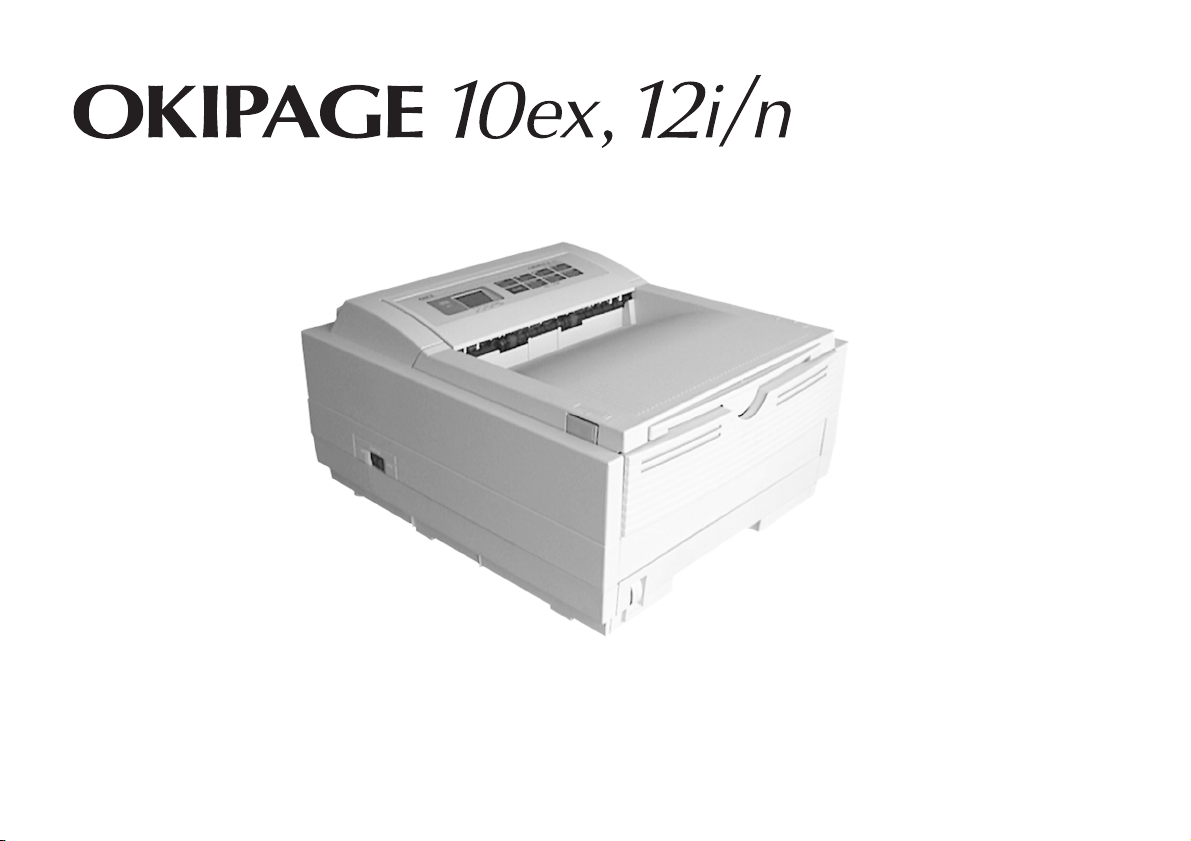
Setup Guide
Page 2

Every effort has been made to ensure that the information in
this document is complete, accurate, and up-to-date. Oki
assumes no responsibility for the results of errors beyond its
control. Oki also cannot guarantee that changes in software
and equipment made by other manufacturers and referred to
in this guide will not affect the applicability of the
information in it. Mention of software products manufactured
by other companies does not necessarily constitute
endorsement by Oki.
Copyright 1998 by Oki. All rights reserved.
First edition 08/1998.
Written and produced by the Oki Documentation Dept.
Oki Systems (UK) Limited
550 Dundee Road
Slough Trading Estate
Slough, Berks. SL1 4LE
Tel: 01753-819819
Fax: 01753-819899
http://www.oki.co.uk
Oki is a registered trademark of Oki Electric Industry Company
Ltd.
ENERGY STA R is a trademark of the United States Environmental
Protection Agency
TrueType is a registered trademark of Apple Computer Company
Hewlett-Packard, HP, and LaserJet are registered trademarks of
Hewlett-Packard Company.
IBM is a registered trademark of International Business
Machines Corp.
Microsoft and MS-DOS are registered trademarks and Windows
is a trademark of Microsoft Corporation.
Oki Systems (Ireland) Limited
The Square Industrial Complex
Tallaght
Dublin 24
Tel: (01) 4598666
Fax: (01) 4598840
http://www.oki.ie
Hawthorn Business Centre
Adelaide Industrial Estate
Falcon Road
Belfast BT12 6HP
Tel: (01232) 572355
Fax: (01232) 572350
http://www.oki.ie
This product complies with the requirements of the Council
Directives 89/336/EEC and 73/23/EEC on the approximation
of the laws of the member states relating to electromagnetic
compatibility and low voltage.
As an ENERGY STAR Partner, Oki has determined that
this product meets the ENERGY STAR guidelines for
energy efficiency.
OKIPAGE 10ex, 12i/n2
Page 3

Contents
Safety Instructions ............................................................4
Important Wiring Instructions ..........................................5
Printer Features ................................................................. 6
Optional Accessories .................................................... 6
Check the Contents .......................................................... 7
Printer Components ..........................................................8
Setting Up Your Printer .....................................................9
Remove the Protective Sheet ....................................... 9
Installing Toner ..........................................................10
Installing Paper........................................................... 12
Connecting Your Printer .................................................13
Installing Windows Printer Drivers ................................14
Changing the Language .................................................15
Creating Sample Printouts .............................................15
Demo Page ..................................................................15
Sample Font Listing ...................................................15
Index ...............................................................................16
English
Setup Guide 3
Page 4

Safety Instructions
Your Oki printer has been carefully designed to give you years
of safe, reliable performance. As with all electrical equipment,
however, there are a few basic precautions you should take to
avoid hurting yourself or damaging the printer:
• Read the setup instructions in this handbook carefully. Be
sure to save it for future reference.
• Read and follow all warning and instruction labels on the
printer itself.
• Unplug the printer before you clean it. Use only a damp
cloth; do not use liquid or aerosol cleaners.
• Place your printer on a firm, solid surface. If you put it on
something unsteady, it may fall and be damaged; if you
place it on a soft surface, such as a rug, sofa, or bed, the
vents may become blocked, causing the printer to overheat.
• To protect your printer from overheating, make sure all
openings on the printer are not blocked. Do not put the
printer on or near a heat source, such as a radiator or heat
register. Keep it out of direct sunlight. Allow enough room
around the printer for adequate ventilation and easy access
to the paper trays.
• Do not use your printer near water, or spill liquid of any
kind into it.
• Be certain that your power source matches the rating listed
on the back of the printer. If you are not sure, check with
your dealer or with your local power company.
• Your printer has an earthed, 3-pin plug as a safety feature,
and it will only fit into an earthed outlet. If you can not
plug it in, chances are you have an older, non-earthed outlet;
contact an electrician to have the outlet replaced. Do not
use an adapter to defeat the earthing.
• To avoid damaging the power cord, do not put anything on
it or place it where it will be walked on. If the cord becomes
damaged or frayed, replace it immediately.
• If you are using an extension cord or power strip with the
printer, make sure that the total of the amperes required by
all the equipment on the extension is less than the
extension’s rating. The total ratings of all equipment
plugged into the outlet should not exceed 15 amperes.
• The power outlet into which you plug your printer must
remain accessible at all times.
• Lifting the top cover exposes hot surfaces. These are clearly
labelled. Do NOT touch them.
• Do not insert anything into the ventilation slots on the
printer; you could get a shock or cause a fire.
OKIPAGE 10ex, 12i/n4
Page 5

Important Wiring Instructions
• Aside from the routine maintenance described in this
handbook, do not try to service the printer yourself;
opening the cover may expose you to shocks or other
hazards.
• Do not make any adjustments other than those outlined in
the handbook you may cause damage requiring extensive
repair work.
• It is recommended that the printer be switched off prior to
opening or removing covers.
If anything happens that indicates that your printer is not
working properly or has been damaged, unplug it immediately
and contact your dealer.
These are some of the things to look for:
• The power cable or plug is frayed or damaged.
• Liquid has been spilled into the printer, or it has been
exposed to water.
• The printer has been dropped, or the cabinet is damaged.
• The printer does not function normally when you are
following the operating instructions.
Wires in the power cable are coloured in accordance with the
following code:
Green and Yellow — Earth
Blue — Neutral
Brown — Live
If the colours of the wires in the power cable of this printer do not
correspond with the markings of the terminals of your plug,
proceed as follows:
• Green and Yellow must be connected to the terminal marked
with the letter E (or the safety earth symbol) or the terminal
coloured Green or Green & Yellow.
• Brown must be connected to the terminal marked with the
letter L or coloured Red.
• Blue must be connected to the terminal marked with the
letter N or coloured Blue or Black.
This printer must be earthed.
If you are in any doubt regarding the wiring, please contact a
qualified electrician.
English
Setup Guide 5
Page 6

Printer Features
OKIPAGE 10ex
• LED 10ppm Page Printer
• 600 × 1200 dpi
• HP LaserJet 6p (PCL6) compatible
• Additional emulations for IBM ProPrinter XL and
Epson FX
• 2Mb memory standard
• Multilingual front panel – 12 languages
• High speed, bi-directional parallel interface (IEEE-1284)
• Fast RISC processor for speedy printing (MIPS R3000)
• Enhanced memory management to print more graphics with
less memory
• Advanced power saving mode; printer idles on minimum
power to save energy
• 45 scalable fonts compatible with the HP LaserJet 6p
• Paper output 150 sheets face down, 50 sheets face up
• Paper input tray capacity 250 sheets
• Paper weight – 60 to 120g/m²
• Standard manual feed for card stock, envelopes,
transparencies, etc.
• Works with recycled paper
• Duty Cycle – up to 6,000 pages per month
• Printer life – 180,000 pages or five years
OKIPAGE 12i/n
As for 10ex except:
• LED 12ppm Page Printer
• 4Mb memory standard
• Adobe PostScript®2 (V2017)
• 10BaseT Network adaptor card
• Duty Cycle – up to 15,000 pages per month
• Printer life – 180,000 pages or five years
Optional Accessories
• 500 sheet universal Second Paper Mechanism
• 100 sheet/50 envelope Multi-Purpose Feeder
• Flash SIMM
• SIMM modules for expanding memory
• RS232C Serial interface card
(10BaseT needs to be removed if already fitted)
OKIPAGE 10ex, 12i/n6
Page 7

Check the Contents
The following sections will lead you through installing your
printer, changing the default language, viewing and changing
the default menu settings and finally producing a Demo Print
Page, a Sample Font Listing and Menu Settings list.
After unpacking the printer and choosing a suitable place to put
it, check that you have all the necessary parts to continue:
1. Printer
2. Oki Type 5 Image drum cartridge (already installed)
3. Oki Type 5 Toner cartridge
4. Power cable
5. Setup Guide
6. Drivers on disk(s).
7. Lightproof plastic bag
(for storing image drum if printer must be shipped).
If anything is missing, contact your dealer for a replacement.
English
1
6
5
2
○○○○○○
4
7
3
Setup Guide 7
Page 8

Printer Components
Rear paper exit tray
Power switch
Bi-directional
parallel interface port
Power cable
receptacle
10BaseT network card
(OKIPAGE 12i/n)
Top paper exit bin
Manual feed tray
Automatic paper
Image drum cartridge
with toner installed
feed tray
LED array
OKIPAGE 10ex, 12i/n8
Page 9

Setting Up Your Printer
Before connecting the printer to your PC and mains outlet,
you must first install the toner cartridge and insert paper in
the paper tray.
The first time you open the top cover will be to install your first
toner cartridge. At this time the power will be off and the printer
cold. When you open the top cover after this, for example to
change the toner cartridge, the fuser area will be hot. This area is
clearly marked. Do not touch it.
English
Remove the Protective Sheet
1. Remove any adhesive tape from the outer covers. Press
and open the cover.
2. Remove the image drum.
Setup Guide 9
3. Remove the protective sheet.
Do not touch the Image Drum’s green surface.
4. Replace the image drum.
Page 10

Installing Toner
Do not remove cartridge from packaging.
Use OKI Type 5 image drum and toner cartridges only.
1. Remove the sponge and discard.
2. Shake the toner cartridge to evenly distribute toner.
3. Unwrap the new cartridge.
4. Carefully peel off the sealing tape.
OKIPAGE 10ex, 12i/n10
Page 11

5. Insert the cartridge into the printer, left end first as
illustrated.
2
1
6. Push the coloured tab forward to release the toner into
the toner hopper.
7. Close the printer cover.
English
Setup Guide 11
Page 12

Installing Paper
1. Remove the paper tray from the bottom of the printer and
place plain paper in the tray, carefully keeping the level
of the paper in the tray below the guide marks (1).
1
2. Adjust the rear paper support (2) to the size of paper you
are using by lifting up and sliding forwards or backwards
as necessary.
2
3. Adjust the paper guides (1).
1
4. Replace the tray in the printer. The paper level indicator
(3) provides a visual indication of how much paper is
left in the tray.
3
OKIPAGE 10ex, 12i/n12
Page 13

Connecting Your Printer
Make sure your printer is not plugged in and your
computer is turned off.
1. Plug the interface cable into the parallel socket on the
printer.
The parallel cable should support bi-directional communication
and must be shielded.
2. Plug the power cable into the printer, then into a grounded
outlet.
3. Switch the printer on.
English
The Ready light comes on.
Setup Guide 13
Page 14

Installing Windows Printer Drivers
It is normally necessary to install a driver to setup your printer
to work correctly in your system. The choice of drivers may
include PCL, PCL5e, PCL6, PCL-XL, PostScript or Hiper-W
(Oki High Performance driver for Windows), depending on the
capabilities of your printer.
1 Insert the CD supplied with your printer in your CDROM
drive.
2 Windows 3.1:
From the Program Manager menu, click File–Run….
Type D:\setup.exe (Where “D” represents your CDROM
drive letter).
Click OK.
Windows 95/98/NT4:
The set-up program will start automatically if AUTORUN is
enabled on your PC. If not, double click on the “My
Computer” icon, then the CDROM drive icon, then the Setup
icon.
3 Select the driver you wish to install, click Continue and
follow the on-screen instructions.
OKIPAGE 10ex, 12i/n14
Page 15

Changing the Language
Creating Sample Printouts
To change the printer's display language to your local language
proceed as follows:
1. Press ON LINE (Ready light off).
2. Press and hold MENU 1/Menu 2,
the display window.
3. Press MENU 1/Menu 2 until
display window.
4. Press ENTER.
5. Press until your language appears.
6. Press ENTER.
7. Press ON LINE (Ready light on).
PRINT MODE
LANGUAGE
appears in the
appears in
Demo Page
1. Press the ON-LINE button so that the display reads
OFF-LINE
2. Press the FORM FEED/Print Demo button for two seconds.
3. The message
4. Press ENTER.
.
DEMO HP PCL6
will be displayed.
Sample Font Listing
1. Press the ON-LINE button so that the display reads
OFF-LINE
2. Press the TRAY TYPE/Print Fonts button for two seconds.
3. The message
4. Press ENTER.
.
FONTS HP PCL6
will be displayed.
English
Setup Guide 15
Page 16

Index
A
Accessories .............................................. 6, 8
C
Cable
data interface ......................................... 13
power ............................................. 5, 7, 13
Cleaning the printer ...................................... 4
Compatibility ................................................. 6
Components ................................................. 8
D
Demo page ................................................ 15
F
Features ....................................................... 6
Fonts .......................................................... 15
I
Interface cable.
See
Parallel cable.
L
Language
display .................................................... 15
changing ................................................ 15
Locating the printer ...................................... 4
M
Memory ........................................................ 6
O
ON/OFF switch ........................................... 13
Optional accessories ..................................... 6
P
Paper
exit ........................................................... 8
installing ................................................. 12
Paper tray
adjusting guides ..................................... 12
filling ....................................................... 12
level indicator ......................................... 12
rear support ........................................... 12
Parallel cable .............................................. 13
PPM (Pages Per Minute) ............................. 6
Printer Drivers ............................................ 14
Protective sheet
removing .................................................. 9
R
Ready light ................................................. 13
Rear paper exit ............................................ 8
S
Safety first .................................................... 4
Sample font listing ...................................... 15
T
Toner
installing ................................................. 10
type ........................................................ 10
Top cover
open buttons ............................................ 9
Top paper exit bin ......................................... 8
U
Unpacking contents ...................................... 7
OKIPAGE 10ex, 12i/n16
 Loading...