

Page 1
Apricot
FT SERIES
FT1200 Handbook
COMPACT
Page 2

APRICOT FT S
with Pentium®II processor
ERIES
FT1200 HANDBOOK
Page 3

Intel and Pentium®II are registered trademarks of Intel Corporation.
Microsoft, MS-DOS, Windows®95 and Windows®NT are registered trademarks
of Microsoft Corporation in the US and other countries.
Other trademarks mentioned within this document and not listed above are the
properties of their respective owners.
Information contained in this document is subject to change without notice and
does not represent a commitment on the part of Apricot Computers Limited.
Any software described in this manual is furnished under a license agreement.
The software may be used or copied only in accordance with the terms of this
agreement. It is against the law to copy any disk supplied for any purpose
other than the purchaser’s personal use.
No part of this manual may be reproduced or transmitted in any form or by any
means electronic or mechanical including photocopying and recording, for any
purpose, without the express written permission of the publishers.
Copyright © Apricot Computers Limited 1997. All rights reserved.
Published by:
Apricot Computers Limited
3500 Parkside
Birmingham Business Park
Birmingham, England
B37 7YS
http://www.mitsubishi-computers.com
Printed in the United Kingdom
Page 4

CONTENTS
Safety and Regulatory notices
General i
Maintenance and Transporting iii
Standards and Legalities iv
Power connection
1 Welcome
Unpacking 1/1
Pictorial guide to the system unit 1/2
Removing panels 1/4
General advice 1/7
Connecting the components 1/8
Turning on the PC 1/8
Shutting down the PC 1/9
Using the computer for the first time 1/10
Backing-up the pre-installed software 1/10
Improving your display settings 1/11
If your hard disk is larger than 2 gigabytes 1/12
v
2 Removable media drives
Diskette drive 2/1
CD-ROM drive 2/3
DAT tape drive (option) 2/5
3 Expansion Cards
Configuring the card 3/2
Installing the card 3/5
Reserving ISA legacy resources 3/7
FT1200 HANDBOOK i
Page 5

Contents
4 SCSI drives
SCSI Device support 4/1
Hard disk configurations 4/2
HDD jumpers 4/3
Installing in the forward drive bay 4/4
Installing in the rear drive bay 4/5
Installation of a removable media drive 4/6
Using the SCSISelect Utility 4/8
Using the SCSI Disk Utilities 4/15
5 Motherboard Features & Upgrades
General features 5/1
Motherboard layout and features 5/4
Back panel connectors 5/5
Processor upgrades 5/6
How to install more memory 5/14
How to replace the battery 5/16
Motherboard connectors 5/18
Front panel connectors 5/21
Motherboard resources 5/23
6 BIOS Setup & Menus
Using the setup program 6/3
BIOS beep codes 6/13
BIOS error messages 6/13
7 Troubleshooting
Problems when starting 8/1
Common problems 8/3
Equipment Log
ii FT1200 HANDBOOK
Page 6
SAFETY AND REGULATORY NOTICES
General
Electrical
The computer uses a safety ground and must be earthed.
The system unit AC power cord is its ‘disconnect device’. Ensure that the
system unit is positioned close to the AC power outlet and that the plug is
easily accessible.
The power cord packed with the computer complies with the safety
standards applicable in the country in which it is first sold. Use only this
power cord. Do not substitute a power cord from any other equipment.
To prevent fire and electric shock, do not expose any part of the computer
to rain or moisture. Turn off the computer and unplug all power cords
before moving or cleaning the system unit, or removing the system unit top cover.
Battery
This product contains a lithium battery.
Do not use a metal or other conductive implement to remove the battery. If
a short-circuit is made between its positive and negative terminals the
battery may explode.
Replace a discharged battery with one of the same type; another type may
explode or ignite. Follow the instructions contained in the Owner’s
Handbook to replace the battery. Dispose of a discharged battery promptly
and in accordance with the battery manufacturer’s recommended
instructions. Do not recharge, disassemble or incinerate the discharged
battery. Keep away from children.
Laser products
Any CD-ROM drive fitted in this system is classified as a CLASS 1 LASER
PRODUCT according to IEC825 Radiation Safety of Laser Products
(Equipment Classification: Requirements and User's Guide). The CLASS 1
LASER PRODUCT label is located on the underside of the system unit.
The CD-ROM drive contains a laser system which is harmful to the eyes if
exposed. Do not attempt to disassemble the CD-ROM drive; if a fault
occurs, call an authorised maintainer.
Use the CD-ROM drive only as described in this manual. Failure to do so
may result in exposure to hazardous radiation.
FT1200 HANDBOOK i
Page 7

SAFETY & REGULATORY NOTICES
Ergonomic
When positioning the system unit, monitor and keyboard, take into
account any local or national regulations relating to ergonomic
requirements.
Anti-static precautions
WARNING
Static electricity can cause permanent damage to electronic components.
You should be aware of this risk, and take precautions against the
discharge of static electricity into the computer.
The computer is at risk from static discharge while the top cover is off. This
is because the electronic components of the motherboard are exposed.
Memory modules, expansion cards and replacement processors are
examples of electrostatic sensitive devices (ESSDs).
All work that involves removing the cover must be done in an area
completely free of static electricity. We recommend using a Special
Handling Area (SHA) as defined by EN 100015-1: 1992. This means that
working surfaces, floor coverings and chairs must be connected to a
common earth reference point, and you should wear an earthed wrist strap
and anti-static clothing. It is also a good idea to use an ionizer or humidifier
to remove static from the air.
When installing any upgrade, be sure you understand what the installation
procedure involves before you start. This will enable you to plan your work,
and so minimise the amount of time that sensitive components are exposed.
Do not remove the system unit cover, nor the anti-static bag or wrapping of
any upgrade, until you need to.
Handle static-sensitive items with extreme care. Hold expansion cards and
add-on components only by their edges, avoiding their electrical contacts.
Never touch the components or electrical contacts on the motherboard or
on expansion cards. In general, do not handle static-sensitive items
unnecessarily.
Keep all conductive material, and food and drink, away from your work
area and the open computer.
Thermalcote bonding compound
The thermal bonding compound used between the system processor and its
heat sink can cause skin irritation and stain clothing. Avoid prolonged or
repeated contact with skin. Wash thoroughly with soap and water after
handling. Avoid contact with eyes and inhalation of fumes. Do not ingest.
ii FT1200 HANDBOOK
Page 8

Maintenance
Transporting
SAFETY & REGULATORY NOTICES
Switch off and disconnect all cables before attempting to clean the
computer.
Do not use sprays, solvents or abrasives that might damage the system unit
surface. Do not use cleaning fluids or sprays near air vents, ports, or the
diskette and CD-ROM drives.
Occasionally wipe the system unit with a soft, slightly damp, lint-free cloth.
Occasionally wipe over the air vents on the rear and sides of the system
unit. Dust and fluff can block the vents and limit the airflow.
Occasionally clean the diskette and CD-ROM drives using a proprietary
head cleaner.
Occasionally wipe the monitor with a soft, slightly damp, lint-free cloth. It
is best to use anti-static glass cleaner on the monitor screen, but do not
spray glass cleaner directly onto the screen; it could run down inside the
case and damage the circuitry.
Use common sense when handling the computer; hard disks in particular
can be damaged if the computer is dropped or handled roughly. As a
precaution, back up the contents of the hard disks to tape or diskettes
before moving the computer.
Switch off and disconnect all cables before attempting to move the
computer, particularly do not try to move the computer while it is plugged
into the AC power supply.
When lifting and carrying the computer, use the metal sides of the system
unit and never attempt to lift the system unit with a monitor still on top.
If you need to transport the computer any great distance, use the original
packing materials.
If you are planning to use the computer in another country, it may not be
suitable, check with your supplier, particularly on the availability of the
correct AC power cords.
NOTE
Any existing maintenance or warranty agreement may not be supportable in
another country. The system may have to be returned to the supplier.
FT1200 HANDBOOK iii
Page 9

SAFETY & REGULATORY NOTICES
Standards
Safety
This product complies with the International safety standard IEC950 and
the European safety standard EN60950 which will, when applicable,
include the national deviations for the country in which it is sold.
Electro-magnetic Compatibility (EMC)
This product complies with the following European EMC standards:
Emissions EN50022 Class B
Immunity EN50082-1
This product also complies with the following International EMC
standards:
VCCI Class 1 (Japan)
Notes
All interconnecting cables (for example, signal and communication cables)
should be less than 2 metres in length. If cable extensions are used, ensure
adequate earth connections are provided and screened cables are used.
If any metal casework components are removed, during upgrade work for
example, ensure that all metal parts are correctly re-assembled and all
internal and external screws are re-fitted and correctly tightened.
Legalities
This equipment complies with the relevant clauses of the following
European Directives (and all subsequent amendments):
Low Voltage Directive 73/23/EEC
EMC Directive 89/336/EEC
Telecommunications Directive 91/263/EEC
CE Marking Directive 93/68/EEC
IMPORTANT
This system complies with the CE Marking Directive and its strict legal
requirements. Use only parts tested and approved by Mitsubishi Electric PC
Division. Failure to do so may result in invalidating both the compliance
and your warranty. All expansion cards, drives and peripherals must carry
the CE mark to ensure continued compliance.
iv FT1200 HANDBOOK
Page 10
SAFETY & REGULATORY NOTICES
E
N
L
125V
250V
Power Connection
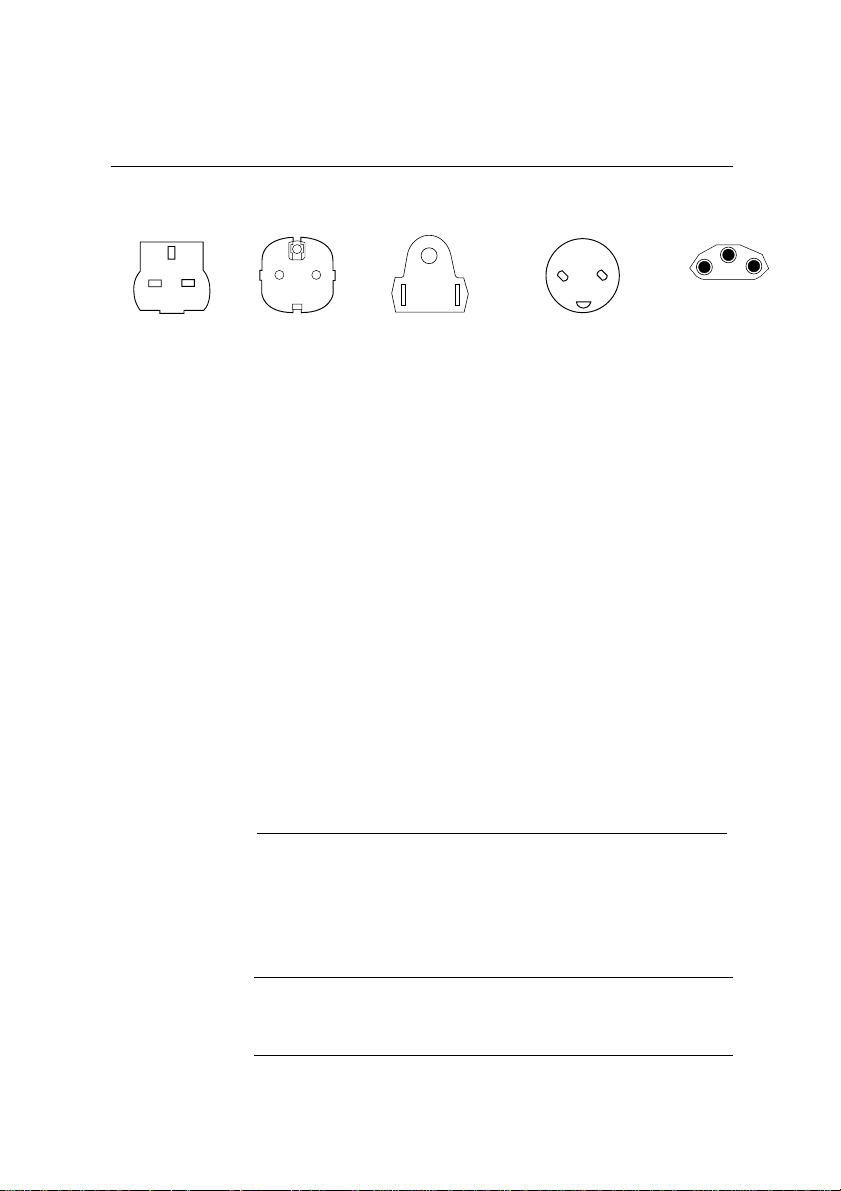
Typical AC plugs
250V
E
LN
250V
E
NL
BS1363A SHUCO NEMA 5-15P SRAF 1962/DB16/87 ASE 1011
U. K. Austria Belgium Taiwan Denmark Switzerland
Finland France Thailand
Italy Germany Japan
Sweden Norway USA
Holland Canada
Checking the AC power supply
When this product is delivered, it is ready for the commercial AC power
supply generally available in the country in which it is first sold. It has been
set for the correct voltage range, and is supplied with an AC power cord and
plug which comply with the relevant safety standards.
Before using the product in a country other than that in which it was
originally sold, you must check the voltage and frequency of that country’s
AC power supply, and the type of power cord required there. Check the
power rating labels on the rear of the computer’s system unit and its
monitor to ensure that they are compatible with the AC power supply.
The computer can function within two alternative AC power supply ranges,
according to the position of the voltage selection switch on the rear of the
system unit:
Switch setting AC power supply (voltage and frequency)
115 100 - 120 volt AC, 50 - 60 Hz
230 200 - 240 volt AC, 50 - 60 Hz
The voltage setting of the monitor must always be the same as the voltage
setting of the system unit. See the User’s Guide that accompanies the monitor
or consult your supplier to find out how to change the voltage setting.
250V
L
N
E
CAUTION
It is imperative that the computer is set to the correct voltage range before use.
If not, the machine may be irreparably damaged.
FT1200 HANDBOOK v
Page 11

SAFETY & REGULATORY NOTICES
Connecting to the AC power supply
IMPORTANT
Any peripheral equipment that requires an AC power cord must be earthed.
Use the following guidance to connect the components together. It is
important that you take each step in the order indicated.
1. Before connecting any components, ensure that the AC power supply
is switched off or disconnected, and that the system unit, the
monitor, and any peripherals are turned off.
2. Connect the component signal cables to their respective ports on the
system unit: keyboard, mouse, monitor, audio (where appropriate)
and any other peripherals.
◊ Where appropriate, connect the computer to the network.
3. Connect the component power cords: system unit, monitor to
system, plus any other peripherals to nearby, grounded AC power
outlets. (Never substitute a power cord from any other appliance).
Then switch on or connect the AC power supply.
4. Turn on the system unit first, then the monitor, then other
peripherals.
Power Cable Connections - UK ONLY
This equipment is supplied with an AC power cord that has a nonremovable moulded plug.
Always replace the fuse with one of the same type and rating which is BSI
or ASTA approved to BS1362. Always refit the fuse cover, never use the
plug with the fuse cover omitted.
External Speakers (where supplied)
Always switch off or disconnect the AC supply before disconnecting any of
the speaker leads, whether audio or power. Disconnect the AC supply from
the speaker power unit when not in use for any period of time.
To prevent the risk of electric shock, do not remove speaker covers.
Connecting the speaker power cord to any other cords or joining cords
together can cause fire and risk of electric shock.
vi FT1200 HANDBOOK
Page 12

1 WELCOME
This chapter gives you a quick tour of your new FT1200 Server, the
main features, plus some of the components it may contain.
Throughout this manual ‘Windows’ means Microsoft
Windows NT 4.x or higher, unless otherwise stated.
WARNING
Read the Safety & Regulatory Notices section at the start of this manual
before using the computer for the first time.
Unpacking
After unpacking your computer, keep all the cartons, boxes and
packaging materials in a safe place; you will need them again if you
have to transport the computer elsewhere.
Use the page at the end of this manual to make a note of the
manufacturer’s data recorded on the various components (product
codes, serial numbers, etc.). A service engineer may need this
information if the computer develops a fault. It would also be very
useful for identification if the computer should be stolen.
There is also an area to note down other important information
such as supplier details, authorised maintenance phone number,
date of installation etc.
FT1200 HANDBOOK 1/1
Page 13
1-1
Welcome
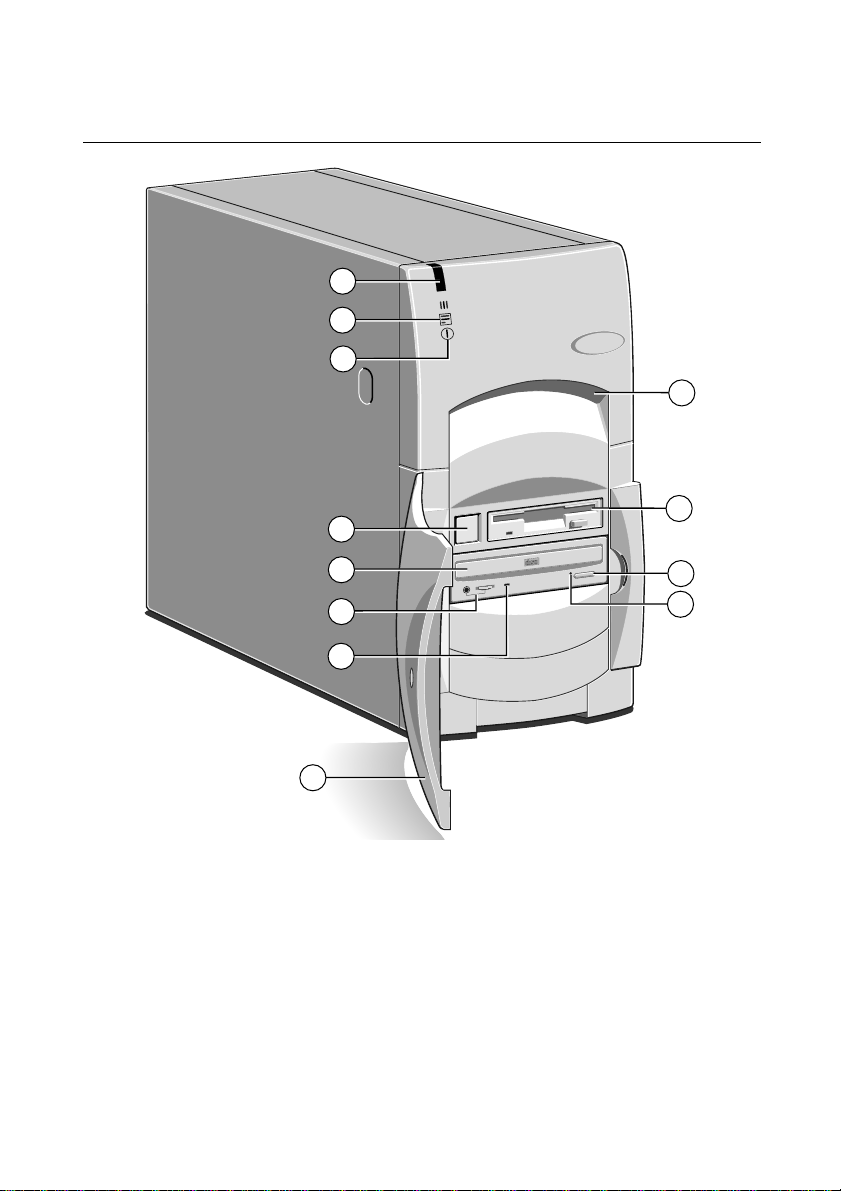
Pictorial guide to the system unit
1
2
3
4
5
6
12
11
COMPACT
10
9
7
8
l
Reserved for future options
7 CD activity indicator
2 Hard disk activity indicator 8 Lockable front door
3 Power Mode indicator 9 CD emergency eject hole
OWER
4P
5
button 10 CD E
CD-ROM disc drawer (platter)
6 CD headphone jack
11 Diskette drive
12 Front lifting point
JECT
button
& volume control
1/2 FT1200 HANDBOOK
Page 14
A
15
14
13
A
12
Welcome
A
A
1
2
3
4
1
10101
2
5
6
13
7
8
A
9
10
11
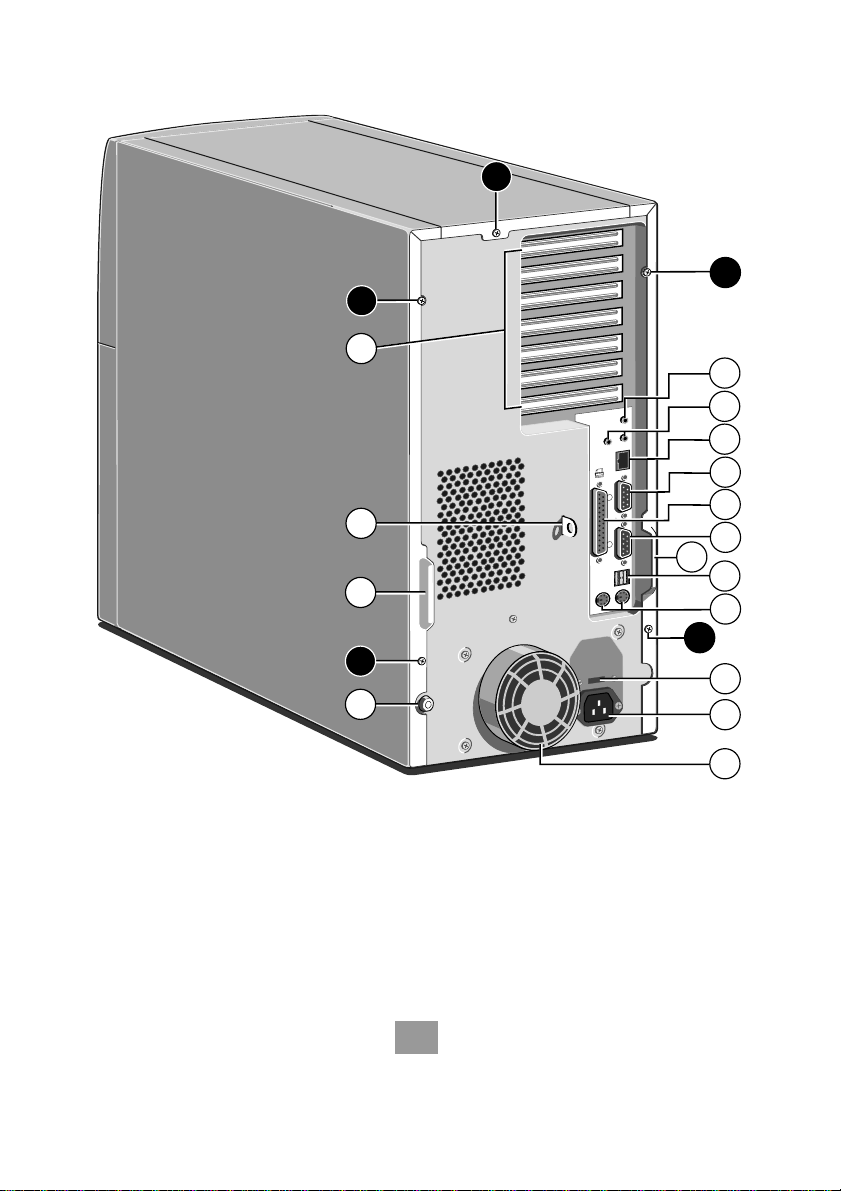
1 Microphone input socket 9 Voltage selector switch
2 Line audio, (left) in (right) out 10
3 Network connector 11
4 Serial port (COM 2) 12 Caselock
5 Parallel (printer) port 13 Handles to assist side panel removal
6 Serial port (COM 1) 14
7 Dual USB port 15 System expansion slots
8 Mouse and keyboard ports
AC power inlet from AC supply
Fan cover (do not use to lift)
Security loop for cable or padlock
Side panel fixing screws
A
FT1200 HANDBOOK 1/3
Page 15

Welcome
Use the P
modes. This switch can be secured by closing and locking the front
door. this will also prevent unauthorised access to the removable
media drives.
There is an option available for intrusion detection in the event of
the caselock being opened. This can be monitored via the network
from a supervisor’s PC.
Removing panels
For normal access to the interior of the system unit, only the right
side panel, and possibly the top panel, need to be removed. The left
side panel must be removed in order to install additional removable
media or hard disk drives in the forward drive bay.
WARNING
Never carry out any work inside the computer with AC power applied.
Always shut down the computer and unplug all power cords before
removing the top cover. Take effective anti-static precautions while the
covers are off, as explained in the Safety & Regulatory Notices at the
start of this manual.
Right side panel
button to turn on the computer and change power
OWER
1. Shut down the computer and turn off the monitor.
2. If your AC power outlets have switches, set them to their off
positions.
3. Unplug all power cords from the rear of the system unit.
4. Remove the panel’s two fixing screws.
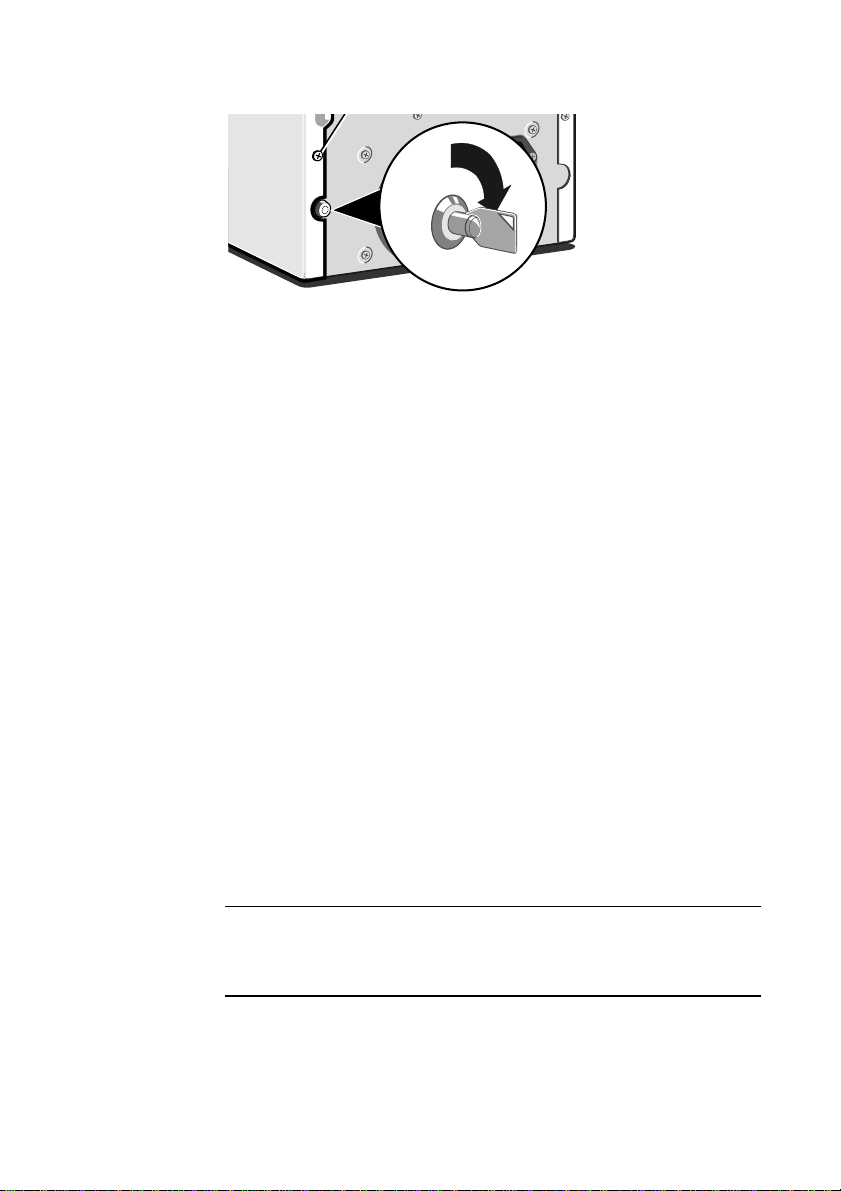
5. Turn the caselock key to the unlocked position.
1/4 FT1200 HANDBOOK
Page 16
Welcome
6. Slide the panel carefully towards the rear of the system using
the handle provided. After about 2 to 3 cm of movement it is
possible to lift the panel vertically, clear of the system.
See the following chapters for more information:
♦ Motherboard: features and upgrades
♦ Expansion cards
♦ SCSI drives
Top panel
1. Remove the right side panel as described above.
2. Remove the top panel’s fixing screw.
3. Slide the panel rearwards, then lift it off.
Left side panel
1. Remove the right side and top panels as described above.
2. Slide the panel carefully towards the rear of the system using
the handle provided. After about 2 to 3 cm of movement it is
possible to lift the panel vertically, clear of the system.
In each case, refitting is the reverse of removal.
CAUTION
Exercise care with the removed panels as there are metal fixings and
hooks on the inside that may scratch delicate surfaces.
FT1200 HANDBOOK 1/5
Page 17
Welcome
6
7
8
5
4
3
2
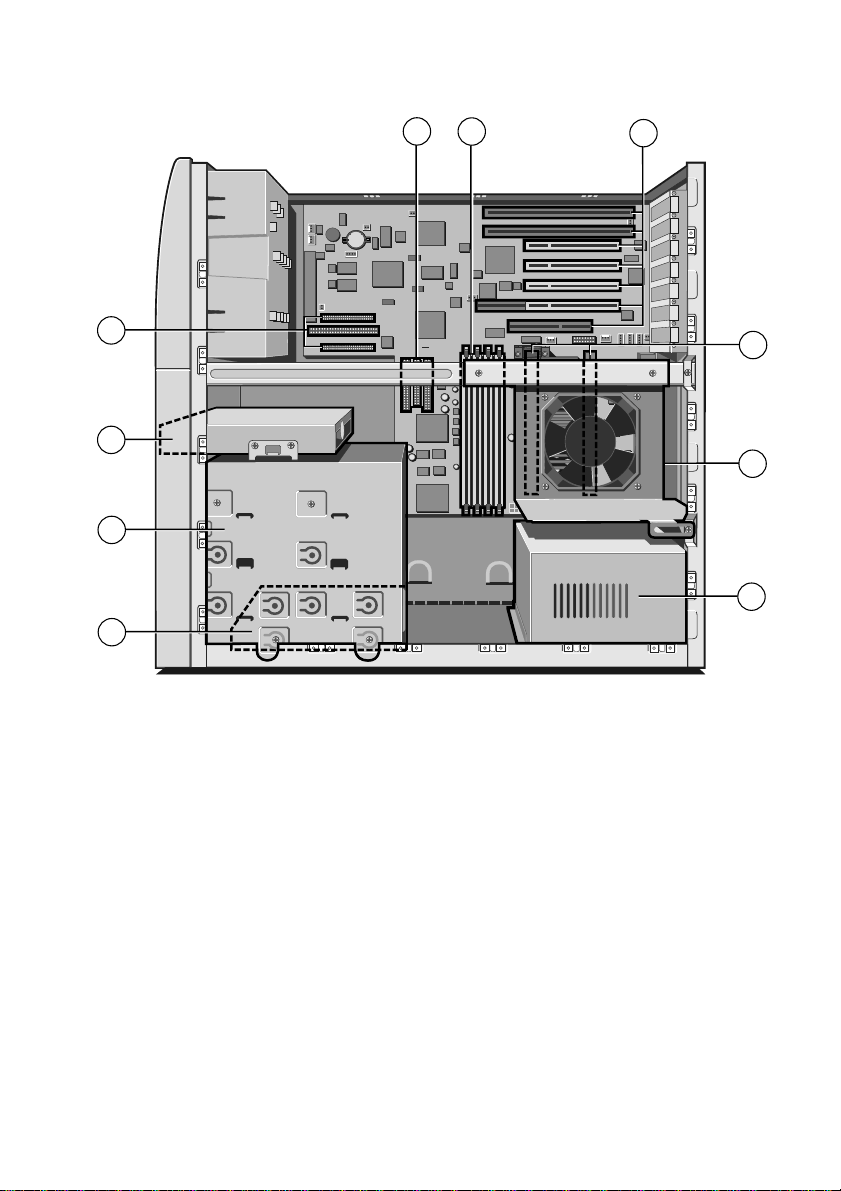
1 Power supply unit (PSU)
2 First or “master” hard disk drive (HDD)
3
Forward drive bay for removable media drives and/or a second HDD
4 Diskette drive
5 SCSI adapter connections
6 ATAPI IDE and floppy drive connectors
7 Memory ‘DIMM’ sockets
8 ISA and PCI card expansion sockets
9
‘Slot 1’ processor slots (BOOT processor nearest the rear)
10
Rear drive bay for SCSI hard disk drives
9
10
1
1/6 FT1200 HANDBOOK
Page 18

General advice
This computer is designed to be used in a normal home or office
environment. Here are a few hints for choosing a suitable site:
♦ Place the system unit flat on a sturdy, level surface, free from
♦ Site the computer away from moisture, direct sunlight, and
♦ When positioning the system unit, monitor and keyboard, take
♦ Give the computer plenty of room so that air can circulate on
Welcome
vibration.
extremes of heat and cold. Avoid situations in which the
surrounding temperature or humidity may change rapidly.
When the computer is in use, the temperature should be
between 10 and 35
o
C and humidity between 20% and 80%
(with no condensation).
into account any local or national regulations relating to
ergonomic requirements. For example, you should ensure that
little or no light is reflected off the monitor screen as glare, and
that the keyboard is placed in a comfortable position for
typing.
all sides. Air is drawn into the system unit through vents at
both the front and the rear, and expelled through the circular
vents on the back. Ensure that these are never obstructed.
Do not allow any cables, particularly power cords, to trail across the
floor where people walking past can snag them.
WARNING
The computer uses the system unit AC power cord as its ‘disconnect
device’. Ensure that the system unit is positioned close to the AC power
outlet, and that the plug is easily accessible.
To prevent fire and electric shock, do not expose any part of the system
unit to rain or moisture.
FT1200 HANDBOOK 1/7
Page 19

Welcome
Connecting the components
Use the following guidance to connect the components together. It
is important that you take each step in the order indicated.
1. Before connecting any components, ensure that the AC power
supply is switched off or disconnected, and that the system
unit, the monitor, and any peripherals are turned off.
2. Connect the components’ signal cables to their respective ports
on the system unit: keyboard, mouse, monitor, audio (where
appropriate) and any other peripherals. Where appropriate,
connect the computer to the network.
3. Connect the various power cords: monitor, system unit and
any other peripherals to nearby, grounded AC power outlets.
Then switch on or connect the AC power supply.
Turning on the PC
To turn on the computer, simply press the P
colour of the Power Mode indicator turns from [red] to [green].
Remember that the monitor has its own power button or switch; see
the monitor’s User Guide for details.
Power-on self-test (POST)
Whenever the computer is turned on, a power-on self-test (POST)
routine tests various hardware components, and compares the actual
configuration of the computer with that recorded in its permanent
memory. During this time, BIOS sign-on and POST messages may
be displayed. These messages are not significant unless they report
errors – see the BIOS Setup & POST chapter.
Booting the operating system
Provided that POST succeeds without discovering any serious errors
or configuration discrepancies, the computer attempts to find an
operating system; that is, it attempts to ‘boot’.
Mitsubishi server PCs are typically supplied with either
Windows NT, or MS-DOS/Netware (or equivalent), already in
1/8 FT1200 HANDBOOK
OWER
button. The
Page 20

place or ‘pre-installed’ on the hard disk, so that the operating system
is ready for you when you turn on the computer.
NOTE
If a diskette is in the diskette drive when the computer is turned on, the
computer will attempt to boot using that diskette. This will succeed only
if the diskette is a ‘system diskette’; that is, one bearing at least the
rudiments of an operating system.
Shutting down the PC
To shut down the computer safely, do the following:
1. Wait until all the activity indicators on the front bezel show
‘not busy’.
2. Turn off any attached peripherals, except for the monitor and
other peripherals that are designed to be kept on permanently.
3. According to your operating system:
◊ In Windows NT 5.x, click the Start button in the taskbar,
then click Shut Down. Select Shutdown the computer and
click Yes. You do not have to press the P
◊ In Windows NT 4.x, click the Start button in the taskbar,
then click Shut Down. Select Shutdown the computer and
click Yes. When told that it is safe to do so, press the
OWER
P
◊ In Netware or similar, exit or shutdown the software
according to the information given in your user guide,
which returns you to a DOS prompt. You can then safely
press the POWER button to turn off the computer.
button to turn off the computer.
Welcome
button.
OWER
After you have shut down, wait at least 5 seconds before turning it
on again. The computer may not initialise itself properly if you turn
it off then on again in quick succession.
FT1200 HANDBOOK 1/9
Page 21

Welcome
Emergency shut down
In exceptional circumstances, you can put your PC into Off [red]
mode without shutting down the operating system.
To do this, press and hold down the P
seconds. This should be only a last resort, as some operating systems
create temporary files as part of their procedure and these are
deleted during a normal shutdown. They would remain on your
hard drive in an emergency shut down and will require manual
deletion. They can sometimes use up considerable drive space.
CAUTION
In an emergency shut down, you will lose any recent changes made to
the files you are currently working on.
Using the computer for the first time
The first time you turn on your computer you must tell
Windows your name (and the name of the company for which you
work, if applicable) and agree to the legal terms and conditions of
the Windows Licence Agreement. Windows then spends a few
minutes analysing your computer and configuring itself to take full
advantage of your computer’s components. Windows also offers you
the opportunity to install a printer.
Backing-up the pre-installed software
Mitsubishi PCs arrive with a pre-installed operating system or
‘Software’. Additional software may be pre-installed at the factory or
by your Mitsubishi Electric PC supplier.
button for at least four
OWER
We strongly recommend that you copy or ‘back-up’ any pre-installed
software soon after setting up the system. This is particularly
important for systems that are supplied without installation
diskettes for the software on the hard disk. A back up copy will
safeguard the pre-installed software against loss if the hard disk fails
or if you accidentally overwrite or delete files.
1/10 FT1200 HANDBOOK
Page 22

♦ The Microsoft Create System Disks utility or the Disk Maker
utility (Windows NT) allows you to create installation
diskettes from disk images pre-installed on the hard disk.
♦ To back up other pre-installed software (and your own files)
use the Backup tool in Windows. You could also use other
software backup utilities supplied with optional hardware you
may have chosen, such as a DAT tape drive.
In general, any copy you make of pre-installed software must be
used only as a back-up copy, in case the pre-installed version is lost.
You are not allowed to use installation diskettes created from disk
images to install the software onto another computer.
Apart from any possible infringment of copyright, the software may
be configured for unique features built into your computer. They
may not work or may cause serious problems on another system.
Improving your display settings
Your pre-installed copy of Windows is configured for a standard
monitor setting (640 x 480 pixels in a maximum of 16 different
colours), so that Windows is sure to display correctly whatever
monitor you have.
Welcome
Most modern monitors, including Mitsubishi Electric monitors, can
display higher resolutions than standard VGA. You can change the
setting to one that more closely matches your own monitor, to get
the best performance from it.
Display settings in Windows NT
The monitor setting is changed by using the Settings tab of the
Display Properties dialog. See Windows
changing display settings.
TIP
To view the Display Properties dialog, right-click with the mouse while
pointing at the background area of the Windows desktop, then select
Properties from the pop-up menu.
Help for instructions on
’
FT1200 HANDBOOK 1/11
Page 23

Welcome
If your hard disk is larger than 2 gigabytes
If you have Windows NT, the first 2 Gbytes are formatted (using
FAT) as a primary partition. The rest of the disk is untouched. You
can repartition and reformat the disk using the Disk Administrator
tool in the Administrative Tools (Common) folder.
CAUTION
Take great care when creating and formatting new partitions not to
damage, delete or format your existing ‘boot’ partition.
1/12 FT1200 HANDBOOK
Page 24
2 REMOVABLE MEDIA DRIVES
COMPACT
Diskette drive
Your FT1200 Server is fitted with a 1.44 Mbyte diskette drive. This
accepts either 1.44 Mbyte (HD) or 720 Kbyte (DD) diskettes.
Each diskette has a rigid plastic cover, with a metal shutter that
guards the disk surface. Never touch the exposed surface under the
shutter – you could deform the disk or leave a fingerprint that
might make the diskette difficult to read.
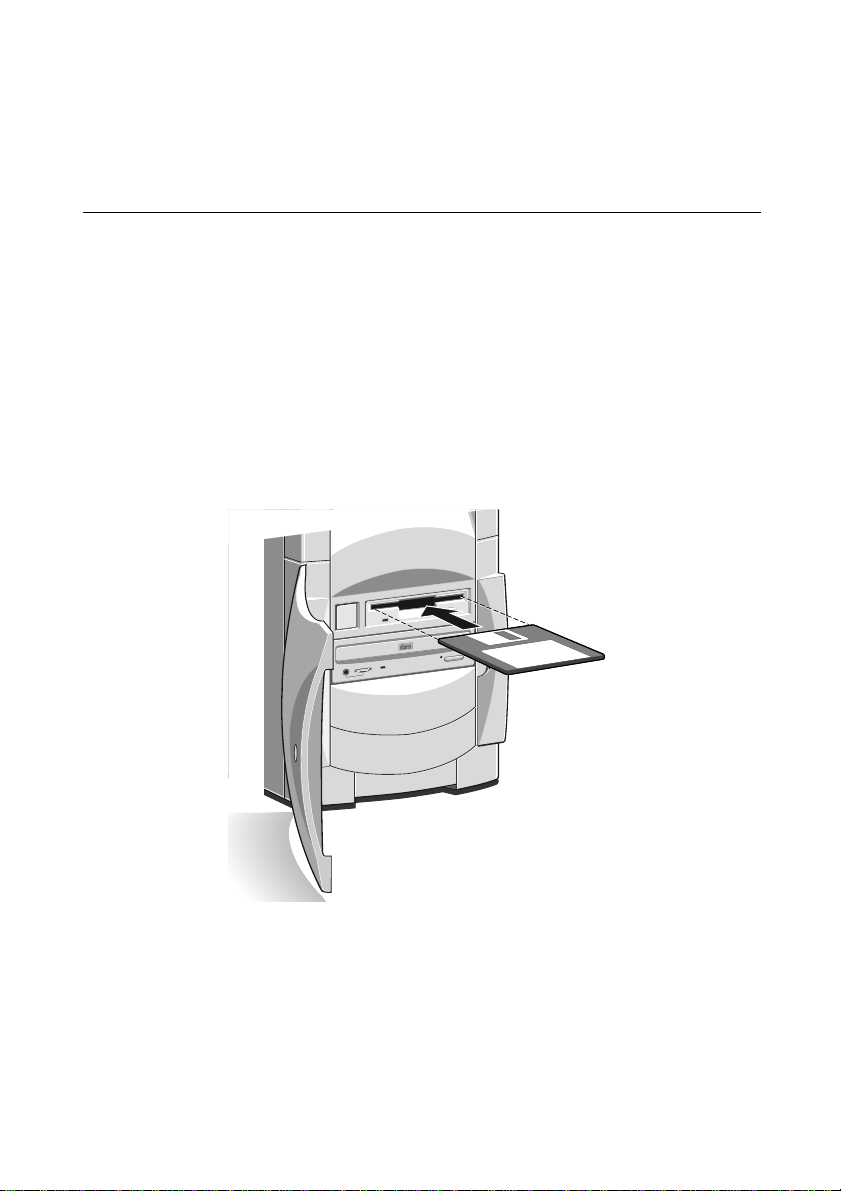
Inserting a diskette
1. Insert the diskette with the metal shutter foremost, and with
the label side facing upwards.
drive’s
EJECT
button pops out slightly. The drive flap stays
2. Push the diskette all the way in until it ‘clicks’ into place. The
open, leaving the diskette just visible.
FT1200 HANDBOOK 2/1
Page 25
Removable media drives
Ejecting a diskette
♦ Wait until the drive’s activity indicator is unlit, then press the
button.
EJECT
If a diskette becomes stuck in the drive, perhaps because its label has
peeled back, do not attempt to remove it with tweezers or any
similar implement; you risk damaging the drive. Call an authorised
maintainer.
Write-protecting a diskette
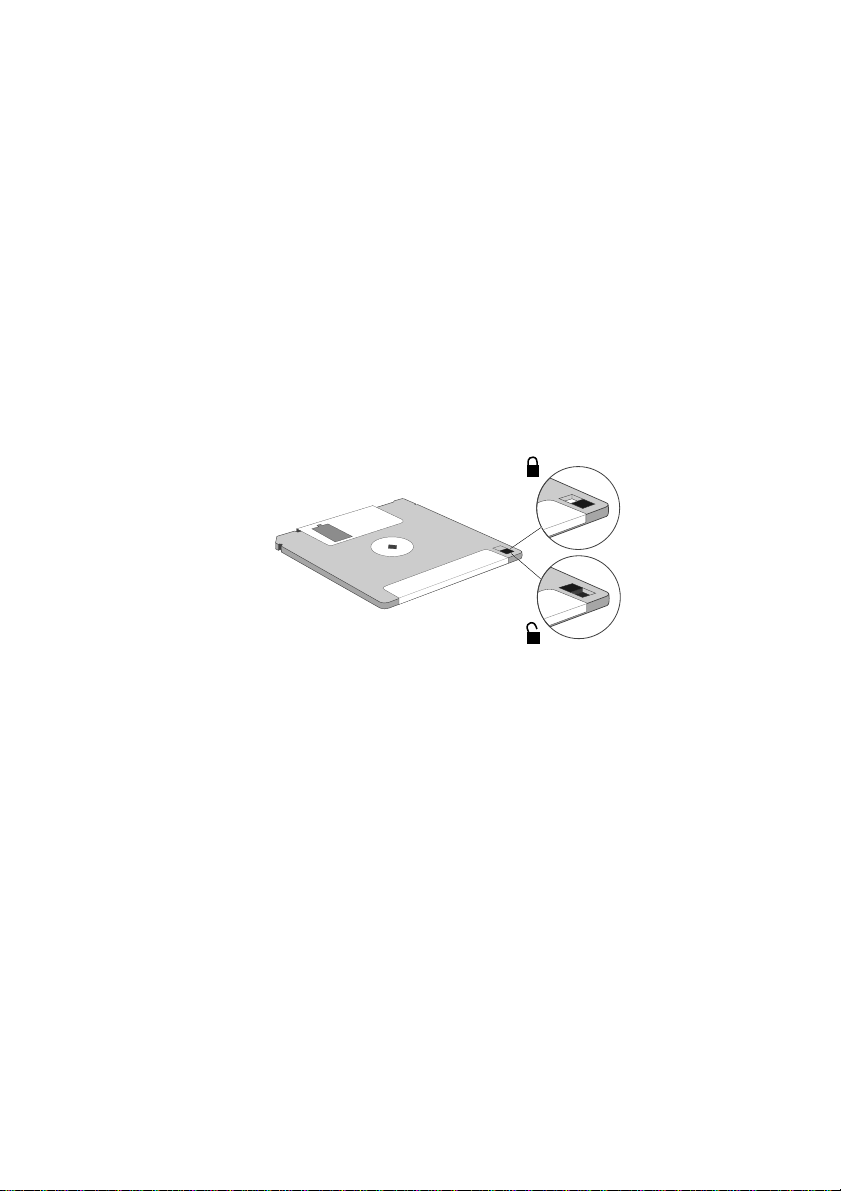
♦ A diskette can be write-protected by sliding a tab towards the
edge of the diskette to expose the small hole beneath it (see
illustration).
You can read, copy or print the files on a write-protected diskette,
but you cannot create, rename or delete any files.
Diskette care
Keep diskettes away from dust, moisture, magnetic objects, and
equipment that generates magnetic fields. Also, avoid extremes of
temperature and exposure to direct sunlight. Otherwise, data
recorded on the diskette may become corrupted.
Always check that labels are firmly fixed before you use the diskette
and do not leave them in the drive for prolonged periods.
2/2 FT1200 HANDBOOK
Page 26
CD-ROM drive
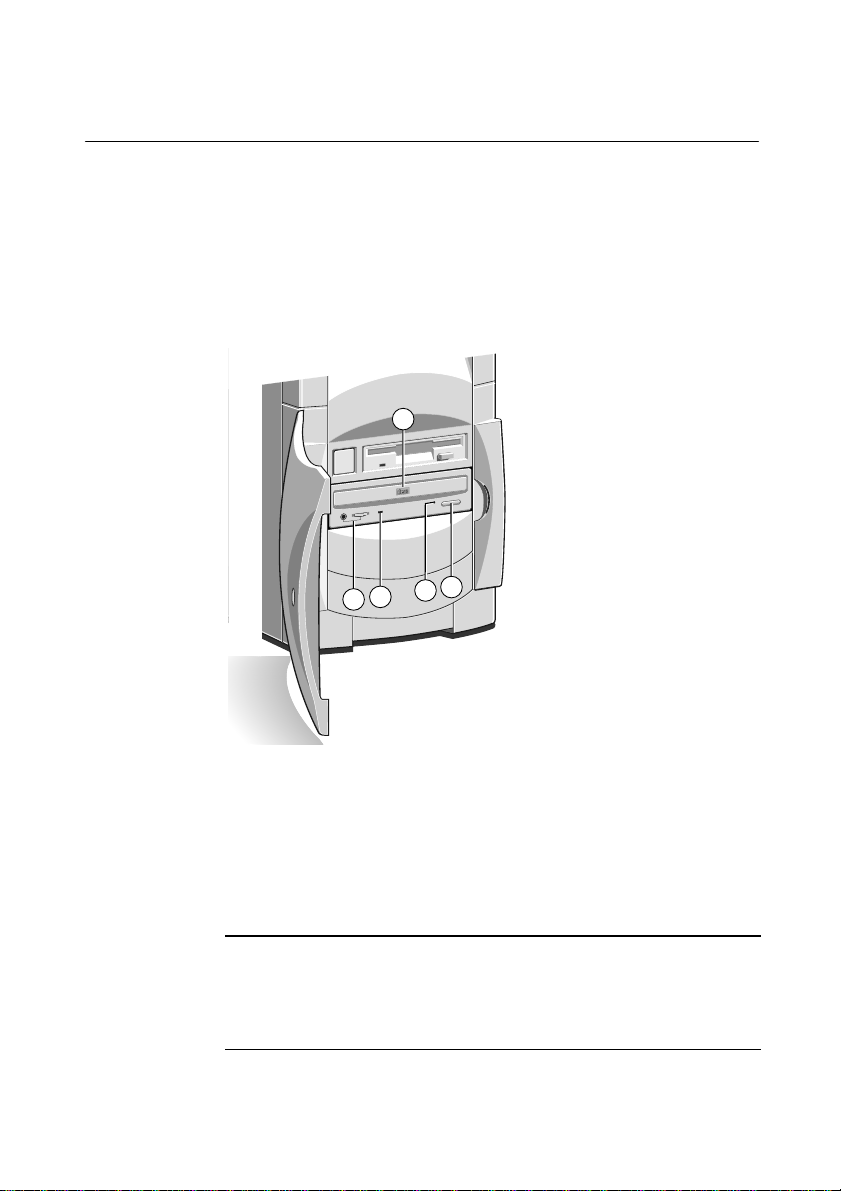
The CD-ROM drive can retrieve multimedia data from CD-ROM
discs and multi-session Photo-CD discs. It can also play normal
music CDs (the drive has its own headphone jack and associated
volume control).
Do not attempt to move the computer while a CD is in the drive,
especially if the CD is being played at the time.
Removable media drives
1
COMPACT
5
4
3
2
1
CD-ROM disc drawer (platter)
2 Headphone jack & volume control
3
Activity indicator (amber = busy)
4 CD emergency eject hole
5
JECT
button (doesn’t work while PC is turned off)
E
WARNING
The laser beam inside the CD-ROM drive is harmful to the eyes if
looked at directly. Do not attempt to disassemble the CD-ROM drive. If
a fault occurs, call an authorised maintainer.
FT1200 HANDBOOK 2/3
Page 27
Removable media drives
Inserting a compact disc
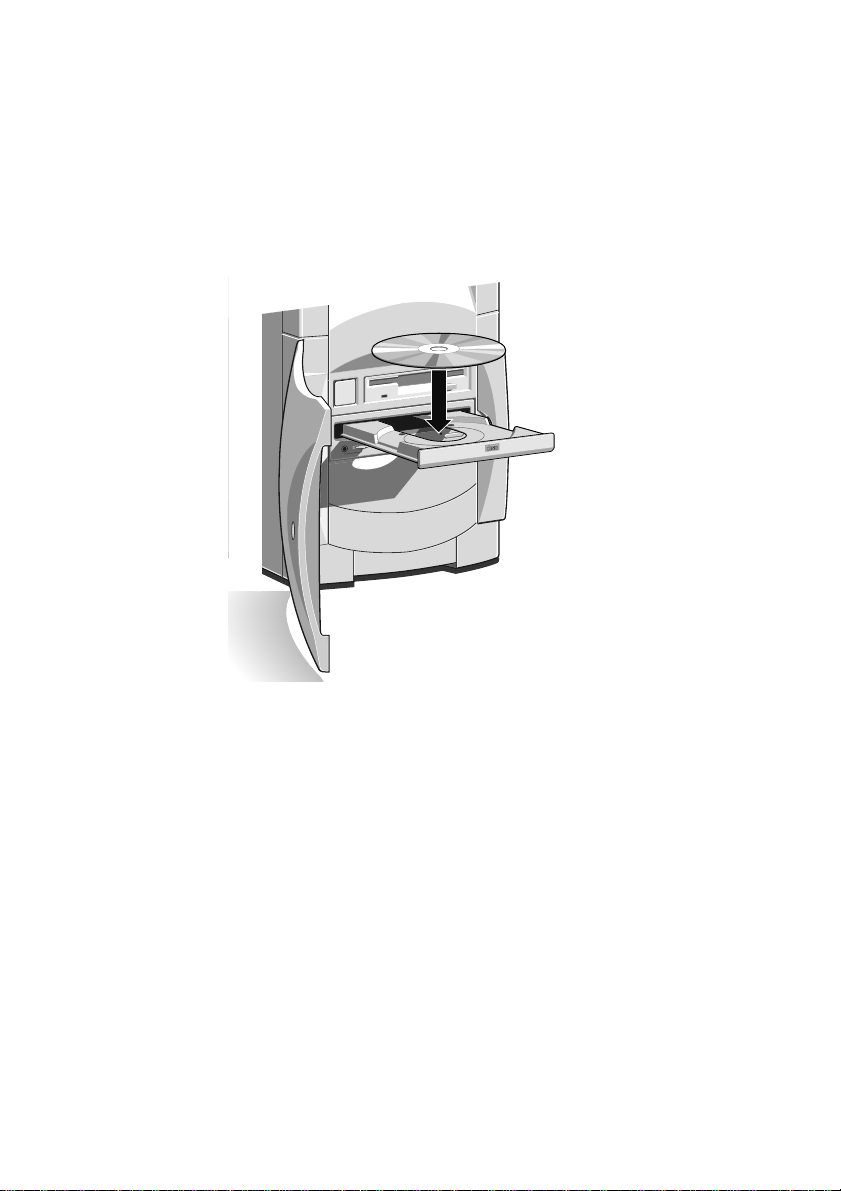
1. Press the
button on the front of drive.
EJECT
2. Place the CD centrally, printed side up, on the platter.
3. Push the
button again, or gently push the front of the
EJECT
platter to draw it back into the drive.
PACT
COM
Ejecting a compact disc
♦ Ensure that the drive’s activity indicator is not showing ‘busy’,
then press the
To eject the platter manually (for example, during a power failure)
you must first ensure that the computer is completely off (the Power
Mode indicator will be unlit). Insert a thin metal rod (such as an
unwound paper clip) into the emergency eject hole. Push carefully
and firmly.
Care of CDs
Keep CDs well away from dust and moisture, and avoid touching
the surface of the CD. Avoid extremes of temperature and exposure
to direct sunlight as these may cause the disk to warp. Always store
them in their original container.
2/4 FT1200 HANDBOOK
EJECT
button.
Page 28
DAT tape drive (option)
COMPACT
1
2
4
3
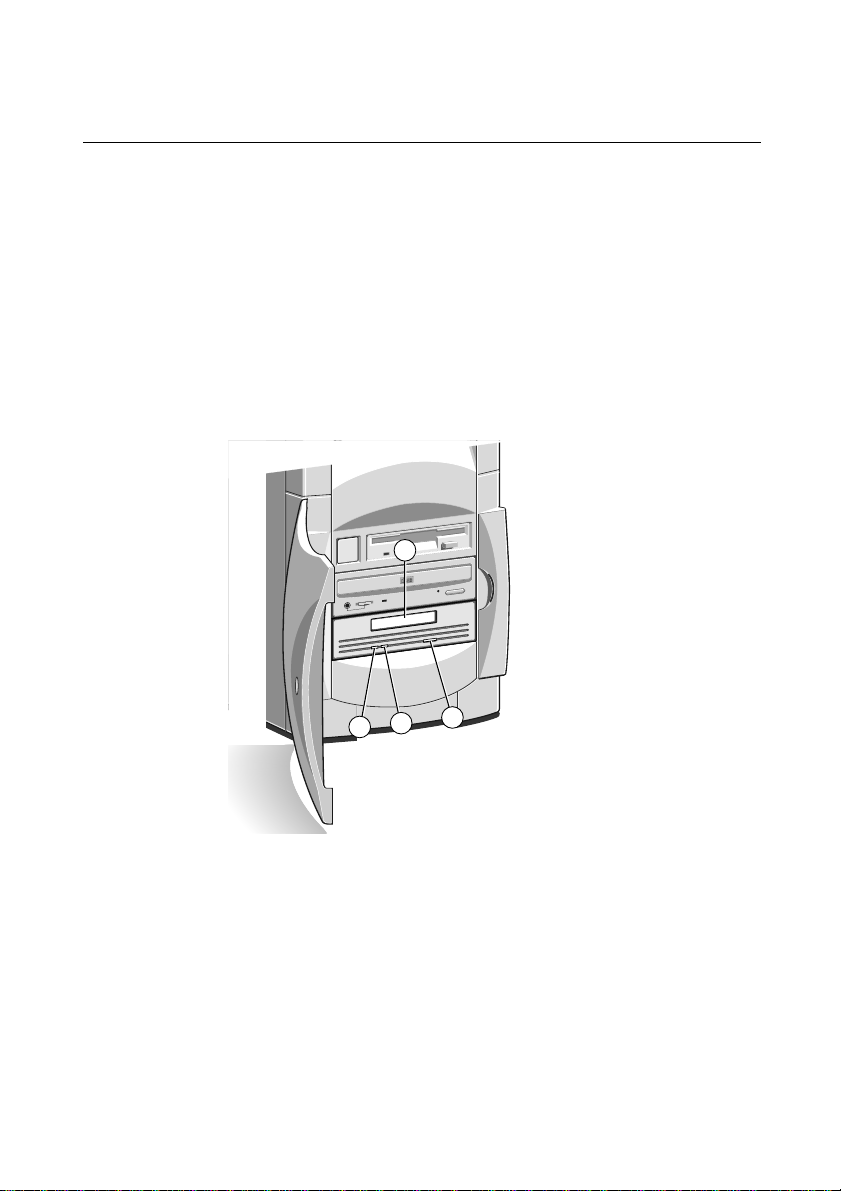
It is recommended to regularly make a backup of the software on
the system hard drives. A DAT tape drive is one of the simplest and
most convenient methods. The drive can be obtained from your
supplier as an upgrade kit. A brief installation guide is give in the
chapter, ‘Drive upgrades’.
Operating system software can be easily reinstalled from the master
software disks or CD-ROMs, but created data from a multitude of
server users can not be easily replaced. The common backup
method is to use two or three tapes in rotation, either weekly, daily
or even twice daily for large organisations with complex networking.
Removable media drives
1 Tape cassette entry slot
2
Cassette engaged (green)
3
Drive active (amber)
4 Cassette eject button
The LEDs may show different colours dependant on the drive
activity. For full information see the separate ‘User’s Guide’ for the
drive.
FT1200 HANDBOOK 2/5
Page 29
Removable media drives
Inserting a DAT tape
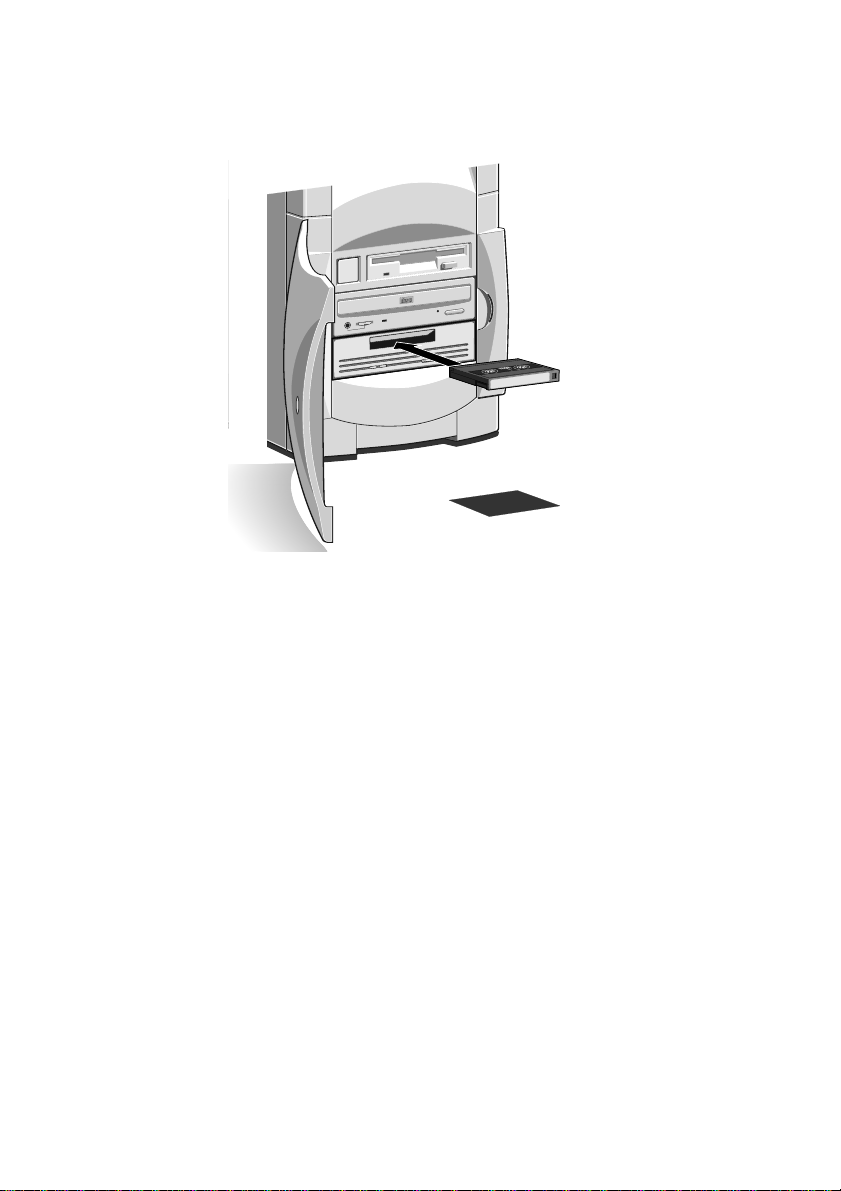
Hold the cassette with its metal plate downward and the open tape
edge towards the computer. Without using undue force, press the
cassette against the drive tape slot. The dust cover will swing open
allowing the tape cassette to enter. Push firmly home. With some
models of drive, the cassette does not enter the drive completely.
The ‘Cassette engaged’ green light should come on.
COMPACT
Removing a DAT tape
Wait until the drive active light goes out and all activity has ceased,
then press the Eject button. The cassette will move outwards and is
easily lifted clear.
Care of DAT cassettes
Always store cassettes in their original dust tight cases. Keep them
away from dust, moisture, magnetic objects, and equipment that
generates magnetic fields (such as telephones or monitors). Avoid
extremes of temperature and exposure to direct sunlight. Regularly
check your backup tapes for wear or damage.
2/6 FT1200 HANDBOOK
Page 30
3 EXPANSION CARDS
1
10101
ISA
ISA/PCI
PCI
AGP Video
(Option)
Expansion cards (also known as expansion boards, controllers or
adapters) are small self-contained circuit boards which extend the
capabilities of the computer. For example, a graphics card could
provide more specialised video functions than those offered by the
on-board video system, or a modem card could provide a
connection to the Internet via a telephone line.
Your computer can accept two basic types of expansion card:
♦ ISA or Industry Standard Architecture cards
♦ PCI or Peripheral Component Interconnect cards
You don’t need to understand what these terms mean, but before
adding a card to your computer you will need to know whether it is
ISA or PCI and possibly its physical dimensions.
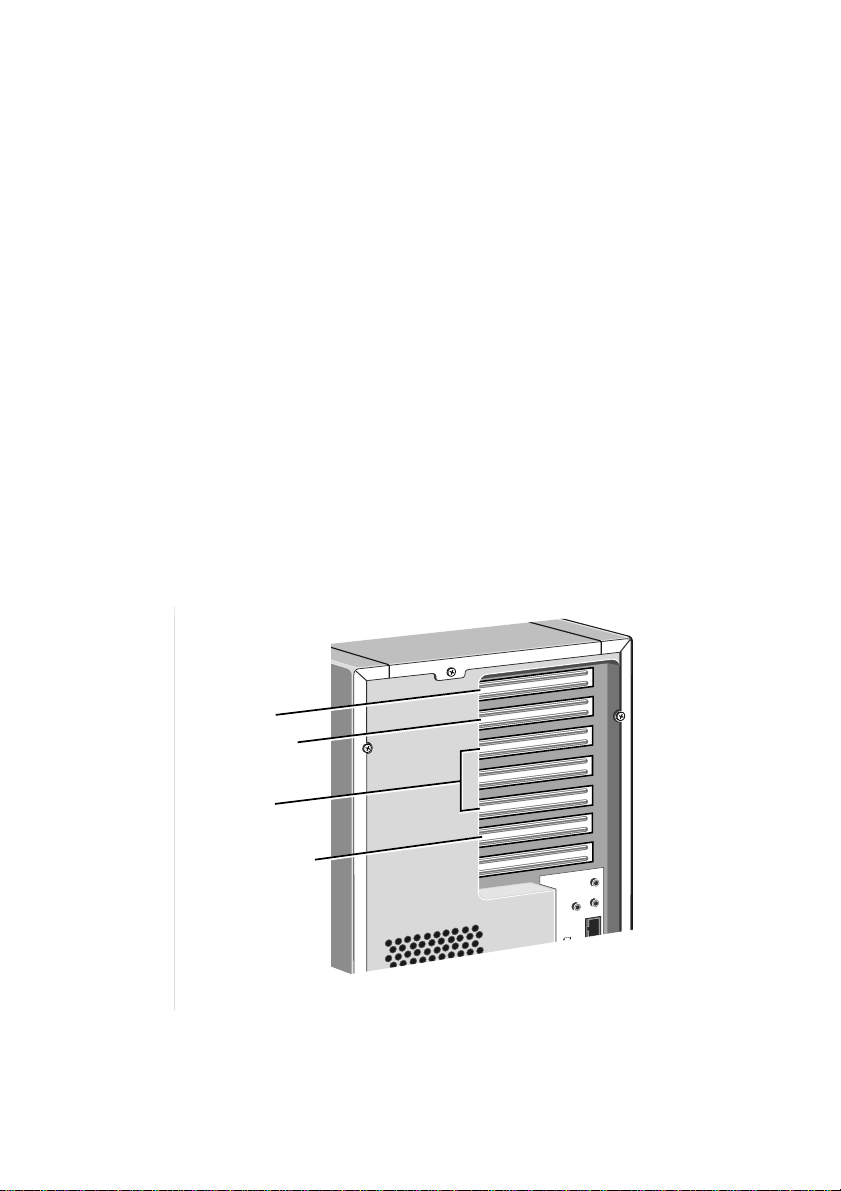
The following diagram shows the layout of the six expansion slots in
your server.
FT1200 HANDBOOK 3/1
Page 31

Expansion Cards
Configuring the card
Part of the installation procedure for an expansion card involves
setting up or “configuring” the card so it will work correctly in the
computer.
Most modern PCI cards employ a feature called “Plug and Play”
(PnP). This allows Windows 95 – and other PnP-aware operating
systems – to configure the card automatically the first time you turn
on the computer after installing the card.
However, many ISA cards (and some PCI cards) require manual
configuration. If manual configuration is required, you will
probably need to specify at least two of the following:
♦ Interrupt request level (IRQ)
♦ Direct memory access (DMA) channel
♦ Base input/output (I/O) port address
♦ Base memory address
The important thing to understand is that the settings of the card
you are installing must be different from the settings used by other
cards already in the computer or by components on the computer’s
motherboard. In other words, the settings must not “conflict”.
The documentation accompanying the card should tell you whether
the card supports Plug and Play, or if not, how to configure it.
Remember to check any diskettes supplied with the card for
README or other help files.
Some cards require you to move jumpers or set switches on the card
to configure them. This is best done before installing the card in the
computer. Other cards can be configured by running a
configuration program after installing the card. Some cards use a
mixture of both methods.
Cards often come with pre-configured or default settings. It is best
to rely on these settings as much as possible, and change them only
if they conflict with other devices.
3/2 FT1200 HANDBOOK
Page 32

Expansion Cards
ISA Interrupt request level (IRQ)
The “interrupt request level” or “IRQ” is the means by which the
expansion card sends a signal to get the attention of, or interrupt,
the processor. Your PC has interrupt levels numbered IRQ0 to
IRQ15, many of which are needed for components on the
computer’s motherboard. There are two ways round this.
♦ You can disable certain motherboard components either by
means of the BIOS Setup utility or else by changing jumper
settings on the motherboard. This frees the resources used by
those components.
♦ The audio system, USB controller and standard input/output
controller (e.g., for serial and parallel ports) are Plug and Play
(PnP) devices. If you use BIOS Setup or Windows 95 Control
Panel to exclude or reserve an interrupt that is usually assigned
to one of these devices an alternative interrupt will be assigned
though Plug and Play and the original interrupt can instead be
used by the expansion card.
See the BIOS Setup & POST chapter for more information about
BIOS Setup. See the Motherboard Features & Upgrades chapter for
more information about jumper settings and the usual assignment
of interrupts to motherboard components.
Direct memory access (DMA) channel
Some hardware devices can use a “DMA channel” to access system
memory without directly burdening the processor. Your PC has
DMA channels numbered DMA0 to DMA7. As with interrupts,
you can use vacant channels or re-assign existing ones.
See the Motherboard Features & Upgrades chapter for more
information about the usual assignment of DMA channels.
Base input/output (I/O) port address
I/O ports are used by the processor to communicate with hardware
devices. Each port appears to the processor as an address low down
in its address space. Some expansion cards are also controlled by I/O
ports. The “base I/O port address” specifies where the card’s ports
begin.
FT1200 HANDBOOK 3/3
Page 33

Expansion Cards
Base memory address
Some expansion cards are fitted with memory of their own, usually
read-only memory (ROM) containing functional extensions to the
computer’s BIOS (basic input/output system) ROM. Some cards
also have random-access memory (RAM).
In order that this memory can be recognised by the system
processor, it must be mapped somewhere within the computer’s
own address space. By setting the “base memory address” you
specify where the card’s memory begins within the address space.
Typically, an expansion card’s memory must be mapped onto the
addresses between C8000h and DFFFFh – an area known as the
upper memory block or UMB. You can exclude or reserve UMB
regions with the BIOS Setup utility.
The card’s documentation should list its possible base memory
addresses. You may also need to know how much memory the card
has, so that you can leave the right gap between this card’s base
address and the next.
More about memory addresses
Memory addresses are always written in base 16 or “hexadecimal”
notation. Unlike the ten digits of the decimal system (0-9),
hexadecimal uses sixteen digits (0-9 and A-F, where A=10, B=11,
C=12 and so on up to F=15).
Hexadecimal numbers are denoted either by the suffix “h” or by the
prefix “0x”. The final digit of a five-digit memory address is often
omitted, so C8000h may be written as C800h.
Because amounts of memory are usually stated as kilobytes (Kbytes)
rather than in hexadecimal notation, the following conversion table
may be helpful:
4 Kbytes = 1000h 32 Kbytes = 8000h
8 Kbytes = 2000h 64 Kbytes = 10000h
16 Kbytes = 4000h 128 Kbytes = 20000h
3/4 FT1200 HANDBOOK
Page 34

Installing the card
Read all these instructions through before attempting to install any
expansion card.
WARNING
Never carry out any work inside the computer with AC power applied.
Always shut down the computer and unplug all power cords before
removing the top cover.
IMPORTANT
This system complies with the CE Marking Directive and its strict legal
requirements. Use only parts tested and approved by Mitsubishi Electric
PC Division. Failure to do so may result in invalidating both the
compliance and your warranty. All expansion cards, drives and
peripherals must carry the CE mark to ensure continued compliance.
The only tool required is a small cross-head screwdriver.
1. Turn off the computer and unplug all power cords.
2. Take suitable anti-static precautions and remove the righthand side and top panels. For more information see “Antistatic precautions” in the Safety & Regulatory Notices at the start
of this manual.
Expansion Cards
3. Decide in which of the available slots you wish to install the
card, according to its type and size. In general it is easiest,
where possible, to start with the farthest slot and work
forwards.
4. Remove the slot’s blanking plate by removing the securing
screw. Keep the screw; it will be needed later to secure the
card.
5. If the card you are installing is configured by the means of
jumpers or switches, check that it is correctly configured before
proceeding.
6. When installing a card that uses the VESA/AMC video feature
connector on the motherboard, it is best to plug the video
FT1200 HANDBOOK 3/5
Page 35

4-2
Expansion Cards
feature cable into the motherboard before you install the card;
otherwise, the card may get in the way of the connector. See
the Motherboard Features & Upgrades chapter to locate the
VESA/AMC connector.
CAUTION
Be careful how you use this connector. Some pins carry +5 V power
which could damage the expansion card if it is incorrectly attached.
7. Position the expansion card alongside the slot in which you
wish to install it. Align the rear of the card with the slot in the
rear of the system unit, and, if the card is full length, align the
front of the card with the card guide.
8. Slide the card into the slot ensuring that the card edge
connector engages correctly with the socket on the riser board.
Do not use excessive force.
9. Secure the card by replacing the screw that you removed in
Step 4.
10. Connect any necessary signal cables to the card.
11. Ensure no other cables or connectors have become dislodged,
then replace the side and top panels.
3/6 FT1200 HANDBOOK
Page 36

Reserving ISA legacy resources
If the computer does not automatically detect the new expansion
card the first time you turn it on, start the BIOS Setup utility, go to
the Advanced menu and change the Reset Configuration Data item
to “Yes”.
If you have just installed an ISA card, you may also need to reserve
or exclude the legacy resources (that is, the interrupts and UMB
regions) used by the card. This is necessary so that any Plug and
Play components can be configured automatically and won’t try to
use the same settings. See the BIOS Setup & POST chapter for more
information.
Alternatively, you can use the Windows Control Panel to change
the resource settings used by devices:
1. Click the Start button in the taskbar, then Settings, then
Control Panel.
2. Double-click on System, then click the Device Manager tab of
the System Properties dialog.
3. Select the device whose resources you want to change, then
click Properties.
Expansion Cards
4. Click the Resources tab of the device’s Properties dialog.
If your device does not have a Resources tab, either you cannot
change its resources or it isn't using any resource settings.
5. Click the resource you want to change, un-check the Use
Automatic Settings box, then click Change Setting.
TIP
In some cases, you may see a Set Configuration Manually button on
the Resources tab. You may have to click this button before you can
change resource settings.
FT1200 HANDBOOK 3/7
Page 37

4 SCSI DRIVES
This chapter describes installation of and support for SCSI devices,
how to configure them and how to use the SCSISelect utility.
SCSI Device Support
The motherboard has an Adaptec AIC-7895 dual-channel SCSI
controller chip integrated as a PCI bus master. The controller
supports data path widths of 8-bit (narrow SCSI) at a data transfer
rate of up to 20 MB/sec and 16-bit (wide SCSI) at a data transfer
rate of up to 40 MB/sec.
The motherboard has three onboard SCSI connectors:
♦ Channel A has one 68-pin, 16-bit connector
♦ Channel B has one 68-pin, 16-bit connector and one 50-pin,
8-bit connector
Drive bays
♦ The forward drive bay can accommodate two hard disk drives.
Either drive may be 3.5 or 5.25 width, but only 1 inch high.
♦ The bay below the CD-ROM drive can accommodate any full-
width, half-height peripheral drive, such as the optional DAT
drive shown in the chapter, ‘Removable media drives’.
♦ The rear drive bay is designed to take one or two 3.5 x 1 inch
high, SCSI drives.
Termination rules
When attaching internal SCSI devices, a terminated device must be
attached to the last connector on the data cable. Other
unterminated devices can then be attached to the data cable. See the
SCSI device’s documentation for instructions on termination. The
motherboard is connected to the other end of the cable, and it is
terminated by default.
More details about this and other drive jumpers can be found on
pages 2 and 3 of this chapter.
FT1200 HANDBOOK 4/1
Page 38

SCSI drives
3
2
1
1 First or “master” hard disk drive (HDD)
2 Slot for a second hard disk drive
3 Slot for a removable-media drive
4 Rear drive bay for two SCSI hard disk drives
Hard disk configurations
Two options are available for SCSI control; the onboard Adaptec
7895 Dual channel SCSI to PCI controller, or the AMI i960 series
431 Ultra SCSI to PCI RAID card (optional). The onboard
configuration uses two separate cables, one from each port to the front
and rear drive bays respectively The first channel (Ch A) will control
the front mounted hard drives and the optional tape drive (via a 50
pin to 68 pin converter), while the second channel (Ch B) will control
only the rear hard drive pair. When using an AMI431 RAID card, a
single SCSI cable will be employed, which will connect to all four
hard drives and the optional tape drive (again via a converter).
4
Hard Disk Drive types and links
The hard disk sub-system can consist of up to four IBM
(4Gb or 9Gb) or IBM
xxxxx
Ultra II-Wide SCSI drives. The drive locations are as above, the
front bays will be filled first. With the onboard option, when both
buses are used, the last physical drive on each bus must be
configured to terminate the bus. When the RAID option is used,
only the very last physical drive on the cable must be configured to
terminate the bus. A table showing typical link configurations is
given opposite.
4/2 FT1200 HANDBOOK
DCAS-xxxxx
DDRS-
(2Gb or 4Gb) 68 pin
Page 39

HDD jumpers
SCSI drives
Jumper Function
(DCAS-xxxxx)
Function
(DDRS-xxxxx)
1 ID Bit 3 (MSB) ID Bit 3 (MSB)
2 ID Bit 2 ID Bit 2
3 ID Bit 1 ID Bit 1
4 ID Bit 0 (LSB) ID Bit 0 (LSB)
5 Disable Auto Spin up Enable Auto Spin up
6 Enable Bus Term Enable Bus Term
7 Disable Unit Disable Unit
8 Enable TI-SDTR/WDTR Enable TI-SDTR/WDTR
9 Auto Start Delay Auto Start Delay
10 Delay Start 6/12 Delay Start 6/12
11 Disable Parity Disable Parity
12 LED Cathode LED Cathode
Jumper Function DDRS-xxxxx
-Adaptec
0123012301230123
DDRS-xxxxx
– AMI431
DCAS-xxxxx
- Adaptec
DCAS-xxxxx
-AMI431
1 ID Bit 3 0 0 0 0 0 0 0 0 0 0 0 0 0 0 0 0
2 ID Bit 2 0 0 0 0 0 0 0 0 0 0 0 0 0 0 0 0
3 ID Bit 1 0 0 0 0 0 0 1 1 0 0 0 0 0 0 1 1
4 ID Bit 0 0 1 0 1 0 1 0 1 0 1 0 1 0 1 0 1
5 Auto Spin up 1 0 0 0 1 0 0 0 0 1 1 1 0 1 1 1
6 Bus Term 1 0 1 0 1 0 0 0 1 0 1 0 1 0 0 0
7 Disable Unit 0 0 0 0 0 0 0 0 0 0 0 0 0 0 0 0
8 TI-SDTR 0 0 0 0 0 0 0 0 0 0 0 0 0 0 0 0
9 Start Delay 0 0 0 0 0 0 0 0 0 0 0 0 0 0 0 0
10 Delay 6/12 0 0 0 0 0 0 0 0 0 0 0 0 0 0 0 0
11 Disable Partiy 0 0 0 0 0 0 0 0 0 0 0 0 0 0 0 0
12 LED 0000000000000000
1 = jumper fitted 0 = no jumper
FT1200 HANDBOOK 4/3
Page 40

SCSI drives
Installing in the forward drive bay
To install a second hard disk drive in the forward drive bay:
1. Turn off the computer and unplug all power cords.
2. If there is a diskette in the diskette drive, remove it.
3. Take suitable anti-static precautions and remove all the system
panels.
4. Carefully remove the plastic bezel blanking insert from the
lowest front drive slot by pushing it out from the rear with a
blunt instrument (for example, the end of a rubber-tipped
pencil). A hole for this is provided inside the system unit,
alongside the drive bay.
5. Pull out the metal blanking plate from the front of the internal
drive bay metalwork.
6. Remove the drive mounting plate (it is secured by two screws
on each side).
7. If you are fitting a 3.5 inch hard disk drive, attach it to the
drive mounting plate using the special screws provided with the
drive. Carefully slide the mounting tray (with drive) back into
the drive bay from the front, then secure it on both sides using
the screws you removed at Step 6.
8. Attach a spare power cable to the new drive (it does not matter
greatly which of the available power cables you choose).
9. Attach a spare connector on the SCSI ribbon (signal) cable to
the new drive.
◊ Remember to check ‘Termination rules’ on the first page of
10. Check to ensure that no other cables or connections have
become dislodged or trapped during the work, then refit the
internal metal blanking plate, the plastic front bezel and the
system unit panels.
4/4 FT1200 HANDBOOK
this chapter.
Page 41

Installing in the rear drive bay
The rear drive bay has a cooling fan for the processors mounted on
the rear. This has a power connection to the motherboard.
1. Turn off the computer and unplug all power cords.
2. Take suitable anti-static precautions and remove the system
side panel.
3. If the rear drive bay already contains a SCSI drive, unplug the
SCSI ribbon (signal) cable and power cable from that drive.
4. Remove the five screws that secure the rear drive bay to the
chassis and take the bay out of the system unit.
WARNING
The drive bay has a processor cooling fan mounted at the back which is
connected to the motherboard (J3F2). This must be reconnected when
you refit the drive bay.
5. Mount the new drive within the bay using the special screws
provided with the drive.
SCSI drives
6. Return the rear drive bay to the system unit, reconnecting the
fan power connector to the motherboard (J3F2) and secure it
in place using the screws you removed at Step 4.
7. Attach SCSI ribbon cables and spare power cables to the drives
(it does not matter greatly which of the available power cables
you choose).
◊ Remember to check ‘Termination rules’ on the first page of
this chapter along with the drive jumper settings on page 3
of this chapter.
8. Check to ensure that no other cables or connections have
become dislodged or trapped during the work, then refit the
system unit panel.
FT1200 HANDBOOK 4/5
Page 42

SCSI drives
Partitioning and formatting the drive
The new drive will initially be blank. Before you can use the drive,
you must partition and format it. Although drives can be formatted
using Windows, it is recommended to use the SCSISelect utility
described later in this chapter.
CAUTION
Take great care when creating and formatting new partitions not to
damage, delete or format your existing ‘boot’ partition.
Windows NT
If you prefer to you can use the Disk Administrator tool in the
Administrative Tools (Common) folder. This tool can create
partitions and format them.
Installation of a removable media drive
Removable-media drives sometimes require configuration, by
altering jumpers on the drive itself, prior to installation.
Configuration details vary from drive to drive: a SCSI drive requires
that its device ID number be set (the boot SCSI drive is usually
drive ‘0’). Most drives are supplied with documentation describing
how to configure the drive. If you are uncertain about configuring
the drive consult your supplier.
Installing the drive
1. Turn off the computer and unplug all power cords.
2. Take suitable anti-static precautions and remove all the system
panels.
3. Carefully remove the plastic bezel blanking insert from the
selected drive slot by pushing it out from the rear with a blunt
instrument (for example, the end of a rubber-tipped pencil). A
hole for this is provided inside the system unit, alongside the
drive bay.
4/6 FT1200 HANDBOOK
Page 43

SCSI drives
4. Pull out the metal blanking plate from the front of the internal
drive bay metalwork.
5. Carefully slide the new drive into the bay from the front and
secure it on both sides using the special screws provided with the
drive.
6. Attach a spare power cable to the drive (it does not matter
greatly which of the available power cables you choose).
7. If you are fitting a SCSI device that has a 50-pin connection,
connect using a 50-68 pin adapter to the existing SCSI cable
connected to channel ‘A’.
◊ Remember to check ‘Termination rules’ on the first page of
this chapter.
8. Attach any other signal cables as instructed in the
documentation supplied with the removable-media drive.
9. Check to ensure that no other cables or connections have
become dislodged or trapped during the work, then refit the
system unit panels.
Finally, follow any further instructions supplied with the drive (for
example, installing and configuring software).
FT1200 HANDBOOK 4/7
Page 44

SCSI drives
Using the SCSI
Select
The SCSISelect Utility enables you to:
♦ Modify the SCSI controller's configuration (including
termination)
♦ Change SCSI device settings that conflict with other device
settings
♦ Perform a low-level format on SCSI devices connected to the
motherboard
To enter the utility
To enter the SCSISelect Utility, boot the computer and press
<Ctrl><A> when the following message appears:
Press <Ctrl><A> for SCSI
The table below provides an overview of the function keys in the
SCSISelect Utility. Following this are descriptions of the options in
each screen of the utility.
Overview of the SCSI
Select
Press To
ESC Go back to previous screen/exit the utility
Enter Select an option
↑
↓
F5 Switch between color and monochrome
F6 Reset to defaults
Utility
Select
Keys
Move to the previous field
Move to the next field
(TM) Utility!
Main Screen
Before the main screen is displayed, you must select which SCSI
channel to configure, A or B. After you select the channel and press
<Enter>, the main screen is displayed.
Configure/View Host Adapter Settings
When selected, this brings up the Configuration Menu.
4/8 FT1200 HANDBOOK
Page 45

SCSI Disk Utilities
When selected, this brings up the SCSI Disk Utilities Menu.
Configuration Menu
NOTE
In the utility, an asterisk (*) indicates the default setting for a field.
Host Adapter SCSI ID
Specifies the SCSI ID of the host adapter. The options are ID 0–15.
The default is ID 7.
SCSI Parity Checking
Enables or disables parity checking. When enabled, the host adapter
checks parity when reading from the SCSI bus to verify the correct
transmission of data from the SCSI devices. Select disabled if any
SCSI devices attached to the chain do not support SCSI parity.
The options are:
♦ Enabled (default) ♦ Disabled
SCSI drives
Host Adapter SCSI Termination
Enables or disables SCSI termination on the motherboard.
The options are:
♦ Enabled (default) ♦ Disabled
Boot Device Options
This brings up the Boot Device Configuration Menu.
SCSI Device Configuration
This brings up the SCSI Device Configuration Menu.
Advanced Configuration Options
This brings up the Advanced Configuration Options Menu.
FT1200 HANDBOOK 4/9
Page 46

SCSI drives
Boot Device Configuration
Boot Channel
Specifies the SCSI channel from which the computer should boot.
The options are:
♦ A First (default) ♦ B First
Boot SCSI ID
Specifies the SCSI ID of the device from which you wish to boot.
The options are ID 0–15. The default is ID 0.
The SCSI ID selected here must correspond to the ID configured
on the boot device.
Boot LUN Number
Sets which LUN (Logical Unit Number) to boot from on your boot
device if your boot device has multiple LUNs and Multiple LUN
Support is enabled. The options are ID 0–7. The default is ID 0.
SCSI Device Configuration Menu
These settings enable you to configure each device on the SCSI bus.
You must know the SCSI ID of the device you want to configure.
Initiate Sync Negotiation
When Yes is selected, the motherboard initiates synchronous
negotiation with the SCSI device. When No is selected, the
motherboard does not initiate synchronous negotiation. If the SCSI
device initiates synchronous negotiation, the motherboard always
responds.
The options are:
♦ Yes (default) ♦ No
Maximum Sync Transfer Rate
Sets the maximum synchronous data transfer rate in MB/second.
The motherboard supports synchronous data transfer rates up to the
Ultra Fast SCSI maximum rate of 40 MB/second.
The options are:
♦ 40.0 (default) ♦ 32 ♦ 26.8 ♦ 20.0 ♦ 16.0 ♦ 13.4 ♦ 10.0
4/10 FT1200 HANDBOOK
Page 47

SCSI drives
Enable Disconnection
Sets whether the motherboard allows SCSI devices to disconnect
from the SCSI bus. Enabling disconnection allows the motherboard
to perform other operations on the SCSI bus while the SCSI device
is temporarily disconnected. If two or more SCSI devices are
connected to the host adapter, select Yes.
The options are:
♦ Yes (default) ♦ No
Initiate Wide Negotiation
Specifies whether the motherboard attempts 16-bit instead of 8-bit
data transfer. Selecting Yes enables Fast/Wide SCSI-2 hard drives to
achieve their highest performance. Selecting No specifies 8-bit data
transfer unless the SCSI device requests wide negotiation.
The options are:
♦ Yes (default) ♦ No
BIOS Multiple LUN Support
Enables or disables support for booting from a SCSI device that has
multiple LUNs. Enable this option if your boot device has multiple
LUNs (e.g., multiple partitions on a hard disk). This field is ignored
if the Host Adapter BIOS is disabled.
The options are:
♦ Enabled ♦ Disabled (default)
Send Start Unit Command
Specifies whether the Start Unit Command is sent to a SCSI device
at boot. Selecting Yes reduces the load on the computer's power
supply by allowing the host adapter to start SCSI devices one at a
time. Most devices require you to set a jumper on the SCSI device
before it can respond to this command.
The options are:
♦ Yes ♦ No (default)
FT1200 HANDBOOK 4/11
Page 48

SCSI drives
Include in BIOS Scan
Specifies whether a device is included in the SCSI BIOS scan at boot.
Selecting No removes the device from the scan. The device will not be
assigned a SCSI ID. This option can be useful when changing boot
order or if a device has not been responding properly.
The options are:
♦ Yes (default) ♦ No
Advanced Configuration Options
Plug and Play SCAM Support
Enables or disables support for SCAM Level 1 and Level 2 SCSI
devices. SCAM is a method that participating SCSI devices on a bus
use to dynamically assign SCSI bus IDs. Some legacy devices cannot
reside on a SCSI bus where SCAM protocols execute. Select
Disabled if such a device is attached to the SCSI bus.
The options are:
♦ Enabled ♦ Disabled (default)
Reset SCSI Bus at IC Initialization
Enables or disables support for resetting the SCSI bus when the
computer is reset.
The options are:
♦ Enabled (default) ♦ Disabled
Extended BIOS Translation for DOS Drives Larger
than 1 GB
CAUTION
All data on all connected hard drives is lost when you change from one
setting to another.
Enables or disables extended translation for SCSI hard disks with
capacities greater than 1 GB. This field is ignored if the Host
Adapter BIOS is disabled.
The options are:
♦ Enabled (default) ♦ Disabled
4/12 FT1200 HANDBOOK
Page 49

SCSI drives
Use Extended BIOS Translation only with MS-DOS 5.0 or higher.
You do not need to enable this option if you are using another
operating system such as NetWare, Windows NT, or UNIX.
When you partition a disk larger than 1 GB, use the MS-DOS fdisk
utility as you normally would. Because the cylinder size increases to 8
MB under extended translation, the partition size you choose must be
a multiple of 8 MB. If you request a size that is not a multiple of 8
MB, fdisk rounds up to the nearest whole multiple of 8 MB.
Host Adapter BIOS
Enables or disables the host adapter BIOS. If you are booting from
a SCSI disk drive connected to the motherboard, the Host Adapter
BIOS must be enabled. Disable the Host Adapter BIOS if the
peripherals on the SCSI bus (for example, CD-ROM drives) are all
controlled by device drivers and do not need the BIOS.
The options are:
♦ Enabled (default) ♦ Disabled
NOTE
Several of the following fields are ignored if the Host Adapter BIOS is
disabled.
Support Removable Disks Under BIOS as Fixed Disks
CAUTION
If a removable-media SCSI device is controlled by the host adapter BIOS,
do not remove the media while the drive is on or you could lose data. If
you want to be able to remove media while the drive is on, install your
removable-media device driver and set this option to Disabled.
Controls which removable-media drives are supported by the SCSI
BIOS. This field is ignored if the Host Adapter BIOS is disabled.
The options are:
♦ Boot Only (default) (Only the removable-media drive
designated as the boot device is treated as a hard disk drive)
FT1200 HANDBOOK 4/13
Page 50

SCSI drives
♦ All Disks (All removable-media drives supported by the BIOS
are treated as hard disk drives)
♦ Disabled (No removable-media drives are treated as hard disk
drives. In this situation, software drivers are needed because
the drives are not controlled by the BIOS)
Display <Ctrl-A> Message During BIOS Initialization
NOTE
This option does not affect your ability to access the SCSISelect Utility.
It only toggles the prompt.
Turns on (or off) the "Press <Ctrl> <A> for SCSISelect (TM)
Utility!" prompt at boot. This field is ignored if the Host Adapter
BIOS is disabled.
The options are:
♦ Enabled (default) ♦ Disabled
BIOS Support for Bootable CD-ROM
Enables or disables support for booting from a CD-ROM drive.
This field is ignored if the Host Adapter BIOS is disabled.
The options are:
♦ Enabled (default) ♦ Disabled
BIOS Support for Int 13 Extensions
Enables or disables support for disks with more than 1024 cylinders.
This field is ignored if the Host Adapter BIOS is disabled.
The options are:
♦ Enabled (default) ♦ Disabled
4/14 FT1200 HANDBOOK
Page 51

Using the SCSI Disk Utilities
To enter the SCSI Disk Utilities, select the SCSI Disk Utilities
option from the SCSISelect menu. When you select this option,
SCSISelect scans the SCSI bus (to determine the devices installed)
and displays a list of all SCSI IDs and the devices assigned to each
ID.
When you select a specific ID and device, a small menu appears,
displaying two options: Format Disk and Verify Disk Media.
Format Disk
CAUTION
A low-level format destroys all data on the drive. Back up your data
before performing this operation. You cannot abort a low-level format
once it is started.
This utility enables you to perform a low-level format on a hard disk
drive. Most SCSI disk devices are preformatted at the factory and
do not need to be formatted again. The Adaptec Format Disk
utility is compatible with most SCSI disk drives.
SCSI drives
Verify Disk Media
This utility enables you to scan the media of a hard disk drive for
defects. If the utility finds bad blocks on the media, it prompts you
to reassign them; if you select Yes, those blocks are no longer used.
Press <Esc> at any time to abort the utility.
FT1200 HANDBOOK 4/15
Page 52

5 MOTHERBOARD:
FEATURES & UPGRADES
General features
Accelerated Graphics Port (A.G.P.) Support
The Accelerated Graphics Port (A.G.P.) is a highperformance interconnect for graphics-intensive applications,
such as 3D graphics. A.G.P. is independent of the PCI bus
and is intended for exclusive use with graphics displays.
A.G.P. provides these features:
♦ Pipelined-memory read and write operations that hide
memory access latency
♦ Demultiplexing of address and data on the bus for near
100 percent bus efficiency
♦ AC timing for 133 MHz data transfer rates, allowing
data throughput of 533 MB/sec
Hardware Monitor
The hardware monitor subsystem provides the following:
♦ Integrated temperature and voltage monitoring
♦ Fan-speed sensors for up to five fans
♦ Support for the Intel LANDesk
software
♦ Connector for a chassis security feature
Wake on LAN Connector
A two-pin connector is used to implement the Wake on
LAN feature when you install an add-in network interface
card (NIC) to the computer. Connect the output of a NIC
that supports Wake on LAN technology to the onboard
Wake on LAN connector. The NIC monitors network
®
Client Manager
FT1200 HANDBOOK 5/1
Page 53

Motherboard: features & upgrades
traffic and when it detects a Magic Packet, it sends a signal
through the Wake on LAN connector to wake up the
computer. The network can wake up the computer only
when it is turned off with its power cord still plugged into
the socket.
Networking
The onboard Ethernet networking subsystem features the
™
EtherExpress
PRO/100B TX PCI LAN controller. The
networking subsystem supports 10Base-T and 100Base-TX
protocols. To use the motherboard’s networking capability,
you will need EtherExpress PRO/100B TX PCI LAN
software drivers and setup software.
Remote wakeup circuitry on the motherboard supports
remote wakeup of the computer via Wake on LAN
technology. The onboard networking subsystem monitors
network traffic. When it detects a Magic Packet, it wakes up
the computer. The network can wake up the computer only
when it is turned off with its power cord still plugged into
the socket. Wake on LAN can be enabled or disabled
through the BIOS Setup program.
Optional Features
Speaker
The motherboard has a front panel connector for an
offboard speaker and this is used by default in the computer
assembly.
However there is a piezoelectric speaker mounted on the
motherboard which can be used if required, or in the event
of the main speaker failure.
The speaker provides audible error code (beep code)
information during the POST.
5/2 FT1200 HANDBOOK
Page 54

Motherboard: features & upgrades
Audio Subsystem
The optional audio subsystem features the Crystal CS4236B
multimedia codec. The CS4236B is a Plug and Play device
that provides all the digital audio and analog mixing
functions needed to play and record sound on personal
computers. The audio subsystem includes the following:
♦ 16-bit stereo operation
♦ Sound Blaster Pro, Windows Sound System, Roland
MPU-401, AdLib, and Multimedia PC Level 2
(MPCII) compatibility
♦ Onboard Crystal CS9236 Wavetable Music Synthesizer
(optional)
♦ Connectors
◊ Line In, Line Out, and Mic In back panel audio
jacks
◊ CD-ROM audio connectors (ATAPI and 2 mm)
◊ Line In connector (ATAPI-style)
◊ Telephony connector (ATAPI-style)
Onboard Serial Port B Connector
An optional onboard serial port B connector is available on
the motherboard in place of the serial port B connector on
the back panel.
FT1200 HANDBOOK 5/3
Page 55

Motherboard: features & upgrades
JJ
II
HH
GG
FF
EE
DD
CC
BB
AA
Z
A
Onboard serial port 2 connector (optional)
B
CPU 1 fan connector
C
ATAPI CD audio connector (optional)
D
ATAPI-style telephony connector (optional)
E
ATAPI-style Line In connector (optional)
F
2 mm CD audio connector (optional)
G
Fan connector
H
Back panel connectors
I
Fan connector
J
Auxillary power connector
K
Boot processor Slot 1 connector
L
ATX power connector
M
Application processor Slot 1 connector
N
DIMM sockets
O
Configuration jumper block
P
Secondary IDE connector
Q
Primary IDE connector
R
Floppy drive connector
V U TWXY
B C
E
F
G
R QP O
S
S
T
U
V
W
X
Y
Z
AA
BB
CC
DD
EE
FF
GG
HH
II
JJ
HA D
I
J
K
L
M
N
OM06320
Ultra-wide (16-bit) SCSI connectors
Narrow (8-bit) SCSI connector
Sleep LED connector
Front panel I/O connectors
HDD LED input connector (4-pin)
Fan connector
Fan connector
Speaker
Battery
HDD LED input connector (2-pin)
Wake-on-Modem connector
Wake on LAN connector
SCSI PCI Raid
port
connector
A.G.P. connector
Port connector (used for chassis security)
PCI connectors
ISA connectors
Chassis security connector
5/4 FT1200 HANDBOOK
Page 56

Motherboard: features & upgrades
A
DF
E
B
G
Back Panel Connectors
A
PS/2 connector (mouse or keyboard)
B
Parallel port connector
C
Audio Line In jack (optional)
D
PS/2 connector (mouse or keyboard)
E
USB connectors
F
Serial port A connector
G
Serial port B connector
H
LAN connector (optional)
I
Audio Line Out jack (optional)
J
Audio Mic In jack (optional)
C
HJ
I
OM06576
FT1200 HANDBOOK 5/5
Page 57

Motherboard: features & upgrades
Processor Upgrades
If your motherboard has one processor, you can upgrade the
computer by replacing this processor with a faster one, or by
installing an application processor.
If your motherboard has two processors, you can upgrade by
replacing these processors with two faster processors.
If you install two processors, make sure they have:
♦ Identical speeds and voltages.
♦ The same stepping or a difference of no more than one
stepping. Processor stepping is designated by a fiveletter code, for example, SL28R, printed on the top
edge of the S.E.C. cartridge.
NOTE
If there is only one processor on a motherboard, it must be fitted
in the boot processor Slot 1 connector. In a single-processor
configuration, you must install a termination card in the empty
application processor Slot 1 connector to ensure proper operation
of the computer.
WARNING
In all instances you must remove the rear drive carrier and the
main cross strut of the chassis to safely access the system
processors.
The rear drive carrier assembly has a large cooling fan fitted to
the rear. It is essential that care is taken with this. It must be
correctly refitted and reconnected after you have finished your
work.
5/6 FT1200 HANDBOOK
Page 58

Motherboard: features & upgrades
To Remove a Processor
If you are upgrading a single processor, you need to remove
the existing processor
1. Observe the precautions in Safety and Regulatory
Notices.
2. Turn off the computer, disconnect the computer’s
power cord, and disconnect all external peripherals.
3. Remove any peripherals that block access to the
processor.
A
B
C
OM06313
Removing a Processor
4. Processors supplied to you by Mitsubishi will have a
standard heatsink. However if your existing processor has
a fitted fan, remove the fan heat sink power cable
connector (B) from the motherboard fan connector (C).
5. To remove the processor from the Slot 1 connector,
press in on the latches (A) and pull the processor
straight up as shown above.
6. Store the processor in an antistatic package.
FT1200 HANDBOOK 5/7
Page 59

Motherboard: features & upgrades
To Install a Single Processor
To install the processor:
1. Observe the precautions in Safety and Regulatory
Notices.
2. Turn off the computer, disconnect the computer’s
power cord, and disconnect all external peripherals.
3. Remove any peripherals that block access to the boot
processor Slot 1 connector.
D
A
B
D
E
Installing a Single Processor
4. If a processor is installed in the boot processor Slot 1,
remove it. See “How to Remove a Processor” as
previously detailed.
5. Remove the new processor from its antistatic package.
6. Orient the processor (B) so that the heat sink faces the
back of the motherboard. Slide the processor into the
retention mechanism (C). Ensure that the alignment
5/8 FT1200 HANDBOOK
C
J2E1
OM06314
Page 60

Motherboard: features & upgrades
notch in the S.E.C. cartridge fits over the key in the
Slot 1 connector.
7. Press down firmly on the processor until it is seated in
the boot processor Slot 1 connector and the latches (A)
on the processor lock into place.
8. Processors supplied to you by Mitsubishi will have a
standard heatsink. However if your upgrade processor
has a fan, attach the small end of the power cable to the
fan connector on the S.E.C. cartridge, then attach the
large end (D) to the CPU 1 fan connector (E) on the
motherboard. The fan connectors are keyed so they will
only connect one way.
9. Ensure there is a termination card in the application
processor Slot 1 connector if one is not already
installed.
10. Replace any peripherals that were removed in Step 3.
11. Set the processor speed. See “How to Set the Processor
Speed” for instructions.
To Remove the Termination Card
If you are installing a second processor you must first
remove the termination card:
1. Observe the precautions in Safety and Regulatory
Notices.
2. Turn off the computer, disconnect the computer’s
power cord, and disconnect all external peripherals.
3. Remove any peripherals that block access to the
application processor Slot 1 connector.
FT1200 HANDBOOK 5/9
Page 61

Motherboard: features & upgrades
Removing the Termination Card
4. Press the latches on the termination card (A) inward to
release it from the retention mechanism.
5. Hold the termination card by its top edge and carefully
rock it back and forth until the edge connector pulls
free from the Slot 1 connector.
A
OM06312
To Install the Termination Card
If you remove the application processor you need to install
the termination card before you can turn the computer back
on:
1. Observe the precautions in Safety and Regulatory
Notices.
2. Turn off the computer, disconnect the computer’s
power cord, and disconnect all external peripherals.
3. Remove any peripherals that block access to the
application processor Slot 1 connector.
5/10 FT1200 HANDBOOK
Page 62

Motherboard: features & upgrades
A
B
C
OM06308
Installing the Termination Card
4. Slide the termination card (A) into the retention
mechanism (C). Ensure that the alignment notch (B)
in the termination card fits over the key in the
application processor Slot 1 connector.
5. Press down firmly on the termination card until it is
seated in the Slot 1 connector and the latches on the
termination card lock into place.
To Install a Second Processor
To install the second, or application processor, you must
ensure that the second processor is identical to the first
processor, (see the warnings and guidelines on page 6 of this
chapter) if it is:
1. Observe the precautions in Safety and Regulatory
Notices.
FT1200 HANDBOOK 5/11
Page 63

Motherboard: features & upgrades
2. Turn off the computer, disconnect the computer’s
power cord, and disconnect all external peripherals.
NOTE
The second processor must be identical in speed and voltage to the
first processor. The second processor also must be the same stepping
as, or no more than one stepping higher than, the first processor.
3. Remove any peripherals that block access to the
application processor Slot 1 connector.
A
B
D
E
D
C
Installing a Second Processor
4. If a termination card is installed in the application
processor Slot 1 connector, remove it. See “How to
Remove The Termination Card”.
5. Remove the processor from its antistatic package.
6. Orient the processor (B) so that the heatsink faces the
back of the motherboard. Slide the processor into the
5/12 FT1200 HANDBOOK
J3F2
OM06311
Page 64

Motherboard: features & upgrades
retention mechanism (C). Ensure that the alignment
notch in the S.E.C. cartridge fits over the key in the
Slot 1 connector.
7. Press down firmly on the processor until it is seated in
the application processor Slot 1 connector and the
latches (A) on the processor lock into place.
8. Processors supplied to you by Mitsubishi will have a
standard heatsink. However if your upgrade processor
has a fan attached, connect the small end of the power
cable to the fan connector on the S.E.C. cartridge, then
attach the large end (D) to the CPU 2 fan connector
(E) on the motherboard. The fan connectors are keyed
so they will only connect one way.
9. Replace any peripherals that were removed in Step 3.
10. Set the processor speed. See “How to Set the Processor
Speed” for instructions.
To Set the Processor Speed
Set the processor speed after you have installed or upgraded
the processor. This procedure assumes that the computer is
turned off, the cover is off, and the configuration jumper
block (J7E1) has the jumper set on pins 1-2 for normal
mode.
1. Observe the precautions in Safety and Regulatory
Notices.
2. Locate the configuration jumper block J7E1 from the
illustration of the motherboard on page 4.
3. Move the jumper to pins 2-3 as shown below to set
configure mode.
13
J7E1
4. Replace the computer cover, turn on the computer, and
allow it to boot.
FT1200 HANDBOOK 5/13
Page 65

Motherboard: features & upgrades
5. The computer starts the Setup program. Setup displays
the Maintenance menu.
6. Use the arrow keys to select the Processor Speed feature
and press <Enter>. Setup displays a popup screen with
the available processor speeds.
7. Use the arrow keys to select the processor speed.
◊ For example, select 266 for a 266 MHz
Pentium®II processor. Press <Enter> to confirm
the speed. The Maintenance menu reappears.
8. Press <F10> to save the current values and exit Setup.
9. Turn off the computer.
10. Remove the computer cover.
11. On the jumper block (J7E1), move the jumper back to
pins 1-2 to restore normal operation as shown below.
13
J7E1
12. Replace the cover and turn on the computer.
How to Install Memory
You can install from 16 MB to 512 MB of SDRAM in the
motherboard DIMM sockets. Memory can be installed in
one, two, three, or four sockets. DIMM size can vary
between sockets.
The motherboard supports 66-MHz unbuffered (72bit)
ECC SDRAM based on 168-pin 3.3 V DIMMs with goldplated contacts.
Single or double-sided DIMMs can be used as follows:
DIMM Size Configuration
16 MB 2 Mbit x 72
32 MB 4 Mbit x 72
64 MB 8 Mbit x 72
128 MB 16 Mbit x 72
5/14 FT1200 HANDBOOK
Page 66

Motherboard: features & upgrades
3
2
1
0
OM06326
Location of DIMM Sockets
1. Observe the precautions in Safety and Regulatory
Notices.
2. Turn off the computer, disconnect the computer’s
power cord, and disconnect all external peripherals.
3. Remove the computer cover and locate the DIMM
sockets as shown above.
Installing a DIMM
OM06327
FT1200 HANDBOOK 5/15
Page 67

Motherboard: features & upgrades
4. Hold the DIMM by the edges; remove it from its
antistatic package.
5. Make sure the clips at either end of the socket are
pushed away from the socket.
6. Position the DIMM above the socket. Align the two
small notches in the bottom edge of the DIMM with
the keys in the socket.
7. Insert the bottom edge of the DIMM into the socket.
8. When the DIMM is seated, press down on the top edge
of the DIMM until the retaining clips at the ends of
the socket snap into place. Make sure the clips are
firmly in place.
9. Replace the computer cover.
How to Remove Memory
1. Observe the precautions in Safety and Regulatory
Notices.
2. Turn off the computer, disconnect the computer’s
power cord, and disconnect all external peripherals.
3. Remove the computer cover and locate the DIMM
sockets.
4. Gently spread the retaining clips at each end of the
socket. The DIMM pops out of the socket.
5. Hold the DIMM by the edges, lift it away from the
socket, and store it in an antistatic package.
How to Replace the Battery
When your computer is turned off, a lithium battery keeps
the time-of-day clock and the values in CMOS RAM
current.
The battery should last about seven years. Replace the
battery only with a direct equivalent and ensure the correct
polarity.
5/16 FT1200 HANDBOOK
Page 68

Motherboard: features & upgrades
CAUTION
Danger of explosion if the battery is incorrectly replaced.
Replace only with the same or equivalent type recommended by
your Mitsubishi Electric supplier. Discard used batteries
according to the battery manufacturer’s instructions.
1. Observe the precautions in Safety and Regulatory
Notices.
2. Turn off the computer, disconnect the computer’s
power cord, and disconnect all external peripherals.
3. Remove the computer cover.
4. Locate the battery on the motherboard using the
diagram on page 4 of this chapter.
5. With a small non-metallic tool, gently pull the
retaining clip from the battery, and it will pop up for
easy removal. Note the orientation of the “+” and “-”
on the battery.
WARNING
You must not use a metal or other conductive implement to
remove the battery. If a short-circuit is accidentally made
between the battery’s positive and negative terminals, the battery
may explode.
6. Install the new battery in the socket, orienting the “+”
and “-” correctly and press it home. Make sure the
retaining clip is holding the battery in the socket
correctly and firmly.
7. Replace the computer cover.
You will need to enter the BIOS and setup utility to check
your system settings. See Chapter 3. ‘Configuration’, for
details.
FT1200 HANDBOOK 5/17
Page 69

Motherboard: features & upgrades
Motherboard Connectors
C
B
J1F1
1
J1E1
1
D
J0F2
1
E
J0E1
1
4
Q
J0A1
A
3
1
J2E1
1
P
1
1
F
J1M1
G
1
J1M2
J2E2
O
1
J9A1
N
1
J10A1
M
31
J12A1
3
L
31
J12B2
J12D1
J
K
4
1
1
J11B1
H
3
1
J3F2
I
1
3
J6D1
OM06328
Motherboard Connectors
A Fan G Auxiliary power M Fan
B ATAPI CD audio H Fan N HDD LED (2-pin)
C CD audio (2 mm) I Wake on LAN O Wake-on-Modem
D Line In J HDD LED (4-pin) P Port (chassis security)
E Telephony K Sleep LED Q Security (option)
F Fan L Fan
5/18 FT1200 HANDBOOK
Page 70

Motherboard: features & upgrades
ATAPI CD Audio Connector (J1F1)
Pin Signal Name
1 Left CD In
2 CD_common
3 CD_common
4 Right CD In
ATAPI-Style Telephony Connector (J0E1)
Pin Signal Name
1 MONO_IN (from external device)
2 Ground
3 Ground
4 TEL_MICIN
Fan Connector (J12B2) (J3F2) (J1M1) (J2E1) (J12A1)
Pin Signal Name
1 FAN_SEN
2 +12 V
3 Ground
Hard Drive LED Input Connector (J10A1)
Pin Signal Name
1 Ground
2 DRV_ACT#
Hard Drive LED Input Connector (J11B1)
Pin Signal Name
1 Ground
2 DRV_ACT#
3 DRV_ACT#
4 Ground
FT1200 HANDBOOK 5/19
Page 71

Motherboard: features & upgrades
Wake on LAN Connector (J6D1)
Pin Signal Name
1 +5 VSB
2 Ground
3 MP_WAKEUP
Wake-on-Modem Connector (J9A1)
Pin Signal Name
1 SLOT_RI_N
2 Ground
Auxiliary Power Supply Connector (J1M2)
Pin Signal Name
1 Ground
2 Ground
3 Ground
4 +3.3 V
5 +3.3 V
6 +5 V
Power/Sleep LED Header (J12D1)
Pin Signal Name
1 Ground
2 Yellow/Green
3 Green/Yellow
5/20 FT1200 HANDBOOK
Page 72

Motherboard: features & upgrades
Front Panel Connectors
The motherboard has connectors for controls and indicators
typically located on the front panel of the computer.
J12E1
ABC D FGE
27 1
OM06577
FT1200 HANDBOOK 5/21
Page 73

Motherboard: features & upgrades
Connector Pin Signal Name
A. Speaker 27 SPKR_HDR
26 PIEZO_IN
25 Key
24 Ground
B. Reset 23 SW_RST
22 Ground
21 Key
C. Power/Sleep LED 20 PWR_LED (+5 V)
19 Key
18 PWR_LED (ground)
17 Key
D. Hard Drive LED 16 HD_PWR (+5 V)
15 HD Active#
14 Key
13 HD_PWR (+5 V)
12 Key
E. Infrared 11 IRLS1
10 Ir TX
9 Ground
8 Ir RX
7 Key
6 +5V
5 Key
F. Sleep/Resume Switch 4 SLEEP_PU (pullup)
3 SLEEP
G. Power On 2 Ground
1 SW_ON#
5/22 FT1200 HANDBOOK
Page 74

Motherboard: features & upgrades
Motherboard Resources
Memory Map
Address Range
(decimal)
1024 K - 1048576 K 100000 - 3FFFFFFF 1023 MB Extended memory (EDO
1024 K - 524288 K 100000 - 1FFFFFFF 511 MB Extended memory (SDRAM)
928 K - 1024 K E8000 - FFFFF 96 KB System BIOS
800 K - 928 K C8000 - E7FFF 128 KB Available high DOS memory
640 K - 800 K A0000 - C7FFF 160 KB Video memory and BIOS
639 K - 640 K 9FC00 - 9FFFF 1 KB Extended BIOS data (movable
512 K - 639 K 80000 - 9FBFF 127 KB Extended conventional memory
0 K - 512 K 00000 - 7FFFF 512 KB Conventional memory
Address Range
(hex)
Size Description
memory)
(open to ISA and PCI bus)
by memory manager software)
DMA Channels
DMA Channel Number Data Width System Resource
0 8 or 16 bits Audio
1 8 or 16 bits Audio/parallel port
2 8 or 16 bits Floppy drive
3 8 or 16 bits Parallel port (for ECP)/audio
4 Reserved - cascade channel
5 16 bits Open
6 16 bits Open
7 16 bits Open
I/O Map
Address (hex) Size Description
0000 - 000F 16 bytes PIIX4 - DMA 1
0020 - 0021 2 bytes PIIX4 - interrupt controller 1
002E - 002F 2 bytes Super I/O controller configuration registers
0040 - 0043 4 bytes PIIX4 - Counter/Timer 1
FT1200 HANDBOOK 5/23
Continued
Page 75

Motherboard: features & upgrades
Address (hex) Size Description
0048 - 004B 4 bytes PIIX4- Counter/Timer 2
0060 1 byte Keyboard Controller Byte - reset IRQ
0061 1 byte PIIX4 - NMI, speaker control
0064 1 byte Keyboard controller, CMD/STAT Byte
0070, bit 7 1 bit PIIX4 - enable NMI
0070, bits 6:0 7 bits PIIX4 - real time clock, address
0071 1 byte PIIX4 - real time clock, data
0078 1 byte Reserved - motherboard configuration
0079 1 byte Reserved - motherboard configuration
0080 - 008F 16 bytes PIIX4 - DMA page registers
00A0 - 00A1 2 bytes PIIX4 - interrupt controller 2
00B2 - 00B3 2 bytes APM control
00C0 - 00DE 31 bytes PIIX4 - DMA 2
00F0 1 byte Reset numeric error
0170 - 0177 8 bytes Secondary IDE channel
01F0 - 01F7 8 bytes Primary IDE channel
0200 - 0207 8 bytes Audio/game port
0220 - 022F 16 bytes Audio (Sound Blaster compatible)
0240 - 024F 16 bytes Audio (Sound Blaster compatible)
0278 - 027F 8 bytes LPT2
0290 - 0297 8 bytes Hardware monitor
02E8 - 02EF 8 bytes COM4/Video (8514A)
02F8 - 02FF 8 bytes COM2
0300 - 0301 2 bytes MPU-401 (MIDI)
0330 - 0331 2 bytes MPU-401 (MIDI)
0332 - 0333 2 bytes MPU-401 (MIDI)
0334 - 0335 2 bytes MPU-401 (MIDI)
0376 1 byte Secondary IDE channel command port
0377 1 byte Floppy channel 2 command
0377, bit 7 1 bit Floppy disk change, channel 2
0377, bits 6:0 7 bits Secondary IDE channel status port
0378 - 037F 8 bytes LPT1
0388 - 038D 6 bytes AdLib (FM synthesizer)
03B4 - 03B5 2 bytes Video (VGA)
03BA 1 byte Video (VGA)
03BC - 03BF 4 bytes LPT3
03C0 - 03CA 11 bytes Video (VGA)
03CC 1 byte Video (VGA)
Continued
5/24 FT1200 HANDBOOK
Page 76

Motherboard: features & upgrades
Address (hex) Size Description
03CE - 03CF 2 bytes Video (VGA)
03D4 - 03D5 2 bytes Video (VGA)
03DA 1 byte Video (VGA)
03E8 - 03EF 8 bytes COM3
03F0 - 03F5 6 bytes Floppy channel 1
03F6 1 byte Primary IDE channel command port
03F7 (Write) 1 byte Floppy channel 1 command
03F7, bit 7 1 bit Floppy disk change channel 1
03F7, bits 6:0 7 bits Primary IDE channel status port
03F8 - 03FF 8 bytes COM1
04D0 - 04D1 2 bytes Edge/level triggered PIC
0530 - 0537 8 bytes Windows Sound System
0604 - 060B 8 bytes Windows Sound System
LPTn + 400h
0CF8 - 0CFB* 4 bytes PCI configuration address register
0CF9** 1 byte Turbo and reset control register
0CFC - 0CFF 4 bytes PCI configuration data register
0E80 - 0E87 8 bytes Windows Sound System
0F40 - 0F47 8 bytes Windows Sound System
0FF0 - 0FF7 8 bytes CS4236B audio control
FF00 - FF07 8 bytes IDE bus master register
FFA0 - FFA7 8 bytes Primary bus master IDE registers
FFA8 - FFAF 8 bytes Secondary bus master IDE registers
007C, bits 5:4 2 bits Chassis fan RPM sense selection
8 bytes
ECP port, LPTn base address + 400h
* DWORD access only
** Byte access only
NOTE
This table does not list I/O addresses that may be used by add-in
cards in the system.
FT1200 HANDBOOK 5/25
Page 77

Motherboard: features & upgrades
PCI Configuration Space Map
Bus
Number (hex)
00 00 00 Intel 82443LX (PAC)
01 00 00 Intel 82371AB (PAC ) A.G.P. bus
00 02 00 Intel 82371AB (PIIX4 ) PCI/ISA bridge
00 02 01 Intel 82371AB (PIIX4 ) IDE bus master
00 02 02 Intel 82371AB (PIIX4 ) USB
00 02 03 Intel 82371AB (PIIX4 ) power
00 03 00 Ethernet
00 09 00 SCSI
00 0D 00 PCI expansion slot 1 (J1D2)
00 0E 00 PCI expansion slot 2 (J1D1)
00 0F 00 PCI expansion slot 3 (J1C1)
00 10 00 PCI expansion slot 4 (J1B1)
Device
Number (hex)
Function
Number (hex)
Description
management
Interrupts
IRQ System Resource
NMI I/O channel check
0 Reserved, interval timer
1 Reserved, keyboard buffer full
2 Reserved, cascade interrupt from slave PIC
3 COM2*
4 COM1*
5 Plug and Play option /audio/user available
6 Floppy drive
7 LPT1*
8 Real time clock
9 Reserved
10 Windows Sound System*
11 User available
12 Onboard mouse port (if present, else user available)
13 Reserved, math coprocessor
14 Primary IDE (if present, else user available)
15 Secondary IDE (if present, else user available)
∗ Default, but can be changed to another IRQ
5/26 FT1200 HANDBOOK
Page 78

6 BIOS SETUP AND MENUS
The motherboard’s system BIOS is contained in a flash memory
device on the motherboard. The BIOS provides the power-on self
test (POST), the BIOS Setup program, the PCI and IDE autoconfiguration utilities, and the SCSISelect Utility.
The BIOS is always shadowed. Shadowing allows BIOS routines to
be executed from fast 64-bit onboard DRAM instead of from the
slower 8-bit flash memory device.
PCI Auto Configuration
If you install a PCI add-in card in your computer, the PCI autoconfiguration utility in the BIOS automatically detects and
configures the resources (IRQs, DMA channels, and I/O space) for
that add-in card. You do not need to run the BIOS Setup program
after you install a PCI add-in card.
However, PCI add-in cards use the same IRQ resources as ISA addin cards. If you install both a PCI and an ISA add-in card, you must
specify the IRQ used by the ISA card. The PCI auto configuration
program complies with version 2.1 of the PCI BIOS specification.
IDE Auto Configuration
If you install an IDE device (e.g., a hard drive) in your computer,
the IDE auto-configuration utility in the BIOS automatically
detects and configures the device for your computer. You do not
need to run the BIOS Setup program after installing an IDE device.
ISA Plug and Play Capability
The motherboard provides auto configuration of Plug and Play ISA
cards and resource management for legacy (non-Plug and Play) ISA
cards when used with the ISA Configuration Utility (ICU) or a Plug
and Play compatible operating system like Windows 95. To obtain
the ISA Configuration Utility, contact your computer supplier.
FT1200 HANDBOOK 6/1
Page 79

BIOS setup and menus
Security Passwords
The BIOS includes security features that restrict access to the BIOS
Setup program and who can boot the computer. A supervisor
password and a user password can be set for the Setup program and
for booting the computer, with the following restrictions:
♦ The supervisor password gives unrestricted access to view and
change all the Setup options in the Setup program.
♦ The user password gives restricted access to view and change
Setup options in the Setup program.
♦ If only the supervisor password is set, pressing the <Enter> key
at the password prompt of the Setup program allows the user
restricted access to Setup.
♦ If both the supervisor and user passwords are set, you can enter
either the supervisor password or the user password to access
Setup. You have access to Setup respective to which password
is entered.
♦ Setting the user password restricts who can boot the computer.
The password prompt is displayed before the computer is
booted. If only the supervisor password is set, the computer
boots without asking for a password. If both passwords are set,
you can enter either password to boot the computer.
How to Clear Passwords
1. Observe the precautions in ‘Safety & Regulatory Notices’.
2. Turn off the computer, disconnect the computer’s power cord,
and disconnect all external peripherals.
3. Remove the computer cover.
4. Locate the configuration jumper block (J7E1).
5. Move the jumper to pins 2-3 as shown below to set configure
mode.
J7E1
6. Replace the cover, turn on the computer, and allow it to boot.
7. The computer starts the Setup program. Setup displays the
Maintenance menu.
6/2 FT1200 HANDBOOK
13
Page 80

8. Use the arrow keys to select Clear Passwords. Press <Enter>
and Setup displays a pop-up screen requesting that you
confirm clearing the password. Select Yes and press <Enter>.
Setup displays the Maintenance menu again.
9. Press <F10> to save the current values and exit Setup.
10. Turn off the computer.
11. Remove the computer cover.
12. On the jumper block (J7E1), move the jumper back to pins 12 to restore normal operation as shown below.
13
J7E1
13. Replace the computer cover.
Using the Setup Program
This chapter provides an overview of the Setup program. You can
use the Setup program to change the configuration boot sequence of
the computer.
NOTE
For reference purposes, you should write down the current Setup settings.
When you make changes to the settings, update this record.
BIOS setup and menus
An area for this is provided at the rear of the handbook.
Setup Program Modes
The Setup program has three modes of operation:
♦ Normal mode for normal operations
♦ Configure mode for configuring the processor speed and
clearing passwords.
♦ Recovery mode for recovering the BIOS data
The Setup program operating mode is controlled by the setting of
the configuration jumper block J7E1.
FT1200 HANDBOOK 6/3
Page 81

BIOS setup and menus
Jumper Settings for Setup Program Modes
Mode Jumper Description
Normal 1-2 BIOS uses current configuration and passwords for booting.
Configure 2-3 After the POST runs, Setup starts and displays the Maintenance menu.
There are options for setting the processor speed and clearing passwords.
Recovery None BIOS recovers data from a recovery diskette. Refer to Chapter 5 for
information on recovering the BIOS data during an upgrade.
Setup Menus
To enter the Setup program, turn the computer on and press <F2>
when you see the message:
Press <F2> Key if you want to run SETUP
Setup Menu Bar
Setup Menu Screen Use this menu to:
Maintenance Specify the processor speed and clear the Setup passwords.
This menu is only available in configure mode.
Main Allocate resources for hardware components.
Advanced Specify advanced features available through the chipset.
Security Specify passwords and security features.
Power Specify power management features.
Boot Specify boot options and power supply controls.
Exit Save or discard changes to the Setup program options.
Setup Function Keys
Setup Key Description
<F1> or <Alt-H> Brings up a help screen for the current item.
<Esc> Exits the menu.
< ← > or <→> Selects a different menu screen.
< ↑ > or <↓> Moves cursor up or down.
<Home> or <End> Moves cursor to top or bottom of the window.
<PgUp> or <PgDn> Moves cursor to top or bottom of the window.
<F5> or <-> Selects the previous value for a field.
<F6> or <+> or <Space> Selects the next value for a field.
<F9> Loads the default configuration values for the current menu.
<F10> Saves the current values and exits Setup.
<Enter> Executes command or selects the submenu.
<+> or <-> Moves a device or class of devices up or down in the boot order.
6/4 FT1200 HANDBOOK
Page 82

BIOS setup and menus
Maintenance Menu
Use this menu to specify the processor speed and clear the Setup
passwords. Setup only displays this menu in configure mode.
Feature Options Description
Processor Speed 233
266
300
Clear All Passwords No options Clears the user and supervisor passwords.
Specifies the processor speed in megahertz.
Main Menu
This menu reports processor and memory information. Use it to
configure the system date, system time, floppy options, and IDE
devices.
Feature Options Description
Processor Type No options Displays processor type.
Processor Speed No options Displays processor speed.
Cache RAM No options Displays size of second-level cache.
Total Memory No options Displays the total amount of RAM on the
motherboard.
BIOS Version No options Displays the version of the BIOS.
Language English (US) Selects the language used by the BIOS.
System Time Hour, minute,
and second
System Date Month, day, and
year
Floppy Options, submenu No options When selected, displays the Floppy Options submenu.
Primary IDE Master,
submenu
Primary IDE Slave,
submenu
Secondary IDE Master,
submenu
Secondary IDE Slave,
submenu
No options Reports type of connected IDE device. When selected,
No options Reports type of connected IDE device. When selected,
No options Reports type of connected IDE device. When selected,
No options Reports type of connected IDE device. When selected,
Specifies the current time.
Specifies the current date.
displays the Primary IDE Master submenu.
displays the Primary IDE Slave submenu.
displays the Secondary IDE Master submenu.
displays the Secondary IDE Slave submenu.
FT1200 HANDBOOK 6/5
Page 83

BIOS setup and menus
Floppy Options Submenu
Feature Options Description
Diskette A: Disabled
1.2 MB, 5¼″
720 KB, 3½″
1.44/1.25 MB, 3½″ (default)
2.88 MB, 3½″
Diskette B: Disabled (default)
1.2 MB, 5¼″
720 KB, 3½″
1.44/1.25 MB, 3½″
2.88 MB, 3½″
Floppy Write Protect Disabled (default)
Enabled
Specifies the capacity and physical size of
diskette drive A.
Specifies the capacity and physical size of
diskette drive B.
Disables or enables write protect for the
diskette drive(s).
IDE Device Configuration Submenus
Feature Options Description
Type None
ATAPI Removable
CD-ROM
User
Auto (default)
Cylinders
Heads 1 to 16 Specifies number of disk heads.
Sectors 1 to 64 Specifies number of disk sectors.
Maximum Capacity No options Reports the maximum capacity for the hard disk.
Multi-Sector Transfers Disabled
LBA Mode Control Disabled
1 to XXXX
2 Sectors
4 Sectors
8 Sectors
16 Sectors (default)
Enabled (default)
Specifies the IDE configuration mode for IDE devices.
User enables the cylinders, heads, and sectors fields to
be changed.
Auto automatically fills in the values for the cylinders,
heads, and sectors fields.
Specifies number of disk cylinders.
Value calculated from number of cylinders, heads, and
sectors.
Specifies number of sectors per block for transfers
from the hard drive to memory.
Check the hard drive’s specifications for optimum
setting.
Enables or disables logical block addressing (LBA) in
place of the Cylinders, Heads, and Sectors fields.
CAUTION
Changing the LBA Mode Control after a hard drive has
been formatted can corrupt data on the drive.
6/6 FT1200 HANDBOOK
Page 84

Feature Options Description
Transfer Mode Standard
Fast PIO 1
Fast PIO 2
Fast PIO 3
Fast PIO 4
(default)
Ultra DMA Disabled (default)
Mode 0
Mode 1
Mode 2
Specifies method for transferring data between the
hard drive and system memory.
Specifies the Ultra DMA mode for the hard drive.
Advanced Menu
Feature Options Description
Plug & Play O/S No (default)
Yes
Reset Configuration
Data
Memory Cache Disabled (default)
ECC Configuration Non-ECC
MPS Version 1.1
Route PCI IRQs to
IOAPIC
Resource Configuration,
submenu
Peripheral
Configuration, submenu
Keyboard
Configuration, submenu
Video Configuration,
submenu
DMI Events Logging,
submenu
No (default)
Yes
Enabled
ECC (default)
1.4 (default)
Disabled
Enabled (default)
No options Displays the Resource Configuration submenu.
No options Displays the Peripheral Configuration submenu.
No options Displays the Keyboard Features submenu.
No options Displays the Video Configuration submenu.
No options Displays the DMI Events Logging submenu.
Specifies if a PnP operating system is being used.
No lets the BIOS configure all devices.
Yes lets the operating system configure PnP devices.
Clears the BIOS configuration data on the next boot.
Enables or disables the memory cache.
Specifies ECC memory configuration.
Selects the version of the Multiprocessor Specification.
Some operating systems may require version 1.1.
Enabled; the PCI IRQs are routed to IOAPIC
interrupt lines 16-19. Disabled; PCI IRQs are routed
to ISA legacy interrupt lines numbered less than 16.
BIOS setup and menus
FT1200 HANDBOOK 6/7
Page 85

BIOS setup and menus
Resource Configuration Submenu
Feature Options Description
Memory
Reservation
IRQ
Reservation
C800 - CBFF Available (default) | Reserved
CC00- CFFF Available (default) | Reserved
D000 - D3FF Available (default) | Reserved
D400 - D7FF Available (default) | Reserved
D800 - DBFF Available (default) | Reserved
DC00 - DFFF Available (default) | Reserved
Memory hole Disabled (default) | Conventional | Extended
IRQ3 Available (default) | Reserved
IRQ4 Available (default) | Reserved
IRQ5 Available (default) | Reserved
IRQ7 Available (default) | Reserved
IRQ10 Available (default) | Reserved
IRQ11 Available (default) | Reserved
Reserves specific upper
memory blocks for use
by legacy ISA devices.
Memory hole frees
address space in RAM
for legacy ISA boards.
Reserves specific IRQs
for use by legacy ISA
devices.
An * (asterisk) displayed
next to an IRQ indicates
an IRQ conflict.
Peripheral Configuration Submenu
Feature Options Description
Serial port A Disabled
Enabled
Auto (default)
Serial port B Disabled
Enabled
Auto (default)
Parallel port Disabled
Enabled
Auto (default)
Configures serial port A.
Auto assigns the first free COM port, normally COM1, the
address 3F8h and the interrupt IRQ4.
An * (asterisk) displayed next to an address indicates a conflict
with another device.
Configures serial port B.
Auto assigns the first free COM port, normally COM2, the
address 2F8h and the interrupt IRQ3.
An * (asterisk) displayed next to an address indicates a conflict
with another device.
If either serial port address is set, that address will not appear in
the list of options for the other serial port.
Configures the parallel port.
Auto assigns LPT1 the address 378h and the interrupt IRQ7.
An * (asterisk) displayed next to an address indicates a conflict
with another device.
6/8 FT1200 HANDBOOK
Page 86

Feature Options Description
Mode Output Only
Bi-directional
(default)
EPP
ECP
Floppy disk
controller
IDE controller Disabled
Audio Disabled
Hardware
monitor
SCSI controller Disabled
Disabled
Enabled (default)
Primary
Secondary
Both (default)
Enabled (default)
Disabled
Enabled (default)
Enabled (default)
Selects the mode for the parallel port.
Output Only operates in AT-compatible mode.
Bi-directional operates in bi-directional PS/2-compatible mode.
EPP is Extended Parallel Port mode, a high-speed bi-directional
mode.
ECP is Enhanced Capabilities Port mode, a high-speed bi-
directional mode.
Enables or disables the floppy disk controller.
Configures the IDE controller.
Both specifies both the primary and secondary channel are used.
Enables or disables the onboard audio subsystem.
Enables or disables the onboard hardware monitor.
Enables or disables the onboard SCSI controller.
Keyboard Configuration Submenu
Feature Options Description
Numlock Auto (default)
On
Off
Key Click Disabled (default)
Enabled
Keyboard autorepeat rate
Keyboard autorepeat delay
30/sec (default)
26.7/sec
21.8/sec
18.5/sec
13.3/sec
10/sec
6/sec
2/sec
¼ sec
½ sec (default)
¾ sec
1 sec
Specifies the power on state of the Num Lock feature on
the numeric keypad of the keyboard.
Enables the key click option.
Selects the key repeat rate.
Selects the delay before key repeat.
BIOS setup and menus
FT1200 HANDBOOK 6/9
Page 87

BIOS setup and menus
Video Configuration Submenu
Feature Options Description
Palette Snooping Disabled (default)
Enabled
Controls the ability of a primary PCI graphics
controller to share a common palette with an ISA
add-in video card.
DMI Event Logging Submenu
Feature Options Description
Event log capacity No options Indicates if there is space available in the event log.
Event log validity No options Indicates if the contents of the event log are valid.
View DMI event
log
Clear all DMI
event logs
Event Logging Disabled
ECC Event
Logging
Prompt on POST
errors
Mark DMI events
as read
No options Enables viewing of DMI event log.
No (default)
Yes
Enabled (default)
Disabled (default)
Enabled
Disabled
Enabled (default)
No options Marks all DMI events as read.
Clears the DMI Event Log after rebooting.
Enables logging of DMI events.
Enables logging of ECC events.
If enabled, the BIOS prompts for input, if an error
occurs during power up.
Security Menu
Feature Options Description
User Password Is No options Reports if there is a user password set.
Supervisor Password Is No options Reports if there is a supervisor password set.
Set User Password Password can be up to seven
alphanumeric characters.
Set Supervisor Password Password can be up to seven
alphanumeric characters.
Clear User Password No options Pressing <Enter> clears the user password.
User Setup Access Disabled
Enabled (default)
Unattended Start Disabled (default)
Enabled
6/10 FT1200 HANDBOOK
Specifies the user password.
Specifies the supervisor password.
Enables or disables user access to the Setup
program.
Enables the unattended start feature. When
enabled, the computer boots, but the keyboard
is locked. The user must enter a password to
unlock the computer or boot from a floppy
diskette.
Page 88

BIOS setup and menus
Power Menu
Feature Options Description
Power Management Disabled
Enabled (default)
Inactivity Timer Off (default)
1 Minute
2 Minutes
4 Minutes
6 Minutes
8 Minutes
12 Minutes
16 Minutes
Hard Drive Disabled
Enabled (default)
VESA Video Power Down Disabled
Enabled (default)
Enables or disables the BIOS power management
feature.
Specifies the amount of time before the computer
enters standby mode.
Enables power management for hard disks during
standby and suspend modes.
Enables power management for video during standby
and suspend modes.
Boot Menu
Feature Options Description
QuickBoot Mode Enabled (default)
Disabled
Restore on AC/Power
Loss
On Modem Ring Stay Off
On LAN Stay Off
On PME Stay Off
Scan User Flash Area Enabled
Stay Off
Last State (default)
Power On
Power On (default)
Power On (default)
Power On (default)
Disabled (default)
Enables the computer to boot without running
certain POST tests.
Specifies how the computer responds following a
power failure.
Stay Off; power off until power button pressed.
Last State; power state before a power failure.
Power On; power without restoring previous
power state.
How the computer responds to an incoming call
on an installed modem when the power is off.
How the computer responds to a LAN wakeup
event when the power is off.
How the computer responds to a PCI power
management enable event when the power is off.
Enables the BIOS to scan the flash memory for
user binary files that are executed at boot time.
FT1200 HANDBOOK 6/11
Page 89

BIOS setup and menus
Feature Options Description
First Boot Device
Second Boot Device
Third Boot Device
Fourth Boot Device
Fifth Boot Device
Hard Drive, submenu No options Lists available hard drives. When selected,
Removable Devices,
submenu
Removable devices
Hard Drive
ATAPI CD-ROM
Drive
Network boot
LANDesk Service Agent
No options Lists available removable devices. When
Specifies the boot sequence from the available
devices. To specify boot sequence:
1. Select the boot device with <↑> or <↓>.
2. Press <+> to move the device up the list or
<-> to move the device down the list.
The operating system assigns a drive letter to
each boot device in the order listed. Changing
the order of the devices changes the drive
lettering.
displays the Hard Drive submenu.
selected, displays the Removable Devices
submenu.
Hard Drive Submenu
Options Description
Installed hard drive
Bootable ISA Cards
Specifies the boot sequence for the hard drives attached to the computer.
To specify boot sequence:
1. Select the boot device with <↑> or <↓>.
2. Press <+> to move the device up the list or <-> to move the device
down the list.
The operating system assigns a drive letter to each device in the order listed.
Changing the order of the devices changes the drive lettering.
Removable Devices Submenu
Options Description
Legacy Floppy Drives Specifies the boot sequence for the removable devices attached to the
computer. To specify boot sequence:
1. Select the boot device with <↑> or <↓>.
2. Press <+> to move the device up the list or <-> to move the device
down the list.
The operating system assigns a drive letter to each device in the order listed.
Changing the order of the devices changes the drive lettering.
6/12 FT1200 HANDBOOK
Page 90

BIOS setup and menus
Exit Menu
Feature
Exit Saving Changes
Exit Discarding Changes
Load Setup Defaults
Load Custom Defaults
Save Custom Defaults
Discard Changes
Description
Exits and saves the changes in CMOS RAM.
Exits without saving any changes made in Setup.
Loads the default values for all the Setup options.
Loads the custom defaults for Setup options.
Saves the current values as custom defaults. Normally, the BIOS reads the
Setup values from flash memory. If this memory is corrupted, the BIOS
reads the custom defaults. If no custom defaults are set, the BIOS reads the
factory defaults.
Discards changes without exiting Setup. The option values present when
the computer was turned on are used.
BIOS Beep Codes
One long beep followed by several short beeps indicates a video
problem.
Beeps 80h Code Description
1 B4h One short beep before boot
1-2 98h Search for option ROMs
1-2-2-3 16h BIOS ROM checksum
1-3-1-1 20h Test DRAM refresh
1-3-1-3 22h Test 8742 keyboard controller
1-3-4-1 2Ch
1-3-4-3 2Eh
1-4-1-1 30h
2-1-2-3 46h Check ROM copyright notice
2-2-3-1 58h Test for unexpected interrupts
RAM failure on address line nnnn
RAM failure on data bits nnnn of low byte of memory bus
RAM failure on data bits nnnn of high byte of memory bus
nnnn = hexadecimal number
BIOS Error Messages
Error Message Explanation
Diskette drive A error or
Diskette drive B error
Extended RAM Failed at offset: nnnn Extended memory not working or not configured properly at
Failing Bits: nnnn The number nnnn is a map of the bits at the RAM address
Drive A or B is present but fails the POST diskette tests. Check
that the drive is defined with the proper diskette type in Setup
and that the diskette drive is installed correctly.
offset nnnn.
(System, Extended, or Shadow memory) that failed the memory
test. Each 1 in the map indicates a failed bit.
FT1200 HANDBOOK 6/13
Page 91

BIOS setup and menus
Error Message Explanation
Fixed Disk 0 Failure or Fixed Disk 1
Failure or Fixed Disk Controller
Failure
Incorrect Drive A type - run SETUP Type of diskette drive for drive A not correctly identified in
Invalid NVRAM media type Problem with NVRAM (CMOS) access.
Keyboard controller error The keyboard controller failed test. Try replacing the keyboard.
Keyboard error Keyboard not working.
Keyboard error nn BIOS discovered a stuck key and displays the scan code nn for
Keyboard locked - Unlock key switch Unlock the system to proceed.
Monitor type does not match CMOS
- Run SETUP
Operating system not found Operating system cannot be located on either drive A or drive
Parity Check 1 Parity error found in the system bus. BIOS attempts to locate
Parity Check 2 Parity error found in the I/O bus. BIOS attempts to locate the
Press <F1> to resume, <F2> to Setup Displayed after any recoverable error message. Press <F1> to
Real time clock error Real-time clock failed the BIOS test. May require motherboard
Shadow RAM Failed at offset: nnnn Shadow RAM failed at offset nnnn of the 64 KB block at which
System battery is dead - Replace and
run SETUP
System cache error - Cache disabled RAM cache failed the BIOS test. BIOS disabled the cache.
System CMOS checksum bad - run
SETUP
System RAM Failed at offset: nnnn System RAM failed at offset nnnn of the 64 KB block at which
System timer error The timer test failed. Requires repair of system motherboard.
nnnn = hexadecimal number
A fixed disk is not working or not configured properly. Check
to see if the fixed disk is installed properly. Run Setup to be
sure the fixed-disk type is correctly identified.
Setup.
the stuck key.
Monitor type not correctly identified in Setup.
C. Enter Setup and see if fixed disk and drive A are properly
identified.
the address and display it on the screen. If it cannot locate the
address, it displays ????.
address and display it on the screen. If it cannot locate the
address, it displays ????.
start the boot process or <F2> to enter Setup and change any
settings.
repair.
the error was detected.
The CMOS clock battery indicator shows the battery is dead.
Replace the battery and run Setup to reconfigure the system.
System CMOS RAM has been corrupted or modified
incorrectly, perhaps by an application program that changes
data stored in CMOS. Run Setup and reconfigure the system
either by getting the default values and/or making your own
selections.
the error was detected.
6/14 FT1200 HANDBOOK
Page 92

7 TROUBLESHOOTING
This chapter offers advice if you suspect a fault with your computer.
It is concerned mainly with problems caused by the computer itself;
problems more often arise from other sources such as your operating
system or application software.
It must also be remembered that it can be very easy to leave off or
dislodge cables inside the computer when fitting expansion cards, or
upgrading the motherboard, or indeed anything that requires
temporary removal of the system cover.
IF YOU ARE APPREHENSIVE
Make a note of any of the symptoms, error codes, displayed messages and
so on, then turn off the computer and unplug all power cords before
consulting your supplier or maintenance provider.
Problems when starting
If you suspect a blown fuse
In the United Kingdom, and some other countries, AC plugs
contain fuses. If the fuse in the system’s unit AC plug blows when
you turn on the computer, this may be caused by an AC power
surge, but is more often a symptom of problems with the computer
or its peripherals. Follow these steps:
1. Turn off the computer and unplug all power cords.
2. Unplug all peripherals.
3. Try to discover the cause of the fault. If none is apparent,
replace the blown fuse with one of the same rating, reconnect
the system unit power cord and try to turn it on again.
4. If the replacement fuse blows, call your supplier or
maintenance provider.
If the replacement fuse does not blow, reconnect a peripheral
and turn it on. Repeat this step for each peripheral in turn.
FT1200 HANDBOOK 7/1
Page 93

Troubleshooting
Power-on self-test (POST)
Whenever the computer is turned on, the BIOS POST routine tests
various hardware components, including memory, and compares
the actual configuration of the computer with that recorded in
CMOS memory.
If POST detects a hardware fault, one or more POST error codes or
messages may be displayed. See the BIOS Setup & POST chapter for
more information and advice.
Failure to boot
On completion of POST, the computer attempts to boot from a
system diskette or bootable hard disk partition. The table below lists
some of the messages that might appear during the boot sequence.
Non-system disk or disk error
The diskette drive contains a non-system diskette. Either
remove it, or replace it with a system diskette, and press
Diskette read failure
The diskette is either not formatted or defective. Either remove
it, or replace it with a system diskette, and press
1.
F
1.
F
No boot sector on fixed disk
The hard disk has no active, bootable partition or is not
formatted. If you are still using the original master hard disk
drive supplied with your computer, this is a serious problem
requiring the attention of a service engineer. If you have just
replaced the master drive with an unformatted one, you must
insert a system diskette, press
as described in your operating system manuals.
Fixed disk read failure
The hard disk may be defective. Press
the drive is correctly specified in the BIOS setup utility. If the
problem persists, insert a system diskette, press
data held on the defective hard disk and try reformatting it.
No boot device available
This may indicate a fault in the diskette or hard disk drive, or
perhaps a damaged system diskette. Press
7/2 FT1200 HANDBOOK
1, and format the new hard disk
F
1 to retry. Make sure
F
1, backup the
F
1 to retry, using
F
Page 94

another system diskette, if possible. Make sure that a boot
device is correctly specified with the BIOS Setup utility. If the
problem persists contact your supplier or authorised
maintainer.
Common problems
If you encounter a problem with the computer the following
sections suggest checks to make before you alert your supplier,
authorised maintainer or support organisation. The checks listed
cover the causes of common problems.
Connections
Check that all power and signal cables are securely connected to the
correct port on the computer.
The keyboard and mouse are particularly easy to connect into the
wrong port. Although the connectors are identical, the keyboard
will not work if plugged into the mouse port, and vice versa.
Power
Check that the AC power supply is switched on, and that the fuse
in the AC plug (if any) has not blown. If the system still does not
seem to be getting power, obtain another power cord from your
supplier.
Troubleshooting
Monitor
If there is no display check that the monitor is turned on, and the
brightness and contrast controls are not too low.
If you have fitted a new video controller expansion card and
subsequently encounter problems try disabling the on-board video
controller by removing a jumper from the motherboard. See the
Motherboard Features & Upgrades chapter for more information.
Mouse
If the screen cursor moves jerkily, the ball inside the mouse may
require cleaning. Open the base of the mouse can clean the ball in
water mixed with a small amount of mild detergent. Clean any
FT1200 HANDBOOK 7/3
Page 95

Troubleshooting
grease and dust from the rollers inside the mouse with a cotton swab
moistened with a solvent cleaner.
Keyboard
If the keyboard response is poor, something may be trapped under
the keys. Turn the keyboard upside down and shake it; do not
probe between the keys as this may cause further damage.
If you spill something on the keyboard and it stops working:
♦ If the liquid is viscous, unplug the keyboard and call your
supplier or an authorised maintainer.
♦ If the liquid is thin and clear, try unplugging the keyboard,
turning it upside down to let the liquid drain out, and drying
it for at least 24 hours at room temperature. If the keyboard
still won’t work, call your supplier or an authorised maintainer.
Expansion cards
If an expansion card does not work, check that all internal cables are
securely connected, that the card is configured correctly, that its use
of system resources does not conflict another card or motherboard
component, and that legacy resources (if it is an ISA card) are
properly declared in the BIOS Setup utility. Check also that the
software which drives or uses the card is correctly configured.
System BIOS
Use the BIOS Setup utility to ensure that the settings are correct. If
the settings appear to have altered, there may be a fault with the
CMOS battery which may need to be replaced (see the Motherboard
Features & Upgrades chapter for instructions).
Diskette drive
If you have problems accessing a diskette, check that it is inserted
correctly, that it has been correctly formatted, that it is not writeprotected, and that the diskette drive controller is enabled. Some
application software also may not allow you to read or write to
diskettes during certain other operations, or until you are about to
exit the program.
7/4 FT1200 HANDBOOK
Page 96

Troubleshooting
CD-ROM drive
If you have problems accessing a CD, check that you have allowed a
few seconds for the disk to spin up to full speed, that the disk is the
correct way up in the drive (printed side upwards) and that it is a
data CD. Remember that with a conventional CD-ROM drive you
cannot write to a CD.
Hard disk drives; IDE
If you encounter problems accessing an IDE hard disk drive, use the
BIOS Setup utility to check that the drive is correctly specified, and
that the drive’s controller is enabled. Check also that the disk has
been correctly formatted, and that the permissions assigned by the
operating system allow the intended access.
Hard disk drives; SCSI
If you have just fitted a new SCSI drive, or device, check that you
have used a valid ‘ID’ that does not conflict with other SCSI drives
or devices is the system. Check also that the SCSI bus is correctly
terminated on only the last drive in the system. Look in any
documentation for information.
On boot up, just after POST, a list is displayed of the devices
attached to the SCSI interface, which shows the device, its
parameters and the set ‘ID’.
FT1200 HANDBOOK 7/5
Page 97

EQUIPMENT LOG
Use this equipment log to record information about your PC. You
may wish to cut it out and keep it in a safe place.
Manufacturer’s data
You should record the model codes and serial numbers of the
system components. You can update this with information about
any expansion cards fitted.
Model Serial number
System unit
Monitor
Keyboard
Mouse
Speakers
Sub-woofer
FT1200 HANDBOOK LOG/1
Page 98

Equipment log
Expansion cards
Manufacturer Description Serial number
1
2
3
4
Other information
It may be useful to note any additional information here such as
date of purchase, supplier, etc., along with the phone number of
your maintenance provider.
LOG/2 FT1200 HANDBOOK
Page 99

http://www.mitsubishi-computers.com
MITSUBISHI ELECTRIC PC DIVISION
Apricot Computers Limited
3500 Parkside
Birmingham Business Park
Birmingham B37 7YS
United Kingdom
Tel +44 (0) 121 717 7171
Fax +44 (0) 121 717 7799
MITSUBISHI ELECTRIC
PC DIVISION
Apricot Computers Limited
Niederlassung Deutschland
Gothaer Strasse 27
40880 Ratingen
Germany
Tel +49 (0) 2102 4556
Fax +49 (0) 2102 455700
 Loading...