

Page 1
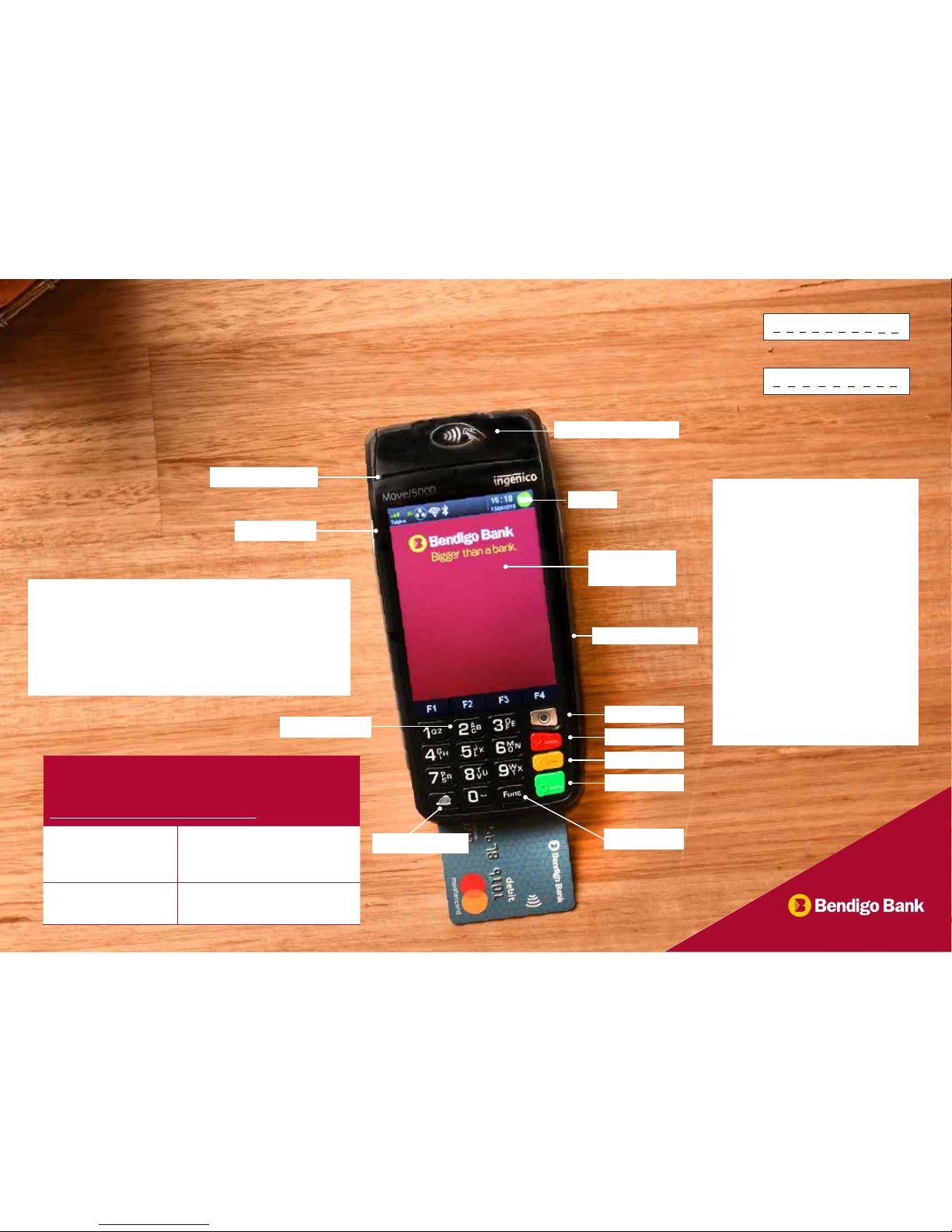
MOVE 5000 EFTPOS
quick guide…
at your fingertips
Record your terminal ID here:
Record your merchant ID here:
Basic Functions
• POWER ON: Hold green ENTER but ton for 2 seconds
• POWER OFF: Remove ter minal from powered base or
direct power and hold down the FUNC and CLEAR buttons
together for 2 seconds
• To wake the terminal out of sleep mode, press ENTER
Navigating the Terminal
1. MENU: To enter the application
menus press
the MENU key
2. F2: Enables you to scroll down
3. F3: Enables you to scroll up
4. CLEAR: When entering numbers
or letters, pressing CLEAR deletes
one character at a time
5. CANCEL: When entering numbers
or letters, pressing CANCEL
deletes the entire line.
This key also cancels transactions
6. ENTER: Pressing ENTER is used
to cofirm anything that has been
typed into the terminal
Need help?
For detailed instructions refer to the User Manual at
www.bendigobank.com.au/merchantsupport or get in touch:
Merchant Help Desk
(For terminal
troubleshooting)
1800 334 702
24 hours a day
7 days a week
Merchant Services
(For transaction enquiries)
1300 132 741
8:30am – 5pm AEST weekdays
3”5 LCD display
with touch panel
Magnetic card reader
Contactless card reader
Function button
MENU button
CLEAR button
Battery
CANCEL button
ENTER button
Paper feed button
Backlit keyboard
Power adapter
Easy loading printer
Page 2

Bendigo and Adelaide Bank Limited ABN 11 068 049 178 AFSL/Australian Credit Licence 237879. 1193392-1193387 (06/18)
Common functions…
Sales
• Touch the screen or press ENTER if the
terminal
is in ‘sleep mode’ - ie off the powered base.
• Enter the amount then press ENTER
• For cash out (not available for ‘Contactless’ or
‘Credit’):
• Enter the amount then ENTER or just
press ENTER to skip
• For tipping:
• Add tip amount then press ENTER or just
press ENTER to skip
• Confirm new transaction value, then press
ENTER
• For Contac tless:
• Hold card over card reader at top of
terminal until four green lights show
• For Chip or magnetic stripe cards:
• Insert or swipe card and select account
• Follow prompts on screen
Refunds
• Press MENU button
• Select TRANSACTION
• Select REFUND
• Enter REFUND amount and press ENTER
• Enter REFUND password and press ENTER
• Present card and follow the prompts
Reprinting receipts
• Press MENU button
• Select PRINT
• Select TRANSACTIONS
• Select LAST (will print last transaction) or
INVOICE and enter the invoice number you
wish to re-print
Once transac tion found, press ENTER and print
Pre-settlement
• Press MENU button
• Select BATC H
• Select BATC H T OTALS
• Press NO to return to the Home Screen or
press YES to print a list of all individual
transactions for the day
Manual settlement
• Press MENU button
• Select BATC H
• Select SETTLE
• Enter SETTLEMENT password and press ENTER
• Press NO to return to the Home Screen or
press YES to print a list of all individual
transactions for the day
Insert or replace receipt roll
• Open the paper compartment by lifting the
catch located at the top of the terminal and
pull the catch backwards to open.
• Insert the receipt roll in the compartment.
• Pull the paper to the top of the terminal.
• Hold the paper and close the lid.
• Press both corners of the paper flap
simultaneously until it clicks into position.
• To test the paper is loaded correctly press
the paper feed button on the bottom lef t
corner of the keypad.
To test printing
• Press the MENU button.
• Press 4 TERMINAL.
• Press 2 LOGON.
• If the paper does not feed or print correctly,
remove the paper roll, turn the paper roll
over to reload and try again.
 Loading...