

Page 1
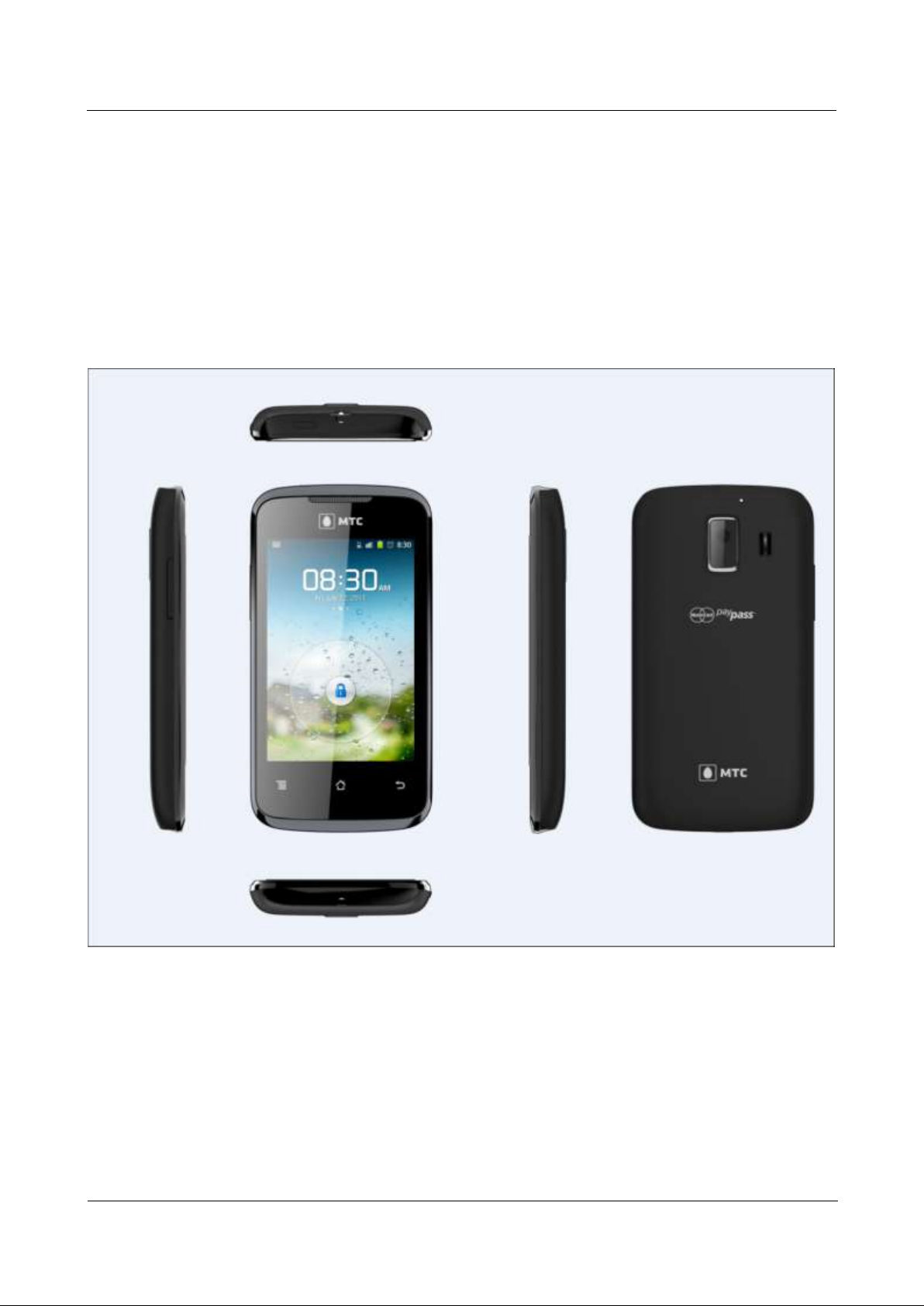
HUAWEI U8860MTC965 V100R001
HUAWEI U8860 Smartphone FAQs
2012-09-19
Huawei Confidential
Page 1 of 86
HUAWEI MTC965 Smartphone FAQs
HUAWEI MTC965
V100R001
Page 2

HUAWEI U8860MTC965 V100R001
HUAWEI U8860 Smartphone FAQs
2012-09-19
Huawei Confidential
Page 2 of 86
Issue
01
Date
2012-09-19
Page 3

HUAWEI U8860MTC965 V100R001
HUAWEI U8860 Smartphone FAQs
2012-09-19
Huawei Confidential
Page 1 of 86
Contents
Change History ................................................................................................................................. 1
1 Basics ............................................................................................................................................... 1
1.1 Your Phone at a Glance .................................................................................................................................... 1
1.2 Installation ........................................................................................................................................................ 3
1.2.1 How Do I Install a SIM Card, a microSD Card, and the Battery? .......................................................... 3
1.3 Home Screen .................................................................................................................................................... 4
1.4 How Do I Edit the Application List? ................................................................................................................ 4
1.5 Status Icons ...................................................................................................................................................... 8
1.6 Text Messages ................................................................................................................................................ 10
1.6.1 What Is the Difference Between Text Messages in an Android OS and Those in a Traditional System?
What Is the Advantage of Text Messages in the Android OS? ....................................................................... 10
1.6.2 How Do I Change the Input Method? ................................................................................................... 10
1.6.3 Does the Phone Receive a Long Text Message as Several Messages or a Complete Message? ........... 10
1.6.4 How Do I Identify Received and Sent Messages? ................................................................................ 10
1.6.5 How Many Text Messages Can Be Stored on My Phone? .................................................................... 11
1.6.6 If I Forward a Message in a Thread, Are All the Other Messages in the Thread Automatically Sent with
That Message I Forward? ............................................................................................................................... 12
1.6.7 How Do I Set an Audio File as My Ringtone for Incoming Calls or New Messages?.......................... 12
1.6.8 How Do I Set Notification Mode for New Messages? .......................................................................... 13
1.6.9 How Many English Characters Can Be Contained in a Long Text Message? ...................................... 13
1.6.10 How Do I Delete All Threads? ............................................................................................................ 14
1.7 Multimedia Messages ..................................................................................................................................... 14
1.7.1 How Do I Send a Multimedia Message? ............................................................................................... 14
1.7.2 Are There Any Restrictions on the Size, Format, or Resolution of a File to Be Attached to a
Multimedia Message? .................................................................................................................................... 15
1.7.3 What Causes a Failure to Send or Receive a Multimedia Message? How Can I Solve the Problem? .. 15
1.7.4 How Do I Change the Font Size of SMS or MMS Text? ...................................................................... 17
1.8 Call ................................................................................................................................................................. 17
1.8.1 How Do I Check My Total Call Duration and Data Traffic? ................................................................ 17
1.8.2 How Do I Switch Between Multiple Ongoing Calls? ........................................................................... 17
1.8.3 Does the Phone Support Video Calls? ................................................................................................... 17
1.8.4 Can I Use the Key on the Headset to Answer an Incoming Call or Play Music? .................................. 17
Page 4

HUAWEI U8860MTC965 V100R001
HUAWEI U8860 Smartphone FAQs
2012-09-19
Huawei Confidential
Page 2 of 86
1.8.5 Can I Copy Multiple Contacts from the Phone to the SIM Card at a Time? If Yes, After I Doing So, the
Number of Contacts Saved to the SIM Card Is Less Than the Number of Contacts Copied from the Phone,
Why? .............................................................................................................................................................. 18
1.9 Music .............................................................................................................................................................. 18
1.9.1 How Do I View the Lyrics of a Song When the Song Is Playing? ........................................................ 18
1.9.2 When Playing Music or Videos, Does the Media Player Support Functions Such as Fast-forward,
Rewind, Pause, and Repeat? .......................................................................................................................... 18
1.9.3 If an Audio File on My microSD Card Is Set as My Ringtone, Does the Phone Use the File as My
Ringtone After I Remove the microSD Card? ............................................................................................... 18
1.9.4 How Do I Create a Playlist? .................................................................................................................. 18
1.9.5 How Many Playing Modes Does Music Support? ................................................................................ 20
1.9.6 How Do I Play Audio Files in the Background and Exit Music? .......................................................... 23
1.10 Camera ......................................................................................................................................................... 23
1.10.1 What Are the Default Paths for Saving Pictures and Videos? Can I Change the Paths? ..................... 23
1.10.2 What Picture Formats and Resolutions Does Camera Support? ......................................................... 24
1.10.3 How Many Cameras Does the Phone Come with? What Are the Specifications for the Cameras? Do
They Support Autofocus?............................................................................................................................... 25
1.10.4 How Many White Balance Modes Does Camera Provide? ................................................................. 25
1.10.5 What Video Formats and Resolutions Does Camera Support? ........................................................... 25
1.10.6 Does Camera Support Video Playback in Full-Screen Mode? ............................................................ 25
1.10.7 Can I Take Pictures or Record Videos When an External microSD Card Is Unavailable? ................. 25
1.10.8 How Do I Disable the Shutter Sound? ................................................................................................ 25
1.10.9 How Do I Set the Phone to Save Pictures, Videos, and Sound Recordings to My microSD Card After
They Are Captured or Recorded? ................................................................................................................... 25
1.10.10 How Do I Add a Frame to a Picture? ................................................................................................ 25
1.10.11 I Cannot Open Some Pictures or Videos, Why? ................................................................................ 26
1.11 Streaming Media .......................................................................................................................................... 26
1.11.1 Does the Phone Stop Playing Streaming Media When I Receive an Incoming call? If Yes, Will It
Continue to Play the Streaming Media After the Call? .................................................................................. 26
1.11.2 Why Does the Phone Fail to Play Some Streaming Media?................................................................ 26
1.11.3 What Causes Poor Quality of Online Streaming Media Played by the Phone? ................................... 26
1.11.4 Will the Phone's Internal Storage Become Insufficient When Online Streaming Media Is Playing? .. 26
1.12 Bluetooth ...................................................................................................................................................... 27
1.12.1 My Phone Cannot Be Discovered by Other Devices, Why? How Can I Solve the Problem? ............ 27
1.12.2 What Files Can Be Transmitted Using Bluetooth? ............................................................................. 28
1.12.3 Can I Use Bluetooth to Synchronize Data with a Computer? ............................................................. 28
1.12.4 How Do I Make Calls or Listen to Music Using a Bluetooth Headset? .............................................. 28
1.12.5 What Is the Bluetooth Range? ............................................................................................................. 28
1.12.6 I Cannot Pair My Phone with Other Bluetooth Devices, Why? .......................................................... 28
1.12.7 Can I Connect My Phone to a Computer and Access the Internet Using Bluetooth?.......................... 29
1.13 How Do I Add or Remove an Email Account? ............................................................................................ 29
1.14 GPS Navigation ............................................................................................................................................ 34
1.14.1 Does My Phone Support GPS Navigation? ......................................................................................... 34
Page 5

HUAWEI U8860MTC965 V100R001
HUAWEI U8860 Smartphone FAQs
2012-09-19
Huawei Confidential
Page 3 of 86
1.14.2 How Can I Use Wireless Networks or GPS Satellites for Maps to Implement Location and
Navigation Functions? ................................................................................................................................... 34
1.14.3 What Can I Do If the Navigation Application on My Phone Cannot Receive Signals from GPS
Satellites? ....................................................................................................................................................... 34
1.14.4 When Indoor, My Phone Usually Fails to Locate My Position; When It Finally Locates My Position,
the Displayed Position Is Far from the Actual Position, Why? Does My Phone Support Voice Navigation? 35
1.15 What Are Smartphones? ............................................................................................................................... 35
1.16 What OS Does My Phone Run? ................................................................................................................... 35
1.17 How Do I Install the USB Driver for My Phone? Does My Phone Come with HiSuite? ............................ 35
1.18 What Is My Phone's CPU Frequency? I Use a Third-Party Application to Check the Frequency But the
Result Is Different from the Nominal Value, Why? ............................................................................................. 35
1.19 Does My Phone Support the Canvas? .......................................................................................................... 36
1.20 Does My Phone Come with a Full Touchscreen? ......................................................................................... 36
1.21 Does My Phone Come with an Accelerometer? How Do I Use It? .............................................................. 36
1.22 Does My Phone Come with an FM Radio? How Do I Use It? ..................................................................... 36
1.23 How Much Available Space Does My Phone Provide? ................................................................................ 36
1.24 Is My Phone's Antenna Embedded? ............................................................................................................. 37
1.25 Can I Download Themes to My Phone? ....................................................................................................... 37
1.26 Is My Phone's SIM Card Removable or Integrated? .................................................................................... 37
1.27 How Do I Enter and Exit Safe Mode? .......................................................................................................... 37
1.28 Does My Phone Support Multi-Touch? ........................................................................................................ 40
1.29 Does My Phone Support Scheduled Power-On and Power-Off? ................................................................. 40
1.30 Can I Use My Phone as a Portable Wi-Fi Hotspot? ..................................................................................... 40
1.31 Is My Phone's Touchscreen Capacitive or Resistive? ................................................................................... 40
1.32 What OSs Does My Phone Support If I Use It as a Modem? ....................................................................... 40
1.33 Does My Phone Support VPNs? .................................................................................................................. 40
2 Common Settings ........................................................................................................................ 42
2.1 How Do I Upgrade My Phone's Software? .................................................................................................... 42
2.2 How Do I Install the ADB Driver? ................................................................................................................. 42
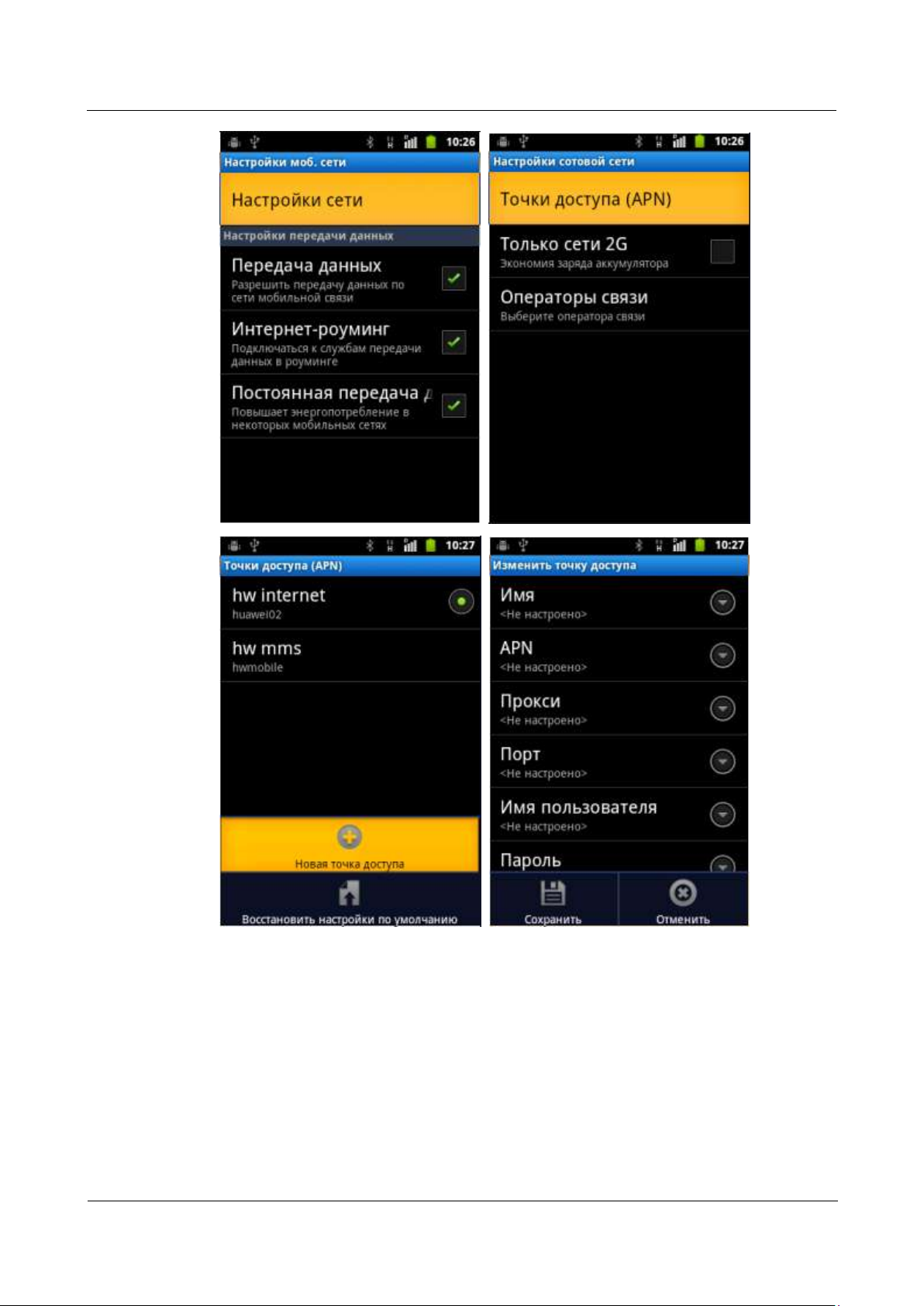
2.3 How Do I Configure Network Settings? ........................................................................................................ 44
2.4 Wi-Fi .............................................................................................................................................................. 46
2.4.1 How Do I Use My Phone as a Wi-Fi Hotspot and Access the Internet from Another Device Using My
Phone's Mobile Data Connection? ................................................................................................................. 46
2.4.2 Does My Phone Support Wi-Fi? ........................................................................................................... 47
2.4.3 My Phone Is Connected to a Wi-Fi Network But Cannot Open Web Pages, Why? .............................. 47
2.4.4 What Can I Do If My Phone Can Detect Wi-Fi Signals from Devices Other Than a Wireless Router
After the Phone's Wi-Fi Is Turned On? .......................................................................................................... 48
2.4.5 How Can I Judge Whether My Phone Is Using Its Mobile Data Connection or a Wi-Fi Connection to
Access the Internet? ....................................................................................................................................... 48
2.4.6 I Am Connected to a Wi-Fi Hotspot But Cannot Access the Internet, Why? ........................................ 48
2.4.7 What Can I Do If the Wi-Fi Option Is Unavailable or If My Phone Automatically Turns Off Wi-Fi
After I Turn It On? ................................ ................................................................................................ ......... 49
2.4.8 What Can I Do If My Phone's Wi-Fi Connection Often Disconnects? ................................................. 49
Page 6

HUAWEI U8860MTC965 V100R001
HUAWEI U8860 Smartphone FAQs
2012-09-19
Huawei Confidential
Page 4 of 86
2.4.9 How Can I Judge Which Network I Am Using for Data Services When My Phone Is Connected to
Both a Wi-Fi Network and a 3G Network? .................................................................................................... 49
2.5 Internet Access ............................................................................................................................................... 50
2.5.1 How Do I Clear My Browser's Cache and Web History? ..................................................................... 50
2.5.2 Does My Browser Support Full-Screen Mode and Bookmarks? If Yes, How Do I Set Them? ............ 51
2.5.3 Can I Log In to My Email Account from a Web Page? ......................................................................... 51
2.5.4 Can I Log In to My Online Banking Account Using the Browser or an Online Banking Client Installed
on My Phone? ................................................................................................................................................ 51
2.5.5 How Do I Save an Image on a Web Page? ............................................................................................ 51
2.5.6 How Do I Set My Browser's Home Page? ............................................................................................ 52
2.5.7 How Do I Save a Favorite Web Page? .................................................................................................. 53
2.5.8 How Do I Enable or Disable My Phone's Mobile Data Connection? ................................................... 53
2.5.9 Can I Use My Phone to Access the Internet During a Call? ................................................................. 53
2.6 Language and Keyboard ................................................................................................................................. 53
2.6.1 Does My Phone Support Text Input Using Handwriting or an Onscreen Keyboard? ........................... 53
2.6.2 What Text Input Methods Does My Phone Support? ............................................................................ 53
2.6.3 I Have Successfully Installed a New Text Input Method But Cannot Use It, Why? ............................. 53
2.6.4 Does My Phone Support the Stroke Input Method? .............................................................................. 53
2.6.5 How Do I Change the Font Size on My Phone's Screen? ..................................................................... 53
2.7 Screen Lock .................................................................................................................................................... 54
2.7.1 How Do I Enable a Screen Lock That Must Be Unlocked Using the PIN? .......................................... 54
2.7.2 How Do I Enable a Screen Lock That Must Be Unlocked Using a Pattern? ........................................ 54
2.7.3 How Many Times Can I Incorrectly Draw the Screen Unlock Pattern Before My Phone Is Locked?.. 54
2.7.4 How Do I Lock and Unlock the Screen?............................................................................................... 54
2.8 Clock .............................................................................................................................................................. 55
2.8.1 Does My Phone Support Alarms When It Is Powered Off? .................................................................. 55
2.8.2 How Do I Add or Delete an Alarm? ................................................................................................ ...... 55
2.9 USB Tethering ................................................................................................................................................ 55
2.9.1 How Do I Use USB Tethering If I Connect My Phone to a Computer Running Windows XP? ........... 56
2.9.2 How Do I Use USB Tethering If I Connect My Phone to a Computer Running Windows Vista or
Windows 7? ................................................................................................................................................... 59
3 Applications ................................................................................................................................. 60
3.1 What Third-Party Applications Does My Phone Support? ............................................................................. 60
3.2 How Do I Obtain Third-Party Applications? .................................................................................................. 60
3.3 How Do I Install, Manage, and Uninstall Applications? ................................................................................ 60
3.3.1 How Do I Install Applications? ............................................................................................................. 60
3.3.2 How Do I Manage Applications? .......................................................................................................... 61
3.3.3 How Do I Uninstall Applications? ........................................................................................................ 63
3.4 I Cannot Install an Application, Why? How Can I Solve the Problem? ......................................................... 64
3.5 Are Third-Party APKs Installed on the Phone's Internal Storage or a microSD Card? .................................. 64
3.6 How Do I Exit a Running Application? ......................................................................................................... 65
3.7 How Can I Solve the Power Consumption Problem Caused by Third-Party Applications? .......................... 65
Page 7

HUAWEI U8860MTC965 V100R001
HUAWEI U8860 Smartphone FAQs
2012-09-19
Huawei Confidential
Page 5 of 86
4 NFC ................................................................................................................................................ 66
4.1 Does My Phone Support the NFC Function? How Do I Enable It? ............................................................... 66
4.2 What Functions Does the NFC Support? ....................................................................................................... 66
4.2.1 What Is Card Emulation? ...................................................................................................................... 66
4.2.2 What Is a Card Reader?......................................................................................................................... 66
4.2.3 What Is P2P Transmission? How to Use the P2P Transmission Function? ........................................... 67
4.3 When I Use My Phone for Payment, the Phone Does Not Respond. What Can I Do? .................................. 69
4.4 When I Use My Phone to Read an IC Card, the Phone Does Not Respond. What Can I Do? ....................... 70
4.5 When I Use My Phone to Transmit Data, My Phone or the Peer Phone Does Not Respond. What Can I Do?
.............................................................................................................................................................................. 70
5 Others ............................................................................................................................................ 71
5.1 How Do I Check the Available Space on the Internal and External microSD Cards? .................................... 71
5.1.1 How Do I Check My Phone's Available RAM Space?.......................................................................... 72
5.1.2 What Is the Maximum Capacity of the External micro SD Card Supported by My Phone? ................ 72
5.1.3 Running Android 2.3, Does My Phone Support Application Installation on an External microSD Card?
....................................................................................................................................................................... 72
5.2 What Data Can Be Backed Up on My Phone? ............................................................................................... 73
5.3 How Do I Use Contacts to Back Up and Recover My Contacts?................................................................... 73
5.3.1 How Do I Back Up Contacts to a microSD Card? ................................................................................ 73
5.3.2 How Do I Recover Contacts from a microSD Card? ............................................................................ 74
5.3.3 How Do I Use All Backup to Back Up Data? ....................................................................................... 74
5.4 How Do I Cut or Copy Files or Folders from the Phone's Storage to an External mciroSD Card? ............... 74
5.5 Common Skills ............................................................................................................................................... 75
5.5.1 How Do I Customize the Home Screen or Its Extensions? ................................................................... 75
5.5.2 How Do I Save Battery Power? ............................................................................................................ 75
5.5.3 How Do I Save Data Traffic? ................................................................................................................ 75
5.5.4 What Can I Do If My Phone Runs Slowly? .......................................................................................... 76
5.5.5 Can I Uninstall Applications Customized by My Operator? ................................................................. 76
5.5.6 Why Does My Customized Wallpaper Stretch Automatically? ............................................................. 76
5.5.7 What Data Will Be Lost If I Restore My Phone to Its Factory Settings? .............................................. 76
5.5.8 How Do I Increase My Phone's Internal Storage Space? ...................................................................... 76
5.5.9 How Do I Disable Audible Touch Tones? ............................................................................................. 76
5.5.10 How Do I Turn the Screen On After It Turns Off Automatically? ...................................................... 76
5.5.11 How Do I Adjust the Screen Brightness? ............................................................................................ 76
5.5.12 How Does My Phone's Key Backlight Save Battery Power?.............................................................. 76
5.5.13 How Do I Enable or Disable Airplane Mode? .................................................................................... 77
5.5.14 How Do I Restore My Phone to Factory Settings? ............................................................................. 77
5.5.15 How Do I Set a Picture as a Contact's Photo Caller ID? ..................................................................... 77
5.5.16 How Do I Use My Phone as a USB Mass Storage Device? ................................................................ 77
Page 8
HUAWEI U8860MTC965 V100R001
HUAWEI U8860 Smartphone FAQs
2012-09-19
Huawei Confidential
Page 1 of 86
Date
Author
Change Description
2012-09-19
YuanJinchuan
Edit and update some description and screen
capture.
Change History
Page 9
HUAWEI U8860MTC965 V100R001
HUAWEI U8860 Smartphone FAQs
2012-09-19
Huawei Confidential
Page 1 of 86
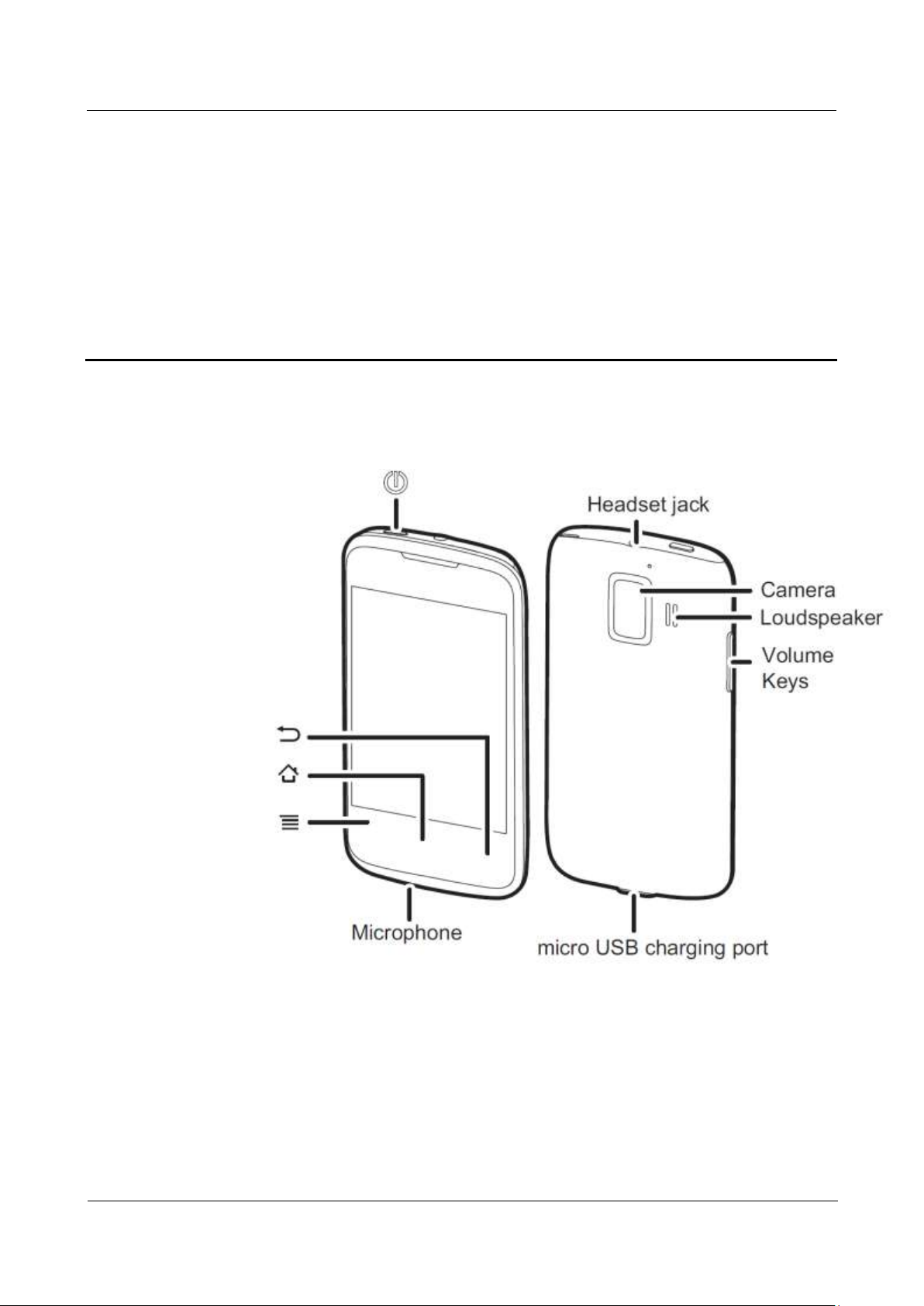
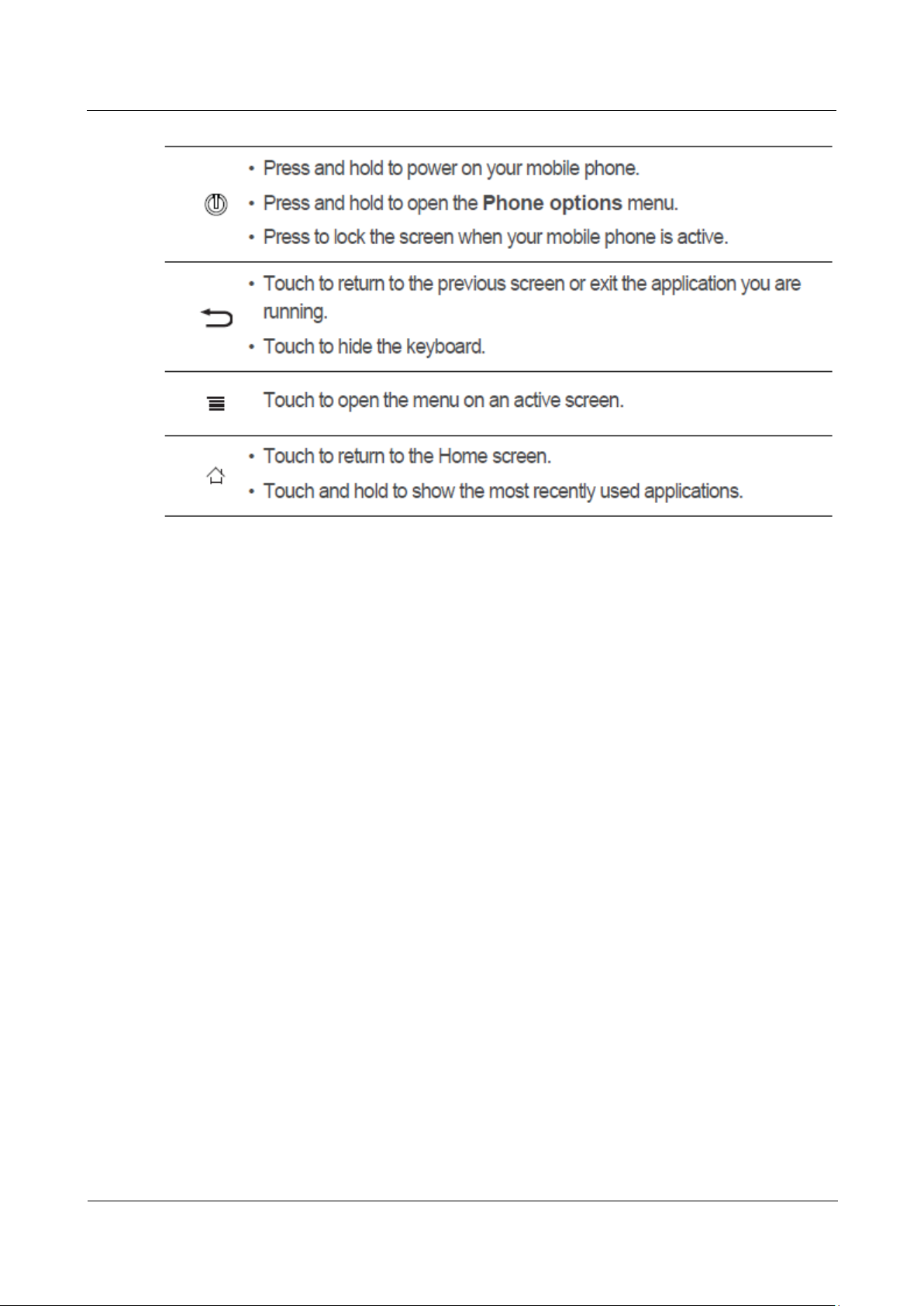
1.1 Your Phone at a Glance
1 Basics
Page 10
HUAWEI U8860MTC965 V100R001
HUAWEI U8860 Smartphone FAQs
2012-09-19
Huawei Confidential
Page 2 of 86
Page 11
HUAWEI U8860MTC965 V100R001
HUAWEI U8860 Smartphone FAQs
2012-09-19
Huawei Confidential
Page 3 of 86
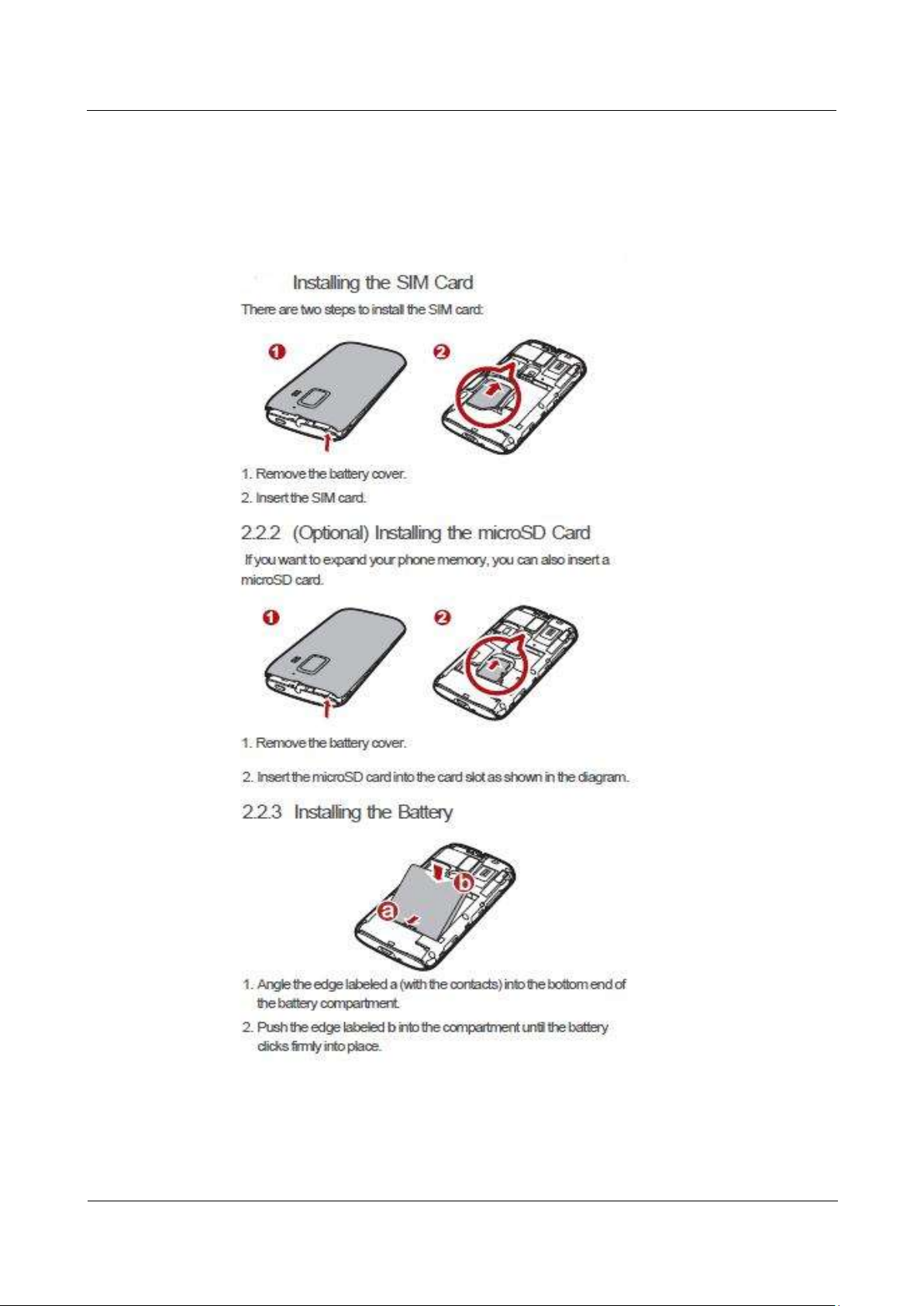
1.2 Installation
1.2.1 How Do I Install a SIM Card, a microSD Card, and
the Battery?
Page 12
HUAWEI U8860MTC965 V100R001
HUAWEI U8860 Smartphone FAQs
2012-09-19
Huawei Confidential
Page 4 of 86
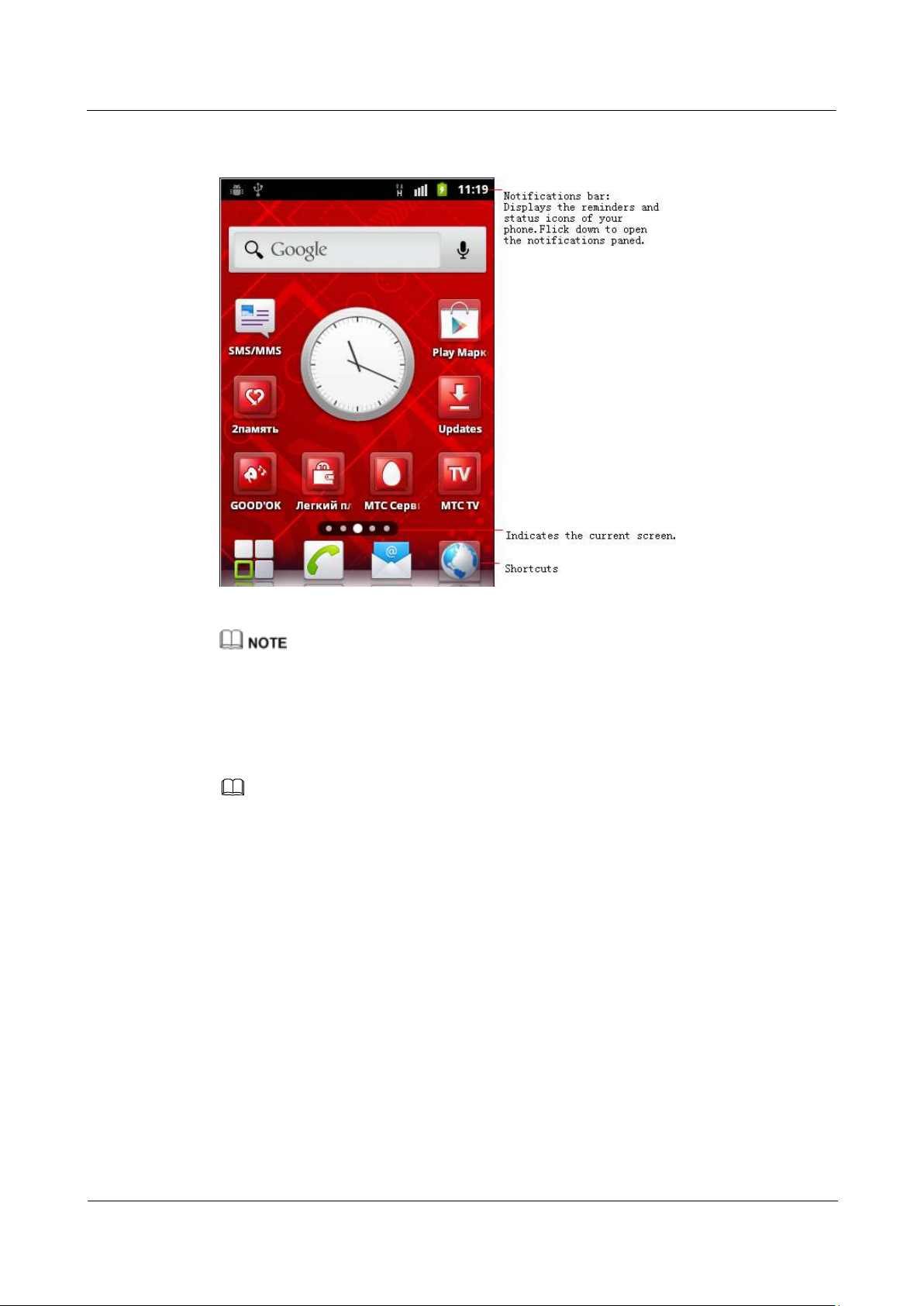
1.3 Home Screen
NOTE
Indicators of the Home screen and its extensions are displayed only when you attempt to switch between
the Home screen and its extensions.
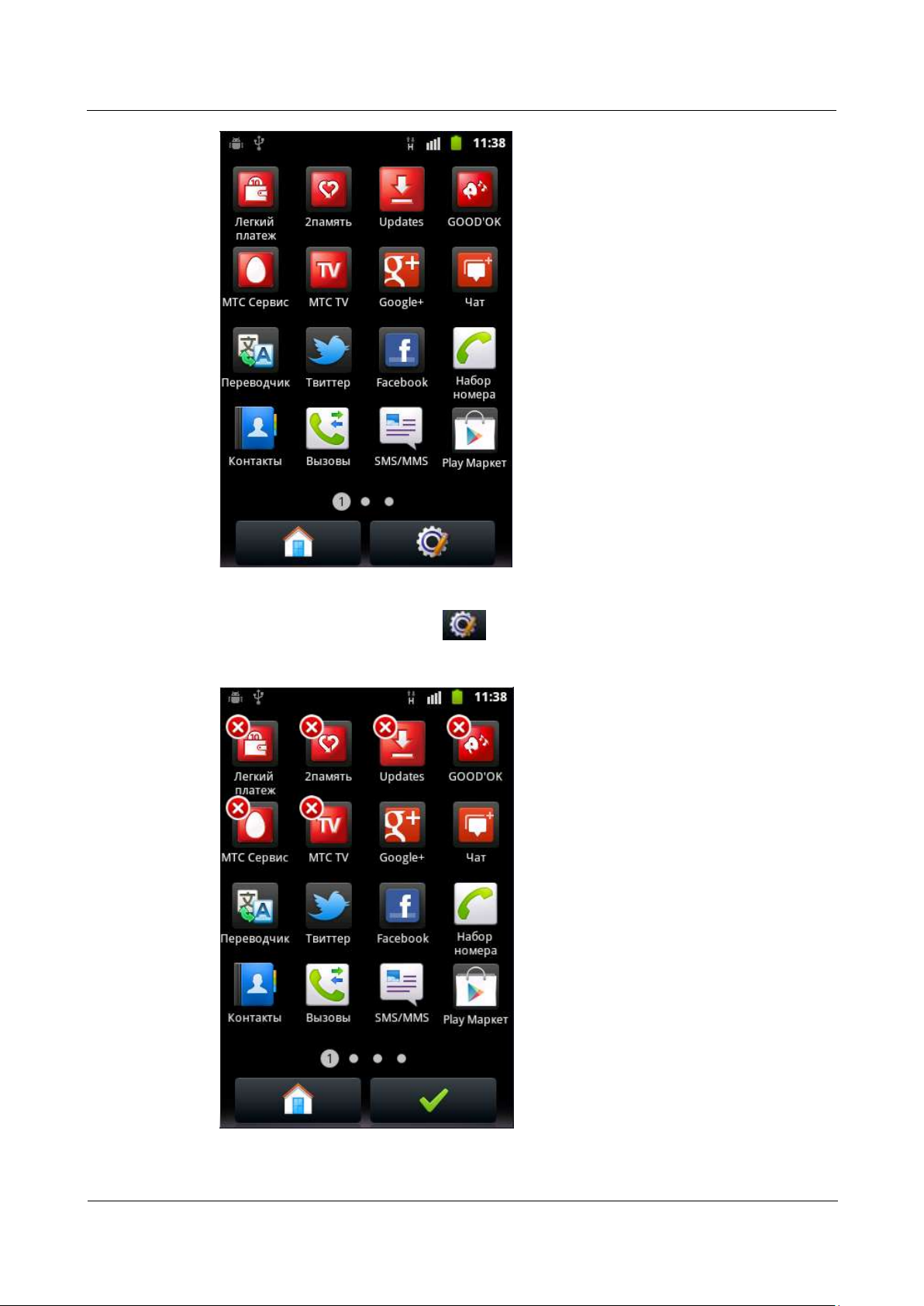
1.4 How Do I Edit the Application List?
In non-editing mode, only applications with icons are displayed in the list. The number of applications
displayed in the list is not the actual number of applications on the phone.
Page 13
HUAWEI U8860MTC965 V100R001
HUAWEI U8860 Smartphone FAQs
2012-09-19
Huawei Confidential
Page 5 of 86
1. In the application list, touch .
The screen shown in the following figure is displayed.
Page 14
HUAWEI U8860MTC965 V100R001
HUAWEI U8860 Smartphone FAQs
2012-09-19
Huawei Confidential
Page 6 of 86
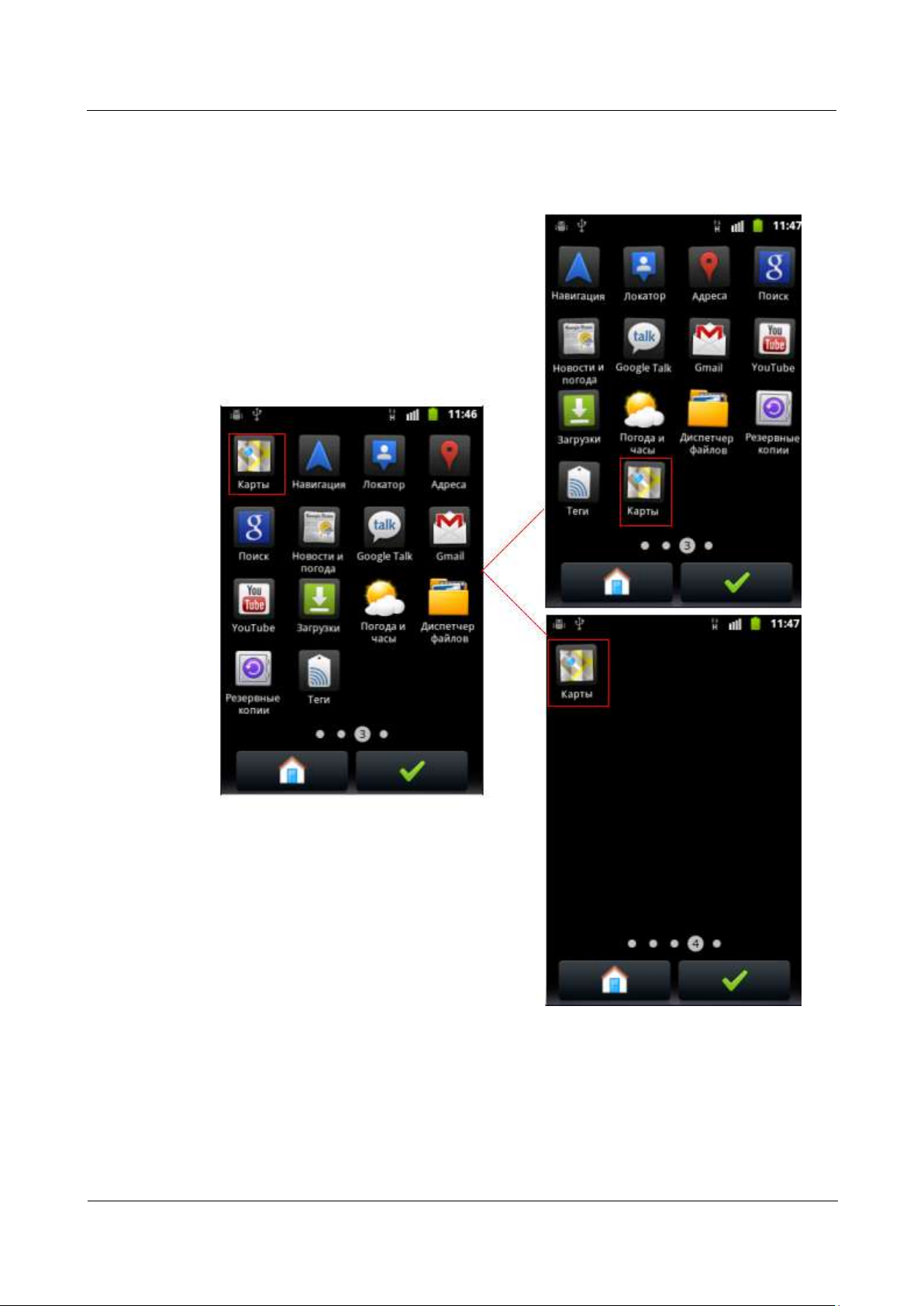
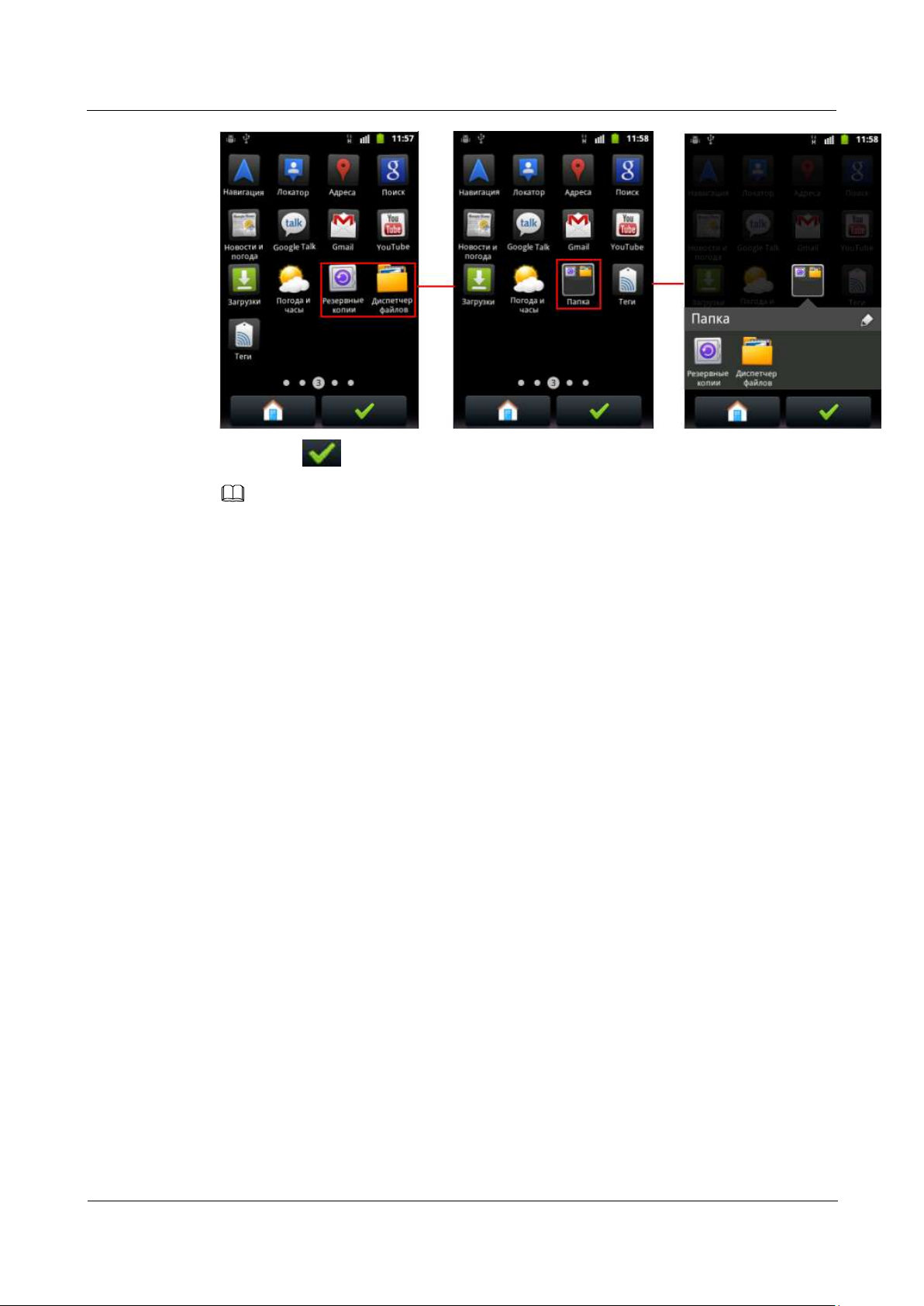
2. Touch and hold an icon, and then drag it to any blank area of the current or another
screen to move the icon.
If dragged to a blank area, the icon moves to this area, as shown in the following figure.
If dragged to the location of another icon, the two icons combine to form a folder. You can
open the folder to view the icons or drag the icons out of the folder.
Page 15
HUAWEI U8860MTC965 V100R001
HUAWEI U8860 Smartphone FAQs
2012-09-19
Huawei Confidential
Page 7 of 86
3. Touch to save the change.
NOTE
In editing mode, the number of displayed applications in the list is the actual number of applications on
the phone. When an icon is moved, the icons in the application list are automatically aligned from left to
right and from top to bottom.
----End
Page 16
HUAWEI U8860MTC965 V100R001
HUAWEI U8860 Smartphone FAQs
2012-09-19
Huawei Confidential
Page 8 of 86
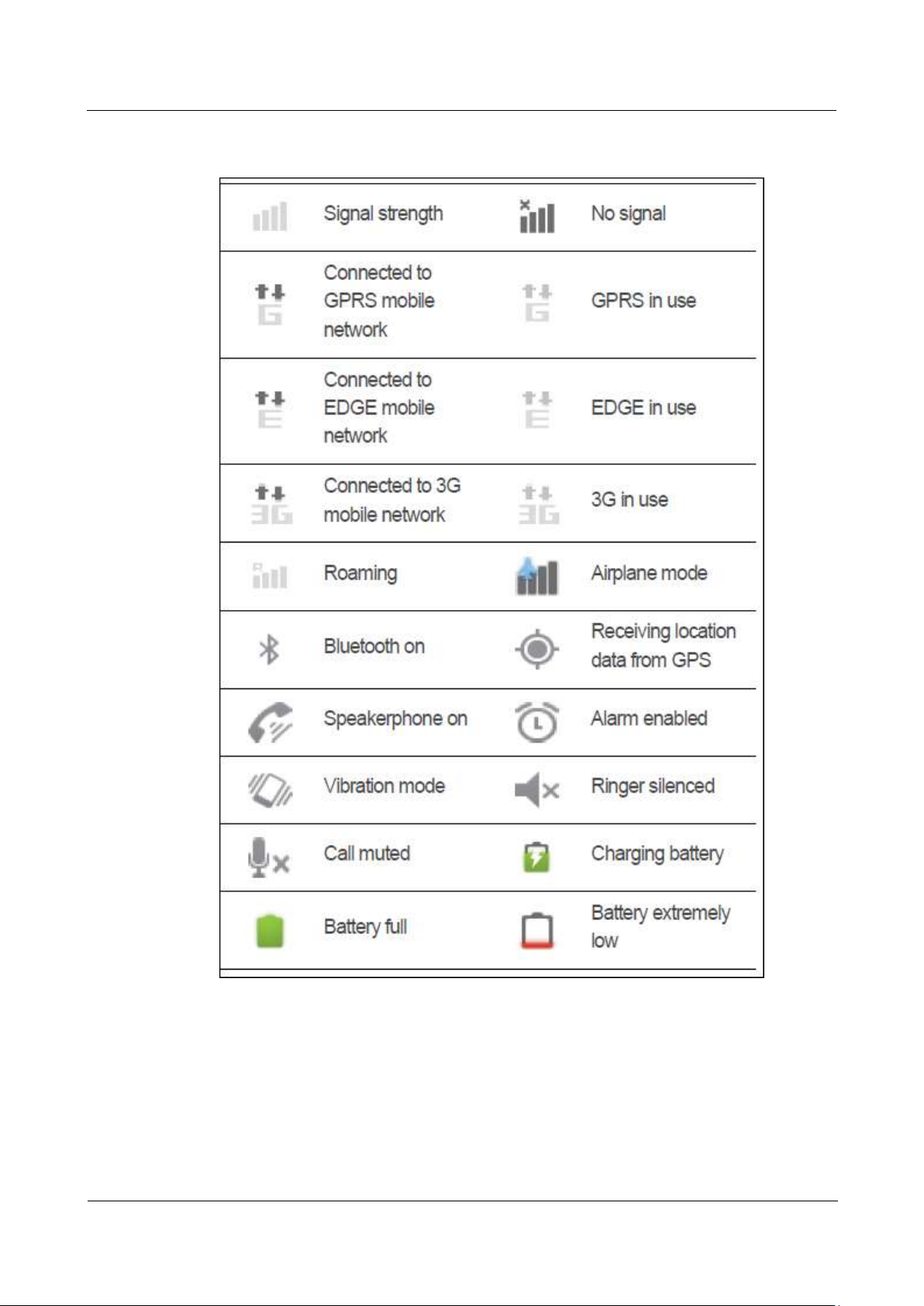
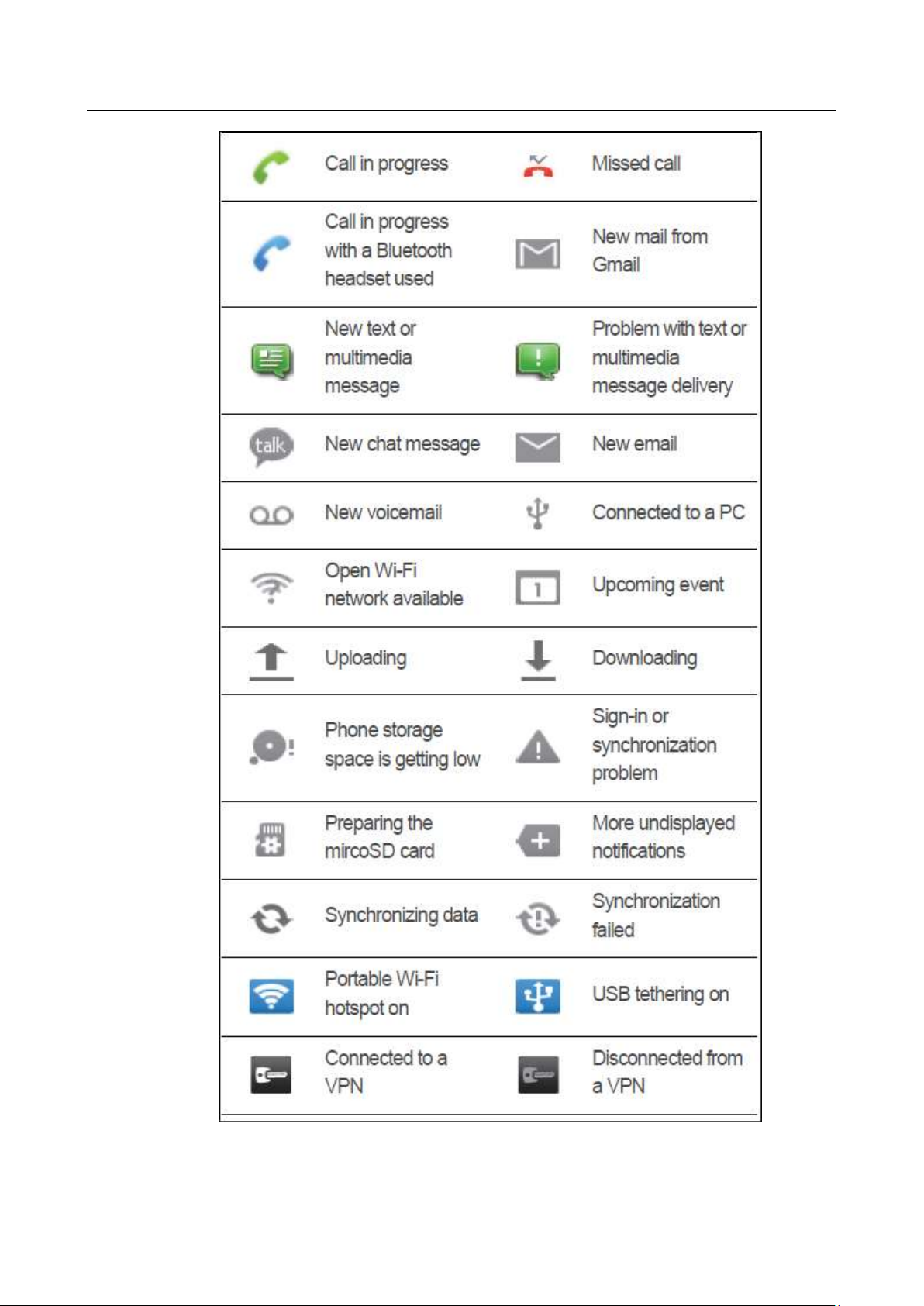
1.5 Status Icons
Page 17
HUAWEI U8860MTC965 V100R001
HUAWEI U8860 Smartphone FAQs
2012-09-19
Huawei Confidential
Page 9 of 86
Page 18
HUAWEI U8860MTC965 V100R001
HUAWEI U8860 Smartphone FAQs
2012-09-19
Huawei Confidential
Page 10 of 86
1.6 Text Messages
1.6.1 What Is the Difference Between Text Messages in an
Android OS and Those in a Traditional System? What Is
the Advantage of Text Messages in the Android OS?
Difference
In a traditional system, text messages are stored in your inbox and sent box. In an
Android operating system (OS), text messages to or from a contact are stored in a thread
without differentiating messages received or sent.
Advantage
Messaging in an Android OS is similar to instant messaging services such as MSN and
QQ. It enables you to follow the conversation more easily.
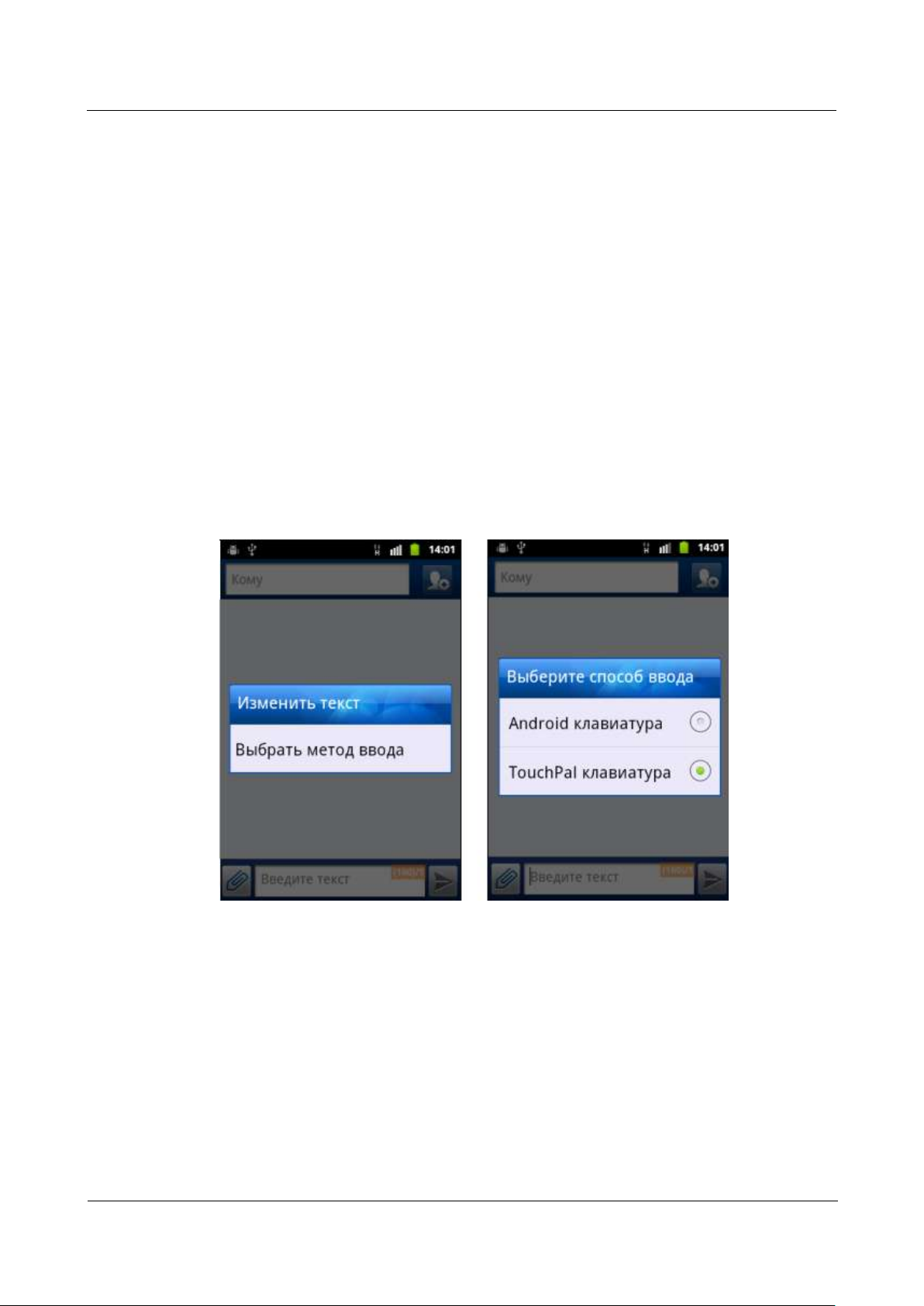
1.6.2 How Do I Change the Input Method?
Touch and hold a text box until the Edit text menu is displayed, touch Select input method,
and then select the input method you want to use.
1.6.3 Does the Phone Receive a Long Text Message as
Several Messages or a Complete Message?
1.6.4 How Do I Identify Received and Sent Messages?
The phone receives a long text message as a complete message.
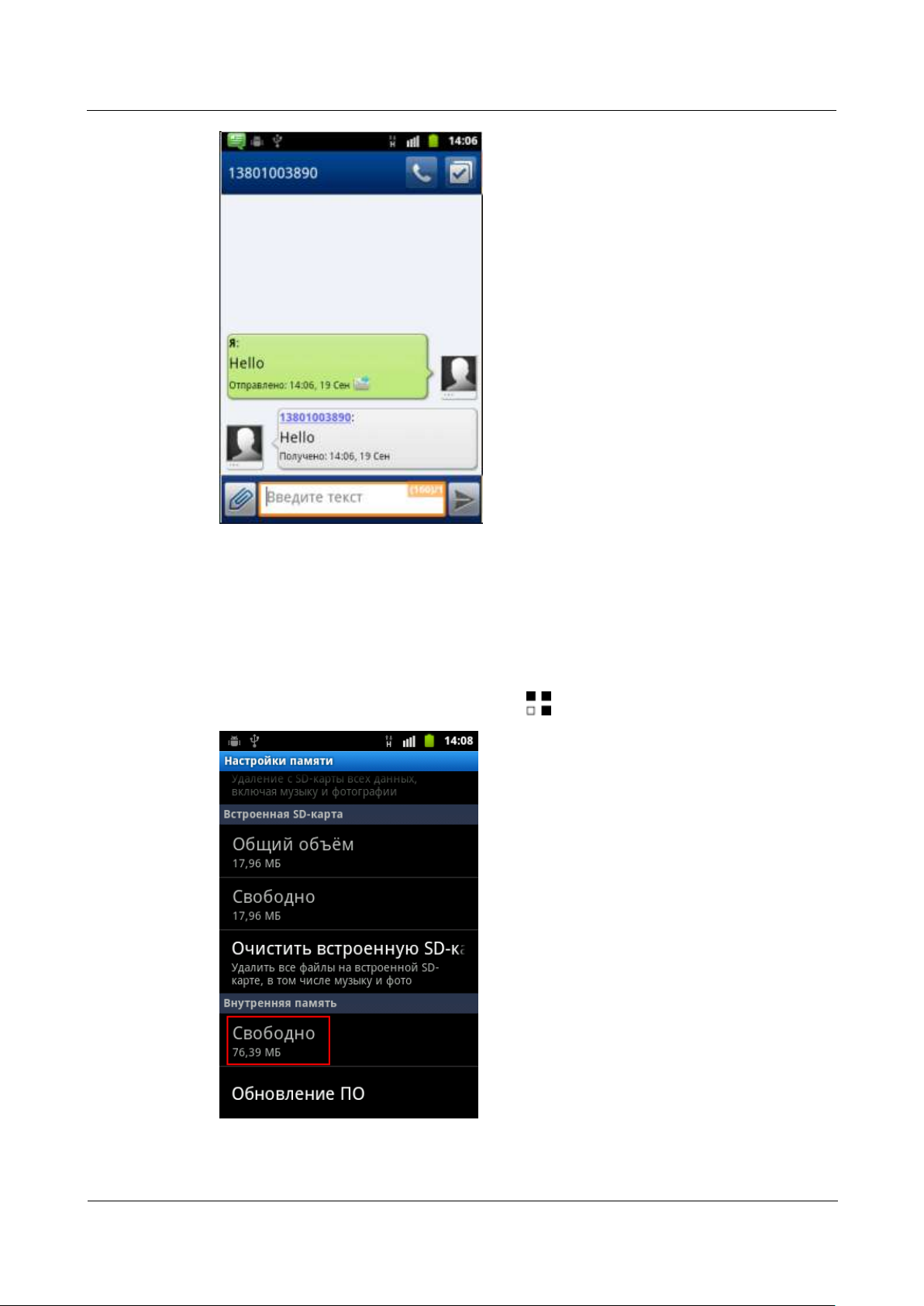
Received and sent messages are identified by their background colors and status. Received
messages are displayed with a gray background and a received time underneath. Sent
messages have a light green background with a sent time underneath.
Page 19
HUAWEI U8860MTC965 V100R001
HUAWEI U8860 Smartphone FAQs
2012-09-19
Huawei Confidential
Page 11 of 86
1.6.5 How Many Text Messages Can Be Stored on My
Phone?
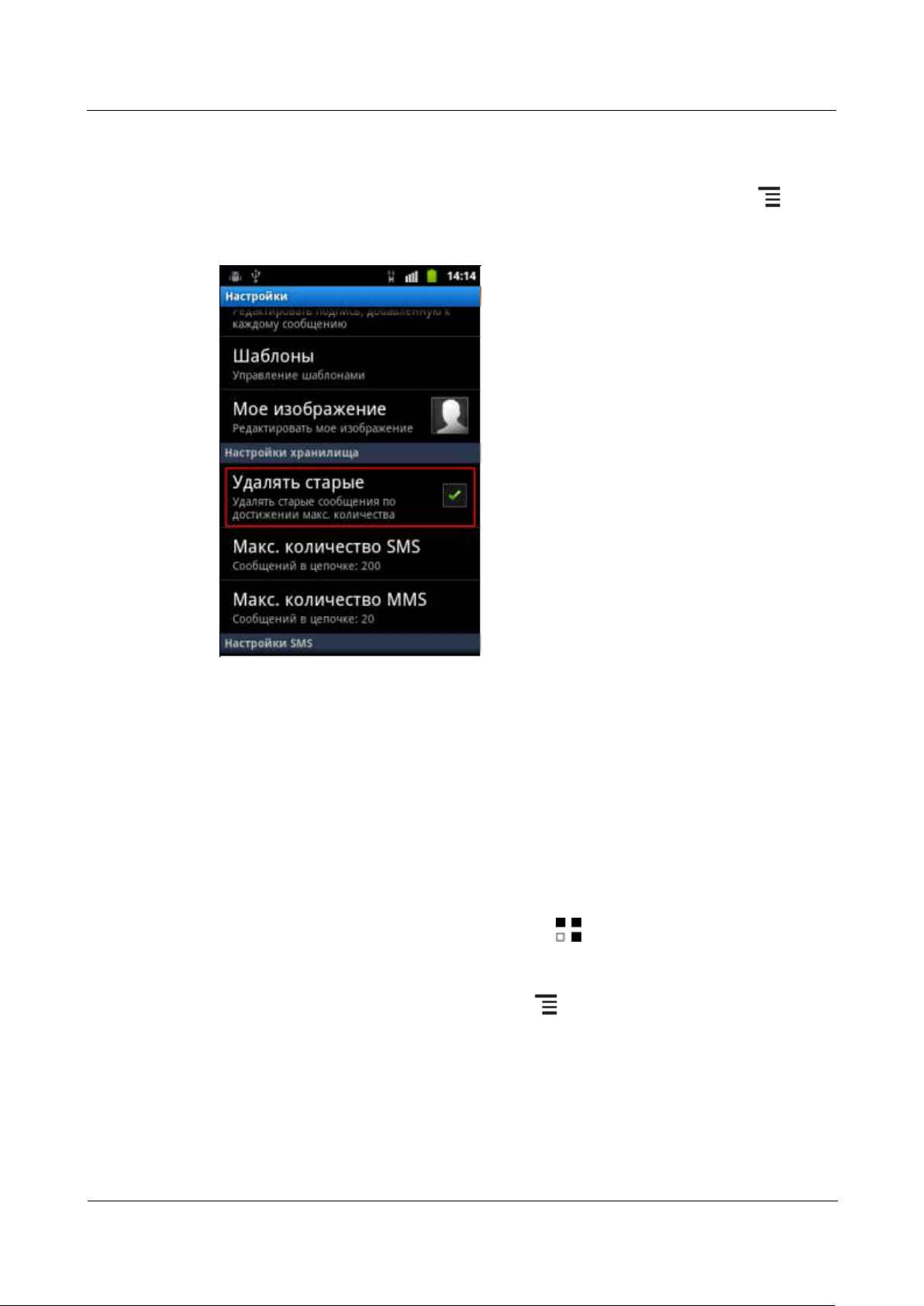
The number of messages that can be stored on your phone is dependent on your phone's
storage capacity.
To check your phone's storage capacity, touch > Settings > Storage > Internal storage.
Page 20
HUAWEI U8860MTC965 V100R001
HUAWEI U8860 Smartphone FAQs
2012-09-19
Huawei Confidential
Page 12 of 86
By default, a thread can contain a maximum of 200 text messages(If the Delete old message
is selected).
To set the number of text messages that a thread can contain, touch Messaging > >
Settings, select Delete old messages, touch Text message limit, and set the text message
limit.
1.6.6 If I Forward a Message in a Thread, Are All the Other
Messages in the Thread Automatically Sent with That
Message I Forward?
You can forward any of the messages in a thread. Touch and hold the message you want to
forward until the Message options menu is displayed. Then touch Forward.And only the
message selected will be sent.
1.6.7 How Do I Set an Audio File as My Ringtone for
Incoming Calls or New Messages?
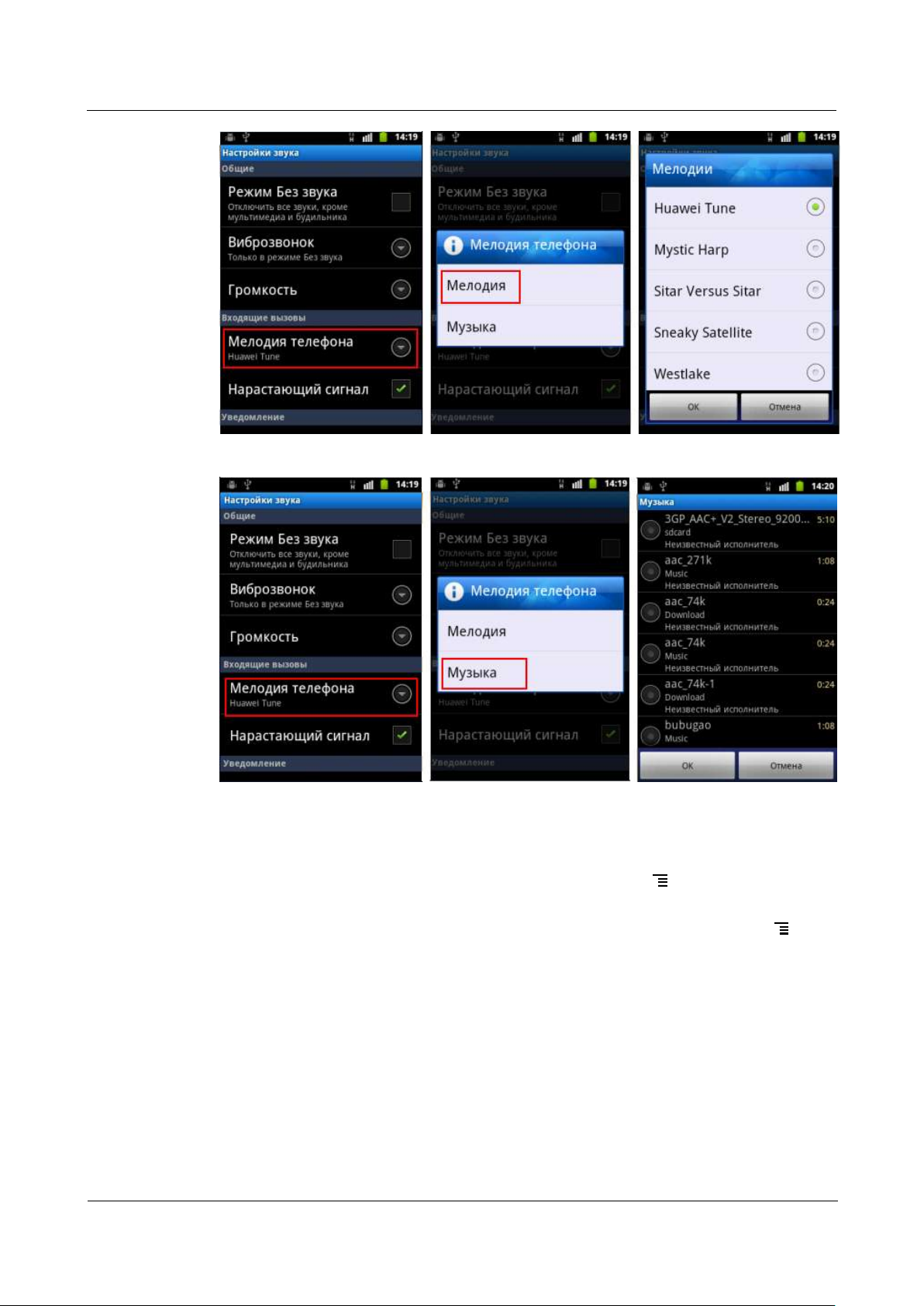
To set your ringtone for new messages, touch > Settings > Sound > Notifications
ringtone, and select the audio file you want.
To set your ringtone for incoming calls, open File Manager, select the audio file you
want, play it using Music, and then touch > Set as ringtone. You can also open
Music, touch and hold the audio file you want, and touch Set as ringtone.
Create a folder named Ringtones in the microSD card's root directory, and add audio
files to the folder. When you set your ringtone, the audio files are displayed in the
Ringtones list. Select the audio file you want, and then set it as your ringtone.
Page 21
HUAWEI U8860MTC965 V100R001
HUAWEI U8860 Smartphone FAQs
2012-09-19
Huawei Confidential
Page 13 of 86
1.6.8 How Do I Set Notification Mode for New Messages?
To set your ringtone for new messages, touch Messaging > > Settings > Select
ringtone, and then select the audio file you want.
To set your phone to vibrate when you receive a message, touch Messaging > >
Settings > Vibrate.
1.6.9 How Many English Characters Can Be Contained in a
Long Text Message?
A text message can contain a maximum of 160 English characters.
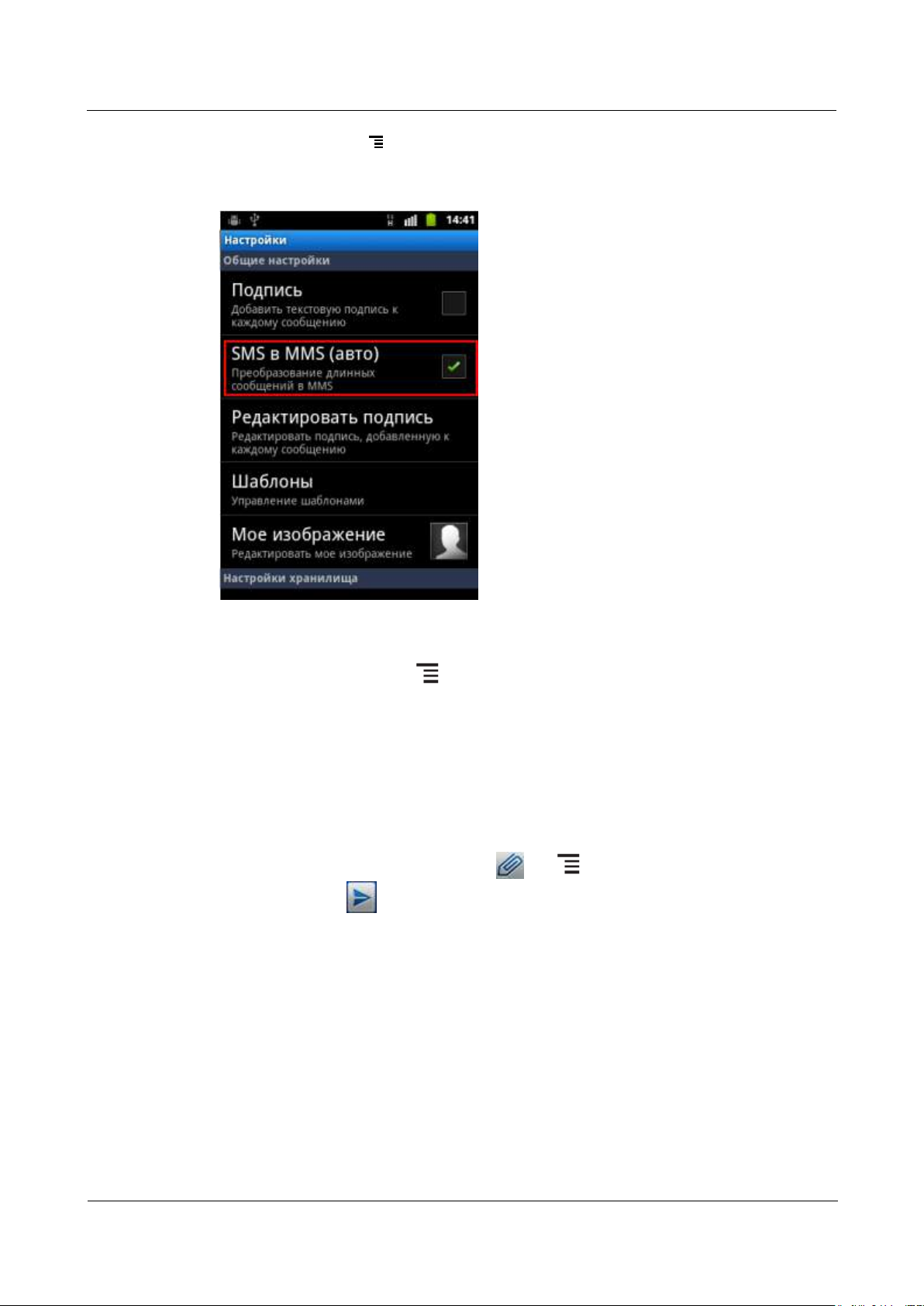
A long text message can contain a maximum of 5 text messages. If longer than 5 text
messages, the long text message will automatically change to a multimedia message.
Page 22
HUAWEI U8860MTC965 V100R001
HUAWEI U8860 Smartphone FAQs
2012-09-19
Huawei Confidential
Page 14 of 86
(touch Messaging > > Settings >Auto-convert to MMS, "Auto-convert to MMS" is
selected default.If it is not selected the long text message will not convert
to MMS)
1.6.10 How Do I Delete All Threads?
Open Messaging, and touch > Multiselect > Select All > Delete > Delete to delete all
threads.
1.7 Multimedia Messages
1.7.1 How Do I Send a Multimedia Message?
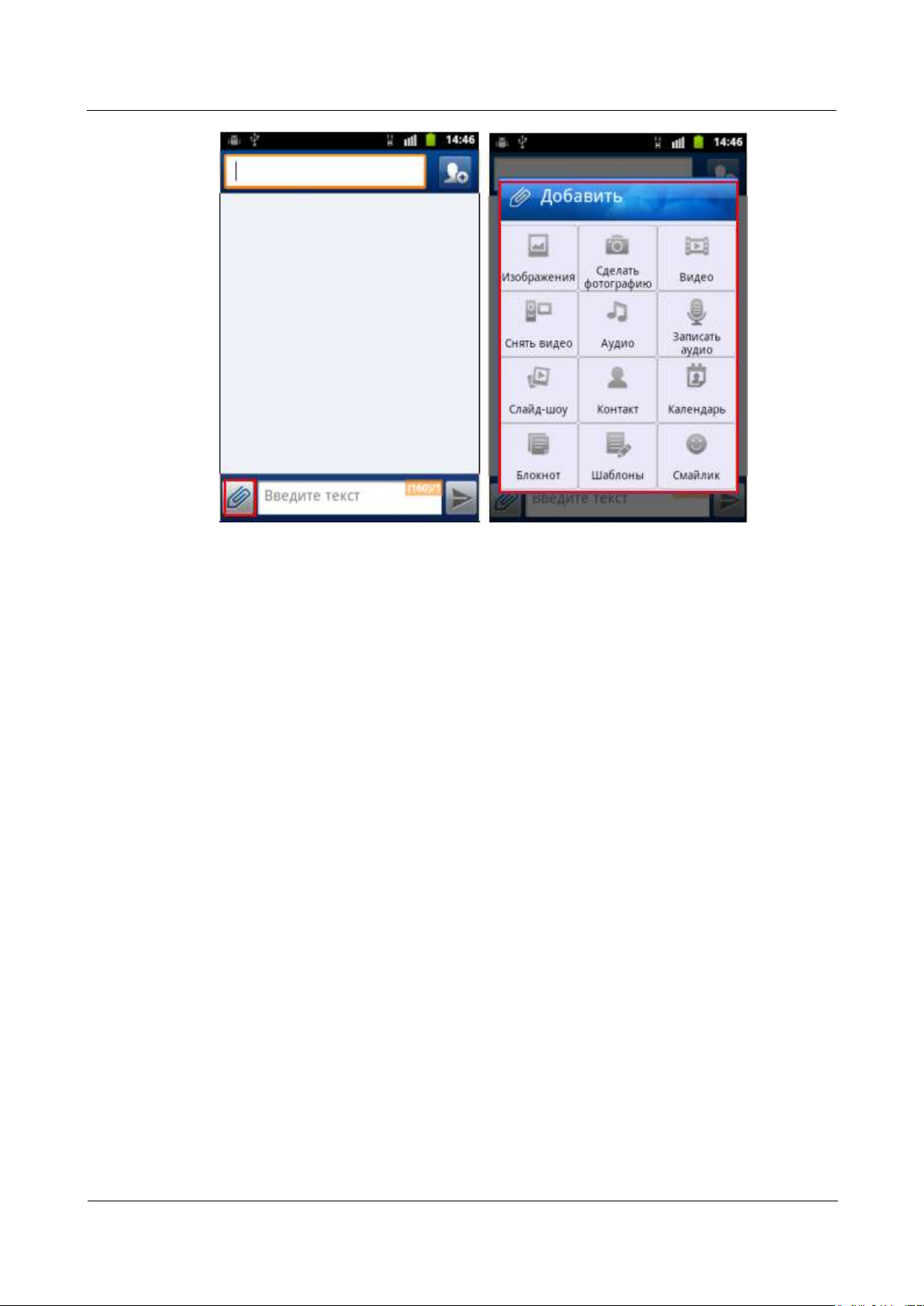
Open Messaging, write a message, touch or > Add to add an attachment to the
message, and touch .
Page 23
HUAWEI U8860MTC965 V100R001
HUAWEI U8860 Smartphone FAQs
2012-09-19
Huawei Confidential
Page 15 of 86
1.7.2 Are There Any Restrictions on the Size, Format, or
Resolution of a File to Be Attached to a Multimedia
Message?
The maximum size of an audio or video file to be attached to a multimedia message is
500 KB.
If a picture is too large, it will be automatically compressed before it is attached to a
multimedia message. As a result, the resolution of the picture attached to the message
decreases.
1.7.3 What Causes a Failure to Send or Receive a
Multimedia Message? How Can I Solve the Problem?
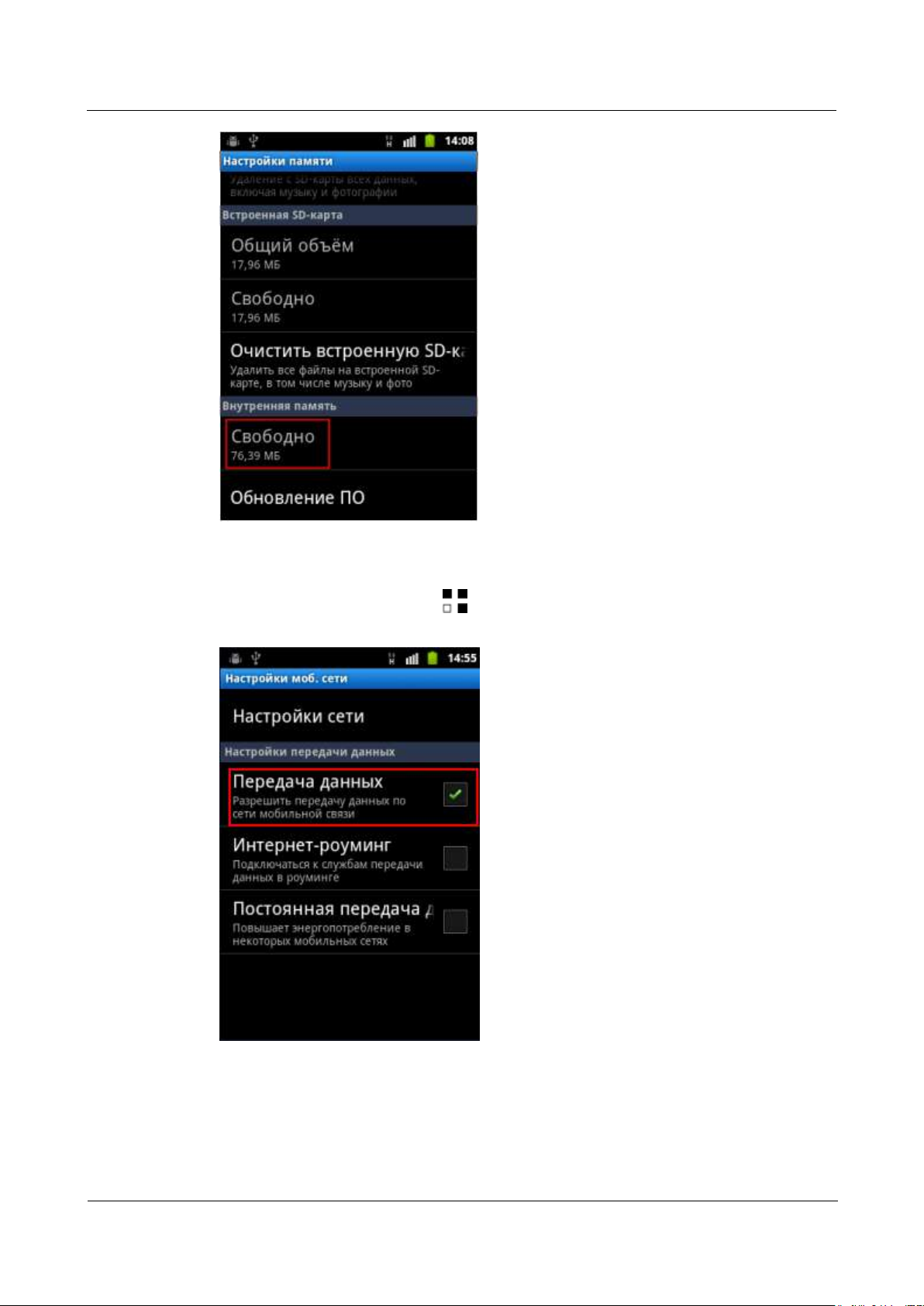
Multimedia messages cannot be received if your phone's available storage space is
insufficient.
To solve the problem, delete unnecessary files to increase your phone's storage space.
Page 24
HUAWEI U8860MTC965 V100R001
HUAWEI U8860 Smartphone FAQs
2012-09-19
Huawei Confidential
Page 16 of 86
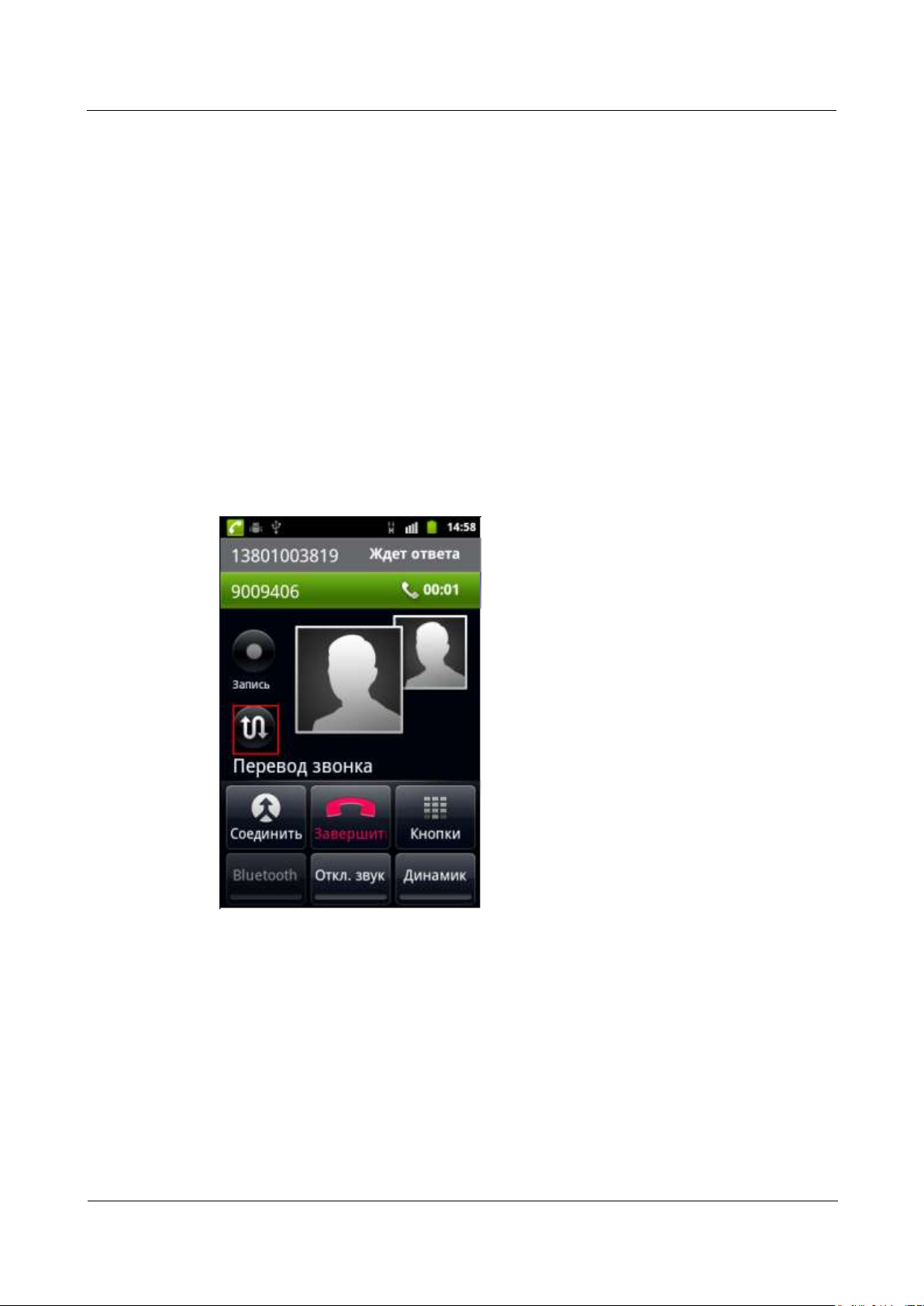
Multimedia messages cannot be sent or received if data services are disabled.
To solve the problem, touch > Settings > Wireless & networks > Mobile
networks, and select Data enabled.
Page 25
HUAWEI U8860MTC965 V100R001
HUAWEI U8860 Smartphone FAQs
2012-09-19
Huawei Confidential
Page 17 of 86
1.7.4 How Do I Change the Font Size of SMS or MMS
Text?
1.8 Call
1.8.1 How Do I Check My Total Call Duration and Data
Traffic?
1.8.2 How Do I Switch Between Multiple Ongoing Calls?
The font size of Short Message Service (SMS) or Multimedia Messaging Service (MMS) text
cannot be changed.
There is no preinstalled application for checking your total call duration and Data Traffic.
When you have multiple ongoing calls, touch Swap to switch between them.
1.8.3 Does the Phone Support Video Calls?
1.8.4 Can I Use the Key on the Headset to Answer an
Incoming Call or Play Music?
No.
Yes. When you have an incoming call, you can use the key on the headset to answer the call.
In standby mode, you can use the key to play music.
Page 26

HUAWEI U8860MTC965 V100R001
HUAWEI U8860 Smartphone FAQs
2012-09-19
Huawei Confidential
Page 18 of 86
1.8.5 Can I Copy Multiple Contacts from the Phone to the
SIM Card at a Time? If Yes, After I Doing So, the Number
of Contacts Saved to the SIM Card Is Less Than the
Number of Contacts Copied from the Phone, Why?
Yes, you can copy multiple contacts from the phone to the Subscriber Identity Module (SIM)
card at a time.
If the SIM card contains contacts with the same names as those copied from the phone, the
contacts will be merged. In this case, the number of contacts saved to the SIM card is less
than the number of contacts copied from the phone.
1.9 Music
1.9.1 How Do I View the Lyrics of a Song When the Song
Is Playing?
Play the song with the preinstalled music player that supports lyrics display. You can also
install an Android application package file (APK) such as QQMusic to play the song.
1.9.2 When Playing Music or Videos, Does the Media
Player Support Functions Such as Fast-forward, Rewind,
Pause, and Repeat?
Yes.
1.9.3 If an Audio File on My microSD Card Is Set as My
Ringtone, Does the Phone Use the File as My Ringtone
After I Remove the microSD Card?
No. When the microSD card is removed, the phone uses the default ringtone.
1.9.4 How Do I Create a Playlist?
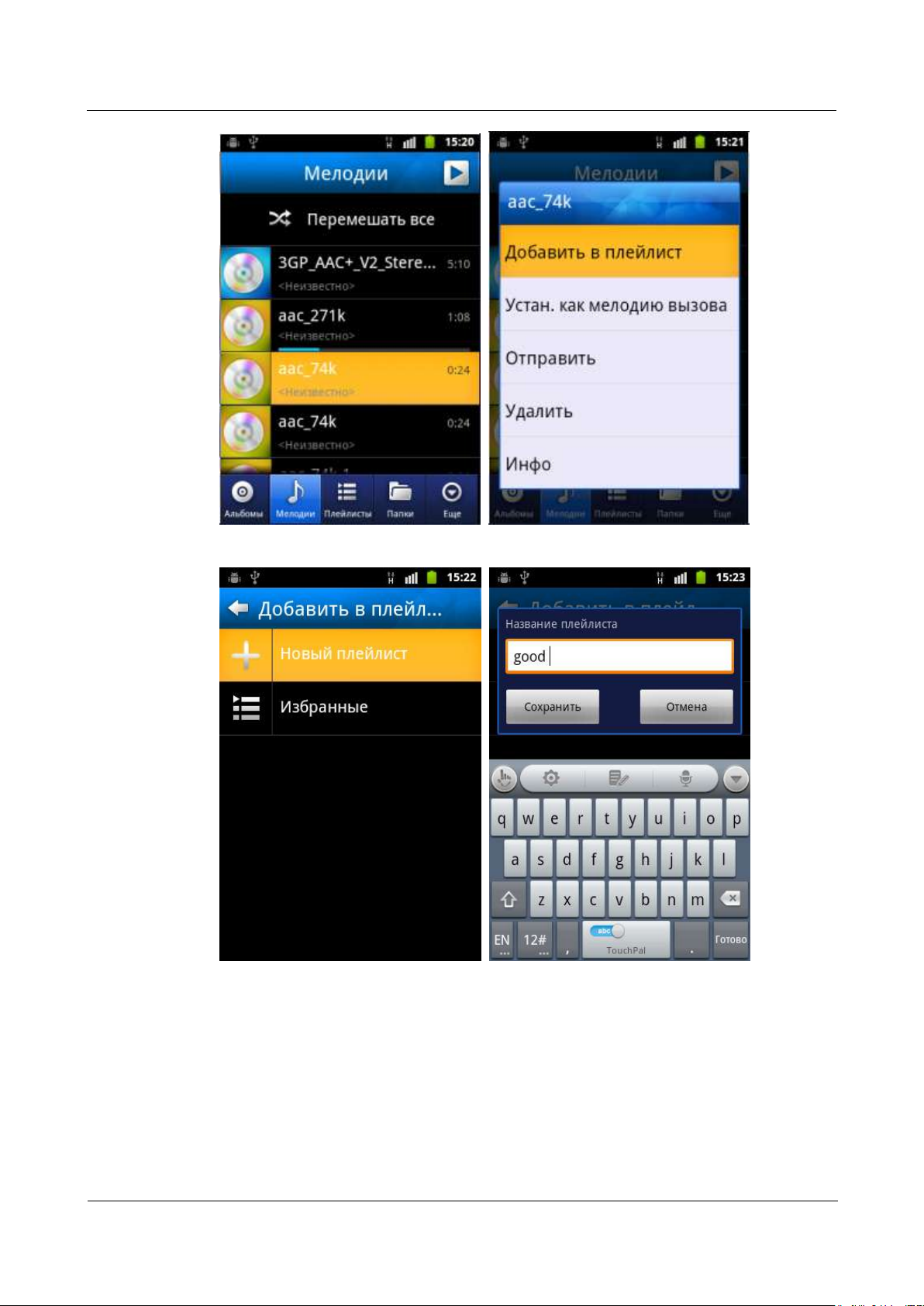
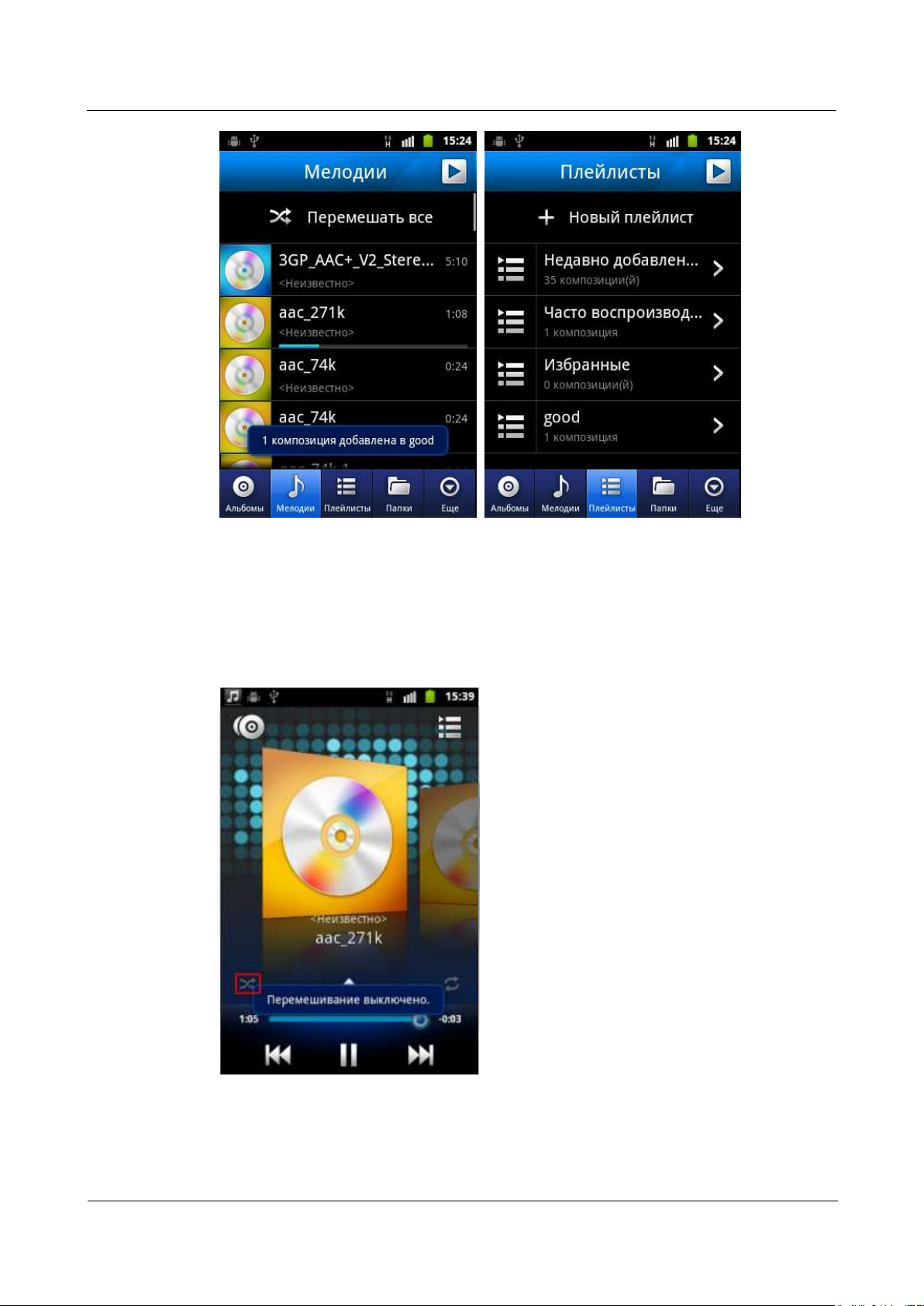
Open Music. Touch and hold the audio file to be added to a playlist, and touch Add to
playlist > New playlist. Then enter a name in Playlist name, and touch Save.
Page 27
HUAWEI U8860MTC965 V100R001
HUAWEI U8860 Smartphone FAQs
2012-09-19
Huawei Confidential
Page 19 of 86
Page 28
HUAWEI U8860MTC965 V100R001
HUAWEI U8860 Smartphone FAQs
2012-09-19
Huawei Confidential
Page 20 of 86
1.9.5 How Many Playing Modes Does Music Support?
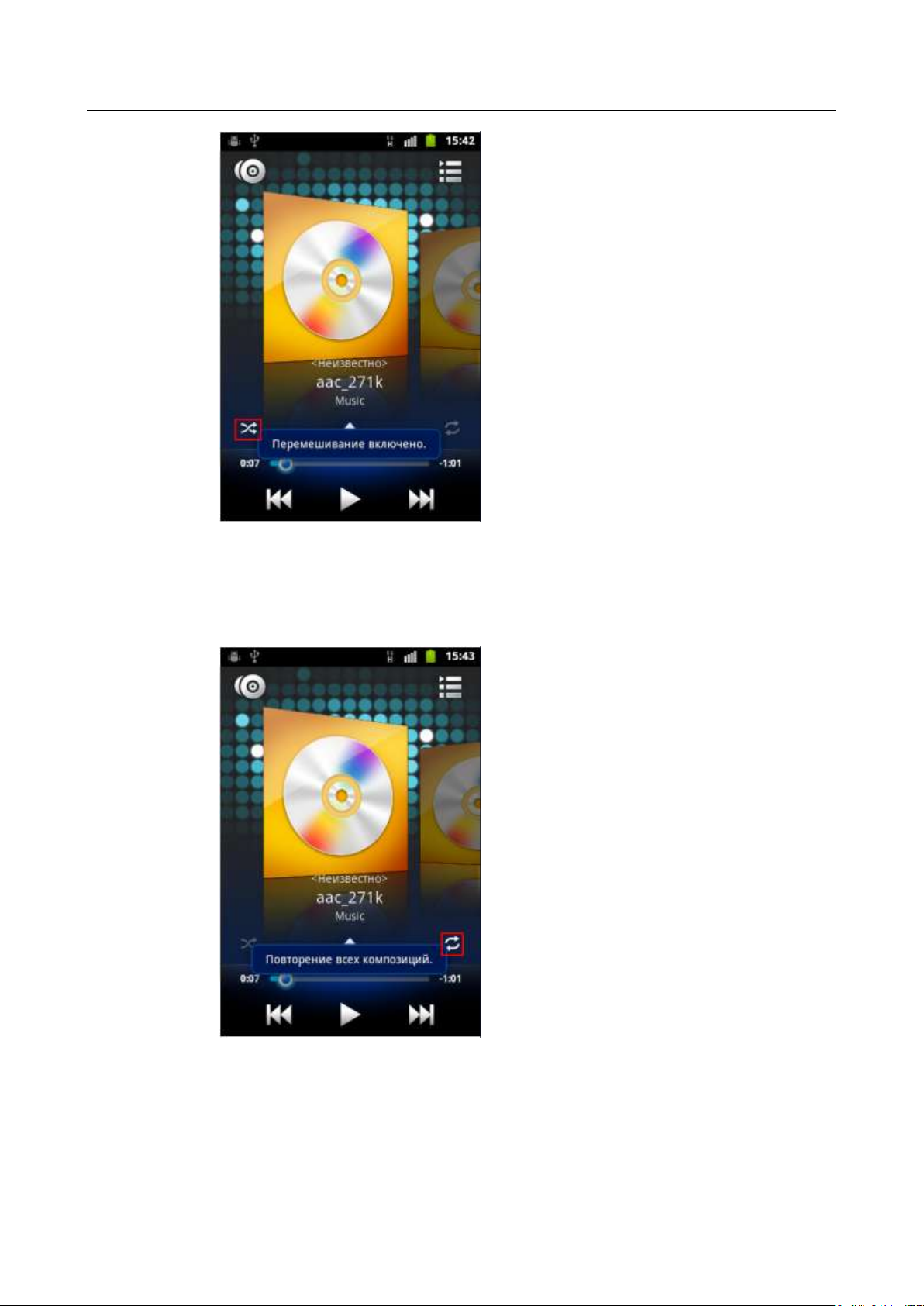
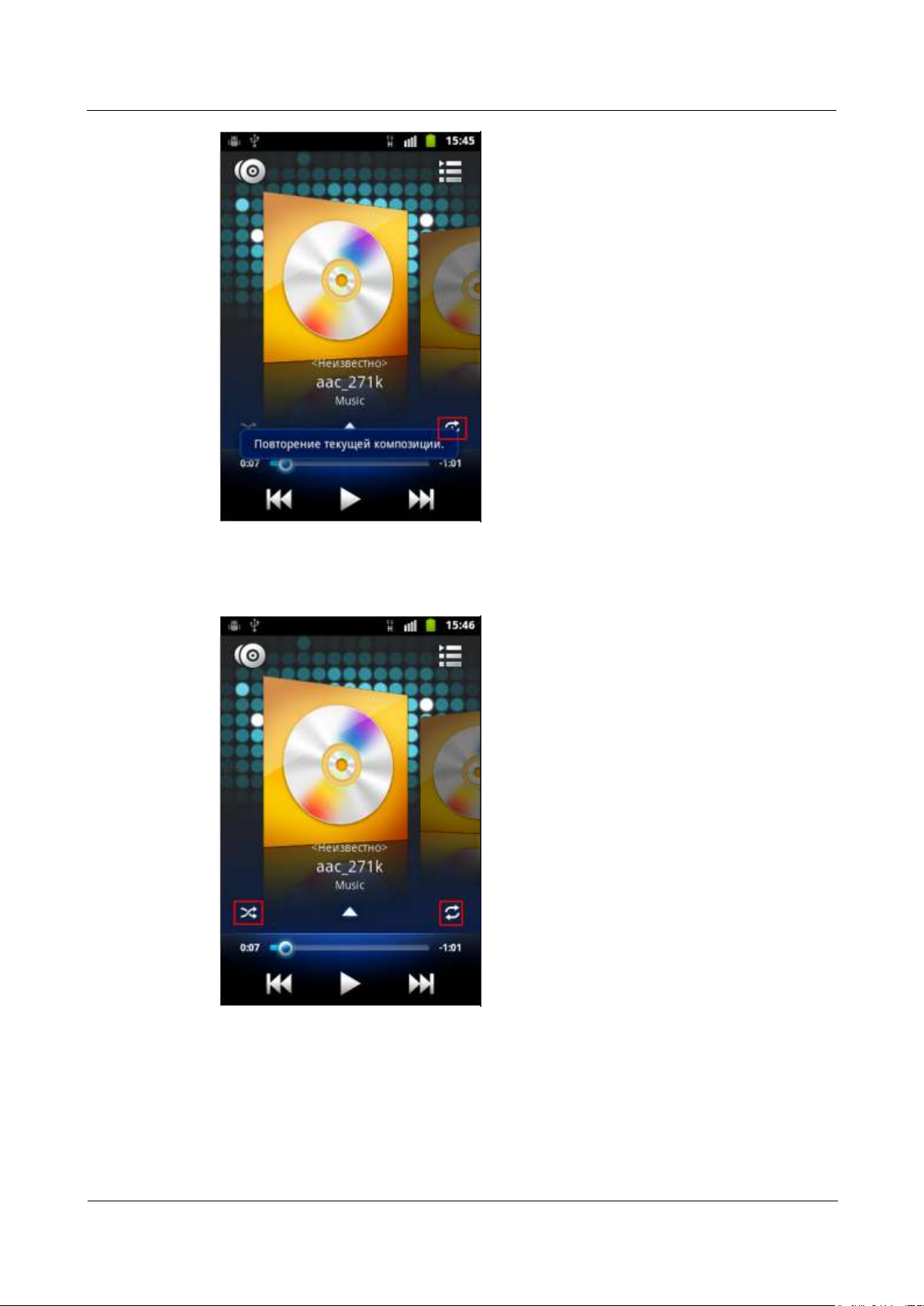
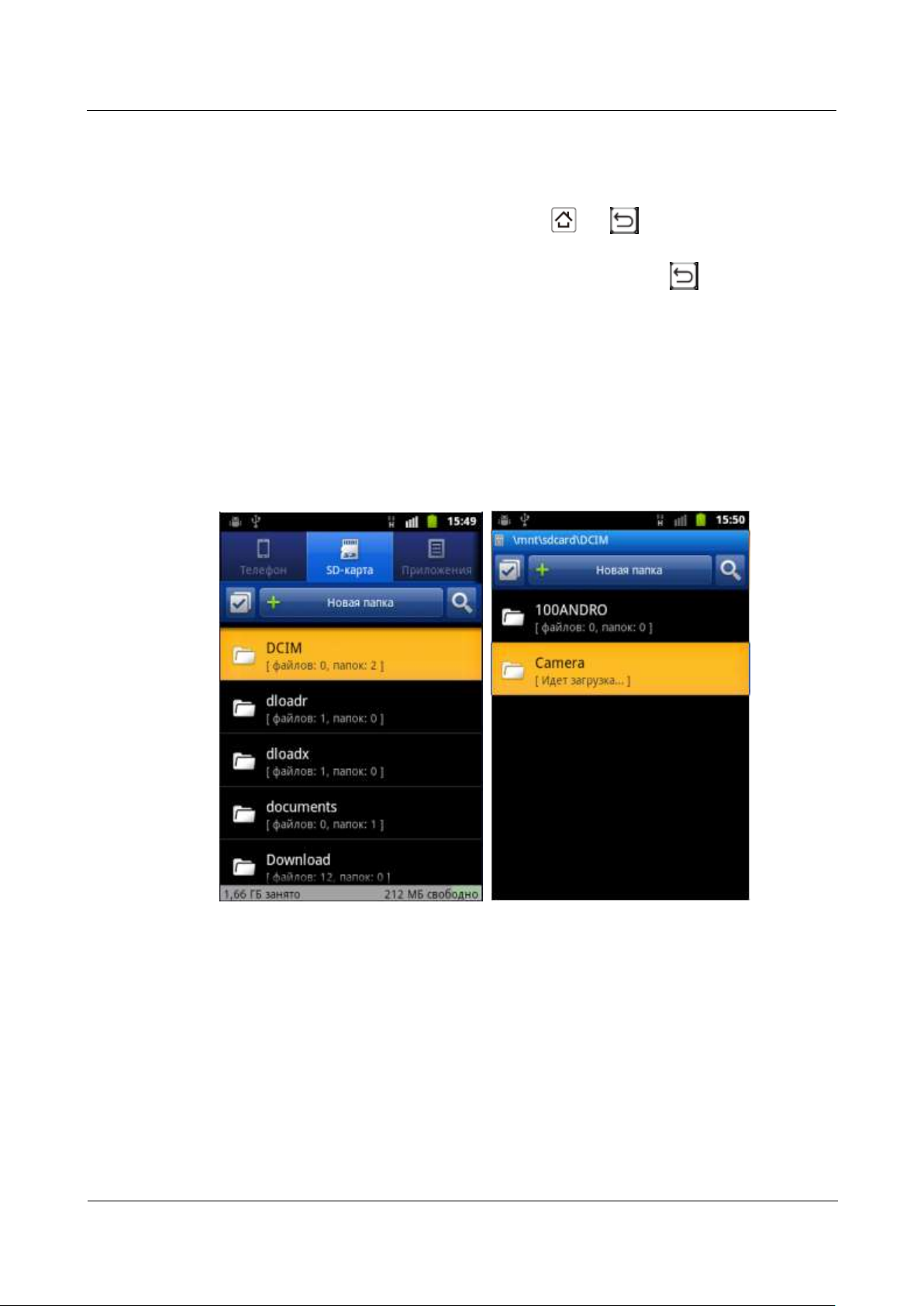
Music supports five playing modes:
Shuffle is off (by default): play all audio files in a playlist in order and stop when all the
files have been played.
Shuffle is on: play all audio files in a playlist in a random order and stop when all the
files have been played.
Page 29
HUAWEI U8860MTC965 V100R001
HUAWEI U8860 Smartphone FAQs
2012-09-19
Huawei Confidential
Page 21 of 86
Repeating all songs: play all audio files in a playlist in order, and repeat the playlist in
order after the last file is played.
Repeating current song: play the current audio file repeatedly.
Page 30
HUAWEI U8860MTC965 V100R001
HUAWEI U8860 Smartphone FAQs
2012-09-19
Huawei Confidential
Page 22 of 86
Shuffle is on + Repeating all songs: play all audio files in a playlist in a random order,
and repeat the playlist in a random order after the last file is played.
Page 31
HUAWEI U8860MTC965 V100R001
HUAWEI U8860 Smartphone FAQs
2012-09-19
Huawei Confidential
Page 23 of 86
1.9.6 How Do I Play Audio Files in the Background and
Exit Music?
To play audio files in the background, touch or when playing an audio file
using Music.
To exit Music, pause the currently played audio file, and touch .
1.10 Camera
1.10.1 What Are the Default Paths for Saving Pictures and
Videos? Can I Change the Paths?
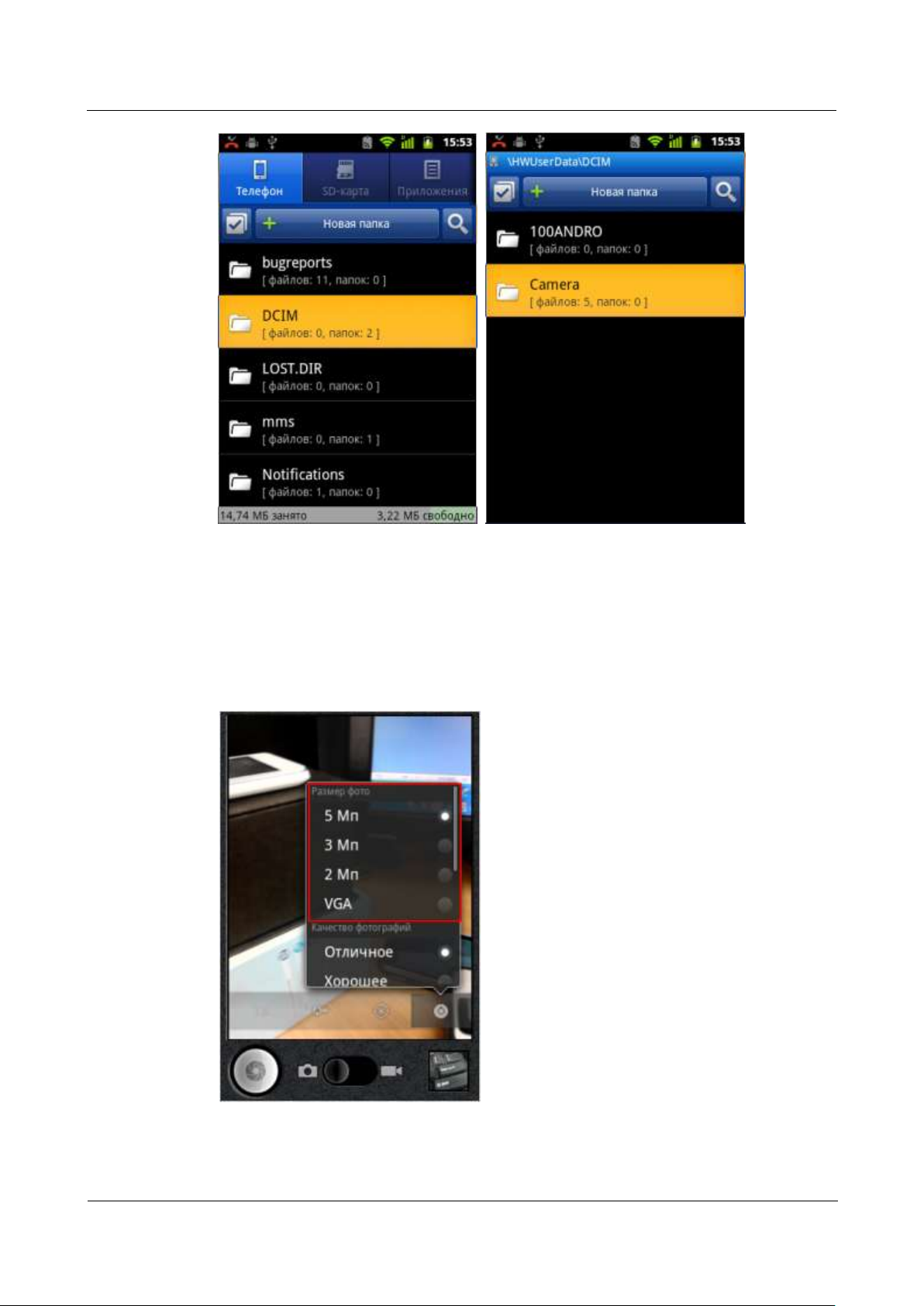
When a microSD card is available, the default path for saving pictures and videos is
sdcard/DCIM/Camera.
When a microSD card is unavailable:
− The default path for saving pictures and videos is HWUserData /DCIM/Camera.
Page 32
HUAWEI U8860MTC965 V100R001
HUAWEI U8860 Smartphone FAQs
2012-09-19
Huawei Confidential
Page 24 of 86
The default paths cannot be changed.
1.10.2 What Picture Formats and Resolutions Does Camera
Support?
Camera supports the picture format of Joint Photographic Experts Group (JPEG) and the
picture resolutions of 5 megapixel, 3 megapixel,2 megapixels, and Video Graphics Array
(VGA).
Page 33

HUAWEI U8860MTC965 V100R001
HUAWEI U8860 Smartphone FAQs
2012-09-19
Huawei Confidential
Page 25 of 86
1.10.3 How Many Cameras Does the Phone Come with?
What Are the Specifications for the Cameras? Do They
Support Autofocus?
The phone comes with only one camera: an 5-megapixel rear camera .And it doesn’t support
autofocus.
1.10.4 How Many White Balance Modes Does Camera
Provide?
Camera provides four white balance modes: Auto, Incandescent, Daylight, Fluorescent,
and Cloudy.
1.10.5 What Video Formats and Resolutions Does Camera
Support?
Camera supports the video format of MP4 and the video resolutions of 640x480 pixels (high
quality).
1.10.6 Does Camera Support Video Playback in Full-Screen
Mode?
No.
1.10.7 Can I Take Pictures or Record Videos When an
External microSD Card Is Unavailable?
Yes. If an external microSD card is unavailable, pictures and videos will be stored on the
phone's internal microSD card.
1.10.8 How Do I Disable the Shutter Sound?
The shutter sound is disabled when you take pictures in silent mode.
1.10.9 How Do I Set the Phone to Save Pictures, Videos,
and Sound Recordings to My microSD Card After They
Are Captured or Recorded?
Insert your micro SD card in the phone. Once the micro SD card is in the phone, pictures,
videos, and sound recordings are automatically saved to the micro SD card after they are
captured or recorded.
1.10.10 How Do I Add a Frame to a Picture?
The phone is not preinstalled with any application that allows you to add a frame to picture.
Download one if you want to add a frame to a picture.
Page 34

HUAWEI U8860MTC965 V100R001
HUAWEI U8860 Smartphone FAQs
2012-09-19
Huawei Confidential
Page 26 of 86
1.10.11 I Cannot Open Some Pictures or Videos, Why?
The phone does not support the picture or video formats.
The pictures or videos are damaged.
The pictures or videos are copyright-protected.
The phone's random-access memory (RAM) is insufficient. Close some running
third-party applications.
An unknown error occurred in Camera or the phone's OS. This is a rare case. Restart the
phone and try again.
1.11 Streaming Media
1.11.1 Does the Phone Stop Playing Streaming Media
When I Receive an Incoming call? If Yes, Will It Continue
to Play the Streaming Media After the Call?
The phone stops playing the streaming media when you have an incoming call.
After the call, the phone continues to play the streaming media.
1.11.2 Why Does the Phone Fail to Play Some Streaming
Media?
The phone does not support the steaming media format.
The network performance is unstable.
The phone's RAM is insufficient.
1.11.3 What Causes Poor Quality of Online Streaming
Media Played by the Phone?
The source streaming media is of poor quality.
The network connection is poor.
The phone's hardware is faulty, for example, the phone display is damaged. In this case,
use another device to play the online streaming media for contrast purposes.
The phone's RAM is insufficient.
The central processing unit (CPU) usage is high.
Too many applications are running.
1.11.4 Will the Phone's Internal Storage Become
Insufficient When Online Streaming Media Is Playing?
No. When playing, the online streaming media occupies the phone's RAM rather than its
internal storage.
Page 35
HUAWEI U8860MTC965 V100R001
HUAWEI U8860 Smartphone FAQs
2012-09-19
Huawei Confidential
Page 27 of 86
1.12 Bluetooth
1.12.1 My Phone Cannot Be Discovered by Other Devices,
Why? How Can I Solve the Problem?
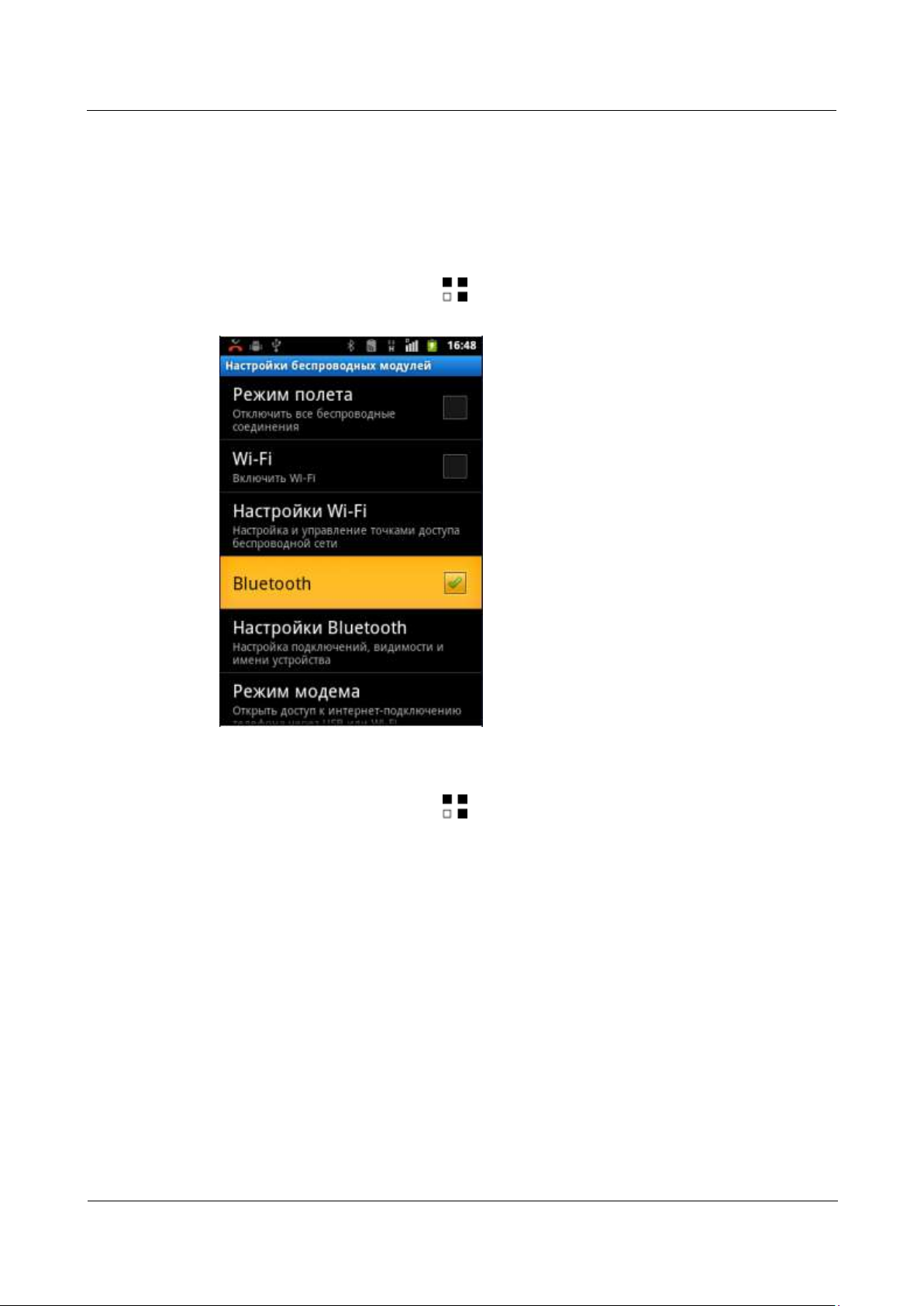
Bluetooth is turned off.
To solve the problem, touch > Settings > Wireless & networks, and turn on
Bluetooth.
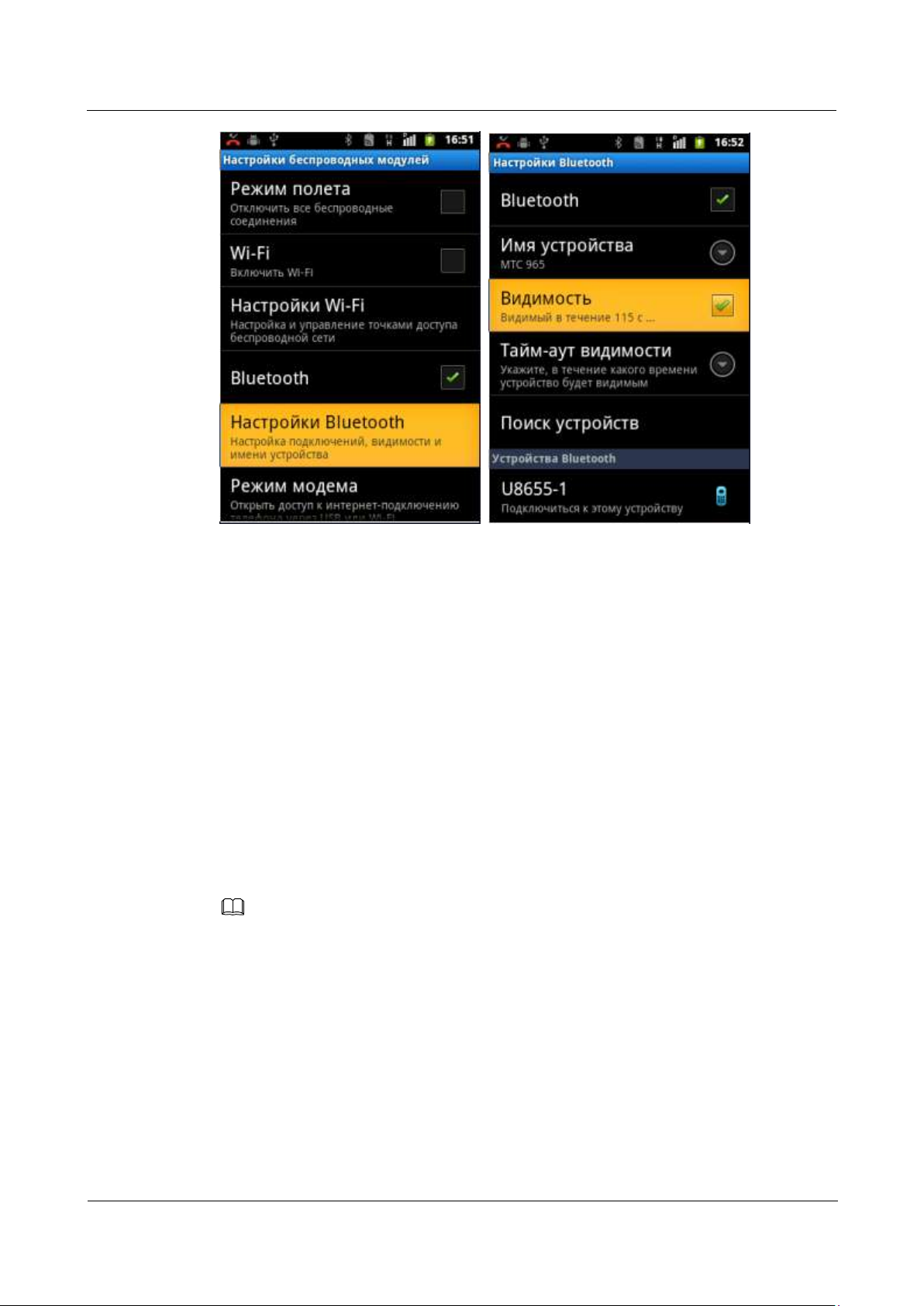
The phone is not set to Discoverable after Bluetooth is turned on.
To solve the problem, touch > Settings > Wireless & networks > Bluetooth
settings, and select Discoverable.
Page 36
HUAWEI U8860MTC965 V100R001
HUAWEI U8860 Smartphone FAQs
2012-09-19
Huawei Confidential
Page 28 of 86
NOTE
1.12.2 What Files Can Be Transmitted Using Bluetooth?
Pictures, audio files, videos, web pages, and contacts can be transmitted using Bluetooth.
1.12.3 Can I Use Bluetooth to Synchronize Data with a
Computer?
Yes,Can synchronize datas via Bluetooth adapter.
1.12.4 How Do I Make Calls or Listen to Music Using a
Bluetooth Headset?
Turn on the Bluetooth headset, and set it to discoverable. Turn on Bluetooth on your phone,
and search for the headset. After the headset is found, pair your phone with the headset. Then
you can use the headset to make calls or listen to music.
To listen to music, you must use a stereo Bluetooth headset.
1.12.5 What Is the Bluetooth Range?
The valid range is approximately 10 meters.
1.12.6 I Cannot Pair My Phone with Other Bluetooth
Devices, Why?
The phone cannot find other Bluetooth devices.
To solve the problem, check that Bluetooth on other devices is turned on and the devices
are set to discoverable.
Page 37
HUAWEI U8860MTC965 V100R001
HUAWEI U8860 Smartphone FAQs
2012-09-19
Huawei Confidential
Page 29 of 86
The phone cannot detect a Bluetooth headset.
To solve the problem, check that the headset is set to discoverable. For details about how
to set the headset, see the headset user guide.
The phone cannot connect to other phones when sending files.
To solve the problem, check that the phones to be connected are paired with your phone
and are able to receive files.
1.12.7 Can I Connect My Phone to a Computer and Access
the Internet Using Bluetooth?
You can connect your phone to a computer using Bluetooth, but you cannot access the
Internet on your computer after the connection is set up.
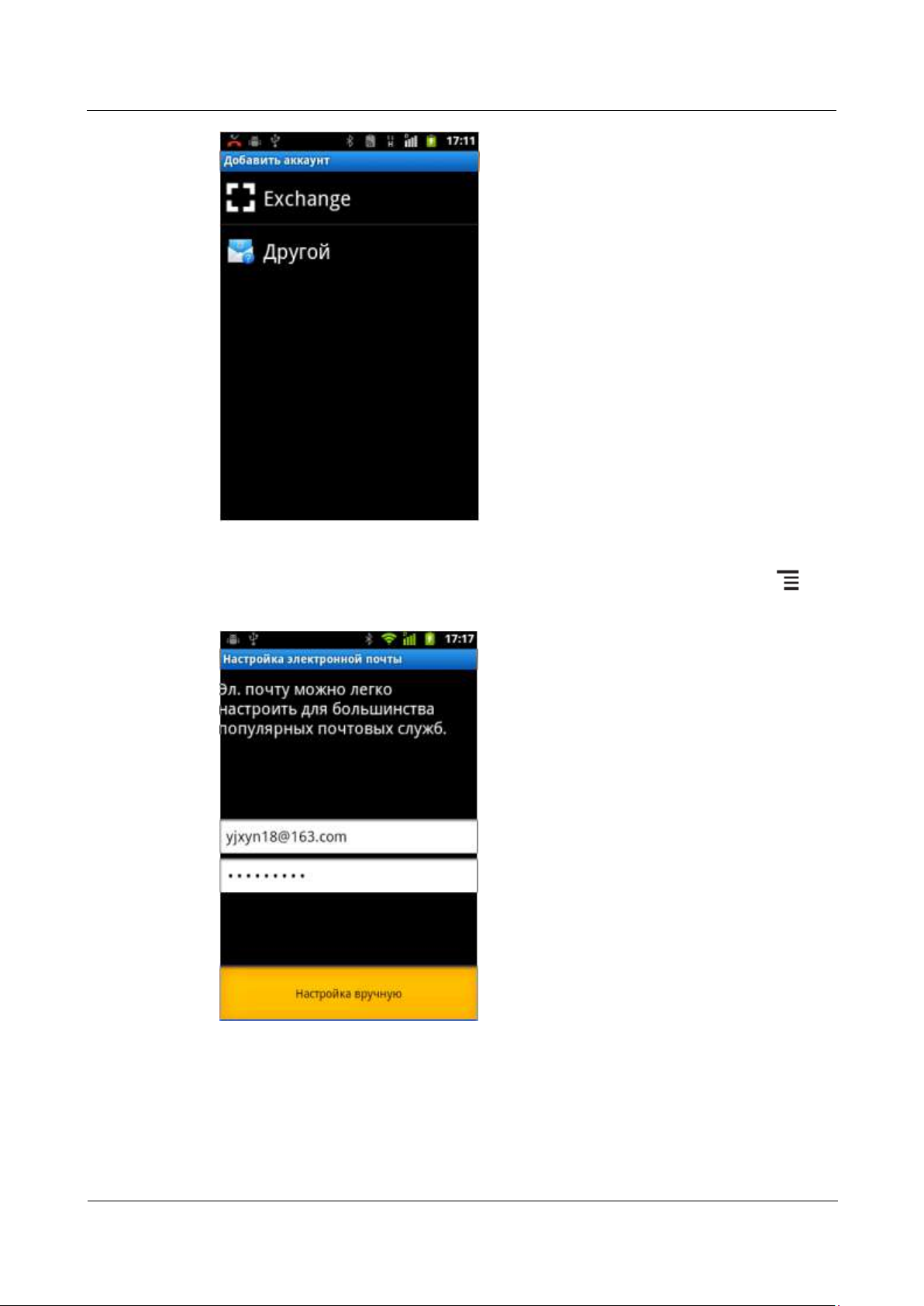
1.13 How Do I Add or Remove an Email Account?
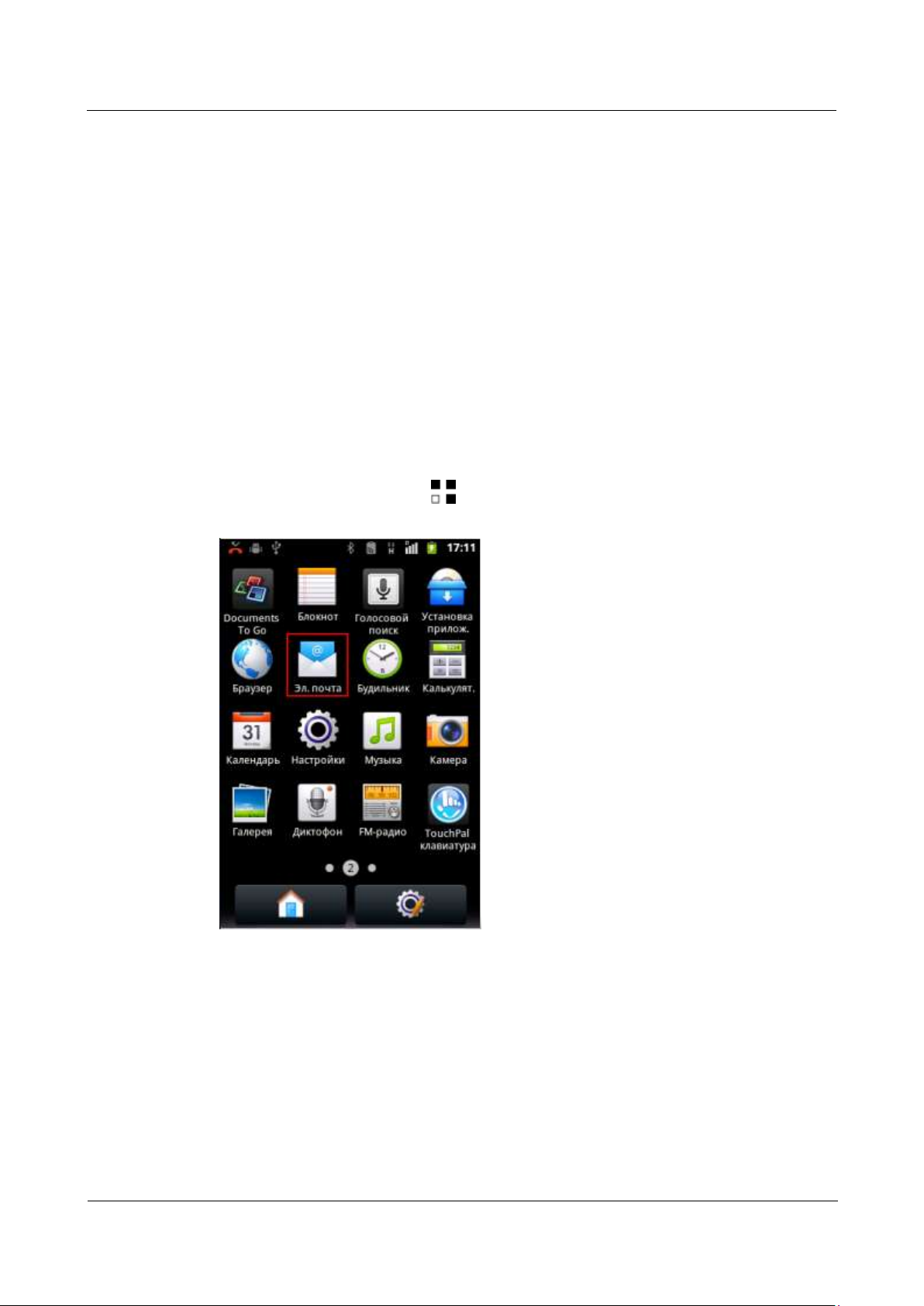
To add an email account, touch > Email, and then set up your email account manually
or automatically.
Manual setup
1. On the Add account screen, touch your email service provider.
Page 38
HUAWEI U8860MTC965 V100R001
HUAWEI U8860 Smartphone FAQs
2012-09-19
Huawei Confidential
Page 30 of 86
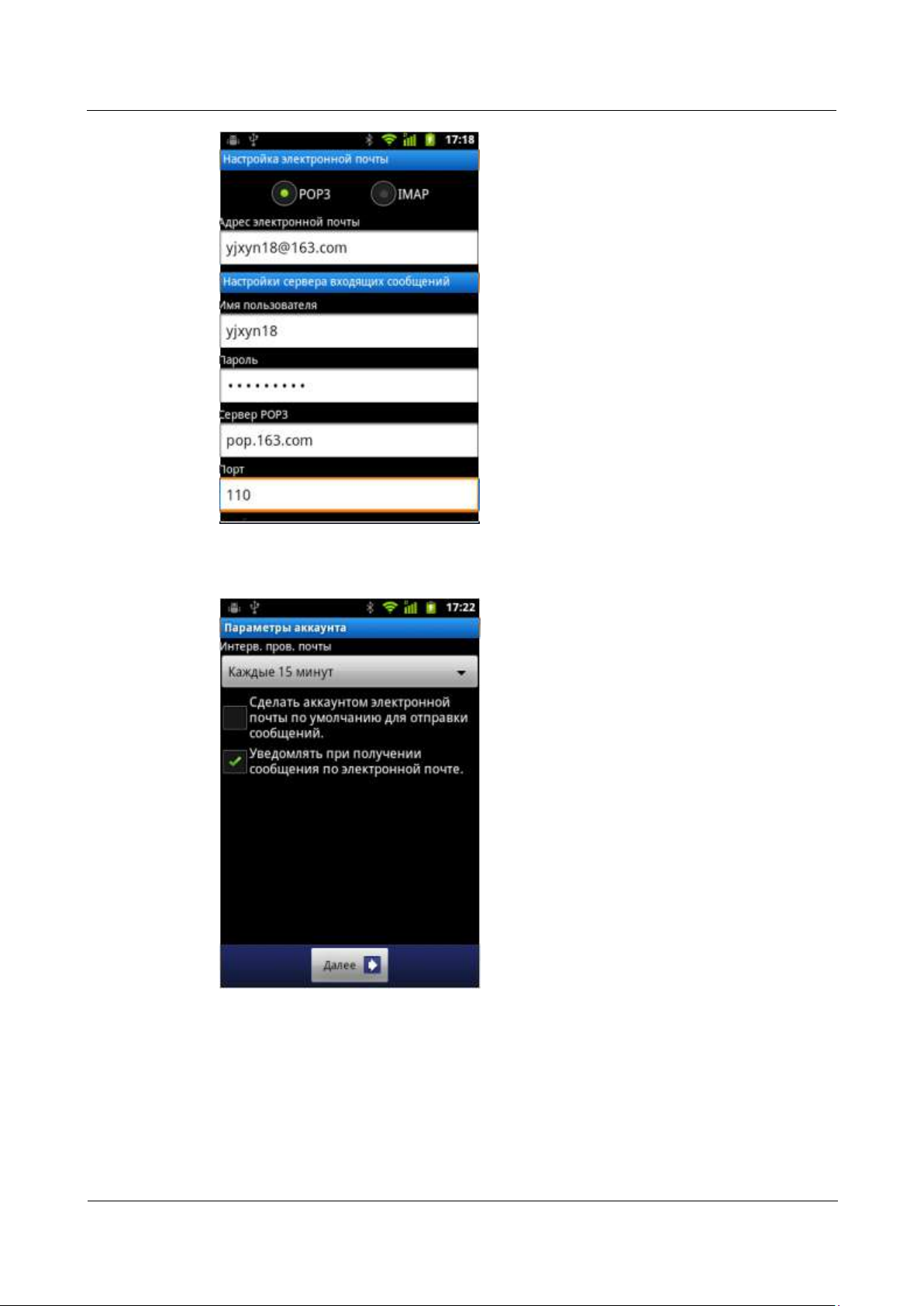
2. On the Set up email screen, enter your email address and password, and touch ,
select Manual setup.
3. Configure incoming and outgoing server settings, and touch Next.
Page 39
HUAWEI U8860MTC965 V100R001
HUAWEI U8860 Smartphone FAQs
2012-09-19
Huawei Confidential
Page 31 of 86
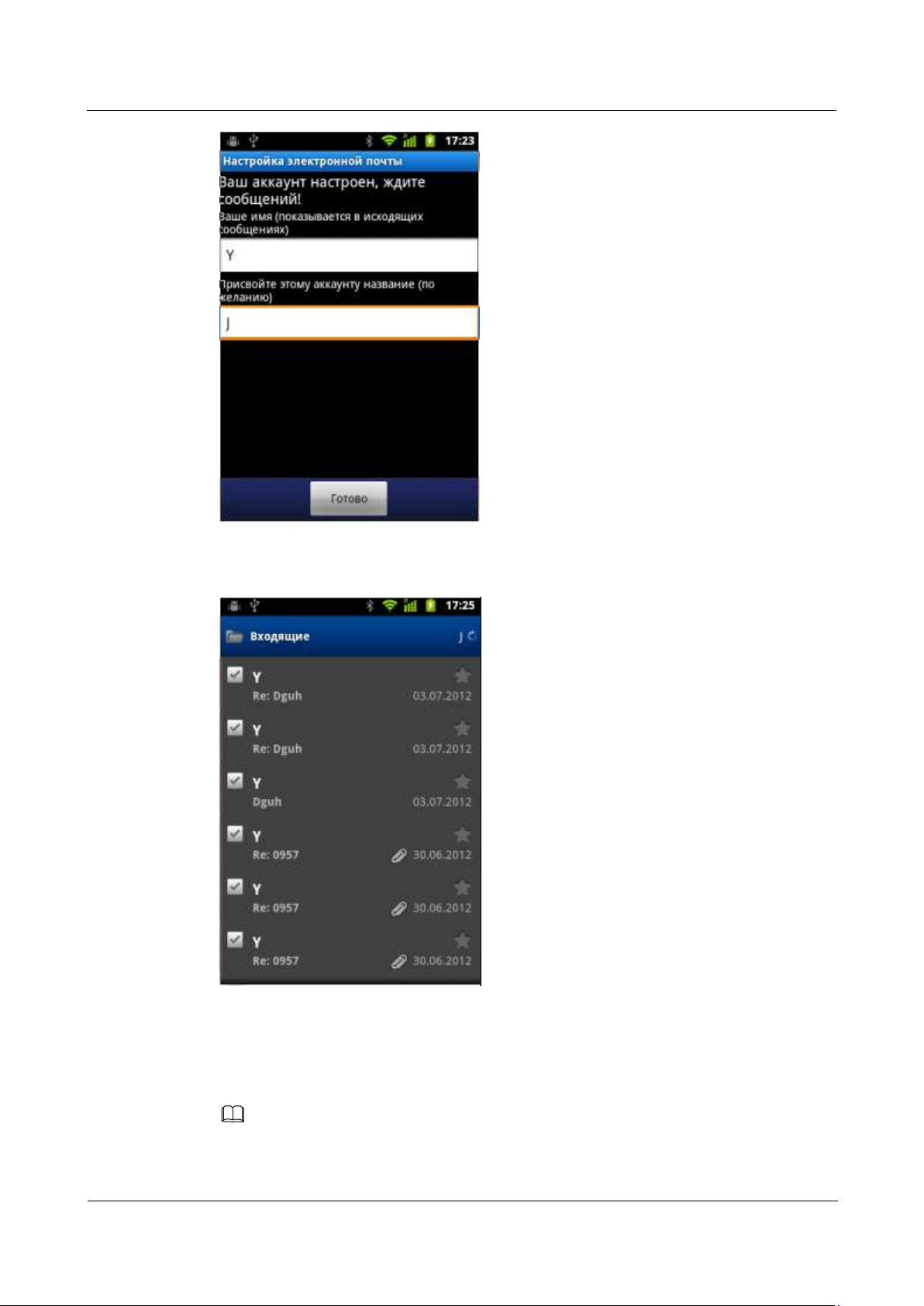
4. On the Account options screen, set Inbox checking frequency, and touch Next.
5. Enter the name you want people to see when they receive your emails, set your account
name, and then touch Done.
Page 40
HUAWEI U8860MTC965 V100R001
HUAWEI U8860 Smartphone FAQs
2012-09-19
Huawei Confidential
Page 32 of 86
NOTE
You can check your emails in your inbox.
----End
Automatic setup
You can set up your email account automatically only when the settings of your email account type are
preconfigured on your phone.
Page 41
HUAWEI U8860MTC965 V100R001
HUAWEI U8860 Smartphone FAQs
2012-09-19
Huawei Confidential
Page 33 of 86
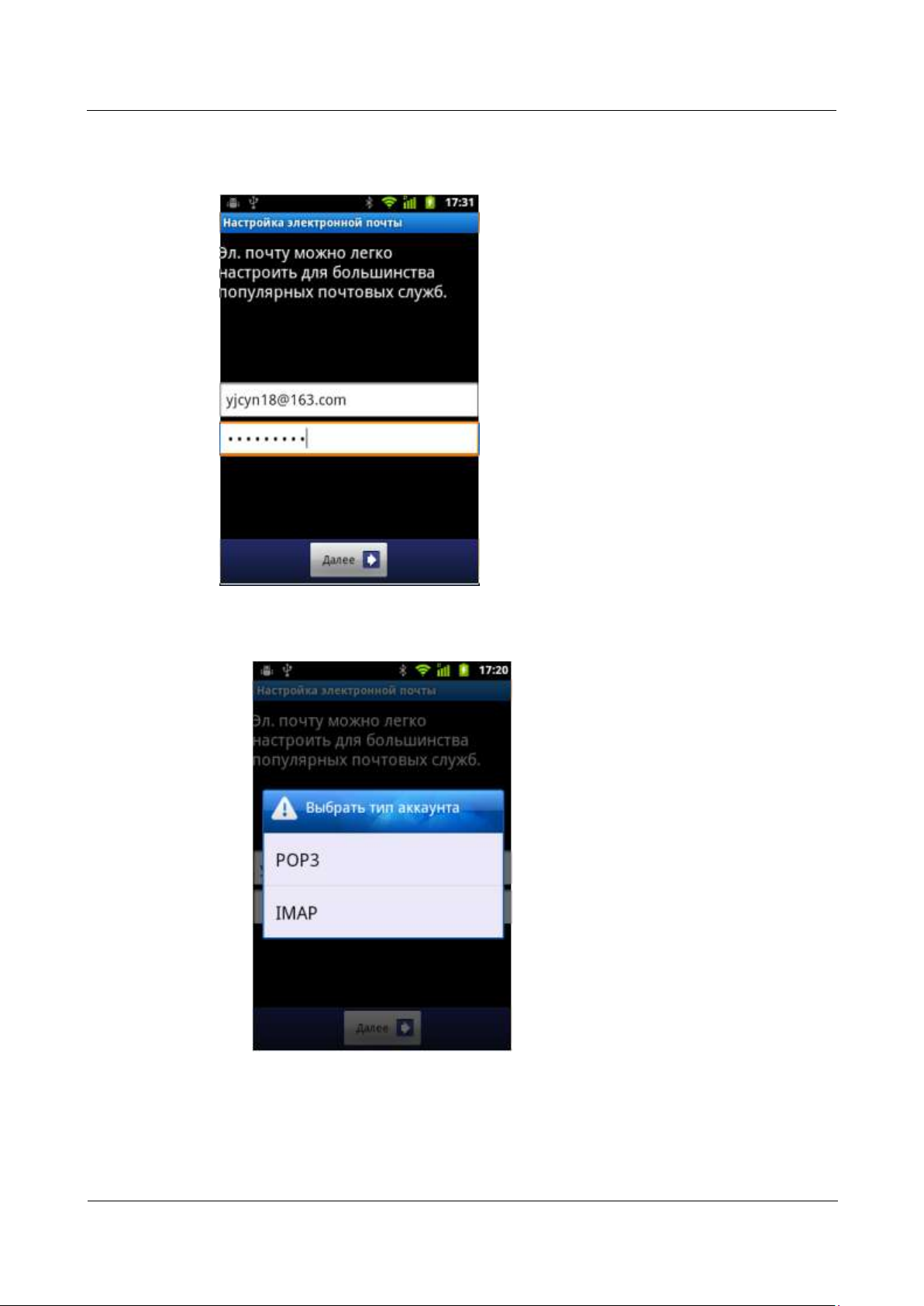
6. On the Add account screen, touch your email service provider.
7. On the Set up email screen, enter your email address and password, and touch Next.
8. In the Choose account type menu, touch POP3 or IMAP.
9.
The phone automatically sets up your email account.
10.
11. When the setup is complete, touch Done.
Page 42
HUAWEI U8860MTC965 V100R001
HUAWEI U8860 Smartphone FAQs
2012-09-19
Huawei Confidential
Page 34 of 86
----End
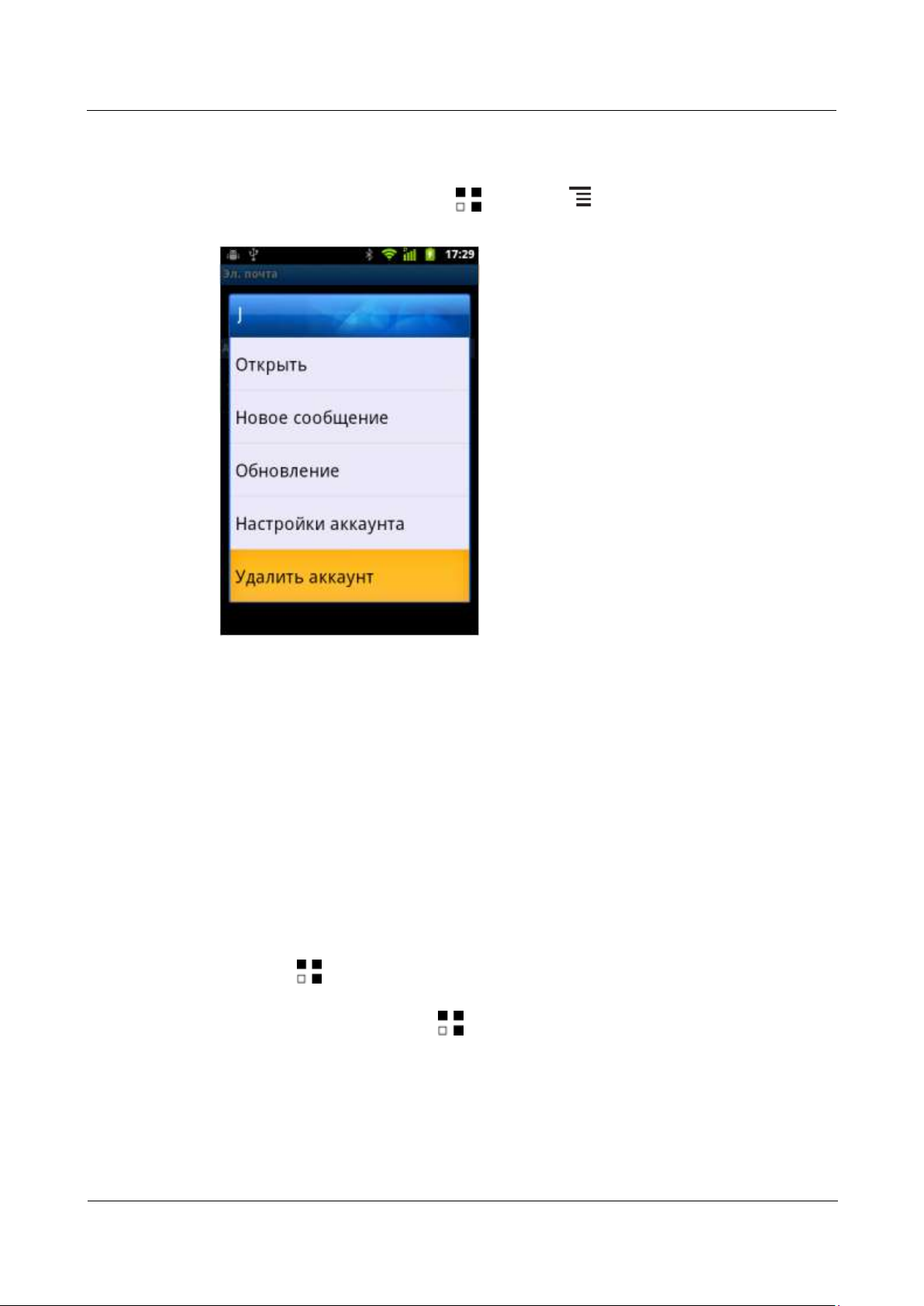
To remove an email account, touch > Email > >More> Accounts, touch and hold
the email account you want to remove, and touch Remove account.
1.14 GPS Navigation
1.14.1 Does My Phone Support GPS Navigation?
Yes.
1.14.2 How Can I Use Wireless Networks or GPS Satellites
for Maps to Implement Location and Navigation
Functions?
To use wireless networks for Maps to implement location and navigation functions,
touch > Settings > Location & security, and select Use wireless networks.
To use Global Positioning System (GPS) satellites for Maps to implement location and
navigation functions, touch > Settings > Location & security, and select Use GPS
satellites.
1.14.3 What Can I Do If the Navigation Application on My
Phone Cannot Receive Signals from GPS Satellites?
Move to an area with better signal strength.
Page 43

HUAWEI U8860MTC965 V100R001
HUAWEI U8860 Smartphone FAQs
2012-09-19
Huawei Confidential
Page 35 of 86
This problem may occur when you are in a built-up area. To solve the problem, move to
an open area.
1.14.4 When Indoor, My Phone Usually Fails to Locate My
Position; When It Finally Locates My Position, the
Displayed Position Is Far from the Actual Position, Why?
Does My Phone Support Voice Navigation?
GPS signals received indoor are weak. If you attempt to use GPS location indoor, your phone
may fail to receive signals from GPS satellites.
The accuracy of location is dependent on the accuracy of GPS satellites and the map used by
your phone.
You can use voice navigation if your navigation application supports it.
1.15 What Are Smartphones?
Smartphones run OSs and provide advanced functions such as emails, Wireless Fidelity
(Wi-Fi), GPS functions, and personal information management. They adopt application
architecture similar to computers', use touchscreens, and allow you to download and install
third-party applications.
1.16 What OS Does My Phone Run?
Your phone runs Android Gingerbread.
1.17 How Do I Install the USB Driver for My Phone?
Does My Phone Come with HiSuite?
You do not need to install the universal serial bus (USB) driver for your phone manually. The
driver is installed automatically when you connect your phone to a computer.
Yes,the phone has offered HiSuite website for you to download .
1.18 What Is My Phone's CPU Frequency? I Use a
Third-Party Application to Check the Frequency But the
Result Is Different from the Nominal Value, Why?
Your phone's CPU frequency is 800 MHz.
To reduce power consumption, your phone's CPU may not run at a full frequency, or it may
work with its frequency changing automatically. In those cases, the result is different from the
nominal value.
Page 44

HUAWEI U8860MTC965 V100R001
HUAWEI U8860 Smartphone FAQs
2012-09-19
Huawei Confidential
Page 36 of 86
1.19 Does My Phone Support the Canvas?
NOTE
Yes. Your phone supports a maximum of five screens (including the Home screen and its
extensions).
1.20 Does My Phone Come with a Full Touchscreen?
Yes. Your phone comes with a capacitive full touchscreen.
1.21 Does My Phone Come with an Accelerometer? How
Do I Use It?
Yes, your phone comes with an accelerometer for entertainment purposes. If the
accelerometer is enabled, your phone automatically changes its screen orientation when you
turn the phone sideways. This enables you to watch videos on your phone in landscape mode
or install accelerometer-based games. To enable the accelerometer, touch > Settings >
Display, and select Auto-rotate screen.
1.22 Does My Phone Come with an FM Radio? How Do I
Use It?
Yes, your phone comes with an FM radio. To use the FM radio, touch > FM Radio.
You can use the FM radio only after you connect the headset to the phone.
1.23 How Much Available Space Does My Phone
Provide?
In the standard configuration, your phone provides 256MB of RAM, 70.7 MB of internal
storage, and a 17.96 MB internal microSD card.
Because software is installed on your phone, the available space is smaller than that in the
standard configuration.
The available space is as follows:
RAM: about 46 MB, depending on the software installed on your phone.
Internal storage: 70.7MB, depending on the software installed on your phone.
Internal microSD card: 17.96 MB, depending on the software installed on your phone.
Page 45
HUAWEI U8860MTC965 V100R001
HUAWEI U8860 Smartphone FAQs
2012-09-19
Huawei Confidential
Page 37 of 86
1.24 Is My Phone's Antenna Embedded?
NOTE
Yes.
1.25 Can I Download Themes to My Phone?
Yes.
1.26 Is My Phone's SIM Card Removable or Integrated?
Your phone's SIM card is removable.
1.27 How Do I Enter and Exit Safe Mode?
Whether safe mode is supported depends on your phone's software version. If you attempt to enter safe
mode according to the following instructions three times and still fail, your phone does not support safe
mode.
To enter safe mode:
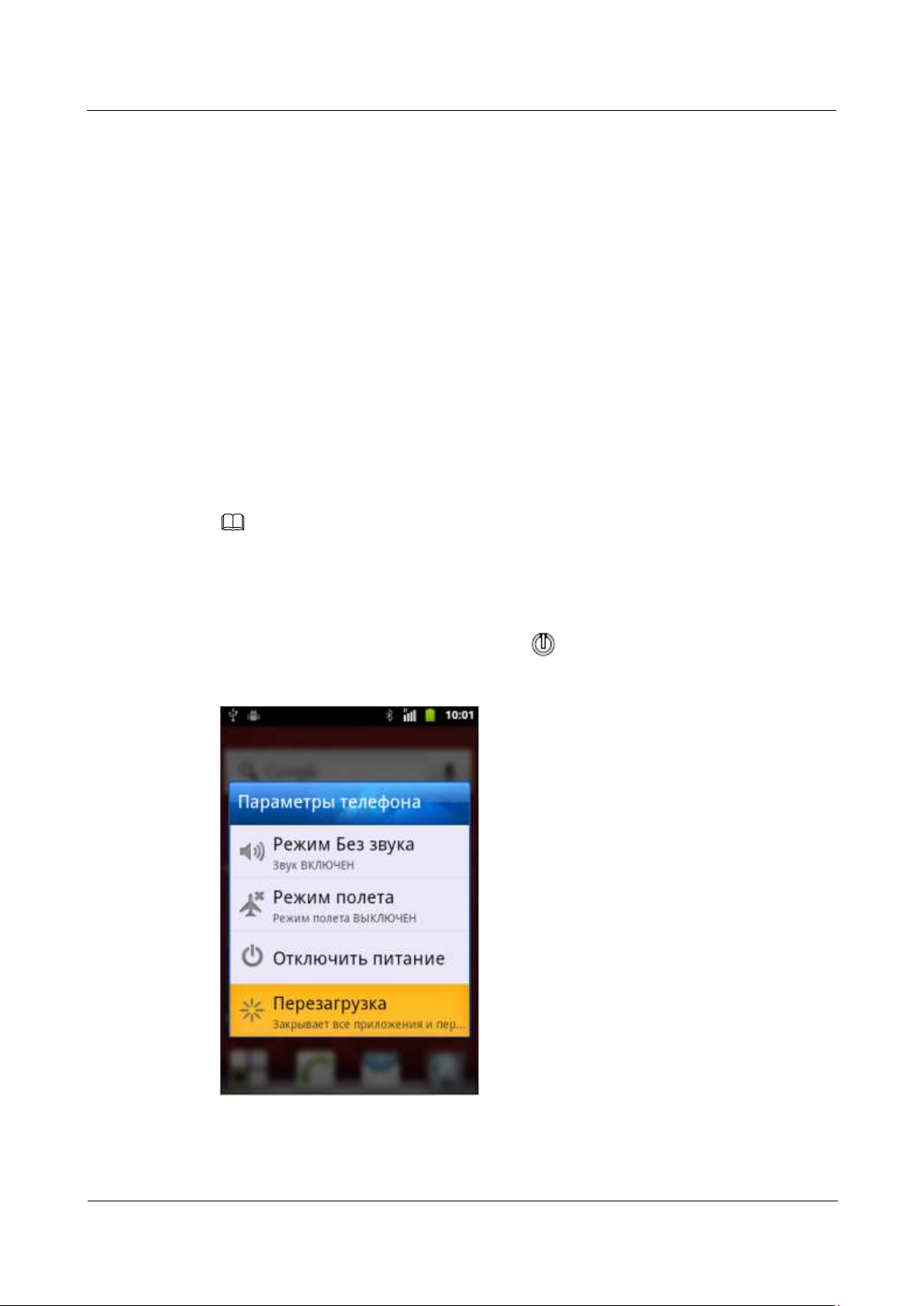
1. When your phone is active, press and hold .
2. In the Phone options menu, touch Restart.
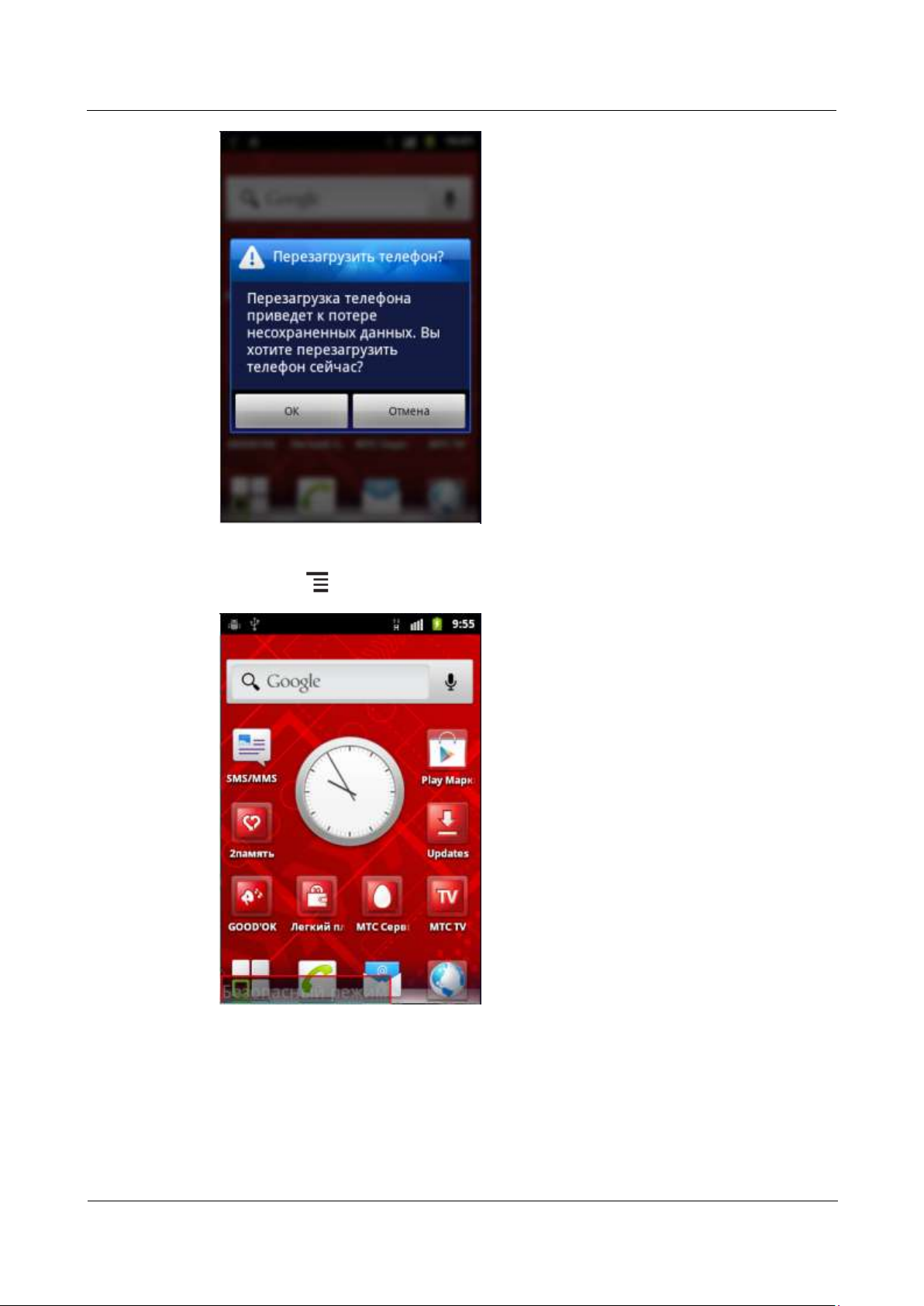
3. In the Restart phone dialog box, touch OK.
Page 46
HUAWEI U8860MTC965 V100R001
HUAWEI U8860 Smartphone FAQs
2012-09-19
Huawei Confidential
Page 38 of 86
4. Touch repeatedly until the screen shown in the following figure is displayed.
When restarting your phone, perform the same step.
----End
To exit safe mode:
Page 47
HUAWEI U8860MTC965 V100R001
HUAWEI U8860 Smartphone FAQs
2012-09-19
Huawei Confidential
Page 39 of 86
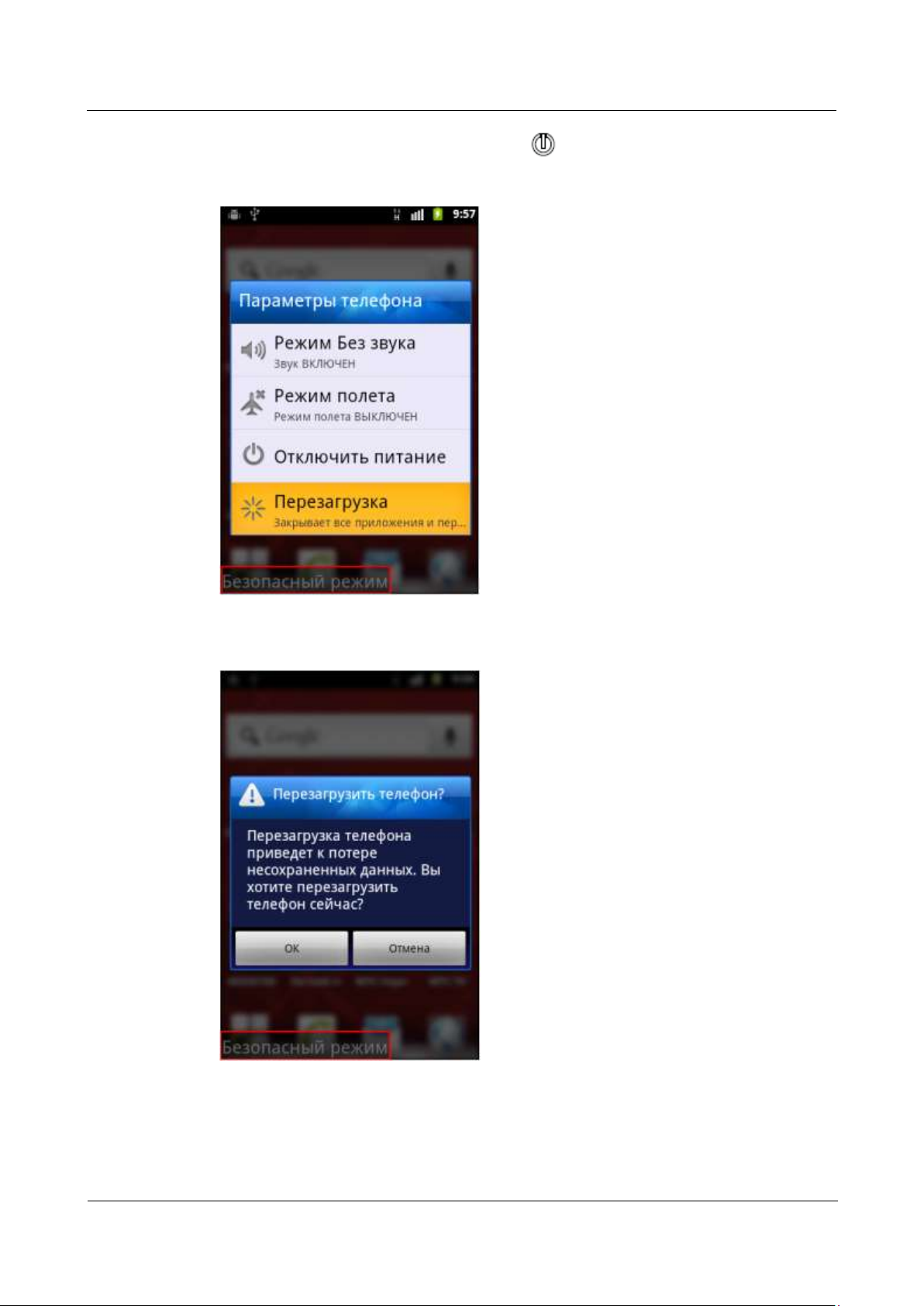
5. When your phone is active, press and hold .
6. In the Phone options menu, touch Restart.
7. In the Restart phone dialog box, touch OK.
After restart, your phone enters normal mode.
----End
Page 48

HUAWEI U8860MTC965 V100R001
HUAWEI U8860 Smartphone FAQs
2012-09-19
Huawei Confidential
Page 40 of 86
1.28 Does My Phone Support Multi-Touch?
Yes.
1.29 Does My Phone Support Scheduled Power-On and
Power-Off?
No. But enabled alarms will ring when your phone is powered off.
1.30 Can I Use My Phone as a Portable Wi-Fi Hotspot?
Yes.
1.31 Is My Phone's Touchscreen Capacitive or Resistive?
It is capacitive.
1.32 What OSs Does My Phone Support If I Use It as a
Modem?
Windows XP, Windows Vista, and Windows 7.
1.33 Does My Phone Support VPNs?
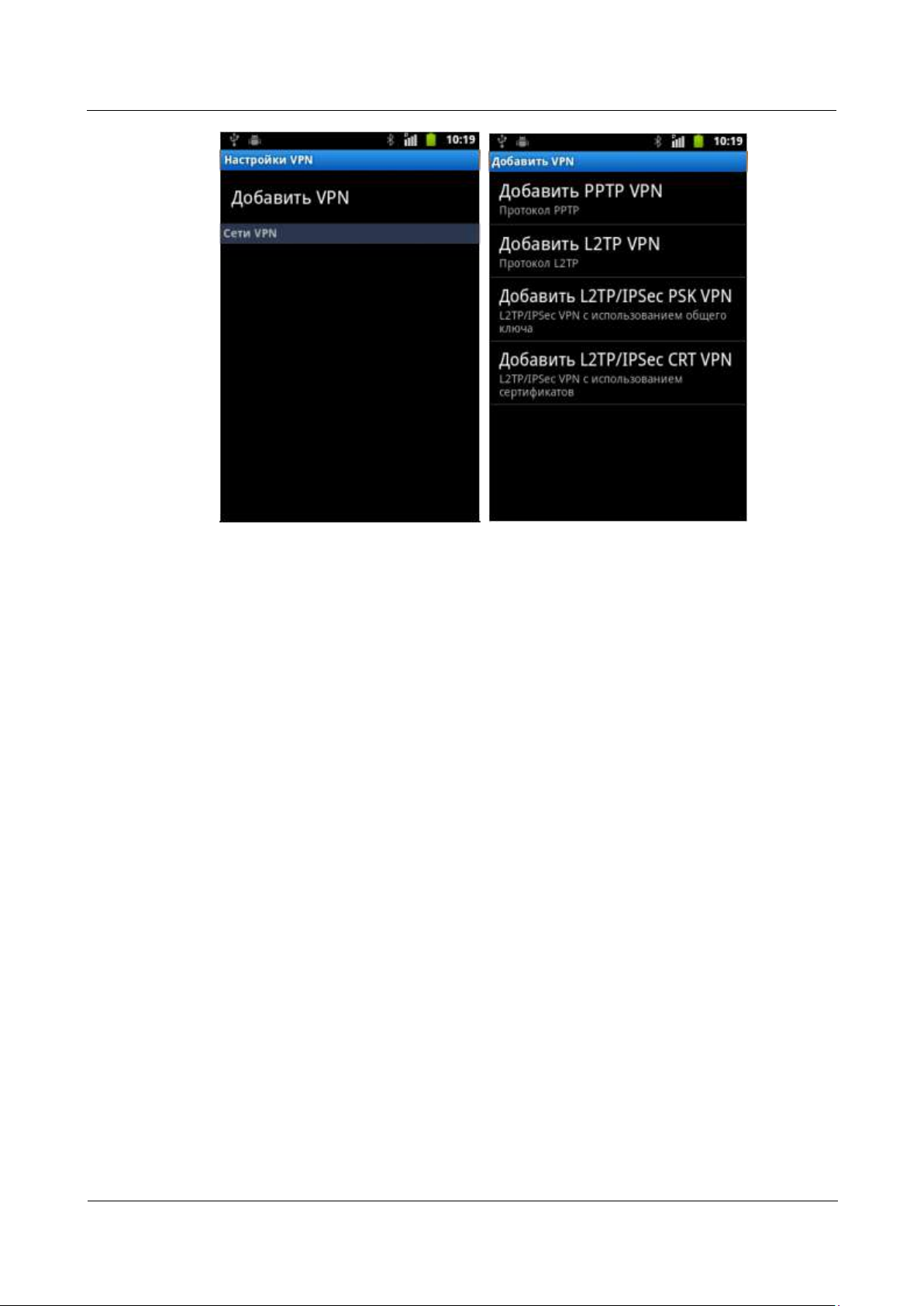
Yes, your phone supports virtual private networks (VPNs).
To configure VPN settings, touch > Settings > Wireless & network > VPN settings.
Page 49
HUAWEI U8860MTC965 V100R001
HUAWEI U8860 Smartphone FAQs
2012-09-19
Huawei Confidential
Page 41 of 86
Page 50
HUAWEI U8860MTC965 V100R001
HUAWEI U8860 Smartphone FAQs
2012-09-19
Huawei Confidential
Page 42 of 86
2 Common Settings
NOTE
2.1 How Do I Upgrade My Phone's Software?
After an upgrade, all user data such as contact information, text messages, and multimedia messages on
your phone will be erased. Therefore, back up important data before upgrading your phone's software.
To upgrade online, touch > Settings > About phone, and select Online upgrade.
To upgrade using a microSD card, download the upgrade package from a Huawei server to
the microSD card, and then touch > Settings > Storage > Software Upgrade > SD
card Upgrade.
2.2 How Do I Install the ADB Driver?
1. Use a USB cable to connect your phone to a computer.
An installation wizard runs automatically.
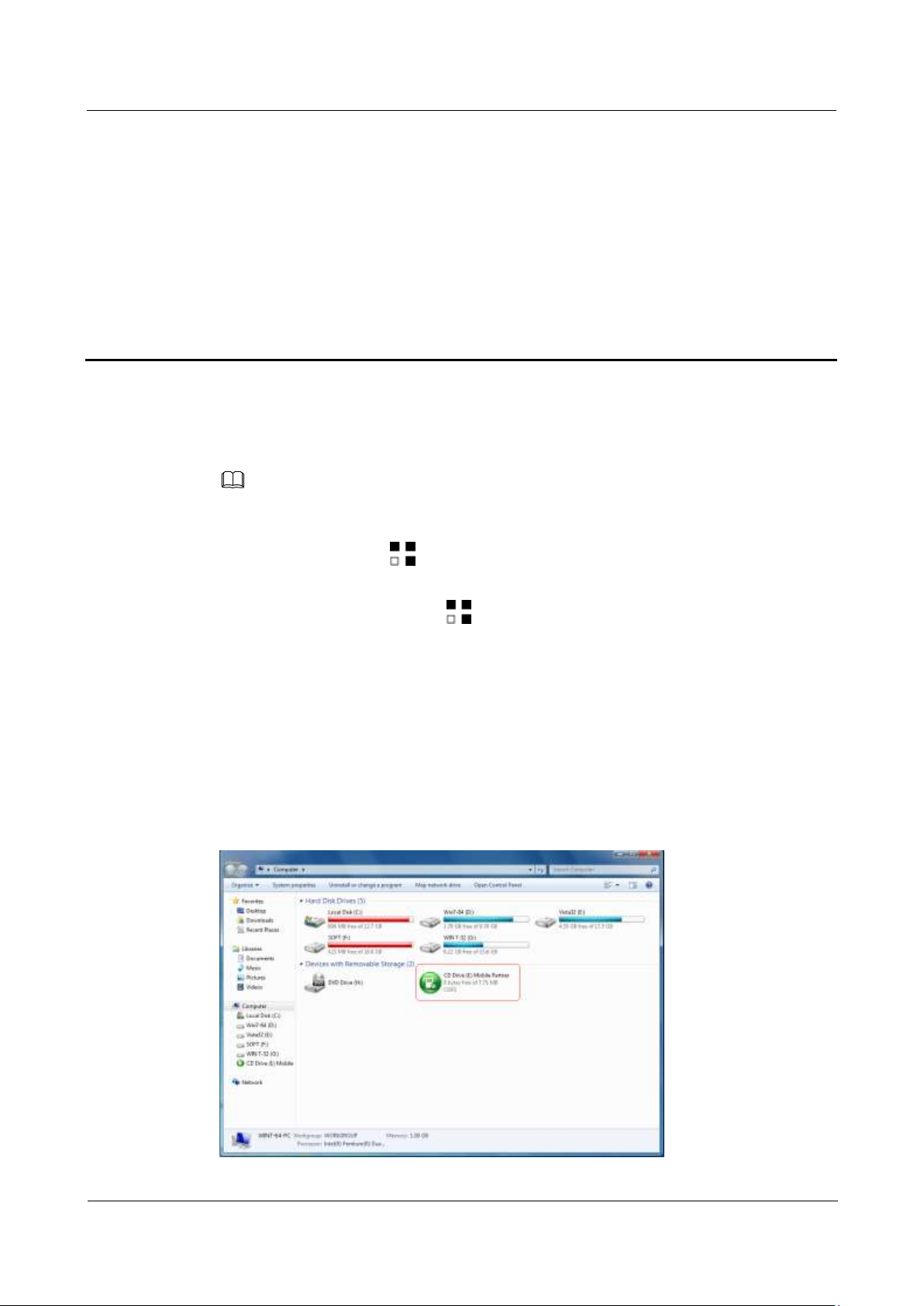
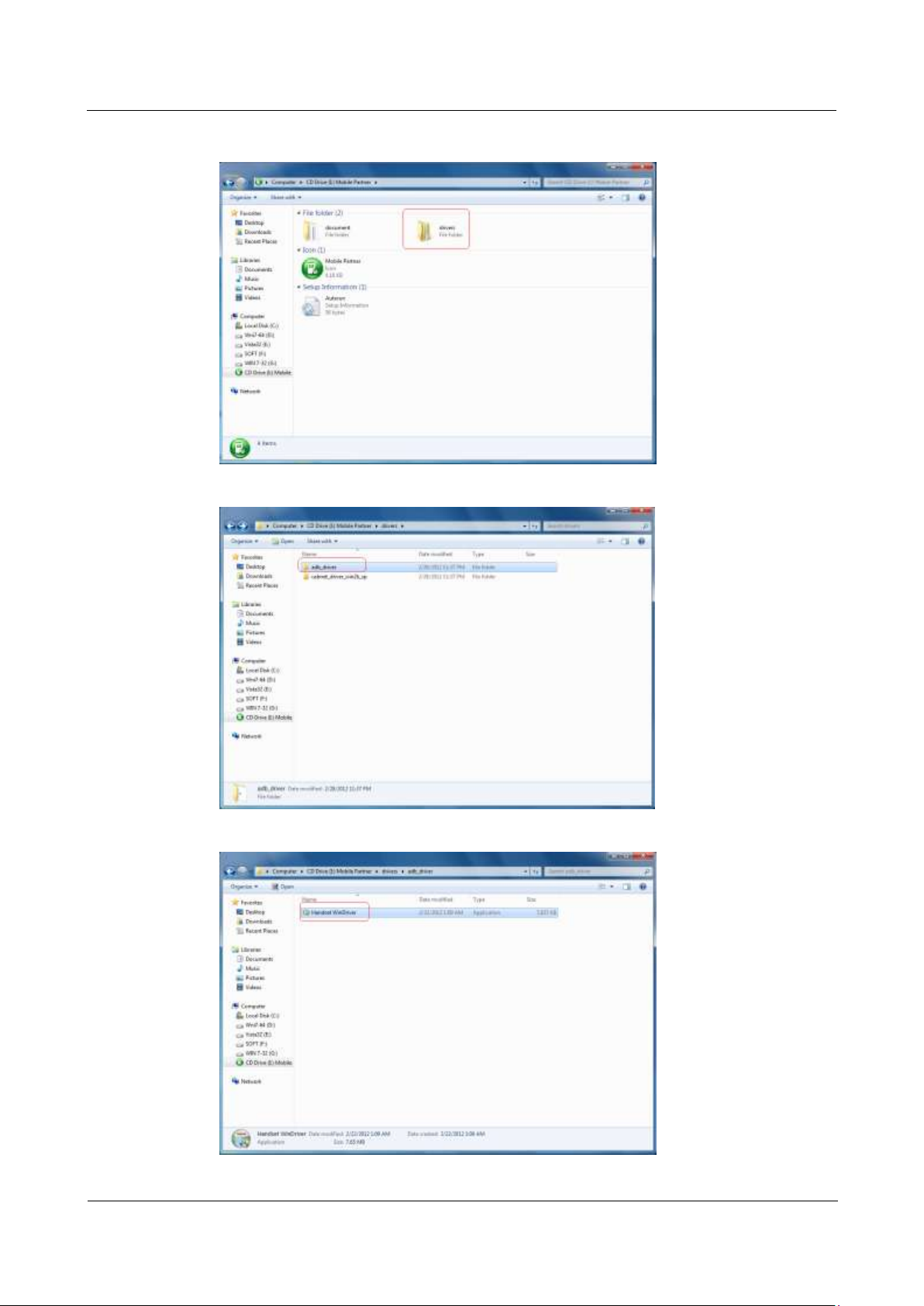
2. Follow the instructions to install the Android Debug Bridge (ADB) driver, as shown in
the following figures.
Page 51
HUAWEI U8860MTC965 V100R001
HUAWEI U8860 Smartphone FAQs
2012-09-19
Huawei Confidential
Page 43 of 86
Page 52
HUAWEI U8860MTC965 V100R001
HUAWEI U8860 Smartphone FAQs
2012-09-19
Huawei Confidential
Page 44 of 86
Open the Handset WinDriver,then following the instruction to install the driver.
----End
2.3 How Do I Configure Network Settings?
1. Insert the SIM card into your phone.
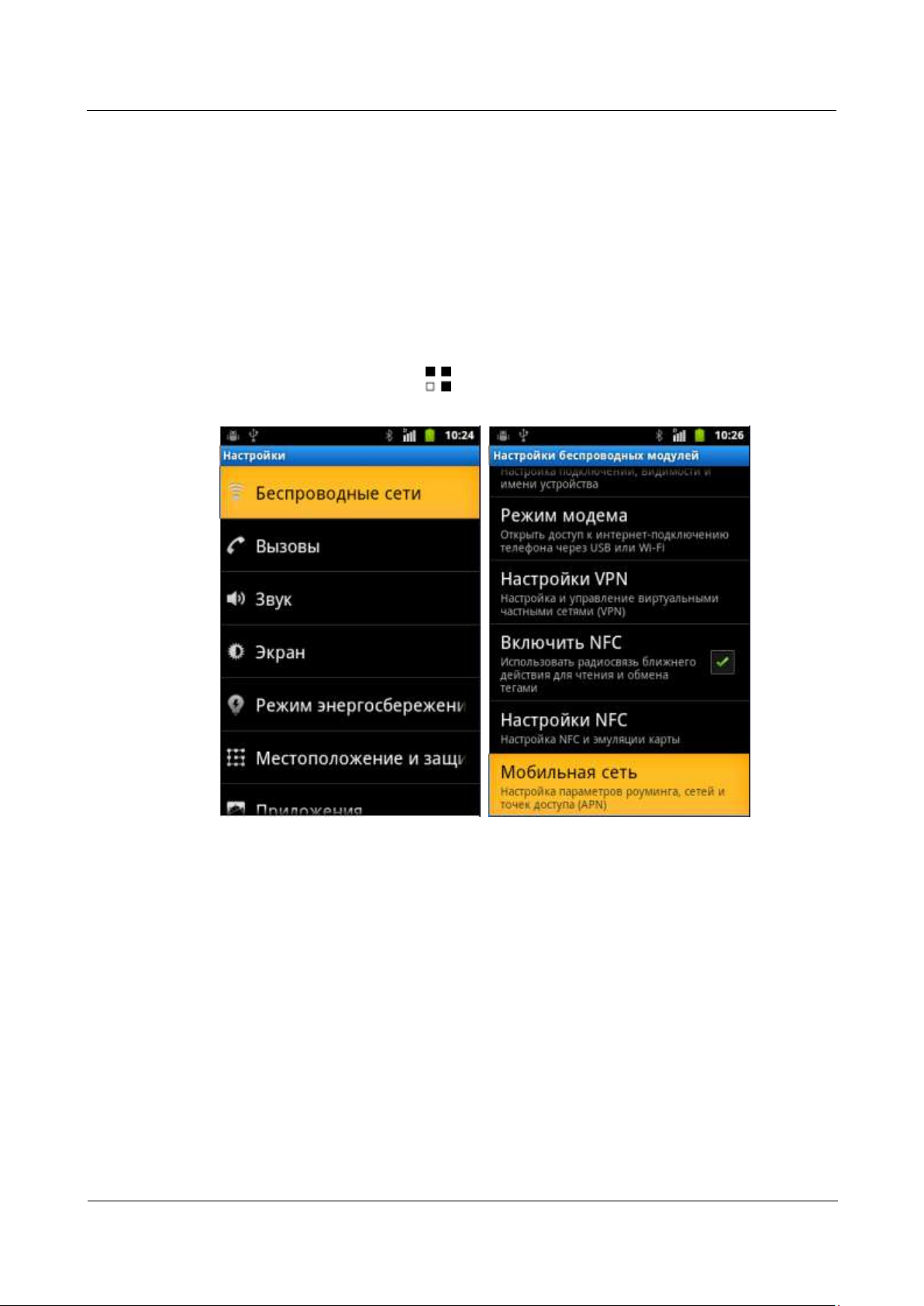
The phone automatically configures Access Point Name (APN) settings.
2. To view the APNs, touch > Settings > Wireless & networks > Mobile
networks > Network Settings>Access Point Names.
Page 53
HUAWEI U8860MTC965 V100R001
HUAWEI U8860 Smartphone FAQs
2012-09-19
Huawei Confidential
Page 45 of 86
----End
Page 54
HUAWEI U8860MTC965 V100R001
HUAWEI U8860 Smartphone FAQs
2012-09-19
Huawei Confidential
Page 46 of 86
2.4 Wi-Fi
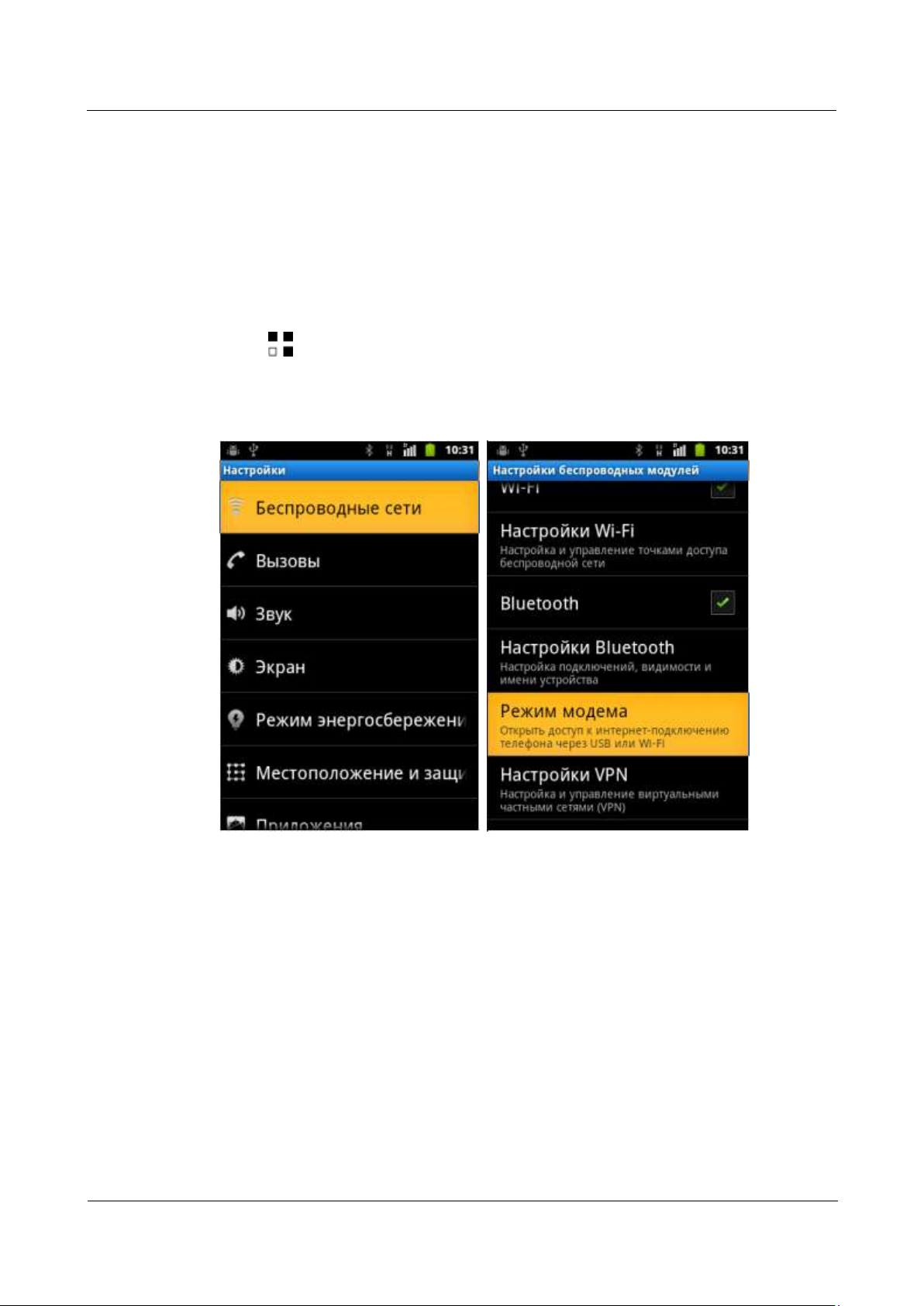
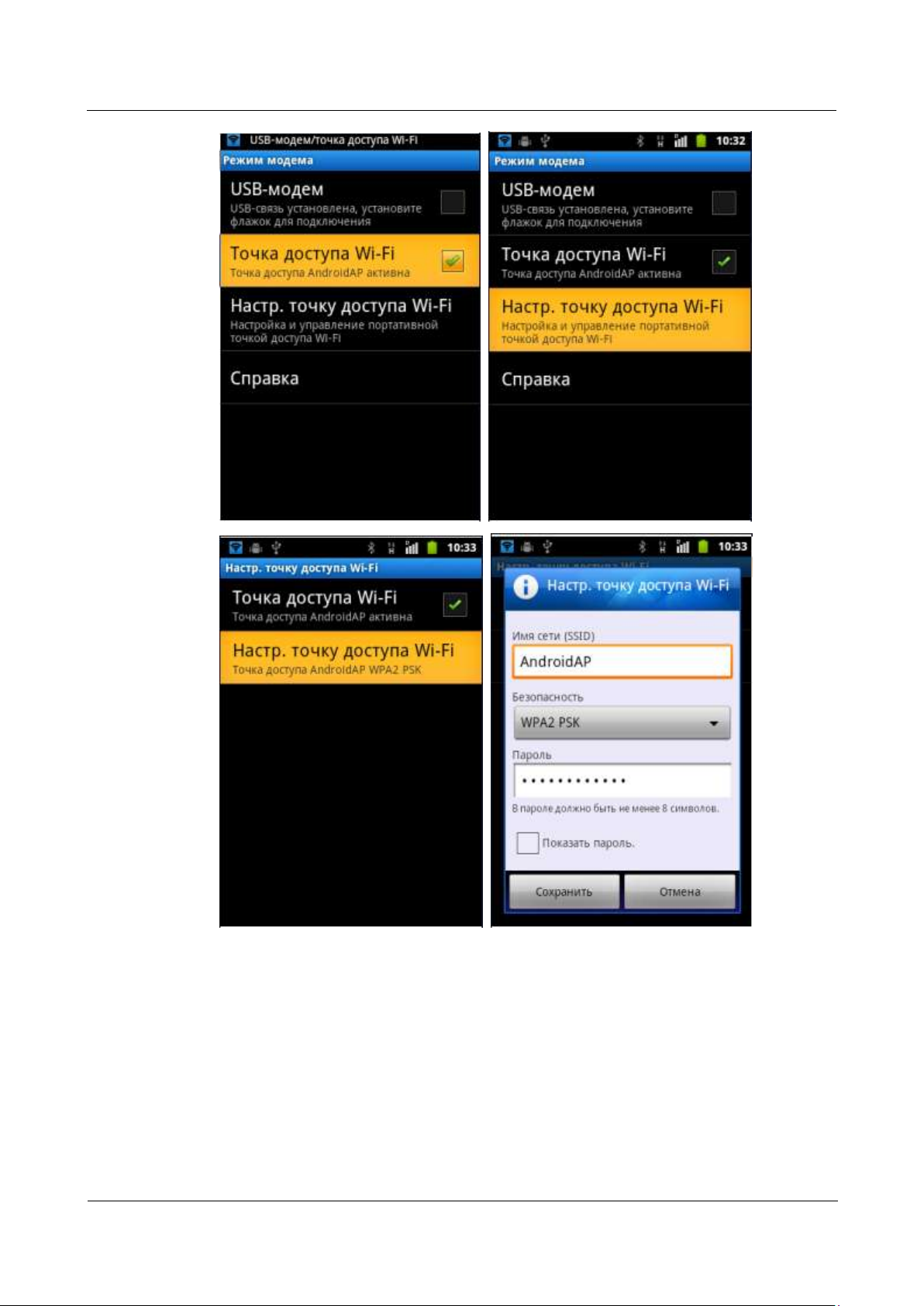
2.4.1 How Do I Use My Phone as a Wi-Fi Hotspot and
Access the Internet from Another Device Using My
Phone's Mobile Data Connection?
You can use your phone as a portable Wi-Fi hotspot and share your phone's mobile data
connection with another device. Then you can access the Internet from the device.
Touch > Settings > Wireless & networks > Tethering & portable hotspot > Portable
Wi-Fi hotspot.
After the device finds your phone using Wi-Fi, you can access the Internet from the device
using your phone's mobile data connection.
Page 55
HUAWEI U8860MTC965 V100R001
HUAWEI U8860 Smartphone FAQs
2012-09-19
Huawei Confidential
Page 47 of 86
2.4.2 Does My Phone Support Wi-Fi?
2.4.3 My Phone Is Connected to a Wi-Fi Network But
Cannot Open Web Pages, Why?
Yes. Your phone supports 802.11b/g/n.
This problem may occur if:
The Wi-Fi network is not connected to the Internet.
Page 56
HUAWEI U8860MTC965 V100R001
HUAWEI U8860 Smartphone FAQs
2012-09-19
Huawei Confidential
Page 48 of 86
The digital subscriber line (DSL) connection failed.
A domain name system (DNS) problem occurred. In this case, web pages cannot be
opened, but you may still log in to QQ. Attempt to log in to QQ to verify the problem.
The websites that the Wi-Fi network can access are restricted.
Your phone is faulty.
2.4.4 What Can I Do If My Phone Can Detect Wi-Fi Signals
from Devices Other Than a Wireless Router After the
Phone's Wi-Fi Is Turned On?
Check that the wireless router's service set identifier (SSID) is not hidden.
Turn on your phone's Wi-Fi again.
Restart your phone.
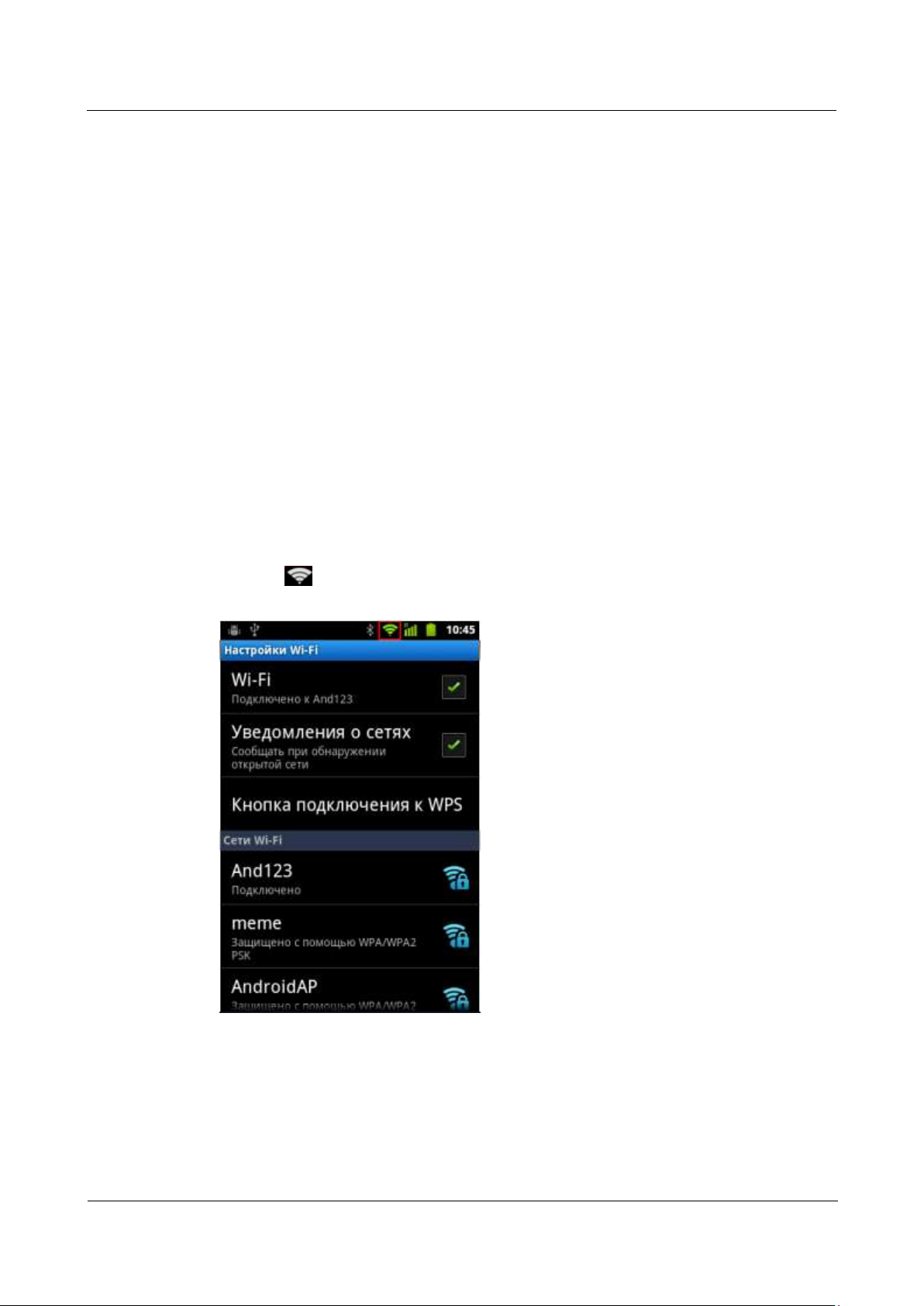
2.4.5 How Can I Judge Whether My Phone Is Using Its
Mobile Data Connection or a Wi-Fi Connection to Access
the Internet?
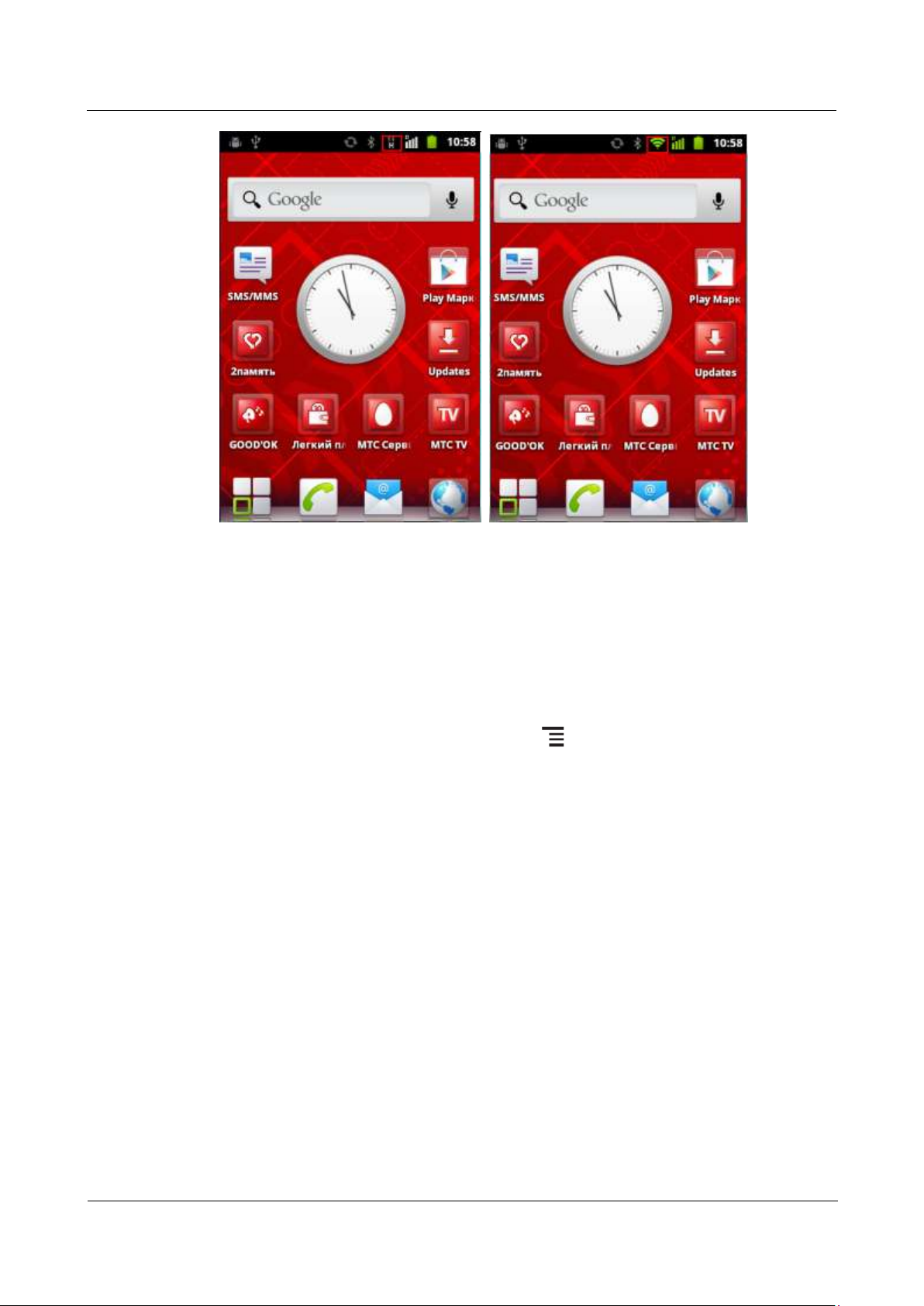
Once connected to a Wi-Fi network, your phone uses the Wi-Fi network to access the Internet.
The icon in the notification bar indicates that your phone is connected to a Wi-Fi
network.
2.4.6 I Am Connected to a Wi-Fi Hotspot But Cannot
Access the Internet, Why?
The network SSID and password are changed.
Page 57

HUAWEI U8860MTC965 V100R001
HUAWEI U8860 Smartphone FAQs
2012-09-19
Huawei Confidential
Page 49 of 86
Your balance is insufficient.
You are out of the Wi-Fi hotspot's coverage.
There is a restriction on the access to the Wi-Fi hotspot.
2.4.7 What Can I Do If the Wi-Fi Option Is Unavailable or
If My Phone Automatically Turns Off Wi-Fi After I Turn It
On?
Restart your phone.
Check that your phone's hardware is working correctly.
Upgrade your phone's software.
2.4.8 What Can I Do If My Phone's Wi-Fi Connection Often
Disconnects?
Check your phone's Wi-Fi sleep policy.
Your phone provides three Wi-Fi sleep policies:
When screen turns off: disconnect a Wi-Fi connection 15 minutes after your phone's
screen turns off.
Never when plugged in: never disconnect a Wi-Fi connection in charging state.
Never: never disconnect a Wi-Fi connection.
If you do not want your Wi-Fi connection to be disconnected, select Never.
2.4.9 How Can I Judge Which Network I Am Using for
Data Services When My Phone Is Connected to Both a
Wi-Fi Network and a 3G Network?
Once connected to a Wi-Fi network, your phone uses the Wi-Fi network for data services.
The icon indicates a 3G network and the icon indicates a Wi-Fi network.
Page 58
HUAWEI U8860MTC965 V100R001
HUAWEI U8860 Smartphone FAQs
2012-09-19
Huawei Confidential
Page 50 of 86
2.5 Internet Access
2.5.1 How Do I Clear My Browser's Cache and Web
History?
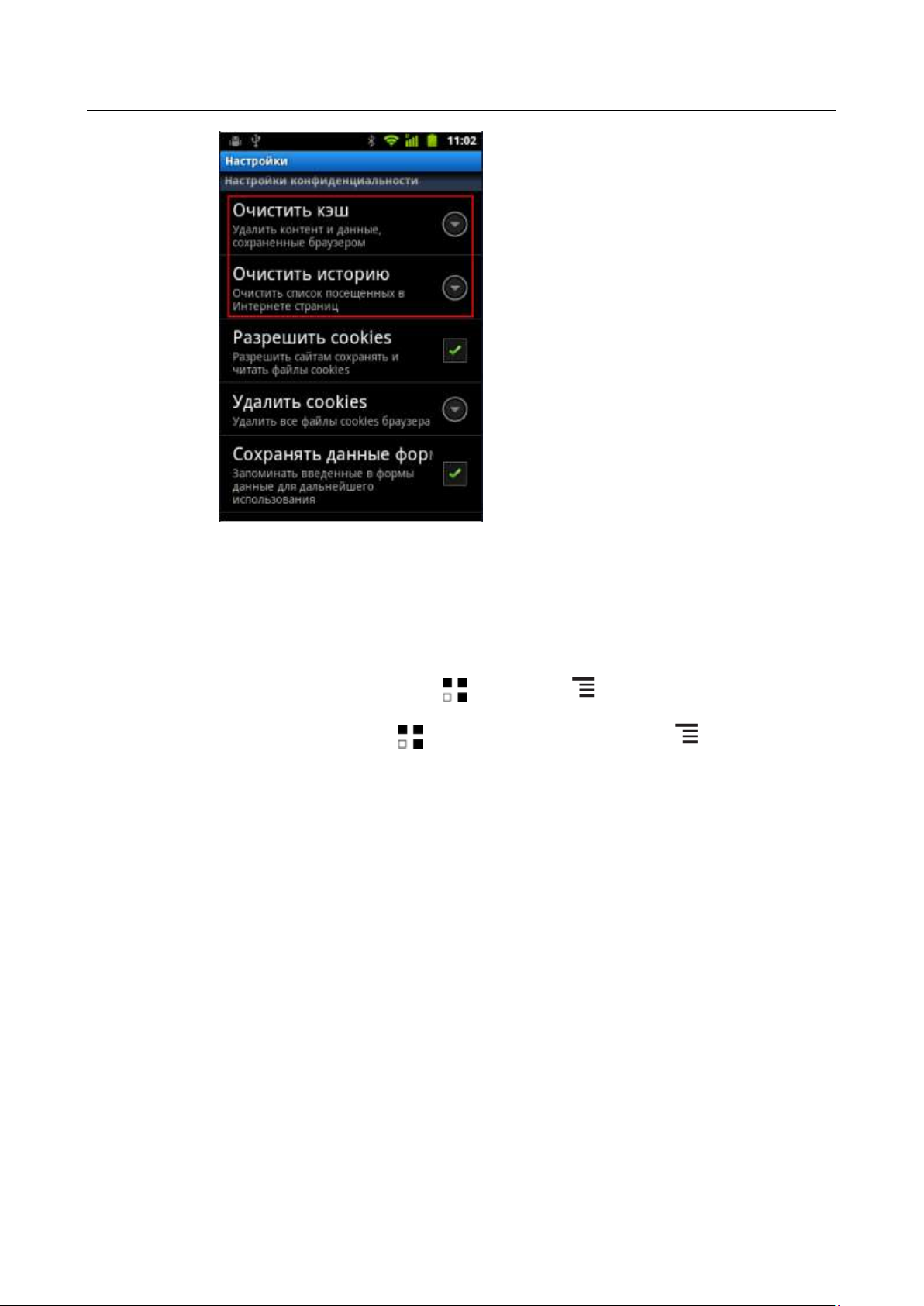
Open your browser, then a web page, and touch > More > Settings > Clear cache and
Clear history.
Page 59
HUAWEI U8860MTC965 V100R001
HUAWEI U8860 Smartphone FAQs
2012-09-19
Huawei Confidential
Page 51 of 86
2.5.2 Does My Browser Support Full-Screen Mode and
Bookmarks? If Yes, How Do I Set Them?
Your browser does not support full-screen mode, but it supports bookmarks.
To view the bookmark list, touch > Browser > > Bookmarks.
To add a bookmark, touch > Browser, open a web page, touch > Bookmarks >
Add, and then edit the bookmark.
2.5.3 Can I Log In to My Email Account from a Web Page?
Yes.
2.5.4 Can I Log In to My Online Banking Account Using
the Browser or an Online Banking Client Installed on My
Phone?
No.
2.5.5 How Do I Save an Image on a Web Page?
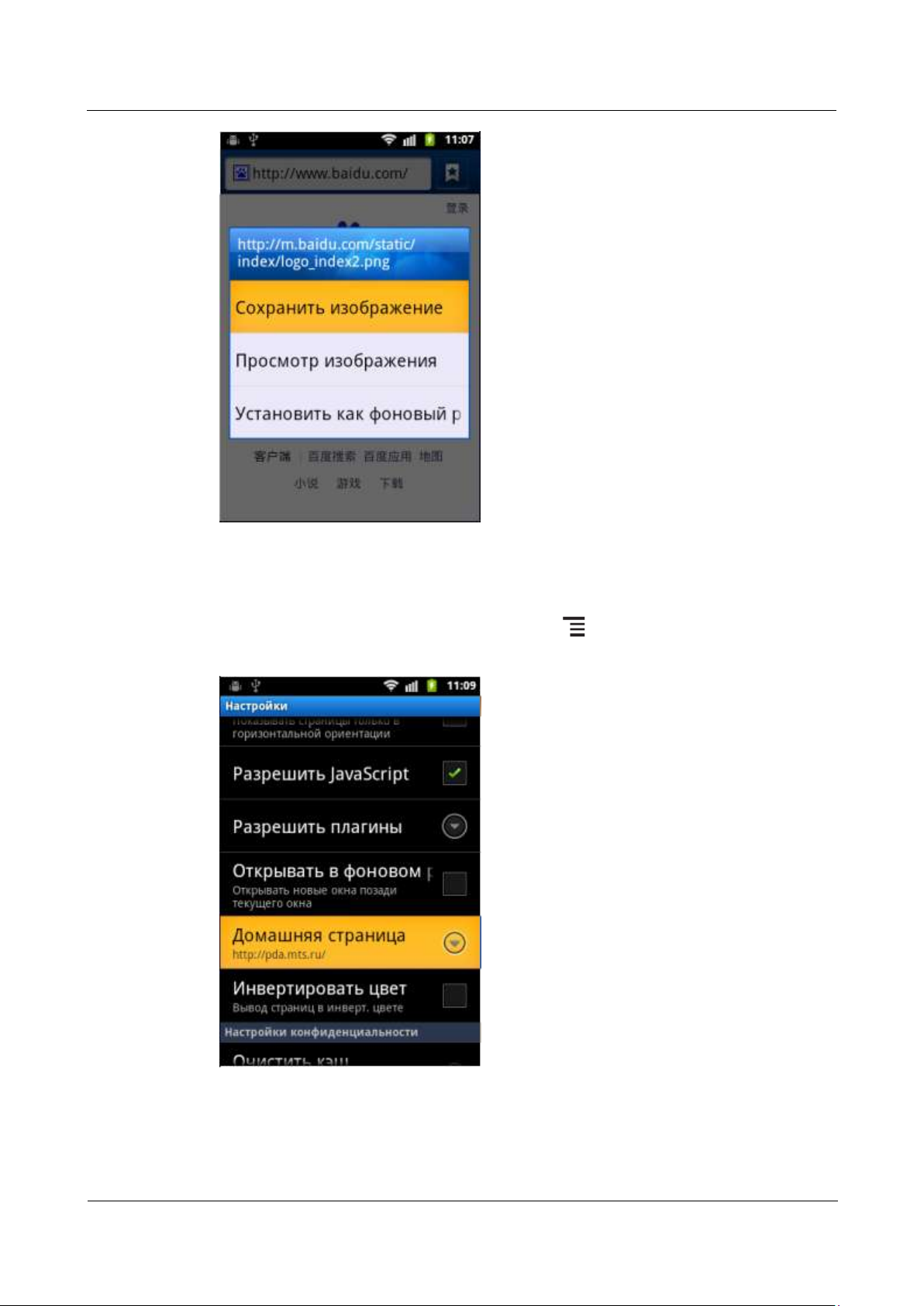
Touch and hold the image you want to save, and then touch Save image in the displayed
menu. The image is stored in Gallery.
Page 60
HUAWEI U8860MTC965 V100R001
HUAWEI U8860 Smartphone FAQs
2012-09-19
Huawei Confidential
Page 52 of 86
2.5.6 How Do I Set My Browser's Home Page?
Launch your browser, and open a web page. Touch > More > Settings > Set home
page.
Page 61

HUAWEI U8860MTC965 V100R001
HUAWEI U8860 Smartphone FAQs
2012-09-19
Huawei Confidential
Page 53 of 86
2.5.7 How Do I Save a Favorite Web Page?
Launch your browser, open the web page, and touch > Bookmarks > Add.
2.5.8 How Do I Enable or Disable My Phone's Mobile Data
Connection?
To enable your phone's mobile data connection, touch > Settings > Wireless &
networks > Mobile networks, and select Data enabled. To disable the connection, clear
Data enabled.
2.5.9 Can I Use My Phone to Access the Internet During a
Call?
You can make or answer calls when you are accessing the Internet, and vice versa, if your
phone is connected to a 3G network, but not if your phone is connected to a 2G network.
2.6 Language and Keyboard
2.6.1 Does My Phone Support Text Input Using
Handwriting or an Onscreen Keyboard?
Yes. You can enter text using an onscreen keyboard.
2.6.2 What Text Input Methods Does My Phone Support?
Your phone is preinstalled with TouchPal and Android input methods. You can also install
other input methods.
2.6.3 I Have Successfully Installed a New Text Input
Method But Cannot Use It, Why?
After installing a text input method, you must touch > Settings > Language &
keyboard, and select the input method.
2.6.4 Does My Phone Support the Stroke Input Method?
It depends on the input method software you are using on your phone.
2.6.5 How Do I Change the Font Size on My Phone's
Screen?
The font size on your phone's screen cannot be changed.
Page 62
HUAWEI U8860MTC965 V100R001
HUAWEI U8860 Smartphone FAQs
2012-09-19
Huawei Confidential
Page 54 of 86
2.7 Screen Lock
2.7.1 How Do I Enable a Screen Lock That Must Be
Unlocked Using the PIN?
Touch > Settings > Location & security > Set up screen lock > PIN.
2.7.2 How Do I Enable a Screen Lock That Must Be
Unlocked Using a Pattern?
Touch > Settings > Location & security > Set up screen lock > Pattern, and then
follow the onscreen instructions.
2.7.3 How Many Times Can I Incorrectly Draw the Screen
Unlock Pattern Before My Phone Is Locked?
The phone will be locked for 30 seconds if you incorrectly draw the screen unlock pattern five
times.
2.7.4 How Do I Lock and Unlock the Screen?
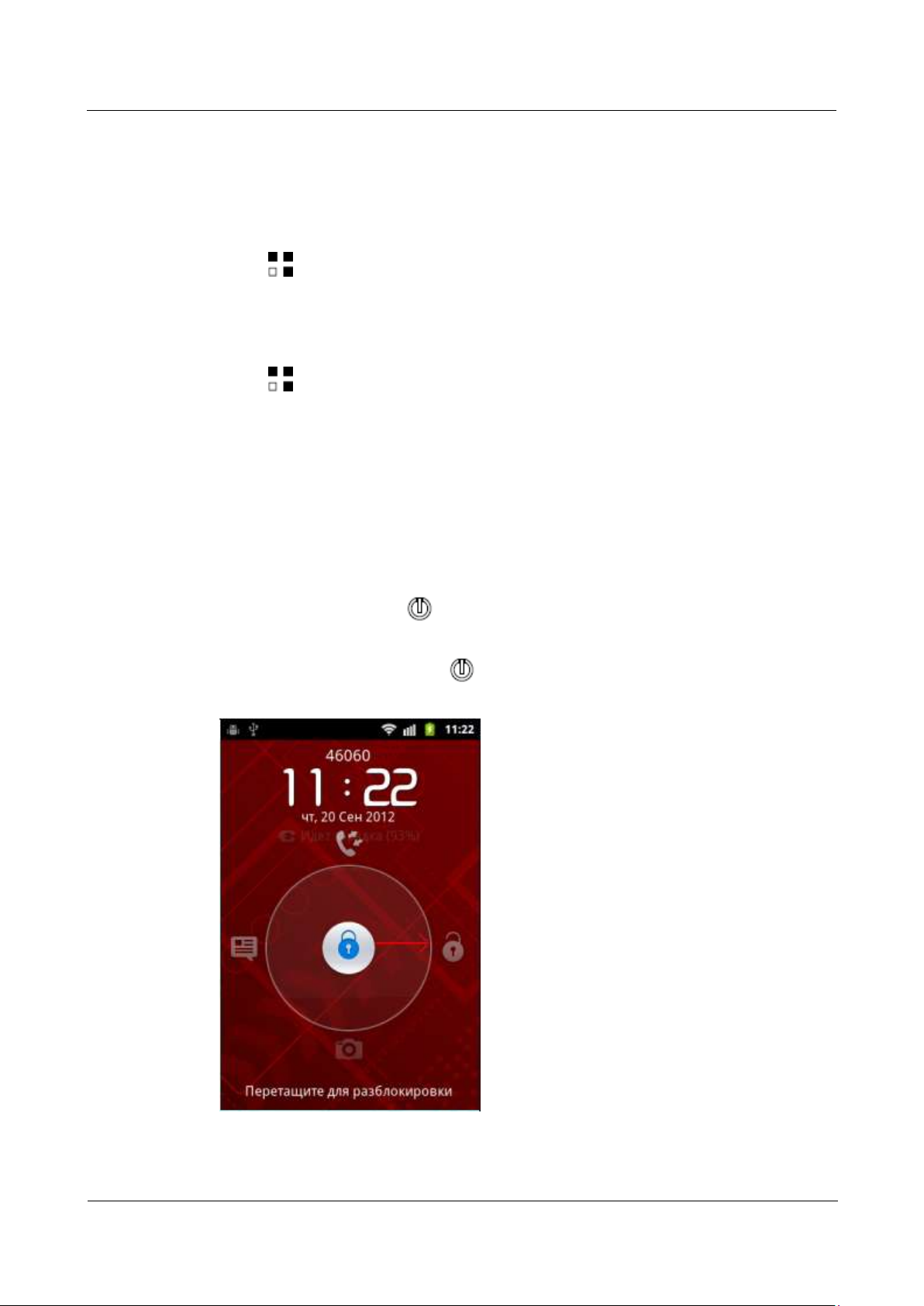
If the phone is active, press to lock the screen. If idle for a specified period, the phone
automatically locks the screen.
If the screen is off, press and hold to turn it on. To unlock the screen, drag the lock icon
in the middle of the screen right until it reaches the lock icon on the right of the screen.
Page 63
HUAWEI U8860MTC965 V100R001
HUAWEI U8860 Smartphone FAQs
2012-09-19
Huawei Confidential
Page 55 of 86
2.8 Clock
2.8.1 Does My Phone Support Alarms When It Is Powered
Off?
Yes.
2.8.2 How Do I Add or Delete an Alarm?
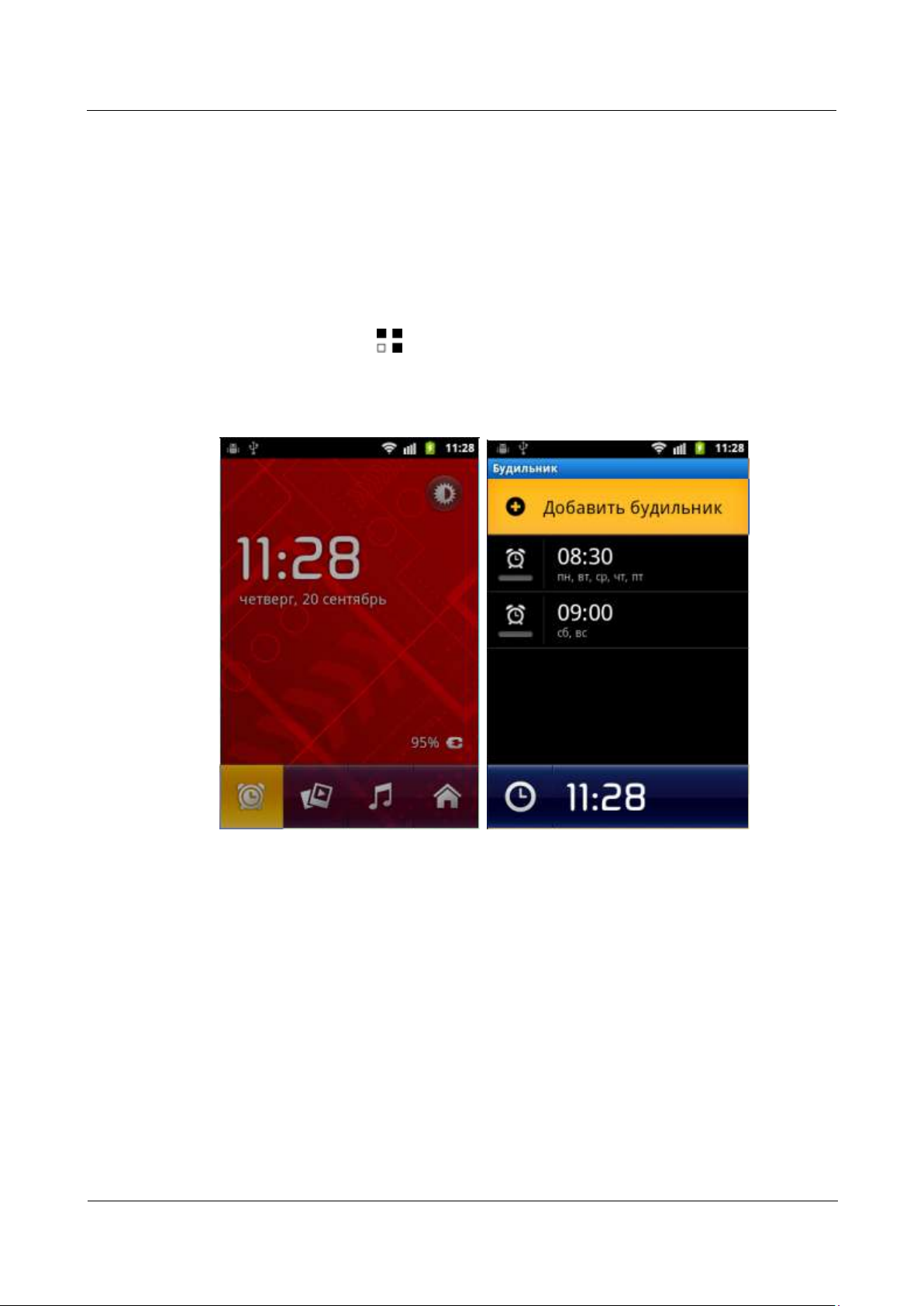
To add an alarm, touch > Clock. On the clock screen, touch the alarm icon, then Add
alarm.
To delete an alarm, touch and hold it in the alarm list, and then in the displayed menu, touch
Delete alarm.
2.9 USB Tethering
You can connect your phone to a computer and use your phone's USB tethering function to
share your phone's mobile data connection with the computer. If the computer runs Windows
7, Windows Vista, or a latest Linux OS (such as Ubuntu), you can use your phone's USB
tethering function without configuring any settings on the computer. If the computer runs an
earlier Windows or Linux OS, or another type of OS, you may need to install some
configuration files before you use your phone's USB tethering function.
Page 64
HUAWEI U8860MTC965 V100R001
HUAWEI U8860 Smartphone FAQs
2012-09-19
Huawei Confidential
Page 56 of 86
2.9.1 How Do I Use USB Tethering If I Connect My Phone
NOTE
to a Computer Running Windows XP?
Before using tethering, insert your SIM card in the phone.
You can use the following methods to connect your phone to a computer running Windows
XP:
Method 1
1. Use a USB cable to connect your phone to the computer.
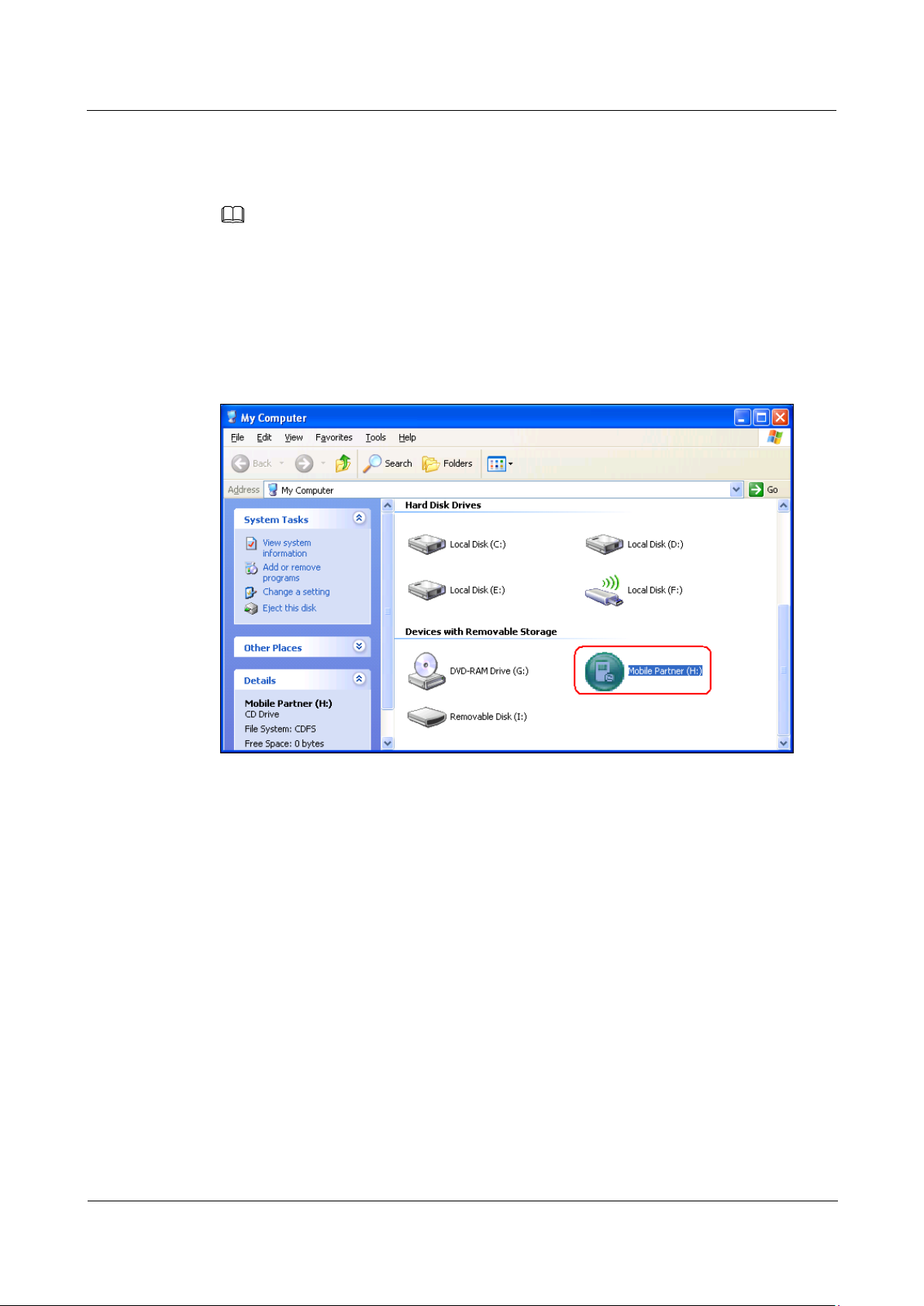
2. On the computer, open My Computer, and open Mobile Partner.
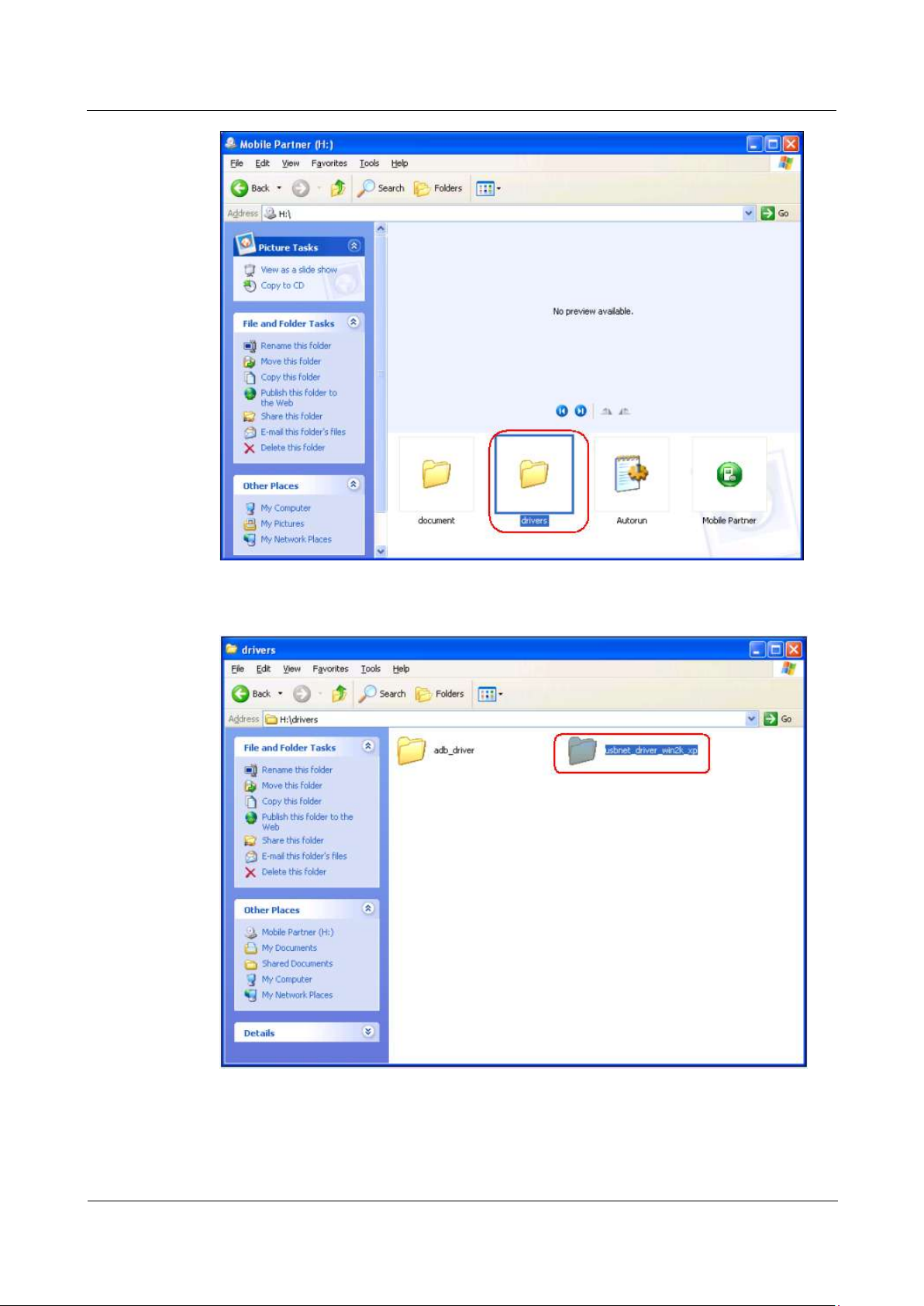
3. In the Mobile Partner window, open drivers.
Page 65
HUAWEI U8860MTC965 V100R001
HUAWEI U8860 Smartphone FAQs
2012-09-19
Huawei Confidential
Page 57 of 86
4. In the drivers window, open usbnet_driver_win2k_xp.
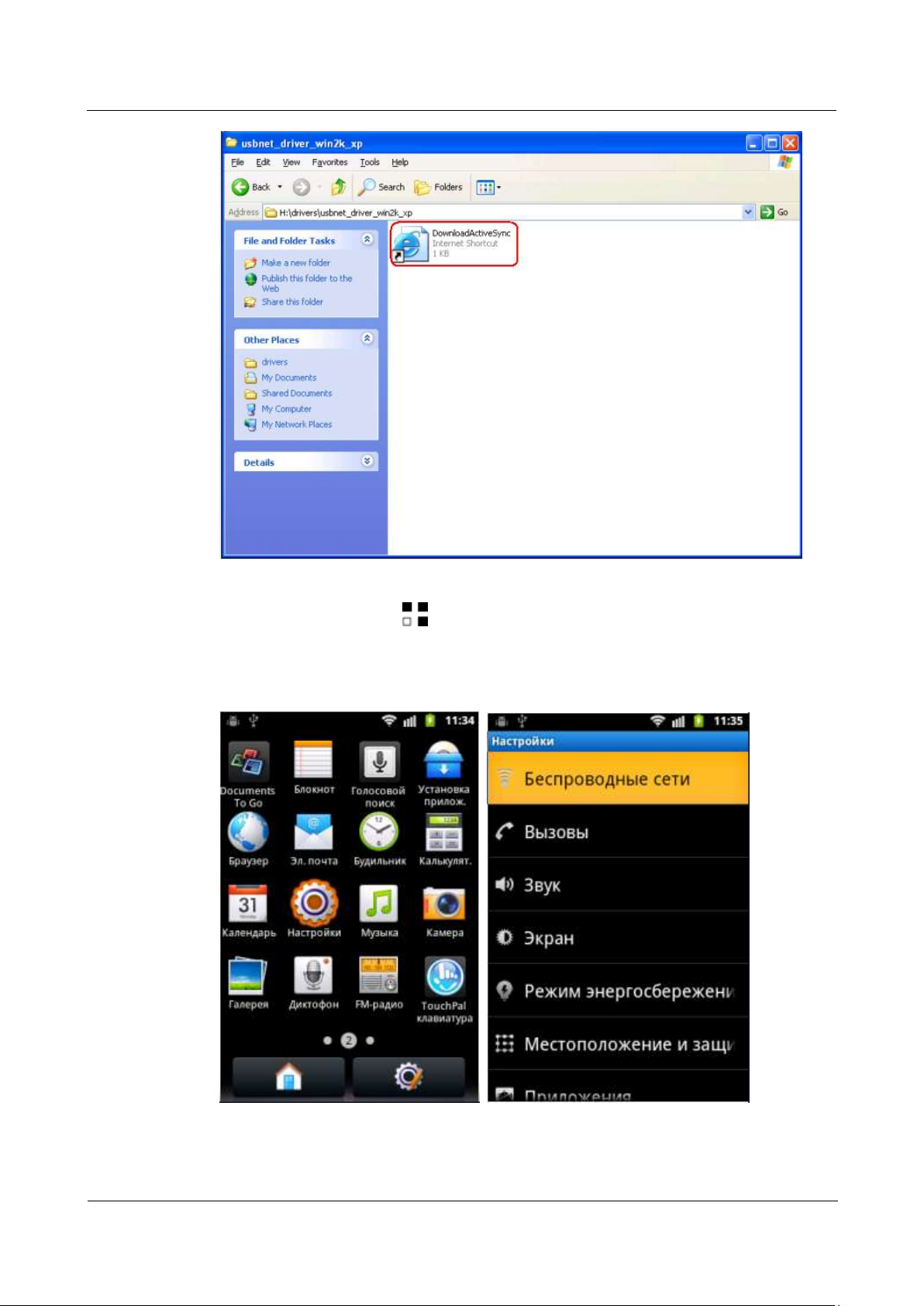
5. In the usbnet_driver_win2k_xp window, open DownloadActiveSync. After you have
connected to the website, follow the instructions to download and install ActiveSync.
Page 66
HUAWEI U8860MTC965 V100R001
HUAWEI U8860 Smartphone FAQs
2012-09-19
Huawei Confidential
Page 58 of 86
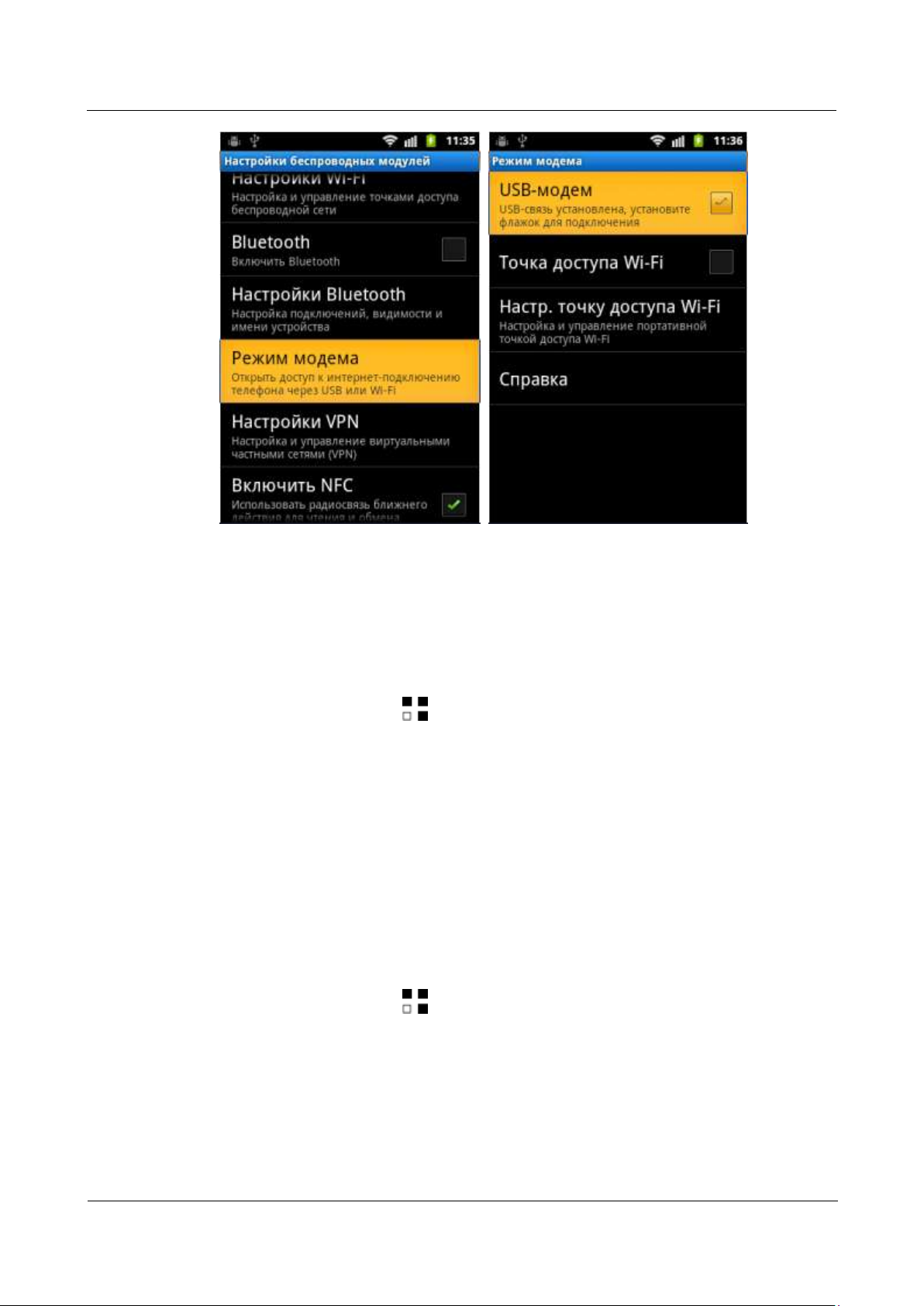
6. On your phone, touch > Settings > Wireless & networks > Tethering & portable
hotspot, and then select USB tethering.
You can access the Internet and browse web pages on the computer using your phone's mobile
data connection.
Page 67
HUAWEI U8860MTC965 V100R001
HUAWEI U8860 Smartphone FAQs
2012-09-19
Huawei Confidential
Page 59 of 86
----End
Method 2
7. On the computer, visit http://www.android.com/tether, and then follow the instructions to
download and install ActiveSync.
8. On your phone, touch > Settings > Wireless & networks > Tethering & portable
hotspot, and then select USB tethering.
You can access the Internet and browse web pages on the computer using your phone's mobile
data connection.
----End
2.9.2 How Do I Use USB Tethering If I Connect My Phone
to a Computer Running Windows Vista or Windows 7?
1. Use a USB cable to connect your phone to the computer.
The computer automatically installs the driver for your phone.
2. On your phone, touch > Settings > Wireless & networks > Tethering & portable
hotspot, and then select USB tethering.
You can access the Internet and browse web pages on the computer using your phone's mobile
data connection.
----End
Page 68

HUAWEI U8860MTC965 V100R001
HUAWEI U8860 Smartphone FAQs
2012-09-19
Huawei Confidential
Page 60 of 86
3 Applications
NOTE
3.1 What Third-Party Applications Does My Phone
Support?
Like other Android phones, your phone supports all third-party applications based on an
Android OS. Your phone does not support Java applications.
3.2 How Do I Obtain Third-Party Applications?
Log in to Market and download third-party applications from it.
Clients preinstalled on your phone vary according to your phone's software.
3.3 How Do I Install, Manage, and Uninstall
Applications?
3.3.1 How Do I Install Applications?
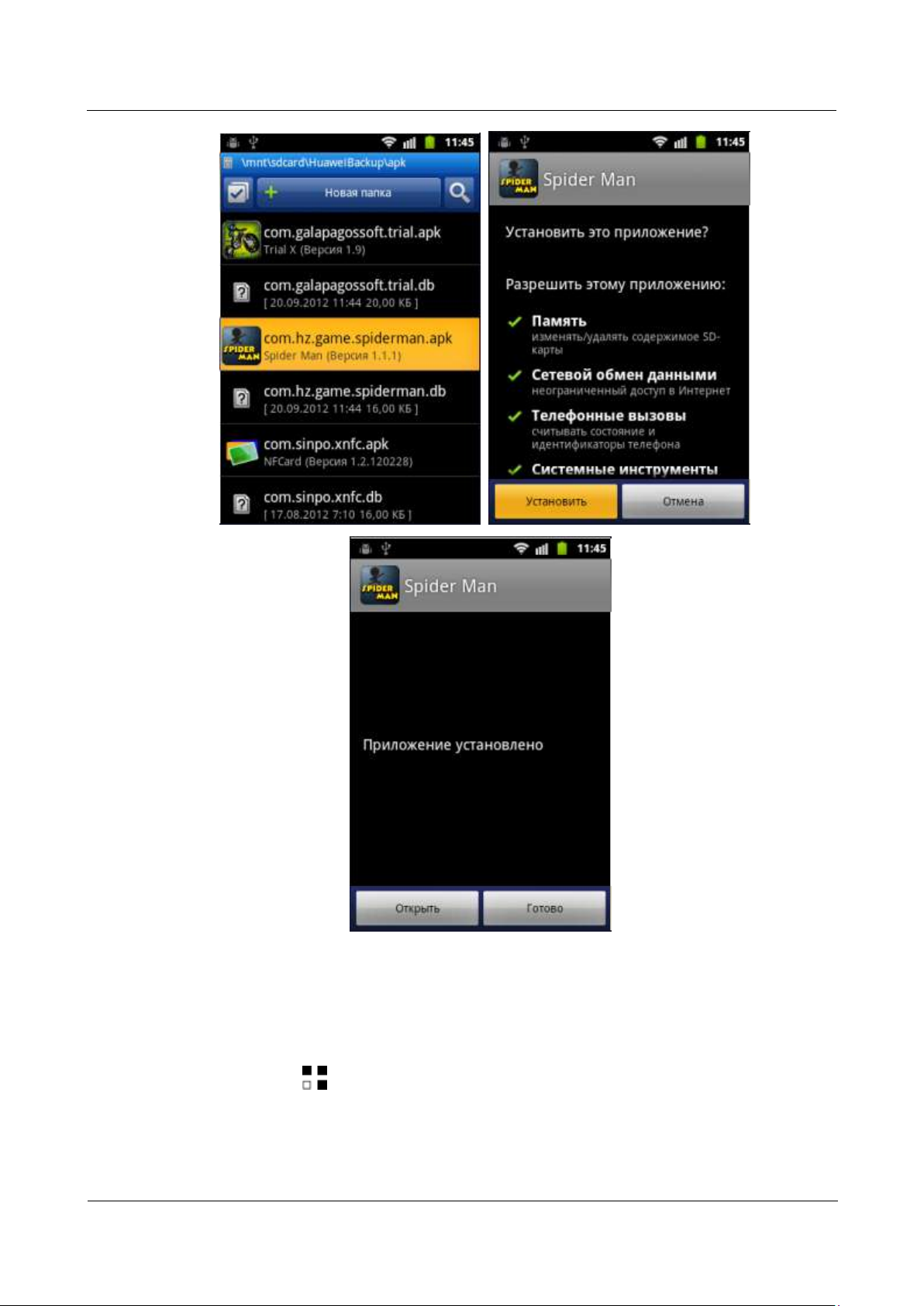
1. Touch > Settings > Applications, and select Unknown sources.
2. Download applications from Market to install, or copy apk files to SD card, then touch
> File Manager to view and install applications.
Page 69
HUAWEI U8860MTC965 V100R001
HUAWEI U8860 Smartphone FAQs
2012-09-19
Huawei Confidential
Page 61 of 86
3.3.2 How Do I Manage Applications?
----End
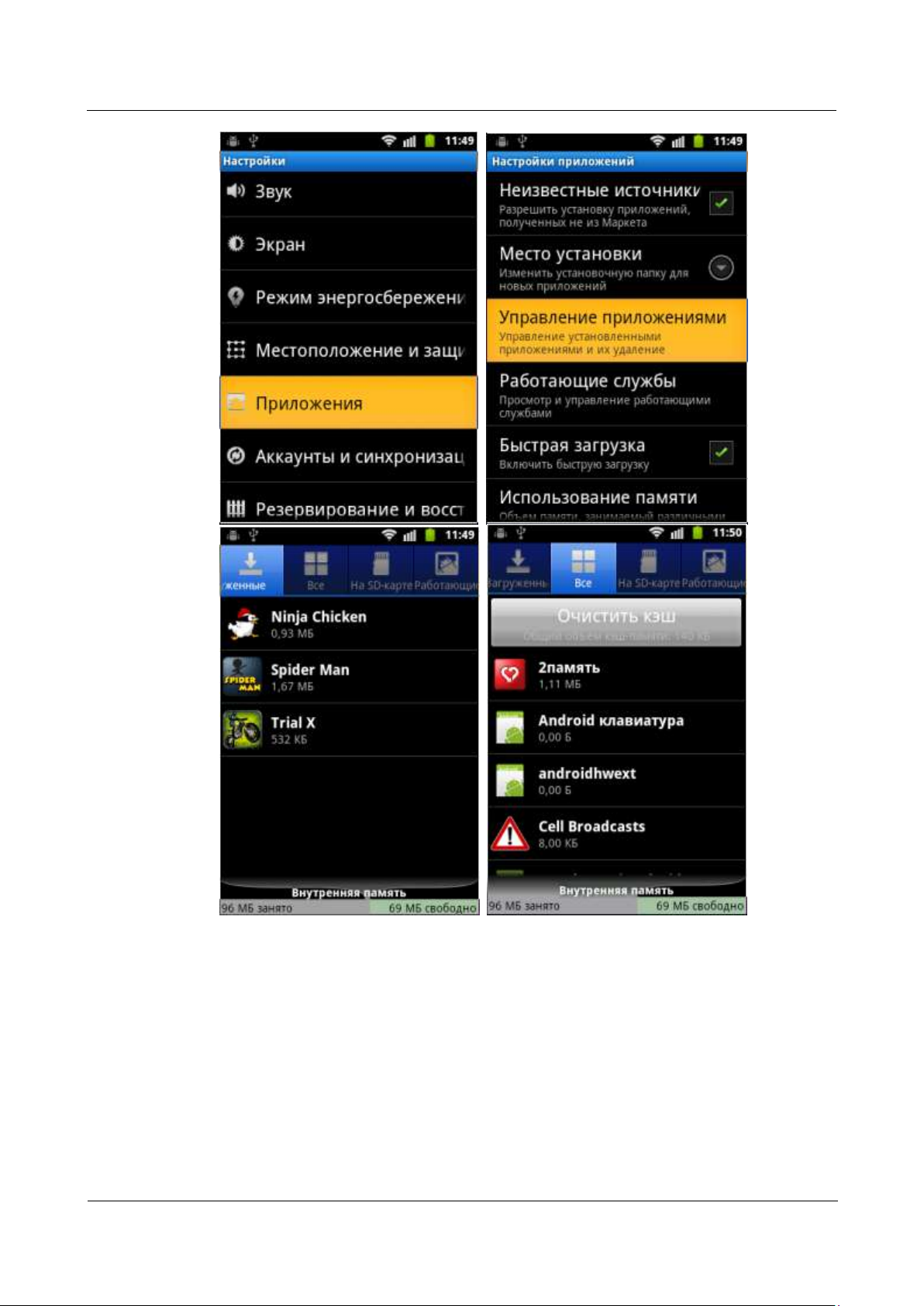
1. Touch > Settings > Applications > Manage applications.
Page 70
HUAWEI U8860MTC965 V100R001
HUAWEI U8860 Smartphone FAQs
2012-09-19
Huawei Confidential
Page 62 of 86
Page 71
HUAWEI U8860MTC965 V100R001
HUAWEI U8860 Smartphone FAQs
2012-09-19
Huawei Confidential
Page 63 of 86
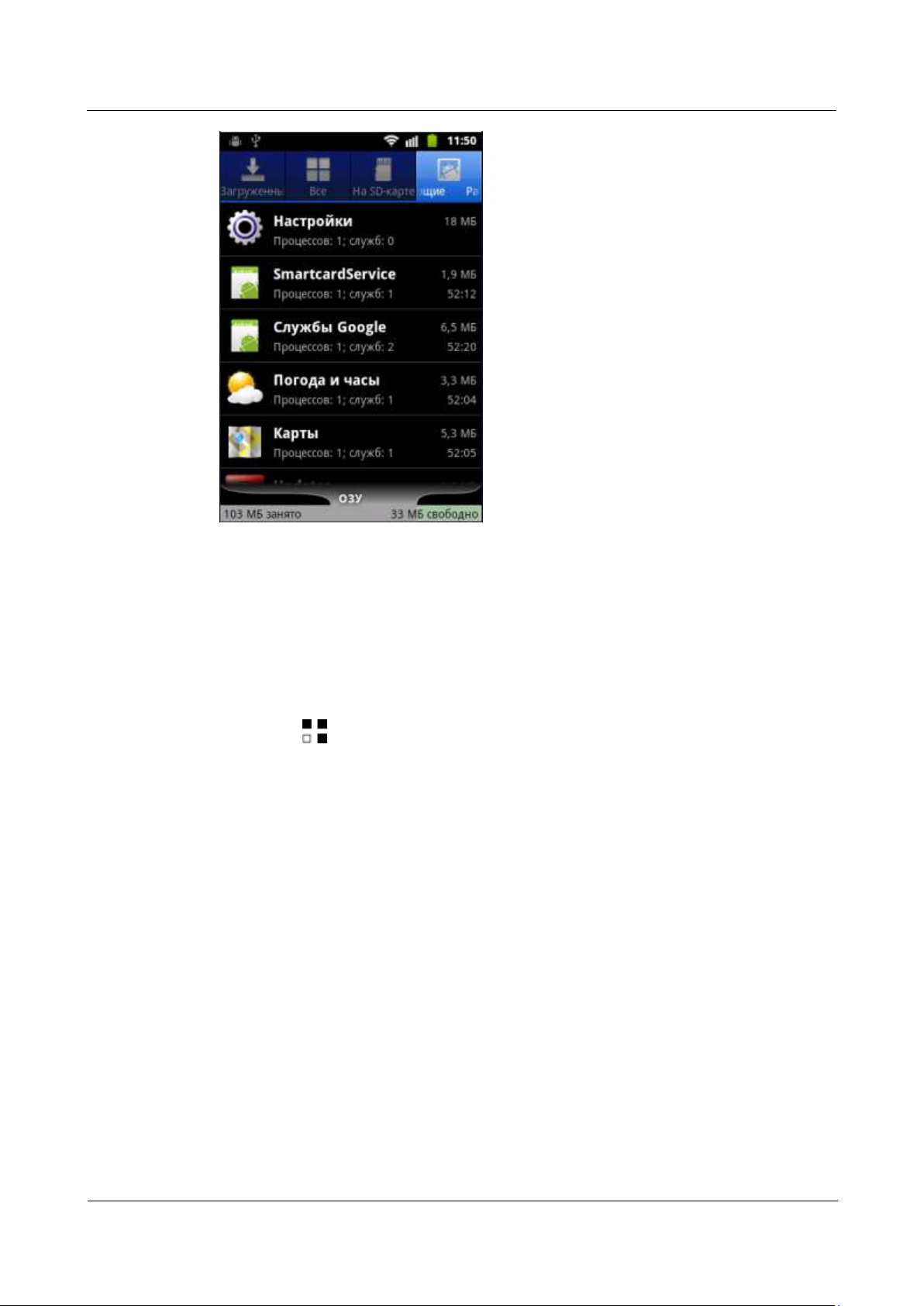
All applications on your phone are listed.
2. Touch the application you want to manage.
----End
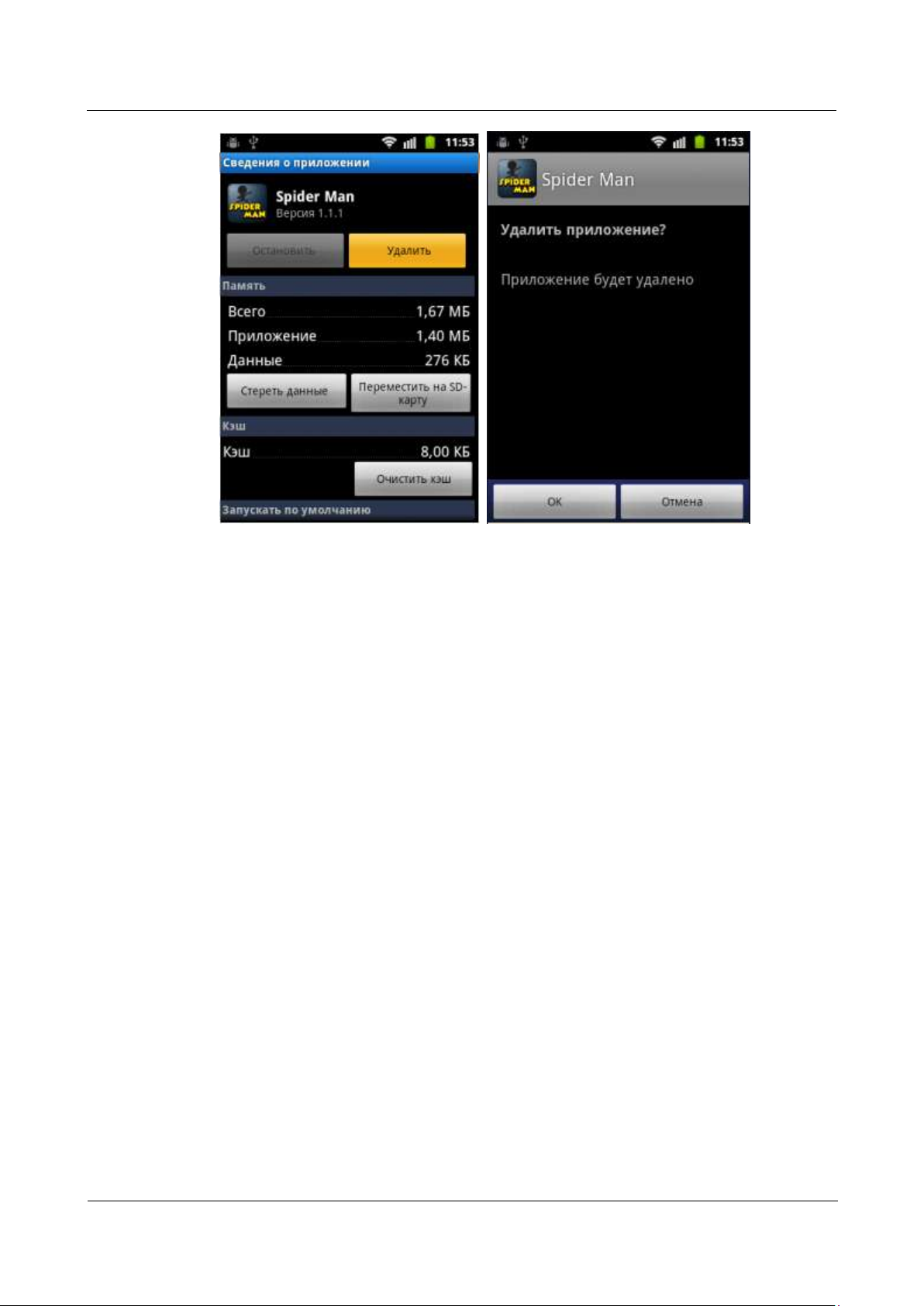
3.3.3 How Do I Uninstall Applications?
1. Touch > Settings > Applications > Manage applications.
2. Touch the application your want to uninstall, then Uninstall.
Page 72
HUAWEI U8860MTC965 V100R001
HUAWEI U8860 Smartphone FAQs
2012-09-19
Huawei Confidential
Page 64 of 86
Applications preinstalled can’t be uninstalled.
----End
3.4 I Cannot Install an Application, Why? How Can I
Solve the Problem?
The APK is corrupted.
To solve the problem, contact the APK provider.
The application has already been installed.
To solve the problem, uninstall the application, and then reinstall it.
The phone's available storage space is insufficient.
To solve the problem, delete unnecessary files or uninstall some applications.
3.5 Are Third-Party APKs Installed on the Phone's
Internal Storage or a microSD Card?
Third-party APKs are installed on the phone's internal storage, but you can move them to the
phone's internal microSD card or your external microSD card after the applications are
installed.
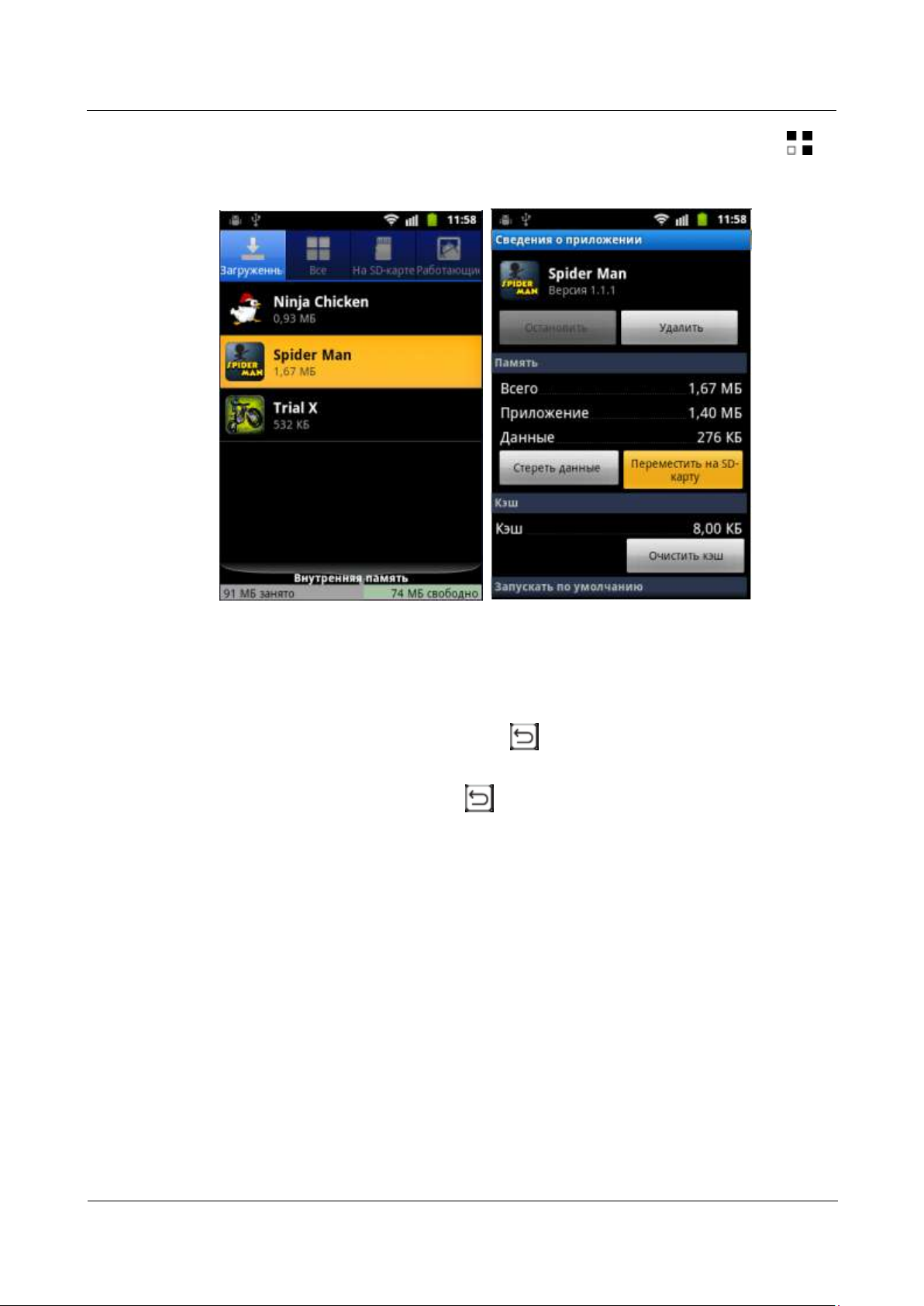
To move an APK to a microSD card:
Page 73
HUAWEI U8860MTC965 V100R001
HUAWEI U8860 Smartphone FAQs
2012-09-19
Huawei Confidential
Page 65 of 86
Download the APK from Market, and then install it. After the installation, touch >
Settings > Applications > Manage applications > Downloaded , touch the application
your want to move, then select Move to SD card.
Some application may can’t be moved.
3.6 How Do I Exit a Running Application?
To exit some preinstalled applications, touch .
To exit third-party applications, follow their instructions. Some third-party applications may
run in the background after you touch .
3.7 How Can I Solve the Power Consumption Problem
Caused by Third-Party Applications?
Third-party applications downloaded from application stores other than Market may not be
well compatible with your phone. Once installed, they may consume more power and shorten
your phone's standby time.
To solve the problem, you can download a third-party task management applications to close
the applications not in use.
Page 74
HUAWEI U8860MTC965 V100R001
HUAWEI U8860 Smartphone FAQs
2012-09-19
Huawei Confidential
Page 66 of 86
4 NFC
4.1 Does My Phone Support the NFC Function? How Do I
Enable It?
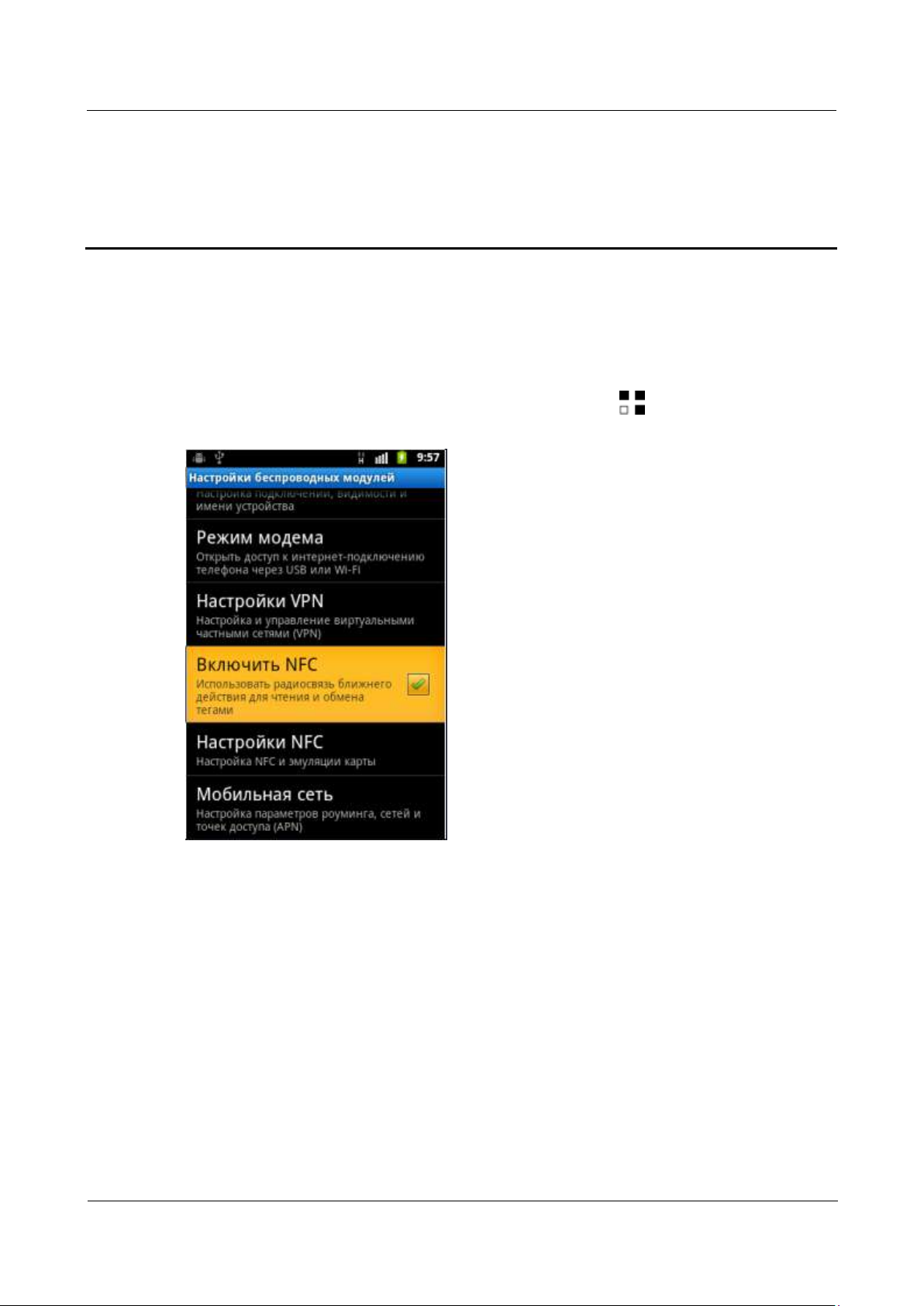
Yes. To enable the Near Field Communication (NFC), touch > Settings > Wireless &
networks, and select NFC.
4.2 What Functions Does the NFC Support?
The NFC supports card emulation, card reading, and peer-to-peer (P2P) transmission.
4.2.1 What Is Card Emulation?
The card emulation function allows your phone to emulate an integrated circuit (IC) card
or credit card for electronic payment.
4.2.2 What Is a Card Reader?
A card reader allows your phone to read data in the radio frequency (RF) cards or chips,
such as a public transport card. For example, you can use your phone to scan the NFC tag on a
poster to obtain information, such as the URL, detailed goods information, or coupons.
Page 75
HUAWEI U8860MTC965 V100R001
HUAWEI U8860 Smartphone FAQs
2012-09-19
Huawei Confidential
Page 67 of 86
4.2.3 What Is P2P Transmission? How to Use the P2P
Transmission Function?
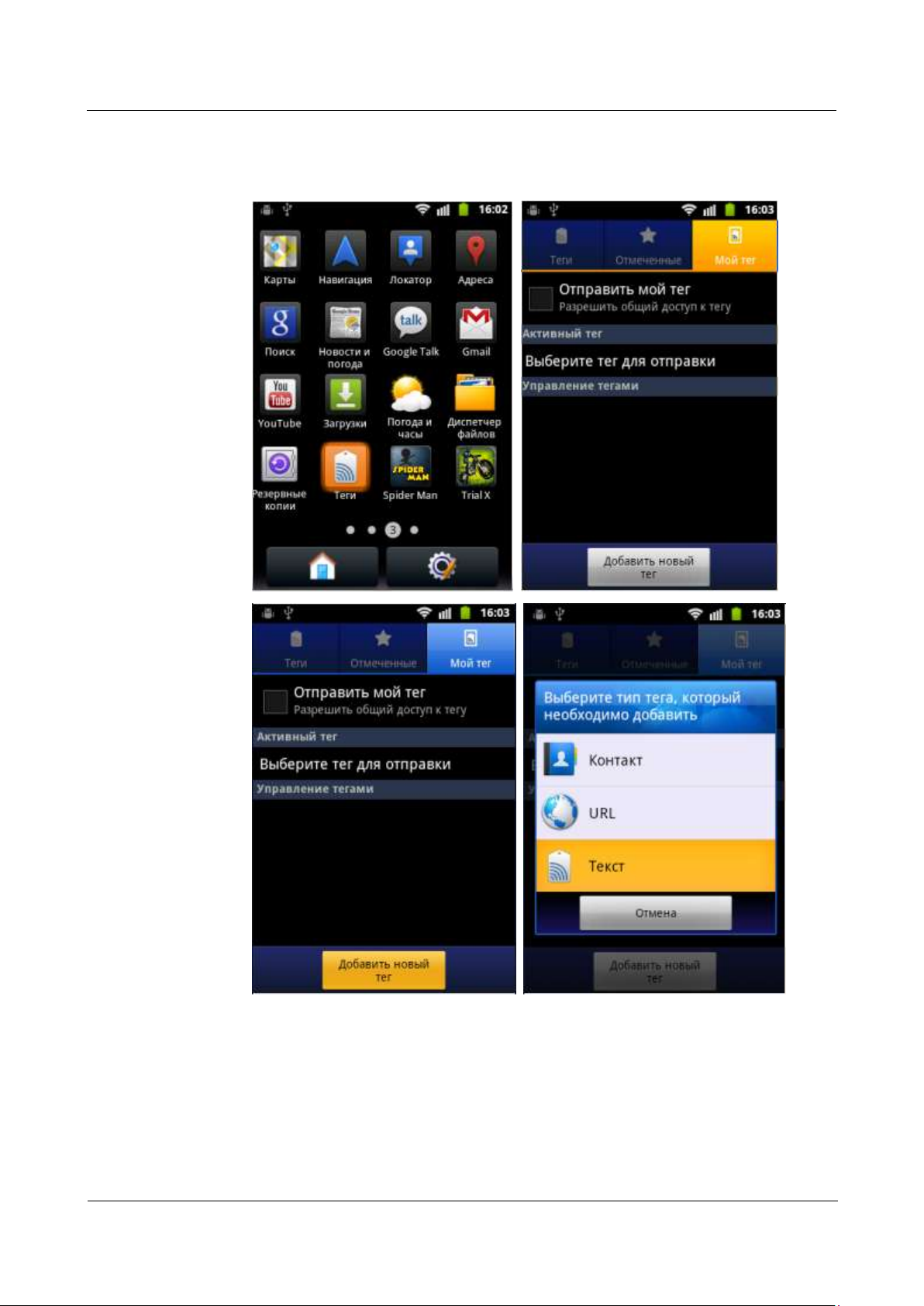
Similar to Bluetooth, the P2P transmission function allows your phone to transmit data. You
can use the Tags application of your phone to transmit data, such as contacts, text, and URLs.
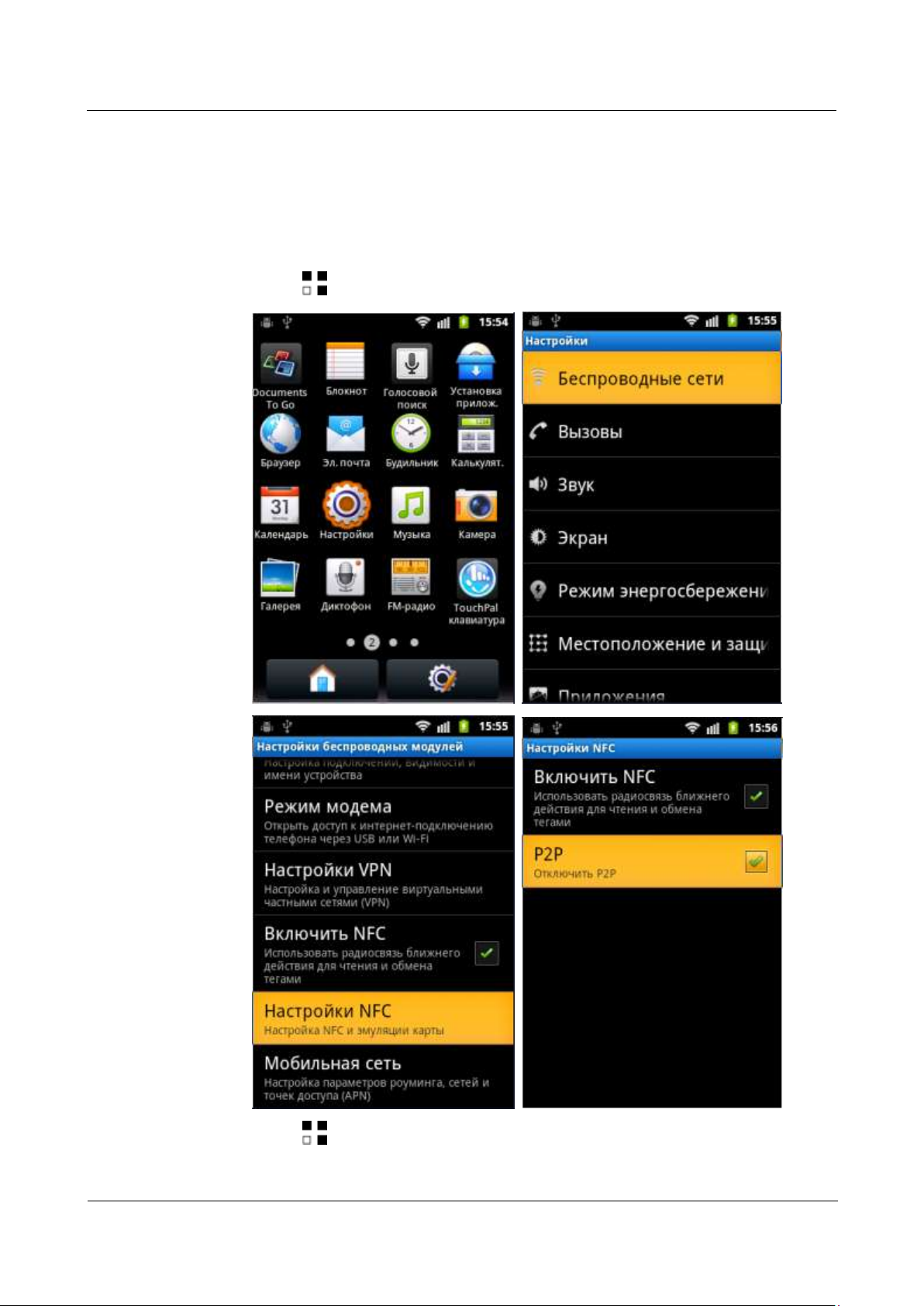
To use the P2P transmission function:
1. Touch > Settings > Wireless& networks > NFC settings, and select P2P.
2. Touch > Tags > My tag > Add new tag.
Page 76
HUAWEI U8860MTC965 V100R001
HUAWEI U8860 Smartphone FAQs
2012-09-19
Huawei Confidential
Page 68 of 86
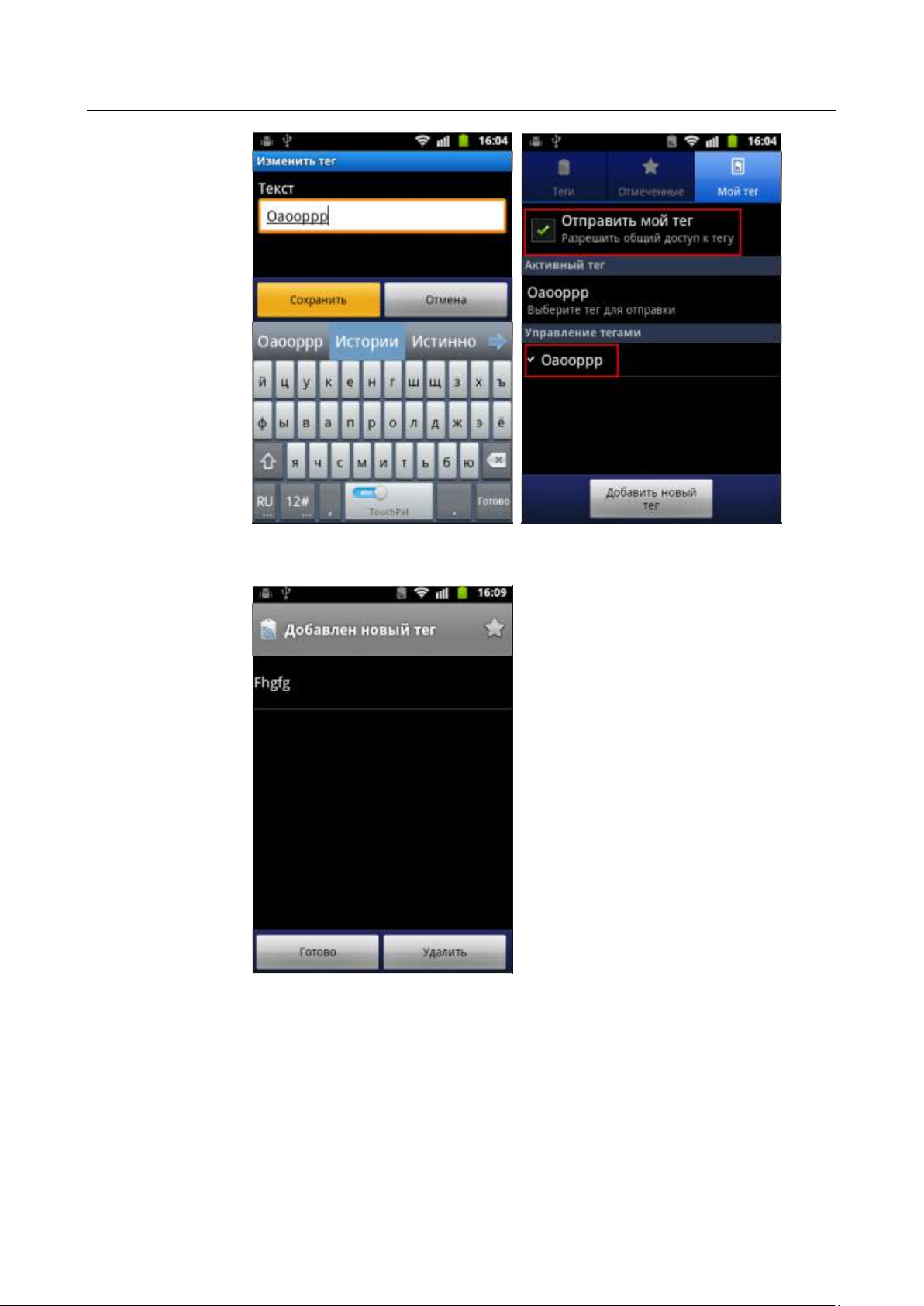
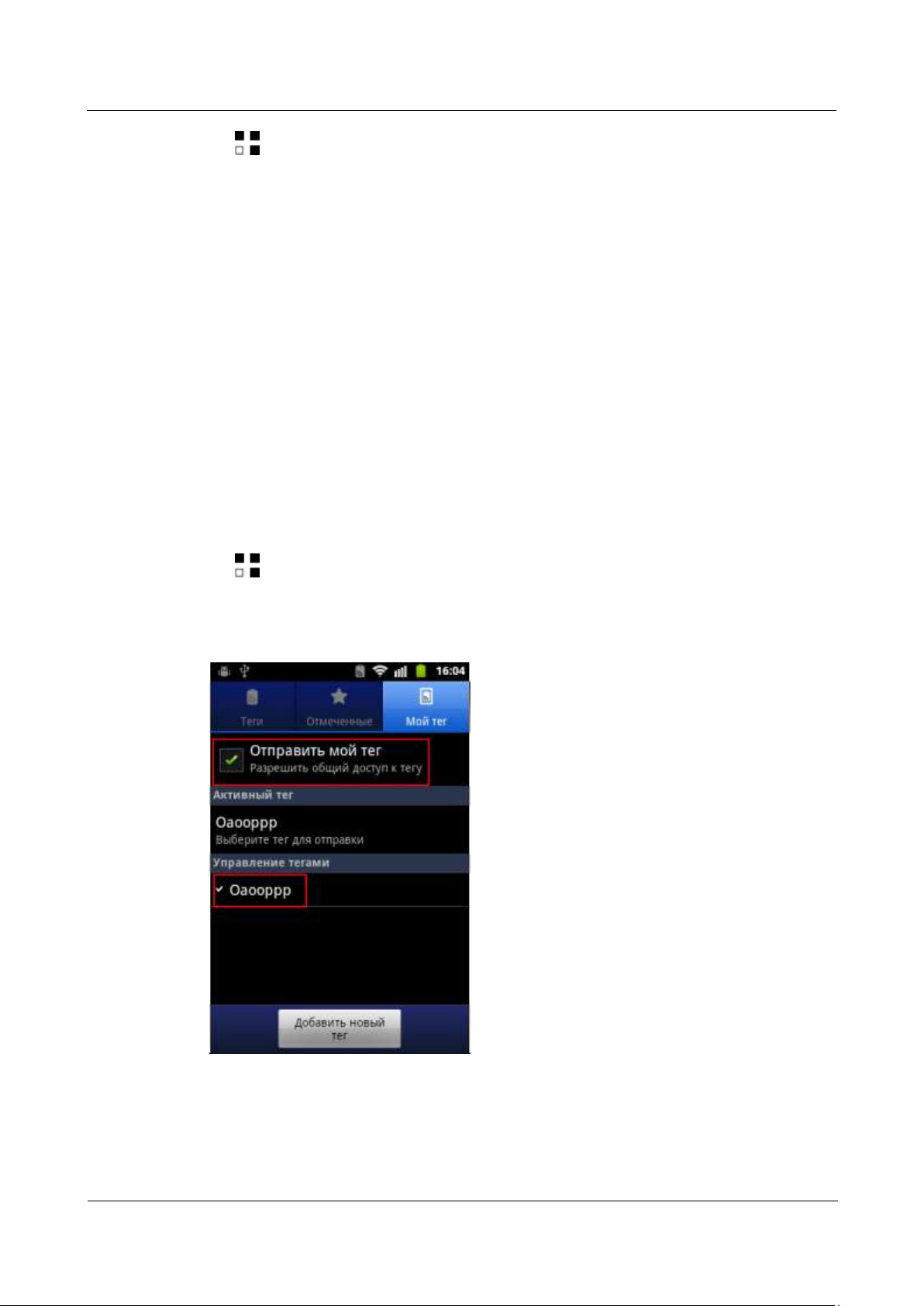
You can share data, such as the contacts, URLs, and text. For example, to share text with
others, enter the desired text, touch Save to save the text as a tag, and select Share my
tag.
Page 77
HUAWEI U8860MTC965 V100R001
HUAWEI U8860 Smartphone FAQs
2012-09-19
Huawei Confidential
Page 69 of 86
3. Enable the P2P function on another phone, and place the two phones back to back tightly
to send the text.
4.3 When I Use My Phone for Payment, the Phone Does
Not Respond. What Can I Do?
To resolve the problem:
1. Contact your service provider to verify that the SIM card supports card emulation.
Page 78
HUAWEI U8860MTC965 V100R001
HUAWEI U8860 Smartphone FAQs
2012-09-19
Huawei Confidential
Page 70 of 86
2. Touch > Settings > Wireless & networks, and check that NFC is selected.
3. Move your phone away from the POS machine and punch the phone on the POS machine again.
4.4 When I Use My Phone to Read an IC Card, the Phone
Does Not Respond. What Can I Do?
To resolve the problem:
1. Check whether your phone enters sleep mode.The card reading function is unavailable if the phone
screen is locked.
2. Move the IC card away from your phone and read the IC card again.
4.5 When I Use My Phone to Transmit Data, My Phone
or the Peer Phone Does Not Respond. What Can I Do?
To resolve the problem:
1. Touch > Settings > Wireless& networks > NFC settings to check whether P2P is selected.
If not, select P2P.
2. Check whether Share my tag is selected in the Tags application and whether the contents to be
shared are selected.
3. If your phone does not respond when you attempt to send or receive data from a peer phone, check
whether the preceding settings have been performed on the peer phone.
Page 79
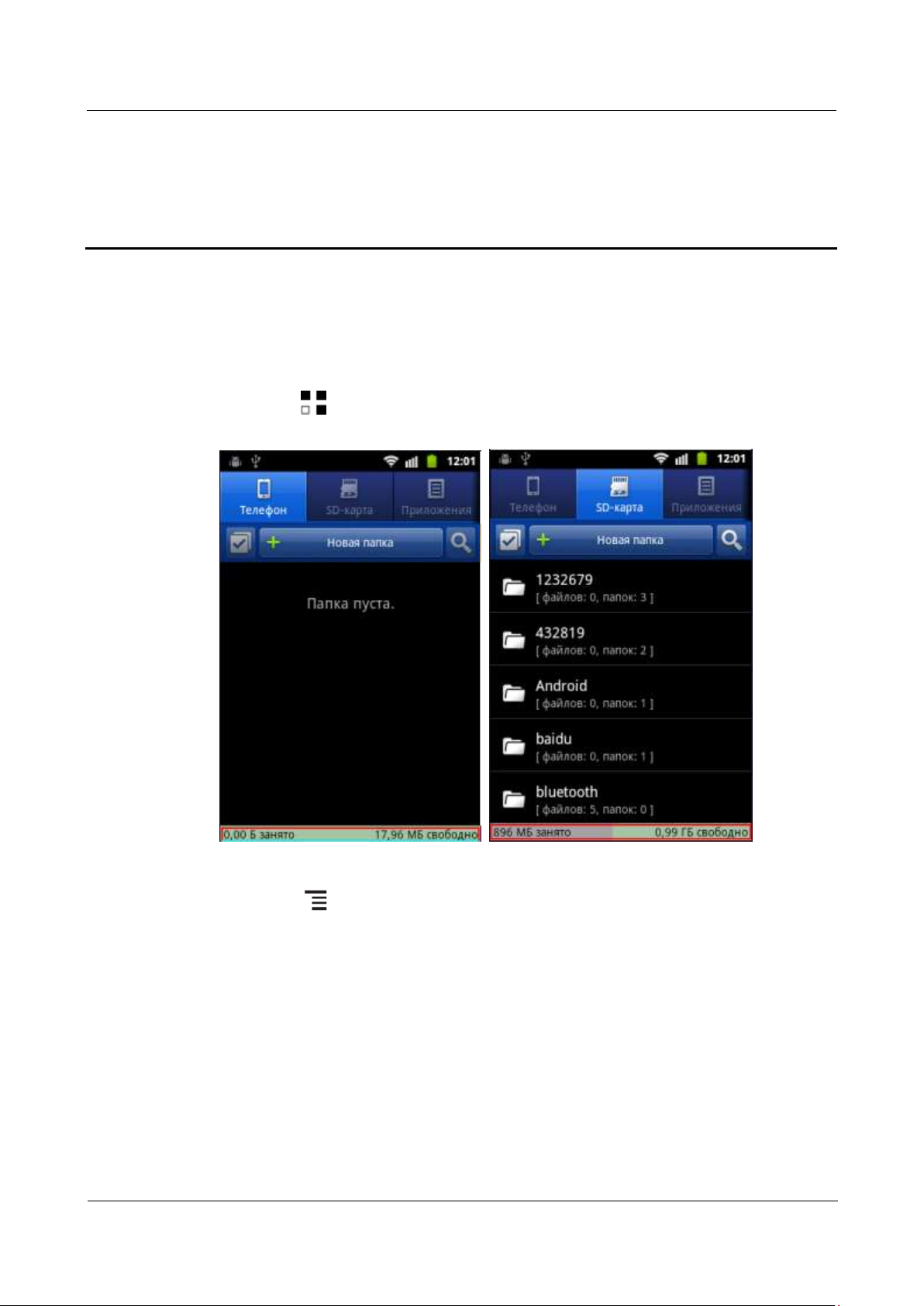
HUAWEI U8860MTC965 V100R001
HUAWEI U8860 Smartphone FAQs
2012-09-19
Huawei Confidential
Page 71 of 86
5 Others
5.1 How Do I Check the Available Space on the Internal
and External microSD Cards?
Touch > File Manager, and check the available space on the internal and external
microSD cards.
Touch > Settings > Storage, and check the available space on the internal and
external microSD cards.
Page 80
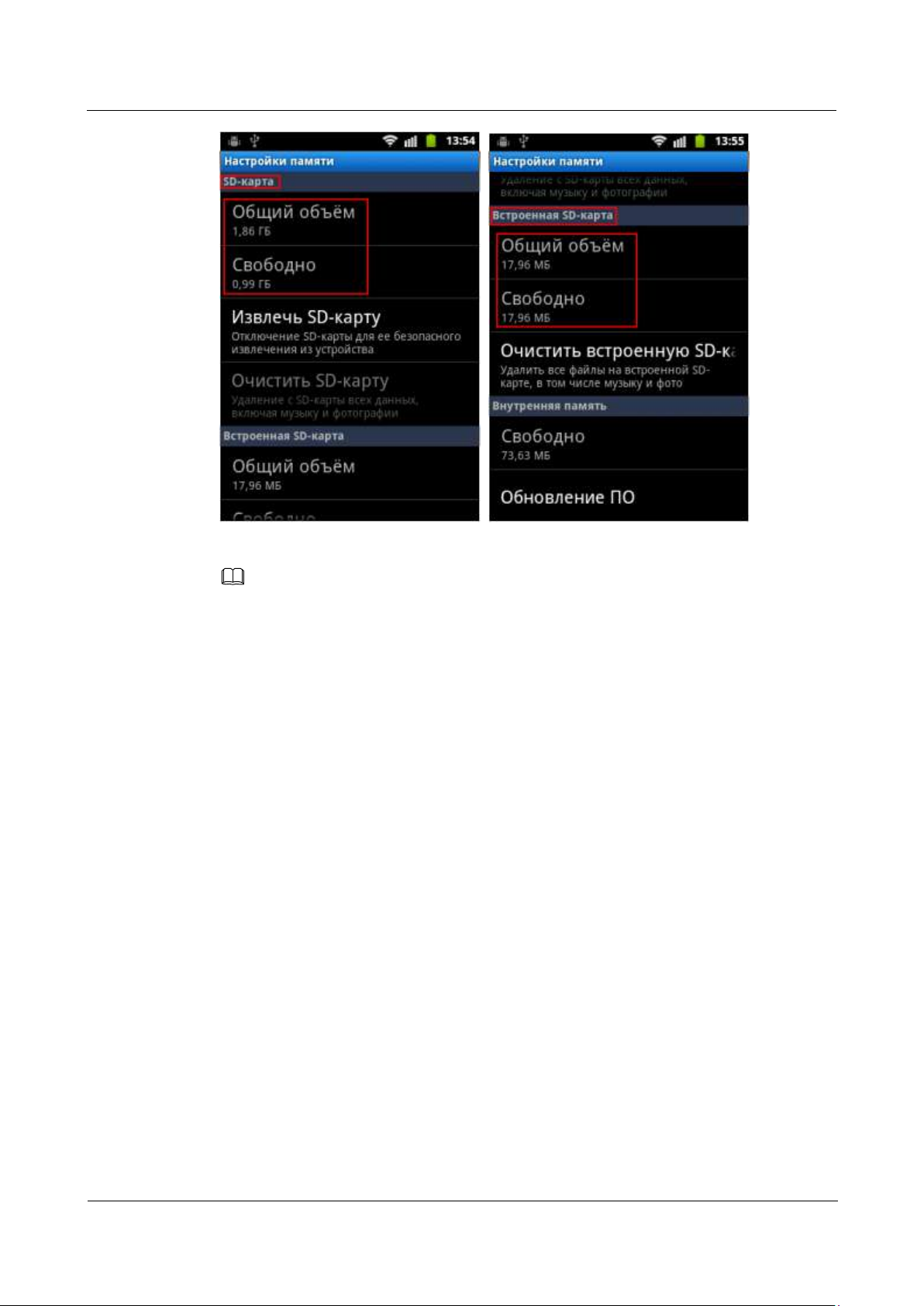
HUAWEI U8860MTC965 V100R001
HUAWEI U8860 Smartphone FAQs
2012-09-19
Huawei Confidential
Page 72 of 86
NOTE
Three types of storage are available in your phone:
Internal storage: 70.7 MB, used for applications.
Internal micro SD card: 17.96 MB, used to store data such as pictures, audio files, and videos.
External micro SD card: Used to store data such as pictures, audio files, and videos.
5.1.1 How Do I Check My Phone's Available RAM Space?
Your phone's maximum RAM space is 256MB. The available RAM space varies according to
the applications running on your phone. To check your phone's available RAM space, install a
dedicated APK. Your phone is not preinstalled with such applications.
5.1.2 What Is the Maximum Capacity of the External micro
SD Card Supported by My Phone?
32 GB.
5.1.3 Running Android 2.3, Does My Phone Support
Application Installation on an External microSD Card?
You can only install applications on your phone's internal storage. You cannot install them on
an external micro SD card.
If an external micro SD card is inserted, you can move the applications installed on your
phone's internal storage to the external micro SD card.
If an external micro SD card is not inserted, you can move the applications installed on your
phone's internal storage to your phone's internal micro SD card.
Page 81
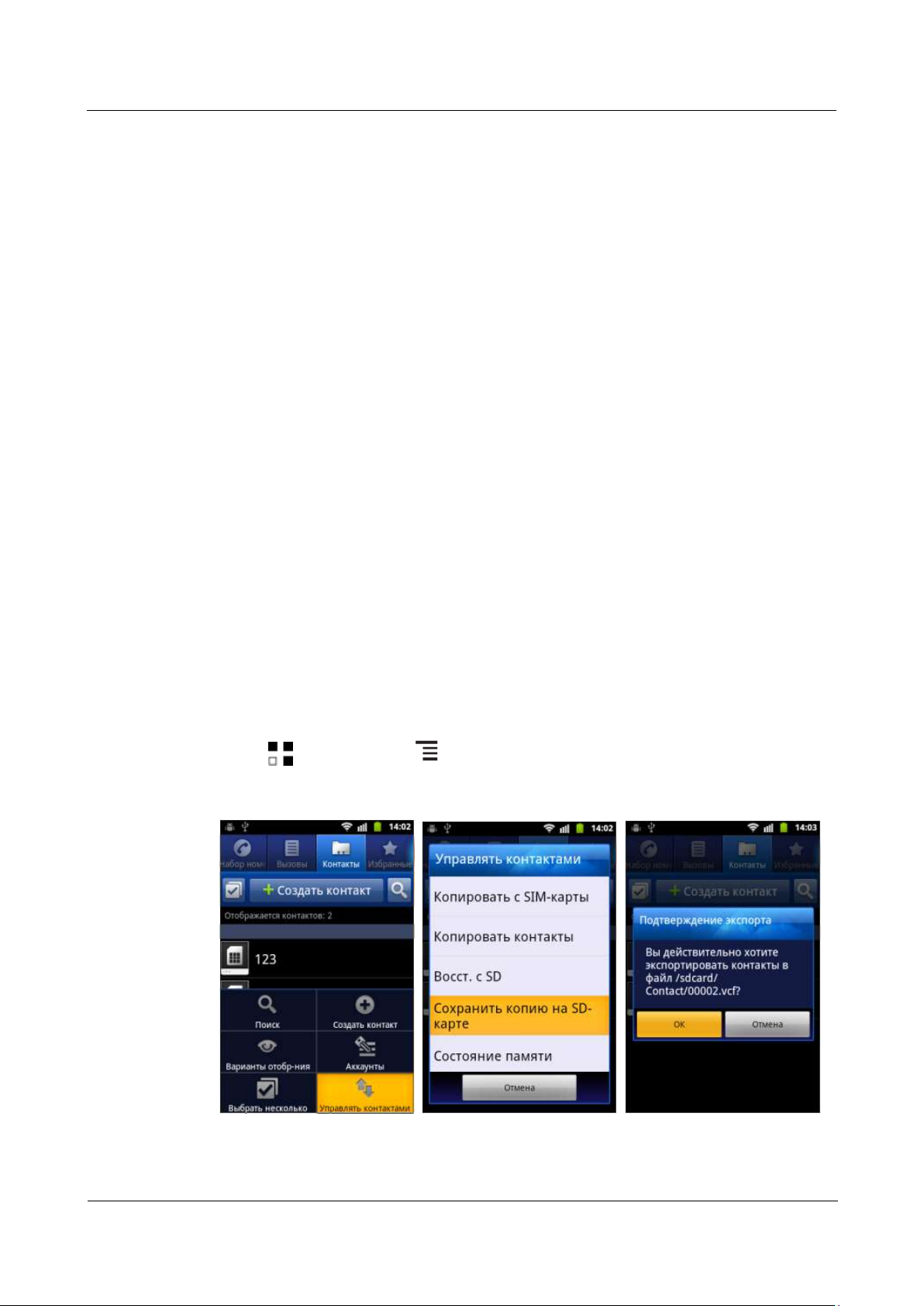
HUAWEI U8860MTC965 V100R001
HUAWEI U8860 Smartphone FAQs
2012-09-19
Huawei Confidential
Page 73 of 86
5.2 What Data Can Be Backed Up on My Phone?
You can back up the following data on your phone:
Contacts (Use Contacts.)
Calendar (Use third-party applications.)
Commonly used data (Use third-party applications.)
Before restoring factory settings, you can back up the following data:
Messages
Call logs
System settings
Alarms
Browser bookmarks
Email accounts
Calendar
Notepad
Weather Clock
Music playlists
5.3 How Do I Use Contacts to Back Up and Recover My
Contacts?
5.3.1 How Do I Back Up Contacts to a microSD Card?
Touch > Contacts > > Manage contacts > Backup to SD card > OK.
All contacts in your phone's Contacts are saved to your microSD card's Contact folder in .vcf
format.
Page 82
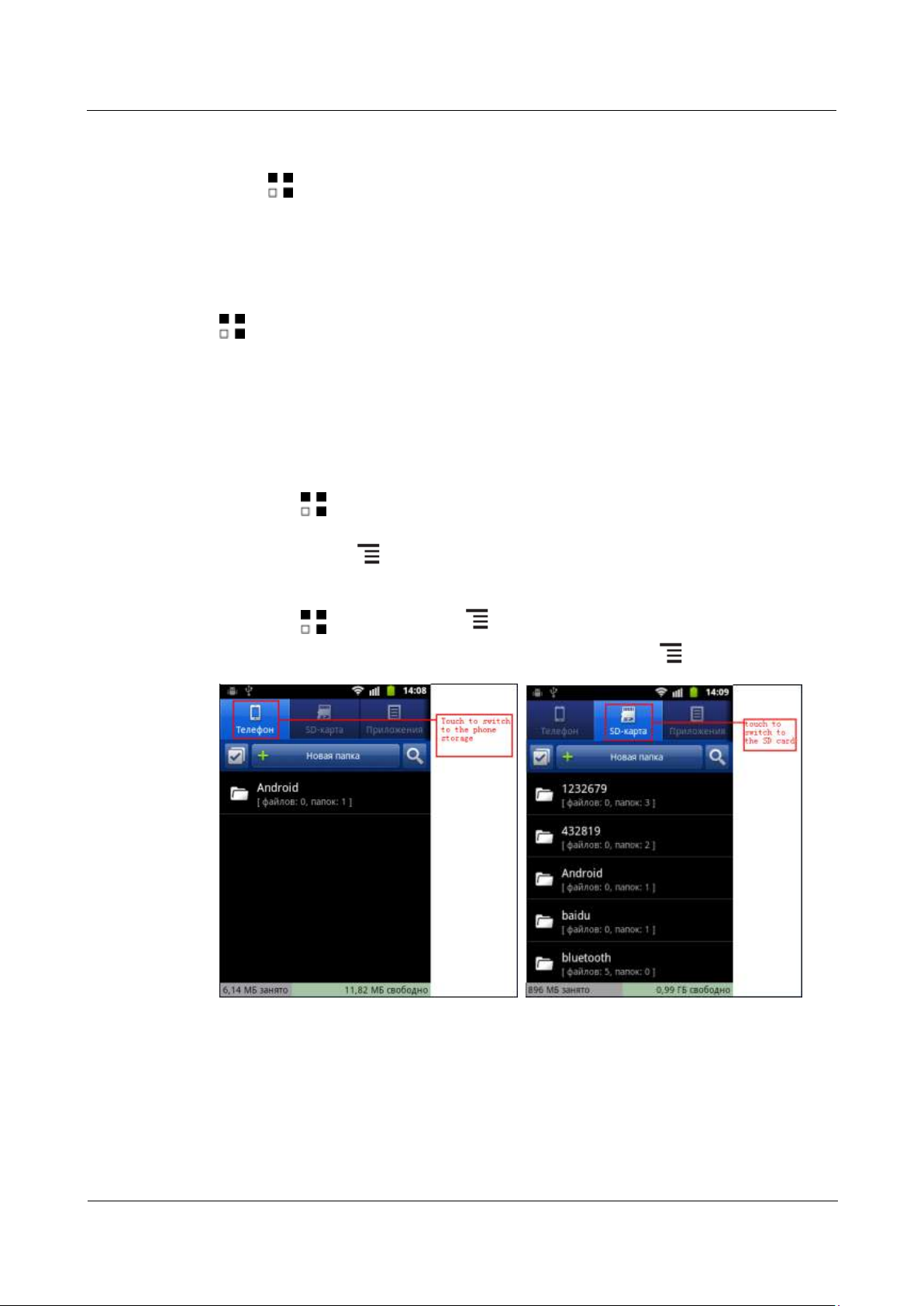
HUAWEI U8860MTC965 V100R001
HUAWEI U8860 Smartphone FAQs
2012-09-19
Huawei Confidential
Page 74 of 86
5.3.2 How Do I Recover Contacts from a microSD Card?
Touch > File Manager. In the micro SD card's root directory, touch Contact, then touch
the .vcf file that is backed up. Touch OK > Phone, and then open Contacts. Your phone
refreshes the contact list.
5.3.3 How Do I Use All Backup to Back Up Data?
Your phone is preinstalled with All Backup. To use All Backup to back up your data, touch
> All Backup, then the option you want to use.
5.4 How Do I Cut or Copy Files or Folders from the
Phone's Storage to an External mciroSD Card?
To copy or cut a single file or folder:
Touch > File Manager. In the displayed list, touch and hold the file or folder you
want to cut or copy. In the Folder options/File options menu, touch Cut or Copy. Touch
SD card, then > Paste.
To copy or cut multiple files or folders:
Touch > File Manager > > Multiselect, select the files or folders you want
to cut or copy, and touch Cut or Copy. Touch SD card, then > Paste.
Page 83
HUAWEI U8860MTC965 V100R001
HUAWEI U8860 Smartphone FAQs
2012-09-19
Huawei Confidential
Page 75 of 86
5.5 Common Skills
5.5.1 How Do I Customize the Home Screen or Its
Extensions?
To add an item to the Home screen or its extensions, touch and hold a blank area until
the Add to home screen menu is displayed, and touch Add shortcut, Add widget and
Add folder.
To move an item on the Home screen or its extensions, touch and hold the item, and drag
it to a blank area.
To remove an item from the Home screen or its extensions, touch and hold the item, and
drag it to the trash can in the lower left corner of the screen.
To set your wallpaper, touch > Wallpaper, then Wallpapers or Gallery.
5.5.2 How Do I Save Battery Power?
To save battery power, touch Power saving mode in Settings, or perform the following
operations as required:
Press to lock the screen when you are not using your phone.
Touch > Settings > Display > Screen timeout to set Screen timeout to a small
value.
Touch > Settings > Display > Brightness to set Brightness to a small value.
Touch > Settings > Wireless & networks, and clear Wi-Fi and Bluetooth to turn
off Wi-Fi and Bluetooth.
Touch > Settings > Accounts & sync, and clear Background data and Auto-sync
to disable background data synchronization.
Touch > Settings > Wireless & networks > Mobile networks and clear Data
enabled to disable data services, or set Data Switch to Off in the notification bar.
Touch > Settings > Location & security, and clear Use GPS satellites to disable
GPS functions.
5.5.3 How Do I Save Data Traffic?
Disable data services if you are not using them.
Disable data services if your phone is connected to a Wi-Fi network.
Access Wireless Access Protocol (WAP) websites instead of World Wide Web (WWW)
websites.
Touch > Settings > Wireless & networks > Mobile networks, and clear Data
enabled to disable data services.
Touch > Settings > Accounts & sync, and clear Background data and Auto-sync
to disable background data synchronization.
Page 84

HUAWEI U8860MTC965 V100R001
HUAWEI U8860 Smartphone FAQs
2012-09-19
Huawei Confidential
Page 76 of 86
5.5.4 What Can I Do If My Phone Runs Slowly?
Close some running third-party applications.
Uninstall some applications.
Restart your phone.
Restore your phone to factory settings.
5.5.5 Can I Uninstall Applications Customized by My
Operator?
No.
5.5.6 Why Does My Customized Wallpaper Stretch
Automatically?
If set as your wallpaper, a picture will stretch to cover the Home screen and its extensions. No
option is available for you to stretch the picture.
5.5.7 What Data Will Be Lost If I Restore My Phone to Its
Factory Settings?
If you restore your phone to factory settings, all data on your phone's internal storage will be
lost, such as your customized settings, call logs, and messages.
5.5.8 How Do I Increase My Phone's Internal Storage
Space?
Delete unnecessary files or uninstall some applications.
5.5.9 How Do I Disable Audible Touch Tones?
Touch > Settings > Sound, and clear Audible selection.
5.5.10 How Do I Turn the Screen On After It Turns Off
Automatically?
Press .
5.5.11 How Do I Adjust the Screen Brightness?
Touch > Settings > Display > Brightness.
5.5.12 How Does My Phone's Key Backlight Save Battery
Power?
To save power battery, the backlight of the four keys at the bottom your phone varies
according to the surroundings. If the surroundings are dark, the backlight turns on. If the
surroundings are bright, the backlight turns off.
Page 85
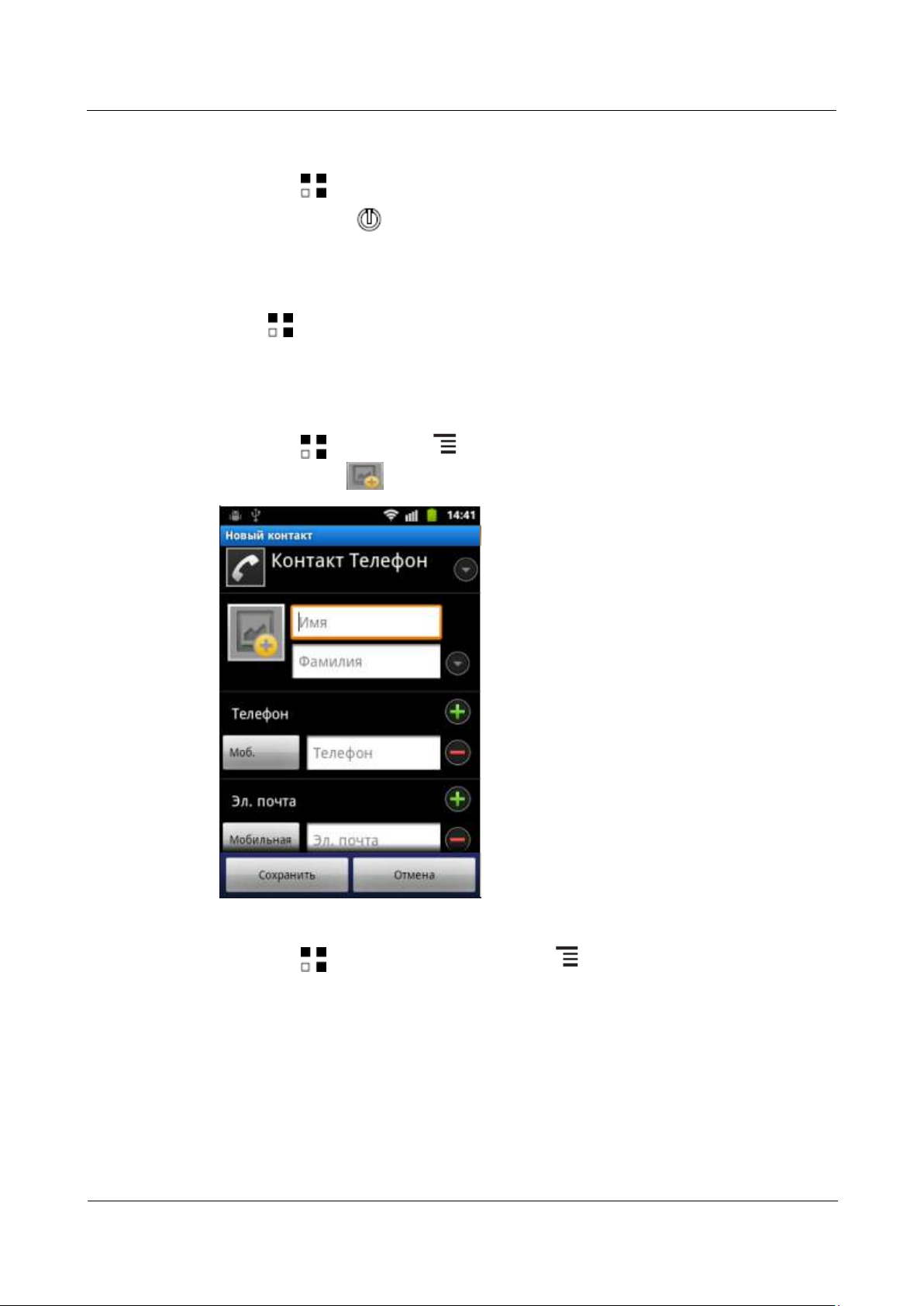
HUAWEI U8860MTC965 V100R001
HUAWEI U8860 Smartphone FAQs
2012-09-19
Huawei Confidential
Page 77 of 86
5.5.13 How Do I Enable or Disable Airplane Mode?
Touch > Settings > Wireless & networks, and select or clear Airplane mode.
Press and hold until the Phone options menu is displayed, and touch Airplane
mode.
5.5.14 How Do I Restore My Phone to Factory Settings?
Touch > Settings > Privacy > Factory data reset.
5.5.15 How Do I Set a Picture as a Contact's Photo Caller
ID?
Touch > Contacts > > Create contact > Phone, and in the New contact
screen, touch .
5.5.16 How Do I Use My Phone as a USB Mass Storage
Device?
Touch > Gallery, open a picture, touch > More > Set as, and in the Set
picture as menu, touch Contact icon.
Connect your phone to a computer, flick down the notification bar, and touch USB
connected>Turn on USB storage.
Page 86
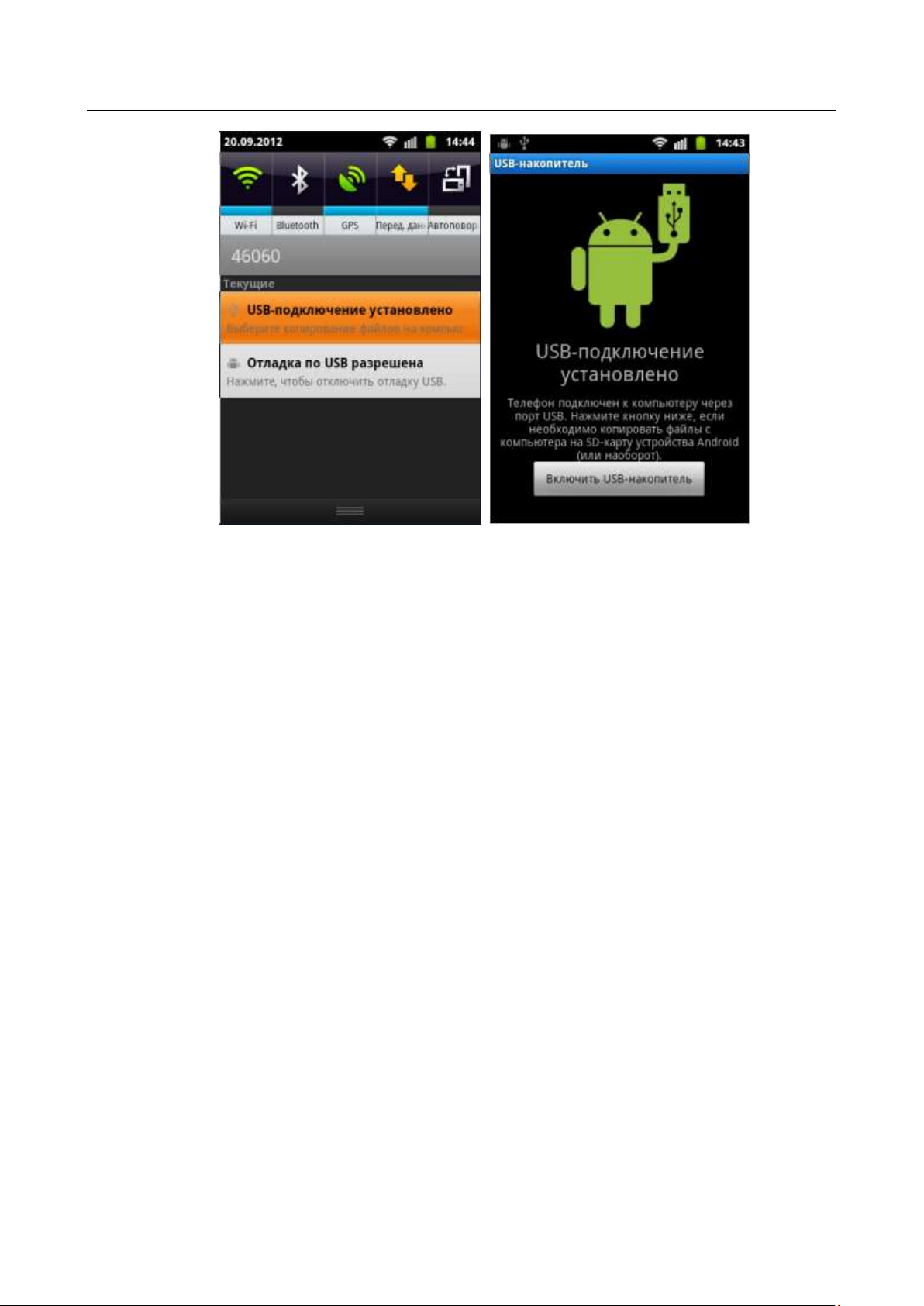
HUAWEI U8860MTC965 V100R001
HUAWEI U8860 Smartphone FAQs
2012-09-19
Huawei Confidential
Page 78 of 86
 Loading...