

Page 1
User Guide
Page 2

Contents
New features
1 Read before use
1 Unlocking with fingerprint
2Safe
3 All focus mode
3 Taking photos from the timeline album screen
5 Scanning a QR code
6 Protecting your privacy
Getting started
7 Dual-card settings
8 Basic screen features
11 Personalizing your phone
12 Basic operations
13 Calling, contacts and messaging
15 Email
15 Internet connection
16 Browser
Entertainment
17 Camera
19 Gallery
20 Music
20 Playing a video
Transferring data
21 Bluetooth
21 Wi-Fi Direct
22 Multi-screen display
22 Huawei Beam
22 Connecting your phone to a computer
23 Connecting your phone to a USB storage device
Managing your phone
24 Managing applications
25 File Manager
27 Phone Manager
28 Backup, restoration, and update
Tools
30 Weather
i
Page 3

30 Alarms
30 Mirror
ii
Page 4

New features
Read before use
This guide only applies to phones that run EMUI 3.0.
Features in this guide are for your reference only. Some features may not be
supported by all phones.
Unlocking with fingerprint
Enrolling your fingerprint
You can unlock the screen or access encrypted data with your fingerprint. To
protect your privacy, this feature is only available when the screen lock
PIN
or
method is
1.
Open
2.
Touch
Password
Settings
Fingerprint ID
.
.
.
3.
Choose
password.
4.
Follow the onscreen instructions to enroll your fingerprint.
PIN
or
Password
, and follow the onscreen instructions to set a
Unlocking the screen with your fingerprint
1.
Open
2.
Touch
password.
3.
Touch
Then place your finger on the fingerprint scanner on the back of your phone
to unlock the screen.
Settings
Fingerprint ID
Unlock screen
.
and follow the onscreen instructions to enter your
.
1
Page 5

Unlocking the Safe with your fingerprint
New features
After enabling
prompted to enable fingerprint unlocking. Touch
and associate your fingerprint. If you skip this step, you can also enable this
feature as follows:
1.
Open
2.
Touch
password.
3.
Touch
Then open
sensor on the back of your phone to access the Safe.
Safe
in
Settings
Fingerprint ID
Access safe
File Manager
.
File Manager
.
and follow the onscreen instructions to enter your
, touch
and setting your password, you will be
Associate
Safe
, and place your finger on the fingerprint
to access the Safe
Accessing App lock with your fingerprint
After enabling
will be prompted to enable fingerprint unlocking. Touch
App lock and associate your fingerprint. If you skip this step, you can also
enable this feature as follows:
1.
Open
2.
Touch
password.
App lock
Settings
Fingerprint ID
in
Phone Manager
.
and follow the onscreen instructions to enter your
and setting your password, you
Associate
to access
3.
Touch
Access app lock and lock/unlock apps
Then open
fingerprint sensor on the back of your phone to access App lock.
Phone Manager
, touch
App lock
.
, and place your finger on the
Safe
Encrypt important and private files to prevent others from viewing them.
Enabling the Safe
1.
2.
Open
Touch
File Manager
Safe
.
.
2
Page 6

New features
3.
If your phone supports and has a microSD card inserted, you can choose to
SD card
or
Internal
create the Safe in
4.
Enable
Safe
and follow the onscreen instructions to set a password and
security question answer.
Adding files to the Safe
1.
Open
2.
Touch
3.
Touch . Then add some files to
File Manager
Safe
and enter your password.
.
.
Safe
.
You can then view the encrypted files in
Safe
.
All focus mode
All focus mode lets you change the focus point on a photo after it's been
taken.
1.
Open
2.
Touch >
3.
Touch to take a photo.
4.
Touch to find the photo you've just taken, and touch to adjust the
focus point.
Camera
All-focus
.
.
Taking photos from the timeline album
screen
You can take photos directly from
1.
Open
Gallery
.
Gallery
.
3
Page 7
New features
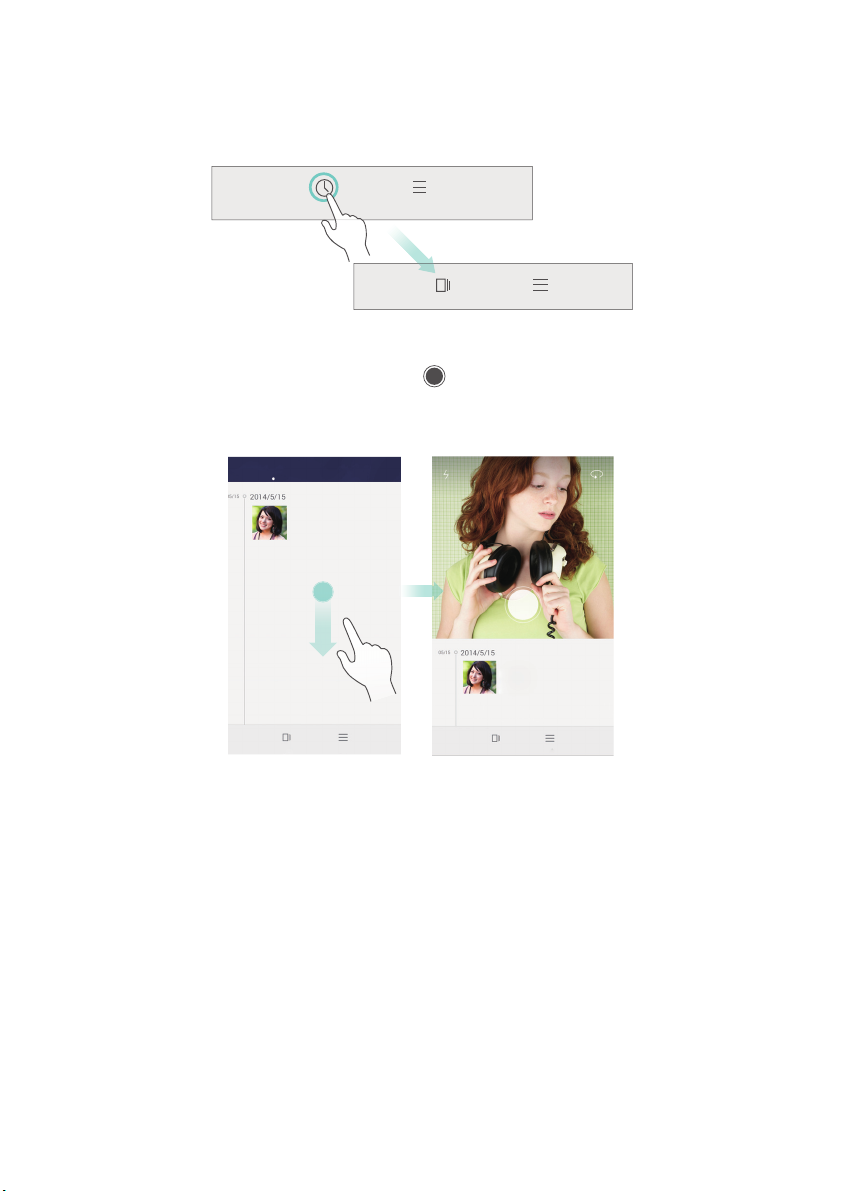
2.
Touch the view switching button at the bottom of the screen to switch to
the timeline album view.
3.
On the timeline album screen, drag down on a blank area to launch the
camera in half-screen mode. Touch
to take photos.
4
Page 8
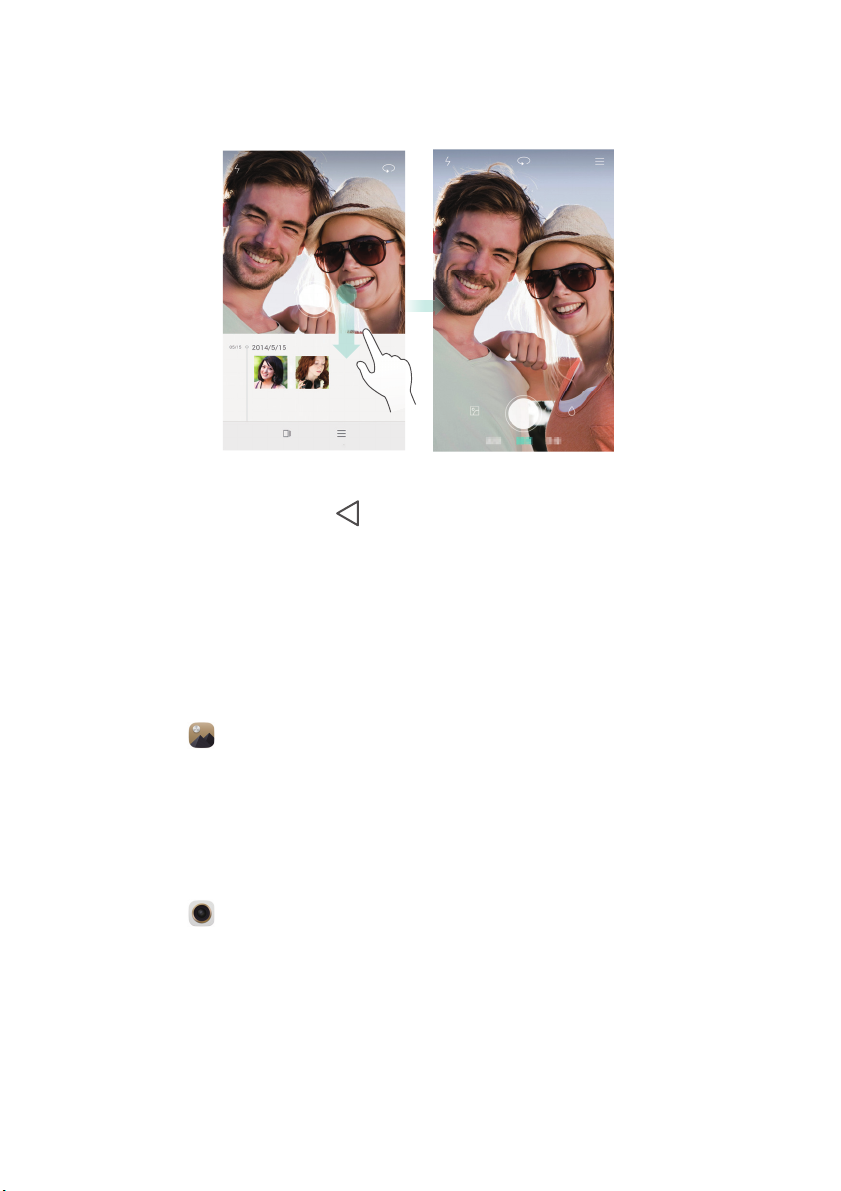
4.
Drag the viewfinder further down to enter full-screen capture mode.
New features
When you are done, touch
screen.
Return
Scanning a QR code
Scanning a QR code using Gallery
1.
Open
2.
Choose a QR code photo.
3.
Touch
Scanning a QR code using Camera
1.
Open
2.
Frame the QR code with the camera.
code.
3.
Touch
Gallery
View details
Camera
View details
.
Gallery
will automatically scan the QR code.
to view the QR code details.
.
to view the QR code details.
to return to the timeline album
Camera
will automatically scan the QR
5
Page 9

New features
Protecting your privacy
What's Privacy protection?
If you have content on your phone that you want to keep private, you can set
two different unlock passwords, one for yourself, and the other for visitors. If
your phone is unlocked using the visitor password, all your private content
will be hidden.
Your contacts, albums, and applications are all able to be set as private.
Setting a privacy protection password
1.
Open
2.
Touch
3.
Choose a password style, and set your owner password and the visitor
password.
If you have set a screen unlock password, the password will be used as
the owner password by default.
Settings
Security
.
>
Privacy protection
>
Let's start
.
Setting private information
1.
Open
2.
Touch
3.
Enter your owner password to access the
4.
Select the contacts, albums, or applications you want to set as private.
Settings
Security
.
>
Privacy protection
.
Privacy protection
screen.
6
Page 10

Getting started
Dual-card settings
Enabling or disabling a SIM card
You can install two SIM cards to your phone and use one or both of them at
the same time. When you do not need to use a SIM card, disable it.
1.
On the home screen, touch
2.
Under
All
, touch
3.
Select or deselect the check box next to
disable a SIM card.
The settings displayed may vary according to your service provider and
phone model.
SIM card management
Setting the default SIM card for data services
You can set a default SIM card for data services.
Settings
.
.
Card 1
or
Card 2
to enable or
1.
On the home screen, touch
2.
Under
All
, touch
3.
Touch
Card 1
The settings displayed may vary according to your service provider and
phone model.
SIM card management
or
Card 2
next to
Settings
.
Default data network
.
Setting the default SIM card for calling and messaging
You can set the default SIM card for calling or messaging.
1.
On the home screen, touch
2.
Under
All
3.
Touch
, touch
Card 1
SIM card management
or
Card 2
next to
Settings
Default calls/messages
.
.
.
7
Page 11
Getting started
1
2
This function may not be supported by some service providers.
Basic screen features
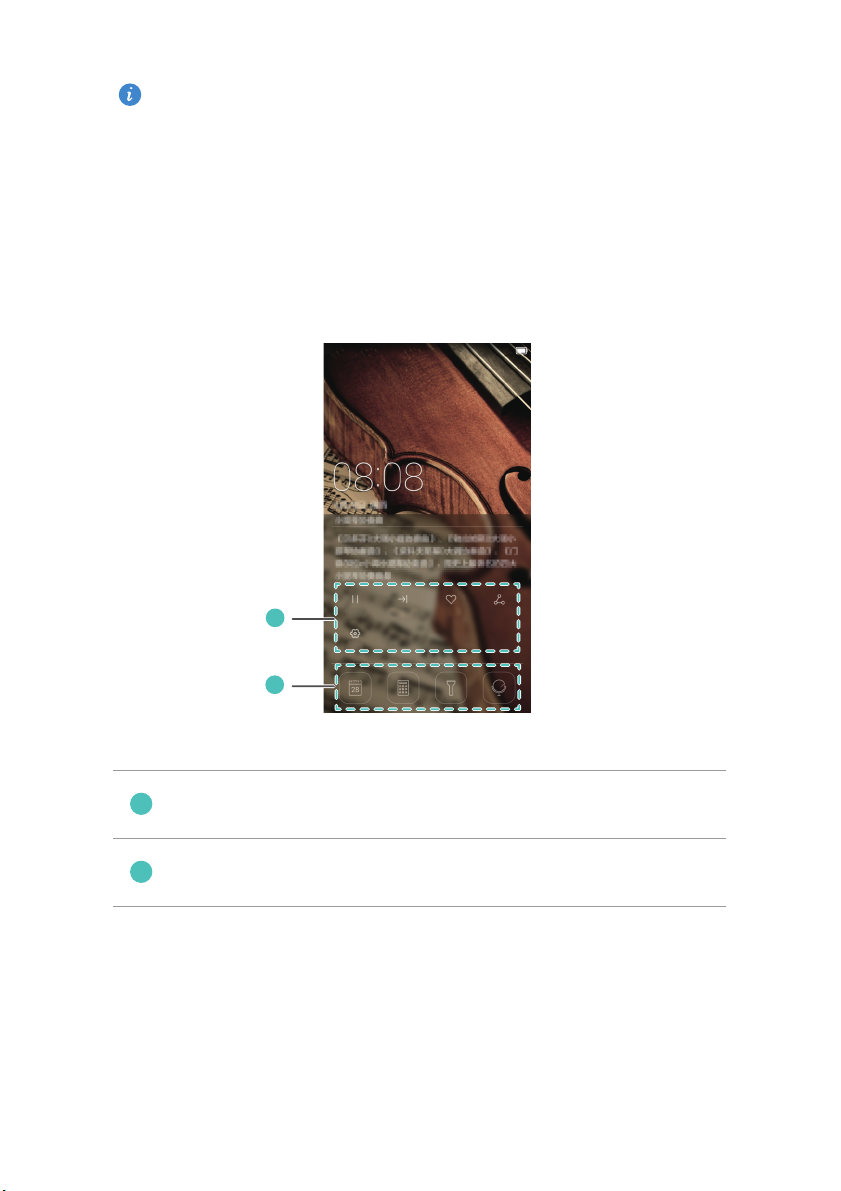
Magazine screen unlock
Flick up from the bottom of the screen to display the magazine unlock control
panel.
Magazine control area: Stop shuffling magazine covers, go to
the next page, add the current cover to favorites, and more.
Shortcut buttons: Access common tools, such as Calendar,
Calculator, and Flashlight.
Managing the home screen
Adding a widget
1.
Touch and hold a blank area on the home screen.
2.
Touch
Widgets
.
8
Page 12
Getting started
1
2
3.
Choose a widget and drag it to the home screen.
Creating a folder
On the home screen, drag one application on top of another to create a folder
containing both of them.
Adding or removing a home screen
Pinch three fingers together on the home screen to display the home screen
thumbnails. Touch to add a home screen or touch on the upper right
corner of a blank home screen to remove it.
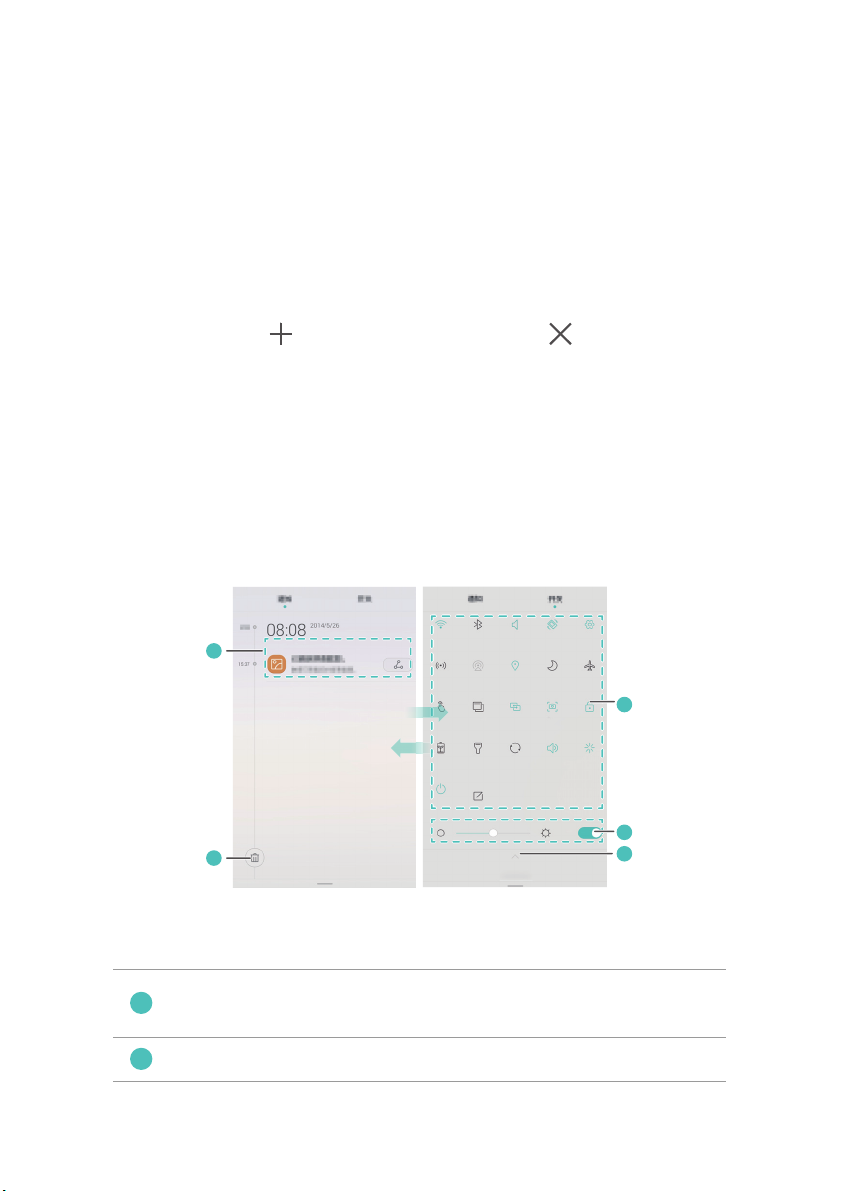
Notification panel
Flick down from the status bar to open the notification panel. Flick left or
right to switch between the
Notifications
and
Shortcuts
tabs.
View detailed information about push notifications. Flick left or
right across a notification to dismiss it.
Clear all push notifications.
9
Page 13
Expand or collapse the shortcut switches.
3
4
5
Adjust the screen brightness.
Turn on or turn off common functions. Touch to customize
the shortcut switch list.
Auto-rotate screen
Getting started
Open the notification panel, go to the
or turn off auto-rotate.
Shortcuts
tab, and touch to turn on
Taking a screenshot
Press the power and volume down buttons simultaneously to take a
Gallery
screenshot. To view your screenshots, open
and touch
Screenshots
.
, switch to the list view,
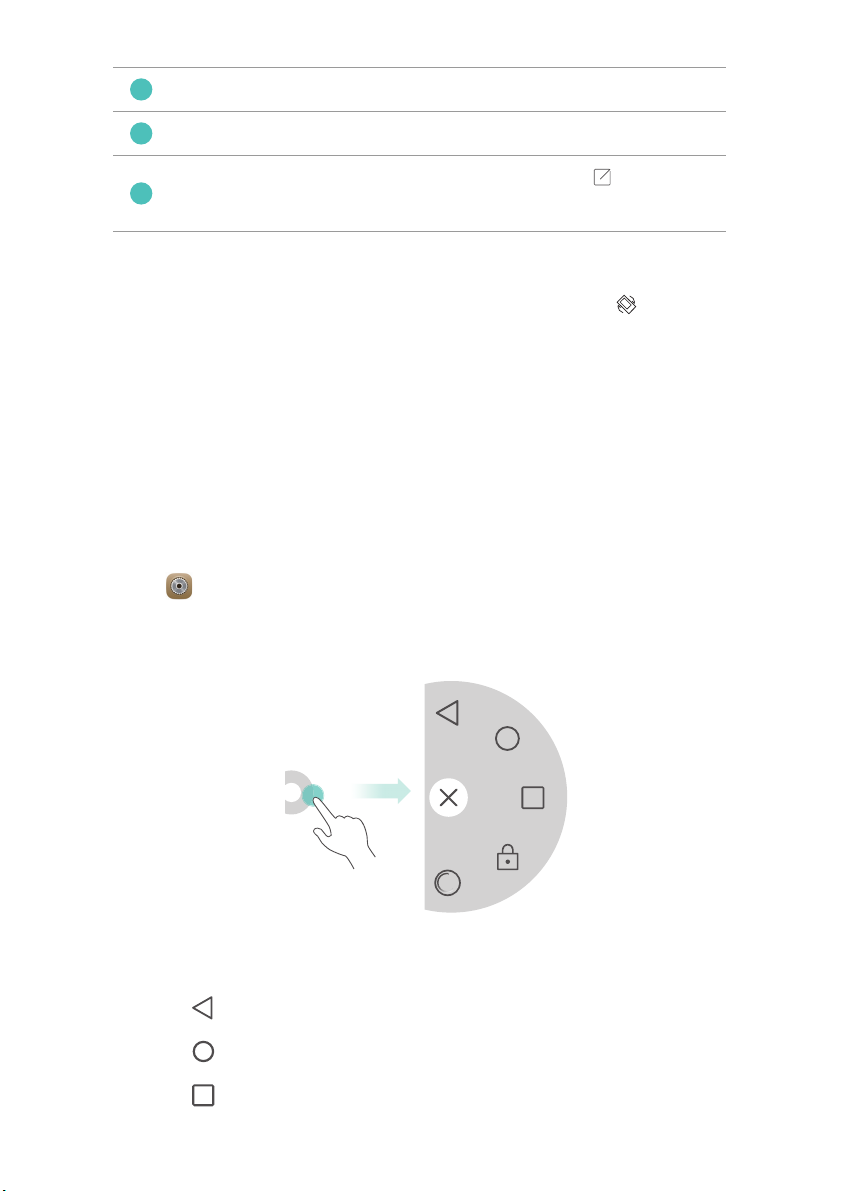
Suspend button
Open
enable
be displayed on most screens. You can move it around by dragging it.
Settings
Suspend button
. Under
Smart assistance
. When this feature is enabled, the suspend button will
, touch
More
>
Suspend button
to
Touch the suspend button to expand the suspend button menu for the
following actions:
•
Touch to return to the previous screen.
•
Touch to go to the home screen.
•
Touch to view the list of recently used applications.
10
Page 14

Getting started
•
Touch to lock the screen.
•
Touch to optimize the system.
Personalizing your phone
Changing the wallpaper
1.
Touch and hold a blank area on the home screen.
2.
Touch
Wallpapers
3.
Set the wallpapers displayed on the phone lock screen and home screen.
You can also choose whether to have the home screen wallpaper change
randomly at timed intervals.
Using the simple home screen
1.
Open
2.
Touch
Home screen style
Settings
.
.
.
3.
Select
Simple
.
To switch back to the standard home screen, touch
>
screen style
Standard
on the simple home screen.
Settings
>
Home
Changing the theme
Touch
also customize the themes.
Themes
to browse through and apply different themes. You can
Setting notification tones
1.
Open the notification panel and go to the
2.
Touch and hold from the shortcut switches to enter the tone settings
screen.
3.
Set your notification tones, such as the ringtone.
Shortcuts
tab.
11
Page 15
Changing the font size
1.
2.
3.
Open
Touch
Touch
Settings
Display
Font size
.
.
to select a font size.
Basic operations
Displaying or hiding the onscreen keyboard
•
Touch a text box to display the onscreen keyboard.
•
To hide the onscreen keyboard, touch
Selecting an input method
Return
.
Getting started
Open the notification panel, switch to the
Choose input method
to select an input method.
Notifications
tab, and touch
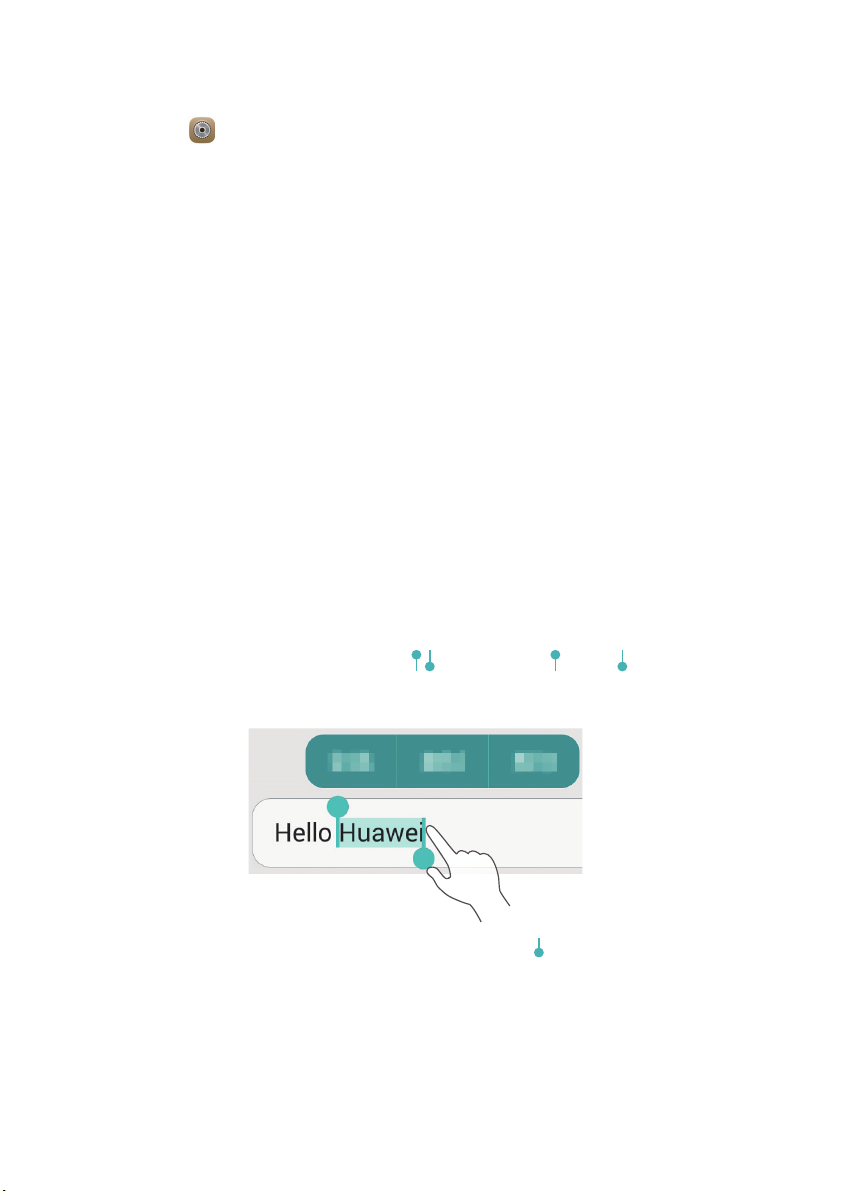
Editing text
•
Touch and hold the text to display . Then, drag and to select
more or less text.
•
Touch where you want to insert the text and drag to move the insertion
point. You can then paste the text you copied or cut.
12
Page 16
Calling, contacts and messaging
Placing a call
Placing a call
Getting started
Open
•
Enter the initials or first few letters of a contact's name, or part of the
contact's phone number. Then, select the contact you want to call from
the search results.
•
Touch
list.
•
Touch the contact you want to call from the call log.
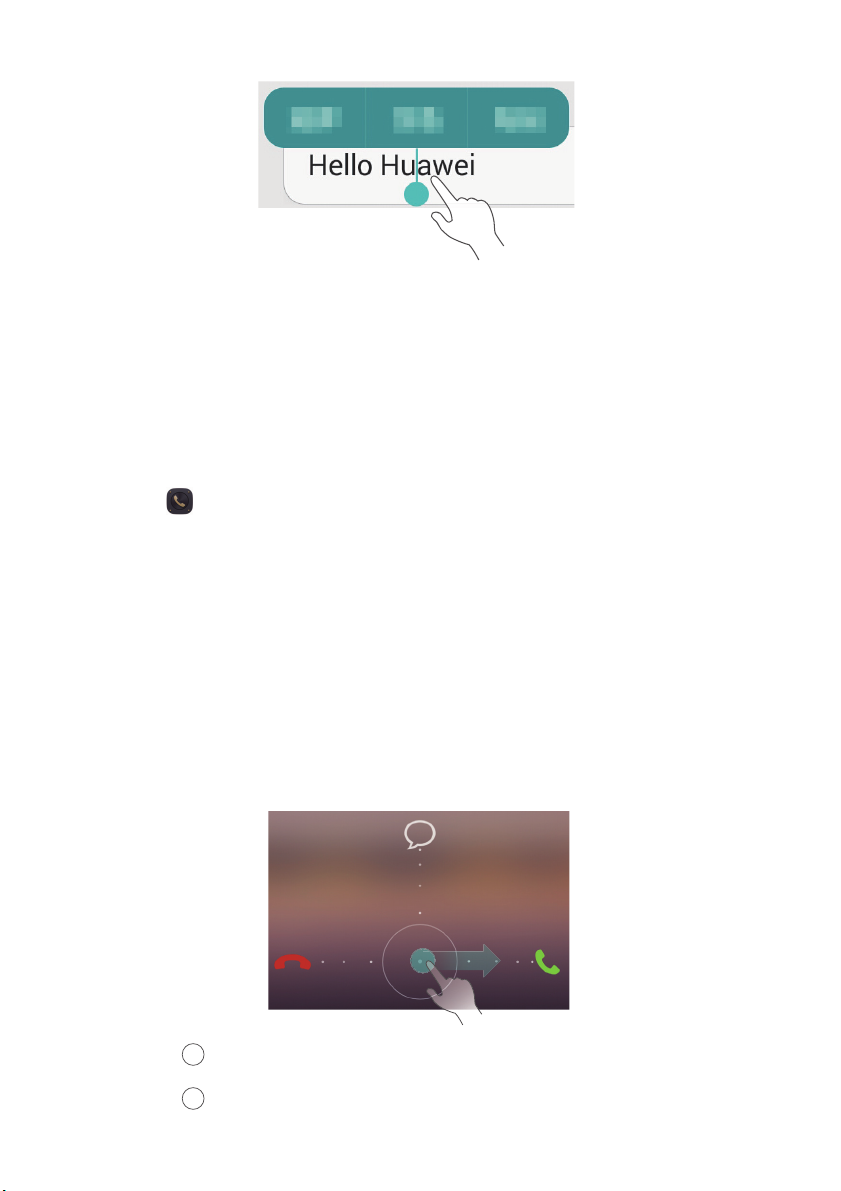
Answering a call
•
Drag right to answer the call.
Dialer
Contacts
.
, and select the contact you want to call from the contacts
•
Drag left to reject the call.
13
Page 17

Getting started
•
Drag up to reject the call and send the caller a message. To edit the
message that will be sent, touch >
When there is an incoming call, you can press the volume button to mute
the ringtone.
Call settings
>
Reject calls with SMS
Turning on pocket mode
1.
Open
2.
Touch >
3.
Turn on
Dialer
.
Call settings
Pocket mode
.
.
Creating a contact
1.
Open
2.
Touch .
3.
Choose the save location for the contact.
4.
Enter the contact name, phone number, and other details. Then, save the
contact.
Contacts
.
.
Importing or exporting contacts
1.
Open
2.
In the contacts list, touch >
•
Choose a method to import contacts.
•
Export contacts to a storage device or SIM card.
•
Share your contacts.
Contacts
.
Import/Export
Messaging
1.
Open
2.
On the message thread screen, touch .
Messaging
.
. You can then:
14
Page 18

Getting started
3.
Touch to choose a contact.
4.
Write a message, touch to add attachments, and send the message.
Email
Adding a POP3 or IMAP email account
1.
Open
2.
Choose an email account type.
3.
Enter your email address and password, and touch
4.
Follow the onscreen instructions to set up the email account.
Sending an email
1.
Open
2.
On the inbox screen, touch to create an email.
Email
Email
.
Next
.
.
•
Touch
From:
to choose an email account.
•
Enter the recipient and subject, and compose your email.
•
Touch to upload attachments.
3.
When you are done, touch to send the email.
Internet connection
Turning on the mobile network
To quickly turn on or turn off your mobile network, open the notification
panel, go to the
When you don't need to access the Internet, turn off the mobile network
to save battery power and reduce mobile data usage.
Shortcuts
tab, and touch .
15
Page 19

Getting started
Connecting to a Wi-Fi network
1.
Open the notification panel and go to the
2.
Touch and hold from the shortcut switches to enter the Wi-Fi settings
screen.
3.
Turn on Wi-Fi. Your phone then scans for available Wi-Fi networks and
displays them.
4.
Touch a Wi-Fi network to connect to.
•
If the network is open, you will directly connect to it.
•
If the network is encrypted, enter the password when prompted.
Shortcuts
tab.
Browser
With
•
•
•
Browser
Browse web pages: Enter a web address in the address box.
Add a bookmark: Touch >
bookmarks.
Clear the browsing history: Touch >
history
.
, you can:
Bookmarks & history
Settings
>
to view or add
Privacy & security
>
Clear
16
Page 20
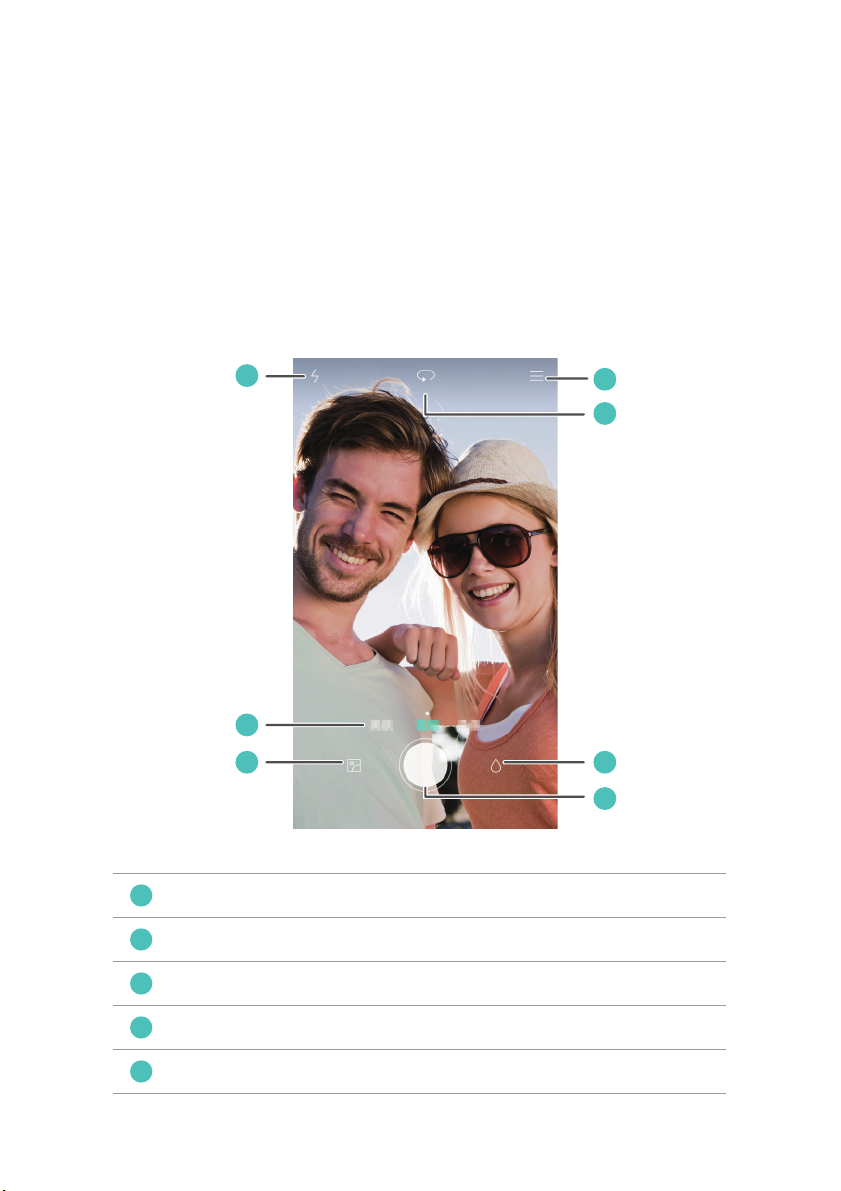
Entertainment
1
2
3
4
5
Camera
Capture screen
Turn on the flash.
Flick left or right to switch between common capture modes.
View photos and videos in
Take a photo or shoot a video.
Apply a special effect.
Gallery
.
17
Page 21
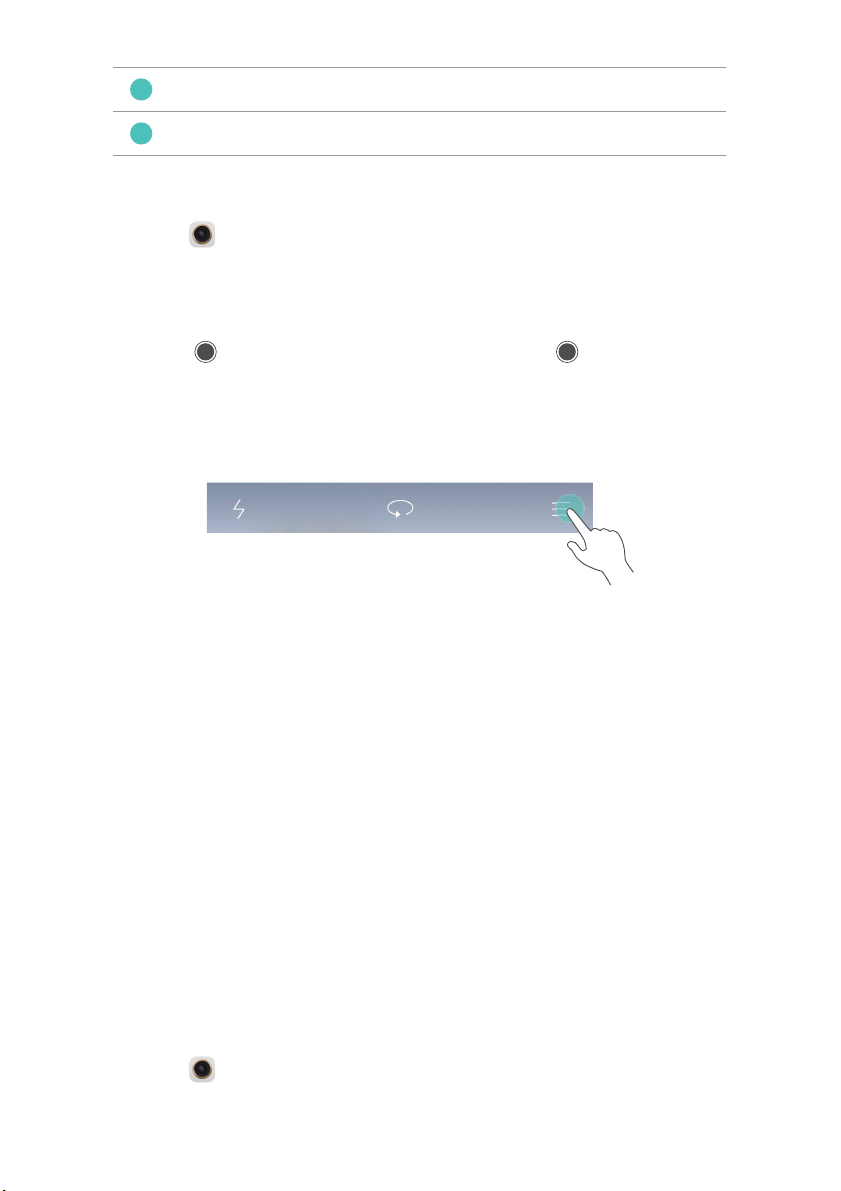
Entertainment
6
7
Switch between the rear and front cameras.
Choose a capture mode and set the camera parameters.
Taking a photo
1.
Open
2.
Frame the scene you want to capture. Let your camera focus automatically
or touch the screen to focus the camera.
3.
Touch to take a single photo, or touch and hold to take several
photos in rapid succession.
Camera
.
Capture mode
•
Beauty
: Your phone automatically beautifies your skin and gives your
portraits a more professional touch-up.
•
Panorama
into one stunning panoramic shot.
•
HDR
when ambient light is unbalanced.
•
Audio note
•
Best photo
automatically picks the best.
•
Watermark
photo as watermarks.
: Your phone takes several photos as you pan and stitches them
: High dynamic range imaging (HDR) helps improve the photo quality
: Your phone records a brief audio clip after you take a photo.
: Your phone takes several photos in rapid succession and
: Add the time, location, weather, and other information to a
Shooting a video
1.
Open
Camera
.
18
Page 22

Entertainment
2.
Flick left or right to switch to video mode.
3.
Frame the scene you want to record.
4.
Touch to start recording.
Setting the preferred save location for photos and videos
This section only applies to phones that support microSD cards.
After a microSD card is properly inserted into your phone, you can change the
preferred save location for photos and videos.
1.
Open
2.
Touch >
3.
Set the preferred save location for your photos and videos.
Camera
Settings
.
>
Preferred save location
.
Gallery
Playing a slideshow
1.
Open
2.
On the timeline album screen, touch >
of the photos in the album.
3.
Touch the screen to stop the slideshow.
Gallery
.
Slideshow
to play a slideshow
Applying a special effect
1.
Open
2.
Touch the photo you want to edit, and touch .
3.
Follow the onscreen instructions to apply beauty mode, crop the photo,
rotate the photo, or perform other operations.
Gallery
.
Sharing a photo or video
1.
Open
Gallery
.
19
Page 23

Entertainment
2.
Touch the photo or video you want to share.
3.
Flick up on the photo or video, and touch
phone then automatically enables Bluetooth and searches for nearby
Bluetooth devices.
Make sure Bluetooth is enabled on the receiving device and the device
is set to discoverable.
4.
From the search results, touch the receiving device's name.
After the two devices are paired for the first time, flick up on a photo or video
to quickly share it.
START
to turn on
Transfer
. Your
Music
Creating a playlist
1.
2.
Open
Touch
Music
Playlists
.
>
Create new playlist
.
3.
Name and save the playlist.
4.
Follow the onscreen instructions to add songs to the playlist.
Playing a playlist
1.
Open
2.
Touch
3.
Touch the playlist you want to play.
Music
Playlists
.
.
Playing a video
1.
Open
2.
Touch the video you want to play.
3.
Touch the onscreen control buttons to fast forward, rewind, stop, or
perform other operations.
Videos
.
20
Page 24

Transferring data
Bluetooth
Turning on Bluetooth
1.
Open the notification panel and go to the
2.
Touch and hold to enter the Bluetooth settings screen.
3.
Touch
Turn on Bluetooth
4.
From the search results, choose a Bluetooth device, and follow the
onscreen instructions to pair your phone with it.
To unpair the two devices, touch next to the other device, and touch
Unpair
.
If you can't set up a Bluetooth connection with another device, the
device may not be compatible with your phone.
.
Shortcuts
tab.
Sharing a file using Bluetooth
To exchange data with another Bluetooth device, enable Bluetooth on both
devices and make sure they are both discoverable.
Share
>
Touch and hold the file you want to send, and touch
Bluetooth
.
Wi-Fi Direct
Connecting two devices using Wi-Fi Direct
1.
Open the notification panel and go to the
2.
Touch and hold from the shortcut switches to enter the Wi-Fi settings
screen.
3.
Turn on
4.
Touch
Wi-Fi
.
Wi-Fi direct
to scan for available devices.
Shortcuts
tab.
21
Page 25

Transferring data
5.
Choose a device.
Sending a file using Wi-Fi Direct
1.
Open
2.
Touch and hold the file you want to send, and touch
File Manager
.
Share
>
Wi-Fi direct
Multi-screen display
Connect your phone to other phones and tablets, smart household
appliances, and in-car devices for remote control and content sharing
through a wireless connection or accessory.
.
Open the notification panel, go to the
by touching . You can then push photos or videos from your phone to a
large screen, such as a TV or projector. To do so requires that your TV support
DLNA. If it does not, you can purchase an Android TV box or a similar wireless
transmission device.
Shortcuts
tab, and turn on
Multi-screen
Huawei Beam
Huawei Beam lets you quickly share data between two Near Field
Communication (NFC) enabled phones. To beam a web page or contact to
another phone, place the two phones back to back and touch the content.
1.
2.
3.
Open
Under
Touch
Settings
Wireless & networks
NFC
.
, and turn on
NFC
, touch
and
More
.
Huawei Beam
.
Connecting your phone to a computer
MTP mode
MTP mode lets you transfer media files, such as photos, songs, and videos,
between your phone and a computer. Windows Media Player 11 or later is
required.
22
Page 26

Transferring data
HiSuite mode
HiSuite is a file transfer application developed by Huawei. It lets you back up,
synchronize, and transfer data between your phone and computer.
USB flash drive mode
This section applies to phones that support microSD cards only.
If a microSD card is inserted properly into your phone, you can use your phone
as a USB flash drive and transfer data between your phone and a computer.
Connecting your phone to a USB storage
device
You can directly connect your phone to a USB storage device using a USB OTG
cable to transfer data. Compatible USB storage devices include USB flash
drives, card readers, and phones that work as USB flash drives.
23
Page 27

Managing your phone
Managing applications
Viewing recently used applications
Touch
phone has a physical menu button, press and hold
•
Touch an application to open it.
•
Flick up on an application to close it.
•
Drag an application down until is displayed to lock the application.
Drag the application down again to unlock it.
•
Drag up from the bottom of the screen until is displayed to dismiss all
applications. Locked applications will not be dismissed.
Downloading applications
•
Download applications from application centers.
•
Download applications from web pages using the browser on your phone.
•
Download applications using a computer, and copy the applications to your
phone.
•
Connect the phone to a computer, and download applications using
HiSuite or other third-party applications.
Recent
to view the list of recently used applications. (If your
Menu
). You can then:
Installing an application
1.
Open
2.
Under
3.
In the application list, touch the application you want to install, and follow
the onscreen instructions to install it.
File Manager
Categories
, touch
.
Apps
.
24
Page 28

Managing your phone
During the installation, an
Install blocked
message may be displayed.
Read the message carefully. If you want to continue with the installation,
follow the onscreen instructions to allow the installation of third-party
applications.
Uninstalling an application
On the home screen, touch and hold the application you want to uninstall
until is displayed at the top of the screen. Drag the application to ,
and follow the onscreen instructions to uninstall it.
Some pre-installed applications can't be uninstalled.
File Manager
Creating a folder
1.
Open
File Manager
.
2.
Touch the
3.
Under
4.
Name and save the folder.
Local
Internal
>
New folder
tab.
or
SD card
.
(if available), switch to the list view, and touch
Searching for a file
1.
Open
2.
Touch the
3.
Under
4.
Enter part or all of the file name. Search results are displayed as you type.
Internal
>
Search
File Manager
Local
tab.
or
SD card
.
.
(if available), switch to the list view, and touch
Copying, cutting, and pasting a file
1.
Open
File Manager
.
25
Page 29

2.
Touch the
3.
Under
Local
Internal
tab.
or
SD card
(if available), switch to the list view, and touch
or .
4.
Choose a file, touch
Copy
or
Cut
, and choose where you want to paste the
file.
Compressing or decompressing a file
1.
Open
2.
Touch the
3.
Under
hold the file you want to compress, and touch
4.
Choose the save path of the compressed file and name the file.
To decompress a file, touch and hold it, and touch
File Manager
Local
Internal
tab.
or
SD card
.
(if available), switch to the list view, touch and
Compress
Extract
Creating a shortcut for a file or folder
Managing your phone
.
.
1.
Open
2.
Touch the
3.
Under
File Manager
Local
Internal
tab.
or
SD card
.
(if available), switch to the list view, touch and
hold the file or folder for which you want to create a shortcut, and touch
Desktop shortcuts
.
Cloud Drive
This feature may not be supported by all models. Log in with your
Huawei ID before you use Cloud Drive.
Uploading a file
1.
Open
2.
Under
3.
Touch .
File Manager
Cloud
, select where you want to upload the file.
.
26
Page 30

4.
Take a photo or select a local file.
Downloading a file
1.
Open
2.
Under
3.
Touch .
4.
Select the file you want to download.
Viewing file transfer records
1.
Open
2.
Under
3.
You can then view the file transfer records.
File Manager
Cloud
, select the folder that contains the file you want to download.
File Manager
Cloud
, touch >
.
.
File transfers
Phone Manager
Optimizing the system
Managing your phone
.
With
following features:
•
•
Phone Manager
Scan
: Quickly check the system operating status, clear trash files, optimize
your phone system, and more.
Phone accelerator
you no longer need, and application installation packages.
, you can optimize your phone system using the
: Scan for and clear the cache, trash files, applications
Power saving
Open
your phone's power consumption and maximize the standby time. You can
switch to different power saving modes as required.
Phone Manager
, and use
Power saving
to comprehensively check
Harassment filter
27
Page 31

Managing your phone
Open
calls, and notifications:
•
Harassment filter
•
Notification manager
•
Do not disturb
receive calls from specified contacts. Other calls will be rejected, and the
message tone and other notification tones will be muted.
Phone Manager
: In do not disturb mode, your phone will ring only when you
, and use the following features to block messages,
: Set a blacklist to block unwanted messages and calls.
: Block unwanted push notifications.
Protecting your privacy
Open
following features:
•
App lock
access locked applications.
Phone Manager
: When this feature is enabled, you have to enter the password to
. You can protect your private data using the
Backup, restoration, and update
Backing up data
1.
Open
Tools
, and touch
2.
Choose where you want to back up the data. By default, data is backed up
to the internal storage. If your phone supports Cloud Drive or OTG data
backup, touch
3.
Choose whether to encrypt the backup file, and touch
4.
Select the data you want to back up, and follow the onscreen instructions
to back it up.
to back up data to Cloud Drive or a USB storage device.
Backup
.
New backup
Restoring data
1.
Open
Backup
.
.
28
Page 32

Managing your phone
2.
Choose a data source. The default data source is the internal storage. If
your phone supports Cloud Drive or OTG data restoration, touch
select data from Cloud Drive or a USB storage device.
3.
Select the backup file you want to restore. If the backup file has been
encrypted, enter the password when prompted.
4.
Select the data you want to restore and follow the onscreen instructions to
restore it.
Restoring factory settings
Restoring your phone to the factory settings erases all your personal
data from the phone storage. Back up important data on your phone
before you restore factory settings.
1.
Open
2.
Touch
3.
Follow the onscreen instructions to restore your phone to its factory
settings.
Settings
.
Backup & reset
>
Factory data reset
.
to
Online update
•
Using unauthorized third-party software to update your phone may
damage your phone or put your personal information at risk. It is
recommended that you update your phone using the phone's online
update feature or through Huawei's official software update
packages.
•
All your data may be erased during a system update. It is
recommended that you back up important data before updating your
phone.
Open
Updater
instructions to update your phone.
, touch
Check for updates
, and follow the onscreen
29
Page 33
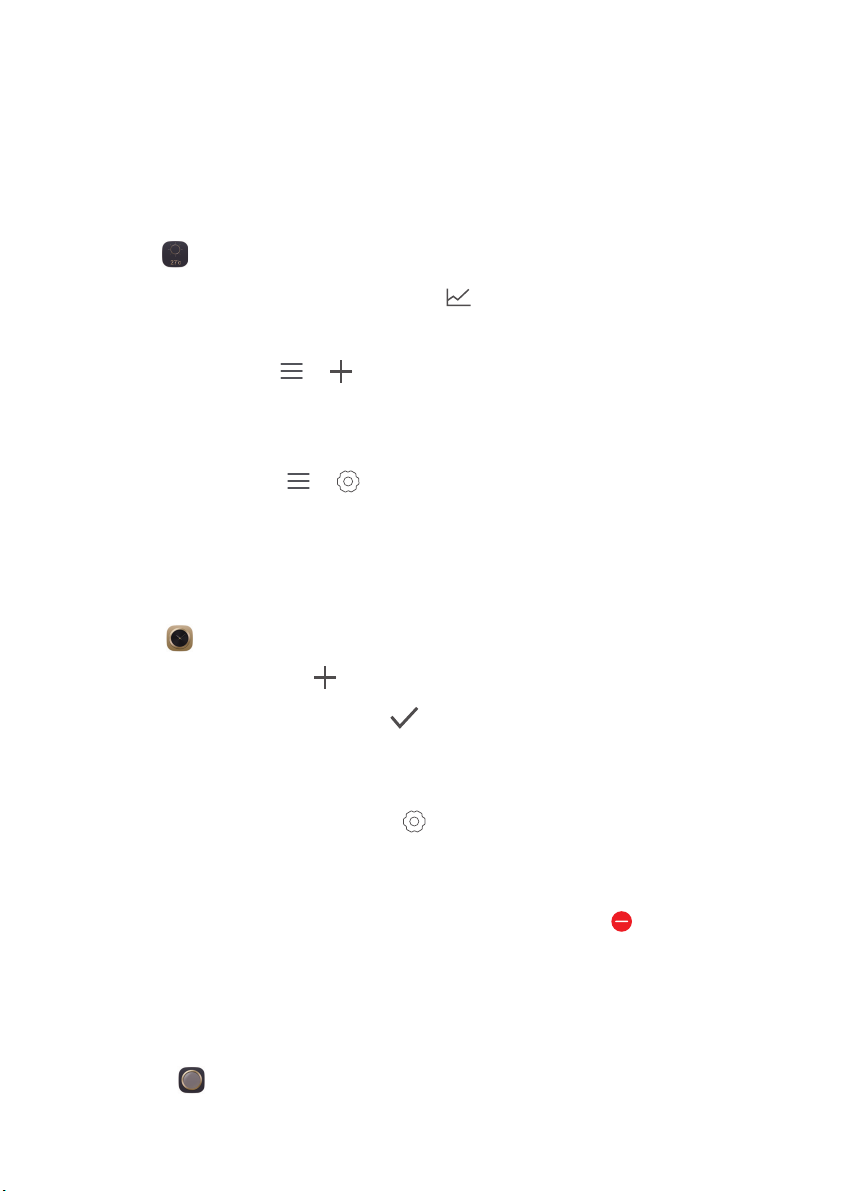
Tools
Weather
With
•
•
•
Weather
Check the weather information: Touch to check the air quality,
humidity, wind force, and more.
Add a city: Touch > , enter a city name, and touch the city you
want to add.
Update the weather: Drag down on the weather screen to update the
weather, or touch > , turn on
interval.
, you can:
Auto update
, and set the update
Alarms
Open
•
Add an alarm: Touch , and set the alarm time, tone, how often it
repeats, and more. Then touch .
•
Turn on or turn off an alarm: Touch the switch button to the right of an
alarm to turn it on or off.
•
Configure alarm settings: Touch , and set the snooze duration,
whether the alarm rings in silent mode, and what the volume buttons do
when pressed.
Clock
. Under
Alarm
, you can:
•
Delete an alarm: Touch and hold the alarm list, and touch next to an
alarm to delete it.
Mirror
On the
Mirror
screen, you can:
30
Page 34

•
Adjust the brightness: Touch or at the top of the screen.
•
Zoom in or out: Drag along the bottom of the screen. Touch and hold
an area on the screen to zoom in, and release your finger to zoom out and
restore the image.
•
Freeze the screen: Touch the screen to freeze the screen, and touch to
save the image. Touch the screen again to unfreeze it.
Tools
31
Page 35

This guide is for reference only. The actual product, including but not limited to
the color, size, and screen layout, may vary. All statements, information, and
recommendations in this guide do not constitute a warranty of any kind, express
or implied.
Please visit http://consumer.huawei.com/en/support/hotline for recent updated
hotline and email address in your country or region.
Model: HUAWEI MT7-TL10
V100R001_01
 Loading...