

Page 1

®
BLUETOOTH
®
HANDSFREELINK® (HFL)
BLUETOOTH
Learn how to operate the vehicle’s hands-free calling system.
HANDSFREELINK® (HFL)
Basic HFL Operation
Make and receive phone calls using the vehicle’s audio system, without
handling your phone. Visit
Canada customers can phone (855)-490-7351 for any HandsFreeLink® related
inquiry.
To reduce the potential for driver distraction, certain manual functions may be
inoperable or grayed out while the vehicle is moving. Voice commands are
always available.
handsfreelink.com
(US) to check phone compatibility.
n HFL Displays and Controls
Use the controls to enter information and make selections.
Models with Display Audio
Page 2
BLUETOOTH
®
HANDSFREELINK® (HFL)
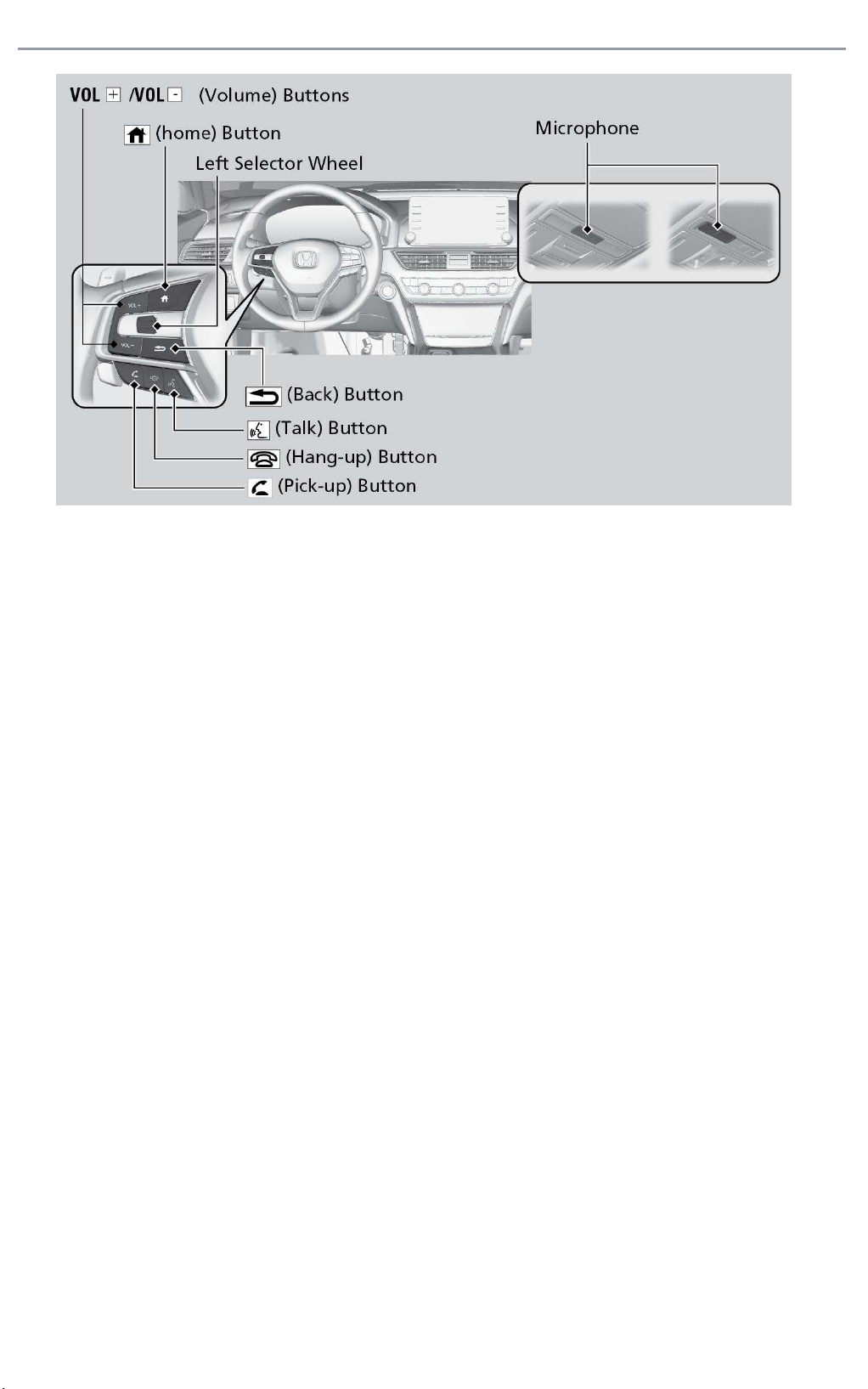
(Pick-Up) button: Press to go directly to the phone menu on the driver
information interface, or to answer an incoming call.
(Hang-up)
Press to end a call or to cancel a command.
button:
(Back) button: Press to go back to the previous screen, or cancel a
command.
(Talk) button: Press to access Voice Portal.
Left Selector
Wheel:
Press home button, then roll up or down to select Phone
on the driver information interface, and then press the
left selector wheel.
Home button: Press to go back to the home screen of the driver
information interface.
n Talk Button Tips
When using the Talk button, wait for the beep before saying a command.
The system recognizes commands listed in the Voice Command Index.
• When using the Talk button, wait until you hear a beep before speaking.
• To bypass the system prompts, simply press the Talk button again to say
your command.
• Speak in a clear, natural voice.
• Reduce all background noise.
• Adjust the dashboard vents away from the microphone on the ceiling.
• Close the windows and moonroof*1.
Page 3

®
BLUETOOTH
HANDSFREELINK® (HFL)
Pairing a Phone
To use hands-free phone and streaming audio functions, you must first pair your
phone to the system. This can only be done when the vehicle is stopped. If there
is an active connection to Apple CarPlay™ (see Apple CarPlay) or Android
Auto™ (see Android Auto), pairing of additional Bluetooth-compatible devices is
unavailable and Add Bluetooth Device is grayed out from the Bluetooth Device
List screen.
n Pairing the First Phone
Models with Display Audio
Use the touchscreen to make and enter selections.
Page 4
BLUETOOTH
®
HANDSFREELINK® (HFL)
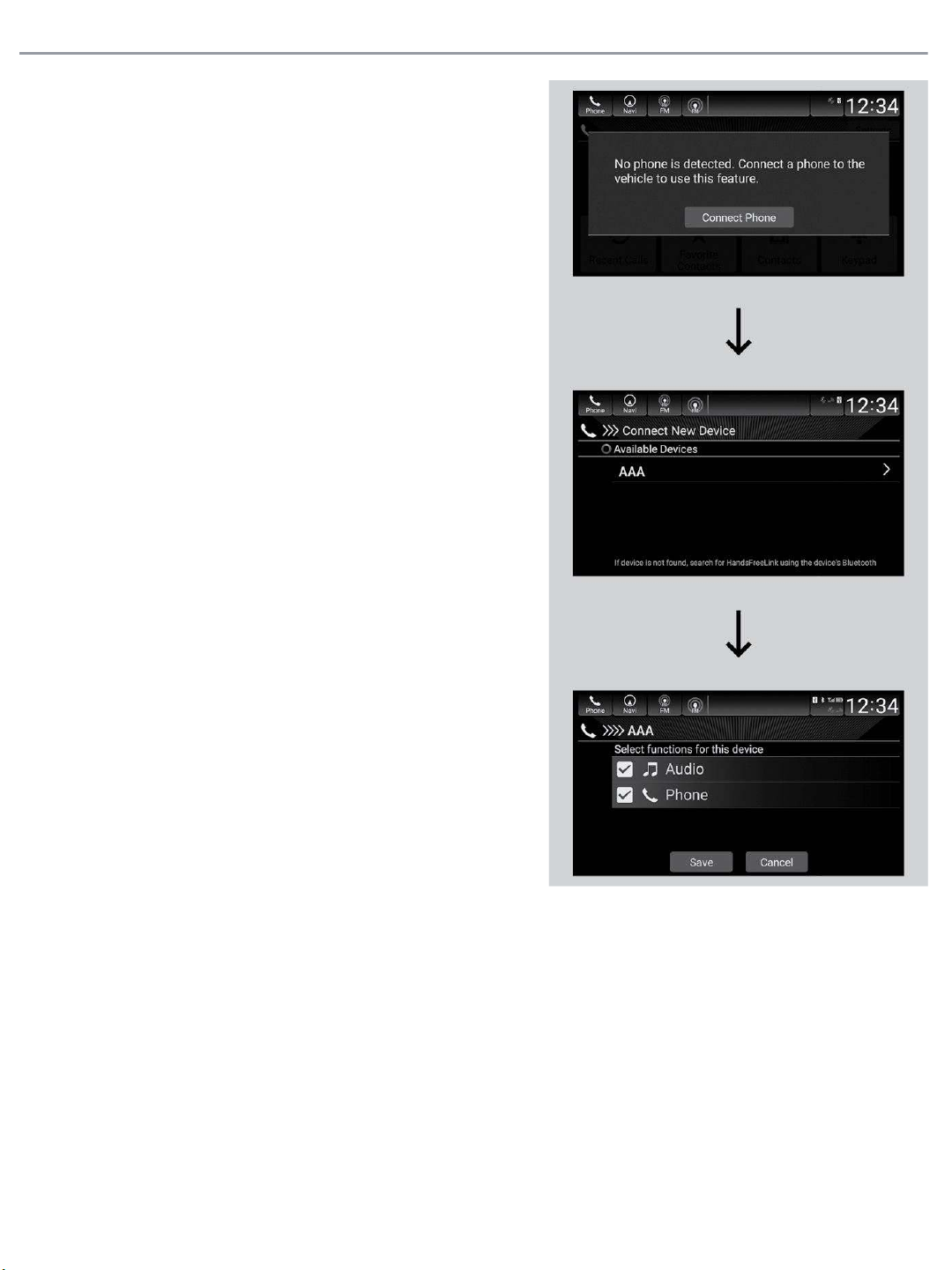
1. Press the Home button.
2. Select Phone.
3. Select Connect Phone.
4. Make sure your phone is in search or
discoverable mode, then select +
Connect New Device.
HFL automatically searches for a
®
Bluetooth
device.
5. Select your phone when it appears on
the list.
If your phone still does not appear,
search for
Bluetooth
®
devices using
your phone.
From your phone, search for
HandsFreeLink®.
6. The system gives you a pairing code
on the audio/information screen.
Confirm if the pairing code on the
screen and your phone match.
This may vary by phone.
7. Select desired functions and then
select Save.
Making a Call
You can make calls by inputting any phone number, or by using the imported
phonebook, call history, speed dial entries, or redial.
n Dialing a Number
Applicable laws may prohibit the operation of handheld electronic devices while operating a
vehicle.
Page 5
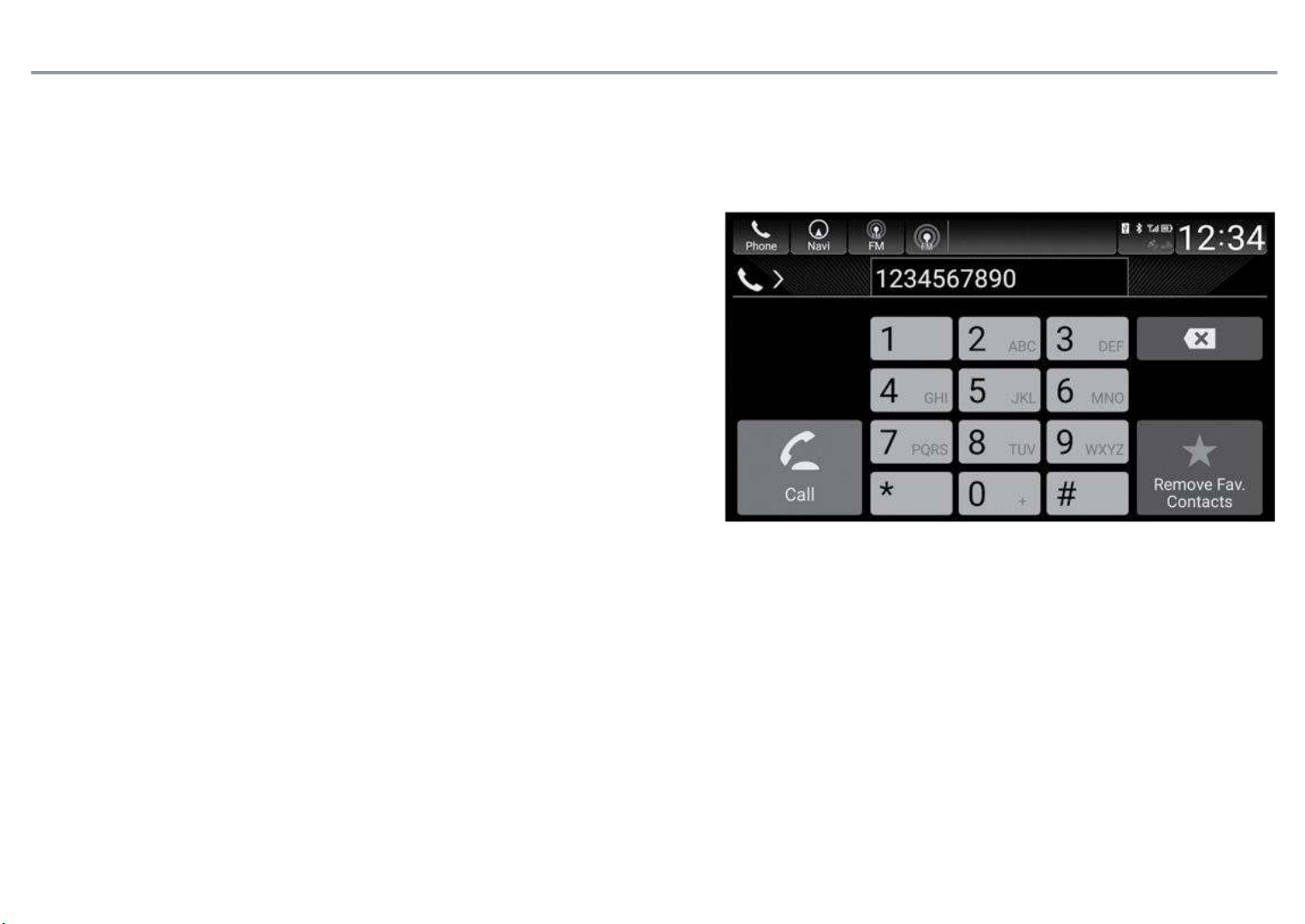
Models with Display Audio
1. Go to the phone menu screen.
2. Select Keypad.
3. Select a number.
Use the keyboard on the touch
screen for entering numbers.
4. Select Call.
BLUETOOTH
®
HANDSFREELINK® (HFL)
Dialing starts automatically.
n Using the Phonebook
When your phone is paired, its phonebook is automatically imported to the
system.
This method is inoperable while the vehicle is moving.
Page 6
BLUETOOTH
Models with Display Audio
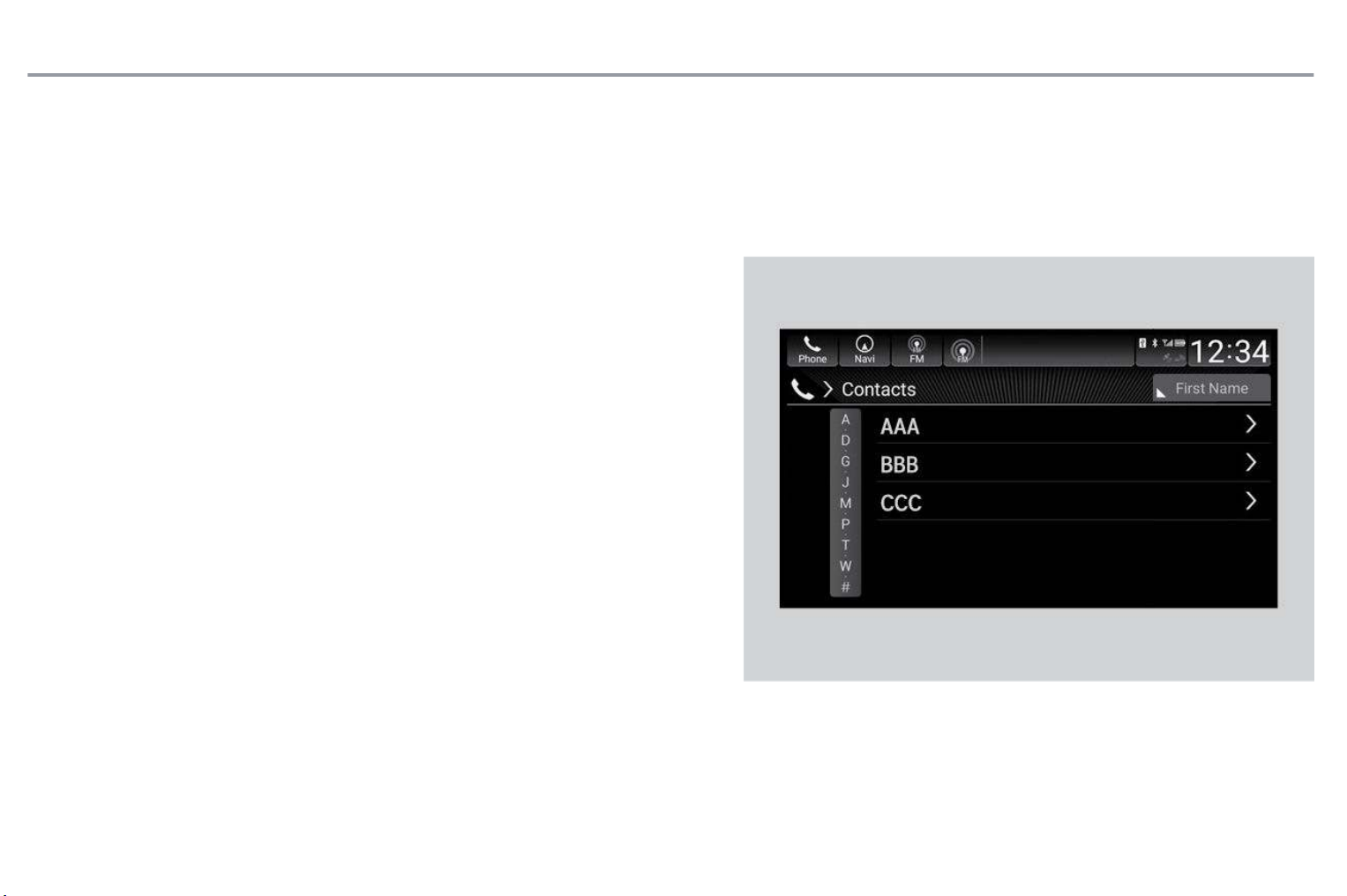
1. Go to the phone screen.
2. Select Contacts.
3. Select a name.
You can sort by First Name or Last
Name. Select the icon on the upper
®
HANDSFREELINK® (HFL)
right of the screen.
4. Select a number.
Dialing starts automatically.
n Storing Speed Dial Entries
Store up to 20 numbers for quick dialing. To store a speed dial number:
Page 7
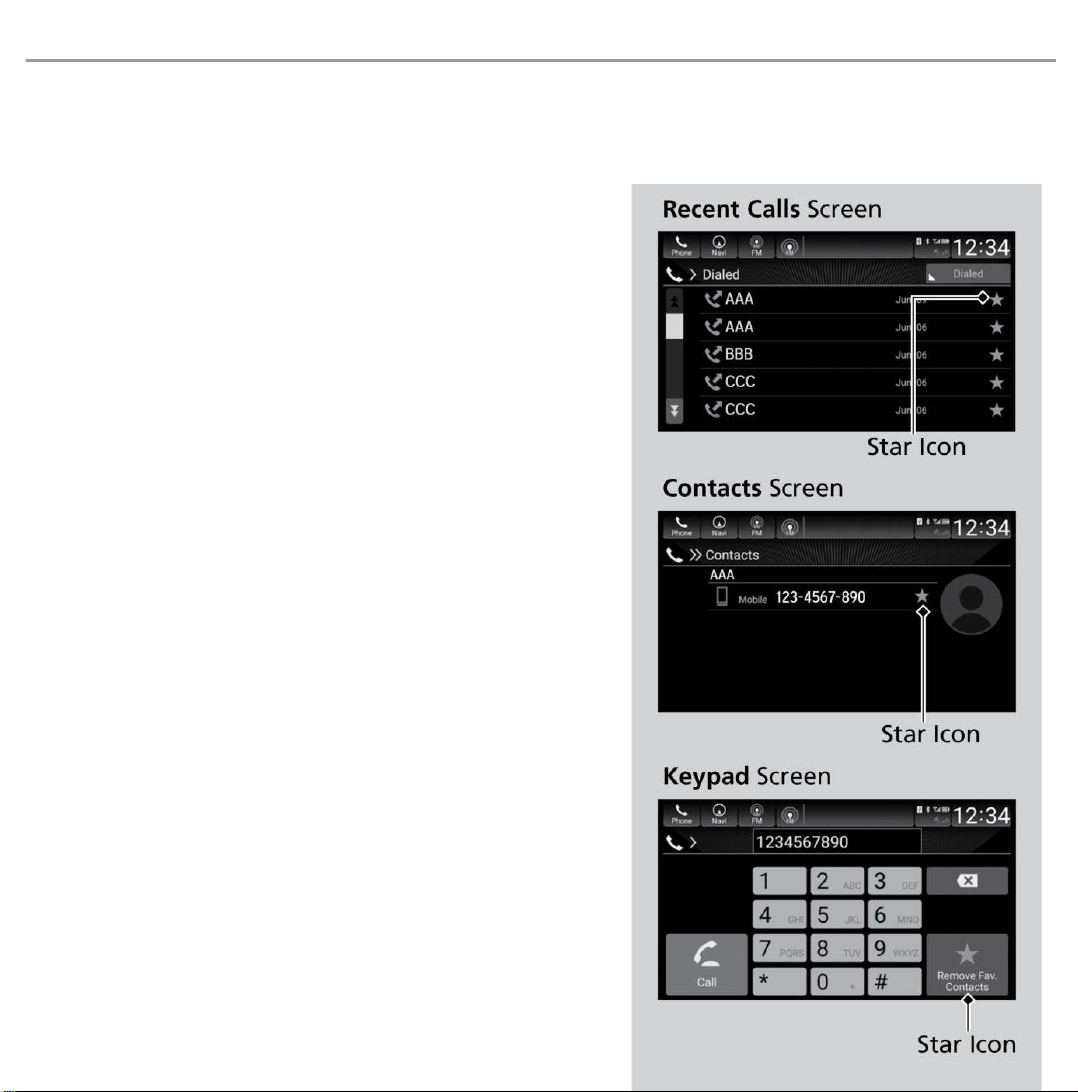
Models with Display Audio
1. Go to the phone menu screen.
2. Select the Recent Calls, Contacts, or
Keypad screen.
3. Select the star icon.
A notification appears on the screen if
the speed dial is successfully stored.
To remove the speed dial, select the
star icon again.
BLUETOOTH
®
HANDSFREELINK® (HFL)
Page 8
®
BLUETOOTH
n Using Speed Dial
HANDSFREELINK® (HFL)
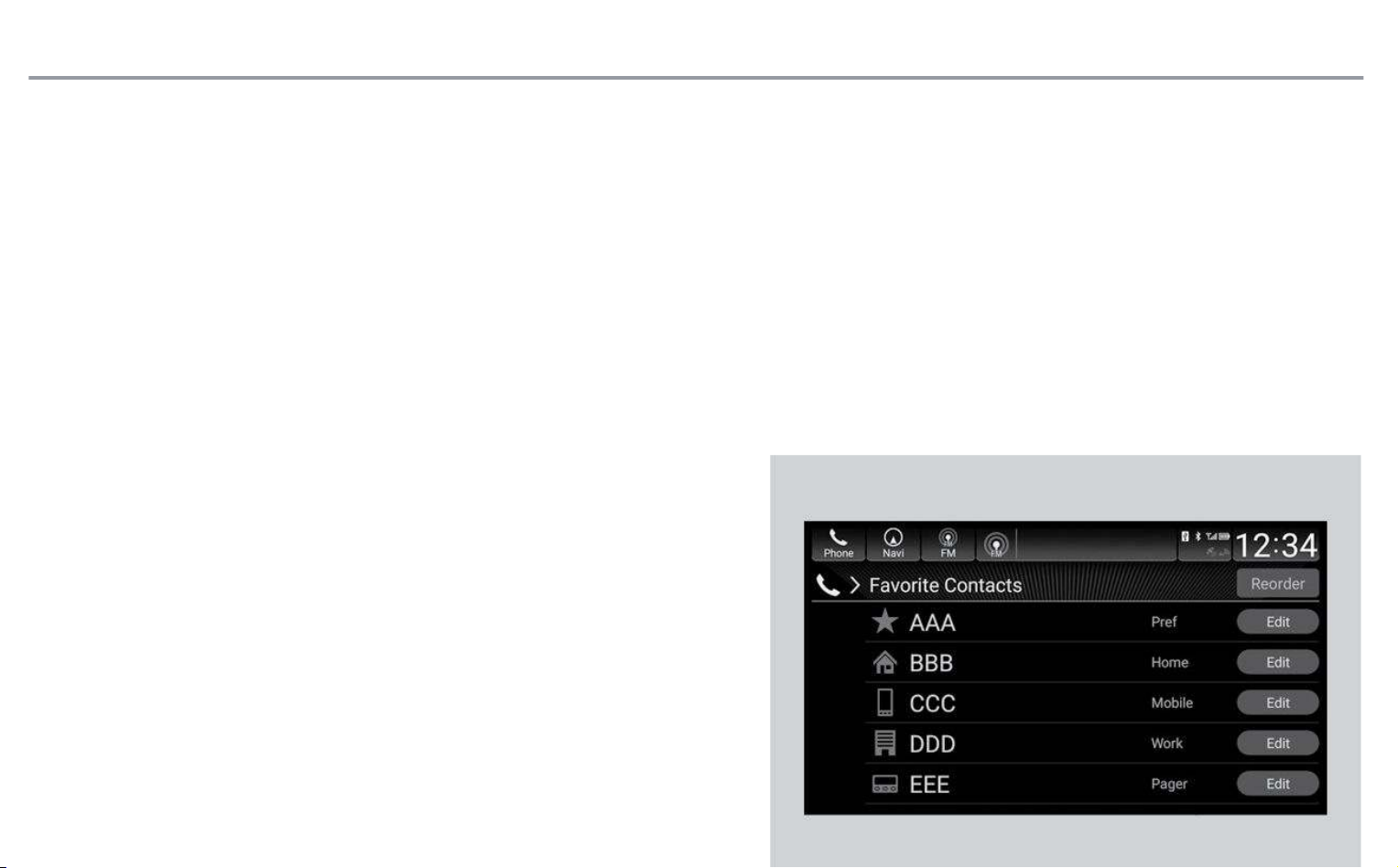
Make calls quickly using stored speed dial entries or call history numbers.
Models with Display Audio
1. Go to the phone menu screen.
2. Select Favorite Contacts.
You can change the order of speed
dial entries by selecting Reorder.
3. Select a number.
 Loading...