

Page 1
Quick Start Guide
SL-70B
Page 2
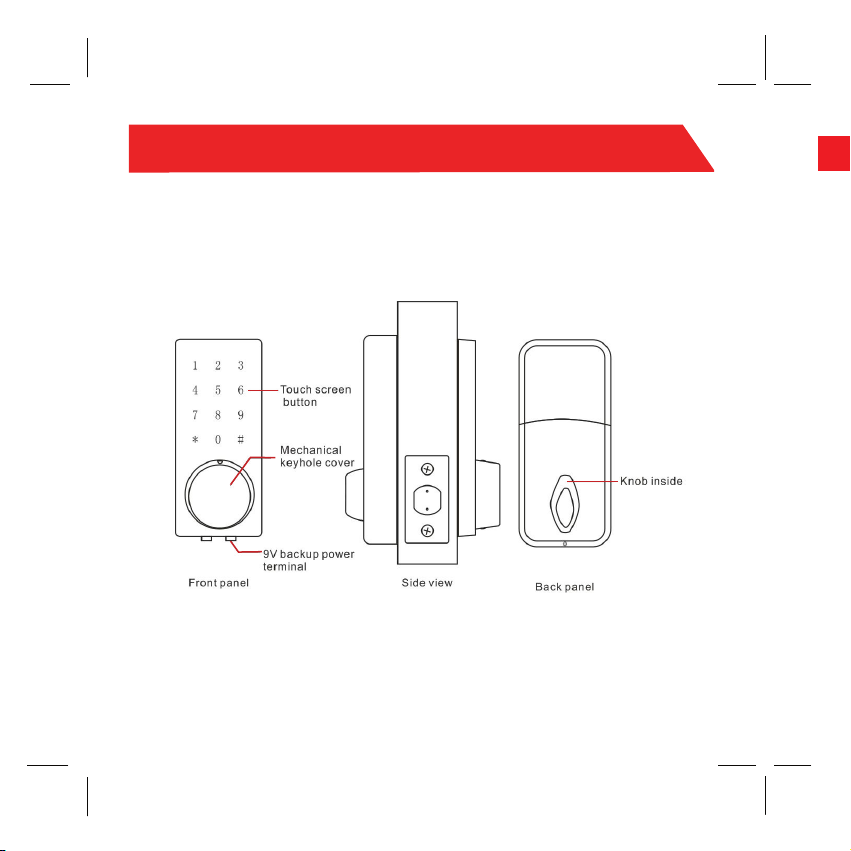
Terminal Over view
• SL-70B
1
You must download TimeTec Security
App in order to manage SL-70B Smart
Lock. Please scan the QR code below to
download TimeTec Security App from
the Appstore or Play Store.
You can vie w th e co mpl ete Admi n & Use r Gu ide in the App or http :// info .fin ger tec. com/ SL70 B-3
Page 3
1
Download Timetec Security App
2
Register, Sign in and Use
1. Make sure admin already created
your login account.
2. Register an account using your
w w w. t i m e te c s e c u r it y . c om
You must download TimeTec Security
App in order to manage SL-70B Smart
Lock. Please scan the QR code below to
download TimeTec Security App from
the Appstore or Play Store.
email address from TimeTec Security App. You will then receive
an email from TimeTec Security.
Therefore, please follow the instructions in the email to activate
your account.
3. Login to TimeTec Security App by
using the registered email address
and password.
4. Tap Menu > Smart Access > Unlock
Android
iOS
Doors
5. App starts to search for nearby
smart locks and display it on
screen.
6. Tap Unlock next to the smart lock
name in order to trigger unlock
command.
You can vie w th e co mpl ete Admi n & Use r Gu ide in the App or http :// info .fin ger tec. com/ SL70 B-3
Page 4

© 2018 Timetec Computing Sdn Bhd. All rights reserved • 022018
 Loading...