

Page 1
ML-10B
Quick Start Guide
© 20 18 Ti mete c Com puti ng S dn B hd. All rig hts rese rved • 02 2018
Page 2
iOS
Android
1
2
•ML-10B
3 4
Note: Ignore the follow ing smart lock o peration steps if you are only using th e App.
Comm and s for M L-10 B w ithou t Usi ng T imeTe c S ecu rit y A pp
w ww . t i m et e c s e c ur i t y .c o m
You c an v iew the com ple te A dmin & U ser Gui de i n t he A pp or h ttp: //i nfo. fing ert ec.c om/M L10B -3
Download TimeTec Security App
Download TimeTec Secu rity App to manage
ML-10B Smar t Lock efficiently.
To download the App, scan the QR Cod e
below.
Register An Account
1. The lock owner or th e initia l person
who handles the lock is the Admin.
2. Before any user can access to TimeTec
Security App, the Admin has to create
an account using an email addr ess of
a user.
3. The use r will receive an email co nfirming that he has been registered
an account by the admin
Activate the Account
1. Launch the TimeTec Security app
that you have dow nloaded.
2. Activate your TimeTec Security account by foll owing the instructi ons
received in the email.
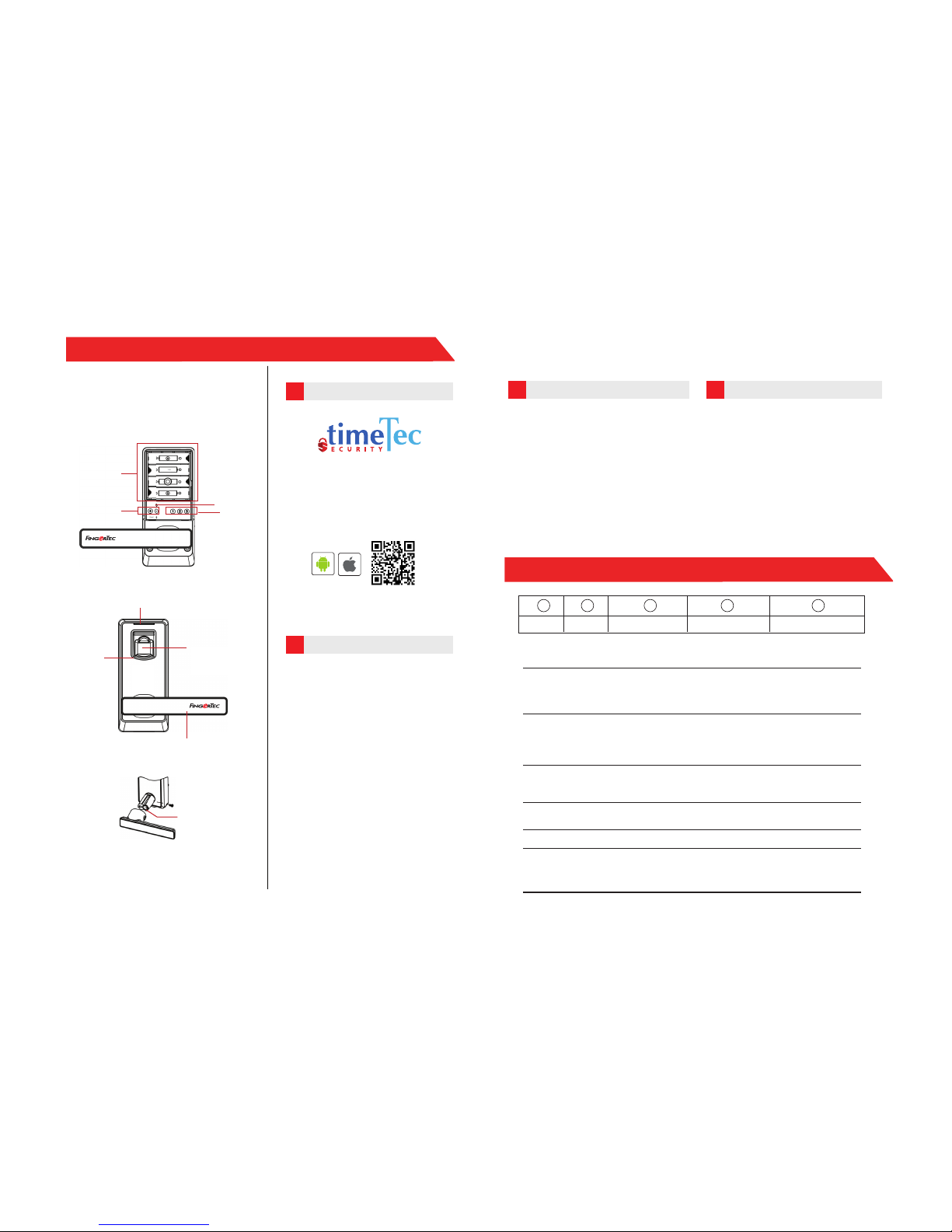
Terminal Overview
Power On
Register First Admin
Register User
Delete User
Enable Norma l Open
Disable Norm al Open
Light & Sound Indication
Touch the infrared senso r hole lo cated at th e fingerprint sensor
holder - Refe r diagram
Touch the inf rared sensor hole to power lock > Press + b utton >
Place a finger 3 times on the finger print sensor
Note: The first user wi ll automatically be the admin of the M L-10B smart lock
Touch the inf rared sensor hole to power lock > Press + b utton >
Place admin finge r 1 time to verify Admin > Press 1 , 2 or 3 button
to s elect user group > Place one of user fingers 3 times on the
fingerprint s ensor.
Touch the infrared sensor hole to power lock > Press - button >
Place admin fin ger 1 time to verify Admi n > Long press on 1, 2 or
3 button 3 se conds to delete the sel ected user group.
Place any register ed finger to do verification and then long press
button 1 for 3 seconds.
Place any regis tered finger to disable.
Success: GREEN indic ator light that comes w ith a long beep
Failure: RED indicator light that flashes two tim es and comes with
two short “beep”s.
Login and Use
1. Login to the App by using the reg istered email an d password.
2. Tap Menu > Smart Access > Unloc k
Doors
3. The App will start to search for nearby s mart lock s and display th e list on
screen
4. Tap Unlock to open the smar t lock of
your choosing
Mechanical Key Hole
+ --- 1 2 3
Add Delete Admin (10 user ) Normal User ( 60 user) Temporary User (2 0 user)
Reset Button
Battery
Compartmen
1,2,3 Button
+, --- Button
Fingerprint Sensor
Handle
LED
Sensor
Holder
 Loading...