

Page 1

INSPIRON
SETUP GUIDE
™
Page 2

Page 3

INSPIRON
Regulatory Model: W01B Regulatory Type: W01B001
™
SETUP GUIDE
Page 4

Notes, Cautions, and Warnings
NOTE: A NOTE indicates important information that helps you make better use of your
computer.
CAUTION: A CAUTION indicates either potential damage to hardware or loss of data and tells
you how to avoid the problem.
WARNING: A WARNING indicates a potential for property damage, personal injury, or death.
If you purchased a Dell™ n Series computer, any references in this document to Microsoft® Windows® operating system
are not applicable.
__________________
Information in this document is subject to change without notice.
© 2009 Dell Inc. All rights reserved.
Reproduction of these materials in any manner whatsoever without the written permission of Dell Inc. is strictly forbidden.
Trademarks used in this text:
Intel, Pentium
countries;
countries;
Other trademarks and trade names may be used in this document to refer to either the entities claiming the marks and
names or their products. Dell Inc. disclaims any proprietary interest in trademarks and trade names other than its own.
, and
Microsoft
Bluetooth
September 2009 P/N 1HNXJ Rev. A00
Dell
, the
DELL
logo,
Inspiron
Celeron
are registered trademarks and
and
Windows
is a registered trademark owned by Bluetooth SIG, Inc. and is used by Dell under license.
are registered trademarks of Microsoft Corporation in the United States and/or other
, YOURS IS HERE, and
Core
is a trademark of Intel Corporation in the U.S. and other
DellConnect
are trademarks of Dell Inc.;
Page 5

Contents
Setting Up Your Inspiron One . . . . . . . . . . . .5
Before Setting Up Your Computer . . . . . . . . . 5
Connect the Keyboard and Mouse. . . . . . . . . 6
Connect the Power Cable . . . . . . . . . . . . . . . .7
Connect the Network Cable (Optional) . . . . . 8
Adjust the Computer Stand. . . . . . . . . . . . . . 10
Press the Power Button . . . . . . . . . . . . . . . . 11
Set Up Microsoft Windows 7 . . . . . . . . . . . . 12
Connect to the Internet (Optional) . . . . . . . . 13
Using Your Inspiron One . . . . . . . . . . . . . . .16
Right View Features. . . . . . . . . . . . . . . . . . . . 16
Right Panel Buttons and Connectors. . . . . . 18
Left View Features. . . . . . . . . . . . . . . . . . . . . 20
Using the Optical Drive . . . . . . . . . . . . . . . . . 22
Back View Features. . . . . . . . . . . . . . . . . . . . 24
Back Panel Connectors. . . . . . . . . . . . . . . . . 26
Display Features . . . . . . . . . . . . . . . . . . . . . .28
Using the Touch Screen (Optional) . . . . . . . 30
Software Features . . . . . . . . . . . . . . . . . . . . . 33
Solving Problems . . . . . . . . . . . . . . . . . . . . .36
Touch Screen Problems . . . . . . . . . . . . . . . .36
Beep Codes . . . . . . . . . . . . . . . . . . . . . . . . . .37
Network Problems . . . . . . . . . . . . . . . . . . . . . 38
Power Problems. . . . . . . . . . . . . . . . . . . . . . . 39
Memory Problems . . . . . . . . . . . . . . . . . . . . . 40
Lockups and Software Problems . . . . . . . . . 41
Using Support Tools. . . . . . . . . . . . . . . . . . .43
Dell Support Center . . . . . . . . . . . . . . . . . . . . 43
System Messages . . . . . . . . . . . . . . . . . . . . . 44
Hardware Troubleshooter . . . . . . . . . . . . . . . 45
Dell Diagnostics . . . . . . . . . . . . . . . . . . . . . . 46
3
Page 6

Contents
Restoring Your Operating System . . . . . . .50
System Restore . . . . . . . . . . . . . . . . . . . . . . . 50
Dell Factory Image Restore . . . . . . . . . . . . .52
Operating System Reinstallation . . . . . . . . . 54
Getting Help . . . . . . . . . . . . . . . . . . . . . . . . .56
Technical Support and Customer
Service . . . . . . . . . . . . . . . . . . . . . . . . . . . . . .57
DellConnect . . . . . . . . . . . . . . . . . . . . . . . . . . 57
Online Services . . . . . . . . . . . . . . . . . . . . . . . 58
Automated Order-Status Service. . . . . . . . . 59
Product Information. . . . . . . . . . . . . . . . . . . . 59
Returning Items for Repair Under
Warranty or for Credit . . . . . . . . . . . . . . . . . . 60
Before You Call. . . . . . . . . . . . . . . . . . . . . . . .61
Contacting Dell. . . . . . . . . . . . . . . . . . . . . . . . 63
4
Finding More Information and
Resources . . . . . . . . . . . . . . . . . . . . . . . . . . .64
Basic Specifications . . . . . . . . . . . . . . . . . .66
Appendix. . . . . . . . . . . . . . . . . . . . . . . . . . . .70
Macrovision Product Notice. . . . . . . . . . . . . 70
Information for NOM, or Official
Mexican Standard (Only for Mexico). . . . . . 71
Index . . . . . . . . . . . . . . . . . . . . . . . . . . . . . . .72
Page 7

Setting Up Your Inspiron One
INSPIRON
This section provides information about setting
up your Inspiron™ One 19T.
WARNING: Before you begin any of the
procedures in this section, read the
safety information that shipped with
your computer. For additional safety best
practices information, see the Regulatory
Compliance Homepage at
www.dell.com/regulatory_compliance.
NOTE: Your computer’s Service Tag is
located at the back of your computer. Use
this code to identify your computer when
you access the Dell Support website or
contact technical support.
Before Setting Up Your Computer
When positioning your computer, ensure that
you allow easy access to a power source,
controls and connections on the right side,
adequate ventilation, and a stable level surface
to place your computer.
Restricting airflow around your Inspiron
One may cause it to overheat. To prevent
overheating ensure that you leave at least
10.2 cm (4 inches) at the back of the computer
and a minimum of 5.1 cm (2 inches) on all
the other sides. You should never place your
computer in an enclosed space, such as a
cabinet or drawer when it is powered on.
5
Page 8
Setting Up Your Inspiron One
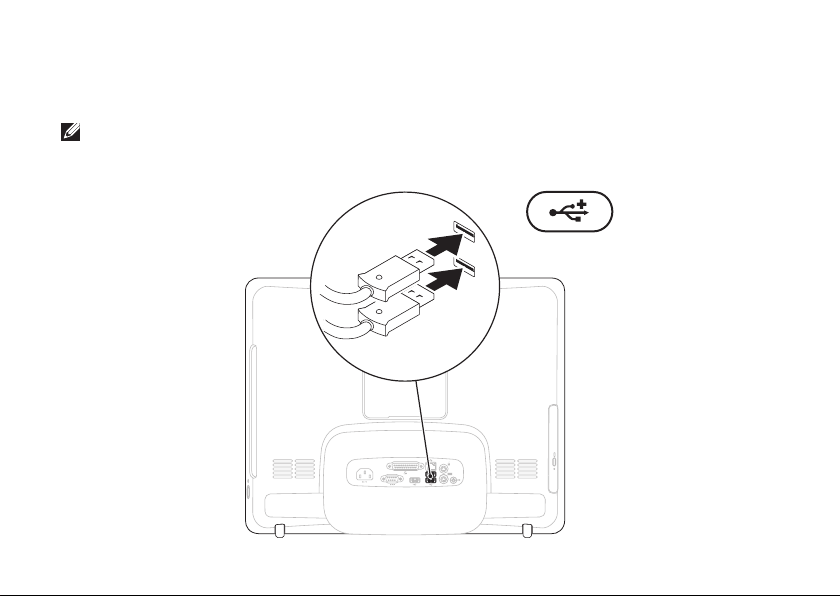
Connect the Keyboard and Mouse
Connect the USB keyboard and mouse to the USB connectors on the computer.
NOTE: If you purchased a wireless keyboard and mouse along with your computer, connect the
USB receiver to the USB connector. For more information, see the documentation that shipped
with your keyboard and mouse.
6
Page 9
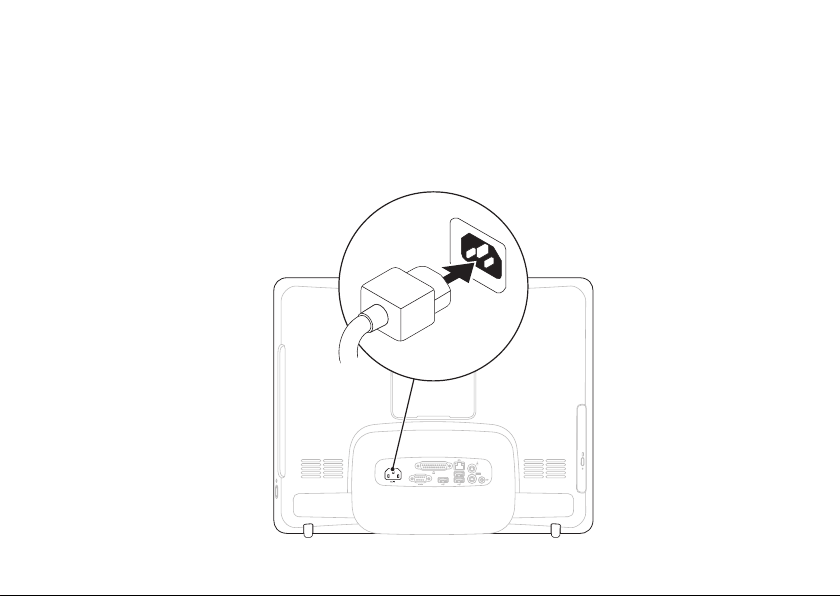
Connect the Power Cable
Setting Up Your Inspiron One
7
Page 10
Setting Up Your Inspiron One
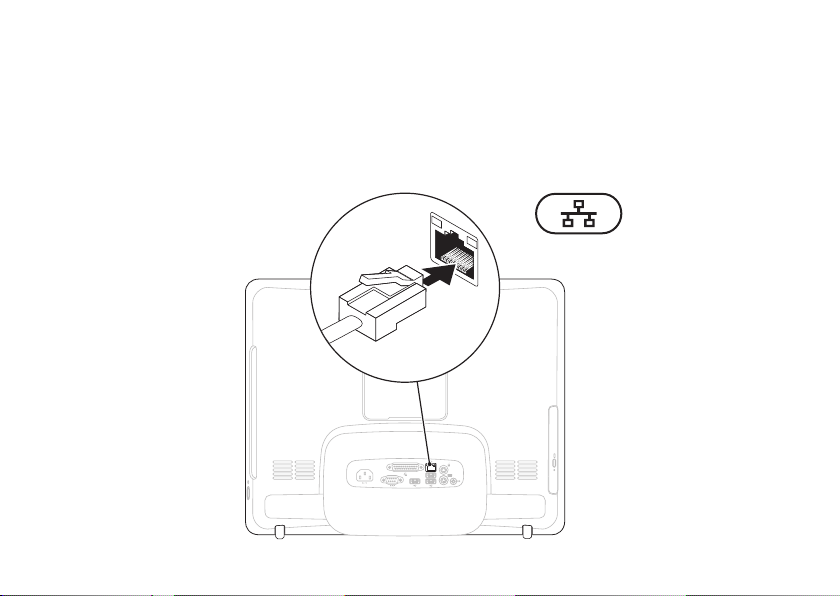
Connect the Network Cable (Optional)
8
Page 11

Setting Up Your Inspiron One
A network connection is not required to complete this computer setup, but if you have an existing
network or Internet connection that uses a cable connection (such as a home cable modem or
Ethernet jack), you can connect it now.
NOTE: Use only an Ethernet cable (RJ45 connector) to connect to the network connector.
Do not plug a telephone cable (RJ11 connector) into the network connector.
To connect your computer to a network or broadband device, connect one end of a network cable
to either a network port or a broadband device. Connect the other end of the network cable to the
network connector (RJ45 connector) on the back panel of your computer. A click indicates that the
network cable has been securely attached.
9
Page 12
Setting Up Your Inspiron One
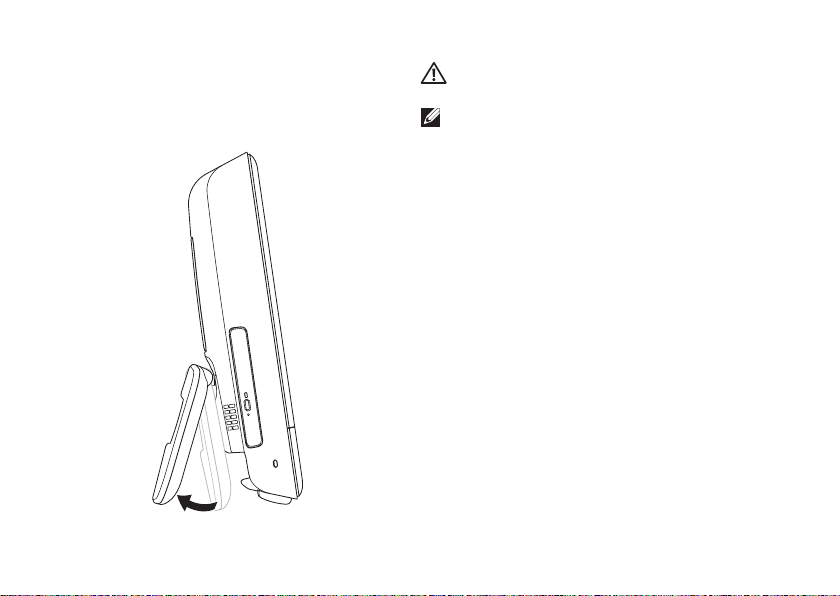
Adjust the Computer Stand
10
WARNING: Do not use the stand to carry
the computer.
NOTE: The stand must be closed before
using the computer with a VESA wall
mount.
Pull the stand to adjust the display to a
comfortable viewing angle. A distinct click is
heard when the stand is opened or closed.
Your computer supports UL-certified VESA wall
mounts. For proper mounting, use four (ea.)
4 mm dia, 0.7 pitch x 10.0 mm long screws.
Page 13
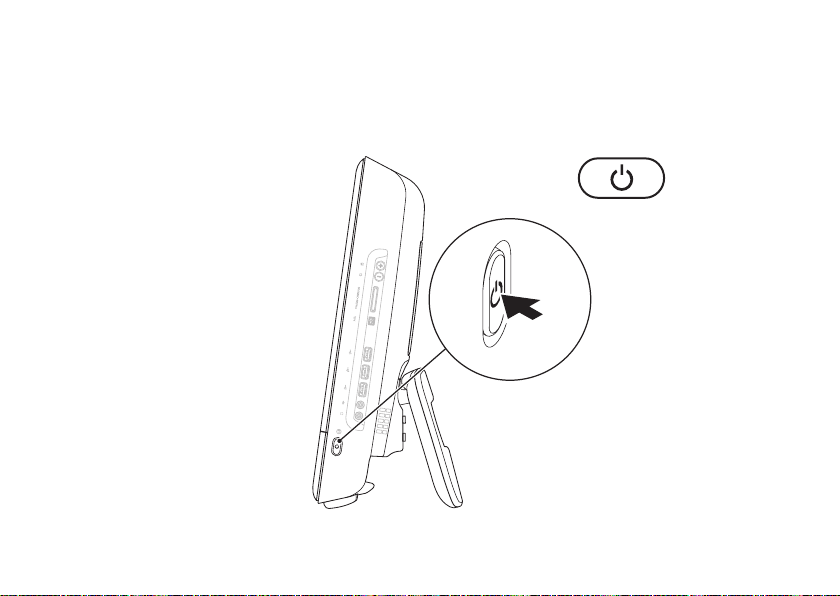
Press the Power Button
Setting Up Your Inspiron One
11
Page 14
Setting Up Your Inspiron One
Set Up Microsoft Windows 7
Your Dell computer is preconfigured with the
Microsoft® Windows® 7 operating system. To
set up Windows for the first time, follow the
instructions on the screen. These steps are
mandatory and may take some time to complete.
The Windows setup screens will take you
through several procedures including accepting
license agreements, setting preferences, and
setting up an Internet connection.
12
CAUTION: Do not interrupt the operating
system’s setup process. Doing so may
render your computer unusable and you
will need to reinstall the operating system.
NOTE: For optimal performance of your
computer, it is recommended that you
download and install the latest BIOS and
drivers for your computer available at
support.dell.com.
Page 15

Setting Up Your Inspiron One
Connect to the Internet (Optional)
To connect to the Internet, you need an external
modem or network connection and an Internet
Service Provider (ISP).
If an external USB modem or Wireless LAN
adapter is not a part of your original order, you
can purchase one at www.dell.com.
Setting Up a Wired Connection
If you are using a dial-up connection, •
connect the telephone line to the optional
external USB modem and to the telephone
wall connector before you set up your
Internet connection.
If you are using a DSL or cable/satellite •
modem connection, contact your ISP
or cellular telephone service for setup
instructions.
To complete setting up your wired Internet
connection, follow the instructions in
“Setting Up Your Internet Connection” on
page 14.
13
Page 16

Setting Up Your Inspiron One
Setting Up a Wireless Connection
NOTE: To set up your wireless router, see
the documentation that shipped with your
router.
Before you can use your wireless Internet
connection, you need to connect to your
wireless router.
To setup your connection to a wireless router:
Save and close any open files, and exit any 1.
open programs.
Click 2. Start → Control Panel→ Network
and Sharing Center→ Connect to a network.
Follow the instructions on the screen to 3.
complete the setup.
14
Setting Up Your Internet Connection
ISPs and ISP offerings vary by country. Contact
your ISP for offerings available in your country.
If you cannot connect to the Internet but have
successfully connected in the past, the Internet
Service Provider (ISP) might have a service
outage. Contact your ISP to check the service
status, or try connecting again later.
Have your ISP information ready. If you do not
have an ISP, the Connect to the Internet wizard
can help you get one.
Page 17

To set up your Internet connection:
Save and close any open files, and exit any 1.
open programs.
Click 2. Start → Control Panel.
Click 3. Network and Sharing Center→ Set up
a new connection or network→ Connect to
the Internet.
The Connect to the Internet window appears.
NOTE: If you do not know which type of
connection to select, click Help me choose
or contact your ISP.
Follow the instructions on the screen and 4.
use the setup information provided by your
ISP to complete the setup.
Setting Up Your Inspiron One
15
Page 18
Using Your Inspiron One
2
1
3
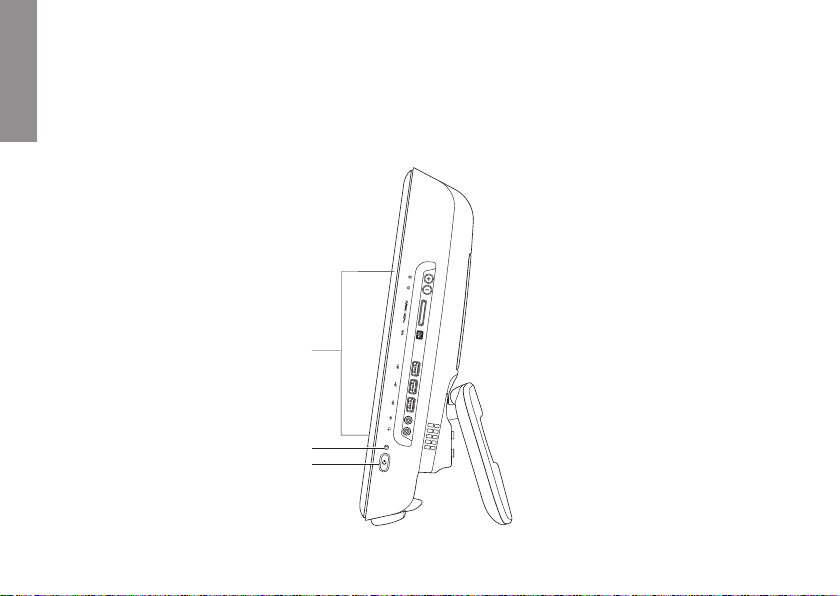
This section provides information about the features available on your Inspiron One.
INSPIRON
Right View Features
16
Page 19
Using Your Inspiron One
1
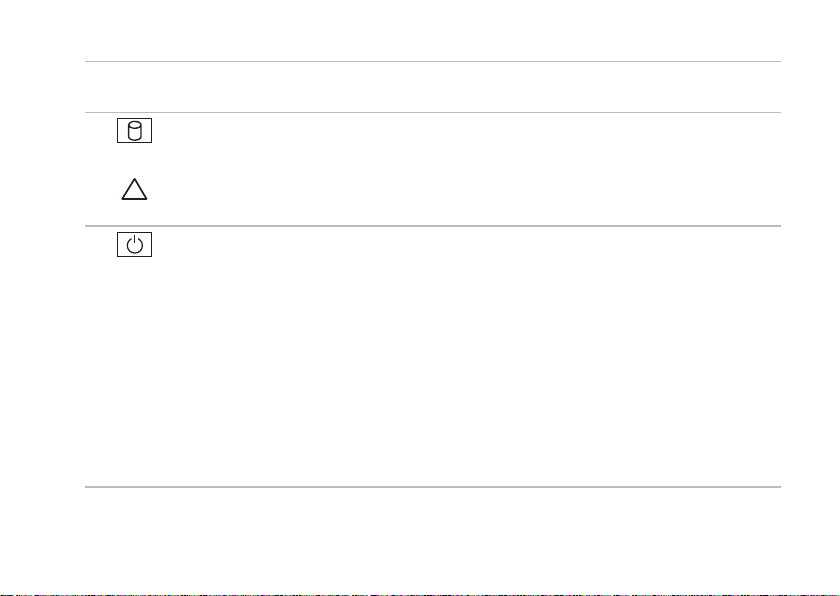
Right panel buttons and connectors — Adjusts brightness and connects USB, audio, and
other devices to the appropriate connectors.
2
Hard drive activity light — Turns on when the computer reads or writes data. A blinking
light indicates hard drive activity.
CAUTION: To avoid loss of data, never turn off the computer, move the computer, or
adjust the stand while the hard drive activity light is blinking.
3
Power button and light — Turns the computer on or off when pressed. The light in the
center of this button indicates the following power states:
Solid amber — The system board cannot start initialization. There may be an issue with •
either the system board or the power supply. Contact Dell (see “Contacting Dell” on
page 63).
Blinking amber — The computer has detected an error during the •
Power-on self-test (POST). Contact Dell (see “Contacting Dell” on page 63).
Blinking white — The computer is in sleep state.•
Solid white — The computer is on.•
Off — The computer is off or in hibernate state.•
17
Page 20
Using Your Inspiron One
1
2
3
4
6
7
5
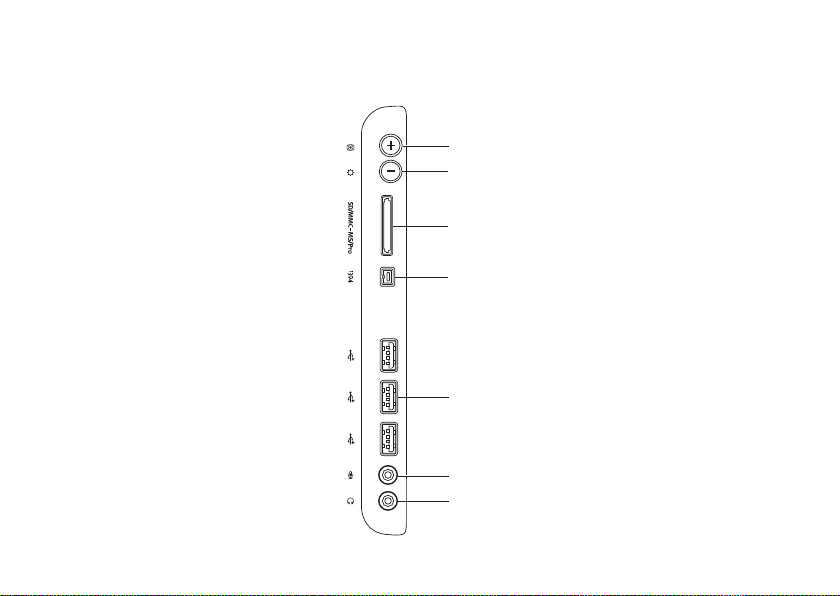
Right Panel Buttons and Connectors
18
Page 21
Using Your Inspiron One
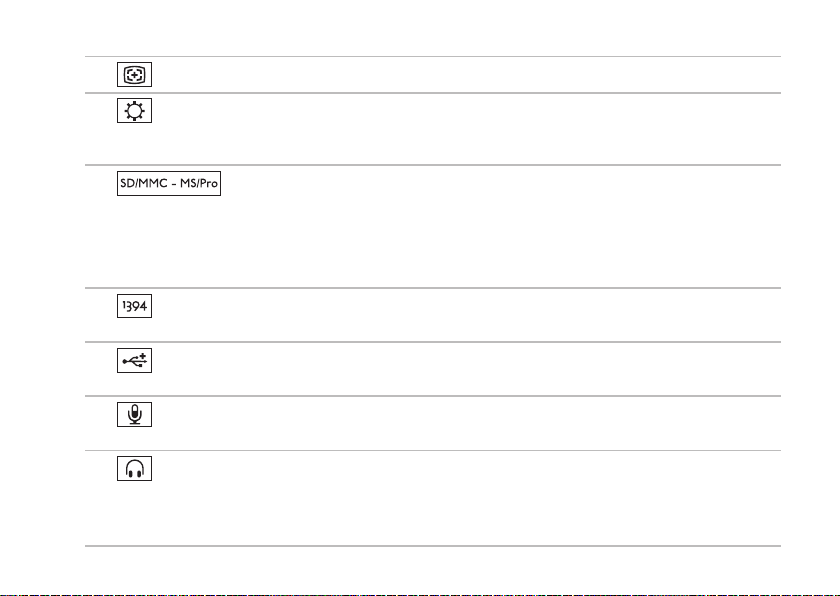
1
Auto adjust button — Automatically adjusts the display with the incoming video signal.
2
Brightness adjust button — Press this button to access the “Brightness” control menu
and then use the + (auto adjust button) or the - (brightness adjust button) to increase or
decrease the brightness.
3
8-in-1 Media Card Reader — Provides a fast and convenient way to view and
share digital photos, music, videos, and documents on the following digital memory cards:
Secure Digital (SD) memory card•
Secure Digital Input Output (SDIO) card•
Multi • Media Card (MMC)
4
IEEE 1394a connector — Connects to high-speed serial multimedia devices, such as
Memory • Stick
Memory Stick PRO•
xD-• Picture Card
Hi Speed-SD•
Hi Density• -SD
digital video cameras.
5
USB 2.0 connectors (3) — Connects to USB devices, such as a mouse, keyboard, printer,
external drive, or MP3 player.
6
Microphone or line-in connector — Connects to a microphone or inputs signal for use
with audio programs.
7
Headphone or line-out connector — Connects to a pair of headphones or to a powered
speaker or sound system.
NOTE: To connect to a powered speaker or sound system, use the line out connector on the
back of your computer.
19
Page 22
Using Your Inspiron One
4
5
3
2
1
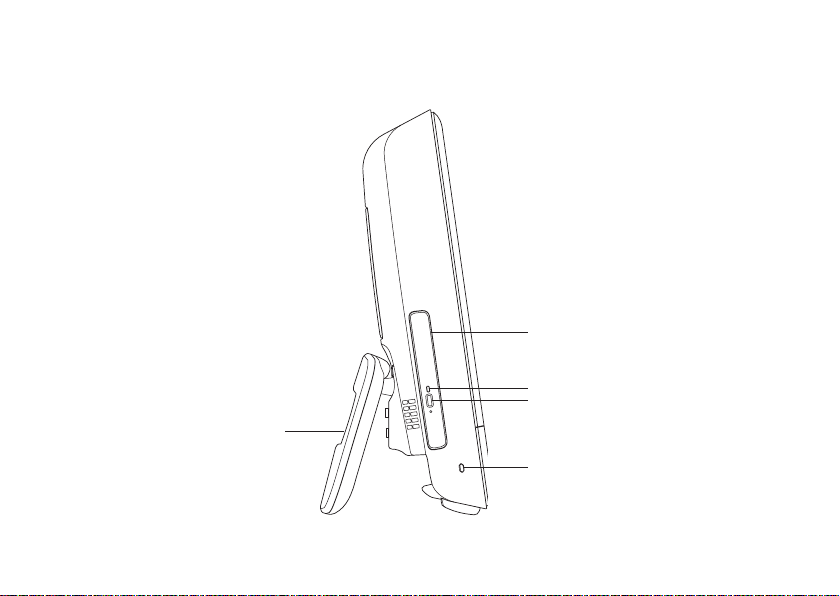
Left View Features
20
Page 23

Using Your Inspiron One
1
Computer stand — Provides stability to the computer and also allows you to adjust the display
to a comfortable viewing angle.
Security cable slot — Attaches a commercially available security cable to the computer.
2
3
Optical drive eject button — Opens the optical drive when pressed.
4
Optical drive light — Blinks when you press the optical drive eject button or when the disc is
being read.
5
Optical drive — Plays or records CDs and DVDs. Ensure that you place the disc with the
printed side facing towards you.
21
Page 24

Using Your Inspiron One
Using the Optical Drive
CAUTION: Do not press on the disc tray when you open or close it. Keep the tray closed when
you are not using the drive.
CAUTION: Do not move the computer while playing or recording a disc.
Press the eject button on the optical drive.1.
Place the disc with the printed side facing towards you and snap the disc onto the spindle.2.
Gently push the optical drive tray back into the drive.3.
22
Page 25

Using Your Inspiron One
4
2
3
1
1
optical drive tray
2
spindle
3
disc
4
eject button
23
Page 26

Using Your Inspiron One
3
1
2
Back View Features
24
Page 27

Using Your Inspiron One
1
VESA mount cover — Covers the VESA mount screw holes. Remove this cover to mount your
computer on a VESA mount. You can purchase one of many different VESA mounts at
www.dell.com.
2
Back panel connectors — Connects USB, audio, and other devices to the appropriate
connectors.
3
Service Tag/Express Service Code — Use this information to identify your computer on
support.dell.com or when you contact technical support.
25
Page 28

Using Your Inspiron One
1 2 3
4
8 7 6 5
Back Panel Connectors
26
Page 29

Using Your Inspiron One
Power connector — Connects to the power cable. The appearance of this
1
connector may vary.
2
Parallel connector — Connects to older printers and scanners.
3
Network connector — Connects to a network or a broadband device if you are using
a wired network. The two lights next to the connector indicate status and activity for wired
network connection.
4
PS/2 mouse connector — Connects to a standard PS/2 mouse.
5
Line-out connector — Connects to a powered speaker or sound system.
6
PS/2 keyboard connector — Connects to a standard PS/2 keyboard.
7
USB 2.0 connectors (3) — Connects to USB devices, such as a mouse, keyboard,
printer, external drive, or MP3 player.
8
Serial connector — Connects to older printers and external modems.
27
Page 30

Using Your Inspiron One
1
2 3
Display Features
28
Page 31

Using Your Inspiron One
1
Camera activity indicator — Indicates if the camera is on or off.
2
Camera — Built-in camera for video capture, conferencing, and chat.
3
Microphone — Provides high quality sound for video chatting and voice recording.
29
Page 32

Using Your Inspiron One
Using the Touch Screen (Optional)
The touch screen feature on your Inspiron One
converts your computer into an interactive
display.
Dell Touch Zone
To launch the Dell Touch Zone software click
Start → Dell Touch Zone.
You can access the following features in the
Dell Touch Zone:
Picture Viewer —• View, organize, and edit
pictures.
Dell Touch Cam — Capture home videos with •
the built-in camera. You can upload videos to
YouTube when connected to the Internet.
Notes Creator —• Create typed or
handwritten reminders. These notes will
appear on the bulletin board the next time
you access the Dell Touch Zone.
30
Drum Zone —• Play a game to the music on
your computer or play synthesized percussion
instruments.
You Paint —• Draw, paint images, and edit
photographs using this software.
Games —• Play select Windows games using
touch.
Music —• Play music, create play lists, and
browse through your music files by album,
artist, or song title.
Internet Explorer —• Browse the Internet using
multi-touch technology. Touch a link you want
to follow.
Help —• Use the Help feature for more
information on how to use the touch screen.
Page 33

Touch Screen Gestures
NOTE: Some of these gestures may not
work outside the Dell Touch Zone.
Zoom
Allows you to increase or decrease the
magnification of the screen content.
Pinch — Allows you to zoom in or zoom out
by moving two fingers apart or bringing them
closer together on the screen.
To zoom in
fingers apart to zoom in on
the active window.
To zoom out
fingers close together to
zoom out on the active
window.
: Move two
: Move two
Using Your Inspiron One
Dwell
Allows you to access additional information by
simulating a right-click.
Press and hold a finger on
the touch screen to open
context-sensitive menus.
Flick
Allows you to flip content forward or backward
based on the direction of the flick.
Move a finger quickly in
the desired direction to
flip through content in the
active window, like pages
in a book. Flick also works
vertically when navigating
content such as images or
songs in a playlist.
31
Page 34

Using Your Inspiron One
Scroll
Allows you to scroll through content.
Pan — Allows you to move the focus on the
selected object when the entire object is not
visible.
Move two fingers in the
desired direction to pan
scroll the selected object.
Scroll Vertical — Allows you to scroll up or
down on the active window.
Move a finger up or down to
activate vertical scrolling.
32
Scroll Horizontal — Allows you to scroll left or
right on the active window.
Move a finger to the left or
right to activate horizontal
scrolling.
Rotate
Allows you to rotate the active content on the
screen.
Twist — Allows you to rotate the active
content in 90° increments using two fingers.
Keeping a finger or thumb
in place, move the other
finger in an arced direction
to the right or left. You
can also rotate the active
content by moving both the
fingers in a circular motion.
Page 35

Using Your Inspiron One
Software Features
NOTE: For more information about the
features described in this section, see the
Dell Technology Guide available on your
hard drive or at support.dell.com/manuals.
Productivity and Communication
You can use your computer to create
presentations, brochures, greeting cards, fliers,
and spreadsheets. You can also edit and view
digital photographs and images. Check your
purchase order for software installed on your
computer.
After connecting to the Internet, you can access
websites, set up an e-mail account, upload and
download files, and perform other related tasks.
Entertainment and Multimedia
You can use your computer to watch videos,
play games, create your own CDs, and listen
to music and radio stations. Your optical disc
drive may support multiple disc media formats
including CDs and DVDs.
You can download or copy pictures and video
files from portable devices, such as digital
cameras and cell phones. Optional software
applications enable you to organize and create
music and video files that can be recorded
to disc and saved on portable products such
as MP3 players and handheld entertainment
devices.
33
Page 36

Using Your Inspiron One
Customizing the Desktop
You can use the customizing options available
in your operating system to change the
appearance, resolution, wallpaper, screensaver,
and so on.
Right-click an open area of the desktop.1.
Click 2. Personalize, to open the Change
the visuals and sounds on your computer
window and learn more about your
customization options.
Customizing Your Energy Settings
You can use the power options in your operating
system to configure the power settings on your
computer. The Microsoft® Windows® operating
system installed on your Dell computer provides
the following options:
Dell• — Recommended default power
plan with Dell enhancements. Offers full
performance when you need it and saves
power during periods of inactivity.
34
Power saver• — Saves power on your
computer by reducing system performance
to maximize the life of the computer and by
reducing the amount of energy consumed by
your computer over its lifetime.
Balanced • — Automatically balances the
performance of your computer by consuming
energy on capable hardware.
High performance• — Provides the highest
level of system performance on your
computer by adapting processor speed
to your activity and by maximizing system
performance.
Page 37

Using Your Inspiron One
Transferring Information to a New
Computer
To transfer information to a new computer:
Click 1. Start → Control Panel→ Getting
Started→ Transfer files from another
computer.
Follow the instructions on the 2. Windows Easy
Transfer wizard.
Backing Up Your Data
It is recommended that you periodically back up
files and folders on your computer.
To back up files:
Click 1. Start → Control Panel→ Back Up
and Restore.
Click 2. Set up backup....
Follow the instructions on the 3. Configure
Backup wizard.
35
Page 38

Solving Problems
This section provides troubleshooting
INSPIRON
information for your computer. If you cannot
solve your problem using the following
guidelines, see “Using Support Tools” on
page 43 or “Contacting Dell” on page 63.
36
Touch Screen Problems
Some or all multi-touch features are not
working —
Certain touch and multi-touch features may •
be disabled. To enable them, double-click
the Flicks icon in the system tray. In the Pen
and Touch window, select the Touch tab
and ensure that Use your finger as an input
device and Enable multi-touch gestures and
inking options are selected.
The touch screen is calibrated at the factory, •
and does not require re-calibration. If you
choose to calibrate the touch screen,
click Start → Control panel→ Table PC
Settings→ Calibrate....
NOTE: Improper calibration may lead to
inaccurate touch sensitivity.
Page 39

Solving Problems
If the touch screen starts losing its
sensitivity — The touch screen may have
foreign particles (such as sticky notes) that are
blocking the touch sensors. To remove these
particles:
Turn off the computer.1.
Disconnect the power cord from the wall outlet.2.
CAUTION: Do not spray water or a cleaning
liquid directly on the touch screen.
Use a clean, lint-free cloth (can spray mild, 3.
non abrasive cleaner or water on a cloth
if needed, but not on the screen) and wipe
the surface and sides of the touch screen to
remove any dirt or fingerprints.
Beep Codes
Your computer might emit a series of beeps during
start-up if there are errors or problems. This
series of beeps, called a beep code, identifies a
problem. Write down the beep code and contact
Dell (see “Contacting Dell” on page 63).
Series of beeps
(Beep code) Possible Problem
One Possible motherboard
failure - BIOS ROM
checksum failure
Two No RAM detected
Three Possible motherboard
failure - Chipset error
Four RAM read/write failure
Five Real Time Clock failure
Six Video card or chip failure
Seven Processor failure
Eight Display failure
37
Page 40

Solving Problems
Network Problems
Wireless Connections
If the wireless network connection is lost —
The wireless router is offline or wireless has
been disabled on the computer.
Check your wireless router to ensure it is •
powered on and connected to your data
source (cable modem or network hub).
Interference may be blocking or interrupting •
your wireless connection. Try moving the
computer closer to your wireless router.
Re-establish your connection to the •
wireless router (see “Setting Up a Wireless
Connection” on page 14).
38
Wired Connections
If the wired network connection is lost — The
cable is loose or damaged.
Check the cable to ensure it is plugged in •
and not damaged.
The link integrity light on the integrated network
connector lets you verify that your connection is
working and provides information on the status:
Link integrity light
Green — A good connection exists between •
a 10/100-Mbps network and the computer.
Orange — A good connection exists between •
a 1000-Mbps network and the computer.
Off — The computer is not detecting a •
physical connection to the network.
NOTE: The link integrity light on the network
connector is only for the wired network
connection. The link integrity light does not
provide status for wireless connections.
Page 41

Solving Problems
Power Problems
If the power light is off — The computer is
turned off or not receiving power. There may
also be a problem with the system board.
Press the power button to resume normal •
operation.
If the power cable is plugged into a power •
strip, ensure that the power strip is plugged
into an electrical outlet and that the power
strip is turned on. Also bypass power
protection devices, power strips, and power
extension cables to verify that the computer
turns on properly.
Ensure that the electrical outlet is working •
by testing it with another device, such as a
lamp.
If the problem persists, contact Dell (see •
“Contacting Dell” on page 63).
If the power light is solid white and the
computer is not responding —
Contact Dell (see “Contacting Dell” on page 63).
If the power light is blinking white —
The computer is in sleep state. Press a key on
the keyboard, move the mouse, or press the
power button to resume normal operation.
If the power light is solid amber —
The system board cannot start initialization.
There may be an issue with either the system
board or power supply. For assistance, contact
Dell (see “Contacting Dell” on page 63).
If the power light is blinking amber —
The computer has detected an error during
POST. The light will blink along with the three
BIOS beep codes to indicate the error. For
assistance, contact Dell (see “Contacting Dell”
on page 63).
39
Page 42

Solving Problems
If you encounter interference that hinders
reception on your computer — An unwanted
signal is creating interference by interrupting or
blocking other signals. Some possible causes of
interference are:
Power, keyboard, and mouse extension •
cables.
Too many devices connected to a •
power strip.
Multiple power strips connected to the same •
electrical outlet.
40
Memory Problems
If you receive an insufficient memory
message —
Save and close any open files and exit any •
open programs you are not using to see if
that resolves the problem.
See the software documentation for •
minimum memory requirements. For
assistance, contact Dell
(see “Contacting Dell” on page 63).
Run Dell Diagnostics (see “Dell Diagnostics” •
on page 46).
If you experience other memory problems —
Run Dell Diagnostics (see “Dell Diagnostics” •
on page 46).
Contact Dell (see “Contacting Dell” on •
page 63).
Page 43

Solving Problems
Lockups and Software Problems
If the computer does not start up — Ensure
that the power cable is firmly connected to the
computer and to the electrical outlet.
If a program stops responding —
End the program:
Press <Ctrl><Shift><Esc> simultaneously.1.
Click 2. Applications.
Select the program that is no longer 3.
responding
Click 4. End Task.
If a program crashes repeatedly — Check the
software documentation. If necessary, uninstall
and then reinstall the program.
NOTE: Software usually includes installation
instructions in its documentation or on
the CD.
If the computer stops responding or a solid blue
screen appears —
WARNING: You might lose data if you are
unable to perform an operating system
shutdown.
If you are unable to get a response by pressing
a key on your keyboard or moving your mouse,
press the power button for at least 8 to 10 seconds
until the computer turns off and then restart your
computer.
If a program is designed for an earlier
Microsoft® Windows® operating system —
Run the Program Compatibility Wizard. The
Program Compatibility Wizard configures a
program so that it runs in an environment similar
to an earlier version of Microsoft Windows
operating system environments.
41
Page 44

Solving Problems
Click 1. Start .
In the search box, type 2. Use an older
program with this version of
Windows and press <Enter>.
Follow the instructions on the 3. Program
Compatibility wizard.
If you have other software problems —
Write down the error code and problem •
description and contact Dell (see
“Contacting Dell” on page 63).
Back up your files immediately.•
Use a virus-scanning program to check the •
hard drive or CDs.
Save and close any open files or programs •
and shut down your computer through the
Start menu.
42
Check the software documentation or •
contact the software manufacturer for
troubleshooting information:
Ensure that the program is compatible –
with the operating system installed on
your computer.
Ensure that your computer meets the –
minimum hardware requirements needed
to run the software. See the software
documentation for information.
Ensure that the program is installed and –
configured properly.
Verify that the device drivers do not –
conflict with the program.
If necessary, uninstall and then reinstall –
the program.
Page 45

Using Support Tools
INSPIRON
Dell Support Center
The Dell Support Center helps you find
the service, support, and system-specific
information you need.
To launch the application, click the icon in the
taskbar.
The Dell Support Center home page displays your
computer’s model number, service tag, express
service code, and service contact information.
The home page also provides links to access:
Self Help (Troubleshooting,
Security, System Performance,
Network/Internet, Backup/
Recovery, and Windows
operating system)
Alerts (technical support alerts
relevant to your computer)
Assistance from Dell (Technical
Support with DellConnect™,
Customer Service, Training and
Tutorials, How-To Help with Dell
on Call, and Online Scan with
PC CheckUp)
About Your System (System
Documentation, Warranty
Information, System Information,
Upgrades & Accessories)
For more information about Dell Support Center
and available support tools, click the Services
tab at support.dell.com.
43
Page 46

Using Support Tools
System Messages
If your computer has an issue or error, it may display
a System Message that will help you identify the
cause and action needed to resolve the issue.
NOTE: If the message you received is not
listed in the following examples, see the
documentation for either the operating
system or the program that was running
when the message appeared. Alternatively
you could see the Dell Technology Guide
available on your hard drive or at
support.dell.com/manuals or see
“Contacting Dell” on page 63 for assistance.
Alert! Previous attempts at booting this system
have failed at checkpoint [nnnn]. For help
in resolving this problem, please note this
checkpoint and contact Dell Technical
Support — The computer failed to complete
the boot routine three consecutive times for
the same error. Contact Dell for assistance (see
“Contacting Dell” on page 63).
44
CMOS checksum error — Possible motherboard
failure or RTC battery low. Contact Dell for
assistance (see “Contacting Dell” on page 63).
CPU fan failure — CPU fan has failed. Contact Dell
for assistance (see “Contacting Dell” on page 63).
Hard-disk drive failure — Possible hard drive
failure during POST. Contact Dell for assistance
(see “Contacting Dell” on page 63).
Hard-disk drive read failure — Possible hard
drive failure during HDD boot test. Contact Dell for
assistance (see “Contacting Dell” on page 63).
Keyboard failure — Keyboard failure or
loose cable. If reseating the cable does not
solve the problem, replace the keyboard.
No boot device available — No bootable
partition on hard drive, the hard drive cable is
loose, or no bootable device exists.
If the hard drive is your boot device, ensure •
that the cables are connected and that the
drive is installed properly and partitioned as
a boot device.
Page 47

Using Support Tools
Enter system setup and ensure that the boot •
sequence information is correct (see the Dell
Technology Guide available on your hard
drive or at support.dell.com/manuals).
No timer tick interrupt — A chip on the system
board might be malfunctioning or motherboard
failure. Contact Dell for assistance (see
“Contacting Dell” on page 63).
USB over current error — Disconnect the USB
device. Your USB device needs more power for
it to function properly. Use an external power
source to connect the USB device, or if your
device has two USB cables, connect both of them.
CAUTION - Hard Drive SELF MONITORING
SYSTEM has reported that a parameter has
exceeded its normal operating range. Dell
recommends that you back up your data
regularly. A parameter out of range may
or may not indicate a potential hard drive
problem — S.M.A.R.T error, possible hard
drive failure. Contact Dell for assistance (see
“Contacting Dell” on page 63).
Hardware Troubleshooter
If a device is either not detected during
the operating system setup or is detected
but incorrectly configured, you can use the
Hardware Troubleshooter to resolve the
incompatibility.
To start the Hardware Troubleshooter:
Click 1. Start → Help and Support.
Type 2. hardware troubleshooter in
the search field and press <Enter> to start
the search.
In the search results, select the option that 3.
best describes the problem and follow the
remaining troubleshooting steps.
45
Page 48

Using Support Tools
Dell Diagnostics
If you experience a problem with your
computer, perform the checks in “Lockups and
Software Problems” on page 41 and run the
Dell Diagnostics before you contact Dell for
technical assistance.
It is recommended that you print these
procedures before you begin.
NOTE: Dell Diagnostics works only on Dell
computers.
NOTE: The
is optional and may not ship with your
computer.
See the Comprehensive Specifications to review
your computer’s configuration information, and
ensure that the device that you want to test
appears in the system setup program and is
active.
Start the Dell Diagnostics from your hard drive
or from the
46
Drivers and Utilities
Drivers and Utilities
disc
disc.
Starting Dell Diagnostics From Your
Hard Drive
The Dell Diagnostics is located on a hidden
diagnostic utility partition on your hard drive.
NOTE: If your computer cannot display
a screen image, contact Dell (see
“Contacting Dell” on page 63).
Ensure that the computer is connected to an 1.
electrical outlet that is known to be working
properly.
Turn on (or restart) your computer.2.
When the DELL3.
immediately. Select Diagnostics from the
boot menu and press <Enter>.
This may invoke the Pre-Boot System
Assessment (PSA) in your computer.
™
logo appears, press <F12>
Page 49

Using Support Tools
NOTE: If you wait too long and the operating
system logo appears, continue to wait until
you see the Microsoft® Windows® desktop;
then, shut down your computer and try again.
NOTE: If you see a message stating that no
diagnostics utility partition has been found,
run the Dell Diagnostics from the
and Utilities
disc.
If PSA is invoked:
The PSA starts running tests.a.
If the PSA completes successfully, the b.
following message is displayed: “No
problems have been found
with this system so far.
Do you want to run the
remaining memory tests? This
will take about 30 minutes
or more. Do you want to
continue? (Recommended).”
Drivers
If you are experiencing memory issues, c.
press <y>, otherwise press <n>.
The following message is displayed:
“Booting Dell Diagnostic
Utility Partition. Press any
key to continue.”
Press any key to go to the d. Choose An
Option window.
If PSA is not invoked:
Press any key to start the Dell Diagnostics
from the diagnostics utility partition on your
hard drive and to go to the Choose An Option
window.
Select the test you want to run.4.
47
Page 50

Using Support Tools
If you encounter a problem during a test, a 5.
message appears with the error code and
a description of the problem will appear on
your screen. Write down the error code and
problem description and contact Dell (see
“Contacting Dell” on page 63).
NOTE: The Service Tag for your computer
is displayed at the top of each test screen.
The Service Tag helps you identify your
computer when you contact Dell.
When the tests complete, close the test 6.
screen to return to the Choose An Option
window. To exit the Dell Diagnostics and to
restart the computer, click Exit.
48
Starting Dell Diagnostics From the
Drivers and Utilities Disc
Insert the1.
Shut down and restart the computer. 2.
When the DELL logo appears, press <F12>
immediately.
When the boot device list appears, highlight 3.
CD/DVD/CD-RW and press <Enter>.
Drivers and Utilities
NOTE: If you wait too long and the
operating system logo appears, continue to
wait until you see the Microsoft® Windows®
desktop; then, shut down your computer
and try again.
NOTE: The next steps change the boot
sequence for one time only. On the next
start-up, the computer boots according to
the devices specified in the system setup
program.
disc.
Page 51

Using Support Tools
Select 4. Run the 32 Bit Dell Diagnostics from
the numbered list. If multiple versions are
listed, select the version appropriate for
your computer.
Select the test you want to run.5.
If you encounter a problem during a test, 6.
a message with the error code and a
description of the problem will appear on
your screen. Write down the error code and
problem description and contact Dell (see
“Contacting Dell” on page 63).
NOTE: The Service Tag for your computer
is displayed at the top of each test screen.
The Service Tag helps you identify your
computer when you contact Dell.
When the tests are complete, close the test 7.
screen to return to the Choose An Option
window.
To exit the Dell Diagnostics and restart the 8.
computer, click Exit.
Remove the9.
Drivers and Utilities
disc.
49
Page 52

Restoring Your Operating System
You can restore your operating system in the
INSPIRON
following ways:
System • Restore returns your computer to an
earlier operating state without affecting data
files. Use System Restore as the first solution
for restoring your operating system and
preserving data files.
Dell • Factory Image Restore returns your hard
drive to the operating state it was in when
you purchased the computer. This procedure
permanently deletes all data on the hard
drive and remove any programs installed
after you received the computer. Use Dell
Factory Image Restore only if System
Restore did not resolve your operating
system problem.
50
If you received an •
with your computer, you can use it to restore
your operating system. However, using the
Operating System
on the hard drive. Use the
disc only if neither System Restore nor Dell
Factory Image Restore did not resolve your
operating system problem.
Operating System
disc also deletes all data
Operating System
disc
System Restore
The Windows operating systems provide
a System Restore option which allows
you to return your computer to an earlier
operating state (without affecting data files) if
changes to the hardware, software, or other
system settings have left the computer in an
undesirable operating state. Any changes that
System Restore makes to your computer are
completely reversible.
Page 53

Restoring Your Operating System
CAUTION: Make regular backups of your
data files. System Restore does not monitor
your data files or recover them.
NOTE: The following instructions are
applicable to the Windows default view,
so they may not apply if you set your Dell™
computer to the Windows Classic view.
Starting System Restore
Click 1. Start .
In the 2. Start Search box, type System
Restore and press <Enter>.
NOTE: The User Account Control window
may appear. If you are an administrator on
the computer, click Continue; otherwise,
contact your administrator to continue the
desired action.
Click 3. Next and follow the remaining prompts
on the screen.
In the event that System Restore did not resolve
the issue, you may undo the last system restore.
Undoing the Last System Restore
NOTE: Before you undo the last system
restore, save and close all open files and
exit any open programs. Do not alter, open,
or delete any files or programs until the
system restoration is complete.
Click 1. Start .
In the 2. Start Search box, type System
Restore and press <Enter>.
Click 3. Undo my last restoration and click
Next.
51
Page 54

Restoring Your Operating System
Dell Factory Image Restore
CAUTION: Using Dell Factory Image
Restore permanently deletes all data on
the hard drive and removes any programs
or drivers installed after you received your
computer. If possible, back up all the data
before using this option. Use Dell Factory
Image Restore only if System Restore did
not resolve your operating system problem.
NOTE: Dell Factory Image Restore is not
available if the hard drive is formatted or
partitioned using the Operating System
disc.
NOTE: Dell Factory Image Restore may
not be available in certain countries or on
certain computers.
52
Use Dell Factory Image Restore only as the
last method to restore your operating system.
This option restores your hard drive to the
operating state it was in when you purchased
the computer. Any programs or files added
since you received your computer—including
data files—are permanently deleted from
the hard drive. Data files include documents,
spreadsheets, e-mail messages, digital photos,
music files, and so on. If possible, back up all
data before using Factory Image Restore.
Page 55

Restoring Your Operating System
Performing Dell Factory Image Restore
Turn on the computer. When the Dell logo 1.
appears, press <F8> several times to access
the Advanced Boot Options Window.
NOTE: If you wait too long and the
operating system logo appears, wait until
you see the Microsoft® Windows® desktop;
then, shut down your computer and try again.
Select 2. Repair Your Computer.
The 3. System Recovery Options window
appears.
Select a keyboard layout and click 4. Next.
To access the recovery options, log on as a 5.
local user. To access the command prompt,
type administrator in the User name
field, then click OK.
Click 6. Dell Factory Image Restore. The Dell
Factory Image Restore welcome screen
appears.
NOTE: Depending upon your configuration,
you may need to select Dell Factory Tools,
then Dell Factory Image Restore.
Click 7. Next. The Confirm Data Deletion
screen appears.
NOTE: If you do not want to proceed with
Factory Image Restore, click Cancel.
Select the check box to confirm that you 8.
want to continue reformatting the hard drive
and restoring the system software to the
factory condition, then click Next.
The restore process begins and may take
five or more minutes to complete. A message
appears when the operating system and
factory-installed applications have been
restored to factory condition.
Click 9. Finish to reboot the computer.
53
Page 56

Restoring Your Operating System
Operating System Reinstallation
Before You Begin
If you are considering reinstalling the Windows
operating system to correct a problem with a
newly installed driver, first try using Windows
Device Driver Rollback.
To roll back a device driver:
Click 1. Start .
Right-click 2. Computer.
Click 3. Properties→ Device Manager.
Right-click the device for which the new 4.
driver was installed, and click Properties.
Click the 5. Drivers tab → Roll Back Driver.
If Device Driver Rollback does not resolve the
problem, then use System Restore to return your
operating system to the operating state it was in
before you installed the new device driver. See
“System Restore” on page 50.
54
CAUTION: Before performing the
installation, back up all data files on your
primary hard drive. For conventional hard
drive configurations, the primary hard
drive is the first drive detected by the
computer.
To reinstall Windows, you need the following:
Dell•
Operating System
Dell•
Drivers and Utilities
NOTE: The
contains drivers that were installed during
the assembly of the computer. Use the
Dell
required drivers. Depending on the region
from which you ordered your computer, or
whether you requested the disc, the Dell
Drivers and Utilities
System
computer.
Drivers and Utilities
Drivers and Utilities
disc may not ship with your
disc
disc
disc to load any
disc and
Operating
disc
Page 57

Restoring Your Operating System
Reinstalling Microsoft Windows
The reinstallation process can take 1 to 2 hours
to complete. After you reinstall the operating
system, you must also reinstall the device
drivers, virus protection program, and other
software.
Save and close any open files and exit any 1.
open programs.
Insert the 2.
Click 3. Exit if the Install Windows message
appears.
Restart the computer.4.
When the DELL logo appears, press <F12> 5.
immediately.
Operating System
disc.
NOTE: If you wait too long and the
operating system logo appears, continue to
wait until you see the Microsoft® Windows®
desktop; then, shut down your computer
and try again.
NOTE: The next steps change the boot
sequence for one time only. On the next
start-up, the computer boots according to
the devices specified in the system setup
program.
When the boot device list appears, highlight 6.
CD/DVD/CD-RW Drive and press <Enter>.
Press any key to 7. Boot from CD-ROM.
Follow the instructions on the screen to
complete the installation.
55
Page 58

Getting Help
If you experience a problem with your computer,
INSPIRON
you can complete the following steps to
diagnose and troubleshoot the problem:
See “Solving Problems” on page 1. 36 for
information and procedures that pertain to
the problem your computer is experiencing.
See the 2.
Dell Technology Guide
troubleshooting information.
See “Dell Diagnostics” on page 3. 46 for
procedures on how to run Dell Diagnostics.
Fill out the “Diagnostic Checklist” on 4.
page 62.
Use Dell’s extensive suite of online services 5.
available at Dell Support (support.dell.com)
for help with installation and troubleshooting
procedures. See “Online Services” on
page 58 for a more extensive list of Dell
Support online.
for more
56
If the preceding steps have not resolved the 6.
problem, see “Before You Call” on page 61.
NOTE: Call Dell Support from a telephone
near or at the computer so that the support
staff can assist you with any necessary
procedures.
NOTE: Dell’s Express Service Code system
may not be available in all countries.
When prompted by Dell’s automated telephone
system, enter your Express Service Code to
route the call directly to the proper support
personnel. If you do not have an Express
Service Code, open the Dell Accessories folder,
double-click the Express Service Code icon,
and follow the directions.
NOTE: Some of the services are not
always available in all locations outside
the continental U.S. Call your local Dell
representative for information on availability.
Page 59

Getting Help
Technical Support and Customer Service
Dell’s support service is available to answer
your questions about Dell hardware. Our support
staff use computer-based diagnostics to provide
fast, accurate answers.
To contact Dell’s support service, see “Before
You Call” on page 61 and then see the contact
information for your region or go to
support.dell.com.
DellConnect
DellConnect™ is a simple online access tool that
allows a Dell service and support associate to
access your computer through a broadband
connection, diagnose your problem and repair it
all under your supervision. For more information,
go to www.dell.com/dellconnect.
57
Page 60

Getting Help
Online Services
You can learn about Dell products and services
on the following websites:
www.dell.com•
www.dell.com/ap• (Asian/Pacific countries
only)
www.dell.com/jp• (Japan only)
www.euro.dell.com• (Europe only)
www.dell.com/la• (Latin American and
Caribbean countries)
www.dell.ca• (Canada only)
You can access Dell Support through the
following websites and e-mail addresses:
Dell Support websites
support.dell.com•
support.jp.dell.com• (Japan only)
support.euro.dell.com• (Europe only)
supportapj.dell.com• (Asia Pacific only)
58
Dell Support e-mail addresses
mobile_support@us.dell.com•
support@us.dell.com•
la-techsupport@dell.com• (Latin America and
Caribbean countries only)
apsupport@dell.com• (Asian/Pacific
countries only)
Dell Marketing and Sales e-mail
addresses
apmarketing@dell.com• (Asian/Pacific
countries only)
sales_canada@dell.com• (Canada only)
Anonymous file transfer protocol (FTP)
ftp.dell.com•
Log in as user: anonymous, and use your
e-mail address as your password.
Page 61

Getting Help
Automated Order-Status Service
To check on the status of any Dell products that
you have ordered, you can go to
support.dell.com, or you can call the automated
order-status service. A recording prompts you
for the information needed to locate and report
on your order. For the telephone number to call
your region, see “Contacting Dell” on page 63.
If you have a problem with your order, such as
missing parts, wrong parts, or incorrect billing,
contact Dell for customer assistance. Have your
invoice or packing slip handy when you call.
For the telephone number to call for your region,
see “Contacting Dell” on page 63.
Product Information
If you need information about additional
products available from Dell, or if you would
like to place an order, visit www.dell.com. For
the telephone number to call for your region or
to speak to a sales specialist, see “Contacting
Dell” on page 63.
59
Page 62

Getting Help
Returning Items for Repair Under Warranty or for Credit
Prepare all items being returned, whether for
repair or credit, as follows:
NOTE: Before you return the product to Dell,
make sure to back up any data on the hard
drive and on any other storage device in the
product. Remove any and all confidential,
proprietary and personal information, as
well as removable media, such as CDs and
PC Cards. Dell is not responsible for any of
your confidential, proprietary or personal
information; lost or corrupted data; or
damaged or lost removable media that may
be included with your return.
60
Call Dell to obtain a Return Material 1.
Authorization Number, and write it clearly
and prominently on the outside of the box.
NOTE: For the telephone number to call
for your region, see “Contacting Dell” on
page 63.
Include a copy of the invoice and a letter 2.
describing the reason for the return.
Include a copy of the Diagnostics Checklist (see 3.
“Diagnostic Checklist” on page 62), indicating
the tests that you have run and any error
messages reported by the Dell Diagnostics
(see “Dell Diagnostics” on page 46).
Include any accessories that belong with the 4.
item(s) being returned (power cables, software,
guides, and so on) if the return is for credit.
Page 63

Getting Help
Pack the equipment to be returned in the 5.
original (or equivalent) packing materials.
NOTE: You are responsible for paying
shipping expenses. You are also
responsible for insuring any product
returned, and you assume the risk of loss
during shipment to Dell. Collect On Delivery
(C.O.D.) packages are not accepted.
NOTE: Returns that are missing any of the
preceding requirements will be refused at
Dell’s receiving dock and returned to you.
Before You Call
NOTE: Have your Express Service Code
ready when you call. The code helps Dell’s
automated-support telephone system direct
your call more efficiently. You may also be
asked for your Service Tag (located on the
back of your computer).
Remember to fill out the following Diagnostic
Checklist. If possible, turn on your computer
before you call Dell for assistance and call from
a telephone at or near the computer. You may be
asked to type some commands at the keyboard,
relay detailed information during operations, or
try other troubleshooting steps possible only at
the computer itself. Ensure that the computer
documentation is available.
61
Page 64

Getting Help
Diagnostic Checklist
Name:•
Date:•
Address:•
Phone number:•
Service Tag (bar code on the back of the •
computer):
Express Service Code:•
Return Material Authorization Number (if •
provided by Dell support technician):
Operating system and version:•
Devices:•
Expansion cards:•
Are you connected to a network? Yes /No•
Network, version, and network adapter:•
Programs and versions:•
62
See your operating system documentation
to determine the contents of the computer’s
start-up files. If the computer is connected to
a printer, print each file. Otherwise, record the
contents of each file before calling Dell.
Error message, beep code, or diagnostic •
code:
Description of problem and troubleshooting •
procedures you performed:
Page 65

Getting Help
Contacting Dell
For customers in the United States, call
800-WWW-DELL (800-999-3355).
NOTE: If you do not have an active
Internet connection, you can find contact
information on your purchase invoice,
packing slip, bill, or Dell product catalog.
Dell provides several online and telephonebased support and service options. Availability
varies by country and product, and some
services may not be available in your area.
To contact Dell for sales, technical support, or
customer service issues:
Visit 1. www.dell.com/contactdell.
Select your country or region.2.
Select the appropriate service or support 3.
link based on your requirement.
Choose the method of contacting Dell that is 4.
convenient for you.
63
Page 66

Finding More Information and Resources
If you need to: See:
INSPIRON
reinstall your operating system the
run a diagnostic program for your computer,
reinstall desktop system software, or update
drivers for your computer, and readme files
learn more about your operating system,
maintaining peripherals, RAID, Internet,
Bluetooth®, networking, and e-mail
find safety best practices information for your
computer
review Warranty information, Terms and
Conditions (U.S. only), Safety instructions,
Regulatory information, Ergonomics
information, and End User License Agreement
64
Operating System
the
Drivers and Utilities
NOTE: Drivers and documentation updates
can be found at support.dell.com.
the Dell Technology Guide available on your
hard drive or at support.dell.com/manuals
the safety and regulatory documents that
shipped with your computer and also see the
Regulatory Compliance Homepage at
www.dell.com/regulatory_compliance
disc
disc
Page 67

If you need to: See:
find your Service tag/Express Service Code —
You must use the service tag to identify your
computer on support.dell.com or to contact
technical support
find drivers and downloads
access technical support and product help
check on your order status for new purchases
find solutions and answers to common
questions
locate information for last-minute updates
about technical changes to your computer or
advanced technical-reference material for
technicians or experienced users
the back of your computer
the Dell Support Center. To launch the Dell
Support Center, click the icon in the
taskbar.
support.dell.com
Finding More Information and Resources
65
Page 68

Basic Specifications
This section provides information that you may need when setting up, updating drivers for, and
INSPIRON
upgrading your computer. For more detailed specifications, see the
at support.dell.com/manuals.
NOTE: Offerings may vary by region. For more information regarding the configuration of your
computer, click Start → Help and Support and select the option to view information about
your computer.
Computer Model
Inspiron One 19T
Drives and Devices
Drives One 3.5-inch internal
Computer Information
Processor types Intel® Celeron
Dual-Core
Intel Pentium
Dual-Core
Intel Core™2 Duo
Intel Core2 Quad
System chipset Intel G41+ICH7
66
®
®
Wireless (optional) LAN 802.11 b/g
Camera 1.3 megapixel
Comprehensive Specifications
hard-drive and one
tray-load optical drive
Page 69

Basic Specications
Drives and Devices
Available devices Serial ATA hard drive,
DVD-ROM (optional),
DVD+/- RW (optional),
microphone array,
and 8-in-1 Media Card
Reader
Memory
Type Dual channel
800 MHz DDR2
Minimum 1 GB
Maximum 4 GB
External Connectors
Network adapter RJ45 connector
USB 2.0 Three side-panel and
three back-panel
connectors
Audio Two side-panel
connectors for
microphone/line-in
and headphone/
line-out;
one back-panel
connector for
line-out
IEEE 1394a one side-panel 4-pin
serial connector
67
Page 70

Basic Specications
Video
Type Intel X4500
Audio
Type Integrated speakers
Display
Type
(active-matrix TFT)
Maximum resolution 1366 x 768
18.5 inches, 16:9,
WXGA
Power
Wattage 130 W
Voltage 100-240 VAC
Backup battery 3-V CR2032 lithium
coin cell
68
Physical
Height 385.9 mm
(15.2 inches)
Width 476.9 mm
(18.8 inches)
Depth 107.3 mm
(4.2 inches)
Weight (approximate) 8.3 kg
(18.3 lb)
Computer Environment
Temperature ranges:
Operating 10°C to 35°C
(50°F to 95°F)
Storage -40°C to 65°C
(-40°F to 149°F)
Relative humidity 10% to 90%
(non-condensing)
Page 71

Basic Specications
Computer Environment
Maximum vibration (using a random-vibration
spectrum that simulates user environment):
Operating 0.26 GRMS
random for 2 min
in all operational
orientations
Storage 2.2 GRMS random for
15 mins
Maximum shock:
Operating Half-Sine Pulse:
40G for 2ms with a
change in velocity of
20 in/s (51 cm/s)
Storage Half-Sine Pulse:
40G for 22 ms with a
change in velocity of
240 in/s (609 cm/s)
Computer Environment
Altitude:
Operating -15.2 to 3048 m
(-50 to 10,000 ft)
Storage -15.2 to 10,668 m
(-50 to 35,000 ft)
Airborne
containment level
G2 or lower as
defined by
ISA-S71.04-1985
69
Page 72

Appendix
Macrovision Product Notice
INSPIRON
This product incorporates copyright protection
technology that is protected by method claims
of certain U.S. patents and other intellectual
property rights owned by Macrovision
Corporation and other rights owners. Use of
this copyright protection technology must be
authorized by Macrovision Corporation, and is
intended for home and other limited viewing
uses only unless otherwise authorized by
Macrovision Corporation. Reverse engineering
or disassembly is prohibited.
70
Page 73

Appendix
Information for NOM, or Official Mexican Standard (Only for Mexico)
The following information is provided in the device(s) described in this document in accordance
with the requirements of the Official Mexican Standard (NOM):
Importer:
Dell México S.A. de C.V.
Paseo de la Reforma 2620 - 11°
Col. Lomas Altas
11950 México, D.F.
Regulatory model number Voltage Frequency Electricity consumption
W01B 100–240 V CA 50–60 Hz 1–2 A
For details, read the safety information that shipped with your computer.
For additional safety best practices information, see the Regulatory Compliance Homepage at
www.dell.com/regulatory_compliance.
71
Page 74

Index
A
INSPIRON
airflow, allowing 5
audio 68
B
backups
creating 35
C
calling Dell 61
CDs, playing and creating 33
chipset 66
computer
weights and dimensions 68
computer capabilities 33
computer environment 68
72
computer, setting up 5
connect(ing)
optional network cable 8
conserving energy 34
Contacting Dell online 63
customer service 57
customizing
your desktop 33
your energy settings 34
D
DellConnect 57
Dell Diagnostics 46
Dell Factory Image Restore 50
Dell Support Center 43
Page 75

Index
Dell Technology Guide
for futher information 64
Dell Touch Zone 30
Diagnostic Checklist 61
disc drive
supported disc sizes 22
discs
using 22
drivers and downloads 65
drives and devices 66
DVDs, playing and creating 33
E
email addresses
for technical support 58
energy
conserving 34
expansion bus 68
F
finding more information 64
flick 31
front-side connectors 16
FTP login, anonymous 58
G
gestures 31
H
hard drive activity light 17
hardware problems
diagnosing 45
Hardware Troubleshooter 45
headphone
front connector 19
help
getting assistance and support 56
73
Page 76

Index
I
Internet connection 13
ISP
Internet Service Provider 13
L
line-in connector 19
M
media card reader 19
memory
minimum and maximum 67
memory problems
solving 40
Memory Stick reader 19
memory support 67
microphone connector 19
MMC 19
74
Multi Media Card reader 19
N
network connection
fixing 38
network speed
testing 38
P
physical specifications 68
ports and connectors 67
power button and light 17
power problems, solving 39
power specifications 68
problems, solving 36
products
information and purchasing 59
Page 77

Index
R
reinstalling Windows 50
resources, finding more 64
restoring factory image 52
S
setup, before you begin 5
shipping products
for return or repair 60
software features 33
software problems 41
solving problems 36
specifications 66
support email addresses 58
support sites
worldwide 57
System Messages 44
System Restore 50
T
touch screen 30
gestures 31
U
USB 2.0
back connectors 27
V
ventilation, ensuring 5
75
Page 78

Index
W
warranty returns 60
Windows 50
Program Compatibility Wizard 41
reinstalling 55
wireless network connection 38
X
xD-Picture Card reader 19
76
Page 79

Page 80

01HNXJA00
Printed in the U.S.A.
www.dell.com | support.dell.com
 Loading...