

Page 1
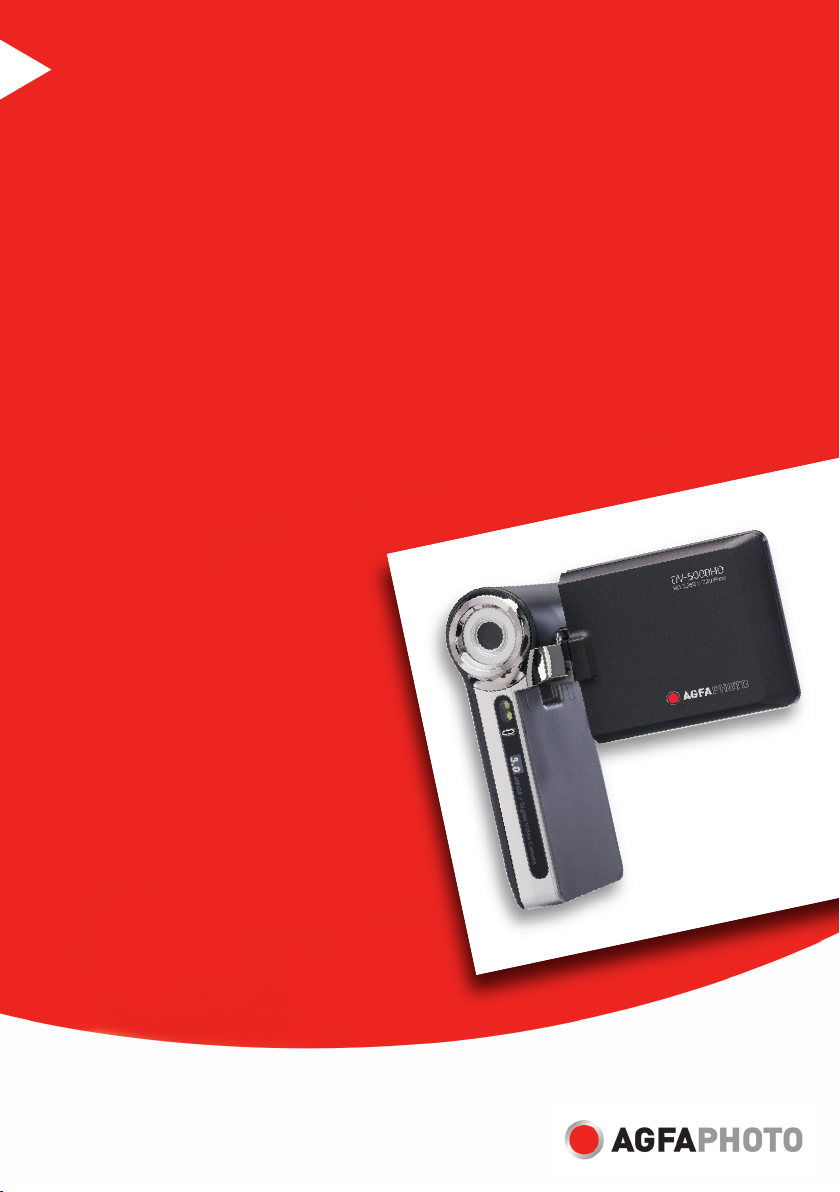
DV-5000HD
User manual
Page 2

FCC STATEMENT
This device complies with Part 15 of the FCC Rules. Operation is subject to the
following two conditions:
(1) This device may not cause harmful interference, and
(2) This device must accept any interference received, including interference that may
cause undesired operation.
Note:
This equipment has been tested and found to comply with the limits for Class B digital
devices, pursuant to Part 15 of the FCC rules. These limits are designed to provide
reasonable protection against harmful interference in a residential installation.This
equipment generates uses and can radiate radio frequency energy and, if not installed
and used in accordance with the instructions, may cause harmful interference to radio
communications. However, there is no guarantee that interference will not occur in a
particular installation. If this equipment does cause harmful interference to radio or
television reception, which can be determined by turning the equipment off and on, the
user is encouraged to try to correct the interference by one or more of the following
measures:
Reorient or relocate the receiving antenna.
Increase the separation between the equipment and receiver.
Connect the equipment into an outlet on a circuit different from that to which the
receiver is connected.
Consult the dealer or an experienced radio/TV technician for help.
Use of shielded cable is required to comply with Class B limits in Subpart B of Part 15
of the FCC rules.
Do not make any changes or modifications to the equipment unless otherwise
specified in the manual. If such changes or modifications should be made, you could
be required to stop operation of the equipment.
Notice
If static electricity or electromagnetism causes data transfer to discontinue midway
(fail), restart the application or disconnect and connect the communication cable
(USB, etc.) again.
EN-1
Page 3

READ THIS FIRST
Trademark Information
Microsoft® and Windows® are U.S. registered trademarks of Microsoft Corporation.
Pentium® is a registered trademark of Intel Corporation.
Macintosh is a trademark of Apple Computer, Inc.
SD™ is a trademark.
Other names and products may be trademarks or registered trademarks of their
respective owners.
Product Information
Product design and specifications are subject to change without notice. This
includes primary product specifications, software, software drivers, and user’s
manual. This User Manual is a general reference guide for the product.
The manufacturer assumes no liability for any errors or discrepancies in this user
manual.
EN-2
Page 4

SAFETY INSTRUCTIONS
Read and understand all Warnings and Cautions before using this product.
Warnings
If foreign objects or water have entered the video camera, turn the
power off and remove the batteries.
Continued use might cause fire or electric shock. Consult the store of
purchase.
If the video camera has fallen or its case has been damaged, turn the
power off and remove the batteries.
Continued use might cause fire or electric shock. Consult the store of
purchase.
Do not disassemble, change or repair the video camera.
This might cause fire or electric shock. For repair or internal inspection, ask
the store of purchase.
Do not use the video camera in areas near water.
This might cause fire or electric shock. Take special care during rain, snow,
on the beach, or near the shore.
Do not place the video camera on inclined or unstable surfaces.
This might cause the video camera to fall or tilt over, causing damage.
Keep the batteries out of the reach of children.
Swallowing the batteries might cause poisoning. If the batteries are
accidentally swallowed, immediately consult a physician.
Do not use the video camera while you are walking, driving or riding a
motorcycle.
This might cause you to fall over or result in traffic accident.
Please use batteries with complete external seals.
Do not use batteries from which the seals have been damaged or
removed.This may cause leakage, explosion, or injury.
EN-3
Page 5
Cautions
Load the batteries paying careful attention to the polarity (+ or –) of the
terminals.
Loading the batteries with their polarities inverted might cause fire and
injury, or damage to the surrounding areas due to the battery rupturing or
leaking.
Do not flash the LED lights close to anyone’s eyes.
This might cause damage to the person’s eyesight.
Do not subject the LCD monitor to impact.
This might damage the glass on the screen or cause the internal fluid to
leak. If the internal fluid enters your eyes or comes into contact with your
body or clothes, rinse with fresh water. If the internal fluid has entered your
eyes, consult a physician to receive treatment.
A video camera is a precision instrument. Do not drop it, strike it or
use excessive force when handling the video camera.
This might cause damage to the video camera.
Do not use the video camera in humid, steamy, smoky, or dusty
places.
This might cause fire or electric shock.
Do not remove the batteries immediately after long period of
continuous use.
The batteries become hot during use. Touching a hot battery might cause
burns.
Do not wrap the video camera or place it in cloth or blankets.
This might cause heat to build up and deform the case, resulting in fire. Use
the video camera in a well-ventilated place.
Do not leave the video camera in places where the temperature may
rise significantly, such as inside a car.
This might adversely affect the case or the parts inside, resulting in fire.
Before you move the video camera, disconnect cords and cables.
Failure to do this might damage cords and cables, resulting in fire and
electric shock.
EN-4
Page 6

Notes on Battery Usage
When you use the batteries, carefully read and strictly observe the Safety
Instructions and the notes described below:
Use only the specified batteries. (AA batteries)
Avoid extremely cold environments as low temperatures can shorten the battery
life and reduce video camera performance. Therefore Ni-MH rechargeable
batteries are highly recommended.
When you are using a new rechargeable batteries or rechargeable batteries that
have not been used for an extended period of time (the batteries that passed the
expiry date are exception), it may affect the number of images that can be
captured. Therefore, to maximize their performance and lifetime, we recommend
that you fully charge the batteries and discharge them for at least one complete
cycle before use.
The batteries may feel warm after a long period of continuous use of the video
camera. This is normal and not a malfunction.
The video camera may feel warm after a long period of continuous use. This is
normal and not a malfunction.
If the batteries are not to be used for a long period of time, remove them from the
video camera to prevent leakage or corrosion and store them after no battery
power is left. Stored for a long time in a fully charged condition, their performance
may be impaired.
Always keep the battery terminals clean.
There is a risk of explosion if the batteries are replaced by an incorrect type.
Dispose of used batteries according to the recycle instructions.
Charge the rechargeable batteries fully before using for the first time.
Never use batteries of different types (together) or mix old and new batteries.
Never use manganese batteries.
To prevent short-circuiting or fire, keep the batteries away from other metal objects
when carrying or storing.
EN-5
Page 7

CONTENTS
7 INTRODUCTION
7Overview
7 Package Contents
8 GETTING TO KNOW YOUR
DIGITAL VIDEO CAMERA
8 Front View
9Rear View
10 LCD Monitor Display
14 GETTING STARTED
14 Preparation
15 Turning the Power On/Off
15 LED Indicators
16 Handling the Digital Video Camera
17 Setting the Date and Time
17 Choosing the Language
18 Formatting the Memory Card
19 CAPTURE MODE
19 Recording Video Clips
19 Capturing Still Images
20 Using the Zoom Function
20 Setting the Focus
21 Setting the Self-Timer
22 PLAYBACK MODE
22 Playing Back Video Clips
23 Playing Back Still Images
24 Playing Back Still Images/Video
Clips on TV
24 Connecting the digital video
camera to HDTV
25 Thumbnail Display
26 Slide Show Display
26 Delete File
27 Protecting Images
28 AUDIO MODE
28 Recording Audio Files
28 Playing Back Audio Files
29 MENU OPTIONS
29 Video Menu
31 Capture Menu
33 Playback Menu
34 Setup Menu
36 INSTALLING SOFTWARE
PROGRAM
37 TRANSFERRING FILES TO
YOUR COMPUTER
37 Downloading / Deleting Your Files
via Computer
38 SPECIFICATIONS
39 APPENDIX
39 Troubleshooting
40 Customer Care
41 WEEE Statement
EN-6
Page 8

INTRODUCTION
Overview
Thank you for purchasing this AgfaPhoto digital camera. Please read these operating
instructions carefully in order to use the digital camera correctly. Keep the instructions
in a safe place after reading so that you can refer to them later.
Package Contents
Carefully unpack your digital video camera and ensure that you have the following
items:
Common Product Components:
AgfaPhoto DV-5000HD
CD-ROM
USB cable
AV c a ble
YPbPr (HD out) cable
Camera strap
Camera pouch
2 x AA size batteries
EN-7
Page 9

GETTING TO KNOW YOUR DIGITAL
VIDEO CAMERA
Front View
1
2
3
4
5
EN-8
7
1. Speaker
2. Focus switch
Normal mode
Macro mode
3. Lens
4. LED lights
5. Microphone
6. Battery cover
7. Tripod socket
6
Page 10
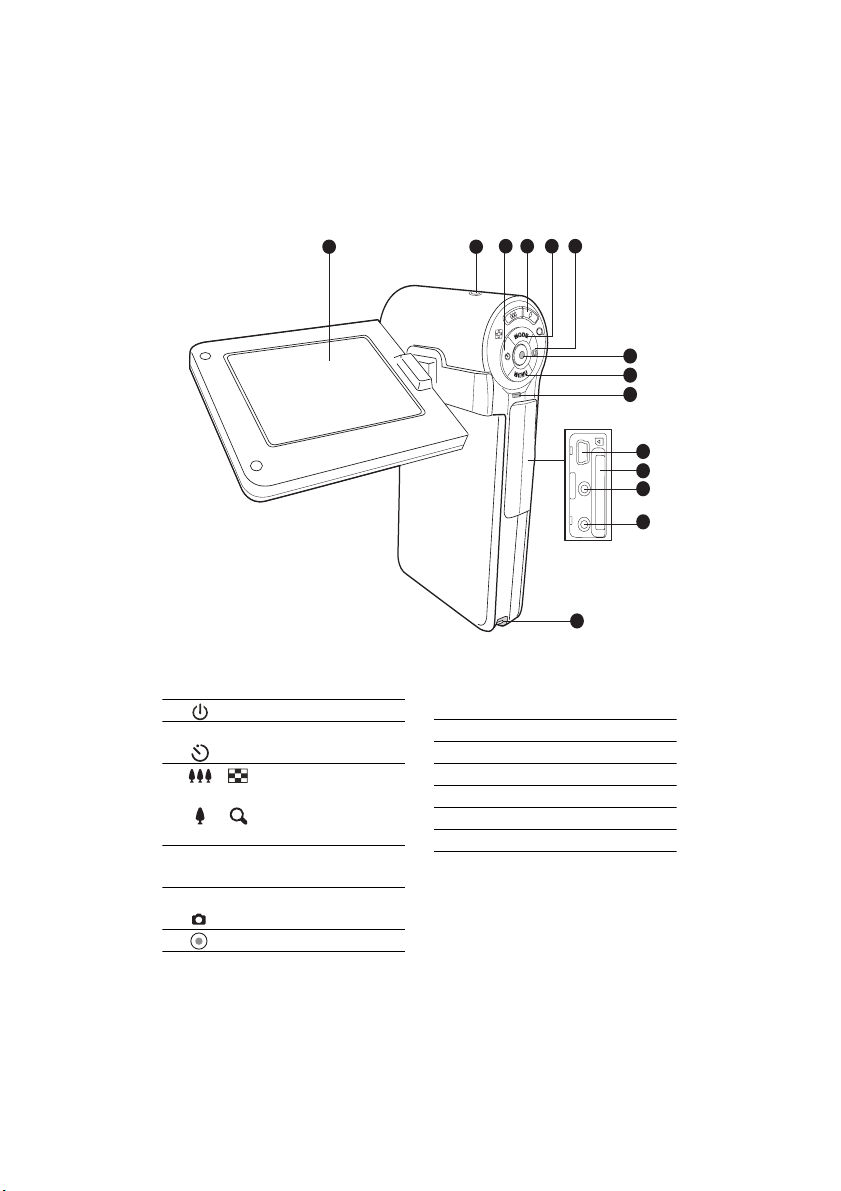
Rear View
1
2
7
8
9
10
11
12
13
14
5
6
4
3
1. LCD monitor
2. Power button
3. W Left button
Self-timer button
4. / Zoom out (wide-angle)
button / Thumbnail button
/ Zoom in (telephoto)
button
5. S Up button
MODE Mode button
6. X Right button
Camera mode quick key
7. OK/Shutter button
8. T Down button
MENU Menu button
9. Status LED indicator
10. USB port
11. SD/SDHC memory card slot
12.AV OUT1 terminal
13. AV OUT2 (HD OUT) terminal
14.Strap holder
EN-9
Page 11
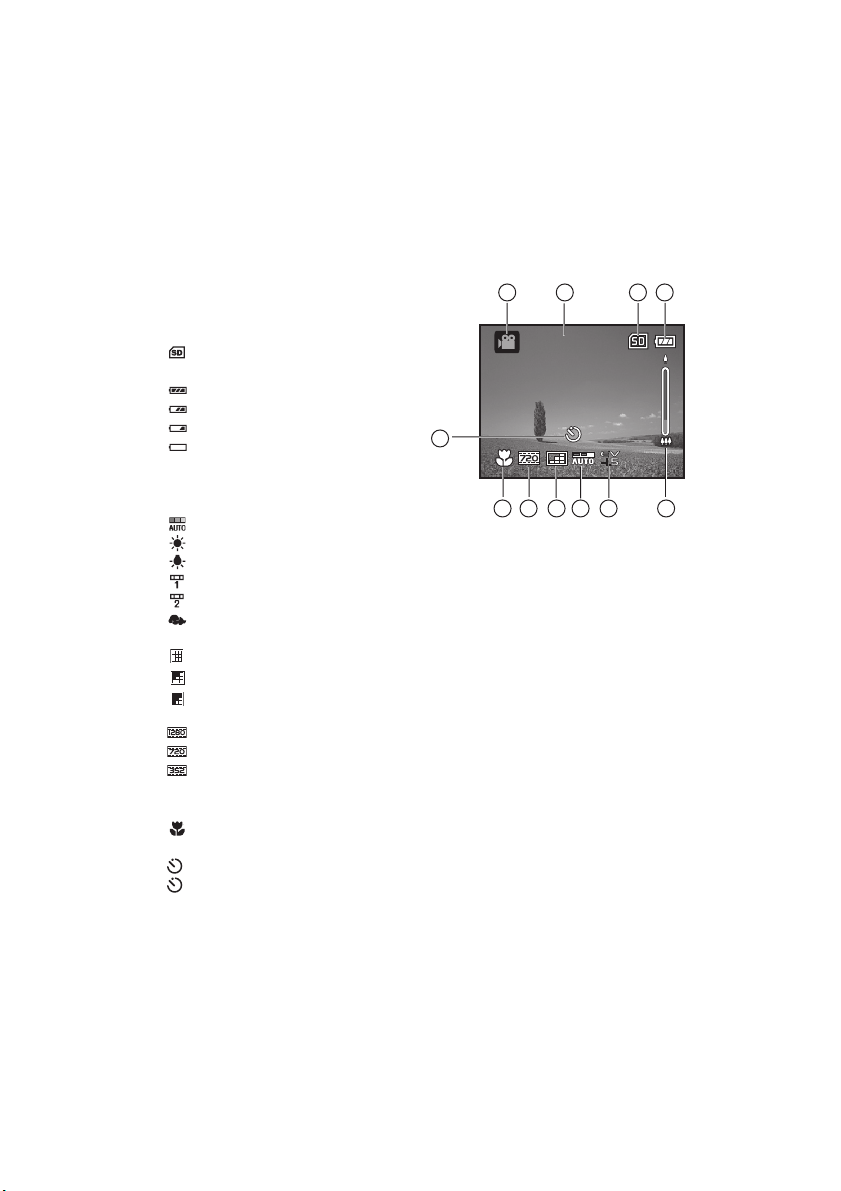
LCD Monitor Display
00:02:05
10s
Standby Mode
Video Mode
1. Video mode icon
2. Available recording time
3. Storage media
[ ] SD/SDHC memory card
4. Battery condition
[ ] Full battery power
[ ] Medium battery power
[ ] Low battery power
[ ] No battery power
5. Zoom status bar
6. Exposure compensation
7. White Balance
[ ] Auto
[ ] Daylight
[ ] Tungsten
[ ] Fluoresc.1
[ ] Fluoresc.2
[ ] Cloudy
8. Image quality
[
] Fine
[ ] Standard
[ ] Economy
9. Video size
[ ]1280 x 720
[ ]720 x 480
[ ]352 x 240
10.Focus setting
[
Blank
] Normal
[] Macro
11. Se lf-ti mer
[
10s
] 10 sec.
[
2s
] 2 sec.
3214
00:02:05
00:02:05
10s
11
10s
65
78910
EN-10
Page 12

Camera Mode
9999
10s
1. Camera mode icon
2. Available number of shots
3. Storage media
4. Battery condition
5. Zoom status bar
6. Capture mode icon
[
Blank] Single
[] Burst
[] AEB
7. ISO
[ ] Auto
[] 50
[] 100
[]
200
[] 400
8. Exposure compensation
9. White Balance
10. Image quality
11. Image size
[8m]3264 x 2448 (FW interpolation)
[5m
]2560 x 1920
[3m
]2048 x 1536
[1m
]1280 x 960
[
0.3m]640 x 480
12.Focus setting
13. Self-timer
3214
9999
9999
5
13
5
12
m5m
10s
10s
86
91011 7
EN-11
Page 13
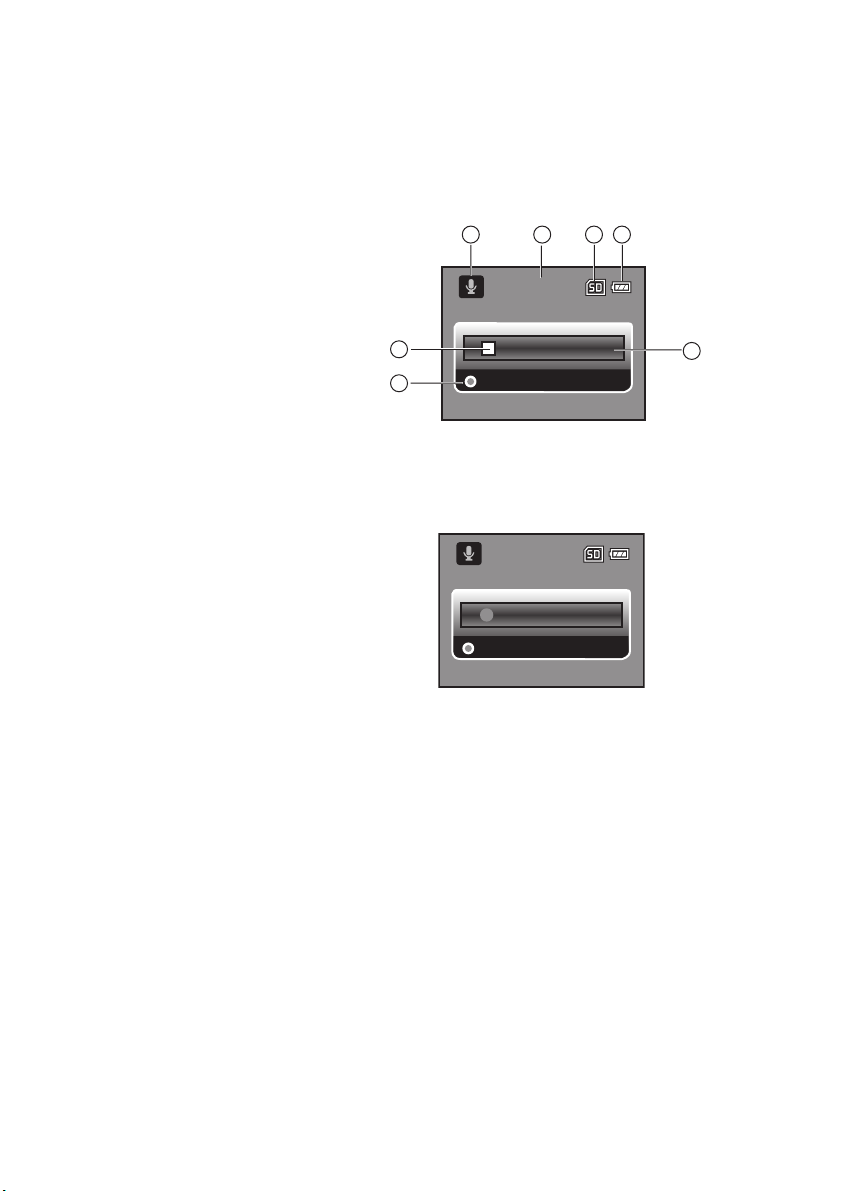
Audio Recording Mode
00:25:00
(Standby)
1. Audio mode icon
2. Available recording time
3. Storage media
4. Battery condition
5. Elapsed time
6. Recording indicator
7. Status indicator
(Recording)
14
7
6
00:25:00
00:25:00
00:00:00
REC
2 3
5
00:03:06
Stop
EN-12
Page 14

Playback Mode
00:00:00
101-0001
00:00:00
Video Mode
1. Playback mode icon
2. Elapsed time
3. Storage media
4. Battery condition
5. Folder and file number
6. Volume indicator
7. Video status bar
8. Playback indicator
3214
00:00:00
00:00:00
Pause
Stop
8
7
101-0001
5
6
Camera Mode
1. Playback mode icon
2. Storage media
3. Battery condition
4. Folder and file number
Audio Playback Mode
1. Playback mode icon
2. Elapsed time
3. Storage media
4. Battery condition
5. Volume indicator
6. Folder and file number
(ex. 100-0011)
7. Stop indicator
8. Playback indicator
9. Audio status bar
213
101-0001
101-0001
4
214
3
00:00:00
00:00:00
9
Pause
Stop
78 6
100-0011
5
EN-13
Page 15

GETTING STARTED
Preparation
1. Attach the camera strap.
2. Open the battery cover.
3. Insert the supplied batteries with correct
orientation as shown.
4. Insert an SD/SDHC memory card.
Be sure to format the SD/SDHC memory
card with this video camera before its initial
usage.
Close the battery cover and make sure it is
locked securely.
To prevent valuable data from being accidentally deleted from an
SDHC memory card
the
SD/SDHC
To save, edit, or delete data on an SD/SDHC memory card, you must
unlock the card
To prevent damaging of SD/SDHC memory card, be sure to turn off the
power when inserting or removing the SD/SDHC memory card. If
inserting or removing the SD/SDHC memory card with the power on, the digital video camera will
automatically turn off.
Be careful not to drop the batteries when opening or closing the battery cover.
, you can slide the write protect tab (on the side of
memory card) to “LOCK”.
.
SD/
EN-14
Page 16

Turning the Power On/Off
Load the batteries and insert an SD/SDHC memory card before starting.
Press the button until the digital
video camera turns on.
To turn the power off, press the
button again.
The power is turned off automatically when the digital video camera has not been operated for a
defined period of time. To resume operation, turn the power on again. Refer to section in this
manual titled “Power Off” in the Setup Menu for further details.
LED Indicators
Indicators State Description/Activity
LED indicator Solid green The digital video camera is powering
LED indicator Solid green The digital video camera is ready to
LED indicator Solid green USB communication/transfer is in
LED indicator Blinking green Reading/Writing files.
up.
record images (or videos).
progress.
EN-15
Page 17

Handling the Digital Video Camera
1.Open the panel by pulling it away from the digital video camera.
2.Choose the angle of the monitor that suits you best by rotating the panel.
Make sure you open the LCD panel at 90 degrees before attempting to rotate it.
Rotate the LCD panel carefully with the correct direction. Over rotation or rotating to the wrong
direction may damage the hinge that connects the LCD monitor to the digital video camera.
Avoid touching the LCD monitor when moving the LCD panel.
Cautions:
Do not hold the digital video camera by only holding the LCD panel.
Be careful not to block the lens, microphone, or LED lights with your fingers when
shooting.
Close the LCD panel when not using the digital video camera to avoid damages.
EN-16
Page 18

Setting the Date and Time
The date/time needs to be set if/when:
The digital video camera is turned on for the first time.
The digital video camera is turned on after being left without batteries for an
extended period of time.
1. Press the button until the digital video
camera turns on.
2. Press the MENU button.
3. Select [Setup] with the f button.
4. Select [Date/Time] with the c / d buttons, and
press the button.
Select the item’s field with the e / f buttons
and adjust the value for the date and time
with the c / d buttons.
Language
Format
LCD Bright.
Light Freq.
Date / Time
:
Exit
Setup
English
Next Menu
50Hz
Next Menu
0
:
OK
The time is displayed in 24-hour format.
After confirming all settings are correct,
press the button.
5. To exit from the [Setup] menu, press the f
button.
Date / Time
2008.01.01
00:00
Y/M/D
:
OK
Choosing the Language
Specify in which language menus and messages are to be displayed on the LCD monitor.
1. Press the MENU button.
2. Select [Setup] menu with the f button.
3. Select [Language] with the c / d buttons, and
press the button.
The Language setting screen will be
displayed.
4. Select the displayed language with the c / d
buttons, and press the button.
The setting will be stored.
Language
Format
LCD Bright.
Light Freq.
Date / Time
:
Exit
Setup
English
Next Menu
50Hz
Next Menu
0
:
OK
EN-17
Page 19

Formatting the Memory Card
This utility formats the SD/SDHC memory card and deletes all stored images, video
clips, and data.
1. Press the MENU button.
2. Select [Setup] menu with the f button.
3. Select [Format] with the c / d buttons, and
press the button.
4. Select [Yes] with the c / d buttons, and press
the button.
To cancel formatting, select [No] and press
the button.
Language
Format
LCD Bright.
Light Freq.
Date / Time
:
Exit
Format
Format Card?
No
Yes
:
Exit
Setup
English
Next Menu
50Hz
Next Menu
0
:
OK
:
OK
EN-18
Page 20

CAPTURE MODE
00:02:05
10s
9999
10s
Your digital video camera is equipped with a 2.36" TFT-LCD monitor to help you capture/playback images and video clips or adjust menu settings.
Recording Video Clips
1. Press the button until the digital video
camera turns on.
The default mode is Video Mode.
2. Compose the image on the LCD monitor.
3. Press the button to start recording.
4. Press the button again to stop recording.
The recording time depends on the storage
media size and the subject to be recorded.
Capturing Still Images
1. Press the button until the digital video
camera turns on.
2. Press the MODE button or button (camera
mode quick key) to enter Capture Mode.
3. Compose the image on the LCD monitor.
4. Press the button to capture the image.
If the access speed of your SD/SDHC memory card is not fast enough for recording video clips
in the currently selected size, the recording will stop. In this case, select a video quality lower
than the current one.
5m5m
00:02:05
00:02:05
10s
10s
9999
9999
10s
10s
EN-19
Page 21

Using the Zoom Function
This digital video camera is equipped with digital zoom. You may enlarge the subjects
by pressing the button. While digital zoom can be a useful feature, the more an
image is enlarged (zoomed), the more pixelated (grainier) the image will appear.
To capture a zoomed image/video clip, perform the following steps:
1. Compose the image on the LCD monitor.
Press the button to zoom in on the
subject, and enlarge the subject on the LCD
monitor.
Press the button to view a wider angle
of the image.
The status of digital magnification is
displayed on the zoom status bar.
2. Press the button to capture the image/
video clip.
The zoom function may be activated as you record video clips.
Setting the Focus
Images/Video clips may be captured by sliding the focus switch to set the focus
modes: [ ] macro or [ ] normal mode.
1. Slide the focus switch to your desired focus
mode.
2. Compose the image on the LCD monitor
3. Press the button to capture the image/
video clip.
Focus mode Description
Normal This mode is suitable for scenery and portrait shooting.
Macro Select macro to capture close-up images. When the lens is
EN-20
zoomed to its widest position you may focus objects as close as
60 cm.
Page 22

Setting the Self-Timer
The self-timer may be used in situations such as group shots. When using this option,
you should either mount the digital video camera on a tripod (recommended) or place
it on a flat, level surface.
1. Press the button to select the self-timer
setting.
2. Compose the image on the LCD monitor and
press the button.
The self-timer function is activated and
begins to count down.
3. The image/video clip is captured after the
preset time has elapsed.
Self-timer
mode
2s The image is captured about 2 seconds after the shutter is
10s
After one image/video clip is taken, the self-timer mode is turned off. If you wish to take another
shot using the self-timer, repeat the above steps.
Description
pressed. This mode is useful for preventing camera shake.
The image is captured about 10 seconds after the shutter is
pressed. This mode is suitable for the shots in which the
photographer has to be included.
EN-21
Page 23

PLAYBACK MODE
00:00:00
Playing Back Video Clips
1. Press the MODE button until is
displayed.
The last recorded image/video clip
appears on the LCD monitor.
2. Select the desired video clip with the e / f
buttons.
3. Press the button to start video playback.
To pause video playback, press the
button.
To cancel pause, press the button
again.
4. To stop video playback, press the d button
and return to the start of the video clip.
Video clips cannot be displayed rotated or enlarged.
To play back video clips on your computer, you may use Windows Media Player 9 with
additional H.264 Codec (H.264 Codec is free on the Internet) or Quick Time basic player (7.0 or
above version).
QuickTime basic player is available free of charge, compatible with Mac and
Windows-computers and can be downloaded from the Apple web site at www.apple.com
helps on using QuickTime Player, please refer to the QuickTime on-line help for more
information.
Pause
00:00:00
00:00:00
Stop
101-0001
. For
EN-22
Page 24

Playing Back Still Images
100-0011
1. Press the MODE button until is displayed.
The last recorded image/video clip appears
on the LCD monitor.
2. Select the desired image with the e / f
buttons.
3. The images can be displayed in reverse or
forward sequence with the e / f buttons.
4. Press the / button to adjust the zoom
ratio. The magnification factor is displayed on
the LCD monitor.
5. To view different portion of the images, press
the c / d / e / f button to adjust the display
area.
2X2X2X
100-0011
100-0011
EN-23
Page 25

Playing Back Still Images/Video Clips on TV
You can also playback your images on a TV screen. Before connecting to any
devices, make sure to select NTSC / PAL system to match the video output system of
the video equipment you are going to connect to the digital video camera, then turn all
connected devices off.
1. Connect one end of the AV cable to the AV OUT1 terminal of the digital video
camera.
2. Connect the other end to the AV input socket of the TV set.
3. Turn the TV and digital video camera on.
4. Playback the still images/video clips.
5. The method of operation is the same as playing back still images and video clips
on the digital video camera.
Connecting the digital video camera to HDTV
HD TV (High Definition Television) is a digital television broadcasting system with
better resolution than traditional television systems. It can perform HD (720P) high
resolution quality.
HD TV
(green)
AV OUT1
<AV cable>
AV OUT2 (HD OUT)
Video IN
(red)
(white)
(yellow)
(Do not connect in Yellow Cable)
<YPbPr(HD out) cable>
(blue)
(red)
(red)
(white)
Audio IN
1. Connect one end of the YPbPr (HD out) cable into the (Video IN) port on the HDTV
and the other end into the AV OUT2 (HD out) terminal of the digital video camera.
2. Connect one end of the AV cable into the (Audio IN) socket of the HDTV and the
other end into the (AV OUT1) terminal of the digital video camera. (Do not connect
the yellow connector to HDTV’s AV-IN.)
3. Turn the TV and digital video camera on.
The video camera will auto detect and set the settings when the cables are
connected.
(green)
(blue)
(red)
EN-24
Page 26

Thumbnail Display
This function allows you to view 6 thumbnail images on the LCD monitor simultaneously so you may search for a particular image/video clip.
1. Press the MODE button until is
displayed.
2. Press the / button.
6 thumbnail images are displayed
simultaneously.
3. Use the c / d / e / f buttons to move
the cursor to select the image to be
displayed at regular size.
4. Press the button to display the
selected image on full screen.
Protect
icon
OK
Still
Audio
image
file
100-0003 00:03:02
Movie
clip
EN-25
Page 27

Slide Show Display
The slideshow function enables you to play back your still images automatically in
sequential order as a slideshow. This is a very useful and entertaining feature for
reviewing captured images and for presentations.
1. Press the MODE button until is displayed.
2. Press the MENU button.
3. Select [Slide Show] with the c / d buttons and
press the button.
4. Select the desired interval time with the c / d
buttons, and press the button.
The slide show starts.
To stop the slideshow during playback, press
the T button.
Play
Slide Show
Delete File
Delete All
Protect
Sound
:
Exit
Slide Show
Next Menu
No
Next Menu
Single
:
5sec.
7sec.
9sec.
5
OK
Video clips are displayed as images and will not be played back.
Delete File
1. Press the MODE button until is displayed.
2. Select the file you wish to delete with the e / f
buttons.
3. Press the MENU button.
4. Select [Delete File] or [Delete All] with the c / d
buttons and press the button.
[Delete File]: Deletes the current file.
[Delete All]: Deletes all files.
5. Select [Yes] to delete. Select [No] to cancel.
6. Press the button to confirm.
EN-26
:
Exit
Play
Slide Show
Delete File
Delete All
Protect
Sound
:
Exit
:
OK
No
Yes
Next Menu
Single
:
OK
5
Page 28

Protecting Images
Set the data to read-only to prevent images/video clips from being deleted by mistake.
1. Press the MODE button until is
displayed.
2. Select the image/video clip you wish to protect
with the e / f buttons.
3. Press the MENU button.
4. Select [Protect] with the c / d buttons and
press the button.
5. Select [Single], [Select], or [All] with the c / d
buttons, and press the button.
[Single]: Protects the current image/video
clip.
[Select]: Select the images/video clips you wish to protect in thumbnail mode.
Press the button to marked the selected images/video clips.
[All]: Protects all images/video clips.
6. Press the button.
Protection is applied to the selected images and the video camera returns to
the previous menu mode.
The protect icon is displayed with protected images.
7. To cancel protection, repeat steps 2 to 6 from above.
The removal of image protection is executed and the video camera returns to
the previous menu mode.
Formatting an SD/SDHC memory card overrides protection, and deletes all images regardless
of their protected status.
Play
Slide Show
Delete File
Delete All
Protect
Sound
:
Exit
Next Menu
No
Single
Select
All
Yes
:
OK
EN-27
Page 29

AUDIO MODE
00:00:00
Recording Audio Files
The digital video camera enables you to record and playback audio files anytime and
anywhere.
1. Press the MODE button to enter Audio Mode.
2. Press the button to start audio recording.
To pause recording, press the button
again.
To stop recording, press the T button.
Playing Back Audio Files
1. Press the MODE button until is displayed.
2. Press the button to begin playback.
To pause, press the button again.
To stop playback, press the T button.
00:03:06
Stop
00:00:00
00:00:00
EN-28
Pause
Stop
100-0011
Page 30

MENU OPTIONS
Video Menu
This menu is for the basic settings to be used when shooting video clips.
Video
Size
Quality
EV
W.Blance
LED
:
Exit
1. The default mode is Video Mode.
2. Press the MENU button.
3. Select the desired option item with the c / d buttons, and press the button to
enter its respective menu.
4. Select the desired setting with the c / d buttons, and press the button.
5. To exit from the menu, press the e button.
Size
This sets the size of the video clips that will be captured.
* [ ]1280 x 720
* [ ]720 x 480
* [ ]352 x 240
Quality
This sets the quality (compression) at which the image is captured.
* [ ] Fine
* [ ] Standard
* [ ] Economy
EV
Your digital video camera adjusts the exposure of each shot automatically. However, if
the subject is very dark, or very bright, you may override the digital video camera's
automatic exposure determination to make the subject brighter or darker. This is
called EV compensation. The EV compensation can be adjusted from -1.8EV to
+1.8EV.
720x480
Standard
Auto
Auto
:
OK
0
EN-29
Page 31

W.Bal ance
This sets the white balance for a variety of lighting conditions and permits images to
be captured that approach the conditions that are seen by the human eye.
* [ ] Auto
* [ ] Daylight
* [ ] Tungsten
* [ ] Fluoresc.1
* [ ] Fluoresc.2
* [ ] Cloudy
LED
This sets whether the camera’s LED lights are activated during usage.
* [Auto]: The LED lights will automatically turn on when recording video clips and turns
off when the recording ends.
* [On]: The LED lights are turned on all the time during usage.
* [Off]: The LED lights are turned off all the time during usage.
EN-30
Page 32

Capture Menu
This menu is for the basic settings to be used when capturing still images.
Capture
Size
Quality
EV
W.Blance
LED
:
Exit
2560x1920
Standard
Auto
Off
:
OK
0
Capture
ISO
Capture
:
Exit
Auto
Single
:
OK
1. Press the MODE button or button (camera mode quick key) to enter Capture
Mode.
2. Press the MENU button.
3. Select the desired option item with the c / d buttons, and press the button to
enter its respective menu.
4. Select the desired setting with the c / d buttons, and press the button.
5. To exit from the menu, press the e button.
Size
This sets the size of the images that will be captured.
* [8m]3264 x 2448 (FW interpolation)
* [5m]2560 x 1920
* [3m]2048 x 1536
* [1 m]1280 x 960
* [0.3m]640 x 480
Quality
Refer to the section in this manual titled “Quality” in Video Menu for further details.
EV
Refer to the section in this manual titled “EV” in Video Menu for further details.
W.Bal ance
Refer to the section in this manual titled “W.Balance” in Video Menu for further details.
LED
Refer to the section in this manual titled “LED” in Video Menu for further details.
EN-31
Page 33

ISO
This sets the sensitivity for capturing images. When the sensitivity is raised (and the
ISO figure is increased), photography will become possible even in dark locations, but
the more pixelated (grainier) the image will appear.
* Auto / 50 / 100 / 200 / 400
Capture
This sets the shooting mode for capturing still images.
* [Blank] Single: Captures a single image.
* [ ] Burst: Captures 3 images continuously.
* [ ] AEB: Auto exposure bracketing capture mode.
EN-32
Page 34

Playback Menu
In this menu, choose which settings are to be used for still image/video clip playback.
Play
Slide Show
Delete File
Delete All
Protect
Sound
:
Exit
1. Press the MODE button until is displayed.
2. Press the MENU button.
3. Select the desired option item with the c / d buttons, and press the button to
enter its respective menu.
4. Select the desired setting with the c / d buttons, and press the button.
5. To exit from the menu, press the e button.
Slide Show
Refer to section in this manual titled “Slideshow Display” for further details.
Delete File
Refer to section in this manual titled “Deleting Still Images/Video Clips” for further
details.
Delete All
Refer to section in this manual titled “Deleting Still Images/Video Clips” for further
details.
Protect
Refer to section in this manual titled “Protecting Images” for further details.
Sound
This sets the sound volume. The adjustment range is from level 0 (soundless) to 5
(loudest).
Next Menu
No
Next Menu
Single
:
OK
5
EN-33
Page 35

Setup Menu
This menu sets your digital video camera’s operating environment.
Language
Format
LCD Bright.
Light Freq.
Date / Time
:
Exit
Setup
English
Next Menu
50Hz
Next Menu
Power Off
Beep
0
:
OK
Video Out
Sys. Reset
:
Exit
Setup
Off
On
NTSC
No
:
OK
1. Press the MENU button.
2. Select the [Setup] menu with the f button.
3. Select the desired option item with the c / d buttons, and press the button to
enter its respective menu.
4. Select the desired setting with the c / d buttons, and press the button.
5. To exit from the menu, press the f button.
Language
Refer to section in this manual titled “Choosing the Language” for further details.
Format
Refer to section in this manual titled “Formatting the Memory Card” for further details.
Light Freq.
The function allows to change the light frequency of environment to 60Hz or 50Hz.
* [60Hz]: the light frequency of environment is 60Hz
* [50Hz]: the light frequency of environment is 50Hz
LCD Bright.
This sets the brightness of the LCD monitor screen.
* The adjustment range is from -5 to +5.
Date/Time
Refer to section in this manual titled “Setting the Date and Time” for further details.
Power Off
If no operation is performed for a specific period of time, the power to the digital video
camera is automatically turned off. This feature is useful to reduce battery usage.
* Off / 1Min. / 3Min. / 5Min. / 10Min.
EN-34
Page 36

Beep
This sets whether or not to mute the startup sound, and the video camera sounds
each time you press a button.
* On / Off
Video Out
Sets video compatibility with the equipment you are going to connect to the digital
video camera. For YPbPr(HD out) Video out function, the video camera will auto
detect and set the settings when the cable is connected.
* [NTSC]: NTSC system
* [PAL]: PAL system
Sys. Reset
Returns all basic settings to the digital video camera's default settings.
* Yes / No
EN-35
Page 37

INSTALLING SOFTWARE PROGRAM
1. Please make sure you have Windows Media Player 9 or QuickTime 7.0 installed
onto your computer first.
2. Please install the Decorder program (available in the CD).
H.264 files may be played back with Windows Media Player 9. (Decorder is
design for H.264 decode)
MP4/H.264 playback System Requirements:
At least 512MB of RAM
64MB or higher video card
Windows 2000 Service Pack 4 or XP or Vista 32 or Vista 64
DirectX 9.0b or higher
Audio format 48KHz HE-AAC or AAC
Resolution fps CPU requirements
720x480 30fps 2.4 GHz Intel Pentium 4 or higher
1280x720 30fps 3.2 GHz Intel Pentium D(dual-core) or higher
EN-36
Page 38

TRANSFERRING FILES TO YOUR
COMPUTER
System Requirement
Windows Macintosh
Pentium 166 MHz or higher
Windows 2000/XP/Vista
128MB RAM
128MB hard disk space
CD-ROM drive
Available USB port
Downloading / Deleting Your Files via Computer
1. Press the button until the digital video camera turns on.
2. Connect one end of the USB cable to the USB terminal of the digital video camera.
3. Connect the other end of the USB cable to an available USB port on your
computer.
4. From the Windows desktop, double click on “My Computer”.
5. Look for a new “removable disk” icon.
This “removable disk” is actually the memory (or memory card) in your video
camera. Typically, the video camera will be assigned drive letter “E” or higher.
6. Double click on the removable disk and locate the DCIM folder.
7. Double click on the DCIM folder to open it to find more folders.
Your recorded images, video clips and audio files will be inside these folders.
8. Copy and paste or drag and drop files to a folder on your computer.
9. To delete files, simply select the unwanted files and delete.
Mac users: Double-click the “untitled” or “unlabeled” disk drive icon on your desktop.
iPhoto may automatically launch.
PowerPC G3/G4/G5
OS 9.0 or later
128MB RAM
128MB hard disk space
CD-ROM drive
Available USB port
Formatting the SD/SDHC memory card by computer (via USB connection) as NTFS file system,
the stored data will be automatically deleted by the video
Do not format the SD/SDHC memory card as NTFS file system.
camera.
EN-37
Page 39

SPECIFICATIONS
Item Description
Image sensor 1/2.5” CMOS sensor
Effective pixels 5.0 Mega pixels
Image resolution <Still image>
Recording media Supports SD/SDHC memory card (up to 4GB) (optional)
File format Image format: JPEG; video format: H.264
Lens Aperture: F3.1
Focus range Macro: 60 ~ 100 cm
LCD monitor 2.36” full color LTPS-TFT LCD (115K pixels)
Self-timer 10 sec delay, 2 sec delay
Exposure
compensation
White balance Auto, Daylight, Tungsten, Fluorescent1, Fluorescent2, Cloudy
ISO Auto, 50, 100, 200, 400
Interface USB 2.0 connector, AV OUT1 terminal, AV OUT2 (HD OUT)
Power 2 x AA size batteries
Dimensions Approx. 106.5 x 59 x 30 mm (without protruding parts)
Weight Approx. 130g (without batteries and memory card)
* Design and specifications are subject to change without notice.
8M: 3264 x 2448 (FW interpolation),
5M: 2560 x 1920, 3M: 2048 x 1536,
1M: 1280 x 960, 0.3M: 640 x 480
<Video clip>
HD: 1280 x 720 (30 fps), D1: 720 x 480 (30 fps),
CIF: 352 x 240 (30 fps)
Focal Length: 7.5mm
Normal: 100cm ~ infinity
-1.8EV~ +1.8EV (in 0.3EV increments)
terminal
EN-38
Page 40

APPENDIX
Troubleshooting
Refer to the symptoms and solutions listed below before sending the digital video
camera for repairs. If the problem persists, contact your local reseller or service
center.
Symptom Cause
The power does not
come on.
The batteries or
video camera feels
warm.
Even if I press the
shutter button, the
digital video
not shoot.
The video camera
cannot focus.
Files cannot be
deleted.
Cannot download
images.
does
The batteries are not loaded
or loaded incorrectly.
The batteries are exhausted. Replace with a new set of
Long period of continuous use
of the video camera.
The SD/SDHC memory card
does not have any free
capacity.
The video camera is not in
shooting mode.
The SD/SDHC memory card
is write-protected.
The lens is dirty. Wipe clean with a soft, dry
The distance to the subject is
smaller than the effective
range.
The file is protected. Cancel protection.
The SD/SDHC memory card
is write-protected.
The free space on the hard
disk in your computer may be
insufficient.
Solutions / Corrective
Actions
Load the batteries correctly.
batteries.
Insert a new SD/SDHC memory card, or delete unwanted
files.
Set the video camera to shooting mode.
Remove the write-protection.
cloth or lens paper.
Place your subject within the
effective focus range.
Remove the write-protection.
Check whether the hard disk has
a space for running Windows,
and if the drive for loading image
files has a capacity at least that
of the memory card inserted in
the video camera.
EN-39
Page 41

Customer care
More information on the complete AgfaPhoto digital camera product range can be
found at www.plawa.com
Service & Repair (USA/ Canada):
1-866 475 2605
www.plawausa.com
Support Service (USA/ Canada)
Support-apdc@plawausa.com
Service & Repair Hotline (EU):
00800 752 921 00 (from a landline only)
Service & Support Hotline (Germany):
0900 1000 042 (1.49 euros/min. from a German landline only)
Online Service / International contact:
support-apdc@plawa.com
Manufactured by
plawa-feinwerktechnik GmbH & Co. KG
Bleichereistraße 18
73066 Uhingen
Germany
AgfaPhoto is used under license of Agfa-Gevaert NV & Co. KG. Agfa-Gevaert NV &
Co. KG. does not manufacture this product or provide any product warranty or support. For service, support and warranty information, contact the distributor or manufacturer. Contact: AgfaPhoto Holding GmbH, www.agfaphoto.com
EN-40
Page 42

Disposal of Waste Equipment by Users in Private
Households in the European Union
This symbol on the product or on its packaging indicates that this product must not be
disposed of with your other household waste. Instead, it is your responsibility to dispose of your waste equipment by handing it over to a designated collection point for
the recycling of waste electrical and electronic equipment. The separate collection and
recycling of your waste equipment at the time of disposal will help to conserve natural
resources and ensure that it is recycled in a manner that protects human health and
the environment. For more information about where you can drop off your waste
equipment for recycling, please contact your local city office, your household waste
disposal service or the shop where you purchased the product.
FCC Compliance and Advisory
This device complies with Part 15 of the FCC Rules. Operation is subject to the following two conditions: 1.) this device may not cause harmful interference, and 2.) this
device must accept any interference received, including interference that may cause
unsatisfactory operation. This equipment has been tested and found to comply with
the limits for a Class B peripheral, pursuant to Part 15 of the FCC Rules. These limits
are designed to provide reasonable protection against harmful interference in a residential installation. This equipment generates, uses, and can radiate radio frequency
energy and, if not installed and used in accordance with the instructions, may cause
harmful interference to radio communication. However, there is no guarantee that
interference will not occur in a particular installation. If this equipment does cause
harmful interference to radio or television reception, which can be determined by turning the equipment off and on, the user is encouraged to try to correct the interference
by one or more of the following measures.
Reorient or relocate the receiving antenna.
Increase the separation between the equipment and receiver.
Connect the equipment to an outlet on a circuit different from that to which the
receiver is connected.
Consult the dealer or an experienced radio/TV technician for help.
Any changes or modifications not expressly approved by the party responsible for
compliance could void the user's authority to operate the equipment. When shielded
interface cables have been provided with the product or when specified additional
components or accessories have elsewhere been designated to be used with the
installation of the product, they must be used in order to ensure compliance with FCC
regulations.
EN-41
 Loading...