

Page 1
Page 2
Warning Before Installation
English
Power off the Network Camera as
soon as smoke or unusual odors are
detected.
Contact your distributor in the event of
occurrence.
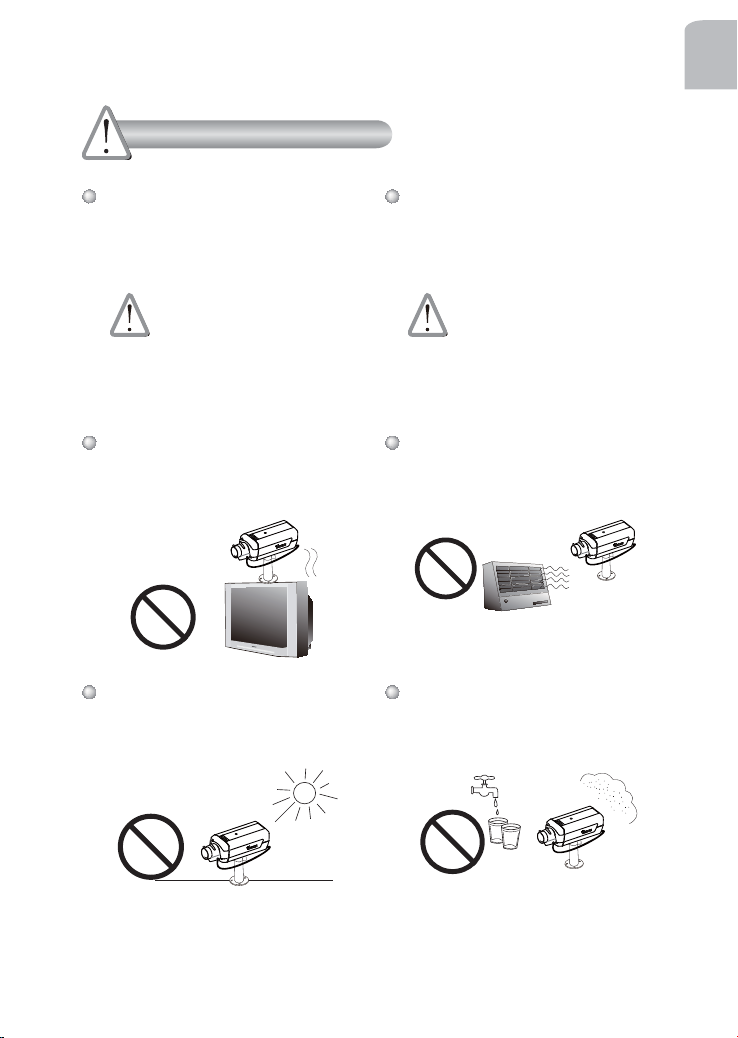
Do not place the Network Camera
around heat sources, such as a
television or oven.
Keep the Network Camera away
from direct sunlight.
Keep the Network Camera away
from water. If the Network Camera
becomes wet, power off immediately.
Contact your distributor in the event of
occurrence.
Refer to your user's manual for the
operating temperature.
Do not place the Network Camera
in high humidity environments.
1
Page 3
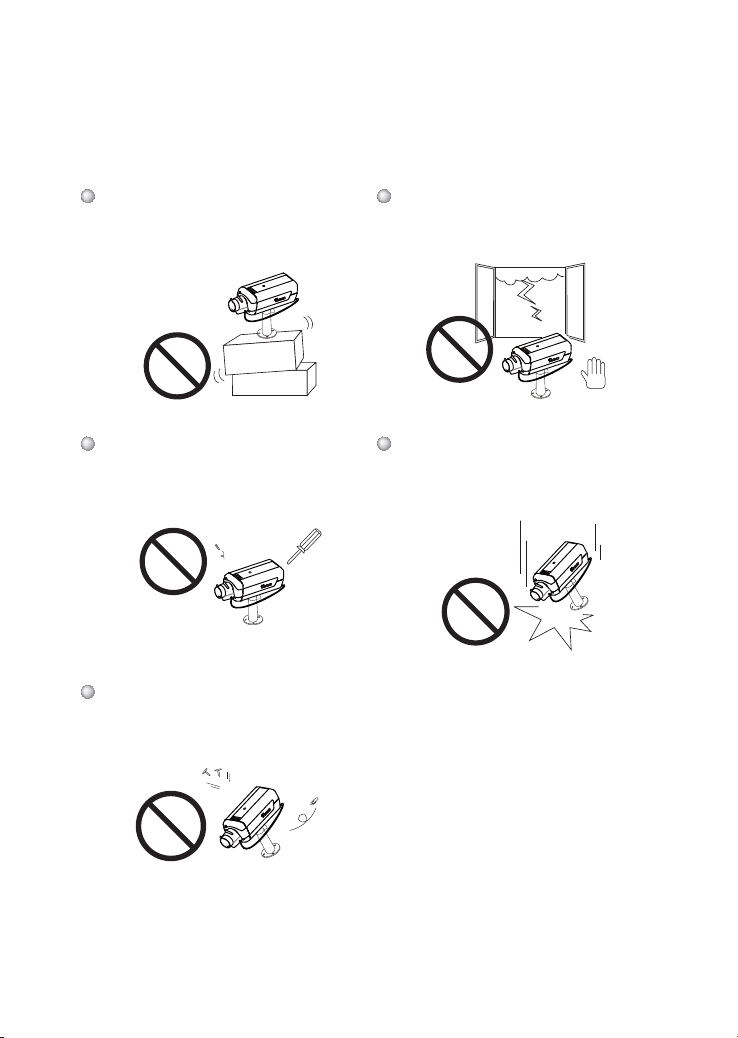
Do not place the Network Camera
on unsteady surfaces.
Do not touch the Network Camera
during a lightning storm.
Do not disassemble the Network
Camera.
Do not insert sharp or tiny objects
into the Network Camera.
Do not drop the Network Camera.
2
Page 4
Package Contents
1
English
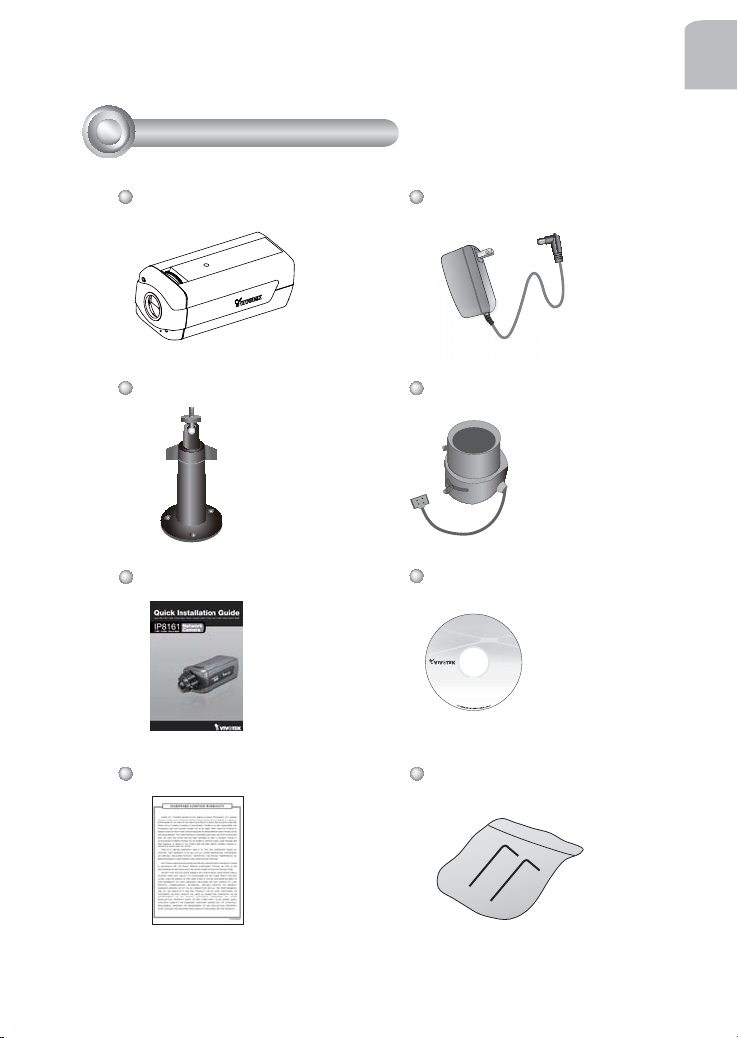
IP8161
Camera Stand
Quick Installation Guide
Warranty Card
Power Adapter
CS-mount Lens
Software CD
L-type Hex Key Wrench
3
Page 5

Physical Description
2
Front Panel
Light Sensor
Lens
Built-in Microphone
Back Panel
Status LED
Microphone In
External/Internal
MIC Switch
Ethernet 10/100
RJ45 Socket
Recessed Reset
Button
Lens
Audio Out
DC-iris Control Cable Socket
4
BNC Video Out
SD/SDHC Card Slot
NTSC/PAL Switch
Power Cord Socket
General I/O
Terminal Block
Focus Controller
Zoom Controller
Page 6

Mounting the Lens to the Camera
3
1. Mount the lens by turning it clockwise onto the camera mount until it stops. If
necessary, turn the lens counterclockwise slowly until it gets the best attitude.
2. Connect the DC-iris control cable to the socket.
1
2
For further setup, please refer to the lens’ instruction manual inside the
lens package.
Network Deployment
4
General Connection (without PoE)
1. If you have external devices such as sensors and alarms, connect them to the
general I/O terminal block.
2. Connect the camera to a switch via Ethernet cable.
3. Connect the power cable from the Network Camera to a power outlet.
English
3
2
POWER
LINK
COLLISION
RECEIVE
1
2
PARTITION
3
4
5
1
1: Power +12V
2: Digital output
3: Digital input
4: Ground
5: AC 24V
6: AC 24V
7: RS485+
8: RS485-
Ethernet Switch
5
Page 7

Power over Ethernet (PoE)
When using a PoE-enabled switch
The Network Camera is PoE-compliant, allowing transmission of power and data
via a single Ethernet cable. Follow the below illustration to connect the Network
Camera to a PoE-enabled switch via Ethernet cable.
PoE Switch
POWER
LINK
COLLISION
RECEIVE
1
2
PARTITION
3
4
5
When using a non-PoE switch
Use a PoE power injector (optional) to connect between the Network Camera and
a non-PoE switch.
PoE Power Injector
(optional)
LINK
POWER
COLLISION
RECEIVE
1
2
PARTITION
3
4
5
Non-PoE Switch
6
Page 8

Assigning IP Address
5
1. Install "Installation Wizard 2" from the Software Utility directory on the software CD.
2. The program will conduct an analysis of your network environment. After your network
is analyzed, please click on the "Next" button to continue the program.
IW
2
Installation
Wizard 2
3. The program will search for VIVOTEK Video Receivers, Video Servers, and
Network Cameras on the same LAN.
4. After searching, the main installer window will pop up. Click on the MAC that
matches the one labeled on the bottom of your device to connect to the Network
Camera via Internet Explorer.
English
Network Camera
Model No: IP8161
MAC:0002D1730202
This device complies with part 15 of the FCC rules. Operation is subject to the following two conditions:
(1)This device may not cause harmful interference, and
(2) this device must accept any interference received, including interference that may cause undesired operation.
Pat. 6,930,709
RoHS
Made in Taiwan
00-02-D1-73-02-02 192.168.5.151 IP8161
0002D1730202
7
Page 9

6
Ready to Use
1. Access the Network Camera from the LAN.
2. Retrieve live video through a web browser or recording software.
3. Unscrew the zoom controller to adjust the zoom factor. Upon completion, tighten the
zoom controller.
4. Unscrew the focus controller to adjust the focus range. Upon completion, tighten the
focus controller.
T
3
N
4
W
∞
For further setup, please refer to the user’s manual on the software CD.
8
Page 10

7
Fine-tune the Camera Focus
Please follow the steps below to fi ne-tune the camera focus:
1. Use the supplied L-type hex key wrench to loosen the ring screw; the adjustment
ring will become rotatable.
2. Rotate the adjustment ring to fi ne-tune the distance between the sensor and the
lens; the IR-cut fi lter and image sensor will move forwards or backwards as the
illustration shown below.
3. When fi nished, tighten the ring screw to fi x the adjustment ring.
C
2
CS
1
English
IR-cut fi lter and image sensor
for C-mount lensfor CS-mount lens
9
Page 11

 Loading...