

Page 1

User Guide
AC1200 Wireless Dual Band PCI Express Adapter
Archer T4E
REV1.0.0 1910012458
Page 2

Contents
About This Guide . . . . . . . . . . . . . . . . . . . . . . . . . . . . . . . . . . . . . . . . . . . . . . . . . . 1
Chapter 1. Get to Know About Your Adapter. . . . . . . . . . . . . . . . . . . . . . . 2
1. 1. Product Overview . . . . . . . . . . . . . . . . . . . . . . . . . . . . . . . . . . . . . . . . . . . . . . . . . . . . . . . . . . 3
1. 2. LED Status . . . . . . . . . . . . . . . . . . . . . . . . . . . . . . . . . . . . . . . . . . . . . . . . . . . . . . . . . . . . . . . . . 3
Chapter 2. Connect to a Computer . . . . . . . . . . . . . . . . . . . . . . . . . . . . . . . . 4
Chapter 3. Use Your Adapter . . . . . . . . . . . . . . . . . . . . . . . . . . . . . . . . . . . . . . 7
3. 1. Install Driver . . . . . . . . . . . . . . . . . . . . . . . . . . . . . . . . . . . . . . . . . . . . . . . . . . . . . . . . . . . . . . . 8
3. 2. Join a Wireless Network. . . . . . . . . . . . . . . . . . . . . . . . . . . . . . . . . . . . . . . . . . . . . . . . . . . . . 9
3. 3. Uninstall Driver. . . . . . . . . . . . . . . . . . . . . . . . . . . . . . . . . . . . . . . . . . . . . . . . . . . . . . . . . . . . . 9
Appendix: Troubleshooting . . . . . . . . . . . . . . . . . . . . . . . . . . . . . . . . . . . . . . . 10
Page 3
About This Guide
This guide is a complement to Quick Installation Guide. The Quick Installation Guide
instructs you on quick installation, and this guide provides the product overview and
detailed instructions for each steps.
When using this guide, please notice that features of the adapter may vary slightly
depending on the model and software version you have. All screenshots, images,
parameters and descriptions documented in this guide are used for demonstration
only.
Conventions
In this guide, the following conventions are used:
Convention
Teal Italic
Teal
Note:
Tips:
*Maximum wireless signal rates are the physical rates derived from IEEE Standard 802.11 specifications. Actual
wireless data throughput and wireless coverage are not guaranteed and will vary as a result of 1) environmental
factors, including building materials, physical objects, and obstacles, 2) network conditions, including local
interference, volume and density of traffic, product location, network complexity, and network overhead, and 3)
client limitations, including rated performance, location, connection, quality, and client condition.
Description
Hyperlinks are in teal italic. You can click to redirect to a website or a specific
section.
Contents to be emphasized and texts on the web page are in teal, including the
menus, items, buttons, etc.
Ignoring this type of note might result in a malfunction or damage to the device.
Indicates important information that helps you make better use of your device.
More Info
• The latest driver can be found at Download Center at http://www.tp-link.com/support.
• The Quick Installation Guide (QIG) can be found where you find this guide or inside
the package of the product.
• Specifications can be found on the product page at http://www.tp-link.com.
• Our Technical Support contact information can be found at the Contact Technical
Support page at http://www.tp-link.com/support.
1
Page 4

Chapter 1
Get to Know About Your Adapter
This chapter introduces what the adapter can do and shows its appearance.
This chapter contains the following sections:
• Product Overview
• LED Status
Page 5
Chapter 1
Get to Know about Your Adapter
1. 1. Product Overview
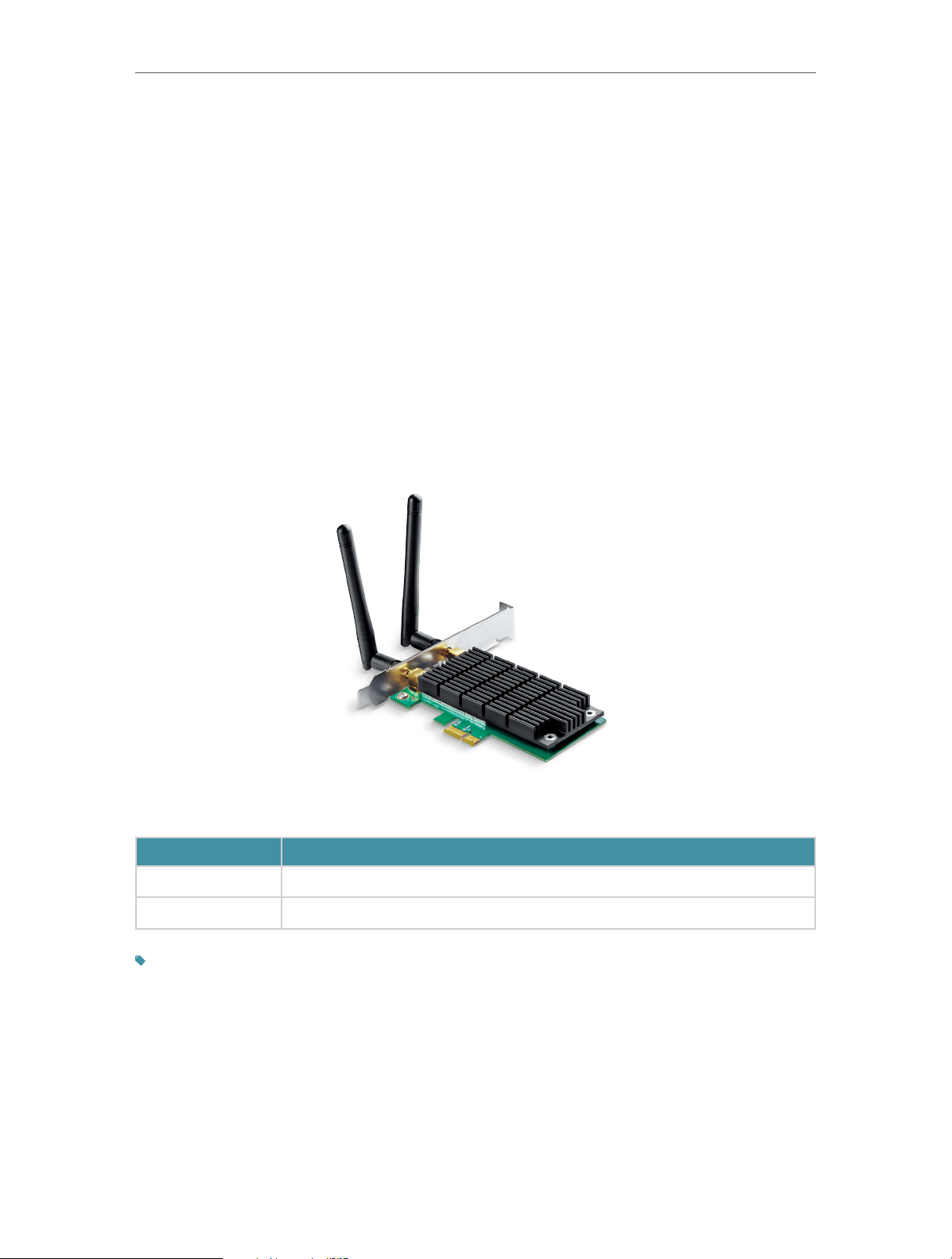
The TP-Link Wireless PCI Express Adapter connects your desktop computer to a
Wi-Fi network for lag-free video streaming, online gaming, secure internet surng and
internet calls.
• Compatible with 802.11a/b/g/n products
• Maximum speed of up to 867Mbps on 5GHz network and 300Mbps on 2.4GHz
network
Supports WEP, WPA/WPA2, WPA-PSK/WPA2-PSK
•
1. 2. LED Status
You can check the adapter’s working status by following the LED Explanation table.
Status
On The adapter has been installed.
Flashing The adapter is transmitting or receiving data.
Tips:
If the LED is o, try these troubleshooting tips:
1. Remove and reinstall the adapter.
2. Refer to Troubleshooting-T2 to check if the adapter is recognized and enabled. Reinstall the adapter software, if
necessary.
Indication
3
Page 6

Chapter 2
Connect to a Computer
This chapter introduces how to install the adapter into your computer.
Page 7
Chapter 2
Connect to a Computer
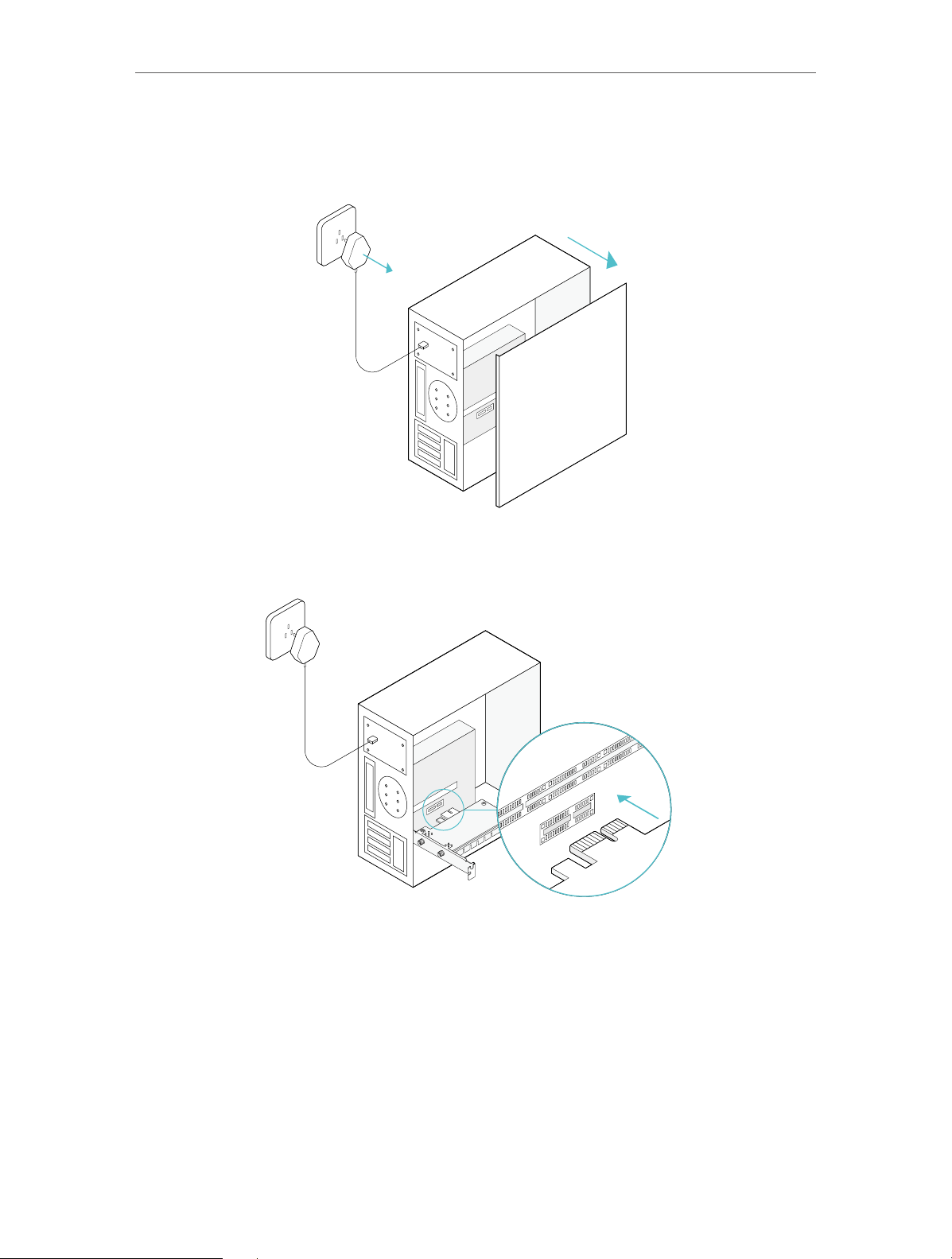
Follow the steps below to insert the adapter into your computer:
1. Turn off the computer, unplug the power cable and remove the case panel.
2. Locate an available PCI-E slot and carefully insert the adapter.
5
Page 8
Chapter 2
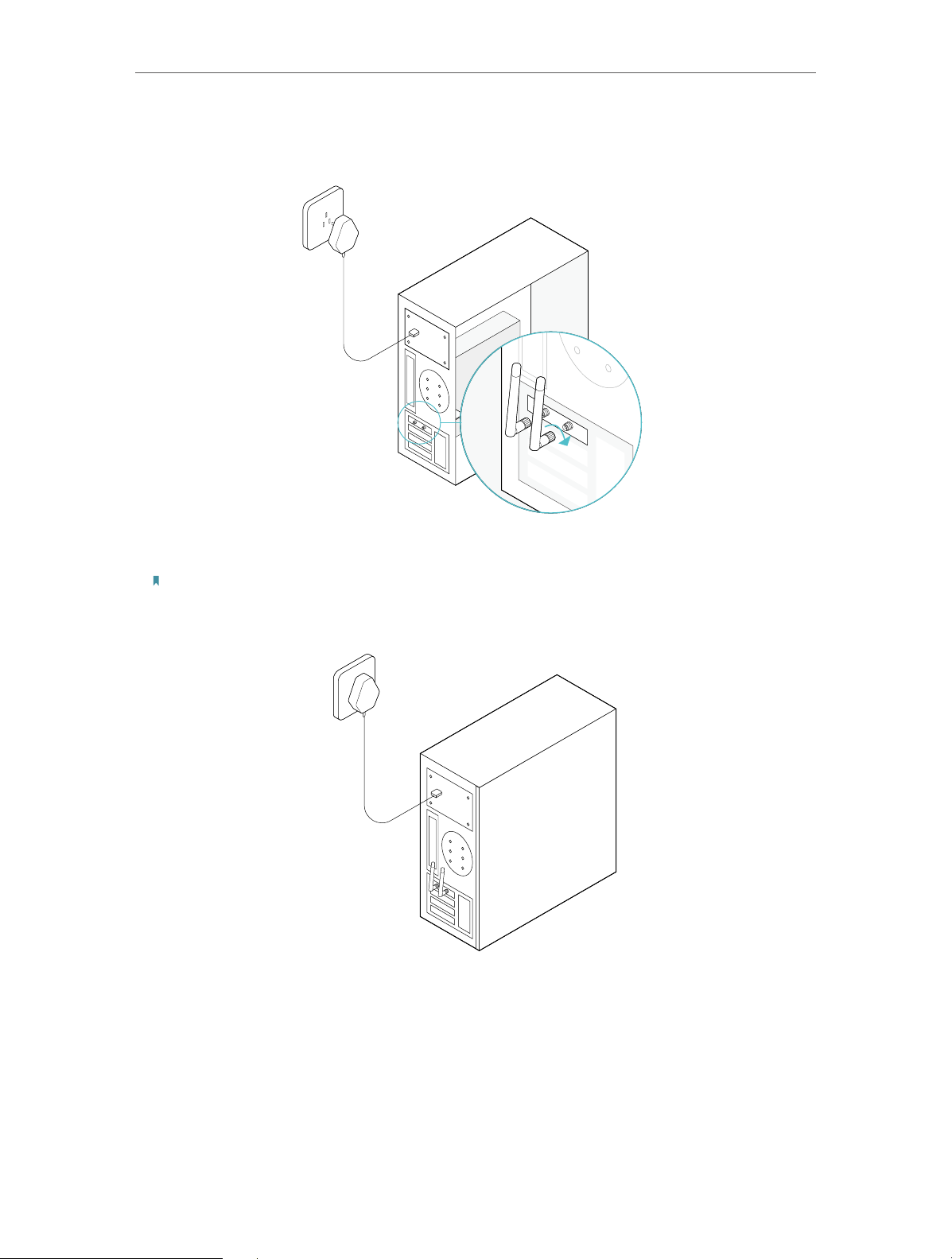
3. Connect the antennas to the adapter.
Connect to a Computer
4. Replace the case panel, plug in the power cable and turn on your computer.
Note:
If the bracket is not suitable for your computer, detach it from the adapter’s board and replace it with the
low-profile bracket provided.
6
Page 9

Chapter 3
Use Your Adapter
This chapter introduces how to install your adapter’s driver, use your adapter to join a
wireless network, and uninstall the driver in a Windows system. The adapter is equipped
with a setup wizard, which can guide you through the installation process.
This chapter includes the following sections:
• Install Driver
• Join a Wireless Network
• Uninstall Driver
Page 10
Chapter 3
Use Your Adapter
3. 1. Install Driver
Follow the steps below to set up your adapter:
1. Insert the resource CD into your CD drive and run the Autorun.exe.
Note:
You can also download the driver from the product’s Support page at www.tp-link.com.
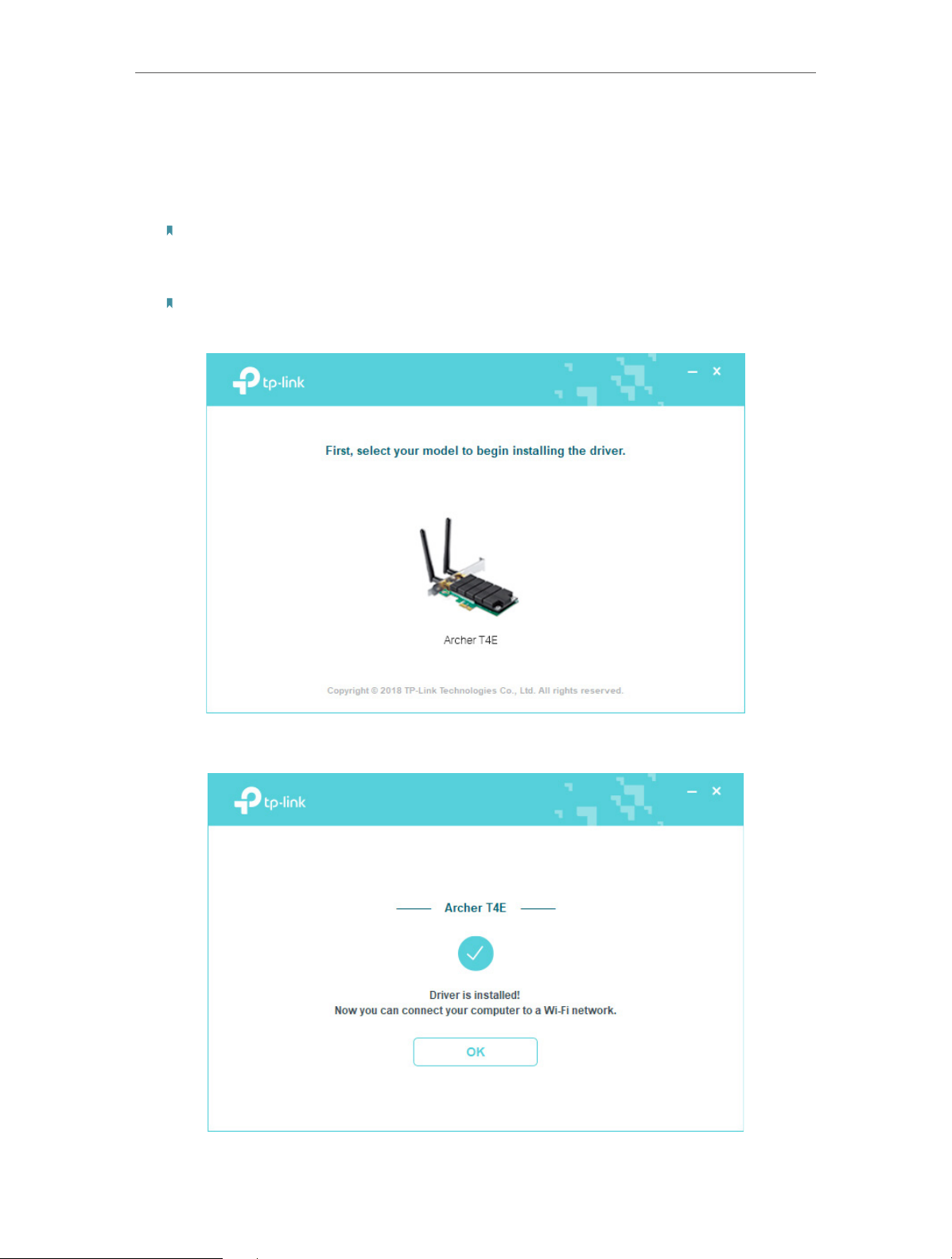
2. Select Archer T4E and follow the instructions to continue the installation.
Note:
If you can’t install the driver successfully, disable the antivirus software and firewall, then try again.
3. When the following screen appears, the driver has been installed successfully.
8
Page 11
Chapter 3
Use Your Adapter
3. 2. Join a Wireless Network
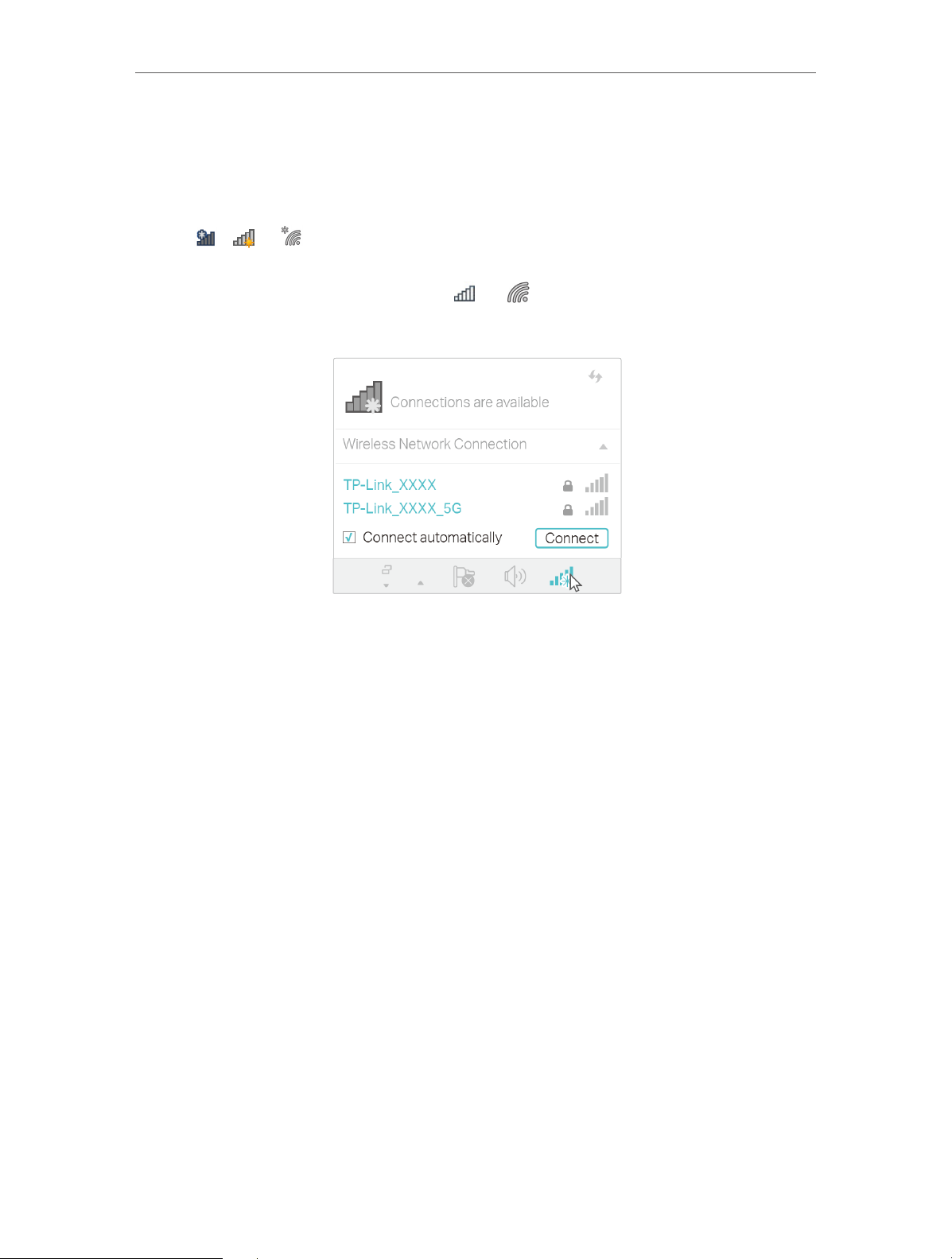
You can join a wireless network via Windows Wireless Utility.
Follow the instructions below to use your computer system’s built-in wireless utility:
1. Click
to join, and click Connect. Enter the network password when prompted.
2. When the network icon changes to
connection.
, or (Network icon) on the taskbar. Select the Wi-Fi network you want
or , it indicates a successful network
3. 3. Uninstall Driver
The software uninstallation steps vary a bit in different systems, please follow the
appropriate instructions for your Windows operating system: Windows 8/8.1/10,
Windows XP/7.
• Windows 8/8.1/10
Go to Start > Apps, find the TP-Link application. Click
follow the on-screen instructions to complete the uninstallation.
• Windows XP/7
Go to Start > All Programs > TP-Link > Uninstall
instructions to complete the uninstallation.
TP-Link
Uninstall TP-Link
Archer T4E. Follow the on-screen
Archer T4E, then
9
Page 12
Appendix: Troubleshooting
T1. What should I do if the adapter is not detected?
• Make sure the adapter is securely located in the appropriate PCI-E slot.
• Make sure you meet the minimum system requirements for the adapter and that the
latest Windows and system updates are installed on your computer.
• Make sure you use the latest driver for your specific adapter. The latest drivers can
be found at the product’s Support page at http://www.tp-link.com.
• Try a different PCI-E slot on the computer.
• Try restarting the computer or try the adapter on a different computer.
T2. How to check if I have installed the driver for my adapter successfully
or not?
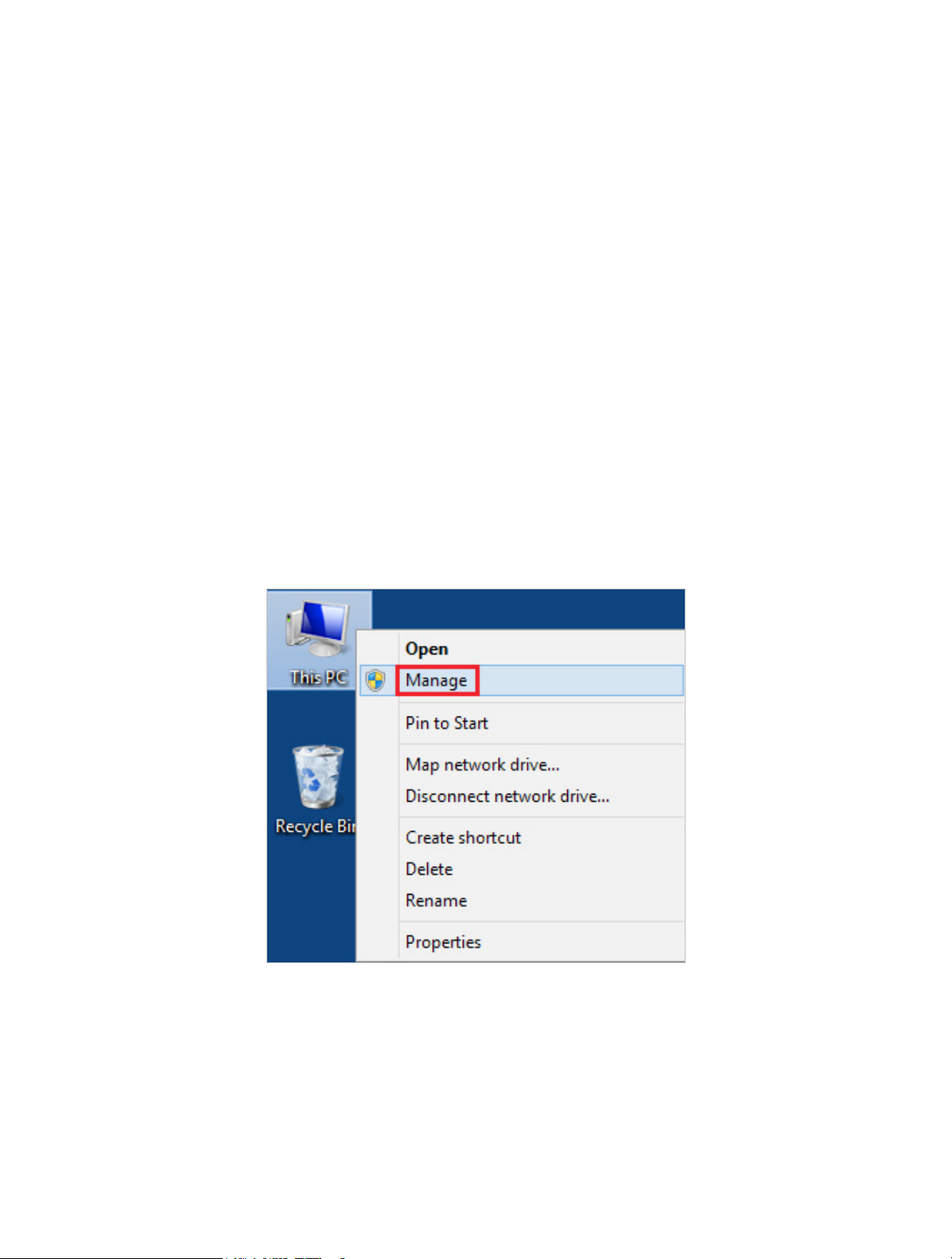
1. On your computer, please right click Computer icon and go to Manage;
2. Open the Device Manager and go to Network adapters, and then find the
corresponding TP-Link adapter, right click it and then go to Properties;
10
Page 13
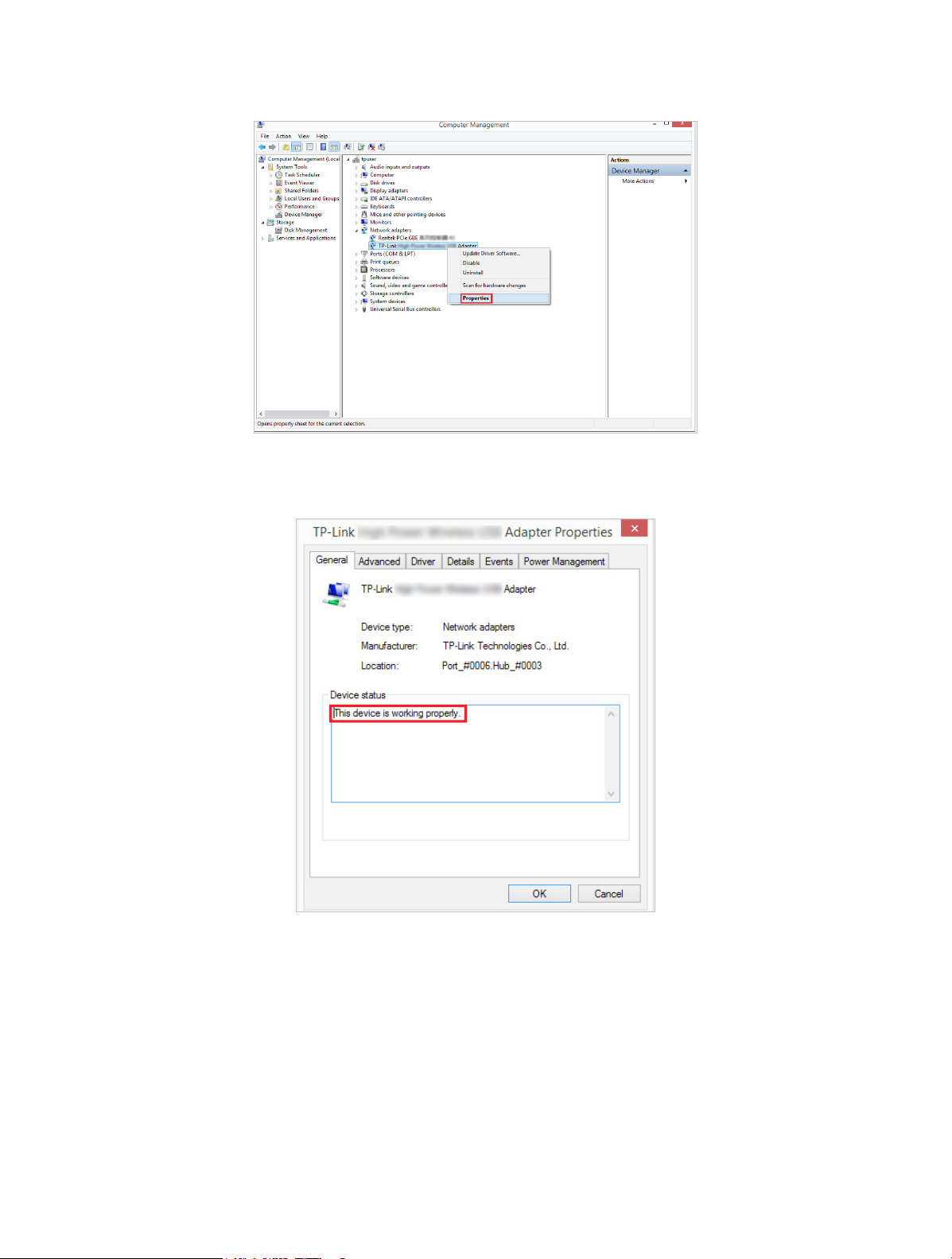
3. If you can see “This device is working properly.” in the red box, you have already
installed the driver successfully.
T3. What should I do if can’t connect to the Wi-Fi after installing the
driver?
• Refer to T2 to check if you have installed the driver for your adapter successfully .
• Disable the antivirus software and firewall, then try again.
• Make sure the adapter is securely located in the appropriate PCI-E slot.
• Try a different PCI-E slot on the computer.
• Restart your computer and try again.
• Re-install the driver and try again.
11
Page 14
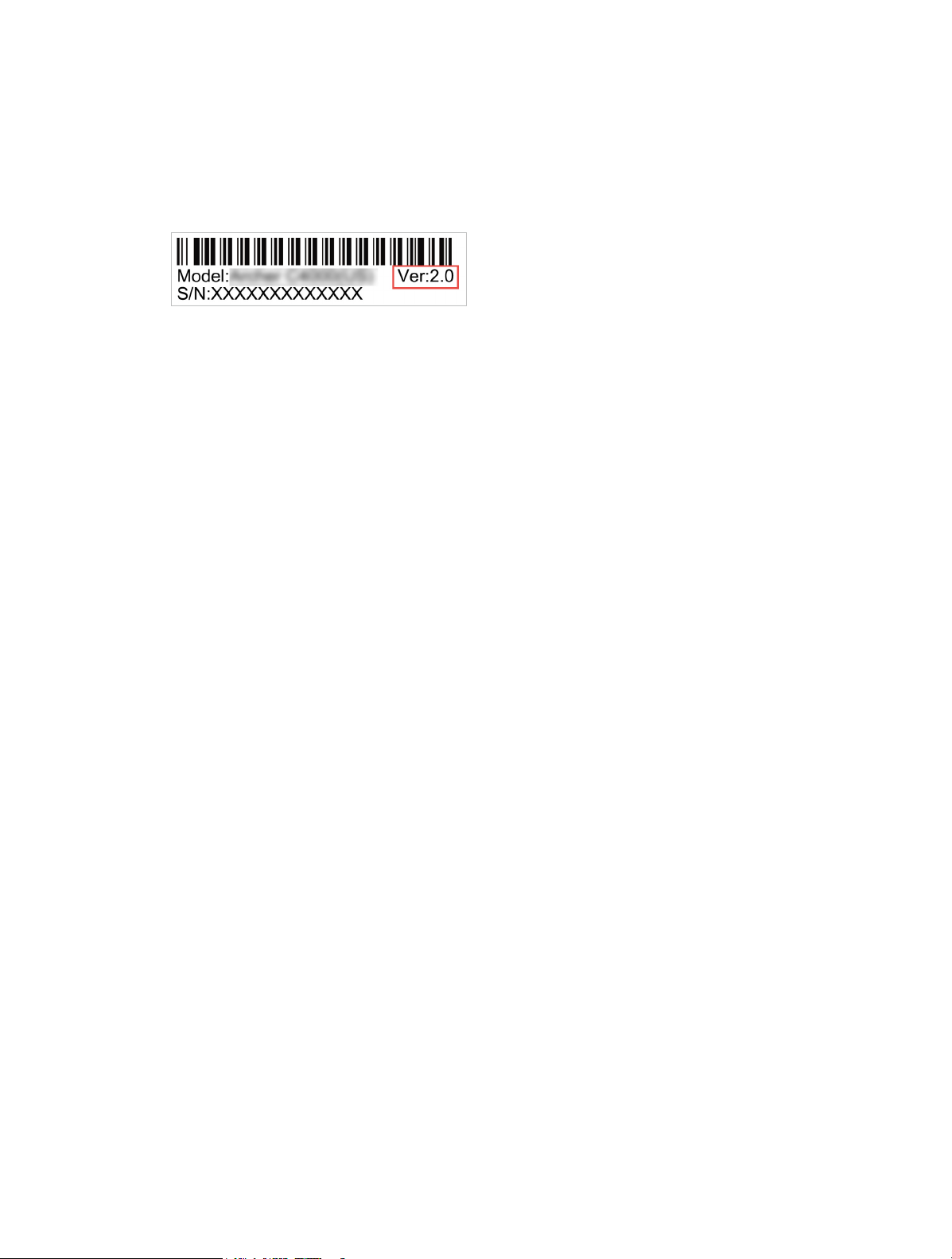
T4. How to find the hardware version of the adapter?
The hardware version printed on the product label on the package or the adapter.
There is a character string “Ver:X.Y” (for example, Ver:2.0) in the Serial Number field,
and the number X is the hardware version of the adapter.
12
Page 15

COPYRIGHT & TRADEMARKS
Specifications are subject to change without notice. is a registered trademark
of TP-Link Technologies Co., Ltd. Other brands and product names are trademarks or
registered trademarks of their respective holders.
No part of the specifications may be reproduced in any form or by any means or used
to make any derivative such as translation, transformation, or adaptation without
permission from TP-Link Technologies Co., Ltd. Copyright © 2019 TP-Link Technologies
Co., Ltd. All rights reserved.
13
Page 16

FCC STATEMENT
Product Name: Archer T4E
Model Number: AC1200 Wireless Dual Band PCI Express Adapter
Responsible party:
TP-Link USA Corporation, d/b/a TP-Link North America, Inc.
Address: 145 South State College Blvd. Suite 400, Brea, CA 92821
Website: http://www.tp-link.com/us/
Tel: +1 626 333 0234
Fax: +1 909 527 6803
E-mail: [email protected]
This equipment has been tested and found to comply with the limits for a Class B
digital device, pursuant to part 15 of the FCC Rules. These limits are designed to provide
reasonable protection against harmful interference in a residential installation. This
equipment generates, uses and can radiate radio frequency energy and, if not installed
and used in accordance with the instructions, may cause harmful interference to radio
communications. However, there is no guarantee that interference will not occur in a
particular installation. If this equipment does cause harmful interference to radio or
television reception, which can be determined by turning the equipment off and on,
the user is encouraged to try to correct the interference by one or more of the following
measures:
• Reorient or relocate the receiving antenna.
• Increase the separation between the equipment and receiver.
• Connect the equipment into an outlet on a circuit different from that to which the
receiver is connected.
• Consult the dealer or an experienced radio/ TV technician for help.
This device complies with part 15 of the FCC Rules. Operation is subject to the following
two conditions:
1 ) This device may not cause harmful interference.
2 ) This device must accept any interference received, including interference that may
cause undesired operation.
Any changes or modifications not expressly approved by the party responsible for
compliance could void the user’s authority to operate the equipment.
14
Page 17

Note: The manufacturer is not responsible for any radio or TV interference caused by
unauthorized modifications to this equipment. Such modifications could void the
user’s authority to operate the equipment.
FCC RF Radiation Exposure Statement:
This equipment complies with FCC RF radiation exposure limits set forth for an
uncontrolled environment. This device and its antenna must not be co-located or
operating in conjunction with any other antenna or transmitter.
“To comply with FCC RF exposure compliance requirements, this grant is applicable to
only Mobile Configurations. The antennas used for this transmitter must be installed to
provide a separation distance of at least 20 cm from all persons and must not be colocated or operating in conjunction with any other antenna or transmitter.”
We, TP-Link USA Corporation, has determined that the equipment shown as above
has been shown to comply with the applicable technical standards, FCC part 15. There
is no unauthorized change is made in the equipment and the equipment is properly
maintained and operated.
Issue Date: 2018.12.7
15
Page 18

CE Mark Warning
This is a class B product. In a domestic environment, this product may cause radio
interference, in which case the user may be required to take adequate measures.
OPERATING FREQUENCY(the maximum transmitted power)
2400MHz—2483.5MHz(20dBm)
5150MHz—5250MHz(23dBm)
5250MHz—5350MHz(20dBm)
5470MHz—5725MHz(27dBm)
EU declaration of conformity
TP-Link hereby declares that the device is in compliance with the essential requirements
and other relevant provisions of directives 2014/53/EU, 2009/125/EC and 2011/65/EU.
The original EU declaration of conformity may be found at https://www.tp-link.com/en/ce
RF Exposure Information
This device meets the EU requirements (2014/53/EU Article 3.1a) on the limitation of
exposure of the general public to electromagnetic fields by way of health protection.
The device complies with RF specifications when the device used at 20 cm from your
body.
Restricted to indoor use.
Korea Warning Statements
당해 무선설비는 운용중 전파혼신 가능성이 있음.
NCC Notice
注意!
依據 低功率電波輻射性電機管理辦法
第十二條 經型式認證合格之低功率射頻電機,非經許可,公司、商號或使用者均
不得擅自變更頻率、加大功率或變更原設計之特性或功能。
第十四條 低功率射頻電機之使用不得影響飛航安全及干擾合法通信;經發現有干
擾現象時,應立即停用,並改善至無干擾時方得繼續使用。前項合法通信,指依
電信規定作業之無線電信。低功率射頻電機需忍受合法通信或工業、科學以及醫
療用電波輻射性電機設備之干擾。
4.7.9.1 應避免影響附近雷達系統之操作。
4.7.9.2 高增益指向性天線只得應用於固定式點對點系統。
16
Page 19
BSMI Notice
安全諮詢及注意事項
• 請使用原裝電源供應器或只能按照本產品注明的電源類型使用本產品。
• 清潔本產品之前請先拔掉電源線。請勿使用液體、噴霧清潔劑或濕布進行清
潔。
• 注意防潮,請勿將水或其他液體潑灑到本產品上。
• 插槽與開口供通風使用,以確保本產品的操作可靠並防止過熱,請勿堵塞或覆
蓋開口。
• 請勿將本產品置放於靠近熱源的地方。除非有正常的通風,否則不可放在密閉
位置中。
• 請不要私自打開機殼,不要嘗試自行維修本產品,請由授權的專業人士進行此
項工作。
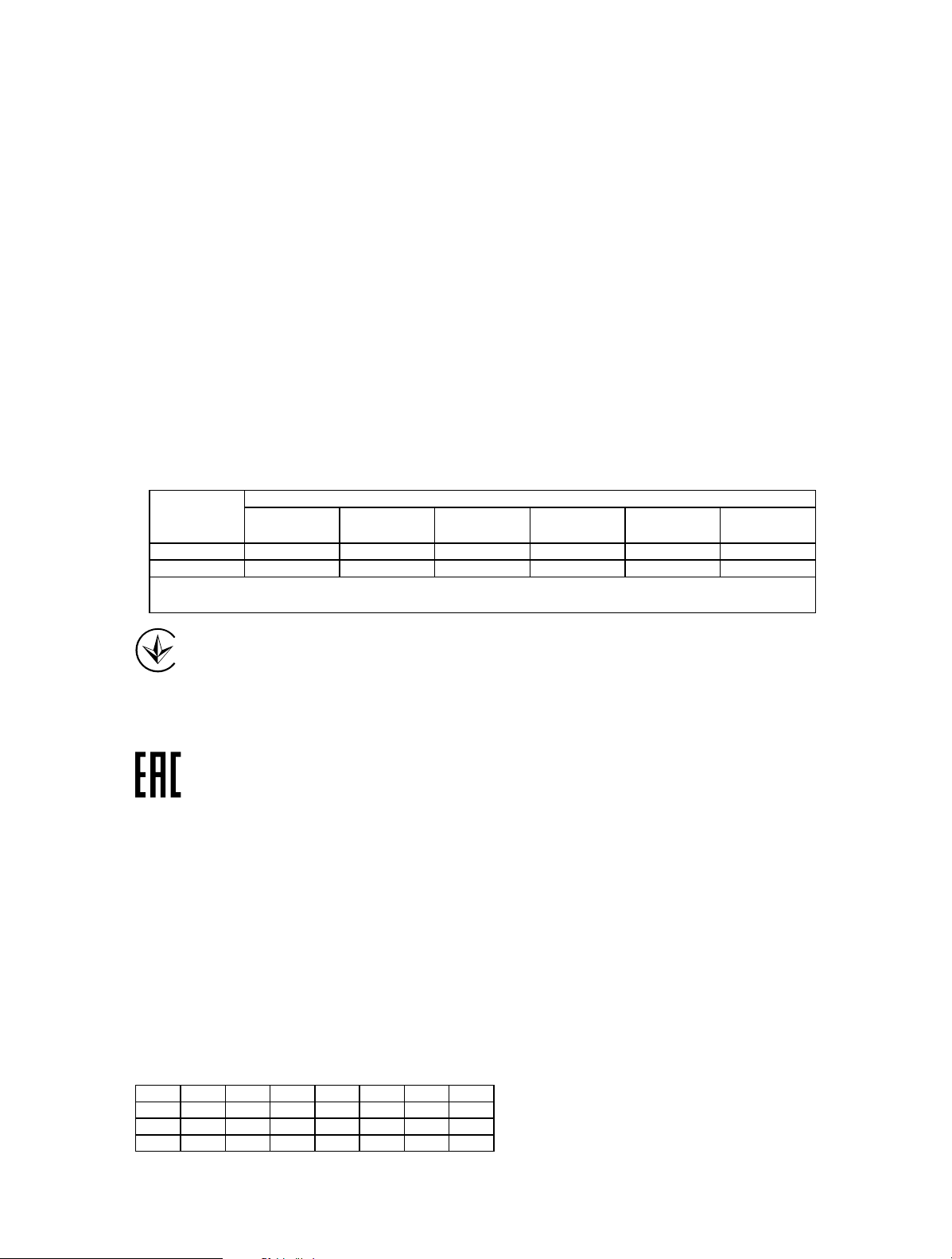
限用物質含有情況標示聲明書
限用物質及其化學符號
產品元件名稱
PCB ○ ○ ○ ○ ○ ○
外殼 ○ ○ ○ ○ ○ ○
備考1. “超出0.1 wt %” 及 “超出0.01 wt %” 系指限用物質之百分比含量超出百分比含量基準值。
備考2. “○”系指該項限用物質之百分比含量未超出百分比含量基準值。
鉛
Pb
鎘
Cd
汞
Hg
六價鉻
CrVI
多溴聯苯
PBB
多溴二苯醚
PBDE
Продукт сертифіковано згідно с правилами системи УкрСЕПРО на відповідність
вимогам нормативних документів та вимогам, що передбачені чинними
законодавчими актами України.
Safety Information
• Keep the device away from water, fire, humidity or hot environments.
• Do not attempt to disassemble, repair, or modify the device
• Do not use damaged charger or USB cable to charge the device.
• Do not use the device where wireless devices are not allowed.
Please read and follow the above safety information when operating the device. We
cannot guarantee that no accidents or damage will occur due to improper use of the
device. Please use this product with care and operate at your own risk.
For EU/EFTA, this product can be used in the following countries:
AT BE BG CH CY CZ DE DK
EE EL ES FI FR HR HU IE
IS IT LI LT LU LV MT NL
NO PL PT RO SE SI SK UK
17
Page 20

Explanation of the symbols on the product label
Symbol
Explanation
RECYCLING
This product bears the selective sorting symbol for Waste electrical and
electronic equipment (WEEE). This means that this product must be handled
pursuant to European directive 2012/19/EU in order to be recycled or
dismantled to minimize its impact on the environment.
User has the choice to give his product to a competent recycling organization
or to the retailer when he buys a new electrical or electronic equipment.
18
Page 21
ISED
CAN ICES-3 (B)/NMB-3(B)
Canadian Compliance Statement This device complies with Industry Canada
license-exempt RSSs. Operation is subject to the following two conditions:
1. This device may not cause interference, and
2. This device must accept any interference, including interference that may cause
undesired operation of the device.
Le présent appareil est conforme aux CNR d’Industrie Canada applicables aux
appareils radio exempts de licence. L’exploitation est autorisée aux deux conditions
suivantes:
1. l’appareil ne doit pas produire de brouillage;
2. l’utilisateur de l’appareil doit accepter tout brouillage radioélectrique subi, meme si
le brouillage est susceptible d’en compromettre le fonctionnement.
This radio transmitter (IC: 8853A-T4E / Model name: Archer T4E) has been approved
by Industry Canada to operate with the antenna types listed below with the maximum
permissible gain indicated. Antenna types not included in this list, having a gain
greater than the maximum gain indicated for that type, are strictly prohibited for use
with this device.
Le présent émetteur radio (IC: 8853A-T4E / Model name: Archer T4E) a été approuvé
par Industrie Canada pour fonctionner avec les types d’antenne énumérés ci-dessous
et ayant un gain admissible maximal. Les types d’antenne non inclus dans cette liste
ci-dessous et dont le gain est supérieur au gain maximal indiqué, sont strictement
interdits pour l’exploitation de l’émetteur.
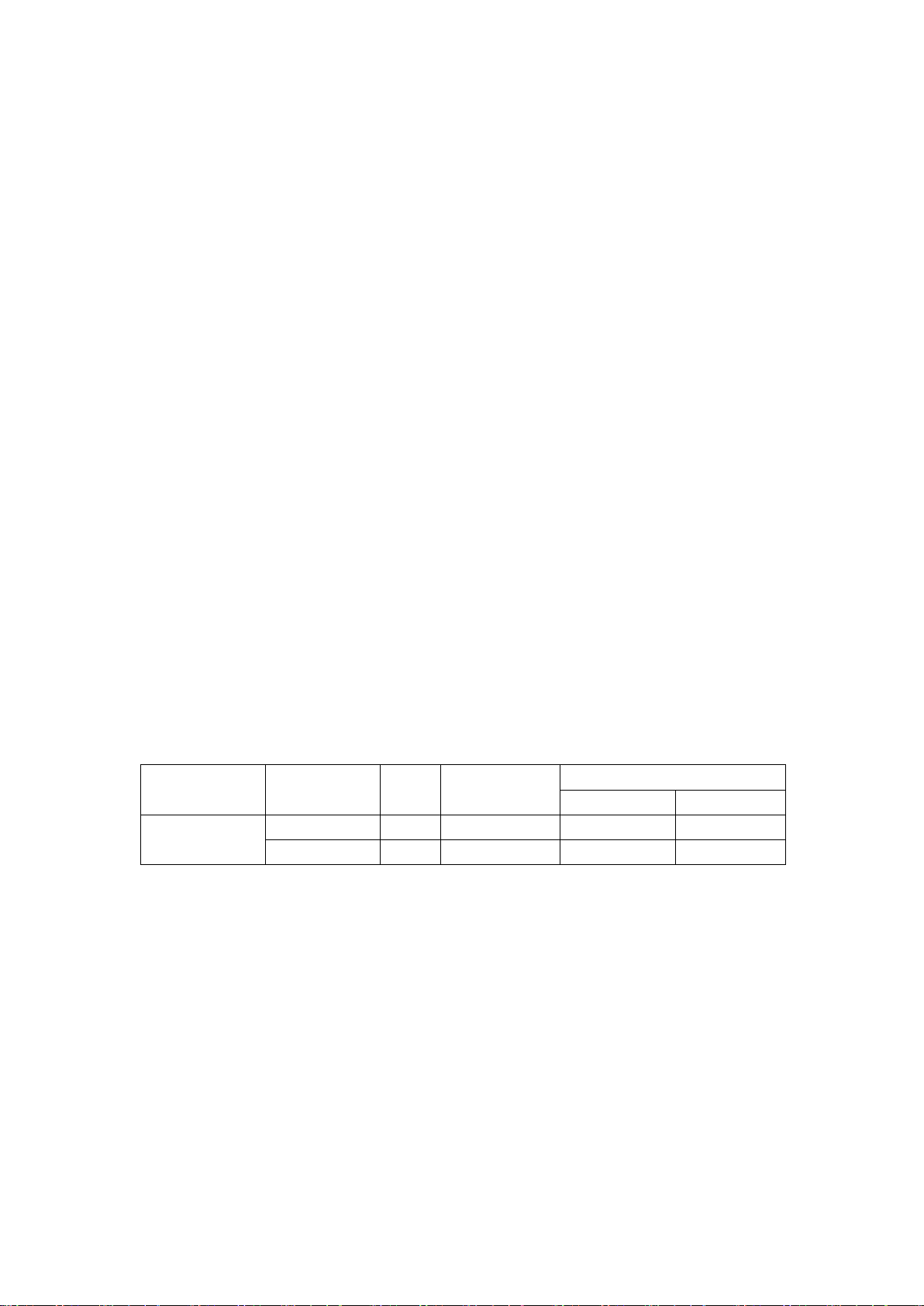
Antenna Type Frequency
Band (MHz)
Dipole
Antenna
Caution:
1. The device for operation in the band 5150–5250 MHz is only for indoor use to
reduce the potential for harmful interference to co-channel mobile satellite
systems;
2. For devices with detachable antenna(s), the maximum antenna gain permitted for
devices in the bands 5250-5350 MHz and 5470-5725 MHz shall be such that the
equipment still complies with the e.i.r.p. limit;
3. For devices with detachable antenna(s), the maximum antenna gain permitted for
devices in the band 5725-5850 MHz shall be such that the equipment still
complies with the e.i.r.p. limits as appropriate.
2400 ~ 2500
5150 ~ 5850
TX
Paths
Max Antenna
Gain (dBi)
2 2.0 2.0 5.01
2 2.0 2.0 5.01
CDD Directional Gain (dBi)
For Power For PSD
Page 22

4. The high-power radars are allocated as primary users (i.e. priority users) of the
bands 5250-5350 MHz and 5650-5850 MHz and that these radars could cause
interference and/or damage to LE-LAN devices.
5. DFS (Dynamic Frequency Selection) products that operate in the bands 5250-
5350 MHz, 5470-5600MHz, and 5650-5725MHz.
Mise en garde:
1. Le dispositif destiné à être utilisé dans la bande de fréquences 5150–5250 MHz
est destiné uniquement à une utilisation en intérieur afin de réduire le risque de
brouillage préjudiciable causé par les systèmes mobiles à satellites dans le même
canal;
2. Pour les dispositifs avec une ou plusieurs antennes détachables, le gain
d'antenne maximal autorisé pour les dispositifs des bandes 5250-5350 MHz et
5470-5725 MHz doit être tel que l'équipement respecte encore les normes e.i.r.p.
limite;
3. Pour les dispositifs avec une ou plusieurs antennes détachables, le gain
d'antenne maximal autorisé pour les dispositifs de la bande 5725-5850 MHz doit
être tel que l'équipement soit toujours conforme à la norme e.i.r.p. limites, le cas
échéant.
4. Les radars à haute puissance sont attribués en tant qu'utilisateurs principaux
(utilisateurs prioritaires) des bandes 5250-5350 MHz et 5650-5850 MHz et que
ces radars pourraient causer des interférences et / ou des dommages aux
dispositifs LE-LAN.
5. Produits DFS (Dynamic Frequency Selection) fonctionnant dans les bandes de
fréquences 5250-533 MHz, 5470-5600 MHz et 5650-5725 MHz.
IMPORTANT NOTE:
Radiation Exposure Statement:
This equipment complies with IC radiation exposure limits set forth for an
uncontrolled environment. This equipment should be installed and operated
with minimum distance 20cm between the radiator and your body.
Déclarationd'exposition aux radiations:
Cetéquipementestconforme aux limitesd'exposition aux rayonnements IC
établies pour un environnement non contrôlé. Cetéquipementdoitêtreinstallé et
utilisé avec un minimum de 20cm de distance entre la source de rayonnement
et votre corps.
 Loading...