

Page 1

LCD Colour TV
KLV-40S400A
KLV-37S400A
KLV-32S400A
© 2008 Sony Corporation
Operating Instructions
GB
PR
3-875-151-11(3)
3-875-151-11(3)
Page 2

Introduction Trademark information
Thank you for choosing this Sony product.
Before operating the TV, please read this manual
thoroughly and retain it for future reference.
The illustrations used in this manual are of the
KLV-32S400A unless otherwise stated.
• HDMI, the HDMI logo and High-Definition Multimedia
Interface are trademarks or registered trademarks of
HDMI Licensing LLC.
• “BRAVIA” and are trademarks of Sony
Corporation.
GB
2
Page 3

Table of Contents
Start-up Guide 4
Checking the accessories ........................... 4
Inserting batteries into the remote............... 4
1: Attaching the stand ................................. 4
2: Connecting an antenna/cable/VCR......... 5
3: Preventing the TV from toppling over...... 5
4: Bundling the cables................................. 6
5: Connecting the AC power cord ............... 6
6: Performing the initial set-up .................... 6
Selecting the language................................6
Auto-tuning the TV......................................7
Watching TV .............................................. 8
Adjusting the viewing angle of the TV ......... 8
Adjust the angle left and right (swivel)..........8
Detaching the Table-Top Stand from
the TV.......................................................... 8
Safety information ....................................... 9
Precautions ............................................... 10
Overview of the remote .......................... 11
Using the Tools menu .............................. 13
Overview of the TV buttons and
indicators ................................................. 14
15
Using Optional Equipment
19
Using MENU Functions
Navigating through menus.........................19
Using the Favourite List............................. 20
Settings adjustment ...................................21
Picture menu............................................ 23
Sound menu ............................................ 24
Screen menu............................................ 25
Set-up menu ............................................ 26
PC Settings menu .................................... 28
Channel Set-up menu .............................. 30
32
Additional Information
Specifications ............................................32
Troubleshooting .........................................33
Connecting optional equipment................. 15
Viewing pictures from the connected
equipment ................................................. 16
Viewing Twin Picture ................................. 17
Viewing PIP (Picture in Picture) ................ 17
Using BRAVIA Sync (Control for HDMI) ... 18
To connect the equipment that is
compatible with control for HDMI............. 18
To make the control for HDMI settings ..... 18
Control for HDMI...................................... 18
GB
GB
3
Page 4
Start-up Guide
Checking the accessories
AC power cord* (KLV-40S400A only)
Stand (1) and screws (3)
Remote RM-GA011 (1)
Size AA batteries (R6 type) (2)
* For models with ferrite cores, do not remove these cores.
Inserting batteries into the remote
Push and lift the cover to open.
~ • Observe the correct polarity when inserting batteries.
• Do not use different types of batteries together or mix
old and new batteries.
• Dispose of batteries in an environmentally friendly
way. Certain regions may regulate the disposal of
batteries. Please consult your local authority.
• Handle the remote with care. Do not drop or step on
it, or spill liquid of any kind onto it.
• Do not place the remote in a location near a heat
source, a place subject to direct sunlight, or a damp
room.
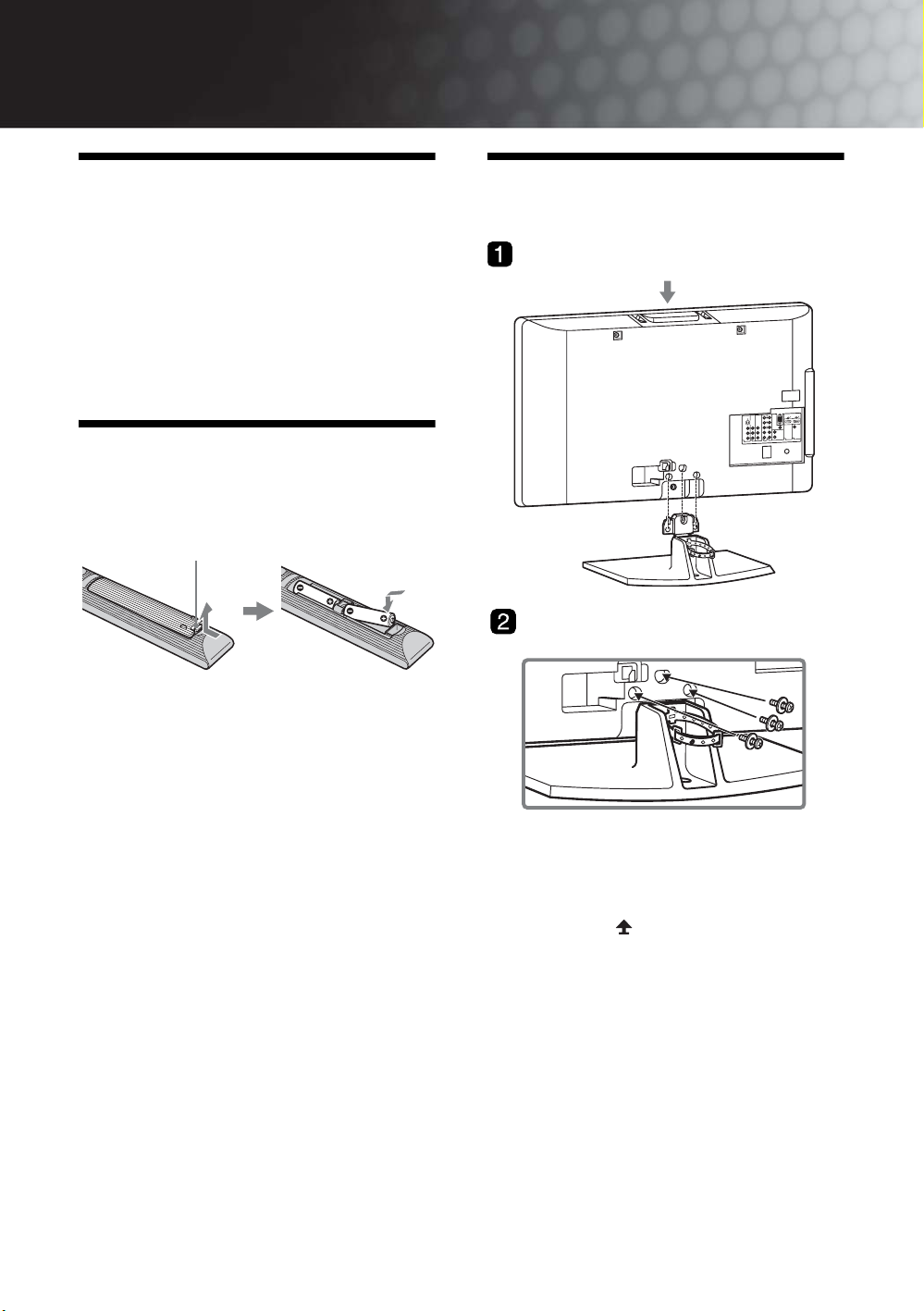
1: Attaching the stand
1 Place the TV onto the stand by aligning the
screw hole alignment lines over the stand
as shown.
2 Fix the TV to the stand according to the
arrow marks that guide the screw holes
using the supplied screws.
~ • This TV is very heavy, so two or more people should
place the TV on the stand.
• If using an electric screwdriver, set the tightening
torque at approximately 1.5N·m (15kgf·cm).
• When installing the TV onto the wall, follow step 1 to
prevent the TV panel from falling over.
• Ensure the AC power cord is away from screw holes
during stand installation to avoid damage to the AC
power cord (KLV-37S400A/KLV-32S400A only).
GB
4
Page 5

2: Connecting an
3: Preventing the TV
Start-up Guide
antenna/cable/VCR
Connecting an antenna/cable
Antenna cable
(not supplied)
8
Connecting an antenna/cable and VCR
8
Antenna cable
(not supplied)
S video
cable
(not
supplied)
from toppling over
8
8
1 Install a wood screw (4 mm in diameter, not
supplied) in the TV stand.
2 Install a machine screw (M6 x 12, not
supplied) into the screw hole of the TV.
3 Tie the wood screw and the machine screw
with a strong cord.
Audio/Video
cable (not
supplied)
VCR
Antenna cable
(not supplied)
GB
5
Page 6

4: Bundling the cables
5: Connecting the AC
6: Performing the initial set-up
,
1
BRAVIA Sync
THEATRESYNC MENU
AUDIO
power cord
KLV-40S400A KLV-37/32S400A
* Type of AC power cord supplied (with or without ferrite
core) varies depending on the countries.
3, 4, 5, 6, 9,
TOOLSRETURN
10, 11
8
Selecting the language
1 Connect the TV to your AC power outlet
(110-240 V AC, 50/60 Hz).
2 Press 1 on the top edge of the TV.
When the TV is in standby mode (the 1 (standby)
indicator on the TV front panel is red), press "/1
on the remote to turn on the TV.
When you turn on the TV for the first time, the
“Language” menu appears on the screen.
GB
6
Page 7

3
Press F/f to select the language displayed
on the menu screens, then press .
English
4 Press F/f to select the country/region,
then press .
7 When the “Programme Sorting” menu
appears on the screen, follow the steps of
“Programme Sorting” (page 30).
If you do not change the order in which the channels
are stored on the TV, go to step 8.
8 Press MENU to exit.
The TV has now tuned in all the available channels.
9 Select day and time.
10 Select “Yes” to link the operations of the
TV and the connected equipment that is
compatible with control for HDMI
automatically.
Start-up Guide
~ • Area 1: Asia (except Philippines), Middle East,
Africa and Oceania.
Area 2: Philippines.
5 Press F/f to select “Home”, then press .
Auto-tuning the TV
6 Press G/g to select “OK”, then press .
The TV starts searching for all available channels.
This may take some time, please be patient and do
not press any buttons on the TV or remote.
If a message appears for you to confirm the
antenna connection
No programmes found. Please connect antenna
(aerial) and select “Confirm” to start auto-tuning
again. If 100 channels are found, auto-tuning is
stopped.
Do you want to enable control for compatible
HDMI devices?
11 Press G/g to select the desired setting in
“Display this menu next time?” dialogue,
then press
z •If “Yes” is selected and the TV is turned off by
pressing 1 on the TV, or is disconnected from
the AC power outlet , the initial set-up procedure
restarts the next time the TV is turned on.
to exit.
GB
7
Page 8

Watching TV
Detaching the Table-
1 Press 1 on the top edge of the TV to turn
on the TV.
2 Press the number buttons or PROG +/– to
select a TV channel.
3 Press 2 +/– to adjust the volume.
Adjusting the viewing angle of the TV
This TV can be adjusted within the angles shown
below.
Adjust the angle left and right (swivel)
Top view
20
20
Front
20
20
Top Stand from the TV
Remove the screws guided by the arrow marks of
the TV.
Do not remove the Table-Top Stand for any reason
other than to wall-mount the TV.
~ • For bracket installation, refer to the instruction guide
provided by the Wall-Mount Bracket model for your
TV. Sufficient expertise is required in installing this
TV, especially to determine the strength of the wall
for withstanding the TV’s weight. For product
protection and safety reasons, Sony strongly
recommends that you use the Wall-Mount Bra cket
model designed for your TV and the wallmounting of your TV should be performed by
Sony dealers or licensed contractors.
GB
8
Page 9

Safety information
Installation/Set-up
Install and use the TV set in accordance with the
instructions below in order to avoid any risk of fire,
electrical shock or damage and/or injuries.
Installation
• The TV set should be installed near an easily accessible
AC power outlet.
• Place the TV set on a stable, level surface to avoid it from
falling down and cause personal injury or damage to the
TV.
• Only qualified service personnel should carry out wall
installations.
• For safety reasons, it is strongly recommended that you
use Sony accessories, including:
– KLV-40S400A/KLV-37S400A/KLV-32S400A:
Wall-mount bracket SU-WL500 and SU-WL50B
TV stand SU-FL300M
• Be sure to use the screws supplied with the Wall-mount
bracket when attaching the mounting hooks to the TV set.
The supplied screws are designed so that they are 8 mm to
12 mm in length when measured from the attaching
surface of the mounting hook. The diameter and length of
the screws differ depending on the Wall-mount bracket
model. Use of screws other than those supplied may result
in internal damage to the TV set or cause it to fall, etc.
8mm - 12mm
Installed on the wall
30 cm
10 cm 10 cm
10 cm
Leave at least this space around the set.
Installed with stand
30 cm
10 cm
10 cm
6 cm
Leave at least this space around the set.
• To ensure proper ventilation and prevent the collection of
dirt or dust:
– Do not lay the TV set flat, install upside down,
backwards, or sideways.
– Do not place the TV set on a shelf, rug, bed or in a closet.
– Do not cover the TV set with a cloth, such as curtains,
or items such as newspapers, etc.
– Do not install the TV set as shown below.
Air circulation
Air circulation is blocked.
is blocked.
Screw (supplied with the Wall-mount
bracket)
Mounting Hook
Hook attachment on rear of TV set
Transporting
• Before transporting the TV set,
disconnect all cables.
• Two or more people are needed
to transport a large TV set.
• When transporting the TV set by
hand, hold it as shown on the
right. Do not put stress on the
LCD panel.
• When lifting or moving the TV
set, hold it firmly from the
bottom.
• When transporting the TV se t, do
not subject it to jolts or excessive
vibration.
• When transporting the TV set for
repairs or when moving, pack it
using the original carton and
packing material.
Ventilation
• Never cover the ventilation holes
or insert anything in the cabinet.
• Leave space around the TV set as
shown below.
• It is strongly recommended that you use a Sony wallmount bracket in order to provide adequate air-circulation.
Be sure to hold
the bottom of the
panel, not the
front part.
WallWall
AC power cord
Handle the AC power cord and outlet as follows in
order to avoid any risk of fire, electrical shock or
damage and/or injuries:
– Use only Sony supplied AC power cords, not those of
other brands.
– Insert the plug fully into the AC power outlet.
– Operate the TV set on a 110-240 V AC supply only.
– When wiring cables, be sure to unplug the AC power
cord for your safety and take care not to catch your feet
on the cables.
– Disconnect the AC power cord from the AC power
outlet before working on or moving the TV set.
– Keep the AC power cord away from heat sources.
– Unplug the AC power plug and clean it regularly. If the
plug is covered with dust and it picks up moisture, its
insulation may deteriorate, which could result in a fire.
Notes
• Do not use the supplied AC power cord on any other equipment.
• Do not pinch, bend, or twist the AC power cord excessively. The
core conductors may be exposed or broken.
• Do not modify the AC power cord.
• Do not put anything heavy on the AC power cord.
• Do not pull on the AC power cord itself when disconnecting the
AC power cord.
• Do not connect too many appliances to the same AC power outlet.
• Do not use a poor fitting AC power outlet.
Continued
9
GB
Page 10

Prohibited Usage
Do not install/use the TV set in locations,
environments or situations such as those listed below,
or the TV set may malfunction and cause a fire,
electrical shock, damage and/or injuries.
Location:
Outdoors (in direct sunlight), at the seashore, on a ship or
other vessel, inside a vehicle, in medical institutions,
unstable locations, near water, rain, moisture or smoke.
Environment:
Places that are hot, humid, or excessively dusty; where
insects may enter; where it might be exposed to mechanical
vibration, near flammable objects (candles, etc). The TV
shall not be exposed to dripping or splashing and no objects
filled with liquids, such as vases, shall be placed on the TV.
Situation:
Do not use when your hands are wet, with the cabinet
removed, or with attachments not recommended by the
manufacturer. Disconnect the TV set from AC power outlet
and antenna during lightning storms.
Broken pieces:
• Do not throw anything at the TV set. The screen glass may
break by the impact and cause serious injury.
• If the surface of the TV set cracks, do not touch it until you
have unplugged the AC power cord. Otherwise electric
shock may result.
When not in use
• If you will not be using the TV set for several days, the TV
set should be disconnected from the AC power for
environmental and safety reasons.
• As the TV set is not disconnected from the AC power
when the TV set is just turned off, pull the plug from the
AC power outlet to disconnect the TV set completely.
• However, some TV sets may have features that require the
TV set to be left in standby to work correctly.
For children
• Do not allow children to climb on the TV set.
• Keep small accessories out of the reach of children, so that
they are not mistakenly swallowed.
If the following problems occur...
Turn off the TV set and unplug the AC power cord
immediately if any of the following problems occur.
Ask your dealer or Sony service centre to have it
checked by qualified service personnel.
When:
– AC power cord is damaged.
– Poor fitting of AC power outlet.
– TV set is damaged by being dropped, hit or having
something thrown at it.
– Any liquid or solid object falls through openings in the
cabinet.
Precautions
Viewing the TV
• View the TV in moderate light, as viewing the TV in poor
light or during long period of time, strains your eyes.
• When using headphones, adjust the volume so as to avoid
excessive levels, as hearing damage may result.
LCD Screen
• Although the LCD screen is made with high-precision
technology and 99.99% or more of the pixels are effective,
black dots may appear or bright points of light (red, blue,
or green) may appear constantly on the LCD screen. This
is a structural property of the LCD screen and is not a
malfunction.
• Do not push or scratch the front filter, or place objects on
top of this TV set. The image may be uneven or the LCD
screen may be damaged.
• If this TV set is used in a cold place, a smear may occur in
the picture or the picture may become dark. This does not
indicate a failure. These phenomena disappear as the
temperature rises.
• Ghosting may occur when still pictures are displayed
continuously. It may disappear after a few moments.
• The screen and cabinet get warm when this TV set is in
use. This is not a malfunction.
• The LCD screen contains a small amount of liquid crystal.
Mercury is sometimes contained depending on the kind of
fluorescent tubes. Follow your local ordinances and
regulations for disposal.
Handling and cleaning the screen surface/cabinet of
the TV set
Be sure to unplug the AC power cord connected to the TV set
from AC power outlet before cleaning.
To avoid material degradation or screen coating degradation,
observe the following precautions.
• To remove dust from the screen surface/cabinet, wipe gently
with a soft cloth. If dust is persistent, wipe with a soft cloth
slightly moistened with a diluted mild detergent solution.
• Never use any type of abrasive pad, alkaline/acid cleaner,
scouring powder, or volatile solvent, such as alcohol,
benzene, thinner or insecticide. Using such materials or
maintaining prolonged contact with rubber or vinyl
materials may result in damage to the screen surface and
cabinet material.
• When adjusting the angle of the TV set, move it slowly so
as to prevent the TV set from moving or slipping off from
its table stand.
Optional Equipment
Keep optional components or any equipment emitting
electromagnetic radiation away from the TV set. Otherwise
picture distortion and/or noisy sound may occur.
10
GB
Page 11
Overview of the remote
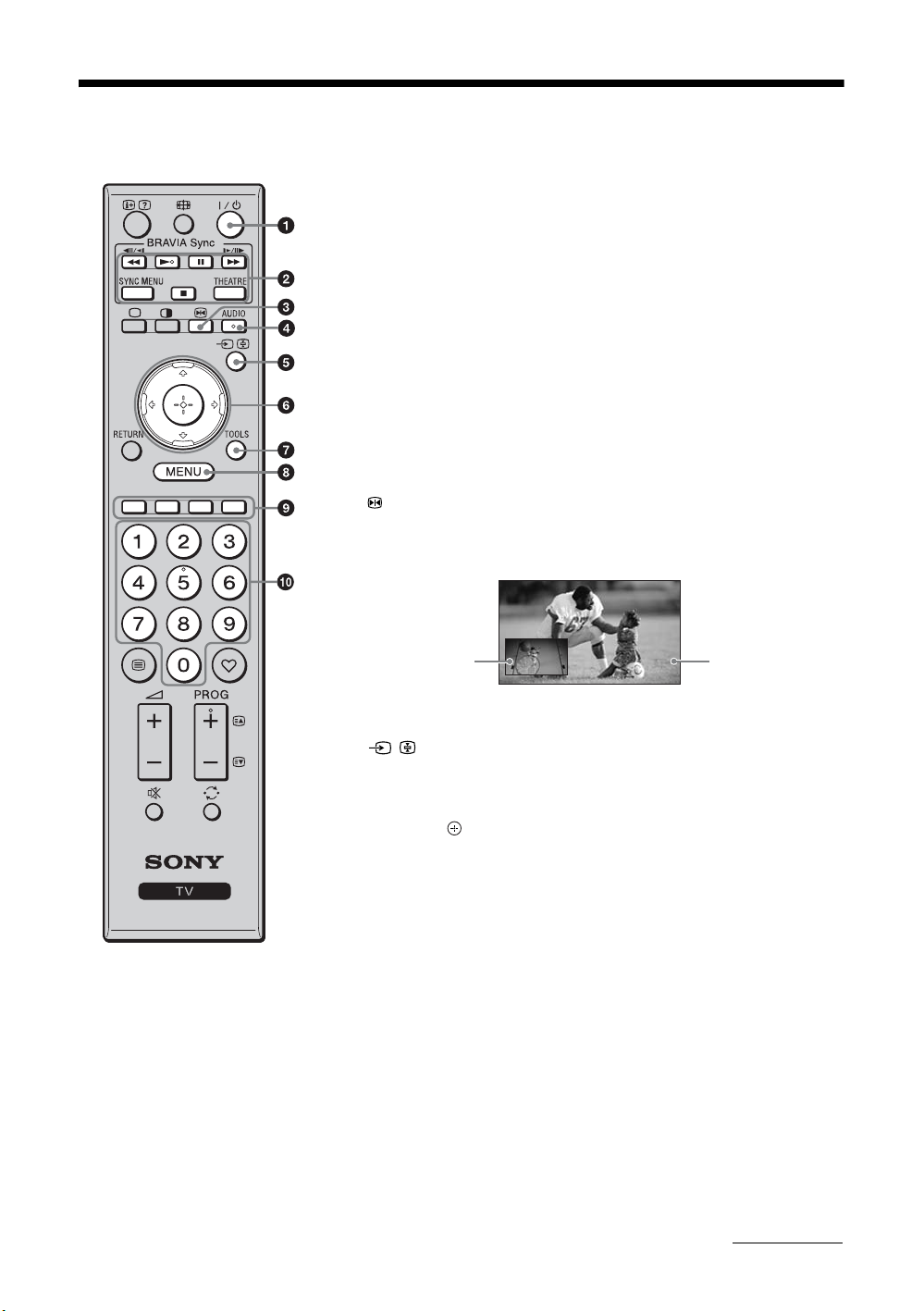
1 "/1 – TV standby
Turns the TV on and off from standby mode.
2 BRAVIA Sync (page 18)
• m/N/X/M/x: You can operate the BRAVIA Sync-compatible
equipment that is connected to the TV.
• SYNC MENU: Displays the menu of connected HDMI CEC (Consumer
Electronics Control) equipment which is supported. While viewing
other input screens or TV programmes, “HDMI Device Selection” is
displayed when the button is pressed.
• THEATRE: You can set Theatre Mode on or off. When Theatre Mode
is set to on, the optimum audio output (if the TV is connected with an
audio system using an HDMI cable) and picture quality for film videos
are automatically set.
~ • Control for HDMI (BRAVIA Sync) is only available with the connected
Sony equipment that has the BRAVIA Sync logo or is compatible with
control for HDMI.
• If you turn the TV off, Theatre Mode is also turned off.
3 – Picture freeze
Freezes the TV picture. Press once to display a frozen image with the
current programme in a window. Press again to fill the screen with the
frozen image. Press third time to return to the current programme.
RETURN
BRAVIA Sync
THEATRESYNC MENU
AUDIO
TOOLS
• The number 5, N, PROG + and
AUDIO buttons have tactile dots.
Use the tactile dots as references
when operating the TV.
Current programme
(Location of the sub
window can be moved
by pressing
F/f/G/g.)
~ • This function is not available for Twin Picture and PC input source.
Freeze
Frozen picture
4 AUDIO – Dual Sound (page 25)
5 / – Input select / Text hold
• Displays the connected equipment list and selects the input source
(page 16).
• In Text mode: Holds the current page.
F/f/G/g/ – Item select / OK
6
• Selects or adjusts items.
• Confirms selected items.
7 TOOLS (page 13)
8 MENU
Displays or cancels the menu.
9 Coloured buttons
In Text mode: Accesses the corresponding coloured Fastext menu
quickly and easily. The Fastext feature can be used only when the
Fastext broadcast is available.
0 Number buttons
• Selects channels. For channel numbers 10 and above, enter the second
digit quickly (page 30).
• In Text mode: Enters the three digit page number to select the page.
Continued
11
GB
Page 12

wa
w;
ql
qk
qj
qh
qg
qf
RETURN
BRAVIA Sync
THEATRESYNC MENU
AUDIO
TOOLS
qa – Favourite list
Displays the Favourite list that you have specified (page 20).
qs PROG +/–/ /
• Selects the next (+) or previous (-) channel.
• In Text mode: Selects the next ( ) or previous ( ) page.
qd – Previous channel
Returns to the previous channel watched (for more than five seconds).
qf % – Mute
Press to mute the sound. Press again to restore the sound.
z • In standby mode, if you want to turn on the TV without sound, press this
button.
qg 2 +/– – Volume
Adjusts volume.
qh / – Text
In Text mode: Displays Text broadcast: Text t Text over the TV
picture (mix mode) t No Text (exit the Text service).
~ • Text language displays can be either English, Persian or French depending
on your broadcast signal.
qj RETURN
Returns to the previous screen of any displayed menu.
qk a – TV mode
Exit Text mode, or switches to a TV display when displaying external
input.
qa
ql – Twin Picture / PIP (page 17)
Displays two pictures simultaneously.
w; / – Info / Text reveal
qs
• Displays information. Press once to display current channel number
and screen mode. Press again to display clock information. Press third
time to remove the display from the screen.
• In Text mode: Reveals hidden information (e.g. answers to a quiz).
wa – Wide Mode
qd
Changes the picture size. Press repeatedly to select the desired wide
mode.
12
For TV, Video, HD/DVD or HDMI (except PC input)
Wide Zoom* Enlarges the centre portion of the picture. The left
and right edges of the picture are stretched to fill
the 16:9 screen.
Normal Displays the 4:3 picture in its original size. Side
bars are shown to fill the 16:9 screen.
Full Stretches the 4:3 picture horizontally, to fill the
16:9 screen.
Zoom* Displays cinemascopic (letter box format)
broadcasts in the correct proportions.
* Parts of the top and bottom of the picture may be cut off.
~ • You cannot select “Normal” for HD signal source pictures.
GB
Page 13

For PC Input
Full 1 Stretches the original picture to fill the screen vertically.
Full 2 Stretches the Full 1 picture horizontally to fill the 16:9
screen.
Using the Tools menu
Press TOOLS enables you to access various viewing options and change/make adjustments according to the source
and screen mode. The options displayed vary depending on the input source.
Viewing TV programme Viewing connected equipment
Options Description
Picture Mode See page 23.
Sound Mode See page 24.
Intelligent Picture See page 30.
MPEG Noise
Reduction
Speaker See page 27.
Add to Favourites You can add the current
Sleep Timer See page 28.
Power Saving See page 28.
See page 23.
channel to the favourite list.
Options Description
Picture Mode (except PC
input mode)
Display Mode (in PC input
mode only)
Sound Mode See page 24.
MPEG Noise Reduction
(except PC input and
component input mode)
Speaker See page 27.
Twin Picture (except PC
input mode)
PIP (in PC input mode only) See page 17.
Single Picture (in Twin
Picture and PIP mode only)
Audio Swap (in PIP mode
only)
Auto Adjustment (in PC
input mode only)
Horizontal Shift (in PC
input mode only)
Sleep Timer (except PC
input mode)
Power Saving See page 28.
Device Control [in HDMI
input mode (except HDMI
PC input) only]
See page 23.
See page 23.
See page 23.
See page 17.
See page 17.
See page 17.
See page 28.
See page 29.
See page 28.
Displays the menu screen
to operate the connected
HDMI-compatible
equipment.
13
GB
Page 14

Overview of the TV buttons and indicators
1
Displays or cancels the menu.
2 / – Input select / OK
• Displays the connected equipment list and selects
the input source (page 16).
• In TV menu: Selects the menu or option, and
confirms the setting.
3 2 +/-/ /
• Increases (+) or decreases (-) the volume.
• In TV menu: Moves through the options right ( )
or left ( ).
4 PROG +/-/ /
• Selects the next (+) or previous (-) channel.
• In TV menu: Moves through the option s up ( ) or
down ( ).
5 1 – Power
Turns the TV on or off.
~ • To disconnect the TV from the AC power
completely, pull the plug from the AC power
outlet.
6 / – Picture Off / Timer indicator
• Lights up in green when the picture is turned off
(page 28).
• Lights up in amber when the timer is set (page 28).
7 1 – Standby indicator
Lights up in red when the TV is in standby mode.
8 " – Power indicator
• Lights up in green when the TV is turned on.
• Flashes while the remote is being operated.
9 – Remote sensor / Light sensor (page 28)
• Receives IR signals from the remote.
• Do not put anything over the sensor, as its function
may be affected.
14
GB
Page 15
Using Optional Equipment
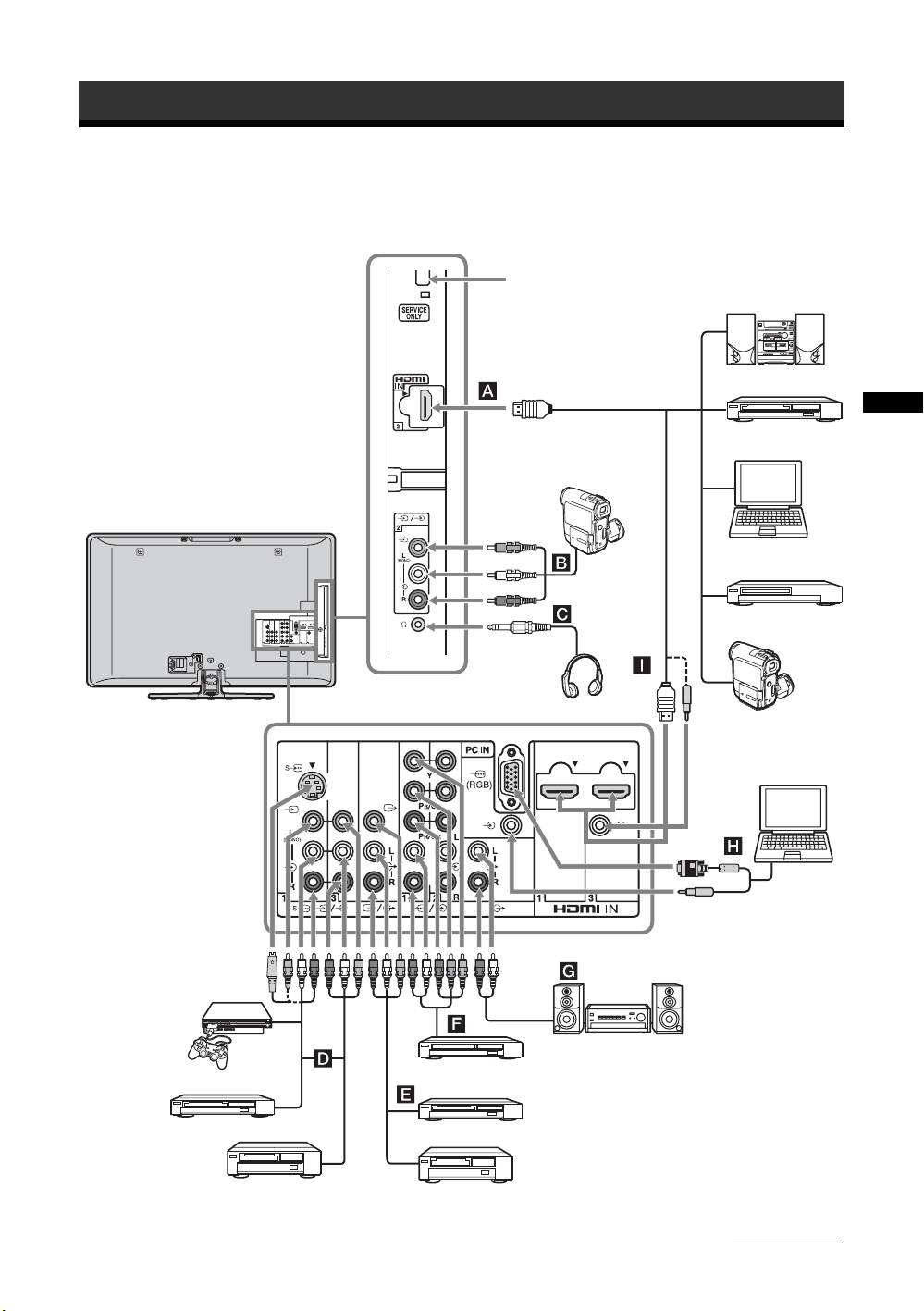
Connecting optional equipment
You can connect a wide range of optional equipment to your TV.
For service use only
Audio system
Headphones
S VHS/Hi8/
DVC
camcorder
DVD player
PC (HDMI output)
Blu-ray disc player
Digital video camera
PC
Using Optional Equipment
Video game equipment
DVD player without component video output
VCR
DVD player with component video output
DVD recorder
VCR
Hi-Fi audio
equipment
Continued
15
GB
Page 16

Viewing pictures from the connected equipment
Turn on the connected equipment, then press / to display the connected equipment list.
Press F/f to select the desired input source, then press . (The highlighted item is selected if
2 seconds pass without any operation after pressing F/f.) When the input source is set to “Skip”
in the “Video Labels” under the “AV Set-up” menu (page 26), that input does not appear in the
list.
z • Press / on the top edge of the TV to display the connected equipment list and select the desired input source. You
can also press F/f to select the desired input source. Then wait for 2 seconds to display the selected input source.
Jacks/
Description
Input symbol on screen
A HDMI IN 2
I HDMI IN 1 or 3
HDMI 1 or
HDMI 2 or
HDMI 3
B 2, and 2
Video 2
C i Connect to the i jack to listen to sound from the TV on headphones.
D 1 or 1 or 3,
and 1 or 3
Video 1 or
Video 1 or
Video 3
E / Connect to the video output jack to record the image from the TV. Connect to the
F / 1 or 2
HD/DVD 1 or
HD/DVD 2
Connect to the HDMI IN 1, 2 or 3 jack if the equipment has an HDMI jack. The digital
video and audio signals are input from the equipment. In addition, when you connect
the equipment that is compatible with control for HDMI, communication with the
connected equipment is supported. Refer to page 27 to set-up this communication. If
the equipment has a DVI jack, connect the DVI jack to the HDMI IN 3 jack through a
DVI - HDMI adaptor interface (not supplied), and connect the equipment’s audio out
jack to the audio in jack in the HDMI IN 3 jack.
~ • The HDMI jacks only supp ort the following video inputs: 480i, 480p, 576i, 576p, 720p
(50/60 Hz), 1080i (50/60 Hz), 1080p (50/60 Hz) and 1080/24p.
• Be sure to use only an HDMI cable that bears the HDMI logo (recommended Sony
HDMI cable).
• When connecting an audio system with HDMI jack, be sure to also connect to the audio
output jacks (refer G in page 15) to listen to the sound from the TV on audio
system.
Connect to the video jack 2, and the audio jacks 2. If you connect mono
equipment, connect to the L(MONO) jack 2.
Connect to the S video jack 1 or the video jack 1 or 3, and the audio jacks
1 or 3. To avoid picture noise, do not connect the camcorder to the video jack 1
and the S video jack 1 at the same time. If you connect mono equipment, connect
to the L(MONO) jack 1 or 3.
audio output jacks to record the sound from the TV on DVD recorder or VCR. To
turn off the sound of the TV speakers, set “Speaker” to “Audio System” (page 27). If
you connect mono equipment, connect to the L jack .
~ • The monitor output jacks cannot support HD/DVD, HDMI and PC signals source
pictures, also digital audio signal for sound.
Connect to the component jacks and the audio jacks / 1 or 2. For better picture
quality, component connection is recommended if your DVD player has a component
video output.
G Connect to the audio output jacks to listen to the sound from the TV on Hi-Fi audio
H PC IN (RGB)/
PC
GB
16
equipment. To turn off the sound of the TV speakers, set “Speaker” to “Audio System”
(page 27).
Connect to the PC IN (RGB) jack and the audio jack . It is recommended to
use a PC cable with ferrite.
Page 17

Viewing Twin Picture
Viewing PIP (Picture in
You can view two pictures (external input and TV
programme) on the screen simultaneously.
Connect the optional equipment (page 15), and make
sure that images from the equipment appear on the
screen (page 16).
1 Press .
Two pictures are displayed simultaneously.
Left
Window
Right Window
Twin Picture Availability
In Left Window In Right Window
HD/DVD 1
HD/DVD 2
HDMI 1 (except PC input mode)
HDMI 2 (except PC input mode)
HDMI 3 (except PC input mode)
Video 1 or S Video 1
Video 2
Video 3
TV programme
No picture
2 Press G/g to select active picture.
3 Press number buttons or PROG +/– to
select the TV channel.
To return to single picture mode
Press or RETURN.
~ • This function is not available for a PC input source.
• You cannot change the size of the pictures.
• The picture and sound from the monitor output jacks
/ (refer E in page 15) will follow the left
Video 1/S Video 1/Video 2/Video 3 only).
picture (
However, if audio output jacks (refer G in
page 15) are connected, the sound will follow TV
speaker.
• In Twin Picture mode, as picture size reduced, this
may decrease picture smoothness.
z • The picture framed in grey is audible. You can switch
the audible picture by pressing G/g.
• You can also use the Twin Picture feature by selecting
“Twin Picture” from the Tools menu.
Picture)
You can view two pictures (PC input and TV
programme) on the screen simultaneously.
Connect a PC (page 15), and make sure that images
from a PC appear on the screen (page 16).
1 Press .
Two pictures are displayed simultaneously.
Sub Window
(Location of the
Main
Window
PIP Availability
In Main Window In Sub Window
PC
HDMI 1 (in PC input mode only)
HDMI 2 (in PC input mode only)
HDMI 3 (in PC input mode only)
2 Press number buttons or PROG +/– to
select the TV channel.
To return to single picture mode
RETURN.
Press
~ • You cannot display resolutions higher than WXGA
(1360 × 768 pixels).
• “Power Management” is not available in PIP mode
(page 29).
• The sound will follow TV speaker when audio output
jacks (refer G in page 15) are connected.
• In PIP mode, as picture size reduced, this may
decrease picture smoothness.
z • You can switch the audible picture by selecting
“Audio Swap” from the Tools menu.
• You can also use the PIP feature by selecting “PIP”
from the Tools menu.
sub window can
be moved by
pressing
F/f/G/g.)
TV programme
Using Optional Equipment
17
GB
Page 18

Using BRAVIA Sync (Control for HDMI)
The control for HDMI function enables the TV to
communicate with the connected equipment that is
compatible with the function, using HDMI CEC
(Consumer Electronics Control).
For example, by connecting Sony equipment that is
compatible with control for HDMI (with HDMI
cables), you can control them together.
Be sure to connect the compatible equipment
correctly, and make the necessary settings.
To connect the equipment that is compatible with control for HDMI
Connect the compatible equipment and the TV with an
HDMI cable. When connecting an audio system, in
addition to the HDMI cable, be sure to also connect to
the audio output jacks (refer
listen to the sound from the TV on audio system. For
details, see page 15.
To make the control for HDMI settings
The control for HDMI settings must be set on both the
TV side and the connected equipment side. See
“HDMI Set-up” on page 27 for the TV side settings.
See the operating instructions of the connected
equipment for setting details.
G in page 15) to
Control for HDMI
• Automatically turns the connected equipment off
when you turn the TV off.
• Automatically turns the TV on and switches the
input to the connected equipment when the
equipment starts to play.
• If you turn on a connected audio system while the
TV is on, the sound output switches from the TV
speaker to the audio system.
• Adjusts the volume (2 +/–) and mutes the sound
(%) of a connected audio system.
• You can operate the connected Sony equipment that
has the BRAVIA Sync logo by the TV remote by
pressing:
– N/x/X/m/M to operate the connected
equipment directly.
– SYNC MENU to display the menu of the connected
HDMI CEC equipment which is supported on the
screen.
After displaying the menu, you can operate the menu
screen by using F/f/G/g and
– TOOLS to display “Device Control”, then select
options from “Menu”, “Options”, and “Content List” to
operate the equipment.
Refer to the instruction manual of the equipment for
available control.
GB
18
.
Page 19

Using MENU Functions
Navigating through menus
BRAVIA Sync
THEATRESYNC MENU
AUDIO
2
TOOLSRETURN
1
“MENU” allows you to enjoy various convenient
features of this TV. You can easily select channels or
inputs sources and change the settings for your TV.
1 Press MENU.
2 Press F/f to select an option, then press
.
To exit the menu, press MENU.
1 Favourites
Displays the favourite list (page 20).
• To watch the desired channel, select the
favourite channel number, then press .
• To add the current channel to the favourite list,
select “Add to Favourites”. When the
favourite list is full, select “Edit Favourites”
to remove any channel from your list and try
again (page 20).
2 Programme List
Displays available TV channels.
• To watch the desired channel, select the
channel, then press .
• To assign a label to a channel, select “Edit
Programme Labels”, then see page 30.
3 External Inputs
Selects equipment connected to your TV.
• To watch the desired external input, select the
input source, then press .
• To assign a label to an external input, select
“Edit Video Labels”, then see page 26.
• To select the equipment that is compatible
with control for HDMI, select “HDMI Device
Selection”.
4 Settings
Displays the “Settings” menu where most of the
advanced settings and adjustments are performed.
For details about settings, see page 21 to 22.
Using MENU Functions
19
GB
Page 20

Using the Favourite List
The Favourite feature lets you select programmes
from a list of up to 16 favourite channels that you
specify.
1 Press MENU.
2 Press F/f to select “Favourites”, then
press .
3 Perform the desired operation as shown in
the following table or displayed on the
screen.
Favourite List
To Do this
Watch a channel Press F/f to select the channel number, then press .
Turn off the Favourite list Press RETURN to return to the previous screen.
Press MENU or to exit the menu.
Add a current channel to the Favourite
list
Remove a channel from the Favourite
list
F/f to select “Add to Favourites”, then press .
Press
Press
F/f to select “Edit Favourites”, then press .
The “Favourite Set-up” screen appears. For details, see “Favourite Set-up”
on page 30.
20
GB
Page 21

Settings adjustment
You are able to change the settings of your TV from “Settings” menu.
1 Press MENU. Press F/f to select “Settings”, then press .
2 Press F/f to select a menu icon, then press .
3 Press F/f/G/g to select an option or adjust a setting, then press .
The following is an overview of the items that can be adjusted.
Picture TV
Vivid
Max
Max
40
60
Cool
18
High
Low
Set: Exit:
Dynamic
+10
+10
0
Off
0
Off
0
Mono
Set: Exit:
MENU
MENU
Sound
Picture Mode
Reset
Backlight
Picture
Brightness
Colour
Hue
Colour Temperature
Sharpness
Noise Reduction
MPEG Noise Reduction
Advanced Settings
Select:
Sound Mode
Reset
Treble
Bass
Balance
Intelligent Volume
Volume Offset
Surround
Voice Zoom
Sound Booster
Dual Sound
Dual Sound
Select:
Picture menu (page 23)
“Picture Mode”: “Vivid” t “Standard” t “Cinema” (except PC input mode)
“Display Mode
“Reset
”: “Video” t “Text” (in PC input mode only)
”
“Backlight”
“Picture”
“Brightness”
“Colour”
“Hue”
“Colour Temperature”: “Cool” t “Neutral” t “Warm 1” t “Warm 2”
“Sharpness”
“Noise Reduction”: “High” t “Medium” t “Low” t “Off”
“MPEG Noise Reduction”: “High” t “Medium” t “Low” t “Off”
“Advanced Settings”: “Adv. Contrast Enhancer”, “Live Colour”
TV
Sound menu (page 24)
Using MENU Functions
“Sound Mode”: “Dynamic” t “Standard” t “Clear Voice”
“Reset”
“Treble”
“Bass”
“Balance”
“Intelligent Volume”: “On” t “Off”
“Volume Offset”
“Surround”: “S-FORCE Front Surround” t “Simulated Stereo” t “Off”
“Voice Zoom”
“Sound Booster”: “High” t “Low” t “Off”
“Dual Sound”
Screen
Wide Mode
Auto Wide
4:3 Default
Display Area
Horizontal Shift
Vertical Shift
Vertical Size
Select:
Wide Zoom
Full Pixel
0
0
TV
Screen menu (page 25)
“Wide Mode”: “Wide Zoom” t “Normal” t “Full” t “Zoom”
“Auto Wide”: “On” t “Off”
“4:3 Default”: “Wide Zoom” t “Normal” t “Off”
“Display Area”: “Full Pixel” t “Normal” (KLV-40S400A only)
“Horizontal Shift”
“Vertical Shift”
“Vertical Size”
Set:
Exit:
MENU
Continued
GB
21
Page 22
Set-up
Auto Start-up
Language
Cinema Drive
AV Set-up
HDMI Set-up
Timer Settings
Power Saving
Light Sensor
Product Information
Factory Settings
Set:
Select:
English
Off
Standard Power
Off
Exit:
MENU
TV
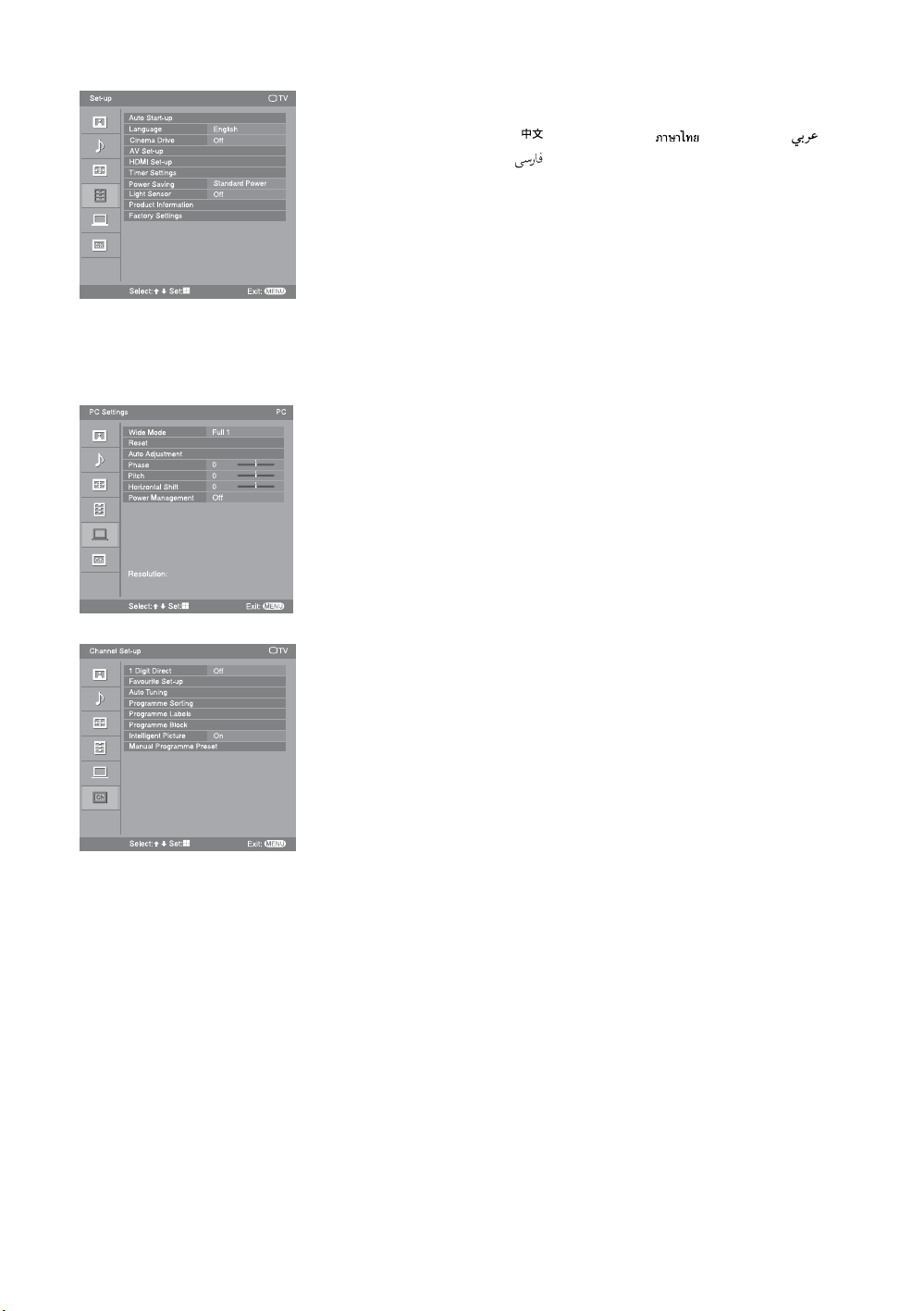
Set-up menu (page 26)
“Auto Start-up”
“Language”: “English” t “ ” (Chinese) t “ ” (Thai) t “”
(Arabic) t “ ” (Persian)
“Cinema Drive”: “Auto” t “Off”
“AV Set-up”: “Video Labels”, “Auto S Video”, “Speaker”, “Audio Out”,
“Colour System”
“HDMI Set-up”: “Control for HDMI”, “Auto Devices Off”, “Auto TV On”,
“Device List Update”, “HDMI Device List”
“Timer Settings”: “Sleep Timer”, “On Timer”, “Clock Set”
“Power Saving”: “Standard Power” t “Reduced Power” t “Picture Off”
“Light Sensor”: “On” t “Off”
“Product Information”
“Factory Settings”
PC Settings
Wide Mode
Reset
Auto Adjustment
Phase
Pitch
Horizontal Shift
Power Management
Full 1
0
0
0
Off
PC
PC Settings menu (page 28)
“Wide Mode”: “Full 1” t “Full 2”
“Reset”
“Auto Adjustment”
“Phase”
“Pitch”
“Horizontal Shift”
“Power Management”: “On” t “Off”
Resolution:
MENU
Exit:
TV
Off
Channel Set-up menu (page 30)
“1 Digit Direct”: “On” t “Off”
“Favourite Set-up”
“Auto Tuning”
On
“Programme Sorting”
“Programme Labels”
Channel Set-up
Set:
Select:
1 Digit Direct
Favourite Set-up
Auto Tuning
Programme Sorting
Programme Labels
Programme Block
Intelligent Picture
Manual Programme Preset
“Programme Block”
“Intelligent Picture”: “On with Indicator”t “On”t “Off”
“Manual Programme Preset”: “Programme”, “TV System”, “VHF Low”/ “VHF
High”/ “UHF”, “Label”, “AFT”, “Audio Filter”,
Select:
Set:
Exit:
MENU
“Skip”, “Colour System”, “Signal Booster”,
“Signal Level”
~ • The options you can adjust vary depending on the situation. Unavailable options are greyed out or not displayed.
22
GB
Page 23
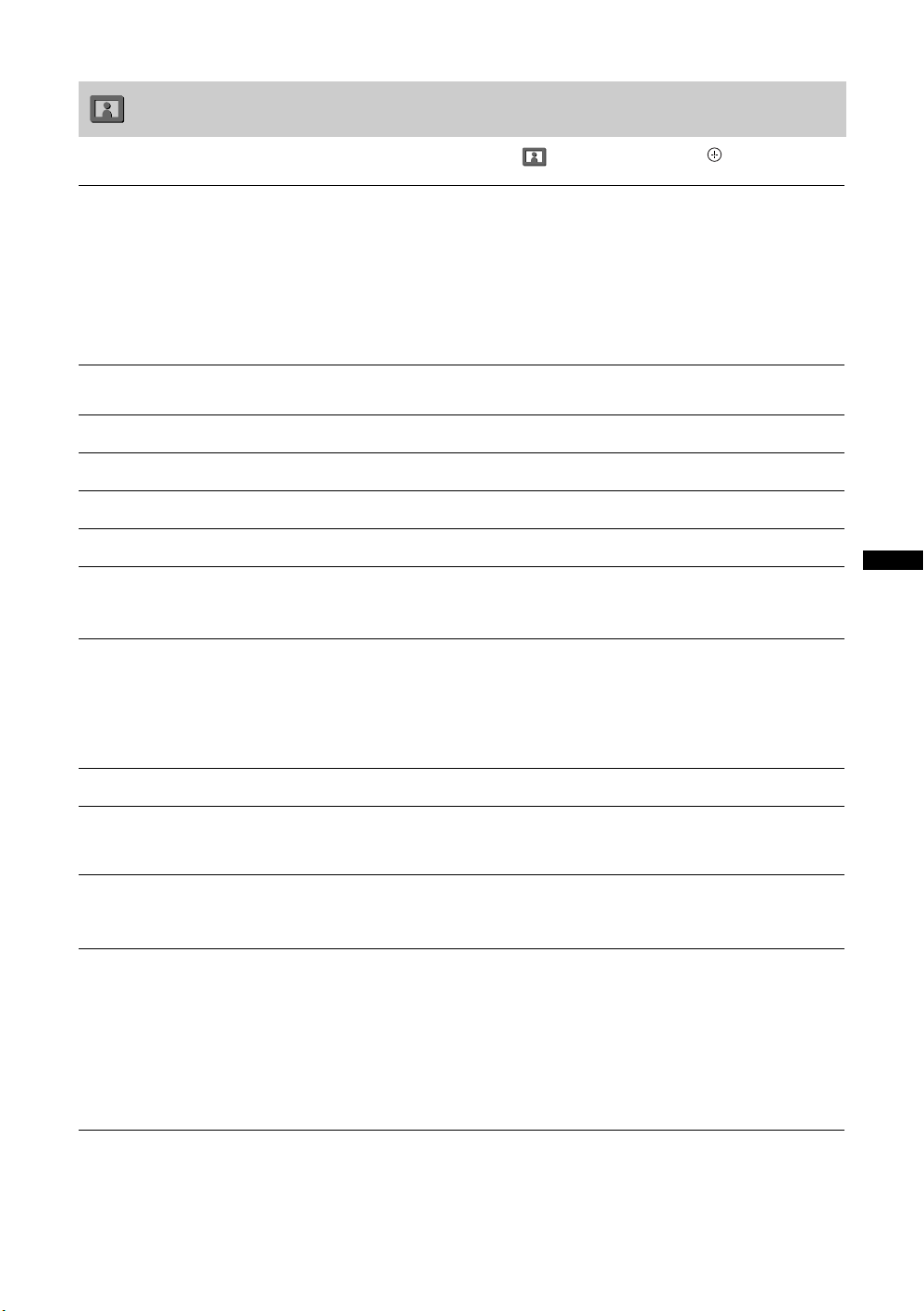
Picture menu
Press MENU and select “Settings”. Make sure the “Picture” icon ( ) is selected, then press .
Picture Mode
Display Mode
Reset
Backlight
Picture
Brightness
Colour
Hue
Colour Temperature
Sharpness
Selects the picture mode except for PC input source.
“Vivid”: For enhanced picture contrast and sharpness.
“Standard”: For standard picture. Recommended for home entertainment.
“Cinema”: For optimum picture quality of film videos.
Selects the display mode for PC input source.
“Video”: For video images.
“Text”: For text, charts or tables.
~ • The options displayed vary depending on the input source.
Resets all the “Picture” settings except “Picture Mode” and “Display Mode” to the
factory settings.
Adjusts the brightness of the backlight.
Increases or decreases picture contrast.
Brightens or darkens the picture.
Increases or decreases colour intensity.
Increases or decreases the green tones and red tones.
~ • “Hue” can only be adjusted for an NTSC colour system (e.g. U.S.A. video tapes).
• “Hue” is not available for PC input, component and HDMI input source.
Adjusts the whiteness of the picture.
“Cool”: Gives the white colours a blue tint.
“Neutral”: Gives the white colours a neutral tint.
“Warm 1”/“Warm 2”: Gives the white colours a red tint. “Warm 2” gives a redder
tint than “Warm 1”.
~ • “Warm 1” and “Warm 2” are not available when “Picture Mode” is set to “Vivid”.
Sharpens or softens the picture.
Using MENU Functions
Noise Reduction
MPEG Noise Reduction
Advanced Settings
Reduces the picture noise (snowy picture) in a weak broadcast signal.
“High”/“Medium”/“Low”: Modifies the effect of the noise reduction.
“Off”: Turns off the “Noise Reduction” feature.
Reduces the picture noise in MPEG-compressed video.
Choose either “High”, “Medium”, “Low” or “Off”.
~ • “MPEG Noise Reduction” is not available for a PC input and component input source.
Customises the “Picture” function in more detail. When you set “Picture Mode” to
“Standard” or “Cinema”, you can set/change these settings.
“Adv. Contrast Enhancer”: Automatically adjusts “Backlight” and “Picture” to
the most suitable settings judging from the brightness of the screen. This setting is
especially effective for dark images scenes. It will increase the contrast distinction
of the darker picture scenes.
“Live Colour”: Makes colours more vivid.
~ • “Advanced Settings” is not available for a PC input source or when “Picture Mode” is
set to “Vivid”.
23
GB
Page 24
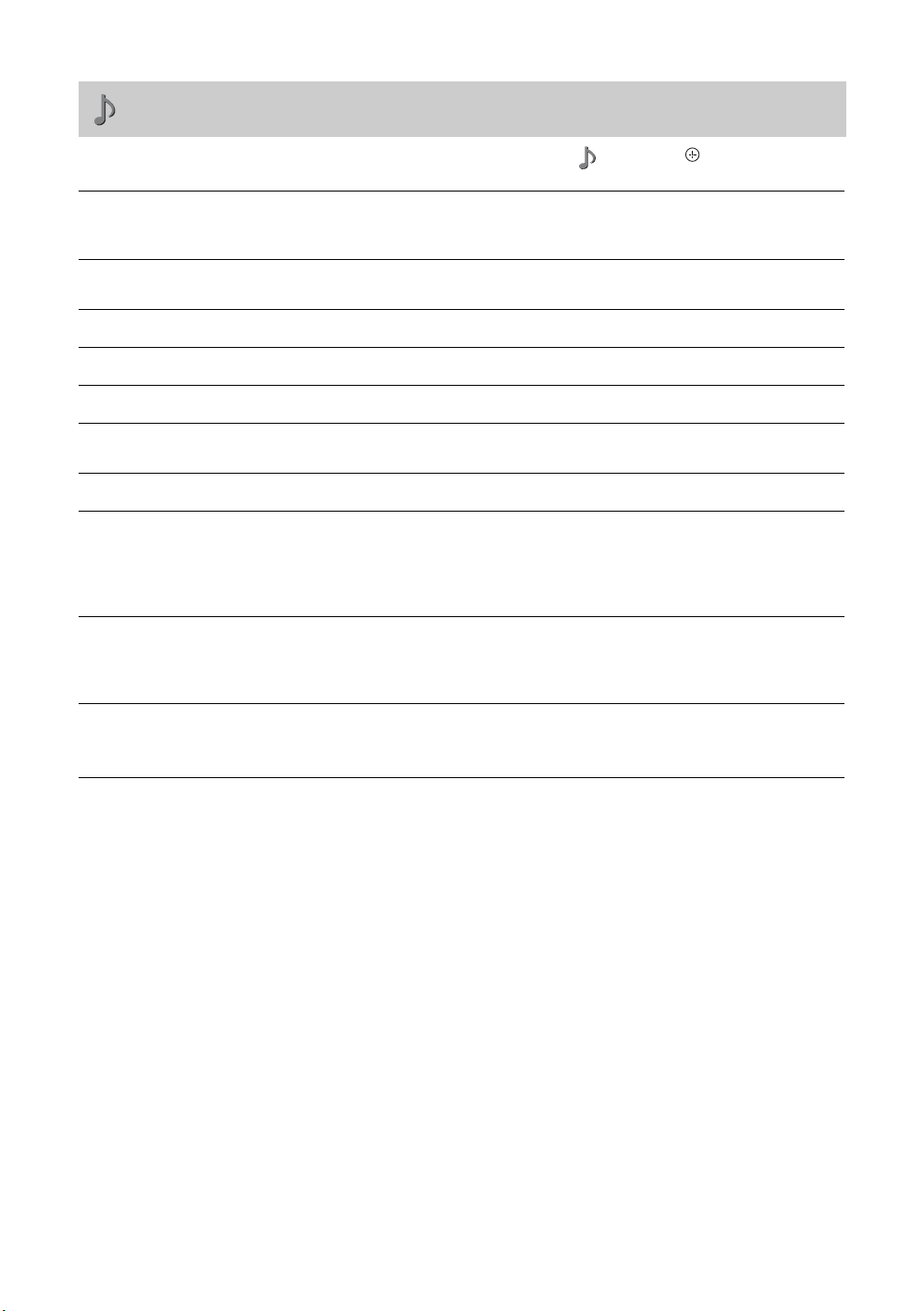
Sound menu
Press MENU and select “Settings”. Press F/f to select the “Sound” icon ( ), then press .
Sound Mode
Reset
Treble
Bass
Balance
Intelligent Volume
Volume Offset
Surround
Voice Zoom
Sound Booster
“Dynamic”: Enhances treble and bass. Recommended for home entertainment.
“Standard”: For standard sound.
“Clear Voice”: Makes voice sound clearer.
Resets all the “Sound” settings except “Sound Mode” and “Dual Sound” to the
factory settings.
Adjusts higher-pitched sounds.
Adjusts lower-pitched sounds.
Emphasises left or right speaker balance.
Keeps a constant volume level even when volume level gaps occur (e.g. adverts tend
to be louder than programmes).
Adjusts the volume level of the current input relative to other inputs.
“S-FORCE Front Surround”: Available for normal stereo broadcast and 5.1ch
broadcast surround audio, and the audio input from connected equipment.
“Simulated Stereo”: Adds a surround-like effect to mono programmes.
“Off”: Converts and reproduces 5.1ch and other broadcast surround audio as normal
stereo audio (2ch). Reproduces the original audio of other broadcasts as it is.
Adjusts the clarity of human voices. For example, if the voice of a news announcer
is indistinct, you can turn up this setting to make the voice clearer. Conversely, if you
are watching a sports programme, you can turn down this setting to soften the voice
of the commentator.
Gives sound more impact by compensating for phase effects in speakers.
Choose either “High”, “Low” or “Off”.
~ • “Sound Booster” is available when “Sound Mode” is set to “Standard”.
24
GB
Page 25
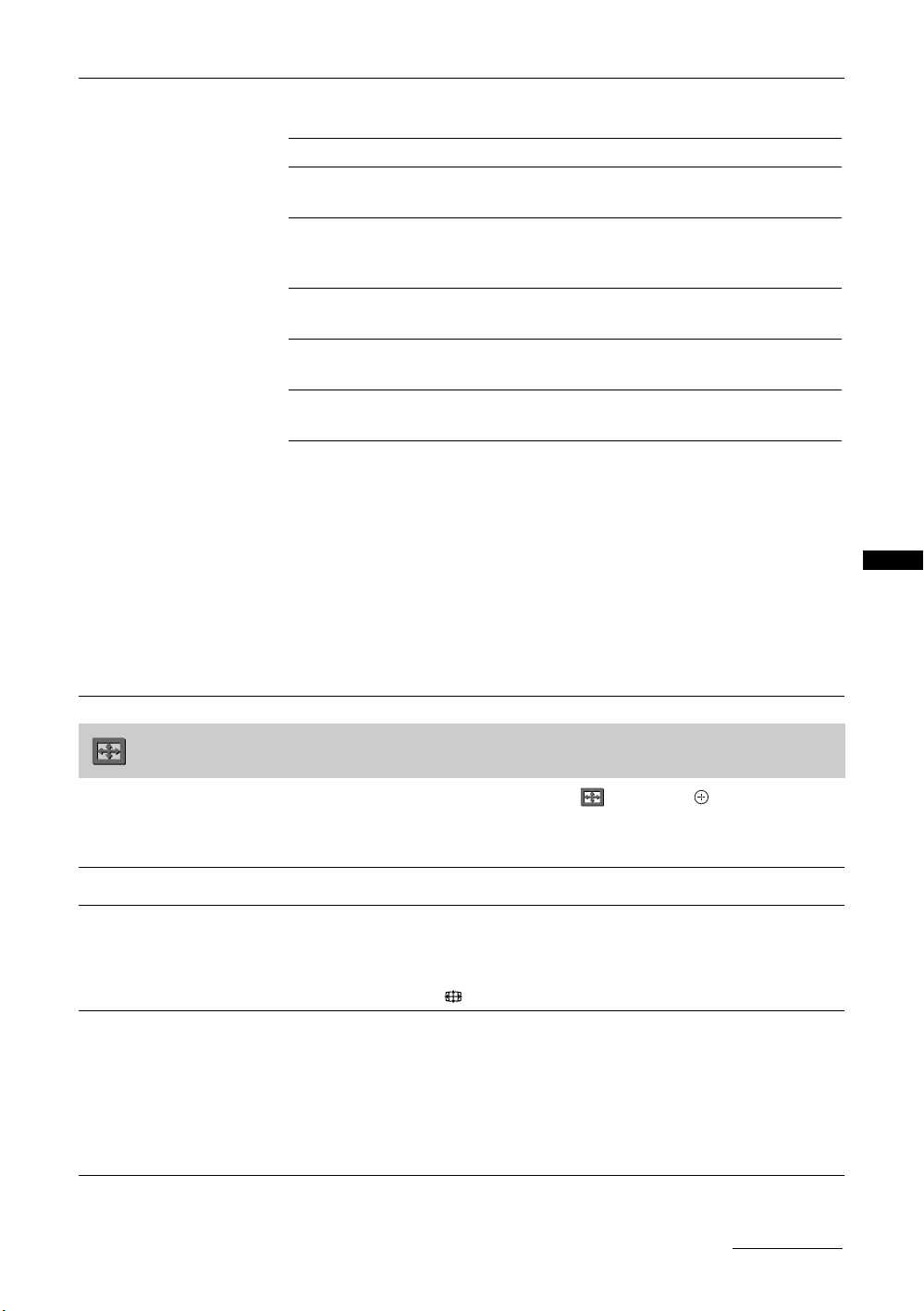
Dual Sound
Selects the sound from the speaker for a stereo or bilingual broadcast.
The selection varies, depending on the Broadcasting.
Broadcasting Selection
NICAM stereo Stereo (stereo sound)
Mono (regular sound)
NICAM bilingual Main (main sound)
Sub (sub sound)
Mono (regular sound)
NICAM monaural Main (main sound)
Mono (regular sound)
A2 (German) stereo Stereo (stereo sound)
Mono (regular sound)
A2 (German) bilingual Main (main sound)
Sub (sub sound)
~ • If the signal is very weak, the sound becomes monaural automatically.
• If the stereo sound is noisy when receiving a NICAM programme, select “Mono”. The
sound becomes monaural, but the noise is reduced.
• The “Dual Sound” setting is memorized for each programme position.
• You cannot receive a stereo broadcast signal when “Mono” is selected for the
programme position.
• You cannot receive stereo or dual sound when “Low” or “High” is selected in “Audio
Filter” (page 31).
z • NICAM is receivable in following countries/regions. Hong Kong, Singapore, New
Zealand, Malaysia, Thailand, etc.
• A2 (German) is receivable in following countries/regions. Australia, Malaysia,
Thailand, etc.
• If you select other equipment connected to the TV, set “Dual Sound” to “Stereo”,
“Main” or “Sub”. However, when the external equipment connected to the HDMI jack
is selected, this is fixed to “Stereo”, except HDMI IN 3 with DVI analogue sound input.
Using MENU Functions
Screen menu
Press MENU and select “Settings”. Press F/f to select the “Screen” icon ( ), then press .
~ • “Screen” menu is not available when receiving PC signal. When receiving PC signal, you can use “PC Settings” menu to
perform related settings (page 28).
Wide Mode
Auto Wide
For details about the wide mode, see page 12.
Automatically changes the wide mode according to the input signal from an external
equipment. To keep your setting, select “Off”.
~ • “Auto Wide” is not available when watching TV programmes.
z • Even if “Auto Wide” is set to “On” or “Off”, you can always modify the format of the
screen by pressing repeatedly.
4:3 Default
Selects the default screen mode for use with 4:3 broadcasts.
“Wide Zoom”: Displays conventional 4:3 broadcasts with an imitation wide screen
effect.
“Normal”: Displays conventional 4:3 broadcasts in the correct proportions.
“Off”: Keeps the current “Wide Mode” setting when the channel or input is
changed.
~ • “4:3 Default” is available only if “Auto Wide” is set to “On”.
• “4:3 Default” is not available when watching TV programmes or for a HD input signal.
Continued
25
GB
Page 26
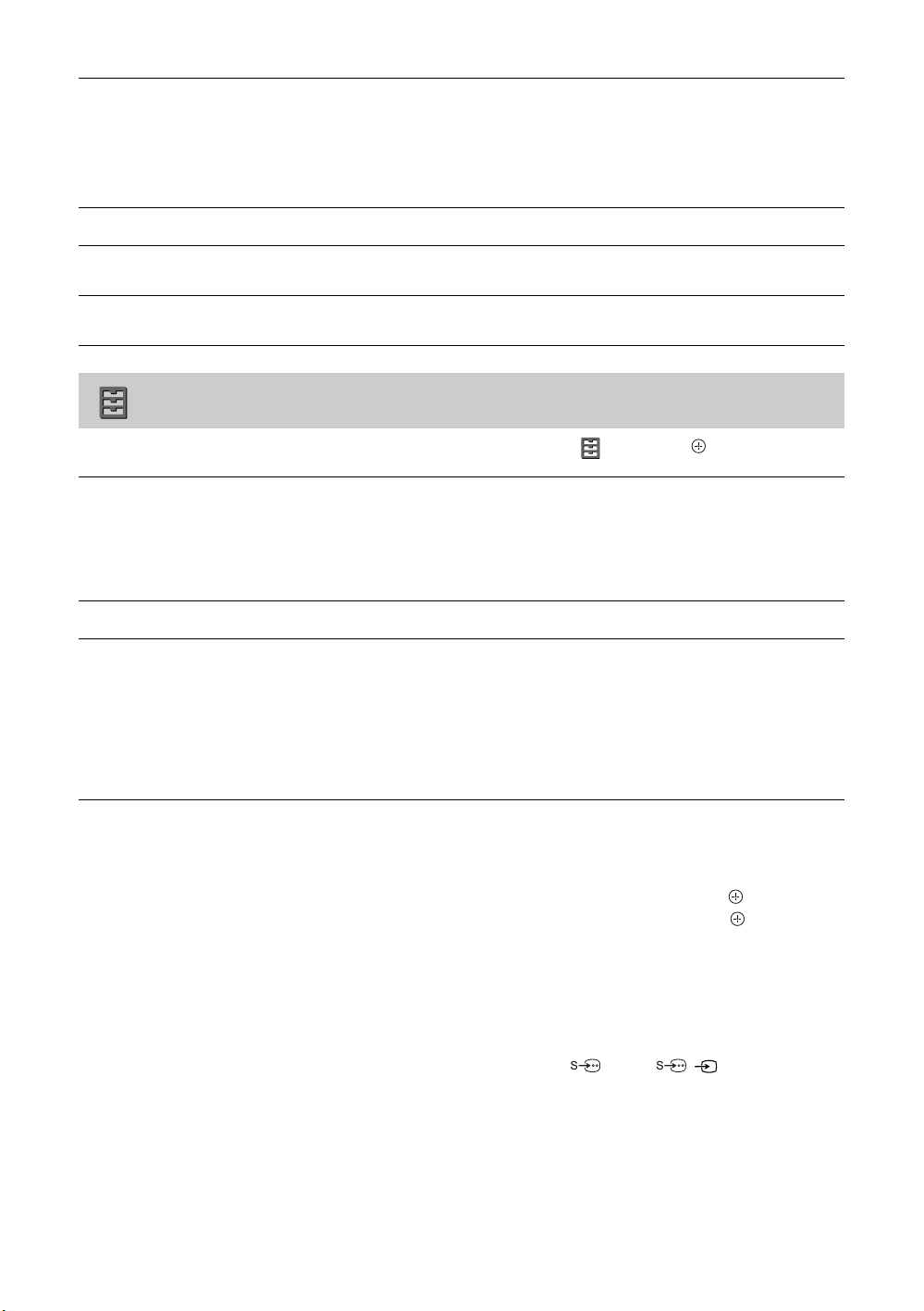
Display Area
(KLV-40S400A only)
Horizontal Shift
Adjusts the screen area for displaying the picture.
“Full Pixel”: Displays the picture for 1080/50i, 1080/60i, 1080/50p and 1080/60p
sources (HDMI or component input only) or 1080/24p sources (HDMI input only)
in the original size when parts of the picture are cut off.
“Normal”: Displays the recommended picture area.
~ • “Display Area” is available only when “Wide Mode” is set to “Full”.
Adjusts the horizontal position of the picture.
Vertical Shift
Vertical Size
Adjusts the vertical position of the picture when “Wide Mode” is set to “Wide
Zoom” or “Zoom”.
Adjusts the vertical size of the picture when “Wide Mode” is set to “Wide Zoom” or
“Zoom”.
Set-up menu
Press MENU and select “Settings”. Press F/f to select the “Set-up” icon ( ), then press .
Auto Start-up
Language
Cinema Drive
Starts the initial set-up procedure.
Usually, you do not need to do this operation because it was done when the TV was
first installed (page 6).
However, this option allows you to repeat the process (e.g. to retune the TV after
moving house, or to search for new channels that have been launched by
broadcasters).
Selects the language in which the menus are displayed.
Provides smoother picture movement when playing DVD or VCR images taken on
film, reducing picture blur and graininess.
“Auto”: Provides smoother picture movement than the original film video. Use this
setting for standard use.
“Off”: Turns off the “Cinema Drive” feature.
~ • If the image contains irregular signals or too much noise, “Cinema Drive” will be
automatically turned off even if “Auto” is selected.
• “Cinema Drive” is not available for a PC input source.
AV Set-up
GB
26
Video Labels
Assigns a name to any equipment connected to the side and rear jacks. The name will
be displayed briefly on the screen when the equipment is selected. You can skip input
signals from connected equipment that you do not want displayed on the screen.
1 Press
2 Press
Auto S Video
Selects the input signal from S video jack 1 when / 1 jacks are both
connected.
“On”: Switches automatically between the S video jack and the composite video
jacks depending on the cable connection.
“Off”: Activates the composite video jacks.
F/f to select the desired input source, then press .
F/f to select the desired option below, then press .
Equipment labels: Uses one of the preset labels to assign a name to connected
equipment.
“Edit:”: Creates your own label. Follow steps 2 to 4 of “Programme Labels”
(page 30).
“Skip”: Skips an unnecessary input source.
Page 27
Speaker
Turns on/off the TV’s internal speakers.
“TV Speaker”: The TV speakers are turned on in order to listen to the TV’s sound
through the TV speakers.
“Audio System”: The TV speakers are turned off in order to listen to the TV’s sound
only through your external audio equipment connected to the audio output jacks.
You can also turn on the connected equipment that is compatible with control for
HDMI, after making the appropriate settings of control for HDMI.
~ • All items in “Sound” menu except “Dual Sound” are not available when “Speaker” is
set to “Audio System”.
Audio Out
“Variable”: The audio output from your audio system can be controlled by the TV’s
remote.
“Fixed”: The audio output of the TV is fixed. Use your audio receiver’s volume
control to adjust the volume (and other audio settings) through your audio system.
~ • “Audio Out” is not available for audio system connected to the TV using the HDMI
jacks.
Colour System
Selects the colour system (“Auto”, “PAL”, “SECAM”, “NTSC3.58”, “NTSC4.43”
or “PAL60”) according to the composite video signal from the input source.
HDMI Set-up
Allows the TV to communicate with equipment that is compatible with the control
for HDMI function, and connected to the HDMI jacks of the TV. Note that
communication settings must also be made on the connected equipment.
Control for HDMI
Sets whether or not to link the operations of the TV and the connected equipment that
is compatible with control for HDMI. When set to “On”, the following menu items
can be performed.
If the specific Sony equipment that is compatible with control for HDMI is
connected, this setting is applied to the connected equipment automatically when the
“Control for HDMI” is set to “On” using the TV.
Auto Devices Off
When this is set to “On”, the connected equipment that is compatible with control for
HDMI turns off when you turn off the TV.
Auto TV On
When this is set to “On”, the TV turns on when you turn on the connected equipment
that is compatible with control for HDMI.
Device List Update
Creates or updates the “HDMI Device List”. Up to 11 compatible equipment items
can be connected, and up to 5 equipment items can be connected to a single jack. Be
sure to update the “HDMI Device List” when you change the connections or settings.
If the specific Sony equipment that is compatible with control for HDMI is
connected, this setting is applied to the connected equipment automatically when the
“Device List Update” is executed on the TV.
HDMI Device List
Displays a list of connected equipment that is compatible with control for HDMI.
~ • You cannot use “Control for HDMI” and “Device List Update” if the TV operations are
linked to the operations of an audio system that is compatible with control for HDMI.
Using MENU Functions
Continued
27
GB
Page 28
Timer Settings
Sets the timer to turn on/off the TV.
Sleep Timer
Sets a period of time after which the TV automatically switches itself into standby
mode.
When the “Sleep Timer” is activated, the (Timer) indicator on the TV front panel
lights up in amber.
z • If you turn off the TV and turn it on again, “Sleep Timer” is reset to “Off”.
• A notification message appears on the screen one minute before the TV switches to
standby mode.
On Timer
Sets the timer to turn on the TV from standby mode.
“Day”: Selects the day on which you want to activate the “On Timer”.
“Time”: Sets the time to turn on the TV.
“Duration”: Selects the time period after which the TV automatically switches to
standby mode again.
Clock Set
Allows you to adjust the clock manually.
Power Saving
Light Sensor
Product Information
Factory Settings
Selects the power saving mode to reduce the power consumption of the TV.
Choose either “Standard Power”, “Reduced Power” or “Picture Off”.
When “Picture Off” is selected, the picture is turned off and the (Picture Off)
indicator on the TV front panel lights up in green. The sound remains unchanged.
“On”: Automatically optimises the picture settings according to the ambient light in
the room.
“Off”: Turns off the “Light Sensor” feature.
~ • Be sure not to put anything over the sensor, as its function may be affected.
Displays your TV’s product information.
Resets all settings to factory settings other than “Programme Block”, “Favourites”
settings, and the programme preset data. After completing this process, the initial
set-up screen is displayed the next time you turn on the TV. Completing auto tuning
in initial set-up will reset these settings. To keep them, select “Cancel” in the auto
tuning confirmation dialog.
~ • Be sure not to turn the TV off during this period (it takes about 30 seconds) or press any
buttons.
PC Settings menu
Press MENU and select “Settings”. Press F/f to select the “PC Settings” icon ( ), then press .
Wide Mode
Selects a screen mode for displaying input from your PC, see page 13.
“Full 1”: Enlarges the picture to fill the display area, keeping its original horizontalto-vertical aspect ratio.
“Full 2”: Enlarges the picture to fill the display area.
Reset
Auto Adjustment
GB
28
Resets all the “PC Settings” except “Wide Mode” and “Power Management” to the
factory settings.
Automatically adjusts the display position and phase of the picture when the TV
receives an input signal from the connected PC.
z • “Auto Adjustment” may not work well with certain input signals. In such cases,
manually adjust “Phase” and “Horizontal Shift”.
Page 29
Phase
Adjusts the phase when the screen flickers.
Pitch
Horizontal Shift
Power Management
Adjusts the pitch when the picture has unwanted vertical stripes.
Adjusts the horizontal position of the picture.
Switches the TV to standby mode if no signal is received for 30 seconds.
PC Input Signal Reference Chart for supported signals and “Resolution:” value displayed
Signals Horizontal (Pixel) Vertical (Line)
VGA 640
640
720
SVGA 800
800
XGA 1024
1024
1024
WXGA 1280
1280
1360
~ • This TV’s PC input does not support Sync on Green or Composite Sync.
• This TV’s PC input does not support interlaced signals.
• If input signal is not shown in above chart, then this signal may not be displayed properly or cannot be displayed according
to your settings.
• When connecting a personal computer to HDMI IN 1, 2 or 3 jack, your TV can only display the signals (boldfaced) in the
above chart with a 60 Hz vertical frequency.
z • For the best picture quality, it is recommended to use the signals (boldfaced) in the above chart with a 60 Hz vertical
frequency from a personal computer. In plug and play, signals with a 60 Hz vertical frequency will be selected
automatically.
480
480
400
600
600
768
768
768
768
768
768
Horizontal
frequency
(kHz)
31.5
37.5
31.5
37.9
46.9
48.4
56.5
60
47.4
47.8
47.7
Vertical
frequency
(Hz)
60
75
70
60
75
60
70
75
60
60
60
Standard
VGA
VESA
VGA-T
VESA Guidelines
VESA
VESA Guidelines
VESA
VESA
VESA
VESA
VESA
Using MENU Functions
29
GB
Page 30
Channel Set-up menu
Press MENU and select “Settings”. Press F/f to select the “Channel Set-up” icon ( ), then press .
1 Digit Direct
Favourite Set-up
Auto Tuning
Programme Sorting
Programme Labels
When “1 Digit Direct” is set to “On”, you can select a channel using one preset
number button (0 - 9) on the remote.
~ • When “1 Digit Direct” is set to “On”, you cannot select channel numbers 10 and above
entering two digits using the remote.
Allows you to set your favourite channels by assigning the desired channel numbers.
1 Press
2 Press
Repeat the procedure above to set other favourite channels.
Tunes in all the available channels.
This option allows you to retune the TV after moving house, or to search for new
channels that have been launched by broadcasters.
Changes the order in which the channels are stored on the TV.
1 Press
2 Press
Assigns a channel name of your choice up to five letters or numbers. The name will
be displayed briefly on the screen when the channel is selected.
1 Press
2 Press
3 Repeat the procedure in step 2 until the name is completed.
4 Select “OK”, then press .
F/f to select your favourite channel number, then press .
F/f to select your desired channel, then press .
To reset the Favourite channels
Select “_ _”, then press .
F/f to select the channel you want to move to a new position, then
press .
F/f to select the new position for your channel, then press .
F/f to select the channel you want to name, then press .
F/f to select the desired letter or number (“_” for a blank space),
then press
If you input a wrong character
Press G/g to select the wrong character. Then, press F/f to select the correct
character.
To delete all the characters
Select “Reset”, then press .
g.
Programme Block
Intelligent Picture
GB
30
Blocks an individual channel from being watched.
1 Press
2 Press
“On with Indicator”: Automatically reduces the picture noise. The signal level bar
is displayed when the channel is changed or the display is changed from an input
screen to a TV programme.
“On”: Automatically reduces the picture noise.
“Off”: Turns off the “Intelligent Picture” feature.
F/f to select the channel you want to block, then press .
F/f to select “Block”, then press .
To watch the channel, select “Allow”.
Page 31
Manual Programme
Preset
Before selecting “Label”/“AFT”/“Audio Filter”/“Skip”/“Colour System”/“Signal
Booster”, press PROG +/- to select the programme number with the channel. You
cannot select a programme number that is set to “Skip” (page 31).
Programme/TV System/VHF or UHF
Presets programme channels manually.
1 Select “Programme”, then press .
2 Press F/f to select the programme number you want to manually tune
(if tuning a VCR, select channel 00), then press RETURN.
3 Press
4 Press F/f to select your TV broadcast systems, then press .
5 Press F/f to go to the frequency range indication (“VHF Low”, “VHF
6 Tune the channels as follows:
Repeat the procedure above to preset other channels manually.
Label
Assigns a name of your choice, up to five letters or numbers, to the selected channel.
This name will be displayed briefly on the screen when the channel is selected.
To input characters:
1 Press
then press
If you input a wrong character
Press G/g to select the wrong character. Then, press F/f to select the correct
character.
2 Repeat the procedure in step 1 until the name is completed, then press .
AFT
Allows you to fine-tune the selected programme number manually if you feel that a
slight tuning adjustment will improve the picture quality.
You can adjust the fine tuning over a range of -15 to +15. When “On” is selected, the
fine tuning is performed automatically.
Audio Filter
Improves the sound for individual channels in the case of distortion in mono
broadcasts. Sometimes a non-standard broadcast signal can cause sound distortion or
intermittent sound muting when watching mono programmes.
If you do not experience any sound distortion, we recommend that you leave this
option set to the factory setting “Off”.
~ • You cannot receive stereo or dual sound when “Low” or “High” is selected.
Skip
Skips unused channels when you press PROG +/- to select channels. (You can still
select a skipped channel using the number buttons.)
Colour System
Selects the colour system (“Auto”, “PAL”, “SECAM”, “NTSC3.58”, “NTSC4.43”
or “PAL60”) according to the channel.
Signal Booster (Intelligent Signal Booster)
Improves the picture quality if the TV signal is too strong or weak.
Press
with lines; signal interference) or “Auto” if the signal is weak (snowy picture), then
press .
Signal Level
Displays the signal level for programme currently being watched.
F/f to select “TV System”, then press .
High” or “UHF”), then press .
Press G/g to search for the next available channel. When a channel has been found,
the search will stop. To continue searching, press
G/g.
F/f to select the desired letter or number (“_” for a blank space),
g.
F/f to select either “Off” if the signal is too strong (picture distorted; picture
Using MENU Functions
red amber green
(weak) (average) (good)
31
GB
Page 32
Additional Information
Specifications
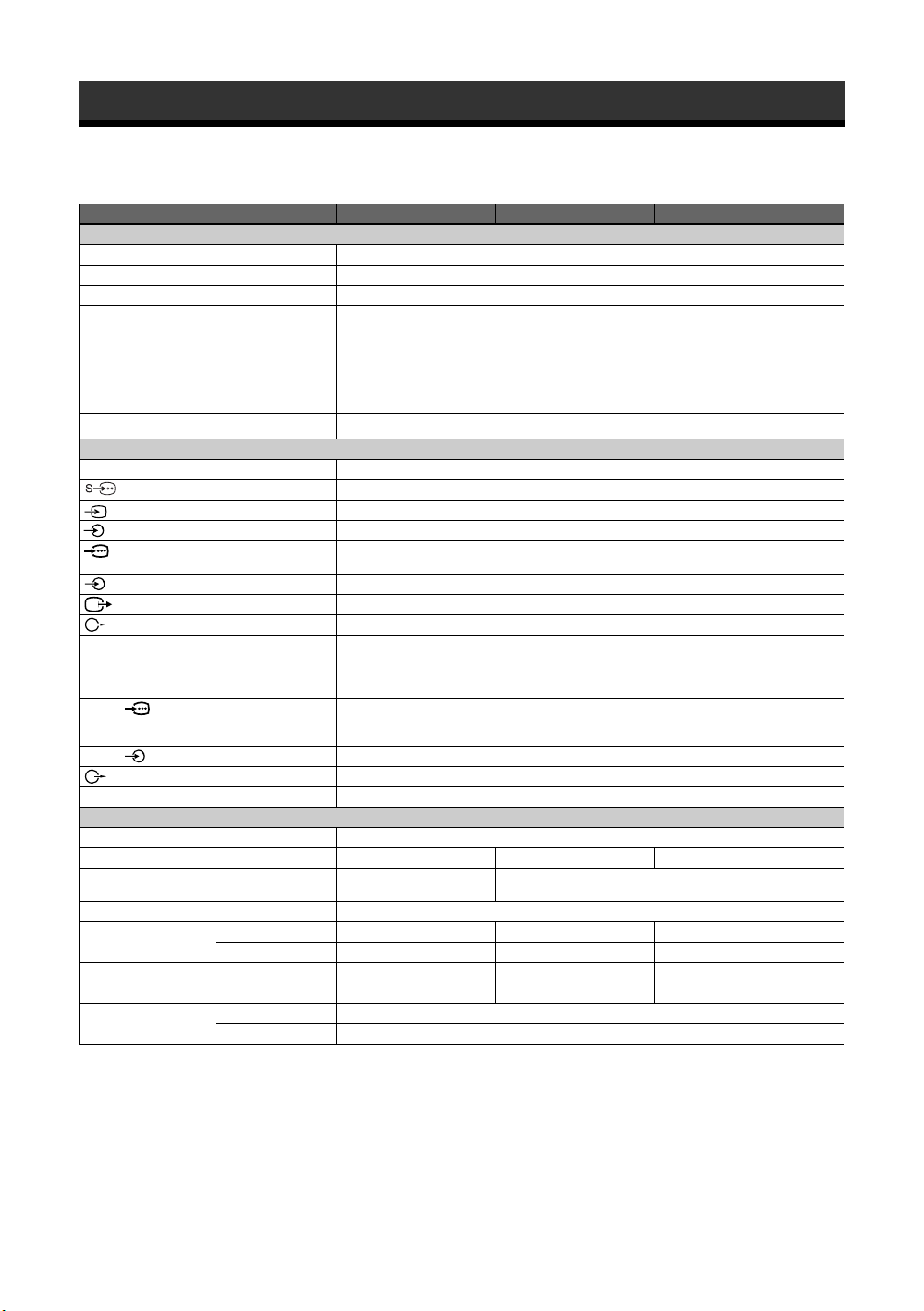
Model name KLV-40S400A KLV-37S400A KLV-32S400A
System
Panel System
TV System
Colour System
Channel Coverage
Sound Output
Input/Output jacks
Antenna
1
1, 2, 3
1, 2, 3
1, 2
1, 2
HDMI IN 1, 2, 3
PC IN (RGB)
PC IN
i
Power and others
Power Requirements
Screen Size (inches)
Display Resolution
Power Consumption
Dimensions
(w × h × d)*
with stand (mm)
without stand (mm)
Mass* with stand (kg)
without stand (kg)
Optional Accessories
Wall-Mount bracket
TV stand
LCD (Liquid Crystal Display) Panel
B/G, I, D/K, M
PAL, PAL60, SECAM, NTSC4.43, NTSC3.58
B/G: VHF: E2 to E12/ UHF: E21 to E69/ CATV: S01 to S03, S1 to S41
VHF: 0 to 12, 5A, 9A/ UHF: 28 to 69/ CATV: S01 to S03, S1 to S44 (Australia only)
VHF: 1 to 11/ UHF: 21 to 69/ CATV: S01 to S03, S1 to S41 (New Zealand only)
I: UHF: B21 to B69/ CATV: S01 to S03, S1 to S41
D/K: VHF: C1 to C12, R1 to R12/ UHF: C13 to C57, R21 to R60/ CATV: S01 to S03, S1 to S41,
Z1 to Z39
M: VHF: A2 to A13/ UHF: A14 to A79/ CATV: A-8 to A-2, A to W+4, W+6 to W+84
10 W + 10 W
75 ohm external termin al
S video input (4-pin mini DIN)
Video input (phono jack)
Audio input (phono jacks): 500 mVrms, Impedance: 47 kilohms
Supported formats: 1080p (50/60 Hz), 1080i (50/60 Hz), 720p (50/60 Hz), 576p, 576i, 480p, 480i
Y: 1 Vp-p, 75 ohms, 0.3V sync negative/P
Audio input (phono jacks): 500 mVrms, Impedance: 47 kilohms
Video output (phono jack)
Audio output (phono jacks)
Video: 1080/24p, 1080p (50/60 Hz), 1080i (50/60 Hz), 720p (50/60 Hz), 576p, 576i, 480p, 480i
Audio: Two channel linear PCM
32, 44.1 and 48 kHz, 16, 20 and 24 bits
Analogue audio input (minijack): 500 mVrms, Impedance: 47 kilohms (HDMI IN 3 only)
PC Input (D-sub 15-pin) (see page 29)
G: 0.7 Vp-p, 75 ohms, non Sync on Green/B: 0.7 Vp-p, 75 ohms/
R: 0.7 Vp-p, 75 ohms/HD: 1-5 Vp-p/VD: 1-5 Vp-p
PC audio input (minijack)
Audio output (phono jacks)
Headphones jack
110–240 V AC, 50/60 Hz
40 37 32
1,920 pixels (horizontal)
1,080 lines (vertical)
Indicated on the rear of the TV.
997 × 691 × 279 931 × 656 × 279 809 × 584 × 242
997 × 644 × 110 931 × 609 × 110 809 × 542 × 99
22 21 17
19 18 14
SU-WL500 and SU-WL50B
SU-FL300M
×
B/CB: 0.7 Vp-p, 75 ohms/PR/CR: 0.7 Vp-p, 75 ohms
1,366 pixels (horizontal) × 768 lines (vertical)
* Dimensions and mass are approximate values.
Design and specifications are subject to change without notice.
GB
32
Page 33
Troubleshooting
If you find any problem while viewing your TV, you can either check the Troubleshooting guide below or
use the “Factory Settings” function (page 28). If the problem persists, contact your Sony dealer.
Check whether the 1 (standby) indicator is flashing in red.
When it is flashing
The self-diagnosis function is activated.
1 Count how many 1 (standby) indicator flashes between each two second break.
For example, the indicator flashes three times, then there is a two second break, followed by another three flashes, etc.
2 Press 1 on the top edge of the TV to turn it off, disconnect the AC power cord, and inform your dealer
or Sony service centre of how the indicator flashes (number of flashes).
When it is not flashing
1 Check the items listed below.
2 If the problem still persists, have your TV serviced by qualified service personnel.
Problem Cause/Remedy
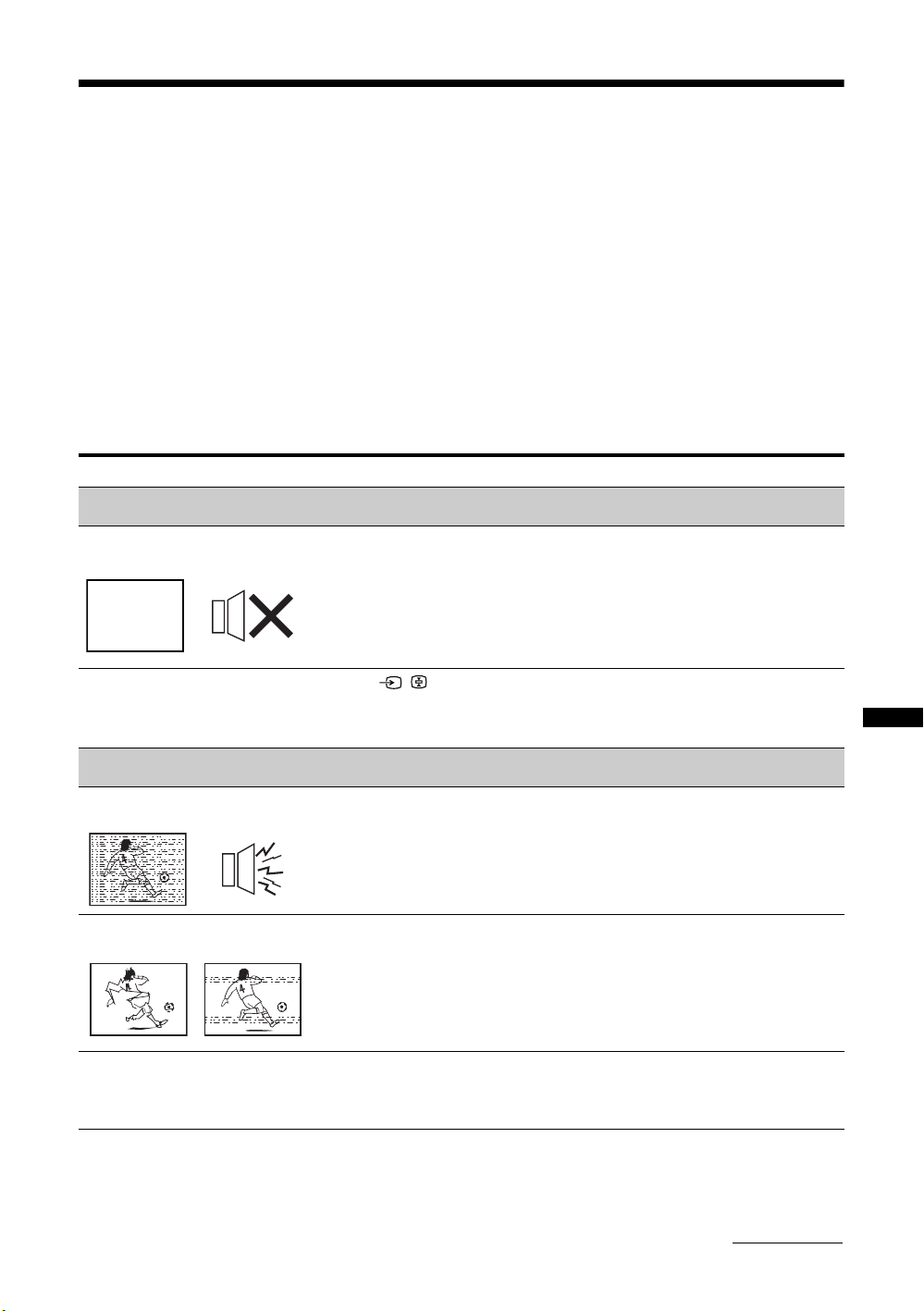
No Picture
No picture (screen is dark) and
no sound
No picture or no menu
information from equipment
connected to the video input
jack
Poor Picture
Only snow and noise appear
on the screen
Distorted picture (dotted lines
or stripes)
Picture or sound noise when
viewing a TV channel
• Check the antenna/cable connection.
• Connect the TV to the AC power outlet, and press 1 on the top edge of the TV.
• If the 1 (standby) indicator lights up in red, press "/1.
• Press / to display the connected equipment list, then select the desired
input.
• Check the connection between the optional equipment and the TV.
• Check if the antenna is broken or bent.
• Check if the antenna has reached the end of its serviceable life (three to five years
in normal use, one to two years at the seaside).
• Keep the TV away from electrical noise sources such as cars, motorcycles, hairdryers or optional equipment.
• When installing optional equipment, leave some space between the optional
equipment and the TV.
• Check the antenna/cable connection.
• Keep the antenna cable away from other connecting cables.
• Broadcast signals are too strong. Set the “Signal Booster” to “Off” (page 31) or turn
off or disconnect the booster if it is in use.
• Select “Manual Programme Preset” in the “Channel Set-up” menu and adjust
“AFT” (Automatic Fine Tuning) to obtain better picture reception (page 31).
• Select “Noise Reduction” in the “Picture” menu to reduce the noise in the picture
(page 23).
Additional Information
Continued
33
GB
Page 34
Problem Cause/Remedy
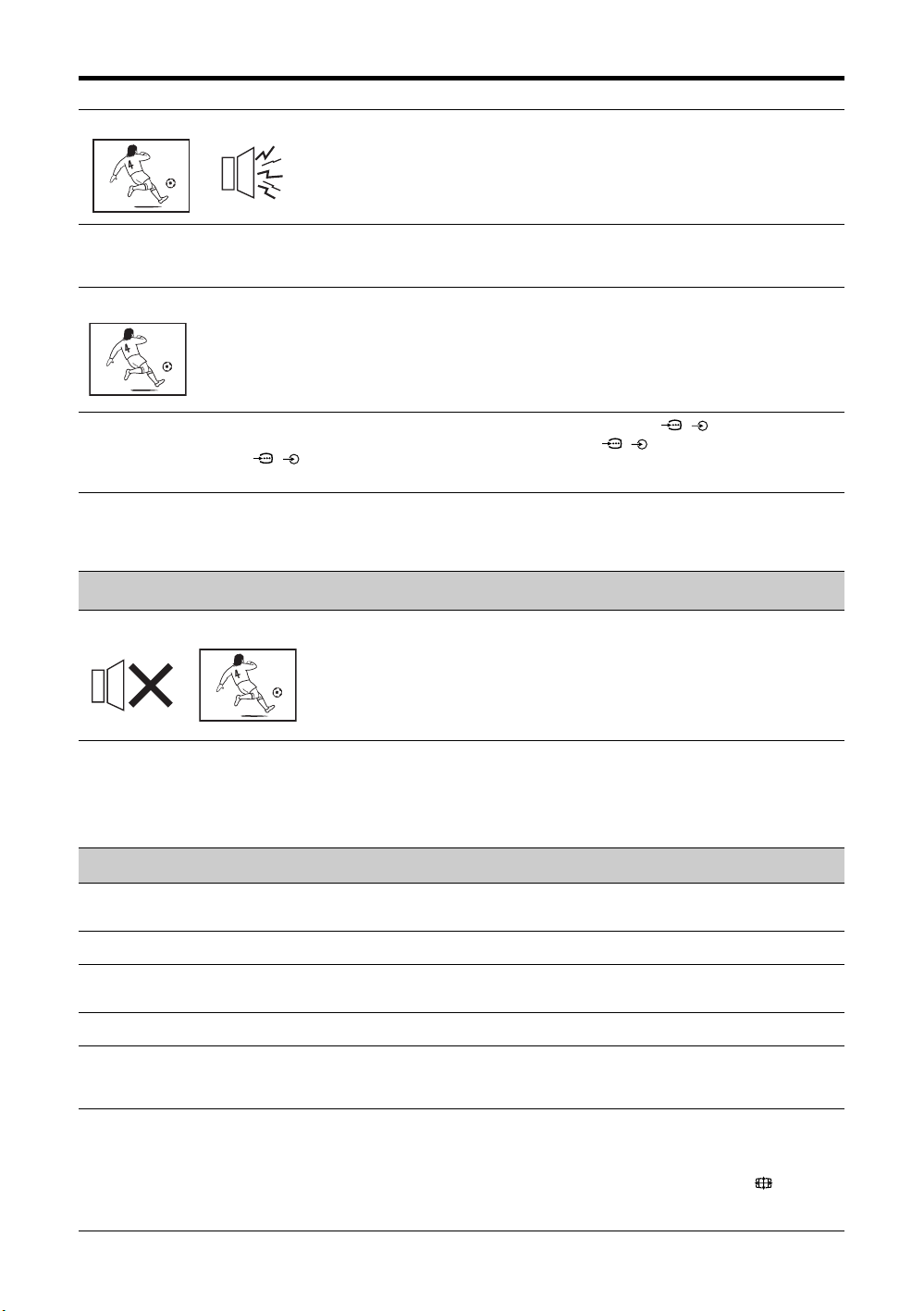
Good picture, but noisy sound • The TV system setting is inappropriate.
• If the sound of all the channels are noisy, perform “Auto Tuning” in the “Channel
Set-up” menu to preset the channel again (page 30).
• If the sound of some channels is noisy, select the channel, then perform “Manual
Programme Preset” in the “Channel Set-up” menu, and select the appropriate TV
system (“TV System”) (page 31).
Some tiny black points and/or
bright points appear on the
• The picture of a display unit is composed of pixels. Tiny black points and/or bright
points (pixels) on the screen do not indicate a malfunction.
screen
No colour on programmes • Select “Reset” in the “Picture” menu to return to the factory settings (page 23).
No colour or irregular colour
when viewing a signal from the
B/CB, PR/CR jacks of /
Y, P
• Check the connection of the Y, P
• Make sure that the Y, P
B/CB, PR/CR jacks of / 1 or 2 are firmly seated in their
respective jacks.
B/CB, PR/CR jacks of / 1 or 2.
1 or 2
Picture flashes initially when
changing to HDMI mode or
• This is probably caused by the authentication process between HDMI equipment
and the TV. It does not indicate a malfunction.
switching on the TV with HDMI
mode
Sound
No sound, but good picture • Press 2 +/– or % (Mute).
Stereo broadcast sound
switches on and off, or is
distorted; the sound switches
between stereo and monaural
frequently
• Check if the “Speaker” is set to “TV Speaker” from the “AV Set-up” menu in “Setup” menu (page 27).
• The antenna connection is loose or the antenna cable is damaged. Check the cable
and connection on the TV, VCR, and on the wall (page 5).
• Adjust the antenna direction for the minimum interference. Contact a Sony dealer
for advice.
• Signal transmission is low. Try using a booster. Otherwise, use the fine tuning
(“AFT”) function (page 31).
General
The TV turns off automatically
(the TV enters standby mode)
The TV turns on automatically • Check if the “On Timer” is activated (page 28).
Some input sources cannot be
selected
The remote does not function • Replace the batteries.
The “Store Display Mode: On”
message appears on the
screen
The wide screen mode
changes spontaneously when
“Auto Wide” is “On”
GB
34
• Check if the “Sleep Timer” is activated, or confirm the “Duration” setting of “On
Timer” (page 28).
• Select “Video Labels” in the “AV Set-up” menu and cancel “Skip” of the input
source (page 26).
• Select “Factory Settings” in the “Set-up” menu (page 28).
• During a transition between two programmes, the TV detects the optimum wide
screen mode. During this period, an irregular wide screen mode may appear.
• The wide mode is switched automatically according to the revised signal with a
Wide ID signal.
• The “Auto Wide” feature stops working temporarily when you press , and
resumes after a while. To fix in the manually selected wide screen mode, set “Auto
Wide” to “Off” in the “Screen” menu (page 25).
Page 35
Problem Cause/Remedy
Text display is incomplete or
garbled
• Your area may not be able to receive Text. Text is displayed only in the area that is
covered by Text services.
• The antenna connection is loose or the antenna cable is damaged. Check the cable
and connection on the TV, VCR, and on the wall (page 5).
• Adjust the antenna direction. Contact a Sony dealer for advice.
• Signal transmission is too low. Try using a booster.
• Using the fine tuning (“AFT”) function may improve the picture (page 31).
Cannot play shooting games • Some shooting games which involve pointing a light beam at the TV screen with an
The TV cabinet creaks • Changes in room temperature sometimes make the TV cabinet expand or contract,
Static discharge is felt when
touching the TV cabinet
Weak signal (signal level
indicator displayed in red)
Sound does not match
pictures on the screen when
audio is output directly from
the amplifier system
electronic gun or rifle cannot be used with your TV. For details, see the instruction
manual supplied with the video game software.
causing a noise. This does not indicate a malfunction.
• This is the same static discharge that is felt when touching metal door handles or
car doors especially when the air is dry, for example in winter. This does not
indicate a malfunction.
• Check the antenna/cable connection.
• Set the “Signal Booster” to “Auto” (page 31) or try using an external booster.
• Adjust the sound delay settings from the connected equipment to minimize the time
gap between the audio and video output.
Additional Information
35
GB
Page 36

ﻯﺭﺎﲡ ﺖﻣﻼﻋ ﺕﺎﻋﻼﻃﺍ
High-Definition Multimedia ﻭ HDMI ﻡﺭﺁ ،HDMI •
ﺖﻛﴍ ﺯﺍ ﻩﺪﺷ ﺖﺒﺛ یﺎﻬﺘﻣﻼﻋ ﺎﻳ یﺭﺎﲡ یﺎﻬﺘﻣﻼﻋ Interface
.ﺪﻨﺷﺎﺑ ﯽﻣ HDMI Licensing LLC.
Sony Corporation
یﺭﺎﲡ ﻢﺋﻼﻋ ﻭ "BRAVIA" •
.ﺪﻨﺷﺎﺑ ﯽﻣ
ﰱﺮﻌﻣ
ﺮﻜﺸﺗ Sony ﻰﻧﻮﺳ ﻝﻮﺼﳏ ﻦﻳﺍ ﻥﺩﺮﻛ ﺏﺎﺨﺘﻧﺍ ﺮﻃﺎﺧ ﻪﺑ ﲈﺷ ﺯﺍ
.ﻢﻴﻨﻛ ﻰﻣ
ﻞﻣﺎﻛﺭﻮﻃ ﻪﺑ ﺍﺭ ﻪﭼﱰﻓﺩ ﻦﻳﺍ ﹰﺎﻔﻄﻟ ،ﻥﻮﻳﺰﻳﻮﻠﺗ ﻥﺩﺮﺑ ﺭﺎﻛ ﻪﺑ ﺯﺍ ﻞﺒﻗ
.ﺪﻳﺭﺍﺩ ﻪﮕﻧ ﺪﻌﺑ ﺕﺎﻌﺟﺍﺮﻣ ﺍﺮﺑ ﺍﺭ ﻥﺁ ﻭ ﺪﻴﻧﺍﻮﺨﺑ
ﻝﺪﻣ ﻪﺑ ﻁﻮﺑﺮﻣ ﲈﻨﻫﺍﺭ ﻪﭼﱰﻓﺩ ﻦﻳﺍ ﺭﺩ ﻩﺪﺷ ﻩﺩﺎﻔﺘﺳﺍ یﺎﻬﻠﻜﺷ
ﺮﻛﺫ ﺎﳍﺪﻣ ﺮﻳﺎﺳ یﺍﺮﺑ ﺕﺭﻮﺼﻨﻳﺍﲑﻏﺭﺩ ﻪﻛ ﺪﺷﺎﺑ ﯽﻣ
KLV-32S400A
.ﺖﺳﺍ ﻩﺪﺷ
PR
2
Page 37

ﺐﻟﺎﻄﻣ ﺖﺳ ﺮﻬﻓ
MENU یﺎﻫ ﺩﺮﻜﻠﻤﻋ ﺯﺍ ﻩﺩﺎﻔﺘﺳﺍ
19 .................................. ﺎﻫﻮﻨﻣ ﻖﻳﺮﻃ ﺯﺍ ﻮﺠﺘﺴﺟ
20 ......................... ﻩﺪﻳﺰﮔﺮﺑ ﺖﺴﻴﻟ ﺯﺍ ﻥﺩﺮﻛ ﻩﺩﺎﻔﺘﺳﺍ
21 ....................................... ﺎﻫ ﺖﻴﻌﺿﻭ ﻢﻴﻈﻨﺗ
23 .................................................ﺮﻳﻮﺼﺗ ﻮﻨﻣ
24 ................................................... ﺍﺪﺻ ﻮﻨﻣ
25 .................................................ﻪﺤﻔﺻ ﻮﻨﻣ
26 .................................................. ﻢﻴﻈﻨﺗ ﻮﻨﻣ
28 ......................PC ﯽﺼﺨﺷ ﺮﺗﻮﻴﭙﻣﺎﻛ ﺕﲈﻴﻈﻨﺗ یﻮﻨﻣ
30 ............................................ﻝﺎﻧﺎﻛ ﻢﻴﻈﻨﺗ یﻮﻨﻣ
ﯽﻓﺎﺿﺍ ﺕﺎﻋﻼﻃﺍ
32 ..........................................ﻰﻨﻓ ﺕﺎﺼﺨﺸﻣ
33 ............................................... ﯽﺑﺎﻳ ﺐﻴﻋ
4 ﺭﺎﻜﺑ ﻉﻭﴍ یﲈﻨﻫﺍﺭ
4 ...................................... ﯽﺒﻧﺎﺟ ﻡﺯﺍﻮﻟ ﯽﻨﻴﺑﺯﺎﺑ
4 ..................ﺭﻭﺩ ﻩﺍﺭ ﺯﺍ ﻝﺮﺘﻨﻛ ﻥﻭﺭﺩ ﺎﻬﻳﺮﻃﺎﺑ ﻥﺩﺍﺩ ﺭﺍﺮﻗ
4 ..................................... ﻪﻳﺎﭘ ﻥﺩﺮﻛ ﻞﺻﻭ :1
5
.................. ﻮﺋﺪﻳﻭ/ﻞﺑﺎﻛ/ﻦﺘﻧﺁ ﮏﻳ ﻥﺩﺮﻛ ﻞﺼﺘﻣ :2
5 ...................ﻥﻮﻳﺰﻳﻮﻠﺗ ﻥﺩﺎﺘﻓﺍ ﺯﺍ ﻥﺩﺮﻛ یﲑﮔﻮﻠﺟ :3
6
.................................... ﺎﻬﻠﺑﺎﻛ یﺪﻨﺑ ﻪﺘﺳﺩ :4
....................... ﺏﻭﺎﻨﺘﻣ ﻕﺮﺑ ﻢﻴﺳ ﻥﺩﺮﻛ ﻞﺻﻭ :5
6
...............................ﻪﻴﻟﻭﺍ یﺯﺍﺪﻧﺍ ﻩﺍﺭ یﺍﺮﺟﺍ :6
6
6 ..................................................ﻥﺎﺑﺯ ﺏﺎﺨﺘﻧﺍ
7 ...................................ﻥﻮﻳﺰﻳﻮﻠﺗ ﺭﺎﻛﺩﻮﺧ ﯽﺑﺎﻳ ﺝﻮﻣ
8 ...................................... ﻥﻮﻳﺰﻳﻮﻠﺗ ﻯﺎﺷﺎﻤﻨﺗ
8 ........................... ﻥﻮﻳﺰﻳﻮﻠﺗ ﺪﻳﺩ ﻪﻳﻭﺍﺯ ﻥﺩﺮﻛ ﻢﻴﻈﻨﺗ
ﺪﻴﻳﲈﻧ ﻢﻴﻈﻨﺗ ﺖﺳﺍﺭ ﺎﻳ ﭗﭼ ﺖﻬﺟ ﺭﺩ ﺍﺭ ﻪﻳﻭﺍﺯ
8 .............................................. (ﻥﺍﺩﺮﮔ ﺖﻤﺴﻗ)
8 ....................... ﻥﻮﻳﺰﻳﻮﻠﺗ ﺯﺍ یﺰﻴﻣﻭﺭ ﻪﻳﺎﭘ ﻥﺩﺮﻛ ﺍﺪﺟ
9 ...........................................ﻰﻨﻤﻳﺍ ﺕﺎﻋﻼﻃﺍ
10 .................................................. ﻁﺎﻴﺘﺣﺍ
11 ...............ﺭﻭﺩ ﻩﺍﺭ ﺯﺍ ﻝﱰﻨﻛ ہﺎﮕﺘﺳﺩ ﻪﺑ ﲆﻛ ﻰﻫﺎﮕﻧ
13 ........................................ ﺭﺍﺰﺑﺍ یﻮﻨﻣ ﺯﺍ ﻩﺩﺎﻔﺘﺳﺍ
14 ......ﻥﻮﻳﺰﻳﻮﻠﺗ ﻯﺎﻫ ﺮﮕﻧﺎﺸﻧ ﻭ ﺎﻫ ﻪﻤﻛﺩ ﻪﺑ ﲆﻛ ﻰﻫﺎﮕﻧ
PR
ﻯﺭﺎﻴﺘﺧﺍ ﺕﺍﺰﻴﻬﲡ ﺯﺍ ﻥﺩﺮﻛ ﻩﺩﺎﻔﺘﺳﺍ
15 .......................... ﺭﺎﻴﺘﺧﺍ ﺕﺍﺰﻴﻬﲡ ﻥﺩﺮﻛ ﻞﺼﺘﻣ
16 ....................ﻩﺪﺷ ﻞﺼﺘﻣ ﻩﺎﮕﺘﺳﺩ ﺯﺍ ﺮﻳﻭﺎﺼﺗ یﺎﺷﺎﲤ
17 ................................... ﻮﻠﻗﻭﺩ ﺮﻳﻮﺼﺗ ﻩﺪﻫﺎﺸﻣ
17 .........................(ﺮﻳﻮﺼﺗ ﺭﺩ ﺮﻳﻮﺼﺗ) PIP ﺓﺪﻫﺎﺸﻣ
BRAVIA ﯽﻧﺎﻣﺯ ﻢﻫ ﺯﺍ ﻥﺩﺮﻛ ﻩﺩﺎﻔﺘﺳﺍ
18 ..................................... (HDMI یﺍﺮﺑ ﻝﺮﺘﻨﻛ)
یﺍﺮﺑ ﻝﱰﻨﻛ ﺎﺑ ﻪﻛ یﺍ ﻪﻠﻴﺳﻭ ﻥﺩﺮﻛ ﻞﺻﻭ یﺍﺮﺑ
18 ......................................... ﺖﺳﺍ ﺭﺎﮔﺯﺎﺳ HDMI
....................... HDMI ﺕﲈﻴﻈﻨﺗ یﺍﺮﺑ ﻝﱰﻨﻛ ﻡﺎﺠﻧﺍ یﺍﺮﺑ
18
18 ............................................HDMI یﺍﺮﺑ ﻝﺮﺘﻨﻛ
PR
3
Page 38
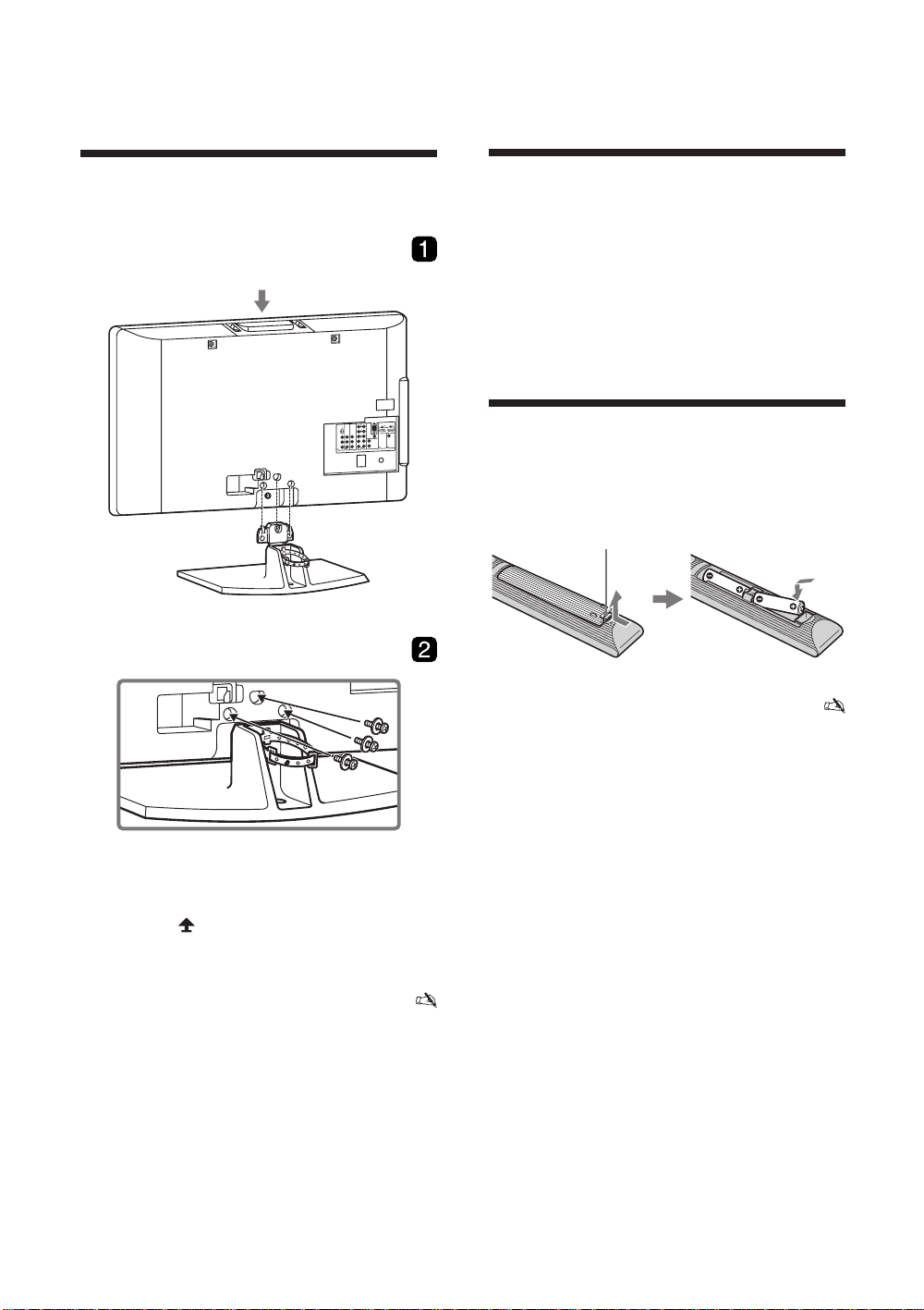
ﺭﺎﻜﺑ ﻉﻭﴍ یﲈﻨﻫﺍﺭ
ﻪﻳﺎﭘ ﻥﺩﺮﻛ ﻞﺻﻭ :1
ﭻﻴﭘ ﺥﺍﺭﻮﺳ ﻒﻳﺩﺭ ﻁﻮﻄﺧ ﻥﺩﺮﻛ ﻒﻳﺩﺭ ﻢﻫ ﺎﺑ ﺍﺭ ﻥﻮﻳﺰﻳﻮﻠﺗ 1
.ﺪﻴﻫﺩ ﺭﺍﺮﻗ ﻩﺪﺷ ﻩﺩﺍﺩ ﻥﺎﺸﻧ ﺕﺭﻮﺻ ﻪﺑ ﻪﻳﺎﭘ یﻭﺭ ﺮﺑ
یﺎﻫ ﺥﺍﺭﻮﺳ ﻪﻛ
ﺶﻠﻓ یﺎﻫ ﺖﻣﻼﻋ ﻖﺒﻃ ﺮﺑ ﺍﺭ ﻥﻮﻳﺰﻳﻮﻠﺗ 2
ﺮﺑ ﻪﻤﻴﻤﺿ یﺎﻫ ﭻﻴﭘ ﺯﺍ ﻩﺩﺎﻔﺘﺳﺍ ﺎﺑ ﺪﻨﻨﻛ ﯽﻣ ﯽﺋﲈﻨﻫﺍﺭ ﺍﺭ ﭻﻴﭘ
.ﺪﻴﻨﻛ ﺖﺑﺎﺛ ﻪﻳﺎﭘ یﻭﺭ
ﯽﺒﻧﺎﺟ ﻡﺯﺍﻮﻟ ﯽﻨﻴﺑﺯﺎﺑ
(KLV-40S400A ﻂﻘﻓ)
(1) RM-GA011 ﺭﻭﺩ ﻩﺍﺭ ﺯﺍ ﻝﱰﻨﻛ
(2) (R6 ﻉﻮﻧ) AA ﻩﺯﺍﺪﻧﺍ یﺎﻫ یﺮﻃﺎﺑ
.ﺪﻴﻨﻜﻧ ﺝﺭﺎﺧ ﺍﺭ ﺎﳞﺰﻐﻣ ﻦﻳﺍ ،یﺰﻠﻓ یﺰﻐﻣ یﺍﺭﺍﺩ یﺎﳍﺪﻣ یﺍﺮﺑ
*
AC ﻕﺮﺑ ﻢﻴﺳ
(3) ﺎﻫ ﭻﻴﭘ (1) ﻪﻳﺎﻳ
ﻥﻭﺭﺩ ﺎﳞﺮﻃﺎﺑ ﻥﺩﺍﺩ ﺭﺍﺮﻗ
ﺭﻭﺩ ﻩﺍﺭ ﺯﺍ ﻝﱰﻨﻛ
.ﺩﻮﺷ ﺯﺎﺑ ﺎﺗ ﺪﻴﺸﻜﺑ ﻻﺎﺑ ﻑﺮﻄﺑ ﻭ ﻩﺩﺍﺩ ﺭﺎﺸﻓ ﺍﺭ ﺵﻮﭘﺭﺩ
.ﺪﻳﻮﺷ ﻦﺌﻤﻄﻣ ﺎﻬﺒﻄﻗ ﻥﺩﻮﺑ ﺢﻴﺤﺻ ﺯﺍ ﺎﳞﺮﻃﺎﺑ ﻥﺩﺍﺩ ﺭﺍﺮﻗ ﻡﺎﮕﻨﻫ •
ﻭ ﻮﻧ یﺎﳞﺮﻃﺎﺑ ﻭ ﻩﺩﺮﻜﻧ ﻩﺩﺎﻔﺘﺳﺍ ﻢﻫ ﺎﺑ ﺍﺭ ﺎﳞﺮﻃﺎﺑ ﻒﻠﺘﳐ ﻉﺍﻮﻧﺍ •
.ﺪﻴﻨﻜﻧ ﻩﺩﺎﻔﺘﺳﺍ ﻢﻫ ﺎﺑ ﻥﺎﻣﺰﳘ ﺍﺭ ﻪﻨﻬﻛ
ﻦﻜﳑ ﻖﻃﺎﻨﻣ ﺯﺍ ﯽﺧﺮﺑ .ﺪﻳﺯﺍﺪﻧﺎﻴﺑ ﺭﻭﺩ ﺐﺳﺎﻨﻣ ﯽﺷﻭﺭ ﻪﺑ ﺍﺭ ﺎﳞﺮﻃﺎﺑ
.ﺪﻨﺷﺎﺑ ﻪﺘﺷﺍﺩ ﯽﺻﺎﺧ ﲔﻧﺍﻮﻗ ﺎﳞﺮﻃﺎﺑ ﻦﺘﺧﺍﺪﻧﺍ ﺭﻭﺩ یﺍﺮﺑ ﺖﺳﺍ
.ﺪﻴﻳﲈﻧ ﻝﺍﻮﺳ ﺩﻮﺧ ﻪﻘﻄﻨﻣ یﺭﺍﺩﺮﻬﺷ ﺯﺍ ﺎﻔﻄﻟ
ﺎﻳ ﻩﺩﺮﻜﻧ ﺏﺎﺗﺮﭘ ﺍﺮﻧﺁ .ﺪﻴﻳﲈﻧ ﻩﺩﺎﻔﺘﺳﺍ ﻁﺎﻴﺘﺣﺍ ﺎﺑ ﺍﺭ ﺭﻭﺩ ﻩﺍﺭ ﺯﺍ ﻝﱰﻨﻛ
ﻪﺑﺎﺸﻣ یﺩﺭﺍﻮﻣ ﺎﻳ ﺕﺎﻌﻳﺎﻣ ﻥﺁ یﻭﺭ ﺎﻳ ،ﺪﻳﺭﺍﺬﮕﻧ ﺎﭘ ﻥﺁ یﻭﺭ ﺮﺑ
ﺶﺑﺎﺗ ﺽﺮﻌﻣ ﺭﺩ ،ﯽﺗﺭﺍﺮﺣ ﻊﺑﺎﻨﻣ ﯽﻜﻳﺩﺰﻧ ﺭﺩ ﺍﺭ ﺭﻭﺩ ﻩﺍﺭ ﺯﺍ ﻝﱰﻨﻛ •
.ﺪﻴﻫﺪﻧ ﺭﺍﺮﻗ ﺏﻮﻃﺮﻣ ﯽﻠﳏ ﺭﺩ ﺎﻳ ،ﺪﻴﺷﺭﻮﺧ ﻢﻴﻘﺘﺴﻣ ﺭﻮﻧ
•
•
.ﺪﻳﺰﻳﺮﻧ
*
ﺪﻳﺎﺑ ﺮﻔﻧ ﺪﻨﭼ ﺎﻳ ﻭﺩ ﻦﻳﺍﺮﺑﺎﻨﺑ ،ﺖﺳﺍ ﲔﮕﻨﺳ ﺭﺎﻴﺴﺑ ﻥﻮﻳﺰﻳﻮﻠﺗ ﻦﻳﺍ •
.ﺪﻨﻫﺩ ﺭﺍﺮﻗ ﻪﻳﺎﭘ یﻭﺭ ﺮﺑ ﺍﺭ ﻥﻮﻳﺰﻳﻮﻠﺗ
ﻢﻜﳏ ﺭﻭﺎﺘﺸﮔ ،ﯽﻜﻳﱰﻜﻟﺍ ﯽﺘﺷﻮﮔ ﭻﻴﭘ ﺯﺍ ﻩﺩﺎﻔﺘﺳﺍ ﺕﺭﻮﺻ ﺭﺩ
(15kgf.cm) 1.5N.m ﺩﻭﺪﺣ یﻭﺭ ﺮﺑ ﺍﺭ ﻥﺩﺮﻛ
.ﺪﻴﻨﻛ ﲔﻴﻌﺗ
1 ﻪﻠﺣﺮﻣ ،ﺭﺍﻮﻳﺩ یﻭﺭ ﺮﺑ ﻥﻮﻳﺰﻳﻮﻠﺗ ﻥﺩﺮﻛ ﺐﺼﻧ ﻡﺎﮕﻨﻫ •
یﺍﺮﺑ ﺍﺭ
.ﺪﻴﻨﻛ ﻝﺎﺒﻧﺩ ﻥﻮﻳﺰﻳﻮﻠﺗ ﻞﻧﺎﭘ ﻥﺩﺎﺘﻓﺍﻭﺮﻓ ﺯﺍ ﺰﻴﻫﺮﭘ
AC ﻕﺮﺑ ﻢﻴﺳ ﻪﻛ ﺪﻳﻮﺷ ﻦﺌﻤﻄﻣ ﻝﺎﺼﺗﺍ ﻪﻳﺎﭘ ﺐﺼﻧ ﻡﺎﮕﻨﻫ •
یﻭﺭ
AC ﻕﺮﺑ ﻢﻴﺳ ﻪﺑ ﻥﺪﻴﺳﺭ ﺐﻴﺳﺁ ﺯﺍ ﺎﺗ ﺪﺷﺎﺒﻧ ﭻﻴﭘ یﺎﻬﺧﺍﺭﻮﺳ
KLV-37S400A/KLV-32S400A ﻂﻘﻓ) ﺩﻮﺷ یﲑﮔﻮﻠﺟ
.(
•
PR
4
Page 39
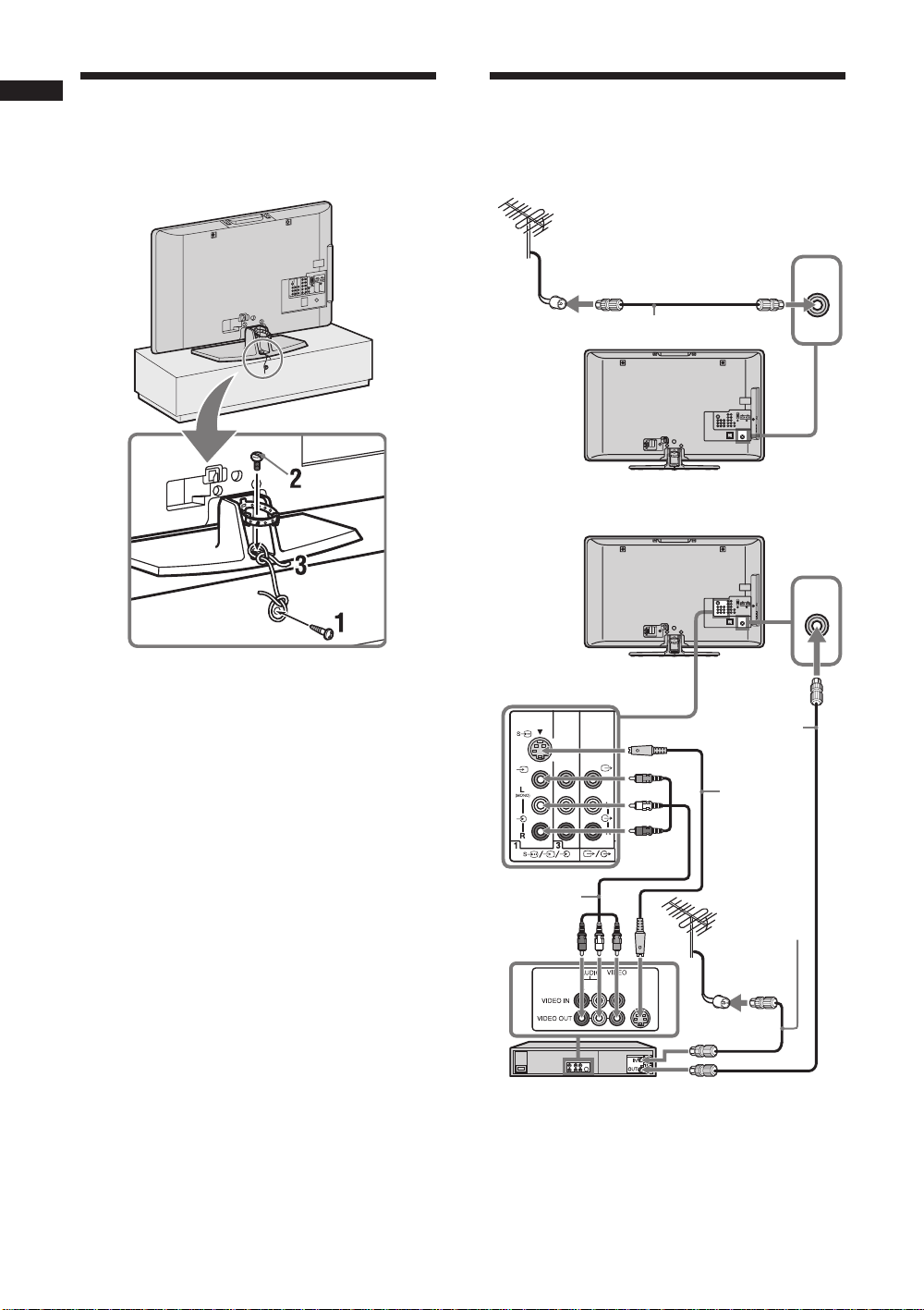
ﻥﺩﺎﺘﻓﺍ ﺯﺍ ﻥﺩﺮﻛ یﲑﮔﻮﻠﺟ
:
3
/ﻦﺘﻧﺁ ﮏﻳ ﻥﺩﺮﻛ ﻞﺼﺘﻣ :2
ﻥﻮﻳﺰﻳﻮﻠﺗ
ﺭﺎﻜﺑ ﻉﻭﴍ یﲈﻨﻫﺍﺭ
ﻪﻳﺎﭘ ﺭﺩ ﺍﺭ (ﺖﺴﻴﻧ ﻪﻤﻴﻤﺿ ،ﱰﻣ ﯽﻠﻴﻣ 4 ﺮﻄﻗ ﺎﺑ) ﺏﻮﭼ ﭻﻴﭘ ﮏﻳ 1
.ﺪﻴﻨﻛ ﺐﺼﻧ ﻥﻮﻳﺰﻳﻮﻠﺗ
ﻞﺧﺍﺩ ﺭﺩ ﺍﺭ (ﺖﺴﻴﻧ ﻪﻤﻴﻤﺿ ،
.ﺪﻳﺪﻨﺒﺑ ﻢﻜﳏ ﻢﻴﺳ ﮏﻳ ﺎﺑ ﺍﺭ ﯽﻨﻴﺷﺎﻣ ﭻﻴﭘ ﻭ ﺏﻮﭼ ﭻﻴﭘ
12 x M6) ﯽﻨﻴﺷﺎﻣ ﭻﻴﭘ ﮏﻳ 2
.ﺪﻴﻨﻛ ﺐﺼﻧ ﻥﻮﻳﺰﻳﻮﻠﺗ ﭻﻴﭘ ﺥﺍﺭﻮﺳ
ﻮﺋﺪﻳﻭ/ﻞﺑﺎﻛ
ﻞﺑﺎﻛ/ﻦﺘﻧﺁ ﮏﻳ ﻥﺩﺮﻛ ﻞﺼﺘﻣ
8
(ﺖﺴﻴﻧ ﻪﻤﻴﻤﺿ) ﻦﺘﻧﺁ ﻞﺑﺎﻛ
8
ﻮﺋﺪﻳﻭ ﻭ ﻞﺑﺎﻛ/ﻦﺘﻧﺁ ﮏﻳ ﻥﺩﺮﻛ ﻞﺼﺘﻣ
8
ﻦﺘﻧﺁ ﻞﺑﺎﻛ
(ﺖﺴﻴﻧ ﻪﻤﻴﻤﺿ)
3
S یﺮﻳﻮﺼﺗ ﻞﺑﺎﻛ
(ﺖﺴﻴﻧ ﻪﻤﻴﻤﺿ)
8
/ﯽﺗﻮﺻ ﻞﺑﺎﻛ
یﺮﻳﻮﺼﺗ
(ﺖﺴﻴﻧ ﻪﻤﻴﻤﺿ)
ﻮﺋﺪﻳﻭ
PR
5
ﻦﺘﻧﺁ ﻞﺑﺎﻛ
(ﺖﺴﻴﻧ ﻪﻤﻴﻤﺿ)
Page 40
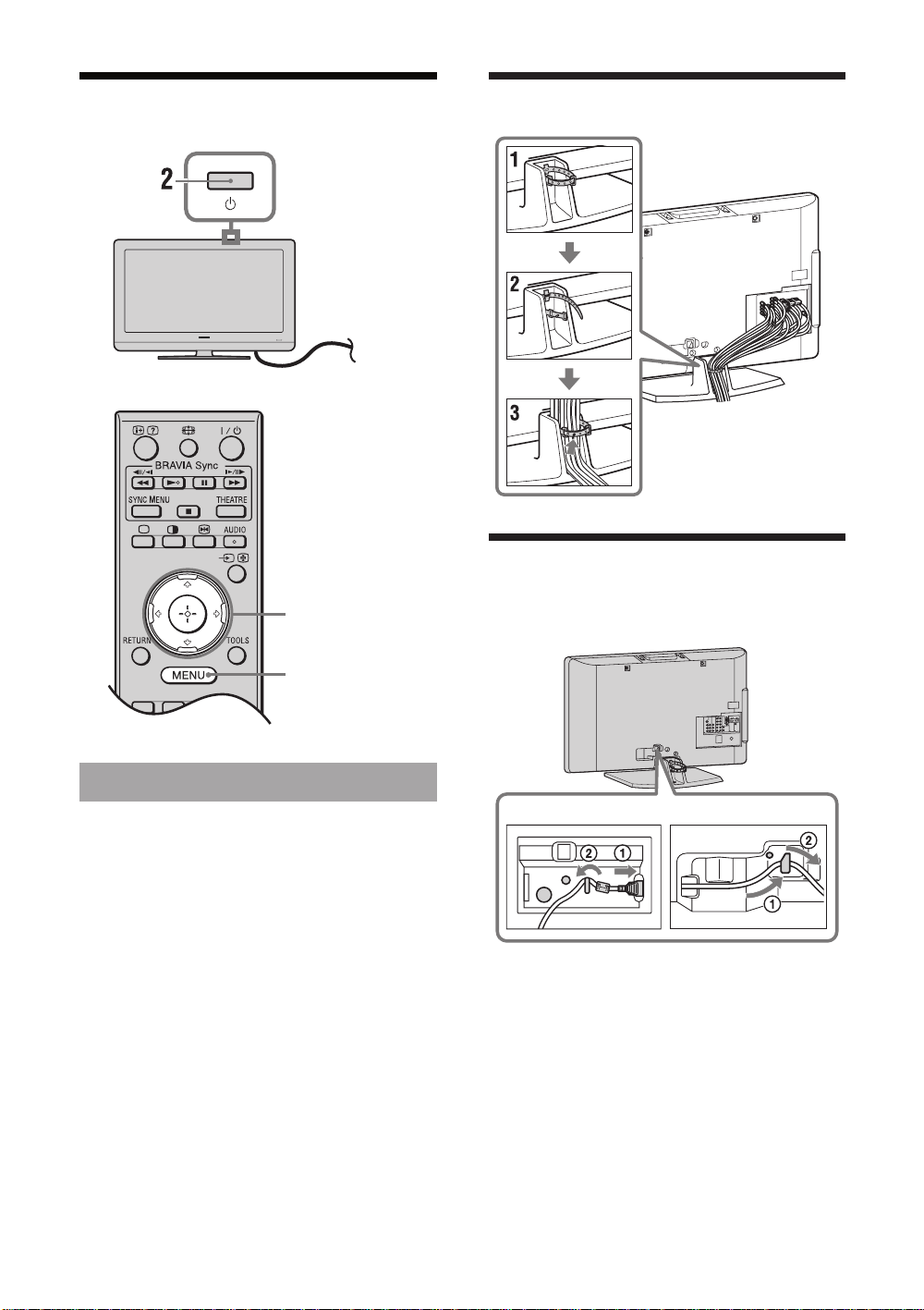
ﻪﻴﻟﻭﺍ یﺯﺍﺪﻧﺍ ﻩﺍﺭ یﺍﺮﺟﺍ :6
, 1
BRAVIA Sync
THEATRESYNC MENU
AUDIO
ﺎﻬﻠﺑﺎﻛ یﺪﻨﺑ ﻪﺘﺳﺩ
:
4
3, 4, 5, 6, 9,
TOOLSRETURN
10, 11
8
ﻥﺎﺑﺯ ﺏﺎﺨﺘﻧﺍ
ﺖﻟﻭ 240 – 110) AC ﻕﺮﺑ ﺰﻳﺮﭘ ﻪﺑ ﺍﺭ ﺩﻮﺧ ﻥﻮﻳﺰﻳﻮﻠﺗ 1
.ﺪﻴﻧﺰﺑ (ﺰﺗﺮﻫ 60/50 ،AC
.ﺪﻴﻫﺩ ﺭﺎﺸﻓ ﺍﺭ ﻥﻮﻳﺰﻳﻮﻠﺗ ﯽﻳﻻﺎﺑ ﺖﻤﺴﻗ یﻭﺭ 1 ﻪﻤﻛﺩ 2
1 ﺮﮕﻧﺎﺸﻧ) ﺖﺳﺍ ﺵﺎﺑ ﻩﺩﺎﻣﺁ ﺖﻟﺎﺣ ﺭﺩ ﻥﻮﻳﺰﻳﻮﻠﺗ ﻪﻜﻴﻣﺎﮕﻨﻫ
ﻪﻤﻛﺩ ،(ﺖﺳﺍ ﺰﻣﺮﻗ ﻥﻮﻳﺰﻳﻮﻠﺗ ﯽﻳﻮﻠﺟ ﻞﻧﺎﭘ یﻭﺭ (ﺵﺎﺑ ﻩﺩﺎﻣﺁ)
ﻥﻮﻳﺰﻳﻮﻠﺗ ﻥﺩﺮﻛ ﻦﺷﻭﺭ یﺍﺮﺑ ﺍﺭ ﺭﻭﺩ ﻩﺍﺭ ﺯﺍ ﻝﱰﻨﻛ یﻭﺭ "/1
.ﺪﻴﻫﺩ ﺭﺎﺸﻓ
یﻮﻨﻣ ،ﺪﻴﻨﻛ ﯽﻣ ﻦﺷﻭﺭ ﺭﺎﺑ ﲔﻟﻭﺍ یﺍﺮﺑ ﺍﺭ ﻥﻮﻳﺰﻳﻮﻠﺗ ﻪﻜﻴﻣﺎﮕﻨﻫ
.ﺩﻮﺷ ﯽﻣ ﺮﻫﺎﻇ ﺶﻳﲈﻧ ﻪﺤﻔﺻ یﻭﺭ (ﻥﺎﺑﺯ) "Language"
ﻕﺮﺑ ﻢﻴﺳ ﻥﺩﺮﻛ ﻞﺻﻭ
:
5
ﺏﻭﺎﻨﺘﻣ
KLV-40S400A
ﻪﺑ ﻪﺘﺴﺑ (ﺖﻳﺮﻓ یﺰﻐﻣ ﻥﻭﺪﺑ ﺎﻳ ﺎﺑ) ﻩﺪﺷ ﻪﻤﻴﻤﺿ ﺏﻭﺎﻨﺘﻣ ﻕﺮﺑ ﻢﻴﺳ ﻉﻮﻧ *
KLV-37/32S400A
.ﺖﺳﺍ ﺕﻭﺎﻔﺘﻣ ﺭﻮﺸﻛ ﻉﻮﻧ
PR
6
Page 41
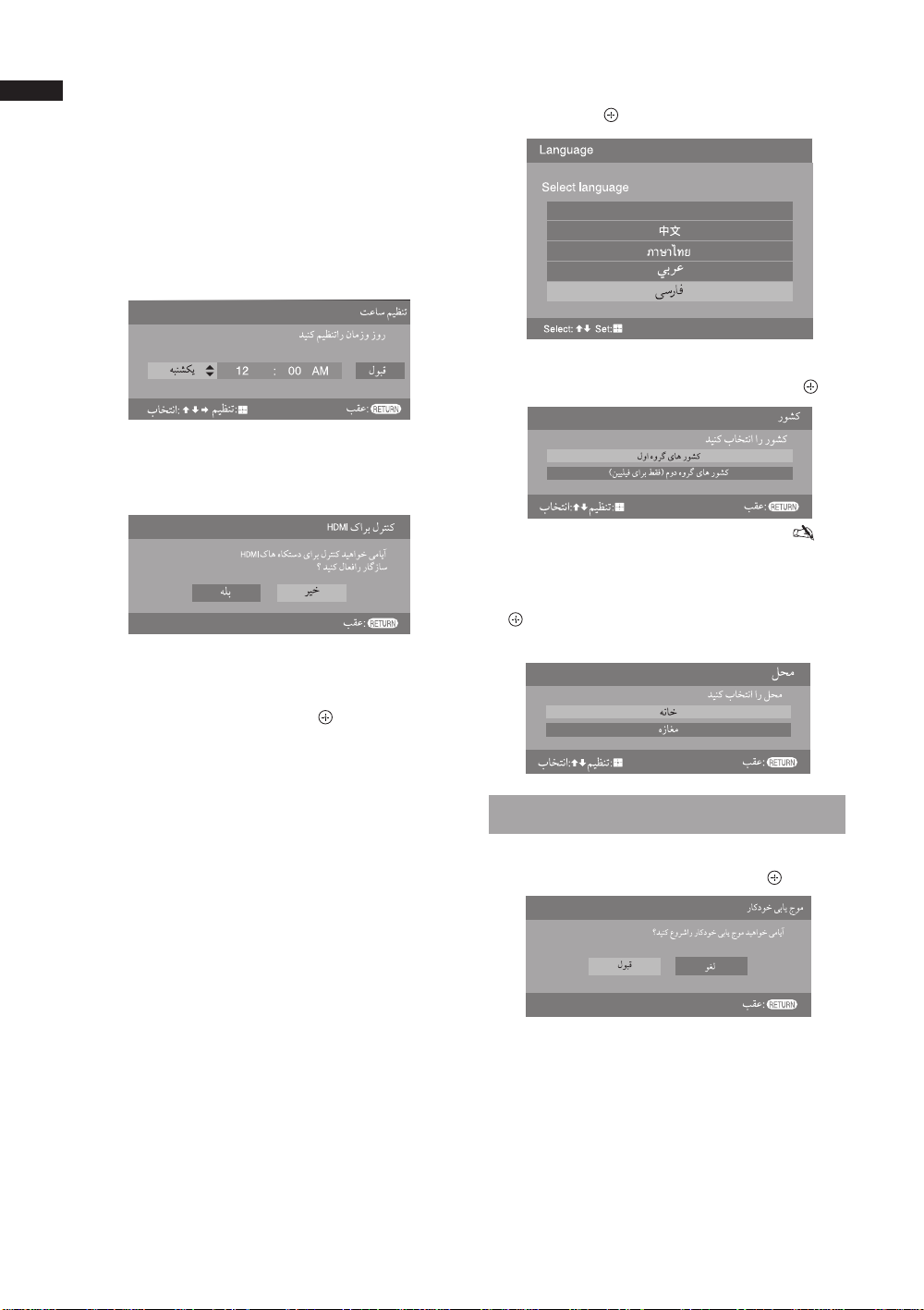
ﻪﺤﻔﺻ یﻭﺭ "ﺎﻫ ﻪﻣﺎﻧﺮﺑ ﻥﺩﺮﻛ ﺐﺗﺮﻣ" یﻮﻨﻣ ﻪﻜﻴﻣﺎﮕﻨﻫ 7
ﺐﺗﺮﻣ" ﺭﺩ ﺩﻮﺟﻮﻣ ﻞﺣﺍﺮﻣ ،ﺩﻮﺷ ﯽﻣ ﺮﻫﺎﻇ ﺶﻳﲈﻧ
.ﺪﻴﻳﲈﻧ ﻝﺎﺒﻧﺩ ﺍﺭ (
ﻥﻮﻳﺰﻳﻮﻠﺗ یﻭﺭ ﻪﻜﻴﺗﺭﻮﺼﺑ ﺍﺭ ﺎﳍﺎﻧﺎﻛ ﺐﻴﺗﺮﺗ ﺪﻴﻫﺍﻮﺧ ﯽﻤﻧ ﺮﮔﺍ
.ﺪﻳﻭﺮﺑ 8 ﻪﻠﺣﺮﻣ ﻪﺑ ،ﺪﻴﻫﺩ ﲑﻴﻐﺗ ﺪﻧﻮﺷ ﯽﻣ ﻩﺮﻴﺧﺫ
30 ﻪﺤﻔﺻ) "ﺎﻫ ﻪﻣﺎﻧﺮﺑ ﻥﺩﺮﻛ
.ﺪﻴﻫﺩ ﺭﺎﺸﻓ ﺍﺭ MENU ﻪﻤﻛﺩ ﺝﻭﺮﺧ یﺍﺮﺑ 8
.ﺖﺳﺍ ﻩﺩﺮﻛ ﯽﺑﺎﻳ ﺝﻮﻣ ﺍﺭ ﺱﱰﺳﺩ ﺭﺩ یﺎﳍﺎﻧﺎﻛ ﻪﻴﻠﻛ ﻥﻮﻨﻛﺍ ﻥﻮﻳﺰﻳﻮﻠﺗ
ﺭﺎﻜﺑ ﻉﻭﴍ یﲈﻨﻫﺍﺭ
.ﺪﻴﻳﺎﻤﻧ ﺏﺎﺨﺘﻧﺍ ﺍﺭ ﻥﺎﻣﺯ ﻭ ﺯﻭﺭ 9
ﺩﺎﳚﺍ یﺍﺮﺑ ﺍﺭ "ﻪﻠﺑ" ﺖﻴﻌﺿﻭ HDMI ﺪﻴﻨﻛ ﺏﺎﺨﺘﻧﺍ 10
ﻭ ﻥﻮﻳﺰﻳﻮﻠﺗ یﺎﻫﺩﺮﻜﻠﻤﻋ ﺎﺑ ﮏﻴﺗﺎﻣﻮﺗﺍﺭﻮﻄﺑ ﻁﺎﺒﺗﺭﺍ
.ﻝﱰﻨﻛ ﺎﺑ ﺭﺎﮔﺯﺎﺳ ﻩﺪﺷ ﻞﺼﺘﻣ ﯽﺒﻧﺎﺟ یﺎﻬﻫﺎﮕﺘﺳﺩ
ﻡﺎﻴﭘ ﺭﺩ ﻩﺍﻮﳋﺩ ﺕﲈﻴﻈﻨﺗ ﺏﺎﺨﺘﻧﺍ یﺍﺮﺑ ﺍﺭ G/g ﻪﻤﻛﺩ 11
،ﻩﺩﺮﻛ ﺏﺎﺨﺘﻧﺍ "؟ﺩﻮﺷ ﻩﺩﺍﺩ ﺶﻳﲈﻧ ﺪﻌﺑ ﻪﻌﻓﺩ ﻮﻨﻣ ﻦﻳﺍ"
.ﺪﻴﻫﺩ ﺭﺎﺸﻓ ﺝﻭﺮﺧ یﺍﺮﺑ ﺍﺭ ﻪﻤﻛﺩ ﺲﭙﺳ
یﻭﺭ 1 ﻥﺩﺍﺩ ﺭﺎﺸﻓ ﺎﺑ ﻥﻮﻳﺰﻳﻮﻠﺗ ﻭ ﺩﻮﺷ ﺏﺎﺨﺘﻧﺍ "ﻪﻠﺑ" ﺮﮔﺍ • z
ﺭﺎﺑ ،ﺩﻮﺷ ﺍﺪﺟ ﺭﺍﻮﻳﺩ ﺰﻳﺮﭘ ﺯﺍ ﺎﻳ ،ﺩﻮﺷ ﺵﻮﻣﺎﺧ ﻥﻮﻳﺰﻳﻮﻠﺗ
ﺍﺩﺪﳎ ﻪﻴﻟﻭﺍ ﻢﻴﻈﻨﺗ ﺩﺮﻜﻠﻤﻋ ﺩﻮﺷ ﻦﺷﻭﺭ ﻥﻮﻳﺰﻳﻮﻠﺗ ﻪﻛ یﺮﮕﻳﺩ
.ﺩﻮﺷ ﯽﻣ ﻉﻭﴍ
ﻮﻨﻣ ﻪﺤﻔﺻ یﻭﺭ ﻩﺪﺷ ﻩﺩﺍﺩ ﺶﻳﲈﻧ ﻥﺎﺑﺯ ﺏﺎﺨﺘﻧﺍ یﺍﺮﺑ 3
.ﺪﻴﻫﺩ ﺭﺎﺸﻓ ﺍﺭ ﺲﭙﺳ ،ﺪﻴﻫﺩ ﺭﺎﺸﻓ ﺍﺭ F
English
/
f ﻪﻤﻛﺩ
ﺲﭙﺳ ،ﻩﺩﺍﺩ ﺭﺎﺸﻓ ﻪﻘﻄﻨﻣ/ﺭﻮﺸﻛ ﺏﺎﺨﺘﻧﺍ یﺍﺮﺑ ﺍﺭ F/f 4
.ﺪﻴﻫﺩ ﺭﺎﺸﻓ ﺍﺭ
،ﻪﻧﺎﻴﻣ یﺎﻴﺳﺁ ،(ﲔﭙﻴﻠﻴﻓ ﺯﺍ ﲑﻏ) ﺎﻴﺳﺁ :ﻝﻭﺍ ﻩﻭﺮﮔ ﺎﻫ ﺭﻮﺸﻛ
.ﻪﻴﺳﻮﻧﺎﻴﻗﺍ ﻭ ﺎﻘﻳﺮﻓﺁ
.ﻦﻴﭙﻴﻠﻴﻓ : ﻡﻭﺩ ﻩﻭﺮﮔ ﺎﻫ ﺭﻮﺸﻛ
ﺍﺭ ﺲﭙﺳ ،ﻩﺩﺍﺩ ﺭﺎﺸﻓ "ﻪﻧﺎﺧ" ﺏﺎﺨﺘﻧﺍ یﺍﺮﺑ ﺍﺭ F/f 5
•
.ﺪﻴﻫﺩ ﺭﺎﺸﻓ
ﻥﻮﻳﺰﻳﻮﻠﺗ ﺭﺎﻛﺩﻮﺧ ﯽﺑﺎﻳ ﺝﻮﻣ
ﺲﭙﺳ ،ﻩﺩﺍﺩ ﺭﺎﺸﻓ "ﻝﻮﺒﻗ" ﺏﺎﺨﺘﻧﺍ یﺍﺮﺑ ﺍﺭ G/g ﻪﻤﻛﺩ 6
.ﺪﻴﻫﺩ ﺭﺎﺸﻓ ﺍﺭ ﻪﻤﻛﺩ
.ﺪﻨﻛ ﯽﻣ ﺱﱰﺳﺩ ﺭﺩ یﺎﳍﺎﻧﺎﻛ ﻪﻴﻠﻛ یﻮﺠﺘﺴﺟ ﻪﺑ ﻉﻭﴍ ﻥﻮﻳﺰﻳﻮﻠﺗ
یﻭﺭ ﺮﺑ ﺍﺭ یﺍ ﻪﻤﻛﺩ ﻭ ﻩﺩﺮﻛ ﱪﺻ ﺎﻔﻄﻟ ،ﺖﺳﺍ ﲑﮔ ﺖﻗﻭ ﯽﻤﻛ ﻞﻤﻋ ﻦﻳﺍ
ﺪﻴﻨﻛ ﮏﭼ ﺍﺭ ﻦﺘﻧﺁ ﻝﺎﺼﺗﺍ ﻪﻛ ﺪﺷ ﺮﻫﺎﻇ ﲈﺷ یﺍﺮﺑ ﯽﻣﺎﻴﭘ ﺮﮔﺍ
ﺖﻴﻌﺿﻭ ﻭ (ﯽﻳﺍﻮﻫ ﻦﺘﻧﺁ) ﺪﻴﻨﻛ ﻞﺻﻭ ﺍﺭ ﻦﺘﻧﺁ ﺎﻔﻄﻟ .ﻩﺪﺸﻧ ﺍﺪﻴﭘ ﺍ ﻪﻣﺎﻧﺮﺑ
.ﺪﻴﻳﲈﻧ ﺏﺎﺨﺘﻧﺍ ﺍﺩﺪﳎ ﺭﺎﻛﺩﻮﺧ ﯽﺑﺎﻳ ﺝﻮﻣ ﻉﻭﴍ یﺍﺮﺑ ﺍﺭ "ﺪﻴﻳﺎﺗ"
ﯽﻣ ﻒﻗﻮﺘﻣ ﺭﺎﻛﺩﻮﺧ ﯽﺑﺎﻳ ﺝﻮﻣ ﺩﺮﻜﻠﻤﻋ ،ﺪﻧﺪﺷ ﺖﻓﺎﻳ ﻝﺎﻧﺎﻛ 100 ﺮﮔﺍ
PR
7
.ﺪﻴﻫﺪﻧ ﺭﺎﺸﻓ ﺭﻭﺩ ﻩﺍﺭ ﺯﺍ ﻝﱰﻨﻛ ﺎﻳ ﻥﻮﻳﺰﻳﻮﻠﺗ
.ﺩﻮﺷ
Page 42
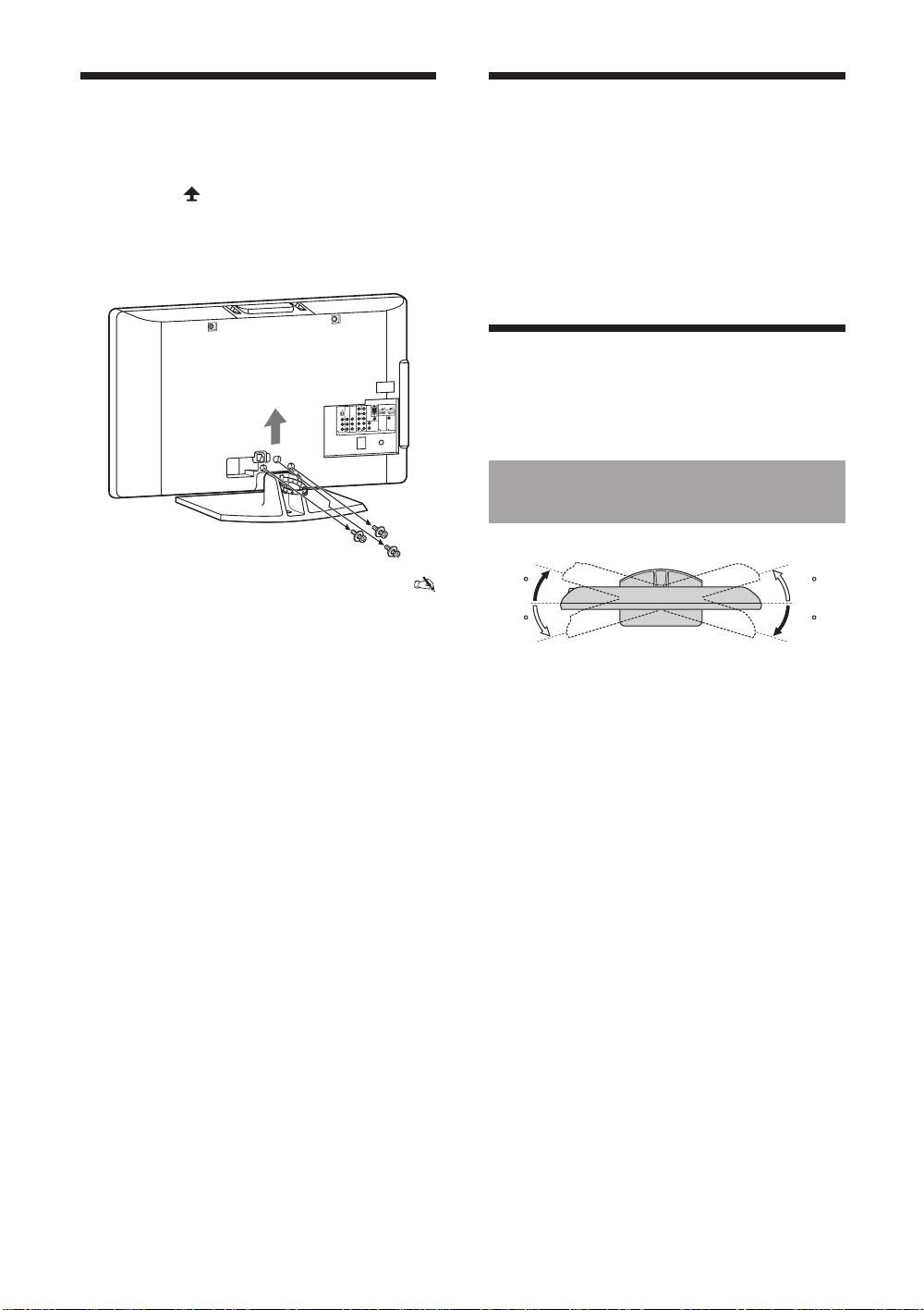
ﺯﺍ یﺰﻴﻣﻭﺭ ﻪﻳﺎﭘ ﻥﺩﺮﻛ ﺍﺪﺟ
ﻥﻮﻳﺰﻳﻮﻠﺗ ﻯﺎﺷﲈﻨﺗ
ﻥﻮﻳﺰﻳﻮﻠﺗ
ﻥﻮﻳﺰﻳﻮﻠﺗ ﺯﺍ ﺍﺭ ﺶﻠﻓ یﺎﻫ ﺖﻣﻼﻋ ﻂﺳﻮﺗ ﻩﺪﺷ ﯽﺋﲈﻨﻫﺍﺭ یﺎﻫ ﭻﻴﭘ
.ﺪﻳﺭﺍﺩﺮﺑ
ﺮﺑ ﺍﺭ ﻥﻮﻳﺰﻳﻮﻠﺗ ﺪﻴﻫﺍﻮﺨﺑ ﻪﻜﻨﻳﺍﺮﮕﻣ ﺪﻴﻨﻜﻧ ﺍﺪﺟ ﻥﺍﻮﻨﻋ ﭻﻴﻫ ﻪﺑ ﺍﺭ یﺰﻴﻣﻭﺭ ﻪﻳﺎﭘ
.ﺪﻴﻫﺩ ﺭﺍﺮﻗ ﺭﺍﻮﻳﺩ ﻪﺑ ﻩﺪﻧﻮﺷ ﺐﺼﻧ ﻩﺪﻧﺭﺍﺪﻬﮕﻧ یﻭﺭ
ﺎﺑ ﻩﺪﺷ ﻪﻤﻴﻤﺿ یﲈﻨﻫﺍﺭ ﻪﭼﱰﻓﺩ ﻪﺑ ،ﻩﺪﻧﺭﺍﺪﻬﮕﻧ ﺐﺼﻧ یﺍﺮﺑ •
ﻪﺑ ﻩﺪﻧﻮﺷ ﺐﺼﻧ ﻩﺪﻧﺭﺍﺪﻬﮕﻧ ﻝﺪﻣ ﻦﺘﻓﺎﻳ یﺍﺮﺑ ﺩﻮﺧ ﻥﻮﻳﺰﻳﻮﻠﺗ
ﻦﻳﺍ ﺐﺼﻧ یﺍﺮﺑ ﯽﻓﺎﻛ ﻪﺑﺮﲡ .ﺪﻴﻳﲈﻧ ﻪﻌﺟﺍﺮﻣ ﺐﺳﺎﻨﻣ ﺭﺍﻮﻳﺩ
یﺍﺮﺑ ﺭﺍﻮﻳﺩ ﻞﻤﲢ ﻥﺍﺰﻴﻣ ﻥﺩﺯ ﲔﻤﲣ یﺍﺮﺑ ﺎﺻﻮﺼﺧ ،ﻥﻮﻳﺰﻳﻮﻠﺗ
ﻭ ﯽﻨﻤﻳﺍ ﻝﻮﺻﺍ ﺖﻳﺎﻋﺭ یﺍﺮﺑ .ﺪﺷﺎﺑ ﯽﻣ ﺯﺎﻴﻧ ﻥﻮﻳﺰﻳﻮﻠﺗ ﻥﺯﻭ
ﺯﺍ ﻪﻛ ﺪﻨﻛ ﯽﻣ ﻪﻴﺻﻮﺗ ﺎﻳﻮﻗ ﯽﻧﻮﺳ ﺖﻛﴍ ،ﻩﺎﮕﺘﺳﺩ ﺯﺍ ﺖﻈﻓﺎﳏ
ﯽﺣﺍﺮﻃ ﺭﺍﻮﻳﺩ ﻪﺑ ﻩﺪﻧﻮﺷ ﺐﺼﻧ ﻩﺪﻧﺭﺍﺪﻬﮕﻧ ﻝﺪﻣ
یﺍﺮﺑ ﻩﺪﺷ
ﺪﻳﺎﺑ ﺩﻮﺧ ﻥﻮﻳﺰﻳﻮﻠﺗ ﺏﻮﻛﺭﺍﻮﻳﺩ ﻭ ﺪﻴﻳﲈﻧ ﻩﺩﺎﻔﺘﺳﺍ ﺩﻮﺧ ﻥﻮﻳﺰﻳﻮﻠﺗ
.ﺪﻧﻮﺷ ﺐﺼﻧ ﺯﺎﳎ یﺎﻬﺘﻛﴍ ﺎﻳ ﯽﻧﻮﺳ یﺎﻫ ﯽﮔﺪﻨﻳﲈﻧ ﻪﻠﻴﺳﻮﺑ
ﻥﻮﻳﺰﻳﻮﻠﺗ ﻥﺩﺮﻛ ﻦﺷﻭﺭ یﺍﺮﺑ ﺍﺭ ﻥﻮﻳﺰﻳﻮﻠﺗ یﻻﺎﺑ ﺭﺩ 1 ﻪﻤﻛﺩ 1
.ﺪﻴﻫﺩ ﺭﺎﺸﻓ
ﻝﺎﻧﺎﻛ ﻚﻳ ﺎﺗ ﺪﻴﻫﺩ ﺭﺎﺸﻓ ﺍﺭ
.ﺪﻴﻫﺩ ﺭﺎﺸﻓ ﺍﺪﺻ ﻥﺍﺰﻴﻣ ﻥﺩﺮﻛ ﻢﻴﻈﻨﺗ یﺍﺮﺑ ﺍﺭ
PROG +/– ﺎﻳ ﻩﺭﲈﺷ ﺎﻫ ﻪﻤﻛﺩ 2
.ﺪﻴﻨﻛ ﺏﺎﺨﺘﻧﺍ ﺍﺭ ﻥﻮﻳﺰﻳﻮﻠﺗ
2 +/– ﻪﻤﻛﺩ 3
ﺪﻳﺩ ﻪﻳﻭﺍﺯ ﻥﺩﺮﻛ ﻢﻴﻈﻨﺗ
ﻥﻮﻳﺰﻳﻮﻠﺗ
.ﺩﻮﺷ ﻢﻴﻈﻨﺗ ﺮﻳﺯ ﺭﺩ ﻩﺪﺷ ﻩﺩﺍﺩ ﺶﻳﲈﻧ ﺎﻳﺍﻭﺯ ﺭﺩ ﺪﻧﺍﻮﺗ ﻰﻣ ﻥﻮﻳﺰﻳﻮﻠﺗ ﻦﻳﺍ
ﺪﻴﻳﲈﻧ ﻢﻴﻈﻨﺗ ﺖﺳﺍﺭ ﺎﻳ ﭗﭼ ﺖﻬﺟ ﺭﺩ ﺍﺭ ﻪﻳﻭﺍﺯ
(ﻥﺍﺩﺮﮔ ﺖﻤﺴﻗ)
ﻻﺎﺑ ﲈﻧ
20
20
ﻮﻠﺟ
20
20
PR
8
Page 43
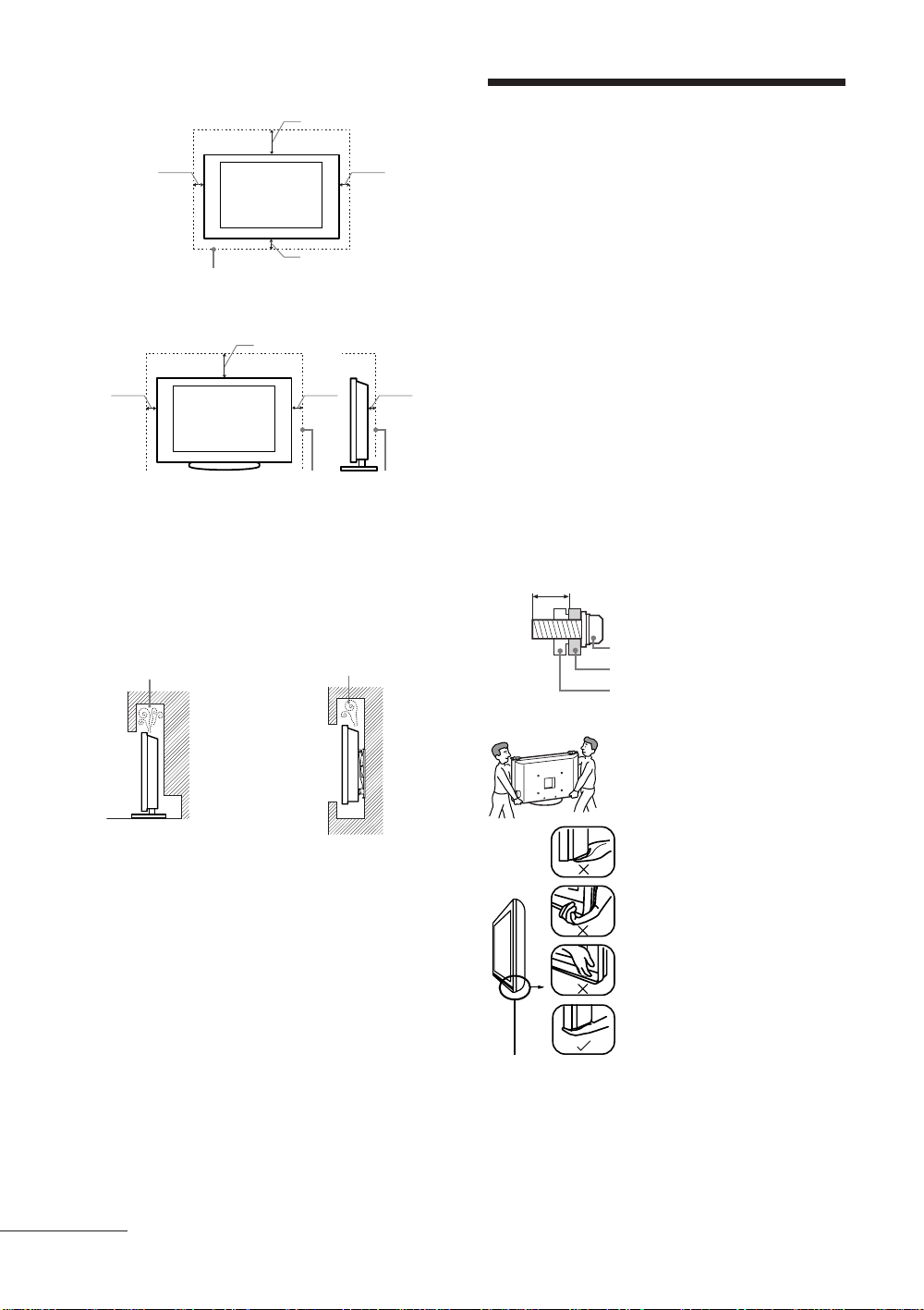
ﺭﺍﻮﻳﺩ یﻭﺭ ﺐﺼﻧ
30 cm
ﯽﻨﻤﻳﺍ ﺕﺎﻋﻼﻃﺍ
10 cm
.ﺪﻳﲑﮕﺑ ﺮﻈﻧ ﺭﺩ ﻩﺎﮕﺘﺳﺩ یﺍﺮﺑ ﺍﺭ ﻪﻠﺻﺎﻓ ﻦﻳﺍ ﻞﻗﺍﺪﺣ
10 cm
10 cm
ﻪﻳﺎﭘ ﺎﺑ ﺐﺼﻧ
30 cm
10 cm
.ﺪﻳﲑﮕﺑ ﺮﻈﻧ ﺭﺩ ﻩﺎﮕﺘﺳﺩ یﺍﺮﺑ ﺍﺭ ﻪﻠﺻﺎﻓ ﻦﻳﺍ ﻞﻗﺍﺪﺣ
:کﺎﺧ ﻭ ﺩﺮﮔ ﻥﺪﺷ ﻊﲨ ﺯﺍ یﲑﮔﻮﻠﺟ ﻭ ﺐﺳﺎﻨﻣ ﻪﻳﻮﲥ ﺯﺍ ﻥﺪﺷ ﻦﺌﻤﻄﻣ یﺍﺮﺑ
.ﺪﻴﻫﺪﻧ ﺭﺍﺮﻗ ﲔﻓﺮﻃ ﻪﺑ ﺎﻳ ،ﲔﻳﺎﭘ ﻪﺑ ﻭﺭ ،ﺲﻜﻋﺮﺑ ﺍﺭ ﻥﻮﻳﺰﻳﻮﻠﺗ ﻩﺎﮕﺘﺳﺩ -
ﻪﻈﻔﳏ ﻥﻭﺭﺩ ﺎﻳ ﺏﺍﻮﺧ ﺖﲣ ،ﺵﺮﻓ یﻭﺭ ،ﻪﻘﺒﻃ ﻥﻭﺭﺩ ﺍﺭ ﻥﻮﻳﺰﻳﻮﻠﺗ -
ﻭ ﻪﻣﺎﻧﺯﻭﺭ ﺪﻨﻧﺎﻣ یﺩﺭﺍﻮﻣ ﺎﻳ ،ﻩﺩﺮﭘ ﺪﻨﻧﺎﻣ ،ﻪﭼﺭﺎﭘ ﺎﺑ ﺍﺭ ﻥﻮﻳﺰﻳﻮﻠﺗ ﻩﺎﮕﺘﺳﺩ -
.ﺪﻴﻨﻜﻧ ﺐﺼﻧ ﺮﻳﺯ ﺭﺩ ﻩﺪﺷ ﻩﺩﺍﺩ ﺶﻳﲈﻧ ﻞﻜﺷ ﺪﻨﻧﺎﳘ ﺍﺭ ﻥﻮﻳﺰﻳﻮﻠﺗ ﻩﺎﮕﺘﺳﺩ
.ﺩﺭﺍﺪﻧ ﻥﺎﻳﺮﺟ ﺍﻮﻫ
.ﺩﺭﺍﺪﻧ ﻥﺎﻳﺮﺟ ﺍﻮﻫ
6 cm10 cm
.ﺪﻴﻫﺪﻧ ﺭﺍﺮﻗ ﻪﺘﺴﺑ
.ﺪﻴﻧﺎﺷﻮﭙﻧ ﻩﲑﻏ ﺎﻳ
یﺯﺍﺪﻧﺍ ﻩﺍﺭ/ﺐﺼﻧ
ﻕﺮﺑ ،یﺯﻮﺳ ﺶﺗﺁ ﺮﻄﺧ ﻪﻧﻮﮔﺮﻫ ﺯﺍ یﲑﮔﻮﻠﺟ یﺍﺮﺑ ﺍﺭ ﻥﻮﻳﺰﻳﻮﻠﺗ ﻩﺎﮕﺘﺳﺩ
ﺮﻳﺯ یﺎﻬﻠﻤﻌﻟﺍﻮﺘﺳﺩ ﺎﺑ ﻖﺑﺎﻄﻣ ﺖﺣﺍﺮﺟ ﺎﻳ /ﻭ ﯽﮔﺪﻳﺩ ﺐﻴﺳﺁ ﺎﻳ ﯽﮕﺘﻓﺮﮔ
.ﺩﻮﺷ ﻩﺩﺍﺩ ﺭﺍﺮﻗ ﻕﺮﺑ ﺰﻳﺮﭘ ﯽﻜﻳﺩﺰﻧ ﺭﺩ ﺪﻳﺎﺑ ﻥﻮﻳﺰﻳﻮﻠﺗ ﻩﺎﮕﺘﺳﺩ •
ﻥﺪﺷ یﺩﺮﻓ ﺖﺣﺍﺮﺟ ﺐﺒﺳ ﻭ ﻥﺁ ﻥﺩﺎﺘﻓﺍ ﺯﺍ ﺰﻴﻫﺮﭘ یﺍﺮﺑ ﺍﺭ ﻥﻮﻳﺰﻳﻮﻠﺗ ﻩﺎﮕﺘﺳﺩ •
.ﺪﻴﻫﺩ ﺭﺍﺮﻗ ﻑﺎﺻ ﻭ ﺭﺍﺪﻳﺎﭘ ﺢﻄﺳ ﮏﻳ یﻭﺭ ﺮﺑ ﻥﻮﻳﺰﻳﻮﻠﺗ ﻪﺑ ﺐﻴﺳﺁ ﺎﻳ
.ﺪﻨﻳﲈﻧ ﺐﺼﻧ ﺭﺍﻮﻳﺩ یﻭﺭ ﺍﺭ ﻥﻮﻳﺰﻳﻮﻠﺗ ﺪﻳﺎﺑ ﺏﺮﳎ ﺩﺍﺮﻓﺍ ﻂﻘﻓ
ﯽﻧﻮﺳ ﯽﺒﻧﺎﺟ ﺕﺎﻘﻠﻌﺘﻣ ﺯﺍ ﻪﻛ ﺩﻮﺷ ﯽﻣ ﻪﻴﺻﻮﺗ ،ﯽﻨﻤﻳﺍ ﻝﻮﺻﺍ ﺖﻳﺎﻋﺭ ﺖﻬﺟ •
:KLV-40S400A/KLV-37S400A/KLV-32S400A -
SU-WL50Bﻭ SU-WL500 ﺏﻮﻛﺭﺍﻮﻳﺩ
ﺯﺍ ﲈﺘﺣ ﺪﻴﻨﻛ ﯽﻣ ﻞﺼﺘﻣ ﻥﻮﻳﺰﻳﻮﻠﺗ ﻩﺎﮕﺘﺳﺩ ﻪﺑ ﺍﺭ ﻪﻳﺎﭘ یﺎﻫ ﺏﻼﻗ ﻪﻜﻴﻣﺎﮕﻨﻫ
.ﺪﻴﻳﲈﻧ ﻩﺩﺎﻔﺘﺳﺍ ﺏﻮﻛﺭﺍﻮﻳﺩ ﻪﻳﺎﭘ ﻪﺑ ﻩﺪﺷ ﻪﻤﻴﻤﺿ یﺎﻫ ﭻﻴﭘ
ﺢﻄﺳ ﺯﺍ ﻪﻜﻴﻣﺎﮕﻨﻫ
12 mm ﻭ 8 mm یﺎﳍﻮﻃ ﺎﺑ ﻩﺪﺷ ﻪﻤﻴﻤﺿ یﺎﻫ ﭻﻴﭘ
.ﺪﻧﺍ ﻩﺪﺷ ﯽﺣﺍﺮﻃ ﺪﻧﻮﺷ یﲑﮔ ﻩﺯﺍﺪﻧﺍ ﻪﻳﺎﭘ ﺏﻼﻗ ﻝﺎﺼﺗﺍ
.ﺖﺳﺍ ﺕﻭﺎﻔﺘﻣ ﺏﻮﻛﺭﺍﻮﻳﺩ ﻪﻳﺎﭘ ﻝﺪﻣ ﻉﻮﻧ ﻪﺑ ﻪﺘﺴﺑ ﭻﻴﭘ ﻝﻮﻃ ﻭ ﺮﻄﻗ
•
ﺐﺟﻮﻣ ﺖﺳﺍ ﻦﻜﳑ ﻩﺪﺷ ﻪﻤﻴﻤﺿ یﺎﻫ ﭻﻴﭘ ﺯﺍ ﲑﻏ ﯽﻳﺎﻫ ﭻﻴﭘ ﺯﺍ ﻩﺩﺎﻔﺘﺳﺍ
ﺕﻼﻜﺸﻣ ﺮﮕﻳﺩ ﻭ ،ﻥﺁ ﻥﺩﺎﺘﻓﺍ ﺎﻳ ﻥﻮﻳﺰﻳﻮﻠﺗ ﻩﺎﮕﺘﺳﺩ ﻪﻧﺪﺑ ﻥﺪﻳﺩ
12 mm ﺎﺗ 8 mm
-
(ﺏﻮﻛﺭﺍﻮﻳﺩ ﻪﻳﺎﭘ ﻪﺑ ﻩﺪﺷ ﻪﻤﻴﻤﺿ) ﭻﻴﭘ
ﻪﻳﺎﭘ ﺏﻼﻗ
ﻥﻮﻳﺰﻳﻮﻠﺗ ﻩﺎﮕﺘﺳﺩ ﺖﺸﭘ ﻪﺑ ﻩﺪﺷ ﻞﺼﺘﻣ ﺏﻼﻗ
SU-FL300M
.ﺪﻴﻳﲈﻧ ﻩﺩﺎﻔﺘﺳﺍ ﻭ ﺐﺼﻧ
ﺐﺼﻧ
:ﻞﻣﺎﺷ ،ﺩﻮﺷ ﻩﺩﺎﻔﺘﺳﺍ
ﯽﻧﻮﻳﺰﻳﻮﻠﺗﺮﻳﺯ ﻪﻳﺎﭘ
ﺐﻴﺳﺁ
.ﺩﺩﺮﮔ
•
•
ﺭﺍﻮﻳﺩ ﺭﺍﻮﻳﺩ
AC ﻕﺮﺑ ﻢﻴﺳ
ﺶﺗﺁ ﺮﻄﺧ ﻪﻧﻮﮔﺮﻫ ﺯﺍ یﲑﮔﻮﻠﺟ یﺍﺮﺑ ﺍﺭ ﺏﻭﺎﻨﺘﻣ ﻕﺮﺑ ﺰﻳﺮﭘ ﻭ ﻢﻴﺳ
ﺕﺭﻮﺼﺑ ﺖﺣﺍﺮﺟ ﺎﻳ /ﻭ ﯽﮕﻳﺪﻳﺩ ﺐﻴﺳﺁ ﺎﻳ ﯽﮕﺘﻓﺮﮔ ﻕﺮﺑ ،یﺯﻮﺳ
:ﺪﻴﻳﲈﻧ ﻩﺩﺎﻔﺘﺳﺍ ﺮﻳﺯ ﺭﺩ ﻩﺪﺷ ﻩﺩﺍﺩ ﺡﴍ
ﺯﺍ ﻩﺩﺎﻔﺘﺳﺍ ﺯﺍ ﻭ ،ﻩﺩﺮﻛ ﻩﺩﺎﻔﺘﺳﺍ ﯽﻧﻮﺳ ﺏﻭﺎﻨﺘﻣ AC ﻕﺮﺑ ﻢﻴﺳ ﺯﺍ ﻂﻘﻓ -
.ﺪﻴﻳﲈﻧ یﺭﺍﺩﺩﻮﺧ ﺎﻫ کﺭﺎﻣ ﺮﻳﺎﺳ
AC ﻕﺮﺑ ﺰﻳﺮﭘ ﻥﻭﺭﺩ ﻼﻣﺎﻛ ﺍﺭ ﻪﺧﺎﺷﻭﺩ -
.ﺪﻴﻳﲈﻧ
AC ﺖﻟﻭ 240 - 110 ﻕﺮﺑ ﻥﺎﻳﺮﺟ ﺎﺑ ﻂﻘﻓ ﺍﺭ ﻥﻮﻳﺰﻳﻮﻠﺗ ﻩﺎﮕﺘﺳﺩ -
ﺩﺭﻮﻣ
.ﺪﻴﻫﺩ ﺭﺍﺮﻗ ﻩﺩﺎﻔﺘﺳﺍ
ﺰﻳﺮﭘ ﺯﺍ ﺍﺭ ﻕﺮﺑ ﻢﻴﺳ ﲈﺘﺣ ﯽﺼﺨﺷ ﯽﻨﻤﻳﺍ یﺍﺮﺑ ،ﯽﺸﻛ ﻞﺑﺎﻛ ﻡﺎﮕﻨﻫ -
.ﺪﻴﻨﻜﻧ ﯽﲬﺯ ﻞﺑﺎﻛ ﺎﺑ ﺍﺭ ﺩﻮﺧ ﻥﺎﺘﺸﮕﻧﺍ ﺪﻴﺷﺎﺑ ﺐﻗﺍﺮﻣ ﻭ ﻩﺪﻴﺸﻛ
ﺯﺍ ﻥﻮﻳﺰﻳﻮﻠﺗ ﻩﺎﮕﺘﺳﺩ ﻞﲪ ﻡﺎﮕﻨﻫ ﺎﻳ ﻭ ﻩﺩﺎﻔﺘﺳﺍ ﺯﺍ ﻞﺒﻗ ﺍﺭ
.ﺪﻴﻳﲈﻧ ﺍﺪﺟ
.ﺪﻳﺭﺍﺪﻬﮕﻧ ﯽﺗﺭﺍﺮﺣ ﻊﺑﺎﻨﻣ ﺯﺍ ﺭﻭﺩ ﺍﺭ
.ﺪﻴﻳﲈﻧ ﺰﻴﲤ ﺐﺗﺮﻣ ﺭﻮﻄﺑ ﺍﺮﻧﺁ ﻭ ﻩﺩﻮﻤﻧ ﺍﺪﺟ ﺍﺭ
AC ﻕﺮﺑ ﻢﻴﺳ -
AC ﻕﺮﺑ ﻪﺧﺎﺷﻭﺩ
AC ﻕﺮﺑ ﻢﻴﺳ -
AC ﻕﺮﺑ ﻪﺧﺎﺷﻭﺩ -
ﺏﺬﺟ ﺖﺑﻮﻃﺭ ﺪﻧﺍﻮﺗ ﯽﻣ ﺩﲑﮕﺑ کﺎﺧ ﻭ ﺩﺮﮔ ﻕﺮﺑ ﻪﺧﺎﺷﻭﺩ ﻪﭽﻧﺎﻨﭼ
.ﺩﻮﺷ یﺯﻮﺳ ﺶﺗﺁ ﻪﺑ ﺮﺠﻨﻣ ﻭ ﻪﺘﻓﺭ ﲔﺑ ﺯﺍ ﺖﺳﺍ ﻦﻜﳑ ﻥﺁ ﻖﻳﺎﻋ ،ﺪﻨﻛ
ﺩﺭﺍﺩ ﻪﻣﺍﺩﺍ
PR
9
ﯽﻣﺎﲤ ،ﻥﻮﻳﺰﻳﻮﻠﺗ ﻩﺎﮕﺘﺳﺩ ﻥﺩﺮﻛ ﺎﺠﺑﺎﺟ ﺯﺍ ﻞﺒﻗ •
ﻥﺩﺮﻛ ﺎﺠﺑﺎﺟ ﺖﻬﺟ ﱰﺸﻴﺑ ﺎﻳ ﺮﻔﻧ ﻭﺩ ﺩﺍﺪﻌﺗ ﻪﺑ
.ﺪﺷﺎﺑ ﯽﻣ ﺯﺎﻴﻧ ﻥﻮﻳﺰﻳﻮﻠﺗ ﻩﺎﮕﺘﺳﺩ
ﺎﺑ ﻥﻮﻳﺰﻳﻮﻠﺗ ﻥﺩﺮﻛ ﺎﺠﺑﺎﺟ ﻡﺎﮕﻨﻫ
.ﺪﻳﺭﺍﺪﻬﮕﻧ ﺍﺮﻧﺁ ﺮﻳﺯ ﻞﻜﺷ ﺪﻨﻧﺎﳘ ،ﺖﺳﺩ
ﻥﺩﺮﻛ ﺎﺠﺑﺎﺟ ﻭ ﻥﺩﺮﻛ ﺪﻨﻠﺑ ﻡﺎﮕﻨﻫ
ﺮﻳﺯ ﺯﺍ ﻢﻜﳏ ﺭﻮﻄﺑ ﺍﺮﻧﺁ ،ﻥﻮﻳﺰﻳﻮﻠﺗ ﻩﺎﮕﺘﺳﺩ
ﻥﺎﻜﺗ ﺕﺪﺸﺑ ﺍﺮﻧﺁ ﺎﻳ ﻩﺩﺮﻜﻧ ﺩﺭﺍﻭ ﻪﺑﴐ ﻥﺁ ﻪﺑ
ﻡﺎﮕﻨﻫ ﺎﻳ ﻥﺩﺮﻛ ﲑﻤﻌﺗ ﺖﻬﺟ ﻥﻮﻳﺰﻳﻮﻠﺗ
ﺹﻮﺼﳐ ﺩﺍﻮﻣ ﺎﺑ ﻩﺍﺮﳘ ﺍﺮﻧﺁ ،ﯽﺸﻛ ﺏﺎﺒﺳﺍ
.ﺪﻴﻫﺩ ﺭﺍﺮﻗ ﺵﺍ ﯽﻠﺻﺍ ﻦﺗﺭﺎﻛ ﻥﻭﺭﺩ
ﺖﻤﺴﻗ ﺯﺍ ﺍﺭ ﻞﻧﺎﭘ ﺎﻤﺘﺣ
ﺖﻤﺴﻗ ﺯﺍ ﻪﻧ ،ﺪﻳﺮﻴﮕﺑ ﺮﻳﺯ
یﺰﻴﭼ ﺎﻳ ﻩﺩﺮﻜﻧ ﺩﻭﺪﺴﻣ ﺍﺭ ﻪﻳﻮﲥ یﺎﻫﺬﻔﻨﻣ ﺰﮔﺮﻫ
.ﯽﻳﻮﻠﺟ
ﺪﻳﺎﺑ ﺮﻳﺯ ﺭﺩ ﻩﺪﺷ ﻩﺩﺍﺩ ﺶﻳﲈﻧ ﻞﻜﺷ ﺪﻨﻧﺎﳘ •
.ﺪﻳﲑﮕﺑ ﺮﻈﻧ ﺭﺩ ﻥﻮﻳﺰﻳﻮﻠﺗ ﻩﺎﮕﺘﺳﺩ ﺭﺎﻨﻛ ﺭﺩ ﺍﺭ ﯽﻳﺎﻀﻓ
ﯽﻓﺎﻛ ﻥﺍﺰﻴﻣ ﻪﺑ ﺍﻮﻫ ﺎﺗ ﺪﻴﻳﲈﻧ ﻩﺩﺎﻔﺘﺳﺍ ﯽﻧﻮﺳ ﺏﻮﻛﺭﺍﻮﻳﺩ ﺯﺍ ﺩﻮﺷ ﯽﻣ ﻪﻴﺻﻮﺗ
.ﺪﻴﻳﲈﻧ ﺍﺪﺟ ﺍﺭ ﺎﻬﻠﺑﺎﻛ
.ﺪﻳﺭﻭﺎﻴﻧ ﺭﺎﺸﻓ
LCD ﻞﻧﺎﭘ یﻭﺭ
.ﺪﻳﺭﺍﺪﻬﮕﻧ
،ﻥﻮﻳﺰﻳﻮﻠﺗ ﻥﺩﺮﻛ ﺎﺠﺑﺎﺟ ﻡﺎﮕﻨﻫ
.ﺪﻴﻫﺪﻧ
ﻩﺎﮕﺘﺳﺩ ﻥﺩﺮﻛ ﺎﺠﺑﺎﺟ ﻡﺎﮕﻨﻫ
ﻪﻳﻮﲥ
.ﺪﻴﻳﲈﻨﻧ ﺩﺭﺍﻭ ﻩﺎﮕﺘﺳﺩ ﻥﻭﺭﺩ
.ﺪﺷﺎﺑ ﻪﺘﺷﺍﺩ ﻥﺎﻳﺮﺟ
ﻥﺩﺮﻛ ﺎﺠﺑﺎﺟ
•
•
•
•
•
•
•
Page 44

ﻁﺎﻴﺘﺣﺍ
ﻥﻮﻳﺰﻳﻮﻠﺗ یﺎﺷﺎﲤ
ﺭﺩ ﻥﻮﻳﺰﻳﻮﻠﺗ یﺎﺷﺎﲤ ﻪﻛﺍﺮﭼ ،ﺪﻴﻳﲈﻧ ﺎﺷﺎﲤ ﻢﻳﻼﻣ یﺭﻮﻧ ﺭﺩ ﺍﺭ ﻥﻮﻳﺰﻳﻮﻠﺗ •
ﺐﻴﺳﺁ ﻢﺸﭼ ﻪﺑ ﺖﺳﺍ ﻦﻜﳑ ﯽﻧﻻﻮﻃ ﯽﻧﺎﻣﺯ ﺕﺪﻣ یﺍﺮﺑ ﺎﻳ ﻒﻴﻌﺿ یﺭﻮﻧ
.ﺪﻧﺎﺳﺮﺑ
یﺍﺪﺻ ﺢﻄﺳ ﻪﻛﺍﺮﭼ ،ﺪﻴﻳﲈﻧ ﻢﻴﻈﻨﺗ ﺍﺮﻧﺁ یﺍﺪﺻ ،ﻥﻮﻓﺪﻫ ﺯﺍ ﻩﺩﺎﻔﺘﺳﺍ ﻡﺎﮕﻨﻫ •
.ﺩﺩﺮﮔ ﯽﻣ ﲈﺷ ﯽﻳﺍﻮﻨﺷ ﻥﺪﻳﺩ ﺐﻴﺳﺁ ﺚﻋﺎﺑ ،ﺩﺎﻳﺯ ﯽﻠﻴﺧ
LCD
ﺶﻳﲈﻧ ﻪﺤﻔﺻ
یﺍ ﻪﺘﻓﴩﻴﭘ ﺖﺧﺎﺳ یژﻮﻟﻮﻨﻜﺗ یﺍﺭﺍﺩ LCD ﺶﻳﲈﻧ ﻪﺤﻔﺻ ﻪﻜﻨﻳﺍ ﺩﻮﺟﻭ ﺎﺑ •
ﻦﻳﺍ ﺎﺑ ،ﺪﻧﺭﺍﺩ ﯽﻳﺍﺭﺎﻛ ﻥﺁ یﺎﻫ ﻞﺴﻜﻴﭘ ﱰﺸﻴﺑ ﺎﻳ ﺪﺻﺭﺩ 99.99% ﻭ ﺖﺳﺍ
ﺎﻳ ،ﯽﺑﺁ ،ﺰﻣﺮﻗ) ﯽﻧﺍﺭﻮﻧ ﻁﺎﻘﻧ ﺎﻳ ﻩﺪﺷ ﺩﺎﳚﺍ ﺖﺳﺍ ﻦﻜﳑ ﮓﻧﺭ ﻩﲑﺗ ﻁﺎﻘﻧ ﻝﺎﺣ
ﺖﻴﺻﺎﺧ ﻦﻳﺍ.ﺪﻧﺩﺮﮔ ﺮﻫﺎﻇ LCD ﺶﻳﲈﻧ ﻪﺤﻔﺻ یﻭﺭ ﺮﺑ ﺖﺳﺍ ﻦﻜﳑ (ﺰﺒﺳ
.ﺩﺩﺮﮔ ﯽﻤﻧ ﺏﻮﺴﳏ ﻥﺁ یﺍﺮﺑ ﯽﺒﻴﻋ ﻭ ﻩﺩﻮﺑ LCD ﺶﻳﲈﻧ ﻪﺤﻔﺻ یﺭﺎﺘﺧﺎﺳ
ﻩﺎﮕﺘﺳﺩ یﻭﺭ ﺍﺭ ﯽﻣﺎﺴﺟﺍ ﺎﻳ ،ﺪﻳﺯﺍﺪﻧﺎﻴﻧ ﺶﺧ ﺎﻳ ﻩﺩﺍﺪﻧ ﺭﺎﺸﻓ ﺍﺭ ﯽﻳﻮﻠﺟ ﱰﻠﻴﻓ •
ﻪﺤﻔﺻ ﺎﻳ ﺩﻮﺷ ﻩﺩﺍﺩ ﻥﺎﺸﻧ ﺪﺑ ﺮﻳﻮﺼﺗ ﺖﺳﺍ ﻦﻜﳑ .ﺪﻴﻫﺪﻧ ﺭﺍﺮﻗ ﻥﻮﻳﺰﻳﻮﻠﺗ
.ﺪﻨﻴﺒﺑ ﺐﻴﺳﺁ
ﻦﻜﳑ ،ﺩﲑﮔ ﺭﺍﺮﻗ ﻩﺩﺎﻔﺘﺳﺍ ﺩﺭﻮﻣ یﺩﴎ ﻥﺎﻜﻣ ﺭﺩ ﻥﻮﻳﺰﻳﻮﻠﺗ ﻩﺎﮕﺘﺳﺩ ﻦﻳﺍ ﺮﮔﺍ •
ﺮﮕﻧﺎﺸﻧ ﻦﻳﺍ .ﺩﺩﺮﮔ ﻩﲑﺗ ﺮﻳﻮﺼﺗ ﺎﻳ ﺩﻮﺷ ﺩﺎﳚﺍ ﺮﻳﻮﺼﺗ ﺭﺩ یﺍ ﻪﻜﻟ ﺖﺳﺍ
ﻮﳏ ﺕﺭﺍﺮﺣ ﻪﺟﺭﺩ ﺶﻳﺍﺰﻓﺍ ﻡﺎﮕﻨﻫ ﻩﺪﻳﺪﭘ ﻦﻳﺍ .ﺪﺷﺎﺑ ﯽﻤﻧ ﻩﺎﮕﺘﺳﺩ ﺐﻴﻋ
ﻦﻜﳑ ﺪﻧﻮﺷ ﯽﻣ ﺶﺨﭘ ﯽﻧﻻﻮﻃ ﯽﻧﺎﻣﺯ ﺕﺪﻣ یﺍﺮﺑ ﺖﺑﺎﺛ ﺮﻳﻭﺎﺼﺗ ﻪﻜﻴﻣﺎﮕﻨﻫ •
ﺯﺍ ﺪﻌﺑ ﺩﺭﻮﻣ ﻦﻳﺍ .ﺩﻮﺷ ﻩﺩﺍﺩ ﺶﻳﲈﻧ ﺭﺍﺩ ﻪﻳﺎﺳ ﺕﺭﻮﺻ ﻪﺑ ﺮﻳﻮﺼﺗ ﺖﺳﺍ
.ﺩﺩﺮﮔ ﯽﻣ ﻑﺮﻃﺮﺑ ﯽﻫﺎﺗﻮﻛ ﻥﺎﻣﺯ ﺖﺷﺬﮔ
ﺪﻧﻮﺷ ﯽﻣ ﻡﺮﮔ ﻩﺩﺎﻔﺘﺳﺍ ﻡﺎﮕﻨﻫ ﺭﺩ ﻥﻮﻳﺰﻳﻮﻠﺗ ﻩﺎﮕﺘﺳﺩ ﻪﻧﺪﺑ ﻭ ﺶﻳﲈﻧ ﻪﺤﻔﺻ •
.ﺪﺷﺎﺑ ﯽﻤﻧ ﯽﺑﺍﺮﺧ ﺮﺑ ﯽﻠﻴﻟﺩ ﺮﻣﺍ ﻦﻳﺍ .ﺩﻮﺷ ﯽﻣ
ﯽﺧﺮﺑ ﺭﺩ ﻩﻮﻴﺟ .ﺪﺷﺎﺑ ﯽﻣ ﻊﻳﺎﻣ ﻝﺎﺘﺴﻳﺮﻛ ﯽﻤﻛ ﺭﺍﺪﻘﻣ یﻭﺎﺣ
ﻂﺑﺍﻮﺿ ﺯﺍ .ﺩﺭﺍﺩ ﺩﻮﺟﻭ ﺲﻧﺎﺳﺭﻮﺋﻮﻠﻓ یﺎﻫ ﺏﻮﻴﺗ ﻉﻮﻧ ﻪﺑ ﻪﺘﺴﺑ ﻊﻗﺍﻮﻣ ﺯﺍ
.ﺪﻴﻨﻛ یﻭﲑﭘ ﻩﺩﺎﻣ ﻦﻳﺍ ﻊﻓﺩ ﺪﻋﺍﻮﻗ ﻭ ﯽﻠﳏ
ﻩﺎﮕﺘﺳﺩ ﻪﻧﺪﺑ /ﺶﻳﲈﻧ ﻪﺤﻔﺻ ﻥﺩﺮﻛ ﺰﻴﲤ ﻭ یﺭﺍﺪﻬﮕﻧ
ﺰﻳﺮﭘ ﺯﺍ ﺍﺭ ﻥﻮﻳﺰﻳﻮﻠﺗ ﻩﺎﮕﺘﺳﺩ ﻪﺑ ﻩﺪﺷ ﻞﺼﺘﻣ AC ﻢﻴﺳ ﲈﺘﺣ ﻥﺩﺮﻛ ﺰﻴﲤ ﺯﺍ ﻞﺒﻗ
،ﺶﻳﲈﻧ ﻪﺤﻔﺻ یﻭﺭ ﺶﺷﻮﭘ ﺎﻳ ﺩﺍﻮﻣ ﻥﺪﺷ ﺏﺍﺮﺧ ﺯﺍ یﲑﮔﻮﻠﺟ یﺍﺮﺑ
.ﺪﻴﺷﺎﺑ ﻪﺘﺷﺍﺩ ﺮﻈﻧ ﺪﻣ ﺍﺭ ﺮﻳﺯ یﺎﻬﺘﺒﻗﺍﺮﻣ
ﻪﭼﺭﺎﭘ ﺎﺑ ﺍﺮﻧﺁ ،ﻪﻧﺪﺑ/ﺶﻳﲈﻧ ﻪﺤﻔﺻ یﻭﺭ ﺯﺍ کﺎﺧ ﻭ ﺩﺮﮔ ﻥﺩﺮﻛ کﺎﭘ یﺍﺮﺑ •
،ﺖﺳﺍ ﻩﺪﻧﺎﻣ ﯽﻗﺎﺑ کﺎﺧ ﻭ ﺩﺮﮔ ﺯﻮﻨﻫ ﺮﮔﺍ .ﺪﻴﻳﲈﻧ کﺎﭘ ﯽﮕﺘﺴﻫﺁ ﻪﺑ ﻡﺮﻧ یﺍ
کﺎﭘ ﺪﺷﺎﺑ ﯽﻣ
ﺎﻳ ،ﻩﺪﻨﻨﻛ کﺎﭘ یﺎﻫﺭﺩﻮﭘ ،یﺪﻴﺳﺍ/ﯽﻳﺎﻴﻠﻗ ﻩﺪﻨﻨﻛ کﺎﭘ ،چﺎﻜﺳﺍ ﺯﺍ ﺰﮔﺮﻫ •
ﻭ ﺶﻳﲈﻧ ﻪﺤﻔﺻ ﺢﻄﺳ ﻥﺪﺷ ﺏﺍﺮﺧ ﺐﺟﻮﻣ ﺖﺳﺍ ﻦﻜﳑ ﯽﻧﻻﻮﻃ ﯽﺗﺪﻣ
ﺭﻮﻄﺑ ﺍﺮﻧﺁ ،ﺪﻴﻨﻛ ﯽﻣ ﻢﻴﻈﻨﺗ ﺍﺭ ﻥﻮﻳﺰﻳﻮﻠﺗ ﻩﺎﮕﺘﺳﺩ یﲑﮔﺭﺍﺮﻗ ﻪﻳﻭﺍﺯ ﻪﻜﻴﻣﺎﮕﻨﻫ •
یﻭﺭ ﺯﺍ ﻥﻮﻳﺰﻳﻮﻠﺗ ﻩﺎﮕﺘﺳﺩ ﻥﺩﺭﻮﺧ ﴎ ﻭ ﻥﺩﺎﺘﻓﺍ ﺯﺍ ﺎﺗ ﺪﻴﻫﺩ ﺖﻛﺮﺣ ﻪﺘﺴﻫﺁ
ﺭﺩ
ﻪﺘﺸﻏﺁ ﻢﻳﻼﻣ ﻩﺪﻨﻳﻮﺷ ﻩﺩﺎﻣ ﯽﻤﻛ ﺎﺑ ﻪﻛ ﻡﺮﻧ یﺍ ﻪﭼﺭﺎﭘ ﺎﺑ ﺍﺮﻧﺁ
.ﺪﻴﻳﲈﻨﻧ ﻩﺩﺎﻔﺘﺳﺍ ﺶﻛ ﻩﴩﺣ ﺎﻳ ﺮﻨﻴﺗ ،ﻦﻳﺰﻨﺑ ،ﻞﻜﻟﺍ ﺪﻨﻧﺎﻣ ،ﺭﺍﺮﻓ یﺎﳍﻼﺣ
یﺍﺮﺑ ﯽﻜﻴﺘﺳﻼﭘ ﺎﻳ ﯽﻠﻴﻨﻳﻭ ﺩﺍﻮﻣ ﻥﺪﻧﺎﺒﺴﭼ ﺎﻳ یﺩﺍﻮﻣ ﲔﻨﭼ ﺯﺍ ﻩﺩﺎﻔﺘﺳﺍ
ﻩﺎﮕﺘﺳﺩ ﺯﺍ ﺍﺭ یﺭﺎﻴﺘﺧﺍ ﺕﺍﺰﻴﻬﲡ ﻭ ﻞﻳﺎﺳﻭ ﺮﻳﺎﺳ ﯽﺴﻴﻃﺎﻨﻐﻣﻭﱰﻜﻟﺍ ﺝﺍﻮﻣﺍ
ﺎﻳ/ﻭ ﻩﺪﺷ ﺏﺍﺮﺧ ﺮﻳﻮﺼﺗ ﺕﺭﻮﺼﻨﻳﺍ ﲑﻏ ﺭﺩ .ﺪﻳﺭﺍﺪﻬﮕﻧ ﺭﻭﺩ ﻥﻮﻳﺰﻳﻮﻠﺗ
.ﺩﻮﺷ ﯽﻣ ﺩﺎﳚﺍ ﻝﻼﺘﺧﺍ ﺍﺪﺻ ﺶﺨﭘ
LCD ﺶﻳﲈﻧ
.ﺩﻮﺷ ﯽﻣ
LCD
ﻪﺤﻔﺻ •
ﻥﻮﻳﺰﻳﻮﻠﺗ
.ﺪﻴﺸﻜﺑ AC ﻕﺮﺑ
.ﺪﻴﻳﲈﻧ
.ﺩﻮﺷ ﻩﺎﮕﺘﺳﺩ ﻪﻧﺪﺑ
.ﺩﻮﺷ یﲑﮔﻮﻠﺟ ﺰﻴﻣ
یﺭﺎﻴﺘﺧﺍ ﺕﺍﺰﻴﻬﲡ
ﺭﺍﺮﻗ ﻩﺩﺎﻔﺘﺳﺍ ﺩﺭﻮﻣ ﺎﻬﻫﺎﮕﺘﺳﺩ ﺮﻳﺎﺳ یﺍﺮﺑ ﺍﺭ ﻩﺪﺷ ﻪﻤﻴﻤﺿ AC ﻕﺮﺑ ﻢﻴﺳ •
ﺖﻤﺴﻗ .ﺪﻴﻧﺎﭽﻴﭙﻧ ﻩﺯﺍﺪﻧﺍ ﺯﺍ ﺶﻴﺑ ﺍﺮﻧﺁ ﺎﻳ ،ﻩﺩﻮﻤﻨﻧ ﻢﺧ ،ﻩﺩﺮﻜﻧ ﻩﺭﺎﭘ ﺍﺭ ﻢﻴﺳ •
.ﺪﻴﺸﻜﻧ ﺍﺭ ﻢﻴﺳ ﺩﻮﺧ ﺰﮔﺮﻫ
ﻥﺎﻣﺰﳘ ﺭﻮﻄﺑ
ﻩﺪﺷ ﺮﻛﺫ یﺎﻫ ﺖﻴﻌﻗﻮﻣ ﺎﻳ ﺎﻫ ﻂﻴﳏ ،ﻖﻃﺎﻨﻣ ﺭﺩ ﺰﮔﺮﻫ ﺍﺭ ﻥﻮﻳﺰﻳﻮﻠﺗ ﻩﺎﮕﺘﺳﺩ
ﺖﺳﺍ ﻦﻜﳑ ﻥﻮﻳﺰﻳﻮﻠﺗ ﻩﺎﮕﺘﺳﺩ ﺕﺭﻮﺼﻨﻳﺍ ﺭﺩ ﻪﻛ ،ﺪﻴﻳﲈﻨﻧ ﻩﺩﺎﻔﺘﺳﺍ/ ﺐﺼﻧ ﺮﻳﺯ
. ﺩﺩﺮﮔ ﺖﺣﺍﺮﺟ ﺎﻳ/ﻭ ﺐﻴﺳﺁ ،ﯽﮕﺘﻓﺮﮔ ﻕﺮﺑ ،یﺯﻮﺳ ﺶﺗﺁ ﺚﻋﺎﺑ ﻭ ﻩﺪﺷ ﺏﺍﺮﺧ
،ﺎﻳﺭﺩ ﻞﺣﺎﺳ ﺭﺩ ،(ﺪﻴﺷﺭﻮﺧ ﺶﺑﺎﺗ ﻢﻴﻘﺘﺴﻣ ﺽﺮﻌﻣ ﺭﺩ) ﯽﺟﺭﺎﺧ یﺎﻫ ﻂﻴﳏ
ﺕﺎﺴﺳﻮﻣ ﺭﺩ ،ﻪﻴﻠﻘﻧ ﻪﻠﻴﺳﻭ ﻥﻭﺭﺩ ،ﯽﻳﺎﻳﺭﺩ ﻪﻴﻠﻘﻧ ﻞﻳﺎﺳﻭ ﺮﻳﺎﺳ ﺎﻳ ﯽﺘﺸﻛ ﺭﺩ
ﺩﻮﺟﻭ ﻝﲈﺘﺣﺍ ﻪﻜﻴﻳﺎﻫﺎﺟ ؛ﺩﺎﻳﺯ ﺭﺎﺒﻏ ﻭ ﺩﺮﮔ ﺎﺑ ﺎﻳ ،ﯽﺟﴍ ،ﻡﺮﮔ یﺎﳖﺎﻜﻣ
؛ﺪﻨﺘﺴﻫ ﯽﻜﻴﻧﺎﻜﻣ یﺎﻬﺷﺯﺮﻟ ﺽﺮﻌﻣ ﺭﺩ ﻪﻛ ﯽﻳﺎﻬﻠﳏ ؛ﺩﺭﺍﺩ ﺩﻮﺟﻭ ﺕﺍﴩﺣ
ﺭﺩ ﺪﻳﺎﺒﻧ ﺍﺭ ﻥﻮﻳﺰﻳﻮﻠﺗ .(ﻩﲑﻏ ﻭ ،ﻊﻤﺷ) ﻝﺎﻌﺘﺷﺍ ﻞﺑﺎﻗ ﻞﻳﺎﺳﻭ ﺕﺭﻭﺎﳎ ﺭﺩ
،ﻥﺍﺪﻠﮔ ﺪﻨﻧﺎﻣ ،ﺕﺎﻌﻳﺎﻣ یﻭﺎﺣ ﻑﻭﺮﻇ ﻭ ﺩﺍﺩ ﺭﺍﺮﻗ ﺏﺁ ﺵﺰﻳﺭ ﺎﻳ ﺢﺷﺮﺗ ﺮﺑﺍﺮﺑ
ﻂﺳﻮﺗ ﺎﻳ ،ﻩﺪﺷ ﺯﺎﺑ ﻩﺎﮕﺘﺳﺩ ﺖﺸﭘ ﻪﻜﻳﻝﺎﺣ ﺭﺩ ،ﺲﻴﺧ ﻥﺎﺘﺳﺩ ﺎﺑ ﺍﺭ ﻩﺎﮕﺘﺳﺩ
ﺭﺍﺮﻗ ﻩﺩﺎﻔﺘﺳﺍ ﺩﺭﻮﻣ ﺪﻧﺍ ﻩﺪﺸﻧ ﻪﻴﺻﻮﺗ ﻩﺪﻧﺯﺎﺳ ﻂﺳﻮﺗ ﻪﻛ ﯽﺒﻧﺎﺟ ﺕﺎﻘﻠﻌﺘﻣ
.ﺪﻴﺸﻜﺑ ﻦﺘﻧﺁ ﻭ ﺏﻭﺎﻨﺘﻣ ﻕﺮﺑ ﺰﻳﺮﭘ ﺯﺍ ﺍﺭ ﻩﺎﮕﺘﺳﺩ ﻕﺮﺑ ﻭ ﺪﻋﺭ ﻡﺎﮕﻨﻫ ﺭﺩ .ﺪﻴﻫﺪﻧ
ﺖﺑﺎﺻﺍ ﺮﺛﺍ ﺭﺩ .ﺪﻴﻨﻜﻧ ﺏﺎﺗﺮﭘ ﻥﻮﻳﺰﻳﻮﻠﺗ ﻩﺎﮕﺘﺳﺩ ﻑﺮﻃ ﻪﺑ ﺍﺭ یﺍ ﻪﻠﻴﺳﻭ ﭻﻴﻫ
.ﺪﻨﻛ ﺩﺎﳚﺍ ﺍﺭ یﺪﻳﺪﺷ ﺖﺣﺍﺮﺟ ﻭ ﺪﻨﻜﺸﺑ ﺖﺳﺍ ﻦﻜﳑ ﻥﻭیﺰﻳﻮﻠﺗ ﻪﺸﻴﺷ ﺀﺎﻴﺷﺍ
ﻕﺮﺑ ﻢﻴﺳ ﻥﺪﻴﺸﻛ ﺯﺍ ﻞﺒﻗ ﺍﺮﻧﺁ ﺰﮔﺮﻫ ،ﺩﻮﺷ ﺩﺎﳚﺍ کﺮﺗ ﻩﺎﮕﺘﺳﺩ ﻪﻧﺪﺑ یﻭﺭ ﺮﮔﺍ •
AC ﻕﺮﺑ ﺰﻳﺮﭘ ﮏﻳ ﻪﺑ ﺍﺭ ﯽﻗﺮﺑ ﻞﻳﺎﺳﻭ یﺩﺎﻳﺯ ﺩﺍﺪﻌﺗ ﺰﮔﺮﻫ •
.ﺪﻴﻳﲈﻨﻧ ﻩﺩﺎﻔﺘﺳﺍ ﺐﺳﺎﻨﻣﺎﻧ ﺕﻻﺎﺼﺗﺍ ﺎﺑ
.ﺩﻭﺩ ﺎﻳ ﺖﺑﻮﻃﺭ ،ﻥﺍﺭﺎﺑ ،ﺏﺁ ﮏﻳﺩﺰﻧ ،ﺭﺍﻮﳘﺎﻧ یﺎﳖﺎﻜﻣ ،ﯽﻜﺷﺰﭘ
.ﺪﻨﻜﺸﺑ ﻭ ﻩﺪﺷ ﻩﺭﺎﭘ ﺖﺳﺍ ﻦﻜﳑ ﻥﺁ یﺰﻐﻣ
.ﺪﻴﻫﺪﻧ ﻞﻜﺷ ﲑﻴﻐﺗ ﺍﺭ
.ﺪﻳﺭﺍﺬﮕﻧ
AC ﻕﺮﺑ ﻢﻴﺳ یﻭﺭ ﺍﺭ ﲔﮕﻨﺳ ﻡﺎﺴﺟﺍ •
AC ﻕﺮﺑ ﻢﻴﺳ ﻥﺩﺮﻛ ﺍﺪﺟ ﻡﺎﮕﻨﻫ •
.ﺩﺍﺩ ﺭﺍﺮﻗ ﻥﻮﻳﺰﻳﻮﻠﺗ یﻭﺭ ﺪﻳﺎﺒﻧ ﺍﺭ
.ﺪﻴﻧﺰﻧ ﺖﺳﺩ ﻕﺮﺑ ﺰﻳﺮﭘ ﺯﺍ ﺏﻭﺎﻨﺘﻣ
ﺪﻴﻨﻛ ﯽﻤﻧ ﻩﺩﺎﻔﺘﺳﺍ ﻩﺎﮕﺘﺳﺩ ﺯﺍ ﻪﻜﻴﻣﺎﮕﻨﻫ
،ﺪﻳﺭﺍﺪﻧ ﺍﺭ ﻥﻮﻳﺰﻳﻮﻠﺗ ﻩﺎﮕﺘﺳﺩ ﺯﺍ ﻩﺩﺎﻔﺘﺳﺍ ﺪﺼﻗ ﺯﻭﺭ ﺪﻨﭼ ﺕﺪﻣ یﺍﺮﺑ ﻪﭽﻧﺎﻨﭼ •
.ﺪﻴﺸﻜﺑ AC ﻕﺮﺑ ﻊﺒﻨﻣﺯﺍ ﺍﺭ ﻥﻮﻳﺰﻳﻮﻠﺗ ﯽﻄﻴﳏ ﺖﺴﻳﺯ ﻭ ﯽﻨﻤﻳﺍ ﻞﻳﻻﺩ ﻪﺑ
ﻕﺮﺑ ﺰﻳﺮﭘ ﺯﺍ ﺍﺭ ﻥﻮﻳﺰﻳﻮﻠﺗ ﺮﮔﺍ ﻥﻮﻳﺰﻳﻮﻠﺗ ﻥﺩﺮﻛ ﺵﻮﻣﺎﺧ ﺯﺍ ﺪﻌﺑ ﻪﻠﺻﺎﻓﻼﺑ •
ﺰﻳﺮﭘ ﺯﺍ ﺍﺭ ﻪﺧﺎﺷﻭﺩ ﻥﻮﻳﺰﻳﻮﻠﺗ ﻞﻣﺎﻛ ﻊﻄﻗ یﺍﺮﺑ ،ﺪﻳﺍ ﻩﺩﺮﻜﻧ ﻊﻄﻗ ﺏﻭﺎﻨﺘﻣ
ﺯﺎﻴﻧ ﻪﻛ ﺪﻨﺷﺎﺑ ﯽﻳﺎﻫ ﯽﮔﮋﻳﻭ یﺍﺭﺍﺩ ﺖﺳﺍ ﻦﻜﳑ ﺎﳖﻮﻳﺰﻳﻮﻠﺗ ﺯﺍ ﯽﺧﺮﺑ ،ﻪﭼ ﺮﮔﺍ
ﻞﻤﻋ ﯽﺘﺳﺭﺩ ﻪﺑ ﺎﺗ ﺪﺷﺎﺑ ﻪﺘﺷﺍﺩ ﺭﺍﺮﻗ ﺵﺎﺑ ﻩﺩﺎﻣﺁ ﺖﻟﺎﺣ ﺭﺩ ﻥﻮﻳﺰﻳﻮﻠﺗ ﺪﺷﺎﺑ
.ﺪﻧﻭﺭ ﻻﺎﺑ ﻥﻮﻳﺰﻳﻮﻠﺗ ﻩﺎﮕﺘﺳﺩ ﺯﺍ ﻥﺎﻛﺩﻮﻛ ﺎﺗ ﺪﻴﻫﺪﻧ ﻩﺯﺎﺟﺍ •
ﺂﻫﺎﺒﺘﺷﺍ ﺎﺗ ،ﺪﻴﻫﺩ ﺭﺍﺮﻗ ﻥﺎﻛﺩﻮﻛ ﺱﱰﺳﺩ ﺯﺍ ﺭﻭﺩ ﺍﺭ ﮏﭼﻮﻛ ﯽﻛﺪﻳ ﺕﺎﻌﻄﻗ •
ﺵﻮﻣﺎﺧ ﺍﺭ ﻥﻮﻳﺰﻳﻮﻠﺗ ﻩﺎﮕﺘﺳﺩ ﺍﻊﻳﴎ ﺩﺍﺩ ﺥﺭ ﺮﻳﺯ ﻊﻳﺎﻗﻭ ﺯﺍ ﮏﻳ ﺮﻫ ﻪﭽﻧﺎﻨﭼ
ﺕﺎﻣﺪﺧ ﺰﻛﺮﻣ ﺎﻳ ﯽﻧﻮﺳ ﯽﮔﺪﻨﻳﲈﻧ ﺯﺍ .ﺪﻴﻨﻛ ﻊﻄﻗ ﺍﺭ ﺏﻭﺎﻨﺘﻣ ﻕﺮﺑ ﻢﻴﺳ ﻭ
.ﺪﻴﻳﲈﻧ ﺖﺳﺍﻮﺧ ﺭﺩ ﻥﺁ ﯽﺳﺭﺮﺑ یﺍﺮﺑ ﺍﺭ ﯽﺑﺮﳎ ﺭﺎﻜﺴﻳﻭﴎ ﺵﻭﺮﻓ ﺯﺍ ﺲﭘ
.ﺖﺳﺍ ﺐﺳﺎﻨﻣﺎﻧ ﻝﺎﺼﺗﺍ یﺍﺭﺍﺩ
ﺖﺑﺎﺻﺍ ﺮﺛﺍ ﺭﺩ ﺎﻳ ﻥﺪﻳﺩ ﺕﺭﺍﺮﺣ ،ﻥﺩﺎﺘﻓﺍ ﺮﺛﺍ ﺭﺩ ﻥﻮﻳﺰﻳﻮﻠﺗ ﻩﺎﮕﺘﺳﺩ -
.ﺖﺳﺍ ﻩﺩﺎﺘﻓﺍ ﻪﻧﺪﺑ یﺎﻫﺭﺎﻴﺷ ﻥﻭﺭﺩ ﻪﺑ یﺪﻣﺎﺟ ﻢﺴﺟ ﺎﻳ ﯽﻌﻳﺎﻣ -
... ﺪﻫﺩ ﺥﺭ ﺮﻳﺯ ﻞﺋﺎﺴﻣ ﺮﮔﺍ
.ﺖﺳﺍ ﻩﺪﻳﺩ ﺐﻴﺳﺁ AC ﻕﺮﺑ ﻢﻴﺳ -
.ﺖﺳﺍ ﻩﺪﺷ ﺏﺍﺮﺧ ﻥﺁ ﻪﺑ یﺰﻴﭼ
ﺕﺎﻜﻧ
.ﺪﻴﻫﺪﻧ
AC ﻕﺮﺑ ﻢﻴﺳ •
.ﺪﻴﻳﲈﻨﻧ ﻞﺻﻭ
AC یﺎﻫﺰﻳﺮﭘ ﺯﺍ ﺰﮔﺮﻫ •
ﻪﻋﻮﻨﳑ ﻑﺭﺎﺼﻣ
:ﺖﻴﻌﻗﻮﻣ
:ﻂﻴﺤﻣ
:ﺖﻴﻌﺿﻭ
:ﻪﺘﺴﻜﺷ ﺕﺎﻌﻄﻗ
•
.ﺪﻴﺸﻜﺑ ﺏﻭﺎﻨﺘﻣ ﻕﺮﺑ
•
.ﺪﻳﲈﻧ
ﻥﺎﻛﺩﻮﻛ ﺎﺑ ﻪﻄﺑﺍﺭ ﺭﺩ
.ﺪﻨﻌﻠﺒﻧ ﺍﺭ ﺎﳖﺁ
ﻩﺩﺮﻛ
:ﻪﮕﻴﻣﺎﮕﻨﻫ
AC ﻕﺮﺑ ﺰﻳﺮﭘ -
10
PR
Page 45
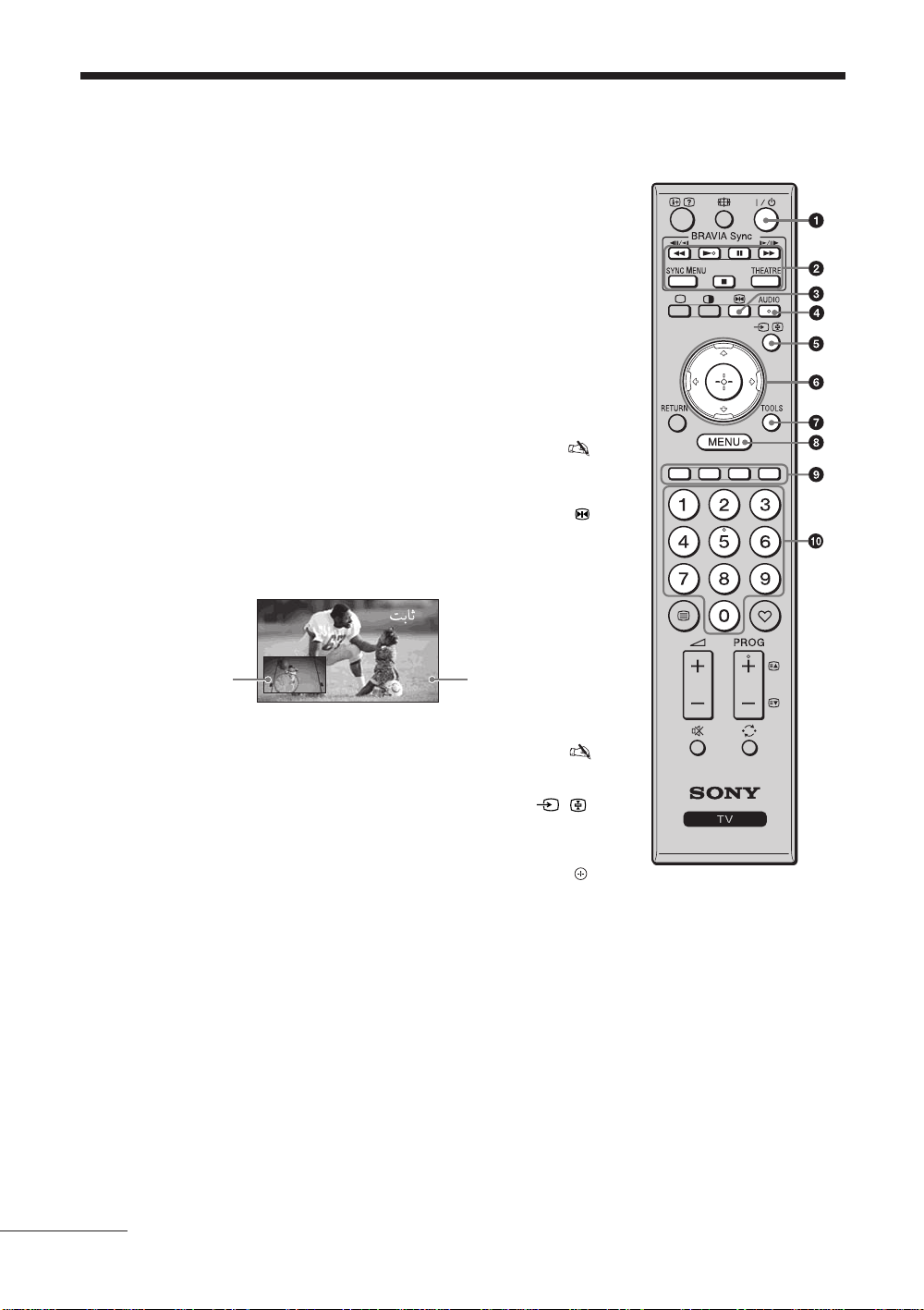
ﺭﻭﺩ ﻩﺍﺭ ﺯﺍ ﻝﱰﻨﻛ ہﺎﮕﺘﺳﺩ ﻪﺑ ﲆﻛ ﻰﻫﺎﮕﻧ
ﻥﻮﻳﺰﻳﻮﻠﺗ ﺵﺎﺑ ﻩﺩﺎﻣﺁ – "/1 1
.ﺪﻨﻛ ﯽﻣ ﺵﻮﻣﺎﺧ ﻭ ﻦﺷﻭﺭ ﺵﺎﺑ ﻩﺩﺎﻣﺁ ﺖﻟﺎﺣ یﻭﺭ ﺯﺍ ﺍﺭ ﻥﻮﻳﺰﻳﻮﻠﺗ
(18 ﺔﺤﻔﺻ) BRAVIA Sync 2
ﺪﻴﻧﺍﻮﺗ ﯽﻣ ﺍﺭ ﺖﺳﺍ ﻞﺼﺘﻣ ﻥﻮﻳﺰﻳﻮﻠﺗ ﻪﺑ ﻪﻛ
BRAVIA
ﺎﺑ ﺭﺎﮔﺯﺎﺳ ﻩﺎﮕﺘﺳﺩ :m/N/X/M/x •
.ﺪﻳﲑﮔ ﺭﺎﻜﺑ
ﻞﺼﺘﻣ (ﯽﮕﻧﺎﺧ ﯽﻜﻴﻧﻭﱰﻜﻟﺍ ﺕﺍﺰﻴﻬﲡ ﻝﱰﻨﻛ) HDMI CEC ﻩﺎﮕﺘﺳﺩ یﻮﻨﻣ :SYNC MENU •
ﺎﻳ ﺮﮕﻳﺩ یﺩﻭﺭﻭ ﻪﺤﻔﺻ ﻥﺩﺮﻛ ﻩﺪﻫﺎﺸﻣ ﲔﺣ ﺭﺩ .ﺪﻫﺩ ﯽﻣ ﺶﻳﲈﻧ ﺍﺭ ﺖﺳﺍ ﻩﺪﺷ ﯽﻧﺎﺒﻴﺘﺸﭘ ﻪﻛ ﻩﺪﺷ
.ﺩﻮﺷ ﯽﻣ ﻩﺩﺍﺩ ﺶﻳﲈﻧ "HDMI ﻩﺎﮕﺘﺳﺩ ﺏﺎﺨﺘﻧﺍ" ،ﻥﻮﻳﺰﻳﻮﻠﺗ ﻪﻣﺎﻧﺮﺑ
ﻪﻜﻴﻣﺎﮕﻨﻫ .ﺪﻴﻫﺩ ﺭﺍﺮﻗ ﺵﻮﻣﺎﺧ ﺎﻳ ﻦﺷﻭﺭ یﻭﺭ ﺪﻴﻧﺍﻮﺗ ﯽﻣ ﺍﺭ ﺮﺗﺎﺌﺗ ﺖﻟﺎﺣ ﺖﻴﻌﺿﻭ :THEATRE •
ﻥﻮﻳﺰﻳﻮﻠﺗ ﺮﮔﺍ) ﺩﻮﺷ ﯽﻣ ﺝﺭﺎﺧ ﻪﻨﻴﲠ ﺕﺭﻮﺼﺑ یﺍﺪﺻ ،ﺩﺭﺍﺩ ﺭﺍﺮﻗ ﻦﺷﻭﺭ یﻭﺭ ﺮﺗﺎﺌﺗ ﺖﻟﺎﺣ
یﺍﺮﺑ ﺮﻳﻮﺼﺗ ﺖﻴﻔﻴﻛ ﻭ (ﺪﺷﺎﺑ ﻩﺪﺷ ﻞﺼﺘﻣ HDMI ﻞﺑﺎﻛ ﺯﺍ ﻩﺩﺎﻔﺘﺳﺍ ﺎﺑ ﯽﺗﻮﺻ ﻢﺘﺴﻴﺳ ﮏﻳ ﺎﺑ
.ﺩﻮﺷ ﯽﻣ ﻢﻴﻈﻨﺗ ﮏﻴﺗﺎﻣﻮﺗﺍ ﺭﻮﻄﺑ ﯽﻳﻮﺋﺪﻳﻭ یﺎﻬﻤﻠﻴﻓ
.ﺩﻮﺷ ﯽﻣ ﺵﻮﻣﺎﺧ ﺰﻴﻧ ﺮﺗﺎﺌﺗ ﺖﻟﺎﺣ ،ﺪﻴﻨﻛ ﺵﻮﻣﺎﺧ ﺍﺭ ﻥﻮﻳﺰﻳﻮﻠﺗ ﲈﺷ ﺮﮔﺍ •
یﻮﮔﻮﻟ ﻪﻛ یﺍ ﻩﺪﺷ ﻞﺻﻭ Sony ﻪﻠﻴﺳﻭ ﺎﺑ ﻂﻘﻓ (
.ﺖﺳﺍ ﺱﱰﺳﺩ ﻞﺑﺎﻗ ﺪﺷﺎﺑ ﺭﺎﮔﺯﺎﺳ
BRAVIA
ﯽﻧﺎﻣﺯ ﻢﻫ) HDMI یﺍﺮﺑ ﻝﱰﻨﻛ •
HDMI یﺍﺮﺑ ﻝﱰﻨﻛ ﺎﺑ ﺎﻳ ﻪﺘﺷﺍﺩ ﺍﺭ
BRAVIA Sync
ﺖﺑﺎﺛ ﺮﻳﻮﺼﺗ – 3
ﻝﺎﺣ ﺭﺩ ﻪﻣﺎﻧﺮﺑ ﻩﺮﺠﻨﭘ ﻩﺍﺮﳘ ﻪﺑ ﺖﺑﺎﺛ ﺮﻳﻮﺼﺗ ﺶﻳﲈﻧ یﺍﺮﺑ ﺭﺎﺒﻜﻳ ﺍﺮﻧﺁ .ﺪﻨﻛ ﯽﻣ ﺖﺑﺎﺛ ﺍﺭ ﻥﻮﻳﺰﻳﻮﻠﺗ ﺮﻳﻮﺼﺗ
ﺭﺎﺑ یﺍﺮﺑ .ﺪﻴﻫﺩ ﺭﺎﺸﻓ ﺖﺑﺎﺛ ﺮﻳﻮﺼﺗ ﻂﺳﻮﺗ ﺶﻳﲈﻧ ﻪﺤﻔﺻ ﻥﺪﺷ ﺮﭘ یﺍﺮﺑ ﺍﺩﺪﳎ ﺍﺮﻧﺁ .ﺪﻴﻫﺩ ﺭﺎﺸﻓ ﺶﺨﭘ
.ﺪﻴﻫﺩ ﺭﺎﺸﻓ ﺶﺨﭘ ﻝﺎﺣ ﺭﺩ ﻪﻣﺎﻧﺮﺑ ﻪﺑ ﺖﺸﮔﺯﺎﺑ ﺖﻬﺟ ﻡﻮﺳ
ﺶﺨﭘ ﻝﺎﺣ ﺭﺩ ﻪﻣﺎﻧﺮﺑ
ﮏﭼﻮﻛ ﻩﺮﺠﻨﭘ ﺖﻴﻌﻗﻮﻣ)
ﻥﺩﺍﺩ ﺭﺎﺸﻓ ﺎﺑ ﻥﺍﻮﺗ ﯽﻣ ﺍﺭ
F/f/G/g یﺎﻫ ﻪﻤﻛﺩ
ﺖﺑﺎﺛ ﺮﻳﻮﺼﺗ
(.ﺩﺮﻛ ﺎﺠﺑﺎﺟ
BRAVIA Sync
THEATRESYNC MENU
AUDIO
RETURN
TOOLS
.ﺪﺷﺎﺑ ﯽﻤﻧ ﺱﱰﺳﺩ ﻞﺑﺎﻗ PC یﺩﻭﺭﻭ ﻊﺒﻨﻣ ﻭ ﻮﻠﻗﻭﺩ ﺮﻳﻮﺼﺗ یﺍﺮﺑ ﺩﺮﻜﻠﻤﻋ ﻦﻳﺍ •
(25 ﺔﺤﻔﺻ) ﻪﻧﺎﮔﻭﺩ یﺍﺪﺻ – AUDIO 4
ﻦﺘﻣ ﻦﺘﺷﺍﺩ ﻪﮕﻧ/یﺩﻭﺭﻭ ﺏﺎﺨﺘﻧﺍ – / 5
.(16 ﻪﺤﻔﺻ) ﺪﻨﻛ ﯽﻣ ﺏﺎﺨﺘﻧﺍ ﺍﺭ یﺩﻭﺭﻭ ﻊﺒﻨﻣ ﻭ ﻩﺩﺍﺩ ﺶﻳﲈﻧ ﺍﺭ ﻩﺪﺷ ﻞﺼﺘﻣ ﺕﺍﺰﻴﻬﲡ ﺖﺴﻴﻟ •
.ﺩﺭﺍﺩ ﯽﻣ ﻪﮕﻧ ﺍﺭ ﯽﻧﻮﻨﻛ ﻪﺤﻔﺻ :ﻦﺘﻣ ﺖﻟﺎﺣ ﺭﺩ •
ﻝﻮﺒﻗ /ﻢﺘﻳﺁ ﺏﺎﺨﺘﻧﺍ – F/f/G/g/ 6
.ﺪﻨﻛ ﯽﻣ ﻢﻴﻈﻨﺗ ﺎﻳ ﺏﺎﺨﺘﻧﺍ ﺍﺭ ﺎﻫ ﻢﺘﻳﺁ •
.ﺪﻨﻛ ﯽﻣ ﺩﺎﺗ ﺍﺭ ﻩﺪﺷ ﺏﺎﺨﺘﻧﺍ یﺎﻫ ﻢﺘﻳﺁ •
(13 ﺔﺤﻔﺻ) TOOLS 7
.ﺪﻨﻛ ﯽﻣ ﻮﻐﻟ ﺎﻳ ﻩﺩﺍﺩ ﺶﻳﲈﻧ ﺍﺭ ﻮﻨﻣ
ﯽﮕﻧﺭ یﺎﻫ ﻪﻤﻛﺩ 9
.ﺪﺑﺎﻳ ﯽﻣ ﯽﺳﱰﺳﺩ ﺖﺣﺍﺭ ﯽﻠﻴﺧ ﻭ ﻊﻳﴎﺭﻮﻄﺑ ﻪﻃﻮﺑﺮﻣ ﯽﮕﻧﺭ ﻊﻳﴎ ﻦﺘﻣ یﻮﻨﻣ ﻪﺑ :ﻦﺘﻣ ﺖﻟﺎﺣ ﺭﺩ
ﻝﺎﺳﺭﺍ ﻩﺪﻨﺘﺳﺮﻓ ﻩﺎﮕﺘﺴﻳﺍ ﺯﺍ ﻊﻳﴎ ﻦﺘﻣ ﻪﻛ ﺖﺳﺍ ﺮﻳﺬﭘ ﻥﺎﻜﻣﺍ ﯽﺗﺭﻮﺻ ﺭﺩ ﻂﻘﻓ ﻊﻳﴎ ﻦﺘﻣ یﺎﻫ ﯽﮔﮋﻳﻭ
ﺭﺍﺩ ﻩﺭﲈﺷ یﺎﻫ ﻪﻤﻛﺩ q;
ﺪﻴﻨﻛ ﺩﺭﺍﻭ ﺖﻋﴪﺑ ﺍﺭ ﻢﻗﺭ ﻭﺩ ،ﺮﺗﻻﺎﺑ ﻭ 10 یﺎﳍﺎﻧﺎﻛ ﻩﺭﲈﺷ یﺍﺮﺑ
.ﺪﻴﻳﲈﻧ ﺏﺎﺨﺘﻧﺍ ﺍﺭ ﺎﳍﺎﻧﺎﻛ
.(30 ﻪﺤﻔﺻ)
.ﺪﻴﻫﺩ ﺭﺎﺸﻓ ﻪﺤﻔﺻ ﺏﺎﺨﺘﻧﺍ یﺍﺮﺑ ﺍﺭ ﻪﺤﻔﺻ ﻩﺭﲈﺷ ﻢﻗﺭ ﻪﺳ :ﻦﺘﻣ ﺖﻟﺎﺣ ﺭﺩ
ﺩﺭﺍﺩ ﻪﻣﺍﺩﺍ
PR
11
MENU 8
.ﺪﺷﺎﺑ ﻩﺪﺷ
PROG + ،N
ﯽﻣ ﯽﺴﻣ ﻁﺎﻘﻧ یﺍﺭﺍﺩ
یﺎﻫ ﻪﻤﻛﺩ ،5 ﺩﺪﻋ
AUDIO ﻭ
• z
ﻥﻮﻳﺰﻳﻮﻠﺗ ﺎﺑ ﻥﺩﺮﻛ ﺭﺎﻛ ﻡﺎﮕﻨﻫ .ﺪﻨﺷﺎﺑ
ﻊﺟﺍﺮﻣ ﻥﺍﻮﻨﻋ ﻪﺑ ﯽﺴﳌ ﻁﺎﻘﻧ ﺯﺍ
.ﺪﻴﻨﻛ ﻩﺩﺎﻔﺘﺳﺍ
•
•
Page 46
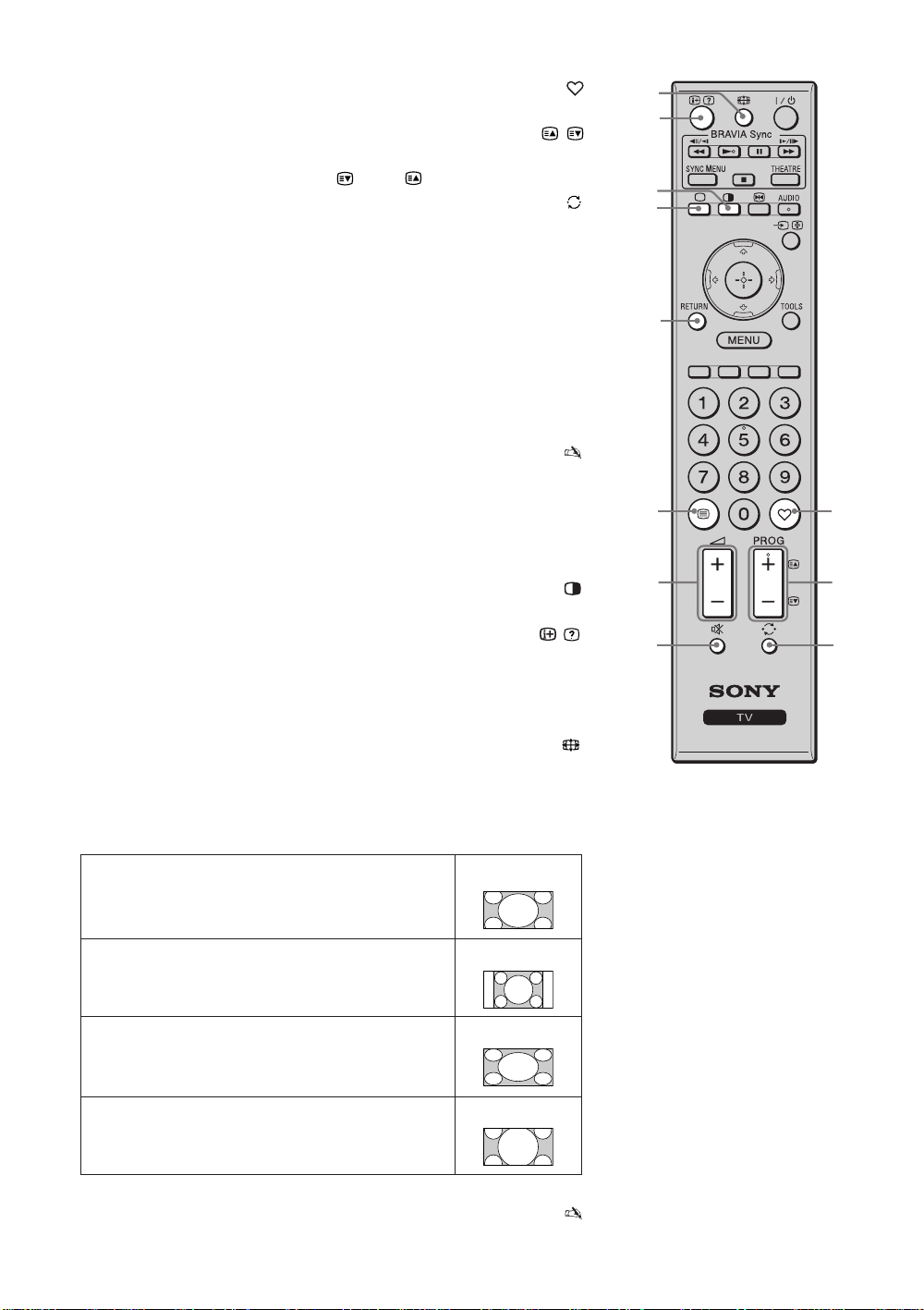
ﻩﺪﻳﺰﮔﺮﺑ ﺖﺴﻴﻟ – qa
.(20 ﺔﺤﻔﺻ) ﺪﻫﺩ ﯽﻣ ﺶﻳﲈﻧ ﺍﺭ ﺪﻳﺍ ﻩﺩﺮﻛ ﺺﺨﺸﻣ ﲈﺷ ﻪﻛ یﺍ ﻩﺪﻳﺰﮔﺮﺑ ﺖﺴﻴﻟ
PROG +/−/ / qs
.ﺪﻨﻛ ﯽﻣ ﺏﺎﺨﺘﻧﺍ ﺍﺭ (-) ﯽﻠﺒﻗ ﺎﻳ (+) یﺪﻌﺑ ﻝﺎﻧﺎﻛ •
.ﺪﻨﻛ ﯽﻣ ﺏﺎﺨﺘﻧﺍ ﺍﺭ ( ) ﯽﻠﺒﻗ ﺎﻳ ( ) یﺪﻌﺑ ﻪﺤﻔﺻ :ﻦﺘﻣ ﺖﻟﺎﺣ ﺭﺩ •
ﯽﻠﺒﻗ ﻝﺎﻧﺎﻛ – qd
.(ﻪﻴﻧﺎﺛ ﺞﻨﭘ ﺯﺍ ﱰﻤﻛ یﺍﺮﺑ) ﺩﺩﺮﮔ ﯽﻣﺮﺑ ﺪﻳﺩﻮﺑ ﺎﺷﺎﲤ ﻝﺎﺣ ﺭﺩ ﻪﻛ ﯽﻠﺒﻗ ﻝﺎﻧﺎﻛ ﻪﺑ
ﺍﺪﺻ ﻊﻄﻗ – % qf
.ﺪﻴﻫﺩ ﺭﺎﺸﻓ ﻩﺭﺎﻳﻭﺩ ﺍﺪﺻ ﯽﺑﺎﻳﺯﺎﺑ یﺍﺮﺑ .ﺪﻴﻫﺩ ﺭﺎﺸﻓ ﺍﺪﺻ ﻥﺩﺮﻛ ﻊﻄﻗ یﺍﺮﺑ
ﺍﺭ ﻪﻤﻛﺩ ﻦﻳﺍ ،ﺪﻴﻨﻛ ﻦﺷﻭﺭ ﺍﺪﺻ ﻊﻄﻗ ﺖﻟﺎﺣ ﺭﺩ ﺍﺭ ﻥﻮﻳﺰﻳﻮﻠﺗ ﺩیﻩﺍﻮﺧ ﯽﻣ ﺮﮔﺍ ،ﺵﺎﺑ ﻩﺩﺎﻣﺁ ﺖﻟﺎﺣ ﺭﺩ • z
.ﺪﻴﻫﺩ ﺭﺎﺸﻓ
ﺍﺪﺻ – 2 +/– qg
.ﺪﻨﻛ ﯽﻣ ﻢﻴﻈﻨﺗ ﺍﺭ ﺍﺪﺻ
ﻦﺘﻣ – / qh
ﻥﻮﻳﺰﻳﻮﻠﺗ ﺮﻳﻮﺼﺗ ﻭﺭ ﺮﺑ ﻦﺘﻣ T ﻦﺘﻣ :ﺪﻫﺩ ﯽﻣ ﺶﻳﲈﻧ ﺍﺭ ﻪﻜﺒﺷ ﺯﺍ ﯽﻟﺎﺳﺭﺍ ﻦﺘﻣ :ﻦﺘﻣ ﺖﻟﺎﺣ ﺭﺩ
.(ﻦﺘﻣ ﺲﻳﻭﴎ ﺯﺍ ﺝﻭﺮﺧ) ﻦﺘﻣ ﻥﻭﺪﺑ T ( ﺐﻛﺮﻣ ﺖﻴﻴﻌﺿﻭ)
.ﺪﺷﺎﺑ یﻮﺴﻧﺍﺮﻓ ﺎﻳ ﯽﺳﺭﺎﻓ ،ﯽﺴﻴﻠﮕﻧﺍ ﺪﻧﺍﻮﺗ ﯽﻣ ﻩﺪﺷ ﺖﻓﺎﻳﺭﺩ ﻝﺎﻨﮕﻴﺳ ﻪﺑ ﻪﺘﺴﺑ ﯽﺸﻳﺎﻤﻧ ﻥﺎﺑﺯ •
RETURN qj
.ﺩﺩﺮﮔ ﯽﻣﺮﺑ ﯽﻠﺒﻗ ﺶﻳﲈﻧ ﻪﺤﻔﺻ ﻪﺑ یﺍ ﻩﺪﺷ ﻩﺩﺍﺩ ﺶﻳﲈﻧ یﻮﻨﻣ ﺮﻫ ﺯﺍ
–
ﻥﻮﻳﺰﻳﻮﻠﺗ ﺖﻟﺎﺣ
a
qk
ﺶﻳﲈﻧ ﻪﺑ ﺍﺮﻧﺁ ﺎﻳ ،ﺪﻳﻮﺷ ﺝﺭﺎﺧ ﻦﺘﻣ ﺖﻟﺎﺣ ﺯﺍ ﺩﻮﺷ ﯽﻣ ﻩﺩﺍﺩ ﺶﻳﲈﻧ ﯽﺒﻧﺎﺟ ﻩﺎﮕﺘﺳﺩ یﺩﻭﺭﻭ ﻪﻜﻴﻣﺎﮕﻨﻫ
.ﺪﻴﻫﺩ ﲑﻴﻐﺗ ﻥﻮﻳﺰﻳﻮﻠﺗ
(17 ﺔﺤﻔﺻ) PIP/ﻮﻠﻗﻭﺩ ﺮﻳﻮﺼﺗ – ql
.ﺪﻫﺩ ﯽﻣ ﺶﻳﲈﻧ ﻥﺎﻣﺰﳘ ﺭﻮﻄﺑ ﺍﺭ ﺮﻳﻮﺼﺗ ﻭﺩ
ﻦﺘﻣ ﻥﺩﺮﻛ ﺭﺎﻜﺷﺁ /ﺕﺎﻋﻼﻃﺍ – / w;
ﻪﺤﻔﺻ ﺖﻟﺎﺣ ﻭ ﺶﺨﭘ ﻝﺎﺣ ﺭﺩ ﻝﺎﻧﺎﻛ ﻩﺭﲈﺷ ﺶﻳﲈﻧ یﺍﺮﺑ ﺭﺎﺒﻜﻳ ﺍﺮﻧﺁ .ﺪﻫﺩ ﯽﻣ ﺶﻳﲈﻧ ﺍﺭ ﺕﺎﻋﻼﻃﺍ •
ﺝﺭﺎﺧ یﺍﺮﺑ ﻡﻮﺳ ﺭﺎﺑ یﺍﺮﺑ .ﺪﻴﻫﺩ ﺭﺎﺸﻓ ﻥﺎﻣﺯ ﺕﺎﻋﻼﻃﺍ ﺶﻳﲈﻧ یﺍﺮﺑ ﺍﺩﺪﳎ ﺍﺮﻧﺁ .ﺪﻴﻫﺩ ﺭﺎﺸﻓ ﺶﻳﲈﻧ
.ﺪﻴﻫﺩ ﺭﺎﺸﻓ ﺶﻳﲈﻧ ﻪﺤﻔﺻ یﻭﺭ ﺯﺍ ﺶﻳﲈﻧ ﻥﺩﺮﻛ
.(ﲈﻌﻣ ﮏﻳ ﺏﺍﻮﺟ ،ﻼﺜﻣ) ﺪﻨﻛ ﯽﻣ ﺭﺎﻜﺷﺁ ﺍﺭ ﻩﺪﺷ ﻥﺎﻬﻨﭘ ﺕﺎﻋﻼﻃﺍ :ﻦﺘﻣ ﺖﻟﺎﺣ ﺭﺩ •
ﺾﻳﺮﻋ ﺖﻟﺎﺣ – wa
.ﺪﻴﻫﺩ ﺭﺎﺸﻓ ﻩﺍﻮﳋﺩ ﺾﻳﺮﻋ ﺖﻟﺎﺣ ﺏﺎﺨﺘﻧﺍ یﺍﺮﺑ ﺍﺭ ﻪﻤﻛﺩ .ﺪﻫﺩ ﯽﻣ ﲑﻴﻐﺗ ﺍﺭ ﺮﻳﻮﺼﺗ ﻩﺯﺍﺪﻧﺍ
wa
w;
ql
qk
qj
qh
qg
qf
RETURN
BRAVIA Sync
THEATRESYNC MENU
AUDIO
TOOLS
qa
qs
qd
(PC یﺩﻭﺭﻭ ﺯﺍ ﲑﻏ) HDMI ﺎﻳ HD/DVD ،ﻮﻳﺪﻳﻭ ،ﻥﻮﻳﺰﻳﻮﻠﺗ یﺍﺮﺑ
ﺖﺳﺍﺭ ﻭ ﭗﭼ ﺎﻫ ﻪﺷﻮﮔ. ﺪﻨﻛ ﻰﻣ گﺭﺰﺑ ﺍﺭ ﺮﻳﻮﺼﺗ ﺰﻛﺮﻣ ﺖﻤﺴﻗ
16:9
.ﺪﻨﻨﻛ ﺮﭘ ﺍﺭ
.ﺪﻨﻨﻛ ﺮﭘ ﺍﺭ
.ﺪﻨﻨﻛ ﺮﭘ ﺍﺭ
ﻪﺤﻔﺻ ﺎﺗ ﺪﺸﻛ ﻰﻣ ﻰﻘﻓﺍ ﺭﻮﻃ ﻪﺑ ﺍﺭ
16:9
ﻪﺤﻔﺻ ﺎﺗ ﺪﻧﻮﺷ ﻰﻣ ﻩﺪﻴﺸﻛ ﺮﻳﻮﺼﺗ
ﺮﻳﻮﺼﺗ
4:3
ﻪﺤﻔﺻ ﺎﺗ ﺪﻧﻮﺷ ﻰﻣ ﻩﺩﺍﺩ ﻥﺎﺸﻧ
16:9
ﺮﻳﻮﺼﺗ
4:3
.ﺪﻫﺩ ﻰﻣ ﺶﻳﲈﻧ ﺖﺳﺭﺩ ﺎﻫ
.ﺪﻧﻮﺷ ﻩﺪﻳﺮﺑ ﺖﺳﺍ ﻦﻠﳑ ﺮﻳﻮﺼﺗ ﲔﻳﺎﭘ ﻭ ﻻﺎﺑ ﺎﻫ ﺖﻤﺴﻗ *
.ﺪﻴﻳﲈﻧ ﺏﺎﺨﺘﻧﺍ HD ﻝﺎﻨﮕﻴﺳ ﻊﺒﻨﻣ ﺮﻳﻭﺎﺼﺗ یﺍﺮﺑ ﺪﻴﻧﺍﻮﺗ ﯽﻤﻧ ﺍﺭ "ﻝﺎﻣﺮﻧ" ﺖﻟﺎﺣ •
*ﺾﻳﺮﻋ ﻡﻭﺯ
ﻝﺎﻣﺮﻧ ﺭﺎﻨﻛ ﺎﻫﺭﺍﻮﻧ.ﺪﻫﺩ ﻰﻣ ﺶﻳﲈﻧ ﻥﺁ ﲆﺻﺍ ﻩﺯﺍﺪﻧﺍ ﺭﺩ ﺍﺭ
ﻞﻣﺎﻛ
*ﻡﻭﺯ ﺖﺒﺴﻧﺭﺩ ﺍﺭ (ﻪﻣﺎﻧ ﺖﻛﺎﭘ ﻞﻜﺷ) پﻮﻜﺳﺍ ﻰﻳﲈﻨﻴﺳ ﺎﻫ ﻪﻣﺎﻧﺮﺑ ﺶﺨﭘ
12
PR
Page 47
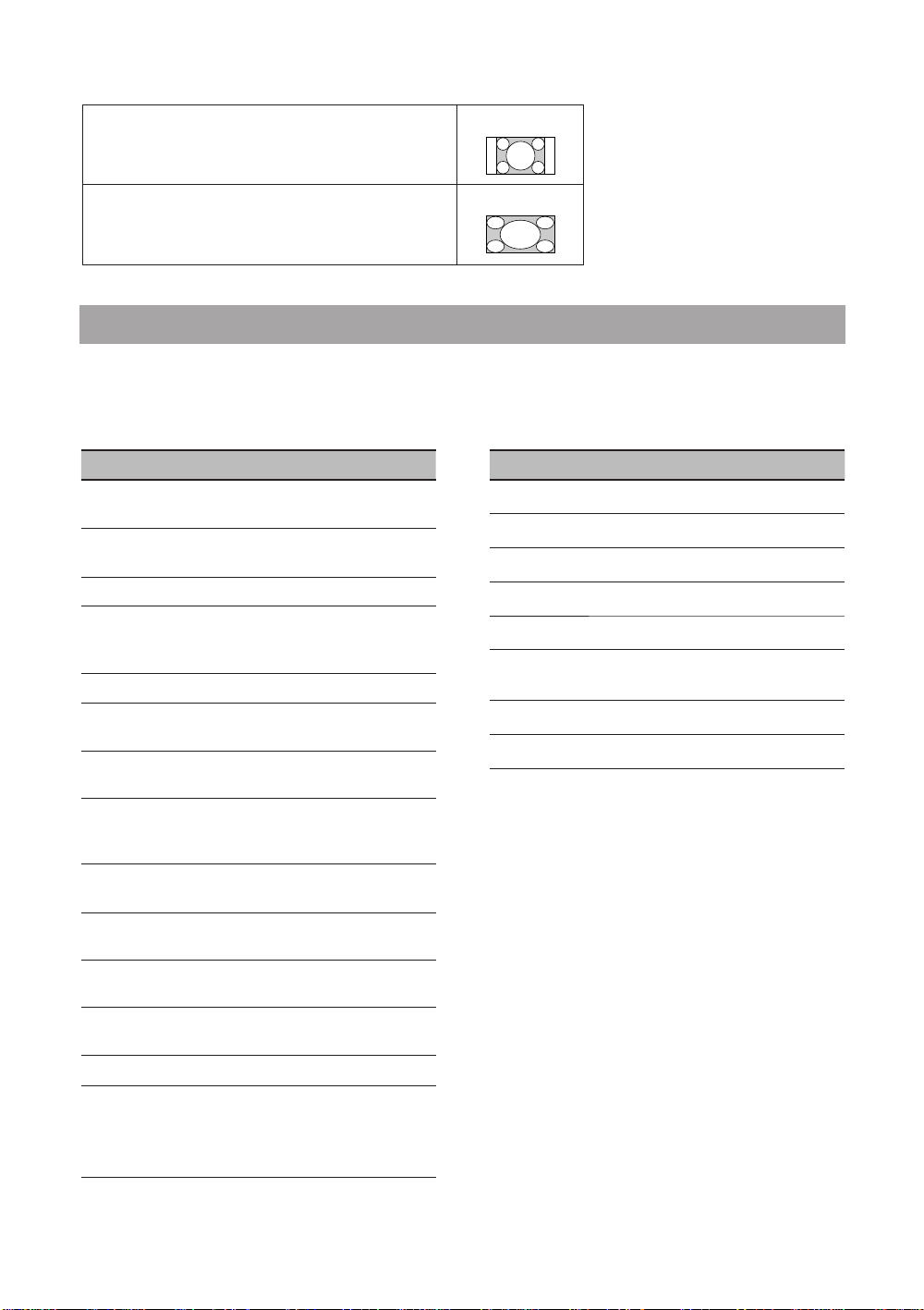
PC
یﺩﻭﺭﻭ یﺍﺮﺑ
1 ﻞﻣﺎﻛ.ﺩﲑﮕﺑ یﺩﻮﻤﻋ ﺭﻮﻄﺑ ﺍﺭ ﺶﻳﲈﻧ ﻪﺤﻔﺻ ﺎﺗ ﺪﺸﻛ ﯽﻣ ﺍﺭ ﯽﻠﺻﺍ ﺮﻳﻮﺼﺗ
ﯽﻘﻓﺍ ﺭﻮﻄﺑ ﺍﺭ
ﺶﻳﲈﻧ ﻪﺤﻔﺻ ﺎﺗ ﺪﺸﻛ ﯽﻣ ﺍﺭ 1 ﻞﻣﺎﻛ ﺮﻳﻮﺼﺗ
16:9
2 ﻞﻣﺎﻛ
.ﺩﲑﮕﺑ
ﺭﺍﺰﺑﺍ یﻮﻨﻣ ﺯﺍ ﻩﺩﺎﻔﺘﺳﺍ
ﲑﻴﻐﺗ ﺶﻳﲈﻧ ﻪﺤﻔﺻ ﺖﻟﺎﺣ ﻭ ﺶﺨﭘ ﻊﺒﻨﻣ ﺎﺑ ﻖﺑﺎﻄﻣ ﺍﺭ ﺕﲈﻴﻈﻨﺗ ﻭ ﻪﺘﻓﺎﻳ ﯽﺳﱰﺳﺩ ﯽﻧﻮﮔﺎﻧﻮﮔ یﺎﻫ ﻪﻨﻳﺰﮔ ﻪﺑ ﺪﻴﻧﺍﻮﺗ ﯽﻣ ﲈﺷ TOOLS ﻪﻤﻛﺩ ﻥﺩﺍﺩ ﺭﺎﺸﻓ ﺎﺑ
.ﺪﻨﺷﺎﺑ ﯽﻣ ﺕﻭﺎﻔﺘﻣ ﺶﺨﭘ ﻊﺒﻨﻣ ﻉﻮﻧ ﻪﺑ ﻪﺘﺴﺑ ﻩﺪﺷ ﻩﺩﺍﺩ ﺶﻳﲈﻧ یﺎﻫ ﻪﻨﻳﺰﮔ .ﺪﻴﻨﻛ ﻢﻴﻈﻨﺗ /ﻩﺩﺍﺩ
ﻩﺪﺷ ﻞﺼﺘﻣ ﻩﺎﮕﺘﺳﺩ ﺯﺍ ﻪﻣﺎﻧﺮﺑ ﻩﺪﻫﺎﺸﻣ
.ﺪﻴﻨﻴﺒﺑ ﺍﺭ
23 ﻪﺤﻔﺻ
.ﺪﻴﻨﻴﺒﺑ ﺍﺭ 23 ﻪﺤﻔﺻ
24 ﻪﺤﻔﺻ
23 ﻪﺤﻔﺻ
.ﺪﻴﻨﻴﺒﺑ ﺍﺭ
27 ﻪﺤﻔﺻ
.ﺪﻴﻨﻴﺒﺑ ﺍﺭ
17 ﻪﺤﻔﺻ
.ﺪﻴﻨﻴﺒﺑ ﺍﺭ
17 ﻪﺤﻔﺻ
17 ﻪﺤﻔﺻ
.ﺪﻴﻨﻴﺒﺑ ﺍﺭ
.ﺪﻴﻨﻴﺒﺑ ﺍﺭ
17 ﻪﺤﻔﺻ
.ﺪﻴﻨﻴﺒﺑ ﺍﺭ
29 ﻪﺤﻔﺻ
.ﺪﻴﻨﻴﺒﺑ ﺍﺭ
29 ﻪﺤﻔﺻ
.ﺪﻴﻨﻴﺒﺑ ﺍﺭ
28 ﻪﺤﻔﺻ
28 ﻪﺤﻔﺻ
ﺭﺎﮔﺯﺎﺳ ﻩﺎﮕﺘﺳﺩ ﻦﺘﺧﺍﺪﻧﺍ ﺭﺎﻜﺑ یﺍﺮﺑ
ﻪﺤﻔﺻ یﻮﻨﻣ ﻩﺪﺷ ﻞﺼﺘﻣ
HDMI
.ﺪﻫﺩ ﯽﻣ ﺶﻳﲈﻧ ﺍﺭ
ﺎﻫ ﻪﻨﻳﺰﮔﻒﻴﺻﻮﺗ
ﺖﻟﺎﺣ ﺰﺠﺑ) ﺮﻳﻮﺼﺗ ﺖﻟﺎﺣ
PC یﺩﻭﺭﻭ
(
ﺖﻟﺎﺣ ﺭﺩ ﻂﻘﻓ) ﺶﻳﲈﻧ ﺖﻟﺎﺣ
PC یﺩﻭﺭﻭ
(
ﺍﺪﺻ ﺖﻟﺎﺣ.ﺪﻴﻨﻴﺒﺑ ﺍﺭ
MPEG
PC ﻱﺩﻭﺭﻭ ﺖﻟﺎﺣ ﺰﺠﺑ)
ﻭ
ﺰﻳﻮﻧ ﺶﻫﺎﻛ
(ﺍﺰﺟﺍ ﻱﺩﻭﺭﻭ ﺖﻟﺎﺣ
ﻮﮔﺪﻨﻠﺑ.ﺪﻴﻨﻴﺒﺑ ﺍﺭ
ﺖﻟﺎﺣ ﺰﺠﺑ) ﻮﻠﻗﻭﺩ ﺮﻳﻮﺼﺗ
PC یﺩﻭﺭﻭ
(
ﺭﺩ ﻂﻘﻓ) ﺮﻳﻮﺼﺗ ﺭﺩ ﺮﻳﻮﺼﺗ
PC یﺩﻭﺭﻭ ﺖﻟﺎﺣ
(
ﺖﻟﺎﺣ ﺭﺩ ﻂﻘﻓ) ﺩﺮﻔﻨﻣ ﺮﻳﻮﺼﺗ
ﺭﺩ ﺮﻳﻮﺼﺗ ﻭ ﻮﻠﻗﻭﺩ ﺮﻳﻮﺼﺗ
(ﺮﻳﻮﺼﺗ
ﺭﺩ ﻂﻘﻓ) ﻝﺎﻨﮕﻴﺳ ﺢﻄﺳ
(ﺮﻳﻮﺼﺗ ﺭﺩ ﺮﻳﻮﺼﺗ ﺖﻟﺎﺣ
ﺭﺩ ﻂﻘﻓ) ﮏﻴﺗﺎﻣﻮﺗﺍ ﻢﻴﻈﻨﺗ
PC یﺩﻭﺭﻭ ﺖﻟﺎﺣ
(
ﺭﺩ ﻂﻘﻓ) ﻖﻓﺍ ﻥﺎﻜﻣ ﺮﻴﻴﻐﺗ
PC یﺩﻭﺭﻭ ﺖﻟﺎﺣ
(
ﺖﻟﺎﺣ ﺰﺠﺑ) ﺏﺍﻮﺧ ﺮﻤﻳﺎﺗ
PC یﺩﻭﺭﻭ
(
ﻭﲑﻧ ﻩﲑﺧﺫ.ﺪﻴﻨﻴﺒﺑ ﺍﺭ
ﺭﺩ ﻂﻘﻓ] ﻩﺎﮕﺘﺳﺩ ﻝﱰﻨﻛ
HDMI یﺩﻭﺭﻭ ﺕﺎﺣ
ﺰﺠﺑ)
HDMI ﺮﺗﻮﻴﭙﻣﺎﻛ یﺩﻭﺭﻭ
[(PC
24 ﻪﺤﻔﺻ
30 ﻪﺤﻔﺻ
27 ﻪﺤﻔﺻ
.ﺪﻴﻨﻛ ﻪﻓﺎﺿﺍ ﻩﺪﻳﺰﮔﺮﺑ ﺖﺴﻴﻟ
28 ﻪﺤﻔﺻ
28 ﻪﺤﻔﺻ
ﻥﻮﻳﺰﻳﻮﻠﺗ ﻪﻣﺎﻧﺮﺑ ﻩﺪﻫﺎﺸﻣ
ﺎﻫ ﻪﻨﻳﺰﮔﻒﻴﺻﻮﺗ
ﺮﻳﻮﺼﺗ ﺖﻟﺎﺣ.ﺪﻴﻨﻴﺒﺑ ﺍﺭ 23 ﻪﺤﻔﺻ
ﺍﺪﺻ ﺖﻟﺎﺣ.ﺪﻴﻨﻴﺒﺑ ﺍﺭ
ﺪﻨﻤﺷﻮﻫ ﺮﻳﻮﺼﺗ.ﺪﻴﻨﻴﺒﺑ ﺍﺭ
MPEG
ﺰﻳﻮﻧ ﺶﻫﺎﻛ.ﺪﻴﻨﻴﺒﺑ ﺍﺭ 23 ﻪﺤﻔﺻ
ﻮﮔﺪﻨﻠﺑ.ﺪﻴﻨﻴﺒﺑ ﺍﺭ
ﺎﻫ ﻩﺪﻳﺰﮔﺮﺑ ﻪﺑ ﻥﺩﻭﺰﻓﺍ ﻪﺑ ﺍﺭ ﯽﻠﻌﻓ ﻝﺎﻧﺎﻛ ﺪﻴﻧﺍﻮﺗ ﯽﻣ ﲈﺷ
ﺏﺍﻮﺧ ﺮﻤﻳﺎﺗ.ﺪﻴﻨﻴﺒﺑ ﺍﺭ
ﻭﲑﻧ ﻩﲑﺧﺫ.ﺪﻴﻨﻴﺒﺑ ﺍﺭ
13
PR
Page 48
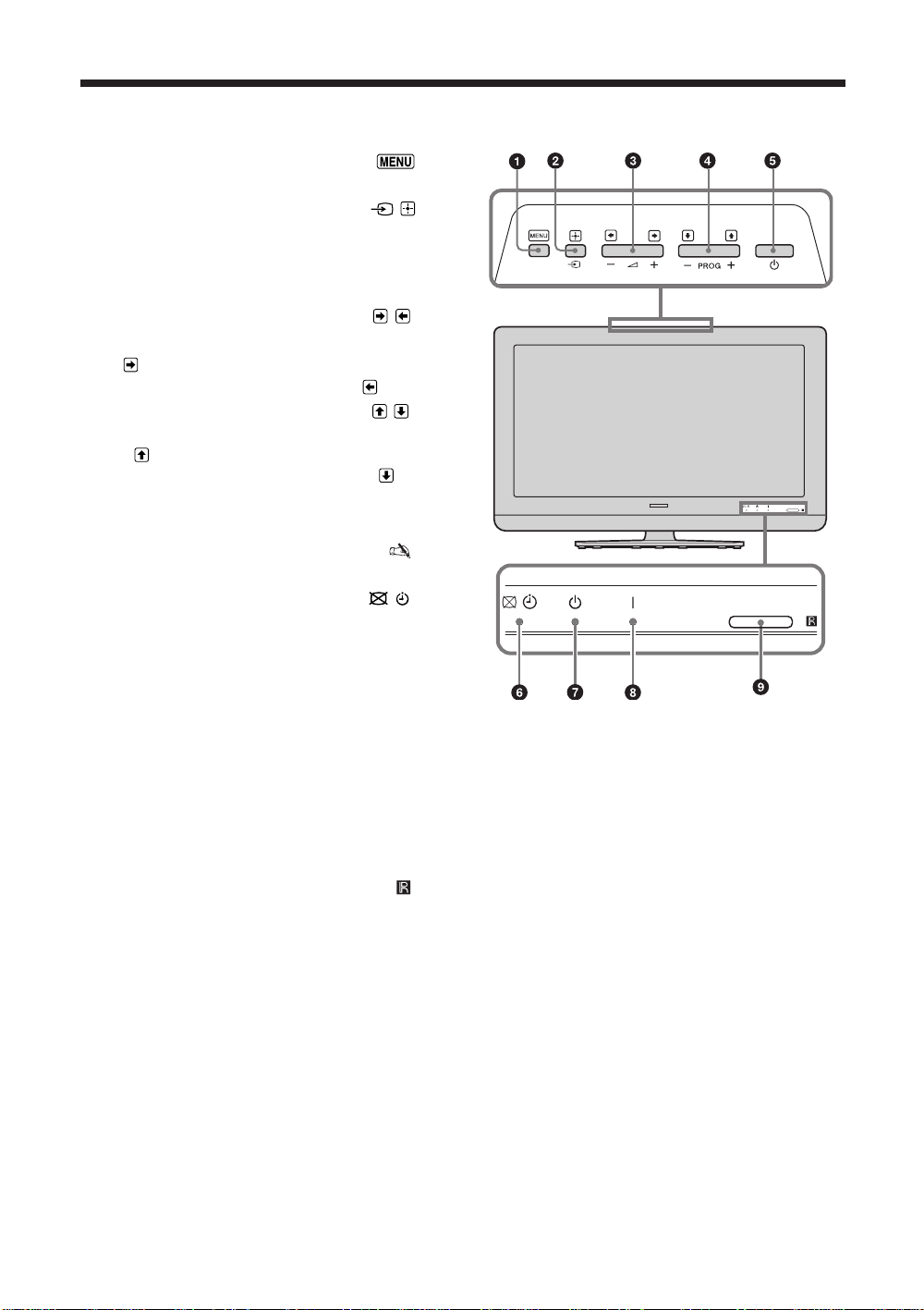
ﻥﻮﻳﺰﻳﻮﻠﺗ ﻯﺎﻫ ﺮﮕﻧﺎﺸﻧ ﻭ ﺎﻫ ﻪﻤﻛﺩ ﻪﺑ ﲆﻛ ﻰﻫﺎﮕﻧ
1
.ﺪﻨﻛ ﯽﻣ ﻮﻐﻟ ﺎﻳ ﻩﺩﺍﺩ ﺶﻳﲈﻧ ﺍﺭ ﻮﻨﻣ
ﻝﻮﺒﻗ/ یﺩﻭﺭﻭ ﺏﺎﺨﺘﻧﺍ – / 2
ﺍﺭ یﺩﻭﺭﻭ ﻊﺒﻨﻣ ﻭ ﻩﺩﺍﺩ ﺶﻳﲈﻧ ﺍﺭ ﻩﺪﺷ ﻞﺼﺘﻣ ﺕﺍﺰﻴﻬﲡ ﺖﺴﻴﻟ •
.(16 ﻪﺤﻔﺻ) ﺪﻨﻛ ﯽﻣ ﺏﺎﺨﺘﻧﺍ
ﺍﺭ ﻢﻴﻈﻨﺗ ﻭ ،ﻩﺩﺮﻛ ﺏﺎﺨﺘﻧﺍ ﺍﺭ ﻪﻨﻳﺰﮔ ﺎﻳ ﻮﻨﻣ :ﻥﻮﻳﺰﻳﻮﻠﺗ یﻮﻨﻣ ﺭﺩ
.ﺪﻨﻛ ﯽﻣ ﺪﻴﻳﺎﺗ
2 +/–/ / 3
.ﺪﻫﺩ ﯽﻣ (-) ﺶﻫﺎﻛ ﺎﻳ (+) ﺶﻳﺍﺰﻓﺍ ﺍﺭ ﺍﺪﺻ •
ﺎﻳ ( ) ﺖﺳﺍﺭ ﻑﺮﻃ ﻪﺑ ﺎﻫ ﻪﻨﻳﺰﮔ یﻭﺭ :ﻥﻮﻳﺰﻳﻮﻠﺗ یﻮﻨﻣ ﺭﺩ •
.ﺪﻨﻛ ﯽﻣ ﺖﻛﺮﺣ ( ) ﭗﭼ
PROG +/– / / 4
.ﺪﻨﻛ ﯽﻣ ﺏﺎﺨﺘﻧﺍ ﺍﺭ (-) ﯽﻠﺒﻗ ﺎﻳ (+) یﺪﻌﺑ ﻝﺎﻧﺎﻛ •
ﲔﻳﺎﭘ ﺎﻳ ( ) ﻻﺎﺑ ﻑﺮﻄﺑ ﺎﻫ ﻪﻨﻳﺰﮔ یﻭﺭ ﺯﺍ :ﻥﻮﻳﺰﻳﻮﻠﺗ یﻮﻨﻣ ﺭﺩ •
.ﺪﻨﻛ ﯽﻣ ﺖﻛﺮﺣ ( )
.ﺪﻨﻛ ﯽﻣ ﺵﻮﻣﺎﺧ ﺎﻳ ﻦﺷﻭﺭ ﺍﺭ ﻥﻮﻳﺰﻳﻮﻠﺗ
،ﺏﻭﺎﻨﺘﻣ ﻕﺮﺑ ﺯﺍ ﻞﻣﺎﻛ ﺭﻮﻄﺑ ﻥﻮﻳﺰﻳﻮﻠﺗ ﻥﺩﺮﻛ ﺍﺪﺟ یﺍﺮﺑ •
.ﺪﻴﺸﻜﺑ ﺏﻭﺎﻨﺘﻣ ﻕﺮﺑ ﺯﺍ ﺍﺭ ﻪﺧﺎﺷﻭﺩ
ﺮﻤﻳﺎﺗ ﺮﮕﻧﺎﺸﻧ/ﺵﻮﻣﺎﺧ ﺮﻳﻮﺼﺗ
ﯽﻣ ﻦﺷﻭﺭ ﺰﺒﺳ ﮓﻧﺭ ﻪﺑ ﺩﻮﺷ ﯽﻣ ﺵﻮﻣﺎﺧ ﺮﻳﻮﺼﺗ ﻪﻜﻴﻣﺎﮕﻨﻫ •
.(28 ﻪﺤﻔﺻ) ﺩﻮﺷ
ﻦﺷﻭﺭ ﯽﻳﺎﺑﺮﻬﻛ ﮓﻧﺭ ﻪﺑ ﺩﻮﺷ ﯽﻣ ﻩﺩﺍﺩ ﺭﺍﺮﻗ ﺮﻤﻳﺎﺗ یﻭﺭ ﻪﻜﻴﻣﺎﮕﻨﻫ
.(28 ﻪﺤﻔﺻ) ﺩﻮﺷ ﯽﻣ
ﺵﺎﺑ ﻩﺩﺎﻣﺁ ﺮﮕﻧﺎﺸﻧ – 1 7
ﮓﻧﺭ ﻪﺑ ﺩﲑﮔ ﯽﻣ ﺭﺍﺮﻗ ﺵﺎﺑ ﻩﺩﺎﻣﺁ ﺖﻟﺎﺣ ﺭﺩ ﻥﻮﻳﺰﻳﻮﻠﺗ ﻪﻜﻴﻣﺎﮕﻨﻫ
.ﺩﻮﺷ ﯽﻣ ﻦﺷﻭﺭ ﺰﻣﺮﻗ
ﻭﲑﻧ ﺮﮕﻧﺎﺸﻧ – + 8
ﯽﻣ ﻦﺷﻭﺭ ﺰﺒﺳ ﮓﻧﺭ ﻪﺑ ﺩﻮﺷ ﯽﻣ ﻦﺷﻭﺭ ﻥﻮﻳﺰﻳﻮﻠﺗ ﻪﻜﻴﻣﺎﮕﻨﻫ •
ﯽﻣ ﱰﻨﺷﻭﺭ ﺩﻮﺷ ﯽﻣ ﻩﺩﺎﻔﺘﺳﺍ ﺭﻭﺩ ﻩﺍﺭ ﺯﺍ ﻝﱰﻨﻛ ﺯﺍ ﻪﻜﻴﻣﺎﮕﻨﻫ
(28 ﻪﺤﻔﺻ) ﺭﻮﻧ ﺭﻮﺴﻨﺳ /ﺭﻭﺩ ﻩﺍﺭ ﺯﺍ ﻝﱰﻨﻛ ﺭﻮﺴﻨﺳ – 9
.ﺪﻨﻛ ﯽﻣ ﺖﻓﺎﻳﺭﺩ ﺭﻭﺩ ﻩﺍﺭ ﺯﺍ ﻝﱰﻨﻛ ﺯﺍ ﺍﺭ IR یﺎﳍﺎﻨﮕﻴﺳ •
ﺩﺮﻛﺭﺎﻛ ﺖﺳﺍ ﻦﻜﳑ ﻪﻛﺍﺮﭼ ،ﺪﻴﻫﺪﻧ ﺭﺍﺮﻗ ﺭﻮﺴﻨﺳ یﻭﺭ ﺍﺭ یﺰﻴﭼ
.ﺩﲑﮔ ﺭﺍﺮﻗ ﲑﺛﺎﺗ ﺖﲢ ﻥﺁ
•
ﻭﲑﻧ – 1 5
6
/
–
•
.ﺩﻮﺷ
•
.ﺩﻮﺷ
•
14
PR
Page 49
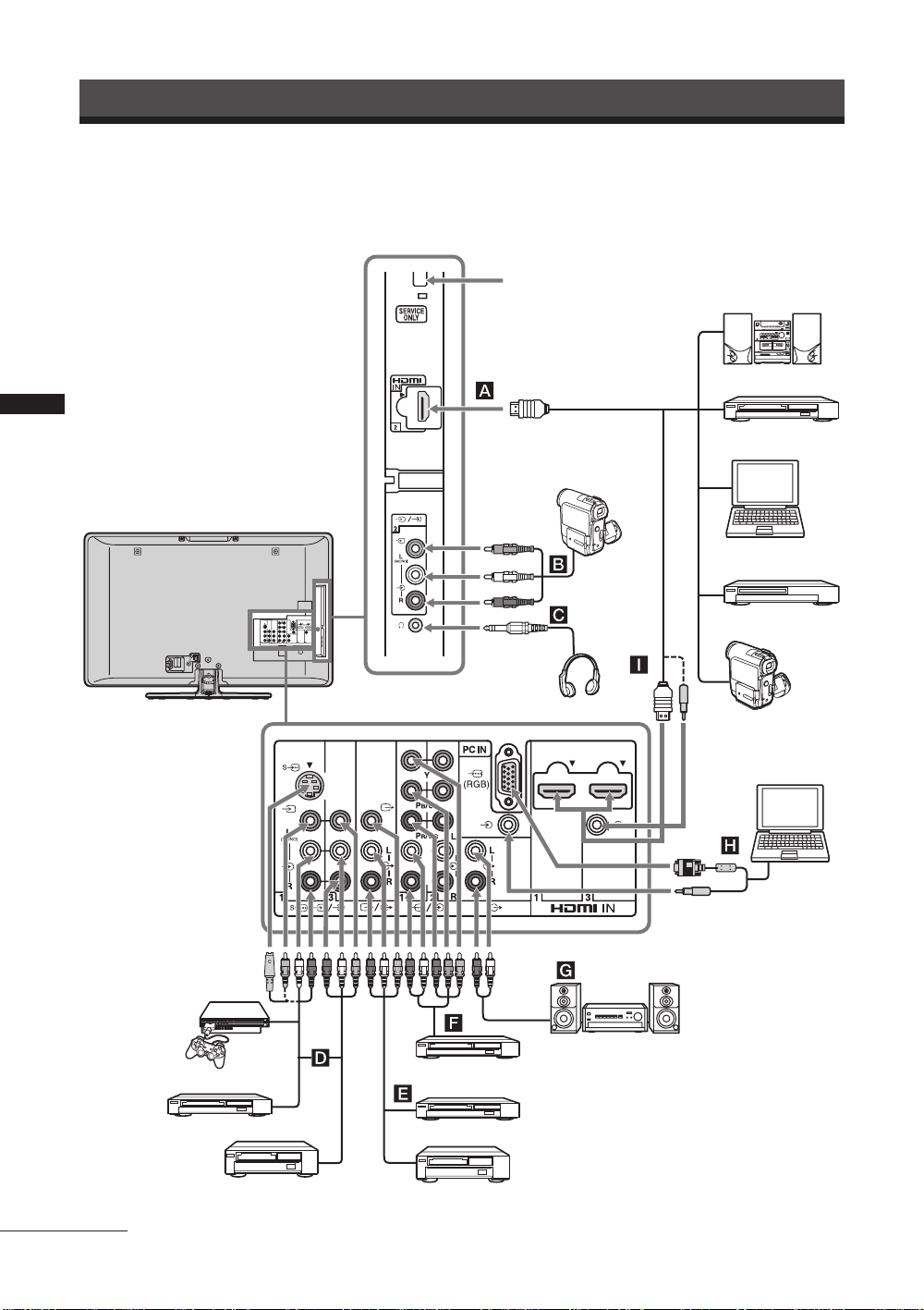
ﻯﺭﺎﻴﺘﺧﺍ ﺕﺍﺰﻴﻬﲡ ﺯﺍ ﻥﺩﺮﻛ ﻩﺩﺎﻔﺘﺳﺍ
ﻯﺭﺎﻴﺘﺧﺍ ﺕﺍﺰﻴﻬﲡ ﻥﺩﺮﻛ ﻞﺼﺘﻣ
.ﺪﻴﻨﻛ ﻞﺼﺘﻣ ﺩﻮﺧ ﻥﻮﻳﺰﻳﻮﻠﺗ ﻪﺑ ﺪﻴﻧﺍﻮﺗ ﯽﻣ ﺍﺭ یﺩﺎﻳﺯ یﺭﺎﻴﺘﺧﺍ یﺎﻬﻫﺎﮕﺘﺳﺩ
ﺩﻮﺷ ﯽﻣ ﻩﺩﺎﻔﺘﺳﺍ ﺲﻳﻭﴎ یﺍﺮﺑ ﻂﻘﻓ
ﯽﺗﻮﺻ ﻢﺘﺴﻴﺳ
DVD ﺶﺨﭘ ﻩﺎﮕﺘﺳﺩ
ﻯﺭﺎﻴﺘﺧﺍ ﺕﺍﺰﻴﻬﲡ ﺯﺍ ﻥﺩﺮﻛ ﻩﺩﺎﻔﺘﺳﺍ
ﯽﻳﻮﺋﺪﻳﻭ یﺯﺎﺑ ﻩﺎﮕﺘﺳﺩ
ﺮﻳﻮﺼﺗ ﯽﺟﻭﺮﺧ ﻪﻔﻟﻮﻣ ﻥﻭﺪﺑ DVD ﺶﺨﭘ ﻩﺎﮕﺘﺳﺩ
ﻥﻮﻓﺪﻫ ﺎﻫ ﻰﺷﻮﮔ
ﯽﺟﻭﺮﺧ یﺎﻫ ﻪﻔﻟﻮﻣ ﺎﺑ
DVD ﻂﺒﺿ ﻩﺎﮕﺘﺳﺩ
ﲔﺑﺭﻭﺩ
S
یﺭﺍﺩﱪﻤﻠﻴﻓ
VHS/Hi8/DVC
DVD ﺶﺨﭘ ﻩﺎﮕﺘﺳﺩ
(HDMI ﯽﺟﻭﺮﺧ) PC
ﺶﺨﭘ ﻩﺎﮕﺘﺳﺩ
Blu-ray ﮏﺴﻳﺩ
یﺭﺍﺩﱪﻤﻠﻴﻓ ﲔﺑﺭﻭﺩ
ﯽﻟﺎﺘﻴﳚﺩ
PC
ﻰﺗﻮﺻ ﺕﺍﺰﻴﻬﲡ
Hi-Fi ﺎﻓ ﺎﻫ
ﺩﺭﺍﺩ ﻪﻣﺍﺩﺍ
15
ﻮﺋﺪﻳﻭ
PR
ﻮﺋﺪﻳﻭ
Page 50
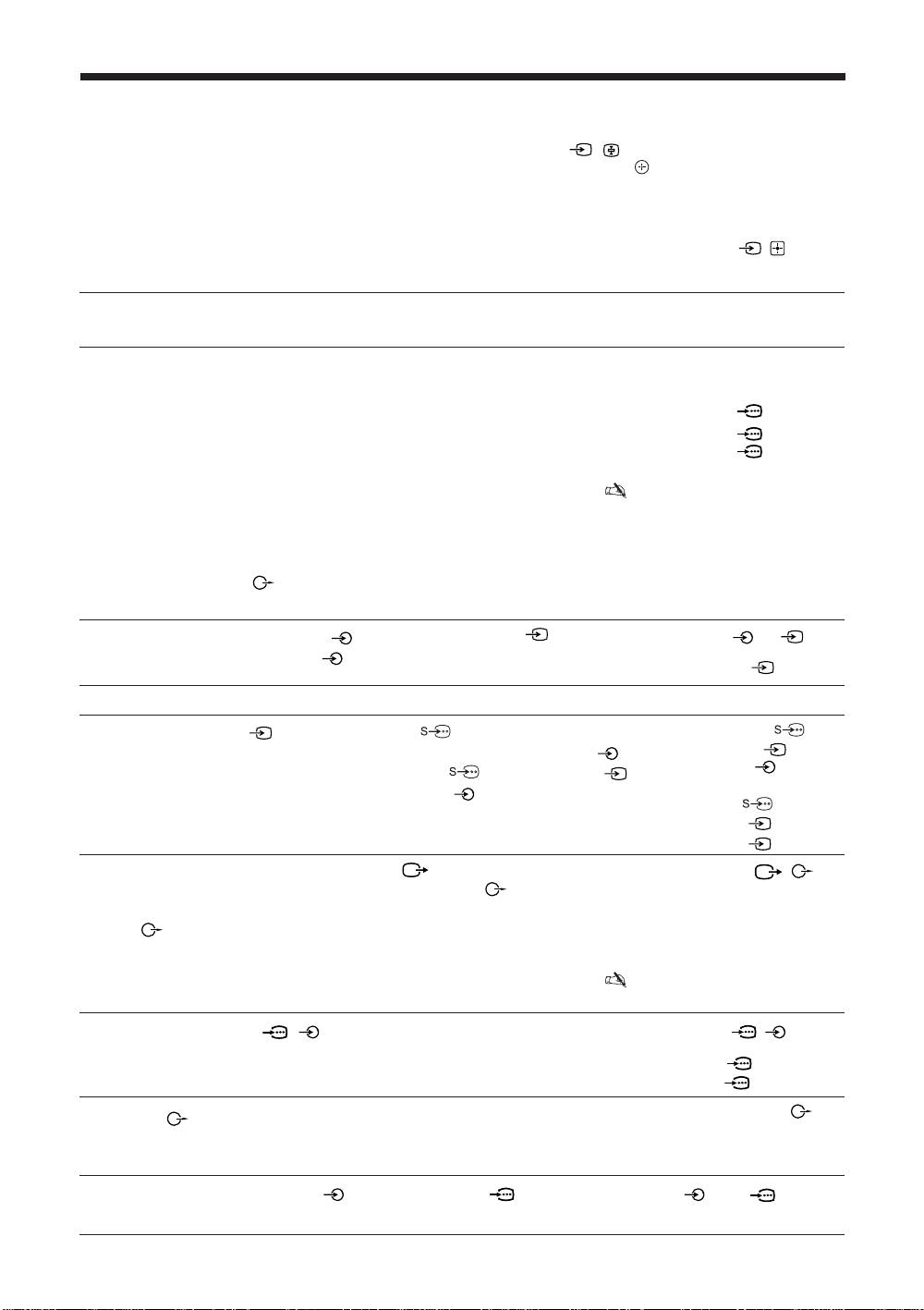
ﻩﺪﺷ ﻞﺼﺘﻣ ﻩﺎﮕﺘﺳﺩ ﺯﺍ ﺮﻳﻭﺎﺼﺗ یﺎﺷﺎﲤ
ﺏﺎﺨﺘﻧﺍ یﺍﺮﺑ ﺍﺭ F
ﻩﺪﺷ ﺖﻳﻼﻳﺎﻫ ﻢﺘﻳﺁ ﺩﺭﺬﮕﺑ ﻪﻴﻧﺎﺛ
ﻪﺤﻔﺻ) ﺩﲑﮔ ﺭﺍﺮﻗ
f ﻪﻤﻛﺩ .ﺪﻴﻫﺩ ﺭﺎﺸﻓ ﻩﺪﺷ ﻞﺼﺘﻣ یﺎﻬﻫﺎﮕﺘﺳﺩ ﺖﺴﻴﻟ ﺶﻳﲈﻧ یﺍﺮﺑ ﺍﺭ
/
"
AV یﺮﻳﻮﺼﺗ ﯽﺗﻮﺻ ﻢﻴﻈﻨﺗ
2 ﯽﻠﻤﻋ ﭻﻴﻫ ﻡﺎﺠﻧﺍ ﻥﻭﺪﺑ F
"
یﻮﻨﻣ ﺭﺩ "ﻮﻳﺪﻳﻭ ﺎﻫ ﻡﺎﻧ" ﺖﻟﺎﺣ ﺭﺩ "ﺵﺮﭘ" یﻭﺭ یﺩﻭﺭﻭ ﻊﺒﻨﻣ ﻪﻜﻴﻣﺎﮕﻨﻫ (.ﺩﻮﺷ ﯽﻣ ﺏﺎﺨﺘﻧﺍ
f ﻥﺩﺍﺩ ﺭﺎﺸﻓ ﺯﺍ ﺪﻌﺑ ﺮﮔﺍ) .ﺪﻴﻫﺩ ﺭﺎﺸﻓ ﺍﺭ ﺲﭙﺳ ،ﻩﺍﺩ ﺭﺎﺸﻓ ﻩﺍﻮﳋﺩ یﺩﻭﺭﻭ ﻊﺒﻨﻣ
/
ﺲﭙﺳ ،ﺪﻴﻨﻛ ﻦﺷﻭﺭ ﺍﺭ ﻩﺪﺷ ﻞﺼﺘﻣ ﻩﺎﮕﺘﺳﺩ
/
.ﺪﺷ ﺪﻫﺍﻮﺨﻧ ﺮﻫﺎﻇ ﺖﺴﻴﻟ ﺭﺩ یﺩﻭﺭﻭ ﻥﺁ ،(26
ﺍﺭ F/f ﻪﻤﻛﺩ .ﺪﻴﻫﺩ ﺭﺎﺸﻓ ﻩﺍﻮﳋﺩ یﺩﻭﺭﻭ ﻊﺒﻨﻣ ﺏﺎﺨﻨﺗﺍ ﻭ ﻩﺪﺷ ﻞﺼﺘﻣ ﯽﺒﻧﺎﺟ یﺎﻬﻫﺎﮕﺘﺳﺩ ﺖﺴﻴﻟ ﺶﻳﲈﻧ یﺍﺮﺑ ﺍﺭ ﻥﻮﻳﺰﻳﻮﻠﺗ ﯽﻳﻻﺎﺑ ﻪﺷﻮﮔ ﺭﺩ / ﻪﻤﻛﺩﺍ • z
.ﺪﻴﻳﲈﻧ ﱪﺻ ﻪﻴﻧﺎﺛ
2 ﺕﺪﻣ یﺍﺮﺑ ﻩﺍﻮﳋﺩ یﺩﻭﺭﻭ ﻊﺒﻨﻣ ﺶﻳﲈﻧ ﺖﻬﺟ ﺲﭙﺳ .ﺪﻴﻫﺩ ﺭﺎﺸﻓ ﻩﺍﻮﳋﺩ یﺩﻭﺭﻭ ﻊﺒﻨﻣ ﺏﺎﺨﺘﻧﺍ یﺍﺮﺑ ﺪﻴﻧﺍﻮﺗ ﯽﻣ ﺰﻴﻧ
ﻒﻴﺻﻮﺗ
یﻭﺭ یﺩﻭﺭﻭ ﺖﻣﻼﻋ /ﺎﻫ ﺶﻴﻓ
ﺶﻳﲈﻧ ﻪﺤﻔﺻ
.ﺪﻴﻳﲈﻧ ﻞﺼﺘﻣ ﺍﺭ
ﺎﺑ ﻪﻛ یﺍ ﻪﻠﻴﺳﻭ ﲈﺷ ﻪﻛ ﯽﻣﺎﮕﻨﻫ ،ﻩﻭﻼﻋ ﻪﺑ .ﺪﻧﻮﺷ ﯽﻣ ﺩﺭﺍﻭ ﻩﺎﮕﺘﺳﺩ ﺯﺍ ﯽﺗﻮﺻ یﺎﳍﺎﻨﮕﻴﺳ ﻭ ﯽﻟﺎﺘﻴﳚﺩ ﺮﻳﻭﺎﺼﺗ
یﺍﺮﺑ .ﺩﻮﺷ ﯽﻣ ﯽﻧﺎﺒﻴﺘﺸﭘ ﻩﺪﺷ ﻞﺻﻭ ﻪﻠﻴﺳﻭ ﺎﺑ ﻁﺎﺒﺗﺭﺍ ،ﺪﻴﻨﻛ ﯽﻣ ﻞﺻﻭ ﺍﺭ ﺖﺳﺍ ﺭﺎﮔﺯﺎﺳ
ﺯﺍ ﺍﺭ
DVI
ﻝﺎﺼﺗﺍ ﻭ ،ﻩﺩﻮﻤﻧ ﻞﺻﻭ
.ﺪﻴﻨﻛ ﻞﺻﻭ
،576i ،480p ،480i :ﺪﻨﻨﻛ ﯽﻣ ﺕﺭﻮﭘﺎﺳ ﺍﺭ ﺮﻳﺯ یﺮﻳﻮﺼﺗ یﺎﳞﺩﻭﺭﻭ ﻂﻘﻓ
ﯽﺒﻧﺎﺟ ﻩﺎﮕﺘﺳﺩ ﻪﭽﻧﺎﻨﭼ .ﺪﻴﻳﲈﻧ ﻞﺼﺘﻣ ﯽﺗﻮﺻ 2 ﻝﺎﺼﺗﺍ یﺎﻫ ﻪﻳﺎﭘ ﻪﺑ ﻭ ،یﺮﻳﻮﺼﺗ 2 ﻝﺎﺼﺗﺍ ﻪﻳﺎﭘ ﻪﺑ
ﺎﻳ 3ﯽﺗﻮﺻ ﻝﺎﺼﺗﺍ یﺎﻫ ﻪﻳﺎﭘ ﻭ ، 1 ﺎﻳ 3یﺮﻳﻮﺼﺗ ﻝﺎﺼﺗﺍ ﻪﻳﺎﭘ ﺎﻳ 1 S ﻮﺋﺪﻳﻭ ﻝﺎﺼﺗﺍ ﻪﻳﺎﭘ ﻪﺑ ﺍﺭ ﻩﺎﮕﺘﺳﺩ
1یﺮﻳﻮﺼﺗ ﻝﺎﺼﺗﺍ ﻪﻳﺎﭘ ﻪﺑ ﺍﺭ یﺭﺍﺩﱪﻤﻠﻴﻓ ﲔﺑﺭﻭﺩ ،ﺮﻳﻮﺼﺗ ﺖﻳﺯﺍﺭﺎﭘ ﺯﺍ یﲑﮔﻮﻠﺟ یﺍﺮﺑ .ﺪﻴﻳﲈﻧ ﻞﺼﺘﻣ 1
ﻪﺑ ﺍﺮﻧﺁ ،ﺪﻴﻨﻛ ﯽﻣ ﻞﺼﺘﻣﺍﺭ ﻮﻧﻮﻣ ﻩﺎﮕﺘﺳﺩ ﺮﮔﺍ .ﺪﻴﻨﻜﻧ ﻞﺼﺘﻣ ﻥﺎﻣﺯ ﮏﻳ ﺭﺩ 1 S ﻮﺋﺪﻳﻭ ﻝﺎﺼﺗﺍ ﻪﻳﺎﭘ ﻭ
یﺎﻫ ﻪﻳﺎﭘ .ﺪﻴﻳﲈﻧ ﻞﺼﺘﻣ ﻥﻮﻳﺰﻳﻮﻠﺗ ﻖﻳﺮﻃ ﺯﺍ ﺮﻳﻭﺎﺼﺗ ﻂﺒﺿ یﺍﺮﺑ ﺮﻳﻮﺼﺗ ﯽﺟﻭﺮﺧ ﻝﺎﺼﺗﺍ یﺎﻫ ﻪﻳﺎﭘ ﻪﺑ ﺍﺮﻧﺁ
ﻞﺼﺘﻣ ﻮﺋﺪﻳﻭ ﺎﻳ
"ﯽﺗﻮﺻ ﻢﺘﺴﻴﺳ" یﻭﺭ ﺍﺭ "ﻮﮔﺪﻨﻠﺑ" ﺖﻴﻌﺿﻭ ،ﻥﻮﻳﺰﻳﻮﻠﺗ یﺎﻫﻮﮔﺪﻨﻠﺑ یﺍﺪﺻ ﻥﺩﺮﻛ ﻊﻄﻗ یﺍﺮﺑ .ﺪﻴﻳﲈﻧ
ﺭﺍﺮﻗ
ﻞﺻﻭ
HDMI IN
1 ،2 ﺎﻳ 3ﻝﺎﺼﺗﺍ ﻪﻳﺎﭘ ﻪﺑ ﺍﺮﻧﺁ ﺪﺷﺎﺑ ﯽﻣ
ﻝﺎﺼﺗﺍ ،ﺖﺳﺍ
HDMI IN
.1080/24p ﻭ (ﺰﺗﺮﻫ 60/50) 1080p ،(ﺰﺗﺮﻫ 60/50) 1080i ،(ﺰﺗﺮﻫ 60/50) 720p ،576p
ﻞﺑﺎﻛ) ﺪﻴﻳﲈﻧ ﻩﺩﺎﻔﺘﺳﺍ ﺪﺷﺎﺑ ﯽﻣ
ﻢﺘﺴﻴﺳ یﺍﺪﺻ ﻪﺑ ﻥﺩﺍﺩ ﺵﻮﮔ یﺍﺮﺑ ،
15
ﻪﺤﻔﺻ ﺭﺩ G ﻪﺑ) ﯽﺗﻮﺻ ﯽﺟﻭﺮﺧ ﻝﺎﺼﺗﺍ یﺎﻫ ﻪﻳﺎﭘ ﻪﺑ ﺍﺮﻧﺁ ﲈﺘﺣ ﻥﻮﻳﺰﻳﻮﻠﺗ ﻖﻳﺮﻃ ﺯﺍ ﯽﺗﻮﺻ
DVI
ﻝﺎﺼﺗﺍ ﮏﻳ یﺍﺭﺍﺩ ﻪﻠﻴﺳﻭ ﺮﮔﺍ .ﺪﻴﻳﲈﻧ ﻉﻮﺟﺭ 27 ﻪﺤﻔﺻ ﻪﺑ ﻁﺎﺒﺗﺭﺍ ﻦﻳﺍ ﻊﺿﻭ
HDMI IN
3 ﻝﺎﺼﺗﺍ ﻪﺑ (ﺖﺴﻴﻧ ﻪﻤﻴﻤﺿ)
3 یﺎﻫ ﻝﺎﺼﺗﺍ ﺭﺩ ﯽﺗﻮﺻ یﺩﻭﺭﻭ یﺎﻫ ﻝﺎﺼﺗﺍ ﻪﺑ ﺍﺭ ﻪﻠﻴﺳﻭ ﯽﺗﻮﺻ ﯽﺟﻭﺮﺧ یﺎﻫ
HDMI
ﺖﻣﻼﻋ یﺍﺭﺍﺩ ﻪﻛ یﺍ
HDMI
ﻝﺎﺼﺗﺍ ﻪﻳﺎﭘ ﻂﺳﻮﺗ ﯽﺗﻮﺻ ﻢﺘﺴﻴﺳ ﮏﻳ ﻝﺎﺼﺗﺍ ﻡﺎﮕﻨﻫ •
.ﺪﻴﻨﻛ ﻞﺼﺘﻣ
2 L (MONO) ﻝﺎﺼﺗﺍ ﻪﻳﺎﭘ ﻪﺑ ،ﺪﻳﺍ ﻩﺩﺮﻛ ﻞﺼﺘﻣ ﺍﺭ ﯽﻳﻮﻧﻮﻣ
HDMI
ﻝﺎﺼﺗﺍ ﻪﻳﺎﭘ یﺍﺭﺍﺩ ﻩﺎﮕﺘﺳﺩ ﺮﮔﺍ
DVI - HDMI
HDMI
ﺭﻮﺘﭘﺍﺩﺁ ﺲﻴﻓﱰﻨﻳﺍ ﮏﻳ ﻖﻳﺮﻃ
HDMI
ﯽﻟﺎﺼﺗﺍ یﺎﻫ ﻪﻳﺎﭘ •
ﻞﺑﺎﻛ ﺯﺍ ﻂﻘﻓ ﻪﻛ ﺪﻳﻮﺷ ﻦﺌﻤﻄﻣ •
.(ﺩﻮﺷ ﯽﻣ ﻪﻴﺻﻮﺗ ﯽﻧﻮﺳ
.ﺪﻴﻳﲈﻧ ﻞﺼﺘﻣ ﺰﻴﻧ (ﺪﻴﻨﻛ ﻪﻌﺟﺍﺮﻣ
HDMI
یﺍﺮﺑ ﻝﱰﻨﻛ
HDMI
.ﺪﻴﻫﺩ ﺍﺮﻓ ﺵﻮﮔ ﻥﻮﻓﺪﻫ ﺎﻫ ﻰﺷﻮﮔ ﻖﻳﺮﻃ ﺯﺍ ﻥﻮﻳﺰﻳﻮﻠﺗ ﺍﺪﺻ ﻪﺑ ﺎﺗ ﺪﻴﻨﻛ ﻞﺻﻭ iﺶﻴﻓ ﻪﺑ
.ﺪﻴﻳﲈﻧ ﻞﺼﺘﻣ 1 ﺎﻳ 3 L (MONO) ﻝﺎﺼﺗﺍ ﻪﻳﺎﭘ
DVD ﻂﺒﺿ ﻩﺎﮕﺘﺳﺩ یﻭﺭ ﺮﺑ ﻥﻮﻳﺰﻳﻮﻠﺗ ﺯﺍ ﺍﺪﺻ ﻂﺒﺿ یﺍﺮﺑ ﺍﺭ ﯽﺗﻮﺻ ﯽﺟﻭﺮﺧ ﻝﺎﺼﺗﺍ
L ﻝﺎﺼﺗﺍ ﻪﻳﺎﭘ ﻪﺑ ﺍﺮﻧﺁ ،ﺪﻳﺍ ﻩﺩﺮﻛ ﻞﺼﺘﻣ ﺍﺭ ﺪﺷﺎﺑ ﯽﻣ ﻮﻧﻮﻣ ﻪﻛ ﯽﻫﺎﮕﺘﺳﺩ ﺮﮔﺍ .(27 ﻪﺤﻔﺻ) ﺪﻴﻫﺩ
HDMI IN 2 A
HDMI IN 1 ﺎﻳ 3 I
ﺎﻳ
HDMI 1
ﺎﻳ HDMI 2
HDMI 3
2 ﻭ ، 2 B
2 ﻮﻳﺪﻳﻭ
i
C
D
ﺎﻳ
1
، 1 ﺎﻳ 3
1 ﺎﻳ 3 ﻭ
1 ﻮﻳﺪﻳﻭ
ﺎﻳ
ﺎﻳ
1 ﻮﻳﺪﻳﻭ
ﻮﻳﺪﻳﻭ
3
/
E
.ﺪﻴﻳﲈﻧ
ﲔﻨﭽﳘ ،PC ﻭ HDMI ،HD/DVD یﺎﳍﺎﻨﮕﻴﺳ ﻊﺒﻨﻣ ﻪﺑ ﻁﻮﺑﺮﻣ ﺮﻳﻭﺎﺼﺗ ﺭﻮﺘﻴﻧﺎﻣ ﯽﺟﻭﺮﺧ ﻝﺎﺼﺗﺍ یﺎﻫ ﻪﻳﺎﭘ •
.ﺪﻨﻛ ﯽﻣ ﺕﺭﻮﭘﺎﺳ ﺍﺪﺻ ﻥﺍﻮﻨﻌﺑ ﺍﺭ ﯽﻟﺎﺘﻴﳚﺩ ﯽﺗﻮﺻ ﻝﺎﻨﮕﻴﺳ
ﻩﺎﮕﺘﺳﺩ ﻪﭽﻧﺎﻨﭼ .ﺪﻴﻳﲈﻧ ﻞﺻﻭ / 1 ﺎﻳ 2 ﻰﺗﻮﺻ ﻝﺎﺼﺗﺍ ﺎﻫ ﻪﻳﺎﭘ ﻭ ﻪﻔﻟﻮﻣ ﻝﺎﺼﺗﺍ ﺎﻫ ﻪﻳﺎﭘ ﻪﺑ ﺍﺮﻧﺁ
.ﺩﺩﺮﮔ ﻰﻣ ﻪﻴﺻﻮﺗ ﻪﻔﻟﻮﻣ ﻝﺎﺼﺗﺍ ،ﺮﻳﻮﺼﺗ ﺖﻴﻔﻴﻛ ﺩﻮﺒﲠ ﺍﺮﺑ ﺪﺷﺎﺑ ﻰﺟﻭﺮﺧ ﺎﻫ ﻪﻔﻟﻮﻣ ﺍﺭﺍﺩ
DVD ﺶﺨﭘ
/ 1 ﺎﻳ 2
ﺎﻳ
HD/DVD 1
HD/DVD 2
F
یﻭﺭ ﺮﺑ ﯽﺗﻮﺻ ﯽﺟﻭﺮﺧ ﻝﺎﺼﺗﺍ یﺎﻫ ﻪﻳﺎﭘ ﻪﺑ ﺍﺮﻧﺁ ﻥﻮﻳﺰﻳﻮﻠﺗ ﻖﻳﺮﻃ ﺯﺍ ﺍﺪﺻ ﻪﺑ ﻥﺩﺍﺩ ﺍﺮﻓ ﺵﻮﮔ یﺍﺮﺑ
"ﻮﮔﺪﻨﻠﺑ" ﺖﻴﻌﺿﻭ ،ﻥﻮﻳﺰﻳﻮﻠﺗ یﺎﻫﻮﮔﺪﻨﻠﺑ یﺍﺪﺻ ﻥﺩﺮﻛ ﻊﻄﻗ یﺍﺮﺑ .ﺪﻴﻳﲈﻧ ﻞﺼﺘﻣ Hi-Fi ﯽﺗﻮﺻ ﻩﺎﮕﺘﺳﺩ
ﺍﺭ
27 ﻪﺤﻔﺻ) ﺪﻴﻫﺩ ﺭﺍﺮﻗ "ﯽﺗﻮﺻ ﻢﺘﺴﻴﺳ" یﻭﺭ
.(
PC ﻞﺑﺎﻛ ﺯﺍ ﺩﻮﺷ ﻰﻣ ﻪﻴﺻﻮﺗ .ﺪﻴﻳﲈﻧ ﻞﺼﺘﻣ ﻰﺗﻮﺻ ﻝﺎﺼﺗﺍ ﻪﻳﺎﭘ ﻭ PC IN (RGB) ﻝﺎﺼﺗﺍ ﻪﻳﺎﭘ ﻪﺑ
.ﺪﻴﻳﲈﻧ ﻩﺩﺎﻔﺘﺳﺍ ﺖﻳﺮﻓ ﻭﺎﺣ
G
/PC IN (RGB) H
PC
16
PR
Page 51
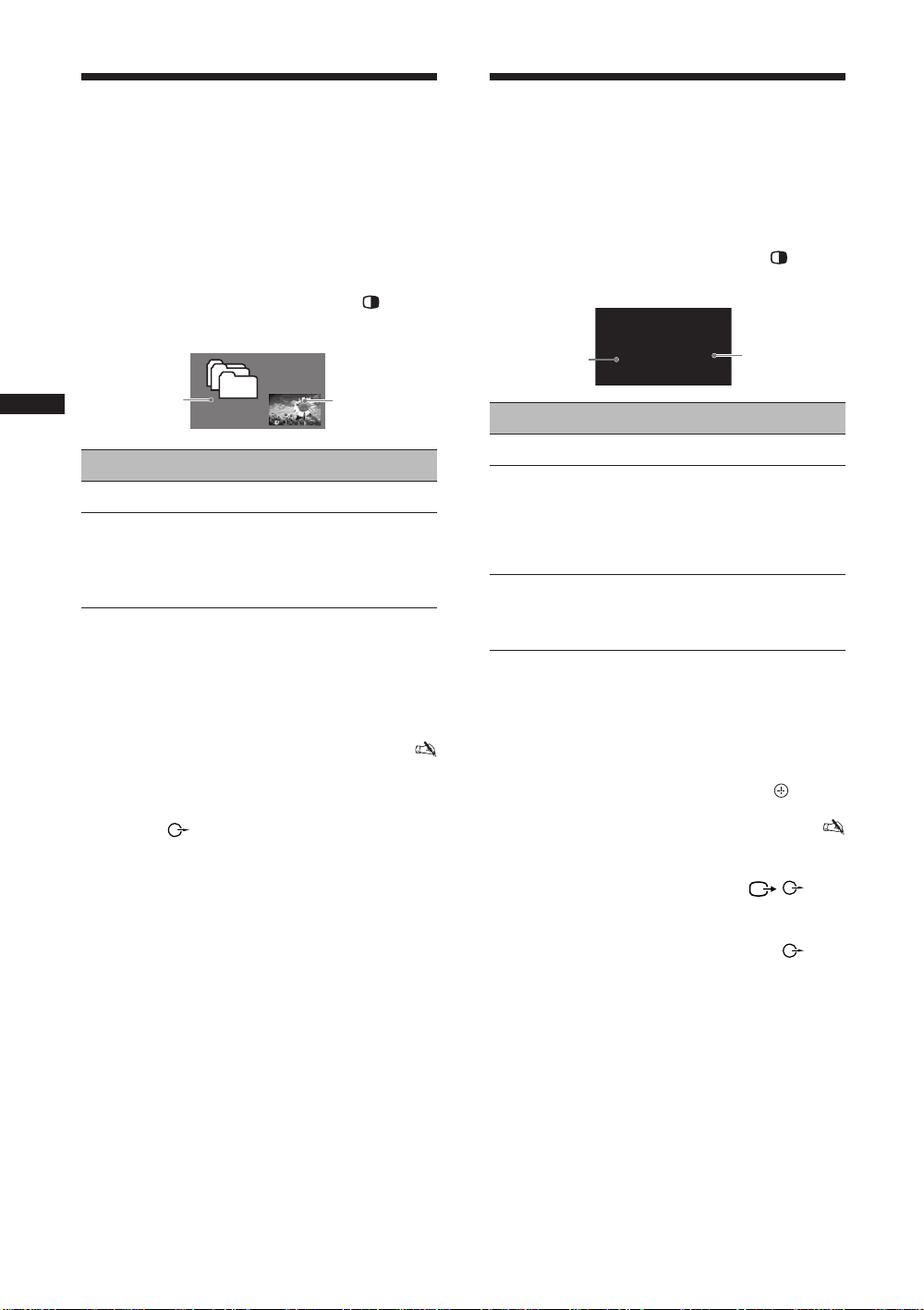
ﺭﺩ ﺮﻳﻮﺼﺗ) PIP ﻩﺪﻫﺎﺸﻣ
ﻮﻠﻗﻭﺩ ﺮﻳﻮﺼﺗ ﻩﺪﻫﺎﺸﻣ
(ﺮﻳﻮﺼﺗ
ﺭﻮﻄﺑ ﺪﻴﻧﺍﻮﺗ ﯽﻣ ﺍﺭ (ﯽﻧﻮﻳﺰﻳﻮﻠﺗ ﻪﻣﺎﻧﺮﺑ ﻭ PC یﺩﻭﺭﻭ) ﺮﻳﻮﺼﺗ ﻭﺩ
ﻩﺩﺮﻛ ﻞﺼﺘﻣ ﺍﺭ PC ﺮﺗﻮﻴﭙﻣﺎﻛ ﮏﻳ .ﺪﻴﻨﻛ ﺎﺷﺎﲤ ﻪﺤﻔﺻ یﻭﺭ ﺮﺑ ﻥﺎﻣﺰﳘ
ﻪﺤﻔﺻ یﻭﺭ ﺮﺑ PC ﺮﺗﻮﻴﭙﻣﺎﻛ ﺯﺍ ﺮﻳﻭﺎﺼﺗ ﻥﺪﺷ ﺮﻫﺎﻇ ﺯﺍ ﻭ (15 ﻪﺤﻔﺻ)
.(16 ﻪﺤﻔﺻ) ﺪﻳﻮﺷ ﻦﺌﻤﻄﻣ ﺶﻳﲈﻧ
.ﺪﻴﻫﺩ ﺭﺎﺸﻓ ﺍﺭ ﻪﻤﻛﺩ 1
.ﺪﻧﻮﺷ ﯽﻣ ﻩﺩﺍﺩ ﺶﻳﲈﻧ ﻢﻫ ﺎﺑ ﺮﻳﻮﺼﺗ ﻭﺩ
ﮏﭼﻮﻛ ﻩﺮﺠﻨﭘ
ﯽﻠﺻﺍ ﻩﺮﺠﻨﭘ
ﻩﺪﻫﺎﺸﻣ ﻞﺑﺎﻗ ﺮﻳﻮﺼﺗ ﺭﺩ ﺮﻳﻮﺼﺗ
ﮏﭼﻮﻛ ﻩﺮﺠﻨﭘ ﺭﺩ ﯽﻠﺻﺍ ﻩﺮﺠﻨﭘ ﺭﺩ
ﻥﻮﻳﺰﻳﻮﻠﺗ ﻪﻣﺎﻧﺮﺑ
(PC یﺩﻭﺭﻭ ﺖﻟﺎﺣ ﺭﺩ ﻂﻘﻓ) HDMI 1
(PC یﺩﻭﺭﻭ ﺖﻟﺎﺣ ﺭﺩ ﻂﻘﻓ) HDMI 2
(PC یﺩﻭﺭﻭ ﺖﻟﺎﺣ ﺭﺩ ﻂﻘﻓ) HDMI 3
ﺏﺎﺨﺘﻧﺍ یﺍﺮﺑ ﺍﺭ PROG +/– ﺎﻳ ﺭﺍﺩ ﻩﺭﲈﺷ یﺎﻫ ﻪﻤﻛﺩ 2
ﻯﺭﺎﻴﺘﺧﺍ ﺕﺍﺰﻴﻬﲡ ﺯﺍ ﻥﺩﺮﻛ ﻩﺩﺎﻔﺘﺳﺍ
ﺍﺭ (ﻞﺴﻜﻴﭘ 768 x 1360) WXGA ﺯﺍ ﱰﺸﻴﺑ ﻦﺷﻮﻟﻭﺯﺭ ﺎﺑ ﺮﻳﻭﺎﺼﺗ •
ﻞﺑﺎﻗ ﺮﻳﻮﺼﺗ ﺭﺩ ﺮﻳﻮﺼﺗ ﺖﻟﺎﺣ ﺭﺩ
G ﻪﺑ)
ﻖﻳﺮﻃ ﺯﺍ ﺍﺪﺻ ﺪﻨﺷﺎﺑ ﻩﺪﺷ ﻞﺼﺘﻣ (ﺪﻴﻨﻛ ﻪﻌﺟﺍﺮﻣ 15 ﻪﺤﻔﺻ ﺭﺩ
.ﺪﺳﺭ ﯽﻣ ﺵﻮﮕﺑ ﻥﻮﻳﺰﻳﻮﻠﺗ یﺎﻫﻮﮔﺪﻨﻠﺑ
ﮏﭼﻮﻛ ﺮﻳﻮﺼﺗ ﻩﺯﺍﺪﻧﺍ ﻪﻜﻴﺗﺭﻮﺻ ﺭﺩ ،ﺮﻳﻮﺼﺗ ﺭﺩ ﺮﻳﻮﺼﺗ ﺖﻟﺎﺣ ﺭﺩ •
.ﺪﺑﺎﻳ ﺶﻫﺎﻛ ﺮﻳﻮﺼﺗ ﺡﻮﺿﻭ ﺖﺳﺍ ﻦﻜﳑ ،ﺩﻮﺷ
ﺭﺍﺰﺑﺍ یﻮﻨﻣ ﺯﺍ
ﺭﺍﺰﺑﺍ یﻮﻨﻣ ﺭﺩ "ﺮﻳﻮﺼﺗ ﺭﺩ ﺮﻳﻮﺼﺗ" ﻪﻨﻳﺰﮔ ﺏﺎﺨﺘﻧﺍ ﺎﺑ ﺪﻴﻧﺍﻮﺗ ﯽﻣ ﲔﻨﭽﳘ ﲈﺷ
"ﻝﺎﻨﮕﻴﺳ ﺢﻄﺳ" ﺏﺎﺨﺘﻧﺍ ﺎﺑ ﺍﺭ ﻥﺪﻴﻨﺷ ﻞﺑﺎﻗ ﺮﻳﻭﺎﺼﺗ • z
.ﺪﻴﻫﺩ ﺭﺎﺸﻓ ﻥﻮﻳﺰﻳﻮﻠﺗ ﻝﺎﻧﺎﻛ
یﺮﻳﻮﺼﺗ ﮏﺗ ﺖﻟﺎﺣ ﻪﺑ ﺖﺸﮔﺯﺎﺑ یﺍﺮﺑ
.ﺪﻴﻫﺩ ﺭﺎﺸﻓ ﺍﺭ RETURN ﻪﻤﻛﺩ
.(
29 ﻪﺤﻔﺻ) ﺪﺷﺎﺑ ﯽﻤﻧ ﺱﱰﺳﺩ
ﯽﺗﻮﺻ ﯽﺟﻭﺮﺧ ﻝﺎﺼﺗﺍ یﺎﻫ ﻪﻳﺎﭘ ﻪﻜﻴﻣﺎﮕﻨﻫ •
.ﺪﻴﻳﲈﻧ ﻩﺩﺎﻔﺘﺳﺍ ﺮﻳﻮﺼﺗ ﺭﺩ ﺮﻳﻮﺼﺗ ﯽﮔﮋﻳﻭ ﺯﺍ
ﮏﭼﻮﻛ ﻩﺮﺠﻨﭘ ﺖﻴﻌﻗﻮﻣ)
ﻥﺩﺍﺩ ﺭﺎﺸﻓ ﺎﺑ ﺪﻧﺍﻮﺗ ﯽﻣ
ﲑﻴﻐﺗ F/f/G/g
.ﺪﻴﻫﺩ ﺶﻳﲈﻧ ﺪﻴﻧﺍﻮﺗ ﯽﻤﻧ
"ﻭﲑﻧ ﺖﻳﺮﻳﺪﻣ" ﺖﻴﻌﺿﻭ •
.ﺪﻴﻫﺩ ﲑﻴﻐﺗ ﺪﻴﻧﺍﻮﺗ ﯽﻣ
(.ﺪﻨﻛ
PC
•
ﺪﻴﻧﺍﻮﺗ ﯽﻣ ﺍﺭ (ﯽﻧﻮﻳﺰﻳﻮﻠﺗ ﻪﻣﺎﻧﺮﺑ ﻭ ﯽﺒﻧﺎﺟ ﻩﺎﮕﺘﺳﺩ یﺩﻭﺭﻭ) ﺮﻳﻮﺼﺗ ﻭﺩ
.ﺪﻴﻨﻛ ﺎﺷﺎﲤ ﻪﺤﻔﺻ یﻭﺭ ﺮﺑ ﻥﺎﻣﺰﳘ ﺭﻮﻄﺑ
ﻥﺪﺷ ﺮﻫﺎﻇ ﺯﺍ ﻭ ﻩﺩﺮﻛ ﻞﺼﺘﻣ ﺍﺭ ،(
15 ﻪﺤﻔﺻ) یﺭﺎﻴﺘﺧﺍ ﯽﺒﻧﺎﺟ ﺕﺍﺰﻴﻬﲡ
.(16 ﻪﺤﻔﺻ) ﺪﻳﻮﺷ ﻦﺌﻤﻄﻣ ﻪﺤﻔﺻ یﻭﺭ ﺮﺑ ﯽﺒﻧﺎﺟ ﺕﺍﺰﻴﻬﲡ ﺮﻳﻭﺎﺼﺗ
.ﺪﻴﻫﺩ ﺭﺎﺸﻓ ﺍﺭ ﻪﻤﻛﺩ 1
.ﺪﻧﻮﺷ ﯽﻣ ﻩﺩﺍﺩ ﺶﻳﲈﻧ ﻢﻫ ﺎﺑ ﺮﻳﻮﺼﺗ ﻭﺩ
ﭗﭼ ﻩﺮﺠﻨﭘ
ﻩﺪﻫﺎﺸﻣ ﻞﺑﺎﻗ یﻮﻠﻗﻭﺩ ﺮﻳﻮﺼﺗ
ﺖﺳﺍﺭ ﻩﺮﺠﻨﭘ ﺭﺩ ﭗﭼ ﻩﺮﺠﻨﭘ ﺭﺩ
ﻥﻮﻳﺰﻳﻮﻠﺗ ﻪﻣﺎﻧﺮﺑ
(PC یﺩﻭﺭﻭ ﺖﻟﺎﺣ ﺰﺠﺑ) HDMI 1
(PC یﺩﻭﺭﻭ ﺖﻟﺎﺣ ﺰﺠﺑ) HDMI 2
(PC یﺩﻭﺭﻭ ﺖﻟﺎﺣ ﺰﺠﺑ) HDMI 3
ﺮﻳﻮﺼﺗ ﻥﻭﺪﺑ
.ﺪﻴﻫﺩ ﺭﺎﺸﻓ ﺮﻳﻮﺼﺗ ﻥﺩﺮﻛ ﺏﺎﺨﺘﻧﺍ یﺍﺮﺑ ﺍﺭ G
ﺖﺳﺍﺭ ﻩﺮﺠﻨﭘ
HD/DVD 1
HD/DVD 2
S 1 ﻮﻳﺪﻳﻭ ﺎﻳ 1 ﻮﻳﺪﻳﻭ
g ﻪﻤﻛﺩ 2
/
ﺏﺎﺨﺘﻧﺍ یﺍﺮﺑ ﺍﺭ PROG +/– ﺎﻳ ﺭﺍﺩ ﻩﺭﲈﺷ یﺎﻫ ﻪﻤﻛﺩ 3
.ﺪﻴﻫﺩ ﺭﺎﺸﻓ ﯽﻧﻮﻳﺰﻳﻮﻠﺗ ﻝﺎﻧﺎﻛ
یﺮﻳﻮﺼﺗ ﮏﺗ ﺖﻟﺎﺣ ﻪﺑ ﺖﺸﮔﺯﺎﺑ یﺍﺮﺑ
.ﺪﻴﻫﺩ ﺭﺎﺸﻓ ﺍﺭ RETURN ﺎﻳ ﻪﻤﻛﺩ
.ﺪﺷﺎﺑ ﯽﻤﻧ ﯽﺳﱰﺳﺩ ﻞﺑﺎﻗ PC ﮏﻳ یﺩﻭﺭﻭ ﻊﺒﻨﻣ یﺍﺮﺑ ﺩﺮﻜﻠﻤﻋ ﻦﻳﺍ •
.ﺪﻴﻫﺩ ﲑﻴﻐﺗ ﺪﻴﻧﺍﻮﺗ ﯽﻤﻧ ﺍﺭ ﺮﻳﻭﺎﺼﺗ ﻩﺯﺍﺪﻧﺍ •
ﺭﻮﺘﻴﻧﺎﻣ ﯽﺟﻭﺮﺧ ﻝﺎﺼﺗﺍ یﺎﻫ ﻪﻳﺎﭘ ﻪﺑ ﻁﻮﺑﺮﻣ ﺍﺪﺻ ﻭ ﺮﻳﻮﺼﺗ •
ﺖﻤﺳ ﺮﻳﻮﺼﺗ (ﺪﻴﻨﻛ ﻪﻌﺟﺍﺮﻣ
/
S 1 ﻮﻳﺪﻳﻭ/2 ﻮﻳﺪﻳﻭ/3 ﻮﻳﺪﻳﻭ ﻂﻘﻓ) ﺩﺮﻛ ﺪﻨﻫﺍﻮﺧ ﻝﺎﺒﻧﺩ ﺍﺭ ﭗﭼ
ﯽﺗﻮﺻ ﯽﺟﻭﺮﺧ ﻝﺎﺼﺗﺍ یﺎﻫ ﻪﻳﺎﭘ ﻪﭽﻧﺎﻨﭼ ،ﻝﺎﺣﺮﲠ .(
ﺍﺪﺻ ،ﺪﻨﺷﺎﺑ ﻩﺪﺷ ﻞﺼﺘﻣ (ﺪﻴﻨﻛ ﻪﻌﺟﺍﺮﻣ
.ﺪﺳﺭ ﯽﻣ ﺵﻮﮕﺑ ﻥﻮﻳﺰﻳﻮﻠﺗ یﺎﻫﻮﮔﺪﻨﻠﺑ ﻖﻳﺮﻃ ﺯﺍ
ﮏﭼﻮﻛ ﺮﻳﻮﺼﺗ ﻩﺯﺍﺪﻧﺍ ﻪﻜﻴﺗﺭﻮﺻ ﺭﺩ ،ﯽﻳﺎﺗﻭﺩ ﺮﻳﻮﺼﺗ ﺖﻟﺎﺣ ﺭﺩ •
.ﺪﺑﺎﻳ ﺶﻫﺎﻛ ﺮﻳﻮﺼﺗ ﺡﻮﺿﻭ ﺖﺳﺍ ﻦﻜﳑ ،ﺩﻮﺷ
ﻪﺑ ﻁﻮﺑﺮﻣ ﺖﺳﺍ ﻱﺮﺘﺴﻛﺎﺧ ﺏﻮﭼﺭﺎﭼ ﻱﺍﺭﺍﺩ ﻪﻛ ﻱﺮﻳﻮﺼﺗ • z
G
g ﻪﻤﻛﺩ ﺭﺎﺸﻓ ﺎﺑ ﺪﻴﻧﺍﻮﺗ ﯽﻣ ﺍﺭ ﻥﺪﻴﻨﺷ ﻞﺑﺎﻗ ﺮﻳﻮﺼﺗ .ﺖﺳﺍﺪﺻ
/
یﻮﻨﻣ ﺭﺩ
"ﻮﻠﻗﻭﺩ ﺮﻳﻮﺼﺗ" ﻪﻨﻳﺰﮔ ﺏﺎﺨﺘﻧﺍ ﺎﺑ ﺪﻴﻧﺍﻮﺗ ﯽﻣ ﲔﻨﭽﳘ ﲈﺷ •
15 ﻪﺤﻔﺻ ﺭﺩ E ﻪﺑ) /
1 ﻮﻳﺪﻳﻭ
15 ﻪﺤﻔﺻ ﺭﺩ G ﻪﺑ)
.ﺪﻴﻫﺩ ﲑﻴﻐﺗ
.ﺪﻴﻳﲈﻧ ﻩﺩﺎﻔﺘﺳﺍ ﻮﻠﻗﻭﺩ ﺮﻳﻮﺼﺗ ﯽﮔﮋﻳﻭ ﺯﺍ ﺭﺍﺰﺑﺍ
2 ﻮﻳﺪﻳﻭ
3 ﻮﻳﺪﻳﻭ
17
PR
Page 52

ﯽﻧﺎﻣﺯ ﻢﻫ ﺯﺍ ﻥﺩﺮﻛ ﻩﺩﺎﻔﺘﺳﺍ
(HDMI یﺍﺮﺑ ﻝﱰﻨﻛ) BRAVIA
ﻩﺩﺎﻔﺘﺳﺍ ﺎﺑ ﺎﺗ ﺩﺯﺎﺳ ﯽﻣ ﺭﺩﺎﻗ ﺍﺭ ﻥﻮﻳﺰﻳﻮﻠﺗ HDMI ﺩﺮﻛﺭﺎﻛ یﺍﺮﺑ ﻝﱰﻨﻛ
ﻪﻠﻴﺳﻭ ﺎﺑ (ﯽﮕﻧﺎﺧ ﯽﻜﻴﻧﻭﱰﻜﻟﺍ ﺕﺍﺰﻴﻬﲡ ﻝﱰﻨﻛ) HDMI CEC ﺯﺍ
.ﺩﺯﺎﺳ ﺭﺍﺮﻗﺮﺑ ﻁﺎﺒﺗﺭﺍ ﺖﺳﺍ ﺭﺎﮔﺯﺎﺳ ﺩﺮﻛﺭﺎﻛ ﺎﺑ ﻪﻛ یﺍ ﻩﺪﺷ ﻞﺻﻭ
یﺍﺮﺑ ﻝﱰﻨﻛ ﺎﺑ ﻪﻛ Sony ﻪﻠﻴﺳﻭ ﻥﺩﺮﻛ ﻞﺻﻭ ﻂﺳﻮﺗ ،ﻝﺎﺜﻣ یﺍﺮﺑ
ﺍﺭ ﺎﳖﺁ ﺪﻴﻧﺍﻮﺗ ﯽﻣ ﲈﺷ ،(
ﻭ ،ﺪﻳﺍ ﻩﺩﺮﻛ ﻞﺻﻭ ﯽﺘﺳﺭﺩ ﻪﺑ ﺍﺭ ﺭﺎﮔﺯﺎﺳ ﻪﻠﻴﺳﻭ ﻪﻛ ﺪﻳﻮﺷ ﻦﺌﻤﻄﻣ
ﻝﱰﻨﻛ ﺎﺑ ﻪﻛ یﺍ ﻪﻠﻴﺳﻭ ﻥﺩﺮﻛ ﻞﺻﻭ یﺍﺮﺑ
ﻞﺻﻭ ﺮﮕﻳﺪﻜﻳ ﻪﺑ HDMI ﻞﺑﺎﻛ ﮏﻳ ﺎﺑ ﺍﺭ ﻥﻮﻳﺰﻳﻮﻠﺗ ﻭ ﺭﺎﮔﺯﺎﺳ ﻪﻠﻴﺳﻭ
ﻞﺑﺎﻛ ﺮﺑ ﻩﻭﻼﻋ ،ﯽﺗﻮﺻ ﻢﺘﺴﻴﺳ ﮏﻳ ﻥﺩﺮﻛ ﻞﺻﻭ ﻡﺎﮕﻨﻫ .ﺪﻴﻨﻛ
یﻭﺭ ﻥﻮﻳﺰﻳﻮﻠﺗ ﺯﺍ ﺍﺪﺻ ﻥﺪﻴﻨﺷ یﺍﺮﺑ ﻪﻛ ﺪﻳﻮﺷ ﻦﺌﻤﻄﻣ ،HDMI
ﻩﺩﺮﻛ ﻞﺻﻭ ﺰﻴﻧ ﺍﺭ ﯽﺗﻮﺻ ﯽﺟﻭﺮﺧ یﺎﻫ ﻝﺎﺼﺗﺍ ﯽﺗﻮﺻ ﻢﺘﺴﻴﺳ
15 ﻪﺤﻔﺻ ،ﺕﺎﻴﺋﺰﺟ یﺍﺮﺑ .(ﺪﻴﻳﲈﻧ ﻪﻌﺟﺍﺮﻣ 15 ﻪﺤﻔﺻ ﺭﺩ ﻪﺑ) ﺪﻳﺍ
HDMI
ﻥﻮﻳﺰﻳﻮﻠﺗ ﻑﺮﻃ یﻭﺩ ﺮﻫ یﻭﺭ ﺮﺑ ﺪﻳﺎﺑ HDMI ﺕﲈﻴﻈﻨﺗ یﺍﺮﺑ ﻝﱰﻨﻛ
"HDMI ﻢﻴﻈﻨﺗ" .ﺪﺷﺎﺑ ﻩﺪﺷ ﲔﻴﻌﺗ ﻩﺪﺷ ﻞﺻﻭ ﻪﻠﻴﺳﻭ ﻑﺮﻃ ﻭ
.ﺪﻴﻳﲈﻧ ﻪﻈﺣﻼﻣ ﻥﻮﻳﺰﻳﻮﻠﺗ ﻑﺮﻃ ﺕﲈﻴﻈﻨﺗ یﺍﺮﺑ ﺍﺭ 27 ﻪﺤﻔﺻ ﺭﺩ
ﺕﺎﻴﺋﺰﺟ یﺍﺮﺑ ﺍﺭ ﻩﺪﺷ ﻞﺻﻭ ﻪﻠﻴﺳﻭ ﺩﺮﻜﻠﻤﻋ یﺎﻫ ﻞﻤﻌﻟﺍﺭﻮﺘﺳﺩ
HDMI یﺎﻫ ﻞﺑﺎﻛ ﺎﺑ) ﺖﺳﺍ ﺭﺎﮔﺯﺎﺳ HDMI
.ﺪﻴﻨﻛ ﻝﱰﻨﻛ ﺮﮕﻳﺪﻜﻳ ﺎﺑ
.ﺪﻳﺍ ﻩﺩﺍﺩ ﻡﺎﺠﻧﺍ ﺍﺭ ﻡﺯﻻ ﺕﲈﻴﻈﻨﺗ
ﺖﺳﺍ ﺭﺎﮔﺯﺎﺳ
ﺕﲈﻴﻈﻨﺗ یﺍﺮﺑ ﻝﱰﻨﻛ ﻡﺎﺠﻧﺍ یﺍﺮﺑ
HDMI یﺍﺮﺑ
.ﺪﻴﻳﲈﻧ ﻪﻈﺣﻼﻣ ﺍﺭ
.ﺪﻴﻳﲈﻧ ﻪﻈﺣﻼﻣ ﻢﻴﻈﻨﺗ
HDMI یﺍﺮﺑ ﻝﱰﻨﻛ
ﻪﻠﻴﺳﻭ ﺪﻴﻨﻛ ﯽﻣ ﺵﻮﻣﺎﺧ ﺍﺭ ﻥﻮﻳﺰﻳﻮﻠﺗ ﲈﺷ ﻪﻛ ﯽﻣﺎﮕﻨﻫ •
.ﺪﻨﻛ ﯽﻣ ﺵﻮﻣﺎﺧ ﺭﺎﻛﺩﻮﺧ ﺭﻮﻃ ﻪﺑ ﺍﺭ ﻩﺪﺷ ﻞﺻﻭ
ﻪﺑ ﺍﺭ ﻥﻮﻳﺰﻳﻮﻠﺗ ﺪﻨﻛ ﯽﻣ ﺶﺨﭘ ﻪﺑ ﻉﻭﴍ ﻪﻠﻴﺳﻭ ﻪﻛ ﯽﻣﺎﮕﻨﻫ
ﻞﺻﻭ ﻪﻠﻴﺳﻭ ﻪﺑ ﺍﺭ یﺩﻭﺭﻭ ﻭ ﻩﺩﻮﻤﻧ ﻦﺷﻭﺭ ﺭﺎﻛﺩﻮﺧ ﺭﻮﻃ
.ﺪﻫﺩ ﯽﻣ ﲑﻴﻐﺗ ﻩﺪﺷ
ﻥﻮﻳﺰﻳﻮﻠﺗ ﻪﻛ ﯽﻟﺎﺣ ﺭﺩ ﺍﺭ ﻩﺪﺷ ﻞﺻﻭ ﯽﺗﻮﺻ ﻢﺘﺴﻴﺳ ﮏﻳ ﲈﺷ ﺮﮔﺍ •
ﻥﻮﻳﺰﻳﻮﻠﺗ یﻮﮔﺪﻨﻠﺑ ﺯﺍ ﺍﺪﺻ ﯽﺟﻭﺮﺧ ،ﺪﻴﻨﻛ ﻦﺷﻭﺭ ﺖﺳﺍ ﻦﺷﻭﺭ
.ﺪﺑﺎﻳ ﯽﻣ ﲑﻴﻐﺗ ﯽﺗﻮﺻ ﻢﺘﺴﻴﺳ ﻪﺑ
ﻢﺘﺴﻴﺳ ﮏﻳﺯﺍ () ﺍﺪﺻ ﻭ ﻩﺩﻮﻤﻧ ﻢﻴﻈﻨﺗ ﺍﺭ ( +/-) ﺍﺪﺻ ﻪﺟﺭﺩ •
.ﺪﻨﻛ ﯽﻣ ﻊﻄﻗ ﺍﺭ ﻩﺪﺷ ﻞﺻﻭ ﯽﺗﻮﺻ
BRAVIA یﻮﮔﻮﻟ ﻪﻛ یﺍ ﻩﺪﺷ ﻞﺻﻭ Sony ﻪﻠﻴﺳﻭ ﺪﻴﻧﺍﻮﺗ ﯽﻣ ﲈﺷ •
ﻥﺩﺍﺩ ﺭﺎﺸﻓ ﺎﺑ ﻥﻮﻳﺰﻳﻮﻠﺗ ﺭﻭﺩ ﻩﺍﺭ ﺯﺍ ﻝﱰﻨﻛ ﻂﺳﻮﺗ ﺍﺭ ﺩﺭﺍﺩ Sync
:ﺪﻳﲑﮕﺑ ﺭﺎﻛ ﻪﺑ ﺮﻳﺯ ﺩﺭﺍﻮﻣ
.ﻩﺪﺷ ﻞﺻﻭ ﻪﻠﻴﺳﻭ یﲑﮔﺭﺎﻛ ﻪﺑ یﺍﺮﺑ ﺍﺭ N/x/X/m/M -
ﻩﺎﮕﺘﺳﺩ ﻪﺑ ﻩﺪﺷ ﻞﺼﺘﻣ یﻮﻨﻣ ﺶﻳﲈﻧ یﺍﺮﺑ SYNC MENU -
HDMI
ﺯﺍ ﺪﻌﺑ .ﺖﺳﺍ ﻩﺪﺷ ﺕﺭﻮﭘﺎﺳ ﺶﻳﲈﻧ ﻪﺤﻔﺻ یﻭﺭ ﻪﻛ ﺪﺷﺎﺑ ﯽﻣ CEC
ﻭ /// ﺯﺍ ﻩﺩﺎﻔﺘﺳﺍ ﺎﺑ ﺪﻴﻧﺍﻮﺗ ﯽﻣ ﲈﺷ ،ﻮﻨﻣ ﻥﺩﺍﺩ ﺶﻳﲈﻧ
.ﺪﻳﲑﮕﺑ ﺭﺎﻛ ﻪﺑ ﺍﺭ ﻮﻨﻣ ﻪﺤﻔﺻ
ﺯﺍ ﺍﺭ ﺎﻫ ﻪﻨﻳﺰﮔ ﺲﭙﺳ ،
ﻪﻠﻴﺳﻭ یﲑﮔﺭﺎﻛ ﻪﺑ یﺍﺮﺑ "ﺕﺎﻳﻮﺘﳏ ﺖﺴﻴﻟ" ﻭ ،"ﺎﻫ ﻪﻨﻳﺰﮔ" ،"ﺖﺴﻴﻟ"
.ﺪﻴﻳﲈﻧ ﻪﻌﺟﺍﺮﻣ ﻪﻠﻴﺳﻭ ﲈﻨﻫﺍﺭ ﻪﭼﱰﻓﺩ ﻪﺑ ﺱﱰﺳﺩ ﻞﺑﺎﻗ ﻝﱰﻨﻛ یﺍﺮﺑ
"ﻩﺎﮕﺘﺳﺩ ﻝﱰﻨﻛ" ﺶﻳﲈﻧ یﺍﺮﺑ TOOLS -
.ﺪﻴﻨﻛ ﺏﺎﺨﺘﻧﺍ
18
•
PR
Page 53
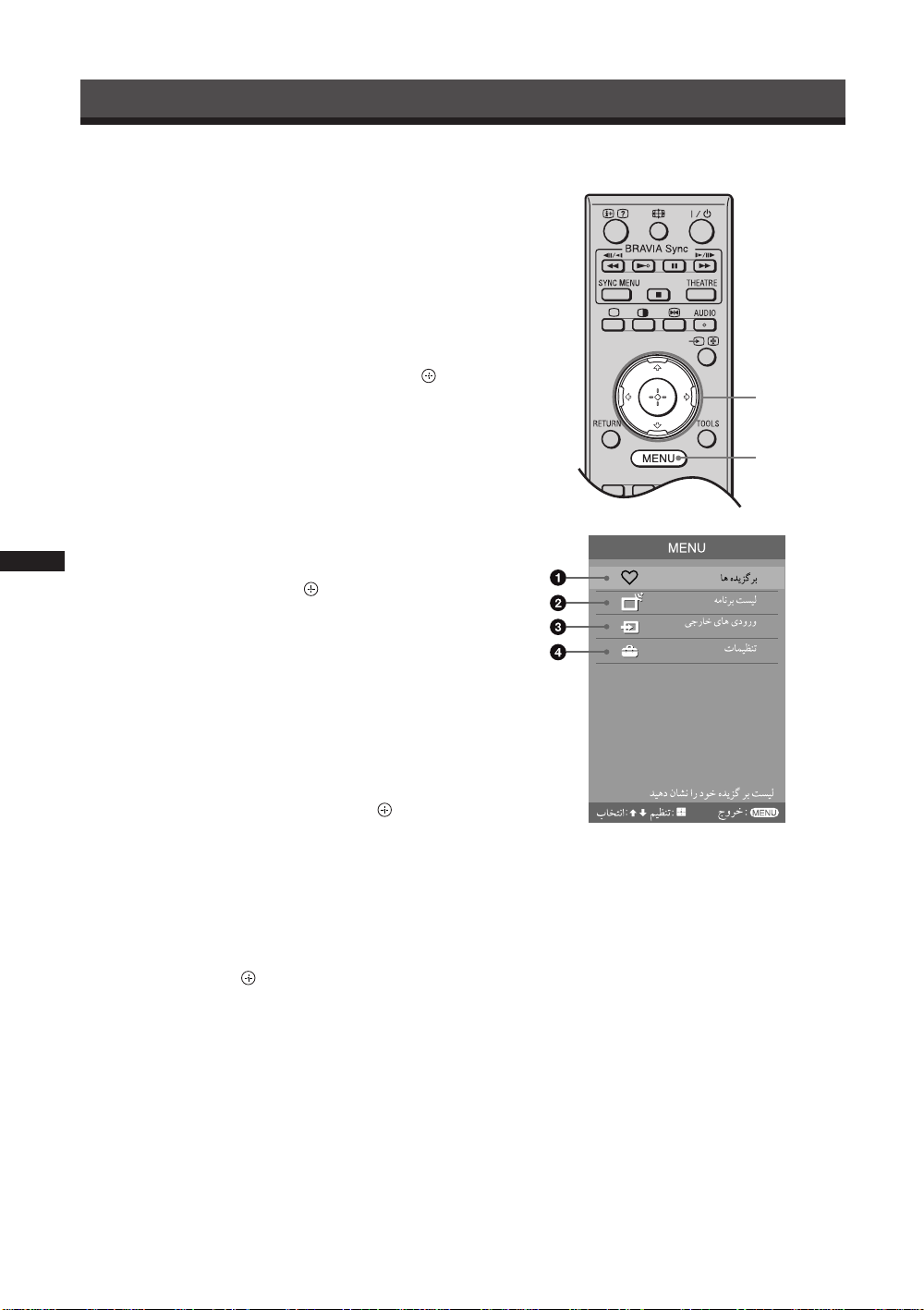
یﺎﻫ ﯽﮔﮋﻳﻭ ﺯﺍ ﻪﻛ ﺪﻫﺩ ﯽﻣ ﺍﺭ ﻥﺎﻜﻣﺍ ﻦﻳﺍ ﲈﺷ ﻪﺑ "MENU"
ﺎﻳ ﺎﳍﺎﻧﺎﻛ ﺪﻴﻧﺍﻮﺗ ﯽﻣ ﯽﺘﺣﺍﺮﺑ .ﺪﻳﱪﺑ ﺕﺬﻟ ﻥﻮﻳﺰﻳﻮﻠﺗ ﻦﻳﺍ ﻒﻠﺘﳐ
ﺍﺭ ﺩﻮﺧ ﻥﻮﻳﺰﻳﻮﻠﺗ ﺕﲈﻴﻈﻨﺗ ﻭ ﻩﺩﺮﻛ ﺏﺎﺨﺘﻧﺍ ﺍﺭ یﺩﻭﺭﻭ ﻊﺑﺎﻨﻣ
.ﺪﻴﻫﺩ ﲑﻴﻐﺗ
.ﺪﻴﻫﺩ ﺭﺎﺸﻓ ﺍﺭ MENU ﻪﻤﻛﺩ 1
ﺲﭙﺳ ،ﻩﺩﺍﺩ ﺭﺎﺸﻓ ﻪﻨﻳﺰﮔ ﮏﻳ ﺏﺎﺨﺘﻧﺍ یﺍﺮﺑ ﺍﺭ F/f ﻪﻤﻛﺩ 2
.ﺪﻴﻫﺩ ﺭﺎﺸﻓ ﺍﺭ
.ﺪﻴﻫﺩ ﺭﺎﺸﻓ ﺍﺭ MENU ﻪﻤﻛﺩ ،ﻮﻨﻣ ﺯﺍ ﺝﻭﺮﺧ یﺍﺮﺑ
ﺎﻫ ﻩﺪﻳﺰﮔﺮﺑ 1
.(20 ﻪﺤﻔﺻ) ﺪﻫﺩ ﯽﻣ ﺶﻳﲈﻧ ﺍﺭ ﻩﺪﻳﺰﮔﺮﺑ ﺖﺴﻴﻟ
ﺏﺎﺨﺘﻧﺍ ﺍﺭ ﻩﺪﻳﺰﮔﺮﺑ ﻝﺎﻧﺎﻛ ﻩﺭﲈﺷ ،ﻩﺍﻮﳋﺩ ﻝﺎﻧﺎﻛ یﺎﺷﺎﲤ یﺍﺮﺑ •
.ﺪﻴﻫﺩ ﺭﺎﺸﻓ ﺍﺭ ﺲﭙﺳ ،ﻩﺩﻮﻤﻧ
ﻥﺩﻭﺰﻓﺍ" ،ﻩﺪﻳﺰﮔﺮﺑ ﺖﺴﻴﻟ ﻪﺑ ﯽﻠﻌﻓ ﻝﺎﻧﺎﻛ ﻥﺩﺮﻛ ﻪﻓﺎﺿﺍ یﺍﺮﺑ •
ﺖﺴﻴﻟ ﻪﻛ ﯽﻣﺎﮕﻨﻫ .ﺪﻴﻨﻛ ﺏﺎﺨﺘﻧﺍ ﺍﺭ "ﺎﻫ ﻩﺪﻳﺰﮔﺮﺑ ﻪﺑ
ﻑﺬﺣ یﺍﺮﺑ ﺍﺭ "ﺎﻫ ﻩﺪﻳﺰﮔﺮﺑ ﺶﻳﺍﺮﻳﻭ" ،ﺖﺳﺍ ﺮﭘ ﻩﺪﻳﺰﮔﺮﺑ
ﻥﺎﺤﺘﻣﺍ ﻩﺭﺎﺑﻭﺩ ﻭ ﻩﺩﻮﻤﻧ ﺏﺎﺨﺘﻧﺍ ﺩﻮﺧ ﺖﺴﻴﻟﺯﺍ ﻝﺎﻧﺎﻛ ﺮﻫ
.(20 ﻪﺤﻔﺻ) ﺪﻴﻨﻛ
MENU یﺎﻫ ﺩﺮﻜﻠﻤﻋ ﺯﺍ ﻩﺩﺎﻔﺘﺳﺍ
ﺎﻫﻮﻨﻣ ﻖﻳﺮﻃ ﺯﺍ ﻮﺠﺘﺴﺟ
BRAVIA Sync
THEATRESYNC MENU
AUDIO
2
TOOLSRETURN
1
ﻪﻣﺎﻧﺮﺑ ﺖﺴﻴﻟ 2
.ﺪﻫﺩ ﯽﻣ ﺶﻳﲈﻧ ﺍﺭ ﻥﻮﻳﺰﻳﻮﻠﺗ یﺍﺮﺑ ﺱﱰﺳﺩ ﻞﺑﺎﻗ یﺎﳍﺎﻧﺎﻛ
ﻪﻤﻛﺩ ﺲﭙﺳ ،ﻩﺩﺮﻛ ﺏﺎﺨﺘﻧﺍ ﺍﺭ ﻝﺎﻧﺎﻛ ،ﻩﺍﻮﳋﺩ ﻪﻣﺎﻧﺮﺑ یﺎﺷﺎﲤ یﺍﺮﺑ
MENU یﺎﻫ ﺩﺮﻜﻠﻤﻋ ﺯﺍ ﻩﺩﺎﻔﺘﺳﺍ
ﻡﺎﻧ
" ﺖﻴﻌﺿﻭ ،ﻝﺎﻧﺎﻛ ﮏﻳ یﺍﺮﺑ ﻡﺎﻧ ﮏﻳ ﻥﺩﺮﻛ ﲔﻴﻌﺗ یﺍﺮﺑ •
ﻪﺤﻔﺻ ﻪﺑ ﺲﭙﺳ ،ﻩﺩﺮﻛ ﺏﺎﺨﺘﻧﺍ ﺍﺭ
.ﺪﻴﻨﻛ ﺏﺎﺨﺘﻧﺍ ﺍﺭ ﺩﻮﺧ ﻥﻮﻳﺰﻳﻮﻠﺗ ﻪﺑ ﻩﺪﺷ ﻞﺼﺘﻣ ﻞﻳﺎﺳﻭ
ﺍﺭ یﺩﻭﺭﻭ ﻊﺒﻨﻣ ،ﻩﺍﻮﳋﺩ ﯽﺒﻧﺎﺟ ﻩﺎﮕﺘﺳﺩ یﺩﻭﺭﻭ یﺎﺷﺎﲤ یﺍﺮﺑ
.ﺪﻴﻫﺩ ﺭﺎﺸﻓ ﺍﺭ ﻪﻤﻛﺩ ﺲﭙﺳ ،ﻩﺩﺮﻛ ﺏﺎﺨﺘﻧﺍ
،ﯽﺒﻧﺎﺟ ﻩﺎﮕﺘﺳﺩ یﺩﻭﺭﻭ ﮏﻳ یﺍﺮﺑ ﻡﺎﻧ ﮏﻳ ﻥﺩﺮﻛ ﲔﻴﻌﺗ یﺍﺮﺑ
،ﻩﺩﺮﻛ ﺏﺎﺨﺘﻧﺍ ﺍﺭ "ﺪﻴﻨﻛ ﺶﻳﺍﺮﻳﻭ ﺍﺭ ﺎﻫﻮﺋﺪﻳﻭ ﻡﺎﻧ" ﺖﻴﻌﺿﻭ
.ﺪﻴﻳﲈﻧ ﻪﻌﺟﺍﺮﻣ
ﺭﺎﮔﺯﺎﺳ
HDMI یﺍﺮﺑ ﻝﱰﻨﻛ ﺎﺑ ﻪﻛ یﺍ ﻪﻠﻴﺳﻭ ﺏﺎﺨﺘﻧﺍ یﺍﺮﺑ •
.ﺪﻴﻨﻛ ﺏﺎﺨﺘﻧﺍ ﺍﺭ
یﻮﻨﻣ ﺪﻧﻮﺷ ﯽﻣ ﻡﺎﺠﻧﺍ ﻪﺘﻓﴩﻴﭘ ﺕﲈﻴﻈﻨﺗ ﻦﻳﱰﺸﻴﺑ ﻪﻜﻴﺋﺎﺟ ﺭﺩ
ﺎﺗ 21 ﺕﺎﺤﻔﺻ ،ﺕﲈﻴﻈﻨﺗ ﺩﺭﻮﻣ ﺭﺩ ﱰﺸﻴﺑ ﺕﺎﻴﺋﺰﺟ یﺍﺮﺑ
PR
19
"HDMI ﻩﺎﮕﺘﺳﺩ ﺏﺎﺨﺘﻧﺍ" ،ﺖﺳﺍ
.ﺪﻴﻫﺩ ﺭﺎﺸﻓ ﺍﺭ
"ﺪﻴﻨﻛ ﺶﻳﺍﺮﻳﻭ ﺍﺭ ﺎﻫ ﻪﻣﺎﻧﺮﺑ
.ﺪﻴﻳﲈﻧ ﻪﻌﺟﺍﺮﻣ
ﯽﺟﺭﺎﺧ یﺎﻫ یﺩﻭﺭﻭ 3
26 ﻪﺤﻔﺻ ﻪﺑ ﺲﭙﺳ
ﺕﺎﻤﻴﻈﻨﺗ 4
.ﺪﻫﺩ ﯽﻣ ﺶﻳﲈﻧ ﺍﺭ
"ﺕﺎﻤﻴﻈﻨﺗ"
.ﺪﻴﻨﻴﺒﺑ ﺍﺭ
•
30
•
•
22
Page 54
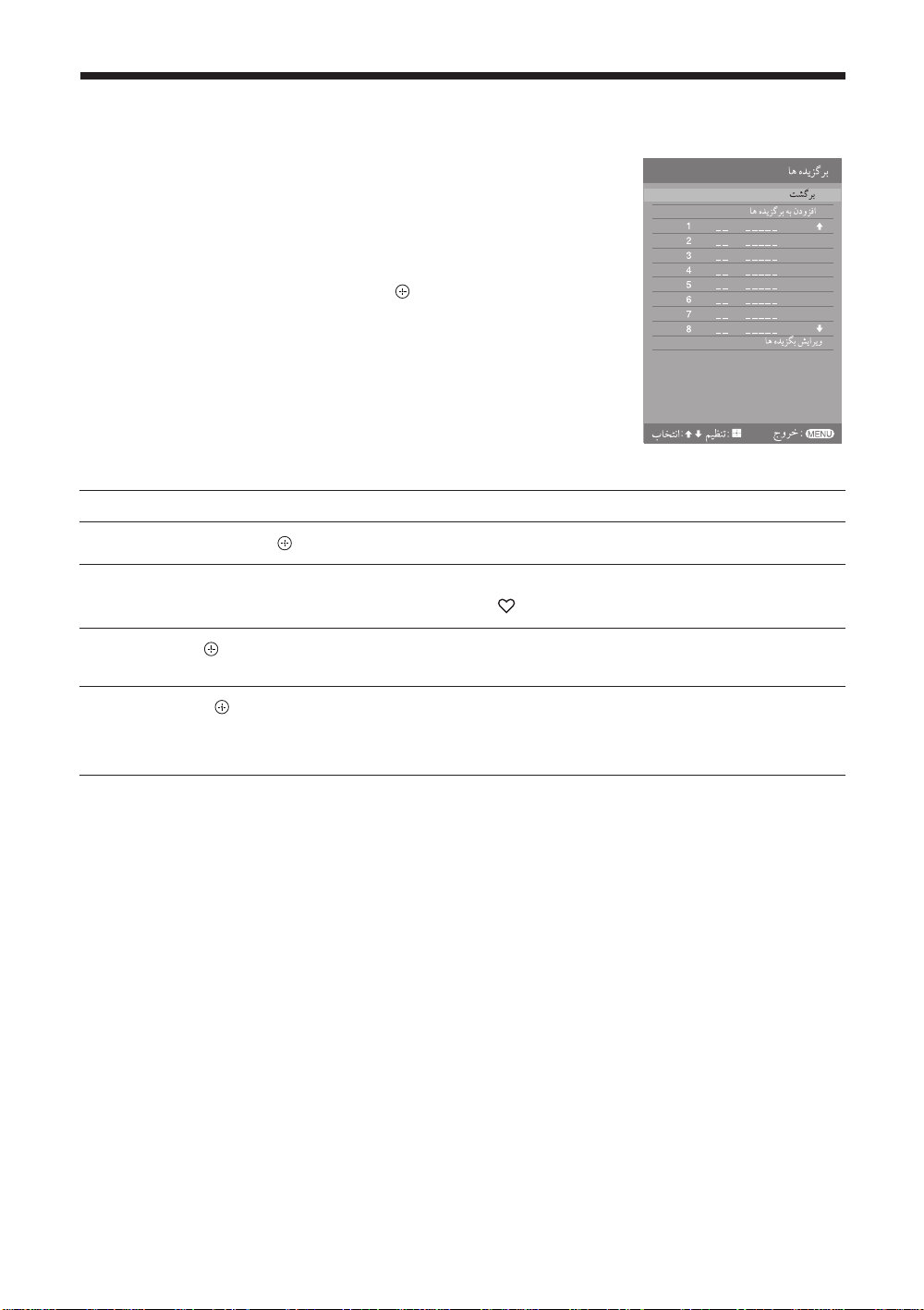
ﻩﺪﻳﺰﮔﺮﺑ ﺖﺴﻴﻟ ﺯﺍ ﻥﺩﺮﻛ ﻩﺩﺎﻔﺘﺳﺍ
ﺖﺴﻴﻟ ﮏﻳ ﺯﺍ ﺍﺭ ﺎﻫ ﻪﻣﺎﻧﺮﺑ ﺪﻫﺩ ﯽﻣ ﻥﺎﻜﻣﺍ ﲈﺷ ﻪﺑ ﻩﺪﻳﺰﮔﺮﺑ ﯽﮔﮋﻳﻭ
.ﺪﻴﻳﲈﻧ ﺏﺎﺨﺘﻧﺍ ﺪﻴﻨﻛ ﯽﻣ ﲔﻴﻌﺗ ﻪﻛ ﻩﺪﻳﺰﮔﺮﺑ ﻝﺎﻧﺎﻛ
16 ﺎﺗ ﺮﺜﻛﺍﺪﺣ
.ﺪﻴﻫﺩ ﺭﺎﺸﻓ ﺍﺭ MENU 1
ﺲﭙﺳ ،ﻩﺩﺍﺩ ﺭﺎﺸﻓ "ﺎﻫ ﻩﺪﻳﺰﮔﺮﺑ" ﺏﺎﺨﺘﻧﺍ یﺍﺮﺑ ﺍﺭ F/f 2
.ﺪﻴﻫﺩ ﺭﺎﺸﻓ ﺍﺭ
ﻝﻭﺪﺟ ﺭﺩ ﻩﺪﺷ ﻩﺩﺍﺩ ﻥﺎﺸﻧ ﺕﺭﻮﺻ ﻪﺑ ﺍﺭ ﻩﺍﻮﳋﺩ ﺩﺮﻜﻠﻤﻋ 3
.ﺪﻴﻫﺩ ﻡﺎﺠﻧﺍ ﻪﺤﻔﺻ یﻭﺭ ﻩﺪﺷ ﻩﺩﺍﺩ ﺶﻳﲈﻧ ﺎﻳ ﻞﻳﺫ
ﺪﻴﻫﺩ ﻡﺎﺠﻧﺍ ﺍﺭ ﺭﺎﻛ ﻦﻳﺍ
.ﺪﻴﻫﺩ ﺭﺎﺸﻓ ﺍﺭ ﺲﭙﺳ ،ﻩﺩﺍﺩ ﺭﺎﺸﻓ ﻝﺎﻧﺎﻛ ﻩﺭﲈﺷ ﺏﺎﺨﺘﻧﺍ یﺍﺮﺑ ﺍﺭ F/f
.ﺪﻴﻫﺩ ﺭﺎﺸﻓ ﯽﻠﺒﻗ ﺶﻳﲈﻧ ﻪﺤﻔﺻ ﻪﺑ ﺖﺸﮔﺯﺎﺑ یﺍﺮﺑ ﺍﺭ RETURN ﻪﻤﻛﺩ
.ﺪﻴﻫﺩ ﺭﺎﺸﻓ ﻮﻨﻣ ﺯﺍ ﺝﻭﺮﺧ یﺍﺮﺑ ﺍﺭ ﺎﻳ MENU ﻪﻤﻛﺩ
.ﺪﻴﻫﺩ ﺭﺎﺸﻓ ﺍﺭ ﺲﭙﺳ ،ﻩﺩﺍﺩ ﺭﺎﺸﻓ "ﺎﻫ ﻩﺪﻳﺰﮔﺮﺑ ﻪﺑ ﻥﺩﻭﺰﻓﺍ" ﺏﺎﺨﺘﻧﺍ یﺍﺮﺑ ﺍﺭ F/f
ﻩﺪﻳﺰﮔﺮﺑ ﺖﺴﻴﻟ
یﺍﺮﺑ
ﻝﺎﻧﺎﻛ ﮏﻳ یﺎﺷﺎﲤ
ﻩﺪﻳﺰﮔﺮﺑ ﺖﺴﻴﻟ ﻥﺩﺮﻛ ﺵﻮﻣﺎﺧ
ﺖﺴﻴﻟ ﻪﺑ ﯽﻠﻌﻓ ﻝﺎﻧﺎﻛ ﮏﻳ ﻥﺩﺮﻛ ﻪﻓﺎﺿﺍ
ﻩﺪﻳﺰﮔﺮﺑ
.ﺪﻴﻫﺩ ﺭﺎﺸﻓ ﺍﺭ ﺲﭙﺳ ،ﻩﺩﺍﺩ ﺭﺎﺸﻓ "ﺎﻫ ﻩﺪﻳﺰﮔﺮﺑ ﺶﻳﺍﺮﻳﻭ" ﺏﺎﺨﺘﻧﺍ یﺍﺮﺑ ﺍﺭ F/f
.ﺩﻮﺷ ﯽﻣ ﺭﺍﺪﻳﺪﭘ
"ﻩﺪﻳﺰﮔﺮﺑ ﻢﻴﻈﻨﺗ" ﻪﺤﻔﺻ
.ﺪﻴﻳﲈﻧ ﻪﻈﺣﻼﻣ ﺍﺭ 30 ﻪﺤﻔﺻ ﺭﺩ "ﻩﺪﻳﺰﮔﺮﺑ ﻢﻴﻈﻨﺗ" ،ﺕﺎﻴﺋﺰﺟ یﺍﺮﺑ
ﻩﺪﻳﺰﮔﺮﺑ ﺖﺴﻴﻟ ﺯﺍ ﻝﺎﻧﺎﻛ ﮏﻳ ﻑﺬﺣ
20
PR
Page 55
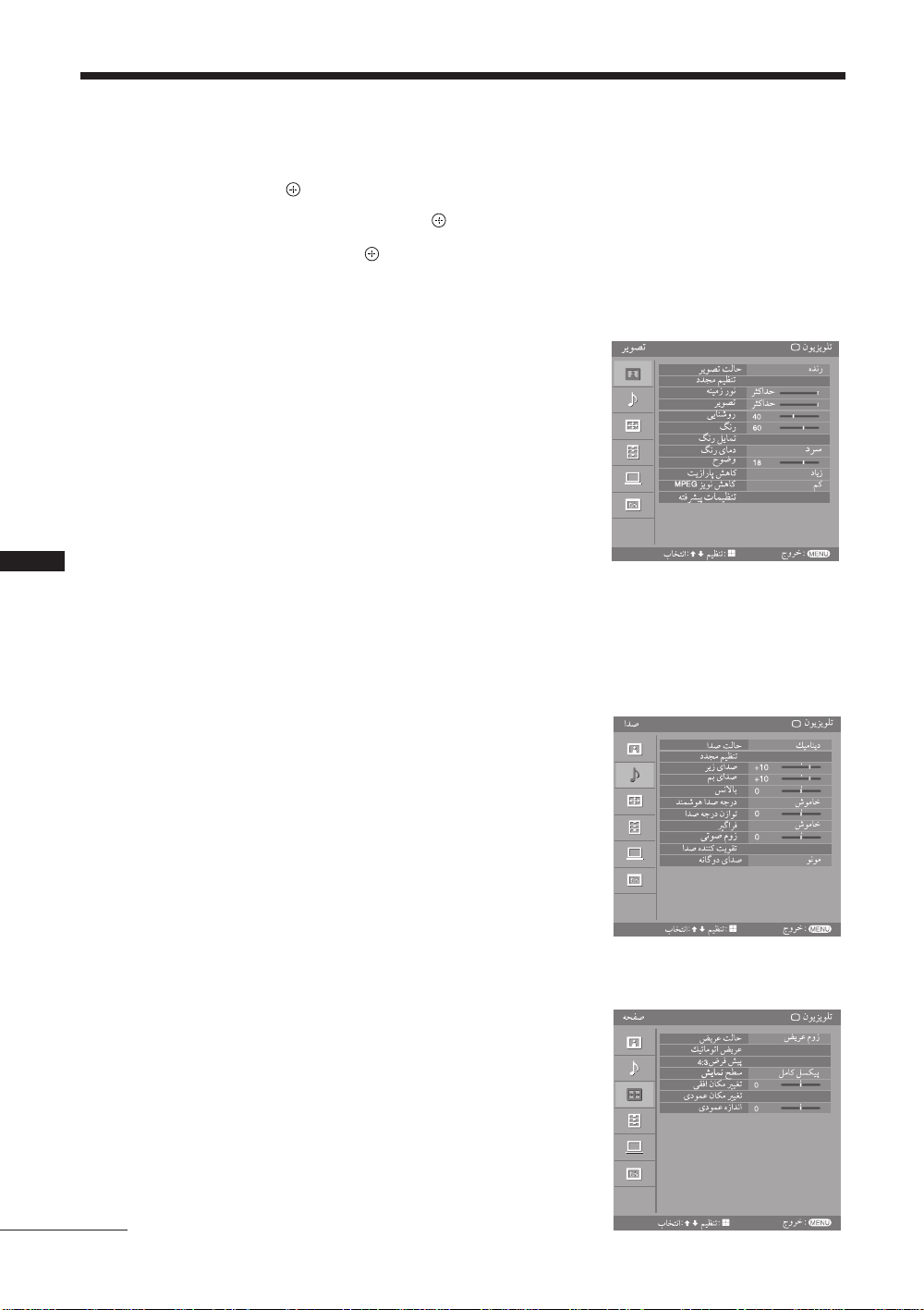
ﺎﻫ ﺖﻴﻌﺿﻭ ﻢﻴﻈﻨﺗ
.ﺪﻴﻫﺩ ﲑﻴﻐﺗ "ﺕﲈﻴﻈﻨﺗ" یﻮﻨﻣ ﺭﺩ ﺍﺭ ﺩﻮﺧ ﻥﻮﻳﺰﻳﻮﻠﺗ ﺕﲈﻴﻈﻨﺗ ﻪﻛ ﺩﻮﺑ ﺪﻴﻫﺍﻮﺧ ﺭﺩﺎﻗ ﲈﺷ
.ﺪﻴﻫﺩ ﺭﺎﺸﻓ ﺍﺭ ﺲﭙﺳ ،ﻩﺩﺍﺩ ﺭﺎﺸﻓ "ﺕﲈﻴﻈﻨﺗ" ﺏﺎﺨﺘﻧﺍ یﺍﺮﺑ ﺍﺭ F/f ﻪﻤﻛﺩ .ﺪﻴﻫﺩ ﺭﺎﺸﻓ ﺍﺭ MENU ﻪﻤﻛﺩ 1
.ﺪﻴﻫﺩ ﺭﺎﺸﻓ ﺍﺭ ﺲﭙﺳ ،ﻩﺩﺍﺩ ﺭﺎﺸﻓ ﻮﻨﻣ ﻥﻮﻜﻳﺁ ﮏﻳ ﺏﺎﺨﺘﻧﺍ یﺍﺮﺑ ﺍﺭ F/f ﻪﻤﻛﺩ 2
.ﺪﻴﻫﺩ ﺭﺎﺸﻓ ﺍﺭ ﺲﭙﺳ ،ﻩﺩﺍﺩ ﺭﺎﺸﻓ ﻢﻴﻈﻨﺗ ﺎﻳ ﻪﻨﻳﺰﮔ ﮏﻳ ﺏﺎﺨﺘﻧﺍ یﺍﺮﺑ ﺍﺭ F/f/G/g ﻪﻤﻛﺩ 3
.ﺪﻧﻮﺷ ﻢﻴﻈﻨﺗ ﺪﻨﻧﺍﻮﺗ ﯽﻣ ﻪﻛ ﯽﻳﺎﻫ ﻪﻨﻳﺮﮔ ﺩﺭﻮﻣ ﺭﺩ ﺖﺳﺍ ﯽﻠﻛ ﺭﻭﺮﻣ ﺮﻳﺯ ﺩﺭﺍﻮﻣ
(
23 ﻪﺤﻔﺻ) ﺮﻳﻮﺼﺗ ﻯﻮﻨﻣ
(PC ﺩﻭﺭﻭ ﺖﻟﺎﺣ ﺰﺠﺑ) "ﺎﻤﻨﻴﺳ" T "ﺩﺭﺍﺪﻧﺎﺘﺳﺍ" T "ﻩﺪﻧﺯ" :"ﺮﻳﻮﺼﺗ ﺖﻟﺎﺣ"
(PC ﺩﻭﺭﻭ ﺖﻟﺎﺣ ﺭﺩ ﻂﻘﻓ) "ﻦﺘﻣ" T "ﻮﺋﺪﻳﻭ" :"ﯽﺸﻳﲈﻧ ﺖﻟﺎﺣ"
"
ﺩﺪﺠﻣ ﻢﻴﻈﻨﺗ"
"ﻪﻨﻴﻣﺯ ﺭﻮﻧ"
"ﺮﻳﻮﺼﺗ"
"ﯽﻳﺎﻨﺷﻭﺭ"
"ﮓﻧﺭ"
"ﮓﻧﺭ ﻞﻳﺎﻤﺗ"
"2 ﻡﺮﮔ" T "1 ﻡﺮﮔ" T "ﯽﺜﻨﺧ" T "ﺩﴎ" :"ﮓﻧﺭ یﺎﻣﺩ"
"
ﺡﻮﺿﻭ"
"ﺵﻮﻣﺎﺧ" T "ﻢﻛ" T "ﻂﺳﻮﺘﻣ" T "ﺩﺎﻳﺯ" :"ﺖﻳﺯﺍﺭﺎﭘ ﺶﻫﺎﻛ"
"ﺵﻮﻣﺎﺧ" T "ﻢﻛ" T "ﻂﺳﻮﺘﻣ" T "ﺩﺎﻳﺯ" :"MPEG ﺰﻳﻮﻧ ﺶﻫﺎﻛ"
"ﻩﺪﻧﺯ ﮓﻧﺭ" ،"ﻪﻨﻴﻬﺑ ﺖﺳﺍﱰﻨﻛ ﻩﺪﻨﻨﻛ ﺖﻳﻮﻘﺗ" :"ﻪﺘﻓﴩﻴﭘ ﺕﲈﻴﻈﻨﺗ"
40
60
18
MENU یﺎﻫ ﺩﺮﻜﻠﻤﻋ ﺯﺍ ﻩﺩﺎﻔﺘﺳﺍ
ﺩﺭﺍﺩ ﻪﻣﺍﺩﺍ
(24 ﻪﺤﻔﺻ) ﺍﺪﺻ ﻯﻮﻨﻣ
"ﺢﺿﺍﻭﺍﺪﺻ" T "ﺩﺭﺍﺪﻧﺎﺘﺳﺍ" T "ﮏﻴﻣﺎﻨﻳﺩ" :"ﺍﺪﺻ ﺖﻟﺎﺣ"
"
ﺩﺪﺠﻣ ﻢﻴﻈﻨﺗ"
"ﺮﻳﺯ یﺍﺪﺻ"
"ﻢﺑ یﺍﺪﺻ"
"
ﺲﻧﻻﺎﺑ"
"ﺵﻮﻣﺎﺧ" T "ﻦﺷﻭﺭ" :"ﺪﻨﻤﺷﻮﻫ ﺍﺪﺻ ﻪﺟﺭﺩ"
"
ﺍﺪﺻ ﻪﺟﺭﺩ ﻥﺯﺍﻮﺗ"
"ﺵﻮﻣﺎﺧ" T "ﻩﺪﺷ یﺯﺎﺳ ﻪﻴﺒﺷﻮﻳﱰﺳﺍ" T "S-FORCE Front Sur round" :"ﲑﮔﺍﺮﻓ"
"
ﯽﺗﻮﺻ ﻡﻭﺯ"
"ﺵﻮﻣﺎﺧ" T "ﻢﻛ" T "ﺩﺎﻳﺯ" :"ﺍﺪﺻ ﻩﺪﻨﻨﻛ ﺖﻳﻮﻘﺗ"
"ﻪﻧﺎﮔﻭﺩ یﺍﺪﺻ"
(25 ﻪﺤﻔﺻ) ﻪﺤﻔﺻ ﻯﻮﻨﻣ
"ﻡﻭﺯ" T "ﻞﻣﺎﻛ" T "ﻝﺎﻣﺮﻧ" T "ﺾﻳﺮﻋ ﻡﻭﺯ" :"ﺾﻳﺮﻋ ﺖﻟﺎﺣ"
"ﺵﻮﻣﺎﺧ" T "ﻦﺷﻭﺭ" :"ﮏﻴﺗﺎﻣﻮﺗﺍ ﺾﻳﺮﻋ"
"ﺵﻮﻣﺎﺧ" T "ﻝﺎﻣﺮﻧ" T "ﺾﻳﺮﻋ ﻡﻭﺯ" :"4:3 ﺽﺮﻓ ﺶﻴﭘ"
(KLV-40S400A ﻂﻘﻓ) "ﻝﺎﻣﺮﻧ" T "ﻞﻣﺎﻛ ﻞﺴﻜﻴﭘ" :"ﺶﻳﺎﻤﻧ ﺢﻄﺳ"
"
ﯽﻘﻓﺍ ﻥﺎﻜﻣ ﲑﻴﻐﺗ"
"یﺩﻮﻤﻋ ﻥﺎﻜﻣ ﲑﻴﻐﺗ"
"یﺩﻮﻤﻋ ﻩﺯﺍﺪﻧﺍ"
+10
+10
0
0
0
0
0
21
PR
Page 56
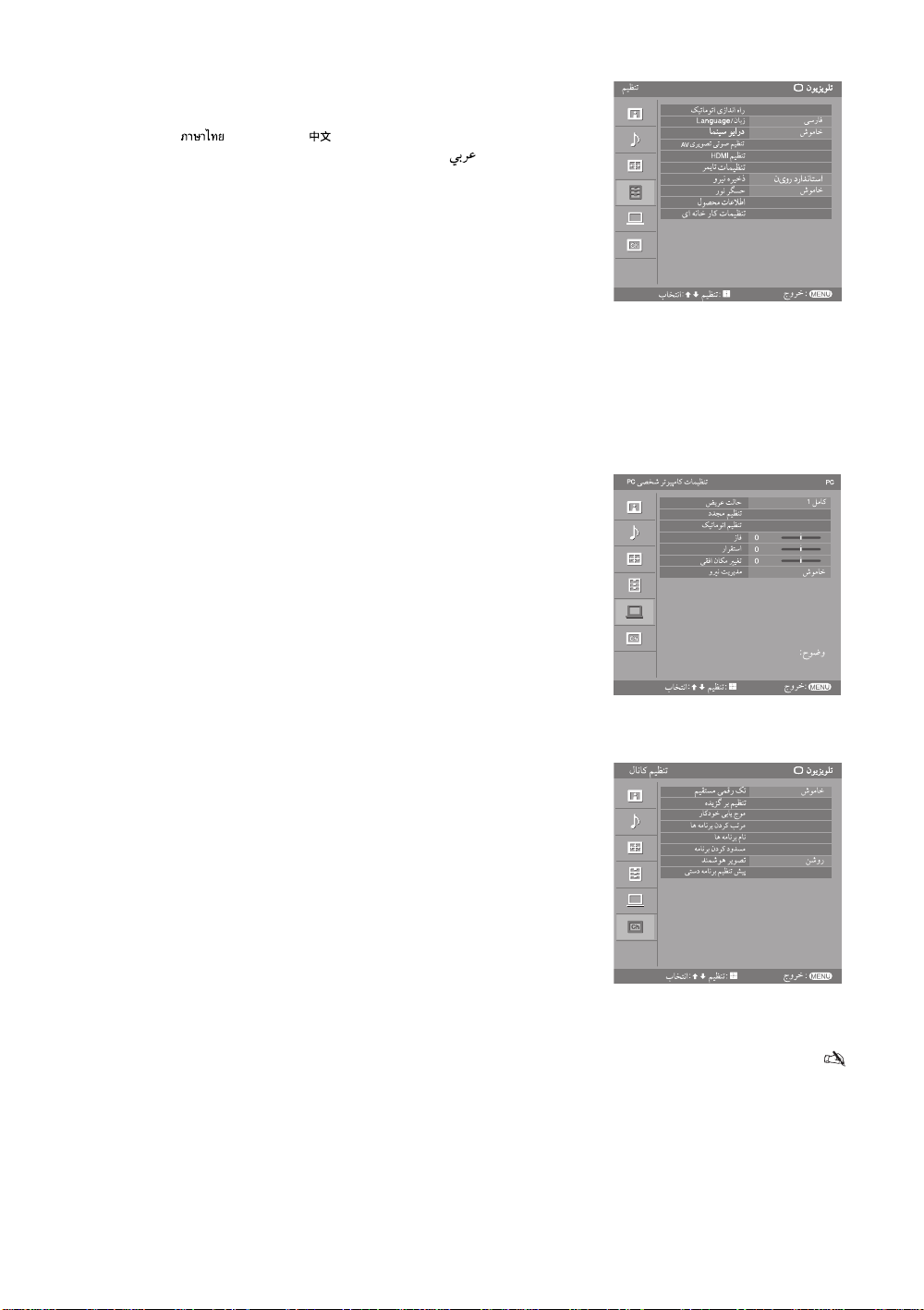
(26 ﻪﺤﻔﺻ) ﻢﻴﻈﻨﺗ ﻯﻮﻨﻣ
"ﮏﻴﺗﺎﻣﻮﺗﺍ یﺯﺍﺪﻧﺍ ﻩﺍﺭ"
T (یﺪﻨﻠﻳﺎﺗ) " " T (ﯽﻨﻴﭼ) " " T (ﺲﻴﻠﮕﻧﺍ) "English" :"Language/ﻥﺎﺑﺯ"
"ﯽﺳﺭﺎﻓ" T (ﯽﺑﺮﻋ) " "
"ﺵﻮﻣﺎﺧ" T "ﮏﻴﺗﺎﻣﻮﺗﺍ" :"ﲈﻨﻴﺳ ﻮﻳﺍﺭﺩ"
،"ﻮﮔﺪﻨﻠﺑ" ،"ﮏﻴﺗﺎﻣﻮﺗﺍ S ﻮﺋﺪﻳﻭ" ،"ﻮﻳﺪﻳﻭ یﺎﻫ ﻡﺎﻧ" :"AV یﺮ ﻳﻮ ﺼ ﺗ ﯽﺗﻮﺻ ﻢﻴﻈﻨﺗ"
"ﮓﻧﺭ ﻢﺘﺴﻴﺳ" ،"ﺍﺪﺻ ﻰﺟﻭﺮﺧ"
،"ﺎﻫ ﻩﺎﮕﺘﺳﺩ ﺭﺎﻛﺩﻮﺧ ﯽﺷﻮﻣﺎﺧ" ،"HDMI ﺍﺮﺑ ﻝﺮﺘﻨﻛ" :"HDMI ﻢﻴﻈﻨﺗ"
"HDMI ﻩﺎﮕﺘﺳﺩ ﺖﺴﻴﻟ" ،"ﻩﺎﮕﺘﺳﺩ ﺖﺴﻴﻟ یﺯﺎ ﺳﺯﻭﺭ ﻪﺑ" ،"ﻥﻮﻳﺰﻳﻮﻠﺗ ﺭﺎﻛﺩﻮﺧ ﺮﮕﻨﺷﻭﺭ"
"ﺖﻋﺎﺳ ﻢﻴﻈﻨﺗ" ،"ﻦﺷﻭﺭ ﺮﻤﻳﺎﺗ" ،"ﺏﺍﻮﺧ ﺮﻤﻳﺎﺗ" :"ﺮﻤﻳﺎﺗ ﺕﲈﻴﻈﻨﺗ"
"ﺵﻮﻣﺎﺧ ﺮﻳﻮﺼﺗ" T "ﻥیﻭﺭ ﺶﻫﺎﻛ ﯽﻬﺘﻓﺍ" T "ﻥیﻭﺭ ﺩﺭﺍﺪ ﻧﺎﺘ ﺳﺍ" :"ﻭﺮ ﻴﻧ ﻩﺮ ﻴ ﺧﺫ"
"ﺵﻮﻣﺎﺧ" T "
ﻦﺷﻭﺭ
" :"ﺭﻮﻧ ﺮﮕﺴﺣ"
"ﻝﻮﺼﺤﻣ ﺕﺎﻋﻼﻃﺍ"
"
ﺍ ﻪﻧ ﺎﺧ ﺭﺎﻛ ﺕﺎﻤﻴﻈﻨﺗ"
(28 ﻪﺤﻔﺻ) PC ﯽﺼﺨﺷ ﺮﺗﻮﻴﭙﻣﺎﻛ ﺕﲈﻴﻈﻨﺗ یﻮﻨﻣ
"2 ﻞﻣﺎﻛ" T "1 ﻞﻣﺎﻛ" :"ﺾﻳﺮﻋ ﺖﻟﺎﺣ"
"ﮏﻴﺗﺎﻣﻮﺗﺍ ﻢﻴﻈﻨﺗ"
ﯽﻘﻓﺍ ﻥﺎﻜﻣ ﺮﻴﻴﻐﺗ"
"ﺵﻮﻣﺎﺧ" T "
"
ﻦﺷﻭﺭ
" :"ﻭﲑﻧ ﺖﻳﺮﻳﺪﻣ"
"ﺩﺪﺠﻣ ﻢﻴﻈﻨﺗ"
"
ﺯﺎﻓ"
"
ﺭﺍﺮﻘﺘﺳﺍ"
0
0
0
(30 ﻪﺤﻔﺻ) ﻝﺎﻧﺎﻛ ﻢﻴﻈﻨﺗ یﻮﻨﻣ
"ﺵﻮﻣﺎﺧ" T "
"ﺵﻮﻣﺎﺧ" T "
"ﻻﺎﺑ VHF"/"ﲔﻳﺎﭘ VHF" ،"ﻥﻮﻳﺰﻳﻮﻠﺗ ﻢﺘﺴﻴﺳ" ،"ﻪﻣﺎﻧﺮﺑ" :"ﯽﺘﺳﺩ ﻪﻣﺎﻧﺮﺑ ﻢﻴﻈﻨﺗ ﺶﻴﭘ"
،
"ﺵﺮﭘ" ،"ﺍﺪﺻ ﱰﻠﻴﻓ" ،"A F T " ،"ﻡﺎﻧ" ،"UHF"/
"ﻝﺎﻨﮕﻴﺳ ﺢﻄﺳ" ،"ﻝﺎﻨﮕﻴﺳ ﻩﺪﻨﻨﻛ ﺖﻳﻮﻘﺗ" ،"ﮓﻧﺭ ﻢﺘﺴﻴﺳ"
.ﺪﻧﻮﺷ ﻰﻤﻧ ﻩﺩﺍﺩ ﺶﻳﲈﻧ ﺎﻳ ﻩﺪﺷ ﱰﺴﻛﺎﺧ ﺱﱰﺳﺩ ﻞﺑﺎﻗ ﲑﻏ ﺎﻫ ﻪﻨﻳﺰﮔ .ﺖﺳﺍ ﺕﻭﺎﻔﺘﻣ ﺖﻴﻌﻗﻮﻣ ﻪﺑ ﻪﺘﺴﺑ ﺪﻴﻨﻛ ﻢﻴﻈﻨﺗ ﺪﻴﻧﺍﻮﺗ ﻰﻣ ﲈﺷ ﻪﻛ ﻰﺋﺎﻫ ﻪﻨﻳﺰﮔ •
ﻦﺷﻭﺭ
" T "
ﻦﺷﻭﺭ
ﻮﮕﻧ ﺎﺸﻧ ﺎﺑ ﻦﺷﻭﺭ
" :"ﻢﻴﻘﺘﺴﻣ ﯽﻤﻗﺭ ﮏﺗ"
"
ﻩﺪﻳ ﺰﮔ ﺮﺑ ﻢﻴﻈﻨﺗ"
"ﺭﺎﻛﺩﻮﺧ ﯽﺑﺎﻳ ﺝﻮﻣ"
"ﺎﻫ ﻪﻣﺎﻧﺮﺑ ﻥﺩﺮﻛ ﺐﺗﺮﻣ"
"ﺎﻫ ﻪﻣﺎﻧﺮﺑ ﻡﺎﻧ"
"
ﻪﻣﺎﻧﺮﺑ ﻥﺩﺮﻛ ﺩﻭﺪﺴﻣ"
" :"ﺪﻨﻤﺷ ﻮﻫ ﺮﻳﻮﺼﺗ"
22
PR
Page 57
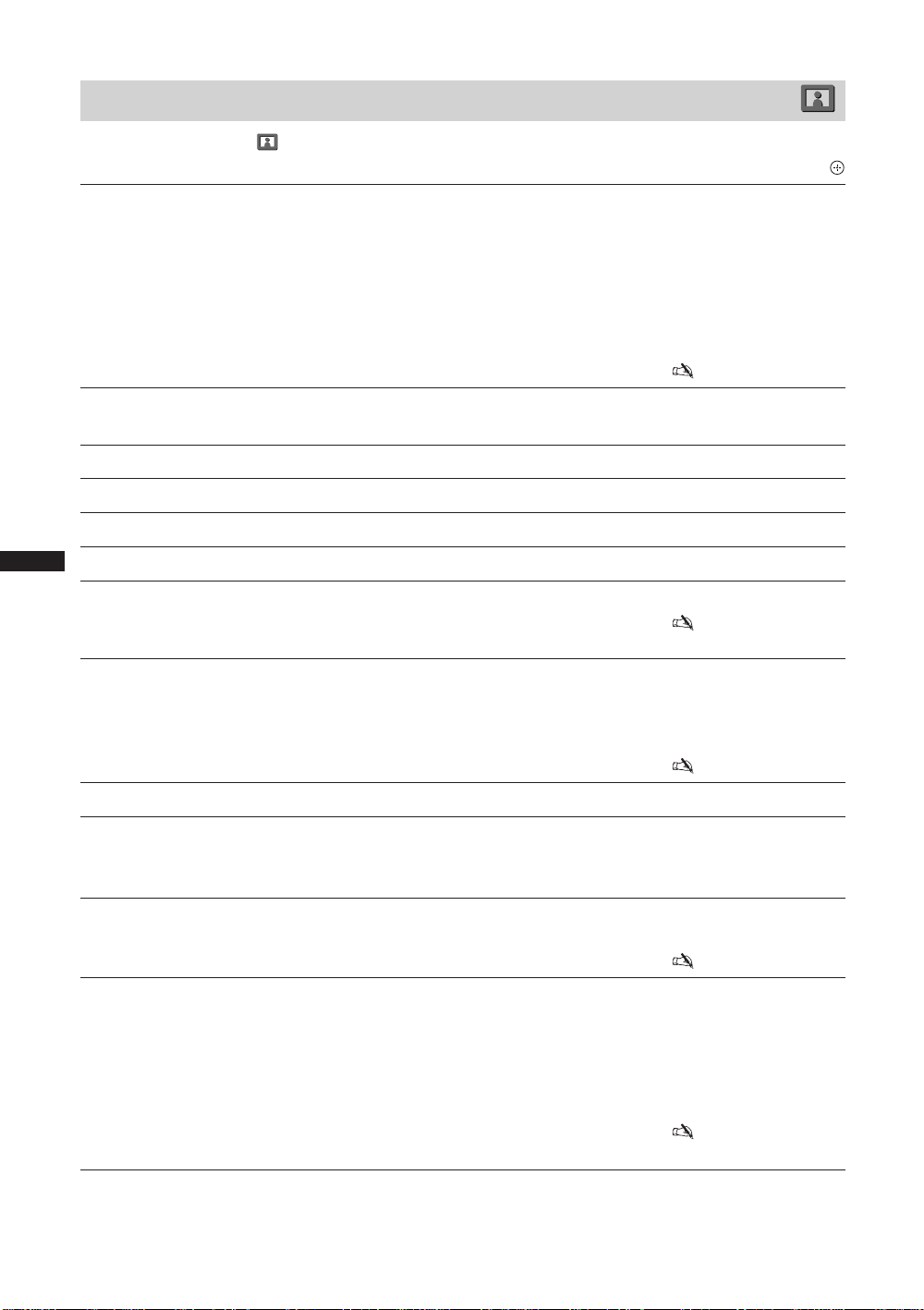
ﺮﻳﻮﺼﺗ ﻯﻮﻨﻣ
ﺲﭙﺳ ،ﺪﺷﺎﺑ ﻩﺪﺷ ﺏﺎﺨﺘﻧﺍ ( ) "ﺮﻳﻮﺼﺗ" ﻥﻮﻜﻳﺁ ﻪﻛ ﺪﻳﻮﺷ ﻦﺌﻤﻄﻣ .ﺪﻴﻳﲈﻧ ﺏﺎﺨﺘﻧﺍ ﺍﺭ "ﺕﲈﻴﻈﻨﺗ"ﻭ ﻩﺩﺍﺩ ﺭﺎﺸﻓ ﺍﺭ MENU ﻪﻤﻛﺩ
.ﺪﻴﻫﺩ ﺭﺎﺸﻓ ﺍﺭ
.ﺪﻨﻛ ﯽﻣ ﺏﺎﺨﺘﻧﺍ PC ﯽﺼﺨﺷ ﺮﺗﻮﻴﭙﻣﺎﻛ یﺩﻭﺭﻭ ﻊﺒﻨﻣ یﺍﺮﺑ ﺰﺠﺑ ﺍﺭ ﺮﻳﻮﺼﺗ ﺖﻟﺎﺣ
.ﺮﻳﻮﺼﺗ ﺡﻮﺿﻭ ﻭ ﺖﺳﺍﱰﻨﻛ ﻥﺩﺍﺩ ﺩﻮﺒﲠ یﺍﺮﺑ :
"ﻩﺪﻧﺯ"
.ﯽﮕﻧﺎﺧ ﻩﺩﺎﻔﺘﺳﺍ یﺍﺮﺑ ﻩﺪﺷ ﻪﻴﺻﻮﺗ .ﺩﺭﺍﺪﻧﺎﺘﺳﺍ ﺮﻳﻮﺼﺗ یﺍﺮﺑ :"ﺩﺭﺍﺪﻧﺎﺘﺳﺍ"
.ﯽﻳﻮﺋﺪﻳﻭ یﺎﻫ ﻢﻠﻴﻓ ﻪﻨﻴﲠ ﺖﻴﻔﻴﻛ یﺍﺮﺑ :"ﺎﻤﻨﻴﺳ"
.ﺪﻨﻛ ﯽﻣ ﺏﺎﺨﺘﻧﺍ PC ﯽﺼﺨﺷ ﺮﺗﻮﻴﭙﻣﺎﻛ یﺩﻭﺭﻭ ﻊﺒﻨﻣ یﺍﺮﺑ ﺍﺭ ﯽﺸﻳﺎﻤﻧ ﺖﻟﺎﺣ
.ﯽﻳﻮﺋﺪﻳﻭ ﺮﻳﻭﺎﺼﺗ ی ﺍﺮﺑ :
"ﻮﺋﺪﻳﻭ"
.ﻝﻭﺍﺪﺟ ﺎﻳ ﺎﻫﺭﺍﺩﻮﻤﻧ ،ﻦﺘﻣ یﺍﺮﺑ :"ﻦﺘﻣ"
.ﺪﻧﻮﺷ ﯽﻣ ﻩﺩﺍﺩ ﺶﻳﺎﻤﻧ ﺕﻭﺎﻔﺘﻣﺭﻮﻄﺑ یﺩﻭﺭﻭ ﻊﺒﻨﻣ ﻉﻮﻧ ﻪﺑ ﻪﺘﺴﺑ ﯽﺑﺎﺨﺘﻧﺍ یﺎﻫ ﻪﻨﻳﺰﮔ •
ﯽﻣ ﺯﺎﺑ یﺍ ﻪﻧﺎﺧﺭﺎﻛ ﺕﺎﻤﻴﻈﻨﺗ ﻪﺑ ﺍﺭ
"ﺶﻳﲈﻧ ﺖﻟﺎﺣ" ﻭ "ﺮﻳﻮﺼﺗ ﺖﻟﺎﺣ" ﺰﺠﺑ "ﺮﻳﻮﺼﺗ" ﺕﺎﻤﻴﻈﻨﺗ ﻪﻴﻠﻛ
.ﺪﻧﺍﺩﺮﮔ
ﯽﻳﻮﺋﺪﻳﻭ یﺎﻫﺭﺍﻮﻧ ،ﻼﺜﻣ ) ﺪﺷﺎﺑ ﯽﻣ ﻢﻴﻈﻨﺗ ﻞﺑﺎﻗ
.(ﺎﻜﻳﺮﻣﺁ
.ﺪﺷﺎﺑ ﯽﻤﻧ ﺱﱰﺳﺩ ﻞﺑﺎﻗ HDMI ﻭ ﺀﺍﺰﺟﺍ ،PC ﯽﺼﺨﺷ ﺮﺗﻮﻴﭙﻣﺎﻛ یﺩﻭﺭﻭ ﻊﺑﺎﻨﻣ یﺍﺮﺑ "ﮓﻧﺭ ﻞﻳﺎﻤﺗ" ﺖﻴﻌﺿﻭ •
NTSC ﮓﻧﺭ ﻢﺘﺴﻴﺳ یﺍﺮﺑ ﻂﻘﻓ "ﮓﻧﺭ ﻞﻳﺎﻤﺗ" •
.ﺪﻫﺩ ﯽﻣ ﯽﺑﺁ یﺍ ﻪﻨﻴﻣﺯ ﺪﻴﻔﺳ ﮓﻧﺭ ﻪﺑ :
"ﺩﴎ"
.ﺪﻫﺩ ﯽﻣ ﯽﺜﻨﺧ یﺍ ﻪﻨﻴﻣﺯ ﺪﻴﻔﺳ ﮓﻧﺭ ﻪﺑ :"ﯽﺜﻨﺧ"
.ﺪﻫﺩ ﯽﻣ "1 ﻡﺮﮔ" ﺯﺍ ﺮﺗ ﺰﻣﺮﻗ یﺍ ﻪﻨﻴﻣﺯ "2 ﻡﺮﮔ" .ﺪﻫﺩ ﯽﻣ ﺰﻣﺮﻗ یﺍ ﻪﻨﻴﻣﺯ ﺪﻴﻔﺳ ﮓﻧﺭ ﻪﺑ :"2 ﻡﺮﮔ" / "1 ﻡﺮﮔ"
.ﺪﻨﺘﺴﻴﻧ ﺱﱰﺳﺩ ﻞﺑﺎﻗ "2 ﻡﺮﮔ" ﻭ "1 ﻡﺮﮔ" یﺎﻬﺘﻴﻌﺿﻭ ﺪﺷﺎﺑ ﻪﺘﺷﺍﺩ ﺭﺍﺮﻗ "ﻩﺪﻧﺯ" یﻭﺭ "ﺮﻳﻮﺼﺗ ﺖﻟﺎﺣ" ﺖﻴﻌﺿﻭ ﻪﻜﻴﻣﺎﮕﻨﻫ •
ﺮﻳﻮﺼﺗ ﺖﻟﺎﺣ
ﯽﺸﻳﲈﻧ ﺖﻟﺎﺣ
ﺩﺪﳎ ﻢﻴﻈﻨﺗ
ﻪﻨﻴﻣﺯ ﺭﻮﻧ.ﺪﻳﲈﻧ ﯽﻣ ﻢﻴﻈﻨﺗ ﺍﺭ ﻪﻨﻴﻣﺯ ﺭﻮﻧ ﯽﻳﺎﻨﺷﻭﺭ
ﺮﻳﻮﺼﺗ.ﺪﻴﻫﺩ ﯽﻣ ﺶﻫﺎﻛ ﺎﻳ ﺶﻳﺍﺰﻓﺍ ﺍﺭ ﺮﻳﻮﺼﺗ ﺖﺳﺍﱰﻨﻛ
ﯽﻳﺎﻨﺷﻭﺭ.ﺪﻨﻛ ﯽﻣ ﱰﻜﻳﺭﺎﺗ ﺎﻳ ﱰﻨﺷﻭﺭ ﺍﺭ ﺮﻳﻮﺼﺗ
ﮓﻧﺭ .ﺪﻫﺩ ﯽﻣ ﺶﻫﺎﻛ ﺎﻳ ﺶﻳﺍﺰﻓﺍ ﺍﺭ ﮓﻧﺭ ﺕﺪﺷ
ﮓﻧﺭ ﻞﻳﺎﲤ.ﺪﻫﺩ ﯽﻣ ﺶﻫﺎﻛ ﻭ ﺶﻳﺍﺰﻓﺍ ﺍﺭ ﺰﻣﺮﻗ ﮓﻧﺭ ﻦﺗ ﻭ ﺰﺒﺳ ﮓﻧﺭ ﻦﺗ
ﮓﻧﺭ یﺎﻣﺩ.ﺪﻳﲈﻧ ﯽﻣ ﻢﻴﻈﻨﺗ ﺍﺭ ﺮﻳﻮﺼﺗ یﺪﻴﻔﺳ
MENU یﺎﻫ ﺩﺮﻜﻠﻤﻋ ﺯﺍ ﻩﺩﺎﻔﺘﺳﺍ
.ﺪﻫﺩ ﯽﻣ ﺶﻫﺎﻛ ﺍﺭ ﺮﻳﻮﺼﺗ ﺖﻳﺯﺍﺭﺎﭘ (ﯽﻜﻓﺮﺑ ﺮﻳﻮﺼﺗ) ﯽﺘﻓﺎﻳﺭﺩ ﻝﺎﻨﮕﻴﺳ ﻥﺩﻮﺑ ﻒﻴﻌﺿ ﺕﺭﻮﺻ ﺭﺩ
.ﺪﺸﺨﺑ ﯽﻣ ﺩﻮﺒﲠ ﺍﺭ ﺖﻳﺯﺍﺭﺎﭘ ﺶﻫﺎﻛ ﲑﺛﺎﺗ :
"ﻢﻛ"/"ﻂﺳﻮﺘﻣ"/"ﺩﺎﻳﺯ"
.ﺪﻨﻛ ﯽﻣ ﺵﻮﻣﺎﺧ ﺍﺭ "ﺖﻳﺯﺍﺭﺎﭘ ﺶﻫﺎﻛ" ﯽﮔﮋﻳﻭ :"ﺵﻮﻣﺎﺧ"
.ﺪﻴﻳﲈﻧ ﺏﺎﺨﺘﻧﺍ ﺍﺭ
.ﺖﺴﻴﻧ ﻪﺋﺍﺭﺍ ﻞﺑﺎﻗ ﺍﺰﺟﺍ ﻱﺩﻭﺭﻭ ﻊﺒﻨﻣ ﺖﻟﺎﺣ ﻭ
.ﺪﻴﻨﻛ ﻢﻴﻈﻨﺗ ﺎﻳ ﻩﺩﺍﺩﲑﻴﻐﺗ ﺍﺭ ﺕﲈﻴﻈﻨﺗ ﻦﻳﺍ ﺪﻴﻧﺍﻮﺗ ﯽﻣ ،ﺪﻴﻫﺩ ﯽﻣ ﺭﺍﺮﻗ
"ﺵﻮﻣﺎﺧ" ﺎﻳ "ﻢﻛ" ،"ﻂﺳﻮﺘﻣ" ،"ﺩﺎﻳﺯ" یﺎﻬﺘﻟﺎﺣ ﺯﺍ ﯽﻜﻳ
PC ﻱﺩﻭﺭﻭ ﺖﻟﺎﺣﺭﺩ «MPEG ﺰﻳﻮﻧ ﺶﻫﺎﻛ» •
"ﺎﻤﻨﻴﺳ" ﺎﻳ "ﺩﺭﺍﺪﻧﺎﺘﺳﺍ"
ﺯﺍ ﺖﻟﺎﺣ ﻦﻳﱰﲠ ﻪﺑ ﺍﺭ "ﺮﻳﻮﺼﺗ" ﻭ "ﻪﻨﻴﻣﺯ ﺭﻮﻧ" ﺖﻴﻌﺿﻭ ﺭﺎﻛﺩﻮﺧ ﺭﻮﻄﺑ :"ﻪﻨﻴﻬﺑ ﺖﺳﺍﱰﻨﻛ ﻩﺪﻨﻨﻛ ﺖﻳﻮﻘﺗ"
ﺮﺛﻮﻣ ﺖﺳﺍ ﮏﻳﺭﺎﺗ ﺮﻳﻮﺼﺗ ﻪﻛ ﯽﻧﺎﻣﺯ یﺍﺮﺑ ﺎﺻﻮﺼﳐ ﻢﻴﻈﻨﺗ ﻦﻳﺍ .ﺪﻳﲈﻧ ﯽﻣ ﻢﻴﻈﻨﺗ ﺶﻳﺎﻤﻧ ﻪﺤﻔﺻ ﯽﻳﺎﻨﺷﻭﺭ
.ﺪﻫﺩ ﺶﻳﺍﺰﻓﺍ ﺍﺭ ﮏﻳﺭﺎﺗ ﺮﻳﻮﺼﺗ ﺖﺳﺍﱰﻨﻛ ﺪﻧﺍﻮﺗ ﯽﻣ ﺖﻟﺎﺣ ﻦﻳﺍ .ﺪﺷﺎﺑ ﯽﻣ
.ﻩﺩﺮﻛ ﻑﺎﻔﺷ ﺭﺎﻴﺴﺑ ﺍﺭ ﺎﻬﮕﻧﺭ :
ﺭﺍﺮﻗ
"ﻩﺪﻧﺯ" یﻭﺭ "ﺮﻳﻮﺼﺗ ﺖﻟﺎﺣ" ﻪﻜﻴﻧﺎﻣﺯ ﺎﻳ PC ﯽﺼﺨﺷ ﺮﺗﻮﻴﭙﻣﺎﻛ یﺩﻭﺭﻭ ﻊﺒﻨﻣ یﺍﺮﺑ "ﻪﺘﻓﴩﻴﭘ ﺕﺎﻤﻴﻈﻨﺗ" ﺖﻟﺎﺣ •
.ﺩﻮﺑ ﺪﻫﺍﻮﺨﻧ ﺱﱰﺳﺩ ﻞﺑﺎﻗ ﺪﺷﺎﺑ ﻩﺪﺷ ﻪﺘﻓﺮﮔ
PR
23
"ﻩﺪﻧﺯ ﮓﻧﺭ"
ﺖﻳﺯﺍﺭﺎﭘ ﺶﻫﺎﻛ
ﺰﻳﻮﻧ ﺶﻫﺎﻛ.ﺪﻫﺩ ﯽﻣ ﺶﻫﺎﻛ MPEG ﻩﺪﺷ ﻩﺩﴩﻓ ﺮﻳﻮﺼﺗ ﺭﺩ ﺍﺭ ﺮﻳﻮﺼﺗ ﺰﻳﻮﻧ
MPEG
ﻪﺘﻓﴩﻴﭘ ﺕﲈﻴﻈﻨﺗ یﻭﺭ ﺍﺭ "ﺮﻳﻮﺼﺗ ﺖﻟﺎﺣ" ﺖﻴﻌﺿﻭ ﻪﻜﻴﻣﺎﮕﻨﻫ .ﺪﻫﺩ ﯽﻣ یﱰﺸﻴﺑ ﺕﺎﻴﺋﺰﺟ "ﺮﻳﻮﺼﺗ" ﺩﺮﻜﻠﻤﻋ ﻪﺑ
ﺡﻮﺿﻭ .ﺮﻳﻮﺼﺗ ﯽﻓﺎﺻ ﻭ ﺡﻮﺿﻭ
Page 58
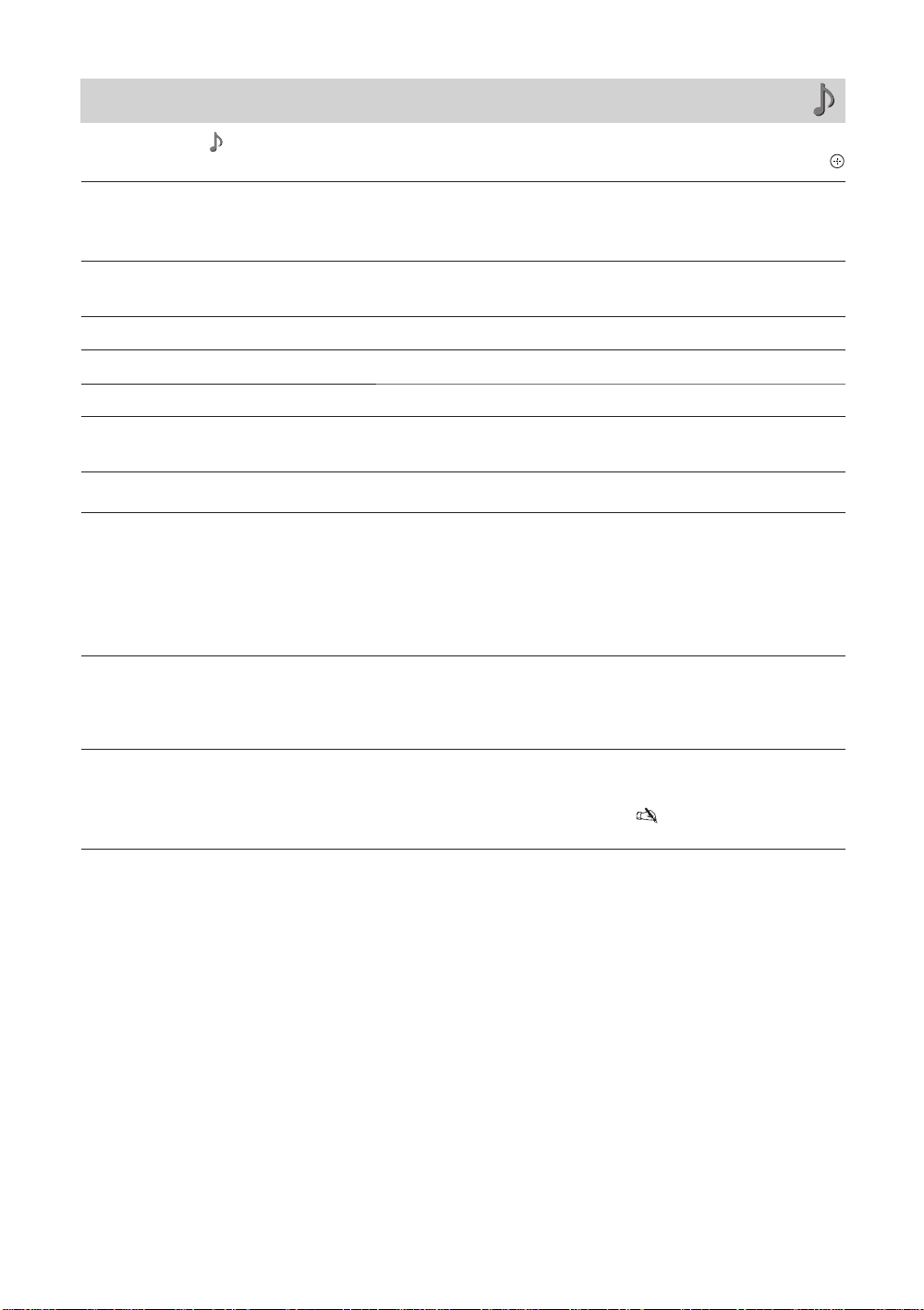
ﺍﺪﺻ ﻯﻮﻨﻣ
ﺲﭙﺳ ،ﻩﺩﺍﺩ ﺭﺎﺸﻓ ( ) "ﺍﺪﺻ" ﻥﻮﻜﻳﺁ ﺏﺎﺨﺘﻧﺍ یﺍﺮﺑ ﺍﺭ F/f ﻪﻤﻛﺩ .ﺪﻴﻳﲈﻧ ﺏﺎﺨﺘﻧﺍ ﺍﺭ "ﺕﲈﻴﻈﻨﺗ"ﻭ ﻩﺩﺍﺩ ﺭﺎﺸﻓ ﺍﺭ MENU ﻪﻤﻛﺩ
.ﺪﻴﻫﺩ ﺭﺎﺸﻓ ﺍﺭ
ﺍﺪﺻ ﺖﻟﺎﺣ.ﺩﻮﺷ ﯽﻣ ﻪﻴﺻﻮﺗ ﻝﺰﻨﻣ ﺭﺩ ﺩﺍﺩ ﺵﻮﮔ یﺍﺮﺑ .ﺪﺸﺨﺑ ﯽﻣ ﺩﻮﺒﲠ ﺍﺭ ﺮﻳﺯ ﻭ ﻢﺑ یﺍﺪﺻ :"ﮏﻴﻣﺎﻨﻳﺩ"
.ﺍﺪﺻ ﻥﺩﺮﻛ ﺩﺭﺍﺪﻧﺎﺘﺳﺍ یﺍﺮﺑ :"ﺩﺭﺍﺪﻧﺎﺘﺳﺍ"
.ﺩﺯﺎﺳ ﯽﻣ ﺮﺗ ﻑﺎﻔﺷ ﺍﺭ ﺍﺪﺻ ﺕﻮﺻ :"ﺢﺿﺍﻭ یﺍﺪﺻ"
ﯽﻣ ﺯﺎﺑ یﺍ ﻪﻧﺎﺧﺭﺎﻛ ﺕﲈﻴﻈﻨﺗ ﻪﺑ ﺍﺭ
"ﻪﻧﺎﮔﻭﺩ یﺍﺪﺻ" ﻭ "ﺍﺪﺻ ﺖﻟﺎﺣ" ﺰﺠﺑ "ﺍﺪﺻ" ﺕﲈﻴﻈﻨﺗ ﯽﻣﺎﲤ
.ﺪﻧﺍﺩﺮﮔ
ﯽﻣ ﺮﺗﺪﻨﻠﺑ ﻪﻣﺎﻧﺮﺑ یﺍﺪﺻ ﺯﺍ ﯽﺗﺎﻐﻴﻠﺒﺗ یﺎﻫ ﯽﻬﮔﺁ یﺍﺪﺻ ،ﻝﺎﺜﻣ یﺍﺮﺑ)
.(ﺪﺷﺎﺑ
"S-FORCE Front Surround"
.ﻩﺪﺷ ﻞﺻﻭ ﻪﻠﻴﺳﻭ ﺯﺍ ﯽﺗﻮﺻ یﺩﻭﺭﻭ ﻭ ،5.1ch ﯽﺘﻓﺎﻳﺭﺩ
.ﺪﻨﻛ ﯽﻣ ﻪﻓﺎﺿﺍ ﯽﺋﺍﺪﺻ ﮏﺗ یﺎﻫ ﻪﻣﺎﻧﺮﺑ ﻪﺑ ﺍﺭ ﯽﻄﻴﳏ ﻪﺒﺷ ﻩﻮﻠﺟ ﮏﻳ :
"ﻩﺪﺷ یﺯﺎﺳ ﻪﻴﺒﺷﻮﻳﱰﺳﺍ"
(2ch) یﺩﺎﻋ یﻮﻳﱰﺳﺍ یﺍﺪﺻ ﺕﺭﻮﺻ ﻪﺑ ﺍﺭ ﺮﮕﻳﺩ ﯽﺘﻓﺎﻳﺭﺩ ﯽﻄﻴﳏ یﺎﻫﺍﺪﺻ ﻭ 5.1ch :"ﺵﻮﻣﺎﺧ"
.ﺪﻨﻛ ﯽﻣ ﺪﻴﻟﻮﺗﺯﺎﺑ ﺪﻨﺘﺴﻫ ﻪﻛ ﯽﺗﺭﻮﺻ ﻪﺑ ﺍﺭ ﺎﻫ ﯽﺘﻓﺎﻳﺭﺩ ﺮﮕﻳﺩ ﻪﻴﻟﻭﺍ یﺍﺪﺻ .ﺪﻨﻛ ﯽﻣ ﺪﻴﻟﻮﺗﺯﺎﺑ ﻭ ﻞﻳﺪﺒﺗ
ﺢﺿﺍﻭﲑﻏ ﺭﺎﺒﺧﺍ ﻩﺪﻨﻳﻮﮔ ﮏﻳ یﺍﺪﺻ ﺮﮔﺍ ،ﻝﺎﺜﻣ یﺍﺮﺑ .ﺪﻨﻛ ﯽﻣ ﻢﻴﻈﻨﺗ ﺍﺭ ﻥﺎﺴﻧﺍ یﺎﻫﺍﺪﺻ ﺖﻴﻓﺎﻔﺷ
ﻪﻣﺎﻧﺮﺑ ﮏﻳ ﺮﮔﺍ ،ﺲﻜﻋﺮﺑ .ﺪﻴﻨﻛ ﺩﺎﻳﺯ ﺍﺪﺻ ﻦﺘﺧﺎﺳ ﺮﺗ ﻑﺎﻔﺷ یﺍﺮﺑ ﺍﺭ ﻢﻴﻈﻨﺗ ﻦﻳﺍ ﺪﻴﻧﺍﻮﺗ ﯽﻣ
،ﺪﺷﺎﺑ
.ﺪﻴﻨﻛ ﻢﻛ ﴪﻔﻣ یﺍﺪﺻ ﻥﺩﺮﻛ ﺮﺗ ﻢﻳﻼﻣ یﺍﺮﺑ ﺍﺭ ﻢﻴﻈﻨﺗ ﻦﻳﺍ ﺪﻴﻧﺍﻮﺗ ﯽﻣ ،ﺪﻴﻨﻛ ﯽﻣ ﺎﺷﺎﲤ ﺍﺭ ﯽﺷﺯﺭﻭ
.ﺪﻨﻛ ﯽﻣ ﺏﺎﺨﺘﻧﺍ ﺍﺭ
ﯽﻣ ﺱﱰﺳﺩ ﻞﺑﺎﻗ ﺖﺳﺍ ﻪﺘﻓﺮﮔ ﺭﺍﺮﻗ "ﺩﺭﺍﺪﻧﺎﺘﺳﺍ" یﻭﺭ "ﺍﺪﺻ ﺖﻟﺎﺣ" ﻪﻜﻴﻧﺎﻣﺯ "ﺍﺪﺻ ﻩﺪﻨﻨﻛ ﺖﻳﻮﻘﺗ" ﺖﻴﻌﺿﻭ •
"ﺵﻮﻣﺎﺧ" ﺎﻳ "ﻢﻛ" ،"ﺩﺎﻳﺯ" یﺎﻬﺘﻟﺎﺣ ﺯﺍ ﯽﻜﻳ
.ﺪﺷﺎﺑ
ﺩﺪﳎ ﻢﻴﻈﻨﺗ
ﺮﻳﺯ یﺍﺪﺻ.ﺪﻨﻛ ﯽﻣ ﻢﻴﻈﻨﺗ ﺍﺭ ﺎﻫﺍﺪﺻ یﻻﺎﺑ ﺯﺎﻓ
ﻢﺑ یﺍﺪﺻ.ﺪﻨﻛ ﯽﻣ ﻢﻴﻈﻨﺗ ﺍﺭ ﺎﻫﺍﺪﺻ ﲔﻳﺎﭘ ﺯﺎﻓ
ﺲﻧﻻﺎﺑ.ﺪﻨﻛ ﯽﻣ ﺖﻳﻮﻘﺗ ﺍﺭ ﺖﺳﺍﺭ ﻭ ﭗﭼ یﺎﻫﻮﮔﺪﻨﻠﺑ یﺍﺪﺻ ﺲﻧﻻﺎﺑ
ﺪﻨﻤﺷﻮﻫ ﺍﺪﺻ ﻪﺟﺭﺩ ﺩﺭﺍﺩ ﯽﻣ ﻪﮕﻧ ﺖﺑﺎﺛ ﺍﺭ ﺍﺪﺻ ﺢﻄﺳ ﺩﻮﺷ ﯽﻣ ﺩﺎﳚﺍ ﯽﻳﺍﺪﺻ ﺡﻮﻄﺳ ﲔﺑ ﻑﻼﺘﺧﺍ ﻪﻜﻴﻟﺎﺣﺭﺩ ﯽﺘﺣ
ﺍﺪﺻ ﻪﺟﺭﺩ ﻥﺯﺍﻮﺗ.ﺪﻨﻛ ﯽﻣ ﻢﻴﻈﻨﺗ ﺎﻫ یﺩﻭﺭﻭ ﺮﻳﺎﺳ یﺍﺮﺑ ﺍﺭ یﺭﺎﺟ یﺩﻭﺭﻭ یﺍﺪﺻ ﻥﺍﺰﻴﻣ
ﲑﮔﺍﺮﻓ ﯽﻄﻴﳏ یﺍﺪﺻ ﻭ یﺩﺎﻋ یﻮﻳﱰﺳﺍ ﯽﺘﻓﺎﻳﺭﺩ یﺍﺮﺑ ﺱﱰﺳﺩ ﻞﺑﺎﻗ :
ﯽﺗﻮﺻ ﻡﻭﺯ
ﺍﺪﺻ ﻩﺪﻨﻨﻛ ﺖﻳﻮﻘﺗ.ﺪﻨﻛ ﯽﻣ ﺖﻳﻮﻘﺗ ﺎﻫﻮﮔﺪﻨﻠﺑ ﺭﺩ ﺯﺎﻓ ﺕﺍﲑﺛﺎﺗ ﻥﺍﱪﺟ ﺎﺑ ﺍﺭ ﺍﺪﺻ
24
PR
Page 59
.ﺪﺷﺎﺑ ﺕﻭﺎﻔﺘﻣ ﺪﻧﺍﻮﺗ ﯽﻣ ﺏﺎﺨﺘﻧﺍ ،ﻩﺪﻨﺘﺳﺮﻓ ﻩﺎﮕﺘﺴﻳﺍ ﻪﺑ ﻪﺘﺴﺑ
ﻪﻣﺎﻧﺮﺑ ﺶﺨﭘﺏﺎﺨﺘﻧﺍ
NICAM ﻮﻳﱰﺳﺍ(ﻮﻳﱰﺳﺍ ﺍﺪﺻ) ﻮﻳﱰﺳﺍ
(ﱃﻮﻤﻌﻣ ﺍﺪﺻ) ﻮﻧﻮﻣ
NICAM ﻪﻧﺎﺑﺯ ﻭﺩ(ﲆﺻﺍ ﺍﺪﺻ) ﲆﺻﺍ
(ﻰﻋﺮﻓ ﺍﺪﺻ) ﻰﻋﺮﻓ
(ﱃﻮﻤﻌﻣ ﺍﺪﺻ) ﻮﻧﻮﻣ
NICAM ﻝﺍﺭﻮﻧﻮﻣ(ﲆﺻﺍ ﺍﺪﺻ) ﲆﺻﺍ
(ﱃﻮﻤﻌﻣ ﺍﺪﺻ) ﻮﻧﻮﻣ
A2 ﻮﻳﱰﺳﺍ(ﻮﻳﱰﺳﺍ ﺍﺪﺻ) ﻮﻳﱰﺳﺍ
(ﻰﻧﺎﳌﺁ)
(ﱃﻮﻤﻌﻣ ﺍﺪﺻ) ﻮﻧﻮﻣ
(ﻰﻧﺎﳌﺁ) A2 ﻪﻧﺎﺑﺯ ﻭﺩ(ﲆﺻﺍ ﺍﺪﺻ)ﲆﺻﺍ
(ﻰﻋﺮﻓ ﺍﺪﺻ)ﻰﻋﺮﻓ
.ﺩﻮﺷ ﻰﻣ ﻝﺍﺭﻮﻧﻮﻣ ﺭﺎﻛﺩﻮﺧ ﺭﻮﻃ ﻪﺑ ﺍﺪﺻ،ﺪﺷﺎﺑ ﻒﻴﻌﺿ ﺭﺎﻴﺴﺑ ﻝﺎﻨﮕﻴﺳ ﺮﮔﺍ •
ﺪﻴﻨﻛ ﺏﺎﺨﺘﻧﺍ ﺍﺭ "ﻮﻧﻮﻣ" ، ﺪﺷﺎﺑ ﻰﻣ ﺖﻳﺯﺍﺭﺎﭘ ﺍﺭﺍﺩ ﻮﻳﱰﺳﺍ ﺍﺪﺻ NICAM ﻪﻣﺎﻧﺮﺑ ﻚﻳ ﺖﻓﺎﻳﺭﺩ ﻡﺎﮕﻨﻫﺭﺩ ﺮﮔﺍ •
.ﺖﺳﺍ ﻩﺪﺷ ﺖﺒﺛ
ﻩﺪﺷ ﺏﺎﺨﺘﻧﺍ ﻪﻣﺎﻧﺮﺑ ﺖﻴﻌﻗﻮﻣ ﺍﺮﺑ
ﯽﻤﻧ ﺍﺭ ﻪﻧﺎﮔﻭﺩ ﺎﻳ ﯽﻳﻮﻳﱰﺳﺍ یﺍﺪﺻ ﺪﻴﻨﻛ ﯽﻣ ﺏﺎﺨﺘﻧﺍ
"ﻮﻧﻮﻣ" ، ﻪﻛ ﻰﻣﺎﮕﻨﻫﺭﺩ ﺍﺭﻮﻳﱰﺳﺍ ﻪﻣﺎﻧﺮﺑ ﺶﺨﭘ ﻝﺎﻨﮕﻴﺳ ﻚﻳ ﺪﻴﻧﺍﻮﺗ ﻰﻤﻧ ﲈﺷ •
.ﺩﻮﺷ ﻰﻣ ﱰﻤﻛ ﺖﻳﺯﺍﺭﺎﭘ ﱃﻭ ،ﺩﻮﺷ ﻰﻣ ﻝﺍﺭﻮﻧﻮﻣ ﺍﺪﺻ
"ﻪﻧﺎﮔﻭﺩ یﺍﺪﺻ" ﺕﲈﻴﻈﻨﺗ ﻪﻣﺎﻧﺮﺑ یﺎﻬﺘﻴﻌﻗﻮﻣ ﺯﺍ ﻡﺍﺪﻛﺮﻫ یﺍﺮﺑ •
.ﺪﻴﻨﻛ ﺖﻓﺎﻳﺭﺩ ﺖﺳﺍ
"ﺍﺪﺻ ﱰﻠﻴﻓ" ﺭﺩ ﺍﺭ "ﺩﺎﻳﺯ" ﺎﻳ "ﻢﻛ" یﺎﻫ ﺖﻴﻌﺿﻭ ﻪﻜﻴﻣﺎﮕﻨﻫ •
.(
31 ﻪﺤﻔﺻ) ﺪﻴﻳﲈﻧ ﺖﻓﺎﻳﺭﺩ ﺪﻴﻧﺍﻮﺗ
ﻪﻧﺎﮔﻭﺩ یﺍﺪﺻ.ﺪﻨﻛ ﯽﻣ ﺏﺎﺨﺘﻧﺍ ﻪﻧﺎﺑﺯﻭﺩ ﺎﻳ ﯽﻳﻮﻳﱰﺳﺍ یﺍ ﻪﻣﺎﻧﺮﺑ یﺍﺮﺑ ﻮﮔﺪﻨﻠﺑ ﺯﺍ ﺍﺭ ﺍﺪﺻ
.ﻩﲑﻏ ﻭ ،ﺪﻨﻠﻳﺎﺗ ،ﺰﻟﺎﻣ،ﺪﻨﻠﻳﺯﻮﻴﻧ ،ﺭﻮﭘﺎﮕﻨﺳ ،ﮓﻨﻛ ﮓﻨﻫ.ﺪﺷﺎﺑ ﻲﻣ ﺖﻓﺎﻳﺭﺩ ﻞﺑﺎﻗ ﺮﻳﺯ ﺎﻫ ﻪﻘﻄﻨﻣ ﺎﻳ ﺎﻫﺭﻮﺸﻛ ﺭﺩ NICAM
.ﻩﲑﻏ ﻭ ،ﺪﻨﻠﻳﺎﺗ ،ﺰﻟﺎﻣ ،ﺎﻴﻟﺍﱰﺳﺍ.ﺪﺷﺎﺑ ﻲﻣ ﺖﻓﺎﻳﺭﺩ ﻞﺑﺎﻗ ﺮﻳﺯ ﺎﻫ ﻪﻘﻄﻨﻣ ﺎﻳ ﺎﻫﺭﻮﺸﻛ ﺭﺩ (ﻰﻧﺎﳌﺁ)
"ﻪﻧﺎﮔﻭﺩ یﺍﺪﺻ" ﺖﻴﻌﺿﻭ ،ﺪﻴﻨﻛ ﯽﻣ ﺏﺎﺨﺘﻧﺍ ﺍﺭ ﻥﻮﻳﺰﻳﻮﻠﺗ ﻪﺑ ﻩﺪﺷ ﻞﺼﺘﻣ یﺎﻬﻫﺎﮕﺘﺳﺩ ﺮﻳﺎﺳ ﺮﮔﺍ •
یﻭﺭ ﺍﺭ
HDMI ﺶﻴﻓ ﻪﺑ ﻩﺪﺷ ﻞﺼﺘﻣ ﯽﺟﺭﺎﺧ ﺕﺍﺰﻴﻬﲡ ﻪﻜﻴﻧﺎﻣﺯ ،ﻝﺎﺣ ﺮﻫ ﺭﺩ .ﺪﻴﻫﺩ ﺭﺍﺮﻗ "ﻰﻋﺮﻓ" ﺎﻳ "ﲆﺻﺍ" ،"ﻮﻳﱰﺳﺍ"
DVI گﻮﻟﺎﻧﺁ ﯽﺗﻮﺻ یﺩﻭﺭﻭ ﻩﺍﺮﻤﲠ HDMI IN 3 یﺍﺮﺑ ﺰﺠﺑ ،ﺩﺩﺮﮔ ﯽﻣ ﻢﻴﻈﻨﺗ "ﻮﻳﱰﺳﺍ" یﻭﺭﺮﺑ ،ﺩﻮﺷ ﺏﺎﺨﺘﻧﺍ
.
• z
A
2 •
ﻪﺤﻔﺻ ﻯﻮﻨﻣ
،ﻩﺩﺍﺩ ﺭﺎﺸﻓ ( ) "ﻪﺤﻔﺻ" ﻥﻮﻜﻳﺁ ﺏﺎﺨﺘﻧﺍ یﺍﺮﺑ ﺍﺭ F/f ﻪﻤﻛﺩ .ﺪﻴﻳﲈﻧ ﺏﺎﺨﺘﻧﺍ ﺍﺭ "ﺕﲈﻴﻈﻨﺗ"ﻭ ﻩﺩﺍﺩ ﺭﺎﺸﻓ ﺍﺭ MENU ﻪﻤﻛﺩ
MENU یﺎﻫ ﺩﺮﻜﻠﻤﻋ ﺯﺍ ﻩﺩﺎﻔﺘﺳﺍ
ﯽﻣ ،PC ﯽﺼﺨﺷ ﺮﺗﻮﻴﭙﻣﺎﻛ ﻝﺎﻨﮕﻴﺳ ﺖﻓﺎﻳﺭﺩ ﻡﺎﮕﻨﻫ .ﺪﺷﺎﺑ ﯽﻤﻧ ﺱﱰﺳﺩ ﻞﺑﺎﻗ "ﻪﺤﻔﺻ" یﻮﻨﻣ ﺩﻮﺷ ﯽﻣ ﺖﻓﺎﻳﺭﺩ PC ﯽﺼﺨﺷ ﺮﺗﻮﻴﭙﻣﺎﻛ ﻝﺎﻨﮕﻴﺳ ﻪﻜﻴﻣﺎﮕﻨﻫ •
.(28 ﻪﺤﻔﺻ) ﺪﻴﻳﲈﻧ ﻩﺩﺎﻔﺘﺳﺍ ﻪﻃﻮﺑﺮﻣ ﺕﲈﻴﻈﻨﺗ یﺍﺮﺟﺍ یﺍﺮﺑ "PC ﯽﺼﺨﺷ ﺮﺗﻮﻴﭙﻣﺎﻛ ﺕﲈﻴﻈﻨﺗ" یﻮﻨﻣ ﺯﺍ ﺪﻴﻧﺍﻮﺗ
.ﺪﻴﻨﻴﺒﺑ ﺍﺭ 12 ﻪﺤﻔﺻ ،ﺾﻳﺮﻋ ﺖﻟﺎﺣ ﺩﺭﻮﻣ ﺭﺩ ﱰﺸﻴﺑ ﺕﺎﻴﺋﺰﺟ یﺍﺮﺑ ﺾﻳﺮﻋ ﺖﻟﺎﺣ
یﺍﺮﺑ .ﺪﻫﺩ ﯽﻣ ﲑﻴﻐﺗ ﺭﺎﻛﺩﻮﺧ ﺭﻮﻄﺑ ﯽﺒﻧﺎﺟ ﻩﺎﮕﺘﺳﺩ ﺯﺍ یﺩﻭﺭﻭ ﻝﺎﻨﮕﻴﺳ ﺎﺑ ﻖﺑﺎﻄﻣ ﺍﺭ ﺾﻳﺮﻋ ﺖﻟﺎﺣ
.ﺪﻴﻫﺩ ﺭﺎﺸﻓ ﺍﺭ
.ﺪﺷﺎﺑ ﯽﻤﻧ ﺱﱰﺳﺩ ﻞﺑﺎﻗ ﯽﻧﻮﻳﺰﻳﻮﻠﺗ یﺎﻫ ﻪﻣﺎﻧﺮﺑ یﺎﺷﺎﲤ ﻡﺎﮕﻨﻫ "ﮏﻴﺗﺎﻣﻮﺗﺍ ﺾﻳﺮﻋ" •
ﺪﻨﭼ ﺎﺑ ﺍﺭ ﺶﻳﲈﻧ ﻪﺤﻔﺻ ﺖﻣﺮﻓ ﺪﻴﻧﺍﻮﺗ ﯽﻣ ﻩﺭﺍﻮﳘ ،ﺪﺷﺎﺑ "ﺵﻮﻣﺎﺧ" ﺎﻳ "ﻦﺷﻭﺭ" یﻭﺭ "ﮏﻴﺗﺎﻣﻮﺗﺍ ﺾﻳﺮﻋ" ﺮﮔﺍ ﯽﺘﺣ • z
4:3 ﺕﺭﻮﺼﺑ ﺍﺭ ﻩﺪﻨﺘﺳﺮﻓ یﺎﻬﻫﺎﮕﺘﺴﻳﺍ یﺎﻫ ﻪﻣﺎﻧﺮﺑ یﺍﺮﺑ ﺶﻳﲈﻧ ﻪﺤﻔﺻ ﻪﻴﻟﻭﺍ ﻢﻴﻈﻨﺗ ﺖﻟﺎﺣ
ﺏﺎﺨﺘﻧﺍ
"ﺵﻮﻣﺎﺧ" ﻪﻤﻛﺩ ،ﺩﻮﺧ ﻢﻴﻈﻨﺗ ﻦﺘﺷﺍﺩ ﻪﮕﻧ
.ﺪﻴﻳﲈﻧ ﺡﻼﺻﺍ ﻪﻤﻛﺩ ﻥﺩﺍﺩ ﺭﺎﺸﻓ ﺭﺎﺑ
.ﺪﻨﻛ ﯽﻣ
.ﺪﻨﻛ ﯽﻣ ﺶﺨﭘ ﺾﻳﺮﻋ ﻪﺤﻔﺻ ﲑﺛﺎﺗ ﺎﺑ ﺍﺭ 4:3 ﯽﻟﻮﻤﻌﻣ یﺎﻫ ﻪﻣﺎﻧﺮﺑ :"ﺾﻳﺮﻋ ﻡﻭﺯ"
.ﺪﻫﺩ ﯽﻣ ﺶﻳﲈﻧ ﺢﻴﺤﺻ ﯽﺘﺒﺴﻧ ﺎﺑ ﺍﺭ 4:3 ﯽﻟﻮﻤﻌﻣ یﺎﻫ ﻪﻣﺎﻧﺮﺑ :"ﻝﺎﻣﺮﻧ"
ﻪﮕﻧ ﺖﺑﺎﺛ ﺍﺭ ﺪﺑﺎﻳ ﲑﻴﻐﺗ یﺩﻭﺭﻭ ﻪﻣﺎﻧﺮﺑ ﺎﻳ ﻝﺎﻧﺎﻛ ﻪﻜﻴﻣﺎﮕﻨﻫ ﺍﺭ "ﺾﻳﺮﻋ ﺖﻟﺎﺣ" ﺖﻴﻌﺿﻭ :"ﺵﻮﻣﺎﺧ"
.ﺩﺭﺍﺩ ﯽﻣ
.ﺪﺷﺎﺑ ﯽﻣ ﺱﱰﺳﺩ ﻞﺑﺎﻗ ﺪﺷﺎﺑ "ﻦﺷﻭﺭ" یﻭﺭ "ﮏﻴﺗﺎﻣﻮﺗﺍ ﺾﻳﺮﻋ" ﺮﮔﺍ ﻂﻘﻓ "4:3 ﺽﺮﻓ ﺶﻴﭘ" •
.ﺪﺷﺎﺑ ﯽﻤﻧ ﺩﻮﺟﻮﻣ "4:3 ﺽﺮﻓ ﺶﻴﭘ" ﺖﻟﺎﺣ HD ﻝﺎﻨﮕﻴﺳ ﮏﻳ یﺍﺮﺑ ﺎﻳ ﯽﻧﻮﻳﺰﻳﻮﻠﺗ یﺎﻫ ﻪﻣﺎﻧﺮﺑ یﺎﺷﺎﲤ ﻡﺎﮕﻨﻫﺭﺩ •
.ﺪﻴﻫﺩ ﺭﺎﺸﻓ ﺍﺭ ﺲﭙﺳ
ﮏﻴﺗﺎﻣﻮﺗﺍ ﺾﻳﺮﻋ
4:3 ﺽﺮﻓ ﺶﻴﭘ
ﺩﺭﺍﺩ ﻪﻣﺍﺩﺍ
PR
25
Page 60
.ﺪﻨﻛ ﯽﻣ ﻢﻴﻈﻨﺗ ﺍﺭ ﺮﻳﻮﺼﺗ ﻥﺩﺍﺩ ﺶﻳﲈﻧ یﺍﺮﺑ ﻪﺤﻔﺻ ﺢﻄﺳ
1080/50i ﻊﺑﺎﻨﻣ یﺍﺮﺑ ﺍﺭ ﺮﻳﻮﺼﺗ ﺪﻨﺷﺎﺑ ﻩﺪﺷ ﻩﺩﺯ ﺮﻳﻮﺼﺗ یﺎﻬﺘﻤﺴﻗ ﻪﻜﻴﻣﺎﮕﻨﻫ :"ﻞﻣﺎﻛ ﻞﺴﻜﻴﭘ"
،
1080/24p ﻊﺑﺎﻨﻣ ﺎﻳ (ﺀﺍﺰﺟﺍ یﺩﻭﺭﻭ ﺎﻳ HDMI یﺩﻭﺭﻭ ﻂﻘﻓ) 1080/60p ﻭ 1080/50p ،1080/60i
.ﺪﻫﺩ ﯽﻣ ﺶﻳﲈﻧ ﯽﻠﺻﺍ ﻩﺯﺍﺪﻧﺍ ﺭﺩ (HDMI یﺩﻭﺭﻭ ﻂﻘﻓ)
.ﺪﻫﺩ ﯽﻣ ﺶﻳﲈﻧ ﺍﺭ ﻩﺪﺷ ﻪﻴﺻﻮﺗ ﺮﻳﻮﺼﺗ ﻪﻴﺣﺎﻧ :"ﻝﺎﻣﺮﻧ"
.ﺪﺷﺎﺑ ﯽﻣ ﺱﱰﺳﺩ ﻞﺑﺎﻗ ﺪﺷﺎﺑ ﻩﺪﺷ ﲔﻴﻌﺗ
"ﻞﻣﺎﻛ" یﻭﺭ ﺮﺑ "ﺾﻳﺮﻋ ﺖﻟﺎﺣ" ﻪﻛ ﯽﻣﺎﮕﻨﻫ ﻂﻘﻓ "ﺶﻳﺎﻤﻧ ﺢﻄﺳ"
•
.ﺪﻴﻨﻛ ﻢﻴﻈﻨﺗ ﺍﺭ ﺮﻳﻮﺼﺗ ﯽﻘﻓﺍ ﺖﻴﻌﺿﻭ ﯽﻘﻓﺍ ﻥﺎﻜﻣ ﲑﻴﻐﺗ
ﺶﻳﲈﻧ ﺢﻄﺳ
(KLV-40S400A ﻂﻘﻓ)
ﺍﺭ ﺮﻳﻮﺼﺗ یﺩﻮﻤﻋ ﺖﻴﻌﺿﻭ ﺩﺭﺍﺩ ﺭﺍﺮﻗ
"ﻡﻭﺯ" ﺎﻳ "ﺾﻳﺮﻋ ﻡﻭﺯ" یﻭﺭ "ﺾﻳﺮﻋ ﺖﻟﺎﺣ" ﻪﻜﻴﻣﺎﮕﻨﻫ
یﺩﻮﻤﻋ ﻥﺎﻜﻣ ﲑﻴﻐﺗ
.ﺪﻴﻨﻛ ﻢﻴﻈﻨﺗ
ﻢﻴﻈﻨﺗ ﺍﺭ ﺮﻳﻮﺼﺗ یﺩﻮﻤﻋ ﻩﺯﺍﺪﻧﺍ ﺩﺭﺍﺩ ﺭﺍﺮﻗ
"ﻡﻭﺯ" ﺎﻳ "ﺾﻳﺮﻋ ﻡﻭﺯ" یﻭﺭ "ﺾﻳﺮﻋ ﺖﻟﺎﺣ" ﻪﻜﻴﻣﺎﮕﻨﻫ
یﺩﻮﻤﻋ ﻩﺯﺍﺪﻧﺍ
.ﺪﻴﻳﲈﻧ
ﻢﻴﻈﻨﺗ ﻯﻮﻨﻣ
ﺲﭙﺳ ،ﻩﺩﺍﺩ ﺭﺎﺸﻓ ( ) "ﻢﻴﻈﻨﺗ" ﻥﻮﻜﻳﺁ ﺏﺎﺨﺘﻧﺍ یﺍﺮﺑ ﺍﺭ F/f ﻪﻤﻛﺩ .ﺪﻴﻳﲈﻧ ﺏﺎﺨﺘﻧﺍ ﺍﺭ "ﺕﲈﻴﻈﻨﺗ"ﻭ ﻩﺩﺍﺩ ﺭﺎﺸﻓ ﺍﺭ MENU ﻪﻤﻛﺩ
.ﺪﻴﻫﺩ ﺭﺎﺸﻓ ﺍﺭ
.ﺪﻨﻛ ﯽﻣ ﻉﻭﴍ ﺍﺭ ﻪﻴﻟﻭﺍ ﻢﻴﻈﻨﺗ ﺩﺮﻜﻠﻤﻋ
ﮏﻴﺗﺎﻣﻮﺗﺍ یﺯﺍﺪﻧﺍ ﻩﺍﺭ
ﻪﻜﻴﻣﺎﮕﻨﻫ ﺍﺮﻳﺯ ﺪﻴﻫﺩ ﻡﺎﺠﻧﺍ ﺍﺭ ﺭﺎﻛ ﻦﻳﺍ ﻪﻛ ﺪﻳﺭﺍﺪﻧ یﺯﺎﻴﻧ ،ﻻﻮﻤﻌﻣ
.(
6 ﻪﺤﻔﺻ) ﺩﻮﺷ ﯽﻣ ﻡﺎﺠﻧﺍ ﻞﻤﻋ ﻦﻳﺍ ﺩﻮﺷ ﯽﻣ ﺐﺼﻧ ﺭﺎﺑ ﲔﻟﻭﺍ یﺍﺮﺑ ﻥﻮﻳﺰﻳﻮﻠﺗ
ﯽﺑﺎﻳ ﺝﻮﻣ یﺍﺮﺑ ﻝﺎﺜﻣ ﺭﻮﻄﺑ) ﺪﻴﻳﲈﻧ ﺭﺍﺮﻜﺗ ﺍﺭ ﻪﺳﺮﭘ ﻦﻳﺍ ﻪﻛ ﺪﻫﺩ ﯽﻣ ﻥﺎﻜﻣﺍ ﲈﺷ ﻪﺑ ﯽﮔﮋﻳﻭ ﻦﻳﺍ ،ﻝﺎﺣﺮﲠ
ﺡﺎﺘﺘﻓﺍ ﯽﮔﺯﺎﺗ ﻪﺑ ﻪﻛ یﺪﻳﺪﺟ یﺎﳍﺎﻧﺎﻛ ﻦﺘﻓﺎﻳ یﺍﺮﺑ ﯽﺑﺎﻳ ﻝﺎﻧﺎﻛ ﺎﻳ ،ﻥﺎﻜﻣ ﲑﻴﻐﺗ ﺯﺍ ﺪﻌﺑ ﻥﻮﻳﺰﻳﻮﻠﺗ ﺩﺪﳎ
.(ﺪﻧﺍ
ﻩﺪﺷ
.ﺪﻨﻛ ﯽﻣ ﺏﺎﺨﺘﻧﺍ ﺩﻮﺷ ﯽﻣ ﻩﺩﺍﺩ ﺶﻳﲈﻧ ﻮﻨﻣ یﻭﺭ ﻪﻛ ﺍﺭ ﯽﻧﺎﺑﺯ
ﻥﺩﻮﺑ ﺢﺿﺍﻭﺎﻧ ﻭ ﻥﺩﻮﺑ ﺭﺎﺗ ،ﻩﺩﺮﻛ ﺮﺗ ﻢﻳﻼﻣ VCR ﺎﻳ DVD ﺮﻳﻭﺎﺼﺗ ﺶﺨﭘ ﻡﺎﮕﻨﻫ ﺭﺩ ﺍﺭ ﺮﻳﻮﺼﺗ ﺖﻛﺮﺣ
Language
ﺎﻤﻨﻴﺳ ﻮﻳﺍﺭﺩ
/
ﻥﺎﺑﺯ
.ﺪﻫﺩ ﯽﻣ ﺶﻫﺎﻛ ﺍﺭ ﺮﻳﻮﺼﺗ
ﺕﲈﻴﻈﻨﺗ ﻦﻳﺍ ﺯﺍ .ﺪﻨﻛ ﯽﻣ ﺮﺗ ﻢﻳﻼﻣ ﯽﻠﺻﺍ ﯽﻳﻮﺋﺪﻳﻭ ﻢﻠﻴﻓ ﻪﺑ ﺖﺒﺴﻧ ﺍﺭ ﺮﻳﻮﺼﺗ ﺖﻛﺮﺣ :
"ﮏﻴﺗﺎﻣﻮﺗﺍ"
.ﺪﻴﻳﲈﻧ ﻩﺩﺎﻔﺘﺳﺍ ﺩﺭﺍﺪﻧﺎﺘﺳﺍ ﺶﻳﲈﻧ یﺍﺮﺑ
.ﺪﻨﻛ ﯽﻣ ﺵﻮﻣﺎﺧ ﺍﺭ
ﺭﻮﻄﺑ
"ﲈﻨﻴﺳ ﻮﻳﺍﺭﺩ" ﺖﻴﻌﺿﻭ ،ﺪﺷﺎﺑ ﻪﺘﺷﺍﺩ یﺩﺎﻳﺯ ﺖﻳﺯﺍﺭﺎﭘ ﺎﻳ ﺪﺷﺎﺑ یﺩﺎﻋﲑﻏ یﺎﳍﺎﻨﮕﻴﺳ یﺍﺭﺍﺩ ﺮﻳﻮﺼﺗ ﺮﮔﺍ •
.ﺩﻮﺷ ﺏﺎﺨﺘﻧﺍ "ﮏﻴﺗﺎﻣﻮﺗﺍ" ﺖﻴﻌﺿﻭ ﺮﮔﺍ ﯽﺘﺣ ،ﺩﻮﺷ ﯽﻣ ﺵﻮﻣﺎﺧ ﺭﺎﻛﺩﻮﺧ
.ﺪﺷﺎﺑ ﯽﻤﻧ ﯽﺳﱰﺳﺩ ﻞﺑﺎﻗ
PC ﯽﺼﺨﺷ ﺮﺗﻮﻴﭙﻣﺎﻛ یﺩﻭﺭﻭ ﻊﺒﻨﻣ یﺍﺮﺑ "ﲈﻨﻴﺳ ﻮﻳﺍﺭﺩ" ﺖﻴﻌﺿﻭ •
"ﲈﻨﻴﺳ ﻮﻳﺍﺭﺩ" ﺖﻴﻌﺿﻭ :"ﺵﻮﻣﺎﺧ"
ﻮﻳﺪﻳﻭ یﺎﻫ ﻡﺎﻧ
.ﺪﻴﻨﻛ ﲔﻴﻌﺗ ﻩﺎﮕﺘﺳﺩ ﯽﺘﺸﭘ ﺎﻳ یﺭﺎﻨﻛ ﻝﺎﺼﺗﺍ یﺎﻫ ﻪﻳﺎﭘ ﻪﺑ ﻩﺪﺷ ﻞﺼﺘﻣ ﻩﺎﮕﺘﺳﺩ ﺮﻫ یﺍﺮﺑ ﻡﺎﻧ ﮏﻳ
یﺎﳍﺎﻨﮕﻴﺳ .ﺪﺷ ﺪﻫﺍﻮﺧ ﻩﺩﺍﺩ ﺶﻳﲈﻧ ﻪﺤﻔﺻ یﻭﺭ ﺮﺑ ﻩﺎﮕﺘﺳﺩ ﻡﺎﻧ ﺩﻮﺷ ﯽﻣ ﺏﺎﺨﺘﻧﺍ ﻩﺎﮕﺘﺳﺩ ﻪﻜﻴﻣﺎﮕﻨﻫ
ﺪﻴﻧﺍﻮﺗ ﯽﻣ ﺍﺭ ﺪﻧﻮﺷ ﻩﺩﺍﺩ ﻥﺎﺸﻧ ﺶﻳﲈﻧ ﻪﺤﻔﺻ یﻭﺭ ﺪﻴﻫﺍﻮﺧ ﯽﻤﻧ ﻪﻛ ﺍﺭ ﻩﺪﺷ
ﻞﺼﺘﻣ ﻩﺎﮕﺘﺳﺩ ﺯﺍ یﺩﻭﺭﻭ
.ﺪﻳﲑﮕﻧ ﺮﻈﻧ ﺭﺩ
.ﺪﻴﻫﺩ ﺭﺎﺸﻓ ﺍﺭ
ﺲﭙﺳ ،ﻩﺩﺍﺩ ﺭﺎﺸﻓ ﻩﺍﻮﳋﺩ یﺩﻭﺭﻭ ﻊﺒﻨﻣ ﺏﺎﺨﺘﻧﺍ یﺍﺮﺑ ﺍﺭ F/f ﻪﻤﻛﺩ 1
.ﺪﻴﻫﺩ ﺭﺎﺸﻓ ﺍﺭ ﺲﭙﺳ ،ﻩﺩﺍﺩ ﺭﺎﺸﻓ ﻦﻳﺮﻳﺯ ﻩﺍﻮﳋﺩ ﻪﻨﻳﺰﮔ ﺏﺎﺨﺘﻧﺍ یﺍﺮﺑ ﺍﺭ F/f ﻪﻤﻛﺩ 2
.ﺪﻴﻳﲈﻧ ﻩﺩﺎﻔﺘﺳﺍ ﻩﺪﺷ ﻞﺼﺘﻣ ﻩﺎﮕﺘﺳﺩ ﻡﺎﻧ ﲔﻴﻌﺗ یﺍﺮﺑ ﺍﺭ ﻩﺪﺷ ﻢﻴﻈﻨﺗ ﺶﻴﭘ ﺯﺍ یﺎﻬﻣﺎﻧ ﺯﺍ ﯽﻜﻳ :ﺎﻬﻫﺎﮕﺘﺳﺩ ﻡﺎﻧ
ﺪﻴﻳﲈﻧ ﻝﺎﺒﻧﺩ ﺍﺭ "ﺎﻫ ﻪﻣﺎﻧﺮﺑ ﻡﺎﻧ" ﺯﺍ 4 ﺎﺗ 2 ﻞﺣﺍﺮﻣ .ﺩﺯﺎﺳ ﯽﻣ ﺍﺭ ﲈﺷ ﻩﺪﺷ ﺏﺎﺨﺘﻧﺍ ﻡﺎﻧ
:":
ﺶﻳﺍﺮﻳﻭ"
.(30 ﻪﺤﻔﺻ)
.ﺪﻨﻛ ﯽﻣ ﺵﺮﭘ ﺖﺴﻴﻧ ﻩﺍﻮﳋﺩ ﻪﻛ یﺩﻭﺭﻭ ﻊﺒﻨﻣ ﺯﺍ :"ﺵﺮﭘ
"
ﮏﻴﺗﺎﻣﻮﺗﺍ S ﻮﺋﺪﻳﻭ
/
یﺎﻫ ﻪﻳﺎﭘ ﺯﺍ یﺩﻭﺭﻭ ﻝﺎﻨﮕﻴﺳ ﺪﻨﺷﺎﺑ ﻞﺼﺘﻣ ﻭﺩ ﺮﻫ
ﻝﺎﺼﺗﺍ یﺎﻫ ﻪﻳﺎﭘ ﻭ
S یﺮﻳﻮﺼﺗ ﻝﺎﺼﺗﺍ ﻪﻳﺎﭘ ﲔﺑ ﺍﺭ ﺖﻴﻌﺿﻭ ﻩﺪﺷ ﻞﺼﺘﻣ ﻞﺑﺎﻛ ﻉﻮﻧ ﻪﺑ ﻪﺘﺴﺑ :
.ﺪﻨﻛ ﯽﻣ ﺏﺎﺨﺘﻧﺍ ﺍﺭ
1 ﻝﺎﺼﺗﺍ یﺎﻫ ﻪﻳﺎﭘ ﻪﻜﻴﻣﺎﮕﻨﻫ
1 S یﺮﻳﻮﺼﺗ ﻝﺎﺼﺗﺍ
"
ﻦﺷﻭﺭ
.ﺪﻨﻛ ﯽﻣ ﺽﻮﻋ ﯽﺒﻴﻛﺮﺗ یﺮﻳﻮﺼﺗ
:
"
.ﺪﻨﻛ ﯽﻣ ﻝﺎﻌﻓ ﺍﺭ ﯽﺒﻴﻛﺮﺗ یﺮﻳﻮﺼﺗ ﻝﺎﺼﺗﺍ یﺎﻫ ﻪﻳﺎﭘ
ﺵﻮﻣﺎﺧ
AV
یﺮﻳﻮﺼﺗ ﯽﺗﻮﺻ ﻢﻴﻈﻨﺗ
"
"
26
PR
Page 61
ﻮﮔﺪﻨﻠﺑ
.ﺪﻨﻛ ﯽﻣ ﺵﻮﻣﺎﺧ ﺎﻳ ﻦﺷﻭﺭ ﺍﺭ ﻥﻮﻳﺰﻳﻮﻠﺗ ﯽﻠﺧﺍﺩ یﺎﻫﻮﮔﺪﻨﻠﺑ
"
یﺎﻫﻮﮔﺪﻨﻠﺑ ﻖﻳﺮﻃ ﺯﺍ ﻥﻮﻳﺰﻳﻮﻠﺗ یﺍﺪﺻ ﻥﺪﻴﻨﺷ یﺍﺮﺑ ﻥﻮﻳﺰﻳﻮﻠﺗ یﺎﻫﻮﮔﺪﻨﻠﺑ :
ﻥﻮﻳﺰﻳﻮﻠﺗ یﻮﮔﺪﻨﻠﺑ
.ﺪﻧﻮﺷ ﯽﻣ ﻦﺷﻭﺭ ﻥﻮﻳﺰﻳﻮﻠﺗ
"
یﺎﻬﻫﺎﮕﺘﺳﺩ ﻖﻳﺮﻃ ﺯﺍ ﻂﻘﻓ ﻥﻮﻳﺰﻳﻮﻠﺗ یﺍﺪﺻ ﻥﺪﻴﻨﺷ یﺍﺮﺑ ﻥﻮﻳﺰﻳﻮﻠﺗ یﺎﻫﻮﮔﺪﻨﻠﺑ :
یﺍﺮﺑ ﻝﱰﻨﻛ ﺎﺑ ﻪﻛ یﺍ ﻩﺪﺷ ﻞﺻﻭ ﻪﻠﻴﺳﻭ ﺪﻴﻧﺍﻮﺗ ﯽﻣ ﲔﻨﭽﳘ ﲈﺷ .ﺪﻧﻮﺷ ﯽﻣ ﺵﻮﻣﺎﺧ ﻩﺪﺷ ﻞﺼﺘﻣ ﯽﺗﻮﺻ
.ﺪﻴﻨﻛ ﻦﺷﻭﺭ
HDMI یﺍﺮﺑ ﻝﱰﻨﻛ ﺐﺳﺎﻨﻣ ﺕﲈﻴﻈﻨﺗ ﻡﺎﺠﻧﺍ ﺯﺍ ﺪﻌﺑ ،ﺍﺭ ﺖﺳﺍ ﺭﺎﮔﺯﺎﺳ HDMI
ﺰﺠﺑ
"ﺍﺪﺻ" یﻮﻨﻣ ﺭﺩ ﺩﻮﺟﻮﻣ یﺎﻫ ﻢﺘﻳﺁ ﻡﺎﲤ ﺩﺭﺍﺩ ﺭﺍﺮﻗ "ﯽﺗﻮﺻ ﻢﺘﺴﻴﺳ" یﻭﺭ "ﻮﮔﺪﻨﻠﺑ" ﻪﻜﻴﻣﺎﮕﻨﻫ •
.ﺪﻨﺷﺎﺑ ﯽﻤﻧ ﺩﻮﺟﻮﻣ "ﻪﻧﺎﮔﻭﺩ یﺍﺪﺻ"
ﯽﺗﻮﺻ ﻢﺘﺴﻴﺳ
ﺍﺪﺻ ﻰﺟﻭﺮﺧ
.ﺩﺩﺮﮔ ﻝﱰﻨﻛ ﻥﻮﻳﺰﻳﻮﻠﺗ ﺭﻭﺩ ﻩﺍﺭ ﺯﺍ ﻝﱰﻨﻛ ﻂﺳﻮﺗ ﺪﻧﺍﻮﺗ ﯽﻣ ﲈﺷ ﯽﺗﻮﺻ ﻢﺘﺴﻴﺳ یﺍﺪﺻ ﯽﺟﻭﺮﺧ
:
"ﲑﻐﺘﻣ"
(ﯽﺗﻮﺻ ﺕﲈﻴﻈﻨﺗ ﺮﻳﺎﺳ ﻭ) ﺍﺪﺻ ﻥﺍﺰﻴﻣ ﻢﻴﻈﻨﺗ یﺍﺮﺑ .ﺖﺳﺍ ﺖﺑﺎﺛ ﻥﻮﻳﺰﻳﻮﻠﺗ یﺍﺪﺻ ﯽﺟﻭﺮﺧ :"ﺖﺑﺎﺛ
.ﺪﻴﻳﲈﻧ ﻩﺩﺎﻔﺘﺳﺍ ﺩﻮﺧ ﯽﺗﻮﺻ ﻩﺪﻧﲑﮔ یﺍﺪﺻ ﻩﺪﻨﻨﻛ ﻝﱰﻨﻛ ﺯﺍ ﺩﻮﺧ ﯽﺗﻮﺻ ﻢﺘﺴﻴﺳ ﻖﻳﺮﻃ ﺯﺍ
ﻞﺑﺎﻗ HDMI ﻝﺎﺼﺗﺍ ﻪﻳﺎﭘ ﻖﻳﺮﻃ ﺯﺍ ﻥﻮﻳﺰﻳﻮﻠﺗ ﻪﺑ ﻩﺪﺷ ﻞﺼﺘﻣ ﯽﺗﻮﺻ یﺎﻫ ﻢﺘﺴﻴﺳ یﺍﺮﺑ "ﺍﺪﺻ ﯽﺟﻭﺮﺧ" ﺖﻴﻌﺿﻭ •
.ﺪﺷﺎﺑ ﯽﻤﻧ ﯽﺳﱰﺳﺩ
ﮓﻧﺭ ﻢﺘﺴﻴﺳ
("PAL60" ﺎﻳ "NTSC4.43" ،"NTSC3.58" ،"SECAM" ،"PAL" ،"ﮏﻴﺗﺎﻣﻮﺗﺍ" ) ﮓﻧﺭ ﻢﺘﺴﻴﺳ
.ﺪﻨﻛ ﯽﻣ ﺏﺎﺨﺘﻧﺍ یﺩﻭﺭﻭ ﻊﺒﻨﻣ ﺯﺍ ﯽﺒﻴﻛﺮﺗ یﺮﻳﻮﺼﺗ ﻝﺎﻨﮕﻴﺳ ﺎﺑ ﻖﺑﺎﻄﻣ ﺍﺭ
"
"
"
ﻪﺑ ﻭ ،ﺖﺳﺍ ﺭﺎﮔﺯﺎﺳ
ﻁﺎﺒﺗﺭﺍ ﺕﲈﻴﻈﻨﺗ ﻪﻛ ﺪﻴﻳﲈﻧ ﻪﺟﻮﺗ .ﺪﻨﻛ ﺭﺍﺮﻗﺮﺑ ﻁﺎﺒﺗﺭﺍ ﺖﺳﺍ ﻩﺪﺷ ﻞﺻﻭ ﻥﻮﻳﺰﻳﻮﻠﺗ
HDMI ﺩﺮﻛﺭﺎﻛ یﺍﺮﺑ ﻝﱰﻨﻛ ﺎﺑ ﻪﻛ یﺍ ﻪﻠﻴﺳﻭ ﺎﺑ ﺪﻫﺩ ﯽﻣ ﻥﺎﻜﻣﺍ ﻥﻮﻳﺰﻳﻮﻠﺗ ﻪﺑ
HDMI یﺎﻫ ﻝﺎﺼﺗﺍ
.ﺩﻮﺷ ﻡﺎﺠﻧﺍ ﺰﻴﻧ ﻩﺪﺷ ﻞﺻﻭ ﻪﻠﻴﺳﻭ یﻭﺭ ﺮﺑ ﯽﺘﺴﻳﺎﺑ
HDMI یﺍﺮﺑ ﻝﱰﻨﻛ
ﺎﺑ ﻪﻛ یﺍ ﻩﺪﺷ ﻞﺻﻭ ﻪﻠﻴﺳﻭ ﻭ ﻥﻮﻳﺰﻳﻮﻠﺗ یﺎﻫﺩﺮﻜﻠﻤﻋ ﻁﺎﺒﺗﺭﺍ یﺭﺍﺮﻗﺮﺑ ﻡﺪﻋ ﺎﻳ ﻁﺎﺒﺗﺭﺍ یﺭﺍﺮﻗﺮﺑ
ﻩﺪﺷ ﲔﻴﻌﺗ
"ﻦﺷﻭﺭ" یﻭﺭ ﺮﺑ ﻪﻛ ﯽﻣﺎﮕﻨﻫ .ﺪﻨﻛ ﯽﻣ ﲔﻴﻌﺗ ﺍﺭ ﺖﺳﺍ ﺭﺎﮔﺯﺎﺳ HDMI یﺍﺮﺑ ﻝﱰﻨﻛ
.ﺪﻧﻮﺷ ﻡﺎﺠﻧﺍ ﺪﻨﻧﺍﻮﺗ ﯽﻣ ﻞﻳﺫ یﻮﻨﻣ ﺩﺭﺍﻮﻣ ،ﺪﺷﺎﺑ
ﻪﻛ ﯽﻣﺎﮕﻨﻫ ،ﺪﺷﺎﺑ ﻩﺪﺷ ﻞﺻﻭ ﺖﺳﺍ ﺭﺎﮔﺯﺎﺳ
ﺭﻮﻃ ﻪﺑ ﻢﻴﻈﻨﺗ ﻦﻳﺍ ﺖﺳﺍ ﻩﺪﺷ ﲔﻴﻌﺗ
MENU یﺎﻫ ﺩﺮﻜﻠﻤﻋ ﺯﺍ ﻩﺩﺎﻔﺘﺳﺍ
ﯽﻣ ﺵﻮﻣﺎﺧ ﺍﺭ ﻥﻮﻳﺰﻳﻮﻠﺗ ﻪﻛ ﯽﻣﺎﮕﻨﻫ ،ﺖﺳﺍ ﻩﺪﺷ ﲔﻴﻌﺗ "ﻦﺷﻭﺭ" یﻭﺭ ﺮﺑ ﺩﺭﻮﻣ ﻦﻳﺍ ﻪﻛ ﯽﻣﺎﮕﻨﻫ
"ﻦﺷﻭﺭ" یﻭﺭ ﺮﺑ ﻥﻮﻳﺰﻳﻮﻠﺗ ﺯﺍ ﻩﺩﺎﻔﺘﺳﺍ ﺎﺑ "HDMI یﺍﺮﺑ ﻝﱰﻨﻛ"
.ﺩﻮﺷ ﯽﻣ ﺵﻮﻣﺎﺧ ﺖﺳﺍ ﺭﺎﮔﺯﺎﺳ
HDMIیﺍﺮﺑ ﻝﱰﻨﻛ ﺎﺑ ﻪﻛ ﯽﻨﻴﻌﻣ Sony ﻪﻠﻴﺳﻭ ﺮﮔﺍ
.ﺩﻭﺭ ﯽﻣﺭﺎﻛ ﻪﺑ ﻩﺪﺷ ﻞﺻﻭ ﻪﻠﻴﺳﻭ یﺍﺮﺑ ﺭﺎﻛﺩﻮﺧ
ﺎﻫ ﻩﺎﮕﺘﺳﺩ ﺭﺎﻛﺩﻮﺧ ﯽﺷﻮﻣﺎﺧ
HDMI یﺍﺮﺑ ﻝﱰﻨﻛ ﺎﺑ ﻪﻛ یﺍ ﻩﺪﺷ ﻞﺻﻭ ﻪﻠﻴﺳﻭ ﺪﻴﻨﻛ
ﻥﻮﻳﺰﻳﻮﻠﺗ ﺭﺎﻛﺩﻮﺧ ﺮﮕﻨﺷﻭﺭ
ﺎﺑ ﻪﻛ یﺍ ﻩﺪﺷ ﻞﺻﻭ ﻪﻠﻴﺳﻭ ﻪﻛ ﯽﻣﺎﮕﻨﻫ ،ﺖﺳﺍ ﻩﺪﺷ ﲔﻴﻌﺗ "ﻦﺷﻭﺭ" یﻭﺭ ﺮﺑ ﺩﺭﻮﻣ ﻦﻳﺍ ﻪﻛ ﯽﻣﺎﮕﻨﻫ
.ﺩﻮﺷ ﯽﻣ ﻦﺷﻭﺭ ﻥﻮﻳﺰﻳﻮﻠﺗ ﺪﻴﻨﻛ ﯽﻣ ﻦﺷﻭﺭ ﺍﺭ ﺖﺳﺍ ﺭﺎﮔﺯﺎﺳ
ﯽﻣ ﺭﺎﮔﺯﺎﺳ ﻪﻠﻴﺳﻭ ﺩﺭﻮﻣ 11 ﺎﺗ ﺮﺜﻛﺍﺪﺣ .ﺪﻨﻛ ﯽﻣ ﺯﻭﺭ ﻪﺑ ﺎﻳ ﻩﺩﻮﻤﻧ ﺩﺎﳚﺍ ﺍﺭ "
HDMI یﺍﺮﺑ ﻝﱰﻨﻛ
ﻩﺎﮕﺘﺳﺩ ﺖﺴﻴﻟ یﺯﺎﺳﺯﻭﺭ ﻪﺑ
HDMI
ﻩﺎﮕﺘﺳﺩ ﺖﺴﻴﻟ"
ﻦﺌﻤﻄﻣ .ﺪﻧﻮﺷ ﻞﺻﻭ ﺩﺮﻔﻨﻣ ﻝﺎﺼﺗﺍ ﮏﻳ ﻪﺑ ﺪﻨﻧﺍﻮﺗ ﯽﻣ ﻪﻠﻴﺳﻭ ﺩﺭﻮﻣ 5 ﺎﺗ ﺮﺜﻛﺍﺪﺣ ﻭ ،ﺪﻧﻮﺷ ﻞﺻﻭ ﺪﻨﻧﺍﻮﺗ
"
HDMI
ﺯﻭﺭ ﻪﺑ ﺪﻴﻫﺩ ﯽﻣ ﲑﻴﻐﺗ ﺍﺭ ﺕﲈﻴﻈﻨﺗ ﺎﻳ ﺕﻻﺎﺼﺗﺍ ﻪﻛ ﯽﻣﺎﮕﻨﻫ ﺍﺭ
HDMI
،ﺪﺷﺎﺑ ﻩﺪﺷ ﻞﺻﻭ ﺖﺳﺍ ﺭﺎﮔﺯﺎﺳ
یﺍﺮﺑ ﻝﱰﻨﻛ ﺎﺑ ﻪﻛ ﯽﻨﻴﻌﻣ Sony ﻪﻠﻴﺳﻭ ﺮﮔﺍ ﺮﮔﺍ .ﺪﻴﺷﺎﺑ ﻩﺩﺮﻛ
ﺭﺎﻛﺩﻮﺧ ﺭﻮﻃ ﻪﺑ ﻢﻴﻈﻨﺗ ﻦﻳﺍ ﺩﻮﺷ ﯽﻣ ﺍﺮﺟﺍ ﻥﻮﻳﺰﻳﻮﻠﺗ یﻭﺭ
"ﻩﺎﮕﺘﺳﺩ ﺖﺴﻴﻟ یﺯﺎﺳ ﺯﻭﺭ ﻪﺑ" ﻪﻛ ﯽﻣﺎﮕﻨﻫ
ﻩﺎﮕﺘﺳﺩ ﺖﺴﻴﻟ" ﻪﻛ ﺪﻳﻮﺷ
.ﺩﻭﺭ ﯽﻣ ﺭﺎﻛ ﻪﺑ ﻩﺪﺷ ﻞﺻﻭ ﻪﻠﻴﺳﻭ یﺍﺮﺑ
HDMI
ﻢﻴﻈﻨﺗ
HDMI ﻩﺎﮕﺘﺳﺩ ﺖﺴﻴﻟ
.ﺪﻫﺩ ﯽﻣ ﺶﻳﲈﻧ ﺍﺭ ﺖﺳﺍ ﺭﺎﮔﺯﺎﺳ HDMI یﺍﺮﺑ ﻝﱰﻨﻛ ﺎﺑ ﻪﻛ یﺍ ﻩﺪﺷ ﻞﺻﻭ ﻪﻠﻴﺳﻭ ﺯﺍ ﯽﺘﺴﻴﻟ
ﻂﺒﺗﺮﻣ ﺖﺳﺍ ﺭﺎﮔﺯﺎﺳ HDMI یﺍﺮﺑ ﻝﱰﻨﻛ ﺎﺑ ﻪﻛ ﯽﺗﻮﺻ ﻢﺘﺴﻴﺳ ﮏﻳ یﺎﻫﺩﺮﻜﻠﻤﻋ ﻪﺑ ﻥﻮﻳﺰﻳﻮﻠﺗ یﺎﻫﺩﺮﻜﻠﻤﻋ ﺮﮔﺍ •
.ﺪﻴﻨﻛ ﻩﺩﺎﻔﺘﺳﺍ "ﻩﺎﮕﺘﺳﺩ ﺖﺴﻴﻟ یﺯﺎﺳﺯﻭﺭ ﻪﺑ" ﻭ "HDMI یﺍﺮﺑ ﻝﱰﻨﻛ" ﺯﺍ ﺪﻴﻧﺍﻮﺗ ﯽﻤﻧ ﲈﺷ ﺪﻨﺷﺎﺑ ﻩﺪﺷ
ﺩﺭﺍﺩ ﻪﻣﺍﺩﺍ
PR
27
Page 62
.ﺪﻴﻳﺎﻬﺗ ﻢﻴﻈﻨﺗ ﻥﻮﻳﺰﻳﻮﻠﺗ ﻥﺩﺮﻛ ﺵﻮﻣﺎﺧ /ﻦﺷﻭﺭ یﺍﺮﺑ ﺍﺭ ﺮﻤﻳﺎﺗ
ﺏﺍﻮﺧ ﺮﻤﻳﺎﺗ
.ﺩﻭﺭ ﯽﻣ ﺵﺎﺑ ﻩﺩﺎﻣﺁ ﺖﻟﺎﺣ یﻭﺭ ﺮﺑ ﮏﻴﺗﺎﻣﻮﺗﺍ ﺭﻮﻄﺑ ﻥﻮﻳﺰﻳﻮﻠﺗ ﻥﺁ ﺯﺍ ﺪﻌﺑ ﻪﻛ ﺪﻨﻛ ﯽﻣ ﲔﻴﻌﺗ ﺍﺭ ﯽﻧﺎﻣﺯ ﺕﺪﻣ
ﺩﺭﺯ ﮓﻧﺭ ﻪﺑ ﻥﻮﻳﺰﻳﻮﻠﺗ ﯽﻳﻮﻠﺟ ﻞﻧﺎﭘ یﻭﺭ (ﺮﻤﻳﺎﺗ) ﺮﮕﻧﺎﺸﻧ ،ﺖﺳﺍ ﻝﺎﻌﻓ "ﺏﺍﻮﺧ ﺮﻤﻳﺎﺗ" ﻪﻜﻴﻣﺎﮕﻨﻫ
.ﺩﻮﺷ ﯽﻣ ﻦﺷﻭﺭ
.ﺩﲑﮔ ﯽﻣ ﺭﺍﺮﻗ "ﺵﻮﻣﺎﺧ" یﻭﺭ ﺍﺩﺪﳎ "ﺏﺍﻮﺧ ﺮﻤﻳﺎﺗ" ،ﺪﻴﻳﲈﻧ ﻦﺷﻭﺭ ﺲﭙﺳ ﻭ ﻩﺩﺮﻛ ﺵﻮﻣﺎﺧ ﺍﺭ ﻥﻮﻳﺰﻳﻮﻠﺗ ﺮﮔﺍ • z
.ﺩﻮﺷ ﯽﻣ ﺮﻫﺎﻇ ﻥﺩﺍﺩ ﻉﻼﻃﺍ ﺖﻬﺟ ﯽﻣﺎﻴﭘ ﺩﻭﺮﺑ ﺵﺎﺑ ﻩﺩﺎﻣﺁ ﺖﻟﺎﺣ ﻪﺑ ﻥﻮﻳﺰﻳﻮﻠﺗ ﻪﻜﻧﺁ ﺯﺍ ﻞﺒﻗ ﻪﻘﻴﻗﺩ ﮏﻳ •
ﻦﺷﻭﺭ ﺮﻤﻳﺎﺗ
.ﺪﻫﺩ ﯽﻣ ﺭﺍﺮﻗ ﺵﺎﺑ ﻩﺩﺎﻣﺁ ﺖﻟﺎﺣ ﺯﺍ ﻥﻮﻳﺰﻳﻮﻠﺗ ﻥﺩﺮﻛ ﻦﺷﻭﺭ یﺍﺮﺑ ﺍﺭ ﺮﻤﻳﺎﺗ
.ﺪﻨﻛ ﯽﻣ ﺏﺎﺨﺘﻧﺍ ﺍﺭ ﺩﻮﺷ ﻝﺎﻌﻓ
"ﻦﺷﻭﺭ ﺮﻤﻳﺎﺗ" ﺖﻴﻌﺿﻭ ﺪﻴﻫﺍﻮﺧ ﯽﻣ ﲈﺷ ﻪﻛ ﺍﺭ یﺯﻭﺭ :"ﺯﻭﺭ"
.ﺪﻨﻛ ﯽﻣ ﻢﻴﻈﻨﺗ ﻥﻮﻳﺰﻳﻮﻠﺗ ﻥﺩﺮﻛ ﻦﺷﻭﺭ یﺍﺮﺑ ﺍﺭ ﻥﺎﻣﺯ :"ﻥﺎﻣﺯ"
ﯽﻣ ﺵﺎﺑ ﻩﺩﺎﻣﺁ ﺖﻟﺎﺣ ﻪﺑ ﺍﺩﺪﳎ ﺭﺎﻛﺩﻮﺧ ﺭﻮﻄﺑ ﻥﻮﻳﺰﻳﻮﻠﺗ ﻥﺁ ﺯﺍ ﺪﻌﺑ ﻪﻛ ﺍﺭ ﯽﻧﺎﻣﺯ ﻝﻮﻃ :"ﺕﺪﻣ ﻝﻮﻃ"
.ﺪﻨﻛ ﯽﻣ ﺏﺎﺨﺘﻧﺍ ﺍﺭ ﺩﻭﺭ
ﺖﻋﺎﺳ ﻢﻴﻈﻨﺗ
.ﺪﻴﻨﻛ ﻢﻴﻈﻨﺗ ﯽﺘﺳﺩ ﺭﻮﻄﺑ ﺍﺭ ﺖﻋﺎﺳ ﻪﻛ ﺪﻫﺩ ﯽﻣ ﻥﺎﻜﻣﺍ ﲈﺷ ﻪﺑ
ﺮﻤﻳﺎﺗ ﺕﲈﻴﻈﻨﺗ
ﻭﲑﻧ ﻩﲑﺧﺫ
.ﺪﻴﻨﻳﺰﮔﺮﺑ ﺍﺭ
.ﺪﻨﻛ ﯽﻣ ﺏﺎﺨﺘﻧﺍ ﻥﻮﻳﺰﻳﻮﻠﺗ یﻭﲑﻧ ﻑﴫﻣ ﺶﻫﺎﻛ یﺍﺮﺑ ﺍﺭ ﻭﲑﻧ ﻩﲑﺧﺫ ﺖﻴﻌﺿﻭ
"ﺵﻮﻣﺎﺧ ﺮﻳﻮﺼﺗ" ﺎﻳ "ﻥیﻭﺭ ﺶﻫﺎﻛ ﯽﻬﺘﻓﺍ" ،"ﻥیﻭﺭ ﺩﺭﺍﺪ ﻧﺎﺘ ﺳﺍ" یﺎﻫ ﻢﺘﻳﺁ ﺯﺍ ﯽﻜﻳ
(ﺵﻮﻣﺎﺧ ﺮﻳﻮﺼﺗ) ﺮﮕﻧﺎﺸﻧ ﺓﺭﻮﺼﻟﺍ ﺽﺮﻋ ﻒﻗﻮﺘﻳ ،ﺩﻮﺷ ﺏﺎﺨﺘﻧﺍ "ﺵﻮﻣﺎﺧ ﺮﻳﻮﺼﺗ" ﻪﻛ ﯽﻣﺎﮕﻨﻫ
.ﺪﻧﺎﻣ ﯽﻣ ﯽﻗﺎﺑ ﲑﻴﻐﺗ ﻥﻭﺪﺑ ﺍﺪﺻ .ﺩﻮﺷ ﯽﻣ ﻦﺷﻭﺭ ﺰﺒﺳ ﮓﻧﺭ ﻪﺑ ﻥﻮﻳﺰﻳﻮﻠﺗ یﻮﻠﺟ ﻞﻧﺎﭘ یﻭﺭ
.ﺪﻧﺎﺳﺭ ﯽﻣ ﯽﺑﻮﻠﻄﻣ ﺪﺣ ﻪﺑ ﮏﻴﺗﺎﻣﻮﺗﺍ ﺭﻮﻄﺑ ﻕﺎﻃﺍ ﯽﻳﺎﺑﺮﻬﻛ ﮓﻧﺭ ﺎﺑ ﻖﺑﺎﻄﻣ ﺍﺭ ﺮﻳﻮﺼﺗ ﺕﲈﻴﻈﻨﺗ
:
"ﻦﺷﻭﺭ"
ﺭﻮﻧ ﺮﮕﺴﺣ
.ﺪﻨﻛ ﯽﻣ ﺵﻮﻣﺎﺧ ﺍﺭ "ﺭﻮﻧ ﺮﮕﺴﺣ" ﯽﮔﮋﻳﻭ :"ﺵﻮﻣﺎﺧ"
.ﺩﲑﮔ ﺭﺍﺮﻗ ﲑﺛﺎﺗ ﺖﲢ ﻥﺁ ﺩﺮﻛﺭﺎﻛ ﺖﺳﺍ ﻦﻜﳑ ﻪﻛﺍﺮﭼ ،ﺪﻴﻫﺪﻧ ﺭﺍﺮﻗ ﺭﻮﺴﻨﺳ یﻭﺭ ﺍﺭ یﺰﻴﭼ ﺪﻴﺷﺎﺑ ﺐﻗﺍﺮﻣ •
.ﺪﻫﺩ ﯽﻣ ﻥﺎﺸﻧ ﺍﺭ ﲈﺷ ﻥﻮﻳﺰﻳﻮﻠﺗ ﻪﺑ ﻁﻮﺑﺮﻣ ﺕﺎﻋﻼﻃﺍ ﻝﻮﺼﳏ ﺕﺎﻋﻼﻃﺍ
ﺍﺭ ﻪﻣﺎﻧﺮﺑ ﻩﺪﺷ ﺖﻴﺒﺜﺗ ﺶﻴﭘ یﺎﻫ ﻩﺩﺍﺩ ﻭ ،"ﺎﻫ ﻩﺪﻳﺰﮔﺮﺑ" ،"ﻪﻣﺎﻧﺮﺑ ﻥﺩﺮﻛ ﺩﻭﺪﺴﻣ" ﺕﲈﻴﻈﻨﺗ ﺰﺟ ﻪﺑ ﺕﲈﻴﻈﻨﺗ ﻪﳘ
ﯽﻣ ﻦﺷﻭﺭ ﺍﺭ ﻥﻮﻳﺰﻳﻮﻠﺗ ﻪﻛ یﺪﻌﺑ ﻪﺒﺗﺮﻣ ،ﺪﻨﻳﺁﺮﻓ ﻦﻳﺍ ﻥﺪﺷ ﻞﻣﺎﻛ ﺯﺍ ﺪﻌﺑ .ﺪﻨﻛ ﯽﻣ ﻢﻴﻈﻨﺗﺯﺎﺑ ﻪﻧﺎﺧﺭﺎﻛ ﺕﲈﻴﻈﻨﺗ ﻪﺑ
ﺍﺭ ﺕﲈﻴﻈﻨﺗ ﻦﻳﺍ ﻪﻴﻟﻭﺍ ﻢﻴﻈﻨﺗ ﺭﺩ ﺭﺎﻛﺩﻮﺧ ﯽﺑﺎﻳ ﺝﻮﻣ ﻥﺩﺮﻛ ﻞﻣﺎﻛ .ﺩﻮﺷ ﯽﻣ ﻩﺩﺍﺩ ﺶﻳﲈﻧ ﻪﻴﻟﻭﺍ ﻢﻴﻈﻨﺗ ﻪﺤﻔﺻ ﺪﻴﻨﻛ
.ﺪﻴﻨﻛ ﺏﺎﺨﺘﻧﺍ ﺍﺭ "ﻮﻐﻟ" ﺭﺎﻛﺩﻮﺧ ﯽﺑﺎﻳ ﺝﻮﻣ ﺪﻴﻳﺄﺗ گﻮﻟﺎﻳﺩ ﺭﺩ ،ﺎﳖﺁ ﻆﻔﺣ یﺍﺮﺑ .ﺩﺮﻛ ﺪﻫﺍﻮﺧ ﻢﻴﻈﻨﺗﺯﺎﺑ
ﻪﻤﻛﺩ ﭻﻴﻫ ﺎﻳ (ﺩﺮﺑ ﯽﻣ ﻥﺎﻣﺯ ﻪﻴﻧﺎﺛ 30 ﺩﻭﺪﺣ) ﻩﺩﺮﻜﻧ ﺵﻮﻣﺎﺧ ﺍﺭ ﻥﻮﻳﺰﻳﻮﻠﺗ ﻥﺎﻣﺯ ﻦﻳﺍ ﻝﻼﺧ ﺭﺩ ﻪﻛ ﺪﻳﻮﺷ ﻦﺌﻤﻄﻣ •
.ﺪﻳﺍ ﻩﺩﺍﺪﻧ ﺭﺎﺸﻓ ﺍﺭ یﺍ
PC
ﯽﺼﺨﺷ ﺮﺗﻮﻴﭙﻣﺎﻛ ﺕﲈﻴﻈﻨﺗ یﻮﻨﻣ
یﺍ ﻪﻧﺎﺧﺭﺎﻛ ﺕﲈﻴﻈﻨﺗ
ﯽﺼﺨﺷ ﺮﺗﻮﻴﭙﻣﺎﻛ ﺕﲈﻴﻈﻨﺗ" ﻥﻮﻜﻳﺁ ﺏﺎﺨﺘﻧﺍ یﺍﺮﺑ ﺍﺭ F/f ﻪﻤﻛﺩ .ﺪﻴﻳﲈﻧ ﺏﺎﺨﺘﻧﺍ ﺍﺭ "ﺕﲈﻴﻈﻨﺗ" ﻭ ﻩﺩﺍﺩ ﺭﺎﺸﻓ ﺍﺭ MENU ﻪﻤﻛﺩ
.ﺪﻴﻫﺩ ﺭﺎﺸﻓ ﺍﺭ
ﺏﺎﺨﺘﻧﺍ PC ﯽﺼﺨﺷ ﺮﺗﻮﻴﭙﻣﺎﻛ ﺕﺎﻤﻴﻈﻨﺗ یﻮﻨﻣ ﺯﺍ یﺩﻭﺭﻭ ﺶﻳﲈﻧ یﺍﺮﺑ ﺍﺭ ﯽﺸﻳﲈﻧ ﺖﻟﺎﺣ
13 ﻪﺤﻔﺻ ،ﺪﻨﻛ ﯽﻣ
.ﺪﻴﻨﻴﺒﺑﺍﺭ
ﺖﺒﺴﻧ ﻆﻔﺣ ﺎﺑ ،ﺍﺭ ﺶﻳﲈﻧ ﻪﻴﺣﺎﻧ ﯽﻣﺎﲤ ﻪﻛ ﺪﻨﻛ ﯽﻣ گﺭﺰﺑ یﺪﺣ ﺎﺗ ﺍﺭ ﺮﻳﻮﺼﺗ :
"1 ﻞﻣﺎﻛ"
ﺲﭙﺳ ،ﻩﺩﺍﺩ ﺭﺎﺸﻓ ( ) "PC
ﺾﻳﺮﻋ ﺖﻟﺎﺣ
.ﺪﻨﻛ ﺮﭘ ﻪﻴﻟﻭﺍ ﯽﻘﻓﺍ ﻪﺑ یﺩﻮﻤﻋ
.ﺪﻨﻛ ﺮﭘ ﺍﺭ ﺶﻳﲈﻧ ﻪﻴﺣﺎﻧ ﯽﻣﺎﲤ ﻪﻛ ﺪﻨﻛ ﯽﻣ گﺭﺰﺑ یﺪﺣ ﺎﺗ ﺍﺭ ﺮﻳﻮﺼﺗ :
"2 ﻞﻣﺎﻛ"
ﺖﻳﺮﻳﺪﻣ
" ﻭ "ﺾﻳﺮﻋ ﺖﻟﺎﺣ" ﺰﺠﺑ ﺍﺭ "PC ﯽﺼﺨﺷ ﺮﺗﻮﻴﭙﻣﺎﻛ ﺕﺎﻤﻴﻈﻨﺗ" یﺎﻬﺘﻴﻌﺿﻭ ﯽﻣﺎﲤ
.ﺪﻧﺍﺩﺮﮔ ﯽﻣﺮﺑ یﺍ ﻪﻧﺎﺧﺭﺎﻛ ﻢﻴﻈﻨﺗ ﻪﺑ ﺍﺭ
"ﻭﲑﻧ
ﺩﺪﳎ ﻢﻴﻈﻨﺗ
28
PR
Page 63
ﺭﻮﻄﺑ ﻭ ﻩﺩﻮﻤﻧ ﺖﻓﺎﻳﺭﺩ ﺍﺭ یﺩﻭﺭﻭ ﻝﺎﻨﮕﻴﺳ ﻩﺪﺷ ﻞﺼﺘﻣ PC ﻖﻳﺮﻃ ﺯﺍ ﻥﻮﻳﺰﻳﻮﻠﺗ ﻪﻜﻴﻣﺎﮕﻨﻫ
ﮏﻴﺗﺎﻣﻮﺗﺍ ﻢﻴﻈﻨﺗ
.ﺪﻨﻛ ﯽﻣ ﻢﻴﻈﻨﺗ ﺍﺭﺮﻳﻮﺼﺗ ﺯﺎﻓ ﻭ ﺶﻳﲈﻧ ﺖﻴﻌﻗﻮﻣ ﺭﺎﻛﺩﻮﺧ
،ﺩﺭﺍﻮﻣ ﻦﻳﺍ ﺭﺩ .ﺪﻳﲈﻨﻧ ﻞﻤﻋ ﲔﻌﻣ یﺩﻭﺭﻭ یﺎﳍﺎﻨﮕﻴﺳ ﻂﺳﻮﺗ ﺖﺳﺍ ﻦﻜﳑ "ﮏﻴﺗﺎﻣﻮﺗﺍ ﻢﻴﻈﻨﺗ" • z
.ﺪﻴﻳﲈﻧ ﻢﻴﻈﻨﺗ ﯽﺘﺳﺩ ﺕﺭﻮﺼﺑ ﺍﺭ "ﯽﻘﻓﺍ ﻥﺎﻜﻣ ﲑﻴﻐﺗ"ﻭ "ﺯﺎﻓ"
.ﺪﻨﻛ ﯽﻣ ﻢﻴﻈﻨﺗ ﺍﺭ ﺯﺎﻓ ﺩﺯﺮﻟ ﯽﻣ ﺶﻳﲈﻧ ﻪﺤﻔﺻ ﻪﻜﻴﻣﺎﮕﻨﻫ ﺯﺎﻓ
.ﺪﺷﺎﺑ ﯽﻣ ﯽﻓﺎﺿﺍ ﻩﺍﺭ ﻩﺍﺭ ﻁﻮﻄﺧ یﺍﺭﺍﺩ ﺮﻳﻮﺼﺗ ﻪﻛ ﺪﻨﻛ ﯽﻣ ﻢﻴﻈﻨﺗ ﯽﻧﺎﻣﺯ ﺍﺭ ﺭﺍﺮﻘﺘﺳﺍ ﺭﺍﺮﻘﺘﺳﺍ
.ﺪﻴﻨﻛ ﻢﻴﻈﻨﺗ ﺍﺭ ﺮﻳﻮﺼﺗ ﯽﻘﻓﺍ ﺖﻴﻌﺿﻭ ﯽﻘﻓﺍ ﻥﺎﻜﻣ ﲑﻴﻐﺗ
ﺵﺎﺑ ﻩﺩﺎﻣﺁ ﺖﻟﺎﺣ ﻪﺑ ﺍﺭ ﻥﻮﻳﺰﻳﻮﻠﺗ ﺪﻨﻜﻧ ﺖﻓﺎﻳﺭﺩ ﯽﻟﺎﻨﮕﻴﺳ ﻪﻴﻧﺎﺛ
30 ﻥﺎﻣﺯ ﺕﺪﻣ یﺍﺮﺑ ﻪﭽﻧﺎﻨﭼ
ﻭﲑﻧ ﺖﻳﺮﻳﺪﻣ
.ﺪﻨﻛ ﯽﻣ ﻞﻳﺪﺒﺗ
ﻩﺪﺷ ﻩﺩﺍﺩ ﺶﻳﲈﻧ ":ﺡﻮﺿﻭ" ﻥﺍﺰﻴﻣ ﻭ ﻩﺪﺷ ﯽﻧﺎﺒﻴﺘﺸﭘ یﺎﳍﺎﻨﮕﻴﺳ یﺍﺮﺑ PC یﺩﻭﺭﻭ ﻝﺎﻨﮕﻴﺳ ﻊﺟﺮﻣ ﻝﻭﺪﺟ
ﺩﺭﺍﺪﻧﺎﺘﺳﺍ
یﺩﻮﻤﻋ ﺲﻧﺎﻛﺮﻓ
(ﺰﺗﺮﻫ)
VGA
VESA
VGA-T
یﺎﻤﻨﻫﺍﺭ
VESA
VESA
یﺎﻤﻨﻫﺍﺭ
VESA
VESA
VESA
VESA
VESA
VESA
.ﺪﻨﻛ ﯽﻧﺎﺒﻴﺘﺸﭘ ﺍﺭ Composite Sync ﺎﻳ Sync on Green ﺖﻴﻌﺿﻭ ﺪﻧﺍﻮﺗ ﯽﻤﻧ ﻥﻮﻳﺰﻳﻮﻠﺗ یﻭﺭ ﺩﻮﺟﻮﻣ PC ﯽﺼﺨﺷ ﺮﺗﻮﻴﭙﻣﺎﻛ یﺩﻭﺭﻭ •
MENU یﺎﻫ ﺩﺮﻜﻠﻤﻋ ﺯﺍ ﻩﺩﺎﻔﺘﺳﺍ
ﺎﺑ ﻖﺑﺎﻄﻣ ﻥﺁ ﺶﻳﲈﻧ ﺎﻳ ﺩﻮﺸﻧ ﻩﺩﺍﺩ ﺶﻳﲈﻧ ﯽﺘﺳﺭﺪﺑ ﻝﺎﻨﮕﻴﺳ ﻦﻳﺍ ﺖﺳﺍ ﻦﻜﳑ ،ﺖﺳﺍ ﻩﺪﺸﻧ ﻩﺩﺍﺩ ﻥﺎﺸﻧ ﻻﺎﺑ ﻝﻭﺪﺟ ﺭﺩ یﺩﻭﺭﻭ ﻝﺎﻨﮕﻴﺳ ﺮﮔﺍ •
ﻻﺎﺑ ﻝﻭﺪﺟ (ﺲﻴﻓﺪﻟﻮﺑ) یﺎﳍﺎﻨﮕﻴﺳ ﺪﻧﺍﻮﺗ ﯽﻣ ﻂﻘﻓ ﲈﺷ ﻥﻮﻳﺰﻳﻮﻠﺗ ،HDMI IN 1 ،2 ﺎﻳ 3 ﻝﺎﺼﺗﺍ ﻪﻳﺎﭘ ﻪﺑ ﺮﺗﻮﻴﭙﻣﺎﻛ ﮏﻳ ﻥﺩﺮﻛ ﻞﺼﺘﻣ ﻡﺎﮕﻨﻫ •
ﺯﺍ ﺰﺗﺮﻫ 60 ﺩﻮﻤﻋ ﺲﻧﺎﻛﺮﻓ ﺎﺑ ﻻﺎﺑ ﻝﻭﺪﺟ ﺭﺩ (ﺲﻴﻓﺪﻟﻮﺑ) ﺎﳍﺎﻨﮕﻴﺳ ﺯﺍ ﺩﻮﺷ ﻰﻣ ﻪﻴﺻﻮﺗ ،ﻻﺎﺑ ﺖﻴﻔﻴﻛ ﺎﺑ ﺮﻳﻮﺼﺗ ﺖﻓﺎﻳﺭﺩ ﺍﺮﺑ • z
.ﺪﻧﻮﺷ ﻰﻣ ﺏﺎﺨﺘﻧﺍ ﺭﺎﻛﺩﻮﺧ ﺭﻮﻄﺑ ﺰﺗﺮﻫ 60 ﺩﻮﻤﻋ ﺲﻧﺎﻛﺮﻓ ﺎﺑ ﺎﳍﺎﻨﮕﻴﺳ ،ﺶﺨﭘ ﻭ ﻝﺎﺼﺗﺍ ﻡﺎﮕﻨﻫ .ﺪﻴﻳﲈﻧ ﻩﺩﺎﻔﺘﺳﺍ ﴡﺨﺷ ﺮﺗﻮﻴﭙﻣﺎﻛ
60
75
70
60
75
60
70
75
60
60
60
.ﺪﻨﻛ ﯽﻧﺎﺒﻴﺘﺸﭘ ﺍﺭ ﺲﻴﻟﱰﻨﻳﺍ یﺎﳍﺎﻨﮕﻴﺳ ﺪﻧﺍﻮﺗ ﯽﻤﻧ ﻥﻮﻳﺰﻳﻮﻠﺗ یﻭﺭ ﺩﻮﺟﻮﻣ PC ﯽﺼﺨﺷ ﺮﺗﻮﻴﭙﻣﺎﻛ یﺩﻭﺭﻭ •
ﯽﻘﻓﺍ ﺲﻧﺎﻛﺮﻓ
(ﺰﺗﺮﻫ ﻮﻠﻴﻛ)
31.5
37.5
31.5
37.9
46.9
48.4
56.5
60
47.4
47.8
47.7
(ﯽﻄﺧ)
480
480
400
600
600
768
768
768
768
768
768
.ﺪﻫﺩ ﺶﻳﲈﻧ ﺰﺗﺮﻫ 60 یﺩﻮﻤﻋ ﺲﻧﺎﻛﺮﻓ ﺎﺑ ﺍﺭ
640
640
720
800
800
1024
1024
1024
1280
1280
1360
.ﺪﺷﺎﺒﻧ ﲈﺷ ﺕﲈﻴﻈﻨﺗ
ﺎﳍﺎﻨﮕﻴﺳ(ﻞﺴﻜﻴﭘ) ﯽﻘﻓﺍ یﺩﻮﻤﻋ
VGA
SVGA
XGA
WXGA
29
PR
Page 64
ﻝﺎﻧﺎﻛ ﻢﻴﻈﻨﺗ یﻮﻨﻣ
ﺭﺎﺸﻓ ( ) "ﻝﺎﻧﺎﻛ ﻢﻴﻈﻨﺗ" ﻥﻮﻜﻳﺁ ﺏﺎﺨﺘﻧﺍ یﺍﺮﺑ ﺍﺭ F/f ﻪﻤﻛﺩ .ﺪﻴﻳﲈﻧ ﺏﺎﺨﺘﻧﺍ ﺍﺭ "ﺕﲈﻴﻈﻨﺗ" ﻭ ﻩﺩﺍﺩ ﺭﺎﺸﻓ ﺍﺭ MENU ﻪﻤﻛﺩ
.ﺪﻴﻫﺩ ﺭﺎﺸﻓ ﺍﺭ
ﺲﭙﺳ ،ﻩﺩﺍﺩ
ﯽﻜﻳﺯﺍ ﻩﺩﺎﻔﺘﺳﺍ ﺎﺑ ،ﺩﲑﮔ ﯽﻣ ﺭﺍﺮﻗ "ﻦﺷﻭﺭ" یﻭﺭ ﺮﺑ "ﻢﻴﻘﺘﺴﻣ ﯽﻤﻗﺭ ﮏﺗ" ﻪﻨﻳﺰﮔ ﻪﻜﻴﻣﺎﮕﻨﻫ
ﺍﺭ ﯽﻟﺎﻧﺎﻛ ﺪﻴﻧﺍﻮﺗ ﯽﻣ ﺭﻭﺩ ﻩﺍﺭ ﺯﺍ ﻝﱰﻨﻛ یﻭﺭ (
9 - 0) ﻩﺪﺷ ﲔﻴﻌﺗ ﺶﻴﭘ ﺯﺍ ﺭﺍﺩ ﻩﺭﲈﺷ یﺎﻫ ﻪﻤﻛﺩﺯﺍ
.ﺪﻴﻨﻳﺰﮔﺮﺑ
ﺭﻭﺩ ﻩﺍﺭ ﺯﺍ ﻝﱰﻨﻛ ﺯﺍ ﻩﺩﺎﻔﺘﺳﺍ ﺎﺑ ،ﺩﲑﮔ ﯽﻣ ﺭﺍﺮﻗ "ﻦﺷﻭﺭ" یﻭﺭ ﺮﺑ "ﻢﻴﻘﺘﺴﻣ ﯽﻤﻗﺭ ﮏﺗ" ﻪﻨﻳﺰﮔ ﻪﻜﻴﻣﺎﮕﻨﻫ •
.ﺪﻴﻨﻳﺰﮔﺮﺑ ﺍﺭ ﯽﻤﻗﺭ ﻭﺩ یﺎﻫ ﻩﺭﲈﺷﺮﻳﺎﺳ ﻭ 10 یﺎﳍﺎﻧﺎﻛ ﻩﺭﲈﺷ ﺪﻴﻧﺍﻮﺗ ﯽﻤﻧ
.ﺪﻴﻨﻛ ﻢﻴﻈﻨﺗ ﺩﻮﺧ ﻩﺍﻮﳋﺩ یﺎﳍﺎﻧﺎﻛ ﻩﺭﲈﺷ ﺺﻴﺼﲣ ﺎﺑ ﺍﺭ ﺩﻮﺧ ﻪﻗﻼﻋ ﺩﺭﻮﻣ یﺎﳍﺎﻧﺎﻛ ﺪﻫﺩ ﯽﻣ ﻥﺎﻜﻣﺍ ﲈﺷ ﻪﺑ
.ﺪﻴﻫﺩ ﺭﺎﺸﻓ ﺍﺭ
.ﺪﻴﻫﺩ ﺭﺎﺸﻓ ﺍﺭ ﺲﭙﺳ ،ﻩﺩﺍﺩ ﺭﺎﺸﻓ ﺩﻮﺧ ﻪﻗﻼﻋ ﺩﺭﻮﻣ ﻝﺎﻧﺎﻛ ﺏﺎﺨﺘﻧﺍ یﺍﺮﺑ ﺍﺭ F/f ﻪﻤﻛﺩ 2
ﺲﭙﺳ ،ﻩﺩﺍﺩ ﺭﺎﺸﻓ ﺩﻮﺧ ﻪﻗﻼﻋ ﺩﺭﻮﻣ ﻝﺎﻧﺎﻛ ﻩﺭﲈﺷ ﺏﺎﺨﺘﻧﺍ یﺍﺮﺑ ﺍﺭ F/f ﻪﻤﻛﺩ 1
ﺩﻮﺧ ﻪﻗﻼﻋ ﺩﺭﻮﻣ ﻝﺎﻧﺎﻛ ﻥﺩﺮﻛ ﺖﺳ یﺭ یﺍﺮﺑ
.ﺪﻴﻫﺩ ﺭﺎﺸﻓ
.ﺪﻴﻨﻛ ﺭﺍﺮﻜﺗ ﺍﺭ ﻻﺎﺑ ﻞﺣﺍﺮﻣ ﺩﻮﺧ ﻪﻗﻼﻋ ﺩﺭﻮﻣ یﺎﳍﺎﻧﺎﻛ ﺮﻳﺎﺳ ﻢﻴﻈﻨﺗ یﺍﺮﺑ
ﻪﻤﻛﺩ ﺲﭙﺳ ،ﻩﺪﻳﺰﮔﺮﺑ ﺍﺭ "
" ﻪﻨﻳﺰﮔ
– –
.ﺪﻨﻛ ﯽﻣ ﯽﺑﺎﻳ ﺝﻮﻣ ﺍﺭ ﺱﱰﺳﺩ ﺭﺩ یﺎﳍﺎﻧﺎﻛ ﻪﳘ
ﺎﻳ ،ﺪﻴﻨﻛ ﺩﺪﳎ ﯽﺑﺎﻳ ﺝﻮﻣ ﻥﺎﻜﻣ ﲑﻴﻐﺗ ﺯﺍ ﺪﻌﺑ ﺍﺭ ﻥﻮﻳﺰﻳﻮﻠﺗ ﻪﻛ ﺪﻫﺩ ﯽﻣ ﻥﺎﻜﻣﺍ ﲈﺷ ﻪﺑ ﯽﮔﮋﻳﻭ ﻦﻳﺍ
.ﺪﻴﻨﻛ ﻮﺠﺘﺴﺟ ﺪﻧﺍ ﻩﺪﺷ ﺡﺎﺘﺘﻓﺍ ﯽﮔﺯﺎﺗ ﻪﺑ ﻪﻛ ﺪﻳﺪﺟ یﺎﳍﺎﻧﺎﻛ ﻦﺘﻓﺎﻳ یﺍﺮﺑ
.ﺪﻫﺩ ﯽﻣ ﲑﻴﻐﺗ ﺍﺭ ﺪﻧﺍ ﻩﺪﺷ ﻩﲑﺧﺫ
ﺭﺎﺸﻓ ﺪﻳﱪﺑ یﺪﻳﺪﺟ ﺖﻴﻌﻗﻮﻣ ﻪﺑ ﺍﺭ ﻥﺁ ﺪﻴﻫﺍﻮﺧ ﯽﻣ ﻪﻛ ﯽﻟﺎﻧﺎﻛ ﺏﺎﺨﺘﻧﺍ یﺍﺮﺑ ﺍﺭ
ﻥﻮﻳﺰﻳﻮﻠﺗ ﺭﺩ ﻥﺁ ﺱﺎﺳﺍ ﺮﺑ ﺎﳍﺎﻧﺎﻛ ﻪﻛ ﺍﺭ ﯽﺒﻴﺗﺮﺗ
F/f ﻪﻤﻛﺩ 1
.ﺪﻴﻫﺩ ﺭﺎﺸﻓ ﻪﻤﻛﺩ ﺲﭙﺳ ،ﺪﻴﻫﺩ
ﺍﺭ ﺲﭙﺳ ،ﻩﺩﺍﺩ ﺭﺎﺸﻓ ﺩﻮﺧ ﻝﺎﻧﺎﻛ یﺍﺮﺑ یﺪﻳﺪﺟ ﺖﻴﻌﻗﻮﻣ ﺏﺎﺨﺘﻧﺍ ﺖﻬﺟ ﺍﺭ F/f ﻪﻤﻛﺩ 2
.ﺪﻴﻫﺩ ﺭﺎﺸﻓ
ﯽﻣ ﺏﺎﺨﺘﻧﺍ ﻝﺎﻧﺎﻛ ﻪﻜﻴﻣﺎﮕﻨﻫ .ﺪﻴﻨﻳﺰﮔﺮﺑ ﻢﻗﺭ ﺎﻳ ﻑﺮﺣ ﺞﻨﭘ ﺎﺗ ﻝﺎﻧﺎﻛ یﺍﺮﺑ ﺩﻮﺧ ﺮﻈﻧ ﺎﺑ ﺍﺭ ﯽﻣﺎﻧ
.ﺩﻮﺷ ﯽﻣ ﺮﻫﺎﻇ ﺶﻳﲈﻧ ﻪﺤﻔﺻ یﻭﺭ ﺮﺑ ﻥﺁ ﻡﺎﻧ ﺯﺍ یﺍ ﻪﺻﻼﺧ ﺩﻮﺷ
ﻪﻤﻛﺩ ﺲﭙﺳ ،ﺪﻴﻫﺩ ﺭﺎﺸﻓ ﺪﻴﻨﻛ یﺭﺍﺬﮕﻣﺎﻧ ﺪﻴﻠﻳﺎﻣ ﻪﻛ ﯽﻟﺎﻧﺎﻛ ﺏﺎﺨﺘﻧﺍ یﺍﺮﺑ ﺍﺭ F/f ﻪﻤﻛﺩ 1
.ﺪﻴﻫﺩ ﺭﺎﺸﻓ
ﺭﺎﺸﻓ (ﯽﻟﺎﺧ ﻪﻠﺻﺎﻓ یﺍﺮﺑ
"_") ﻩﺍﻮﳋﺩ ﻡﺎﻗﺭﺍ ﺎﻳ ﻑﻭﺮﺣ ﺏﺎﺨﺘﻧﺍ یﺍﺮﺑ ﺍﺭ F/f ﻪﻤﻛﺩ 2
.ﺪﻴﻫﺩ ﺭﺎﺸﻓ
g ﻪﻤﻛﺩ ﺲﭙﺳ ،ﺪﻴﻫﺩ
ﺪﻳﺩﻮﻤﻧ ﺩﺭﺍﻭ ﺖﺳﺭﺩﺎﻧ ﺍﺭ یﱰﻛﺍﺭﺎﻛ ﻪﭽﻧﺎﻨﭼ
یﺍﺮﺑ ﺍﺭ
F/f ﻪﻤﻛﺩ ،ﺲﭙﺳ .ﺪﻴﻫﺩ ﺭﺎﺸﻓ ﺖﺳﺭﺩﺎﻧ ﱰﻛﺍﺭﺎﻛ ﺏﺎﺨﺘﻧﺍ یﺍﺮﺑ ﺍﺭ G/g ﻪﻤﻛﺩ
.ﺪﻴﻫﺩ ﺭﺎﺸﻓ ﺖﺳﺭﺩ ﱰﻛﺍﺭﺎﻛ ﺏﺎﺨﺘﻧﺍ
ﺎﻫﱰﻛﺍﺭﺎﻛ ﻪﻴﻠﻛ ﻑﺬﺣ یﺍﺮﺑ
.ﺪﻴﻫﺩ ﺭﺎﺸﻓ
.ﺩﻮﺷ ﻞﻴﻤﻜﺗ یﺭﺍﺬﮕﻣﺎﻧ ﺎﺗ ﺪﻴﻳﲈﻧ ﺭﺍﺮﻜﺗ
ﻪﻤﻛﺩ ﺲﭙﺳ ،ﻩﺪﻳﺰﮔﺮﺑ ﺍﺭ "ﺩﺪﺠﻣ ﻢﻴﻈﻨﺗ" ﻪﻨﻳﺰﮔ
2 ﻪﻠﺣﺮﻣ ﺭﺩ ﺍﺭ ﺭﺎﻛﺭﻮﺘﺳﺩ ﻡﺎﲤ 3
.ﺪﻴﻫﺩ ﺭﺎﺸﻓ ﻪﻤﻛﺩ ﺲﭙﺳ ،ﻩﺪﻳﺰﮔﺮﺑ ﺍﺭ "ﻝﻮﺒﻗ" ﻪﻨﻳﺰﮔ 4
ﻢﻴﻘﺘﺴﻣ ﯽﻤﻗﺭ ﮏﺗ
ﻩﺪﻳﺰﮔﺮﺑ ﻢﻴﻈﻨﺗ
ﺭﺎﻛﺩﻮﺧ ﯽﺑﺎﻳ ﺝﻮﻣ
ﺎﻫ ﻪﻣﺎﻧﺮﺑ ﻥﺩﺮﻛ ﺐﺗﺮﻣ
ﺎﻫ ﻪﻣﺎﻧﺮﺑ ﻡﺎﻧ
.ﺪﻨﻛ ﯽﻣ ﺩﻭﺪﺴﻣ ﺍﺭ ﯽﺻﺎﺧ ﻝﺎﻧﺎﻛ یﺎﺷﺎﲤ
ﻪﻤﻛﺩ ﺲﭙﺳ ،ﺪﻴﻫﺩ ﺭﺎﺸﻓ ﺪﻴﻨﻛ ﺩﻭﺪﺴﻣ ﺪﻴﻫﺍﻮﺧ ﯽﻣ ﻪﻛ ﯽﻟﺎﻧﺎﻛ ﺏﺎﺨﺘﻧﺍ یﺍﺮﺑ ﺍﺭ F/f ﻪﻤﻛﺩ 1
.ﺪﻴﻫﺩ ﺭﺎﺸﻓ
.ﺪﻴﻫﺩ ﺭﺎﺸﻓ ﻪﻤﻛﺩ ﺲﭙﺳ ،ﺪﻴﻫﺩ ﺭﺎﺸﻓ "ﺪﻴﻨﻛ ﺩﻭﺪﺴﻣ" ﻪﻨﻳﺰﮔ ﺏﺎﺨﺘﻧﺍ یﺍﺮﺑ ﺍﺭ F/f ﻪﻤﻛﺩ
.ﺪﻴﻨﻛ ﺏﺎﺨﺘﻧﺍ ﺍﺭ "ﺪﻴﻫﺩ ﻩﺯﺎﺟﺍ" ﻪﻨﻳﺰﮔ ،ﻝﺎﻧﺎﻛ یﺎﺷﺎﲤ یﺍﺮﺑ
ﲑﻴﻐﺗ ﻝﺎﻧﺎﻛ ﻪﻛ ﯽﻣﺎﮕﻨﻫ .ﺪﻫﺩ ﯽﻣ ﺶﻫﺎﻛ ﺭﺎﻛﺩﻮﺧ ﺭﻮﻃ ﻪﺑ ﺍﺭ ﺮﻳﻮﺼﺗ ﺖﻳﺯﺍﺭﺎﭘ :"ﺮﮕﻧﺎﺸﻧ ﺎﺑ ﻦﺷﻭﺭ"
ﻪﺟﺭﺩ ﺭﺍﻮﻧ ﺩﻮﺷ ﯽﻣ ﻩﺩﺍﺩ ﲑﻴﻐﺗ ﯽﻧﻮﻳﺰﻳﻮﻠﺗ ﻪﻣﺎﻧﺮﺑ ﮏﻳ ﻪﺑ یﺩﻭﺭﻭ ﻪﺤﻔﺻ ﮏﻳ ﺯﺍ ﺶﻳﲈﻧ ﺎﻳ ﺩﻮﺷ ﯽﻣ ﻩﺩﺍﺩ
.ﺩﻮﺷ ﯽﻣ ﻩﺩﺍﺩ ﺶﻳﲈﻧ ﻝﺎﻨﮕﻴﺳ
.ﺪﻫﺩ ﯽﻣ ﺶﻫﺎﻛ ﺭﺎﻛﺩﻮﺧ ﺭﻮﻃ ﻪﺑ ﺍﺭ ﺮﻳﻮﺼﺗ ﺖﻳﺯﺍﺭﺎﭘ
.ﺪﻨﻛ ﯽﻣ ﺵﻮﻣﺎﺧ ﺍﺭ "ﺪﻨﻤﺷﻮﻫ ﺮﻳﻮﺼﺗ" ﯽﮔﮋﻳﻭ :"ﺵﻮﻣﺎﺧ"
:"ﻦﺷﻭﺭ"
ﻪﻣﺎﻧﺮﺑ ﻥﺩﺮﻛ ﺩﻭﺪﺴﻣ
2
ﺪﻨﻤﺷﻮﻫ ﺮﻳﻮﺼﺗ
PR
30
Page 65
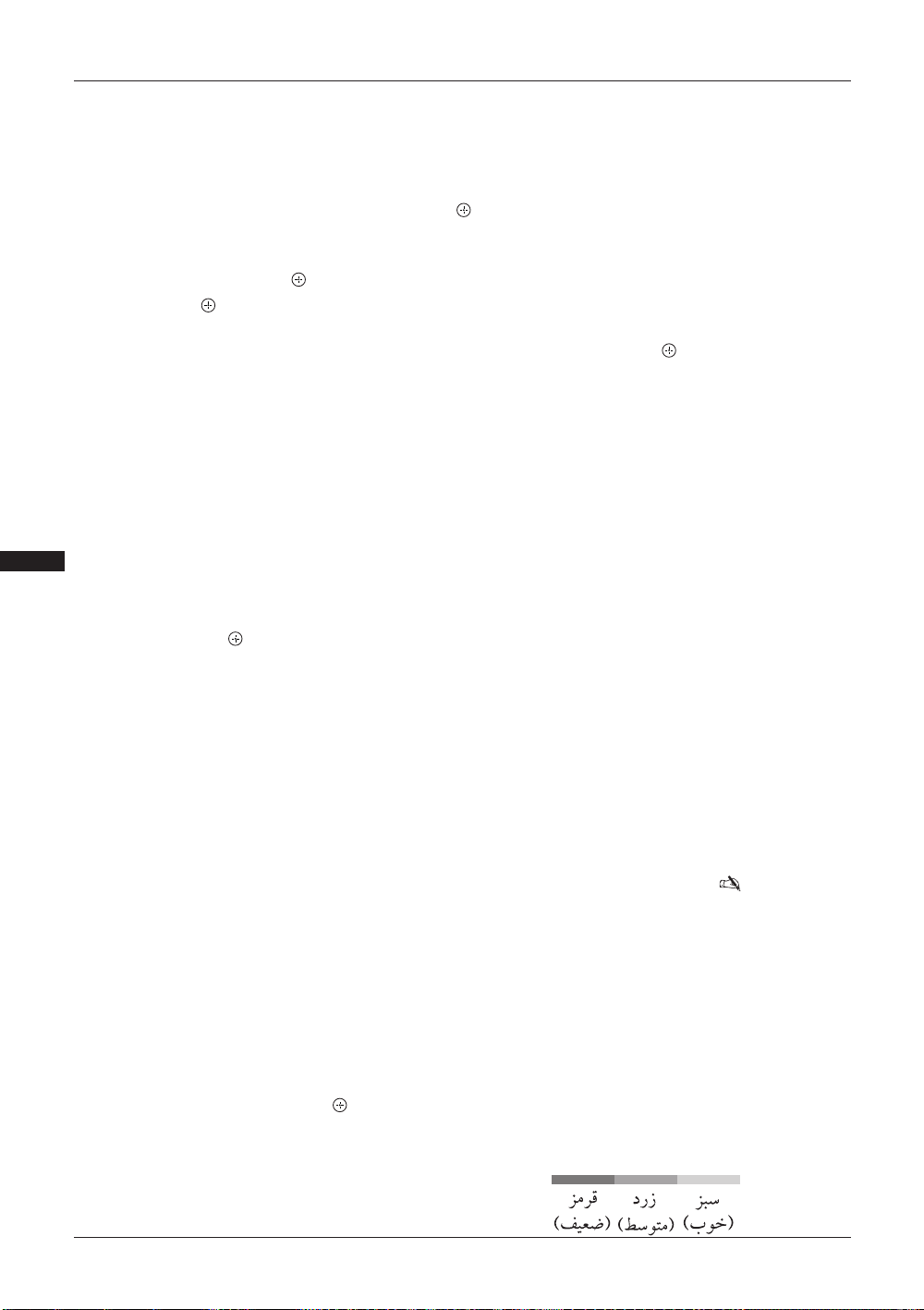
یﺍﺮﺑ ﺍﺭ PROG +/- ﻪﻤﻛﺩ ،"ﻝﺎﻨﮕﻴﺳ ﻩﺪﻨﻨﻛ ﺖﻳﻮﻘﺗ"/"ﮓﻧﺭ ﻢﺘﺴﻴﺳ"/"ﺵﺮﭘ" /"ﺍﺪﺻ ﱰﻠﻴﻓ"/ "AFT"/"ﻡﺎﻧ" ﺏﺎﺨﺘﻧﺍ ﺯﺍ ﻞﺒﻗ
ﺏﺎﺨﺘﻧﺍ ﺪﻴﻧﺍﻮﺗ ﯽﻤﻧ ﺍﺭ ﺪﺷﺎﺑ ﻩﺪﺷ ﻢﻴﻈﻨﺗ "ﺵﺮﭘ" ﺖﻴﻌﺿﻭ یﻭﺭ ﺮﺑ ﻪﻛ ﺍﺭ یﺍ ﻪﻣﺎﻧﺮﺑ ﻩﺭﲈﺷ .ﺪﻴﻫﺩ ﺭﺎﺸﻓ ﻝﺎﻧﺎﻛ ﺯﺍ ﻪﻣﺎﻧﺮﺑ ﻩﺭﲈﺷ ﺏﺎﺨﺘﻧﺍ
.(
31 ﻪﺤﻔﺻ) ﺪﻴﻳﲈﻧ
UHF ﺎﻳ VHF /ﻥﻮﻳﺰﻳﻮﻠﺗ ﻢﺘﺴﻴﺳ /ﻪﻣﺎﻧﺮﺑ
.ﺪﻴﻳﲈﻧ ﻢﻴﻈﻨﺗ ﺍﺩﺪﳎ ﯽﺘﺳﺩ ﺭﻮﻄﺑ ﺍﺭ ﻪﻣﺎﻧﺮﺑ یﺎﳍﺎﻧﺎﻛ
.ﺪﻴﻫﺩ ﺭﺎﺸﻓ ﺍﺭ
ﺲﭙﺳ ،ﻩﺩﺮﻛ ﺏﺎﺨﺘﻧﺍ ﺍﺭ "ﻪﻣﺎﻧﺮﺑ" ﺖﻴﻌﺿﻭ 1
ﺪﻴﻫﺩ ﺭﺎﺸﻓ ﺪﻴﻨﻛ ﯽﺑﺎﻳ ﺝﻮﻣ ﯽﺘﺳﺩ ﺭﻮﻄﺑ ﺪﻴﻠﻳﺎﻣ ﻪﻛ یﺍ ﻪﻣﺎﻧﺮﺑ ﻩﺭﲈﺷ ﺏﺎﺨﺘﻧﺍ یﺍﺮﺑ ﺍﺭ F/f ﻪﻤﻛﺩ 2
.ﺪﻴﻫﺩ ﺭﺎﺸﻓ ﺍﺭ RETURN ﺲﭙﺳ ،(ﺪﻴﻨﻛ ﺏﺎﺨﺘﻧﺍ ﺍﺭ 00 ﻝﺎﻧﺎﻛ ،ﺪﻴﻨﻛ ﯽﻣ ﯽﺑﺎﻳ ﺝﻮﻣ ﺍﺭ ﯽﻳﻮﺋﺪﻳﻭ ﻪﭽﻧﺎﻨﭼ)
.ﺪﻴﻫﺩ ﺭﺎﺸﻓ ﻪﻤﻛﺩ ﺲﭙﺳ ،ﺪﻴﻫﺩ ﺭﺎﺸﻓ "ﻥﻮﻳﺰﻳﻮﻠﺗ ﻢﺘﺴﻴﺳ" ﺏﺎﺨﺘﻧﺍ یﺍﺮﺑ ﺍﺭ F/f ﻪﻤﻛﺩ 3
.ﺪﻴﻫﺩ ﺭﺎﺸﻓ ﺍﺭ ﺲﭙﺳ ،ﻩﺩﺍﺩ ﺭﺎﺸﻓ ﯽﻧﻮﻳﺰﻳﻮﻠﺗ ﻩﺪﻨﺘﺳﺮﻓ یﺎﻬﻫﺎﮕﺘﺴﻳﺍ ﻢﺘﺴﻴﺳ ﺏﺎﺨﺘﻧﺍ یﺍﺮﺑ ﺍﺭ F/f ﻪﻤﻛﺩ 4
،ﻩﺩﺍﺩ ﺭﺎﺸﻓ ("UHF" ﺎﻳ "ﻻﺎﺑ VHF" ، "ﲔﻳﺎﭘ VHF") ﯽﺴﻧﺎﻛﺮﻓ ﻩﺩﻭﺪﳏ ﺮﮕﻧﺎﺸﻧ ﺖﻟﺎﺣ ﻪﺑ ﻦﺘﻓﺭ یﺍﺮﺑ ﺍﺭ F/f ﻪﻤﻛﺩ 5
.ﺪﻴﻫﺩ ﺭﺎﺸﻓ ﺍﺭ ﺲﭙﺳ
:ﺪﻴﻨﻛ ﯽﺑﺎﻳ ﺝﻮﻣ ﺮﻳﺯ ﻞﺣﺍﺮﻣ ﻖﺒﻃﺮﺑ ﺍﺭ ﻝﺎﻧﺎﻛ
ﻒﻗﻮﺘﻣ ﻮﺠﺘﺴﺟ ،ﺪﺷ ﺖﻓﺎﻳ ﯽﻟﺎﻧﺎﻛ ﻪﻜﻴﻣﺎﮕﻨﻫ .ﺪﻴﻫﺩ ﺭﺎﺸﻓ یﺪﻌﺑ ﺱﱰﺳﺩﺭﺩ ﻝﺎﻧﺎﻛ یﺍﺮﺑ ﻮﺠﺘﺴﺟ ﺖﻬﺟ ﺍﺭ G/g ﻪﻤﻛﺩ
.ﺪﻴﻫﺩ ﺭﺎﺸﻓ G/g ﻪﻤﻛﺩ ،ﻮﺠﺘﺴﺟ ﺩﺮﻜﻠﻤﻋ ﻥﺩﺍﺩ ﻪﻣﺍﺩﺍ یﺍﺮﺑ .ﺪﺷ ﺪﻫﺍﻮﺧ
.ﺪﻴﻳﲈﻧ ﺭﺍﺮﻜﺗ ﺍﺭ ﻻﺎﺑ ﺭﺎﻛﺭﻮﺘﺳﺩ ﯽﺘﺳﺩ ﺕﺭﻮﺼﺑ ﺎﳍﺎﻧﺎﻛ ﺮﻳﺎﺳ ﺩﺪﳎ ﻢﻴﻈﻨﺗ یﺍﺮﺑ
ﺯﺍ یﺍ ﻪﺻﻼﺧ ﺩﻮﺷ ﯽﻣ ﺏﺎﺨﺘﻧﺍ ﻝﺎﻧﺎﻛ ﻪﻜﻴﻣﺎﮕﻨﻫ .ﺪﻴﻨﻳﺰﮔﺮﺑ ﻩﺪﺷ ﺏﺎﺨﺘﻧﺍ ﻝﺎﻧﺎﻛ یﺍﺮﺑ ،ﻢﻗﺭ ﺎﻳ ﻑﺮﺣ ﺞﻨﭘ ﺎﺗ ﺩﻮﺧ ﺮﻈﻧ ﺎﺑ ﺍﺭ ﯽﻣﺎﻧ
.ﺩﻮﺷ ﯽﻣ ﺮﻫﺎﻇ ﺶﻳﲈﻧ ﻪﺤﻔﺻ یﻭﺭ ﺮﺑ ﻥﺁ ﻡﺎﻧ
:ﺎﻫﱰﻛﺍﺭﺎﻛ ﻥﺩﺮﻛ ﺩﺭﺍﻭ یﺍﺮﺑ
g ﻪﻤﻛﺩ ﺲﭙﺳ ،ﺪﻴﻫﺩ ﺭﺎﺸﻓ (ﯽﻟﺎﺧ ﻪﻠﺻﺎﻓ یﺍﺮﺑ "_") ﻩﺍﻮﳋﺩ ﻡﺎﻗﺭﺍ ﺎﻳ ﻑﻭﺮﺣ ﺏﺎﺨﺘﻧﺍ یﺍﺮﺑ ﺍﺭ F/f ﻪﻤﻛﺩ 1
.ﺪﻴﻫﺩ ﺭﺎﺸﻓ
ﺪﻳﺩﻮﻤﻧ ﺩﺭﺍﻭ ﺖﺳﺭﺩﺎﻧ ﺍﺭ یﱰﻛﺍﺭﺎﻛ ﻪﭽﻧﺎﻨﭼ
.ﺪﻴﻫﺩ ﺭﺎﺸﻓ ﺖﺳﺭﺩ ﱰﻛﺍﺭﺎﻛ ﺏﺎﺨﺘﻧﺍ یﺍﺮﺑ ﺍﺭ F/f ﻪﻤﻛﺩ ،ﺲﭙﺳ .ﺪﻴﻫﺩ ﺭﺎﺸﻓ ﺖﺳﺭﺩﺎﻧ ﱰﻛﺍﺭﺎﻛ ﺏﺎﺨﺘﻧﺍ یﺍﺮﺑ ﺍﺭ G/g ﻪﻤﻛﺩ
.ﺪﻴﻫﺩ ﺭﺎﺸﻓ ﻪﻤﻛﺩ ﺲﭙﺳ ،ﺩﻮﺷ ﻞﻴﻤﻜﺗ یﺭﺍﺬﮕﻣﺎﻧ ﺎﺗ ﺪﻴﻳﲈﻧ ﺭﺍﺮﻜﺗ 1 ﻪﻠﺣﺮﻣ ﺭﺩ ﺍﺭ ﺭﺎﻛﺭﻮﺘﺳﺩ ﻡﺎﲤ 2
ﺪﻫﺩ ﯽﻣ ﻥﺎﻜﻣﺍ ﲈﺷ ﻪﺑ ﺪﻴﺸﺨﺑ ﯽﻣ ﺩﻮﺒﲠ ﺍﺭﺮﻳﻮﺼﺗ ﺖﻴﻔﻴﻛ ﯽﺑﺎﻳ ﺝﻮﻣ ﺭﺩ ﻢﻴﻈﻨﺗ ﯽﻛﺪﻧﺍ ﺎﺑ ﻪﻛ ﺪﻴﻨﻛ ﯽﻣ ﺭﻮﺼﺗ ﻪﭽﻧﺎﻨﭼ
.ﺪﻴﻨﻛ ﯽﺑﺎﻳ ﺝﻮﻣ ﻖﻴﻗﺩ ﯽﻤﻴﻈﻨﺗ ﺎﺑ ﯽﺘﺳﺩ ﺭﻮﻄﺑ ﺍﺭ ﯽﺑﺎﺨﺘﻧﺍ ﻪﻣﺎﻧﺮﺑ ﻩﺭﲈﺷ ﻪﻛ
"ﻦﺷﻭﺭ" ﻪﻨﻳﺰﮔ ﻪﻜﻴﻣﺎﮕﻨﻫ .ﺪﻴﻳﲈﻧ ﻢﻴﻈﻨﺗ +15 ﺎﺗ -15 ﻩﺩﻭﺪﳏ ﺎﺗ ﺍﺭ ﻖﻴﻗﺩ ﻢﻴﻈﻨﺗ ﺪﻴﻧﺍﻮﺗ ﯽﻣ
ﺏﺎﺨﺘﻧﺍ
.ﺩﲑﮔ ﯽﻣ ﻡﺎﺠﻧﺍ ﺭﺎﻛﺩﻮﺧ ﺭﻮﻄﺑ ﻖﻴﻗﺩ ﻢﻴﻈﻨﺗ ،ﺪﺷﺎﺑ ﻩﺪﺷ
ﺍﺪﺻ ﱰﻠﻴﻓ
.ﺪﺸﺨﺑ ﯽﻣ ﺩﻮﺒﲠ ﻪﻧﺎﮔﺍﺪﺟ ﺭﻮﻄﺑ ﺍﺭ ﻝﺎﻧﺎﻛ ﺮﻫ یﺍﺪﺻ ﺪﺷﺎﺑ ﻮﻧﻮﻣ ﺕﺭﻮﺼﺑ ﻩﺪﻨﺘﺳﺮﻓ ﻩﺎﮕﺘﺴﻳﺍ ﺯﺍ ﯽﺘﻓﺎﻳﺭﺩ یﺍﺪﺻ ﻪﻛ ﯽﺘﻟﺎﺣ ﺭﺩ
MENU یﺎﻫ ﺩﺮﻜﻠﻤﻋ ﺯﺍ ﻩﺩﺎﻔﺘﺳﺍ
.ﺩﻮﺷ ﺍﺪﺻ ﻊﻄﻗ ﺎﻳ ﻝﻼﺘﺧﺍ ﺐﺟﻮﻣ ﺪﻧﺍﻮﺗ ﯽﻣ ﻮﻧﻮﻣ ﺩﺭﺍﺪﻧﺎﺘﺳﺍ ﲑﻏ ﻝﺎﻨﮕﻴﺳ ﮏﻳ ﻮﻧﻮﻣ یﺍ ﻪﻣﺎﻧﺮﺑ یﺎﺷﺎﲤ ﻡﺎﮕﻨﻫ ﺎﻬﺘﻗﻭ ﯽﻀﻌﺑ
ﻭ ﻪﺘﺷﺬﮔ ﺩﺮﻜﻠﻤﻋ ﻦﻳﺍ ﺯﺍ ﻪﻛ ﺩﻮﺷ ﯽﻣ ﻪﻴﺻﻮﺗ ،ﺪﻳﺍ ﻩﺩﺮﻜﻧ ﺩﺭﻮﺧﺮﺑ ﺍﺪﺻ ﻝﻼﺘﺧﺍ ﻪﻠﺌﺴﻣ ﻪﺑ ﻥﻮﻨﻛﺎﺗ ﺮﮔﺍ
.ﺪﻴﻫﺩ ﺭﺍﺮﻗ "ﺵﻮﻣﺎﺧ" یﺍ ﻪﻧﺎﺧﺭﺎﻛ ﺕﲈﻴﻈﻨﺗ یﻭﺭ ﺍﺮﻧﺁ
.ﺪﻴﻳﲈﻧ ﺖﻓﺎﻳﺭﺩ ﺪﻴﻧﺍﻮﺗ ﯽﻤﻧ ﺍﺭ ﻪﻧﺎﮔﻭﺩ ﺎﻳ ﯽﻳﻮﻳﱰﺳﺍ یﺍﺪﺻ ﺪﺷﺎﺑ ﻩﺪﺷ ﺏﺎﺨﺘﻧﺍ "ﺩﺎﻳﺯ" ﺎﻳ "ﻢﻛ" ﻪﻜﻴﻣﺎﮕﻨﻫ •
ﯽﻟﻭ) .ﺪﻧﻮﺷ ﯽﻣ ﺩﺭ ﻩﺩﺎﻔﺘﺳﺍ ﻥﻭﺪﺑ یﺎﳍﺎﻧﺎﻛ ﺪﻴﻫﺩ ﯽﻣ ﺭﺎﺸﻓ ﺍﺭ
PROG +/- ﻪﻤﻛﺩ ﻝﺎﻧﺎﻛ ﺏﺎﺨﺘﻧﺍ یﺍﺮﺑ ﻪﻜﻴﻣﺎﮕﻨﻫ
(.ﺪﻴﻳﲈﻧ ﺏﺎﺨﺘﻧﺍ ﺭﺍﺩ ﻩﺭﲈﺷ یﺎﻫ ﻪﻤﻛﺩ ﺯﺍ ﻩﺩﺎﻔﺘﺳﺍ ﺎﺑ ﺪﻴﻧﺍﻮﺗ ﯽﻣ ﺍﺭ ﻩﺪﺷ ﺩﺭ ﻝﺎﻧﺎﻛ ﺯﻮﻨﻫ
ﮓﻧﺭ ﻢﺘﺴﻴﺳ
،"NTSC3.58" ،"SECAM" ،"PAL" ،"ﮏﻴﺗﺎﻣﻮﺗﺍ") ﺪﻨﻛ ﯽﻣ ﺏﺎﺨﺘﻧﺍ ﻝﺎﻧﺎﻛ ﺎﺑ ﺐﺳﺎﻨﺘﻣ ﺍﺭ ﮓﻧﺭ ﻢﺘﻴﺳ
.("PAL60" ﺎﻳ "NTSC4.43"
(ﺪﻨﻤﺷﻮﻫ ﻝﺎﻨﮕﻴﺳ ﻩﺪﻨﻨﻛ ﺖﻳﻮﻘﺗ) ﻝﺎﻨﮕﻴﺳ ﻩﺪﻨﻨﻛ ﺖﻳﻮﻘﺗ
.ﺪﺸﺨﺑ ﯽﻣ ﺩﻮﺒﲠ ﺍﺭ ﺪﺷﺎﺑ ﻒﻴﻌﺿ ﺎﻳ یﻮﻗ ﺭﺎﻴﺴﺑ ﻥﻮﻳﺰﻳﻮﻠﺗ ﻝﺎﻨﮕﻴﺳ ﺮﮔﺍ ﺍﺭ ﺮﻳﻮﺼﺗ ﺖﻴﻔﻴﻛ
ﺎﻳ (ﻝﺎﻨﮕﻴﺳ ﻞﺧﺍﺪﺗ ؛ﺭﺍﺩ ﻂﺧ ﺮﻳﻭﺎﺼﺗ ؛ﺮﻳﻮﺼﺗ ﺝﺎﺟﻮﻋﺍ) ﺪﺷﺎﺑ یﻮﻗ ﺭﺎﻴﺴﺑ ﻝﺎﻨﮕﻴﺳ ﻪﭽﻧﺎﻨﭼ "ﺵﻮﻣﺎﺧ" ﺏﺎﺨﺘﻧﺍ یﺍﺮﺑ ﺍﺭ F/f ﻪﻤﻛﺩ
.ﺪﻴﻫﺩ ﺭﺎﺸﻓ ﺍﺭ ﺲﭙﺳ ،ﻩﺩﺍﺩ ﺭﺎﺸﻓ ﺪﺷﺎﺑ (ﯽﻜﻓﺮﺑ ﺮﻳﻮﺼﺗ) ﻒﻴﻌﺿ ﻝﺎﻨﮕﻴﺳ ﻪﭽﻧﺎﻨﭼ "ﮏﻴﺗﺎﻣﻮﺗﺍ"
ﻝﺎﻨﮕﻴﺳ ﺢﻄﺳ
.ﺪﻫﺩ ﯽﻣ ﻥﺎﺸﻧ ﺖﺳﺍ ﻥﺪﺷ ﺎﺷﺎﲤ ﻝﺎﺣ ﺭﺩ ﻪﻛ یﺍ ﻪﻣﺎﻧﺮﺑ یﺍﺮﺑ ﺍﺭ ﻝﺎﻨﮕﻴﺳ ﺢﻄﺳ
ﻢﻴﻈﻨﺗ ﺶﻴﭘ
ﯽﺘﺳﺩ ﻪﻣﺎﻧﺮﺑ
6
ﻡﺎﻧ
AFT
ﺵﺮﭘ
31
PR
Page 66
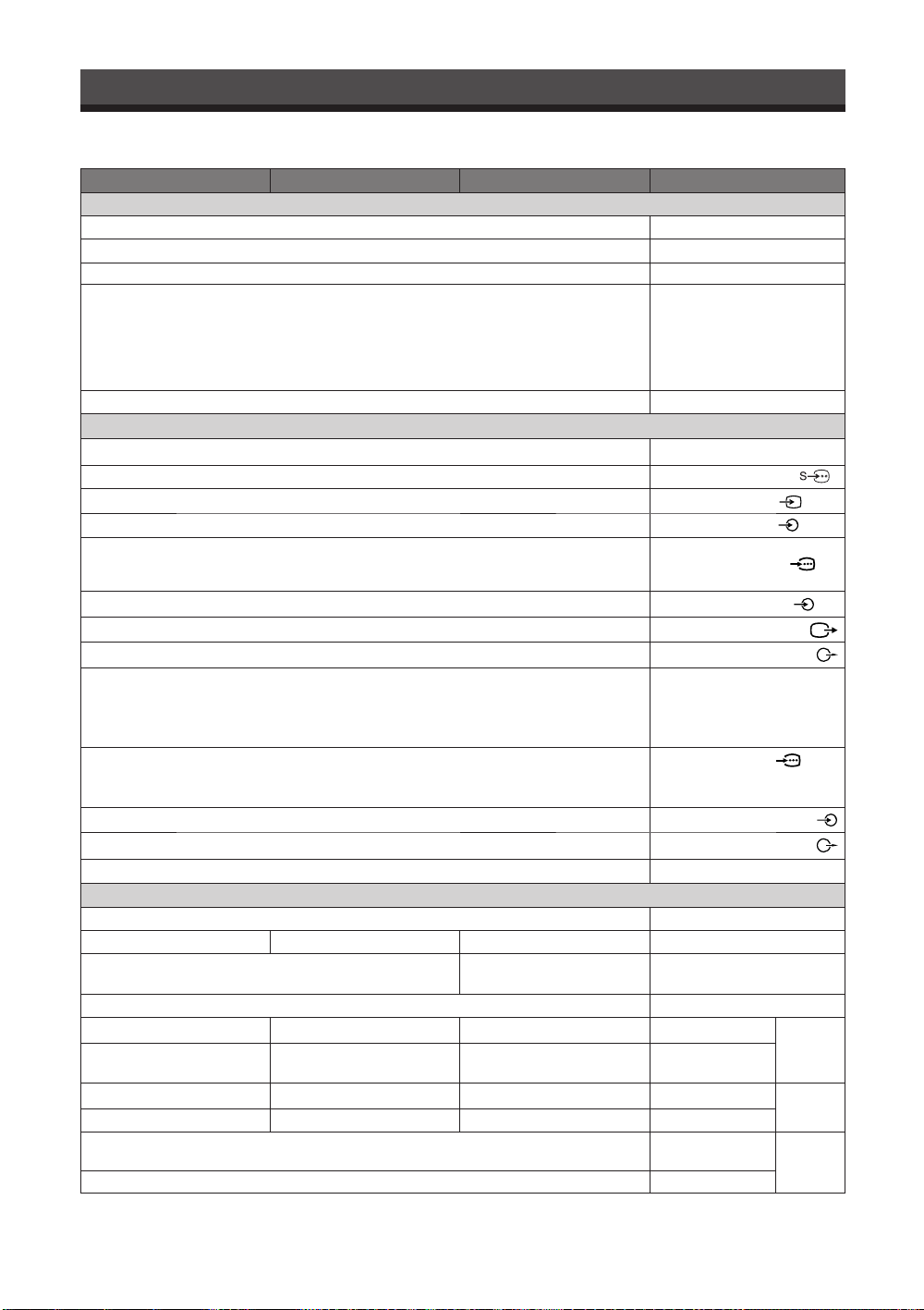
ﯽﻓﺎﺿﺍ ﺕﺎﻋﻼﻃﺍ
ﺕﺎﺼﺨﺸﻣ
ﻰﻨﻓ
KLV-37S400AKLV-32S400A
S41 ﺎﺗ S1 ،S03 ﺎﺗ S01 :CATV/E69 ﺎﺗ E21 :UHF/E12 ﺎﺗ E2 :VHF :B/G
KLV-40S400A
(ﺎﻴﻟﺍﱰﺳﺍ ﻂﻘﻓ) S44 ﺎﺗ S1 ،S03 ﺎﺗ S01 :CATV/69 ﺎﺗ 28 :UHF/9A ،5A ،12 ﺎﺗ 0 :VHF
(ﺪﻨﻟﺯﻮﻴﻧ ﻂﻘﻓ) S41 ﺎﺗ S1 ،S03 ﺎﺗ S01 :CATV/69 ﺎﺗ 21 :UHF/11 ﺎﺗ 1 :VHF
S41 ﺎﺗ S1 ،S03 ﺎﺗ S01 :CATV/B69 ﺎﺗ B21 :UHF :I
ﺎﺗ Z1 ،S41 ﺎﺗ S1 ،S03 ﺎﺗ S01 :CATV/R60 ﺎﺗ R21 ،C57 ﺎﺗ C13 :UHF/R12 ﺎﺗ R1 ،C12 ﺎﺗ C1 :VHF :D/K
Z39
+W ﺎﺗ 6+W ،4+W ﺎﺗ A ،A-2 ﺎﺗ A-8 :CATV/A79 ﺎﺗ A14 :UHF/A13 ﺎﺗ A2 :VHF :M
84
(DIN ﮏﭼﻮﻛ ﯽﻨﻴﭘ-4) S یﺮﻳﻮﺼﺗ یﺩﻭﺭﻭ
(ﻮﻧﻮﻓ ﺶﻴﻓ) یﺮﻳﻮﺼﺗ یﺩﻭﺭﻭ
ﻢﻫﺍ ﻮﻠﻴﻛ 47 :ﺲﻧﺍﺪﭙﻣﺍ ،mVrms 500 :(ﻮﻧﻮﻓ یﺎﻬﺸﻴﻓ) ﯽﺗﻮﺻ یﺩﻭﺭﻭ
480i ،480p ،576i ،576p ،(ﺰﺗﺮﻫ 60/50) 720p ،(ﺰﺗﺮﻫ 60/50) 1080i ،(ﺰﺗﺮﻫ 60/50) 1080p :ﻩﺪﺷ ﺕﺭﻮﭘﺎﺳ یﺎﻬﺘﻣﺮﻓ
ﺎﺗ ﮏﻴﭘ ﺖﻟﻭ
0.7 :PR/CR / ﻢﻫﺍ 75 ،ﮏﻴﭘ ﺎﺗ ﮏﻴﭘ ﺖﻟﻭ 0.7 :PB/CB /ﯽﻔﻨﻣ ﯽﻧﺍﻮﺨﳘ ﺖﻟﻭ 0.3 ،ﻢﻫﺍ 75 ،ﮏﻴﭘ ﺎﺗ ﮏﻴﭘ ﺖﻟﻭ 1 :Y
ﻢﻫﺍ 75 ،ﮏﻴﭘ
ﻢﻫﺍ ﻮﻠﻴﻛ 47 :ﺲﻧﺍﺪﭙﻣﺍ ،mVrms 500 :(ﻮﻧﻮﻓ یﺎﻬﺸﻴﻓ) ﯽﺗﻮﺻ یﺩﻭﺭﻭ
(ﻮﻧﻮﻓ ﺶﻴﻓ) یﺮﻳﻮﺼﺗ ﯽﺟﻭﺮﺧ
(ﻮﻧﻮﻓ یﺎﻬﺸﻴﻓ) ﯽﺗﻮﺻ ﯽﺟﻭﺮﺧ
480i
،480p ،576i ،576p ،(ﺰﺗﺮﻫ 60/50) 720p ،(ﺰﺗﺮﻫ 60/50) 1080i ،(ﺰﺗﺮﻫ 60/50) 1080p ،1080/24p :یﺮﻳﻮﺼﺗ
ﺖﻴﺑ
PCM ﯽﻄﺧ ﻝﺎﻧﺎﻛ ﻭﺩ :ﯽﺗﻮﺻ
24 ﻭ 20 ،16 ،ﺰﺗﺮﻫﻮﻠﻴﻛ 48 ﻭ 44.1 ،32
(HDMI IN 3 ﻂﻘﻓ) ﻢﻫﺍ ﻮﻠﻴﻛ 47 :ﺲﻧﺍﺪﭙﻣﺍ ،mVrms 500 :(ﮏﭼﻮﻛ ﺶﻴﻓ) گﻮﻟﺎﻧﺁ ﯽﺗﻮﺻ یﺩﻭﺭﻭ
(ﺪﻴﻨﻴﺒﺑ ﺍﺭ 29 ﻪﺤﻔﺻ) (ﯽﻨﻴﭘ-15 D-sub) PC یﺩﻭﺭﻭ
/ﻢﻫﺍ 75 ،ﮏﻴﭘ ﺎﺗ ﮏﻴﭘ ﺖﻟﻭ 0.7 :B/ﺰﺒﺳ یﻭﺭ ﻥﺍﻮﺨﳘ ﺎﻧ ،ﻢﻫﺍ 75 ،ﮏﻴﭘ ﺎﺗ ﮏﻴﭘ ﺖﻟﻭ 0.7 :G
ﮏﻴﭘ ﺎﺗ ﮏﻴﭘ ﺖﻟﻭ 1-5 :VD/ﮏﻴﭘ ﺎﺗ ﮏﻴﭘ ﺖﻟﻭ 1-5 :HD/ ﻢﻫﺍ 75 ،ﮏﻴﭘ ﺎﺗ ﮏﻴﭘ ﺖﻟﻭ 0.7 :R
(ﮏﭼﻮﻛ ﺶﻴﻓ) PC ﯽﺗﻮﺻ یﺩﻭﺭﻭ
(ﻮﻧﻮﻓ یﺎﻬﺸﻴﻓ) ﯽﺗﻮﺻ ﯽﺟﻭﺮﺧ
ﻥﻮﻓﺪﻫ ﺶﻴﻓ
ﺰﺗﺮﻫ
60/50 ،AC ﺖﻟﻭ 240 -110
403732
1,080 x (ﯽﻘﻓﺍ) ﻪﻄﻘﻧ 1,920
(یﺩﻮﻤﻋ) ﻂﺧ
768 x (ﯽﻘﻓﺍ) ﻪﻄﻘﻧ 1,366
ﻂﺧ
997 x 691 x 279931 x 656 x 279809 x 584 x 242
997 x 644 x 110931 x 609 x 110809 x 542 x 99
222117
191814
SU-WL50B ﻭ SU-WL500
SU-FL300M
.ﺪﻨﺑﺎﻳ ﲑﻴﻐﺗ ﻉﻼﻃﺍ ﻥﻭﺪﺑ ﺖﺳﺍ ﻦﻜﳑ ﻩﺎﮕﺘﺳﺩ ﺕﺎﺼﺨﺸﻣ ﻭ ﯽﺣﺍﺮﻃ
(یﺩﻮﻤﻋ)
75
ﻝﺪﻣ ﻡﺎﻧ
ﻞﻧﺎﭘ ﻢﺘﺴﻴﺳﻞﻧﺎﭘ (ﻊﻳﺎﻣ ﻝﺎﺘﺴﻳﺮﻛ ﺶﻳﲈﻧ ﻪﺤﻔﺻ) LCD
ﻥﻮﻳﺰﻳﻮﻠﺗ ﻢﺘﺴﻴﺳM ،D/K ،I ،B/G
ﮓﻧﺭ ﻢﺘﺴﻴﺳNTSC3.58 ،NTSC4.43 ،SECAM ،PAL60 ،PAL
ﯽﻟﺎﻧﺎﻛ ﺶﺷﻮﭘ
ﺍﺪﺻ ﯽﺟﻭﺮﺧﺕﺍﻭ 10 + ﺕﺍﻭ 10
ﯽﺟﻭﺮﺧ/یﺩﻭﺭﻭ یﺎﻬﺸﻴﻓ
1 ،2
HDMI IN 1 ،2 ،3
PC IN
PC IN
ﺩﺭﺍﻮﻣ ﺮﻳﺎﺳ ﻭ ﻕﺮﺑ یﻭﲑﻧ
ﺯﺎﻴﻧ ﺩﺭﻮﻣ ﻕﺮﺑ
(ﭻﻨﻳﺍ) ﺶﻳﲈﻧ ﻪﺤﻔﺻ ﻩﺯﺍﺪﻧﺍ
ﺶﻳﲈﻧ ﺖﻗﺩ
ﻕﺮﺑ ﻑﴫﻣ.ﺖﺳﺍ ﻩﺪﺷ ﺺﺨﺸﻣ ﻥﻮﻳﺰﻳﻮﻠﺗ ﺖﺸﭘ ﻭﺭ ﺮﺑ
(ﱰﻣ ﯽﻠﻴﻣ) ﻪﻳﺎﭘ ﺎﺑ
(ﱰﻣ ﯽﻠﻴﻣ) ﻪﻳﺎﭘ ﻥﻭﺪﺑ
(ﻡﺮﮔﻮﻠﻴﻛ) ﻪﻳﺎﭘ ﺎﺑ
(ﻡﺮﮔﻮﻠﻴﻛ) ﻪﻳﺎﭘ ﻥﻭﺪﺑ
ﺏﻮﻛﺭﺍﻮﻳﺩ
ﯽﻧﻮﻳﺰﻳﻮﻠﺗﺮﻳﺯ ﻪﻳﺎﭘ
.ﺪﻨﺘﺴﻫ ﯽﺒﻳﺮﻘﺗ ﺮﻳﺩﺎﻘﻣ ﻥﺯﻭ ﻭ ﺩﺎﻌﺑﺍ
x ﺽﺮﻋ)
ﺕﺎﻘﻠﻌﺘﻣ
ﻢﺘﺴﻴﺳ
1 ،2 ،3
1 ،2 ،3
1 ،2
(RGB)
ﺩﺎﻌﺑﺍ
x ﻉﺎﻔﺗﺭﺍ
*
(ﻖﻤﻋ
*
ﻥﺯﻭ
ﯽﺒﻧﺎﺟ
ﻦﺘﻧﺁﯽﺟﻭﺮﺧ ﻝﺎﻨﻴﻣﺮﺗ ﻢﻫﺍ
1
i
*
32
PR
Page 67
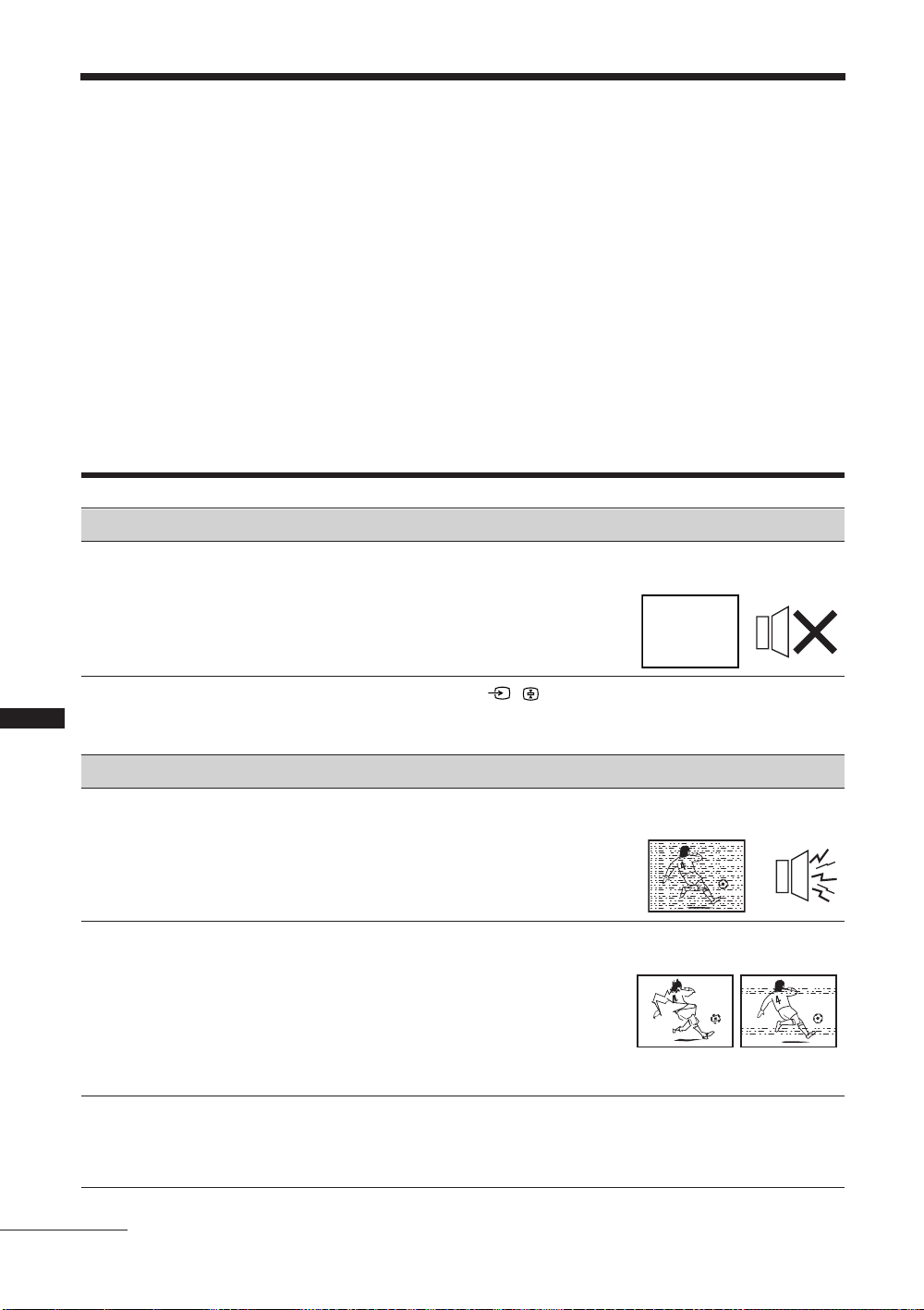
ﯽﺑﺎﻳ ﺐﻴﻋ
"یﺍ ﻪﻧﺎﺧﺭﺎﻛ ﺕﲈﻴﻈﻨﺗ" ﺩﺮﻜﻠﻤﻋ ﺯﺍ ﺎﻳ ﺪﻴﻨﻛ ﮏﭼ ﺍﺭ ﺮﻳﺯ ﺭﺩ ﺺﻘﻧ ﻊﻓﺭ یﲈﻨﻫﺍﺭ ،ﺪﻳﺪﺷ ﻪﺟﺍﻮﻣ ﻥﻮﻳﺰﻳﻮﻠﺗ ﺎﺷﺎﻤﺗ ﻦﻴﺣ ﺭﺩ ﯽﻠﻜﺸﻣ ﻪﻧﻮﮔ ﺮﻫ ﺎﺑ ﺮﮔﺍ
.ﻲﻧﻮﺳ ﺵﻭﺮﻓ ﻲﮔ ﺪﻨﺑ ﺎﻤﻧ ﺎﺑ ،ﻞﻜﺸﻣ ﻥﺪﺸﻧ ﻊﻓﺭ ﺕﺭﻮﺻ ﺭﺩ .(28 ﻪﺤﻔﺻ) ﺪﻴﻳﲈﻧ ﻩﺩﺎﻔﺘﺳﺍ
.ﺪﻧﺯ ﯽﻣ ﮏﻤﺸﭼ ﺰﻣﺮﻗ ﮓﻧﺭ ﻪﺑ (ﺵﺎﺑ ﻩﺩﺎﻣﺁ) 1 ﺮﮕﻧﺎﺸﻧ ﺎﻳﺁ ﻪﻛ ﺪﻴﻳﲈﻧ ﯽﺳﺭﺮﺑ
ﺪﻧﺯ ﯽﻣ ﮏﻤﺸﭼ ﻪﻜﻴﻣﺎﮕﻨﻫ
.ﺩﻮﺷ ﯽﻣ ﻝﺎﻌﻓ ﯽﺼﺨﺷ -ﯽﺑﺎﻳ ﺐﻴﻋ ﺩﺮﻜﻠﻤﻋ
.ﺪﻧﺯ ﯽﻣ ﮏﻤﺸﭼ (ﺵﺎﺑ ﻩﺩﺎﻣﺁ)
.ﺩﻮﺷ ﯽﻣ ﺭﺍﺮﻜﺗ ﺭﻮﻄﻨﻴﳘ ﻭ ،ﺮﮕﻳﺩ ﮏﻤﺸﭼ ﻪﺳ ﺍﺩﺪﳎ ﻭ ،ﺩﺭﺍﺩ ﻪﻔﻗﻭ ﻪﻴﻧﺎﺛ 2 ﺲﭙﺳ ،ﺪﻧﺯ ﯽﻣ ﮏﻤﺸﭼ ﺭﺎﺑ ﻪﺳ ﺮﮕﻧﺎﺸﻧ ،ﻝﺎﺜﻣ یﺍﺮﺑ
ﺰﻛﺮﻣ ﺎﻳ ﻩﺪﻨﺷﻭﺮﻓ ﻭ ،ﻩﺩﻮﻤﻧ ﺍﺪﺟ ﺍﺭ ﺏﻭﺎﻨﺘﻣ ﻕﺮﺑ ﻢﻴﺳ ،ﺪﻴﻫﺩ ﺭﺎﺸﻓ ﻥﺁ ﻥﺩﺮﻛ ﺵﻮﻣﺎﺧ یﺍﺮﺑ ﺍﺭ ﻥﻮﻳﺰﻳﻮﻠﺗ ﻪﺤﻔﺻ یﻻﺎﺑ ﻪﺷﻮﮔ ﺭﺩ 1 ﻪﻤﻛﺩ 2
.ﺪﻴﻳﲈﻧ ﻊﻠﻄﻣ (ﺎﻫ ﮏﻤﺸﭼ ﺩﺍﺪﻌﺗ)ﺮﮕﻧﺎﺸﻧ ﻥﺩﺯ ﮏﻤﺸﭼ ﻩﻮﺤﻧ ﺯﺍ ﺍﺭ ﯽﻧﻮﺳ ﺕﺎﻣﺪﺧ
.ﺪﻴﻳﲈﻧ ﲑﻤﻌﺗ ﺏﺮﳎ یﺭﺎﻛ ﲑﻤﻌﺗ ﻂﺳﻮﺗ ﺍﺭ ﺩﻮﺧ ﻥﻮﻳﺰﻳﻮﻠﺗ ،ﺩﺭﺍﺩ ﺩﻮﺟﻭ ﻥﺎﻨﭽﳘ ﻞﻜﺸﻣ ﺮﮔﺍ 2
1ﺮﮕﻧﺎﺸﻧ ﺭﺎﺑ ﺪﻨﭼ ﻪﻔﻗﻭ ﻪﻴﻧﺎﺛ ﻭﺩ ﺮﻫ ﲔﺑ ﺪﻴﻨﻛ ﺏﺎﺴﺣ 1
ﺪﻧﺯ ﯽﻤﻧ ﮏﻤﺸﭼ ﺮﮕﻧﺎﺸﻧ ﻪﻜﻴﻣﺎﮕﻨﻫ
.ﺪﻴﻨﻛ ﯽﺳﺭﺮﺑ ﺍﺭ ﺮﻳﺯ ﺭﺩ ﻩﺪﺷ ﺖﺴﻴﻟ یﺎﻫ ﻢﺘﻳﺁ
ﺖﻠﻋ/ﻞﻴﻟﺩ ﺩﺍﺮﻳﺍ
ﺮﻳﻮﺼﺗ ﻥﻭﺪﺑ
1
.ﺪﻴﻨﻛ ﯽﺳﺭﺮﺑ ﺍﺭ ﻞﺑﺎﻛ /ﻦﺘﻧﺁ ﺕﻻﺎﺼﺗﺍ •
ﻥﻮﻳﺰﻳﻮﻠﺗ ﻪﺤﻔﺻ یﻻﺎﺑ ﻪﺷﻮﮔ ﺭﺩ 1 ﻪﻤﻛﺩ ﻭ ،ﻩﺩﺮﻛ ﻞﺻﻭ ﺏﻭﺎﻨﺘﻣ ﻕﺮﺑ ﺰﻳﺮﭘ ﻪﺑ ﺍﺭ ﻥﻮﻳﺰﻳﻮﻠﺗ •
.ﺪﻴﻫﺩ ﺭﺎﺸﻓ ﺍﺭ
.ﺪﻴﻫﺩ ﺭﺎﺸﻓ ﺍﺭ [/1 ﻪﻤﻛﺩ ،ﺖﺳﺍ ﻦﺷﻭﺭ ﺰﻣﺮﻗ ﮓﻧﺭ ﻪﺑ (ﺵﺎﺑ ﻩﺩﺎﻣﺁ) 1ﺮﮕﻧﺎﺸﻧ ﺮﮔﺍ •
ﺲﭙﺳ ،ﻩﺩﺍﺩﺭﺎﺸﻓ ﻩﺪﺷ ﻞﺼﺘﻣ ﯽﺒﻧﺎﺟ یﺎﻬﻫﺎﮕﺘﺳﺩ ﺖﺴﻴﻟ ﺶﻳﲈﻧ یﺍﺮﺑ ﺍﺭ / ﻪﻤﻛﺩ •
.ﺪﻴﻳﲈﻧ ﺏﺎﺨﺘﻧﺍ ﺍﺭ ﻩﺍﻮﳋﺩ یﺩﻭﺭﻭ
.ﺪﻴﻨﻛ ﯽﺳﺭﺮﺑ ﺍﺭ ﻥﻮﻳﺰﻳﻮﻠﺗ ﻭ ﻒﻠﺘﳐ یﺎﻬﻫﺎﮕﺘﺳﺩ ﲔﺑ ﻝﺎﺼﺗﺍ •
.ﺪﻴﻨﻛ ﯽﺳﺭﺮﺑ ﺍﺭ ﻦﺘﻧﺁ ﻥﺪﺷ ﻢﺧ ﺎﻳ ﻥﺩﻮﺑ ﻪﺘﺴﻜﺷ •
ﻑﴫﻣ ﻝﺎﻣﺮﻧ ﻥﺎﻣﺯ ﻝﺎﺳ ﺞﻨﭘ ﺎﺗ ﻪﺳ)ﺪﻴﻔﻣ ﻑﴫﻣ ﻥﺎﻣﺯ یﺎﻬﺘﻧﺍ ﻪﺑ ﻦﺘﻧﺁ ﺎﻳﺁ ﻪﻛ ﺪﻴﻨﻛ ﯽﺳﺭﺮﺑ •
ﯽﻓﺎﺿﺍ ﺕﺎﻋﻼﻃﺍ
،ﺎﻫ ﻞﻴﺒﻣﻮﺗﺍ ﺪﻨﻧﺎﻣ ﺖﻳﺯﺍﺭﺎﭘ یﺍﺭﺍﺩ ﯽﻜﻳﱰﻜﻟﺍ ﻊﺑﺎﻨﻣ ﺯﺍ ﺭﻭﺩ ﺍﺭ ﻥﻮﻳﺰﻳﻮﻠﺗ ﻩﺎﮕﺘﺳﺩ •
.ﺪﻴﻫﺩ ﺭﺍﺮﻗ یﺭﻮﻧ ﻪﻠﻴﺳﻭ ﺎﻳ ﺎﻫﺭﺍﻮﺸﺳ ،ﺎﻫ ﺖﻠﻜﻴﺳﺭﻮﺗﻮﻣ
.ﺪﻳﲑﮕﺑ ﺮﻈﻧ ﺭﺩ ﻥﻮﻳﺰﻳﻮﻠﺗ ﻭ یﺭﻮﻧ ﻪﻠﻴﺳﻭ ﲔﺑ ﺎﻀﻓ یﺭﺍﺪﻘﻣ ،یﺭﻮﻧ ﻪﻠﻴﺳﻭ ﺐﺼﻧ ﻡﺎﮕﻨﻫ •
.ﺪﻴﻨﻛ ﯽﺳﺭﺮﺑ ﺍﺭ ﻞﺑﺎﻛ /ﻦﺘﻧﺁ ﺕﻻﺎﺼﺗﺍ •
.ﺪﻳﺭﺍﺪﻬﮕﻧ ﻩﺪﺷ ﻞﺼﺘﻣ یﺎﻬﻠﺑﺎﻛ ﺮﻳﺎﺳ ﺯﺍ ﺭﻭﺩ ﺍﺭ ﻦﺘﻧﺁ ﻞﺑﺎﻛ •
.(ﺖﺳﺍ ﻩﺪﻴﺳﺭ
ﻩﺪﻨﻨﻛ ﺖﻳﻮﻘﺗ " ﺖﻴﻌﺿﻭ .ﺪﻨﺘﺴﻫ یﻮﻗ ﯽﻠﻴﺧ ﻩﺪﻨﺘﺳﺮﻓ ﻩﺎﮕﺘﺴﻳﺍ ﺯﺍ ﻩﺪﺷ ﺶﺨﭘ یﺎﳍﺎﻨﮕﻴﺳ •
ﻩﺩﺎﻔﺘﺳﺍ ﻩﺪﻨﻨﻛ ﺖﻳﻮﻘﺗ ﺯﺍ ﻪﭽﻧﺎﻨﭼ ﺎﻳ ﻩﺩﺍﺩ ﺭﺍﺮﻗ (31 ﻪﺤﻔﺻ) "ﺵﻮﻣﺎﺧ " یﻭﺭ ﺍﺭ "ﻝﺎﻨﮕﻴﺳ
.ﺪﻴﻳﲈﻧ ﻊﻄﻗ ﺎﻳ ﺵﻮﻣﺎﺧ ﺍﺮﻧﺁ ﺪﻴﻨﻛ ﯽﻣ
ﻭ (ﺖﺳﺍ ﮏﻳﺭﺎﺗ ﺶﻳﲈﻧ ﻪﺤﻔﺻ) ﺮﻳﻮﺼﺗ
ﺩﺭﺍﺪﻧ ﺩﻮﺟﻭ ﺍﺪﺻ
ﺯﺍ ﯽﻳﻮﻨﻣ ﺕﺎﻋﻼﻃﺍ ﺎﻳ ﺮﻳﻮﺼﺗ ﭻﻴﻫ
ﻪﻳﺎﭘ ﻪﺑ ﻩﺪﺷ ﻞﺼﺘﻣ ﯽﺒﻧﺎﺟ یﺎﻬﻫﺎﮕﺘﺳﺩ
ﺩﻮﺷ ﯽﻤﻧ ﺖﻓﺎﻳﺭﺩ ﺮﻳﻮﺼﺗ یﺩﻭﺭﻭ ﻝﺎﺼﺗﺍ
ﻒﻴﻌﺿ ﺮﻳﻮﺼﺗ
ﻪﺤﻔﺻ یﻭﺭ ﺮﺑ ﺖﻳﺯﺍﺭﺎﭘ ﻭ ﮏﻓﺮﺑ ﻂﻘﻓ
ﺩﻮﺷ ﯽﻣ ﺮﻫﺎﻇ
ﻪﻄﻘﻧ ﻁﻮﻄﺧ)ﺮﻳﻮﺼﺗ ﺭﺩ ﺵﺎﺸﺘﻏﺍ
(ﻩﺍﺭ ﻩﺍﺭ ﺎﻳ ﲔﭼ
ﺖﻴﻌﺿﻭ ﻭ ﻩﺩﺮﻛ ﺏﺎﺨﺘﻧﺍ ﺍﺭ "ﻝﺎﻧﺎﻛ ﻢﻴﻈﻨﺗ" یﻮﻨﻣ ﺭﺩ "ﯽﺘﺳﺩ ﻪﻣﺎﻧﺮﺑ ﻢﻴﻈﻨﺗ ﺶﻴﭘ" ﺖﻴﻌﺿﻭ
.(31 ﻪﺤﻔﺻ) ﺪﻴﻳﲈﻧ ﺏﺎﺨﺘﻧﺍ ﱰﲠ یﺮﻳﻮﺼﺗ ﺖﻓﺎﻳﺭﺩ یﺍﺮﺑ ﺍﺭ (ﮏﻴﺗﺎﻣﻮﺗﺍ ﻖﻴﻗﺩ ﯽﺑﺎﻳ ﺝﻮﻣ) "AFT"
ﺏﺎﺨﺘﻧﺍ ﺮﻳﻮﺼﺗ ﺖﻳﺯﺍﺭﺎﭘ ﺶﻫﺎﻛ یﺍﺮﺑ "ﺮﻳﻮﺼﺗ" یﻮﻨﻣ ﺭﺩ ﺍﺭ "ﺖﻳﺯﺍﺭﺎﭘ ﺶﻫﺎﻛ" ﺖﻴﻌﺿﻭ •
.(23 ﻪﺤﻔﺻ)ﺪﻴﻳﲈﻧ
ﺩﺭﺍﺩ ﻪﻣﺍﺩﺍ
PR
33
•
یﺎﺷﺎﲤ ﻡﺎﮕﻨﻫ ﺍﺪﺻ ﺎﻳ ﺮﻳﻮﺼﺗ ﺖﻳﺯﺍﺭﺎﭘ
ﻥﻮﻳﺰﻳﻮﻠﺗ ﻝﺎﻧﺎﻛ ﮏﻳ
Page 68
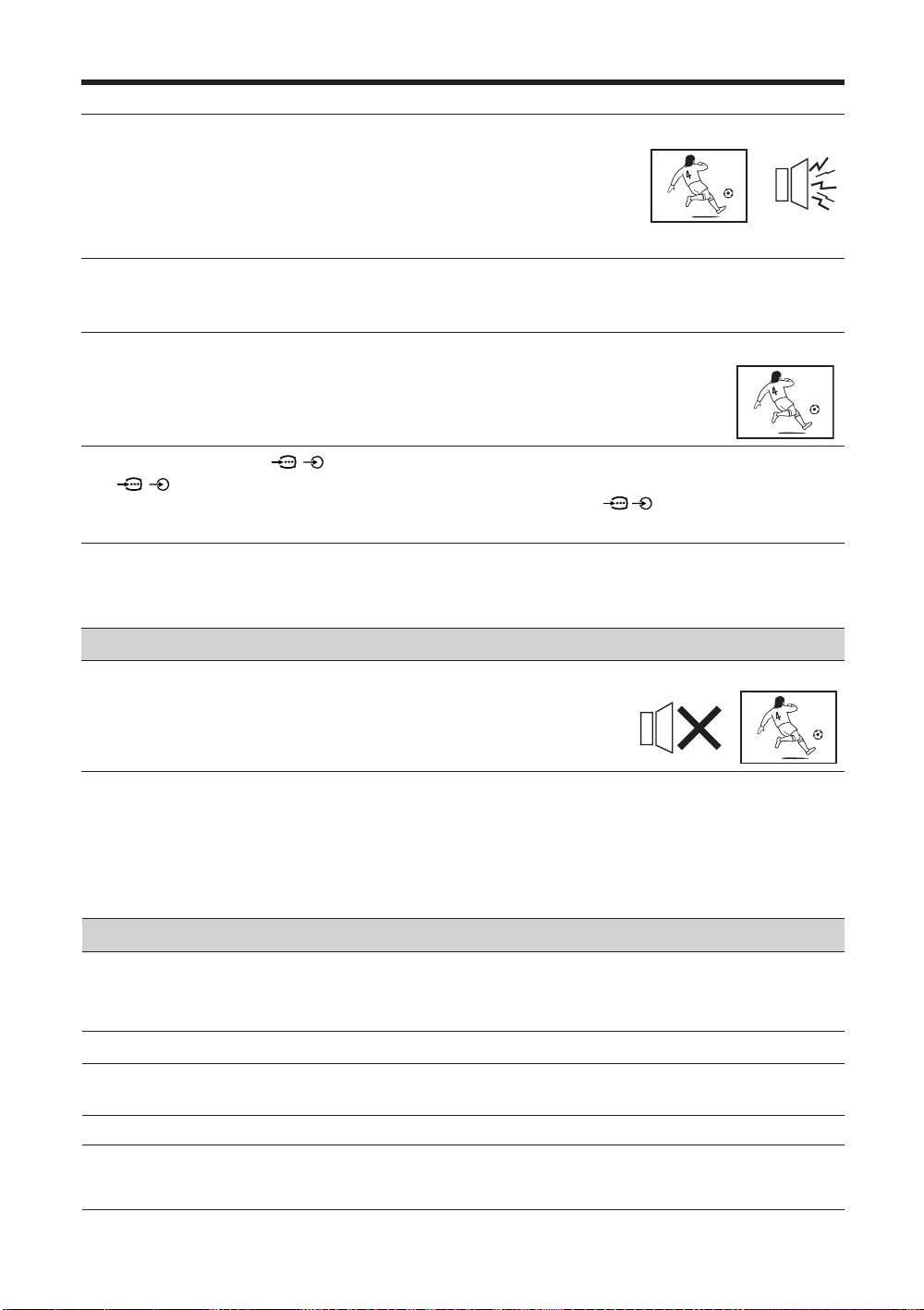
ﺖﻠﻋ/ﻞﻴﻟﺩ ﺩﺍﺮﻳﺍ
.ﺪﺷﺎﺑ ﯽﻤﻧ ﺐﺳﺎﻨﻣ ﻥﻮﻳﺰﻳﻮﻠﺗ ﻢﺘﺴﻴﺳ ﺕﲈﻴﻈﻨﺗ •
یﻮﻨﻣ ﺭﺩ ﺍﺭ "ﺭﺎﻛﺩﻮﺧ ﯽﺑﺎﻳ ﺝﻮﻣ" ﺖﻴﻌﺿﻭ ،ﺪﺷﺎﺑ ﯽﻣ یﺰﻳﻮﻧ ﺎﳍﺎﻧﺎﻛ ﯽﻣﺎﲤ یﺍﺪﺻ ﺮﮔﺍ •
.(30 ﻪﺤﻔﺻ) ﺪﻴﻳﲈﻧ ﺍﺮﺟﺍ ﻝﺎﻧﺎﻛ ﺩﺪﳎ ﻢﻴﻈﻨﺗ یﺍﺮﺑ ﺍﺭ "ﻝﺎﻧﺎﻛ ﻢﻴﻈﻨﺗ"
ﺖﻴﻌﺿﻭ ﺲﭙﺳ ،ﻩﺩﺮﻛ ﺏﺎﺨﺘﻧﺍ ﺍﺭ ﻝﺎﻧﺎﻛ ،ﺖﺳﺍ ﺖﻳﺯﺍﺭﺎﭘ یﺍﺭﺍﺩ ﻪﺑﺎﺸﻣ یﺎﳍﺎﻧﺎﻛ یﺍﺪﺻ ﺮﮔﺍ •
"ﻥﻮﻳﺰﻳﻮﻠﺗ ﻢﺘﺴﻴﺳ" ﻭ ،ﺪﻴﻳﲈﻧ ﺍﺮﺟﺍ "ﻝﺎﻧﺎﻛ ﻢﻴﻈﻨﺗ" یﻮﻨﻣ ﺭﺩ ﺍﺭ "ﯽﺘﺳﺩ ﻪﻣﺎﻧﺮﺑ ﻢﻴﻈﻨﺗ ﺶﻴﭘ"
.(31 ﻪﺤﻔﺻ)ﺪﻴﻳﲈﻧ ﺏﺎﺨﺘﻧﺍ ﺍﺭ ﺐﺳﺎﻨﻣ
یﺰﻳﻮﻧ یﺍﺪﺻ ﯽﻟﻭ ،ﺏﻮﺧ ﺮﻳﻮﺼﺗ
ﮓﻧﺭ ﻩﺎﻴﺳ ﮏﭼﻮﻛ ﻁﺎﻘﻧ .ﺩﻮﺷ ﯽﻣ ﻞﻴﻜﺸﺗ ﻞﺴﻜﻴﭘ یﺩﺍﺪﻌﺗ ﺯﺍ ﻩﺪﻨﻫﺩ ﺶﻳﲈﻧ ﻩﺎﮕﺘﺳﺩ ﺮﻳﻮﺼﺗ •
.ﺪﻧﻮﺷ ﯽﻤﻧ ﺏﻮﺴﳏ ﻩﺎﮕﺘﺳﺩ یﺍﺮﺑ ﯽﺼﻘﻧ ﻪﺤﻔﺻ یﻭﺭ (ﺎﻫ ﻞﺴﻜﻴﭘ) ﯽﻧﺍﺭﻮﻧ ﻁﺎﻘﻧ ﺎﻳ /ﻭ
یﺍ ﻪﻧﺎﺧﺭﺎﻛ ﺖﻴﻌﺿﻭ ﻪﺑ ﻦﺘﺸﮔﺮﺑ یﺍﺮﺑ ﺍﺭ
"ﺮﻳﻮﺼﺗ" یﻮﻨﻣ ﺯﺍ "ﺩﺪﺠﻣ ﻢﻴﻈﻨﺗ" ﺖﻴﻌﺿﻭ •
.(23 ﻪﺤﻔﺻ) ﺪﻴﻳﲈﻧ ﺏﺎﺨﺘﻧﺍ
.ﺪﻴﻳﲈﻧ ﯽﺳﺭﺮﺑ ﺍﺭ / 1 ﺎﻳ 2 ﺯﺍ Y ، PB/CB، PR/CR ﻝﺎﺼﺗﺍ یﺎﻫ ﻪﻳﺎﭘ •
/ 1 ﺎﻳ 2 ﺯﺍ Y ، PB/CB، PR/CR ﻝﺎﺼﺗﺍ یﺎﻫ ﻪﻳﺎﭘ یﺭﺍﺰﮕﻳﺎﺟ ﺢﻴﺤﺻ ﺐﻴﺗﺮﺗ ﺯﺍ •
.ﺪﻳﻮﺷ ﻦﺌﻤﻄﻣ
ﺥﺭ ﻥﻮﻳﺰﻳﻮﻠﺗ ﻭ HDMI ﯽﺒﻧﺎﺟ یﺎﻬﻫﺎﮕﺘﺳﺩ ﲔﺑ ﺖﻴﻌﺿﻭ ﻡﻼﻋﺍ ﲔﺣ ﺭﺩ ﻻﲈﺘﺣﺍ ﻪﻠﺌﺴﻣ ﻦﻳﺍ •
.ﺩﻮﺷ ﯽﻤﻧ ﺏﻮﺴﳏ ﻩﺎﮕﺘﺳﺩ یﺍﺮﺑ ﯽﺒﻴﻋ ﺖﻴﻌﺿﻭ ﻦﻳﺍ .ﺪﻫﺩ ﯽﻣ
.ﺪﻴﻫﺩ ﺭﺎﺸﻓ ﺍﺭ (ﺍﺪﺻ ﻊﻄﻗ) % ﺎﻳ 2 +/- ﻪﻤﻛﺩ •
ﯽﺗﻮﺻ ﻢﻴﻈﻨﺗ" یﻮﻨﻣ ﺯﺍ "ﻥﻮﻳﺰﻳﻮﻠﺗ یﻮﮔﺪﻨﻠﺑ" ﺖﻴﻌﺿﻭ ﻪﺑ "ﻮﮔﺪﻨﻠﺑ" ﺖﻴﻌﺿﻭ ﻪﻜﻨﻳﺍ ﻝﲈﺘﺣﺍ •
.(27 ﻪﺤﻔﺻ) ﺪﻴﻨﻛ ﯽﺳﺭﺮﺑ ﺍﺭ ﺪﺷﺎﺑ ﻩﺩﺮﻛ ﲑﻴﻐﺗ "ﻢﻴﻈﻨﺗ" یﻮﻨﻣ ﺭﺩ "AV یﺮﻳﻮﺼﺗ
،ﻥﻮﻳﺰﻳﻮﻠﺗ ﻪﺑ ﻝﺎﺼﺗﺍ ﻭ ﻞﺑﺎﻛ .ﺖﺳﺍ ﻩﺪﻳﺩ ﻪﻣﺪﺻ ﻦﺘﻧﺁ ﻞﺑﺎﻛ ﺎﻳ ﺖﺳﺍ ﻞﺷ ﻦﺘﻧﺁ ﻝﺎﺼﺗﺍ •
.ﺪﻴﻨﻛ ﻰﻨﻴﺑﺯﺎﺑ ﺍﺭ (5 ﻪﺤﻔﺻ)ﺭﺍﻮﻳﺩﻭ ،ﻮﻳﺪﻳﻭ
ﺕﺭﻮﺸﻣ ﺍﺮﺑ
Sony
ﻰﻧﻮﺳ ﻩﺪﻨﺷﻭﺮﻓ ﻚﻳ ﺎﺑ .ﺪﻴﻨﻛ ﻞﻳﺪﻌﺗ ﻞﺧﺍﺪﺗ ﻞﻗﺍﺪﺣ ﺍﺮﺑ ﺍﺭ ﻦﺘﻧﺁ ﺖﻬﺟ
.ﺪﻳﲑﮕﺑ ﺱﺎﲤ
.ﺪﻴﻳﲈﻧ ﻩﺩﺎﻔﺘﺳﺍ ﻩﺪﻨﻨﻛ ﺖﻳﻮﻘﺗ ﮏﻳ ﺯﺍ ﺪﻴﻳﲈﻧ ﯽﻌﺳ .ﺖﺳﺍ ﻢﻛ ﻝﺎﻨﮕﻴﺳ ﻝﺎﻘﺘﻧﺍ
.ﺪﻴﻳﲈﻧ ﻩﺩﺎﻔﺘﺳﺍ (31 ﻪﺤﻔﺻ) ("AFT") ﻖﻴﻗﺩ ﻢﻴﻈﻨﺗ ﺩﺮﻜﻠﻤﻋﺯﺍ ﺪﻴﻧﺍﻮﺗ ﯽﻣ ،ﺕﺭﻮﺼﻨﻳﺍﲑﻏﺭﺩ
ﺎﻳ/ﻭ ﮓﻧﺭ ﻩﺎﻴﺳ ﮏﭼﻮﻛ ﻁﺎﻘﻧ یﺩﺍﺪﻌﺗ
یﻭﺭ ﺮﺑ ﯽﻧﺍﺭﻮﻧ ﻁﺎﻘﻧ
ﺩﻮﺷ ﯽﻣ ﺮﻫﺎﻇ ﻪﺤﻔﺻ
ﯽﮕﻧﺭ ﲑﻏ ﺕﺭﻮﺼﺑ ﺎﻫ ﻪﻣﺎﻧﺮﺑ
ﲔﺣ ﺭﺩ ﯽﻟﻮﻤﻌﻣ ﲑﻏ ﮓﻧﺭ ﺎﻳ ﮓﻧﺭ ﭻﻴﻫ
یﺎﻫ ﻪﻳﺎﭘ ﻖﻳﺮﻃ ﺯﺍ ﯽﻟﺎﻨﮕﻴﺳ یﺎﺷﺎﲤ
/
1 ﺎﻳ 2 ﺯﺍ Y ، PB/CB، PR/CR ﻝﺎﺼﺗﺍ
ﺩﺭﺍﺪﻧ ﺩﻮﺟﻭ
HDMI ﺖﻟﺎﺣ ﻪﺑ ﲑﻴﻐﺗ ﻡﺎﮕﻨﻫ ﺭﺩﺮﻳﻭﺎﺼﺗ
ﻪﻠﻴﺳﻮﺑ ﻥﻮﻳﺰﻳﻮﻠﺗ ﺖﻴﻌﺿﻭ ﻪﺑ ﻞﻳﺪﺒﺗ ﺎﻳ
ﺪﻨﻧﺯ ﯽﻣ ﮏﻤﺸﭼ HDMI ﺖﻟﺎﺣ
ﺏﻮﺧ ﺮﻳﻮﺼﺗ ﯽﻟﻭ ،ﻒﻴﻌﺿ یﺍﺪﺻ
ﯽﻳﻮﻳﱰﺳﺍ ﻩﺪﺷ ﺖﻓﺎﻳﺭﺩ یﺍﺪﺻ
ﯽﻣ ﻞﺘﳐ ﺎﻳ ،ﻩﺪﺷ ﻦﺷﻭﺭ ﻭ ﺵﻮﻣﺎﺧ
ﻪﺑ ﯽﻳﻮﻳﱰﺳﺍ ﺯﺍ ﻡﻭﺍﺪﻣ ﺭﻮﻄﺑ ﺍﺪﺻ ؛ﺩﻮﺷ
•
ﺩﻮﺷ ﯽﻣ ﻞﻳﺪﺒﺗ ﻮﻧﻮﻣ
•
ﺍﺪﺻ
ﺮﻤﻳﺎﺗ" یﺍﺮﺑ ﺍﺭ "ﺕﺪﻣ ﻝﻮﻃ" ﺎﻳ ،ﺪﺷﺎﺑ ﻝﺎﻌﻓ "ﺏﺍﻮﺧ ﺮﻤﻳﺎﺗ" ﺖﻴﻌﺿﻭ ﻪﻛ ﺪﻴﻳﲈﻧ ﮏﭼ
.(28 ﻪﺤﻔﺻ) ﺪﻴﻨﻛ ﺪﻴﻳﺎﺗ "ﻦﺷﻭﺭ
.(28 ﻪﺤﻔﺻ) ﺪﺷﺎﺑ ﯽﻣ ﻝﺎﻌﻓ "ﻦﺷﻭﺭ ﺮﻤﻳﺎﺗ" ﺖﻴﻌﺿﻭ ﺮﮔﺍ ﺪﻴﻳﲈﻧ ﮏﭼ •
ﻭ ﻩﺩﺮﻛ ﺏﺎﺨﺘﻧﺍ ﺍﺭ "AV یﺮﻳﻮﺼﺗ ﯽﺗﻮﺻ ﻢﻴﻈﻨﺗ" یﻮﻨﻣ ﺯﺍ "ﻮﻳﺪﻳﻭ یﺎﻫ ﻡﺎﻧ" ﺩﺮﻜﻠﻤﻋ •
.(26 ﻪﺤﻔﺻ) ﺪﻴﻳﲈﻧ ﻮﻐﻟ ﺍﺭ یﺩﻭﺭﻭ ﻊﺒﻨﻣ ﺯﺍ "ﺵﺮﭘ" ﺩﺮﻜﻠﻤﻋ
.ﺪﻴﻳﲈﻧ ﺾﻳﻮﻌﺗ ﺍﺭ ﺎﳞﺮﻃﺎﺑ
.(28
ﻪﺤﻔﺻ
) ﺪﻴﻳﺎﻤﺑ ﺏﺎﺨﺘﻧﺍ ﺍﺭ "ﻢﻴﻈﻨﺗ" یﻮﻨﻣ " ﺍ ﻪﻧ ﺎﺧ ﺭﺎﻛ ﺕﺎﻤﻴﻈﻨﺗ" ﺖﻴﻌﺿﻭ
ﺕﺎﻴﻠﻛ
ﻰﻣ ﺵﻮﻣﺎﺧ ﺭﺎﻛﺩﻮﺧ ﺭﻮﻃ ﻪﺑ ﻥﻮﻳﺰﻳﻮﻠﺗ
•
ﺵﺎﺑ ﻩﺩﺎﻣﺁ ﺖﻴﻌﺿﻭ ﻪﺑ ﻥﻮﻳﺰﻳﻮﻠﺗ) ﺩﻮﺷ
(ﺩﻮﺷ ﻰﻣ ﺩﺭﺍﻭ
ﺩﻮﺷ ﯽﻣ ﻦﺷﻭﺭ ﮏﻴﺗﺎﻣﻮﺗﺍ ﺭﻮﻄﺑ ﻥﻮﻳﺰﻳﻮﻠﺗ
ﻪﻛ ﺪﻨﻧﺍﻮﺗ ﻰﻤﻧ ﻯﺩﻭﺭﻭ ﻊﺑﺎﻨﻣ ﺯﺍ ﻰﻀﻌﺑ
ﺪﻧﻮﺷ ﺏﺎﺨﺘﻧﺍ
• ﺪﻨﻛ ﻰﻤﻧ ﺭﺎﻛ ﺭﻭﺩ ﻩﺍﺭ ﺯﺍ ﻝﱰﻨﻛ ﻩﺎﮕﺘﺳﺩ
• ﻯﻭﺭ "ﻦﺷﻭﺭ :ﻩﺮﻴﺧﺫ ﺶﻳﺎﻤﻧ ﺖﻟﺎﺣ" ﻡﺎﻴﭘ
ﺩﻮﺷ ﯽﻣ ﺮﻫﺎﻇ ﺶﻳﺎﻤﻧ ﻪﺤﻔﺻ
34
PR
Page 69
ﺖﻠﻋ/ﻞﻴﻟﺩ ﺩﺍﺮﻳﺍ
.ﺪﻨﻛ ﻰﻣ ﻰﻳﺎﺳﺎﻨﺷ ﺍﺭ ﻪﻨﻴﲠ ﺾﻳﺮﻋ ﻪﺤﻔﺻ ﺖﻴﻌﺿﻭ ﻥﻮﻳﺰﻳﻮﻠﺗ، ﻪﻣﺎﻧﺮﺑ ﻭﺩ ﻥﺎﻴﻣ ﻝﺎﻘﺘﻧﺍ ﲔﺣ ﺭﺩ •
.ﺩﻮﺷ ﺮﻫﺎﻇ ﻝﻮﻤﻌﻣﲑﻏ ﺾﻳﺮﻋ ﻪﺤﻔﺻ ﻚﻳ ﺖﺳﺍ ﻦﻜﳑ ﻥﺎﻣﺯ ﻦﻳﺍ ﻰﻃﺭﺩ
ﲑﻴﻐﺗ ﺭﺎﻛﺩﻮﺧ ﺭﻮﻄﺑ ﺾﻳﺮﻋ ID ﻝﺎﻨﮕﻴﺳ ﻚﻳ ﺎﺑ ﻩﺪﺷ ﻰﻨﻴﺑﺯﺎﺑ ﻝﺎﻨﮕﻴﺳ ﺎﺑ ﻖﺑﺎﻄﻣ ﺾﻳﺮﻋ ﺖﻴﻌﺿﻭ •
.ﺪﻨﻛ ﻰﻣ
ﺾﻳﺮﻋ" ﯽﮔﮋﻳﻭ ﺪﻳﲑﮕﺑ ﴎﺯﺍ ﺍﺭ ﺶﺨﭘ ﺯﺍ ﯽﻧﺎﻣﺯ کﺪﻧﺍ ﺯﺍ ﺪﻌﺑﻭ ،ﻩﺩﺍﺩ ﺭﺎﺸﻓ ﺍﺭ ﻪﻜﻴﻣﺎﮕﻨﻫ
ﻪﺤﻔﺻ ﯽﺑﺎﺨﺘﻧﺍ ﺖﻟﺎﺣ ﻥﺩﺮﻛ ﺖﻴﺒﺜﺗ یﺍﺮﺑ .ﺪﺘﺴﻳﺍ ﯽﻣ ﺯﺎﺑ ﺩﺮﻜﻠﻤﻋ ﺯﺍ ﺖﻗﻮﻣ ﺭﻮﻄﺑ" ﮏﻴﺗﺎﻣﻮﺗﺍ
ﺭﺍﺮﻗ "ﺵﻮﻣﺎﺧ" یﻭﺭ ﺮﺑ ﺍﺭ "ﮏﻴﺗﺎﻣﻮﺗﺍ ﺾﻳﺮﻋ" ﺩﺮﻜﻠﻤﻋ "ﻪﺤﻔﺻ" یﻮﻨﻣ ﺭﺩ ،ﺾﻳﺮﻋ
.(25 ﻪﺤﻔﺻ)ﺪﻴﻫﺩ
ﻩﺩﺍﺩ ﺶﻳﲈﻧ ﻰﻘﻃﺎﻨﻣ ﺭﺩ ﺎﻬﻨﺗ ﺖﺴﻜﺗ ﻪﻠﺗ. ﺪﺷﺎﺒﻧ ﺖﺴﻜﺗ ﻪﻠﺗ ﺖﻓﺎﻳﺭﺩ ﻪﺑ ﺭﺩﺎﻗ ﲈﺷ ﻪﻘﻄﻨﻣ ﺖﺳﺍ ﻦﻜﳑ
.ﺪﺷﺎﺑ ﻩﺪﺷ ﻩﺩﺍﺩ ﺶﺷﻮﭘ ﺖﺴﻜﺗ ﻪﻠﺗ ﺕﺎﻣﺪﺧ ﻂﺳﻮﺗ ﻪﻛ ﺩﻮﺷ ﻰﻣ
ﻭ،ﻮﻳﺪﻳﻭ ، ﻥﻮﻳﺰﻳﻮﻠﺗ ﻪﺑ ﻝﺎﺼﺗﺍ ﻭ ﻞﺑﺎﻛ . ﺖﺳﺍ ﻩﺪﻳﺩ ﻪﻣﺪﺻ ﻦﺘﻧﺁ ﻞﺑﺎﻛ ﺎﻳ ﺖﺳﺍ ﻞﺷ ﻦﺘﻧﺁ ﻝﺎﺼﺗﺍ •
.ﺪﻴﻨﻛ ﻰﻨﻴﺑﺯﺎﺑ ﺍﺭ (5 ﻪﺤﻔﺻ) ﺭﺍﻮﻳﺩ
ﺍﺮﺑ Sony ﻰﻧﻮﺳ ﻩﺪﻨﺷﻭﺮﻓ ﻚﻳ ﺎﺑ.ﺪﻴﻨﻛ ﻢﻴﻈﻨﺗ ﺍﺭ ﻦﺘﻧﺁ ﺖﻬﺟ .ﺖﺳﺍ ﻢﻴﻈﻨﺗ ﺪﻨﻣﺯﺎﻴﻧ ﻦﺘﻧﺁ ﺖﻬﺟ •
.ﺪﻳﲑﮕﺑ ﺱﺎﲤ ﺕﺭﻮﺸﻣ
.ﺪﻴﻳﲈﻧ ﻩﺩﺎﻔﺘﺳﺍ ﻩﺪﻨﻨﻛ ﺖﻳﻮﻘﺗ ﮏﻳ ﺯﺍ .ﺖﺳﺍ ﻢﻛ ﺭﺎﻴﺴﺑ ﻝﺎﻨﮕﻴﺳ ﻝﺎﻘﺘﻧﺍ •
.(31 ﻪﺤﻔﺻ) ﺪﺸﺨﺒﺑ ﺩﻮﺒﲠ ﺍﺭ ﺮﻳﻮﺼﺗ ﺖﺳﺍ ﻦﻜﳑ ("AFT") ﻖﻴﻗﺩ ﻢﻴﻈﻨﺗ ﺩﺮﻜﻠﻤﻋ ﺯﺍ ﻩﺩﺎﻔﺘﺳﺍ •
یﻭﺭ ﺮﺑ ﯽﻜﻴﻧﻭﱰﻜﻟﺍ ﻪﺤﻠﺳﺍ ﮏﻳ ﺎﺑ یﺍ ﻪﻌﺷﺍ یﲑﮔ ﻑﺪﻫ ﺕﺭﻮﺼﺑ ﻪﻛ ﯽﻧﻮﻳﺰﻳﻮﻠﺗ یﺎﳞﺯﺎﺑ ﺯﺍ ﯽﺧﺮﺑ
،ﱰﺸﻴﺑ ﺕﺎﻴﺋﺰﺟ یﺍﺮﺑ .ﺪﻨﺷﺎﺑ ﯽﻤﻧ ﻩﺩﺎﻔﺘﺳﺍ ﻞﺑﺎﻗ ﻥﻮﻳﺰﻳﻮﻠﺗ ﻦﻳﺍ ﺎﺑ ﺪﻨﺷﺎﺑ ﯽﻣ ﻥﻮﻳﺰﻳﻮﻠﺗ ﺶﻳﲈﻧ ﻪﺤﻔﺻ
.ﺪﻴﻳﲈﻧ ﻪﻌﺟﺍﺮﻣ ﯽﻳﻮﺋﺪﻳﻭ یﺯﺎﺑ ﺎﺑ ﻩﺪﺷ ﻪﻤﻴﻤﺿ یﲈﻨﻫﺍﺭ ﻪﭼﱰﻓﺩ ﻪﺑ
ﻰﻣ ﺍﺪﺻ ﺩﺎﳚﺍ ﻭ ﻩﺪﺷ ﻥﻮﻳﺰﻳﻮﻠﺗ ﺖﻨﻴﺑﺎﻛ ﺽﺎﺒﻘﻧﺍ ﺎﻳ ﻁﺎﺴﺒﻧﺍ ﺚﻋﺎﺑ ﻩﺎﮕﻬﮔ ﺍﻮﻫ ﺎﻣﺩﺭﺩ ﺕﺍﲑﻴﻐﺗ
.ﺖﺴﻴﻧ ﻥﺩﺮﻛ ﻞﻤﻋ ﺪﺑ ﻪﻧﺎﺸﻧ ﻦﻳﺍ.ﺪﻨﻛ
ﻪﻛ ﻰﺘﻗﻭ ﻞﻴﺑﻮﻣﻮﺗﺍ ﺎﻫﺭﺩ ﺎﻳ ﺰﻠﻓ ﺭﺩ ﻩﲑﮕﺘﺳﺩ ﺲﳌ ﻡﺎﮕﻨﻫ ﻪﺑ ﻪﻛ ﺖﺳﺍ ﻰﻜﻴﺗﺎﺘﺳﺍ ﻪﻴﻠﲣ ﻥﺎﳘ ﻦﻳﺍ
.ﺖﺴﻴﻧ ﻥﺩﺮﻛ ﻞﻤﻋ ﺪﺑ ﻪﻧﺎﺸﻧ ﻦﻳﺍ.ﺩﻮﺷ ﻰﻣ ﺱﺎﺴﺣﺍ ﻥﺎﺘﺴﻣﺯ ﹰﻼﺜﻣ ،ﺖﺳﺍ ﻚﺸﺧ ﺍﻮﻫ
یﻭﺭ "ﮏﻴﺗﺎﻣﻮﺗﺍ ﺾﻳﺮﻋ" ﻪﻜﻴﻣﺎﮕﻨﻫ
ﻪﺤﻔﺻ ﺖﻴﻌﺿﻭ ﺖﺳﺍ "ﻦﺷﻭﺭ"
ﯽﻣ ﲑﻴﻐﺗ ﺩﻮﺧ ﻪﺑ ﺩﻮﺧ ﺾﻳﺮﻋ
•
•
ﺎﻳ ﻩﺩﻮﺒﻧ ﻞﻣﺎﻛ ﺖﺴﻜﺗ ﻪﻠﺗ ﺶﻳﲈﻧ
ﺖﺳﺍ ﻩﺩﺮﻛ ﻞﺧﺍﺪﺗ
•
ﻥﺍﻮﺘﻴﻤﻧ ﺍﺭ ﻯﺯﺍﺪﻧﺍﲑﺗ ﻯﺎﻫ ﻯﺯﺎﺑ
ﺩﺍﺩ ﻡﺎﺠﻧﺍ
•
ﻥﻮﻳﺰﻳﻮﻠﺗ ﻪﻧﺪﺑ ﻥﺩﺮﻛ ﲑﺟﲑﺟ
•
ﺲﳌ ﻥﻮﻳﺰﻳﻮﻠﺗ ﺖﻨﻴﺑﺎﻛ ﻪﻛ ﻰﻣﺎﮕﻨﻫ
ﺱﺎﺴﺣﺍ ﻰﻜﻴﺗﺎﺘﺳﺍ ﻪﻴﻠﲣ ﺩﻮﺷ ﻰﻣ
ﺩﻮﺷ ﻰﻣ
ﺪﻨﻛ
.ﺪﻴﻨﻛ ﯽﺳﺭﺮﺑ ﺍﺭ ﻞﺑﺎﻛ /ﻦﺘﻧﺁ ﺕﻻﺎﺼﺗﺍ
ﺯﺍ ﻩﺩﺎﻔﺘﺳﺍ ﺎﻳ ﻩﺩﺍﺩ ﺭﺍﺮﻗ (31 ﻪﺤﻔﺻ) "ﮏﻴﺗﺎﻣﻮﺗﺍ" یﻭﺭ ﺮﺑ ﺍﺭ "ﻝﺎﻨﮕﻴﺳ ﻩﺪﻨﻨﻛ ﺖﻳﻮﻘﺗ" ﺖﻴﻌﺿﻭ •
.ﺪﻴﻳﲈﻧ ﻥﺎﺤﺘﻣﺍ ﺍﺭ ﯽﺟﺭﺎﺧ ﻩﺪﻨﻨﻛ ﺖﻳﻮﻘﺗ
ﻩﺎﮕﺘﺳﺩ یﻭﺭ ﺯﺍ ﺍﺭ ﺍﺪﺻ ﲑﺧﺎﺗ ﺖﻴﻌﺿﻭ ﯽﺟﻭﺮﺧﺮﻳﻮﺼﺗ ﻭ ﺍﺪﺻ ﲔﺑ ﺩﻮﺟﻮﻣ ﻪﻠﺻﺎﻓ ﺶﻫﺎﻛ یﺍﺮﺑ
ﯽﻓﺎﺿﺍ ﺕﺎﻋﻼﻃﺍ
.ﺪﻴﻳﲈﻧ ﻢﻴﻈﻨﺗ ﻩﺪﺷ ﻞﺼﺘﻣ ﯽﺒﻧﺎﺟ
PR
35
ﺢﻄﺳ ﺮﮕﻧﺎﺸﻧ) ﻒﻴﻌﺿ ﻝﺎﻨﮕﻴﺳ
•
ﮏﻤﺸﭼ ﺰﻣﺮﻗ ﮓﻧﺭ ﻪﺑ ﻝﺎﻨﮕﻴﺳ
•
ﻢﺘﺴﻴﺳ ﺯﺍ ﲈﻴﻘﺘﺴﻣ ﺍﺪﺻ ﻪﻜﻴﻣﺎﮕﻨﻫ
ﺎﺑ ﺍﺪﺻ ﺩﻮﺷ ﯽﻣ ﺝﺭﺎﺧ ﺮﻳﺎﻓ ﯽﻠﭙﻣﺁ
ﻪﺤﻔﺻ یﻭﺭ ﻩﺪﺷ ﺶﺨﭘ ﺮﻳﻮﺼﺗ
ﺪﺷﺎﺑ ﯽﻤﻧ ﮓﻨﻫﺎﳘ ﺶﻳﲈﻧ
(ﺪﻧﺯ ﯽﻣ
Page 70

Customer support
 Loading...