

Page 1

3-287-660-61(1)
Printed in Malaysia
Operating Instructions
Blu-ray Disc / DVD Player
BDP-S350
3-287-660-61(1)
© 2008 Sony Corporation
Page 2
WARNING
To reduce the risk of fire or electric
shock, do not expose this apparatus
to rain or moisture.
To avoid electrical shock, do not
open the cabinet. Refer serv icing to
qualified personnel only.
Batteries or batteries installed
apparatus shall not be exposed to
excessive heat such as sunshine,
fire or the like.
CAUTION
The use of optical instruments with
this product will increase eye
hazard. As the laser beam used in
this Blu-ray Disc/DVD player is
harmful to eyes, do not attempt to
disassemble the cabinet.
Refer servicing to qualified
personnel only.
Precautions
• This unit operates on 110 V –
240 V AC, 50 Hz/60 Hz. Check
that the unit’s operating voltage
is identical with your local power
supply.
• To prevent fire or shock hazard,
do not place objects filled with
liquids, such as vases, on the
apparatus.
• Install this unit so that the AC
power cord (mains lead) can be
unplugged from the wall socket
immediately in the event of
trouble.
Notes About the Discs
• To keep the disc clean, handle
the disc by its edge. Do not
touch the surface.
Dust, fingerprints, or scratches
on the disc may cause it to
malfunction.
• Do not use solvents such as
benzine, thinner,
commercially available disc/
lens cleaners, or anti-static
spray intended for vinyl LPs.
• If you have printed the disc’s
label, dry the label before
playing.
• Do not use the following discs.
– A disc that has a non-
standard shape (e.g., card,
heart).
– A disc with a label or sticker
on it.
– A disc that has cellophane
tape or sticker adhesive on it.
• Do not resurface the playing
side of a disc to remove
surface scratches.
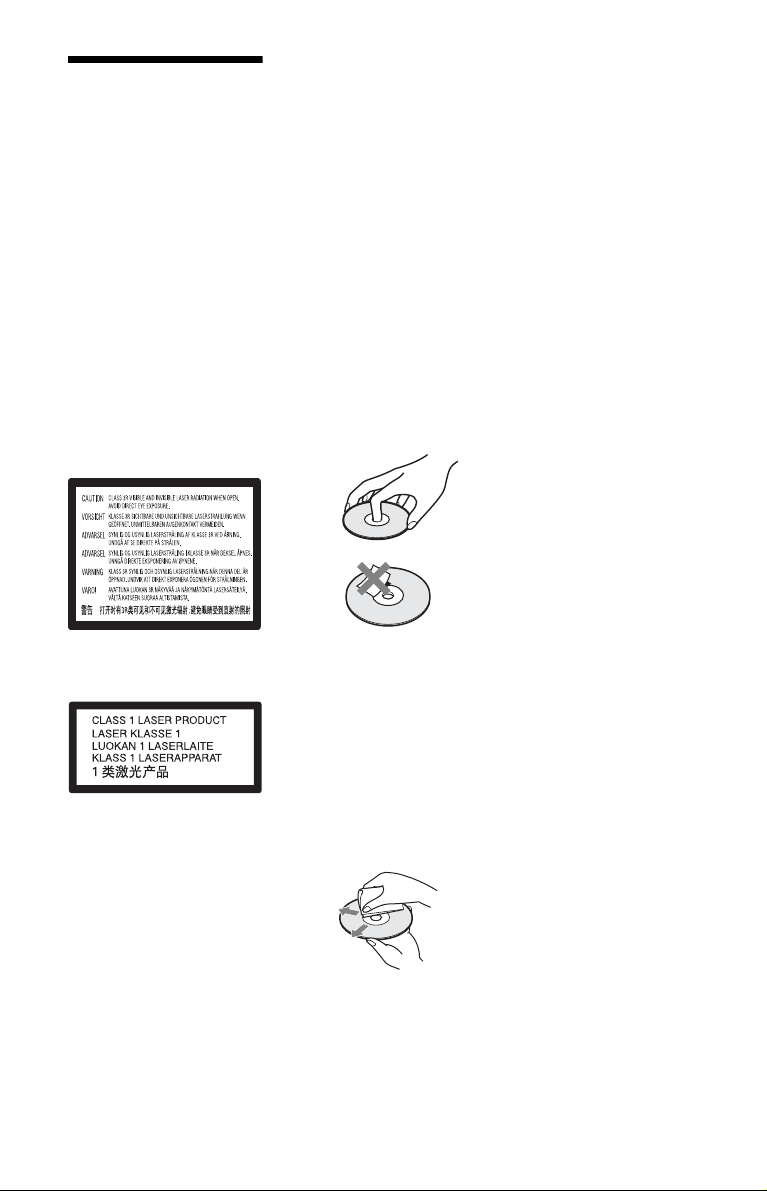
This label is located on the laser
protective housing inside the
enclosure.
This appliance is classified as a
CLASS 1 LASER product. The
CLASS 1 LASER PRODUCT
MARKING is located on the laser
protective housing inside the
enclosure.
2
• Do not expose the disc to
direct sunlight or heat sources
such as hot air ducts, or leave it
in a car parked in direct
sunlight as the temperature
may rise considerably inside
the car.
• After playing, store the disc in
its case.
• Clean the disc with a cleaning
cloth. Wipe the disc from the
centre out.
Page 3

Precautions
On safety
• To prevent fire or shock
hazard, do not place objects
filled with liquids, such as
vases, on the player, or place
the player near water, such as
near a bathtub or sho wer room.
Should any solid object or
liquid fall into the cabinet,
unplug the player and have it
checked by qualified
personnel before operating it
any further.
• Do not touch the AC power
cord (mains lead) with wet
hands. Doing so may cause an
electric shock.
On placement
• Place the player in a location
with adequate ventilation to
prevent heat build-up in the
player.
• Do not place the player on a
soft surface such as a rug that
might block the ventilation
holes.
• Do not install this player in a
confined space, such as a
bookshelf or similar unit.
• Do not place the player in a
location near heat sources, or
in a place subject to direct
sunlight, excessive dust, or
mechanical shock.
• If the player is brought directly
from a cold to a warm locati on,
or is placed in a very damp
room, moisture may condense
on the lenses inside the player.
Should this occur, the player
may not operate properly. In
this case, remove the disc and
leave the player turned on for
about half an hour until the
moisture evaporates.
• Do not install the player in an
inclined position. It is
designed to be operated in a
horizontal position only.
• Keep the player and the discs
away from equipment with
strong magnets, such as
microwave ovens, or large
loudspeakers.
• Do not place heavy or uns table
objects on the player.
• Do not place any objects other
than discs on the disc tray.
Doing so may cau se damage to
the player or the object.
• When you move the player,
take out any discs. If you
don’t, the disc may be
damaged.
• When you move the player,
disconnect the AC power cord
(mains lead) and all other
cables from the player.
On power sources
• The player is not disconnected
from the AC power source
(mains) as long as it is
connected to the wall outlet,
even if the player itself has
been turned off.
• If you are not going to use the
player for a long time, be sure
to disconnect the player from
the wall outlet. To disconnect
the AC power cord (mains
lead), grasp the plug itself;
never pull the cord.
• Observe following points to
prevent the AC power cord
(mains lead) being damaged. If
the AC power cord (mains
lead) is damaged, it may result
in a fire or an electric shock.
– Do not pinch the AC power
cord (mains lead) between
the player and wall, shelf,
etc.
– Do not put anything heavy
on the AC power cord
(mains lead) or pull on the
AC power cord (mains lead)
itself.
On adjusting volume
Do not turn up the volume while
listening to a section with very
low level inputs or no audio
signals. If you do, the speakers
may be damaged when a peak
level section is played.
On cleaning
Clean the cabinet, panel, and
controls with a soft cloth sl ightly
moistened with a mild detergent
solution. Do not use any type of
abrasive pad, scouring powder
or solvent such as alcohol or
benzine.
On cleaning discs, disc/
lens cleaners
Do not use cleaning discs or
disc/lens cleaners (including wet
or spray types). These may cause
the apparatus to malfunction.
On replacement of parts
In the events that this player is
repaired, repaired parts may be
collected for reuse or recycling
purposes.
Copyrights and
Trademarks
• This product incorporates
copyright protection
technology that is protecte d by
U.S. patents and other
intellectual property rights.
Use of this copyright
protection technology must be
authorized by Macrovision,
and is intended for home and
other limited viewing uses
only unless otherwise
authorized by Macrovision.
Reverse engineering or
disassembly is prohibited.
• “AVCHD” and the “AVCHD”
logo are trademarks of
Matsushita Electric Industrial
Co., Ltd. and Sony
Corporation.
• Java and all Java-based
trademarks and logos are
trademarks or registered
trademarks of Sun
Microsystems, Inc.
• , “XMB,” and “xross media
bar” are trademarks of Sony
Corporation and Sony
Computer Entertainment Inc.
,continued
3
Page 4

• This Blu-ray Disc/DVD player
incorporates High-Definition
Multimedia Interface
(HDMI™) technology.
HDMI, the HDMI logo and
High-Definition Multimedia
Interface are trademarks or
registered trademarks of
HDMI Licensing LLC.
• “Blu-ray Disc” is a trademark.
• “Blu-ray Disc,” “DVD+RW,”
“DVD-RW,” “DVD+R,”
“DVD-R,” “DVD VIDEO,”
and “CD” logos are
trademarks.
• “BD-Live” and “BonusView”
are trademarks of Blu-ray Disc
Association.
• “x.v.Colour” and “x.v.Colour”
logo are trademarks of Sony
Corporation.
• “BRAVIA Sync” is a
trademark of Sony
Corporation.
• “PhotoTV HD” and the
“PhotoTV HD” logo are
trademarks of Sony
Corporation.
• Other system and product
names are generally
trademarks or registered
trademarks of the
manufacturers. ™ and ®
marks are not indicated in this
document.
About this manual
• In this manual, “disc” is used
as a general reference for the
BDs, DVDs, or CDs unless
otherwise specified by the text
or illustrations.
• Icons, such as , listed
at the top of each explanation
indicate what kind of media
can be used with the function
being explained.
For details, see “Playable
Discs” (page 57).
• Instructions in this manual
describe the controls on the
remote. You can also use the
controls on the player if they
have the similar symbols as
those on the remote.
• The on-screen display
illustrations used in this
manual may not match the
graphics displayed on your TV
screen.
• NEED-to-know information
(to prevent incorrect
operation) is listed under the
b icon. NICE-to-know
information (tips and other
useful information) is listed
under the z icon.
BD
IMPORTANT NOTICE
Caution: This player is
capable of holding a still
video image or on-screen
display image on your
television screen
indefinitely. If you leave the
still video image or onscreen display image
displayed on your TV for an
extended period of time you
risk permanent damage to
your television screen.
Plasma display panel
televisions and projection
televisions are susceptible to
this.
If you have any questions or
problems concerning your
player, please consult your
nearest Sony dealer.
4
Page 5

Table of Contents
WARNING . . . . . . . . . . . . . . . . . . . . . . . . . . . . . . . . . . . . . . . . . . . . . . . . . . . .2
Precautions . . . . . . . . . . . . . . . . . . . . . . . . . . . . . . . . . . . . . . . . . . . . . . . . . . .3
Guide to Parts and Controls . . . . . . . . . . . . . . . . . . . . . . . . . . . . . . . . . . . . . .7
Hookups and Settings
Hooking Up the Player . . . . . . . . . . . . . . . . . . . . . . . . . . . . . . . . . . . . . . . . . . 12
Step 1: Connecting to Your TV . . . . . . . . . . . . . . . . . . . . . . . . . . . . . . . . . . .13
Connecting to an HDMI jack . . . . . . . . . . . . . . . . . . . . . . . . . . . . . . . . .14
About the BRAVIA Sync features (for HDMI connections only) . . . . . . 15
Connecting to component video jacks (Y, Pb/Cb, Pr/Cr) . . . . . . . . . . . .16
Connecting to an audio/video or S VIDEO jack . . . . . . . . . . . . . . . . . . .17
Step 2: Connecting to Your AV Amplifier (Receiver) . . . . . . . . . . . . . . . . . . . 18
Connecting to an HDMI jack . . . . . . . . . . . . . . . . . . . . . . . . . . . . . . . . .19
Connecting to digital jacks (OPTICAL/COAXIAL) . . . . . . . . . . . . . . . . . 20
Connecting to audio L/R jacks . . . . . . . . . . . . . . . . . . . . . . . . . . . . . . . .21
Step 3: Inserting the External Memory . . . . . . . . . . . . . . . . . . . . . . . . . . . . .22
Step 4: Connecting to the Network . . . . . . . . . . . . . . . . . . . . . . . . . . . . . . . .23
When connecting to a broadband router directly . . . . . . . . . . . . . . . . . .23
When connecting via a wireless LAN router . . . . . . . . . . . . . . . . . . . . .24
Step 5: Connecting the AC Power Cord (Mains Lead) . . . . . . . . . . . . . . . . .24
Step 6: Preparing the Remote . . . . . . . . . . . . . . . . . . . . . . . . . . . . . . . . . . . . 25
Controlling TVs with the remote . . . . . . . . . . . . . . . . . . . . . . . . . . . . . .25
Step 7: Easy Setup . . . . . . . . . . . . . . . . . . . . . . . . . . . . . . . . . . . . . . . . . . . . 26
Playback
Playing BDs/DVDs . . . . . . . . . . . . . . . . . . . . . . . . . . . . . . . . . . . . . . . . . . . . .29
Using the BD’s or DVD’s menu . . . . . . . . . . . . . . . . . . . . . . . . . . . . . . . 31
Enjoying BonusView/BD-Live . . . . . . . . . . . . . . . . . . . . . . . . . . . . . . . .32
Searching for a scene quickly (Scene Search) . . . . . . . . . . . . . . . . . . . 32
Searching for a Title/Chapter . . . . . . . . . . . . . . . . . . . . . . . . . . . . . . . . 33
Displaying the playing time and play information . . . . . . . . . . . . . . . . .33
Adjusting pictures and sound for videos . . . . . . . . . . . . . . . . . . . . . . . . 34
Playing CDs . . . . . . . . . . . . . . . . . . . . . . . . . . . . . . . . . . . . . . . . . . . . . . . . . .35
Playing Photo Files . . . . . . . . . . . . . . . . . . . . . . . . . . . . . . . . . . . . . . . . . . . .36
Settings and Adjustments
Using the Settings Displays . . . . . . . . . . . . . . . . . . . . . . . . . . . . . . . . . . . . . . 38
Network Update . . . . . . . . . . . . . . . . . . . . . . . . . . . . . . . . . . . . . . . . . . . . . . .39
Video Settings . . . . . . . . . . . . . . . . . . . . . . . . . . . . . . . . . . . . . . . . . . . . . . . . 40
Audio Settings . . . . . . . . . . . . . . . . . . . . . . . . . . . . . . . . . . . . . . . . . . . . . . . . 43
BD/DVD Viewing Settings . . . . . . . . . . . . . . . . . . . . . . . . . . . . . . . . . . . . . . . 46
Photo Settings . . . . . . . . . . . . . . . . . . . . . . . . . . . . . . . . . . . . . . . . . . . . . . . .48
System Settings . . . . . . . . . . . . . . . . . . . . . . . . . . . . . . . . . . . . . . . . . . . . . . . 48
Network Settings . . . . . . . . . . . . . . . . . . . . . . . . . . . . . . . . . . . . . . . . . . . . . .49
Easy Setup . . . . . . . . . . . . . . . . . . . . . . . . . . . . . . . . . . . . . . . . . . . . . . . . . .51
Resetting . . . . . . . . . . . . . . . . . . . . . . . . . . . . . . . . . . . . . . . . . . . . . . . . . . . . 51
,continued
5
Page 6

Additional Information
Troubleshooting . . . . . . . . . . . . . . . . . . . . . . . . . . . . . . . . . . . . . . . . . . . . . . . 52
Self-Diagnosis Function . . . . . . . . . . . . . . . . . . . . . . . . . . . . . . . . . . . . . . . . 56
Playable Discs . . . . . . . . . . . . . . . . . . . . . . . . . . . . . . . . . . . . . . . . . . . . . . . . 57
Video Output Resolution . . . . . . . . . . . . . . . . . . . . . . . . . . . . . . . . . . . . . . . . 60
Audio Output Signals . . . . . . . . . . . . . . . . . . . . . . . . . . . . . . . . . . . . . . . . . . . 61
Specifications . . . . . . . . . . . . . . . . . . . . . . . . . . . . . . . . . . . . . . . . . . . . . . . . 62
Language Code List . . . . . . . . . . . . . . . . . . . . . . . . . . . . . . . . . . . . . . . . . . . 63
Parental Control/Area Code . . . . . . . . . . . . . . . . . . . . . . . . . . . . . . . . . . . . . 63
Glossary . . . . . . . . . . . . . . . . . . . . . . . . . . . . . . . . . . . . . . . . . . . . . . . . . . . . 64
Index . . . . . . . . . . . . . . . . . . . . . . . . . . . . . . . . . . . . . . . . . . . . . . . . . . . . . . . 66
6
Page 7

Guide to Parts and Controls
For more information, see the pages in
parentheses.
Remote
Number 5, AUDIO, PROG +, and N buttons have
a tactile dot. Use the tactile dot as a reference when
operating the player.
A Z (open/close) (page 29)
Opens or closes the disc tray.
THEATRE (page 15)
Switches to the optimum video mode for
watching movies automatically. When
connected with an AV amplifier
(receiver) using the HDMI cable, the
speaker output also switches
automatically. Press the button again to
return to the original setting.
When connected with a Theatre Modecompatible TV using the HDMI cable,
the TV’s video mode switches to Theatre
Mode.
b
The THEATRE button functions only when
connected to a Theatre Mode-compatible TV.
TV [/1 (on/standby) (page 25)
Turns on the TV, or sets to standby mode.
[/1 (on/standby) (page 26)
Turns on the player, or sets to standby
mode.
B Number buttons (page 33, 50)
Enters the title/chapter numbers, etc.
CLEAR
Clears the entry field.
C TIME (page 10)
Displays the elapsed/remaining playback
time in the front panel display. Each time
you press the button, the display switches
between elapsed playback time and
remaining playback time.
AUDIO (page 46)
Selects the language track when multilingual tracks are recorded on BDROMs/DVD VIDEOs.
Selects the sound track on CDs.
SUBTITLE (page 46)
Selects the subtitle language when multilingual subtitles are recorded on BDROMs/DVD VIDEOs.
ANGLE
Switches to other viewing angles when
multi-angles are recorded on BD-ROMs/
DVD VIDEOs.
DISPLAY (page 33)
Displays the playback information on the
screen.
,continued
7
Page 8

D Colour buttons (red/green/
yellow/blue)
Short cut keys for selecting items on
some BD’s menus (can also be used for
BD’s Java interactive operations).
E TOP MENU (page 31)
Opens or closes the BD’s or DVD’s Top
Menu.
POP UP/MENU (page 31)
Opens or closes the BD-ROM’s Pop-up
Menu, or the DVD’s menu.
OPTIONS (page 31, 37)
The options menu that can be selected
appears on the screen.
HOME (page 38)
Enters the player’s home menu.
Exits the home menu when a CD is
inserted.
RETURN
Returns to the previous display.
</M/m/,
Moves the highlight to select a displayed
item.
Centre button (ENTER)
Enters the selected item.
F ./> (previous/next)
Skips to the previous/next chapter, track,
or file.
To go to the beginning of the previous
track, press . twice.
/ (instant replay/instant
advance)
Replays the scene/briefly fast forwards
the scene.
m/M
(fast reverse/fast forward)
Fast reverses/fast forwards the disc when
pressed during playback.
Each time you press the button, search
speed changes as follows*:
Playback direction
M1 (×10) t M2 (×30) t M3
(×120)
Reverse direction
n (×1) t m1 (×10) t m2 (×30)
t m3 (×120)
When you press and hold the button, fast
forward/fast reverse continues at the
selected speed until you release the
button.
* Search speed does not change when playing
CDs.
Speed multiple values are approximate.
– To resume normal playback, press N.
N (play) (page 29)
Starts or re-starts playback.
Resumes playback from the point where
you press x (Resume Play).
Plays a slideshow when a disc containing
JPEG image files is inserted.
SCENE SEARCH (page 32)
Switches to Scene Search mode that lets
you move quickly between scenes within
the title currently being played back.
X (pause)
Pauses or re-starts playback.
x (stop)
Stops playback and remembers the stop
point (resume point) (page 30, 36).
The resume point for a title/track is the
last point you played or the last photo for
a photo folder.
G For TVs operable with the following
buttons, see page 25.
% (muting)
Mutes the TV sound.
2 (volume) +/–
Adjusts the TV volume.
PROG (programme) +/–
Selects the TV channels up and down.
t (input select)
Switches between TV and other input
sources.
8
Page 9

Front panel
A [/1 (on/standby) (page 26)
Turns on the player, or sets to standby
mode.
B Disc tray (page 29)
C Blu-ray Disc indicator
Lights up when a BD is recognised.
z
When the player is turned on for the first time,
the Blu-ray Disc indicator lights up, then turns
off when Easy Setup is complete.
D Front panel display (page 10)
E Remote sensor (page 25)
F 24P indicator (page 42)
Lights up when outputting 1080p/24 Hz
video signals of BD-ROMs.
G N (play), X (pause), x (stop)
(page 29)
Starts, pauses, or stops playback.
H A (open/close) (page 29)
Opens or closes the disc tray.
To lock the disc tray (Child Lock)
You can lock the disc tray to prevent it being
opened by mistake.
When the player is turned on, hold down X
on the player for more than 10 seconds until
“LOCKED” appears in the front panel
display. The disc tray is locked.
To unlock the disc tray, hold down X on the
player until “UNLOCK” appears in the front
panel display.
,continued
9
Page 10

Front panel display
A N, X
Lights up during playback or pause.
B HD (page 41)
Lights up when outputting 720p/1080i/
1080p video signals from the HDMI
OUT jack or 720p/1080i video signals
from the COMPONENT VIDEO OUT
jacks.
C HDMI (page 15)
Lights up when an HDMI device is
connected.
D EXT (page 22)
Lights up when the external memory is
recognised.
E Playback information
You can check the time information.
Press TIME repeatedly during playback.
The display changes as follows.
When playing a BD-ROM/DVD VIDEO
Elapsed time of the current title
r
Remaining time of the current title
When playing a CD
Elapsed time of the current track
r
Remaining time of the current track
r
Elapsed time of the current disc
r
Remaining time of the current disc
F Network connection indicator
Lights up when downloading the player’s
software.
For details on downloading the player’s
software, see page 39.
10
z
“T” (Title or Track), “C” (Chapter), or “D”
(Disc) may be displayed depending on the
disc.
Page 11
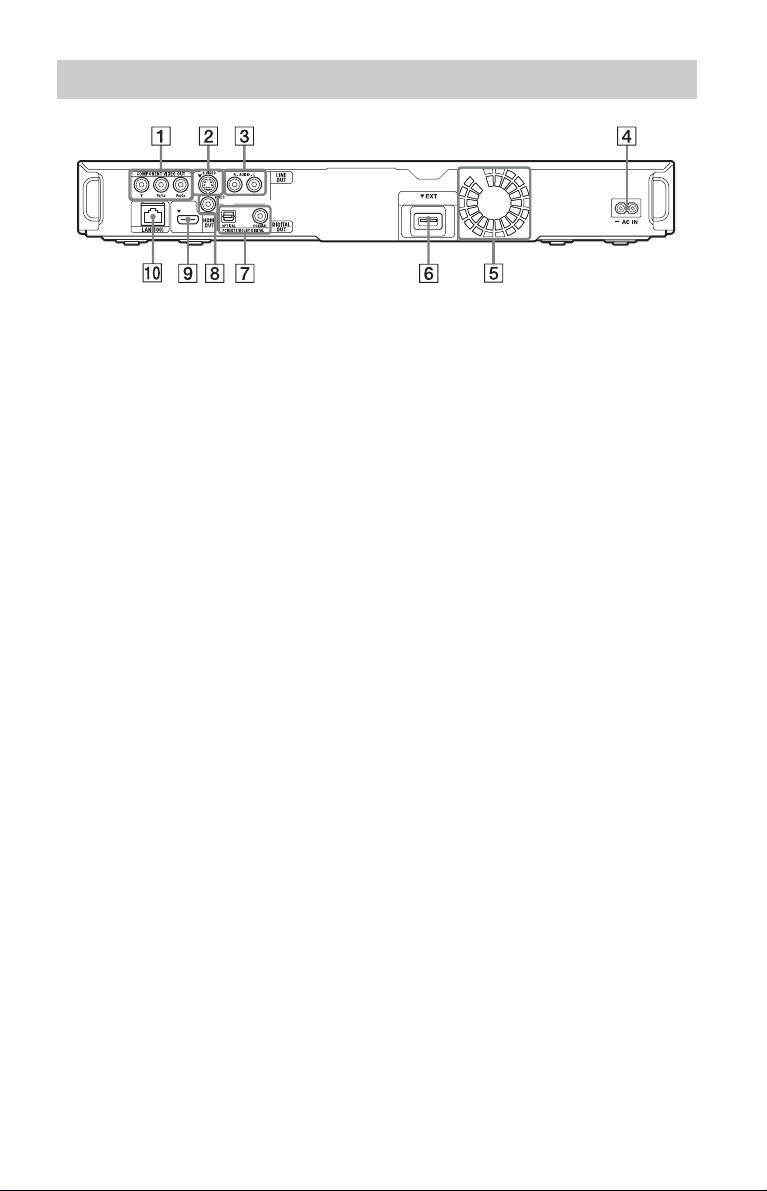
Rear panel
A COMPONENT VIDEO OUT
B/CB, PR/CR) jacks (page 16)
(Y, P
B LINE OUT (S VIDEO) jack
(page 17)
C LINE OUT (R-AUDIO-L) jacks
(page 17, 21)
D AC IN terminal (page 24)
E Ventilation holes
The ventilation fan is inside the player.
F EXT slot (page 22)
G DIGITAL OUT (OPTICAL/
COAXIAL) jacks (page 20)
H LINE OUT (VIDEO) jack (page 17)
I HDMI OUT jack (page 14, 19)
J LAN (100) terminal (page 23)
11
Page 12

Hookups and
Settings
Hooking Up the Player
Check that you have the following items.
• Audio/video cable (phono plug ×3) (1)
• AC power cord (mains lead) (1)
• Remote commander (remote) (1)
• R6 (size AA) batteries (2)
Follow steps 1 through 7 to hook up and
adjust the settings of the player. Do not
connect the AC power cord (mains lead) until
you reach “Step 5: Connecting the AC Power
Cord (Mains Lead)” (page 24).
12
Page 13

Step 1: Connecting to Your TV
About video/HDMI OUT jacks
The player has the following video jacks. Connect the player to your TV according to the input
jack on your TV.
When connecting the player to your TV using the HDMI cable, you can enjoy high quality
digital pictures and sound through the HDMI OUT jack.
Jack type Video resolution Hookup
High
quality
Digital
Analogue
High Definition:
1080/24p, 1080p,
1080i, 720p
Standard Definition:
480p/576p, 480i/
576i
High Definition:
1080i, 720p
Standard Definition:
480p/576p, 480i/
576i
See “Connecting to an
HDMI jack” (page 14).
See “Connecting to
component video jacks
(Y, Pb/Cb, Pr/Cr)”
(page 16).
Hookups and Settings
Standard
quality
b
• Plug in cables securely to prevent unwanted
noise.
• Refer to the instructions supplied with the
components to be connected.
• You cannot connect this player to a TV that does
not have a video input jack.
• Do not apply too much pressure on t he connecting
cables. Pushing against the cabinet wall, etc., may
damage the cable.
Standard Definition:
480i/576i
Standard Definition:
480i/576i
See “Connecting to an
audio/video or S
VIDEO jack”
(page 17).
See “Connecting to an
audio/video or S
VIDEO jack”
(page 17).
To connect to a TV with DVI input
Use an HDMI-DVI converter cable (not
supplied). The DVI jack will not accept any
audio signals, so you have to use another
audio connection in addition to this
connection (page 18).
Furthermore, you cannot connect the HDMI
OUT jack to DVI jacks that are not HDCP
compliant (e.g., DVI jacks on PC displays).
,continued
13
Page 14

Connecting to an HDMI jack
Connect the player and your TV using an HDMI cable to enjoy high quality digital pictures and
sound through the HDMI OUT jack.
If you connect a Sony TV that is compatible with the “Control for HDMI” function (page 15),
refer to the operating instructions supplied with the TV.
If you connect a 1080/24p- or 1080p-compatible TV, use a High Speed HDMI cable.
Blu-ray Disc/DVD player
HDMI cable (not supplied)
TV
Notes on connecting to the HDMI OUT jack
Observe the following as improper handling
may damage the HDMI OUT jack and the
connector.
• Carefully align the HDMI OUT jack on the
rear of the player and the HDMI connector
by checking their shapes. Make sure the
connector is not upside down or tilted.
14
• Be sure to disconnect the HDMI cable when
moving the player.
• If you place the player on a cabinet with the
HDMI cable connected, do not apply too
much pressure to the cabinet wall. It may
damage the HDMI OUT jack or the HDMI
cable.
• When connecting or disconnecting, do not
screw in or rotate the HDMI connector.
Page 15

About indicators for HDMI connection
When connecting an HDMI compatible
component, the HDMI indicator lights up in
the front panel display.
b
• C onsumers should note that not all high definition
television sets are fully compatible with this
product and may cause artifacts to be displayed in
the picture. In the case of 480i/480p/576p/720p/
1080i/1080p scan picture problems, it is
recommended that the user switch the connection
to the ‘standard definition’ output. If there are
questions regardin g our TV set compatib ility with
this model 480i/480p/576p/720p/1080i/1080p
Blu-ray Disc/DVD player, please contact our
customer service centre.
• I f the picture is not clear, not natural or not to your
satisfaction, change the video output resolution in
step 3 of “Output Video Format” under the
“Video Settings” setup (page 41).
• Be sure to use only an HDMI cable that bears the
HDMI logo.
About the BRAVIA Sync features (for HDMI connections only)
By connecting Sony components that are
compatible with the “Control for HDMI”
function with an HDMI cable (not supplied),
operation is simplified as below:
• One-Touch Play
With one touch of the following buttons, the
connected TV turns on and the input
selector on the TV is switched to the player
automatically.
– [/1
– HOME: The home menu appears
automatically (page 38).
– N: Playback starts automatically
(page 30).
• System Power-Off
When you turn off the TV using the power
button on the TV’s remote, the player and
HDMI-compatible components turn off
automatically.
•Theatre
When you press THEATRE, the player
automatically switches to the optimum
video mode for watching movies. When
connected with an AV amplifier (receiver)
using the HDMI cable, the speaker output
also switches automatically. When
connected with a Theatre Mode-compatible
TV using the HDMI cable, the TV’s video
mode switches to Theatre Mode. Press the
button again to return to the original setting.
• Language Follow
When you change the language for the onscreen display on your TV, the player’s
language for the on-screen display is also
changed after turning the player off and on.
To prepare for the BRAVIA Sync features
Set “Control for HDMI” to “On” in the
“System Settings” setup (page 48).
For details on settings of your TV or other
connected components, refer to the operating
instructions supplied with the TV or
components.
z
• When connecting the Sony TV that is compatible
with the “Control for HDMI” Easy Setting
function using the HDMI cable, the “Control for
HDMI” setting of the player automatically
switches to “On” if the “Control for HDMI”
setting on the connected TV is set to “On.” Refer
to the operating instructions supplied with the
TV.
• When connecting the Sony TV that is compatible
with the BRAVIA Sync features using the HDMI
cable, you can control the basic functions of the
player with the TV’s remote if the “Control for
HDMI” setting on the connected TV is set to
“On.” Refer to the oper ating instructions supplied
with the TV.
b
Depending on the connected component, the
“Control for HDMI” function may not work. Refer
to the operating instructions supplied with the
component.
Hookups and Settings
,continued
15
Page 16

Connecting to component video jacks (Y, PB/CB, PR/CR)
Connect the COMPONENT VIDEO OUT jacks of the player and your TV using a component
video cable or three video cables (not supplied) of the same kind and length. You can enjoy
high-quality pictures.
Be sure to connect to the LINE OUT (R-AUDIO-L) jacks using the audio/video cable.
Blu-ray Disc/DVD player
(green) (red)(blue)
Component video
cable (not supplied)
(green) (red)(blue)
Match the colour of the plug to that
of the jack.
: Signal flow
b
When you connect the player and TV using a
component video cable, disconnect the video plug
(yellow) of the audio/video cable.
(red) (white)
Audio/video cable
(supplied)
(red) (white)
Match the colour of the plug to
that of the jack.
TV
16
Page 17

Connecting to an audio/video or S VIDEO jack
Connect the LINE OUT (VIDEO, R-AUDIO-L) jacks of the player and your TV using the
audio/video cable. You can enjoy standard quality pictures and sound.
Blu-ray Disc/DVD player
(yellow) (red) (white)
or
Hookups and Settings
S-video cable
(not supplied)
(yellow) (red) (white)
: Signal flow
b
When you connect the player and TV using an Svideo cable, disconnect the video plug (yellow) of
the audio/video cable.
Audio/video cable
(supplied)
Match the colour of the plug to
that of the jack.
TV
17
Page 18

Step 2: Connecting to Your AV Amplifier (Receiver)
About audio/HDMI OUT jacks
The player has the following audio jacks. Connect the player to your AV amplifier (receiver)
according to the input jack on your AV amplifier (receiver).
Jack type Hookup
Digital See “Connecting to an HDMI jack” (page 19).
See “Connecting to digital jacks (OPTICAL/
COAXIAL)” (page 20).
Analogue See “Connecting to audio L/R jacks” (page 21).
z
For correct speaker location, refer to the operating
instructions supplied with the connected
components.
b
• When you connect the player to your AV
amplifier (receiver) using an HDMI cable, do one
of the following:
– Connect your AV amplifier (receiver) to your
TV using an HDMI cable, or
– Connect the player to your TV using a video
cable other than an HDMI cable (component
video cable, S-video cable, or audio/video
cable).
• If you connect a component that does not conform
to the selected audio signal, a loud noise (or no
sound) will come from the speakers, which could
damage your ears or the speakers.
18
Page 19

Connecting to an HDMI jack
If your AV amplifier (receiver) has an HDMI input, you can enjoy surround sound.
If you connect a Sony AV amplifier (receiver) that is compatible with the “Control for HDMI”
function (page 15), refer to the operating instructions supplied with the AV amplifier (receiver).
Blu-ray Disc/DVD player
HDMI cable (not supplied)
AV amplifier (receiver)
Hookups and Settings
HDMI cable (not supplied)
z
Set the following settings and you can enjoy higher
quality sound from the connected AV amplifier
(receiver).
– Set “Audio Output Priority” to “HDMI” in the
“Audio Settings” setup (page 43).
– Set “Audio (HDMI)” to “Auto” in the “Audio
Settings” setup (page 43).
– Set “BD Audio Setting” to “Direct” in the “Audio
Settings” setup (page 44).
TV
b
Not all HDMI-compatible AV amplifiers
(receivers) accept 8ch Linear PCM signals. Refer as
well to instructions supplied wit h the connected AV
amplifier (receiver).
,continued
19
Page 20

Connecting to digital jacks (OPTICAL/COAXIAL)
If your AV amplifier (receiver) has a Dolby*1 Digital, Dolby Pro Logic, or DTS*2 decoder and
a digital input jack, you can enjoy Dolby Digital (5.1ch), Dolby Pro Logic (4.0ch), or DTS
(5.1ch) surround effects.
Blu-ray Disc/DVD player
or
Optical digital cable
(not supplied)
: Signal flow
1 Connect the digital jack of the player
and your AV amplifier (receiver).
2 Set “Audio Output Priority” to
“Coaxial/Optical” in the “Audio
Settings” setup (page 43).
3 Make the appropriate settings in
“Dolby Digital” and “DTS” under the
“Audio Settings” setup (page 44).
Otherwise, no sound or a loud noise will
come from your speakers.
Coaxial digital cable
(not supplied)
AV amplifier (receiver)
*1
*2
20
Page 21

Connecting to audio L/R jacks
If your AV amplifier (receiver) only has L and R audio input jacks, use this connection.
Blu-ray Disc/DVD player
(white)(red)
Audio/video cable (supplied)
(white)(red)
Match the colour of the plug
to that of the jack.
Hookups and Settings
: Signal flow
AV amplifier (receiver)
21
Page 22

Step 3: Inserting the External Memory
To enjoy additional content (such as
BonusView/BD-Live) on certain Blu-ray
Disc titles, you will need to use external
memory.
Insert the external memory device (1 GB or
larger USB flash memory, such as Sony
USM1GH) into the EXT slot as your local
storage.
Insert the external memory in the V
direction into the EXT slot as far as it will
go.
Check that the EXT indicator lights up in the
front panel display when turning the player
on.
Rear of the player
Sony USM1GH
(not supplied)
With the terminal side up
b
• Do not connect anything other than a USB flash
memory, such as an HDD, etc., to the EXT slot.
• Insert the external memory straight. If you force
the external memory into the slot, this will cause
damage to both the external memory and the
player.
• Keep the external memory away from small
children to prevent them from accidentally
swallowing the external memory.
• Do not apply too much pressure to the external
memory in the slot, as it may cause a malfunction.
• We recommend use of the Sony USM1GH
available as of April 2008.
• Other USB flash devices may support this
function. However we cannot guarantee
compatibility with all USB flash memories.
• When inserting a USB flash memory other than
Sony USM1GH, check the insertion direction
before inserting it.
• Depending on the USB flash memory, it may
stick out from the EXT slot. Do not force into the
slot or apply pressure to the protruding portion of
the USB flash memory.
• To avoid data corruption or damage to the
external memory, turn the player off when
inserting or removing the external memory.
• When the EXT indicator does not light up, turn
the player off, remove and re-insert the external
memory, then turn the player on again.
• Do not insert the external memory that contains
photo or music files to avoid corrupting the
external memory data.
To remove the external memory
1 Press [/1 to turn the player off.
2 Pull out the external memory from the
EXT slot.
22
Page 23

Step 4: Connecting to the Network
Connect the LAN (100) terminal of the player
to your Internet source using a network cable
to update the player’s software. You can also
enjoy the BD-Live function (page 32).
1 Connect the LAN (100) terminal of the
player to your Internet source.
Methods to connect to your Internet
source include:
• Connecting to a broadband router
directly
• Connecting via a wireless LAN router
Refer also to the instructions supplied
with the broadband router or the wireless
LAN router.
2 Make the appropriate settings in
“Internet Settings” under the
“Network Settings” setup (page 49).
To update the player’s software using the
network
See “Network Update” (page 39) and
“Software Update Notification” (page 49).
b
Do not connect a phone line to the LAN (100)
terminal, as it may cause a malfunction.
When connecting to a broadband router directly
Blu-ray Disc/DVD player
Network cable
(not supplied)
Broadband router
To PC
Network cable
(not supplied)
ADSL modem/
Cable modem
Hookups and Settings
To enjoy the BD-Live function
See “Enjoying BonusView/BD-Live”
(page 32).
Internet
About network (LAN) cables
Depending on the modem or router, the type
of network (LAN) cable, straight or crossing,
differs. For details on the network (LAN)
cables, refer to the operating instructions
supplied with the modem or router.
,continued
23
Page 24

When connecting via a wireless LAN router
Blu-ray Disc/DVD player
Network cable
(not supplied)
Step 5: Connecting the AC Power Cord (Mains Lead)
After all of the other connections are
complete, connect the supplied AC power
cord (mains lead) to the AC IN terminal of
the player. Then plug the player and TV
mains leads (AC power cords) into the mains.
to AC IN
1
Ethernet/wireless
LAN media converter
To PC
Wireless LAN router
(access point)
Network cable
(not supplied)
ADSL modem/
Cable modem
Internet
b
Do not connect the LAN terminal of the player to
the LAN terminal of the PC.
2
to mains
24
Page 25

Step 6: Preparing the Remote
You can control the player using the supplied
remote. Insert two R6 (size AA) batteries by
matching the 3 and # ends on the batteries
to the markings inside the battery
compartment. When using the remote, point
it at the remote sensor on the player
(page 9).
b
• Use the batteries correctly to avoid possible
leakage and corrosion. Should leakage occur, do
not touch the liquid with bare hands. Observe the
following:
– Do not use a new battery with an old battery, or
batteries of different manufacturers.
– Do not attempt to recharge the batteries.
– If you do not intend to use the remote for an
extended period of time, remove the batteries.
– If battery leakage occurs, wipe out any liquid
inside the battery compartment, and insert new
batteries.
• Do not expose the remote sensor (marked on
the front panel) to strong light, such as direct
sunlight or a lighting apparatus. The player may
not respond to the remote.
Controlling TVs with the remote
You can control the volume, input source,
programme position, and power switch of
your Sony TV with the supplied remote.
b
When you replace the batteries of the remote, the
code number may be reset to the default setting. Set
the appropriate code number again.
TV [/1
Number
buttons
%
2 +/–
Available buttons
Depending on the connected unit, you may
not be able to control your TV with some or
all of the buttons (
TV [/1,
%, or number buttons).
Buttons Operations
TV [/1 Turns your TV on or off.
2 (volume) +/– Adjusts the volume of
PROG
(programme) +/–
t (input select) Switches your TV’s input
% (muting) Mutes the sound.
your TV.
Selects the programme
position on your TV.
source between the TV
and other input sources.
t
PROG +/–
PROG +/–, 2
+/–
Hookups and Settings
,
,continued
25
Page 26

To control other TVs with the remote
You can control the volume, input source,
programme position, and power switch of
non-Sony TVs as well.
If your TV is listed in the table below, set the
appropriate manufacturer’s code.
b
If you enter a new code number, the code number
previously entered will be erased.
1 While holding down TV [/1, enter the
TV’s manufacturer code using the
number buttons.
For instance, to enter “09,” press “0” then
“9.”
Code numbers of controllable TVs
If more than one code number is listed,
try entering them one at a time until you
find the one that works with your TV.
Manufacturer Code number
Sony 01 (default)
Hitachi 24
JVC 33
LG/Goldstar 76
Panasonic 17, 49
Philips 06, 08, 72
Samsung 71
Sharp 29
Toshiba 38
2 Release TV [/1.
Step 7: Easy Setup
Follow the steps below to make the minimum
number of basic adjustments for using the
player. If you do not complete Easy Setup, it
will appear each time you turn on your
player.
Make the settings below in the following
order.
When turned on for the first time
Wait for a short while before the player
turns on and starts Easy Setup.
[/1
TV [/1
</M/m/,,
RETURN
HOME
ENTER
26
1 Turn on the TV.
2 Press [/1 to turn on the player.
The player turns on after a moment.
3 Switch the input selector on your TV so
that the signal from the player
appears on your TV screen.
The display for OSD language selection
appears.
• If the display for OSD language
selection does not appear
Press HOME, and select “Easy Setup”
in the “Setup” setup (page 51). Then,
select “Start,” and press ENTER.
Page 27

4 Select a language for the on-screen
displays using M/m, and press
ENTER.
The initial settings message appears.
5 Select “Start,” and press ENTER.
6 Select the cable type used to connect
the player and your TV, and press
ENTER.
7 Select a video output resolution for
the connected TV, and press ENTER.
For details about the video output
resolution, see page 42.
When you select “HDMI” in step 6
Hookups and Settings
Select from “Auto,” “480i/576i,” “480p/
576p,” “720p,” “1080i,” or “1080p.”
When connecting the HDMI OUT jack
and other video output jacks at the same
time, video signals may not output from
the jacks, other than from the HDMI
OUT jack, when “Auto” or “1080p” is
selected.
When connecting other equipment at the
same time, press RETURN to return to
step 6 and change the “TV Connection
Method” setting.
When you select “Component Video” in
step 6
Select “HDMI” when connecting your
TV using the HDMI cable, and go to step
7.
b
When connecting the HDMI OUT jack and
other video output jacks at the same time,
select “Component Video.”
Select “Component Video” when
connecting your TV using the component
video cable, and go to step 7.
Select “Video or S Video” when
connecting your TV using the video
cable or S-video cable, and go to step 8.
Select from “480i/576i,” “480p/576p,”
“720p,” or “1080i.”
When you change the video output
resolution, a picture is displayed in the
selected resolution for about 30 seconds,
then the display asks for confirmation.
Follow the on-screen instructions and go
to the next step.
,continued
27
Page 28

b
If the picture is distorted or no picture appears,
wait for about 30 seconds wi thout pressing any
buttons. The display returns to the resolution
setting screen.
If the selected video output resolution is
incorrect, no picture will appear on the screen
when you press any button within that
30 seconds. In this case, press x on the player
for more than 10 seconds to reset the video
output resolution to the lowest resolution. To
change the video output resolution, set
“Output Video Format” in the “Video
Settings” setup (page 41).
8 Select an aspect ratio that matches
your TV, and press ENTER.
Select “16:9” when connecting to a widescreen TV or a TV with a wide mode
function.
Select “4:3” when connecting to a 4:3
screen TV without a wide mode function.
9 (Only when connecting your TV using
the HDMI cable)
Set the “Control for HDMI” function to
“On” or “Off,” and press ENTER.
10
Select “Allow” to allow Internet
connections from BD contents, and
press ENTER.
Select “Do not allow” to not allow
Internet connections from BD contents.
11
Select “Quick Start” to shorten the
startup time from standby mode, and
press ENTER.
For details about “Standby Mode,” see
page 48.
12
Select “Finish,” and press ENTER.
28
Select “On” to use the “Control for
HDMI” function when connecting Sony
components that are compatible with the
“Control for HDMI” function (page 15).
If you do not use the “Control for HDMI”
function, select “Off.”
z
• You can reset settings to their factory settings
(page 51).
• You can run “Easy Setup” again from “Easy
Setup” in “Setup” (page 51).
Page 29

Playing BDs/DVDs
BD
DVD
Z
Playback
Number
buttons
</M/m/,,
ENTER
OPTIONS
HOME
N
X
x
1 Switch the input selector on your TV so
that the signal from the player
appears on your TV screen.
2 Press Z, and place a disc on the disc
tray.
Playback
Playing side facing down
3 Press Z to close the disc tray.
• When you insert a commercially
available BD-ROM or DVD VIDEO,
playback automatically starts
depending on the disc.
b
Playback does not start by pressing N while
the disc tray is open.
,continued
29
Page 30

4 Press HOME.
5 Select “Video” using </,.
6 Select using M/m, and press N or
ENTER.
For commercially available BD-ROMs
or DVD VIDEOs, playback starts.
For BDs or DVDs recorded on other
equipment, the title list appears. Select a
title using M/m, and press N or
ENTER.
Playback starts.
b
• The point where you stopped playing is cleared
from memory when:
– you open the disc tray,
– you play another title,
– you change the settings on the player, or
– you remove the external memory (for BD-
ROMs).
• The player may not resume playback depending
on the disc or stop point.
To play restricted BDs or DVDs (Parental
Control)
When you play a restricted BD, change the
“BD Parental Control” setting in the “BD/
DVD Viewing Settings” setup (page 46).
When you play a restricted DVD, the display
for entering your password appears on the
screen.
Enter your four-digit password using the
number buttons, and press ENTER.
Playback starts.
To stop playback
Press x.
To pause playback
Press X.
z
In the title list, “PL” (Playlist) is displayed next to
the name of titles that are created and edited from
their originals.
b
• Depending on the disc you may not be able to do
some of the playback operations. Refer to the
instruction manual supplied with the disc.
• Depending on BDs or DVDs recorded on other
equipment, title lists or title names may not be
displayed.
To resume playback from the point where
you stopped (Resume Play)
After stopping playback, select using M/
m, and press N or ENTER.
The player resumes playback from the point
where you pressed x.
To start from the beginning, press OPTIONS
to select “Play from start,” and press ENTER.
Playback starts from the beginning of the
title.
To register or change the password, see
“Password” (page 47).
To play restricted BD-REs or BD-Rs (Disc
Lock)
When you play a BD-RE or BD-R restricted
by the Disc Lock function, the display for
entering your password appears on the
screen.
1 Enter the four-digit password that has
been registered when creating the disc
using the number buttons, and press
ENTER.
2 Select a title, and press N or ENTER.
Playback starts.
One-Touch Play (for HDMI connection
only)
Press N.
The player and the connected TV turn on and
the input selector on the TV is switched to the
player, then playback starts automatically.
b
• When using the HDMI connection, there may be
a delay before the pl ayback picture app ears on the
screen, and the beginning portion of the playback
picture may not be displayed.
• To use the One-Touch Play function, set “Control
for HDMI” to “On” in the “System Settings”
setup (page 48).
30
Page 31

Available OPTIONS
1 Press OPTIONS.
The options menu appears.
2 Select an item using M/m, and press
ENTER.
The available items differ depending on
the disc type or player situation.
Items Details
A/V Settings Adjusts settings for
Title List Displays the title list.
Play Plays the title from the
Play from start Plays the title from the
Top Menu Displays the disc’s Top
Menu/Popup
Menu
Stop Stops playback.
Title Search Searches for a title and
Chapter
Search
picture and sound.
• Video Settings
(page 34)
• Audio Settings
(page 34)
point where you pressed
x.
beginning.
Menu (page 31).
Displays the BDROM’s Pop-up Menu or
DVD’s menu (page 31).
starts playback from the
beginning (page 33).
Searches for a chapter
and starts playback
from the beginning
(page 33).
Using the BD’s or DVD’s menu
DVD
BD
To display Top Menu
When you play a BD or DVD, you can
display the Top Menu.
1 Press TOP MENU during playback.
The Top Menu appears.
2 Select an item using </M/m/,.
To display Pop-up Menus
Some BD-ROMs contain Pop-up Menus that
appear without interrupting playback.
1 Press POP UP/MENU during playback.
The Pop-up Menu appears.
2 Select an item using </M/m/,, colour
buttons, or the number buttons, and
follow the on-screen instructions.
Playback
,continued
31
Page 32

Enjoying BonusView/BD-Live
BD
Some BD-ROMs have bonus contents and
other data that can be downloaded to the
external memory (local storage) for
enjoyment.
z
• To delete all data in the external memory at once,
select “Erase All” in step 5.
• Press ENTER instead of OPTIONS in step 4 to
skip step 5.
b
Depending on the BD-ROM, the dis c name may not
be displayed.
1 Turn the player off.
2 Insert the external memory (not
supplied) into the EXT slot on the rear
of the player.
The external memory is used as the local
storage.
Make sure that the external memory is
properly inserted into the player
(page 22).
3 Connect the player to a network
(page 23).
4 Turn the player on.
5 Set “BD Internet Connection” to
“Allow” in the “BD/DVD Viewing
Settings” setup (page 47).
6 Insert a BD-ROM with BonusView/BD-
Live.
The operation method differs depending
on the disc. Refer to the instruction
manual supplied with the disc.
To delete data in the external memory
You can delete unnecessary data.
1 Press HOME.
2 Select “Video” using </,.
3 Select “BD Data” using M/m, and press
ENTER.
4 Select the disc name, and press
OPTIONS.
5 Select “Erase,” and press ENTER.
6 Select “OK,” and press ENTER.
The data of the selected disc will be
deleted.
Searching for a scene quickly (Scene Search)
DVD
BD
You can move quickly between scenes within
the title currently being played back.
1 Press SCENE SEARCH during playback
or in pause mode.
Playback pauses and a bar with a scene
indicator (square-shaped – indicates the
current point) appears at the bottom of
the screen.
2 Move the scene indicator to the scene
you are searching for using </, or
m/M.
Scene indicator
The current point
The scene indicator on the bar is
displayed around the playing point.
3 Release the button at the point you
want to watch.
The scene at which you released the
button is displayed in pause mode.
To search for a scene again, move the
scene indicator using </, or m/
M.
4 Press SCENE SEARCH, ENTER, N, or
X.
Playback starts.
32
Page 33

To cancel Scene Search mode
Press SCENE SEARCH, ENTER, N, or X.
Playback starts from the point you pressed
the button.
b
• The Scene Search function is available for titles
longer than 100 seconds and shorter than 100
hours.
• The Scene Search function may not be available
depending on the disc.
Searching for a Title/Chapter
BD
DVD
You can search for a chapter if the title
contains chapter marks.
1 Press OPTIONS during playback or in
pause mode.
The options menu appears.
2 Select a search method using M/m,
and press ENTER.
“Title Search” (for BD-ROMs/DVD
VIDEOs)
“Chapter Search”
The display for entering the number
appears.
Example: Chapter Search
3 Enter the number of the title or chapter
using the number buttons.
If you make a mistake, press CLEAR,
and re-enter another number.
4 Press ENTER.
After a while, the player starts playback
from the selected number.
Displaying the playing time and play information
DVD
BD
You can check the title information,
including the video transmission rate, etc.
Press DISPLAY.
The displayed information differs depending
on the disc type and player status.
Example: When playing a BD-ROM
A The current selected angle
B Title number or name
C The currently selected audio or subtitle
setting
D Available functions ( angle/
audio/ subtitle)
E Playback information
Displays Disc type/Play mode/Video
codec/Bit rate/Playing status bar/
Playing time (Remaining time*)
F Output resolution/Video frequency
* Displayed when you press TIME repeatedly.
z
• You can also check the playback information in
the front panel display (page 10).
• Press SUBTITLE, AUDIO, or ANGLE, and you
can check each type of information.
Playback
,continued
33
Page 34

Adjusting pictures and sound for videos
DVD
BD
To adjust the picture
1 Press OPTIONS during playback.
The options menu appears.
2 Select “A/V Settings” using M/m, and
press ENTER.
3 Select “Video Settings” using M/m, and
press ENTER.
The “Video Settings” screen appears.
4 Select an item using M/m, and press
ENTER.
The default settings are underlined.
Items Details
Picture Quality
Mode
(Standard
Brighter Room
Theatre Room
FNR
/Auto)
(Off
BNR
/Auto)
(Off
MNR
/Auto)
(Off
Optimises the picture
settings for different
/
lighting environments.
/
)
Reduces random noise
appearing in the picture.
Reduces mosaic-like
block noise in the
picture.
Reduces minor noise
around the picture
outlines (mosquito
noise).
5 Select or adjust the settings using </M/
m/,, and press ENTER.
To adjust any other items, repeat steps 4
and 5.
b
• Set the picture setting of your TV to ‘Standard’
before changing the “Picture Quality Mode”
settings.
• “Video Settings” is not available when the
connected TV is set to Theatre Mode (page 15).
• Depending on the disc or the scene being played,
“FNR,” “BNR” or “MNR” effects may be hard to
discern.
To adjust the audio characteristics
1 Press OPTIONS during playback.
The options menu appears.
2 Select “A/V Settings” using M/m, and
press ENTER.
3 Select “Audio Settings” using M/m, and
press ENTER.
The “Audio Settings” screen appears.
4 Select an item using M/m, and press
ENTER.
The default settings are underlined.
Items Details
AV SYNC
(short) 0
120 msec
(long)
Audio Filter
(for analogue
audio signals
only)
Adjusts the gap between
~
picture and sound, by
delaying the sound
output in relation to the
picture output (0 to
120 milliseconds).
•Sharp
wide frequency range
and spatial feeling.
Normally select this.
• Slow: Provides
smooth and warm
sound.
: Provides a
5 Select or adjust the settings using </M/
m/,, and press ENTER.
To adjust any other items, repeat steps 4
and 5.
34
Page 35

b
• The “Audio Filter” function does not work for
digital audio signals output from the HDMI OUT/
DIGITAL OUT (OPTICAL/COAXIAL) jacks.
• Th ere may be little effect by changing the “Audio
Filter” setting depending on the disc or playback
environment.
Playing CDs
CD
1 Insert a CD.
The Music Player screen appears.
2 Press N.
Playback starts.
To select a track
1 Press HOME.
2 Select (Music) using </,.
3 Select , and press ENTER.
The music list appears.
4 Select a track using M/m.
To play the selected track, press N or
ENTER.
Playback
Available OPTIONS
1 Press OPTIONS.
The options menu appears.
2 Select an item using M/m, and press
ENTER.
The available items differ depending on
the situation.
Items Details
Play Plays the selected track.
Play from start Plays the current track
from the beginning.
Stop Stops playing the track.
,continued
35
Page 36

Various music playback operations
Buttons Operations
N Starts playback from the
point where you pressed x.
x Stops playback.
X Pauses playback.
./> Skips to the beginning of the
current or next track. To go
to the previous track press
. twice.
m/M Fast reverse/fast forwards
when pressed during
playback.
TIME Switches time information
on the screen and the front
panel display (page 10).
b
The point where you stopped playing (resume
point) is cleared from memory when:
– you open the disc tray, or
– you turn off the player.
Playing Photo Files
DATA DVD
*2
*1
BD
*1
BD-REs/BD-Rs containing JPEG image files
*2
DVD+RWs/DVD+Rs/DVD-RWs/DVD-Rs
containing JPEG image files
*3
CD-RWs/CD-Rs containing JPEG image files
DATA CD
*3
1 Press HOME.
2 Select (Photo) using </,.
3 Select , and press ENTER.
The file list or folder list appears.
36
4 Select a file or folder using M/m, and
press ENTER.
When you select a folder, select a file in
the folder using M/m, and press ENTER.
The selected photo file is displayed.
• To play a slideshow, press N.
Page 37

Available OPTIONS during playback
1 Press OPTIONS during playback.
The options menu appears.
2 Select an item using M/m, and press
ENTER.
The available items differ depending on
the situation.
Items Details
Slideshow
Speed
Stop Stops a slideshow.
Rotate Left Rotates the photo
Rotate Right Rotates the photo
Various photo playback operations
Buttons Operations
x
RETURN
X Pauses a slideshow.
./> Displays the previous or
DISPLAY Displays the file
Changes the slideshow
speed.
•Fast
• Normal
•Slow
counterclockwise by 90
degrees.
clockwise by 90
degrees.
Stops a slideshow.
next photo.
information.
b
• When you attempt to play the following photo
files, the mark appears on the screen and they
cannot be played.
– photo files larger than 8,192 pixels (width or
height)
– photo files smaller than 15 pixels (width or
height)
– photo files exceeding 32 MB
– photo files with extreme aspect ratios (greater
than 50:1 or 1:50)
– photo files in Progressive JPEG format
– photo files that have a “.jpeg” or “.jpg”
extension, but not in JPEG format
– photo files that have an extremely long name
• The following photo files cannot be played.
– photo files recorded on BD-Rs in any format
other than UDF (Universal Disk Format) 2.6
– photo files recorded on BD-REs in any format
other than UDF (Universal Disk Format) 2.5
• The following photo files or folders cannot be
displayed in the file list or folder list.
– photo files that have an extension other than
“.jpeg” or “.jpg”
– photo files that have an extremely long name
– photo files in the 5th tree or lower
– 501th or more folders when the total number of
folders and files in a single tree exceeds 500
• Photo files edited on a PC may not be played.
• Thu mbnail images of some photo files may not be
displayed.
• Large photo files may take some time to display
or to start a slideshow.
To view best quality images
If you have a Sony TV compatible with
“PhotoTV HD,” you can enjoy best quality
images by the following connection and
setting.
1 Connect the player to the TV using an
HDMI cable (not supplied).
2 Set the TV’s video setting to [VIDEO-A]
mode.
For details on [VIDEO-A], refer to the
operating instructions supplied with the
TV.
Playback
37
Page 38

Settings and Adjustments
Using the Settings Displays
Select (Setup) on the home menu when
you need to change the settings of the player.
1 Press HOME.
2 Select (Setup) using </,.
3 Select the setup category icon to
change using M/m, and press ENTER.
For details on setting options and setup
category icons, see “Setting list”
(page 39).
Example: Video Settings
38
4 Set the options.
Page 39

Setting list
You can setup the following options.
Icon Explanation
Network Update (page 39)
Updates the software of the
player.
Video Settings (page 40)
Makes the video settings
according to the type of
connecting jacks.
Audio Settings (page 43)
Makes the audio settings
according to the type of
connecting jacks.
BD/DVD Viewing Settings
(page 46)
Makes detailed settings for BD/
DVD playback.
Photo Settings (page 48)
Makes the photo-related settings.
System Settings (page 48)
Makes the player-related
settings.
Network Settings (page 49)
Makes detailed settings for
Internet and network.
Easy Setup (page 51)
Re-runs the Easy Setup to make
the basic settings.
Resetting (page 51)
Resets the player to the factory
settings.
Network Update
You can update and improve the functions of
the player.
For information about update functions,
consult your nearest Sony dealer or local
authorised Sony Service facility. You can
also refer to the following website;
http://www.sony-asia.com/support
1 Select “Network Update” using M/m,
and press ENTER.
The player connects to the network, and
the display asks for confirmation.
2 Select “OK” using </,, and press
ENTER.
The player starts downloading, then
updating the software automatically.
When updating finishes, “FINISH”
appears for 5 seconds in the front panel
display, then the player automatically
turns off.
3 Press [/1 to turn on the player.
The player starts up with the updated
software.
z
• The “VUP */9” counter (“*” indicates update
step) in the front panel display also shows
progress of the update.
• You can check the current software version by
selecting “System Information” in the “System
Settings” setup (page 49).
• The “Setup” settings remain after updating.
• The player informs you of newer software version
information when “Software Update
Notification” is set to “On” (default) (page 49).
Settings and Adjustments
b
• Do not disconnect the AC power cord (mains
lead) or network cable while downloading or
updating software.
• Any operations, including opening the disc tray,
are not available while updating.
• Downloading times may differ depending on the
server provider or line status.
• When error messages on network connections
appear, check the network settings (see “Internet
Settings” on page 49).
,continued
39
Page 40

To update the software using an update
disc
You can update and improve the functions of
the player using an update disc provided by
Sony dealer or local authorised Sony service
facility.
1 Insert the update disc.
The display asks for confirmation.
2 Select “OK,” and press ENTER.
Software update starts.
When updating finishes, “FINISH”
appears for 5 seconds in the front panel
display, then the disc tray automatically
opens.
3 Remove the disc.
The player automatically turns off.
4 Press [/1 to turn the player on.
The player starts up with the updated
software.
z
• The “VUP */9” counter (“*” indicates update
step) in the front panel display also shows
progress of the update.
• You can check the current software version by
selecting “System Information” in the “System
Settings” setup (page 49).
• The “Setup” settings remain after updating.
• For information about other software update
methods, consult your nearest Sony dealer or
local authorised Sony Service facility.
Video Settings
The default settings are underlined.
TV Type
Selects your TV type.
16:9 Select this when connecting
4:3 Select this when connecting
Screen Format
Selects the display configuration for a 4:3
screen picture on a 16:9 wide screen TV.
Original Select this when connecting
Fixed Aspect
Ratio
to a wide-screen TV or a TV
with a wide mode function.
to a 4:3 screen TV without a
wide mode function.
to a TV with a wide mode
function. Displays a 4:3
screen picture in 16:9 aspect
ratio even on a wide-screen
TV.
Changes the picture size to
fit the screen size with the
original picture aspect ratio.
b
• Do not disconnect the AC power cord (mains
lead) while updating.
• Any operations, including opening the disc tray,
are not available while updating.
40
Page 41

DVD Aspect Ratio
Output Video Format
Selects the display configuration for
playback of 16:9 screen pictures on a 4:3
screen TV (selectable when “TV Type” is set
to “4:3” and “Screen Format” is set to “Fixed
Aspect Ratio”).
Letter Box Displays a wide picture with
black bands on the top and
bottom.
Pan & Scan Displays a full-height
picture on the entire screen,
with trimmed sides.
Letter Box
Pan & Scan
b
Depending on the DVD, “Letter Box” may be
selected automatically instead of “Pan & Scan” or
vice versa.
Cinema Conversion Mode
Sets the video conversion method for 480p/
576p, 720p, 1080i, or 1080p* signals from
the HDMI OUT jack or the COMPONENT
VIDEO OUT jacks.
* HDMI only
Auto Normally select this. The
player automatically detects
whether the material is
video-based or film-based,
and switches to the
appropriate conversion
method.
Video The conversion method
suited for video-based
material will always be
selected regardless of the
material.
Selects the jack type to output video signals
(“TV Connection Method”) and output
resolution (“ HDMI Resolution”/“C omponent
Resolution”).
1 Select “Output Video Format” in “Video
Settings,” and press ENTER.
2 Select the jack type to output video
signals using M/m, and press ENTER.
b
When connecting the HDMI OUT jack and
other video output jacks at the same time,
select “Component Video.”
TV Connection Method
HDMI Outputs signals from
Component
Video
Video or
S Video
the HDMI OUT jack
according to the “HDMI
Resolution” setting
below.
Outputs signals from
the COMPONENT
VIDEO OUT jacks
according to the
“Component
Resolution” setting
below.
Outputs signals from
the LINE OUT VIDEO
or S VIDEO jack.
3 (When you select “HDMI” or
“Component Video” only)
Select the signal type for the HDMI OUT
jack or COMPONENT VIDEO OUT
jacks using M/m, and press ENTER.
When you change the video output
resolution, a picture is displayed in the
selected resolution for about 30 seconds,
then the display asks for confirmation.
Follow the on-screen instructions.
The HD indicator lights up when
outputting 720p/1080i/1080p video
signals.
Settings and Adjustments
,continued
41
Page 42

b
• If the picture is distorted or no picture
appears, wait for about 30 seconds without
pressing any buttons. The display returns to
the resolution setting screen.
If the selected video output resolution is
incorrect, no picture will appear on the
screen when you press an y button within that
30 seconds. In this case, press x on the
player for more than 10 seconds to reset the
video output resolution to the lowest
resolution.
• When connecting the HDMI OUT jack and
other video output jacks at the same time,
video signals may not output from the jacks,
other than from the HDMI OUT jack, when
“Auto” or “1080p” is selected.
When connecting other equipment at the
same time, press RETURN to return to step
2 and change the “TV Connection Method”
setting.
HDMI Resolution/Component Resolution
Auto (HDMI
only)
480i/576i O utputs 480i/576i video
480p/576p Outputs 480p/576p
720p Outputs 720p video
1080i Outputs 1080i video
1080p (HDMI
only)
Normally select this.
The player outputs
signals starting from the
highest resolution
acceptable to the TV:
1080p > 1080i > 720p >
480p > 480i
If the resulting image
format is undesirable,
try another setting that
suits your TV.
signals.
video signals.
signals.
signals.
Outputs 1080p video
signals.
BD-ROM 1080/24p Output
Sets to output 1920
signals when playing film-based materials on
BD-ROMs (720p/24 Hz or 1080p/24 Hz).
1920 × 1080p/24 Hz video signals can be
output when all of the following conditions
are met.
– You connect a 1080/24p-compatible TV
using the HDMI OUT jack,
– “Output Video Format” is set to “HDMI,”
and
– “HDMI Resolution” is set to “Auto” or
“1080p.”
The 24P indicator lights up when outputting
1920 × 1080p/24 Hz video signals.
Auto Outputs 1920 × 1080p/
On Outputs 1920 × 1080p/
Off Select this when your TV is
b
No BD-ROM picture appears when the connected
TV is non-compatible with 1080/24p and “BDROM 1080/24p Output” is set to “On.” In this case,
press HOME to display the home menu, and change
the “BD-ROM 1080/24p Output” setting.
× 1080p/24 Hz video
24 Hz video signals only
when connecting a 1080/
24p-compatible TV using
the HDMI OUT jack.
24 Hz video signals
regardless of the connected
TV type.
not compatible with 1080/
24p video signals.
42
Page 43

YCbCr/RGB (HDMI)
Sets the colour setting for video signals
output from the HDMI OUT jack. Select the
setting that matches the connected TV type.
Auto Automatically detects the
type of external device, and
switches to the matching
colour setting.
YCbCr (4:2:2) Outputs YCbCr 4:2:2 video
signals.
YCbCr (4:4:4) Outputs YCbCr 4:4:4 video
signals.
RGB (16-235) Select this when connecting
to a device with an HDCPcompliant DVI jack.
RGB (0-255) Select this when connecting
to an RGB (0-255) device.
b
When selecting “RGB (0-255),” check that the
RGB (0-255) device and the player are connected
using the HDMI cable.
Audio Settings
The default settings are underlined.
Audio Output Priority
Selects the jack type to output audio signals.
2-channel linear PCM signals are output at
48 kHz maximum from output jacks other
than the priority jacks.
HDMI Outputs audio signals from
Coaxial/
Optical
Stereo
Analogue
Audio (HDMI)
the HDMI OUT jack.
Outputs audio signals from
the DIGITAL OUT
(OPTICAL/COAXIAL)
jack.
Outputs audio signals from
the LINE OUT (R-AUDIOL) jacks.
Settings and Adjustments
x.v.Colour Output
Sets whether to send xvYCC information to
the connected TV.
Combining xvYCC-compatible video with a
TV that supports x.v.Colour display makes it
possible to more accurately reproduce object
colours present in the natural world.
Auto Normally select this.
Off Select this when the picture
is unstable or colours appear
unnatural.
Pause Mode
Sets the picture mode for DVD playback
pause status. For BD-ROMs or discs
containing AVCHD files, “Pause Mode”
automatically switches to “Auto.”
Auto Normally select this.
Dynamic moving pictures
appear without blurring.
Frame Displays static pictures at
high resolution.
Selects the signal type for the HDMI OUT
jack.
Auto Normally select this.
Outputs audio signals
according to the status of the
connected HDMI device.
2ch PCM Downmixes to 2-channel
Linear PCM signals before
outputting from the HDMI
OUT jack.
b
Select “2ch PCM” when connecting a TV or an AV
amplifier (receiver) that does not support Dolby
Digital or DTS, otherwise noise or no sound may
result.
,continued
43
Page 44

BD Audio Setting
DTS
Selects whether to mix or not mix interactive
audio and secondary audio (commentary)
when playing a BD that contains such audio.
Mix Outputs the audio obtained
Direct Outputs the primary audio
by mixing the interactive
audio and secondary audio
to the primary audio.
only.
b
PCM 96 kHz audio signals are output as PCM
48 kHz audio signals when “BD Audio Setting” is
set to “Mix.”
Audio ATT
Lowers the audio output level to prevent
sound distortion.
On Enables Audio Attenuation.
Off
Disables Audio Attenuation.
b
“Audio ATT” does not affect the output from the
HDMI OUT jack and the DIGITAL OUT
(OPTICAL/COAXIAL) jack.
Dolby Digital
Selects the audio signals output when playing
Dolby Digital discs.
This setting affects the output from the
DIGITAL OUT (COAXIAL/OPTICAL)
jack.
Downmix
PCM
Dolby Digital Select this when connecting
Converts to output Linear
PCM signals. Select this
when connecting an audio
device without a built-in
Dolby Digital decoder.
an audio device with a builtin Dolby Digital decoder.
Selects the audio signals output when playing
DTS discs. This setting affects the output
from the DIGITAL OUT (COAXIAL/
OPTICAL) jack.
Downmix
PCM
DTS Select this when connecting
Converts to output Linear
PCM signals. Select this
when connecting to an audio
device without a built-in
DTS decoder.
to an audio device with a
built-in DTS decoder.
48kHz/96kHz PCM
Selects the maximum sampling frequency for
the PCM signals output from the DIGITAL
OUT (OPTICAL/COAXIAL) jack.
48kHz/16bit Outputs audio signals of
96kHz/24bit Outputs audio signals of
b
• If you select “96kHz/24bit” when an AV
amplifier (receiver) that does not support 96 kHz
is connected, no sound or a loud sound may
result.
• “48kHz/96kHz PCM” is not effective when
“Audio Output Priority” is set to “HDMI” or
“Stereo Analogue.”
96 kHz sampling as 48 kHz/
16 bit.
96 kHz sampling as 96 kHz/
24 bit. However, the signals
will be output as 48 kHz/
16 bit if the source is copyprotected.
44
Page 45

Audio DRC
Downmix
Selects the dy namic range (compression le vel
of the sound) setting when playing a BD or
DVD that conforms to “Audio DRC.”
Auto Performs playback at the
dynamic range specified by
the disc (BD-ROM only).
Other discs are played back
at the “Standard” level.
Standard Performs playback at a
compression level between
“TV Mode” and “Wide
Range.”
TV Mode Sounds are compressed
heavily. Low sounds are
easier to hear.
Wide Range No compression works. A
more dynamic sound is
produced.
b
• “Audio DRC” is effective only when playing
Dolby Digital, Dolby Digital Plus, and Dolby
TrueHD audio signals.
• W hen “Dolby Digital” is set to “Dolby Digit al” in
the “Audio Settings” setup (page 44), “Audio
DRC” has no effect on the audio output from the
DIGITAL OUT (OPTICAL/COAXIAL) jack.
However, this excludes the following cases.
– when “BD Audio Setting” is set to “Mix” when
playing a BD.
– w hen “Audio Output Priority” is set to “HDMI”
or “Stereo Analogue.”
Sets the downmix method of multi-channel to
two-channel sound.
Dolby
Surround
Normal Outputs audio signals
Outputs the Dolby Surround
(Pro Logic) signals in 2
channels. Select this when
connecting an audio device
that supports Dolby
Surround (Pro Logic).
without Dolby Surround
(Pro Logic) effect. Select
this when connecting an
audio device that does not
support Dolby Surround
(Pro Logic).
b
“Downmix” has no effect on the bitstream audio
output from the DIGITAL OUT (OPTICAL/
COAXIAL)/HDMI OUT jack.
Settings and Adjustments
45
Page 46

BD/DVD Viewing
Settings
The default settings are underlined.
BD/DVD Menu
Selects the default menu language for BDROMs or DVD VIDEOs.
When you select “Select Language Code,”
the display for entering the language code
appears. Enter the code for your language by
referring to “Language Code List” (page 63).
Audio
Selects the default track language for BDROMs or DVD VIDEOs.
When you select “Original,” the language
given priority in the disc is selected.
When you select “Select Language Code,”
the display for entering the language code
appears. Enter the code for your language by
referring to “Language Code List” (page 63).
4 Select the age restriction, and press
ENTER.
The lower the value, the stricter the
limitation.
If you select “Select Age Restriction,”
you can enter the age from “0” to “255”
using </M/m/, or the number
buttons.
• To cancel the Parental Control setting,
select “No Restrictions.”
z
You can change the password (see “Password” on
page 47).
b
• If you forget the password, reset the player
(page 51) and set a new password (see
“Password” on page 47).
• When you play discs which do not have the
Parental Control function, playback cannot be
limited on this player.
• Depending on the disc, you may be asked to
change the Parental Control level while playing
the disc. In this case, enter your password, then
change the level.
• When “255” is selected in “Select Age
Restriction,” the Parental Control setting is
cancelled.
Subtitle
Selects the default subtitle language for BDROMs or DVD VIDEOs.
When you select “Select Language Code,”
the display for entering the language code
appears. Enter the code for your language by
referring to “Language Code List” (page 63).
BD Parental Control
Playback of some BD-ROMs can be limited
according to the age of the users. Scenes may
be blocked or replaced with different scenes.
1 Select “BD Parental Control” in “BD/
DVD Viewing Settings,” and press
ENTER.
2 Enter your four-digit password using
the number buttons.
3 Select “OK,” and press ENTER.
46
DVD Parental Control
Playback of some DVD VIDEOs can be
limited according to the age of the users.
Scenes may be blocked or replaced with
different scenes.
1 Select “DVD Parental Control” in “BD/
DVD Viewing Settings,” and press
ENTER.
2 Enter your four-digit password using
the number buttons.
3 Select “OK,” and press ENTER.
4 Select a level, and press ENTER.
The lower the value, the stricter the
limitation.
• To cancel the Parental Control setting,
select “No Restrictions.”
Page 47

z
You can change the password (see “Password” on
page 47).
b
• If you forget the password, reset the player
(page 51) and set a new password (see
“Password” on page 47).
• When you play discs which do not have the
Parental Control function, playback cannot be
limited on this player.
• Depending on the disc, you may be asked to
change the Parental Control level while playing
the disc. In this case, enter your password, then
change the level.
Parental Control Region Code
Password
Sets or changes the password for the Parental
Control function. A password allows you to
set a restriction on BD-ROM or DVD
VIDEO playback. If necessary, you can
differentiate the restriction levels for BDROMs and DVD VIDEOs.
1 Select “Password” in “BD/DVD
Viewing Settings,” and press ENTER.
2 Enter your four-digit password using
the number buttons.
3 Select “OK,” and press ENTER.
Settings and Adjustments
Playback of some BD-ROMs or DVD
VIDEOs can be limited according to the
geographic area. Scenes may be blocked or
replaced with different scenes.
1 Select “Parental Control Region
Code” in “BD/DVD Viewing Settings,”
and press ENTER.
2 Enter your four-digit password using
the number buttons.
3 Select “OK,” and press ENTER.
4 Select the area restriction, and press
ENTER.
When you select “Select Region Code,”
the display for entering the region code
appears. Enter the code for the area
restriction by referring to “Parental
Control/Area Code” (page 63).
z
You can change the password (see “Password” on
page 47).
b
• If you forget the password, reset the player
(page 51) and set a new password (see
“Password” on page 47).
• When you play discs which do not have the
Parental Control function, playback cannot be
limited on this player.
• Depending on the disc, you may be asked to
change the Parental Control level while playing
the disc. In this case, enter your password, then
change the level.
To change the password
1 After step 3, enter a new password using
the number buttons.
2 Select “OK,” and press ENTER.
Hybrid Disc Playback Layer
Selects the layer priority when playing a
Hybrid Disc. To change the setting, turn the
player off and on again.
BD Plays BD layer.
DVD/CD Plays DVD or CD layer.
BD Internet Connection
Sets whether to allow Internet connections
from the contents of a BD (in BDMV mode)
being played. Network connections and
settings are required when using this function
(page 49).
Allow Normally select this.
Do not allow
Prohibits Internet
connection.
47
Page 48

Photo Settings
System Settings
The default setting is underlined.
Slideshow Speed
Changes the slideshow speed.
Fast Photos change rapidly.
Normal
Slow Photos change slowly.
Photos change at normal
speed.
The default settings are underlined.
OSD
Selects your language for the player onscreen displays.
Dimmer
Adjusts the lighting of the front panel display.
Bright Bright lighting.
Dark Low lighting.
Off Turns off the lighting during
playback. Low lighting other
than during playback.
Control for HDMI
On Allows you to use the
Off
“Control for HDMI”
function (page 15).
Turns off the function.
Standby Mode
48
Quick Start Shortens the startup time
Normal
from standby mode. You c an
operate the player quickly
after turning it on.
The default setting.
b
When “Standby Mode” is set to “Quick Start,”
– power consumption will be higher than when
“Standby Mode” is set to “Normal” and
– the ventilation fan may turn on depending on the
surrounding temperature.
Page 49

Auto Display
Network Settings
On Automatically displays
information on the screen
when changing the viewing
titles, picture modes, audio
signals, etc.
Off Displays information only
when you press DISPLAY.
Screen Saver
The screen saver image appears when you do
not use the player for more than 15 minutes
while an on-screen display, such as the home
menu, is displayed on your TV screen. The
screen saver image helps prevent your
display device from becoming damaged
(ghosting).
On Turns on the screen saver
function.
Off Turns off the function.
Software Update Notification
Informs you of newer software version
information. Network connections and
settings are required when using this function
(page 49).
On Sets t he player to inform you
of newer software version
information (page 39).
Off Turns off the function.
System Information
Displays the player’s software version
information and the MAC address.
Internet Settings
These items are necessary when you connect
to the Internet via a network cable. Enter the
respective (alphanumeric) values for your
broadband router or Wireless LAN router.
The items that need to be set may differ,
depending on the Internet service provider or
the router. For details, refer to the instruction
manuals that have been provided by your
Internet service provider or supplied with the
router.
1 Select “Internet Settings” in “Network
Settings,” and press ENTER.
2 Select “IP Address Acquisition,” and
press ENTER.
3 Select an item, and press ENTER.
Use DHCP Select this when DHCP
Use Static IP
Address
• When you select “Use DHCP”
If you set “DNS Server Auto
Acquisition” to “Off,” set the following
item:
– DNS Server (Primary)/DNS Server
(Secondary)
• When you select “Use Static IP
Address”
Set the following items:
– IP Address
– Subnet Mask
– Default Gateway
– DNS Server (Primary)/DNS Server
(Secondary)
(Dynamic Host
Configuration Protocol)
server settings are
available from your
Internet service
provider. The network
settings necessary for
the player will be
assigned automatically.
Set the IP address
manually according to
your network
environment.
Settings and Adjustments
,continued
49
Page 50

b
When you set the “DNS Server (Primary)”/
“DNS Server (Secondary)” addresses
manually, enter the “DNS Server (Primary)”
address. Otherwise, the “Internet Settings”
will be set incorrectly.
4 If your ISP has a specific proxy server
setting, select “Proxy Settings” using
M/m, and press ENTER.
The “Proxy Settings” display appears.
If the proxy server does not have a
specific setting, go to step 8.
5 Set “Use of Proxy Server” to “On.”
6 Select “Proxy Server” and “Port,” and
enter the settings.
To enter the proxy server, see “To enter
characters” (page 50).
7 Press RETURN.
8 Select “Network Diagnostic” using M/
m, and press ENTER.
9 Select “Start,” and press ENTER.
10
Check that the message “Network
connections are correct.” appears.
The setup is finished. If the message does
not appear, follow the on-screen
messages.
To enter characters
The display for entering characters appears
when you select “Proxy Server” in “Proxy
Settings.”
3 Press the blue button (“Finish”) to finish.
Available buttons
Buttons Details
Red button
(Letter Type)
Green button
(A/a)
Yellow button
(Symbol)
Blue button
(Finish)
CLEAR
(Clear/Clear All)
RETURN
(Cancel)
</M/m/,,
ENTER
Switches the keyboard
between alphabet and
numbers.
Switches the keyboard
between upper case and
lower case.
Displays the keyboard for
symbols.
The input is entered, and
the player returns to the
previous display.
Erases the selected
character.
To erase all displayed
characters, press and hold
CLEAR for 2 seconds or
more.
Returns to the previous
display, cancelling the
input.
• Select an input function
using </M/m/,, and
press ENTER.
• Enter characters as
1Select a
follows:
character selection panel
using </M/m/,, and
press ENTER.
character using </,,
and press ENTER.
2Select a
1 Press a number button repeatedly to
select a character.
Example:
Press the number 3 button once to enter
“D.”
Press the number 3 button three times to
enter “F.”
2 Press ,, and enter the next character.
50
Page 51

Easy Setup
Resetting
Re-runs the Easy Setup to make the basic
settings.
1 Select “Easy Setup,” and press
ENTER.
2 Select “Start” using </,, and
press ENTER.
3 Follow the instructions for “Step 7:
Easy Setup” (page 26) from step 4.
You can reset the player settings to the
factory default by selecting the group of
settings. All the settings within the group will
be reset.
1 Select “Resetting,” and press ENTER.
2 Select “Reset to Factory Default
Settings,” and press ENTER.
3 Select the settings you want to reset to
default, and press ENTER.
The display asks for confirmation.
You can reset the following settings:
– Video Settings
– Audio Settings
– BD/DVD Viewing Settings
– Photo Settings
– System Settings
– Network Settings
– All Settings
4 Select “Start” using </,, and
press ENTER.
b
When “All Settings” is selected in step 3,
– the Blu-ray Disc indicator lights up, then turns off
when Easy Setup is complete.
– All settings within (Setup) are reset.
– “A/V Settings” that can be adjusted by pressing
OPTIONS during playback (page 34) are not
reset.
Settings and Adjustments
51
Page 52

Additional
Troubleshooting
If you experience any of the following
difficulties while using the player, use this
troubleshooting guide to help remedy the
problem before requesting repairs. Should
any problem persist, consult your nearest
Sony dealer.
Power
The power does not turn on.
, Check that the AC power cord (mains lead)
is connected securely.
, It takes a short while before the player turns
on.
The message “A new software version has
been found on the network. Perform
update under "Network Update."” appears
on the screen when turning the player on.
, See “Network Update” (page 39) to update
the player to a newer software version.
52
Information
Disc
The disc does not play.
, The disc is dirty.
, T he disc is upside down. Insert the disc with
the playback side facing down.
, The disc is skewed.
, You are attempting to play a disc with a
format that cannot be played back by this
player (page 58).
, The region code on the BD or DVD does
not match the player.
, The player cannot play a recorded disc that
is not correctly finalised (page 58).
Page 53

Picture
See also “Connecting to an HDMI jack”
(page 14) when connecting equipment using
the HDMI cable.
There is no picture/picture noise appears.
, Check that all the connecting cables are
securely connected.
, Check whether the connecting cables are
damaged.
, Check the connection to your TV (page 13)
and switch the input selector on your TV so
that the signal from the player appears on
the TV screen.
, When playing a double-layer DVD, the
video and audio may be momentarily
interrupted at the point where the layers
switch.
No picture appears when the video output
resolution selected in “Output Video
Format” is incorrect.
, Press x on the player for more than 10
seconds to reset the video output resolution
to the lowest resolution.
No BD-ROM picture appears.
, Check the “BD-ROM 1080/24p Output”
setting in the “Video Settings” setup
(page 42).
Sound
See also “Connecting to an HDMI jack”
(page 19) when connecting equipment using
the HDMI cable.
There is no sound.
, Check that all the connecting cables are
securely connected.
, Check whether the connecting cables are
damaged.
, Check the connection to your AV amplifier
(receiver) (page 18) and switch the input
selector on your AV amplifier (receiver) so
that the audio signals of the player are
output from your AV amplifier (receiver).
, The player is in scan mode.
, If the audio signal does not come through
the DIGITAL OUT (OPTICAL/
COAXIAL)/HDMI OUT jack, check the
audio settings (page 43).
Additional Information
The picture does not fill the screen, even
though the aspect ratio is set in “DVD
Aspect Ratio” under “Video Settings.”
, The aspect ratio of the disc is fixed on your
DVD (page 41).
Video signals are not output from the
jacks, other than from the HDMI OUT jack,
when connecting the HDMI OUT jack and
other video output jacks at the same time.
, Set “Output Video Format” to “Component
Video” in the “Video Settings” setup
(page 41).
The dark area of the picture is too dark/the
bright area is too bright or unnatural.
, Set “Picture Quality Mode” to “Standard”
(default) (see “Adjusting pictures and
sound for videos” on page 34).
The picture is not output correctly.
, Check the “Output Video Format” settings
in the “Video Settings” setup (page 41).
The sound is not output correctly.
, Check the “Audio Output Priority” setting
in the “Audio Settings” setup (page 43).
The sound volume is low.
, The sound volume is low on some BDs or
DVDs.
, Try setting “Audio DRC” to “TV Mode” in
the “Audio Settings” setup (page 45).
, Set “Audio ATT” to “Off” in the “Audio
Settings” setup (page 44).
The HD Audio (Dolby Digital Plus, Dolby
TrueHD, DTS-HD High Resolution Audio,
and DTS-HD Master Audio) is not output
by bitstream.
, Set “BD Audio Setting” to “Direct” in the
“Audio Settings” setup (page 44).
, Check that the connected AV amplifier
(receiver) is compatible with each HD
Audio format.
,continued
53
Page 54

The interactive audio is not output.
, Set “BD Audio Setting” to “Mix” in the
“Audio Settings” setup (page 44).
HDMI
There is no picture or no sound when
connected to the HDMI OUT jack.
, Try the following: 1Turn the player off
and on again.
equipment off and on again.
and then reconnect the HDMI cable.
There is no picture or picture noise
appears when connected to the HDMI OUT
jack.
, The HDMI OUT jack is connected to a DVI
device that does not support copyright
protection technology.
, If the HDMI OUT jack is used for video
output, changing the video output
resolution may solve the problem
(page 41).
No sound is output from the HDMI OUT
jack.
, The HDMI OUT jack is connected to a DVI
device (DVI jacks do not accept audio
signals).
2Turn the connected
3Disconnect
The “Control for HDMI” function does not
work (BRAVIA Sync).
, Check that the AC power cord (mains lead)
of the connected component is securely
connected.
, If the HDMI indicator does not appear in
the front panel display, check the HDMI
connection (page 14, 19).
, Set “Control for HDMI” to “On” (page 48).
, Make sure that the connected component is
compatible with the “Control for HDMI”
function. For details, refer to the operating
instructions supplied with the component.
, Check the connected component’s setting
for the “Control for HDMI” function. For
details, refer to the operating instructions
supplied with the component.
, If you change the HDMI connection, turn
the player off and on again.
, If power failure occurs, set “Control for
HDMI” to “Off,” then set “Control for
HDMI” to “On” (page 48).
, For details on the “Control for HDMI”
function, see “About the BRAVIA Sync
features (for HDMI connections only)”
(page 15).
, If y ou connect the player to a TV through an
AV amplifier (receiver) that is not
compatible with the “Control for HDMI”
function, you may be unable to control the
TV from the player.
The sound is not output correctly when
connected to the HDMI OUT jack.
, The device connected to the HDMI OUT
jack does not support the audio format of
the player. Check the audio settings
(page 43).
The display language on the screen
switches automatically when connected to
the HDMI OUT jack.
, When “Control for HDMI” is set to “On”
(page 48), the display language on the
screen automatically switches according to
the language setting of the connected TV (if
you change the setting on your TV, etc.).
54
External memory (local
storage)
The external memory is not recognised.
, Try the following: 1Turn the player off.
2Align the V mark of the EXT slot with
the V mark on the external memory, and
insert the external memory (page 22).
3Turn the player on. 4Check that the
EXT indicator lights up in the front panel
display.
Page 55

Bonus contents or other data that are
contained in a BD-ROM cannot be played.
, Try the following: 1Remove the disc.
2Turn the player off. 3Remove and re-
insert the external memory (page 22).
4Turn the player on. 5Check that the
EXT indicator lights up in the front panel
6Insert the BD-ROM with
display.
BonusView/BD-Live.
A message indicating that the local
storage does not have enough space
appears on the screen.
, Delete unnecessary data in the external
memory (page 32).
Operation
The remote does not function.
, The batteries in the remote are weak
(page 25).
, The distance between the remote and the
player is too far.
, The remote is not pointed at the remote
sensor on the player.
The file name is not correctly displayed.
, The player can only display ISO 8859-1-
compliant character formats. Other
character formats may be displayed
differently.
, Depending on the writing software used,
the input characters may be displayed
differently.
The disc does not start playing from the
beginning.
, Resume Play is on (page 30).
Some functions such as Stop or Search
cannot be performed.
, Depending on the disc, you may not be able
to do some of the operations above. Refer to
the operating manual supplied with the disc.
The language for the soundtrack/subtitle
or angles cannot be changed.
, Try using the BD’s or DVD’s menu instead
of the direct selection button on the remote
(page 31).
, Multi-lingual tracks/subtitles or multi-
angles are not recorded on the BD or DVD
being played.
, The BD or DVD prohibits the changing of
the language for the sound track/subtitle or
angles.
The disc tray does not open and
“LOCKED” or “TLK ON” appears in the
front panel display.
, When “LOCKED” appears, the player is
locked. To cancel the Child Lock, hold
down X on the player until “UNLOCK”
appears in the front panel display (page 9).
, When “TLK ON” appears, contact your
Sony dealer or local authorized Sony
service facility.
The disc tray does not open and you
cannot remove the disc even after you
press A.
, Try the following: 1Turn the player off,
and disconnect the AC power cord (mains
lead).
2Reconnect the AC power cord
(mains lead) while pressing down A on the
3Keep pressing down A on the
player.
player until the tray opens.
5When “WAIT” appears in the front
disc.
panel display, hold down [/1 on the player
for more than 10 seconds until the player
turns on again.
4Remove the
The player does not respond to any button.
, Moisture has condensed inside the player
(page 3).
, Hold down [/1 on the player for more than
10 seconds until the indicators in the front
panel display turn off.
If the player still does not respond to any
button, disconnect then reconnect the AC
power cord (mains lead).
Additional Information
55
Page 56

Self-Diagnosis Function
When the self-diagnosis function is activated
to prevent the player from malfunctioning, an
error code appears in the front panel display,
or just appears without any messages on
the entire screen.
In these cases, check the following.
When an error code appears in the front
panel display
Error code Corrective action
Exxxx
SYS ERR
FAN ERR • Check that the ventilation
When just appears without any
messages on the entire screen
Contact your nearest Sony dealer or local
authorised Sony service facility.
Contact your nearest Sony
dealer or local authorised Sony
service facility and give the
error code.
holes on the rear of the player
are not blocked.
• Place the player in a location
with adequate ventilation to
prevent heat build-up in the
player.
56
Page 57

Playable Discs
Type Disc Logo
Blu-ray Disc
DVD VIDEO
DVD
DATA DVD
CD
Icon used in
this manual
BD
DVD
DVD
DATA DVD
CD
Characteristics
BD-ROMs and BD-REs/BD-Rs in
BDMV and BDAV mode, including
8 cm discs (single layer) and DL discs
Discs such as movies that can be
purchased or rented
Additional Information
DVD+RWs/DVD+Rs in +VR mode or
DVD-RWs/DVD-Rs in video and VR
mode, including 8 cm discs (single
layer) and DVD+R DL/DVD-R DL
discs
DVD+RWs/DVD+Rs/DVD-RWs/
DVD-Rs containing JPEG* image files
Music CDs or CD-Rs/CD-RWs in music
CD format
DATA CD —
* J PEG format conforming to UDF (Universal Disk
Format).
DATA CD
CD-Rs/CD-RWs containing JPEG*
image files
Notes about BD-ROM compatibility
Since the Blu-ray Disc specifications are new
and evolving, some discs may not be playable
depending on the disc type and the version.
The audio output differs depending on the
source, connected output jack, and selected
audio settings. For details, see page 61.
,continued
57
Page 58

Discs that cannot be played
• BDs with cartridge
• DVD-RAMs
• HD DVDs
• DVD Audio discs
• PHOTO CDs
• Data part of CD-Extras
• VCDs/Super VCDs
• HD layer on Super Audio CDs
• BD-ROMs/DVD VIDEOs with a different
region code (page 58).
Note on playback operations of BDs/DVDs
Some playback operations of BDs/DVDs
may be intentionally set by software
producers. Since this player plays BDs/
DVDs according to the disc contents the
software producers designed, some playback
features may not be available. Refer to the
instructions supplied with the BDs/DVDs.
Region code (BD-ROM/DVD VIDEO only)
Your player has a region code printed on the
rear of the unit and will only play BD-ROMs/
DVD VIDEOs (playback only) labelled with
identical region codes. This system is used to
protect copyrights.
DVD VIDEOs labelled will also play
ALL
on this player.
Depending on the BD-ROM/DVD VIDEO,
no region code may be indicated even though
playing the BD-ROM/DVD VIDEO is
prohibited by area restrictions.
Region code
b
• Notes about BD-REs/BD-Rs, DVD+RWs/
DVD+Rs, DVD-RWs/DVD-Rs, or CD-Rs/
CD-RWs
Some BD-REs/BD-Rs, DVD+RWs/DVD+Rs,
DVD-RWs/DVD-Rs, or CD-Rs/CD-RWs cannot
be played on this player due to the recording
quality or physical condition of the disc, or the
characteristics of the recording device and
authoring software.
A CD or DVD disc will not play if it has not been
correctly finalised. For more information, refer to
the operating instructions supplied with the
recording device. Note that some playback
functions may not work with some DVD+RWs/
DVD+Rs, even if they have been correctly
finalised. In this case, view the disc using normal
playback.
• Music discs encoded with copyright
protection technologies
This product is designed to play back discs that
conform to the Compact Disc (CD) standard.
Various music discs encoded with copyright
protection technologies are being marketed by
some record companies. Please be aware that
among those discs, there are some that do not
conform to the CD standard and may not be
playable by this product.
• Note on DualDiscs
A DualDisc is a two sided disc product which
mates DVD recorded material on one side with
digital audio material on the other side.
However, since the audio material side does not
conform to the Compact Disc (CD) standard,
playback on this product is not guaranteed.
• Note about double-layer DVDs
The playback pictures and sound may be
momentarily interrupted when the layers switch.
• Note about 8 cm BD-REs/8 cm BD-Rs
Some 8 cm BD-REs/8 cm BD-Rs cannot be
played on this player.
• Note about BD-REs/BD-Rs
This player supports Ver. 2.1 BD-RE and Ver. 1 .1
and 1.2 BD-R including organic pigment type
BD-R (LTH type).
• Note about DTS 5.1 MUSIC DISCs
This player can play DTS 5.1 MUSIC DISCs.
Audio signals are output in the formats specified
under the “Audio Output Signals” table on page
61.
58
Page 59

About playback of discs recorded in
AVCHD format
This player can play AVCHD format discs.
TM
What is the AVCHD format?
The AVCHD format is a high-definition digital
video camera format used to record SD (standard
definition) or HD (high definition) signals of either
the 1080i specification
specification
compression coding technology. The MPEG-4
AVC/H.264 format is adopted to compress video
data, and the Dolby Digital or Linear PCM system
is used to compress audio data. The MPEG-4 AVC/
H.264 format is capable of compressing images at
higher efficiency than that of the conventional
image compressing format. The MPEG-4 AVC/
H.264 format enables a high definition (HD) video
signal shot on a digital video camera recorder to be
recorded on DVD discs, in the same way as it would
be for a standard definition (SD) television signal.
*1
A high-definition specification which utilizes
1080 effective scanning lines and the interlace
system.
*2
A high-definition specification which utilizes
720 effective scanning lines and the progressive
system.
*1
*2
on DVDs, using efficient data
or the 720p
Additional Information
b
• Some AVCHD format discs may not play,
depending on the recording condition.
• Th e AVCHD format disc will not play if it has not
been correctly finalised.
59
Page 60

Video Output Resolution
Output resolution differs depending on the “Output Video Format” setting in the “Video
Settings” setup (page 40).
When “Output Video Format” is set to
Resolution
setting
480i/576i
480p/576p
720p
1080i
1080p
* Protected contents on DVDs are output at 480p/
576p resolution. Protected contents on BDs are
output at 576p resolution.
“HDMI”
LINE OUT
VIDEO/
S VIDEO
jack
COMPONENT
VIDEO
jack
HDMI OUT
480i/576i 480i/576i 480i/576i 480i/576i 480i/576i 480i/576i
480i/576i 480i/576i 480p/576p 480i/576i 480p/576p 480p/576p
480i/576i 480i/576i 720p 480i/576i 720p* 720p*
480i/576i 480i/576i 1080i 480i/576i 1080i* 1080i*
no picture no picture 1080p unselectable unselectable unselectable
When “Output Video Format” is set to
“Video or S Video”
480i/576i video signals are output from the
LINE OUT VIDEO/S VIDEO or
COMPONENT VIDEO jack, and 480p/576p
video signals are output from the HDMI OUT
jack.
jack
When “Output Video Format” is set to
“Component Video”
LINE OUT
VIDEO/
S VIDEO
jack
COMPONENT
VIDEO
jack
HDMI OUT
jack
60
Page 61

Audio Output Signals
The audio output differs as follows, depending on the source, output jack, and the selected
settings.
Digital Analogue
Jacks/
*1
settings
Disc/source
BD LPCM 2ch LPCM 2ch LPCM 2ch LPCM 2ch LPCM 2ch 2ch
LPCM 5.1ch LPCM 5.1ch LPCM 2ch LPCM 2ch LPCM 2ch 2ch
LPCM 7.1ch LPCM 7.1ch LPCM 2ch LPCM 2ch LPCM 2ch 2ch
Dolby Digital LPCM 5.1ch*5LPCM 2ch
Dolby Digital
Plus
Dolby TrueHD LPCM 7.1ch*5LPCM 2ch
DTS LPCM 5.1ch*5LPCM 2ch
DTS-HD High
Resolution
Audio
DTS-HD Master
Audio
DVD LPCM LPCM 2ch LPCM 2ch LPCM 2ch LPCM 2ch 2ch
Dolby Digital Dolby Digital LPCM 2ch Dolby Digital LPCM 2ch 2ch
DTS DTS LPCM 2ch DTS LPCM 2ch 2ch
CD LPCM LPCM LPCM 2ch LPCM 2ch LPCM 2ch 2ch
DTS 5.1 MUSIC DISC DTS LPCM 2ch DTS LPCM 2ch 2ch
*1
When “Audio Output Priority” is set to “Stereo
HDMI OUT jack
*3
Auto
LPCM 7.1ch*5LPCM 2ch
LPCM 5.1ch
(DTS core)
LPCM 5.1ch
(DTS core)
*2
2ch PCM*3Bitstream*4PCM
*5
LPCM 2ch
*5
LPCM 2ch
Analogue,” LPCM 2ch signals are output from
each jack.
*2
When “Audio Output Priority” is set to “HDMI”
or “Coaxial/Optical,” LPCM 2ch signals are
output from jacks other than the selected jack.
*3
Auto: when “Audio (HDMI)” is set to “Auto” in
the “Audio Settings” setup (page 43).
2ch PCM: when “Audio (HDMI)” is set to “2ch
PCM” in the “Audio Settings” setup (page 43).
*4
Bitstream: when “Dolby Digital” is set to
“Dolby Digital” or “DTS” is set to “DTS” in the
“Audio Settings” setup (page 43).
*5
When “BD Audio Setting” is set to “Direct,”
audio recorded by the source is output by
bitstream. However, this audio may be output as
follows depending on the audio formats
supported by the AV amplifier (receiver).
– When the AV amplifier (receiver) does not
support HD Audio (Dolby Digital Plus, Dolby
TrueHD, DTS-HD High Resolu tion Audio and
DTS-HD Master Audio) but supports Multi-ch
LPCM, up to LPCM 7.1ch is output.
DIGITAL OUT (OPTICAL/
COAXIAL) jacks
Dolby Digital/
LPCM 2ch
Dolby Digital/
LPCM 2ch
Dolby Digital/
LPCM 2ch
DTS/
LPCM 2ch
DTS/
LPCM 2ch
DTS/
LPCM 2ch
*2
LPCM 2ch 2ch
*6
LPCM 2ch 2ch
*6
LPCM 2ch 2ch
*6
LPCM 2ch 2ch
*6
LPCM 2ch 2ch
*6
LPCM 2ch 2ch
*6
LINE OUT
(R-AUDIO-L)
jacks
– When the AV amplifier (receiver) does not
support HD Audio or Multi-ch LPCM but
supports Dolby Digital/DTS, a Dolby Digital
or DTS bitstream is output.
– When the AV amplifier (receiver) does not
support HD Audio, Multi-ch LPCM or Dolby
Digital/DTS, LPCM 2ch is output.
*6
The 2-channel or less-channel primary/
secondary audio signals a re output as LPCM 2ch
signals.
b
When outputting 480i/576i or 480p/576p video
signals from the HDMI OUT jack, Dolby TrueHD
and DTS-HD Master Audio are output as LPCM,
Dolby Digital, or DTS bitstream signals even if
“BD Audio Setting” is set to “Direct” in the “Audio
Settings” setup (page 44).
Additional Information
61
Page 62

Specifications
System
Laser: Semiconductor laser
Inputs and outputs
(Jack name:
Jack type/Output level/Load impedance)
LINE OUT R-AUDIO-L:
Phono jack/2 Vrms/10 kilohms
DIGITAL OUT (OPTICAL):
Optical output jack/–18 dBm
(wave length 660 nm)
DIGITAL OUT (COAXIAL):
Phono jack/0.5 Vp-p/75 ohms
HDMI OUT:
HDMI 19-pin standard connector
COMPONENT VIDEO OUT
LINE OUT VIDEO:
LINE OUT S VIDEO:
LAN (100):
EXT:
B/CB, PR/CR):
(Y, P
Phono jack/Y: 1.0 Vp-p/
B/CB, PR/CR: 0.7 Vp-p/75 ohms
P
Phono jack/1.0 Vp-p/75 ohms
4-pin mini DIN/
Y: 1.0 Vp-p, C: 0.286 Vp-p/75 ohms
100BASE-TX Terminal
External memory slot (For connecting the
external memory)
DC output: 5 V 500 mA Max
General
Power requirements:
110–240 V AC, 50/60 Hz
Power consumption:
26 W
Dimensions (approx.):
430 mm × 220 mm × 60 mm
(width/depth/height) incl. projecting parts
Mass (approx.):
2.9 kg
Operating temperature:
5ºC to 35ºC
Operating humidity:
25 % to 80 %
Supplied accessories
See page 12.
Specifications and design are subject to
change without notice.
62
Page 63

Language Code List
For details, see page 46.
The language spellings conform to the ISO 639: 1988 (E/F) standard.
Number, Language (BD Language Code/DVD Language Code)
Additional Information
Parental Control/Area Code
For details, see page 46.
Number, Area (Code)
2044, Argentina (ar)
2047, Australia (au)
2046, Austria (at)
2057, Belgium (be)
2070, Brazil (br)
2079, Canada (ca)
2090, Chile (cl)
2092, China (cn)
2093, Colombia (co)
2115, Denmark (dk)
2165, Finland (fi)
2174, France (fr)
2109, Germany (de)
2200, Greece (gr)
2219, Hong Kong (hk)
2248, India (in)
2238, Indonesia (id)
2239, Ireland (ie)
2254, Italy (it)
2276, Japan (jp)
2304, Korea (kr)
2333, Luxembourg (lu)
2363, Malaysia (my)
2362, Mexico (mx)
2376, Netherlands (nl)
2390, New Zealand (nz)
not specified
2379, Norway (no)
2427, Pakistan (pk)
2424, Philippines (ph)
2428, Poland (pl)
2436, Portugal (pt)
2489, Russia (ru)
2501, Singapore (sg)
2149, Spain (es)
2499, Sweden (se)
2086, Switzerland (ch)
2543, Taiwan (tw)
2528, Thailand (th)
2184, United Kingdom (gb)
63
Page 64

Glossary
AACS
“Advanced Access Content System” is a
specification for managing digital
entertainment contents stored on the next
generation of prerecorded and recorded
optical media. The specification enables
consumers to enjoy digital entertainment
content, including high-definition content.
AVCHD (page 59)
The AVCHD format is a high definition
digital video camera format used to record
SD (standard definition) or HD (high
definition) signals of either the 1080i
specification
DVDs, using efficient data compression
coding technology. The MPEG-4 AVC/
H.264 format is adopted to compress video
data, and the Dolby Digital or Linear PCM is
used to compress audio data. The MPEG-4
AVC/H.264 format is capable of
compressing images at higher efficiency than
that of the conventional image compression
format. The MPEG-4 AVC/H.264 format
enables a high definition (HD) video signal
shot on a digital video camera recorder to be
recorded on DVDs in the same way as for a
standard definition (SD) television signal.
*1
A high definition specification that utilises 1080
effective scanning lines and the interlace format.
*2
A high definition specification that utilises 720
effective scanning lines and the progressive
format.
BD-J application
The BD-ROM format supports Java for
interactive functions.
“BD-J” offers content providers almost
unlimited functionality when creating
interactive BD-ROM titles.
BD-R (page 57)
BD-R (Blu-ray Disc Recordable) is a
recordable, write-once Blu-ray Disc,
available in the same capacities as the BD
below. Since contents can be recorded and
cannot be overwritten, a BD-R can be used to
archive valuable data or storing and
distributing video material.
*1
or the 720p specification*2 on
BD-RE (page 57)
BD-RE (Blu-ray Disc Rewritable) is a
recordable and rewritable Blu-ray Disc,
available in the same capacities as the BD
below. The re-recordable feature makes
extensive editing and time-shifting
applications possible.
BD-ROM (page 57)
BD-ROMs (Blu-ray Disc Read-Only
Memory) are commercially produced discs
and are available in the same capacities as the
BD below. Other than conventional movie
and video contents, these discs have
enhanced features such as interactive content,
menu operations using pop-up menus,
selection of subtitle display, and slideshow.
Although a BD-ROM may contain any form
of data, most BD-ROM discs will contain
movies in High Definition format, for
playback on Blu-ray Disc/DVD players.
Blu-ray Disc (BD) (page 57)
A disc format developed for recording/
playing high-definition (HD) video (for
HDTV, etc.), and for storing large amounts of
data. A single layer Blu-ray Disc holds up to
25 GB, and a dual-layer Blu-ray Disc holds
up to 50 GB of data.
Dolby Digital Plus (page 61)
Developed as an extension to Dolby Digital,
the audio coding technology supports 7.1
multi-channel surround sound.
Dolby TrueHD (page 61)
Dolby TrueHD is a lossless coding
technology that supports up to 8 channels of
multi-channel surround sound for the next
generation optical discs. The reproduced
sound is true to the original source bit-for-bit.
DTS-HD High Resolution Audio (page 61)
Developed as an extension to DTS Digital
Surround format. It supports a maximum
sampling frequency of 96 kHz, and 7.1 multichannel surround.
DTS-HD High Resolution Audio has a
maximum transmission rate of 6 Mbps, with
lossy compression (Lossy).
64
Page 65

DTS-HD Master Audio (page 61)
DTS-HD Master Audio has a maximum
transmission rate of 24.5 Mbps, and uses
lossless compression (Lossless), and DTSHD Master Audio corresponds to a maximum
sampling frequency of 192 kHz, and
maximum of 7.1ch.
HDMI (High-Definition Multimedia
Interface) (page 14)
HDMI is an interface that supports both video
and audio on a single digital connection. The
HDMI connection carries standard- to highdefinition video signals and multi-channel
audio signals to AV components such as
HDMI equipped TVs, in digital form without
degradation.
The HDMI specification supports HDCP
(High-bandwidth Digital Contents
Protection), a copy protection technology for
digital entertainment contents for HDMI.
LTH (Low to High) (page 58)
LTH is a recording system that supports
organic pigment type BD-R.
PhotoTV HD (page 37)
“PhotoTV HD” allows for a highly-detailed
pictures, and photo-like expression of subtle
textures and colours. By connecting Sony
“PhotoTV HD” compatible devices using an
HDMI cable, whole new world of photos can
be enjoyed in breathtaking Full HD quality.
For instance, the delicate texture of the
human skin, flowers, sand and waves can
now be displayed on a large screen in
beautiful photo-like quality.
24p True Cinema (page 42)
Movies shot with a film camera consist of 24
frames per second.
Since conventional televisions (both CRT
and flat panels) display frames either at 1/60
or 1/50 second intervals, the 24 frames do not
appear at an even pace.
When connected to a TV with 24p
capabilities, the player displays each frame at
1/24 second intervals — the same interval
originally shot with the film camera, thus
faithfully reproducing the original cinema
image.
Additional Information
Pop-up menu (page 31)
An enhanced menu operation available on
BD-ROMs. The pop-up menu appears when
POP UP/MENU is pressed during playback,
and can be operated while playback is in
progress.
x.v.Colour (page 43)
x.v.Colour is a familiar term for the xvYCC
standard proposed by Sony.
xvYCC is an international standard for
Colour space in video.
This standard can express a wider colour
range than the currently used broadcast
standard.
65
Page 66

Index
Words in quotations appear
in the on-screen displays.
Numerics
24p True Cinema 65
A
“A/V Settings” 34
64
AACS
ANGLE
AUDIO
“Audio Output Priority”
43
Audio output signals
“Audio Settings”
AVCHD
B
Batteries 25
“BD Data”
“BD/DVD Viewing
Settings” 46
BD-Live
BD-R
BD-RE
Bitstream
Blu-ray Disc
BonusView
BRAVIA Sync
C
CD 57
Chapter
Child Lock
Colour buttons
Connecting
“Control for HDMI”
30, 48, 54
7
7
59, 64
32, 55
22, 32
57, 64
57, 64
61
57, 64
32
15, 54
33
9, 55
8
AV amplifier
(receiver)
TV
13
61
34, 43
18
15,
D
“Dimmer” 48
Disc information
Disc Lock
DISPLAY
Dolby Digital
Dolby Digital Plus
Dolby TrueHD
20, 44
DTS
DTS-HD
57
DVD
33
30
7
20, 44
61, 64
61, 64
61, 64
E
Easy Setup 26, 51
Enter characters
External memory
54
50
22, 32,
F
Front panel display 10
H
HDMI 14, 19, 27, 41, 43,
54, 65
HOME
8
Home menu
35, 36, 38
L
Language Follow 15
Local storage
65
LTH
22, 32, 54
M
“Music” 35
N
“Network Diagnostic” 50
“Network Settings”
“Network Update”
49
23, 39
O
One-Touch Play 15, 30
OPTIONS
“OSD”
8, 31, 35, 37
48
P
Parental Control 30, 46
36
“Photo”
“Photo Settings”
PhotoTV HD
Playable discs
POP UP/MENU
48
37, 65
57
8, 31
Q
“Quick Start” 48
R
Region code 58
Remote
7, 25, 26
“Resetting”
Resetting the player
Resume
51
51
8, 30, 36
S
SCENE SEARCH 8
Searching
Self-diagnosis function
“Setup”
Slideshow
Software update
49
“Standby Mode”
SUBTITLE
System Power-Off
“System Settings”
32, 33
38
36
23, 39,
48
7
15
48
T
THEATRE 7, 15
33
Title
TOP MENU
Troubleshooting
“TV Type”
8
52
40
U
Update 23, 39
V
“Video” 29
Video output resolution
“Video Settings”
34, 40
56
60
66
X
x.v.Colour 43, 65
Page 67

67
 Loading...