

Page 1

COMPUTING UNIT
BCU-100
MEMORY EXTENSION ADAPTER
BKCU-EX1
MEMORY MODULE 8GB
BKCU-MY8D
VIDEO DISPLAY BOARD
BKCU-VD1
INSTALLATION MANUAL
1st Edition (Revised 1)
Page 2

! WARNING
This manual is intended for qualified service personnel only.
To reduce the risk of electric shock, fire or injury, do not perform any servicing other than that
contained in the operating instructions unless you are qualified to do so. Refer all servicing to
qualified service personnel.
! WARNUNG
Die Anleitung ist nur für qualifiziertes Fachpersonal bestimmt.
Alle Wartungsarbeiten dürfen nur von qualifiziertem Fachpersonal ausgeführt werden. Um die
Gefahr eines elektrischen Schlages, Feuergefahr und Verletzungen zu vermeiden, sind bei
Wartungsarbeiten strikt die Angaben in der Anleitung zu befolgen. Andere als die angegeben
Wartungsarbeiten dürfen nur von Personen ausgeführt werden, die eine spezielle Befähigung
dazu besitzen.
! AVERTISSEMENT
Ce manual est destiné uniquement aux personnes compétentes en charge de l’entretien. Afin
de réduire les risques de décharge électrique, d’incendie ou de blessure n’effectuer que les
réparations indiquées dans le mode d’emploi à moins d’être qualifié pour en effectuer d’autres.
Pour toute réparation faire appel à une personne compétente uniquement.
For safety, do not connect the connector for peripheral
device wiring that might have excessive voltage to the
following port(s).
: NETWORK-1 to 2 connector
Follow the instructions for the above port(s).
BCU-100 Serial No. 10001 and Higher
BKCU-EX1 Serial No. 10001 and Higher
BKCU-MY8D Serial No. 10001 and Higher
BKCU-VD1 Serial No. 10001 and Higher
BCU-100 IM
Page 3

Attention-when the product is installed in Rack:
1. Prevention against overloading of branch circuit
When this product is installed in a rack and is
supplied power from an outlet on the rack, please
make sure that the rack does not overload the supply
circuit.
2. Providing protective earth
When this product is installed in a rack and is
supplied power from an outlet on the rack, please
confirm that the outlet is provided with a suitable
protective earth connection.
3. Internal air ambient temperature of the rack
When this product is installed in a rack, please make
sure that the internal air ambient temperature of the
rack is within the specified limit of this product.
WARNING
When installing the unit, incorporate a readily
accessible disconnect device in the fixed wiring, or
connect the power cord to a socket-outlet which must be
provided near the unit and easily accessible, so that the
user can turn off the power in case a fault should occur.
WARNUNG
Beim Einbau des Geräts ist daher im Festkabel ein
leicht zugänglicher Unterbrecher einzufügen, oder das
ß
Netzkabel mu
mit einer in der Nähe des Geräts
befindlichen, leicht zugänglichen Wandsteckdose
verbunden werden, damit sich bei einer
Funktionsstörung die Stromversorgung zum Gerät
ß
jederzeit unterbrechen lä
t.
4. Prevention against achieving hazardous
condition due to uneven mechanical loading
When this product is installed in a rack, please make
sure that the rack does not achieve hazardous
condition due to uneven mechanical loading.
5. Install the equipment while taking the operating
temperature of the equipment into consideration
For the operating temperature of the equipment, refer
to the specifications of the Installation Manual.
6. When performing the installation, keep the
following space away from walls in order to
obtain proper exhaust and radiation of heat.
Rear: 10 cm (4 inches) or more
For the customers in Norway
This equipment is the design which can be connected to
IT power distribution system.
For kundene i Norge
Dette utstyret kan kobles til et IT-strømfordelingssystem.
BCU-100 IM
1 (P)
Page 4

Page 5

Table of Contents
Manual Structure
Purpose of this manual ........................................................... 3 (E)
Related manuals ..................................................................... 3 (E)
Trademarks ............................................................................. 3 (E)
1. Installation
1-1. Operating Environment ........................................... 1-1 (E)
1-2. Power Supply ........................................................... 1-1 (E)
1-2-1. Power Specifications ...................................... 1-1 (E)
1-2-2. Recommended Power Cord ............................ 1-1 (E)
1-3. Installation Space (External dimensions) ............... 1-2 (E)
1-4. Installing the Options ............................................... 1-3 (E)
1-4-1.
1-4-2. Installing the BKCU-VD1 .............................. 1-4 (E)
1-5. Rack Mounting ........................................................ 1-5 (E)
1-5-1. Precautions for Rack Mounting ...................... 1-5 (E)
1-5-2. Rack Mounting Procedure .............................. 1-6 (E)
1-6. Installing the Power Cord Extract Stopper .............. 1-7 (E)
1-7. Matching Connectors and Cables ............................ 1-8 (E)
1-8. Input and Output Signals of Connectors .................. 1-9 (E)
1-9. Setting the On-Board Switches and Description
Installing the BKCU-EX1 and BKCU-MY8D ....
of LEDs .................................................................. 1-11 (E)
1-3 (E)
2. Setup of Software
2-1. Installing the Software ............................................. 2-1 (E)
3. Service Overview
3-1. Error Display ........................................................... 3-1 (E)
3-2. Periodic Inspection and Maintenance ...................... 3-3 (E)
3-2-1. Cleaning ......................................................... 3-3 (E)
3-2-2. Periodic Replacement Parts ............................ 3-4 (E)
BCU-100 IM
1 (E)
Page 6

Page 7

Purpose of this manual
Related manuals
Manual Structure
This manual is the installation manual of Computing Unit BCU-100 and the optional
products.
This manual is intended for use by trained system and service engineers, and
describes the information on installing the BCU-100.
Besides this Installation Manual, the following manuals are prepared for BCU-100
and the optional products.
..
. Operation Manual (Supplied with BCU-100)
..
This manual describes the application and operation of BCU-100.
..
. Technical Manual (Available on request)
..
This manual describes the system software for the BCU-100.
For obtaining, contact your local Sony Sales Office/Service Center.
Trademarks
..
. Maintenance Manual (Available on request)
..
This manual describes detailed parts list, block diagrams, schematic diagrams, and
board layouts required for parts-level service.
For obtaining, contact your local Sony Sales Office/Service Center.
Trademarks and registered trademarks used in this manual are follows.
. Ethernet is a registered trademark of Xerox Corporation.
. RSX is a registered trademark of Sony Computer Entertainment Inc.
BCU-100 IM
3 (E)
Page 8

Page 9
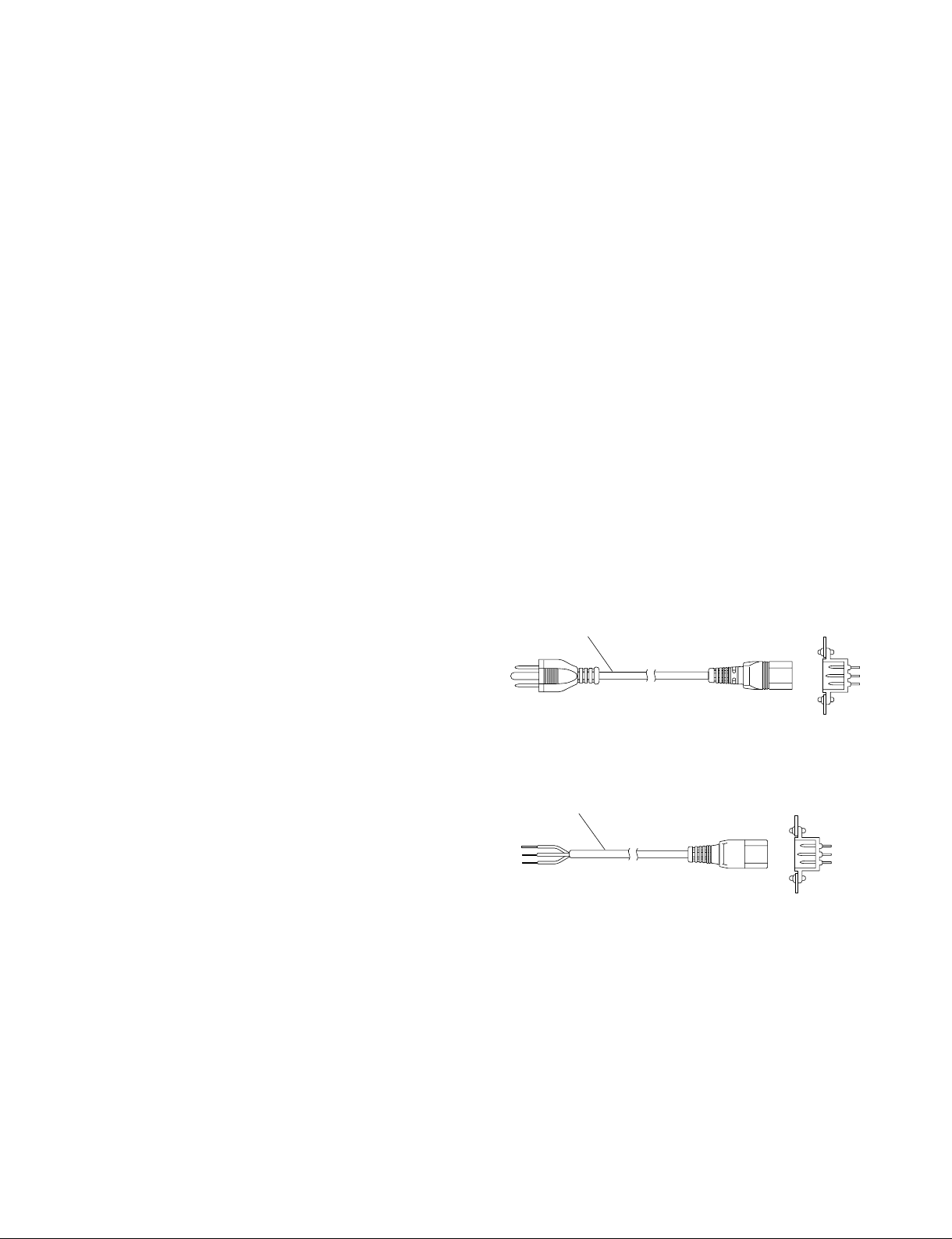
Section 1
For customers in the U.S.A. and Canada
1 Power cord, 125 V 13 A (2 m) : ! 1-833-258-11
AC inlet
1
Installation
1-1. Operating Environment
Operating guaranteed temperature : +5 dC to +40 dC
Performance guaranteed temperature : +10 dC to +35 dC
Operating humidity : 20 % to 90 %
(relative humidity)
Storage temperature : _20 dC to +60 dC
Mass : Approx. 11.5 kg
(with all options
installed)
Prohibited locations for installation
. Areas where the unit will be exposed do direct sunlight
or any other strong lights.
. Dusty areas
. Areas is subject to vibration.
. Areas with strong electric or magnetic fields.
. Areas near heat sources.
. Areas subject to electrical noise.
. Areas subject to static electricity.
Ventilation
The inside of the BCU-100 is air-cooled by a fan (inside
and back side).
The power supply can be damaged if the exhaust vent
(back side) and air intake (front panel) are blocked or the
fan is stopped.
Therefore, leave a blank space of more than 10 cm in the
front and back of the BCU-100.
1-2-2. Recommended Power Cord
w
. Use the approved Power Cord (3-core mains lead)/
Appliance Connector/Plug with earthing-contacts that
conforms to the safety regulations of each country if
applicable.
. Use the Power Cord (3-core mains lead)/Appliance
Connector/Plug conforming to the proper ratings (Voltage, Ampere).
If you have questions on the use of the above Power Cord/
Appliance Connector/Plug, please contact your local Sony
Sales Office/Service Center.
c
. Never use an injured power cord.
. Plugging the power cord in the AC inlet, push as far as it
will go.
For customers in the all European countries
1 Power cord, 250 V 10 A (2.5 m) : ! 1-782-929-12
1-2. Power Supply
1-2-1. Power Specifications
A switching regulator is used for the power supply of this
unit. A voltage within the range of 100 V to 240 V can be
used without changing the supply voltage.
Power requirements : AC 100 to 240 V
Power frequency : 50/60 Hz
Current consumption : 3.3 to 1.4 A
BCU-100 IM
(with all options installed)
1
AC inlet
1-1 (E)
Page 10
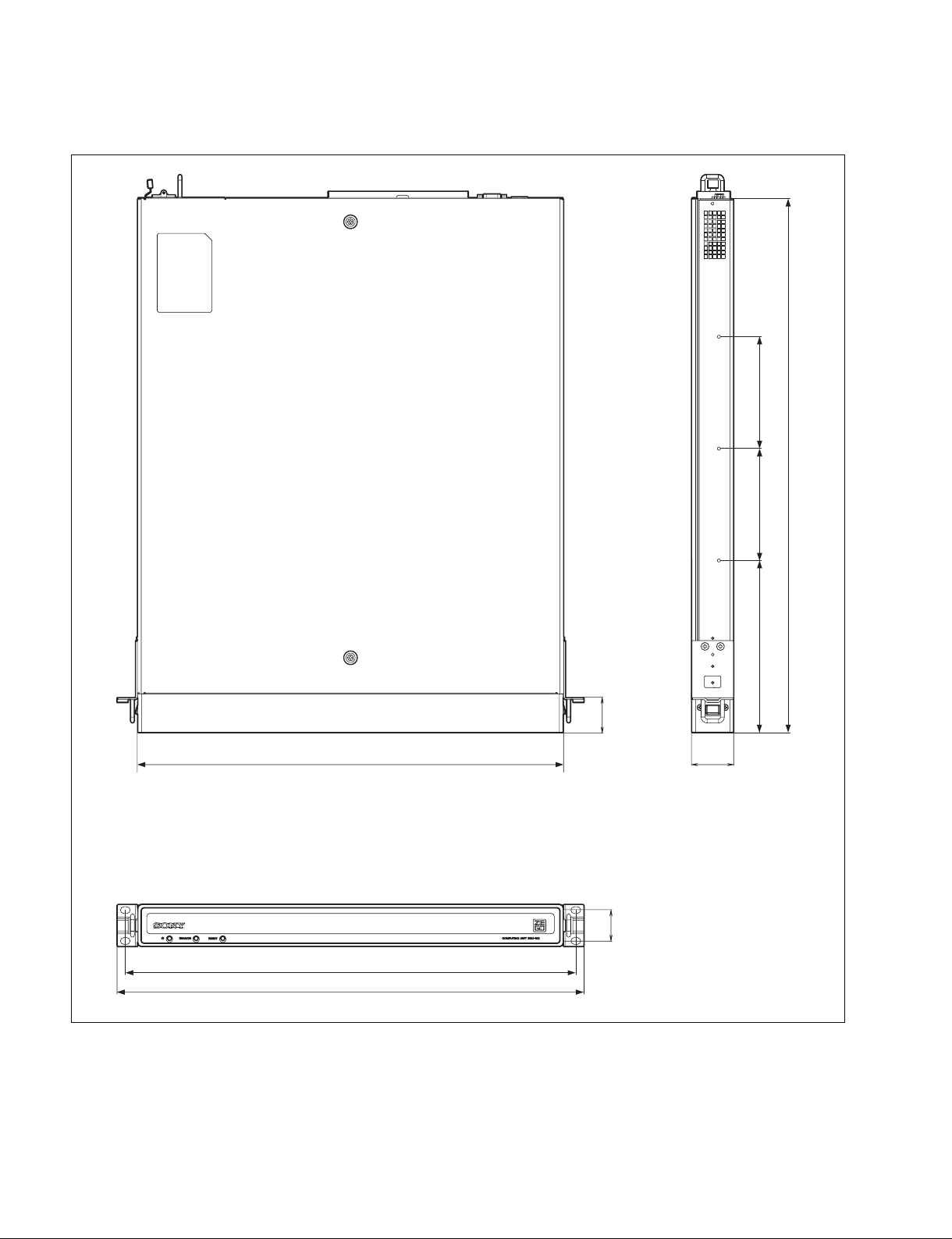
1-3. Installation Space (External dimensions)
551.2
115.5 115.5177.7
36
440 43.6
31.8
465
482
Unit : mm
1-2 (E)
BCU-100 IM
Page 11

1-4. Installing the Options
w
. Unplug the power supply cord before starting installation
work.
If installation work is started with the power supply
turned on, it may cause electrical shock or damage to
printed circuit boards.
. The BE-28 board and the power supply unit become hot
while using the BCU-100.
Touching the BE-28 board and the power supply unit in
this state may cause burn.
Turn off the power and wait for 30 minutes until the
inside cools down before installing an option.
Installation procedure
1. Open the levers on the DIMM slot on the MEM-122
board.
2. Insert the two DIMMs of BKCU-MY8D to the DIMM
slots on the MEM-122 board until the levers on both
sides are locked.
DIMM slots
DIMMs
1-4-1.
Installing the BKCU-EX1 and BKCU-MY8D
This section describes the method to install the memory
extension adapter BKCU-EX1 and memory module (8 GB)
BKCU-MY8D to the BCU-100.
BKCU-EX1 components
. MEM-122 board (1)
. Screw PSW3 x 6 (2)
BKCU-MY8D components
. 4GB DDR2 SDRAM DIMM (2)
Note when installing BKCU-MY8D
When installing the memory modules, touch a metal
portion of the BCU-100 to eliminate the Electrostatic
Discharge (ESD) in your body before starting the installation work to prevent damage to the memory modules.
MEM-122 board
Levers
Lever
Lever
3. Turn off the main power of BCU-100 and disconnect
the AC power cord from the outlet.
4. Remove the two screws and remove the top plate to
the arrow.
B3
x 6
B3
x 6
Top plate
BCU-100 IM
1-3 (E)
Page 12

5. With the side where the DIMMs are installed facing
down, insert the MEM-122 board into the connector
(CN2) on the EX-1076 board, and fix it with the two
screws (PSW3 x 6).
1-4-2. Installing the BKCU-VD1
This section describes the method to install the video
display board BKCU-VD1 to the BCU-100.
MEM-122 board
PSW3
x 6
6. Install the top panel.
PSW3
x 6
CN2
EX-1076 board
BKCU-VD1 components
. VIF-40 board (1)
. Screw PSW3 x 6 (2)
Installation procedure
1. Remove the top panel. (Refer to section 1-4-1.)
2. Remove the two screws and remove the VIF blank
panel.
VIF blank panel
B3 x 6
1-4 (E)
BCU-100 IM
Page 13

3. Insert the VIF-40 board to the unit from its end in the
direction of the arrow. Align the two holes of the
connector panel with the two dowels of the rear panel,
and set it on the BE-28 board.
CN101
CN8101
VIF-40 board
Holes
Connector panel
Dowels
Rear panel
1-5. Rack Mounting
The BCU-100 installs in a 19-inch standard rack.
To mount the BCU-100 in a rack, use the specified rack
mount kit and follow the procedure described below.
Specified rack mount kit : RMM-10
n
If a rack mount kit other than the specified one is used, the
unit may not correctly install in 19-inch standard rack.
Parts of the RMM-10
. Rack tools 2 pcs
. Right rack mount adaptor 1 pc
. Left rack mount adaptor 1 pc
. Rack tool attaching screws 6 pcs
(B4 x 6 : 7-682-560-09)
. Rack tool attaching screws 6 pcs
(B4 x 10 : 7-682-560-10)
BE-28 board
4. Press part A to insert the CN101 connector of the VIF40 board (back side) to the CN8101 connector of the
BE-28 board.
5. Fix the VIF-40 board first with the supplied two
screws (PSW3 x 6).
6. Secure the connector panel of the VIF-40 board to the
rear panel using the two screws (B3 x 6) removed in
step 2.
PSW3 x 6
VIF-40 board
CN101
A
CN8101
1-5-1. Precautions for Rack Mounting
w
. To prevent the rack from falling or moving, fix the rack
on a flat and steady floor using bolts or others fixings.
If the rack falls due to the weight of the equipment, it
may cause death or injury.
. Be sure to use the specified rack mount kit.
If not, injury may result and the equipment may fall due
to insufficient strength.
. After rack mounting, be sure to tighten the screws on the
rack angle and fix the unit in the rack.
If the screws on the rack angle are not tightened, the unit
may slip from the rack and fall, causing injury.
c
When mounting the unit in the rack, note the following:
. Be sure to mount in the rack with two persons or more.
. Be careful not to catch your fingers or hands in the rack
mount rail or others.
. Mount in the rack in a stable position.
BE-28 board
7. Install the top panel.
BCU-100 IM
B3 x 6
n
If several units are mounted in a rack, it is recommended
that a ventilation fan is installed to prevent temperature rise
inside the rack.
1-5 (E)
Page 14

1-5-2. Rack Mounting Procedure
This section describes the rack mounting procedure using
the RMM-10 rack mount kit.
n
Tighten the screws to the following torque.
Tightening torque : 120 x 10_2 N.m {12.2 kgf.cm}
1. Attach the rack tool to the side of the equipment using
the specified six screws.
n
Use B4 x 6 screws.
Rack tool
B4 x 6
B4 x 6
Rack tool
3. Attach the right and left adaptors to the rack completely using the specified six screws.
(The illustration below shows the left adaptor.)
B4 x 10
1U
31.75
31.75
B4 x 10
Unit : mm
4. Tighten the screws (B4 x 6 : two screws each on the
right and left) for adjusting the length of the adaptor
completely (the screws that were loosened in step 2).
5. Align the groove of the rack tool at the side of the
equipment with the rail, and slide the equipment to the
rear.
n
The rack tools are hooked on the rails as shown below.
Rack tool Rack tool
2. Loosen the screws on the rear of the right and left
adaptors and adjust the length of the adaptor according
to the depth of the rack.
(The illustration below shows the left adaptor.)
Adaptor
Portion of
the rail
B4 x 6
n
Maximum depth of adaptor : 750 mm
Minimum depth of adaptor : 595 mm
Rail Rail
6.
Fix the rack angle in the rack using the specified screws.
Rack
Rack angle
B5 x 12
B5 x 12
Rack angle
1-6 (E)
BCU-100 IM
Page 15

1-6. Installing the Power Cord Extract
Stopper
An extract stopper for the power cord is supplied with the
BCU-100.
Attach the extract stopper in the following steps to prevent
the power cord from accidentally coming off while the
power is supplied to the BCU-100.
1. Insert portion A of the extract stopper into the hole of
the AC inlet.
Push portion B and insert portion C to secure it.
B
C
A
3. Insert the power cord into the AC inlet.
Power cord
4. Move the extract stopper in the direction of the arrow
and fix the power cord.
Extract stopper
2. Move the extract stopper in the direction of the arrow.
Extract stopper
BCU-100 IM
1-7 (E)
Page 16

1-7. Matching Connectors and Cables
Use the following connectors, cables or equivalents when connecting cables to the unit.
Panel indication Connector name Matching connector and cable
Name Sony part No.
NETWORK-1 RJ-45 modular jack
NETWORK-2
RS-232C D-sub 9-pin, Male D-sub 9-pin, Female
USB USB Type A USB cable _
MAINTENANCE
DVI-I DVI-I 29-pin, Female Digital connection : DVI cable (for digital single-link)
(when the BKCU-VD1 A ferrite core is attached
is installed) Analog connection :DVI cable (for analog connection)
*1 : Conforms to the IEEE 802.3 Ethernet 10BASE-T/100BASE-TX/1000BASE-T standards.
*2 : The following crimp contact is required for the socket.
AWG#24 to #26 : 1-563-814-11
*3 : DVI 24-pin male-DVI 24-pin male cable
*4 : DVI 29-pin male-D-sub mini 15-pin male cable
*5 : DVI 29-pin male-The combination of D-sub mini 15-pin female conversion adapter and the analog RGB cable can also be used.
*1
__
Connector 9-pin, Female 1-563-815-21
*2
Junction Shell 9-pin 1-563-375-11
*3
A ferrite core is attached
*4 *5
1-8 (E)
BCU-100 IM
Page 17

1-8. Input and Output Signals of
Connectors
The input and output signals of the connectors at the rear
panel and front side are as follows.
NETWORK-1 to 2 : 10BASE-T/100BASE-TX/1000
BASE-T (RJ-45 8-pin Modular jack)
8
_ EXT VIEW _
Pin No. Signal Input/
name Output
1 DA+ I/O
2DA_ I/O
3DB+ I/O
4DC+ I/O
5DC_ I/O
6DB_ I/O
7DD+ I/O
8DD_ I/O
1
RS-232C : RS-232C (D-sub 9-pin, Male)
1
_ EXT VIEW _
Pin No. Signal Input/ Function
name Output
1 __No connection
2 RXD I Received data
3 TXD O Transmitted data
4 DTR O Data terminal ready
5 GND _ Ground
6 DSR I Data set ready
7 RTS O Request to send
8 CTS I Clear to send
9 __No connection
5
96
MAINTENANCE : USB (USB connector)
4
1
_ EXT VIEW _
USB : USB (USB connector)
4
1
_ EXT VIEW _
Pin No. Signal Input/ Function
1 VBUS _ USB Vcc
2D_ I/O USB Data (_)
3D+ I/O USB Data (+)
4 GND _ Ground
name Output
Pin No. Signal Input/ Function
name Output
1 VBUS _ USB Vcc (+5V)
2D_ I/O USB Data (_)
3D+ I/O USB Data (+)
4 GND _ Ground
BCU-100 IM
1-9 (E)
Page 18

DVI-I : DVI-I (29-pin, Female)
1
2
3
4
5
6
7
8
9
10
11
12
13
14
17
18
19
20
21
22
C1 C2
15
16
C3C5C4
23
24
_ EXT VIEW _
\Pin No. Signal name Input/Output Function
1 TMDS Data 2_ O Digital Red (_)
2 TMDS Data 2+ O Digital Red (+)
3 TMDS Data 2 Shield _ Shield for Data 2 (Ground)
4 __No connection
5 __No connection
6 DDC Clock I/O DDC Clock
7 DDC Data I/O DDC Data
8 Analog V Sync O Analog Vertical Sync
9 TMDS Data 1_ O Digital Green (_)
10 TMDS Data 1+ O Digital Green (+)
11 TMDS Data 1 Shield _ Shield for Data 1 (Ground)
12 __No connection
13 __No connection
14 +5V _ Power for Monitor when in standby
15 GND _ Return for +5V and analog sync (Ground)
16 Hot Plug Detect I Hot Plug Detect
17 TMDS Data 0- O Digital Blue (_)
18 TMDS Data 0+ O Digital Blue (+)
19 TMDS Data 0 Shield _ Shield for Data 0 (Ground)
20 __No connection
21 __No connection
22 TMDS Clock Shield _ Shield for Clock (Ground)
23 TMDS Clock+ O Digital Clock (+)
24 TMDS Clock_ O Digital Clock (_)
C1 Analog Red O Analog Red
C2 Analog Green O Analog Green
C3 Analog Blue O Analog Blue
C4 Analog H Sync O Analog Horizontal Sync
C5 Analog GND _ Return for Analog R, G and B signal
(Ground)
1-10 (E)
BCU-100 IM
Page 19

1-9. Setting the On-Board Switches and Description of LEDs
ON
1234
( indicates the knob position.)
ON
1234
( indicates the knob position.)
1. BE-28 board
D6511
S6001
S6002
S6003
S6503
AB C DE F
1
2
3456
S6501
Side A
<Switch >
n
Do not change the setting of the “Factory use” switches.
Ref No. Address Name Function Factory setting
S6001 (A-2) Reset Resets the BE-28 board. _
S6002 (A-3) _ S6002-1 to 4: Factory use
S6003 (A-3) _ S6003-1 to 4: Factory use All OFF
S6501 (F-6) Power The system starts when pressed during standby. _
S6503 (F-6) Reset The system is reset when pressed during _
<LED >
Ref No. Address Name Indication Function Normal state
D6511 (A-1) Beacon Blue Lights in blue when the Beacon command is received. Lights off
BCU-100 IM
The system shuts down when pressed for 2
seconds during operation.
(Same action as that of the Power switch on the
front panel)
operation.
(Same action as that of the Reset switch on the
front panel)
color
Blinks in blue when the Beacon switch is pressed.
(Linked with the Beacon LED on the front panel)
1-11 (E)
Page 20

2. KY-631 board
AB C
1
D107
S102
D111
D110
D109
D108
S101S103D112
Side A
2
S100
D106
<Switch >
n
S100, S101, and S103 can be operated on the front panel.
Ref No. Address Name Function Factory setting
S100 (A-2: Side B) Power The system starts when pressed during standby. _
The system shuts down when pressed for 2
seconds during operation.
S101 (B-2: Side B) Reset The system is reset when pressed during _
operation.
S102 (A-2) _ S102-1: Bank switching of NOR flash memory All OFF
S103 (B-2: Side B) Beacon Pushes when turning on BEACON LED. _
ON: Backup
OFF: Main
S102-2: Sets the starting mode.
ON: Automatically starts when the AC
power turns on.
OFF: Does not start automatically.
S102-3: Sets the starting path.
ON: Forcibly starts in the maintenance mode.
OFF: Starts with the path set on the firmware.
S102-4 to 6: Not used
S102-7, 8: Sets the RS-232C function
*1
12345678
( indicates the knob position.)
*1: Setting the RS-232C function
S102-7 S102-8 Front side RS-232C Rear side RS-232C
OFF OFF Terminal mode Console/System control mode
ON OFF Console mode System control mode
OFF ON Console/System control mode Not used
ON ON Not used Not used
1-12 (E)
BCU-100 IM
Page 21

<LED >
n
D106 and D112 light for the switches on the front panel.
Ref No. Address Name Indication Function Normal state
color
D106 (A-2: Side B) Power Red/Green Displays the system status in combination with message Green
LED on the front panel.
D107 (A-2: Side B) 1 Red Displays the status at the time when an error was detected Lights off
in combination with message LED on the front panel.
D108 to (A-2: Side B) 2 to 5 Green Displays the error status when D107 lights or blinks.
*1
*2
*3
Lights off
111
D112 (B-2: Side B) Beacon Blue Lights in blue when the Beacon command is received. Lights off
Blinks in blue when the BEACON switch is pressed.
*1:
State POWER LED Message LED
Power off Lights off Lights off
AC power on Lights in red Lights off
(Standby state)
Power UP operation Blinks in green Lights off
Firmware startup Lights in green Lights off
Normal operation Lights in green Lights in blue
Shutdown process Blinks in red Lights off
Shutdown complete Lights in red Lights off
(Standby state)
For *2 and *3, refer to “3-1. Error Display”.
BCU-100 IM
1-13 (E)
Page 22

3. MEM-122 board (BKCU-EX1)
ON
12345678
( indicates the knob position.)
FE D C BA
D908
D400
D401
D402
D403
D404
D405
D406
D407
D900
D901
D902
D903
D904
D905
D906
D907
S200
S900
<Switch >
n
Do not change the setting of the “Factory use” switches.
1
2
3
4
Side B
Ref No. Address Name Function Factory setting
S200 (E-4: Side A) Reset Resets the MEM-122 board. _
S900 (D-4) _ S900-1 to 8: Factory use All OFF
1-14 (E)
BCU-100 IM
Page 23

<LED >
Ref No. Address Name Indication Function Normal state
D400 (F-4) FPGA Status Green Blinks when clock is normal. Blinking
D401 (F-4) Green Blinks when clock is normal. Blinking
D402 (F-4) Green Lights when clock is normal. Lights on
D403 (F-4) Green Lights when clock is normal. Lights on
D404 (F-4) Green Lights when clock is normal. Lights on
D405 (F-4) Green Lights when DIMM training completed normally. Lights on
D406 (F-4) Green Lights when PCI Express Link Up. Lights on
D407 (F-4) Red Lights when reset. Lights off
D900 (F-4) PLD Status Green Always lit. Lights on
D901 (F-4) Green Lights when FPGA operates normally. Lights on
D902 (F-4) Green Lights when saving in the flash memory is Lights off
D903 (F-4) Green Lights when the flash memory is cleared. Lights off
D904 (F-4) Green Lights when FPGA operates normally. Lights on
D905 (F-4) Green Lights when FPGA operates normally. Lights on
D906 (F-4) Green Lights when FPGA operates normally. Lights on
D907 (F-4) Red Lights when reset. Lights off
D908 (F-3) Green Lights when PLD OK. Lights on
color
Blinks when FPGA temperature exceeds 80 dC.
complete.
4. VIF-40 board (BKCU-VD1)
ABC DE
1
2
Ref No. Address Name Indication Function Normal state
LED202 (A-2) MSEN Orange Lights when the external monitor is connected. Lights off
LED207 (A-2) PLD_LED Green Lights when FPGA configuration is complete. Lights on
LED207
LED202
Side A
color
BCU-100 IM
1-15 (E)
Page 24

Page 25

Section 2
Setup of Software
2-1. Installing the Software
No operating system is preinstalled on the BCU-100 in its default state.
For installing software including an operation system, refer to the technical manual.
For obtaining the technical manual, contact your local Sony Sales Office/Service Center.
BCU-100 IM
2-1 (E)
Page 26

Page 27

3-1. Error Display
Section 3
Service Overview
Front panel
Message LED
<When the front panel is removed>
Status LEDs
Error LED
Message LED
Message LED/Error LED
When an error occurs or a warning state is reached, the message LED on the front panel and error LED
“1” (D107/KY-631 board) inside the front panel light or blink as follows.
When the message LED blinks, remove the front panel and check for the state of error LED “1”.
State Message LED Error LED “1”
*1
Warning
*2
Error
*1 : A state where a less urgent abnormality such as fan rotation drop or a warning
for replacement time is detected.
*2 : A state where the machine has been shut down after an abnormality with high
urgency such as power failure or temperature rise has been detected.
Blinks in blue Blinks in red
Blinks in red Lights in red
BCU-100 IM
3-1 (E)
Page 28

Error status display inside the front panel (on the KY-631 board)
When an abnormality is detected and error LED “1” inside the front panel lights in red or blinks in red,
four status LEDs from “2” to “5” (D108 to D111/KY-631 board) lights as follows.
Error code “1” “2” to “5” Possible cause
1 Light / Blink The hardware has a problem.
2 Light / Blink The hardware has a problem.
3 Light / Blink Not used
4 Light / Blink The fan has a problem.
5 Light / Blink The temperature has risen.
6 Light / Blink The power supply has a problem.
7 Light / Blink Action around the Cell/B.E. chip on the BE-28 board
8 Light / Blink Action around the RSX chip on the BE-28 board has
9 Light / Blink Not used
A Light / Blink Not used
B Light / Blink Not used
C Light / Blink Not used
D Light / Blink The lithium battery on the BE-28 board has a problem.
E Light / Blink The system control has a problem.
F Light / Blink The system control is operating in backup mode.
Note: When LED “1” is unlit (normal operation), all the LEDs from “2” to “5” light up. However, when the unit starts in the backup mode
with dip switch (S102/KY-631 board) No. 1 (S102-1) inside the front panel turned ON, all the LEDs from “2” to “5” blink while LED
“1” stays unlit.
2 3 4 5
2 3 4 5
2 3 4 5
2 3 4 5
2 3 4 5
2 3 4 5
2 3 4 5
has a problem.
2 3 4 5
a problem.
2 3 4 5
2 3 4 5
2 3 4 5
2 3 4 5
2 3 4 5
2 3 4 5
2 3 4 5
3-2 (E)
BCU-100 IM
Page 29

3-2. Periodic Inspection and
Maintenance
3-2-1. Cleaning
1. Front panel
BCU-100 is performing the air intake from the front panel
for internal air-cooling.
Therefore, the front panel can easily accumulate dust. Be
sure to remove dust by cleaning.
If dust has accumulated in the front panel, air is prevented
from flowing smoothly and this may result in a temperature rise inside the unit. This may have an adverse effect
on performance and life of this unit.
Cleaning of the fan every month is recommended.
2. Fan
The power supply unit of BCU-100 is air-cooled by a fan
on the rear panel.
If dust has accumulated in the intake of the fan, air is
prevented from flowing smoothly and this may result in a
temperature rise inside the power supply. This may have
an adverse effect on performance and life of this unit.
Cleaning of the fan every month is recommended.
Contact your local Sony Sales Office/Service Center for
information on cleaning the fan.
(1) While pushing simultaneously the release button of
right and left side, remove the front panel in the
direction of an arrow as shown below.
Front panel
Ventilation
hole
Release button
Power supply
unit
Fan
(2) Remove the dust accumulated on the front panel with a
vacuum cleaner.
BCU-100 IM
3-3 (E)
Page 30

3-2-2. Periodic Replacement Parts
The following parts require periodic replacement.
Power supply unit
Fans
Fans
m
. The replacement period shown in the following list are
not guaranteed period of the parts. Use this list as
guidelines form maintenance and inspection.
. The replacement period of each part is changed accord-
ing to the environment and condition.
. As for replacing each part, refer to the maintenance
manual.
Part name Replacement Remarks
period
Fan About 4 years The inside of unit
Power supply About 4 years
unit
Replacement period of the fans and power supply
unit
The cumulative usage time of the fans and the power
supply unit inside the BCU-100 is separately measured,
and an alarm is issued when the usage time is about to be
expired. (Refer to “3-1. Error Display”.)
When an alarm is issued, replace the fan or the power
supply unit by referring to the maintenance manual.
3-4 (E)
BCU-100 IM
Page 31

The material contained in this manual consists of
information that is the property of Sony Corporation.
Sony Corporation expressly prohibits the duplication of
any portion of this manual or the use thereof for any
purpose other than the operation or maintenance of the
equipment described in this manual without the express
written permission of Sony Corporation.
Le matériel contenu dans ce manuel consiste en
informations qui sont la propriété de Sony Corporation.
Sony Corporation interdit formellement la copie de
quelque partie que ce soit de ce manuel ou son emploi
pour tout autre but que des opérations ou entretiens de
l’équipement à moins d’une permission écrite de Sony
Corporation.
Das in dieser Anleitung enthaltene Material besteht aus
Informationen, die Eigentum der Sony Corporation sind.
Die Sony Corporation untersagt ausdrücklich die
Vervielfältigung jeglicher Teile dieser Anleitung oder den
Gebrauch derselben für irgendeinen anderen Zweck als
die Bedienung oder Wartung der in dieser Anleitung
beschriebenen Ausrüstung ohne ausdrückliche
schriftliche Erlaubnis der Sony Corporation.
BCU-100 IM
Page 32

BCU-100 (SY) J, E
3-299-378-02
Printed in Japan
Sony Corporation 2008. 7 16
©2008
 Loading...