

Page 1

High Definition PoE/Non-PoE
IP Phone
IP-1000PT/VIP-1000T
Page 2

High Definition PoE/Non-PoE IP Phone
VIP-1000PT/VIP-1000T
Copyright
Copyright (C) 2015 PLANET Technology Corp. All rights reserved.
The products and programs described in this User’s Manual are licensed products of PLANET Technology. This User’s
Manual contains proprietary information protected by copyright, and this User’s Manual and all accompanying
hardware, software, and documentation are copyrighted.
No part of this User’s Manual may be copied, photocopied, reproduced, translated, or reduced to any electronic
medium or machine-readable form by any means by electronic or mechanical including photocopying, recording, or
information storage and retrieval systems, for any purpose other than the purchaser's personal use, and without the
prior written permission of PLANET Technology.
Disclaimer
PLANET Technology does not warrant that the hardware will work properly in all environments and applications, and
makes no warranty and representation, either implied or expressed, with respect to the quality, performance,
merchantability, or fitness for a particular purpose.
PLANET has made every effort to ensure that this User’s Manual is accurate; PLANET disclaims liability for any
inaccuracies or omissions that may have occurred.
Information in this User’s Manual is subject to change without notice and does not represent a commitment on the part
of PLANET. PLANET assumes no responsibility for any inaccuracies that may be contained in this User’s Manual.
PLANET makes no commitment to update or keep current the information in this User’s Manual, and reserves the right
to make improvements to this User’s Manual and/or to the products described in this User’s Manual, at any time
without notice.
If user finds information in this manual that is incorrect, misleading, or incomplete, we would appreciate user comments
and suggestions.
CE Mark Warning
This is a class B device. In a domestic environment, this product may cause radio interference, in which case the user
may be required to take adequate measures.
Energy Saving Note of the Device
This power required device does not support Standby mode operation. For energy saving, please remove the DC-plug
or push the hardware Power Switch to OFF position to disconnect the device from the power circuit.
Without removing the DC-plug or switching off the device, the device will still consume power from the power circuit. In
view of Saving the Energy and reducing the unnecessary power consumption, it is strongly suggested to switch off or
remove the DC-plug from the device if this device is not intended to be active.
- 2 -
Page 3

High Definition PoE/Non-PoE IP Phone
VIP-1000PT/VIP-1000T
WEEE Warning
To avoid the potential effects on the environment and human health as a result of the presence of
hazardous substances in electrical and electronic equipment, end users of electrical and electronic
equipment should understand the meaning of the crossed-out wheeled bin symbol. Do not dispose of
WEEE as unsorted municipal waste and have to collect such WEEE separately.
Trademarks
The PLANET logo is a trademark of PLANET Technology. This documentation may refer to numerous hardware and
software products by their trade names. In most, if not all cases, their respective companies claim these designations
as trademarks or registered trademarks.
Revision
User’s Manual of PLANET High Definition PoE/Non-PoE IP Phone
Model: VIP-1000PT/VIP-1000T
Rev: 1.1 (2016, January)
Part No. EM-VIP-1000 Series_v1.1
- 3 -
Page 4

High Definition PoE/Non-PoE IP Phone
VIP-1000PT/VIP-1000T
Table of Contents
Chapter 1. Introduction..............................................................................................5
1.1 Features ........................................................................................................ 7
1.2 Applications...................................................................................................9
1.3 Product Specifications.................................................................................10
1.4 Physical Specifications and Packaging ....................................................... 12
1.5 Keypad ........................................................................................................ 13
Chapter 2. Initial Connection and Login.................................................................15
Chapter 3. Network Service Configurations ...........................................................21
Chapter 4. VoIP IP Phone Status .............................................................................22
4.1 Status ..........................................................................................................22
4.1.1 Basic ....................................................................................................22
4.1.2 Syslog ..................................................................................................23
4.2 Network ....................................................................................................... 24
4.2.1 Internet Port (WAN)..............................................................................24
4.2.2 VPN......................................................................................................26
4.2.3 DDNS...................................................................................................27
4.2.4 MAC Clone...........................................................................................28
4.3 SIP Account.................................................................................................30
4.3.1 Line 1 ...................................................................................................30
4.3.2 SIP Settings .........................................................................................33
4.3.3 VoIP QoS .............................................................................................34
4.4 Phone..........................................................................................................35
4.4.1 Preferences..........................................................................................35
4.4.2 Multi-Functional Key............................................................................. 38
4.4.3 Dial Plan............................................................................................... 39
4.4.4 Phonebook........................................................................................... 41
4.4.5 Call Log................................................................................................ 44
4.5 Administration .............................................................................................46
4.5.1 Management ........................................................................................ 46
4.5.2 Firmware Upgrade ...............................................................................50
4.5.3 Provision ..............................................................................................50
4.5.4 SNMP................................................................................................... 52
4.5.5 Diagnosis .............................................................................................53
4.5.6 Operation Mode ...................................................................................53
Appendix A -- Frequently Asked Questions...............................................................55
- 4 -
Page 5
High Definition PoE/Non-PoE IP Phone
VIP-1000PT/VIP-1000T
Chapter 1. Introduction
Cost-effective, High-definition VoIP Phone
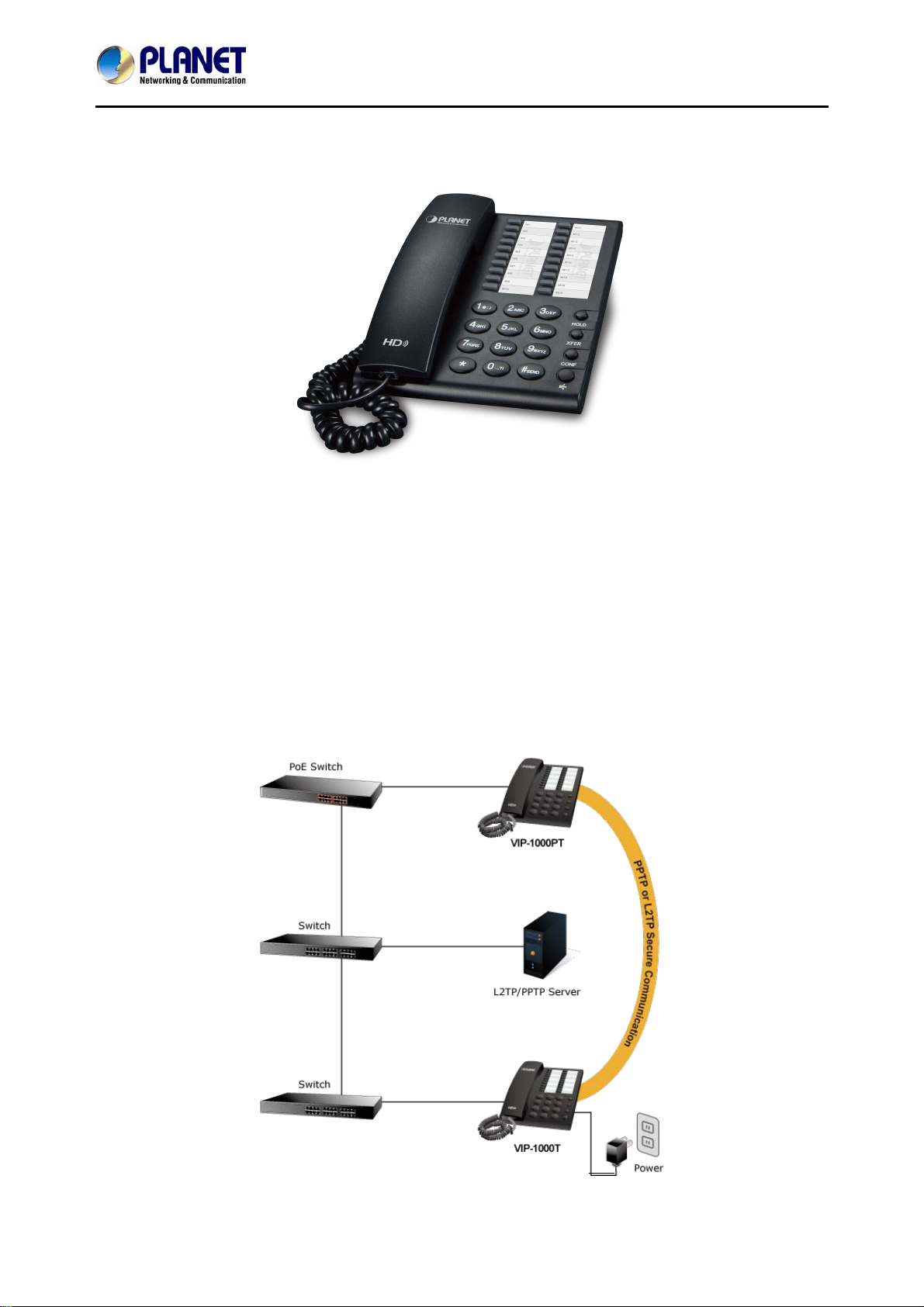
PLANET VIP-1000PT and VIP-1000T are low-cost but high-definition PLANET IP Phones where the earlier
model comes with the PoE technology and the latter is without PoE. Whatever, both models, through IP
PBX, feature VoIP and traditional telephone communications, and converged data and voice networks
which can be built from one location to another without considering distance, thus making communications
convenient over a long distance.
In addition, the VIP-1000PT and VIP-1000T have a 1-line business IP feature. VoIP communications can
be extended when using PPTP VPN or L2TP VPN. The VIP-1000PT and VIP-1000T also allow call to be
transferred to anyone at any location within the voice system, which enables the enterprise to
communicate more effectively and is helpful to streamline business processes.
- 5 -
Page 6
High Definition PoE/Non-PoE IP Phone
VIP-1000PT/VIP-1000T
Standard Compliance
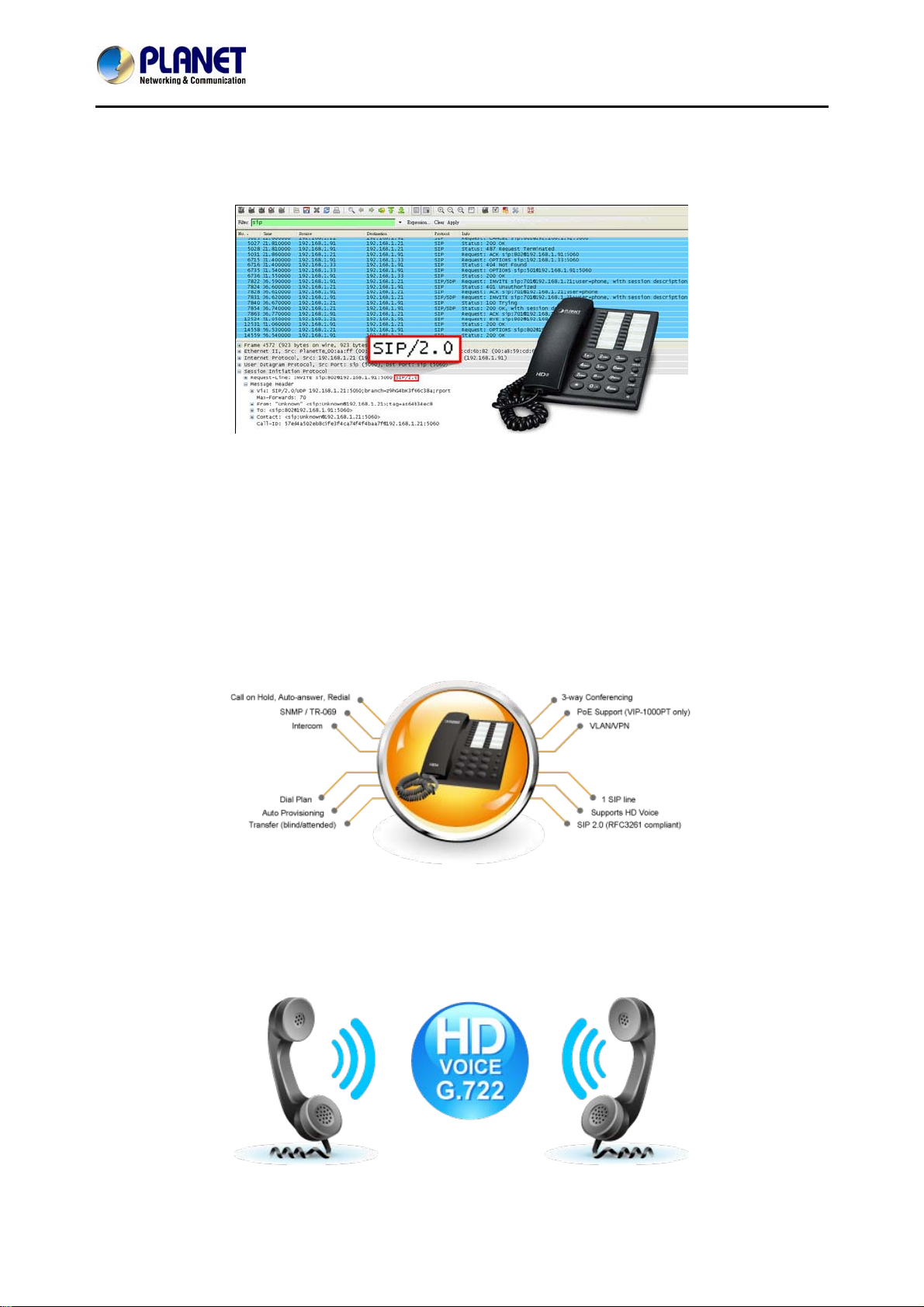
Compliant with the Session Initiation Protocol 2.0 (RFC 3261), the VIP-1000PT and VIP-1000T are able to
function with other PLANET and any third-party VoIP products.
Enhanced, Full-Featured Business IP Phones
The VIP-1000PT and VIP-1000T are business IP phones that address the communication needs of the
enterprises. They provide 1 voice line and 10/100Mbps Ethernet network. Furthermore, the VIP-1000PT
and VIP-1000T deliver 20 multi-functional keys with speed dial and shortcut key. The VIP-1000PT and
VIP-1000T support all kinds of SIP-based phone features including Call Waiting, Auto Answer, Music on
Hold, Caller ID and Call Waiting ID, 3-way Conferencing, Call Hold, Call Forwarding, Black List, Hotline,
DTMF Relay, In-Band, Out-of-Band (RFC 2833) and SIP info method, among others. Besides office use,
the VIP-1000PT and VIP-1000T are also the ideal solution for VoIP service offered by Internet Telephony
Service Provider (ITSP).
Secure, High-Quality VoIP Communication
The VIP-1000PT and VIP-1000T support SIP v2 for easy integration with general voice over IP system. It
can also effortlessly deliver secured toll voice quality by utilizing cutting-edge 802.1p QoS (Quality of
Service) and IP TOS technology. It also supports HD (High Definition) voice as G.722 to provide clear
communications.
- 6 -
Page 7

High Definition PoE/Non-PoE IP Phone
1.1 Features
¾ Highlights
Supports SIP 2.0 (RFC3261)
IEEE 802.3af/at Power over Ethernet compliant (VIP-1000PT only)
Supports HD voice (G.722)
Voice Activity Detection
Auto Provisioning: TFTP, HTTP and HTTPS
IP conflict detection
¾ Advantageous Applications
SIP supports SIP domain, DNS name of server, peer to peer/IP call
In-band, out-of-band, SIP info, RFC2833 DTMF relay
Adaptive jitter buffer management
Echo cancellation
Full duplex hands-free speaker phone
Hands-free headset ringing choice
Voice codec setting for SIP line
Customized ring tone
¾ SIP Applications
Call forward and transfer (blind/attended)
Call holding and waiting
3-way conferencing
Paging and intercom
Call park, call pickup and join call
Call history, and blacklist (Each supports 100 records)
Supports phonebook with 500 records
Supports shortcut keys and speed dial
Supports CSV phonebook and browser
¾ Call Control Features
DTMF Relay: In-band, out-of-band (RFC2833) and SIP info
Call log: redial list, answered calls and missed calls
White list and limit call
Do not disturb (DND)
Caller ID, CLIR (rejects an anonymous call) and CLIP (make a call with anonymous)
Dial without registration
¾ Network Features
PPPoE and DHCP client on WAN
802.1P and Q VLAN
VPN (L2TP, PPTP)
Main DNS and secondary DNS server
VIP-1000PT/VIP-1000T
- 7 -
Page 8

High Definition PoE/Non-PoE IP Phone
DNS relay and SNTP client
QoS with Layer 2 and Layer 3 (SIP/RTP/Data)
¾ Maintenance and Management
Integrated web server provides web-based administration and configuration
Automated provisioning and upgrade via HTTPS, HTTP, TFTP
User authentication for configuration pages
Local and remote syslog (RFC 3164)
SNTP time synchronization and TR-069
VIP-1000PT/VIP-1000T
- 8 -
Page 9
High Definition PoE/Non-PoE IP Phone
VIP-1000PT/VIP-1000T
1.2 Applications
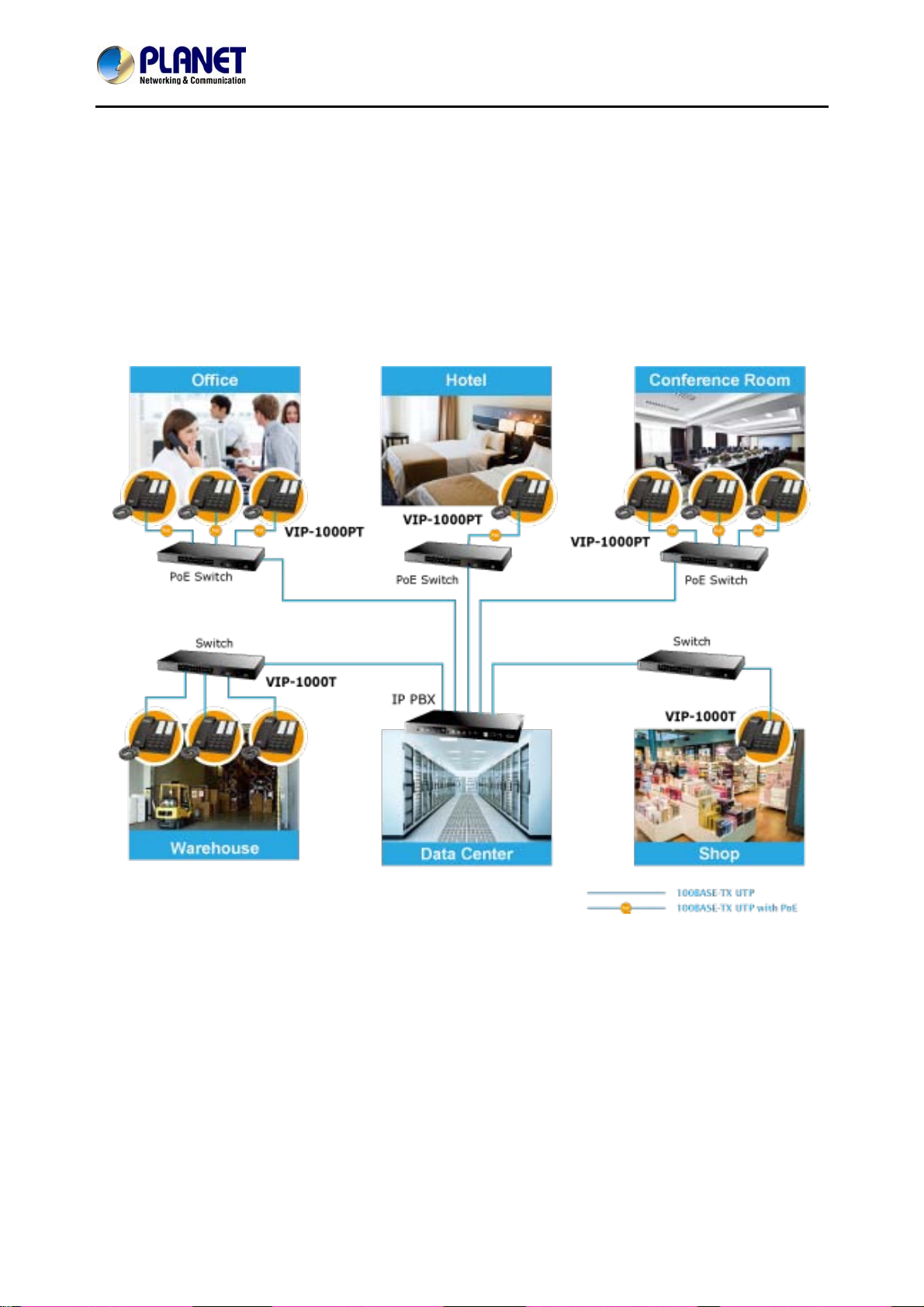
Enterprise IP Telephony Deployment of VIP-1000 Series
The VIP-1000 Series is much easier to install and configure than the traditional phone system. Its low cost
and high-definition voice quality give you value for money. Based on standard SIP 2.0, it is compatible with
all the standard SIP-based servers.
The VIP-1000 Series (The VIP-1000PT PoE model or the VIP-1000T non-PoE model) can be set up in any
place to conveniently communicate with friends or business associates via IP PBX.
- 9 -
Page 10

High Definition PoE/Non-PoE IP Phone
1.3 Product Specifications
VIP-1000PT/VIP-1000T
Product
Hardware
Lines (Direct Numbers)
Feature Keys
Physical Interfaces
Protocols and Standard
Data Networking
Voice Gateway
Provisioning, Administration,
and Maintenance
Features
Telephony Features
VIP-1000PT
High Definition PoE IP Phone
1-line business-class IP phone
12 dialing buttons (0~9, *, #)
4 x fixed function buttons
20 multi-functional key
One 10/100BASE-T RJ45 Ethernet port (IEEE 802.3)
Handset: RJ9 connector
Built-in speakerphone and microphone
MAC address (IEEE 802.3)
IPv4 (RFC 791)
Address Resolution Protocol (ARP)
DNS: A record (RFC 1706), SRV record (RFC 2782)
Dynamic Host Configuration Protocol (DHCP) client (RFC 2131)
Internet Control Message Protocol (ICMP) (RFC 792)
TCP (RFC 793)
User Datagram Protocol (UDP) (RFC 768)
Real-time Protocol (RTP) (RFC 1889, 1890)
Real-time Control Protocol (RTCP) (RFC 1889)
Differentiated Services (DiffServ) (RFC 2475)
Type of Service (ToS) (RFC 791, 1349)
VLAN tagging 802.1p/Q: Layer 2 Quality of Service (QoS)
Simple Network Time Protocol (SNTP) (RFC 2030)
Backward compatible with RFC2543
Session Timer (RFC4028)
SDP (RFC2327)
NAPTR for SIP URI Lookup (RFC2915)
SIP version 2 (RFC 3261, 3262, 3263, 3264)
SIP support in NAT networks [including STUN (RFC 3489)]
Message Waiting Indicator (RFC3842)
Voice algorithms:
- G.711 (A-law and μ-law)
- G.729A/AB with PAMS above 4.0
- G.722
- G.723
Dual-tone multi-frequency (DTMF), in-band and out-of-band (RFC 2833) (SIP
info)
Voice activity detection (VAD)
Adaptive jitter buffer management
Comfort noise generation
Echo cancellation
Integrated web server provides web-based administration and configuration
Automated provisioning and upgrade via HTTPS, HTTP, TFTP
User authentication for configuration pages
Local and remote syslog (RFC3164)
SNTP time synchronization
Capture wireshark trace via web
Multi-user level
SNMPv2
TR069
One Voice Line
Call Waiting
Auto Answer
Music on Hold
Caller ID
VIP-1000T
High Definition IP Phone
- 10 -
Page 11

Environment
Power Requirements
Operating Temperature
Operating Humidity
Weight
Dimensions (W x D x H)
Emission
Connectors
High Definition PoE/Non-PoE IP Phone
VIP-1000PT/VIP-1000T
Three-way Call Conferencing
Call Hold and Call Forwarding
Call Transfer: blind transfer and attended transfer
Call Log: redial list, answered calls and missed calls
Volume Adjustment: handset, speaker and ringer
Volume Gain: handset input and speakerphone input
Delayed Hotline
Redial, Speed Dial
Pick Up, Call Park, Dial Plan
Black List
Do Not Disturb (DND)
Full-duplex Speakerphone
Customized Ring Tone
Call History (100 records )
- Most Recently Missed Calls
- Most Recently Received Calls
- Most Recently Dialed Numbers
Phone Book (500 records)
Blacklist (100 records )
5V DC, 1A
IEEE802.3af/at PoE class 3
Max. 2w
0 ~ 50 degree C
10 ~ 90% (non-condensing)
488g 477g
185 x 146 x 67 mm
CE, FCC
One 10/100 Mbps Ethernet, RJ45
RJ9 handset connector
DC power jack
DND switch
5V DC, 1A
- 11 -
Page 12

High Definition PoE/Non-PoE IP Phone
1.4 Physical Specifications and Packaging
Dimensions
Dimensions (W x D x H)
Net Weight
Basic Packaging
SIP IP Phone Unit x 1
Power Adapter x 1 (VIP-1000T only)
Quick Installation Guide x 1
RJ45 Cable x 1
Stand x 1
185 x 146 x 67 mm
488g (VIP-1000PT)
477g (VIP-1000T)
VIP-1000PT/VIP-1000T
- 12 -
Page 13
High Definition PoE/Non-PoE IP Phone
1.5 Keypad
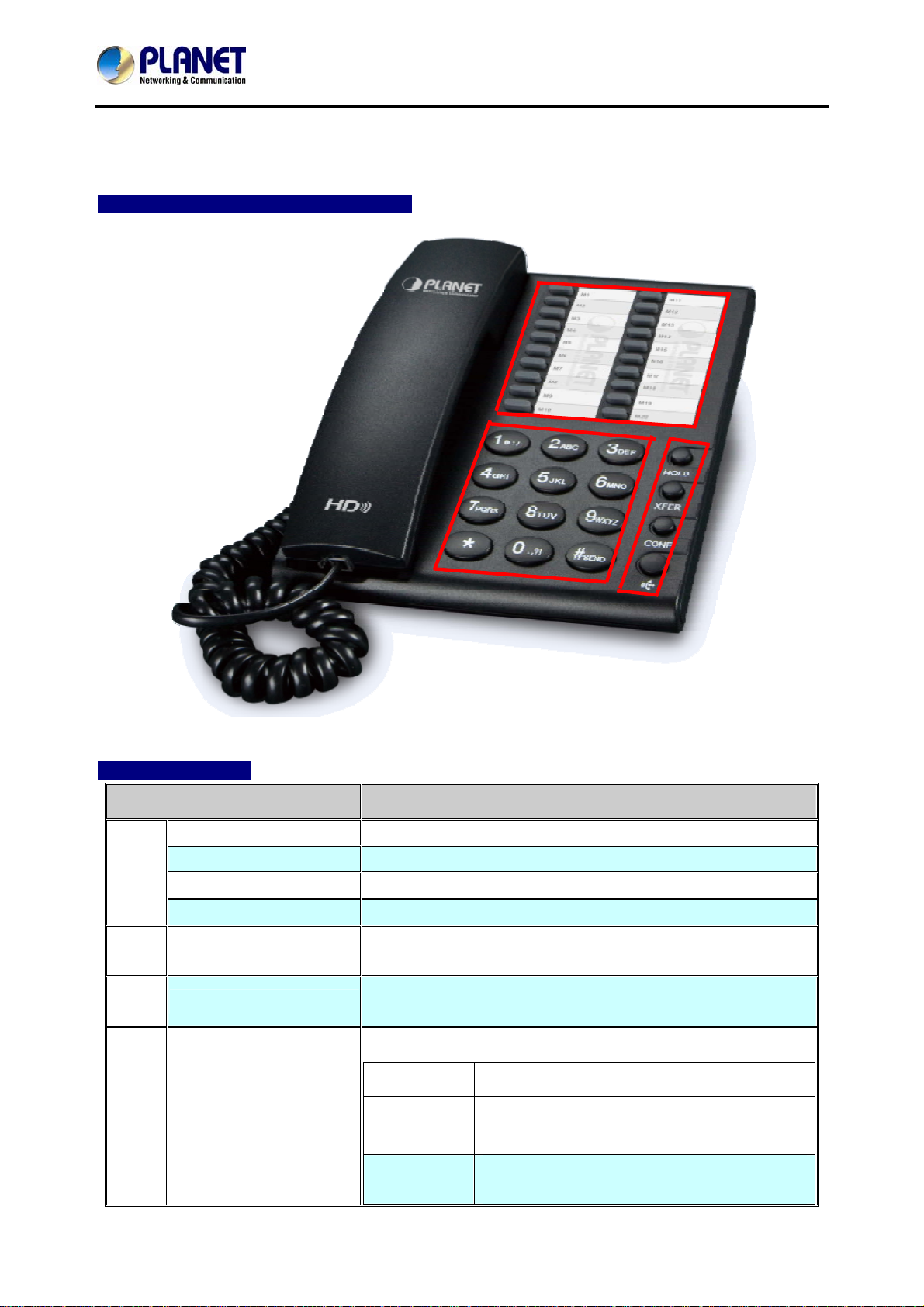
Keypad, LED and Function Key Definitions
VIP-1000PT/VIP-1000T
Keypad Descriptions
Interface Description
1
2
4
3
Handset Top Cradle
Hook Switch
1
Handset Bottom Cradle
Handset Cord Port
Multi-Functional
2
Key
3 Numeric Keypad
Other Functions and
4
Numeric Keys
For the placement of handset (Receiver end)
For hang-up and hang-off of handset
For the placement of handset (Transmitter end)
RJ11 jack on the left side of the IP phone
These keys can be used as speed dial and shortcut keys.
Enters numeric digits for initiating a call or for entering
configuration information.
Including HOLD, XFER, CONF and SPEAKER.
Key Function
HOLD
XFER
The HOLD key is used to hold the current call;
press it again to release the HOLD function.
The XFER key is used to transfer calls,
including attended transfer and unattended
- 13 -
Page 14
High Definition PoE/Non-PoE IP Phone
VIP-1000PT/VIP-1000T
Interface Description
transfer.
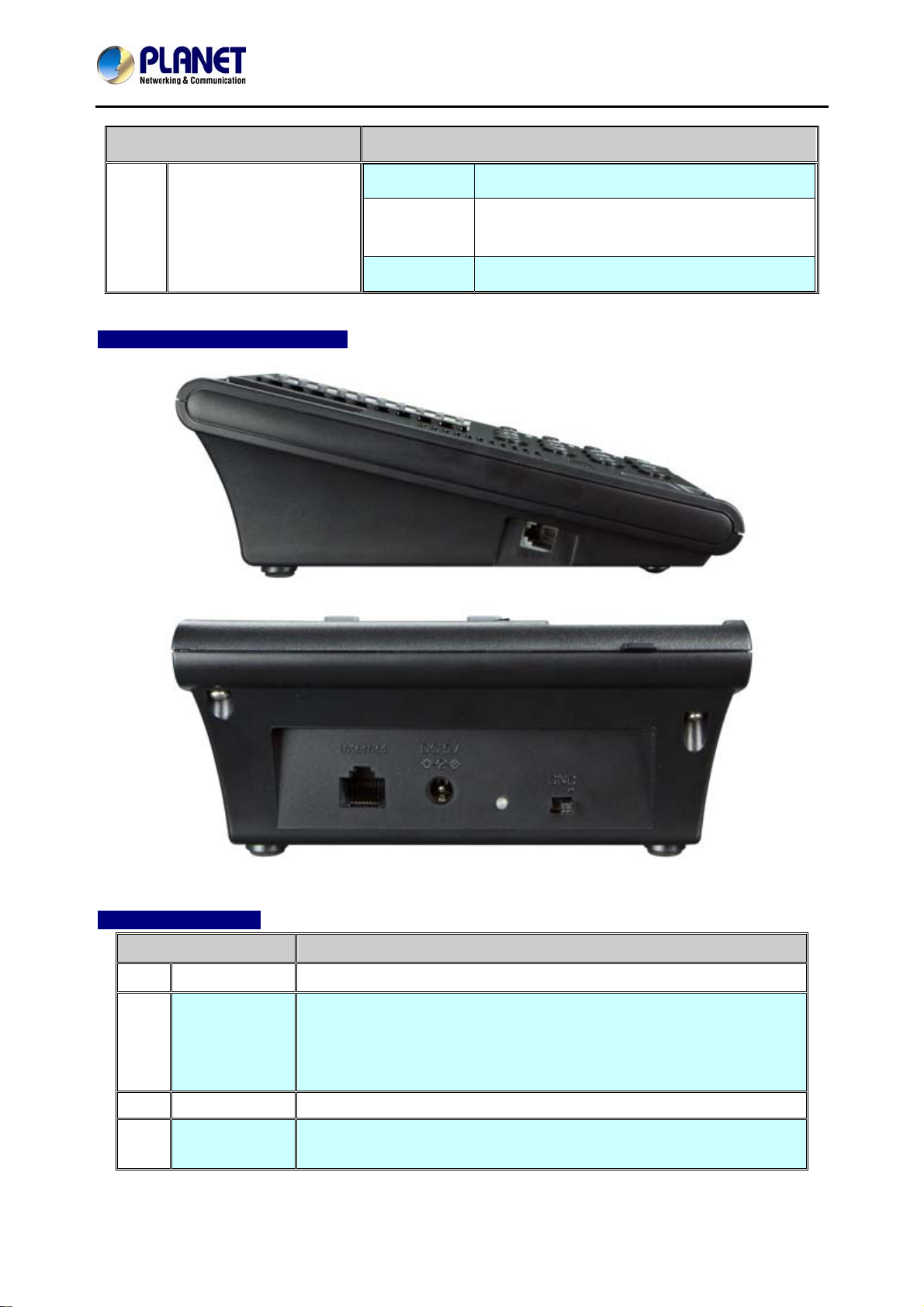
Rear View and Panel Descriptions
CONF
SPEAKER Press it to use hands-free.
The CONF key is used to implement
conference meeting calls.
Interface Descriptions
Interface Description
Headset
1
2 DND Switch
3 DC 5V
4 Internet
Headset console, connect to headset
The Switch is used to turn on or turn off DND.
Under the character DND is a dot.
When the switch is near the dot, DND is on, otherwise DND is off.
Taking the left picture for example, DND is on.
Power port
Connects to the Ethernet switch, router or Internet.
This port provides PoE (VIP-1000PT only).
- 14 -
Page 15
High Definition PoE/Non-PoE IP Phone
VIP-1000PT/VIP-1000T
Chapter 2. Initial Connection and Login
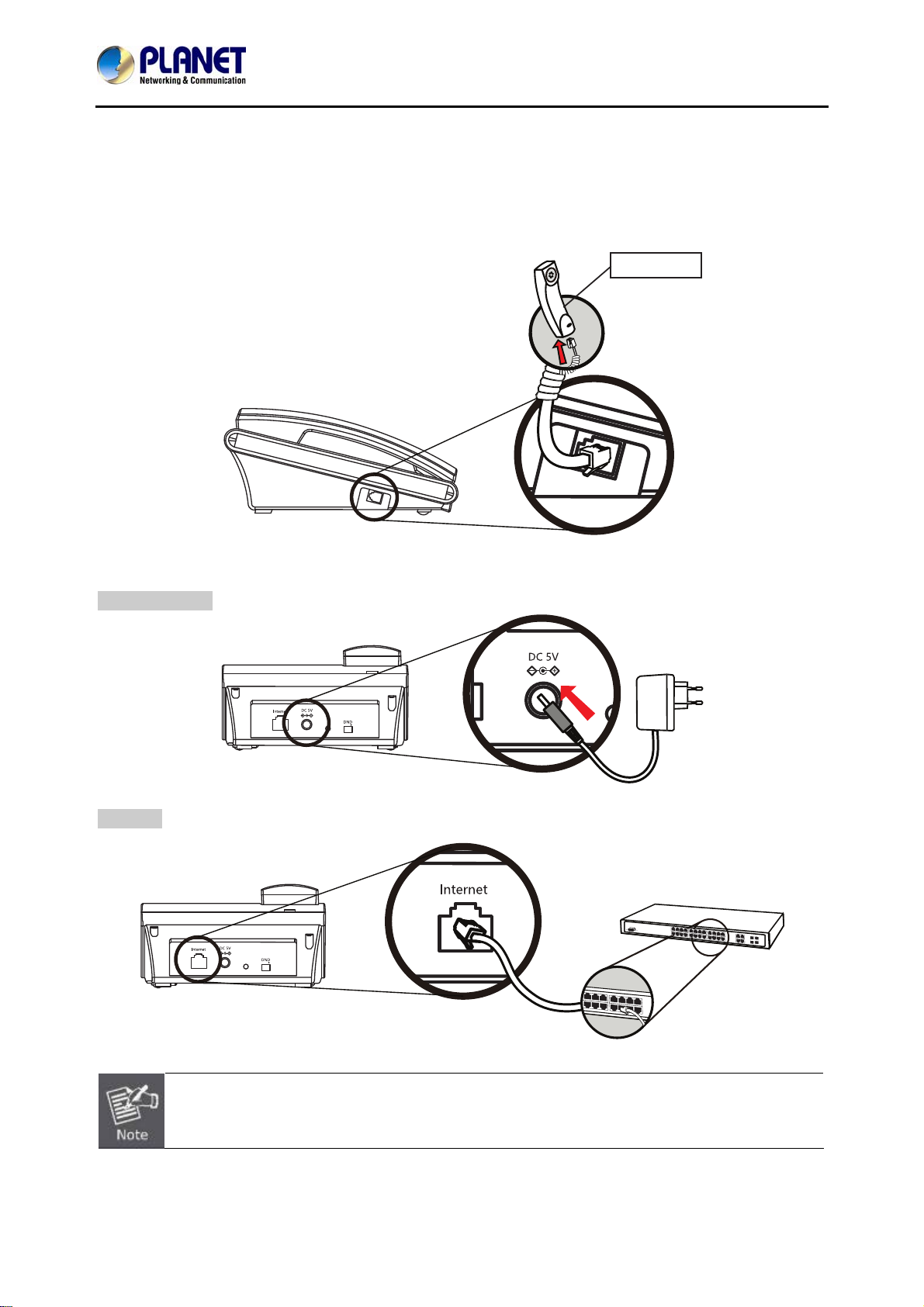
Step 1. Handset Connection
Insert one end of the Handset Cord into Handset and the other end into Handset Jack.
Handset
Step 2a. Connecting Power Adapter and Network
Power Adapter
Network
Switch
Use only the 5V DC, 1A power to ensure correct functionality.
- 15 -
Page 16
High Definition PoE/Non-PoE IP Phone
VIP-1000PT/VIP-1000T
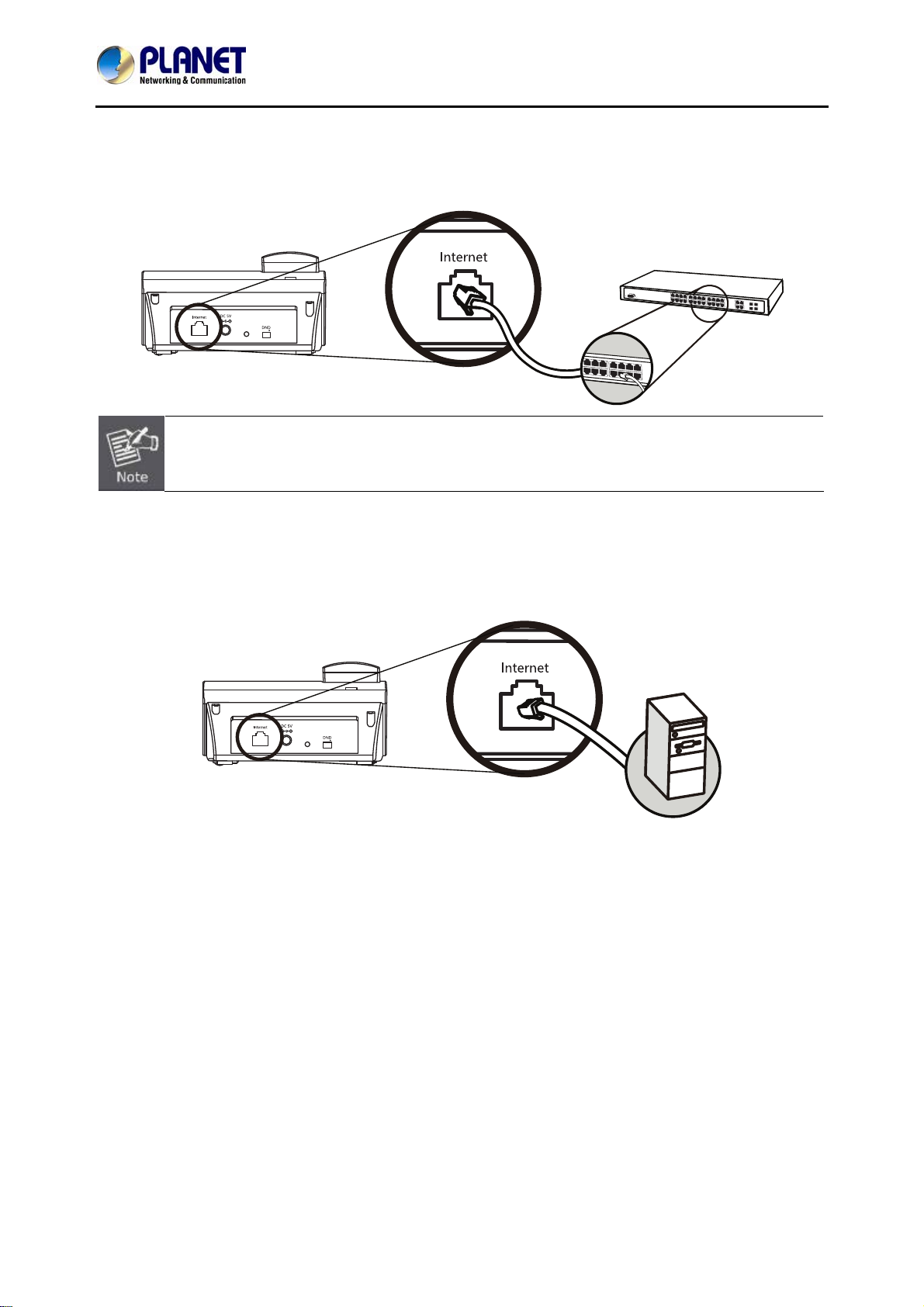
Step 2b. Connecting Power via PoE Interface and Network
The VIP-1000PT can be configured without external power if connected to an IEEE802.3af PSE device
such as 802.3af PoE injector/hub or 802.3af PoE switch.
PoE Switch
Only the VIP-1000PT supports 802.3af power injection; use of any non-standard PoE injector
could damage the device.
tep 3. Computer Network Setup
S
Set your computer’s IP address to 17
being used for the camera by default). If you don’t know how to do this, please ask your network
administrator.
2.16.0.x, where x is a number between 2 to 254 (except 1 which is
PC
- 16 -
Page 17
High Definition PoE/Non-PoE IP Phone
VIP-1000PT/VIP-1000T
Step 4. Login Prompt
Use web browser (Internet Explorer 8.0 or above) to connect to 172.16.0.1 (type this address in the
address bar of web browser). You’ll be prompted to input user name and password: admin and 123,
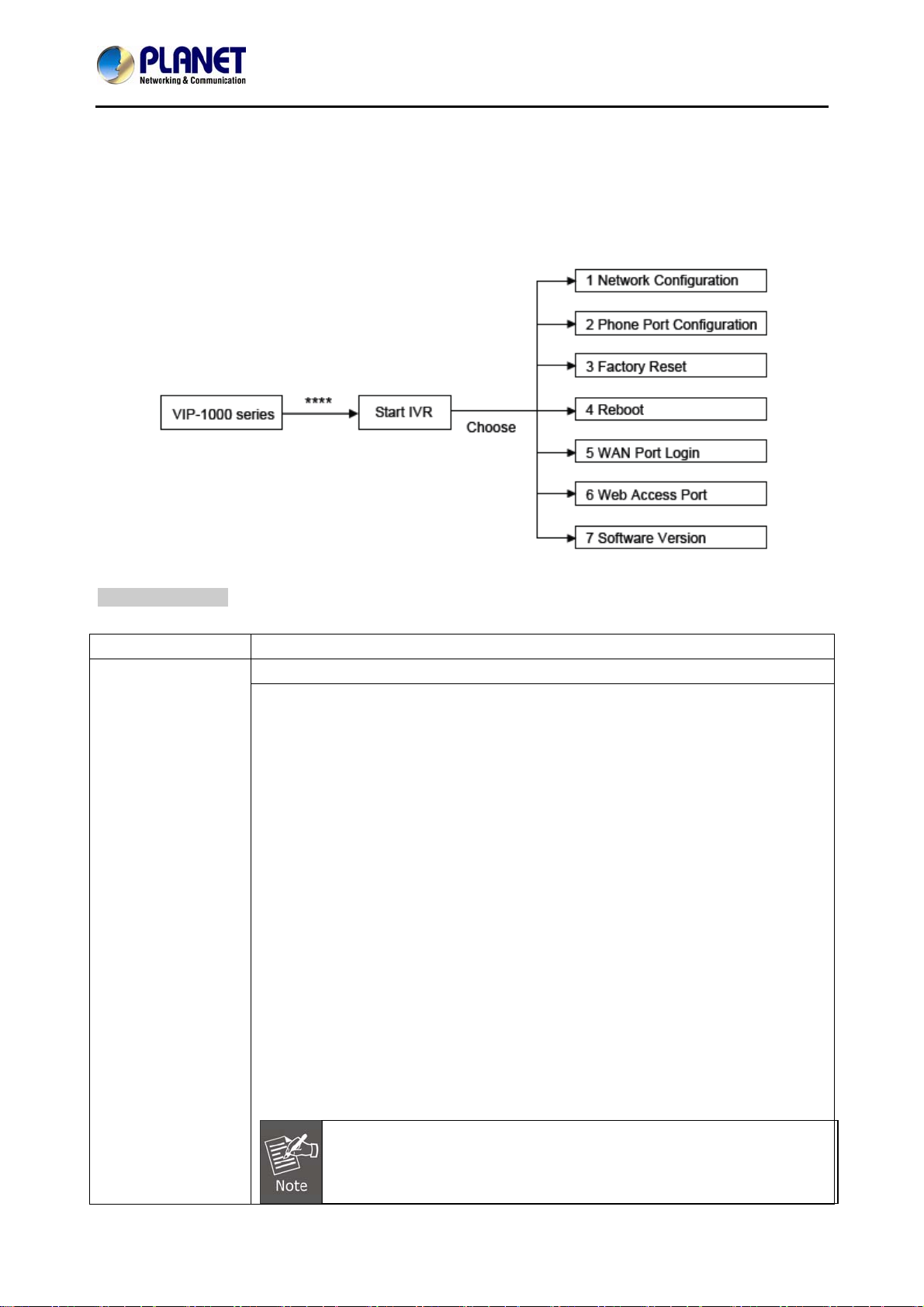
respectively. If you lose an IP of the VIP-1000PT/T, please refer to the description below to get the IP via
panel button.
IVR Descriptions
Below is the table that lists commands and descriptions:
Operation Code Contents
1.1 WAN Port Conn ection Type 1. Network
Configuration
1) Pick up phone and press ‘****’ to start IVR;
2) Choose ‘1’, and the VIP-1000PT/T will report on the current WAN Port
IP Address;
3) At the prompt, please enter password. User needs to key -in the pound
sign ‘#’ at the end of the password if he wants to configure the WAN
port connection type.
◆ The password for IVR is the same as the one of W eb login.
User can use the phone keypad to enter password directly,
and follow the instructions under Notice below.
◆ For example, Web login username is ‘admin’, so pass word for
IVR is ‘admin’, too. User needs to input '23646' to access and
then configure the WAN connection port.
4) ‘Operation successful’ will be reported if password is right;
5) Choose the new WAN port connection type from 1.DHCP and 2.Static
IP, and end with '#';
6) 'Operation successful' will be reported, meaning the changes have
been successfully made. Then VIP-1000PT/VIP-1000T will return with
a prompt: 'Please enter your option, one Network Configuration ……'.
1. Add '#' after inputting password and select the new WAN port
connection type.
2. If you want to quit, press '**'.
- 17 -
Page 18

High Definition PoE/Non-PoE IP Phone
VIP-1000PT/VIP-1000T
1.2 WAN Port IP Address
1) Pick up phone and press '****' to start IVR;
2) Choose '1' and then ‘2’, and the VIP-1000PT/VIP-1000T will report on
the current WAN Port IP Address;
3) Input the new WAN port IP address and end it with '#'.
◆ Use '*' to replace '.'. User can input 192*168*20*168 to set the
new IP address 192.168.20.168.
◆ Press the '#' key to indicate that you have finished.
4) 'Operation successful' will be reported if it’s done properly.
1. If you want to quit, press '**'.
2. Set the WAN IP, and then Subnet Mask, Gateway and DNS (Operation
1.3 WAN Port Subnet Mask
Code 1.2, 1.3, 1.4 and 1.5); otherwise, the new setting will be invalid.
2) Pick up phone and press '****' to start IVR;
3) Choose '1' and then ‘3’, and the VIP-1000PT/VIP-1000T will report on
WAN port subnet mask;
4) Input a new WAN port subnet mask with '#' at the end.
◆ Use '*' to replace '.'. User can input 255*255*255*0 to set the
new WAN port subnet mask 255.255.255.0.
◆ Press the '#' key to indicate that you have finished.
5) 'Operation successful' will be reported if it’s done properly.
If you want to quit, press '**'.
1.4 Gateway
1.5 DNS
1) Pick up phone and press '****' to start IVR;
2) Choose '1' and then ‘4’, and the VIP-1000PT/VIP-1000T will report on
the current gateway;
3) Input the new gateway and end it with '#'.
◆ Using '*' to replace '.', user can input 192*168*20*1 to set the
new gateway 192.168.20.1.
◆ Press the '#' key to indicate that you have finished.
4) 'Operation successful' will be reported if it’s done properly.
If you want to quit, press '**'.
- 18 -
Page 19

2. Phone Port
Configuration
High Definition PoE/Non-PoE IP Phone
VIP-1000PT/VIP-1000T
1) Pick up phone and press '****' to start IVR;
2) Choose '1' and then ‘5’, and the VIP-1000PT/VIP-1000T will report on
the current DNS.
3) Input the new DNS and end with '#'.
◆ Use '*' to replace '.'. User can input 192*168 *20*1 to set
the new DNS 192.168.20.1.
◆ Press the '#' key to indicate that you have finished.
4) 'Operation successful' will be reported if it’s done properly.
If you want to quit, press '**'.
2.1 Phone Number
2.2 Server IP Address
1) Pick up phone and press '****' to start IVR;
2) Choose '2' and then ‘1’, and the VIP-1000PT/VIP-1000T will report on
the current Phone Number.
If you want to quit, press '**'.
1) Pick up phone and press '****' to start IVR;
2) Choose '2', and the VIP-1000PT/VIP-1000T will report on the current
Server IP Address.
3. Factory Reset
4. Reboot
If you want to quit, press '**'.
1) Pick up phone and press '****' to start IVR.
2) Choose '3', and the VIP-1000PT/VIP-1000T will report on 'Factory
reset'.
3) At the prompt, please enter password. Please refer to Operati on 1 for
the password input.
4) 'Operation successful' will be reported if password is right and then
the VIP-1000PT/VIP-1000T will be set to factory default.
5) Press '4' to reboot to make changes effective.
If you want to quit, press '**'.
1) Pick up phone and press '****' to start IVR;
2) Choose '4', and the VIP-1000PT/VIP-1000T will report on 'Reboot'.
3) At the prompt, please enter password. Refer to O peration 1 for the
password input.
4) The VIP-1000PT/VIP-1000T will reboot if password is right and
operation is done properly.
If you want to quit, press '**'.
- 19 -
Page 20

5. WAN Port Login
6. Web Access Port
High Definition PoE/Non-PoE IP Phone
VIP-1000PT/VIP-1000T
1) Pick up phone and press '****' to start IVR;
2) Choose '5', and the VIP-1000PT/VIP-1000T will report on the 'WAN
Port Login';
3) At the prompt, please enter password. Please refer to Operati on 1 for
the password input.
4) 'Operation successful' will be reported if operation is properly done.
5) At the prompt '1-enable 2-disable', choose 1 or 2, and end with '#'.
6) 'Operation successful' will be reported if it’s done properly.
If you want to quit, press '**'.
1) Pick up phone and press '****' to start IVR;
2) Choose '6', and the VIP-1000PT/VIP-1000T will report on 'Web Access
Port'.
3) At the prompt, please enter password. Please refer to Operati on 1 for
the password input.
4) 'Operation successful' will be reported if operation is properly done.
5) Reports on the current Web Access Port;
6) Set the new Web access port and end with '#'.
7) 'Operation successful' will be reported if it’s done properly.
7. Software Version
If you want to quit, press '**'.
1) Pick up phone and press '****' to start IVR;
2) Choose '7', and the VIP-1000PT/VIP-1000T will report on the current
'Firmware version'.
If you want to quit, press '**'.
- 20 -
Page 21
High Definition PoE/Non-PoE IP Phone
VIP-1000PT/VIP-1000T
Chapter 3. Network Service Configurations
Configuring and Monitoring your IP Phone from Web Browser
The IP Phone integrates a web-based graphical user interface that can cover most configurations and
machine status monitoring. Via standard web browser, you can configure and check machine status from
anywhere around the world.
Manipulation of IP Phone via Web Browser
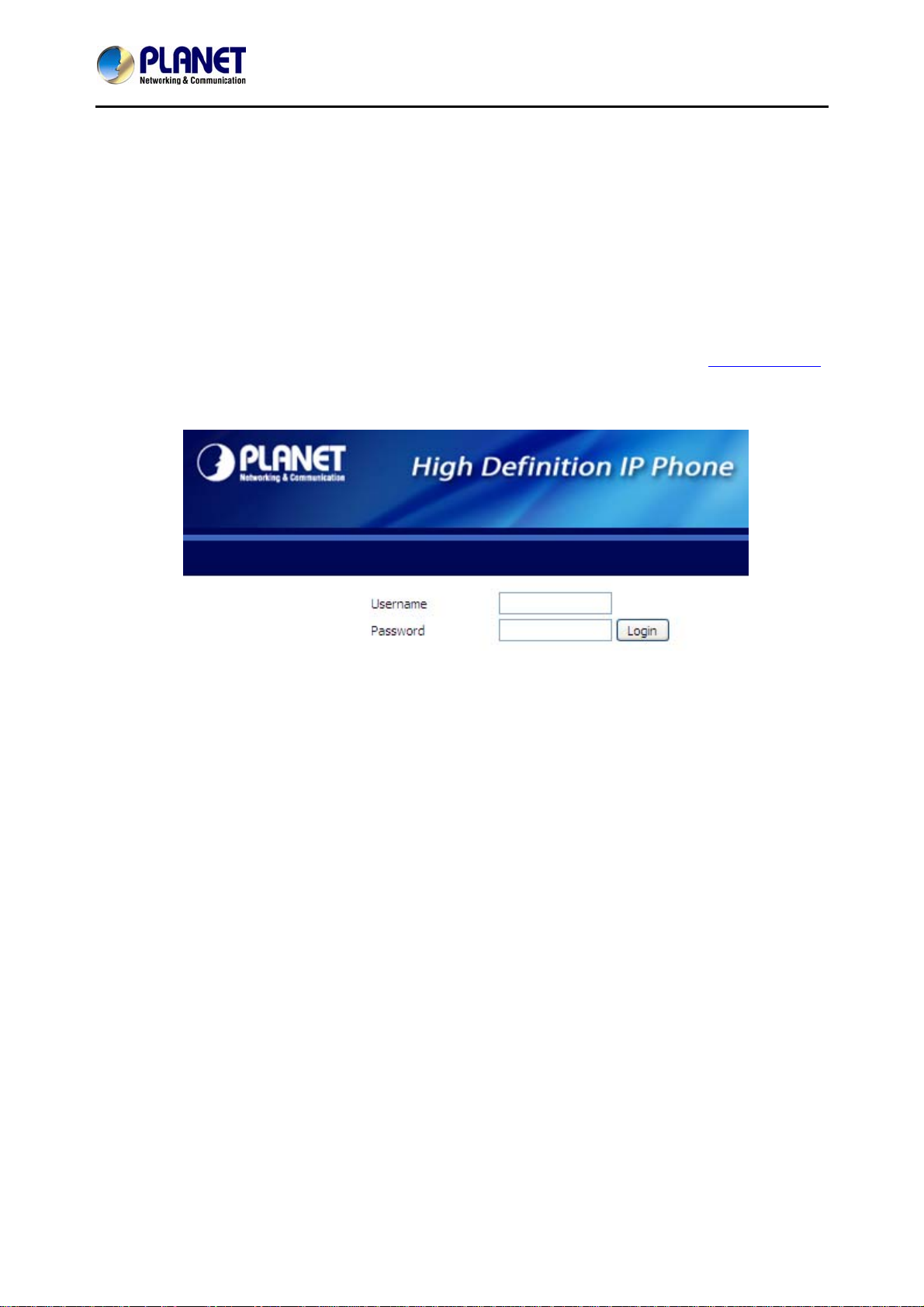
After TCP/IP configurations on your PC, you may now open your web browser, and input http://172.16.0.1
to logon to the IP Phone web configuration page.
IP Phone will prompt for logon username and password: admin and 123.
When users log in to the web page, users can see the IP Phone system information like firmware version,
company, etc. on this main page.
- 21 -
Page 22
High Definition PoE/Non-PoE IP Phone
VIP-1000PT/VIP-1000T
Chapter 4. VoIP IP Phone Status
4.1 Status
You can check the basic phone status to find out more information about the phone.
They include three parts: Basic, Syslog and Network.
4.1.1 Basic
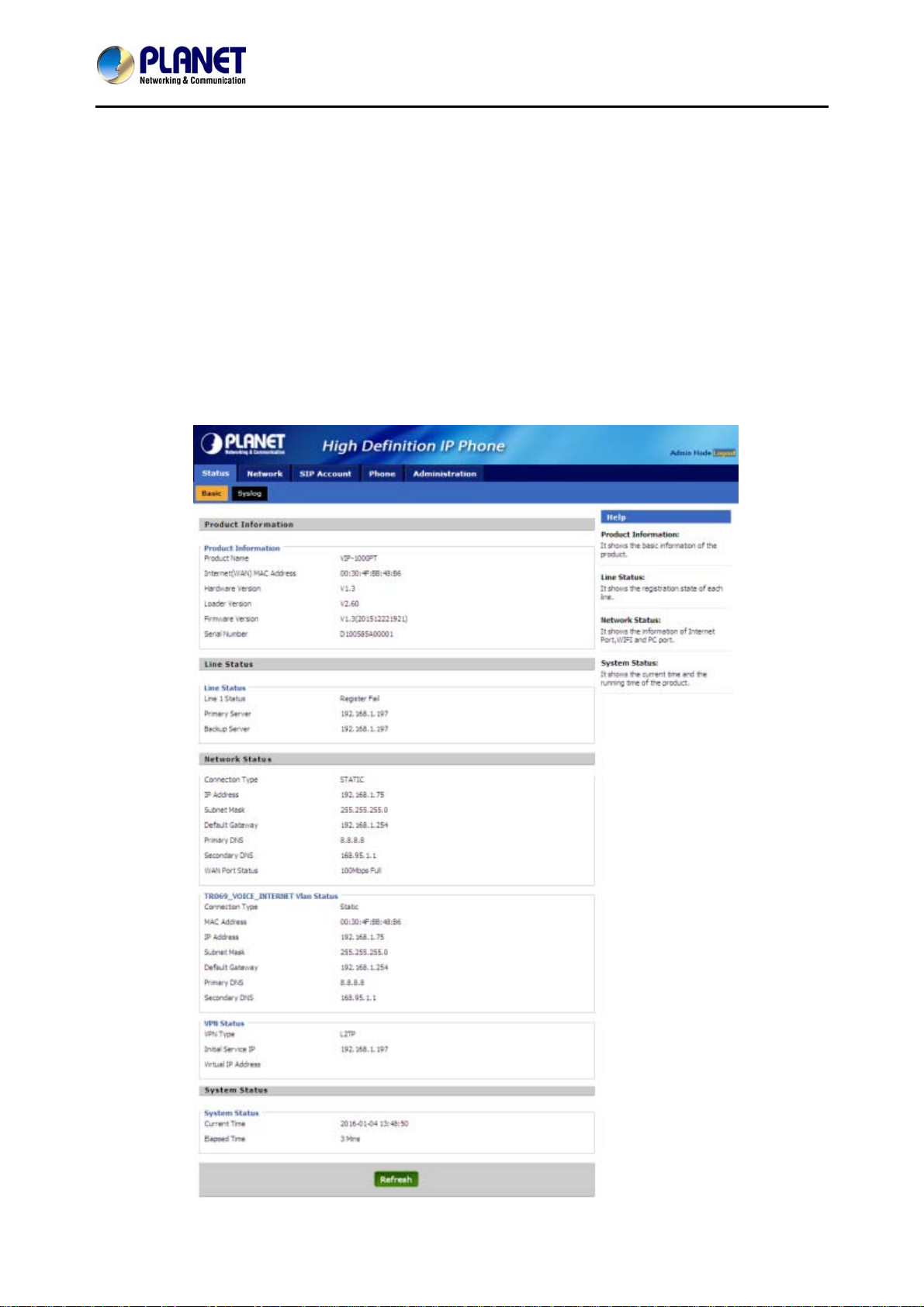
Included on this page are Product Information, Line Status, Network Status, VPN status and System
Status.
- 22 -
Page 23
High Definition PoE/Non-PoE IP Phone
VIP-1000PT/VIP-1000T
4.1.2 Syslog
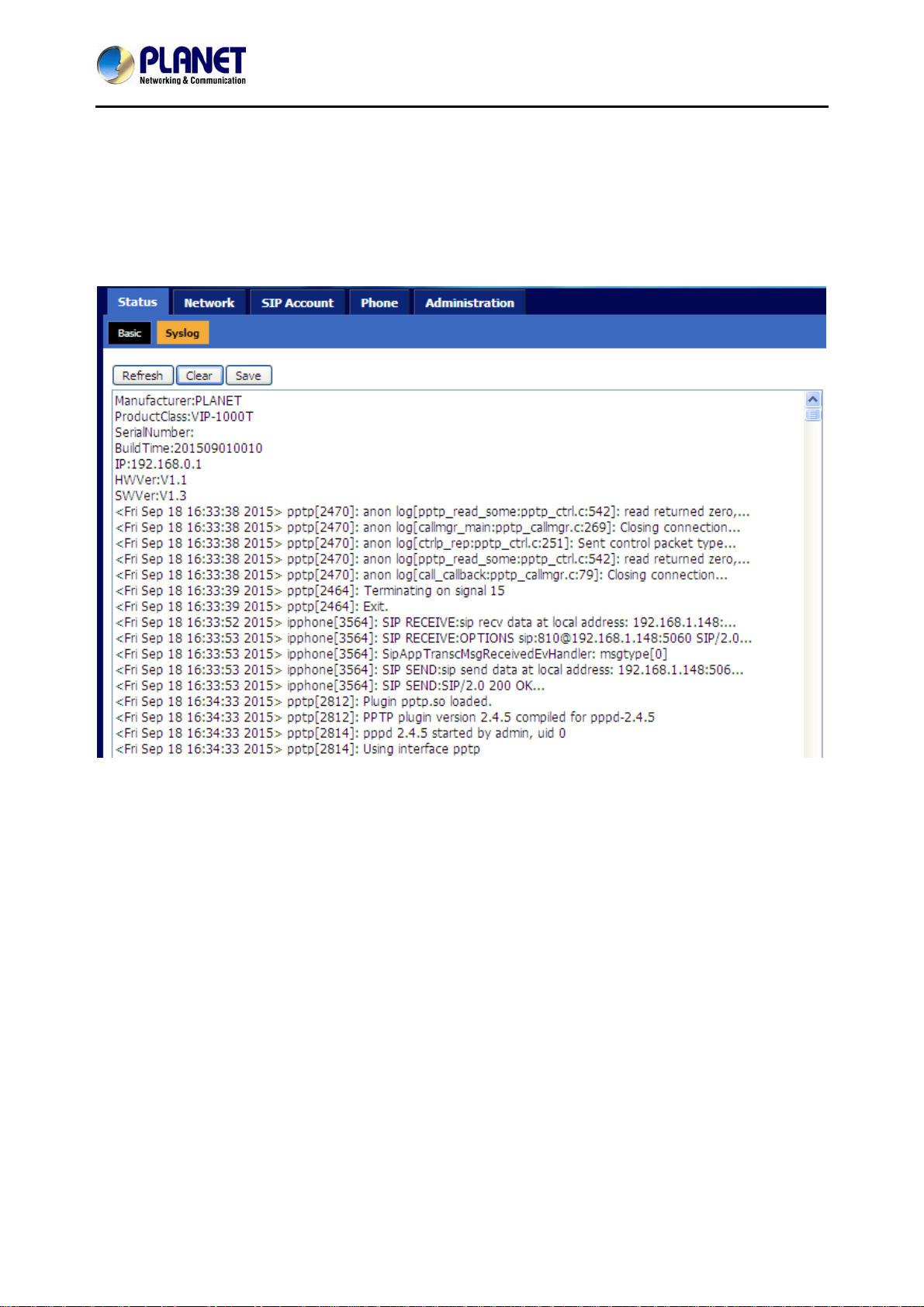
In this configuration interface, you can view Syslog, which records the VIP-1000 Series’ important
configuration information. On this page, you can Refresh/Clear/Save your syslog by clicking the related
button.
- 23 -
Page 24
High Definition PoE/Non-PoE IP Phone
VIP-1000PT/VIP-1000T
4.2 Network
User can configure the parameters of Internet Port, VPN, DDNS and MAC Clone.
4.2.1 Internet Port (WAN)
1) Static:
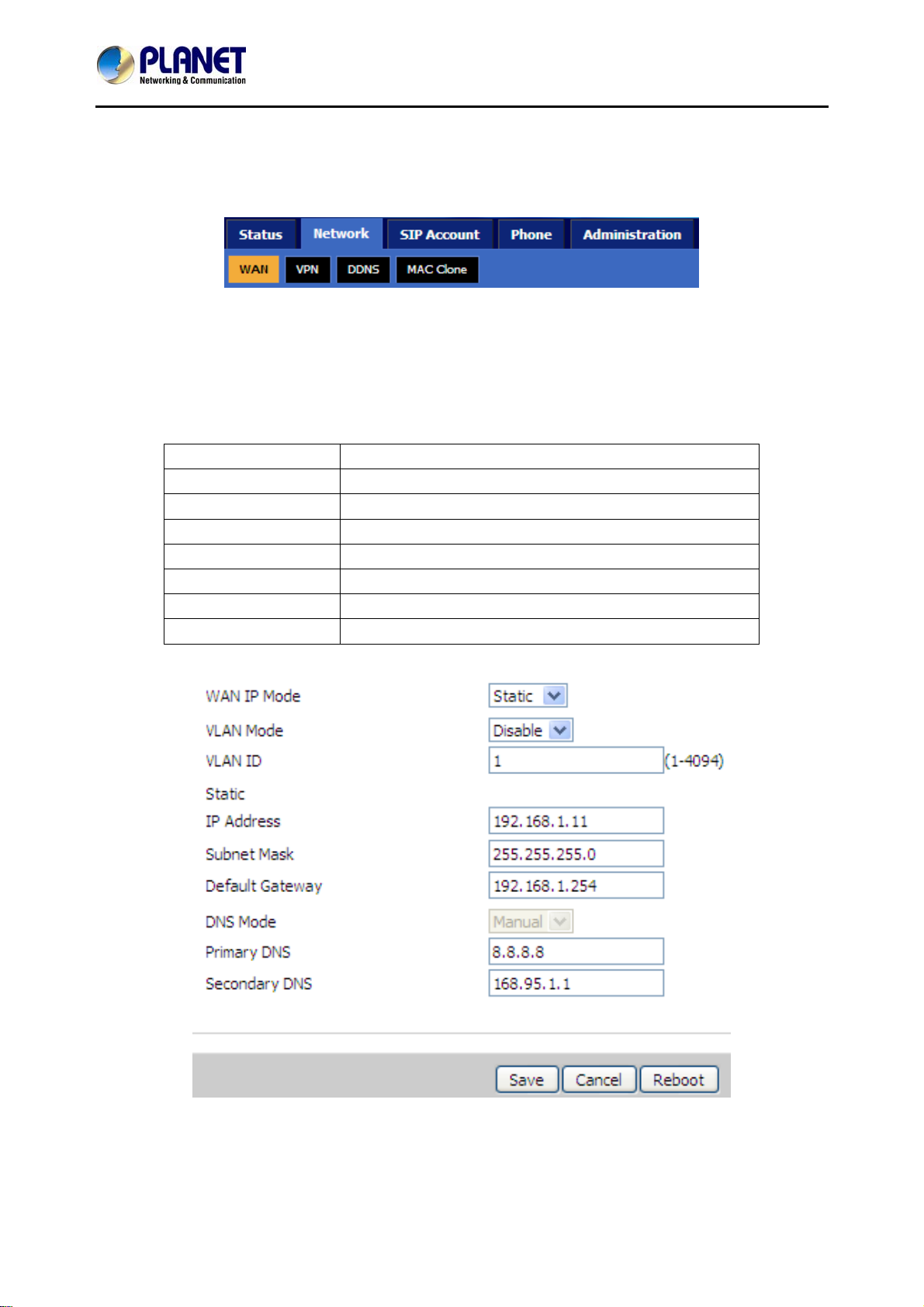
In static mode, user should fill in the values of IP Address, Subnet Mask, Default Gateway, Primary
DNS and Secondary DNS got from your administration.
Field Name Description
Internet port Choose Static IP
IP Address The IP address of Internet port
Subnet Mask The subnet mask of Internet port
Default Gateway The default gateway of Internet port
DNS Mode No chosen option
Primary DNS The primary DNS of Internet port
Secondary DNS The second DNS of Internet port
- 24 -
Page 25
High Definition PoE/Non-PoE IP Phone
VIP-1000PT/VIP-1000T
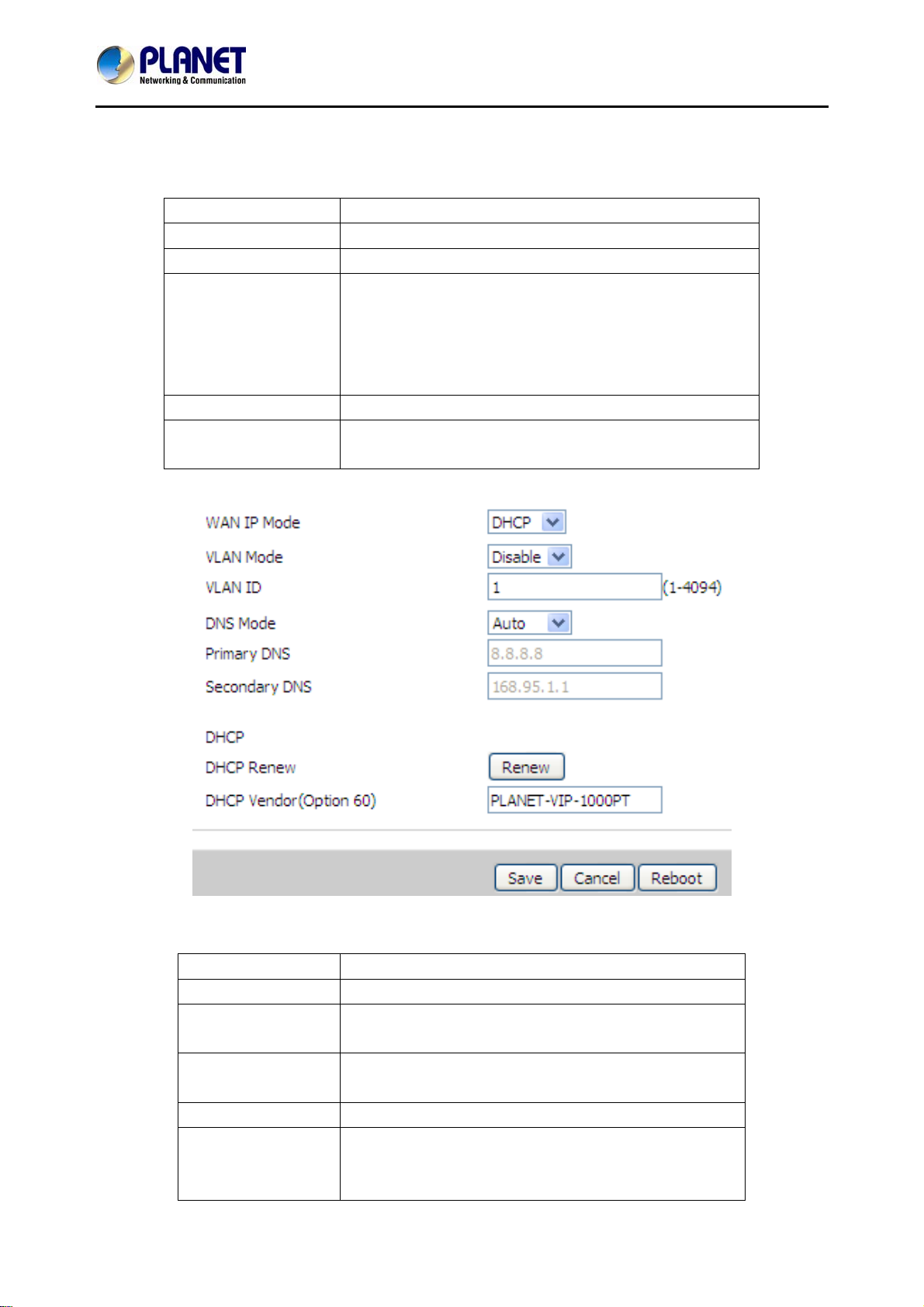
2) DHCP:
In DHCP mode, IP phone is a DHCP client.
IP phone will get the IP Address, Subnet Mask and Default Gateway from the DHCP server.
Field Name Description
Internet Port Choose DHCP
DHCP Renew Renew the phone's IP address
DNS Mode Choose DNS mode from Manual and Auto.
♦In Manual: user should set the primary DNS and
secondary DNS manually.
♦In Auto: IP phone will get the primary DNS and
secondary DNS from DHCP server automatically.
Primary DNS Address Set the primary DNS address manually.
Secondary DNS
Address
Set the second DNS address manually.
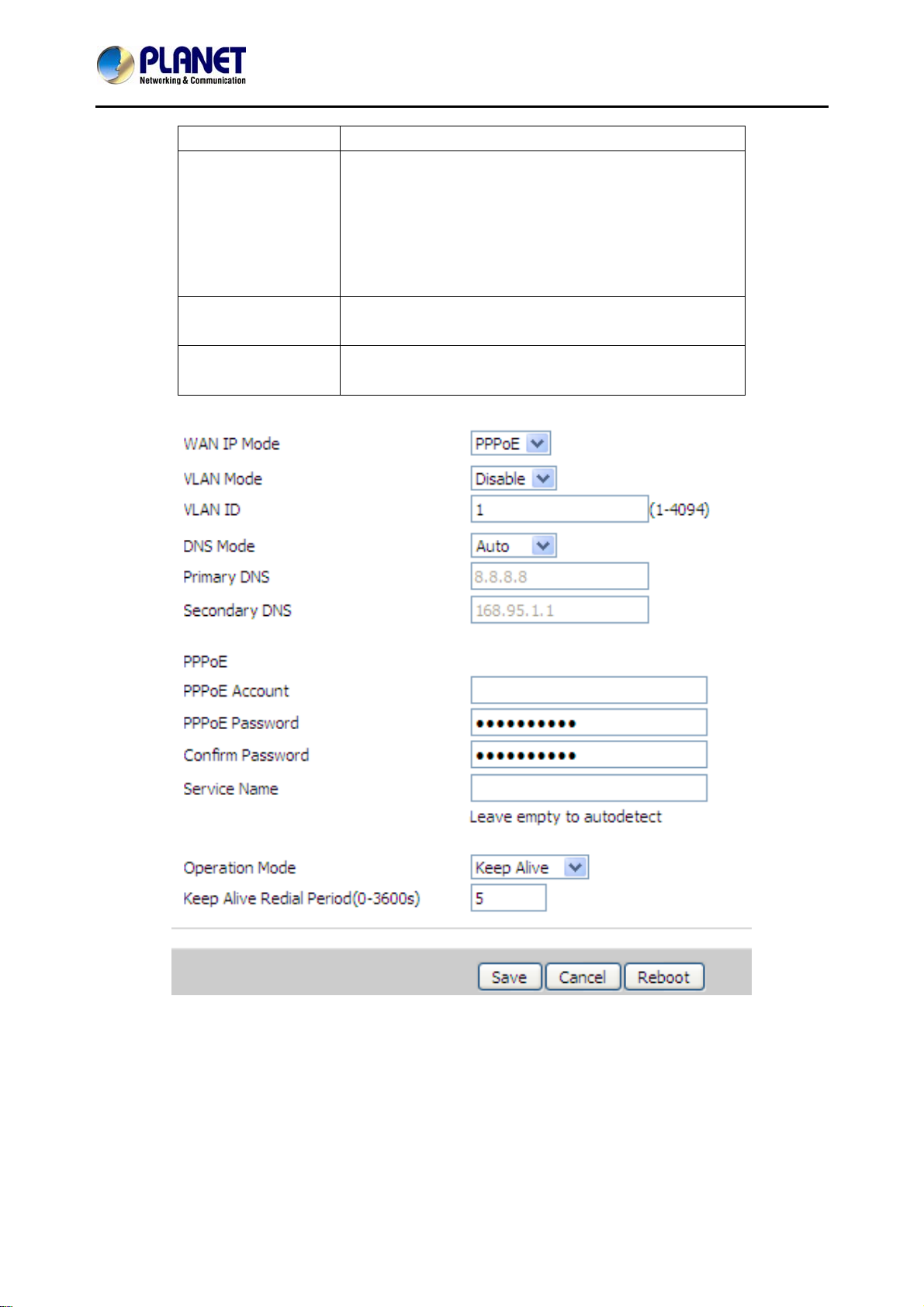
3) PPPoE:
Field Name Description
Internet Port (WAN) Choose PPPoE
PPPoE Account Fill in the PPPoE account which you get from Internet
Service Provider.
PPPoE Password Fill in the PPPoE password which you get from
Internet Service provider.
Confirm Password Fill in the PPPoE password again
Operation Mode Choose operation mode shown below:
In Keep Alive mode, user needs to set the 'keep
alive redial period' from 0 to 3600 seconds, the
- 25 -
Page 26
High Definition PoE/Non-PoE IP Phone
VIP-1000PT/VIP-1000T
Field Name Description
default value is 60 seconds;
In On Demand mode, user needs to set the 'on
demand idle time' from 0 to 60 minutes; the
default value is 5 minutes.
In Manual mode, the following two options are
not chosen.
Keep Alive Redial
Period (0-3600s)
On Demand Idle
Time (0-60m)
Set the keep alive redial period in 'Keep Alive' mode.
Set the on demand idle time in 'On Demand' mode.
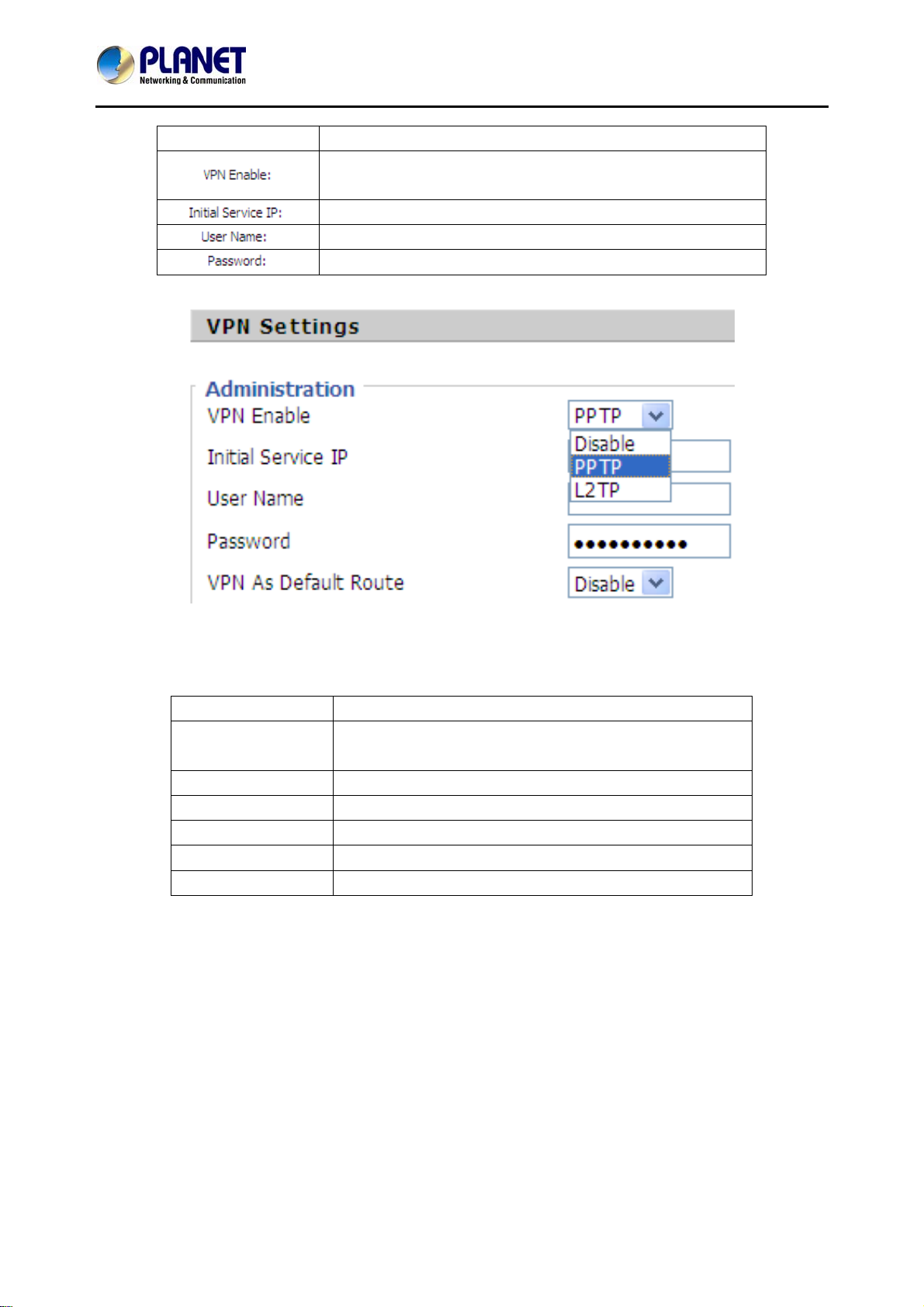
4.2.2 VPN
A Virtual Private Network (VPN) is the extension of a private network that encompasses links across
shared or public networks like the Internet. In short, by VPN technology, you can send data between
two computers across a shared or public network in a manner that emulates the properties of a
point-to-point private link
.
- 26 -
Page 27
High Definition PoE/Non-PoE IP Phone
VIP-1000PT/VIP-1000T
Field Name Description
Choose either PPTP or L2TP for the VPN mode if VPN is
enabled.
VPN server IP address
The user name for authentication.
Password for authentication.
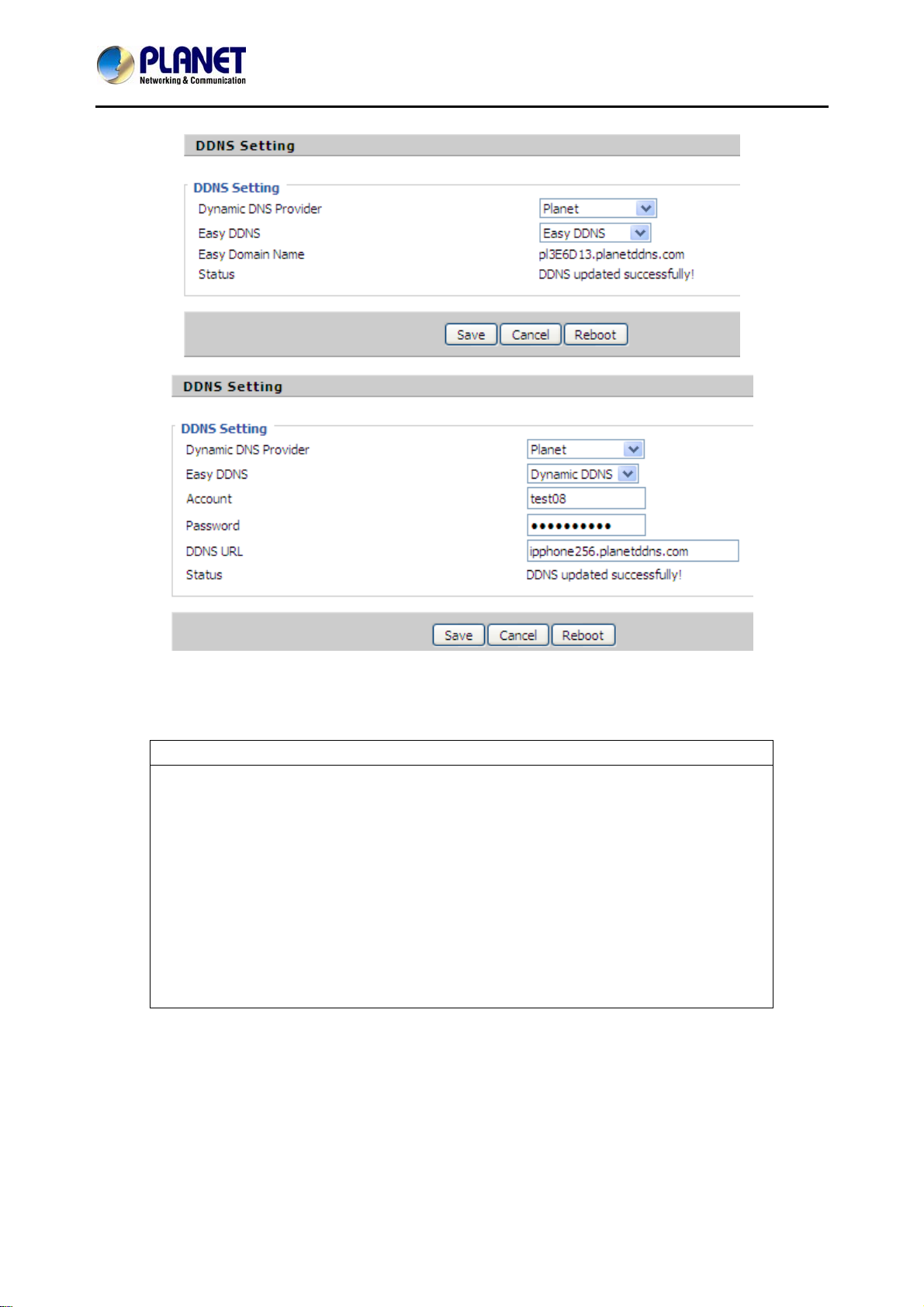
4.2.3 DDNS
Field Name Description
Dynamic DNS
Provider
Account Fill in the account you get from your provider.
Password Fill in the password you get from your provider.
DDNS
Status Reflect if the DDNS upgrade is successful or not.
Apply/Cancel Apply your changes or cancel your changes.
There are two kinds of Planet DDNS in VIP-1000 Series. One is Planet easy DDNS and the other is
Planet dynamic DDNS. The major difference is Planet easy DDNS does not need to apply a user
account.
Enable DDNS and choose the provider for it. There are
three DNS providers on this page.
Fill in your DDNS domain or IP address.
- 27 -
Page 28
High Definition PoE/Non-PoE IP Phone
VIP-1000PT/VIP-1000T
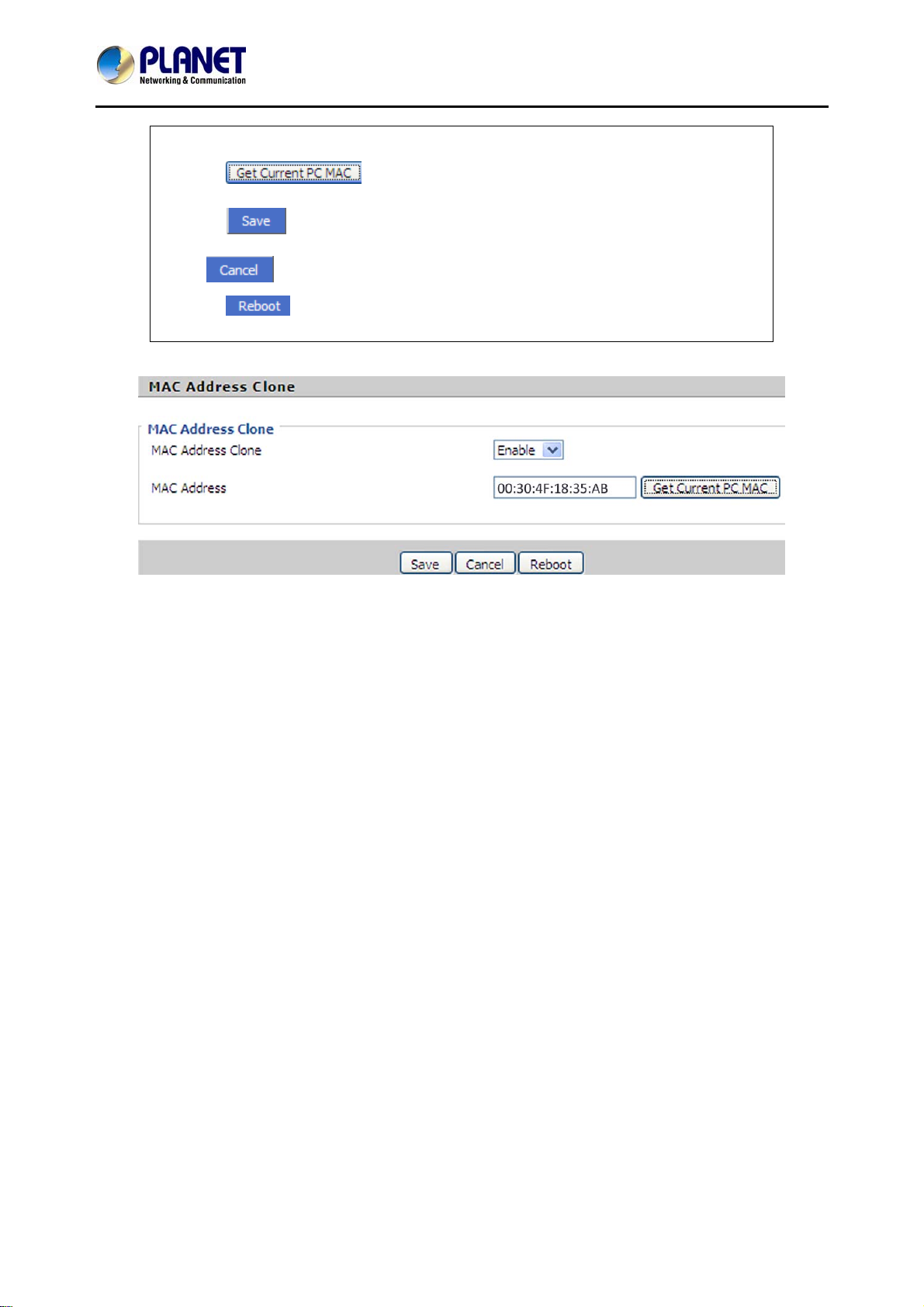
4.2.4 MAC Clone
MAC is the hardware address of network equipment. Sometimes network providers
may bind network account with network equipment's MAC address. So you may not
pass the provider's authentication when you use a new VIP-1000 Series. In this
case, you can use MAC clone to copy your PC's MAC address to VIP-1000 Series'
Internet port.
MAC is an important parameter for network equipment, so you should make sure
that the MAC is right, in order to prevent VIP-1000 Series from being unusable.
You can log in to the VIP-1000 Series webpage via PC port if you incidentally make it
wrong. And then clone the right MAC or resume the default settings.
Description
- 28 -
Page 29
High Definition PoE/Non-PoE IP Phone
VIP-1000PT/VIP-1000T
Enable MAC address clone;
Press
button to get the PC's MAC address;
Press button to save your change; if you don't want to use MAC clone,
press
Press
button to cancel your change;
to reboot VIP-1000 Series.
- 29 -
Page 30
High Definition PoE/Non-PoE IP Phone
VIP-1000PT/VIP-1000T
4.3 SIP Account
4.3.1 Line 1
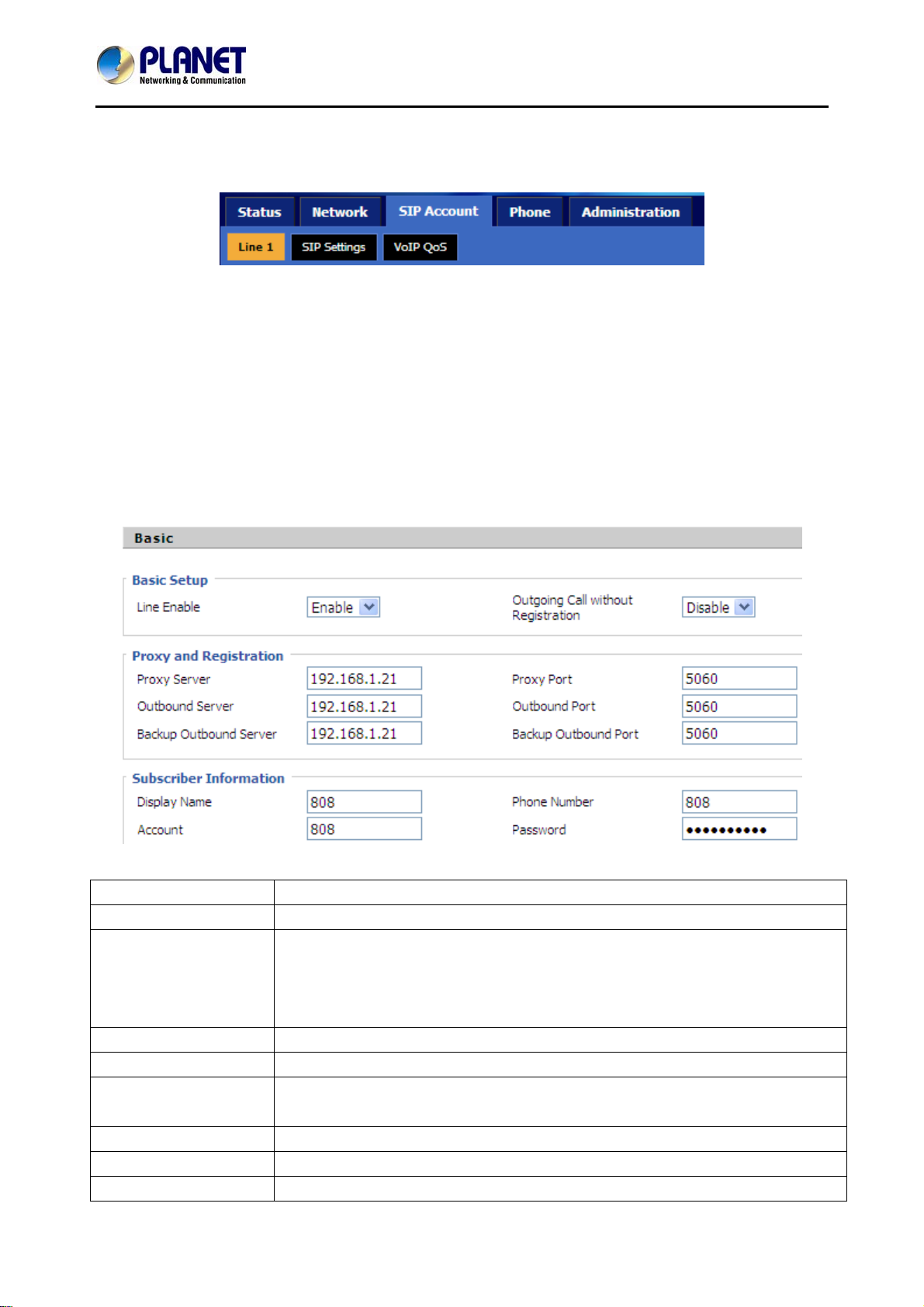
On this webpage, users can configure the information about SIP account 1, including the following 4
parts: Basic Setup, Audio Configuration, Supplementary Service Subscription and Advanced. The
following are the descriptions about these:
1) Basic Setup
Set the basic information provided by your VoIP Service Provider, such as phone number, account,
password, SIP proxy and so on.
Field Name Description
Line Enable Enable Line 1 or not.
Outgoing Call without
Registration
Proxy Server Fill in the IP address of your SIP server.
Outbound Server Outbound Proxy IP or domain name.
Backup Outbound
Server
Proxy port The value of Proxy Port, the default value is 5060.
Outbound Port The value of Outbound Port, the default value is 5060.
Backup Outbound Port The value of Backup Outbound Port, the default value is 5060.
Enable Peer To Peer or not.
If enabled, line 1 will not send register request to SIP server;
In System Status, line 1 status is registered;
Line 1 can make calls out, but others cannot call line1.
Backup outbound server IP or domain name.
- 30 -
Page 31
High Definition PoE/Non-PoE IP Phone
Field Name Description
Display Name The number will display in caller.
Phone Number The number provided by SIP Proxy.
Account SIP Account provided by SIP Proxy.
Password SIP password provided by SIP Proxy.
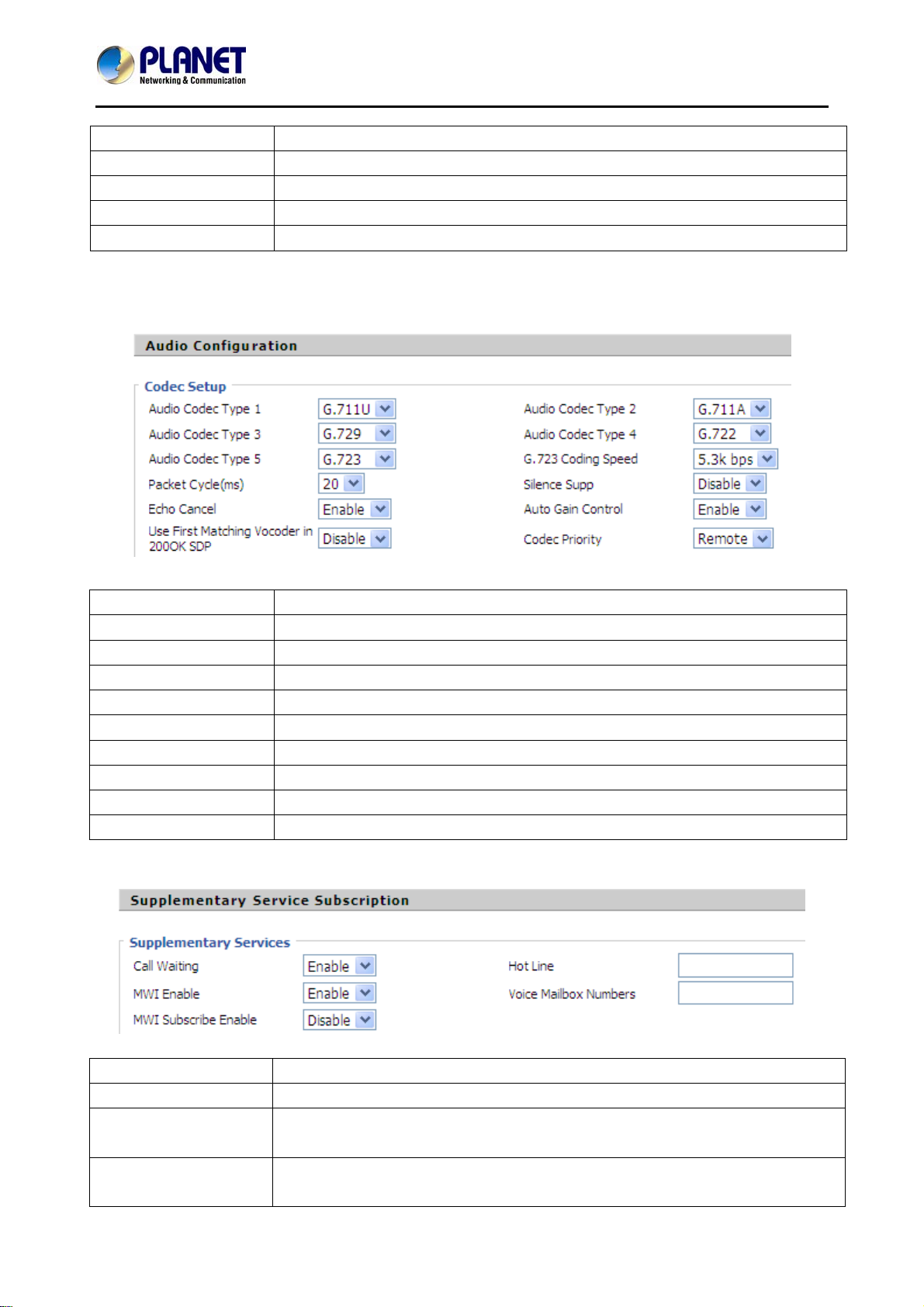
2) Audio Configuration
Select the audio codec you want to use.
VIP-1000PT/VIP-1000T
Field Name Description
Audio Codec Type 1 Choose the audio codec type from G.711A,G.711U,G.722,G.729 and G.723
Audio Codec Type 2 Choose the audio codec type from G.711A,G.711U,G.722,G.729 and G.723
Audio Codec Type 3 Choose the audio codec type from G.711A,G.711U,G.722,G.729 and G.723
Audio Codec Type 4 Choose the audio codec type from G.711A,G.711U,G.722,G.729 and G.723
Audio Codec Type 5 Choose the audio codec type from G.711A,G.711U,G.722,G.729 and G.723
G.723 Coding Speed Choose the speed of G.723 from 5.3kbps and 6.3kbps.
Packet Cycle (ms) The RTP packet cycle time, the default value is 20ms.
Silence Supp Enable silence or not.
Echo Cancel Enable echo cancel or not.
3) Supplementary Service Subscription
Field Name Description
Call Waiting Enable call waiting or not.
Hot Line Fill in the hotline number. If you have set it, when you pick your phone up,
VIP-1000 Series will dial out the hotline number automatically.
MWI Enable Enable MWI (message waiting indicate) or not. If you want to use mailbox,
please enable it.
- 31 -
Page 32
High Definition PoE/Non-PoE IP Phone
Field Name Description
Voice Mailbox
Numbers
Fill in the mailbox's feature code provided by your server, for example, in
Planet IP PBX, the code is *61.
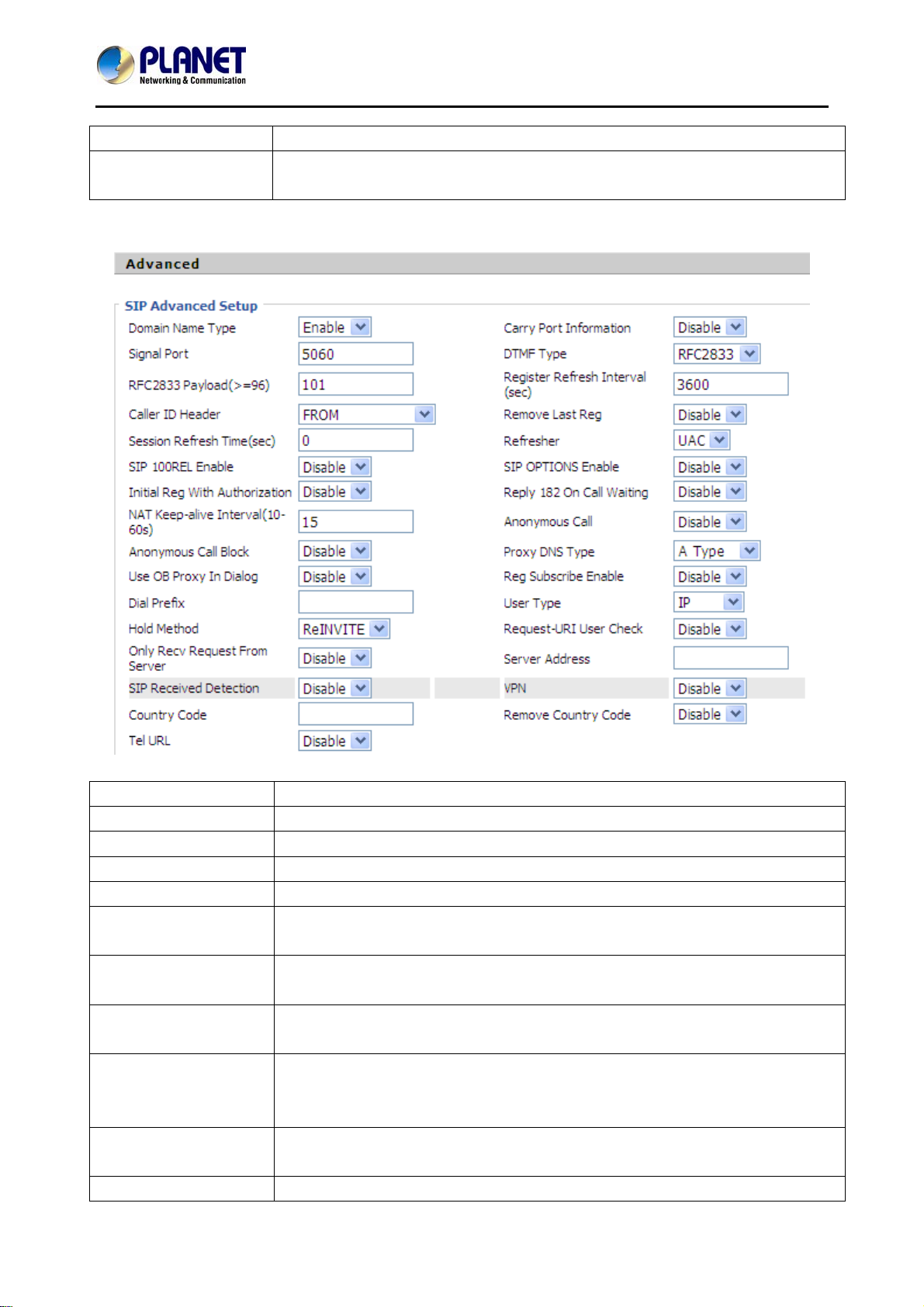
4) Advanced
VIP-1000PT/VIP-1000T
Field Name Description
Domain Name Type Use domain name in the SIP URI or not.
Carry Port Information Use carry port information in the SIP URI or not.
Signal Port The default value of the local port of SIP protocol is 5060.
DTMF Type Choose the DTMF type between In-band, RFC2833 and SIP Info.
RFC2833
User can use the default setting.
Payload(>=96)
Register Refresh
Intervals(sec)
The interval between two normal register messages. You can use the default
setting.
RTP Port Set the port to send RTP. IP phone will select one idle port for RTP if you set
'0', otherwise, use the value user set.
Cancel Message
Enable
When you set enable, an unregistered message will be sent before
registration, while you set disable, unregistered message will not be sent
before registration. You should set the option for a different proxy.
Session Refresh Time
The interval time between two sessions. You can use the default value.
(sec)
Refresher Choose refresher between UAC and UAS.
- 32 -
Page 33
High Definition PoE/Non-PoE IP Phone
VIP-1000PT/VIP-1000T
Field Name Description
Prack Enable Enable Prack or not.
SIP Option Enable If this option is enabled, VIP-1000 Series will send SIP-PING to server
periodically instead of sending hello packet. The send interval is Keep-alive
interval.
Keep-alive Interval
(10-60s)
Anonymous Call Enable anonymous call or not.
Anonymous Call Block Enable anonymous call block or not.
Proxy DNS Type Set the proxy DNS type between A Type and DNS SRV.
Use OB Proxy In
Dialog
VPN Enable VPN or not.
The interval that VIP-1000 Series will send to proxy is an empty packet.
Use OB proxy in dialog or not.
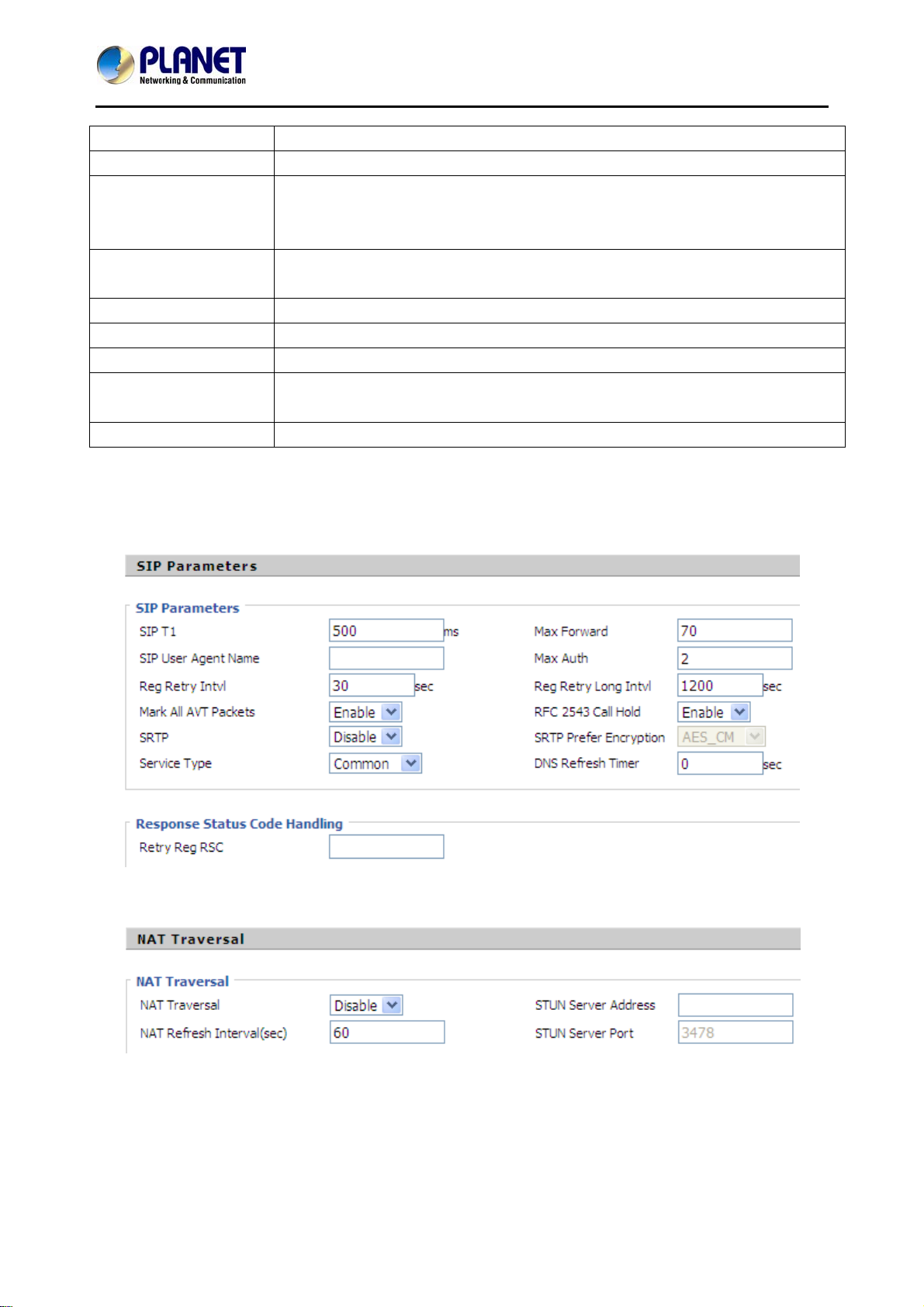
4.3.2 SIP Settings
1) SIP Settings Parameters -- The following window describes the parameters briefly.
2) NAT Traversal
Enable NAT traversal in NAT Traversal. As VIP-1000 Series supports STUN traversal, choose 'STUN'
if you want NAT/Firewall Traversal. And fill in the STUN Server IP address in the field. Set the value of
interval of refreshing NAT in NAT Refresh Interval; the default value is 60 seconds, And set the value
of STUN server port in STUN Server Port; the default value is 3478.
- 33 -
Page 34

High Definition PoE/Non-PoE IP Phone
VIP-1000PT/VIP-1000T
4.3.3 VoIP QoS
Through modifying SIP or RTP to different value of QoS, this determine
This page allows you to configure the basic QoS DSCP Translation settings for SIP and RTP. The
maximum number of supported DSCP values is 64 and the valid DSCP value ranges from 0 to 63.
- 34 -
Page 35
High Definition PoE/Non-PoE IP Phone
VIP-1000PT/VIP-1000T
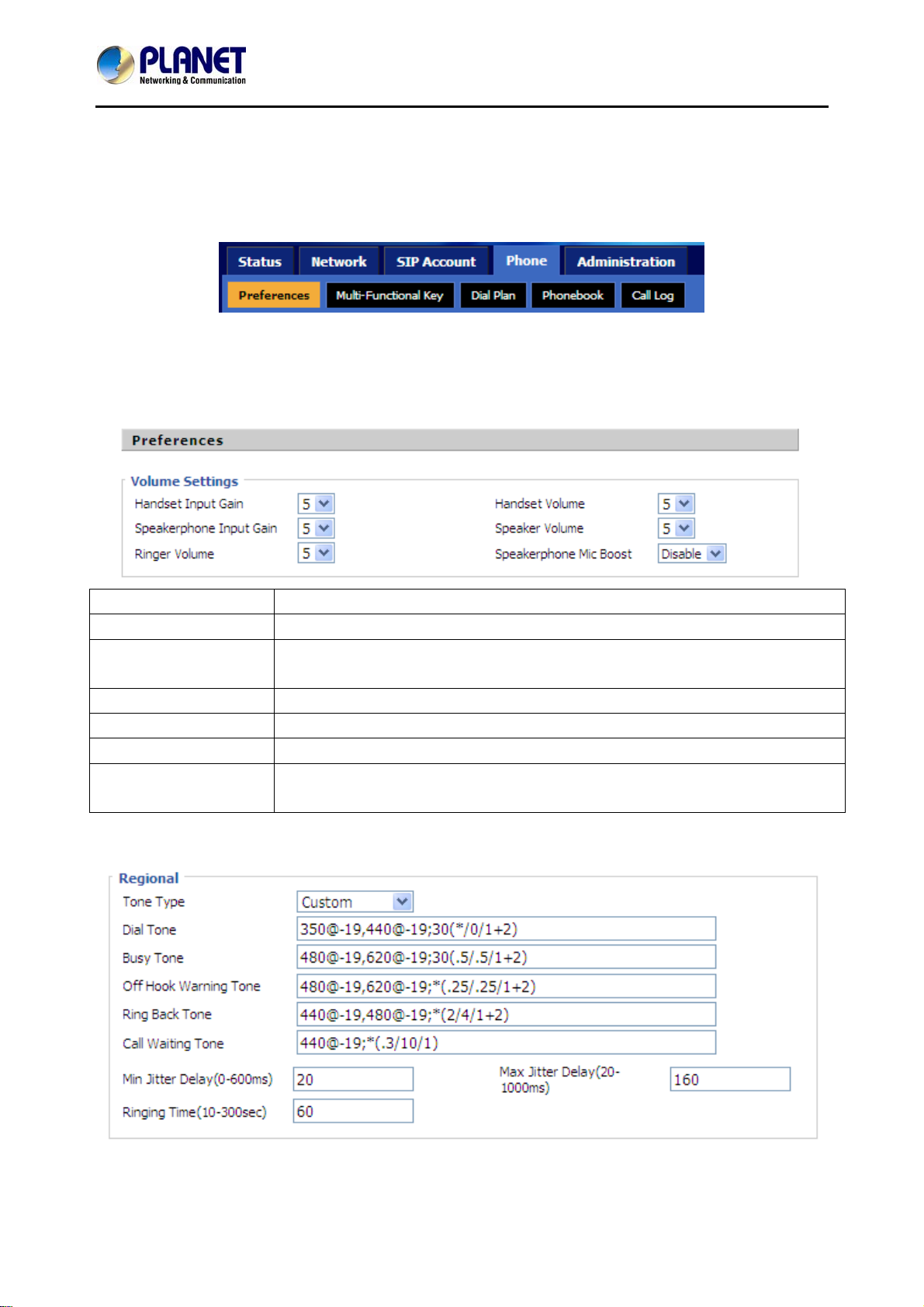
4.4 Phone
On this webpage, user can configure VIP-1000 Series' preferences like Multi-Functional Key, Dial
Rule, Phonebook and Call Log.
4.4.1 Preferences
1) Preferences
Field Name Description
Handset Input Gain Adjust the handset input gain from 0 to 7.
Speakerphone Input
Gain
Ringer Volume Adjust the ringer volume from 0 to 7.
Handset Volume Adjust the handset volume from 0 to 7.
Speaker Volume Adjust the speaker volume from 0 to 7.
Speakerphone MIC
Boost
2) Regional
Adjust the speakerphone input gain from 0 to 7.
Enable speakerphone MIC boost or not.
- 35 -
Page 36
High Definition PoE/Non-PoE IP Phone
VIP-1000PT/VIP-1000T
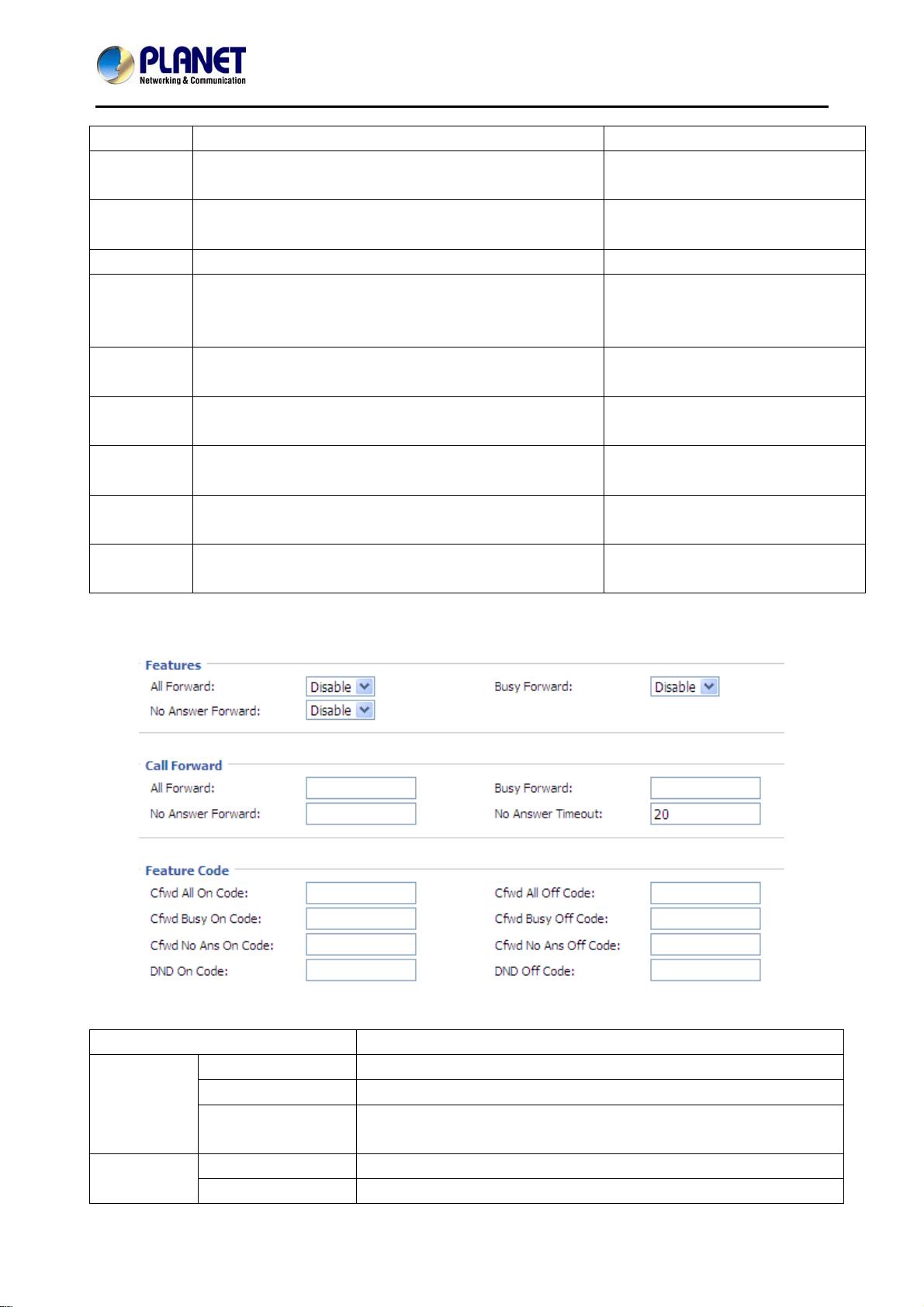
Field Name Description Default
Tone Type Choose tone type from Custom, China, U.S., India and
Custom
so on.
Dial Tone When entering a phone number to make an outbound
350@-19,440@-19;30(*/0/1+2)
call.
Busy Tone When receiving an outbound call. 480@-19,620@-19;30(.5/.5/1+2)
Off Hook
Waiting
When the the handset is not placed on the cradle
properly.
480@-19,620@-19;*(.25/.25/1+2)
Tone
Ringback
Tone
Call-waiting
Tone
Min. Jitter
Delay (ms)
Max. Jitter
Delay (ms)
Ringing
The tone you will hear while waiting for the call to be
440@-19,480@-19,*(2/4/1+2)
answered.
Special dial done can be played when call waiting is
440@-19;*(.3/10/1)
activated.
The min. value of VIP-1000 Series' jitter delay which is
20
an adaptive jitter mechanism.
The max. value of VIP-1000 Series' jitter delay which is
160
an adaptive jitter mechanism.
The extension of ringing time for VIP-1000 Series. 60
Time (sec)
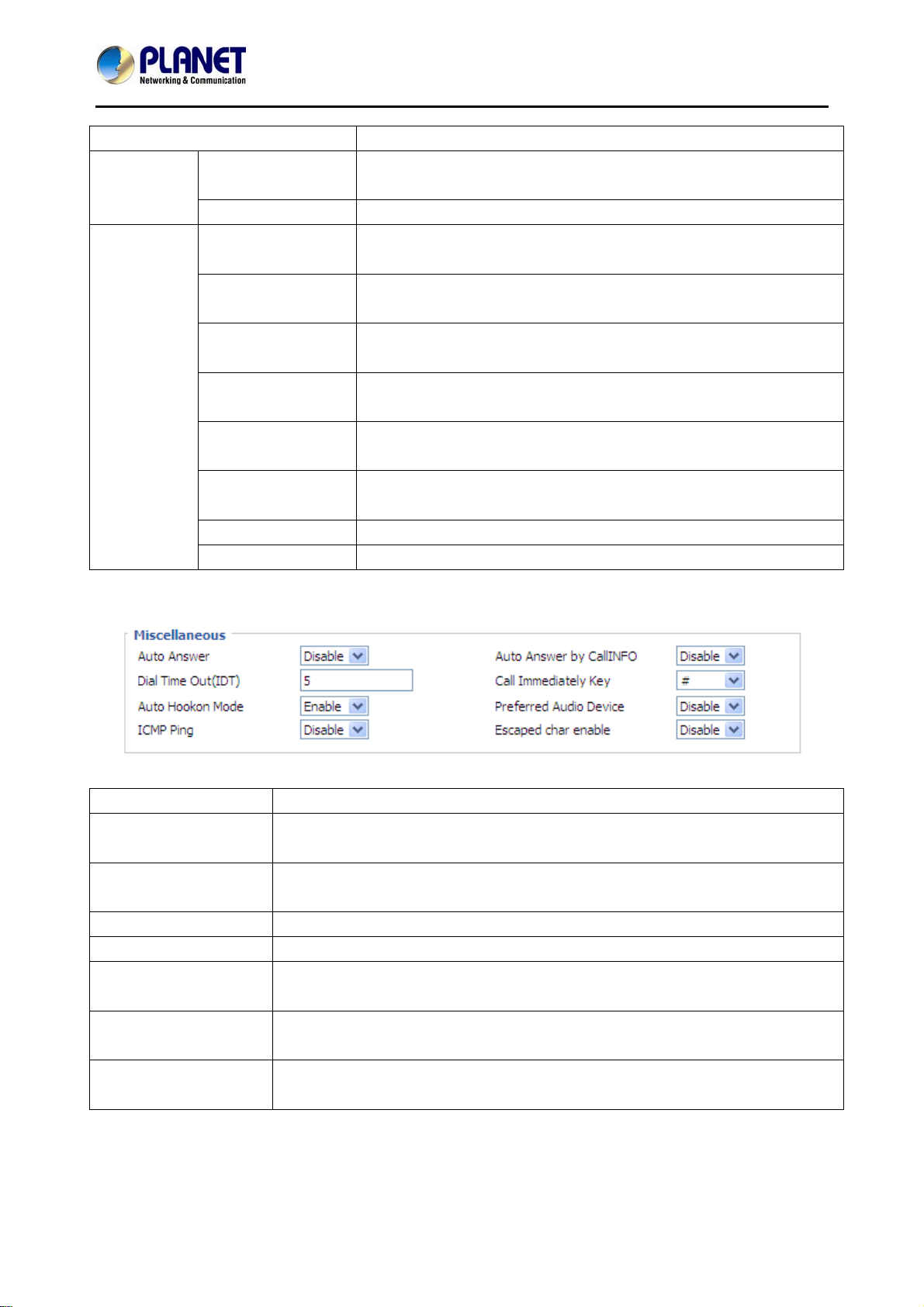
3) Call Forward
Webpage/Field Name Description
All Forward Enable all forward or not.
Features
Call
Forward
Busy Forward Enable busy forward or not.
No Answer
Forward
Enable no answer forward or not.
All Forward Set the target phone number to all forward.
Busy Forward Set the target phone number to busy forward.
- 36 -
Page 37
High Definition PoE/Non-PoE IP Phone
Webpage/Field Name Description
No Answer
Forward
Set the target phone number to no answer forward.
No Answer Timeout The time a caller has to wait before being forwarded.
The feature code of enabling all forward provided by your SIP
provider.
The feature code of disabling all forward provided by your SIP
provider.
The feature code of enabling busy forward provided by your SIP
provider.
The feature code of disabling busy forward provided by your SIP
provider.
The feature code of enabling no answer forward provided by your
SIP provider.
The feature code of disabling no answer forward provided by your
SIP provider.
Feature
Code
Cfwd All On Code
Cfwd All Off Code
Cfwd Busy On
Code
Cfwd Busy Off
Code
Cfwd No Ans On
Code
Cfwd No Ans Off
Code
DND On Code The feature code of enabling DND.
DND Off Code The feature code of disabling DND.
4) Miscellaneous
VIP-1000PT/VIP-1000T
Field Name Description
Auto Answer If enabled, VIP-1000 Series will automatically answer all incoming calls
immediately.
Auto Answer by Call
Enable auto answer Call Info or not.
Info
Dial Time Out The dial-out tone of VIP-1000 Series will sound at a specified time.
Call Immediately Key Choose call immediately key between * and #.
Auto Hook on Mode If enabled, VIP-1000 Series will automatically hook on when the other
speaker ends the call.
ICMP Ping If enabled, VIP-1000 Series will ping the SIP Server at every interval time,
otherwise, it will send 'hello' empty packet to the SIP Sever.
Preferred Audio
Choose preferred audio device between handsfree and headset.
Device
- 37 -
Page 38
High Definition PoE/Non-PoE IP Phone
VIP-1000PT/VIP-1000T
4.4.2 Multi-Functional Key
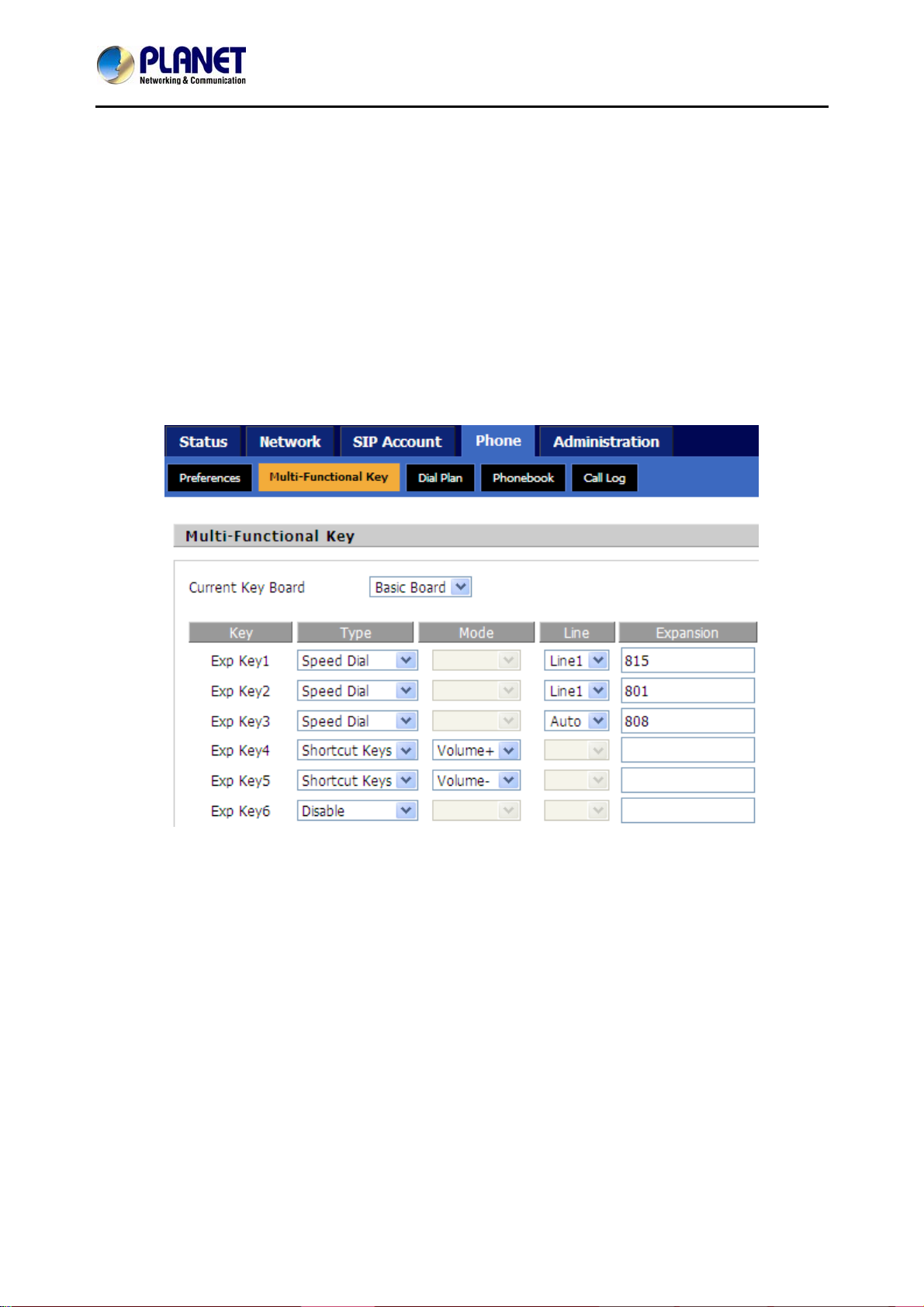
VIP-1000 Series has 20 multi-functional keys, which can be used for making speed dial and changing
the value of volume. Please follow the following processes to set up these multi-functional key
functions:
z Choose one EXP Key from key 1 to 20;
z Choose one function type between speed dial and shortcut keys;
z Set the other corresponding parameter;
z Press the Save button to save changes and press the cancel button to cancel changes;
z Reboot VIP-1000 Series.
The following are the setting examples:
1) Add Speed Dial
z Choose one EXP Key to configure;
z Select Speed Dial from the drop-down list;
z Choose the Line between auto (the first registered line) and line 1;
z Fill in the phone number under Expansion;
z Press Save to save changes and press the Reboot button to make changes effective.
If set properly, press the corresponding key to make call immediately.
2) Add Shortcut Keys
z Choose one EXP Key to configure;
z Select Shortcut Keys from the drop-down list;
z Choose the Mode from Volume+ and Volume-;
z Press the Save button to submit changes and press the Reboot button to make changes
effective.
- 38 -
Page 39
High Definition PoE/Non-PoE IP Phone
If set properly, press the corresponding key to turn up or turn down the value.
4.4.3 Dial Plan
1) Parameters and Settings
VIP-1000PT/VIP-1000T
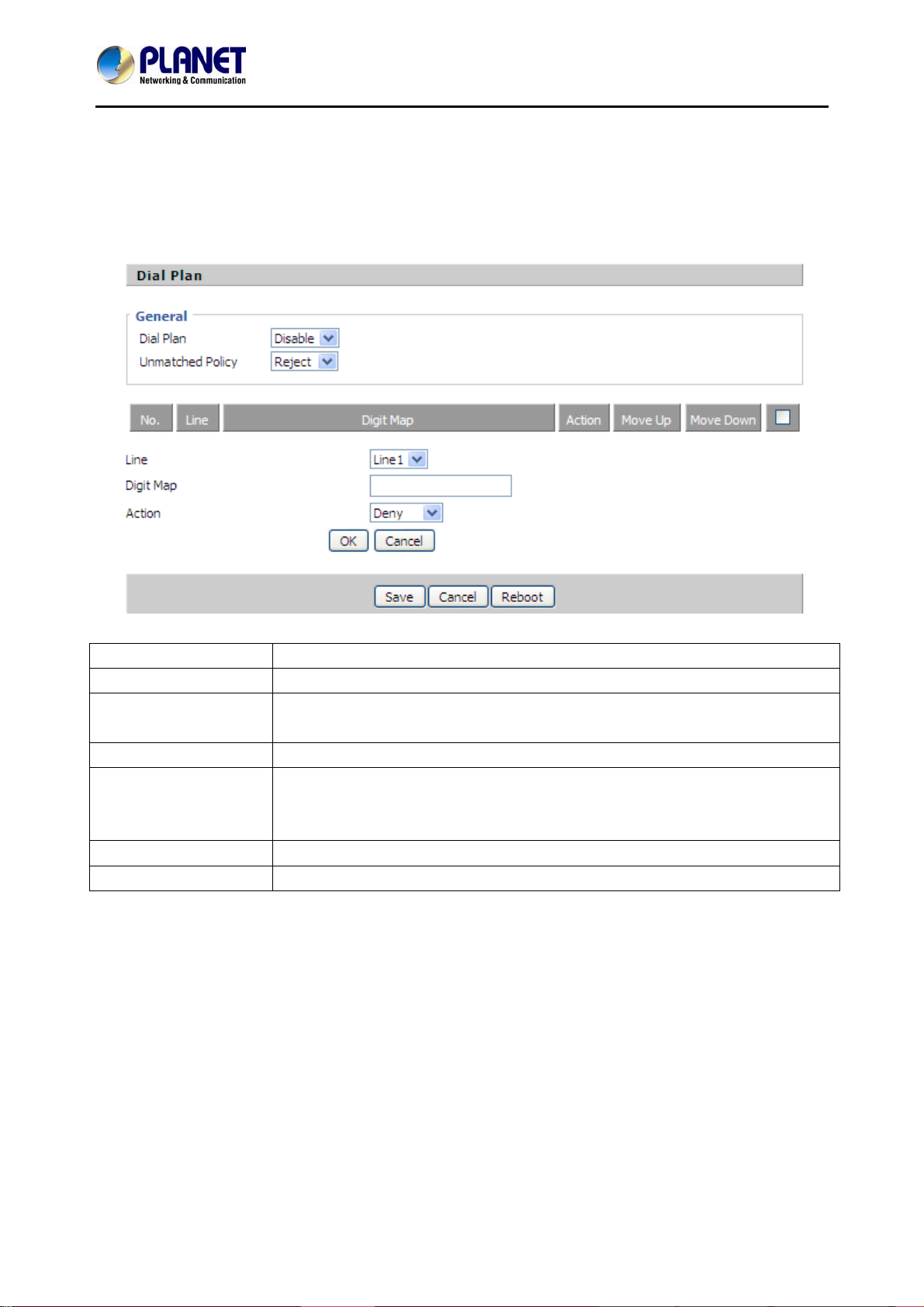
Field Name Description
Dial Plan Enable dial plan or not.
Line Choose the call mode from line1. Fill in the sequence used to match input
number.
Digit Map Please refer to the syntactic Dial Plan.
Action Choose the dial plan mode between Deny and Dial out. Deny means
VIP-1000 Series rejects the matched number, while dial out means VIP-1000
Series allows dialing out the matched number.
Move Up Press it to move up.
Move Down Press it to move down.
2) Add Dial Plan
z Enable Dial Plan;
z Click the Add button, and the configuration table will be like the above one;
z Fill in the value of parameters;
z Press the OK button to end configuration;
z Press Save to submit the changes and press the Reboot button to make the changes effective.
The following window is an example of the use of dial plan. You can set your IP phone like this to
check if its dial plan functions well.
If set properly, take No.1 in the following window for example, you dial #56#, the IP phone's output will
be 23%5623%. Since VIP-1000 Series does not have LCD, you can use Hammer or Wireshark to
- 39 -
Page 40
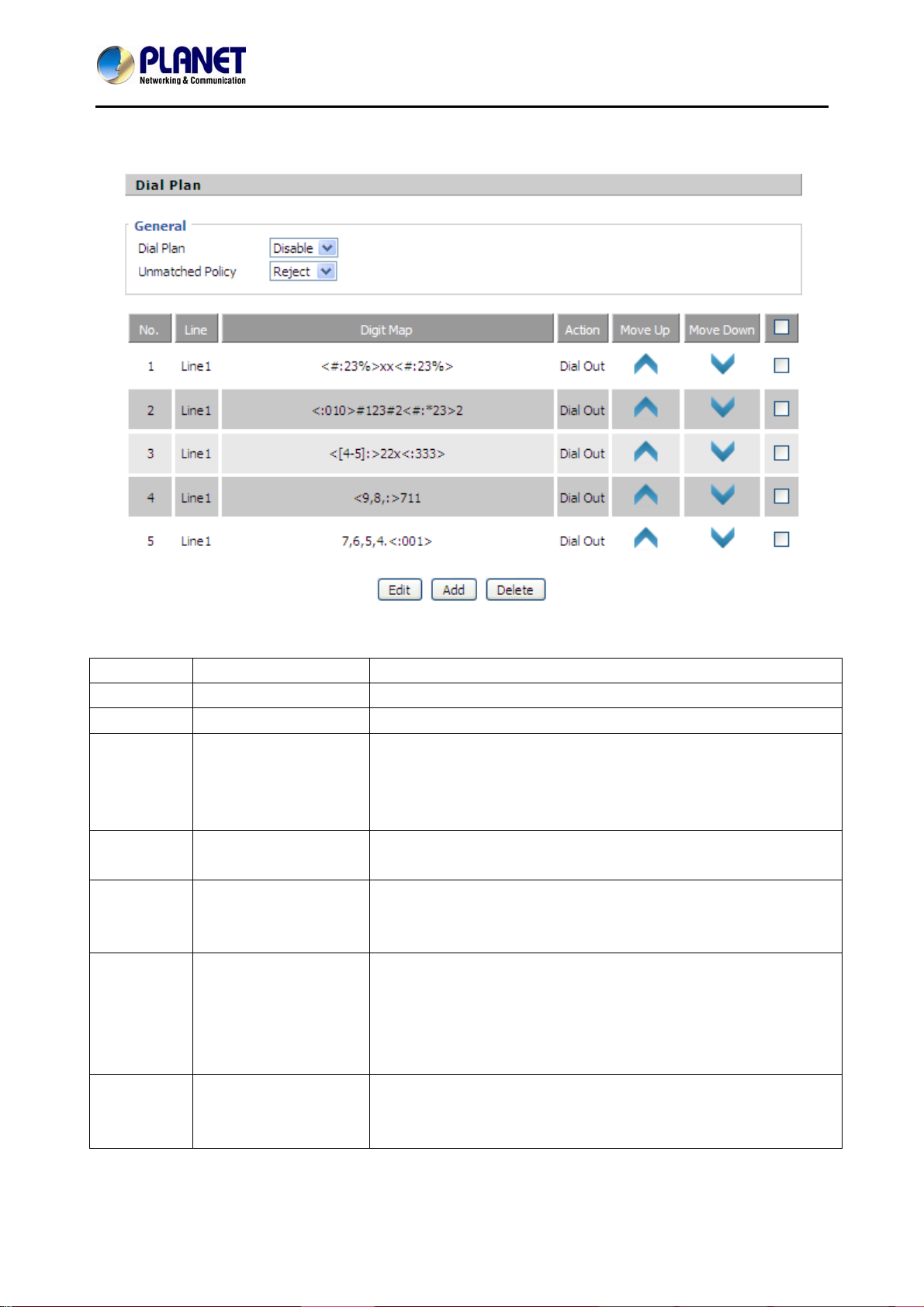
check .
High Definition PoE/Non-PoE IP Phone
VIP-1000PT/VIP-1000T
3) Syntactic Dial Plan
No. String Description
1 0 1 2 3 4 5 6 7 8 9 * # Legal numbers
2 x Lowercase letter x stands for legal character.
3 [sequence] To match one character from one sequence.
For example,
♦ [0-9]: match one digit from 0 to 9;
♦ [23-5*]: match one character from 2 or 3 or 4 or 5 or *.
4 x. Match to x, xx, xxx and so on.
For example, '01.'can match '0', '01', '011',......'0111111....'.
5 <dialed:substituted> Replace dialed with substituted.
For example, <#:23%>xx<#:23%>, the input is #56#, the output
should be 23%5623%.
6 x,y Make outside dial tone after dialing 'x', stop until dialing 'y'.
For example, <5,:><:241333>8101, the input is 58101 and the
output will be 2413338101. What’s more, VIP-1000 Series will
make out line dial tone after dialing '5', stop dialing until
character '8'.
7 T Set the delayed time.
For example, '<9:111>T2' means VIP-1000 Series will dial out
the matched number '111' after 2 seconds of the dial time.
- 40 -
Page 41
High Definition PoE/Non-PoE IP Phone
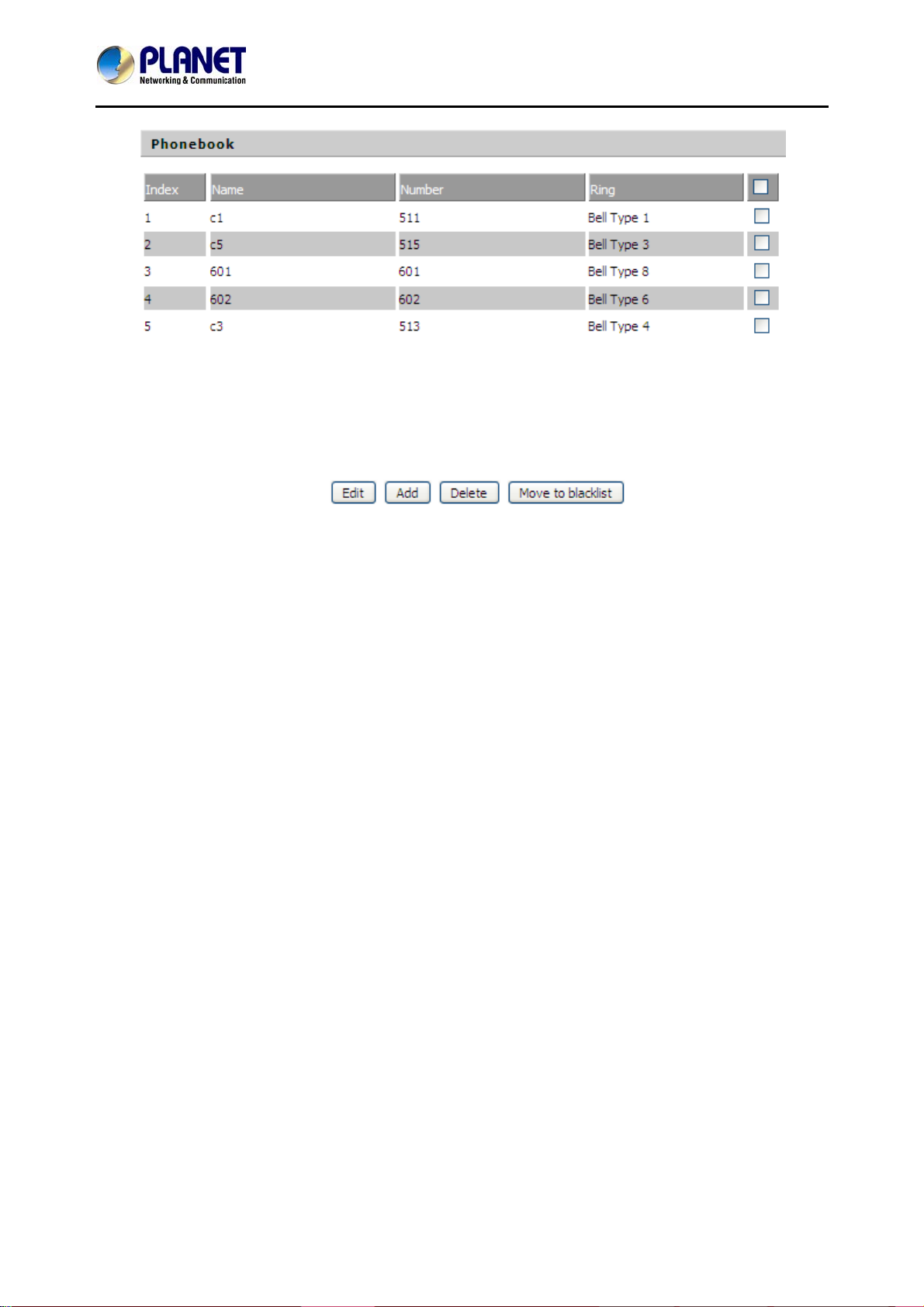
4.4.4 Phonebook
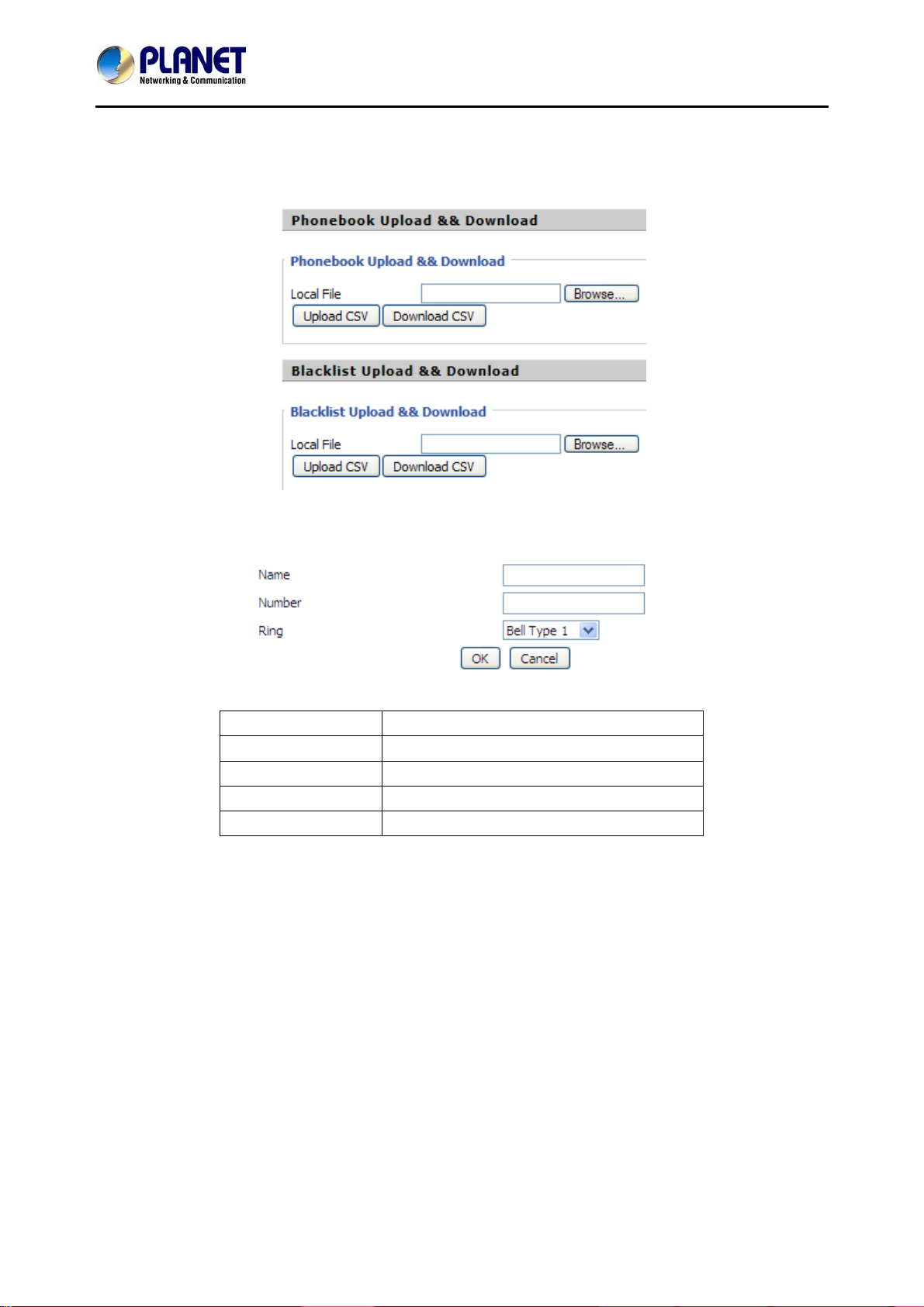
The user can download or upload phonebook to VIP-1000 Series via CSV file.
1) Phonebook
VIP-1000PT/VIP-1000T
Field Name Description
Name Input the name.
Number Input the phone number.
Ring Choose a different ring.
OK/Cancel Submit or cancel your change.
- 41 -
Page 42
High Definition PoE/Non-PoE IP Phone
VIP-1000PT/VIP-1000T
Add one phonebook:
x Click the Add button and the configuration table will be like picture 1;
x Fill in the value of parameters;
x Press the OK button to submit your change or press the cancel button to cancel your change,
and then press the reboot button to make your change effective.
Edit one phonebook:
x Choose one phone book;
x Click the Edit button and the configuration table like picture 3 will appear;
x Change the value of parameters;
x Press the OK button to end configuration;
x Press the Save button to save your change and reboot the phone.
Delete one phonebook:
x Choose one phonebook;
x Click the Delete button to delete the phone book;
x Press the Save button to submit your change and reboot the phone to make your change
effective.
Move one phonebook to blacklist:
x Choose one phonebook;
x Click the Move to Blacklist button, and the number you choose will be deleted from the phone
book list and be moved to blacklist.
x Press the Save button to submit your change and press reboot to make your change effective.
- 42 -
Page 43
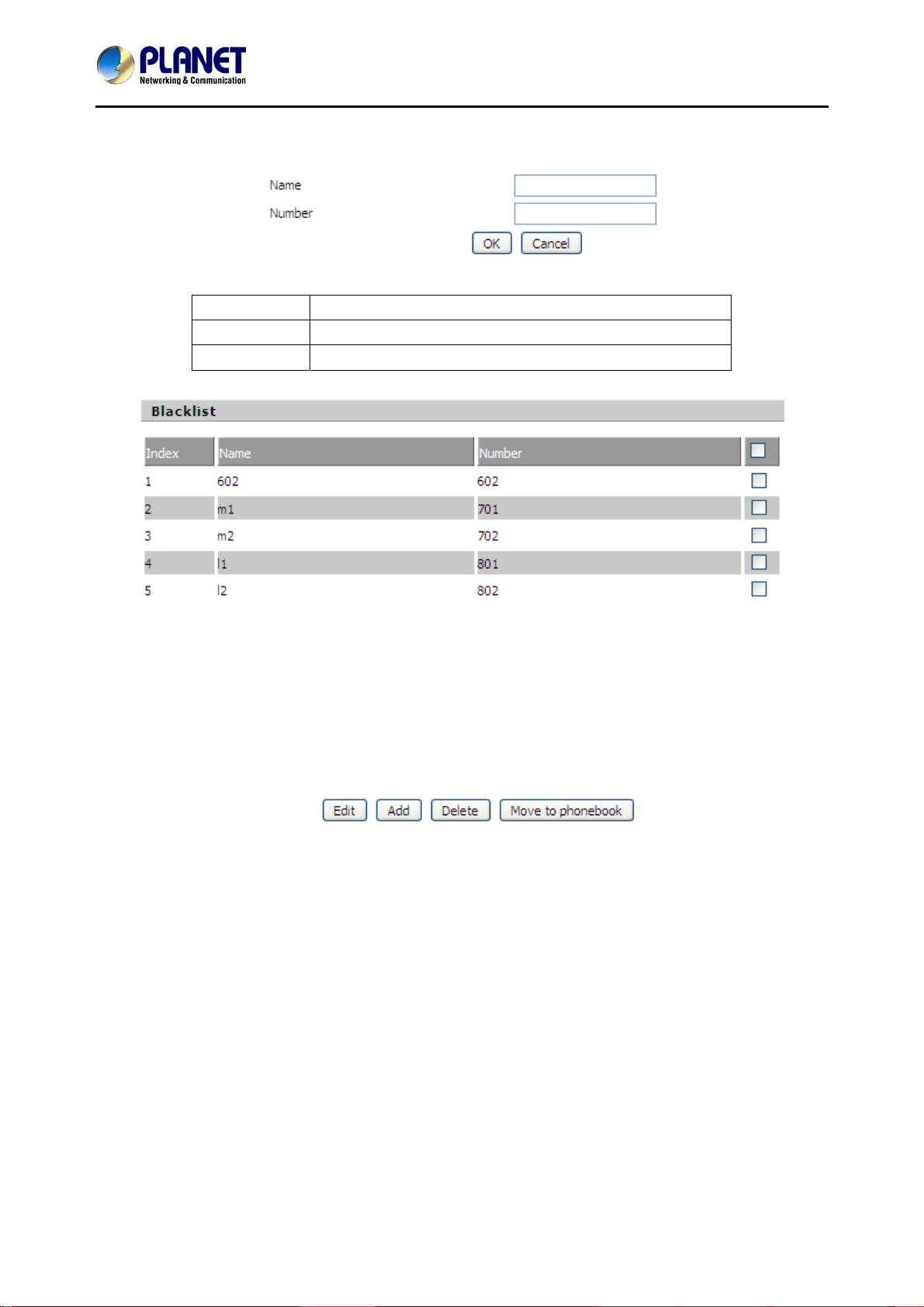
2) Blacklist
High Definition PoE/Non-PoE IP Phone
VIP-1000PT/VIP-1000T
Field Name Description
Name Input the name.
Number Input the number.
Add one Blacklist:
x Click the Add button and the configuration table like picture 1 will appear;
x Fill in the value of parameters;
x Press the OK button to end configuration;
x Press the save button to submit change and reboot VIP-1000 Series to make your change
effective.
Edit one Blacklist:
x Choose one blacklist;
x Click the Edit button and the configuration table like picture 3 will appear;
x Change the value of parameters;
x Press the OK button to end edit and press save to submit your change, and reboot VIP-1000
Series.
- 43 -
Page 44
High Definition PoE/Non-PoE IP Phone
VIP-1000PT/VIP-1000T
Delete one Blacklist:
x Choose one blacklist;
x Click the Delete button to delete the blacklist;
x Press the Save button to submit your change and reboot the phone to make your change
effective.
Move one blacklist to phonebook:
x Choose one blacklist;
x Click the move to phonebook button to move the blacklist to the phonebook.
x Press the Save button to submit your change and reboot the phone to make your change
effective.
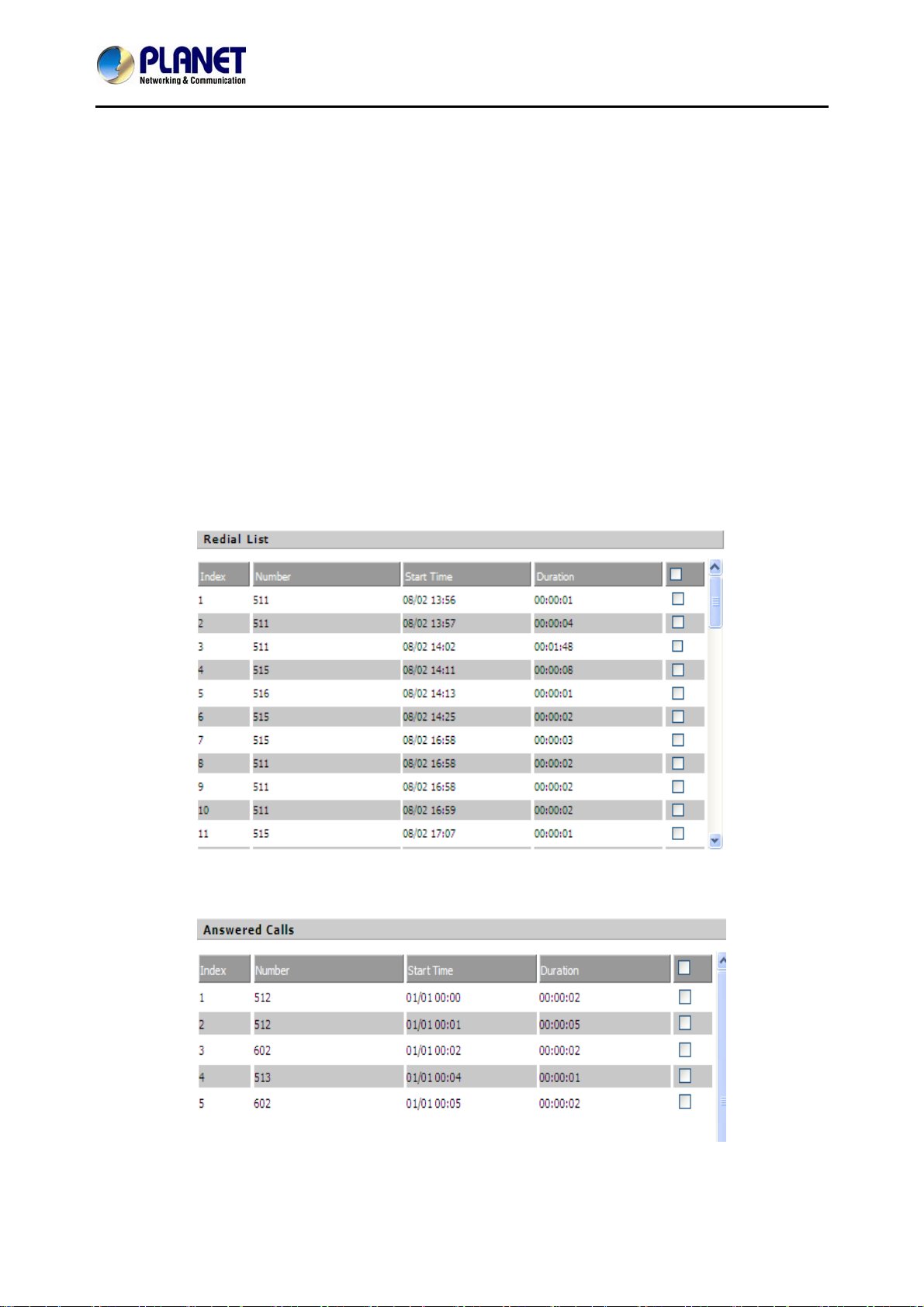
4.4.5 Call Log
To view the call log information such as redial list (incoming calls), answered calls and missed calls.
1)Redial List
2) Answered Calls
- 44 -
Page 45

3) Missed Calls
High Definition PoE/Non-PoE IP Phone
VIP-1000PT/VIP-1000T
- 45 -
Page 46
High Definition PoE/Non-PoE IP Phone
VIP-1000PT/VIP-1000T
4.5 Administration
User can manage VIP-1000 Series on these six webpages; you can configure the Time/Date,
password, web access, system log and so on.
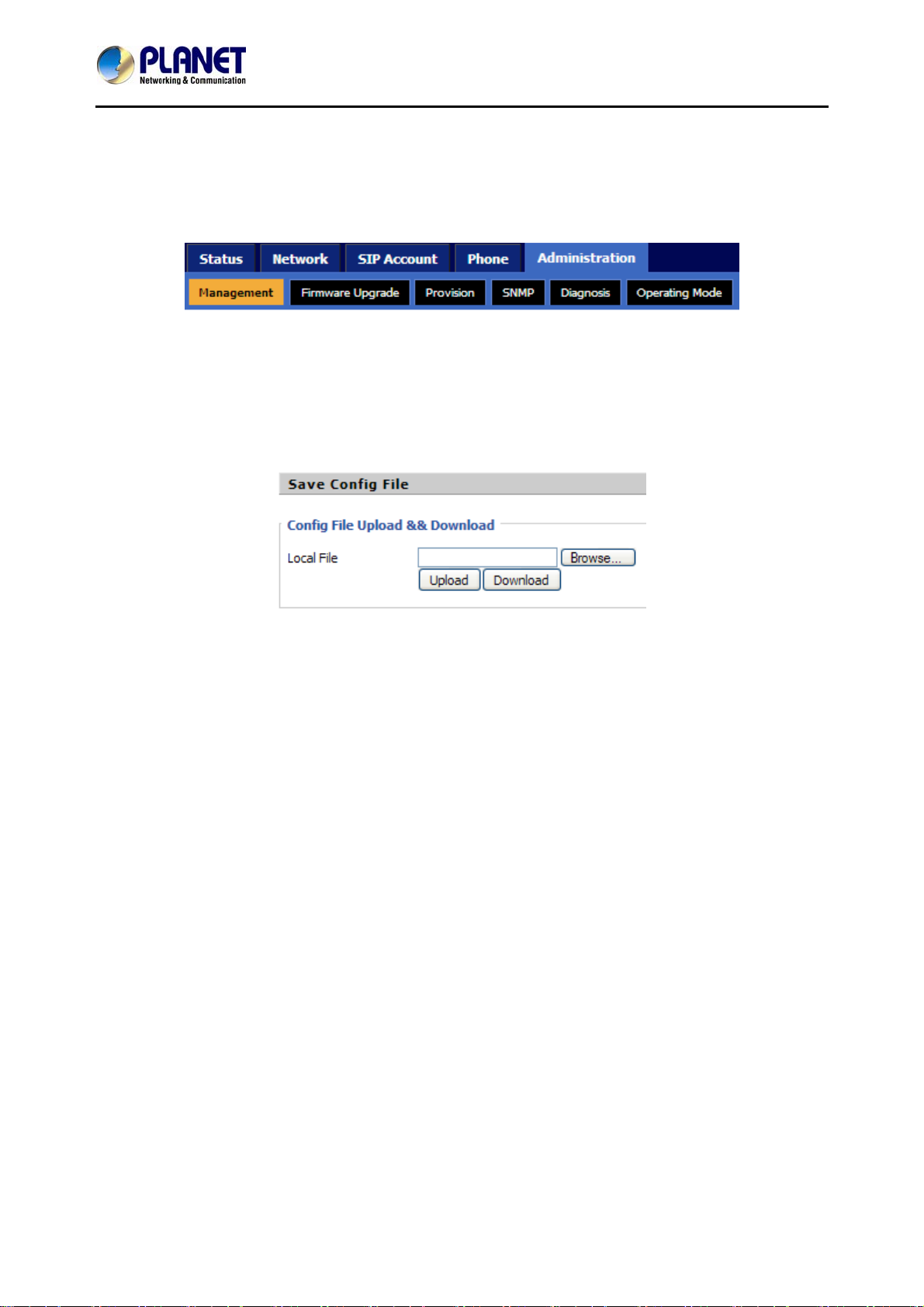
4.5.1 Management
On this page, you can configure the value of Time/Date, Password, Factory Defaults and so on.
1) Save File Config File Upload & Download
User can upload and download configuration file on the webpage.
z Upload: First press Browse and choose your file in your computer; press Upload to begin
uploading the configuration file.
z Download: First press Download and choose where to put the configuration file.
- 46 -
Page 47
High Definition PoE/Non-PoE IP Phone
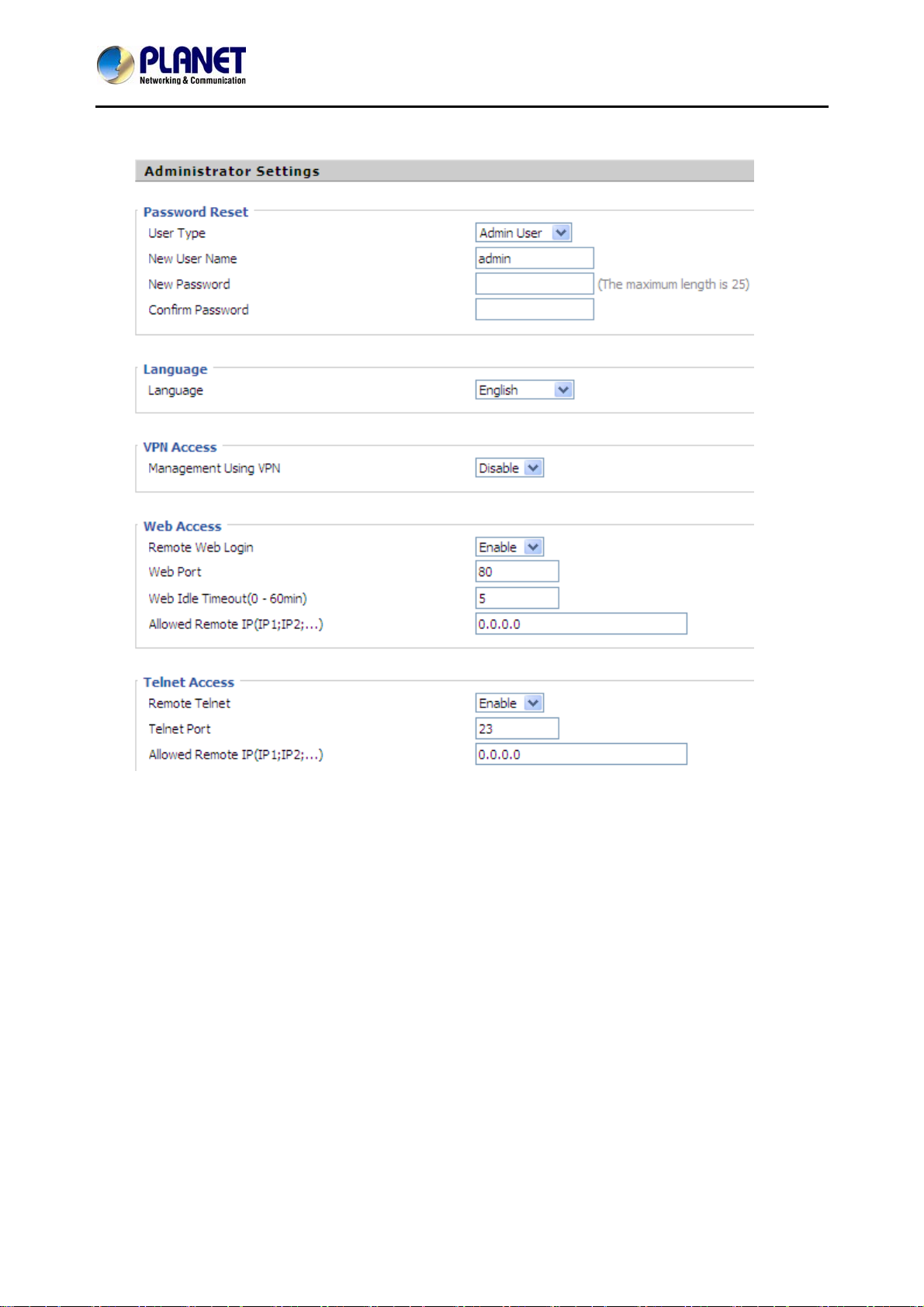
2) Administrator Settings
VIP-1000PT/VIP-1000T
User can change VIP-1000 Series' password, language and Web Access on this webpage.
Password Reset:
x Choose your type between Normal User and Admin User in User Type;
x Set your user name in New User Name;
x Set your new password in New password;
x Fill in your new password again in Confirm Password.
Language:
Choose your language: English, Russian, Spanish or other.
VPN Access:
Select management use VPN or not
Web Access:
x Remote Web Login: If enabled, user can access Web.
x Web Port: Set the port which is used to log in Web via Internet port and PC port; the default is 80,
- 47 -
Page 48
High Definition PoE/Non-PoE IP Phone
VIP-1000PT/VIP-1000T
if you enable this. You must add: 80 in the URL.
x Web Idle Timeout: Set the Web Idle timeout time.
The webpage can be logged out after Web Idle Timeout without any operation.
x Allowed Remote IP: Limit remote client access to VIP-1000 Series via Web. 0.0.0.0 means no
limit.
T elnet Access:
x Limit remote client access to VIP-1000 Series via Telnet. 0.0.0.0 means no limit.
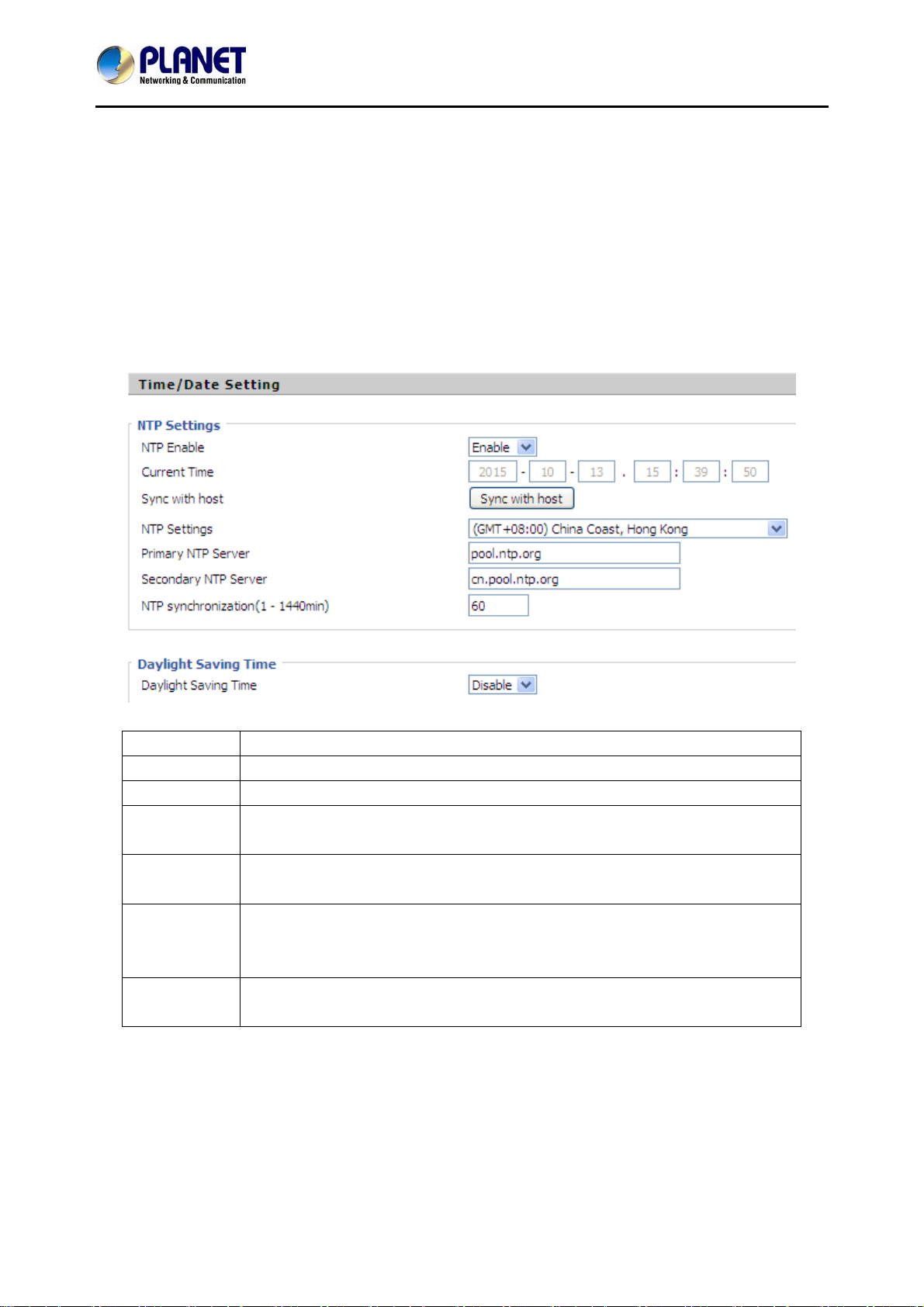
3) Time/Date Setting
Field Name Description
Current Time Display the current time.
NTP Settings Choose NTP
Primary NTP
Sever
Secondary
NTP Server
NTP
synchronizati
on(1-1440m)
Daylight
Saving Time
Fill in the primary NTP server IP address or Domain name.
Fill in the secondary NTP sever IP address or Domain name.
The synchronization period with NTP; fill in the blank from 1 to 1440
minutes. The default value is 60 minutes.
Enable Daylight Saving Time or not.
- 48 -
Page 49
High Definition PoE/Non-PoE IP Phone
VIP-1000PT/VIP-1000T
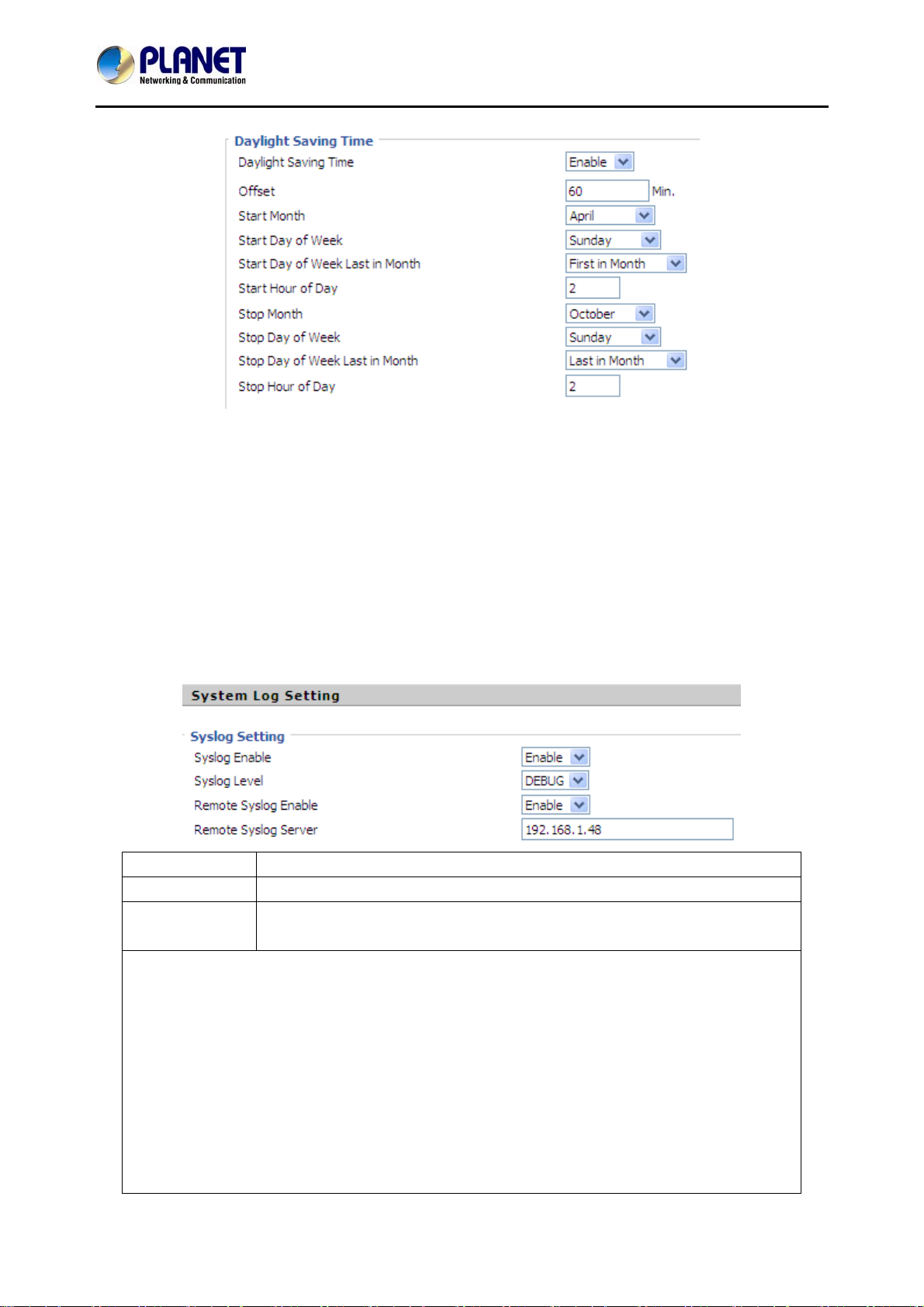
Setup Steps:
x Enable Daylight Saving Time;
x Set value of offset, just like picture 2;
x Set Starting Month/Week/Day/Hour in Start Month/Start Day of Week and last in Month/Start
Hour of Day. Set stop Month/Week/Day/Hour in Stop Month/Stop Day of Week and last in
Month/Stop Day of Week/Stop Hour of Day, just like in picture 2.
x Press the Save button to save your changes and press the Reboot button to activate the
changes.
4) System Log Setting
Field Name Description
Syslog Enable Enable system log or not.
Syslog Level Choose log level between Info and Debug. Debug has priority to Info, the
higher priority and more information in Syslog.
VIP-1000 Series supports local and remote syslog.
In local:
x Disable Remote Syslog and choose one system log level, just like in picture 1.
x Press the Save button to save and press the Reboot button to activate changes.
x User can view syslog on the Status/Syslog webpage.
In remote:
x Enable Remote Syslog and fill in Remote Syslog Server IP address or domain name;
x Choose one kind of Log Level;
x Press the Save button to submit your changes and press the Reboot button to activate
the changes.
- 49 -
Page 50
High Definition PoE/Non-PoE IP Phone
VIP-1000PT/VIP-1000T
x User can view syslog in remote server, and he/she can view the syslog in Status/Syslog
webpage, too.
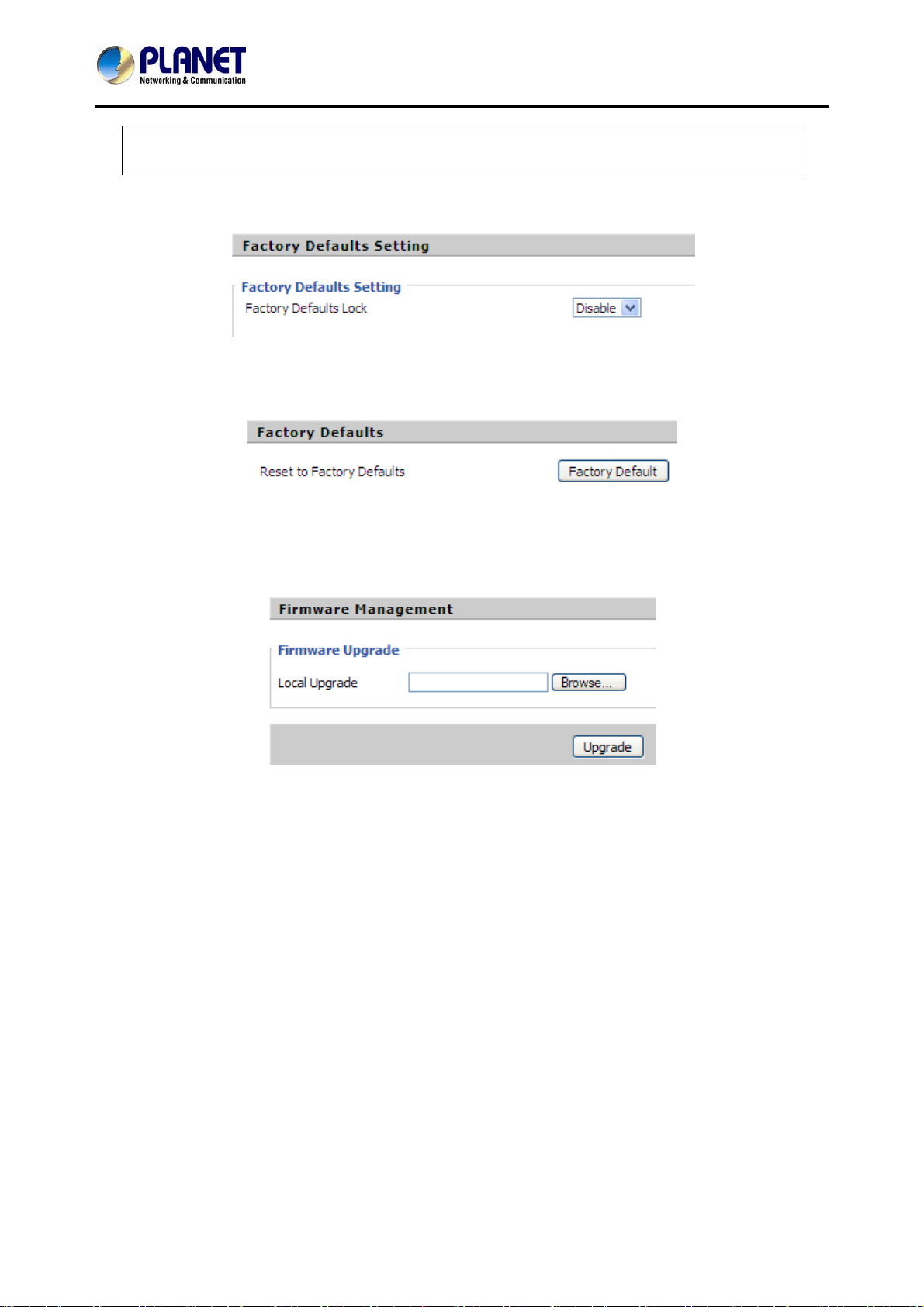
5) Factory Default Setting
Select enable or disable lock default function.
6) Factory Defaults
Press the Reset Factory Default button to make VIP-1000 Series default.
4.5.2 Firmware Upgrade
Steps:
x Press Browse to browse the upgrade file;
x Press the Upgrade button to start upgrading;
x Log in web and then check whether the firmware is well upgraded by viewing the firmware
version on the Status/Basic webpage.
4.5.3 Provision
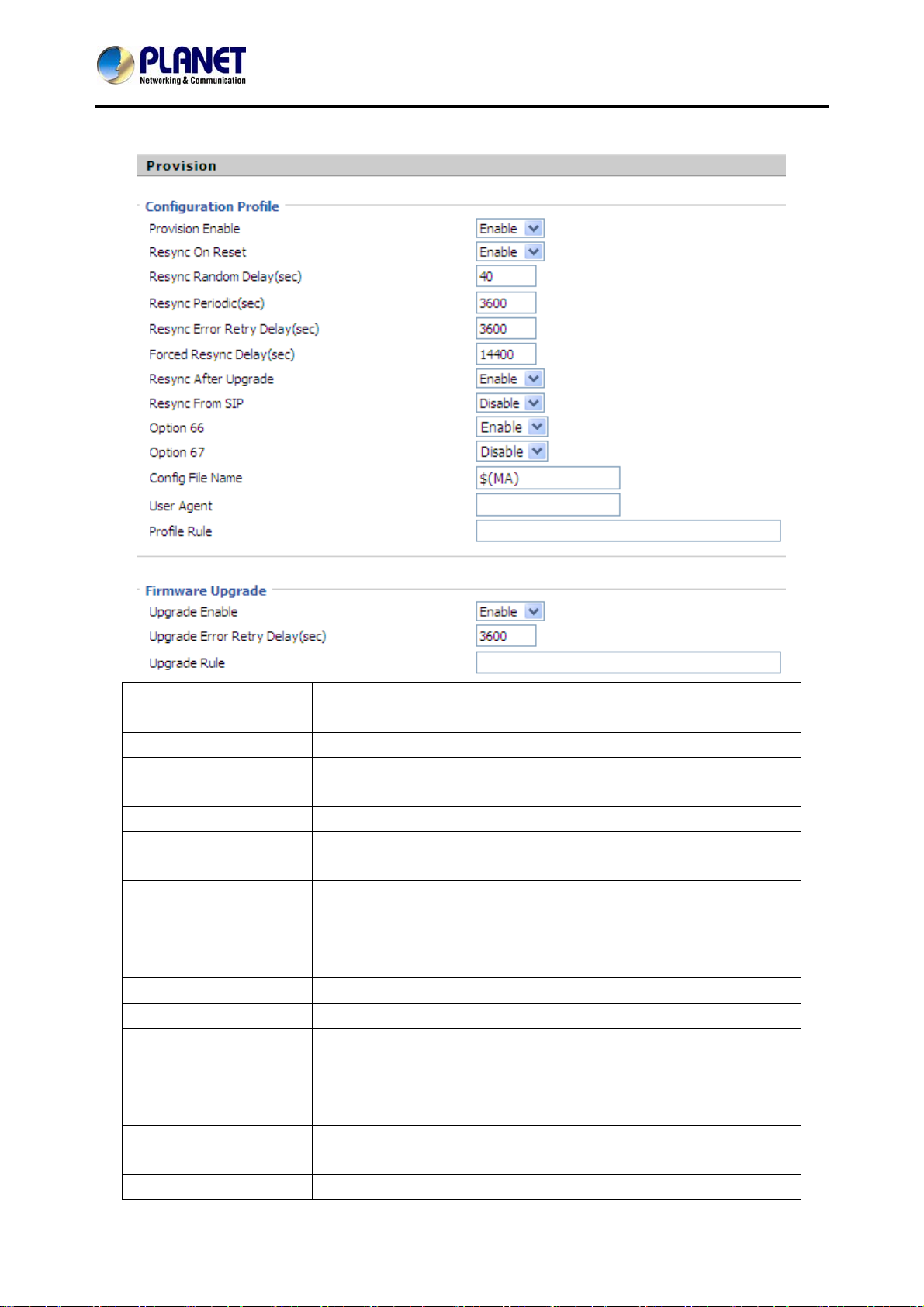
1) Provisioning allows VIP-1000 Series to realize auto-upgrading and auto-configuration.
2) VIP-1000 Series supports 3 ways to provision: TFTP, HTTP and HTTPS.
z Before testing or using TFTP, user should have TFTP Server and upgraded file and configuration
file.
z Before testing or using HTTP, user should have HTTP server and upgraded file and
configuration file.
z Before testing and using HTTPS, user should have HTTPS Server and upgraded file and
configuration file. What's more, user should have CA Certificate (should be the same as HTTPS
Server's), Client Certificate file and Private Key file.
3) User can upload CA Certificate file, Client Certificate file and Private Key file on the Equipment
- 50 -
Page 51
High Definition PoE/Non-PoE IP Phone
Management/Cert Manage page.
VIP-1000PT/VIP-1000T
Field Name Description
Provision Enable Enable provision or not.
Resync On Reset Enable resync or not.
Resync Random Delay
Set the maximum delay for request for the synchronization file.
(sec)
Resync Period (sec) Set the period time for resync; default is 3600s.
Resync Error Retry
Delay(sec)
Forced Resync Delay
(sec)
If the last resync fails, VIP-1000 Series will retry resync after the
'Resync Error Retry Delay' time; default is 3600s.
If it's time to resync, but VIP-1000 Series is busy now, in this case,
VIP-1000 Series will wait for a period of time; the longest is
14400s. When the time is out, VIP-1000 Series will be forced to
resync.
Option 66 Enable option 66 or not.
Option 67 Enable option 67 or not.
Config File Name Fill in the configuration file name. Configuration File Name is used
for in-house provision mode only. When using TFTP with option
66 to realize provisioning, user must input the right configuration
file name on VIP-1000 Series' webpage.
User Agent The User Agent defines user agent behavior in the course of
client provisioning.
Profile Rule Fill in the URL of your configuration file.
- 51 -
Page 52
High Definition PoE/Non-PoE IP Phone
Field Name Description
Upgrade Enable Enable Upgrade or not.
Upgrade Error Retry
Delay(sec)
Upgrade Rule Fill in the URL of the upgraded file.
Set the time to retry upgrade, effective when the last upgrade
failed.
4.5.4 SNMP
VIP-1000PT/VIP-1000T
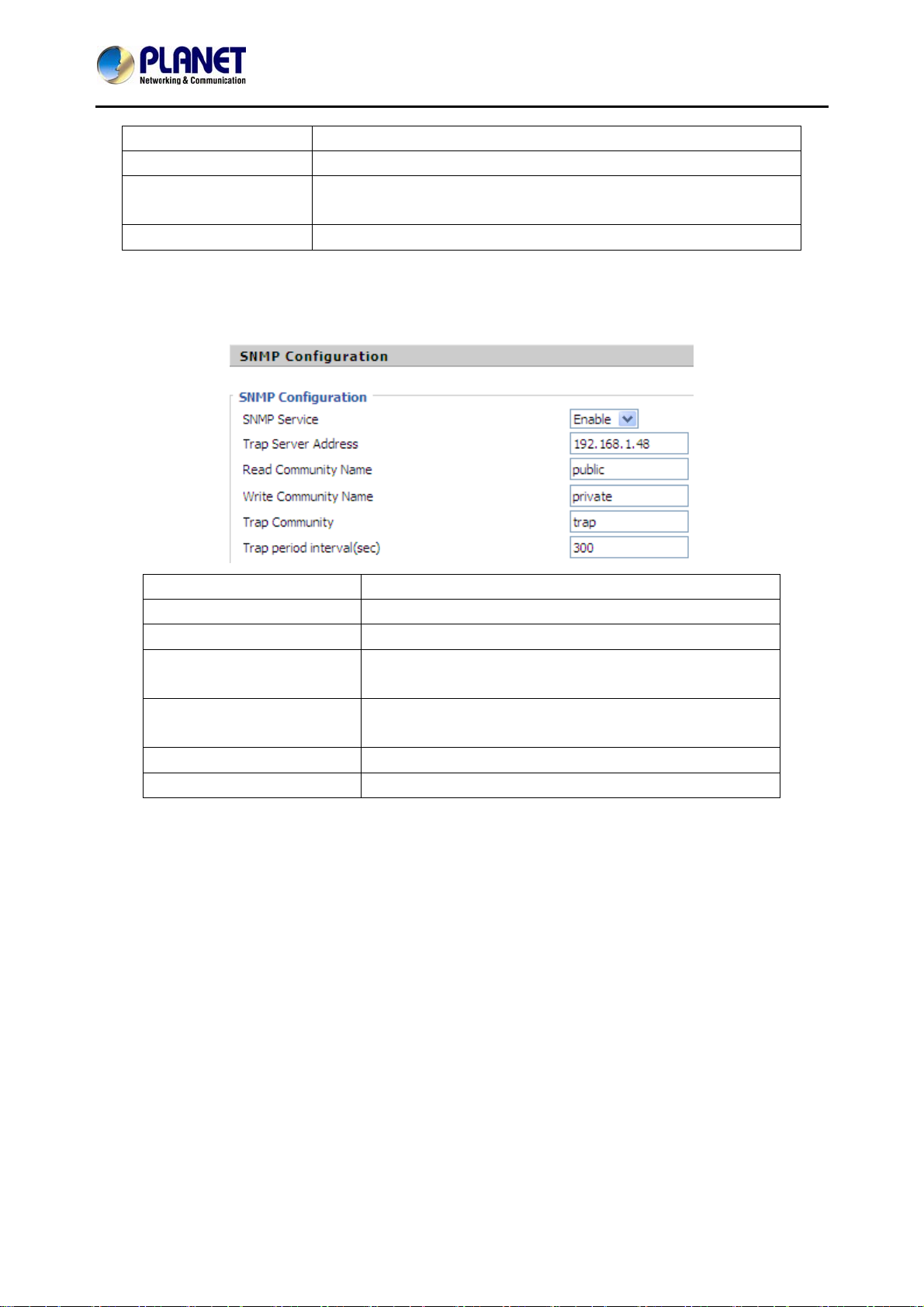
Field Name Description
SNMP Service Enable SNMP or not.
Trap Server Address Fill in the IP address or domain of trap server.
Read Community Name A string -- it is used an express password between
management process and the agent process.
Write Community Name A string -- it is used an express password between
management process and the agent process.
Trap Community The community code in Trap.
Trap period interval (sec) The interval period between traps.
- 52 -
Page 53
High Definition PoE/Non-PoE IP Phone
VIP-1000PT/VIP-1000T
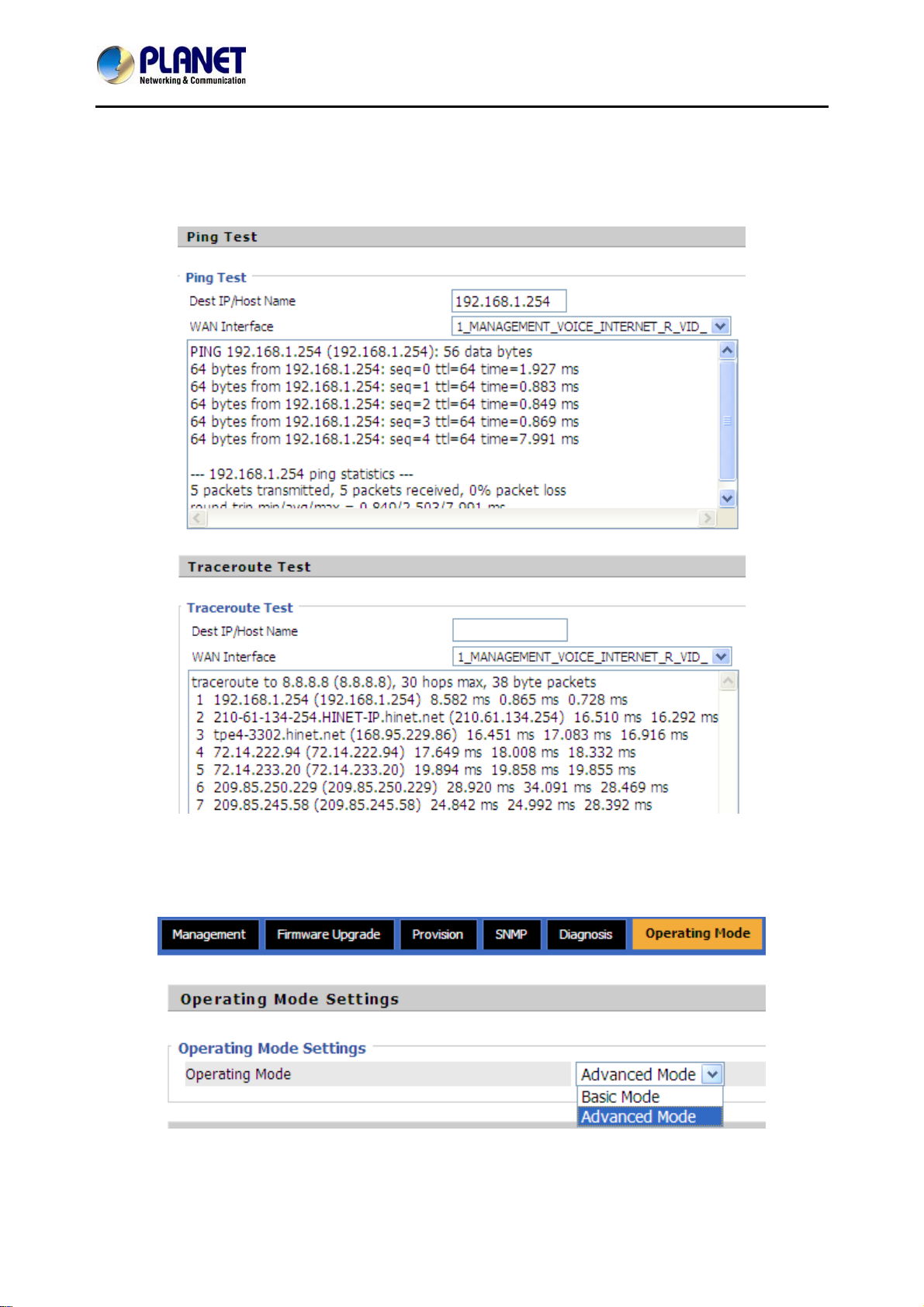
4.5.5 Diagnosis
The VIP-1000 Series provides two ways to check the issue of network, one is Ping Test and the other
is Traceroute Test.
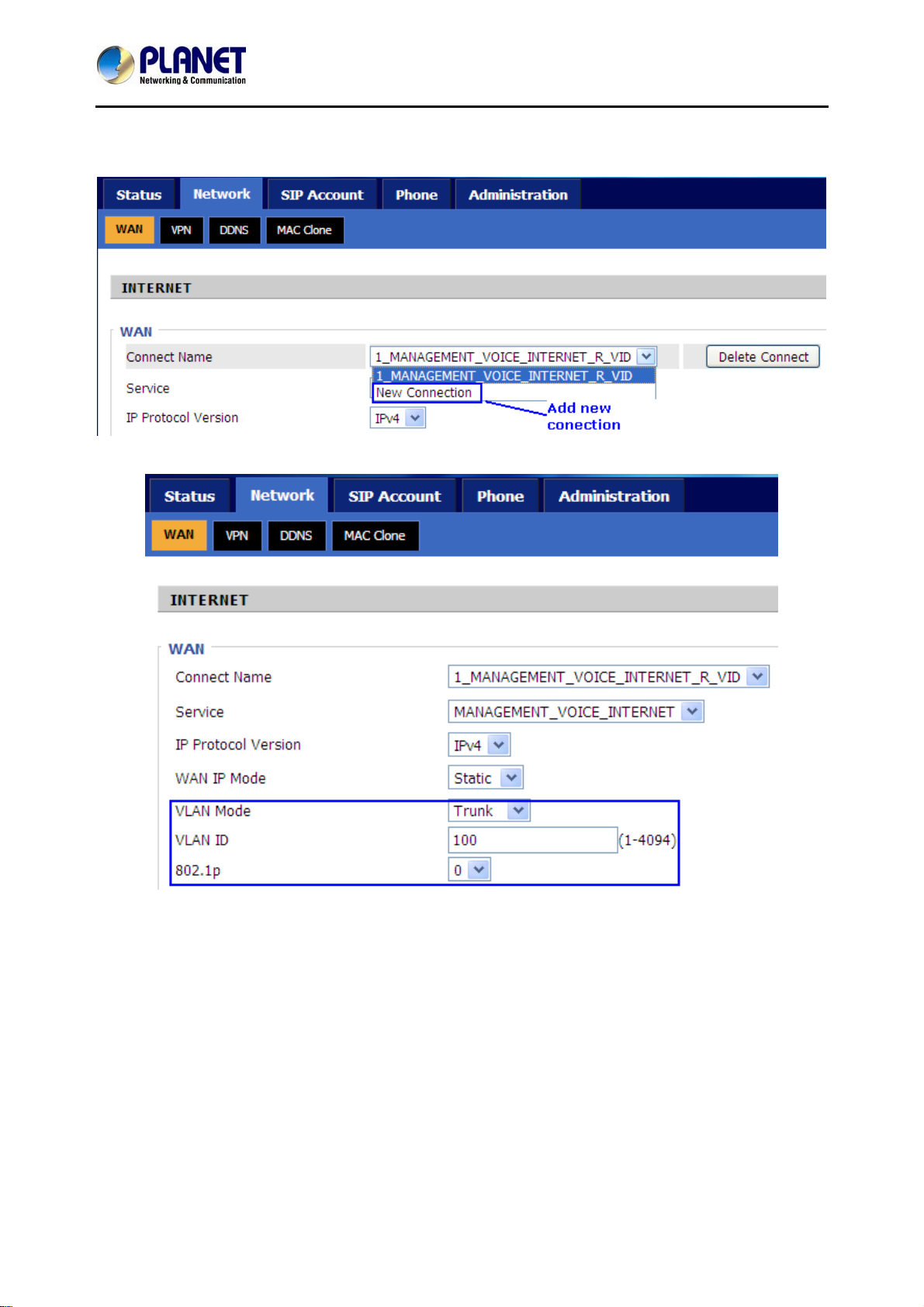
4.5.6 Operation Mode
There are two modes on this page: Basic Mode and Advanced Mode
- 53 -
Page 54
High Definition PoE/Non-PoE IP Phone
VIP-1000PT/VIP-1000T
The default is advanced mode. This mode provides multiple WAN and VLAN functions, otherwise,
basic mode does not support these functions.
- 54 -
Page 55

High Definition PoE/Non-PoE IP Phone
VIP-1000PT/VIP-1000T
Appendix A -- Frequently Asked Questions
Q1: No operation after powering on.
A1: Check if the power adapter is properly connected.
If applicable, check if the PoE (Power over Ethernet) switch behind the IP phone is set correctly.
Note only VIP-1000PT supports PoE function.
Q2: What’s the default setting?
A2: The default IP is 172.16.0.1; default username and password are admin and 123.
Q3: No Dial Tone?
A3: Check if the handset cord is properly connected.
Q4: Cannot Make a Call.
A4: Check the status of your SIP registration status or contact your administrator, supplier, or ITSP for
more information or assistance.
Q5: Cannot Receive Any Phone Call.
A5: Check the status of your SIP registration status, or contact your administrator, supplier, or ITSP for
more information or assistance
Q6: No voice during an active call.
A6: Check if the servers support the current audio codec type, or contact your administrator, supplier, or
ITSP for more information or assistance.
Q7: Cannot connect to the configuration Website.
A7: Check if the Ethernet cable is properly connected.
Check if the URL is correctly written. The format of URL is: http:// the Internet port IP address
Check if your firewall/NAT settings are correct.
Check if the version of IE is IE8, or use other browsers such as Firefox or Mozilla, or contact your
administrator, supplier, or ITSP for more information or assistance.
Q8: Forget the Password.
A8: Default password of website and menu is null.
If user changed the password and then forgot it, you cannot access the configuration website or the menu
items which need a password.
Solution:
Please perform factory default by IVR: Pick up the handset and press **** into IVR. Press 3 to perform
factory reset. The default password is admin (the key is 23646#). When done, please press 4 to perform
reboot, which also needs the password. When done, hang up the handset and VIP-1000 Series will restore
the default setting.
- 55 -
 Loading...