

Page 1
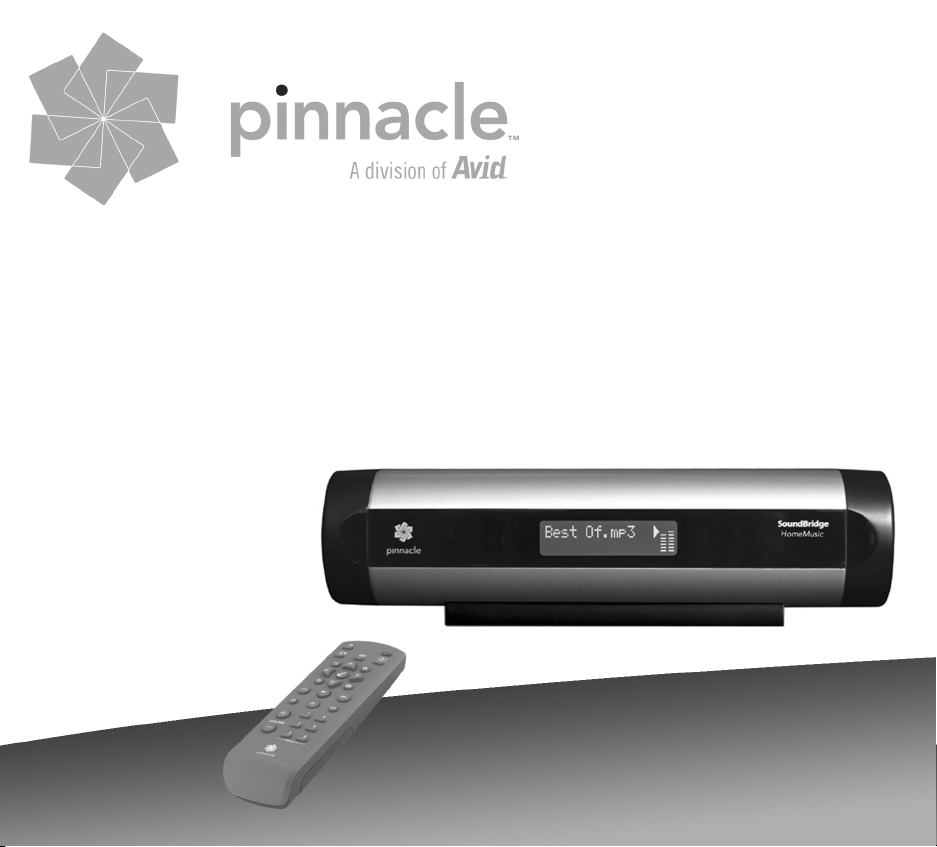
Powered by Roku
SoundBridge
HomeMusic
Instructions
Page 2

Table of Contents
Welcome.................................................................................................................................4
Downloading the Current Operating Manual...........................................................................4
Support ...................................................................................................................................4
INITIAL STEPS ..........................................................................................................................5
I. Music Server Software Requirements and Installation ............................................................6
What is "Music Server Software"? ..........................................................................................6
A. Instructions for installing Windows Media Player and enabling music sharing: ..................8
B. Installing the Firefly Media Server and enabling music sharing..........................................9
C. Instructions for installing Rhapsody and enabling music sharing .......................................9
D. Instructions for installing Musicmatch Jukebox and enabling music sharing ...................... 9
II. Connecting SoundBridge to an Audio Device ......................................................................10
1. … to a Stereo System.......................................................................................................10
2. … to Powered Speakers...................................................................................................10
3. … to Headphones.............................................................................................................10
III. Connecting SoundBridge to the Power Socket ...................................................................11
IV. Using the Remote Control................................................................................................... 12
V. Establishing a Network Connection .....................................................................................14
Unsecured Network ..............................................................................................................14
Secured Network ..................................................................................................................14
Personal Firewall ..................................................................................................................15
VI. Select Music Library............................................................................................................ 16
2
Page 3

VII. Internet Radio ....................................................................................................................18
Browsing Internet Radio Stations..........................................................................................19
Customizing Favorites and Presets for Internet Radio.......................................................... 20
Playing Stations Saved as “My Favorites” or “Presets”......................................................... 23
Playback Limitations of Internet Radio Streams ...................................................................23
Discovering More Internet Radio Stations ............................................................................24
VIII. Play back music from your SD Card ................................................................................. 24
APPENDIX 1: END USER SOFTWARE LICENCE AGREEMENT ..........................................25
Roku Software License.........................................................................................................25
Third Party License Information ............................................................................................26
APPENDIX 2: PROCEDURES AND SAFETY..........................................................................26
Important Safety Instructions ................................................................................................ 26
Comments on Copyright: ...................................................................................................... 28
Declaration of Conformity: ....................................................................................................28
3
Page 4

English
Welcome
Thank you for choosing SoundBridge HomeMusic! The development of this product was a lot
of fun for us, and we hope that you will have just as much fun in using it. With SoundBridge,
you can play back your digital music saved on your computer, an SD- or MMC-card any time
and in any room you want. SoundBridge also gives you access to over a thousand free
Internet radio stations.
We are continually working on improving the software. Your SoundBridge device has an
Upgrade menu option for automatically checking for and installing software updates. After you
have installed and set up SoundBridge, use this option as quickly as possible to make sure
that you are using the most current version of the software. We also recommend that you
register your purchase at www.pinnaclesys.com so that we can let you know when new
upgrades are available. Have fun!
Register your SoundBridge! It is quick and easy and lets you download the latest software
updates for your SoundBridge. Of course, your personal information will be kept confidential
and will not be shared with any third party.
Downloading the Current Operating Manual
From our web site www.pinnaclesys.com/soundbridge you can download any time the updated
operating manual for the latest software version.
Support
If you need help with your SoundBridge, please check www.pinnaclesys.com.
4
Page 5

INITIAL STEPS
To be able to use your SoundBridge, the following requirements must be met:
1. Compatible music server software must be installed. Compatible music server software is
contained in Windows Media Player 11 (or higher), Rhapsody, Musicmatch and other
programs. If you are using iTunes, please install the Firefly Media Server from the
installation CD included in the package or download the latest version from
www.fireflymediaserver.com.
2. If SoundBridge is to be connected to a wireless network which uses either WEP or WPA
encryption, the WEP or WPA password needs to be entered here using the remote
control.
3. SoundBridge needs to be connected to powered speakers, a hi-fi receiver, an amplifier, or
headphones.
4. The power unit needs to be connected to SoundBridge and to the power supply system
(there is no On / Off switch).
5. The batteries must be inserted into the remote control.
6. Music sharing must be enabled in the music server software:
a. Windows Media Player: Add SoundBrid
b. Firefly Media Server: Always enabled.
c. Real Networks Rhapsody (this service is not yet available in Europe): Select
"Enable Music Server" and "UPnP" in the menu Options –> Settings.
7. A music library must be selected and connected.
8. An internet connection must be available in order to access Internet radio stations.
ge to the list of authorized devices.
5
Page 6

I. Music Server Software Requirements and Installation
SoundBridge has been developed as a playback client for several different music libraries, for
example, Windows Media Player (version 11 or higher), Rhapsody, Musicmatch and iTunes.
SoundBridge also plays back WMA and DRM WMA (copy-protected files). These types of files
can be purchased online from many providers. (Note: Apple policies forbid SoundBridge from
supporting protected AAC files.)
What is "Music Server Software"?
SoundBridge is a network – music – player. This means that it doesn't save music but plays
back files that are stored on your computer/music server on your home network. Alternatively,
SoundBridge HomeMusic can also play back audio files stored on an SD or MMC card.
(SoundBridge can play back Internet radio via a direct Internet connection without a computer
having to be connected.) In order to play back music stored on your computer, SoundBridge
must receive the music data from software that "serves" the data to SoundBridge. This kind of
"music server software" plays back the music on SoundBridge.
The "music server software" also sends title lists and enables search queries in the music
library.
Perhaps you already have music server software installed and haven't noticed. Microsoft has
developed its own music server software: Windows Media Connect, technology that is now
included in the Windows Media Player Version 11 and higher. There is no real standard for
music server software and therefore all the currently available programs have different
functions. One great advantage to SoundBridge is that all the popular programs are supported
by an easy to operate interface. The most popular music server applications are iTunes,
Windows Media Connect and Rhapsody. If you would like to use the PlaysForSure music
service, you need to use Windows Media Connect. If you would like to play back AAC files, you
need to use iTunes combined with the Firefly Media Server, and if you would like to use the
Rhapsody music service, you need to use the Rhapsody music server software (check the
availability of Real Networks Rhapsody in Europe under www.Rhapsody.com).
6
Page 7

Note: In order to play back Internet radio from the "Radio Favorites“ list, you don't need music
server software since SoundBridge receives the data directly from the Internet.
Music Server Software Recommended
for …
Windows Media Player
(UPnP Windows Media
DRM 10 protocols)
Firefly Media Server
(support for Roku server
protocol)
Rhapsody (proprietary
Rhapsody protocol)
Windows XP with
Service Pack 2
PC/Mac This high quality “open source” media server will
Rhapsody
subscribers
Note
Free music server software from Microsoft. For
Windows Media Player versions lower than 11, you
will need the free Windows Media Connect
software.
Supports the entire user interface incl. search and
browsing.
Supports: MP3, WMA, WMA DRM, WMA lossless
and playlists that have been created in Windows
Media Player.
serve music in many formats (WMA, MP3, AAC,
FLAC, Apple Lossless). It integrates directly with
iTunes and can share your iTunes music library,
or any music library. As with all non-Apple
products, it does NOT support protected AAC
files. It does not support protected WMA files. It
does support SoundBridge’s full Browse, Search
and Display feature set as well as playlists and
Smart Playlists created in iTunes.
Music server software that is required for the
Rhapsody music service.
7
Page 8

Music Server Software Recommended for
…
Musicmatch Jukebox
(UPnP AV protocol)
SoundBridge has two user interfaces. In order to use the entire SoundBridge user interface,
which offers a search function and many browsing options, you need to use the Firefly Media
Server or Windows Media Player 11 or higher.
The other programs do not have the entire range of functions necessary to provide
SoundBridge the data for the user interface. For example, some music servers do not support
the search function.
Windows 98SE/
ME/XP/2000 (as of
Service Pack 3)
Note
Very popular music jukebox and music server
software with integrated UPnP AV server that is
supported by SoundBridge. Musicmatch can also
be used in combination with Windows Media
Connect – this extends the functionality.
Supports: MP3, WMA, WAV, WMA DRM only in
conjunction with Windows Media Connect.
A. Instructions for installing Windows Media Player and enabling music
sharing:
1. If it is not yet installed, download and install the free Windows XP Service Pack 2 from
Microsoft or use the Windows Updater to perform the update.
2. If it is not yet installed, download and install the latest version of the free Windows
Media Player from Microsoft or use the Windows Updater to perform the update.
Music sharing: To be able to play back the files from your computer, you first have to share
your Windows Media Player Libraries and add SoundBridge to the Windows Media Player list
of allowed devices. To do this, open the Windows Media Player. In the Tool menu, choose the
option Options. In the popup window, choose the tab Library. In the Library tab, choose
Configure Sharing. At this point, select the option Share my media and click OK. In the
Share my media to list, select SoundBridge and click Allow. Apply the settings you have
made and close the window.
8
Page 9

Note: If you are using Windows Media Player 10, you first have to install the free music server
software Windows Media Connect.
B. Installing the Firefly Media Server and enabling music sharing
1.
Download the Firefly Media Server from www.fireflymediaserver.com or install the
Firefly Media Server from the installation CD included in the package.
2. Continue with the menu item “Enable Firefly Media Server”.
Music sharing: It is not necessary to enable the Firefly Media Server for music sharing.
However, the program must be running to be able to play back music from your SoundBridge.
Note: If you are using Firefly Media Server to play back iTunes Musik libraries, make sure that
the Firefly Media Folder is identical with the iTunes Music Folder.
C. Instructions for installing Rhapsody and enabling music sharing
1.
If it is not yet installed, download and install the Real Networks Rhapsody client
(download from www.rhapsody.com)
2. Then follow the instructions in Section II (“Connecting the Hardware”)
Music sharing: Start the Rhapsody program. In the menu item OPTION, select the sub-item
USER SETTINGS and click the UPnP tab. Click START to start the UPnP server. The "Start
UPnP server once logged in" option automatically starts the UPnP music server as soon as
Rhapsody is opened.
D. Instructions for installing Musicmatch Jukebox and enabling music sharing
1.
If it is not yet installed, download and install the Musicmatch Jukebox from
www.musicmatch.com.
2. Then follow the instructions in Section II ("Connecting the Hardware“).
9
Page 10

II. Connecting SoundBridge to an Audio Device
A
There are several ways of establishing an audio connection to SoundBridge.
Computer with digital
music collection
Built-in Wi-Fi support
Powered speakers,
stereo system
or headphones
Network
ccess Point
Stereo output
1. … to a Stereo System
Connect the “Line Out” jack of your SoundBridge to the AUX jack or another "Line IN" jack of
your stereo system using the cinch (white/red) audio cable included in the package
2. … to Powered Speakers
Connect the “Line Out” jack of your SoundBridge to your powered speakers using the audio
cable included in the package (3.5 mm jack), or via the 3.5 mm audio connection on the
powered speakers
3. … to Headphones
Connect the headphones to the “headphone” jack of your SoundBridge
Connectors on the rear of SoundBridge:
10
Page 11

III. Connecting SoundBridge to the Power Socket
Insert the power plug into the SoundBridge socket; insert the other end into a power socket.
Note: SoundBridge does not have an On/Off switch. After you connect the power cable, you
see the welcome window for “SoundBridge” after a short time. If not, cancel the operation and
make sure the power supply is correctly connected at both ends.
11
Page 12

IV. Using the Remote Control
First insert the two batteries into the remote control. Then point the remote control at
SoundBridge (make sure that the receiver is not covered).
Internet Radio
Stand By
reserved for
future use
Adjust Display
Exit
Left / Right
Add
Play
Shuffle
Pause
Volume
Music Library
Home
Select
Browse
Up / Down
Next / Previous Track
Repeat
Presets
12
Page 13

Remote Control Functions
Button Function
Navigates through available selections in the list.
In writing mode: allows you to browse the different character sets and functions, like “OK”,
“delete” etc.
“FastBrowse.” When browsing for an artist alphabetically, you skip from one letter of the
alphabet to another.
In writing mode: allows you to browse inside a character set.
Selects any item shown on the SoundBridge display. Pressing Select is like clicking your
1,2,3,4,5,6
mouse on a highlighted item.
Begins playing current selection.
Pauses currently playing song.
Adds current selection to your Song Queue.
Takes you to the Home Menu.
Browse through songs by title, artist, album, composer or genre.
Takes you one step backward and works like the Back button on your Internet browser.
Pressing Exit repeatedly displays information about the song currently playing.
Puts SoundBridge in standby mode.
Adjusts brightness and contrast of the display when used with Up/Down and Left/Right
buttons.
Moves you forward or backward in your Song Queue, one song at a time.
Plays Song Queue in random order.
Continuously plays back your Song Queue.
Plays back the last accessed internet radio station.
Opens the last accessed music server.
Let you access the preset internet radio stations on your SoundBridge.
Press a button once to play back the respective preset station A, press two times for the
respective preset station B and press tree times for the respective preset station C.
13
Page 14

V. Establishing a Network Connection
The connection can only be made via a router or access point (network mode).
Unsecured Network
If your home network is a wireless network and neither a WEP nor a WPA security key has
been set, the connection to your wireless network is established automatically.
If there are more than one unsecured wireless networks available, SoundBridge will establish a
connection to the unsecured network with an installed and enabled music server.
To make sure you are connected to the right network do the following:
1. Navigate to the menu option Configure
2. Use the [
3. Choose the name of your network from the list or enter the SSID.
4. For the question Password?, choose the option no.
The SoundBridge reboots.
Secured Network
If you have a security key, you need to manually enter either your WEP or your WPA key into
SoundBridge. This is the same key that you entered in your access point and your computer.
Your display should show something similar to the following:
No music library (why?)
Configuration
Use the [ ] button to move the contents of the window on the screen upwards until the option
Configuration is highlighted and then press [
is then displayed:
Version Info
Upgrade
Wi-Fi Setup
Wi-Fi Status
Net Control
Reset to Factory Settings
Restart Soundbridge
Exit
] buttons to scroll to the option Wi-Fi Setup
] on the remote control. The following screen
14
Page 15

Go down to Wi-Fi Setup and select the name and password of your wireless network.
To enter the password use the [
options: delete, space, OK and the [
] buttons to browse the different character sets and the
] buttons to browse inside a character set.
Personal Firewall
If you have problems establishing a connection and a firewall is installed on your computer, the
firewall must be configured in such a way that your music server can access and play back
your audio files.
15
Page 16

VI. Select Music Library
g
Once SoundBridge is successfully connected to your network and your server’s music sharing
options are enabled, SoundBridge will automatically find any supported music libraries on the
network. You will be prompted to choose the library you would like to access from a screen
that looks something like the one on the left:
Play Dan’s Music
Play Joe’s Music
Internet Radio
uration
Confi
Playlists
Browse
Search
Play Preset
Song Que
Now Playing
Settings
Library / Config
Navigate to your preferred library (in this example, “Joe’s Music”) and press [ ]. You will then
see the Home Menu (see above at right), where you can begin browsing and playing your
music.
To change to a different library, or to play Internet radio, select the Library/Config option
“Home” Menu
located at the bottom of the SoundBridge Home Menu (accessible by pressing the [
button).
Hint: SoundBridge will automatically connect to the last library you were connected to
when awakened from Standby. Use the Library/Config option to select a different
library.
]
16
Page 17

Remote Control Quick Reference
Use these commands on your remote control to select and play music:
• Use the [
] Select button to take you one level down into the highlighted item (think of it as double-
[
clicking a selected item).
• Use the [
skipping to the next or previous letter of the alphabet, or if your list is not arranged
alphabetically, by about 5% of your list at a time. Then use the [
an item to play.
• Use the [
button on your Internet browser. (Pressing [
screen, with information about the song currently playing.)
• The [
playback.
• When you find a selection you want to play, you can use the [
the [
• The [
Song Queue (or Internet Radio menu) one song at a time.
• Press the [
] Up and Down arrow buttons to take you through a list item by item. Use the
] Left and Right arrow buttons to “fast browse” a list of music options by
] Select button to choose
] Exit button to go one step backward while browsing, much like the Back
] repeatedly displays the Now Playing
] Pause button pauses playback of audio currently playing; pressing again resumes
] Play button to play it, or
] Add button to add your current selection to the end of your Song Queue.
] Next Track and Previous Track buttons advance or retreat playback of your
] Home Menu button at any point to return to the beginning menu.
17
Page 18

VII. Internet Radio
You can listen to Internet radio in one of two ways. First, you can listen to SoundBridge’s builtin set of radio stations located in the Internet Radio Library. Your computer does not need to
be on - all you need is an active Internet connection on your home network. Second, you can
enter a URL of a radio station playlist on the Internet Radio tab of the SoundBridge web page.
You can access the SoundBridge web page by entering the IP address of your SoundBridge in
a web browser. To do this, open a web browser and type “http://” followed by the IP address of
your SoundBridge.
Note: to see the IP address of your SoundBridge, go to the menu option Configuration and
press [
address.
The easiest way to play Internet radio on SoundBridge is through the Internet Radio Library,
where you can access a large and growing number of Internet radio stations, browsable by
Name, Genre, Language, and Location. To navigate to the Internet Radio Library, follow
these steps:
1. Press [ ]. Navigate down to Library/Config and press [ ].
2. Your available music libraries will be displayed, including the one named Internet Radio.
3. Scroll to the station you want to play and press [
When the station is playing, the Now Playing screen looks similar to this:
]. Then navigate to the option Wi-Fi Status and press [ ]. Now scroll down to the IP
Select that library and you will see a list of Internet radio stations. These are your Presets,
and they are pre-loaded when your SoundBridge is first set up. See below under
“Customizing Favorites and Presets for Internet Radio” for more information on how to edit
these Presets.
]. (Alternatively, you can press [ ] and
choose Get Station Info to view the genre/format of the station, its language and location
and the URL.)
Michelle Shocked — Black Widow
RadioParadise - http://www.radioparadise.com
18
Page 19

The song and artist information is provided by each Internet radio station. Therefore, it may not
be available for every Internet radio station, or it may look slightly different.
Browsing Internet Radio Stations
You can browse SoundBridge’s built-in stations by Name, Genre, Language or Location. From
anywhere in the Internet Radio Library, press [
My Favorites
Browse
Play Preset
Now Playing
Select Browse and choose the method of browsing that you prefer:
Browse Names
Browse Genres
Browse Locations (by country of origin)
Browse Languages
Hint: You can “Fast Browse” a list of results by pressing the [ ] arrows on your remote;
your results will skip to the next letter of the alphabet.
]. You will see the following options:
Choose your desired browse option and press [
hear and press [
] (or [ ] twice) to begin playback.
]. Scroll down to the station you would like to
19
Page 20

Customizing Favorites and Presets for Internet Radio
There are two ways to save Internet radio stations for easy playback.
The first way is to save the station as a Preset.
The easiest way for Windows users to save radio stations as presets is to use Roku Radio
Snooper. Roku Radio Snooper is an application for Windows that you run while listening to
Internet radio streams on your computer. During playback, Snooper will test the stream and if
it’s compatible, your SoundBridge allows you to set it as a preset radio station. The Roku
Radio Snooper web interface allows you to rename the Internet radio stations and to change
their place in the preset list.
Note: You can download the latest version of “Roku Radio Snooper” from our web site
www.pinnaclesys.com/soundbridge or install it from the installation CD that comes with your
SoundBridge.
Whether the station was found using the Roku Radio Snooper, by browsing SoundBridge’s
built-in Internet Radio Library, by playing it from music server on your computer, or by entering
it manually on the web page, it can be stored in a Preset slot and played back easily via the
Play Preset command.
The second way is to mark a station from the built-in Internet Radio Library as a favorite.
When a station is marked as a favorite, it appears in the My Favorites list in the Internet Radio
library, but does not use up one of the 18 Preset slots.
Note: If a station is saved as a Preset, then it is assumed to also be a “favorite”, and will
always appear at the front of the My Favorites list.
20
Page 21

There are several important differences between Presets and My Favorites:
Presets are accessible from any Library, while My Favorites only appear in the
Internet Radio Library.
My Favorites may only contain stations found by browsing the Internet Radio
Library. Presets may contain stations from the built-in library or entered via the
web page.
Presets can recall content other than Internet radio stations, like playlists or
selections that you have browsed to from SoundBridge (such as all songs by a
particular artist, etc). My Favorites include only Internet radio stations.
When displaying My Favorites, Internet radio station Presets are also included at
the beginning of the list.
Presets can be programmed and played from the preset web page. Presets can
be programmed as discrete commands on a custom remote control. (For more
information about customizing your remote for SoundBridge control and a pronto
CCF file, please visit the Support section of our web site.)
Save an Internet radio station to My Favorites:
1. From the Internet Radio Library, scroll down to the Browse menu item. Navigate to the
station you would like to save.
2. Press [
], then press the [ ] button to display these options:
Play [Station name]
Get Station Info
Add Station to My Favorites
3. Scroll down to the option Add Station to My Favorites and press [ ]. You will see the
message “Station added to your favorites”. Next time you view My Favorites, you will see
that station displayed in the list.
21
Page 22

You can also save a station to My Favorites while it is playing. Simply press [ ] to display
these options:
Get info for “[Station name]”
Play Preset…
Save Preset: [Station name]
Add to My Favorites
Stop
Screen Off
Select the option Add Station to My Favorites and press [ ].
Note: Only stations that you have accessed via the browse feature in the Internet Radio
Library can be saved to your Favorites. Stations that are played from a URL manually entered
as a Preset cannot be saved to your Favorites.
Save an Internet radio station to your Presets:
Play a radio station and press [
Get info for “[Station name]”
Play Preset… (this displays a list of your 18 presets)
Save Preset: [Station name]
Add to My Favorites
Stop
Screen Off
]. You will see the following list of options:
Select the option Save Preset: [Station name] and press [ ]. Scroll down to the position you
want to replace and press [
]. Next time you view Presets, you will see that station displayed
in the position you have chosen. You will also see Presets displayed first in the list of My
Favorites.
22
Page 23

Playing Stations Saved as “My Favorites” or “Presets”
From anywhere in the Internet Radio Library, press [ ]. Choose the My Favorites option.
You will see a list of your Internet radio Presets followed by your Favorites. Navigate to the
station you would like to play and press [
or Remove station from My Favorites.
]. You will have the option to play it, get station info,
You can also just press the [
Since there is no Song Queue when listening to Internet radio, this shortcut takes you directly
to My Favorites. If the currently-playing station appears in My Favorites, it will be marked with
the speaker icon.
To play your Presets, you can also choose the Play Preset option from the Home Menu of
any music library (not just the Internet Radio Library). Choose the station you would like to
play, then press [
].
] button on the Now Playing screen of an Internet radio station.
Playback Limitations of Internet Radio Streams
SoundBridge currently supports MP3 and WMA Internet radio stations. RealAudio and
AACplus stations are not supported at this time. However, stay tuned for additional formats
that may be supported in future software releases.
Unfortunately, there are few standards in Internet radio (especially for MP3 stations), and
sometimes a station will do something out of the ordinary that will prevent SoundBridge from
being able to play it. See our online document at www.rokulabs.com/support/internetradio.php
for more information.
23
Page 24

Discovering More Internet Radio Stations
Our online user forums have an active discussion dedicated to helping SoundBridge users find
good Internet radio stations in a variety of genres. Visit our Forums (accessible from
www.rokulabs.com/support) and look for the discussion topics related to Internet radio stations
if you would like to find more stations in a particular genre or would like to suggest a station or
offer help to others on this topic.
VIII. Play back music from your SD Card
The build in SD card slot allows you to even play back audio files saved on an SD card. Once
an SD card is inserted into the SD card slot, SoundBridge will automatically find this music
library.
Navigate to the SD card library and select it. You will then see the Home Menu, where you can
begin browsing and playing your music.
To change to a different library, or to play Internet radio, select the Library/Config option
located at the bottom of SoundBridge’s Home Menu (accessible by pressing the [
For further information on how to use the remote control while playing back audio files from an
SD card, refer to chapter VI of this manual, “Remote Control Quick Reference”
].
24
Page 25

APPENDIX 1: END USER SOFTWARE LICENCE AGREEMENT
IMPORTANT — READ CAREFULLY: By using the software in your SoundBridge, you agree to
be bound by the license terms and conditions below. If you do not agree to these terms and
conditions, you must immediately return your SoundBridge in its original condition and
packaging to the point of purchase for a refund of your purchase price (after inspection).
Roku Software License
Subject to these terms and conditions, ROKU grants you a non-exclusive license, with no right
to sublicense, to execute the software included with the SoundBridge or subsequently provided
to you by ROKU (together, the “Software”) on your SoundBridge solely for your personal use of
the intended features and functions of the SoundBridge. The license may be transferred only
with the transfer of the SoundBridge on which ROKU has installed the software; any transferee
will be subject to the terms and conditions of this license. This license will terminate
automatically, without notice, if you fail to comply with the terms and conditions, including the
restrictions, of this license.
ROKU and its licensors own and retain all proprietary rights, including all patent, copyright,
trade secret, trademark and other intellectual property rights, in and to the SoundBridge
Software. You acknowledge that the license granted above does not provide you with title to or
ownership of the Software, but only a right of limited use under these terms and conditions.
The Software embodies ROKU’s trade secrets and other proprietary information and materials.
Any attempt to modify, enhance, disassemble, decompile, reverse engineer or otherwise gain
access to the source code to the Software, to remove or unbundle the Software from the
SoundBridge, or to sublicense or distribute the Software is strictly prohibited, except as may be
otherwise agreed by ROKU in writing.
25
Page 26

Third Party License Information
Soundbridge includes AES code Copyright © 2003, Dr. Brian Gladman, Worcester, UK.
This product is protected by certain intellectual property rights of Microsoft Corporation. Use or
distribution of such technology outside of this product is prohibited without a license from
Microsoft or an authorized Microsoft subsidiary.
APPENDIX 2: PROCEDURES AND SAFETY
Important Safety Instructions
1. Read Instructions. All the safety and operating instructions should be read before the
product is operated.
2. Retain Instructions. The safety and operating instructions should be retained for future
reference.
3. Heed Warnings. All warnings on the product and in the operating instructions should be
adhered to.
4. Follow Instructions. All operating and use instructions should be followed.
5. Cleaning. Unplug this product from the wall outlet before cleaning. Do not use liquid
cleaners or aerosol cleaners. Use a damp cloth for cleaning.
6. Water and Moisture. To reduce the risk of fire or electric shock, do not expose this
appliance to rain or moisture. Apparatus shall not be exposed to dripping or splashing and
no objects filled with liquids, such as vases, shall be placed on the apparatus. Do not use
this product near water for example, near a bathtub, wash bowl, kitchen sink or laundry
tub; in a wet basement; or near a swimming pool; and the like.
7. Accessories. Do not place this product on an unstable cart, stand, tripod, bracket or table.
The product may fall, causing serious injury to a child or adult and serious damage to the
product. Use only with a cart, stand, tripod, bracket or table recommended by the
manufacturer, or sold with the product. Any mounting of the product should follow the
26
Page 27

manufacturer’s instructions, and should use a mounting accessory recommended by the
manufacturer. A product and cart combination should be moved with care. Quick stops,
excessive force and uneven surfaces may cause the product and cart combination to
overturn.
8. Power Sources. This product should be operated only from the type of power source
indicated on the marking label. If you are not sure of the type of power supply to your
home, consult your product dealer or local power company. For products intended to
operate from battery power, or other sources, refer to the operating instructions.
9. Grounding or Polarization. This product may be equipped with a polarized alternating-
current line plug (a plug having one blade wider than the other). This plug will fit into the
power outlet only one way. This is a safety feature. If you are unable to insert the plug fully
into the outlet, try reversing the plug. If the plug should still fail to fit, contact your electrician
to replace your obsolete outlet. Do not defeat the safety purpose of the polarized plug.
10. Power Cord Protection. Power-supply cords should be routed so that they are not likely to
be walked on or pinched by items placed upon or against them, paying particular attention
to cords at plugs, convenience receptacles and the point where they exit from the product.
11. Overloading. Do not overload wall outlets, extension cords or integral convenience
receptacles as this can result in a risk of fire or electric shock.
12. Object and Liquid Entry. Never push objects of any kind into this product through
openings as they may touch dangerous voltage points or short-out parts that could result in
a fire or electric shock. Never spill liquid of any kind on the product.
13. Servicing. Do not attempt to service this product yourself as opening or removing covers
may expose you to dangerous voltage or other hazards. Refer all servicing to qualified
service personnel.
14. Damage Requiring Service. Unplug this product from the wall outlet and refer servicing to
qualified service personnel under the following conditions:
– When the power-supply cord or plug is damaged,
– If liquid has been spilled or objects have fallen into the product,
27
Page 28

– If the product has been exposed to rain or water,
– If the product does not operate normally by following the operating instructions. Adjust only
those controls that are covered by the operating instructions as an improper adjustment of
other controls may result in damage and will often require extensive work by a qualified
technician to restore the product to its normal operation,
– If the product has been dropped or damaged in any way, and
– When the product exhibits a distinct change in performance, this indicates a need for
service.
15. Heat. The product should be situated away from heat sources such as radiators, heat
registers, stoves or other products (including amplifiers) that produce heat.
Comments on Copyright:
Intellectual property, including music, is subject to worldwide copyright protection. In most
countries, it is permitted to make personal copies of legally acquired sound media (for
example, CDs) or music files (for example, from the Internet). In any case, the following
applies: It is not permitted to sell or give these copies to a third party. Be careful when
downloading MP3 files from the Internet: Please make sure that the files are properly licensed,
in other words, that the supplier also has rights to the titles offered.
Declaration of Conformity:
Pinnacle Systems herewith declares that this device is in accordance with the basic
requirements and the other applicable regulations described in the Directive 89/336/EWG.
The declarations for EC and FCC conformity as well as the statement of type equality are
available at http://www.pinnaclesys.com/compliance.
28
 Loading...