

Page 1

ST50 series
M0212-0
Page 2
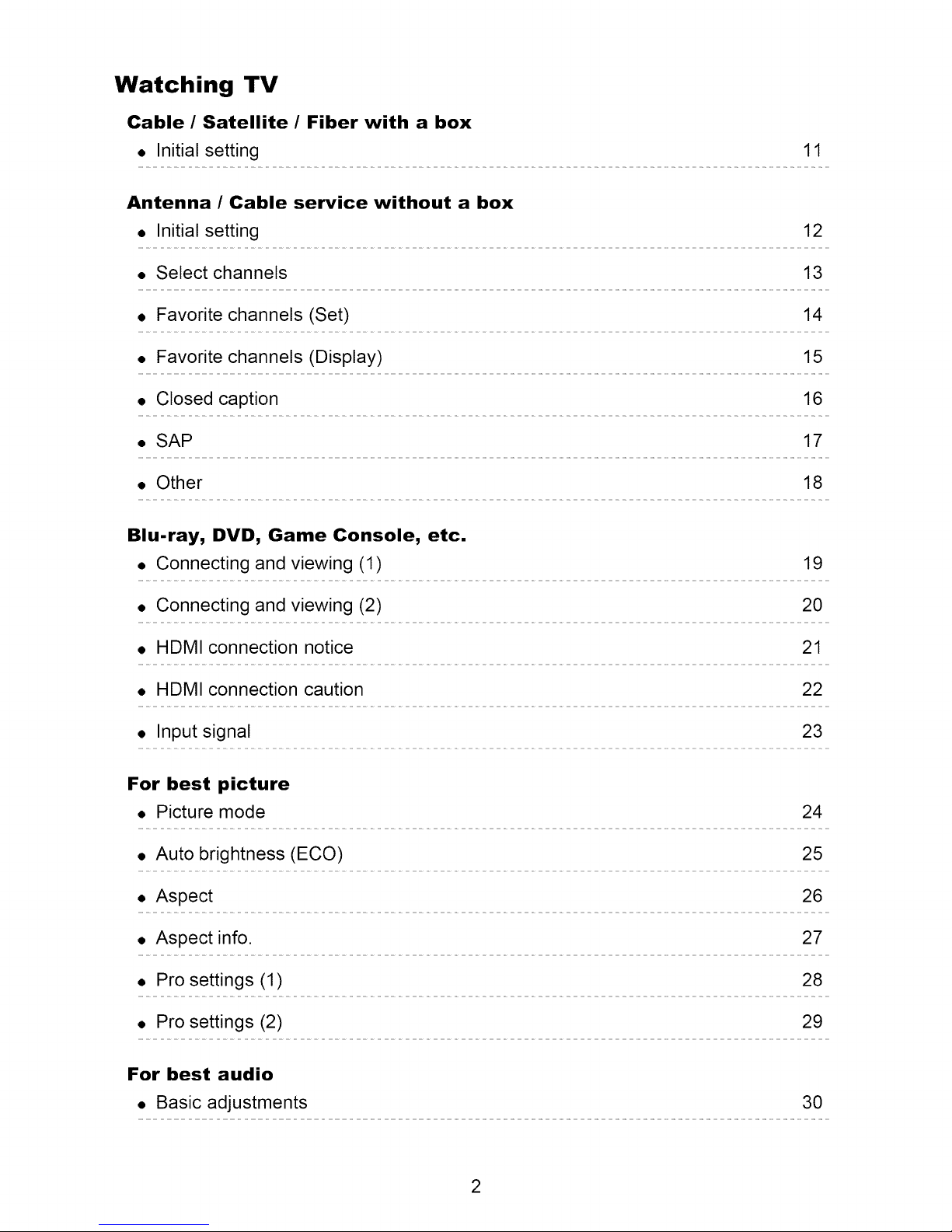
Watching TV
Cable / Satellite / Fiber with a box
• Initial setting 11
Antenna / Cable service without a box
• Initial setting 12
• Select channels 13
• Favorite channels (Set) 14
• Favorite channels (Display) 15
• Closed caption 16
• SAP 17
• Other 18
Blu-ray, DVD, Game Console, etc.
• Connecting and viewing (1) 19
• Connecting and viewing (2) 20
• HDMI connection notice 21
• HDMI connection caution 22
• Input signal 23
For best picture
• Picture mode 24
• Auto brightness (ECO) 25
• Aspect 26
• Aspect info. 27
• Pro settings (1) 28
• Pro settings (2) 29
For best audio
• Basic adjustments 30
2
Page 3
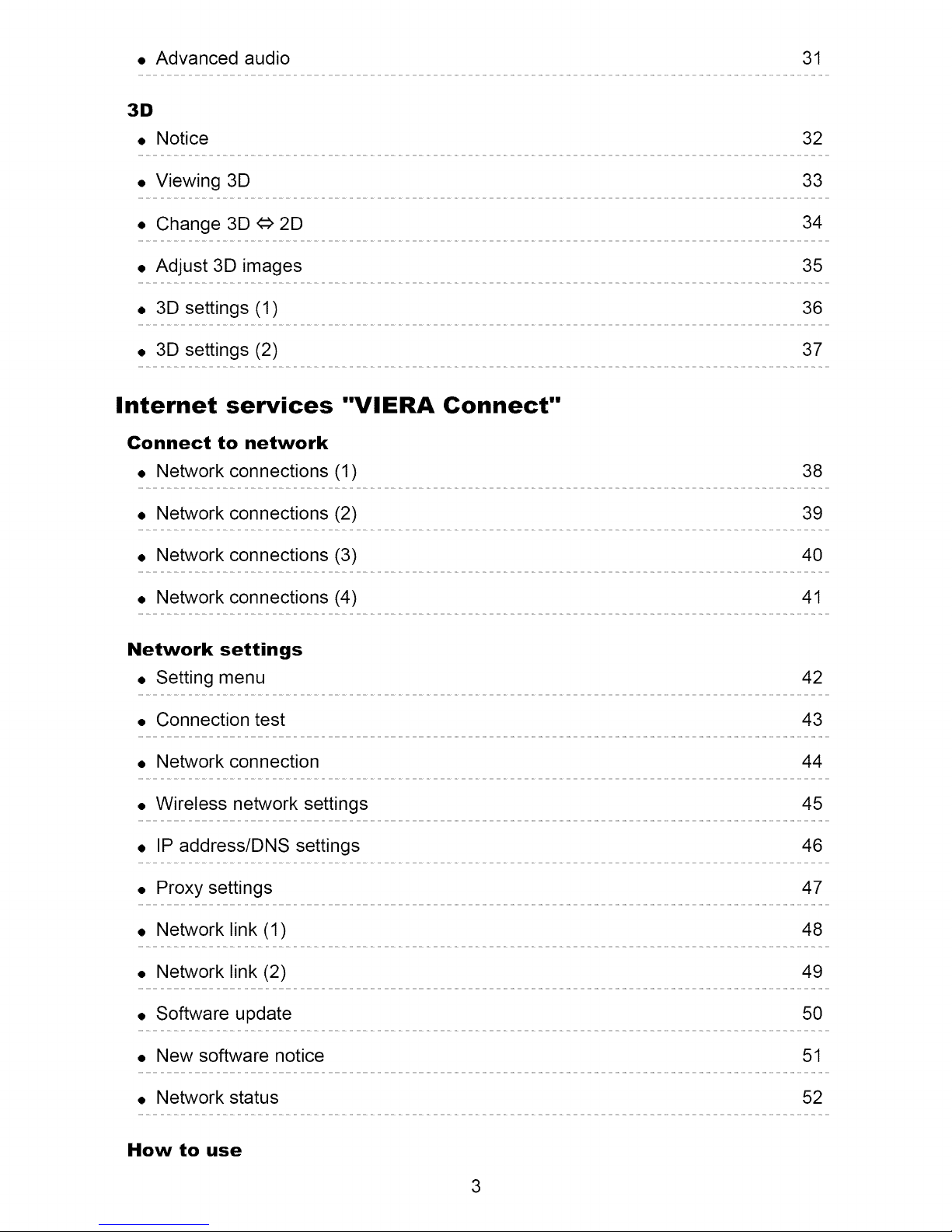
• Advanced audio 31
3D
• Notice 32
• Viewing 3D 33
• Change 3D 4=>2D 34
• Adjust 3D images 35
• 3D settings (1) 36
• 3D settings (2) 37
Internet services "VIERA Connect"
Connect to network
• Network connections (1) 38
• Network connections (2) 39
• Network connections (3) 40
• Network connections (4) 41
Network settings
• Setting menu 42
• Connection test 43
• Network connection 44
• Wireless network settings 45
• IP address/DNS settings 46
• Proxy settings 47
• Network link (1) 48
• Network link (2) 49
• Software update 50
• New software notice 51
• Network status 52
How to use
3
Page 4
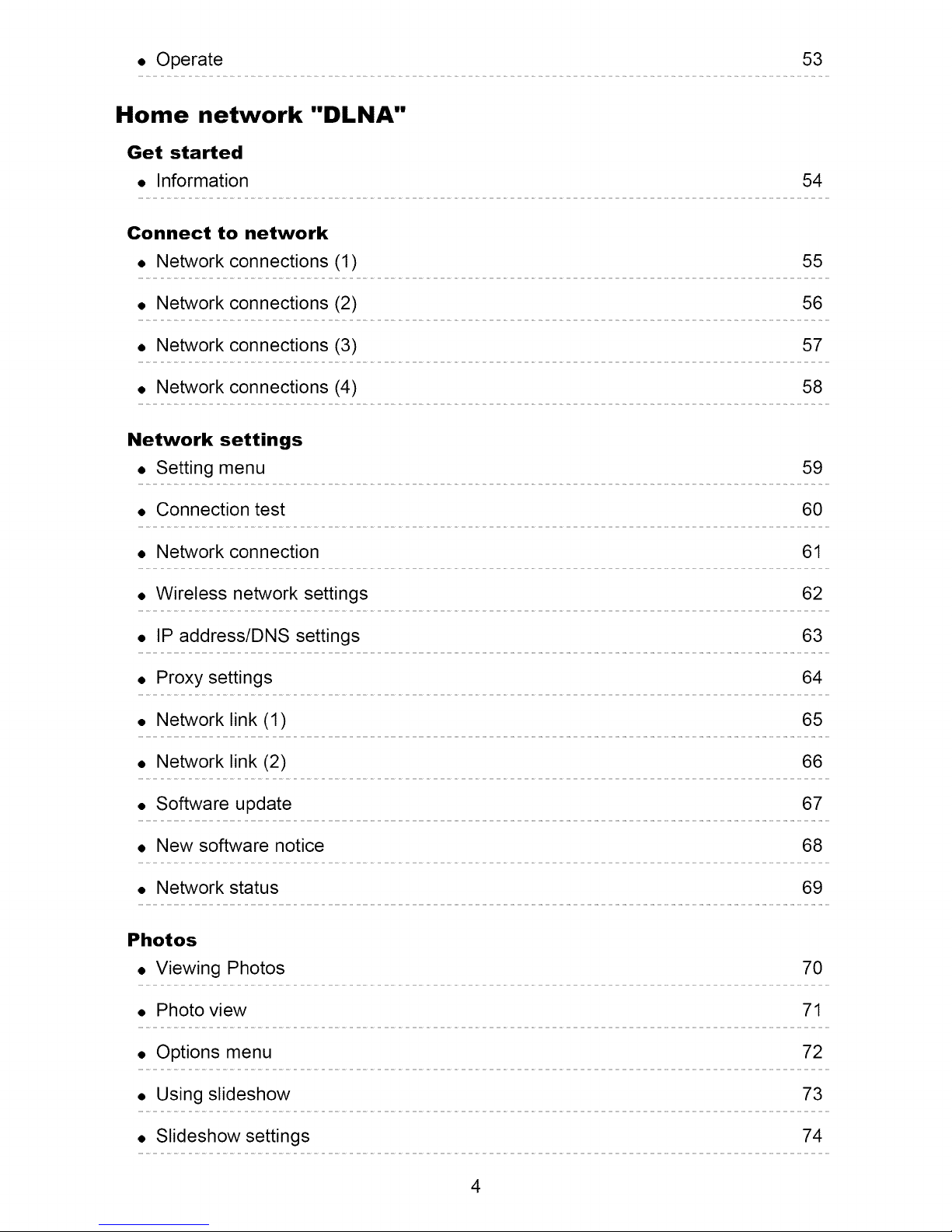
. Operate 53
Home network "DLNA"
Get started
• Information 54
Connect to network
, Network connections (1) 55
. Network connections (2) 56
, Network connections (3) 57
. Network connections (4) 58
Network settings
, Setting menu 59
, Connection test 60
, Network connection 61
, Wireless network settings 62
• IP address/DNS settings 63
• Proxy settings 64
• Network link (1) 65
. Network link (2) 66
• Software update 67
• New software notice 68
• Network status 69
Photos
• Viewing Photos 70
• Photo view 71
• Options menu 72
• Using slideshow 73
• Slideshow settings 74
4
Page 5
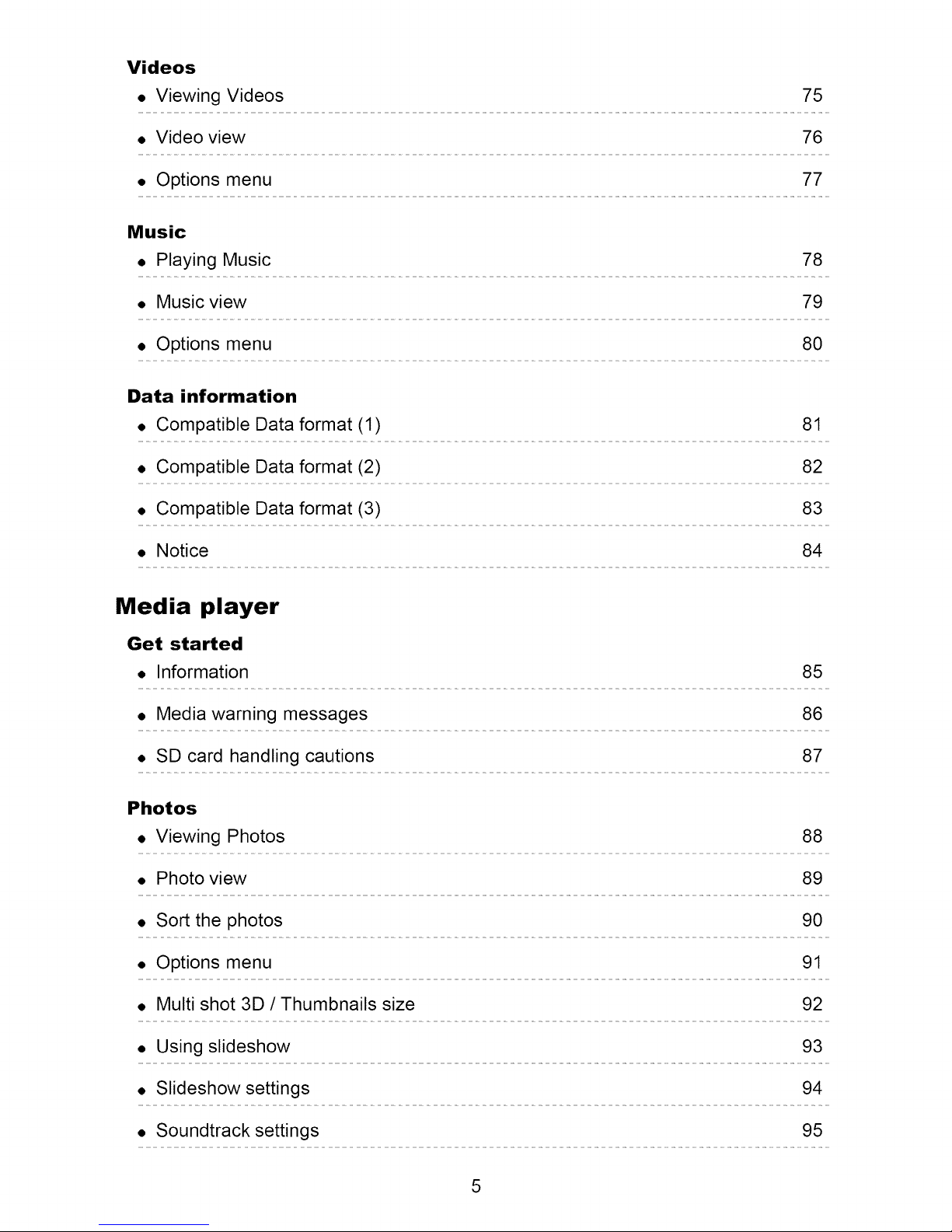
Videos
• Viewing Videos 75
• Video view 76
• Options menu 77
Music
• Playing Music 78
• Music view 79
• Options menu 80
Data information
• Compatible Data format (1) 81
• Compatible Data format (2) 82
• Compatible Data format (3) 83
• Notice 84
Media player
Get started
• Information 85
• Media warning messages 86
• SD card handling cautions 87
Photos
• Viewing Photos 88
• Photo view 89
• Sort the photos 90
• Options menu 91
• Multi shot 3D / Thumbnails size 92
• Using slideshow 93
• Slideshow settings 94
• Soundtrack settings 95
5
Page 6
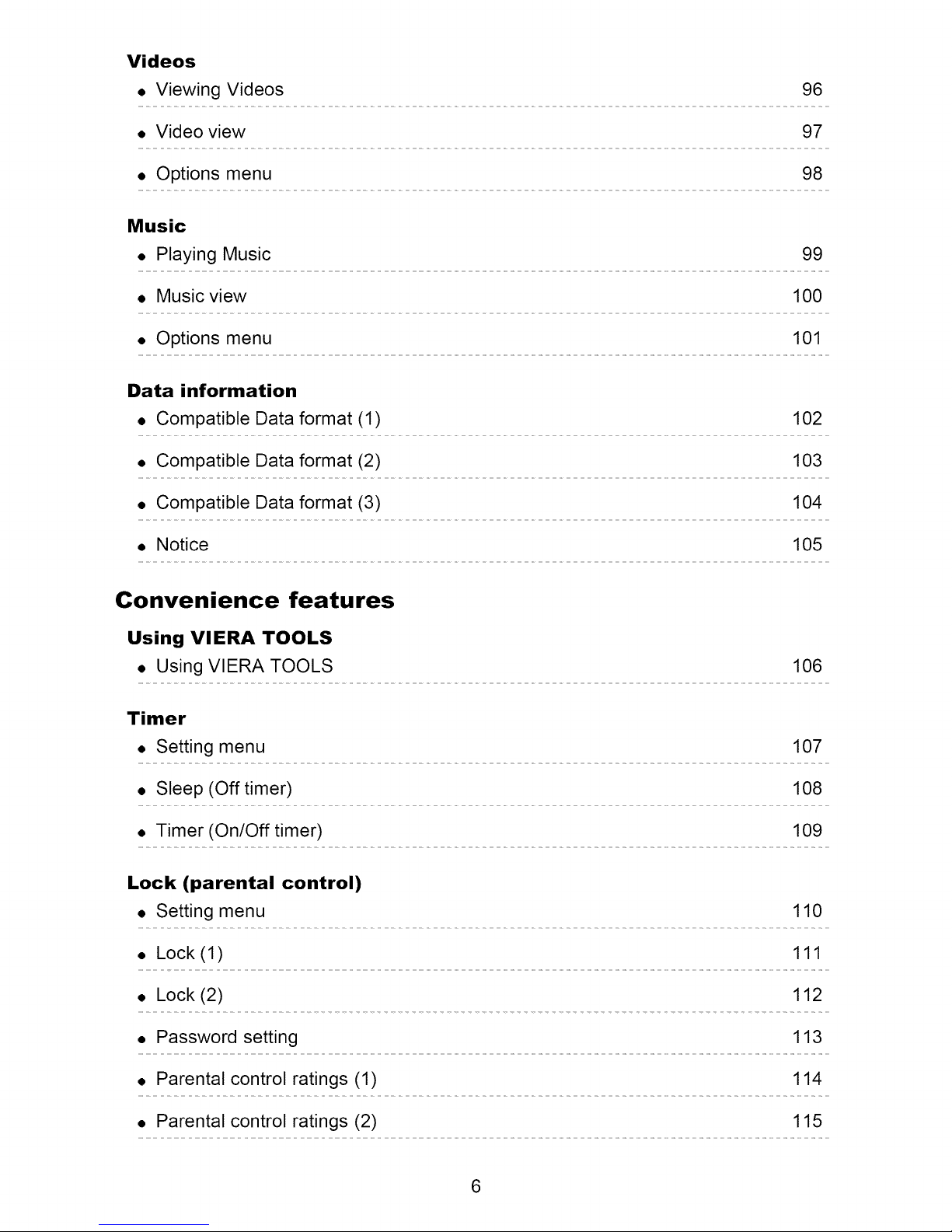
Videos
• Viewing Videos 96
• Video view 97
• Options menu 98
Music
• Playing Music 99
• Music view 100
• Options menu 101
Data information
• Compatible Data format (1) 102
• Compatible Data format (2) 103
• Compatible Data format (3) 104
• Notice 105
Convenience features
Using VIERA TOOLS
• Using VIERA TOOLS 106
Timer
• Setting menu 107
• Sleep (Off timer) 108
• Timer (On/Off timer) 109
Lock (parental control)
• Setting menu 110
• Lock (1) 111
• Lock (2) 112
• Password setting 113
• Parental control ratings (1) 114
• Parental control ratings (2) 115
6
Page 7
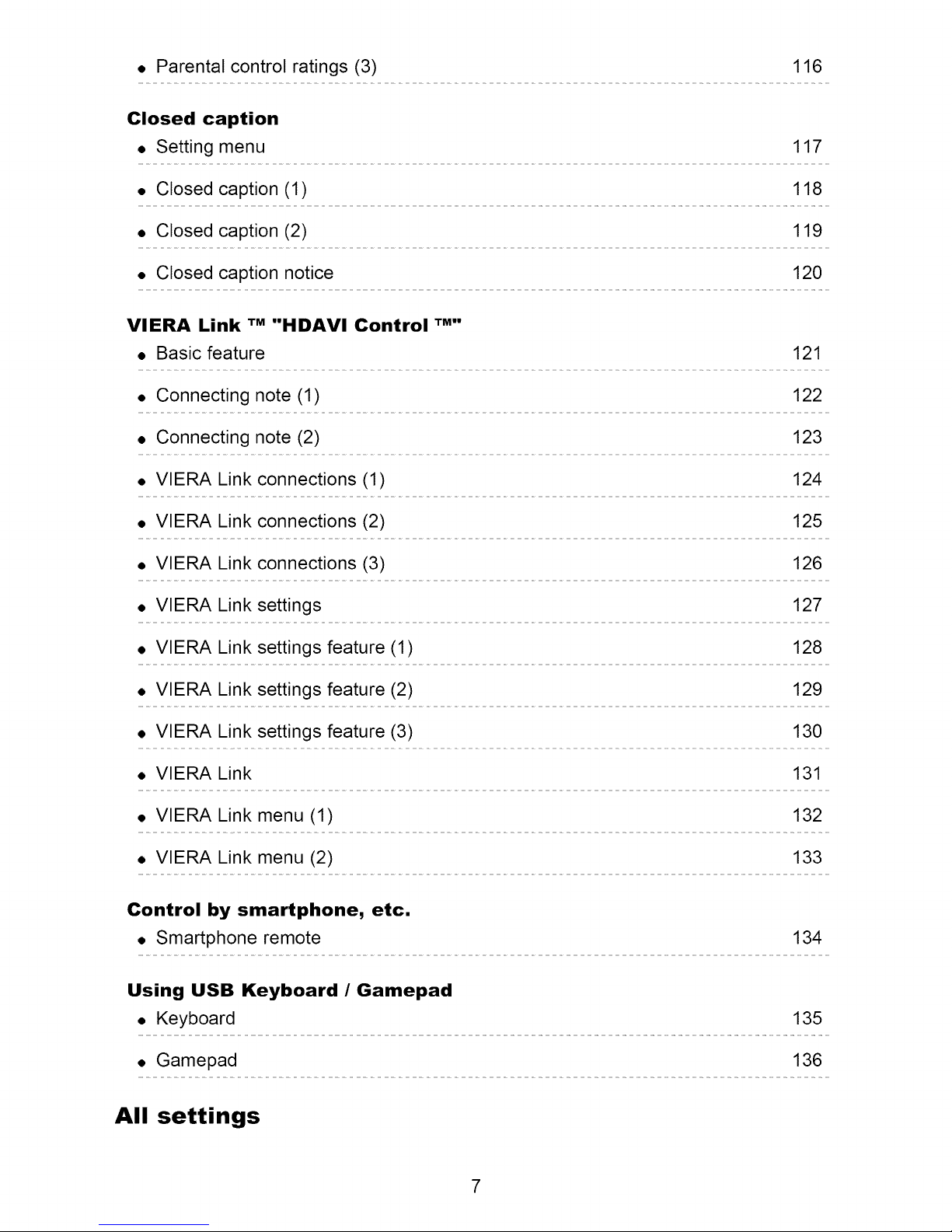
Parental controlratings (3) 116
Closed caption
+ Setting menu
• Closed caption (1} 118
• caption Closed(2)
• Closed caption notice 120
VIERA Link I"M"HDAVI Control TM"
• Basicfeature
• Connecting note (l! 122
• Connectingnote (2) 123
owERAL kcon2 ct o s!!)
117
119
121
• VIERA Link connections (2) 125
• VIERA Linkconnections !3) 126
• VIERALink settings 127
• VlERA Link settingsfeature (1) 128
• VIERA Linksettings feature(2) 129
• VIERA Linksettings feature (3) 130
• VlERALink 131
• VlERA+ Link menu (1) 132
• VlERA Linkmenu (2) 133
Control by smartphone, etc.
• Smartphone remote 134
Using USB Keyboard / Gamepad
•Keyboard
• Gamepad
All settings
135
136
Page 8
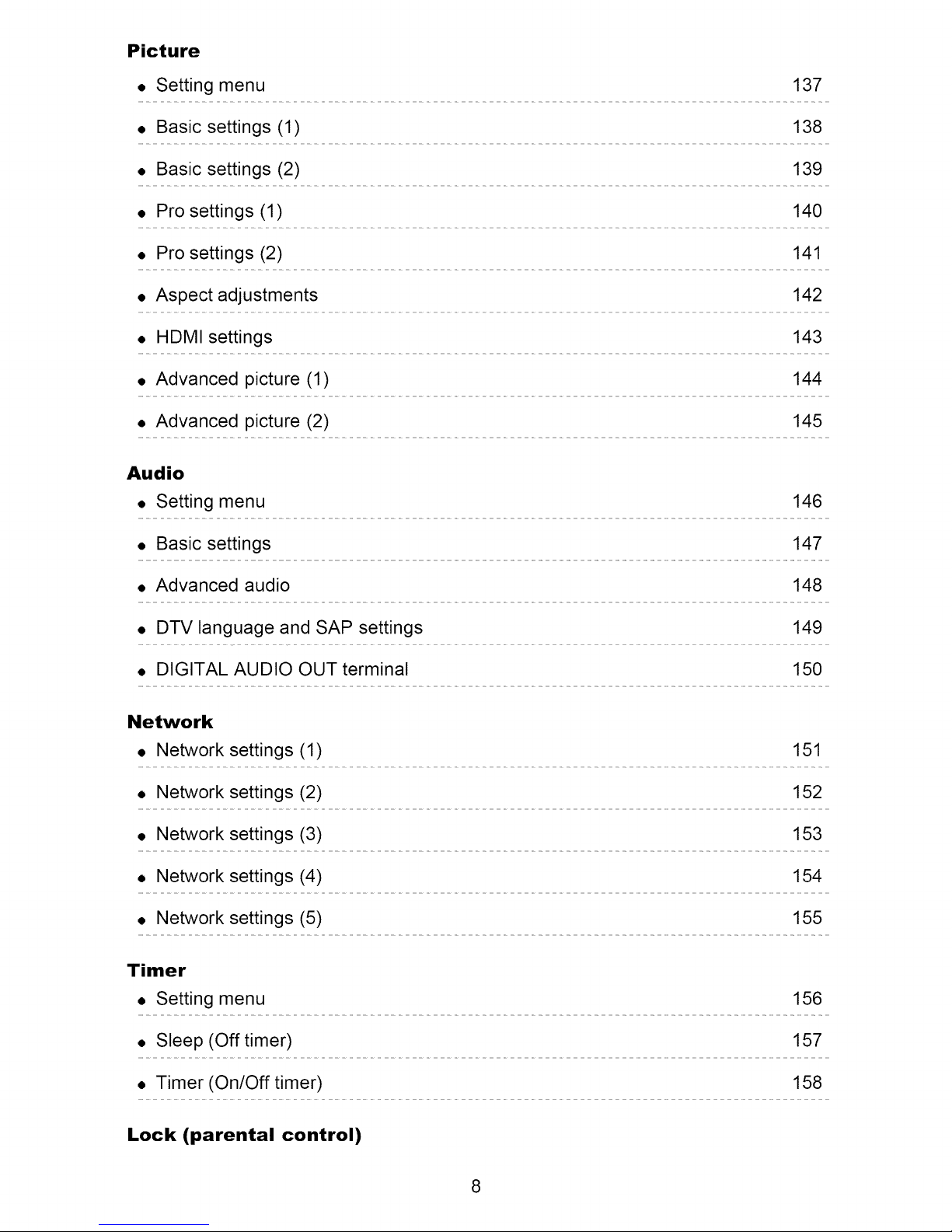
Picture
• Setting menu
137
• Basic settings (1)
• Basic settings (2)
• Pro settings (1)
• Pro settings (2)
• Aspect adjustments
• HDMI settings
• Advanced picture (1) 144
• Advanced picture (2) 145
Audio
• Setting menu
• Basic settings
138
139
140
141
142
143
146
147
• Advanced audio
, DTV language and SAP settings 149
• DIGITAL AUDIO OUT terminal 150
Network
• Network settings (1)
• Network settings (2)
• Network settings (3)
• Network settings (4)
• Network settings (5)
Timer
• Setting menu
148
151
152
153
154
155
156
• Sleep (Off timer)
• Timer (On/Off timer)
Lock (parental control)
157
158
8
Page 9
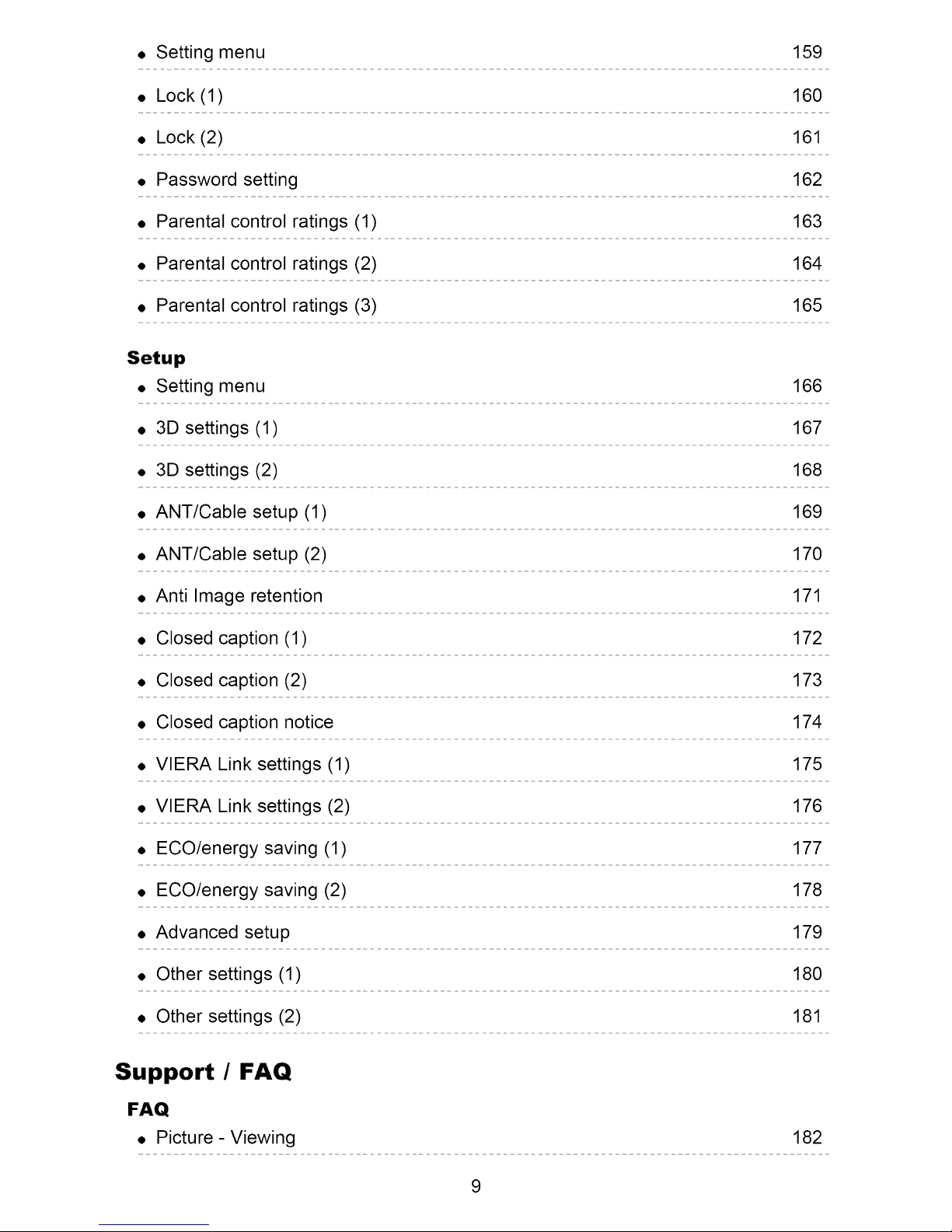
159
, Setting menu...............
160
, Lock !1) .....
,_ ____L°ck(2) 61
162
• Password setting........
, Parenta. contro ratings (1) 163
, Parenta tcontrol ratings (2) 164
, oarentalcontrol ratings (3) 165
Setup 166
•Setti gme u
167
• 3Dsettings (1) .........
168
,3Dsettings (2! .......
• ANT/Cabl setupo (1) ............. 169
• ANt/Cab! e se!u p (2) 170
171
• Ant !mage. retention
172
• Closed Caption (1) ......
173
• Closed caption (2)..............
174
• c!osedc ptionnotice
• VIERALin k setting (1) 175
• VlERA Link setting. (2) 176
• ECO/en ergy saving (1)............ 177
. ECO/energysaving (2! 178
179
• Advancedsetup
180
• Other _settings (1)
181
• thersettings (2)............
Support / FAQ
FAQ
,Picture-Viewing
182
9
Page 10
• Picture- Snowy / none 183
• Picture - Distortion 184
• Picture - Continue 185
• Sound - none 186
• Sound - Unusual 187
• Networking 188
• Software update 189
• 3D - Viewing 190
• 3D - Format 191
• Other 192
• Menu - Gray-out 193
• Reset to default 194
Care and Cleaning
• Display panel 195
• Cabinet 196
• Pedestal / Power cord 197
Meaning of signs :
f_ Press the Remote control button
Letters in box • Remote control button
MENU Letters in Cyan : Menus on screen display
10
Page 11
Watching TV
Cable / Satellite / Fiber with a box
Initial setting
1. Connecting
Select the wiring method connecting your box to the TV, AV IN or
Antenna/Cable in
I Tip: HDMI will provide the best HD picture I
2. Change INPUT
_ IINPUT
Press the INPUT button to select the proper connection. Wait 2 seconds.
3. Power on your Cable, Satellite or Fiber box
Use the box's remote control to change channels.
* If the box is connected to the TV using a COAX cable (Antenna/Cable in), then
set the TV channel to CH3 or CH4. Note that the picture will not be in HD.
* CC/SAP is not available when watching TV with a Cable or Satellite box
connected via HDMI.
If your box is a high definition, then check that it is outputting 720p or 1080i
signal.
Tip: press the TV's _ button to verify.
Check your box "aspect" or "format" settings. It should be set to 16:9,
Widescreen or FULL.
If the audio volume is too low, check the box's audio settings.
Contact your Cable or Satellite provider for instructions on any box settings.
11
Page 12
Watching TV
Antenna / Cable service without a box
Initial setting
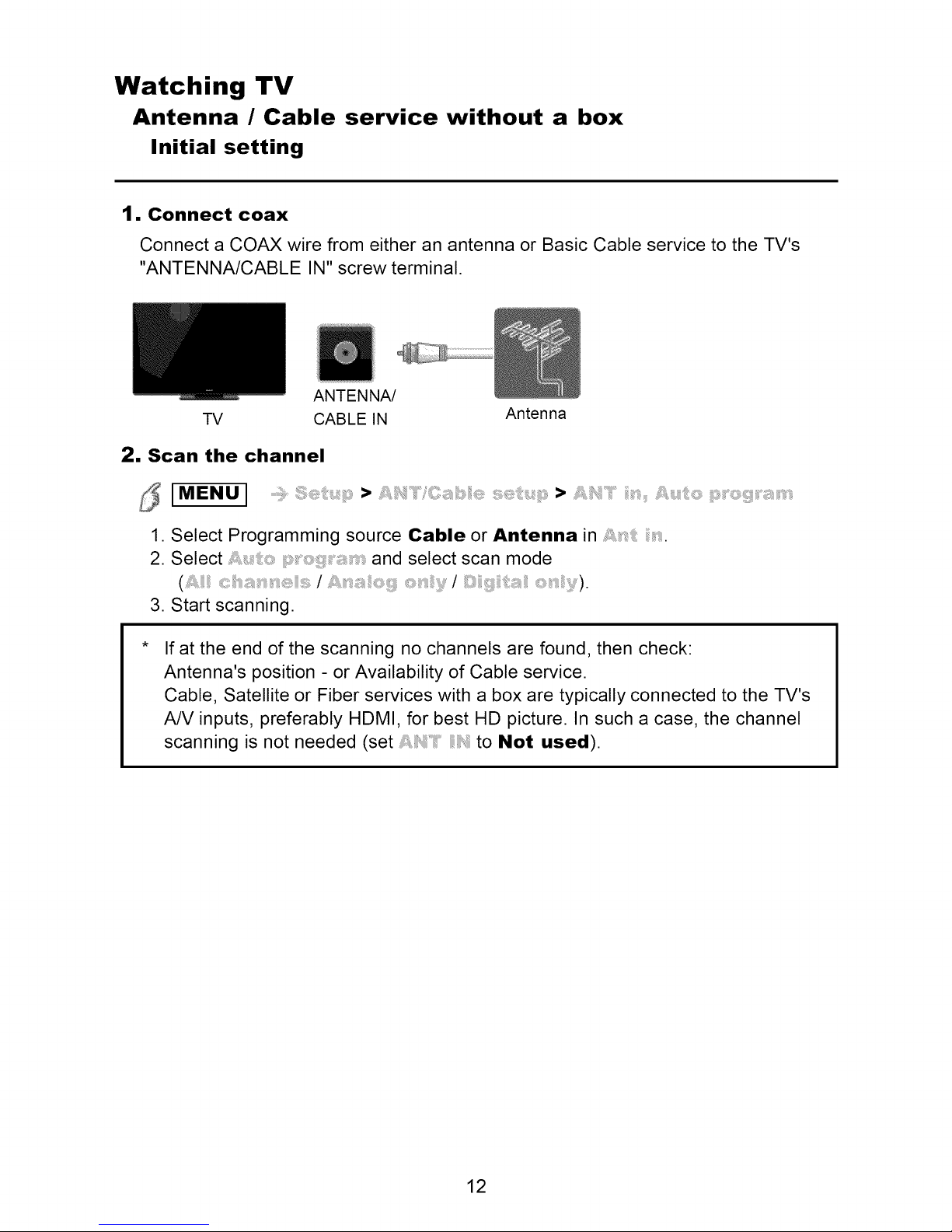
1. Connect coax
Connect a COAX wire from either an antenna or Basic Cable service to the TV's
"ANTENNA/CABLE IN" screw terminal.
ANTENNA/
TV CABLE IN Antenna
2. Scan the channel
_ IMENUI > >
1. Select Programming source Cable or Antenna in i,,.
2. Select and select scan mode
3. Start scanning.
If at the end of the scanning no channels are found, then check:
Antenna's position - or Availability of Cable service.
Cable, Satellite or Fiber services with a box are typically connected to the TV's
A/V inputs, preferably HDMI, for best HD picture. In such a case, the channel
scanning is not needed (set to Not used).
12
Page 13
Watching TV
Antenna / Cable service without a box
Select channels
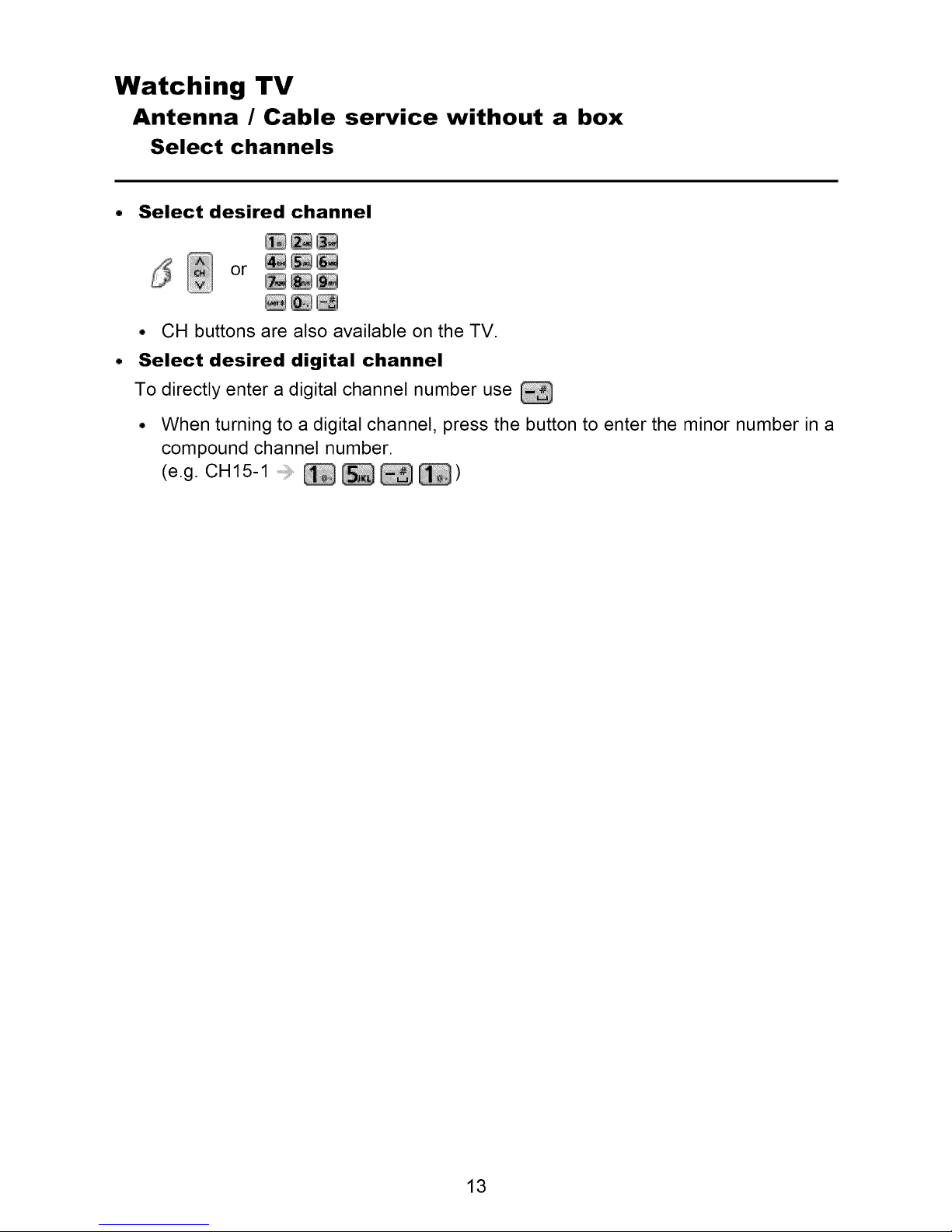
Select desired channel
_ or __
• CH buttons are also available on the TV.
Select desired digital channel
To directly enter a digital channel number use
• When turning to a digital channel, press the button to enter the minor number in a
compound channel number.
(e.g. CH15-1 _ _ _ _)
13
Page 14
Watching TV
Antenna / Cable service without a box
Favorite channels (Set)
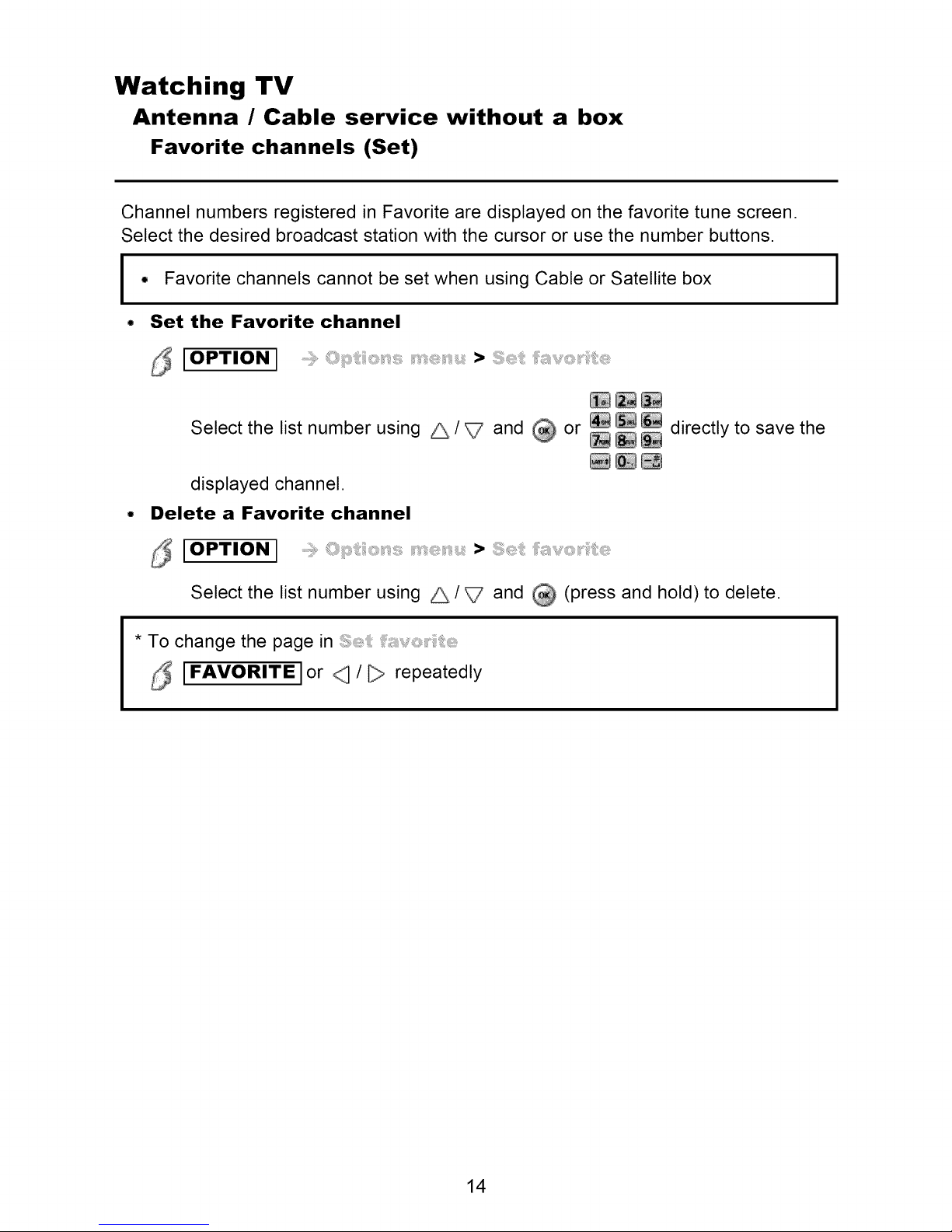
Channel numbers registered in Favorite are displayed on the favorite tune screen.
Select the desired broadcast station with the cursor or use the number buttons.
I • Favorite channels cannot be set when using Cable or Satellite box
• Set the Favorite channel
[OPTION]
Select the list number using _ / V and _ or _ _ _ directly to save the
displayed channel.
Delete a Favorite channel
_ [OPTION] >
Select the list number using _ / _ and _ (press and hold) to delete.
* To change the page in
IFAVORITEIor _ / _ repeatedly
>
I
14
Page 15
Watching TV
Antenna / Cable service without a box
Favorite channels (Display)
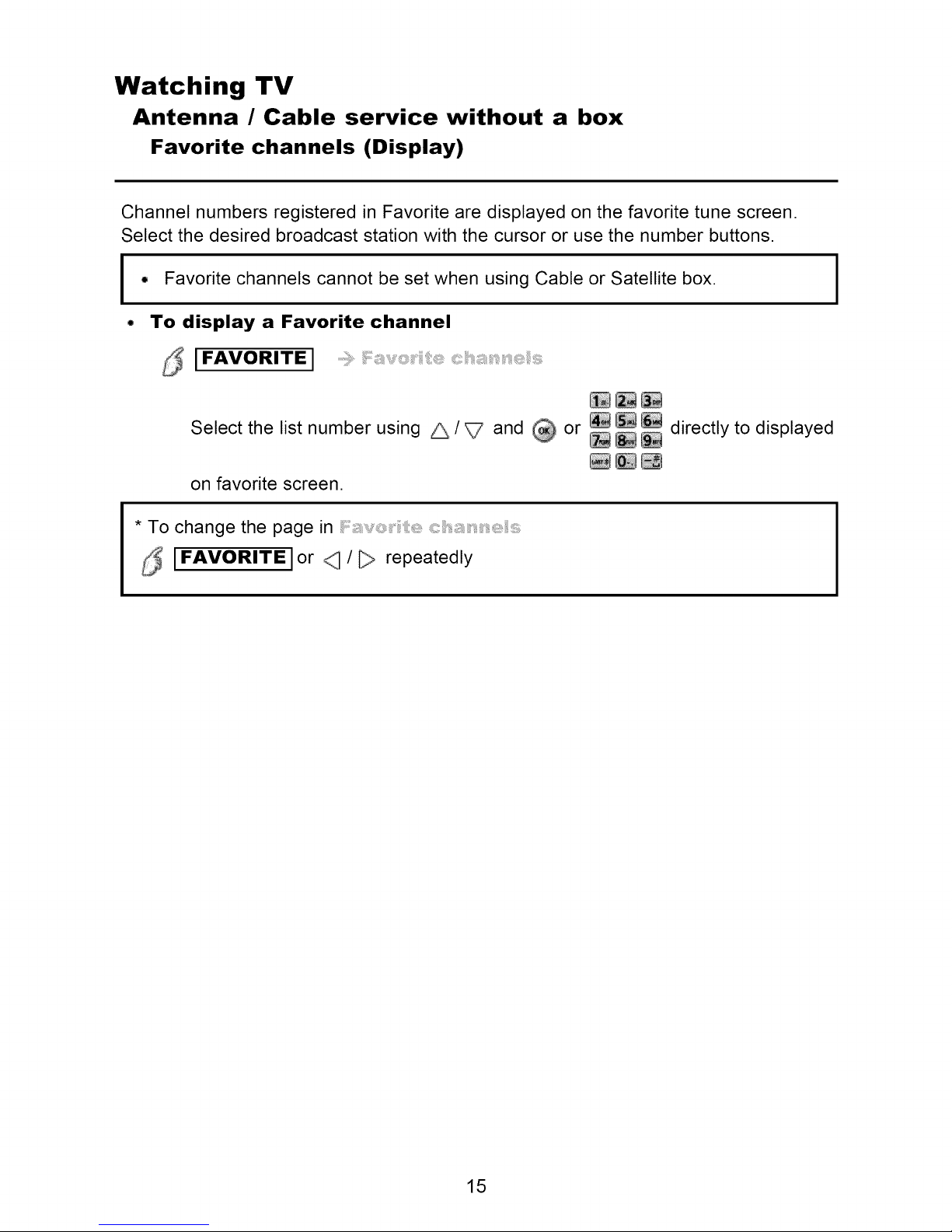
Channel numbers registered in Favorite are displayed on the favorite tune screen.
Select the desired broadcast station with the cursor or use the number buttons.
I • Favorite channels cannot be set when using Cable or Satellite box.
To display a Favorite channel
S JFAVORITE]
Select the list number using _ / V and _ or _ _ _ directly to displayed
on favorite screen.
* To change the page in
[FAVORITE]or _ / _ repeatedly
I
15
Page 16
Watching TV
Antenna / Cable service without a box
Closed caption
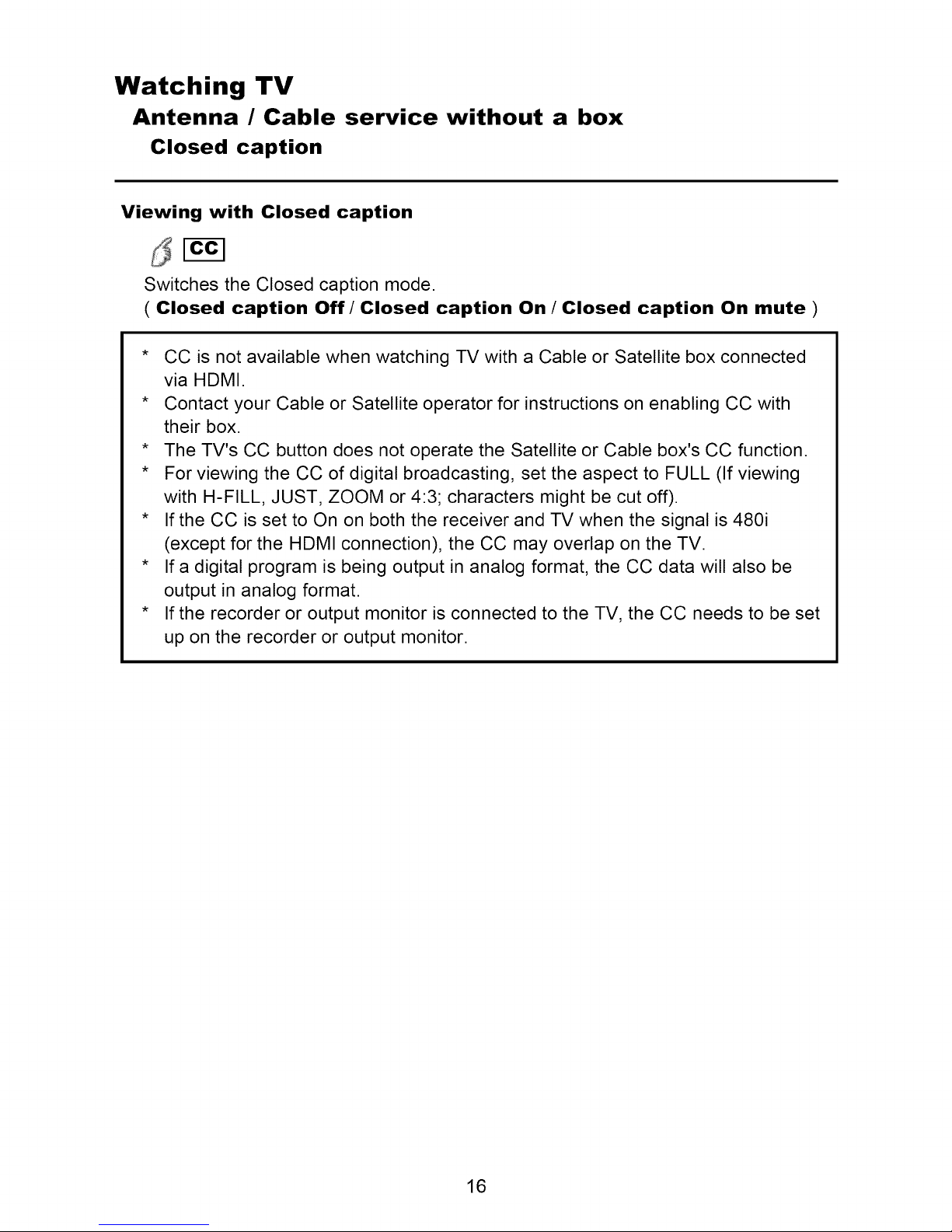
Viewing with Closed caption
Switches the Closed caption mode.
( Closed caption Off/Closed caption On / Closed caption On mute )
* CC is not available when watching TV with a Cable or Satellite box connected
via HDMI.
* Contact your Cable or Satellite operator for instructions on enabling CC with
their box.
* The TV's CC button does not operate the Satellite or Cable box's CC function.
* For viewing the CC of digital broadcasting, set the aspect to FULL (If viewing
with H-FILL, JUST, ZOOM or 4:3; characters might be cut off).
* If the CC is set to On on both the receiver and TV when the signal is 480i
(except for the HDMI connection), the CC may overlap on the TV.
* If a digital program is being output in analog format, the CC data will also be
output in analog format.
* If the recorder or output monitor is connected to the TV, the CC needs to be set
up on the recorder or output monitor.
16
Page 17
Watching TV
Antenna / Cable service without a box
SAP
Listen with SAP (Secondary Audio Programming)
Q
SAP is not available when watching TV with a Cable or Satellite box connected
via HDMI.
Contact your Cable or Satellite operator for instructions on enabling SAP with
their box.
The TV's _ button does not operate the Satellite or Cable box's
function.
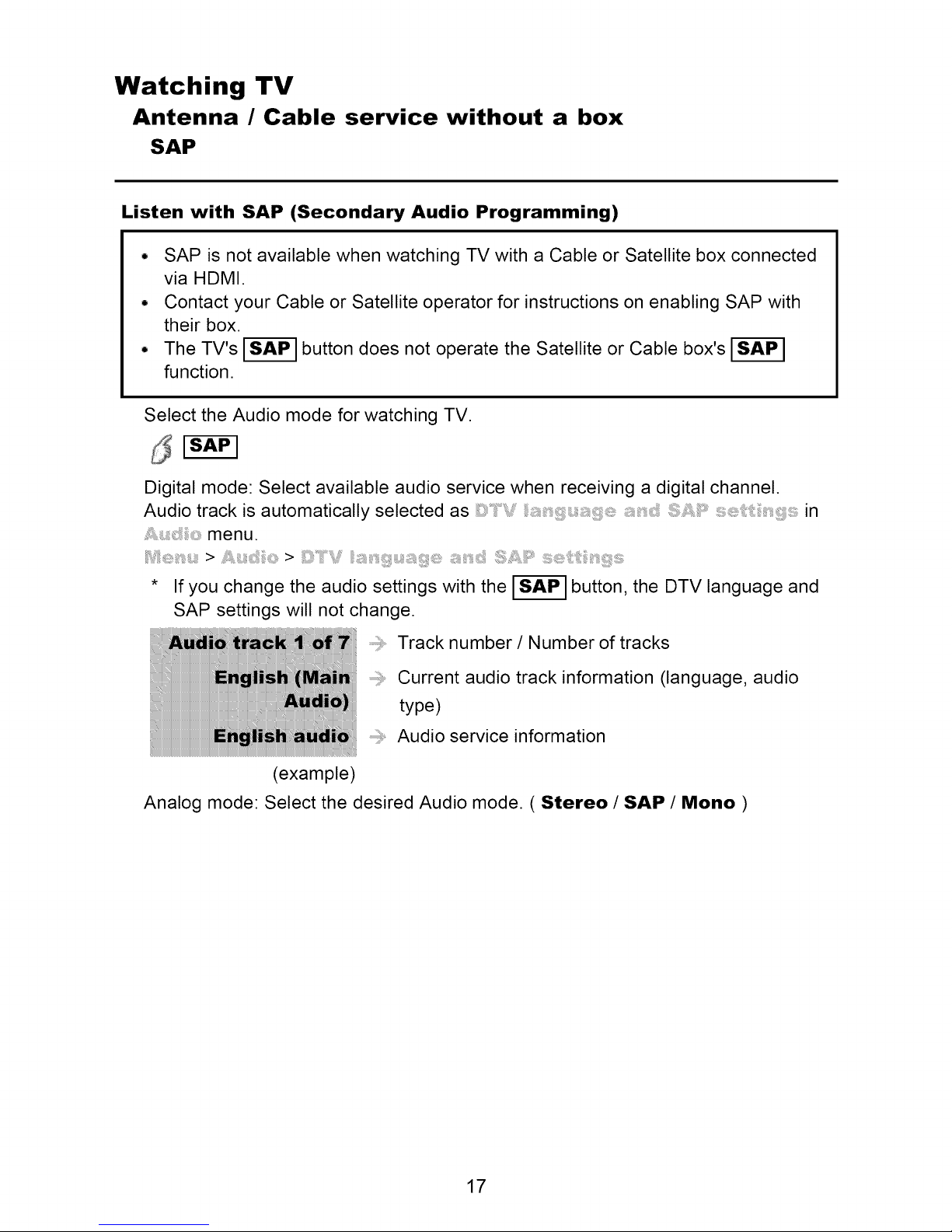
Select the Audio mode for watching TV.
Digital mode: Select available audio service when receiving a digital channel.
Audio track is automatically selected as :i:_:_i_ in
menu.
> > _: _i_
* If you change the audio settings with the _ button, the DTV language and
SAP settings will not change.
Track number / Number of tracks
...............Current audio track information (language, audio
type)
......Audio service information
(example)
Analog mode: Select the desired Audio mode. ( Stereo / SAP / Mono )
17
Page 18
Watching TV
Antenna / Cable service without a box
Other
1. Information banner
Displays TV status information. Also, when watching programs via the
Antenna/Cable input, INFO will include the channel banner.
IINFOI
Channel / Station identifier / Program title / Closed caption / SAP /
Rating level / Signal resolution / Picture mode / Aspect ratio /
Sleep timer remaining time / Clock
2, Options menu
This menu consists of shortcuts to convenient functions.
OPTION ]
C: : :, ,_ _i : ,_!::::: Specify favorites or type of channels to view when
pressing the channel up/down button.
S::/i: :: :_: :::: Set favorite channel
Edit the channel identifier
_:::_:::: : Check the antenna's signal strength
* Options menu is only available when the TV is using the Antenna/Cable input,
not when using Cable or Satellite box.
18
Page 19
Watching TV
Blu-ray, DVD, Game Console, etc.
Connecting and viewing (1)
1. Connect device
Verify that the device is connected to the TV properly and connect to desired
terminal. Note which terminal the device is connected to (HDMI 1, HDMI 2,...
Component or Video)
Component and Composite (Video) in terminals are shared.
Please be careful not to confuse the connection when you use Component or
Video.
19
Page 20
Watching TV
Blu-ray, DVD, Game Console, etc.
Connecting and viewing (2)
2. Select Input
1. Display menu (With the connected equipment turned ON)
IINPUTI
2. Select the input used in step 1
Select correct input source, using _ / V and press
You can also press the corresponding NUMBER button or press I INPUT I
repeatedly to cycle through the available inputs. If you are unsure which input to
select, wait 2 seconds between each selection.
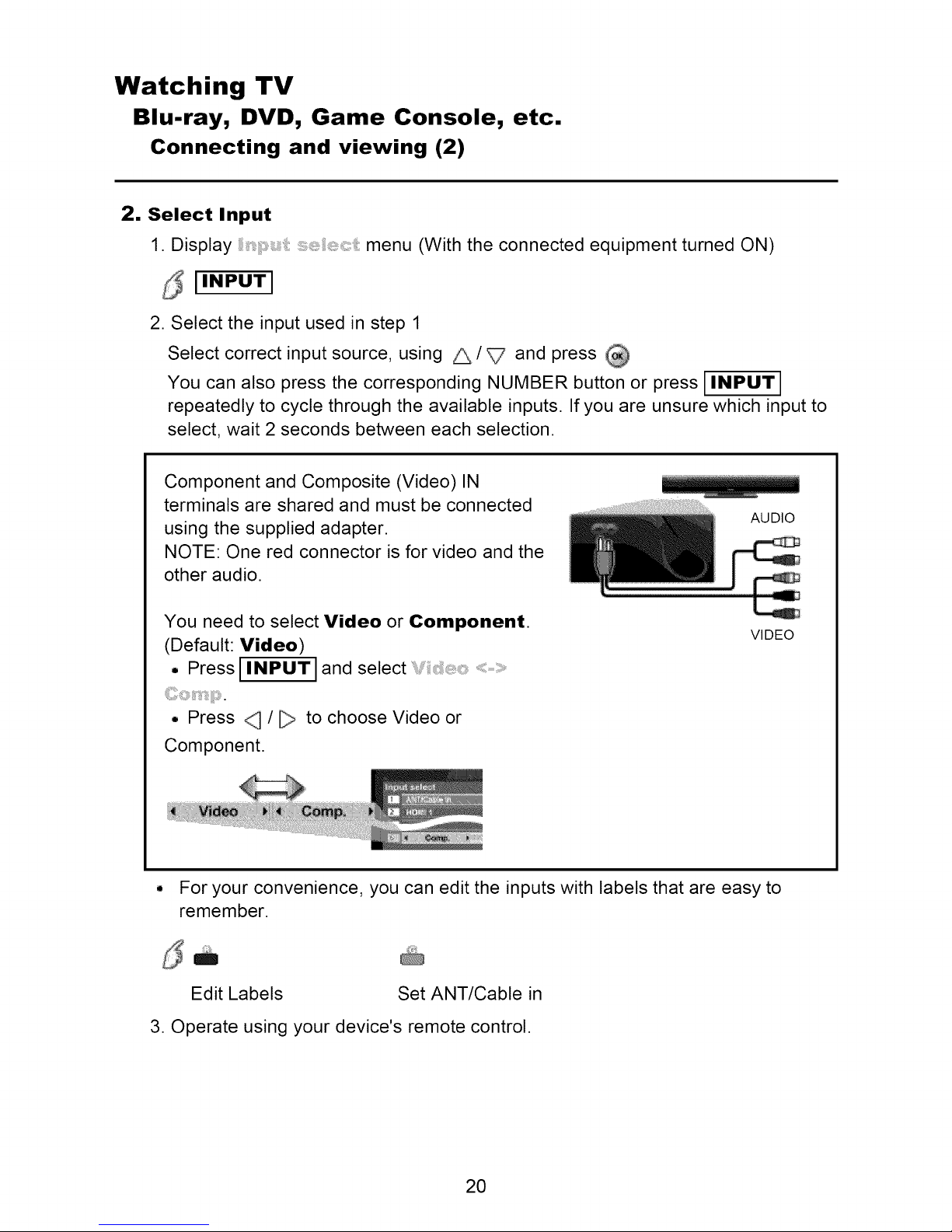
Component and Composite (Video) IN
terminals are shared and must be connected
using the supplied adapter.
AUDIO
NOTE: One red connector is for video and the
other audio.
You need to select Video or Component.
VIDEO
(Default: Video)
• PressIINPUT land select
• Press _ / _ to choose Video or
Component,
• For your convenience, you can edit the inputs with labels that are easy to
remember.
•
d ._m
Edit Labels Set ANT/Cable in
3. Operate using your device's remote control.
2O
Page 21
Watching TV
Blu-ray, DVD, Game Console, etc.
HDMI connection notice
HDMI (high-definition multimedia interface) allows you to enjoy high-definition digital
images and high-quality sound by connecting the TV unit and HD devices.
HDMI-compatible equipment ('1) with an HDMI or DVI output terminal, such as a
Cable or Satellite box or a DVD player, can be connected to the HDMI connector using
an HDMI compliant (fully wired) cable.
• HDMI is the world's first complete digital consumer AV interface complying with a
non-compression standard.
• If the external equipment has only a DVl output, connect to the HDMI terminal via a
DVl to HDMI adapter cable (*2).
• When the DVl to HDMI adapter cable is used, connect the audio cable to the audio
input terminal.
° Audio settings can be made on the menu screen. Applicable audio signal
sampling frequencies (L.PCM): 48 kHz, 44.1 kHz, 32 kHz
('1): The HDMI logo is displayed on an HDMI-compliant device.
(*2): Inquire at your local digital equipment retailer shop.
21
Page 22
Watching TV
Blu-ray, DVD, Game Console, etc.
HDMI connection caution
Caution
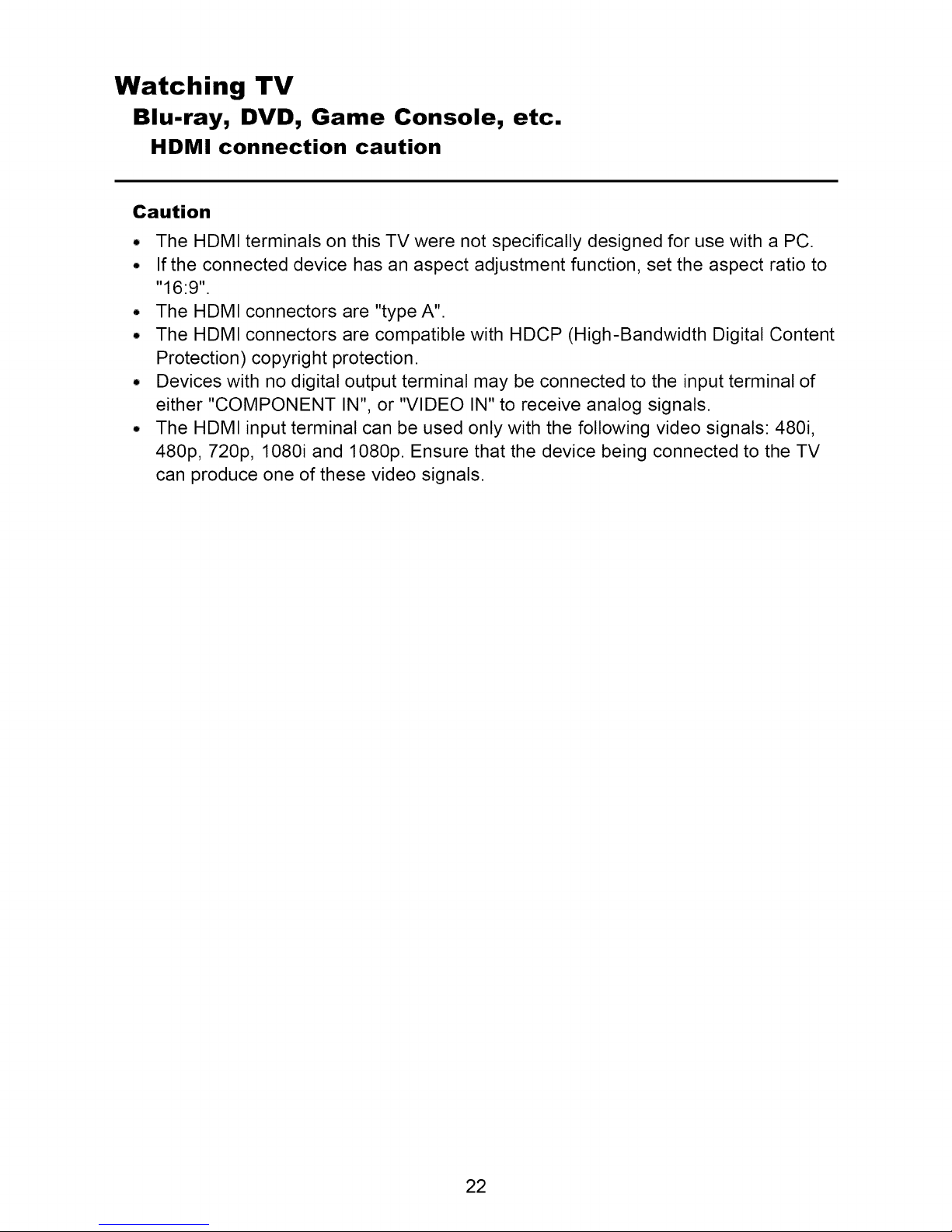
• The HDMI terminals on this TV were not specifically designed for use with a PC.
° If the connected device has an aspect adjustment function, set the aspect ratio to
"16:9".
° The HDMI connectors are "type A".
• The HDMI connectors are compatible with HDCP (High-Bandwidth Digital Content
Protection) copyright protection.
• Devices with no digital output terminal may be connected to the input terminal of
either "COMPONENT IN", or "VIDEO IN" to receive analog signals.
• The HDMI input terminal can be used only with the following video signals: 480i,
480p, 720p, 1080i and 1080p. Ensure that the device being connected to the TV
can produce one of these video signals.
22
Page 23
Watching TV
Blu-ray, DVD, Game Console, etc.
Input signal
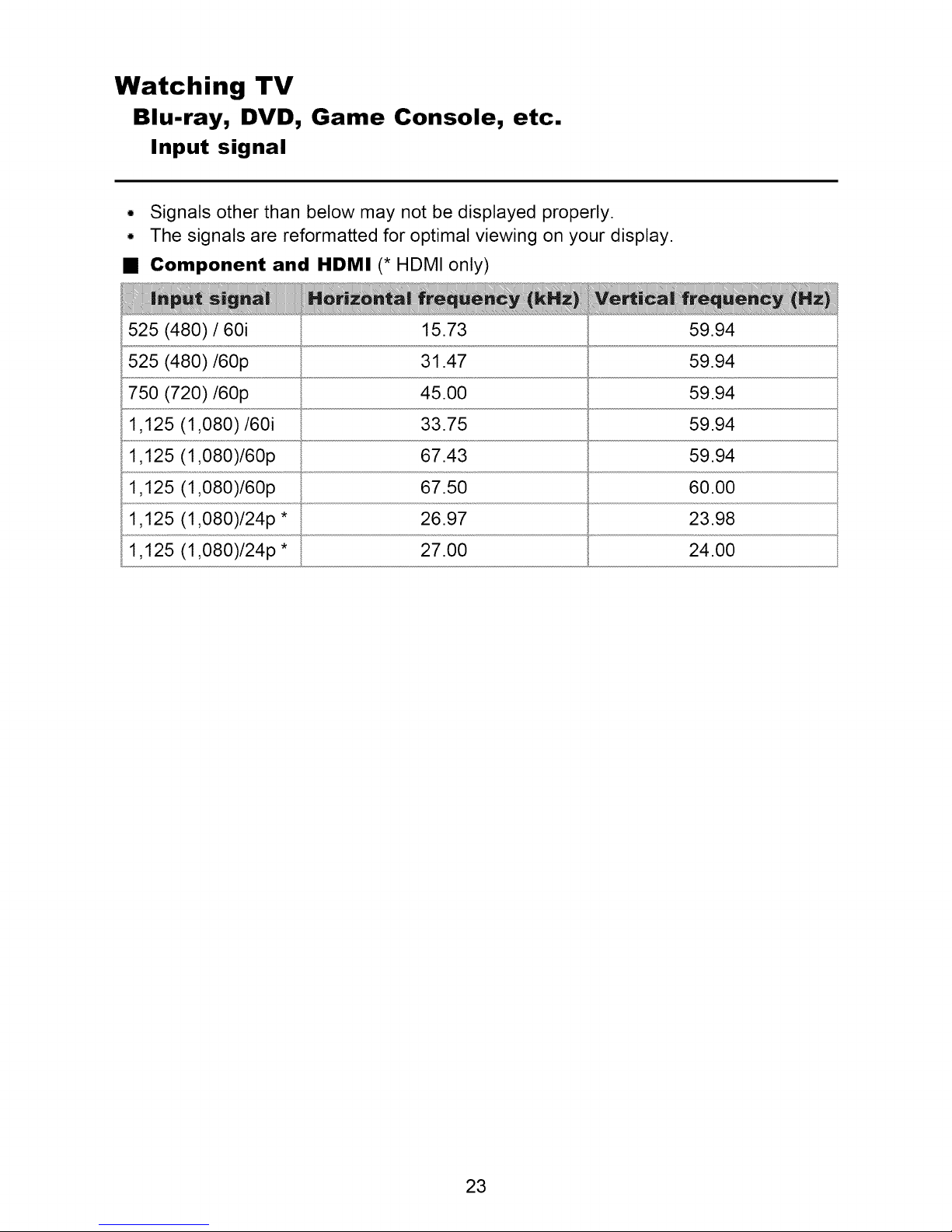
• Signals other than below may not be displayed properly.
• The signals are reformatted for optimal viewing on your display.
• Component and HDMI (* HDMI only)
525 (480) / 60i
525 (480)/60p
750 (720)/60p
1,125 (1,080)/60i
1,125 (1,080)/60p
1,125 (1,080)/60p
1,125 (1,080)/24p * 26.97
1,125 (1,080)/24p * 27.00
15.73
31.47
45.00
33.75
67.43
67.50
59.94
59.94
59.94
59.94
59.94
60.00
23.98
24.00
23
Page 24
Watching TV
For best picture
Picture mode
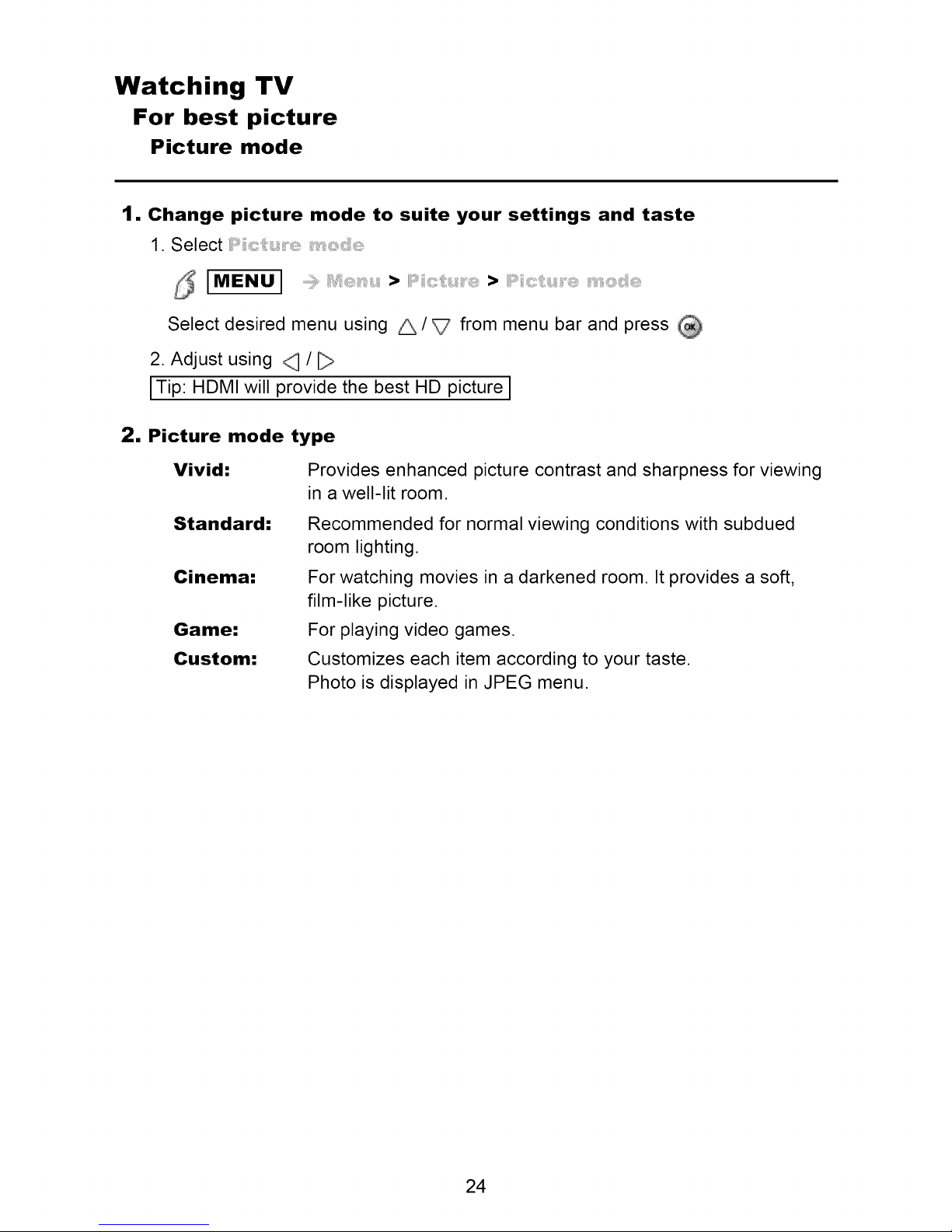
1. Change picture mode to suite your settings and taste
1. Select
l MEN U J ...... _ > _ > i_ _
Select desired menu using _/_ from menu bar and press
2. Adjust using _ /
[Tip: HDMI will provide the best HD picture ]
2. Picture mode type
Vivid:
Standard:
Cinema:
Game:
Custom:
Provides enhanced picture contrast and sharpness for viewing
in a well-lit room.
Recommended for normal viewing conditions with subdued
room lighting.
For watching movies in a darkened room. It provides a soft,
film-like picture.
For playing video games.
Customizes each item according to your taste.
Photo is displayed in JPEG menu.
24
Page 25
Watching TV
For best picture
Auto brightness (ECO)
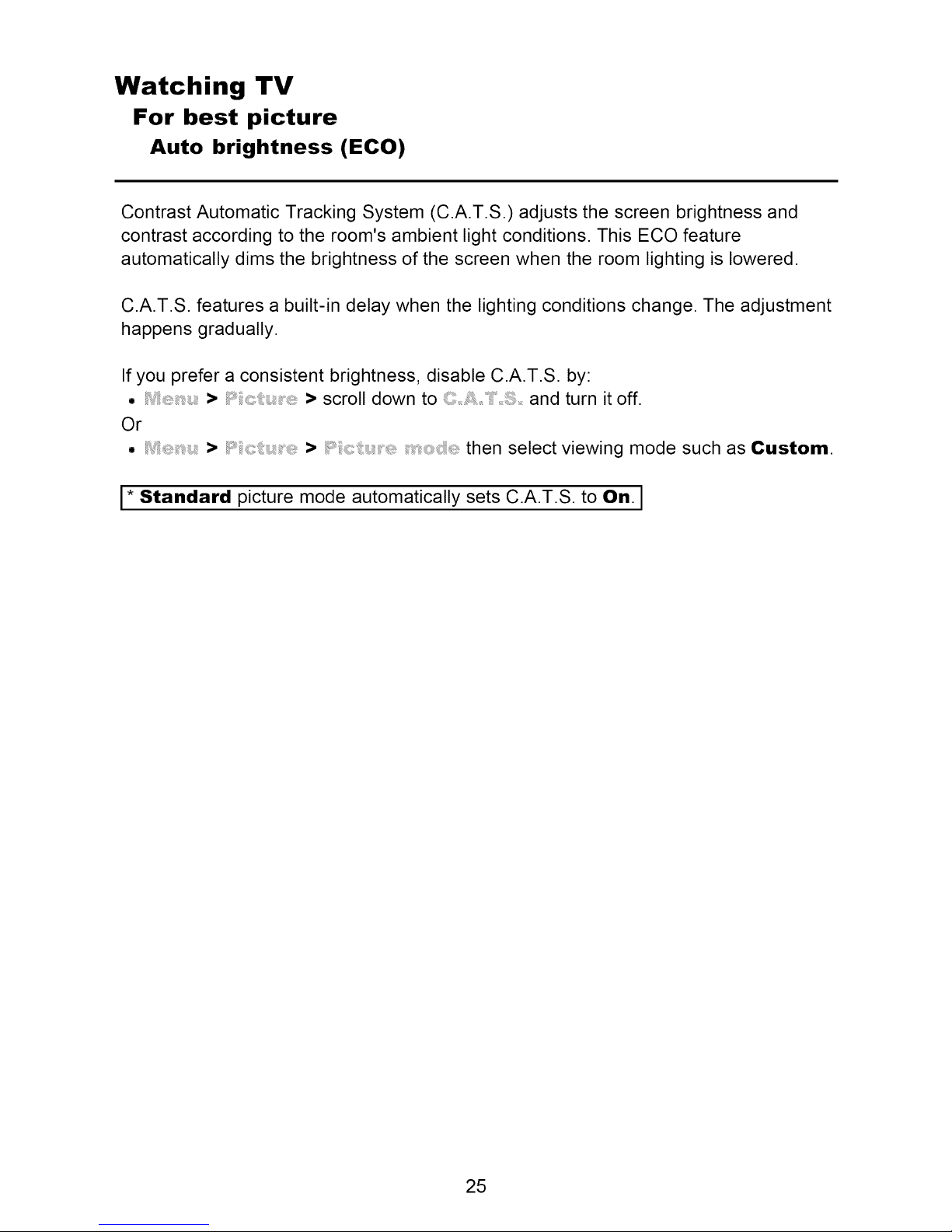
Contrast Automatic Tracking System (C.A.T.S.) adjusts the screen brightness and
contrast according to the room's ambient light conditions. This ECO feature
automatically dims the brightness of the screen when the room lighting is lowered.
C.A.T.S. features a built-in delay when the lighting conditions change. The adjustment
happens gradually.
If you prefer a consistent brightness, disable C.A.T.S. by:
• > > scroll down to and turn it off.
Or
• > i i, ::: :, ::: > i i,: :_:::::, :::' then select viewing mode such as Custom.
I* Standard picture mode automatically sets C.A.T.S. to On. ]
25
Page 26

Watching TV
For best picture
Aspect
1. Use FORMAT button to change the aspect ratio
Use when the picture has bars (sides or top/bottom) and to zoom.
S I FORMATI ( to cycle through the aspect modes )
480i, 480p: FULL/JUST/4:3/ZOOM
1080p, 1080i, 720p: FULL/H-FILL/JUST/4:3/ZOOM
* Use when the picture does not fill the whole screen or portions of the picture
are trimmed.
* Some content, such as film-based movies, are available in extra-wide format.
Top and bottom bars are unavoidable.
* Connected devices, such as Cable/Satellite box, DVD/Blu-ray players and
game consoles have their own aspect (format) settings. Adjust the device's
aspect settings.
26
Page 27

Watching TV
For best picture
Aspect info.
• FULL: Enlarges the 4:3 image horizontally to the screen's side edges.
(Recommended for anamorphic picture)
° JUST: Stretches to justify the 4:3 image to the four corners of the screen.
(Recommended for normal TV broadcast)
° H-FILL: Enlarges the 4:3 image horizontally to the screen's side edges. The side
edges of the image are cut off.
° 4:3: Standard (Note that "Image retention" of the side bar may occur from
displaying it for a long time.)
° ZOOM: Enlarges the 4:3 image to the entire screen.
(Recommended for Letter Box)
• Zoom adjustments
Vertical image position and size can be adjusted in "ZOOM"
(_) Select/ :_:_ in the! _:_::_::: menu.
IMENU I ........ > >
(2_)V-position: Vertical position adjustment
Adjust using _ / V to desired position.
i_) V-size: Vertical size adjustment
Adjust using _ / _ to desired size.
* Press OK to reset
27
Page 28

Watching TV
For best picture
Pro settings (1)
1. Adjust the picture mode in more detail
Set Custom in first.
_ IMENU
Reset to
defaults
Color space
W/B high R, G,
B
W/B low R, G,
B
Wide/Normal
-50-0-+50
-50-0-+50
> >
• Resets all Pro setting adjustments to factory
default settings.
• Each color space is a matrix composed of red,
green & blue colors. Select your preference
° Adjusts the white balance for light
red/green/blue areas.
° Adjusts the white balance for dark
red/green/blue areas.
28
Page 29

Watching TV
For best picture
Pro settings (2)
_ IMENUI > >
Black
extension
Gamma
adjustment
Panel
brightness
Contour
emphasis
AGC
Save as default
0-15
S-curve/
1.8/2.0/2.2/
2.4/2.6
Low/Mid/High
Off/On • Adjusts the contour emphasis of the image.
0-15 (default:7) • Increases the brightness of dark signal
• Adjusts the dark shades of the image in
gradation.
• Gamma correction. Adjusts the intermediate
brightness of the image.
• Selects different levels of overall panel
brightness.
automatically.
• Save all "Picture" (when "Picture mode" is
"Custom") and "Pro settings" adjustment.
29
Page 30

Watching TV
For best audio
Basic adjustments
1. Change the basic audio settings
1. Select desired audio menu
I M EN U I ...... _ >
Select desired menu using _ / V from menu bar and press
2. Adjust
Adjust using _ L>
Reset to defaults • Resets Bass, Treble, and Balance adjustments to factory
default settings.
Bass • Increases or decreases the bass response.
Treble • Increases or decreases the treble response.
Balance • Emphasizes the left / right speaker volume.
30
Page 31

Watching TV
For best audio
Advanced audio
_ LMENUJ > >
A.I. sound
Surround
Volume leveler
Distance to
wall
TV speakers
HDMI in Digital/ ° The default setting is "Digital" for the HDMI
Off/On
Off/On
Over lft(30cm)/
Up to lft(30cm)
Off/On
Comp./Video connection. (Digital input signal)
• Equalizes overall volume levels across all
channels and external inputs.
• Enhances audio L/R response when listening
to stereo. Ideal for music and action movies.
° Minimizes volume disparity after switching to
external inputs.
• Over lft(30cm): TV is on a stand. Keeps
current setup.
° Up to lft(30cm): TV is mounted. Reduces low
frequency level to prevent resonance.
° Enables the TV's built-in speakers.
° Switches to "Off" when using external
speakers.
° "A.I. sound", "Surround", "Volume leveler", and
"Distance to wall" do not work if "Off" is selected.
• Select audio input terminal when a DVl cable is
connected along with an analog audio input
signal.
31
Page 32

Watching TV
3D
Notice
The following 3D content can be enjoyed on this TV:
• A 3D Blu-ray disc, played on 3D capable Blu-ray player/recorder that is connected
via HDMI cable
• 3D TV broadcast (program)
• 3D Photo and 3D Movie taken by LUMIX/Camcorder.
• 3D game played on 3D capable video game console, connected via HDMI cable.
• 2D --+ 3D (Simulated 3D)
About 2D -_ 3D
* You can watch content in simulated 3D from photo and all video sources except
the PC input.
* This function converts standard 2D images and displays them in 3D. For this
reason, the 3D images appear slightly different from the originals. Please bear this
in mind when using this function.
* Using this function for profit-making purposes, or publically showing images
converted from 2D to 3D in places such as coffee shops or hotels etc. may infringe
on the rights of the copyright holder protected under the Copyright Act.
32
Page 33

Watching TV
3D
Viewing 3D
1. Using the 3D Eyewear
,@} Turn on the 3D Eyewear.
{2} Make sure that registration is finished completely.
(Displays messages and information on the screen.)
@} Put on the 3D Eyewear.
2. View
When the TV receives a 3D signal, it also tries to detect the 3D mode (format). 3D
images are automatically displayed according to the signal. If the 3D images are
not displayed correctly or the images cause discomfort, the images can be
adjusted by :_:© _:::i:::,::¢ or :_:© _::: : _!:::.
3. After use
(j_} Set the 3D Eyewear power switch to OFF.
(The 3D Eyewear indicator lamp turns off, and the power turns off.)
_2} Store the eyewear in the case.
33
Page 34

Watching TV
3D
Change 3D 4=>2D
• Simply switches 3D _ 2D images (Auto mode)
Switch or using _/V and press
• Change 3D format (Manual mode)
1. Display
2. Select 3D format
_ [-3-_ Cycle through the 3D format
34
Page 35

Watching TV
3D
Adjust 3D images
1. Select i_:©
_l M EN U I > >
2. Select the item and set
Select desired menu using _ / V and adjust the settings with _ / F_>
The perceived three dimensional effects of the 3D Eyewear differ from person-
to-person.
If a signal received from an external device is different from the 3D setting of the
TV, such as 2D signal when the TV is set to 3D mode, the images may not be
displayed correctly.
35
Page 36

Watching TV
3D
3D settings (1)
IMENUI > >
Auto detect 3D Off/Auto 1/
2
3D signal Off/On • On: Displays a message according to the
notification signal received by the
2D --, 3D Minimum/ ° Adjusts 3D depth. Available only when
depth Medium/ is selected in i:_:
Maximum ° Available only when 3D content is displayed.
• Auto 1: Switches to 3D display when 3D
indication is available (HDMI (3D), AVCHD file,
etc.)
° Auto 2: Same as Auto 1. Also detects 3D signal
by identifying similar image in side-by-side or top-
and-bottom 3D formats.
Note: Choose 3D mode manually when auto
detection is not available.
36
Page 37

Watching TV
3D
3D settings (2)
d IMENUI > >
3D adjustment
Left/Right swap
Diagonal line
filter
Safety
precautions
Off/On
Normal/
Swapped
Off/On
• Changes 3D depth by adjusting left-right
parallax. Set to On to adjust (-3 to +3).
• Change this to Swapped when the phases
are reversed (When there is an unusual sense of
depth).
• On: Resolves discomfort caused by receiving a
37
Page 38

Internet services "VIERA Connect"
Connect to network
Network connections (1)
1. Contact your Broadband service provider
If you don't have Internet service from your local provider, please order a high-
speed Internet service at no less than the connection speed below. If you already
have this service, make sure that the connection speed exceeds the following:
• Required speed (effective): at least 1.5 Mbps for SD and 6 Mbps for HD picture
quality, respectively.
• Dial-up Internet service cannot be used for VIERA Connect.
2. Select wired or wireless connection
If the Cable/DSL modem is close to the TV and you have only one TV set, you may
choose a wired connection.
If the Cable/DSL modem is far from the TV and/or you have more TVs in the
house, you may want to use a wireless network.
38
Page 39

Internet services "VIERA Connect"
Connect to network
Network connections (2)
3. Connecting to the Internet
A. Wireless connection
If you are using the network for connecting various pieces of equipment and want
to connect the TV, you could also use a Wireless LAN and Access point to connect
the TV to the Internet.
Access
TV
(Built-in Wireless LAN)
point
- Hub, Router
- Modem
- DLNA Certified media server
(for example, PC, etc.)
To use only DLNA features, you can operate the features without Broadband
network environment.
You can just connect the TV directly to the equipment with a LAN cross cable.
39
Page 40

Internet services "VIERA Connect"
Connect to network
Network connections (3)
B. Wired connection (Directly connected)
If you are not using the network for connecting anything else but the TV, you can
just connect the TV directly to the Cable/DSL Ethernet modem with LAN cable.
ETHERNET LAN cable Modem
TV
40
Page 41

Internet services "VIERA Connect"
Connect to network
Network connections (4)
C. Wired connection (Using Router)
If you are using the network for connecting various pieces of equipment and want
to connect the TV, you should use a router to connect the TV to the Internet with
LAN straight cable.
ETHERNET LAN cable
TV
- Hub, Router
- Modem
- DLNA Certified media server
(for example, PC, etc.)
To use only DLNA features, you can operate the features without Broadband
network environment.
You can just connect the TV directly to the equipment with a LAN cross cable.
41
Page 42

Internet services "VIERA Connect"
Network settings
Setting menu
This menu is used for connecting to a Broadband environment.
1, Display the and select
[M E N U I _:_:_ >
Select _:: !:_ using _ / _ from menu bar and press
2, Select the options and set
:_::: ,i:_/_ :::_:o_! _,_/:t_:_:: _, :_; _ _:::/
42
Page 43

Internet services "VIERA Connect"
Network settings
Connection test
• Connection test
Check that the all Network settings, and then start i:@s:_
_:::1:::_Select _:::: _:::: using _ / _ and press
(It takes a while to cancel the test,)
_:_ Displayed Connection test screen
• Check mark appears at front of each check item's box when check has
been finished successfully,
_) Complete Connection test
Success Completion screen is displayed,
Error Follow the directions on screen to complete the setting,
If you perform the Proxy settings, check the Proxy address and the Proxy port
number,
43
Page 44

Internet services "VIERA Connect"
Network settings
Network connection
• Network connection
_ Select _ _ using _/V
_ Select Network type (Ethernet cable/Wireless (WiFi)) with
44
Page 45

Internet services "VIERA Connect"
Network settings
Wireless network settings
• Wireless network settings
([_ Select with _/V and press
(5) Display and select access point.
Or select connection method (below) with color key and follow the
directions on screen to complete the setting.
WPS (push button):
You can connect to the access point by pressing a connection button.
WPS (PIN):
Set the PiN code that is displayed on the TV on the access point.
Manual settings:
Manually set SSID, security type, and encryption type to match the settings
of the access point to which to connect.
Search again:
Search again an available wireless network within the range.
* Wi-Fi Protected Setup is an easy setting of the Wi-Fi Alliance's certification.
* For more details on setting of an access point, please refer to operating manual
for the access point.
* When connecting by 11n (5 GHz), select "AES" as the encryption type for the
wireless LAN.
45
Page 46

Internet services "VIERA Connect"
Network settings
IP address/DNS settings
• IP address/DNS settings
I_,_ Select using _/V and press
(_ Displayed
@} Select i:j_ / ©i_S using _ / _ and select
Automatic with _ / _-_
@} Each IP address is acquired automatically
If you are using a Broadband router, IP automatic acquisition in DHCP can be
used under normal circumstances. If you are not sure, check with the person
who installed the equipment, or check the instructions for each device.
• Manual setting
,/._ On _ above, Select / ©i_:i:_
using _/V and select Manual with _ /
(_ Select the item
@} Check the specifications of the Broadband router and enter each IP address.
Or Enter each IP address as specified by the provider.
46
Page 47

Internet services "VIERA Connect"
Network settings
Proxy settings
• Proxy settings
Set only if specified by the provider. It is not required for normal household use.
(_ Select using _/_ and press
,,.2>Select using _/V and press
(.3J Select the item and press
_:_>Enter address or port number and press
This is the address of the relay server that is connected to the target server instead
of the browser and sends data to the browser. Setting is only required if specified
by the provider.
This number is specified by the provider together with the Proxy address.
47
Page 48

Internet services "VIERA Connect"
Network settings
Network link (1)
• Network link
I:_) Select using _/V and press
(_, Displayed
@) Select the item and set
• Edit the name of this TV
Sets your favorite name for this TV. This name will be displayed on the screen of
the other Network compatible equipment.
q) Select :::_:::,:!_ using _/V and press
_"}}_zjEnter name and press
I Enabling DLNA remote control
Select using _/_ and switches Disable or
Enable with _ /
• Volume setting in DMR operation
Select using _/V and switches Disable
or Enable with <_ /
• Available only when Enable is selected in above.
48
Page 49

Internet services "VIERA Connect"
Network settings
Network link (2)
• Enabling Network remote control
(network device such as a smartphone.)
Select ,:,:_ :_:_i using _/V and switches Disable or
Enable with _ /
49
Page 50

Internet services "VIERA Connect"
Network settings
Software update
• Software update
Q) Select using _/V and press
(5) Press OK to start the Software update screen
(_) Follow directions on the screen
• Make sure to set before the update starts,
5O
Page 51

Internet services "VIERA Connect"
Network settings
New software notice
• New software notice
Displays new software update information when TV is turned on.
(_) Select using _/V
(2' Switches Off or On with <,_/
51
Page 52

Internet services "VIERA Connect"
Network settings
Network status
• Network status
Displayed Current settings and status screen.
(_) Select using _/V and press
(_) Display i_::__ screen
* Displayed items differ depending on the type of network connection.
52
Page 53

Internet services "VIERA Connect"
How to use
Operate
1. Access to VIERA Connect
_ I INTERNET I VIERA Connect
2. Select and Enjoy Internet Service
Select the desired item using _/V / _ / L> and press
• USB keyboard is available. Set in menu.
(Game pad is also available.)
* You need a Broadband environment to use this service.
* Please confirm Network connections and Network settings before use
this function.
* Depending on the usage conditions, it may take a while to download all the
data.
* Internet services available in VIERA Connect are subject to change without
notice.
* Not all VIERA Connect contents are available depending on the country and
area.
* 3D images are not displayed on center of the home screen depending on the
signal.
* Video communication (e.g. Skype t_ ) requires an exclusive Communication
Camera TY-CC20W.
(example)
53
Page 54

Home network "DLNA"
Get started
Information
You can share the contents (Photo, Video, Music etc.) stored in DLNA Certified media
server with your home network system.
• Please confirm Network connection and Network menu settings before
use this function.
This TV is a DLNA Certified TM product.
DLNA (Digital Living Network Alliance) is a standard that makes DLNA Certified
digital electronics easier and more convenient to use on a home network. To learn
more, visit www.dlna.org. It allows you to share photos, videos and music stored in
the DLNA Certified media server (for example, PC with Windows 7 installed, etc.)
connected to your home network, and enjoy the contents on the TV screen.
• Media server
Store photos, videos or music into the DLNA Certified media server, and then you
can enjoy them on the TV.
To use a PC as a media server
Prepare the PC with Windows 7 or ensure the server software is installed on the
PC. "Windows 7" is the server software that has been tested for compatibility with
this TV (as of January, 2011). Any other server software have not been tested with
this TV, therefore compatibility and performance cannot be assured.
,, Windows 7
The setup for homegroup settings of Windows 7 is required. For details, refer to the
help functions of Windows 7.
54
Page 55

Home network "DLNA"
Connect to network
Network connections (1)
1. Contact your Broadband service provider
If you don't have Internet service from your local provider, please order a high-
speed Internet service at no less than the connection speed below. If you already
have this service, make sure that the connection speed exceeds the following:
• Required speed (effective): at least 1.5 Mbps for SD and 6 Mbps for HD picture
quality, respectively.
• Dial-up Internet service cannot be used for VIERA Connect.
2. Select wired or wireless connection
If the Cable/DSL modem is close to the TV and you have only one TV set, you may
choose a wired connection.
If the Cable/DSL modem is far from the TV and/or you have more TVs in the
house, you may want to use a wireless network.
55
Page 56

Home network "DLNA"
Connect to network
Network connections (2)
3. Connecting to the Internet
A. Wireless connection
If you are using the network for connecting various pieces of equipment and want
to connect the TV, you could also use a Wireless LAN and Access point to connect
the TV to the Internet.
Access
TV
(Built-in Wireless LAN)
point
- Hub, Router
- Modem
- DLNA Certified media server
(for example, PC, etc.)
To use only DLNA features, you can operate the features without Broadband
network environment.
You can just connect the TV directly to the equipment with a LAN cross cable.
56
Page 57

Home network "DLNA"
Connect to network
Network connections (3)
B. Wired connection (Directly connected)
If you are not using the network for connecting anything else but the TV, you can
just connect the TV directly to the Cable/DSL Ethernet modem with LAN cable.
ETHERNET LAN cable Modem
TV
57
Page 58

Home network "DLNA"
Connect to network
Network connections (4)
C. Wired connection (Using Router)
If you are using the network for connecting various pieces of equipment and want
to connect the TV, you should use a router to connect the TV to the Internet with
LAN straight cable.
ETHERNET LAN cable
TV
- Hub, Router
- Modem
- DLNA Certified media server
(for example, PC, etc.)
To use only DLNA features, you can operate the features without Broadband
network environment.
You can just connect the TV directly to the equipment with a LAN cross cable.
58
Page 59

Home network "DLNA"
Network settings
Setting menu
This menu is used for connecting to a Broadband environment.
1, Display the and select
[M E N U I _:_:_ >
Select _:: !:_ using _ / _ from menu bar and press
2, Select the options and set
:_::: ,i:_/_ :::_:o_! _,_/:t_:_:: _, :_; _ _:::/
59
Page 60

Home network "DLNA"
Network settings
Connection test
• Connection test
Check that the all Network settings, and then start i:@s:_
_:::1:::_Select _:::: _:::: using _ / _ and press
(It takes a while to cancel the test,)
_:_ Displayed Connection test screen
• Check mark appears at front of each check item's box when check has
been finished successfully,
_) Complete Connection test
Success Completion screen is displayed,
Error Follow the directions on screen to complete the setting,
If you perform the Proxy settings, check the Proxy address and the Proxy port
number,
6O
Page 61

Home network "DLNA"
Network settings
Network connection
• Network connection
_ Select _ _ using _/V
_ Select Network type (Ethernet cable/Wireless (WiFi)) with
61
Page 62

Home network "DLNA"
Network settings
Wireless network settings
• Wireless network settings
([_ Select with _/V and press
(5) Display and select access point.
Or select connection method (below) with color key and follow the
directions on screen to complete the setting.
WPS (push button):
You can connect to the access point by pressing a connection button.
WPS (PIN):
Set the PiN code that is displayed on the TV on the access point.
Manual settings:
Manually set SSID, security type, and encryption type to match the settings
of the access point to which to connect.
Search again:
Search again an available wireless network within the range.
* Wi-Fi Protected Setup is an easy setting of the Wi-Fi Alliance's certification.
* For more details on setting of an access point, please refer to operating manual
for the access point.
* When connecting by 11n (5 GHz), select "AES" as the encryption type for the
wireless LAN.
62
Page 63

Home network "DLNA"
Network settings
IP address/DNS settings
• IP address/DNS settings
I_,_ Select using _/V and press
(_ Displayed
@} Select i:j_ / ©i_S using _ / _ and select
Automatic with _ / _-_
@} Each IP address is acquired automatically
If you are using a Broadband router, IP automatic acquisition in DHCP can be
used under normal circumstances. If you are not sure, check with the person
who installed the equipment, or check the instructions for each device.
• Manual setting
,/._ On _ above, Select / ©i_:i:_
using _/V and select Manual with _ /
(_ Select the item
@} Check the specifications of the Broadband router and enter each IP address.
Or Enter each IP address as specified by the provider.
63
Page 64

Home network "DLNA"
Network settings
Proxy settings
• Proxy settings
Set only if specified by the provider. It is not required for normal household use.
(_ Select using _/_ and press
,,.2>Select using _/V and press
(.3J Select the item and press
_:_>Enter address or port number and press
This is the address of the relay server that is connected to the target server instead
of the browser and sends data to the browser. Setting is only required if specified
by the provider.
This number is specified by the provider together with the Proxy address.
64
Page 65

Home network "DLNA"
Network settings
Network link (1)
• Network link
I:_) Select using _/V and press
(_, Displayed
@) Select the item and set
• Edit the name of this TV
Sets your favorite name for this TV. This name will be displayed on the screen of
the other Network compatible equipment.
q) Select :::_:::,:!_ using _/V and press
_"}}_zjEnter name and press
I Enabling DLNA remote control
Select using _/_ and switches Disable or
Enable with _ /
• Volume setting in DMR operation
Select using _/V and switches Disable
or Enable with <_ /
• Available only when Enable is selected in above.
65
Page 66

Home network "DLNA"
Network settings
Network link (2)
• Enabling Network remote control
(network device such as a smartphone.)
Select ,:,:_ :_:_i using _/V and switches Disable or
Enable with _ /
66
Page 67

Home network "DLNA"
Network settings
Software update
• Software update
Q) Select using _/V and press
(5) Press OK to start the Software update screen
(_) Follow directions on the screen
• Make sure to set before the update starts,
67
Page 68

Home network "DLNA"
Network settings
New software notice
• New software notice
Displays new software update information when TV is turned on.
(_) Select using _/V
(2' Switches Off or On with <,_/
68
Page 69

Home network "DLNA"
Network settings
Network status
• Network status
Displayed Current settings and status screen.
(_) Select using _/V and press
(_) Display i_::__ screen
* Displayed items differ depending on the type of network connection.
69
Page 70

Home network "DLNA"
Photos
Viewing Photos
1. Display VIERA TOOLS
JVIERA TOOLS J VIERA TOOLS
2. Display
Select DLNA using _ / _ and press
3. Select server (Available DLNA servers are displayed).
Select desired server using _ / _ from DLNA server list and press
4, Select photo (Thumbnail and Contents type are displayed ).
Select desired content using _ / V from file list and press
5, View
Follow the Navigation and guide to operate.
* Displayed navigation and guide will be different depending on data type.
70
Page 71

Home network "DLNA"
Photos
Photo view
• Thumbnail view
Display
IINFOI Information panel (File name, Date, and Size etc.)
* Information differs depending on selected data.
• Playback screen
I INFO I ......Display/hide Guide and Banner
Photo status: Shows current photo status
2D/3D status: Shows current 2D/3D status
Navigation Guide: Shows available functions.
or
* In DMR mode, Slideshow is not available.
* In DMR mode, OK/Next/Prev. are not available.
71
Page 72

Home network "DLNA"
Photos
Options menu
In Photo view, some optional menus are available pressing IOPTION Ibutton.
1, Display
_IOPTIONI
2. Select the item
Select the desired menu using _ / V and press
* Ava ilable menus are displayed on (::, ,::::: depe nding on data
condition and situation,
72
Page 73

Home network "DLNA"
Photos
Using slideshow
1. Display
2. Adjust items
Select the item by _ / V and adjust the settings using _ / [_'>
• Picture quality may deteriorate depending on the slideshow settings.
• Picture setting may not work depending on the slideshow settings.
3. Start Slideshow
After adjusting each setting, select ib;:: ; _ ; :_ ;;;_ with _ / V and press
I RETURN I Stop in mid-cycle
73
Page 74

Home network "DLNA"
Photos
Slideshow settings
Select the Transition effect shown between photos.
(Off/Fade in/Wipe _ /Wipe _ /Wipe --_/Wipe _/
Slide in ._ /Slide in t /Slide in --_/Slide in _/Zoom in/
Comb t _ /Comb --_ _-/Dissolve/Checker wipe/
Motion/Random)
Slideshow mode.
(Short/Fast/Normal/Slow/Very slow)
Turn the Slideshow Repeat (cycle) function on or off. (Off/On)
Select the music.
(Off/Music l/Music 2/Music 3/Music 4/Music 5)
sets the time each image is displayed in the
74
Page 75

Home network "DLNA"
Videos
Viewing Videos
1. Display VIERA TOOLS
JVIERA TOOLS J
2. Display
Select DLNA using C_]/ _ and press
3. Select server (Available DLNA servers are displayed).
Select desired server using _ / V from DLNA server list and press
4. Select video (Thumbnail and Contents type are displayed ).
Select desired content using _ / V from file list and press
5, Play
Follow the Navigation and guide to operate.
* Displayed navigation and guide will be different depending on data type.
..............VIERA TOOLS
75
Page 76

Home network "DLNA"
Videos
Video view
• Thumbnail view
IINFOI Information panel (File name, Date, and Size etc.)
* Information differs depending on selected data.
• Playback screen
IINFOI Display/hide Guide and Banner
Movie banner: Shows current Video status
(Drive type (SD/USB/DLNA), Date and time or File name and
Elapsed time.)
2D/3D status: Shows current 2D/3D status
Navigation Guide: Shows available functions.
* In DMR mode, Next skip/Prev, skip are not available.
. Forward/Reverse: Five level of speed 1 to 5 (x2, x5, x30, x70, xl00) are
available.
• In DMR mode, Resume playback is not available
• Subtitles are not supported in MKV format.
76
Page 77

Home network "DLNA"
Videos
Options menu
In Video view, some optional menus are available pressing IOPTION ]button.
1. Display
_l OPTION I ......
2. Select the item
Select the desired menu using _ / _ and press
• Repeat playback
Set play repeat function (Off/On)
* Ava ilable menus are displayed on _,:::, ,::::: depe nding on data
condition and situation,
77
Page 78

Home network "DLNA"
Music
Playing Music
1. Display VIERA TOOLS
[VIERA TOOLS J VIERA TOOLS
2. Display
Select DLNA using C_]/ _ and press
3. Select server (Available DLNA servers are displayed).
Select desired server using _ / _ from DLNA server list and press
4. Select music (Thumbnail and Contents type are displayed ).
Select desired content using _ / _ from file list and press
5, Play
Follow the Navigation and guide to operate.
* Displayed navigation and guide will be different depending on data type.
78
Page 79

Home network "DLNA"
Music
Music view
• Thumbnail view
Information panel (File name, Date, and Size etc.)
* Information differs depending on selected data.
• Playback screen
, Display/hide Guide and Banner
Music Guide: Shows current Music status
(Artist name/Album name/Song name, Elapsed time)
Navigation Guide: Shows available functions.
Forward/Reverse: Five levels of speed 1 to 5 (x2, x5, x30, x70, xl00) are
available.
In DMR mode, Next skip/Prev, skip/User BGM settings are not available.
79
Page 80

Home network "DLNA"
Music
Options menu
In Music view, some optional menus are available pressing IOPTION Ibutton.
1, Display
t_ J0 PTIO N ] ......._ _
2. Select the item
Select the desired menu using _ / _ and press
(
• Repeat playback
Set play repeat function (Off/Repeat folder/One song)
* Ava ilable menus are displayed on _,:::, ,::::: depe nding on data
condition and situation,
80
Page 81

Home network "DLNA"
Data information
Compatible Data format (1)
• Compatible Data format for Media player
(SD card/USB flash memory)/DLNA
Photo • JPEG files (DCF and EXIF standards)
Sub-sampling - 4:4:4, 4:2:2 and 4:2:0
Image resolution - 8 x 8 to 30,719 x 17,279 pixels
81
Page 82

Home network "DLNA"
Data information
Compatible Data format (2)
Videos
SD-Video files (SD-Video Standard Ver.1.31)
Modified data with a PC may not be displayed correctly.
AVCHD files
AVCHD Standard Ver.2.0 (AVCHD 3D, AVCHD Progressive)
Modified data with a PC may not be displayed correctly.
O
MotionJPEG files (taken with LUMIX)*
• MP4 files
Video codec
Audio codec
H.264/MPEG1/MPEG2
MPEG Au dio/M P3/AAC/H E-AAC/AC3/E-AC3
° MKV files
Video codec
Audio codec
H.264/MPEG1/MPEG2
MPEG Au dio/M P3/AAC/H E-AAC/AC3/E-AC3
° FLV files
Video codec
Audio codec
H.264
MP3/AAC
° 3GPP files
Video codec
Audio codec
H.264/MPEG1/MPEG2
AAC/HE-AAC
° PS files
Video codec
H.264*/MPEG1/MPEG2
Audio codec MPEG Audio/MP3*/AAC*/HE-AAC*/AC3/
E-AC3*/LPCM
° TS files
Video codec H.264/MPEG1/MPEG2
Audio codec MPEG AudiolMP3*IAAClHE-AAClAC31E-AC3
* for Media player only
82
Page 83

Home network "DLNA"
Data information
Compatible Data format (3)
Music
• MP3 files (MP3)
• AAC files (AAC)
• FLAC files (FLAC)
83
Page 84

Home network "DLNA"
Data information
Notice
• Format the card with the recording equipment.
• The picture may not appear correctly on this TV depending on the recording
equipment used.
• Some files may not be played back even if they fulfill these conditions.
• Depending on how you make SD Card, USB Flash Memory or the media server,
files and folders may not be displayed in the order you numbered.
• Depending on how you create the files and the structure of folders, the files and
folders may not be displayed.
• When there are many files and folders, operation may take time to complete or
some files may not be displayed or playable.
• The function cannot display still images that are not DCF formatted (i.e. TIFF,
BMP).
• Data modified with a PC may not be displayed.
° Images imported from a PC must be compatible with EXIF 2.0, 2.1 and 2.2.
° Partly degraded files might be displayed at a reduced resolution.
° All ".JPG" extension data in the SD card and USB flash memory will be read in
Photo Viewer Mode.
° The folder and file names may be different depending on the digital camera used.
° Do not use two-byte characters or other special codes.
° The card may become unusable with this TV if file or folder names are changed.
° For the suitable SD Memory Cards, please confirm the latest information on the
following website.
http:llpanasonic.jplsupportlgloballcs (This site is in English only)
84
 Loading...