

Page 1

SC-BT200/203/205/300/303 Series Home Theater System
Firmware Installation Instructions
Table of Contents
Table of Contents ............................................................................................. 1
1 Firmware.......................................................................................................... 2
1.1 Applicable Models ........................................................................................ 2
2 Download Firmware ......................................................................................... 2
3 Burn Firmware.................................................................................................. 3
3.1 Windows® XP CD Writing Program................................................................. 3
3.2 Other OS CD Writing Program........................................................................ 4
3.3 3rd Party CD Burning Software ....................................................................... 4
3.4 Dragging & Dropping.................................................................................... 5
4 Install Firmware............................................................................................... 6
SC-BT200/203/205/300/303 Blu-Ray Home Theater System
Firmware Installation Instructions
Page 1 of 7
Page 2
1 Firmware
1.1 Applicable Models
SC-BT200, SC-BT203, SC-BT205, SC-BT300, SC-BT303
2 Download Firmware
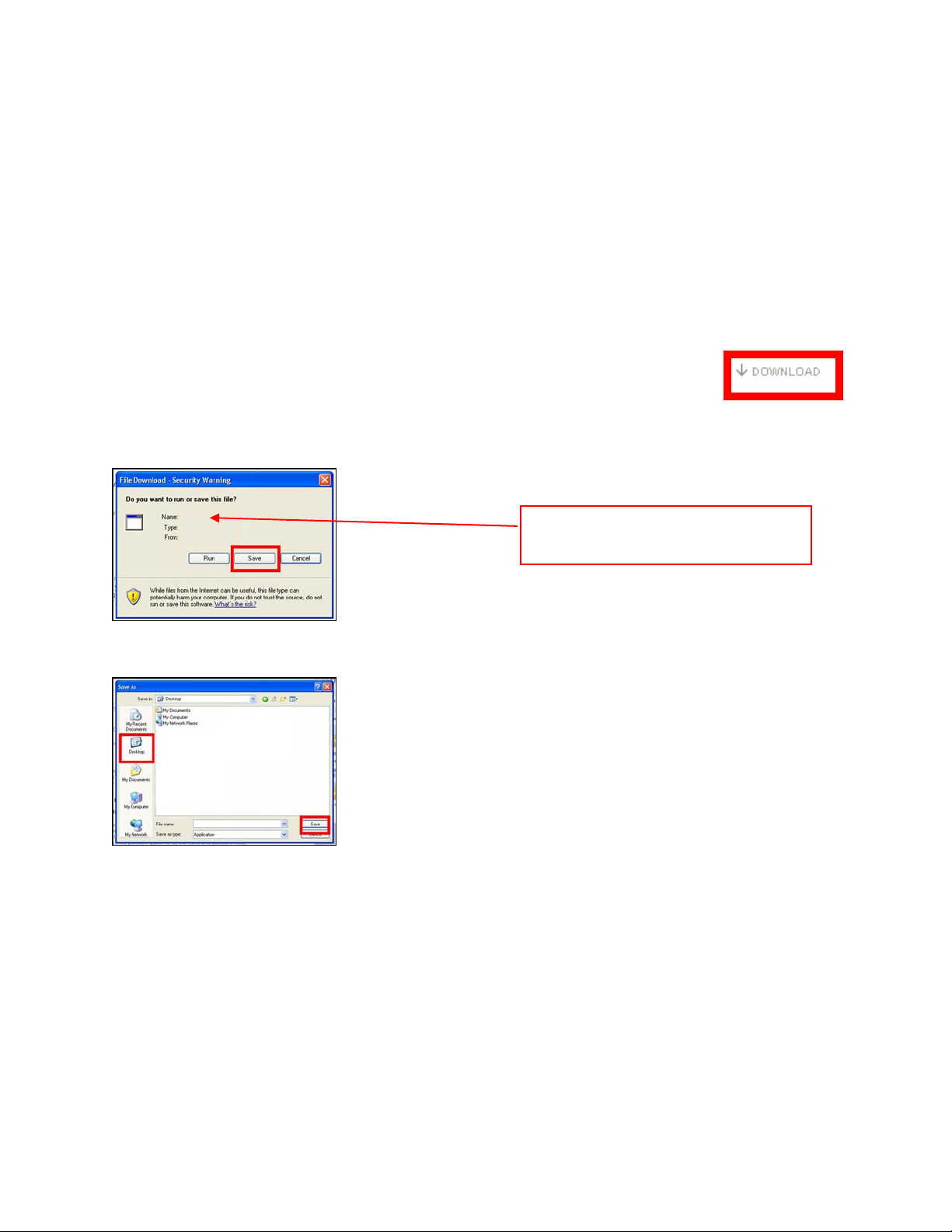
1) Left click on the DOWNLOAD icon for the SC-BT200/203/205/300/303
Theater System Firmware.
- SC-BT200/203/205/300/303
Firmware Update
2) Left click on SAVE.
Series Home Theater System
The file name displayed should be
PANA_DVD.FRM.
Series Home
3) Left click on DESKTOP, and then left click on SAVE.
NOTE: The file PANA_DVD.FRM will be placed on the DESKTOP.
SC-BT200/203/205/300/303 Blu-Ray Home Theater System
Firmware Installation Instructions
Page 2 of 7
Page 3
3 Burn Firmware
Use one of the below methods to burn the firmware to a CD-R disc.
3.1 Windows
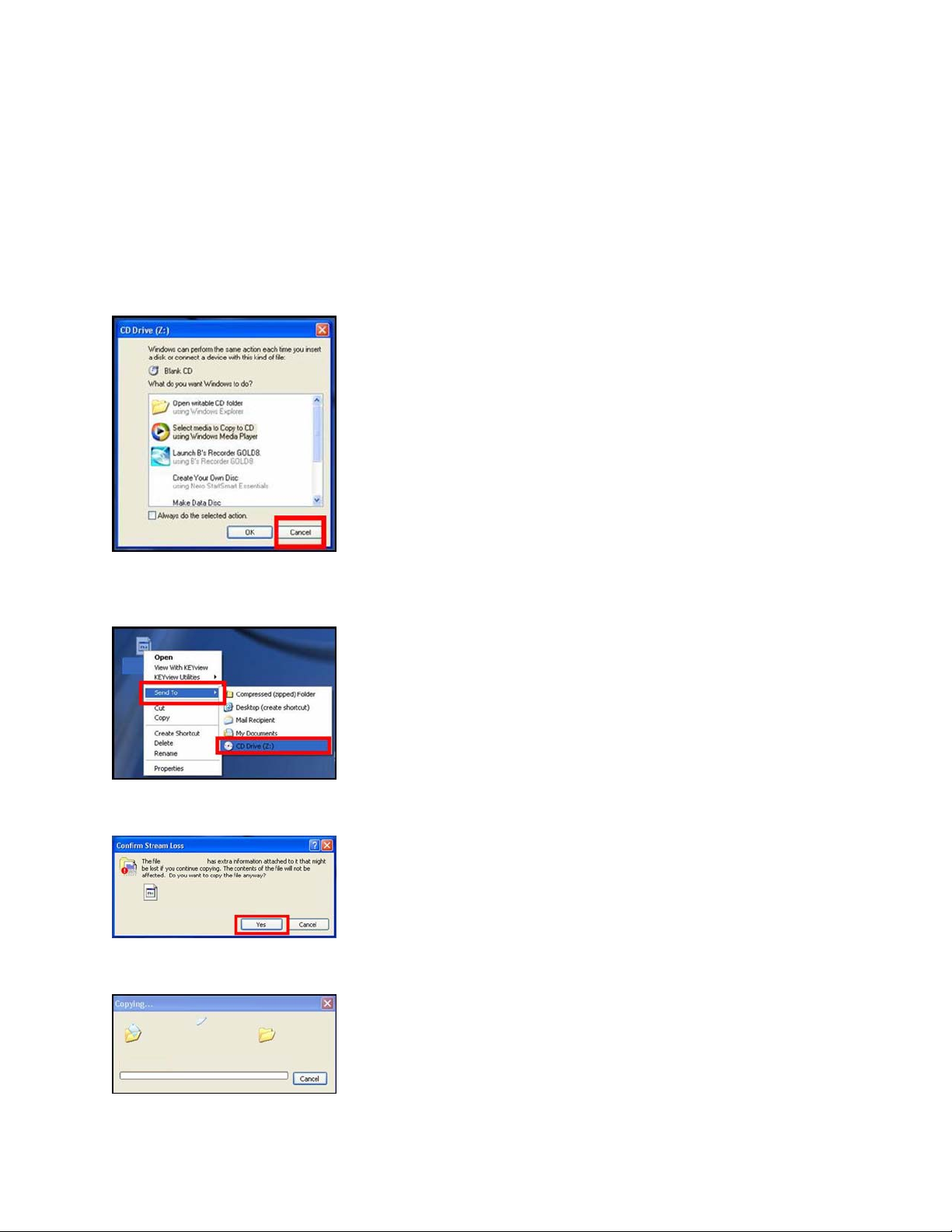
1) Insert a blank CD-R disc into a CD Burner Drive installed in or attached to the computer.
2) If the below (or similar) screen appears (Windows XP), left click on CANCEL.
3) Right click on the PANA_DVD.FRM file on the DESKTOP, mouse over SEND TO, and
then left click on the CD BURNER DRIVE.
® XP CD Writing Program
4) If the below screen appears, left click on YES.
NOTE: The below screen may appear momentarily.
SC-BT200/203/205/300/303 Blu-Ray Home Theater System
Firmware Installation Instructions
Page 3 of 7
Page 4
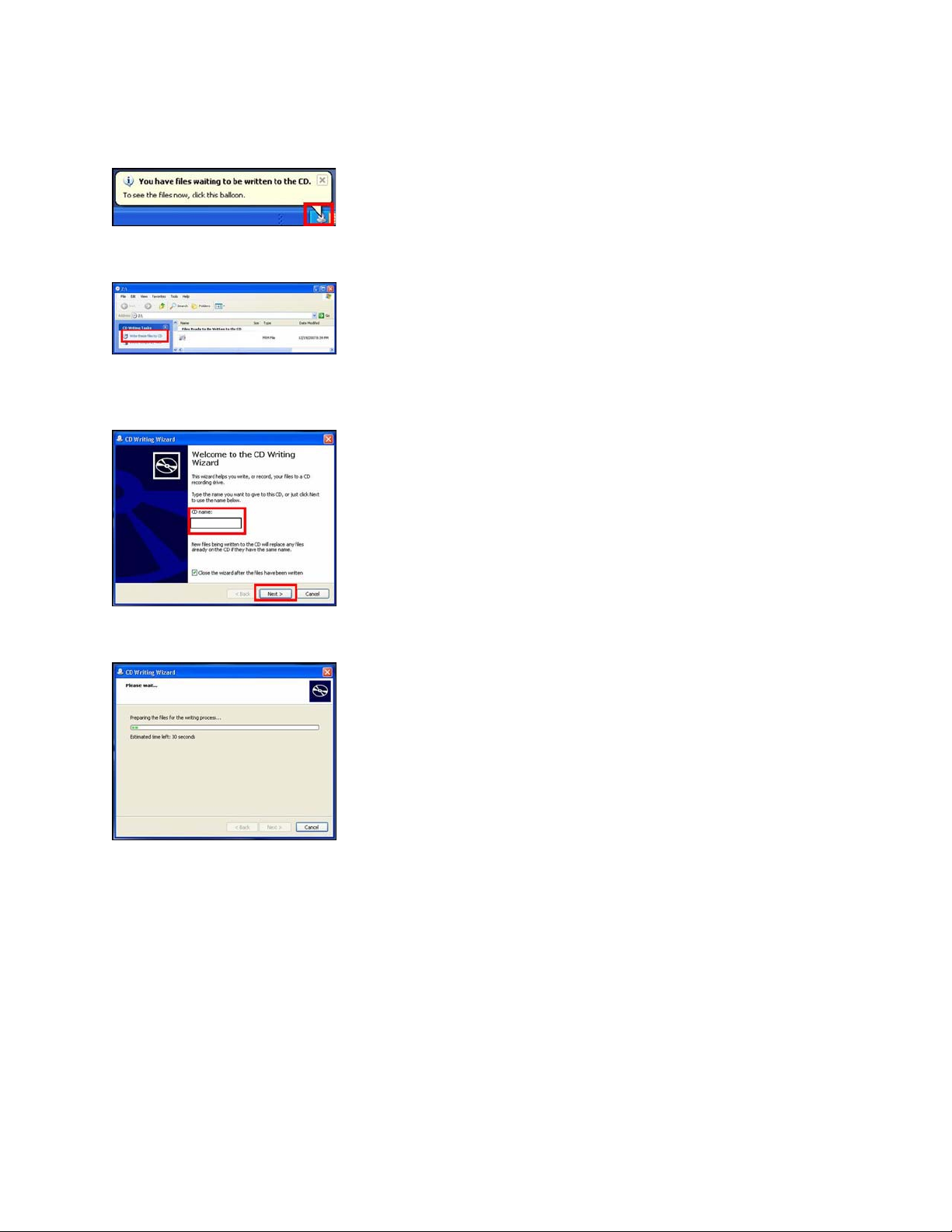
5) Left click on the YOU HAVE FILES WAITING TO BE WRITTEN TO THE CD icon in the
SYSTEM TRAY.
6) Left click on WRITE THESE FILES TO CD.
7) Type a name for the CD, check the CLOSE THE WIZARD AFTER THE FILES HAVE
BEEN WRITTEN check box, and then left click on NEXT.
NOTE: The below screen will appear during the burning process.
8) After the PANA_DVD.FRM file has been burned to the CD, the disc should automatically
eject from the CD Burner Drive. If it doesn’t, manually eject the disc.
3.2 Other OS CD Writing Program
Refer to the computer’s owner’s manual or HELP files for instructions on how to copy the
STA002B to a CD-R using the ISO-9660 format.
rd
3.3 3
Party CD Burning Software
Refer to the software application’s owner’s manual or HELP files for instructions on how to
copy the STA002B to a CD-R using the ISO-9660 format.
SC-BT200/203/205/300/303 Blu-Ray Home Theater System
Firmware Installation Instructions
Page 4 of 7
Page 5

3.4 Dragging & Dropping
If an icon for the CD Burner Drive has been placed on the DESKTOP, left click on the
firmware file, hold the left mouse button down, drag the file to the CD Burner Drive icon and
release the left mouse button.
If using the Windows XP operating system, follow procedure from STEP 5 of SECTION 3.1
on PAGE 5 of 8.
SC-BT200/203/205/300/303 Blu-Ray Home Theater System
Firmware Installation Instructions
Page 5 of 7
Page 6
4 Install Firmware
CAUTION:
It will take about 30 minutes to update the firmware. During the firmware update
procedure, do not turn the Panasonic Blu-Ray home theater off or disconnect AC
power. Do not press any buttons, except as instructed.
Failure to do so may result in the Panasonic Blu-Ray home theater becoming
unresponsive which will require repair.
1) Turn your Panasonic Blu-Ray home theater on.
2) Press the [OPEN/CLOSE] button to OPEN the disc tray.
3) Place the Firmware Update Disc into the disc tray with the label side facing up.
4) Press the [OPEN/CLOSE] button to CLOSE the disc tray.
CAUTION:
During the firmware update procedure, do not turn the unit off, disconnect it from
AC power (outlet) or press any buttons except as instructed. Failure to do so may
result in an unresponsive unit that will require repair.
The time to complete the firmware update will vary, however the time should not ex ceed 45
minutes. Please be patient during the firmware upgrade!
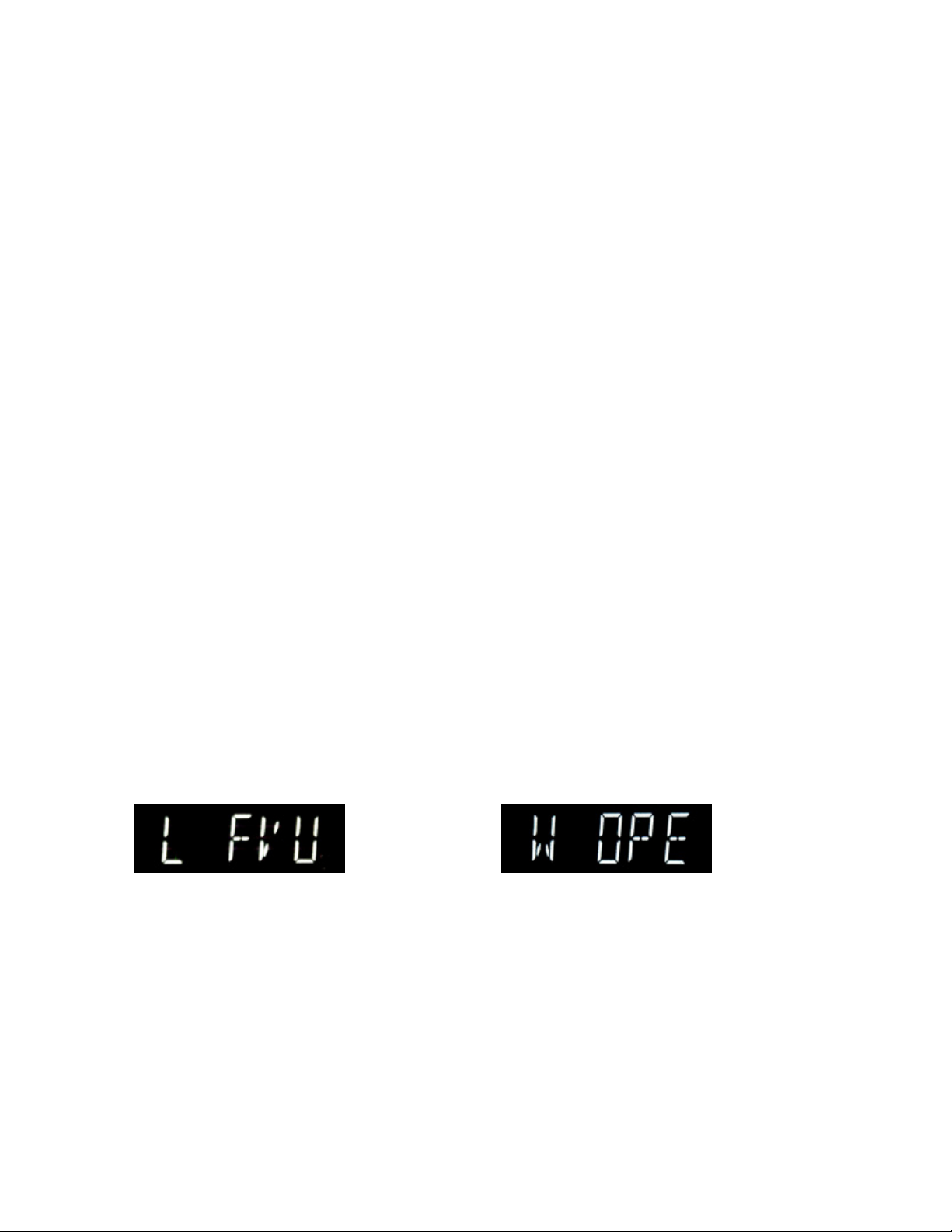
NOTE: During the update process, various messages will show on the front panel display as
below;
"L ***" means firmware Loading "W ***" means firmware Writing
5) When the firmware update is completed, the disc tray opens automatically.
Please take out the firmware update disc. The main unit will turn off power automatically.
The firmware update installation procedure is now complete.
If the main unit turns off power before you remove the firmware update disc, please press
the [OPEN/CLOSE] button of the main unit. The disc tray of the main unit will open.
Please take out the firmware update disc.
SC-BT200/203/205/300/303 Blu-Ray Home Theater System
Firmware Installation Instructions
Page 6 of 7
Page 7

[Note]:
If the firmware version currently installed in the Panasonic Blu-Ray home theater
is the same or more recent than the firmware version on the update disc,
"NoUPDA/UPDATE" will be displayed for approximately 3 seconds on the front
display of the Panasonic Blu-Ray home theater.
In this case, an update is unnecessary -please remove the disc.
Display on the Panasonic Blu-Ray home theater:
If you have any problems after installing the new firmware, please contact the Global
Service Center Network.
Global Service Center Network at http://panasonic.net/support/gscn/
SC-BT200/203/205/300/303 Blu-Ray Home Theater System
Firmware Installation Instructions
Page 7 of 7
 Loading...